Upgrade to Pro — share decks privately, control downloads, hide ads and more …

Machine Learning capabilities with Firebase MLKit

Machine Learning capabilities with Firebase MLKit

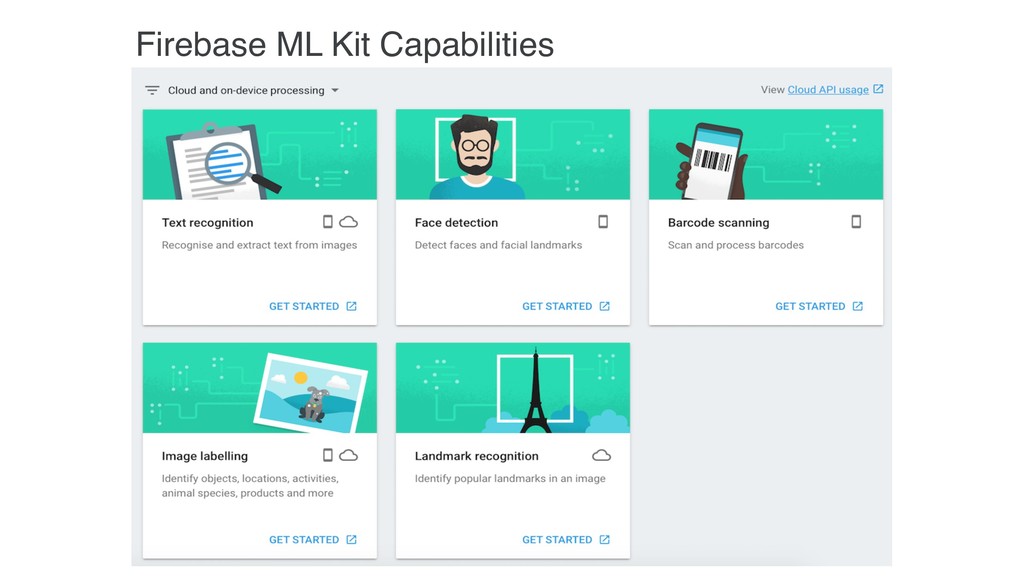
Machine Learning is one of the most popular and interesting topics in tech at the moment. Everyone is talking about it, everyone wants to use it. I will be using the Firebase MLKit (beta) to build an app that leverages the power of Machine Learning. I will be sharing my experience of using Firebase MLKit, from how easy it was to integrate it, to the challenges I came across, as well as the limitations of Firebase MLKit and how to work around them.

Avatar for Mbalenhle Ndaba

Mbalenhle Ndaba

December 01, 2018

More Decks by Mbalenhle Ndaba

Other Decks in Programming

Transcript

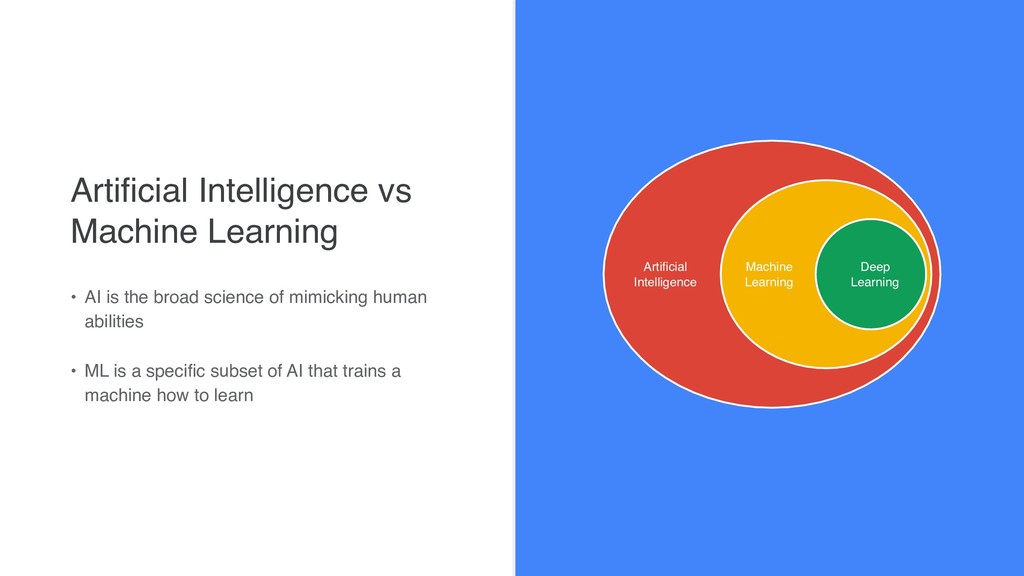
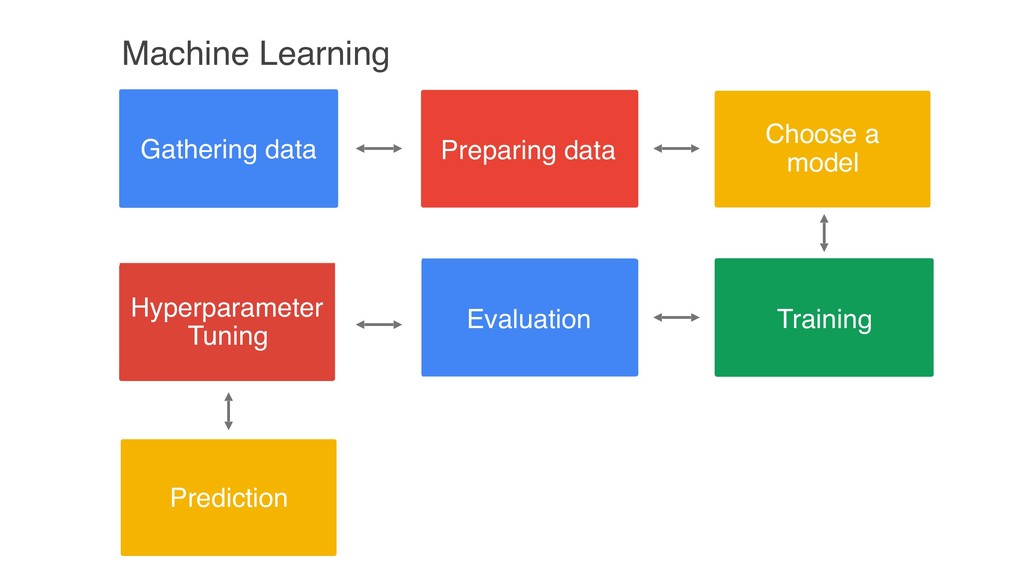
  1. Artificial Intelligence vs Machine Learning • AI is the broad

    science of mimicking human abilities • ML is a specific subset of AI that trains a machine how to learn Artificial Intelligence Deep Learning Machine Learning
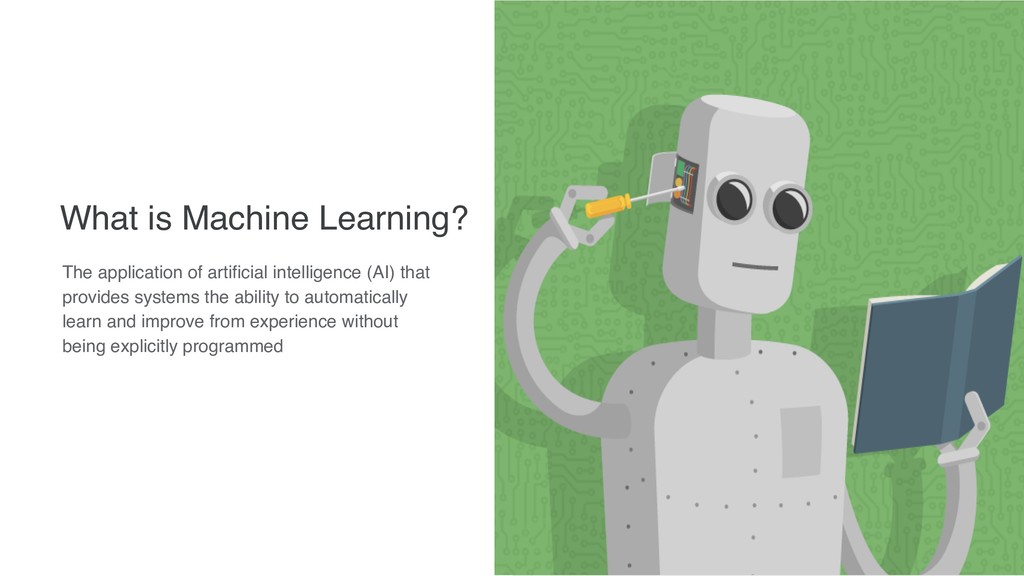
  2. What is Machine Learning? The application of artificial intelligence (AI)

    that provides systems the ability to automatically learn and improve from experience without being explicitly programmed
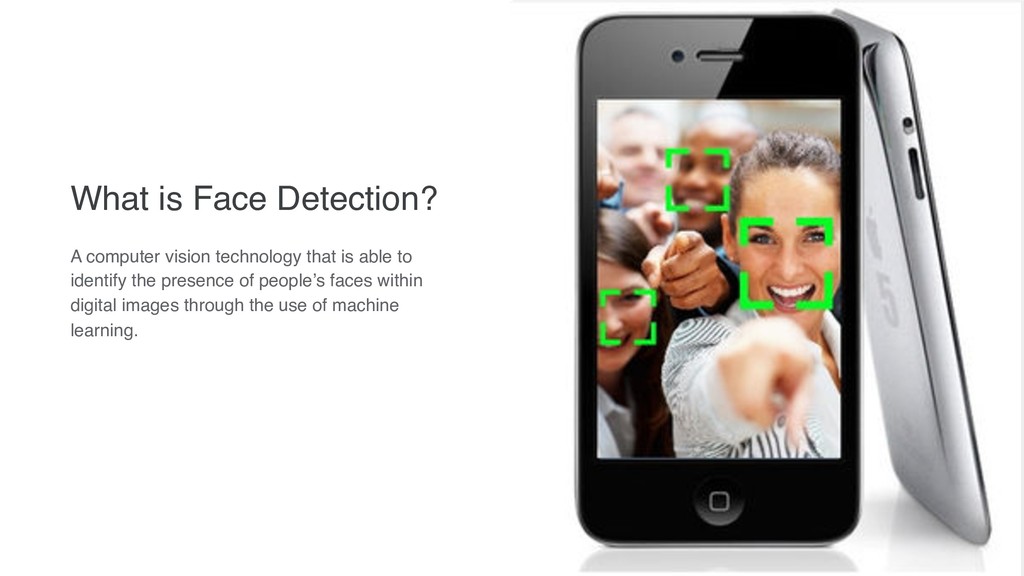
  3. What is Face Detection? A computer vision technology that is

    able to identify the presence of people’s faces within digital images through the use of machine learning.
  4. Face Detection vs Face Recognition Face Detection identifies the presence

    of a face in an image, while Face Recognition goes a step further and attempts to establish whose face is on the image.
  5. Proprietary + Confidential ML Kit Tech Stack Text Source: Lorem

    ipsum dolor sit amet, consectetur adipiscing elit. Duis non erat sem Android / iOS SDK Neural Networks API iOS Metal
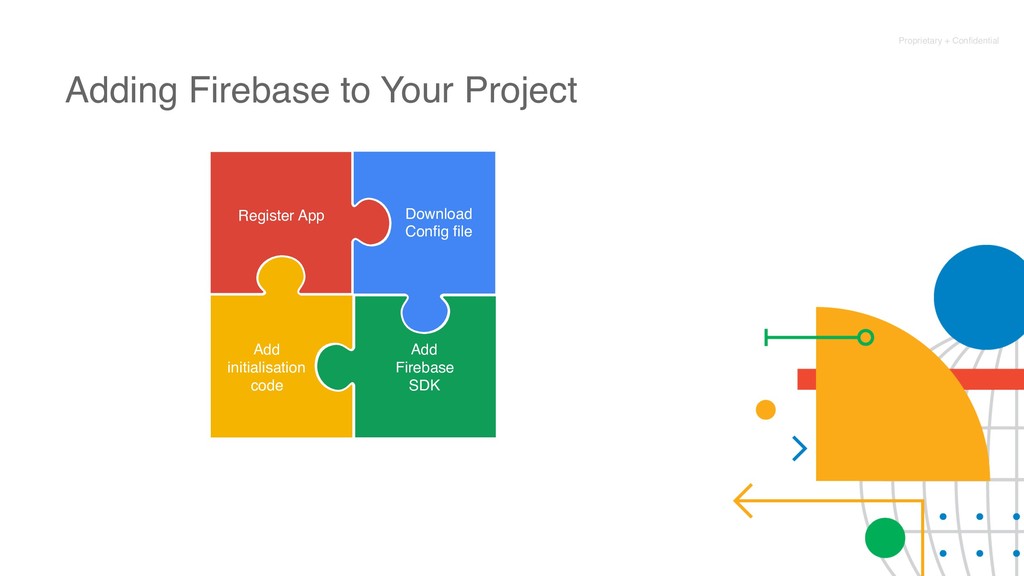
  6. Proprietary + Confidential Adding Firebase to Your Project Register App

    Download Config file Add Firebase SDK Add initialisation code
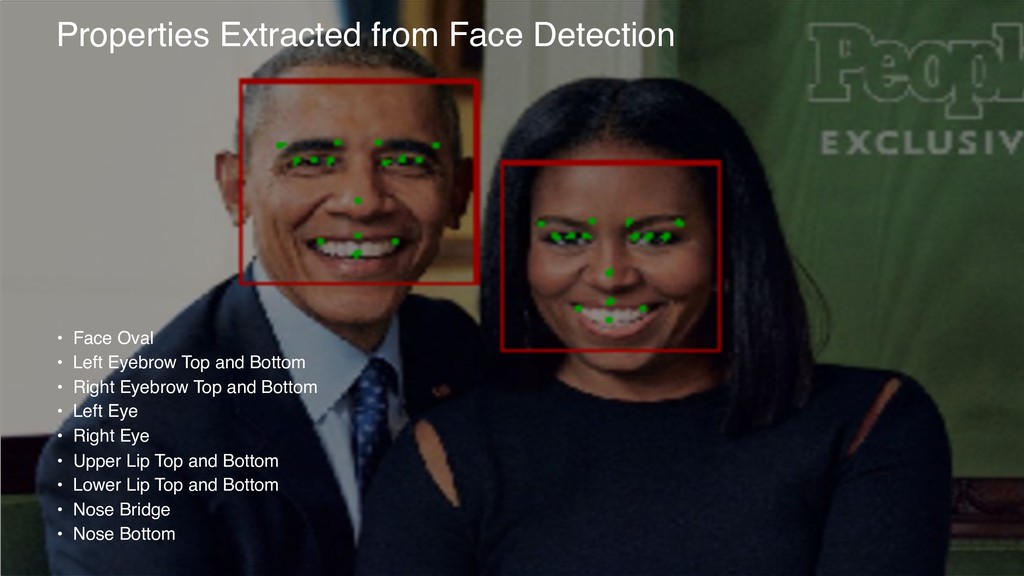
  7. Properties Extracted from Face Detection • Face Oval • Left

    Eyebrow Top and Bottom • Right Eyebrow Top and Bottom • Left Eye • Right Eye • Upper Lip Top and Bottom • Lower Lip Top and Bottom • Nose Bridge • Nose Bottom
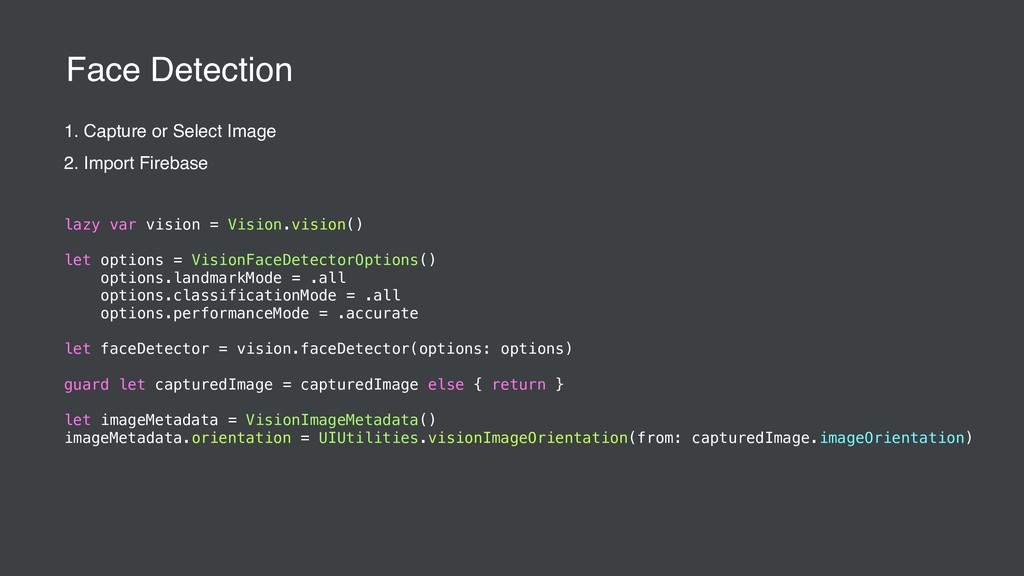
  8. 1. Capture or Select Image 2. Import Firebase lazy var

    vision = Vision.vision() let options = VisionFaceDetectorOptions() options.landmarkMode = .all options.classificationMode = .all options.performanceMode = .accurate let faceDetector = vision.faceDetector(options: options) guard let capturedImage = capturedImage else { return } let imageMetadata = VisionImageMetadata() imageMetadata.orientation = UIUtilities.visionImageOrientation(from: capturedImage.imageOrientation) Face Detection
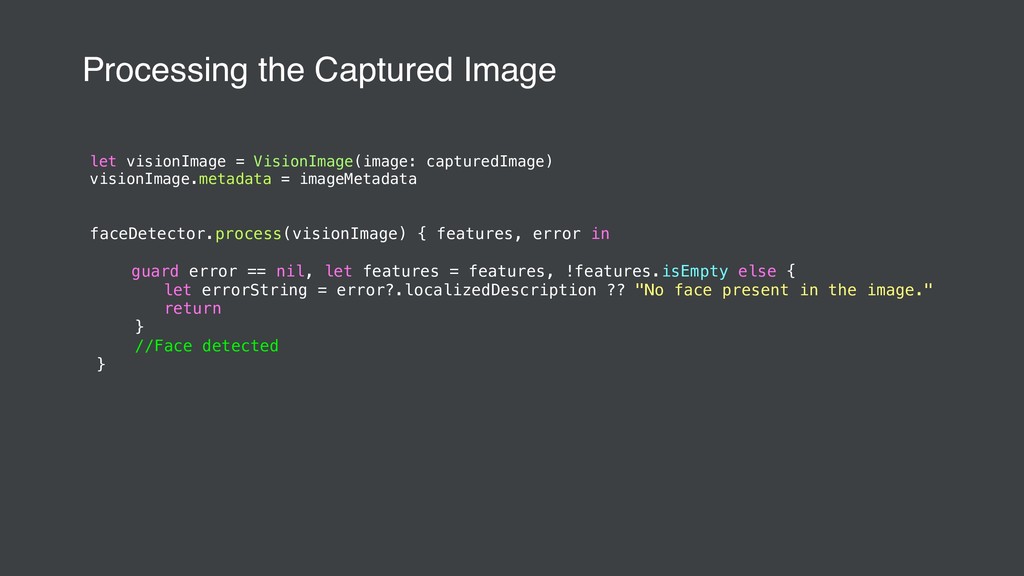
  9. let visionImage = VisionImage(image: capturedImage) visionImage.metadata = imageMetadata faceDetector.process(visionImage) {

    features, error in guard error == nil, let features = features, !features.isEmpty else { let errorString = error?.localizedDescription ?? "No face present in the image." return } //Face detected } Processing the Captured Image
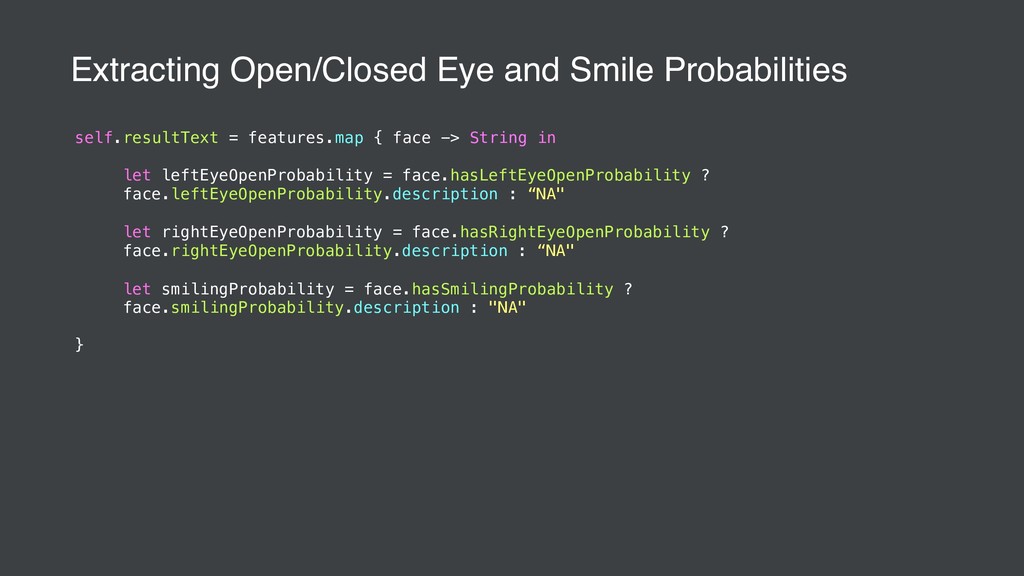
  10. self.resultText = features.map { face -> String in let leftEyeOpenProbability

    = face.hasLeftEyeOpenProbability ? face.leftEyeOpenProbability.description : “NA" let rightEyeOpenProbability = face.hasRightEyeOpenProbability ? face.rightEyeOpenProbability.description : “NA" let smilingProbability = face.hasSmilingProbability ? face.smilingProbability.description : "NA" } Extracting Open/Closed Eye and Smile Probabilities
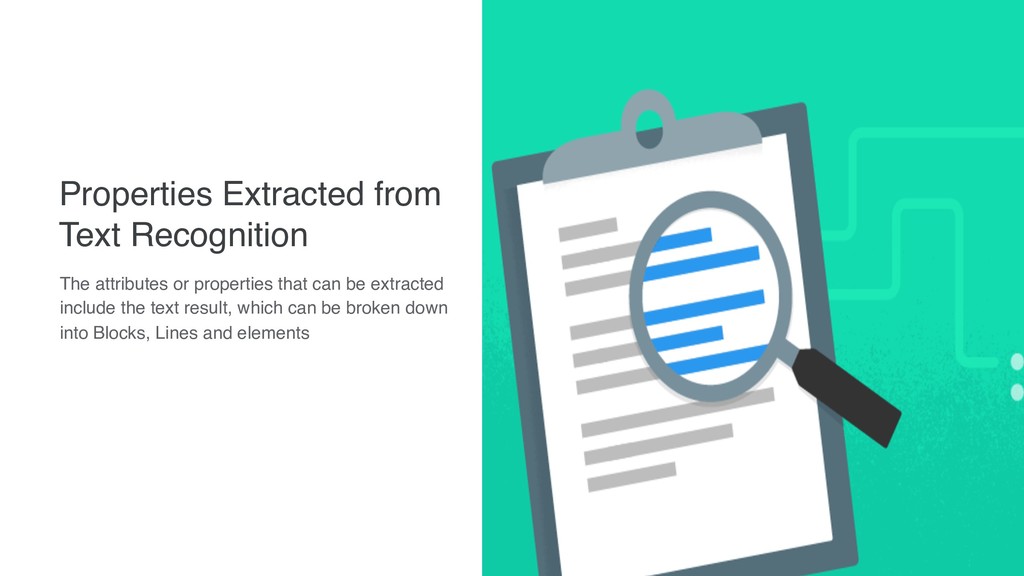
  11. Properties Extracted from Text Recognition The attributes or properties that

    can be extracted include the text result, which can be broken down into Blocks, Lines and elements
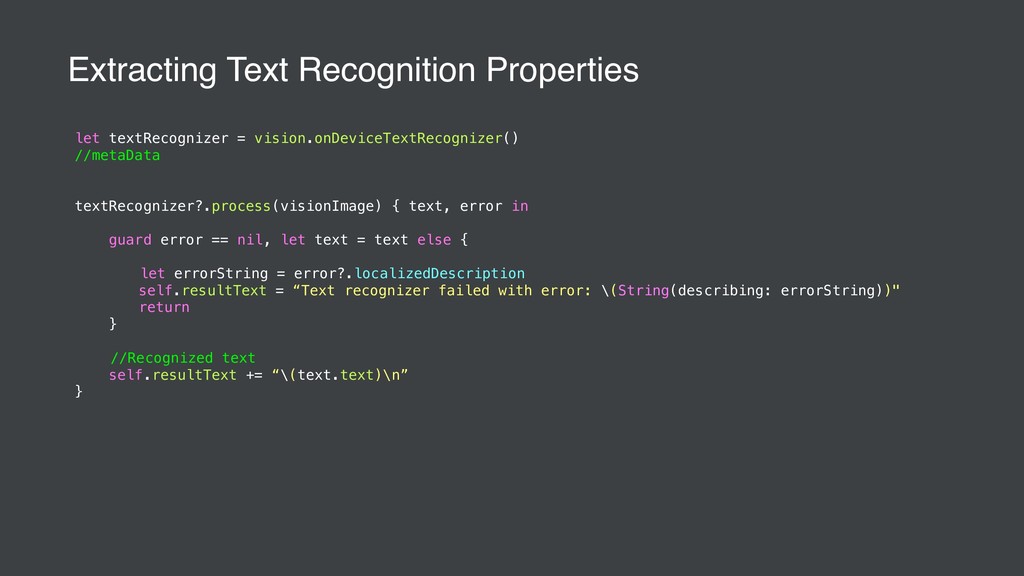
  12. let textRecognizer = vision.onDeviceTextRecognizer() //metaData textRecognizer?.process(visionImage) { text, error in

    guard error == nil, let text = text else { let errorString = error?.localizedDescription self.resultText = “Text recognizer failed with error: \(String(describing: errorString))" return } //Recognized text self.resultText += “\(text.text)\n” } Extracting Text Recognition Properties
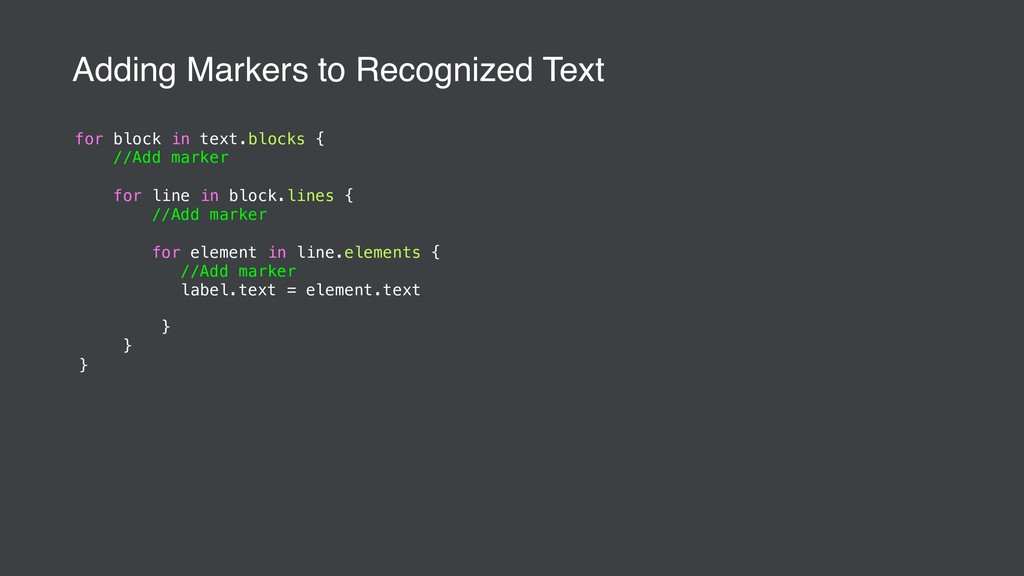
  13. for block in text.blocks { //Add marker for line in

    block.lines { //Add marker for element in line.elements { //Add marker label.text = element.text } } } Adding Markers to Recognized Text