Line, On a display screen, the space following a prompt (such as $) where a text instruction to a computer or device is typed. CLI, a user interface in which you type commands consisting of text instead of choosing them from a menu or selecting an icon. Live with Daily CLI
Line, On a display screen, the space following a prompt (such as $) where a text instruction to a computer or device is typed. CLI, a user interface in which you type commands consisting of text instead of choosing them from a menu or selecting an icon. A significant minority of computer users prefer to use CLIs, some due to visual disability, but most because they feel that CLIs provide an environment with enhanced productivity. Live with Daily CLI
Line, On a display screen, the space following a prompt (such as $) where a text instruction to a computer or device is typed. CLI, a user interface in which you type commands consisting of text instead of choosing them from a menu or selecting an icon. A significant minority of computer users prefer to use CLIs, some due to visual disability, but most because they feel that CLIs provide an environment with enhanced productivity. What on earth can CLI do then? Live with Daily CLI
Line, On a display screen, the space following a prompt (such as $) where a text instruction to a computer or device is typed. CLI, a user interface in which you type commands consisting of text instead of choosing them from a menu or selecting an icon. A significant minority of computer users prefer to use CLIs, some due to visual disability, but most because they feel that CLIs provide an environment with enhanced productivity. What on earth can CLI do then? CLI can run many many programs, perform specific task: Web browsing(w3m), music playing(mpg321), displaying tasks(top) receiving and sending emails(mutt+esmpt+fetchmail), BBS(ssh), editing files(emacs,vi), file management(mc), file transfer(scp, lftp), downloading(wget), and so many . . . Live with Daily CLI
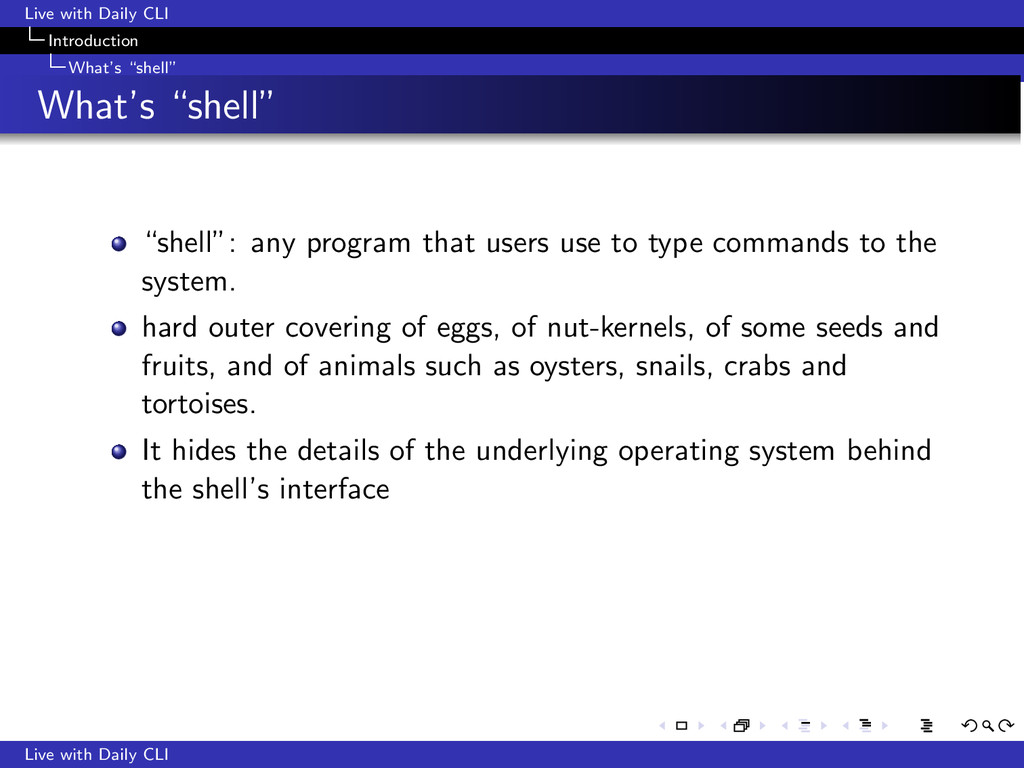
any program that users use to type commands to the system. hard outer covering of eggs, of nut-kernels, of some seeds and fruits, and of animals such as oysters, snails, crabs and tortoises. Live with Daily CLI
any program that users use to type commands to the system. hard outer covering of eggs, of nut-kernels, of some seeds and fruits, and of animals such as oysters, snails, crabs and tortoises. It hides the details of the underlying operating system behind the shell’s interface Live with Daily CLI
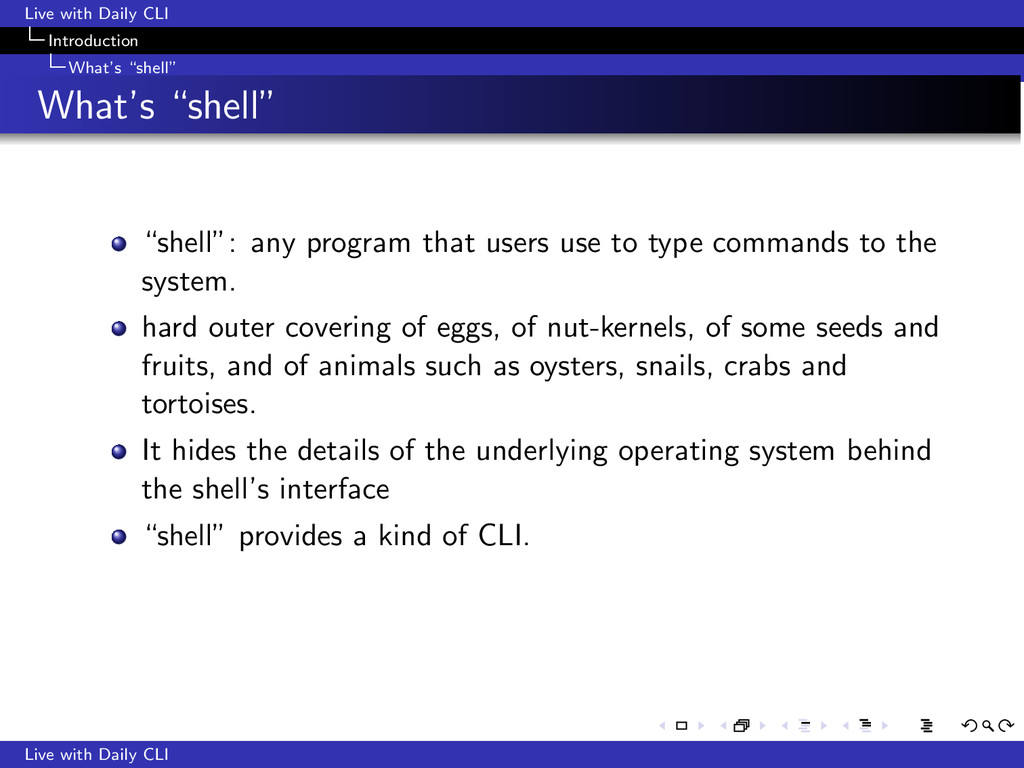
any program that users use to type commands to the system. hard outer covering of eggs, of nut-kernels, of some seeds and fruits, and of animals such as oysters, snails, crabs and tortoises. It hides the details of the underlying operating system behind the shell’s interface “shell” provides a kind of CLI. Live with Daily CLI
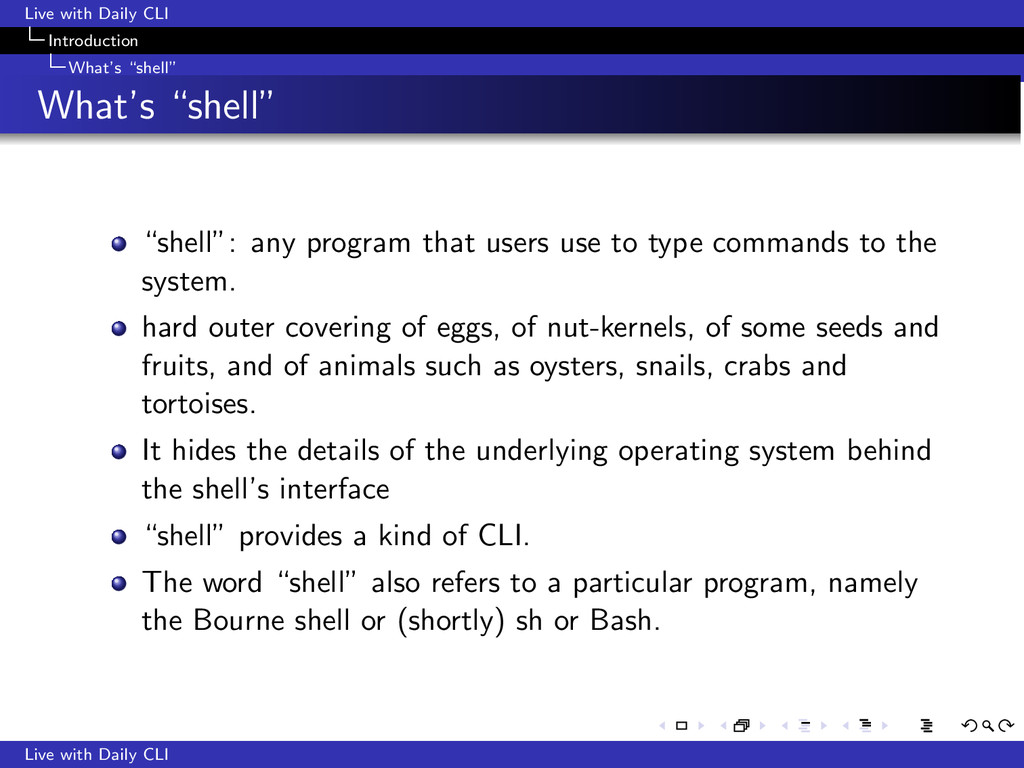
any program that users use to type commands to the system. hard outer covering of eggs, of nut-kernels, of some seeds and fruits, and of animals such as oysters, snails, crabs and tortoises. It hides the details of the underlying operating system behind the shell’s interface “shell” provides a kind of CLI. The word “shell” also refers to a particular program, namely the Bourne shell or (shortly) sh or Bash. Live with Daily CLI
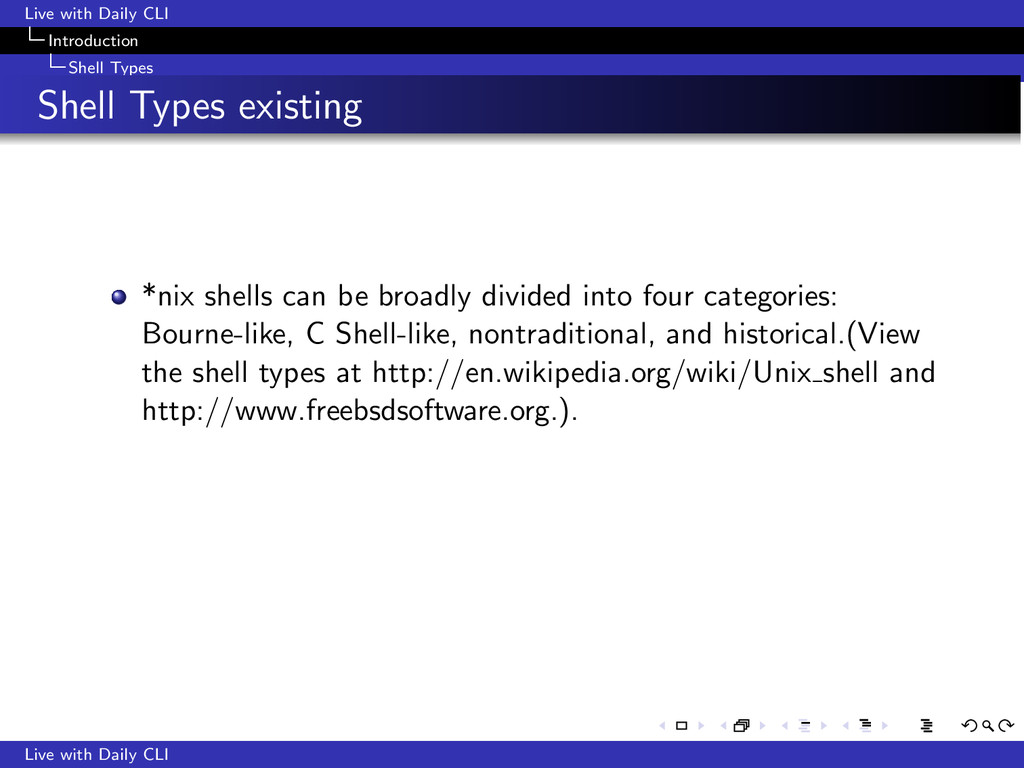
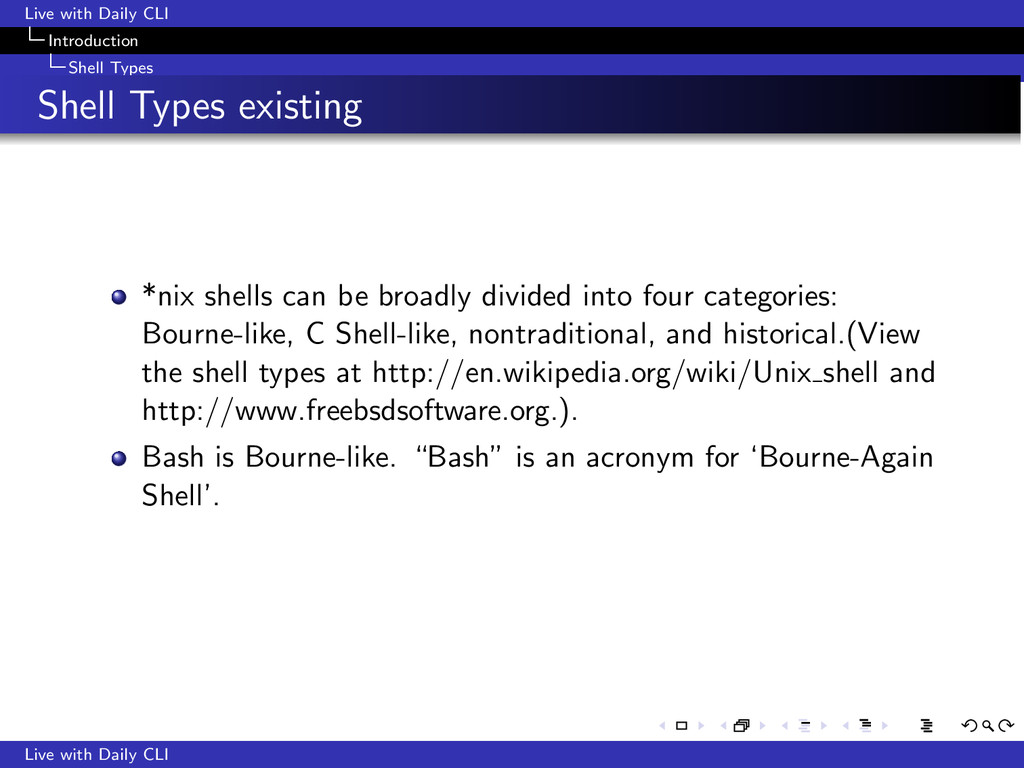
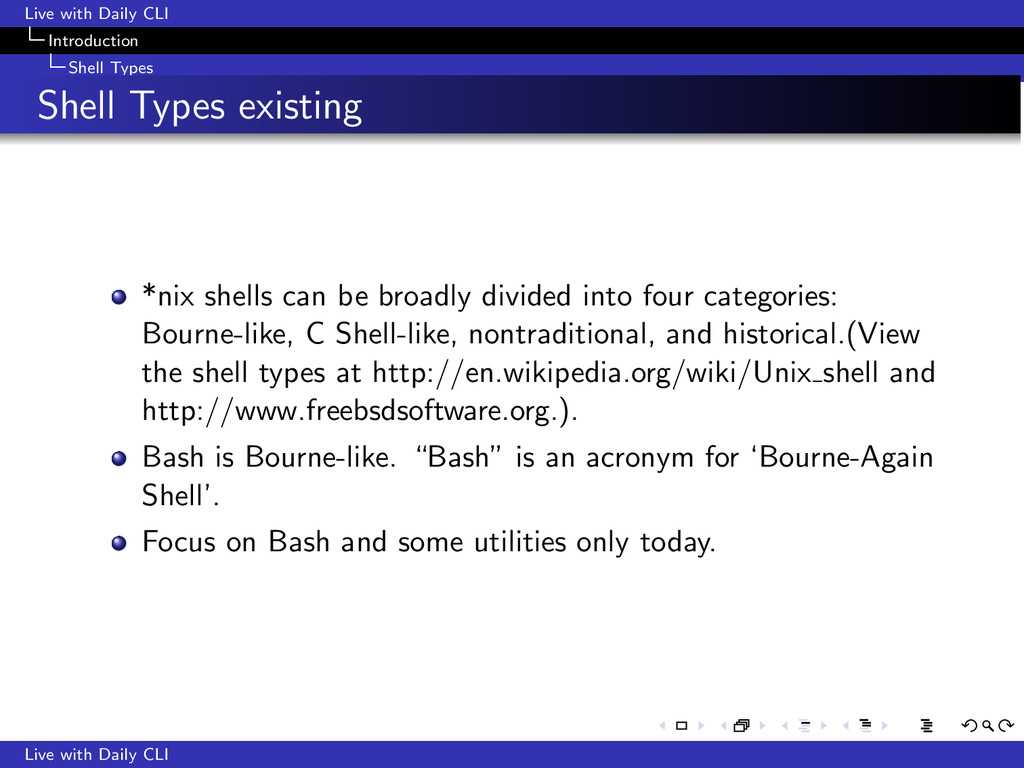
*nix shells can be broadly divided into four categories: Bourne-like, C Shell-like, nontraditional, and historical.(View the shell types at http://en.wikipedia.org/wiki/Unix shell and http://www.freebsdsoftware.org.). Live with Daily CLI
*nix shells can be broadly divided into four categories: Bourne-like, C Shell-like, nontraditional, and historical.(View the shell types at http://en.wikipedia.org/wiki/Unix shell and http://www.freebsdsoftware.org.). Bash is Bourne-like. “Bash” is an acronym for ‘Bourne-Again Shell’. Live with Daily CLI
*nix shells can be broadly divided into four categories: Bourne-like, C Shell-like, nontraditional, and historical.(View the shell types at http://en.wikipedia.org/wiki/Unix shell and http://www.freebsdsoftware.org.). Bash is Bourne-like. “Bash” is an acronym for ‘Bourne-Again Shell’. Focus on Bash and some utilities only today. Live with Daily CLI
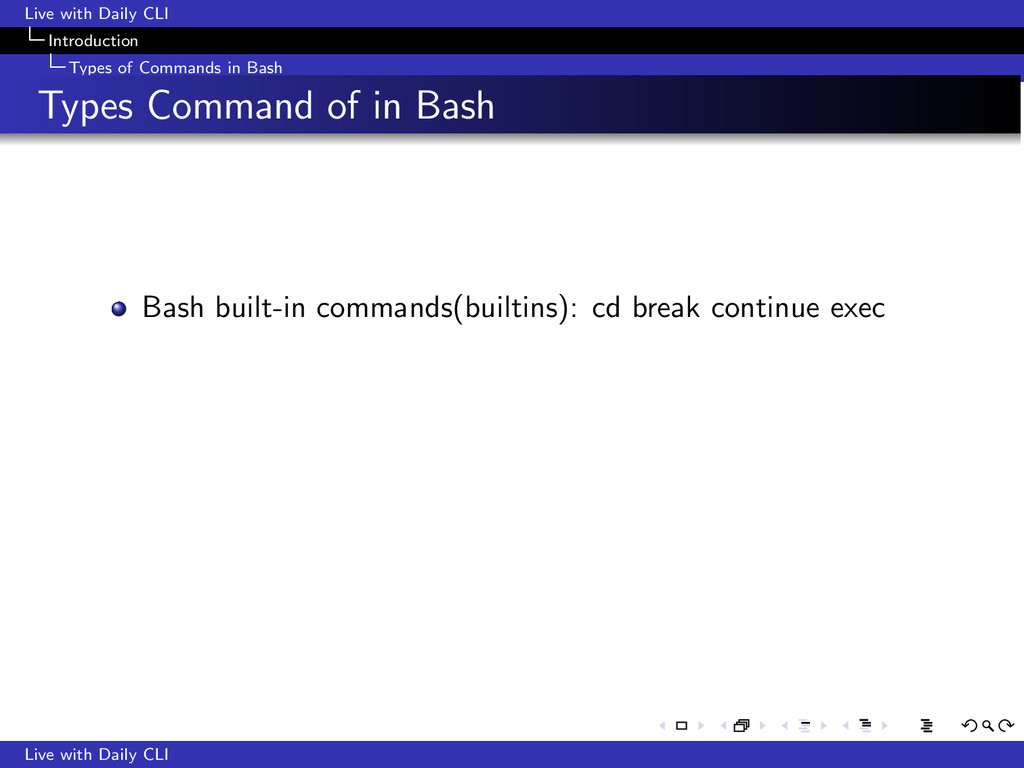
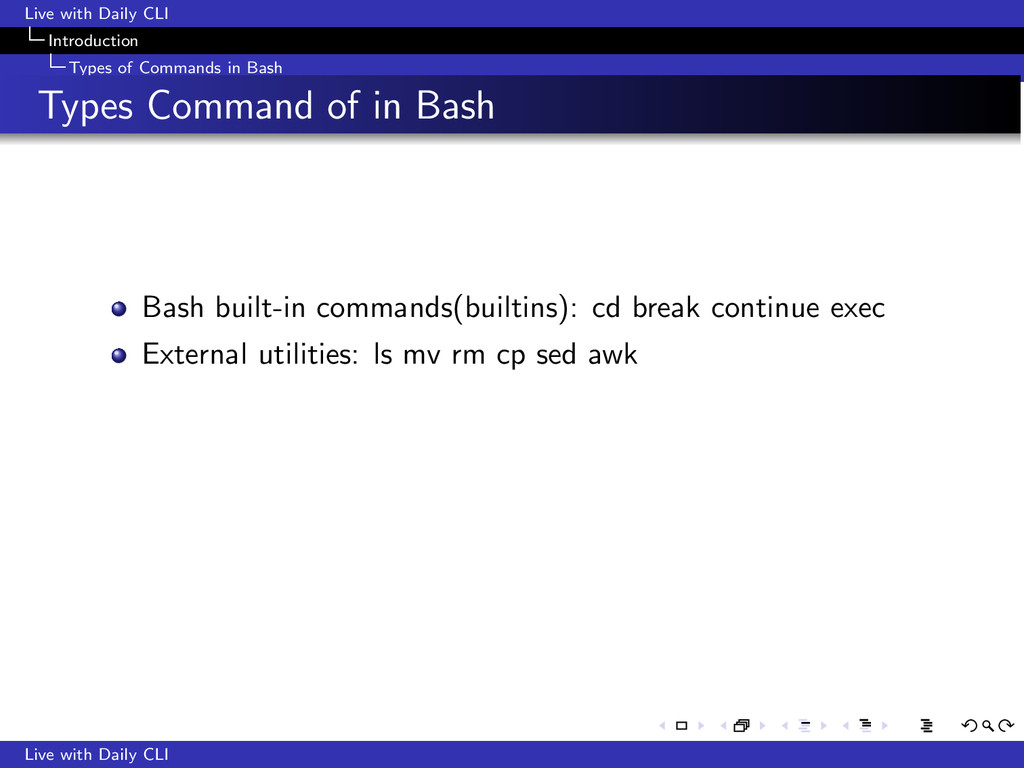
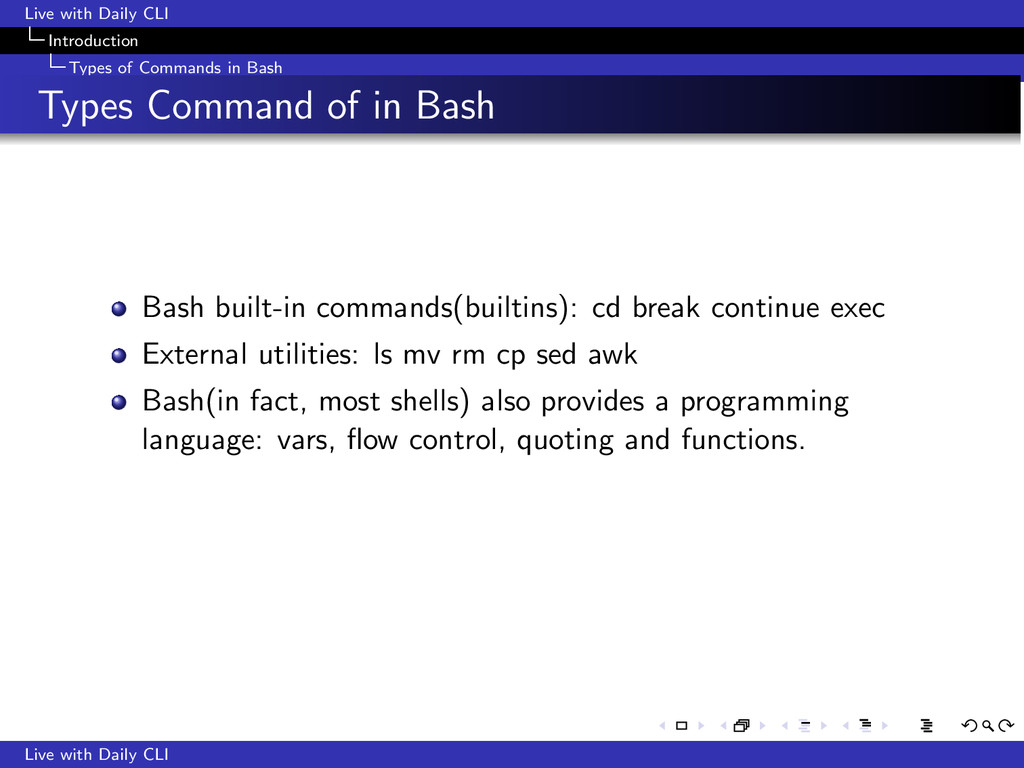
Types Command of in Bash Bash built-in commands(builtins): cd break continue exec External utilities: ls mv rm cp sed awk Bash(in fact, most shells) also provides a programming language: vars, flow control, quoting and functions. Live with Daily CLI
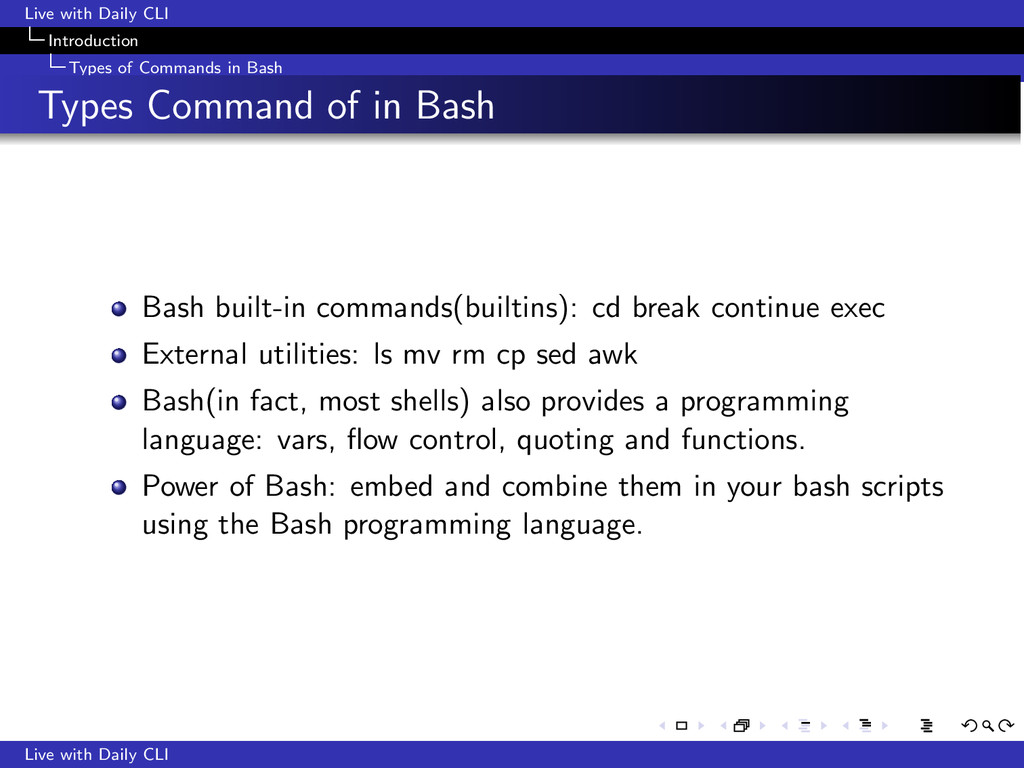
Types Command of in Bash Bash built-in commands(builtins): cd break continue exec External utilities: ls mv rm cp sed awk Bash(in fact, most shells) also provides a programming language: vars, flow control, quoting and functions. Power of Bash: embed and combine them in your bash scripts using the Bash programming language. Live with Daily CLI
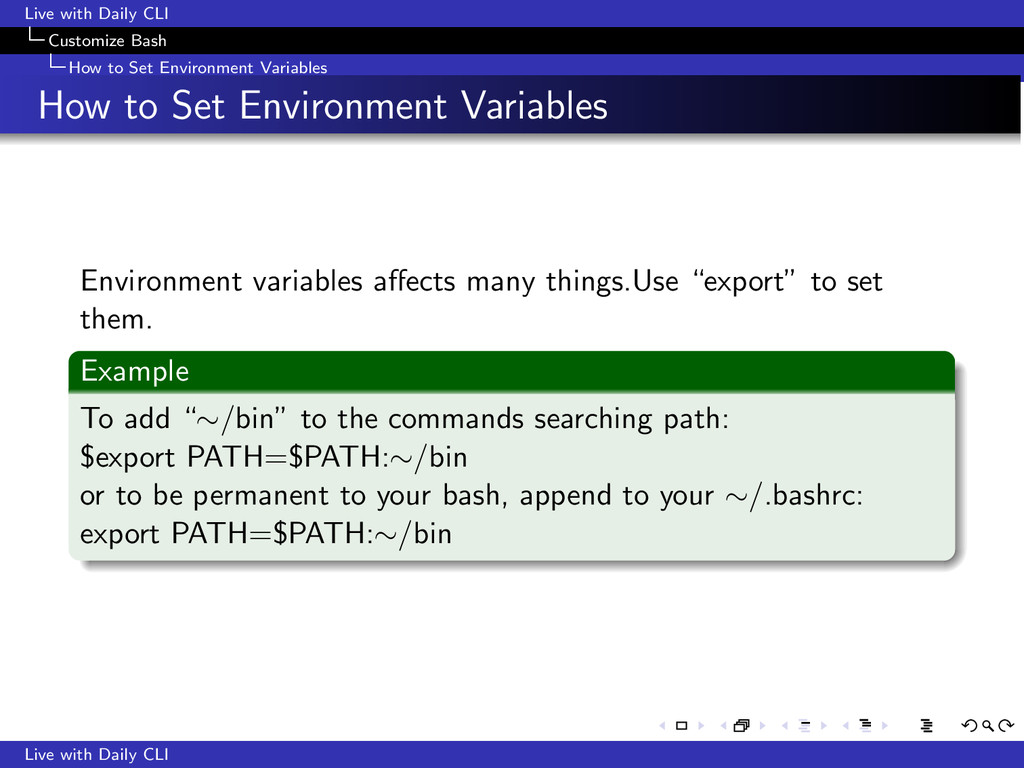
Variables How to Set Environment Variables Environment variables affects many things.Use “export” to set them. Example To add “∼/bin” to the commands searching path: $export PATH=$PATH:∼/bin or to be permanent to your bash, append to your ∼/.bashrc: export PATH=$PATH:∼/bin Live with Daily CLI
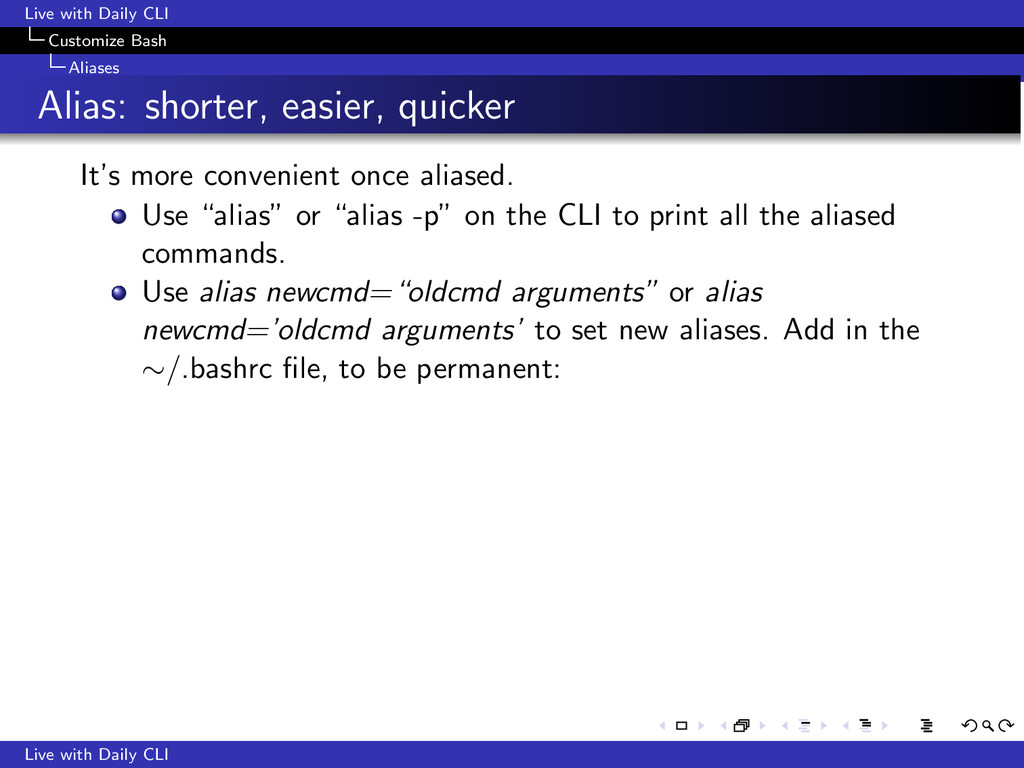
quicker It’s more convenient once aliased. Use “alias” or “alias -p” on the CLI to print all the aliased commands. Use alias newcmd=“oldcmd arguments” or alias newcmd=’oldcmd arguments’ to set new aliases. Add in the ∼/.bashrc file, to be permanent: Live with Daily CLI
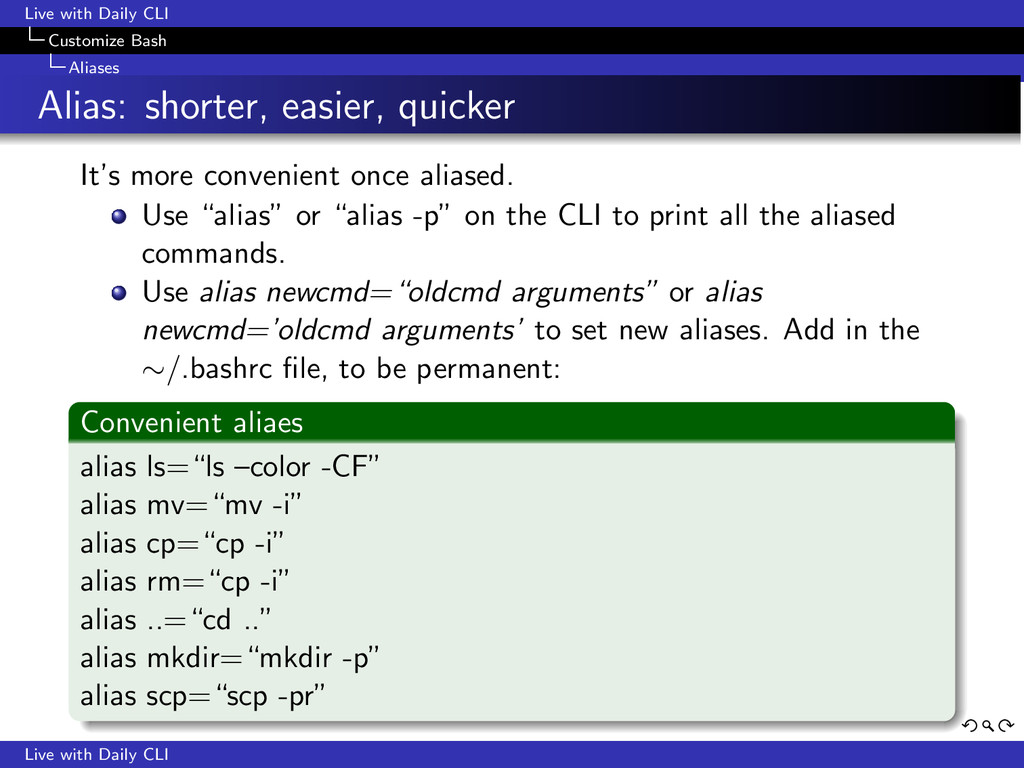
quicker It’s more convenient once aliased. Use “alias” or “alias -p” on the CLI to print all the aliased commands. Use alias newcmd=“oldcmd arguments” or alias newcmd=’oldcmd arguments’ to set new aliases. Add in the ∼/.bashrc file, to be permanent: Convenient aliaes alias ls=“ls –color -CF” alias mv=“mv -i” alias cp=“cp -i” alias rm=“cp -i” alias ..=“cd ..” alias mkdir=“mkdir -p” alias scp=“scp -pr” Live with Daily CLI
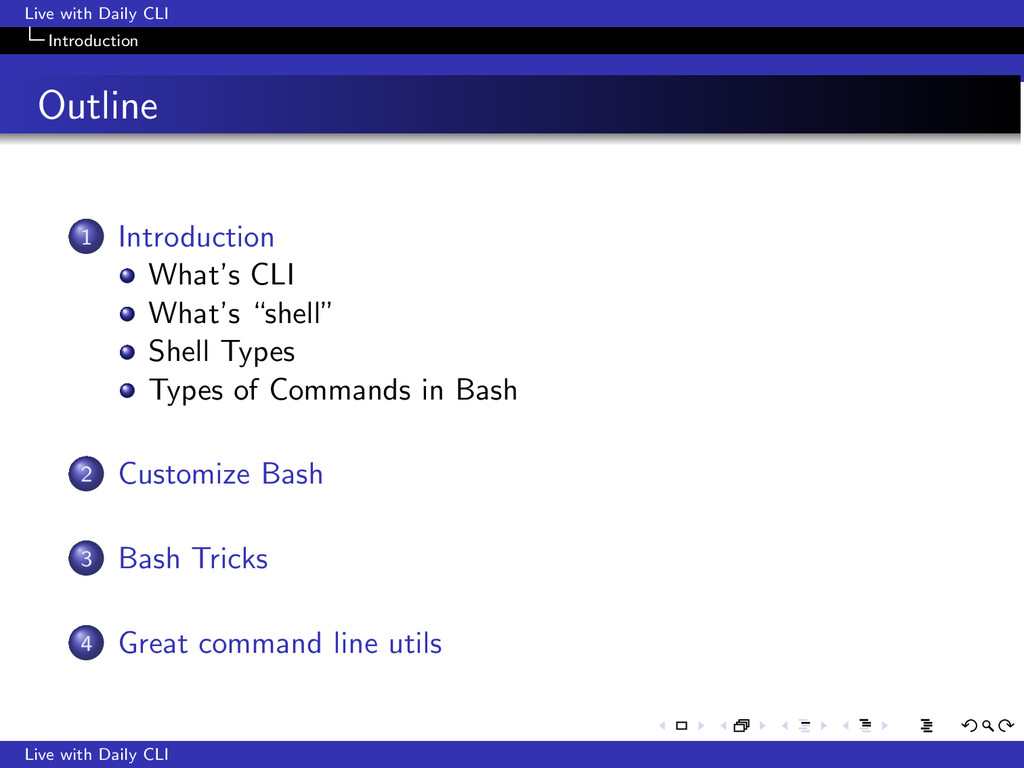
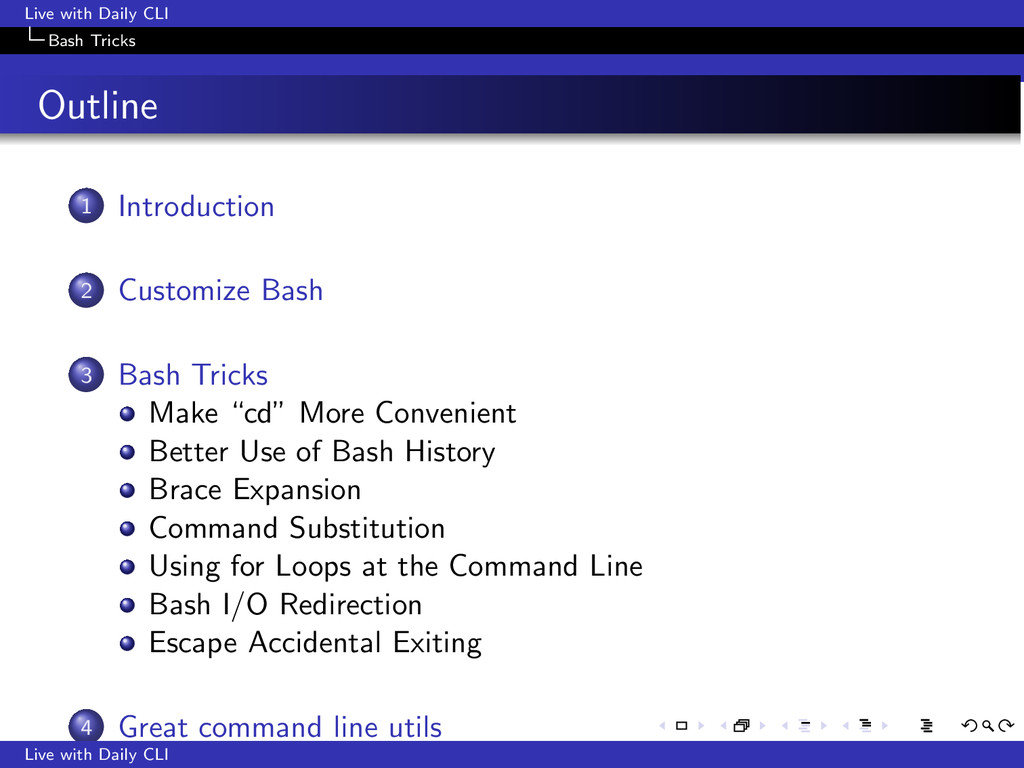
Customize Bash 3 Bash Tricks Make “cd” More Convenient Better Use of Bash History Brace Expansion Command Substitution Using for Loops at the Command Line Bash I/O Redirection Escape Accidental Exiting 4 Great command line utils Live with Daily CLI
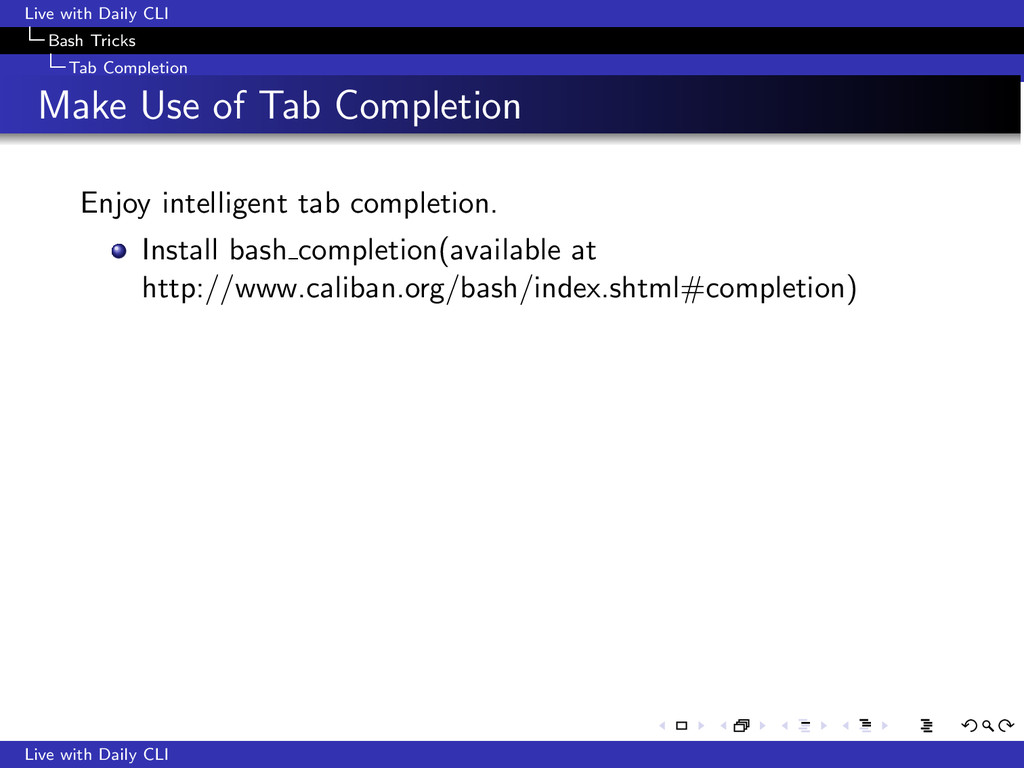
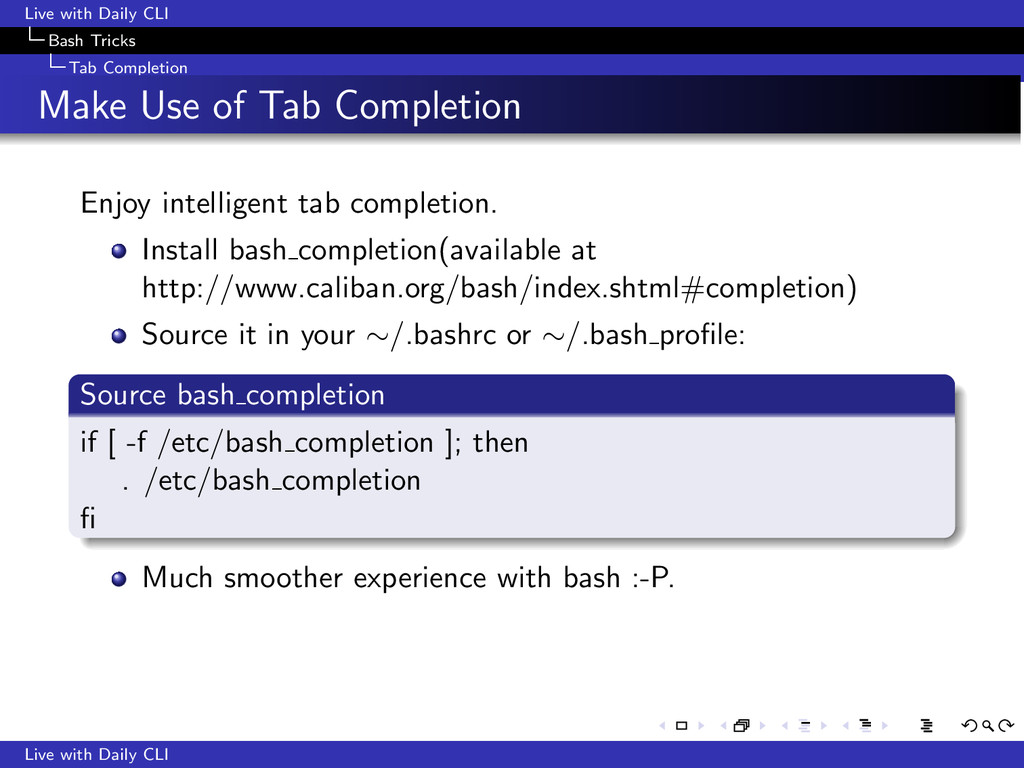
of Tab Completion Enjoy intelligent tab completion. Install bash completion(available at http://www.caliban.org/bash/index.shtml#completion) Live with Daily CLI
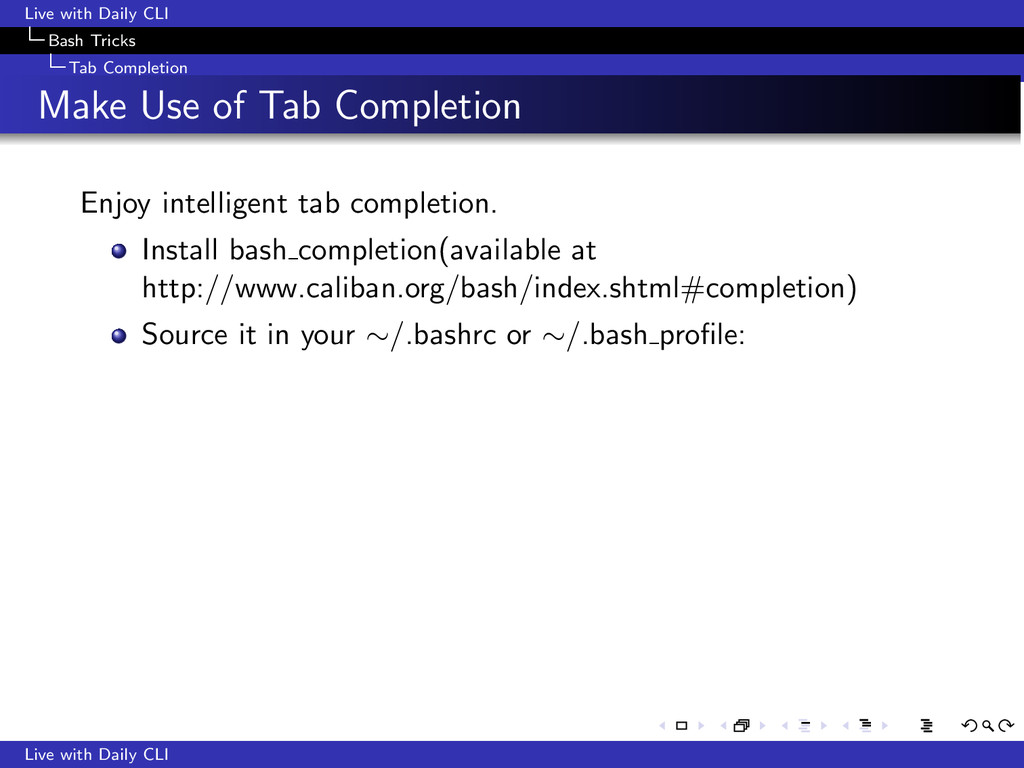
of Tab Completion Enjoy intelligent tab completion. Install bash completion(available at http://www.caliban.org/bash/index.shtml#completion) Source it in your ∼/.bashrc or ∼/.bash profile: Live with Daily CLI
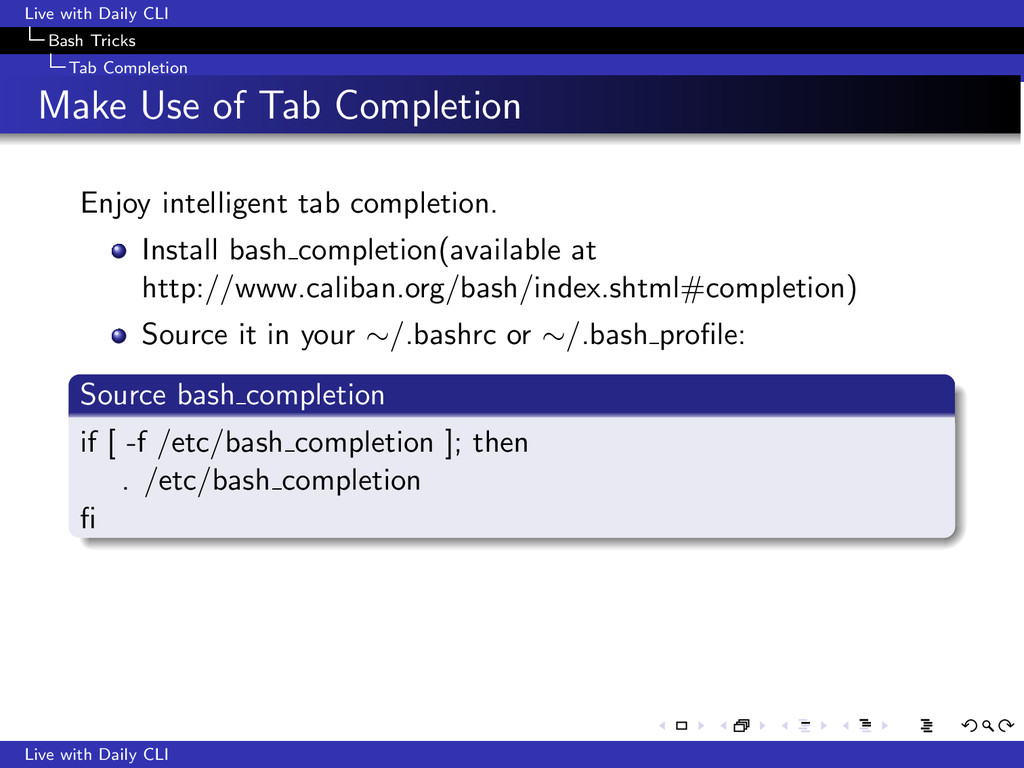
of Tab Completion Enjoy intelligent tab completion. Install bash completion(available at http://www.caliban.org/bash/index.shtml#completion) Source it in your ∼/.bashrc or ∼/.bash profile: Source bash completion if [ -f /etc/bash completion ]; then . /etc/bash completion fi Live with Daily CLI
of Tab Completion Enjoy intelligent tab completion. Install bash completion(available at http://www.caliban.org/bash/index.shtml#completion) Source it in your ∼/.bashrc or ∼/.bash profile: Source bash completion if [ -f /etc/bash completion ]; then . /etc/bash completion fi Much smoother experience with bash :-P. Live with Daily CLI
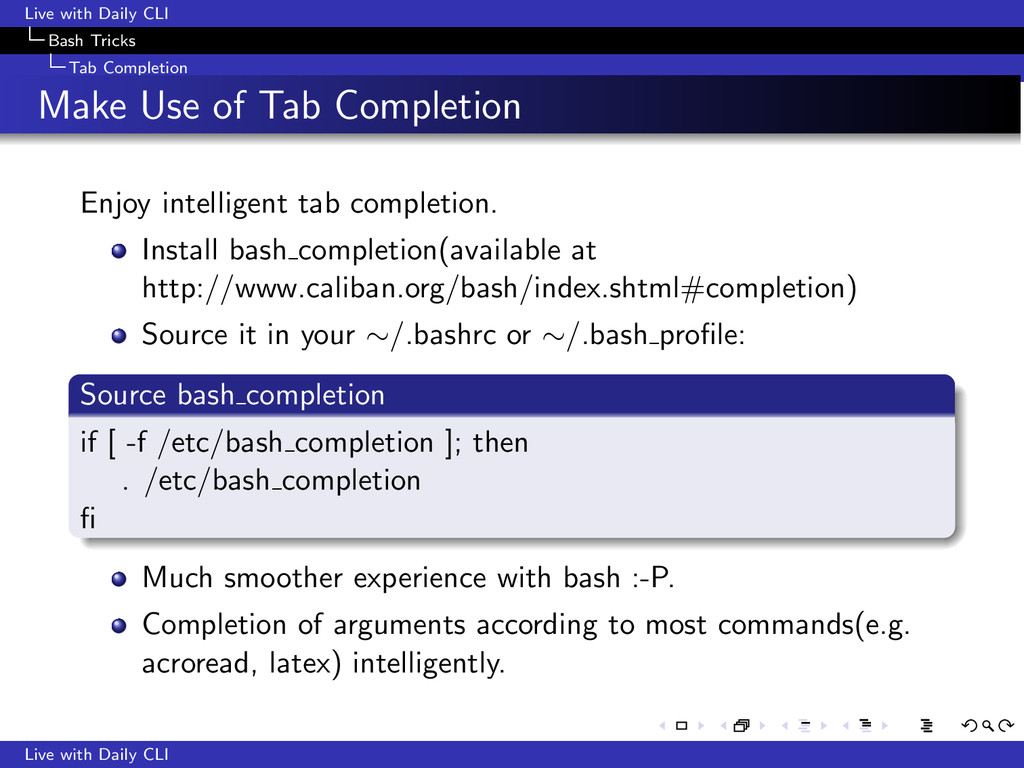
of Tab Completion Enjoy intelligent tab completion. Install bash completion(available at http://www.caliban.org/bash/index.shtml#completion) Source it in your ∼/.bashrc or ∼/.bash profile: Source bash completion if [ -f /etc/bash completion ]; then . /etc/bash completion fi Much smoother experience with bash :-P. Completion of arguments according to most commands(e.g. acroread, latex) intelligently. Live with Daily CLI
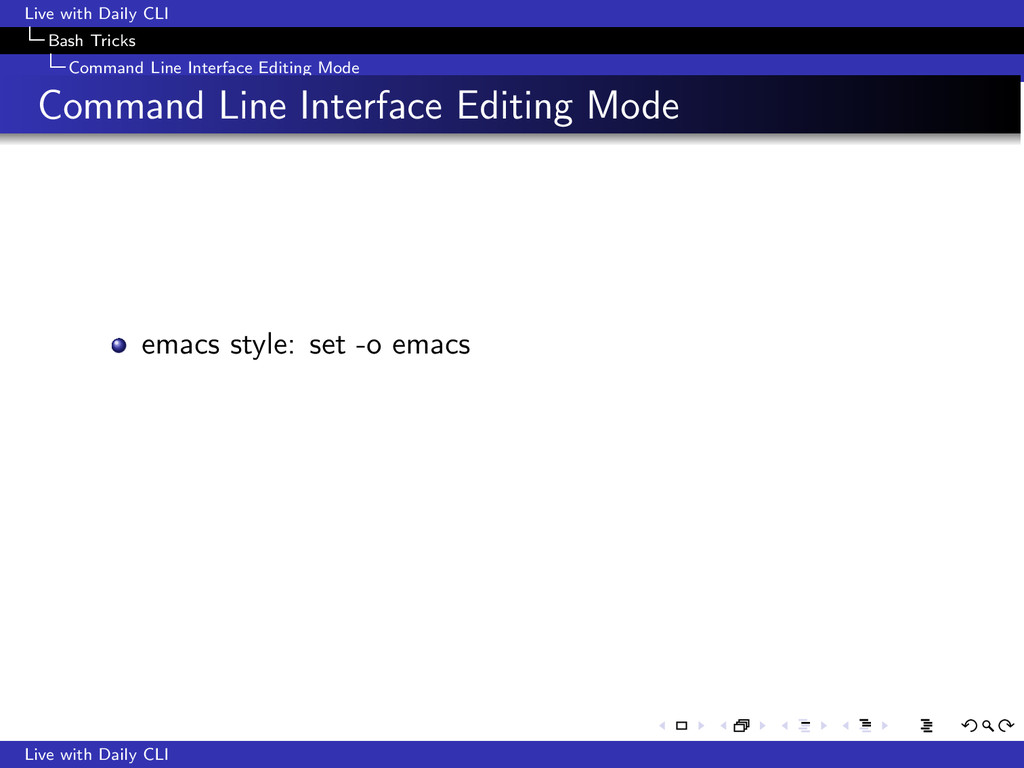
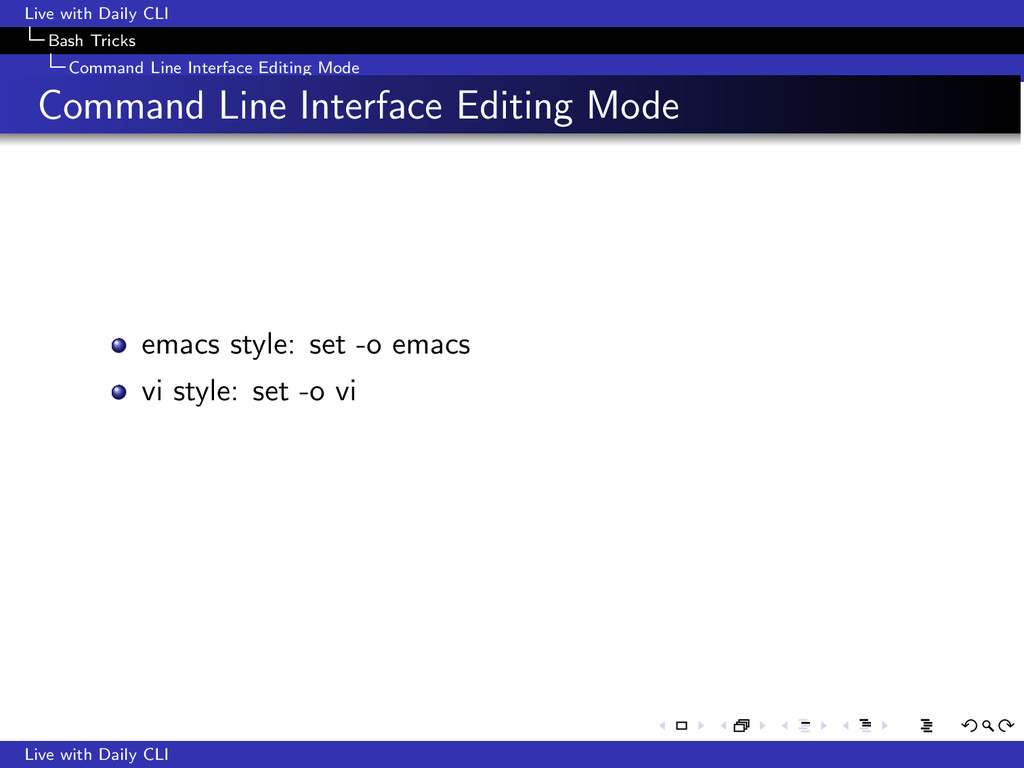
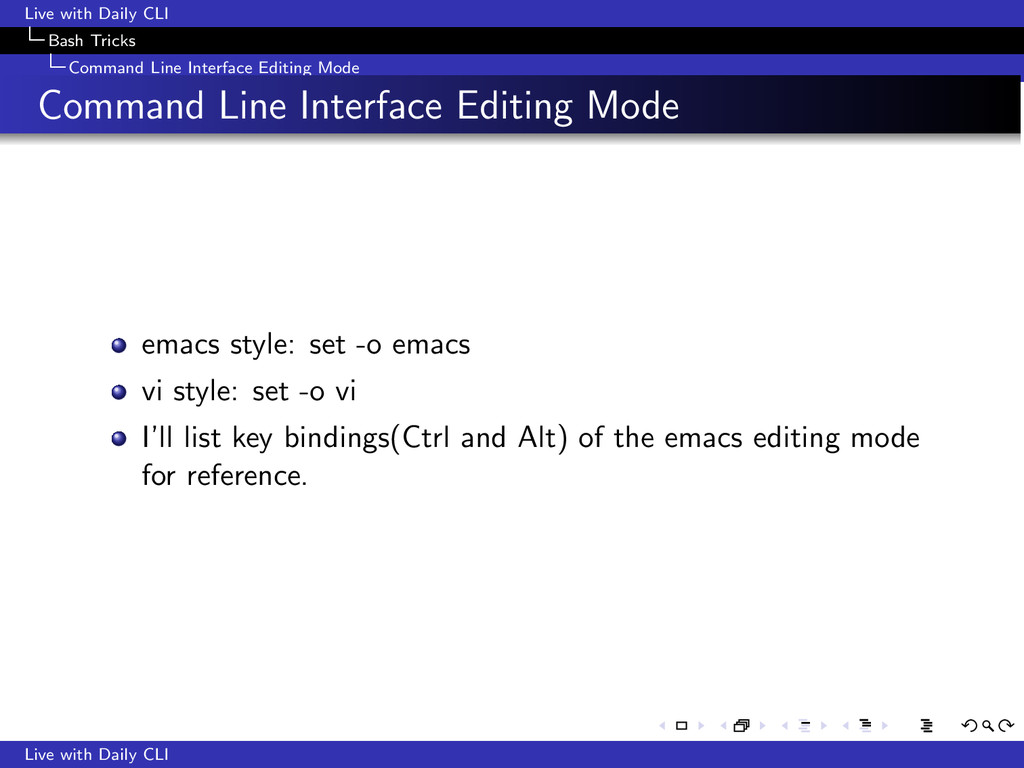
Mode Command Line Interface Editing Mode emacs style: set -o emacs vi style: set -o vi I’ll list key bindings(Ctrl and Alt) of the emacs editing mode for reference. Live with Daily CLI
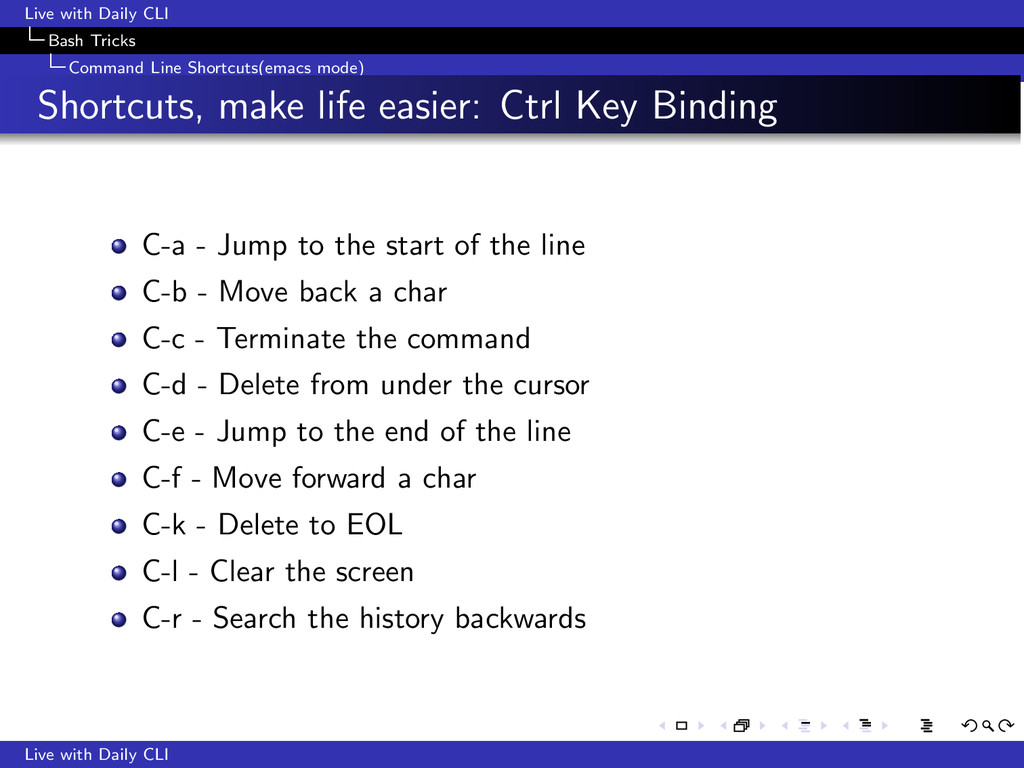
Shortcuts, make life easier: Ctrl Key Binding C-a - Jump to the start of the line C-b - Move back a char C-c - Terminate the command C-d - Delete from under the cursor C-e - Jump to the end of the line C-f - Move forward a char C-k - Delete to EOL C-l - Clear the screen C-r - Search the history backwards Live with Daily CLI
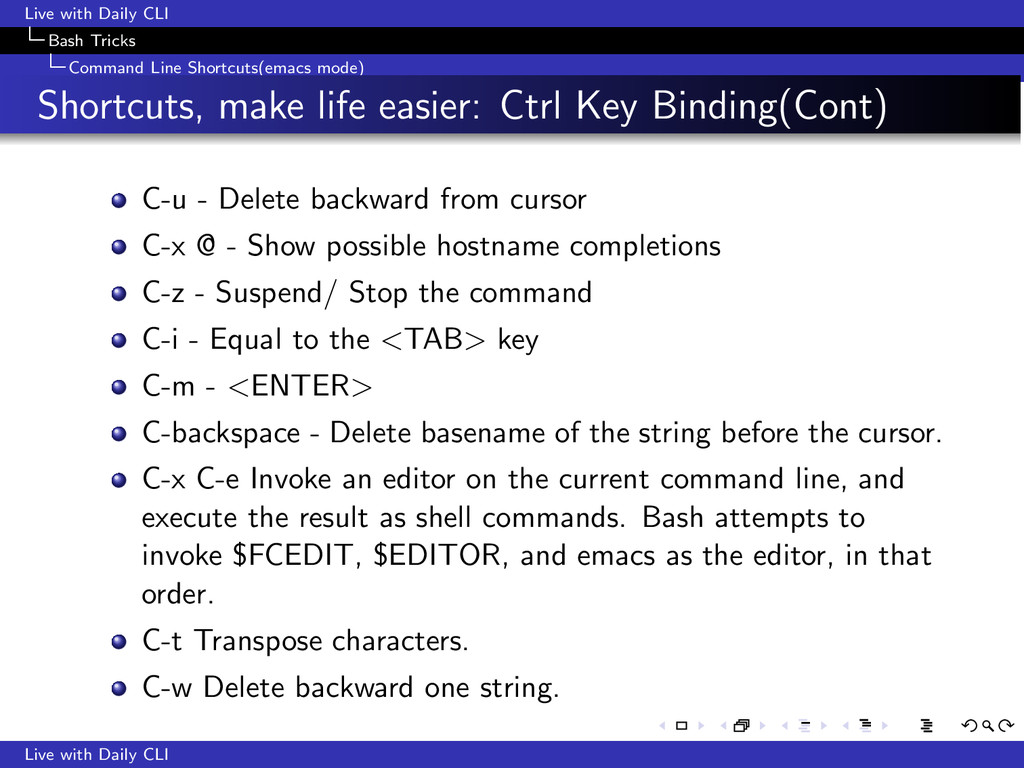
Shortcuts, make life easier: Ctrl Key Binding(Cont) C-u - Delete backward from cursor C-x @ - Show possible hostname completions C-z - Suspend/ Stop the command C-i - Equal to the <TAB> key C-m - <ENTER> C-backspace - Delete basename of the string before the cursor. C-x C-e Invoke an editor on the current command line, and execute the result as shell commands. Bash attempts to invoke $FCEDIT, $EDITOR, and emacs as the editor, in that order. C-t Transpose characters. C-w Delete backward one string. Live with Daily CLI
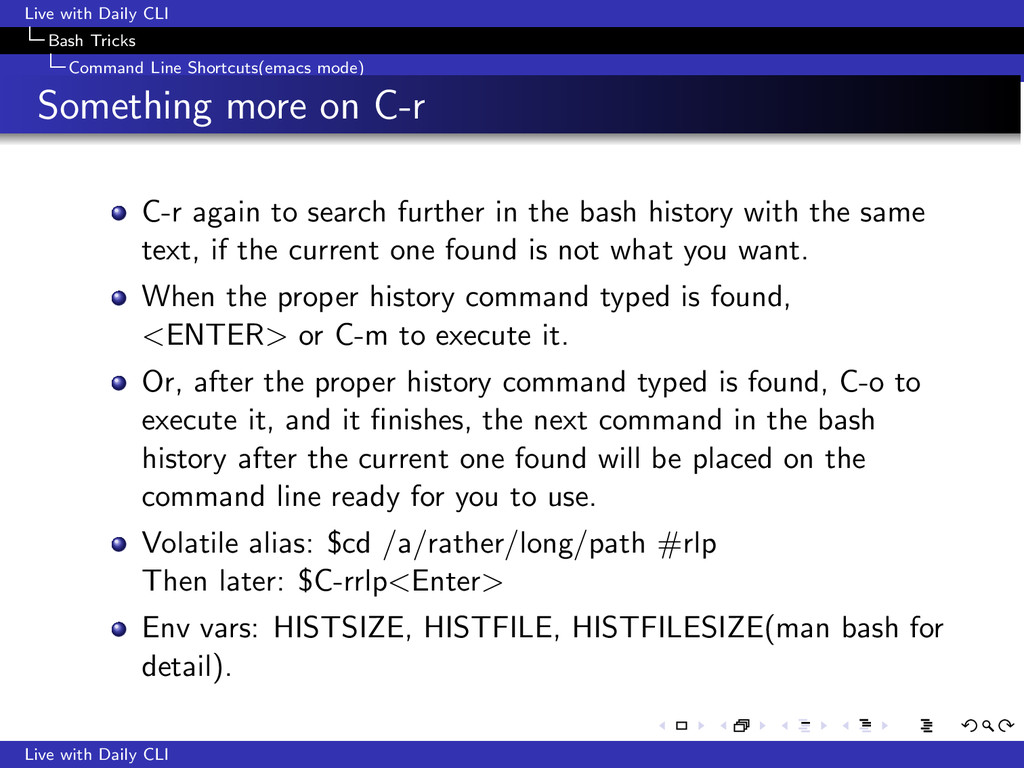
Something more on C-r C-r again to search further in the bash history with the same text, if the current one found is not what you want. When the proper history command typed is found, <ENTER> or C-m to execute it. Or, after the proper history command typed is found, C-o to execute it, and it finishes, the next command in the bash history after the current one found will be placed on the command line ready for you to use. Volatile alias: $cd /a/rather/long/path #rlp Then later: $C-rrlp<Enter> Env vars: HISTSIZE, HISTFILE, HISTFILESIZE(man bash for detail). Live with Daily CLI
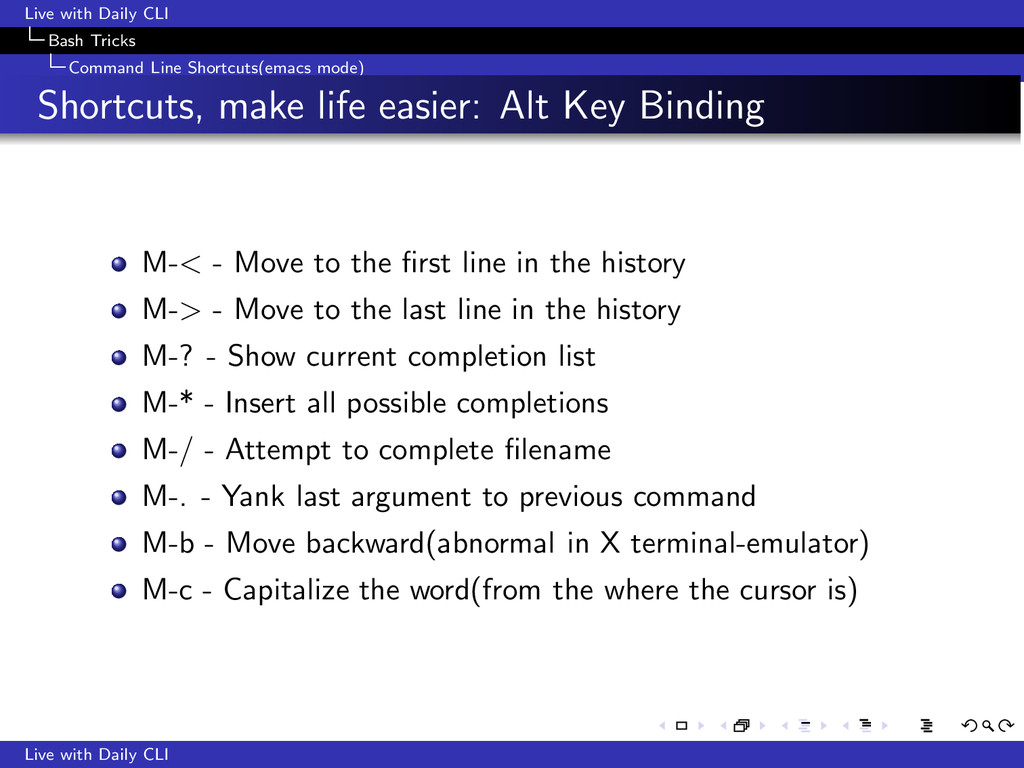
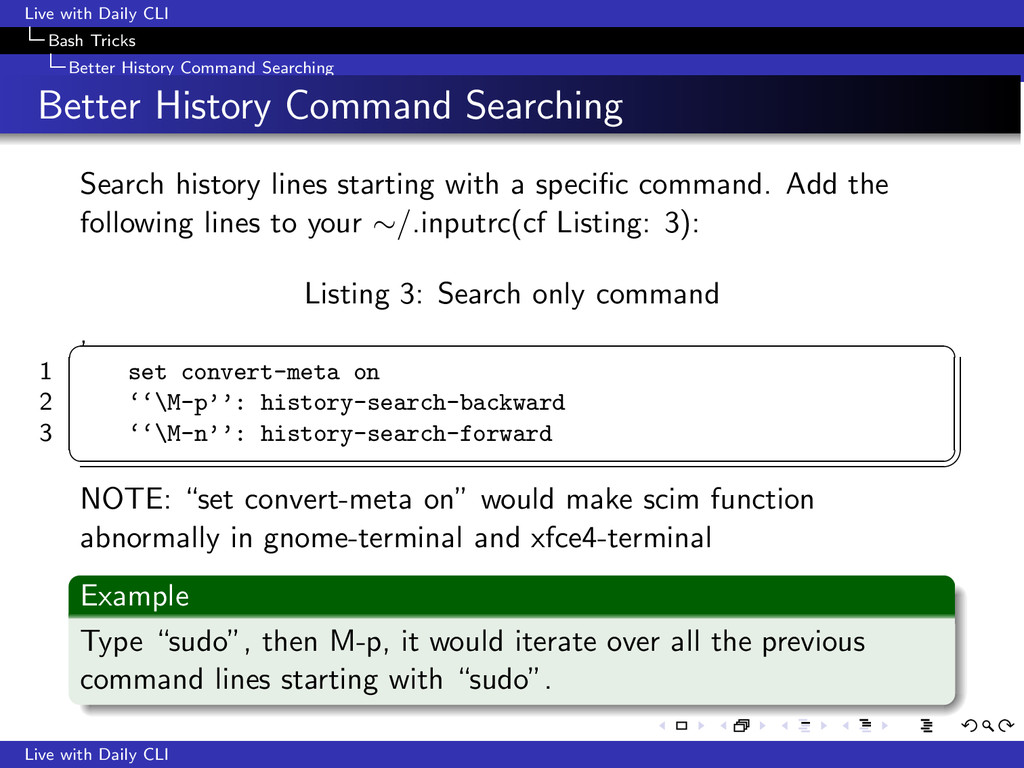
Shortcuts, make life easier: Alt Key Binding M-< - Move to the first line in the history M-> - Move to the last line in the history M-? - Show current completion list M-* - Insert all possible completions M-/ - Attempt to complete filename M-. - Yank last argument to previous command M-b - Move backward(abnormal in X terminal-emulator) M-c - Capitalize the word(from the where the cursor is) Live with Daily CLI
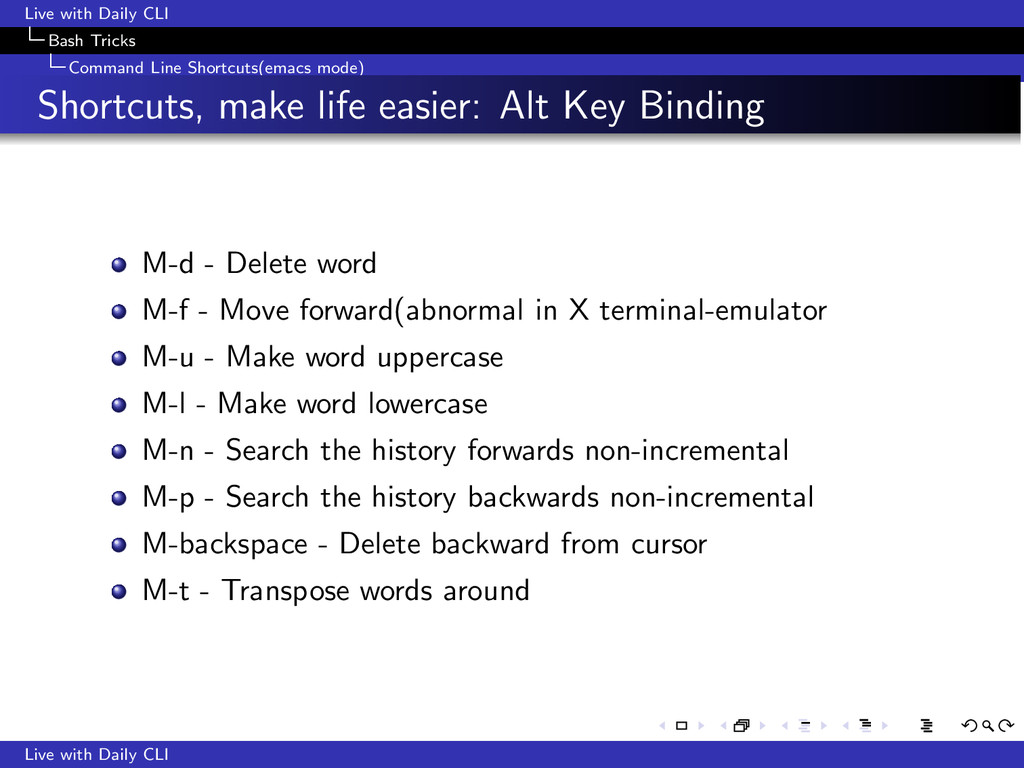
Shortcuts, make life easier: Alt Key Binding M-d - Delete word M-f - Move forward(abnormal in X terminal-emulator M-u - Make word uppercase M-l - Make word lowercase M-n - Search the history forwards non-incremental M-p - Search the history backwards non-incremental M-backspace - Delete backward from cursor M-t - Transpose words around Live with Daily CLI
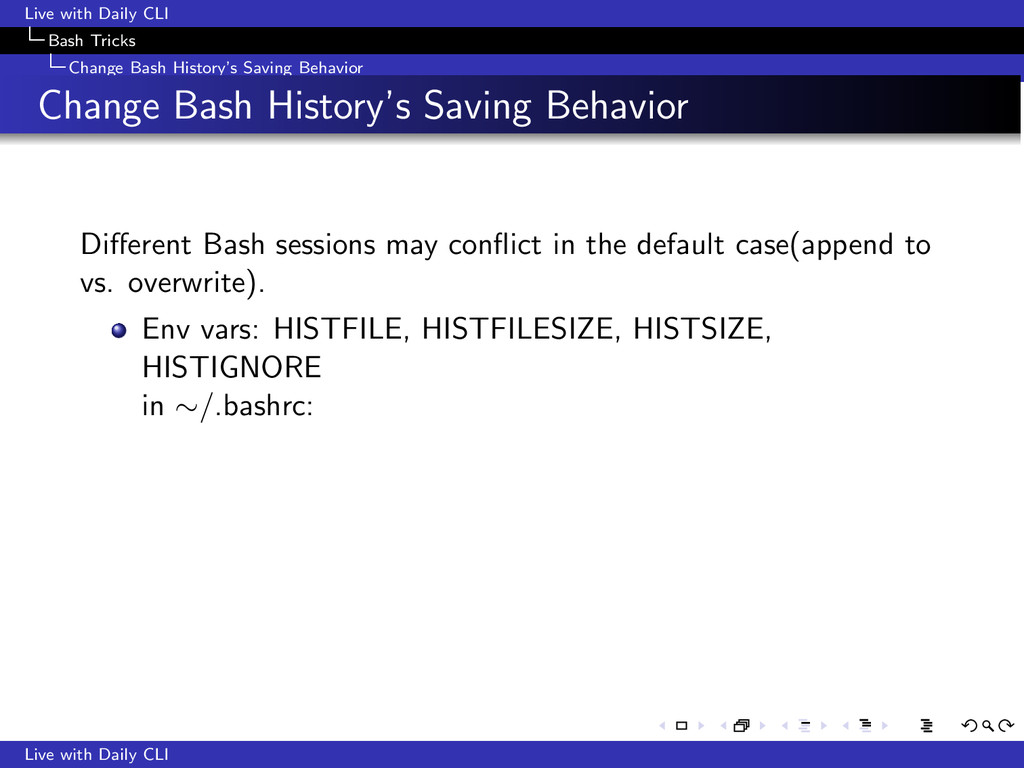
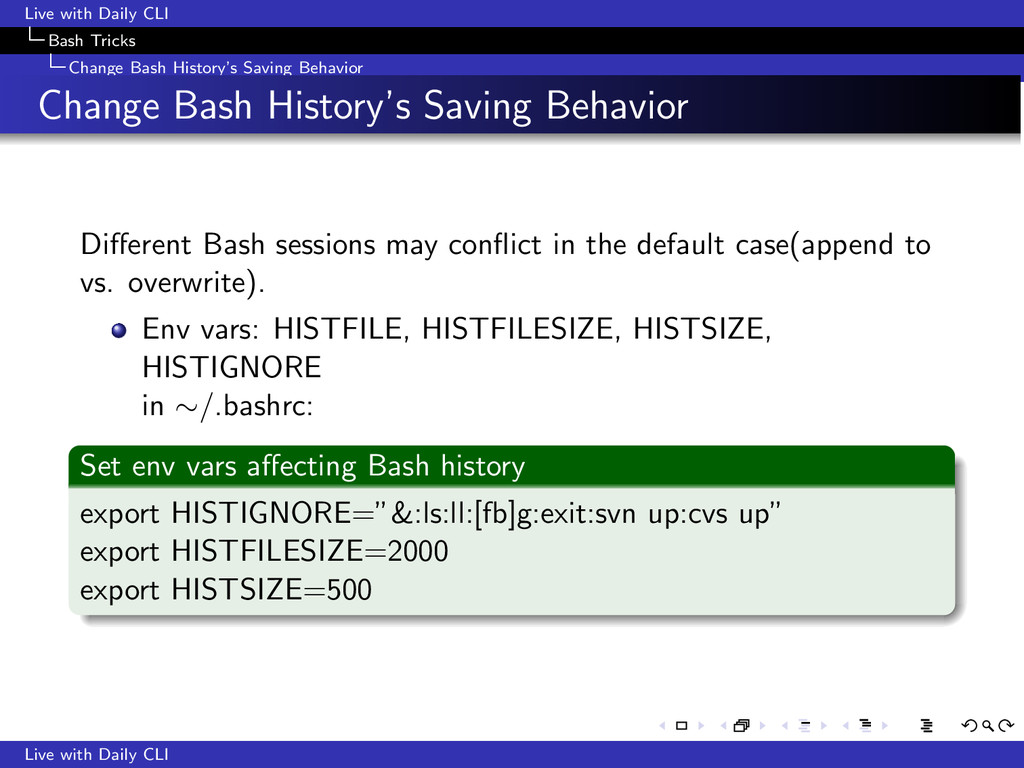
Behavior Change Bash History’s Saving Behavior Different Bash sessions may conflict in the default case(append to vs. overwrite). Env vars: HISTFILE, HISTFILESIZE, HISTSIZE, HISTIGNORE in ∼/.bashrc: Live with Daily CLI
Behavior Change Bash History’s Saving Behavior Different Bash sessions may conflict in the default case(append to vs. overwrite). Env vars: HISTFILE, HISTFILESIZE, HISTSIZE, HISTIGNORE in ∼/.bashrc: Set env vars affecting Bash history export HISTIGNORE=”&:ls:ll:[fb]g:exit:svn up:cvs up” export HISTFILESIZE=2000 export HISTSIZE=500 Live with Daily CLI
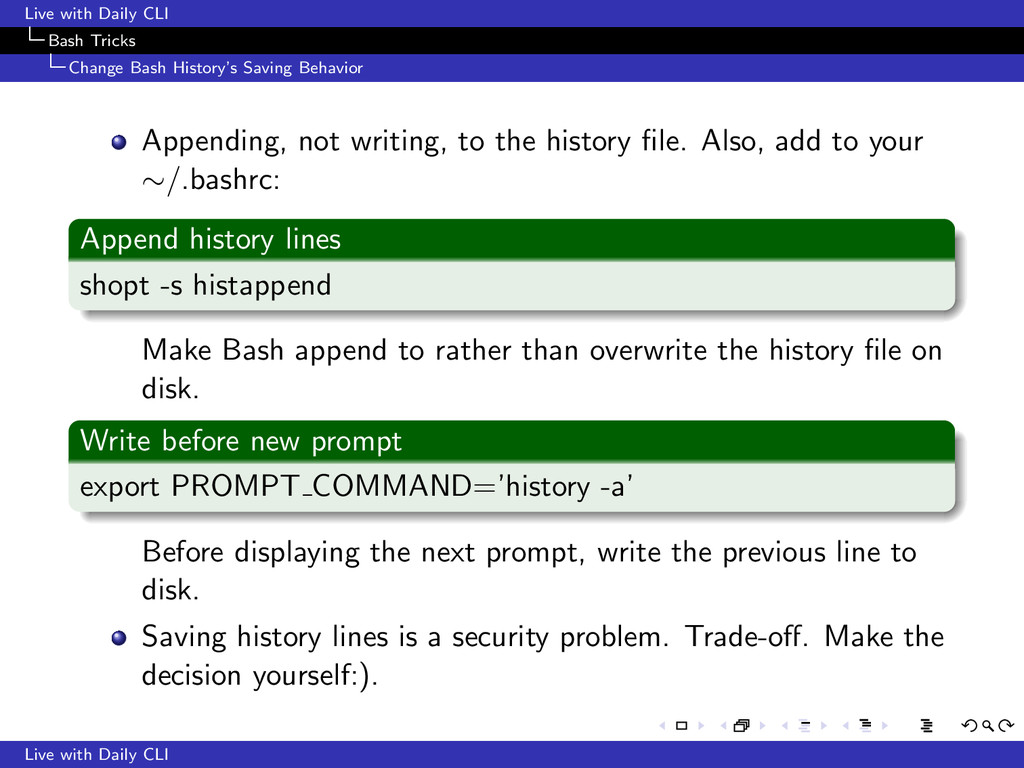
Behavior Appending, not writing, to the history file. Also, add to your ∼/.bashrc: Append history lines shopt -s histappend Make Bash append to rather than overwrite the history file on disk. Write before new prompt export PROMPT COMMAND=’history -a’ Before displaying the next prompt, write the previous line to disk. Saving history lines is a security problem. Trade-off. Make the decision yourself:). Live with Daily CLI
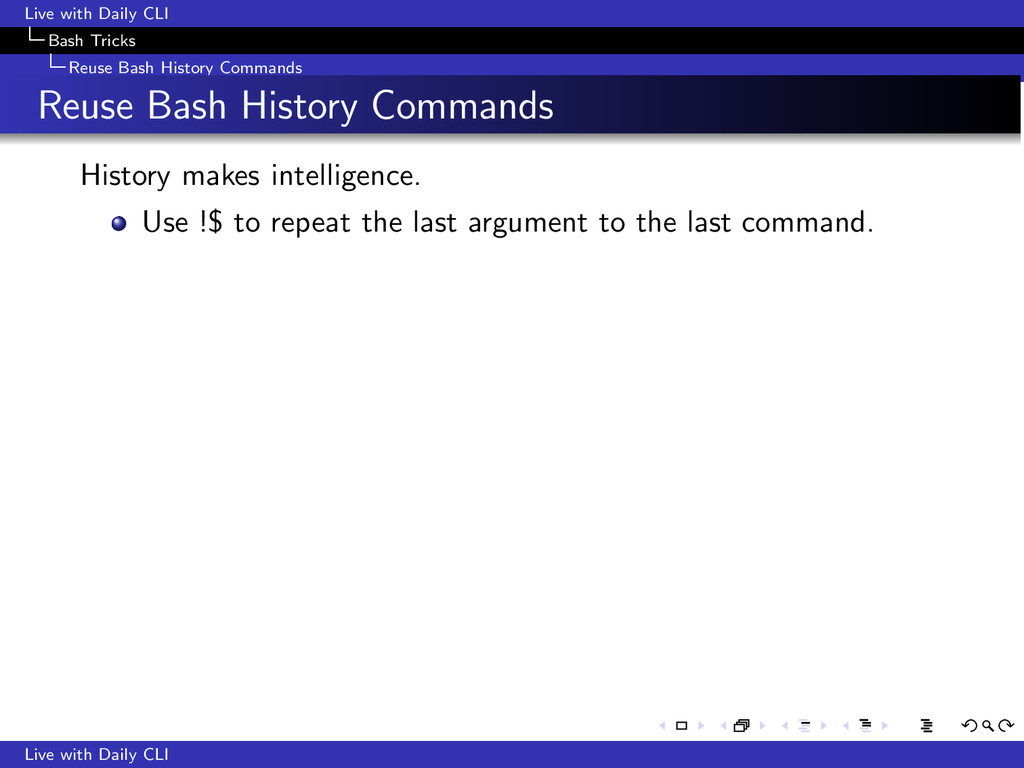
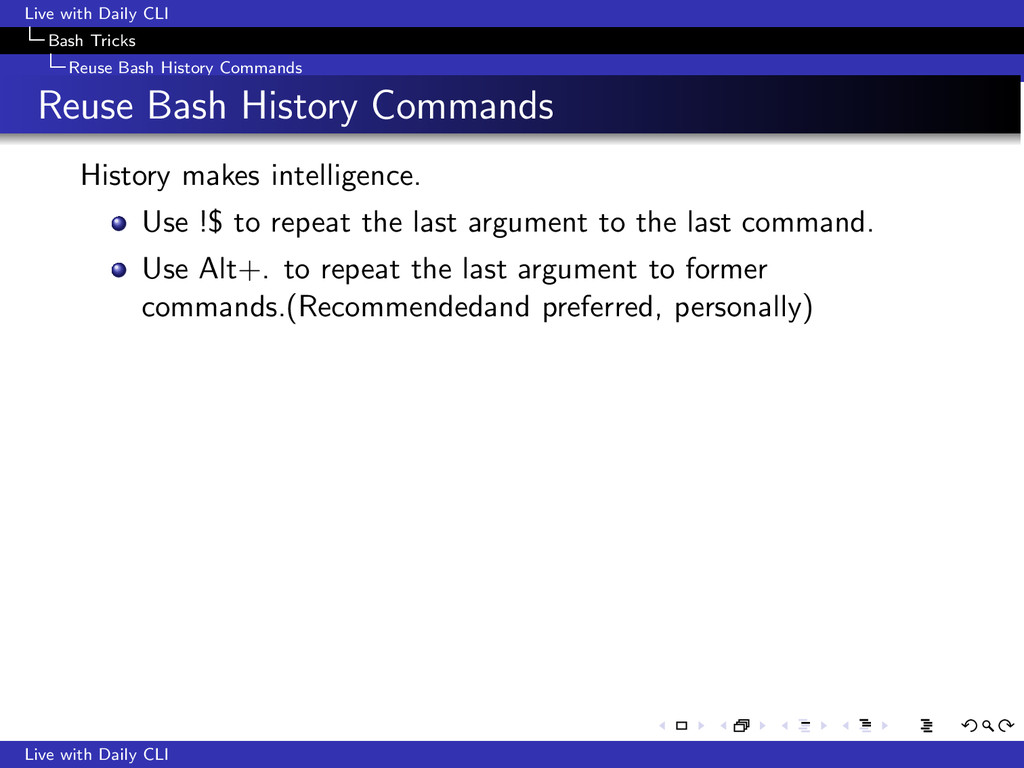
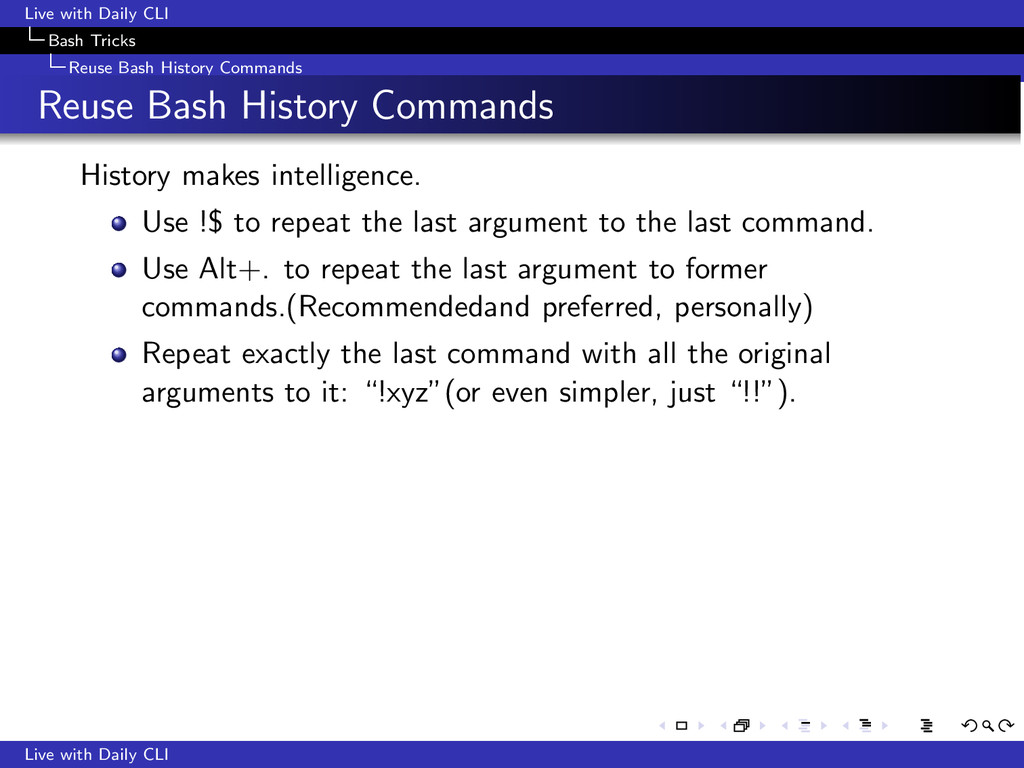
Reuse Bash History Commands History makes intelligence. Use !$ to repeat the last argument to the last command. Use Alt+. to repeat the last argument to former commands.(Recommendedand preferred, personally) Live with Daily CLI
Reuse Bash History Commands History makes intelligence. Use !$ to repeat the last argument to the last command. Use Alt+. to repeat the last argument to former commands.(Recommendedand preferred, personally) Repeat exactly the last command with all the original arguments to it: “!xyz”(or even simpler, just “!!”). Live with Daily CLI
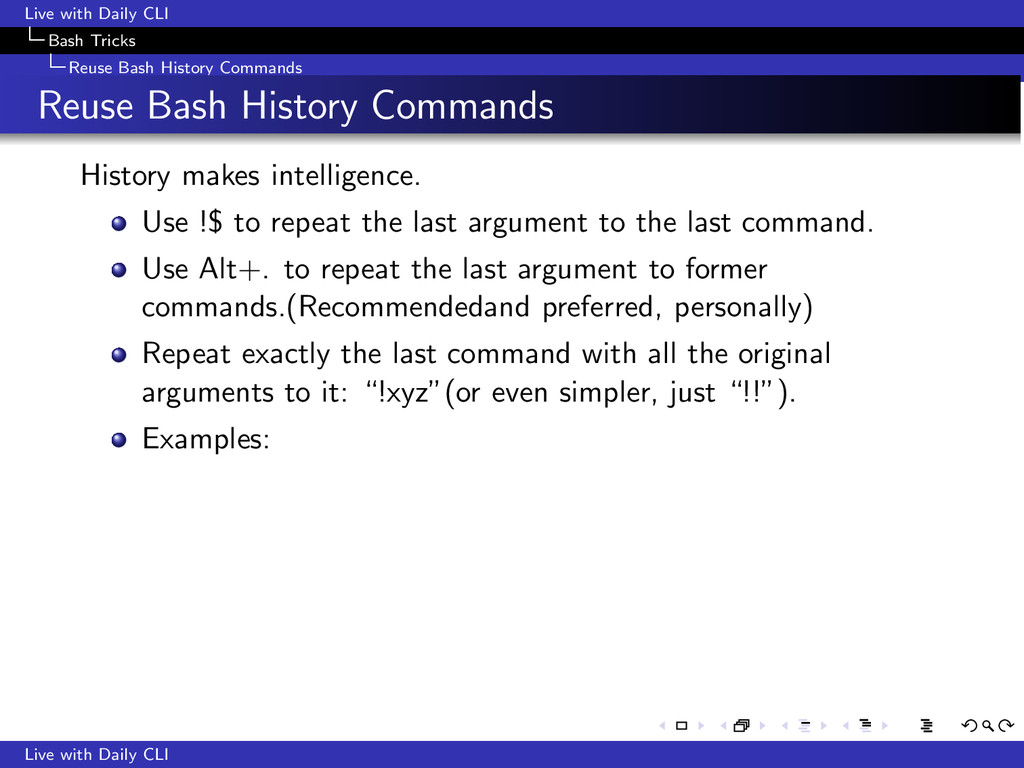
Reuse Bash History Commands History makes intelligence. Use !$ to repeat the last argument to the last command. Use Alt+. to repeat the last argument to former commands.(Recommendedand preferred, personally) Repeat exactly the last command with all the original arguments to it: “!xyz”(or even simpler, just “!!”). Examples: Live with Daily CLI
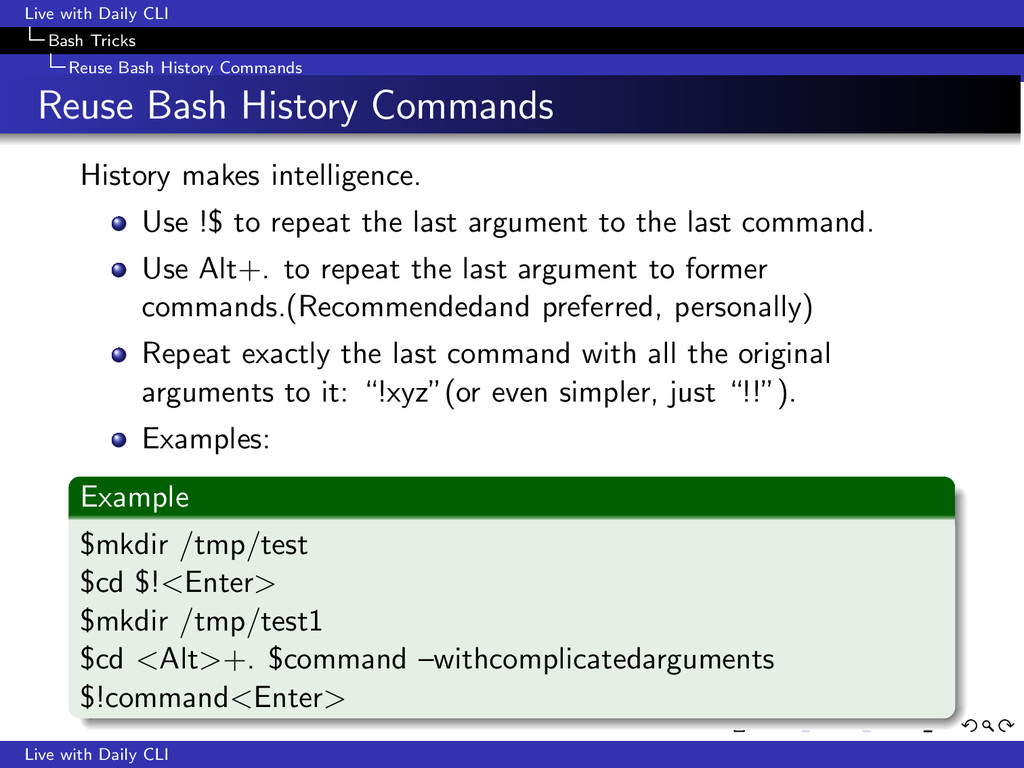
Reuse Bash History Commands History makes intelligence. Use !$ to repeat the last argument to the last command. Use Alt+. to repeat the last argument to former commands.(Recommendedand preferred, personally) Repeat exactly the last command with all the original arguments to it: “!xyz”(or even simpler, just “!!”). Examples: Example $mkdir /tmp/test $cd $!<Enter> $mkdir /tmp/test1 $cd <Alt>+. $command –withcomplicatedarguments $!command<Enter> Live with Daily CLI
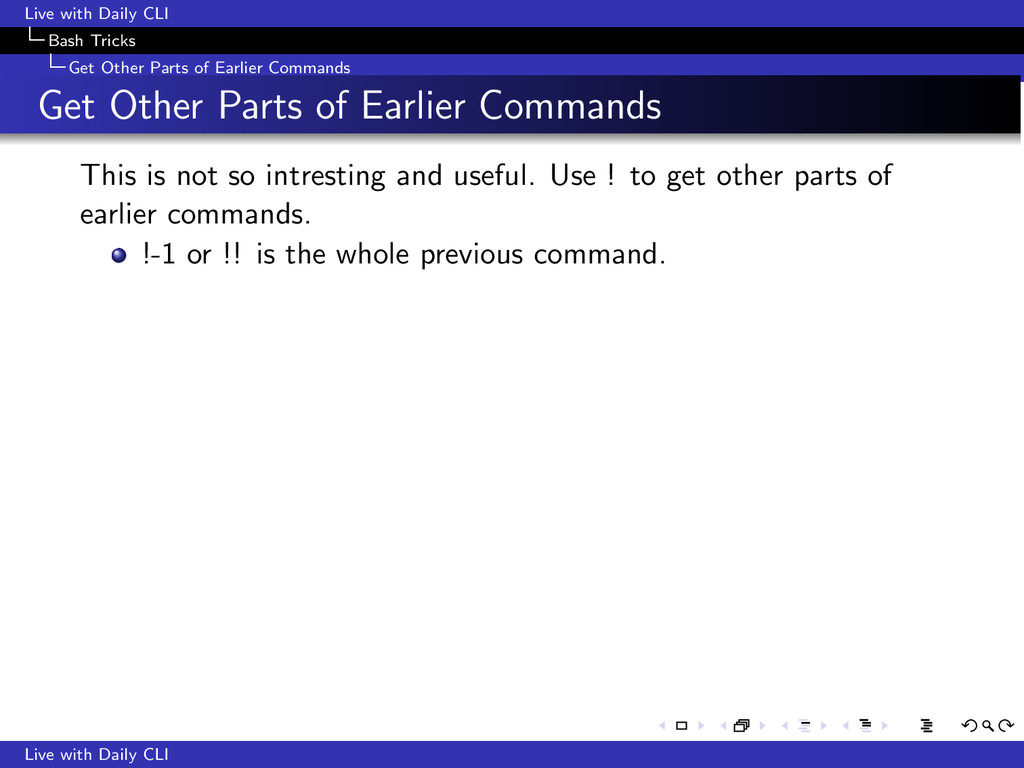
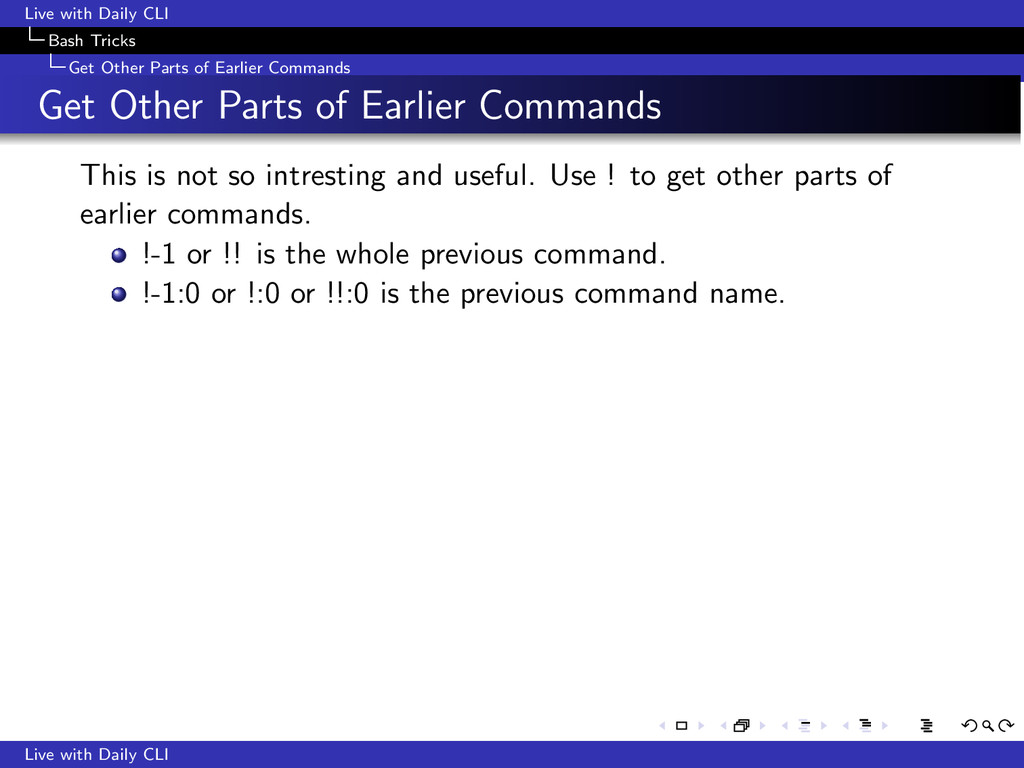
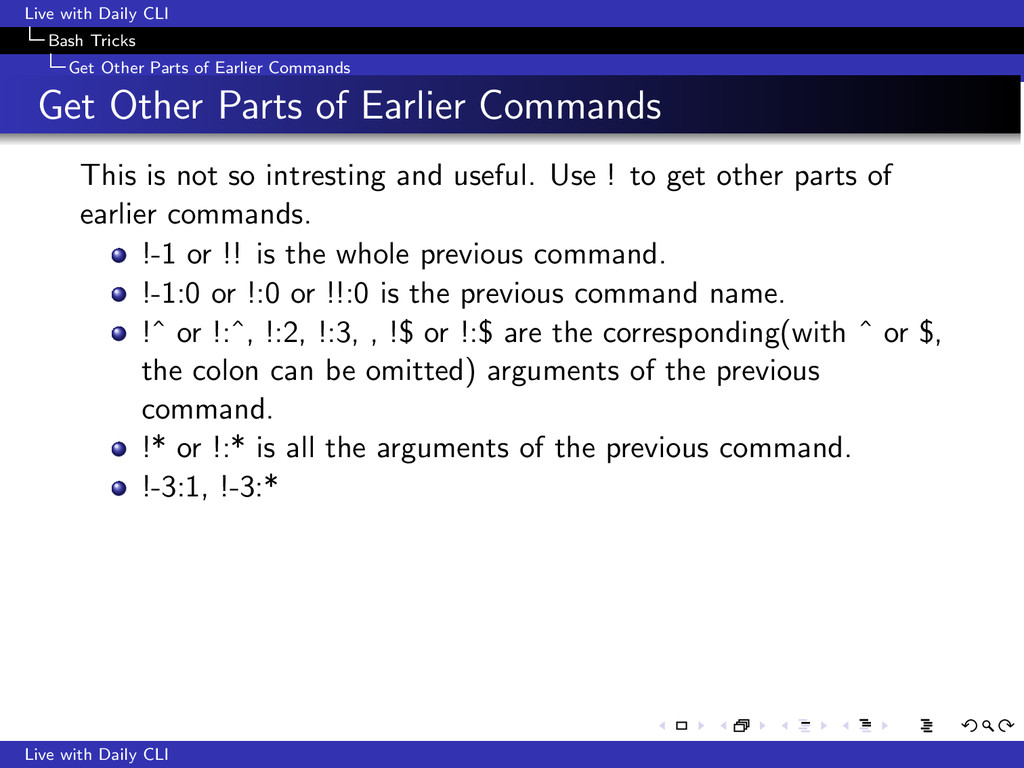
Earlier Commands Get Other Parts of Earlier Commands This is not so intresting and useful. Use ! to get other parts of earlier commands. !-1 or !! is the whole previous command. Live with Daily CLI
Earlier Commands Get Other Parts of Earlier Commands This is not so intresting and useful. Use ! to get other parts of earlier commands. !-1 or !! is the whole previous command. !-1:0 or !:0 or !!:0 is the previous command name. Live with Daily CLI
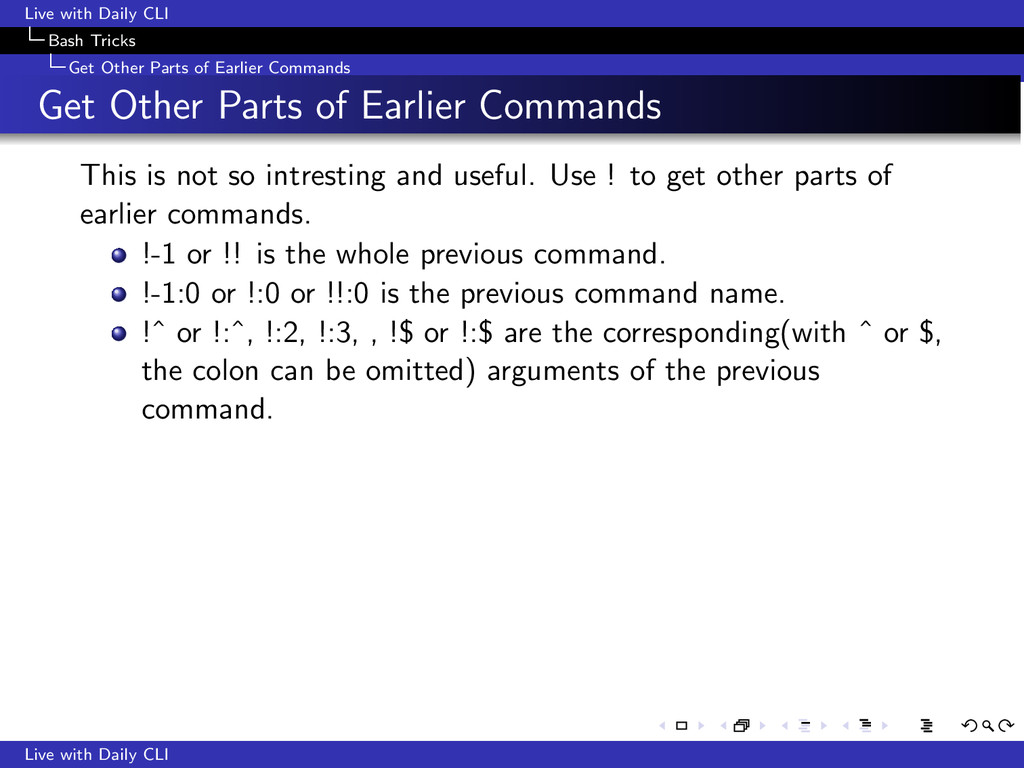
Earlier Commands Get Other Parts of Earlier Commands This is not so intresting and useful. Use ! to get other parts of earlier commands. !-1 or !! is the whole previous command. !-1:0 or !:0 or !!:0 is the previous command name. !ˆ or !:ˆ, !:2, !:3, , !$ or !:$ are the corresponding(with ˆ or $, the colon can be omitted) arguments of the previous command. Live with Daily CLI
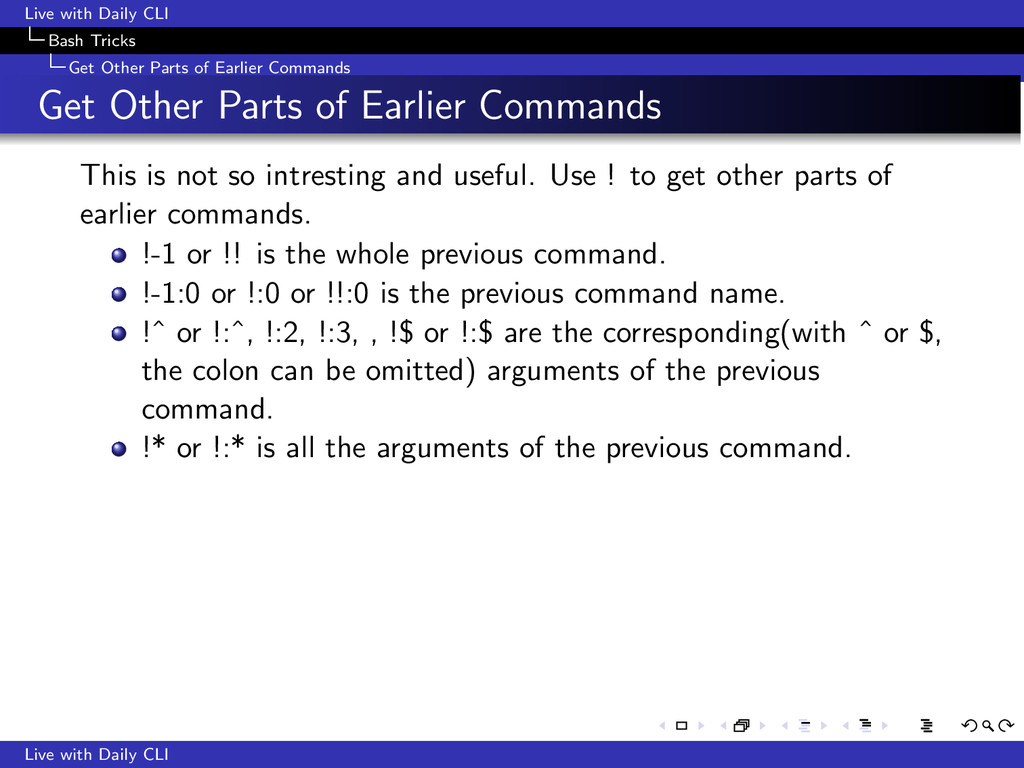
Earlier Commands Get Other Parts of Earlier Commands This is not so intresting and useful. Use ! to get other parts of earlier commands. !-1 or !! is the whole previous command. !-1:0 or !:0 or !!:0 is the previous command name. !ˆ or !:ˆ, !:2, !:3, , !$ or !:$ are the corresponding(with ˆ or $, the colon can be omitted) arguments of the previous command. !* or !:* is all the arguments of the previous command. Live with Daily CLI
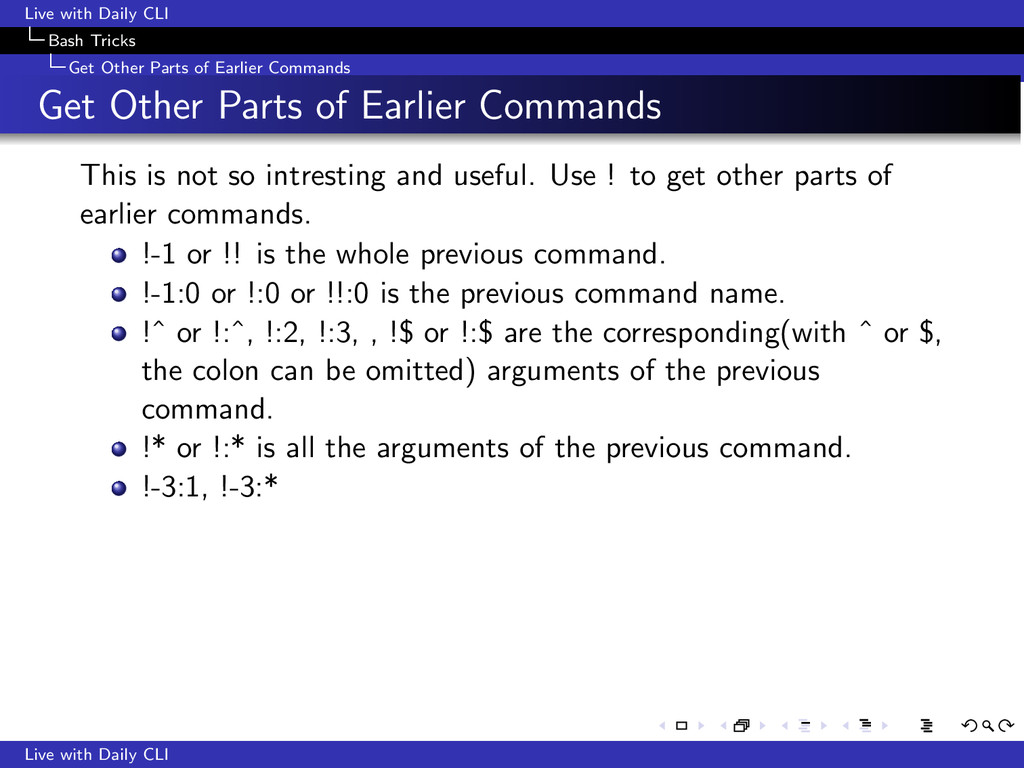
Earlier Commands Get Other Parts of Earlier Commands This is not so intresting and useful. Use ! to get other parts of earlier commands. !-1 or !! is the whole previous command. !-1:0 or !:0 or !!:0 is the previous command name. !ˆ or !:ˆ, !:2, !:3, , !$ or !:$ are the corresponding(with ˆ or $, the colon can be omitted) arguments of the previous command. !* or !:* is all the arguments of the previous command. !-3:1, !-3:* Live with Daily CLI
Earlier Commands Get Other Parts of Earlier Commands This is not so intresting and useful. Use ! to get other parts of earlier commands. !-1 or !! is the whole previous command. !-1:0 or !:0 or !!:0 is the previous command name. !ˆ or !:ˆ, !:2, !:3, , !$ or !:$ are the corresponding(with ˆ or $, the colon can be omitted) arguments of the previous command. !* or !:* is all the arguments of the previous command. !-3:1, !-3:* Live with Daily CLI
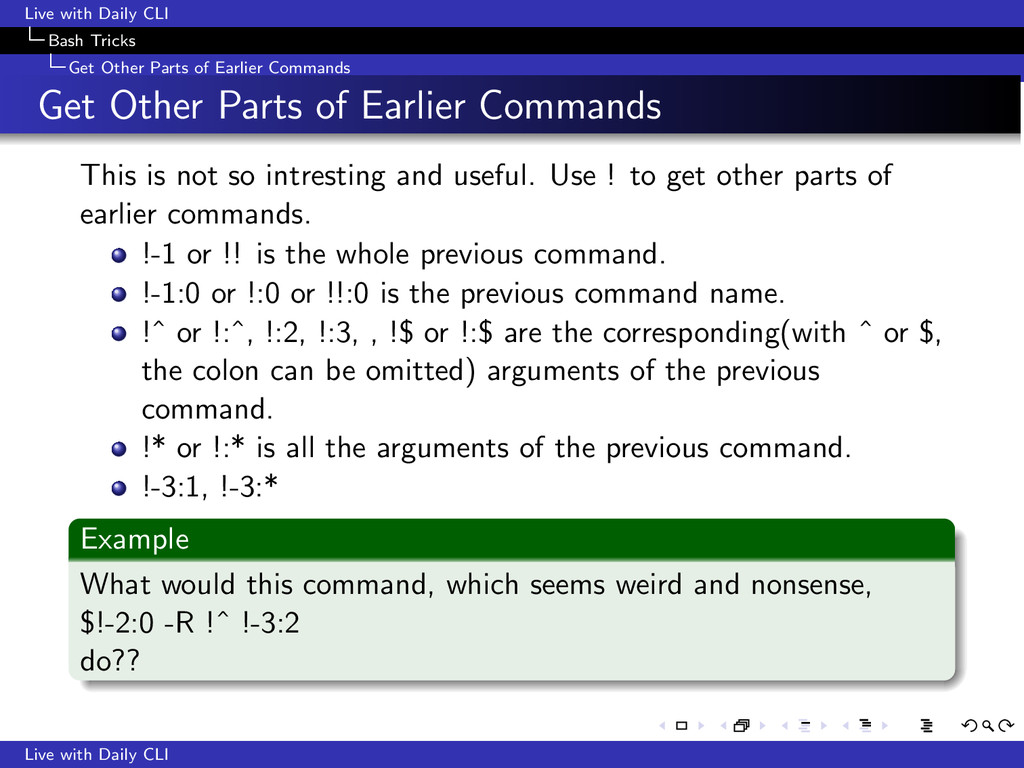
Earlier Commands Get Other Parts of Earlier Commands This is not so intresting and useful. Use ! to get other parts of earlier commands. !-1 or !! is the whole previous command. !-1:0 or !:0 or !!:0 is the previous command name. !ˆ or !:ˆ, !:2, !:3, , !$ or !:$ are the corresponding(with ˆ or $, the colon can be omitted) arguments of the previous command. !* or !:* is all the arguments of the previous command. !-3:1, !-3:* Example What would this command, which seems weird and nonsense, $!-2:0 -R !ˆ !-3:2 do?? Live with Daily CLI
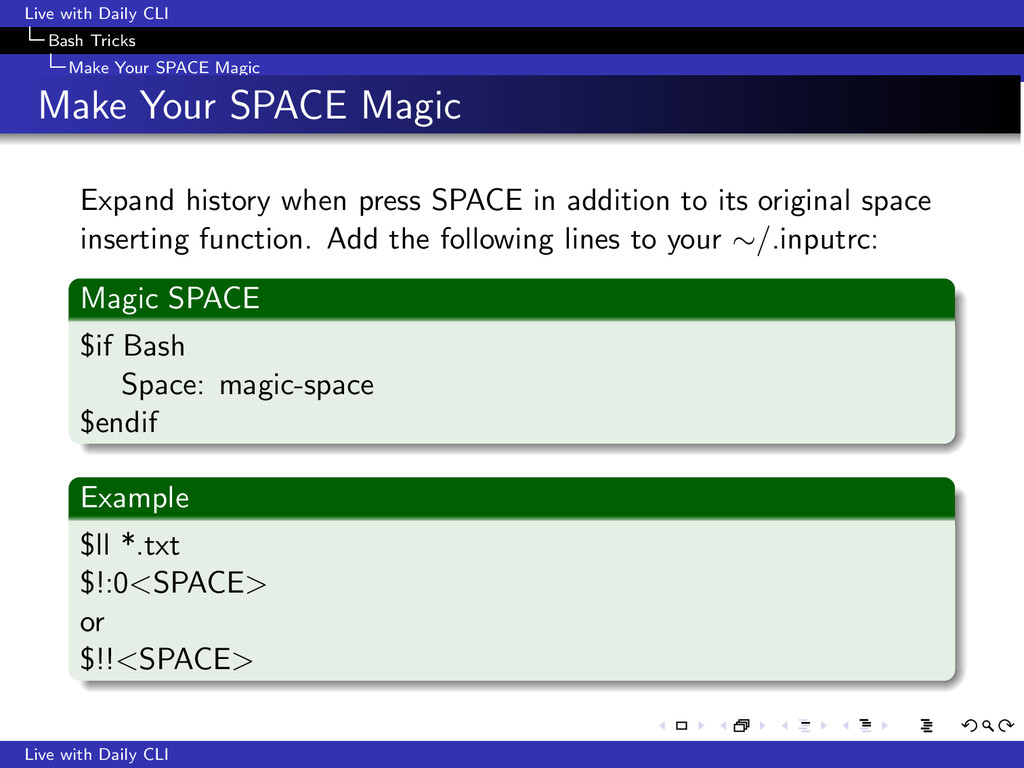
Make Your SPACE Magic Expand history when press SPACE in addition to its original space inserting function. Add the following lines to your ∼/.inputrc: Magic SPACE $if Bash Space: magic-space $endif Example $ll *.txt $!:0<SPACE> or $!!<SPACE> Live with Daily CLI
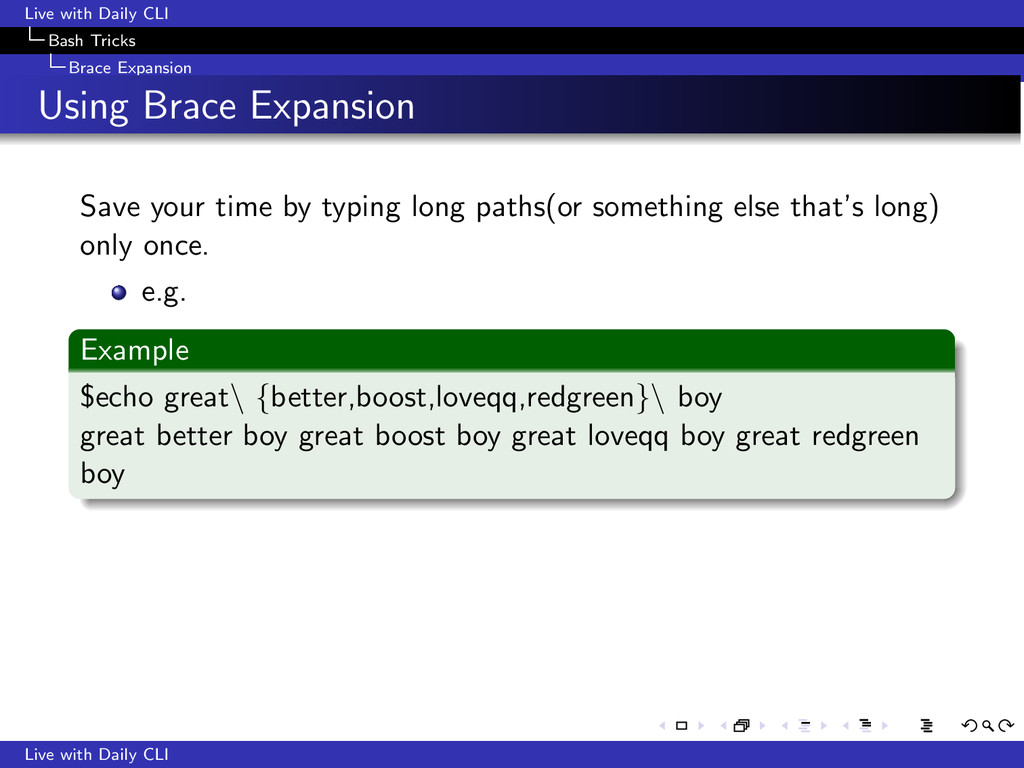
Expansion Save your time by typing long paths(or something else that’s long) only once. e.g. Example $echo great\ {better,boost,loveqq,redgreen}\ boy great better boy great boost boy great loveqq boy great redgreen boy Live with Daily CLI
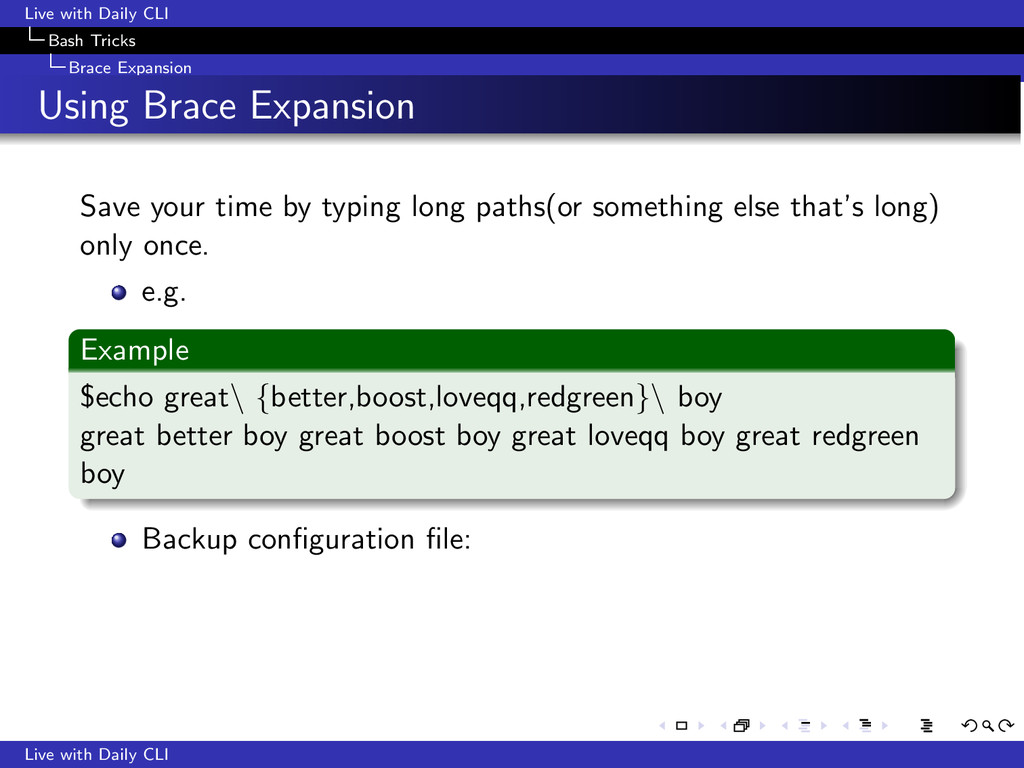
Expansion Save your time by typing long paths(or something else that’s long) only once. e.g. Example $echo great\ {better,boost,loveqq,redgreen}\ boy great better boy great boost boy great loveqq boy great redgreen boy Backup configuration file: Live with Daily CLI
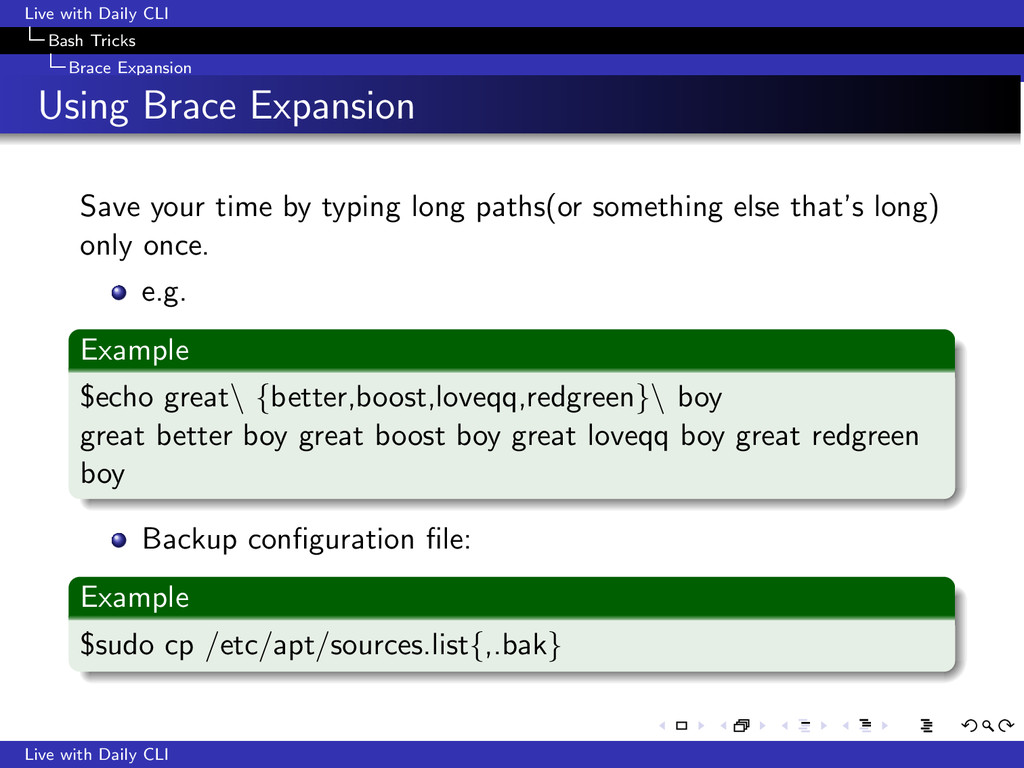
Expansion Save your time by typing long paths(or something else that’s long) only once. e.g. Example $echo great\ {better,boost,loveqq,redgreen}\ boy great better boy great boost boy great loveqq boy great redgreen boy Backup configuration file: Example $sudo cp /etc/apt/sources.list{,.bak} Live with Daily CLI
Use the ouput of one command as the argument(s) of the other command. Newer bash style: $(command). Easier to be nested and read and maintained. Live with Daily CLI
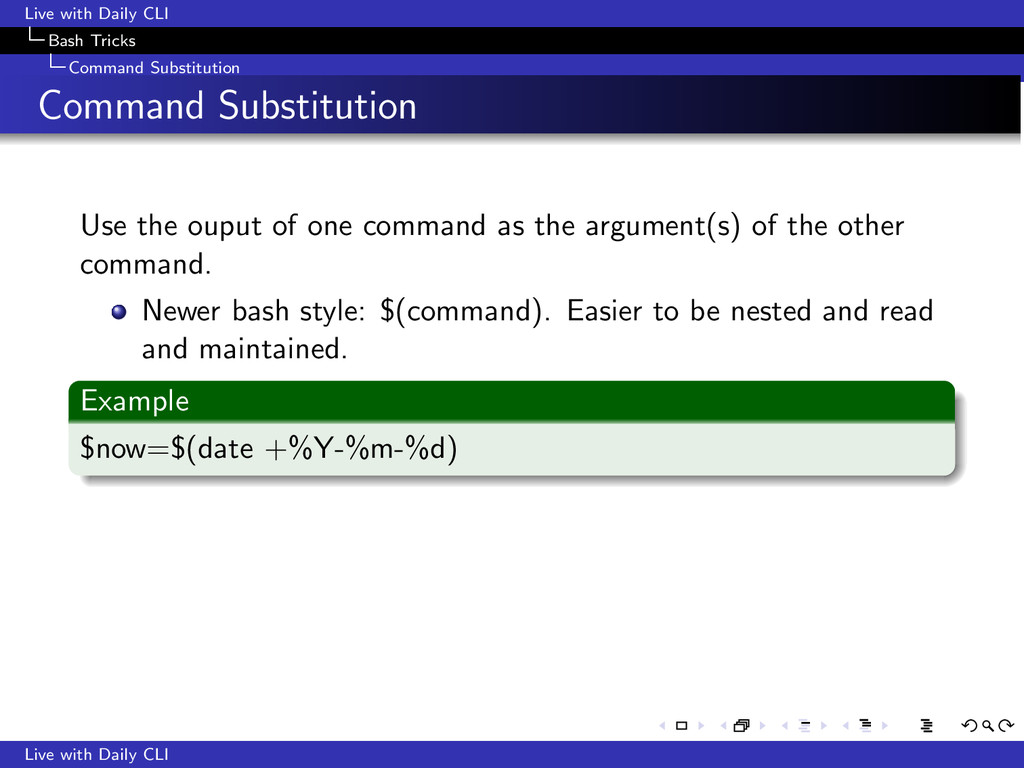
Use the ouput of one command as the argument(s) of the other command. Newer bash style: $(command). Easier to be nested and read and maintained. Example $now=$(date +%Y-%m-%d) Live with Daily CLI
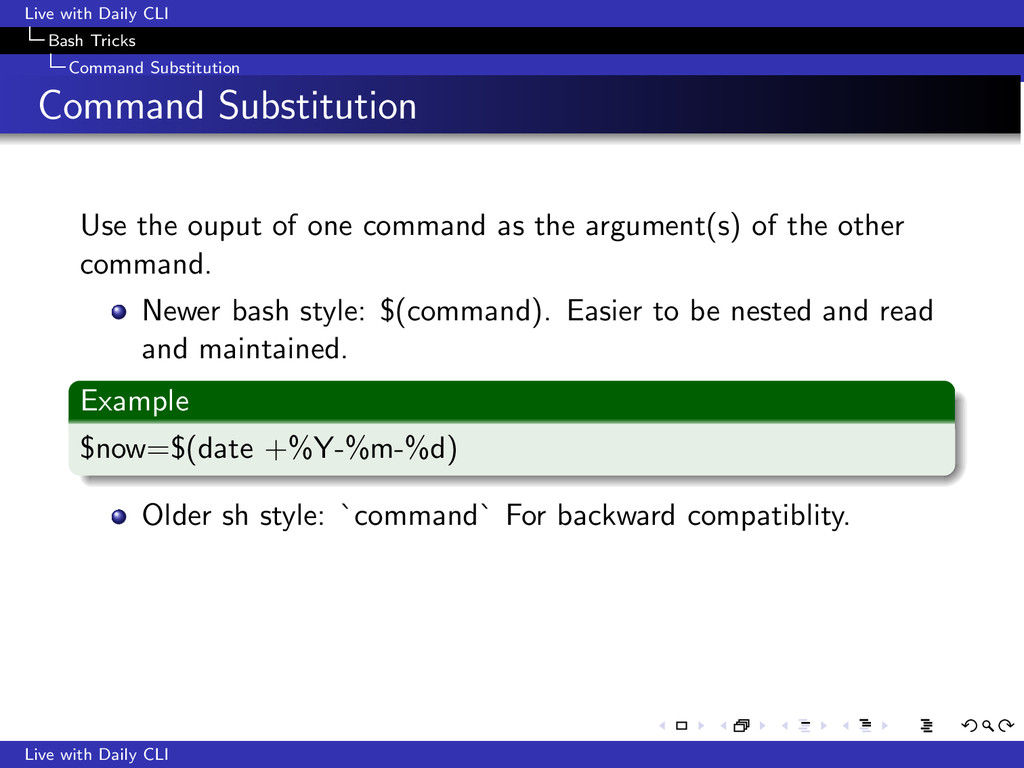
Use the ouput of one command as the argument(s) of the other command. Newer bash style: $(command). Easier to be nested and read and maintained. Example $now=$(date +%Y-%m-%d) Older sh style: `command` For backward compatiblity. Live with Daily CLI
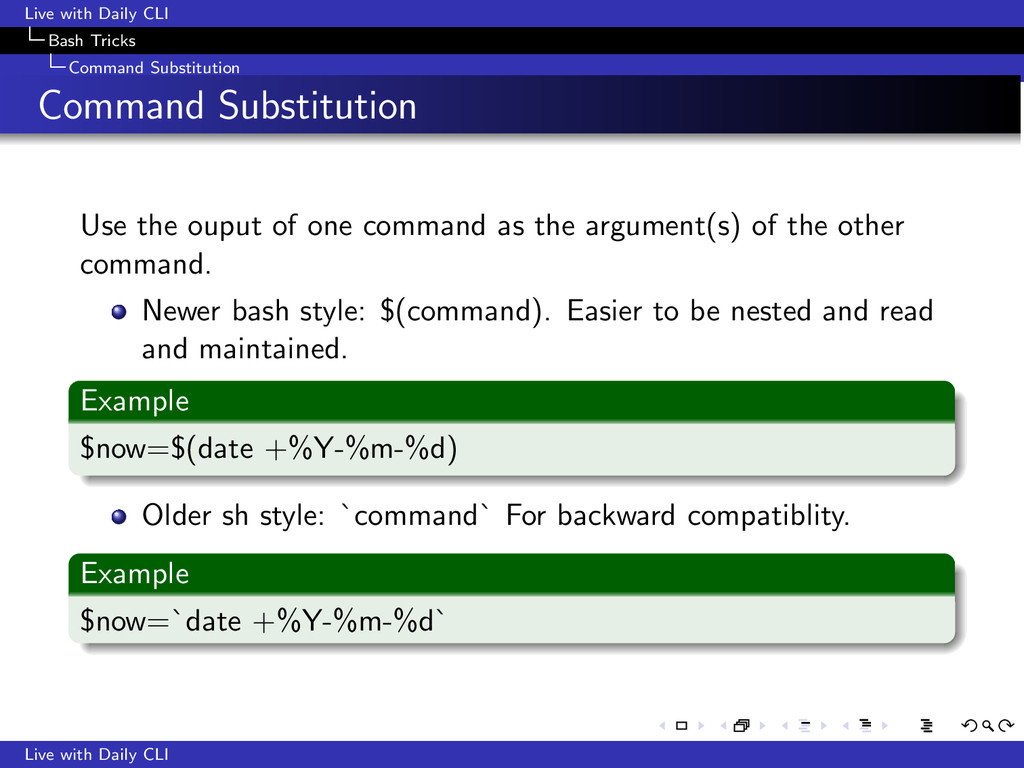
Use the ouput of one command as the argument(s) of the other command. Newer bash style: $(command). Easier to be nested and read and maintained. Example $now=$(date +%Y-%m-%d) Older sh style: `command` For backward compatiblity. Example $now=`date +%Y-%m-%d` Live with Daily CLI
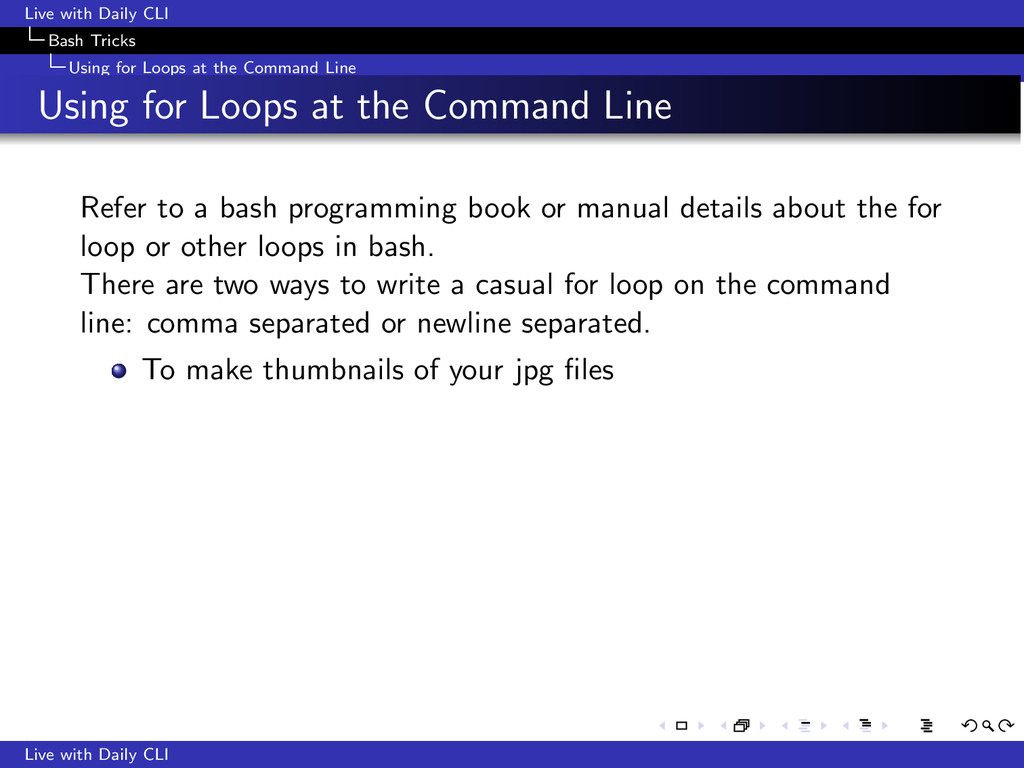
the Command Line Using for Loops at the Command Line Refer to a bash programming book or manual details about the for loop or other loops in bash. There are two ways to write a casual for loop on the command line: comma separated or newline separated. To make thumbnails of your jpg files Live with Daily CLI
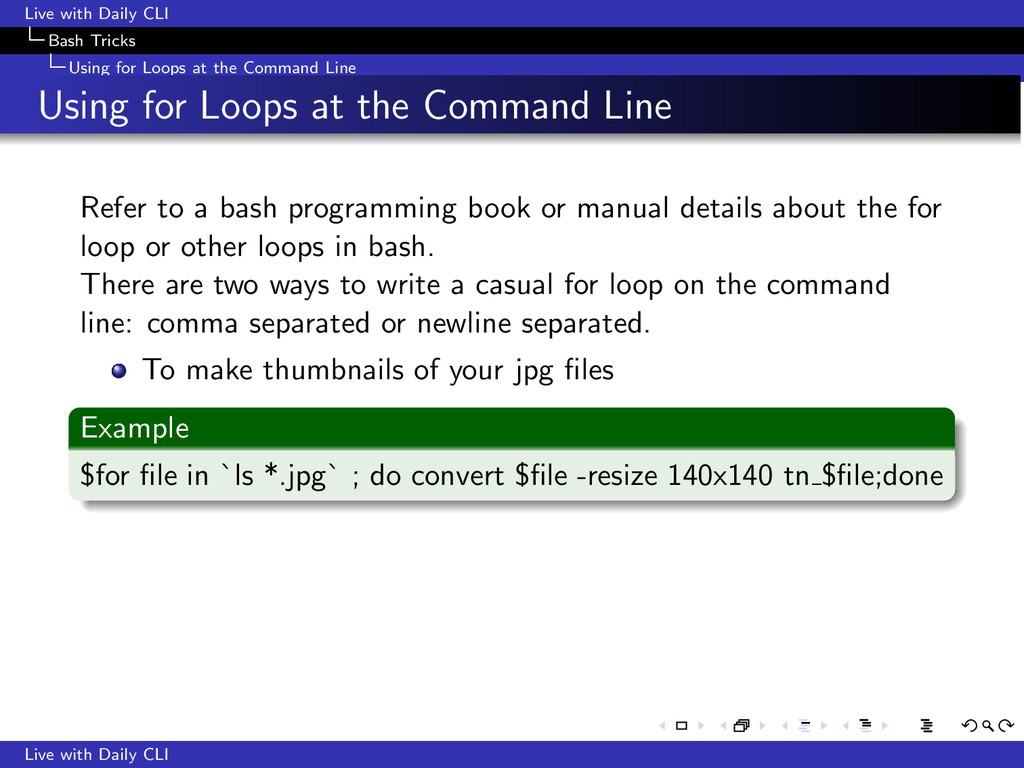
the Command Line Using for Loops at the Command Line Refer to a bash programming book or manual details about the for loop or other loops in bash. There are two ways to write a casual for loop on the command line: comma separated or newline separated. To make thumbnails of your jpg files Example $for file in `ls *.jpg` ; do convert $file -resize 140x140 tn $file;done Live with Daily CLI
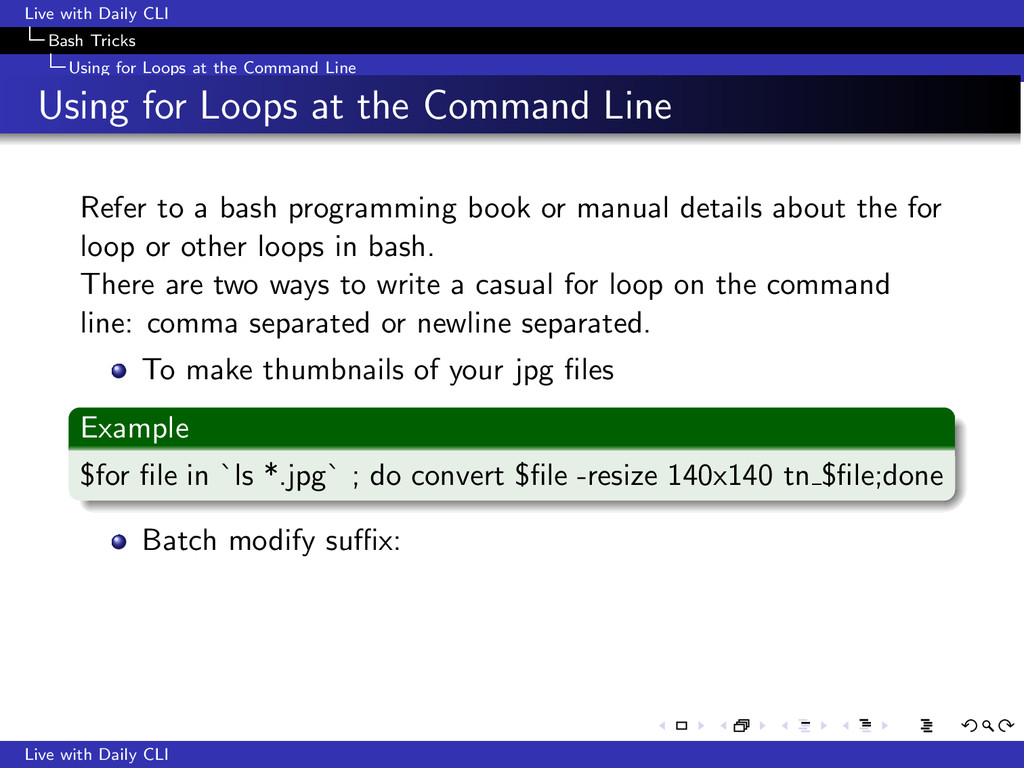
the Command Line Using for Loops at the Command Line Refer to a bash programming book or manual details about the for loop or other loops in bash. There are two ways to write a casual for loop on the command line: comma separated or newline separated. To make thumbnails of your jpg files Example $for file in `ls *.jpg` ; do convert $file -resize 140x140 tn $file;done Batch modify suffix: Live with Daily CLI
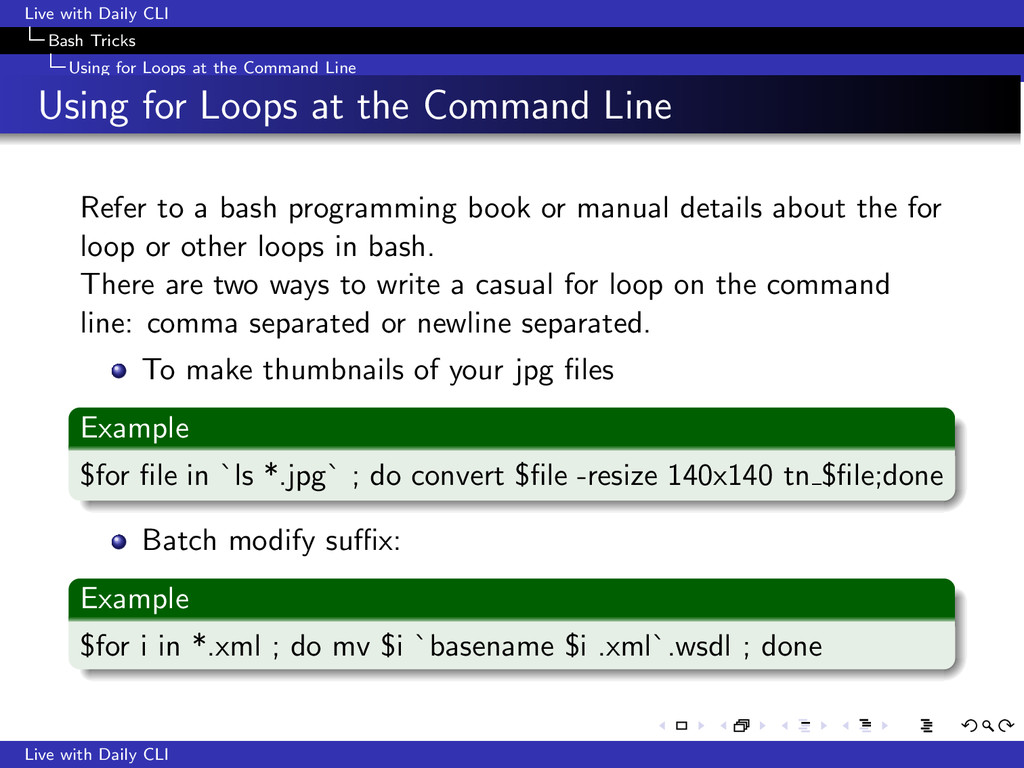
the Command Line Using for Loops at the Command Line Refer to a bash programming book or manual details about the for loop or other loops in bash. There are two ways to write a casual for loop on the command line: comma separated or newline separated. To make thumbnails of your jpg files Example $for file in `ls *.jpg` ; do convert $file -resize 140x140 tn $file;done Batch modify suffix: Example $for i in *.xml ; do mv $i `basename $i .xml`.wsdl ; done Live with Daily CLI
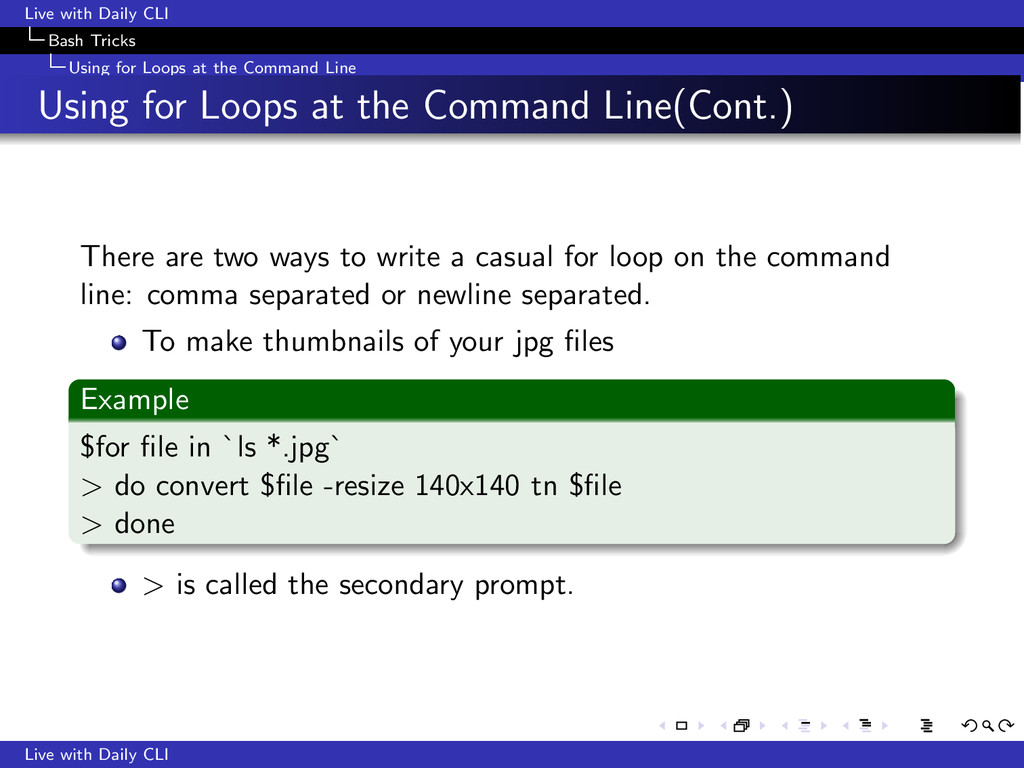
the Command Line Using for Loops at the Command Line(Cont.) There are two ways to write a casual for loop on the command line: comma separated or newline separated. To make thumbnails of your jpg files Example $for file in `ls *.jpg` > do convert $file -resize 140x140 tn $file > done > is called the secondary prompt. Live with Daily CLI
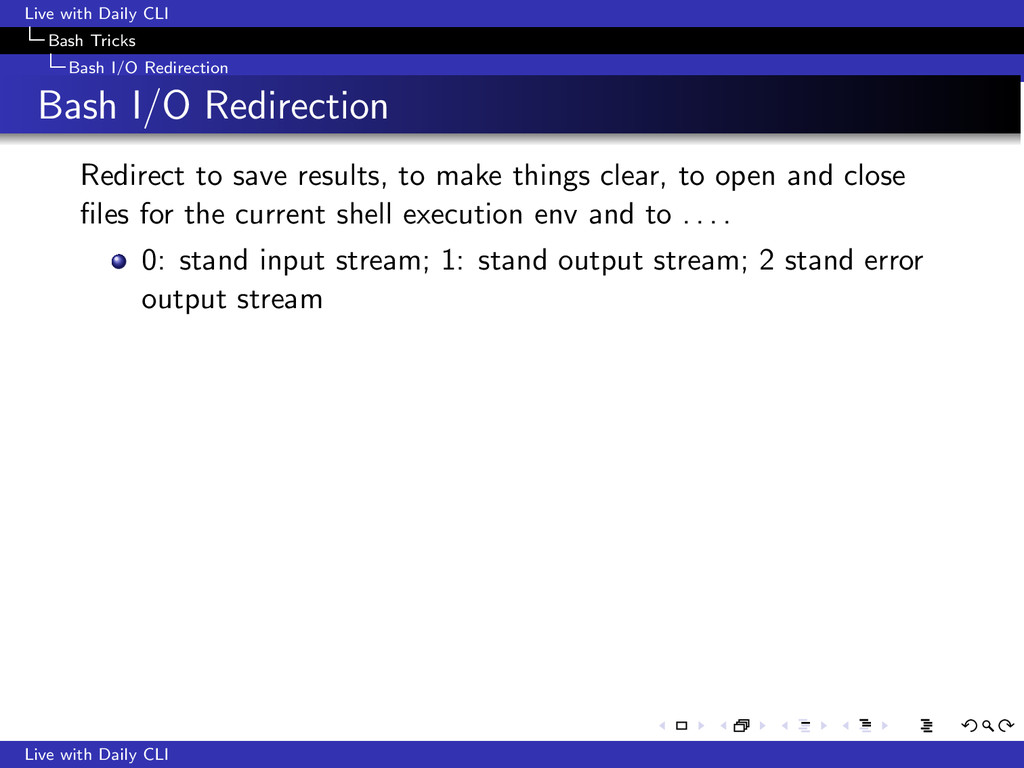
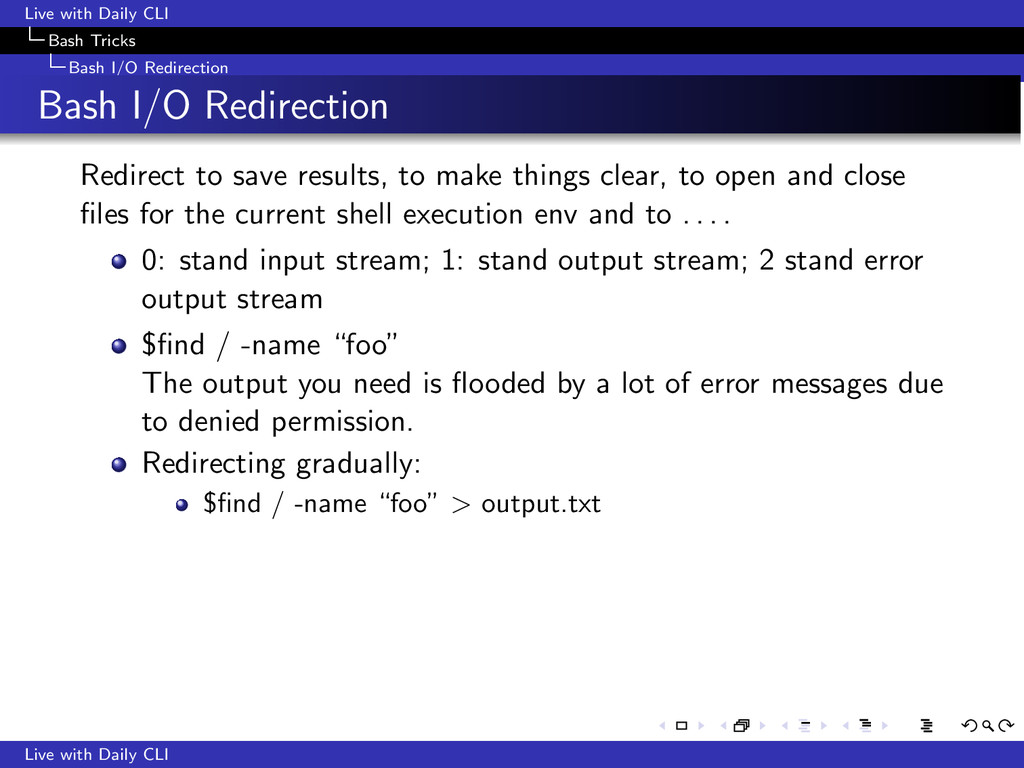
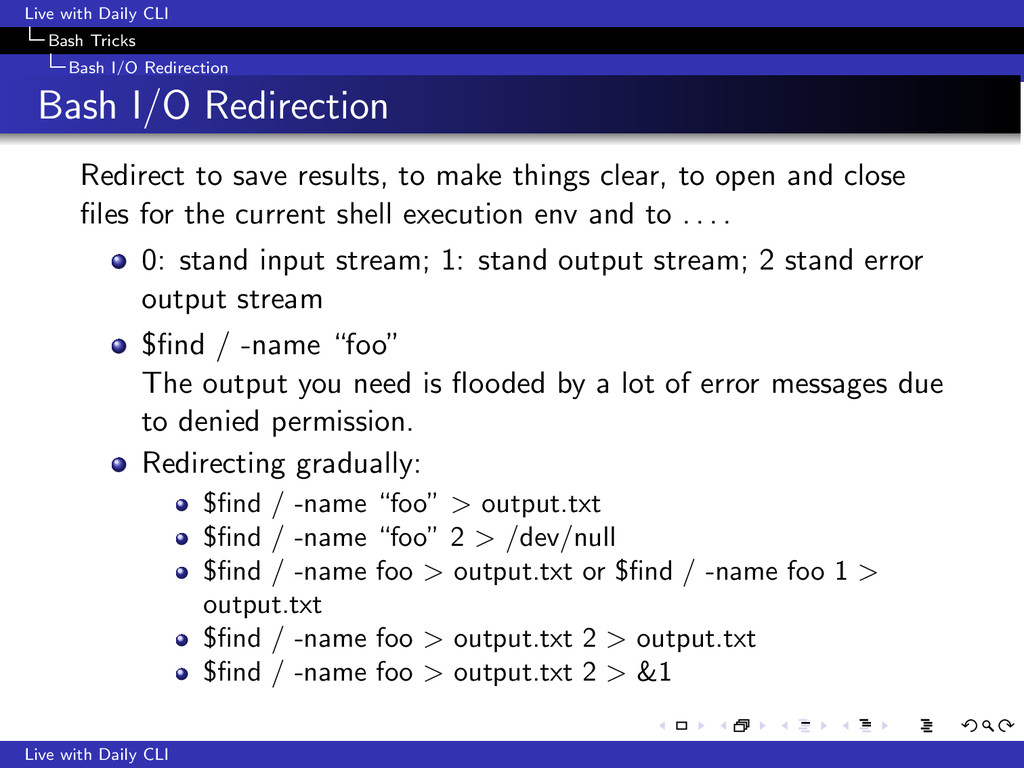
I/O Redirection Redirect to save results, to make things clear, to open and close files for the current shell execution env and to . . . . 0: stand input stream; 1: stand output stream; 2 stand error output stream Live with Daily CLI
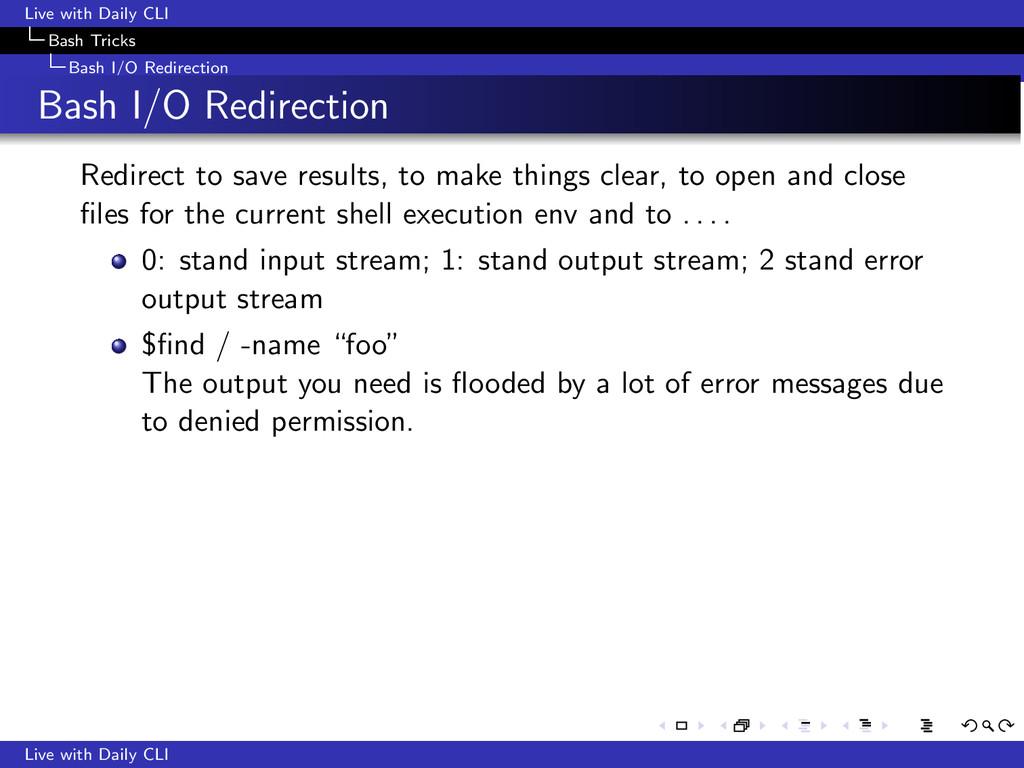
I/O Redirection Redirect to save results, to make things clear, to open and close files for the current shell execution env and to . . . . 0: stand input stream; 1: stand output stream; 2 stand error output stream $find / -name “foo” The output you need is flooded by a lot of error messages due to denied permission. Live with Daily CLI
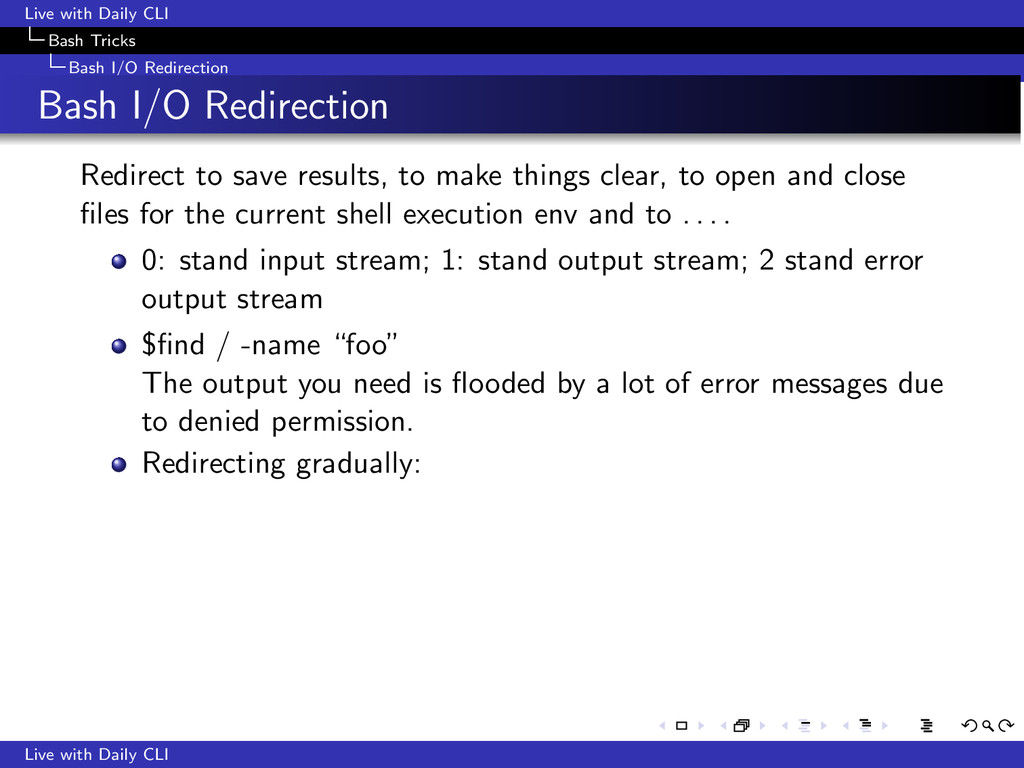
I/O Redirection Redirect to save results, to make things clear, to open and close files for the current shell execution env and to . . . . 0: stand input stream; 1: stand output stream; 2 stand error output stream $find / -name “foo” The output you need is flooded by a lot of error messages due to denied permission. Redirecting gradually: Live with Daily CLI
I/O Redirection Redirect to save results, to make things clear, to open and close files for the current shell execution env and to . . . . 0: stand input stream; 1: stand output stream; 2 stand error output stream $find / -name “foo” The output you need is flooded by a lot of error messages due to denied permission. Redirecting gradually: $find / -name “foo” > output.txt Live with Daily CLI
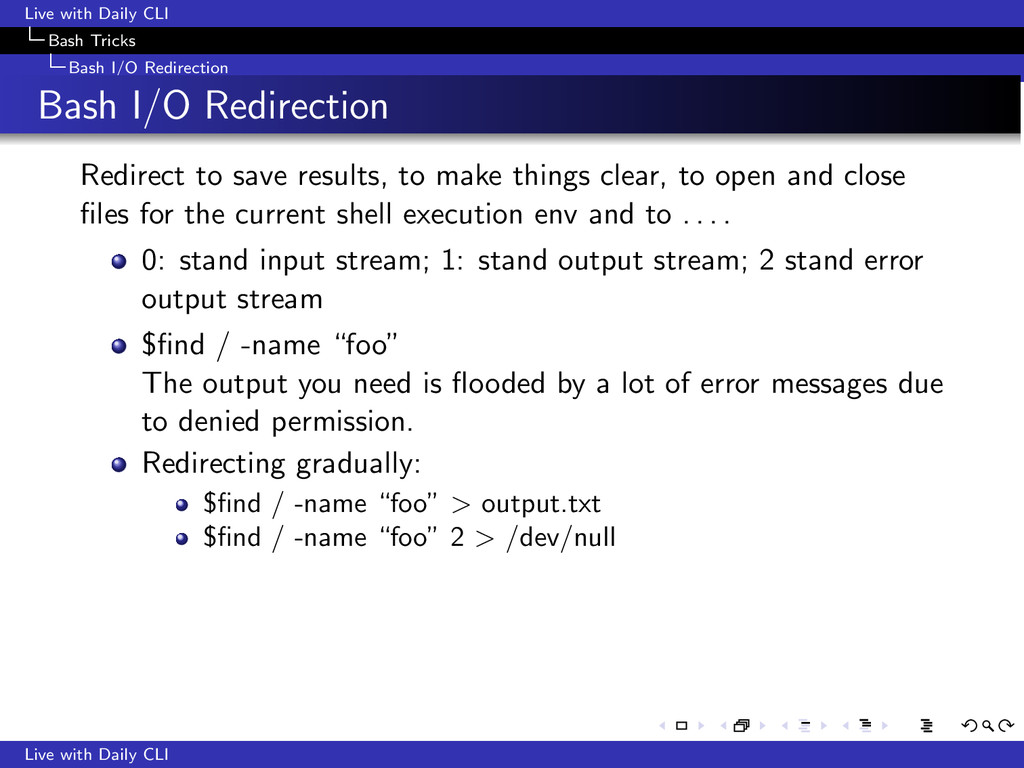
I/O Redirection Redirect to save results, to make things clear, to open and close files for the current shell execution env and to . . . . 0: stand input stream; 1: stand output stream; 2 stand error output stream $find / -name “foo” The output you need is flooded by a lot of error messages due to denied permission. Redirecting gradually: $find / -name “foo” > output.txt $find / -name “foo” 2 > /dev/null Live with Daily CLI
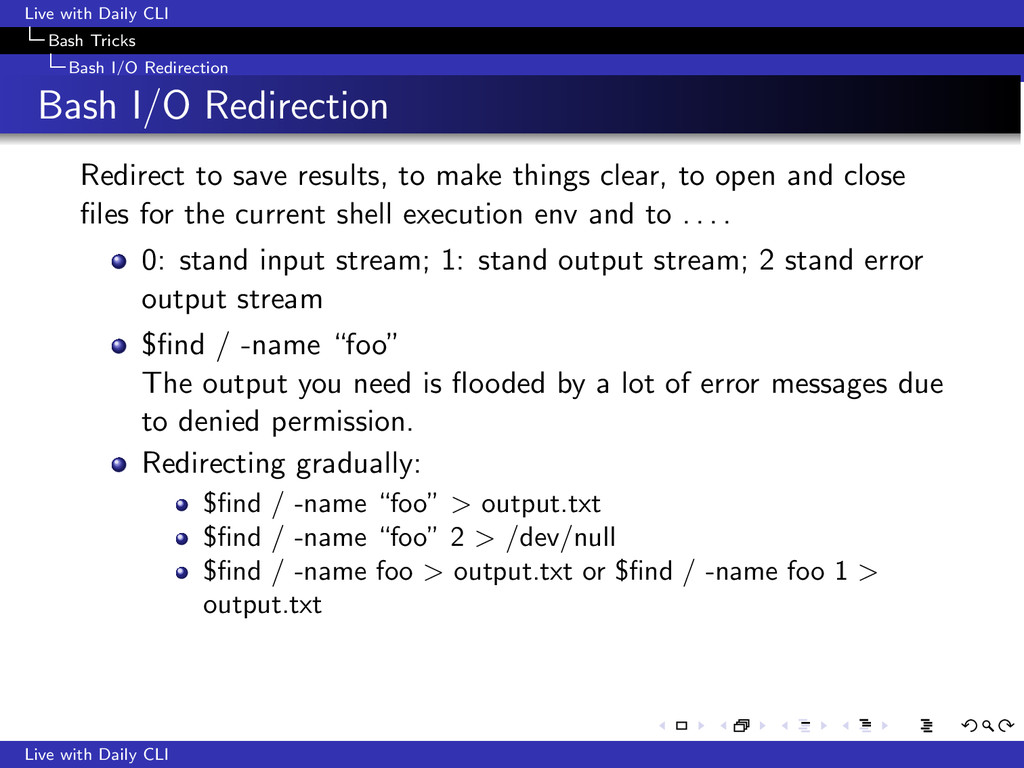
I/O Redirection Redirect to save results, to make things clear, to open and close files for the current shell execution env and to . . . . 0: stand input stream; 1: stand output stream; 2 stand error output stream $find / -name “foo” The output you need is flooded by a lot of error messages due to denied permission. Redirecting gradually: $find / -name “foo” > output.txt $find / -name “foo” 2 > /dev/null $find / -name foo > output.txt or $find / -name foo 1 > output.txt Live with Daily CLI
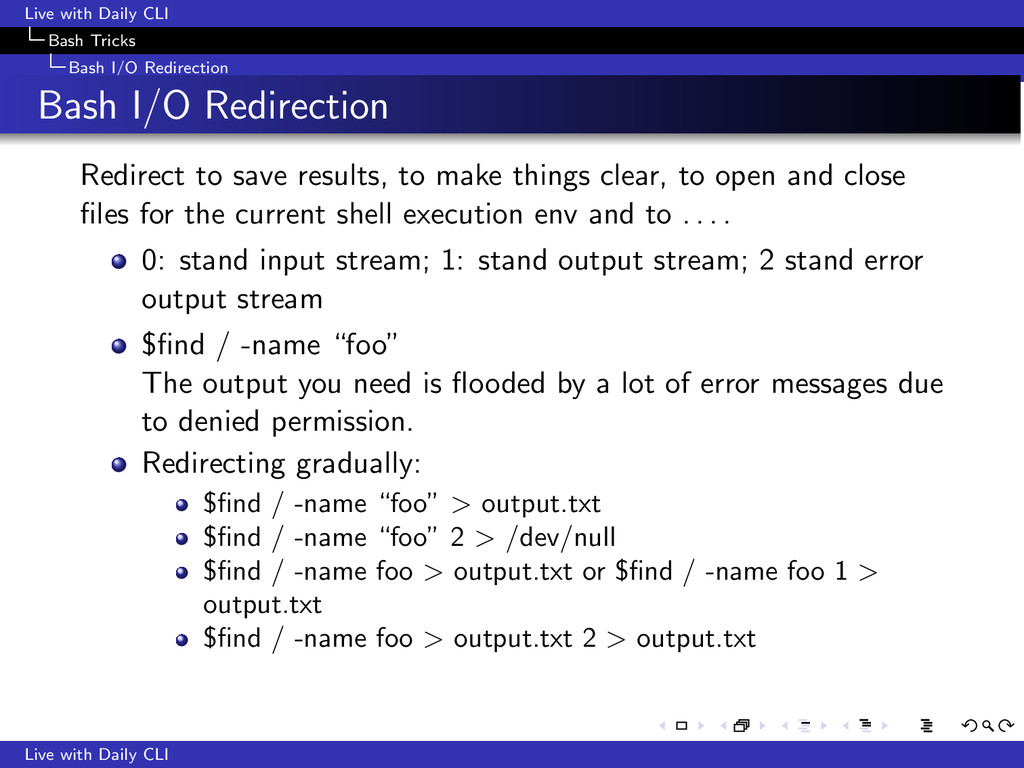
I/O Redirection Redirect to save results, to make things clear, to open and close files for the current shell execution env and to . . . . 0: stand input stream; 1: stand output stream; 2 stand error output stream $find / -name “foo” The output you need is flooded by a lot of error messages due to denied permission. Redirecting gradually: $find / -name “foo” > output.txt $find / -name “foo” 2 > /dev/null $find / -name foo > output.txt or $find / -name foo 1 > output.txt $find / -name foo > output.txt 2 > output.txt Live with Daily CLI
I/O Redirection Redirect to save results, to make things clear, to open and close files for the current shell execution env and to . . . . 0: stand input stream; 1: stand output stream; 2 stand error output stream $find / -name “foo” The output you need is flooded by a lot of error messages due to denied permission. Redirecting gradually: $find / -name “foo” > output.txt $find / -name “foo” 2 > /dev/null $find / -name foo > output.txt or $find / -name foo 1 > output.txt $find / -name foo > output.txt 2 > output.txt $find / -name foo > output.txt 2 > &1 Live with Daily CLI
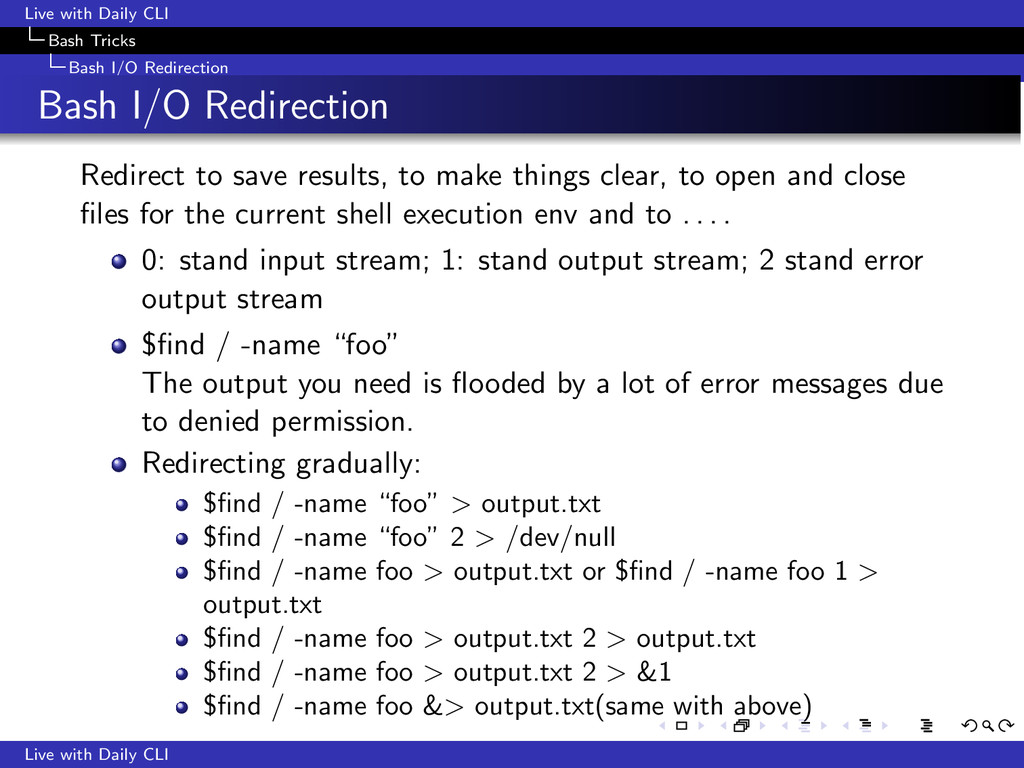
I/O Redirection Redirect to save results, to make things clear, to open and close files for the current shell execution env and to . . . . 0: stand input stream; 1: stand output stream; 2 stand error output stream $find / -name “foo” The output you need is flooded by a lot of error messages due to denied permission. Redirecting gradually: $find / -name “foo” > output.txt $find / -name “foo” 2 > /dev/null $find / -name foo > output.txt or $find / -name foo 1 > output.txt $find / -name foo > output.txt 2 > output.txt $find / -name foo > output.txt 2 > &1 $find / -name foo &> output.txt(same with above) Live with Daily CLI
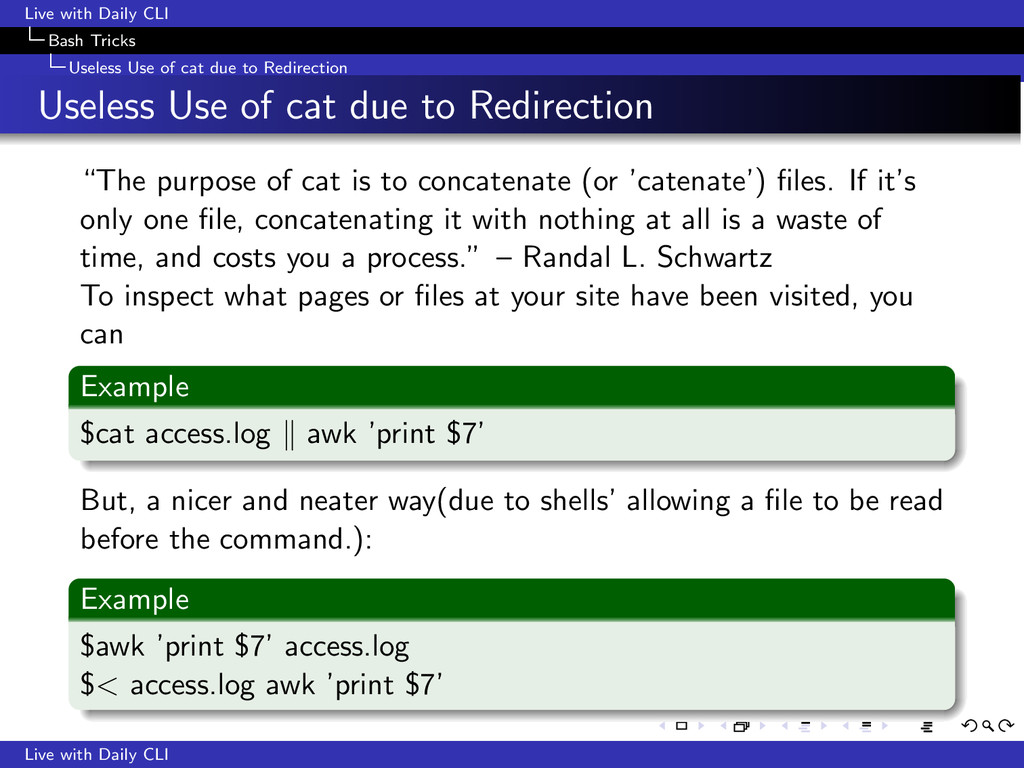
due to Redirection Useless Use of cat due to Redirection “The purpose of cat is to concatenate (or ’catenate’) files. If it’s only one file, concatenating it with nothing at all is a waste of time, and costs you a process.” – Randal L. Schwartz To inspect what pages or files at your site have been visited, you can Example $cat access.log awk ’print $7’ But, a nicer and neater way(due to shells’ allowing a file to be read before the command.): Example $awk ’print $7’ access.log $< access.log awk ’print $7’ Live with Daily CLI
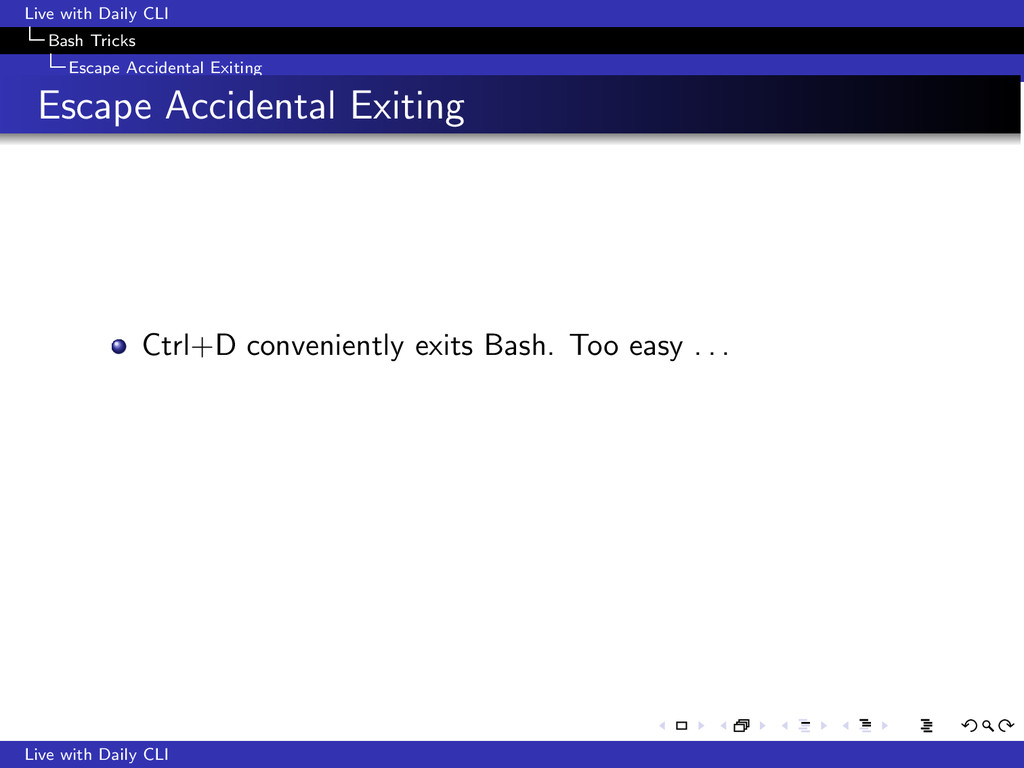
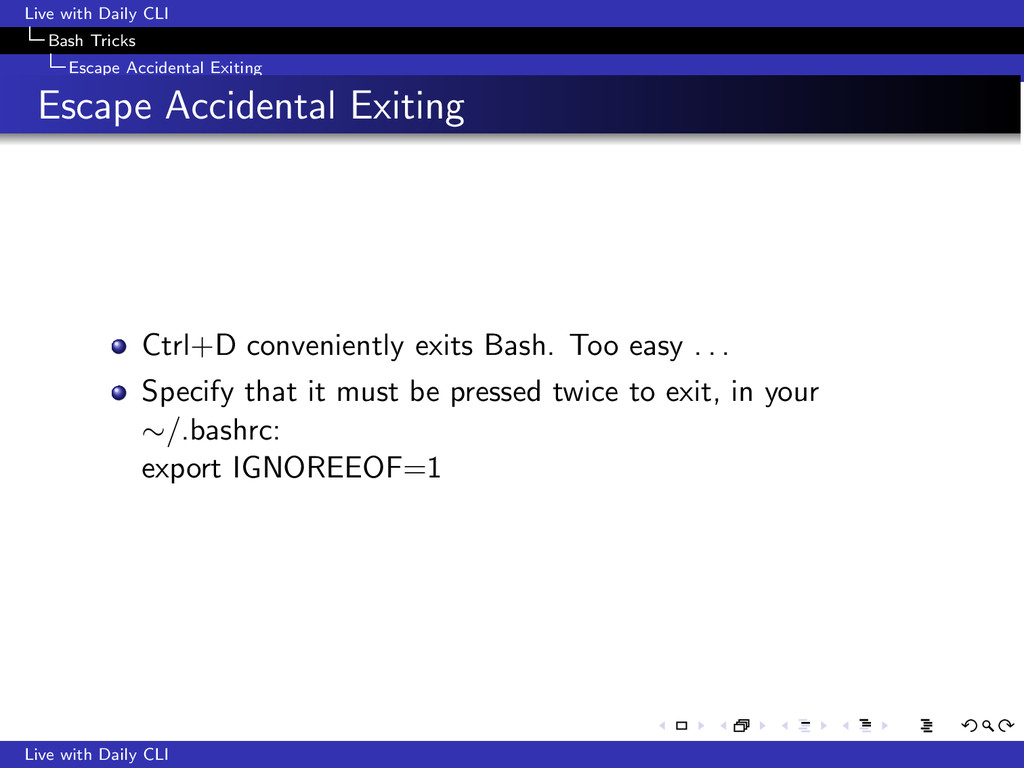
Accidental Exiting Ctrl+D conveniently exits Bash. Too easy . . . Specify that it must be pressed twice to exit, in your ∼/.bashrc: export IGNOREEOF=1 Live with Daily CLI
Introduction 2 Customize Bash 3 Bash Tricks 4 Great command line utils The find && xargs Pair Batch Renaming Files Network tools Printing with lpr Live with Daily CLI
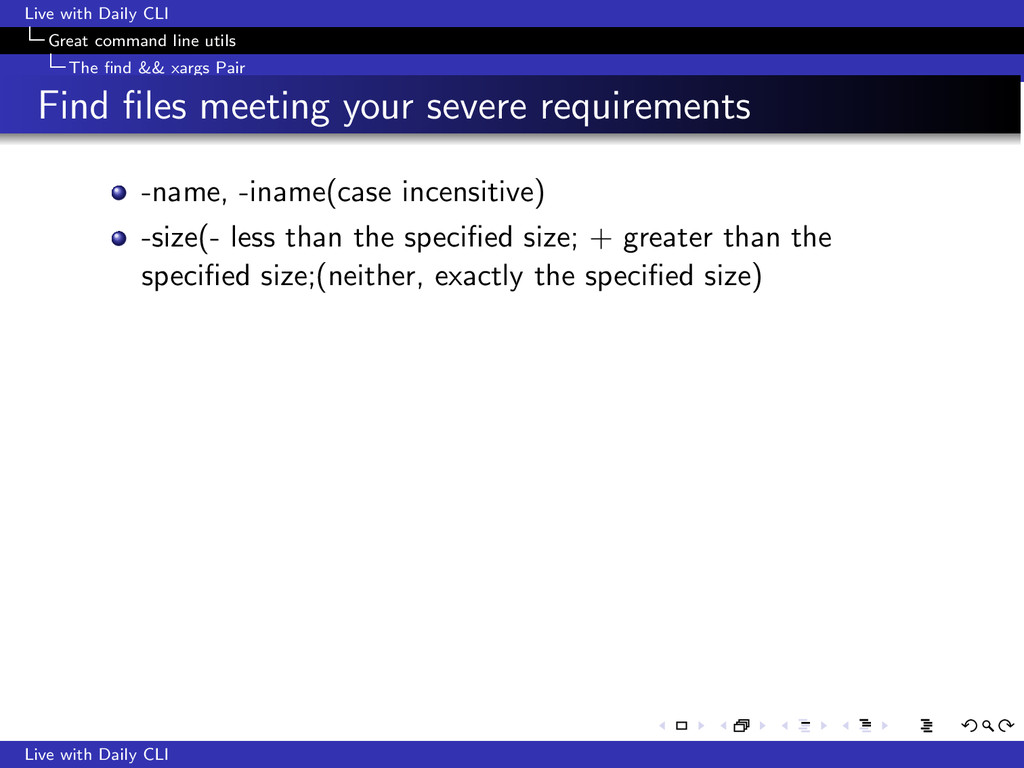
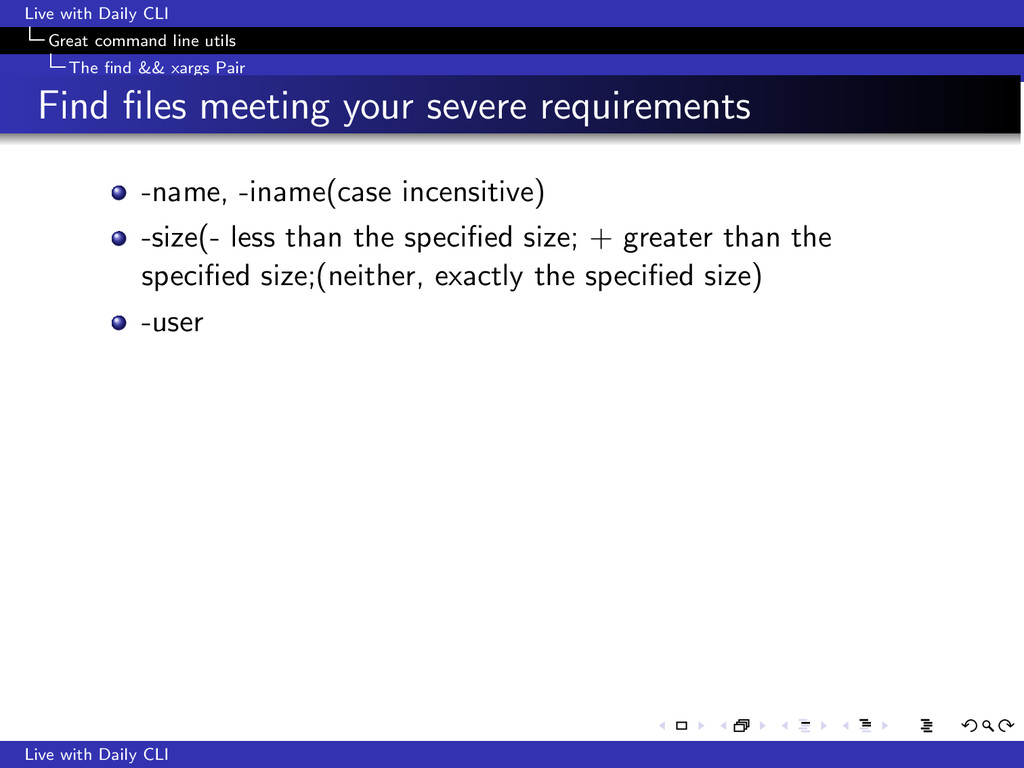
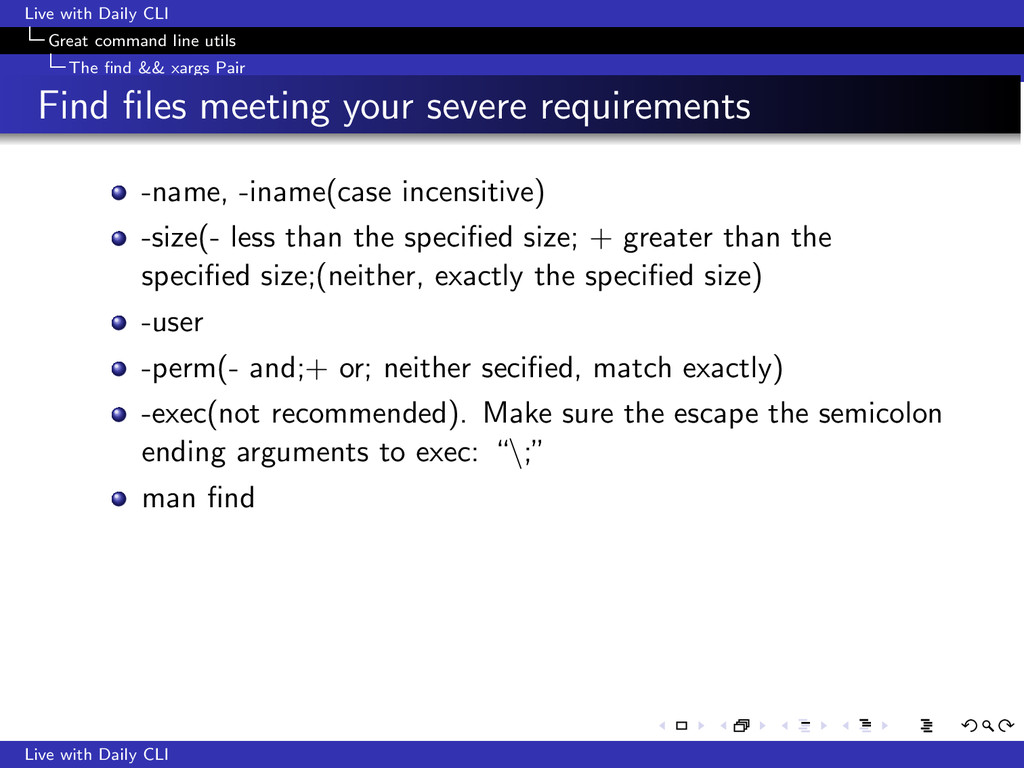
&& xargs Pair Find files meeting your severe requirements -name, -iname(case incensitive) -size(- less than the specified size; + greater than the specified size;(neither, exactly the specified size) Live with Daily CLI
&& xargs Pair Find files meeting your severe requirements -name, -iname(case incensitive) -size(- less than the specified size; + greater than the specified size;(neither, exactly the specified size) -user Live with Daily CLI
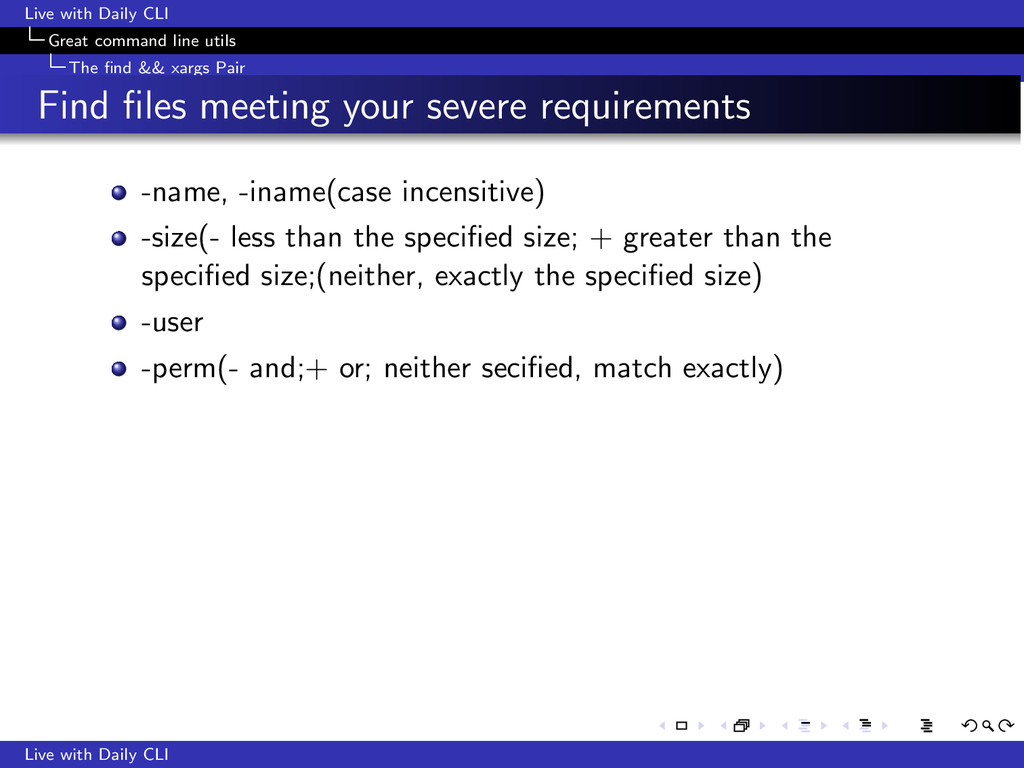
&& xargs Pair Find files meeting your severe requirements -name, -iname(case incensitive) -size(- less than the specified size; + greater than the specified size;(neither, exactly the specified size) -user -perm(- and;+ or; neither secified, match exactly) Live with Daily CLI
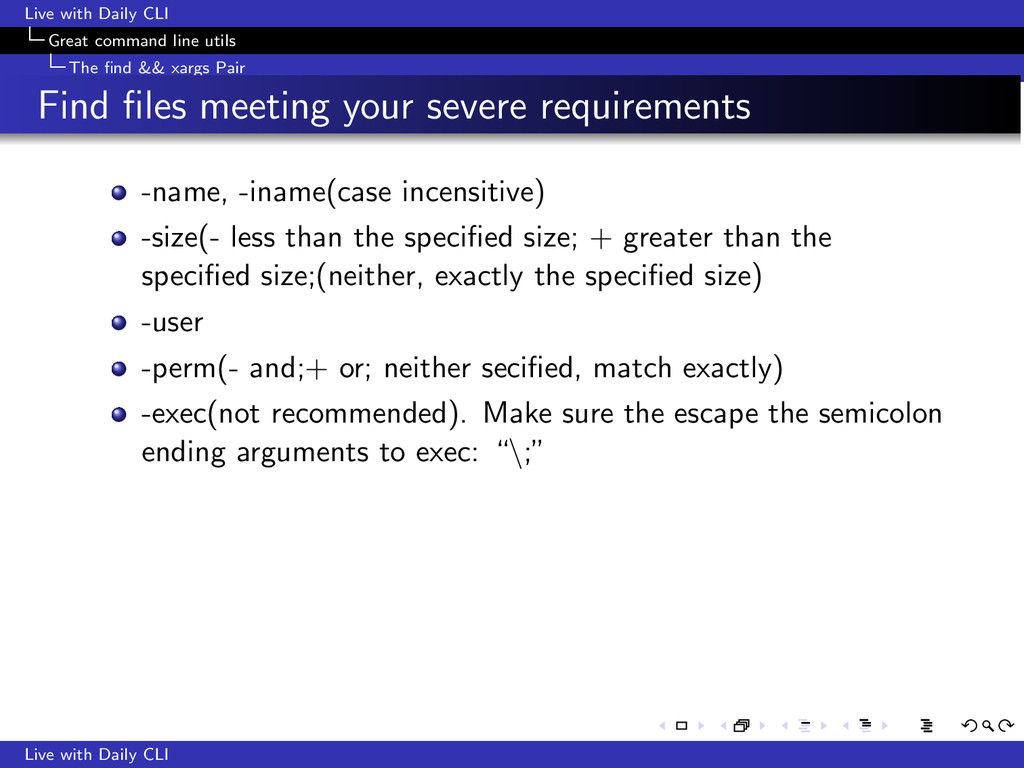
&& xargs Pair Find files meeting your severe requirements -name, -iname(case incensitive) -size(- less than the specified size; + greater than the specified size;(neither, exactly the specified size) -user -perm(- and;+ or; neither secified, match exactly) -exec(not recommended). Make sure the escape the semicolon ending arguments to exec: “\;” Live with Daily CLI
&& xargs Pair Find files meeting your severe requirements -name, -iname(case incensitive) -size(- less than the specified size; + greater than the specified size;(neither, exactly the specified size) -user -perm(- and;+ or; neither secified, match exactly) -exec(not recommended). Make sure the escape the semicolon ending arguments to exec: “\;” man find Live with Daily CLI
&& xargs Pair Find files meeting your severe requirements -name, -iname(case incensitive) -size(- less than the specified size; + greater than the specified size;(neither, exactly the specified size) -user -perm(- and;+ or; neither secified, match exactly) -exec(not recommended). Make sure the escape the semicolon ending arguments to exec: “\;” man find Live with Daily CLI
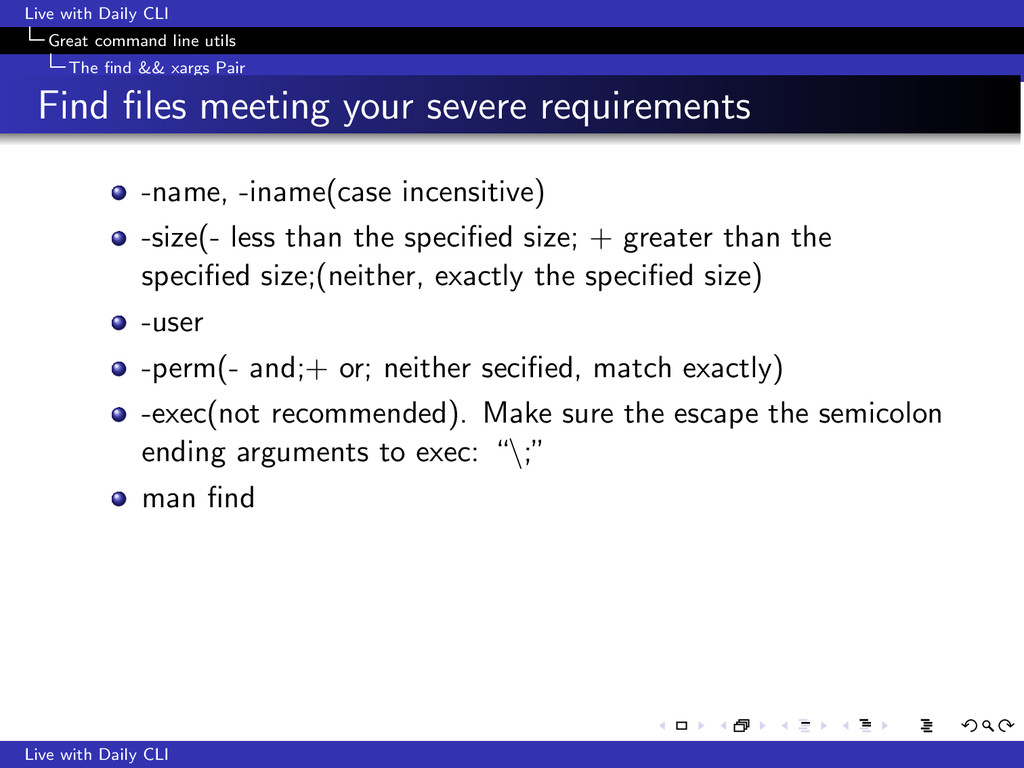
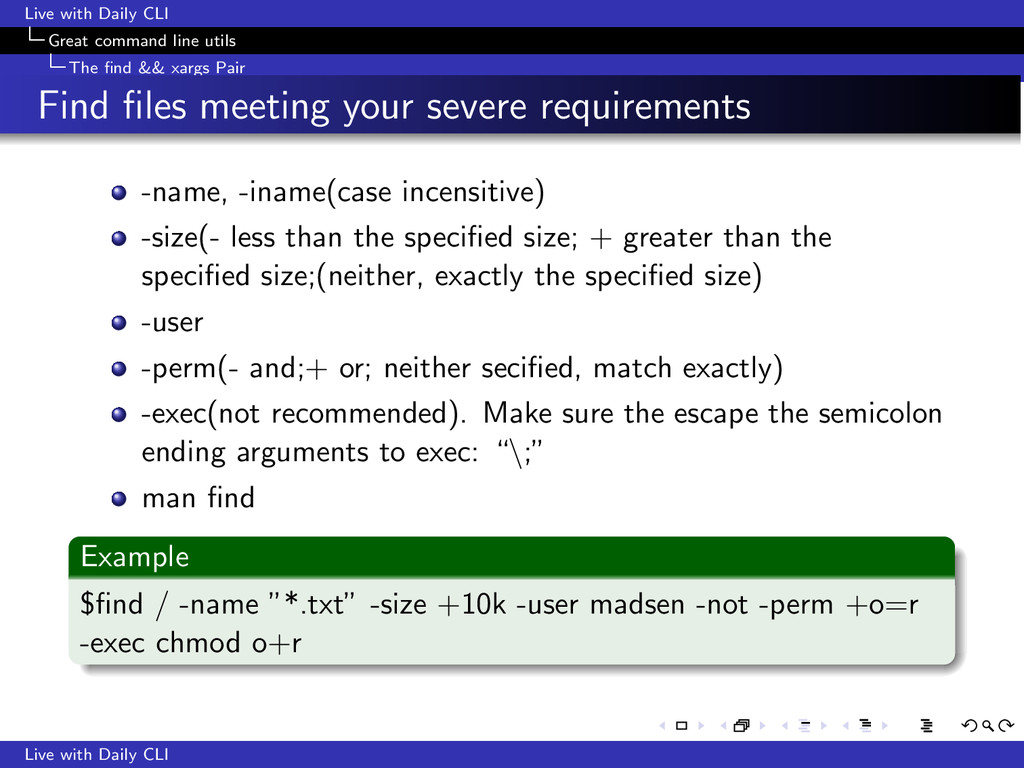
&& xargs Pair Find files meeting your severe requirements -name, -iname(case incensitive) -size(- less than the specified size; + greater than the specified size;(neither, exactly the specified size) -user -perm(- and;+ or; neither secified, match exactly) -exec(not recommended). Make sure the escape the semicolon ending arguments to exec: “\;” man find Example $find / -name ”*.txt” -size +10k -user madsen -not -perm +o=r -exec chmod o+r Live with Daily CLI
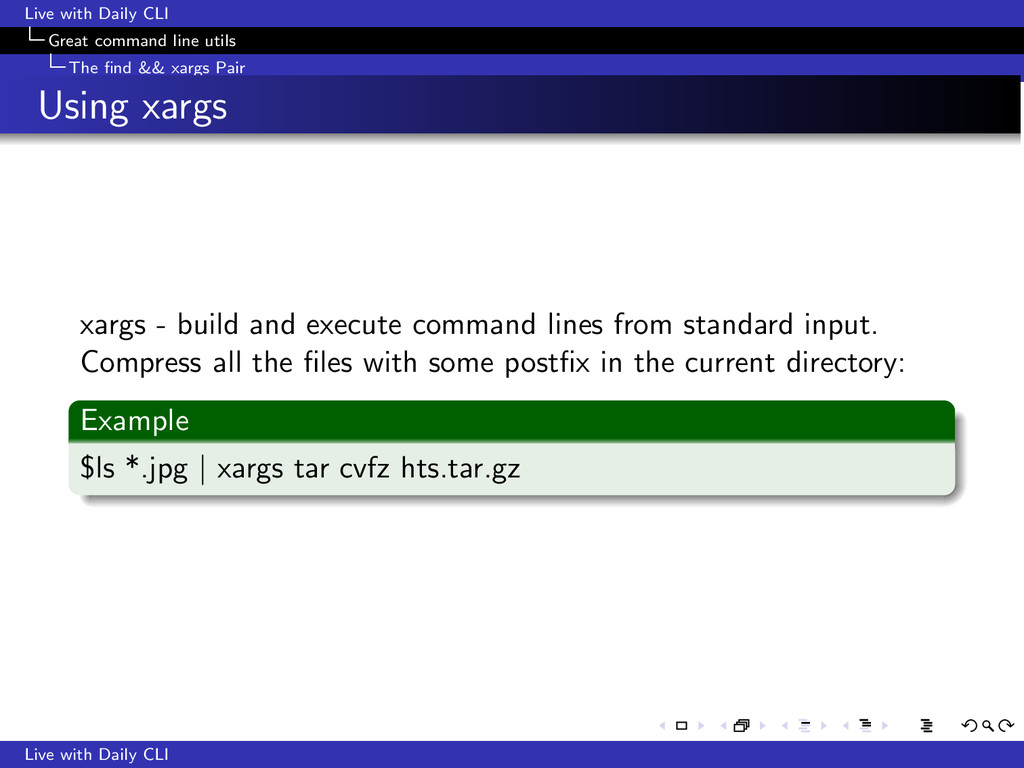
&& xargs Pair Using xargs xargs - build and execute command lines from standard input. Compress all the files with some postfix in the current directory: Example $ls *.jpg | xargs tar cvfz hts.tar.gz Live with Daily CLI
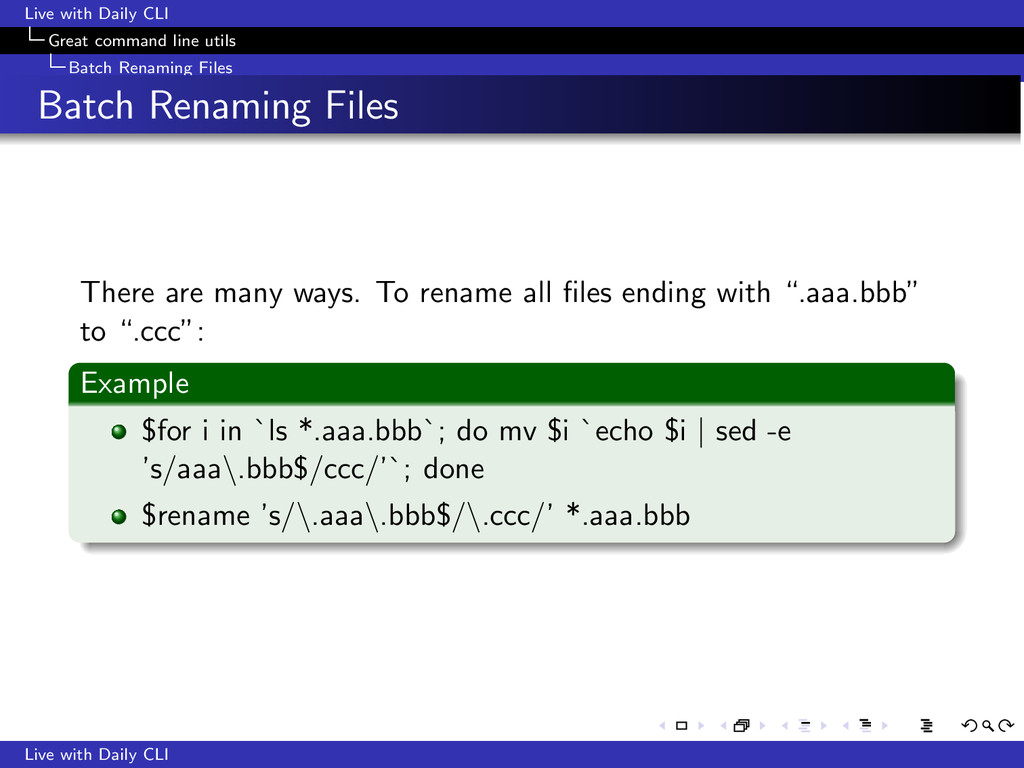
Files Batch Renaming Files There are many ways. To rename all files ending with “.aaa.bbb” to “.ccc”: Example $for i in `ls *.aaa.bbb`; do mv $i `echo $i | sed -e ’s/aaa\.bbb$/ccc/’`; done $rename ’s/\.aaa\.bbb$/\.ccc/’ *.aaa.bbb Live with Daily CLI
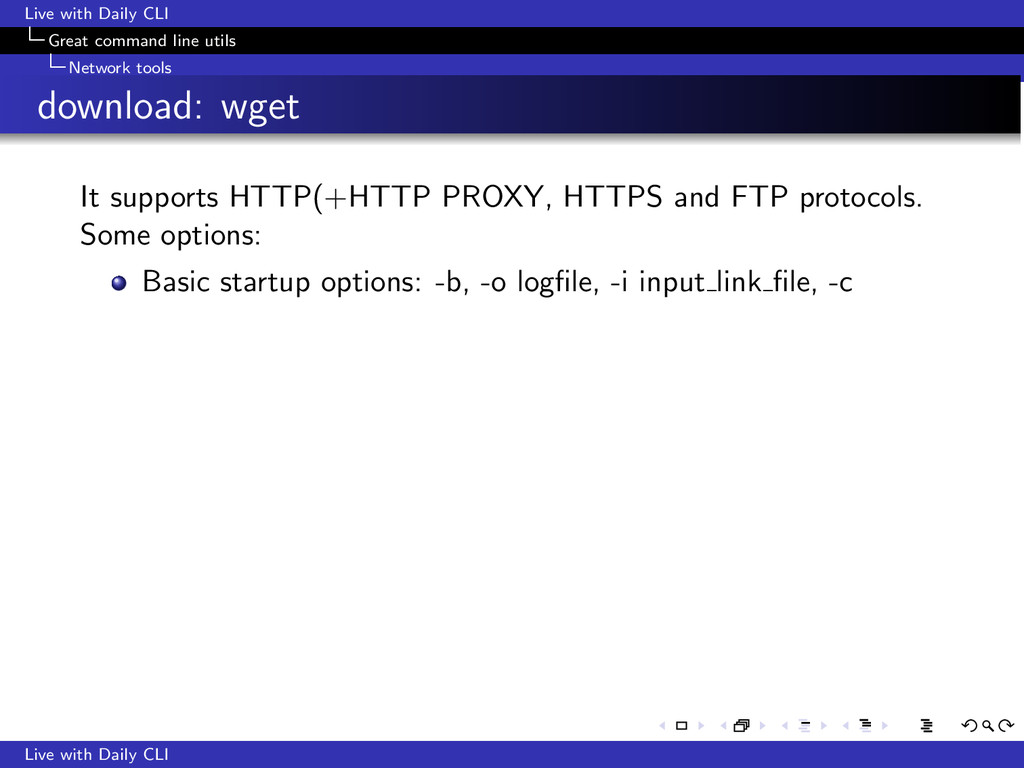
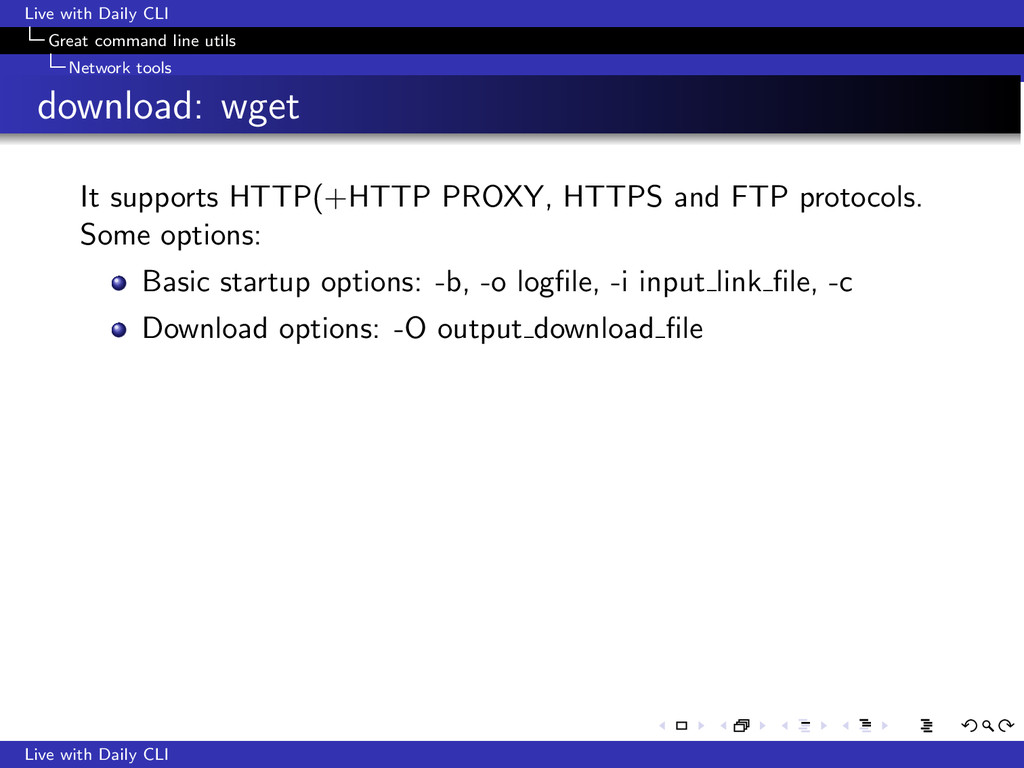
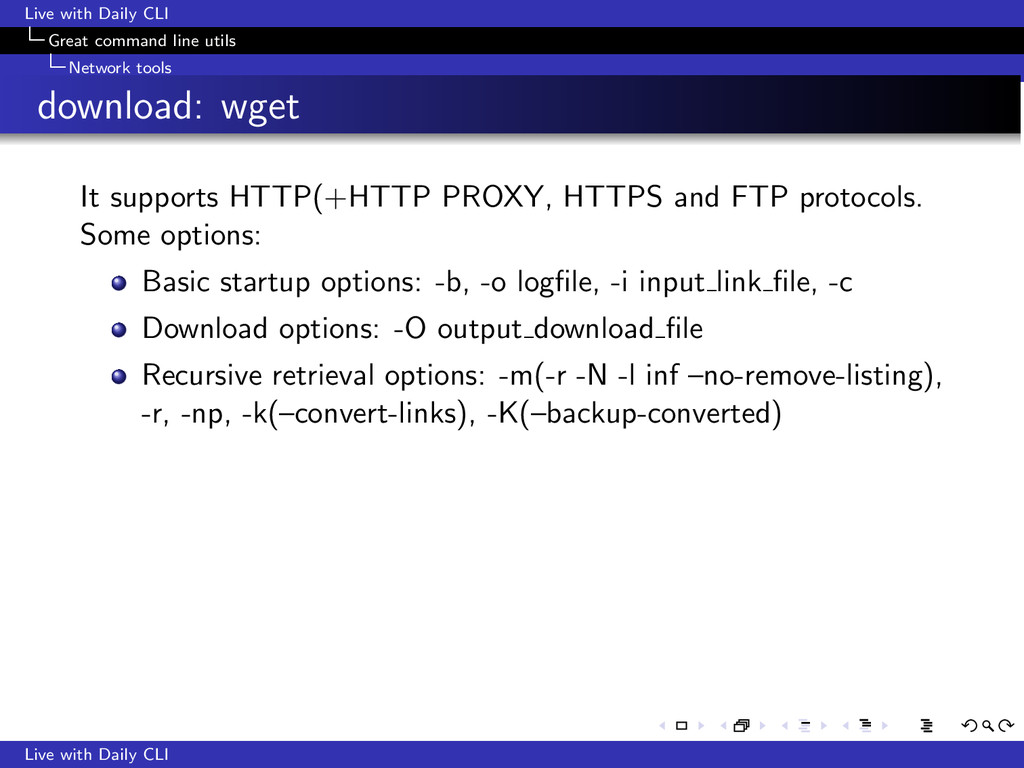
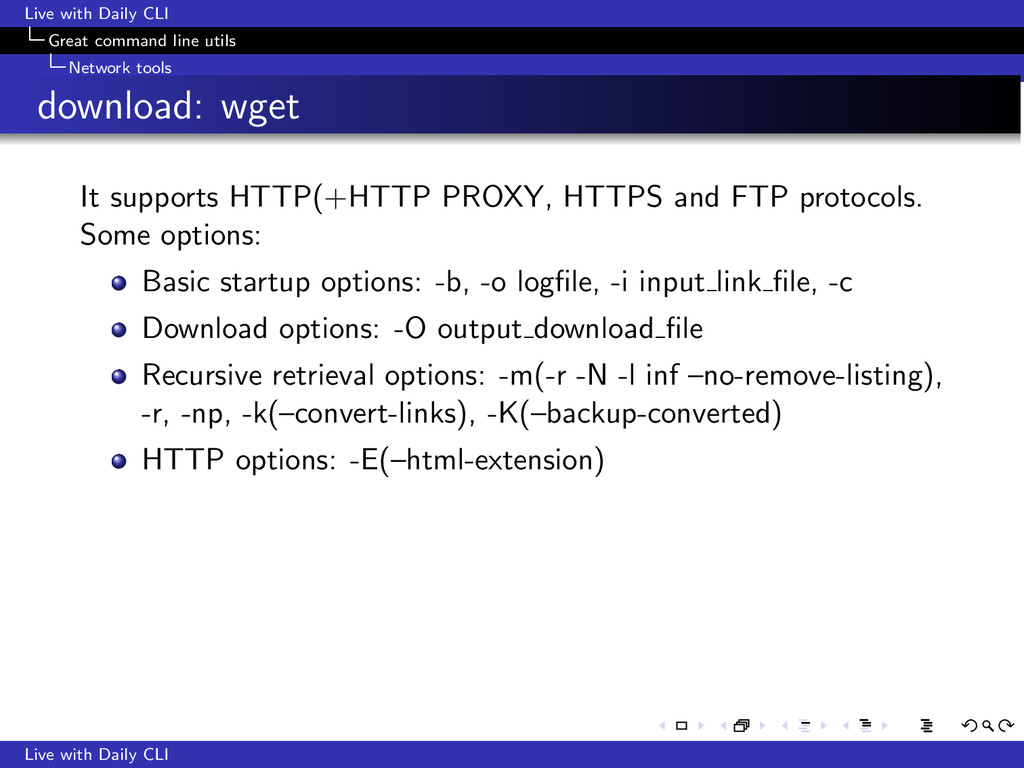
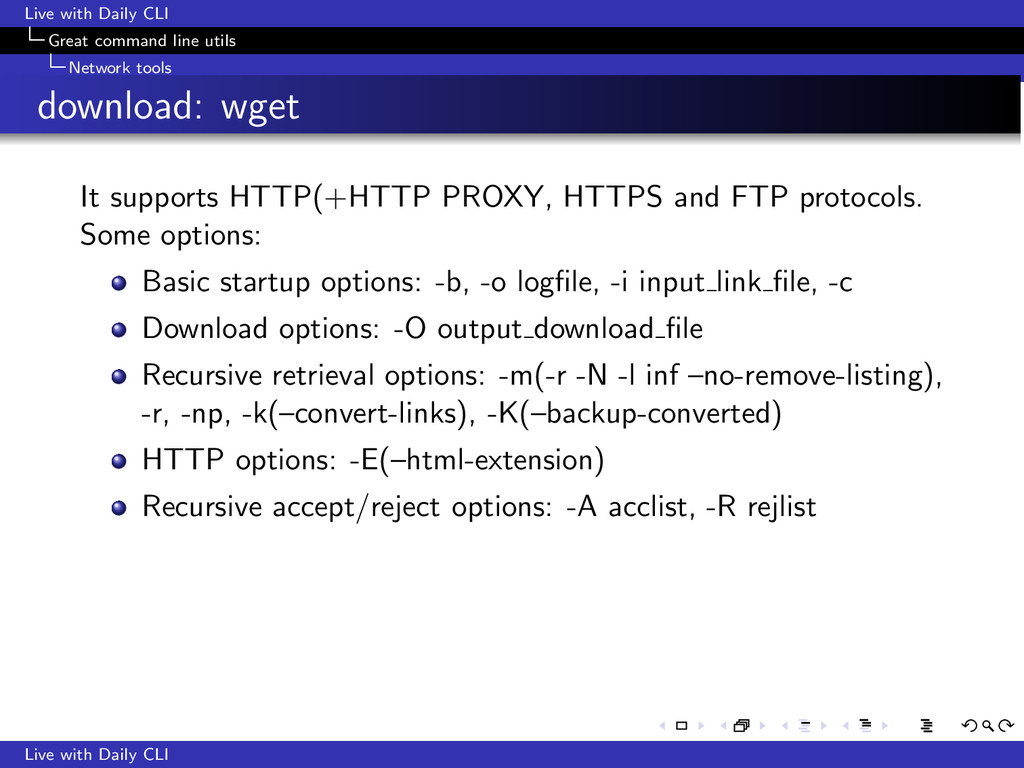
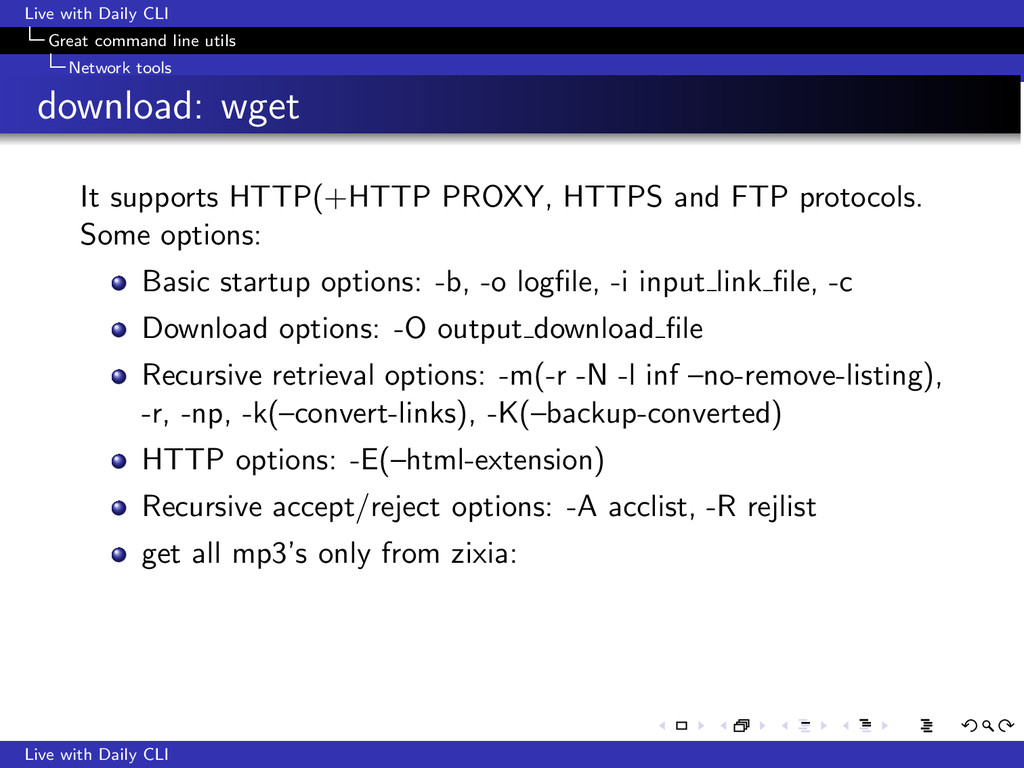
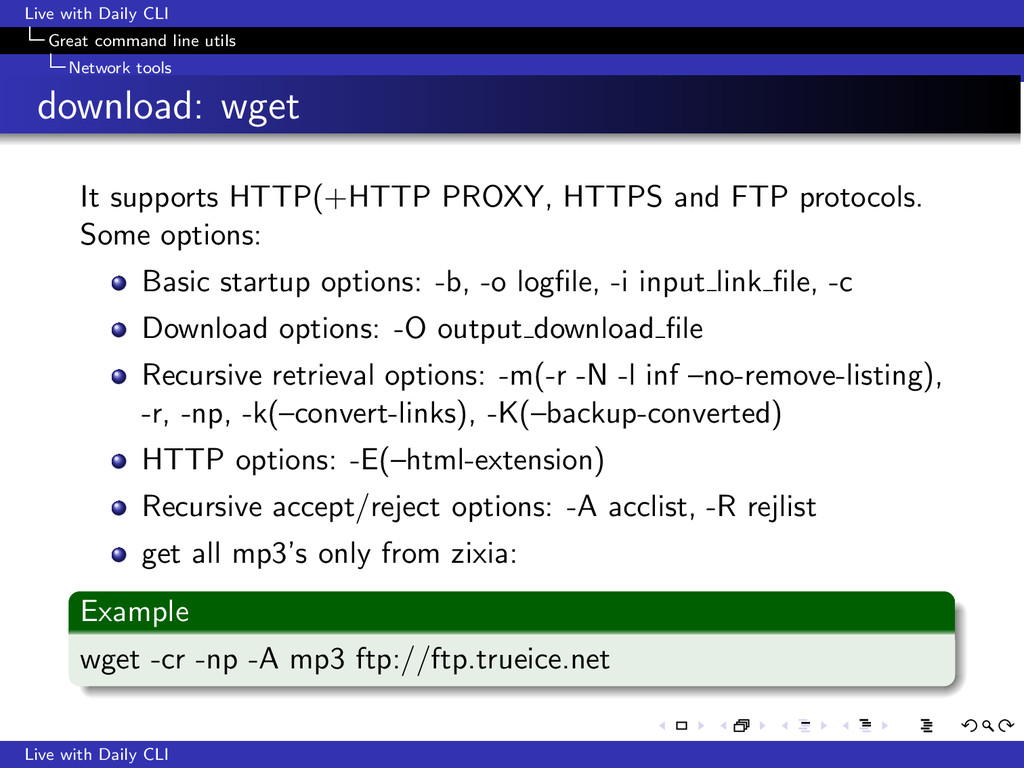
download: wget It supports HTTP(+HTTP PROXY, HTTPS and FTP protocols. Some options: Basic startup options: -b, -o logfile, -i input link file, -c Live with Daily CLI
A Sophisticated File Transfer Program The following is from “man lftp” A file transfer program that allows sophisticated ftp, http and other connections to other hosts It can handle seven file access methods - ftp, ftps, http, https, hftp, fish, sftp andfile Live with Daily CLI
w3m a text based Web browser It’s a World Wide Web (WWW) text based client. It runs in a terminal. Tab browsing. Less computing resources. Live with Daily CLI
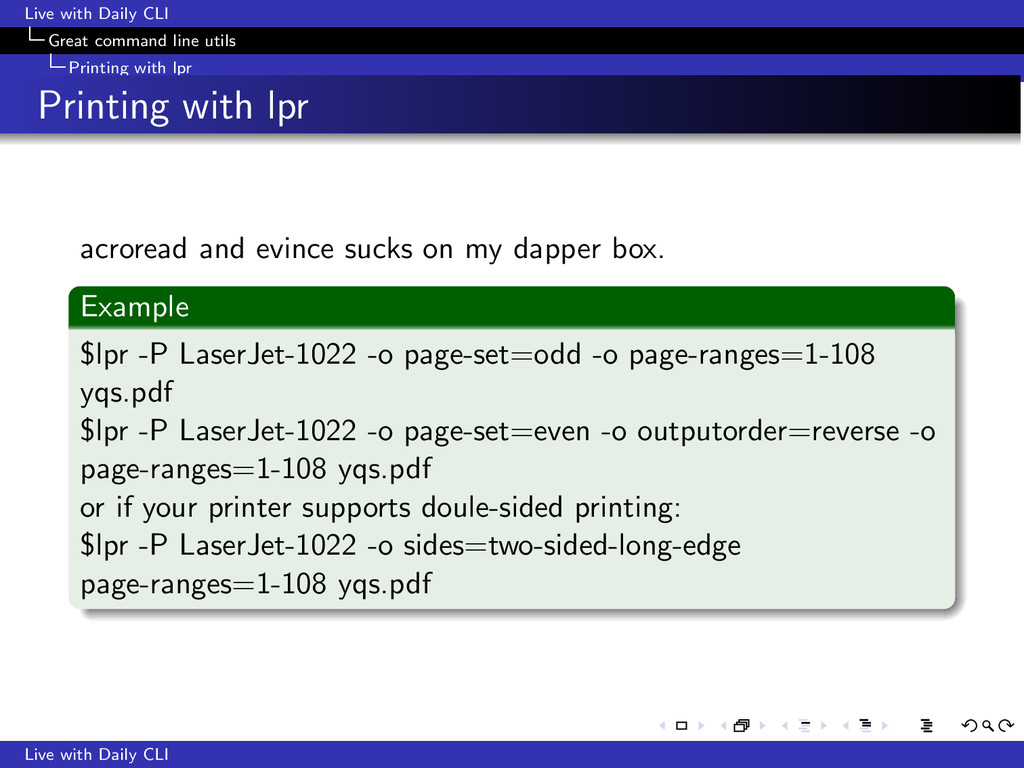
lpr Printing with lpr acroread and evince sucks on my dapper box. Example $lpr -P LaserJet-1022 -o page-set=odd -o page-ranges=1-108 yqs.pdf $lpr -P LaserJet-1022 -o page-set=even -o outputorder=reverse -o page-ranges=1-108 yqs.pdf or if your printer supports doule-sided printing: $lpr -P LaserJet-1022 -o sides=two-sided-long-edge page-ranges=1-108 yqs.pdf Live with Daily CLI
kind of shell) Bash tricks When using systems which aren’t configured as such . . . Use your fingers to remember. Never try to memorize using brain. Live with Daily CLI
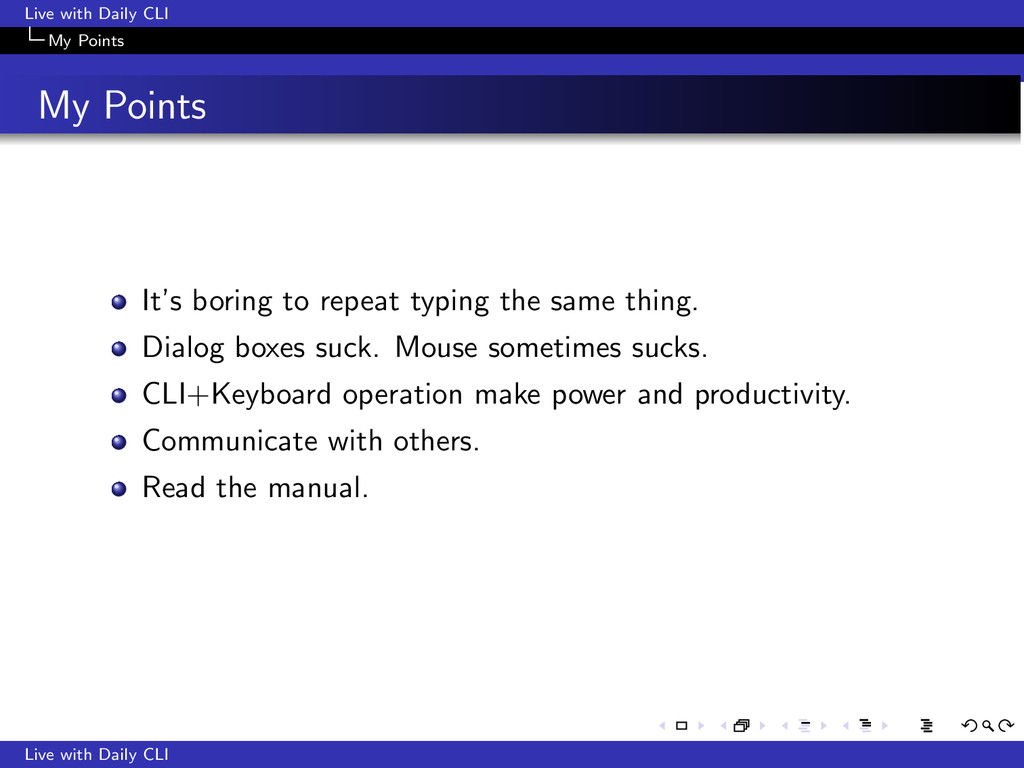
to repeat typing the same thing. Dialog boxes suck. Mouse sometimes sucks. CLI+Keyboard operation make power and productivity. Communicate with others. Live with Daily CLI
to repeat typing the same thing. Dialog boxes suck. Mouse sometimes sucks. CLI+Keyboard operation make power and productivity. Communicate with others. Read the manual. Live with Daily CLI
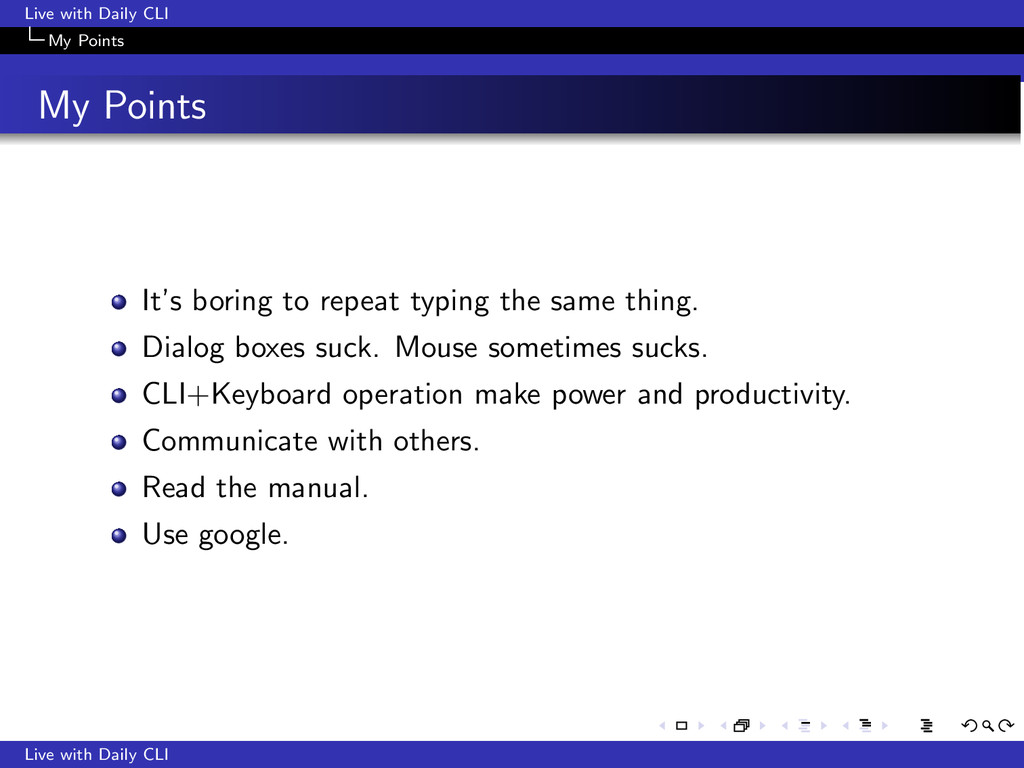
to repeat typing the same thing. Dialog boxes suck. Mouse sometimes sucks. CLI+Keyboard operation make power and productivity. Communicate with others. Read the manual. Use google. Live with Daily CLI


 morizo_1984
 tanahiro2010
 taiseiue
 rkaga
rkaga
 akihisaikeda
 marcoroth
 ryu1013
 kishida
 tmikov2023
 findyinc
 lef237
 iwiwi
iwiwi
 iamctodd
 addyosmani
 3n
3n
 davetheseo
 rmw
rmw
 tmiket
 tenderlove
 csswizardry
 kastner
 katarinadahlin
 inesmontani
 michaelherold