Upgrade to Pro — share decks privately, control downloads, hide ads and more …

Rubedo cms : Multilingualism tutorial

Avatar for Rubedo Project Rubedo Project
September 27, 2013

Rubedo cms : Multilingualism tutorial

Multilingual websites on Rubedo CMS.
The following slides explain some concepts of multiligualism :
– Default language
– User interface language
– Activation of new languages
– Working language
– Localization strategy (available languages and content display strategy) for each
website
– Website translation tutorial

Avatar for Rubedo Project

Rubedo Project

September 27, 2013

Other Decks in Technology

Transcript

  1. INTRODUCTION Since version 1.3, Rubedo can handle multilingual websites The

    following elements can be translated: – Websites (title, description, keywords) – Taxonomy – Content types and media types – Contents and assets – Pages (title, URL, description, keywords…), block titles, some block contents – Workspaces The main objectives of this tutorial are the following: – Clarify some concepts of multilingualism (interface language, working language, active languages…) – Show how to translate different elements of a website Rubedo & multilingual websites
  2. INTRODUCTION The following slides explain some concepts of multiligualism :

    – Default language – User interface language – Activation of new languages – Working language – Localization strategy (available languages and content display strategy) for each website – Website translation tutorial Rubedo & multilingual websites
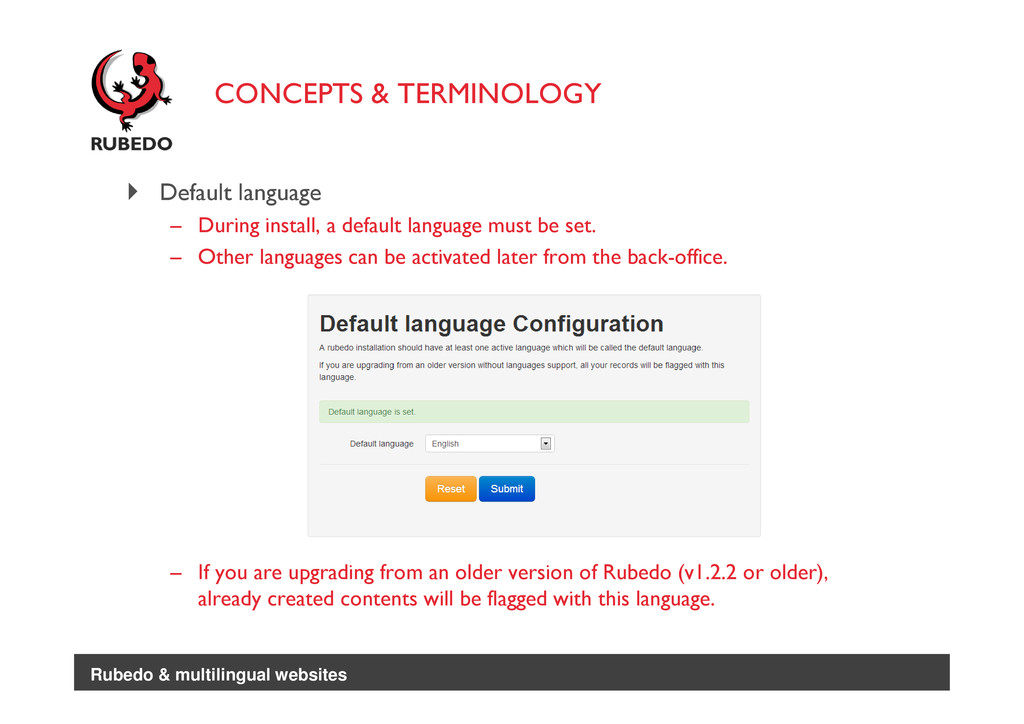
  3. CONCEPTS & TERMINOLOGY Default language – During install, a default

    language must be set. – Other languages can be activated later from the back-office. – If you are upgrading from an older version of Rubedo (v1.2.2 or older), already created contents will be flagged with this language. Rubedo & multilingual websites
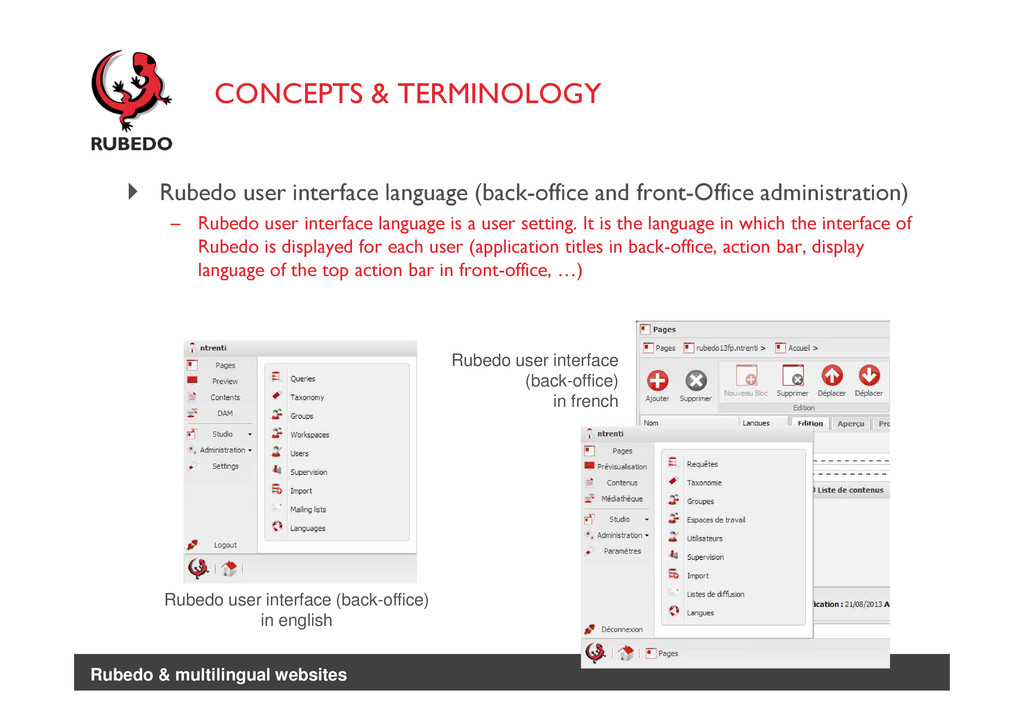
  4. CONCEPTS & TERMINOLOGY Rubedo user interface language (back-office and front-Office

    administration) – Rubedo user interface language is a user setting. It is the language in which the interface of Rubedo is displayed for each user (application titles in back-office, action bar, display language of the top action bar in front-office, …) Rubedo user interface (back-office) in english Rubedo user interface (back-office) in french Rubedo & multilingual websites
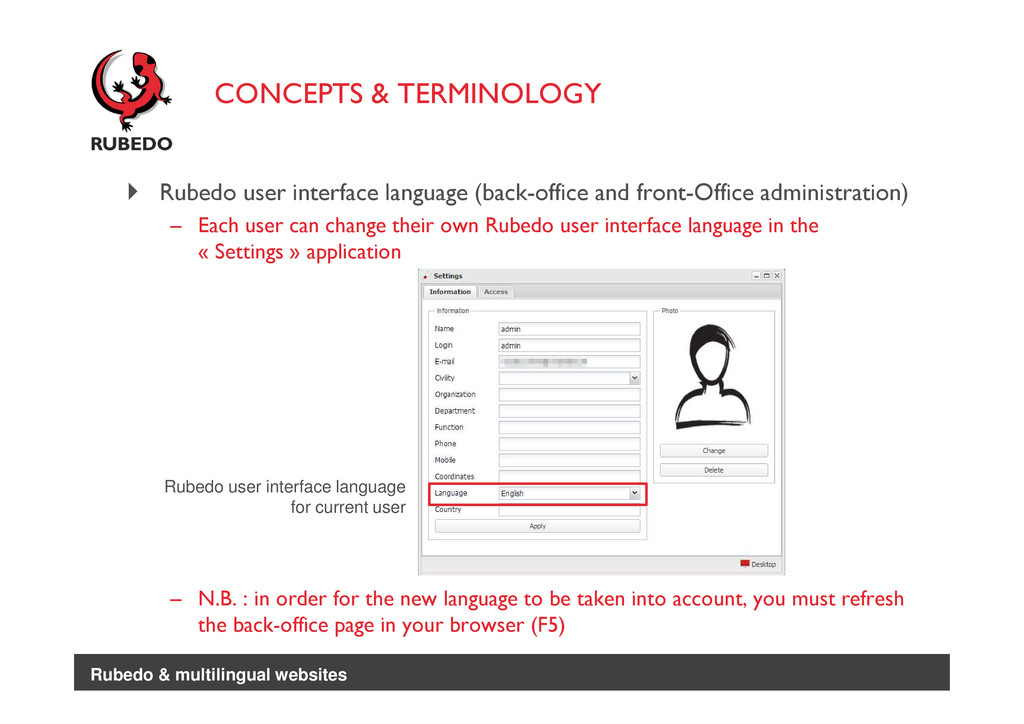
  5. CONCEPTS & TERMINOLOGY Rubedo user interface language (back-office and front-Office

    administration) – Each user can change their own Rubedo user interface language in the « Settings » application – N.B. : in order for the new language to be taken into account, you must refresh the back-office page in your browser (F5) Rubedo user interface language for current user Rubedo & multilingual websites
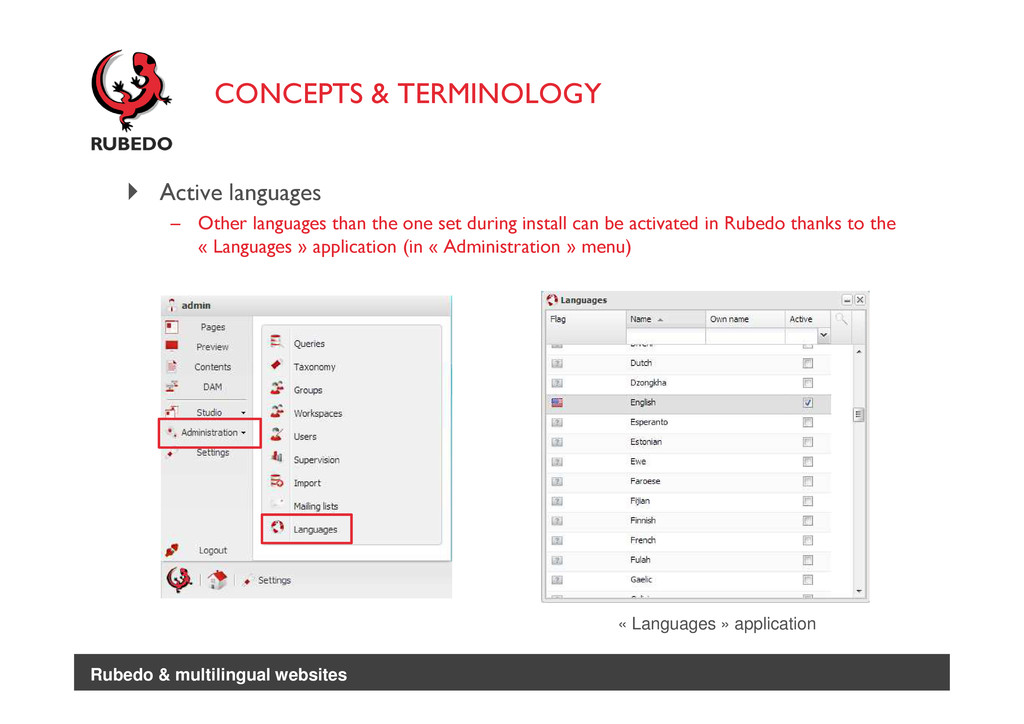
  6. CONCEPTS & TERMINOLOGY Active languages – Other languages than the

    one set during install can be activated in Rubedo thanks to the « Languages » application (in « Administration » menu) « Languages » application Rubedo & multilingual websites
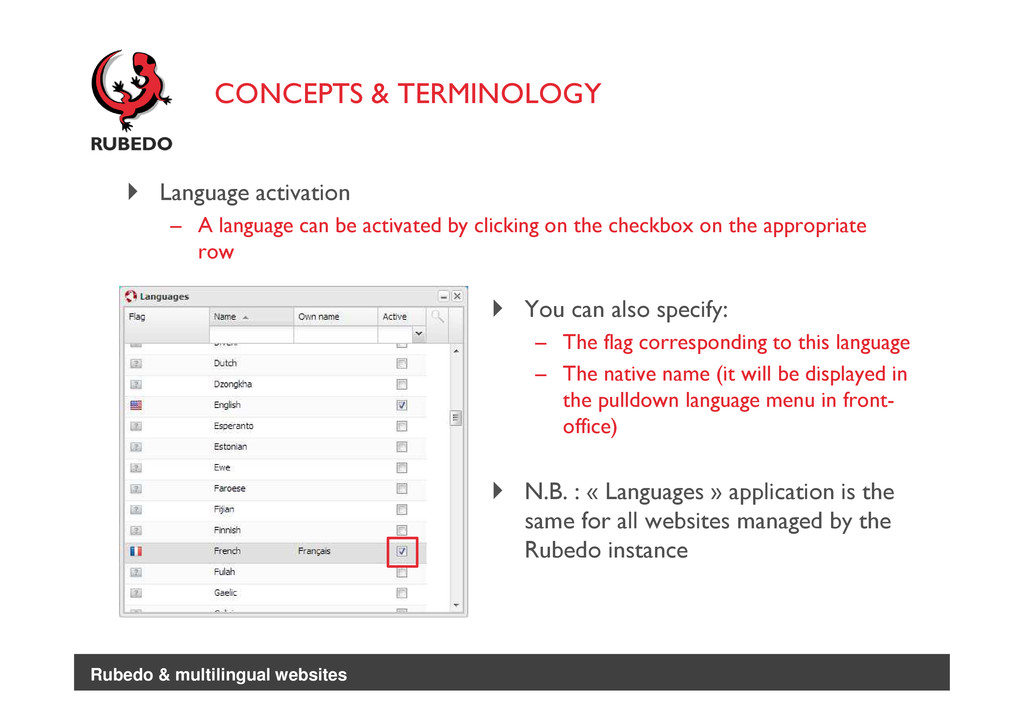
  7. CONCEPTS & TERMINOLOGY Language activation – A language can be

    activated by clicking on the checkbox on the appropriate row You can also specify: – The flag corresponding to this language – The native name (it will be displayed in the pulldown language menu in front- office) N.B. : « Languages » application is the same for all websites managed by the Rubedo instance Rubedo & multilingual websites
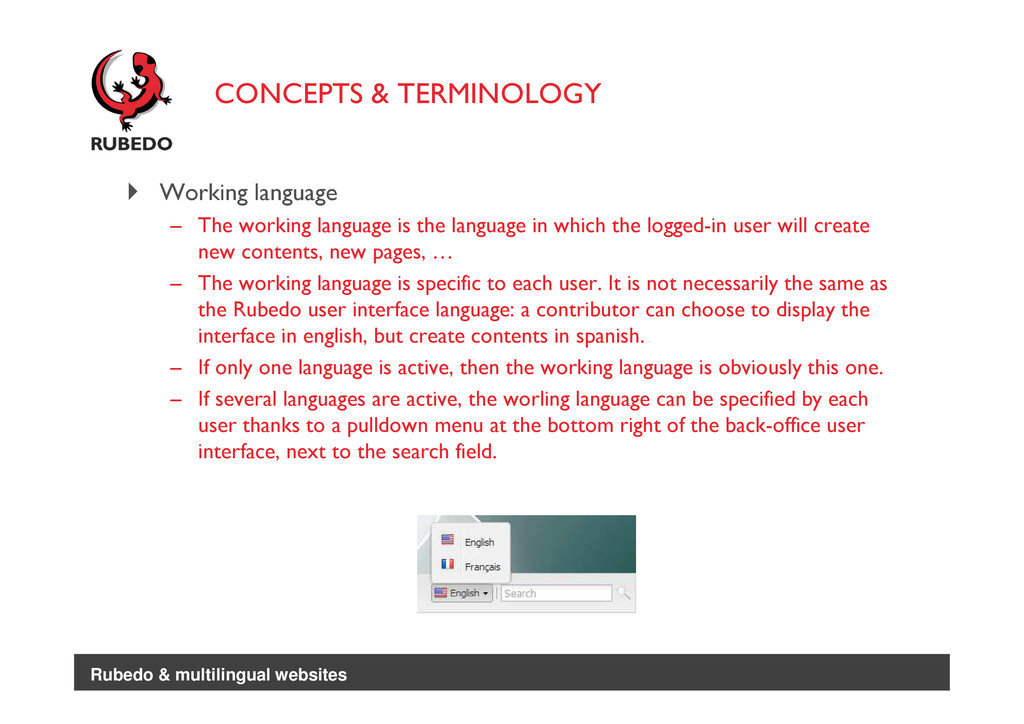
  8. CONCEPTS & TERMINOLOGY Working language – The working language is

    the language in which the logged-in user will create new contents, new pages, … – The working language is specific to each user. It is not necessarily the same as the Rubedo user interface language: a contributor can choose to display the interface in english, but create contents in spanish. – If only one language is active, then the working language is obviously this one. – If several languages are active, the worling language can be specified by each user thanks to a pulldown menu at the bottom right of the back-office user interface, next to the search field. Rubedo & multilingual websites
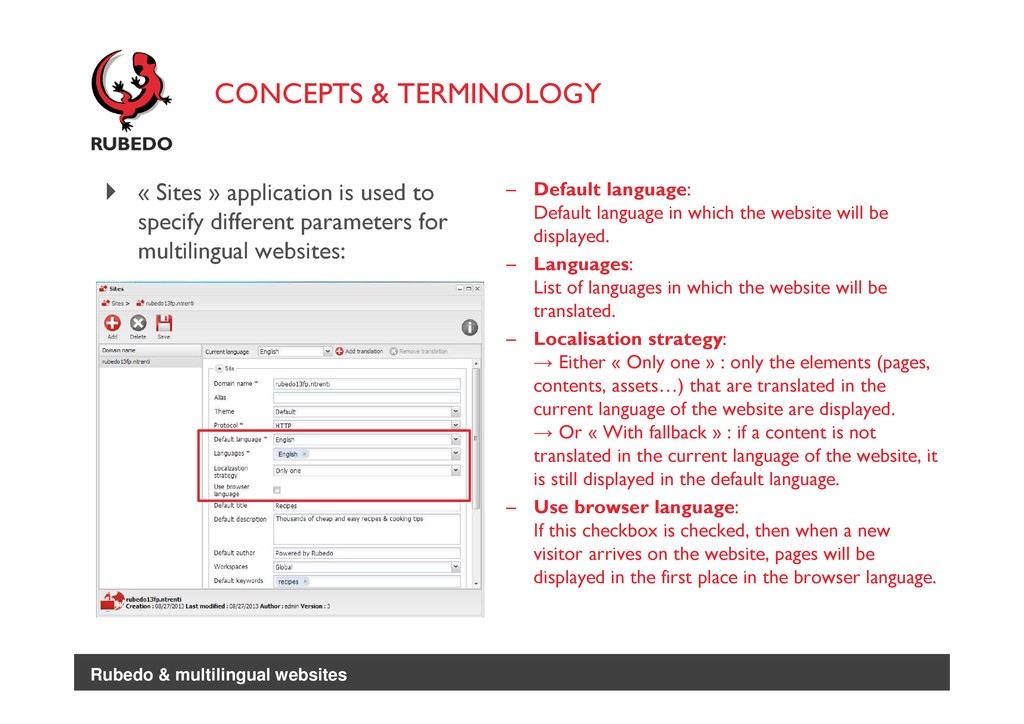
  9. CONCEPTS & TERMINOLOGY « Sites » application is used to

    specify different parameters for multilingual websites: – Default language: Default language in which the website will be displayed. – Languages: List of languages in which the website will be translated. – Localisation strategy: → Either « Only one » : only the elements (pages, contents, assets…) that are translated in the current language of the website are displayed. → Or « With fallback » : if a content is not translated in the current language of the website, it is still displayed in the default language. – Use browser language: If this checkbox is checked, then when a new visitor arrives on the website, pages will be displayed in the first place in the browser language. Rubedo & multilingual websites
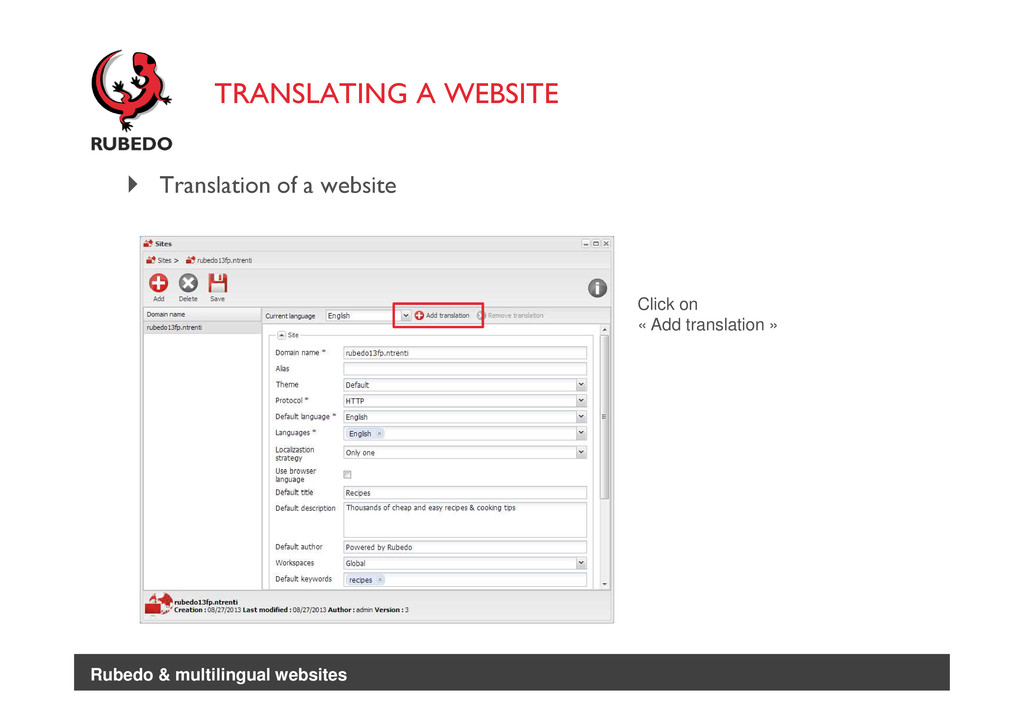
  10. TRANSLATING A WEBSITE Translation of a website Click on «

    Add translation » Rubedo & multilingual websites
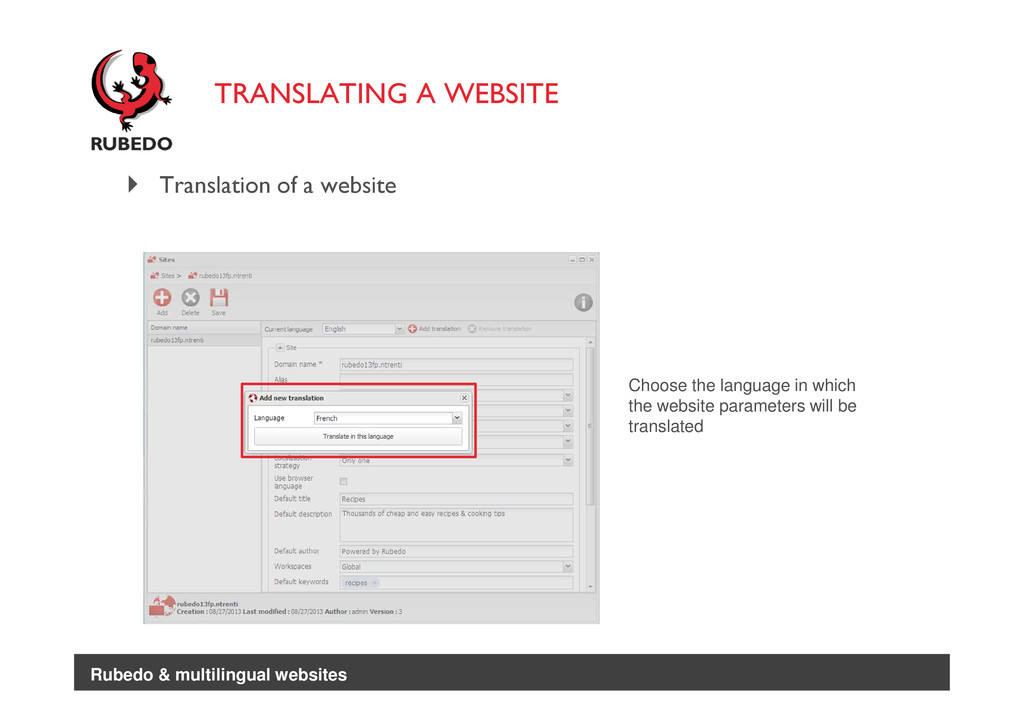
  11. Translation of a website Choose the language in which the

    website parameters will be translated Rubedo & multilingual websites TRANSLATING A WEBSITE
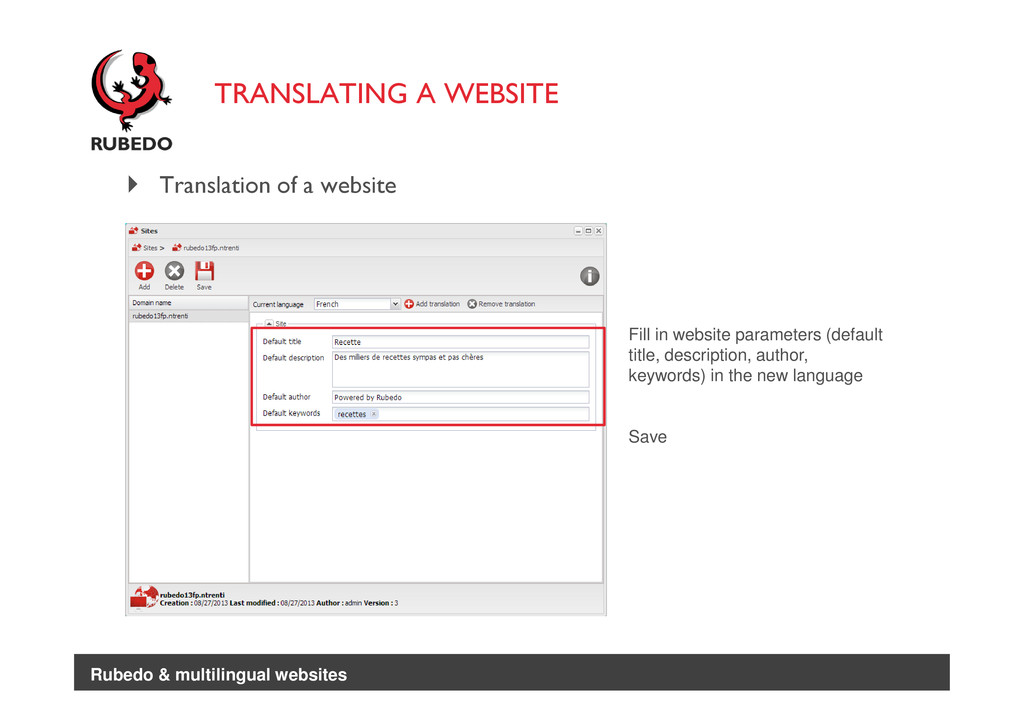
  12. TRANSLATING A WEBSITE Translation of a website Fill in website

    parameters (default title, description, author, keywords) in the new language Save Rubedo & multilingual websites
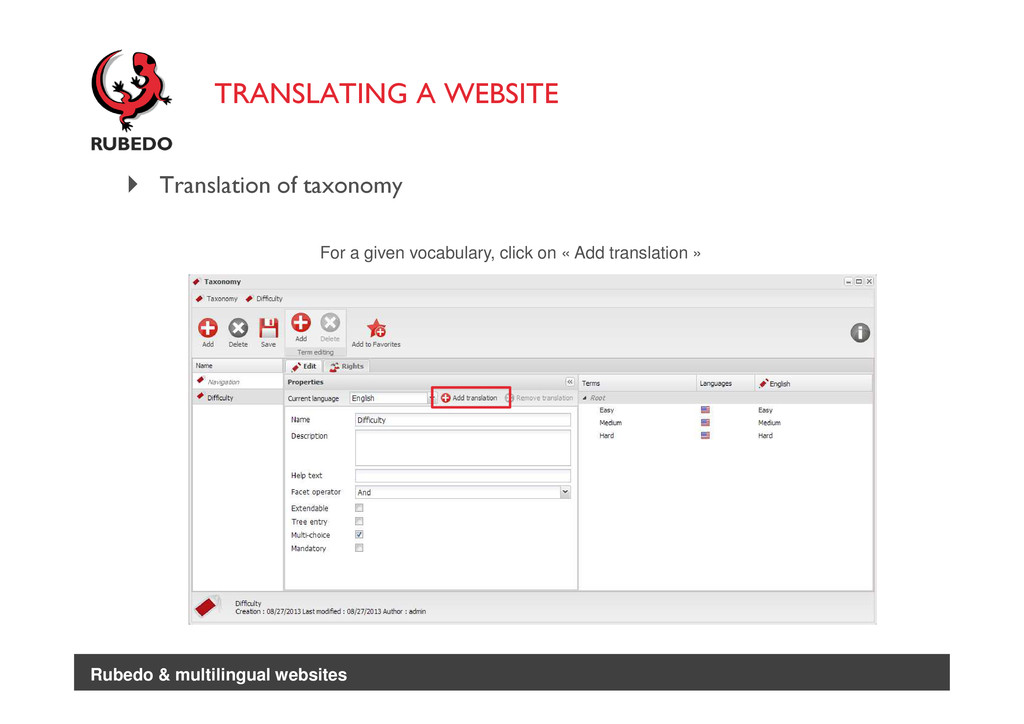
  13. Translation of taxonomy TRANSLATING A WEBSITE For a given vocabulary,

    click on « Add translation » Rubedo & multilingual websites
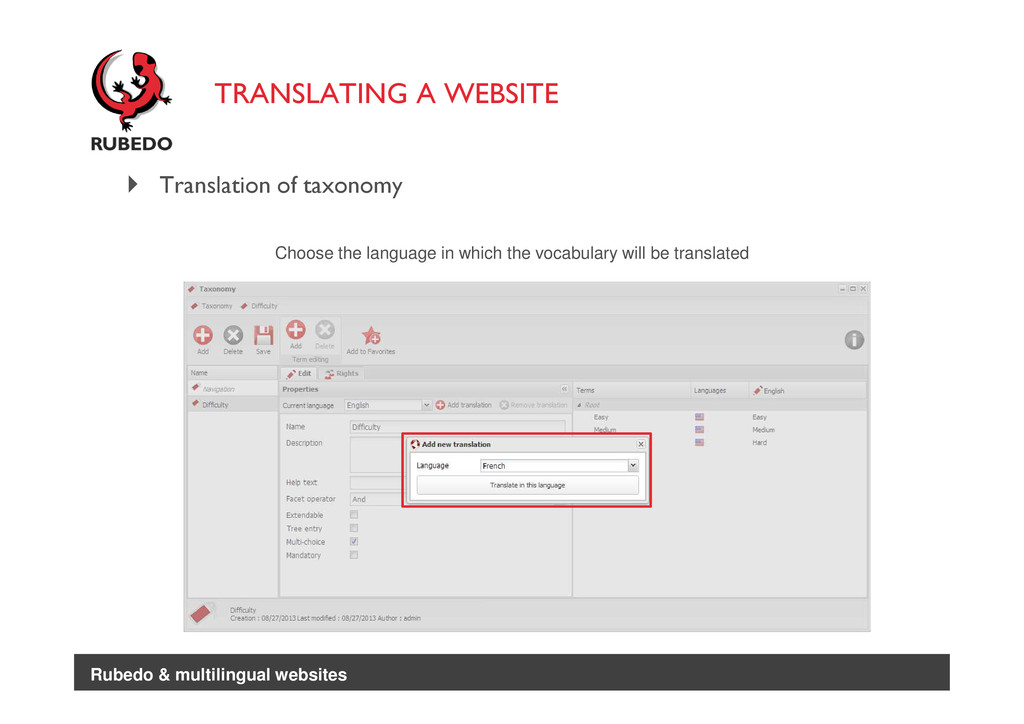
  14. Translation of taxonomy TRANSLATING A WEBSITE Choose the language in

    which the vocabulary will be translated Rubedo & multilingual websites
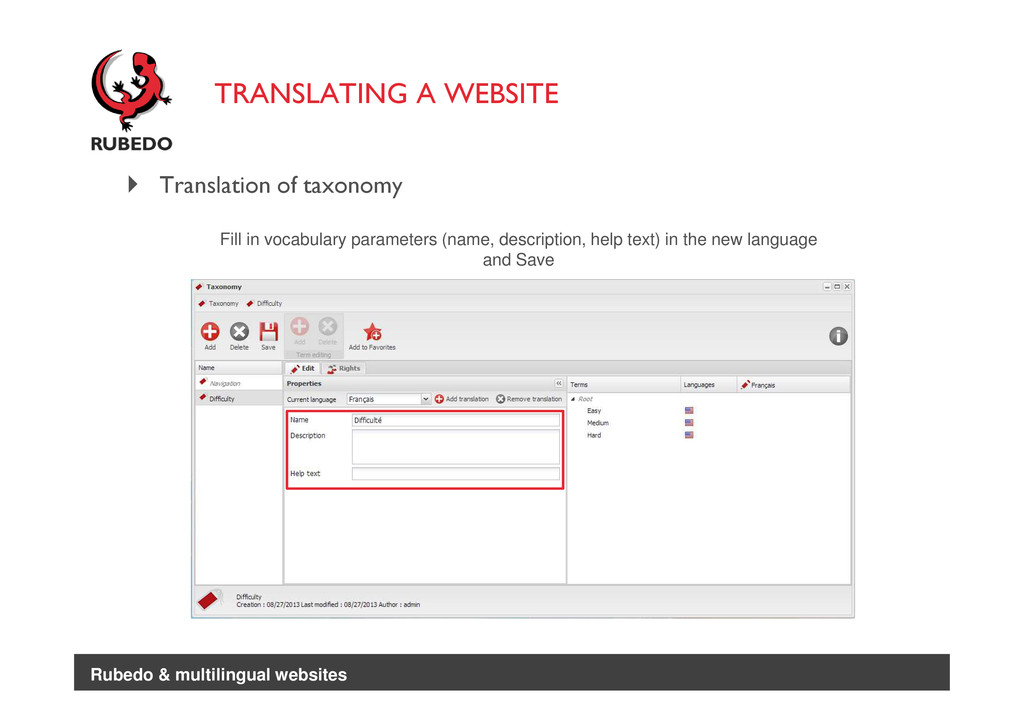
  15. TRANSLATING A WEBSITE Translation of taxonomy Fill in vocabulary parameters

    (name, description, help text) in the new language and Save Rubedo & multilingual websites
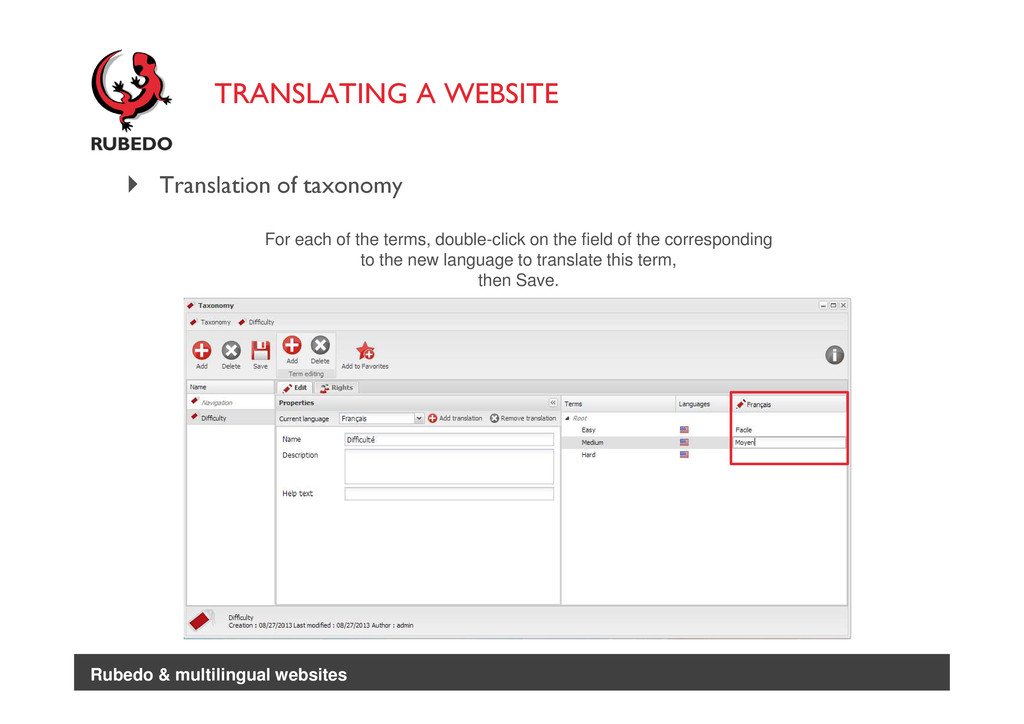
  16. TRANSLATING A WEBSITE Translation of taxonomy For each of the

    terms, double-click on the field of the corresponding to the new language to translate this term, then Save. Rubedo & multilingual websites
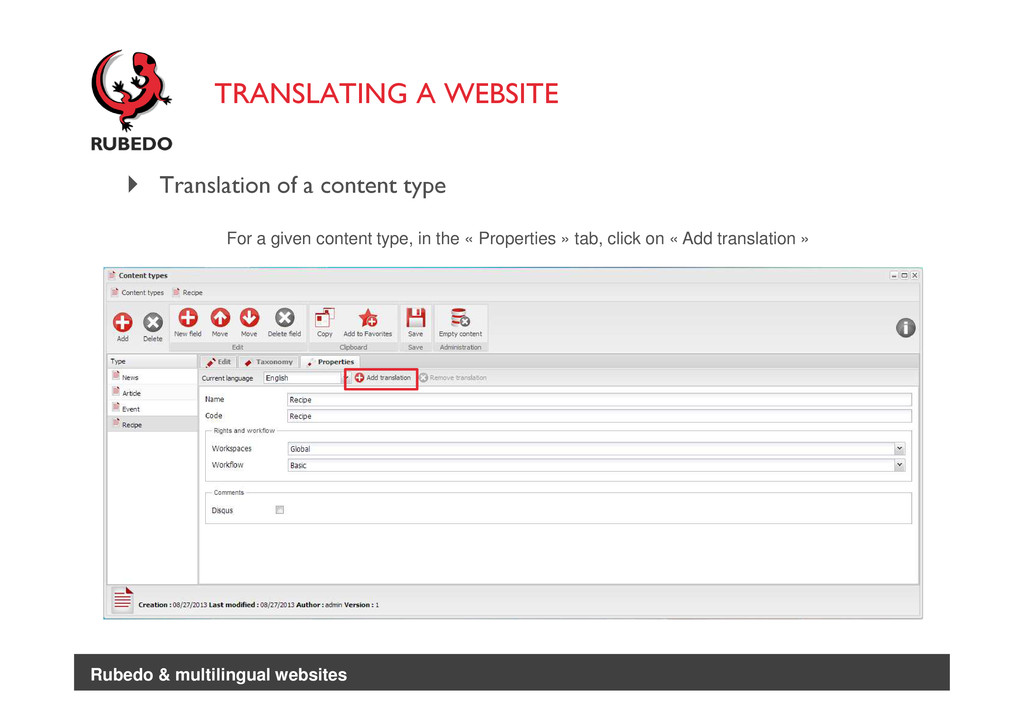
  17. TRANSLATING A WEBSITE Translation of a content type For a

    given content type, in the « Properties » tab, click on « Add translation » Rubedo & multilingual websites
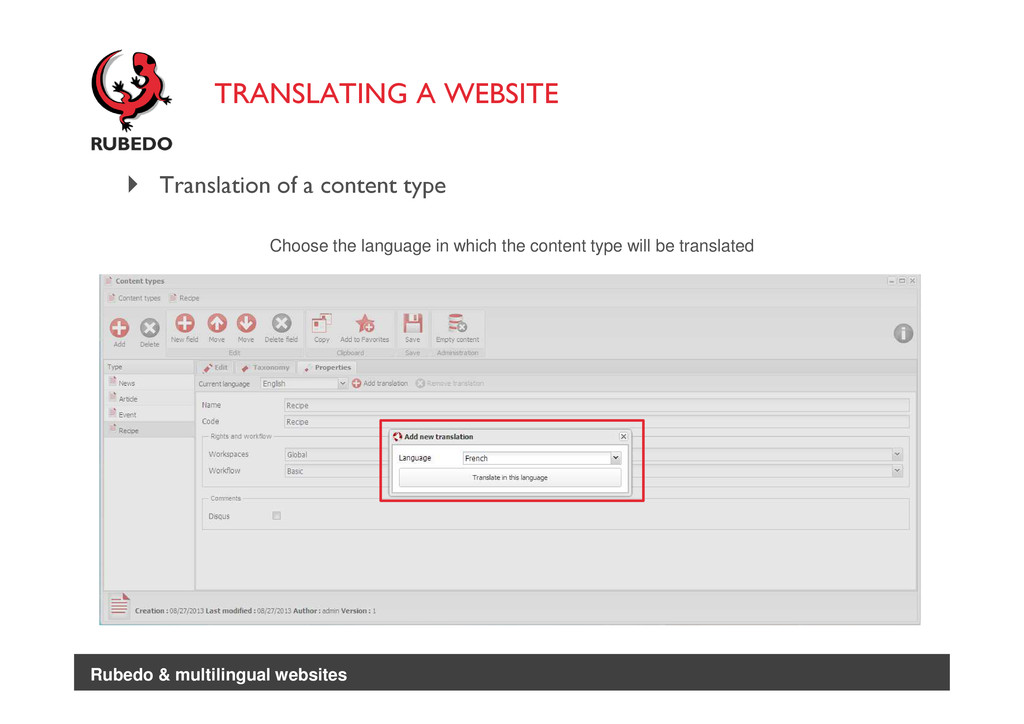
  18. TRANSLATING A WEBSITE Translation of a content type Choose the

    language in which the content type will be translated Rubedo & multilingual websites
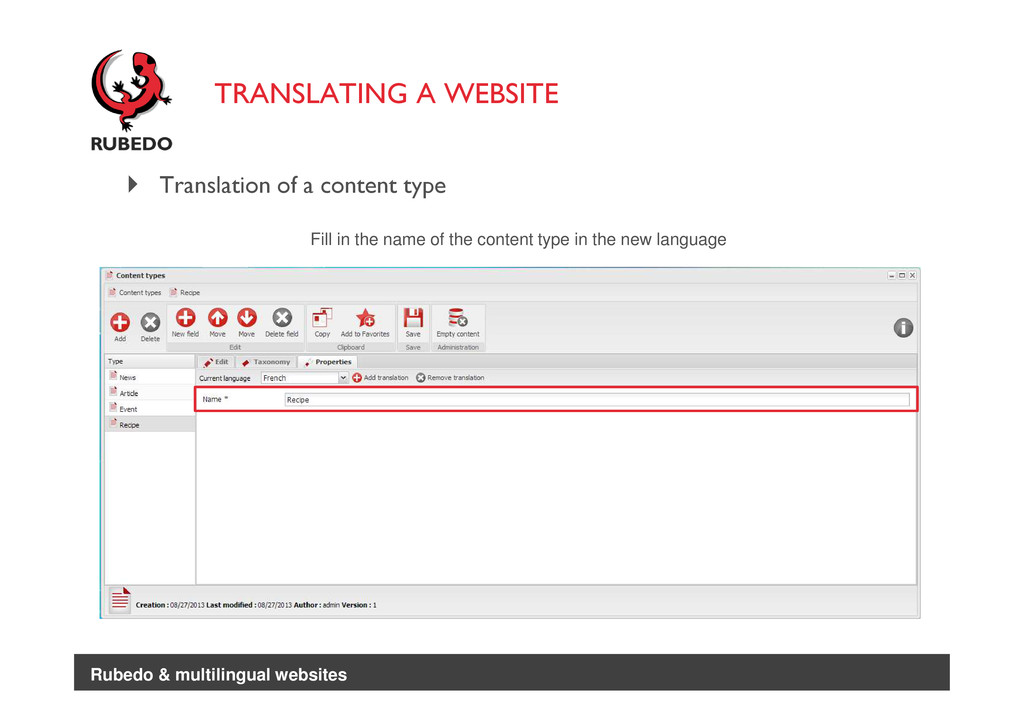
  19. TRANSLATING A WEBSITE Translation of a content type Fill in

    the name of the content type in the new language Rubedo & multilingual websites
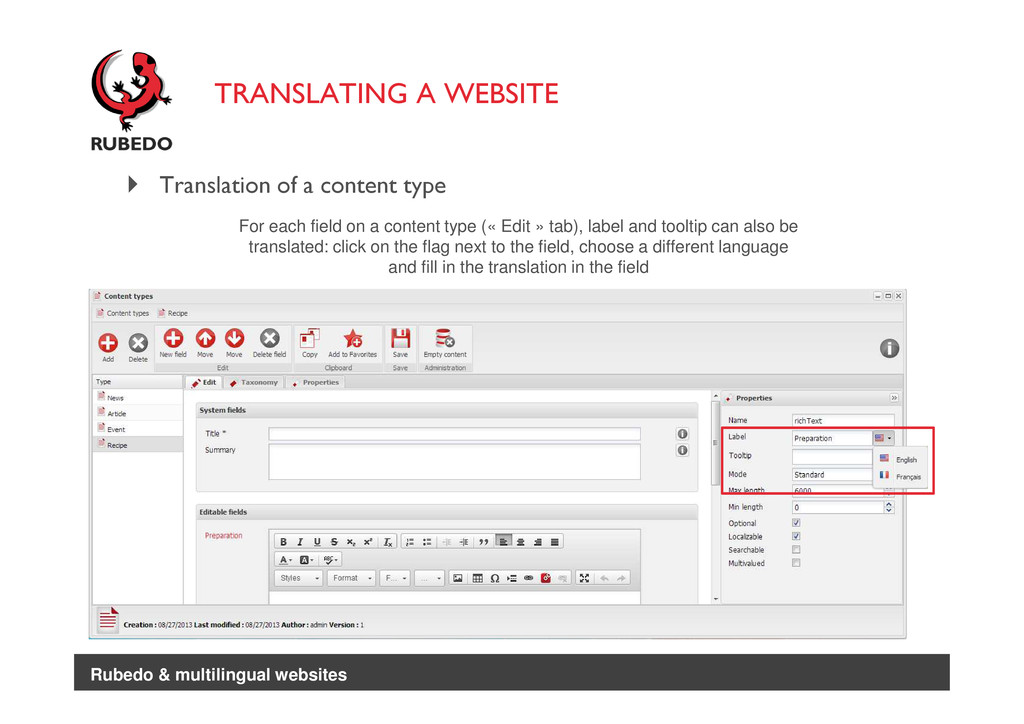
  20. TRANSLATING A WEBSITE Translation of a content type For each

    field on a content type (« Edit » tab), label and tooltip can also be translated: click on the flag next to the field, choose a different language and fill in the translation in the field Rubedo & multilingual websites
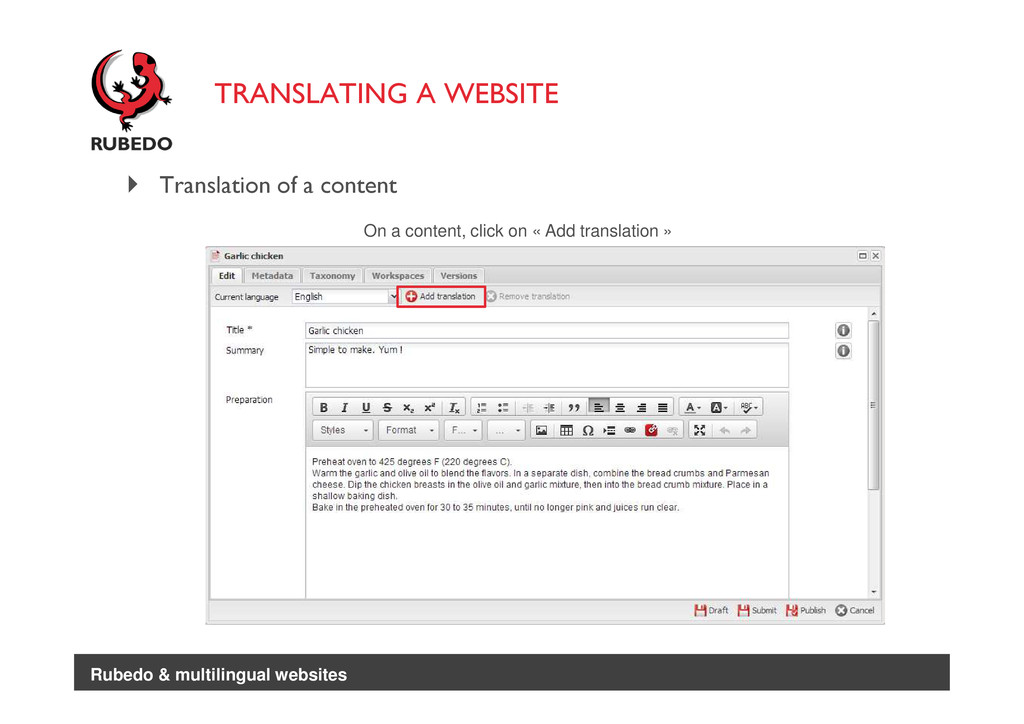
  21. TRANSLATING A WEBSITE Translation of a content On a content,

    click on « Add translation » Rubedo & multilingual websites
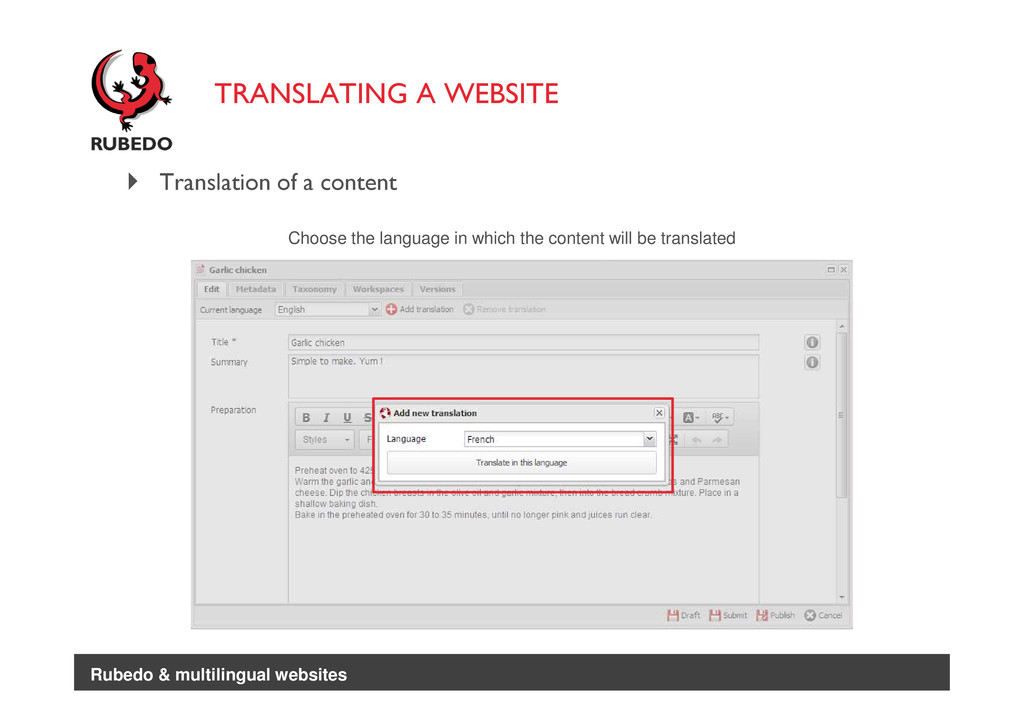
  22. TRANSLATING A WEBSITE Translation of a content Choose the language

    in which the content will be translated Rubedo & multilingual websites
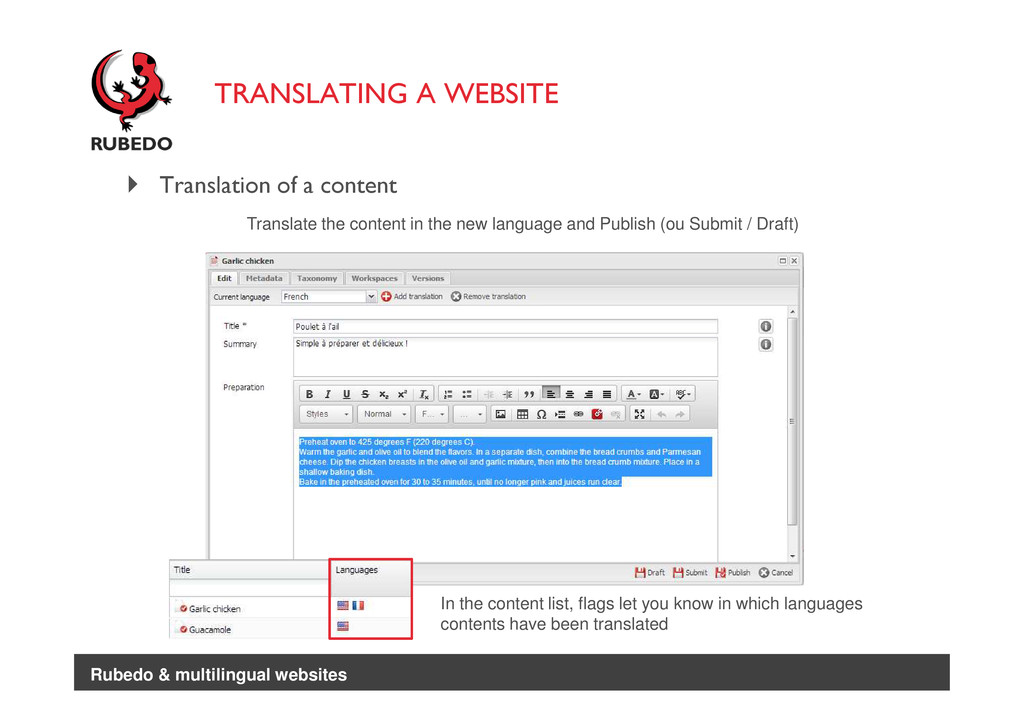
  23. TRANSLATING A WEBSITE Translation of a content Translate the content

    in the new language and Publish (ou Submit / Draft) In the content list, flags let you know in which languages contents have been translated Rubedo & multilingual websites
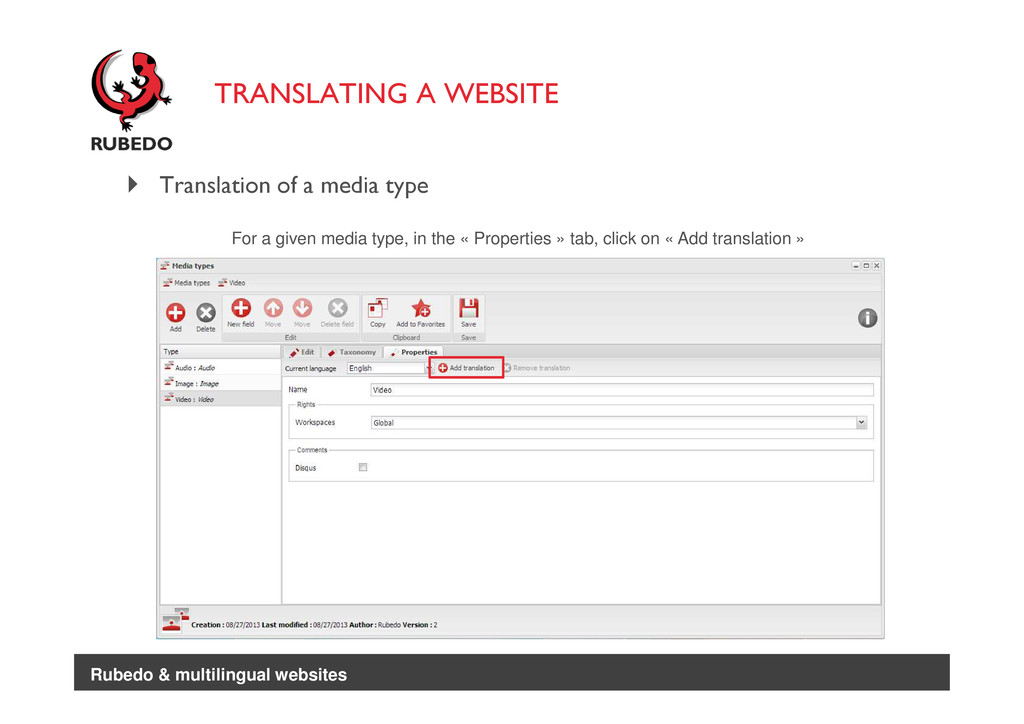
  24. TRANSLATING A WEBSITE Translation of a media type For a

    given media type, in the « Properties » tab, click on « Add translation » Rubedo & multilingual websites
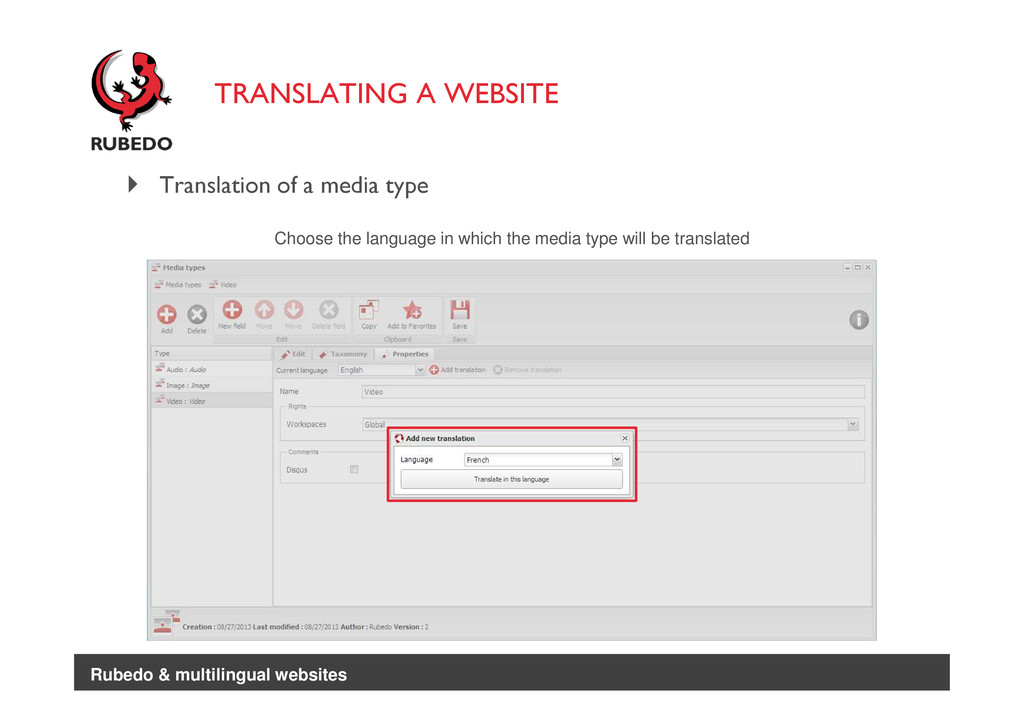
  25. TRANSLATING A WEBSITE Translation of a media type Choose the

    language in which the media type will be translated Rubedo & multilingual websites
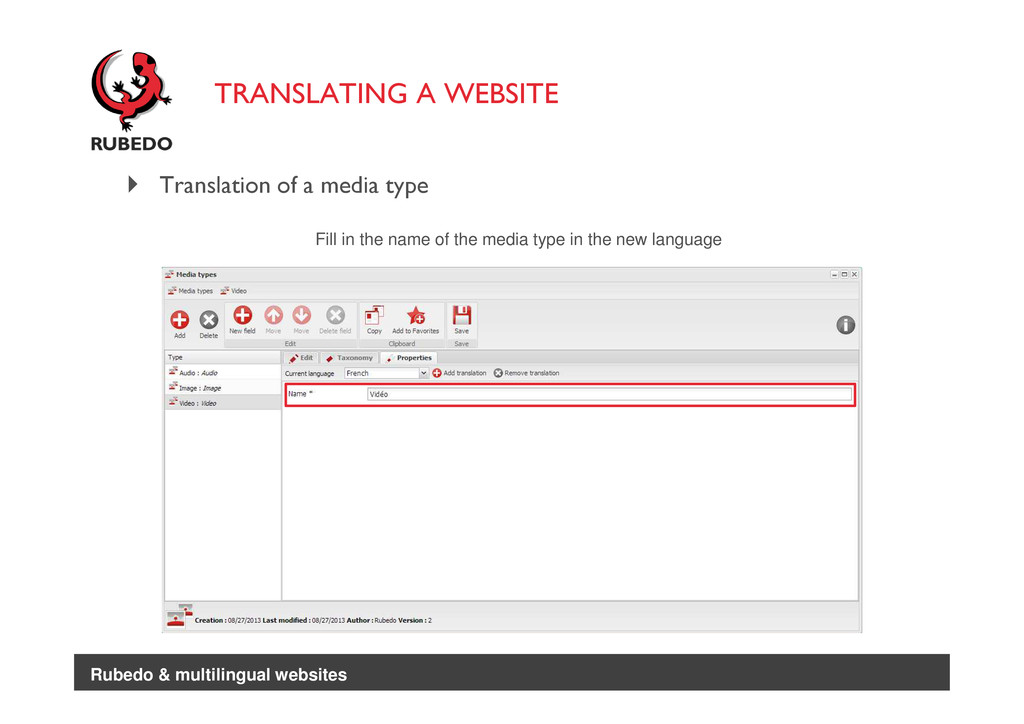
  26. TRANSLATING A WEBSITE Translation of a media type Fill in

    the name of the media type in the new language Rubedo & multilingual websites
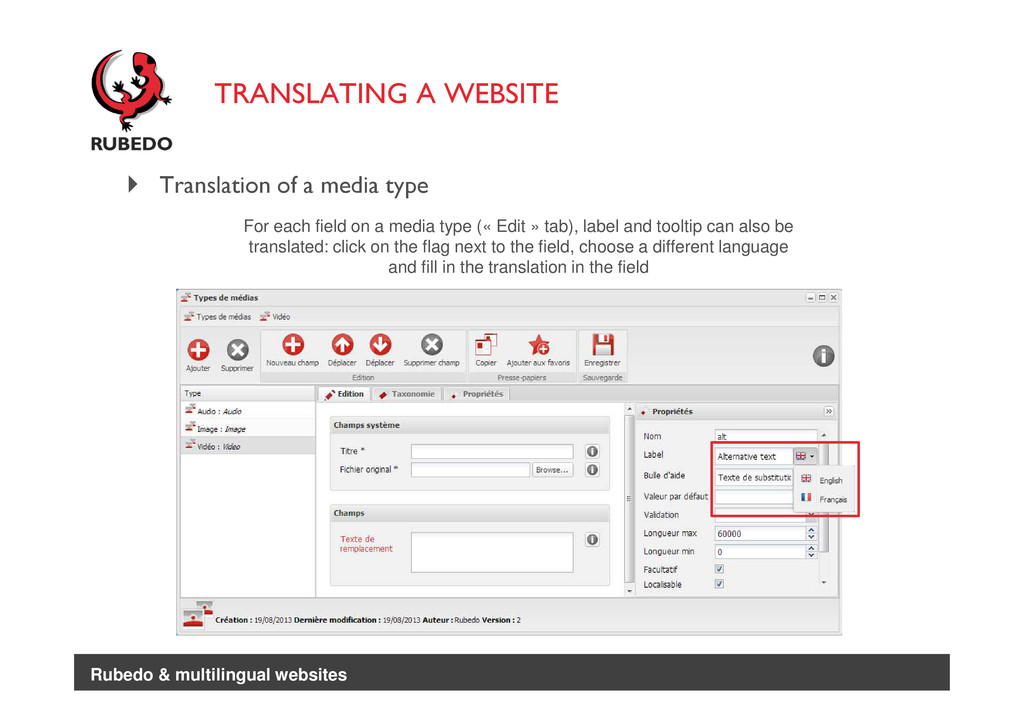
  27. TRANSLATING A WEBSITE Translation of a media type For each

    field on a media type (« Edit » tab), label and tooltip can also be translated: click on the flag next to the field, choose a different language and fill in the translation in the field Rubedo & multilingual websites
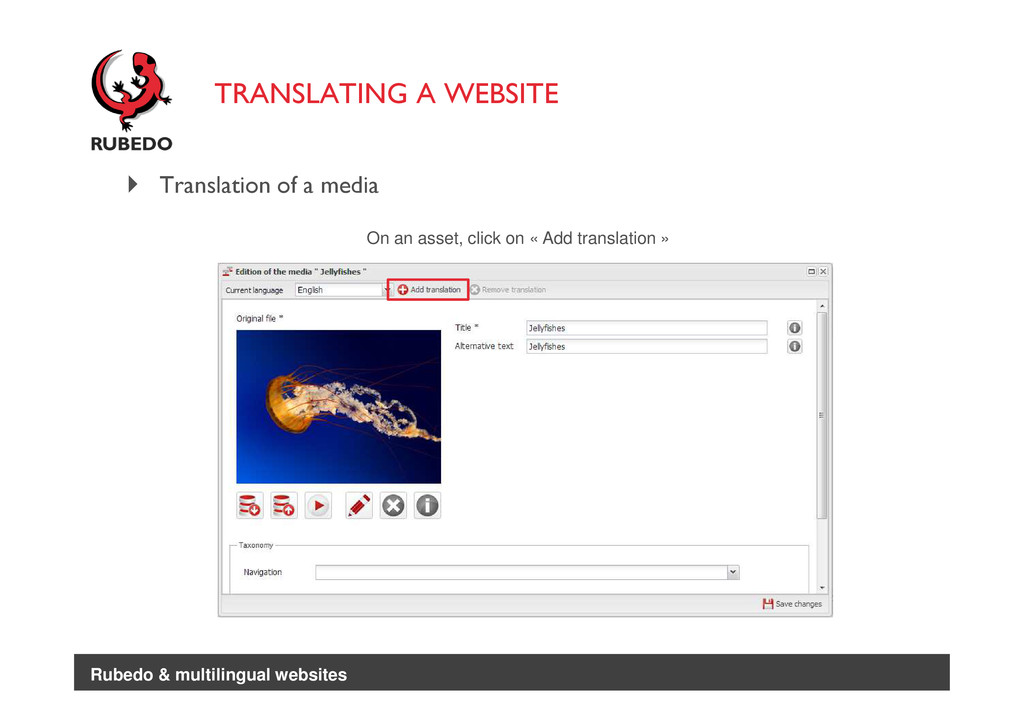
  28. TRANSLATING A WEBSITE Translation of a media On an asset,

    click on « Add translation » Rubedo & multilingual websites
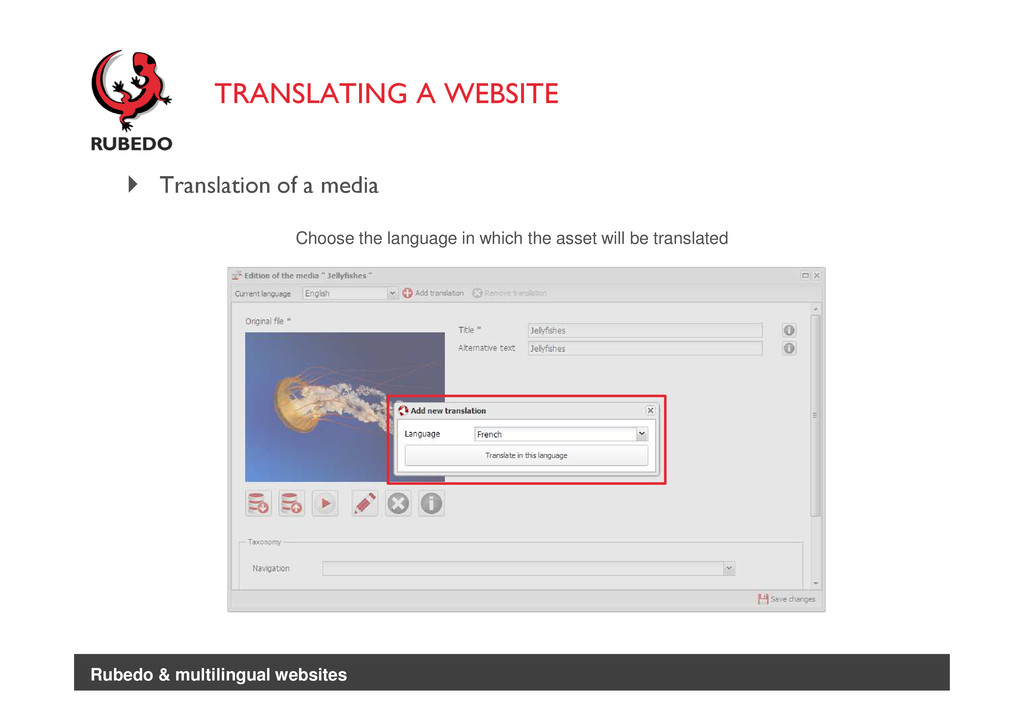
  29. TRANSLATING A WEBSITE Translation of a media Choose the language

    in which the asset will be translated Rubedo & multilingual websites
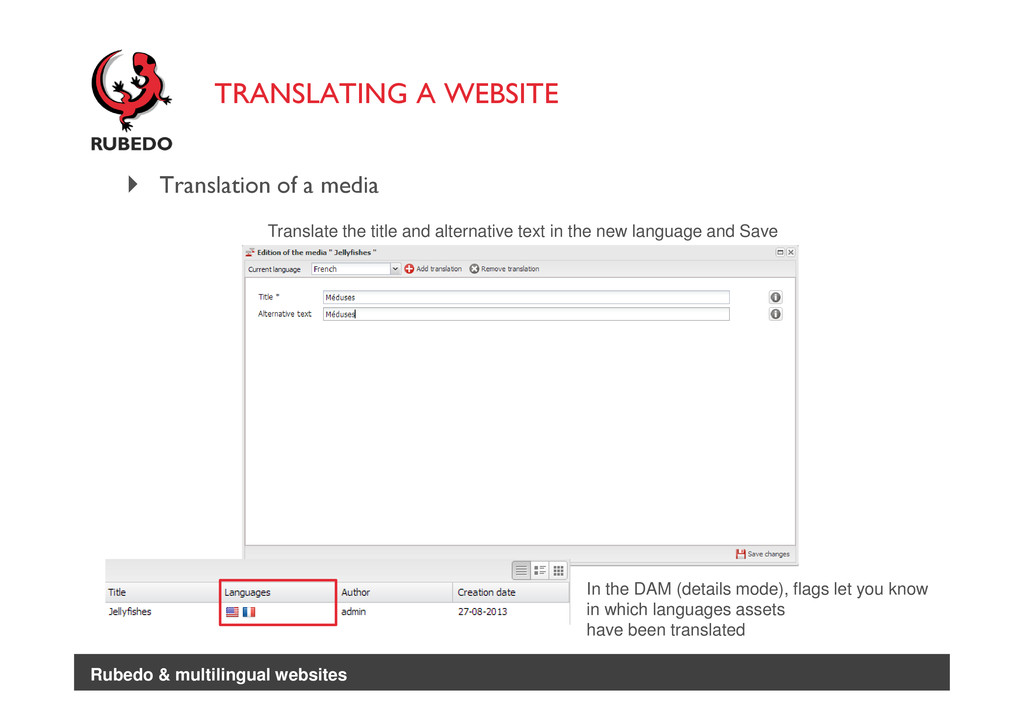
  30. TRANSLATING A WEBSITE Translation of a media Translate the title

    and alternative text in the new language and Save In the DAM (details mode), flags let you know in which languages assets have been translated Rubedo & multilingual websites
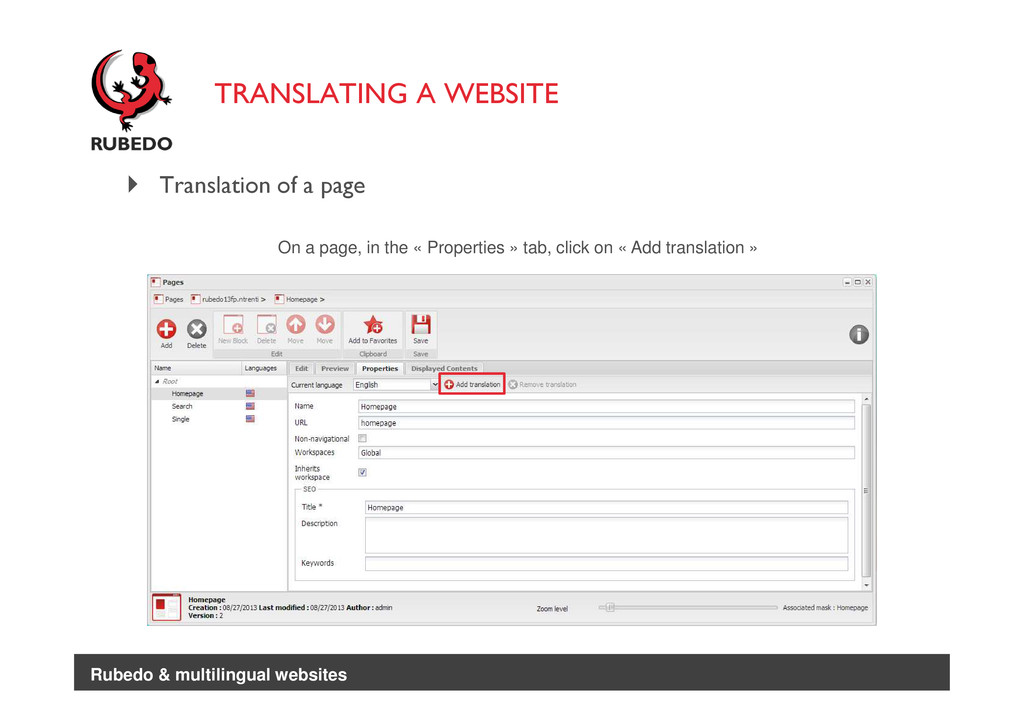
  31. TRANSLATING A WEBSITE Translation of a page On a page,

    in the « Properties » tab, click on « Add translation » Rubedo & multilingual websites
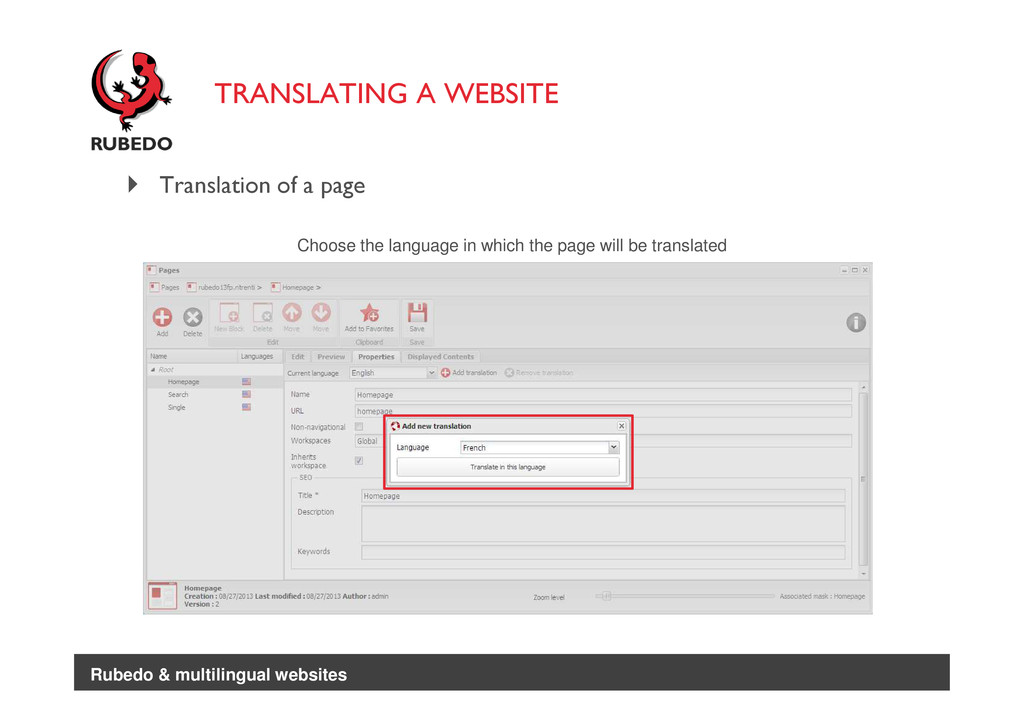
  32. TRANSLATING A WEBSITE Translation of a page Choose the language

    in which the page will be translated Rubedo & multilingual websites
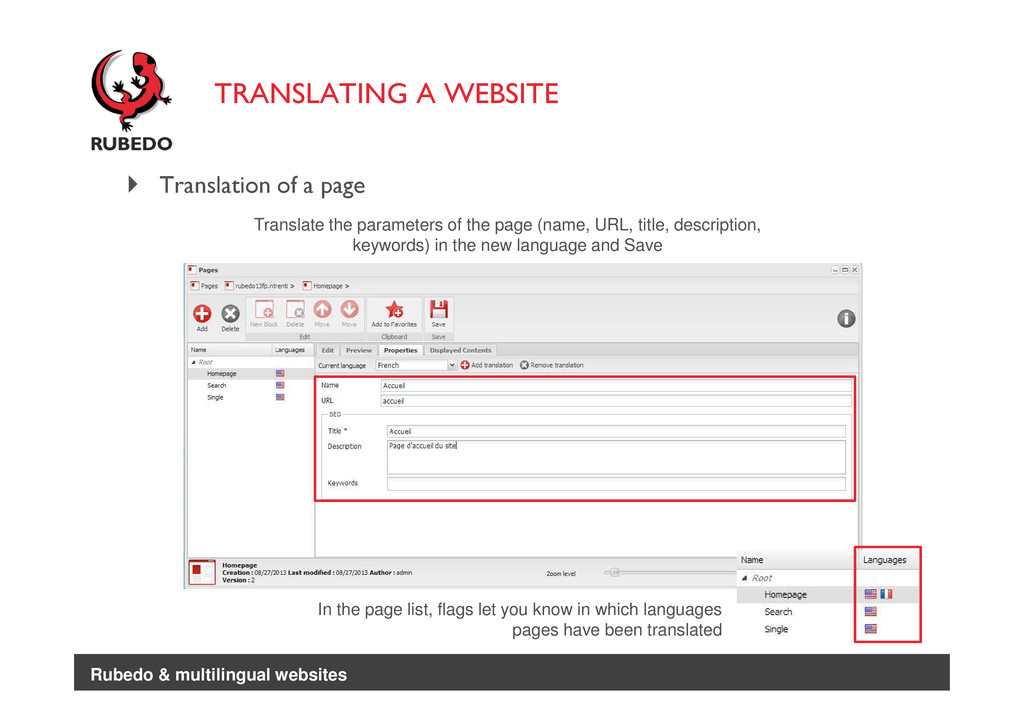
  33. TRANSLATING A WEBSITE Translation of a page Translate the parameters

    of the page (name, URL, title, description, keywords) in the new language and Save In the page list, flags let you know in which languages pages have been translated Rubedo & multilingual websites
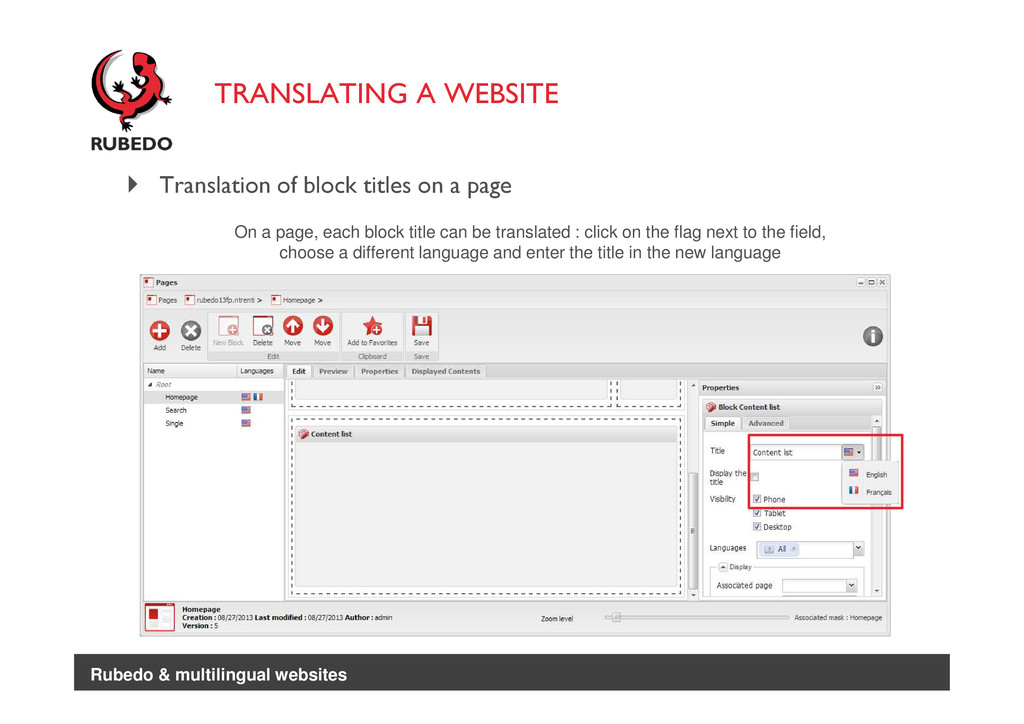
  34. TRANSLATING A WEBSITE Translation of block titles on a page

    On a page, each block title can be translated : click on the flag next to the field, choose a different language and enter the title in the new language Rubedo & multilingual websites
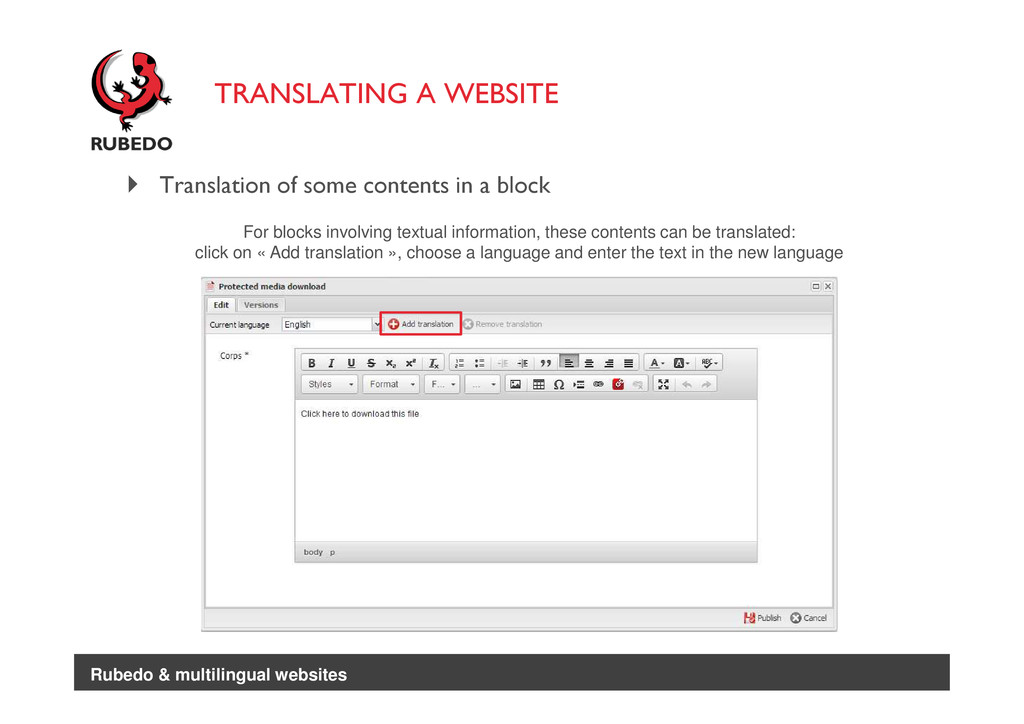
  35. TRANSLATING A WEBSITE Translation of some contents in a block

    For blocks involving textual information, these contents can be translated: click on « Add translation », choose a language and enter the text in the new language Rubedo & multilingual websites
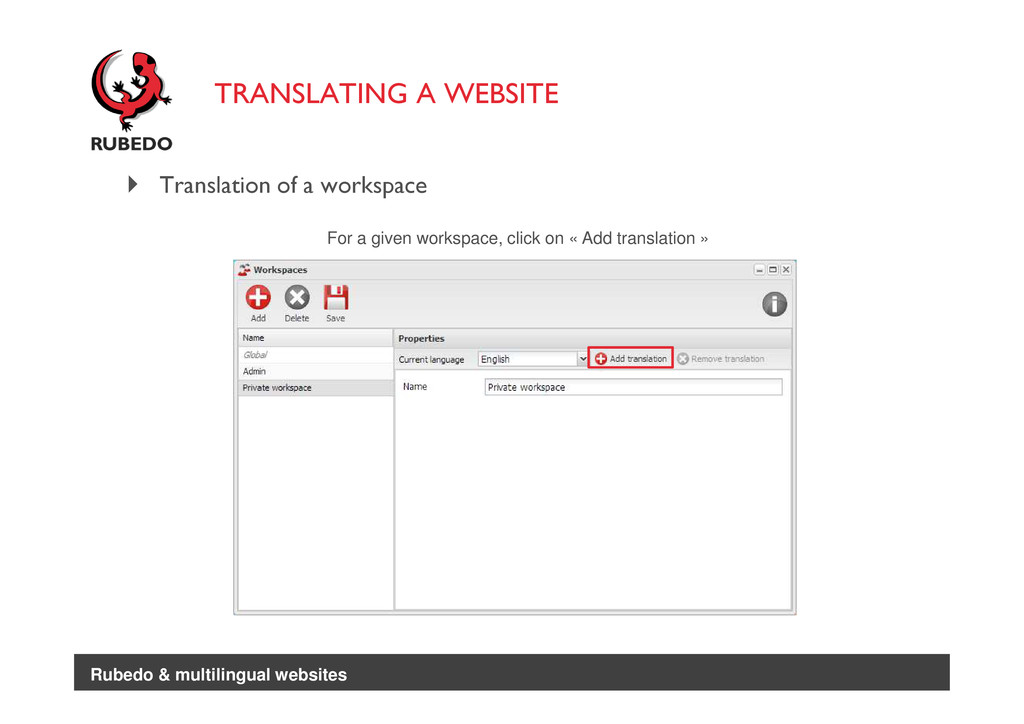
  36. TRANSLATING A WEBSITE Translation of a workspace For a given

    workspace, click on « Add translation » Rubedo & multilingual websites
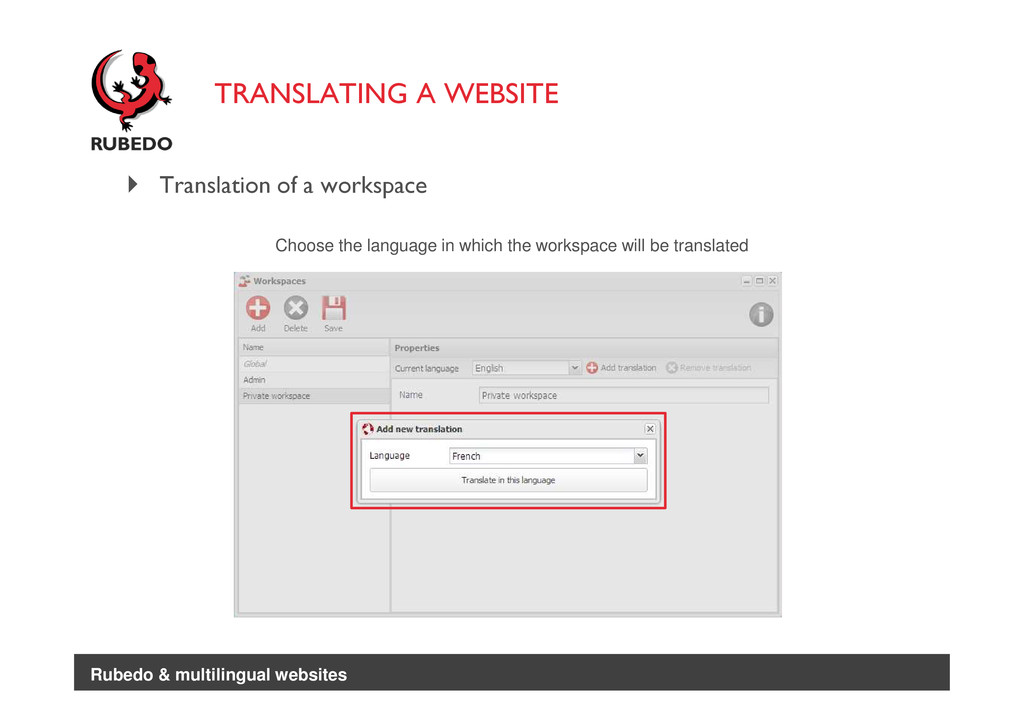
  37. TRANSLATING A WEBSITE Translation of a workspace Choose the language

    in which the workspace will be translated Rubedo & multilingual websites
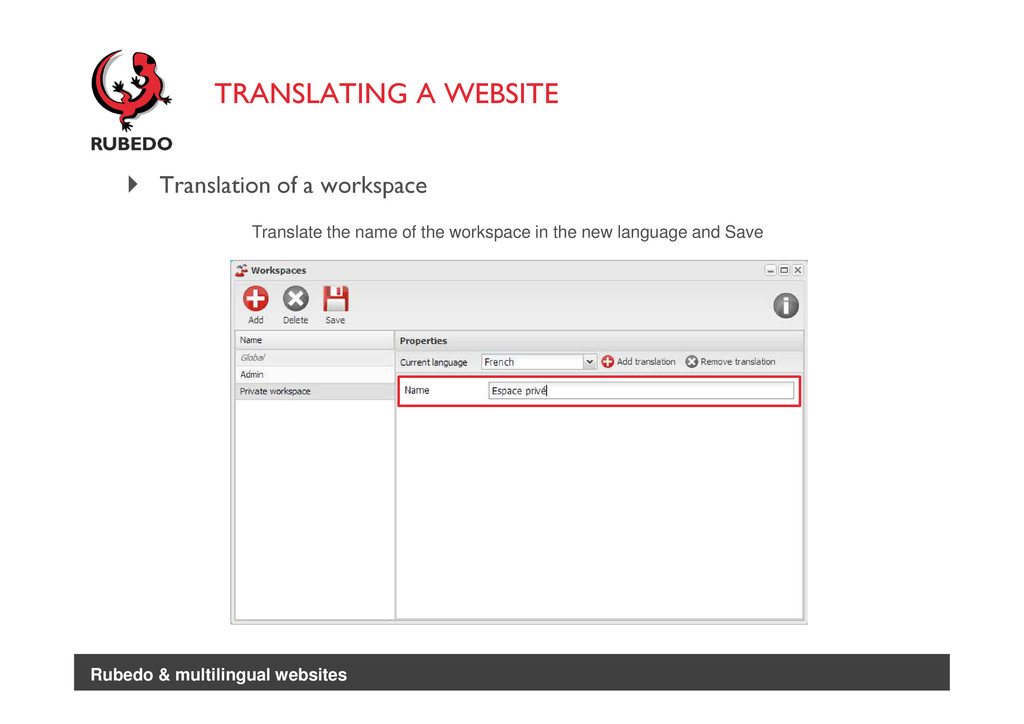
  38. TRANSLATING A WEBSITE Translation of a workspace Translate the name

    of the workspace in the new language and Save Rubedo & multilingual websites
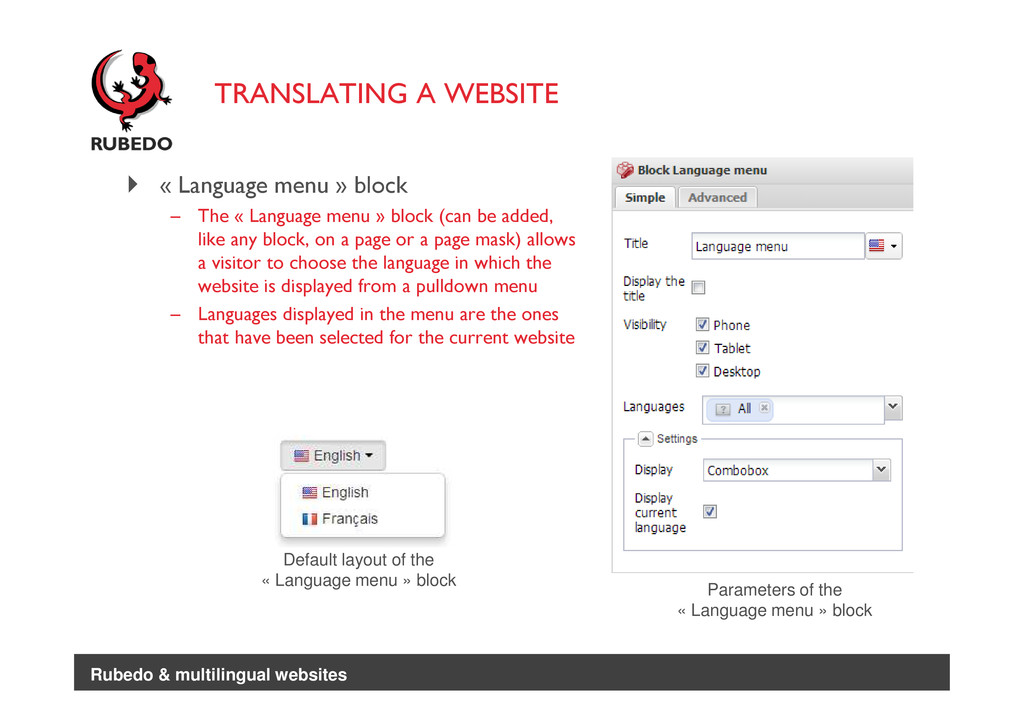
  39. TRANSLATING A WEBSITE « Language menu » block – The

    « Language menu » block (can be added, like any block, on a page or a page mask) allows a visitor to choose the language in which the website is displayed from a pulldown menu – Languages displayed in the menu are the ones that have been selected for the current website Default layout of the « Language menu » block Parameters of the « Language menu » block Rubedo & multilingual websites
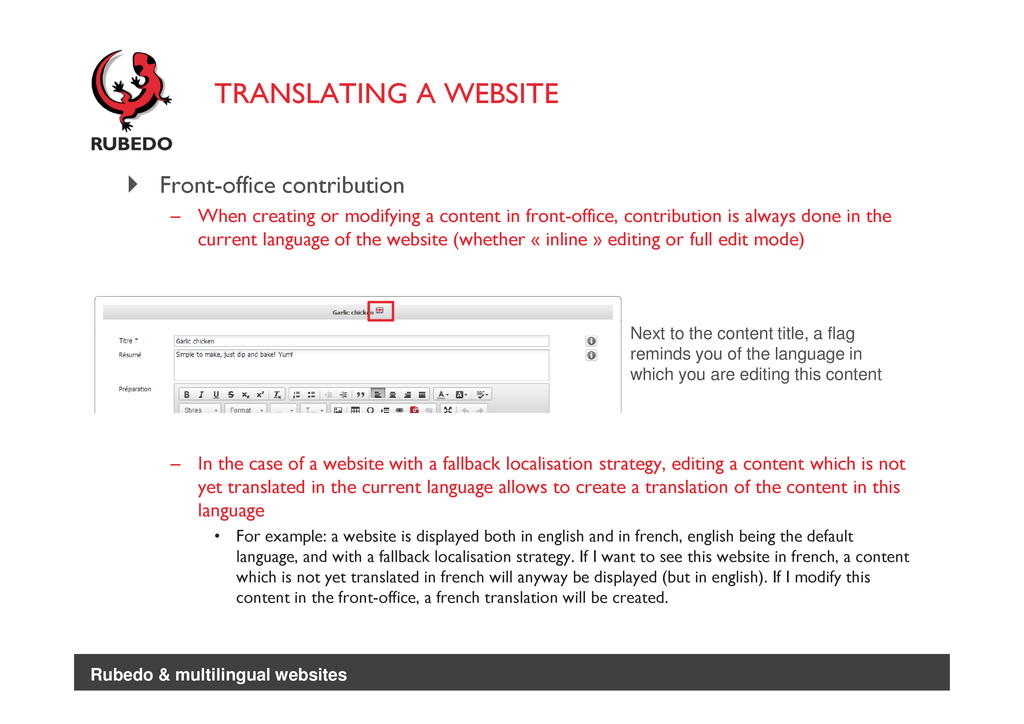
  40. TRANSLATING A WEBSITE Front-office contribution – When creating or modifying

    a content in front-office, contribution is always done in the current language of the website (whether « inline » editing or full edit mode) – In the case of a website with a fallback localisation strategy, editing a content which is not yet translated in the current language allows to create a translation of the content in this language • For example: a website is displayed both in english and in french, english being the default language, and with a fallback localisation strategy. If I want to see this website in french, a content which is not yet translated in french will anyway be displayed (but in english). If I modify this content in the front-office, a french translation will be created. Next to the content title, a flag reminds you of the language in which you are editing this content Rubedo & multilingual websites