Upgrade to Pro — share decks privately, control downloads, hide ads and more …

WordPress 7.0 AI Workshop: AI + MCP + End-to-En...

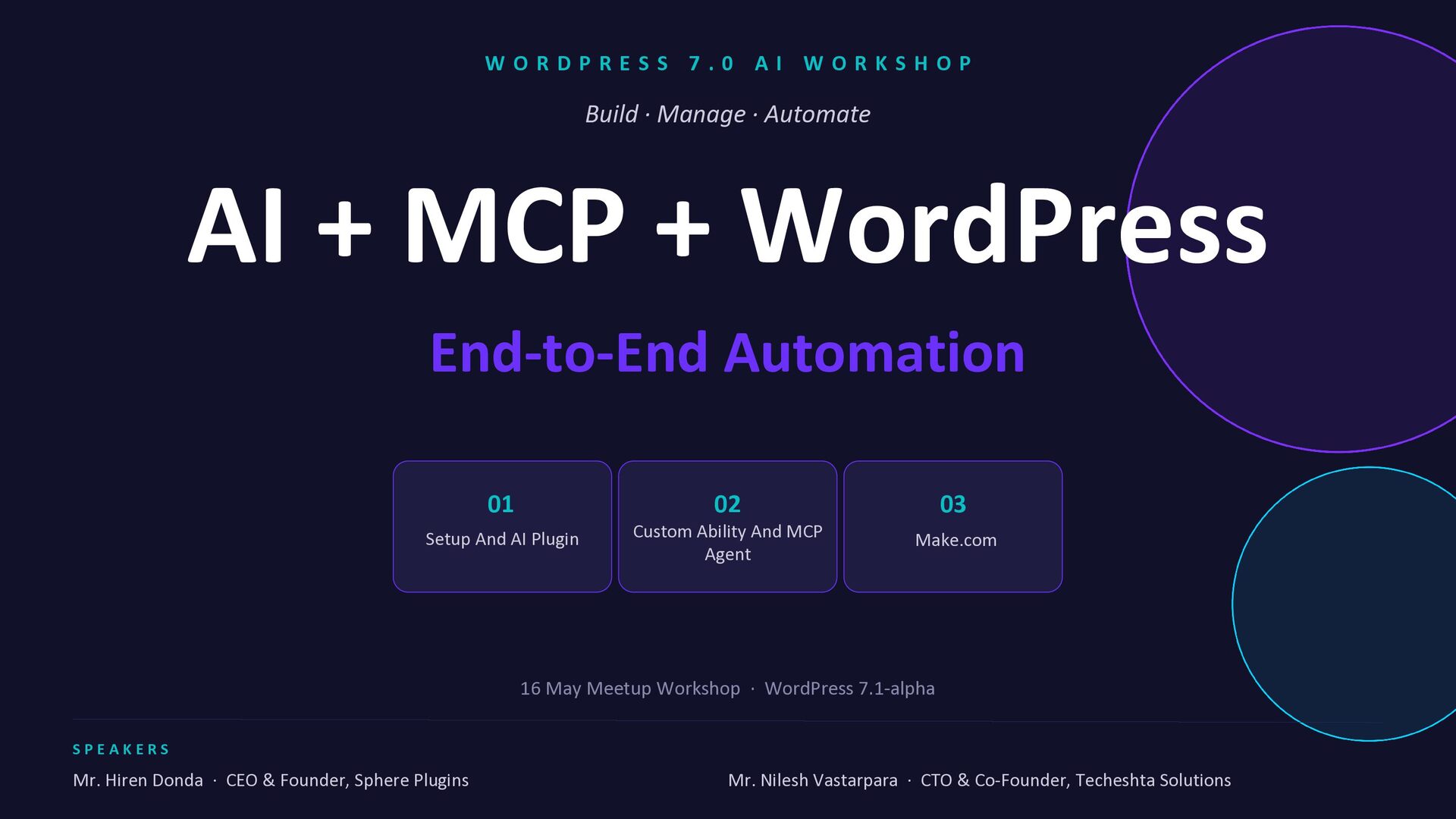
WordPress 7.0 AI Workshop: AI + MCP + End-to-End Automation

Discover how the next generation of WordPress is becoming AI native. In this hands-on workshop, learn how to connect AI models with WordPress using MCP, build custom AI-powered abilities, automate content workflows, and control your website using natural language commands. From AI plugins and REST APIs to Make.com automations and WooCommerce AI actions, this session covers practical, real-world automation for developers, freelancers, and agencies.

Avatar for WordCamp Surat

WordCamp Surat

May 16, 2026

Other Decks in Technology

Transcript

  1. W O R D P R E S S 7

    . 0 A I W O R K S H O P Build · Manage · Automate AI + MCP + WordPress End-to-End Automation 01 Setup And AI Plugin 02 Custom Ability And MCP Agent 03 16 May Meetup Workshop · WordPress 7.1-alpha S P E A K E R S Mr. Hiren Donda · CEO & Founder, Sphere Plugins Mr. Nilesh Vastarpara · CTO & Co-Founder, Techeshta Solutions Make.com
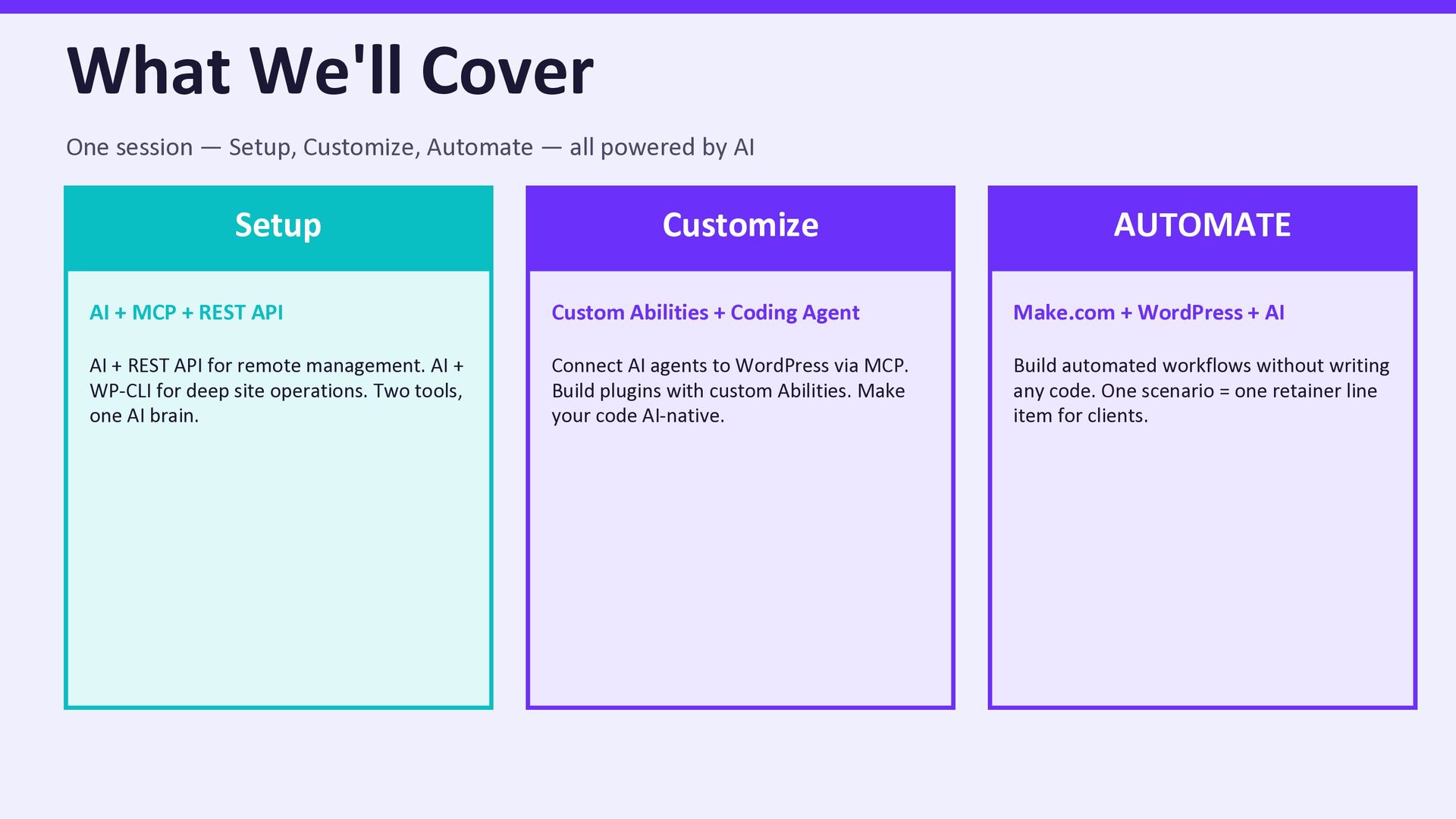
  2. What We'll Cover One session — Setup, Customize, Automate —

    all powered by AI Customize Custom Abilities + Coding Agent Connect AI agents to WordPress via MCP. Build plugins with custom Abilities. Make your code AI-native. Setup AI + MCP + REST API AI + REST API for remote management. AI + WP-CLI for deep site operations. Two tools, one AI brain. AUTOMATE Make.com + WordPress + AI Build automated workflows without writing any code. One scenario = one retainer line item for clients.
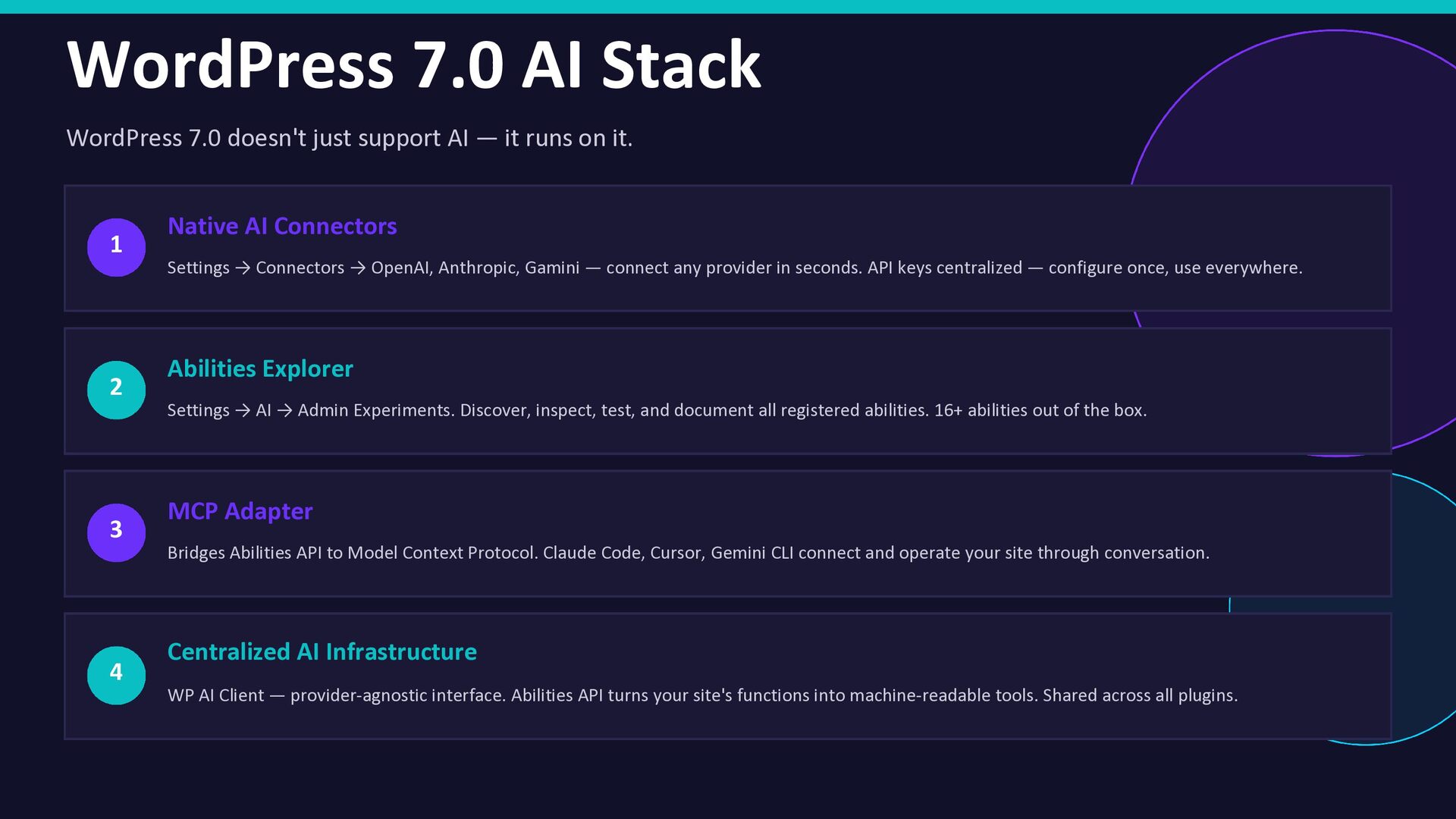
  3. WordPress 7.0 AI Stack WordPress 7.0 doesn't just support AI

    — it runs on it. 1 Native AI Connectors Settings → Connectors → OpenAI, Anthropic, Gamini — connect any provider in seconds. API keys centralized — configure once, use everywhere. 2 Abilities Explorer Settings → AI → Admin Experiments. Discover, inspect, test, and document all registered abilities. 16+ abilities out of the box. 3 MCP Adapter Bridges Abilities API to Model Context Protocol. Claude Code, Cursor, Gemini CLI connect and operate your site through conversation. 4 Centralized AI Infrastructure WP AI Client — provider-agnostic interface. Abilities API turns your site's functions into machine-readable tools. Shared across all plugins.
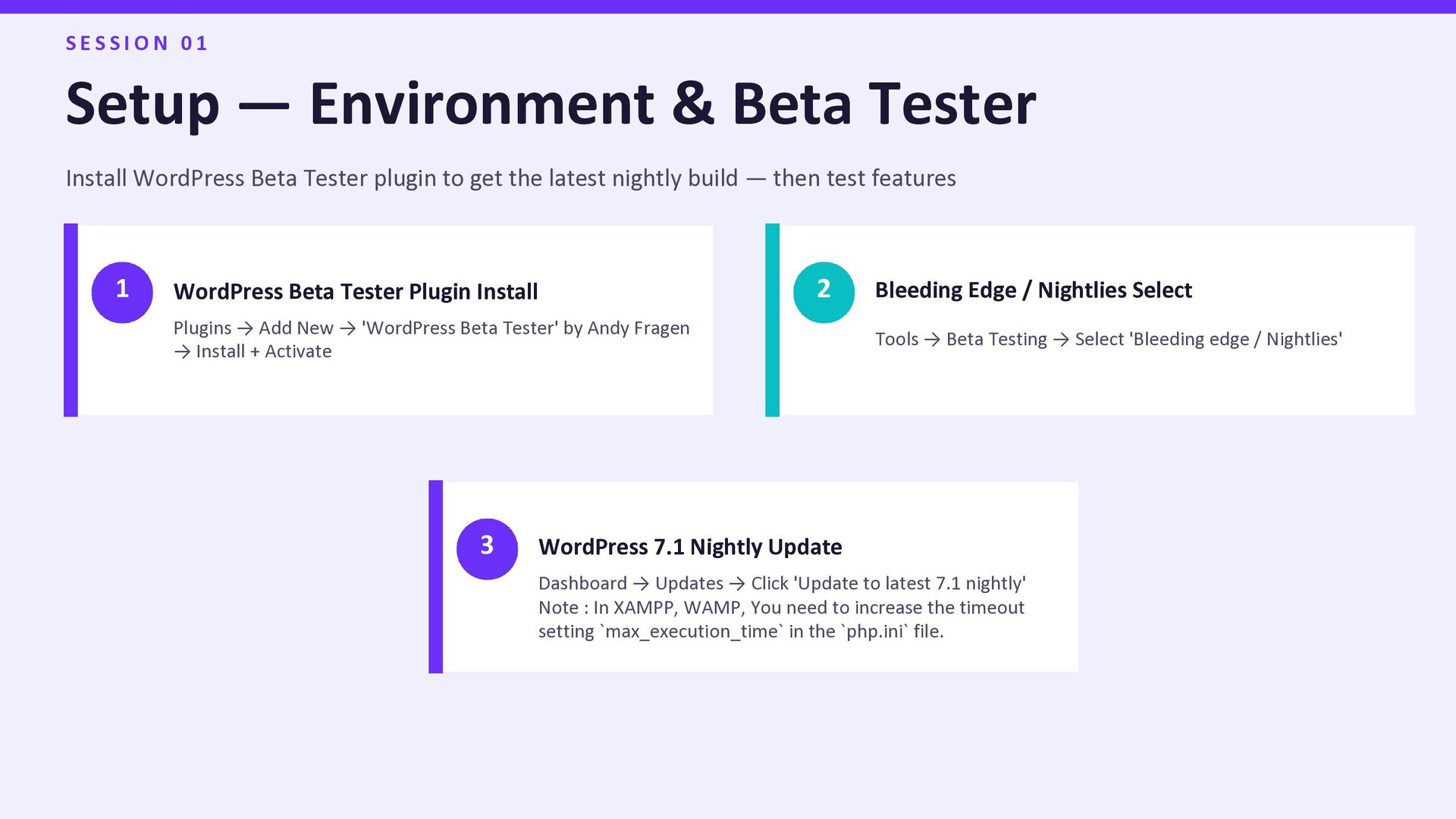
  4. S E S S I O N 0 1 Setup

    — Environment & Beta Tester Install WordPress Beta Tester plugin to get the latest nightly build — then test features 1 WordPress Beta Tester Plugin Install Plugins → Add New → 'WordPress Beta Tester' by Andy Fragen → Install + Activate 2 Bleeding Edge / Nightlies Select Tools → Beta Testing → Select 'Bleeding edge / Nightlies' 3 WordPress 7.1 Nightly Update Dashboard → Updates → Click 'Update to latest 7.1 nightly' Note : In XAMPP, WAMP, You need to increase the timeout setting `max_execution_time` in the `php.ini` file.
  5. S E S S I O N 0 1 —

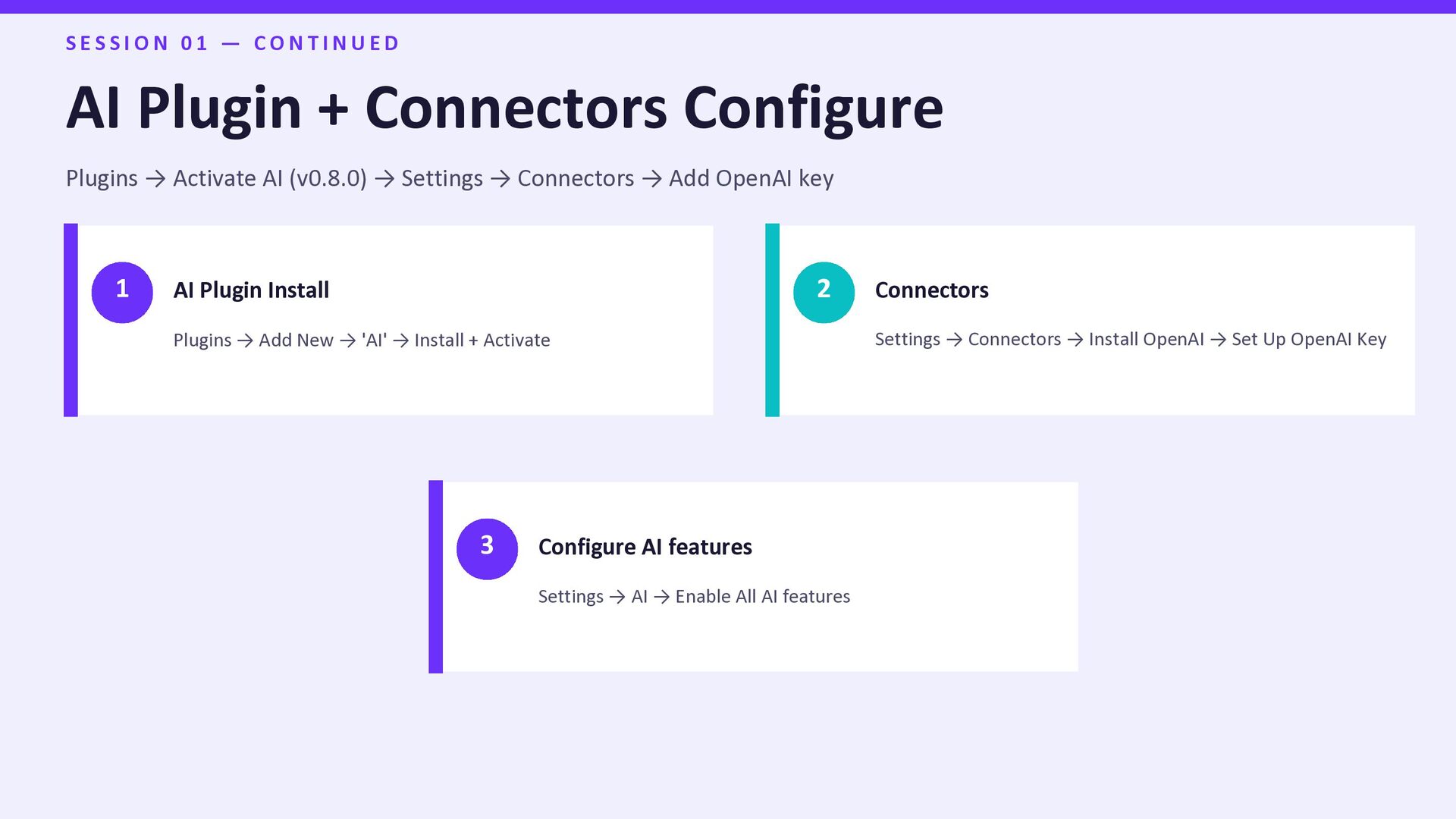
    C O N T I N U E D AI Plugin + Connectors Configure Plugins → Activate AI (v0.8.0) → Settings → Connectors → Add OpenAI key 1 AI Plugin Install Plugins → Add New → 'AI' → Install + Activate 2 Connectors Settings → Connectors → Install OpenAI → Set Up OpenAI Key 3 Configure AI features Settings → AI → Enable All AI features
  6. S E S S I O N 0 1 —

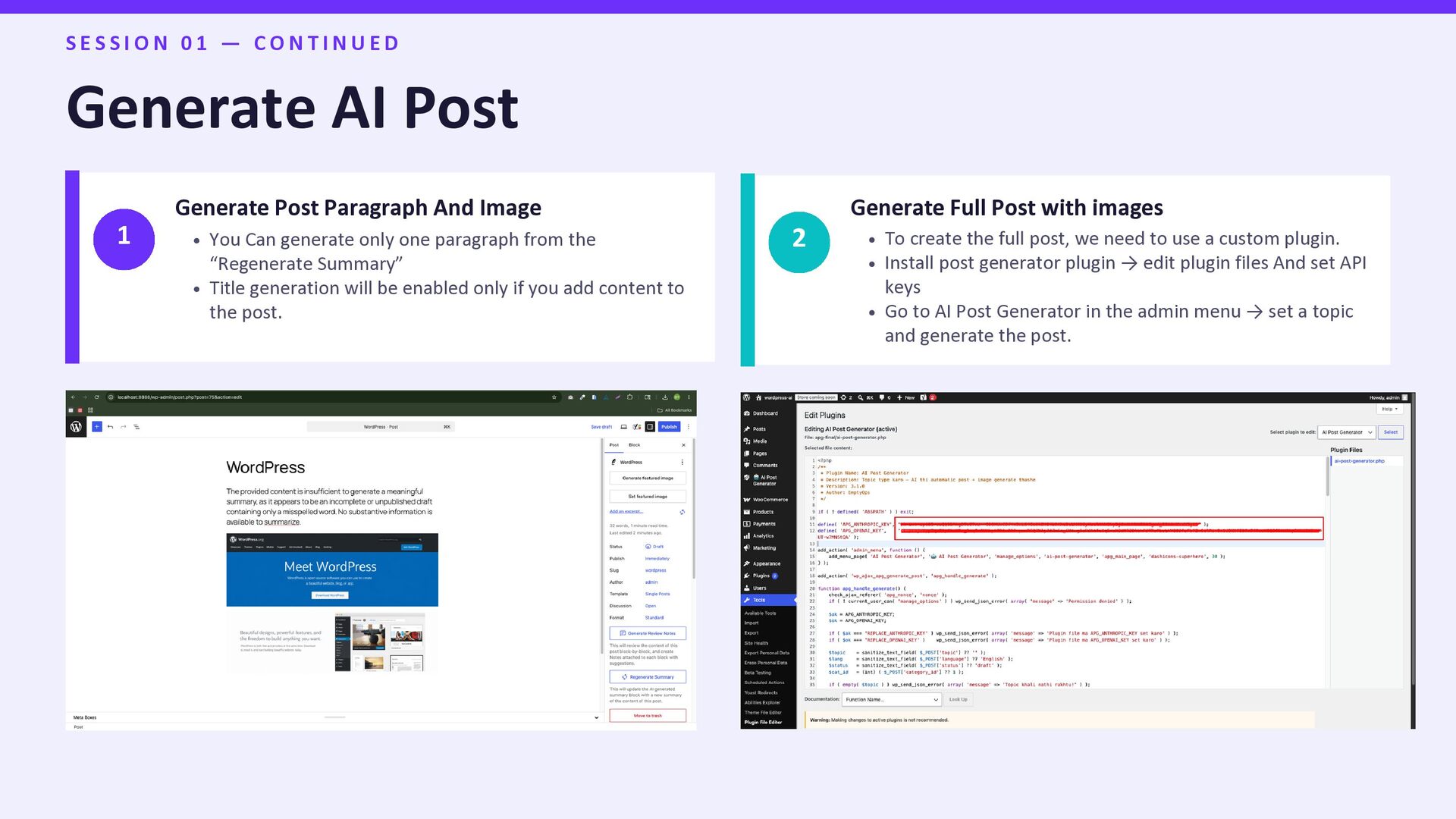
    C O N T I N U E D Generate AI Post 1 Generate Post Paragraph And Image You Can generate only one paragraph from the “Regenerate Summary” Title generation will be enabled only if you add content to the post. 2 Generate Full Post with images To create the full post, we need to use a custom plugin. Install post generator plugin → edit plugin files And set API keys Go to AI Post Generator in the admin menu → set a topic and generate the post.
  7. S E S S I O N 0 2 MCP

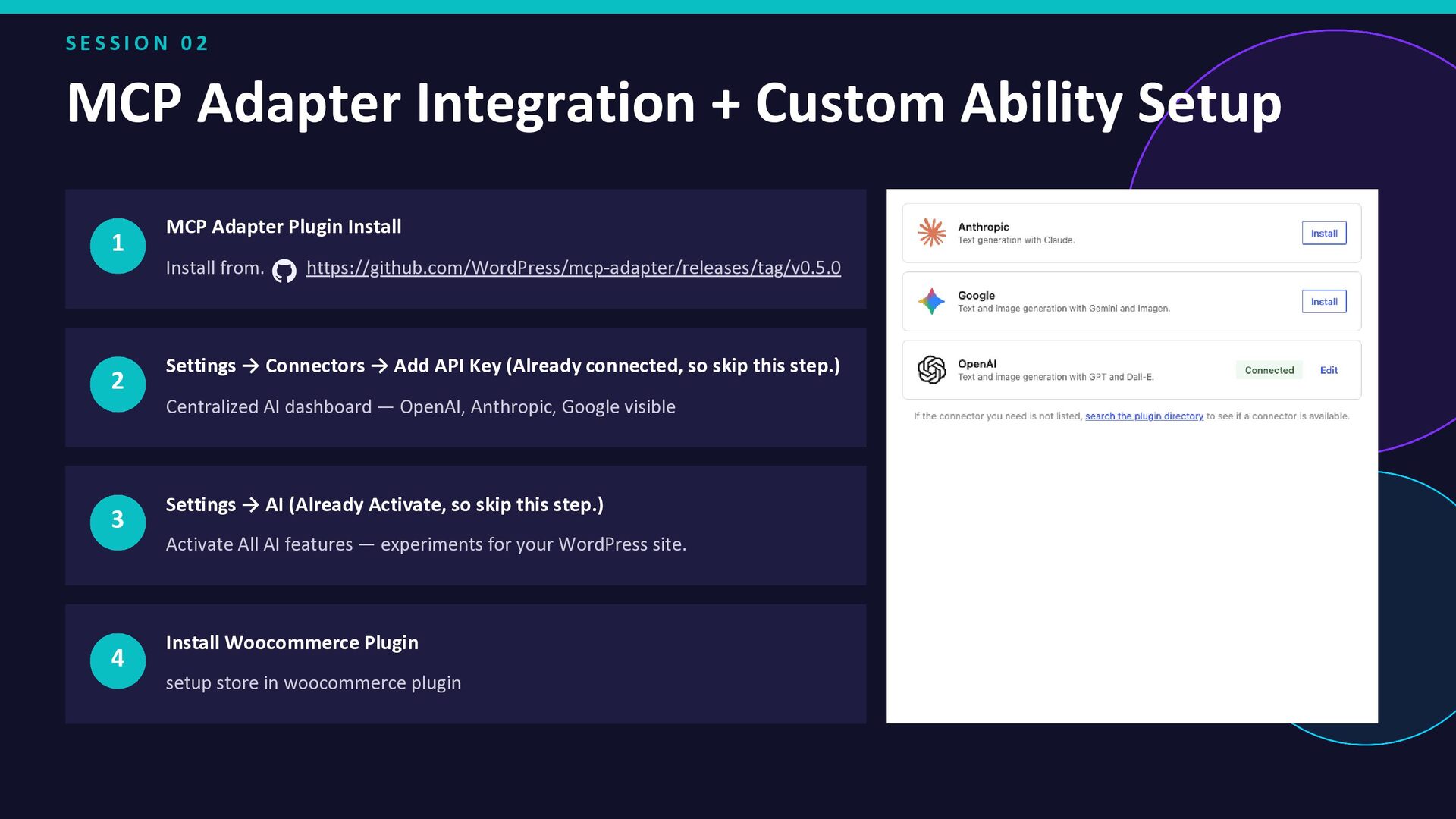
    Adapter Integration + Custom Ability Setup 1 MCP Adapter Plugin Install Install from. https://github.com/WordPress/mcp-adapter/releases/tag/v0.5.0 2 Settings → Connectors → Add API Key (Already connected, so skip this step.) Centralized AI dashboard — OpenAI, Anthropic, Google visible 3 Settings → AI (Already Activate, so skip this step.) Activate All AI features — experiments for your WordPress site. 4 Install Woocommerce Plugin setup store in woocommerce plugin
  8. S E S S I O N 0 2 Custom

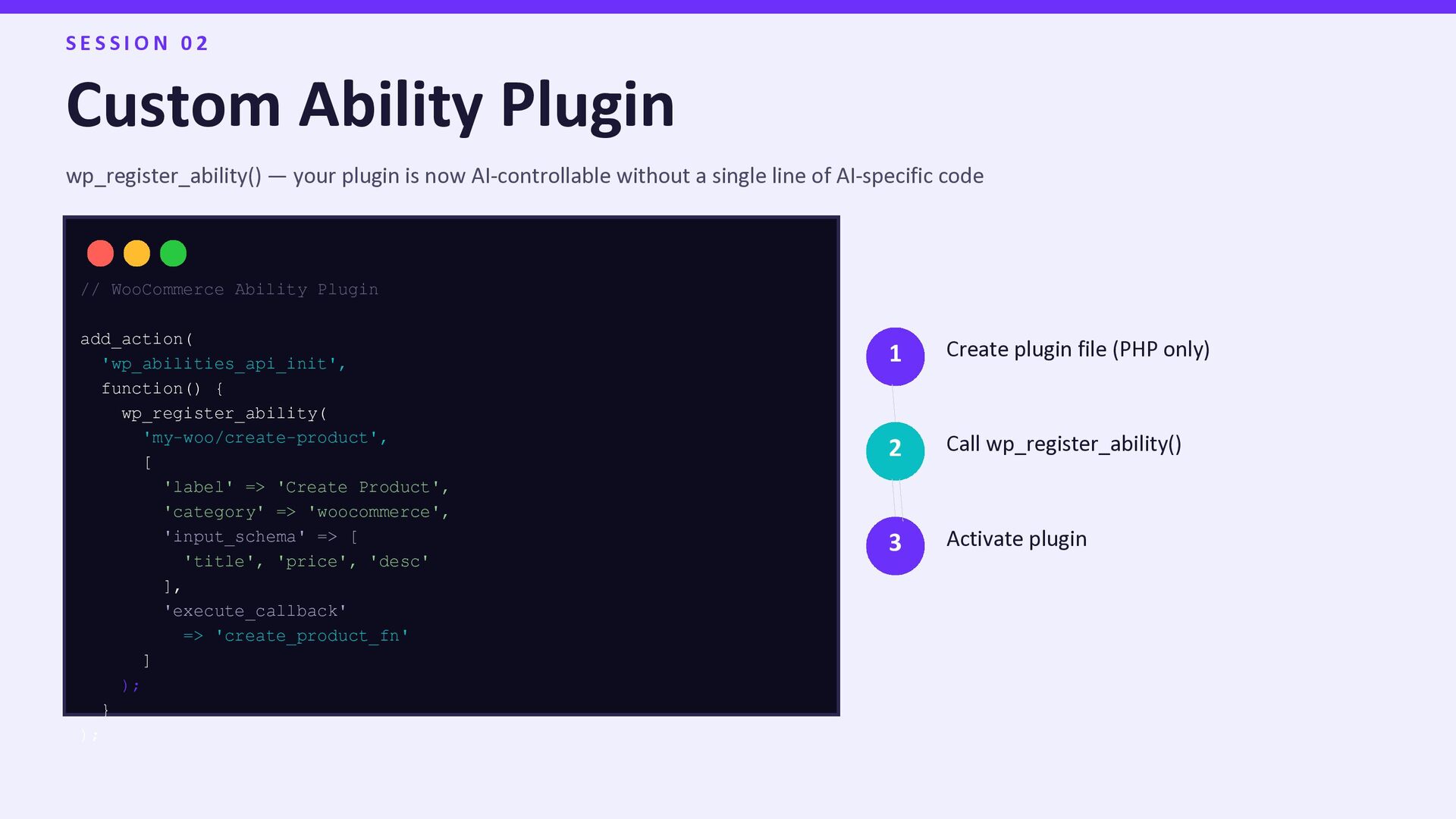
    Ability Plugin wp_register_ability() — your plugin is now AI-controllable without a single line of AI-specific code // WooCommerce Ability Plugin add_action( 'wp_abilities_api_init', function() { wp_register_ability( 'my-woo/create-product', [ 'label' => 'Create Product', 'category' => 'woocommerce', 'input_schema' => [ 'title', 'price', 'desc' ], 'execute_callback' => 'create_product_fn' ] ); } ); 1 Create plugin file (PHP only) 2 Call wp_register_ability() 3 Activate plugin
  9. S E S S I O N 0 2 —

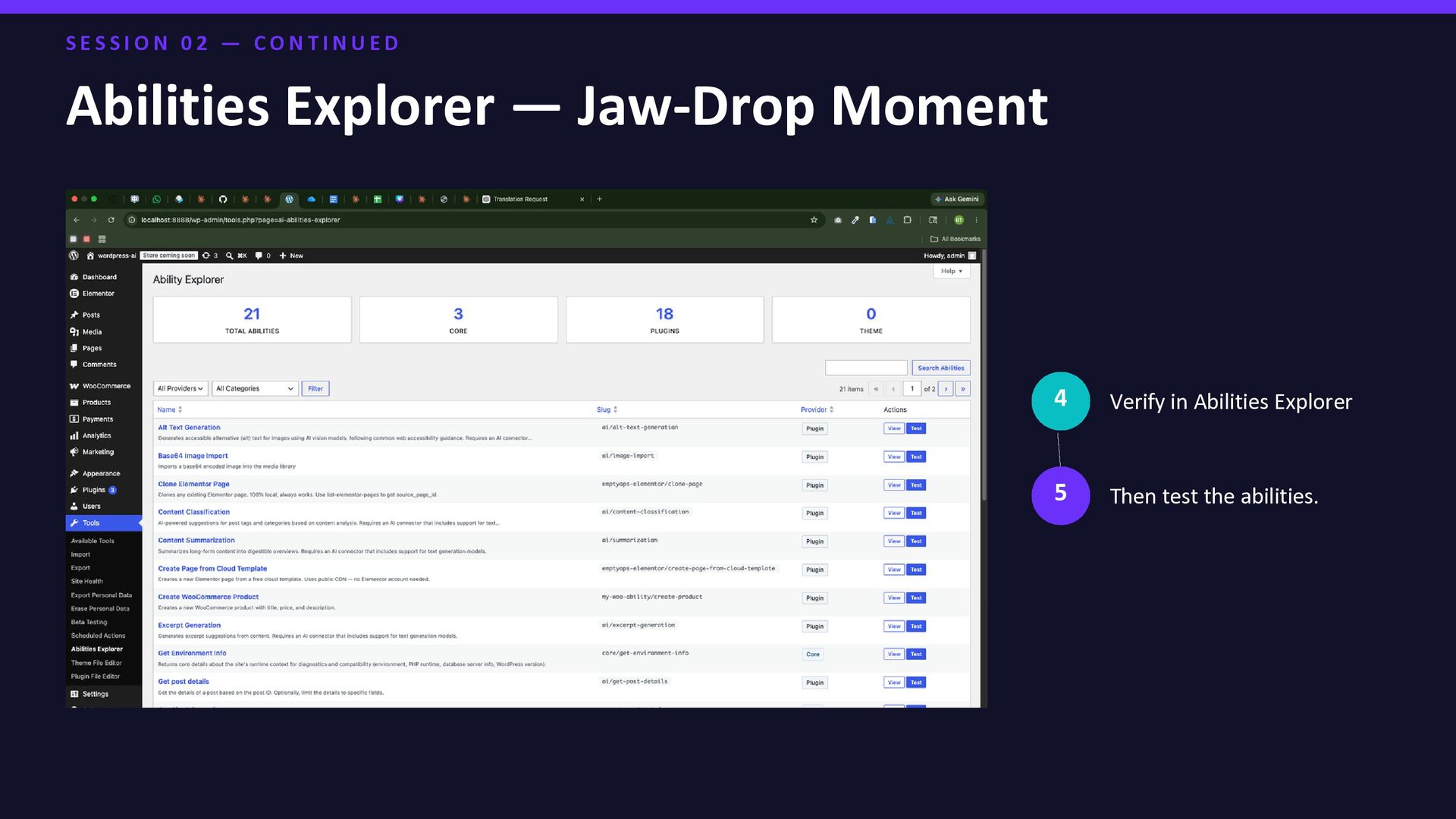
    C O N T I N U E D Abilities Explorer — Jaw-Drop Moment 4 Verify in Abilities Explorer 5 Then test the abilities.
  10. S E S S I O N 0 2 —

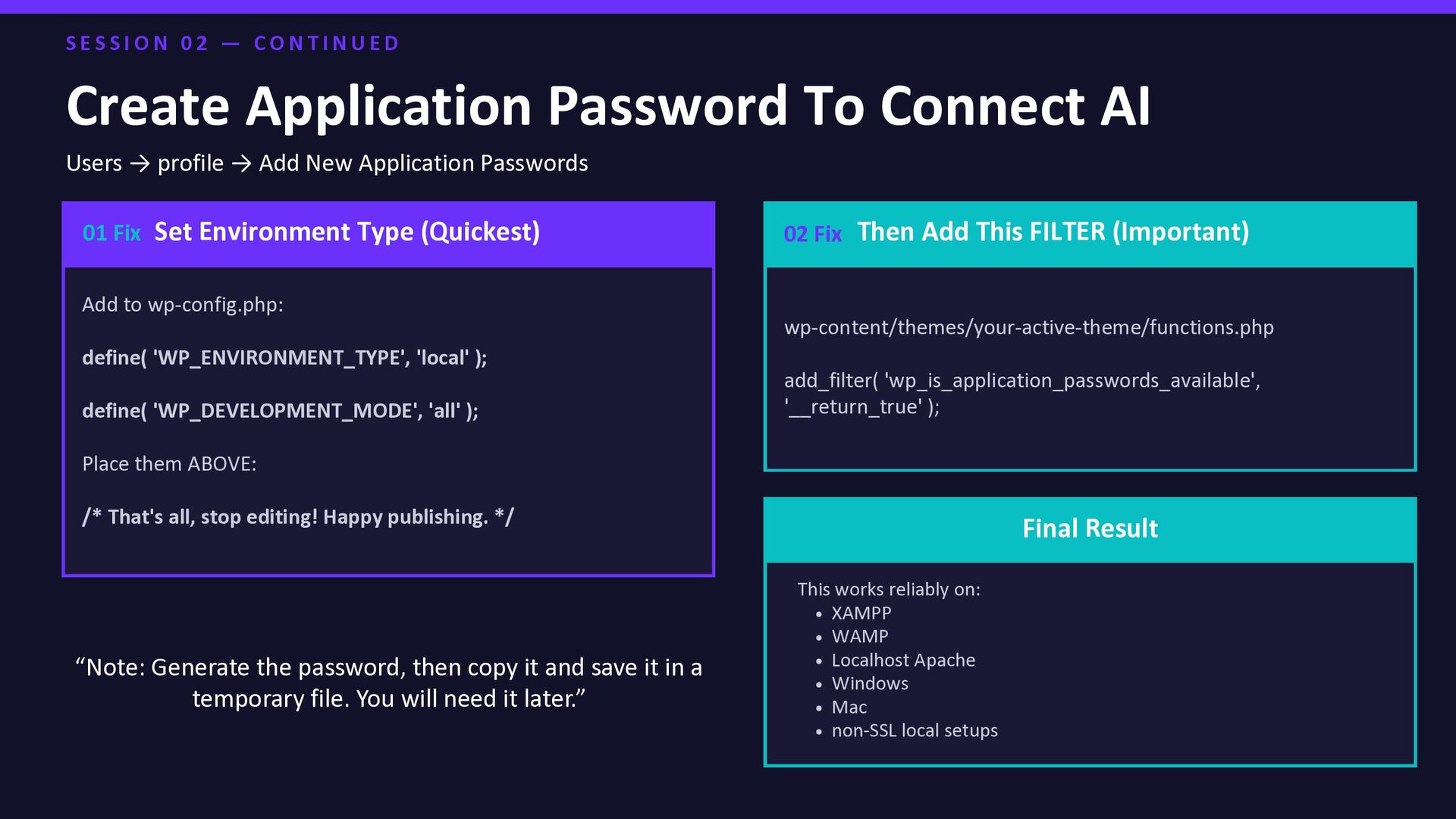
    C O N T I N U E D Create Application Password To Connect AI Set Environment Type (Quickest) Add to wp-config.php: define( 'WP_ENVIRONMENT_TYPE', 'local' ); define( 'WP_DEVELOPMENT_MODE', 'all' ); Place them ABOVE: /* That's all, stop editing! Happy publishing. */ Then Add This FILTER (Important) wp-content/themes/your-active-theme/functions.php add_filter( 'wp_is_application_passwords_available', '__return_true' ); 01 Fix 02 Fix Users → profile → Add New Application Passwords Final Result This works reliably on: XAMPP WAMP Localhost Apache Windows Mac non-SSL local setups “Note: Generate the password, then copy it and save it in a temporary file. You will need it later.”
  11. S E S S I O N 0 2 —

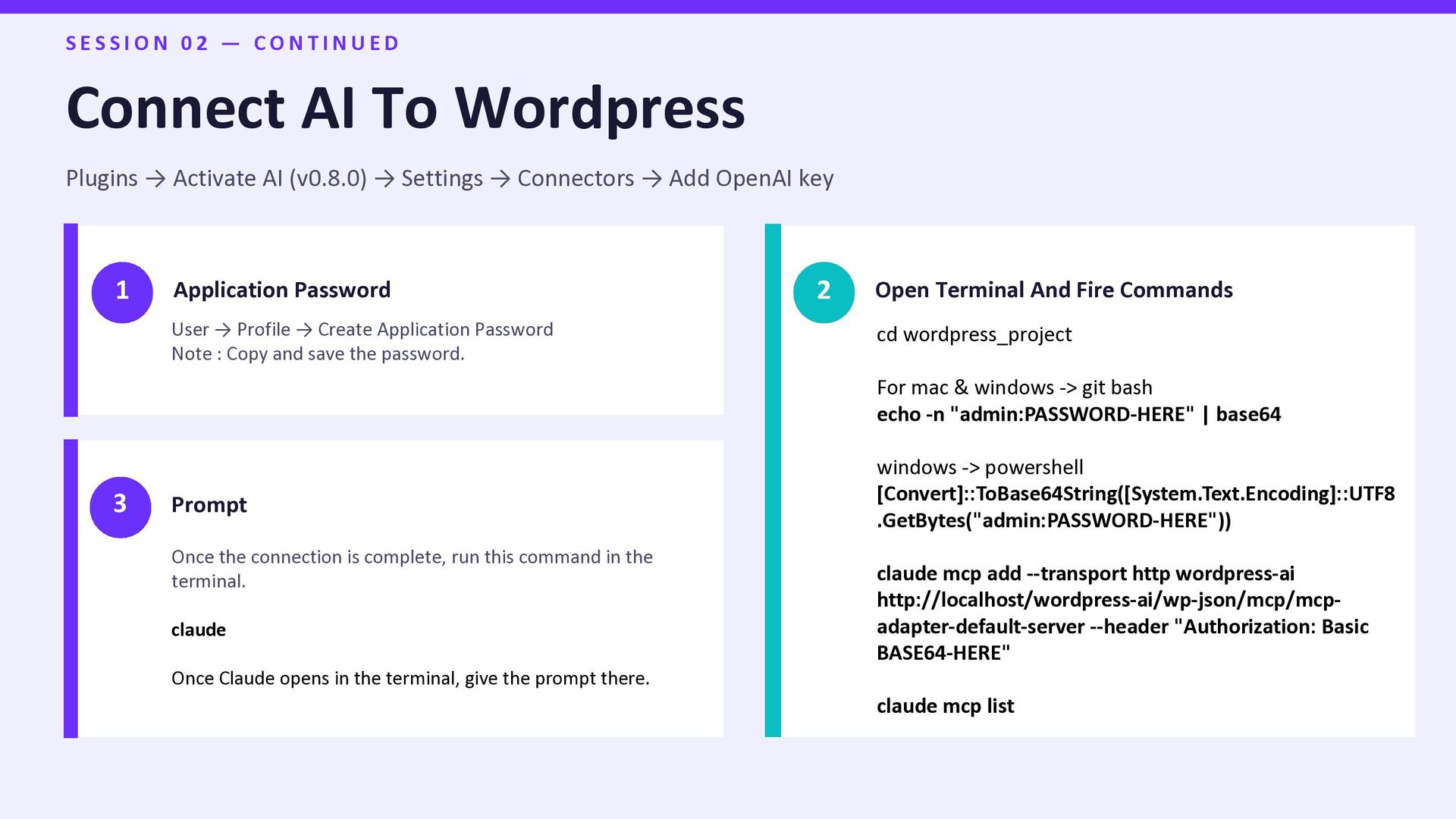
    C O N T I N U E D Connect AI To Wordpress Plugins → Activate AI (v0.8.0) → Settings → Connectors → Add OpenAI key 1 Application Password User → Profile → Create Application Password Note : Copy and save the password. 2 Open Terminal And Fire Commands 3 Prompt Once the connection is complete, run this command in the terminal. claude Once Claude opens in the terminal, give the prompt there. cd wordpress_project For mac & windows -> git bash echo -n "admin:PASSWORD-HERE" | base64 windows -> powershell [Convert]::ToBase64String([System.Text.Encoding]::UTF8 .GetBytes("admin:PASSWORD-HERE")) claude mcp add --transport http wordpress-ai http://localhost/wordpress-ai/wp-json/mcp/mcp- adapter-default-server --header "Authorization: Basic BASE64-HERE" claude mcp list
  12. S E S S I O N 0 2 —

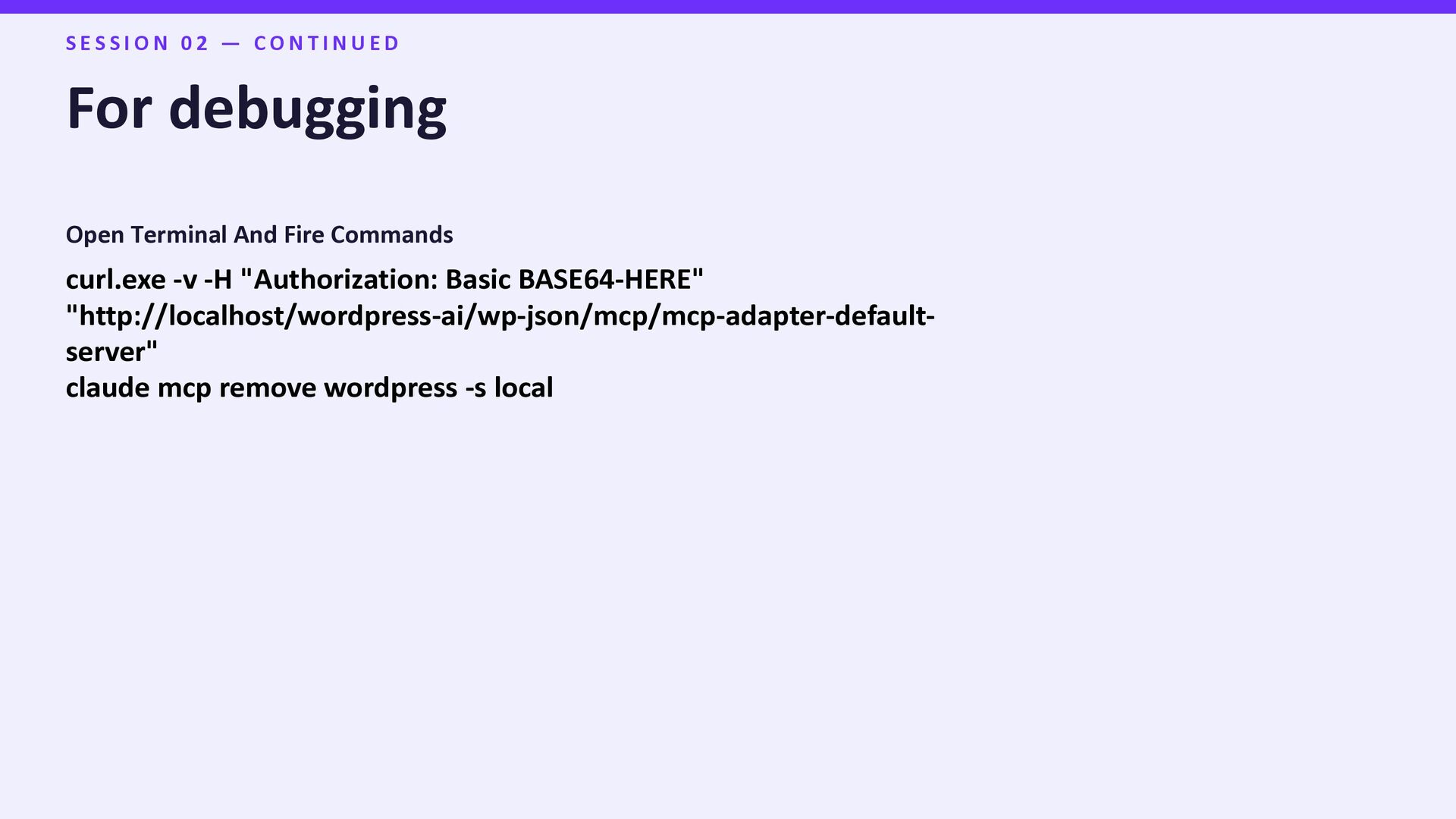
    C O N T I N U E D For debugging Open Terminal And Fire Commands curl.exe -v -H "Authorization: Basic BASE64-HERE" "http://localhost/wordpress-ai/wp-json/mcp/mcp-adapter-default- server" claude mcp remove wordpress -s local
  13. S E S S I O N 0 2 —

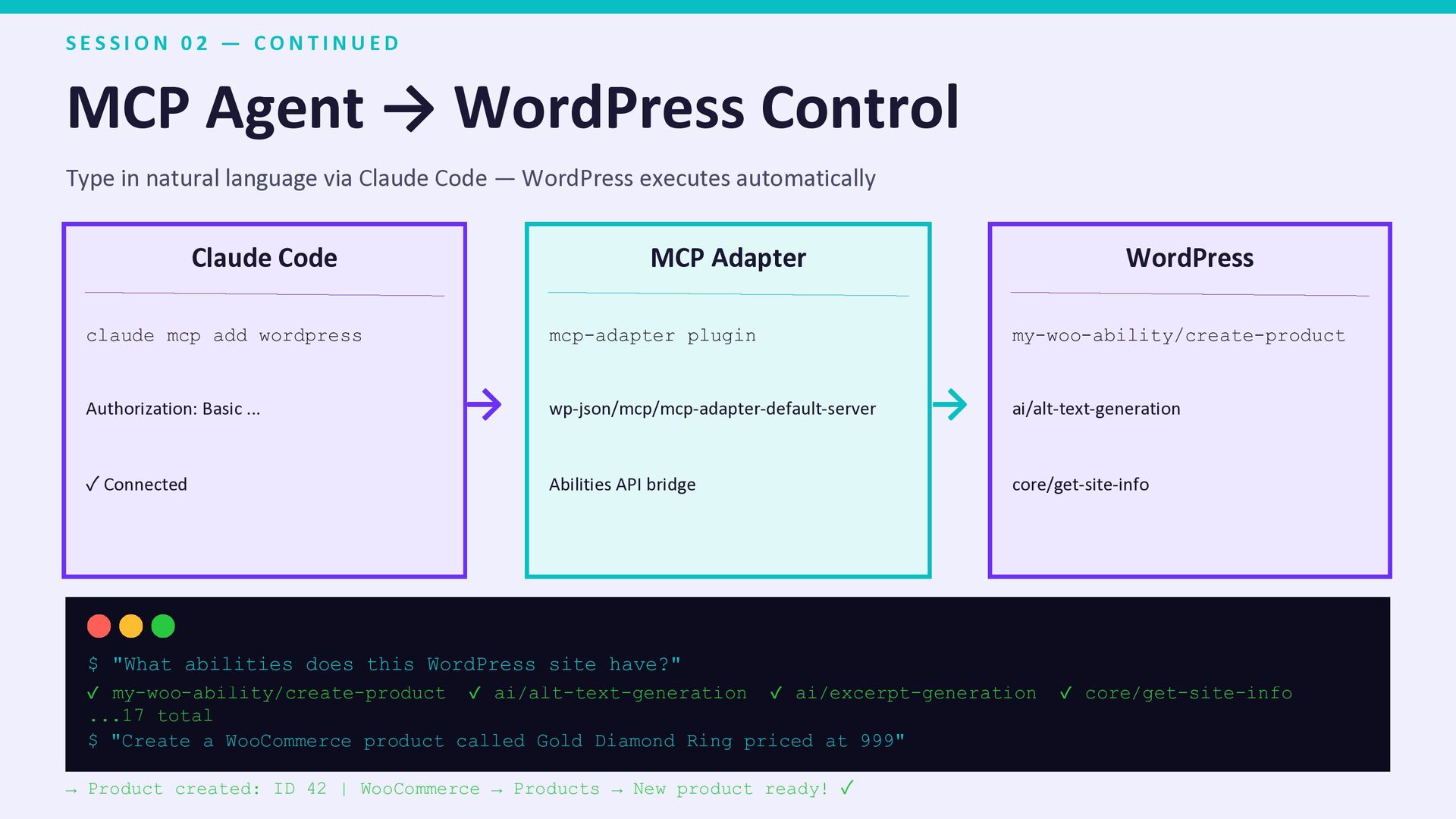
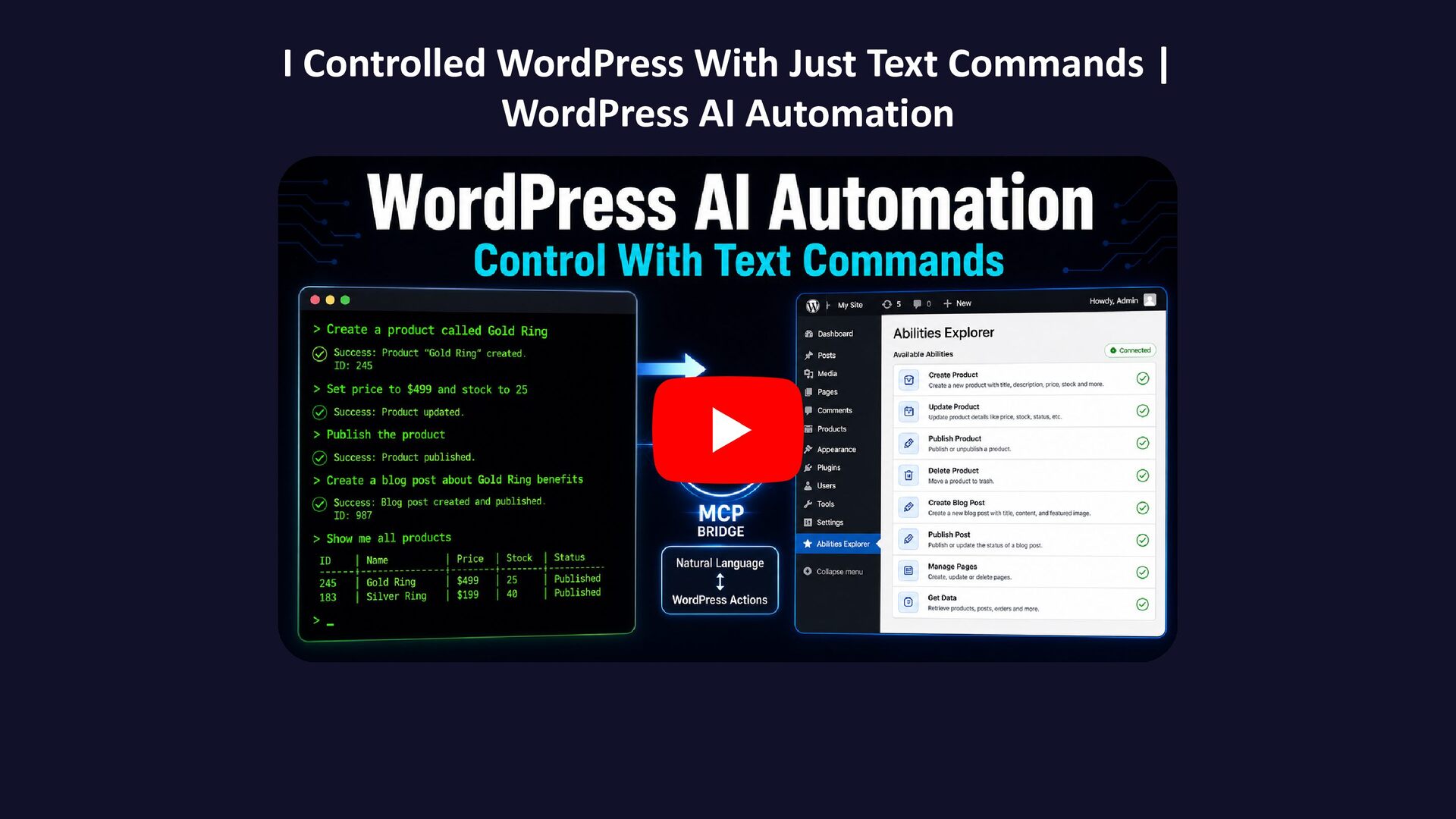
    C O N T I N U E D MCP Agent → WordPress Control Type in natural language via Claude Code — WordPress executes automatically Claude Code claude mcp add wordpress Authorization: Basic ... ✓ Connected → MCP Adapter mcp-adapter plugin wp-json/mcp/mcp-adapter-default-server Abilities API bridge → WordPress my-woo-ability/create-product ai/alt-text-generation core/get-site-info $ "What abilities does this WordPress site have?" ✓ my-woo-ability/create-product ✓ ai/alt-text-generation ✓ ai/excerpt-generation ✓ core/get-site-info ...17 total $ "Create a WooCommerce product called Gold Diamond Ring priced at 999" → Product created: ID 42 | WooCommerce → Products → New product ready! ✓
  14. S E S S I O N 0 2 —

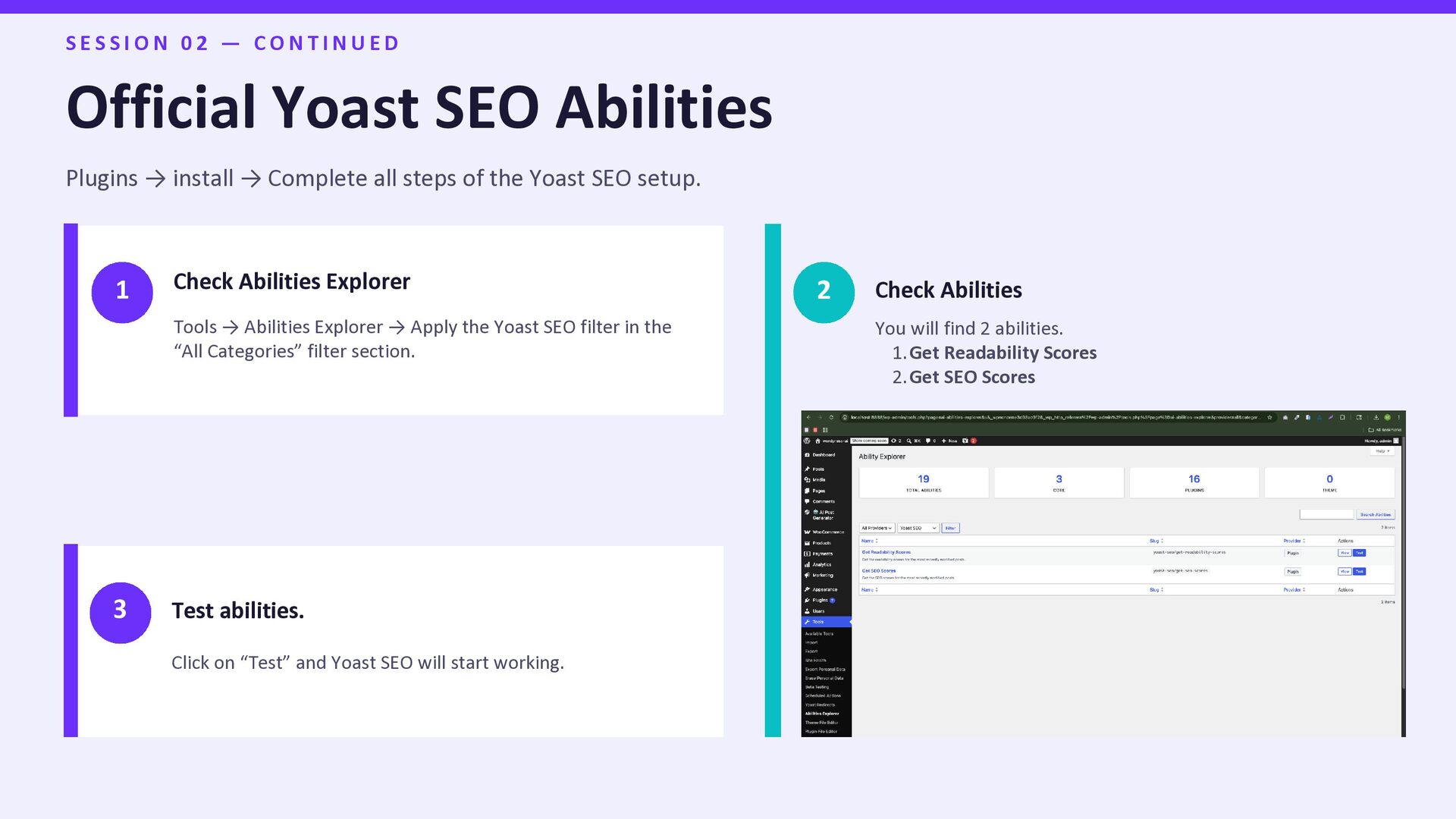
    C O N T I N U E D Official Yoast SEO Abilities Plugins → install → Complete all steps of the Yoast SEO setup. 1 Check Abilities Explorer Tools → Abilities Explorer → Apply the Yoast SEO filter in the “All Categories” filter section. 2 Check Abilities 3 Test abilities. Click on “Test” and Yoast SEO will start working. You will find 2 abilities. 1.Get Readability Scores 2.Get SEO Scores
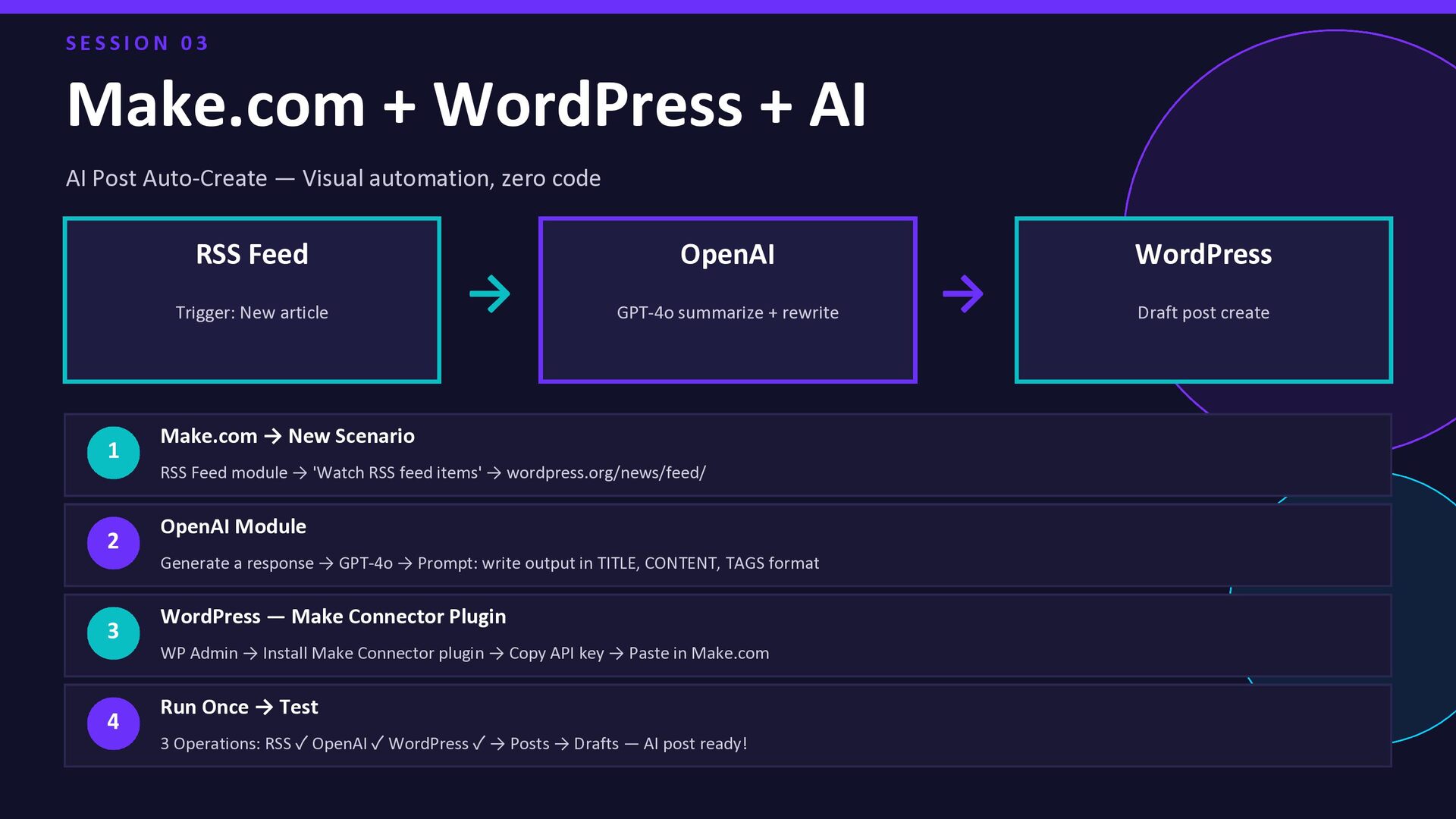
  15. S E S S I O N 0 3 Make.com

    + WordPress + AI AI Post Auto-Create — Visual automation, zero code RSS Feed Trigger: New article → OpenAI GPT-4o summarize + rewrite → WordPress Draft post create 1 Make.com → New Scenario RSS Feed module → 'Watch RSS feed items' → wordpress.org/news/feed/ 2 OpenAI Module Generate a response → GPT-4o → Prompt: write output in TITLE, CONTENT, TAGS format 3 WordPress — Make Connector Plugin WP Admin → Install Make Connector plugin → Copy API key → Paste in Make.com 4 Run Once → Test 3 Operations: RSS ✓ OpenAI ✓ WordPress ✓ → Posts → Drafts — AI post ready!
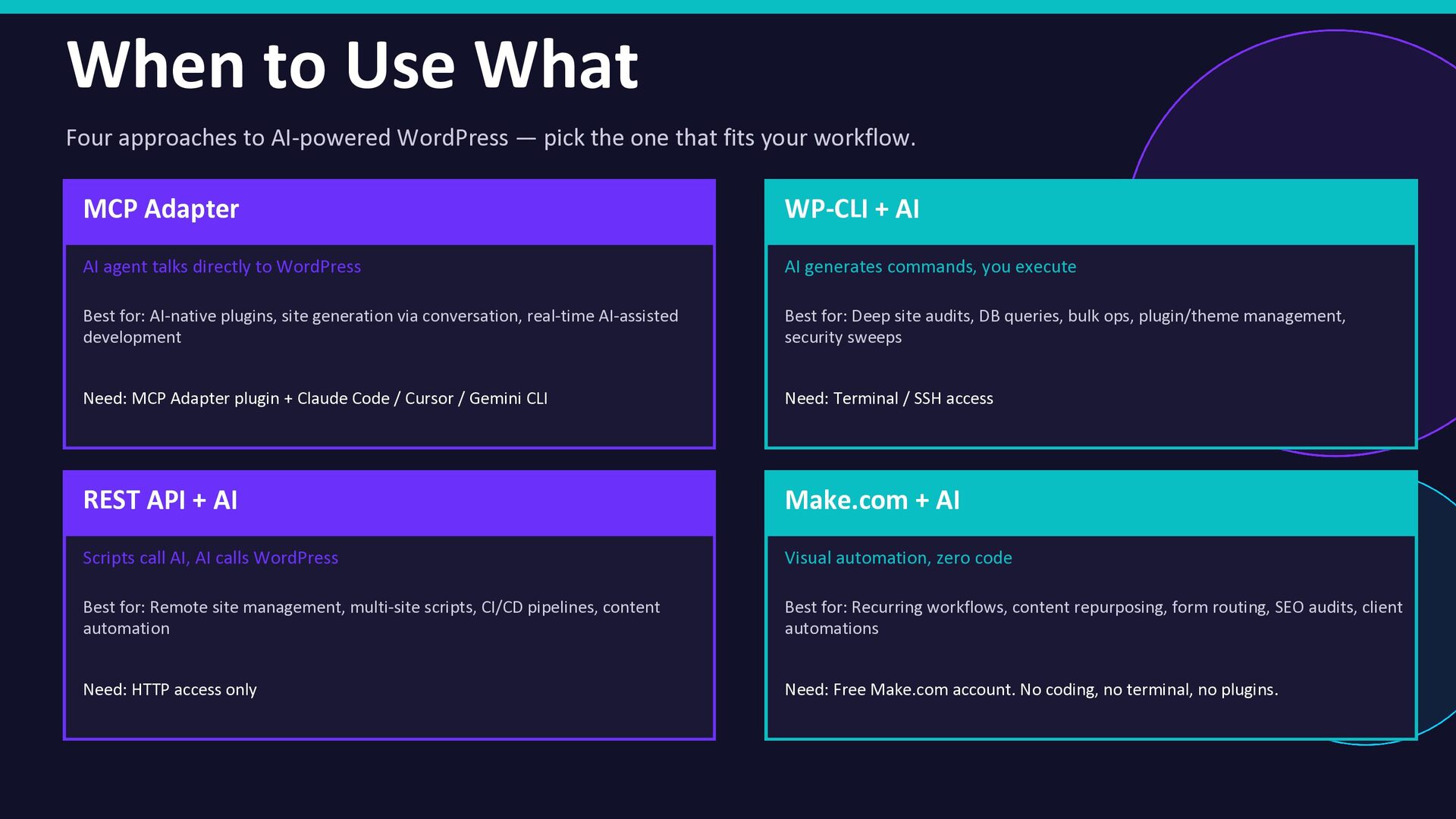
  16. When to Use What Four approaches to AI-powered WordPress —

    pick the one that fits your workflow. MCP Adapter AI agent talks directly to WordPress Best for: AI-native plugins, site generation via conversation, real-time AI-assisted development Need: MCP Adapter plugin + Claude Code / Cursor / Gemini CLI WP-CLI + AI AI generates commands, you execute Best for: Deep site audits, DB queries, bulk ops, plugin/theme management, security sweeps Need: Terminal / SSH access REST API + AI Scripts call AI, AI calls WordPress Best for: Remote site management, multi-site scripts, CI/CD pipelines, content automation Need: HTTP access only Make.com + AI Visual automation, zero code Best for: Recurring workflows, content repurposing, form routing, SEO audits, client automations Need: Free Make.com account. No coding, no terminal, no plugins.
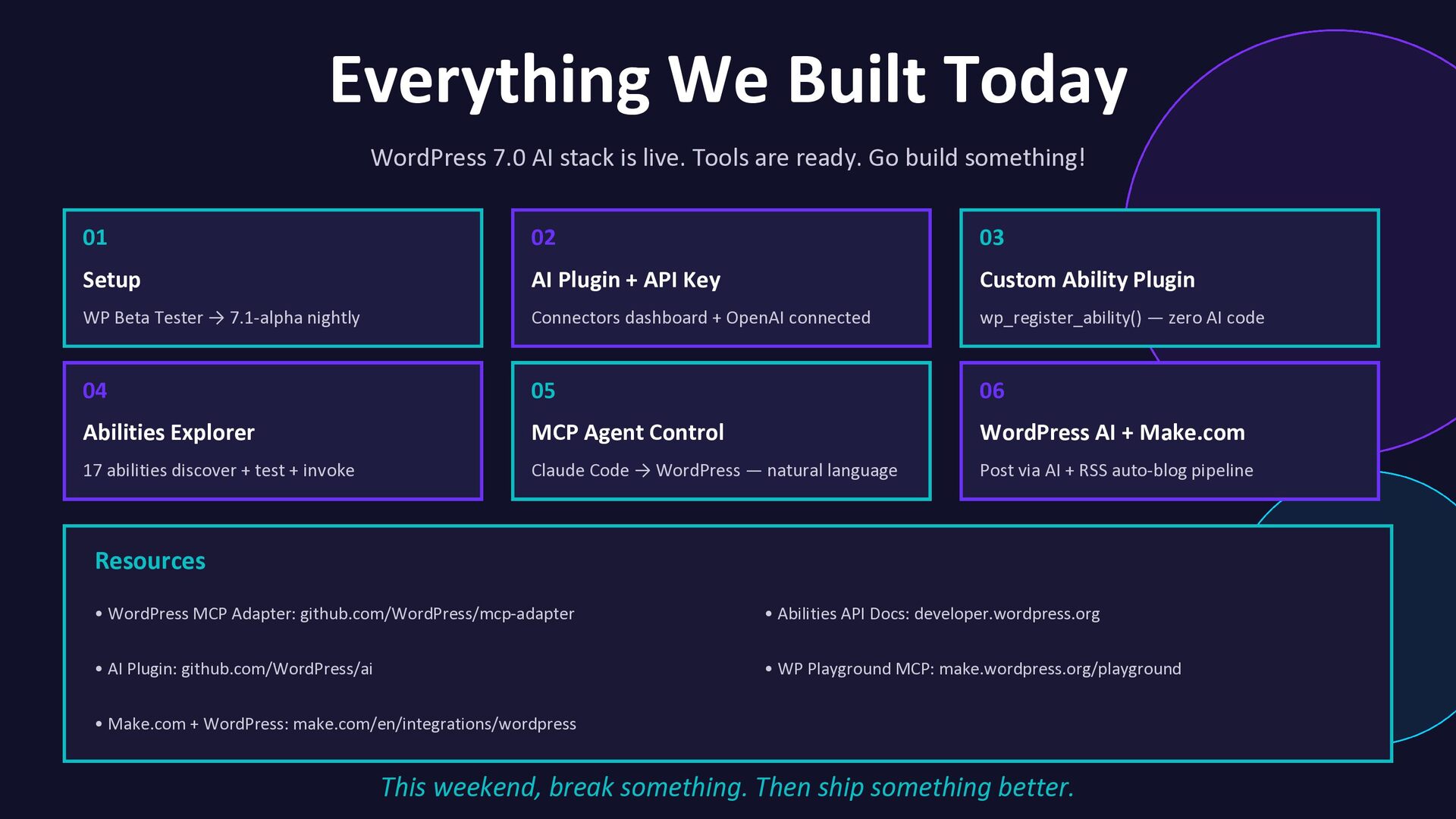
  17. Everything We Built Today WordPress 7.0 AI stack is live.

    Tools are ready. Go build something! 01 Setup WP Beta Tester → 7.1-alpha nightly 02 AI Plugin + API Key Connectors dashboard + OpenAI connected 03 Custom Ability Plugin wp_register_ability() — zero AI code 04 Abilities Explorer 17 abilities discover + test + invoke 05 MCP Agent Control Claude Code → WordPress — natural language 06 WordPress AI + Make.com Post via AI + RSS auto-blog pipeline Resources • WordPress MCP Adapter: github.com/WordPress/mcp-adapter • Abilities API Docs: developer.wordpress.org • AI Plugin: github.com/WordPress/ai • WP Playground MCP: make.wordpress.org/playground • Make.com + WordPress: make.com/en/integrations/wordpress This weekend, break something. Then ship something better.
  18. Thank you so much for listening to me. Hiren Donda

    Nilesh Vastarpara @vastarpara89 vastarpara @HDonda emptyopssphere Surat WordPress Meetup