Upgrade to Pro
— share decks privately, control downloads, hide ads and more …
Speaker Deck
Sign up for free
Menu
Search
Features
All features
Private URLs
Password Protection
Custom URLS
Scheduled publishing
Remove Branding
Restrict embedding
Deck Collections
Notes
Features
All features
Private URLs
Password Protection
Custom URLS
Scheduled publishing
Remove Branding
Restrict embedding
Deck Collections
Notes
Explore
Featured decks
Featured speakers
Programming
Technology
Storyboards
Explore
Featured decks
Featured speakers
Programming
Technology
Storyboards
Pricing
Search
Sign in
Sign up for free
しょしんしゃようDocker事例集
Search
Wataru Noguchi
September 26, 2015
Technology
1.5k
0
Share
Embed
Copy iframe code
Copy JS code
Copy link
Start on current slide
しょしんしゃようDocker事例集
LT スライドです。
第8回 コンテナ型仮想化の情報交換会@東京 - connpass
http://ct-study.connpass.com/event/18052/
#lxcjp
Wataru Noguchi
September 26, 2015
More Decks by Wataru Noguchi
See All by Wataru Noguchi
UniStudy#0 今時のDevOpsの取り組み事例集
wnoguchi
0
550
Other Decks in Technology
See All in Technology
AWS FinOps Agent 結局何が得意なの?
siromi
0
230
生成AIを使って「人が」考える技術 ― AI時代の人機共想と実践ノウハウ|UNITT AC2026
ishiirikie
0
520
AIは爆速なのに、私が詰まっていた話 ― 音声入力と鳴くマスコットでボトルネックを削る
yama3133
0
310
カンファレンスに参加した後の浮遊感とセルフケア
pauli
0
300
AI感のないAWS構成図をAIエージェントに描かせたい!
sagochiko
2
500
スキルを作る、その前に!複数人で使われるスキルを 作るためのプロセス
junkifurukawa
2
180
検証フェーズはAIの回答を判断するための学習機会
toru_kubota
2
290
[2026-09-30]ロックンロールは鳴り止まないっ - 信頼性かまってちゃん - 「データ駆動を投げ捨ててまで。」追いかける信頼性改善に向けた取り組みの話
tosite
0
180
キャリアLT今日までそして明日から
kentapapa
1
140
AI Made Us Faster at Solving the Wrong Problems
marceloancelmo
0
140
雪かき部 #7 もう怖くない!SELECT文!
foursue
0
270
いちAWSエンジニアのAI活用を振り返る #devio2026 / devio osaka 2026 kawahara
masahirokawahara
2
310
Featured
See All Featured
A better future with KSS
kneath
240
18k
AI in Enterprises - Java and Open Source to the Rescue
ivargrimstad
0
1.5k
Un-Boring Meetings
codingconduct
0
440
Leo the Paperboy
mayatellez
10
2.3k
Scaling GitHub
holman
464
140k
Embracing the Ebb and Flow
colly
88
5.2k
Design in an AI World
tapps
1
340
Leveraging Curiosity to Care for An Aging Population
cassininazir
1
520
Design of three-dimensional binary manipulators for pick-and-place task avoiding obstacles (IECON2024)
konakalab
0
610
Building AI with AI
inesmontani
PRO
1
1.3k
The Language of Interfaces
destraynor
162
27k
Public Speaking Without Barfing On Your Shoes - THAT 2023
reverentgeek
1
580
Transcript
しょしんしゃよう Docker事例集 @wnoguchi 第8回 コンテナ型仮想化の情報交換会@東京
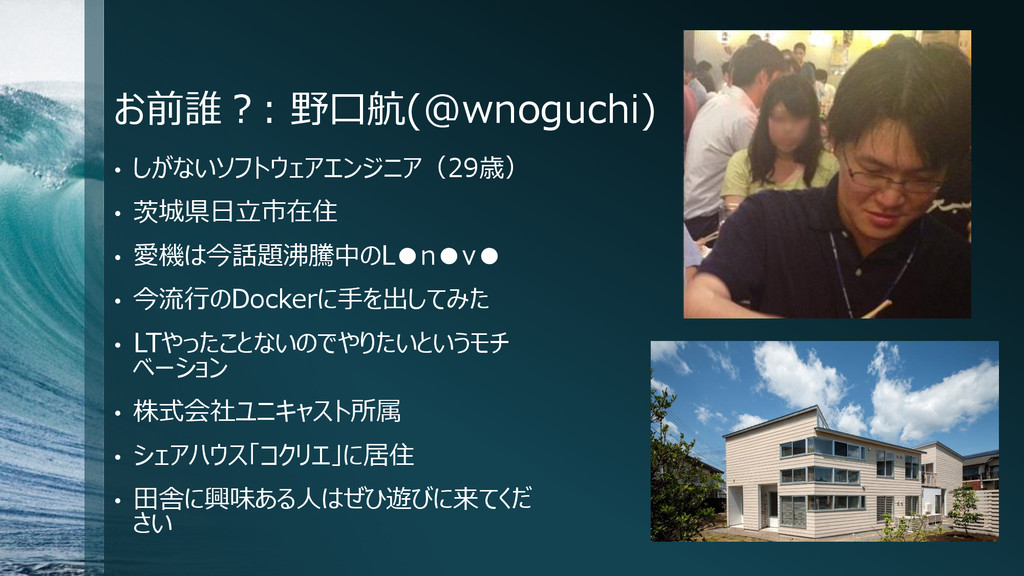
お前誰?: 野口航(@wnoguchi) • しがないソフトウェアエンジニア(29歳) • 茨城県日立市在住 • 愛機は今話題沸騰中のL•n•v• • 今流行のDockerに手を出してみた
• LTやったことないのでやりたいというモチ ベーション • 株式会社ユニキャスト所属 • シェアハウス「コクリエ」に居住 • 田舎に興味ある人はぜひ遊びに来てくだ さい
もくじ(とりくみ) • 事例1: 自分のサイトを Docker(さくらのVPS)で運用してみた(一部 障害あり) • 事例2: 会社の開発環境用Vagrant仮想マシンをDockerで書き換えて みた(失敗)
• 最近のトレンド: Boot2docker より Docker Toolbox のほうがよさ げ?
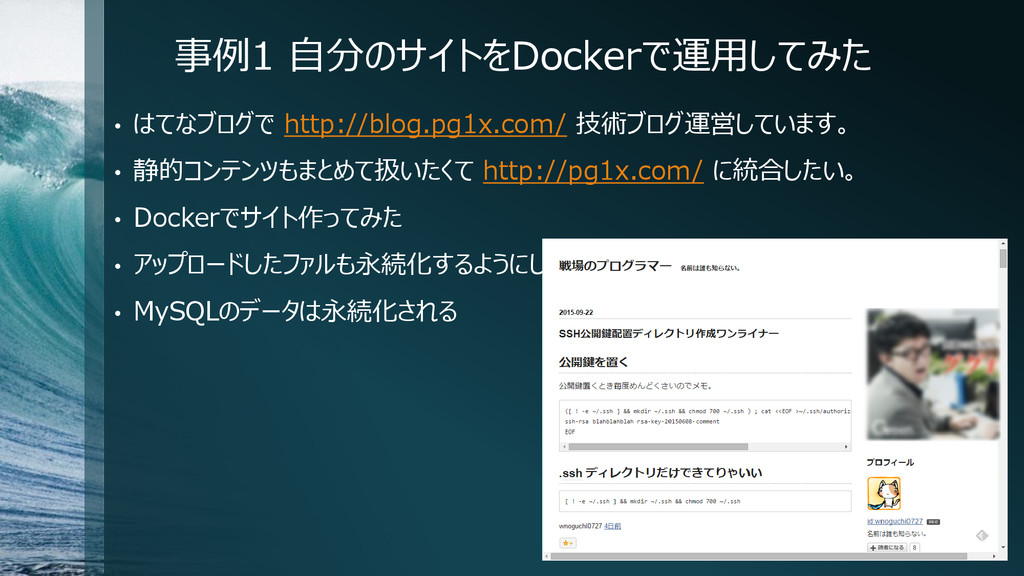
事例1 自分のサイトをDockerで運用してみた • はてなブログで http://blog.pg1x.com/ 技術ブログ運営しています。 • 静的コンテンツもまとめて扱いたくて http://pg1x.com/ に統合したい。
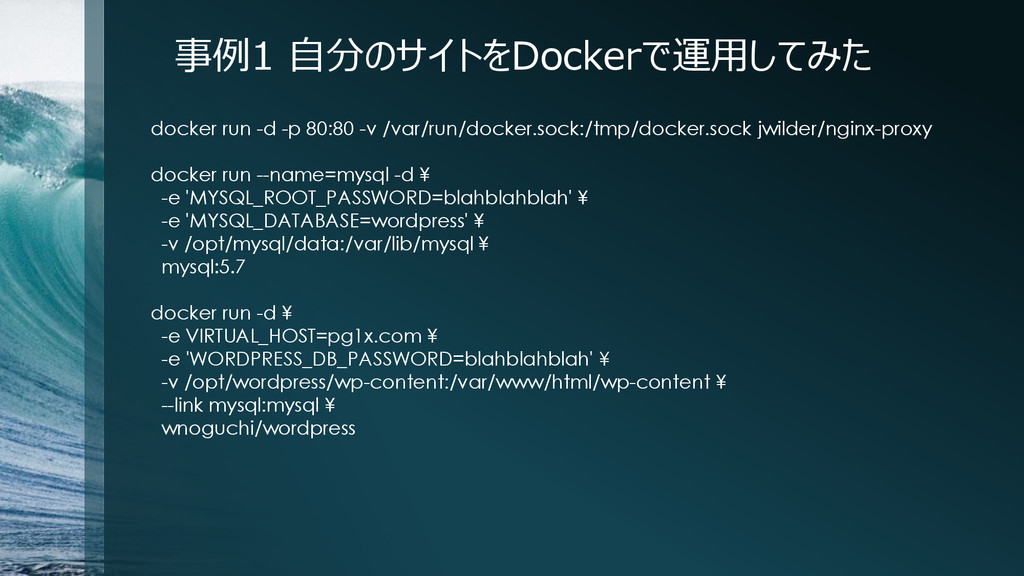
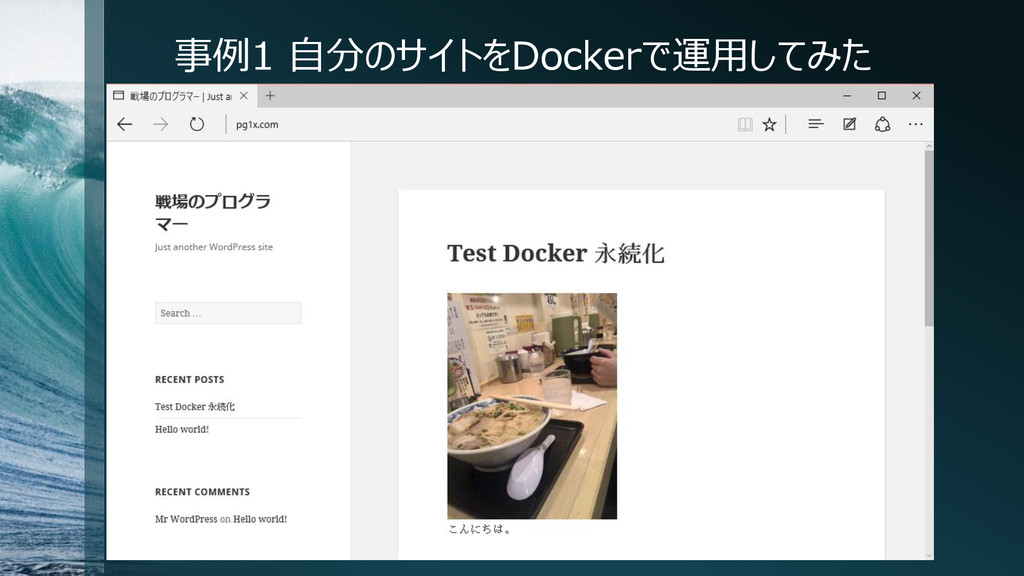
• Dockerでサイト作ってみた • アップロードしたファルも永続化するようにした • MySQLのデータは永続化される
事例1 自分のサイトをDockerで運用してみた Dockerfile #wordpress/Dockerfile at 4823a04099 · docker-library/wordpress # https://goo.gl/qjtEPa
FROM wordpress # ボリュームの共有をおこなうため、実行ユーザ、グループのIDを変更 RUN usermod -u 1000 -U www-data RUN groupmod -g 1000 www-data VOLUME [“/var/www/html/wp-content”] ENTRYPOINT ["/entrypoint.sh"] CMD ["apache2-foreground"] Wordpressのイメージは自前でカスタマイズ DockerのVolumeのアクセス権限の問題について - Qiita http://goo.gl/6DdCQ5
事例1 自分のサイトをDockerで運用してみた [wnoguchi@smtp docker-wordpress]$ docker build -t wnoguchi/wordpress . Sending
build context to Docker daemon 20.85 MB Sending build context to Docker daemon Step 0 : FROM wordpress ---> 4613a7aba13e Step 1 : RUN usermod -u 1000 -U www-data ---> Running in bde6cfe62556 ---> 4d10460a2de0 Removing intermediate container bde6cfe62556 Step 2 : RUN groupmod -g 1000 www-data ---> Running in f2f3fb96616e ---> 81b7b01c71dc Removing intermediate container f2f3fb96616e Step 3 : ENTRYPOINT /entrypoint.sh ---> Running in a4dc06c85735 ---> 992c2908310e Removing intermediate container a4dc06c85735 Step 4 : CMD apache2-foreground ---> Running in c1bc24c7658d ---> d3348cf9792c Removing intermediate container c1bc24c7658d Successfully built d3348cf9792c
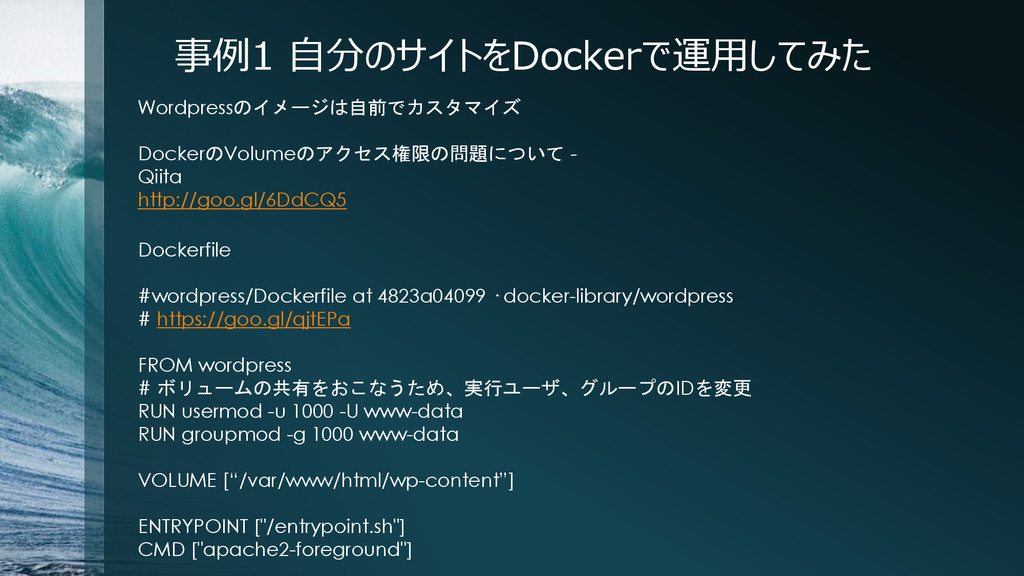
事例1 自分のサイトをDockerで運用してみた docker run -d -p 80:80 -v /var/run/docker.sock:/tmp/docker.sock jwilder/nginx-proxy
docker run --name=mysql -d ¥ -e 'MYSQL_ROOT_PASSWORD=blahblahblah' ¥ -e 'MYSQL_DATABASE=wordpress' ¥ -v /opt/mysql/data:/var/lib/mysql ¥ mysql:5.7 docker run -d ¥ -e VIRTUAL_HOST=pg1x.com ¥ -e 'WORDPRESS_DB_PASSWORD=blahblahblah' ¥ -v /opt/wordpress/wp-content:/var/www/html/wp-content ¥ --link mysql:mysql ¥ wnoguchi/wordpress
事例1 自分のサイトをDockerで運用してみた
事例1 自分のサイトをDockerで運用してみた
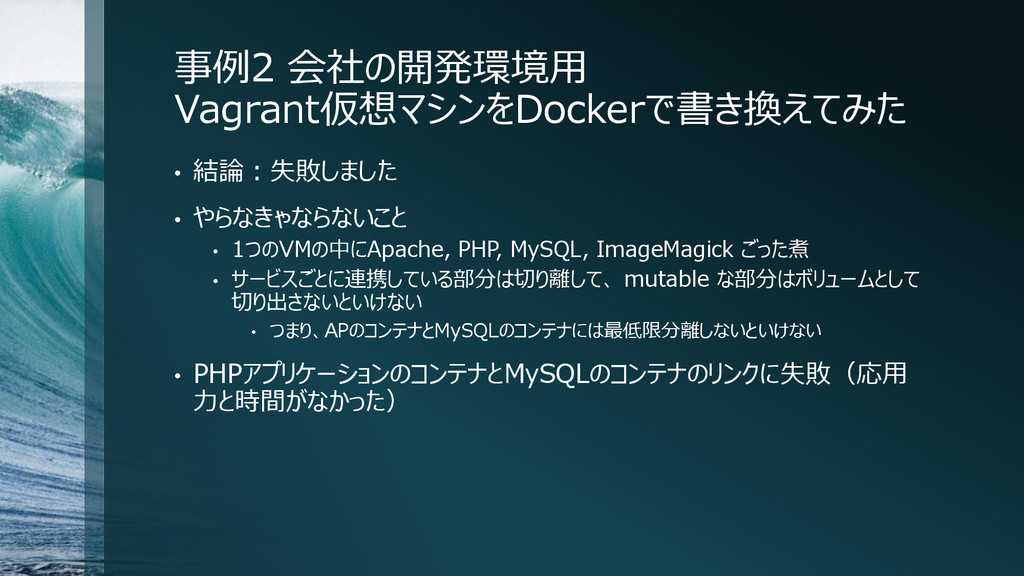
事例2 会社の開発環境用 Vagrant仮想マシンをDockerで書き換えてみた • 結論:失敗しました • やらなきゃならないこと • 1つのVMの中にApache, PHP,
MySQL, ImageMagick ごった煮 • サービスごとに連携している部分は切り離して、 mutable な部分はボリュームとして 切り出さないといけない • つまり、APのコンテナとMySQLのコンテナには最低限分離しないといけない • PHPアプリケーションのコンテナとMySQLのコンテナのリンクに失敗(応用 力と時間がなかった)
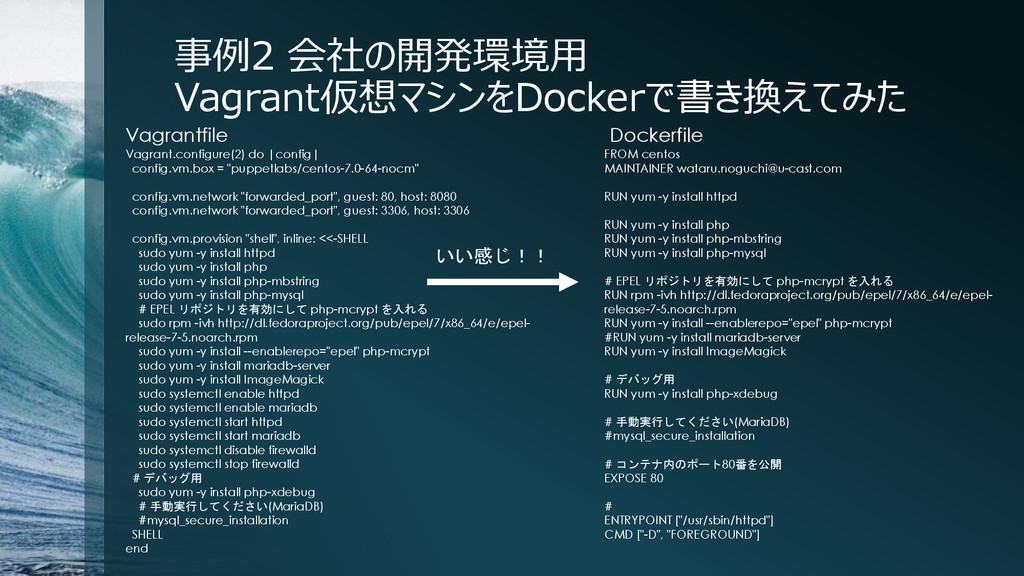
事例2 会社の開発環境用 Vagrant仮想マシンをDockerで書き換えてみた Vagrant.configure(2) do |config| config.vm.box = "puppetlabs/centos-7.0-64-nocm" config.vm.network
"forwarded_port", guest: 80, host: 8080 config.vm.network "forwarded_port", guest: 3306, host: 3306 config.vm.provision "shell", inline: <<-SHELL sudo yum -y install httpd sudo yum -y install php sudo yum -y install php-mbstring sudo yum -y install php-mysql # EPEL リポジトリを有効にして php-mcrypt を入れる sudo rpm -ivh http://dl.fedoraproject.org/pub/epel/7/x86_64/e/epel- release-7-5.noarch.rpm sudo yum -y install --enablerepo="epel" php-mcrypt sudo yum -y install mariadb-server sudo yum -y install ImageMagick sudo systemctl enable httpd sudo systemctl enable mariadb sudo systemctl start httpd sudo systemctl start mariadb sudo systemctl disable firewalld sudo systemctl stop firewalld # デバッグ用 sudo yum -y install php-xdebug # 手動実行してください(MariaDB) #mysql_secure_installation SHELL end FROM centos MAINTAINER
[email protected]
RUN yum -y install httpd RUN yum -y install php RUN yum -y install php-mbstring RUN yum -y install php-mysql # EPEL リポジトリを有効にして php-mcrypt を入れる RUN rpm -ivh http://dl.fedoraproject.org/pub/epel/7/x86_64/e/epel- release-7-5.noarch.rpm RUN yum -y install --enablerepo="epel" php-mcrypt #RUN yum -y install mariadb-server RUN yum -y install ImageMagick # デバッグ用 RUN yum -y install php-xdebug # 手動実行してください(MariaDB) #mysql_secure_installation # コンテナ内のポート80番を公開 EXPOSE 80 # ENTRYPOINT ["/usr/sbin/httpd"] CMD ["-D", "FOREGROUND"] いい感じ!! Vagrantfile Dockerfile
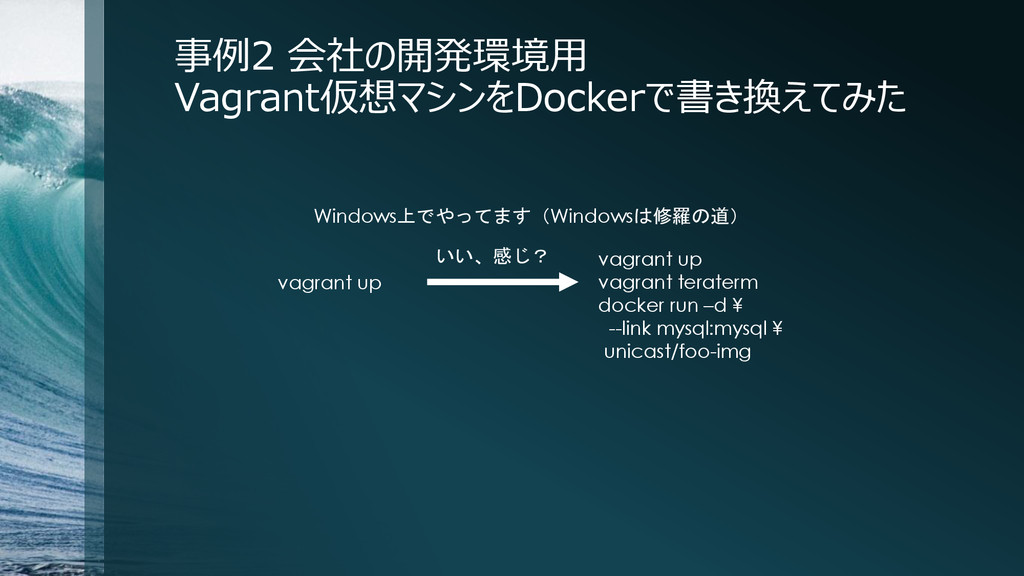
事例2 会社の開発環境用 Vagrant仮想マシンをDockerで書き換えてみた いい、感じ? vagrant up vagrant up vagrant teraterm
docker run –d ¥ --link mysql:mysql ¥ unicast/foo-img Windows上でやってます(Windowsは修羅の道)
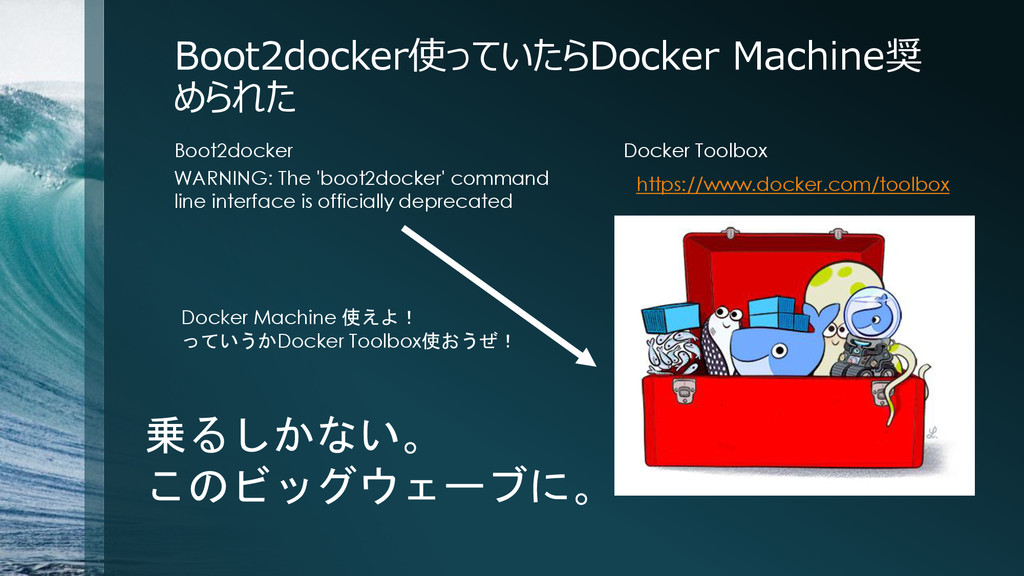
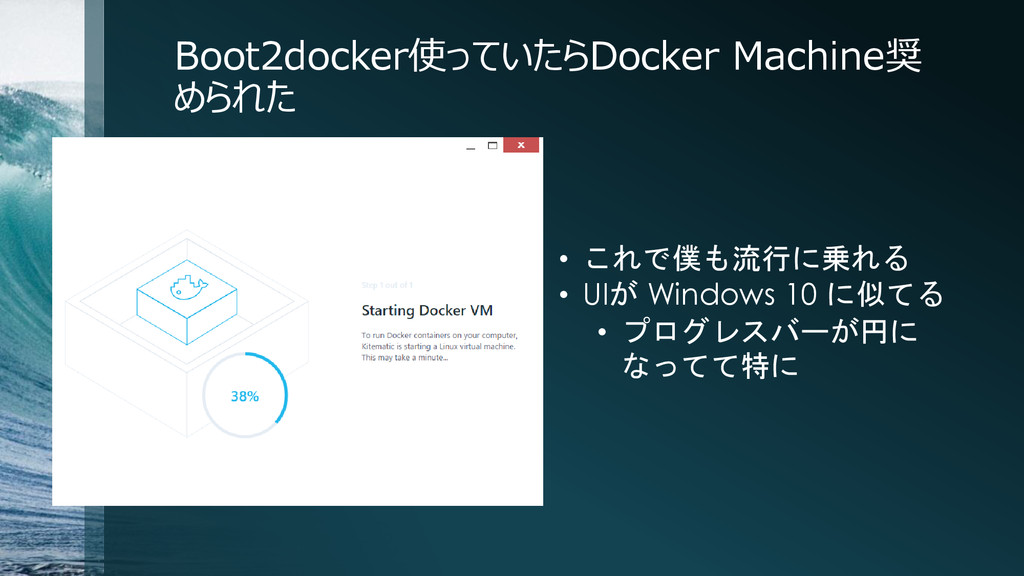
Boot2docker使っていたらDocker Machine奨 められた WARNING: The 'boot2docker' command line interface is
officially deprecated Docker Machine 使えよ! っていうかDocker Toolbox使おうぜ! https://www.docker.com/toolbox 乗るしかない。 このビッグウェーブに。 Boot2docker Docker Toolbox
Boot2docker使っていたらDocker Machine奨 められた • これで僕も流行に乗れる • UIが Windows 10 に似てる
• プログレスバーが円に なってて特に
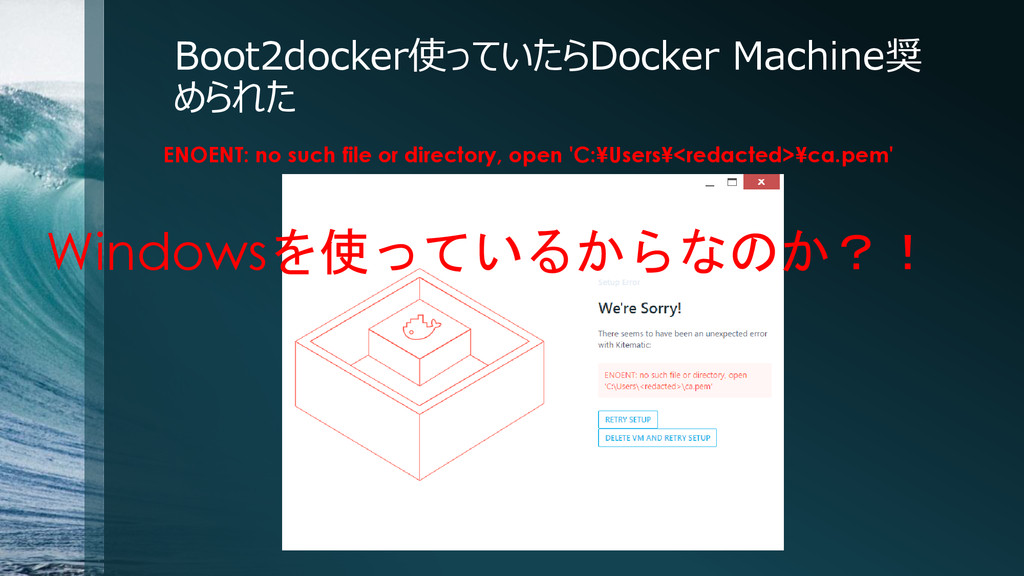
Boot2docker使っていたらDocker Machine奨 められた ENOENT: no such file or directory, open
'C:¥Users¥<redacted>¥ca.pem' Windowsを使っているからなのか?!
参考書 • Dockerエキスパート養成読本[活用の基礎と実践ノウハウ満載!] (Software Design plus) http://www.amazon.co.jp/dp/4774174416 • → http://goo.gl/gVjwAu
ご清聴ありがとうございました。


 wnoguchi
 siromi
 ishiirikie
 yama3133
 pauli
pauli
 sagochiko
 junkifurukawa
 toru_kubota
 tosite
 kentapapa
 marceloancelmo
 foursue
 masahirokawahara
 kneath
 ivargrimstad
 codingconduct
 mayatellez
 holman
 colly
colly
 tapps
tapps
 cassininazir
 konakalab
 inesmontani
 destraynor
 reverentgeek
![事例1 自分のサイトをDockerで運用してみた [wnoguchi@smtp docker-wordpress]$ docker build -t wnoguchi/wordpress . Sending](https://files.speakerdeck.com/presentations/6d9788200ac546239cb0876e76b77490/slide_5.jpg)
![参考書 • Dockerエキスパート養成読本[活用の基礎と実践ノウハウ満載!] (Software Design plus) http://www.amazon.co.jp/dp/4774174416 • → http://goo.gl/gVjwAu](https://files.speakerdeck.com/presentations/6d9788200ac546239cb0876e76b77490/slide_15.jpg)