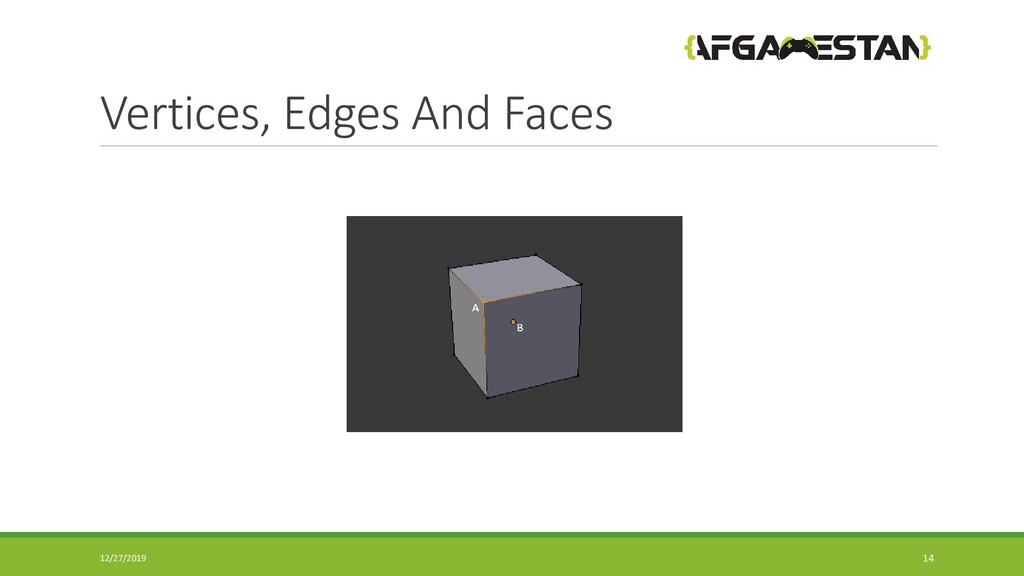
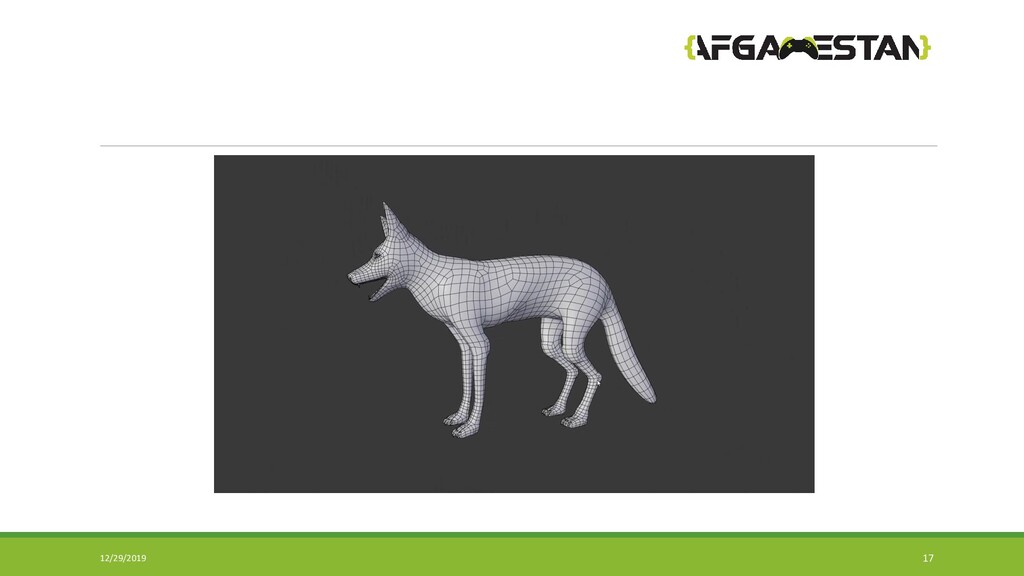
can make an edge Connecting of 3 vertices we can make a face Dots or Vertices selection 1 shortcut on keyboard Edges selection 2 shortcut on keyboard Face selection 3 shortcut on keyboard Multiple selection Hold Shift 12/26/2019 13
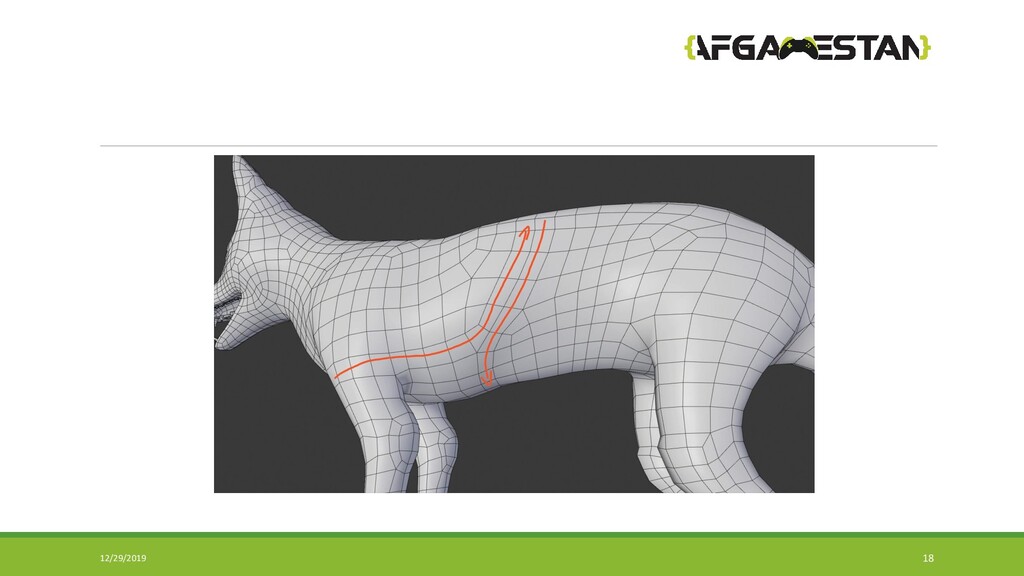
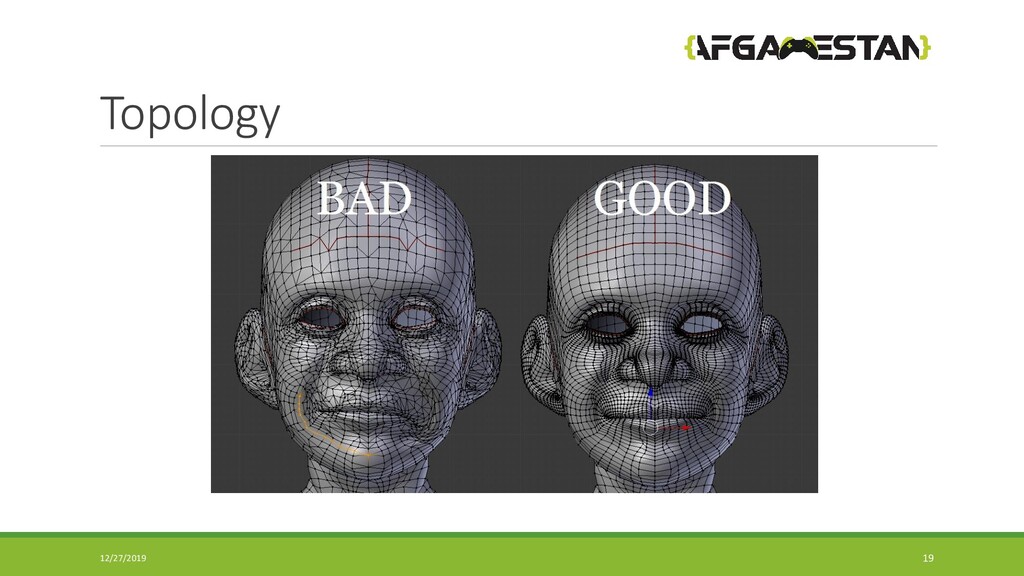
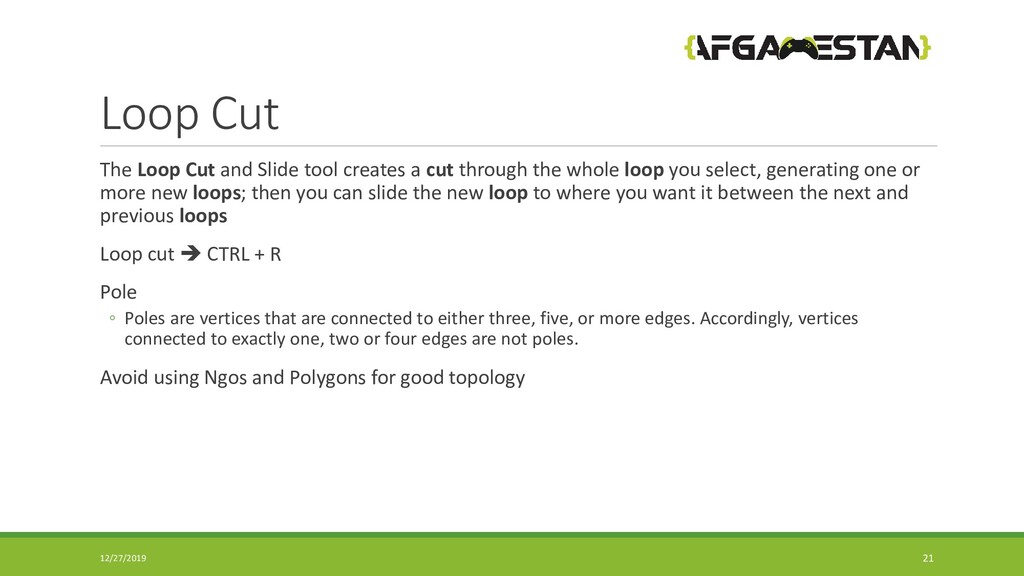
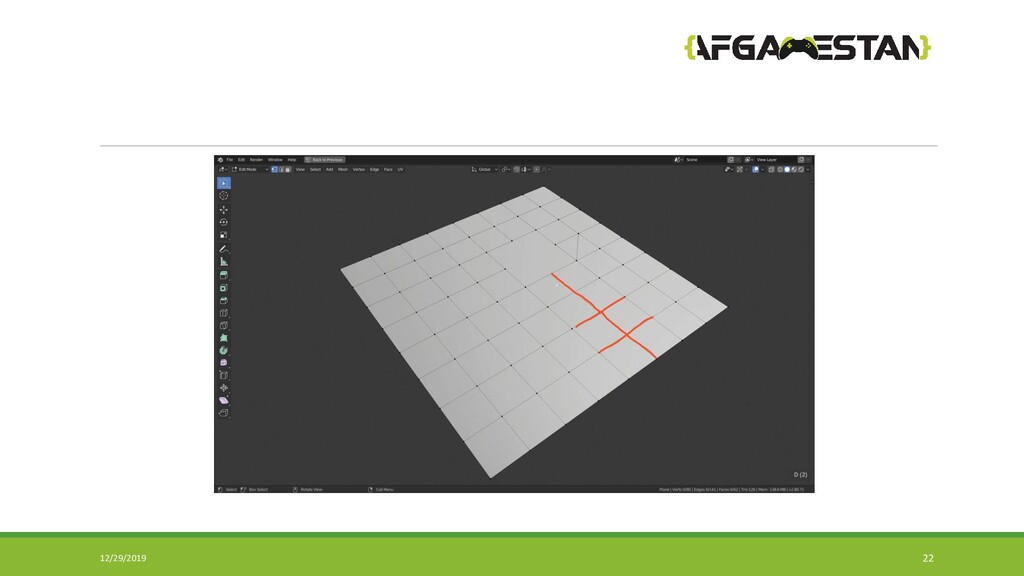
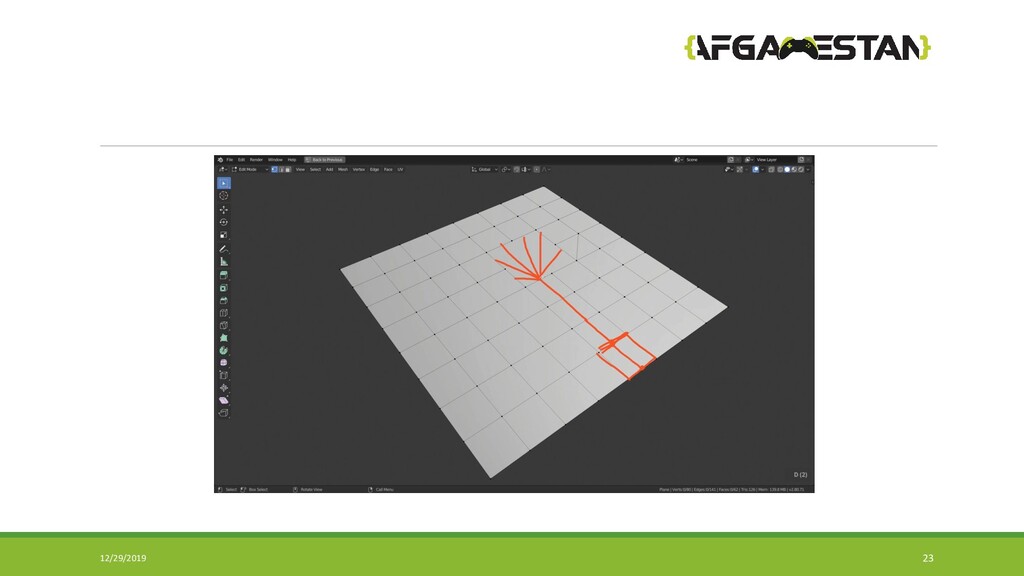
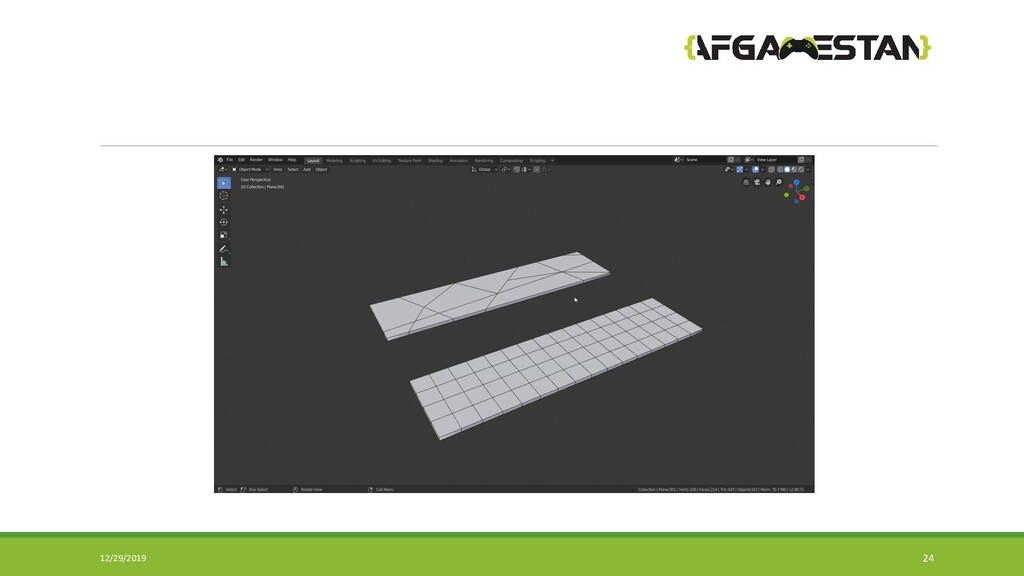
cut through the whole loop you select, generating one or more new loops; then you can slide the new loop to where you want it between the next and previous loops Loop cut CTRL + R Pole ◦ Poles are vertices that are connected to either three, five, or more edges. Accordingly, vertices connected to exactly one, two or four edges are not poles. Avoid using Ngos and Polygons for good topology 12/27/2019 21
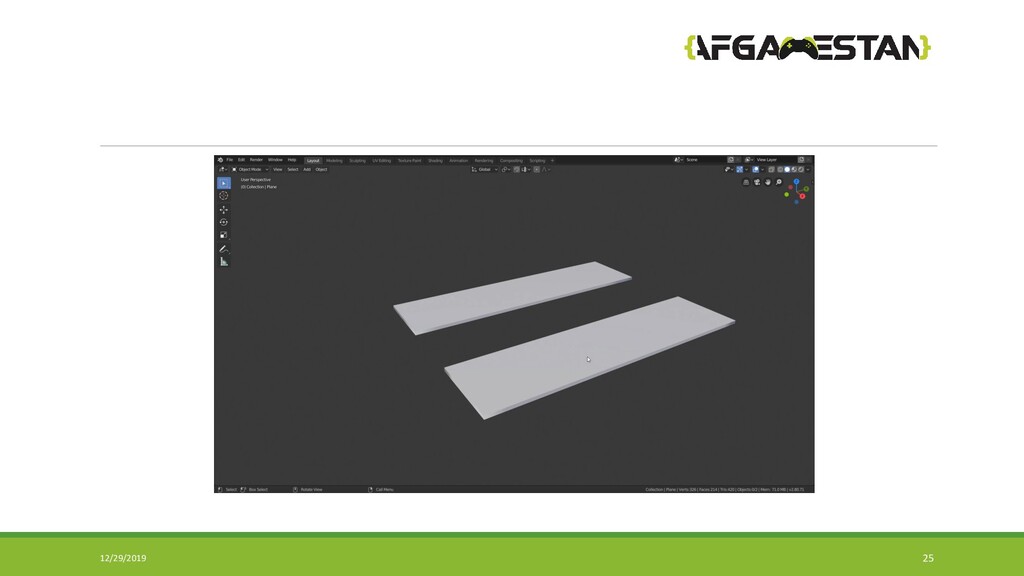
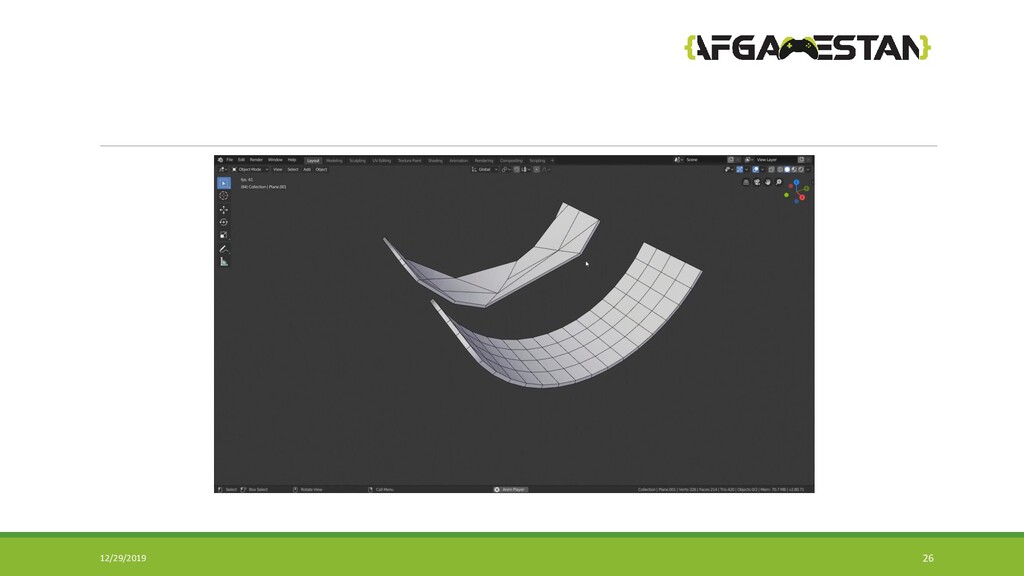
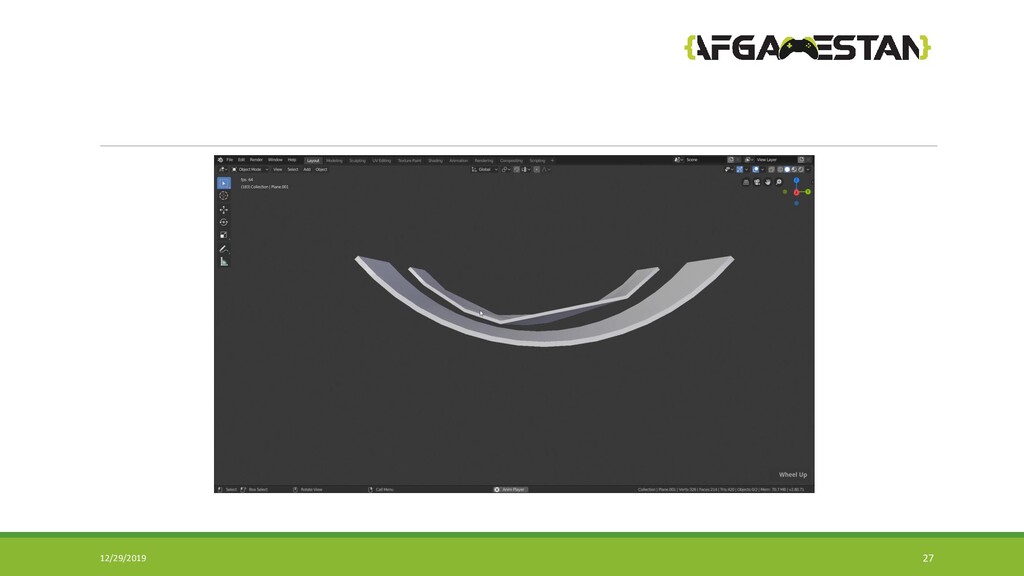
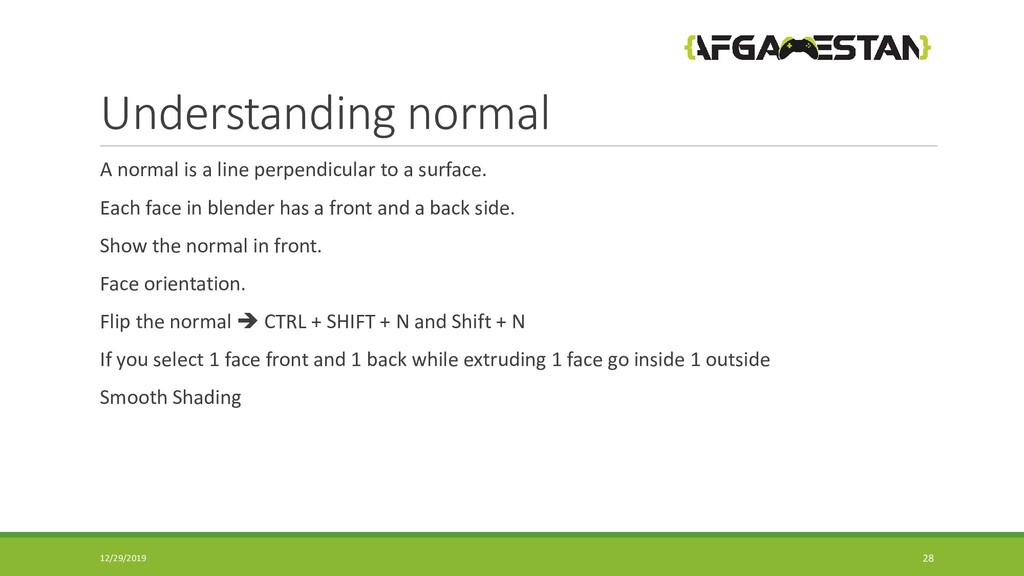
surface. Each face in blender has a front and a back side. Show the normal in front. Face orientation. Flip the normal CTRL + SHIFT + N and Shift + N If you select 1 face front and 1 back while extruding 1 face go inside 1 outside Smooth Shading 12/29/2019 28
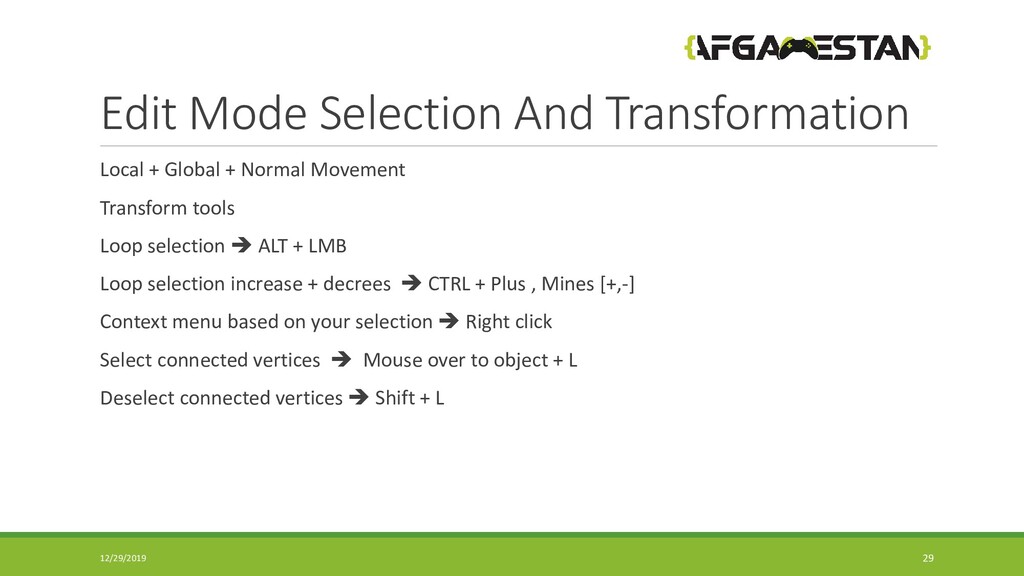
Movement Transform tools Loop selection ALT + LMB Loop selection increase + decrees CTRL + Plus , Mines [+,-] Context menu based on your selection Right click Select connected vertices Mouse over to object + L Deselect connected vertices Shift + L 12/29/2019 29

 SiteGround - Reliable hosting with speed, security, and support you can count on.


 afgamestan
 gogutan
 kzkhykw1991
 yahonda
 teamlab
 shumei_ito
 syuchimu
 jozono
 carta_engineering
 ykanoh
 keeg
keeg
 shugo
shugo
 maimyyym
 inesmontani
 sstephenson
 mfonobong
 chriscoyier
 jonoalderson
 trallard
 jdejongh
 tmiket
 samtorres
 kneath
 shpigford