Upgrade to Pro — share decks privately, control downloads, hide ads and more …

WordPress Help Desk - Common Errors and How to ...

Sponsored · SiteGround - Reliable hosting with speed, security, and support you can count on. →

WordPress Help Desk - Common Errors and How to Fix Them

Slides from a WordPress Meetup in Downtown Fort Myers where I went over common WordPress errors and how to fix them. Troubleshooting steps to solve the White Screen of Death and other errors covered. The presentation was followed by 45 minutes of "Help Desk" time where attendees could get help with WordPress-related issues on their own websites.

Avatar for Guy Cicinelli

Guy Cicinelli

December 09, 2019

More Decks by Guy Cicinelli

Other Decks in Technology

Transcript

  1. WordPress Help Desk: Common WordPress Errors & How to Fix

    Them! WordPress Meetup Southwest Florida Downtown Fort Myers @wpswfl Presented by Guy Cicinelli
  2. First Things First – Backup Your Site!  Use a

    plug-in like UpdraftPlus to get a complete backup of your WordPress website  Or, you can manually make a backup of your website with PhpMyAdmin.
  3. Be Sure to Setup FTP Access to Your WordPress website

    To fix many website problems, you’ll need to access files using SFTP. I recommend FileZilla, as it’s a free and open-source tool. Just use the SFTP credentials provided by your web host, and access your site’s backend.
  4. Many Common Errors Are Solved By:  Deactivating Plugins 

    Switching to a Default WordPress Theme  Refreshing Permalinks Settings  Replacing the .htaccess File  Verifying WordPress and Site URL Settings  Unchecking the Search Engine Visibility Option
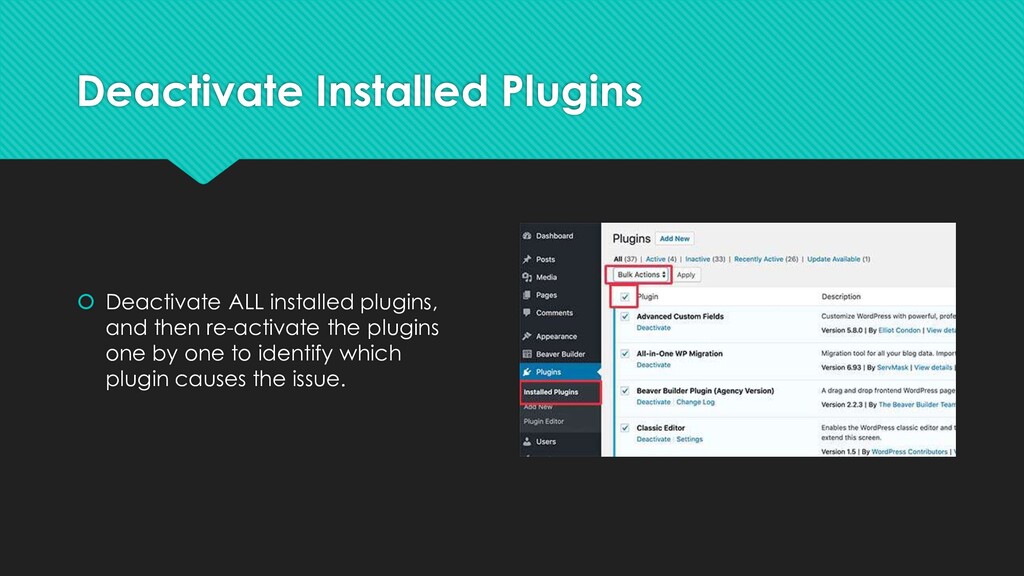
  5. Deactivate Installed Plugins  Deactivate ALL installed plugins, and then

    re-activate the plugins one by one to identify which plugin causes the issue.
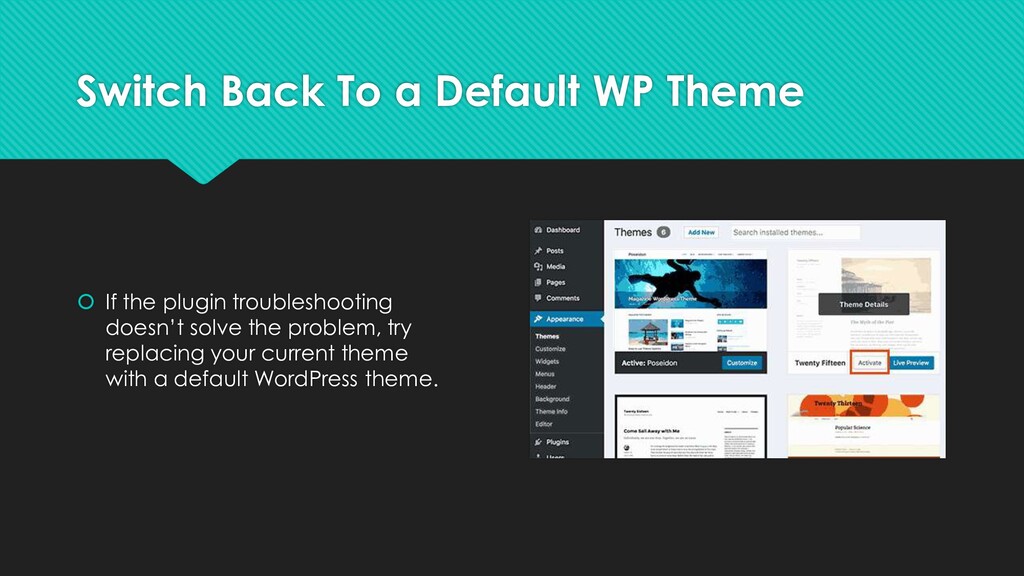
  6. Switch Back To a Default WP Theme  If the

    plugin troubleshooting doesn’t solve the problem, try replacing your current theme with a default WordPress theme.
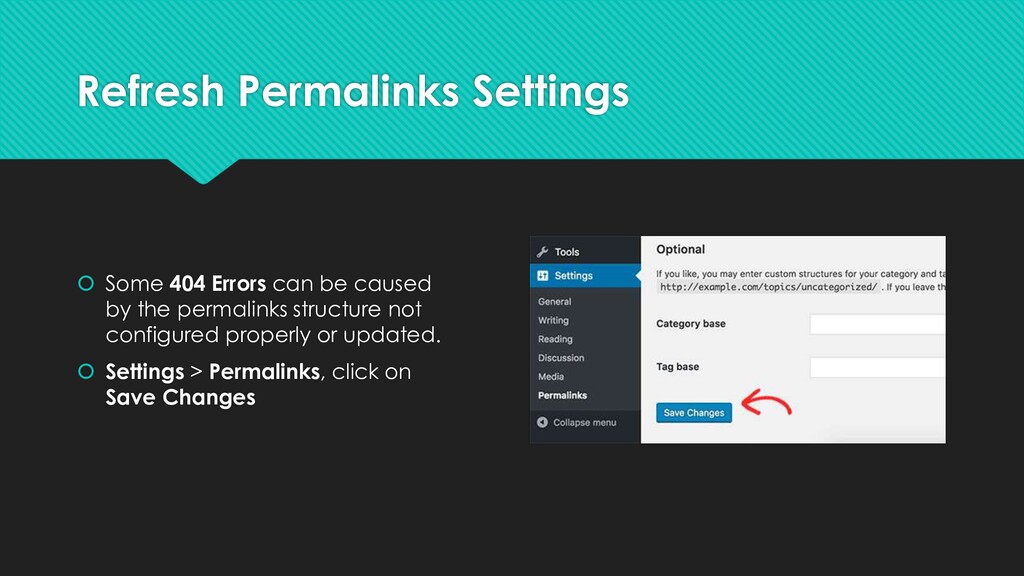
  7. Refresh Permalinks Settings  Some 404 Errors can be caused

    by the permalinks structure not configured properly or updated.  Settings > Permalinks, click on Save Changes
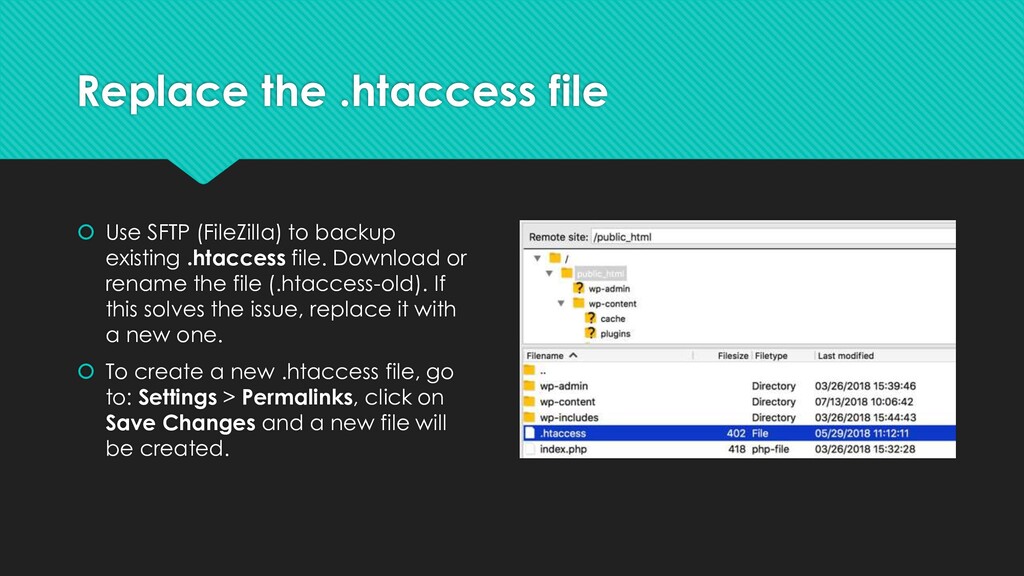
  8. Replace the .htaccess file  Use SFTP (FileZilla) to backup

    existing .htaccess file. Download or rename the file (.htaccess-old). If this solves the issue, replace it with a new one.  To create a new .htaccess file, go to: Settings > Permalinks, click on Save Changes and a new file will be created.
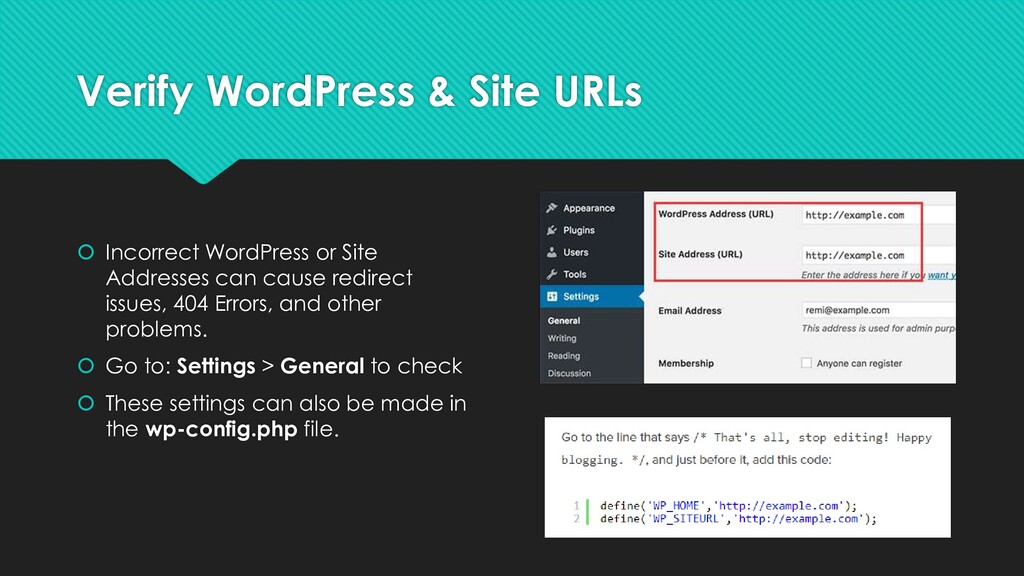
  9. Verify WordPress & Site URLs  Incorrect WordPress or Site

    Addresses can cause redirect issues, 404 Errors, and other problems.  Go to: Settings > General to check  These settings can also be made in the wp-config.php file.
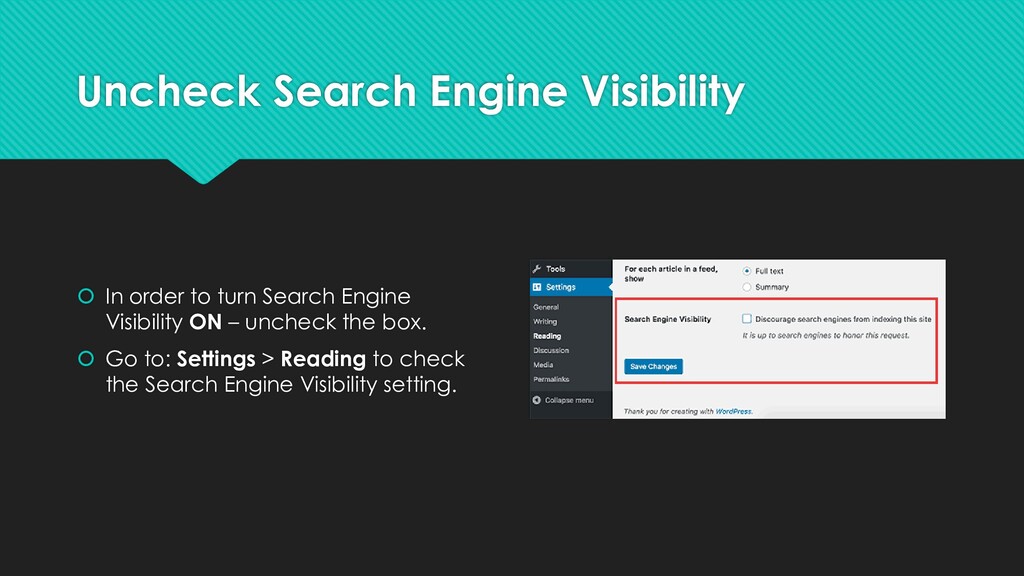
  10. Uncheck Search Engine Visibility  In order to turn Search

    Engine Visibility ON – uncheck the box.  Go to: Settings > Reading to check the Search Engine Visibility setting.
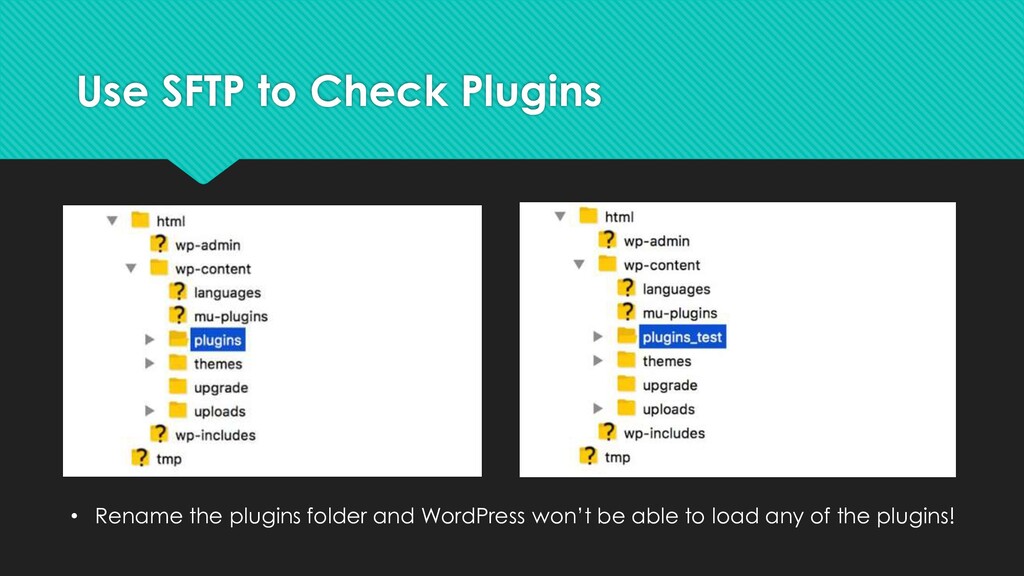
  11. Use SFTP to Check Plugins • Rename the plugins folder

    and WordPress won’t be able to load any of the plugins!
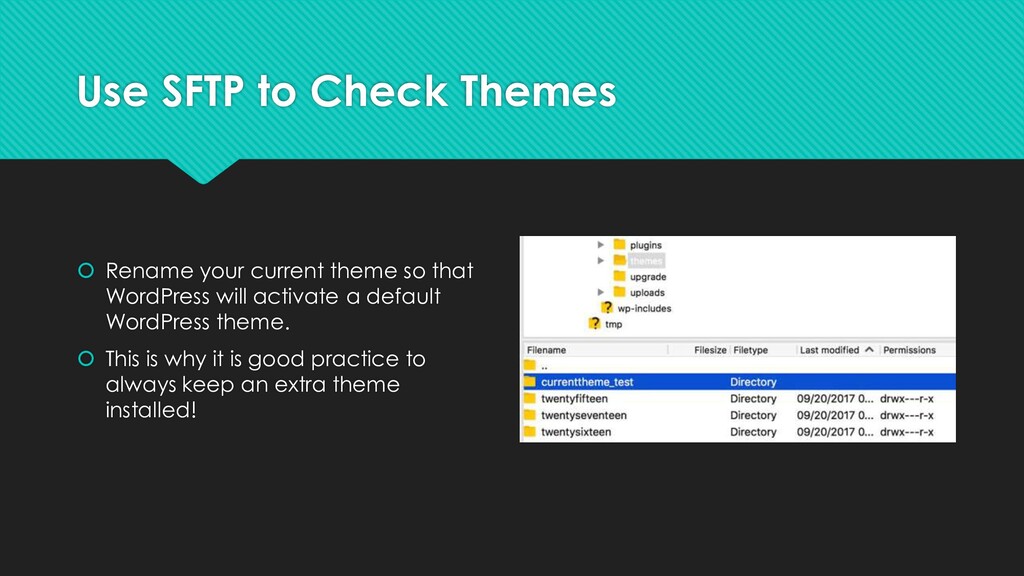
  12. Use SFTP to Check Themes  Rename your current theme

    so that WordPress will activate a default WordPress theme.  This is why it is good practice to always keep an extra theme installed!
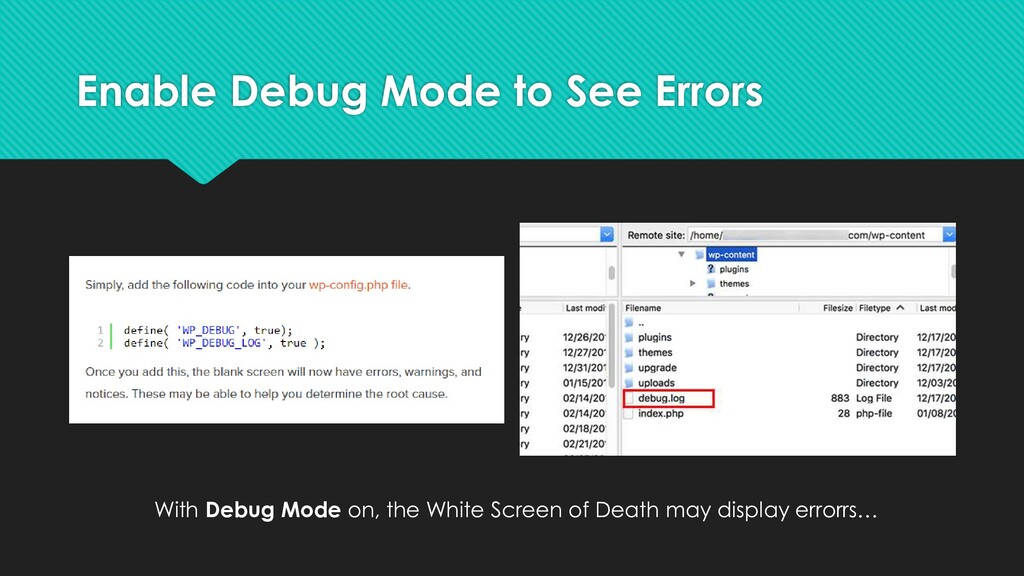
  13. Enable Debug Mode to See Errors With Debug Mode on,

    the White Screen of Death may display errorrs…
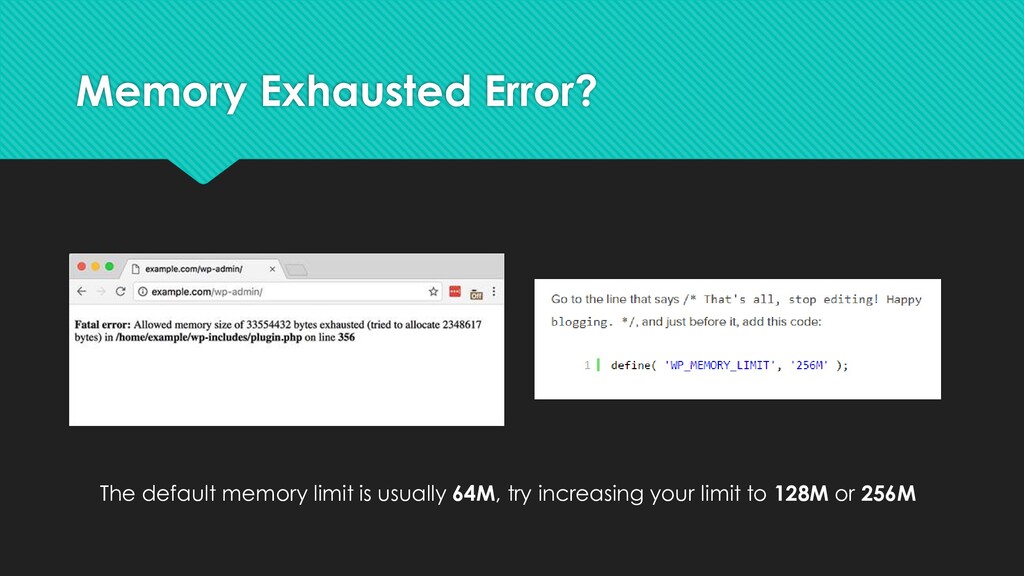
  14. Memory Exhausted Error? The default memory limit is usually 64M,

    try increasing your limit to 128M or 256M
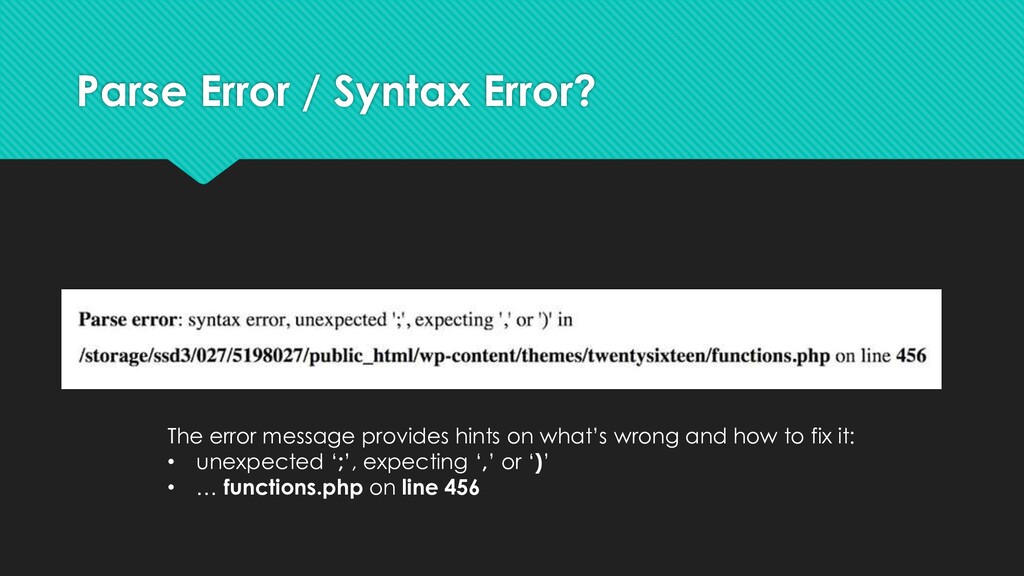
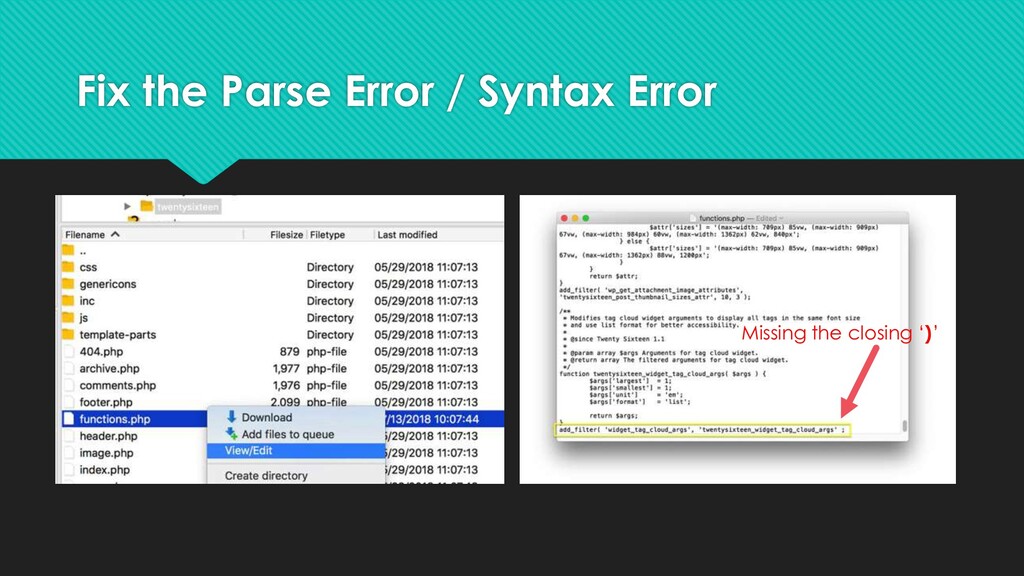
  15. Parse Error / Syntax Error? The error message provides hints

    on what’s wrong and how to fix it: • unexpected ‘;’, expecting ‘,’ or ‘)’ • … functions.php on line 456
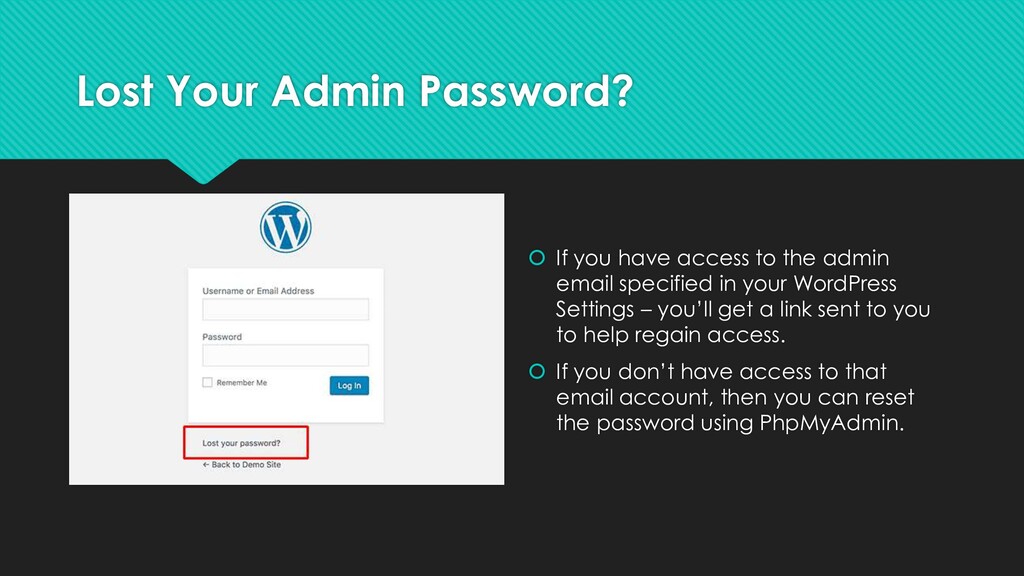
  16. Lost Your Admin Password?  If you have access to

    the admin email specified in your WordPress Settings – you’ll get a link sent to you to help regain access.  If you don’t have access to that email account, then you can reset the password using PhpMyAdmin.
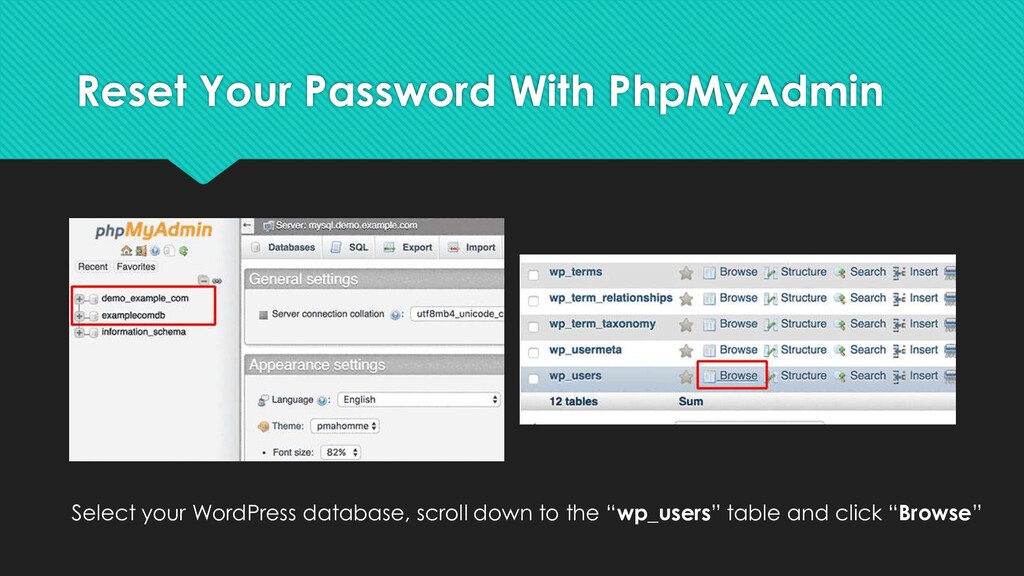
  17. Reset Your Password With PhpMyAdmin Select your WordPress database, scroll

    down to the “wp_users” table and click “Browse”
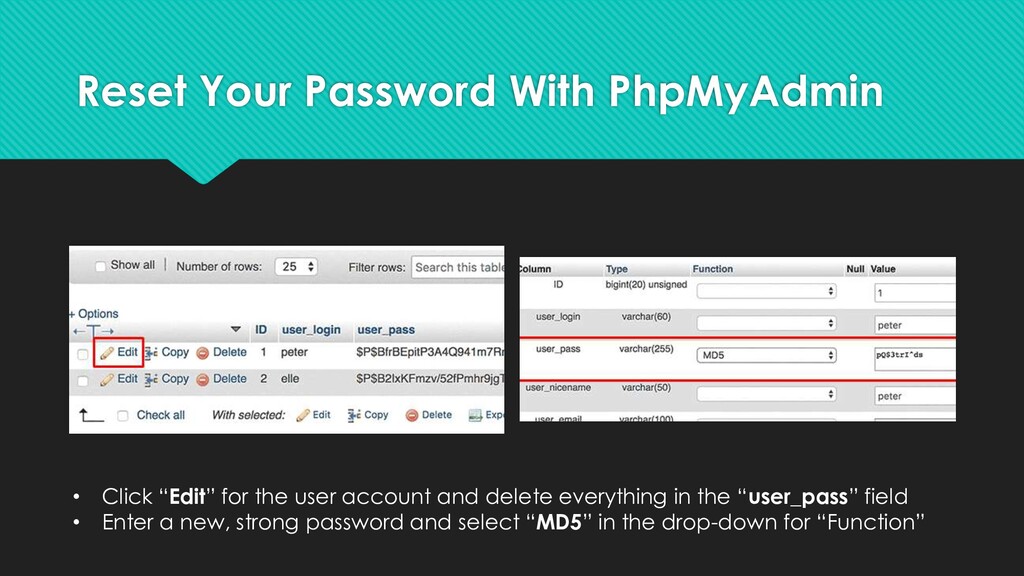
  18. Reset Your Password With PhpMyAdmin • Click “Edit” for the

    user account and delete everything in the “user_pass” field • Enter a new, strong password and select “MD5” in the drop-down for “Function”