Upgrade to Pro — share decks privately, control downloads, hide ads and more …

WordPress Child Themes & Why You Should be Usin...

WordPress Child Themes & Why You Should be Using Them

Are you tired of losing customizations to your theme after installing updates? A child theme is a separate set of files used to make changes to a theme with no impact to the original theme code. In this Meetup you will learn what a child theme is and when should you use one. This step-by-step walk-through will give you a solid understanding of what child themes are and how to create your own child themes!

Avatar for Guy Cicinelli

Guy Cicinelli

July 08, 2019

More Decks by Guy Cicinelli

Other Decks in Technology

Transcript

  1. CHILD THEMES & Why You Should Be Using Them! WordPress

    Meetup Southwest Florida Downtown Fort Myers @wpswfl
  2. Hello! I’M GUY CICINELLI I enjoy making websites, classic cocktails,

    and homemade limoncello. You can find me at: @GuyCicinelli
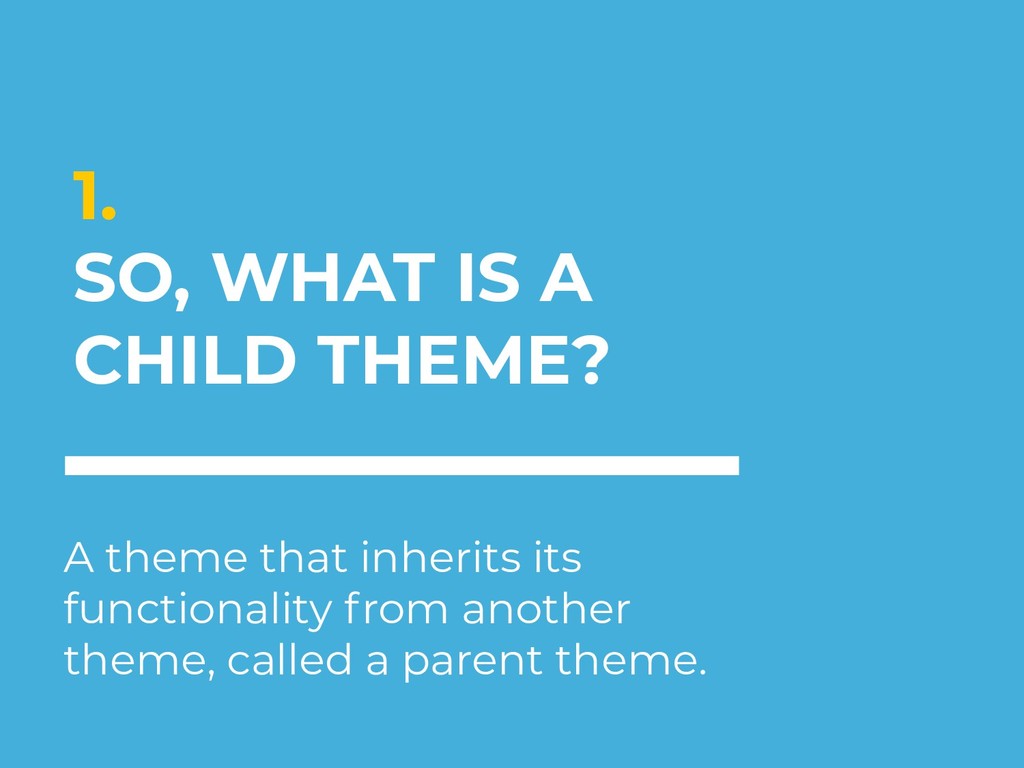
  3. 1. SO, WHAT IS A CHILD THEME? A theme that

    inherits its functionality from another theme, called a parent theme.
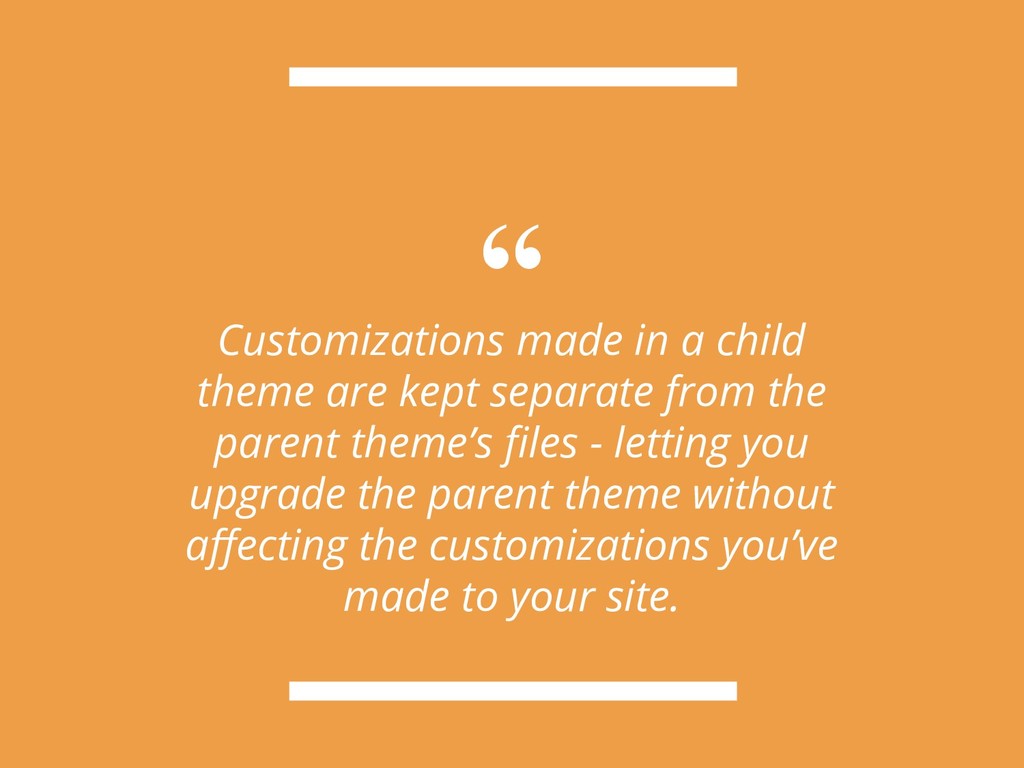
  4. “ Customizations made in a child theme are kept separate

    from the parent theme’s files - letting you upgrade the parent theme without affecting the customizations you’ve made to your site.
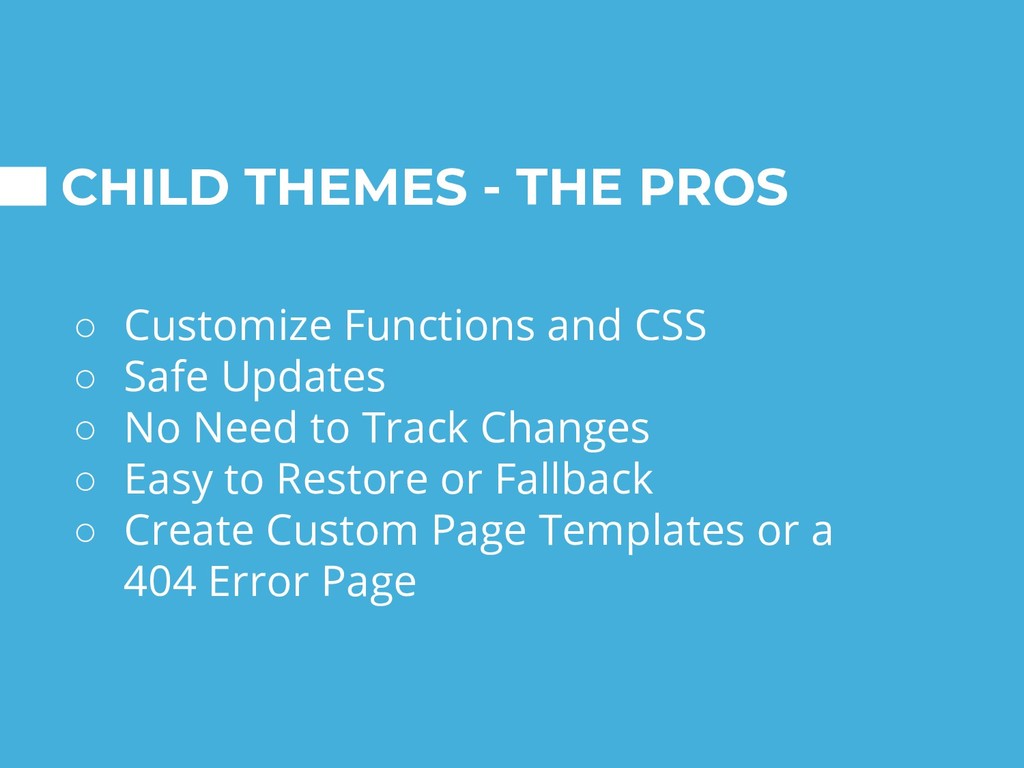
  5. CHILD THEMES - THE PROS ◦ Customize Functions and CSS

    ◦ Safe Updates ◦ No Need to Track Changes ◦ Easy to Restore or Fallback ◦ Create Custom Page Templates or a 404 Error Page
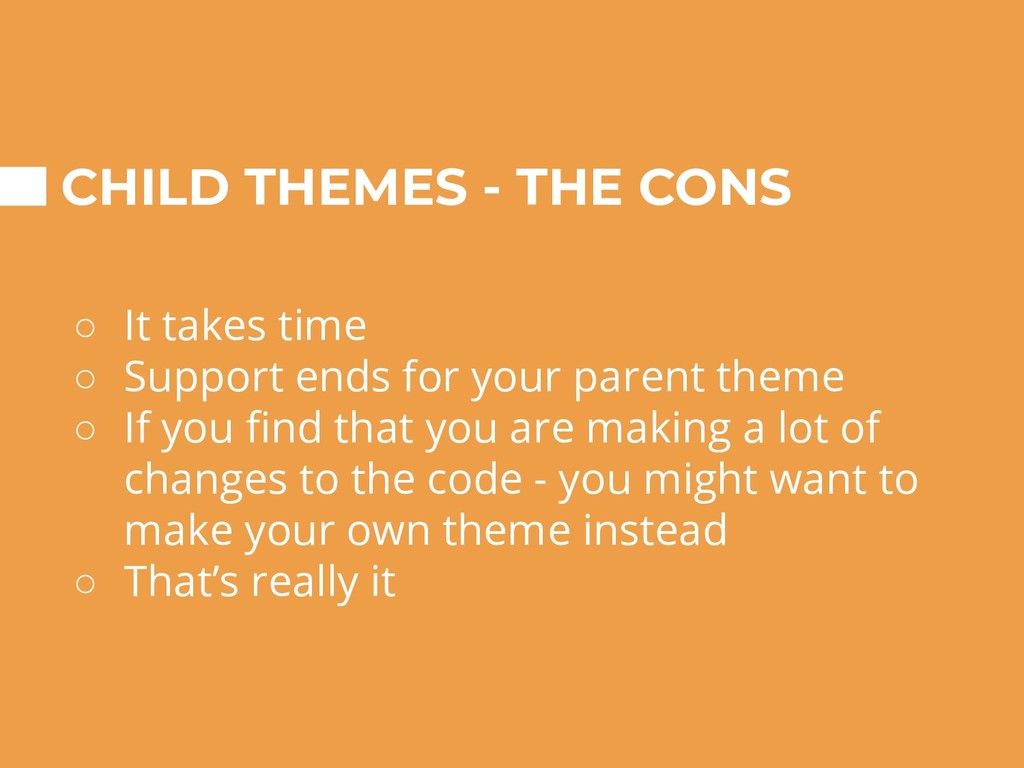
  6. CHILD THEMES - THE CONS ◦ It takes time ◦

    Support ends for your parent theme ◦ If you find that you are making a lot of changes to the code - you might want to make your own theme instead ◦ That’s really it
  7. So CHILD THEMES ? Use child themes to test new

    functions, CSS customizations, and to prevent theme updates from breaking your website.
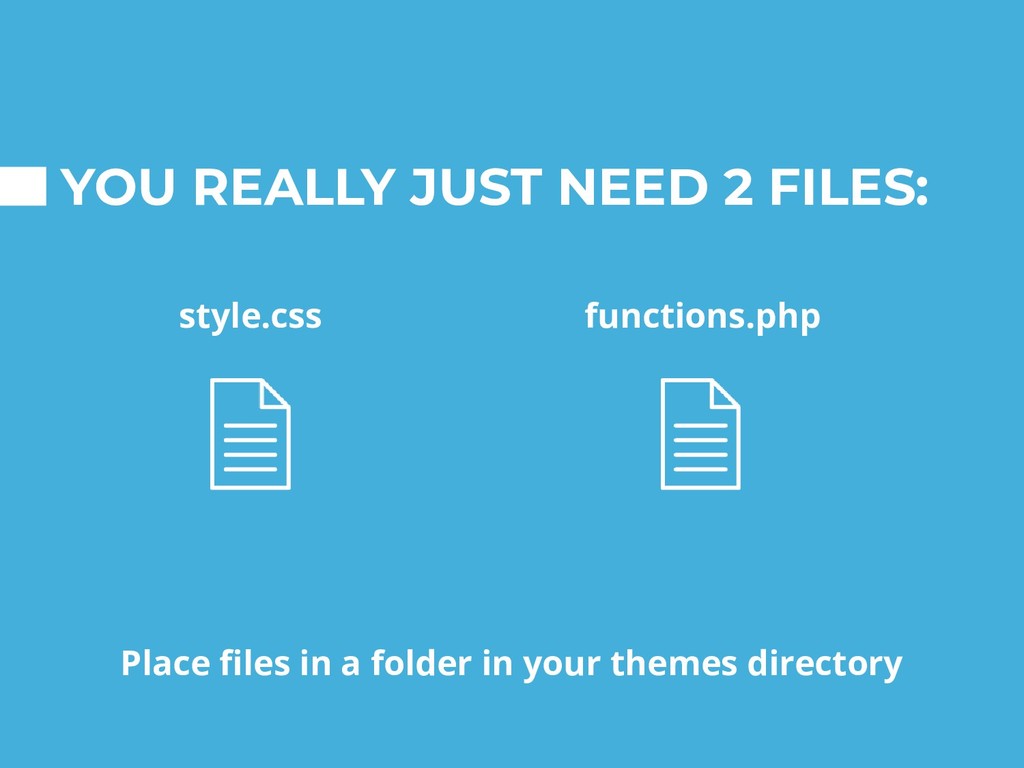
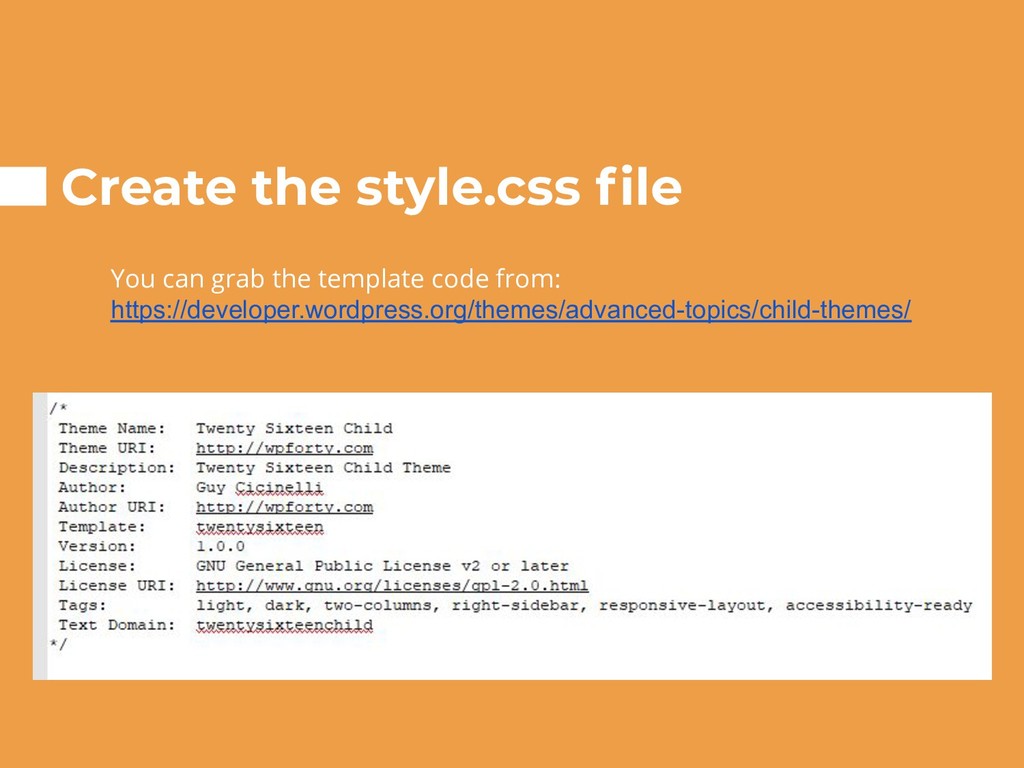
  8. Create the style.css file You can grab the template code

    from: https://developer.wordpress.org/themes/advanced-topics/child-themes/
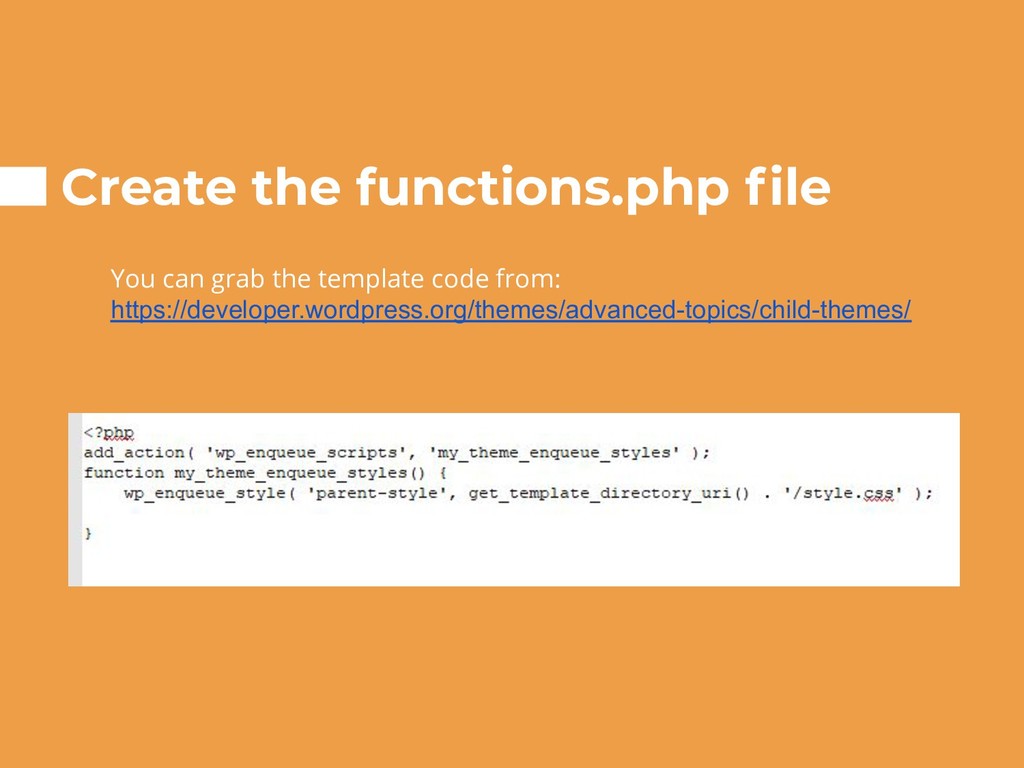
  9. Create the functions.php file You can grab the template code

    from: https://developer.wordpress.org/themes/advanced-topics/child-themes/
  10. Zip up the 2 FILES Zip up the folder and

    upload it via Appearance -> Themes -> Add New And then Activate it.
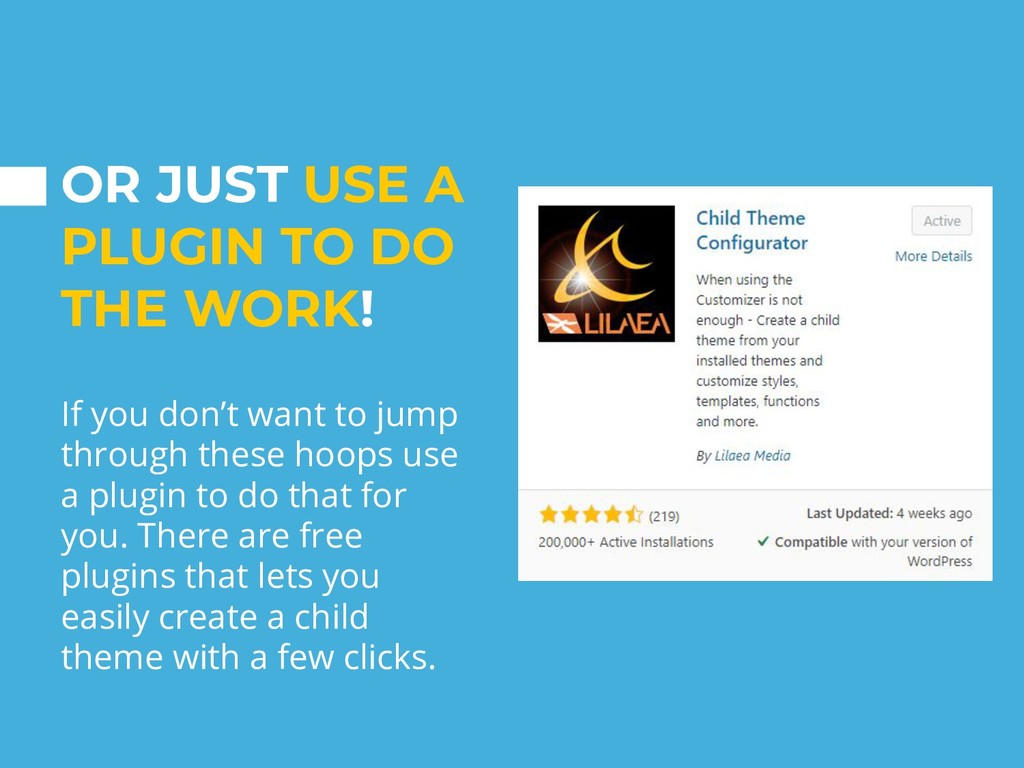
  11. OR JUST USE A PLUGIN TO DO THE WORK! If

    you don’t want to jump through these hoops use a plugin to do that for you. There are free plugins that lets you easily create a child theme with a few clicks.