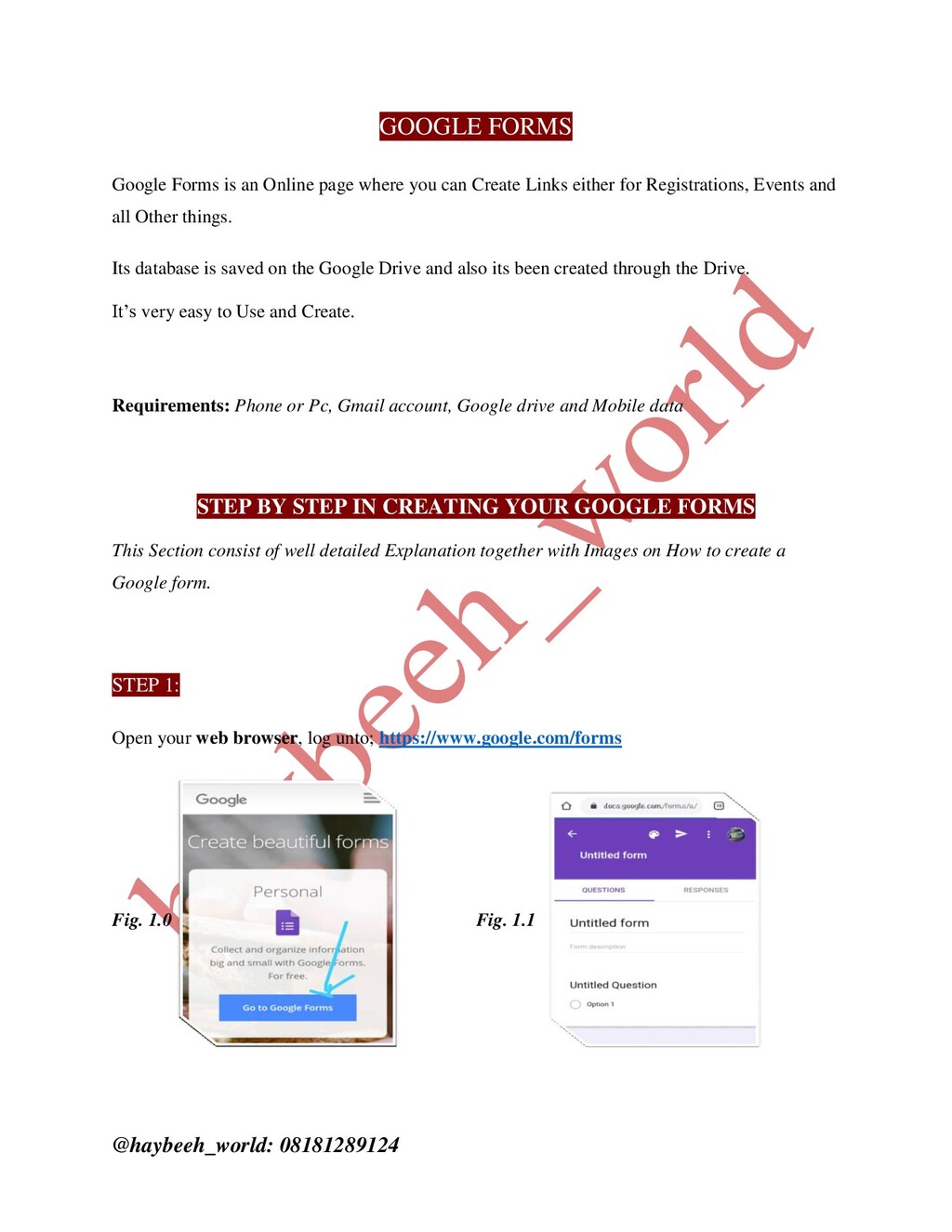
where you can Create Links either for Registrations, Events and all Other things. Its database is saved on the Google Drive and also its been created through the Drive. It’s very easy to Use and Create. Requirements: Phone or Pc, Gmail account, Google drive and Mobile data STEP BY STEP IN CREATING YOUR GOOGLE FORMS This Section consist of well detailed Explanation together with Images on How to create a Google form. STEP 1: Open your web browser, log unto; https://www.google.com/forms Fig. 1.0 Fig. 1.1
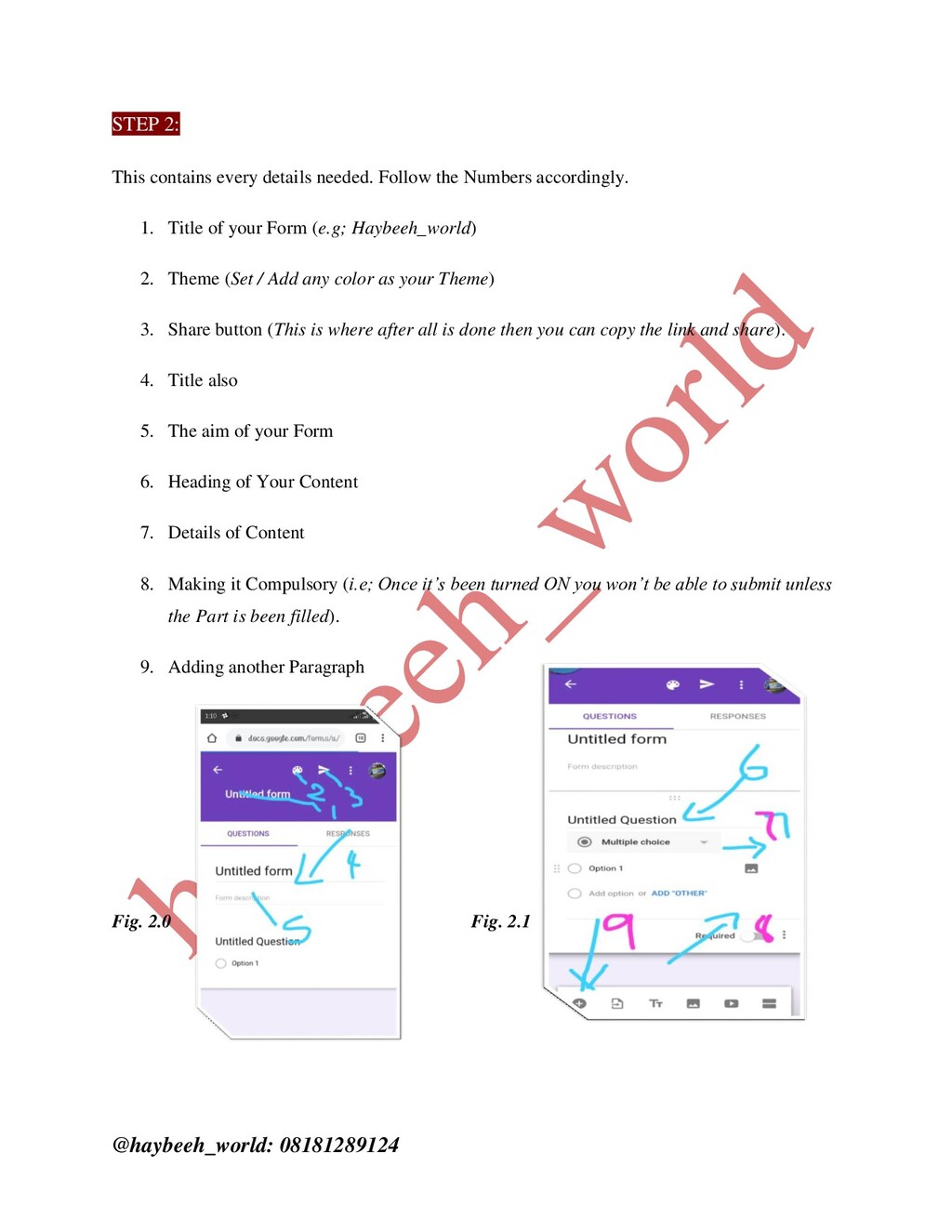
the Numbers accordingly. 1. Title of your Form (e.g; Haybeeh_world) 2. Theme (Set / Add any color as your Theme) 3. Share button (This is where after all is done then you can copy the link and share). 4. Title also 5. The aim of your Form 6. Heading of Your Content 7. Details of Content 8. Making it Compulsory (i.e; Once it’s been turned ON you won’t be able to submit unless the Part is been filled). 9. Adding another Paragraph Fig. 2.0 Fig. 2.1
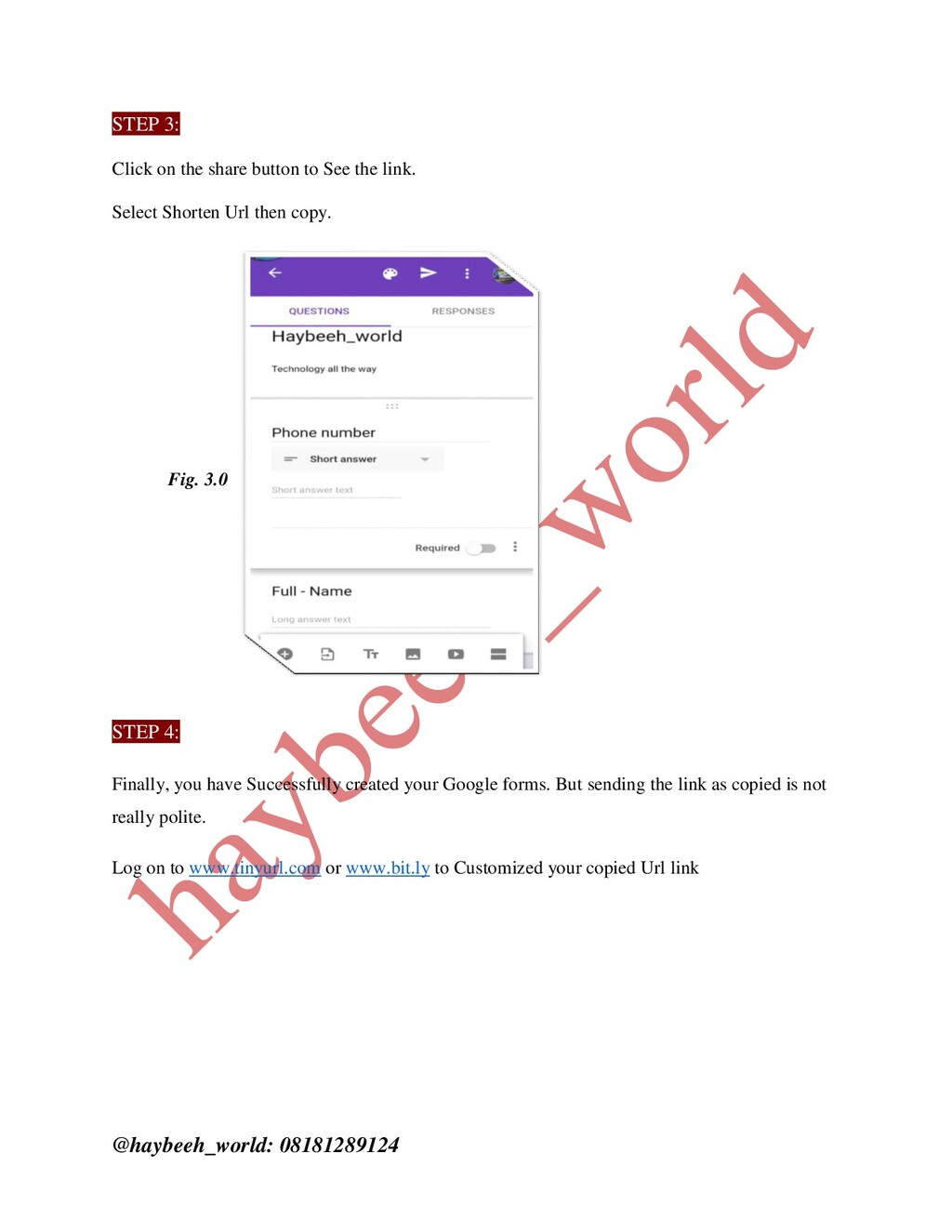
See the link. Select Shorten Url then copy. Fig. 3.0 STEP 4: Finally, you have Successfully created your Google forms. But sending the link as copied is not really polite. Log on to www.tinyurl.com or www.bit.ly to Customized your copied Url link
that provides students with a tool to create animated movies. Students can create characters and write scripts, as well as give their character’s emotions and actions. When creating a character, students can customize The Head Shape, Hair, Facial Hair, Eyes, And Clothes and choose whether or not to give the character glasses. Plotagon Education movies can be exported as MP4 files and saved on the Phone / Computer. Is It Good for Learning? The best part of Plotagon Education is how much you can customize your character. The program comes with Albert Einstein and Isaac Newton already created and some other Characters. However, you can take any person in history and create their look in Plotagon with all of the different facial and body features available. Plotagon Education is a great tool that students can use to show their understanding of any topic in any subject matter. Instead of a written report, poster, or even PowerPoint presentation, students have the opportunity to create a movie as a more creative way to show mastery. It's a great way for students to learn a unique form of writing as they create their dialogues and full scripts, and students can also practice communicating social and emotional skills by focusing on verbal and nonverbal cues. With Plotagon Education, students can create animated movies, make characters, and write plots about any subject matter. Students can create a movie re-enacting a scene from a time in history, showing how to solve a math problem, or with two characters debating a topic -- the list goes on! Teachers can have students work collaboratively on their movies: One student can write the script and another can work on the animations. Students can then export their movie as an MP4 file to submit it to their teacher. Overall, it's a great tool that gives students opportunities to work on their writing and creativity skills.
is easier on the iPad / Android app version; some of the available actions may be inappropriate. Bottom Line: A fun way to show understanding of any subject matter, especially for those who enjoy making movies. Plotagon remains committed to bringing animation to education, which is why we are offering our flagship. This is a top-of-the-line tool built specifically for e-learning and instructional design. Not only does it include all our new content, but it also offers advanced features for education professionals. Plotagon Studio is for Mac and Windows while Plotagon Story is for Android Notice / Caution Caution should be given when students choose actions between Characters, however. Some of the actions include Kissing and Caressing that may not be considered appropriate for a class project. Also, since the computer voices available can seem unnatural, it might be good to consider having students record their own voices instead.
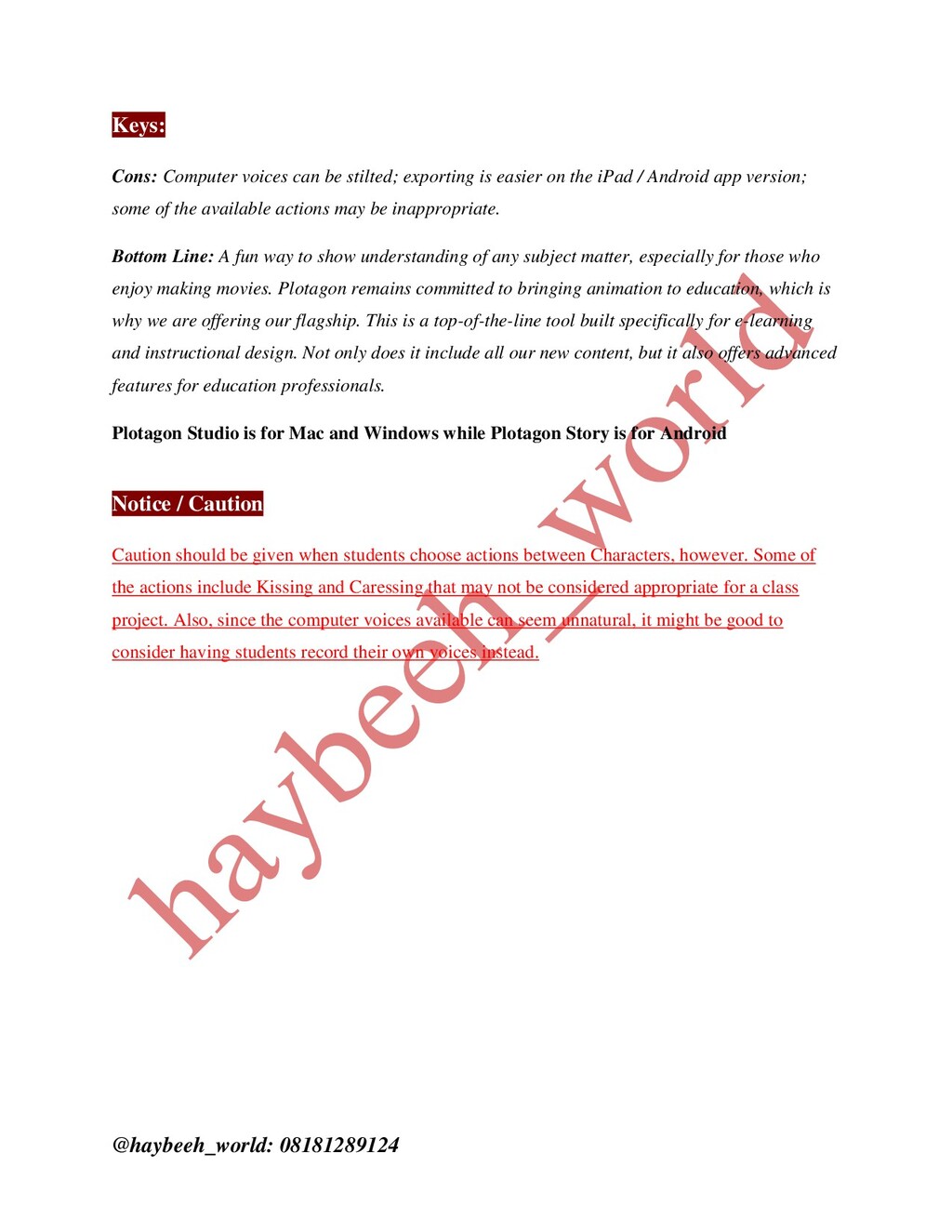
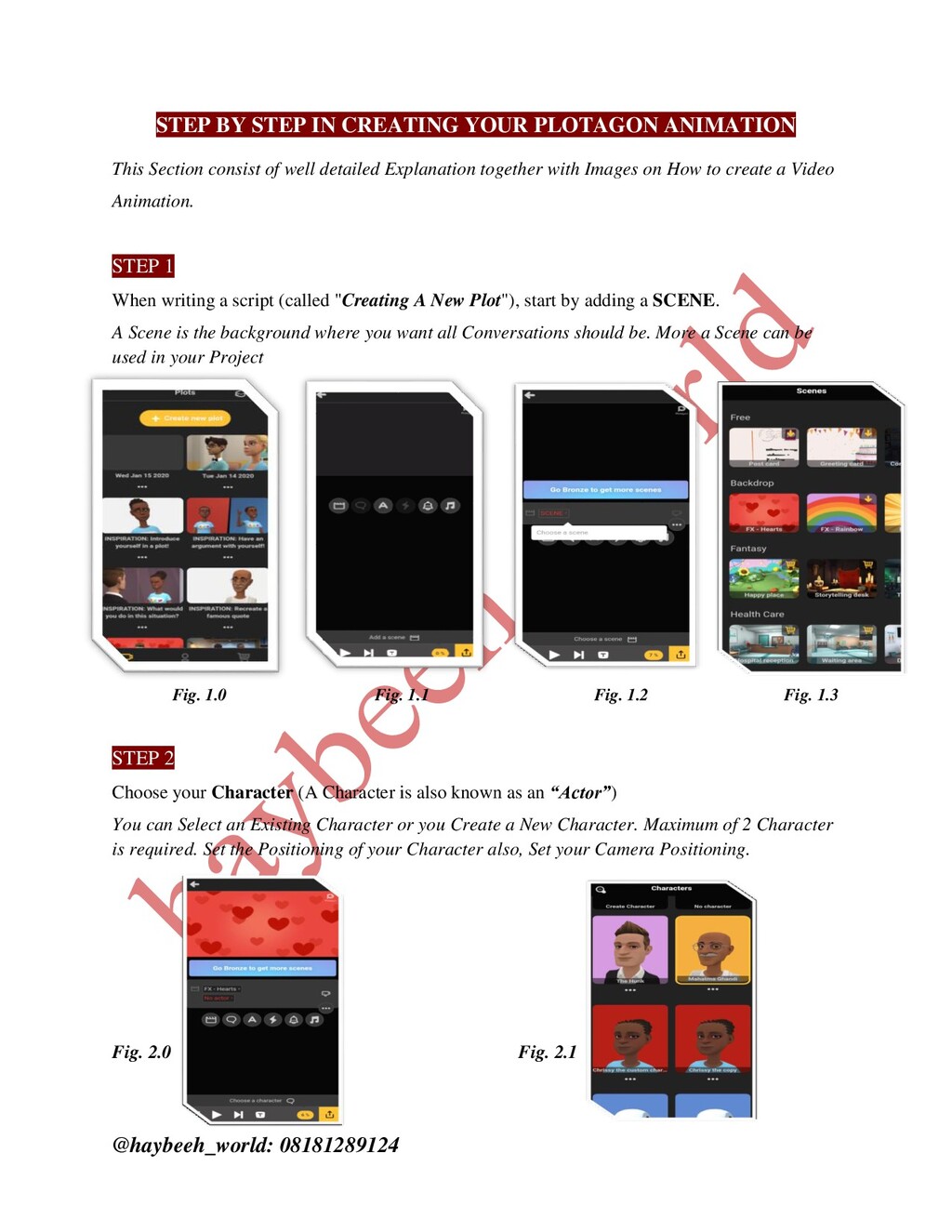
This Section consist of well detailed Explanation together with Images on How to create a Video Animation. STEP 1 When writing a script (called "Creating A New Plot"), start by adding a SCENE. A Scene is the background where you want all Conversations should be. More a Scene can be used in your Project Fig. 1.0 Fig. 1.1 Fig. 1.2 Fig. 1.3 STEP 2 Choose your Character (A Character is also known as an “Actor”) You can Select an Existing Character or you Create a New Character. Maximum of 2 Character is required. Set the Positioning of your Character also, Set your Camera Positioning. Fig. 2.0 Fig. 2.1
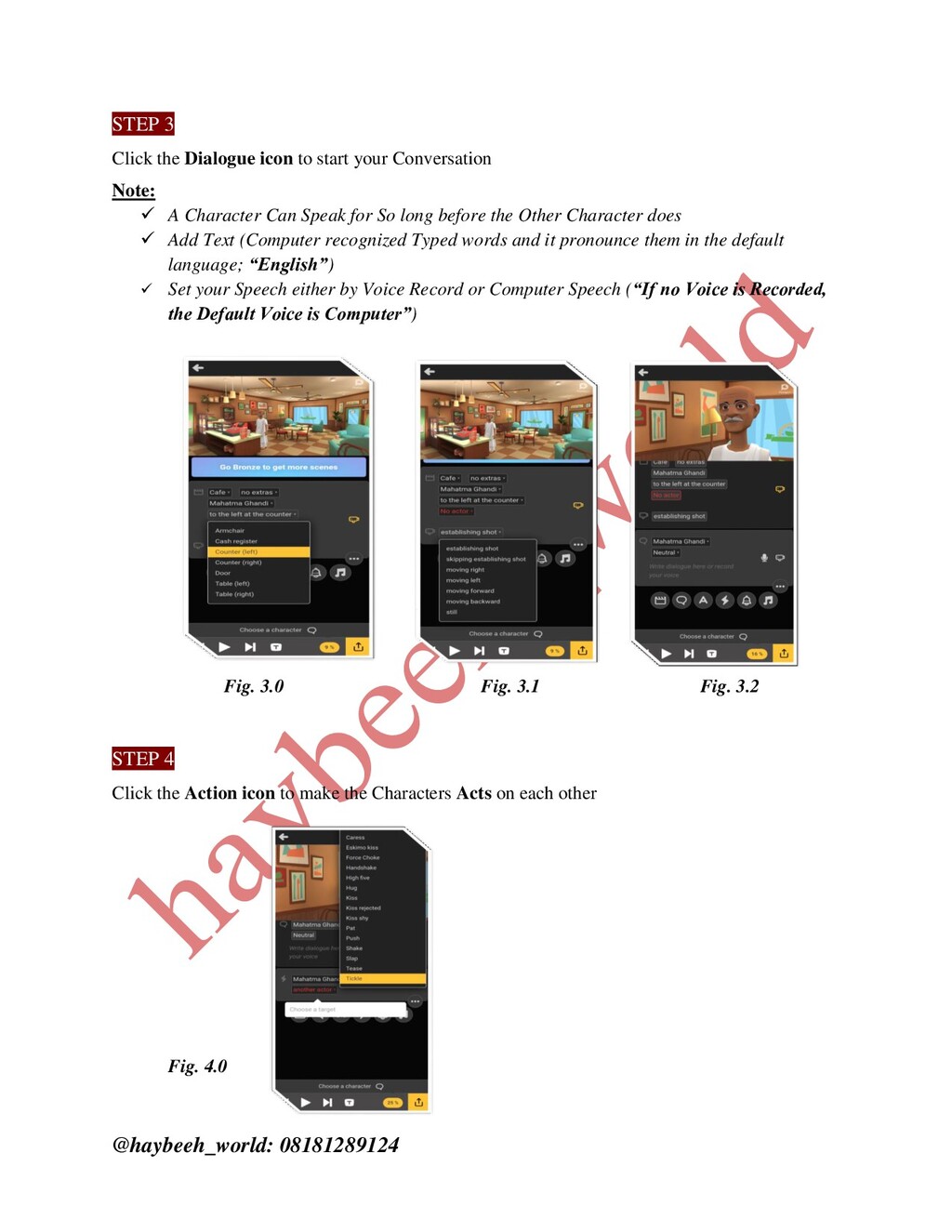
your Conversation Note: A Character Can Speak for So long before the Other Character does Add Text (Computer recognized Typed words and it pronounce them in the default language; “English”) Set your Speech either by Voice Record or Computer Speech (“If no Voice is Recorded, the Default Voice is Computer”) Fig. 3.0 Fig. 3.1 Fig. 3.2 STEP 4 Click the Action icon to make the Characters Acts on each other Fig. 4.0
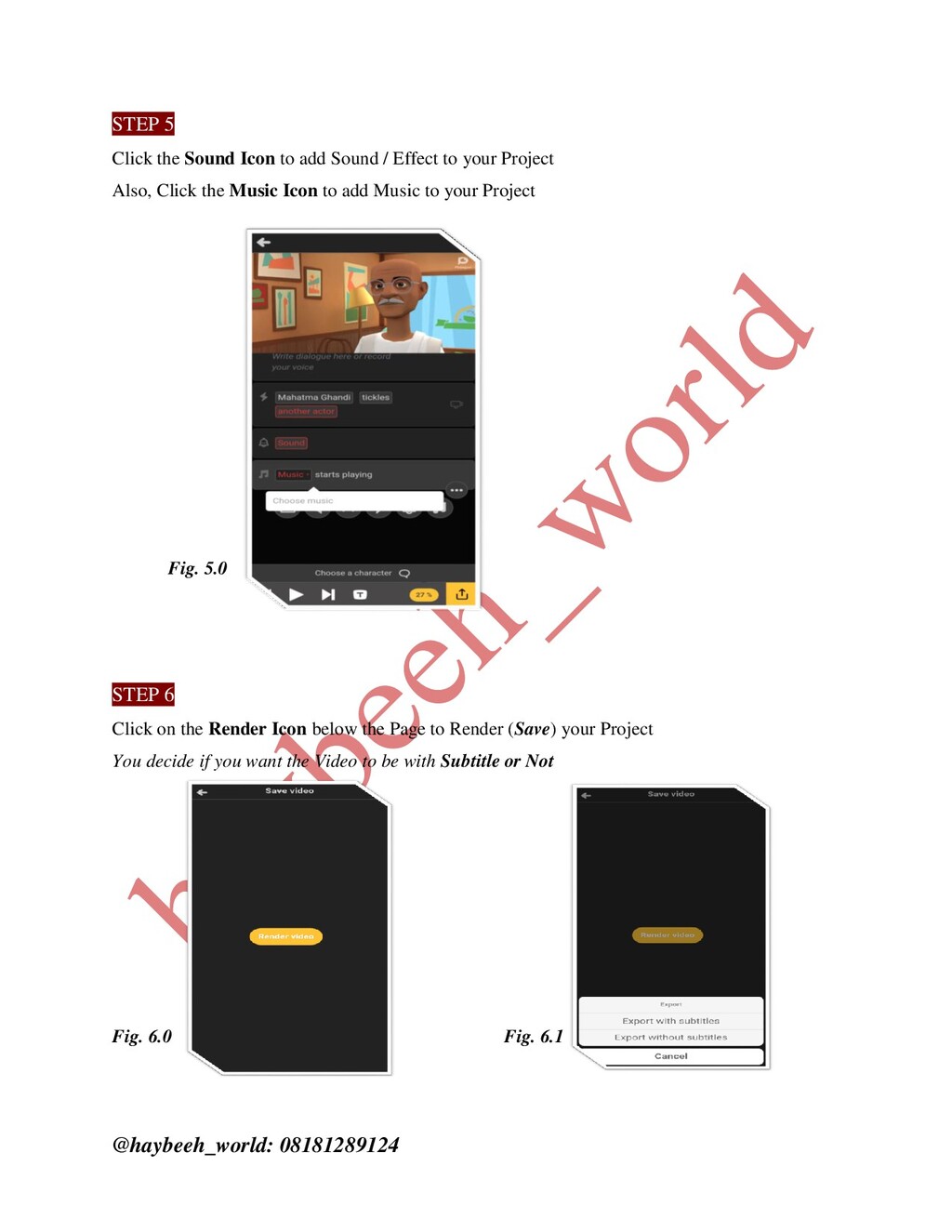
Sound / Effect to your Project Also, Click the Music Icon to add Music to your Project Fig. 5.0 STEP 6 Click on the Render Icon below the Page to Render (Save) your Project You decide if you want the Video to be with Subtitle or Not Fig. 6.0 Fig. 6.1
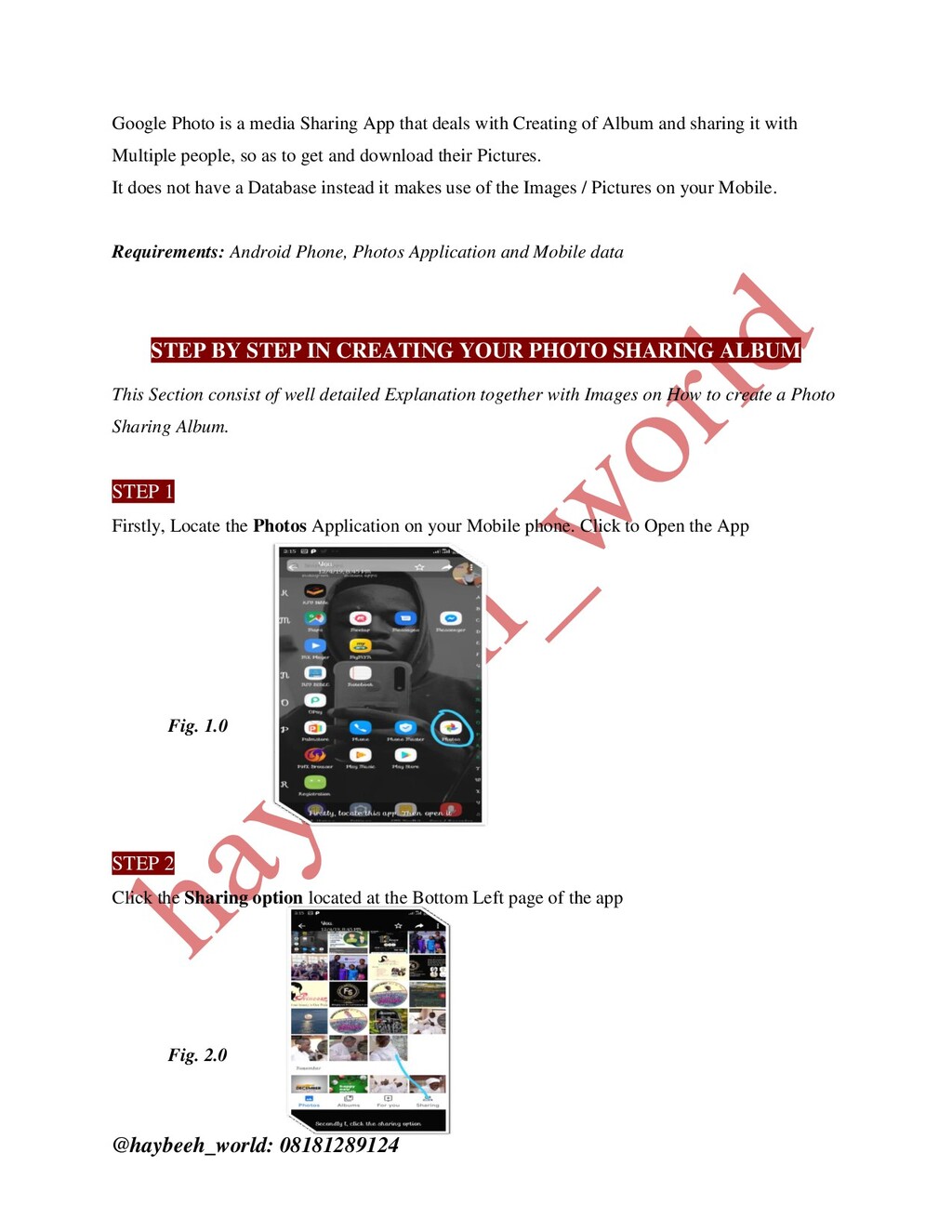
deals with Creating of Album and sharing it with Multiple people, so as to get and download their Pictures. It does not have a Database instead it makes use of the Images / Pictures on your Mobile. Requirements: Android Phone, Photos Application and Mobile data STEP BY STEP IN CREATING YOUR PHOTO SHARING ALBUM This Section consist of well detailed Explanation together with Images on How to create a Photo Sharing Album. STEP 1 Firstly, Locate the Photos Application on your Mobile phone. Click to Open the App Fig. 1.0 STEP 2 Click the Sharing option located at the Bottom Left page of the app Fig. 2.0
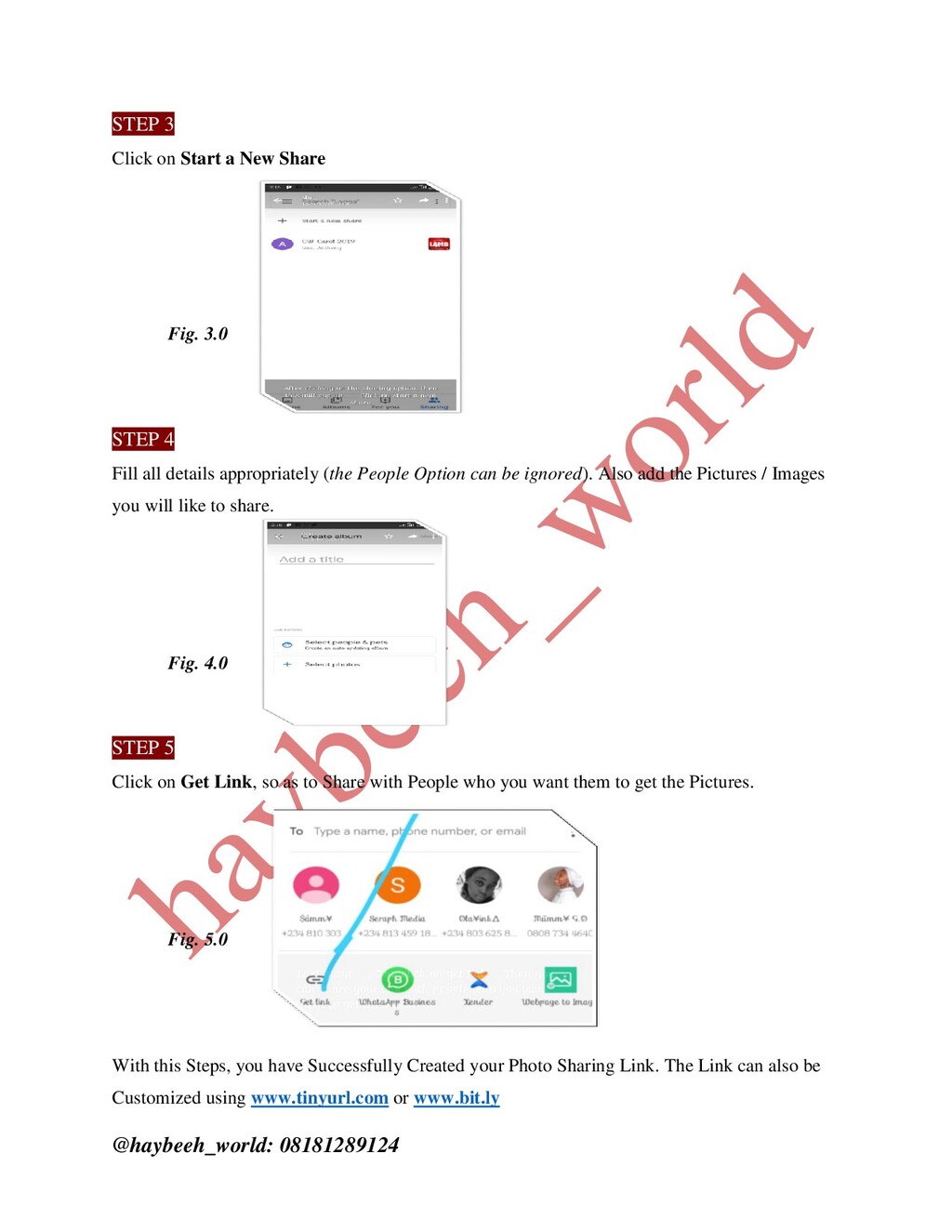
Fig. 3.0 STEP 4 Fill all details appropriately (the People Option can be ignored). Also add the Pictures / Images you will like to share. Fig. 4.0 STEP 5 Click on Get Link, so as to Share with People who you want them to get the Pictures. Fig. 5.0 With this Steps, you have Successfully Created your Photo Sharing Link. The Link can also be Customized using www.tinyurl.com or www.bit.ly


 morogyro
 keita_yoshikawa
 a2k
a2k
 ayumidesign
 moco1013
 webnaut
 tinykitten
 ryu1013
 goetter
 terencebasart
 garyuten
 rezaline
 konakalab
 scottboms
 iamctodd
 marketingsoph
 dugsong
 rkendrick25
 samanthasiow
 axbom
axbom
 honzajavorek
 seathinner
 yeseniaperezcruz
 bluesmoon