Upgrade to Pro — share decks privately, control downloads, hide ads and more …

Intro to Kiro IDE (From the screen to asking, h...

Intro to Kiro IDE (From the screen to asking, handing off, and undoing) | Kiro: Zero to Hero 02

A tour of Kiro IDE for first-time users: the screen and the Kiro panel, asking in chat with # and /, choosing agents and models, letting Kiro work on its own (Autopilot) or reviewing each change (Supervised), undoing with checkpoints and Revert, and using specs, steering, hooks, and settings in the IDE. Includes a running example (a meeting-room booking app). As of November 2026 (Kiro IDE 1.4).

Avatar for Riku INADA

Riku INADA PRO

November 08, 2026

More Decks by Riku INADA

Other Decks in Technology

Transcript

  1. Kiro: Zero to Hero Get started Intro to Kiro IDE

    From the screen to asking, handing off, and undoing 02 As of November 2026 (Kiro IDE 1.4) November 2026 Riku Inada Amazon Web Services Japan © 2026, Amazon Web Services, Inc. or its affiliates. All rights reserved. 1
  2. Introduction About me Riku Inada Amazon Web Services Japan G.K.

    Solutions Architect Works mainly with manufacturing customers Recent work Promoting the AI-Driven Development Life Cycle (AI-DLC) Writing and speaking about Kiro and AWS Amplify © 2026, Amazon Web Services, Inc. or its affiliates. All rights reserved. X @inada_riku Speaker Deck speakerdeck.com/inariku Zenn zenn.dev/inariku GitHub github.com/inariku 2
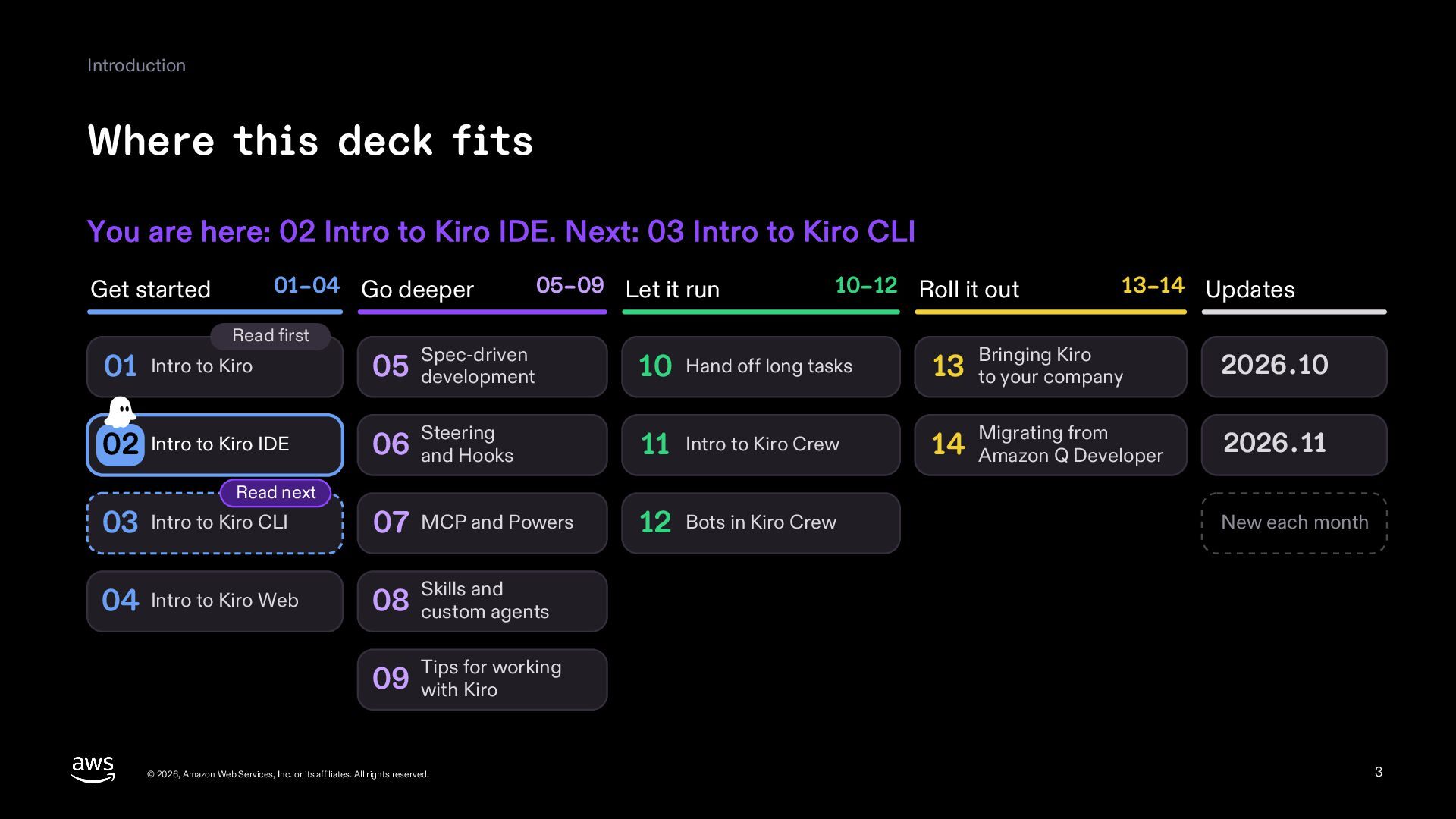
  3. Introduction Where this deck fits You are here: 02 Intro

    to Kiro IDE. Next: 03 Intro to Kiro CLI 01–04 Go deeper Get started Read first 05–09 Let it run 10–12 Roll it out 13–14 Updates 01 Intro to Kiro 05 development Spec-driven 10 Hand off long tasks 13 to your company 02 Intro to Kiro IDE 06 and Hooks Steering 11 Intro to Kiro Crew 14 Amazon Q Developer 03 Intro to Kiro CLI 07 MCP and Powers 12 Bots in Kiro Crew 04 Intro to Kiro Web and 08 Skills custom agents Read next Bringing Kiro 2026.10 Migrating from 2026.11 New each month for working 09 Tips with Kiro © 2026, Amazon Web Services, Inc. or its affiliates. All rights reserved. 3
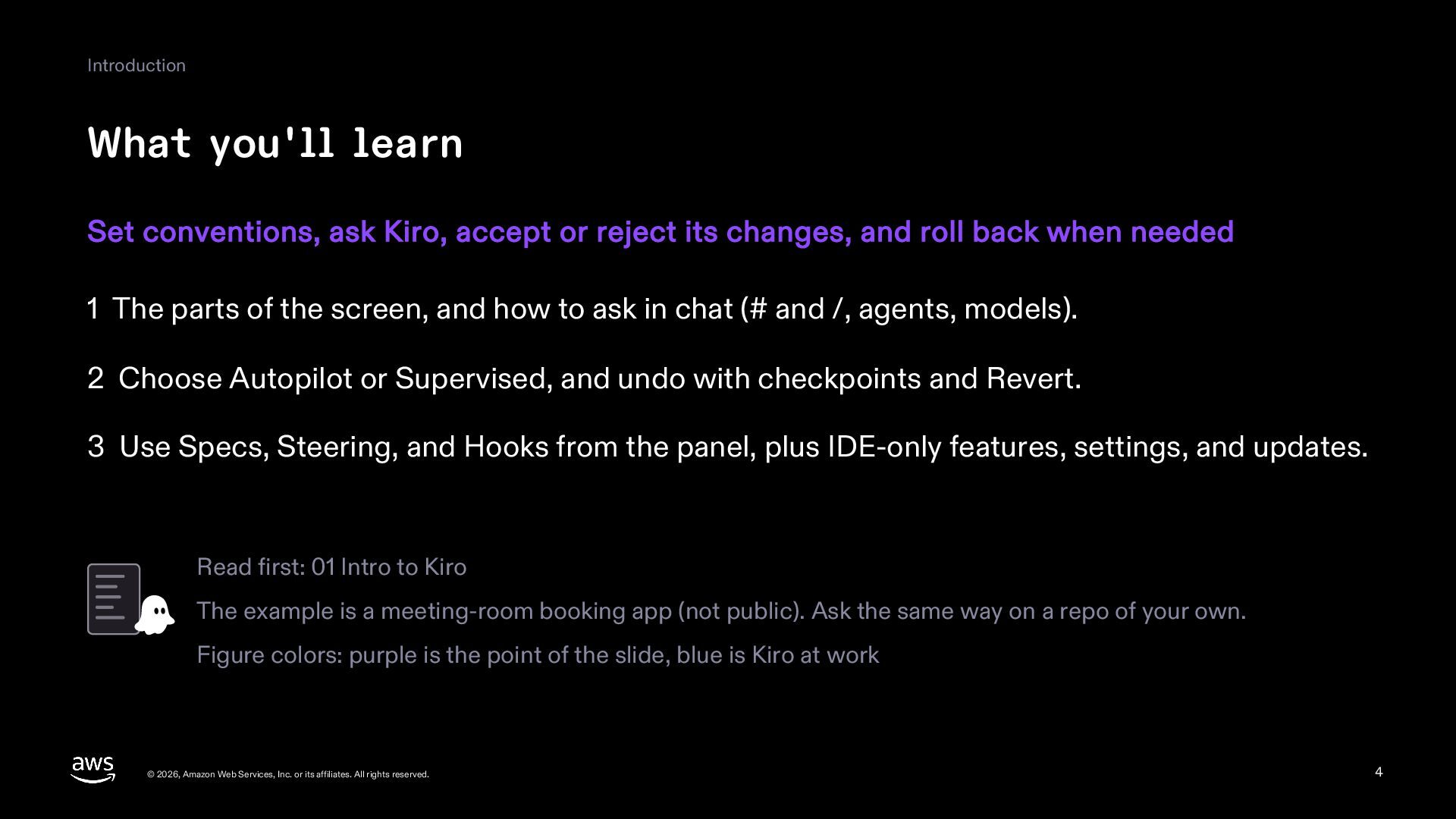
  4. Introduction What you'll learn Set conventions, ask Kiro, accept or

    reject its changes, and roll back when needed 1 The parts of the screen, and how to ask in chat (# and /, agents, models). 2 Choose Autopilot or Supervised, and undo with checkpoints and Revert. 3 Use Specs, Steering, and Hooks from the panel, plus IDE-only features, settings, and updates. Read first: 01 Intro to Kiro The example is a meeting-room booking app (not public). Ask the same way on a repo of your own. Figure colors: purple is the point of the slide, blue is Kiro at work © 2026, Amazon Web Services, Inc. or its affiliates. All rights reserved. 4
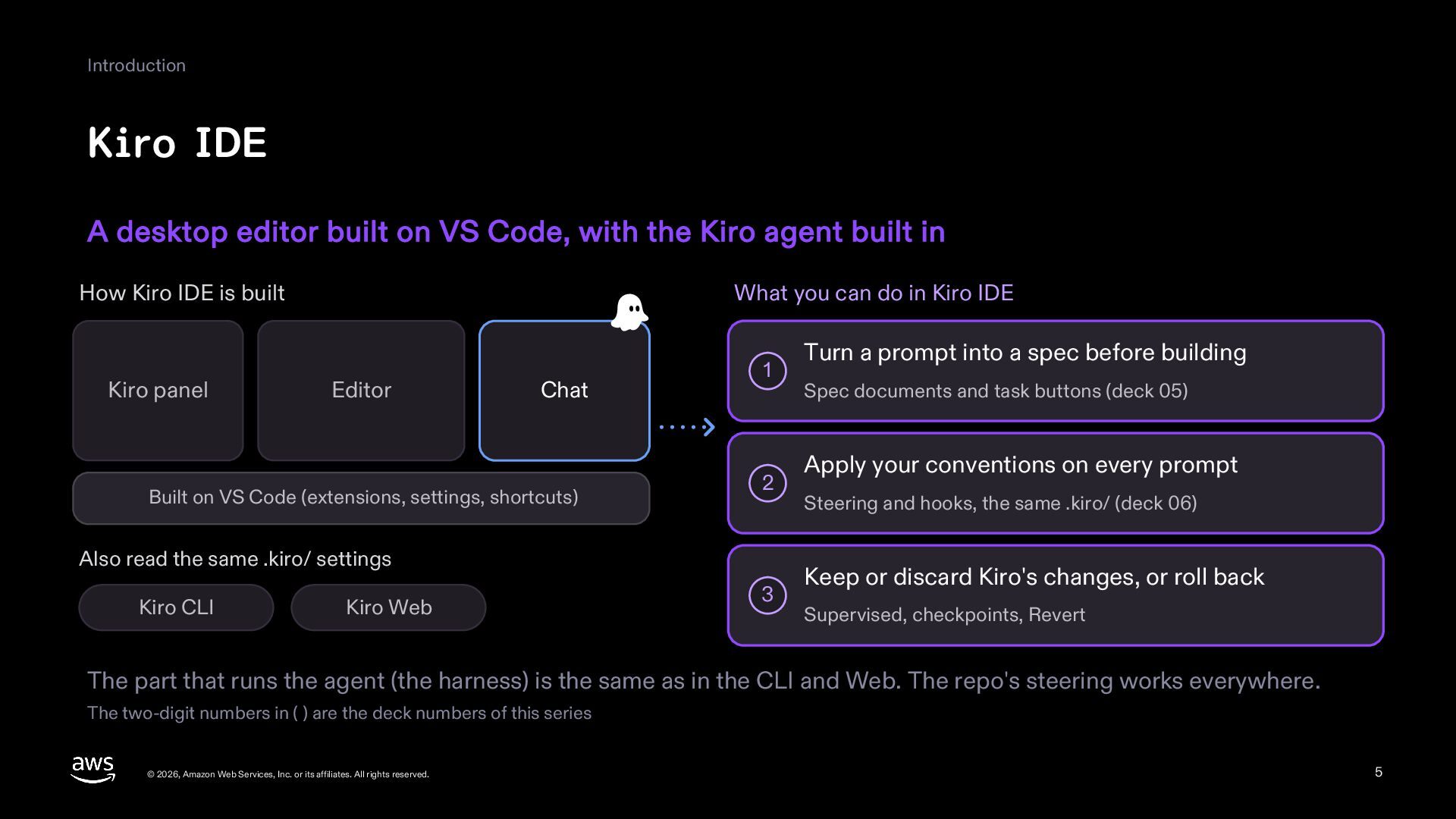
  5. Introduction Kiro IDE A desktop editor built on VS Code,

    with the Kiro agent built in How Kiro IDE is built Kiro panel What you can do in Kiro IDE Editor Chat Built on VS Code (extensions, settings, shortcuts) 1 2 Also read the same .kiro/ settings Kiro CLI Kiro Web 3 Turn a prompt into a spec before building Spec documents and task buttons (deck 05) Apply your conventions on every prompt Steering and hooks, the same .kiro/ (deck 06) Keep or discard Kiro's changes, or roll back Supervised, checkpoints, Revert The part that runs the agent (the harness) is the same as in the CLI and Web. The repo's steering works everywhere. The two-digit numbers in ( ) are the deck numbers of this series © 2026, Amazon Web Services, Inc. or its affiliates. All rights reserved. 5
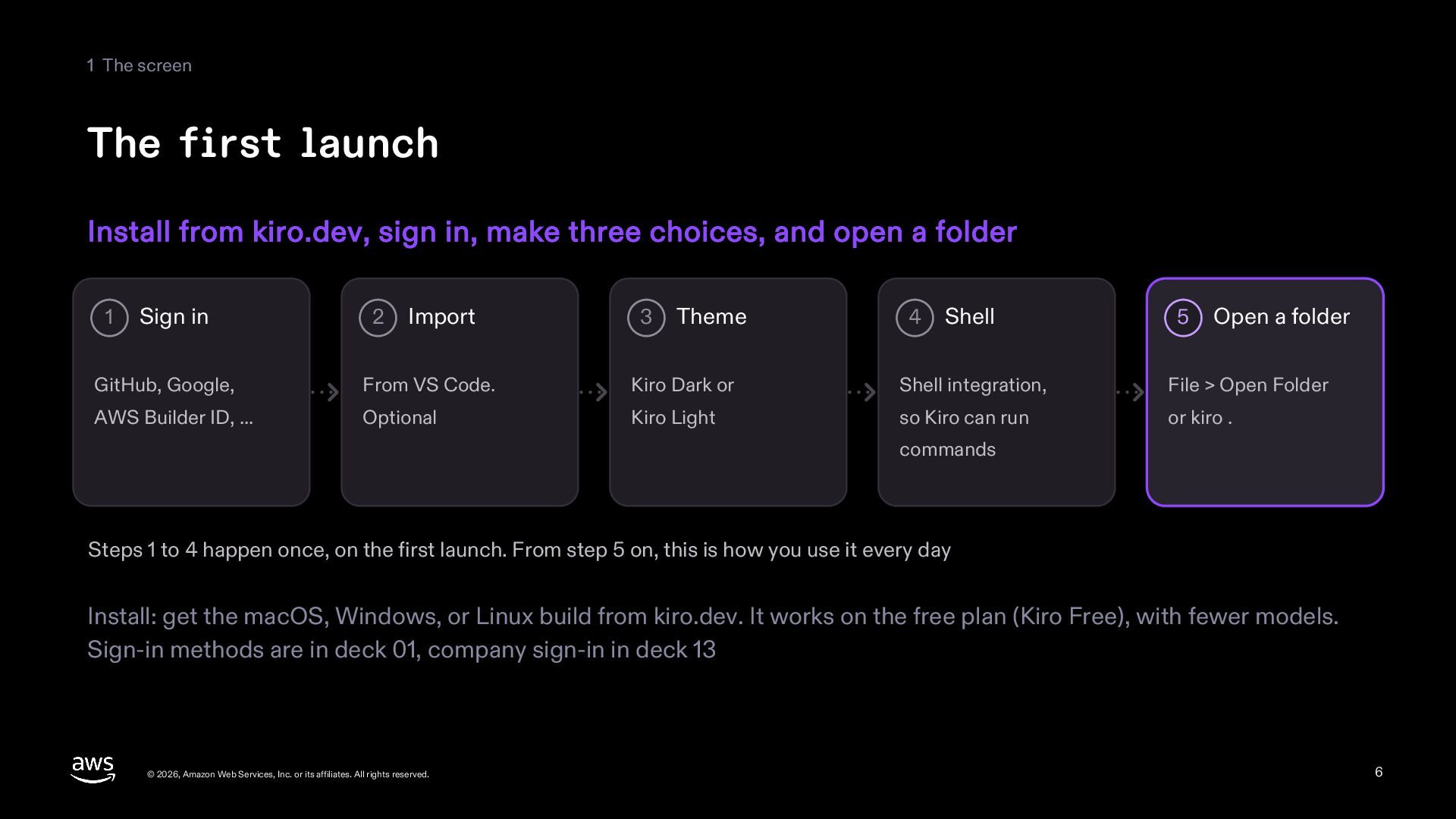
  6. 1 The screen The first launch Install from kiro.dev, sign

    in, make three choices, and open a folder 1 Sign in 2 Import 3 Theme 4 Shell 5 Open a folder GitHub, Google, From VS Code. Kiro Dark or Shell integration, File > Open Folder AWS Builder ID, ... Optional Kiro Light so Kiro can run or kiro . commands Steps 1 to 4 happen once, on the first launch. From step 5 on, this is how you use it every day Install: get the macOS, Windows, or Linux build from kiro.dev. It works on the free plan (Kiro Free), with fewer models. Sign-in methods are in deck 01, company sign-in in deck 13 © 2026, Amazon Web Services, Inc. or its affiliates. All rights reserved. 6
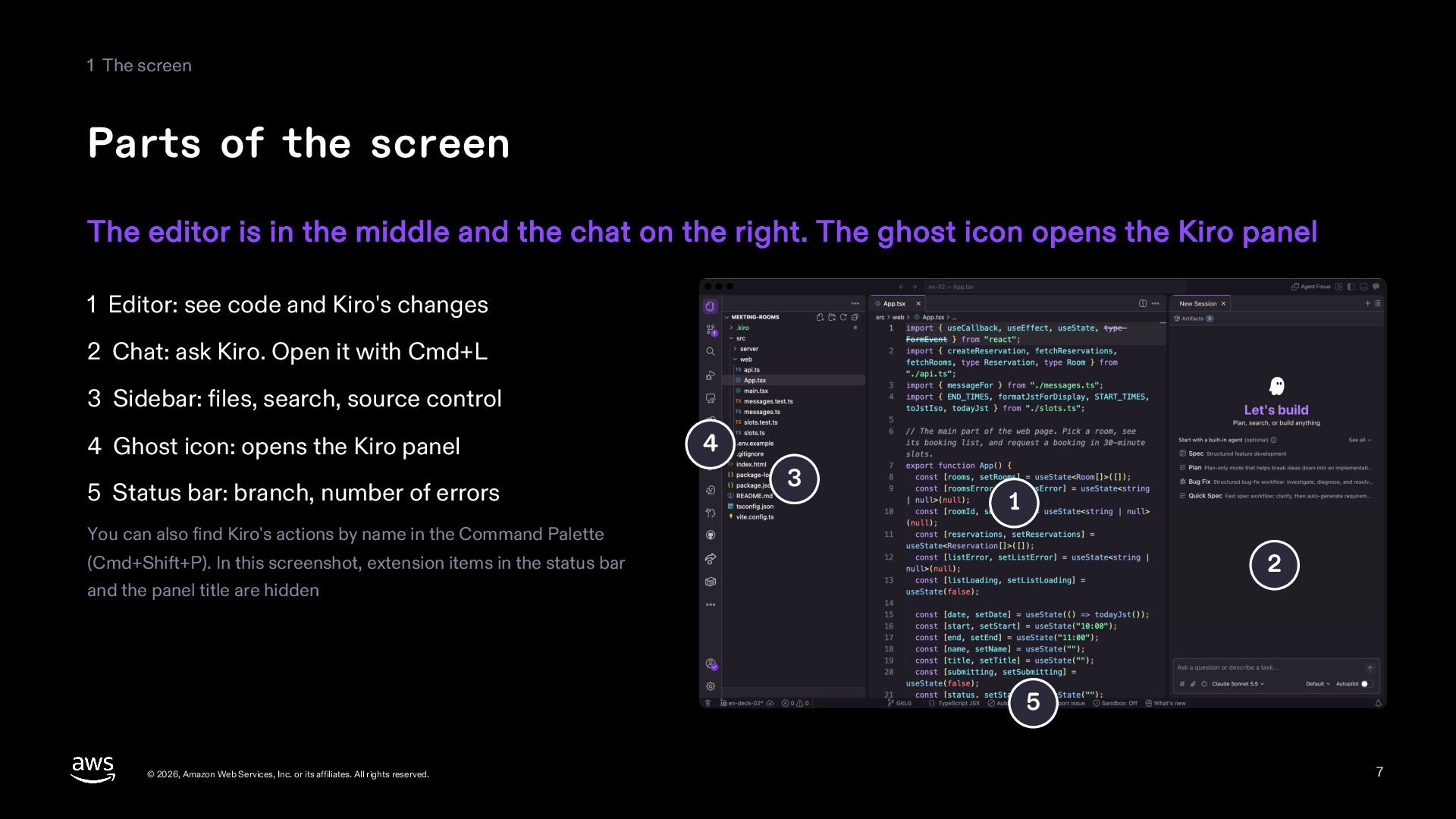
  7. 1 The screen Parts of the screen The editor is

    in the middle and the chat on the right. The ghost icon opens the Kiro panel 1 Editor: see code and Kiro's changes 2 Chat: ask Kiro. Open it with Cmd+L 3 Sidebar: files, search, source control 4 Ghost icon: opens the Kiro panel 5 Status bar: branch, number of errors 4 3 1 You can also find Kiro's actions by name in the Command Palette 2 (Cmd+Shift+P). In this screenshot, extension items in the status bar and the panel title are hidden 5 © 2026, Amazon Web Services, Inc. or its affiliates. All rights reserved. 7
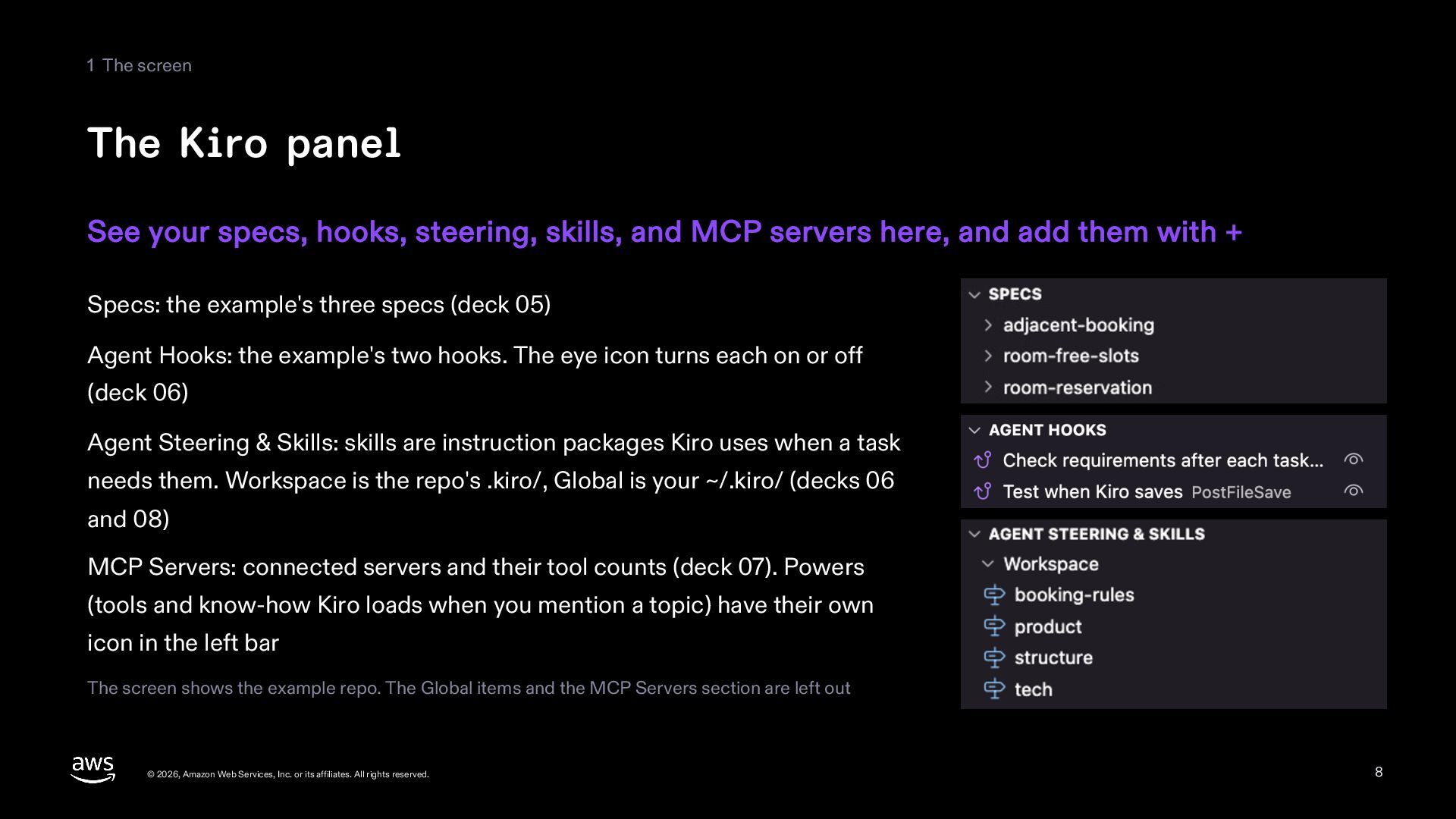
  8. 1 The screen The Kiro panel See your specs, hooks,

    steering, skills, and MCP servers here, and add them with + Specs: the example's three specs (deck 05) Agent Hooks: the example's two hooks. The eye icon turns each on or off (deck 06) Agent Steering & Skills: skills are instruction packages Kiro uses when a task needs them. Workspace is the repo's .kiro/, Global is your ~/.kiro/ (decks 06 and 08) MCP Servers: connected servers and their tool counts (deck 07). Powers (tools and know-how Kiro loads when you mention a topic) have their own icon in the left bar The screen shows the example repo. The Global items and the MCP Servers section are left out © 2026, Amazon Web Services, Inc. or its affiliates. All rights reserved. 8
  9. 2 Chat Chat and sessions Start a new session from

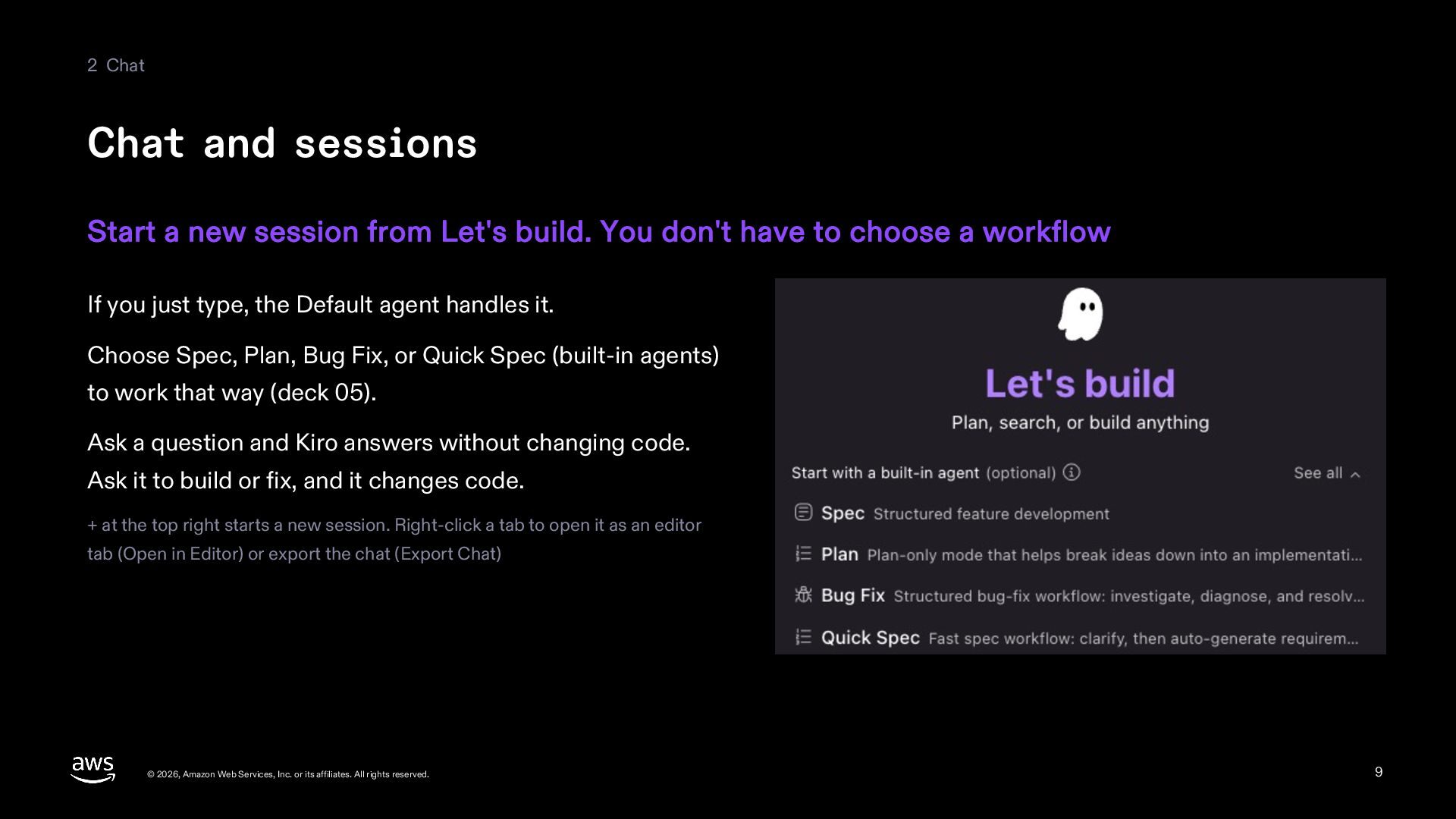
    Let's build. You don't have to choose a workflow If you just type, the Default agent handles it. Choose Spec, Plan, Bug Fix, or Quick Spec (built-in agents) to work that way (deck 05). Ask a question and Kiro answers without changing code. Ask it to build or fix, and it changes code. + at the top right starts a new session. Right-click a tab to open it as an editor tab (Open in Editor) or export the chat (Export Chat) © 2026, Amazon Web Services, Inc. or its affiliates. All rights reserved. 9
  10. 2 Chat # for context, / for conventions and procedures

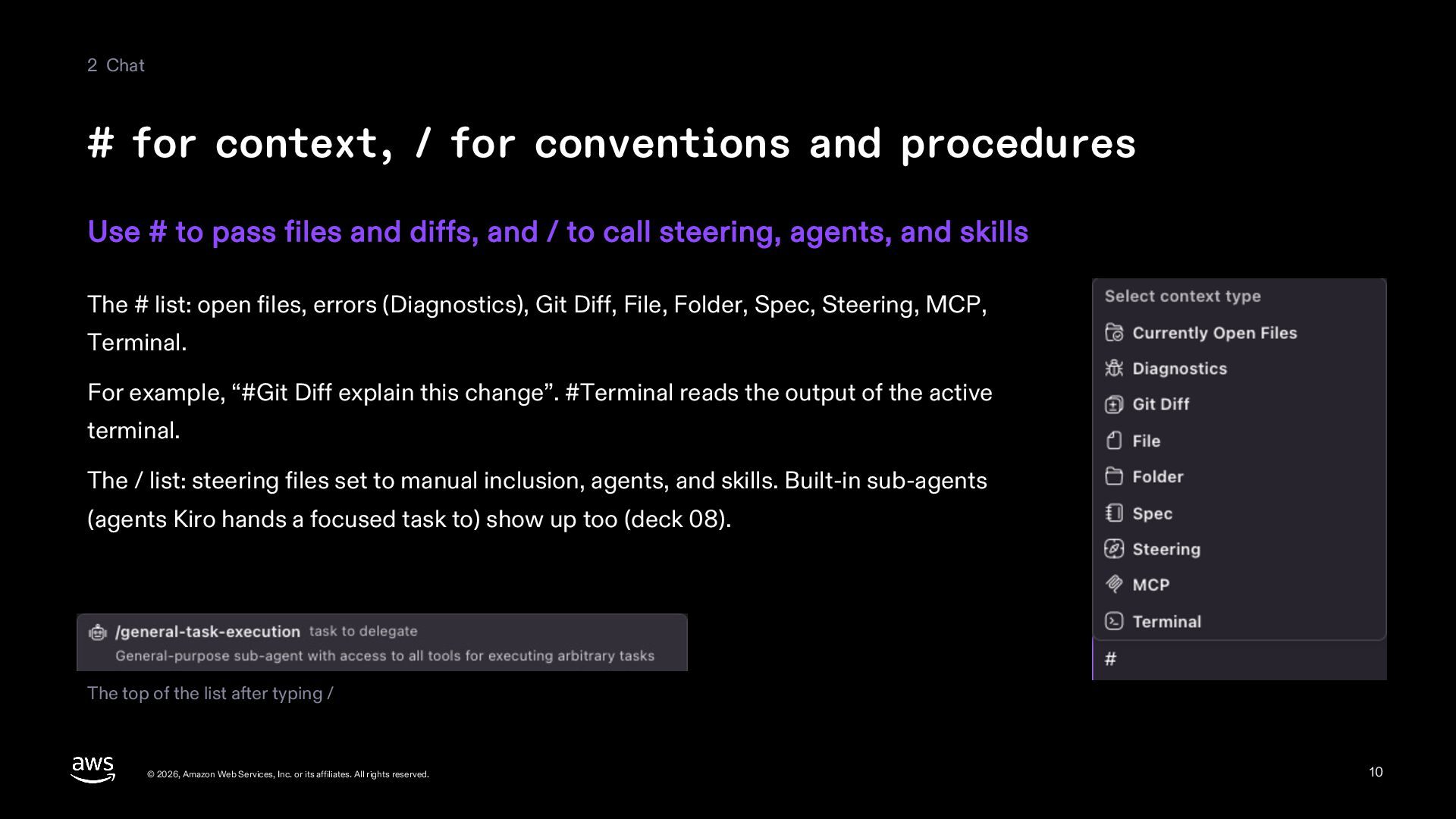
    Use # to pass files and diffs, and / to call steering, agents, and skills The # list: open files, errors (Diagnostics), Git Diff, File, Folder, Spec, Steering, MCP, Terminal. For example, “#Git Diff explain this change”. #Terminal reads the output of the active terminal. The / list: steering files set to manual inclusion, agents, and skills. Built-in sub-agents (agents Kiro hands a focused task to) show up too (deck 08). The top of the list after typing / © 2026, Amazon Web Services, Inc. or its affiliates. All rights reserved. 10
  11. 2 Chat Choosing the agent and model Under the input

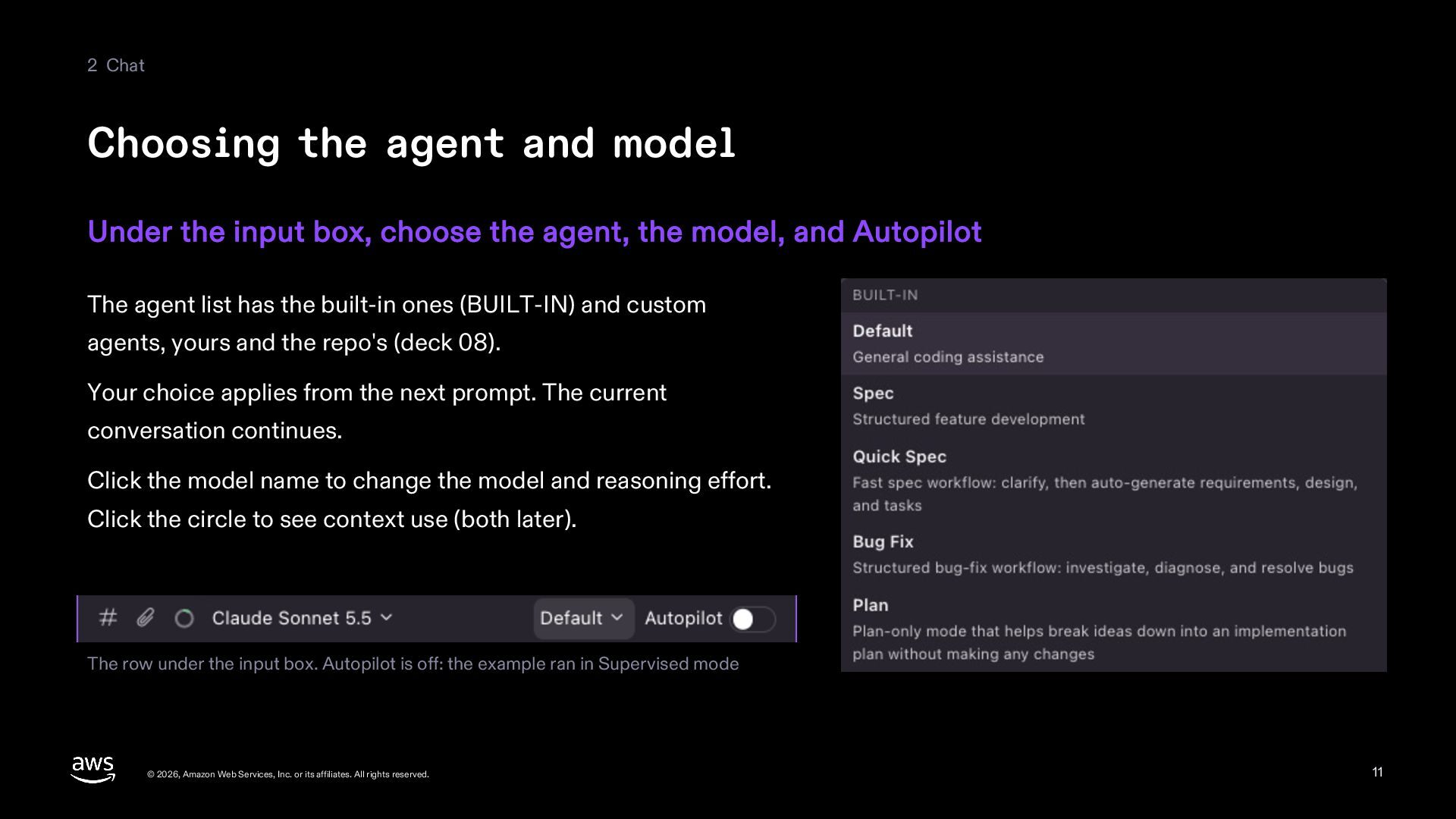
    box, choose the agent, the model, and Autopilot The agent list has the built-in ones (BUILT-IN) and custom agents, yours and the repo's (deck 08). Your choice applies from the next prompt. The current conversation continues. Click the model name to change the model and reasoning effort. Click the circle to see context use (both later). The row under the input box. Autopilot is off: the example ran in Supervised mode © 2026, Amazon Web Services, Inc. or its affiliates. All rights reserved. 11
  12. 2 Chat Example: ask in the IDE State the goal,

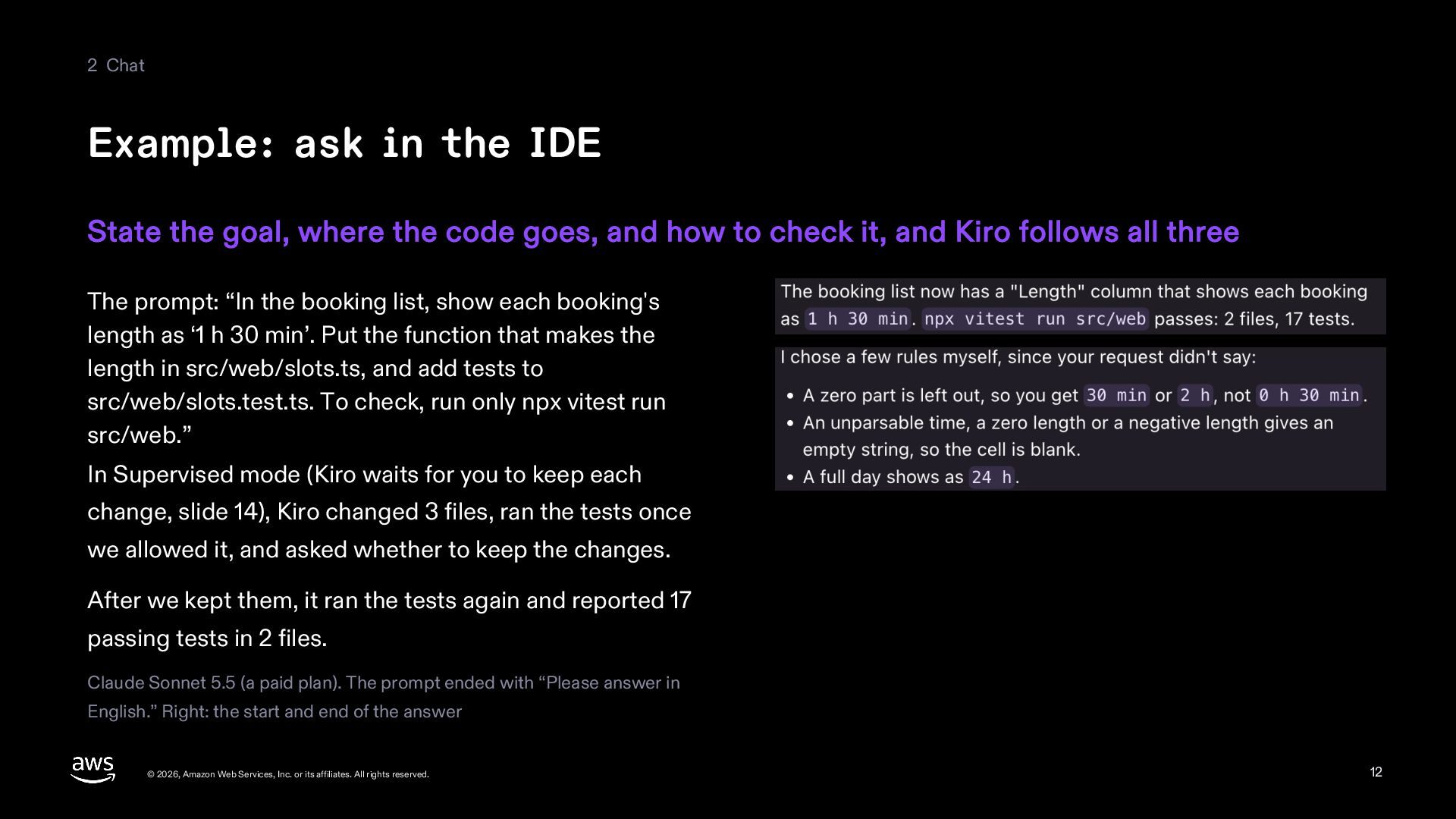
    where the code goes, and how to check it, and Kiro follows all three The prompt: “In the booking list, show each booking's length as ‘1 h 30 min’. Put the function that makes the length in src/web/slots.ts, and add tests to src/web/slots.test.ts. To check, run only npx vitest run src/web.” In Supervised mode (Kiro waits for you to keep each change, slide 14), Kiro changed 3 files, ran the tests once we allowed it, and asked whether to keep the changes. After we kept them, it ran the tests again and reported 17 passing tests in 2 files. Claude Sonnet 5.5 (a paid plan). The prompt ended with “Please answer in English.” Right: the start and end of the answer © 2026, Amazon Web Services, Inc. or its affiliates. All rights reserved. 12
  13. 2 Chat Conventions that applied The repo's .kiro/ conventions apply

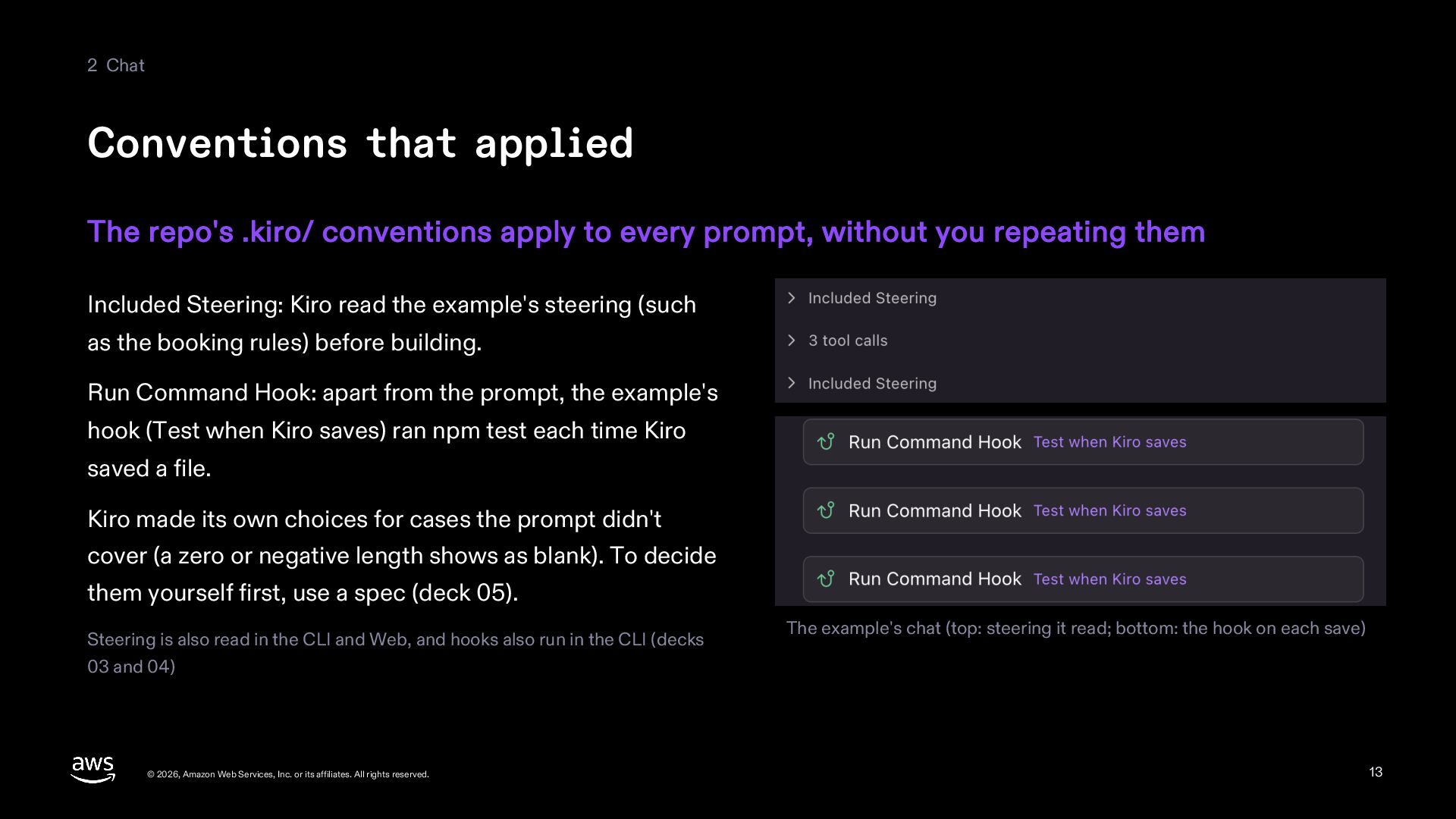
    to every prompt, without you repeating them Included Steering: Kiro read the example's steering (such as the booking rules) before building. Run Command Hook: apart from the prompt, the example's hook (Test when Kiro saves) ran npm test each time Kiro saved a file. Kiro made its own choices for cases the prompt didn't cover (a zero or negative length shows as blank). To decide them yourself first, use a spec (deck 05). Steering is also read in the CLI and Web, and hooks also run in the CLI (decks 03 and 04) © 2026, Amazon Web Services, Inc. or its affiliates. All rights reserved. The example's chat (top: steering it read; bottom: the hook on each save) 13
  14. 3 Handing off and undoing Autopilot and Supervised Supervised stops

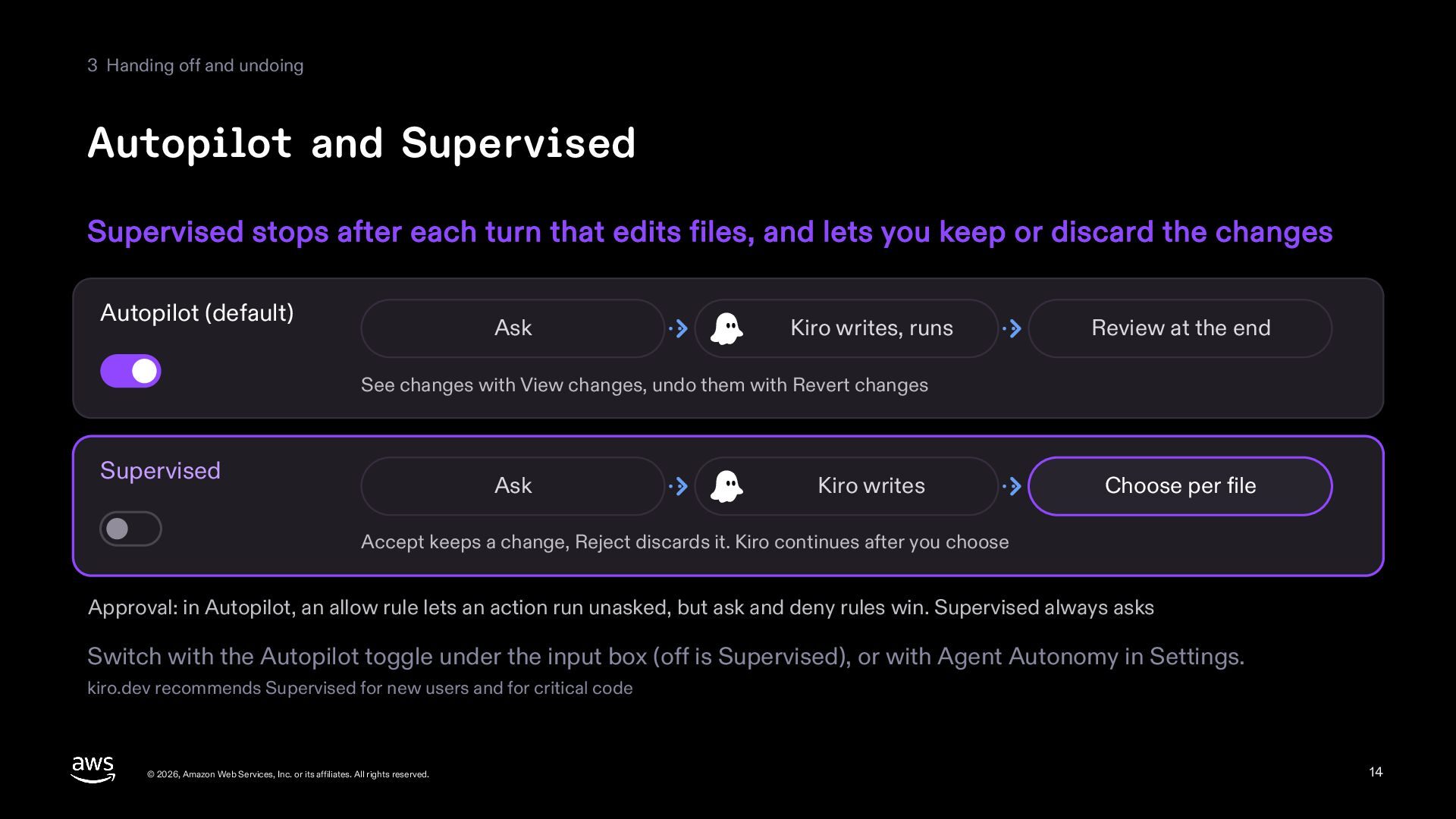
    after each turn that edits files, and lets you keep or discard the changes Autopilot (default) Ask Kiro writes, runs Review at the end See changes with View changes, undo them with Revert changes Supervised Ask Kiro writes Choose per file Accept keeps a change, Reject discards it. Kiro continues after you choose Approval: in Autopilot, an allow rule lets an action run unasked, but ask and deny rules win. Supervised always asks Switch with the Autopilot toggle under the input box (off is Supervised), or with Agent Autonomy in Settings. kiro.dev recommends Supervised for new users and for critical code © 2026, Amazon Web Services, Inc. or its affiliates. All rights reserved. 14
  15. 3 Handing off and undoing Reviewing in Supervised mode Keep

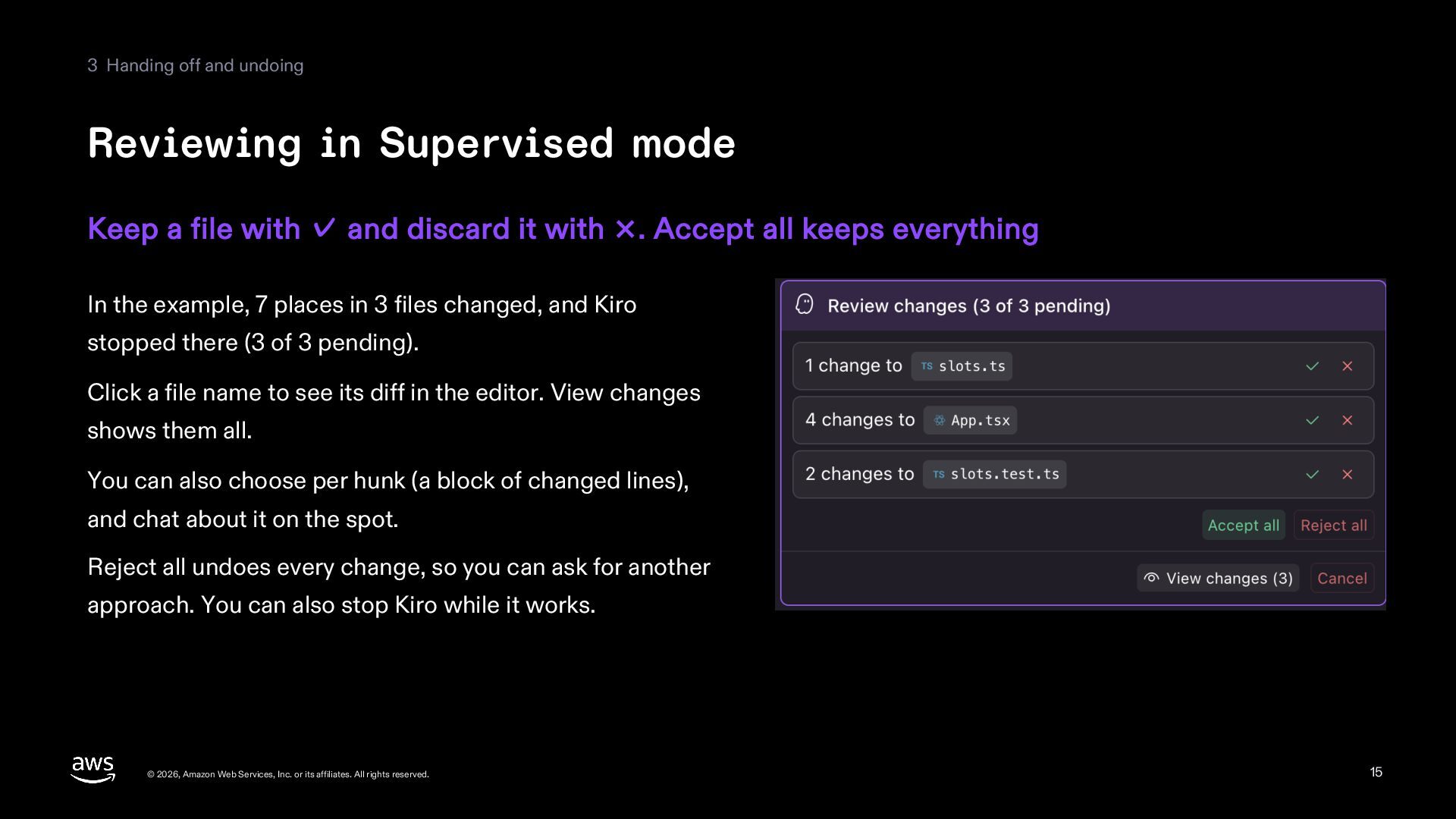
    a file with ✓ and discard it with ×. Accept all keeps everything In the example, 7 places in 3 files changed, and Kiro stopped there (3 of 3 pending). Click a file name to see its diff in the editor. View changes shows them all. You can also choose per hunk (a block of changed lines), and chat about it on the spot. Reject all undoes every change, so you can ask for another approach. You can also stop Kiro while it works. © 2026, Amazon Web Services, Inc. or its affiliates. All rights reserved. 15
  16. 3 Handing off and undoing Approving commands In Autopilot, Kiro

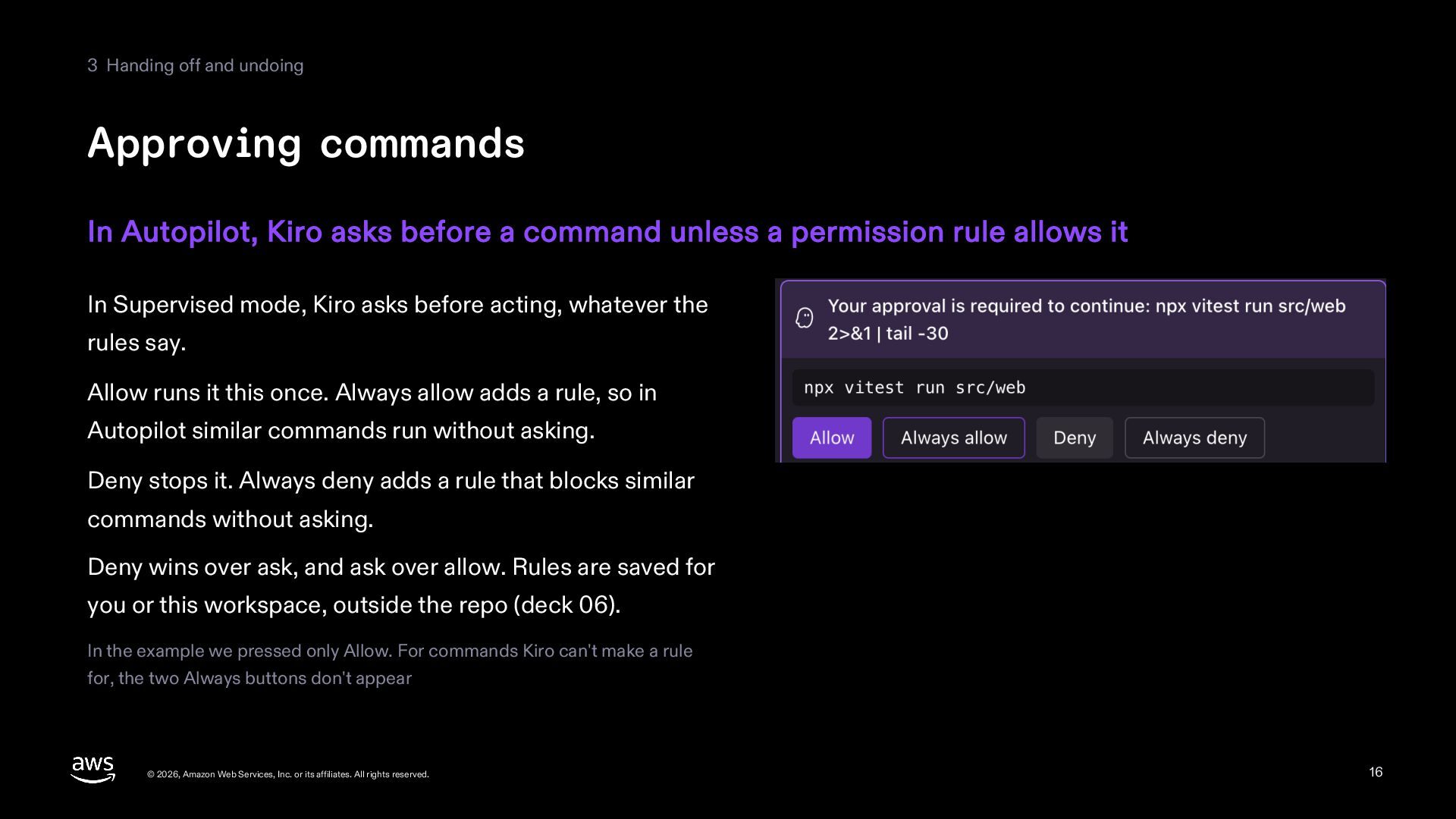
    asks before a command unless a permission rule allows it In Supervised mode, Kiro asks before acting, whatever the rules say. Allow runs it this once. Always allow adds a rule, so in Autopilot similar commands run without asking. Deny stops it. Always deny adds a rule that blocks similar commands without asking. Deny wins over ask, and ask over allow. Rules are saved for you or this workspace, outside the repo (deck 06). In the example we pressed only Allow. For commands Kiro can't make a rule for, the two Always buttons don't appear © 2026, Amazon Web Services, Inc. or its affiliates. All rights reserved. 16
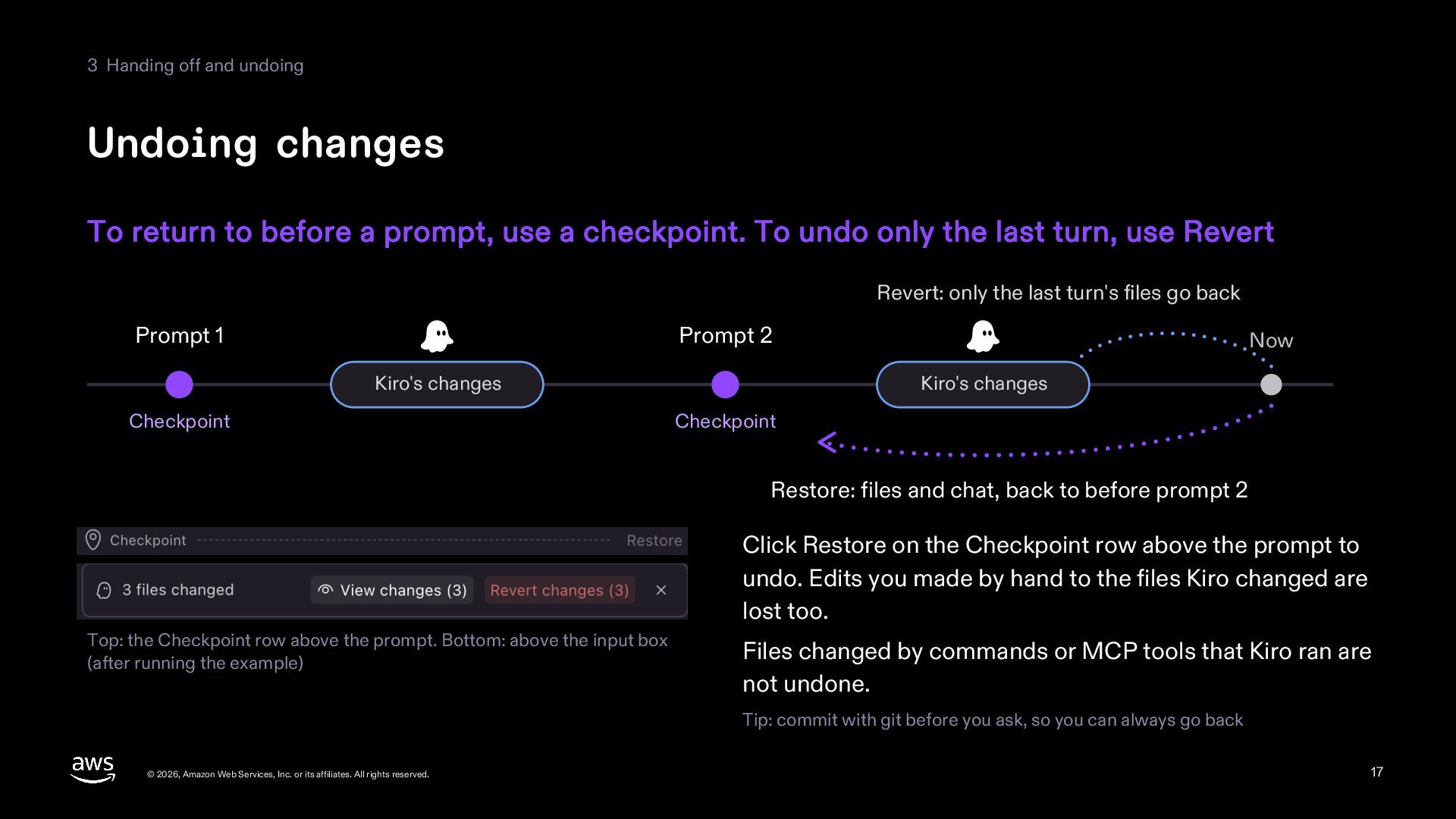
  17. 3 Handing off and undoing Undoing changes To return to

    before a prompt, use a checkpoint. To undo only the last turn, use Revert Revert: only the last turn's files go back Prompt 1 Prompt 2 Kiro's changes Checkpoint Now Kiro's changes Checkpoint Restore: files and chat, back to before prompt 2 Click Restore on the Checkpoint row above the prompt to undo. Edits you made by hand to the files Kiro changed are lost too. Top: the Checkpoint row above the prompt. Bottom: above the input box (after running the example) Files changed by commands or MCP tools that Kiro ran are not undone. Tip: commit with git before you ask, so you can always go back © 2026, Amazon Web Services, Inc. or its affiliates. All rights reserved. 17
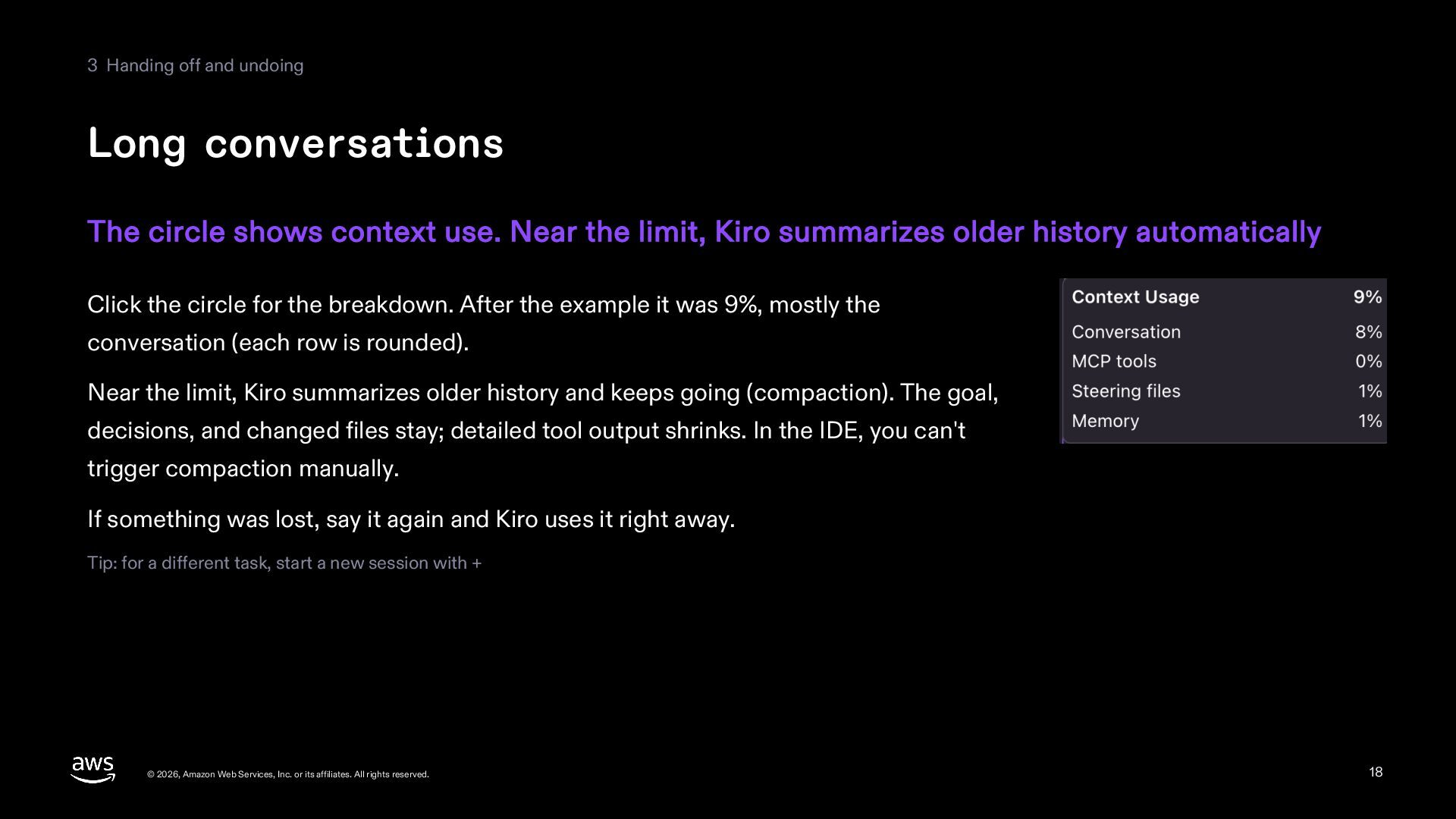
  18. 3 Handing off and undoing Long conversations The circle shows

    context use. Near the limit, Kiro summarizes older history automatically Click the circle for the breakdown. After the example it was 9%, mostly the conversation (each row is rounded). Near the limit, Kiro summarizes older history and keeps going (compaction). The goal, decisions, and changed files stay; detailed tool output shrinks. In the IDE, you can't trigger compaction manually. If something was lost, say it again and Kiro uses it right away. Tip: for a different task, start a new session with + © 2026, Amazon Web Services, Inc. or its affiliates. All rights reserved. 18
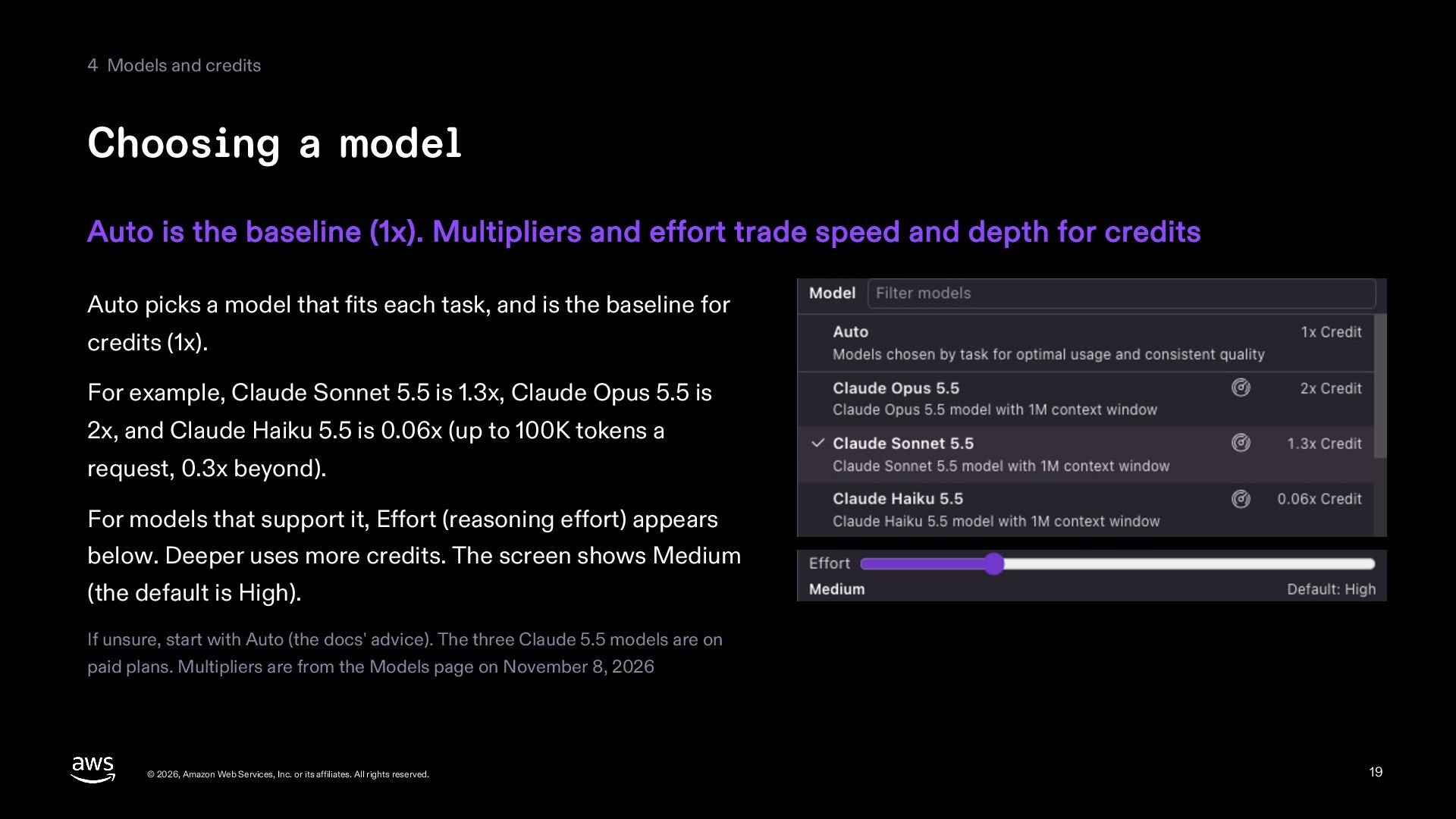
  19. 4 Models and credits Choosing a model Auto is the

    baseline (1x). Multipliers and effort trade speed and depth for credits Auto picks a model that fits each task, and is the baseline for credits (1x). For example, Claude Sonnet 5.5 is 1.3x, Claude Opus 5.5 is 2x, and Claude Haiku 5.5 is 0.06x (up to 100K tokens a request, 0.3x beyond). For models that support it, Effort (reasoning effort) appears below. Deeper uses more credits. The screen shows Medium (the default is High). If unsure, start with Auto (the docs' advice). The three Claude 5.5 models are on paid plans. Multipliers are from the Models page on November 8, 2026 © 2026, Amazon Web Services, Inc. or its affiliates. All rights reserved. 19
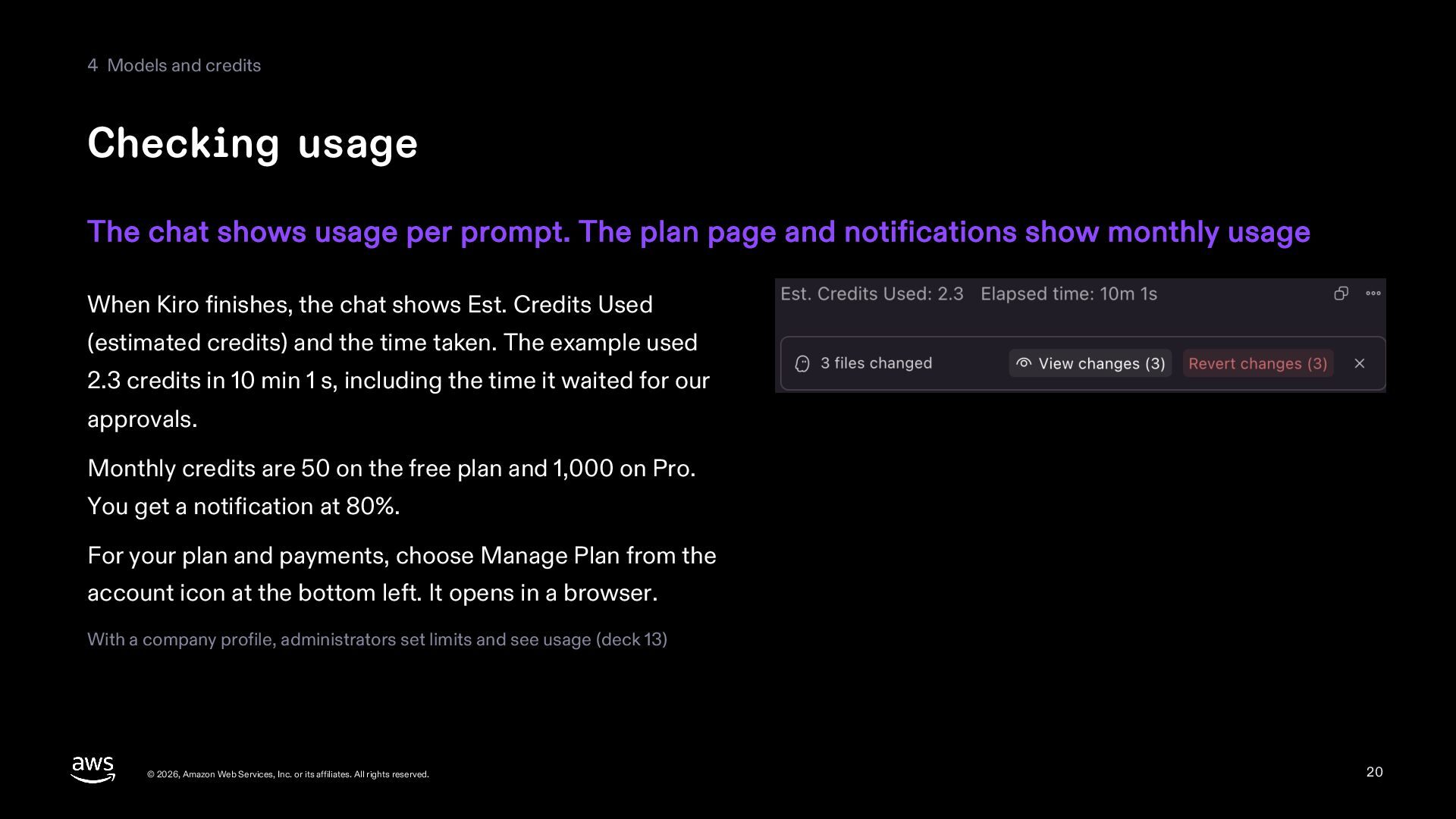
  20. 4 Models and credits Checking usage The chat shows usage

    per prompt. The plan page and notifications show monthly usage When Kiro finishes, the chat shows Est. Credits Used (estimated credits) and the time taken. The example used 2.3 credits in 10 min 1 s, including the time it waited for our approvals. Monthly credits are 50 on the free plan and 1,000 on Pro. You get a notification at 80%. For your plan and payments, choose Manage Plan from the account icon at the bottom left. It opens in a browser. With a company profile, administrators set limits and see usage (deck 13) © 2026, Amazon Web Services, Inc. or its affiliates. All rights reserved. 20
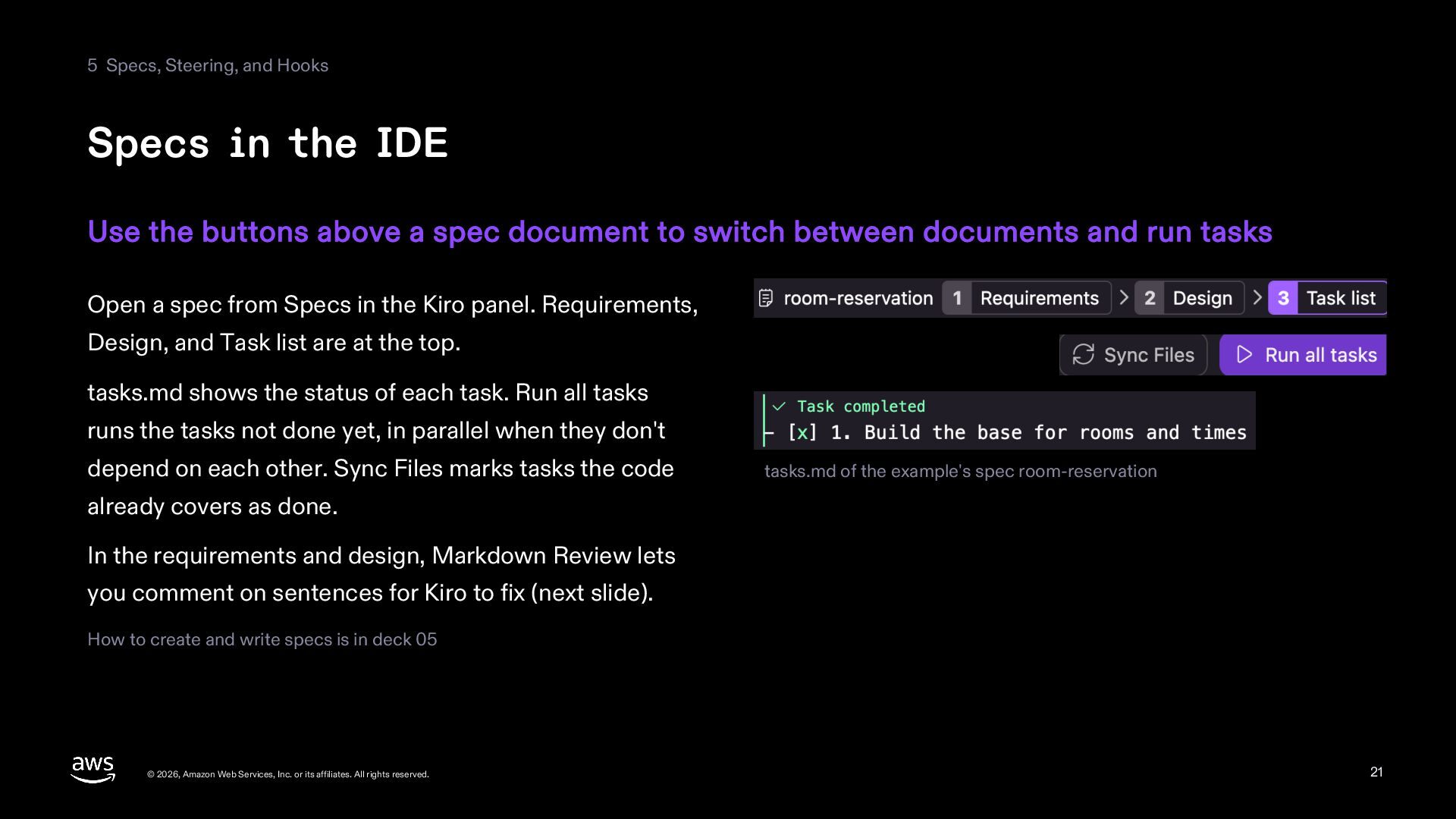
  21. 5 Specs, Steering, and Hooks Specs in the IDE Use

    the buttons above a spec document to switch between documents and run tasks Open a spec from Specs in the Kiro panel. Requirements, Design, and Task list are at the top. tasks.md shows the status of each task. Run all tasks runs the tasks not done yet, in parallel when they don't depend on each other. Sync Files marks tasks the code tasks.md of the example's spec room-reservation already covers as done. In the requirements and design, Markdown Review lets you comment on sentences for Kiro to fix (next slide). How to create and write specs is in deck 05 © 2026, Amazon Web Services, Inc. or its affiliates. All rights reserved. 21
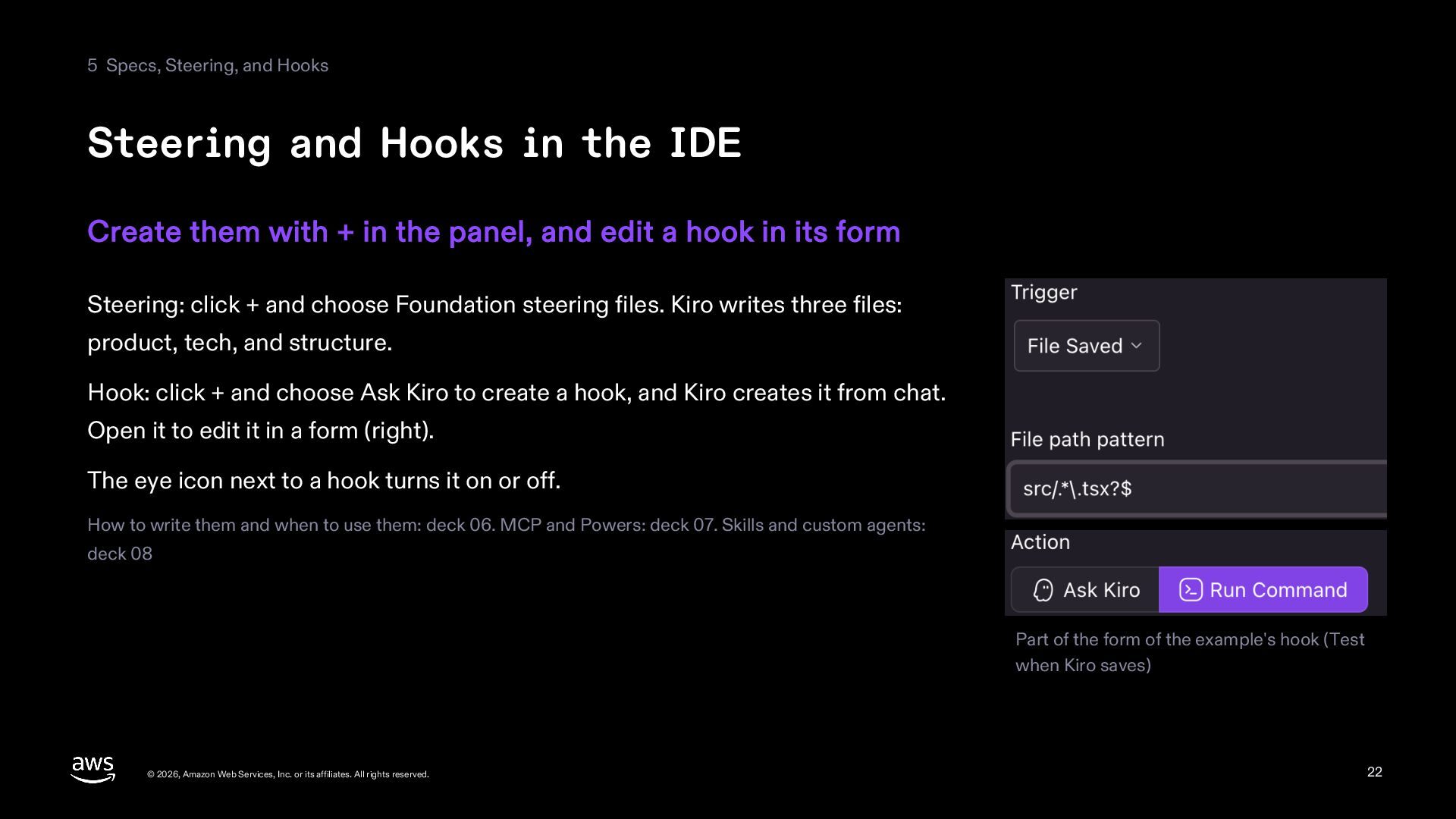
  22. 5 Specs, Steering, and Hooks Steering and Hooks in the

    IDE Create them with + in the panel, and edit a hook in its form Steering: click + and choose Foundation steering files. Kiro writes three files: product, tech, and structure. Hook: click + and choose Ask Kiro to create a hook, and Kiro creates it from chat. Open it to edit it in a form (right). The eye icon next to a hook turns it on or off. How to write them and when to use them: deck 06. MCP and Powers: deck 07. Skills and custom agents: deck 08 Part of the form of the example's hook (Test when Kiro saves) © 2026, Amazon Web Services, Inc. or its affiliates. All rights reserved. 22
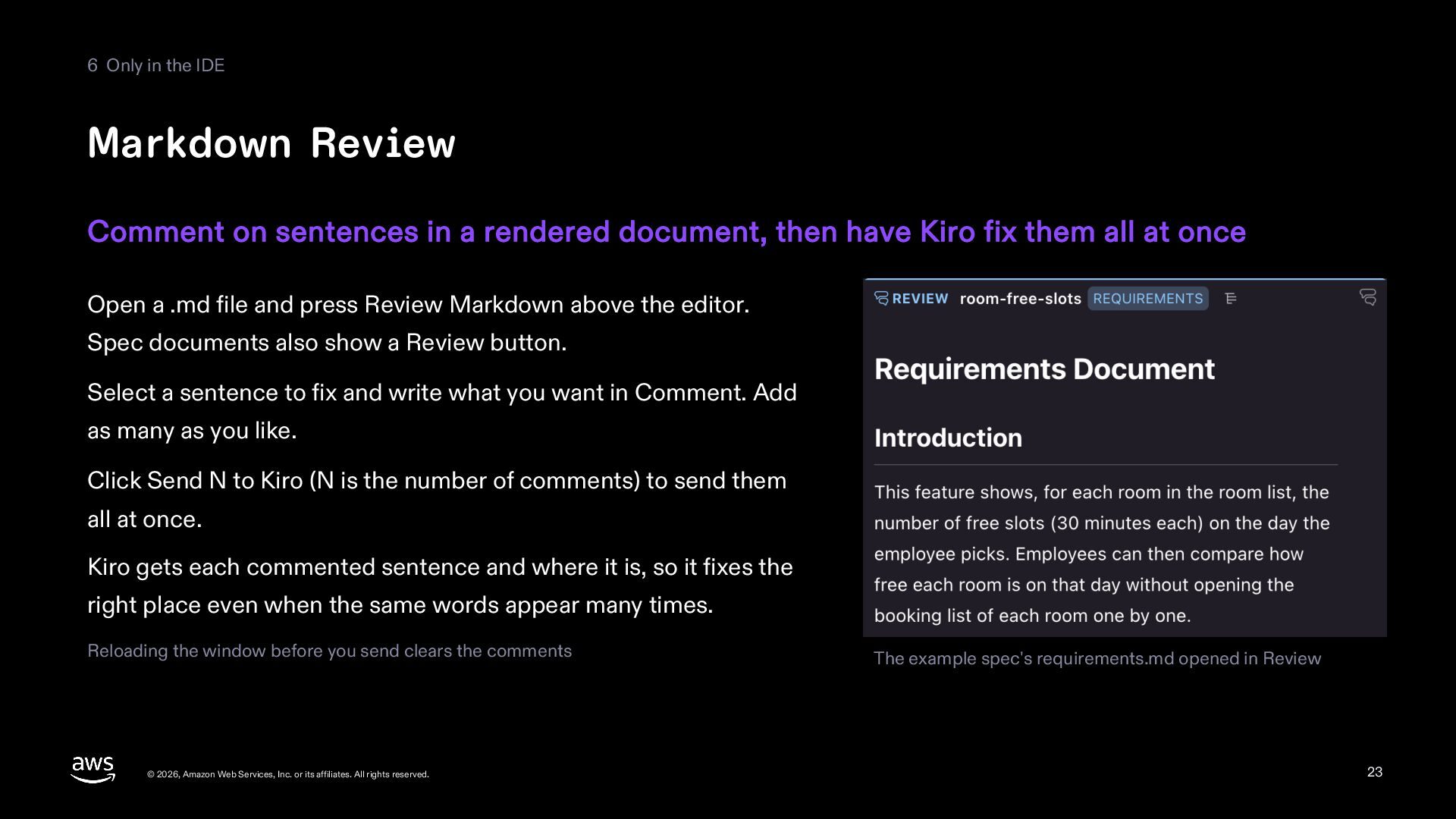
  23. 6 Only in the IDE Markdown Review Comment on sentences

    in a rendered document, then have Kiro fix them all at once Open a .md file and press Review Markdown above the editor. Spec documents also show a Review button. Select a sentence to fix and write what you want in Comment. Add as many as you like. Click Send N to Kiro (N is the number of comments) to send them all at once. Kiro gets each commented sentence and where it is, so it fixes the right place even when the same words appear many times. Reloading the window before you send clears the comments © 2026, Amazon Web Services, Inc. or its affiliates. All rights reserved. The example spec's requirements.md opened in Review 23
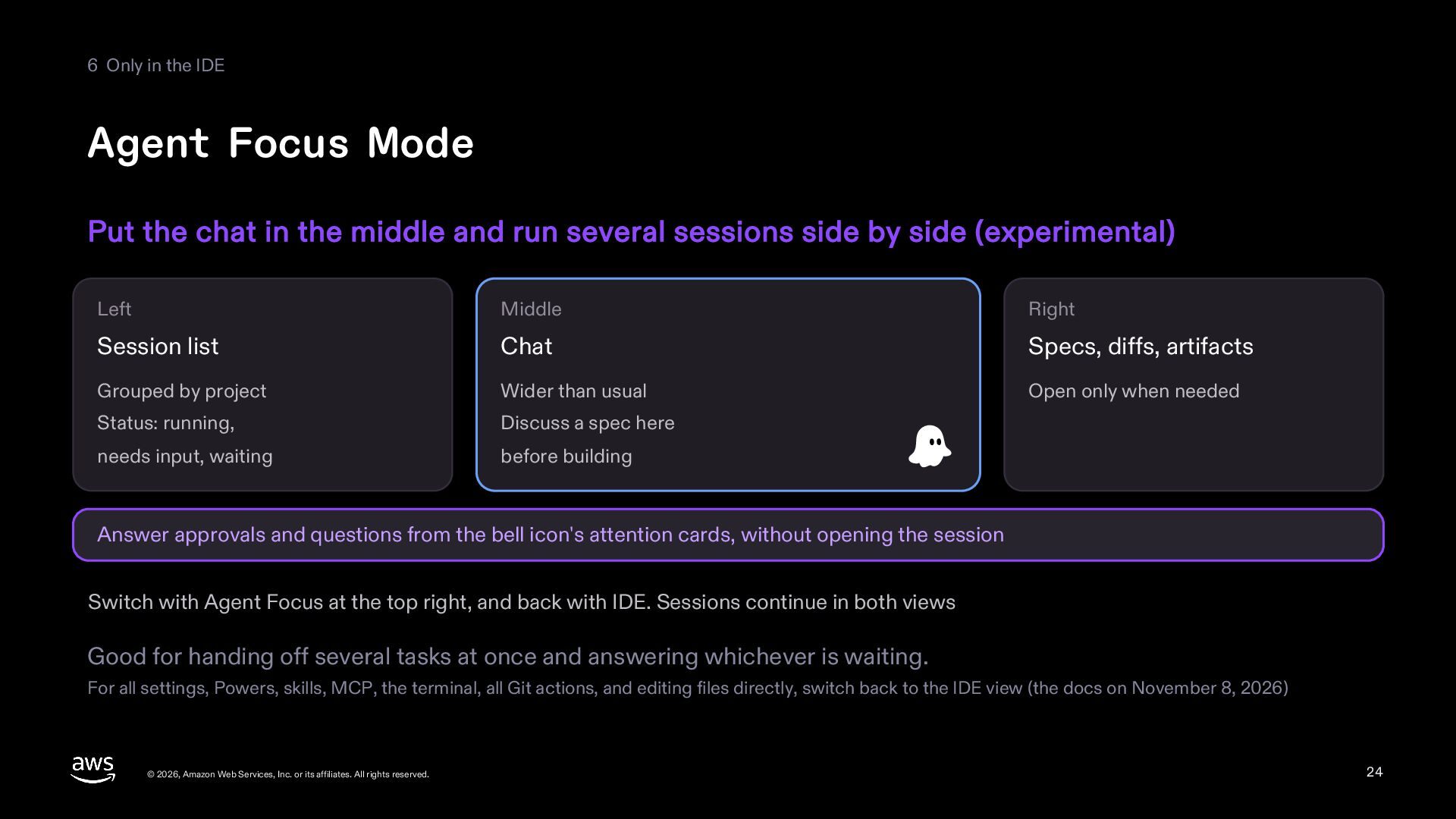
  24. 6 Only in the IDE Agent Focus Mode Put the

    chat in the middle and run several sessions side by side (experimental) Left Middle Right Session list Chat Specs, diffs, artifacts Grouped by project Wider than usual Open only when needed Status: running, Discuss a spec here needs input, waiting before building Answer approvals and questions from the bell icon's attention cards, without opening the session Switch with Agent Focus at the top right, and back with IDE. Sessions continue in both views Good for handing off several tasks at once and answering whichever is waiting. For all settings, Powers, skills, MCP, the terminal, all Git actions, and editing files directly, switch back to the IDE view (the docs on November 8, 2026) © 2026, Amazon Web Services, Inc. or its affiliates. All rights reserved. 24
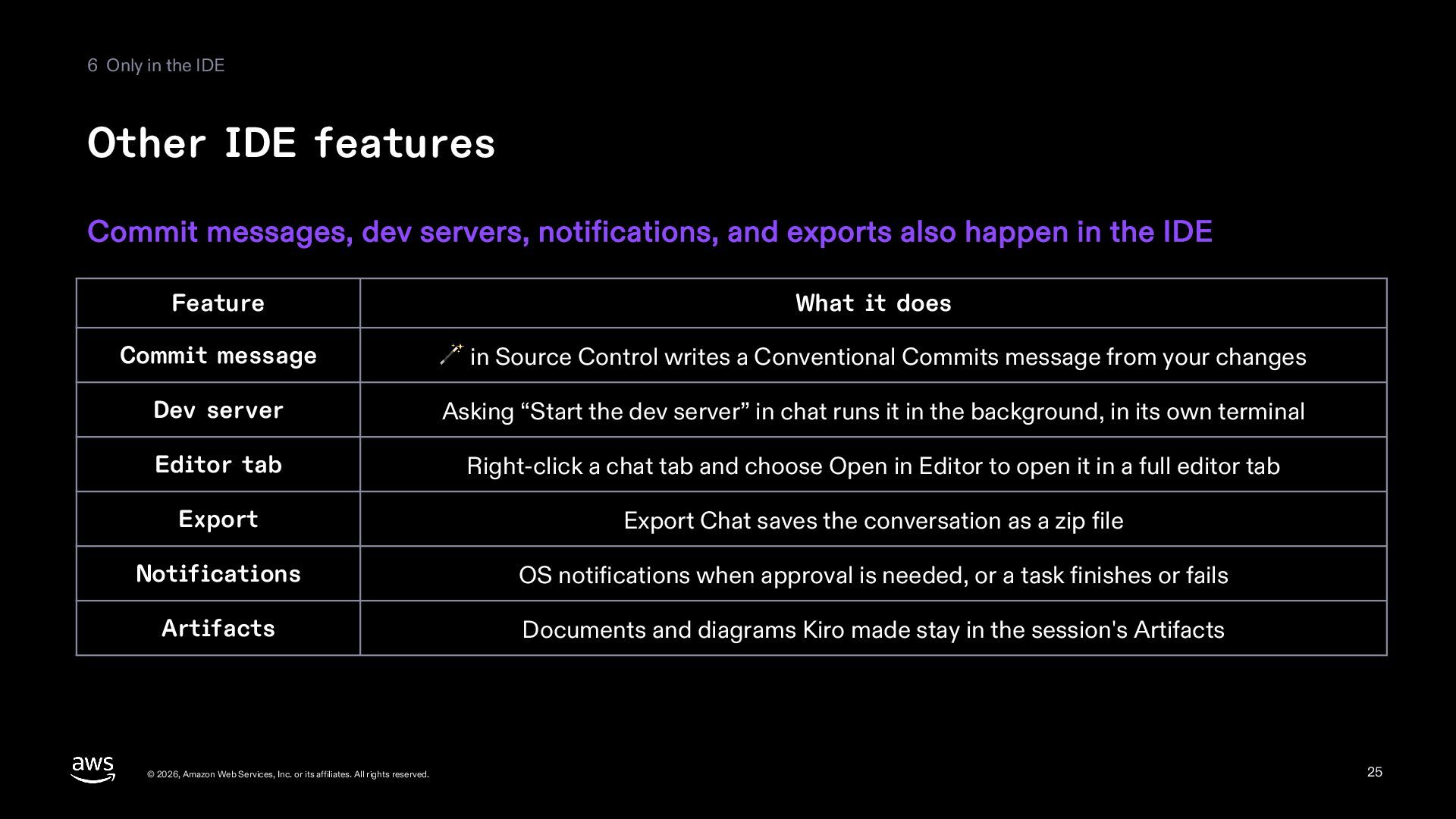
  25. 6 Only in the IDE Other IDE features Commit messages,

    dev servers, notifications, and exports also happen in the IDE Feature What it does Commit message 🪄 in Source Control writes a Conventional Commits message from your changes Dev server Asking “Start the dev server” in chat runs it in the background, in its own terminal Editor tab Right-click a chat tab and choose Open in Editor to open it in a full editor tab Export Export Chat saves the conversation as a zip file Notifications OS notifications when approval is needed, or a task finishes or fails Artifacts Documents and diagrams Kiro made stay in the session's Artifacts © 2026, Amazon Web Services, Inc. or its affiliates. All rights reserved. 25
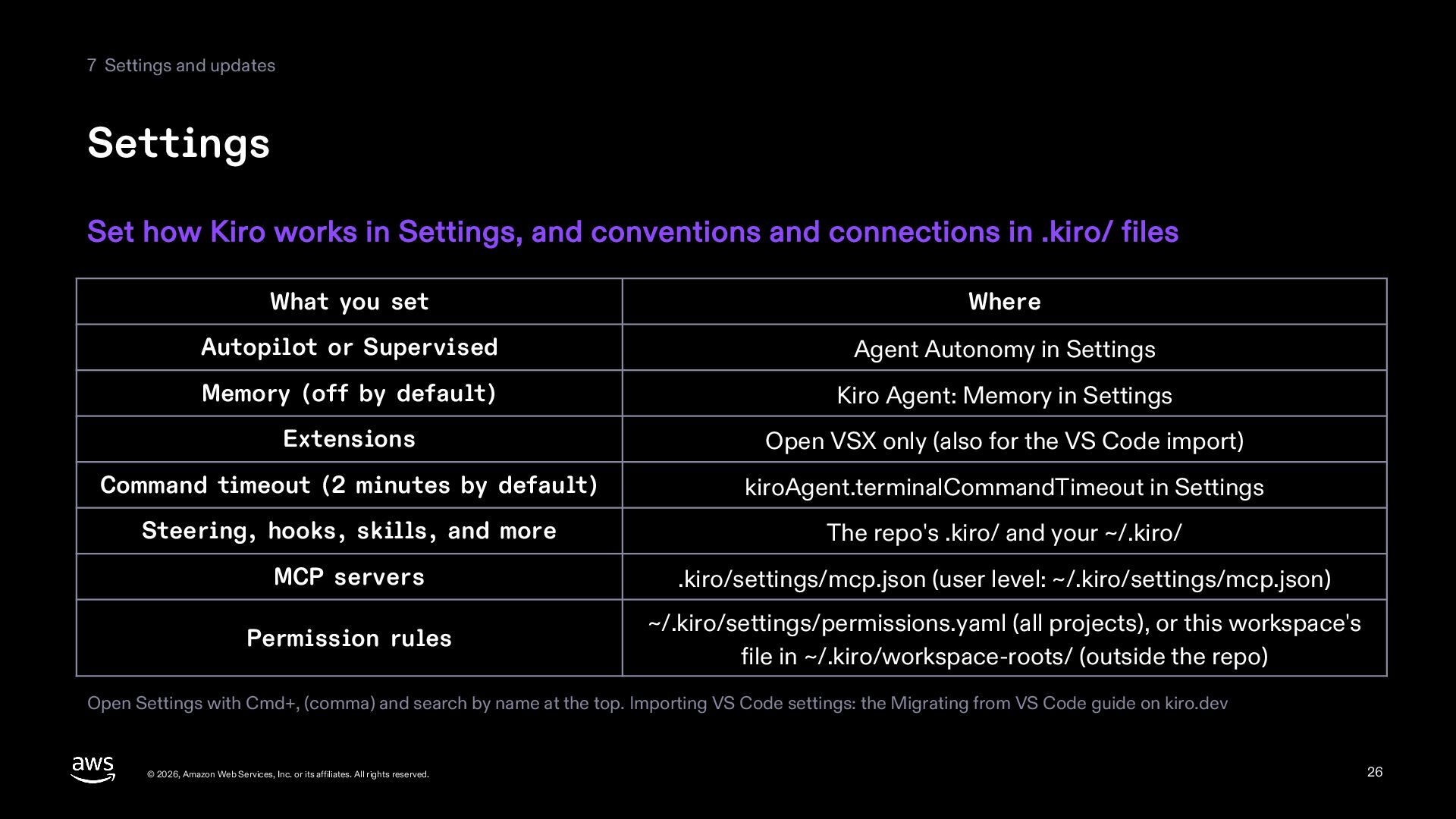
  26. 7 Settings and updates Settings Set how Kiro works in

    Settings, and conventions and connections in .kiro/ files What you set Where Autopilot or Supervised Agent Autonomy in Settings Memory (off by default) Kiro Agent: Memory in Settings Extensions Open VSX only (also for the VS Code import) Command timeout (2 minutes by default) kiroAgent.terminalCommandTimeout in Settings Steering, hooks, skills, and more The repo's .kiro/ and your ~/.kiro/ MCP servers .kiro/settings/mcp.json (user level: ~/.kiro/settings/mcp.json) Permission rules ~/.kiro/settings/permissions.yaml (all projects), or this workspace's file in ~/.kiro/workspace-roots/ (outside the repo) Open Settings with Cmd+, (comma) and search by name at the top. Importing VS Code settings: the Migrating from VS Code guide on kiro.dev © 2026, Amazon Web Services, Inc. or its affiliates. All rights reserved. 26
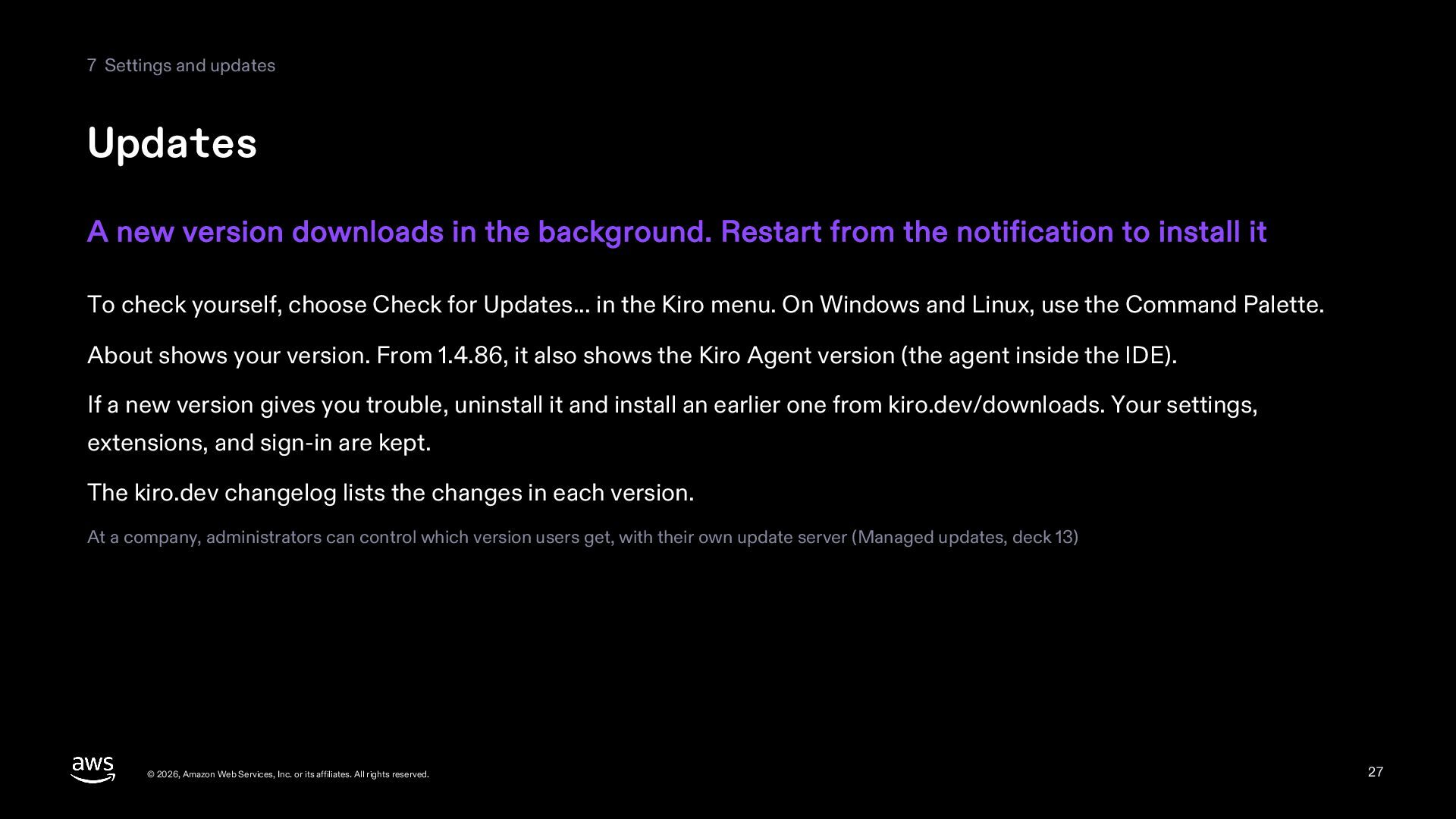
  27. 7 Settings and updates Updates A new version downloads in

    the background. Restart from the notification to install it To check yourself, choose Check for Updates... in the Kiro menu. On Windows and Linux, use the Command Palette. About shows your version. From 1.4.86, it also shows the Kiro Agent version (the agent inside the IDE). If a new version gives you trouble, uninstall it and install an earlier one from kiro.dev/downloads. Your settings, extensions, and sign-in are kept. The kiro.dev changelog lists the changes in each version. At a company, administrators can control which version users get, with their own update server (Managed updates, deck 13) © 2026, Amazon Web Services, Inc. or its affiliates. All rights reserved. 27
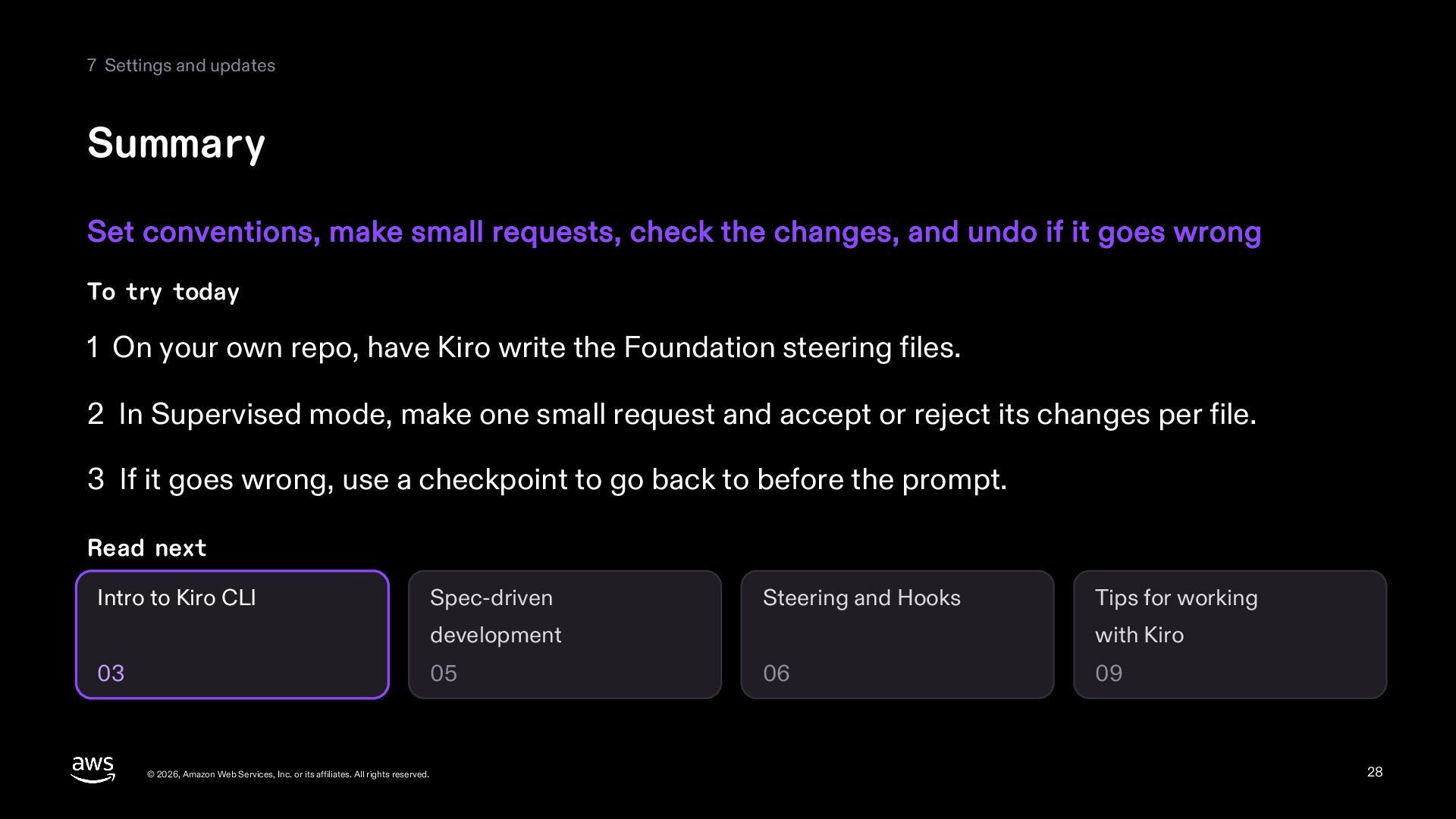
  28. 7 Settings and updates Summary Set conventions, make small requests,

    check the changes, and undo if it goes wrong To try today 1 On your own repo, have Kiro write the Foundation steering files. 2 In Supervised mode, make one small request and accept or reject its changes per file. 3 If it goes wrong, use a checkpoint to go back to before the prompt. Read next Intro to Kiro CLI Spec-driven Steering and Hooks development 03 05 © 2026, Amazon Web Services, Inc. or its affiliates. All rights reserved. Tips for working with Kiro 06 09 28
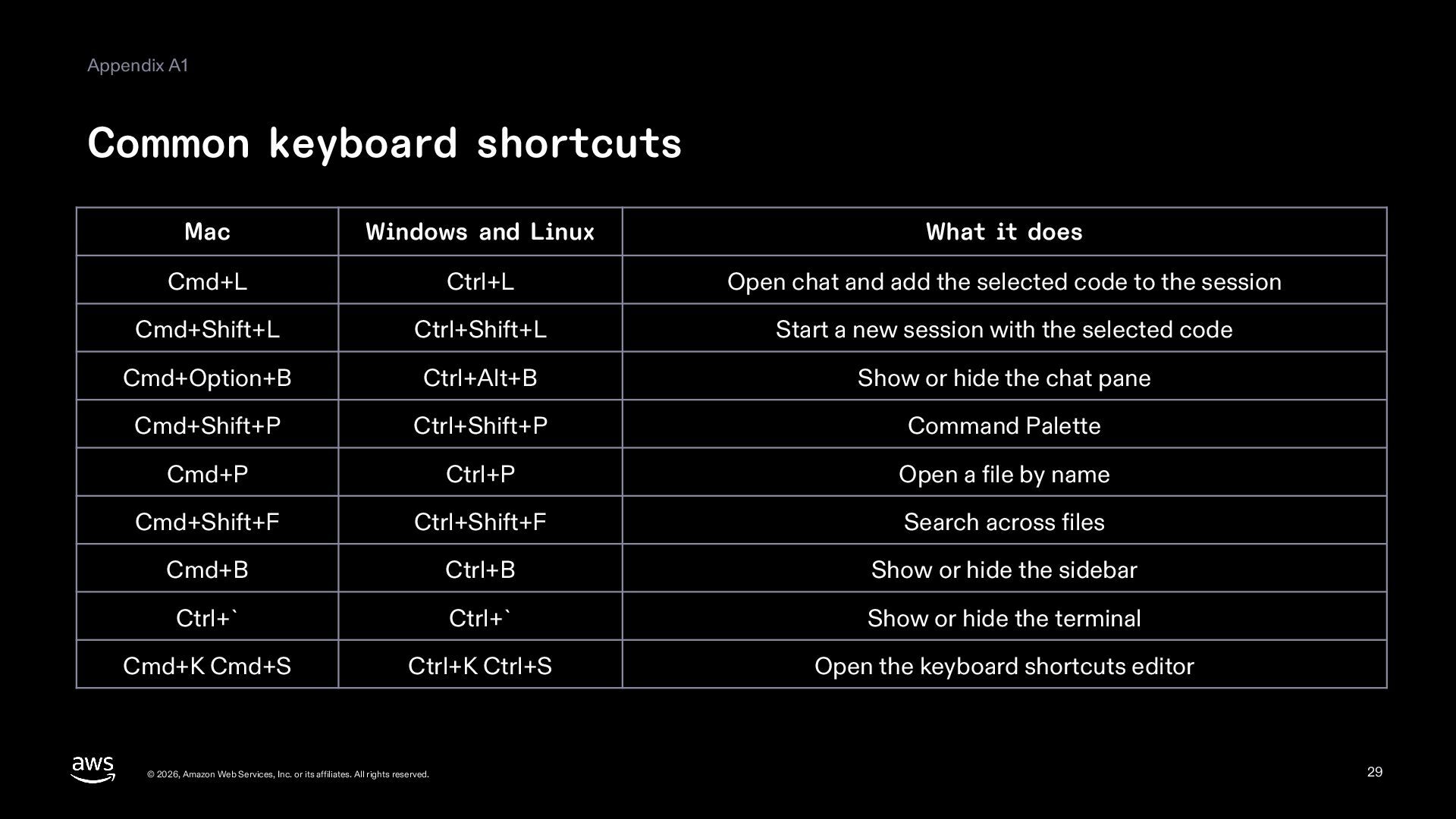
  29. Appendix A1 Common keyboard shortcuts Mac Windows and Linux What

    it does Cmd+L Ctrl+L Open chat and add the selected code to the session Cmd+Shift+L Ctrl+Shift+L Start a new session with the selected code Cmd+Option+B Ctrl+Alt+B Show or hide the chat pane Cmd+Shift+P Ctrl+Shift+P Command Palette Cmd+P Ctrl+P Open a file by name Cmd+Shift+F Ctrl+Shift+F Search across files Cmd+B Ctrl+B Show or hide the sidebar Ctrl+` Ctrl+` Show or hide the terminal Cmd+K Cmd+S Ctrl+K Ctrl+S Open the keyboard shortcuts editor © 2026, Amazon Web Services, Inc. or its affiliates. All rights reserved. 29
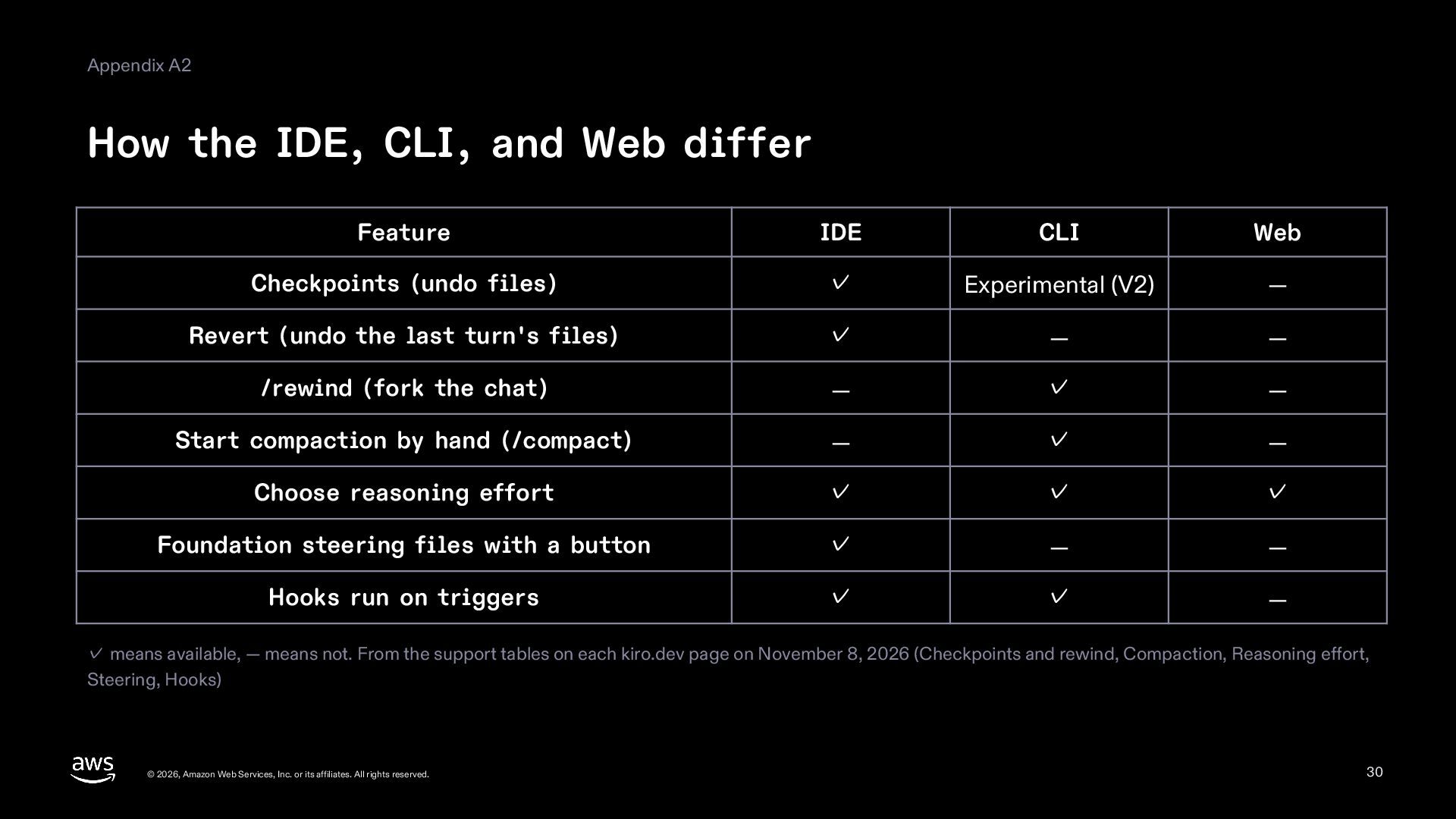
  30. Appendix A2 How the IDE, CLI, and Web differ Feature

    IDE CLI Web Checkpoints (undo files) ✓ Experimental (V2) — Revert (undo the last turn's files) ✓ — — /rewind (fork the chat) — ✓ — Start compaction by hand (/compact) — ✓ — Choose reasoning effort ✓ ✓ ✓ Foundation steering files with a button ✓ — — Hooks run on triggers ✓ ✓ — ✓ means available, — means not. From the support tables on each kiro.dev page on November 8, 2026 (Checkpoints and rewind, Compaction, Reasoning effort, Steering, Hooks) © 2026, Amazon Web Services, Inc. or its affiliates. All rights reserved. 30
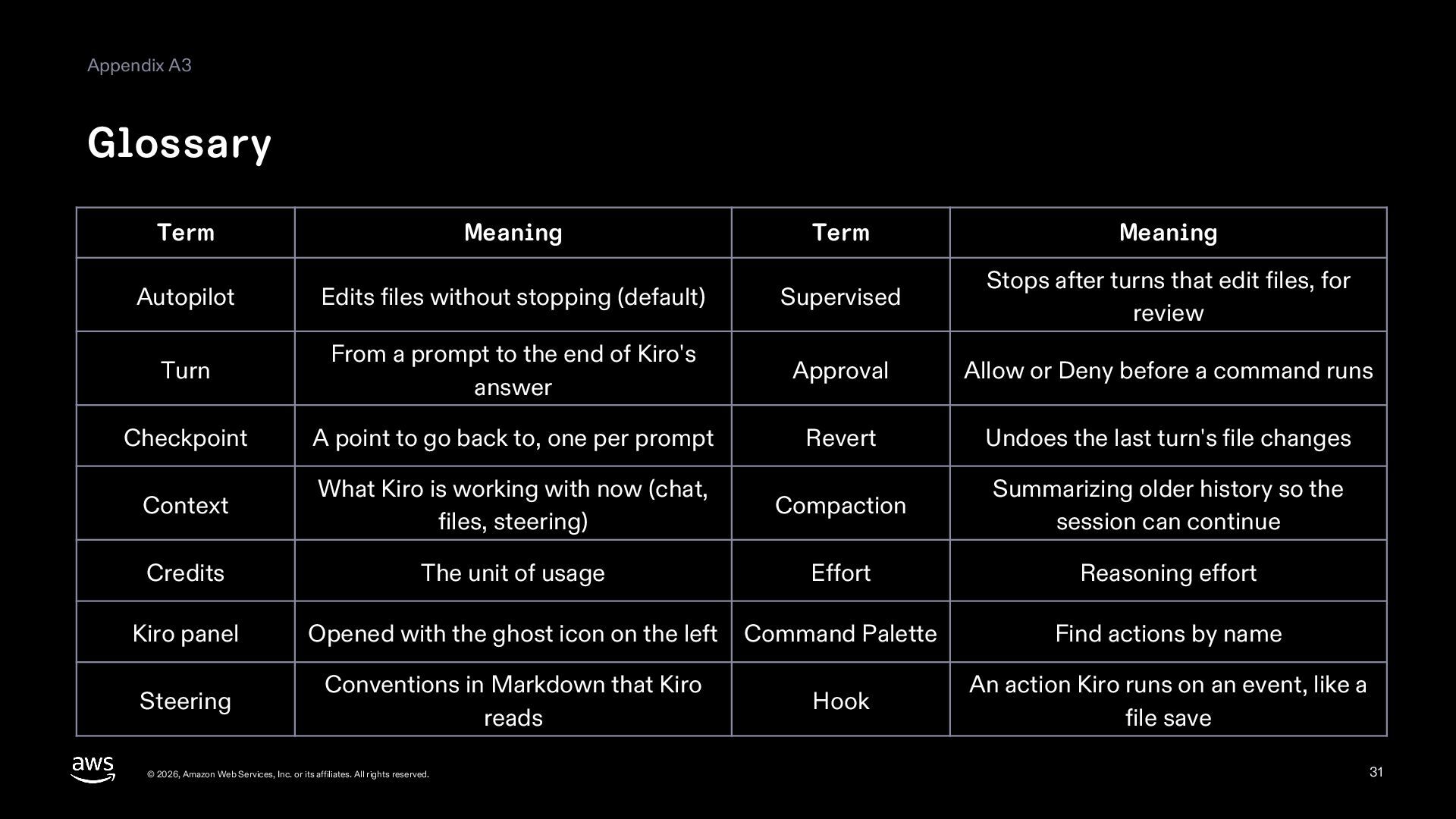
  31. Appendix A3 Glossary Term Meaning Term Meaning Autopilot Edits files

    without stopping (default) Supervised Stops after turns that edit files, for review Turn From a prompt to the end of Kiro's answer Approval Allow or Deny before a command runs Checkpoint A point to go back to, one per prompt Revert Undoes the last turn's file changes Context What Kiro is working with now (chat, files, steering) Compaction Summarizing older history so the session can continue Credits The unit of usage Effort Reasoning effort Kiro panel Opened with the ghost icon on the left Command Palette Find actions by name Steering Conventions in Markdown that Kiro reads Hook An action Kiro runs on an event, like a file save © 2026, Amazon Web Services, Inc. or its affiliates. All rights reserved. 31
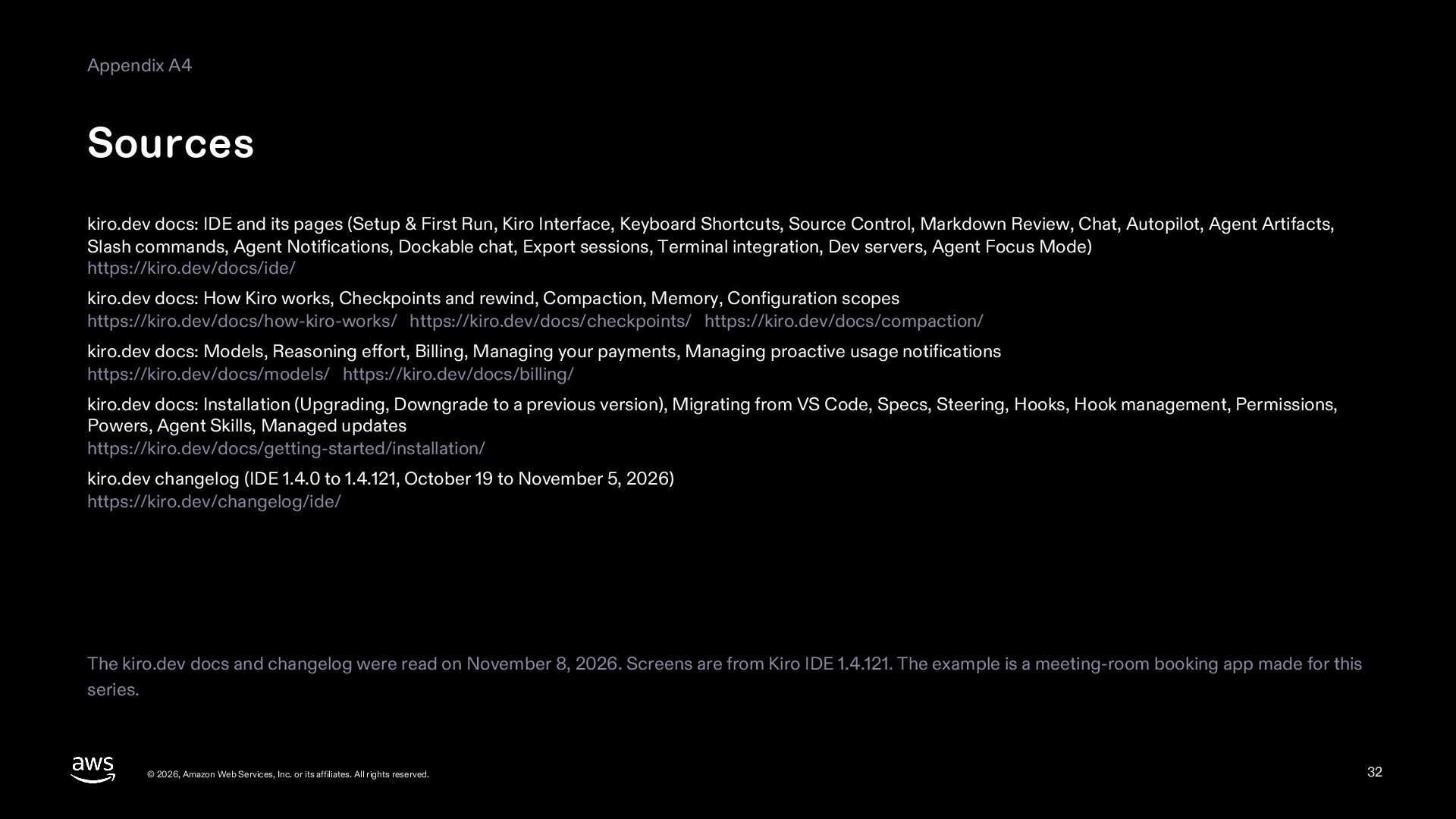
  32. Appendix A4 Sources kiro.dev docs: IDE and its pages (Setup

    & First Run, Kiro Interface, Keyboard Shortcuts, Source Control, Markdown Review, Chat, Autopilot, Agent Artifacts, Slash commands, Agent Notifications, Dockable chat, Export sessions, Terminal integration, Dev servers, Agent Focus Mode) https://kiro.dev/docs/ide/ kiro.dev docs: How Kiro works, Checkpoints and rewind, Compaction, Memory, Configuration scopes https://kiro.dev/docs/how-kiro-works/ https://kiro.dev/docs/checkpoints/ https://kiro.dev/docs/compaction/ kiro.dev docs: Models, Reasoning effort, Billing, Managing your payments, Managing proactive usage notifications https://kiro.dev/docs/models/ https://kiro.dev/docs/billing/ kiro.dev docs: Installation (Upgrading, Downgrade to a previous version), Migrating from VS Code, Specs, Steering, Hooks, Hook management, Permissions, Powers, Agent Skills, Managed updates https://kiro.dev/docs/getting-started/installation/ kiro.dev changelog (IDE 1.4.0 to 1.4.121, October 19 to November 5, 2026) https://kiro.dev/changelog/ide/ The kiro.dev docs and changelog were read on November 8, 2026. Screens are from Kiro IDE 1.4.121. The example is a meeting-room booking app made for this series. © 2026, Amazon Web Services, Inc. or its affiliates. All rights reserved. 32