Upgrade to Pro — share decks privately, control downloads, hide ads and more …

Hey Siri, How Do I Implement You?

Hey Siri, How Do I Implement You?

I cover a brief history of Siri in order to give various size implementations of SiriKit Shortcuts in your app. I then talk about what makes for a good SiriKit shortcut and if you should include it.

Avatar for Jacob Van Order

Jacob Van Order

April 17, 2019
Tweet

More Decks by Jacob Van Order

Other Decks in Programming

Transcript

  1. You • Interesting in using SiriKit Shortcut in your app

    • Already have NSUserActivity in your app • Love talking to your phone in public Or • Just waiting for lunch at 12:30
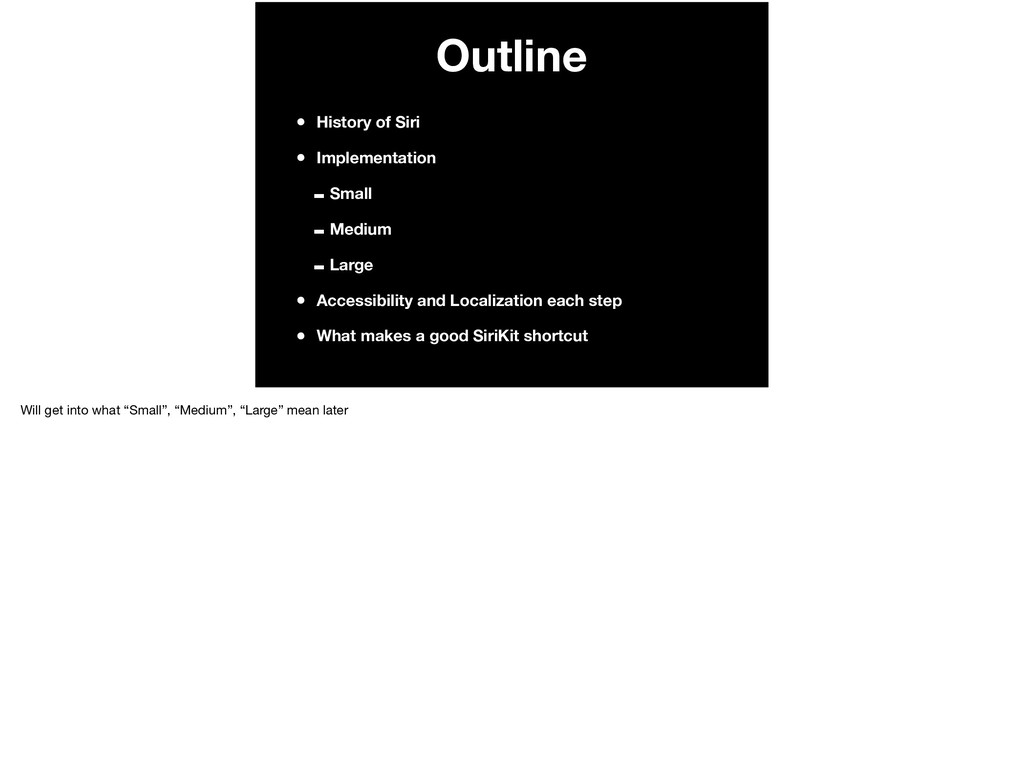
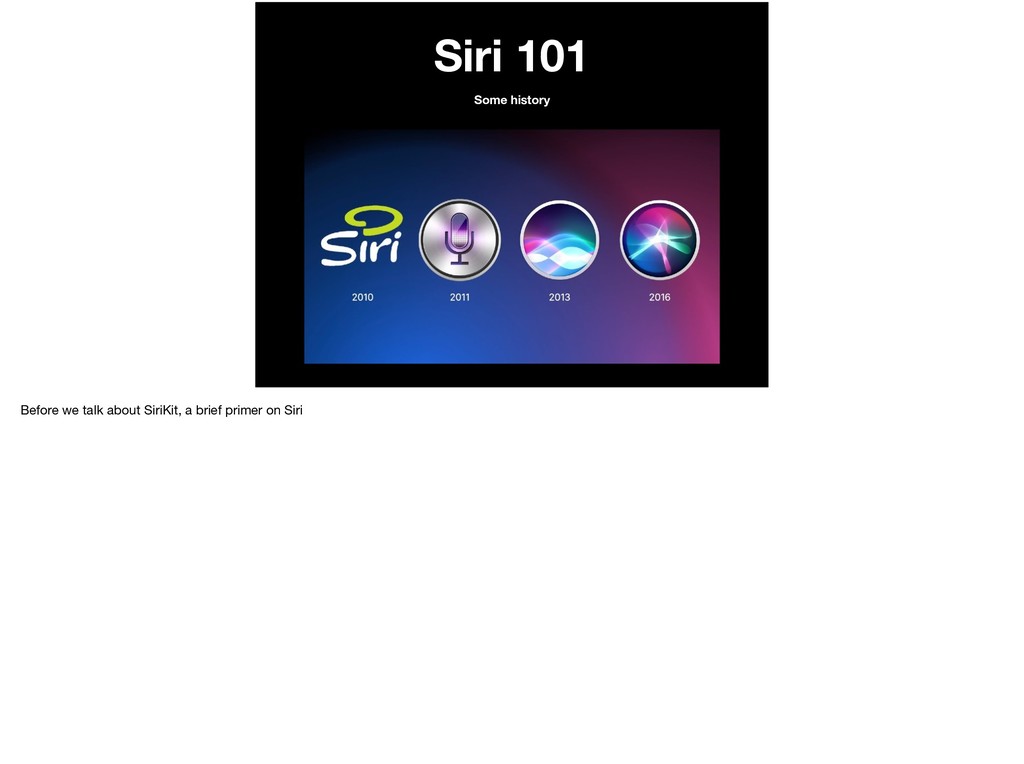
  2. Outline • History of Siri • Implementation -Small -Medium -Large

    • Accessibility and Localization each step • What makes a good SiriKit shortcut Will get into what “Small”, “Medium”, “Large” mean later
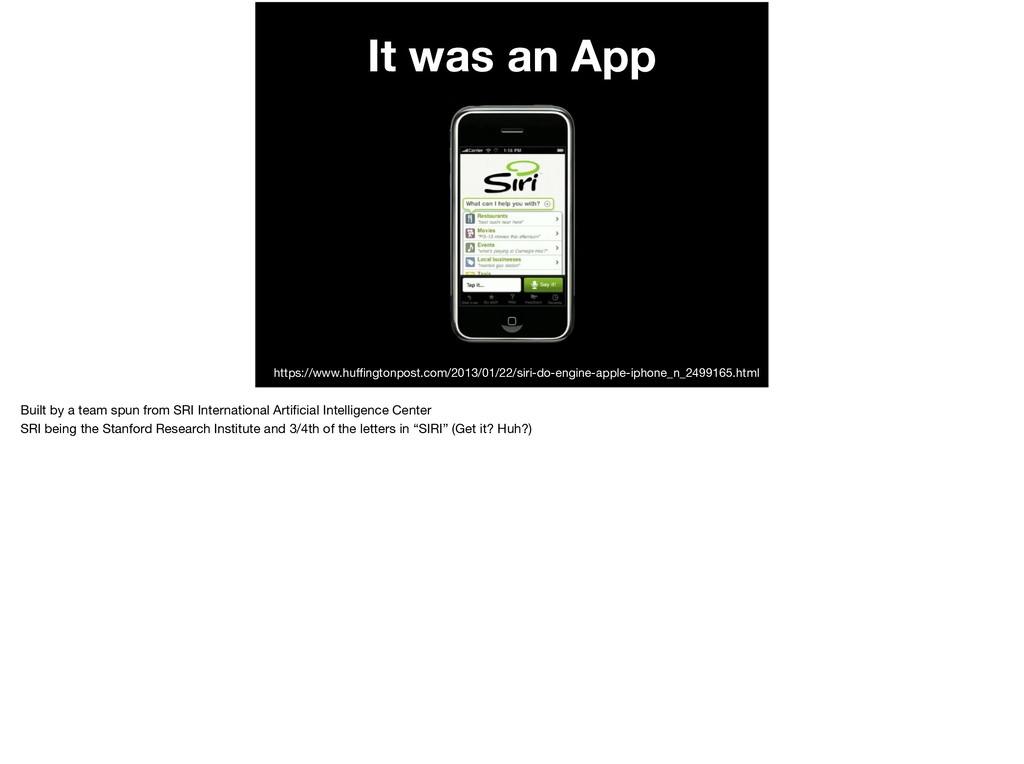
  3. It was an App https://www.huffingtonpost.com/2013/01/22/siri-do-engine-apple-iphone_n_2499165.html Built by a team spun

    from SRI International Artificial Intelligence Center SRI being the Stanford Research Institute and 3/4th of the letters in “SIRI” (Get it? Huh?)
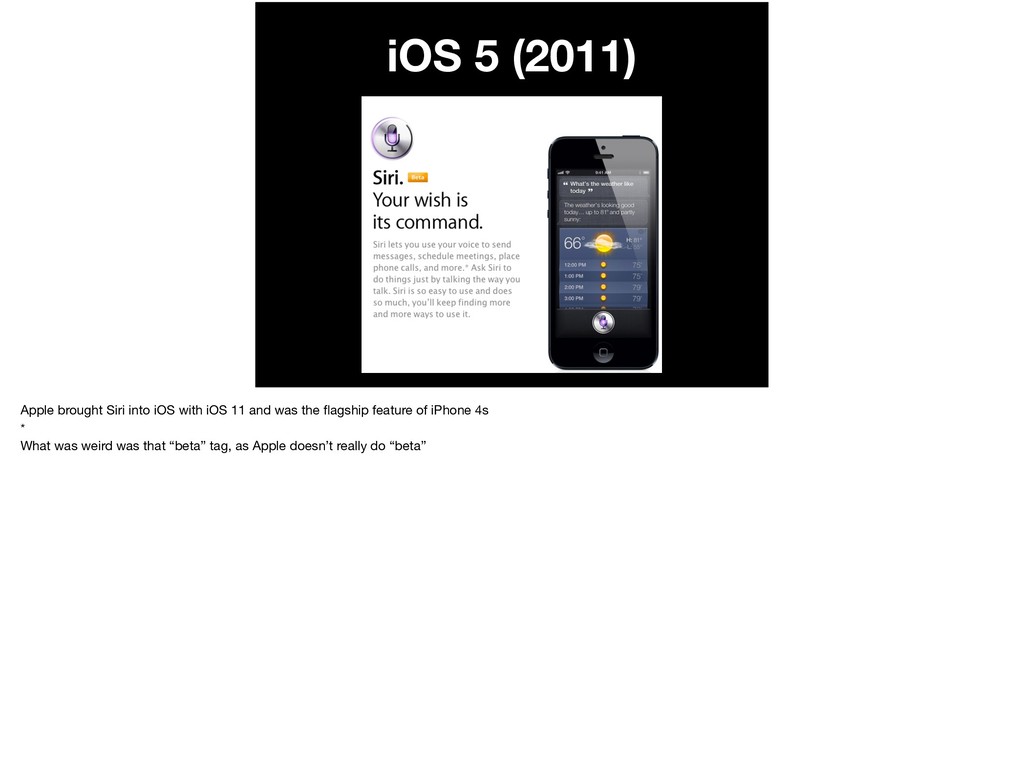
  4. iOS 5 (2011) Apple brought Siri into iOS with iOS

    11 and was the flagship feature of iPhone 4s * What was weird was that “beta” tag, as Apple doesn’t really do “beta”
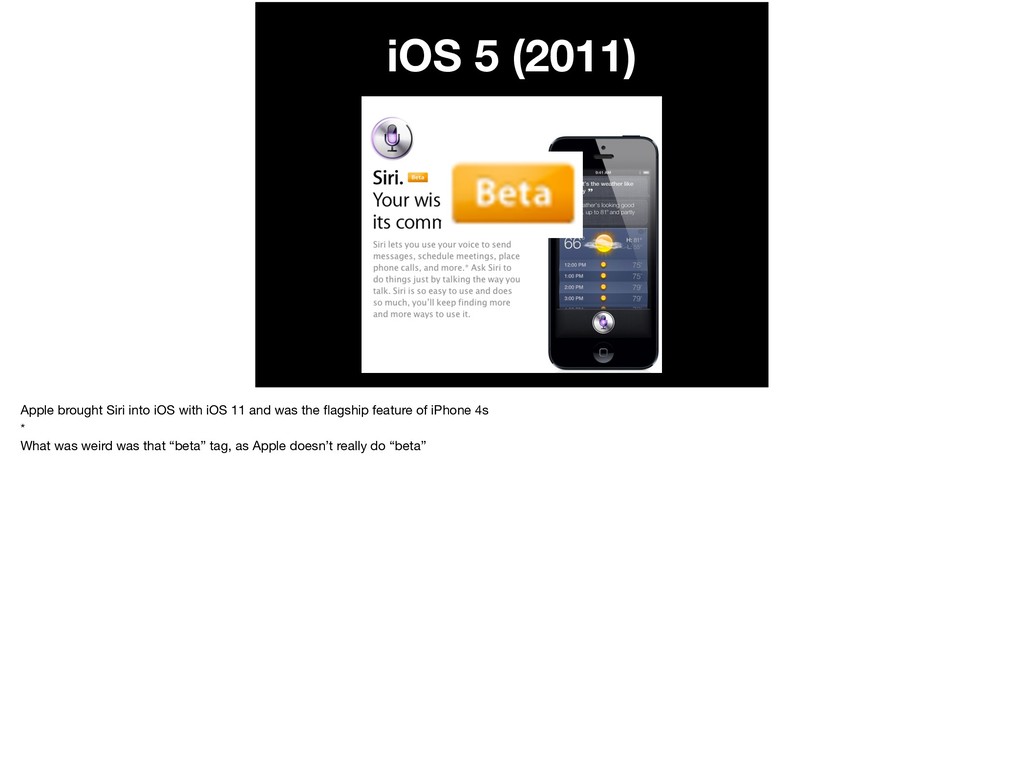
  5. iOS 5 (2011) Apple brought Siri into iOS with iOS

    11 and was the flagship feature of iPhone 4s * What was weird was that “beta” tag, as Apple doesn’t really do “beta”
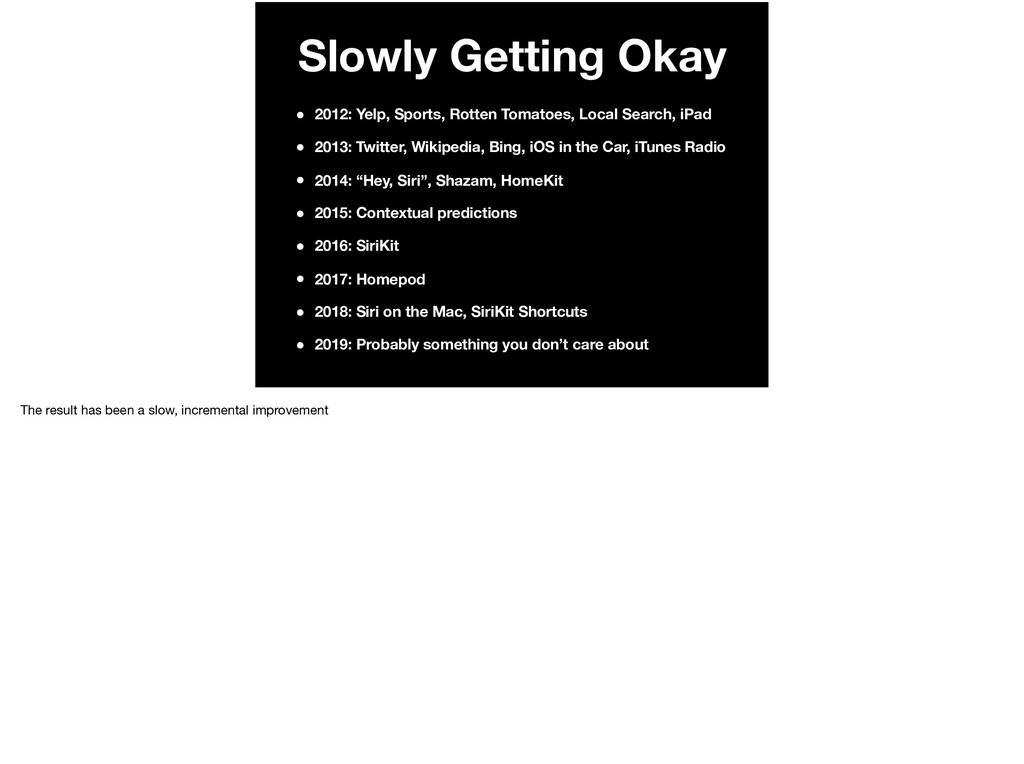
  6. Slowly Getting Okay • 2012: Yelp, Sports, Rotten Tomatoes, Local

    Search, iPad • 2013: Twitter, Wikipedia, Bing, iOS in the Car, iTunes Radio • 2014: “Hey, Siri”, Shazam, HomeKit • 2015: Contextual predictions • 2016: SiriKit • 2017: Homepod • 2018: Siri on the Mac, SiriKit Shortcuts • 2019: Probably something you don’t care about The result has been a slow, incremental improvement
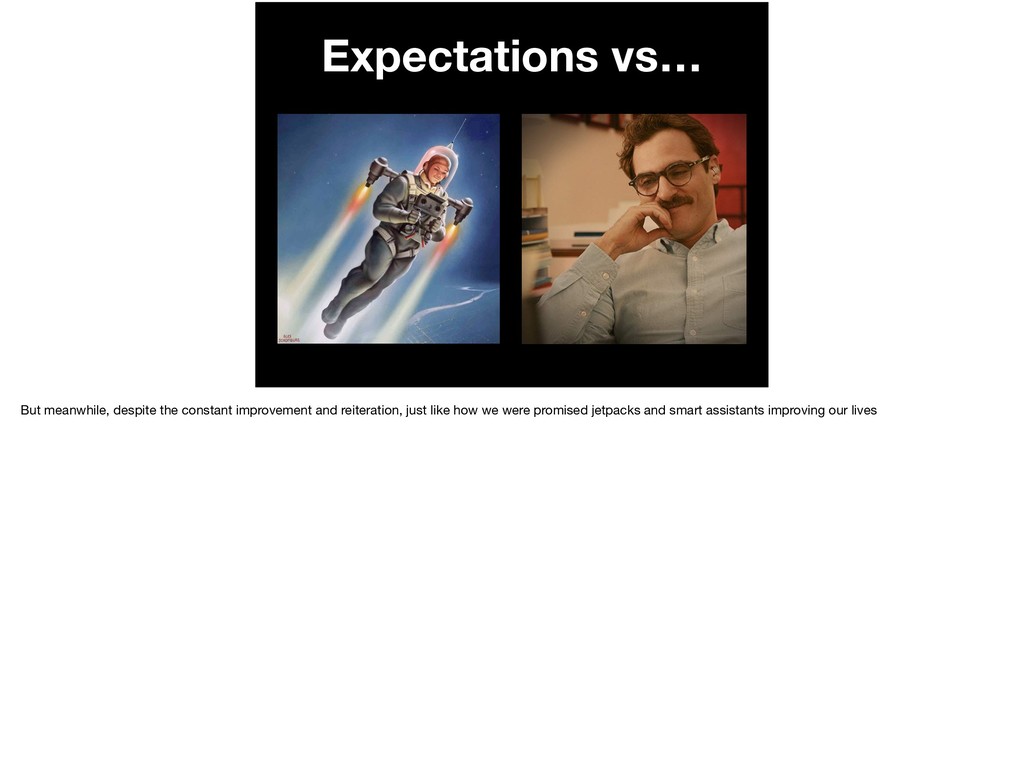
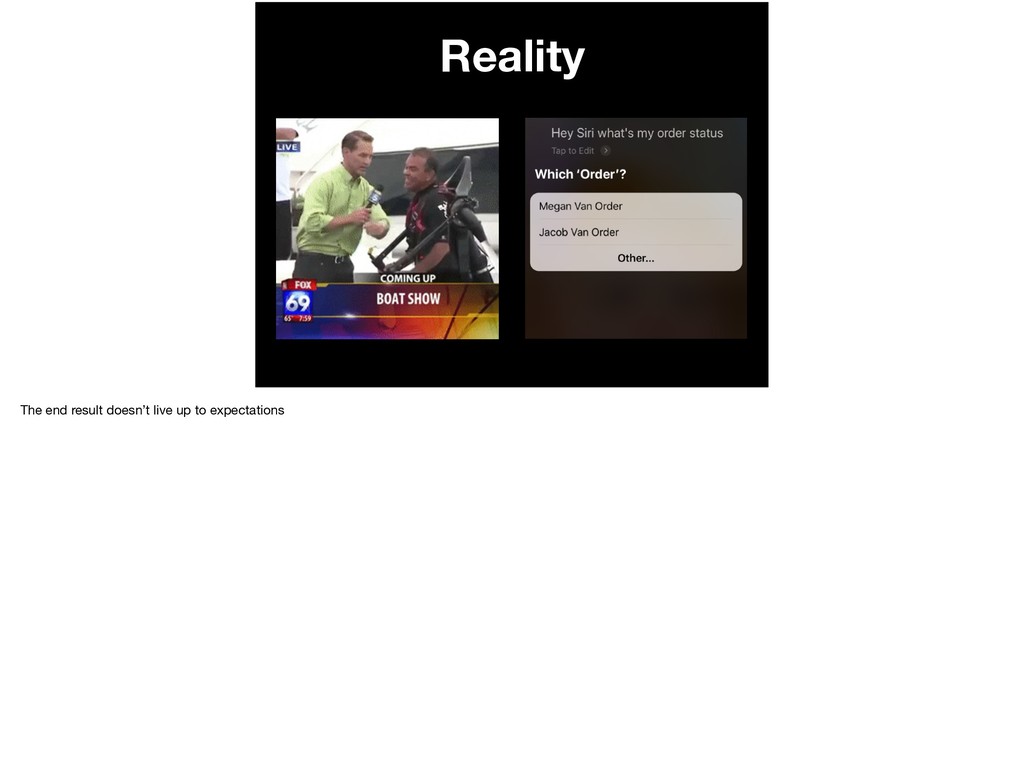
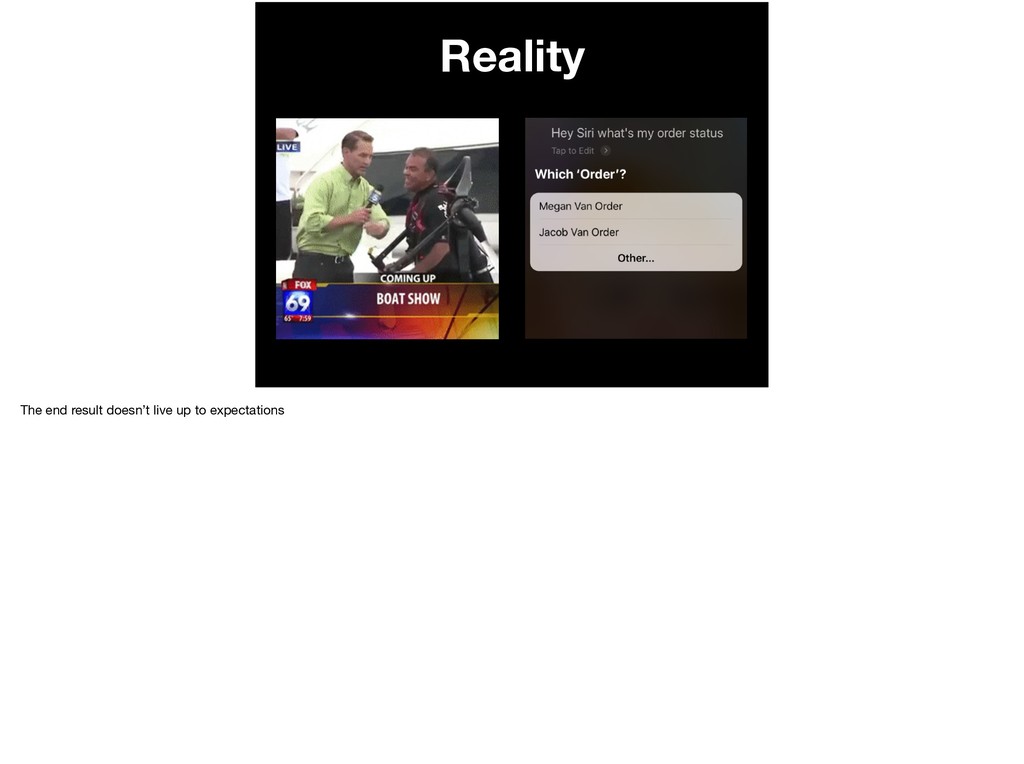
  7. Expectations vs… But meanwhile, despite the constant improvement and reiteration,

    just like how we were promised jetpacks and smart assistants improving our lives
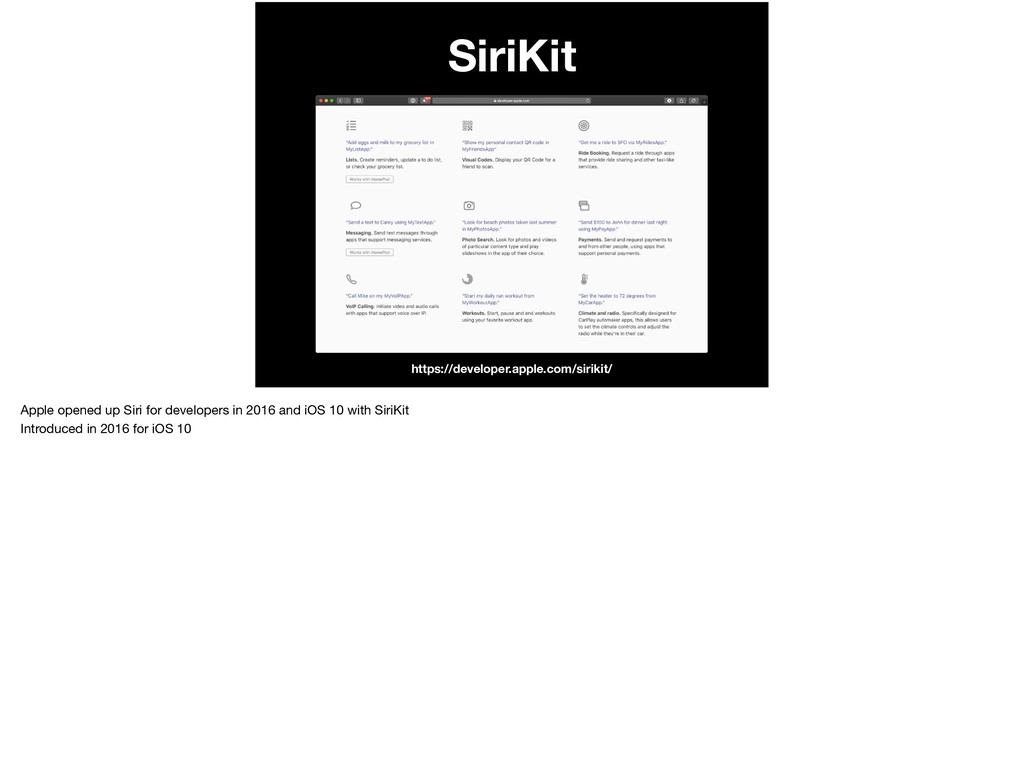
  8. SiriKit Shortcuts •Introduced in iOS 12 (2018) •Key components •

    NSUserActivity • INIntent •Various ways to invoke •What we’ll be talking about today
  9. You You are an iOS Developer for a PR App

    Company and Swift by Midwest contracted your company to come up with an app for their conference
  10. You ! A Developer You are an iOS Developer for

    a PR App Company and Swift by Midwest contracted your company to come up with an app for their conference
  11. GoodApps Co You ! A Developer You are an iOS

    Developer for a PR App Company and Swift by Midwest contracted your company to come up with an app for their conference
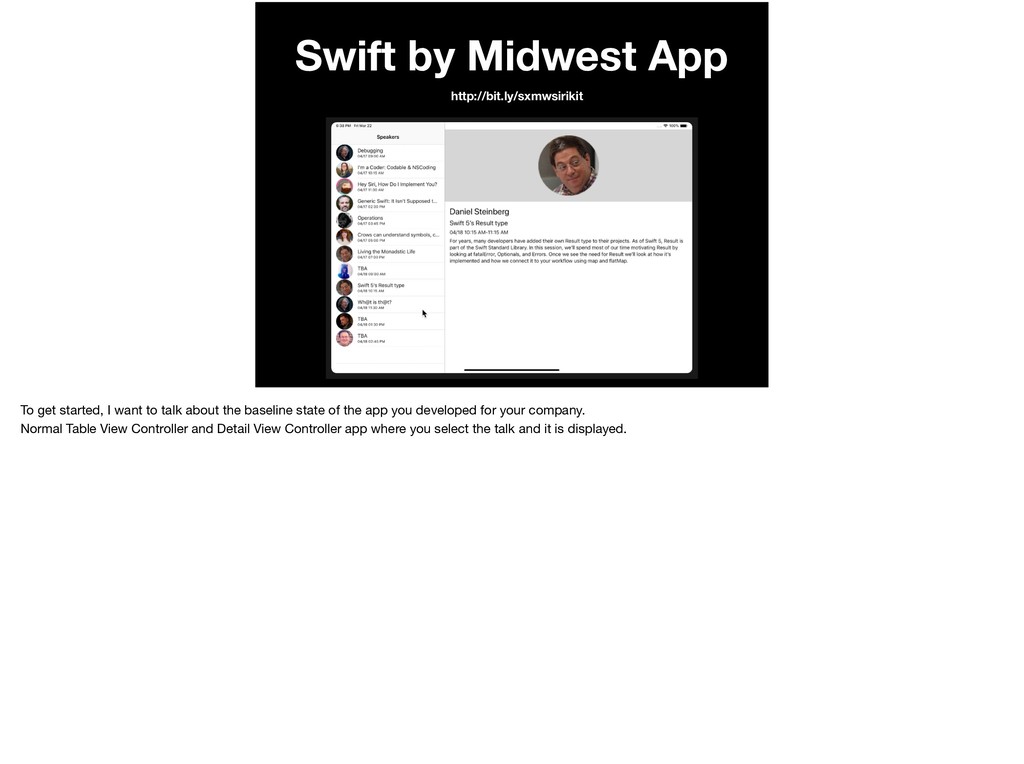
  12. Swift by Midwest App http://bit.ly/sxmwsirikit To get started, I want

    to talk about the baseline state of the app you developed for your company. Normal Table View Controller and Detail View Controller app where you select the talk and it is displayed.
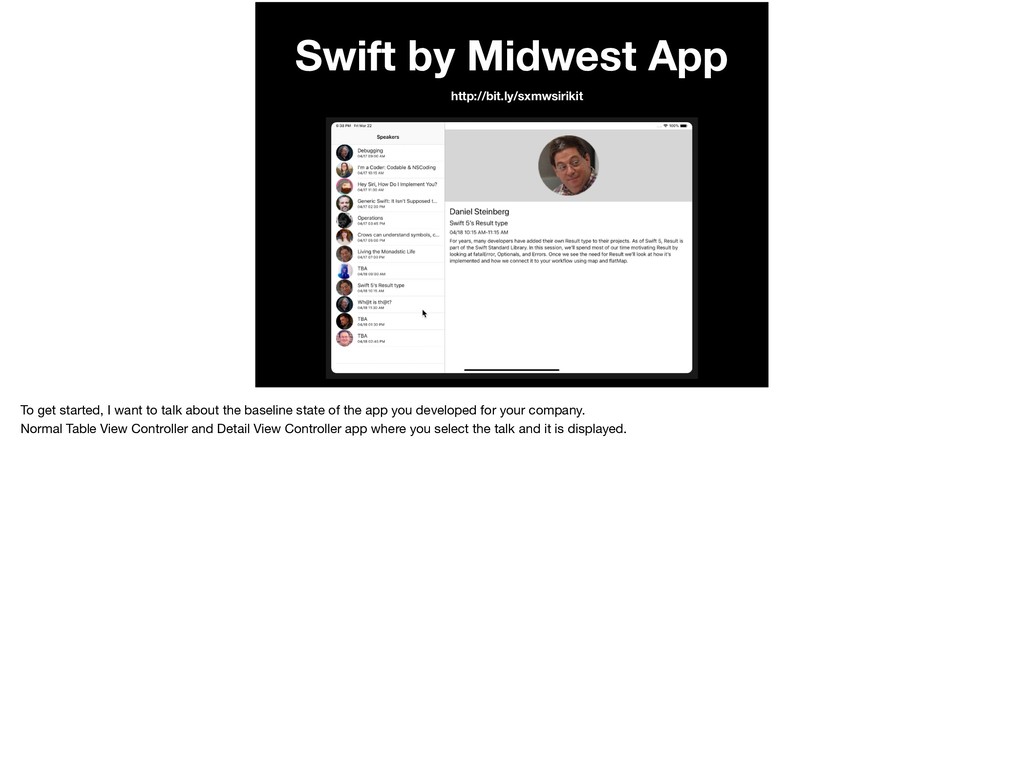
  13. Swift by Midwest App http://bit.ly/sxmwsirikit To get started, I want

    to talk about the baseline state of the app you developed for your company. Normal Table View Controller and Detail View Controller app where you select the talk and it is displayed.
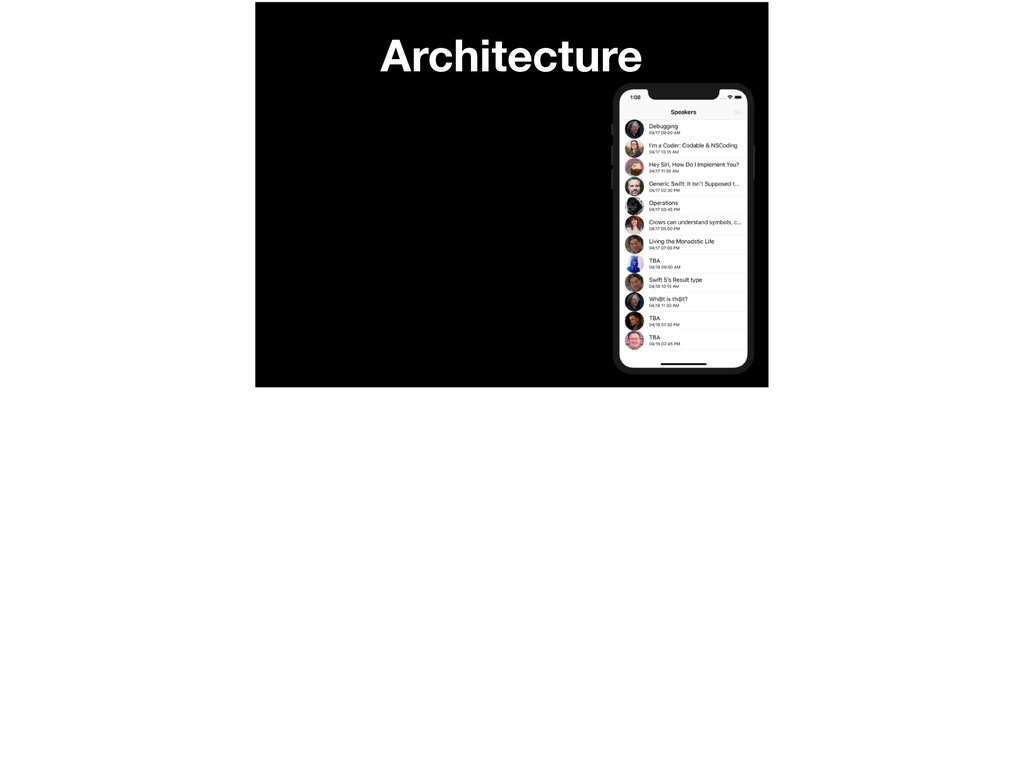
  14. Architecture Conference Talk [] Speaker [] Because we don’t know

    what targets we’re going to want to have in the future such as Apple TV or Apple Watch, we moved our model objects into a CocoaTouch Framework. They are a Conference with an Array of Talks and Speakers.
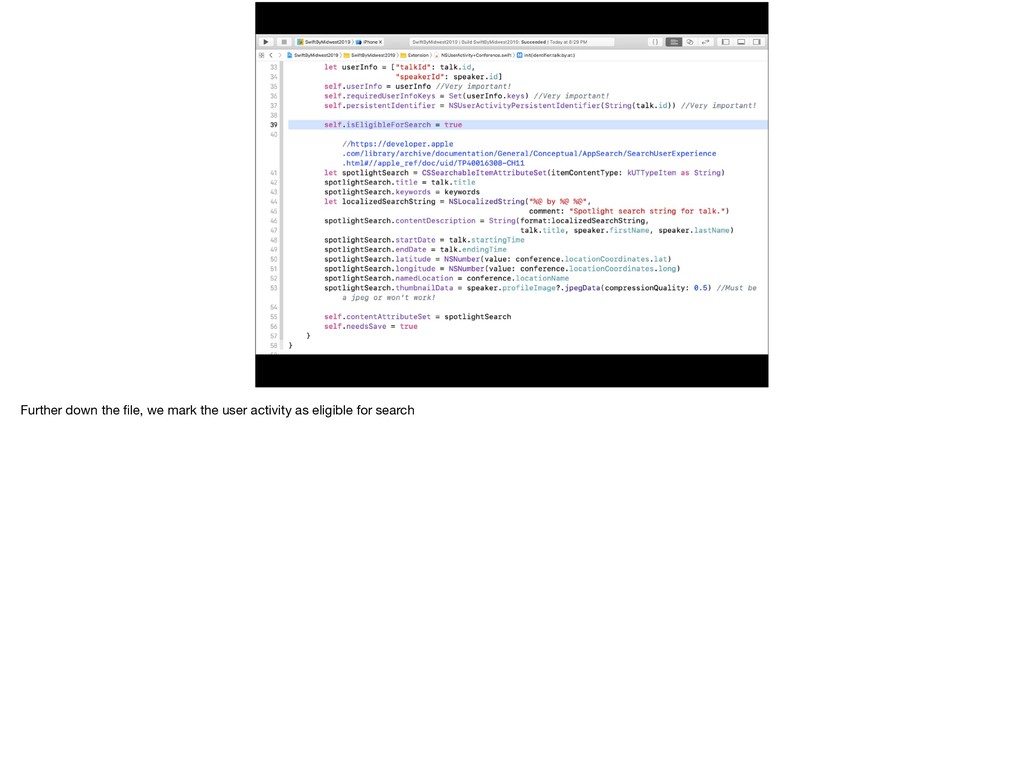
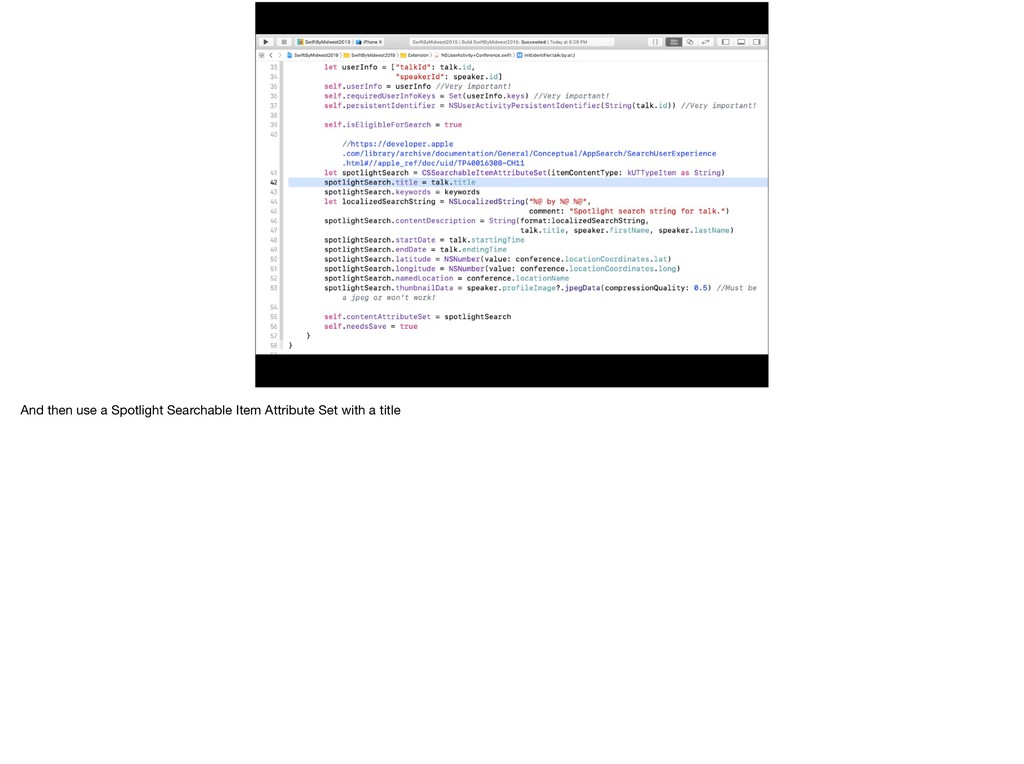
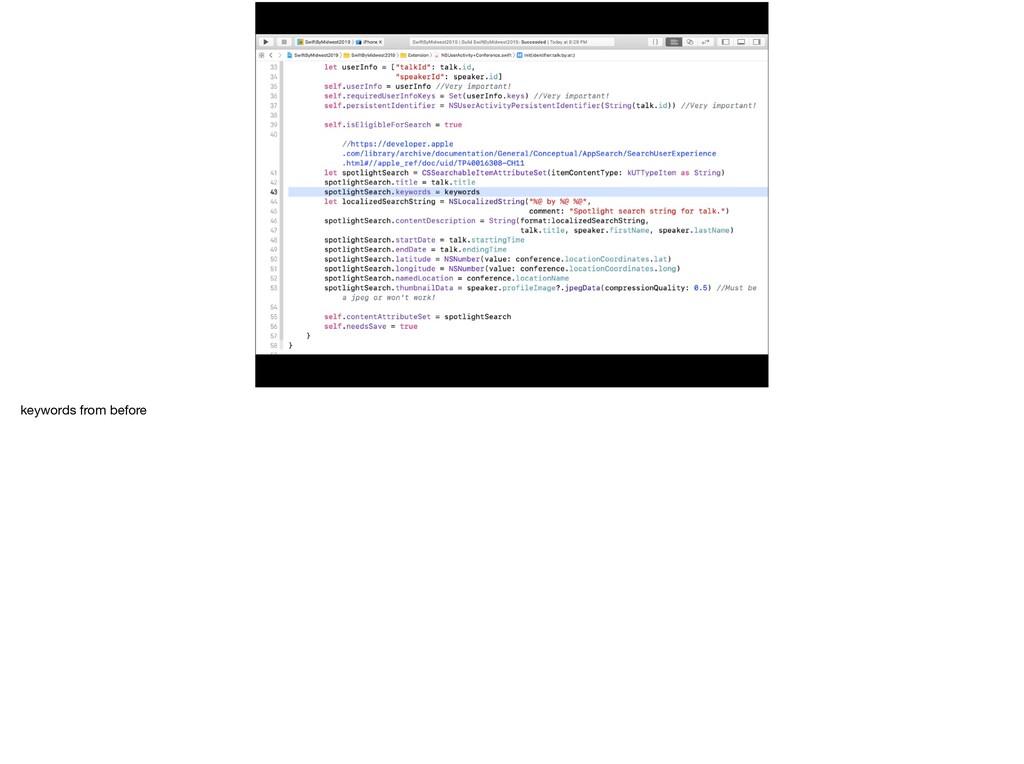
  15. NSUserActivity Because this is an app in 2019, we probably

    have a NSUserActivity set up. As a reminder, NSUserActivity is way to make note of when a user has taken an action in your app. This can be used for handoff, to continue the activity on another device, or for spotlight which is what we’re going to use it for.
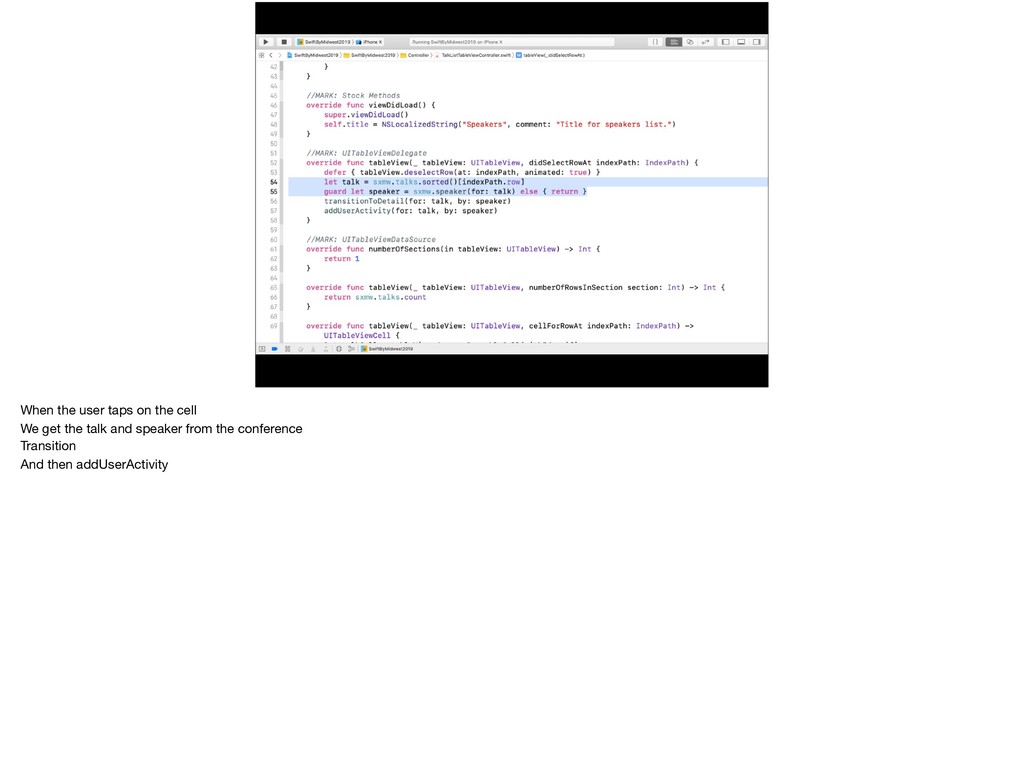
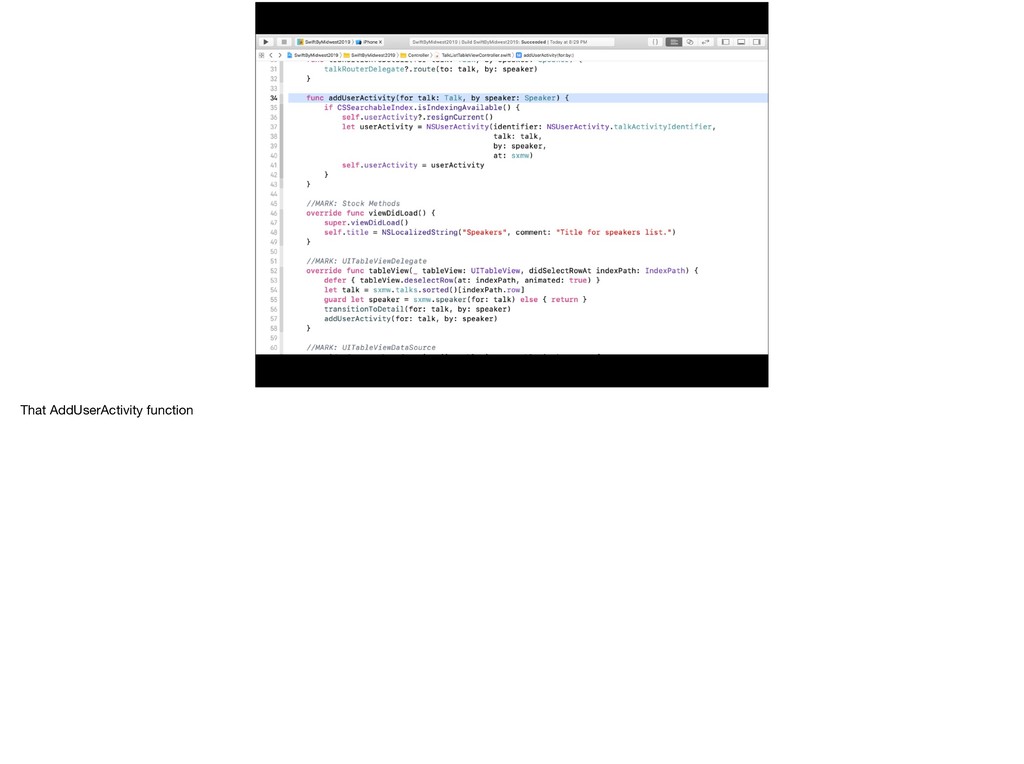
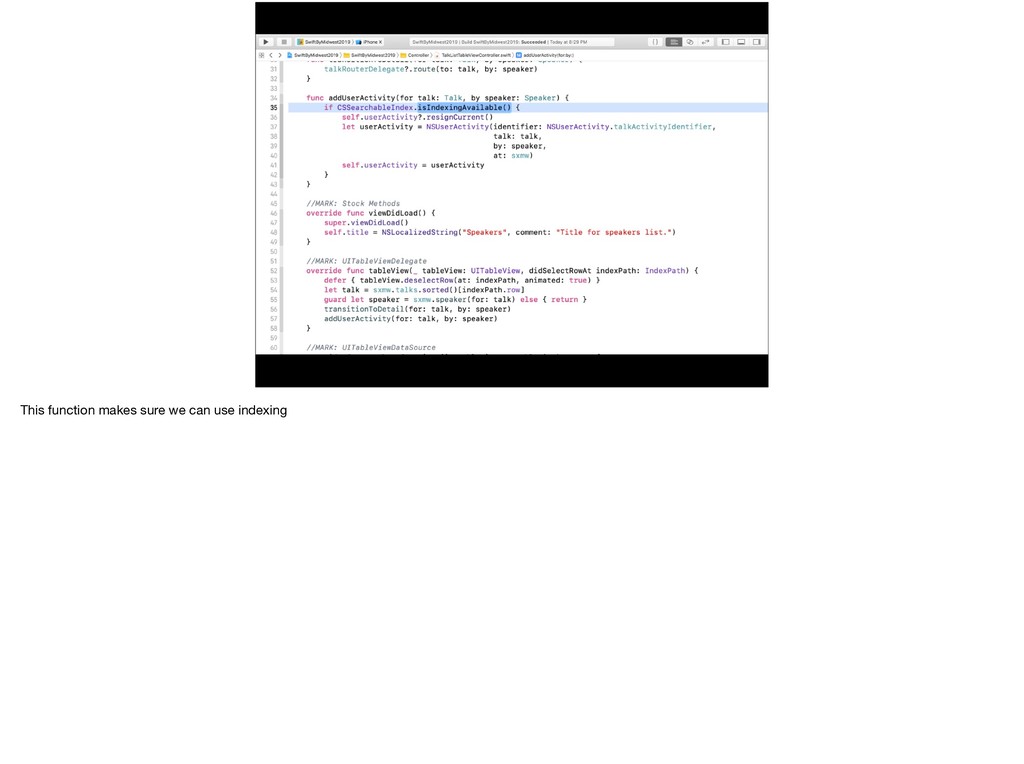
  16. When the user taps on the cell We get the

    talk and speaker from the conference Transition And then addUserActivity
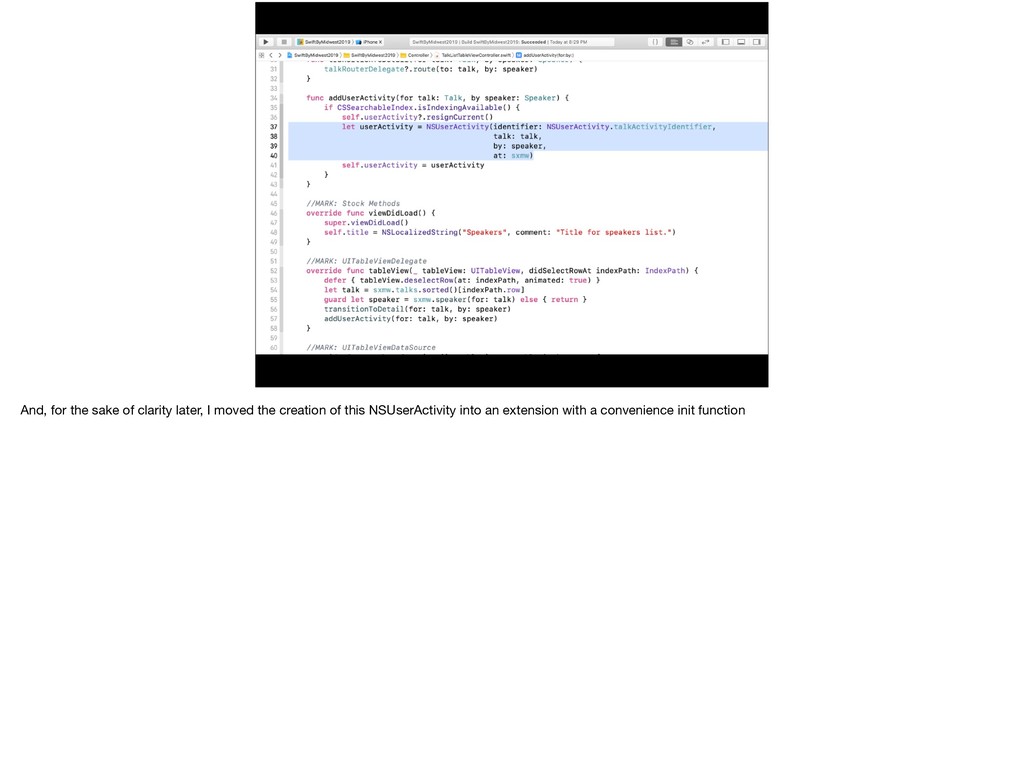
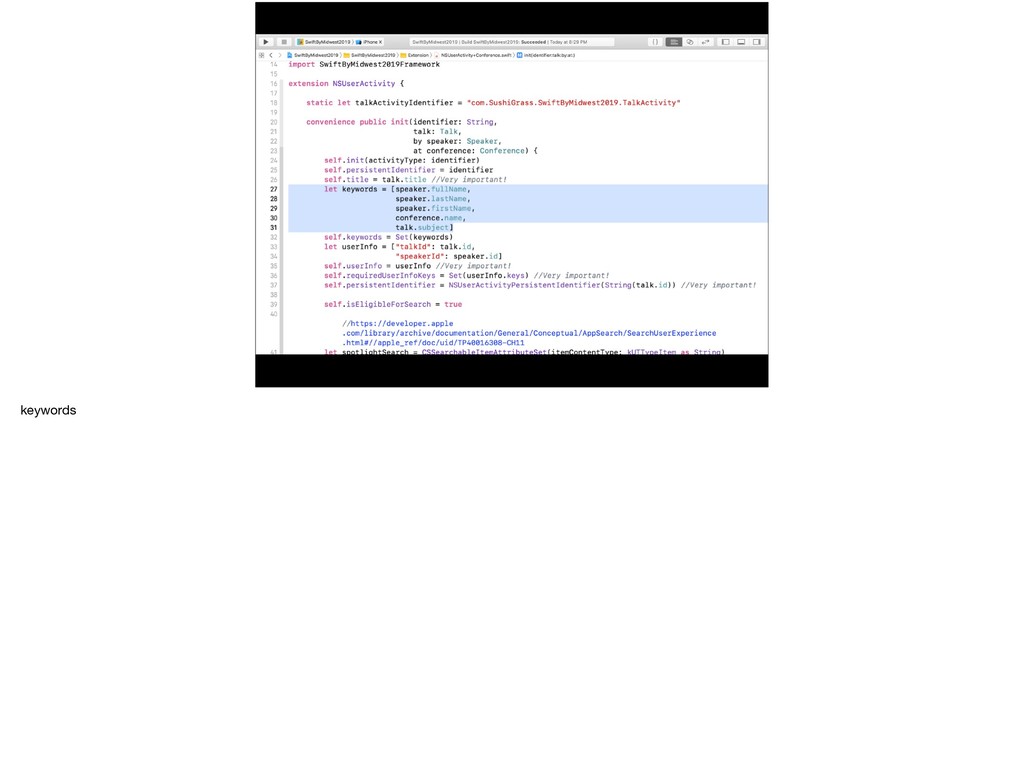
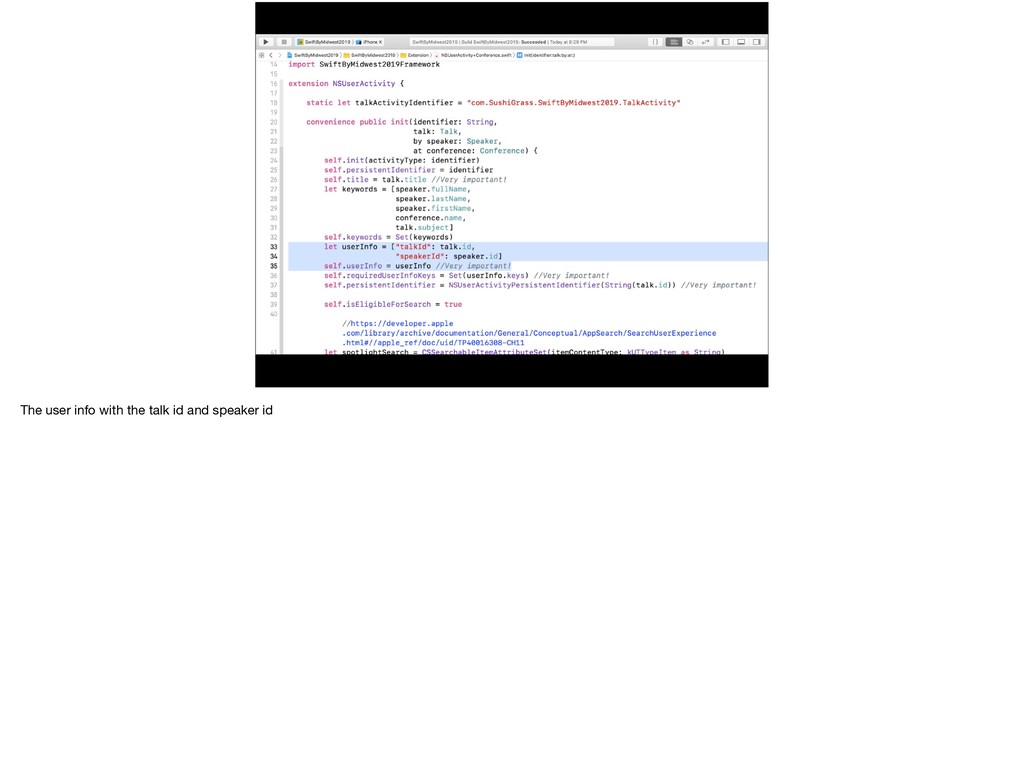
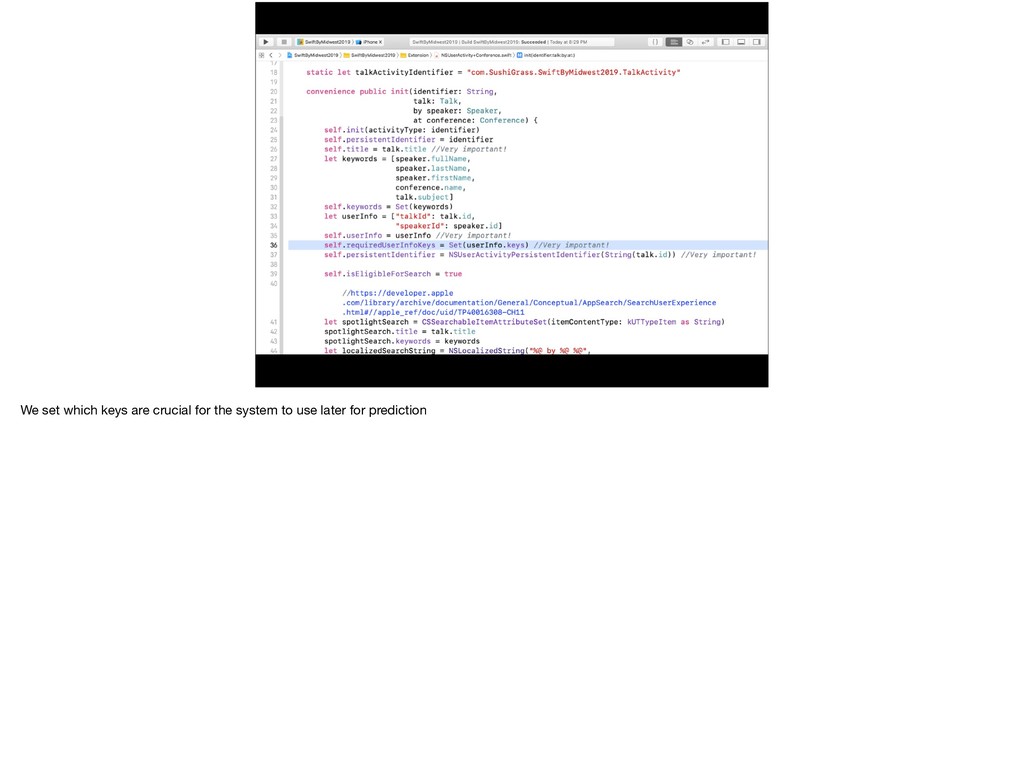
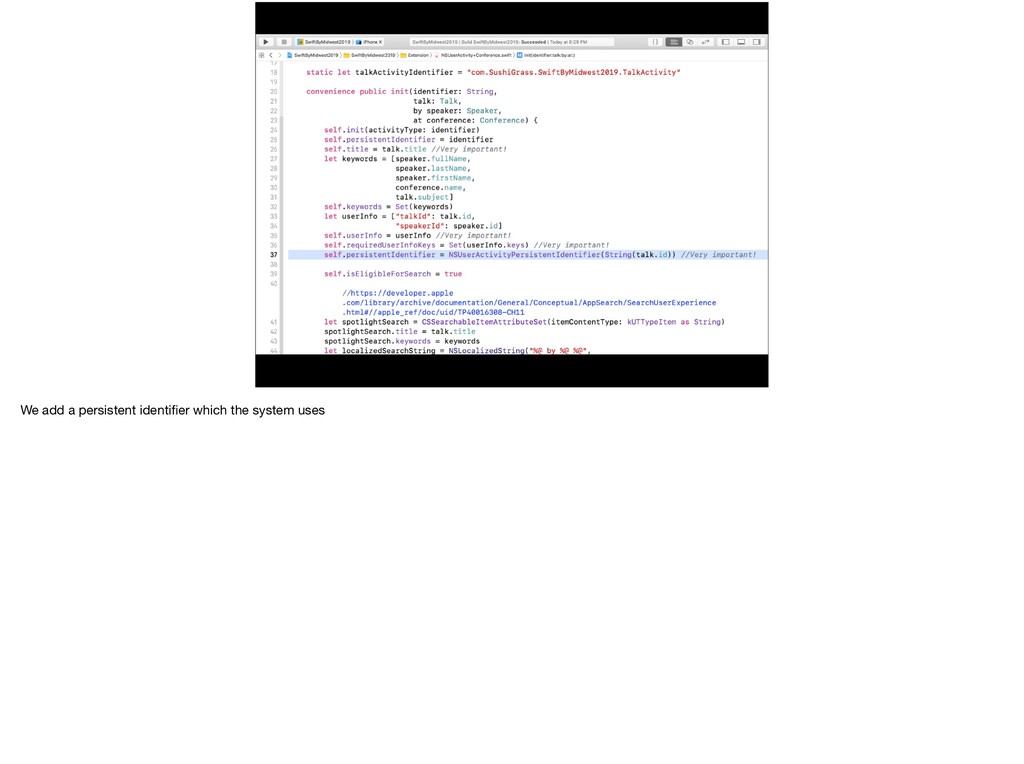
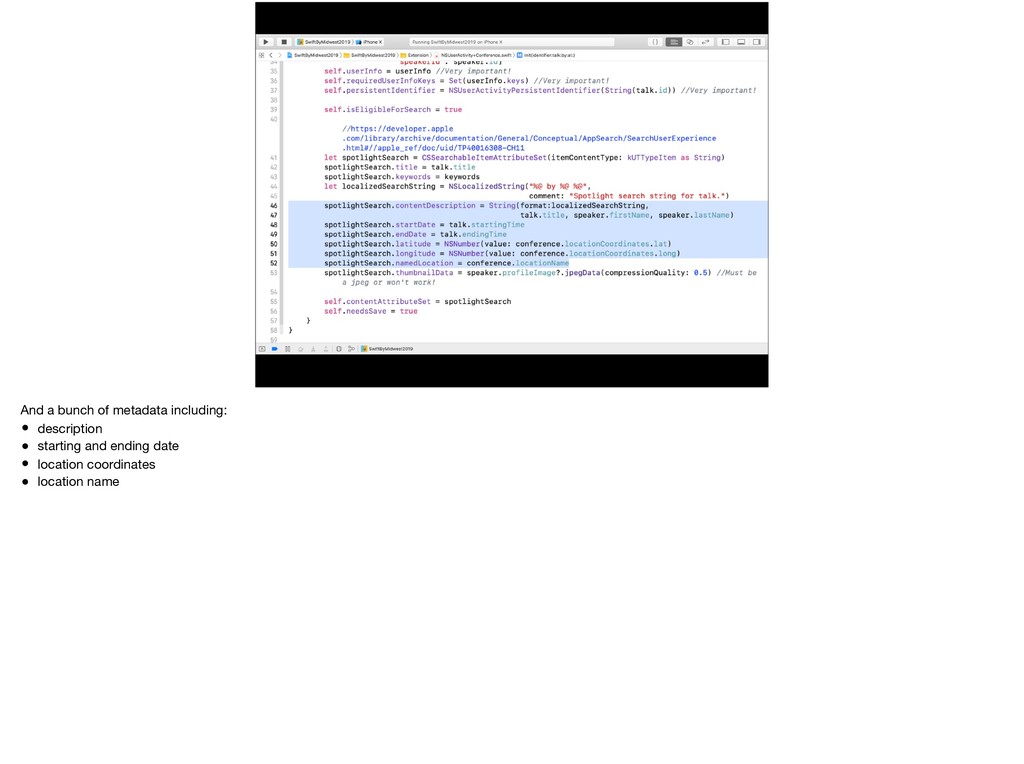
  17. And, for the sake of clarity later, I moved the

    creation of this NSUserActivity into an extension with a convenience init function
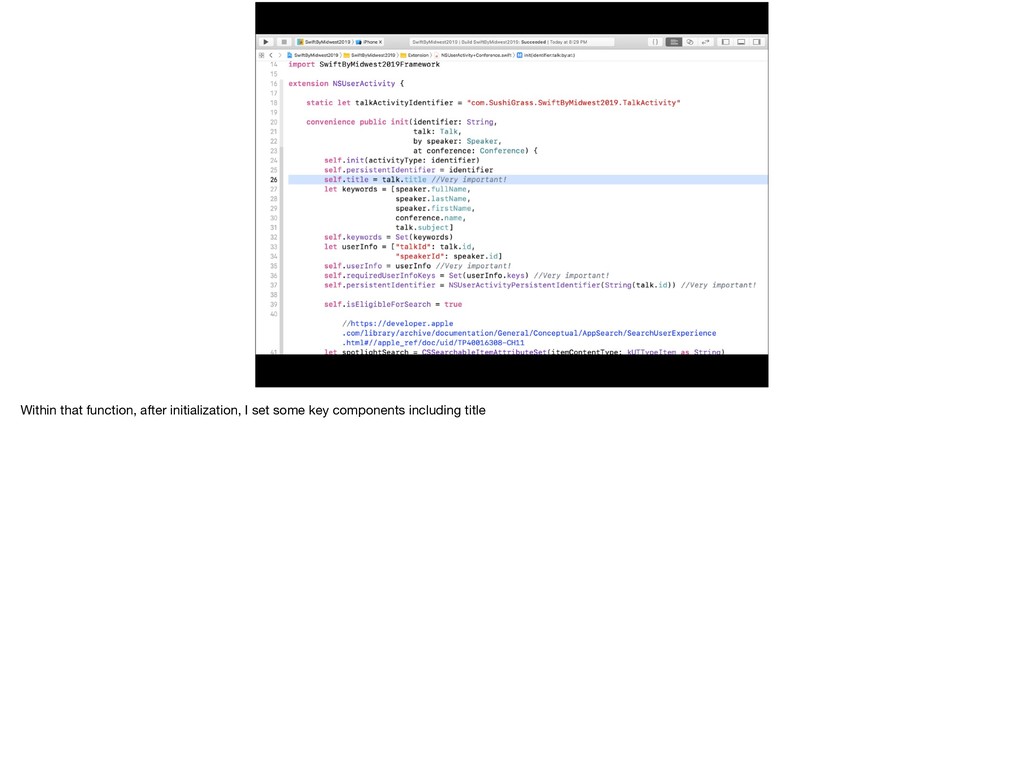
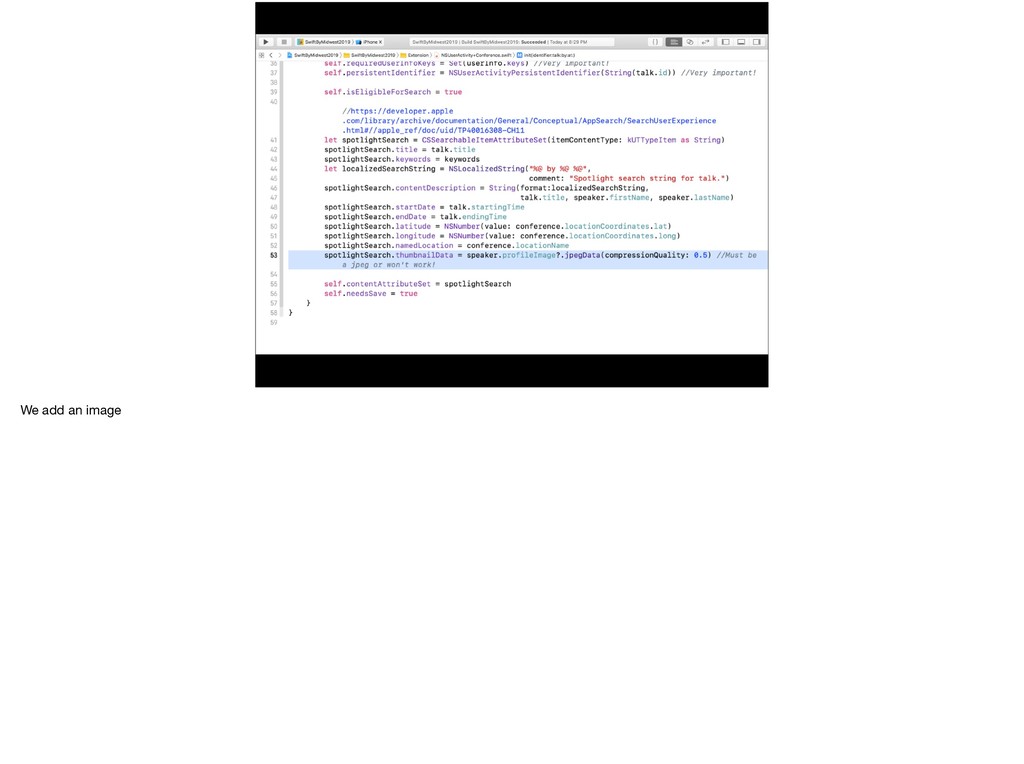
  18. And a bunch of metadata including: • description • starting

    and ending date • location coordinates • location name
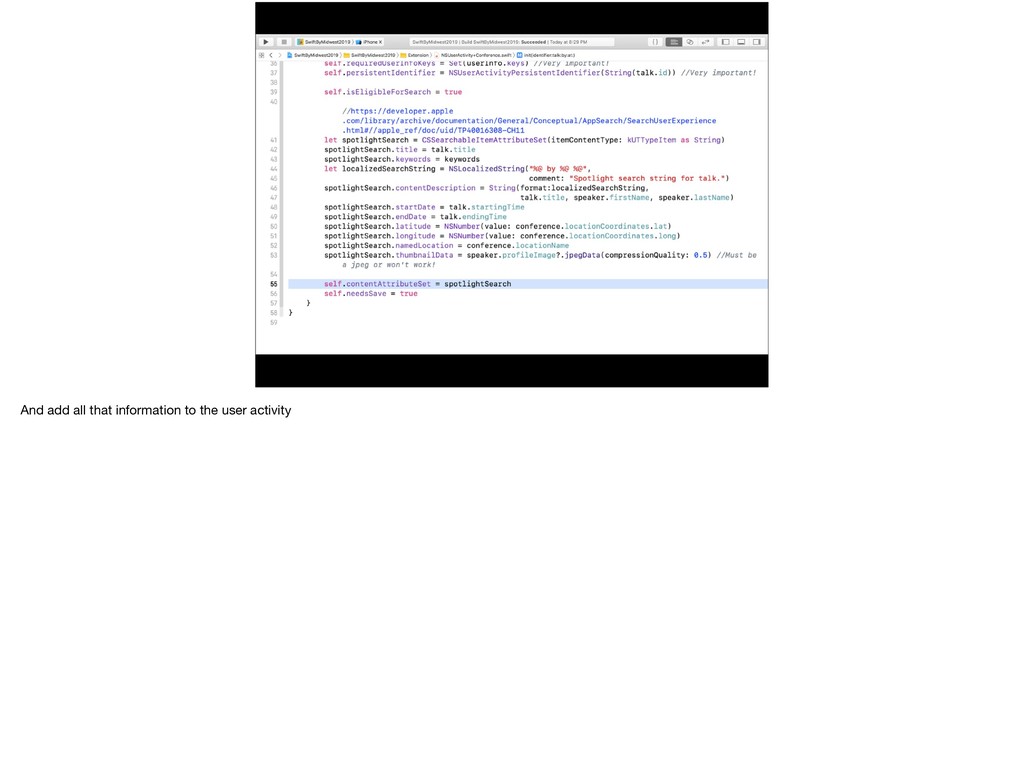
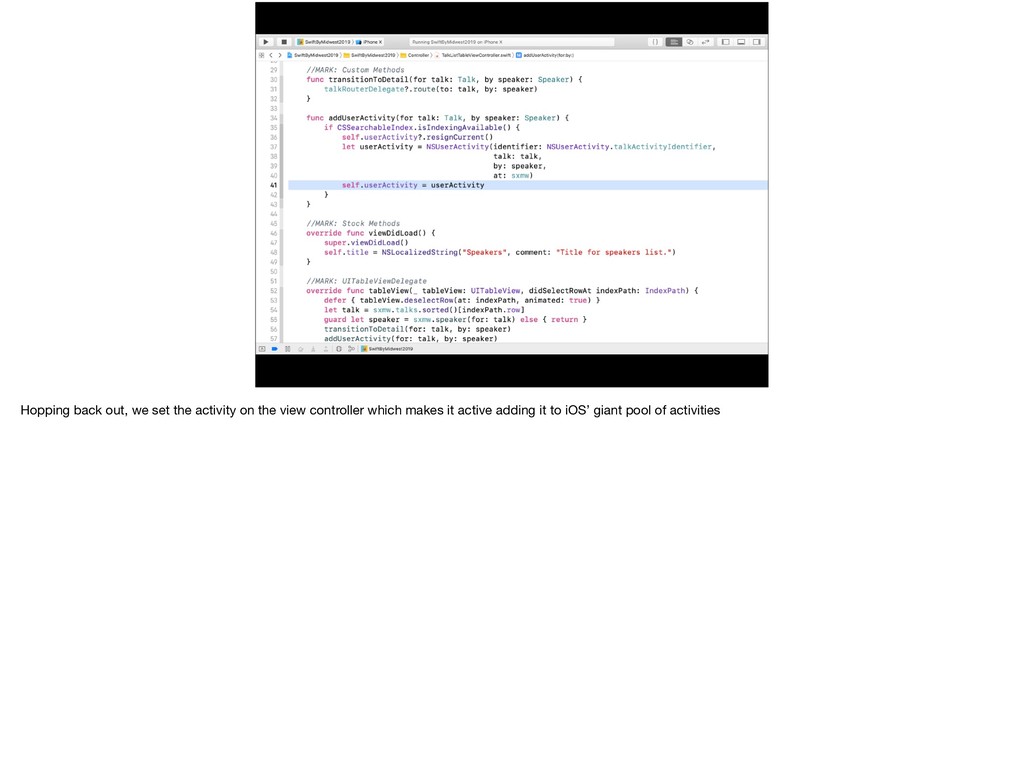
  19. Hopping back out, we set the activity on the view

    controller which makes it active adding it to iOS’ giant pool of activities
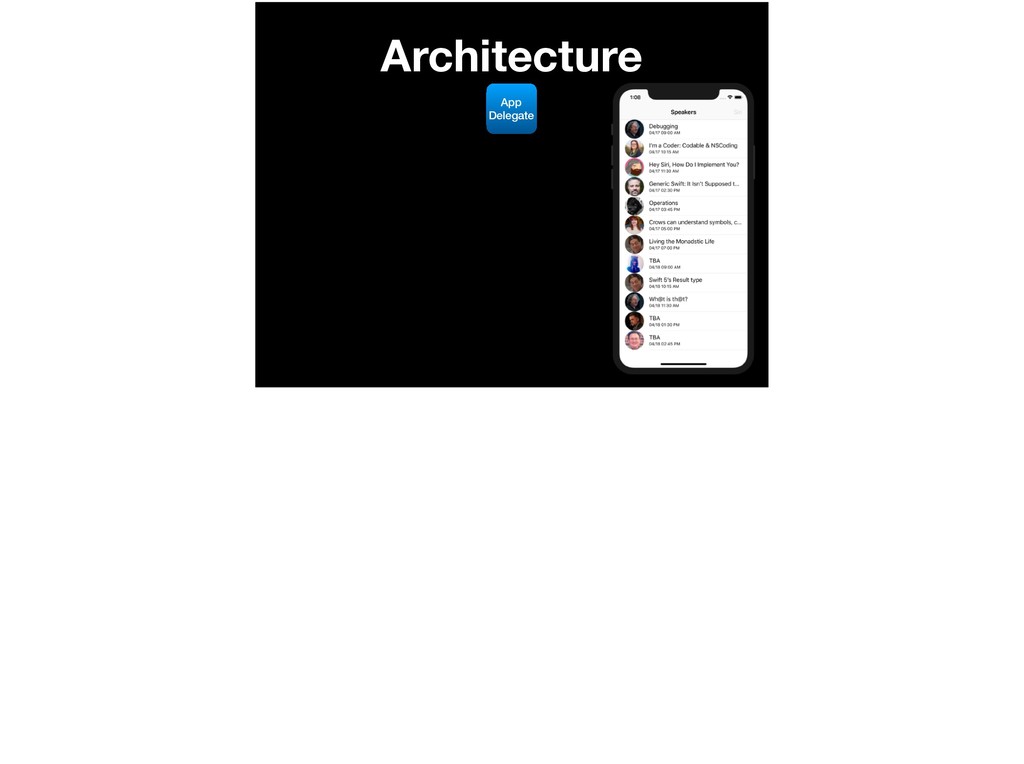
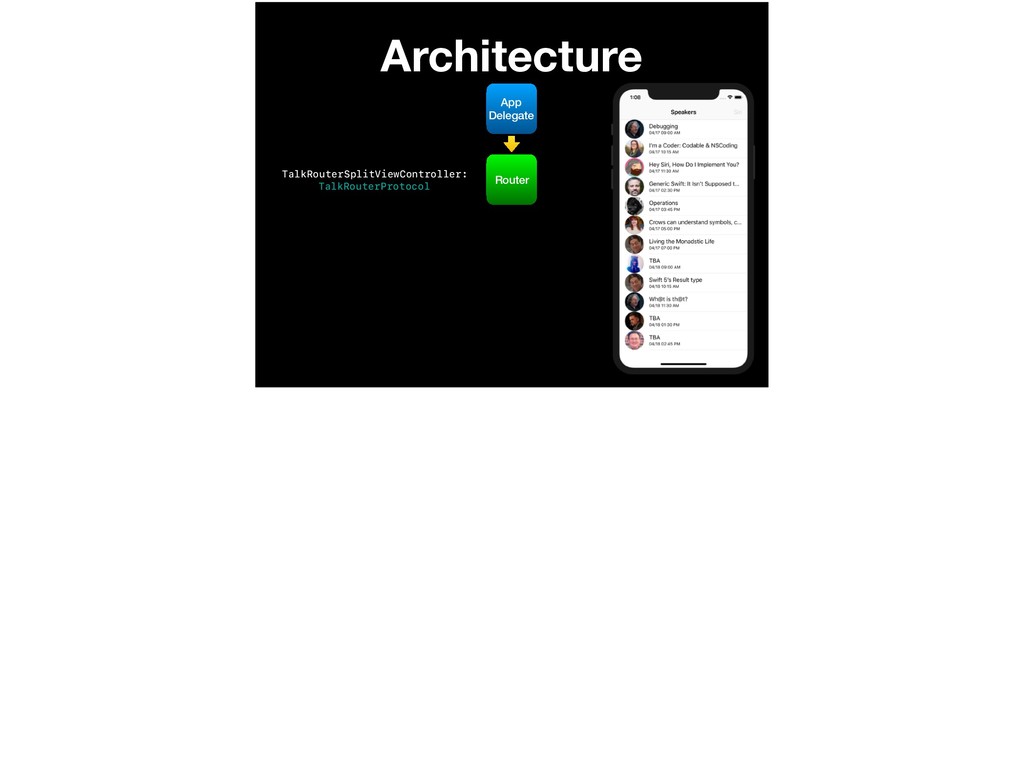
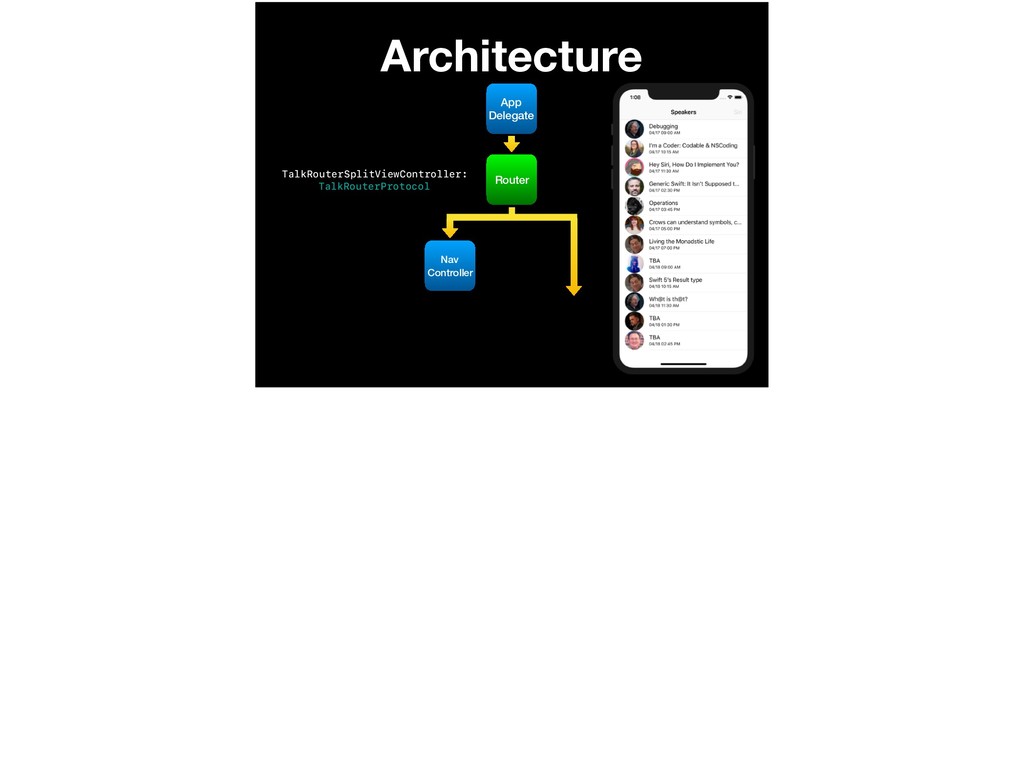
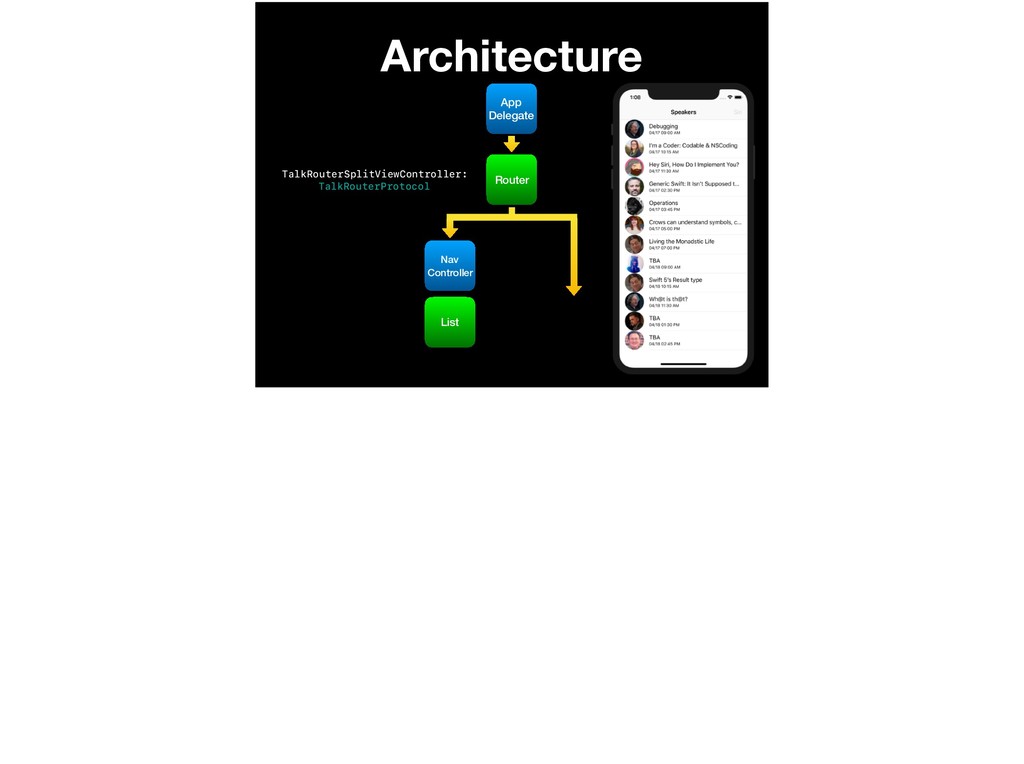
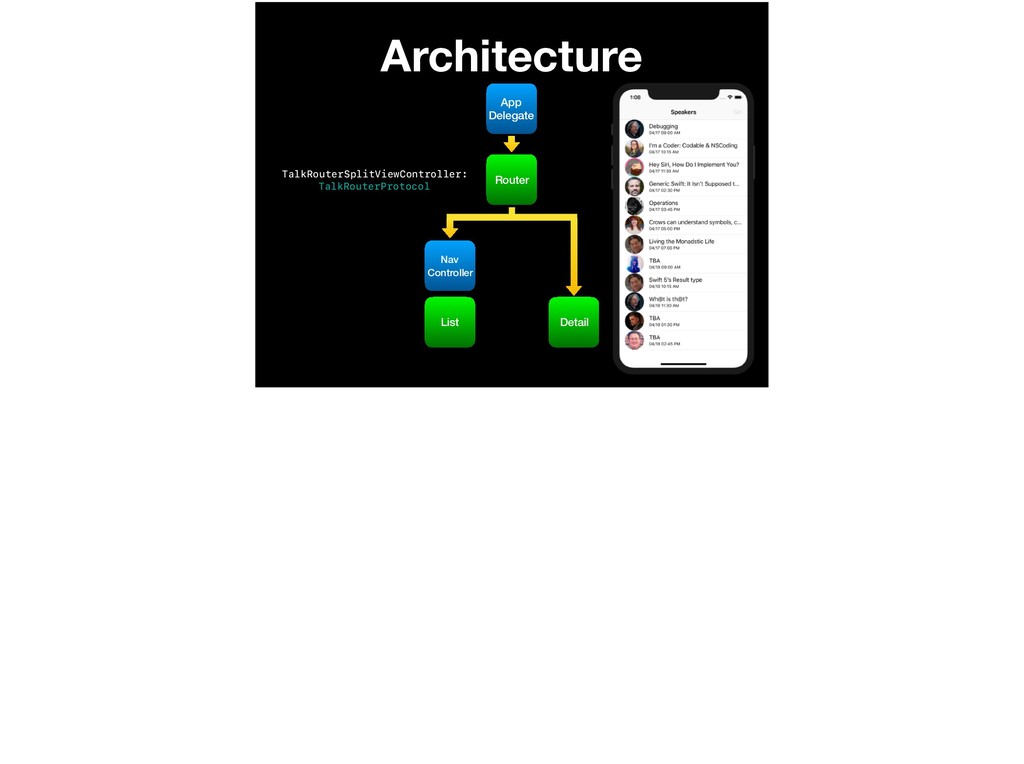
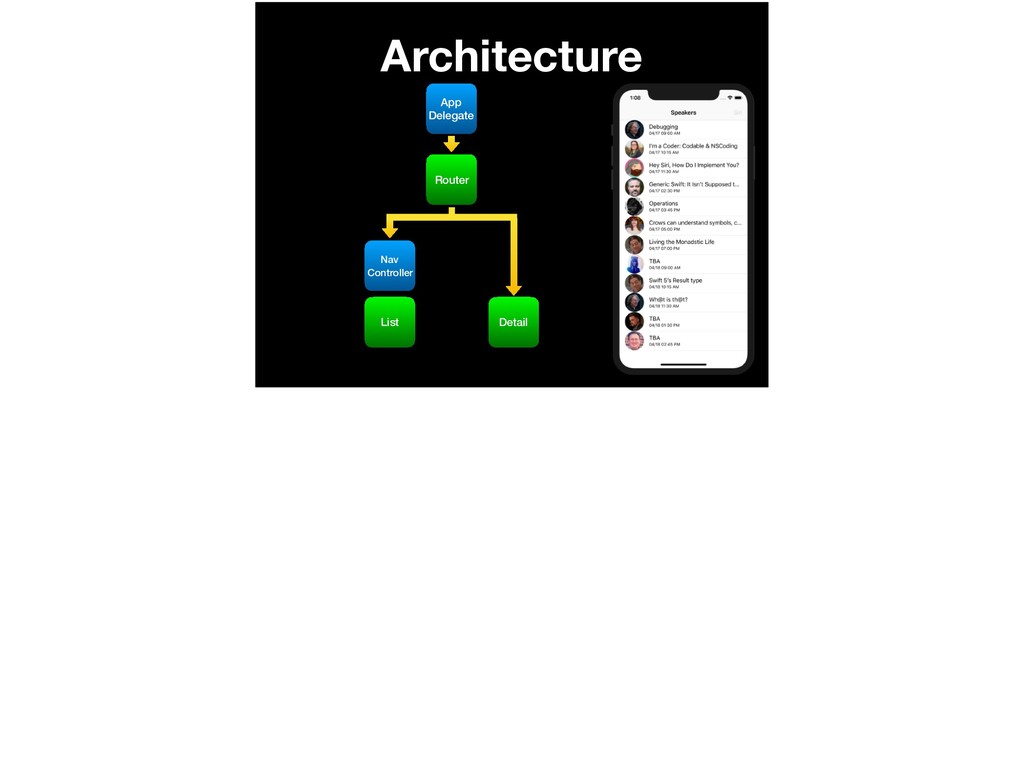
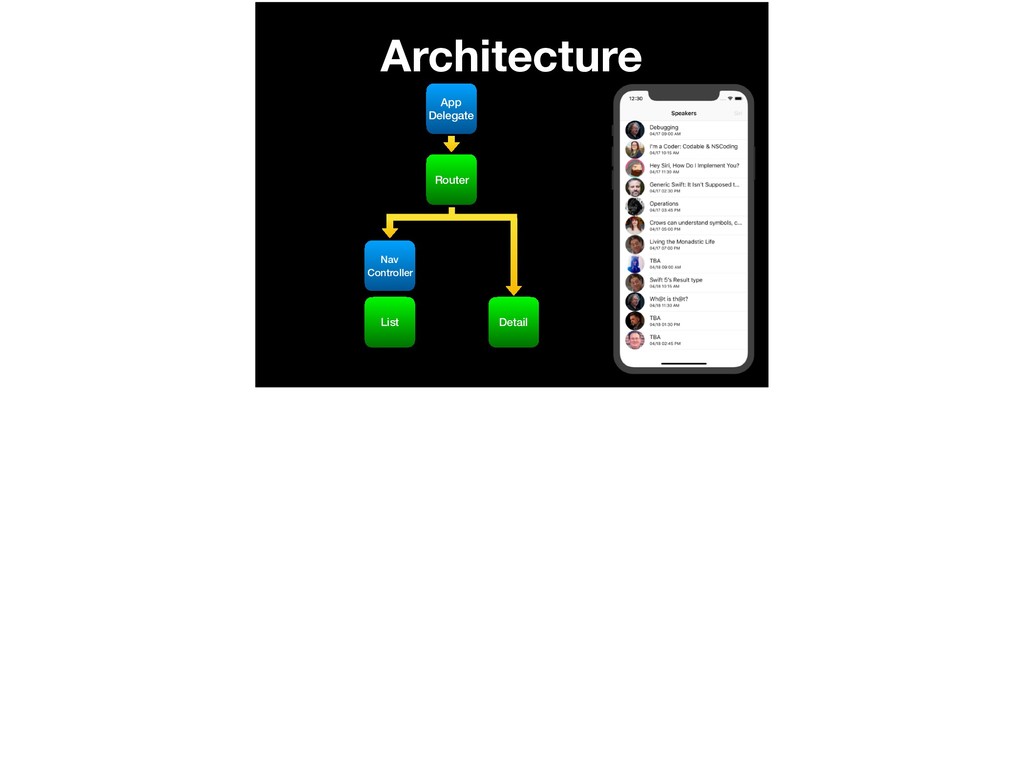
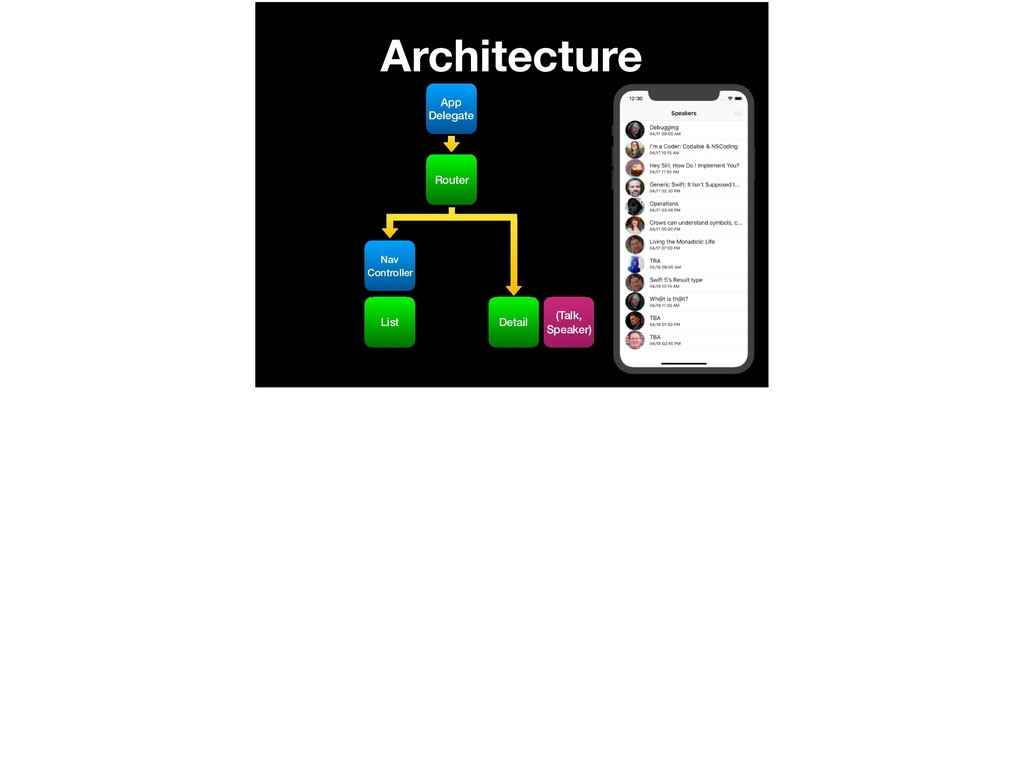
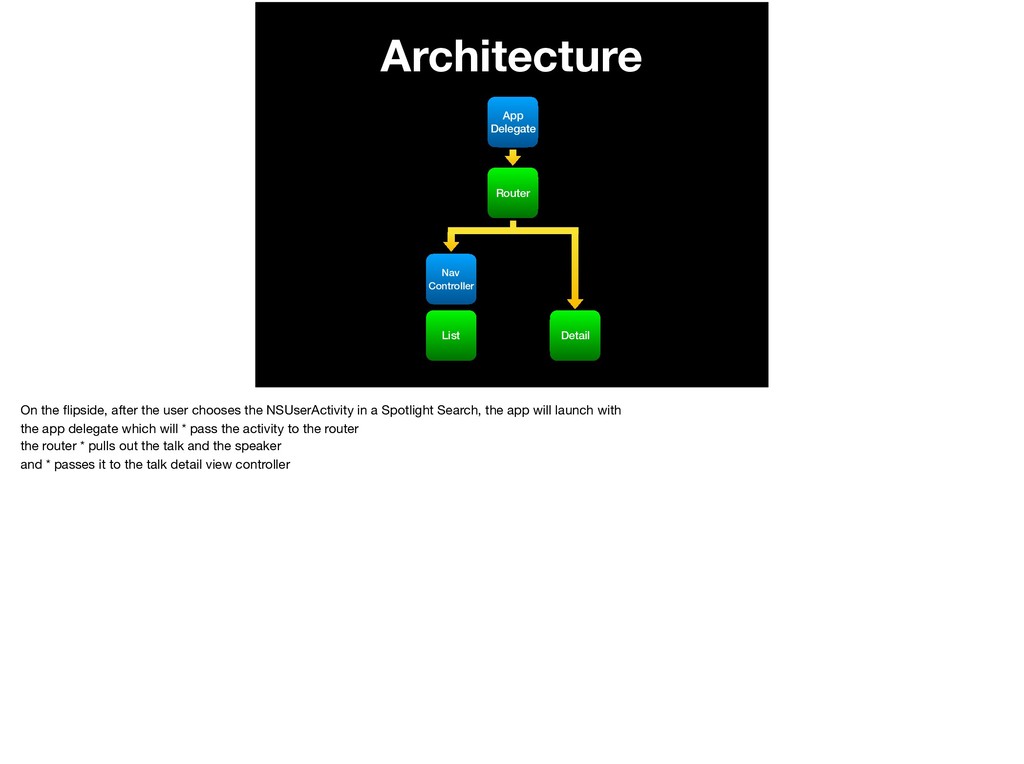
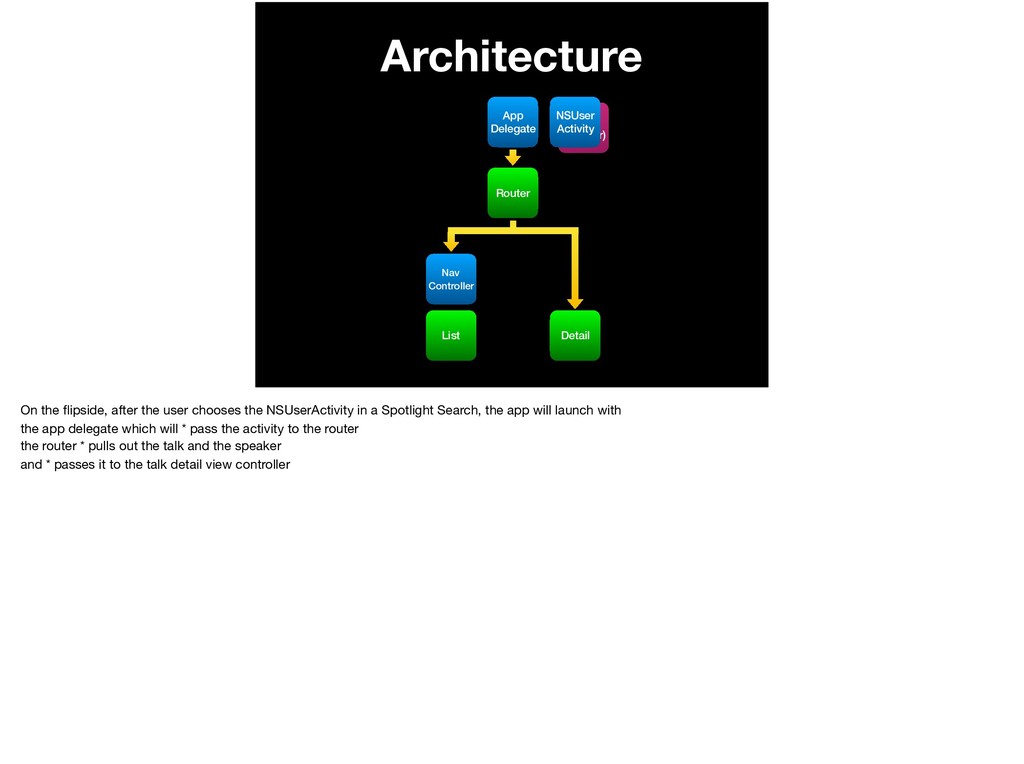
  20. Architecture App Delegate Router List Detail Nav Controller On the

    flipside, after the user chooses the NSUserActivity in a Spotlight Search, the app will launch with the app delegate which will * pass the activity to the router the router * pulls out the talk and the speaker and * passes it to the talk detail view controller
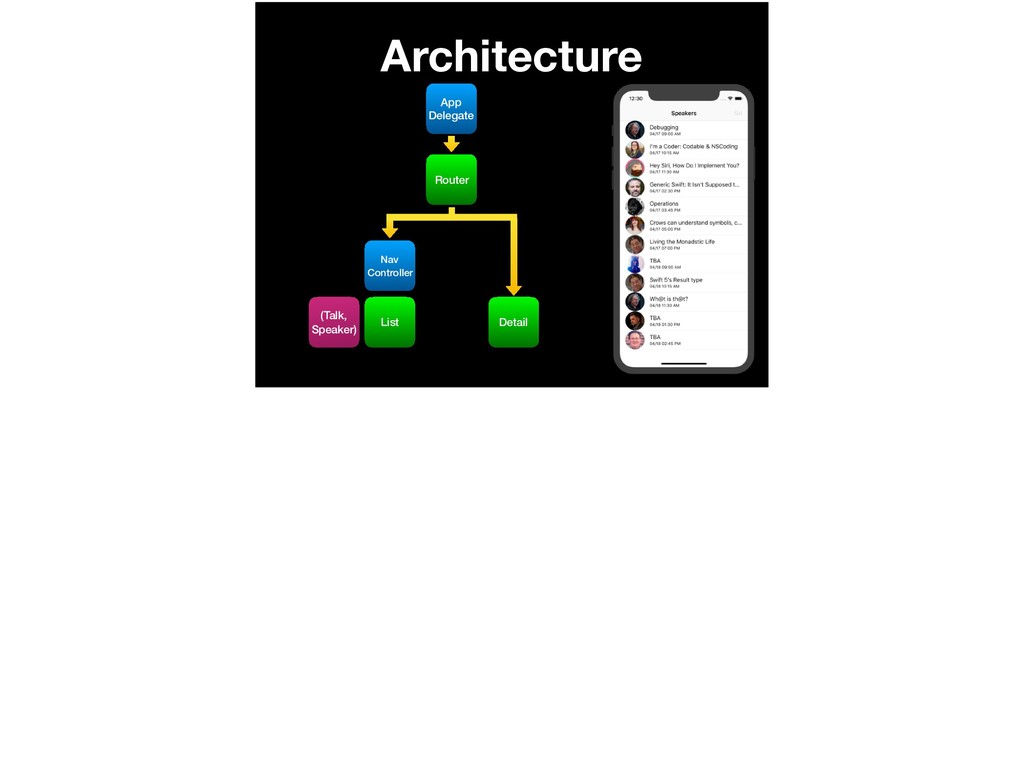
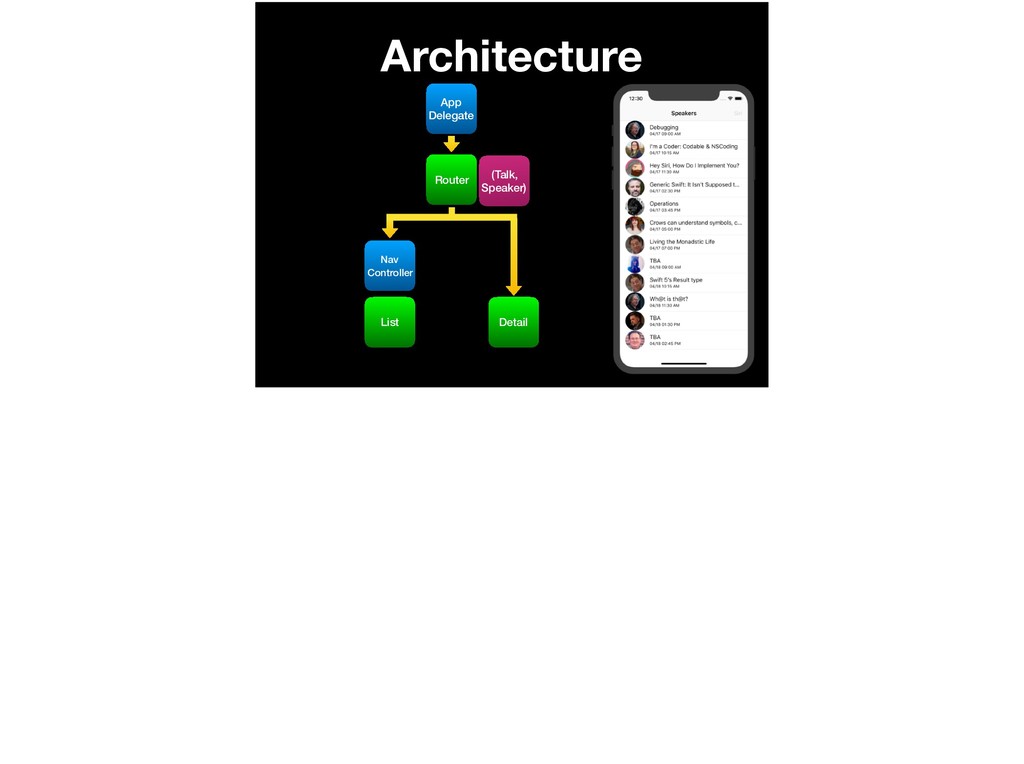
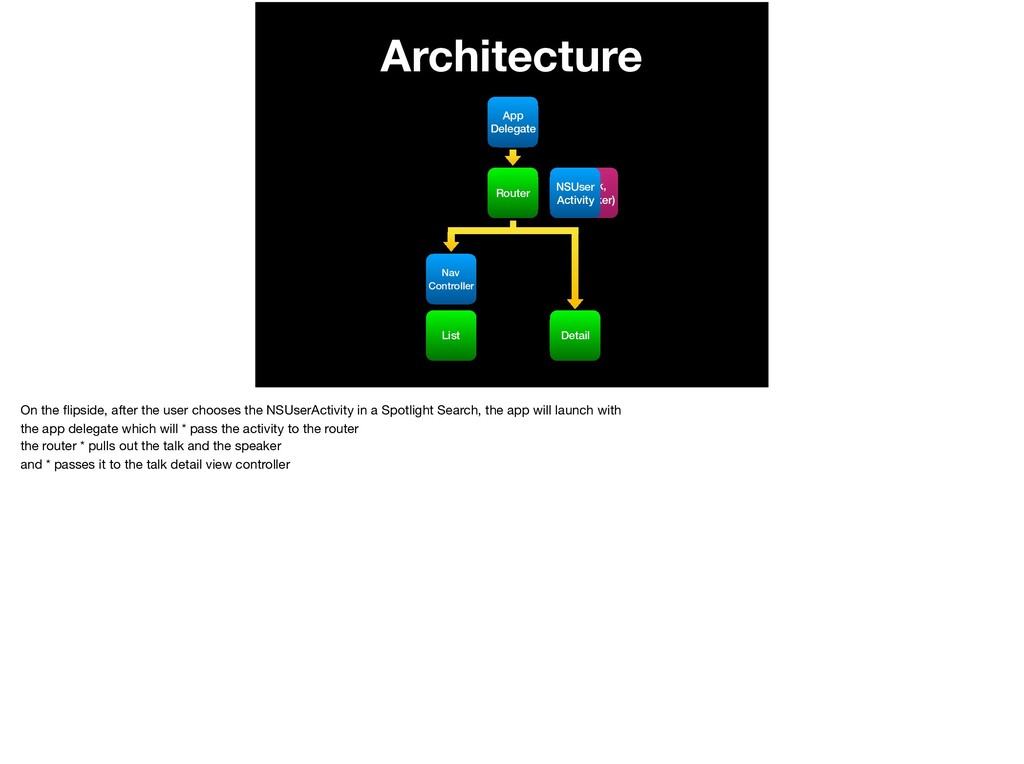
  21. Architecture App Delegate Router List Detail Nav Controller (Talk, Speaker)

    NSUser Activity On the flipside, after the user chooses the NSUserActivity in a Spotlight Search, the app will launch with the app delegate which will * pass the activity to the router the router * pulls out the talk and the speaker and * passes it to the talk detail view controller
  22. Architecture App Delegate Router List Detail Nav Controller (Talk, Speaker)

    NSUser Activity On the flipside, after the user chooses the NSUserActivity in a Spotlight Search, the app will launch with the app delegate which will * pass the activity to the router the router * pulls out the talk and the speaker and * passes it to the talk detail view controller
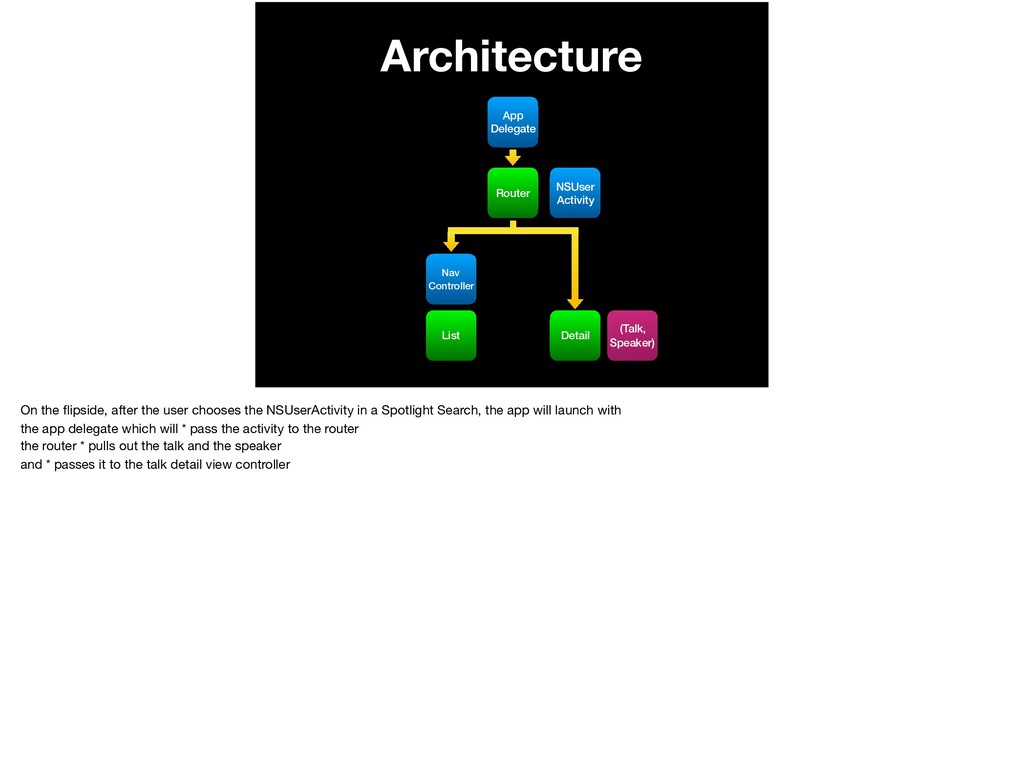
  23. Architecture App Delegate Router List Detail Nav Controller (Talk, Speaker)

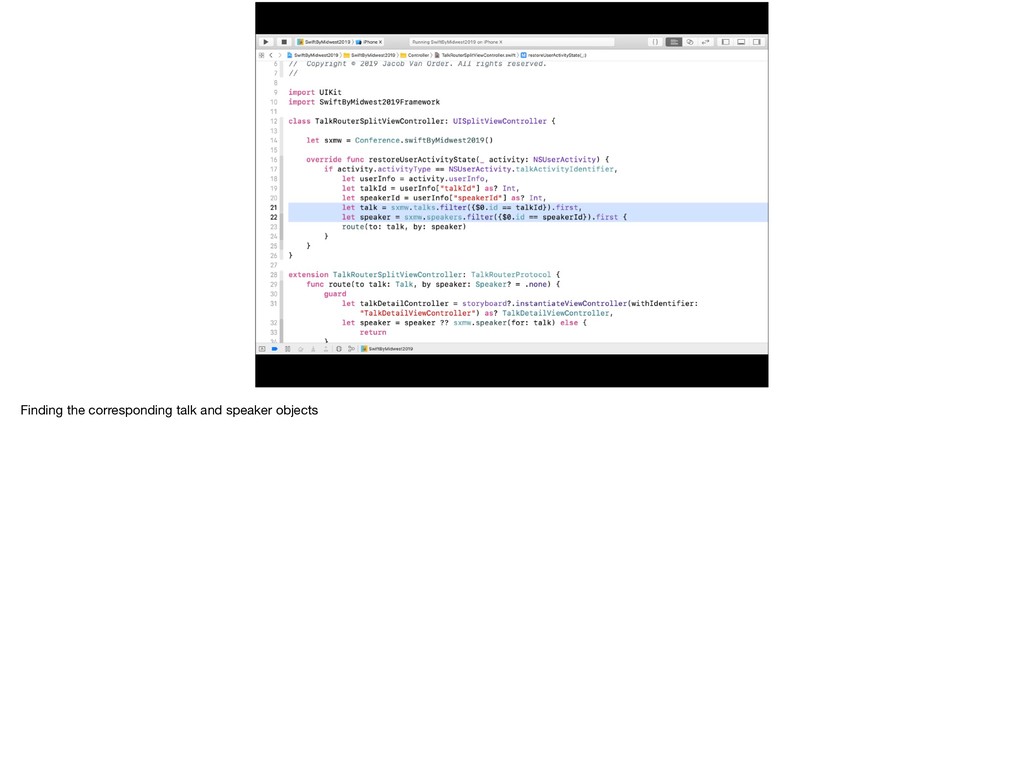
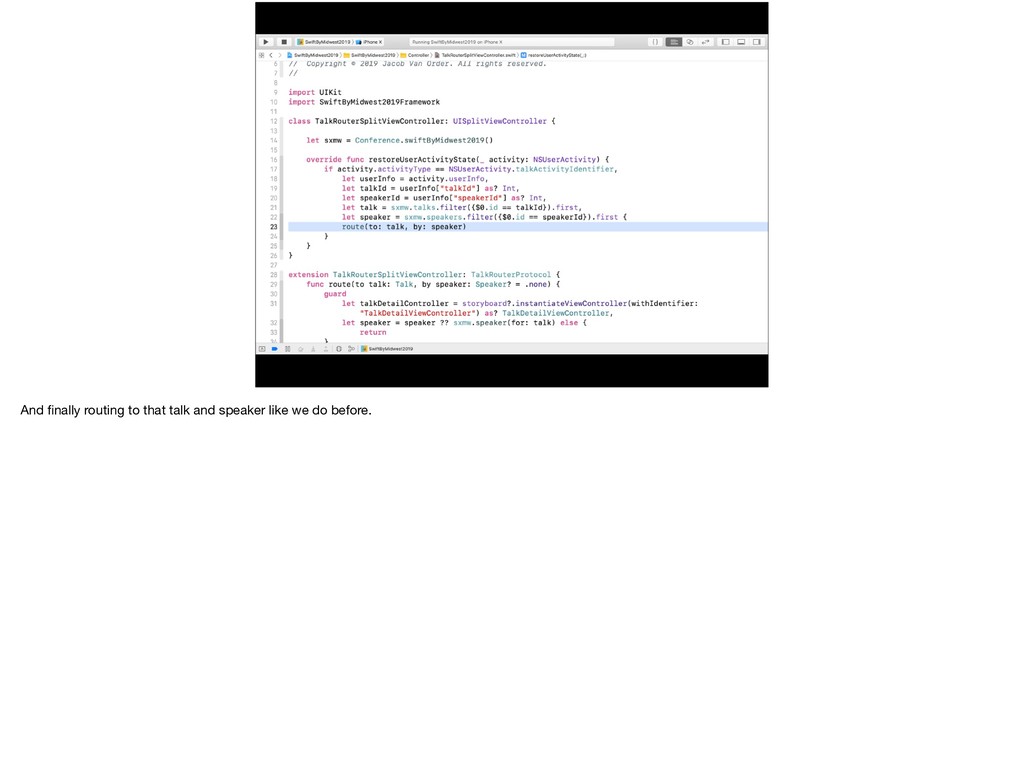
    NSUser Activity On the flipside, after the user chooses the NSUserActivity in a Spotlight Search, the app will launch with the app delegate which will * pass the activity to the router the router * pulls out the talk and the speaker and * passes it to the talk detail view controller
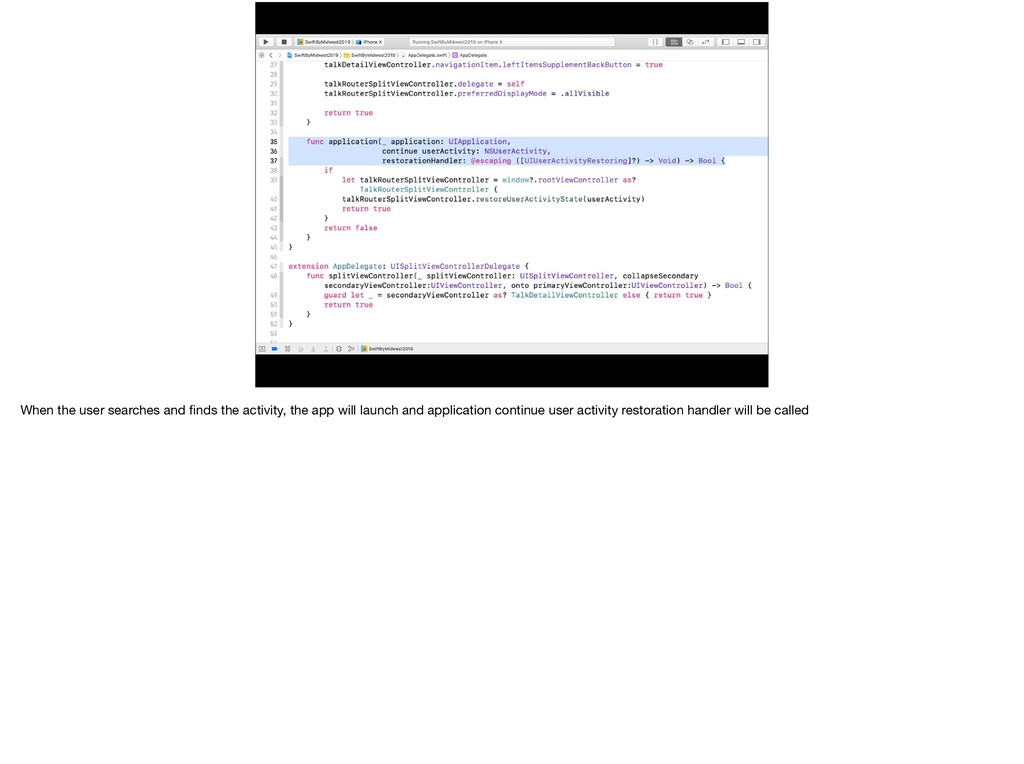
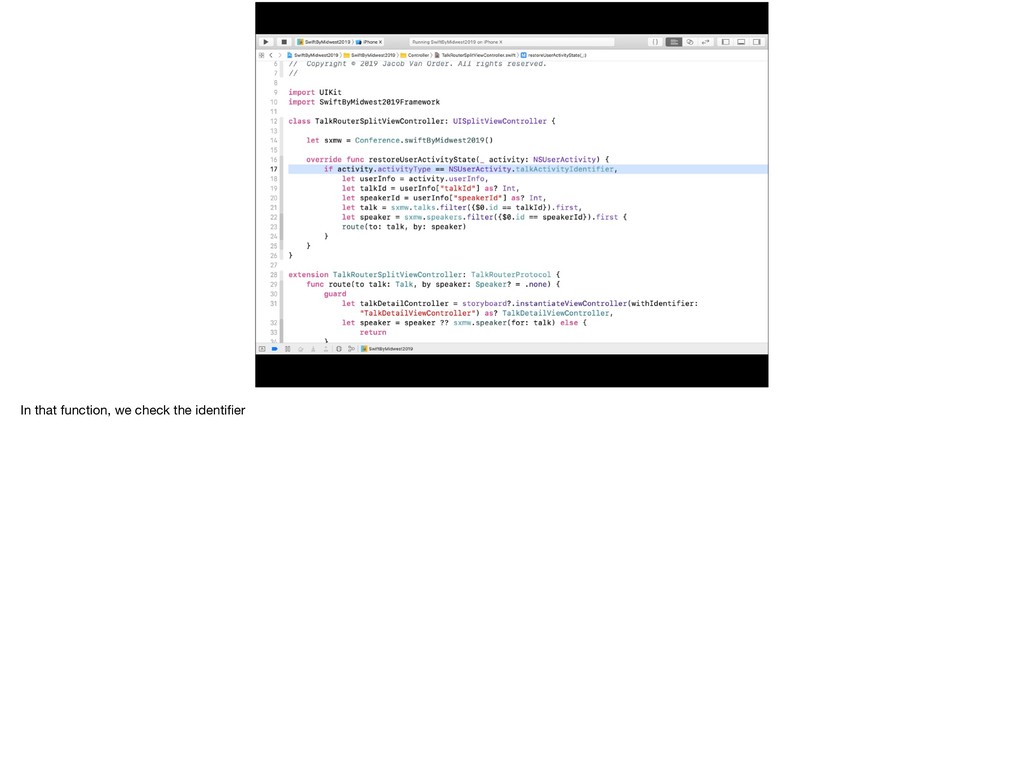
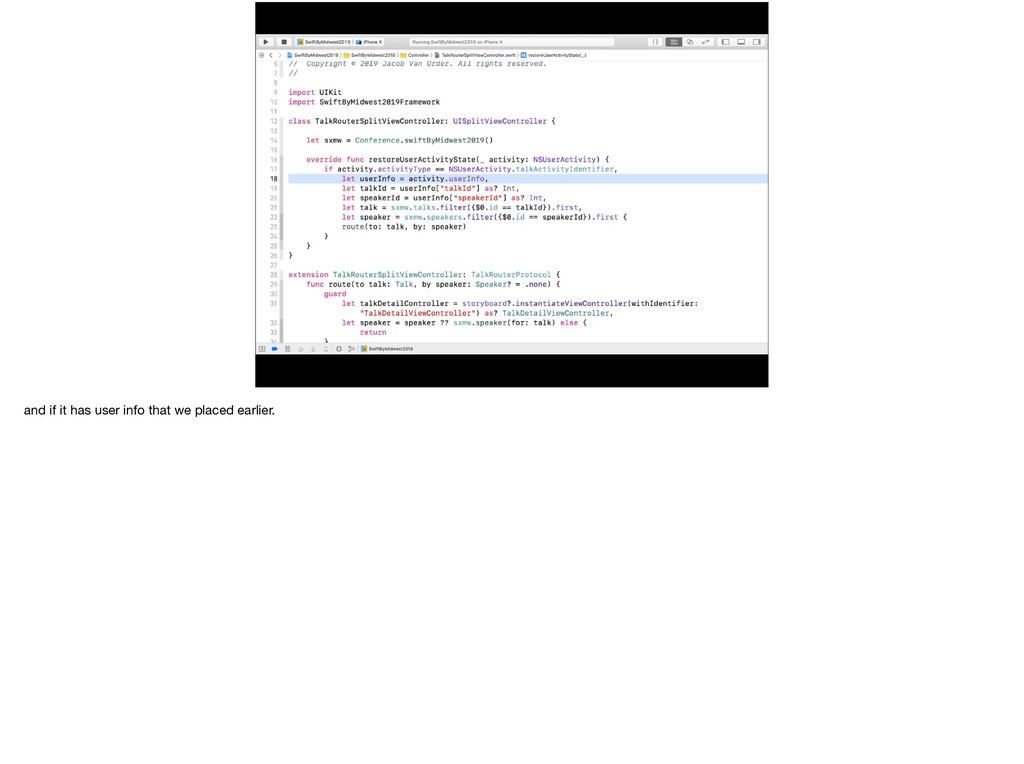
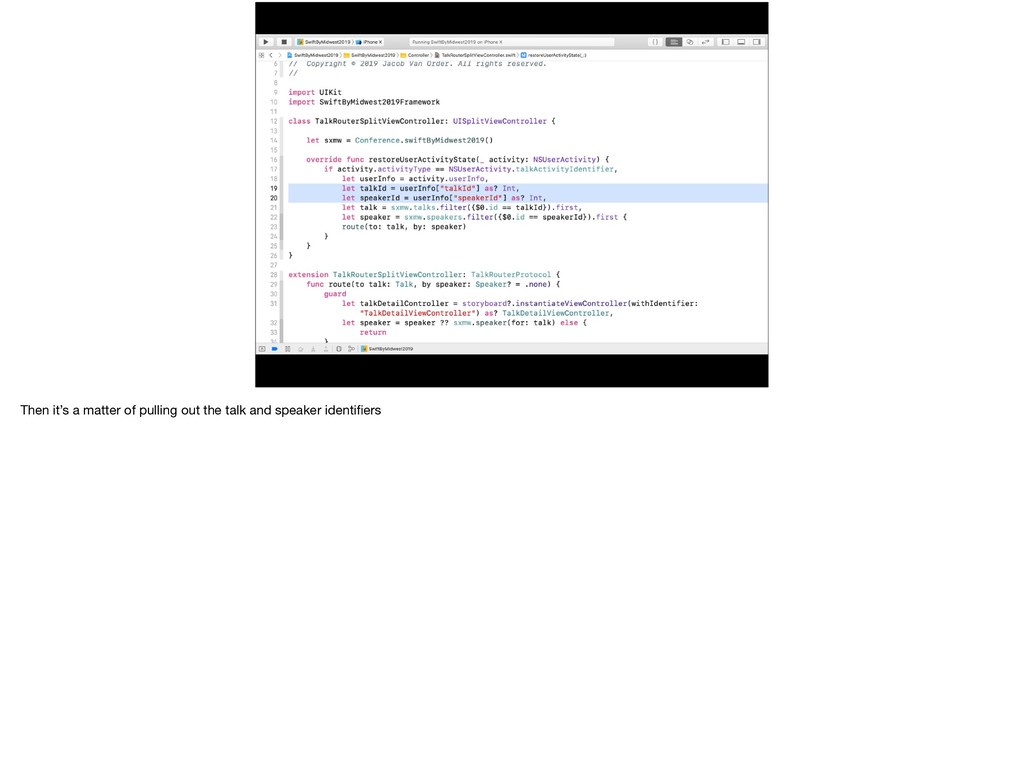
  24. When the user searches and finds the activity, the app

    will launch and application continue user activity restoration handler will be called
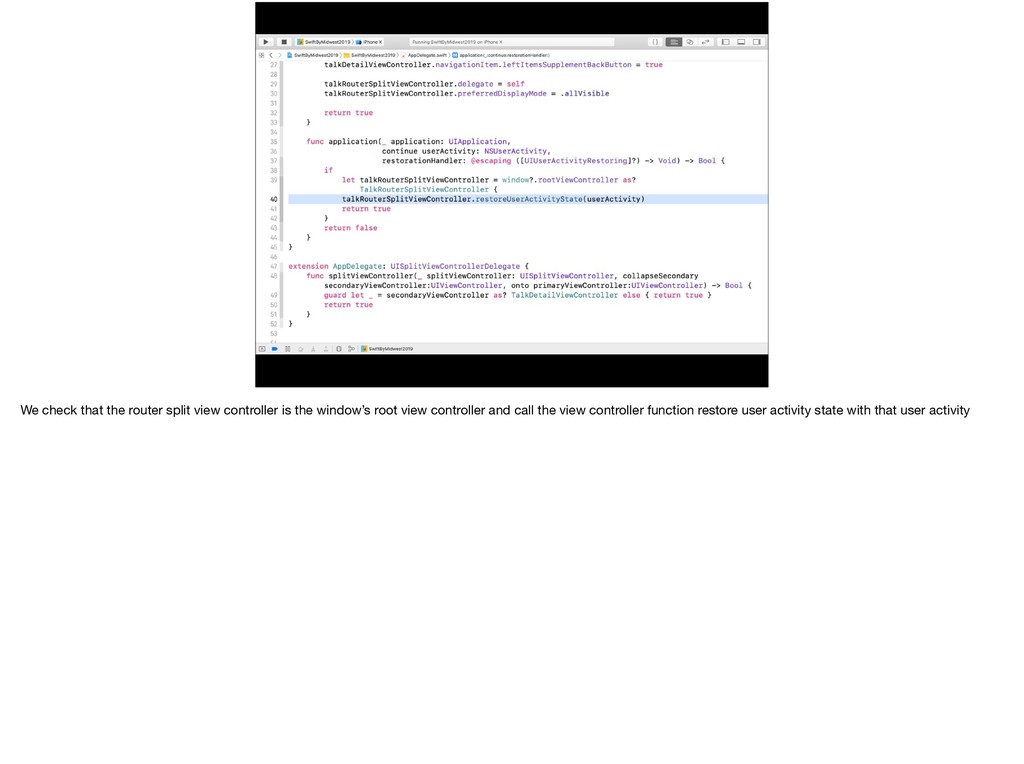
  25. We check that the router split view controller is the

    window’s root view controller and call the view controller function restore user activity state with that user activity
  26. Basically Google dot com The result is when a user

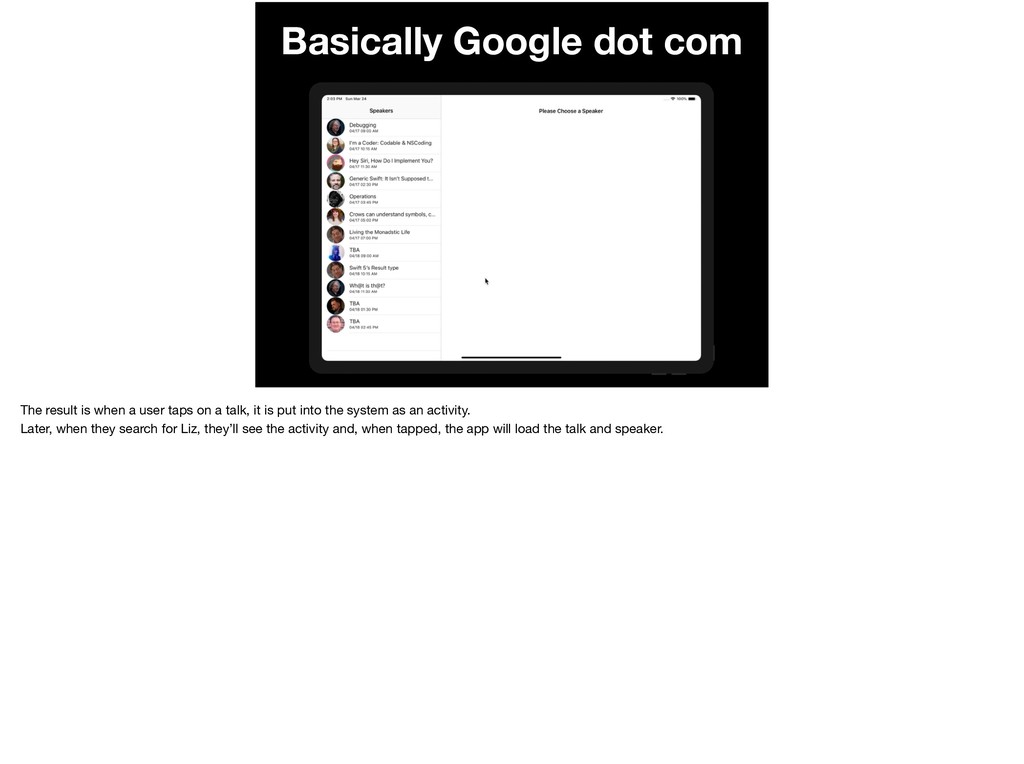
    taps on a talk, it is put into the system as an activity. Later, when they search for Liz, they’ll see the activity and, when tapped, the app will load the talk and speaker.
  27. Basically Google dot com The result is when a user

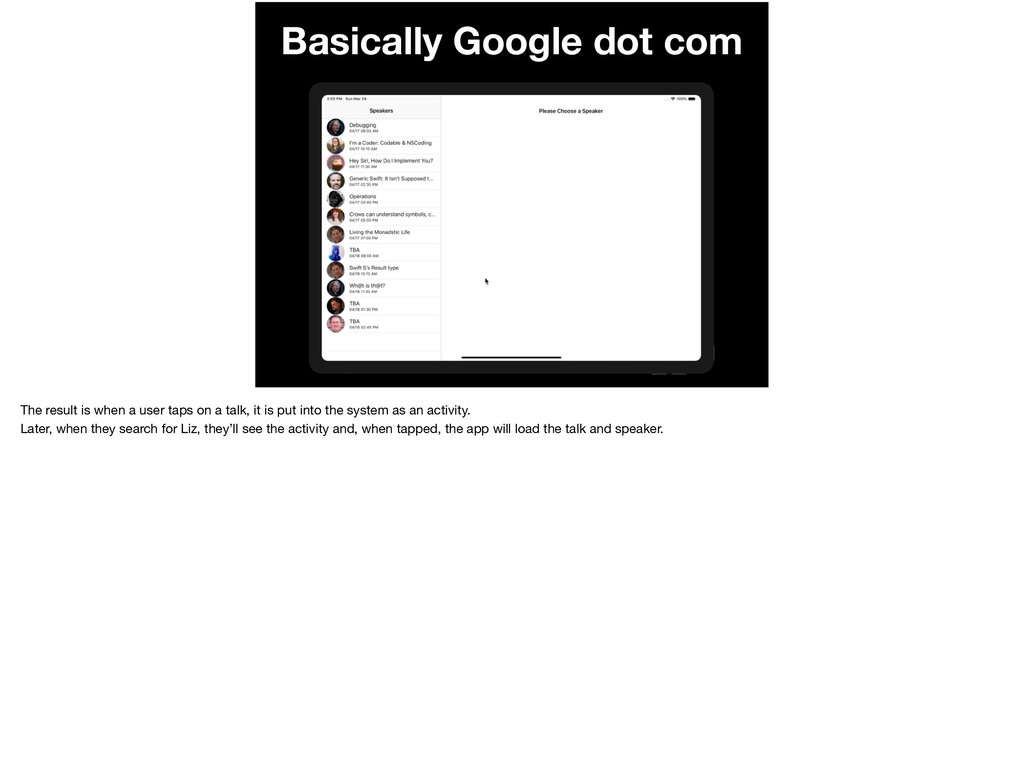
    taps on a talk, it is put into the system as an activity. Later, when they search for Liz, they’ll see the activity and, when tapped, the app will load the talk and speaker.
  28. Accessibility • Using stock Apple-provided User Interface • No custom

    controls or anything special • Spotlight is accessible
  29. Localization • Data is coming from localized “endpoint” -Titles -Descriptions

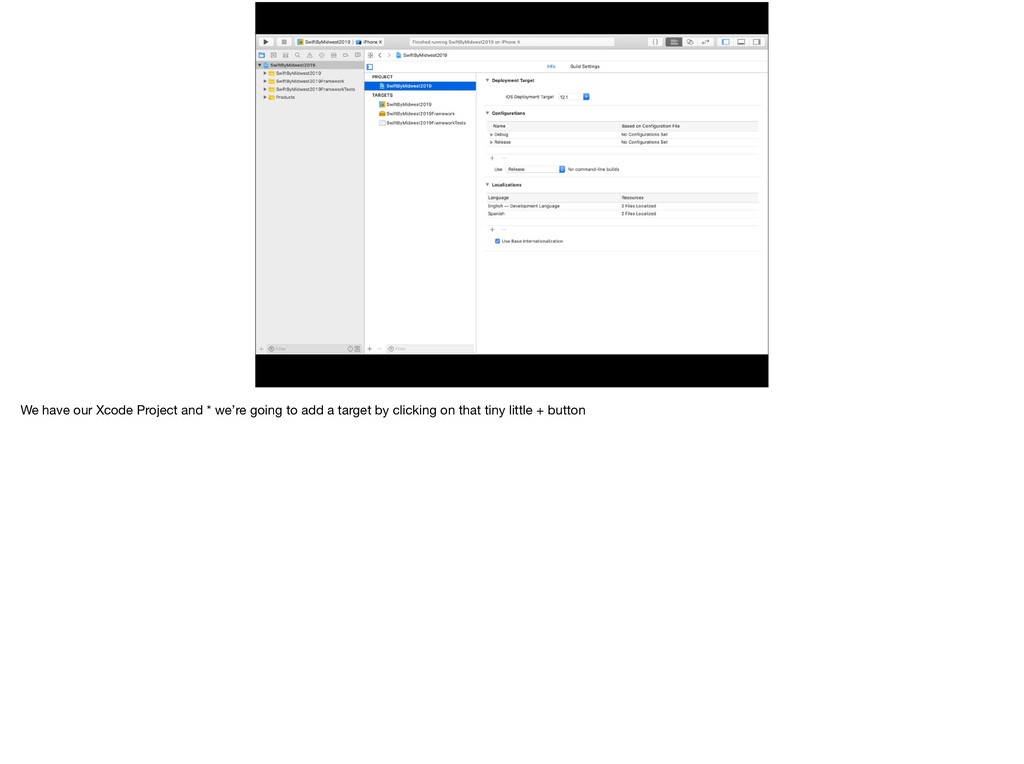
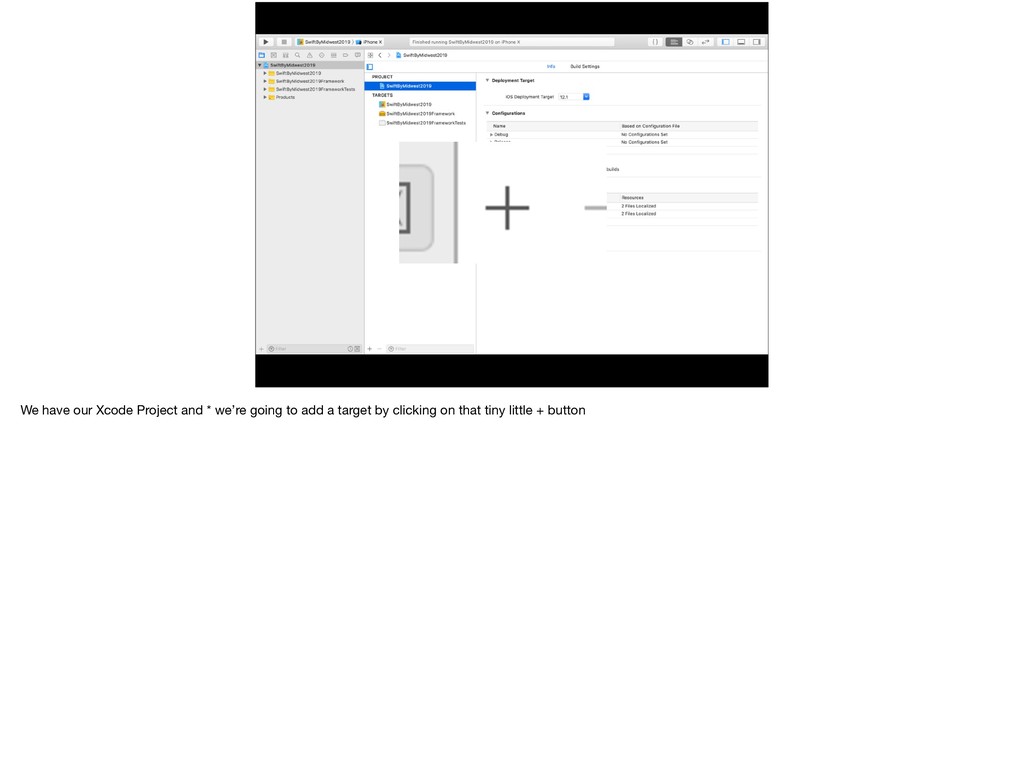
    -Subjects • Keywords, titles, and other metadata localized
  30. Yes. I set up this baseline with User Activities because

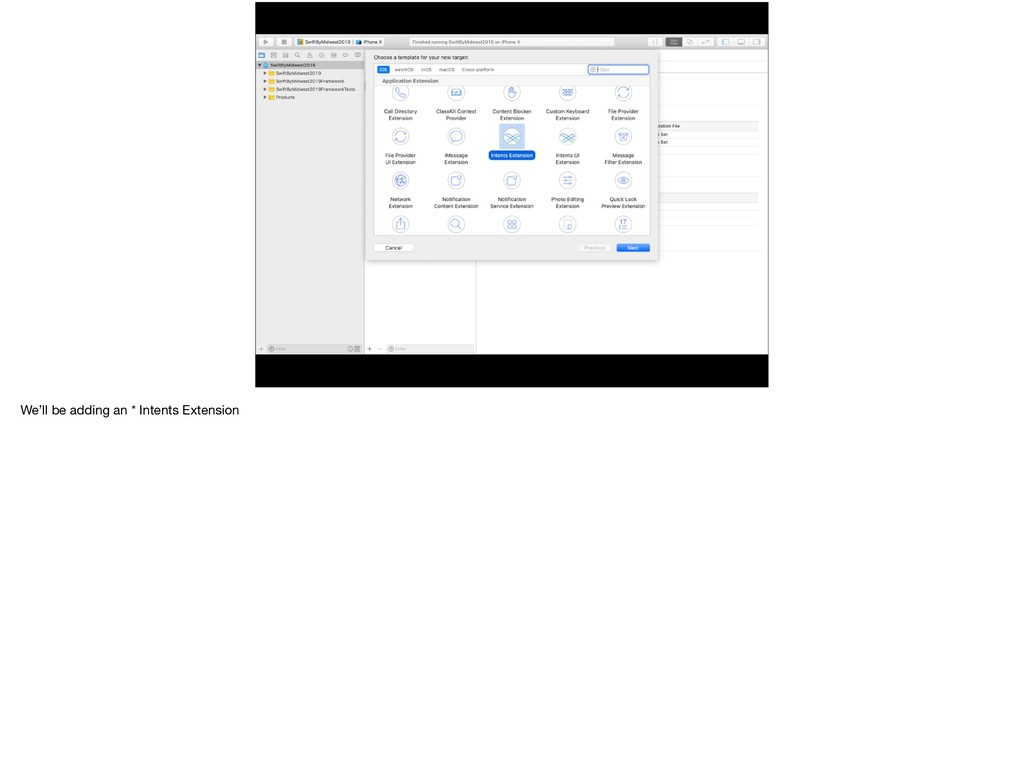
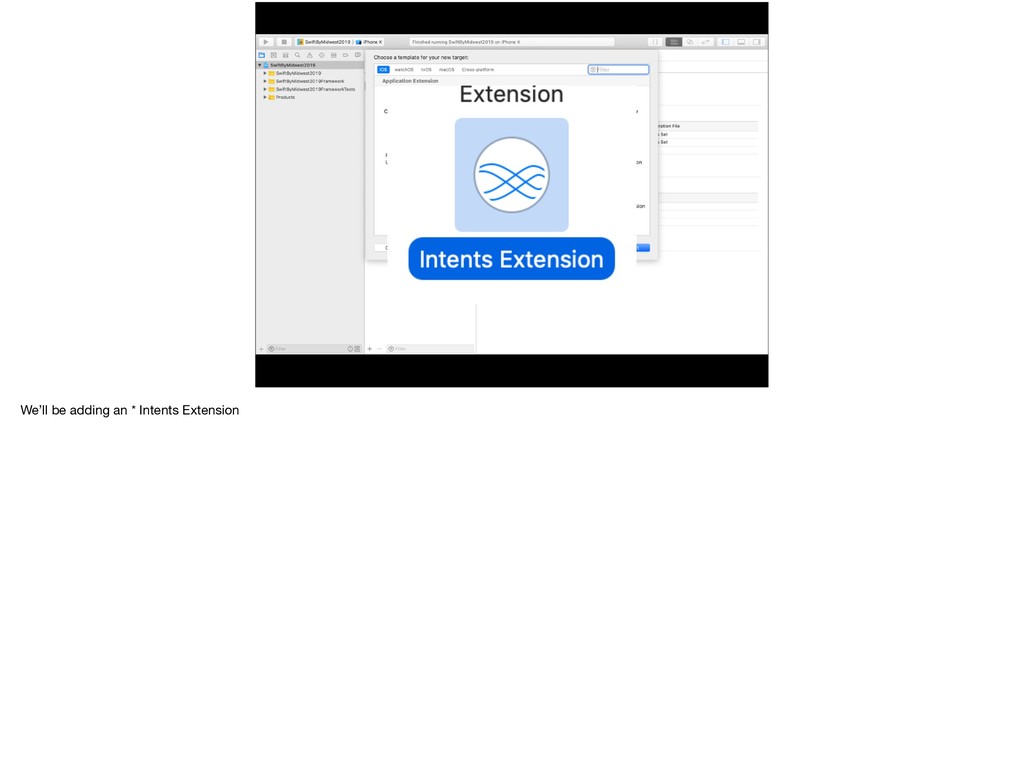
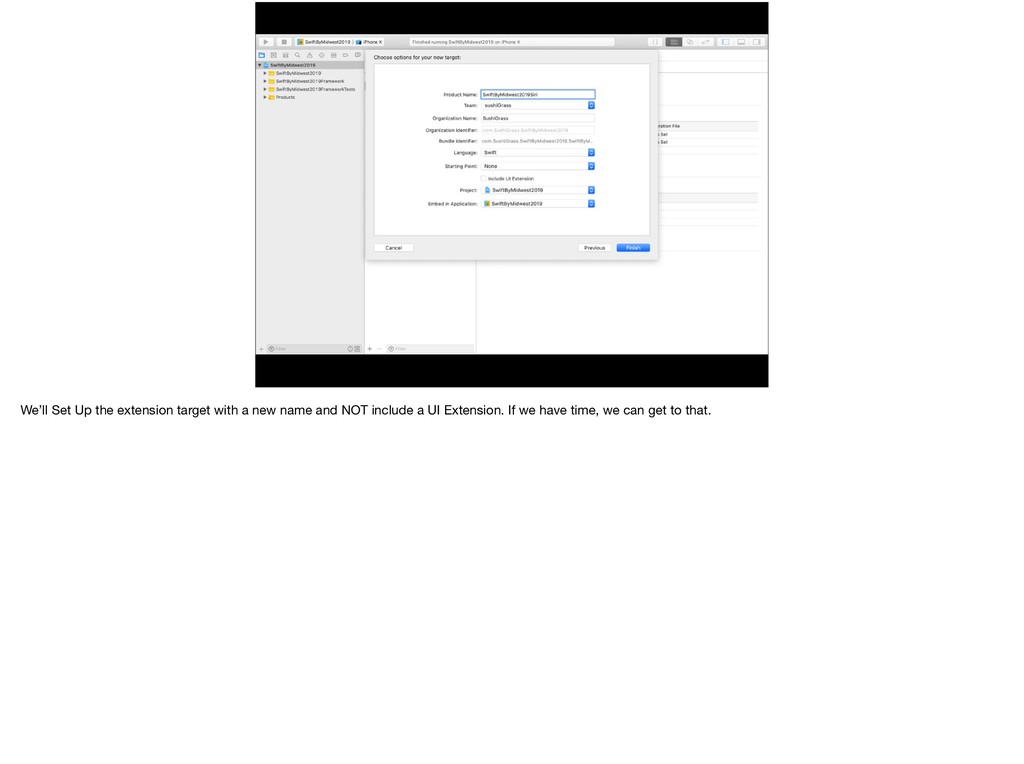
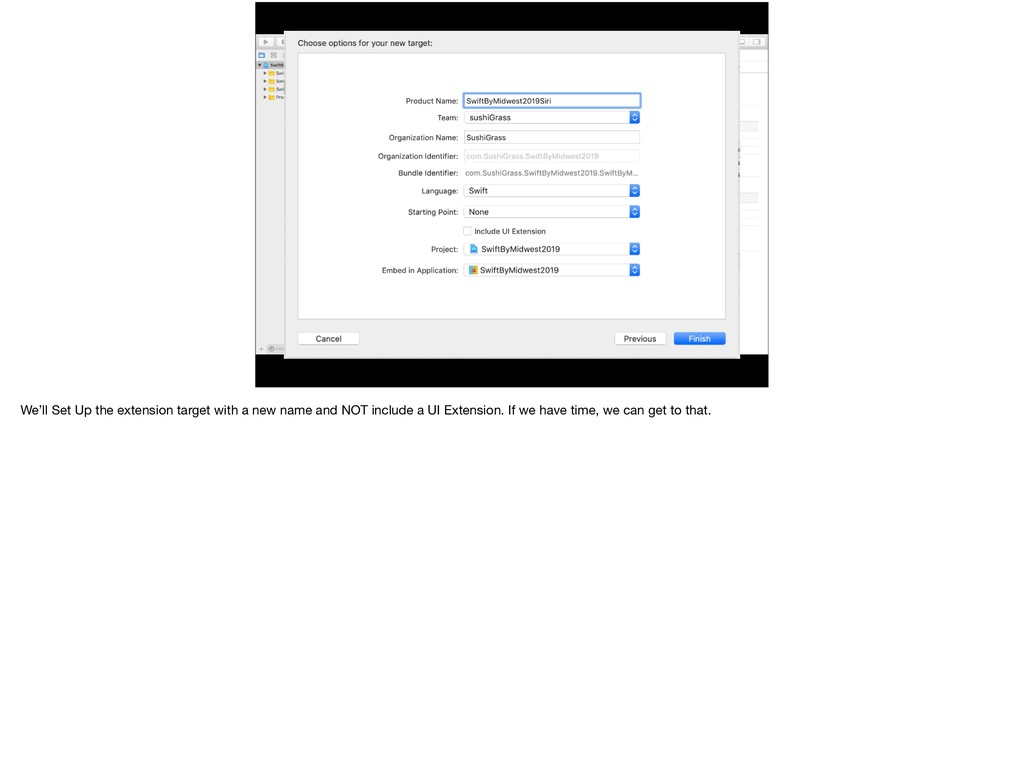
    SiriKit leverages it heavily and it acts as the foundation for the rest of our app.
  31. Water Fact! Losing as little as 2% of your body's

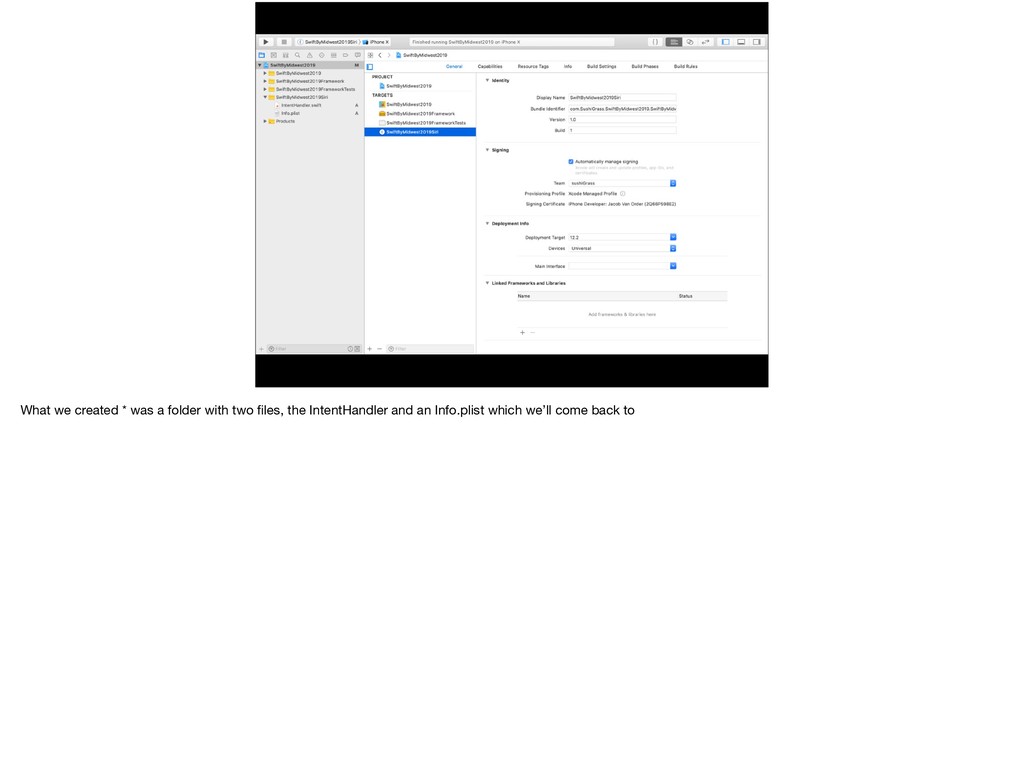
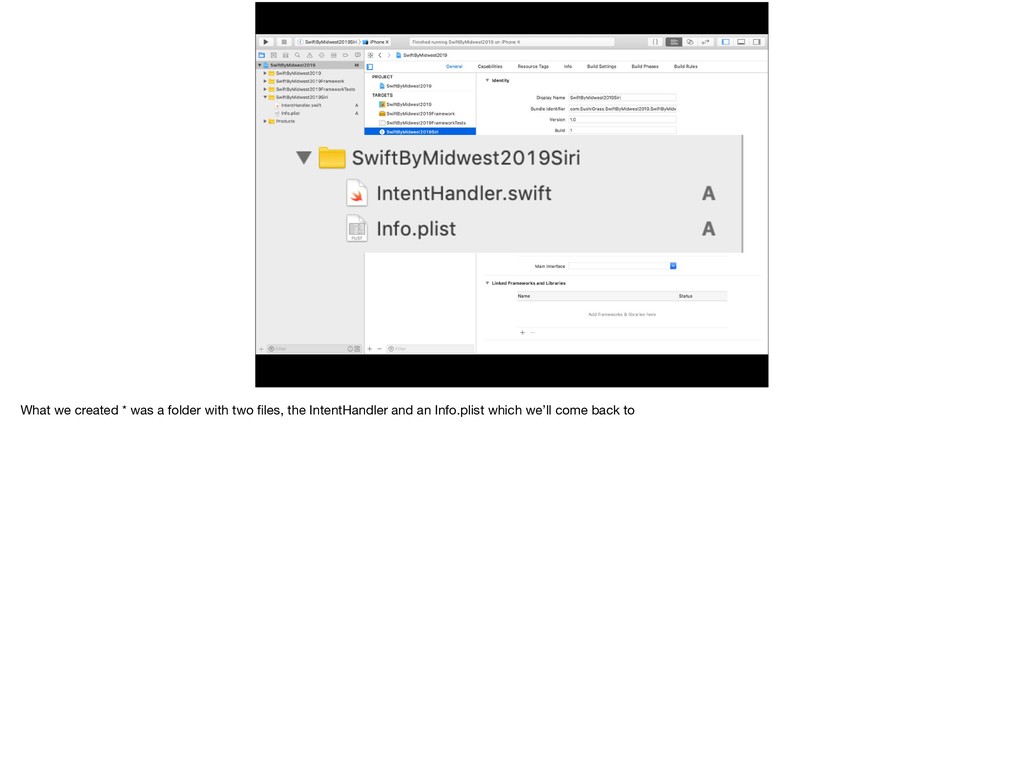
    water content can significantly impair physical performance. This can lead to altered body temperature control, reduced motivation, increased fatigue and make exercise feel much more difficult, both physically and mentally https://www.healthline.com/nutrition/7-health-benefits-of-water
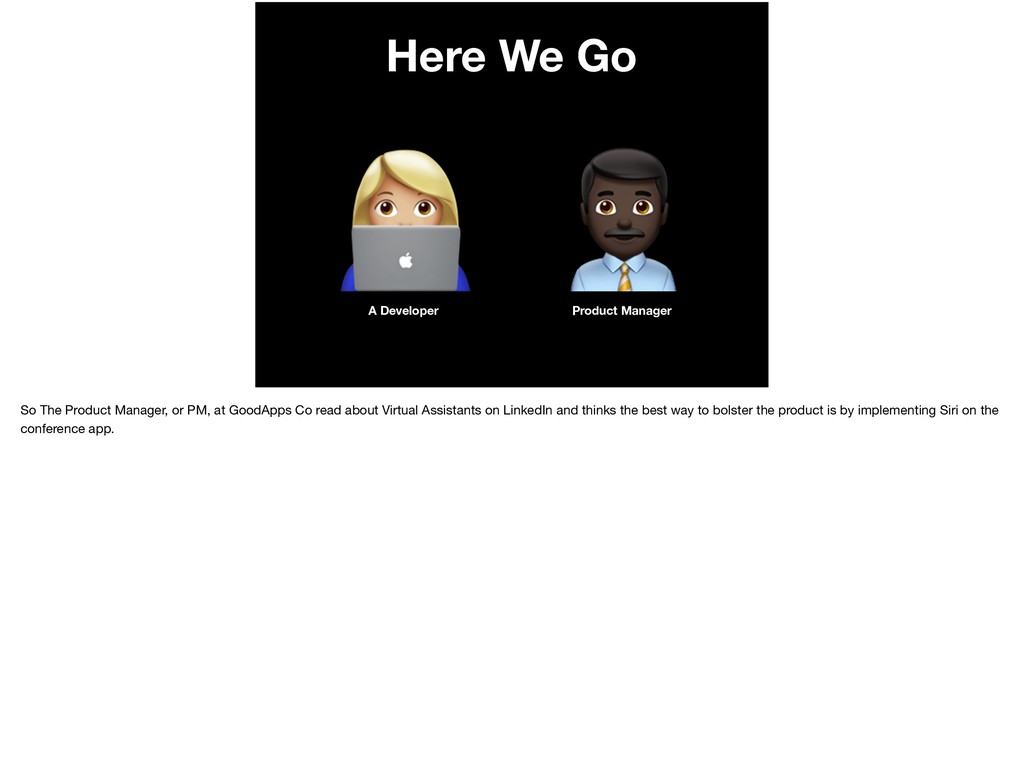
  32. Here We Go ! A Developer So The Product Manager,

    or PM, at GoodApps Co read about Virtual Assistants on LinkedIn and thinks the best way to bolster the product is by implementing Siri on the conference app.
  33. Here We Go ! A Developer # Product Manager So

    The Product Manager, or PM, at GoodApps Co read about Virtual Assistants on LinkedIn and thinks the best way to bolster the product is by implementing Siri on the conference app.
  34. Here We Go ! A Developer # Product Manager Virtual

    Assistants! So The Product Manager, or PM, at GoodApps Co read about Virtual Assistants on LinkedIn and thinks the best way to bolster the product is by implementing Siri on the conference app.
  35. Here We Go ! A Developer # Product Manager Virtual

    Assistants! Okay! So The Product Manager, or PM, at GoodApps Co read about Virtual Assistants on LinkedIn and thinks the best way to bolster the product is by implementing Siri on the conference app.
  36. Here We Go ! A Developer # Product Manager Virtual

    Assistants! By tomorrow! Okay! So The Product Manager, or PM, at GoodApps Co read about Virtual Assistants on LinkedIn and thinks the best way to bolster the product is by implementing Siri on the conference app.
  37. Accessibility • Siri is read out loud and spoken words

    are displayed • No custom controls or anything special • Basically what you had before
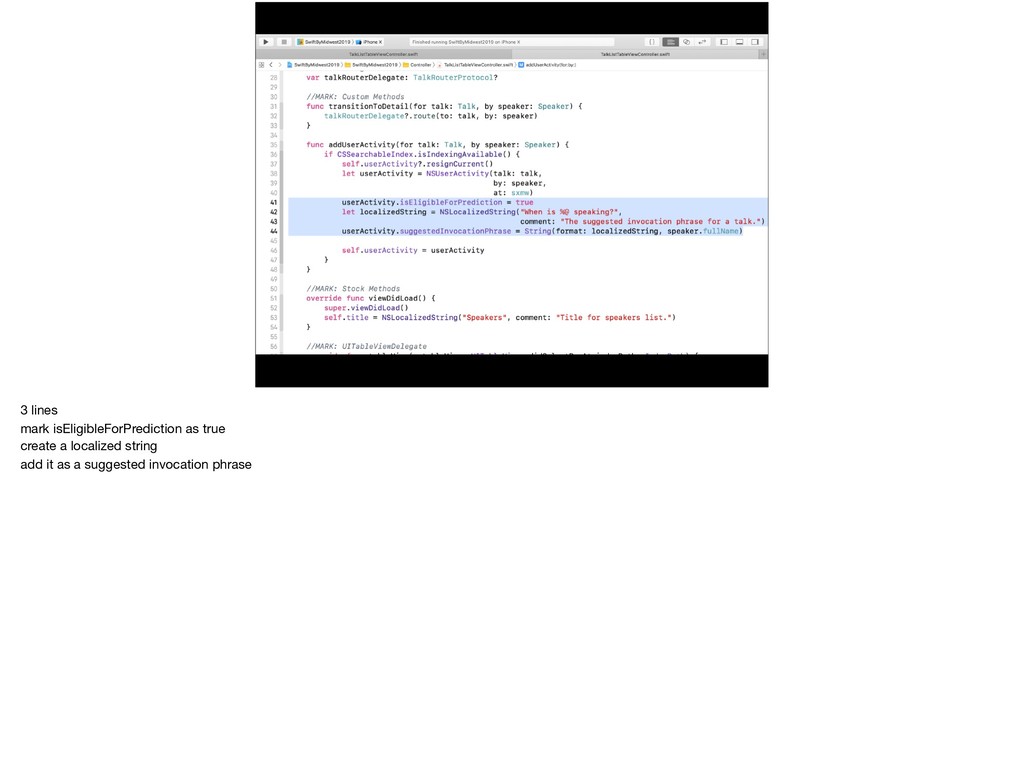
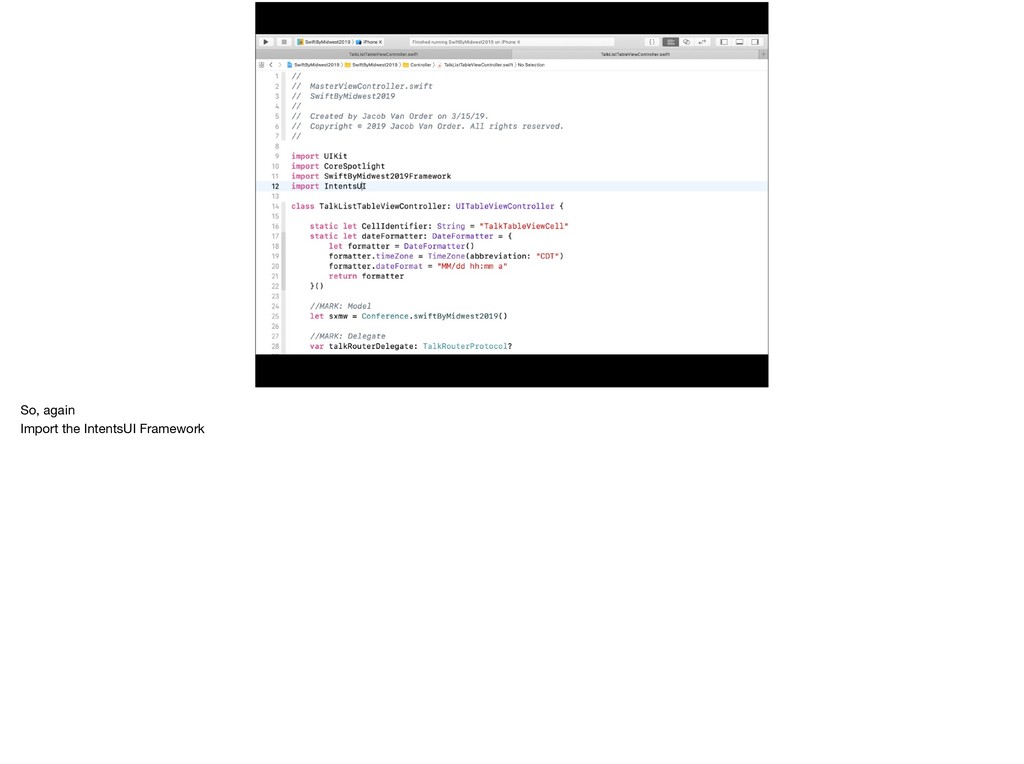
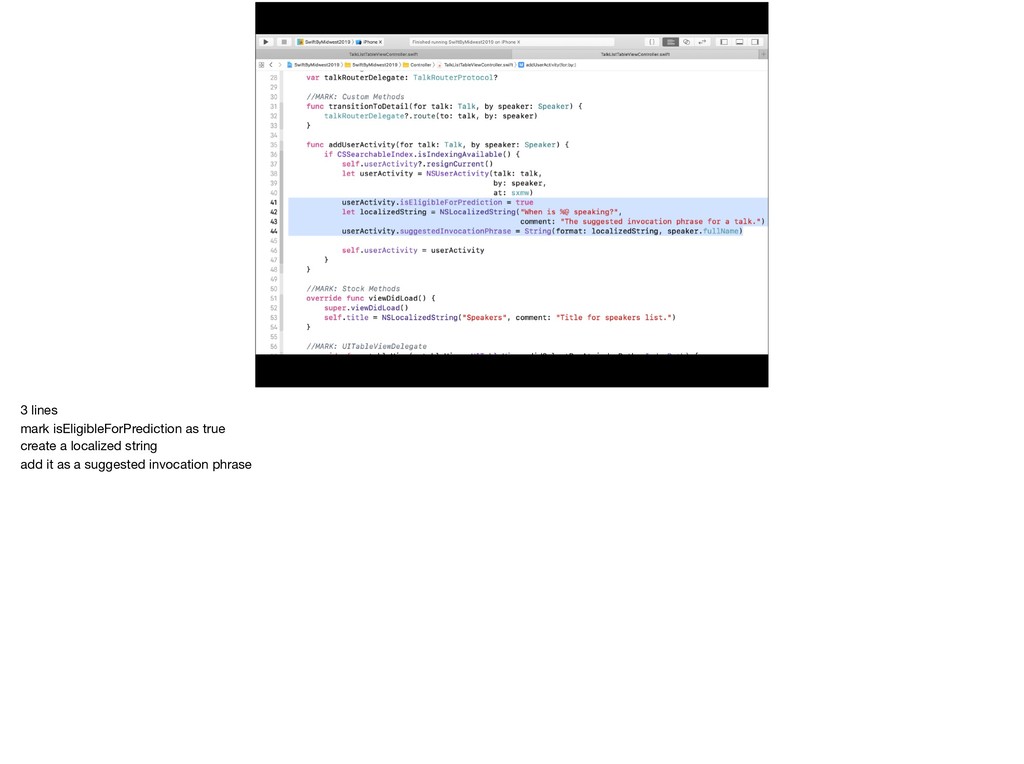
  38. Overview • Utilize your already, existing NSUserActivity functionality • Making

    the NSUserActivity eligible for prediction and adding a localized suggested invocation phrase • That’s it!
  39. “Small” Easy for
 You Easy for
 User 4 lines of

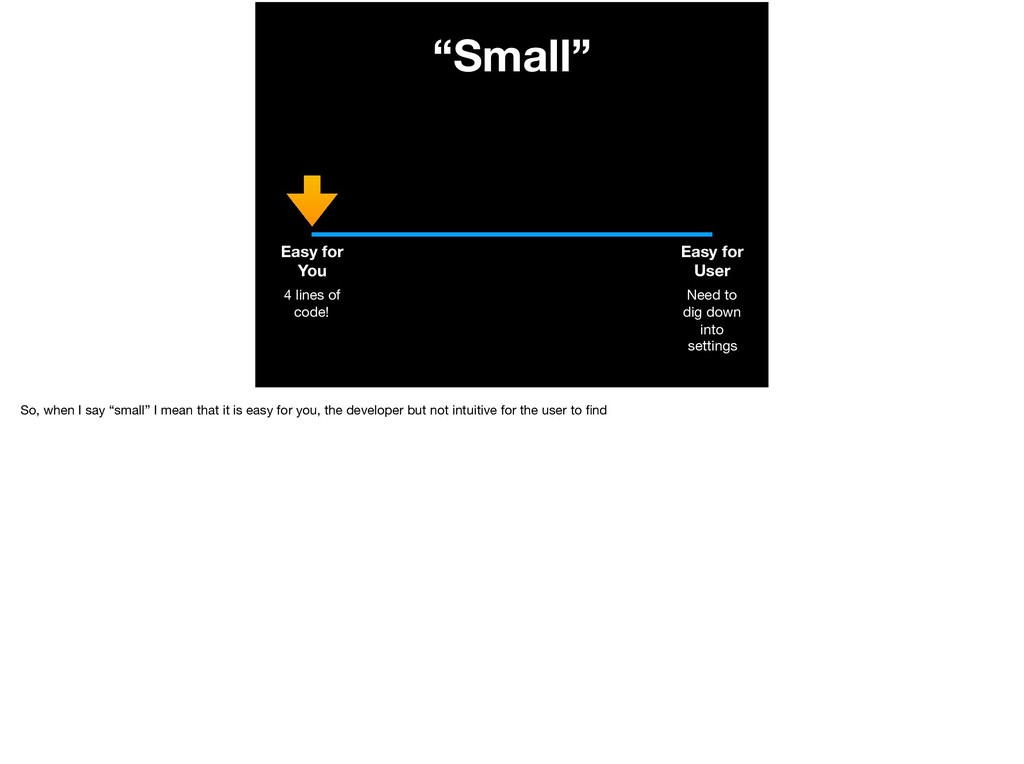
    code! Need to dig down into settings So, when I say “small” I mean that it is easy for you, the developer but not intuitive for the user to find
  40. Great Job! ! A Developer The PM thinks this is

    GREAT but wants to use Siri to drive engagement to the apps.
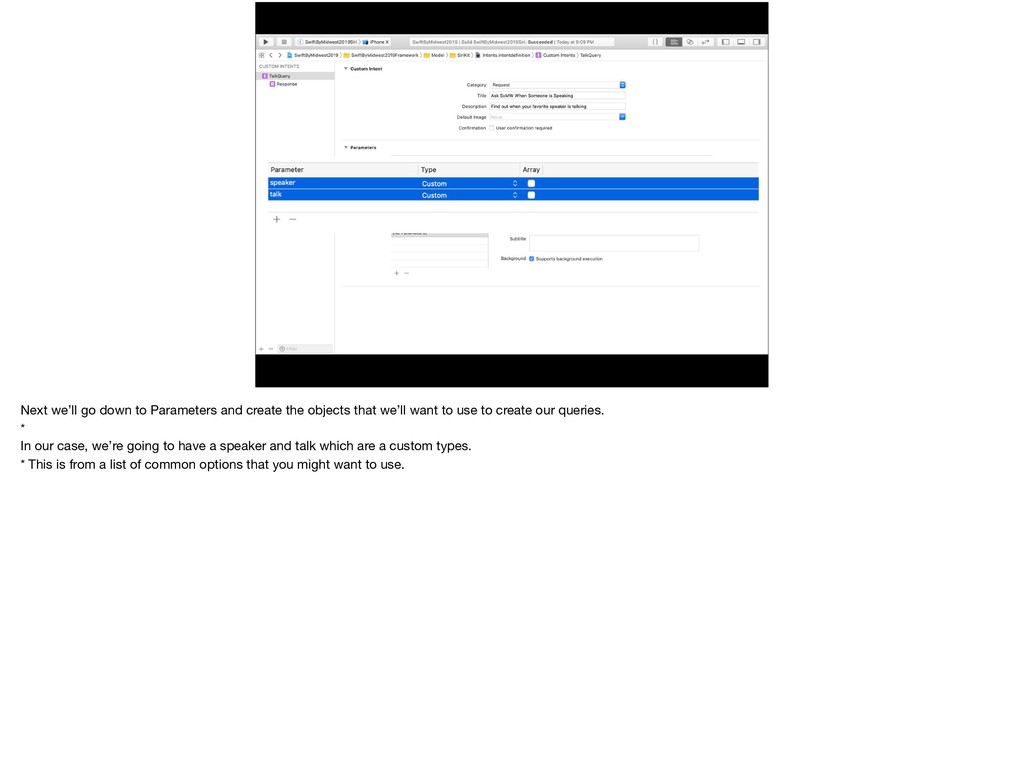
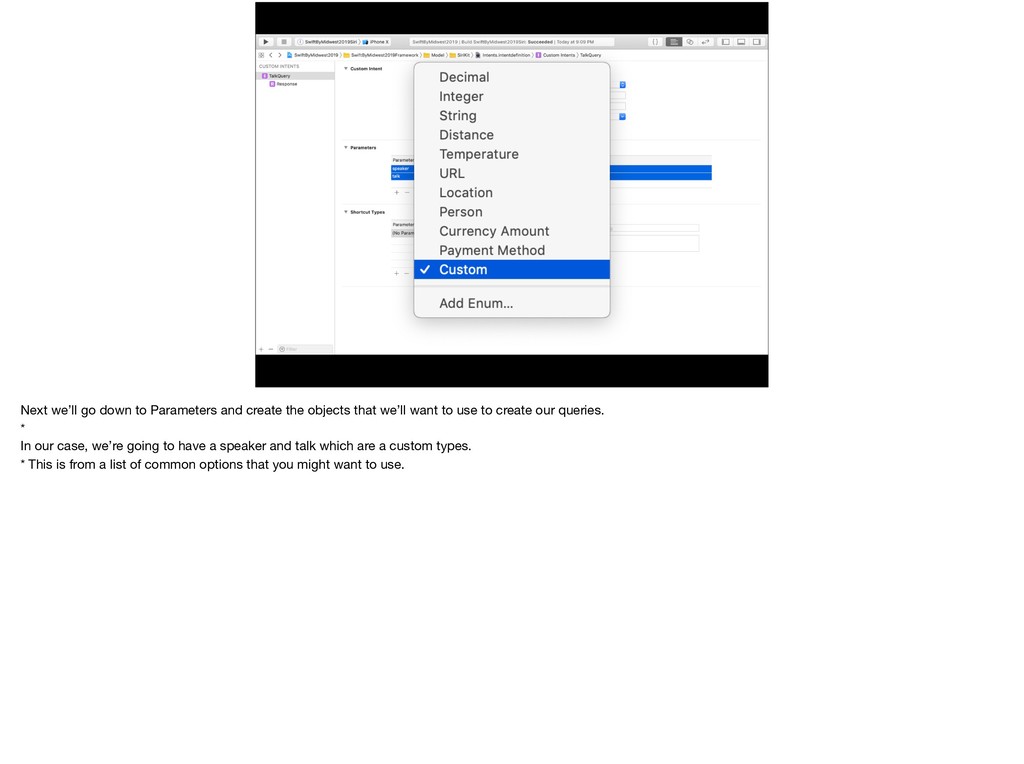
  41. Great Job! ! A Developer # Product Manager The PM

    thinks this is GREAT but wants to use Siri to drive engagement to the apps.
  42. Great Job! ! A Developer # Product Manager Drive engagement!

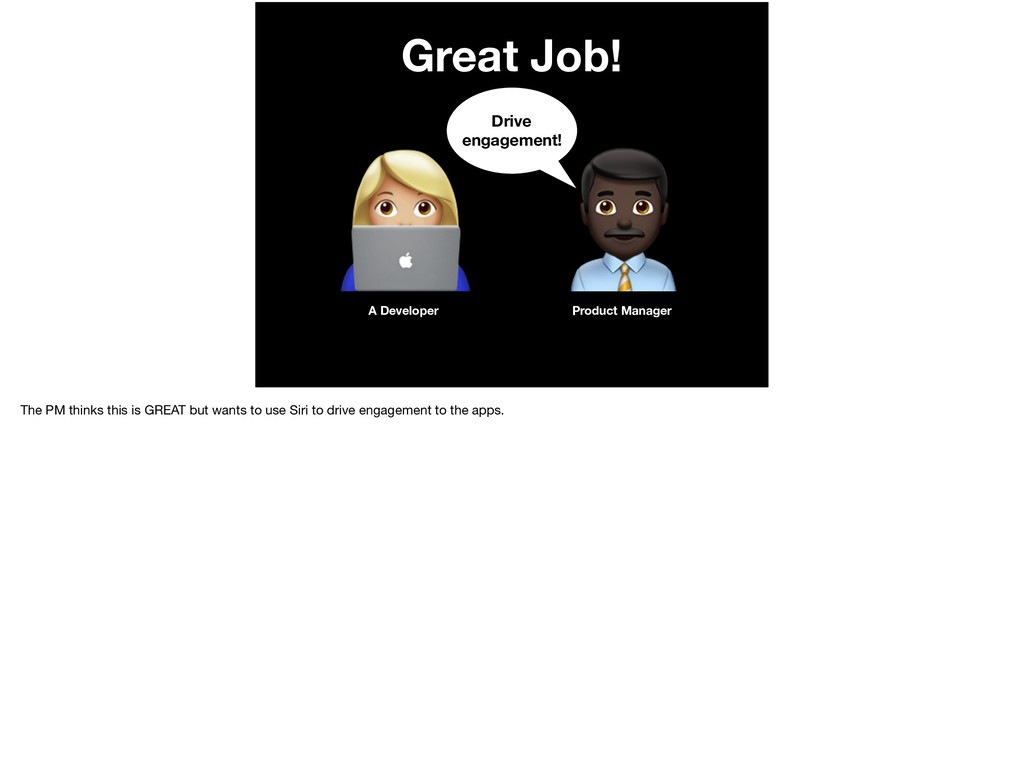
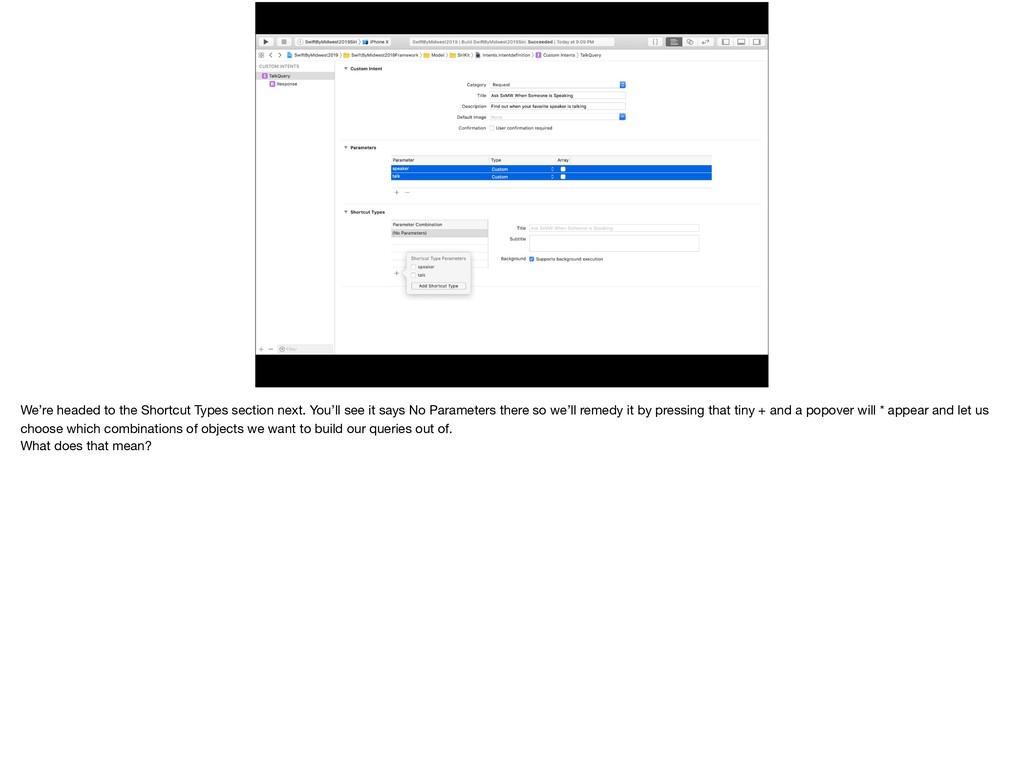
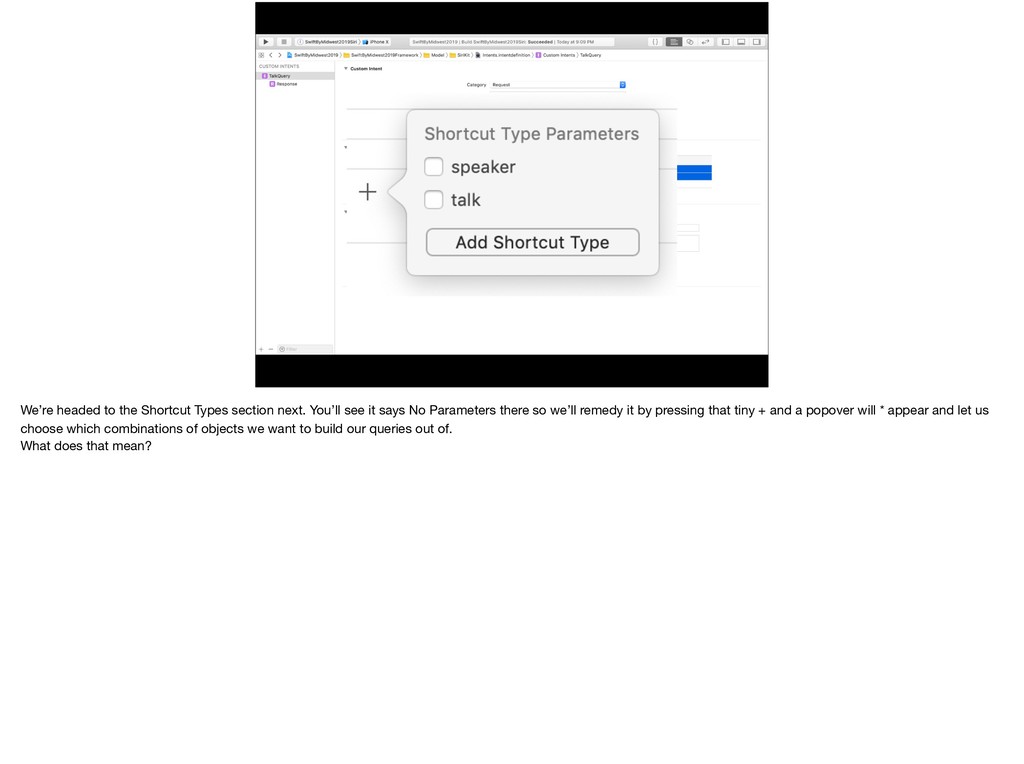
    The PM thinks this is GREAT but wants to use Siri to drive engagement to the apps.
  43. Great Job! ! A Developer # Product Manager Drive engagement!

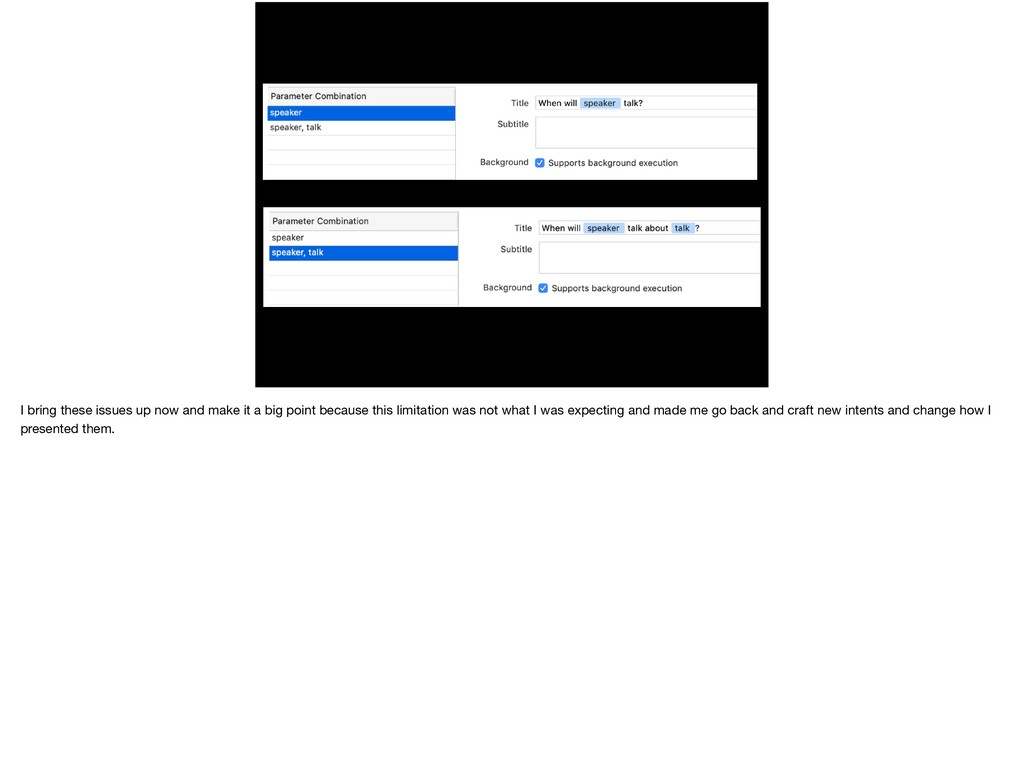
    Okay! The PM thinks this is GREAT but wants to use Siri to drive engagement to the apps.
  44. Great Job! ! A Developer # Product Manager Drive engagement!

    Okay! Think, “shortcuts” The PM thinks this is GREAT but wants to use Siri to drive engagement to the apps.
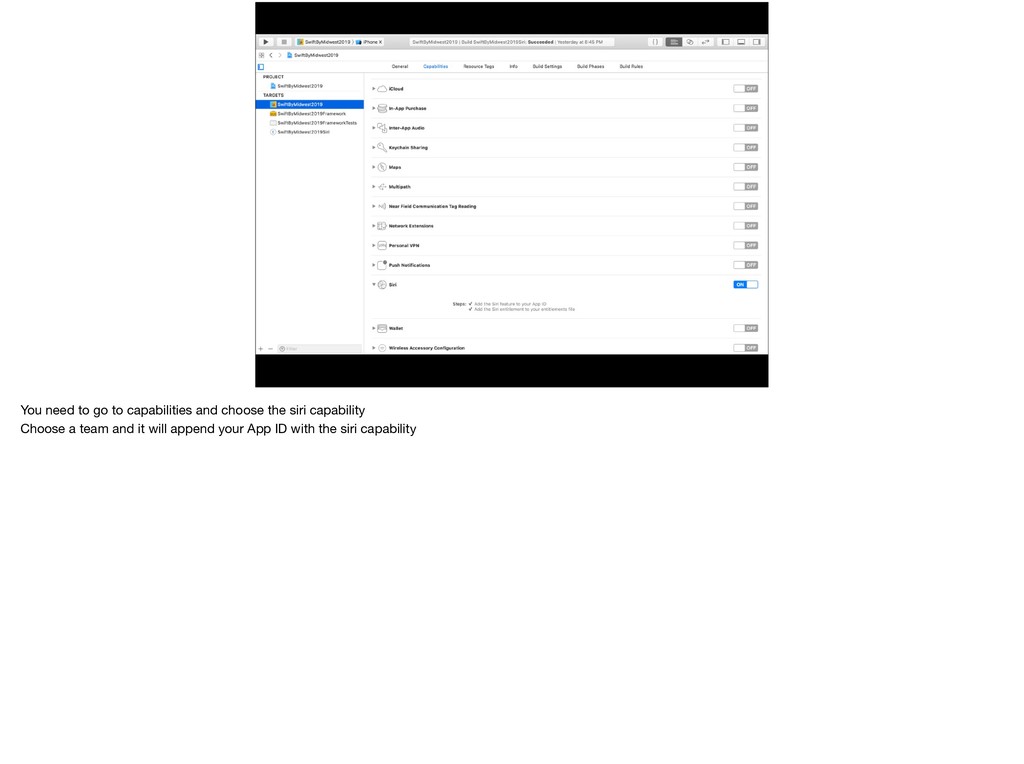
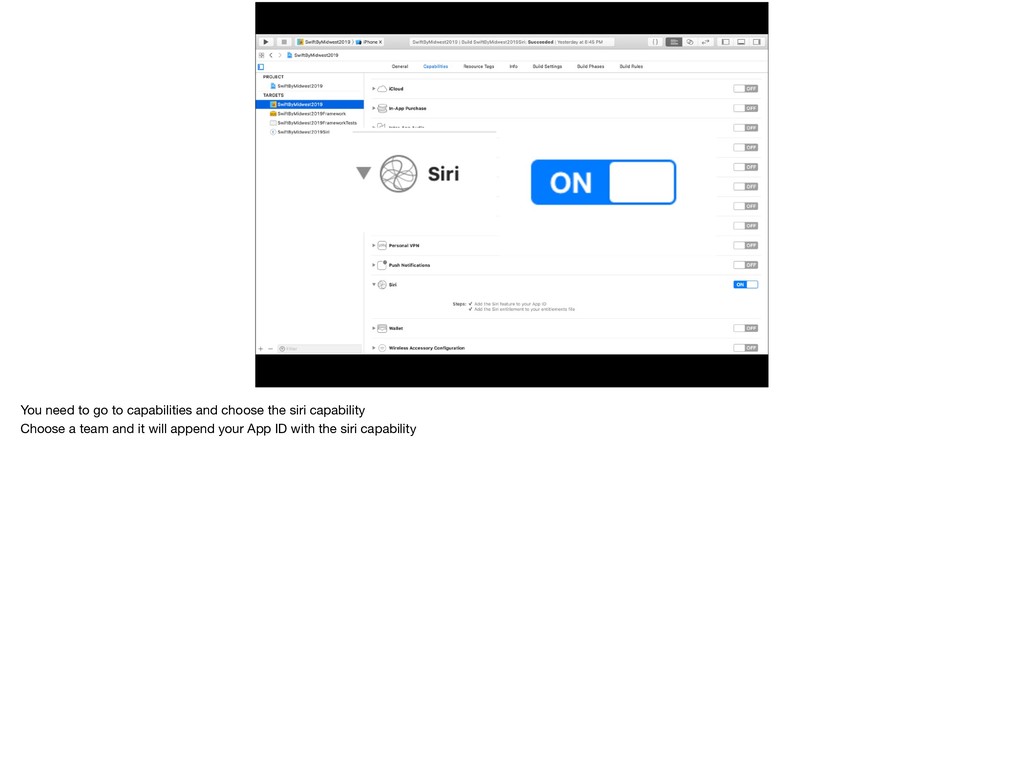
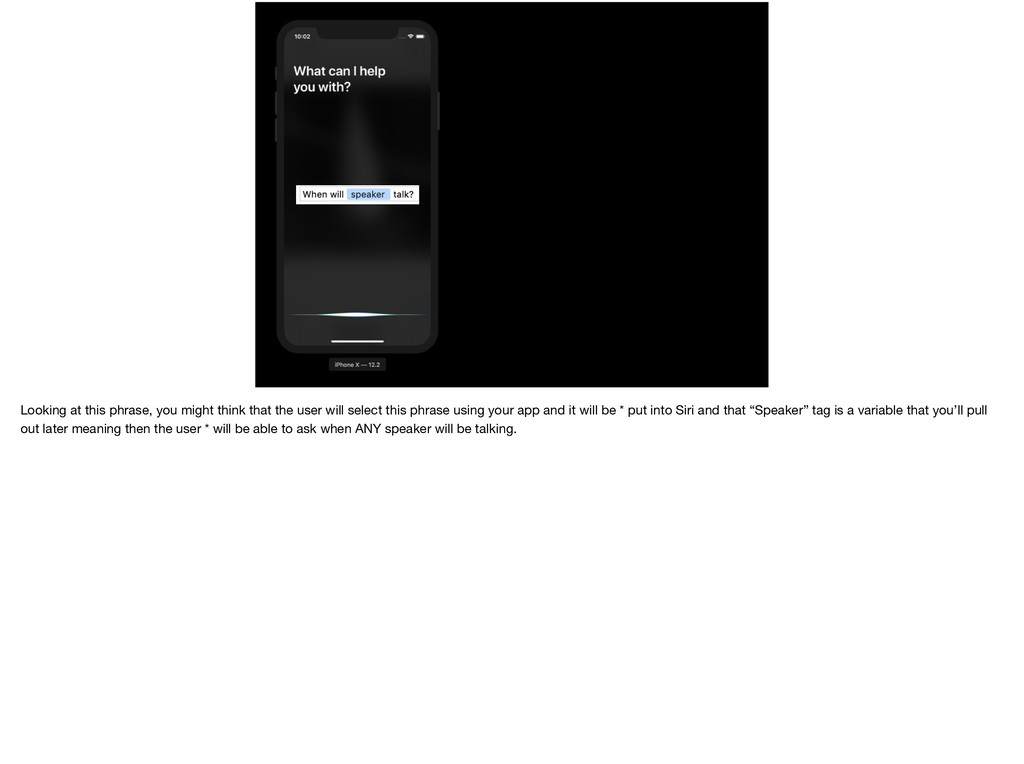
  45. You need to go to capabilities and choose the siri

    capability Choose a team and it will append your App ID with the siri capability
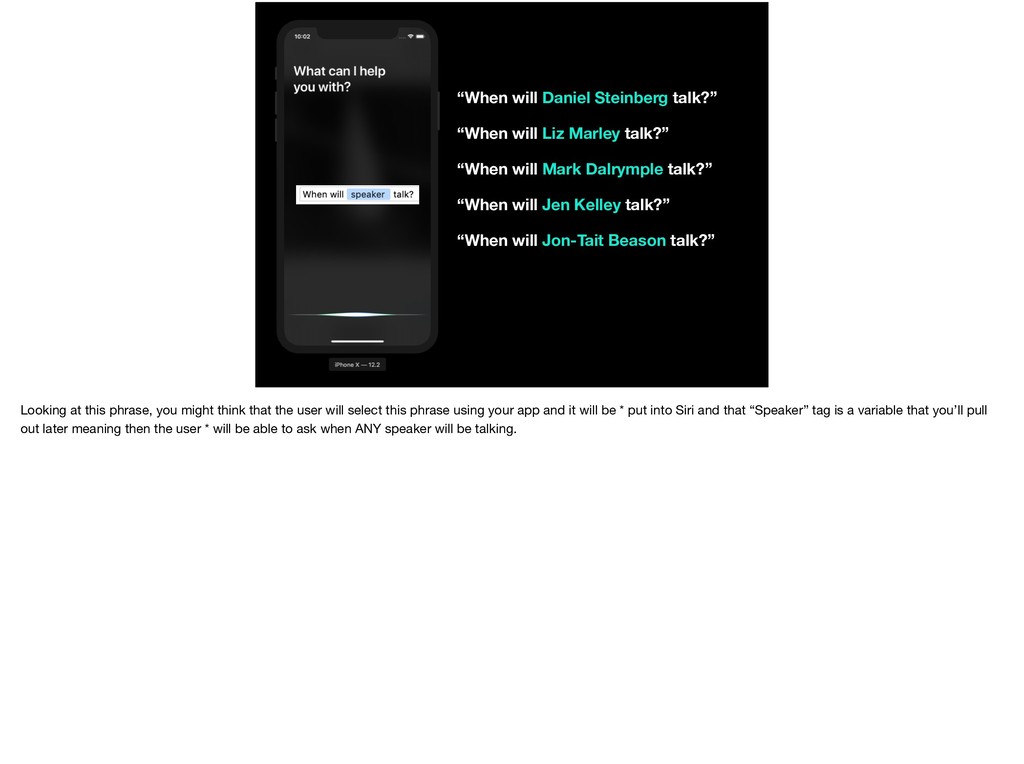
  46. You need to go to capabilities and choose the siri

    capability Choose a team and it will append your App ID with the siri capability
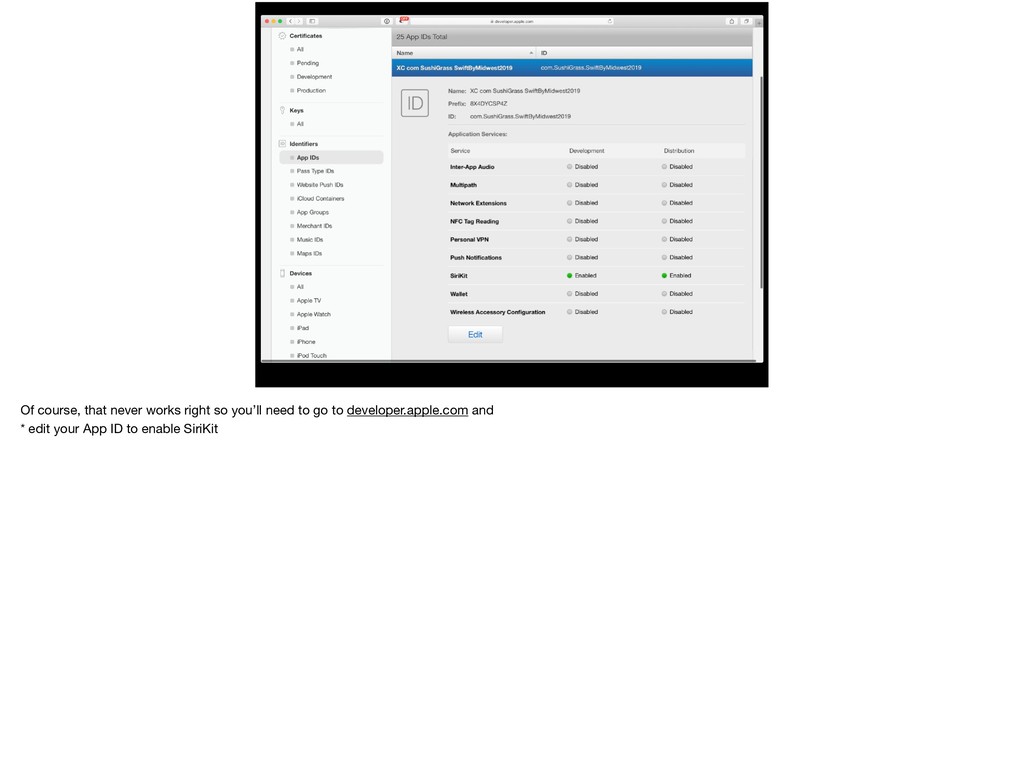
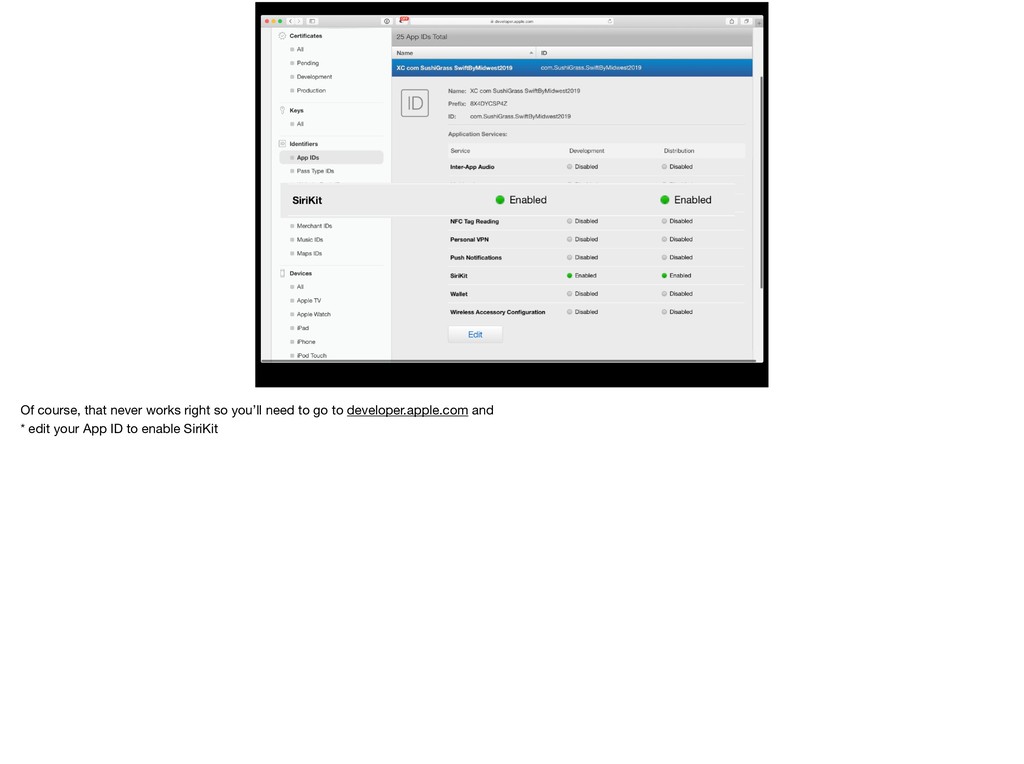
  47. Of course, that never works right so you’ll need to

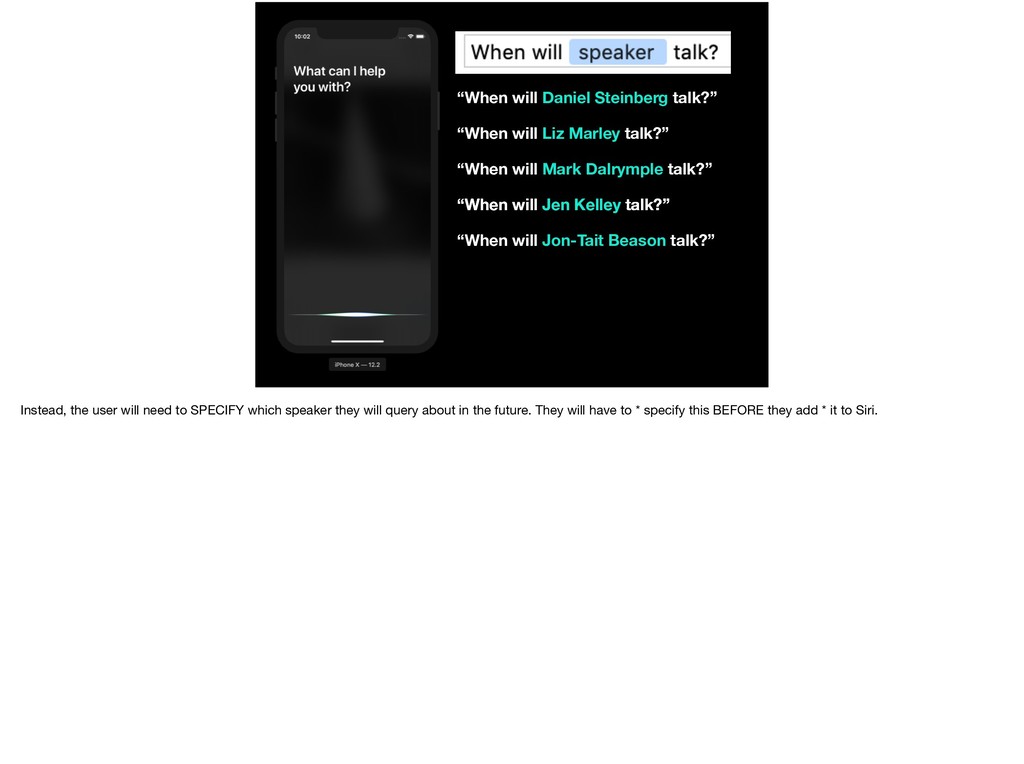
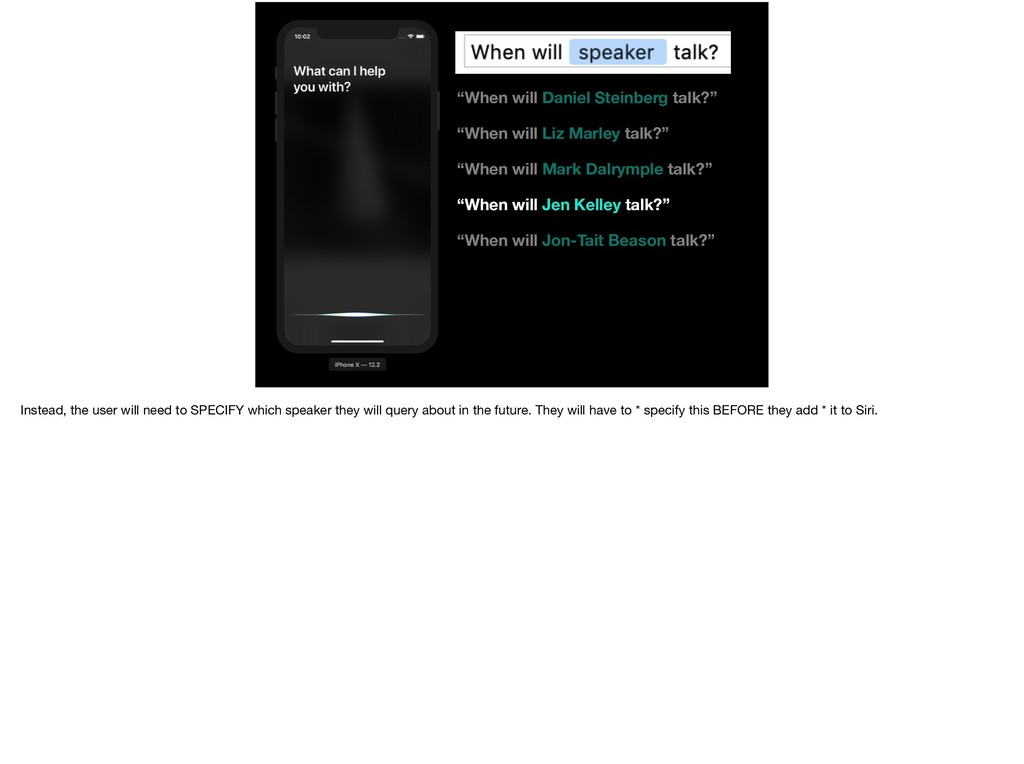
    go to developer.apple.com and * edit your App ID to enable SiriKit
  48. Of course, that never works right so you’ll need to

    go to developer.apple.com and * edit your App ID to enable SiriKit
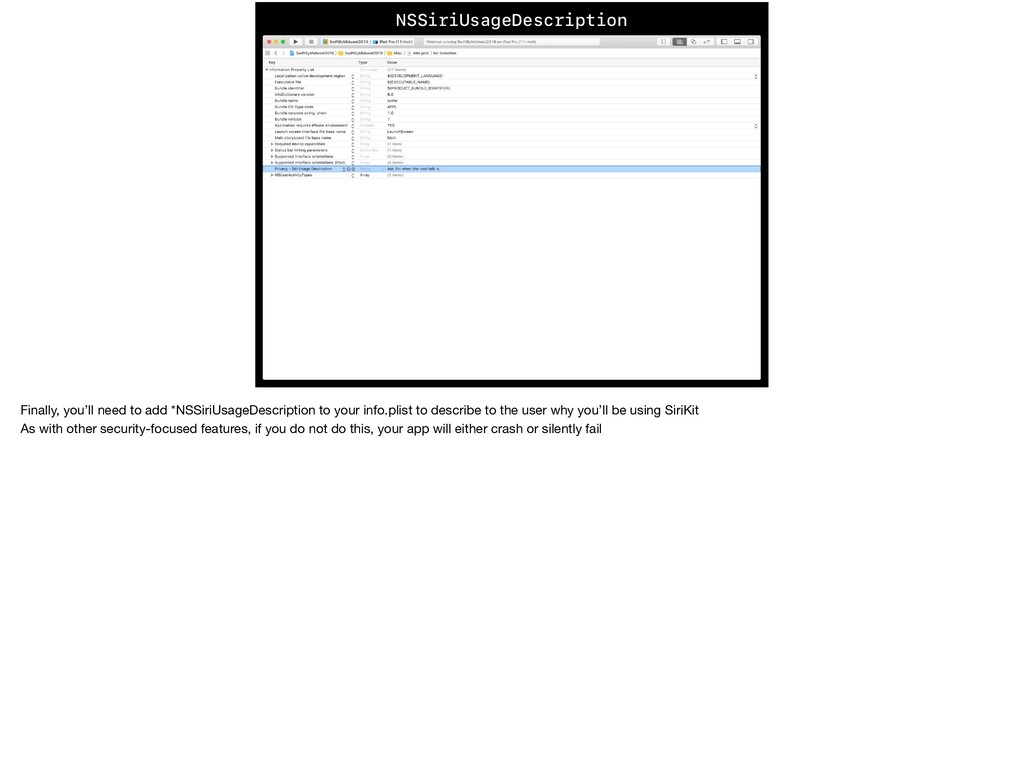
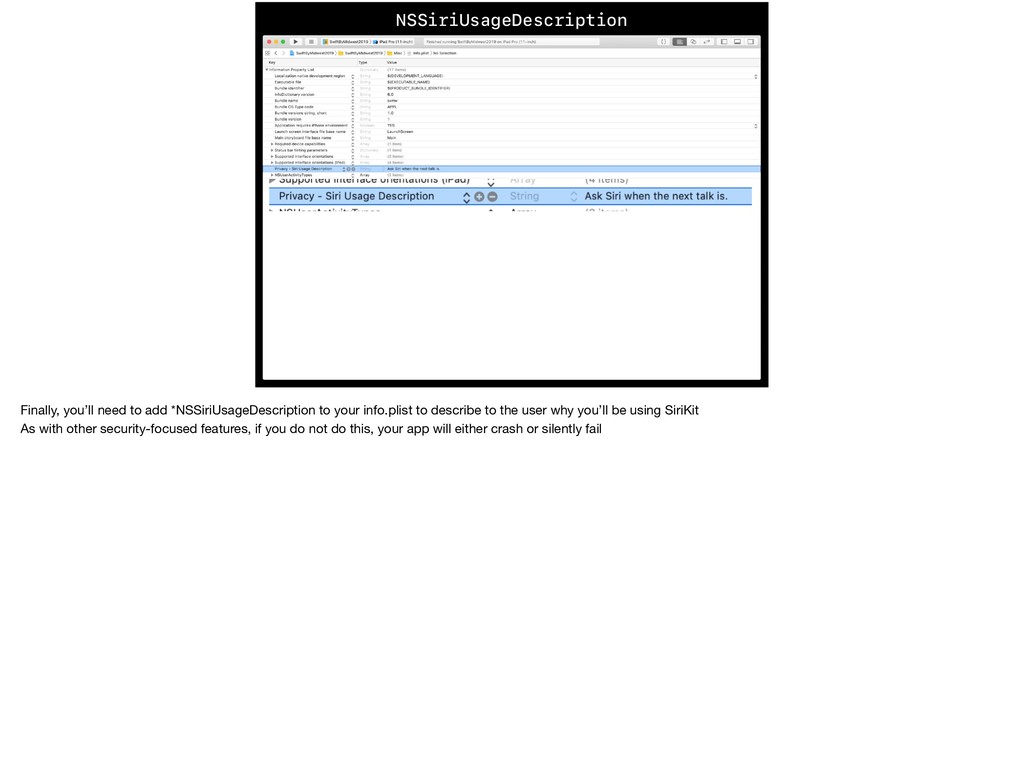
  49. NSSiriUsageDescription Finally, you’ll need to add *NSSiriUsageDescription to your info.plist

    to describe to the user why you’ll be using SiriKit As with other security-focused features, if you do not do this, your app will either crash or silently fail
  50. NSSiriUsageDescription Finally, you’ll need to add *NSSiriUsageDescription to your info.plist

    to describe to the user why you’ll be using SiriKit As with other security-focused features, if you do not do this, your app will either crash or silently fail
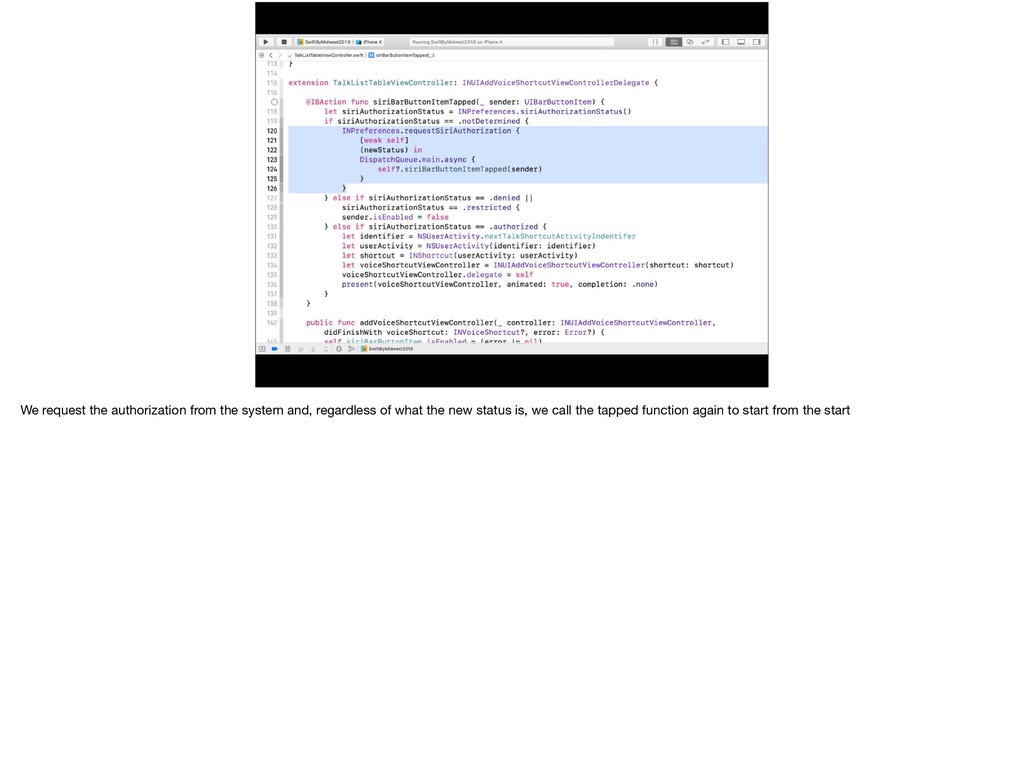
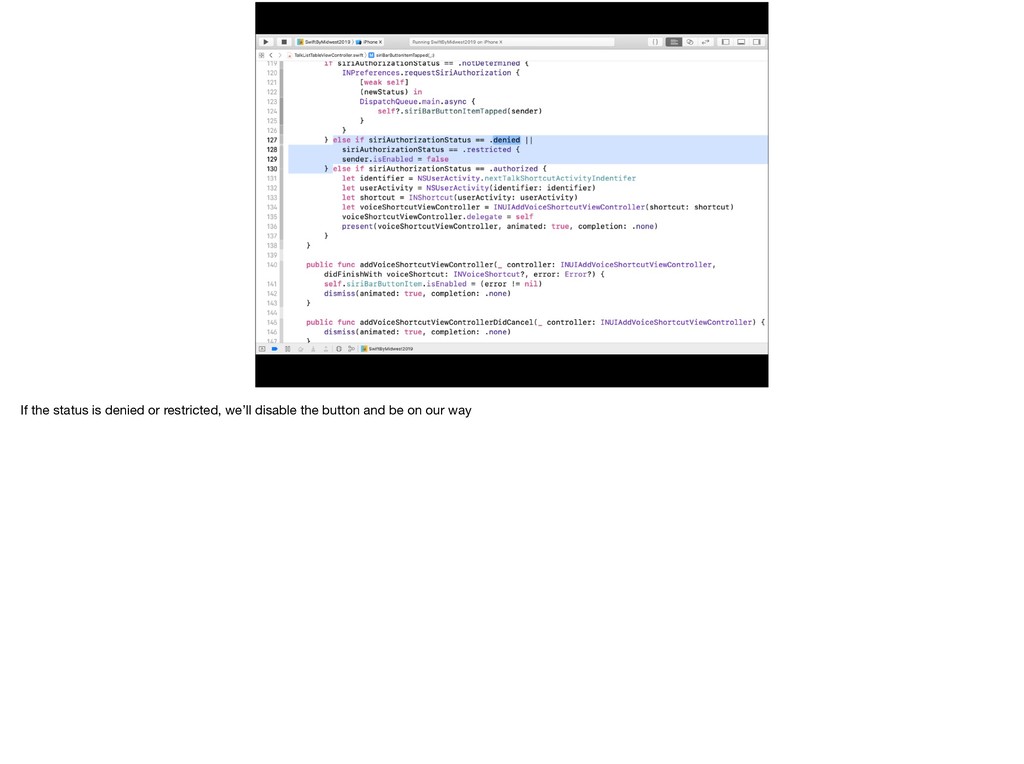
  51. We request the authorization from the system and, regardless of

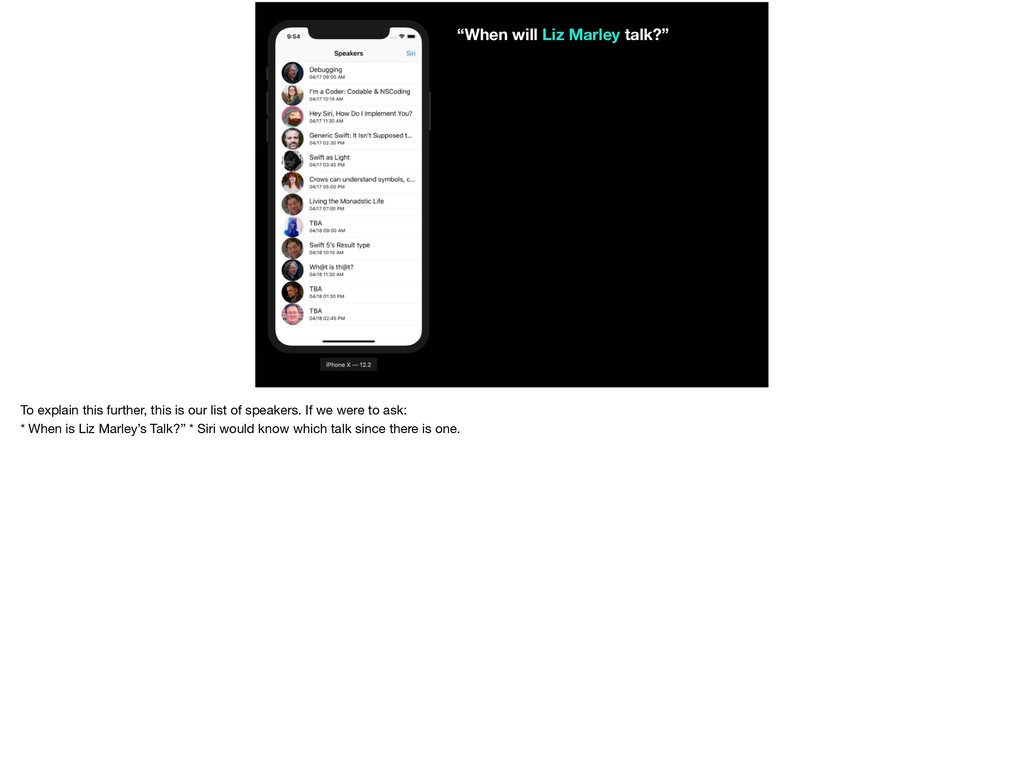
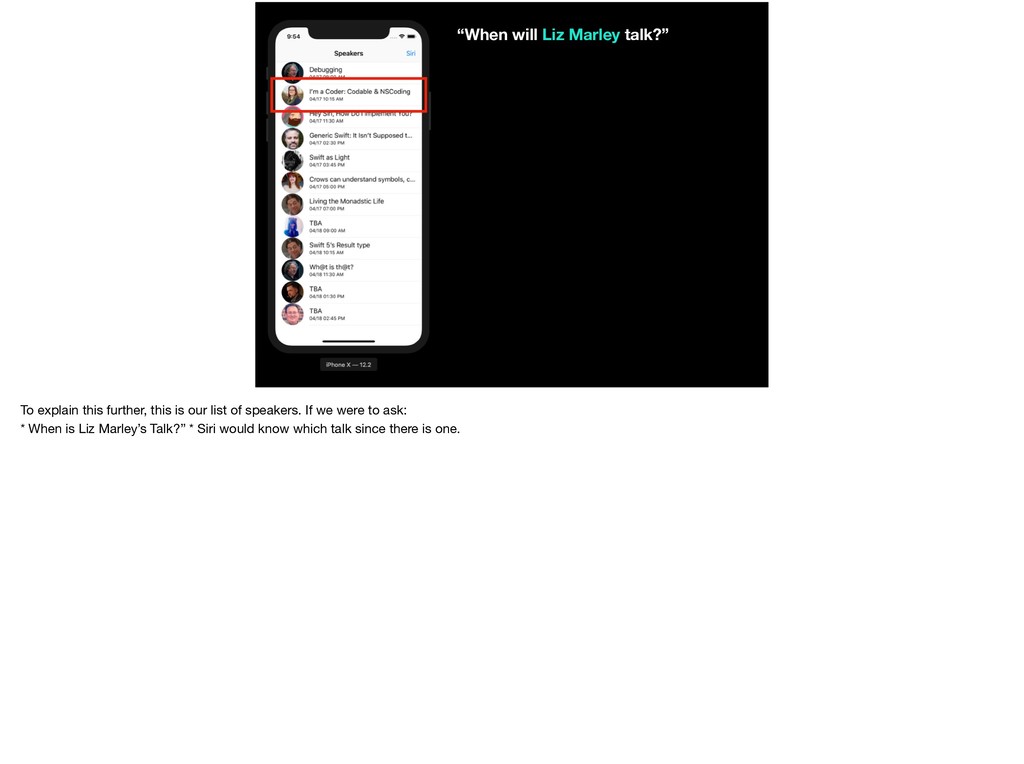
    what the new status is, we call the tapped function again to start from the start
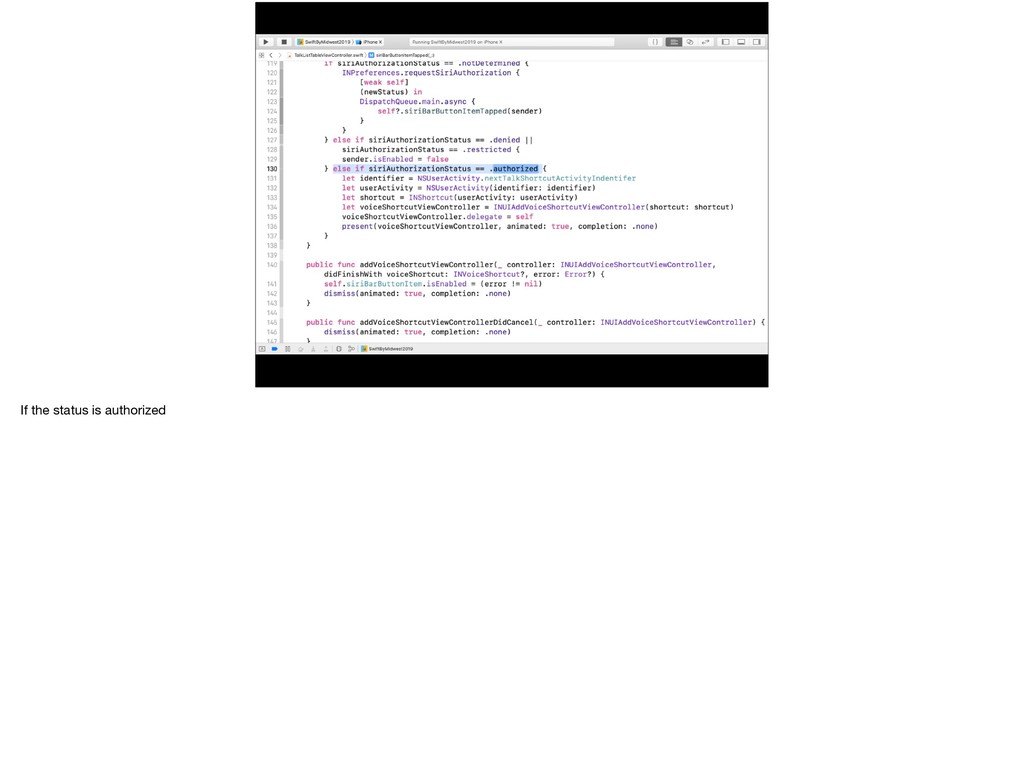
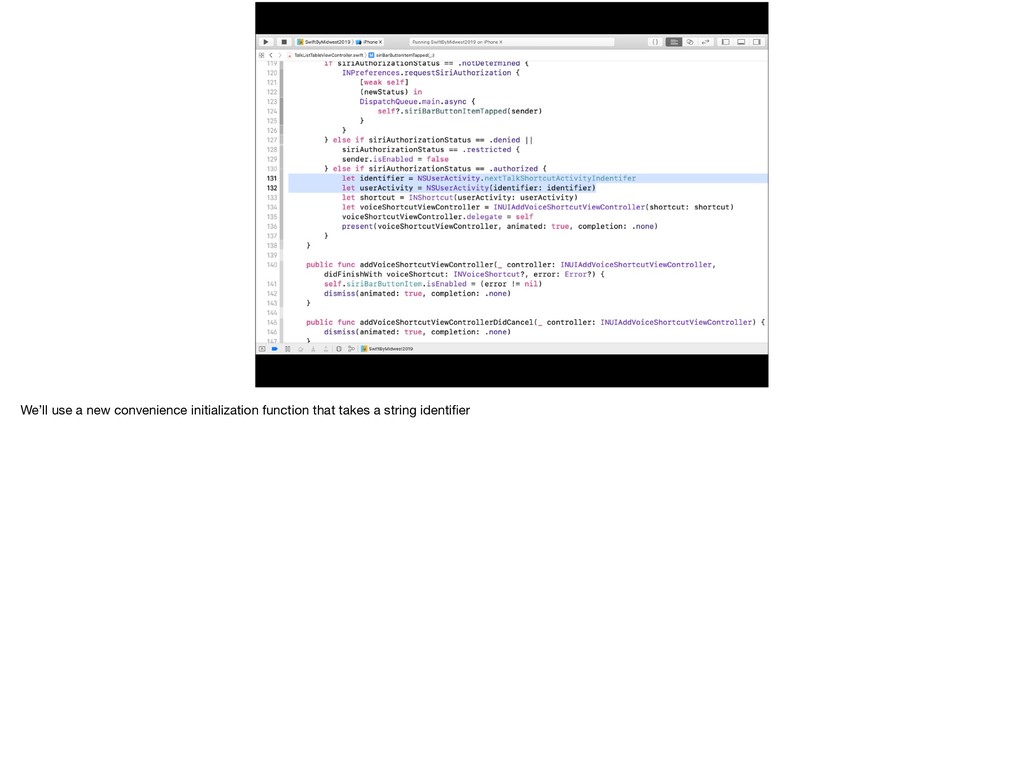
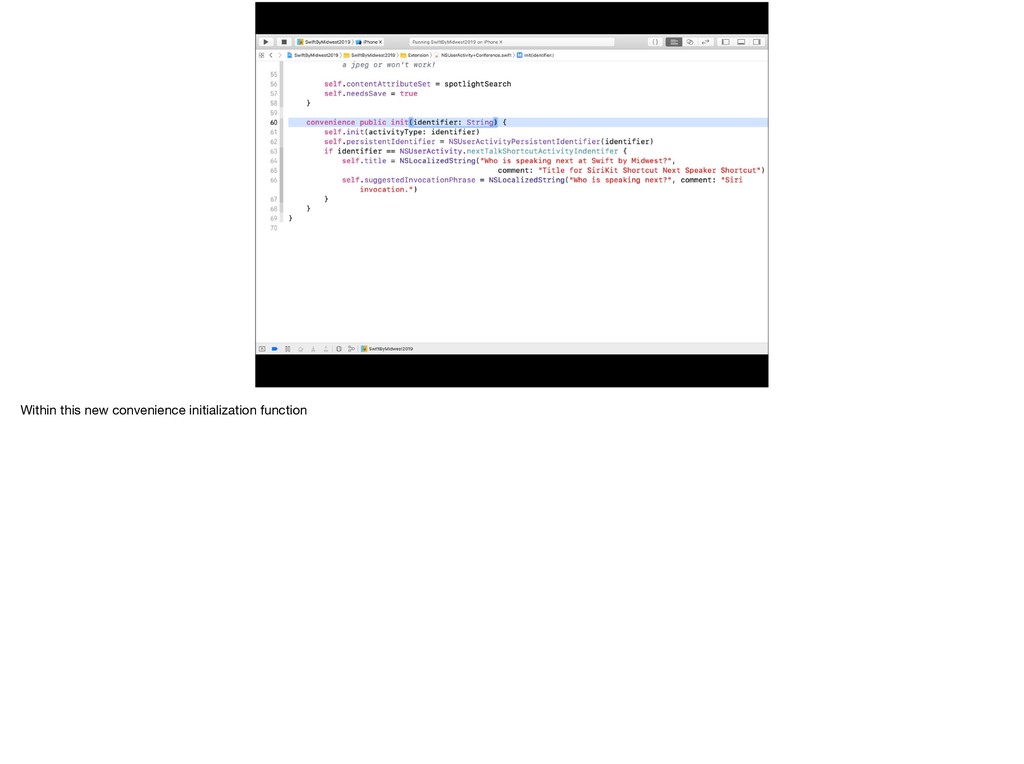
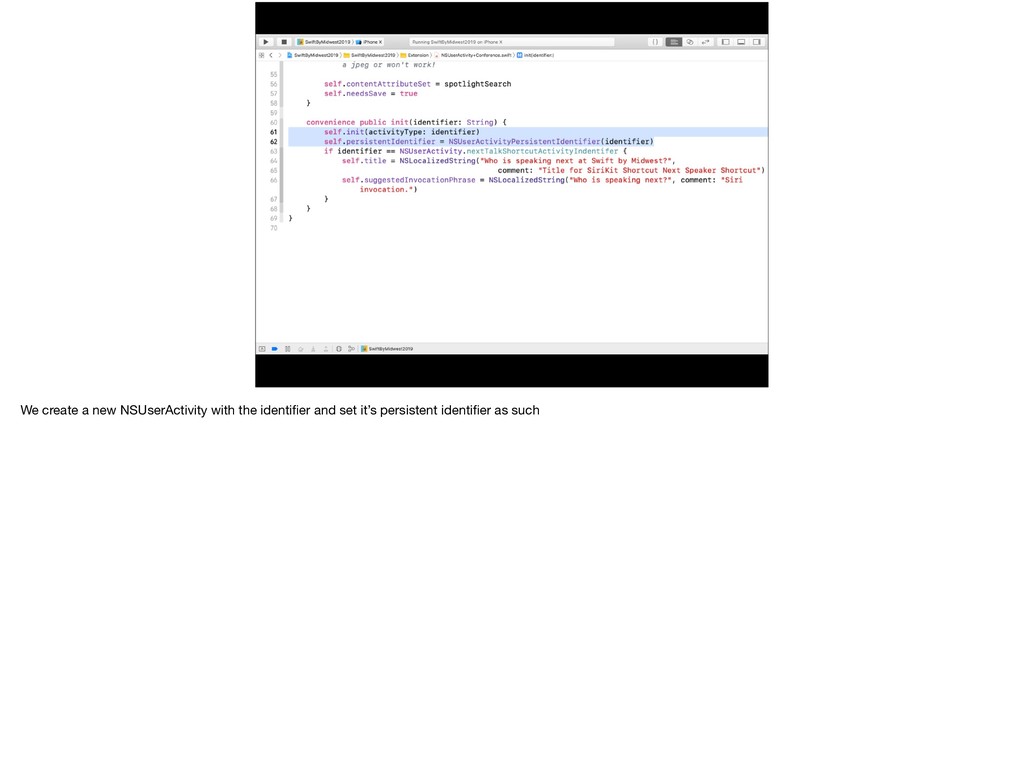
  52. We create a new NSUserActivity with the identifier and set

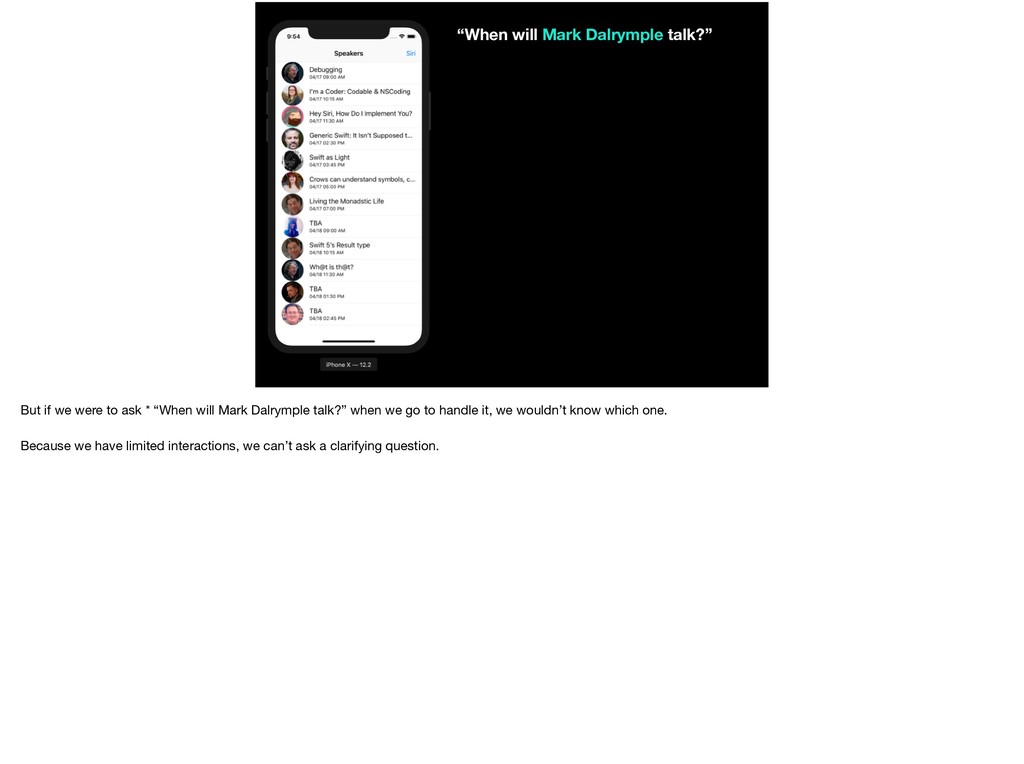
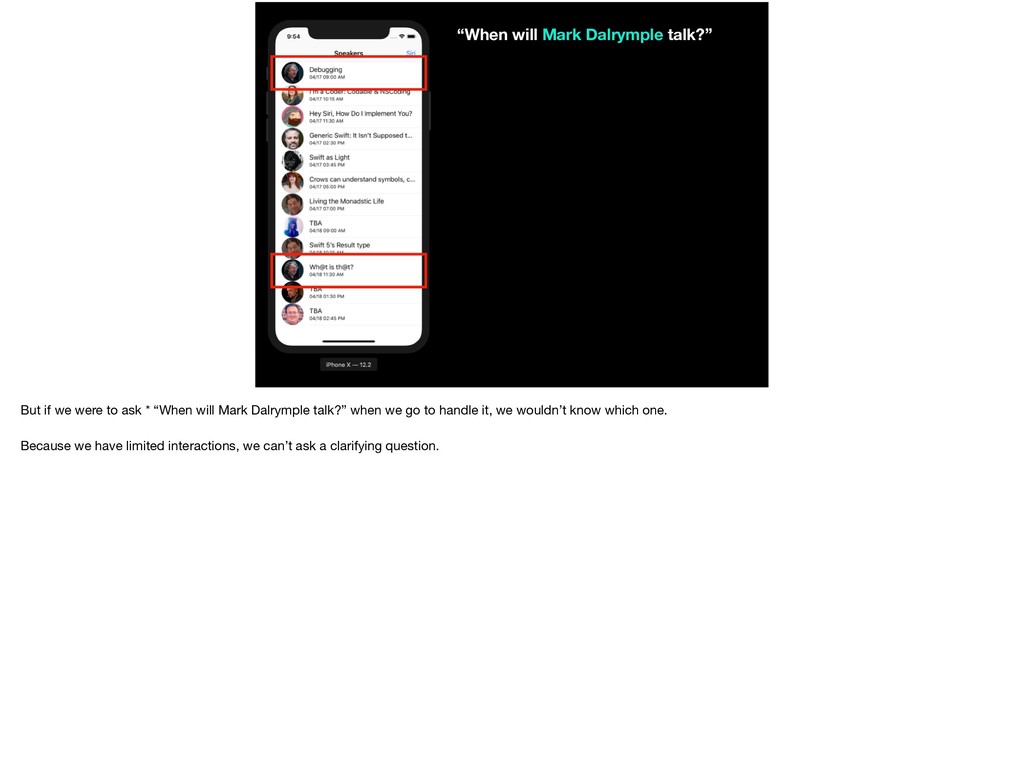
    it’s persistent identifier as such
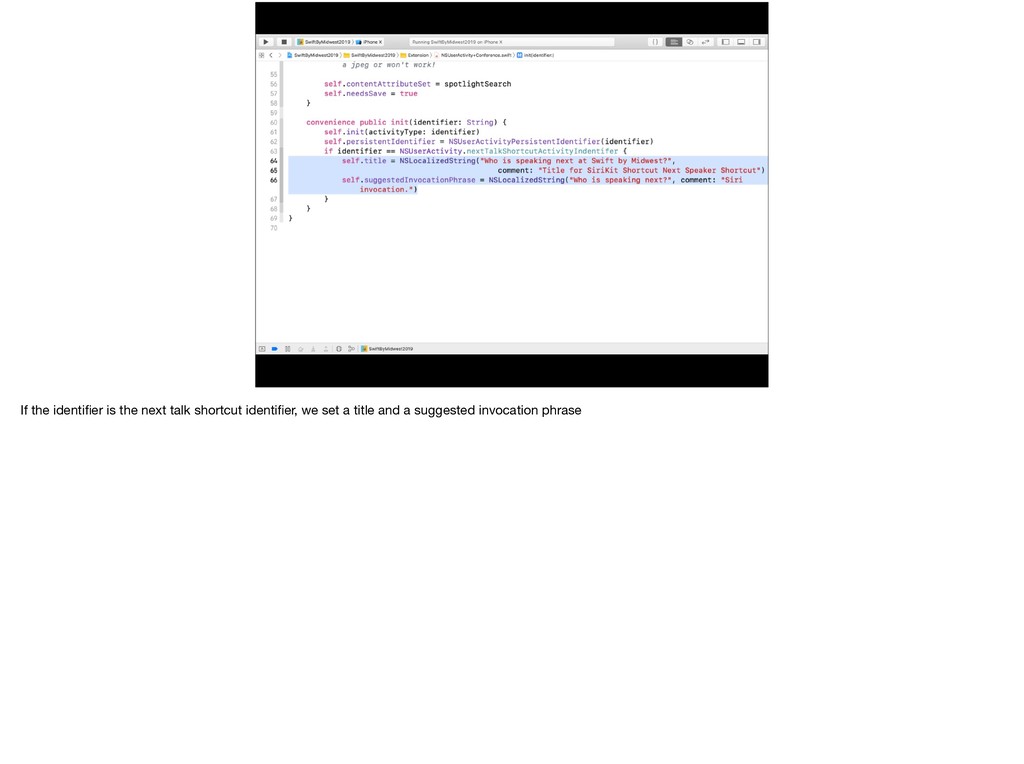
  53. If the identifier is the next talk shortcut identifier, we

    set a title and a suggested invocation phrase
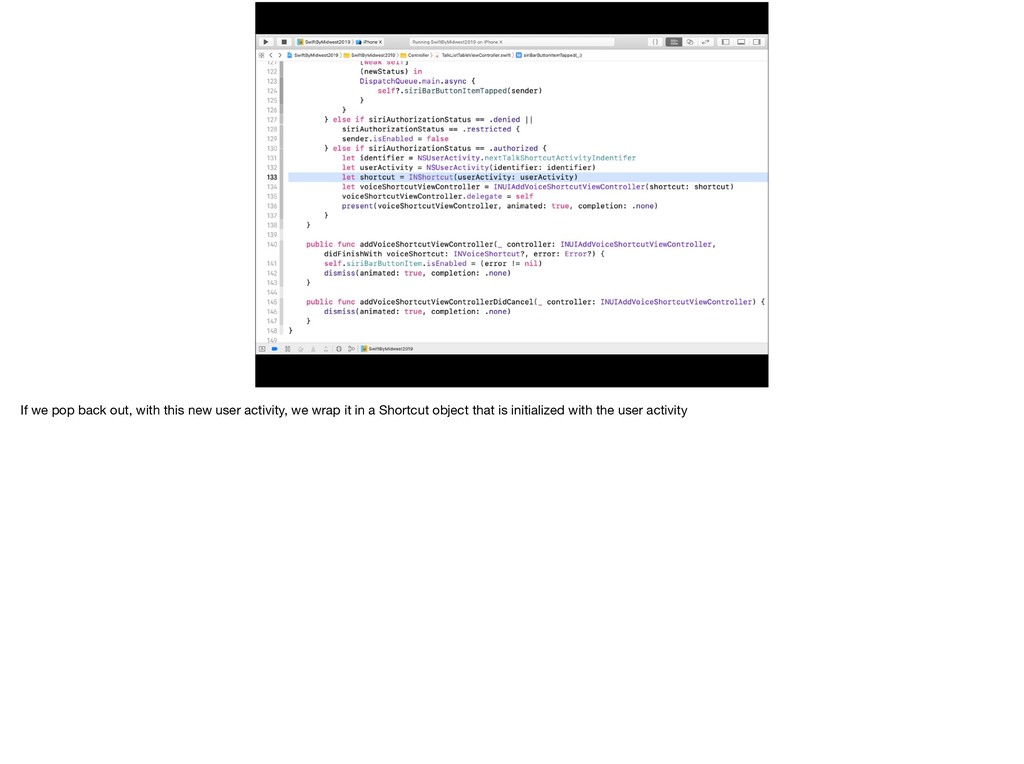
  54. If we pop back out, with this new user activity,

    we wrap it in a Shortcut object that is initialized with the user activity
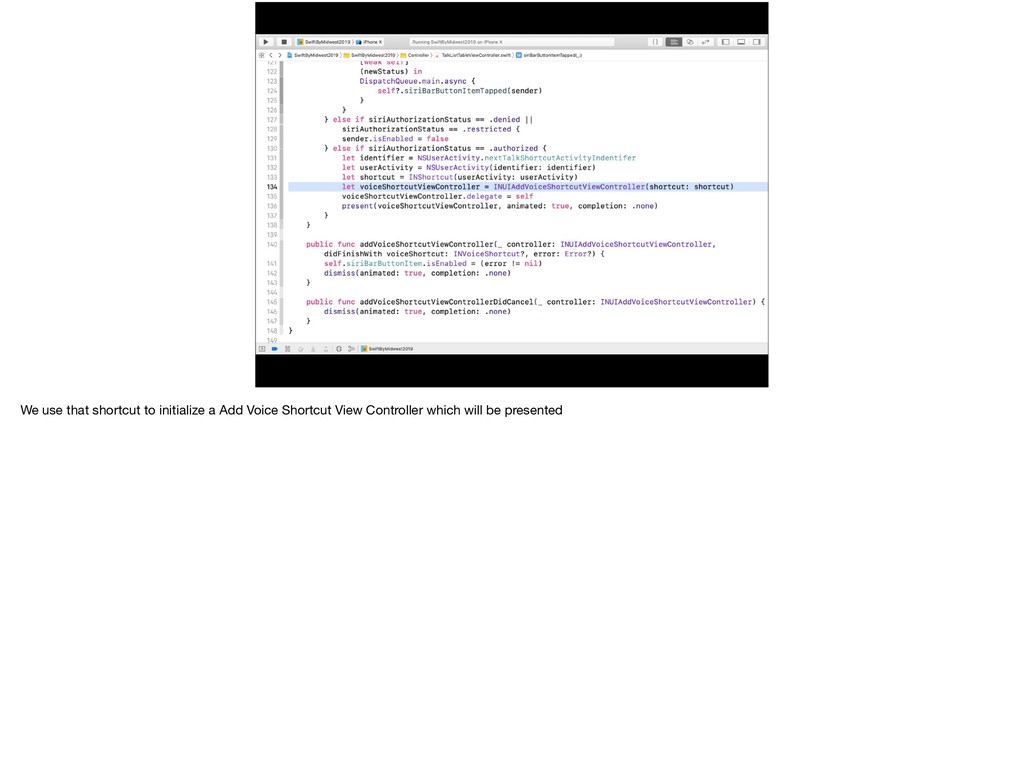
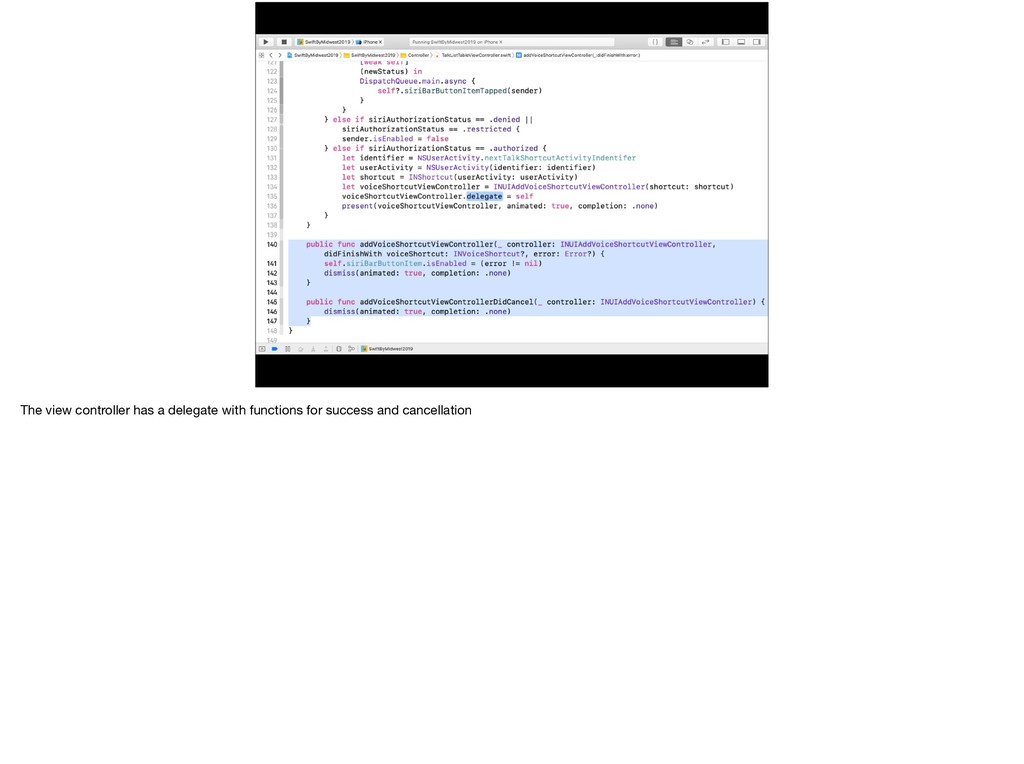
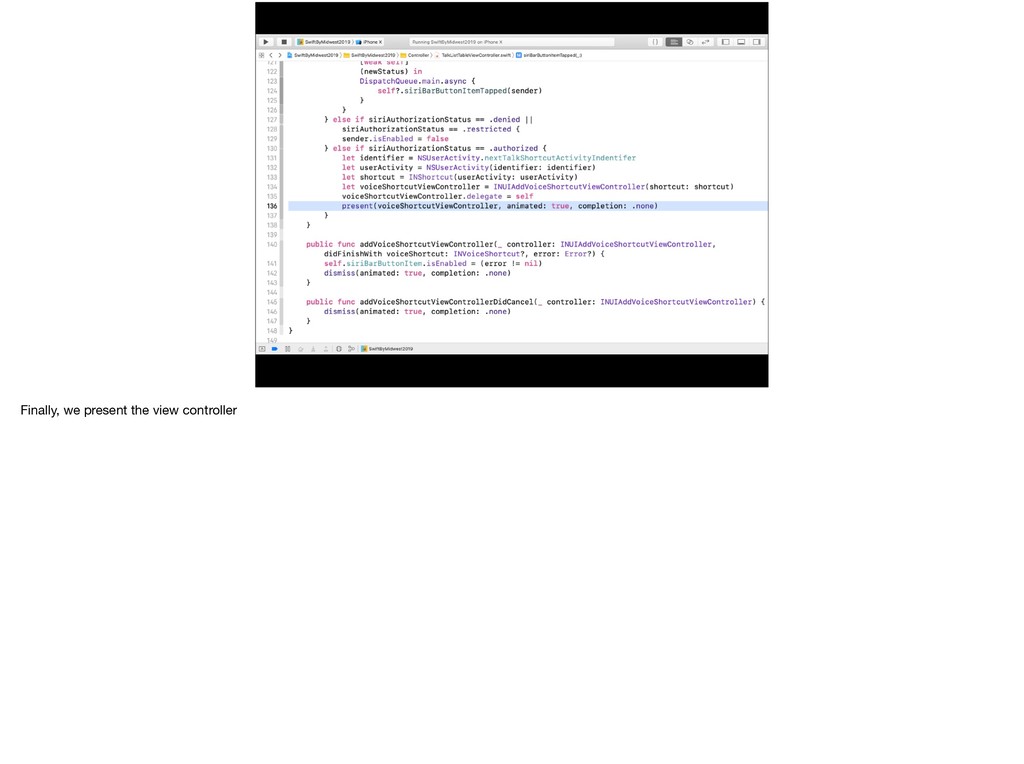
  55. We use that shortcut to initialize a Add Voice Shortcut

    View Controller which will be presented
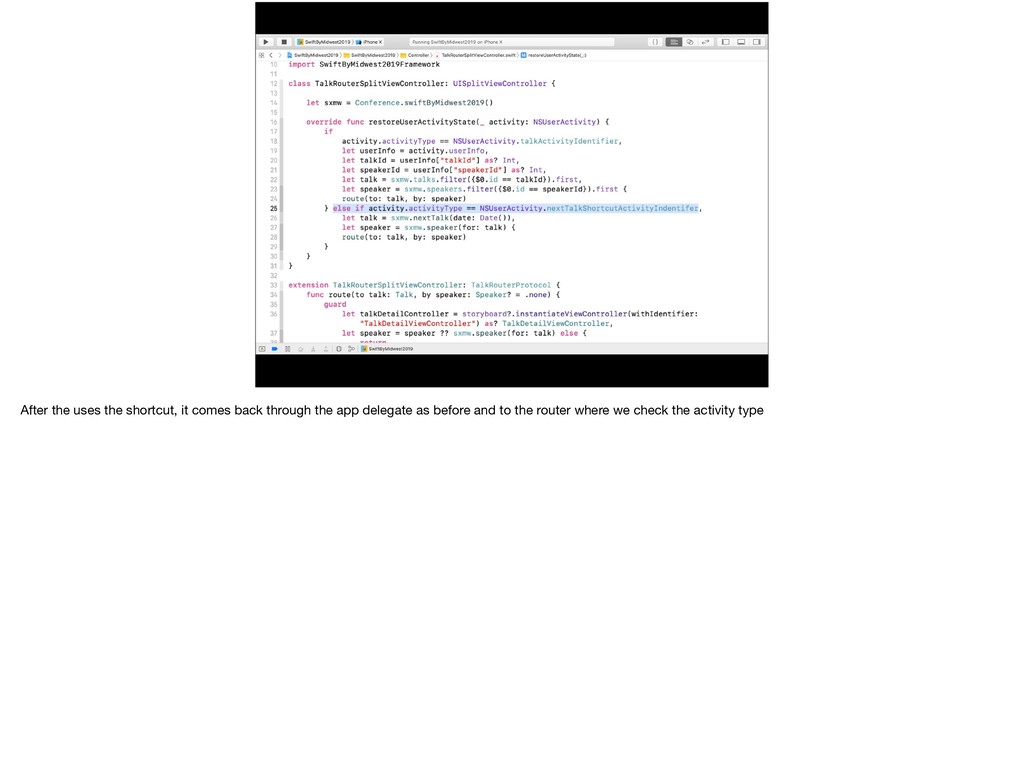
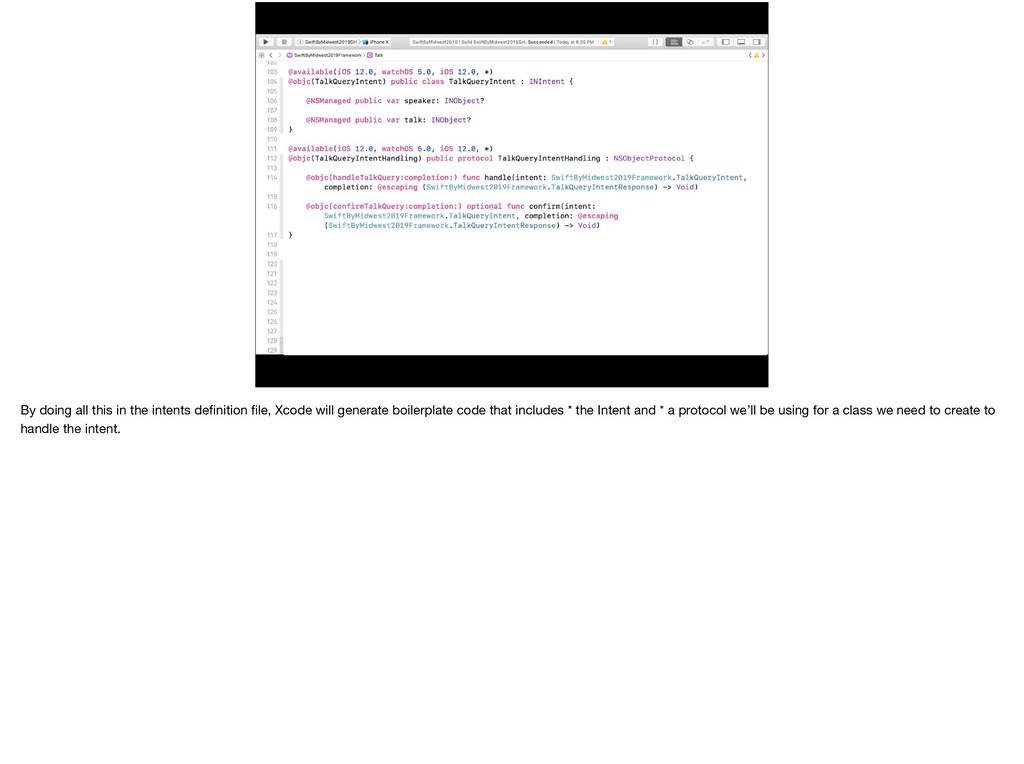
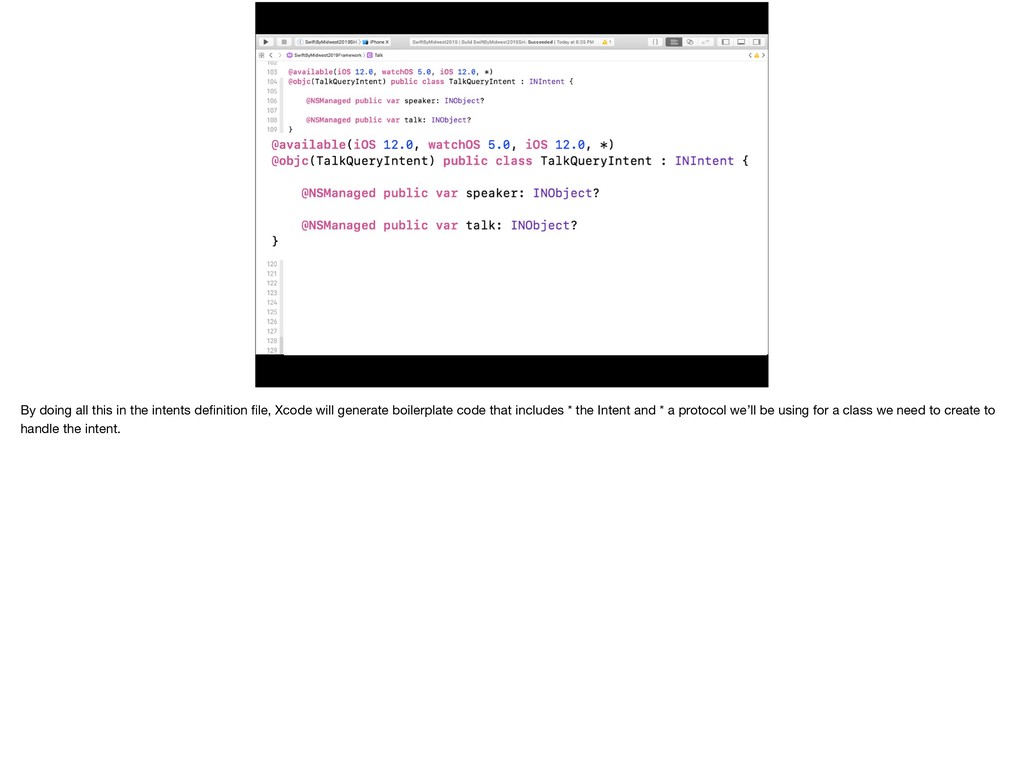
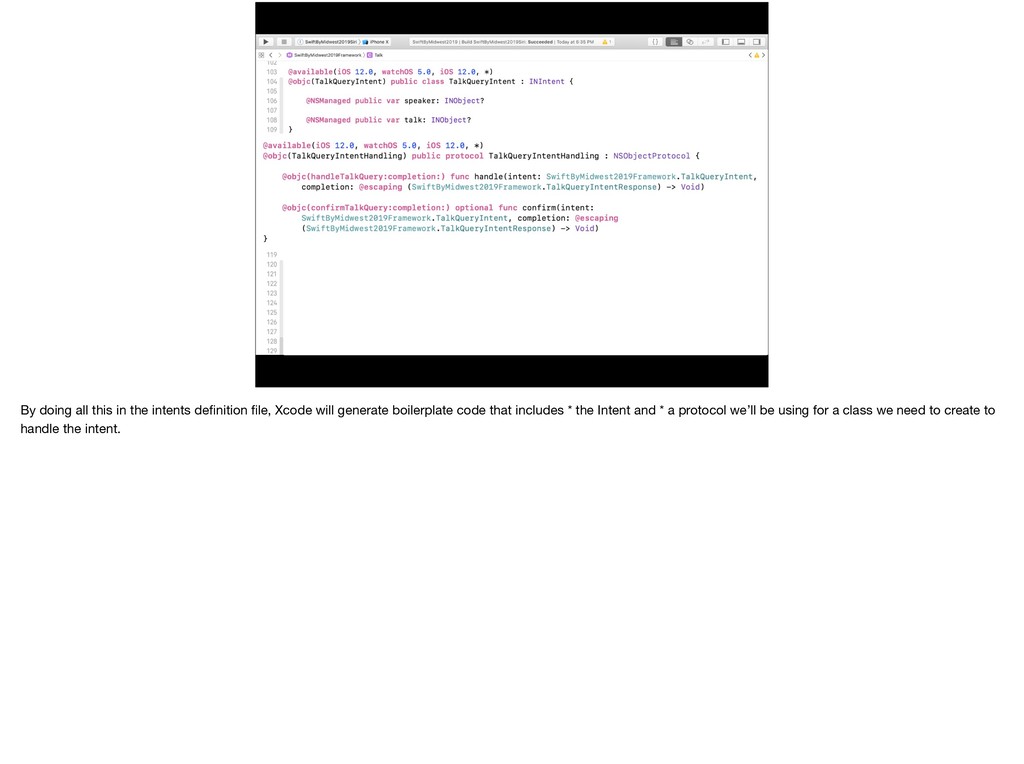
  56. After the uses the shortcut, it comes back through the

    app delegate as before and to the router where we check the activity type
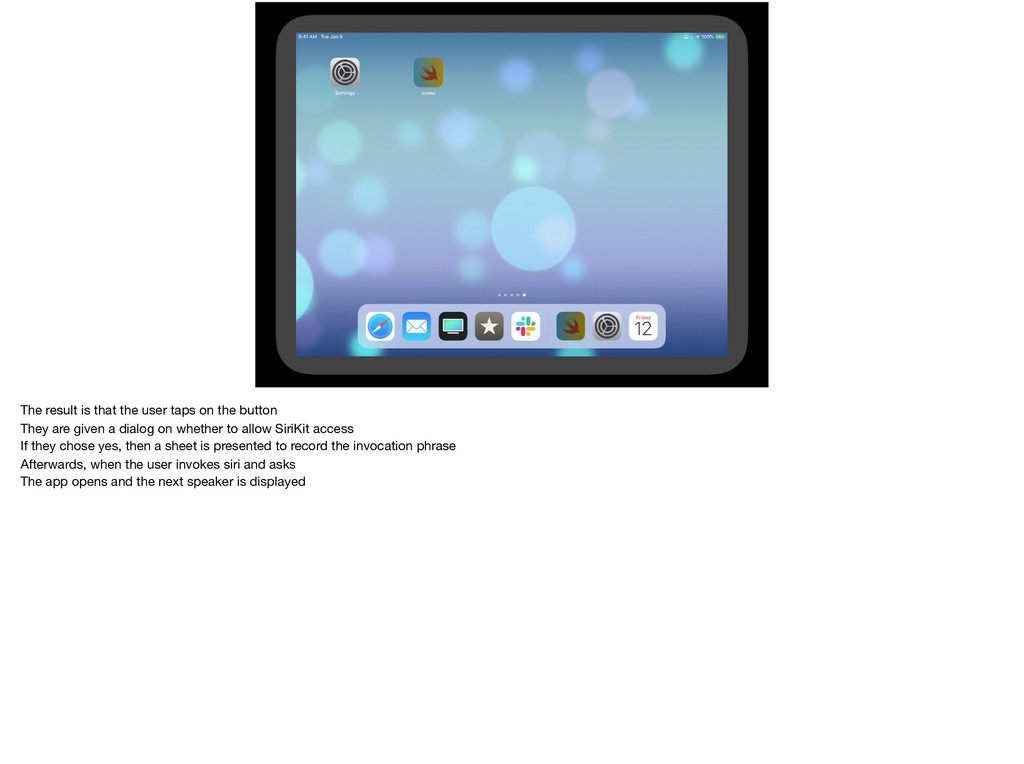
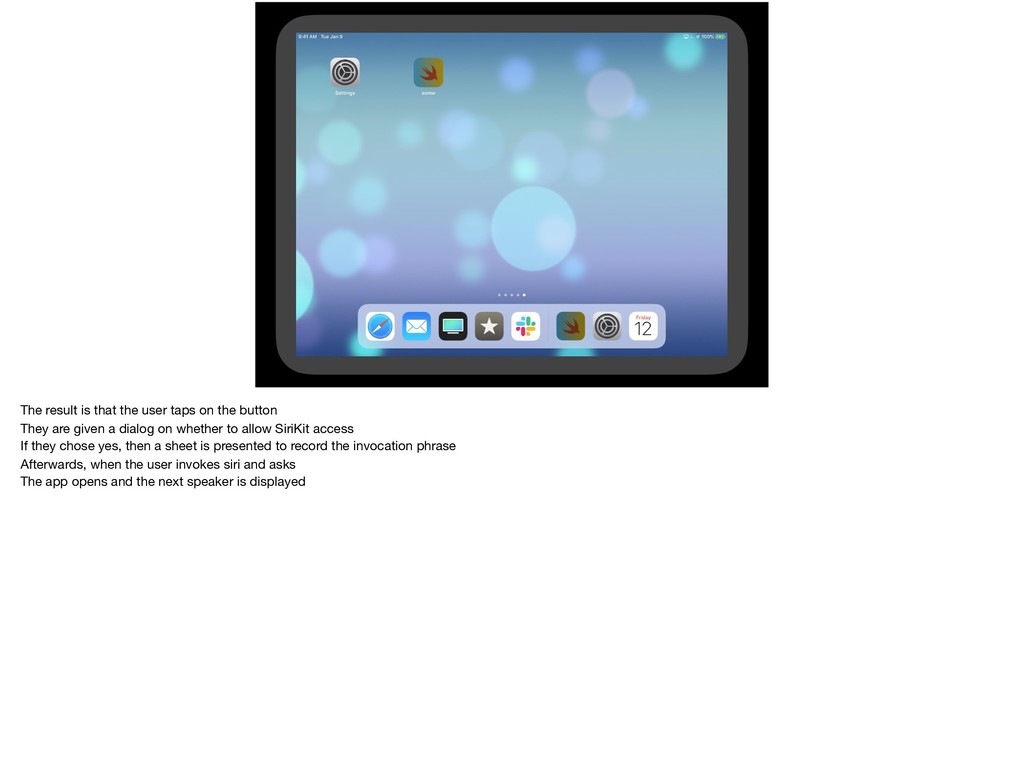
  57. The result is that the user taps on the button

    They are given a dialog on whether to allow SiriKit access If they chose yes, then a sheet is presented to record the invocation phrase Afterwards, when the user invokes siri and asks The app opens and the next speaker is displayed
  58. The result is that the user taps on the button

    They are given a dialog on whether to allow SiriKit access If they chose yes, then a sheet is presented to record the invocation phrase Afterwards, when the user invokes siri and asks The app opens and the next speaker is displayed
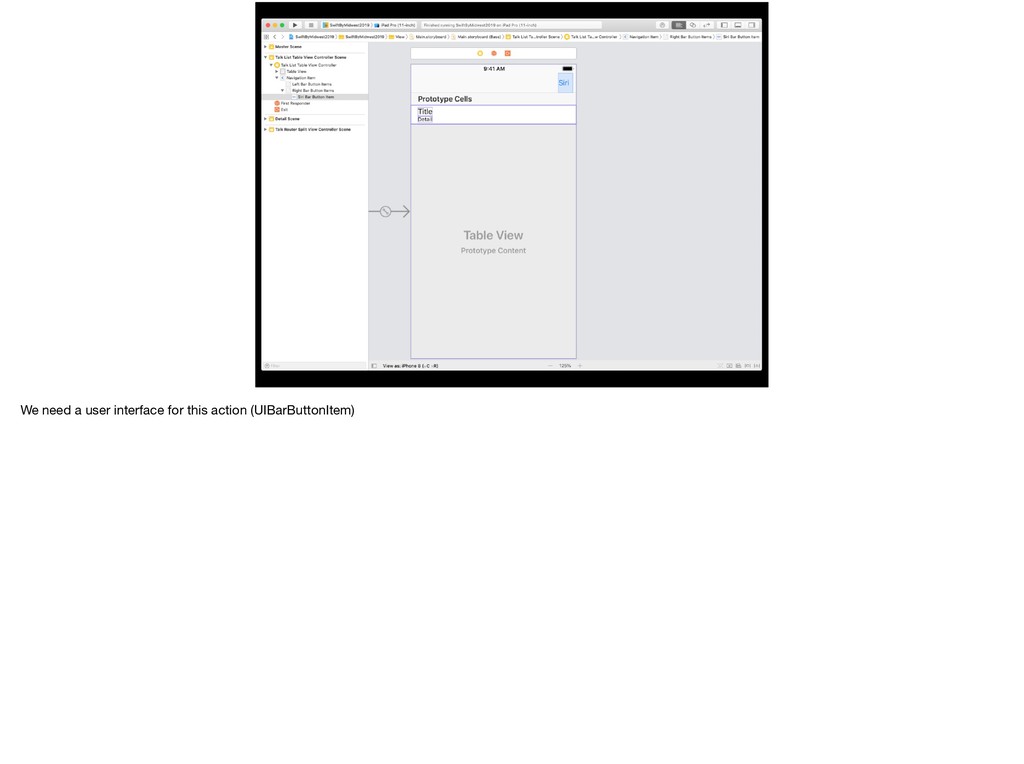
  59. Localization • You’ll have to localize your storyboard • Make

    sure your SiriKit usage rationale is localized in your info.plist • Title and invocation phrases on NSUserActivity
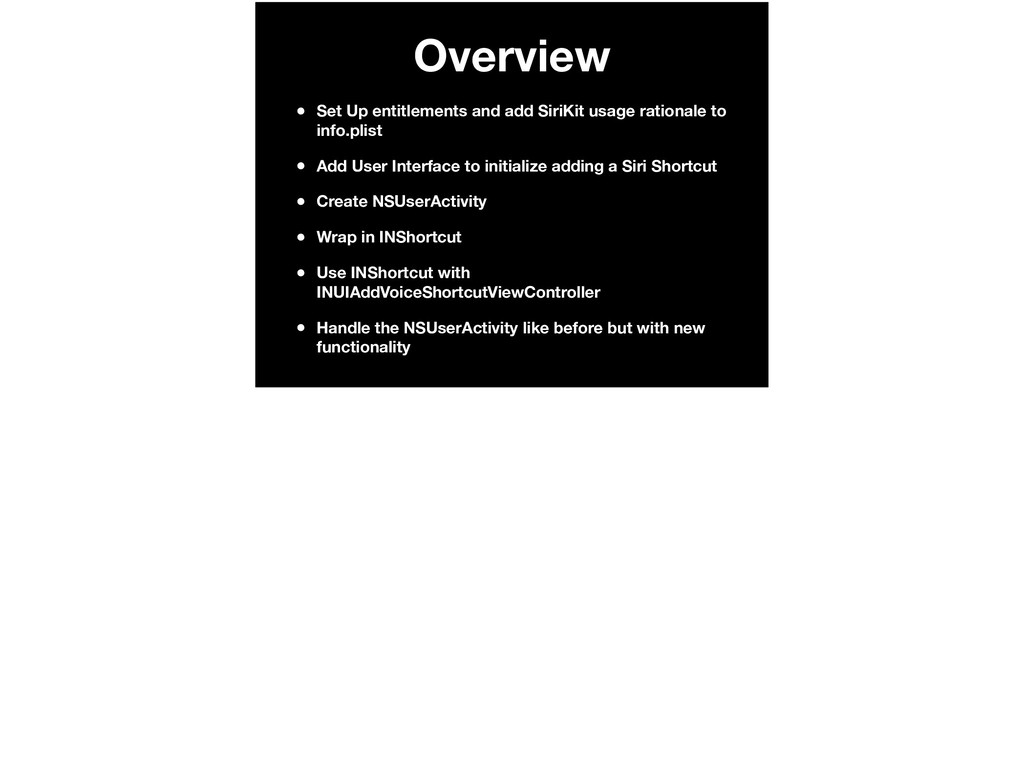
  60. Overview • Set Up entitlements and add SiriKit usage rationale

    to info.plist • Add User Interface to initialize adding a Siri Shortcut • Create NSUserActivity • Wrap in INShortcut • Use INShortcut with INUIAddVoiceShortcutViewController • Handle the NSUserActivity like before but with new functionality
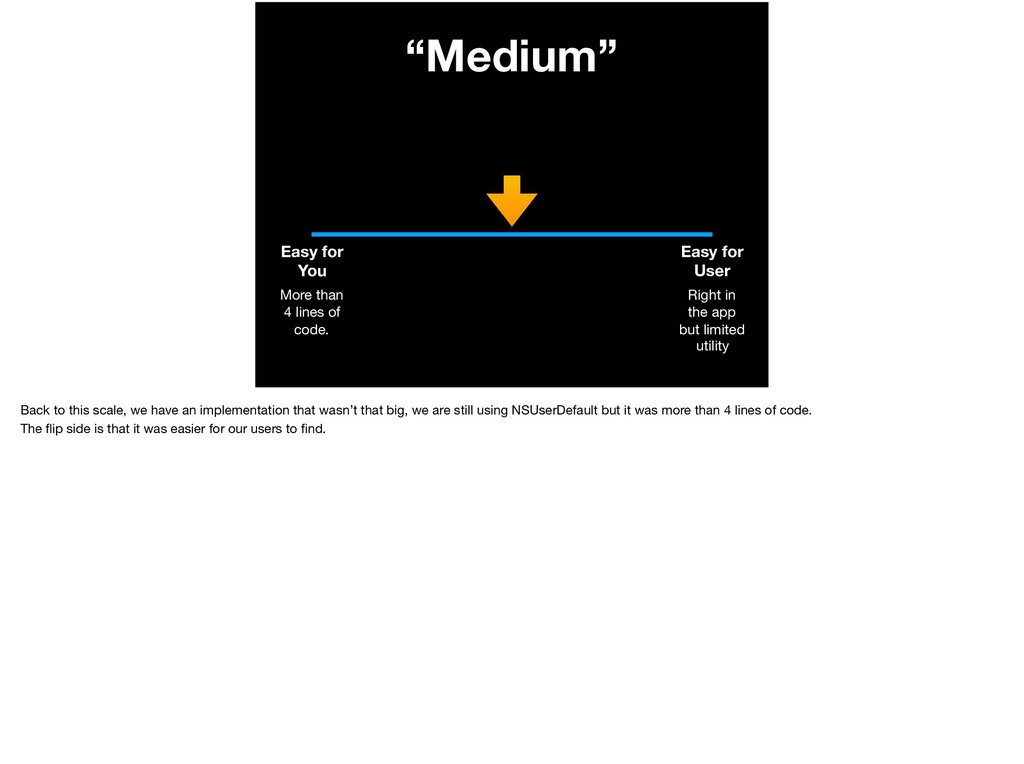
  61. “Medium” Easy for
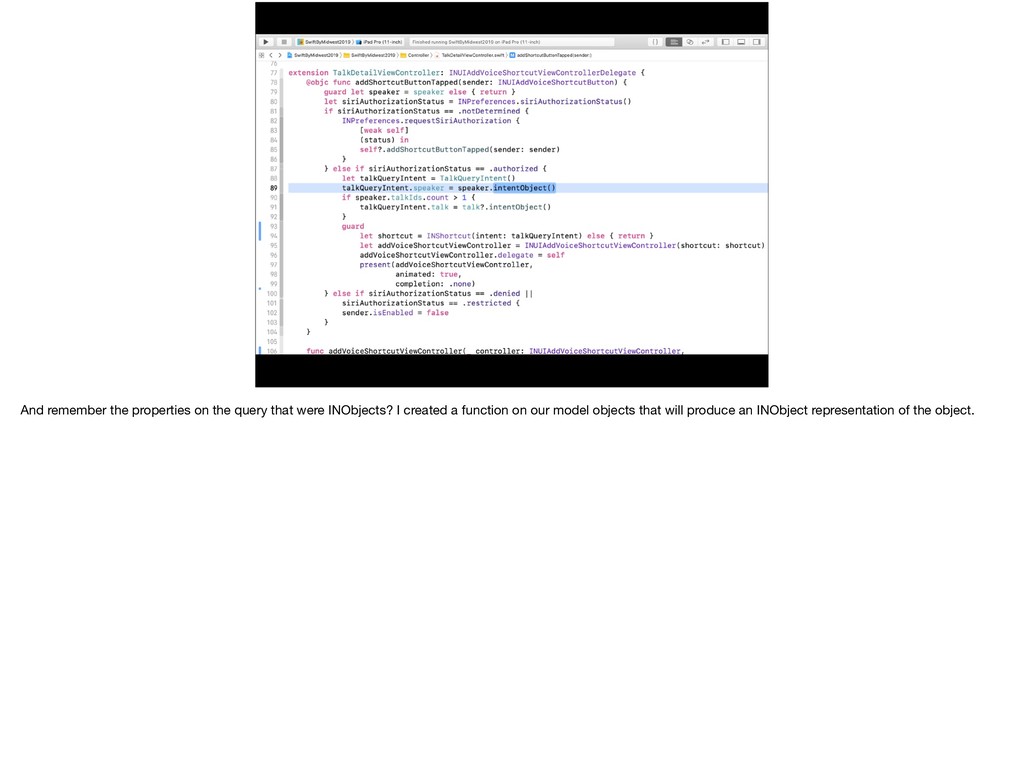
 You Easy for
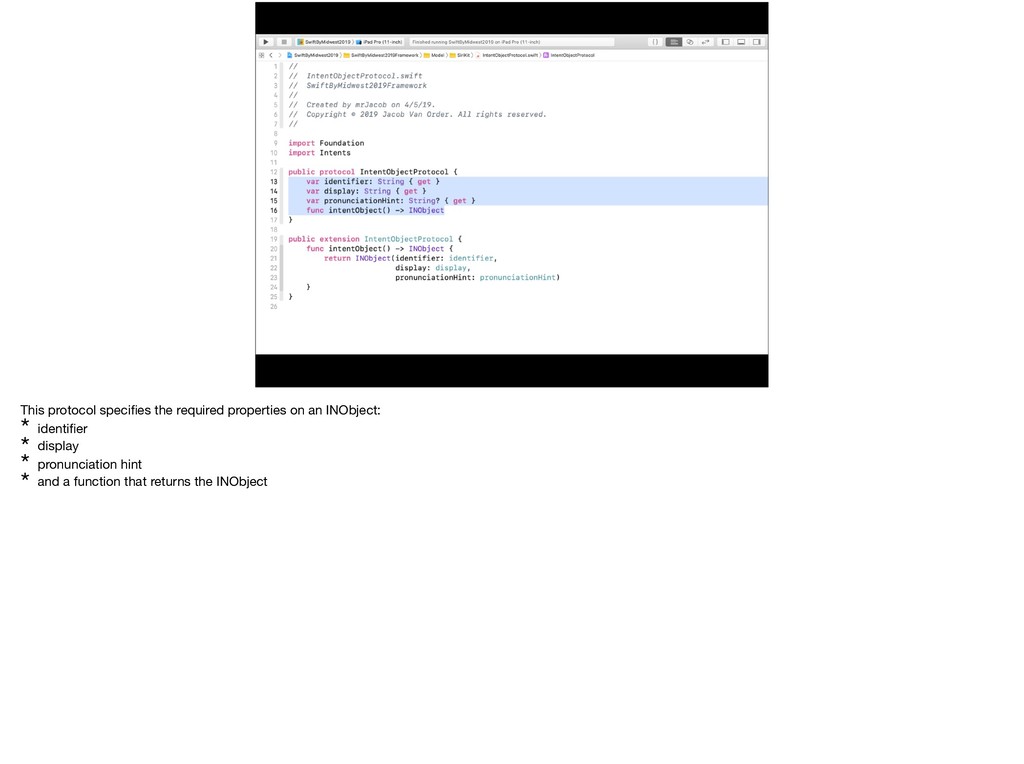
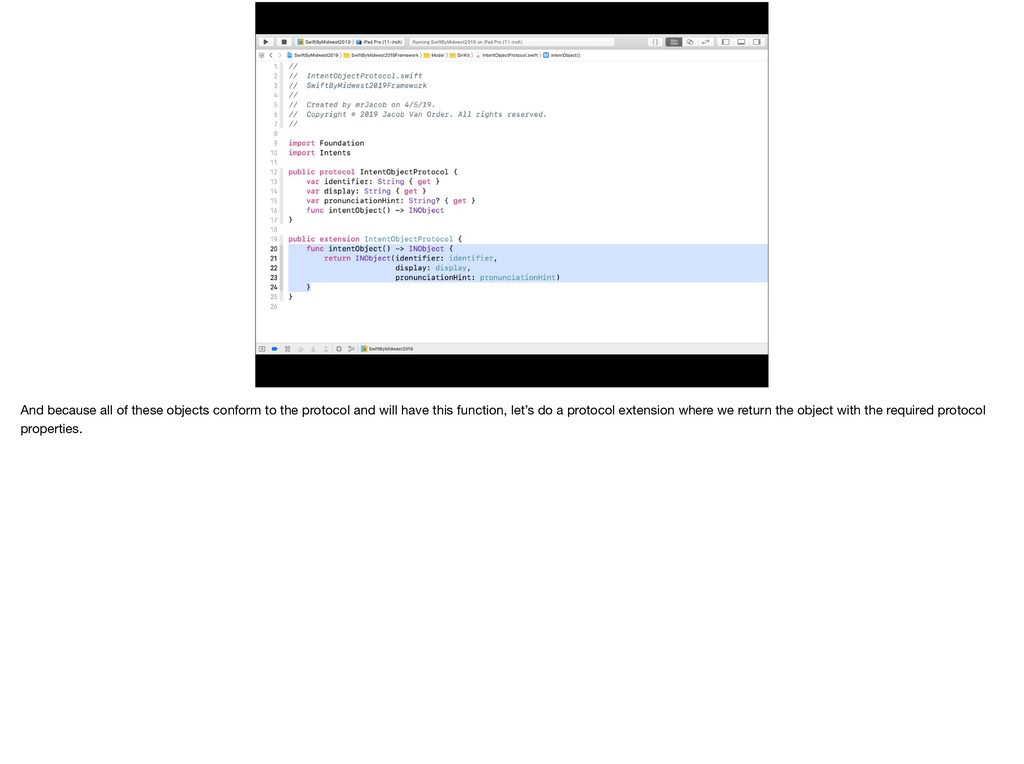
 User More than 4

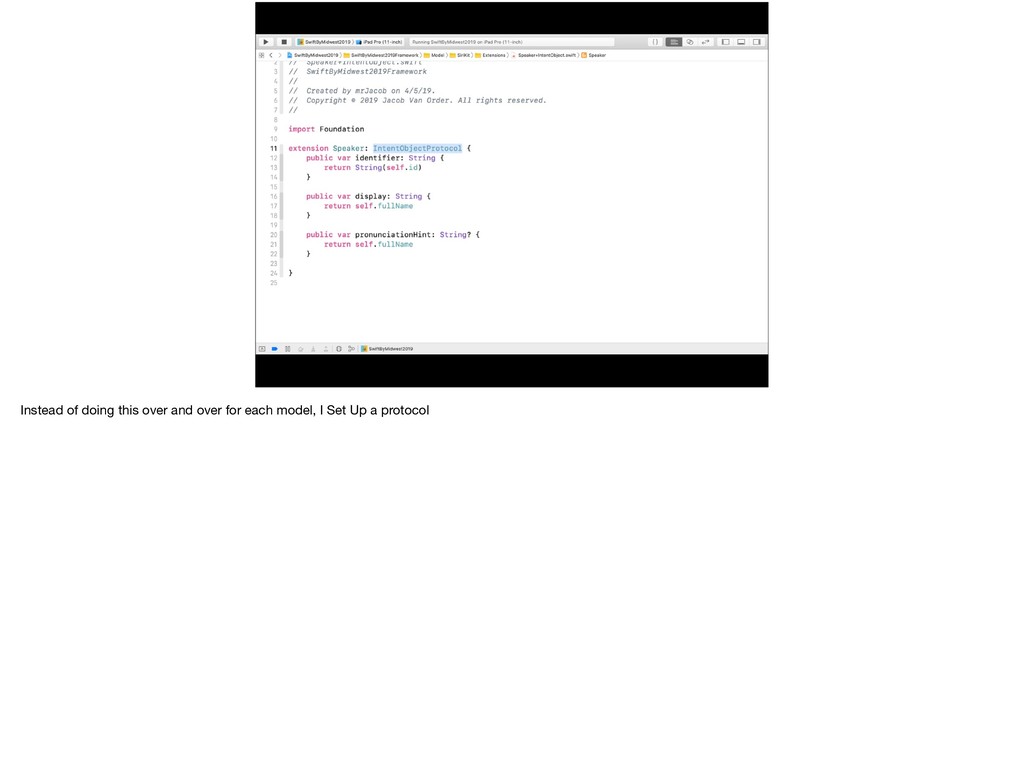
    lines of code. Right in the app but limited utility Back to this scale, we have an implementation that wasn’t that big, we are still using NSUserDefault but it was more than 4 lines of code. The flip side is that it was easier for our users to find.
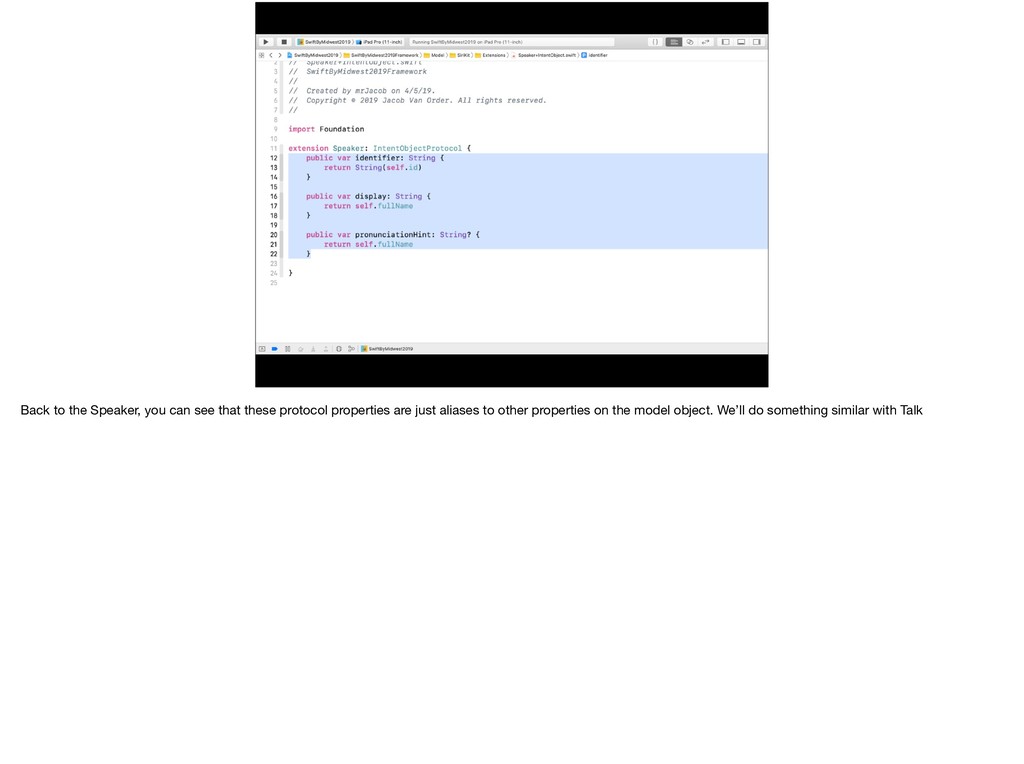
  62. Water Fact! Drinking enough water everyday can help reduce heart

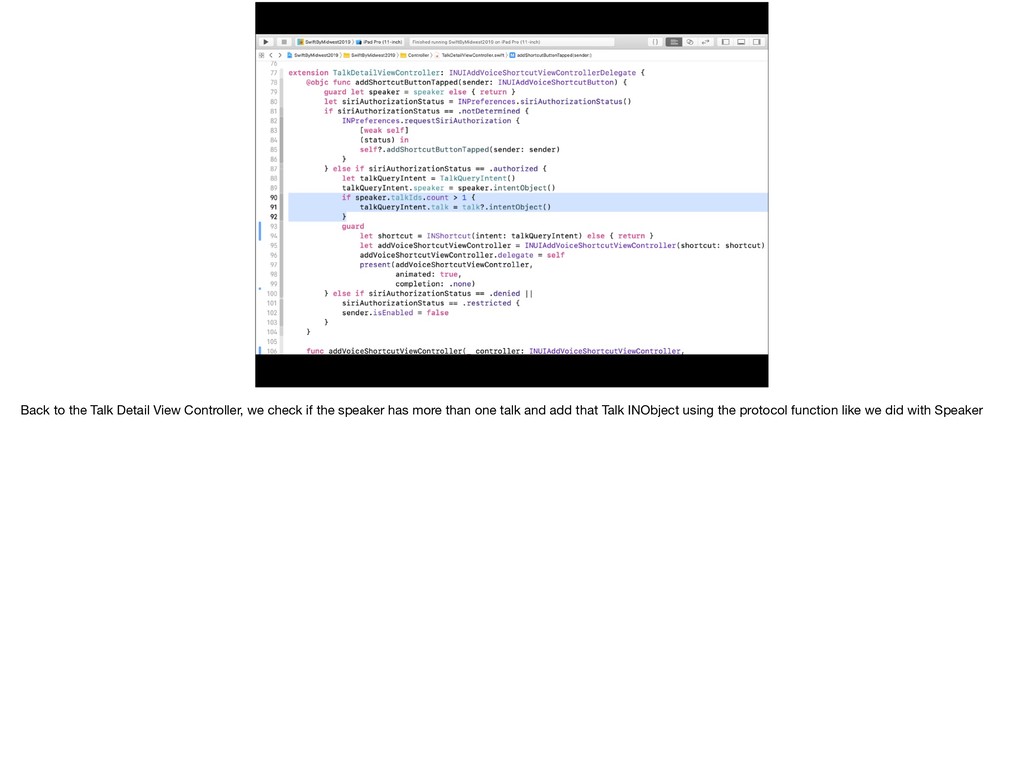
    disease and cancer. Water helps flush toxins out of your body, and the fewer toxins that come into contact with your colon, bladder, and other organs, the less chance that critical ailments can develop. https://culligan.com/home/solution-center/resources/drinking-water-fun-facts
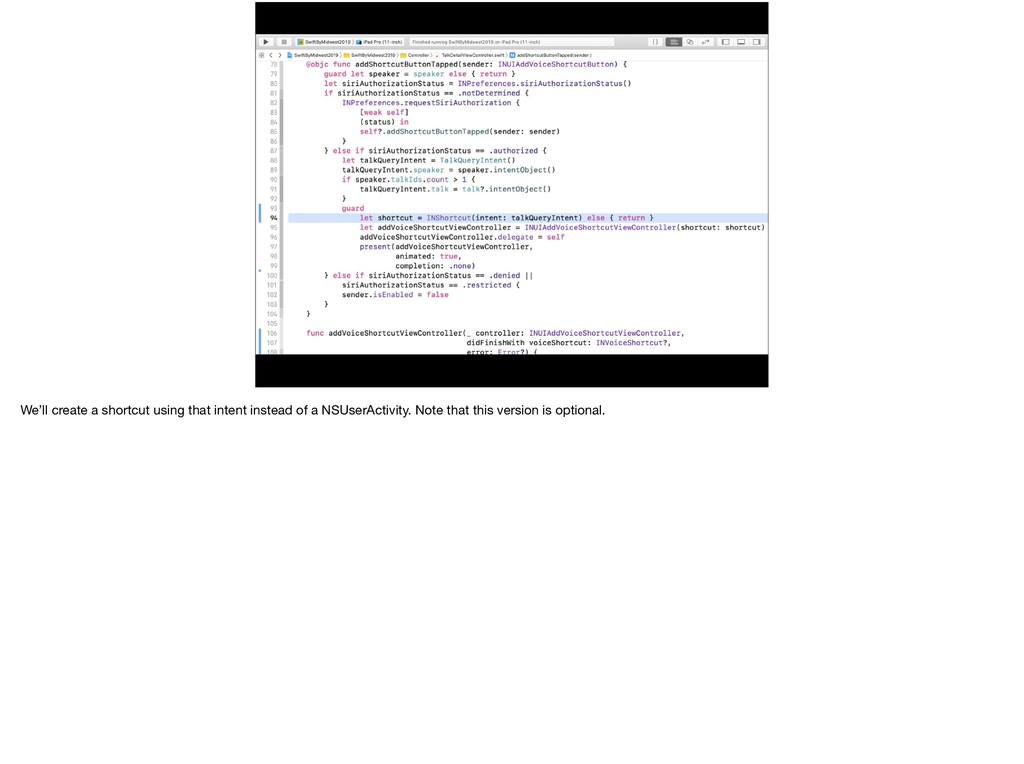
  63. Great Job! ! A Developer The PM thinks this is

    GREAT but wants to have functionality that is quicker. So quick, the user doesn’t need to open the app.
  64. Great Job! ! A Developer # Product Manager The PM

    thinks this is GREAT but wants to have functionality that is quicker. So quick, the user doesn’t need to open the app.
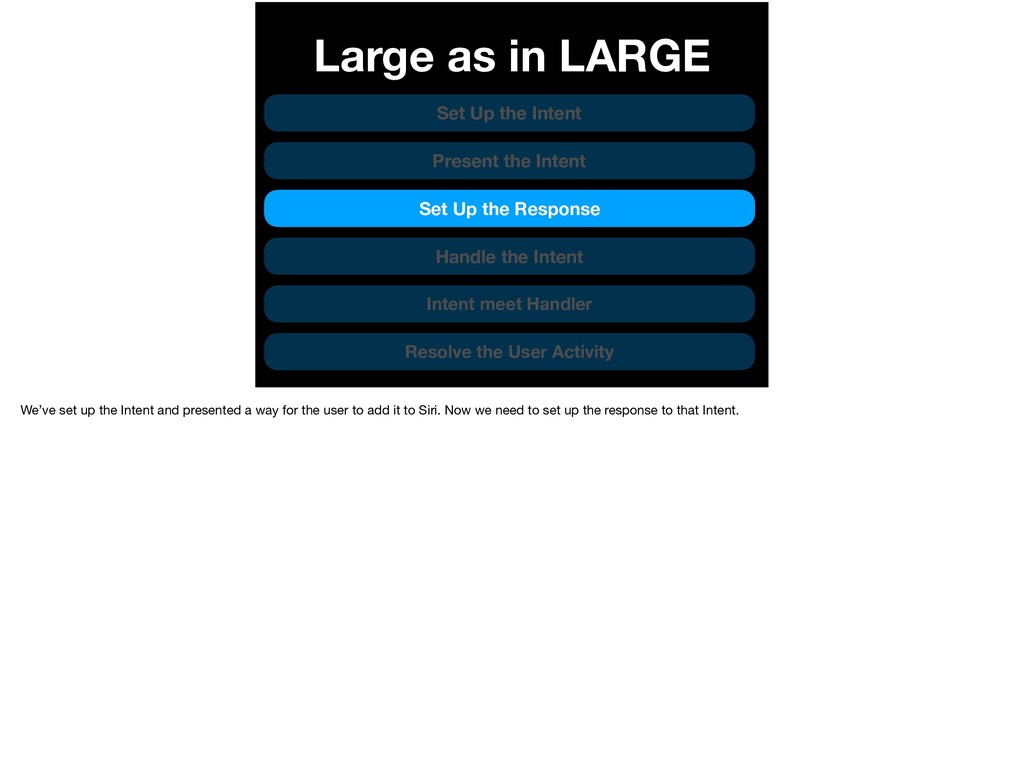
  65. Great Job! ! A Developer # Product Manager Quicker Interactions!

    The PM thinks this is GREAT but wants to have functionality that is quicker. So quick, the user doesn’t need to open the app.
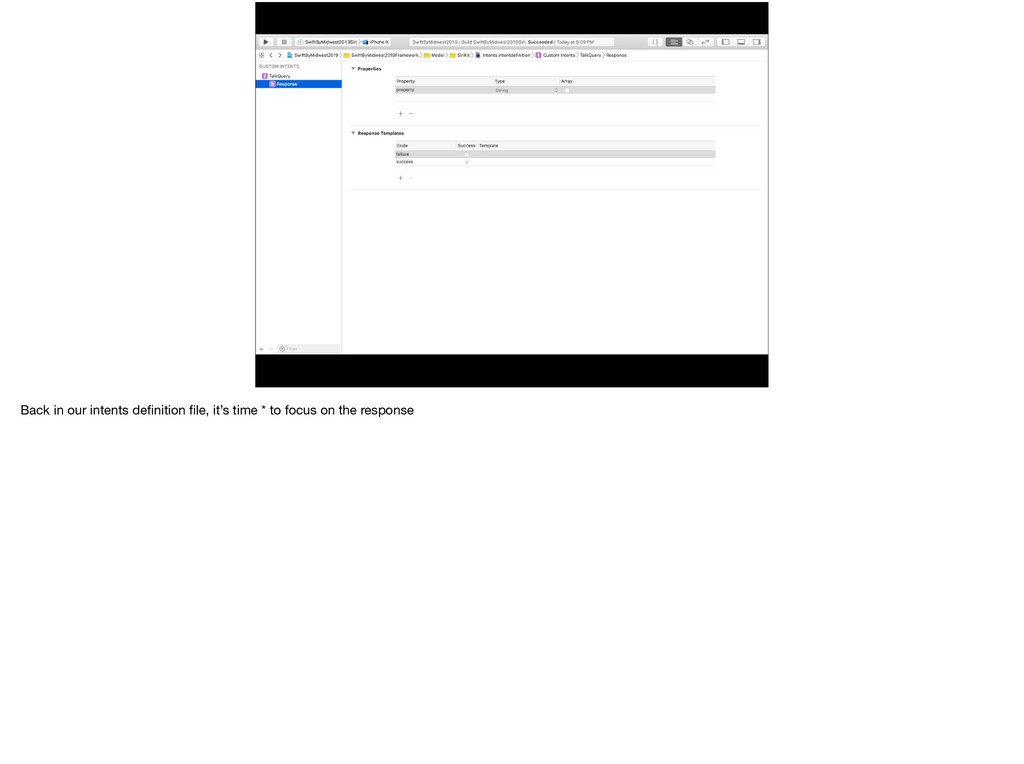
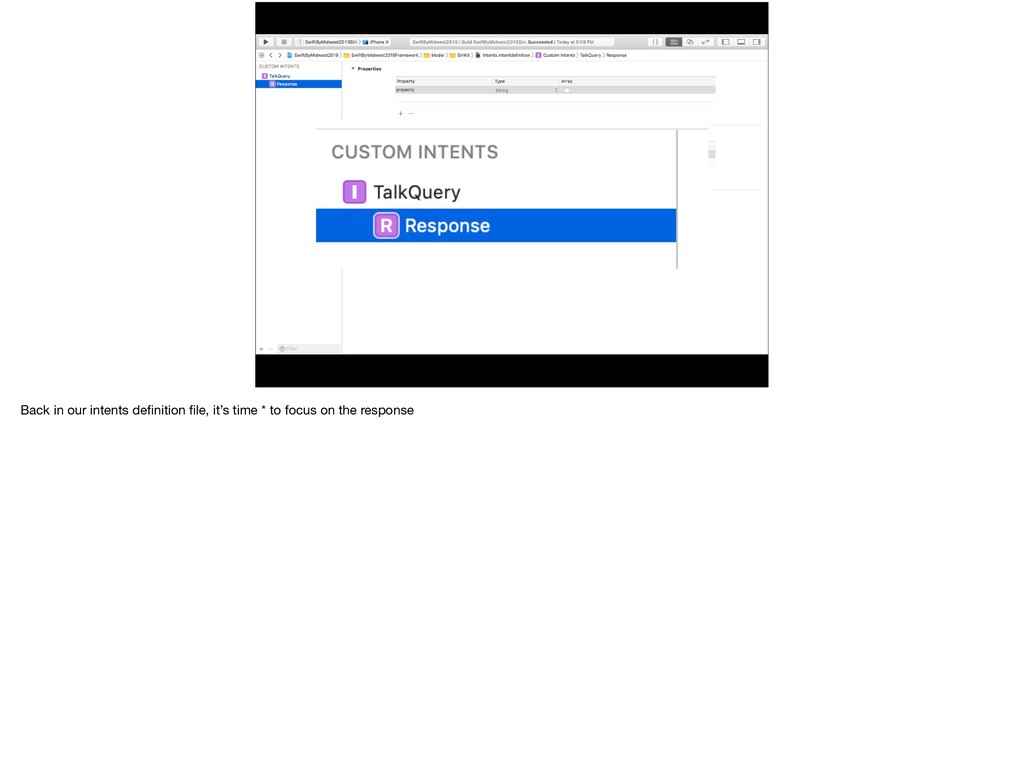
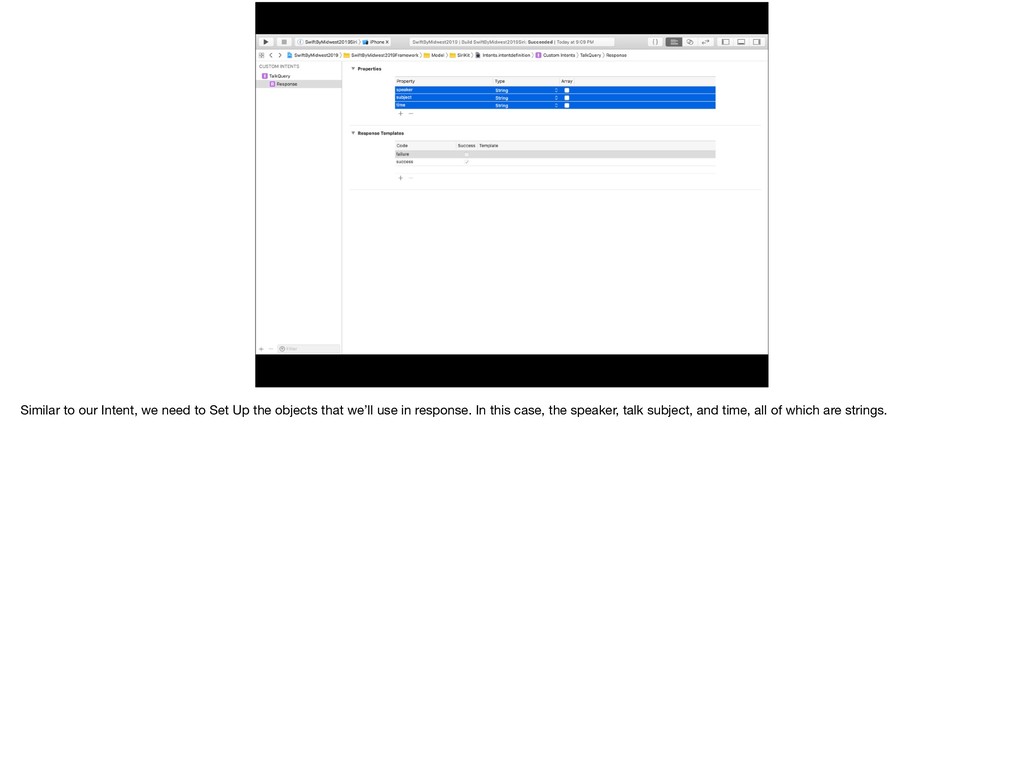
  66. Great Job! ! A Developer # Product Manager Quicker Interactions!

    Okay! The PM thinks this is GREAT but wants to have functionality that is quicker. So quick, the user doesn’t need to open the app.
  67. Great Job! ! A Developer # Product Manager Quicker Interactions!

    Okay! No opening the app? The PM thinks this is GREAT but wants to have functionality that is quicker. So quick, the user doesn’t need to open the app.
  68. We have our Xcode Project and * we’re going to

    add a target by clicking on that tiny little + button
  69. We have our Xcode Project and * we’re going to

    add a target by clicking on that tiny little + button
  70. We’ll Set Up the extension target with a new name

    and NOT include a UI Extension. If we have time, we can get to that.
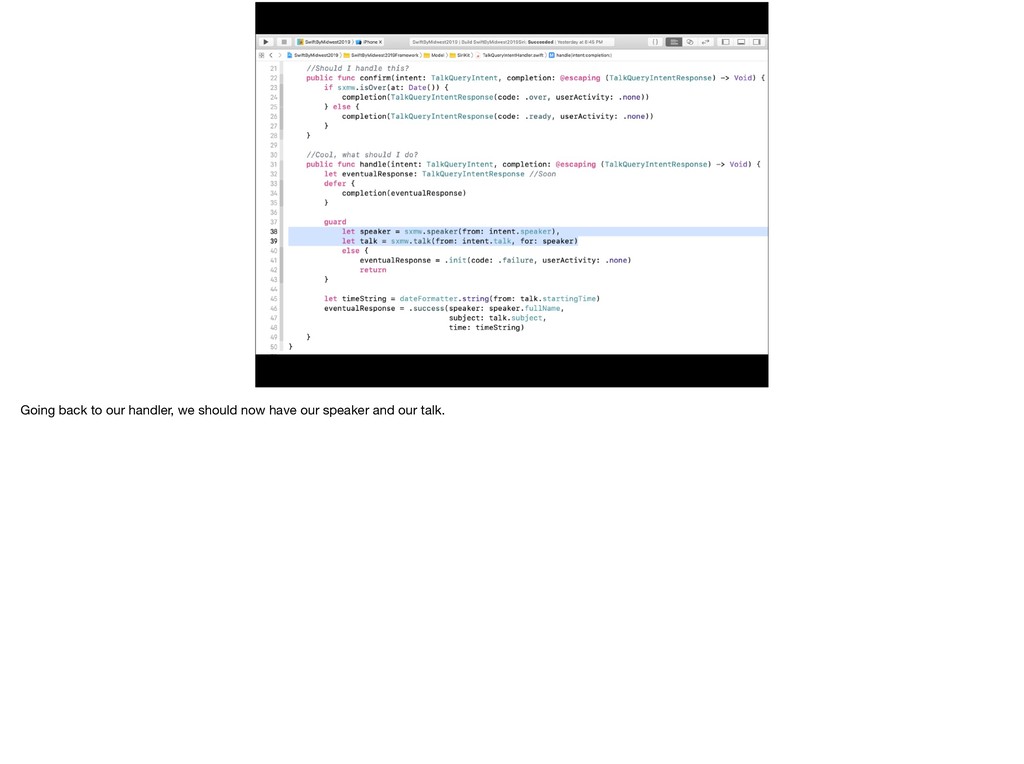
  71. We’ll Set Up the extension target with a new name

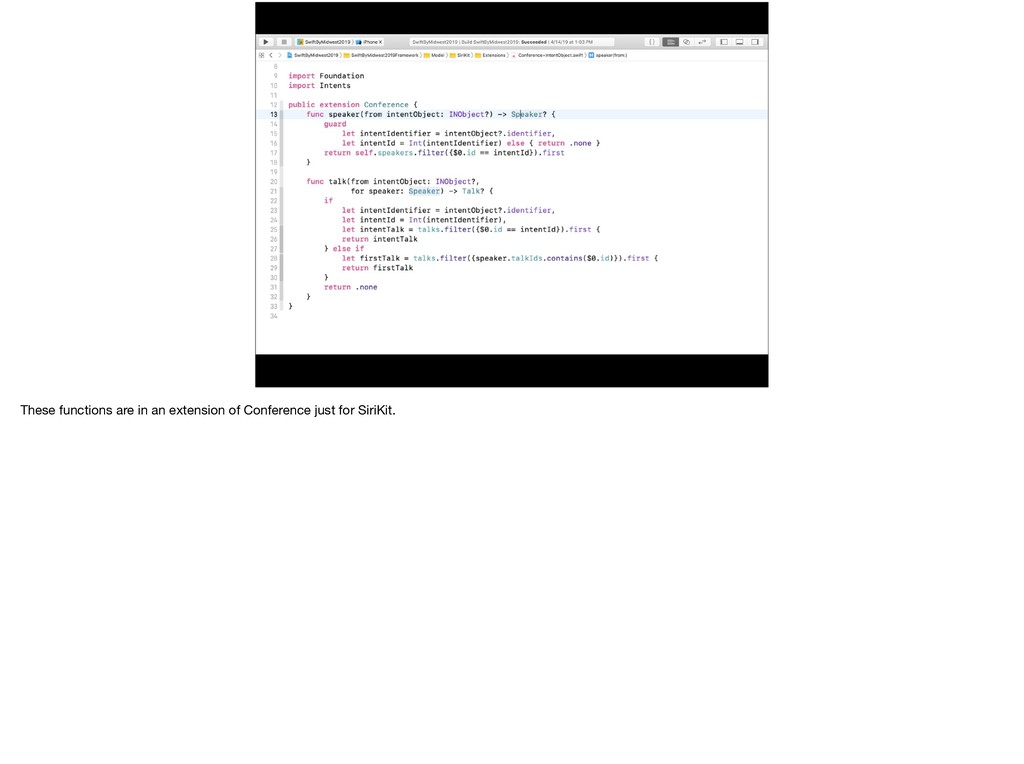
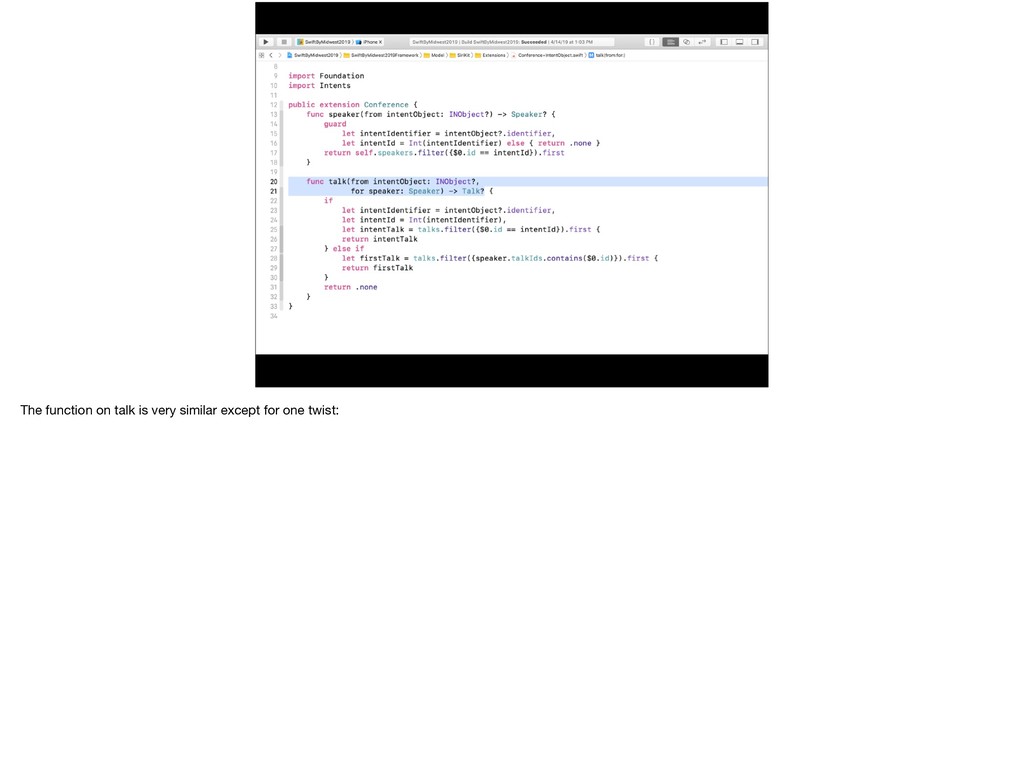
    and NOT include a UI Extension. If we have time, we can get to that.
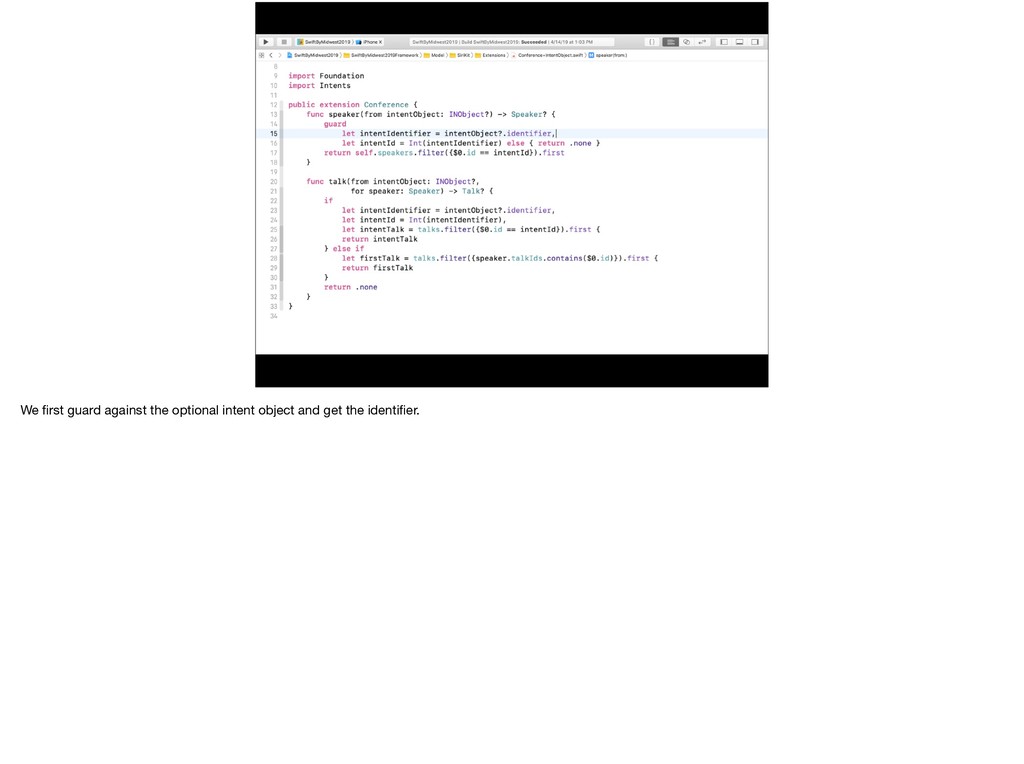
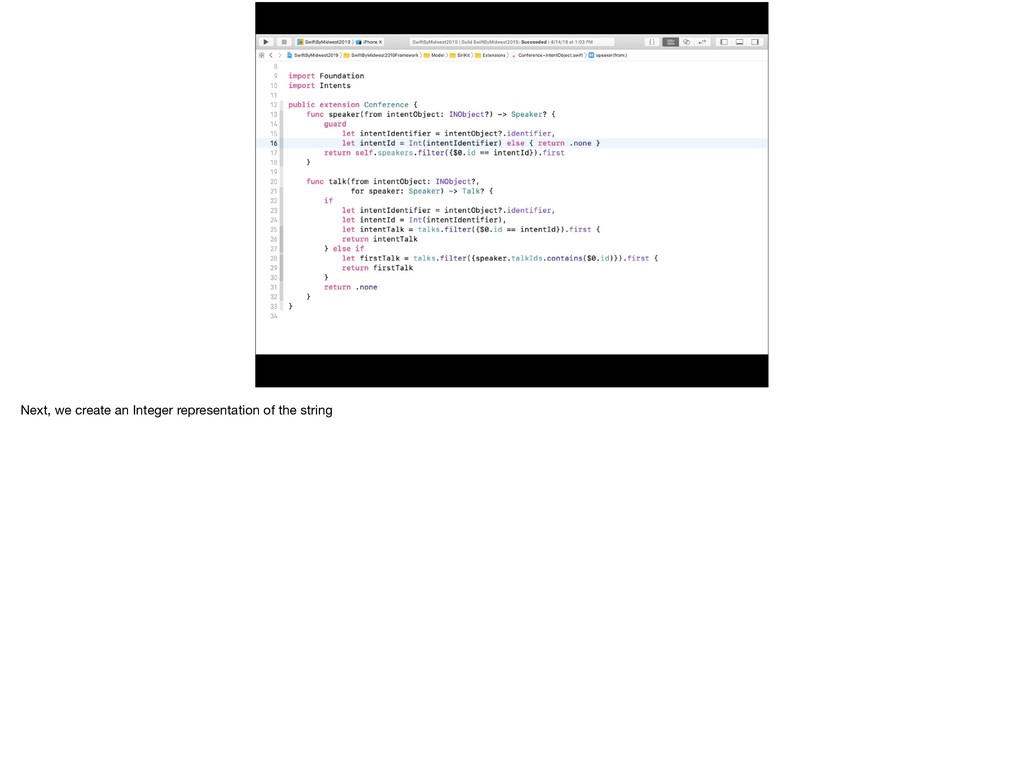
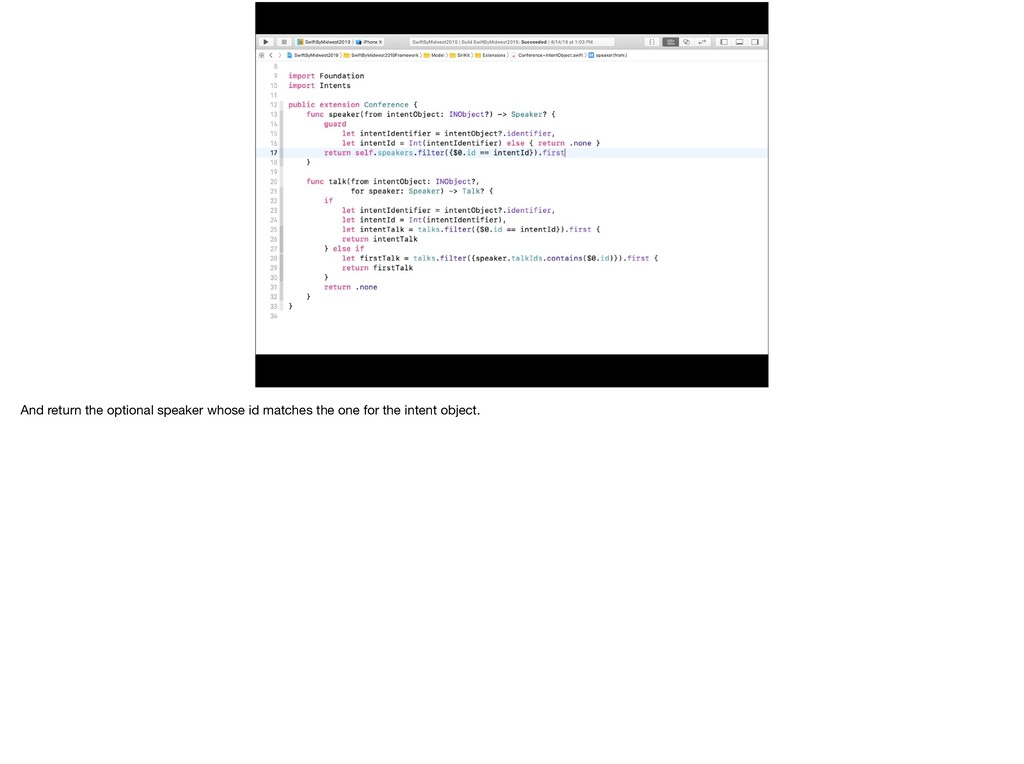
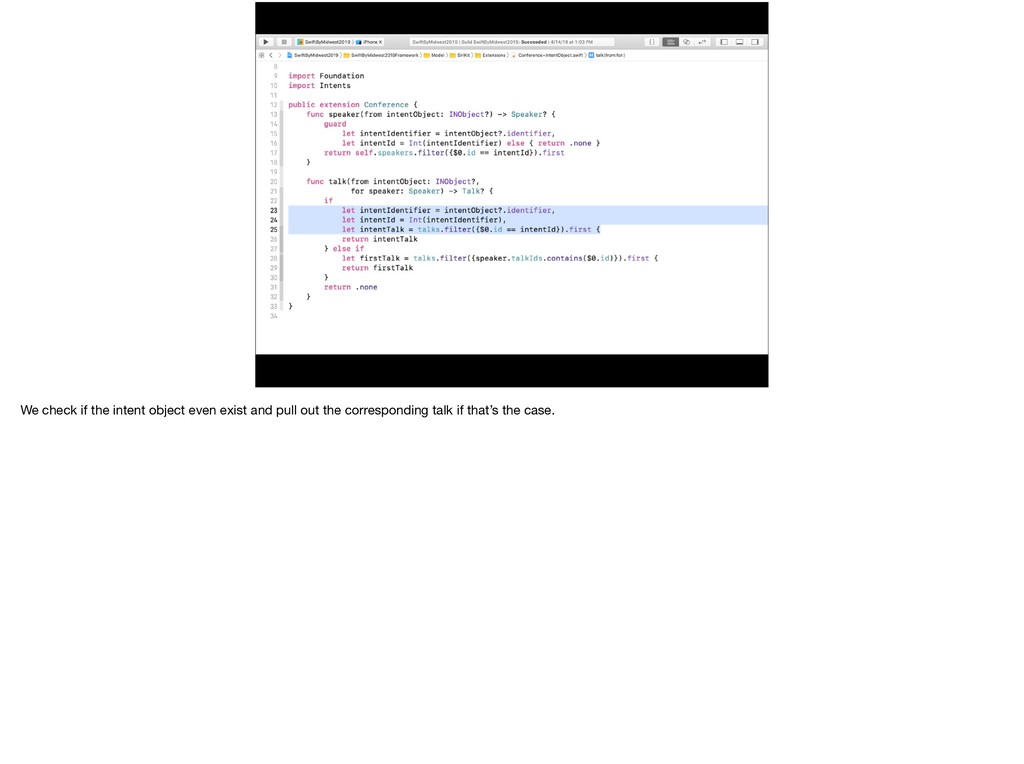
  72. What we created * was a folder with two files,

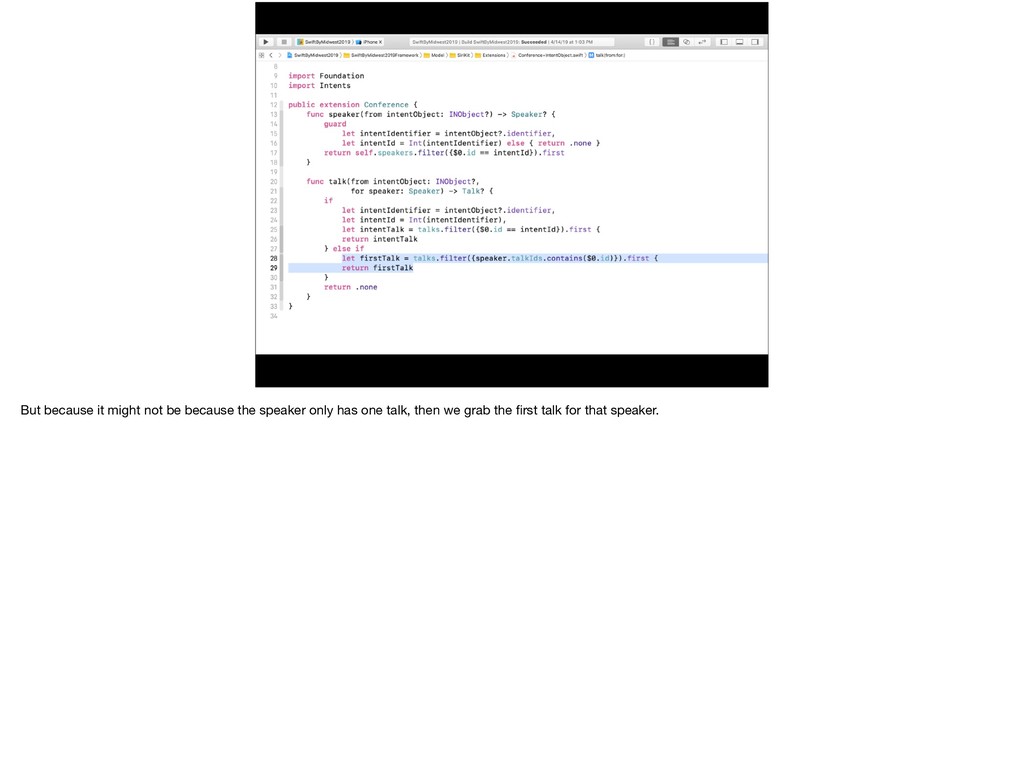
    the IntentHandler and an Info.plist which we’ll come back to
  73. What we created * was a folder with two files,

    the IntentHandler and an Info.plist which we’ll come back to
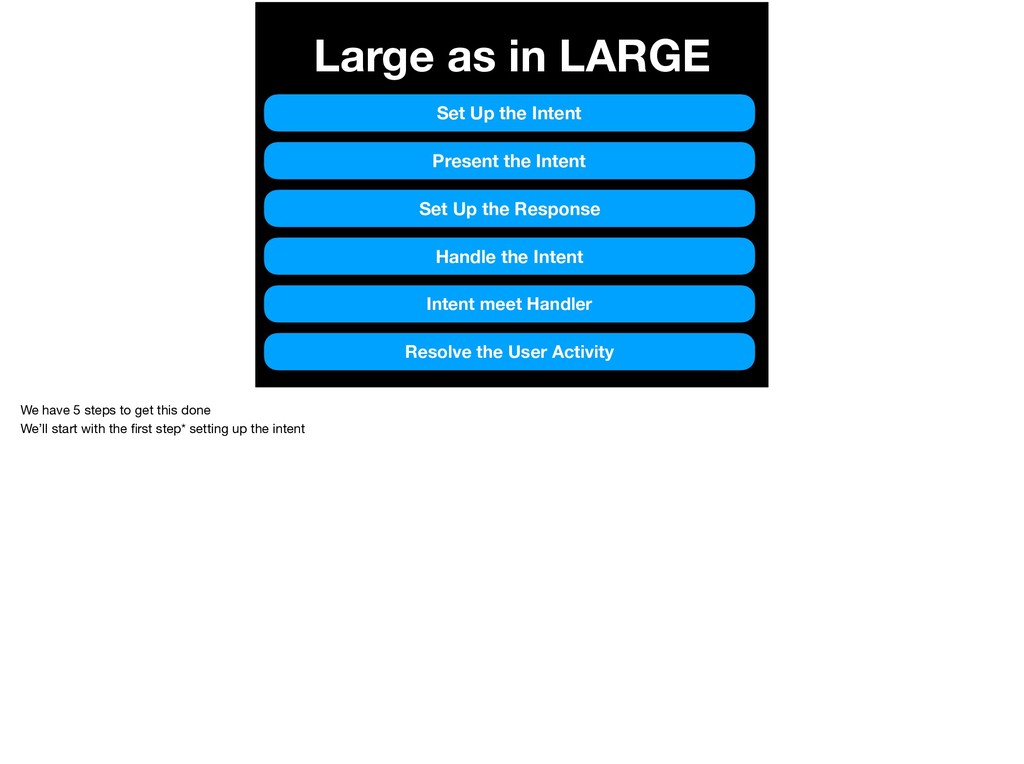
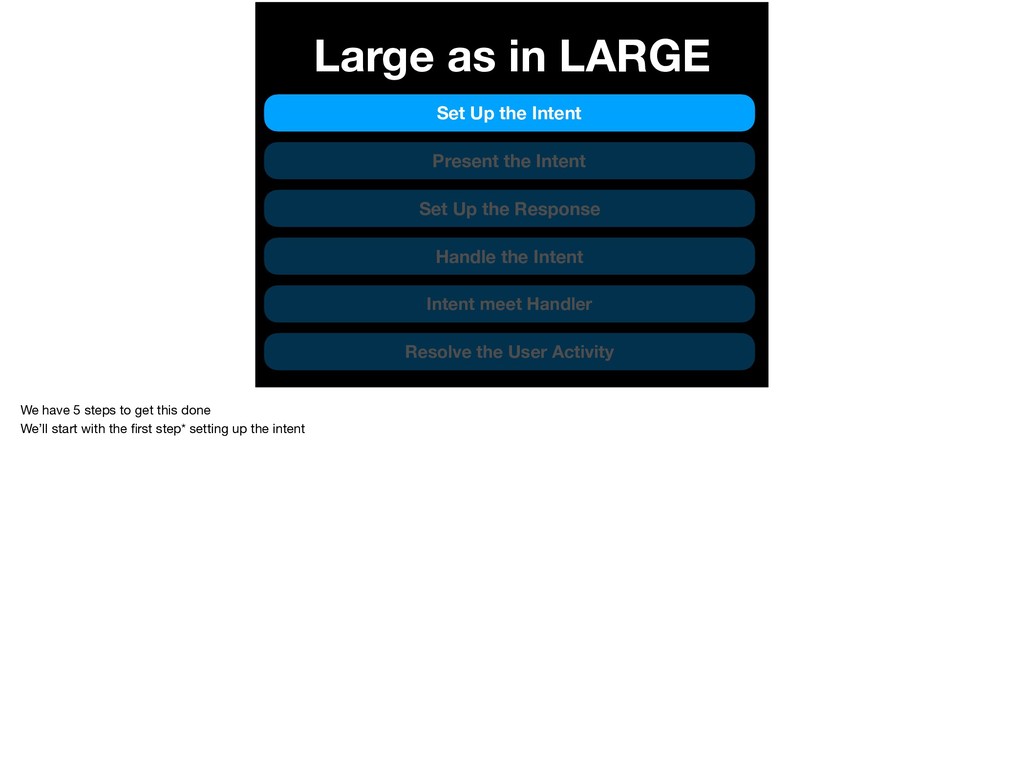
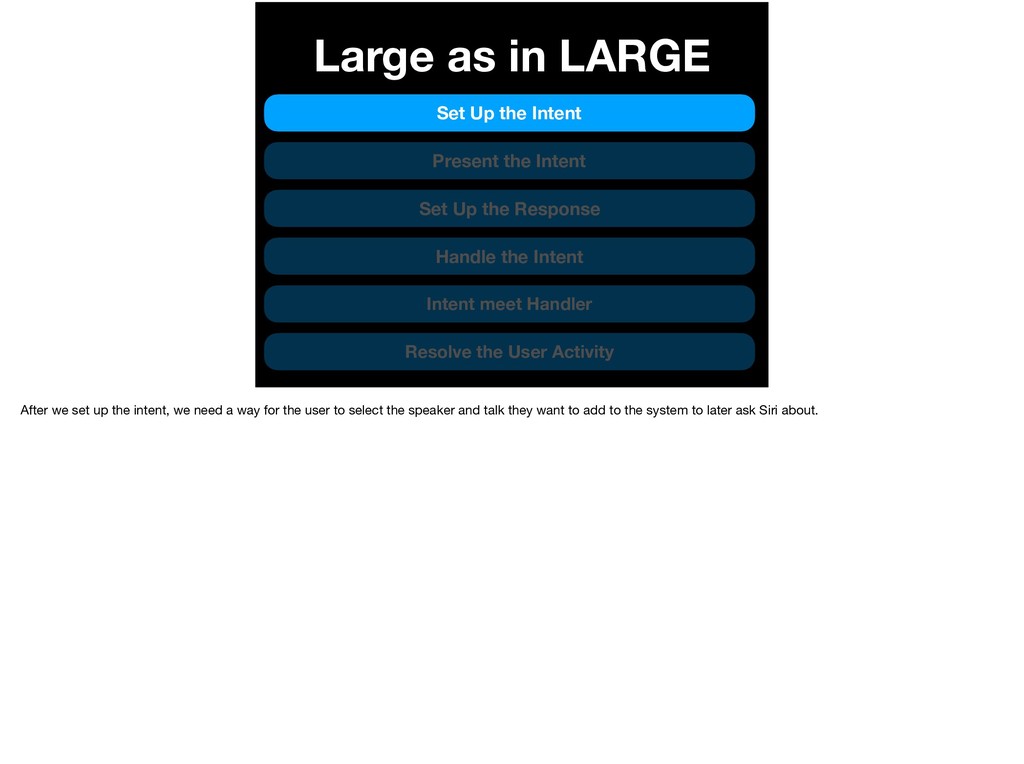
  74. Large as in LARGE Set Up the Intent Present the

    Intent Set Up the Response Handle the Intent Intent meet Handler Resolve the User Activity We have 5 steps to get this done We’ll start with the first step* setting up the intent
  75. Large as in LARGE Set Up the Intent Present the

    Intent Set Up the Response Handle the Intent Intent meet Handler Resolve the User Activity We have 5 steps to get this done We’ll start with the first step* setting up the intent
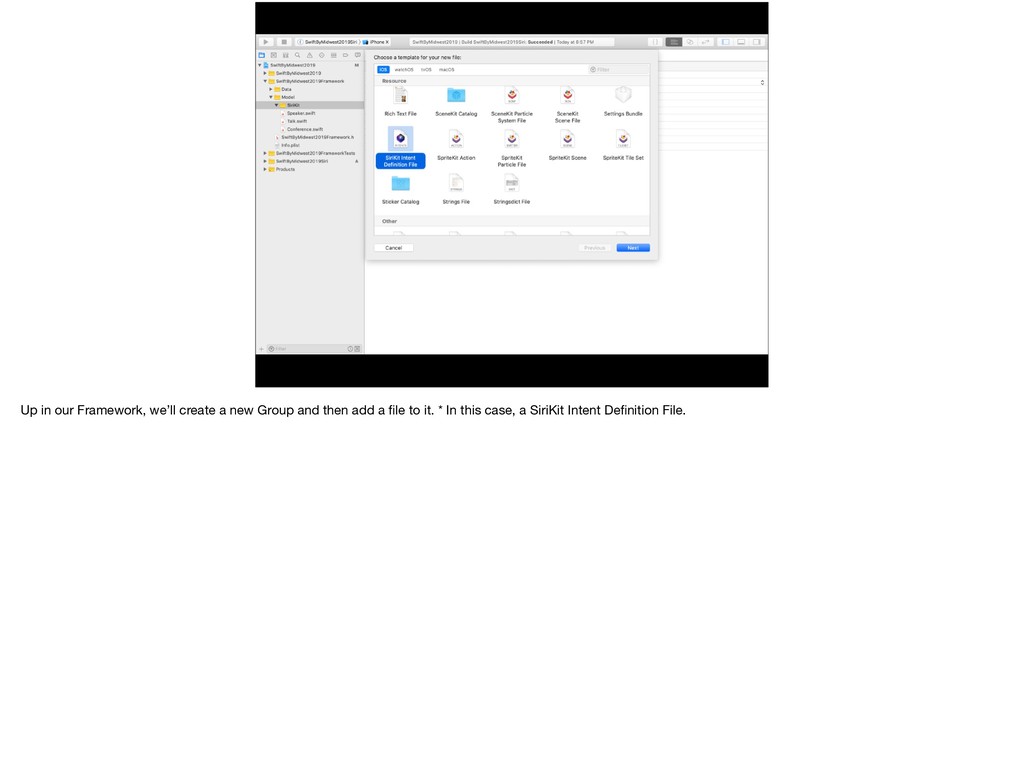
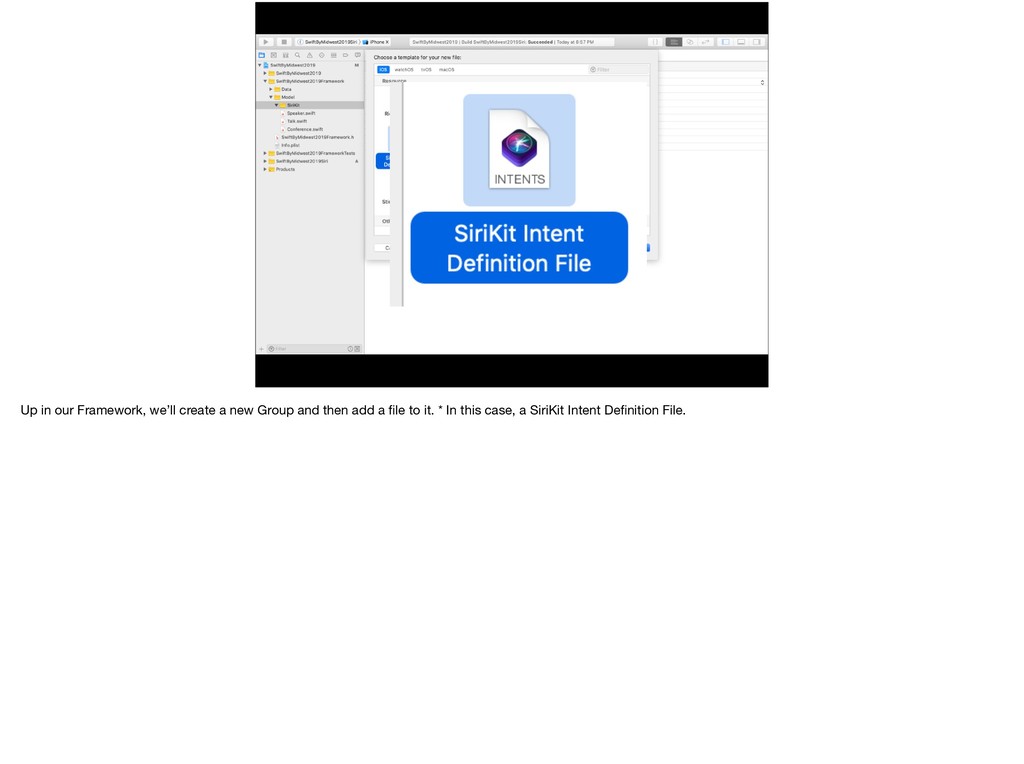
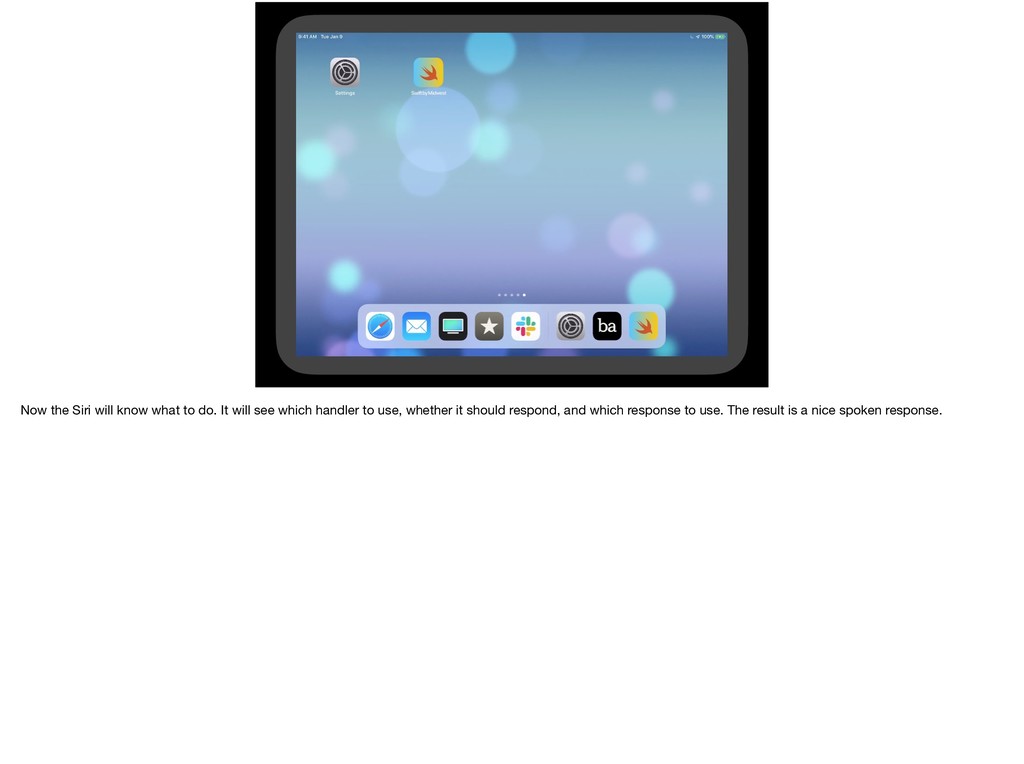
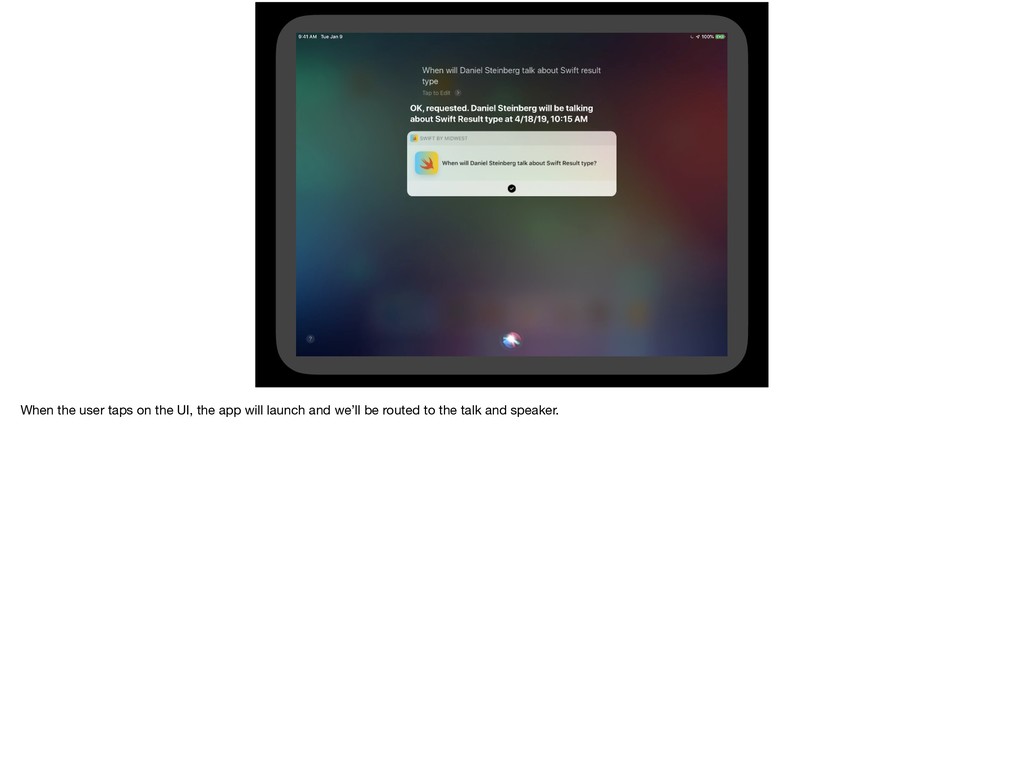
  76. Up in our Framework, we’ll create a new Group and

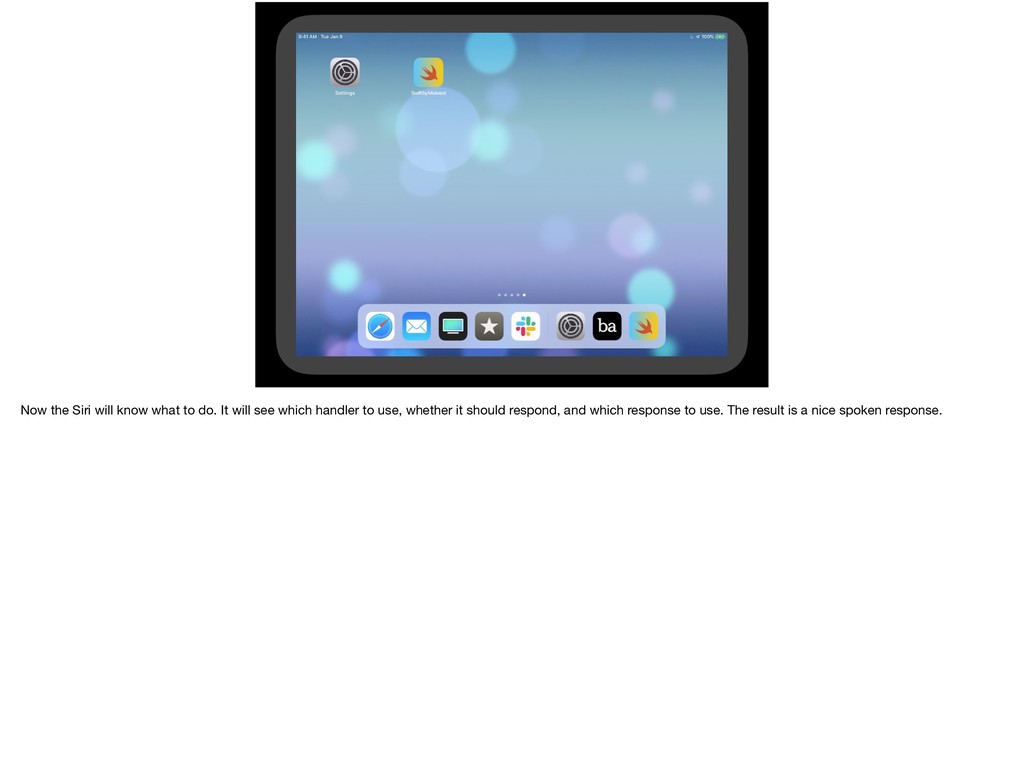
    then add a file to it. * In this case, a SiriKit Intent Definition File.
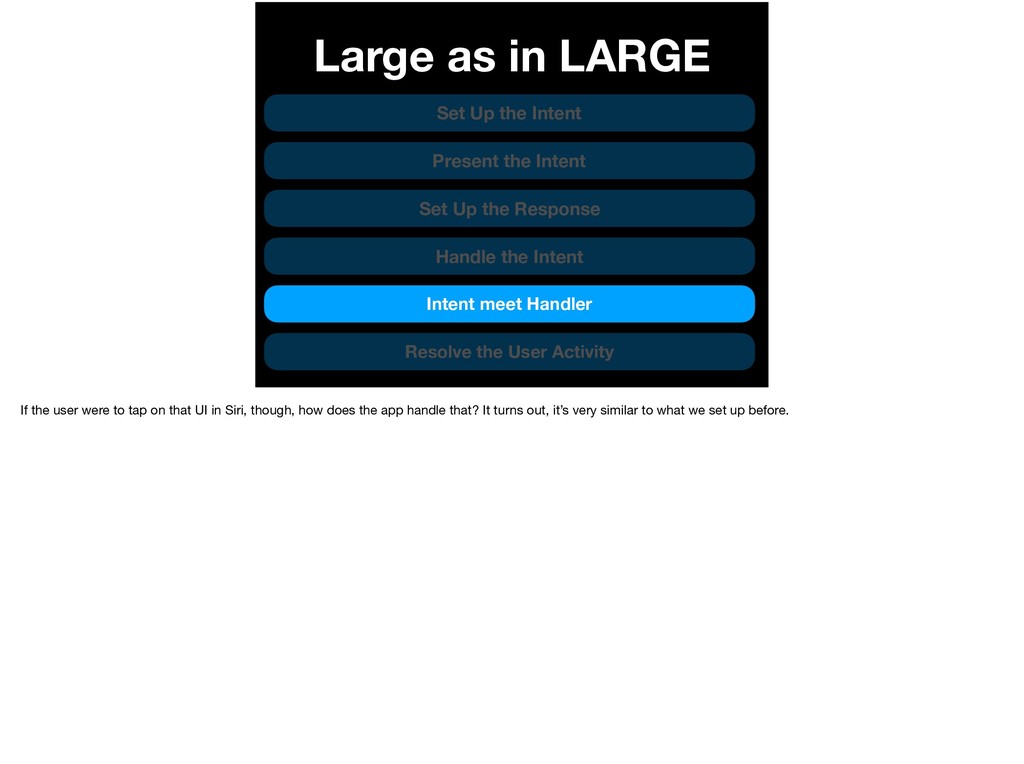
  77. Up in our Framework, we’ll create a new Group and

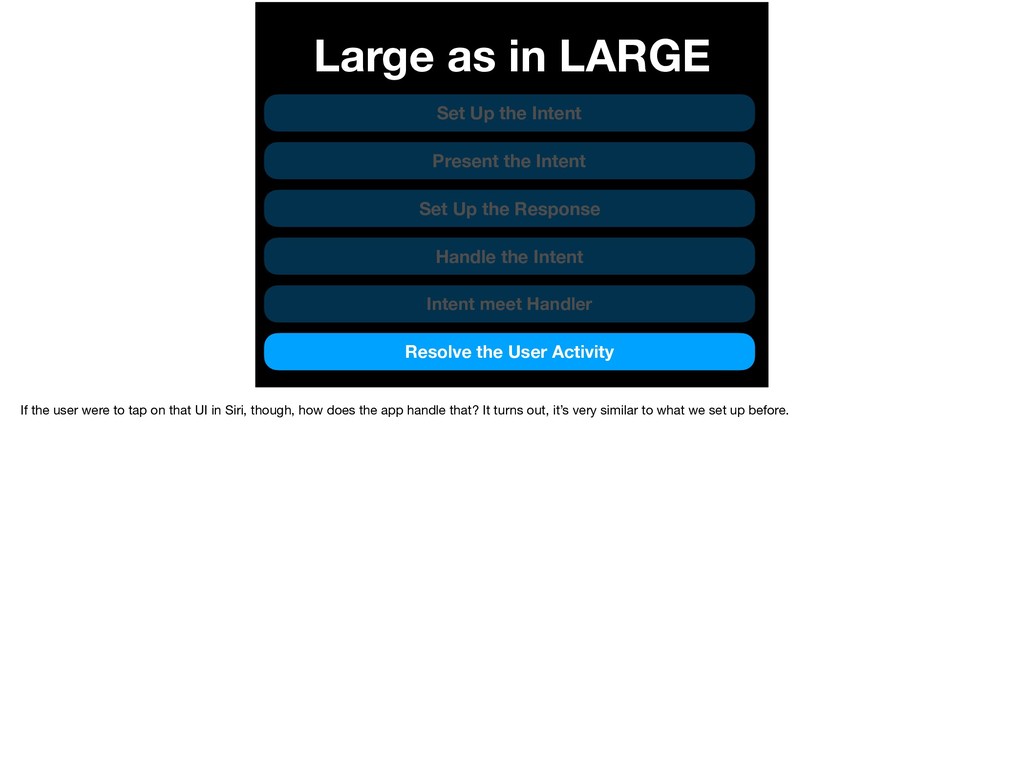
    then add a file to it. * In this case, a SiriKit Intent Definition File.
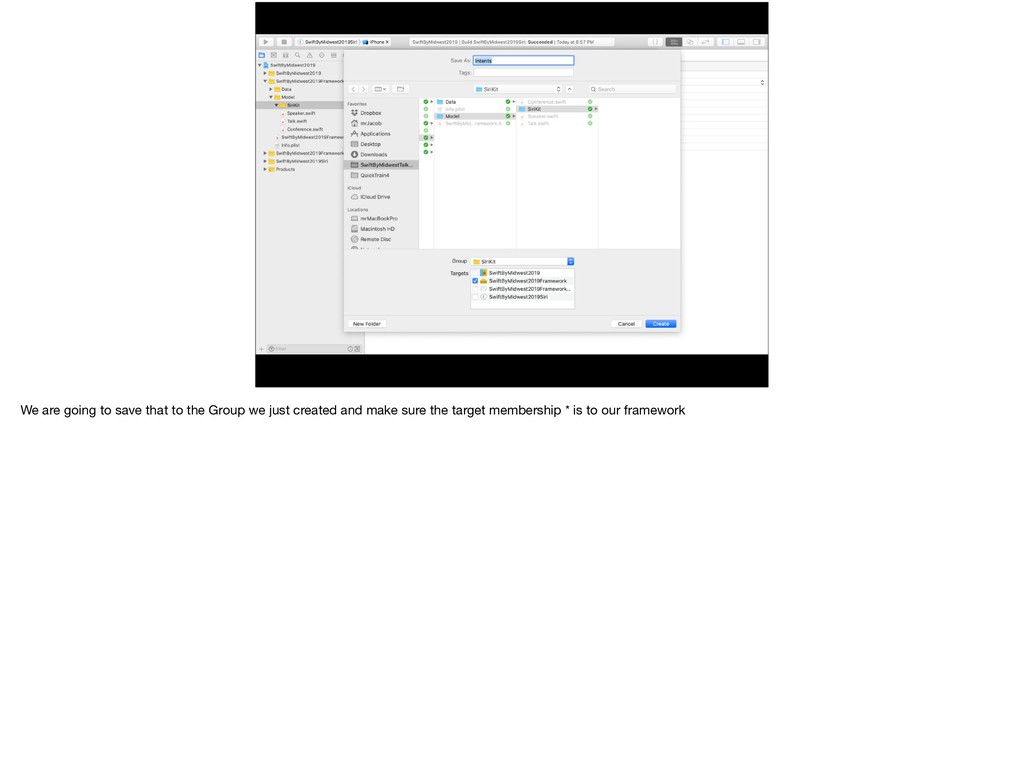
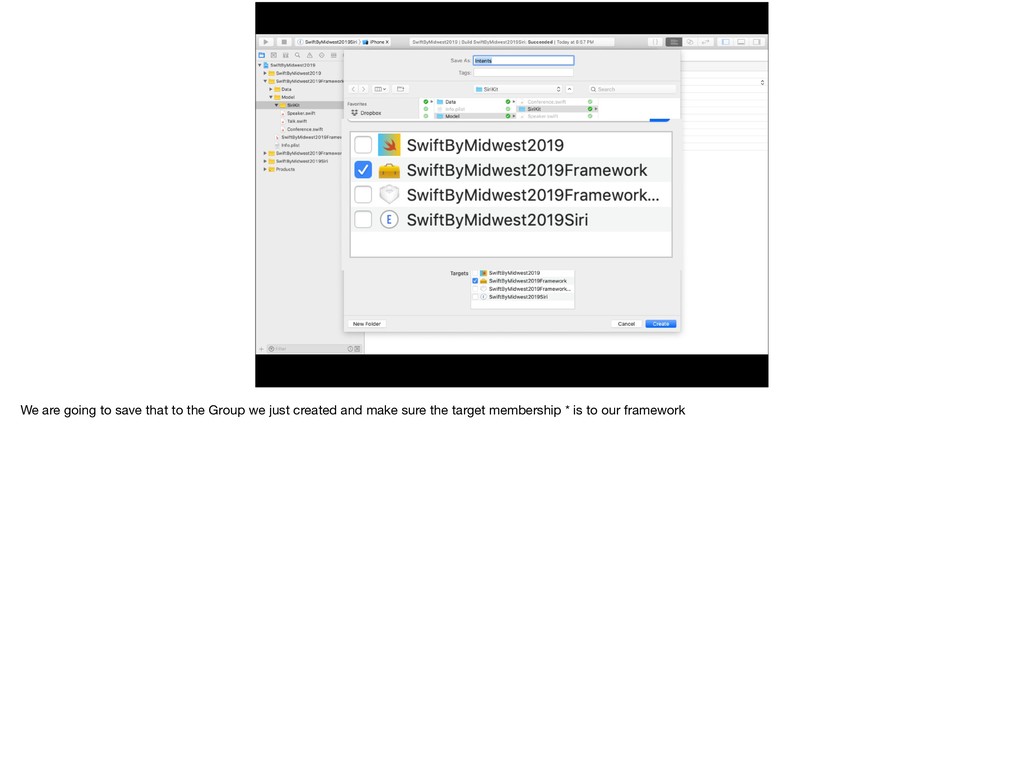
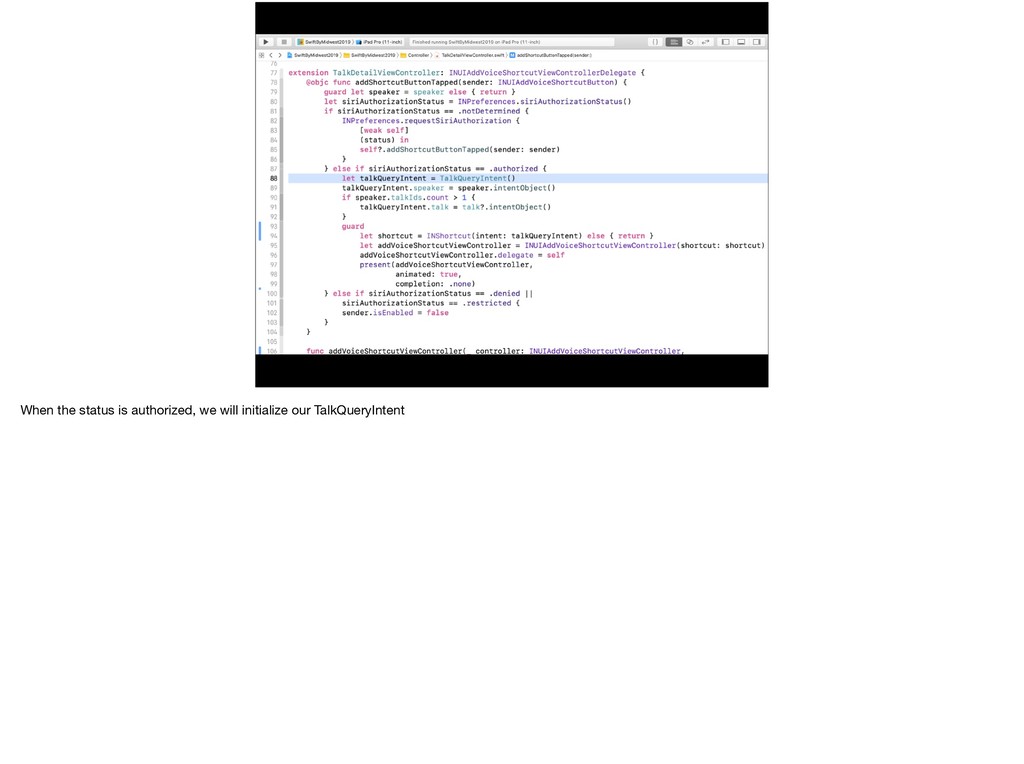
  78. We are going to save that to the Group we

    just created and make sure the target membership * is to our framework
  79. We are going to save that to the Group we

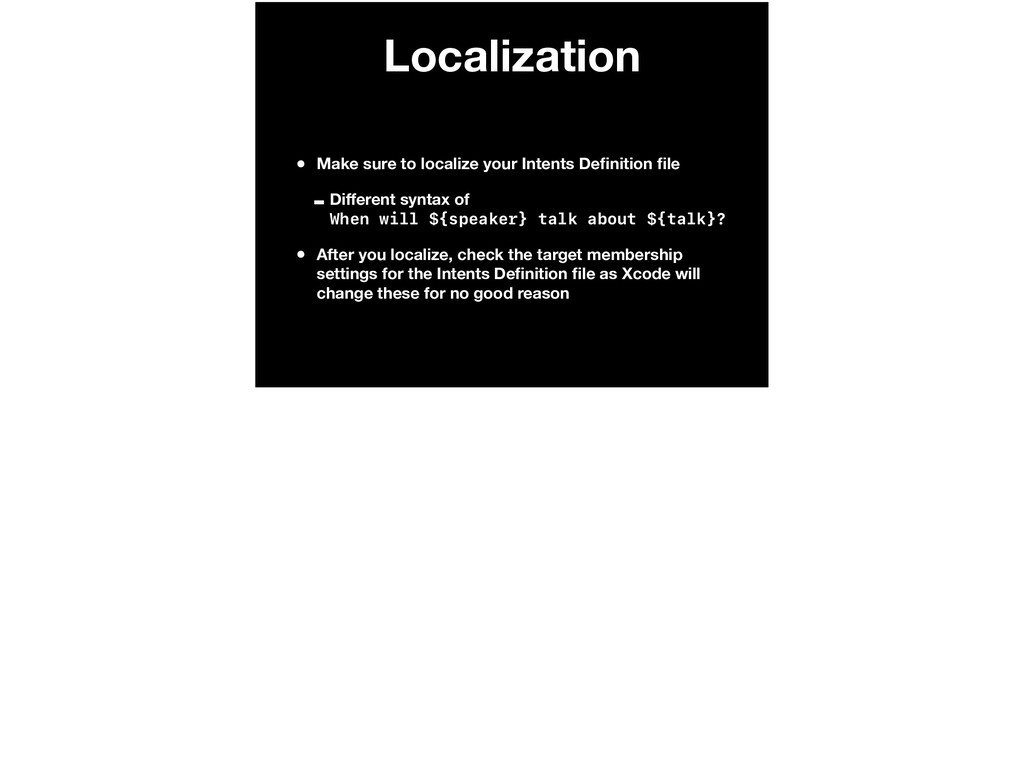
    just created and make sure the target membership * is to our framework
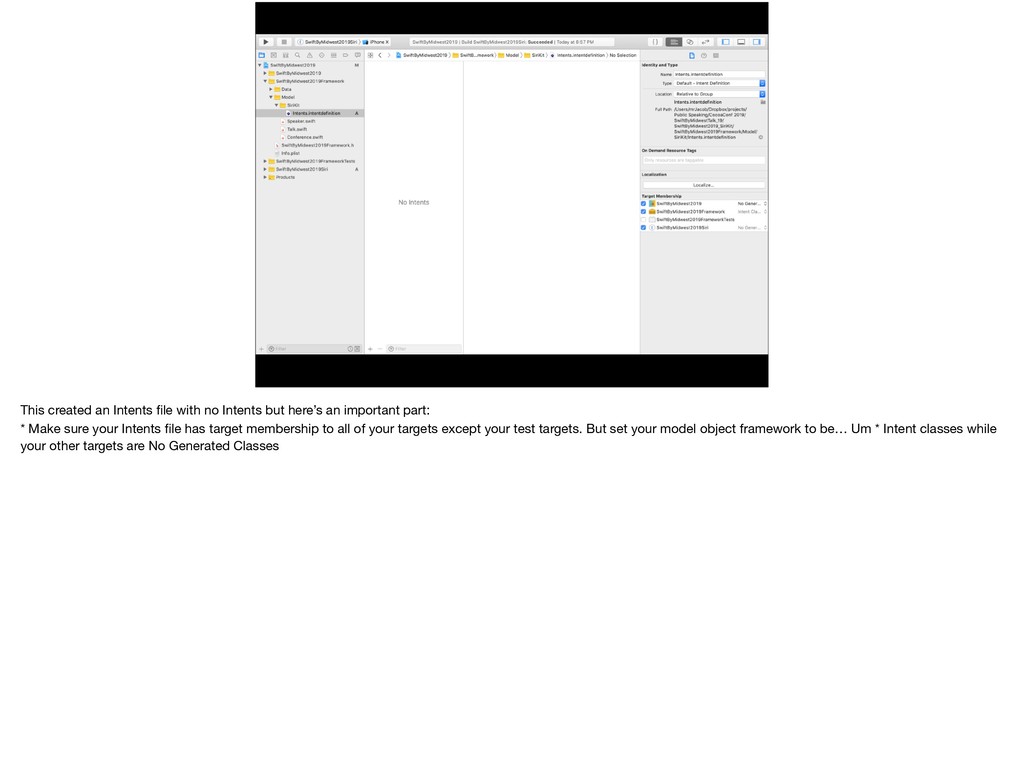
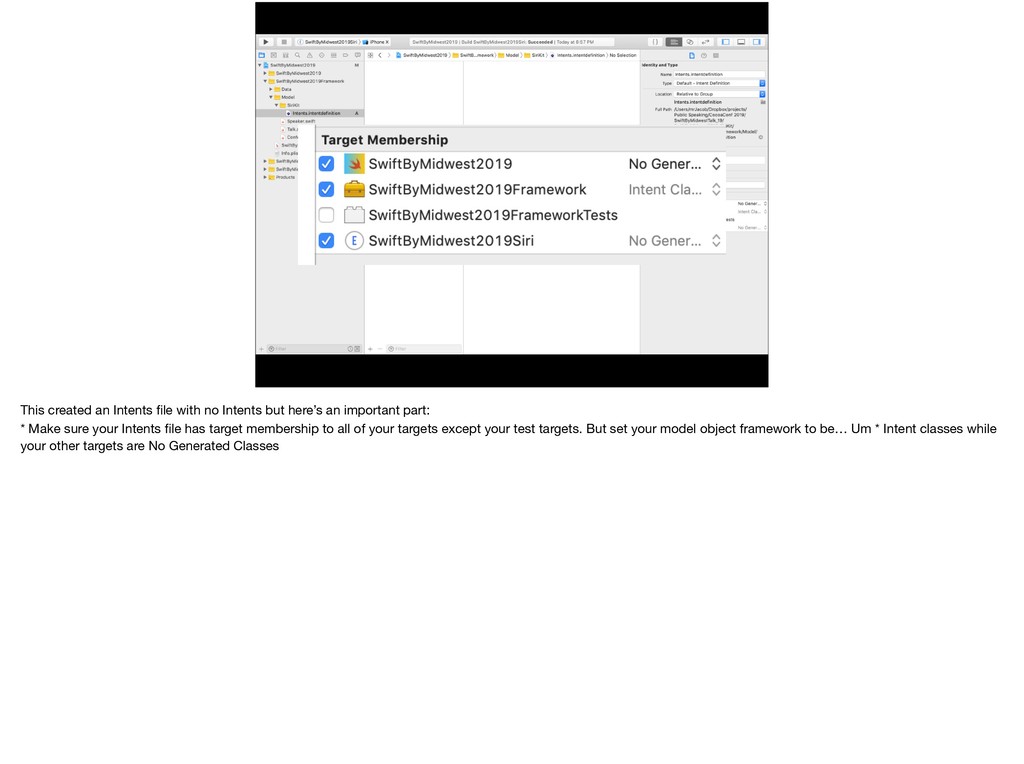
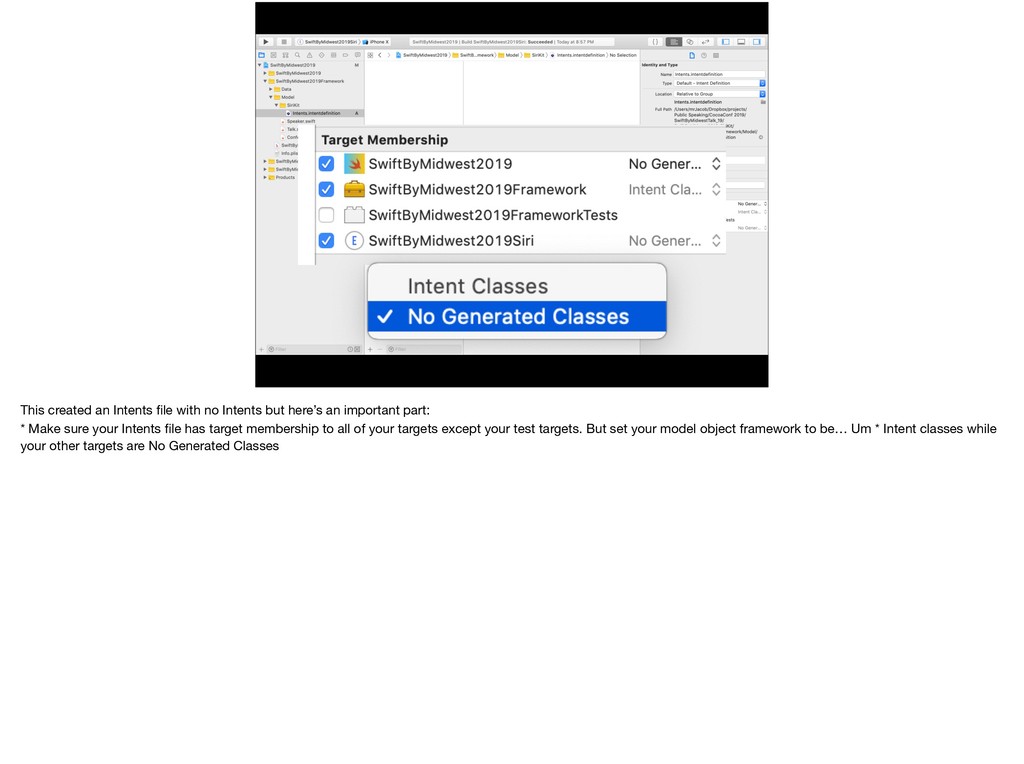
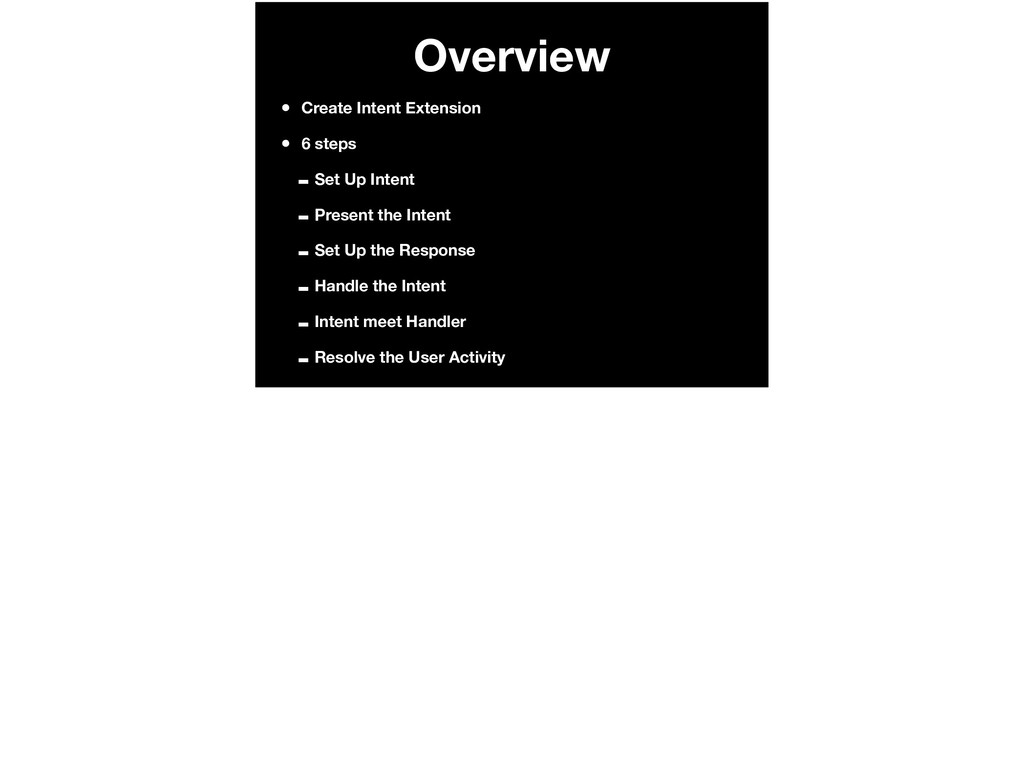
  80. This created an Intents file with no Intents but here’s

    an important part: * Make sure your Intents file has target membership to all of your targets except your test targets. But set your model object framework to be… Um * Intent classes while your other targets are No Generated Classes
  81. This created an Intents file with no Intents but here’s

    an important part: * Make sure your Intents file has target membership to all of your targets except your test targets. But set your model object framework to be… Um * Intent classes while your other targets are No Generated Classes
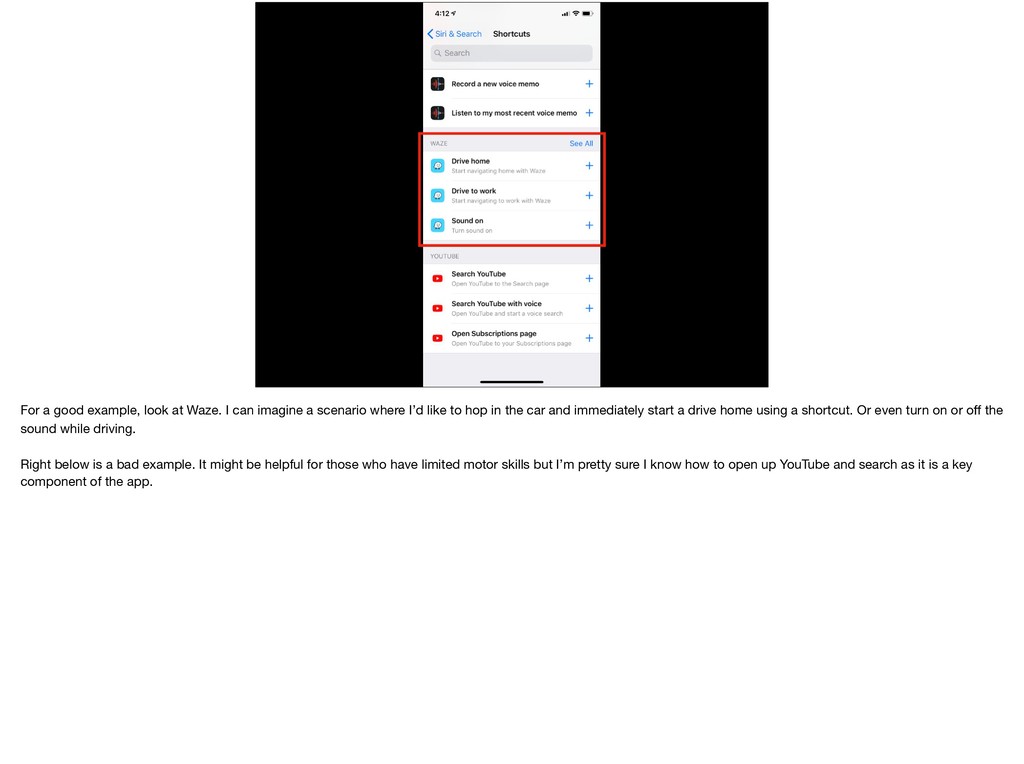
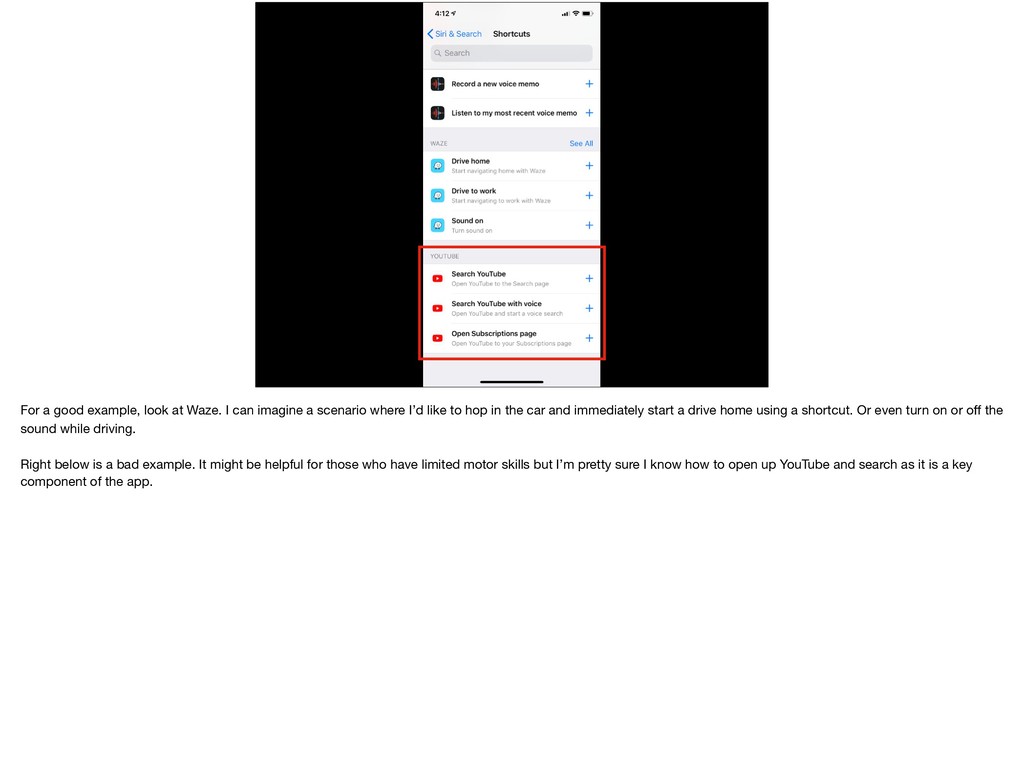
  82. This created an Intents file with no Intents but here’s

    an important part: * Make sure your Intents file has target membership to all of your targets except your test targets. But set your model object framework to be… Um * Intent classes while your other targets are No Generated Classes
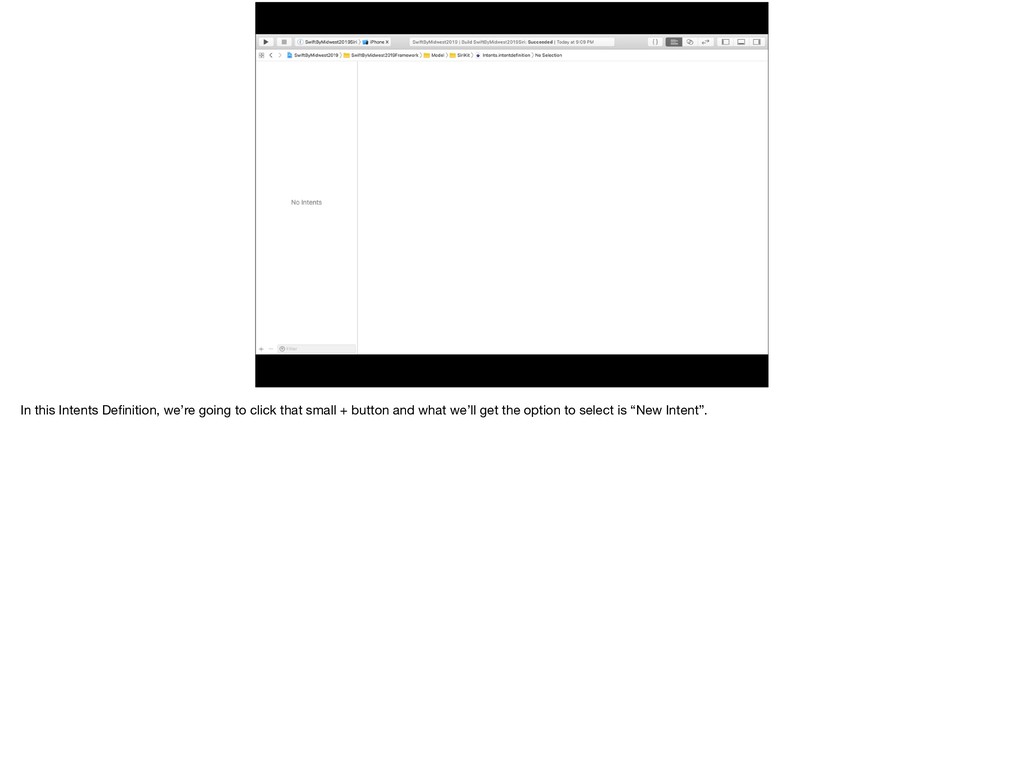
  83. In this Intents Definition, we’re going to click that small

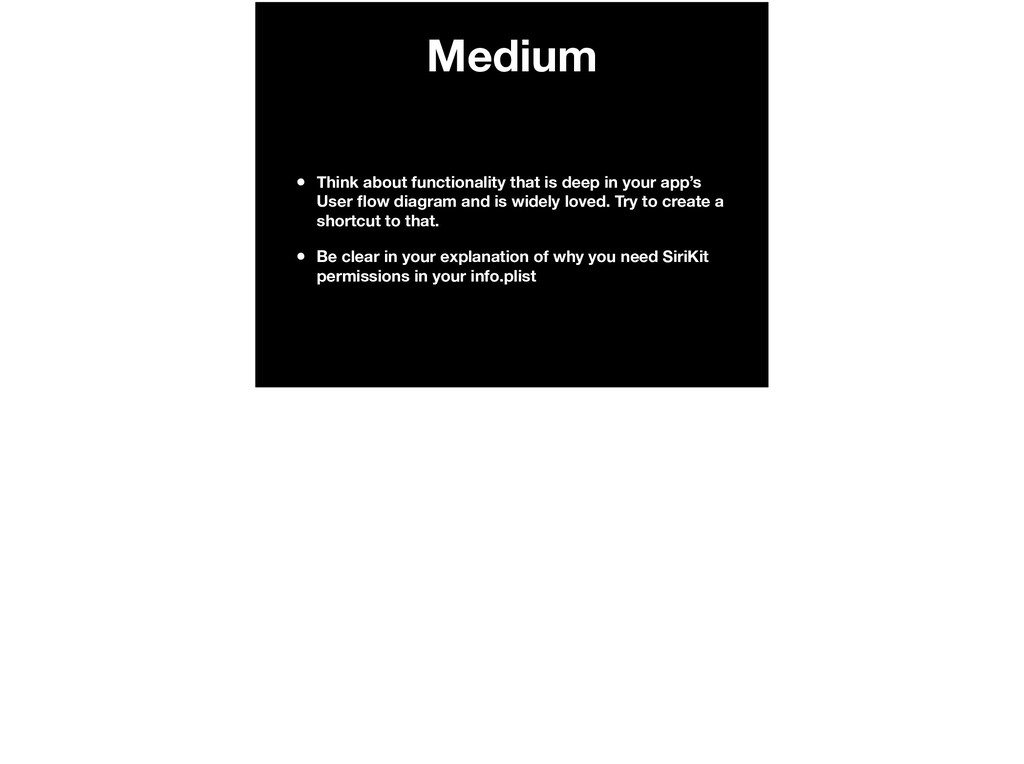
    + button and what we’ll get the option to select is “New Intent”.
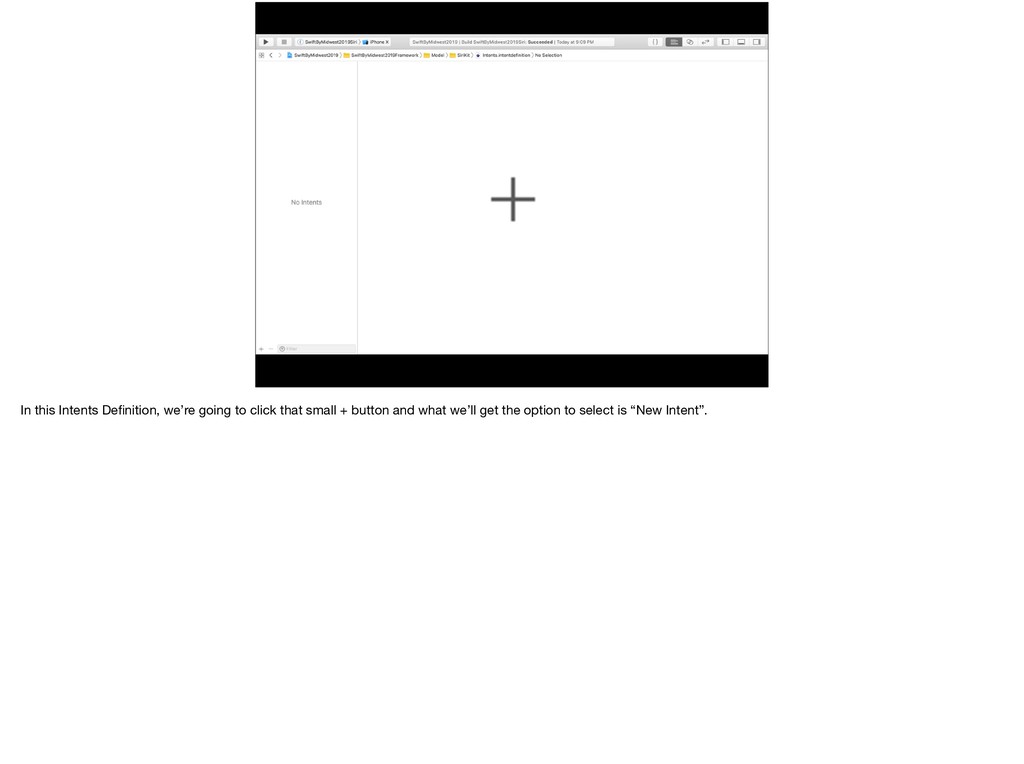
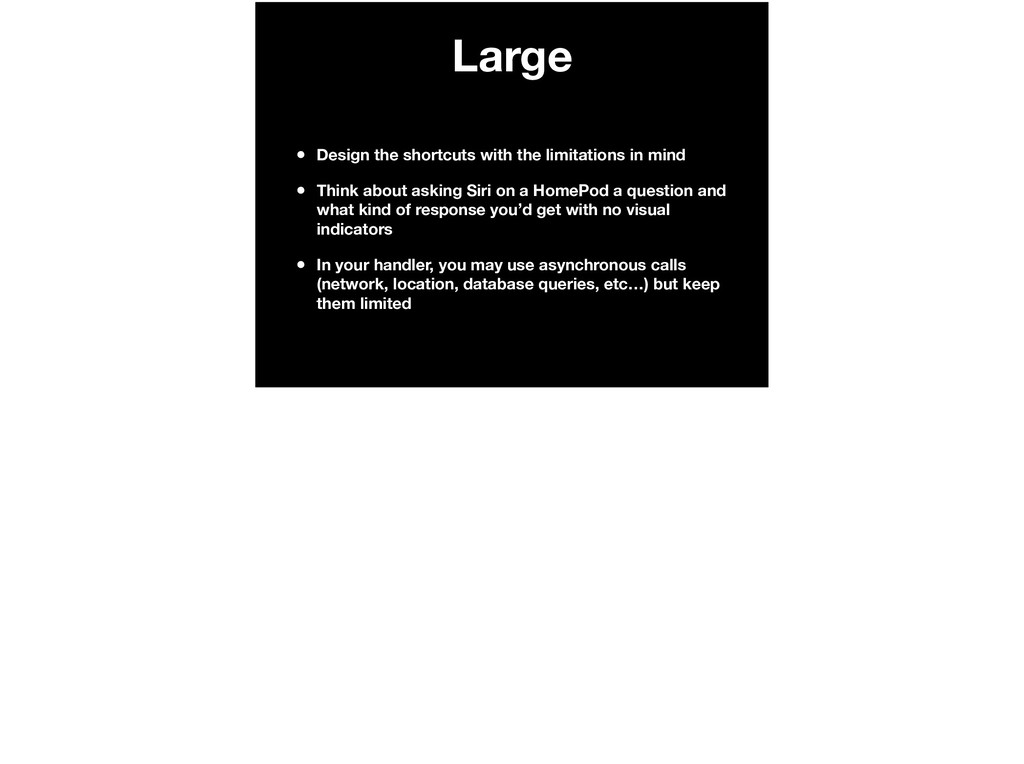
  84. In this Intents Definition, we’re going to click that small

    + button and what we’ll get the option to select is “New Intent”.
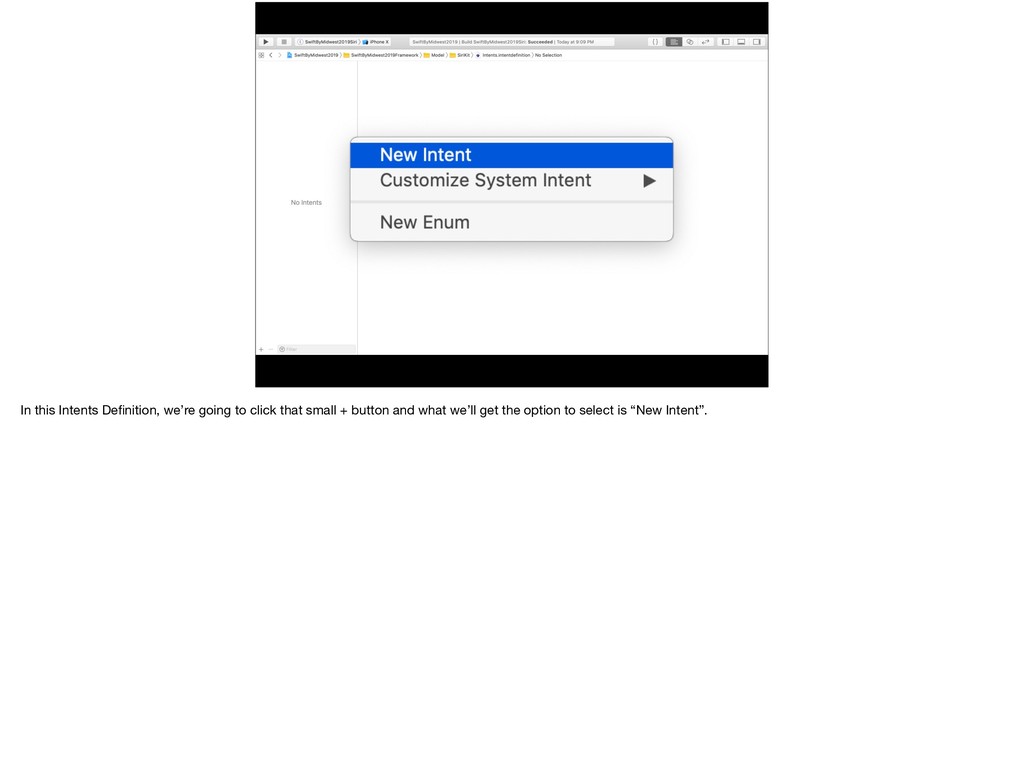
  85. In this Intents Definition, we’re going to click that small

    + button and what we’ll get the option to select is “New Intent”.
  86. We’ll have a new Intent * and we’ll call it

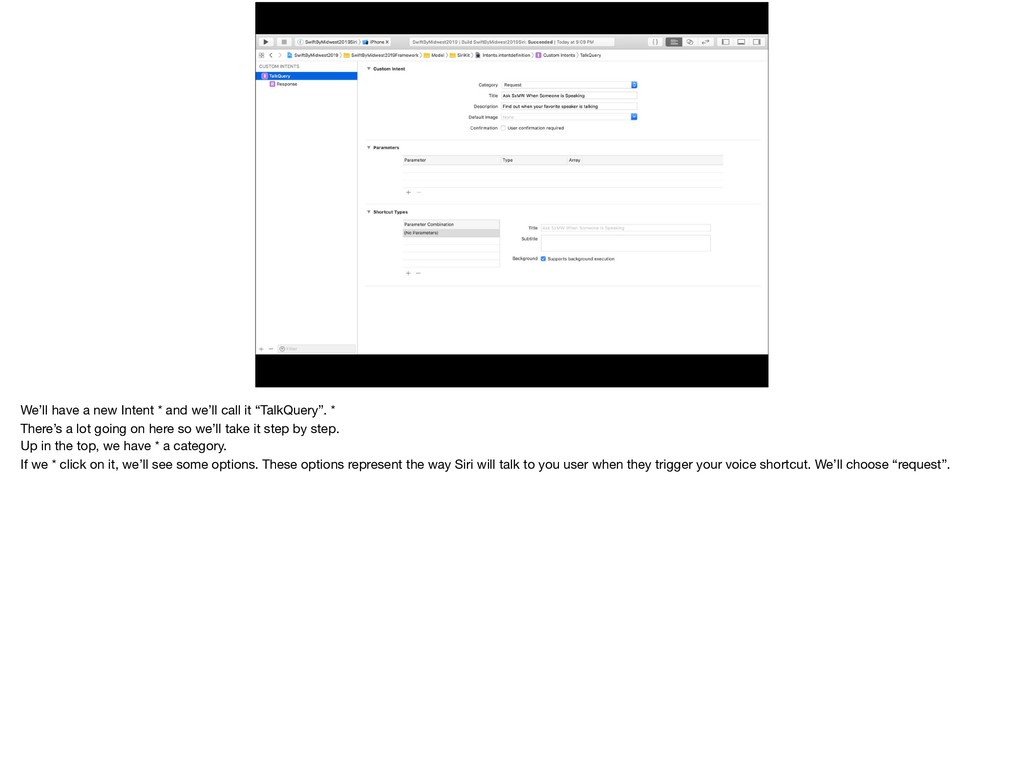
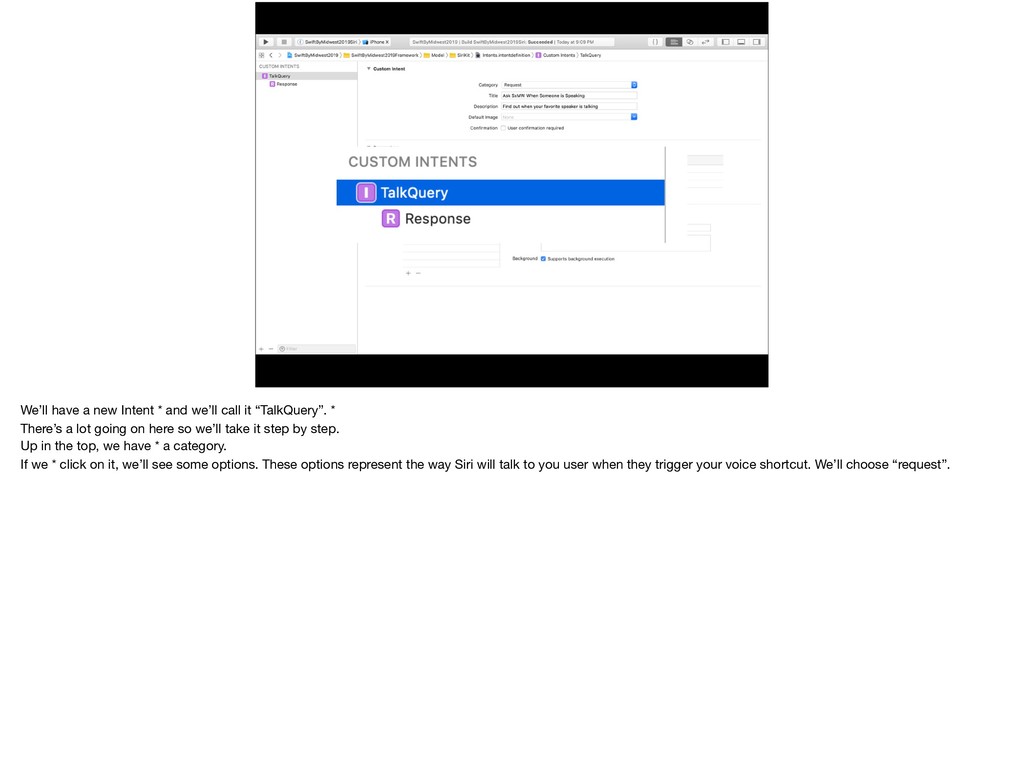
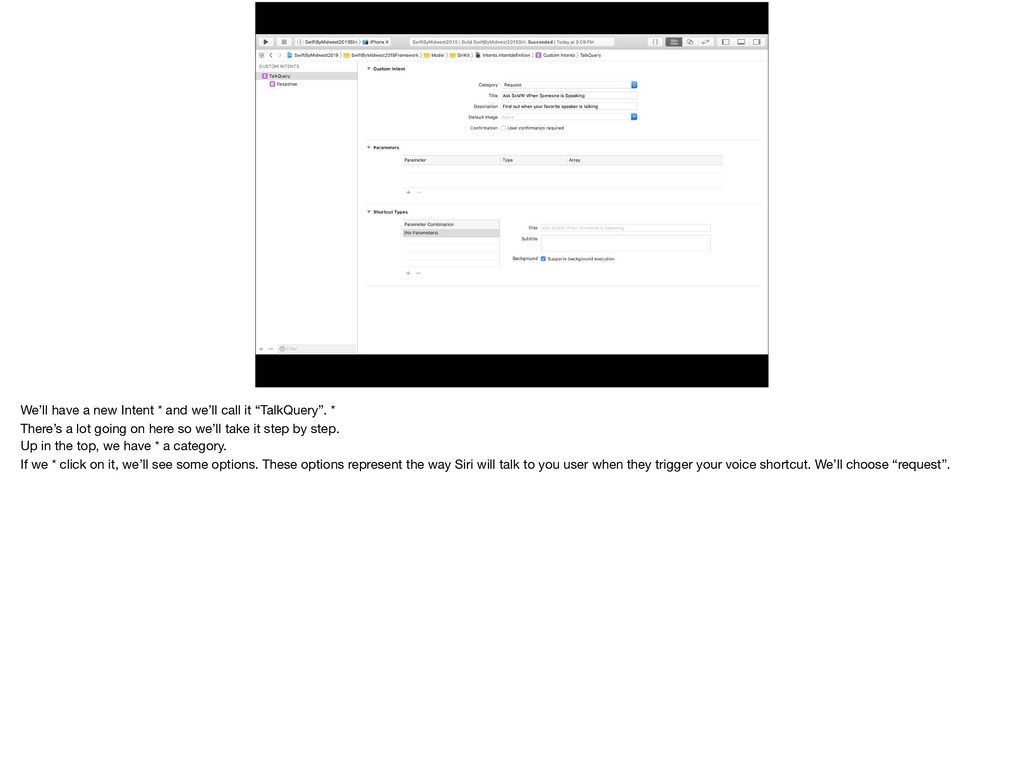
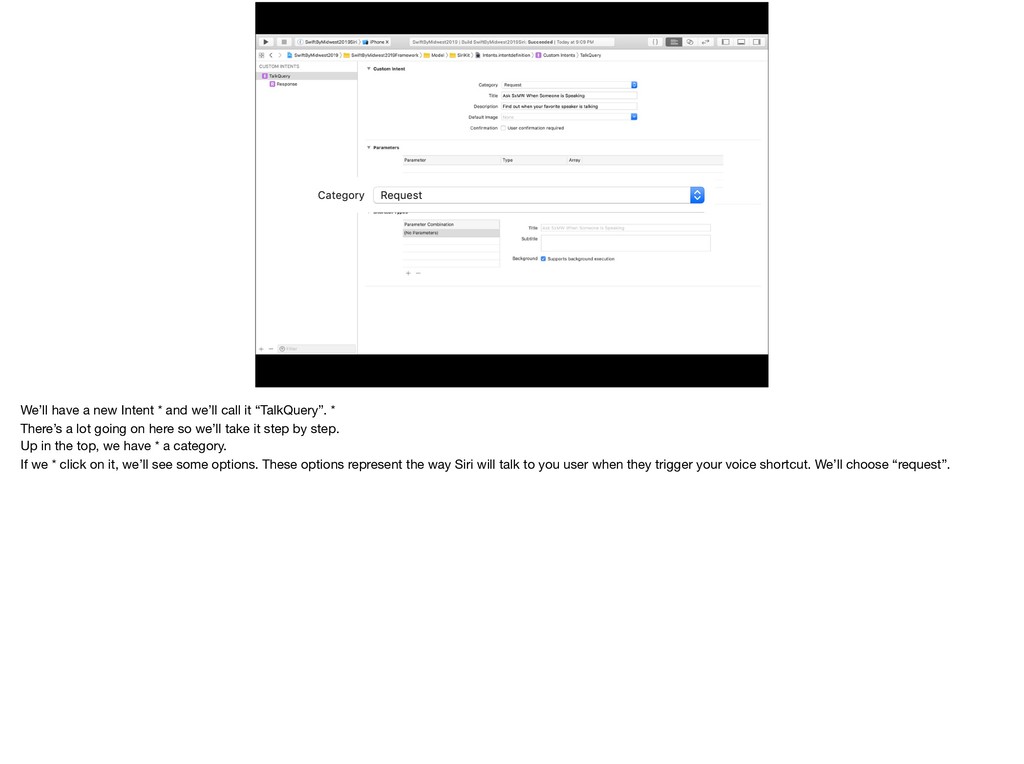
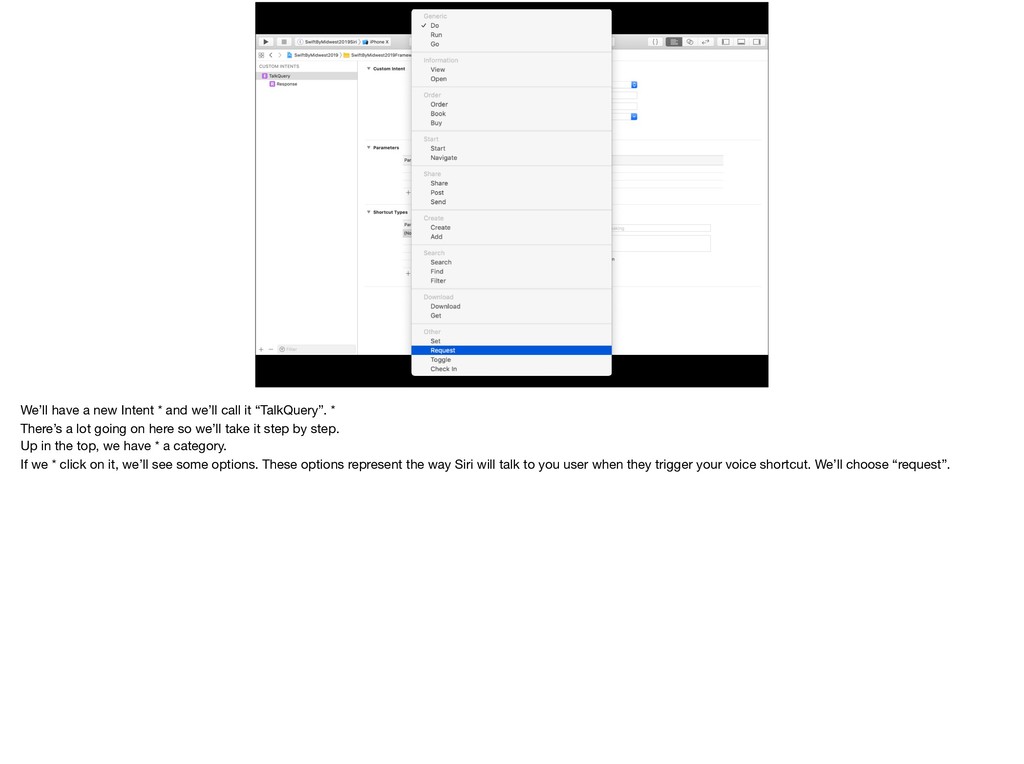
    “TalkQuery”. * There’s a lot going on here so we’ll take it step by step. Up in the top, we have * a category. If we * click on it, we’ll see some options. These options represent the way Siri will talk to you user when they trigger your voice shortcut. We’ll choose “request”.
  87. We’ll have a new Intent * and we’ll call it

    “TalkQuery”. * There’s a lot going on here so we’ll take it step by step. Up in the top, we have * a category. If we * click on it, we’ll see some options. These options represent the way Siri will talk to you user when they trigger your voice shortcut. We’ll choose “request”.
  88. We’ll have a new Intent * and we’ll call it

    “TalkQuery”. * There’s a lot going on here so we’ll take it step by step. Up in the top, we have * a category. If we * click on it, we’ll see some options. These options represent the way Siri will talk to you user when they trigger your voice shortcut. We’ll choose “request”.
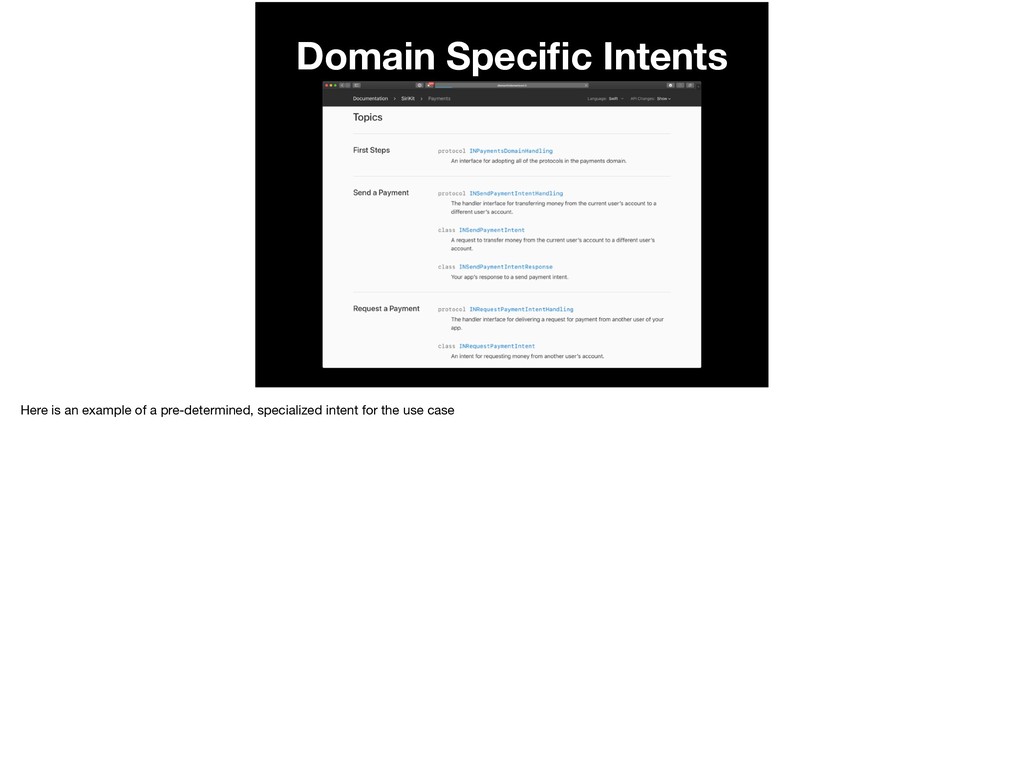
  89. We’ll have a new Intent * and we’ll call it

    “TalkQuery”. * There’s a lot going on here so we’ll take it step by step. Up in the top, we have * a category. If we * click on it, we’ll see some options. These options represent the way Siri will talk to you user when they trigger your voice shortcut. We’ll choose “request”.
  90. We’ll have a new Intent * and we’ll call it

    “TalkQuery”. * There’s a lot going on here so we’ll take it step by step. Up in the top, we have * a category. If we * click on it, we’ll see some options. These options represent the way Siri will talk to you user when they trigger your voice shortcut. We’ll choose “request”.
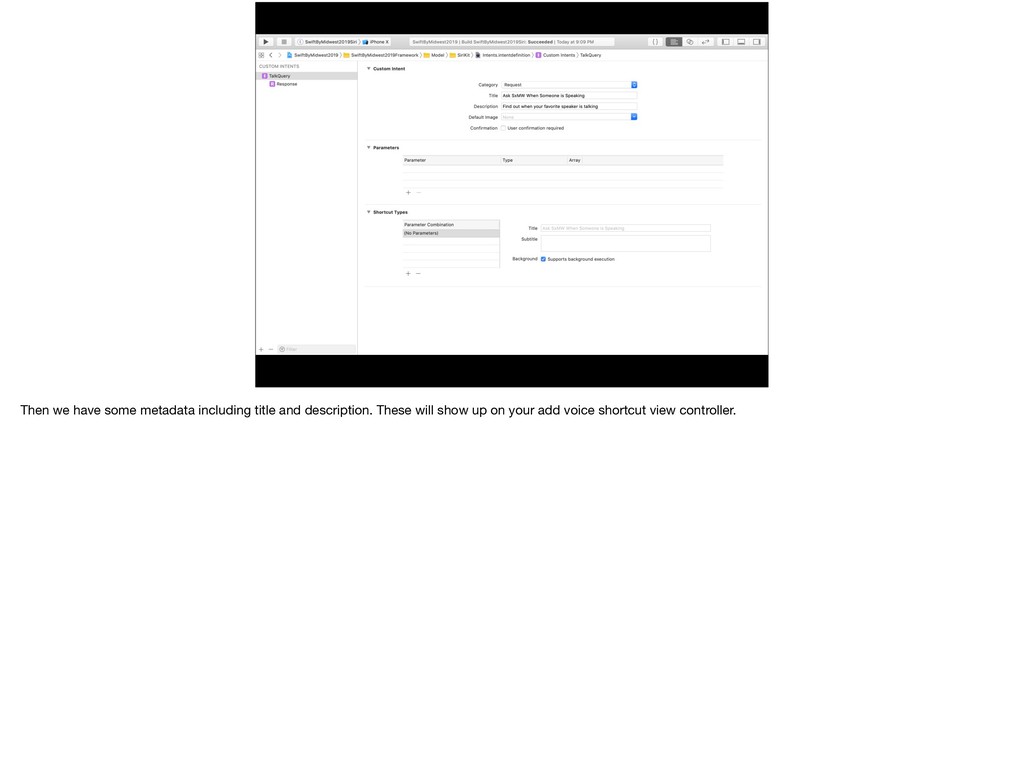
  91. Then we have some metadata including title and description. These

    will show up on your add voice shortcut view controller.
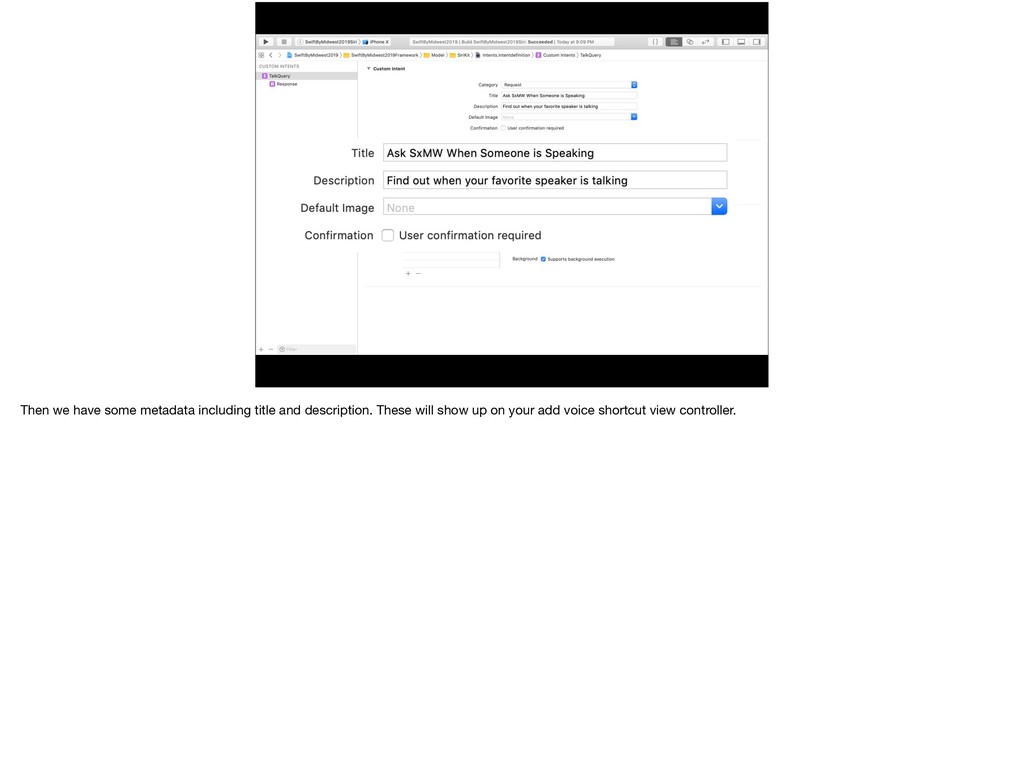
  92. Then we have some metadata including title and description. These

    will show up on your add voice shortcut view controller.
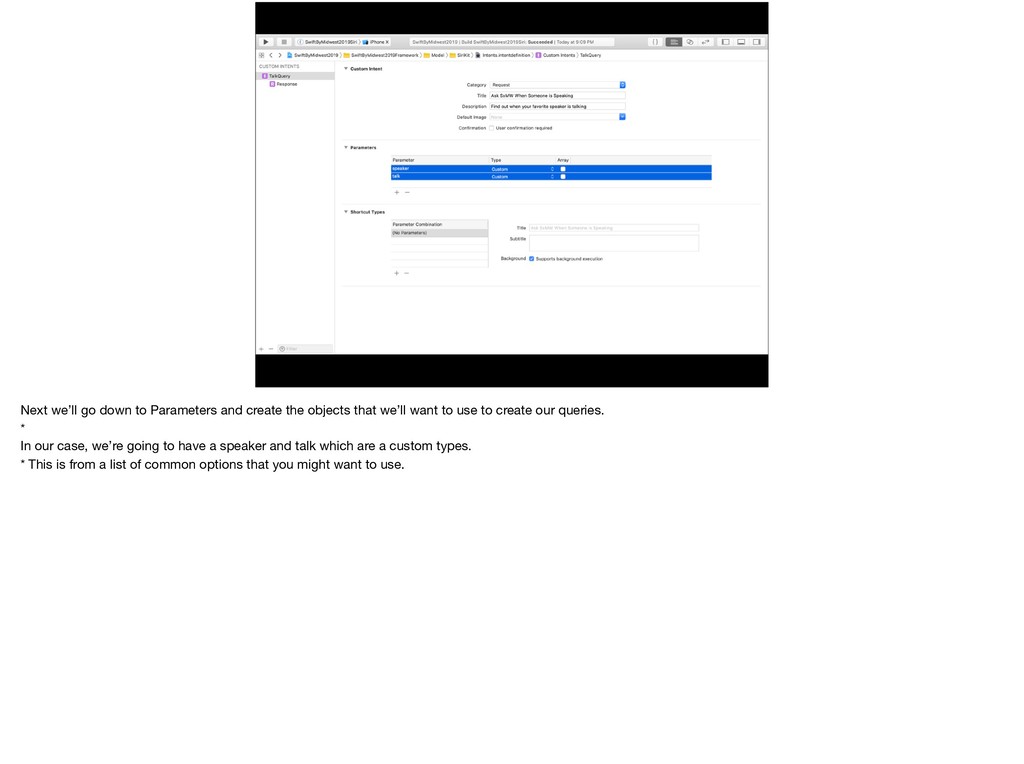
  93. Next we’ll go down to Parameters and create the objects

    that we’ll want to use to create our queries. * In our case, we’re going to have a speaker and talk which are a custom types. * This is from a list of common options that you might want to use.
  94. Next we’ll go down to Parameters and create the objects

    that we’ll want to use to create our queries. * In our case, we’re going to have a speaker and talk which are a custom types. * This is from a list of common options that you might want to use.
  95. Next we’ll go down to Parameters and create the objects

    that we’ll want to use to create our queries. * In our case, we’re going to have a speaker and talk which are a custom types. * This is from a list of common options that you might want to use.
  96. We’re headed to the Shortcut Types section next. You’ll see

    it says No Parameters there so we’ll remedy it by pressing that tiny + and a popover will * appear and let us choose which combinations of objects we want to build our queries out of. What does that mean?
  97. We’re headed to the Shortcut Types section next. You’ll see

    it says No Parameters there so we’ll remedy it by pressing that tiny + and a popover will * appear and let us choose which combinations of objects we want to build our queries out of. What does that mean?
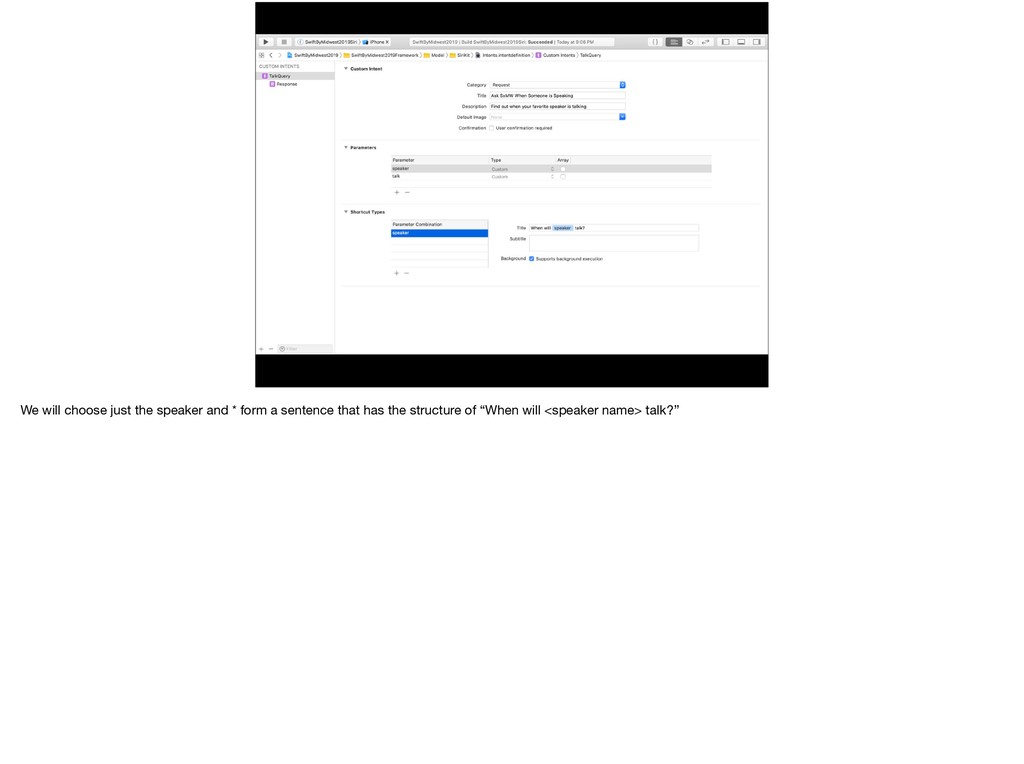
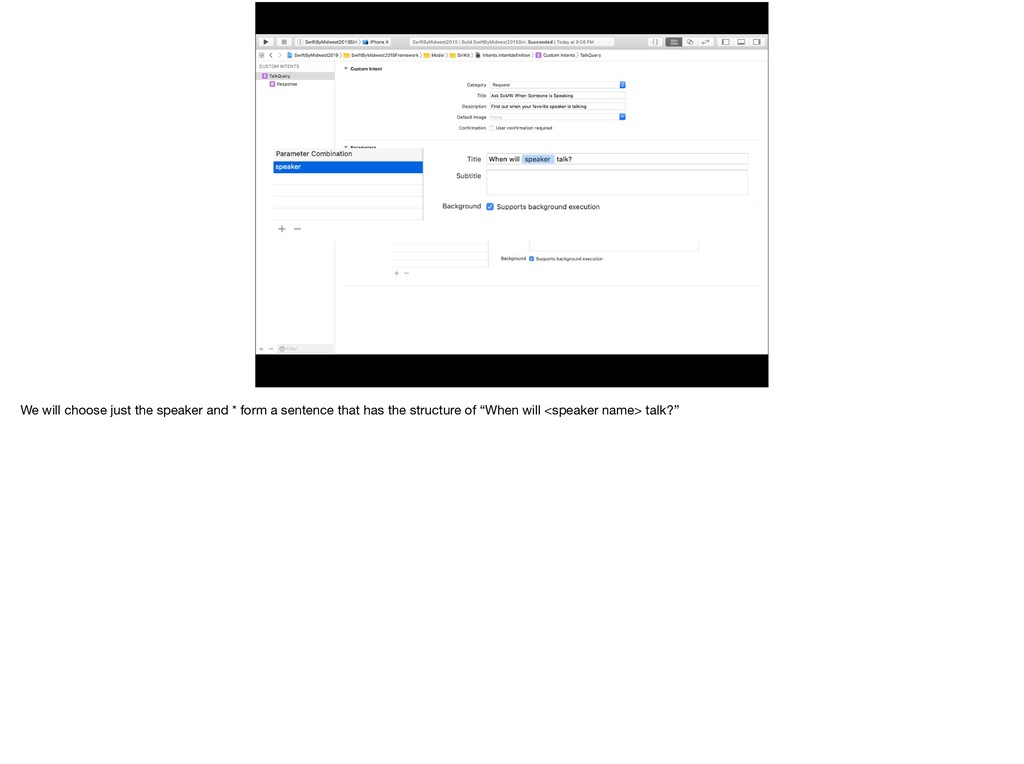
  98. We will choose just the speaker and * form a

    sentence that has the structure of “When will <speaker name> talk?”
  99. We will choose just the speaker and * form a

    sentence that has the structure of “When will <speaker name> talk?”
  100. Hi there! This next part is crucial so look up

    from your laptops and phones:
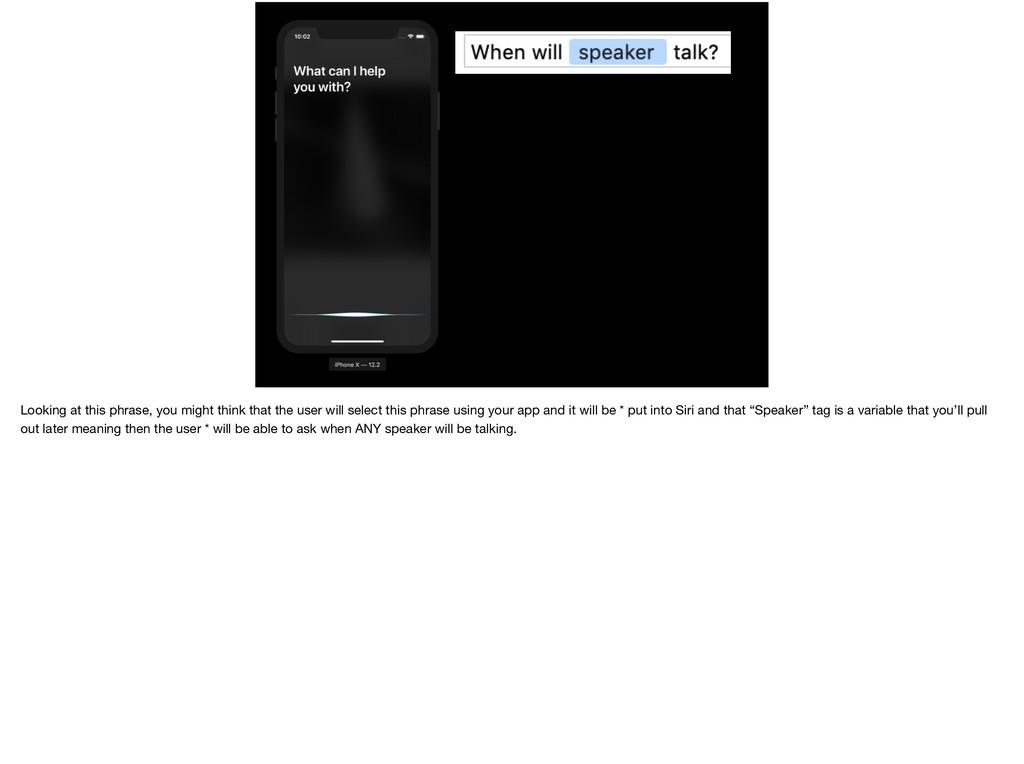
  101. Looking at this phrase, you might think that the user

    will select this phrase using your app and it will be * put into Siri and that “Speaker” tag is a variable that you’ll pull out later meaning then the user * will be able to ask when ANY speaker will be talking.
  102. Looking at this phrase, you might think that the user

    will select this phrase using your app and it will be * put into Siri and that “Speaker” tag is a variable that you’ll pull out later meaning then the user * will be able to ask when ANY speaker will be talking.
  103. “When will Daniel Steinberg talk?” “When will Liz Marley talk?”

    “When will Mark Dalrymple talk?” “When will Jen Kelley talk?” “When will Jon-Tait Beason talk?” Looking at this phrase, you might think that the user will select this phrase using your app and it will be * put into Siri and that “Speaker” tag is a variable that you’ll pull out later meaning then the user * will be able to ask when ANY speaker will be talking.
  104. CAPITAL N + O + P + E I am

    HERE to tell you that is a NOPE
  105. CAPITAL N + O + P + E I am

    HERE to tell you that is a NOPE
  106. “When will Daniel Steinberg talk?” “When will Liz Marley talk?”

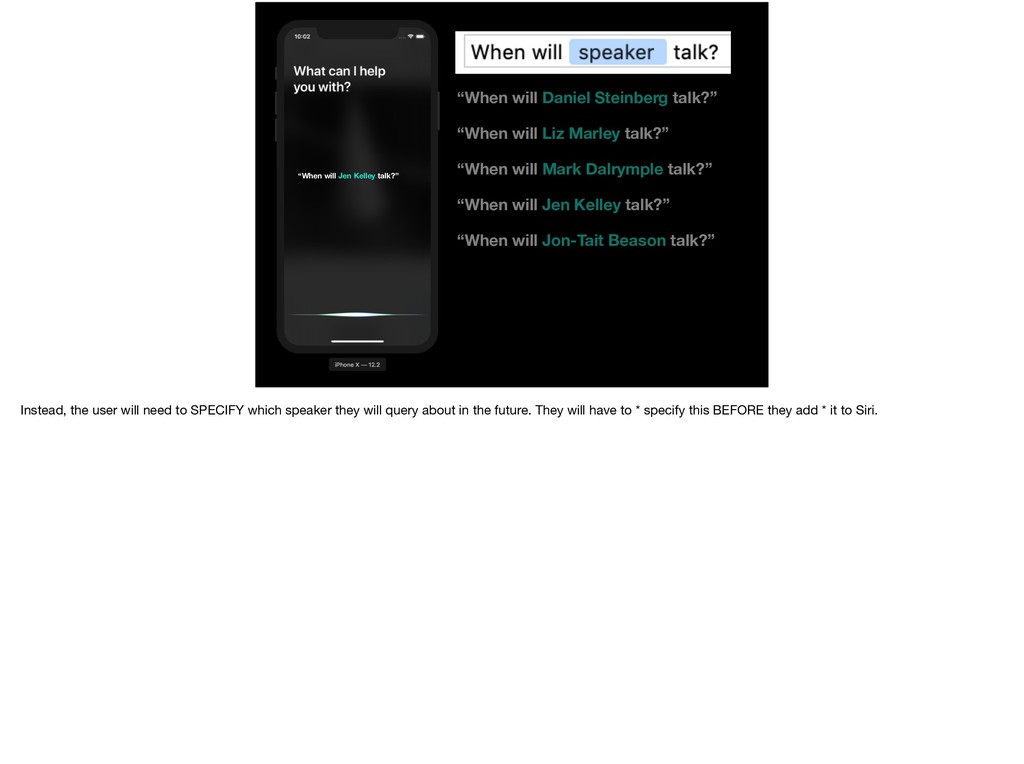
    “When will Mark Dalrymple talk?” “When will Jen Kelley talk?” “When will Jon-Tait Beason talk?” “When will Jen Kelley talk?” Instead, the user will need to SPECIFY which speaker they will query about in the future. They will have to * specify this BEFORE they add * it to Siri.
  107. “When will Daniel Steinberg talk?” “When will Liz Marley talk?”

    “When will Mark Dalrymple talk?” “When will Jen Kelley talk?” “When will Jon-Tait Beason talk?” “When will Jen Kelley talk?” Instead, the user will need to SPECIFY which speaker they will query about in the future. They will have to * specify this BEFORE they add * it to Siri.
  108. “When will Daniel Steinberg talk?” “When will Liz Marley talk?”

    “When will Mark Dalrymple talk?” “When will Jen Kelley talk?” “When will Jon-Tait Beason talk?” “When will Jen Kelley talk?” Instead, the user will need to SPECIFY which speaker they will query about in the future. They will have to * specify this BEFORE they add * it to Siri.
  109. This means that when the user asks Siri “When will

    Jen Kelley talk?’ they will understand the query that was specified beforehand.
  110. “When will Jen Kelley talk?” This means that when the

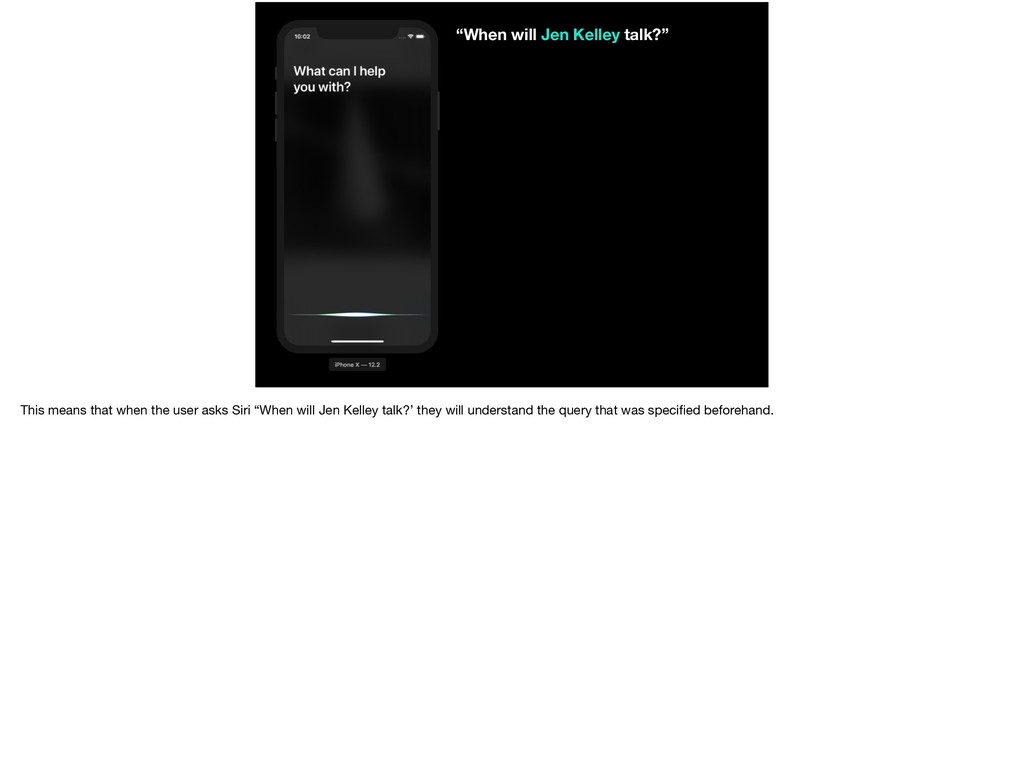
    user asks Siri “When will Jen Kelley talk?’ they will understand the query that was specified beforehand.
  111. “When will Jen Kelley talk?” This means that when the

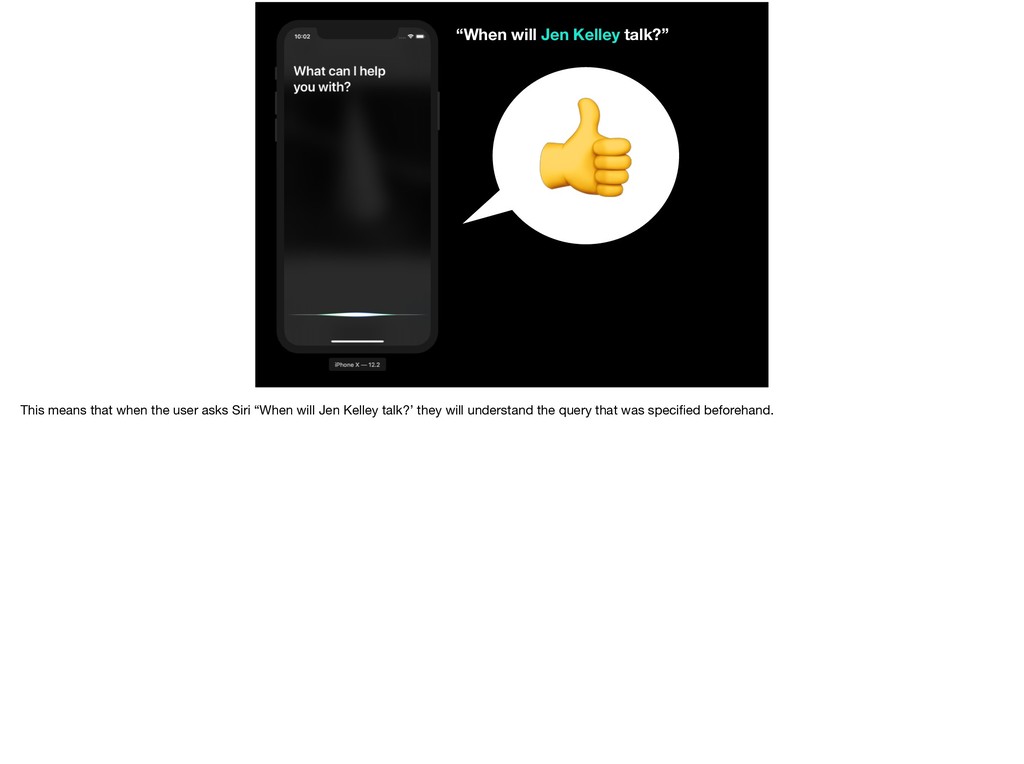
    user asks Siri “When will Jen Kelley talk?’ they will understand the query that was specified beforehand.
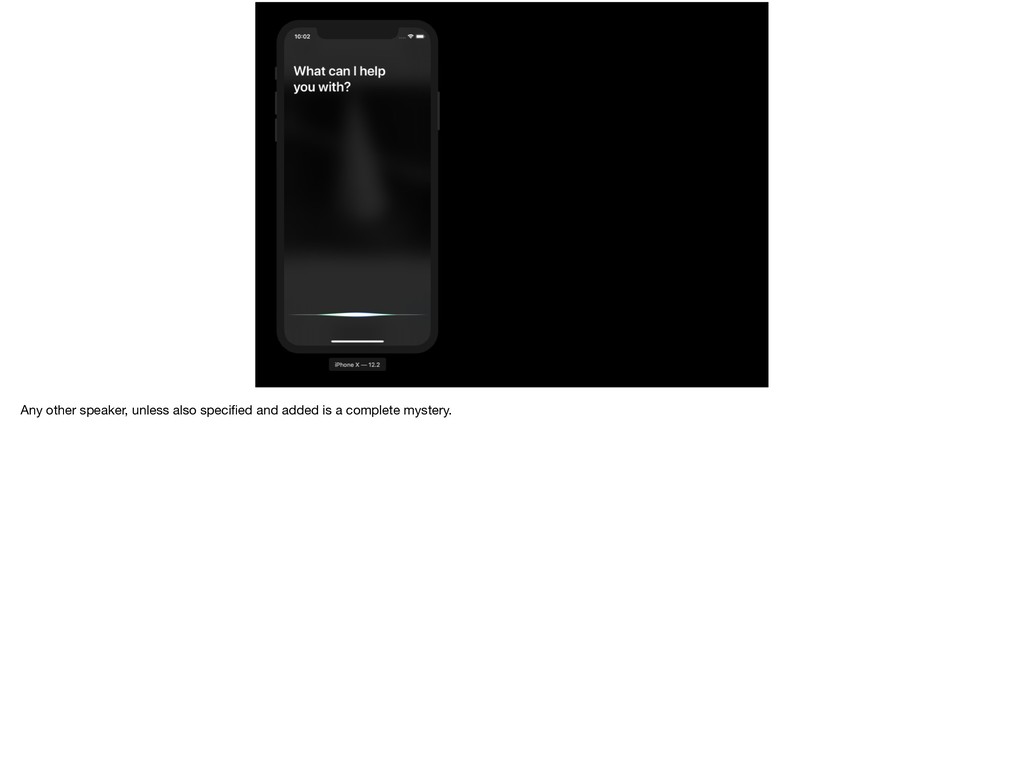
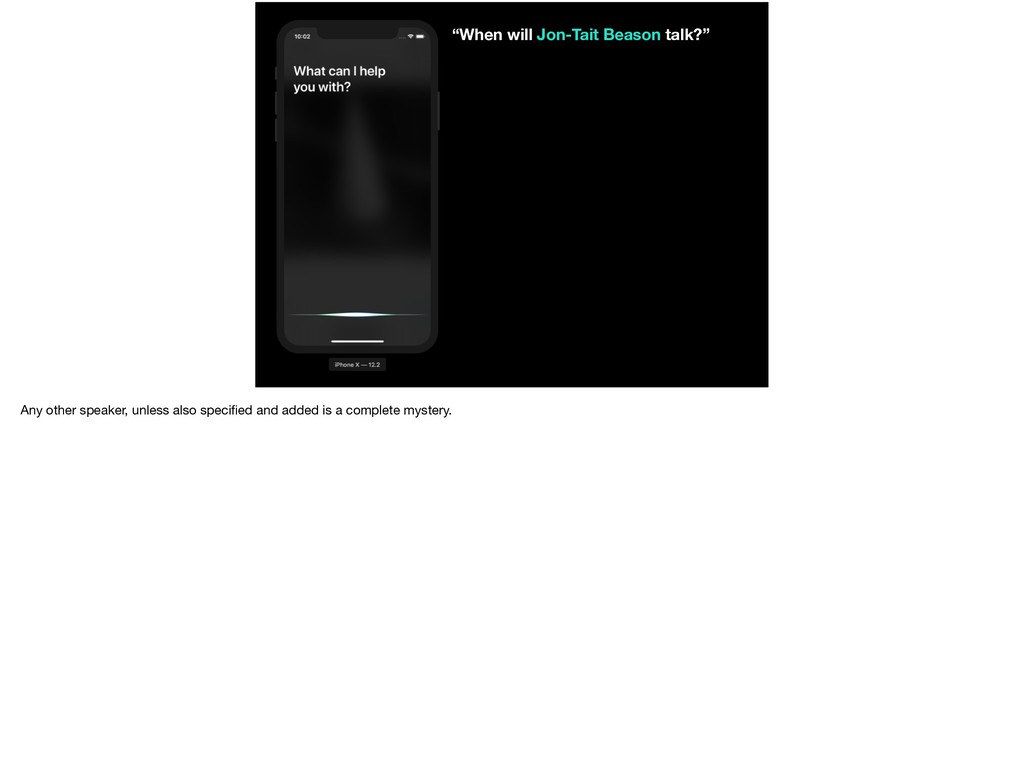
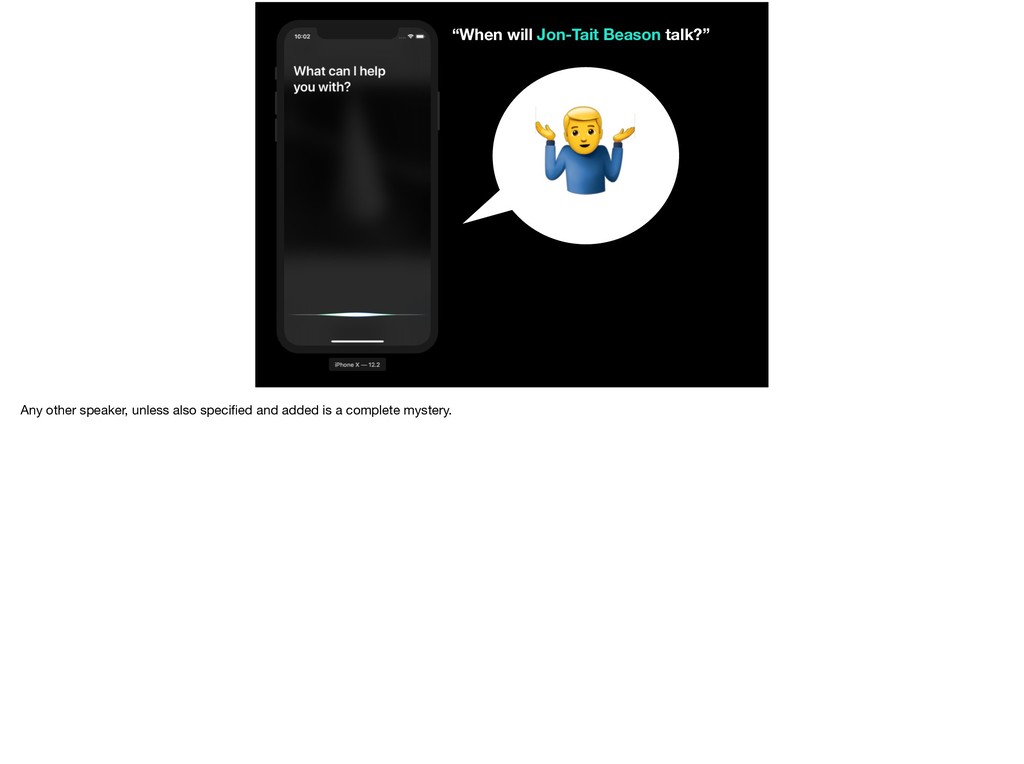
  112. “When will Jon-Tait Beason talk?” Any other speaker, unless also

    specified and added is a complete mystery.
  113. “When will Jon-Tait Beason talk?” & Any other speaker, unless

    also specified and added is a complete mystery.
  114. “When will Liz Marley talk?” To explain this further, this

    is our list of speakers. If we were to ask: * When is Liz Marley’s Talk?” * Siri would know which talk since there is one.
  115. “When will Liz Marley talk?” To explain this further, this

    is our list of speakers. If we were to ask: * When is Liz Marley’s Talk?” * Siri would know which talk since there is one.
  116. “When will Mark Dalrymple talk?” But if we were to

    ask * “When will Mark Dalrymple talk?” when we go to handle it, we wouldn’t know which one. Because we have limited interactions, we can’t ask a clarifying question.
  117. “When will Mark Dalrymple talk?” But if we were to

    ask * “When will Mark Dalrymple talk?” when we go to handle it, we wouldn’t know which one. Because we have limited interactions, we can’t ask a clarifying question.
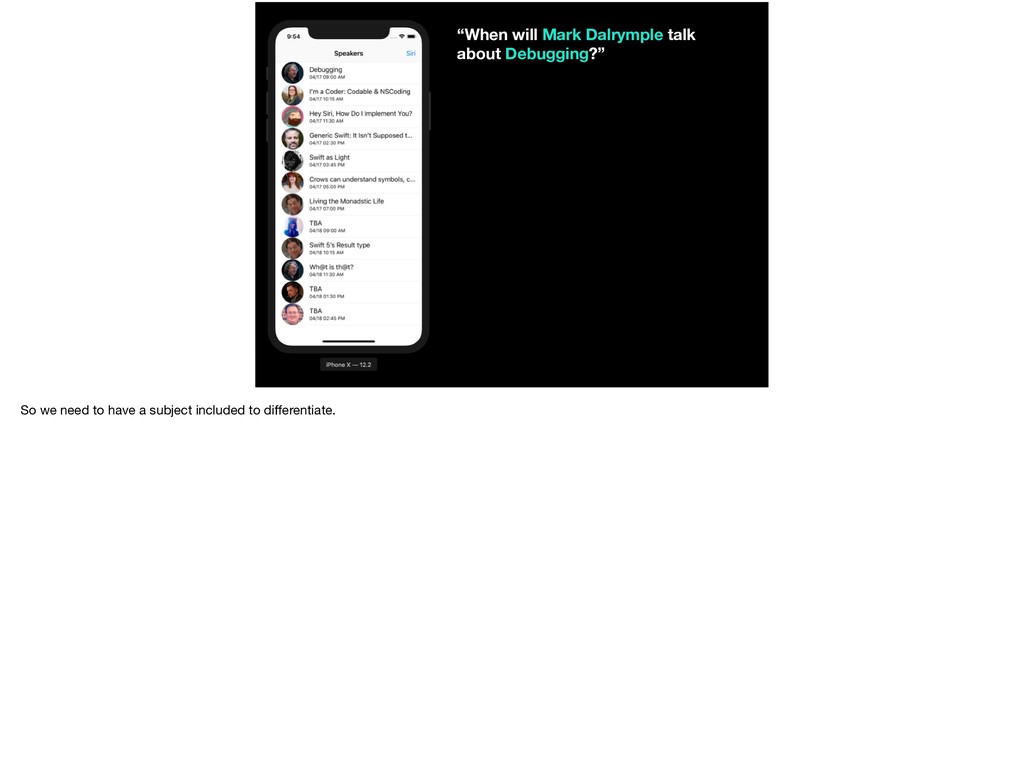
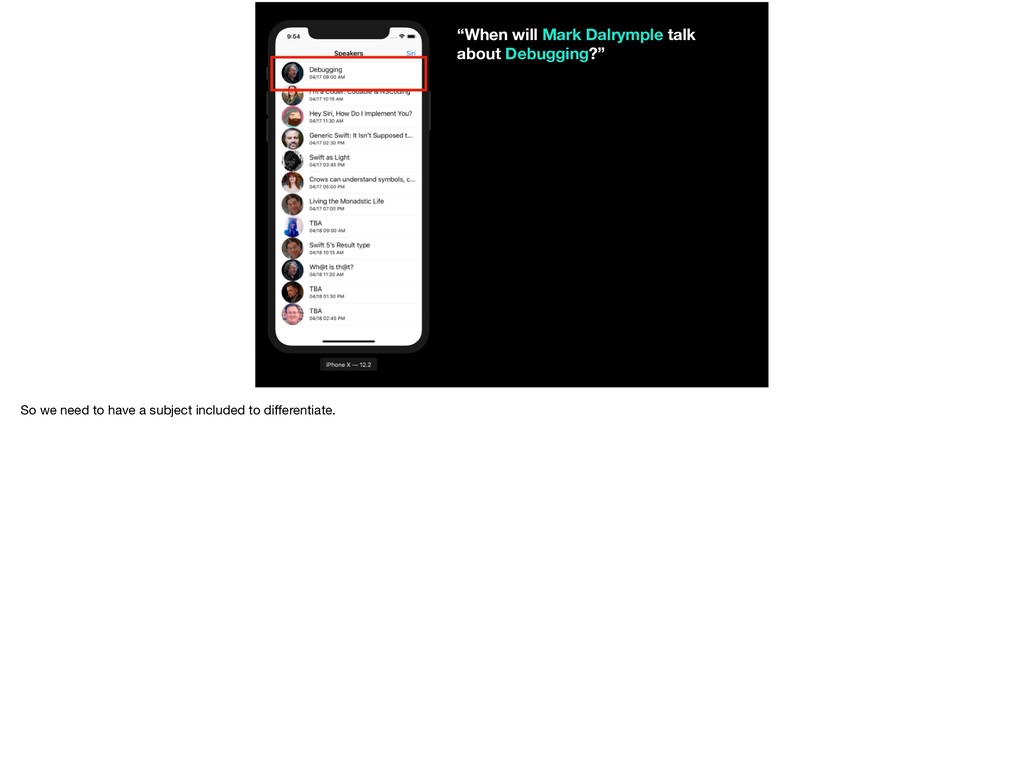
  118. “When will Mark Dalrymple talk about Debugging?” So we need

    to have a subject included to differentiate.
  119. “When will Mark Dalrymple talk about Debugging?” So we need

    to have a subject included to differentiate.
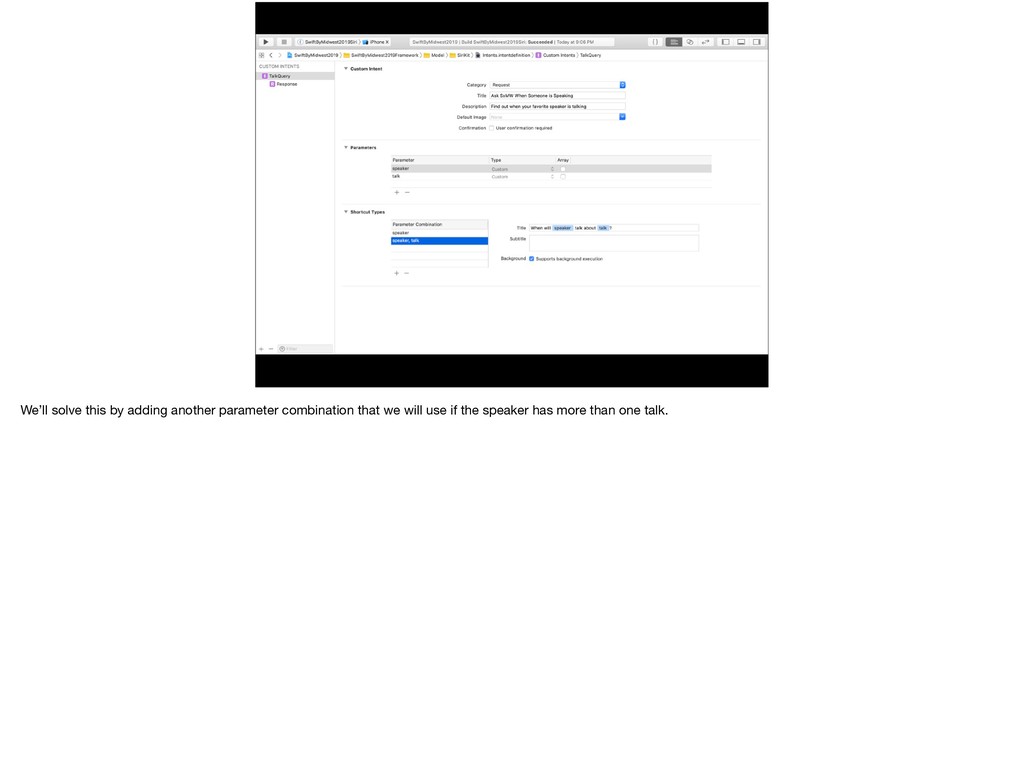
  120. We’ll solve this by adding another parameter combination that we

    will use if the speaker has more than one talk.
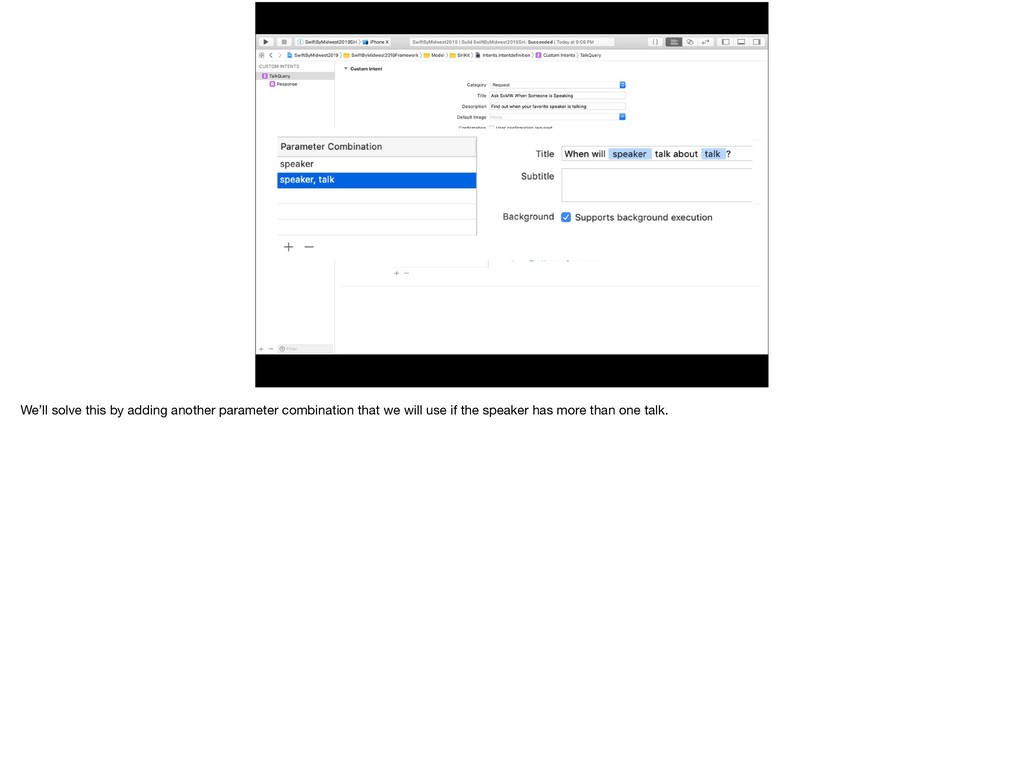
  121. We’ll solve this by adding another parameter combination that we

    will use if the speaker has more than one talk.
  122. I bring these issues up now and make it a

    big point because this limitation was not what I was expecting and made me go back and craft new intents and change how I presented them.
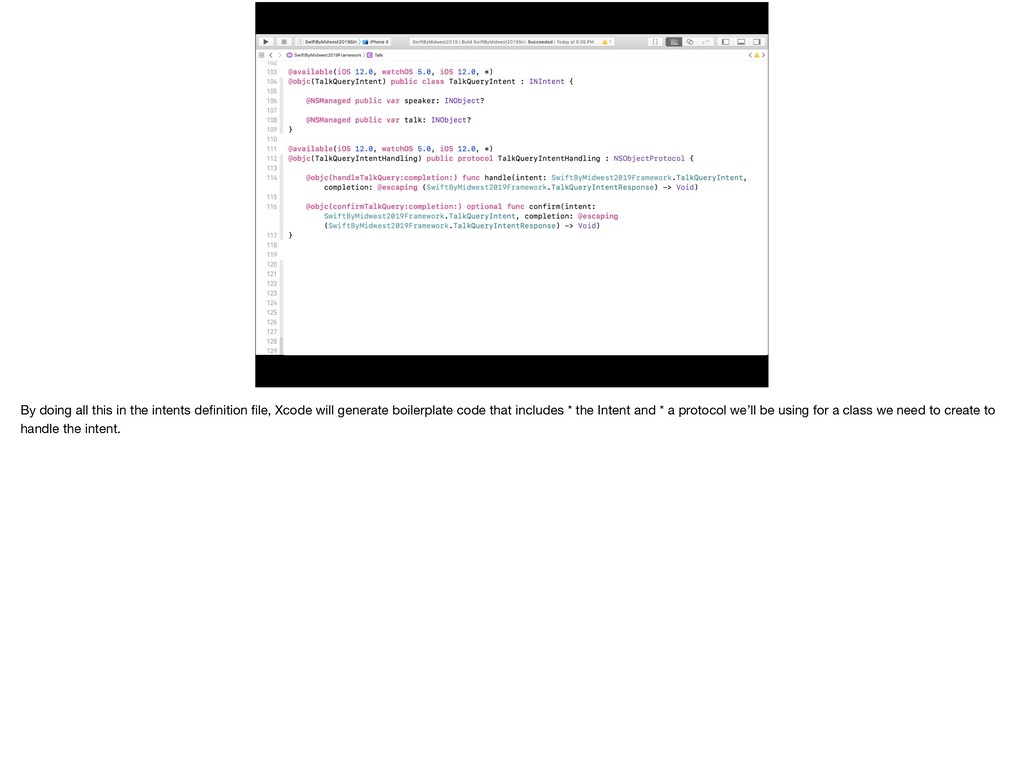
  123. By doing all this in the intents definition file, Xcode

    will generate boilerplate code that includes * the Intent and * a protocol we’ll be using for a class we need to create to handle the intent.
  124. By doing all this in the intents definition file, Xcode

    will generate boilerplate code that includes * the Intent and * a protocol we’ll be using for a class we need to create to handle the intent.
  125. By doing all this in the intents definition file, Xcode

    will generate boilerplate code that includes * the Intent and * a protocol we’ll be using for a class we need to create to handle the intent.
  126. By doing all this in the intents definition file, Xcode

    will generate boilerplate code that includes * the Intent and * a protocol we’ll be using for a class we need to create to handle the intent.
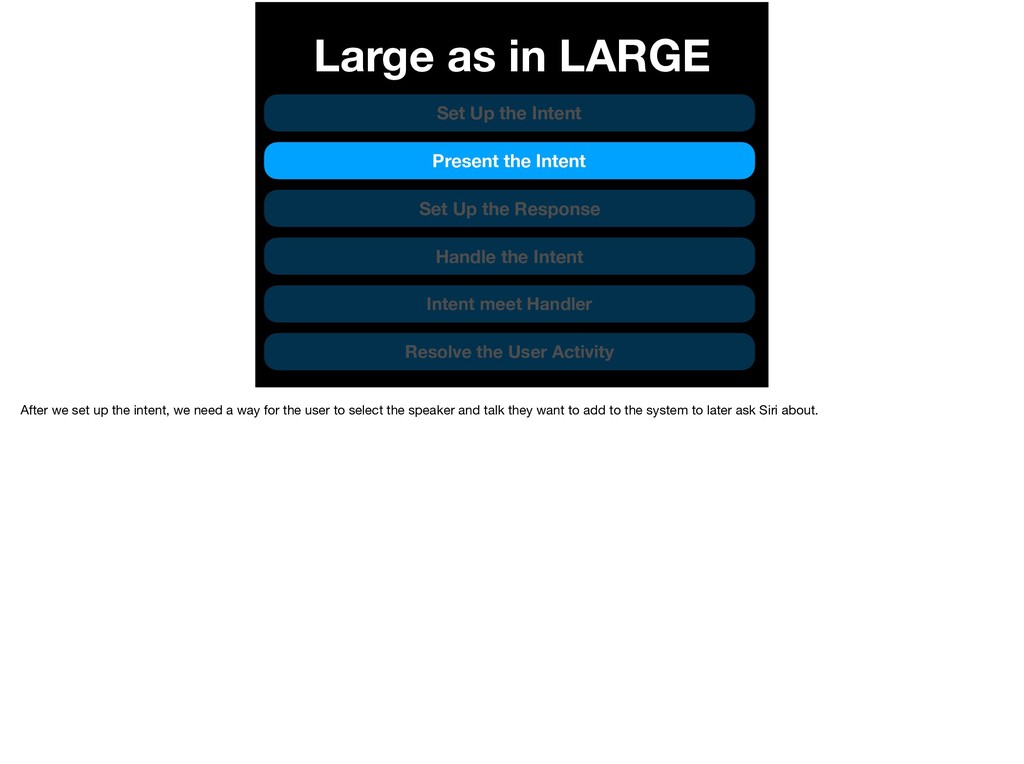
  127. Large as in LARGE Set Up the Intent Present the

    Intent Set Up the Response Handle the Intent Intent meet Handler Resolve the User Activity After we set up the intent, we need a way for the user to select the speaker and talk they want to add to the system to later ask Siri about.
  128. Large as in LARGE Set Up the Intent Present the

    Intent Set Up the Response Handle the Intent Intent meet Handler Resolve the User Activity After we set up the intent, we need a way for the user to select the speaker and talk they want to add to the system to later ask Siri about.
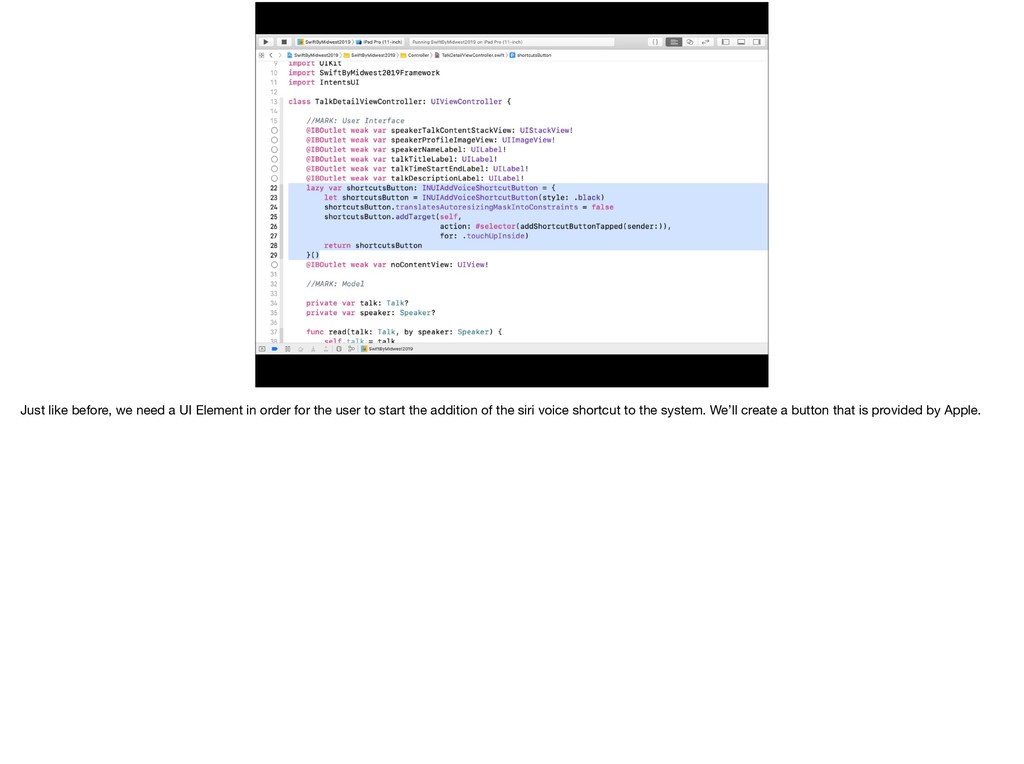
  129. Just like before, we need a UI Element in order

    for the user to start the addition of the siri voice shortcut to the system. We’ll create a button that is provided by Apple.
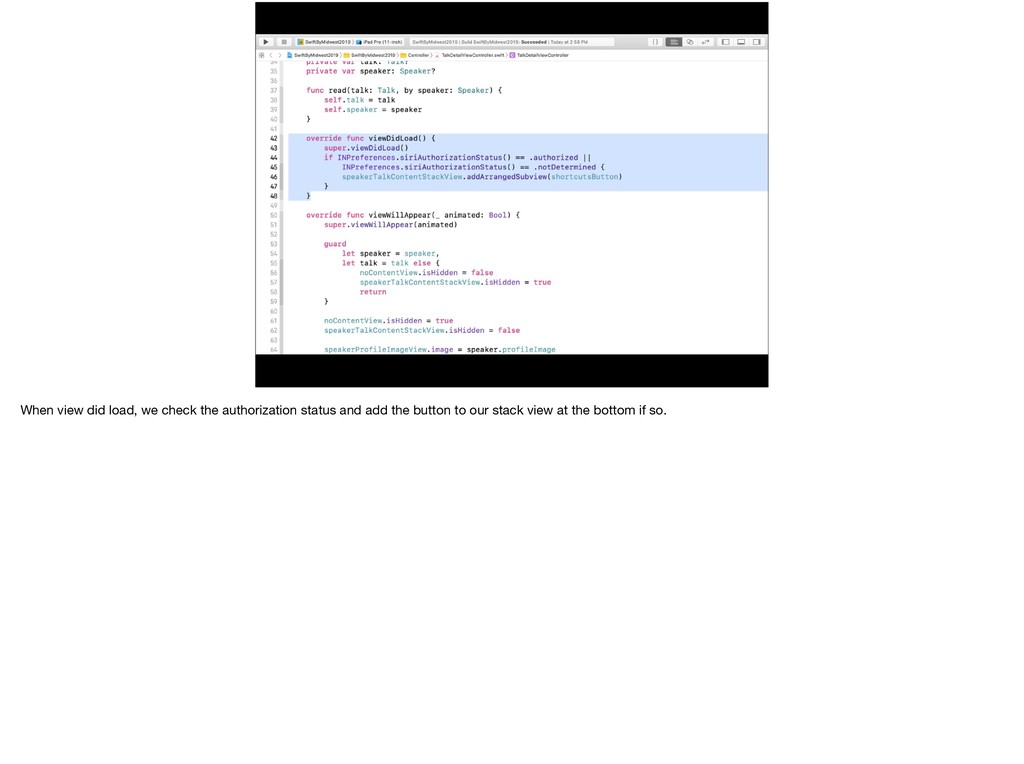
  130. When view did load, we check the authorization status and

    add the button to our stack view at the bottom if so.
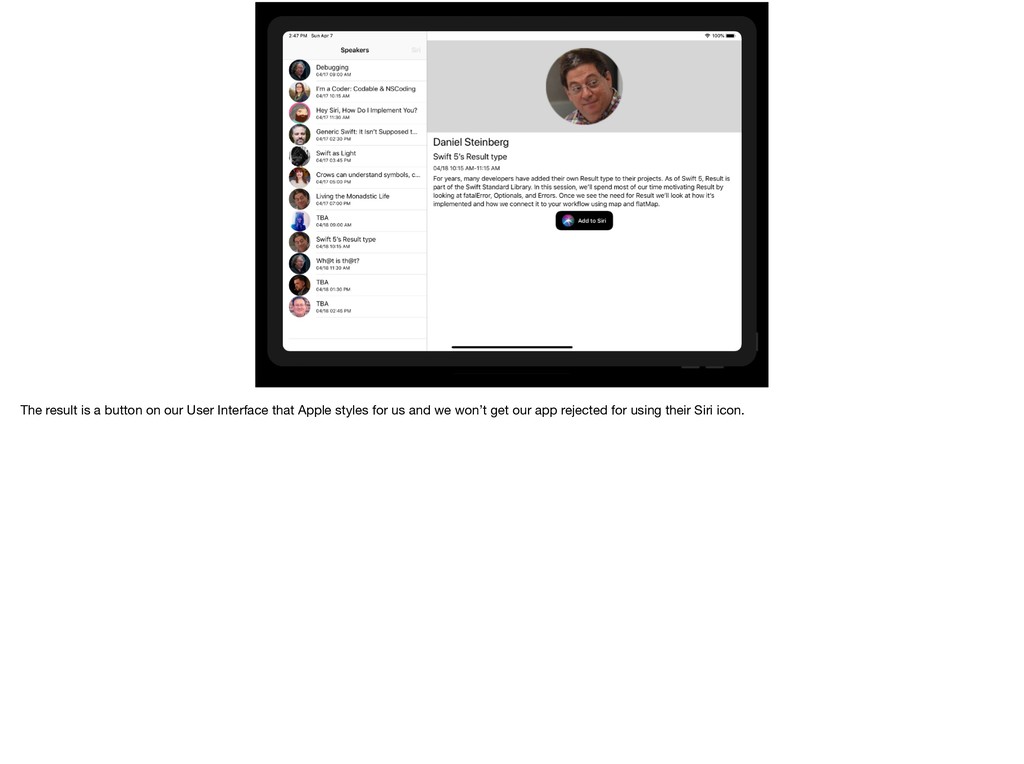
  131. The result is a button on our User Interface that

    Apple styles for us and we won’t get our app rejected for using their Siri icon.
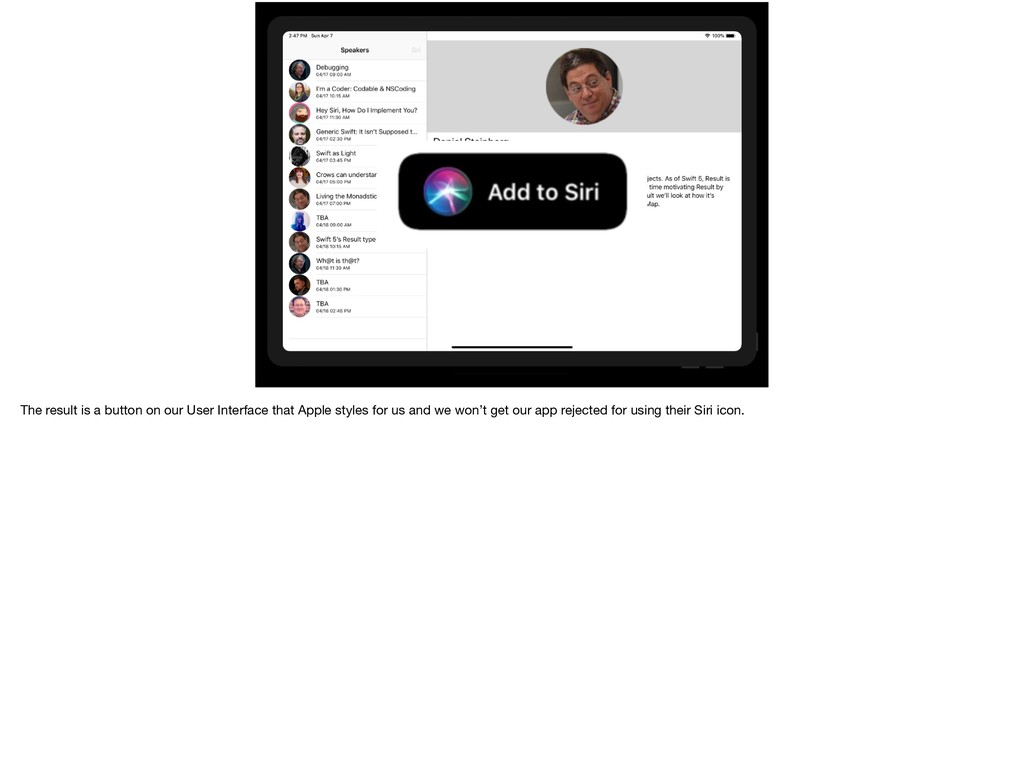
  132. The result is a button on our User Interface that

    Apple styles for us and we won’t get our app rejected for using their Siri icon.
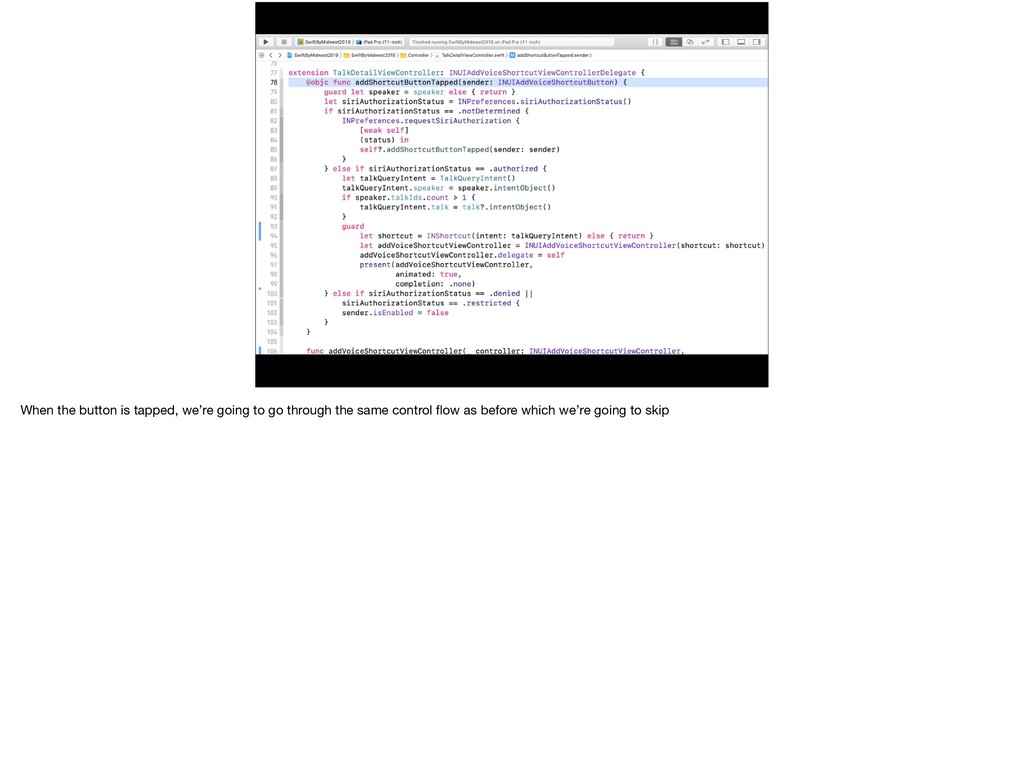
  133. When the button is tapped, we’re going to go through

    the same control flow as before which we’re going to skip
  134. And remember the properties on the query that were INObjects?

    I created a function on our model objects that will produce an INObject representation of the object.
  135. This protocol specifies the required properties on an INObject: *

    identifier * display * pronunciation hint * and a function that returns the INObject
  136. And because all of these objects conform to the protocol

    and will have this function, let’s do a protocol extension where we return the object with the required protocol properties.
  137. Back to the Speaker, you can see that these protocol

    properties are just aliases to other properties on the model object. We’ll do something similar with Talk
  138. Back to the Talk Detail View Controller, we check if

    the speaker has more than one talk and add that Talk INObject using the protocol function like we did with Speaker
  139. We’ll create a shortcut using that intent instead of a

    NSUserActivity. Note that this version is optional.
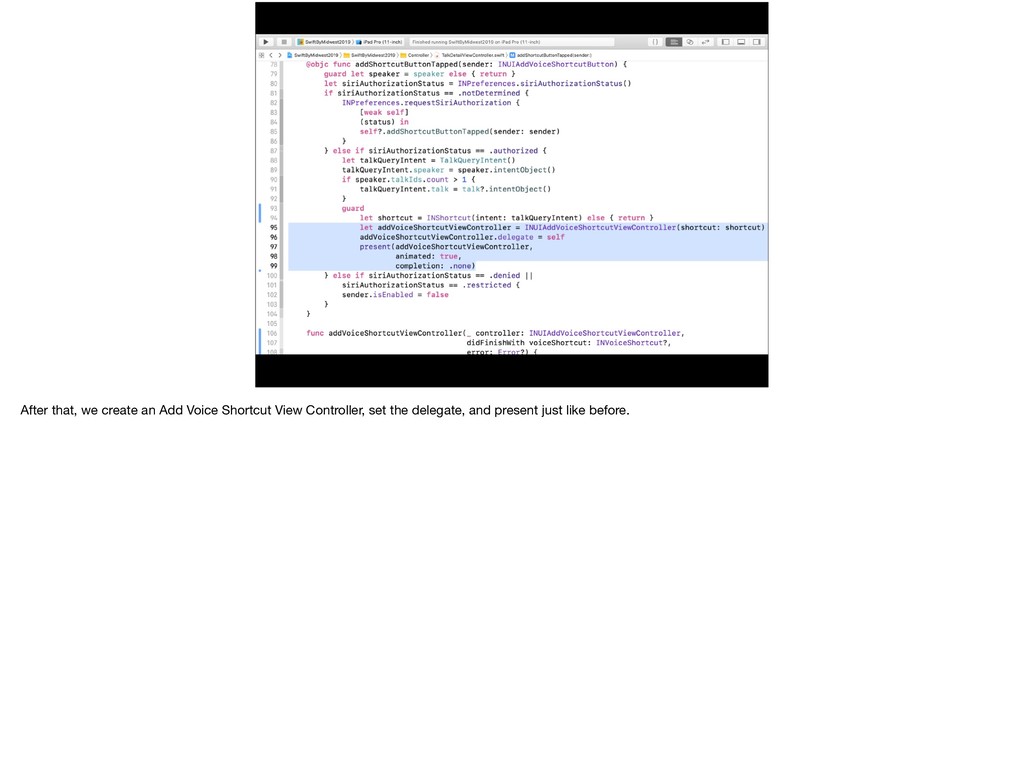
  140. After that, we create an Add Voice Shortcut View Controller,

    set the delegate, and present just like before.
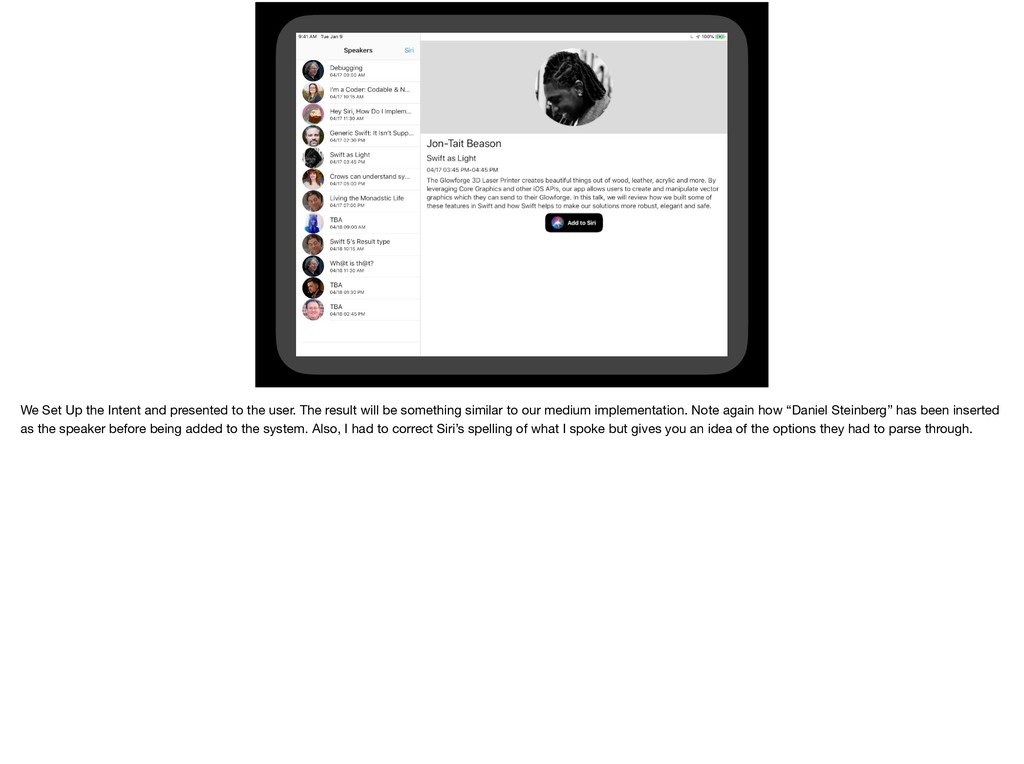
  141. We Set Up the Intent and presented to the user.

    The result will be something similar to our medium implementation. Note again how “Daniel Steinberg” has been inserted as the speaker before being added to the system. Also, I had to correct Siri’s spelling of what I spoke but gives you an idea of the options they had to parse through.
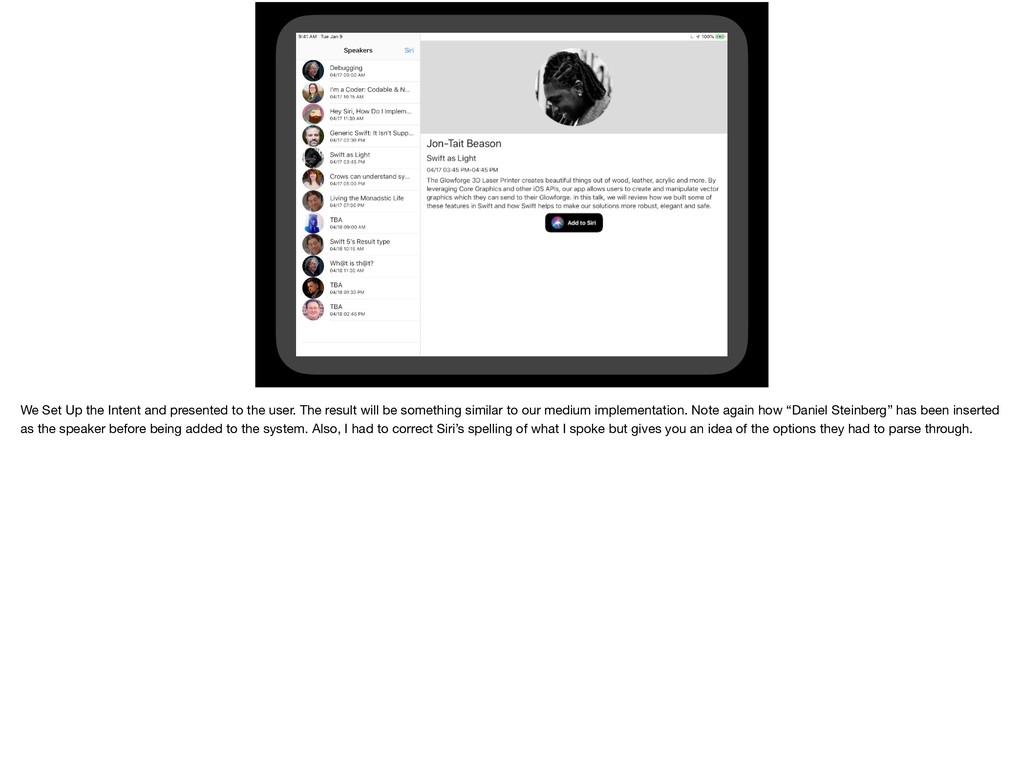
  142. We Set Up the Intent and presented to the user.

    The result will be something similar to our medium implementation. Note again how “Daniel Steinberg” has been inserted as the speaker before being added to the system. Also, I had to correct Siri’s spelling of what I spoke but gives you an idea of the options they had to parse through.
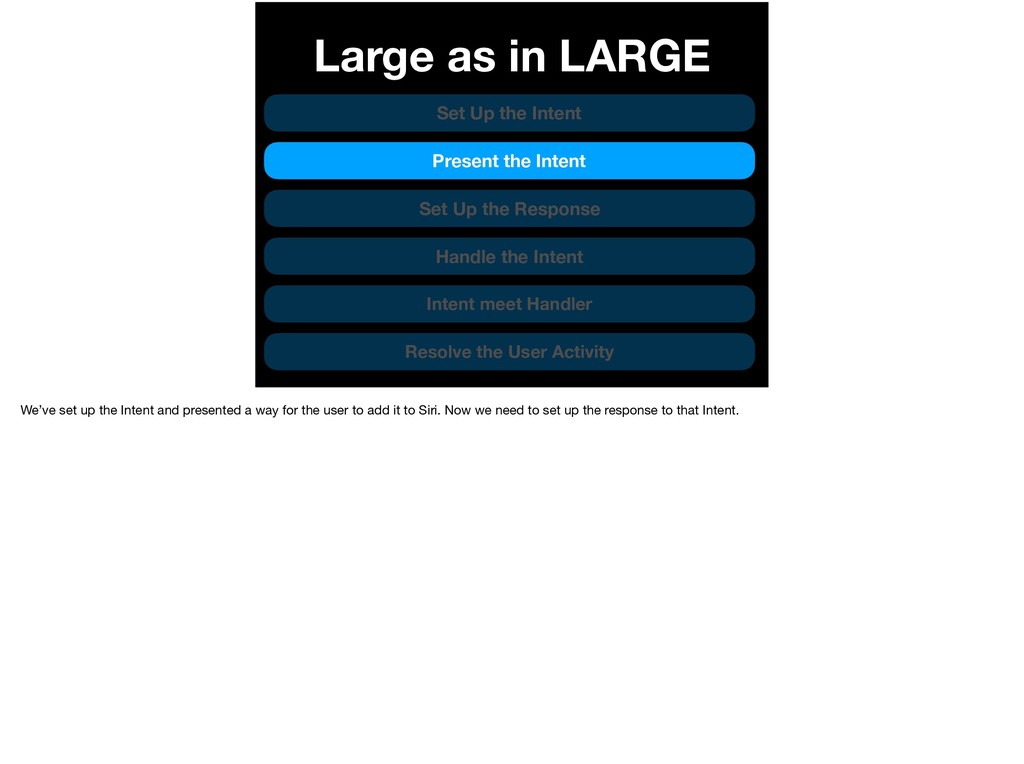
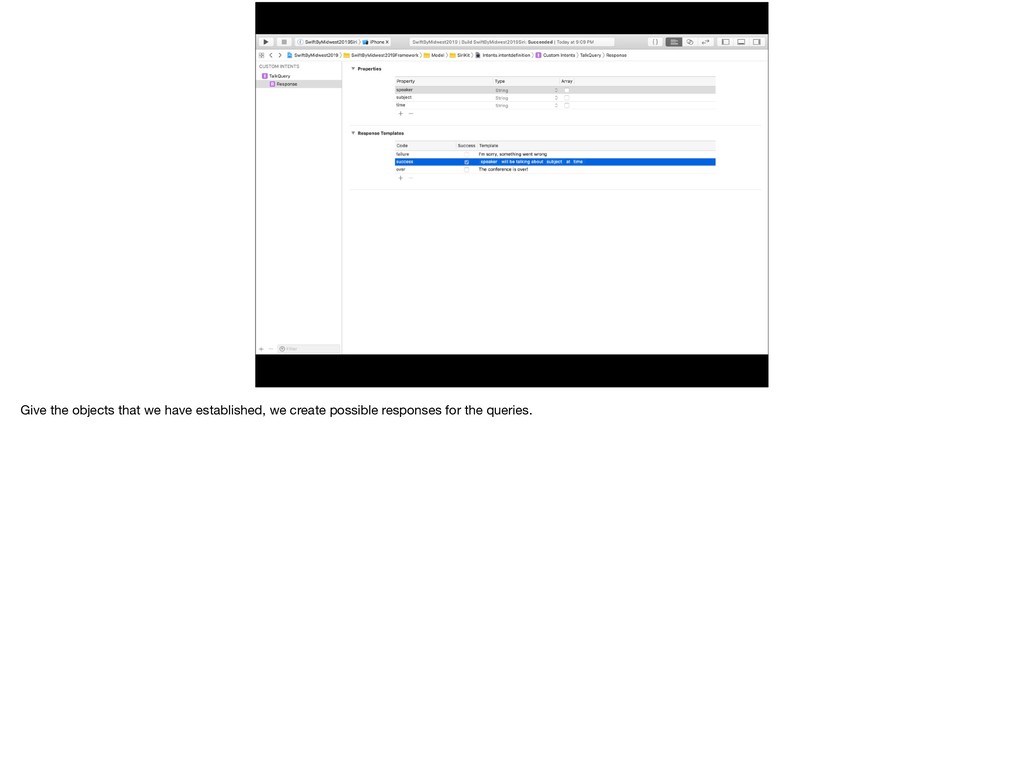
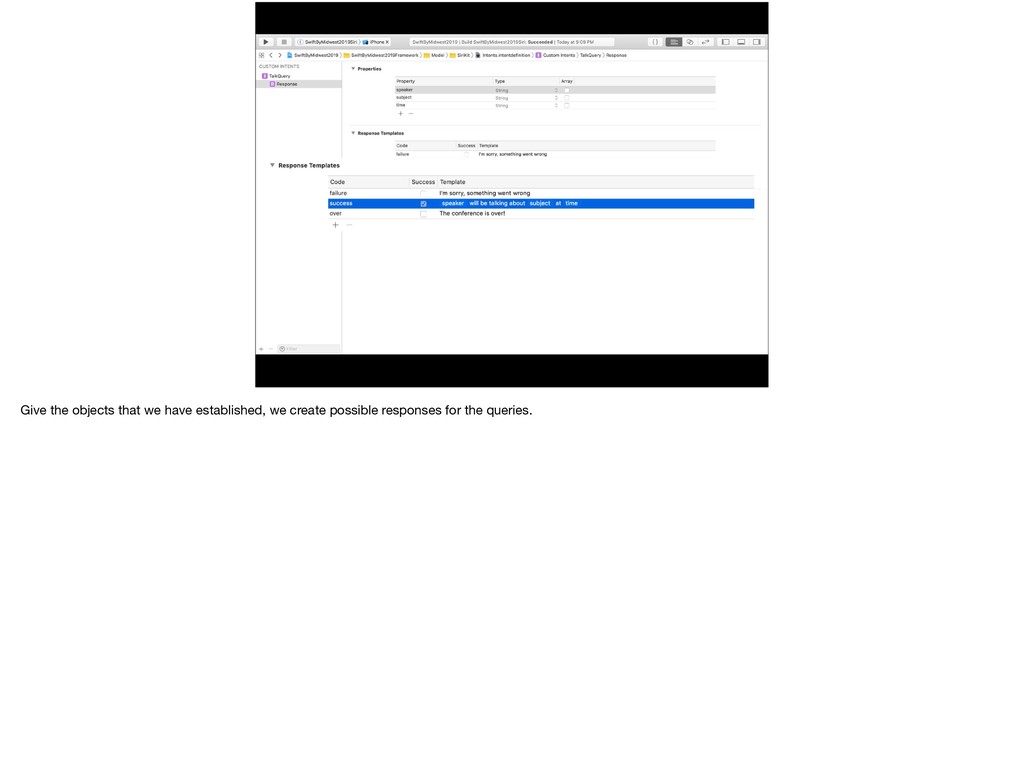
  143. Large as in LARGE Set Up the Intent Present the

    Intent Set Up the Response Handle the Intent Intent meet Handler Resolve the User Activity We’ve set up the Intent and presented a way for the user to add it to Siri. Now we need to set up the response to that Intent.
  144. Large as in LARGE Set Up the Intent Present the

    Intent Set Up the Response Handle the Intent Intent meet Handler Resolve the User Activity We’ve set up the Intent and presented a way for the user to add it to Siri. Now we need to set up the response to that Intent.
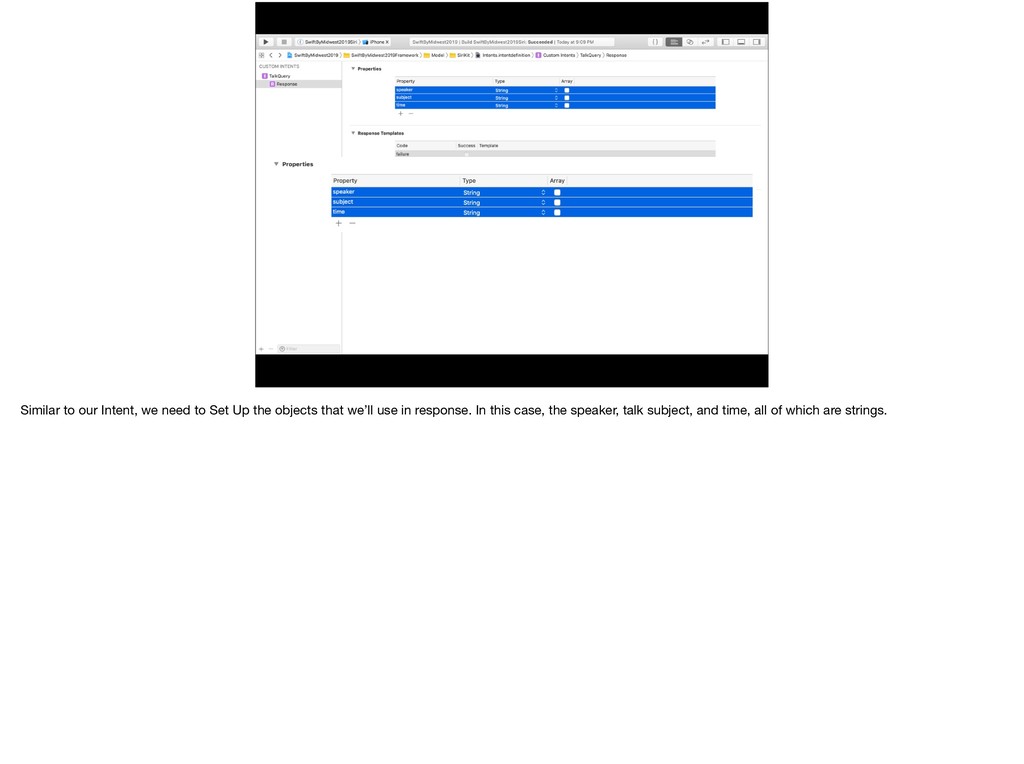
  145. Similar to our Intent, we need to Set Up the

    objects that we’ll use in response. In this case, the speaker, talk subject, and time, all of which are strings.
  146. Similar to our Intent, we need to Set Up the

    objects that we’ll use in response. In this case, the speaker, talk subject, and time, all of which are strings.
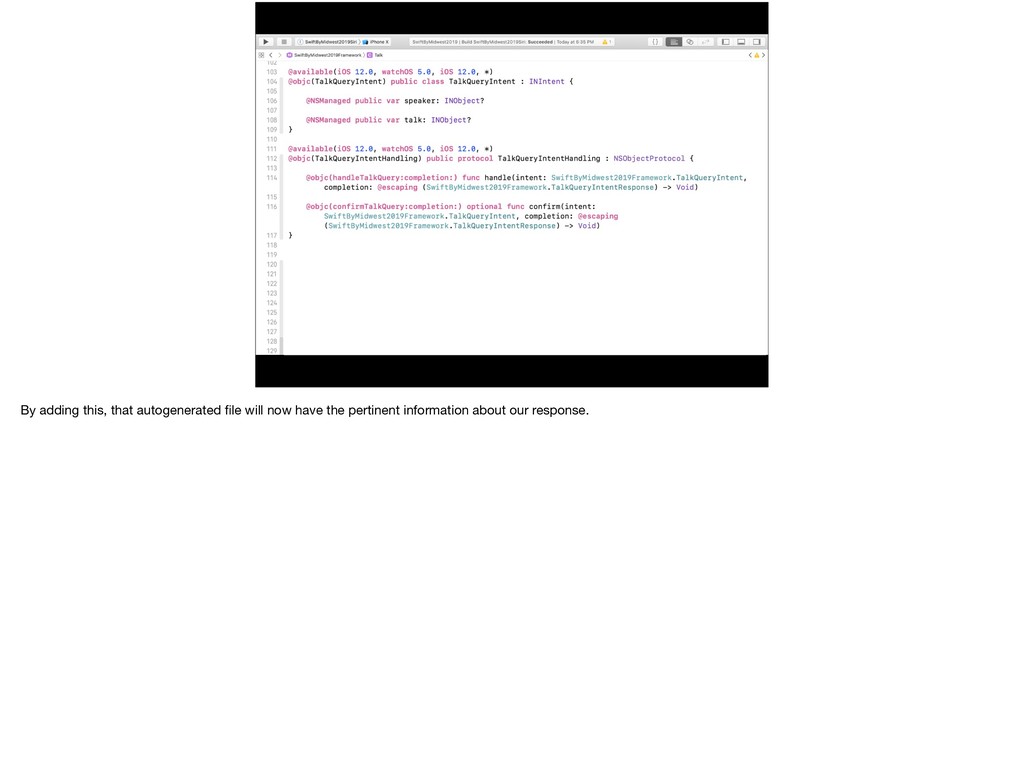
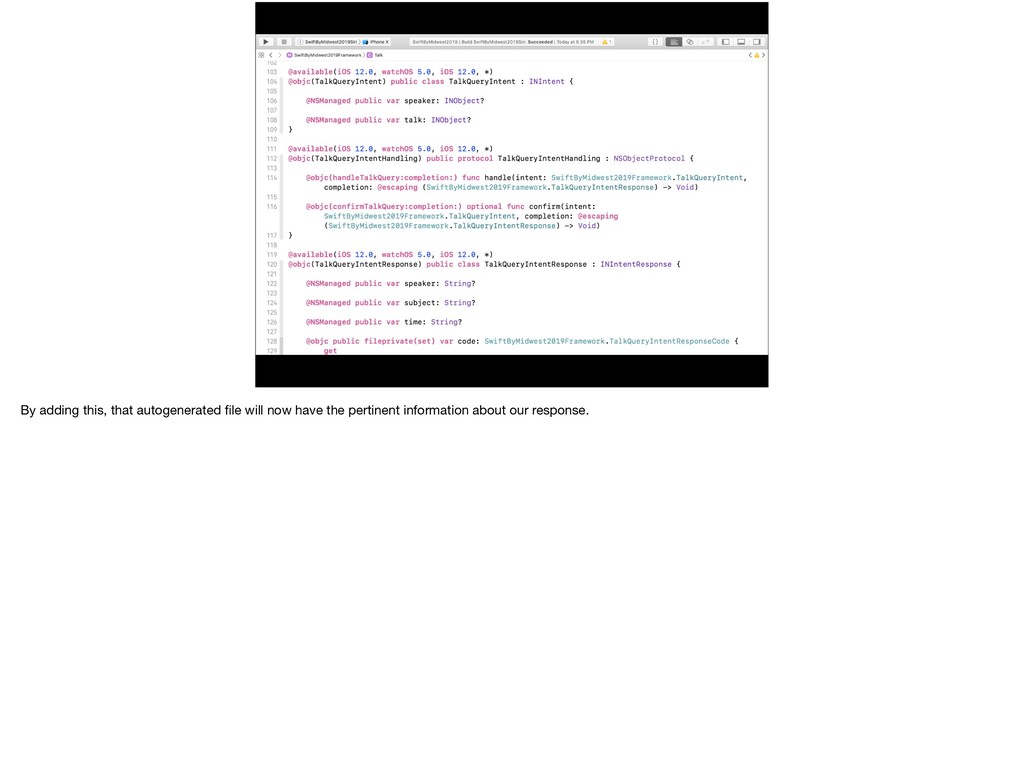
  147. By adding this, that autogenerated file will now have the

    pertinent information about our response.
  148. By adding this, that autogenerated file will now have the

    pertinent information about our response.
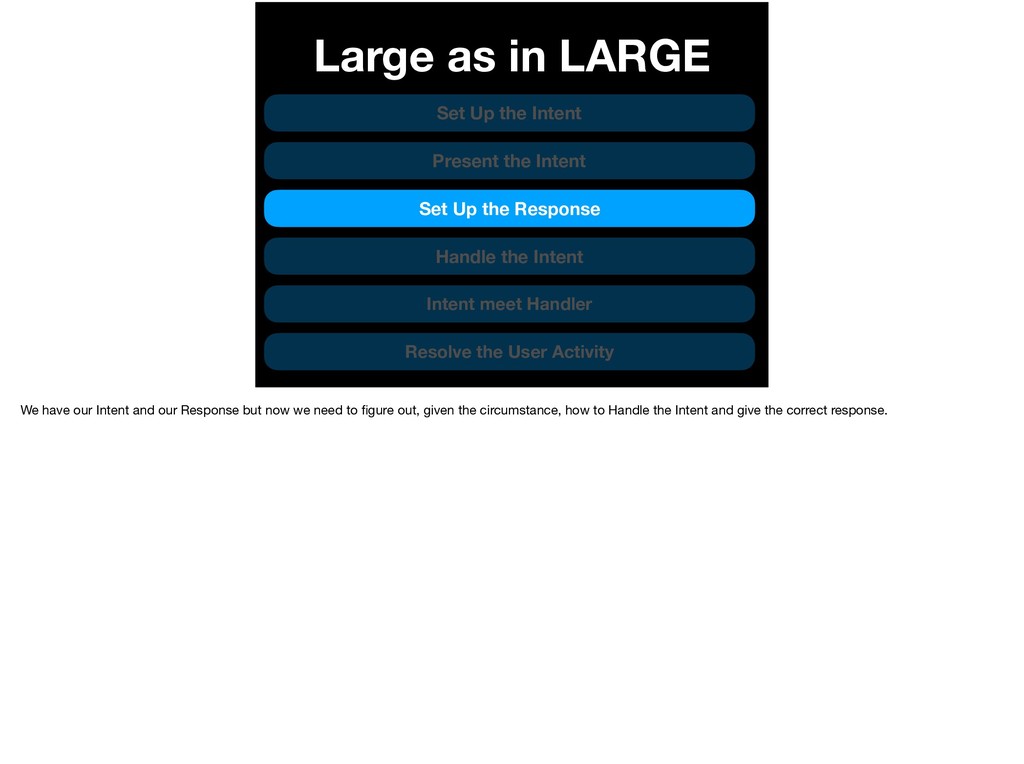
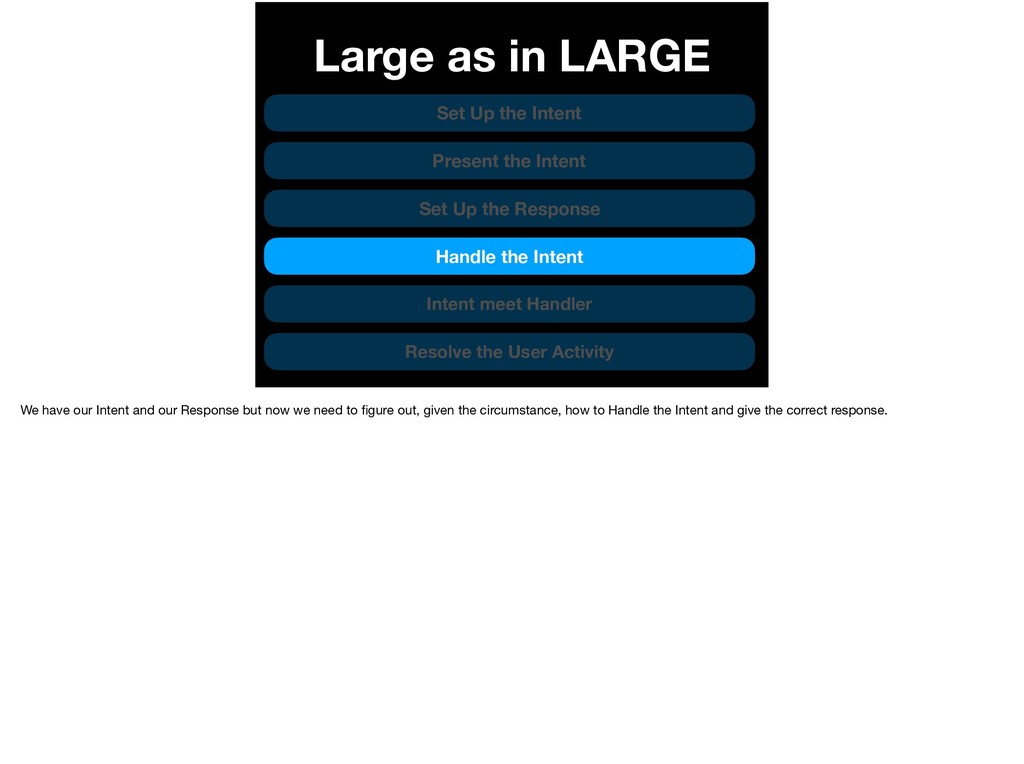
  149. Large as in LARGE Set Up the Intent Present the

    Intent Set Up the Response Handle the Intent Intent meet Handler Resolve the User Activity We have our Intent and our Response but now we need to figure out, given the circumstance, how to Handle the Intent and give the correct response.
  150. Large as in LARGE Set Up the Intent Present the

    Intent Set Up the Response Handle the Intent Intent meet Handler Resolve the User Activity We have our Intent and our Response but now we need to figure out, given the circumstance, how to Handle the Intent and give the correct response.
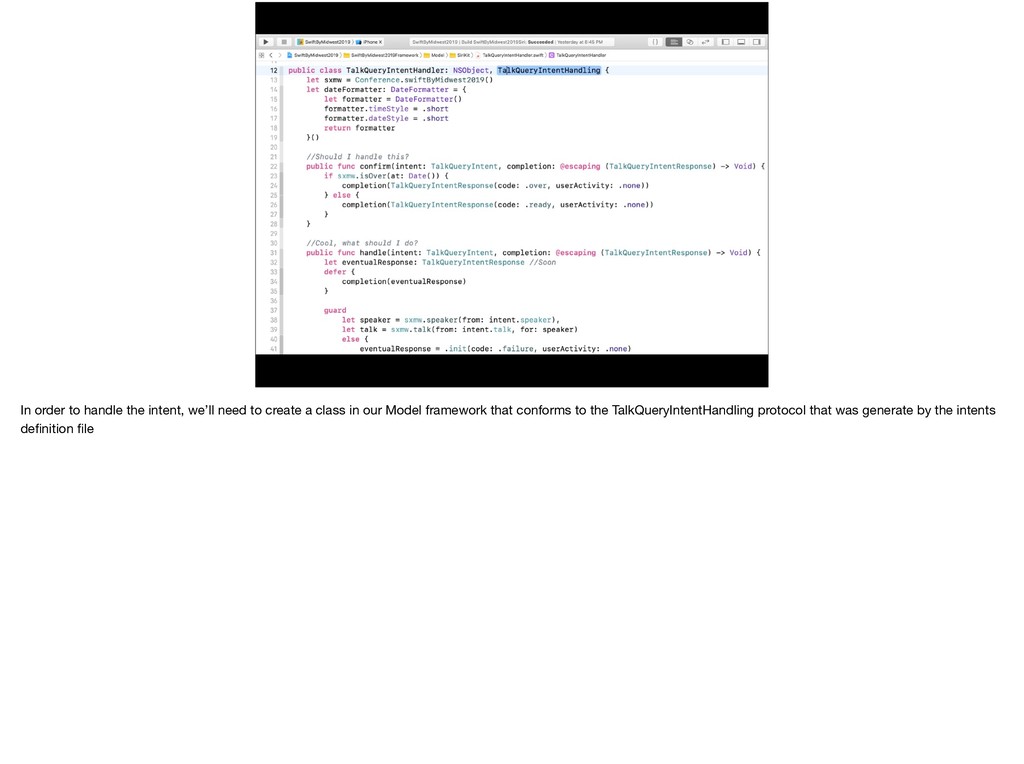
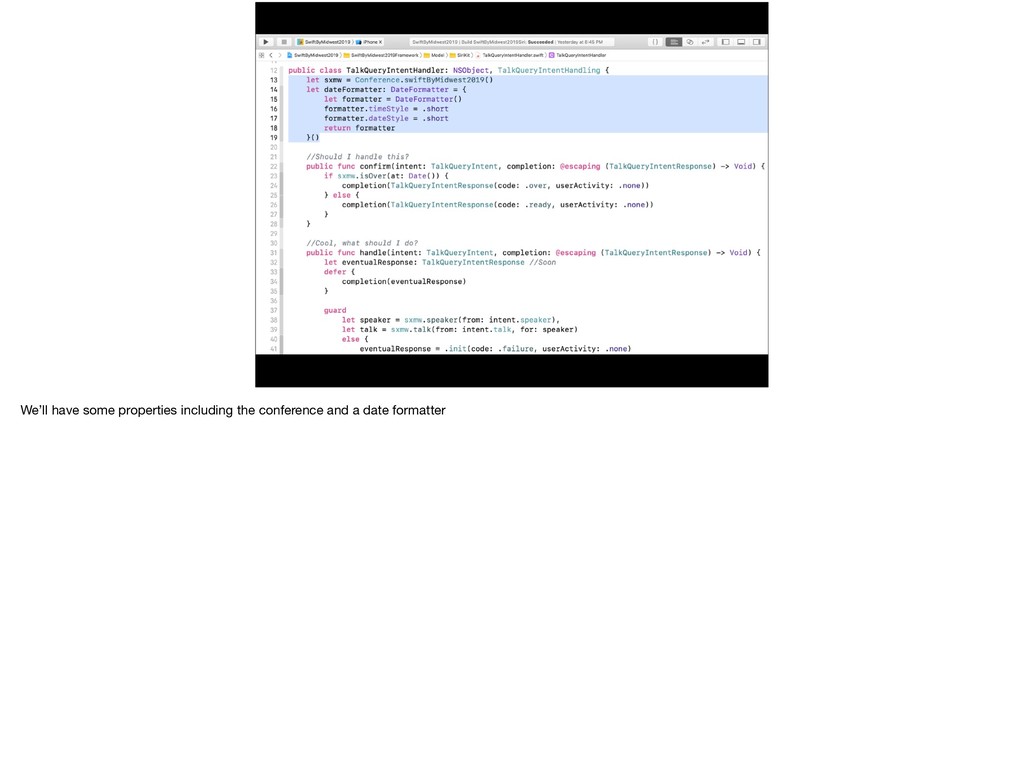
  151. In order to handle the intent, we’ll need to create

    a class in our Model framework that conforms to the TalkQueryIntentHandling protocol that was generate by the intents definition file
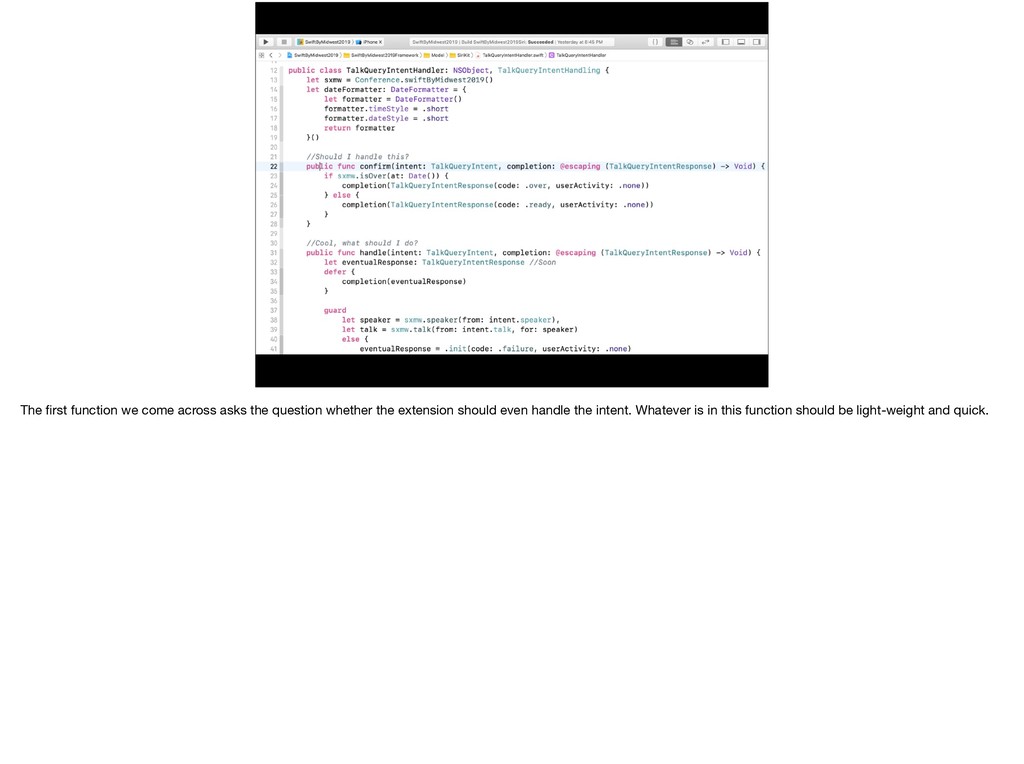
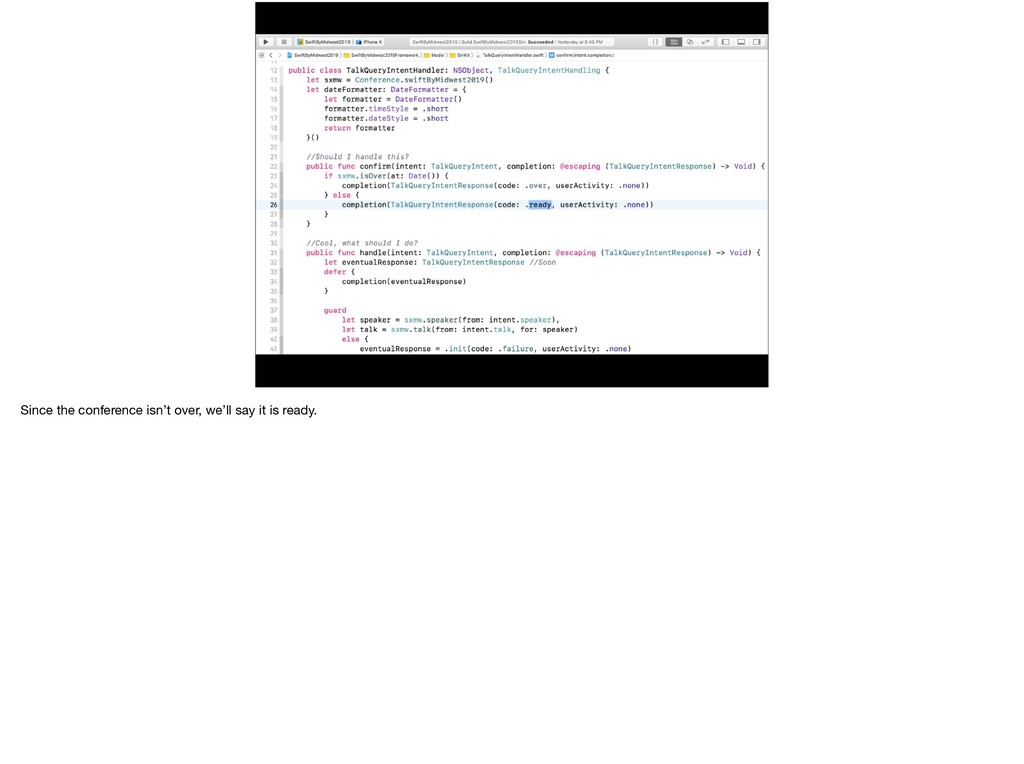
  152. The first function we come across asks the question whether

    the extension should even handle the intent. Whatever is in this function should be light-weight and quick.
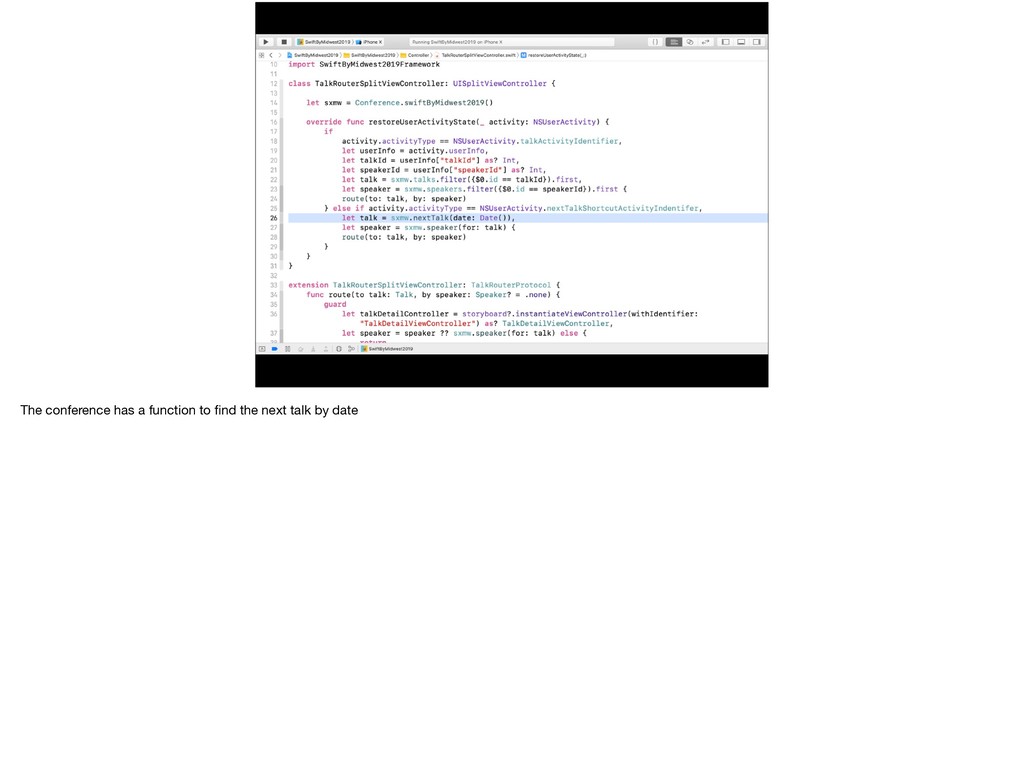
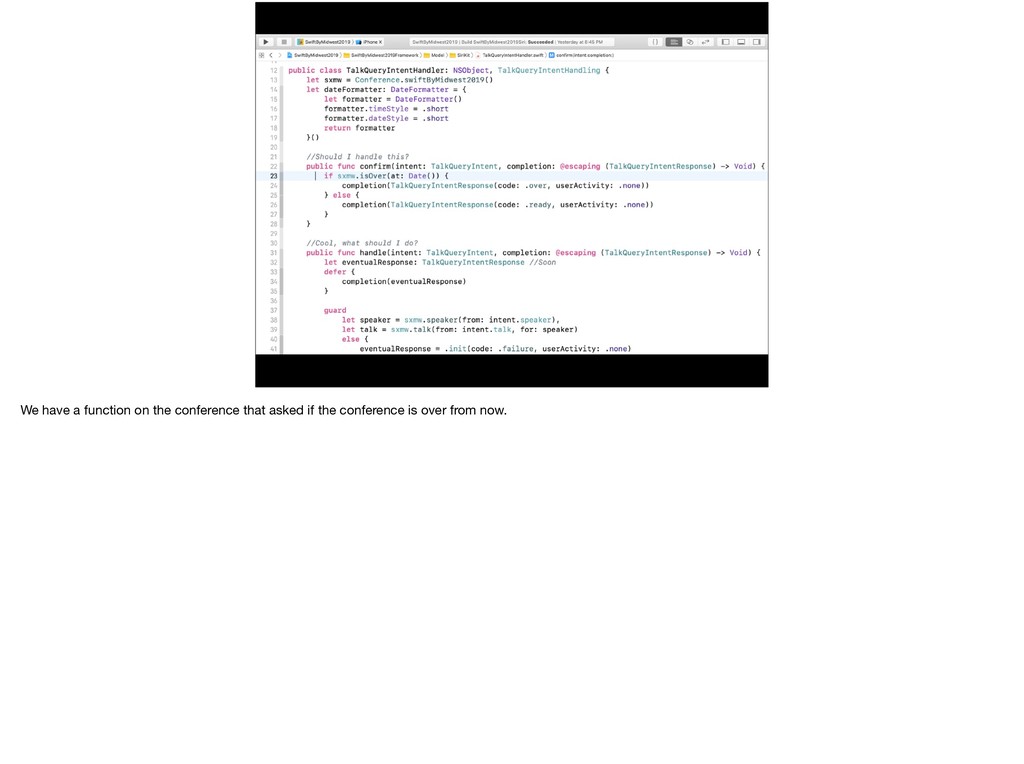
  153. We have a function on the conference that asked if

    the conference is over from now.
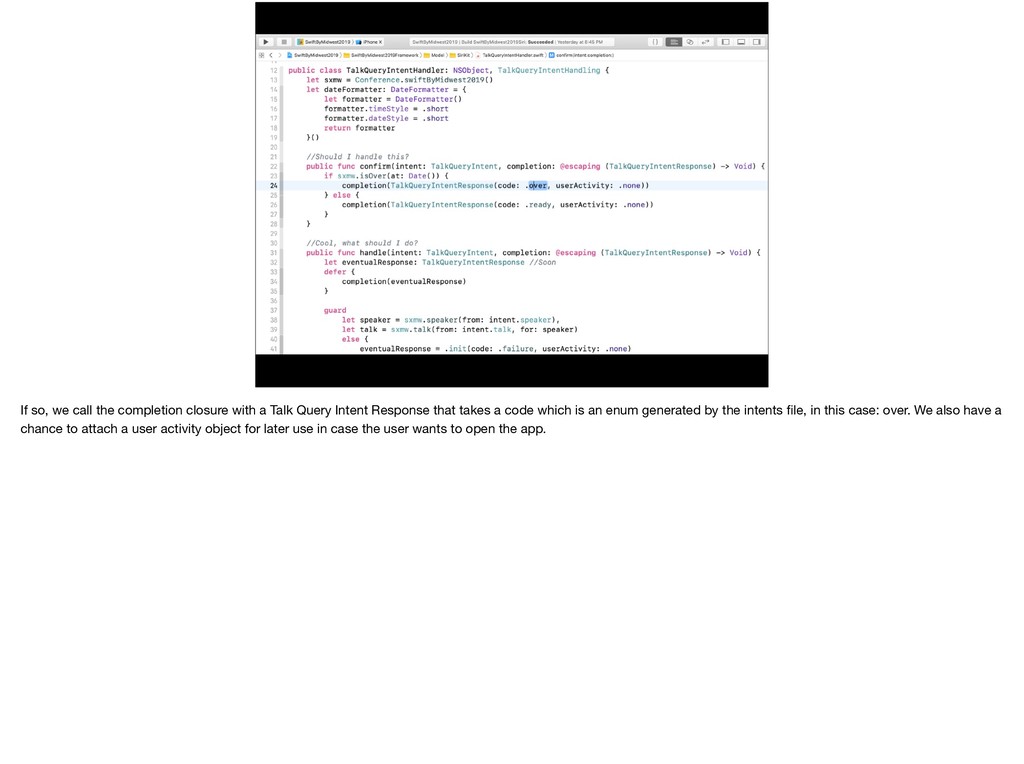
  154. If so, we call the completion closure with a Talk

    Query Intent Response that takes a code which is an enum generated by the intents file, in this case: over. We also have a chance to attach a user activity object for later use in case the user wants to open the app.
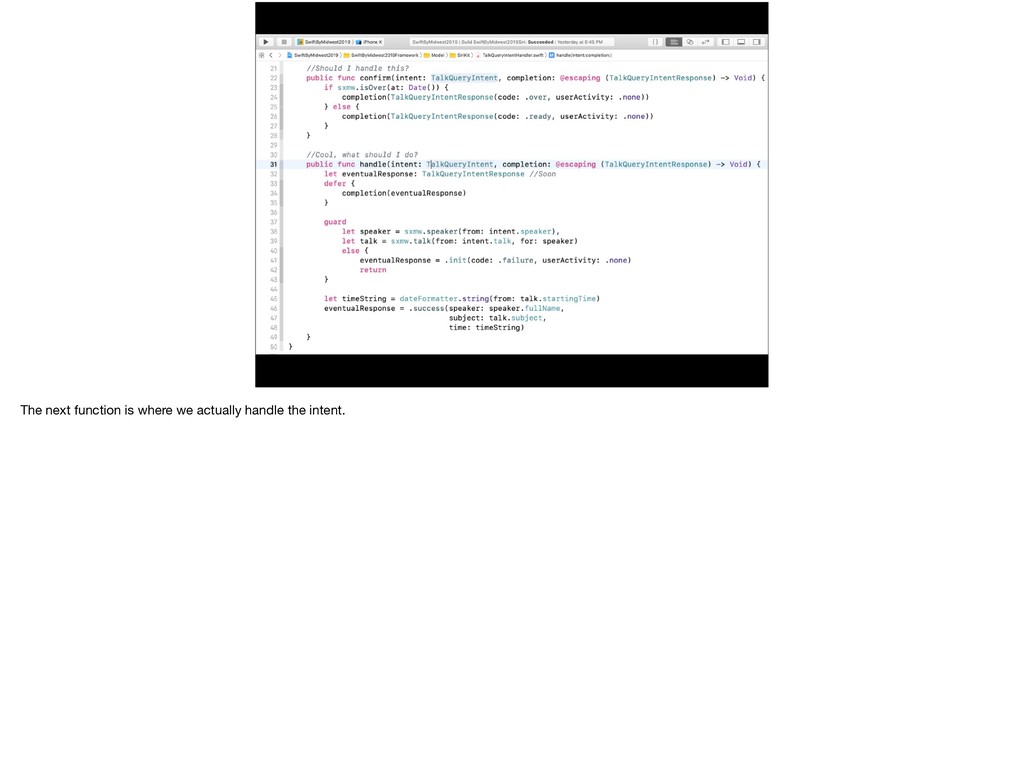
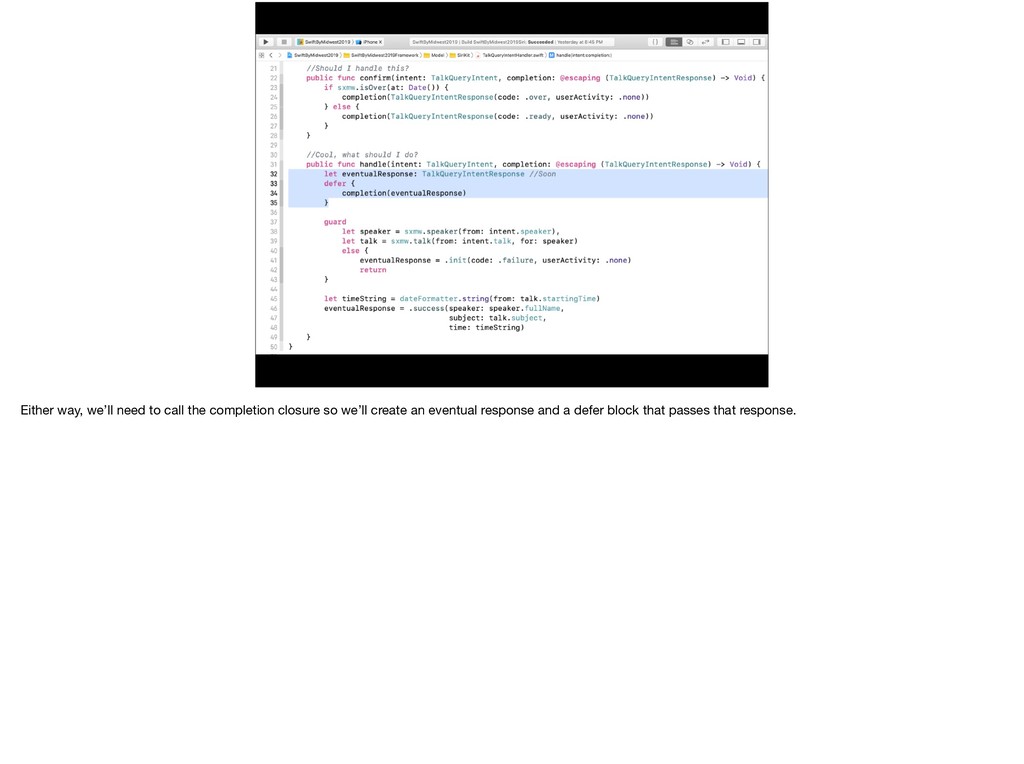
  155. Either way, we’ll need to call the completion closure so

    we’ll create an eventual response and a defer block that passes that response.
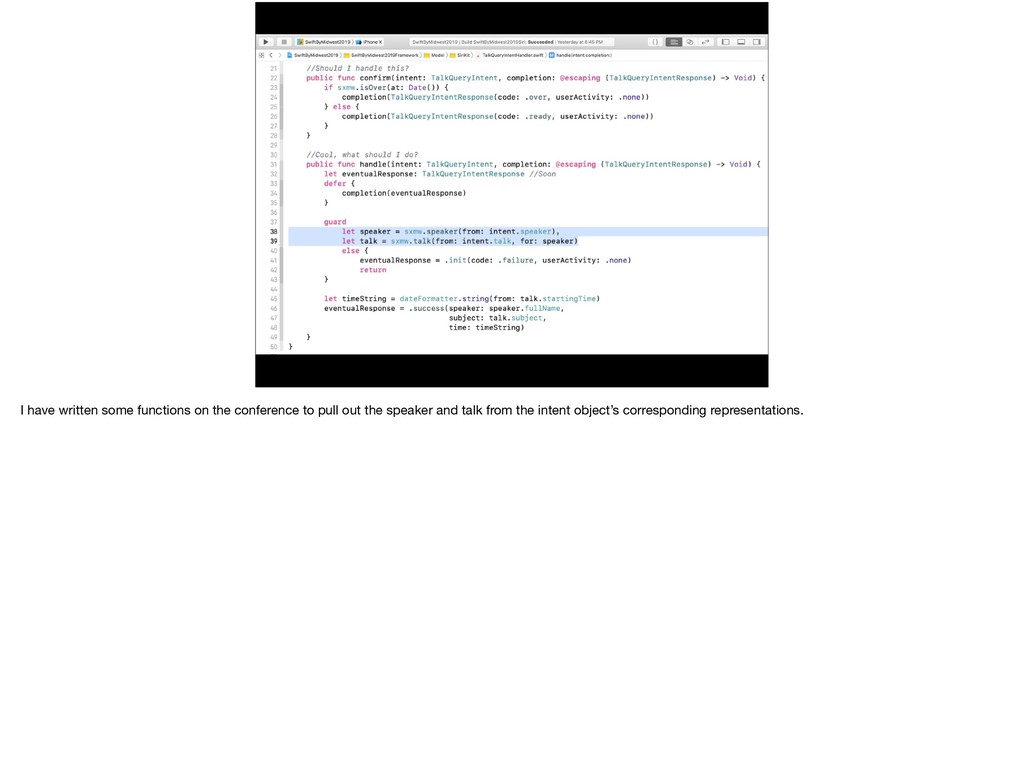
  156. I have written some functions on the conference to pull

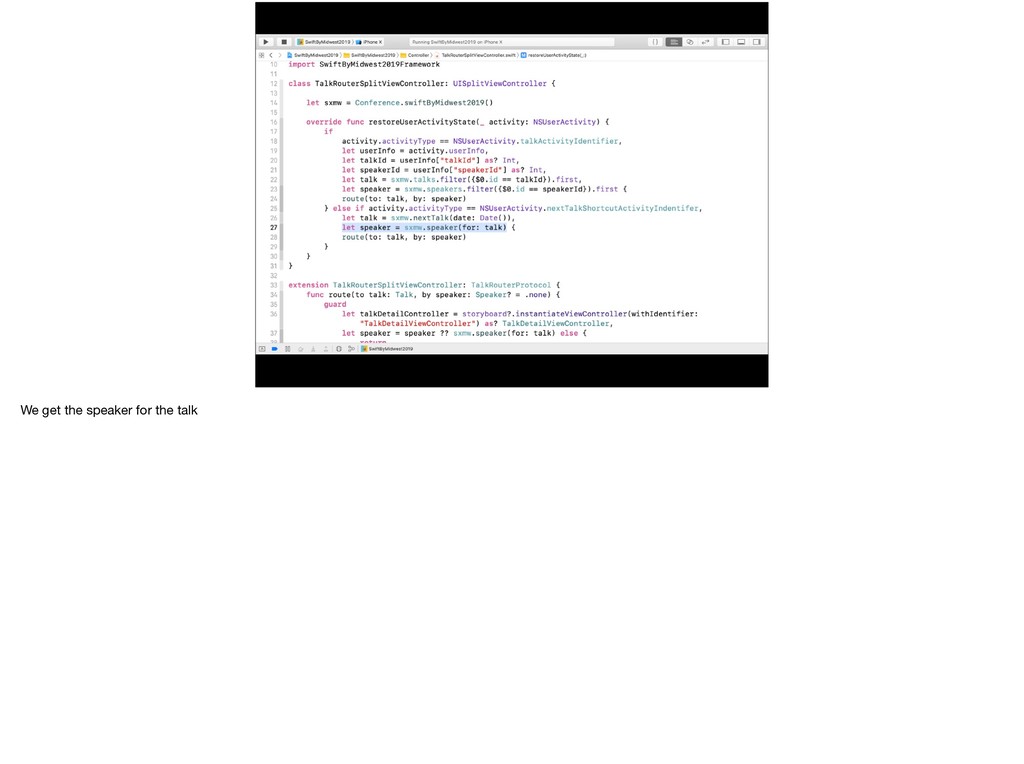
    out the speaker and talk from the intent object’s corresponding representations.
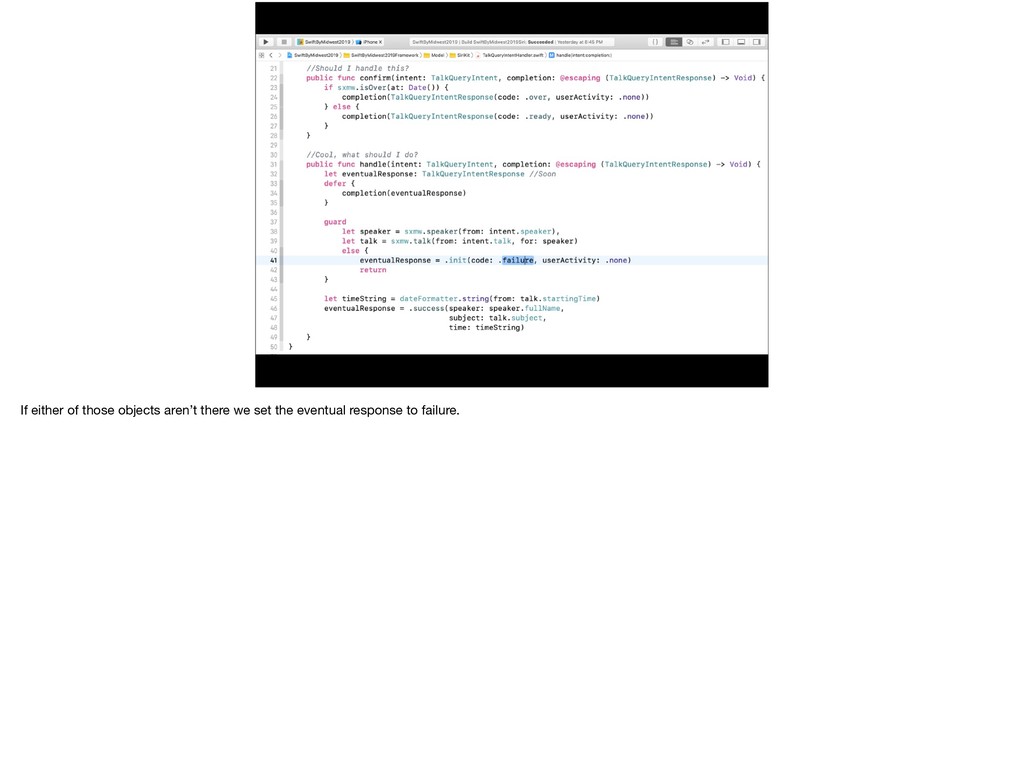
  157. We check if the intent object even exist and pull

    out the corresponding talk if that’s the case.
  158. But because it might not be because the speaker only

    has one talk, then we grab the first talk for that speaker.
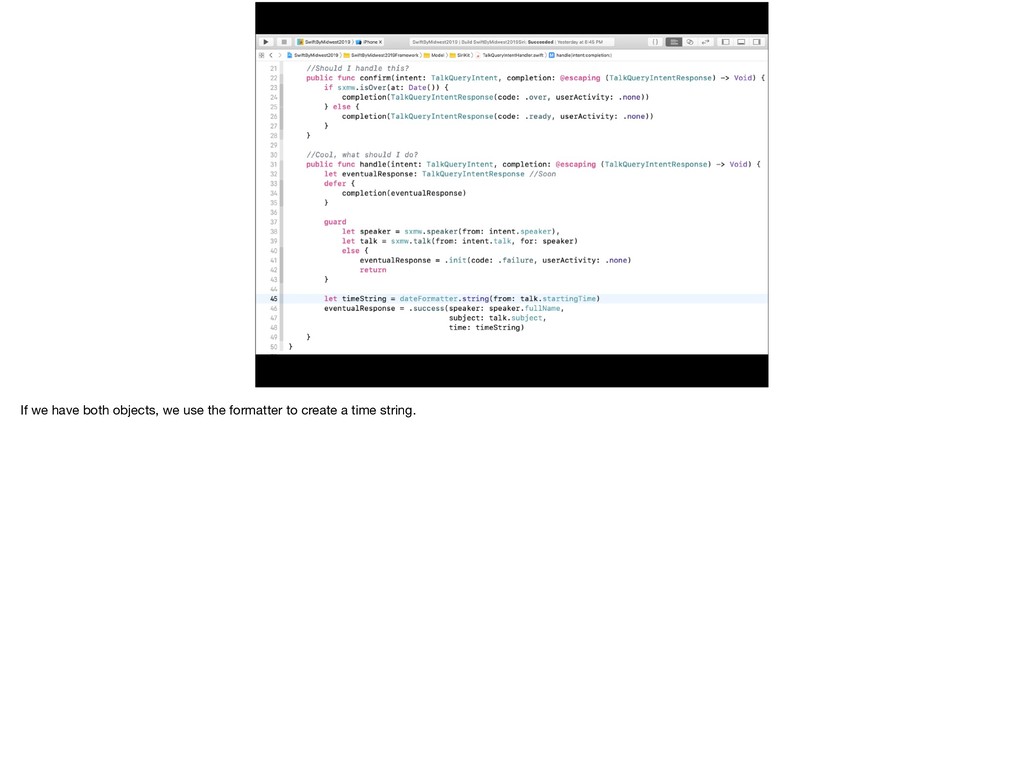
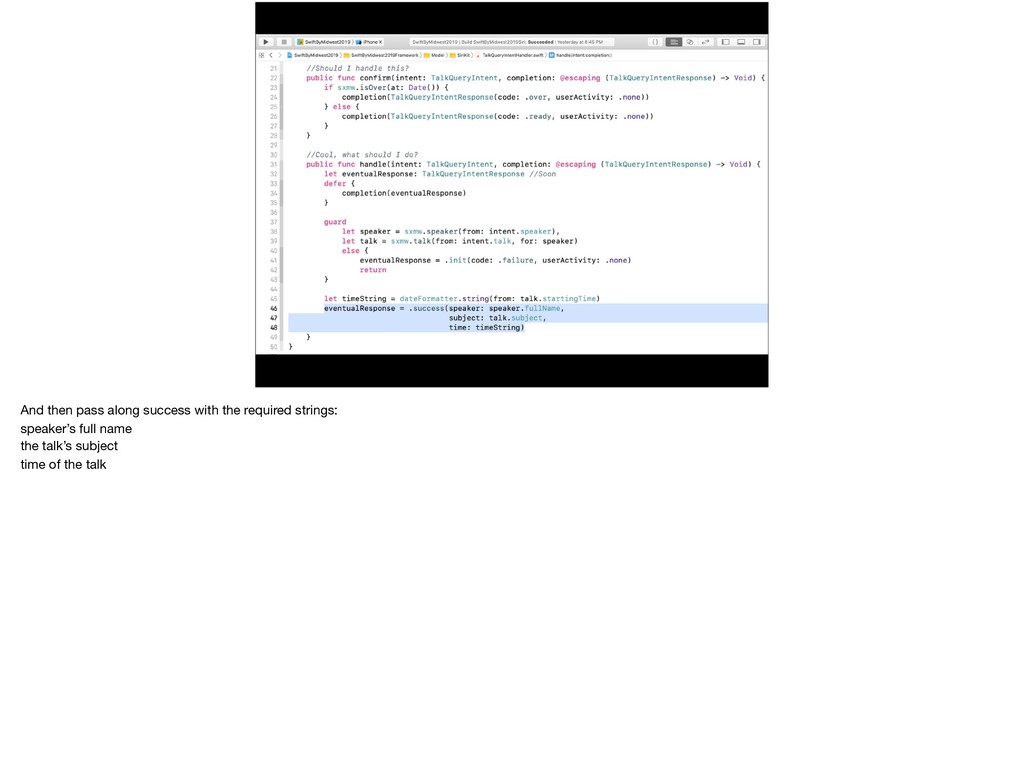
  159. And then pass along success with the required strings: speaker’s

    full name the talk’s subject time of the talk
  160. Large as in LARGE Set Up the Intent Present the

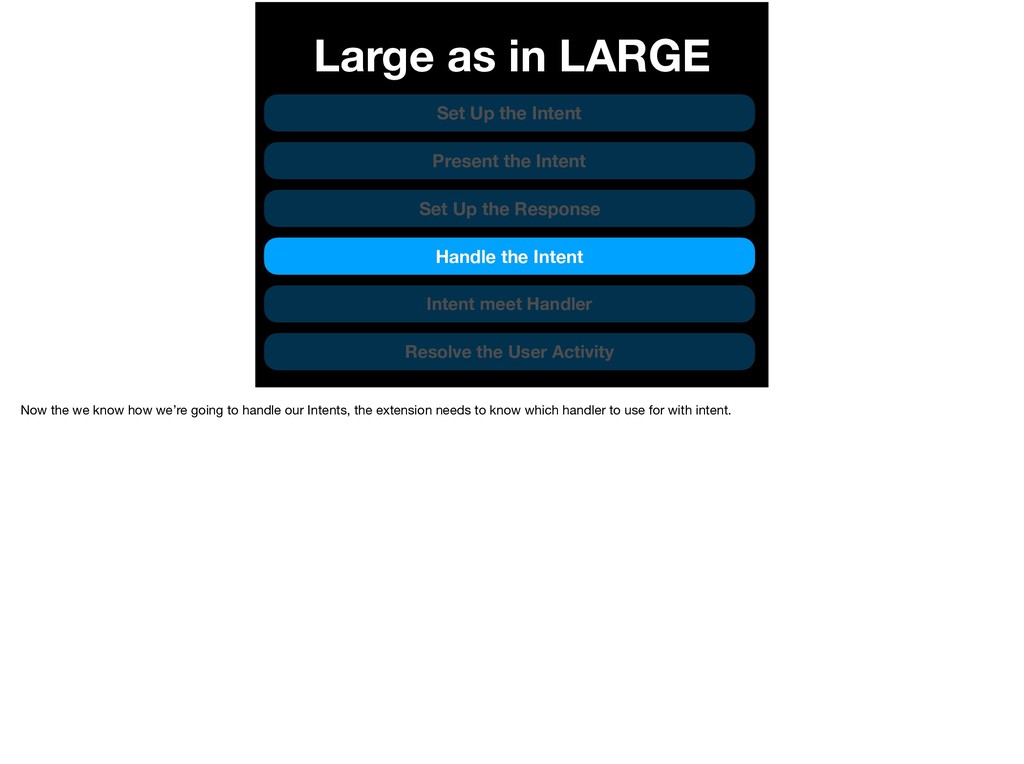
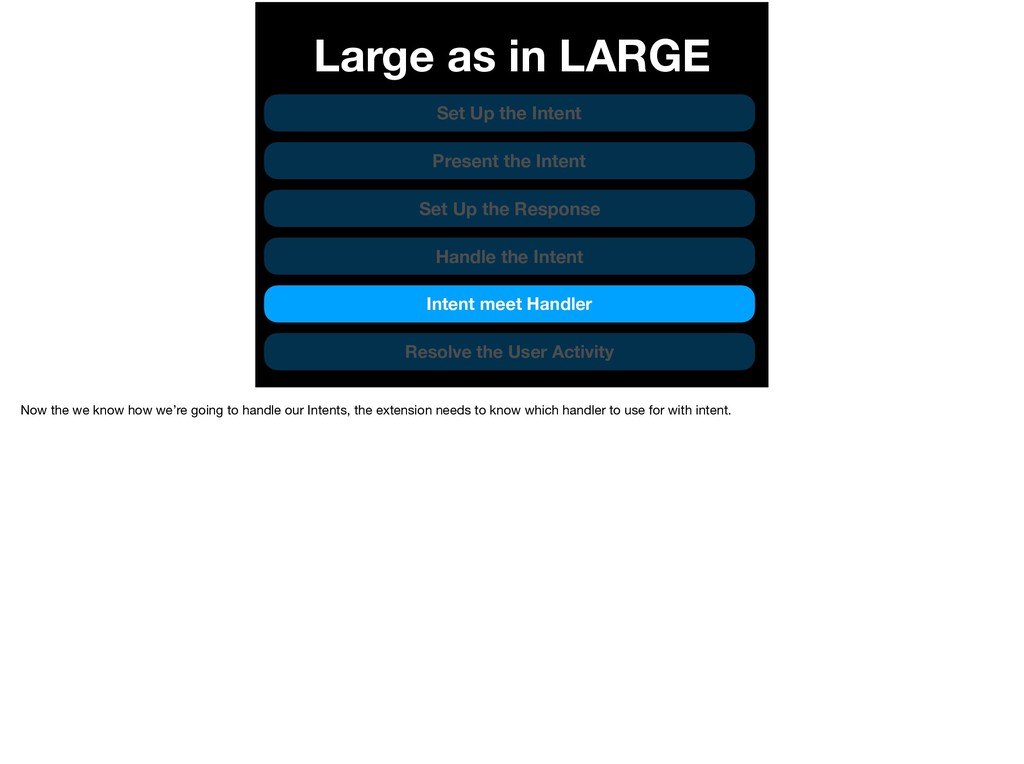
    Intent Set Up the Response Handle the Intent Intent meet Handler Resolve the User Activity Now the we know how we’re going to handle our Intents, the extension needs to know which handler to use for with intent.
  161. Large as in LARGE Set Up the Intent Present the

    Intent Set Up the Response Handle the Intent Intent meet Handler Resolve the User Activity Now the we know how we’re going to handle our Intents, the extension needs to know which handler to use for with intent.
  162. Remember that info.plist for the extension we saw? * We

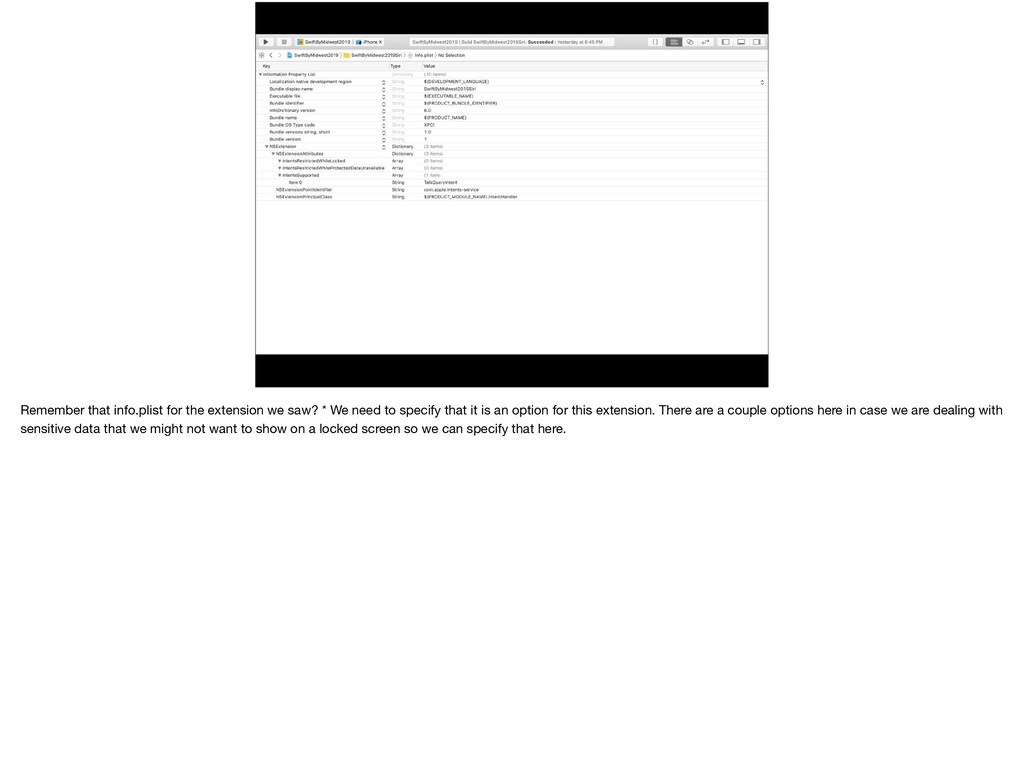
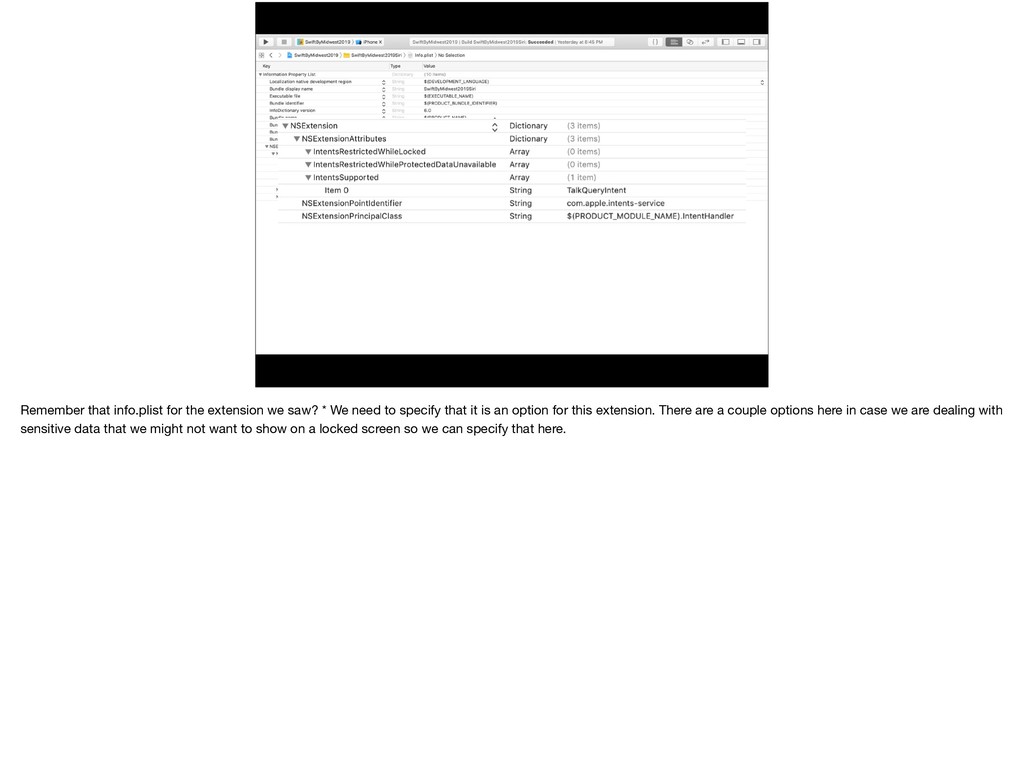
    need to specify that it is an option for this extension. There are a couple options here in case we are dealing with sensitive data that we might not want to show on a locked screen so we can specify that here.
  163. Remember that info.plist for the extension we saw? * We

    need to specify that it is an option for this extension. There are a couple options here in case we are dealing with sensitive data that we might not want to show on a locked screen so we can specify that here.
  164. For our extension to know which handler to execute for

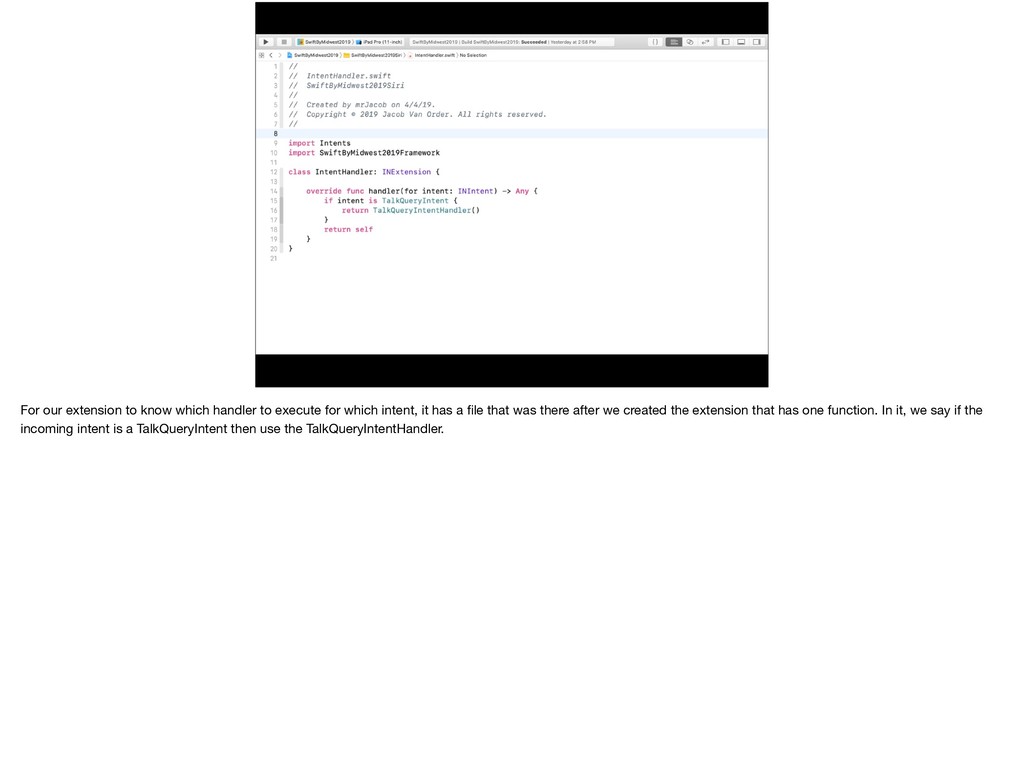
    which intent, it has a file that was there after we created the extension that has one function. In it, we say if the incoming intent is a TalkQueryIntent then use the TalkQueryIntentHandler.
  165. Now the Siri will know what to do. It will

    see which handler to use, whether it should respond, and which response to use. The result is a nice spoken response.
  166. Now the Siri will know what to do. It will

    see which handler to use, whether it should respond, and which response to use. The result is a nice spoken response.
  167. Large as in LARGE Set Up the Intent Present the

    Intent Set Up the Response Handle the Intent Intent meet Handler Resolve the User Activity If the user were to tap on that UI in Siri, though, how does the app handle that? It turns out, it’s very similar to what we set up before.
  168. Large as in LARGE Set Up the Intent Present the

    Intent Set Up the Response Handle the Intent Intent meet Handler Resolve the User Activity If the user were to tap on that UI in Siri, though, how does the app handle that? It turns out, it’s very similar to what we set up before.
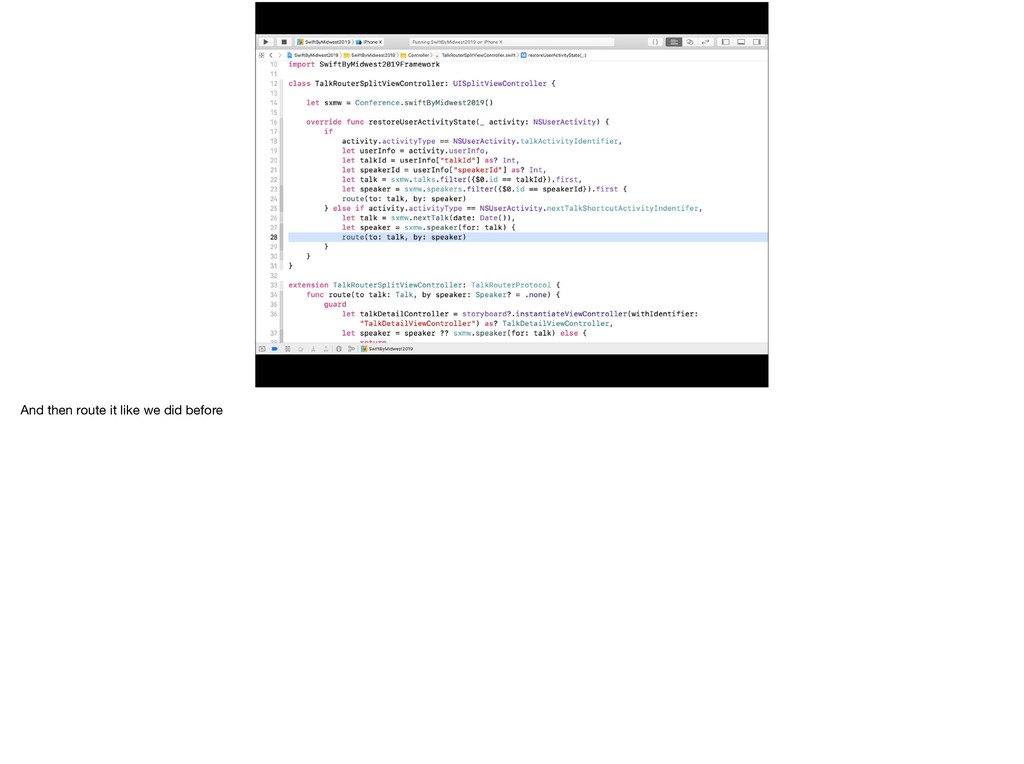
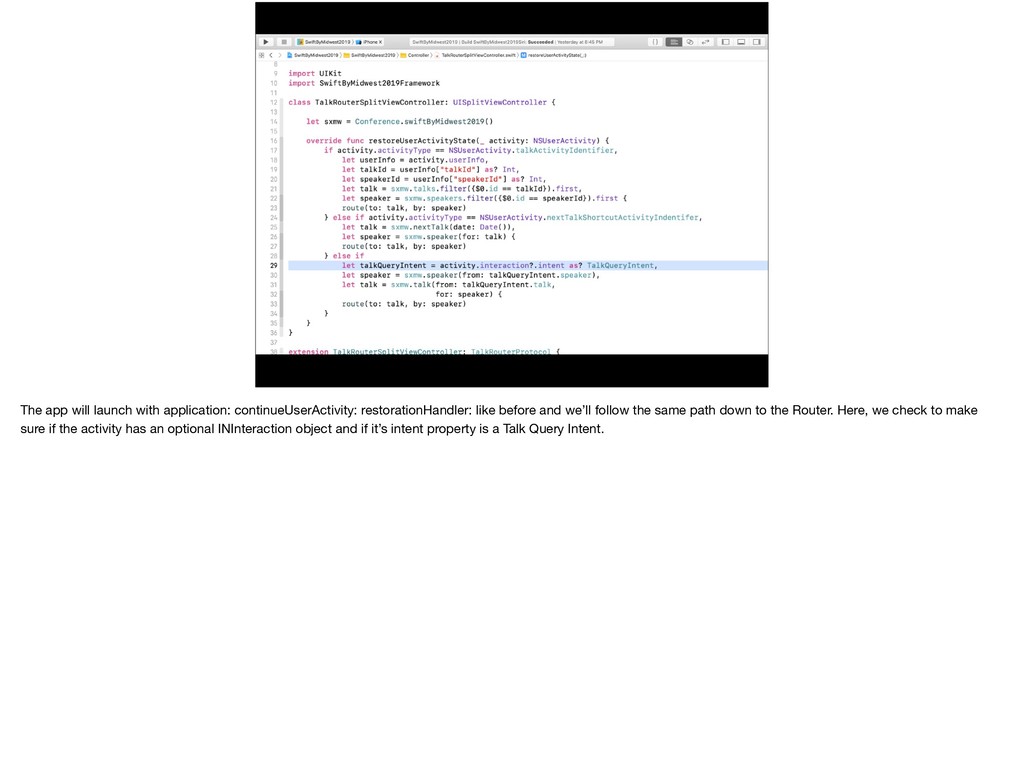
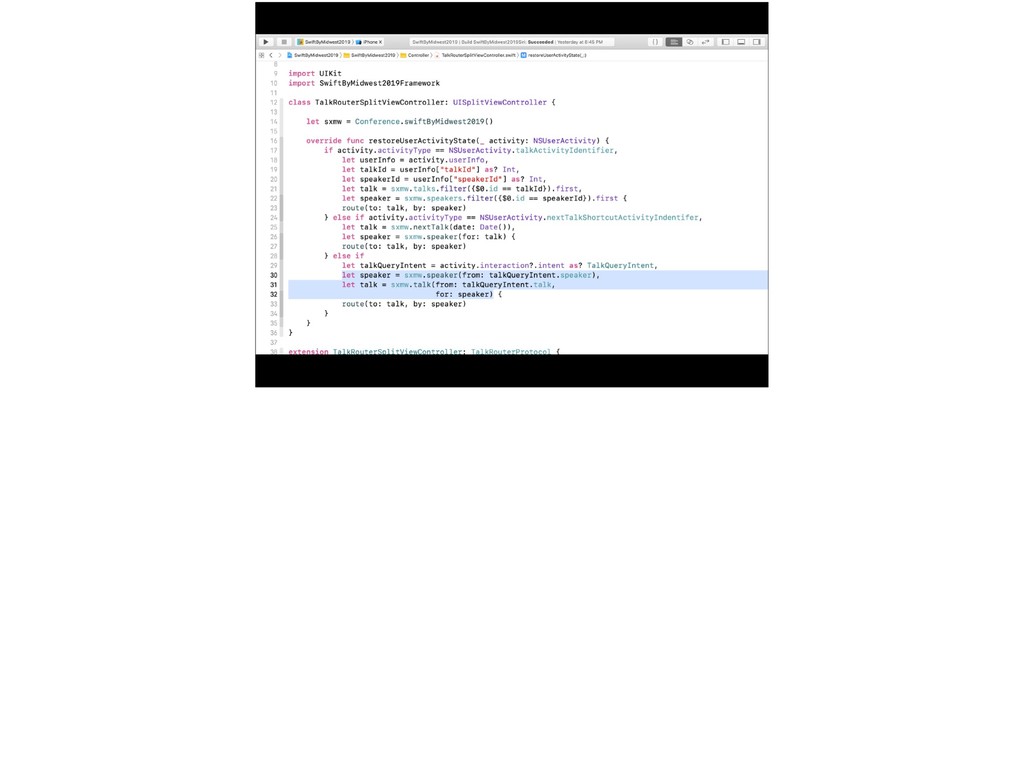
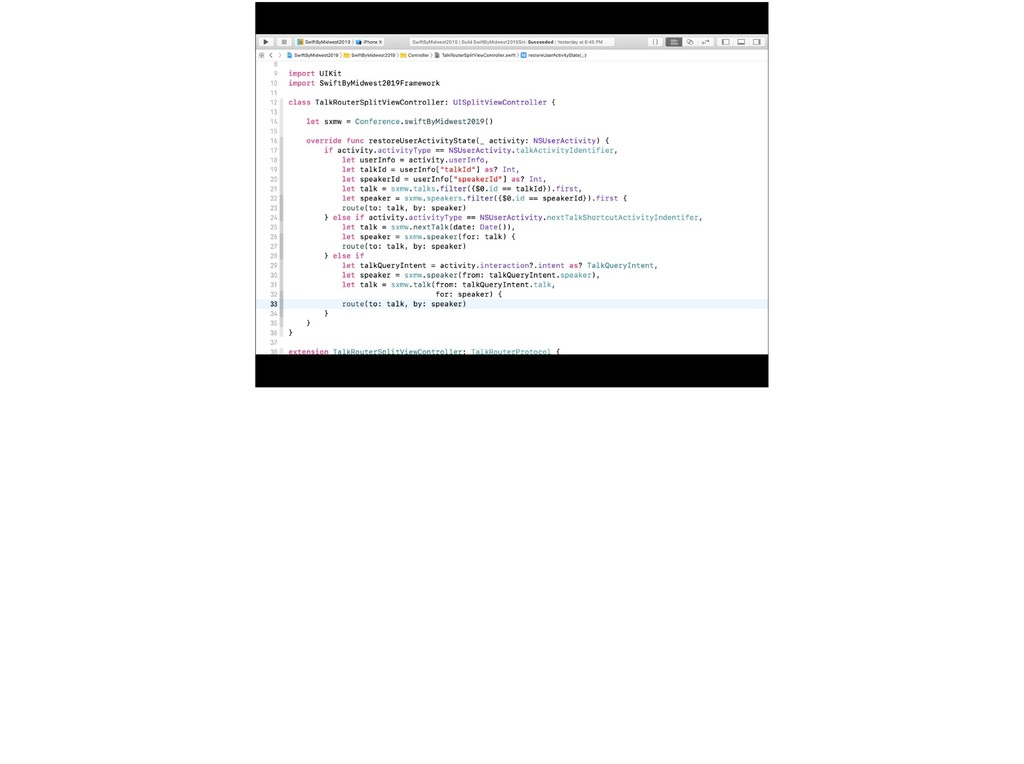
  169. The app will launch with application: continueUserActivity: restorationHandler: like before

    and we’ll follow the same path down to the Router. Here, we check to make sure if the activity has an optional INInteraction object and if it’s intent property is a Talk Query Intent.
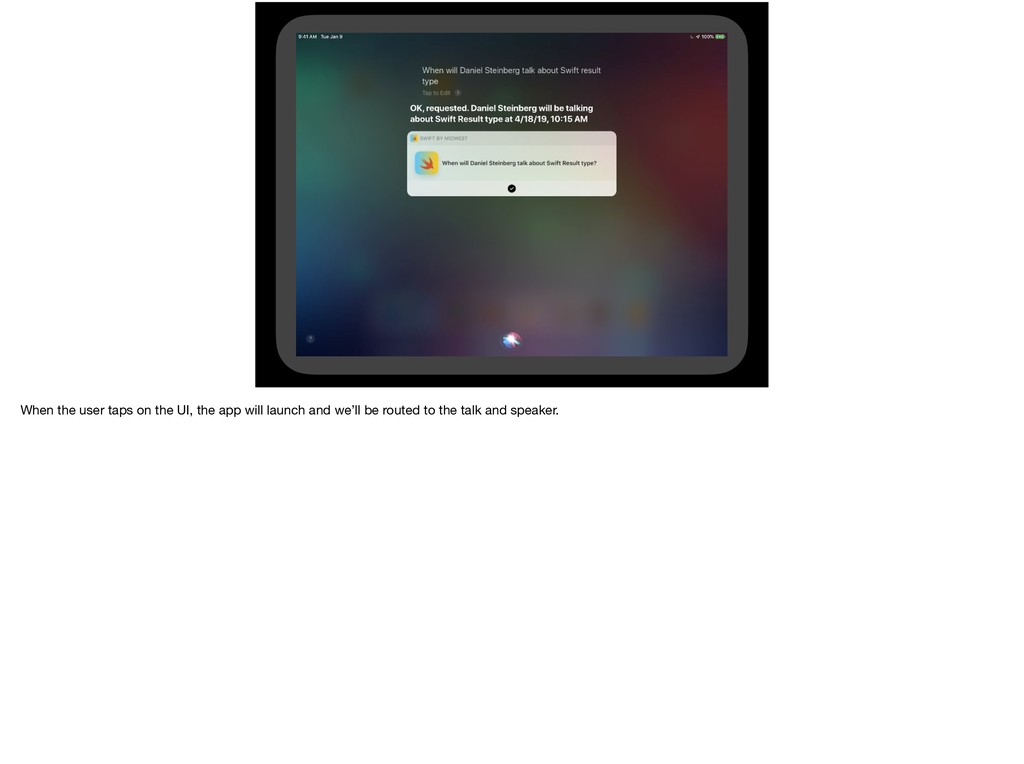
  170. When the user taps on the UI, the app will

    launch and we’ll be routed to the talk and speaker.
  171. When the user taps on the UI, the app will

    launch and we’ll be routed to the talk and speaker.
  172. Localization • Make sure to localize your Intents Definition file

    -Different syntax of
 When will ${speaker} talk about ${talk}? • After you localize, check the target membership settings for the Intents Definition file as Xcode will change these for no good reason
  173. Overview • Create Intent Extension • 6 steps -Set Up

    Intent -Present the Intent -Set Up the Response -Handle the Intent -Intent meet Handler -Resolve the User Activity
  174. “Large” Easy for
 You Easy for
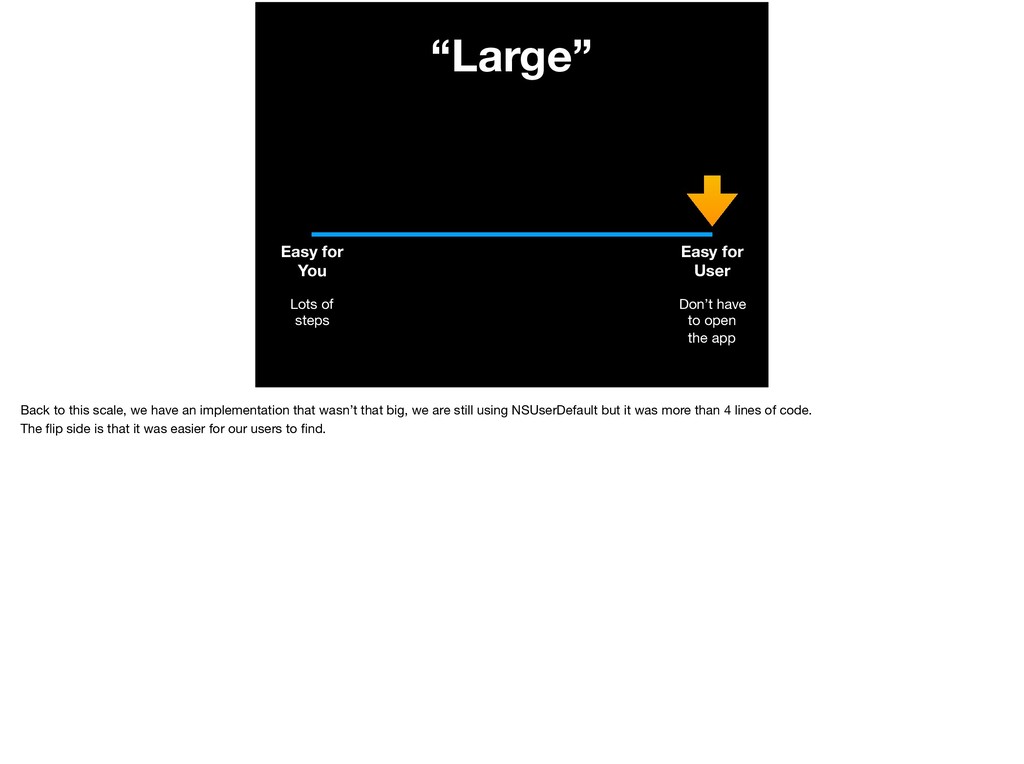
 User Lots of steps

    Don’t have to open the app Back to this scale, we have an implementation that wasn’t that big, we are still using NSUserDefault but it was more than 4 lines of code. The flip side is that it was easier for our users to find.
  175. Water Fact! A properly hydrated body is shown to function

    more complex tasks than a dehydrated body. It helps in improving the mood, boosting memory, reducing the frequency of headaches, and improving brain function. If the body experiences fluid loss, it can lead to anxiety and excessive fatigue. https://www.organicfacts.net/health-benefits/other/health-benefits-of-drinking-water.html
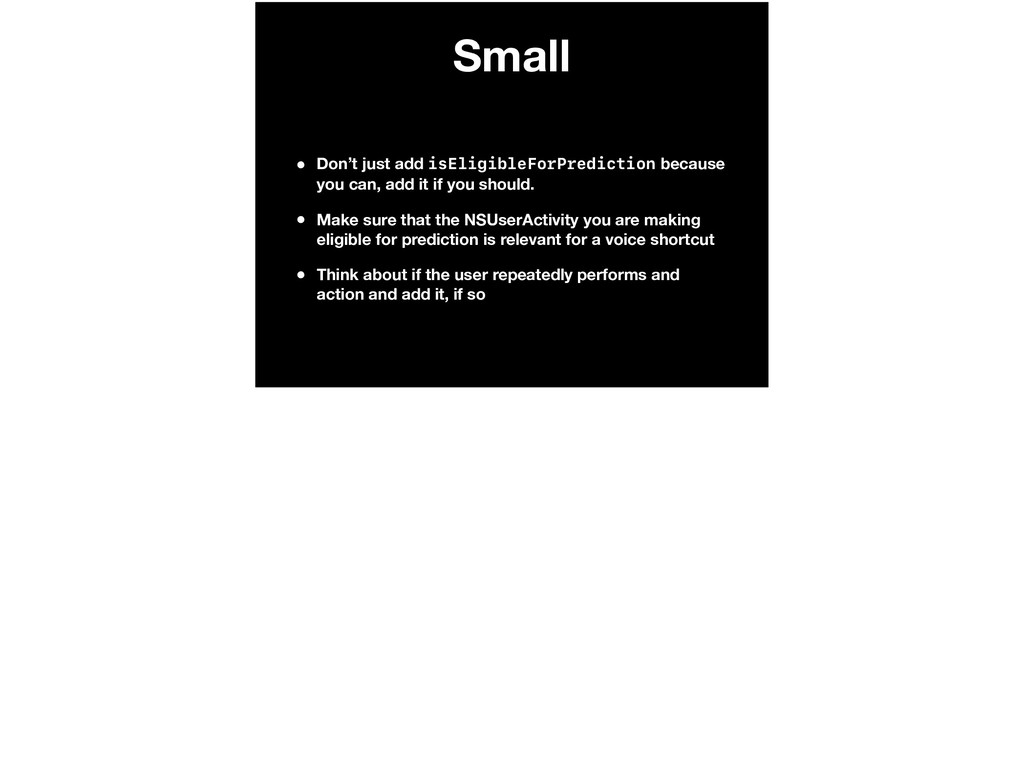
  176. Small • Don’t just add isEligibleForPrediction because you can, add

    it if you should. • Make sure that the NSUserActivity you are making eligible for prediction is relevant for a voice shortcut • Think about if the user repeatedly performs and action and add it, if so
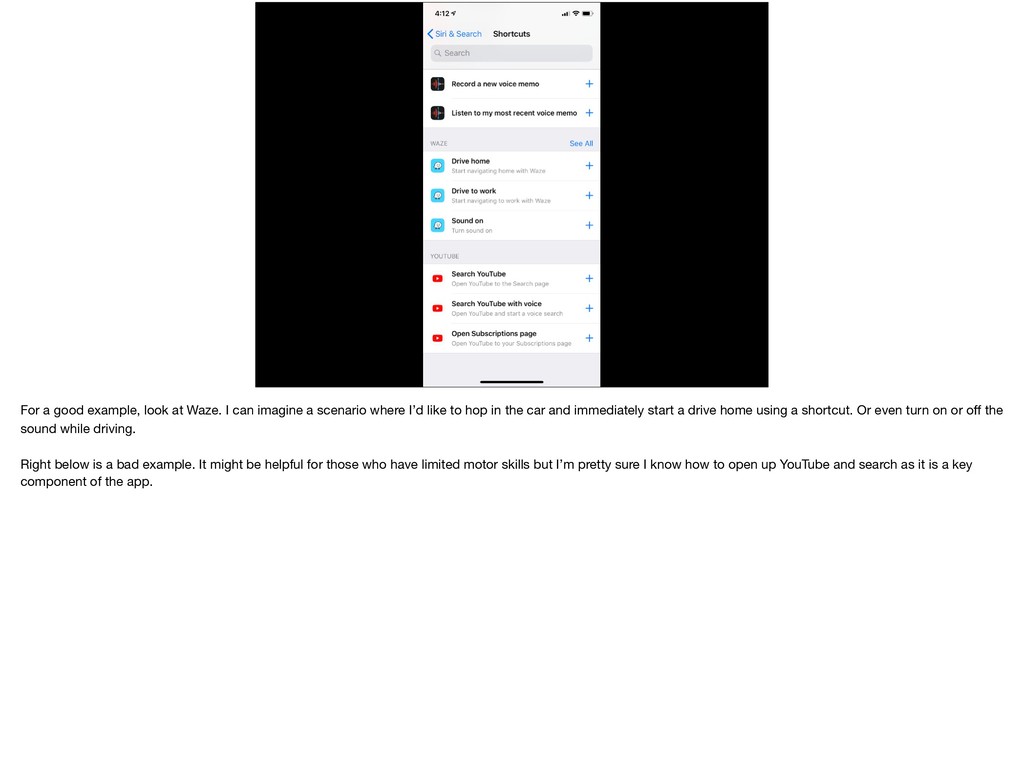
  177. For a good example, look at Waze. I can imagine

    a scenario where I’d like to hop in the car and immediately start a drive home using a shortcut. Or even turn on or off the sound while driving. Right below is a bad example. It might be helpful for those who have limited motor skills but I’m pretty sure I know how to open up YouTube and search as it is a key component of the app.
  178. For a good example, look at Waze. I can imagine

    a scenario where I’d like to hop in the car and immediately start a drive home using a shortcut. Or even turn on or off the sound while driving. Right below is a bad example. It might be helpful for those who have limited motor skills but I’m pretty sure I know how to open up YouTube and search as it is a key component of the app.
  179. For a good example, look at Waze. I can imagine

    a scenario where I’d like to hop in the car and immediately start a drive home using a shortcut. Or even turn on or off the sound while driving. Right below is a bad example. It might be helpful for those who have limited motor skills but I’m pretty sure I know how to open up YouTube and search as it is a key component of the app.
  180. Medium • Think about functionality that is deep in your

    app’s User flow diagram and is widely loved. Try to create a shortcut to that. • Be clear in your explanation of why you need SiriKit permissions in your info.plist
  181. Large • Design the shortcuts with the limitations in mind

    • Think about asking Siri on a HomePod a question and what kind of response you’d get with no visual indicators • In your handler, you may use asynchronous calls (network, location, database queries, etc…) but keep them limited
  182. All • Think about whether the SiriKit feature you’re about

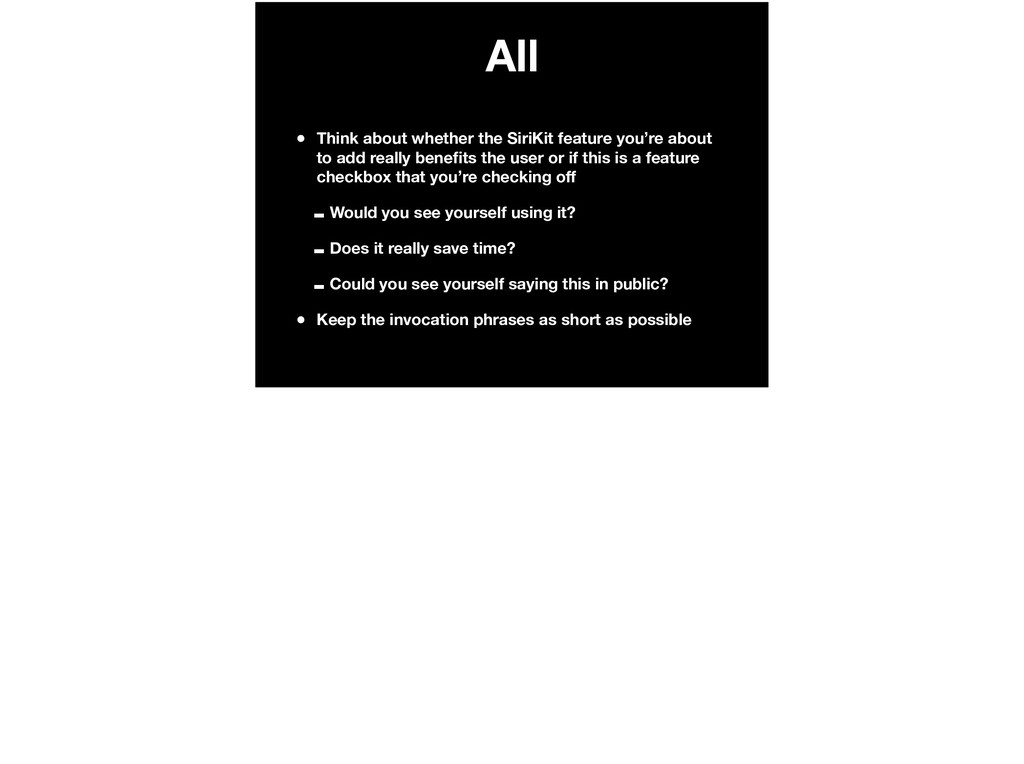
    to add really benefits the user or if this is a feature checkbox that you’re checking off -Would you see yourself using it? -Does it really save time? -Could you see yourself saying this in public? • Keep the invocation phrases as short as possible
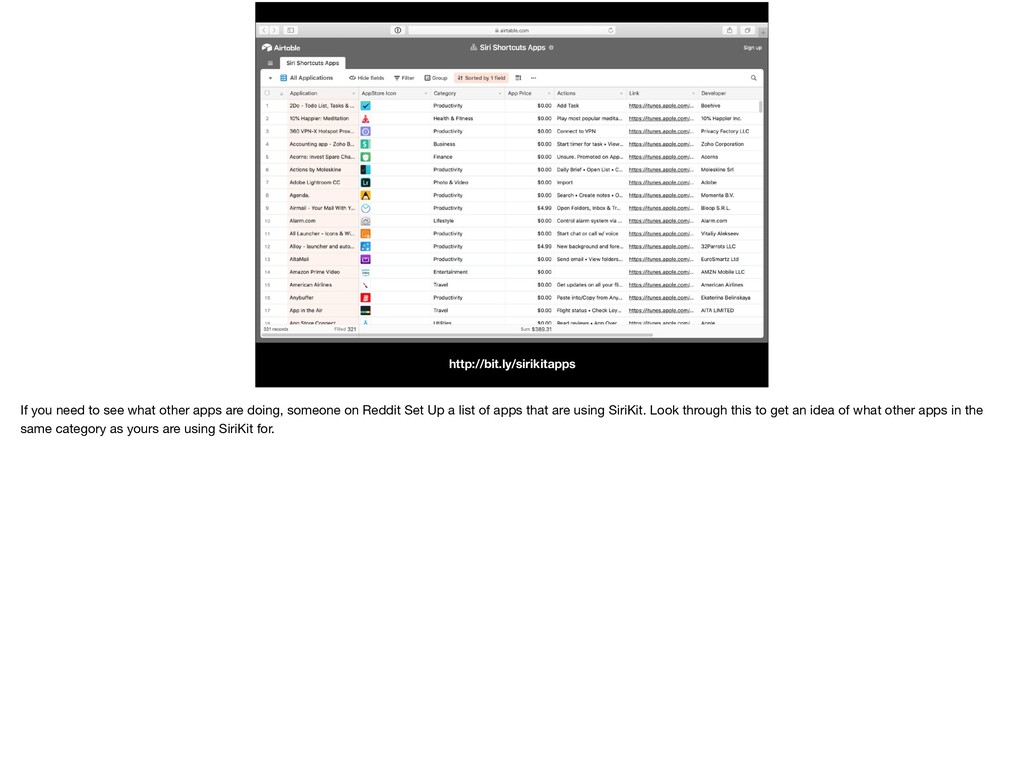
  183. http://bit.ly/sirikitapps If you need to see what other apps are

    doing, someone on Reddit Set Up a list of apps that are using SiriKit. Look through this to get an idea of what other apps in the same category as yours are using SiriKit for.
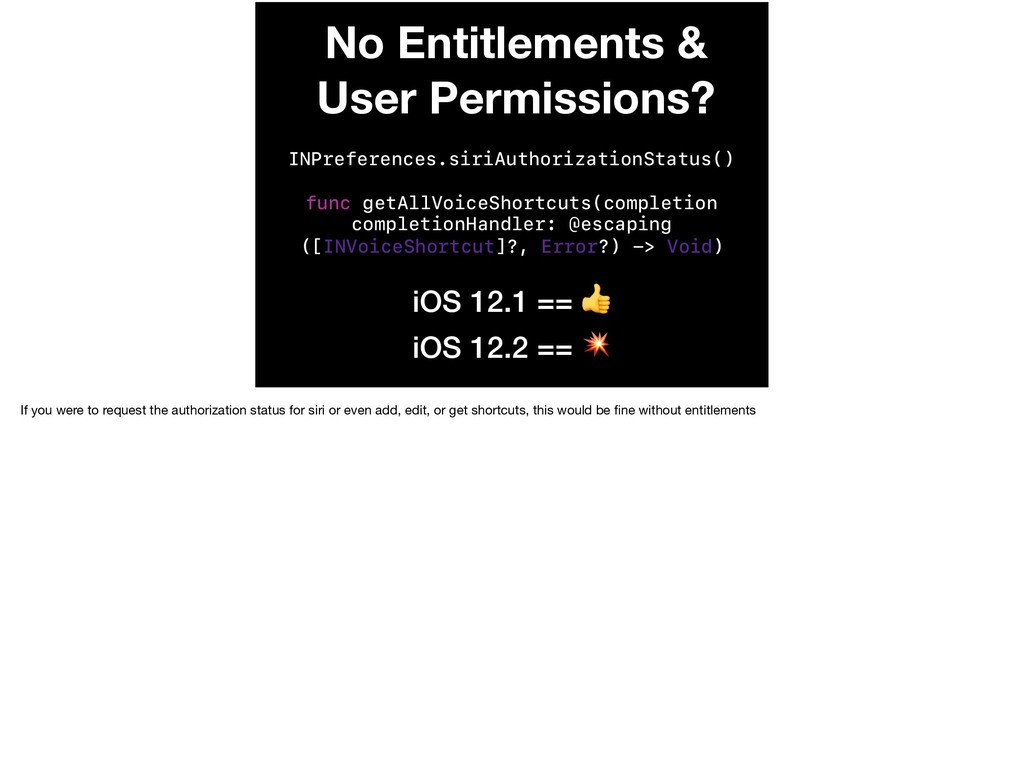
  184. INPreferences.siriAuthorizationStatus() iOS 12.1 == iOS 12.2 == func getAllVoiceShortcuts(completion completionHandler:

    @escaping ([INVoiceShortcut]?, Error?) -> Void) No Entitlements & User Permissions? If you were to request the authorization status for siri or even add, edit, or get shortcuts, this would be fine without entitlements
  185. We doing this development, make your life easier by turning

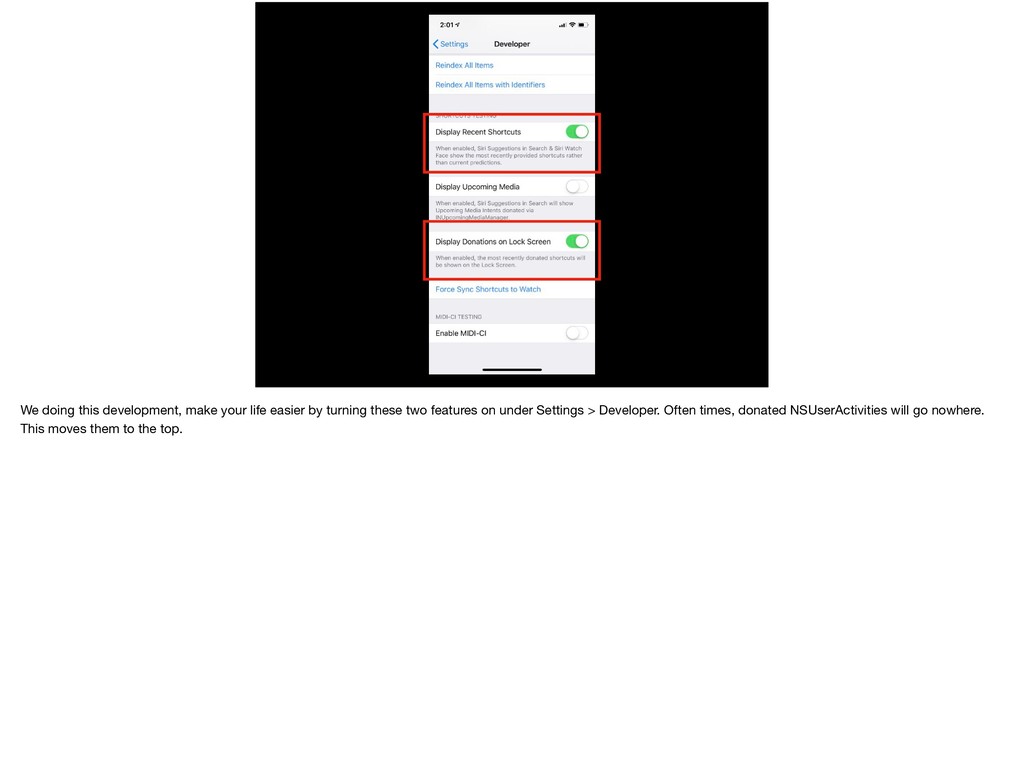
    these two features on under Settings > Developer. Often times, donated NSUserActivities will go nowhere. This moves them to the top.
  186. If you need to debug your Intent Extension, you can

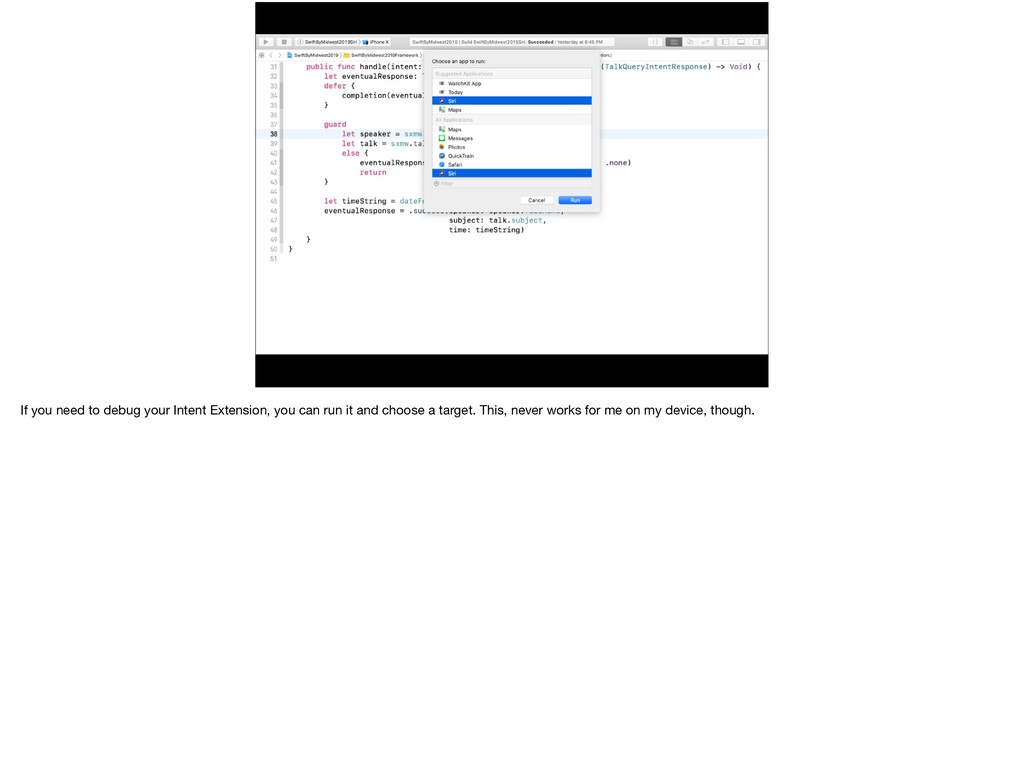
    run it and choose a target. This, never works for me on my device, though.
  187. If you need to debug your Intent Extension, you can

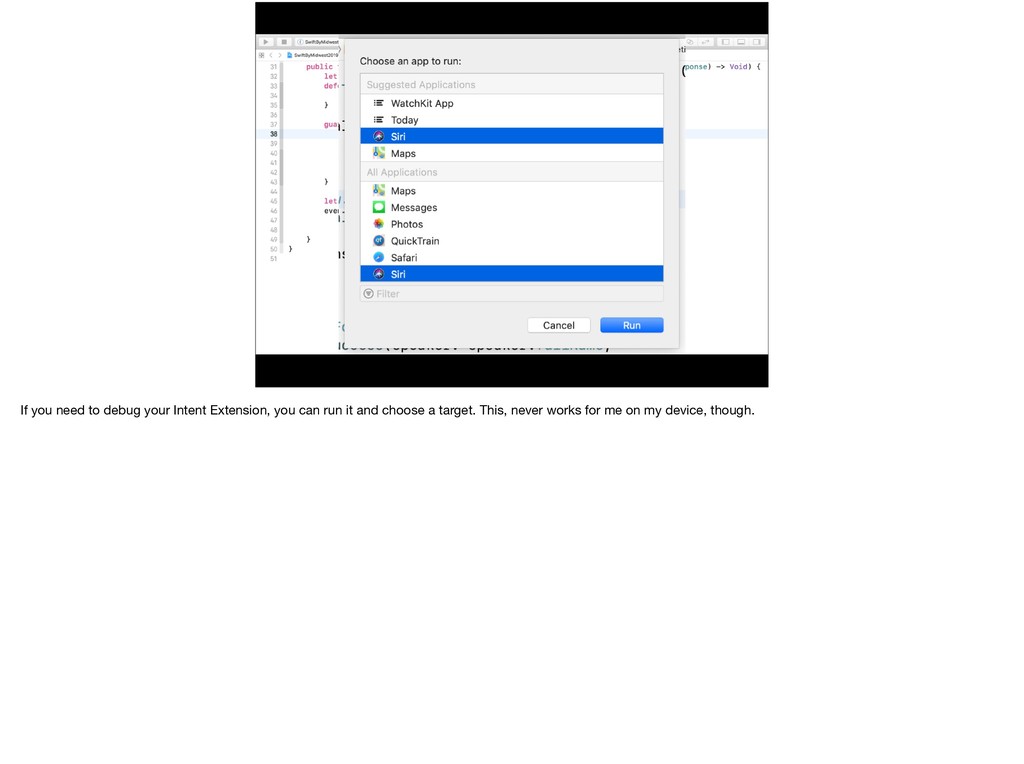
    run it and choose a target. This, never works for me on my device, though.
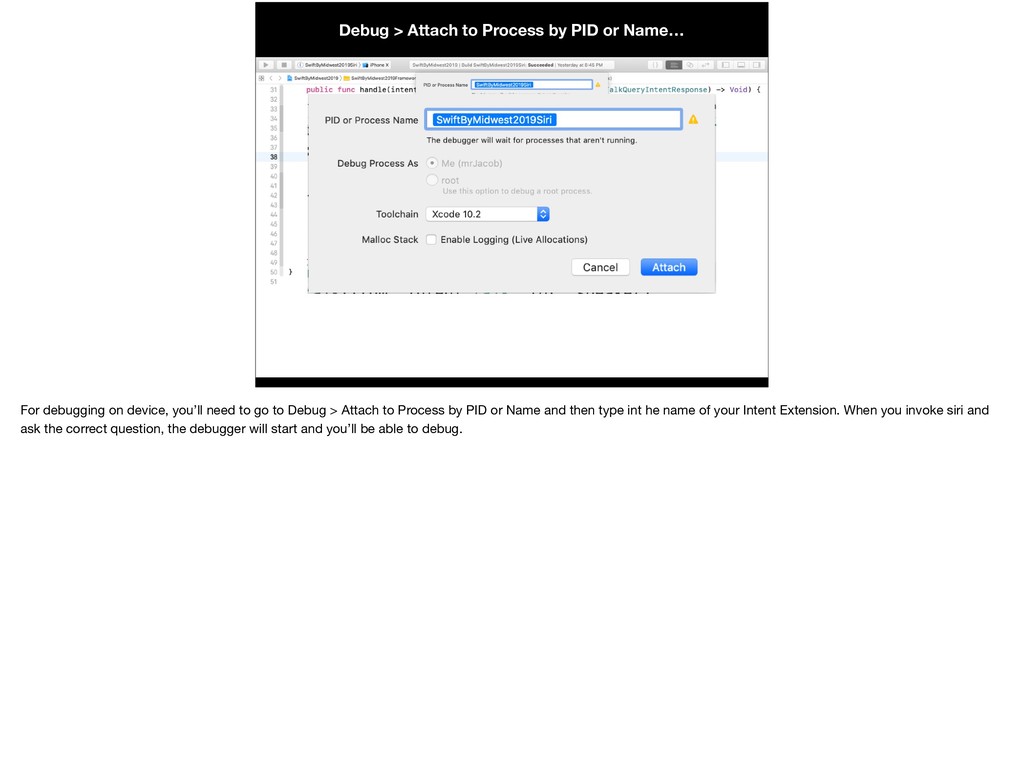
  188. Debug > Attach to Process by PID or Name… For

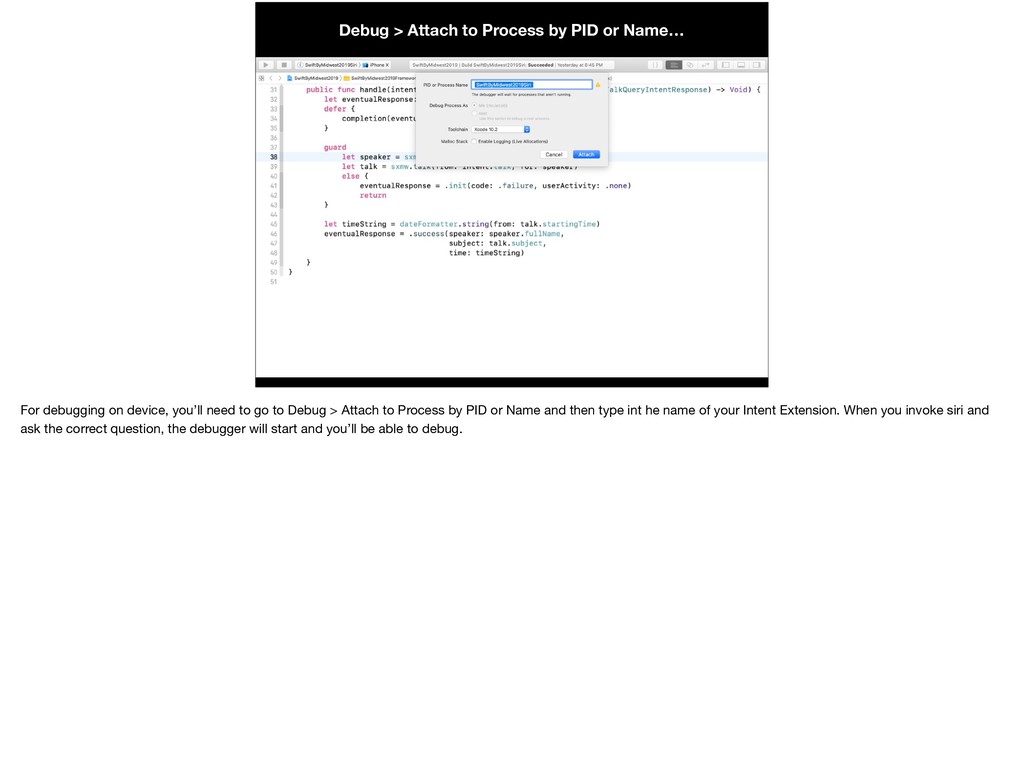
    debugging on device, you’ll need to go to Debug > Attach to Process by PID or Name and then type int he name of your Intent Extension. When you invoke siri and ask the correct question, the debugger will start and you’ll be able to debug.
  189. Debug > Attach to Process by PID or Name… For

    debugging on device, you’ll need to go to Debug > Attach to Process by PID or Name and then type int he name of your Intent Extension. When you invoke siri and ask the correct question, the debugger will start and you’ll be able to debug.
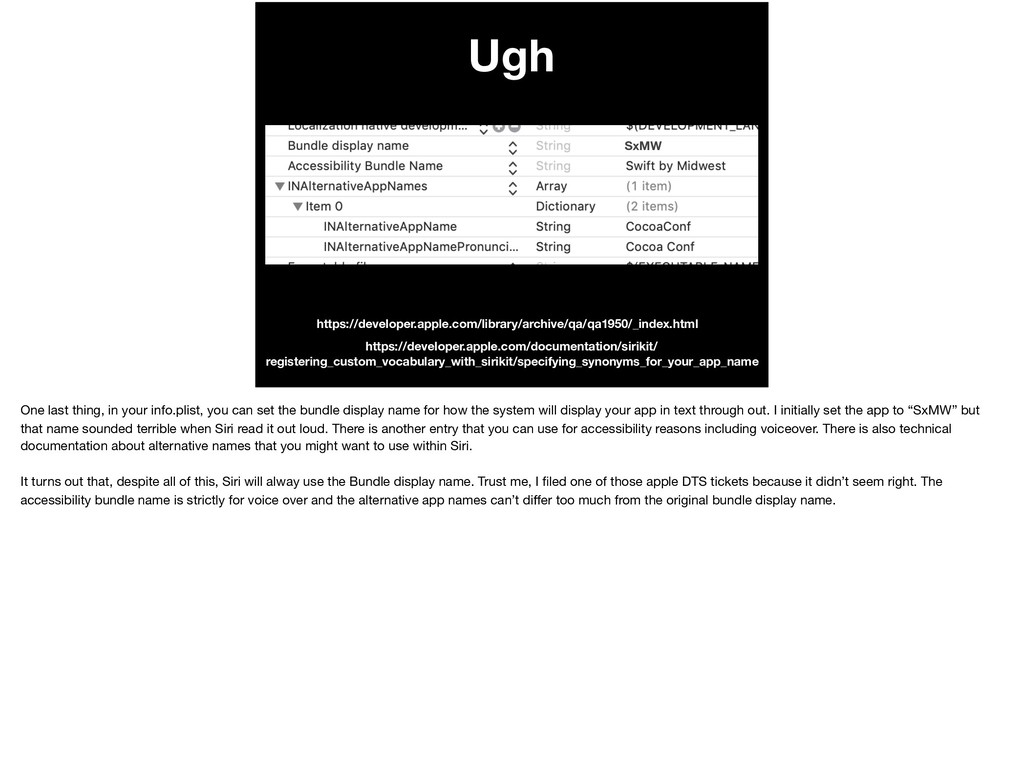
  190. Ugh https://developer.apple.com/library/archive/qa/qa1950/_index.html https://developer.apple.com/documentation/sirikit/ registering_custom_vocabulary_with_sirikit/specifying_synonyms_for_your_app_name SxMW One last thing, in your

    info.plist, you can set the bundle display name for how the system will display your app in text through out. I initially set the app to “SxMW” but that name sounded terrible when Siri read it out loud. There is another entry that you can use for accessibility reasons including voiceover. There is also technical documentation about alternative names that you might want to use within Siri. It turns out that, despite all of this, Siri will alway use the Bundle display name. Trust me, I filed one of those apple DTS tickets because it didn’t seem right. The accessibility bundle name is strictly for voice over and the alternative app names can’t differ too much from the original bundle display name.
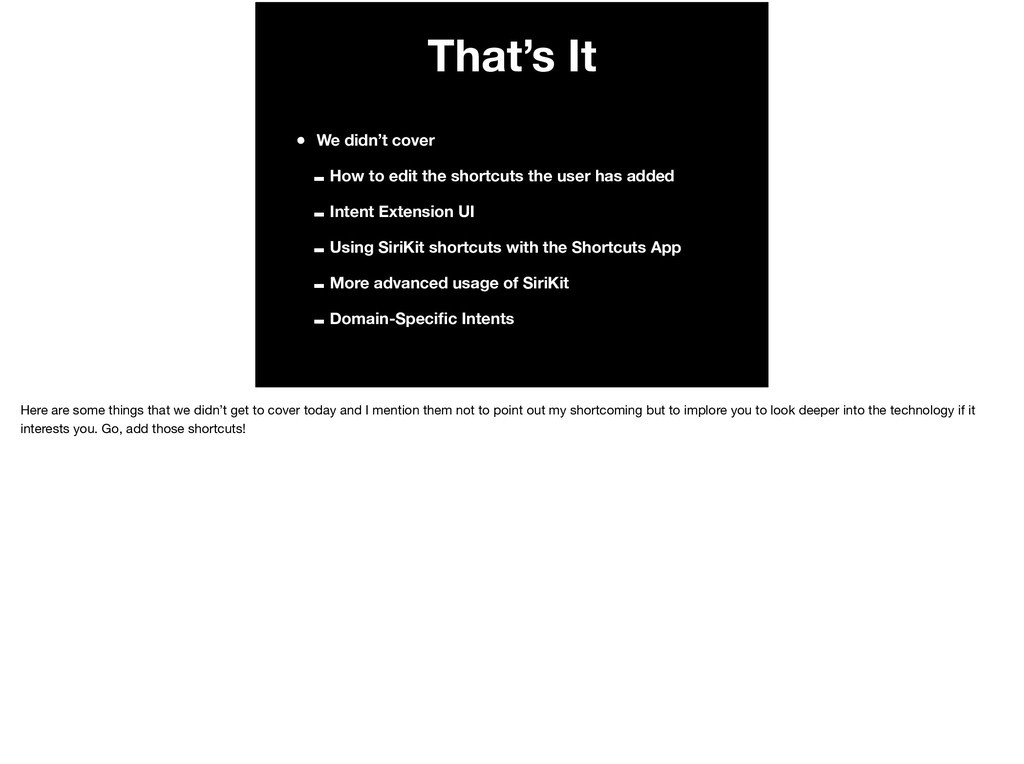
  191. That’s It • We didn’t cover -How to edit the

    shortcuts the user has added -Intent Extension UI -Using SiriKit shortcuts with the Shortcuts App -More advanced usage of SiriKit -Domain-Specific Intents Here are some things that we didn’t get to cover today and I mention them not to point out my shortcoming but to implore you to look deeper into the technology if it interests you. Go, add those shortcuts!