Upgrade to Pro — share decks privately, control downloads, hide ads and more …

HTML & CSS for Fun & Profit

Sponsored · Ship Features Fearlessly Turn features on and off without deploys. Used by thousands of Ruby developers.

HTML & CSS for Fun & Profit

A brief, practical introduction to the basic tools of web development.

Avatar for Johnny Rodgers

Johnny Rodgers

January 24, 2013
Tweet

Other Decks in Programming

Transcript

  1. You What’s your name? Why are you interested in HTML

    & CSS? What would you like to learn today?
  2. What’s this class about? The web matters Your ideas are

    important Learning how to publish your ideas on the web is the best way to share them with the world Making things is good for you Don’t be afraid of technology
  3. HTML Defines the structure of a web page HyperText Markup

    Language Invented by Tim Berners-Lee in 1990 Every page on the web is written in HTML
  4. CSS Defines the visual style and layout of a web

    page Cascading Style Sheets Invented in 1994-95 CSS is the dressing for HTML’s salad
  5. Let’s build stuff! We are going to build a simple

    web page together using HTML & CSS You will learn the basics of both languages You will find out what to learn next
  6. Essential Tools Web Browser Chrome, Firefox, Safari, or Internet Explorer

    Text Editor Mac: TextEdit (in Plain Text mode: Format > Make Plain Text) Windows: Notepad
  7. Getting Started We are going to make a bio page

    for ourselves Download this Template https://raw.github.com/johnnyrodgers/HTML-CSS-Intro/master/index.html Save it to your desktop in a folder called website File > Save as... > index.html
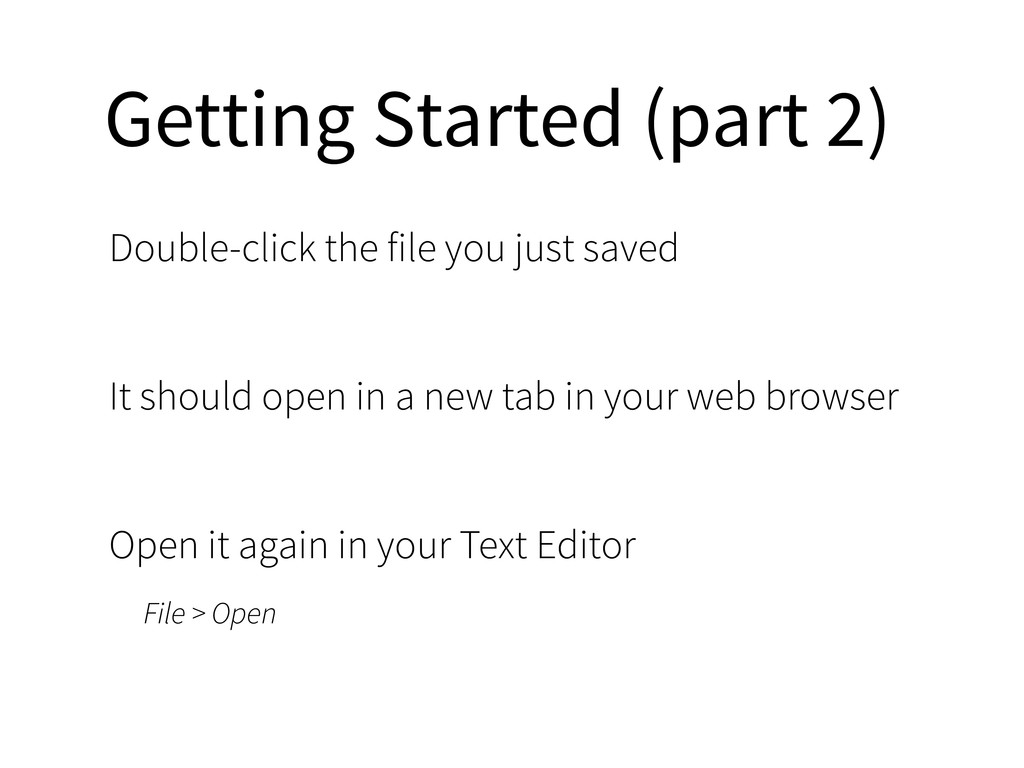
  8. Getting Started (part 2) Double-click the file you just saved

    It should open in a new tab in your web browser Open it again in your Text Editor File > Open
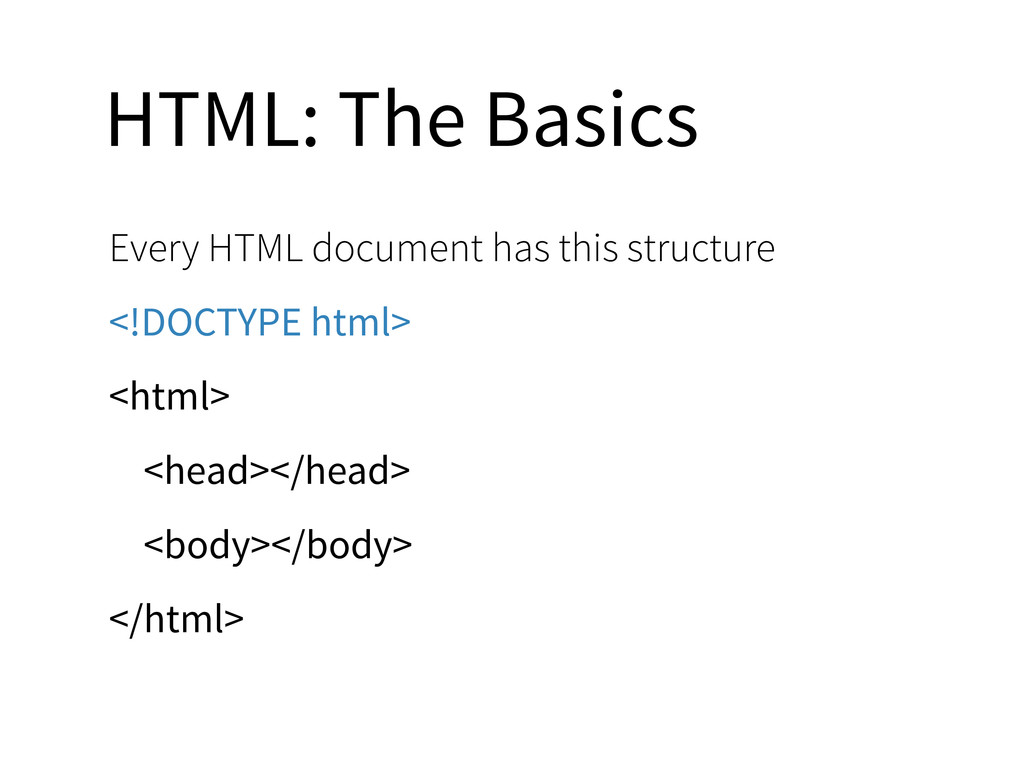
  9. HTML: The Basics Every HTML document has this structure <!DOCTYPE

    html> <html> <head></head> <body></body> </html>
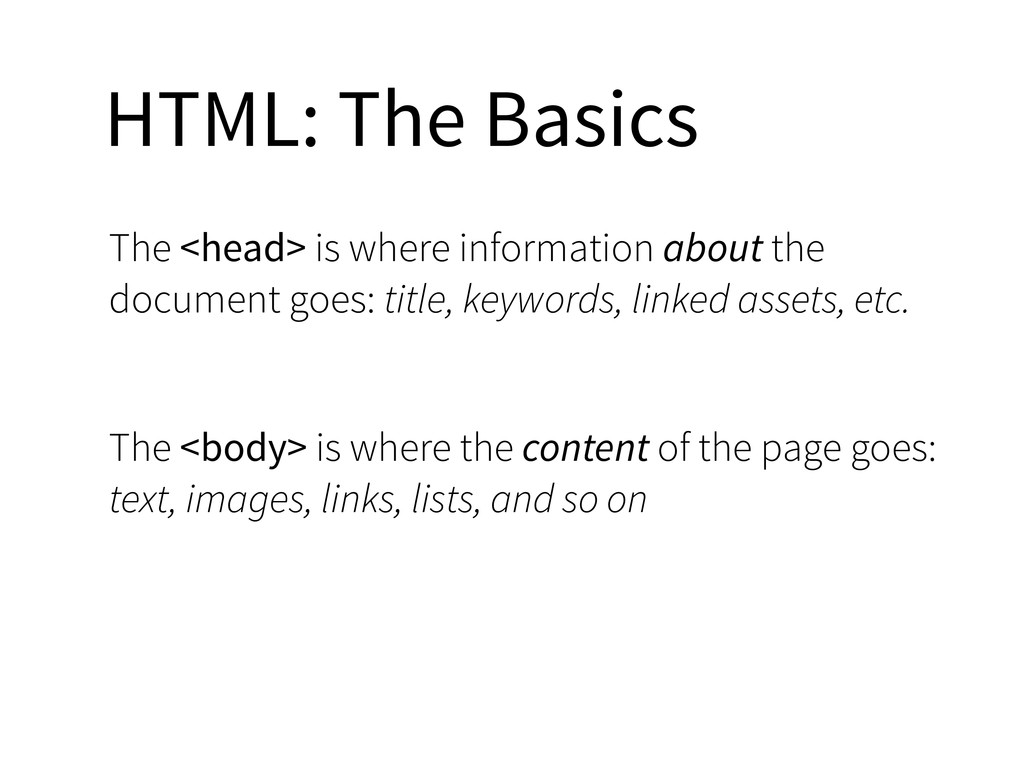
  10. HTML: The Basics The <head> is where information about the

    document goes: title, keywords, linked assets, etc. The <body> is where the content of the page goes: text, images, links, lists, and so on
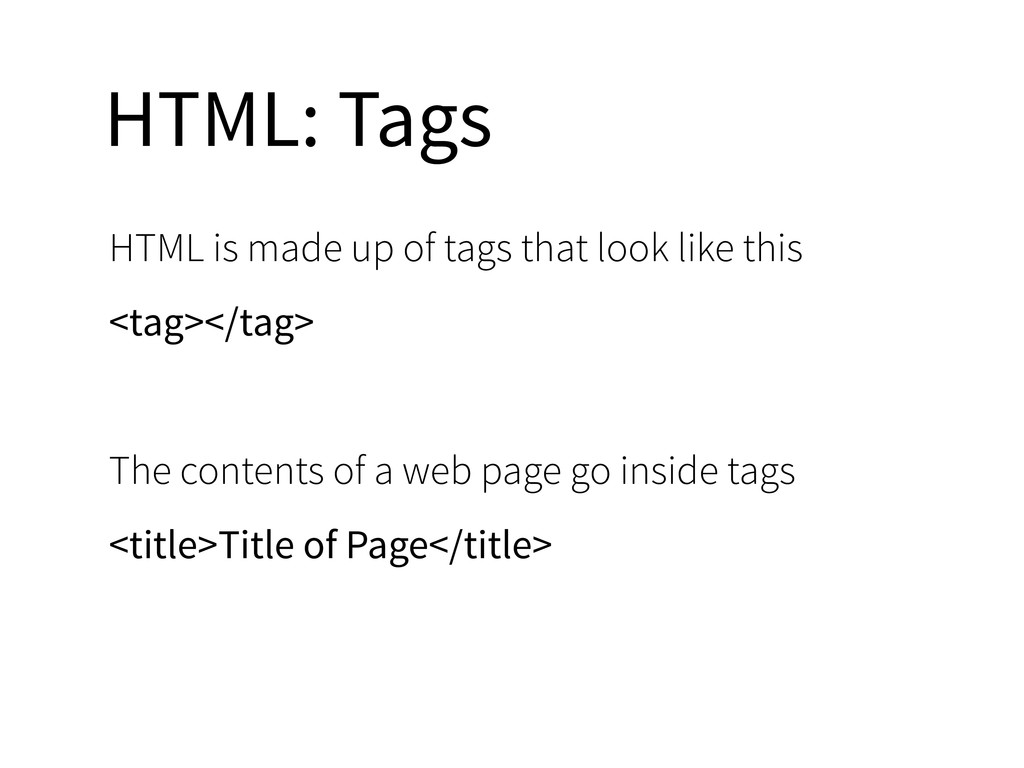
  11. HTML: Tags HTML is made up of tags that look

    like this <tag></tag> The contents of a web page go inside tags <title>Title of Page</title>
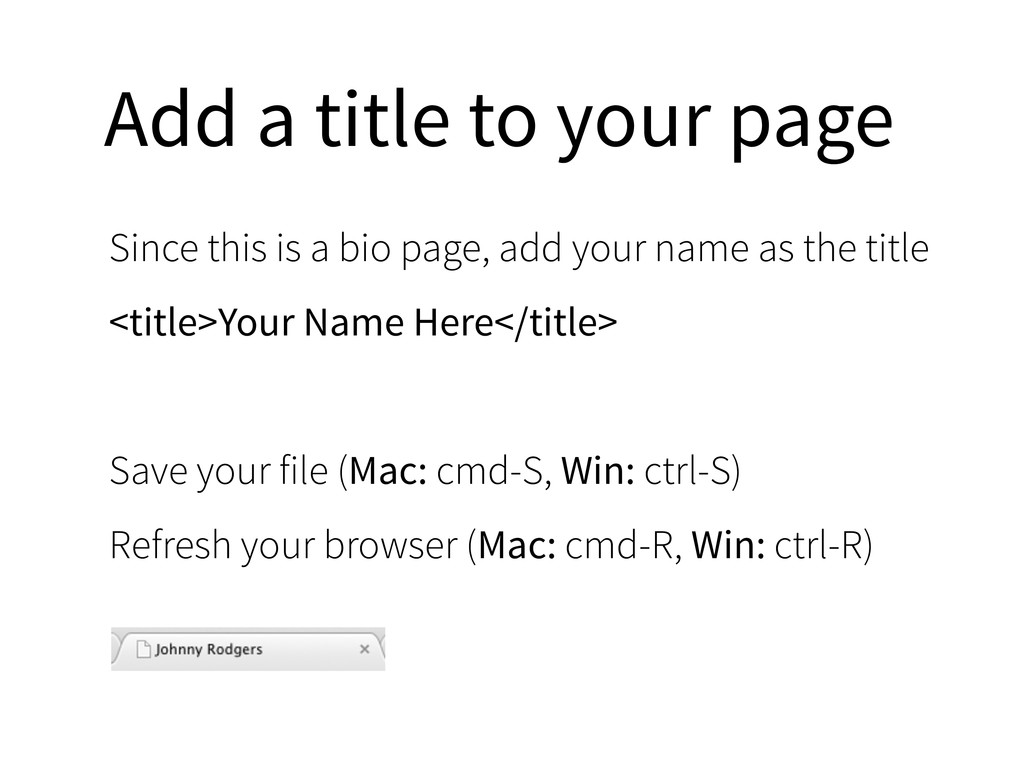
  12. Add a title to your page Since this is a

    bio page, add your name as the title <title>Your Name Here</title> Save your file (Mac: cmd-S, Win: ctrl-S) Refresh your browser (Mac: cmd-R, Win: ctrl-R)
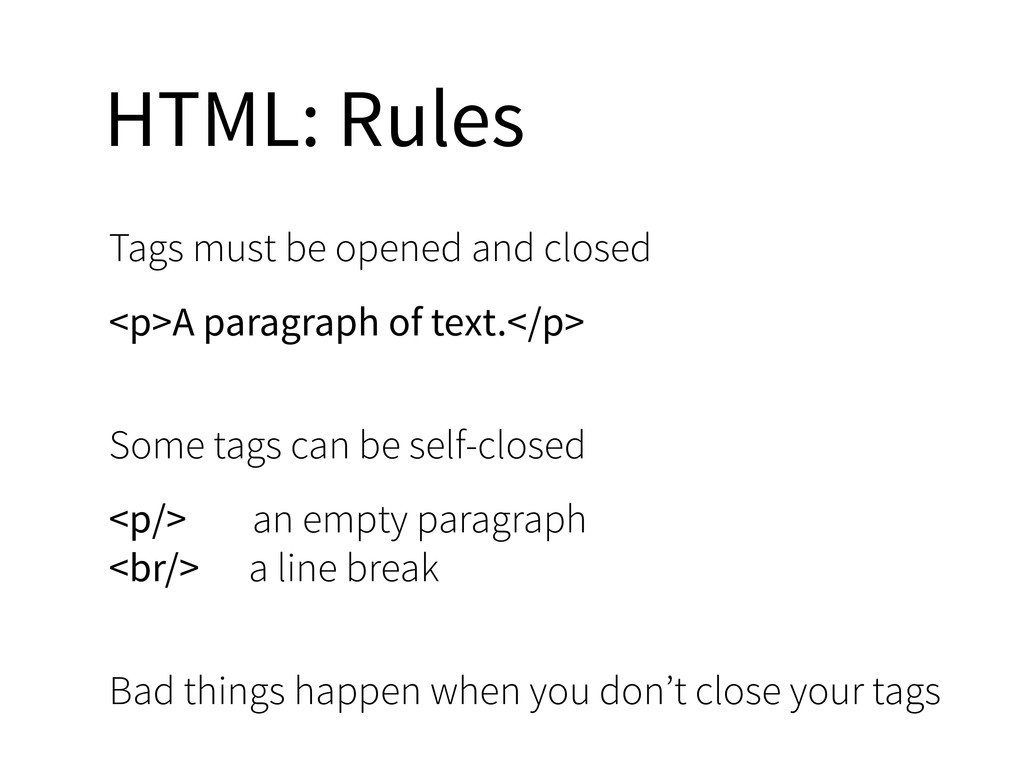
  13. HTML: Rules Tags must be opened and closed <p>A paragraph

    of text.</p> Some tags can be self-closed <p/> an empty paragraph <br/> a line break Bad things happen when you don’t close your tags
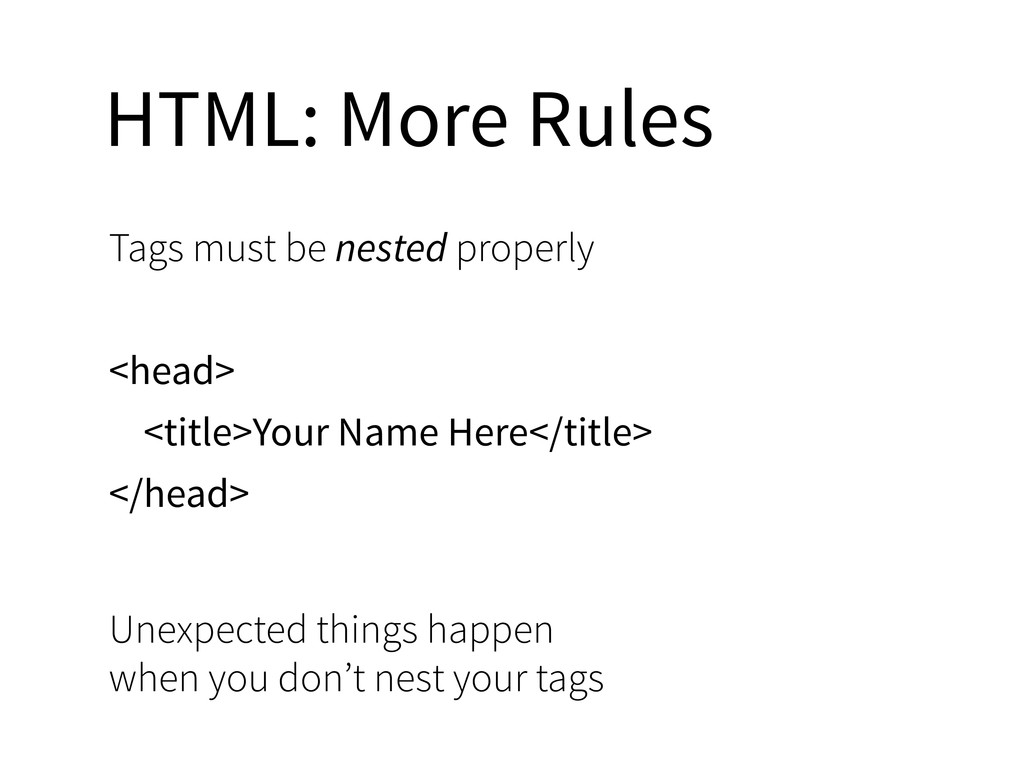
  14. HTML: More Rules Tags must be nested properly <head> <title>Your

    Name Here</title> </head> Unexpected things happen when you don’t nest your tags
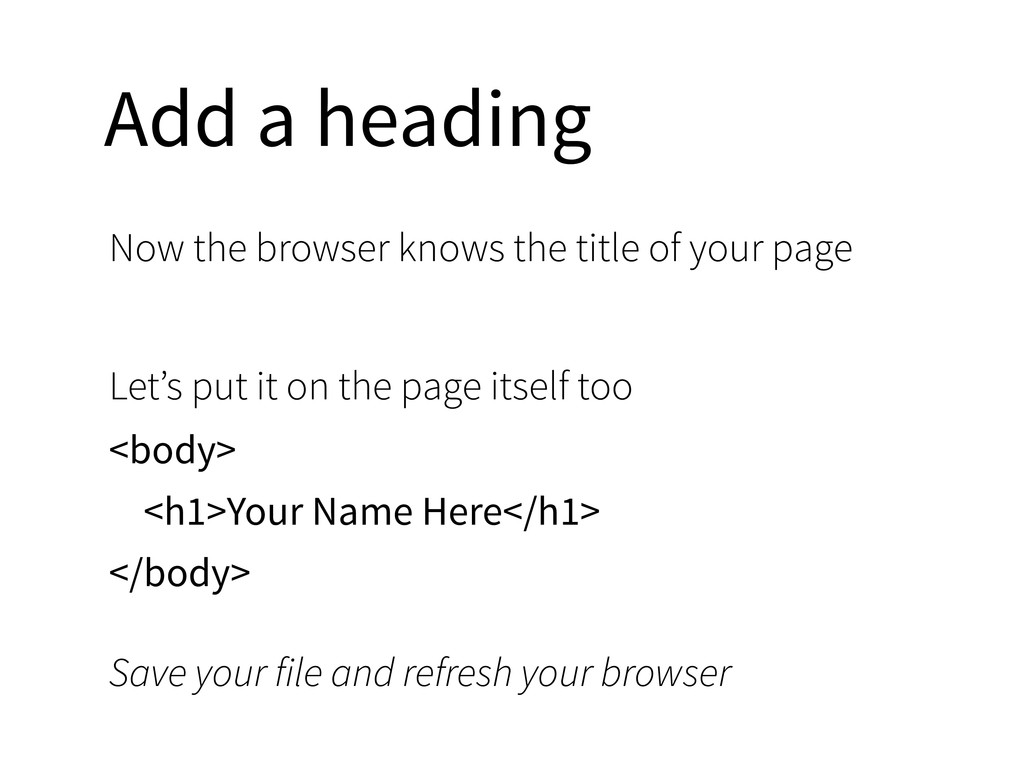
  15. Add a heading Now the browser knows the title of

    your page Let’s put it on the page itself too <body> <h1>Your Name Here</h1> </body> Save your file and refresh your browser
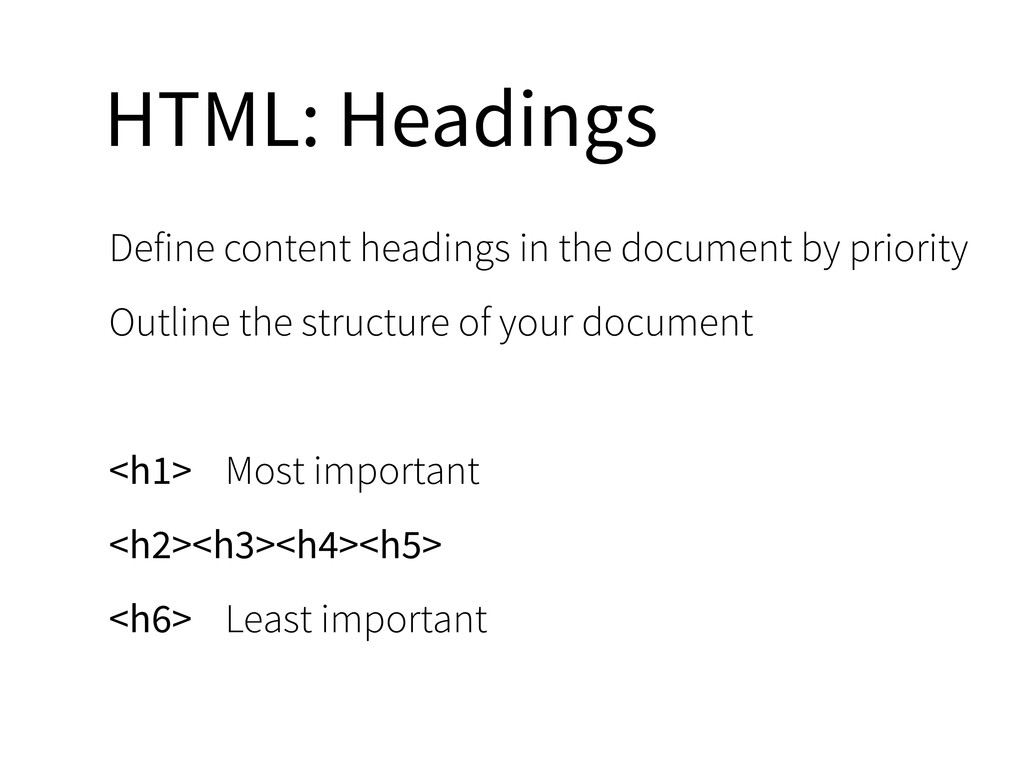
  16. HTML: Headings Define content headings in the document by priority

    Outline the structure of your document <h1> Most important <h2><h3><h4><h5> <h6> Least important
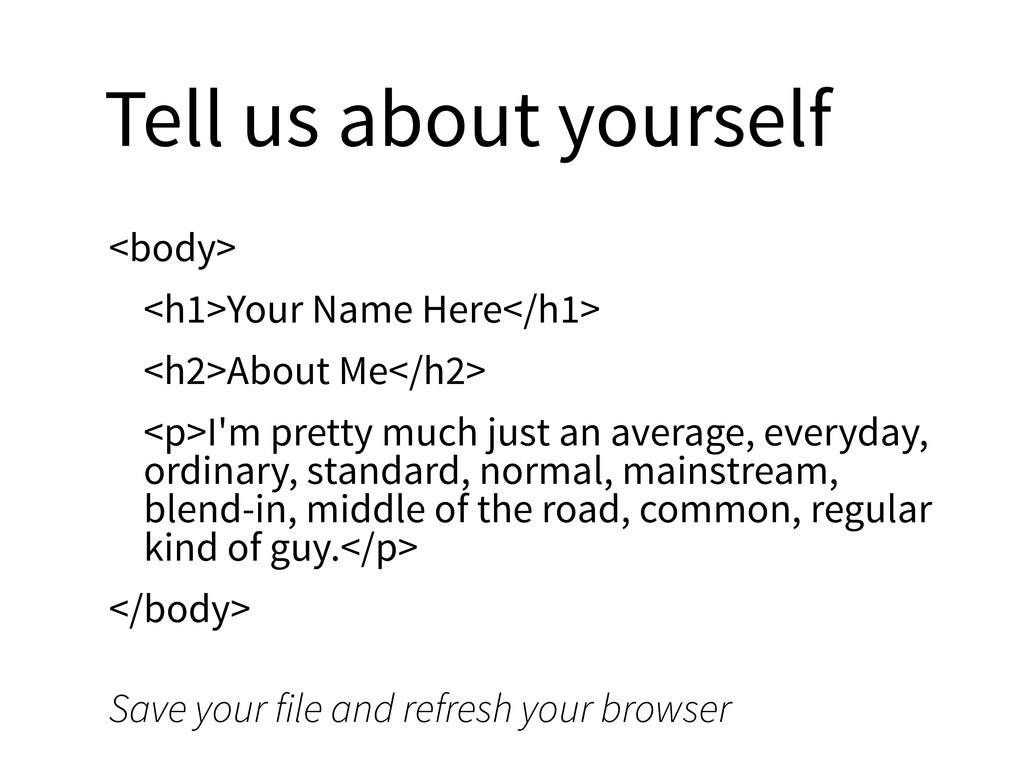
  17. Tell us about yourself <body> <h1>Your Name Here</h1> <h2>About Me</h2>

    <p>I'm pretty much just an average, everyday, ordinary, standard, normal, mainstream, blend-in, middle of the road, common, regular kind of guy.</p> </body> Save your file and refresh your browser
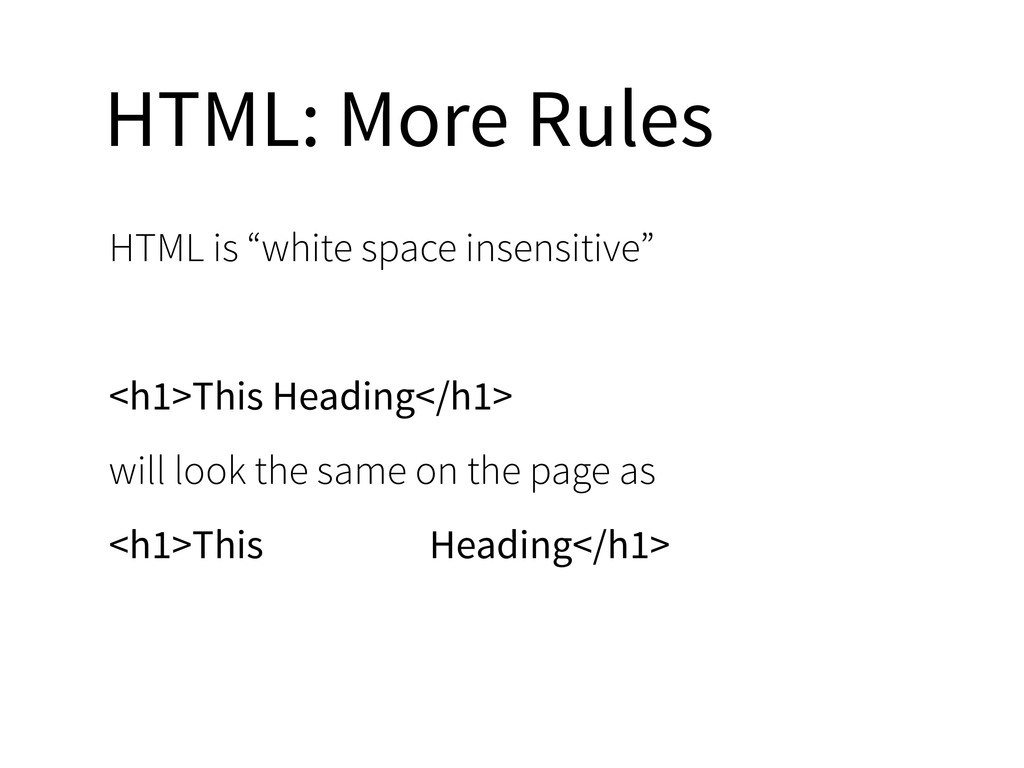
  18. HTML: More Rules HTML is “white space insensitive” <h1>This Heading</h1>

    will look the same on the page as <h1>This Heading</h1>
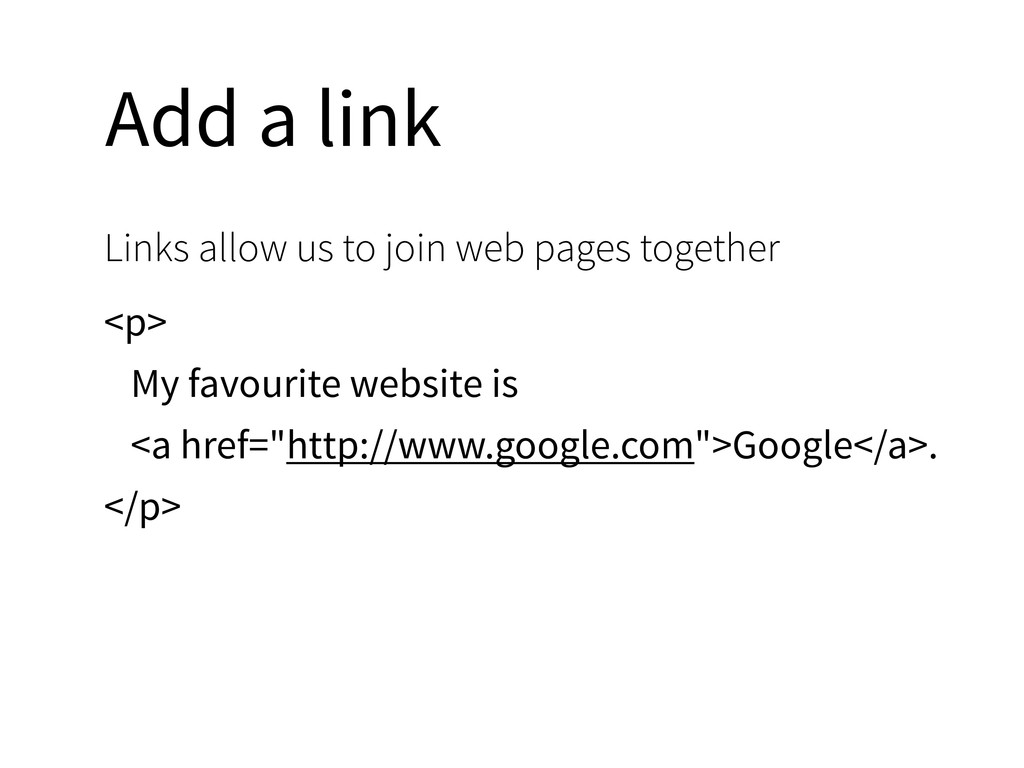
  19. Add a link Links allow us to join web pages

    together <p> My favourite website is <a href="http://www.google.com">Google</a>. </p>
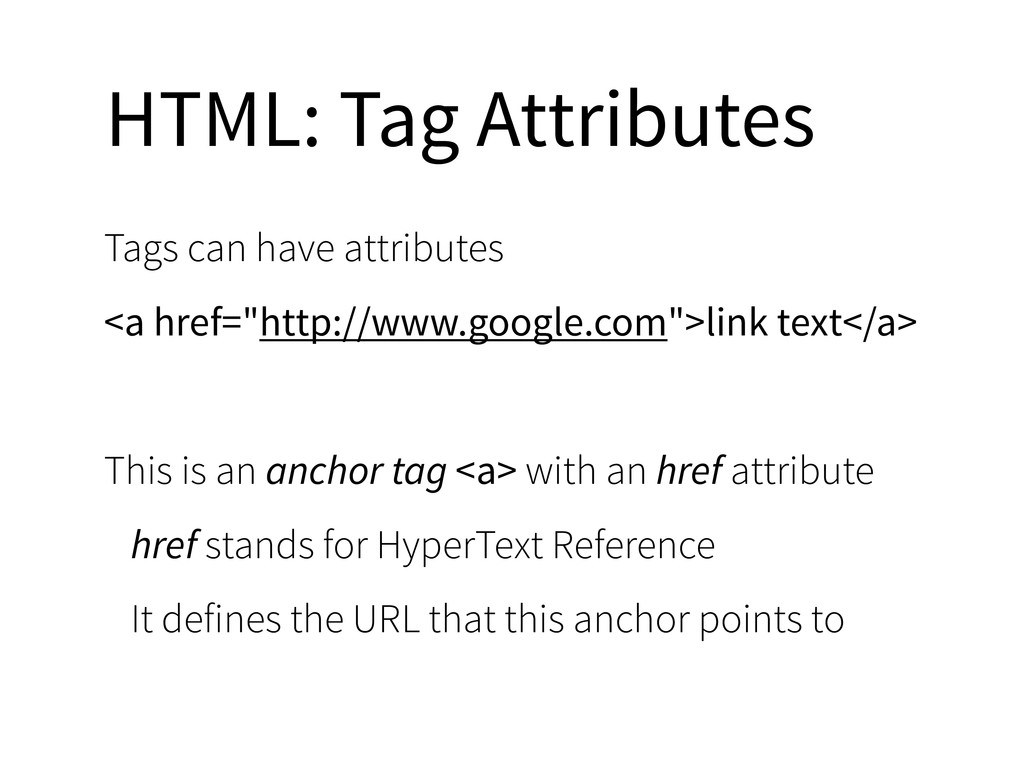
  20. HTML: Tag Attributes Tags can have attributes <a href="http://www.google.com">link text</a>

    This is an anchor tag <a> with an href attribute href stands for HyperText Reference It defines the URL that this anchor points to
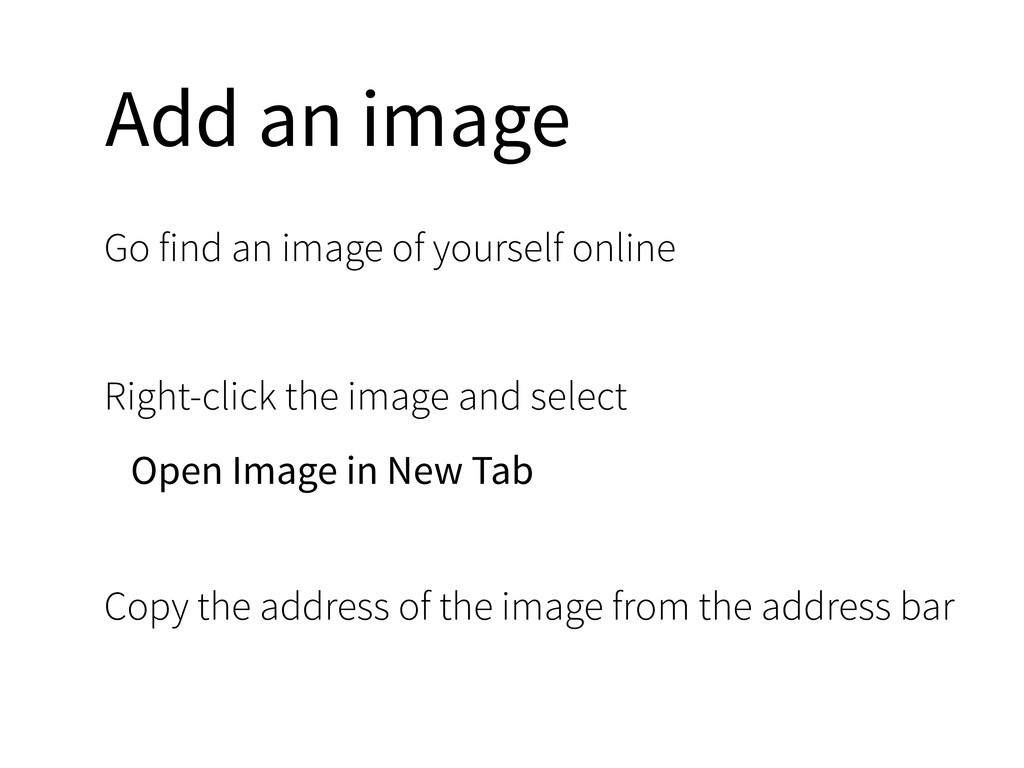
  21. Add an image Go find an image of yourself online

    Right-click the image and select Open Image in New Tab Copy the address of the image from the address bar
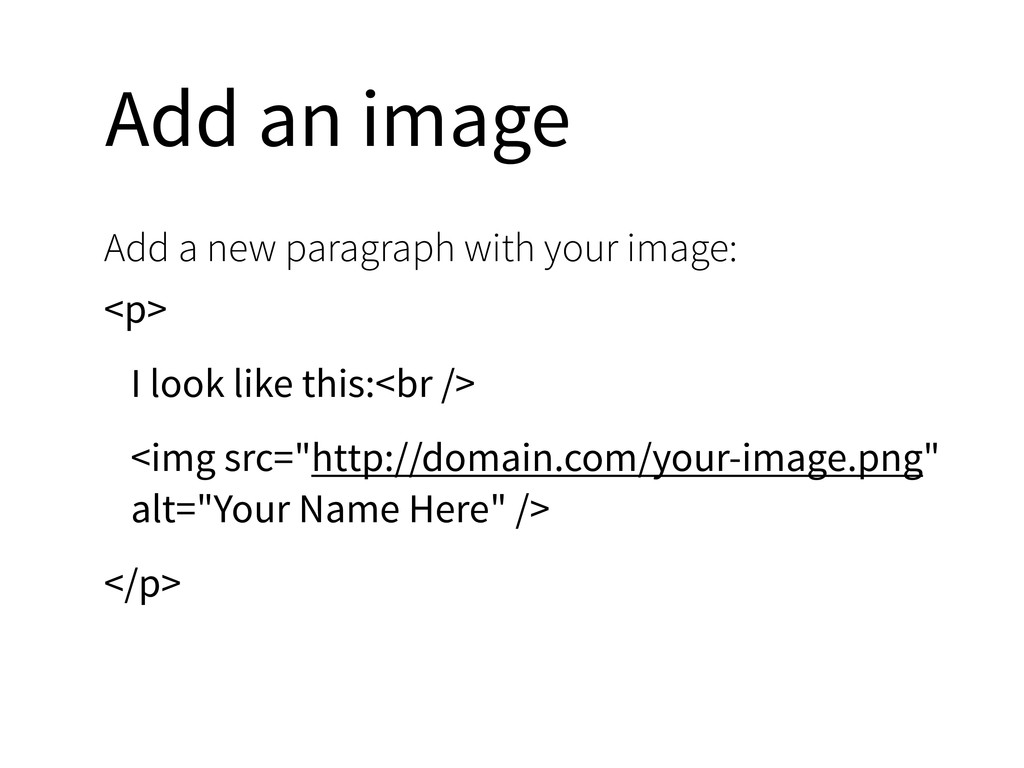
  22. Add an image Add a new paragraph with your image:

    <p> I look like this:<br /> <img src="http://domain.com/your-image.png" alt="Your Name Here" /> </p>
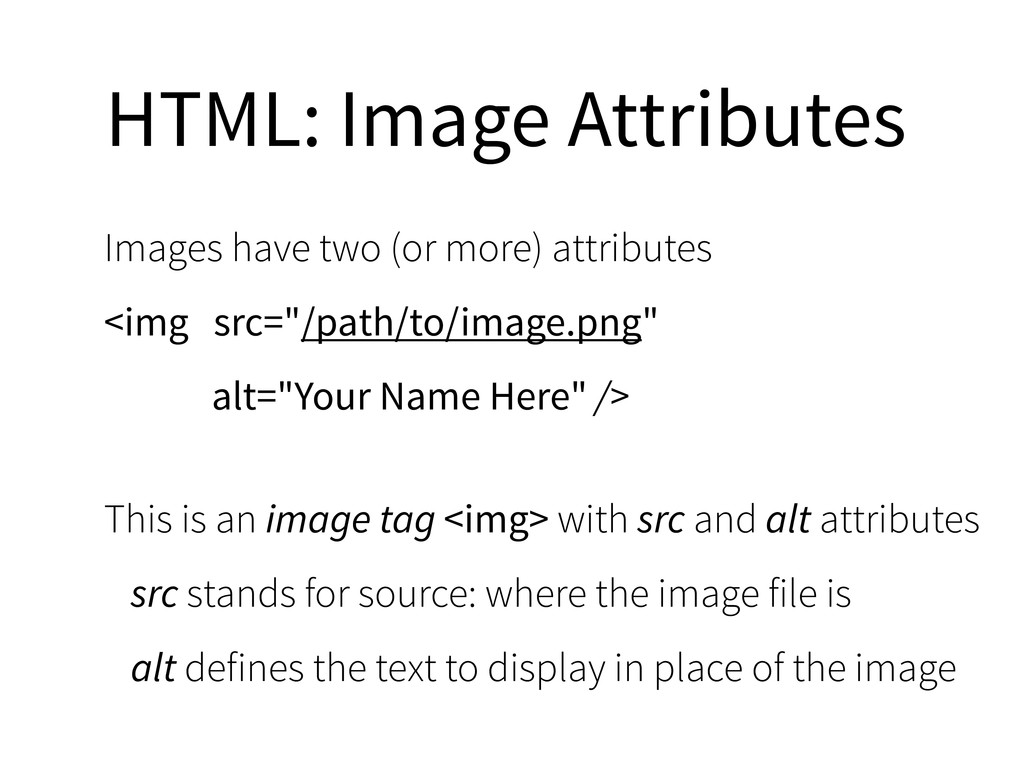
  23. HTML: Image Attributes Images have two (or more) attributes <img

    src="/path/to/image.png" alt="Your Name Here" /> This is an image tag <img> with src and alt attributes src stands for source: where the image file is alt defines the text to display in place of the image
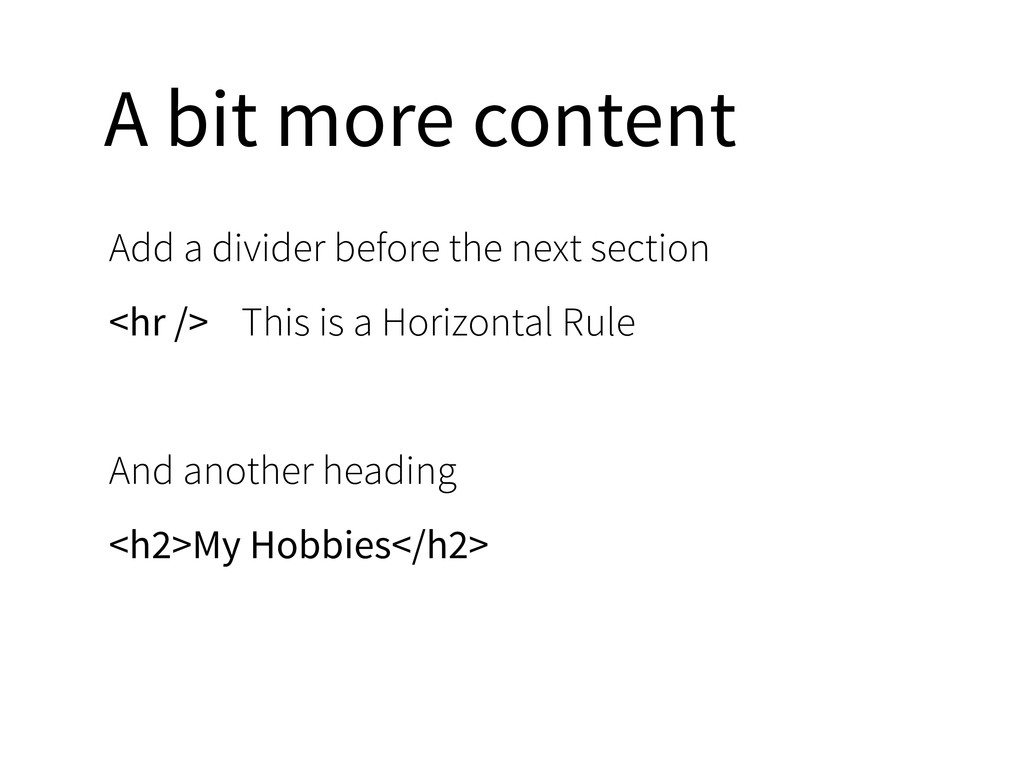
  24. A bit more content Add a divider before the next

    section <hr /> This is a Horizontal Rule And another heading <h2>My Hobbies</h2>
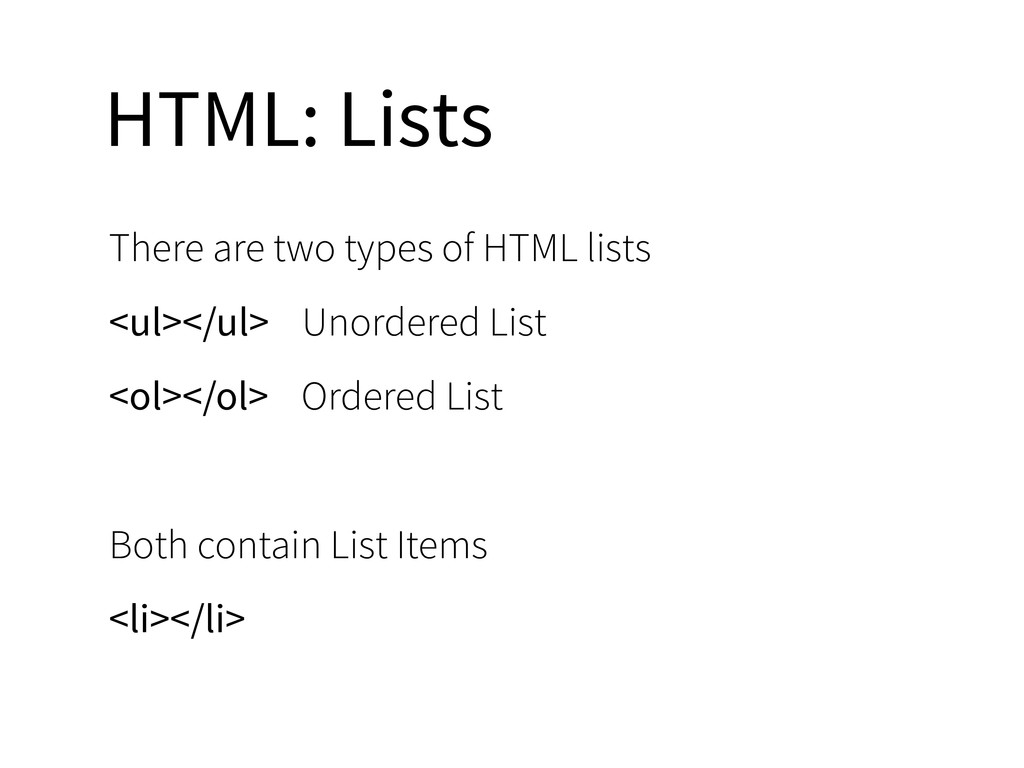
  25. HTML: Lists There are two types of HTML lists <ul></ul>

    Unordered List <ol></ol> Ordered List Both contain List Items <li></li>
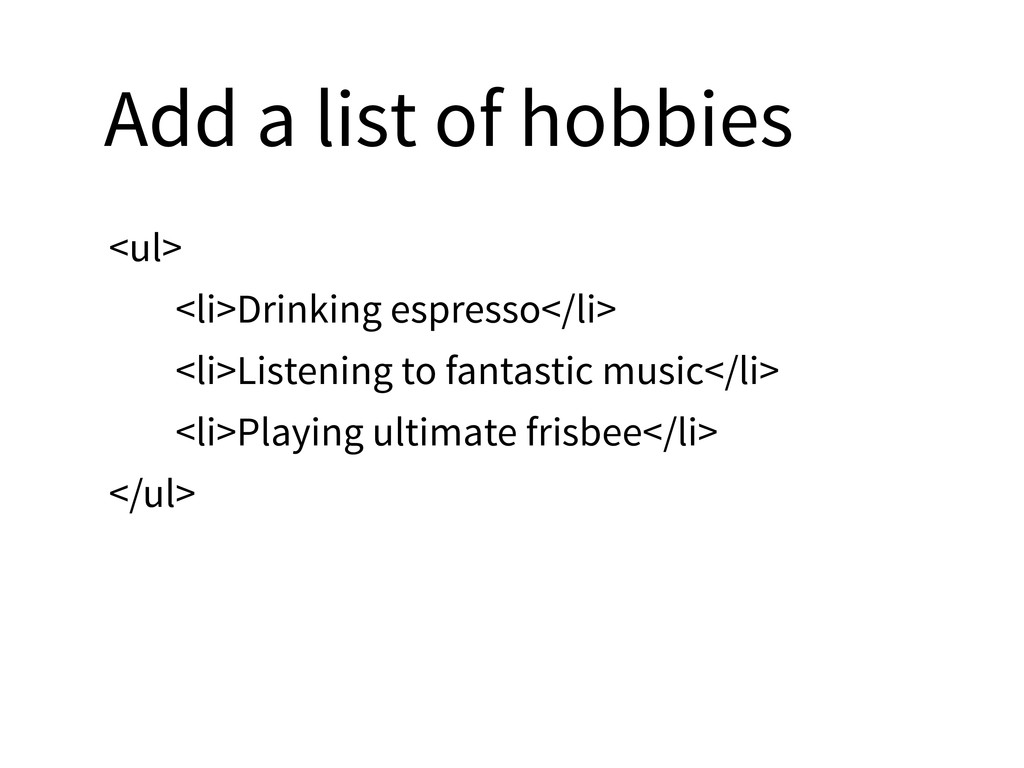
  26. Add a list of hobbies <ul> <li>Drinking espresso</li> <li>Listening to

    fantastic music</li> <li>Playing ultimate frisbee</li> </ul>
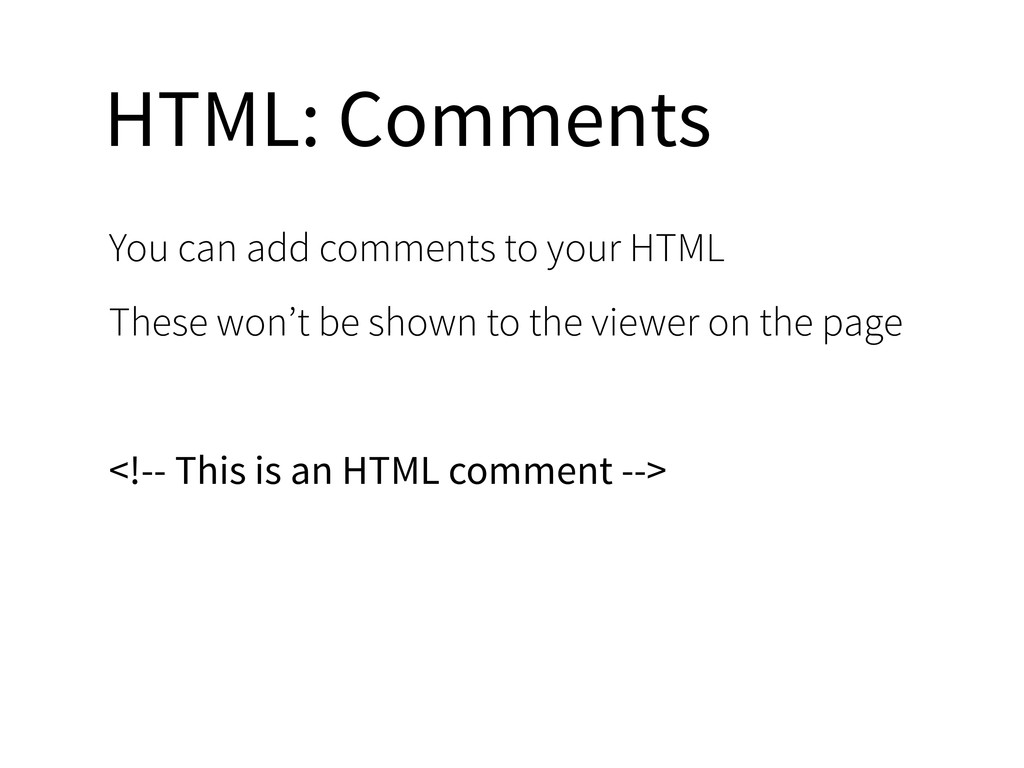
  27. HTML: Comments You can add comments to your HTML These

    won’t be shown to the viewer on the page <!-- This is an HTML comment -->
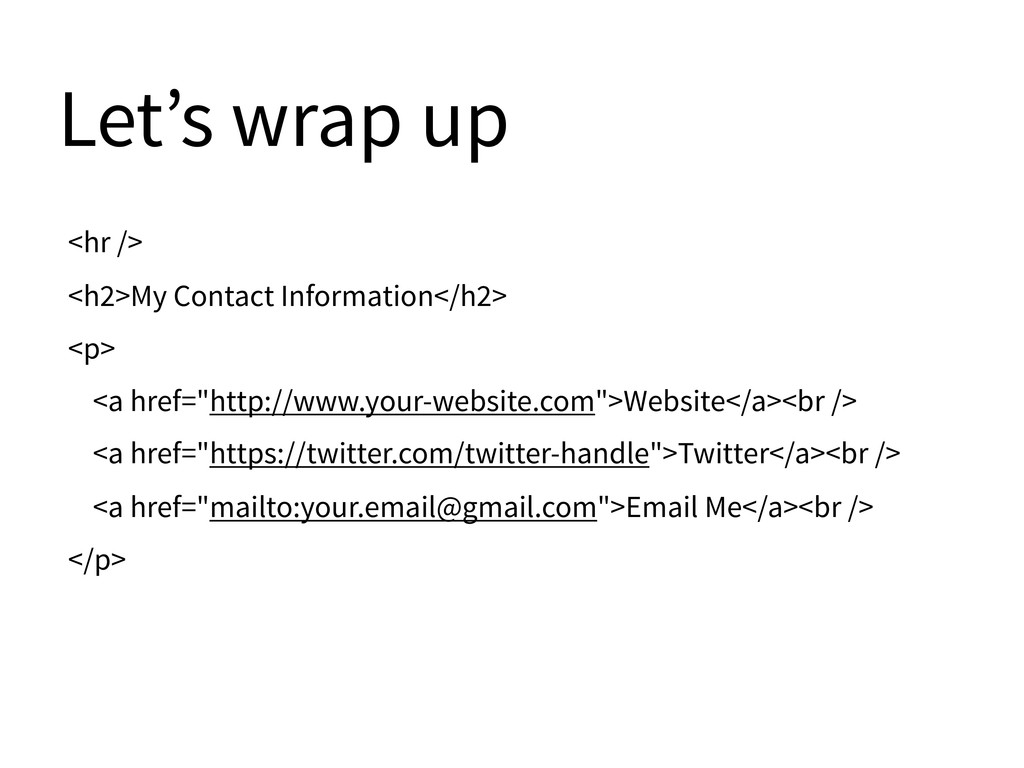
  28. Let’s wrap up <hr /> <h2>My Contact Information</h2> <p> <a

    href="http://www.your-website.com">Website</a><br /> <a href="https://twitter.com/twitter-handle">Twitter</a><br /> <a href="mailto:[email protected]">Email Me</a><br /> </p>
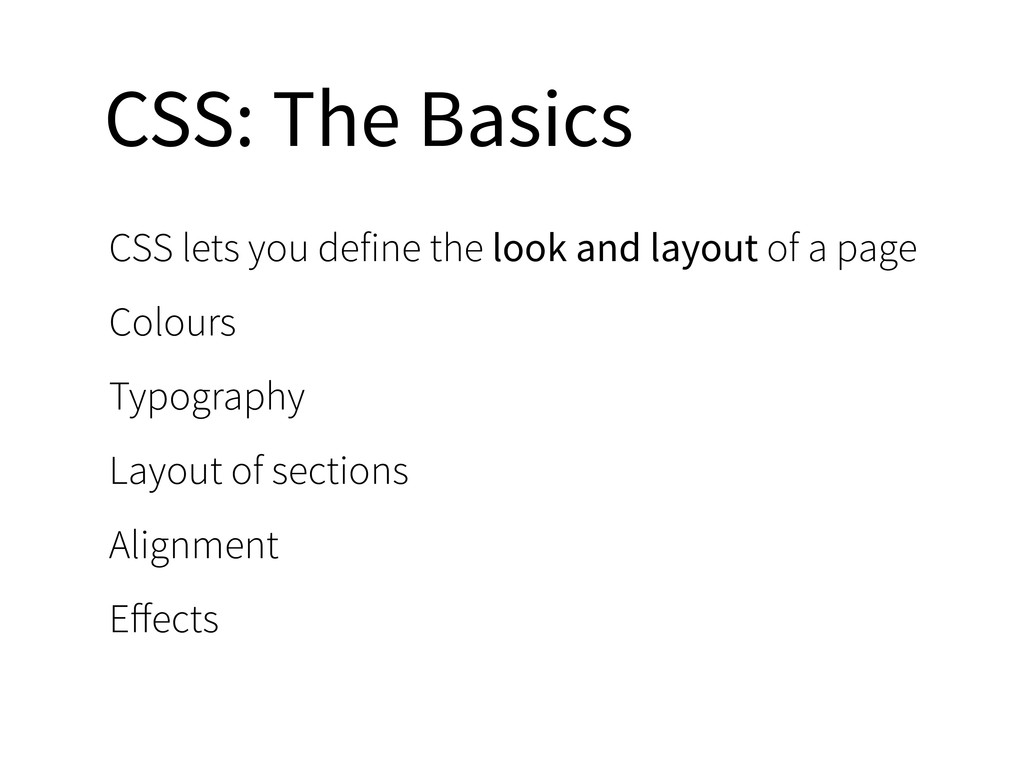
  29. CSS: The Basics CSS lets you define the look and

    layout of a page Colours Typography Layout of sections Alignment Effects
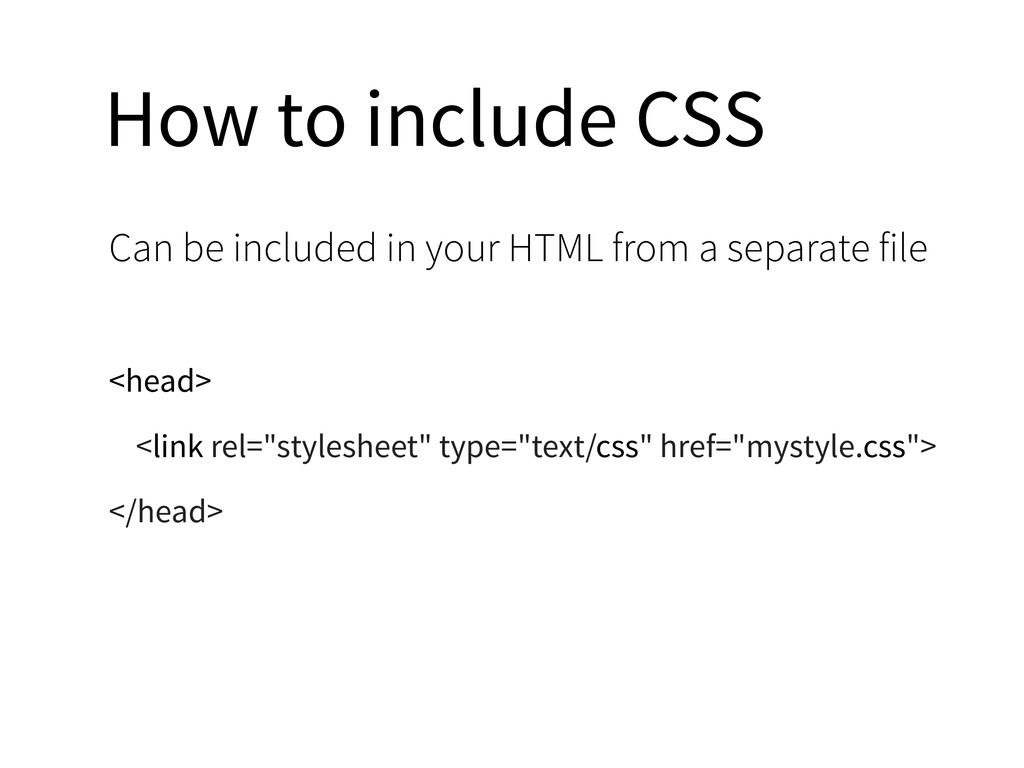
  30. How to include CSS Can be included in your HTML

    from a separate file <head> <link rel="stylesheet" type="text/css" href="mystyle.css"> </head>
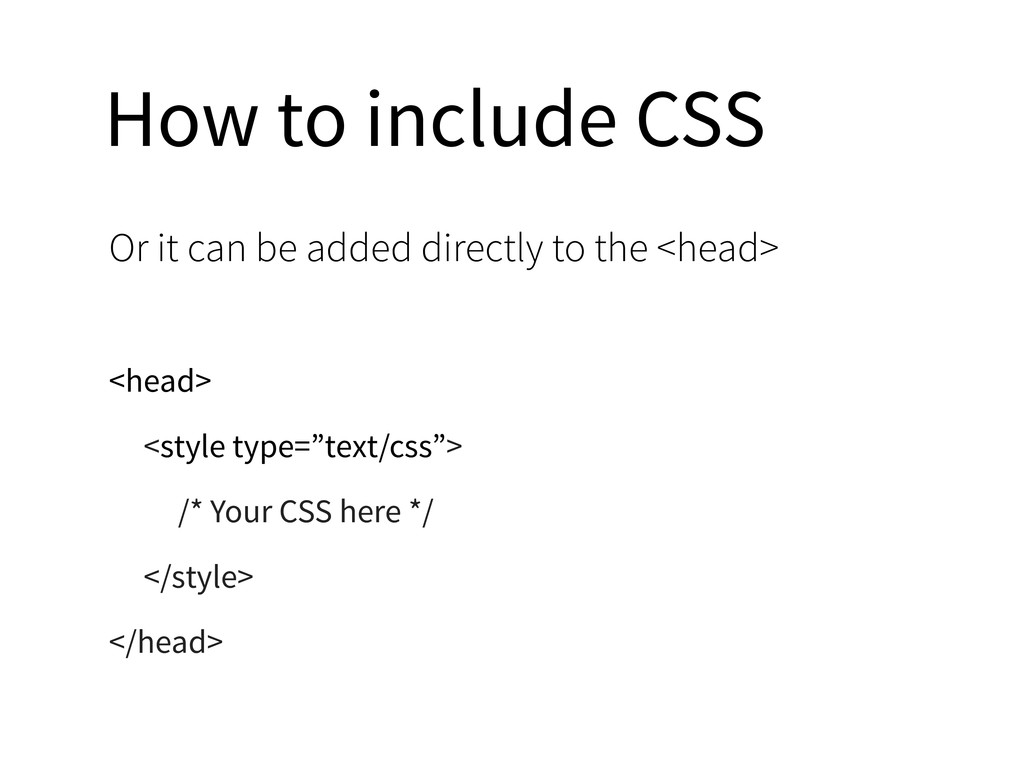
  31. How to include CSS Or it can be added directly

    to the <head> <head> <style type=”text/css”> /* Your CSS here */ </style> </head>
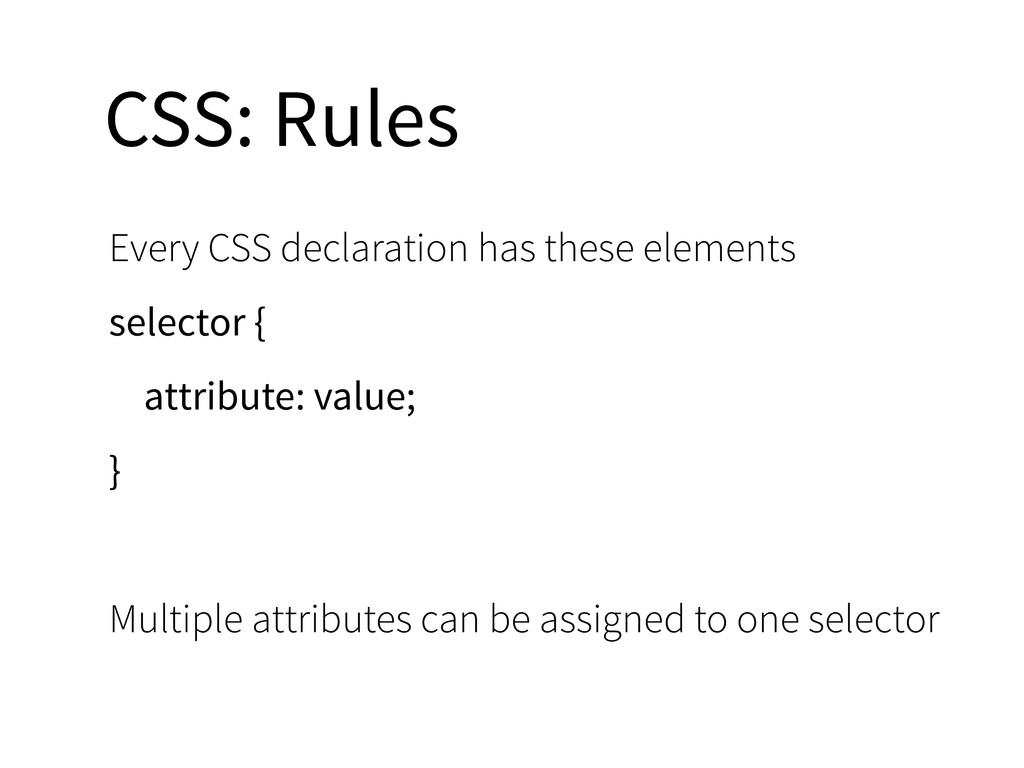
  32. CSS: Rules Every CSS declaration has these elements selector {

    attribute: value; } Multiple attributes can be assigned to one selector
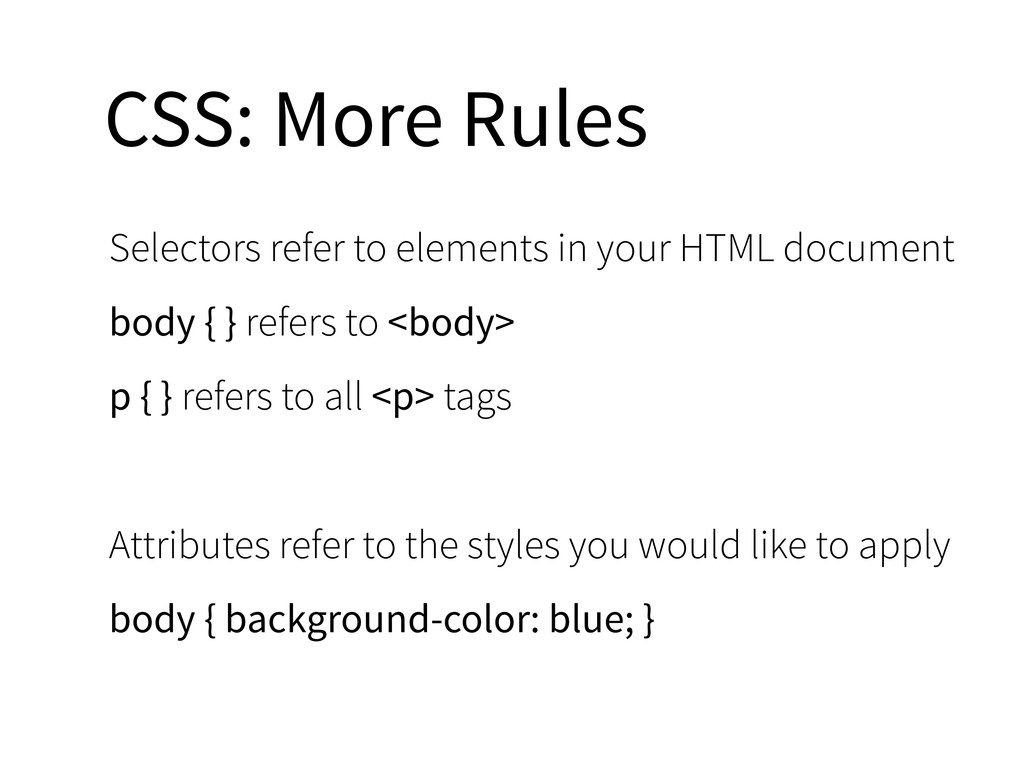
  33. CSS: More Rules Selectors refer to elements in your HTML

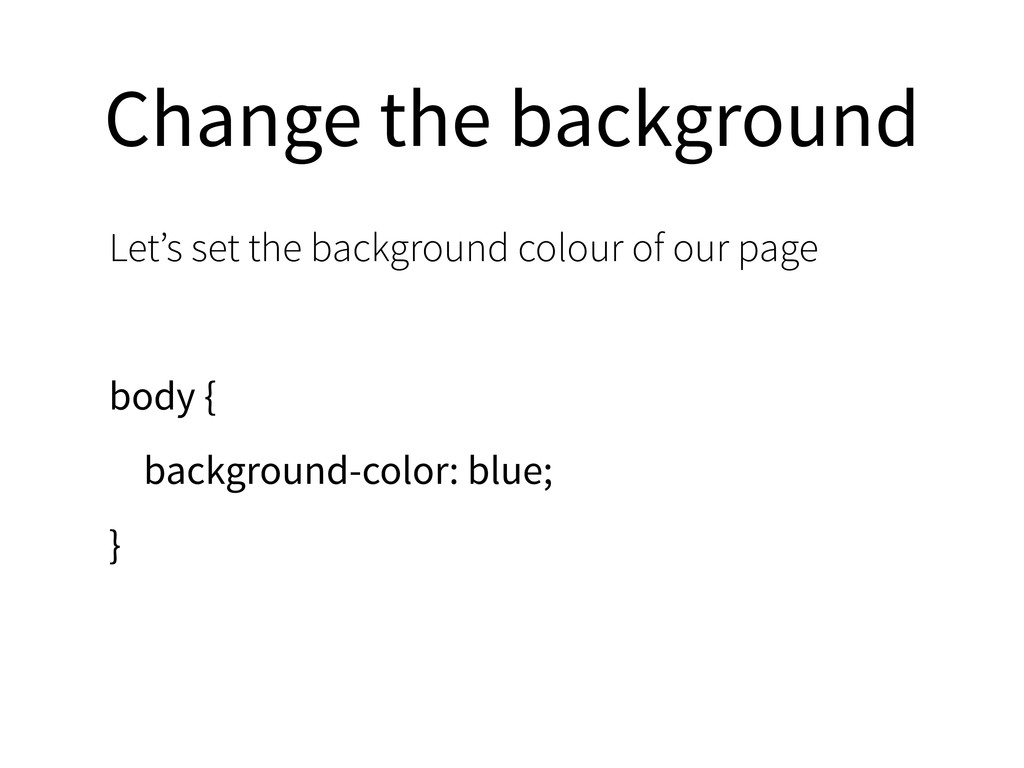
    document body { } refers to <body> p { } refers to all <p> tags Attributes refer to the styles you would like to apply body { background-color: blue; }
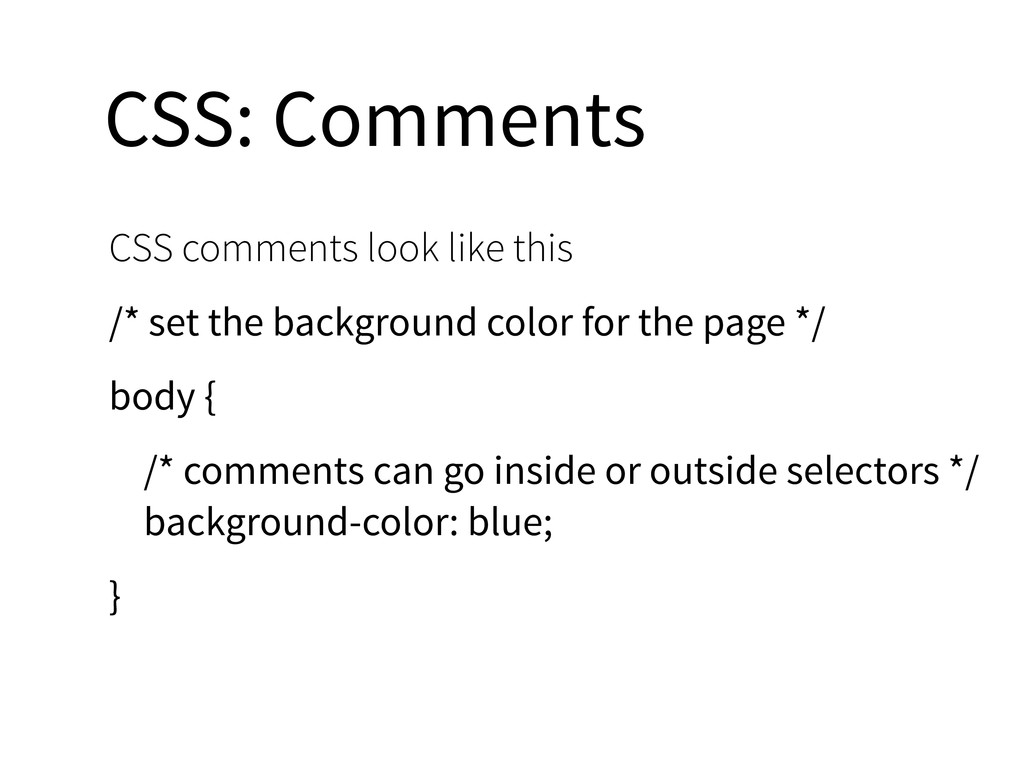
  34. CSS: Comments CSS comments look like this /* set the

    background color for the page */ body { /* comments can go inside or outside selectors */ background-color: blue; }
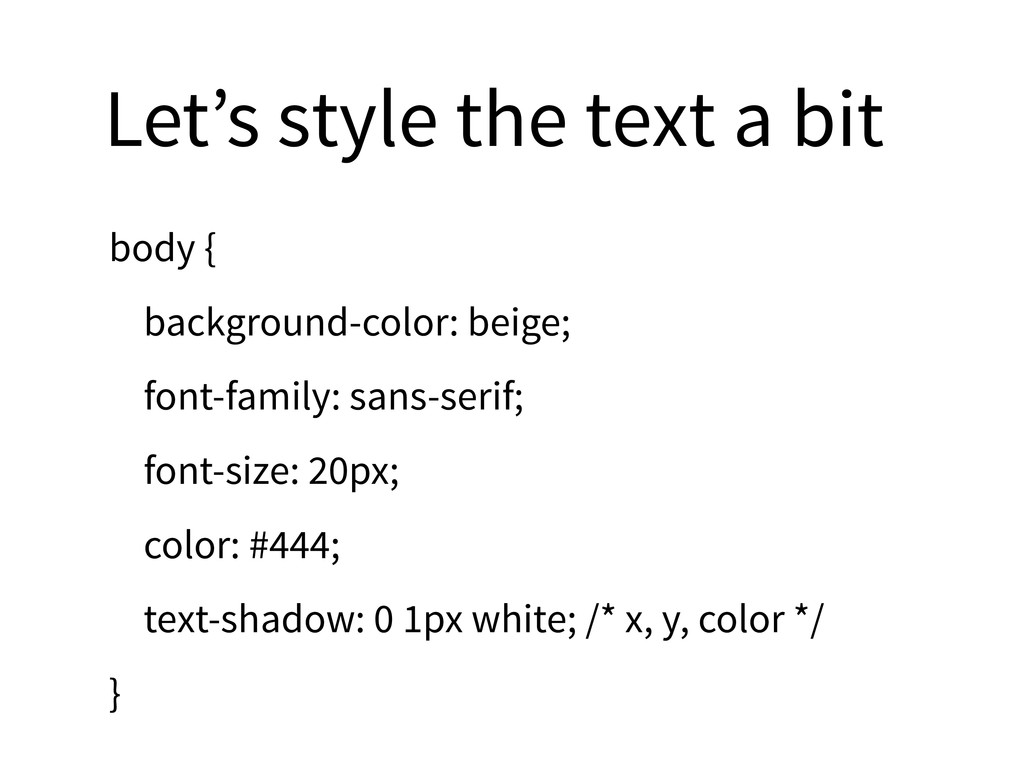
  35. Let’s style the text a bit body { background-color: beige;

    font-family: sans-serif; font-size: 20px; color: #444; text-shadow: 0 1px white; /* x, y, color */ }
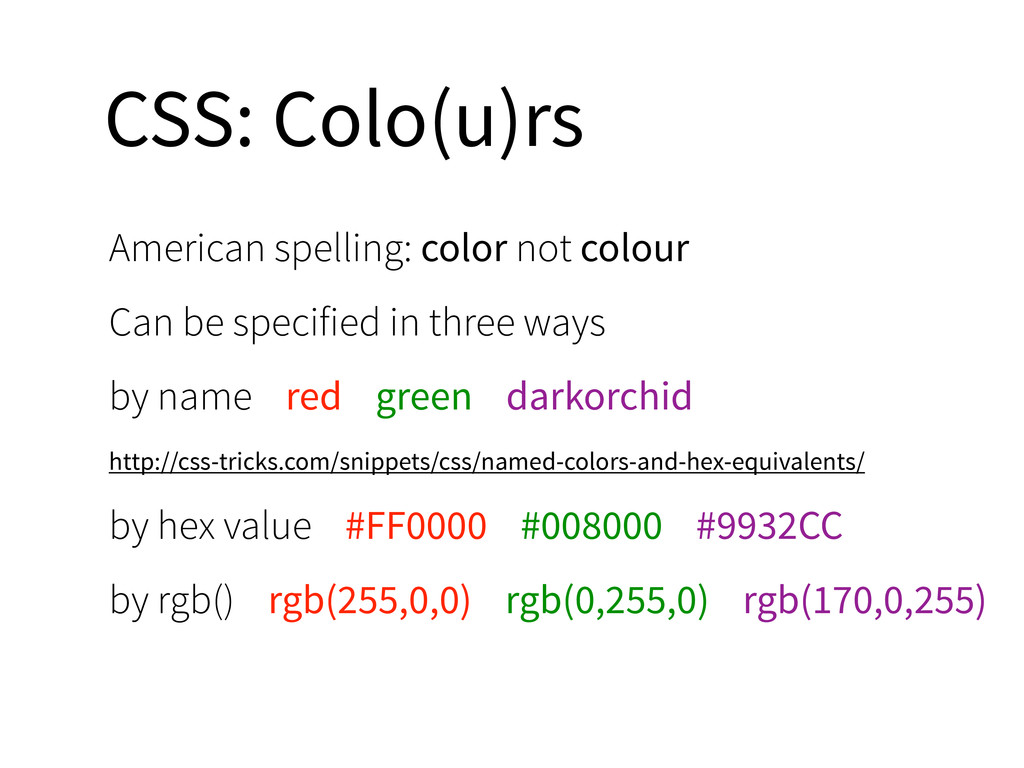
  36. CSS: Colo(u)rs American spelling: color not colour Can be specified

    in three ways by name red green darkorchid http://css-tricks.com/snippets/css/named-colors-and-hex-equivalents/ by hex value #FF0000 #008000 #9932CC by rgb() rgb(255,0,0) rgb(0,255,0) rgb(170,0,255)
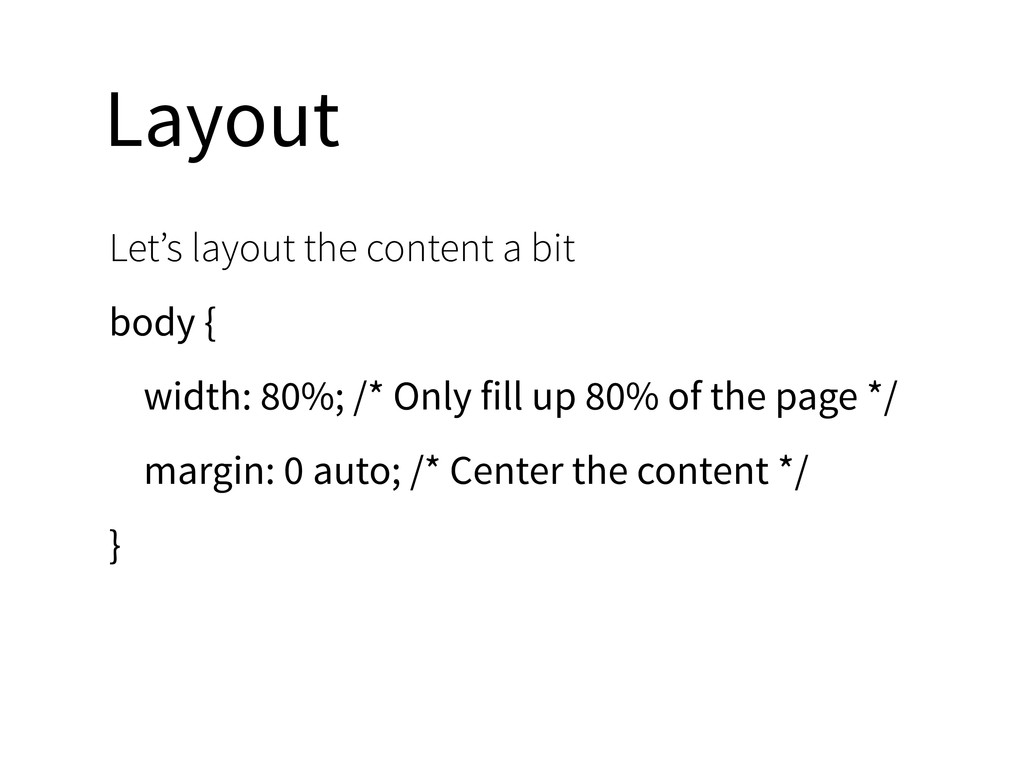
  37. Layout Let’s layout the content a bit body { width:

    80%; /* Only fill up 80% of the page */ margin: 0 auto; /* Center the content */ }
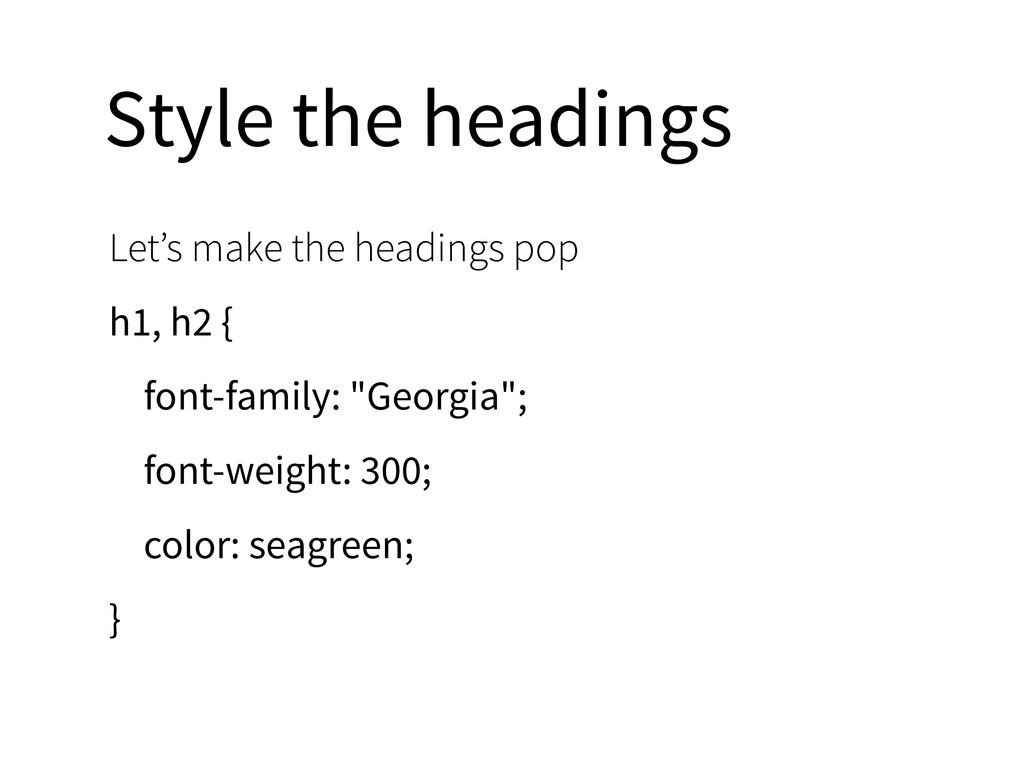
  38. Style the headings Let’s make the headings pop h1, h2

    { font-family: "Georgia"; font-weight: 300; color: seagreen; }
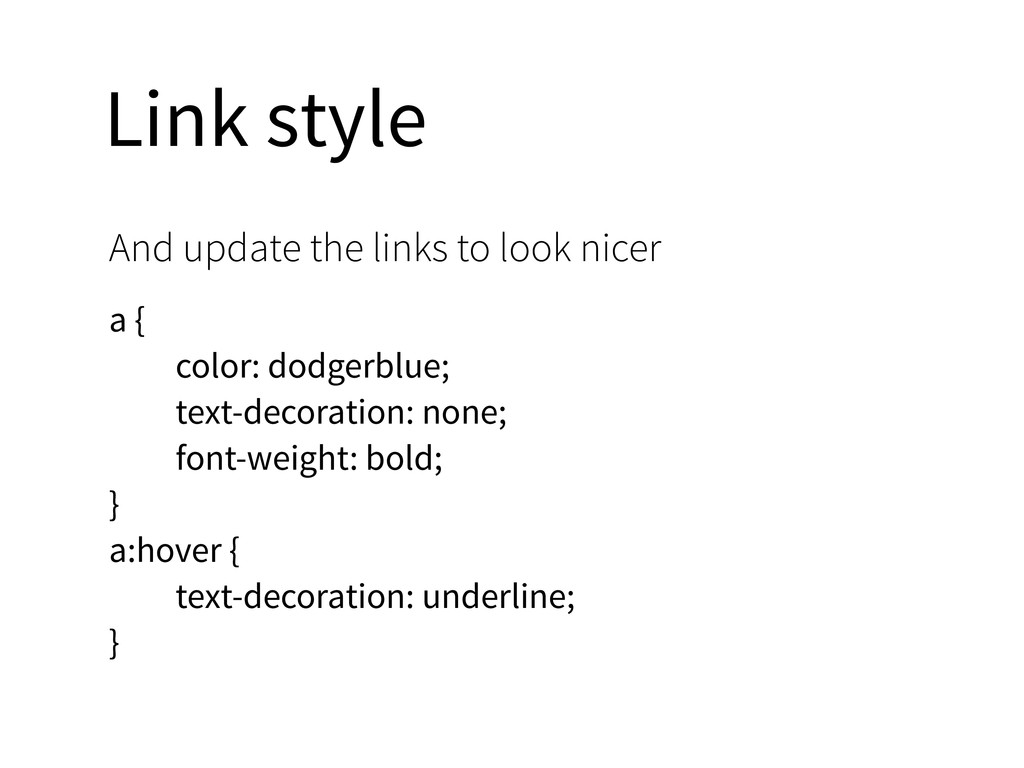
  39. Link style And update the links to look nicer a

    { color: dodgerblue; text-decoration: none; font-weight: bold; } a:hover { text-decoration: underline; }
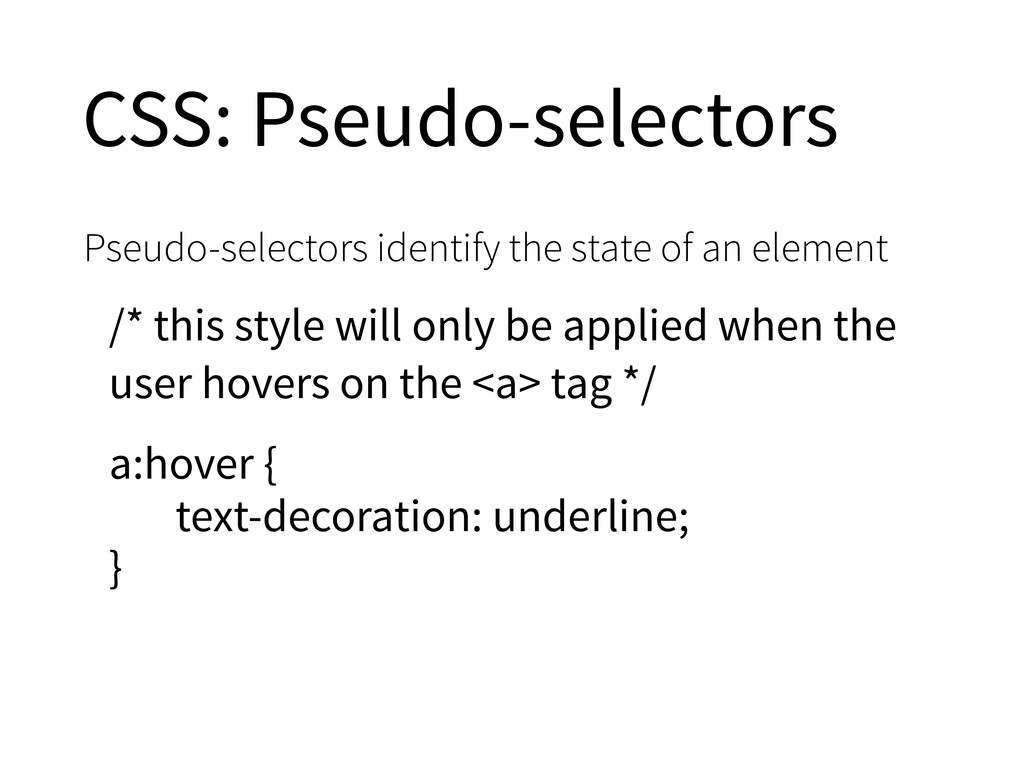
  40. CSS: Pseudo-selectors Pseudo-selectors identify the state of an element /*

    this style will only be applied when the user hovers on the <a> tag */ a:hover { text-decoration: underline; }
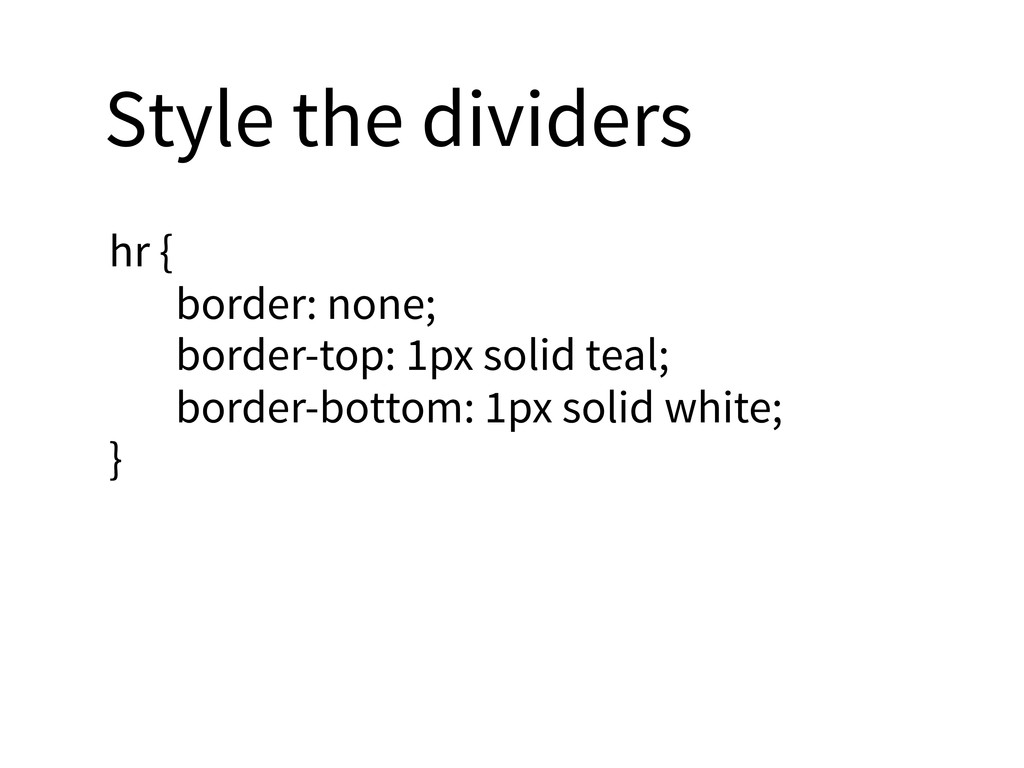
  41. Style the dividers hr { border: none; border-top: 1px solid

    teal; border-bottom: 1px solid white; }
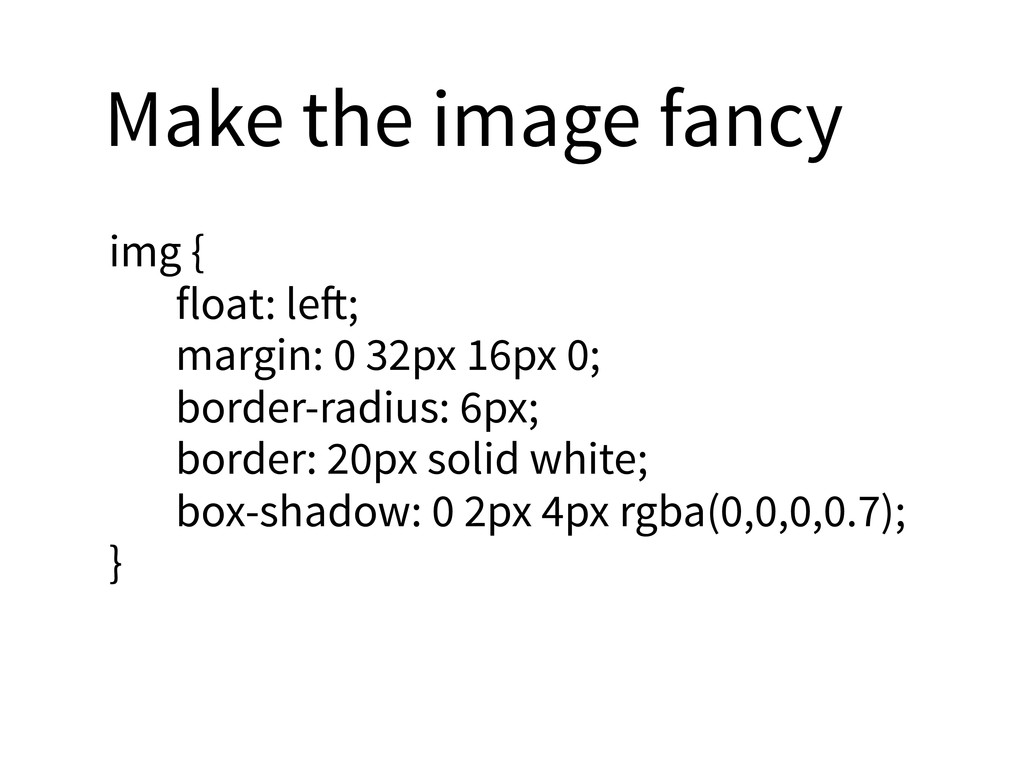
  42. Make the image fancy img { float: le!; margin: 0

    32px 16px 0; border-radius: 6px; border: 20px solid white; box-shadow: 0 2px 4px rgba(0,0,0,0.7); }
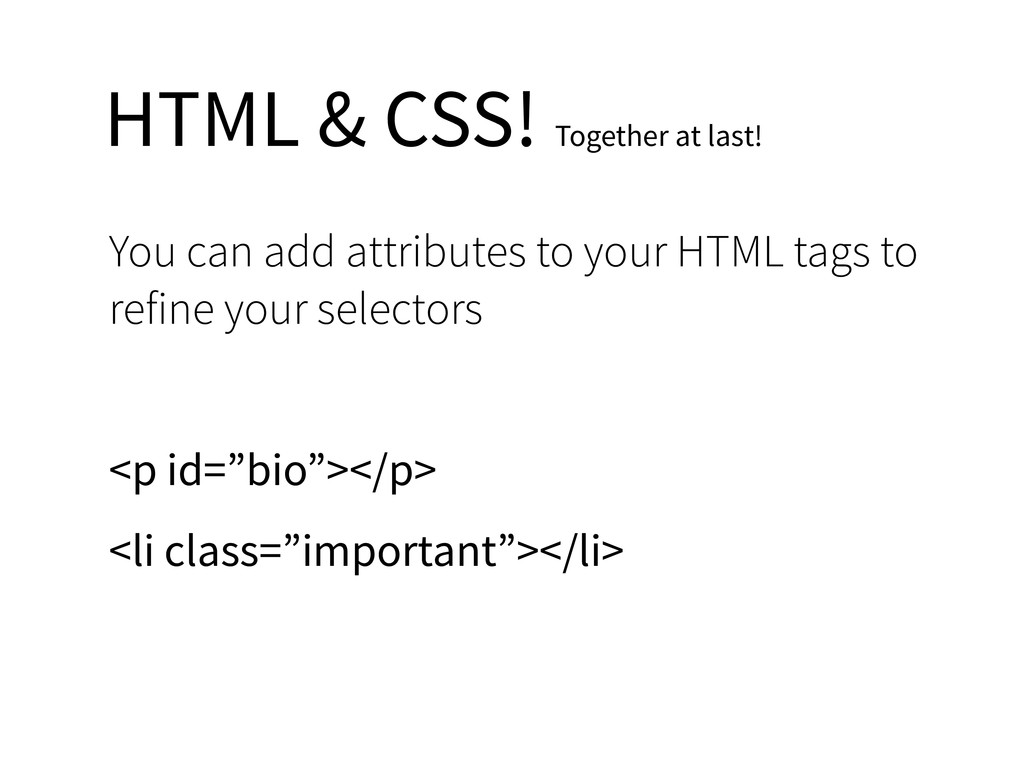
  43. HTML & CSS! Together at last! You can add attributes

    to your HTML tags to refine your selectors <p id=”bio”></p> <li class=”important”></li>
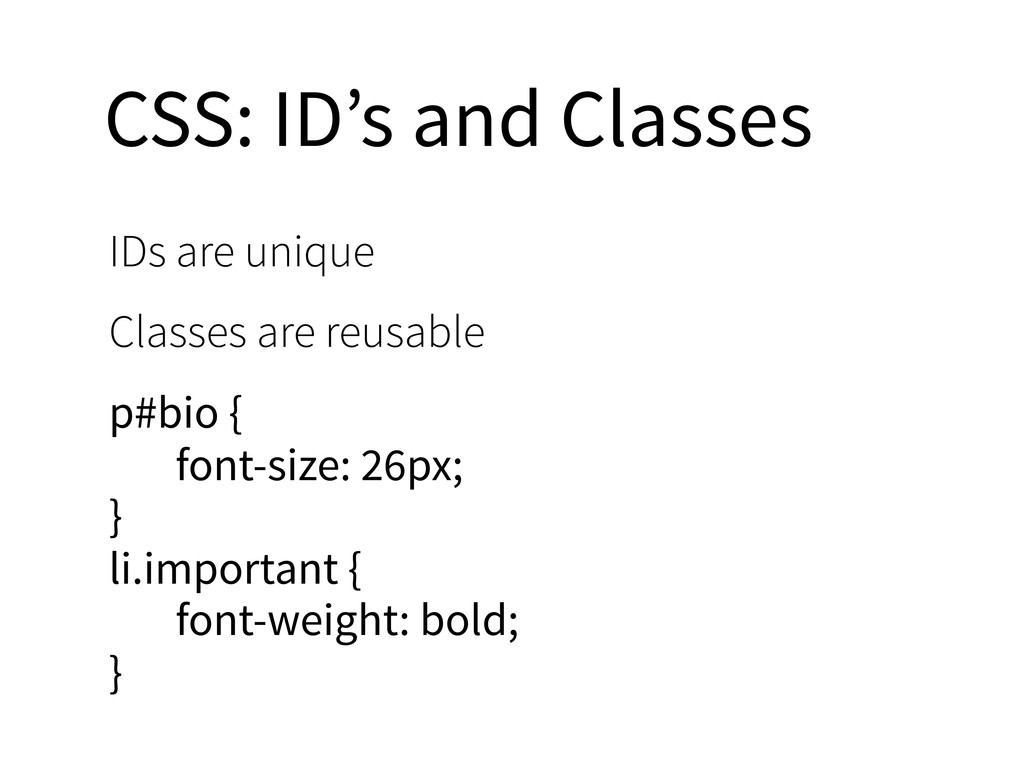
  44. CSS: ID’s and Classes IDs are unique Classes are reusable

    p#bio { font-size: 26px; } li.important { font-weight: bold; }
  45. Kind of This web page isn’t on the...web To publish

    it, you’ll need hosting To run your own website, you’ll need a domain
  46. Tips Try not to get frustrated Think through the problem

    logically Ask for help: you’re not the only one
  47. Resources Google will point you to http://www.w3schools.com, but it’s not

    the best. Treehouse Video Tutorials (free + paid) http://teamtreehouse.com/library/websites/html http://teamtreehouse.com/library/websites/css-foundations-second-edition