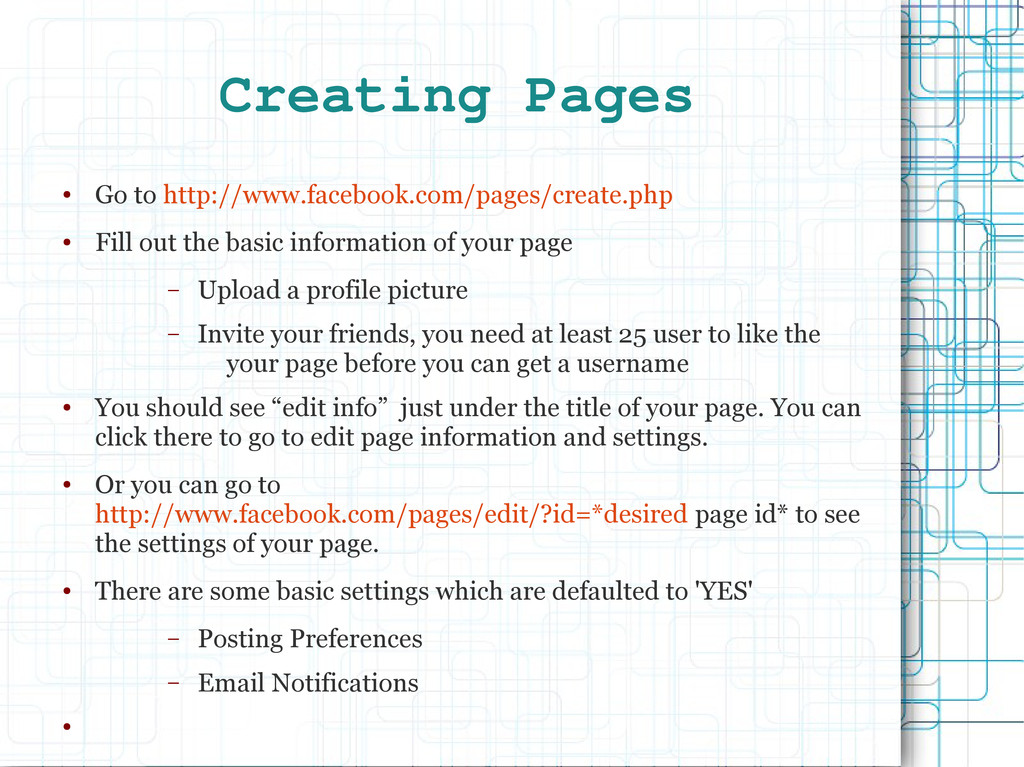
basic information of your page – Upload a profile picture – Invite your friends, you need at least 25 user to like the your page before you can get a username • You should see “edit info” just under the title of your page. You can click there to go to edit page information and settings. • Or you can go to http://www.facebook.com/pages/edit/?id=*desired page id* to see the settings of your page. • There are some basic settings which are defaulted to 'YES' – Posting Preferences – Email Notifications •
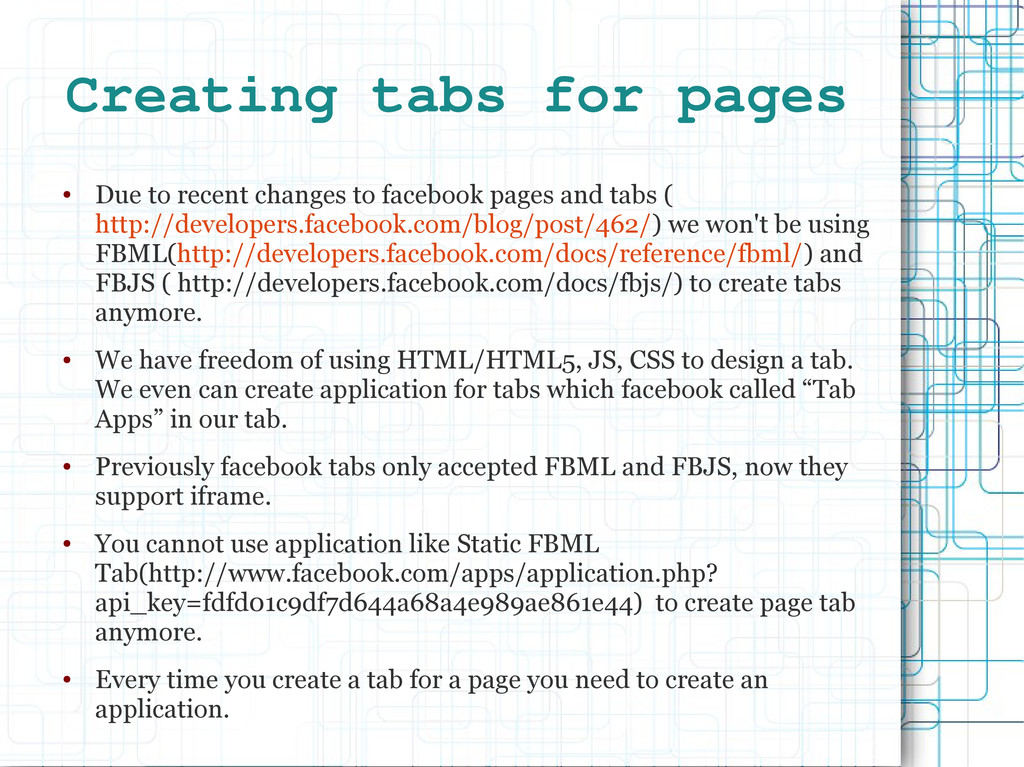
facebook pages and tabs ( http://developers.facebook.com/blog/post/462/) we won't be using FBML(http://developers.facebook.com/docs/reference/fbml/) and FBJS ( http://developers.facebook.com/docs/fbjs/) to create tabs anymore. • We have freedom of using HTML/HTML5, JS, CSS to design a tab. We even can create application for tabs which facebook called “Tab Apps” in our tab. • Previously facebook tabs only accepted FBML and FBJS, now they support iframe. • You cannot use application like Static FBML Tab(http://www.facebook.com/apps/application.php? api_key=fdfd01c9df7d644a68a4e989ae861e44) to create page tab anymore. • Every time you create a tab for a page you need to create an application.
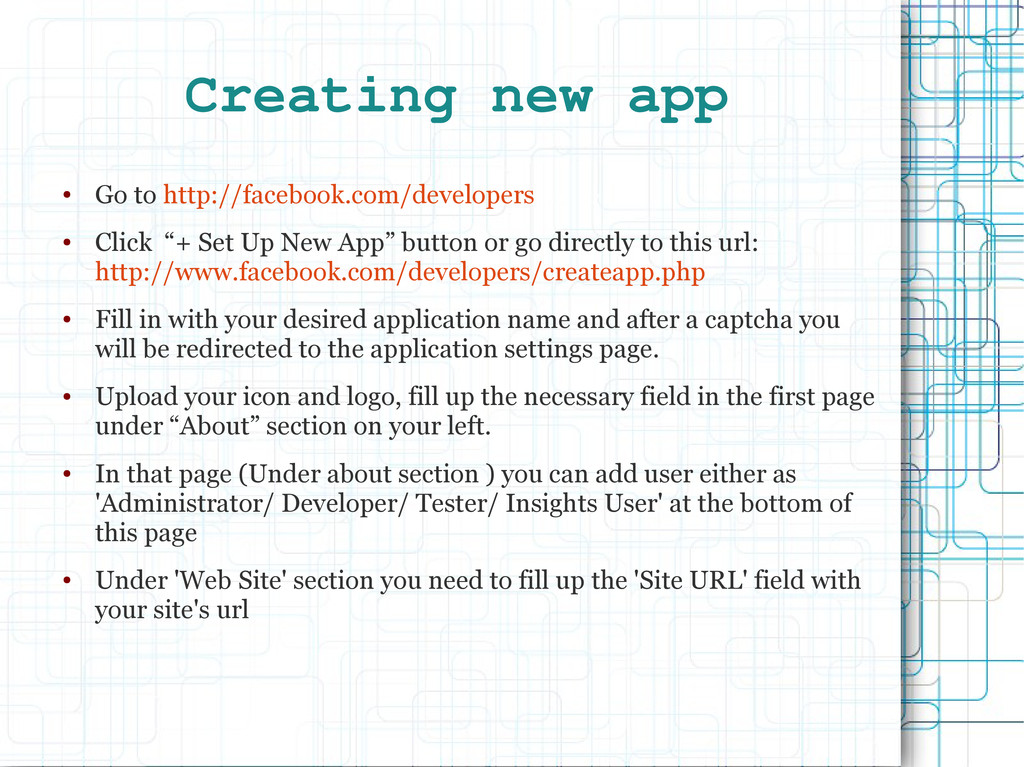
Set Up New App” button or go directly to this url: http://www.facebook.com/developers/createapp.php • Fill in with your desired application name and after a captcha you will be redirected to the application settings page. • Upload your icon and logo, fill up the necessary field in the first page under “About” section on your left. • In that page (Under about section ) you can add user either as 'Administrator/ Developer/ Tester/ Insights User' at the bottom of this page • Under 'Web Site' section you need to fill up the 'Site URL' field with your site's url
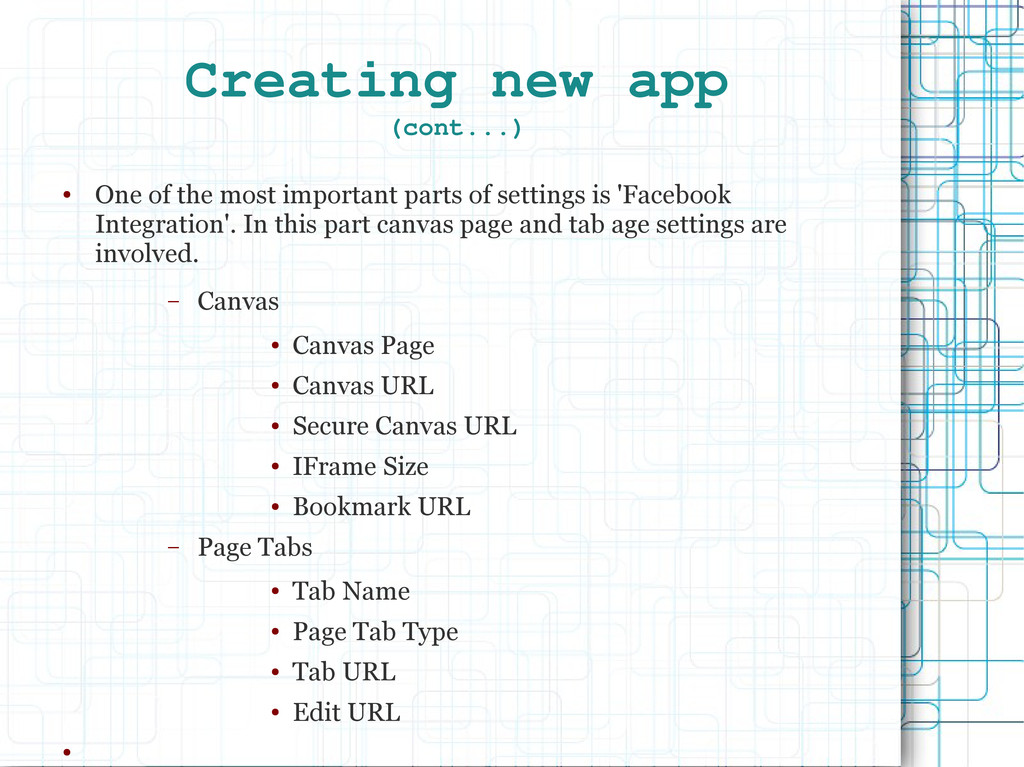
parts of settings is 'Facebook Integration'. In this part canvas page and tab age settings are involved. – Canvas • Canvas Page • Canvas URL • Secure Canvas URL • IFrame Size • Bookmark URL – Page Tabs • Tab Name • Page Tab Type • Tab URL • Edit URL •
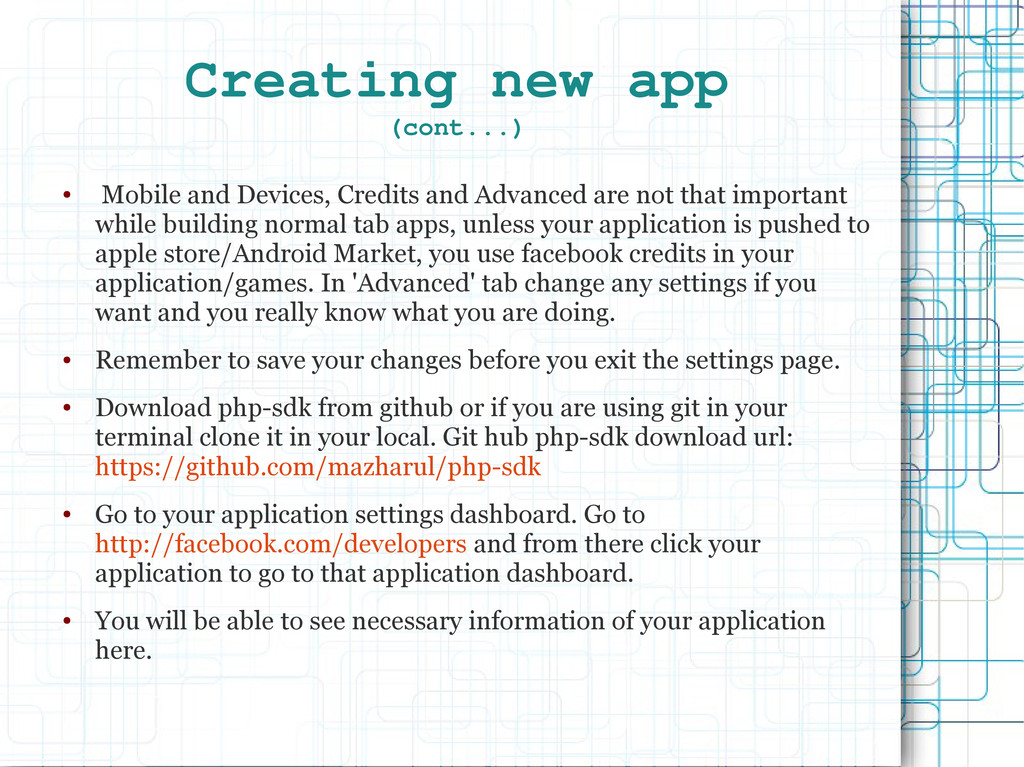
Advanced are not that important while building normal tab apps, unless your application is pushed to apple store/Android Market, you use facebook credits in your application/games. In 'Advanced' tab change any settings if you want and you really know what you are doing. • Remember to save your changes before you exit the settings page. • Download php-sdk from github or if you are using git in your terminal clone it in your local. Git hub php-sdk download url: https://github.com/mazharul/php-sdk • Go to your application settings dashboard. Go to http://facebook.com/developers and from there click your application to go to that application dashboard. • You will be able to see necessary information of your application here.
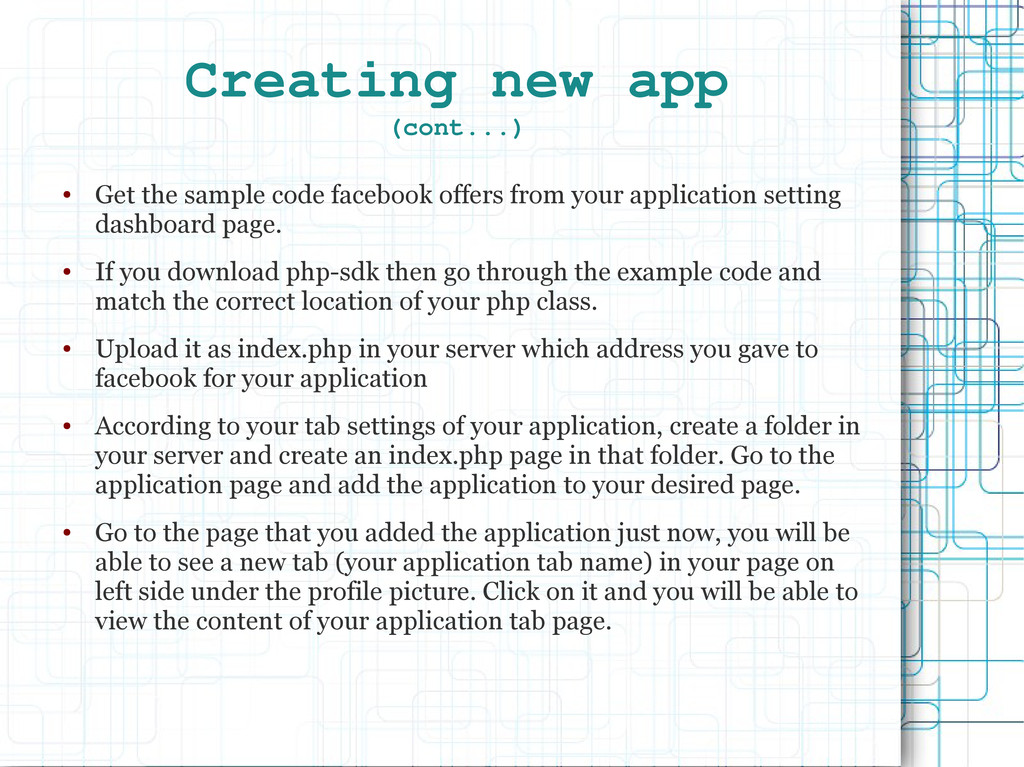
offers from your application setting dashboard page. • If you download php-sdk then go through the example code and match the correct location of your php class. • Upload it as index.php in your server which address you gave to facebook for your application • According to your tab settings of your application, create a folder in your server and create an index.php page in that folder. Go to the application page and add the application to your desired page. • Go to the page that you added the application just now, you will be able to see a new tab (your application tab name) in your page on left side under the profile picture. Click on it and you will be able to view the content of your application tab page.


 mazharul
 soudai
 rasagy
 rmw
rmw
 aleyda
 deanohume
 addyosmani
 jeffersonlam
 wayneb77
 jakevdp
 frankvandijk
 asonas
 rocio
rocio