published at sinxloud.com on June 5, 2018. Today we’re going to take a look at how to Setup WordPress on Google Cloud - Google Click to Deploy, configure OpenSource SSL, and enable essential services through Debian CLI to keep WordPress Instance streamlined. Google Cloud Platform, offered by Google, is a suite of cloud computing services that run on the same infrastructure that Google uses for its end-user products, such as Google Search, Google Drive, Android, YouTube. read more
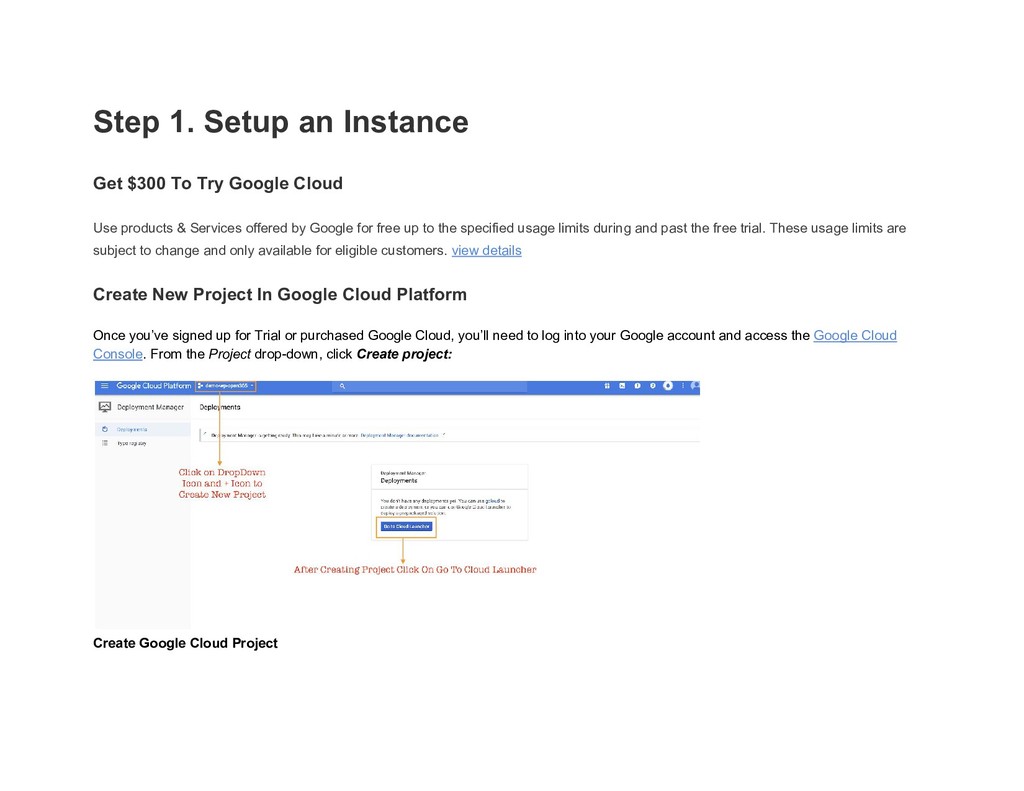
Cloud Use products & Services offered by Google for free up to the specified usage limits during and past the free trial. These usage limits are subject to change and only available for eligible customers. view details Create New Project In Google Cloud Platform Once you’ve signed up for Trial or purchased Google Cloud, you’ll need to log into your Google account and access the Google Cloud Console. From the Project drop-down, click Create project: Create Google Cloud Project
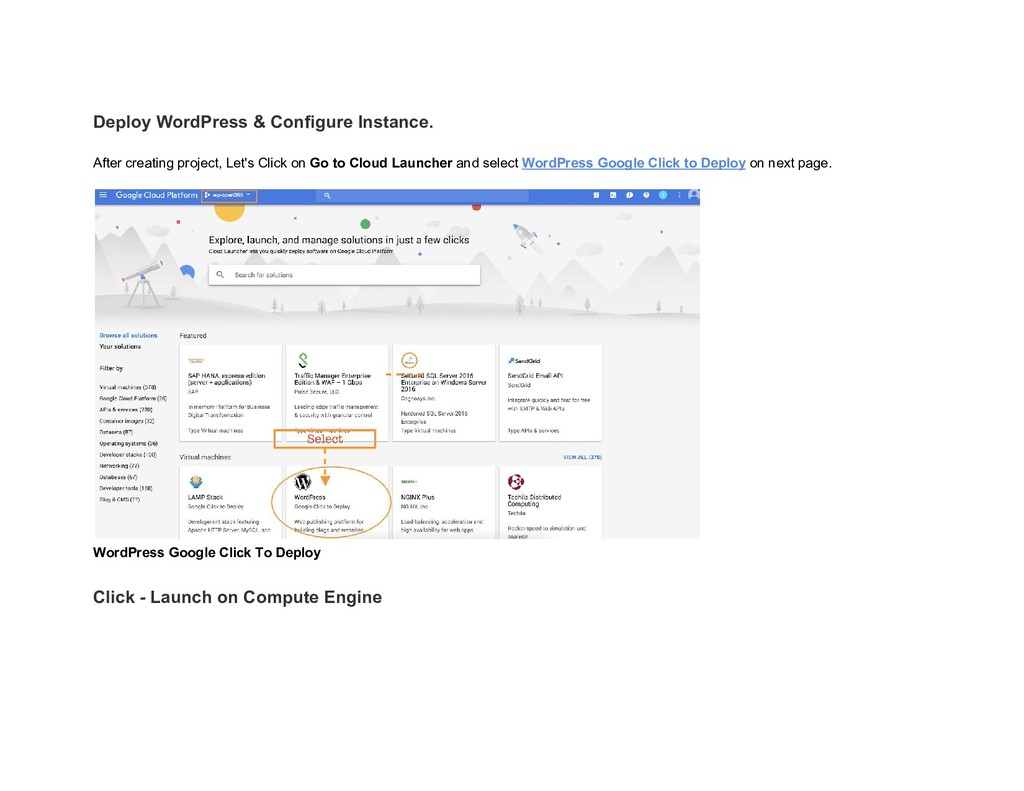
on Go to Cloud Launcher and select WordPress Google Click to Deploy on next page. WordPress Google Click To Deploy Click - Launch on Compute Engine
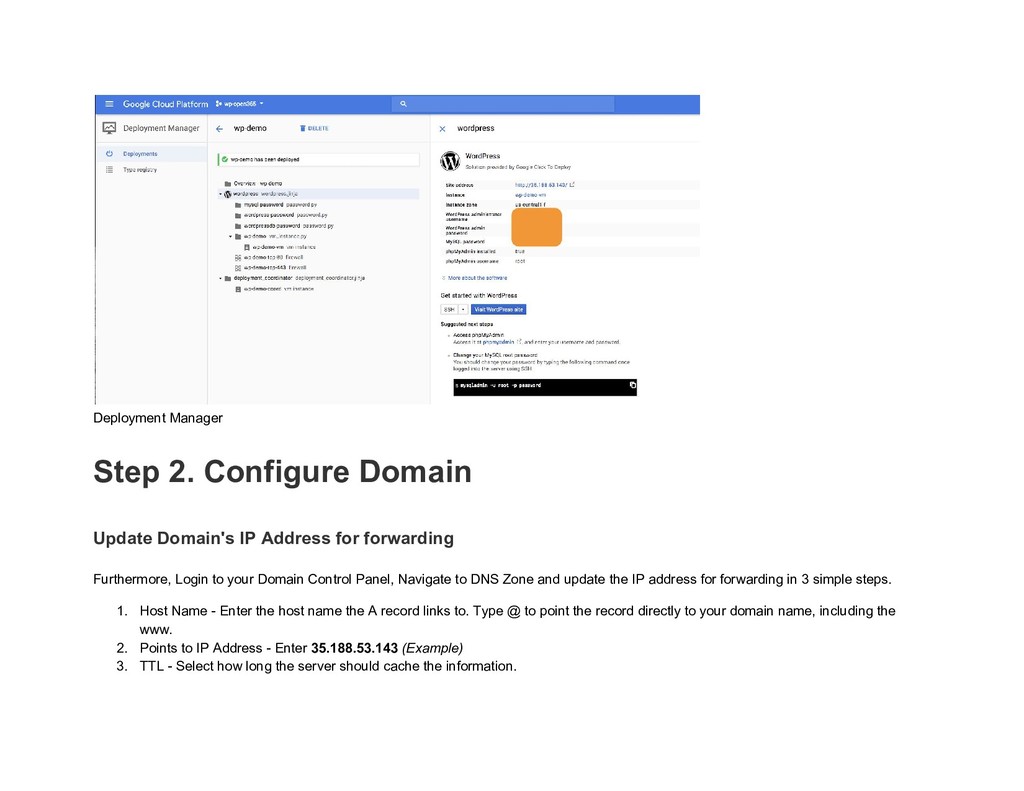
Name - Deployment name can only contain lowercase characters, numbers or dashes. It must start with a lowercase letter and cannot end with a dash. 2. Select Zone - The zone determines what computing resources are available and where your data is stored and used Learn more 3. Configure Machine Type - Machine types determine the specifications of your machines, such as the amount of memory, virtual cores, and persistent disk limits an instance will have. Learn more about machine types 4. Enter Administrator Email - This email will be used if you need to reset your password. 5. Select Install phpMyAdmin 6. Boot Disk Type - Storage space is much less expensive for a standard persistent disk. An SSD persistent disk is better for random IOPS or streaming throughput with low latency. Learn more 7. Firewall - By default, all incoming traffic from outside a network is blocked. Select the type of network traffic you want to allow. Learn more Check both Allow HTTPS & HTTPS Traffic. 8. Finally, Click on Deploy and Wait for Google to generate IP Address & Credentials for your WordPress Instance.
for forwarding Furthermore, Login to your Domain Control Panel, Navigate to DNS Zone and update the IP address for forwarding in 3 simple steps. 1. Host Name - Enter the host name the A record links to. Type @ to point the record directly to your domain name, including the www. 2. Points to IP Address - Enter 35.188.53.143 (Example) 3. TTL - Select how long the server should cache the information.
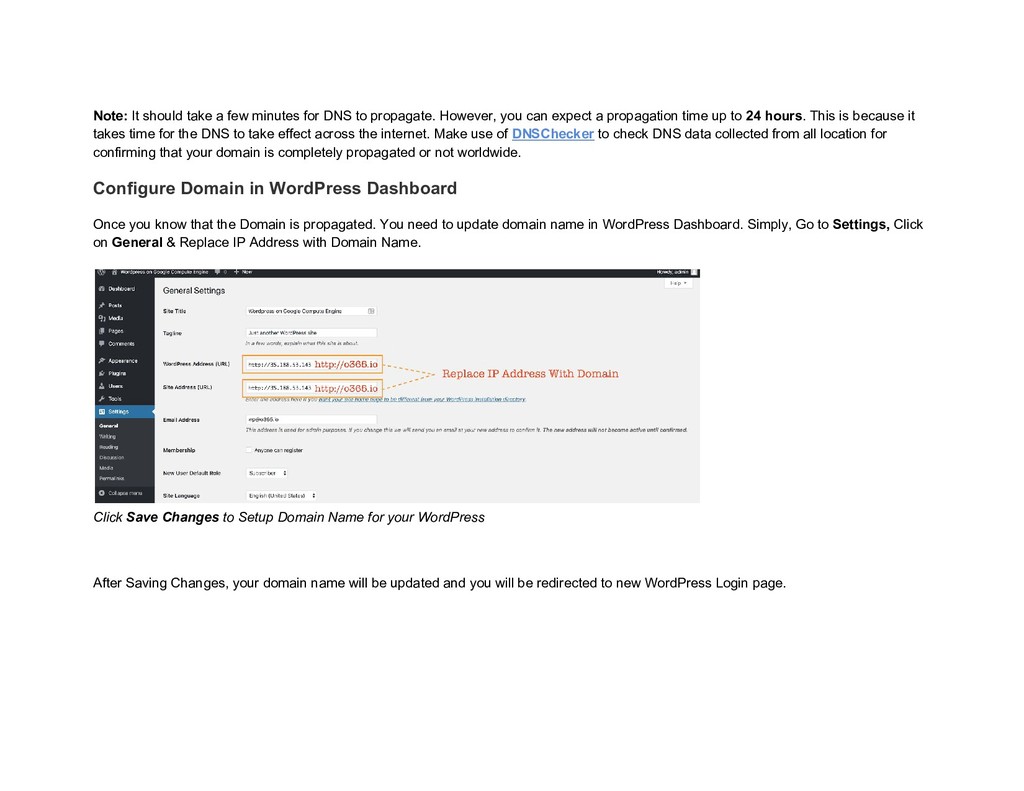
propagate. However, you can expect a propagation time up to 24 hours. This is because it takes time for the DNS to take effect across the internet. Make use of DNSChecker to check DNS data collected from all location for confirming that your domain is completely propagated or not worldwide. Configure Domain in WordPress Dashboard Once you know that the Domain is propagated. You need to update domain name in WordPress Dashboard. Simply, Go to Settings, Click on General & Replace IP Address with Domain Name. Click Save Changes to Setup Domain Name for your WordPress After Saving Changes, your domain name will be updated and you will be redirected to new WordPress Login page.
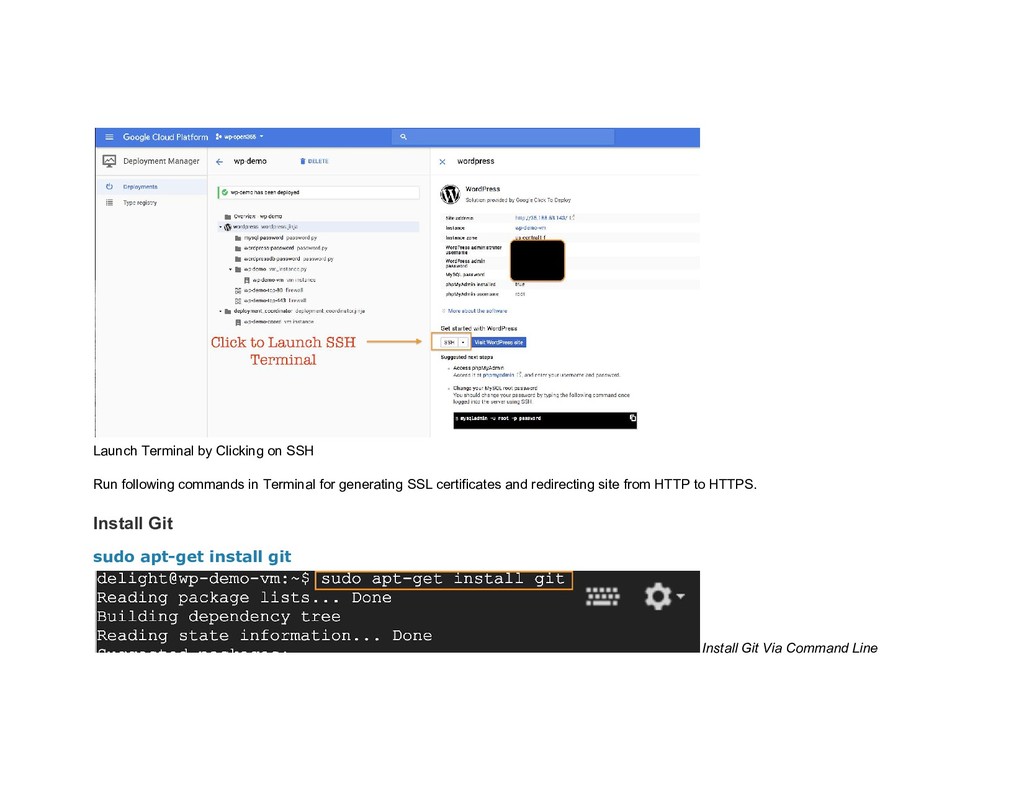
Configure SSL to Redirect Traffic from HTTP to HTTPS HTTPS protects the integrity of your website. HTTPS helps prevent intruders from tampering with the communications between your websites and your users' browsers. Intruders include intentionally malicious attackers, and legitimate but intrusive companies, such as ISPs or hotels that inject ads into pages. In the next few steps, I am going to show you how to setup and configure LetsEncrypt, Certbot OpenSSL certificate. Navigate to Deployment Manager and click on SSH to launch terminal. Also, we'll need to edit some files so here's the list of VIM Editor Commands
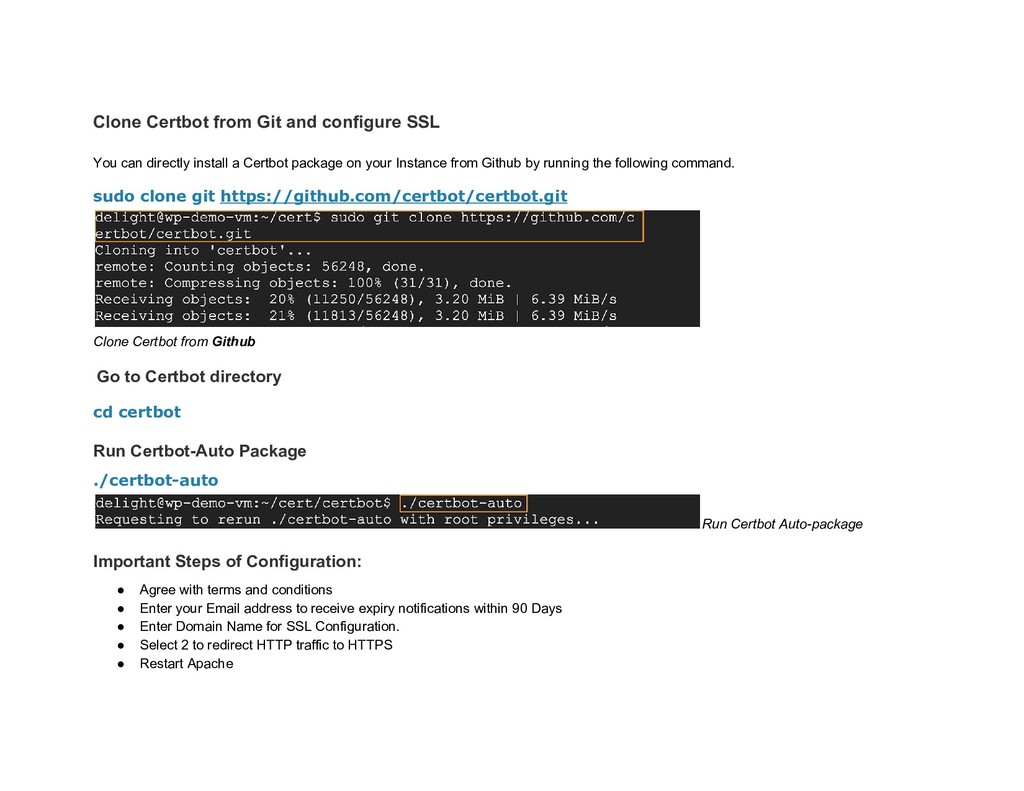
install a Certbot package on your Instance from Github by running the following command. sudo clone git https://github.com/certbot/certbot.git Clone Certbot from Github Go to Certbot directory cd certbot Run Certbot-Auto Package ./certbot-auto Run Certbot Auto-package Important Steps of Configuration: • Agree with terms and conditions • Enter your Email address to receive expiry notifications within 90 Days • Enter Domain Name for SSL Configuration. • Select 2 to redirect HTTP traffic to HTTPS • Restart Apache
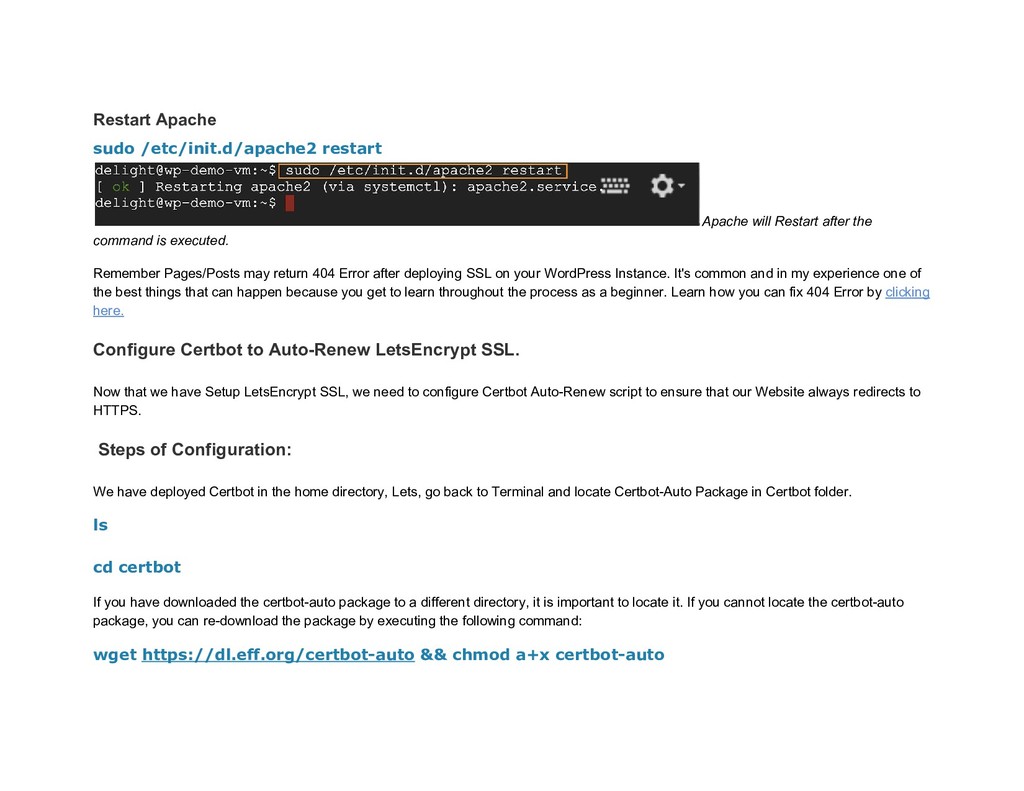
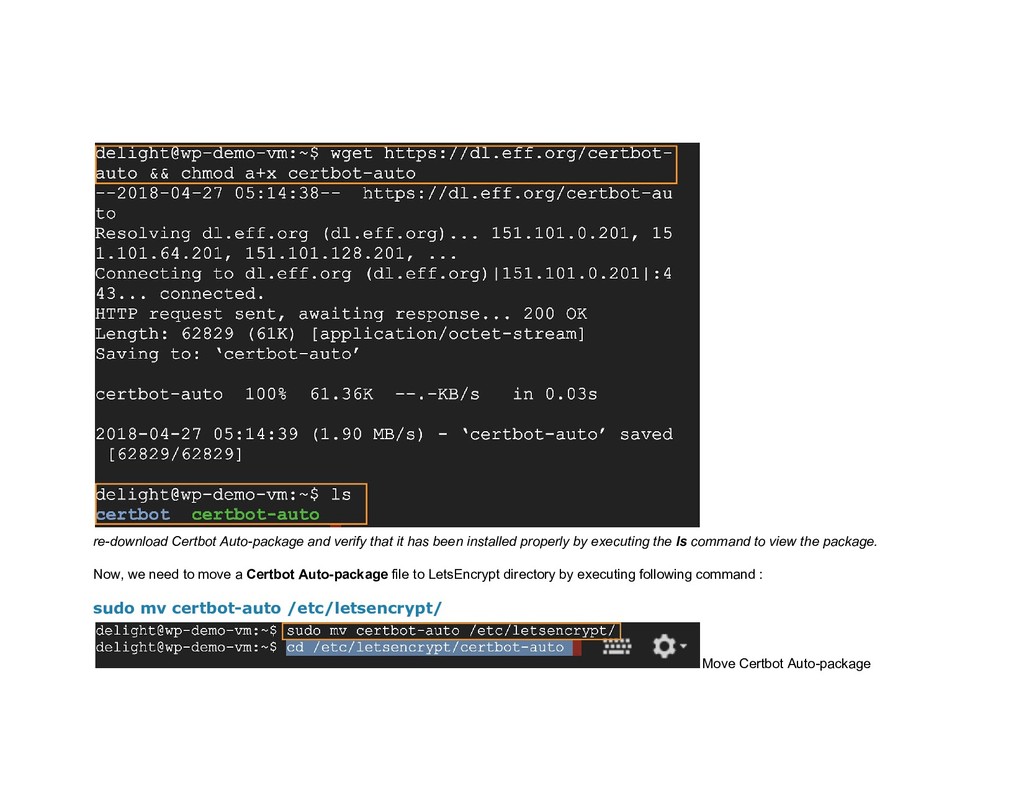
command is executed. Remember Pages/Posts may return 404 Error after deploying SSL on your WordPress Instance. It's common and in my experience one of the best things that can happen because you get to learn throughout the process as a beginner. Learn how you can fix 404 Error by clicking here. Configure Certbot to Auto-Renew LetsEncrypt SSL. Now that we have Setup LetsEncrypt SSL, we need to configure Certbot Auto-Renew script to ensure that our Website always redirects to HTTPS. Steps of Configuration: We have deployed Certbot in the home directory, Lets, go back to Terminal and locate Certbot-Auto Package in Certbot folder. ls cd certbot If you have downloaded the certbot-auto package to a different directory, it is important to locate it. If you cannot locate the certbot-auto package, you can re-download the package by executing the following command: wget https://dl.eff.org/certbot-auto && chmod a+x certbot-auto
properly by executing the ls command to view the package. Now, we need to move a Certbot Auto-package file to LetsEncrypt directory by executing following command : sudo mv certbot-auto /etc/letsencrypt/ Move Certbot Auto-package
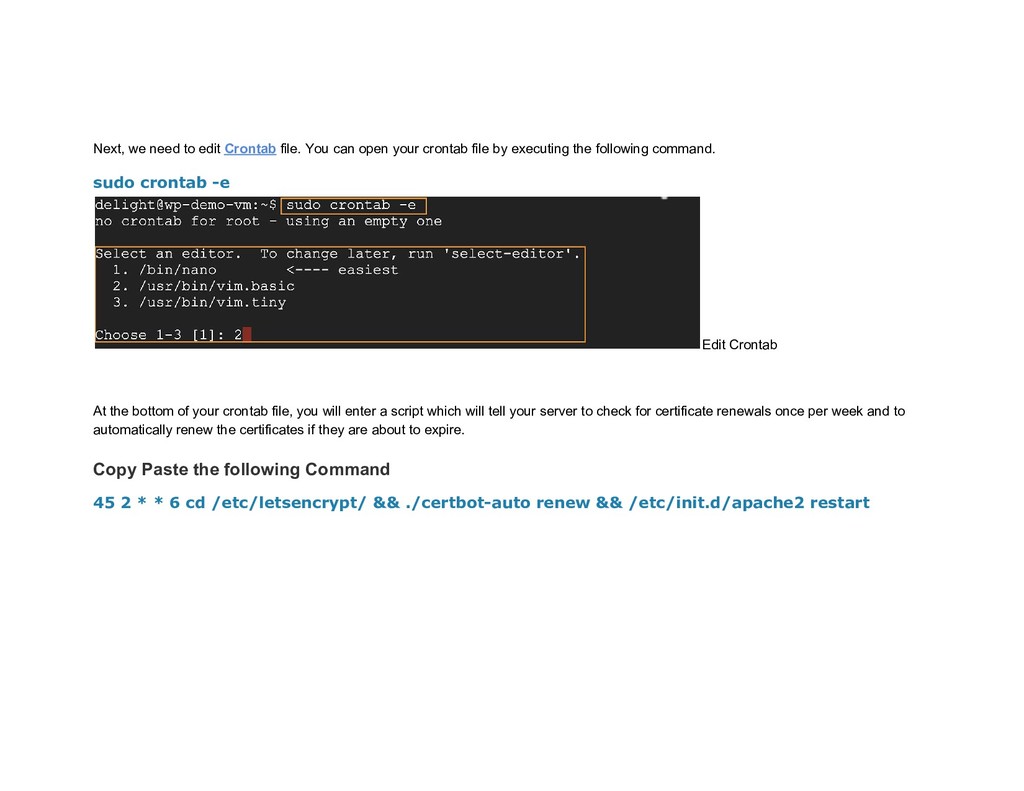
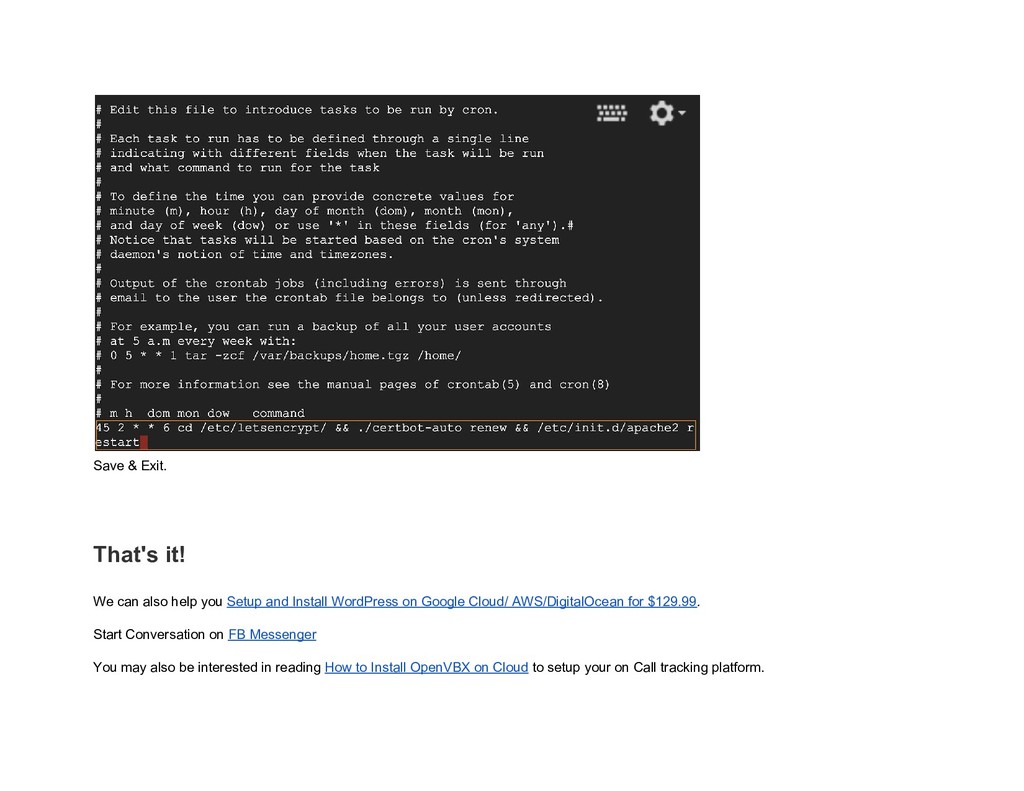
your crontab file by executing the following command. sudo crontab -e Edit Crontab At the bottom of your crontab file, you will enter a script which will tell your server to check for certificate renewals once per week and to automatically renew the certificates if they are about to expire. Copy Paste the following Command 45 2 * * 6 cd /etc/letsencrypt/ && ./certbot-auto renew && /etc/init.d/apache2 restart
Setup and Install WordPress on Google Cloud/ AWS/DigitalOcean for $129.99. Start Conversation on FB Messenger You may also be interested in reading How to Install OpenVBX on Cloud to setup your on Call tracking platform.
CLOUD, CONFIGURE OPENSSL WORDPRESS CLOUD, HOW TO SETUP WORDPRESS ON GOOGLE CLOUD, SETUP WORDPRESS ON GOOGLE CLOUD, INSTALL WORDPRESS ON GOOGLE CLOUD, HOW TO INSTALL WORDPRESS ON GOOGLE CLOUD, INSTALL WORDPRESS GOOGLE CLOUD, GOOGLE CLOUD WORDPRESS, GOOGLE CLOUD SETUP WORDPRESS, INSTALL SSL WORDPRESS GOOGLE CLOUD, WORDPRESS SSL GOOGLE CLOUD, CERTBOT, CLOUD, DEPLOY, GOOGLE, INSTALL, SETUP, WORDPRESS


 willnet
 y0hgi
y0hgi
 kairim0
 shugo
shugo
 bgpat
bgpat
 pfn
pfn
 recruitengineers
 moznion
 maimyyym
 glaforge
 jyouryuusui
 kaminashi
 reverentgeek
 jeffersonlam
 aleyda
 codingconduct
 chrisshort
 sabderemane
 thekraken
 honzajavorek
 tonyrice
 inesmontani
 paigeccino
 erikaheidi