Upgrade to Pro — share decks privately, control downloads, hide ads and more …

Computer Application for Co curricular students...

Computer Application for Co curricular students BA5 semester-lect2

This presentation is designed for B.A. Fifth Semester students studying Computer Applications as a co-curricular subject under the syllabus of Chhatrapati Shahu Ji Maharaj University (CSJMU), Kanpur.

The lecture introduces students to important concepts and practical applications of computers, with a focus on developing basic digital and computer-related skills required in academic and everyday life.

This PPT is useful for undergraduate students, teachers, and learners preparing for classroom discussions, examinations, and practical understanding of computer applications.

Avatar for Dr. Saba Yunus

Dr. Saba Yunus

September 10, 2026

More Decks by Dr. Saba Yunus

Other Decks in Technology

Transcript

  1. 1 Computer Applications Lecture Prepared by : Dr. Saba Yunus

    For B.A. 5th Semester (co-curricular) MS-Excel E-Mail and Browsers Open Source Applications Search Engines Web Surfing & Internet Cyber Security
  2. Introduction to MS-Excel • MS-Excel is a spreadsheet application developed

    by Microsoft. • It is used to store, organize, calculate and analyze data. • Data is entered in the form of rows and columns. • Excel is useful for: • Mark sheets • Salary sheets • Budgets • Accounts • Tables and reports • Charts and graphs Example: A teacher can use Excel to calculate students' total marks and percentage. 2
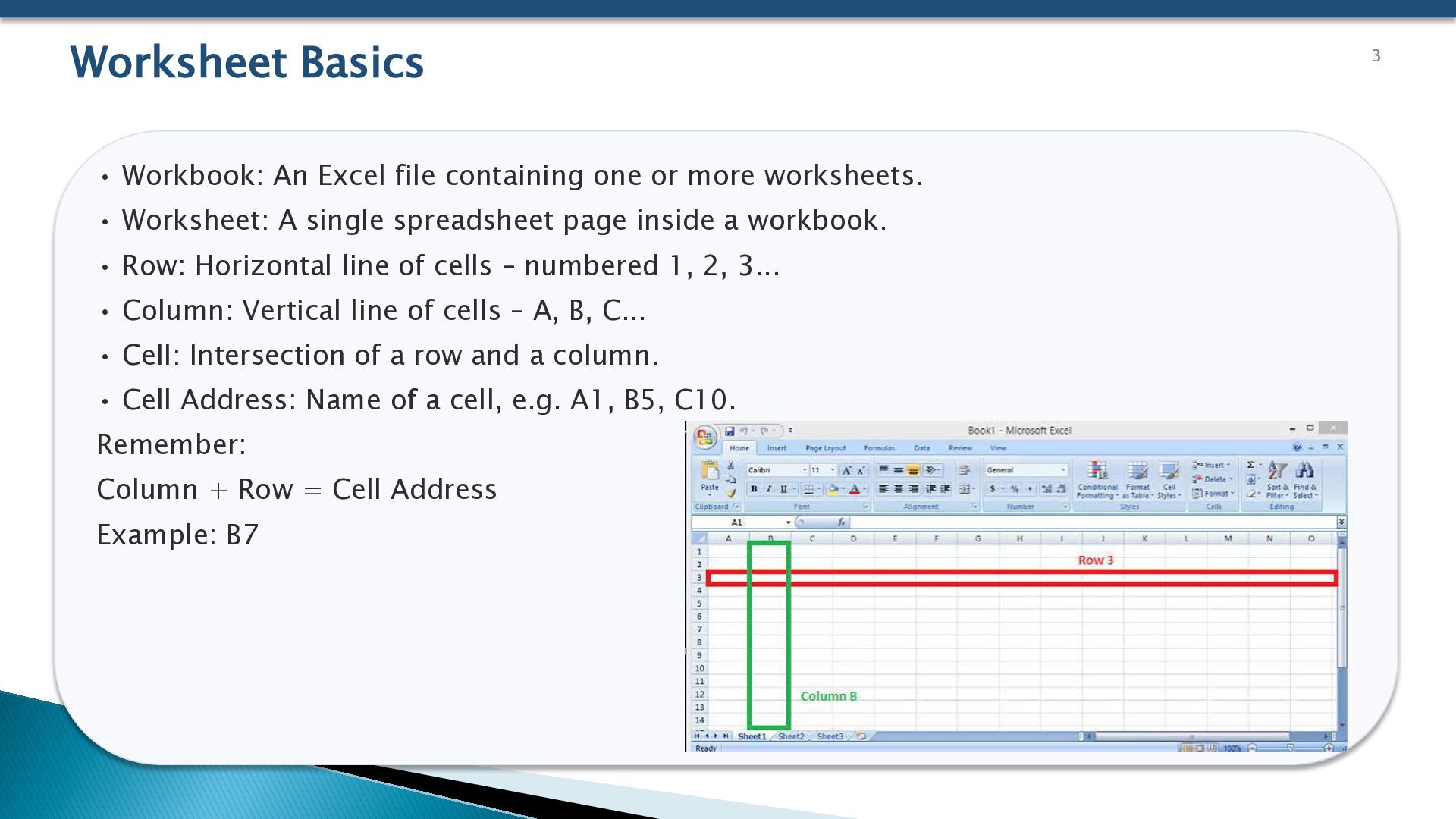
  3. Worksheet Basics • Workbook: An Excel file containing one or

    more worksheets. • Worksheet: A single spreadsheet page inside a workbook. • Row: Horizontal line of cells – numbered 1, 2, 3... • Column: Vertical line of cells – A, B, C... • Cell: Intersection of a row and a column. • Cell Address: Name of a cell, e.g. A1, B5, C10. Remember: Column + Row = Cell Address Example: B7 3
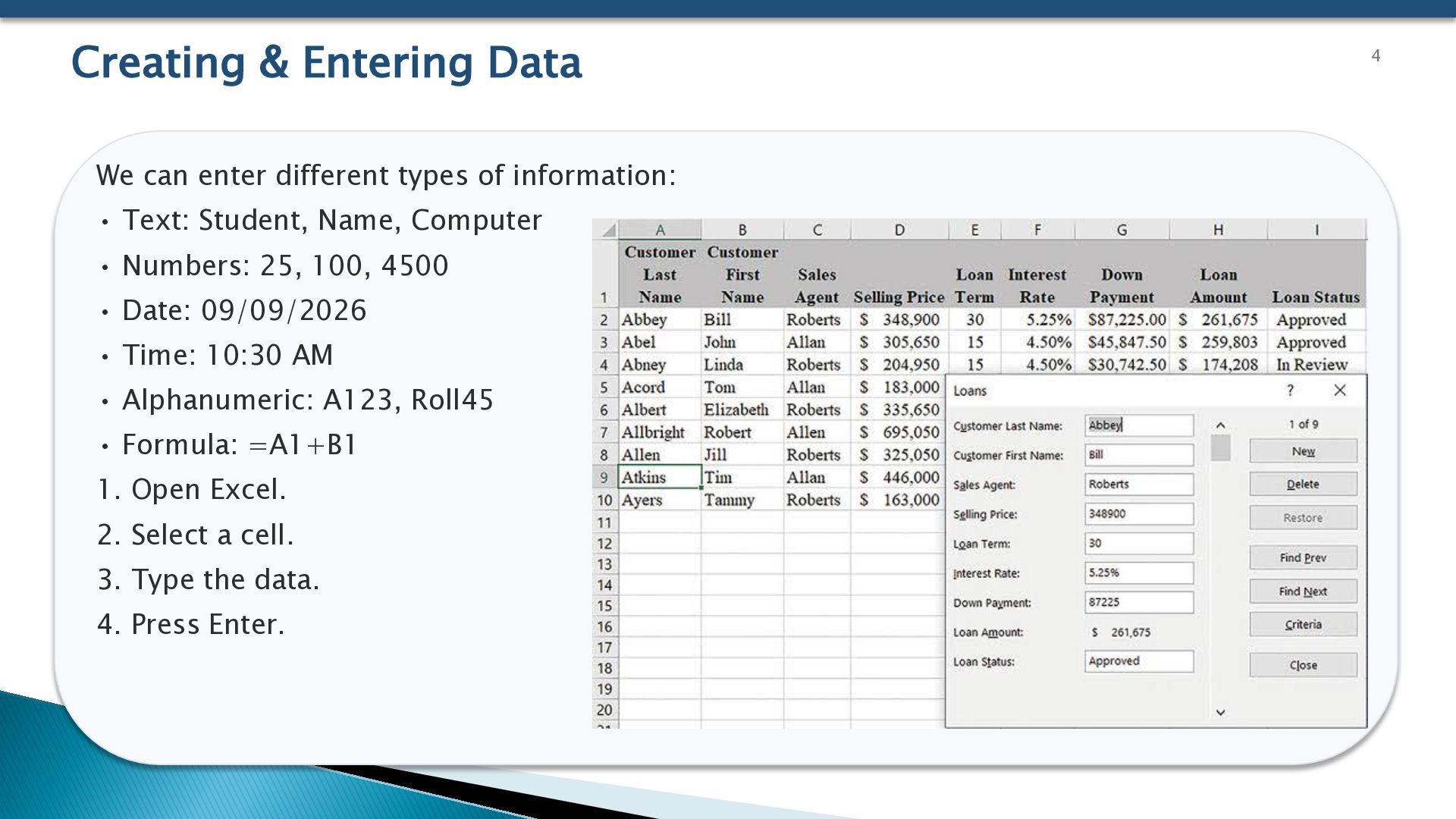
  4. Creating & Entering Data We can enter different types of

    information: • Text: Student, Name, Computer • Numbers: 25, 100, 4500 • Date: 09/09/2026 • Time: 10:30 AM • Alphanumeric: A123, Roll45 • Formula: =A1+B1 1. Open Excel. 2. Select a cell. 3. Type the data. 4. Press Enter. 4
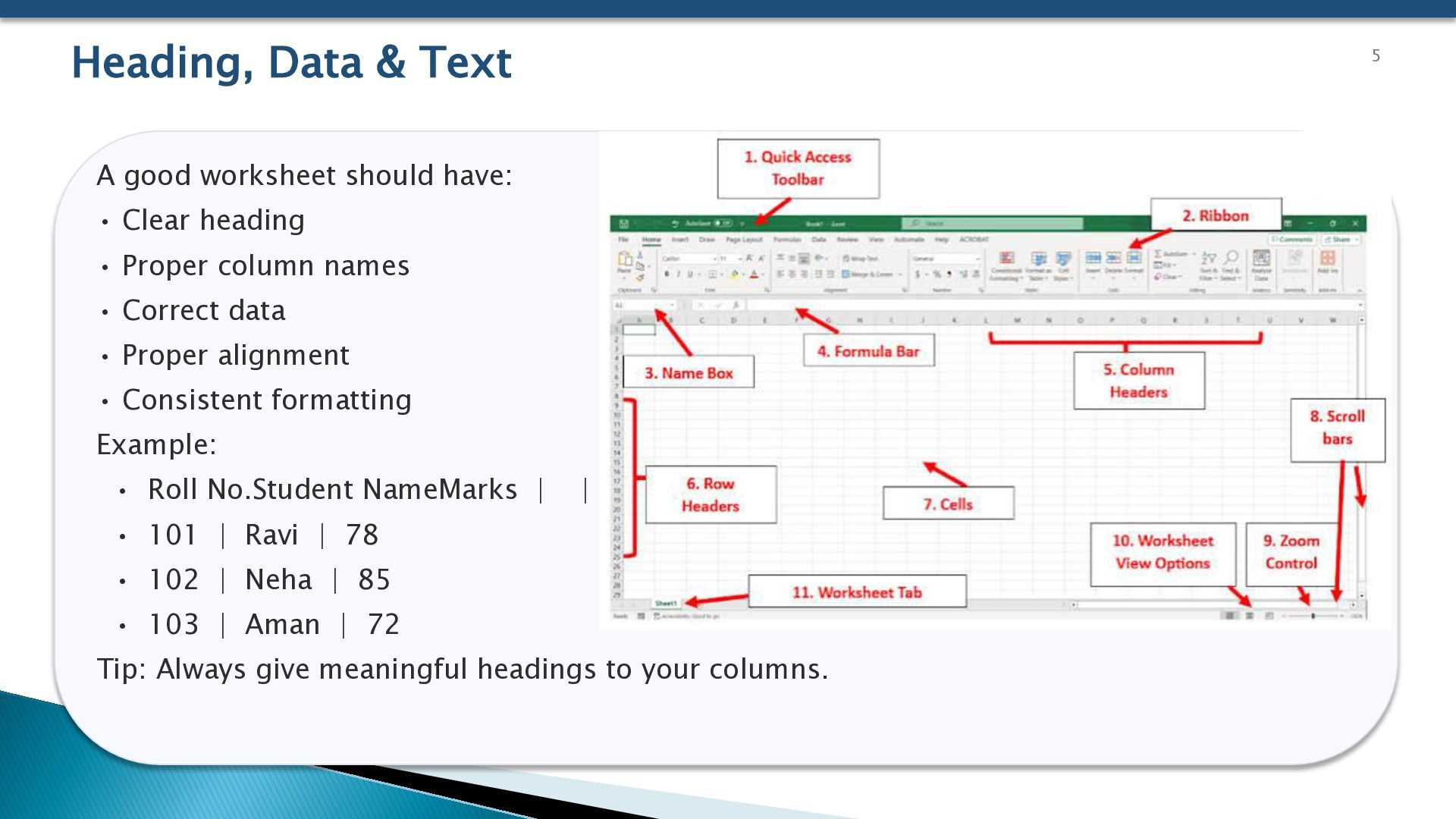
  5. Heading, Data & Text 5 A good worksheet should have:

    • Clear heading • Proper column names • Correct data • Proper alignment • Consistent formatting Example: • Roll No.Student NameMarks | | • 101 | Ravi | 78 • 102 | Neha | 85 • 103 | Aman | 72 Tip: Always give meaningful headings to your columns.
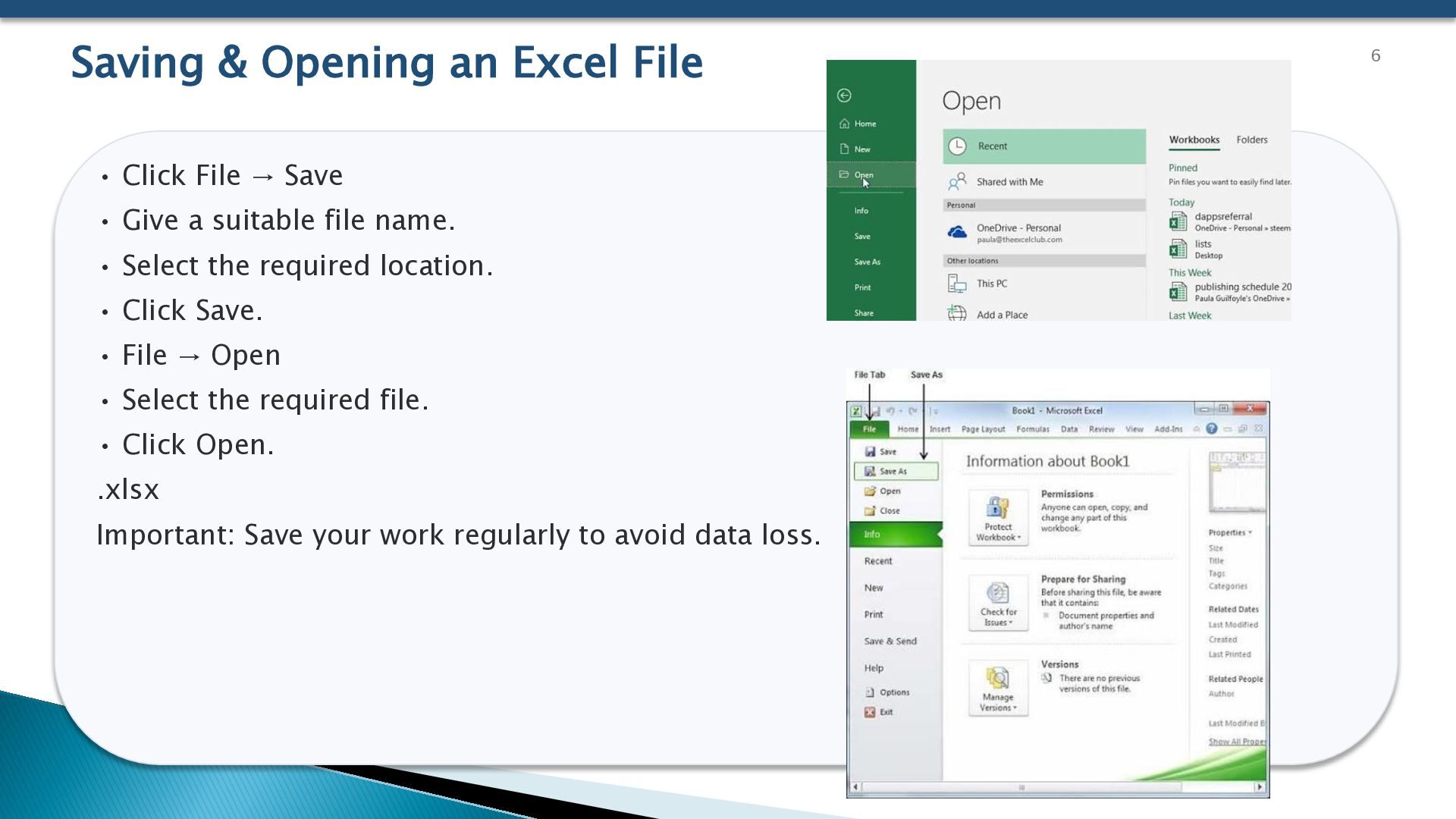
  6. Saving & Opening an Excel File • Click File →

    Save • Give a suitable file name. • Select the required location. • Click Save. • File → Open • Select the required file. • Click Open. .xlsx Important: Save your work regularly to avoid data loss. 6
  7. Moving Around in a Worksheet We can move through a

    worksheet using: • Mouse • Arrow keys • Enter key • Tab key • Page Up / Page Down • Scroll bars • Name Box • Ctrl + Home: Go to beginning • Ctrl + End: Go to last used cell • Ctrl + Arrow Key: Move quickly through data 7
  8. Working with Single & Multiple Workbooks • One Excel file

    can contain multiple worksheets. • Worksheets can be renamed, copied or deleted. • More than one Excel file can be opened at the same time. • We can switch between workbooks. Example: One workbook for Student Marks and another for Attendance. 8
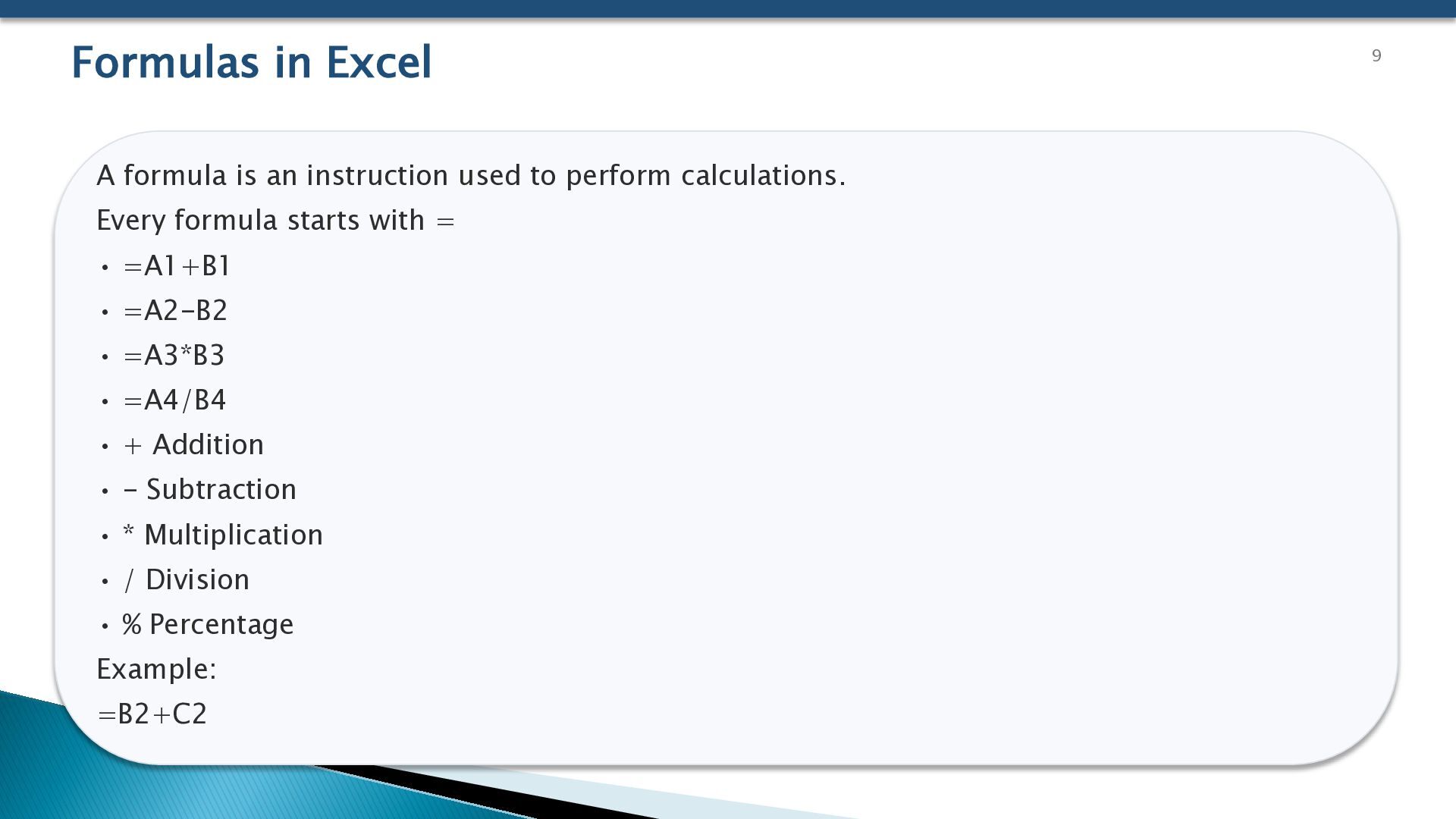
  9. Formulas in Excel A formula is an instruction used to

    perform calculations. Every formula starts with = • =A1+B1 • =A2-B2 • =A3*B3 • =A4/B4 • + Addition • - Subtraction • * Multiplication • / Division • % Percentage Example: =B2+C2 9
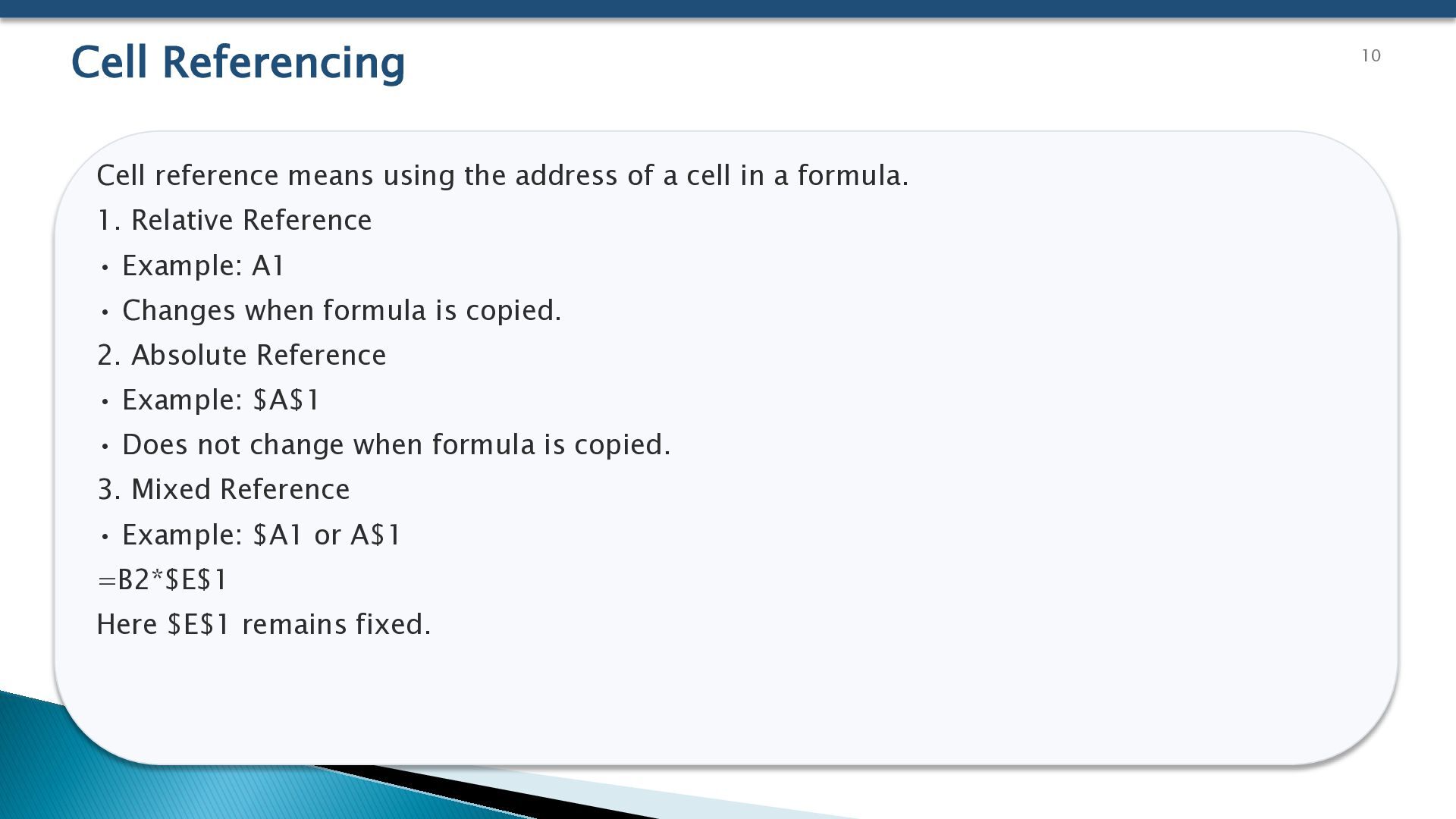
  10. Cell Referencing Cell reference means using the address of a

    cell in a formula. 1. Relative Reference • Example: A1 • Changes when formula is copied. 2. Absolute Reference • Example: $A$1 • Does not change when formula is copied. 3. Mixed Reference • Example: $A1 or A$1 =B2*$E$1 Here $E$1 remains fixed. 10
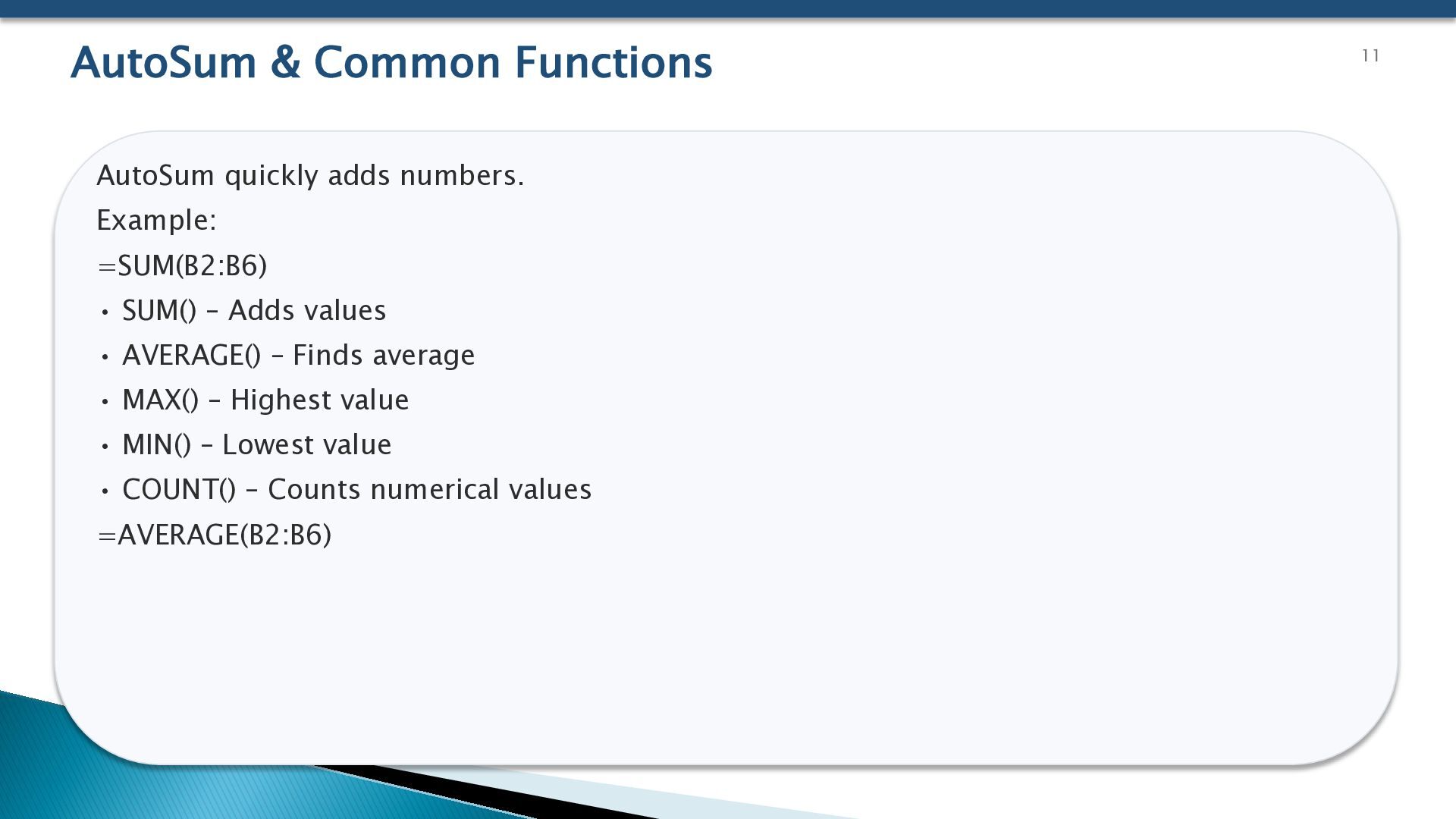
  11. AutoSum & Common Functions AutoSum quickly adds numbers. Example: =SUM(B2:B6)

    • SUM() – Adds values • AVERAGE() – Finds average • MAX() – Highest value • MIN() – Lowest value • COUNT() – Counts numerical values =AVERAGE(B2:B6) 11
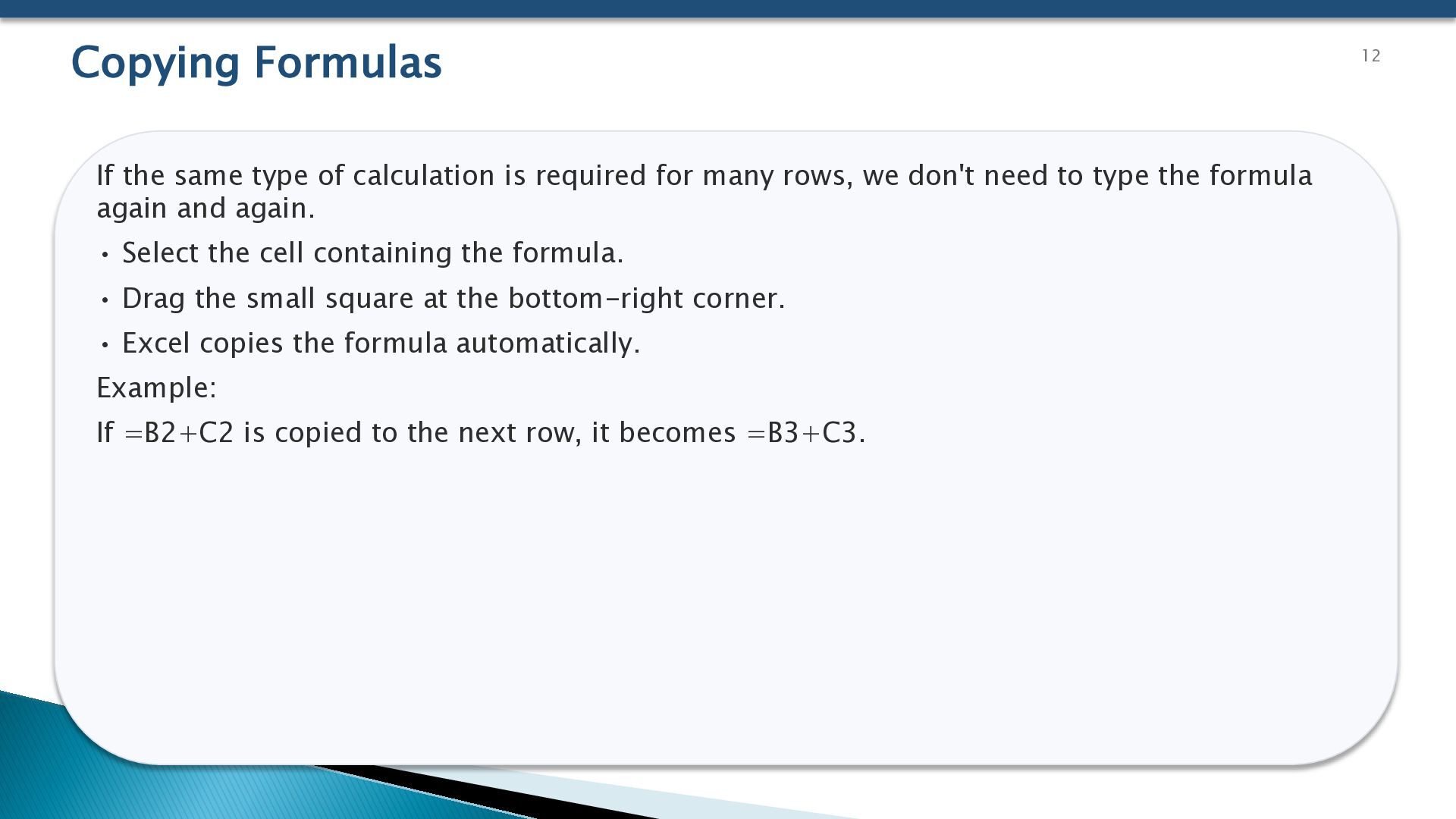
  12. Copying Formulas If the same type of calculation is required

    for many rows, we don't need to type the formula again and again. • Select the cell containing the formula. • Drag the small square at the bottom-right corner. • Excel copies the formula automatically. Example: If =B2+C2 is copied to the next row, it becomes =B3+C3. 12
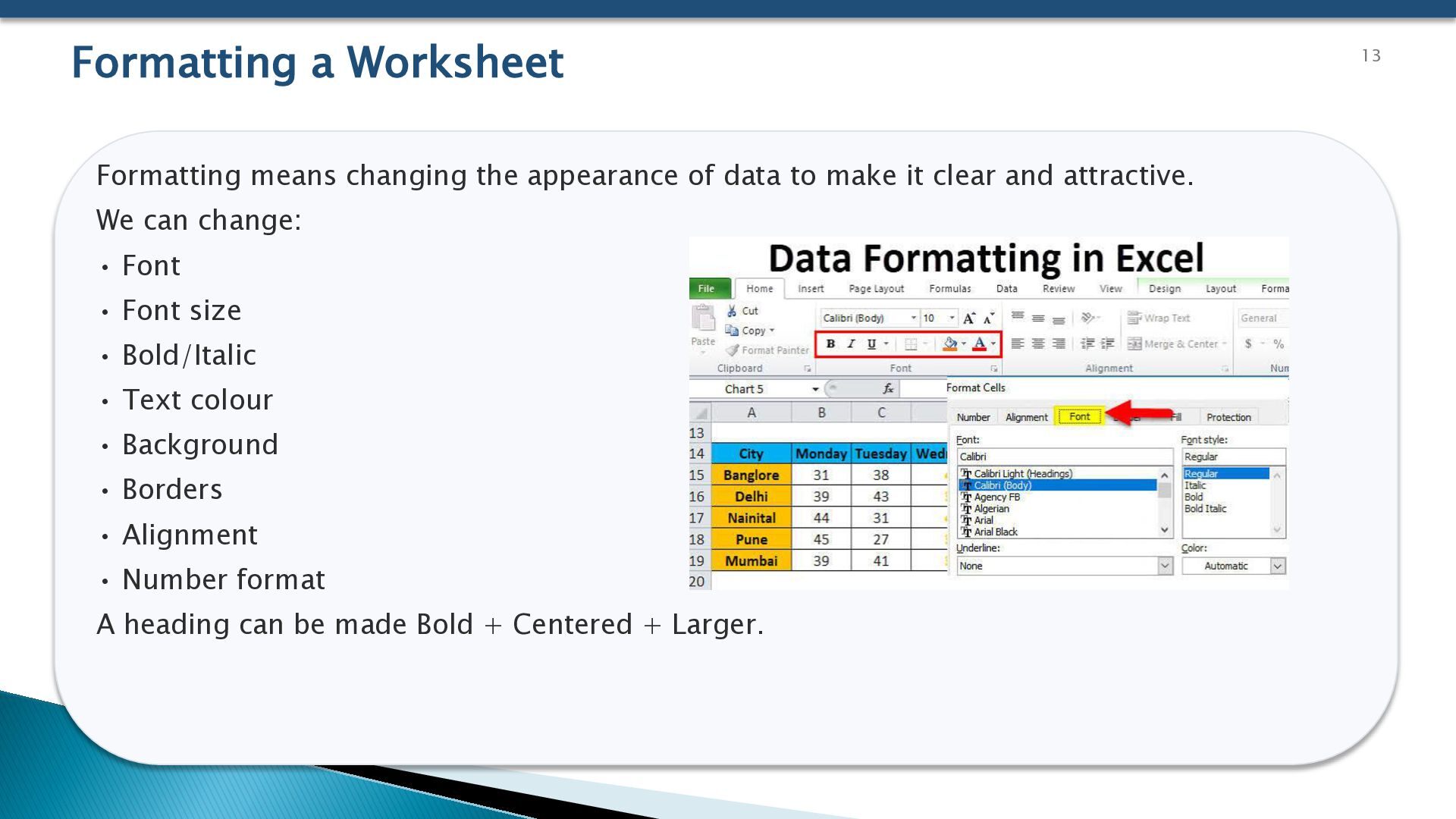
  13. Formatting a Worksheet Formatting means changing the appearance of data

    to make it clear and attractive. We can change: • Font • Font size • Bold/Italic • Text colour • Background • Borders • Alignment • Number format A heading can be made Bold + Centered + Larger. 13
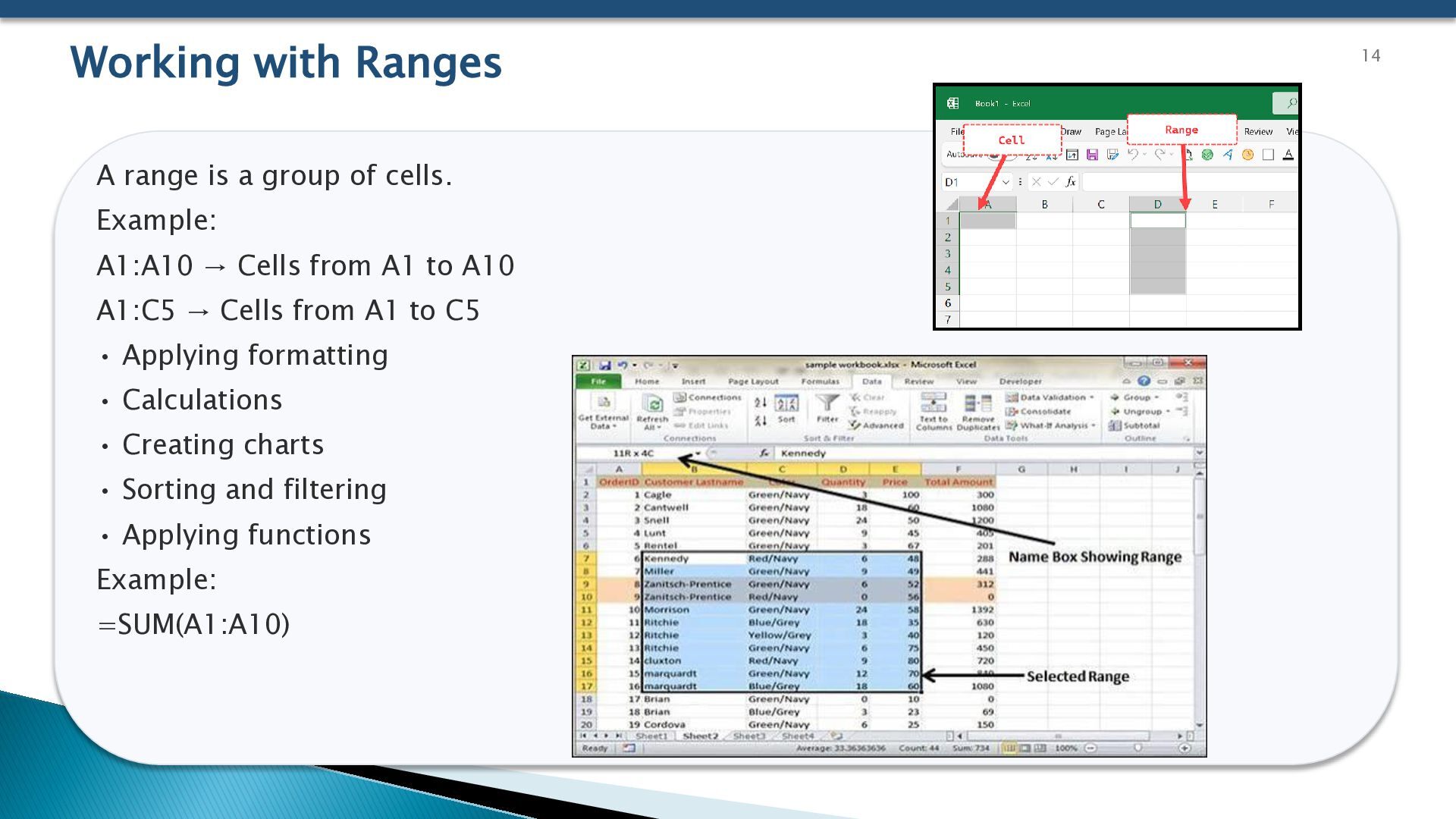
  14. Working with Ranges A range is a group of cells.

    Example: A1:A10 → Cells from A1 to A10 A1:C5 → Cells from A1 to C5 • Applying formatting • Calculations • Creating charts • Sorting and filtering • Applying functions Example: =SUM(A1:A10) 14
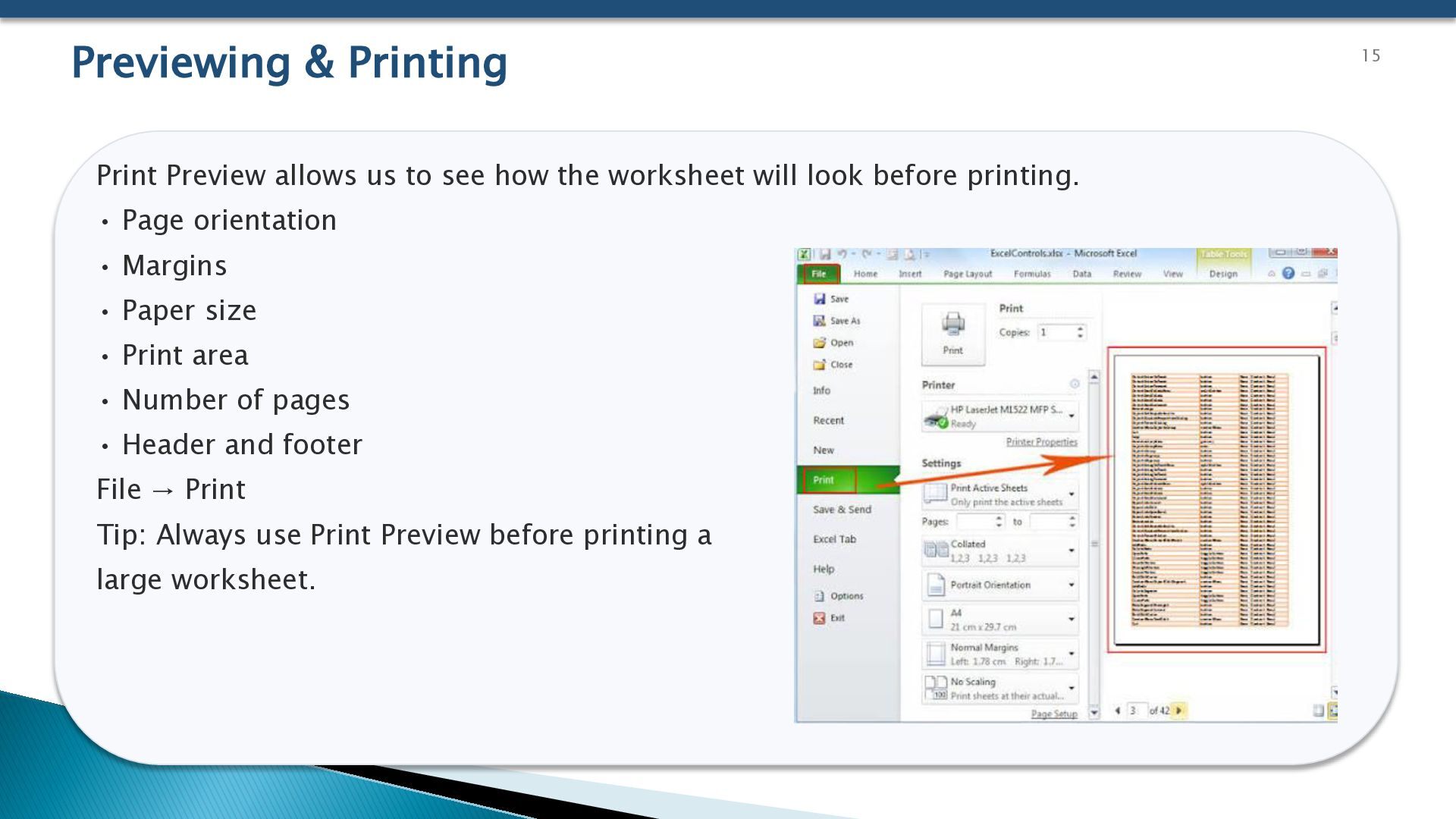
  15. Previewing & Printing Print Preview allows us to see how

    the worksheet will look before printing. • Page orientation • Margins • Paper size • Print area • Number of pages • Header and footer File → Print Tip: Always use Print Preview before printing a large worksheet. 15
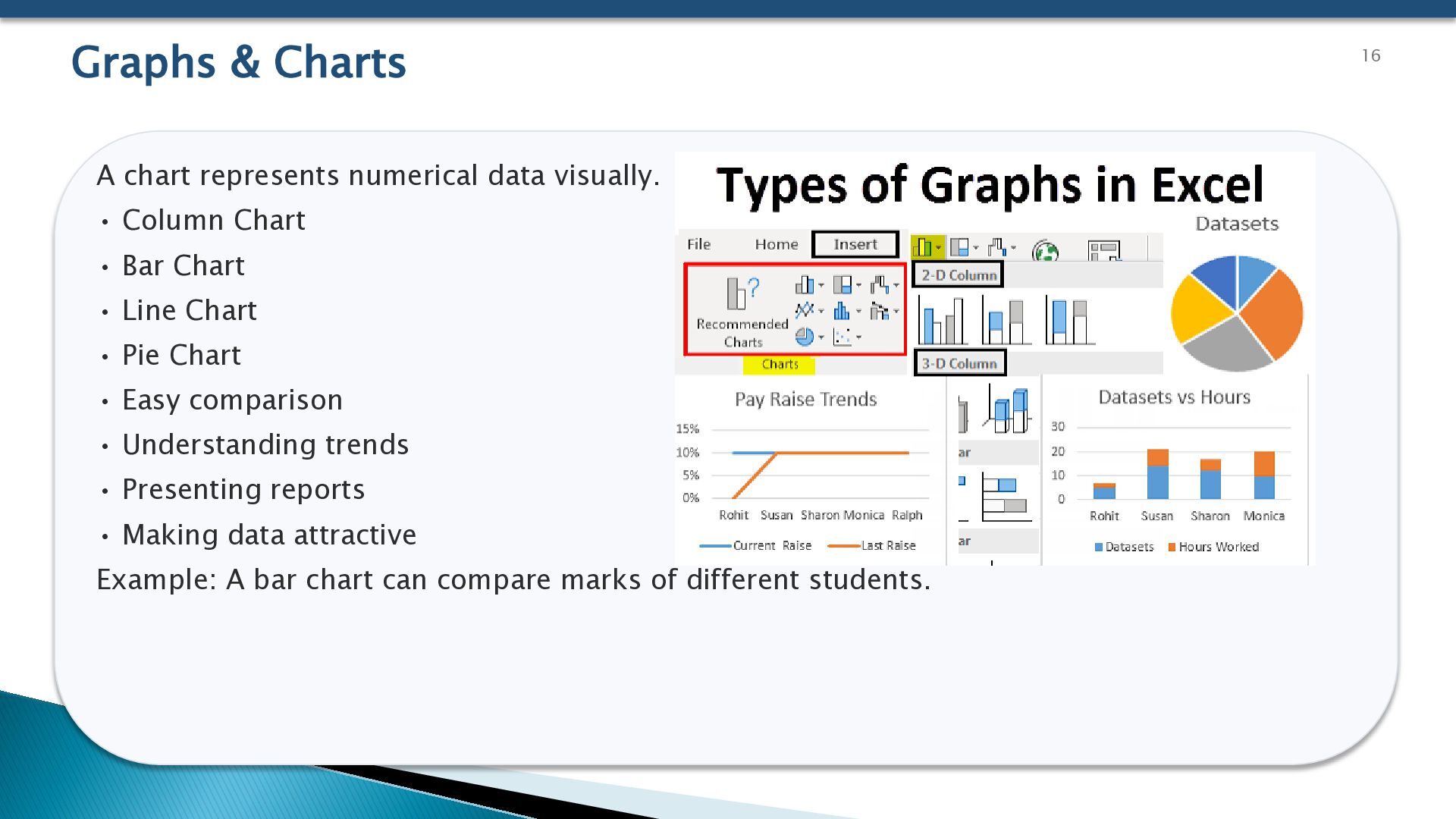
  16. Graphs & Charts A chart represents numerical data visually. •

    Column Chart • Bar Chart • Line Chart • Pie Chart • Easy comparison • Understanding trends • Presenting reports • Making data attractive Example: A bar chart can compare marks of different students. 16
  17. Excel as a Database 17 Excel can be used to

    maintain structured information. Example: • IDNameDepartmentSalary | | | • 1 | Asha | HR | 25000 • 2 | Ravi | Sales | 30000 • Sort • Filter • Search • Data validation • Tables Note: Excel is useful for small and medium-sized data management.
  18. Macros in Excel A macro is a recorded set of

    actions that can be used to automate repetitive tasks. Suppose every month we: 1. Format a report. 2. Add headings. 3. Apply borders. 4. Calculate totals. A macro can automate these repeated steps. Saves time and reduces repetitive work. 18
  19. Multiple Worksheets A workbook can contain multiple worksheets. We can:

    • Add a new sheet • Delete a sheet • Rename a sheet • Move a sheet • Copy a sheet • Change sheet order Example: • Sheet 1 – January • Sheet 2 – February • Sheet 3 – March This makes large data easier to manage. 19
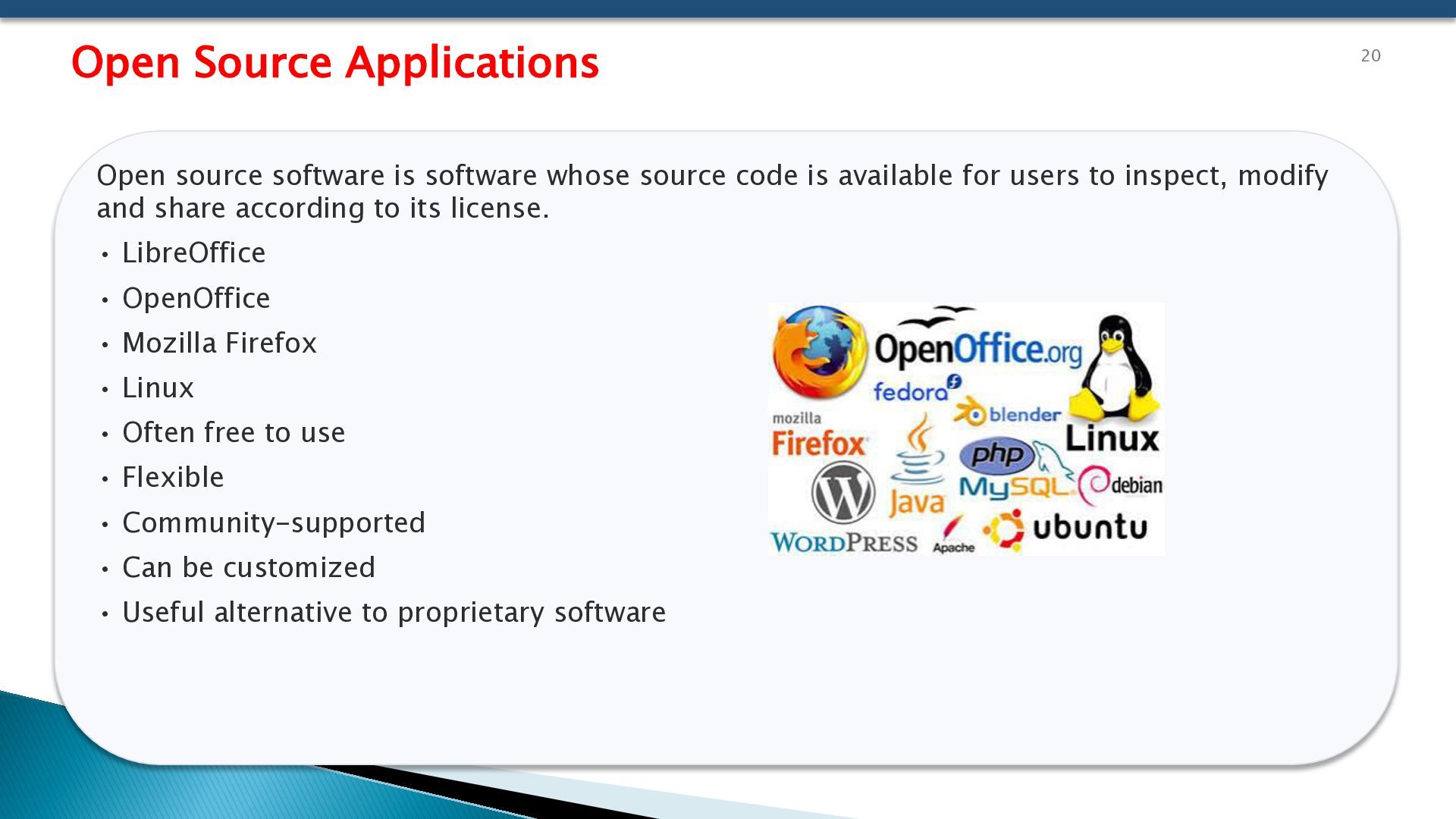
  20. Open Source Applications Open source software is software whose source

    code is available for users to inspect, modify and share according to its license. • LibreOffice • OpenOffice • Mozilla Firefox • Linux • Often free to use • Flexible • Community-supported • Can be customized • Useful alternative to proprietary software 20
  21. LibreOffice, OpenOffice & Google Docs • Free office suite •

    Includes Writer, Calc and Impress • Calc is used for spreadsheets. • Open-source office suite • Provides tools for documents, spreadsheets and presentations. • Online document application • Works through a web browser. • Supports online collaboration. Key Difference: LibreOffice/OpenOffice are mainly desktop office suites, while Google Docs is primarily cloudbased. 21
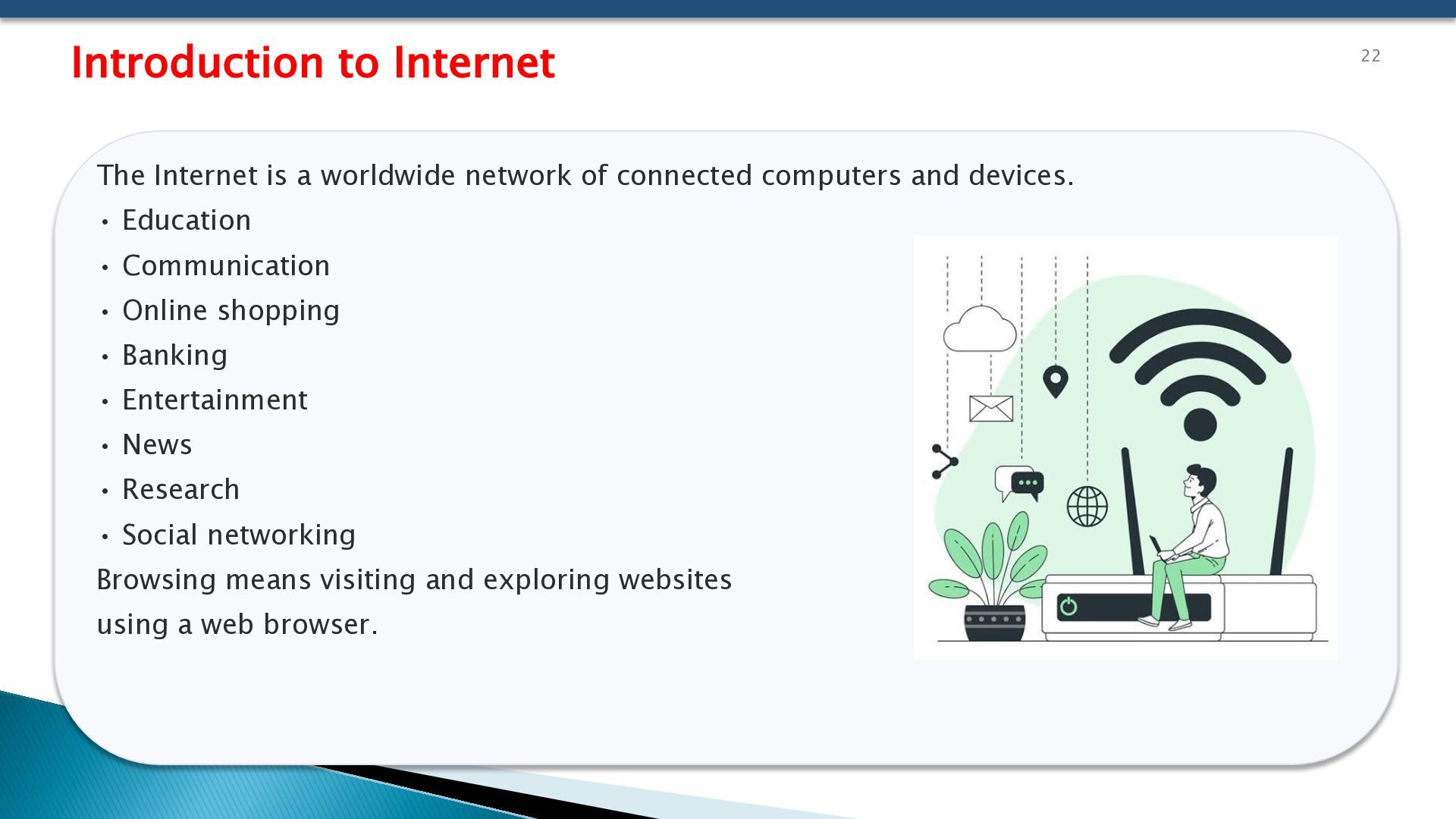
  22. Introduction to Internet The Internet is a worldwide network of

    connected computers and devices. • Education • Communication • Online shopping • Banking • Entertainment • News • Research • Social networking Browsing means visiting and exploring websites using a web browser. 22
  23. E-Mail E-Mail means Electronic Mail. It is used to send

    and receive digital messages through the Internet. • To: Main receiver • Cc: Carbon Copy • Bcc: Blind Carbon Copy • Subject: Topic of the message • Body: Main message • Attachment: File sent with the e-mail [email protected] 23
  24. E-Mail Address Book & Troubleshooting An address book stores frequently

    used contacts. It helps us: • Save contacts • Find e-mail addresses quickly • Organize contacts • Incorrect e-mail address • No Internet connection • Full mailbox • Large attachment • Spam/junk filtering • Incorrect password Safety Tip: Never share your e-mail password with others. 24
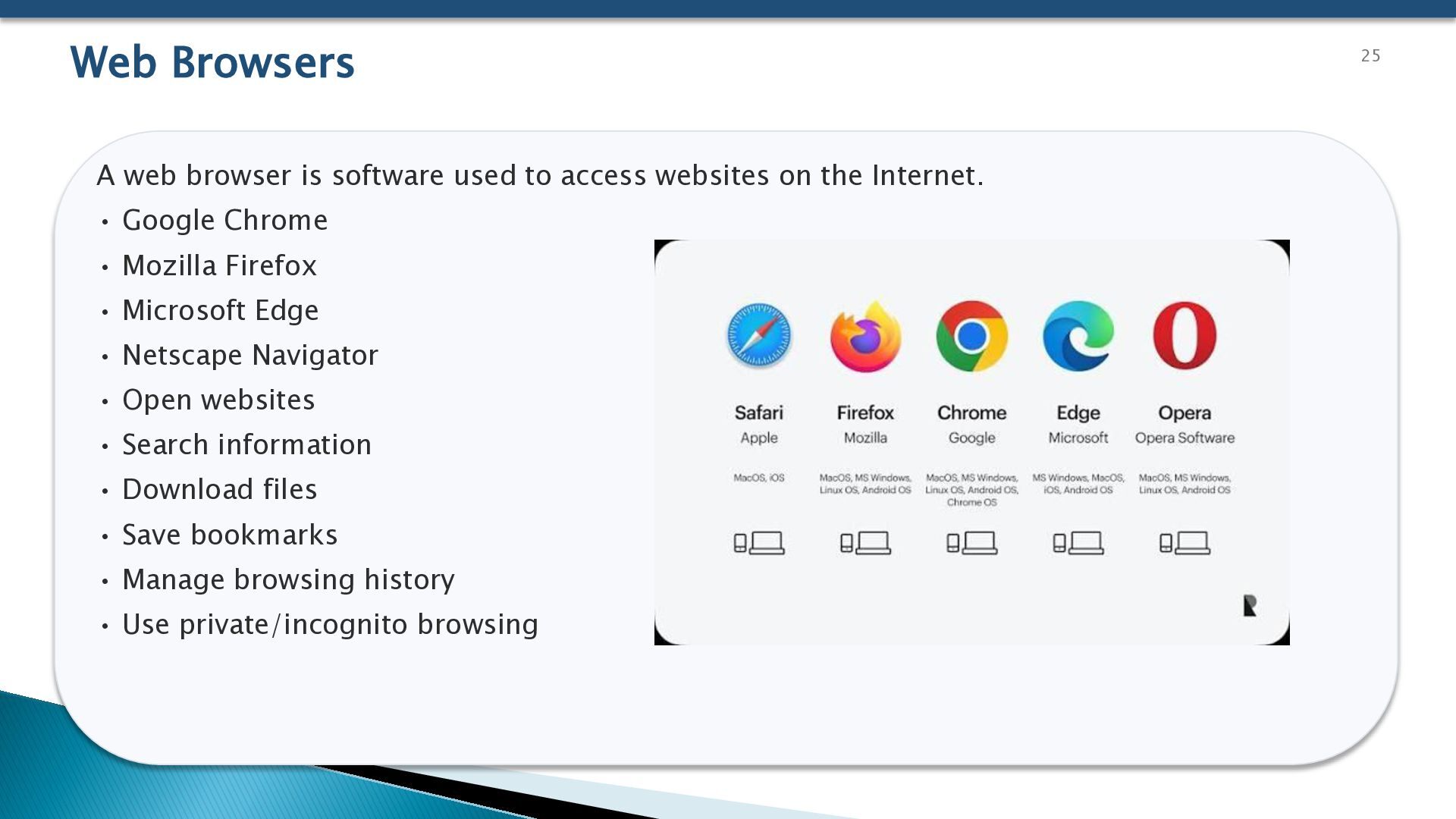
  25. Web Browsers A web browser is software used to access

    websites on the Internet. • Google Chrome • Mozilla Firefox • Microsoft Edge • Netscape Navigator • Open websites • Search information • Download files • Save bookmarks • Manage browsing history • Use private/incognito browsing 25
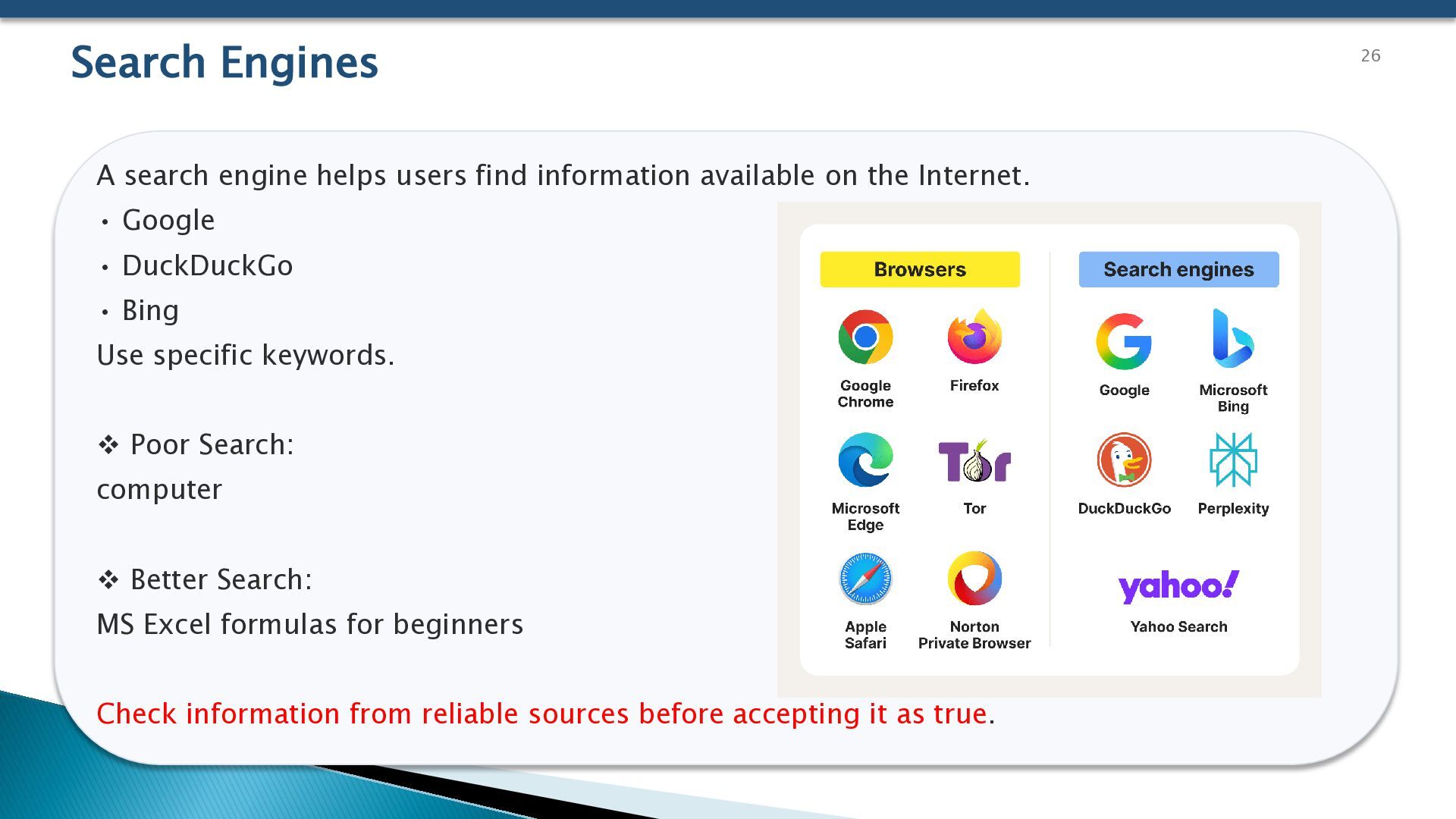
  26. Search Engines A search engine helps users find information available

    on the Internet. • Google • DuckDuckGo • Bing Use specific keywords.  Poor Search: computer  Better Search: MS Excel formulas for beginners Check information from reliable sources before accepting it as true. 26
  27. Visiting Websites & Downloading A website is a collection of

    related web pages available on the Internet. • Check website address carefully. • Prefer trusted websites. • Look for HTTPS when entering sensitive information. • Do not click suspicious pop-ups. • Avoid unknown downloads. Downloading means transferring a file from the Internet to your device. Always scan unknown files before opening them. 27
  28. Introduction to Cyber Security Cyber security means protecting: • Computers

    • Mobile devices • Networks • Applications • Data • Online accounts from unauthorized access, damage and misuse. C – Confidentiality Only authorized people can access information. I – Integrity Information should remain accurate and unchanged. A – Availability Information should be available when required. 28
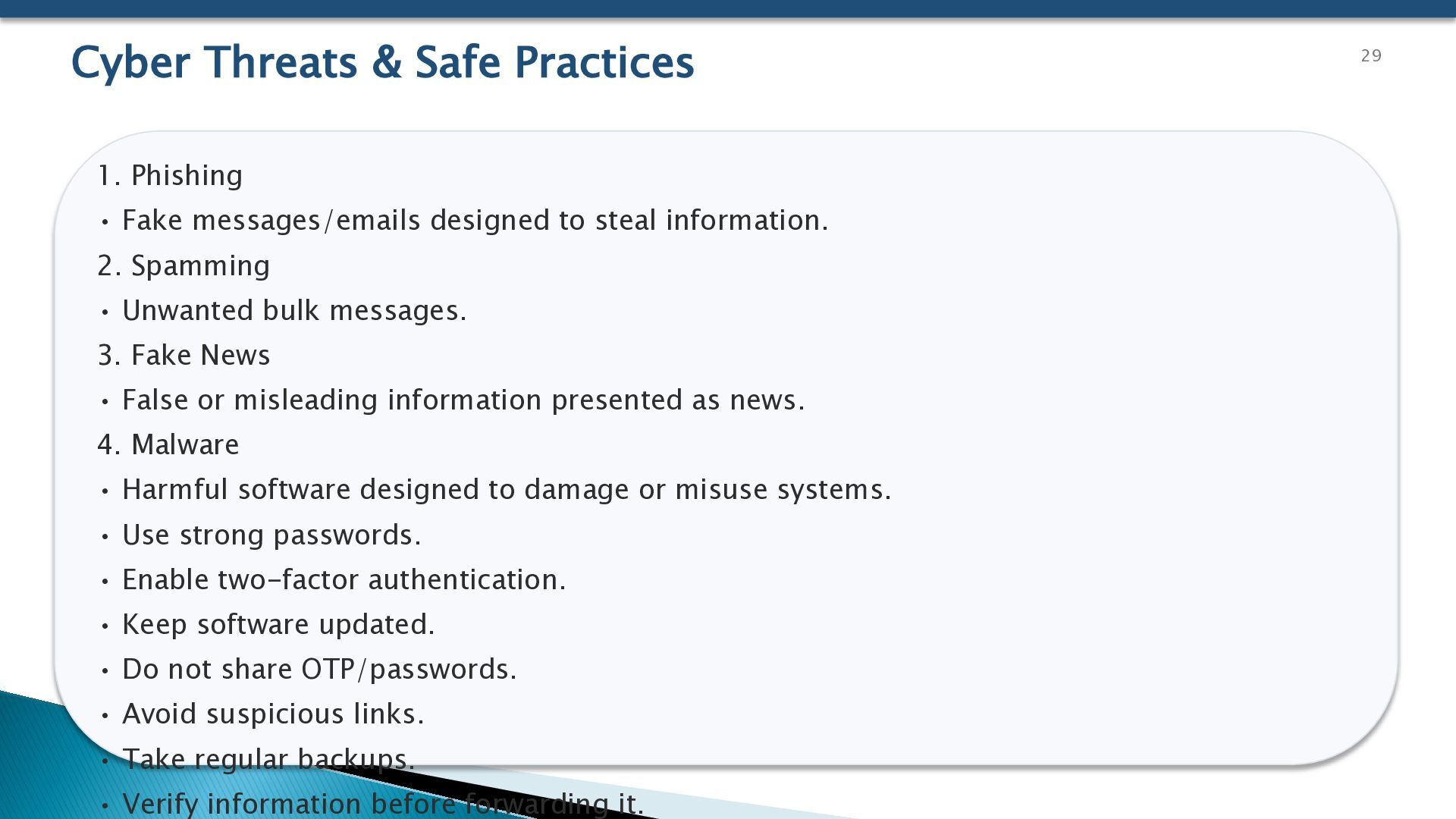
  29. Cyber Threats & Safe Practices 1. Phishing • Fake messages/emails

    designed to steal information. 2. Spamming • Unwanted bulk messages. 3. Fake News • False or misleading information presented as news. 4. Malware • Harmful software designed to damage or misuse systems. • Use strong passwords. • Enable two-factor authentication. • Keep software updated. • Do not share OTP/passwords. • Avoid suspicious links. • Take regular backups. • Verify information before forwarding it. 29
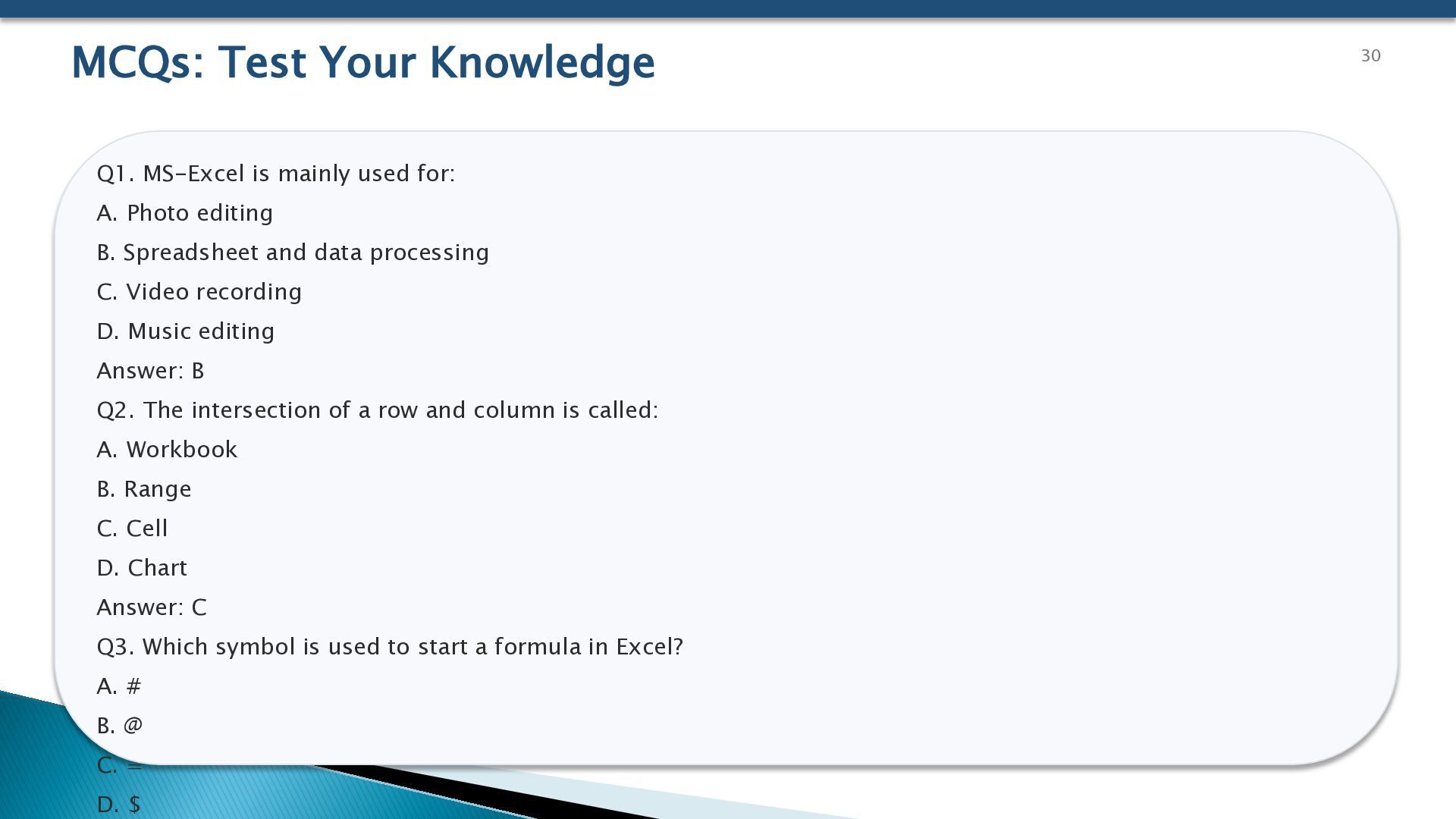
  30. MCQs: Test Your Knowledge Q1. MS-Excel is mainly used for:

    A. Photo editing B. Spreadsheet and data processing C. Video recording D. Music editing Answer: B Q2. The intersection of a row and column is called: A. Workbook B. Range C. Cell D. Chart Answer: C Q3. Which symbol is used to start a formula in Excel? A. # B. @ C. = D. $ 30