Upgrade to Pro — share decks privately, control downloads, hide ads and more …

Lect1-Computer Application for Co curricular st...

Lect1-Computer Application for Co curricular students BA5 semester

This presentation is designed for B.A. Fifth Semester students studying Computer Applications as a co-curricular subject under the syllabus of Chhatrapati Shahu Ji Maharaj University (CSJMU), Kanpur.

The lecture introduces students to important concepts and practical applications of computers, with a focus on developing basic digital and computer-related skills required in academic and everyday life.

This PPT is useful for undergraduate students, teachers, and learners preparing for classroom discussions, examinations, and practical understanding of computer applications.

Avatar for Dr. Saba Yunus

Dr. Saba Yunus

September 10, 2026

More Decks by Dr. Saba Yunus

Other Decks in Technology

Transcript

  1. COMPUTER BASICS & MS WORD An Interactive Introduction to Computers

    and Word Processing Lecture Prepared by: Dr. Saba Yunus
  2. Learning Objectives • Explain what a computer is • Identify

    basic computer components • Understand hardware and software • Use basic MS Word features • Create, edit and format a document THINK: Where do you use computers in your daily life?
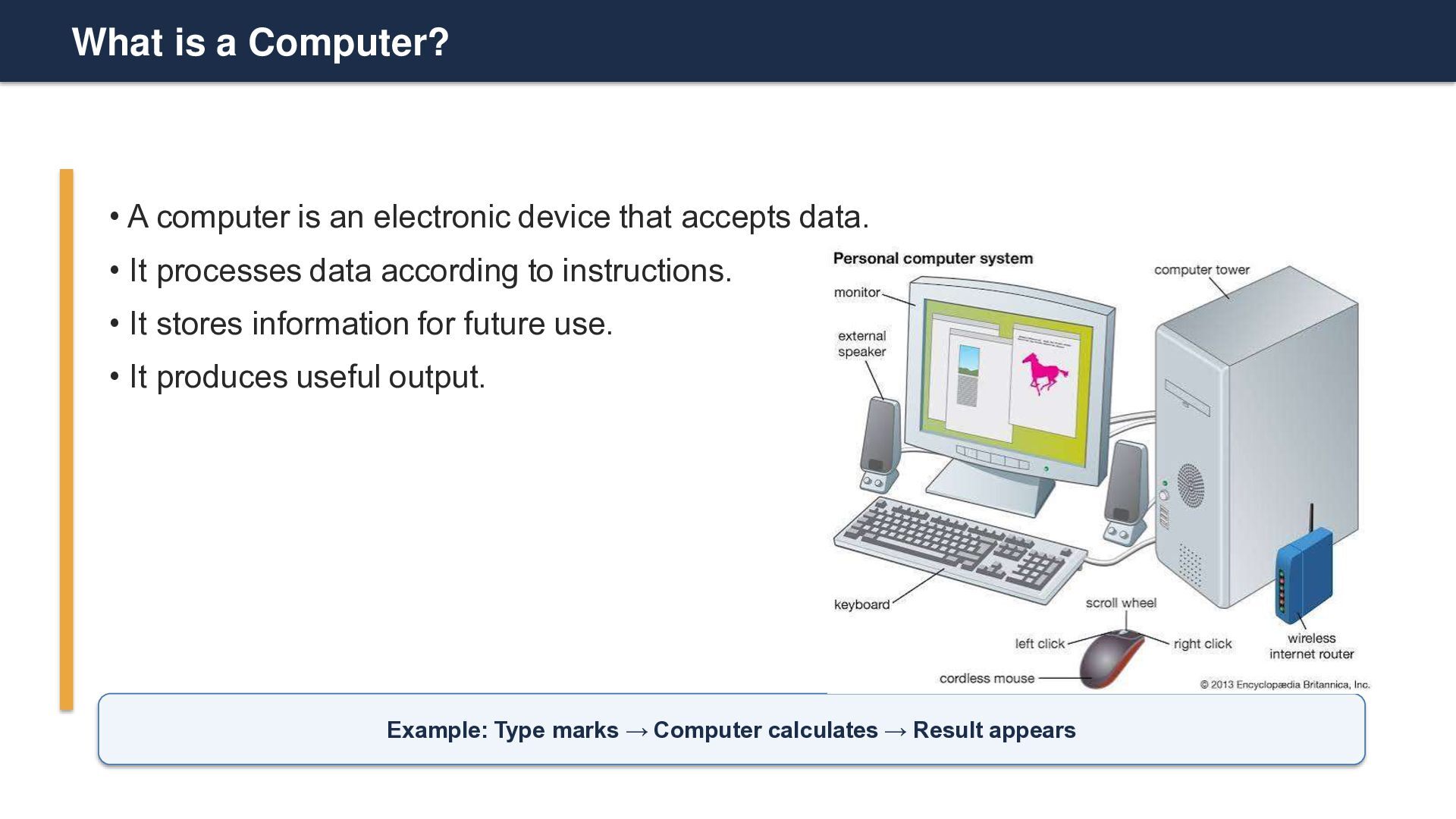
  3. What is a Computer? • A computer is an electronic

    device that accepts data. • It processes data according to instructions. • It stores information for future use. • It produces useful output. Example: Type marks → Computer calculates → Result appears
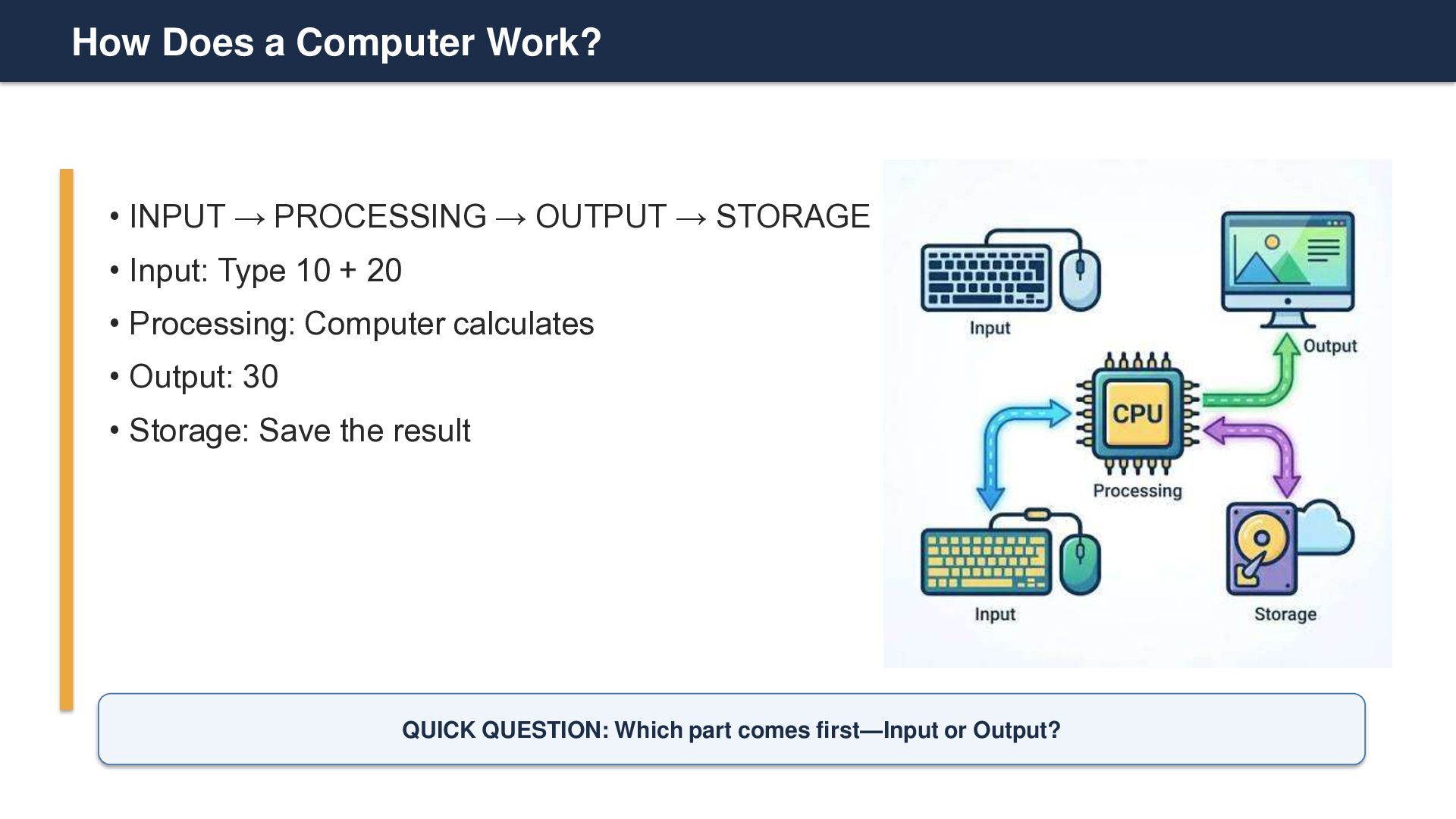
  4. How Does a Computer Work? • INPUT → PROCESSING →

    OUTPUT → STORAGE • Input: Type 10 + 20 • Processing: Computer calculates • Output: 30 • Storage: Save the result QUICK QUESTION: Which part comes first—Input or Output?
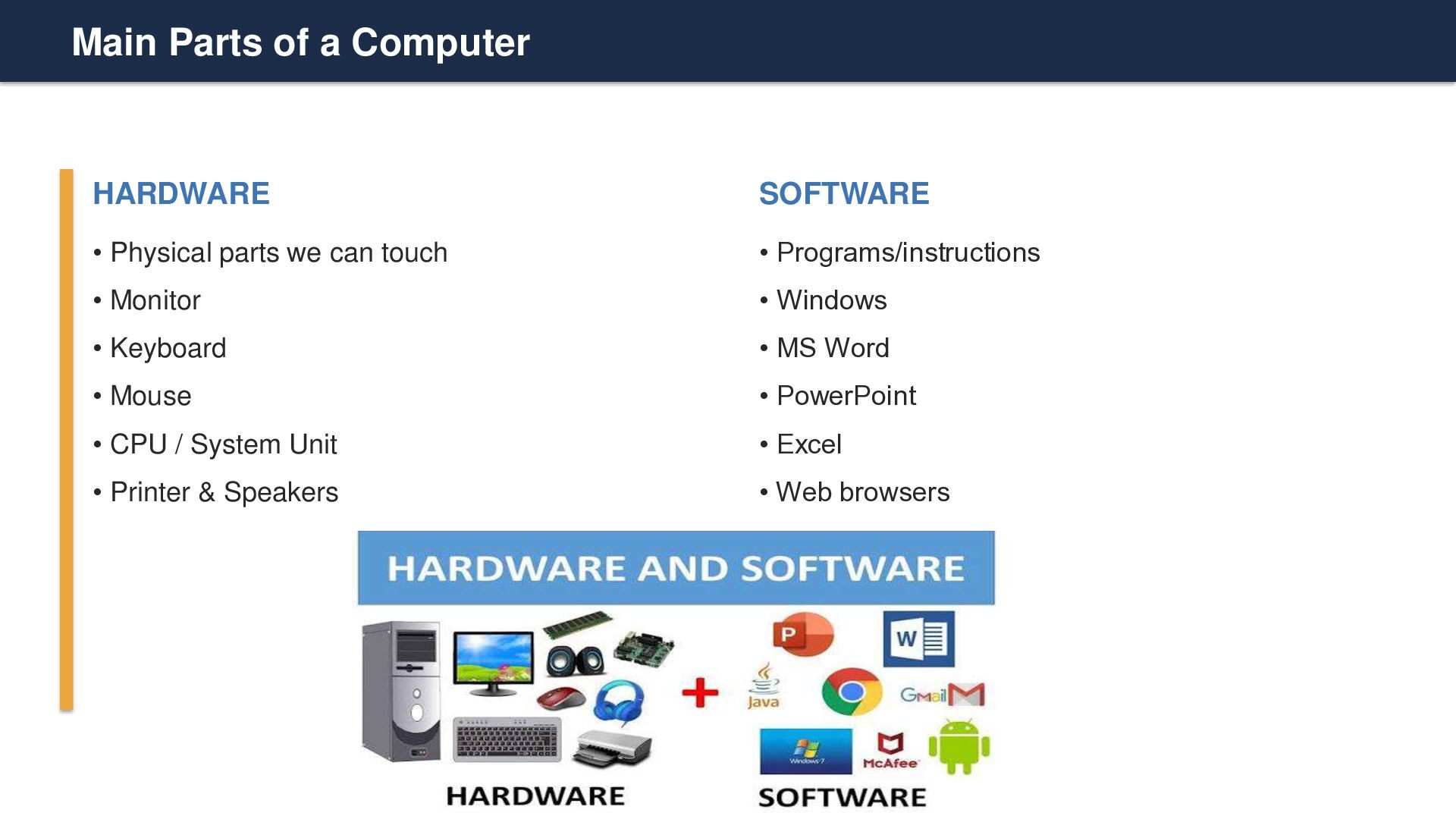
  5. Main Parts of a Computer HARDWARE SOFTWARE • Physical parts

    we can touch • Programs/instructions • Monitor • Windows • Keyboard • MS Word • Mouse • PowerPoint • CPU / System Unit • Excel • Printer & Speakers • Web browsers
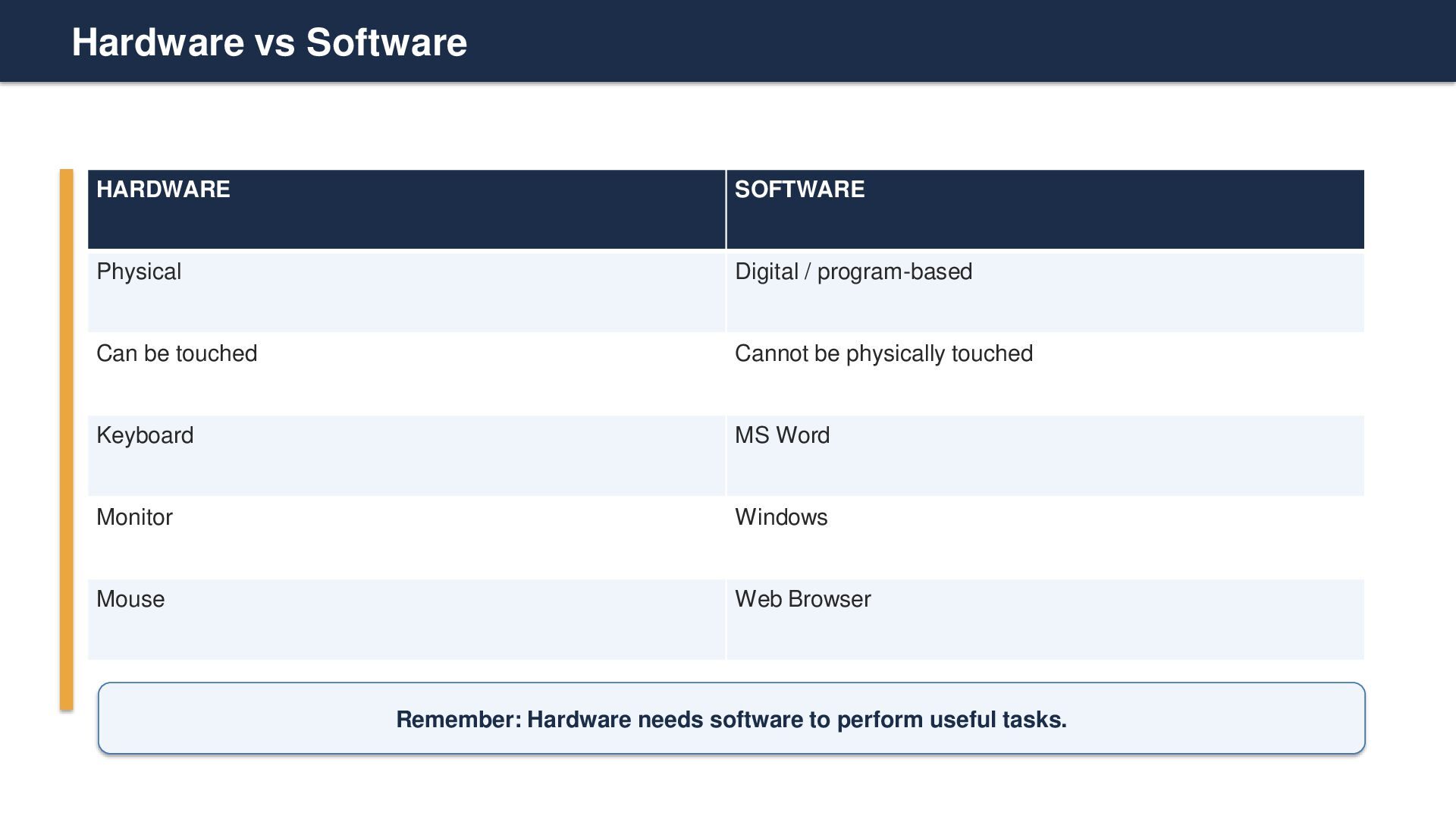
  6. Hardware vs Software HARDWARE SOFTWARE Physical Digital / program-based Can

    be touched Cannot be physically touched Keyboard MS Word Monitor Windows Mouse Web Browser Remember: Hardware needs software to perform useful tasks.
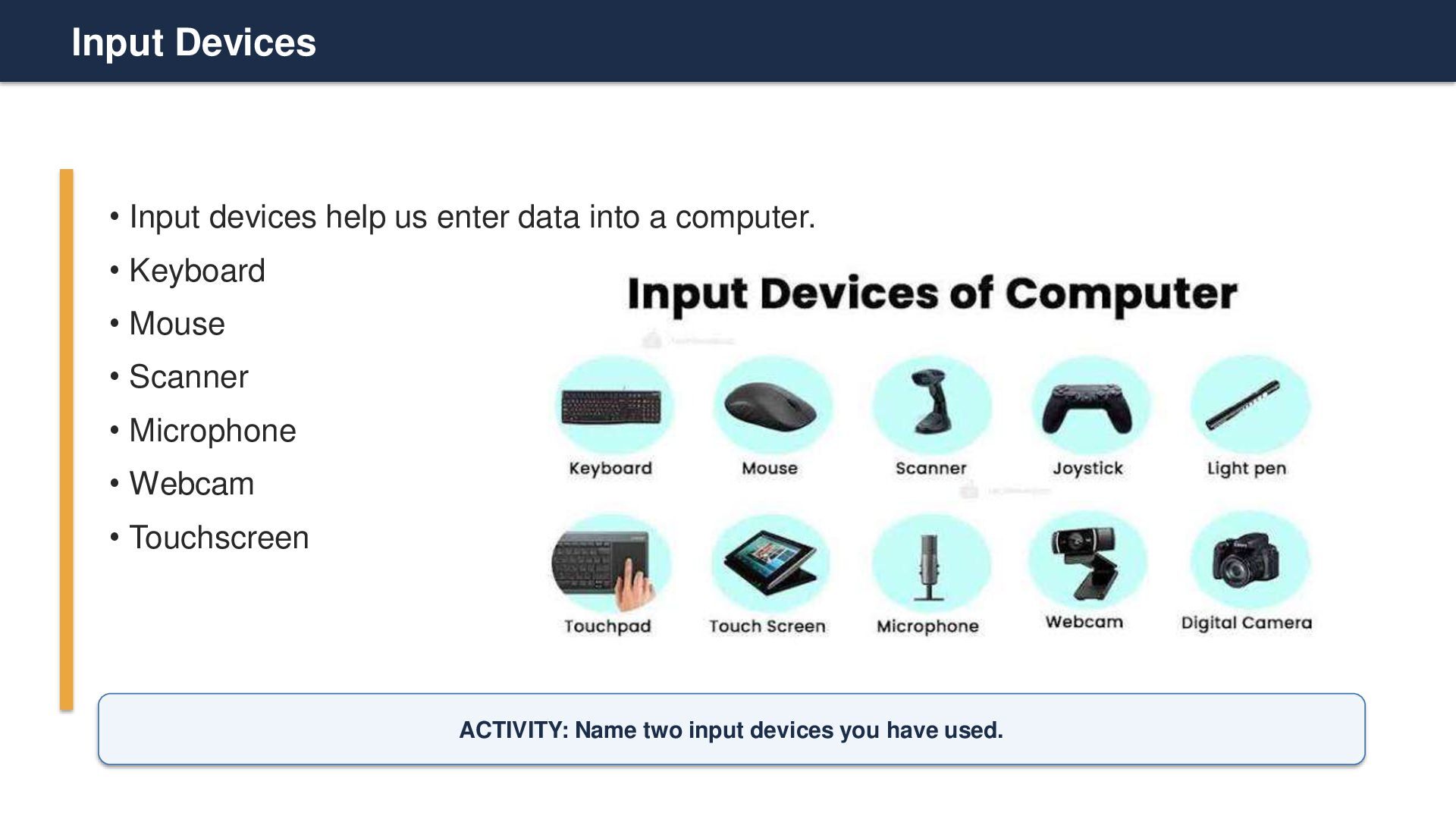
  7. Input Devices • Input devices help us enter data into

    a computer. • Keyboard • Mouse • Scanner • Microphone • Webcam • Touchscreen ACTIVITY: Name two input devices you have used.
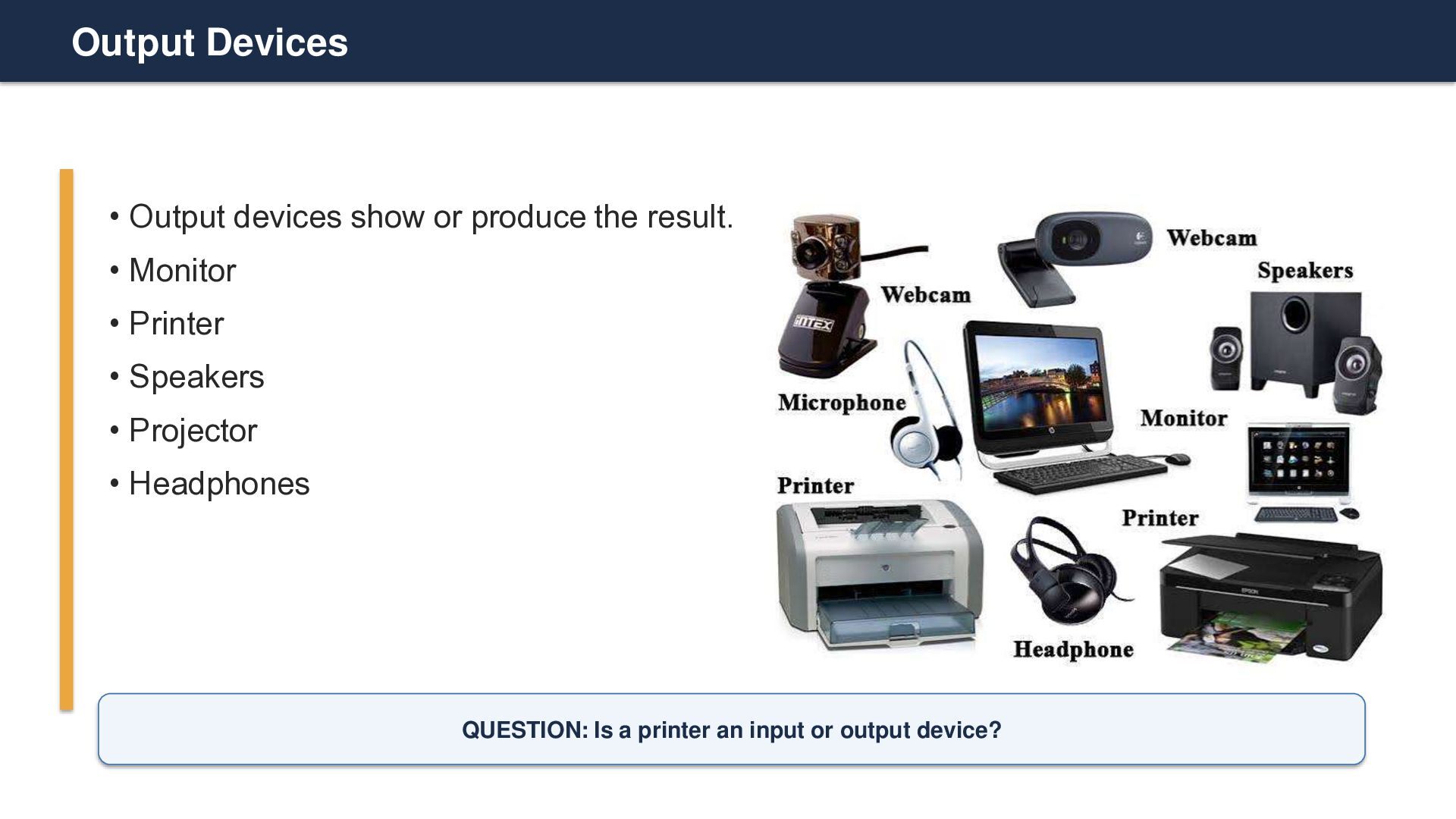
  8. Output Devices • Output devices show or produce the result.

    • Monitor • Printer • Speakers • Projector • Headphones QUESTION: Is a printer an input or output device?
  9. CPU: The Brain of the Computer • CPU = Central

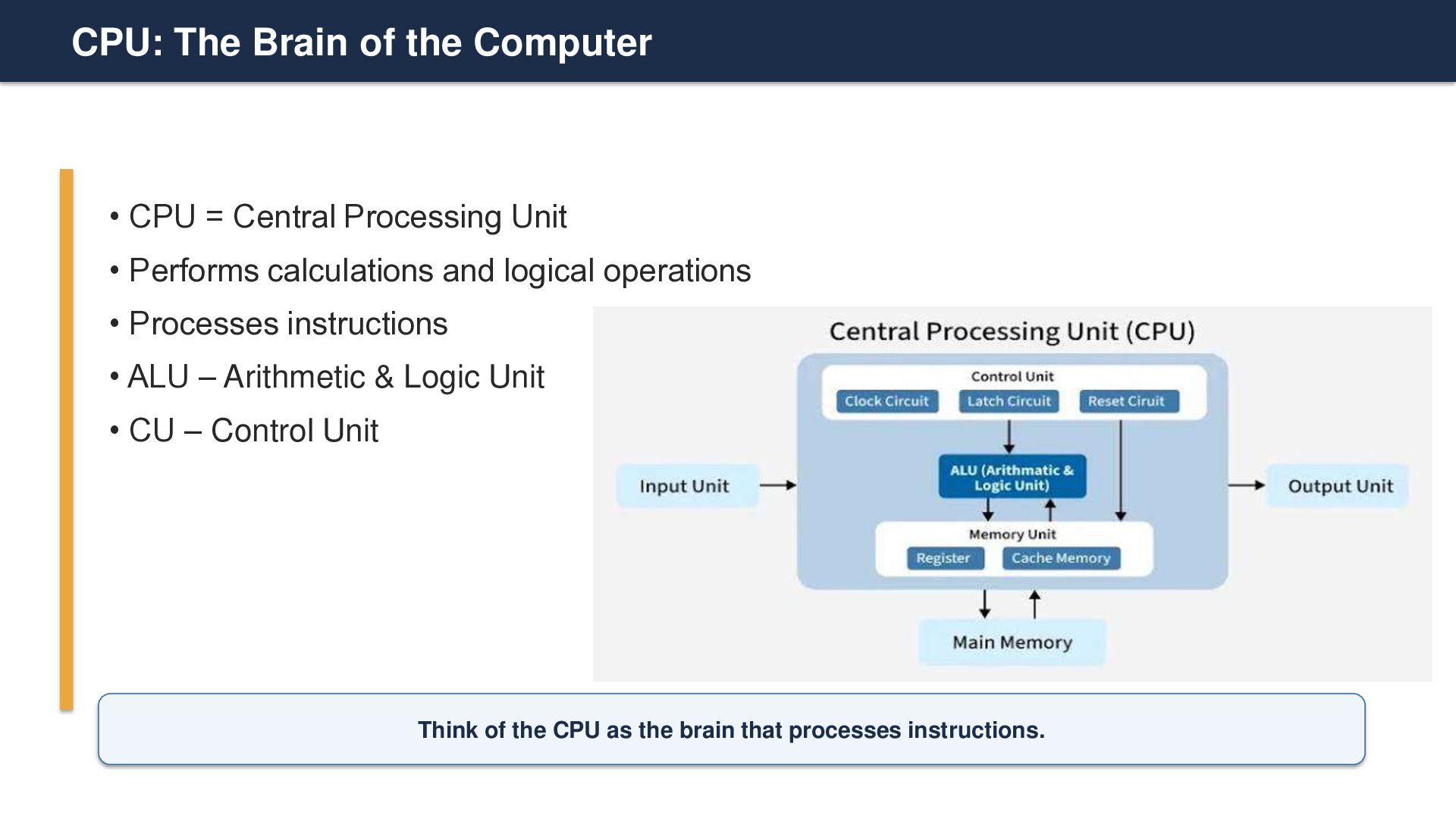
    Processing Unit • Performs calculations and logical operations • Processes instructions • ALU – Arithmetic & Logic Unit • CU – Control Unit Think of the CPU as the brain that processes instructions.
  10. Memory & Storage • Primary Memory: RAM and ROM •

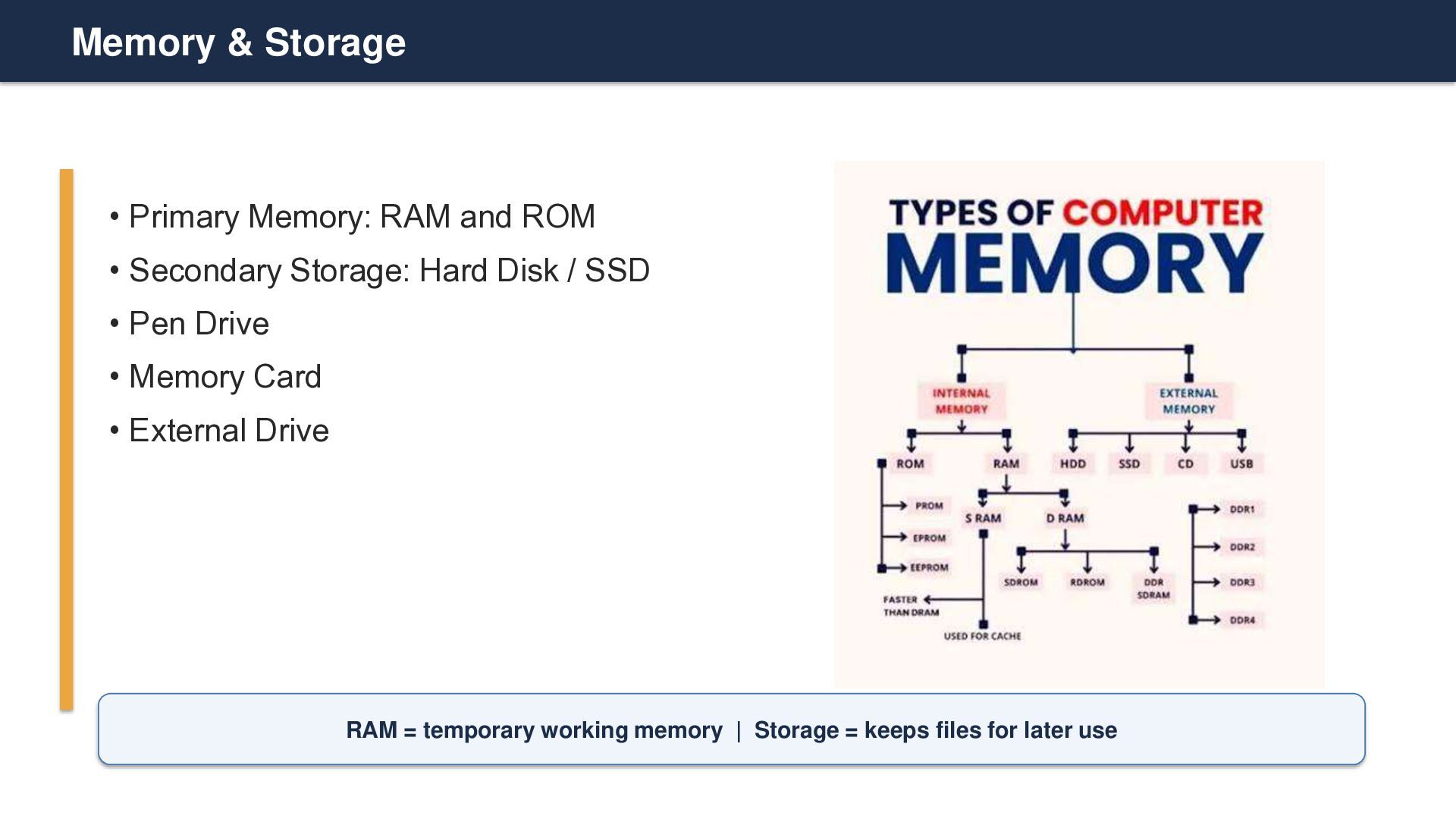
    Secondary Storage: Hard Disk / SSD • Pen Drive • Memory Card • External Drive RAM = temporary working memory | Storage = keeps files for later use
  11. What is an Operating System? • An Operating System (OS)

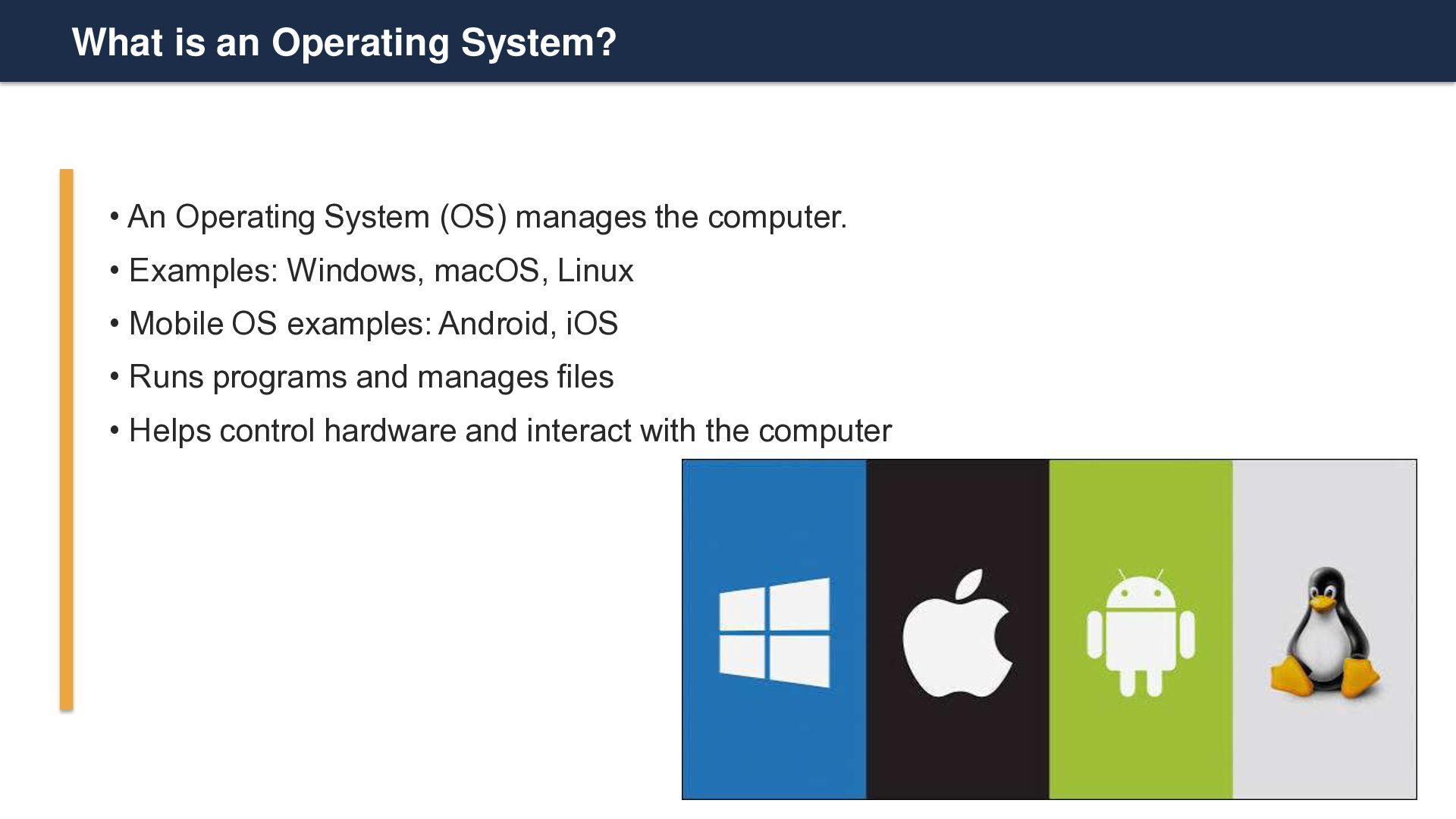
    manages the computer. • Examples: Windows, macOS, Linux • Mobile OS examples: Android, iOS • Runs programs and manages files • Helps control hardware and interact with the computer
  12. What is Software? • Software is a collection of programs/instructions.

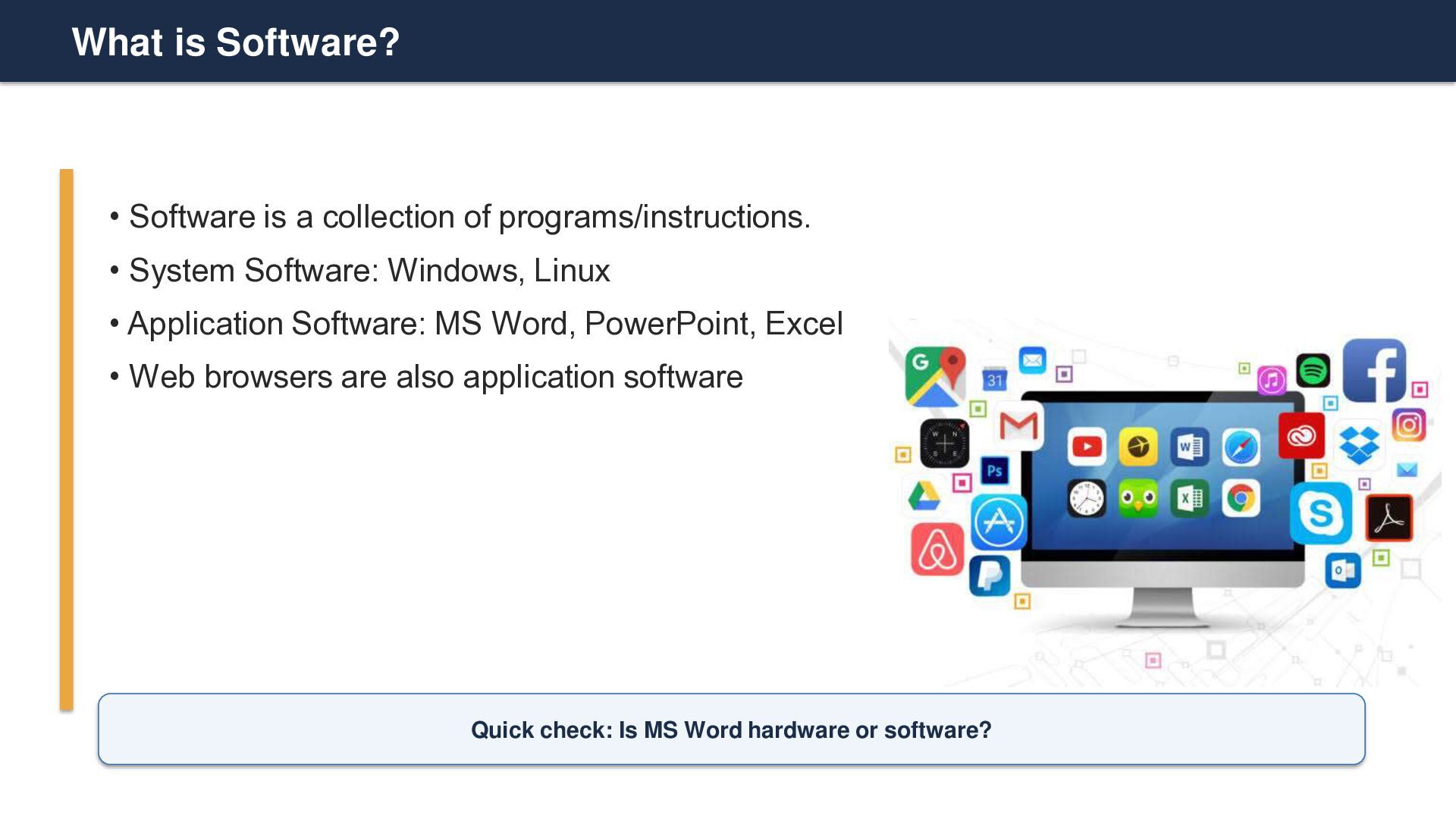
    • System Software: Windows, Linux • Application Software: MS Word, PowerPoint, Excel • Web browsers are also application software Quick check: Is MS Word hardware or software?
  13. Files & Folders • File: A saved piece of information

    • Examples: document, photo, video, PDF • Folder: A container used to organize files • Example: College → Sociology → Assignments → Unit 1 ACTIVITY: Why should we organize files into folders?
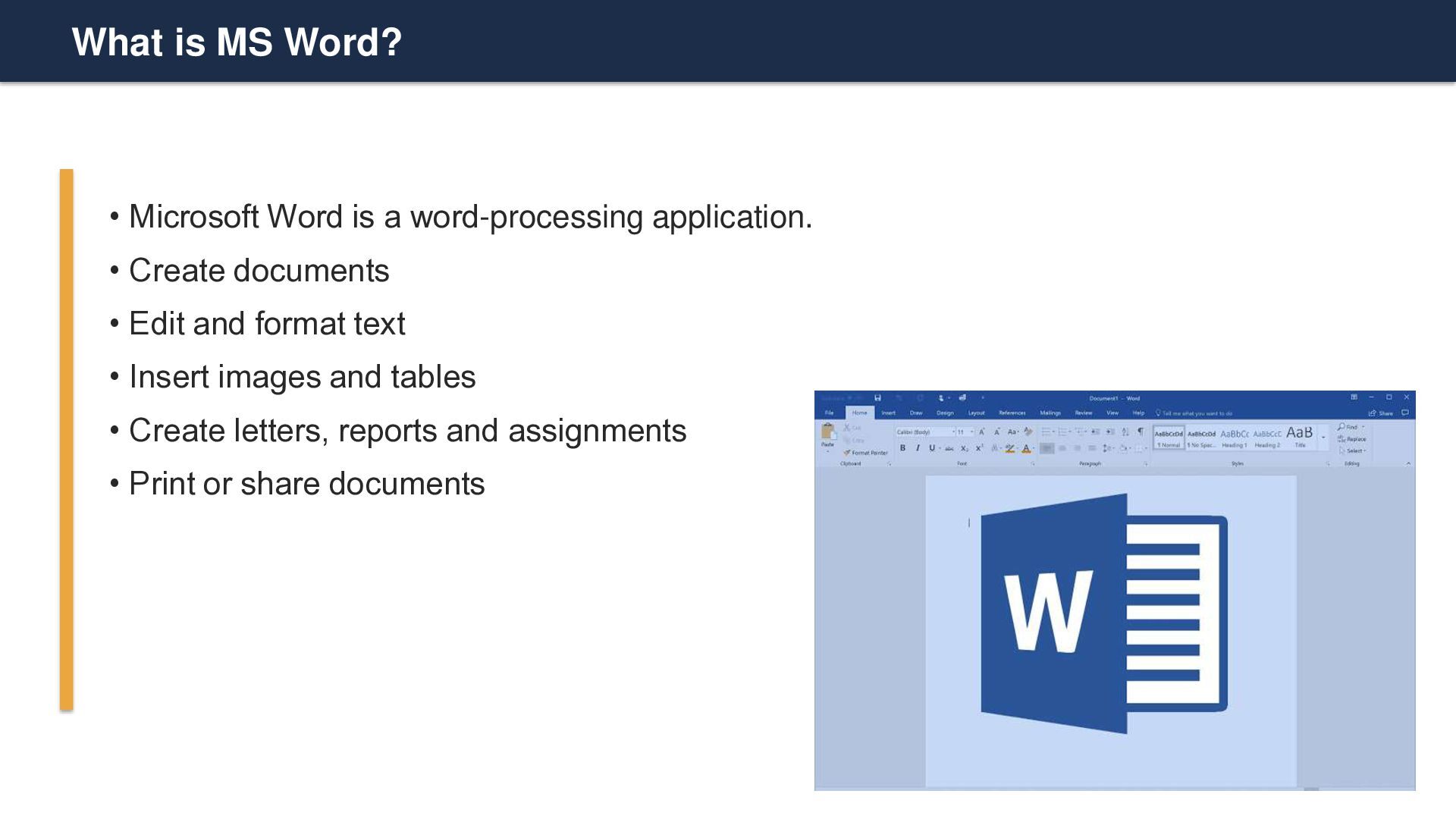
  14. What is MS Word? • Microsoft Word is a word-processing

    application. • Create documents • Edit and format text • Insert images and tables • Create letters, reports and assignments • Print or share documents
  15. Opening MS Word • Common method: Start → Microsoft Word

    • Create a Blank Document • Choose a document from a Template • Templates can save time for common documents TRY IT: Open Word and create a Blank Document.
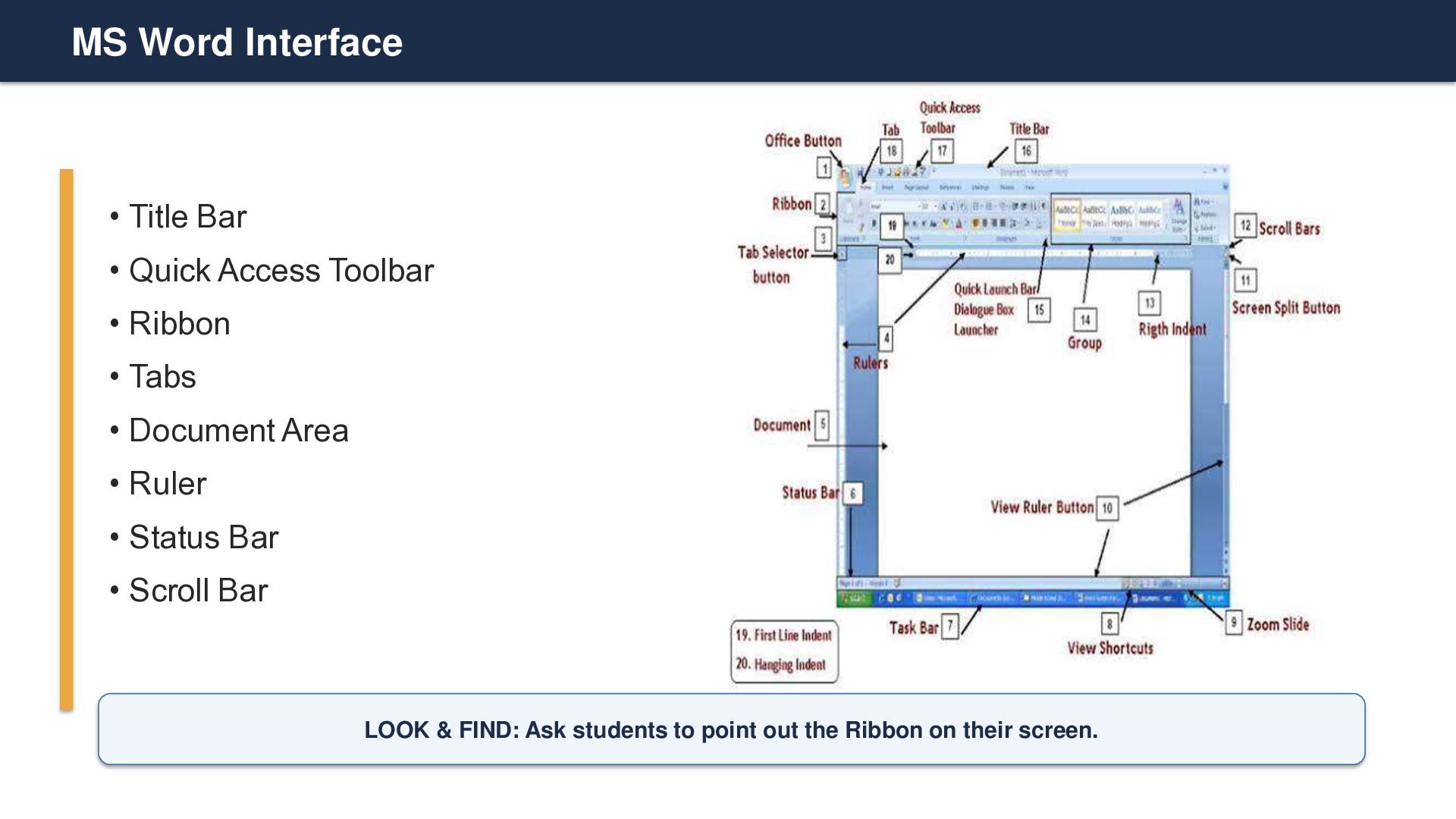
  16. MS Word Interface • Title Bar • Quick Access Toolbar

    • Ribbon • Tabs • Document Area • Ruler • Status Bar • Scroll Bar LOOK & FIND: Ask students to point out the Ribbon on their screen.
  17. Creating & Saving a Document • Create: File → New

    → Blank Document • Save: File → Save • Keyboard shortcut: Ctrl + S • Save your work regularly to avoid losing changes MINI TASK: Type one sentence and save the document.
  18. Typing & Editing Text • Type, select, delete and insert

    text • Copy text: Ctrl + C • Cut text: Ctrl + X • Paste text: Ctrl + V • Undo: Ctrl + Z Challenge: Select a word, copy it, paste it elsewhere, then undo.
  19. Text Formatting • Formatting changes the appearance of text. •

    Font and Font Size • Bold • Italic • Underline • Font Color • Text Highlight MINI ACTIVITY: Type your name and make it Bold + Underlined.
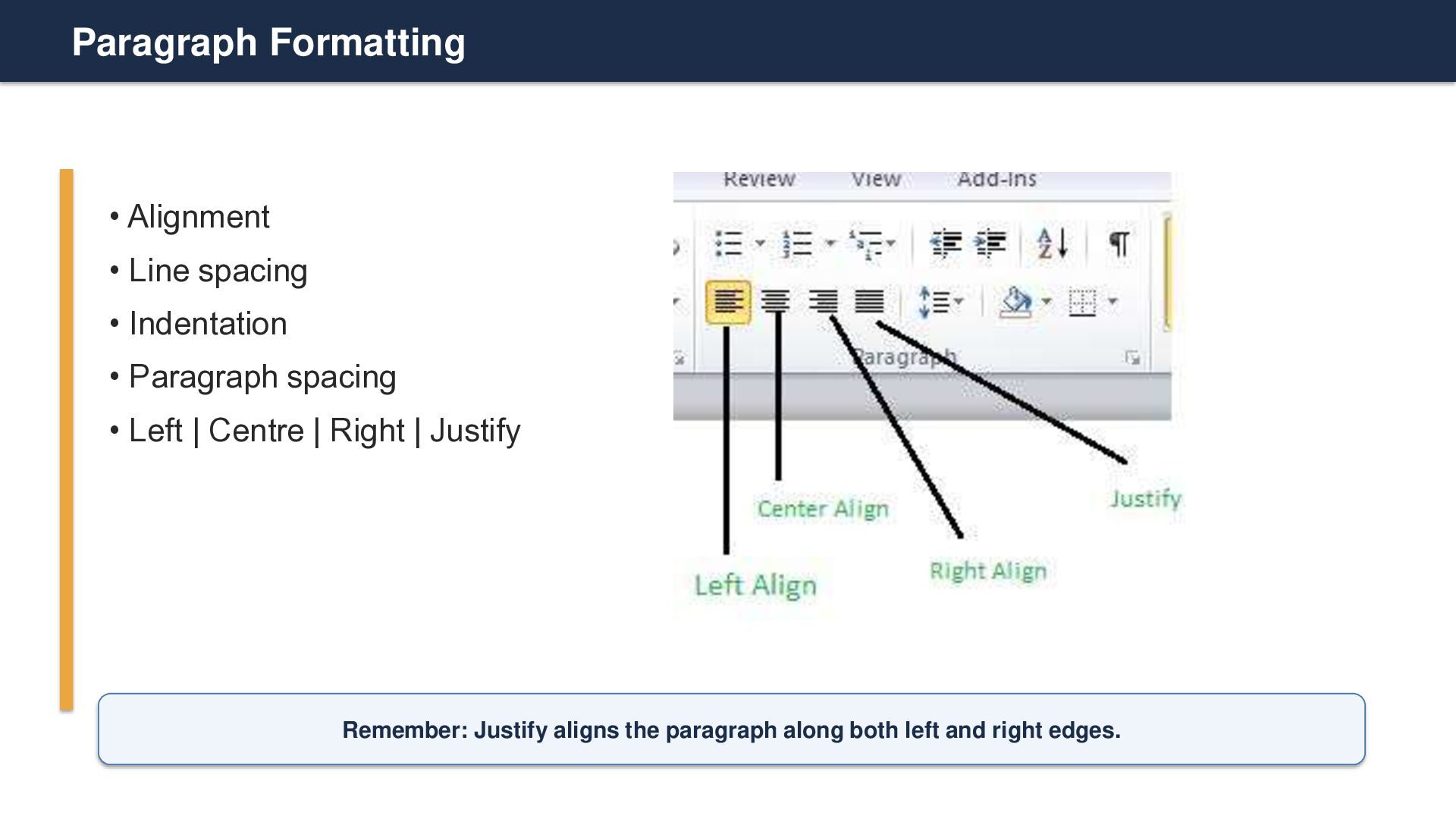
  20. Paragraph Formatting • Alignment • Line spacing • Indentation •

    Paragraph spacing • Left | Centre | Right | Justify Remember: Justify aligns the paragraph along both left and right edges.
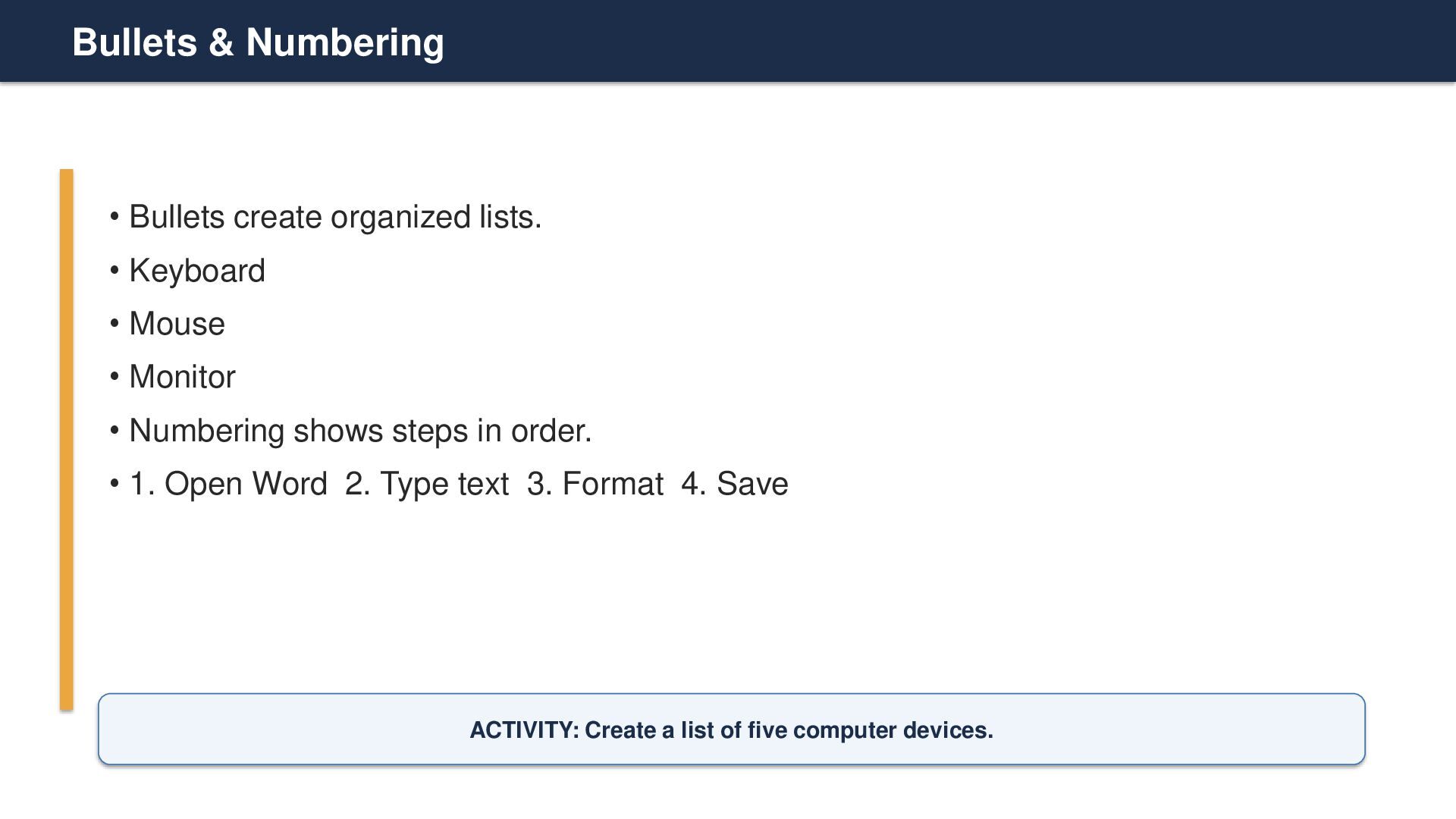
  21. Bullets & Numbering • Bullets create organized lists. • Keyboard

    • Mouse • Monitor • Numbering shows steps in order. • 1. Open Word 2. Type text 3. Format 4. Save ACTIVITY: Create a list of five computer devices.
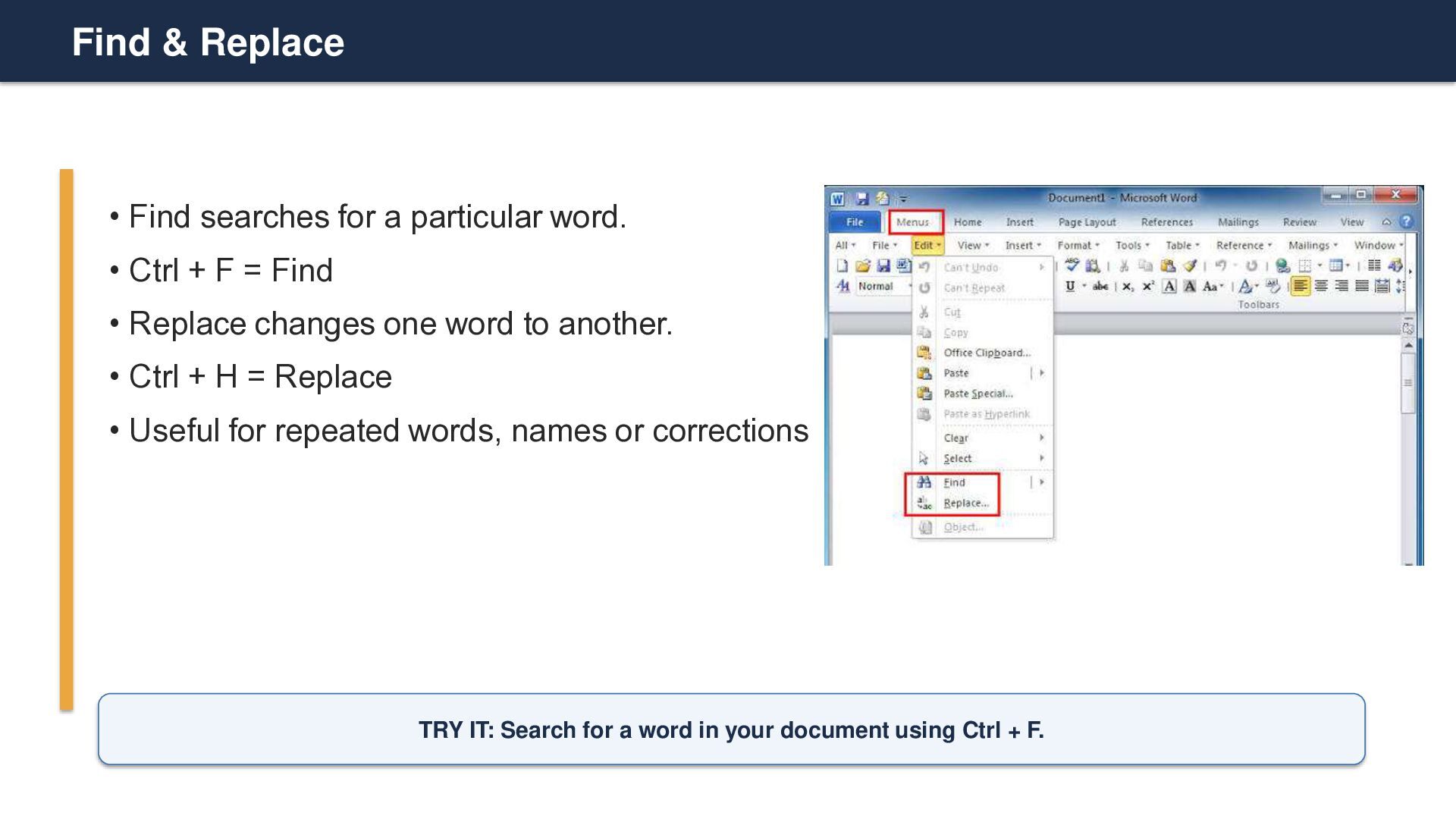
  22. Find & Replace • Find searches for a particular word.

    • Ctrl + F = Find • Replace changes one word to another. • Ctrl + H = Replace • Useful for repeated words, names or corrections TRY IT: Search for a word in your document using Ctrl + F.
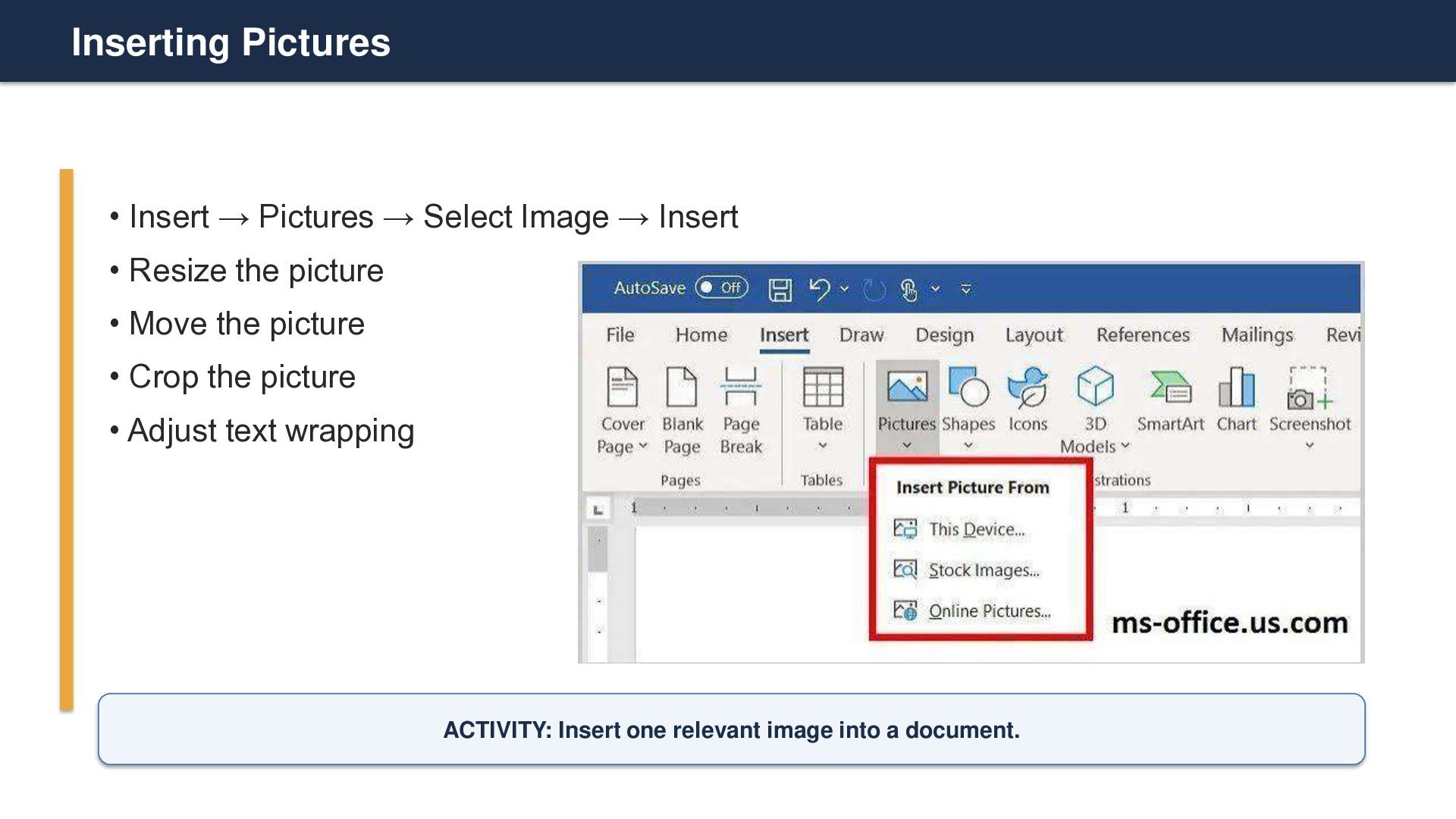
  23. Inserting Pictures • Insert → Pictures → Select Image →

    Insert • Resize the picture • Move the picture • Crop the picture • Adjust text wrapping ACTIVITY: Insert one relevant image into a document.
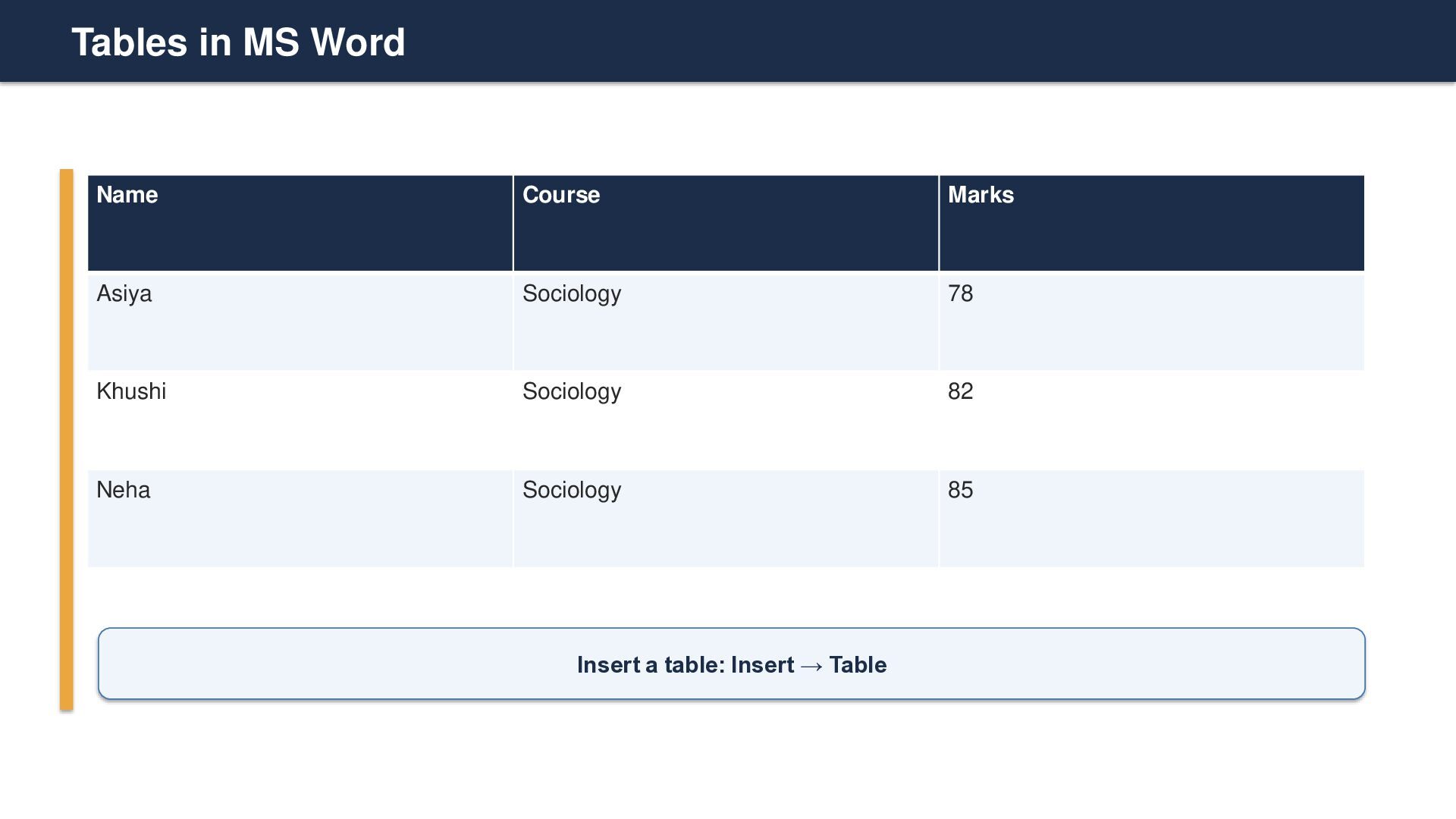
  24. Tables in MS Word Name Course Marks Asiya Sociology 78

    Khushi Sociology 82 Neha Sociology 85 Insert a table: Insert → Table
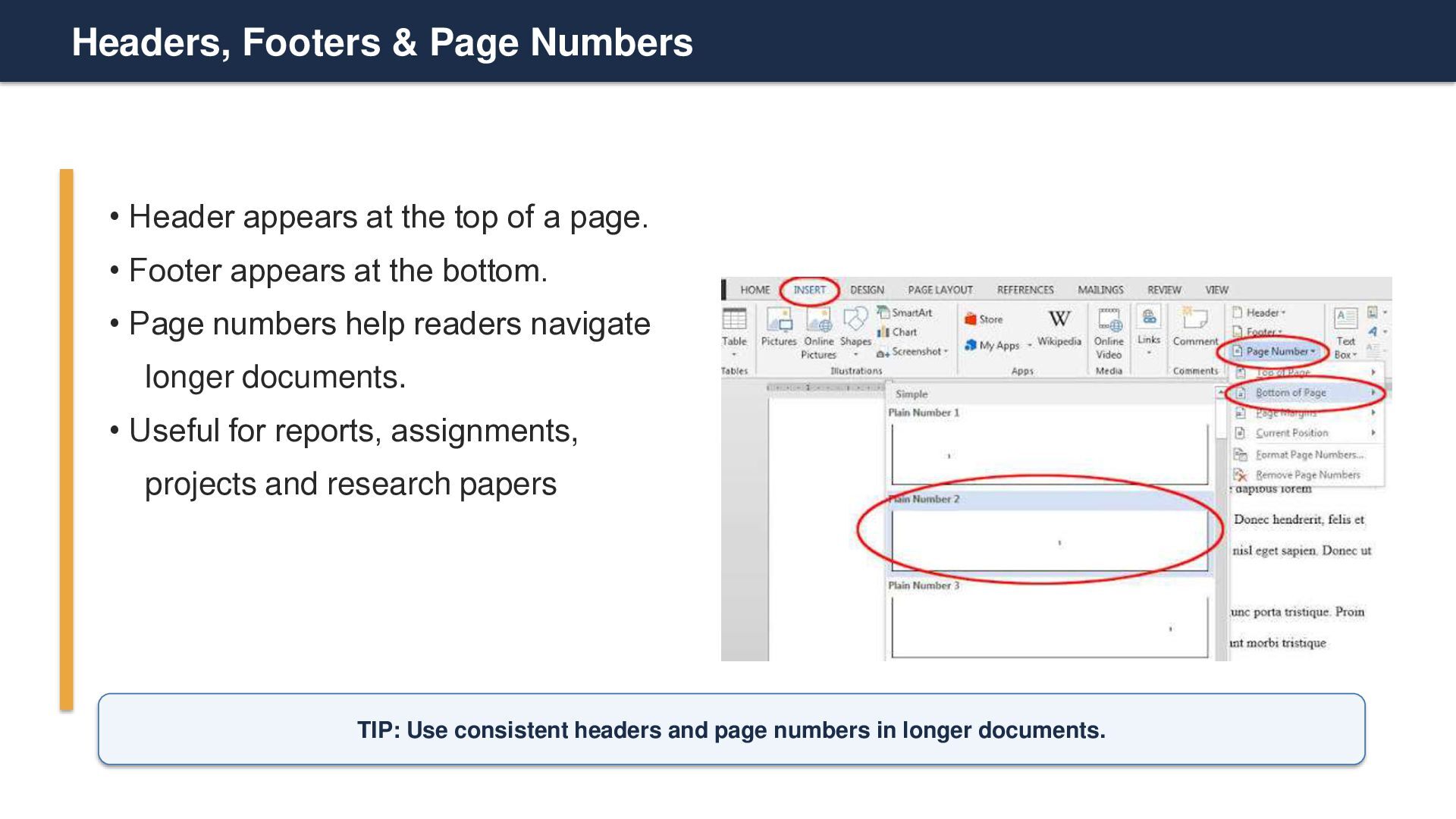
  25. Headers, Footers & Page Numbers • Header appears at the

    top of a page. • Footer appears at the bottom. • Page numbers help readers navigate longer documents. • Useful for reports, assignments, projects and research papers TIP: Use consistent headers and page numbers in longer documents.
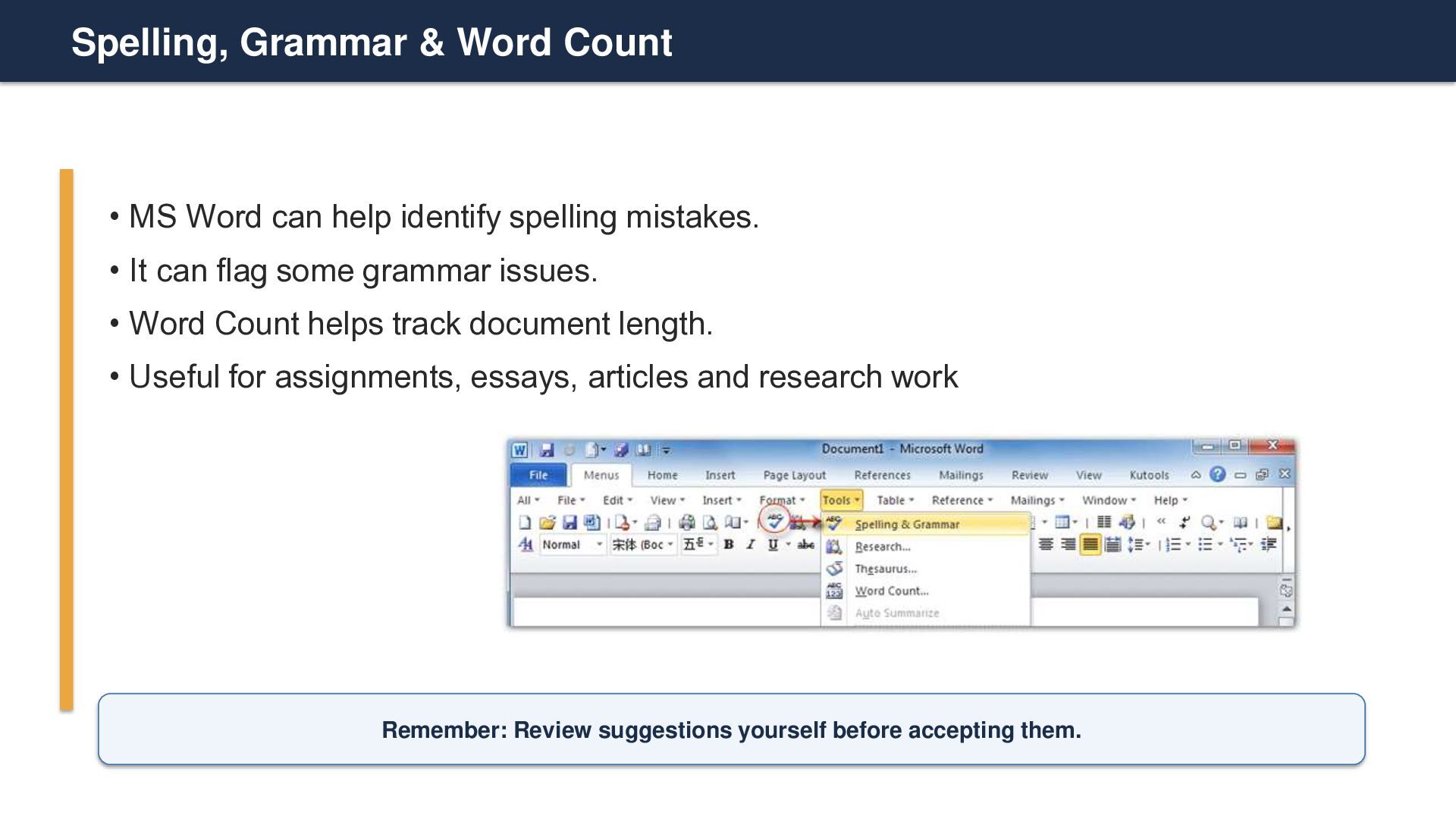
  26. Spelling, Grammar & Word Count • MS Word can help

    identify spelling mistakes. • It can flag some grammar issues. • Word Count helps track document length. • Useful for assignments, essays, articles and research work Remember: Review suggestions yourself before accepting them.
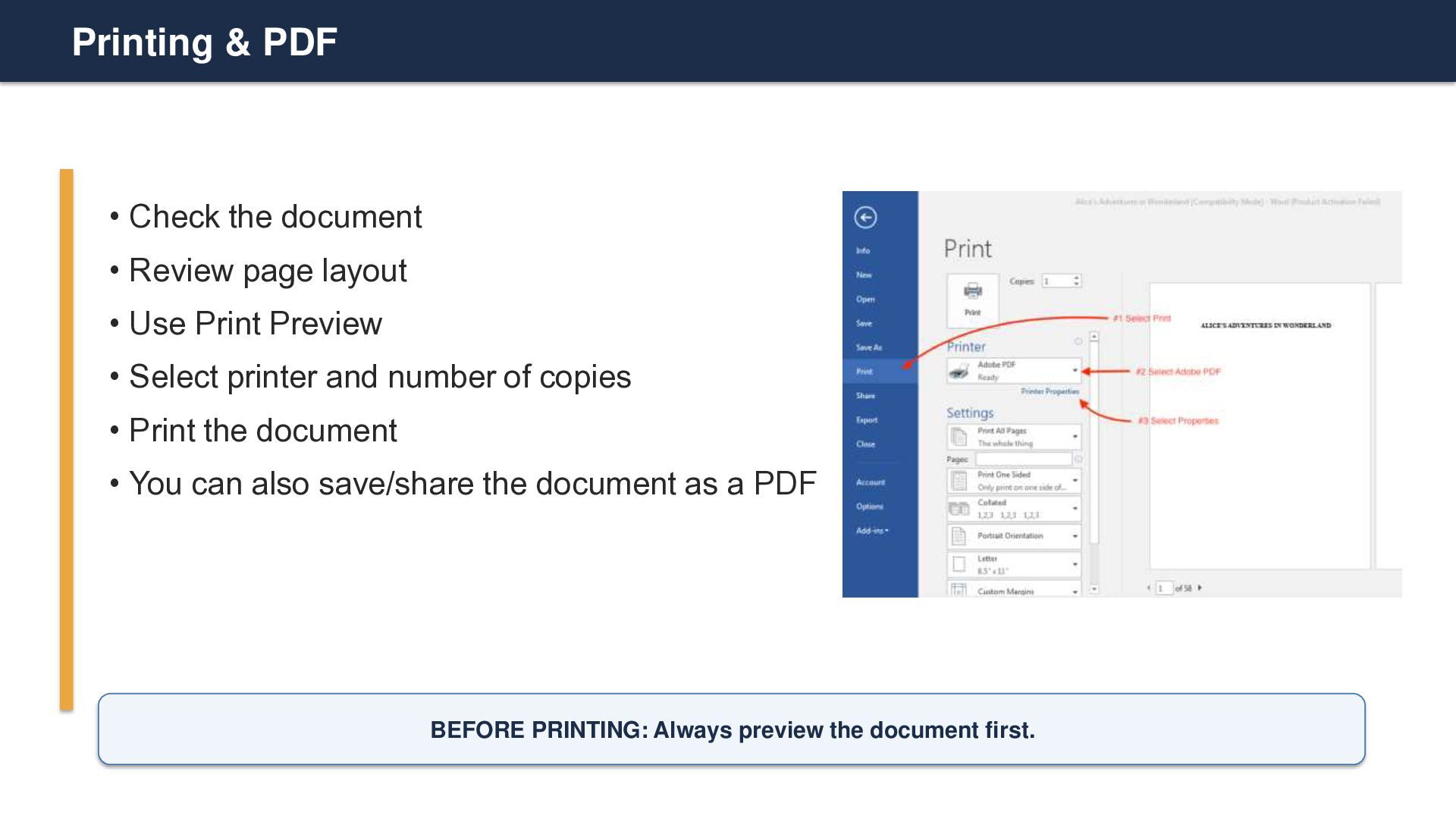
  27. Printing & PDF • Check the document • Review page

    layout • Use Print Preview • Select printer and number of copies • Print the document • You can also save/share the document as a PDF BEFORE PRINTING: Always preview the document first.
  28. Keyboard Shortcuts: Quick Challenge • Ctrl + S = Save

    • Ctrl + C = Copy • Ctrl + V = Paste • Ctrl + Z = Undo • Ctrl + F = Find CHALLENGE: Answer without looking at your notes!
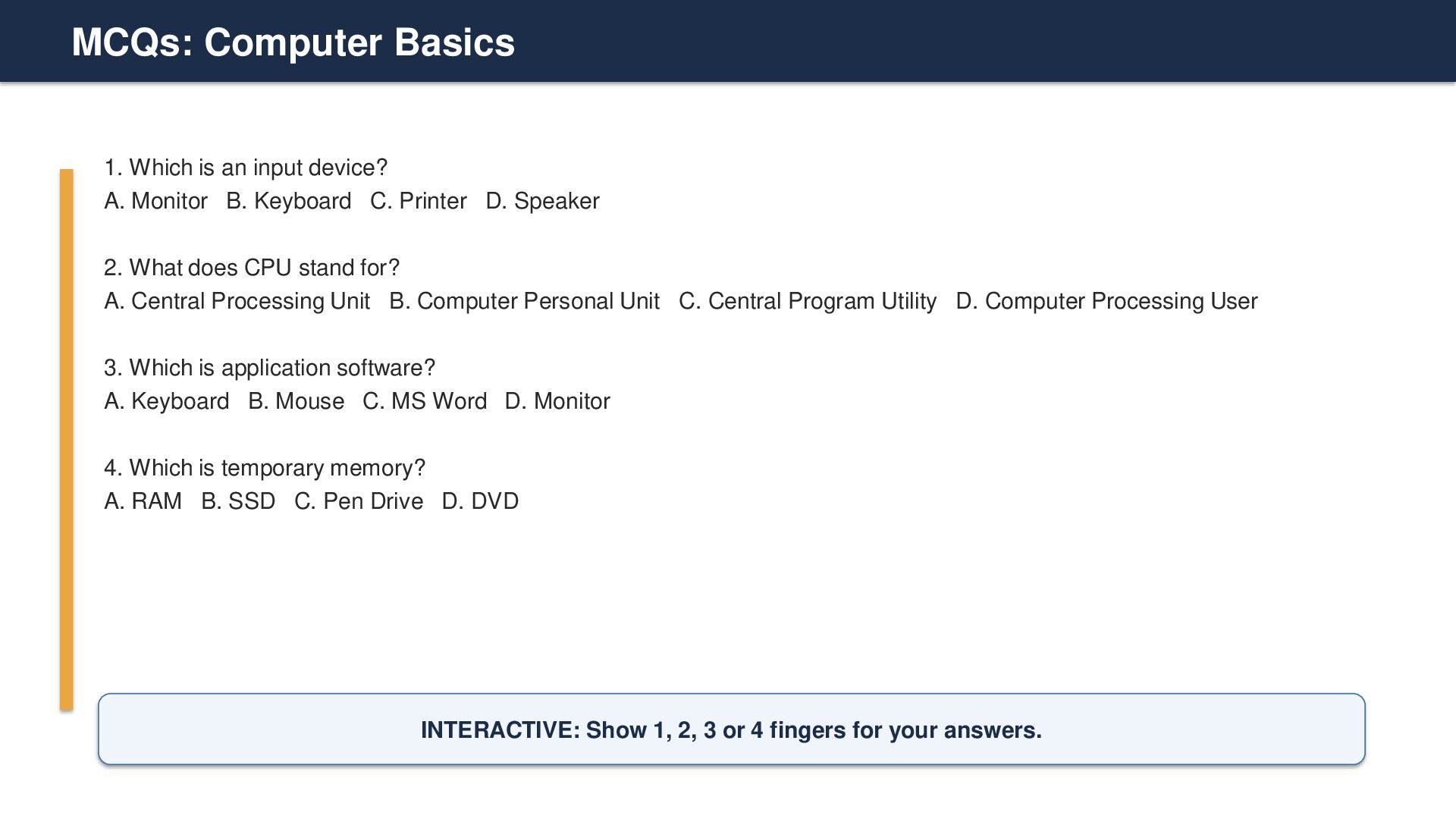
  29. MCQs: Computer Basics 1. Which is an input device? A.

    Monitor B. Keyboard C. Printer D. Speaker 2. What does CPU stand for? A. Central Processing Unit B. Computer Personal Unit C. Central Program Utility D. Computer Processing User 3. Which is application software? A. Keyboard B. Mouse C. MS Word D. Monitor 4. Which is temporary memory? A. RAM B. SSD C. Pen Drive D. DVD INTERACTIVE: Show 1, 2, 3 or 4 fingers for your answers.
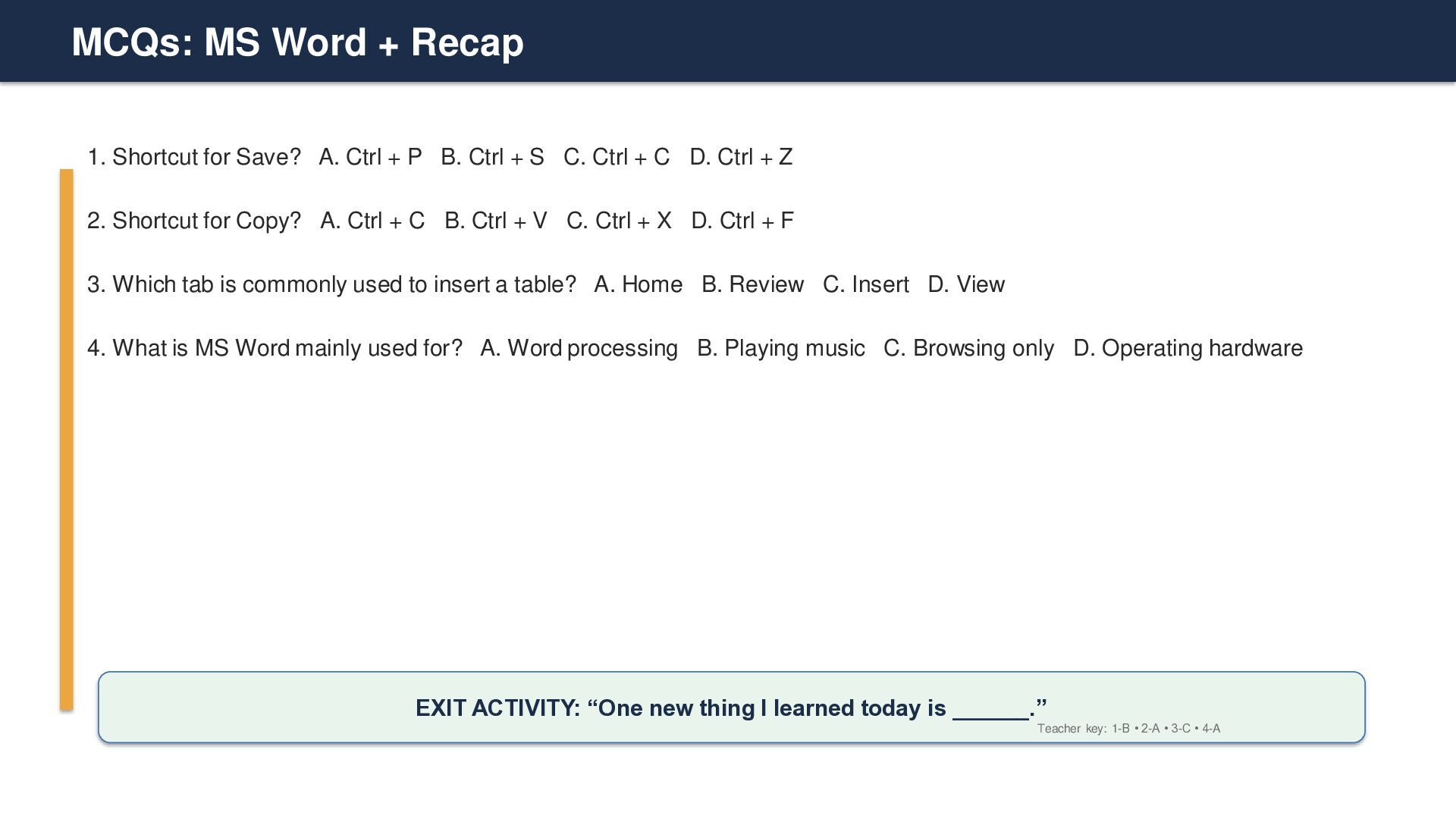
  30. MCQs: MS Word + Recap 1. Shortcut for Save? A.

    Ctrl + P B. Ctrl + S C. Ctrl + C D. Ctrl + Z 2. Shortcut for Copy? A. Ctrl + C B. Ctrl + V C. Ctrl + X D. Ctrl + F 3. Which tab is commonly used to insert a table? A. Home B. Review C. Insert D. View 4. What is MS Word mainly used for? A. Word processing B. Playing music C. Browsing only D. Operating hardware EXIT ACTIVITY: “One new thing I learned today is ______.” Teacher key: 1-B • 2-A • 3-C • 4-A