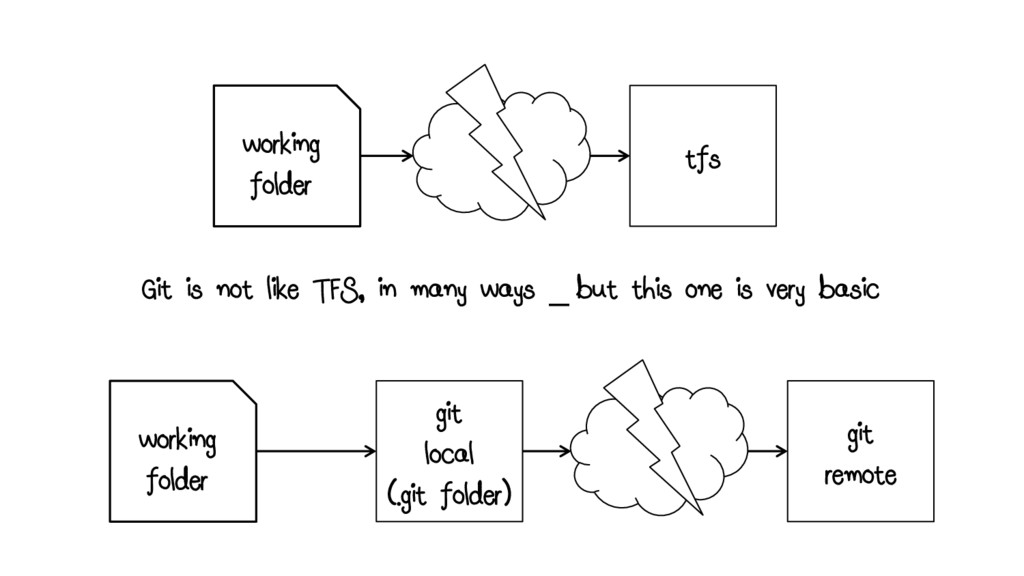
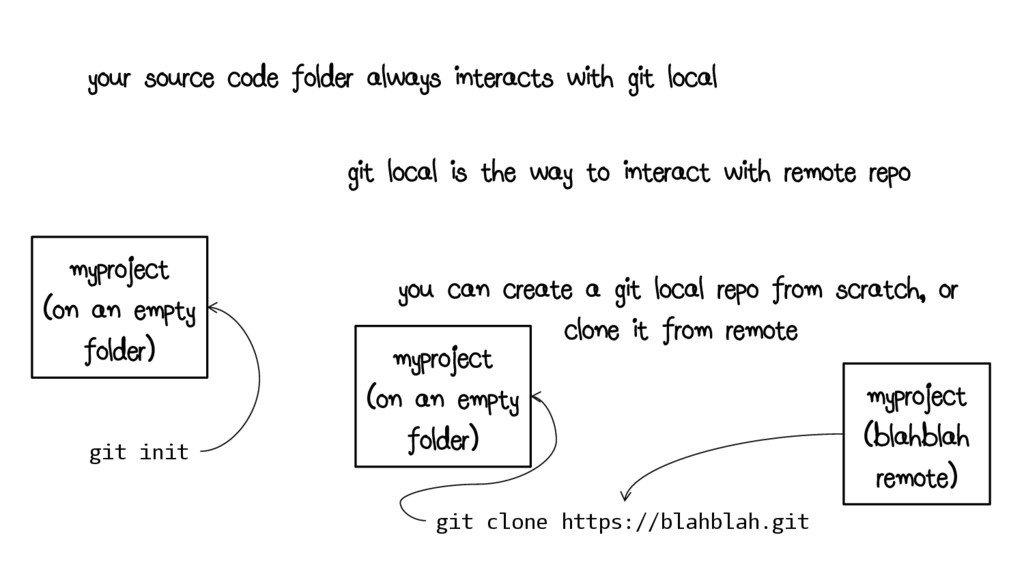
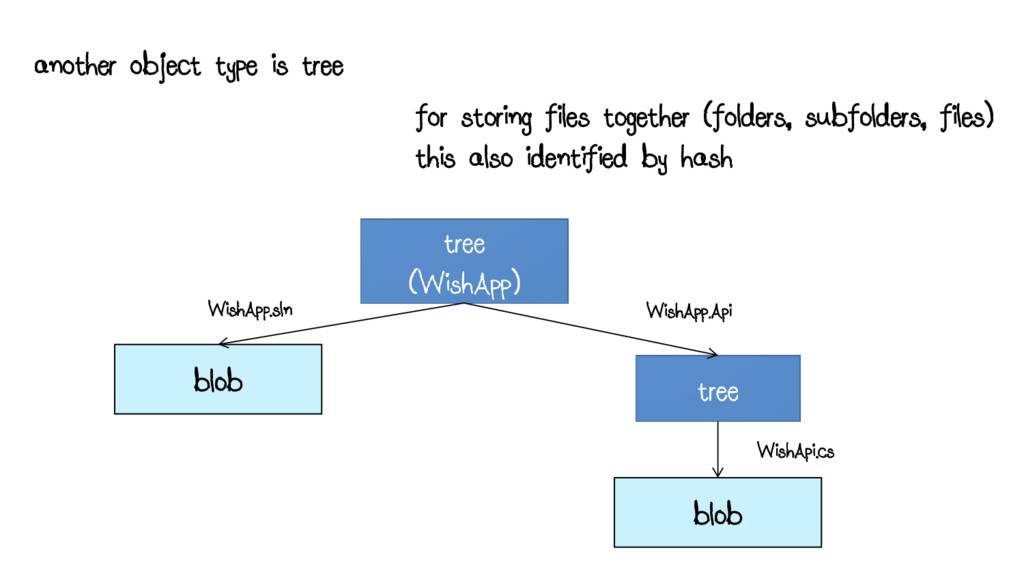
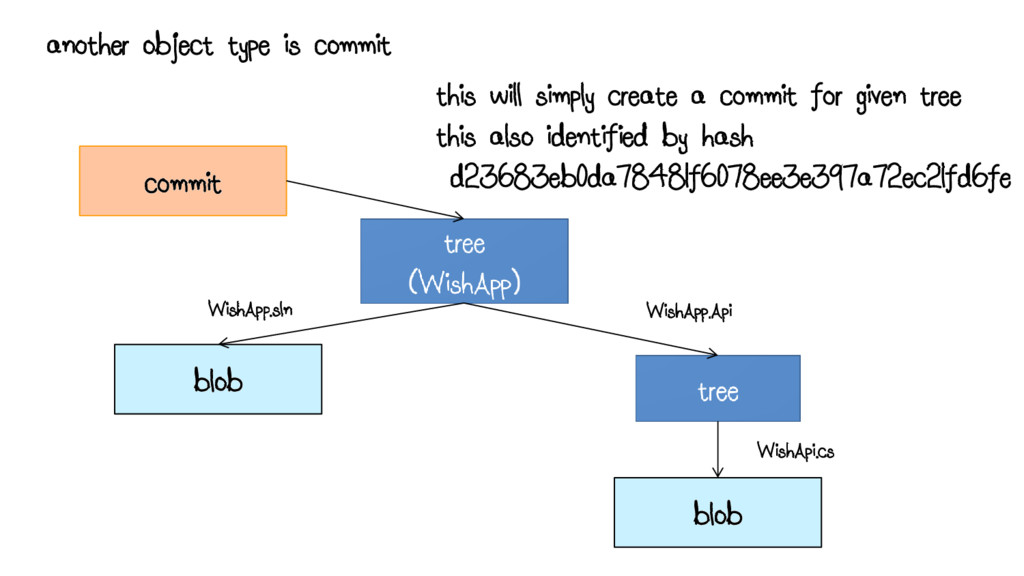
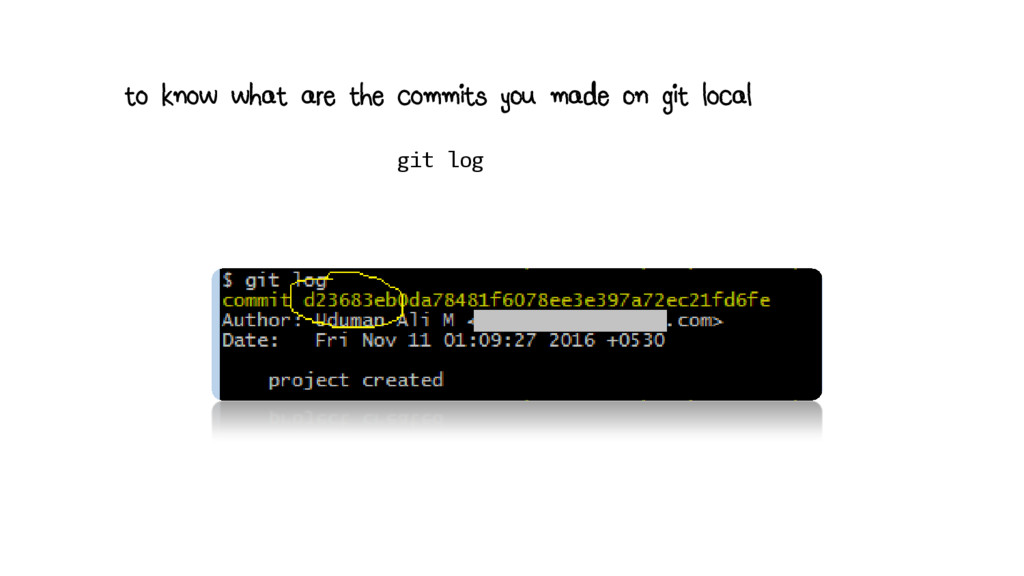
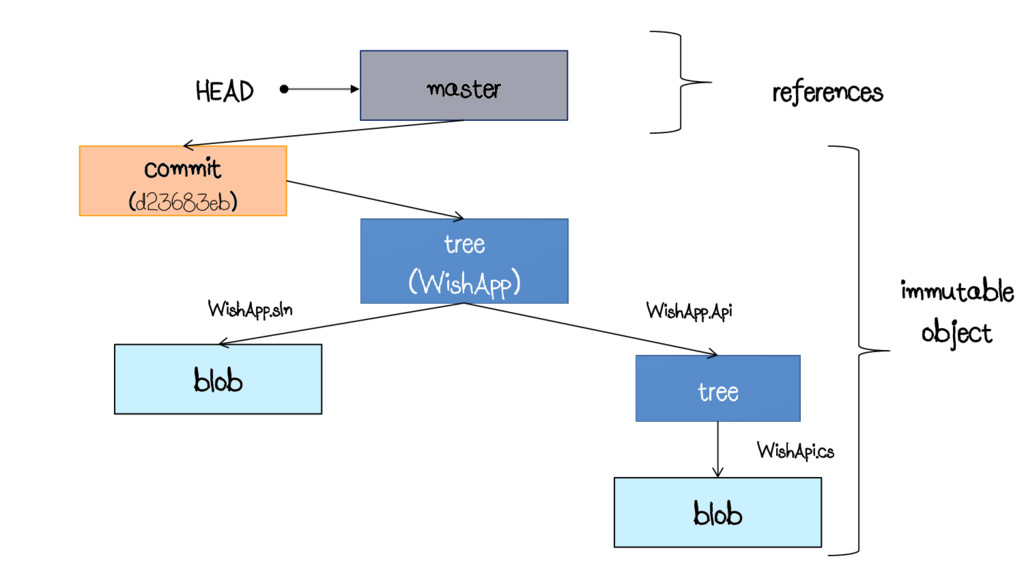
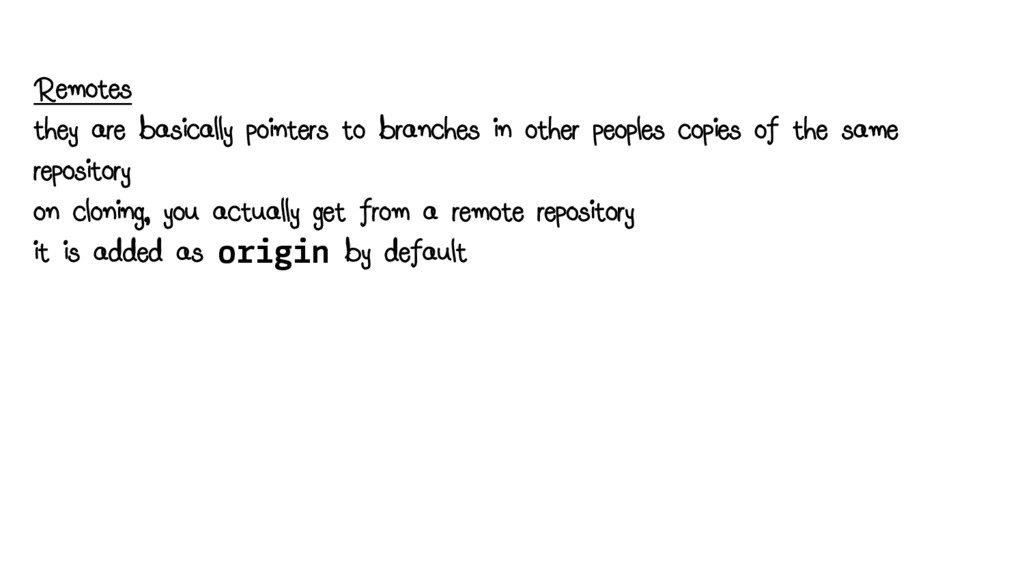
init git local is the way to interact with remote repo myproject (on an empty folder) you can create a git local repo from scratch, or clone it from remote git clone https://blahblah.git myproject (blahblah remote) myproject (on an empty folder)
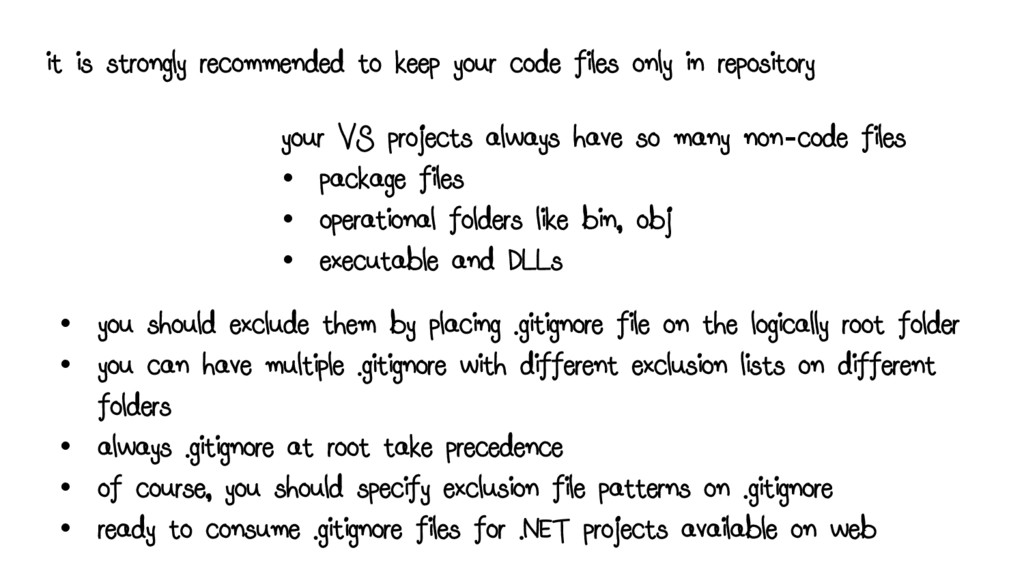
in repository your VS projects always have so many non-code files • package files • operational folders like bin, obj • executable and DLLs • you should exclude them by placing .gitignore file on the logically root folder • you can have multiple .gitignore with different exclusion lists on different folders • always .gitignore at root take precedence • of course, you should specify exclusion file patterns on .gitignore • ready to consume .gitignore files for .NET projects available on web
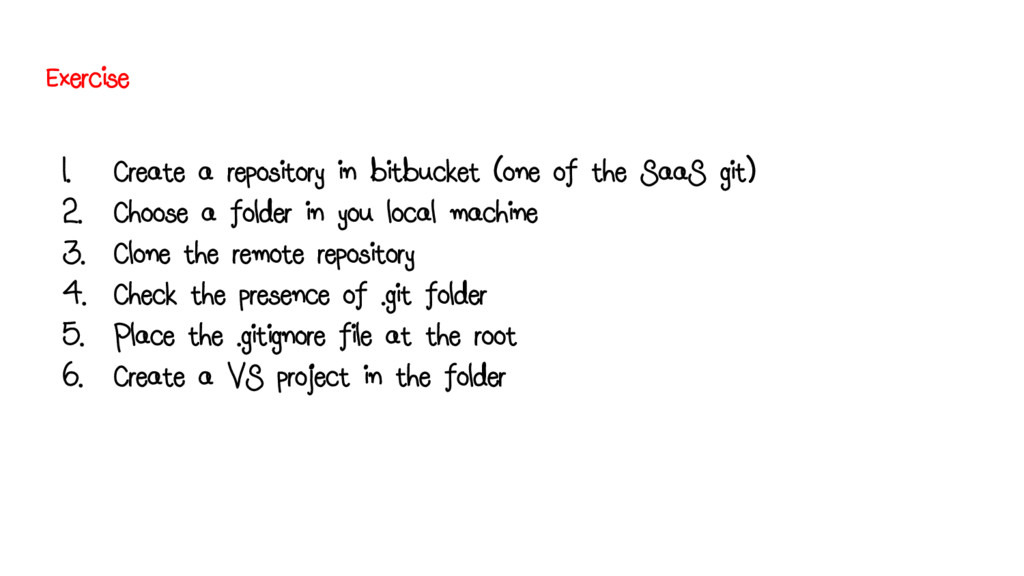
SaaS git) 2. Choose a folder in you local machine 3. Clone the remote repository 4. Check the presence of .git folder 5. Place the .gitignore file at the root 6. Create a VS project in the folder
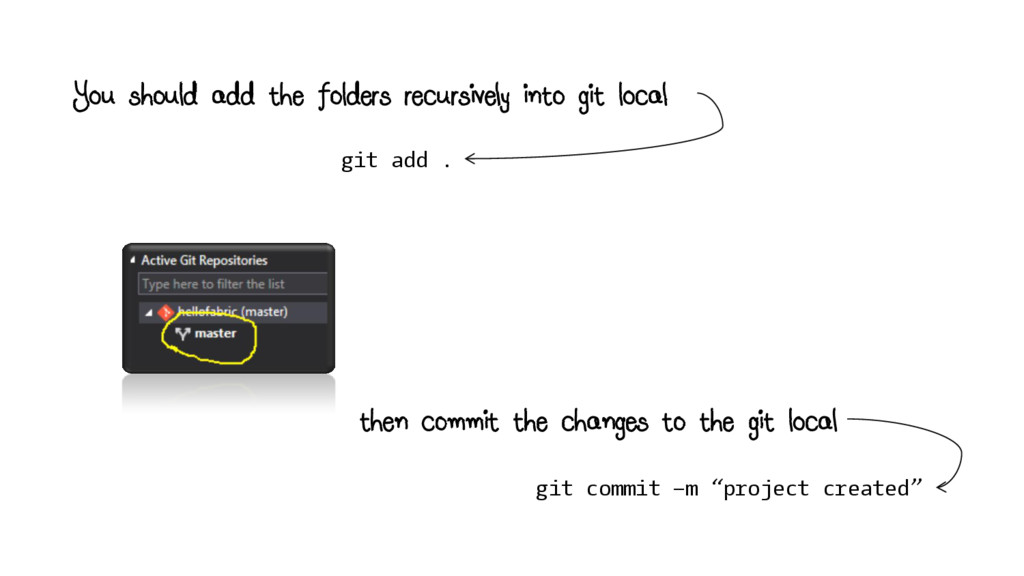
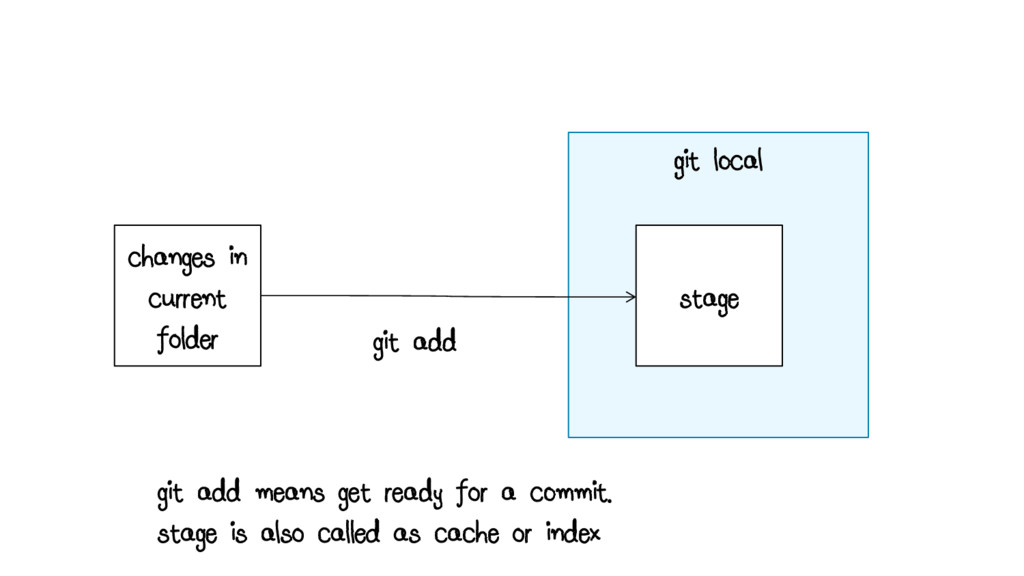
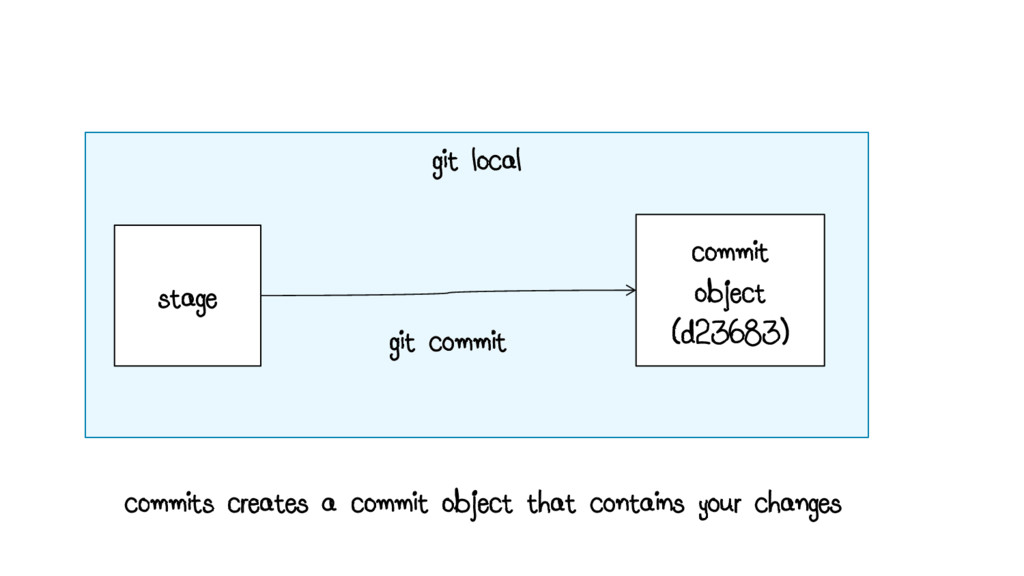
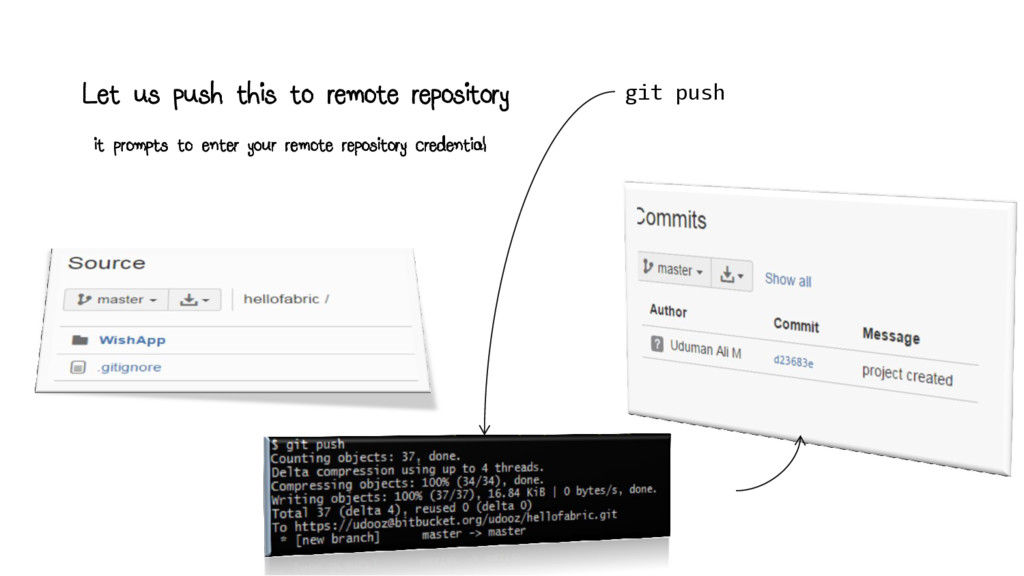
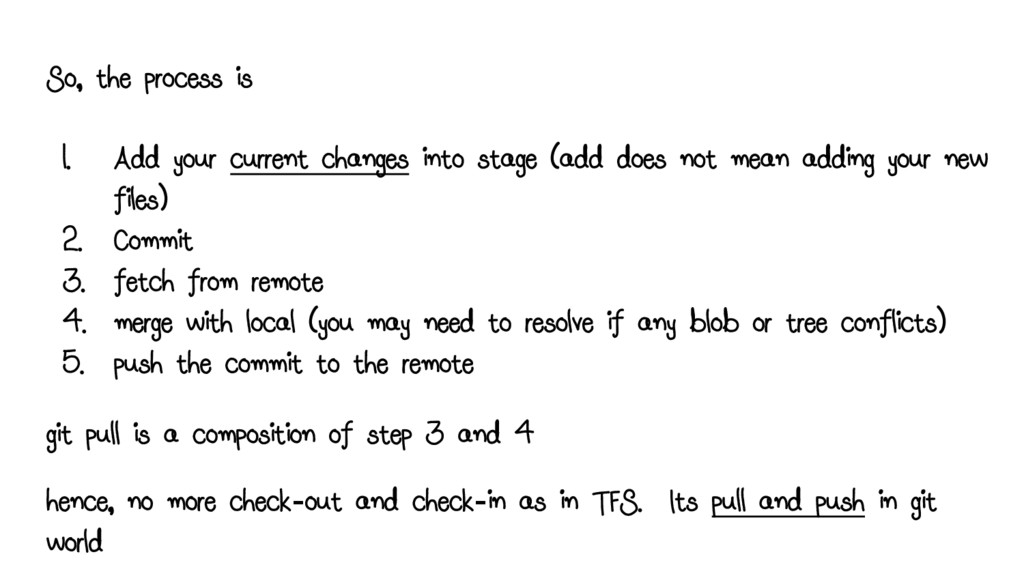
stage (add does not mean adding your new files) 2. Commit 3. fetch from remote 4. merge with local (you may need to resolve if any blob or tree conflicts) 5. push the commit to the remote git pull is a composition of step 3 and 4 hence, no more check-out and check-in as in TFS. Its pull and push in git world
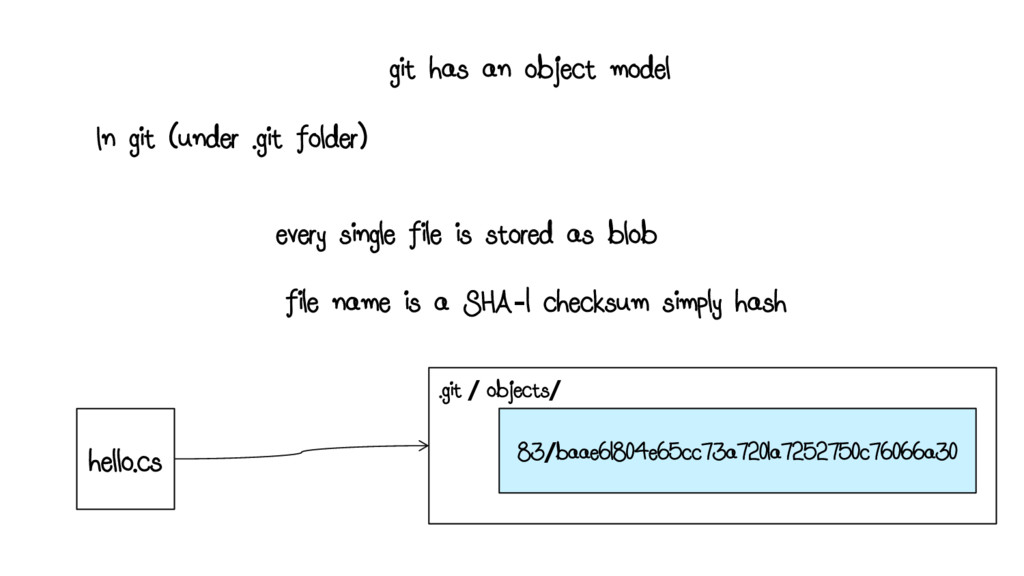
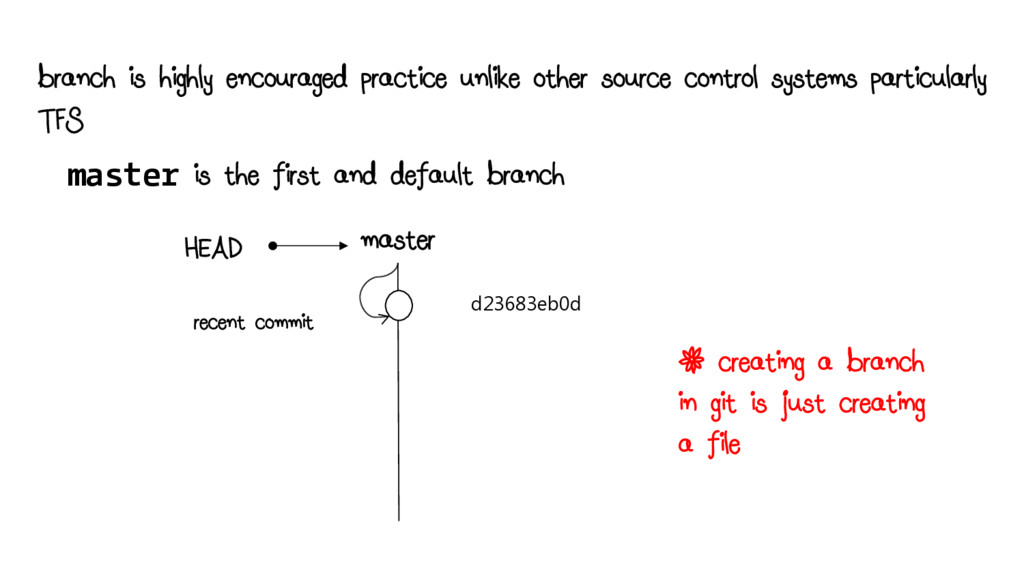
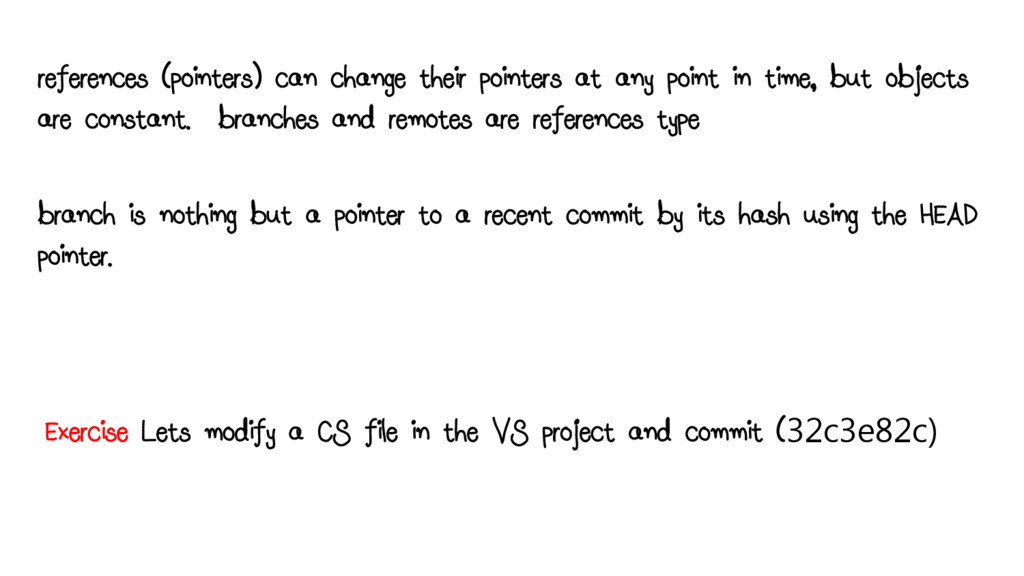
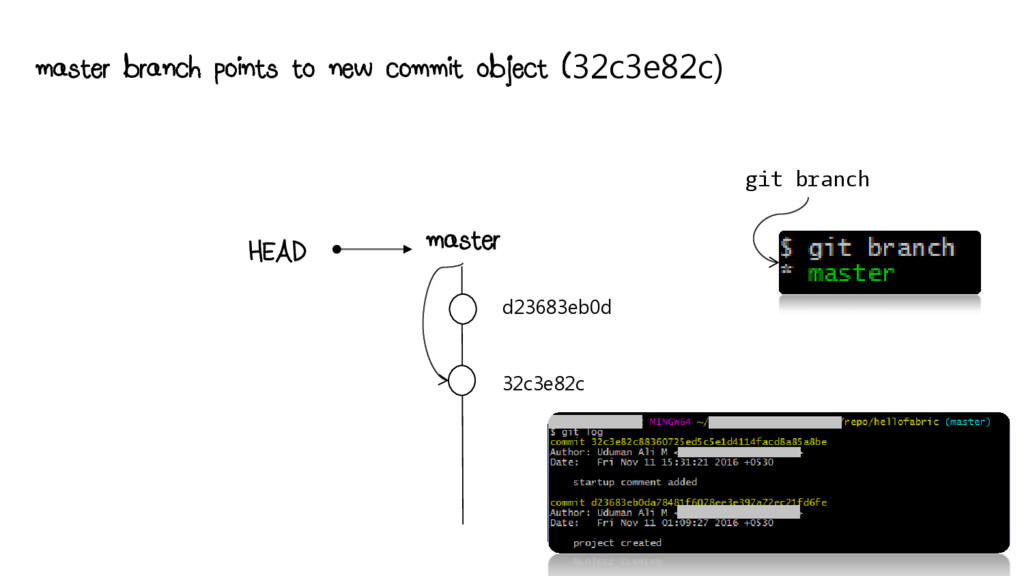
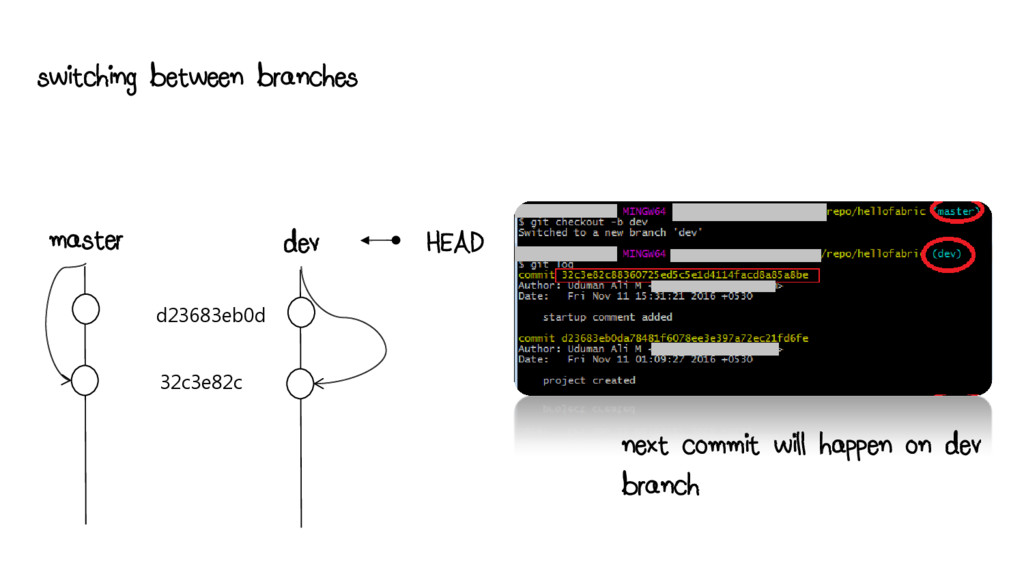
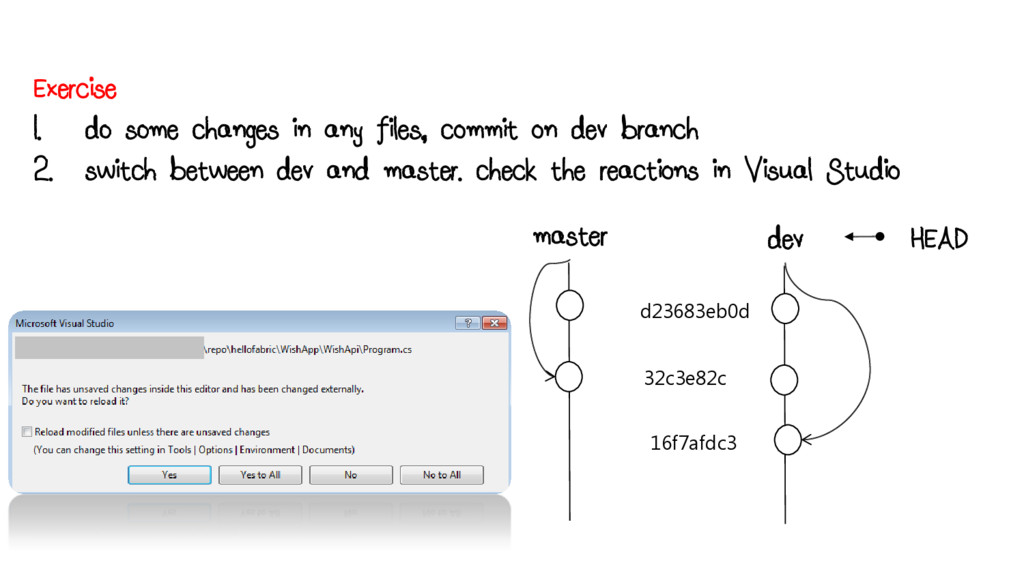
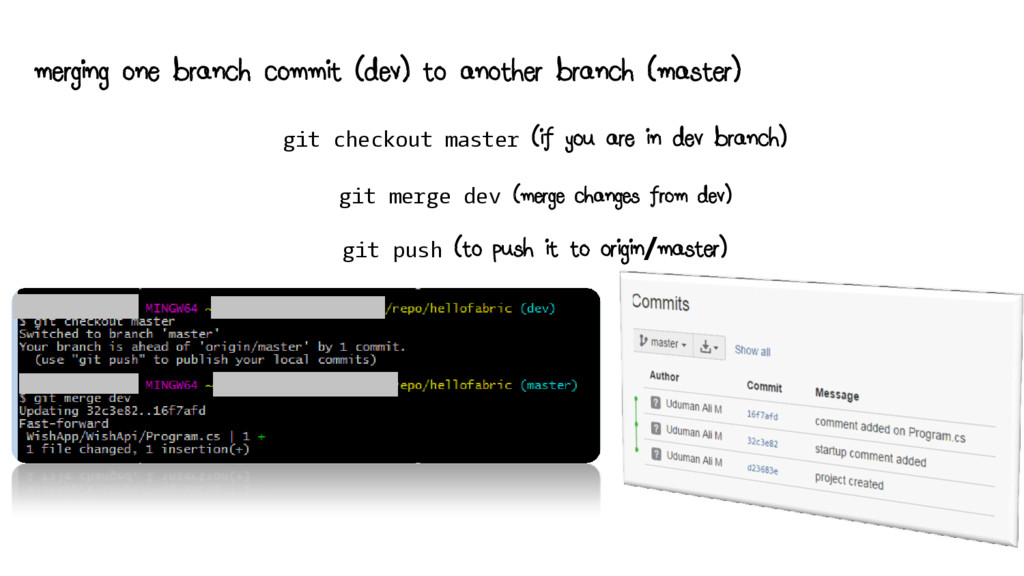
time, but objects are constant. branches and remotes are references type branch is nothing but a pointer to a recent commit by its hash using the HEAD pointer. Exercise Lets modify a CS file in the VS project and commit (32c3e82c)
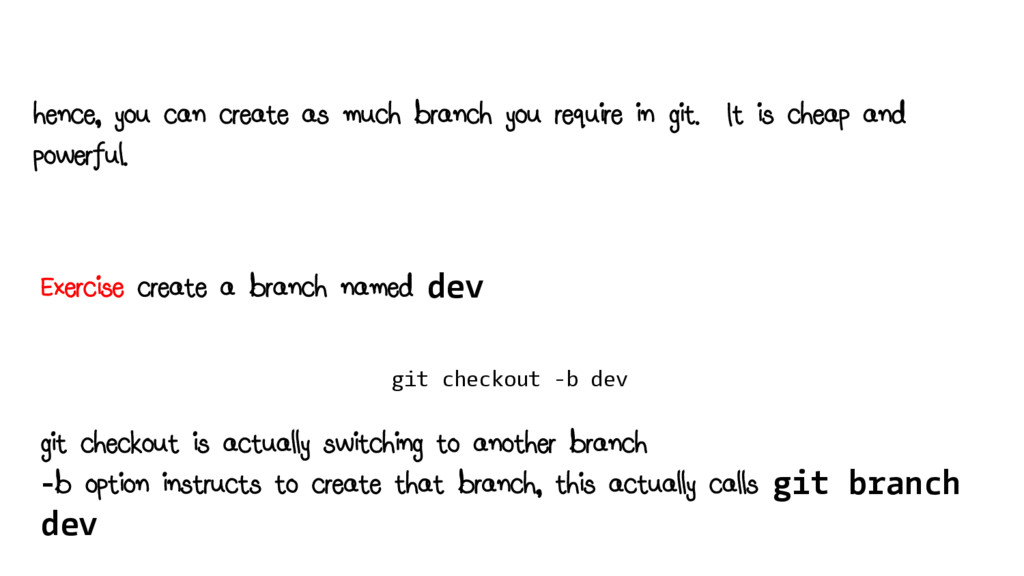
git. It is cheap and powerful. Exercise create a branch named dev git checkout -b dev git checkout is actually switching to another branch -b option instructs to create that branch, this actually calls git branch dev
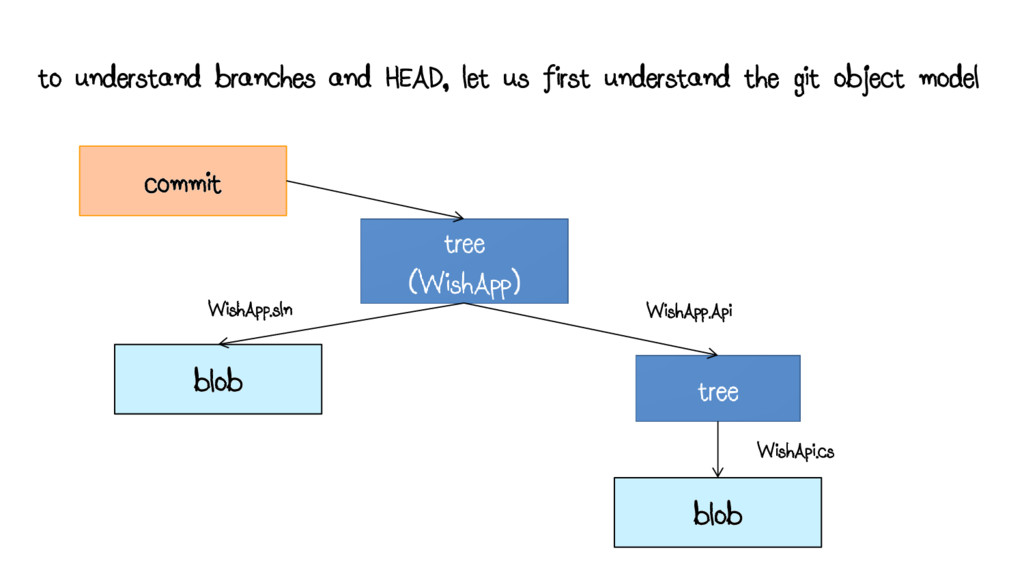
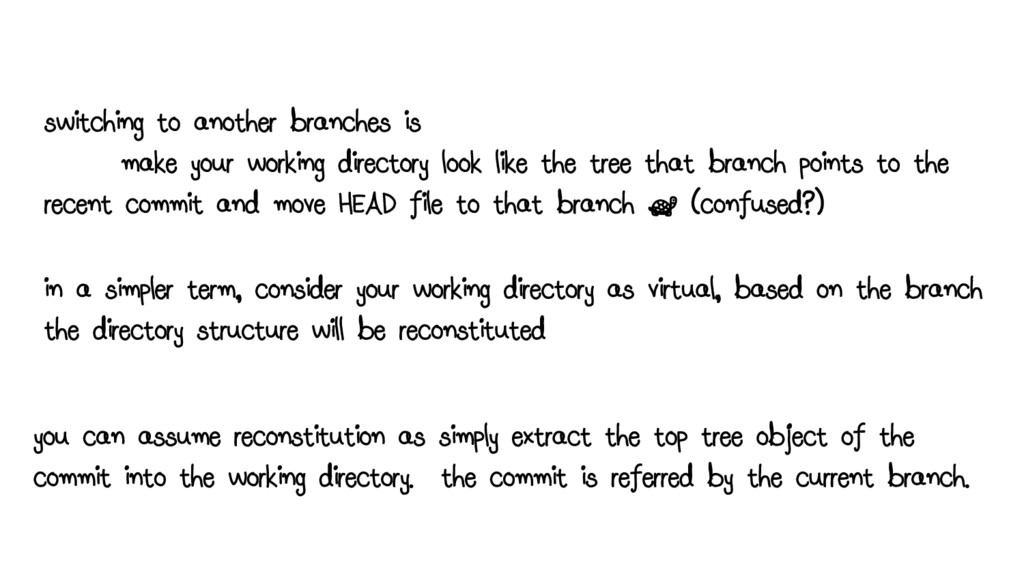
like the tree that branch points to the recent commit and move HEAD file to that branch ; (confused?) in a simpler term, consider your working directory as virtual, based on the branch the directory structure will be reconstituted you can assume reconstitution as simply extract the top tree object of the commit into the working directory. the commit is referred by the current branch.
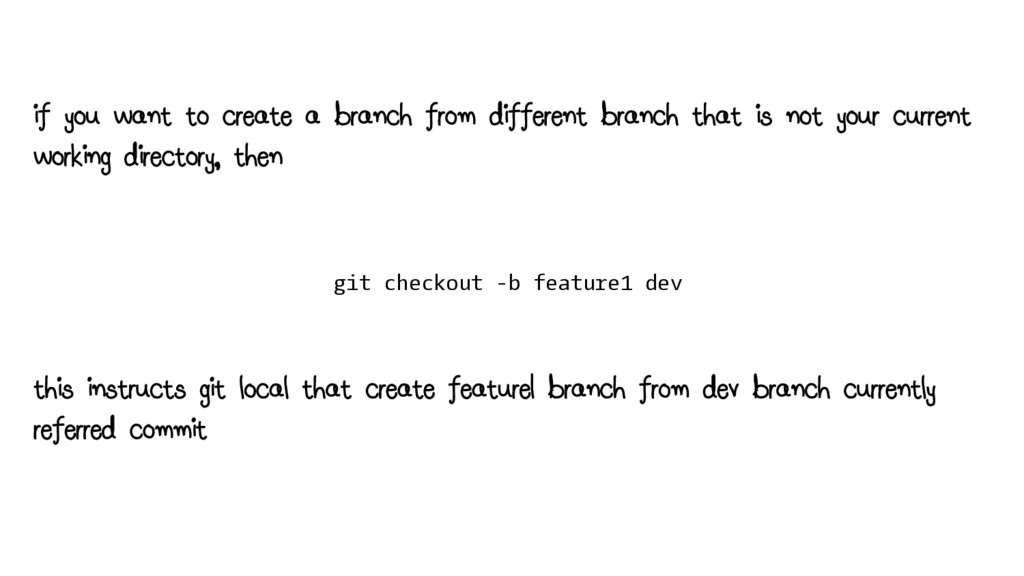
that is not your current working directory, then git checkout -b feature1 dev this instructs git local that create feature1 branch from dev branch currently referred commit
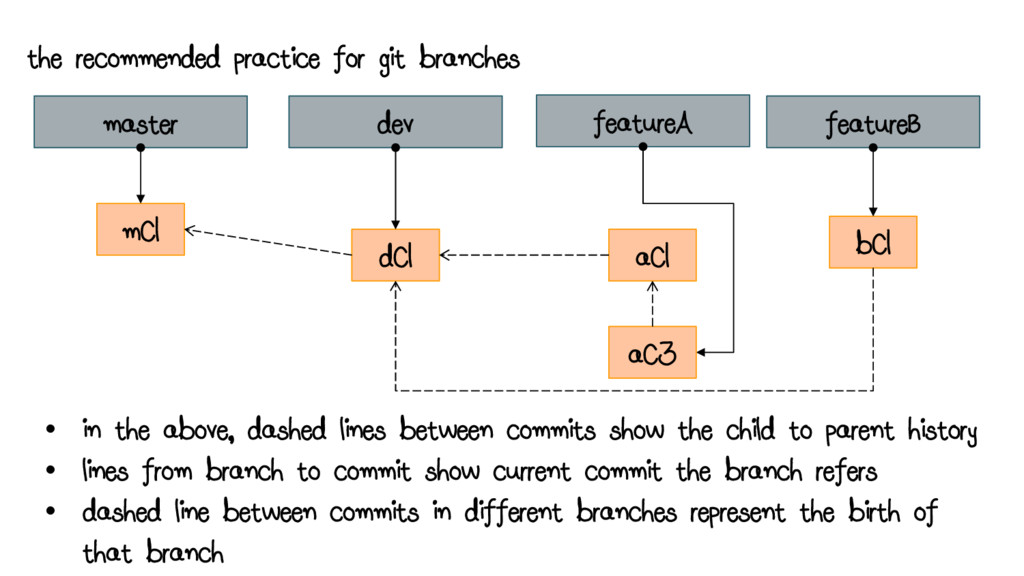
dC1 bC1 • in the above, dashed lines between commits show the child to parent history • lines from branch to commit show current commit the branch refers • dashed line between commits in different branches represent the birth of that branch aC1 featureB aC3
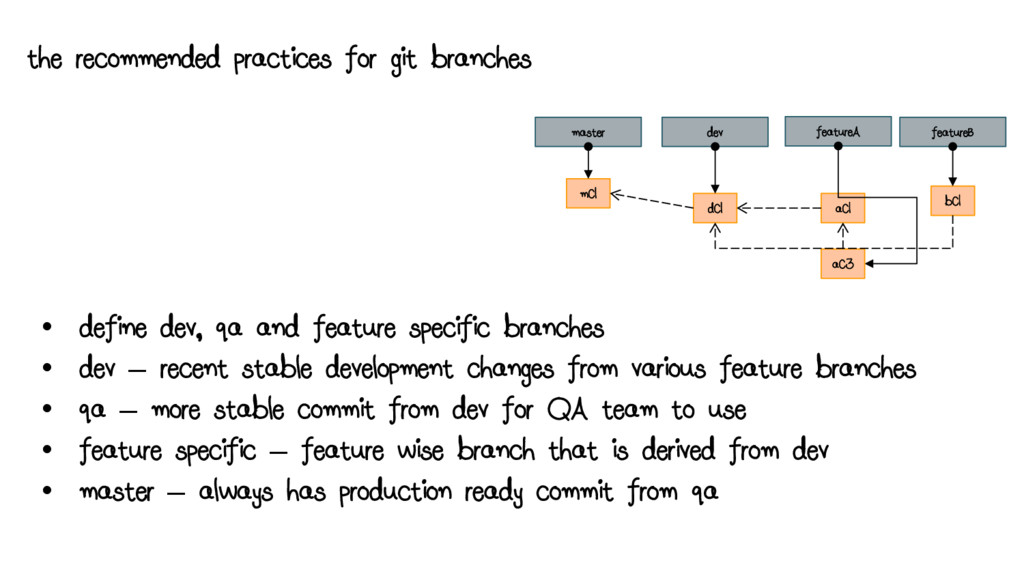
and feature specific branches • dev – recent stable development changes from various feature branches • qa – more stable commit from dev for QA team to use • feature specific – feature wise branch that is derived from dev • master – always has production ready commit from qa master dev featureA mC1 dC1 bC1 aC1 featureB aC3
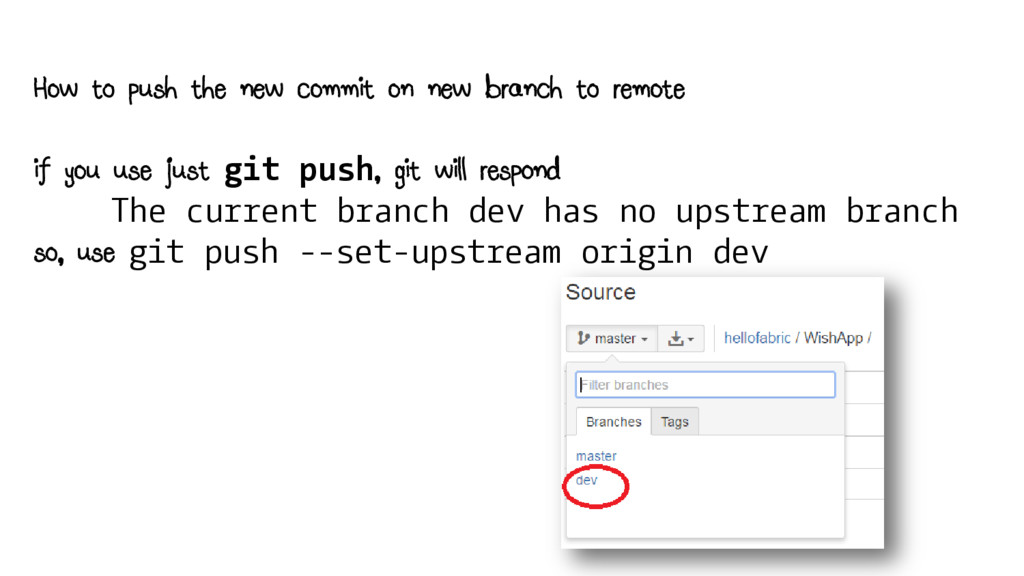
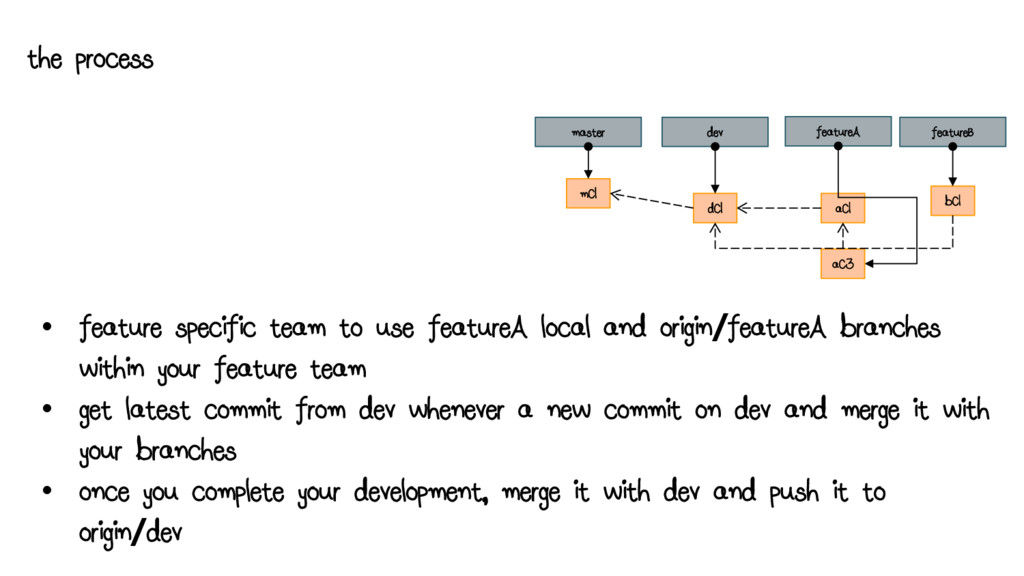
and origin/featureA branches within your feature team • get latest commit from dev whenever a new commit on dev and merge it with your branches • once you complete your development, merge it with dev and push it to origin/dev master dev featureA mC1 dC1 bC1 aC1 featureB aC3
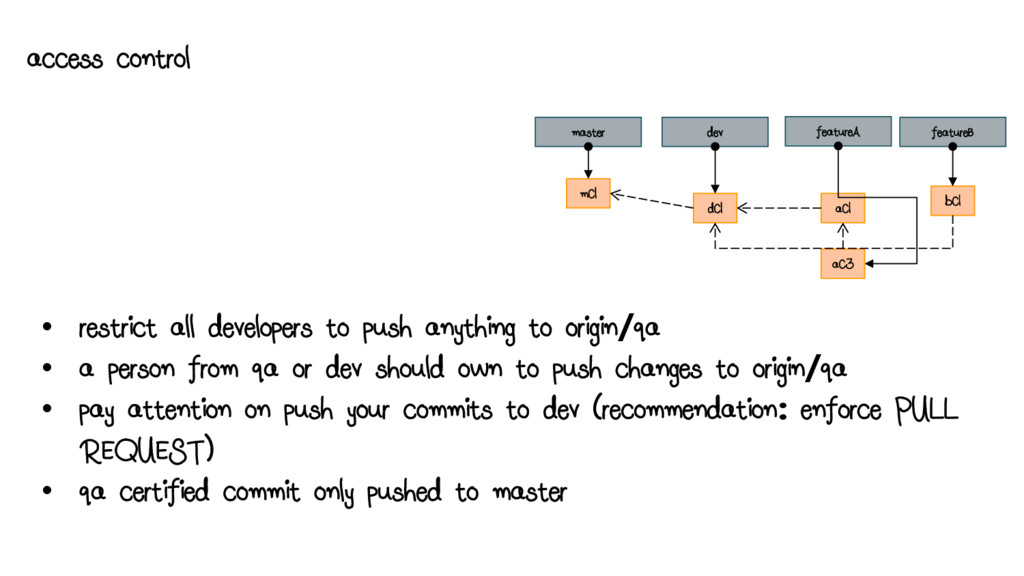
origin/qa • a person from qa or dev should own to push changes to origin/qa • pay attention on push your commits to dev (recommendation: enforce PULL REQUEST) • qa certified commit only pushed to master master dev featureA mC1 dC1 bC1 aC1 featureB aC3

 SiteGround - Reliable hosting with speed, security, and support you can count on.


 skydoves
 texmeijin
 y0hgi
y0hgi
 irinanazarova
 dske104
 falcon8823
 taiseiue
 rollbear
 timakin
 eed3si9n
 findyinc
 nokomoro3
 davidcarrasco
 katiecoart
 rakko
rakko
 charlesmeaden
 techseoconnect
 michielstock
 soudai
 denniskardys
 maggiecrowley
 addyosmani
 thekraken
 inesmontani