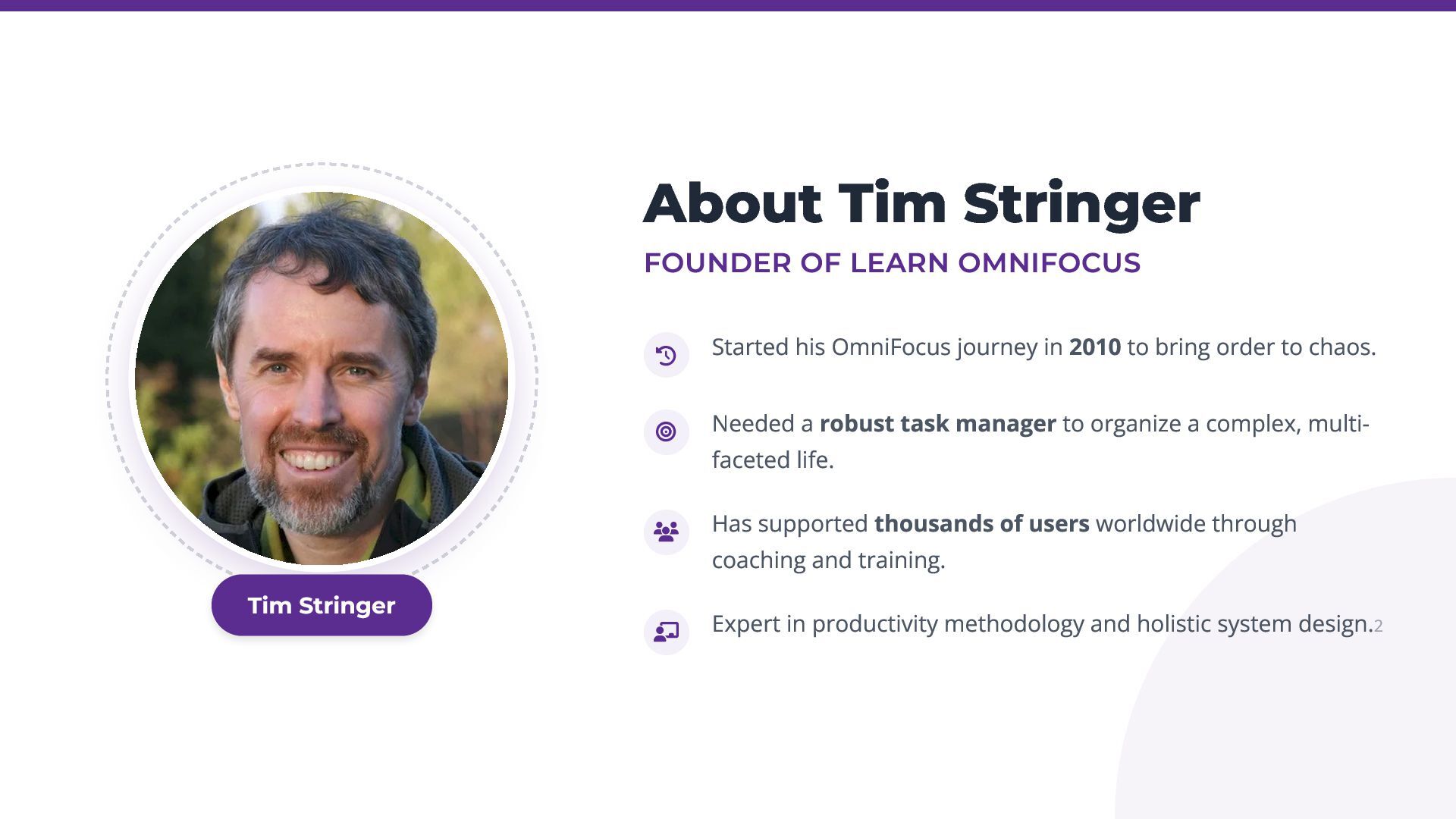
OmniFocus journey in 2010 to bring order to chaos. Needed a robust task manager to organize a complex, multi- faceted life. Has supported thousands of users worldwide through coaching and training. Expert in productivity methodology and holistic system design.2 Tim Stringer
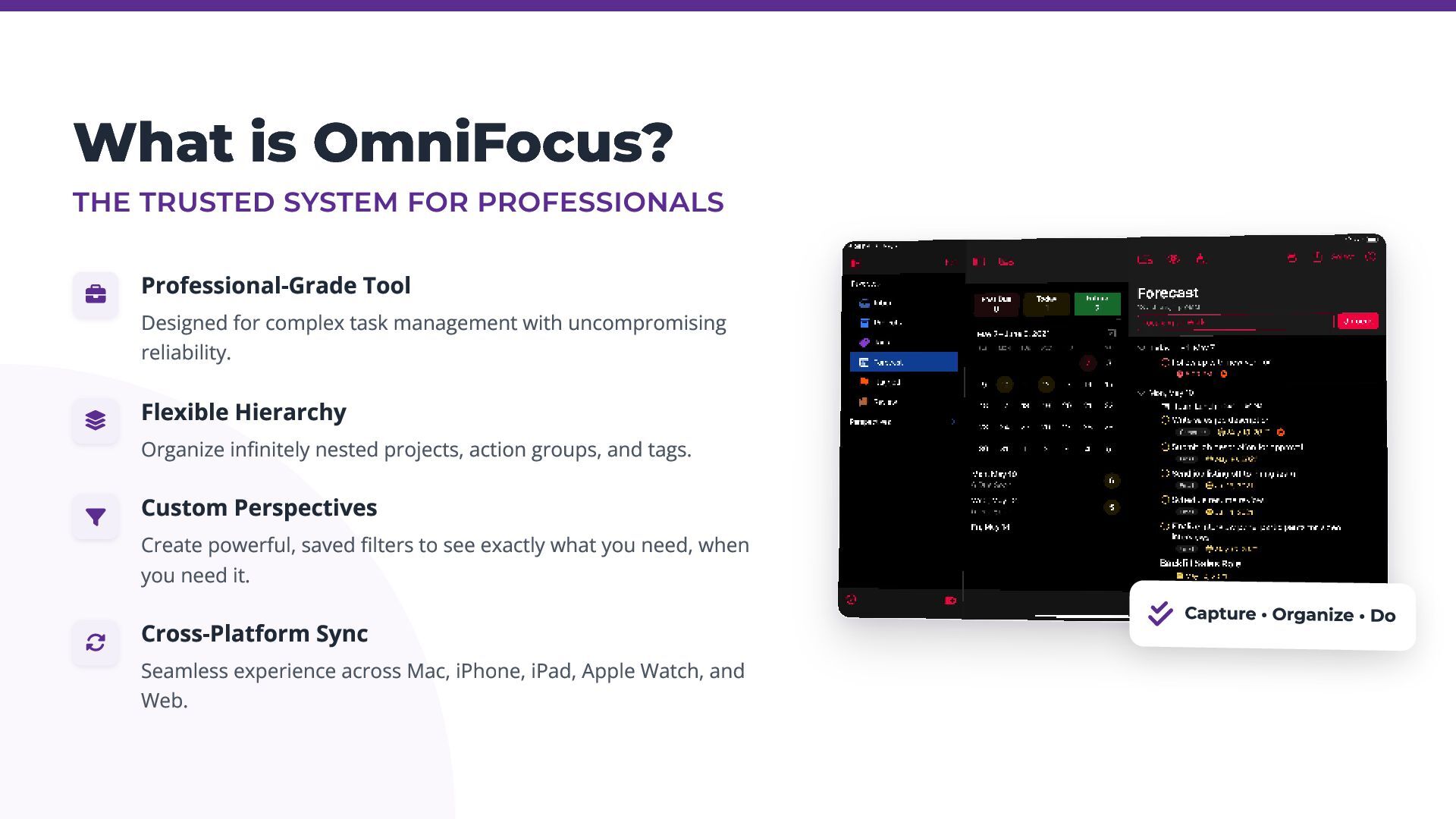
Tool Designed for complex task management with uncompromising reliability. Flexible Hierarchy Organize infinitely nested projects, action groups, and tags. Custom Perspectives Create powerful, saved filters to see exactly what you need, when you need it. Cross-Platform Sync Seamless experience across Mac, iPhone, iPad, Apple Watch, and Web. Capture • Organize • Do
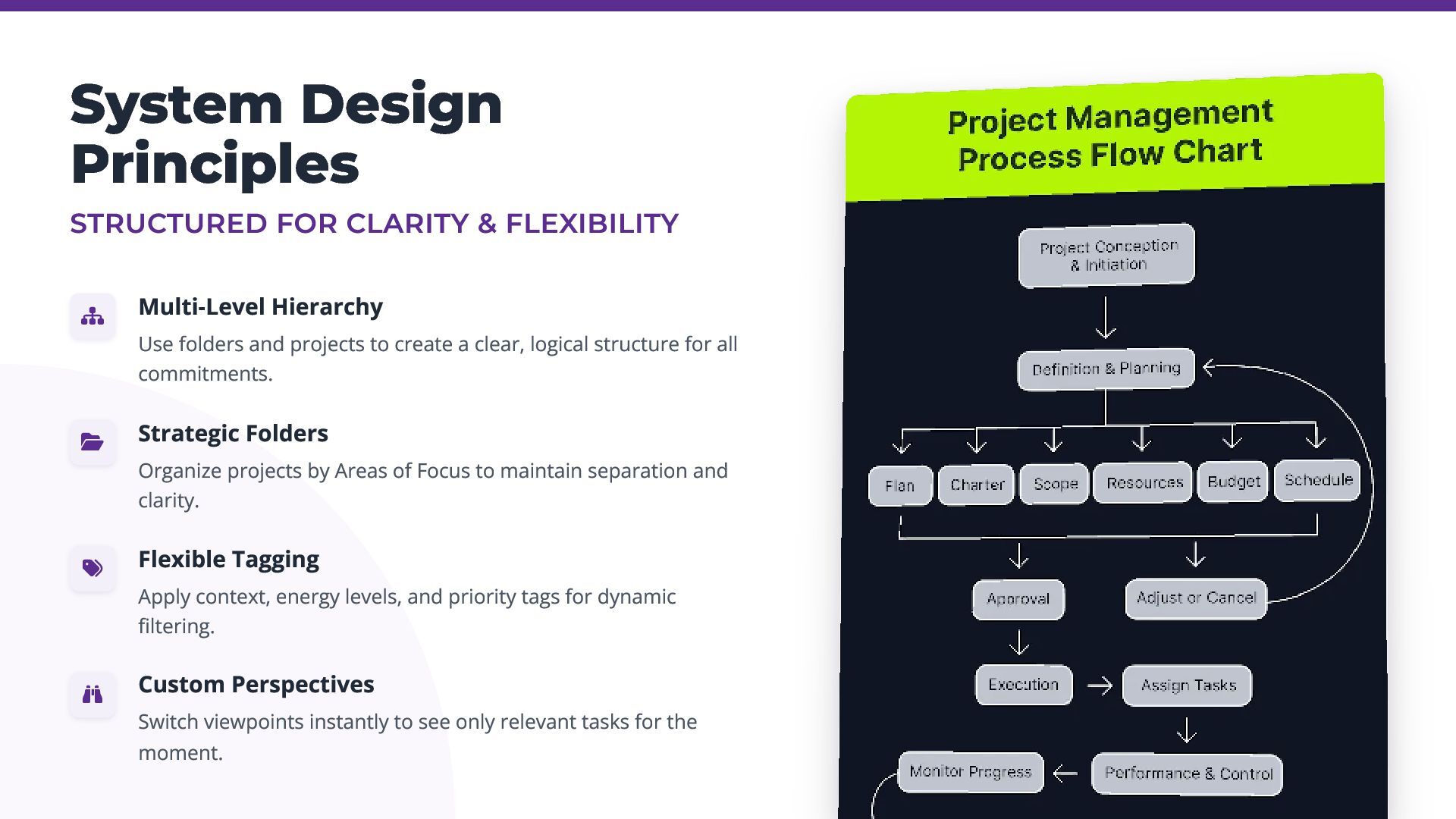
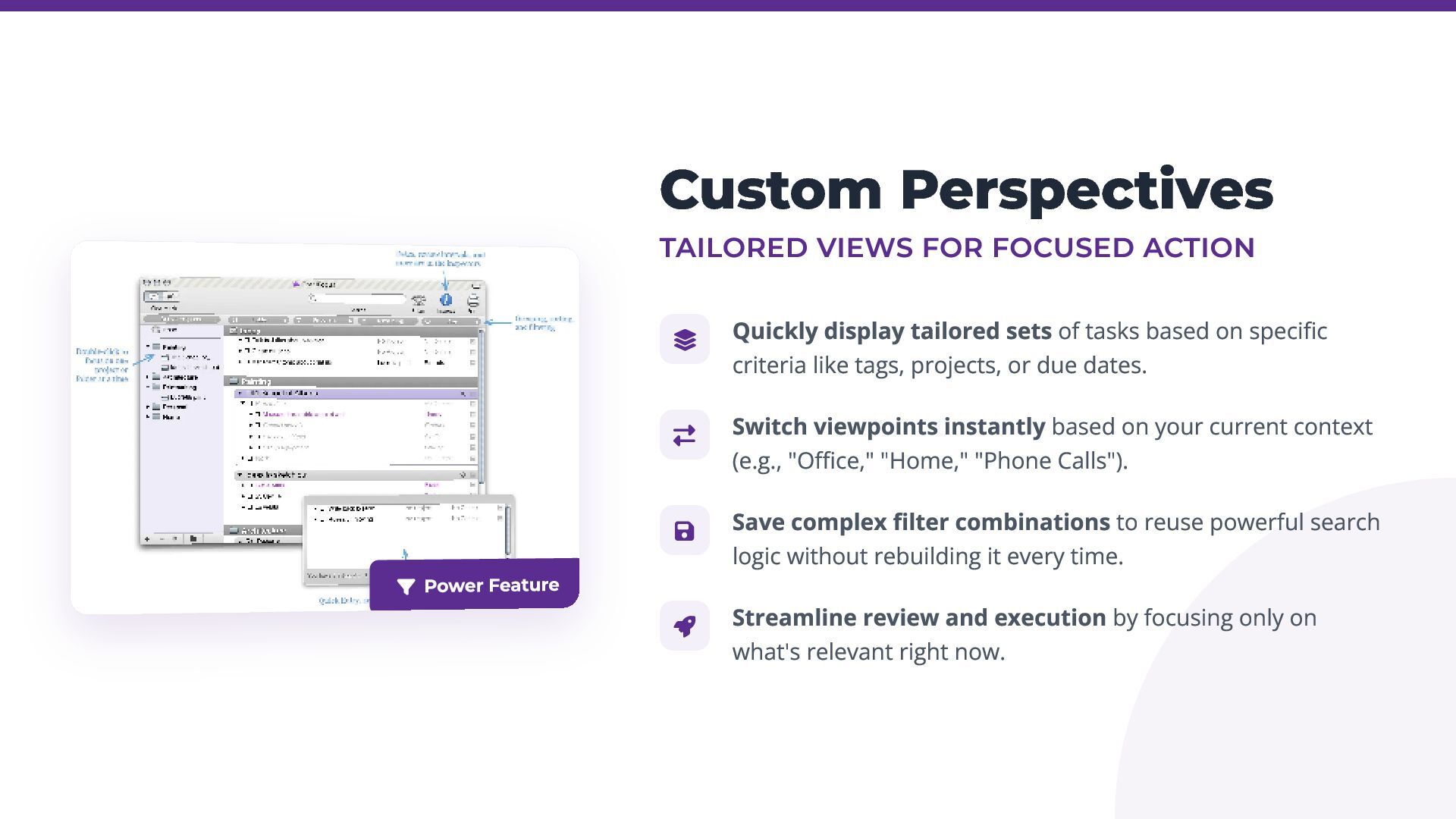
Hierarchy Use folders and projects to create a clear, logical structure for all commitments. Strategic Folders Organize projects by Areas of Focus to maintain separation and clarity. Flexible Tagging Apply context, energy levels, and priority tags for dynamic filtering. Custom Perspectives Switch viewpoints instantly to see only relevant tasks for the moment.
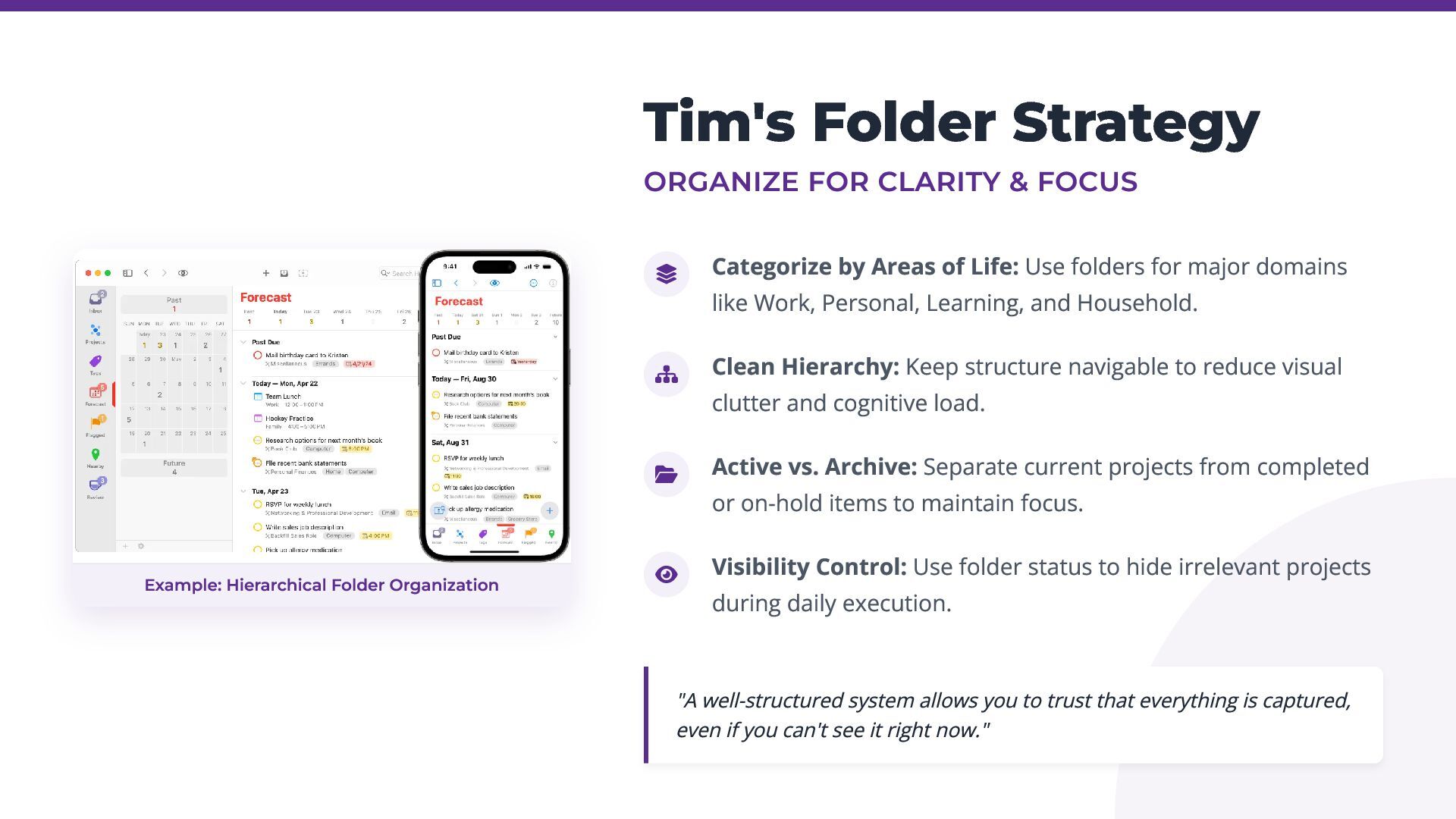
by Areas of Life: Use folders for major domains like Work, Personal, Learning, and Household. Clean Hierarchy: Keep structure navigable to reduce visual clutter and cognitive load. Active vs. Archive: Separate current projects from completed or on-hold items to maintain focus. Visibility Control: Use folder status to hide irrelevant projects during daily execution. "A well-structured system allows you to trust that everything is captured, even if you can't see it right now." Example: Hierarchical Folder Organization
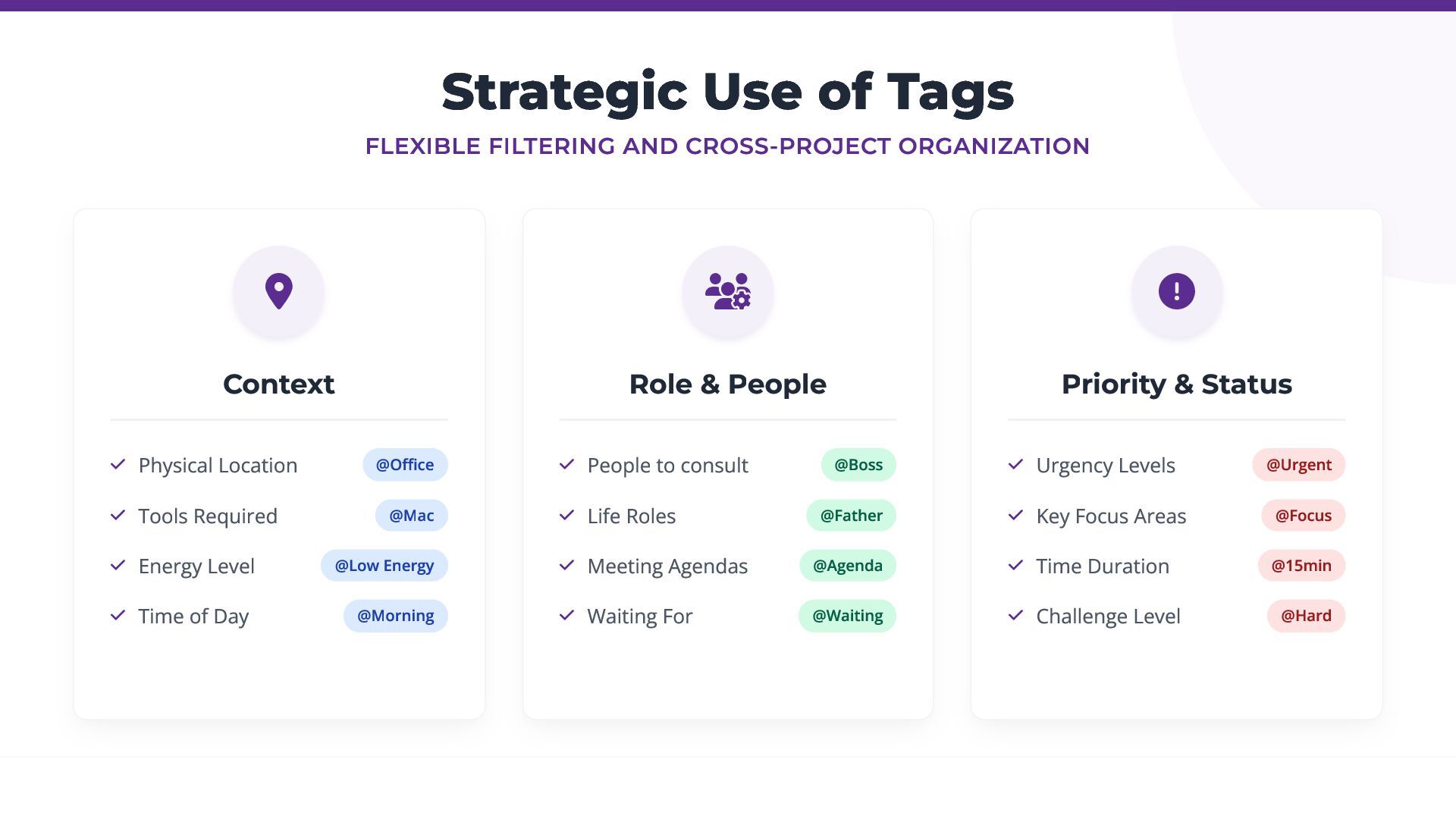
Context Physical Location @Office Tools Required @Mac Energy Level @Low Energy Time of Day @Morning Role & People People to consult @Boss Life Roles @Father Meeting Agendas @Agenda Waiting For @Waiting Priority & Status Urgency Levels @Urgent Key Focus Areas @Focus Time Duration @15min Challenge Level @Hard
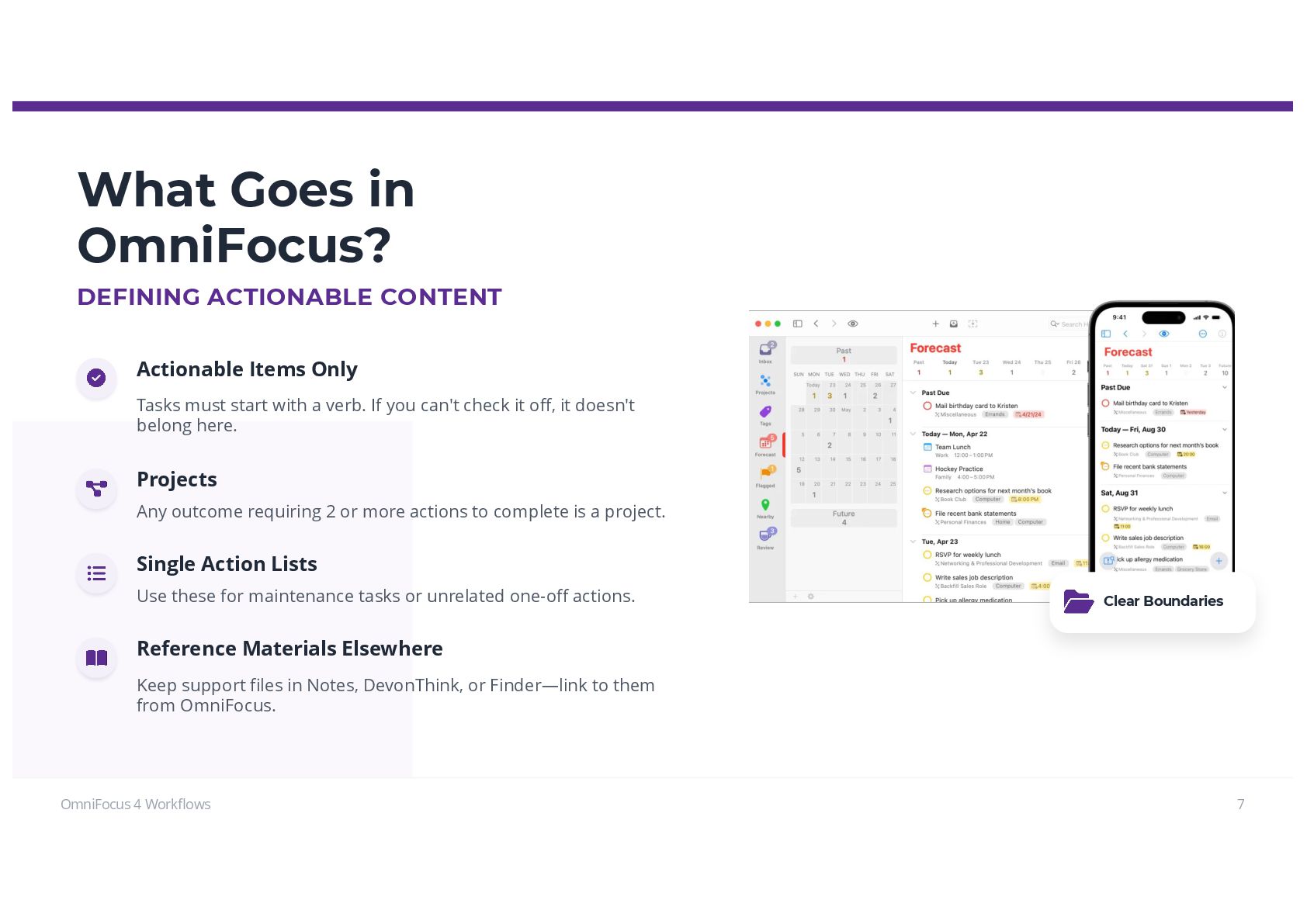
Only Tasks must start with a verb. If you can't check it off, it doesn't belong here. Projects Any outcome requiring 2 or more actions to complete is a project. Single Action Lists Use these for maintenance tasks or unrelated one-off actions. Reference Materials Elsewhere Keep support files in Notes, DevonThink, or Finder—link to them from OmniFocus. Clear Boundaries
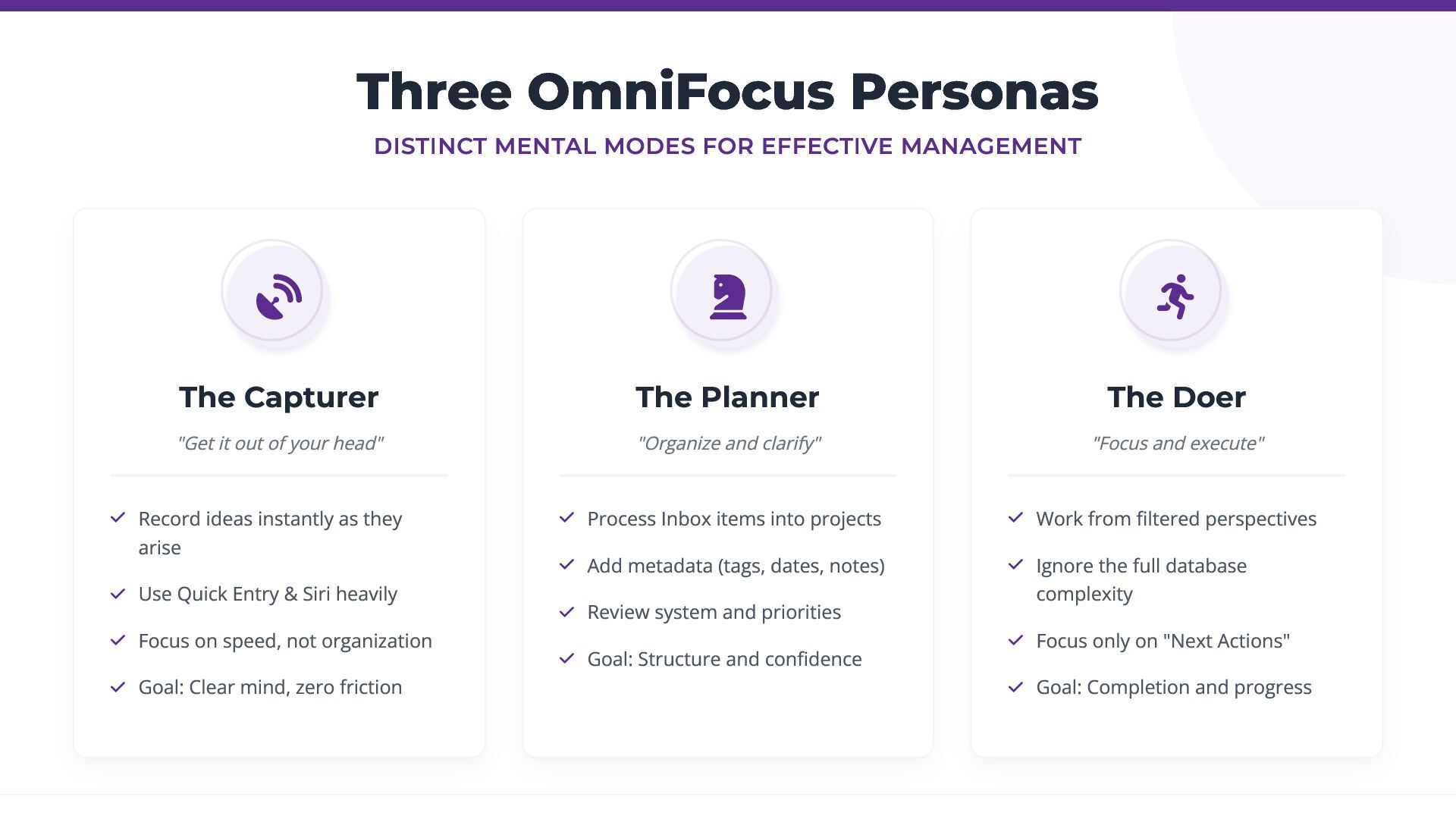
Capturer "Get it out of your head" Record ideas instantly as they arise Use Quick Entry & Siri heavily Focus on speed, not organization Goal: Clear mind, zero friction The Planner "Organize and clarify" Process Inbox items into projects Add metadata (tags, dates, notes) Review system and priorities Goal: Structure and confidence The Doer "Focus and execute" Work from filtered perspectives Ignore the full database complexity Focus only on "Next Actions" Goal: Completion and progress
tailored sets of tasks based on specific criteria like tags, projects, or due dates. Switch viewpoints instantly based on your current context (e.g., "Office," "Home," "Phone Calls"). Save complex filter combinations to reuse powerful search logic without rebuilding it every time. Streamline review and execution by focusing only on what's relevant right now.
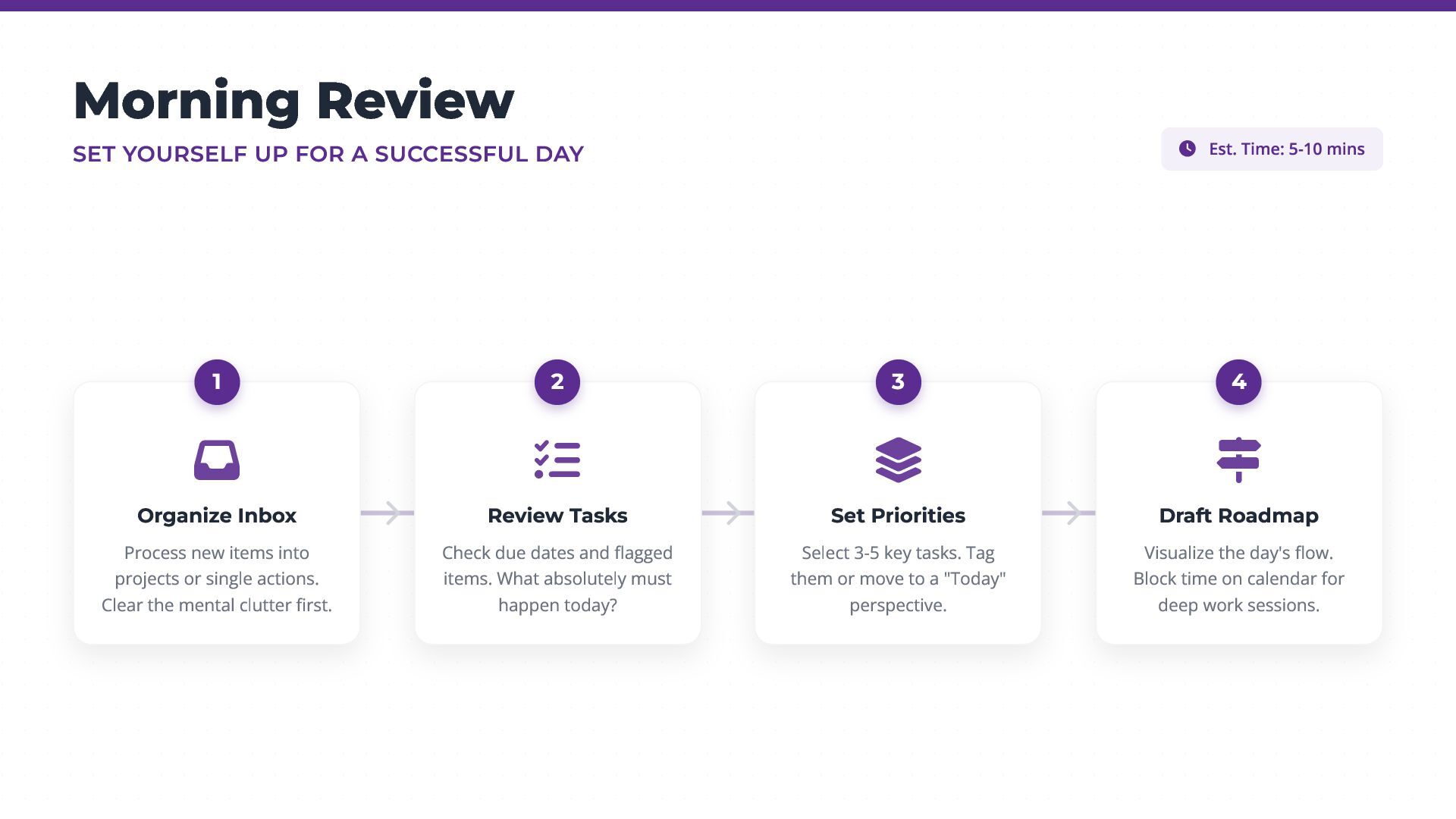
Est. Time: 5-10 mins Organize Inbox Process new items into projects or single actions. Clear the mental clutter first. 1 Review Tasks Check due dates and flagged items. What absolutely must happen today? 2 Set Priorities Select 3-5 key tasks. Tag them or move to a "Today" perspective. 3 Draft Roadmap Visualize the day's flow. Block time on calendar for deep work sessions. 4
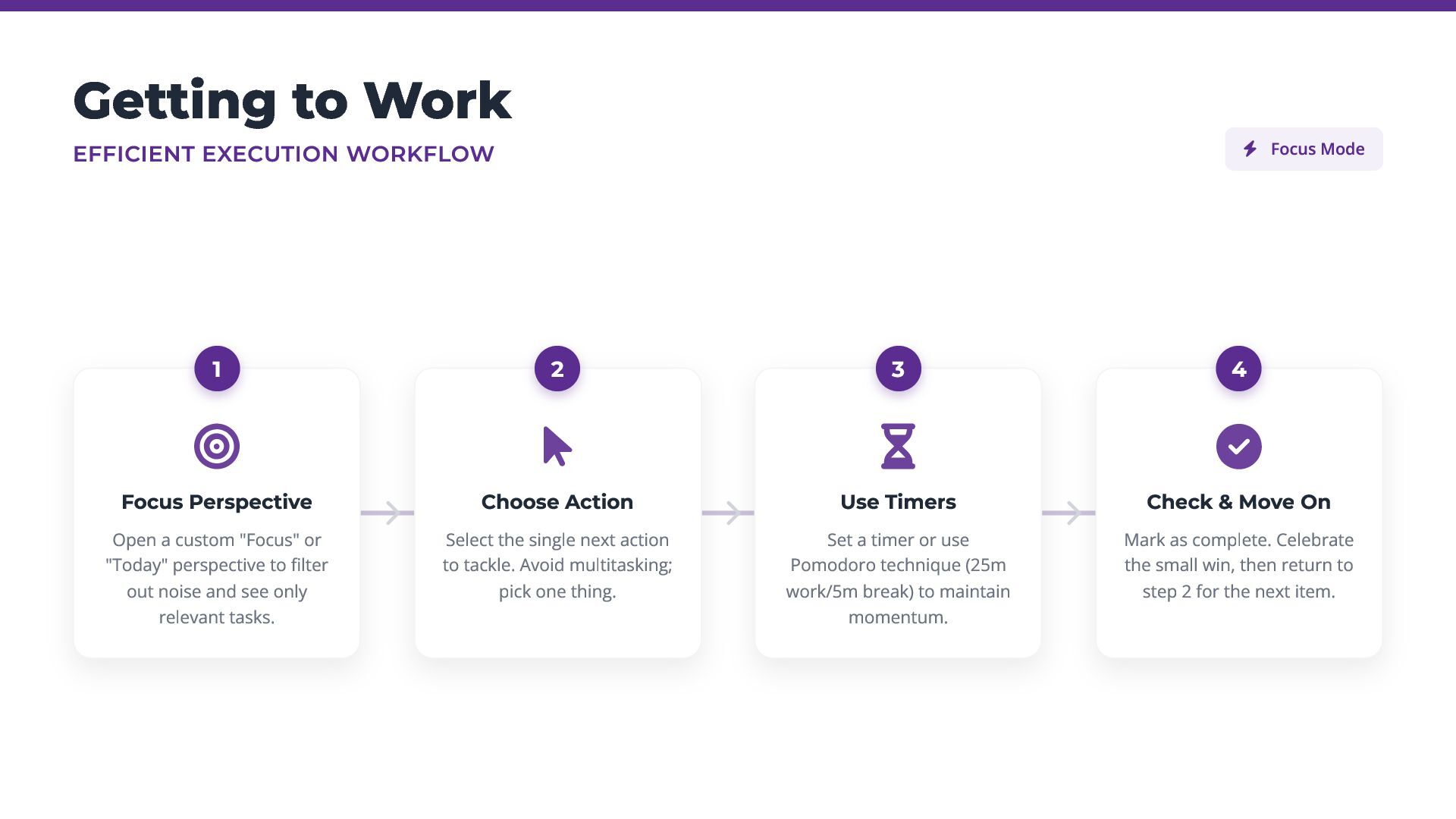
Perspective Open a custom "Focus" or "Today" perspective to filter out noise and see only relevant tasks. 1 Choose Action Select the single next action to tackle. Avoid multitasking; pick one thing. 2 Use Timers Set a timer or use Pomodoro technique (25m work/5m break) to maintain momentum. 3 Check & Move On Mark as complete. Celebrate the small win, then return to step 2 for the next item. 4
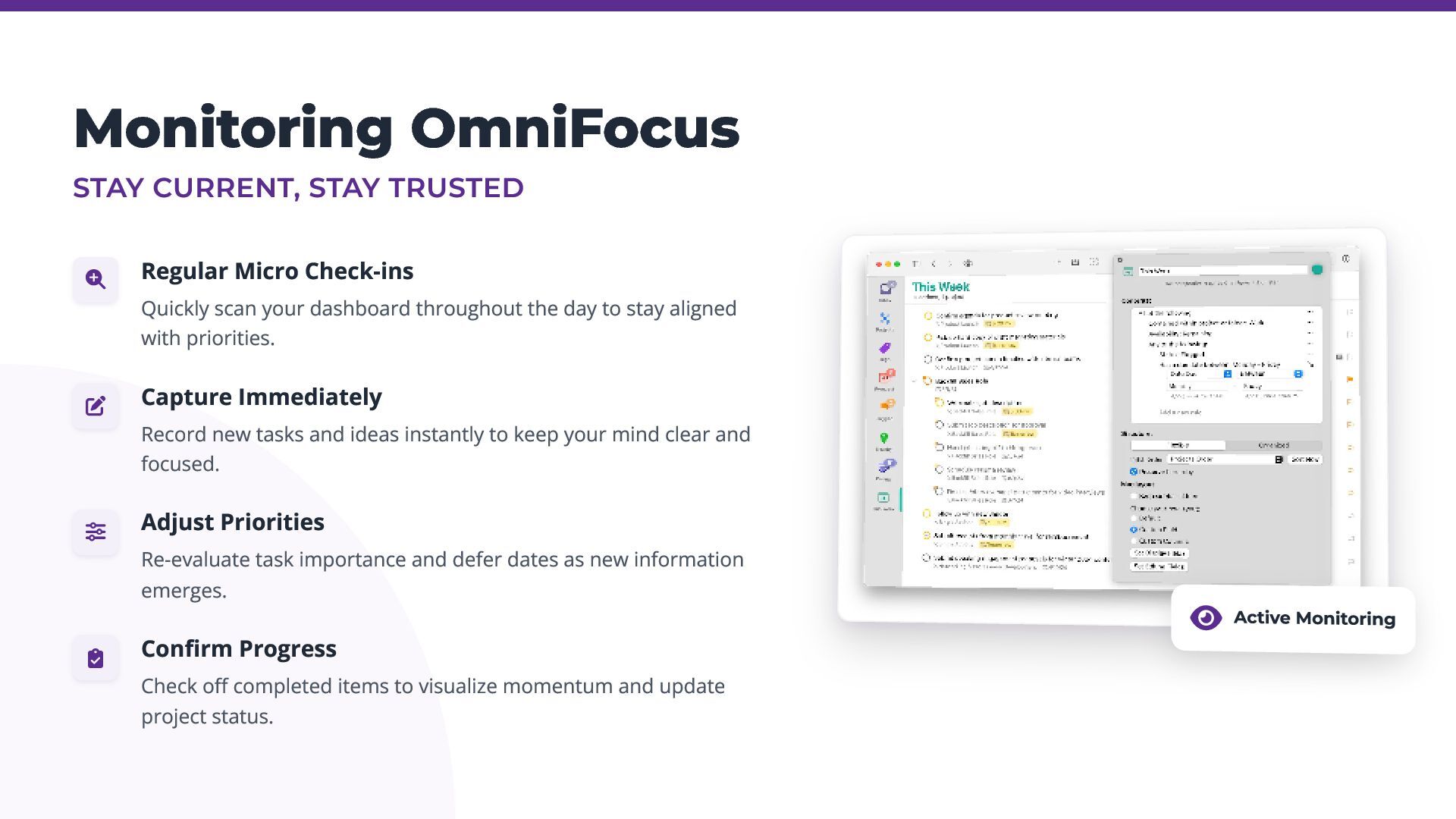
Quickly scan your dashboard throughout the day to stay aligned with priorities. Capture Immediately Record new tasks and ideas instantly to keep your mind clear and focused. Adjust Priorities Re-evaluate task importance and defer dates as new information emerges. Confirm Progress Check off completed items to visualize momentum and update project status. Active Monitoring
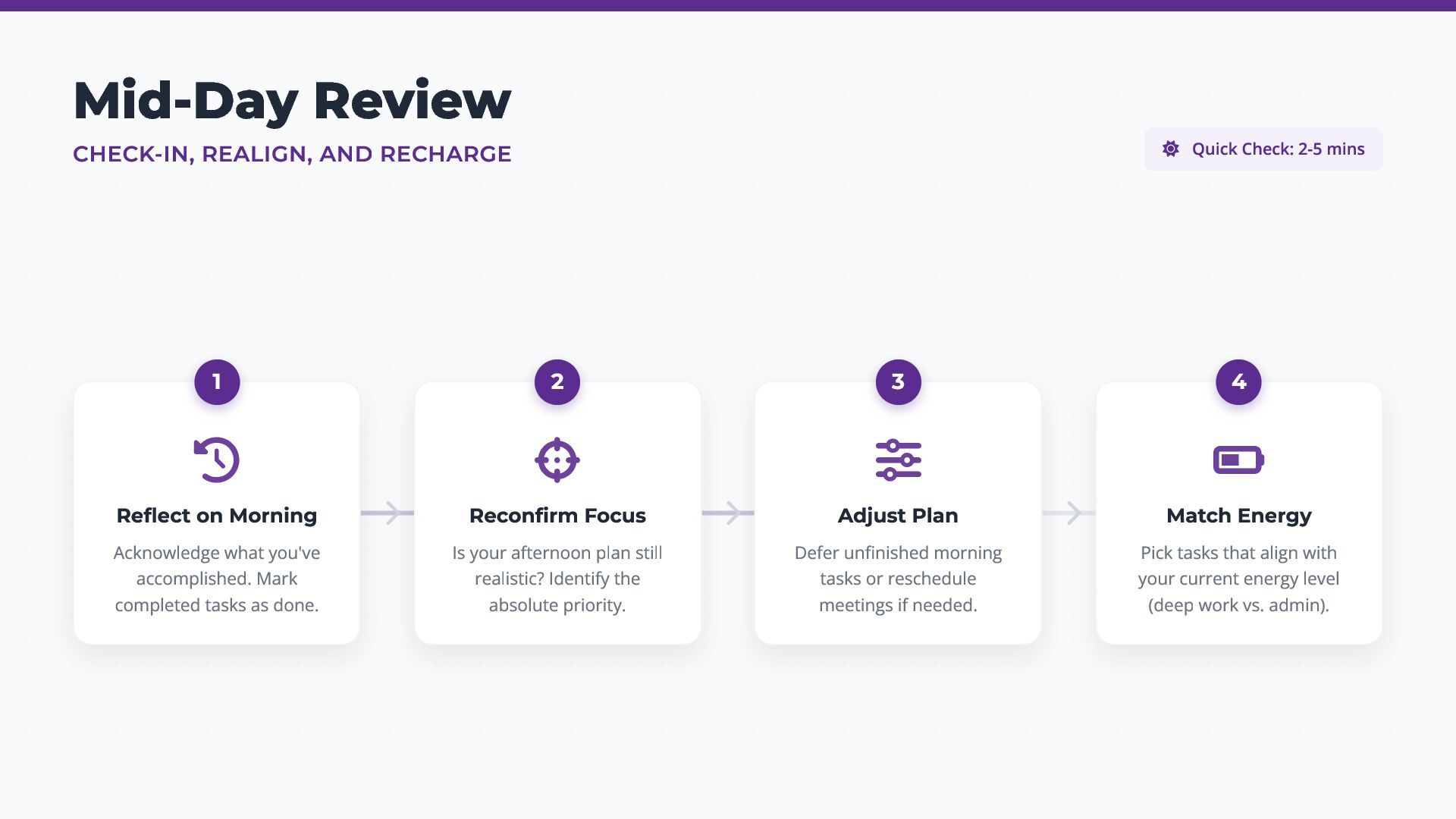
mins Reflect on Morning Acknowledge what you've accomplished. Mark completed tasks as done. 1 Reconfirm Focus Is your afternoon plan still realistic? Identify the absolute priority. 2 Adjust Plan Defer unfinished morning tasks or reschedule meetings if needed. 3 Match Energy Pick tasks that align with your current energy level (deep work vs. admin). 4
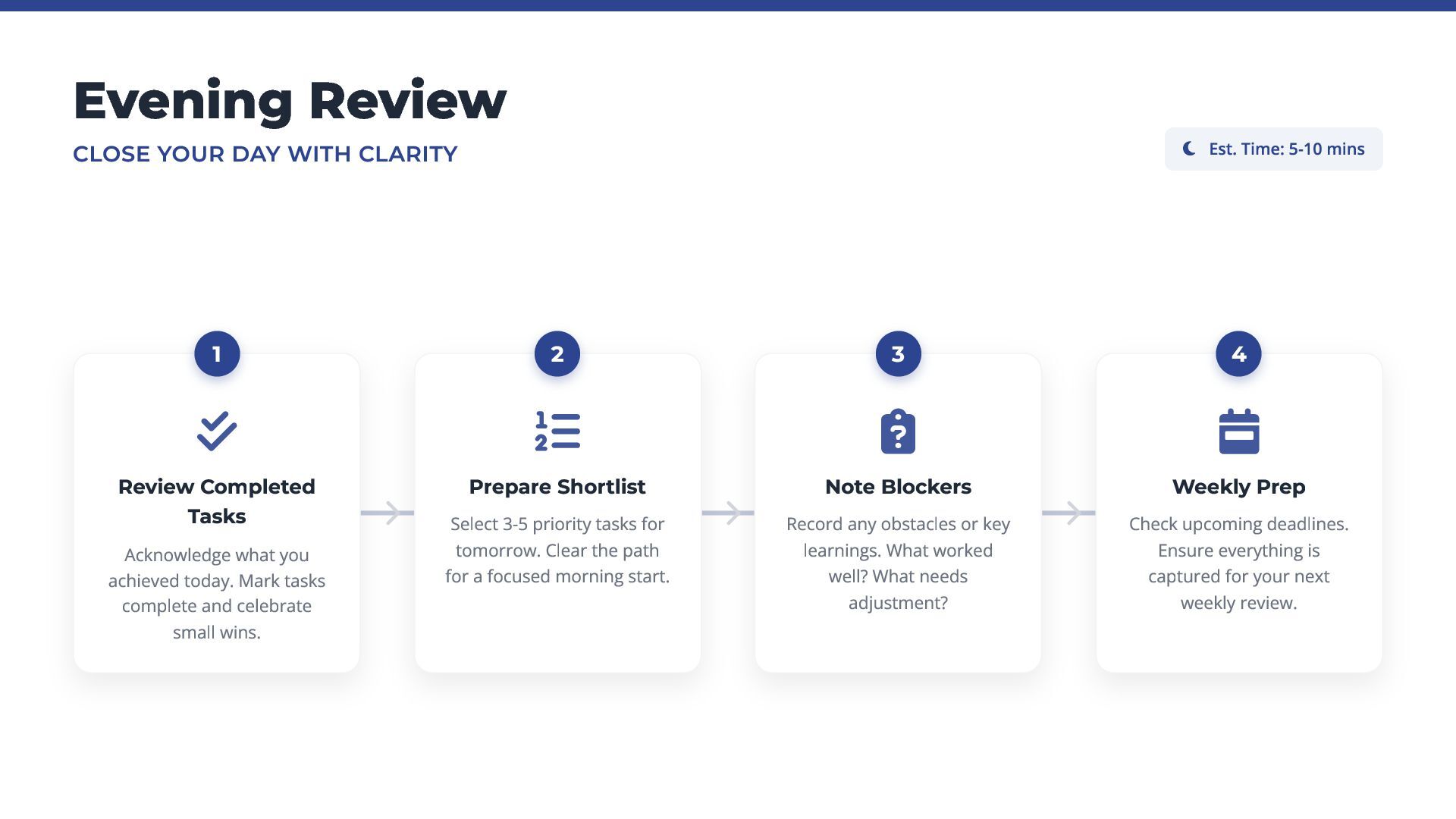
5-10 mins Review Completed Tasks Acknowledge what you achieved today. Mark tasks complete and celebrate small wins. 1 Prepare Shortlist Select 3-5 priority tasks for tomorrow. Clear the path for a focused morning start. 2 Note Blockers Record any obstacles or key learnings. What worked well? What needs adjustment? 3 Weekly Prep Check upcoming deadlines. Ensure everything is captured for your next weekly review. 4
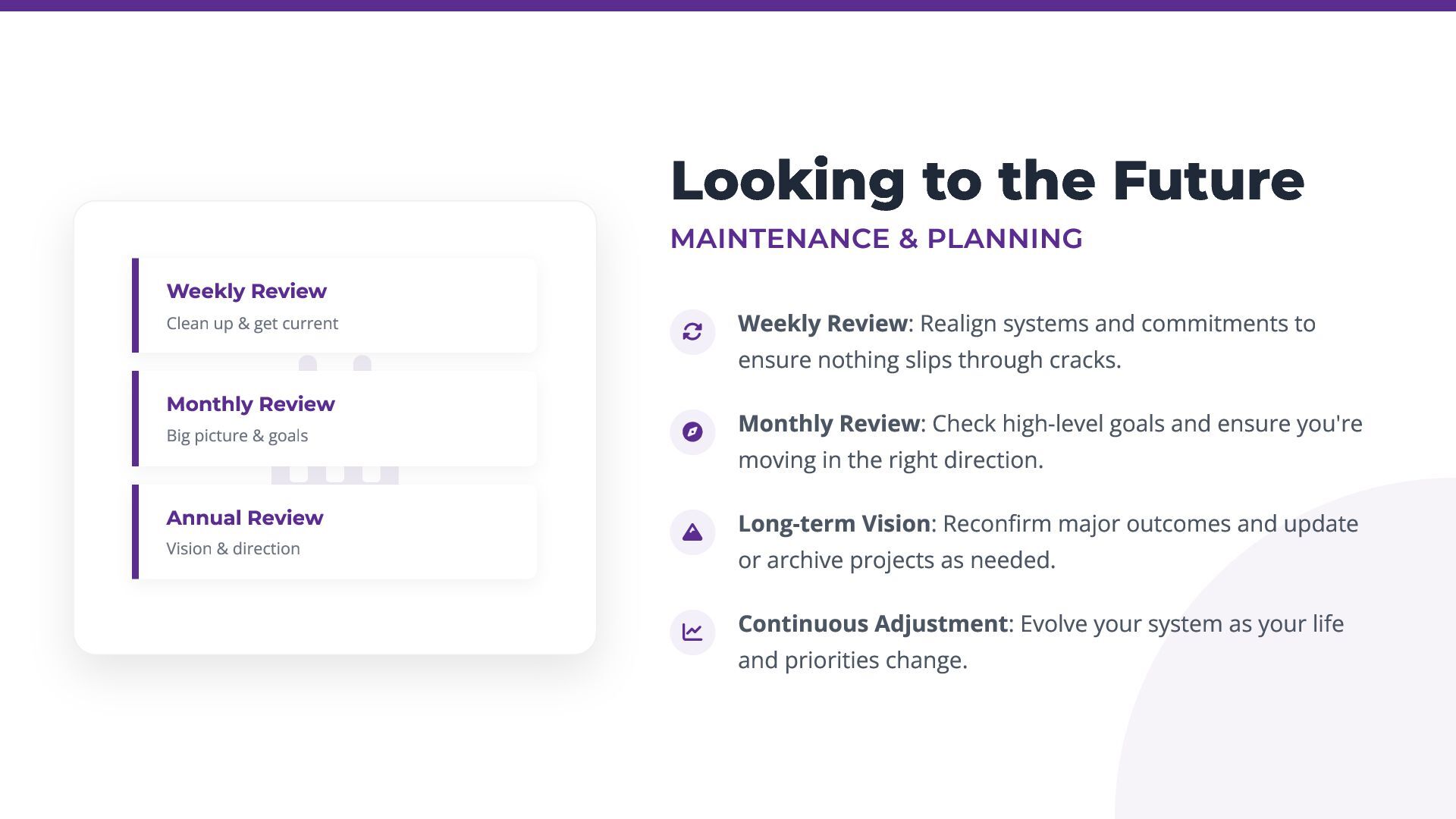
Realign systems and commitments to ensure nothing slips through cracks. Monthly Review: Check high-level goals and ensure you're moving in the right direction. Long-term Vision: Reconfirm major outcomes and update or archive projects as needed. Continuous Adjustment: Evolve your system as your life and priorities change. Weekly Review Clean up & get current Monthly Review Big picture & goals Annual Review Vision & direction
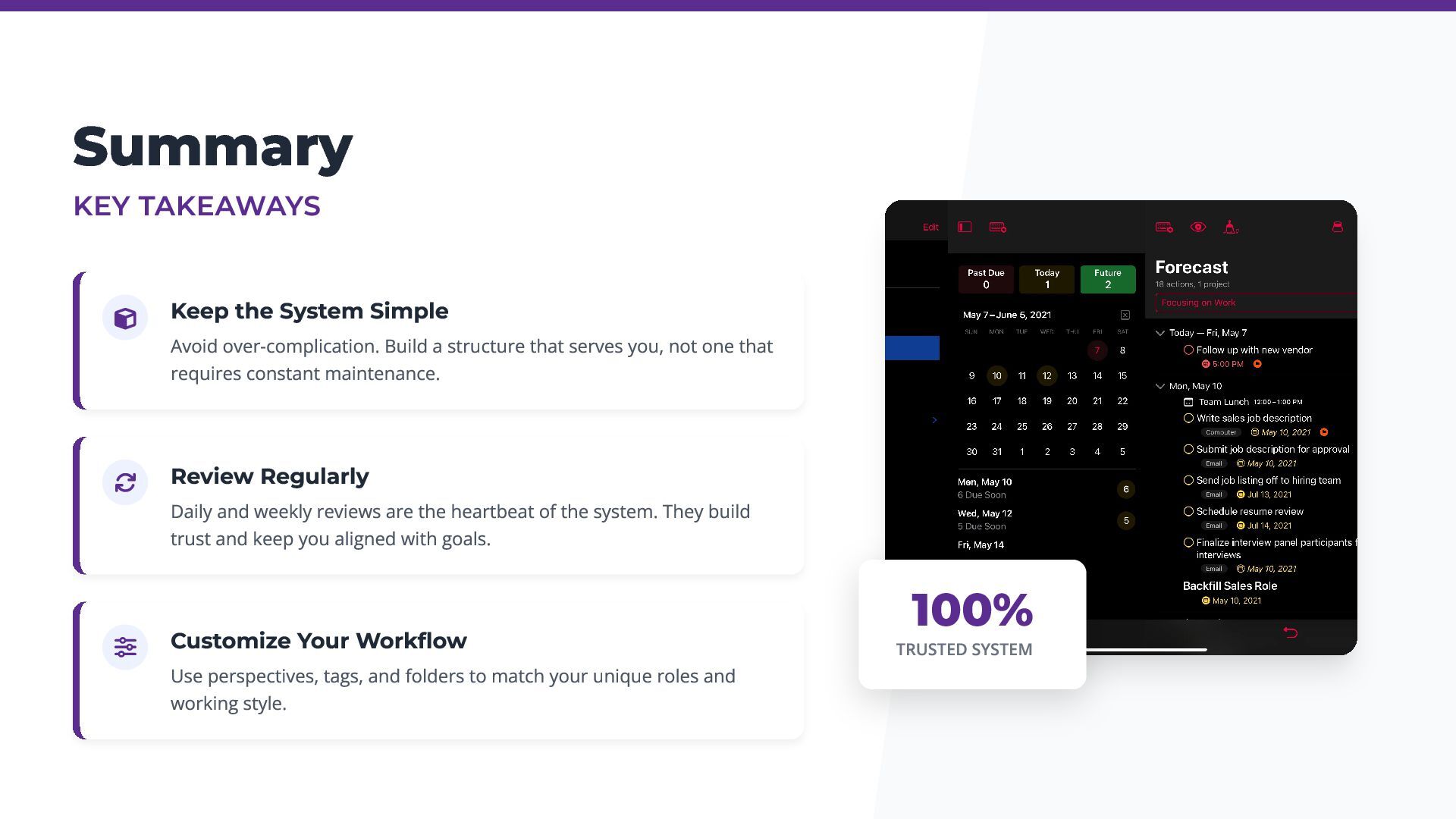
Build a structure that serves you, not one that requires constant maintenance. Review Regularly Daily and weekly reviews are the heartbeat of the system. They build trust and keep you aligned with goals. Customize Your Workflow Use perspectives, tags, and folders to match your unique roles and working style. 100% TRUSTED SYSTEM
into the extensive library of tutorials, courses, and articles to master the tool. Experiment & Iterate Don't aim for immediate perfection. Try new workflows, test plugins, and adjust as you go. Join the Community Connect with other users to share tips, ask questions, and learn from collective experience. Continuous Improvement Commit to refining your system over time. As your life evolves, so should your OmniFocus setup. Growth MINDSET
learnomnifocus.com Watch the Video youtube.com/watch?v=ux_H9dmbOWo Questions? Let's discuss your OmniFocus workflows and questions. for joining this session


 x5gtrn
 jozono
 teamlab
 satomasahiro2005
 mohab1
 occhi
occhi
 jtakeda
 kaminashi
 codmoninc
 shogo4131
 yahonda
 keeg
keeg
 shumei_ito
 aleyda
 hannesfritz
 iamctodd
 akihiro_kokubo
 stuffmc
 rmw
rmw
 swwweet
.png) helenjbeal
helenjbeal
 techseoconnect
 irinanazarova
 baasie
 twada
twada