Share
Embed
Building Time-Saving Email Templates
Chris Smith
July 06, 2014
Transcript
22 slides
-
913.888.0772 | imodules.com 913.888.0772 | imodules.com Building Time-Saving Email Templates
Presented by Chris Smith, Design Services Team Lead -
Exactly what makes an email template time-saving? – It’s flexible
enough to add, subtract or reposition items of importance – Any admin can manage the content – The styling is all in the template – If you’re thinking mobile, think simple & one column (at first) -
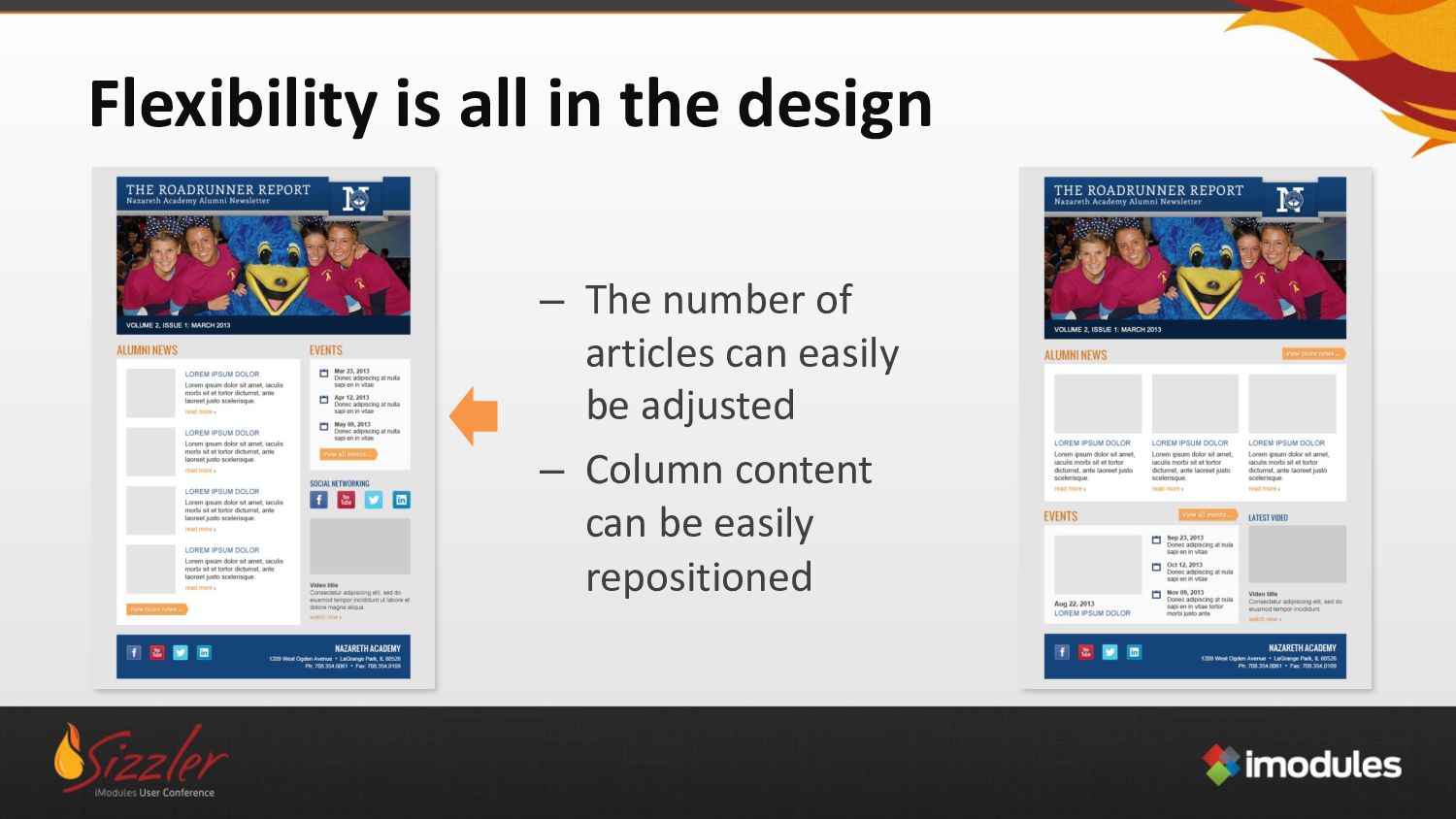
Flexibility is all in the design – The number of
articles can easily be adjusted – Column content can be easily repositioned -
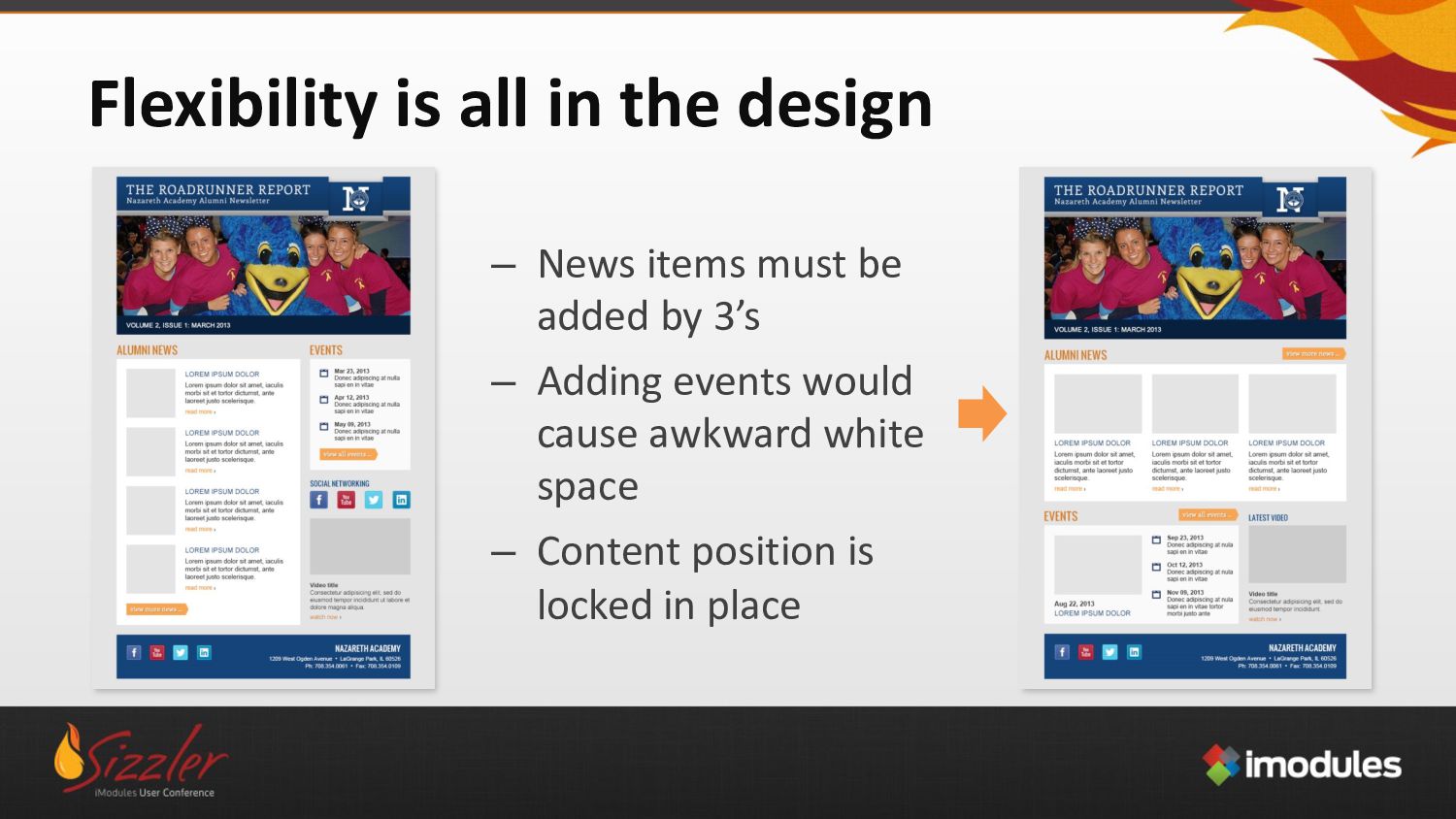
Flexibility is all in the design – News items must
be added by 3’s – Adding events would cause awkward white space – Content position is locked in place -
Tame those “wild” admins by using the News Module –
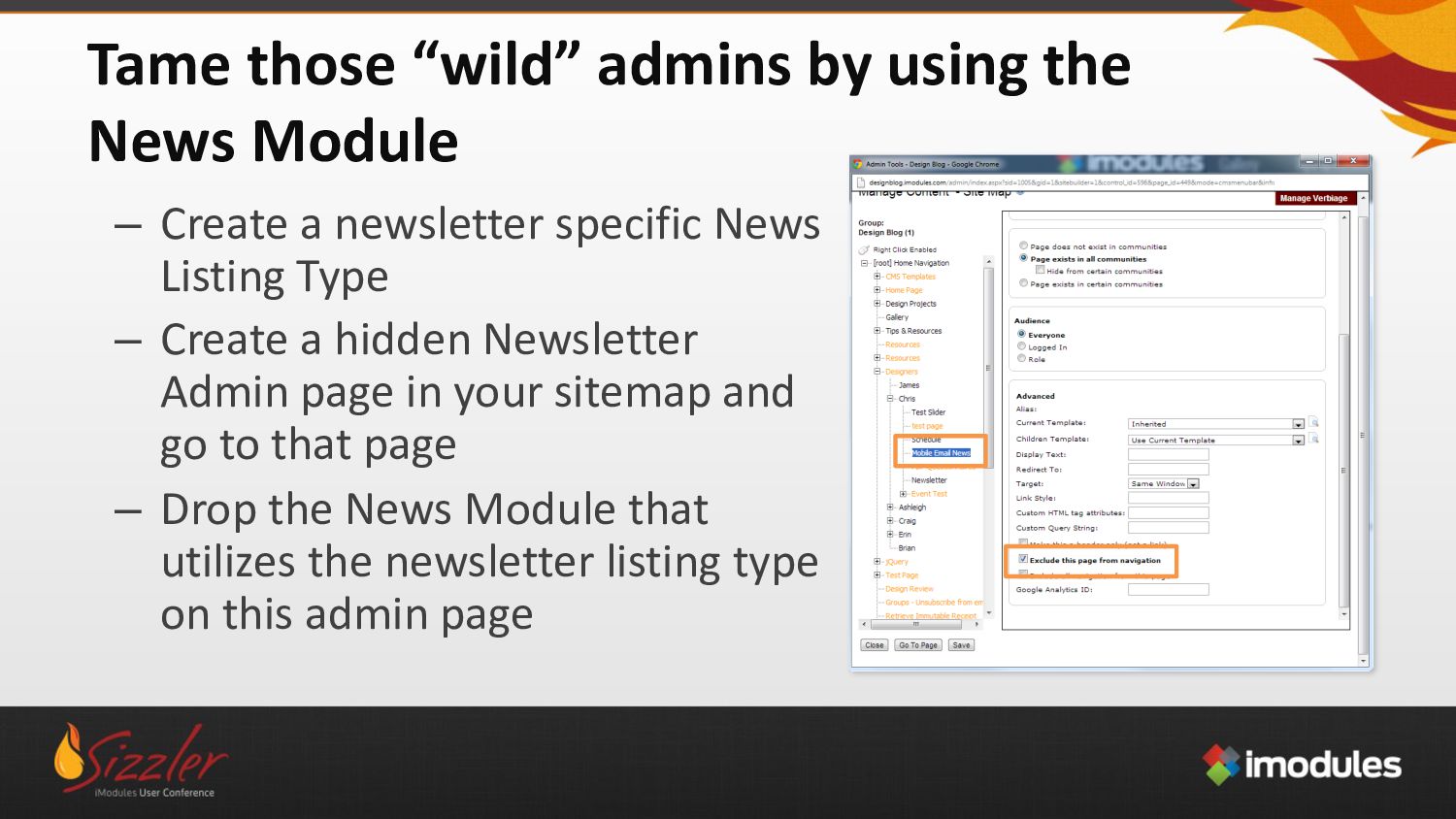
Create a newsletter specific News Listing Type – Create a hidden Newsletter Admin page in your sitemap and go to that page – Drop the News Module that utilizes the newsletter listing type on this admin page -
Tame those “wild” admins by using the News Module –
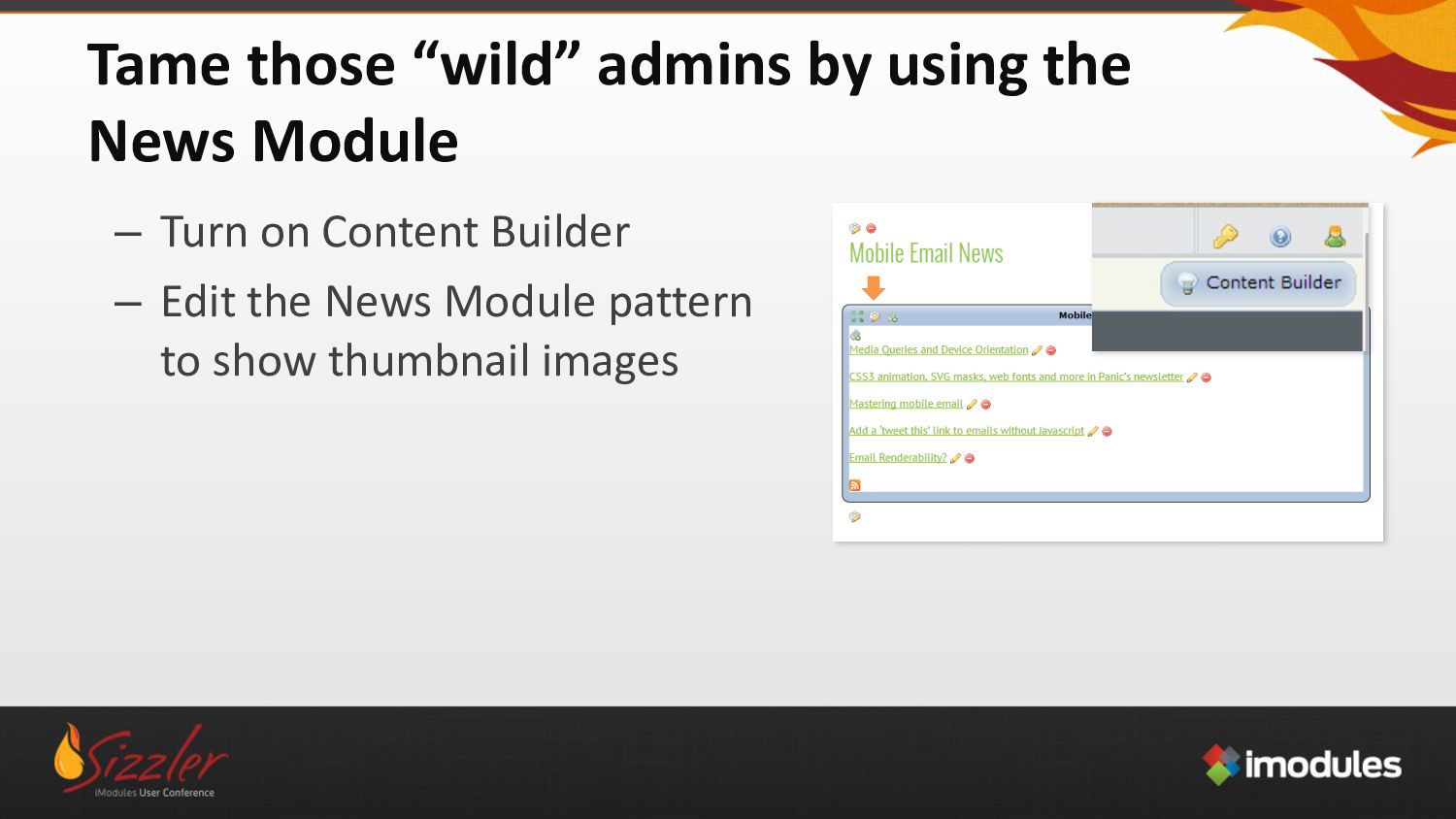
Turn on Content Builder – Edit the News Module pattern to show thumbnail images -
Tame those “wild” admins by using the News Module –
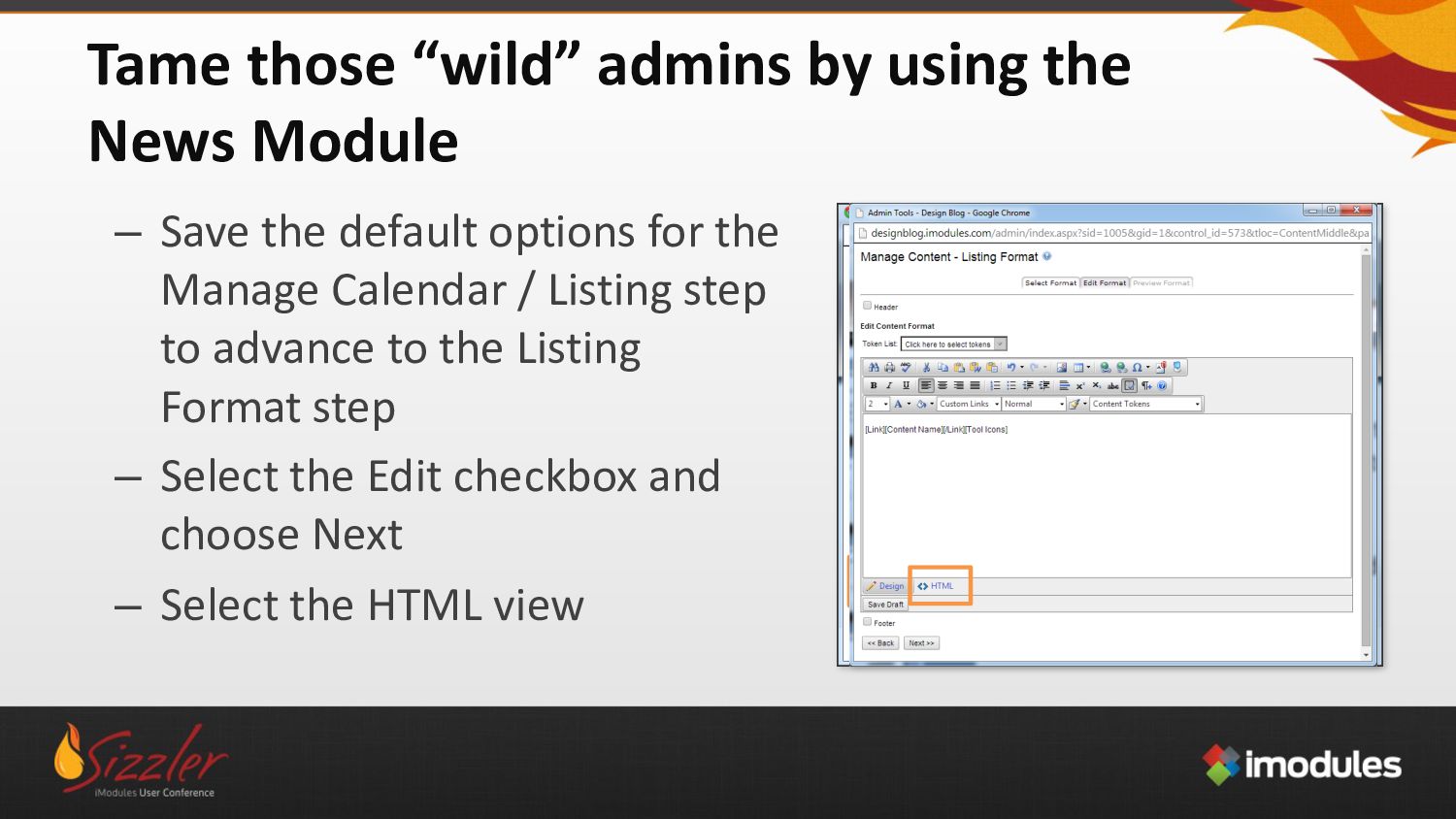
Save the default options for the Manage Calendar / Listing step to advance to the Listing Format step – Select the Edit checkbox and choose Next – Select the HTML view -
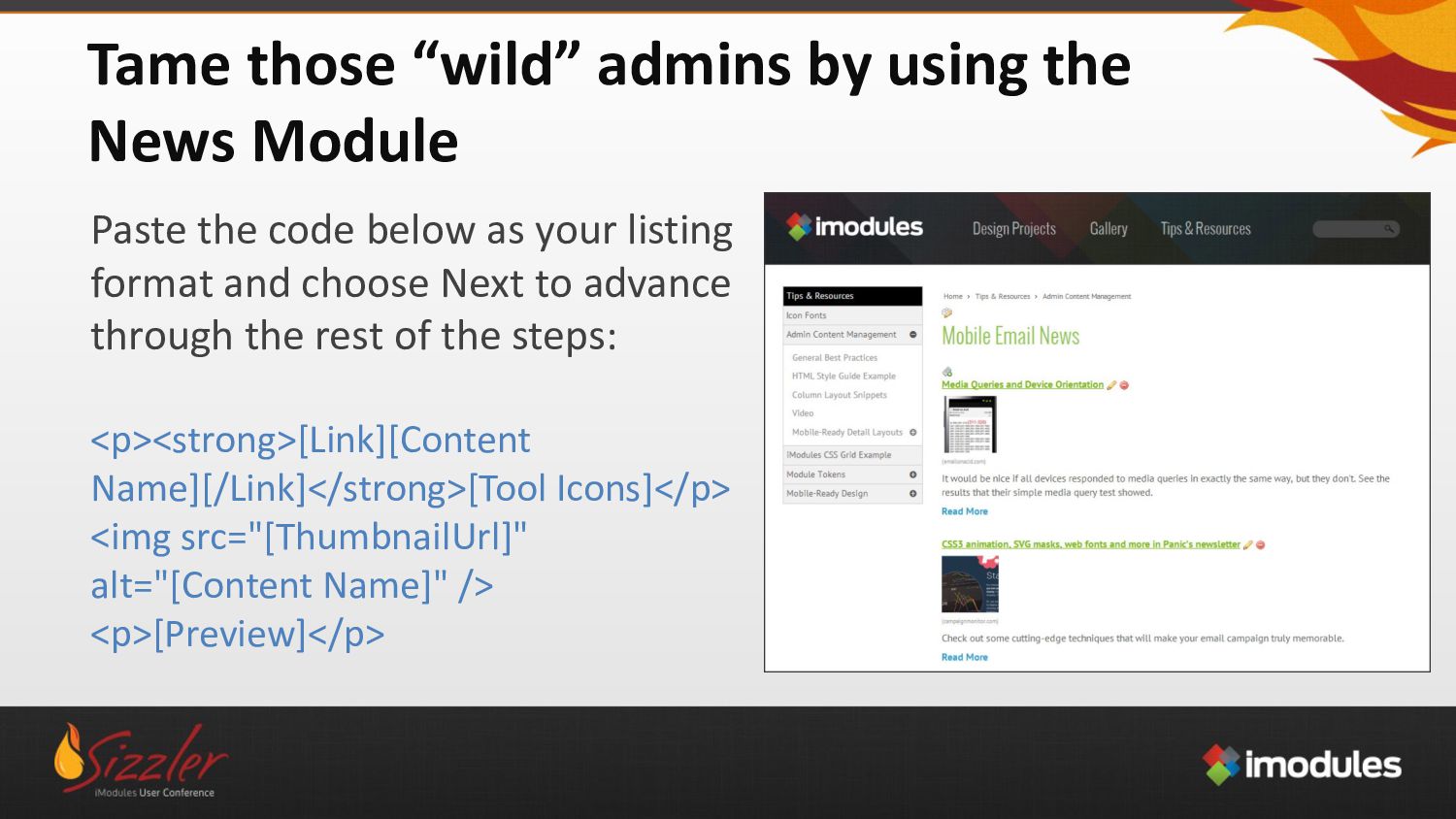
Tame those “wild” admins by using the News Module Paste
the code below as your listing format and choose Next to advance through the rest of the steps: <p><strong>[Link][Content Name][/Link]</strong>[Tool Icons]</p> <img src="[ThumbnailUrl]" alt="[Content Name]" /> <p>[Preview]</p> -
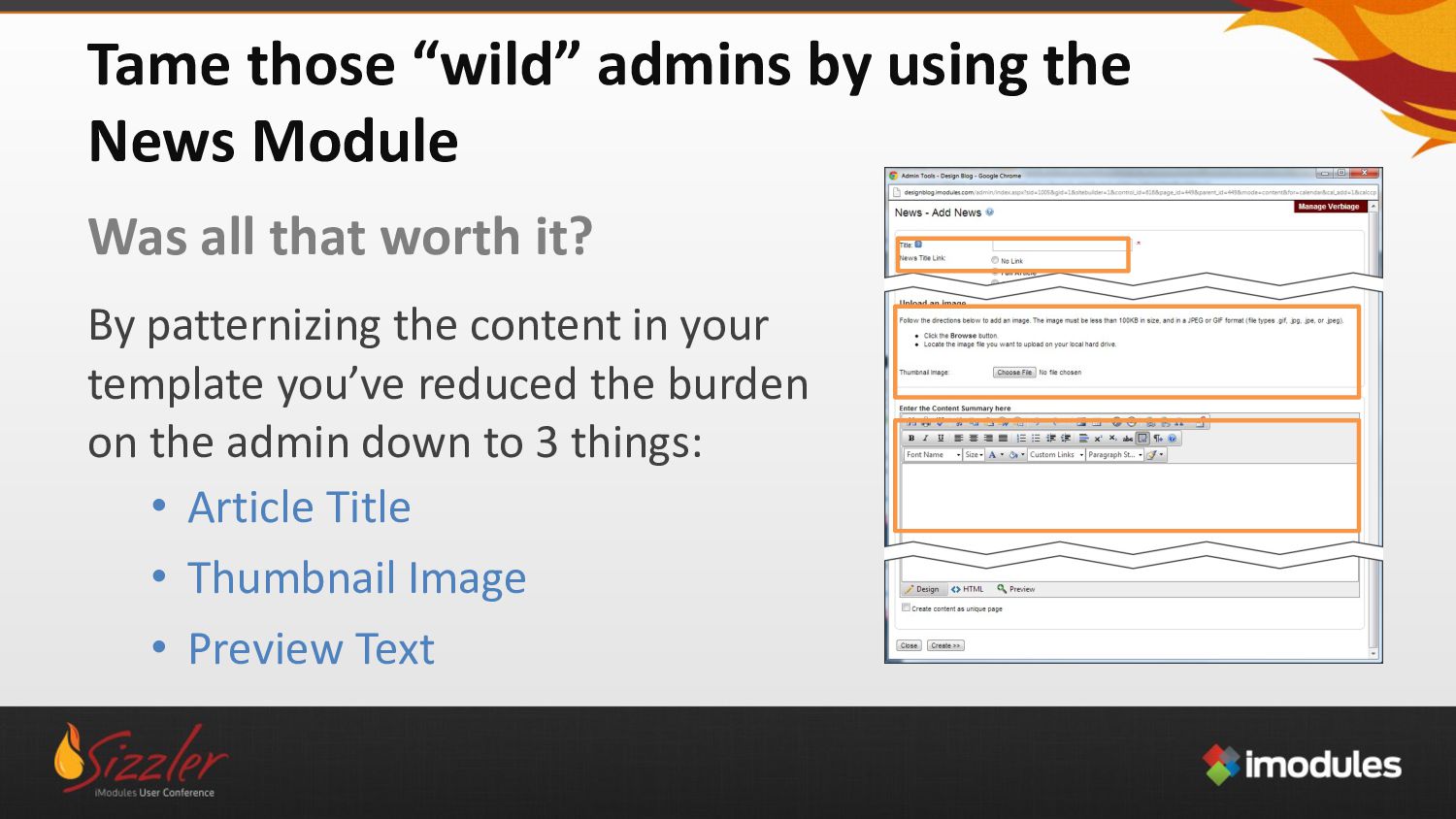
Tame those “wild” admins by using the News Module Was
all that worth it? By patternizing the content in your template you’ve reduced the burden on the admin down to 3 things: • Article Title • Thumbnail Image • Preview Text -
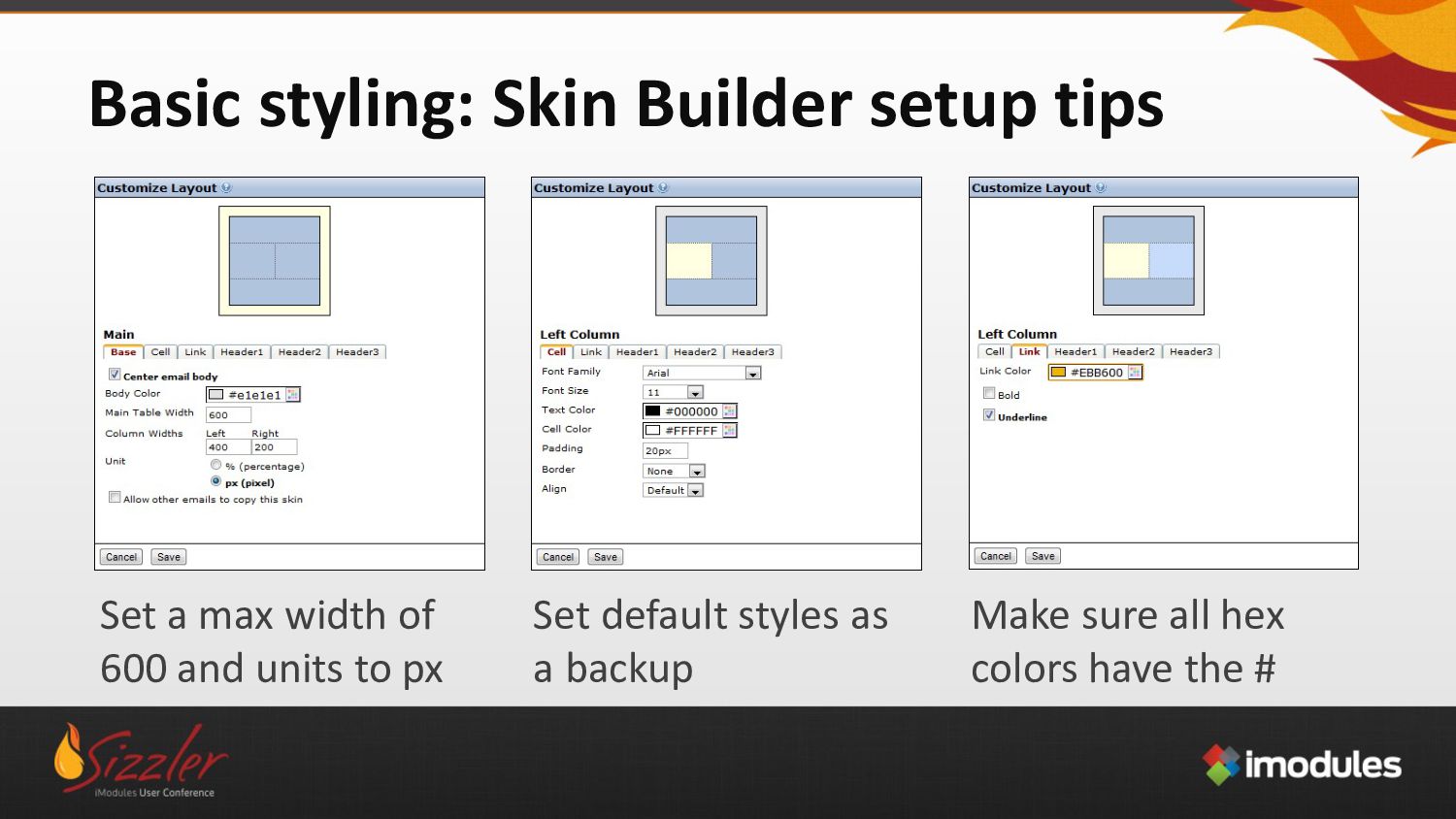
Basic styling: Skin Builder setup tips Set a max width
of 600 and units to px Set default styles as a backup Make sure all hex colors have the # -
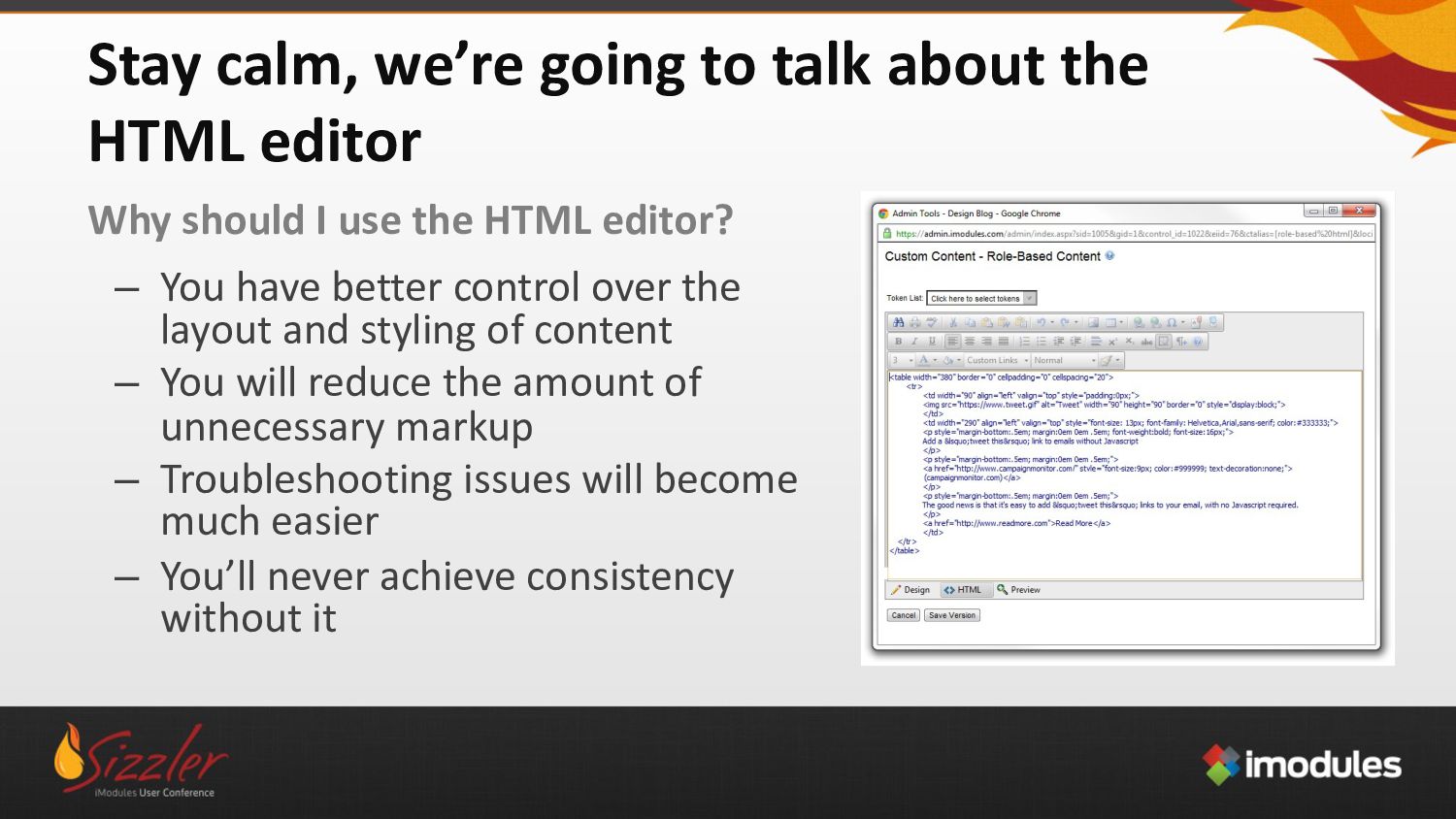
Stay calm, we’re going to talk about the HTML editor
Why should I use the HTML editor? – You have better control over the layout and styling of content – You will reduce the amount of unnecessary markup – Troubleshooting issues will become much easier – You’ll never achieve consistency without it -
Getting to know HTML Tables Why should I use tables?
– Tables provide the best structure and reduce the risk of your template breaking – Styling is more consistent when driven by tables vs. header or paragraph tags – Tables override a lot of inconsistent formatting from different email readers Things to think about – Tables cancel out most of the skin builder font styling – All styling must be handled inline – You can, and should, nest tables when necessary to achieve your desired layout. This can be overwhelming at first so stick to easier layouts while learning -
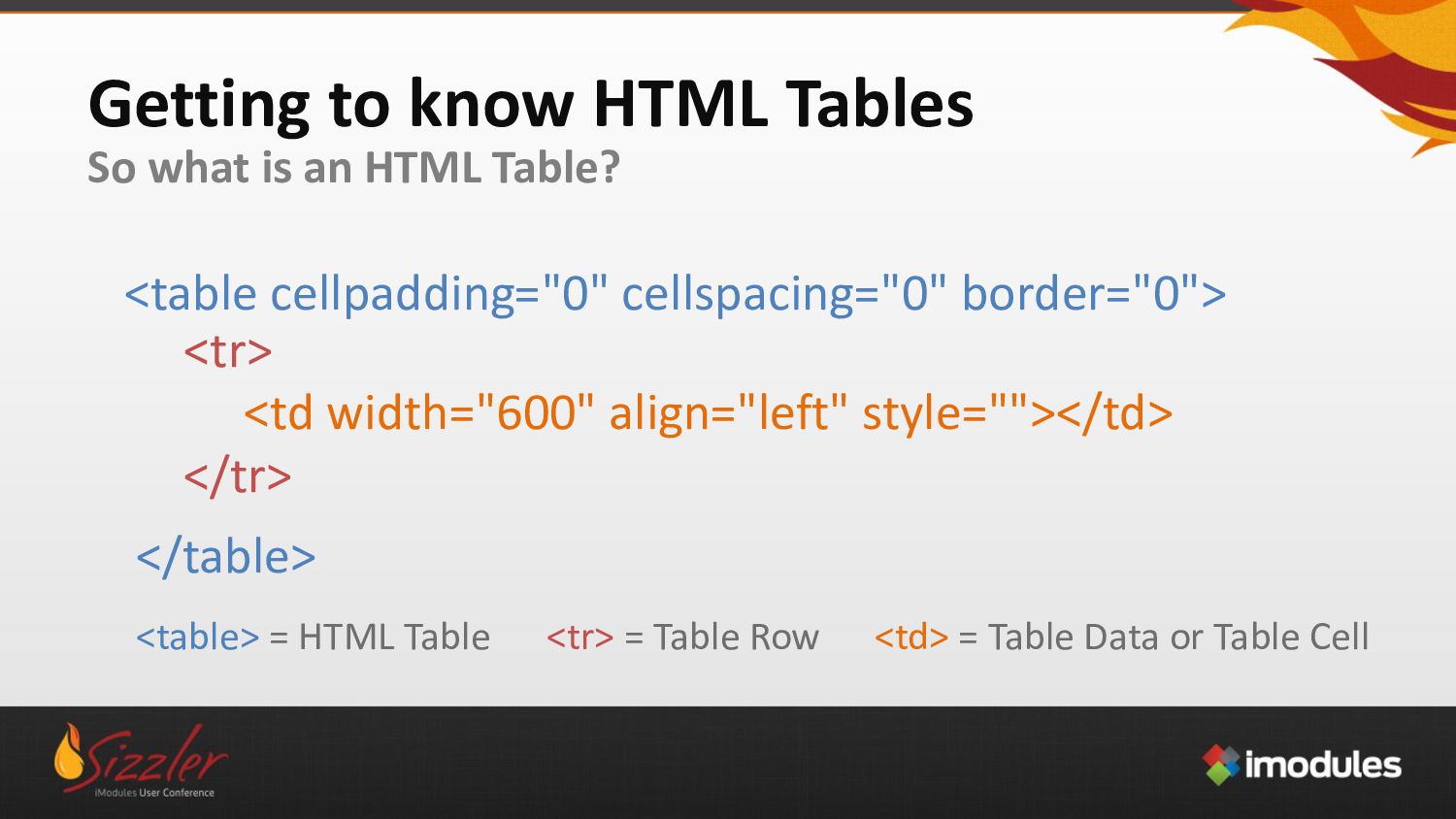
Getting to know HTML Tables So what is an HTML
Table? <table cellpadding="0" cellspacing="0" border="0"> </table> <table> = HTML Table <td width="600" align="left" style=""></td> <td> = Table Data or Table Cell <tr> </tr> <tr> = Table Row -
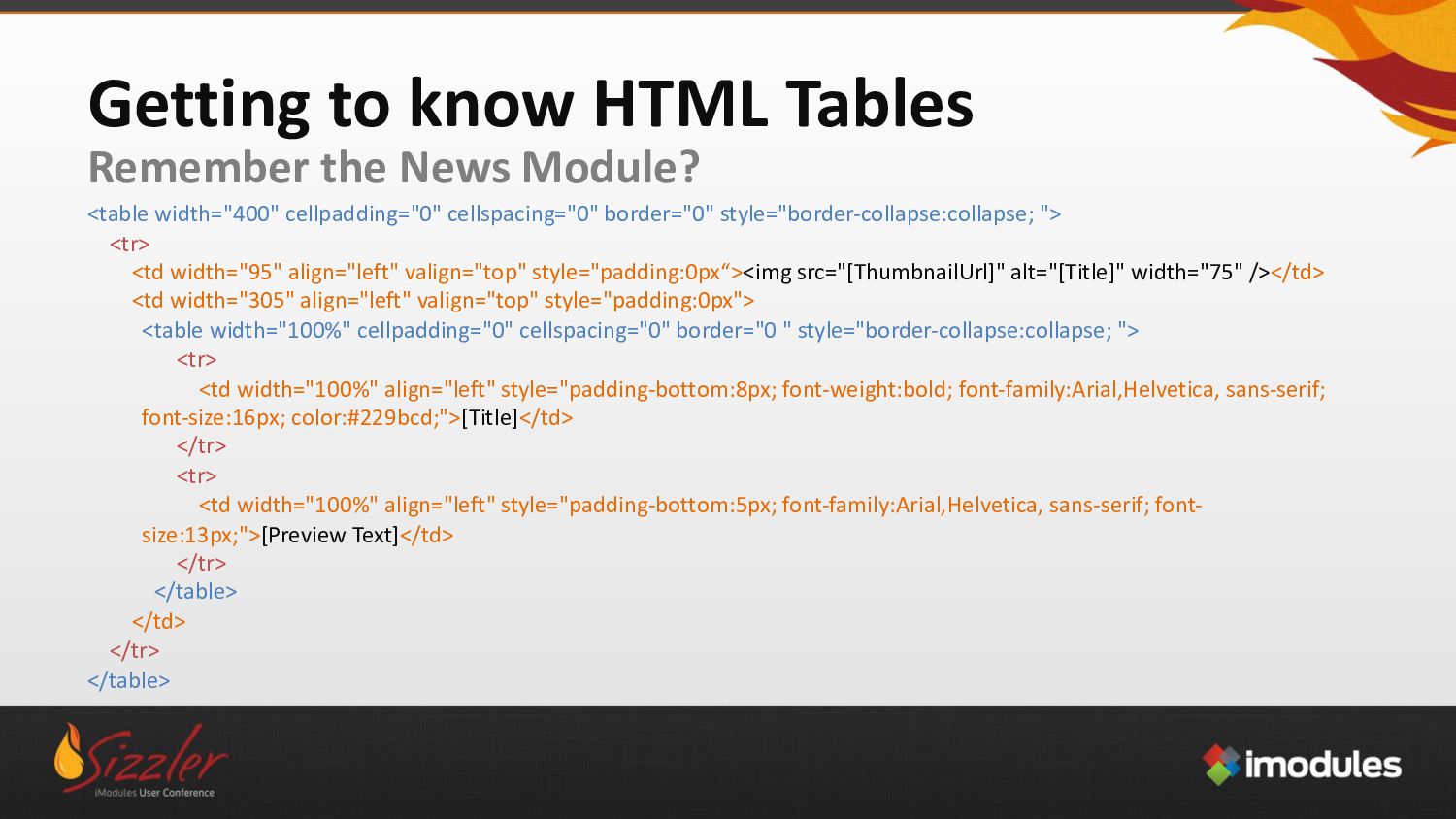
<table width="400" cellpadding="0" cellspacing="0" border="0" style="border-collapse:collapse; "> <tr> <td width="95"
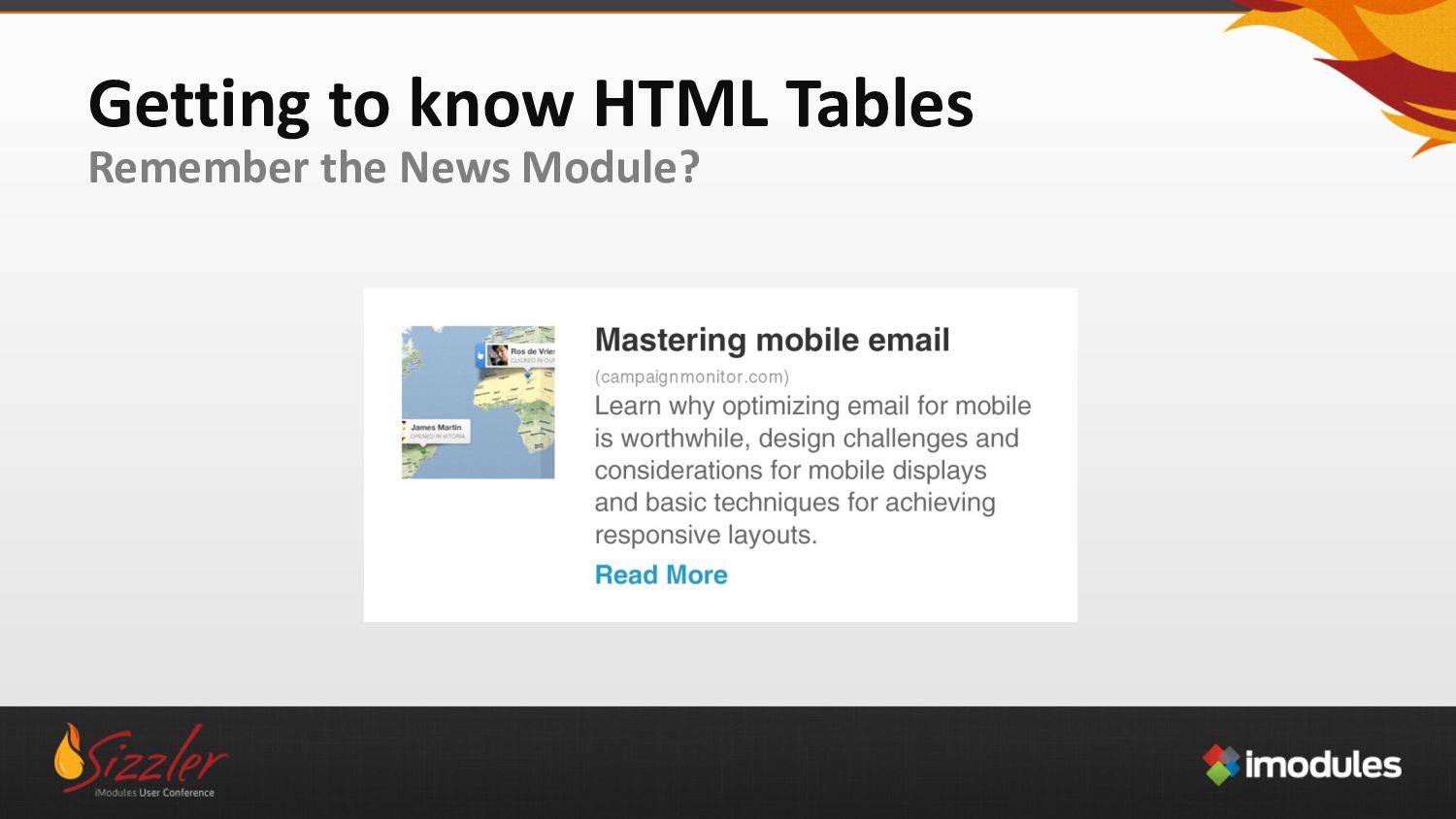
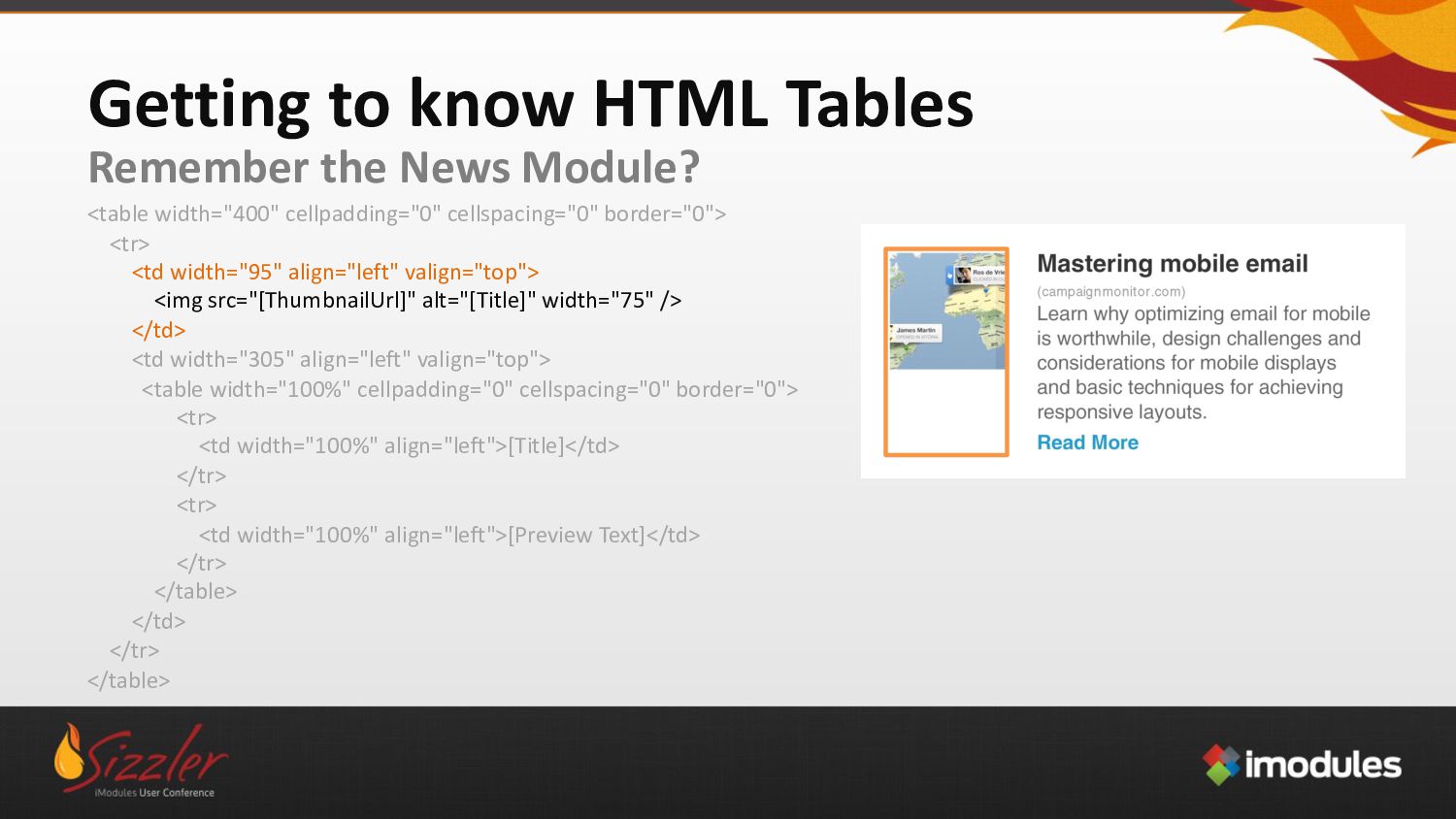
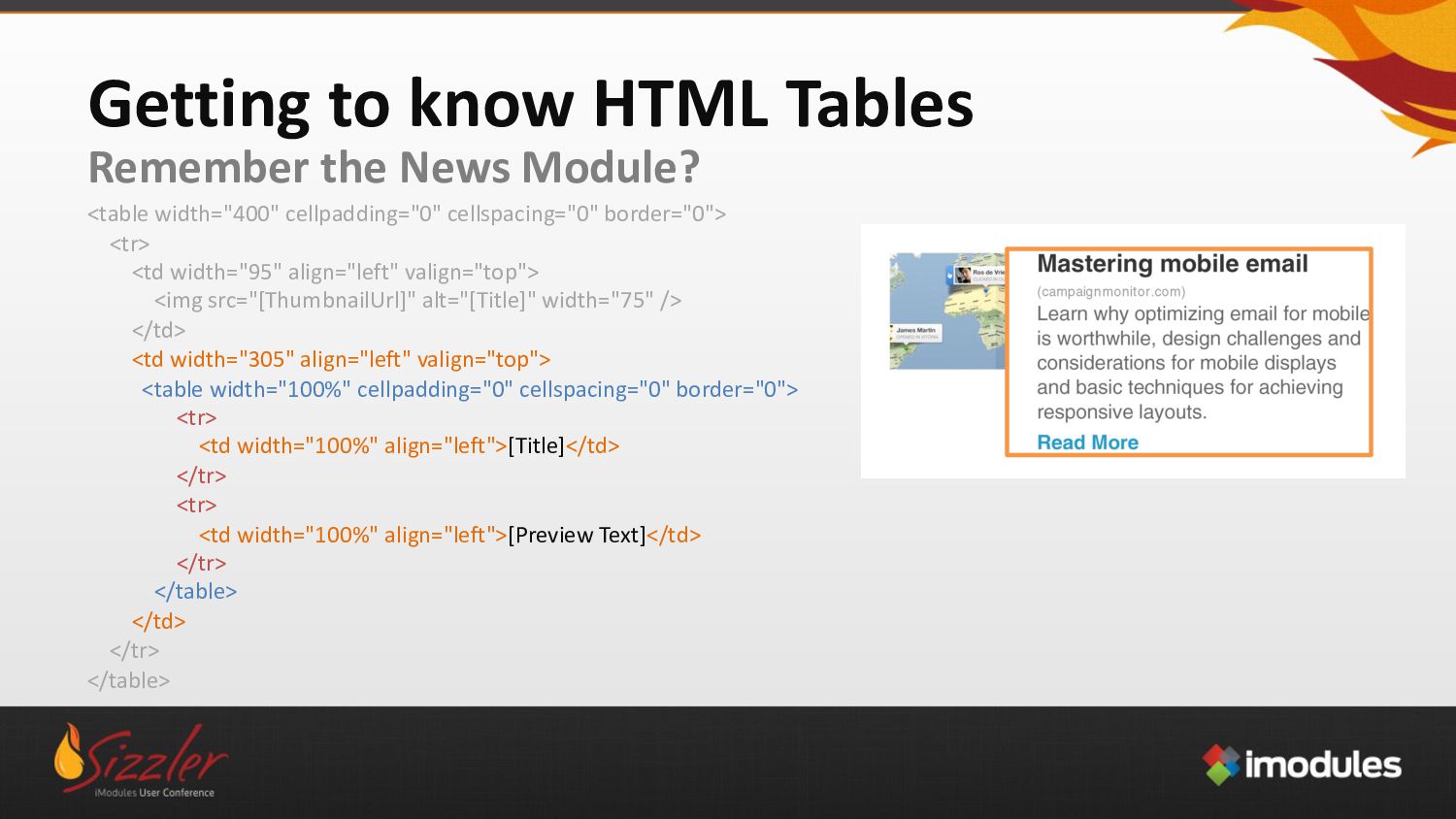
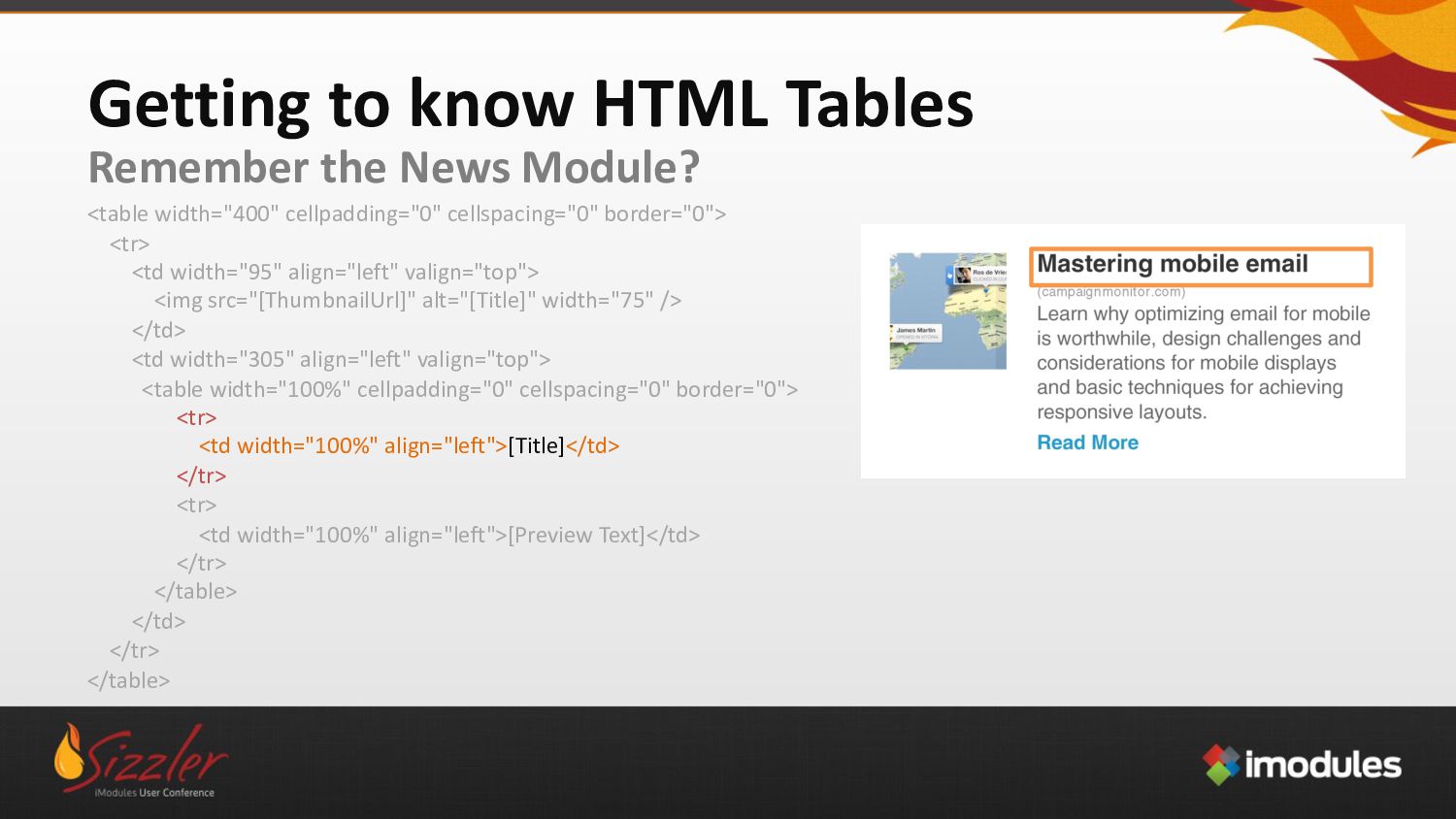
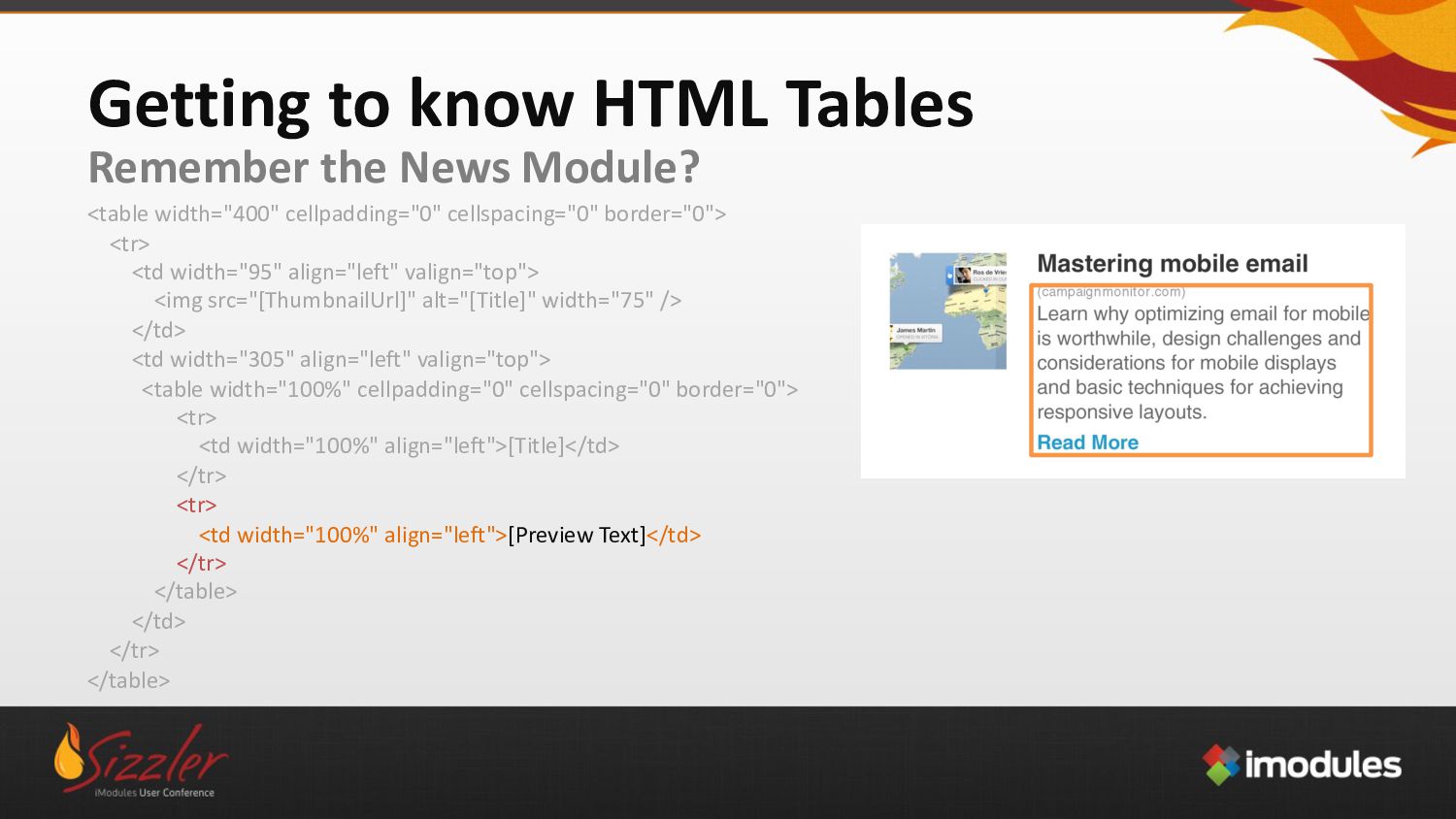
align="left" valign="top" style="padding:0px“><img src="[ThumbnailUrl]" alt="[Title]" width="75" /></td> <td width="305" align="left" valign="top" style="padding:0px"> <table width="100%" cellpadding="0" cellspacing="0" border="0 " style="border-collapse:collapse; "> <tr> <td width="100%" align="left" style="padding-bottom:8px; font-weight:bold; font-family:Arial,Helvetica, sans-serif; font-size:16px; color:#229bcd;">[Title]</td> </tr> <tr> <td width="100%" align="left" style="padding-bottom:5px; font-family:Arial,Helvetica, sans-serif; font- size:13px;">[Preview Text]</td> </tr> </table> </td> </tr> </table> Getting to know HTML Tables Remember the News Module? -
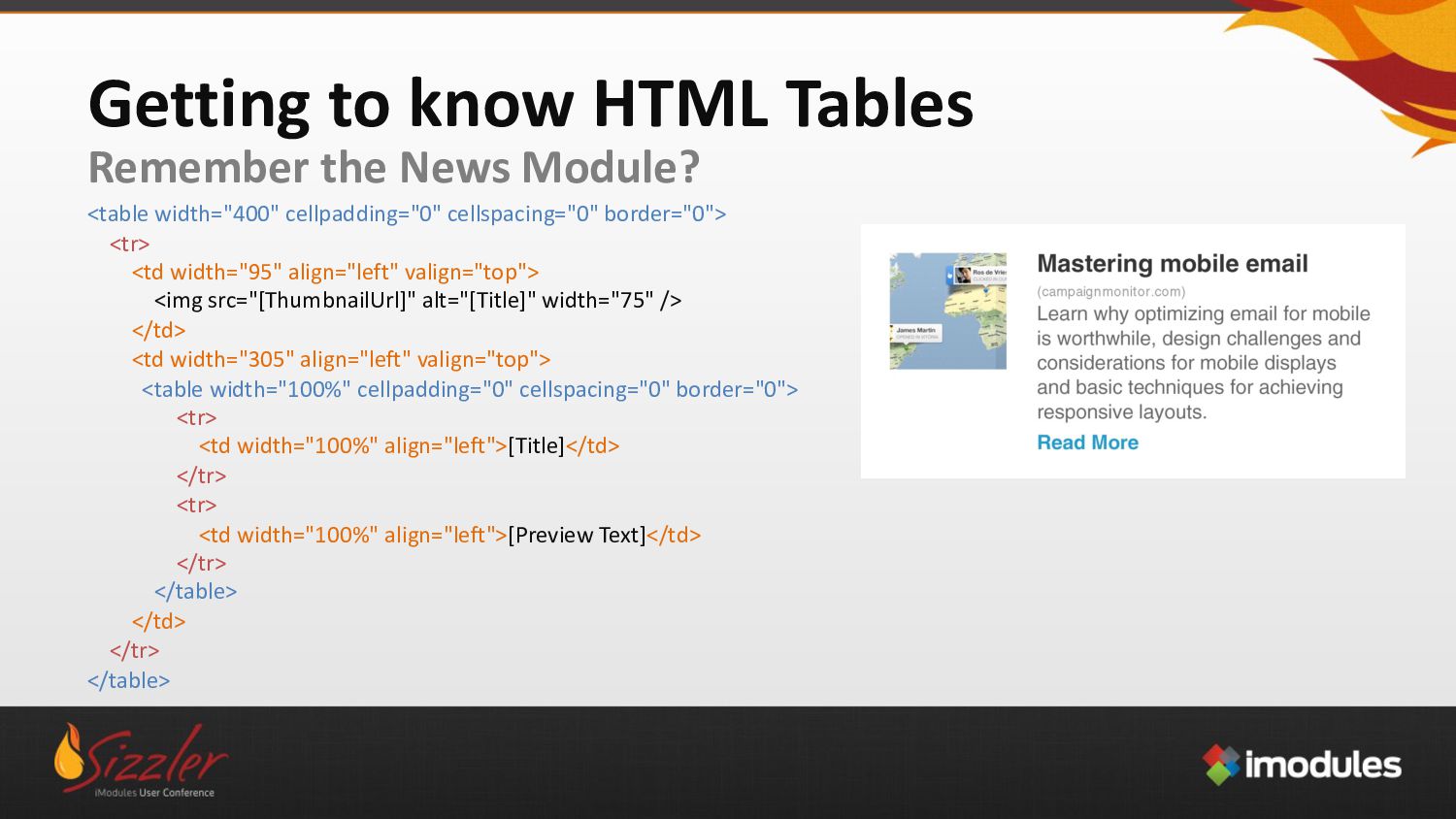
<table width="400" cellpadding="0" cellspacing="0" border="0"> <tr> <td width="95" align="left" valign="top">
<img src="[ThumbnailUrl]" alt="[Title]" width="75" /> </td> <td width="305" align="left" valign="top"> <table width="100%" cellpadding="0" cellspacing="0" border="0"> <tr> <td width="100%" align="left">[Title]</td> </tr> <tr> <td width="100%" align="left">[Preview Text]</td> </tr> </table> </td> </tr> </table> Getting to know HTML Tables Remember the News Module? -
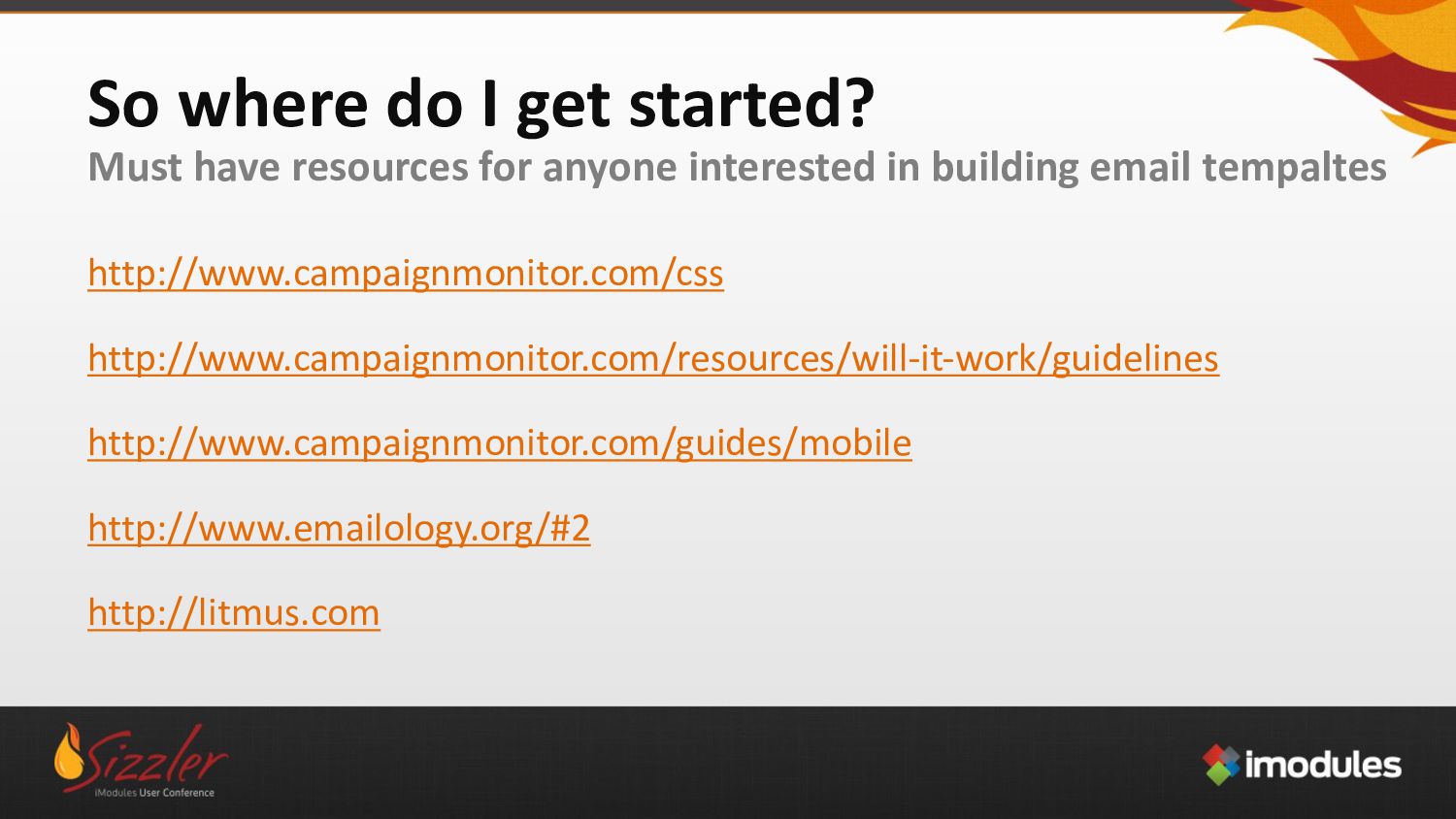
So where do I get started? Must have resources for
anyone interested in building email tempaltes http://www.campaignmonitor.com/css http://www.campaignmonitor.com/resources/will-it-work/guidelines http://www.campaignmonitor.com/guides/mobile http://www.emailology.org/#2 http://litmus.com