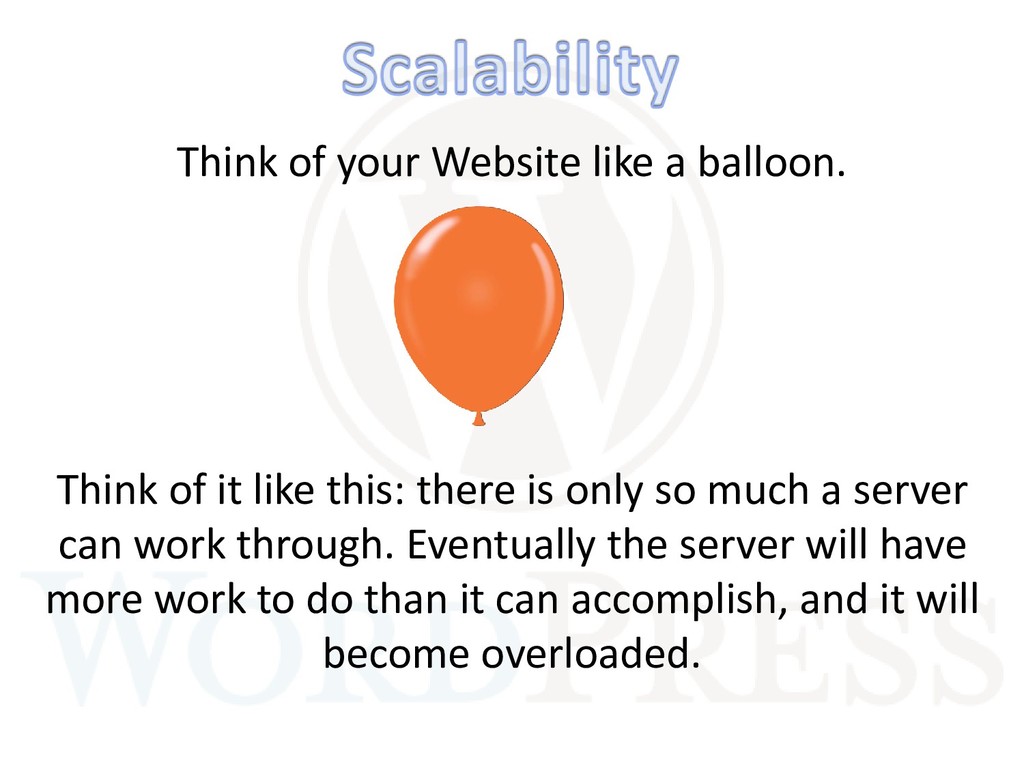
like this: there is only so much a server can work through. Eventually the server will have more work to do than it can accomplish, and it will become overloaded.
operations best practices to scale to the enterprise. With WordPress, you can easily create a repository on Bitbucket or Github and setup a staging environment for live testing. Platforms like Pantheon and WPEngine can help with this so that you have proper development operations moving forward. There are also many other development operations tools that can help you speed up delivery of new features like Docker and Codeship you may want to explore.
likely want to have a modern design and theme that can scale. I suggest not using a prebuilt theme on Themeforest or one of those theme builder tools. I also suggest building a custom theme off some sort of infrastructures like FoundationPress or Sage. This way you are building a scalable frontend architecture that can be custom designed and improved as you grow the website.
will most likely need more and more plugins. This can become very problematic as plugins are third party code that is not always well maintained or play nicely with scaling, other plugins, theme customizations, and any other custom things you are doing to the WordPress software. My suggestion is to keep your plugins very lean and be very careful about which plugins you add to the site. You really only need a handful of plugins to build a pretty large site.
to maintain version upgrades and plugins. Therefore it might be best to create your own custom plugins depending on the situation. Custom plugins will help isolate custom functionality so that if your plugin breaks something you know it is isolated to that plugin rather than affecting many areas of the site.
since they don’t want anyone and everyone to be able to access everyone on the software. There are several user permissions in WordPress so you can dedicate some users to only be able to do very basic tasks like writing a post, but not even publish or edit other posts. It’s also possible to customize the user permissions via plugins or custom code to create even more flexibility if you need to do so.
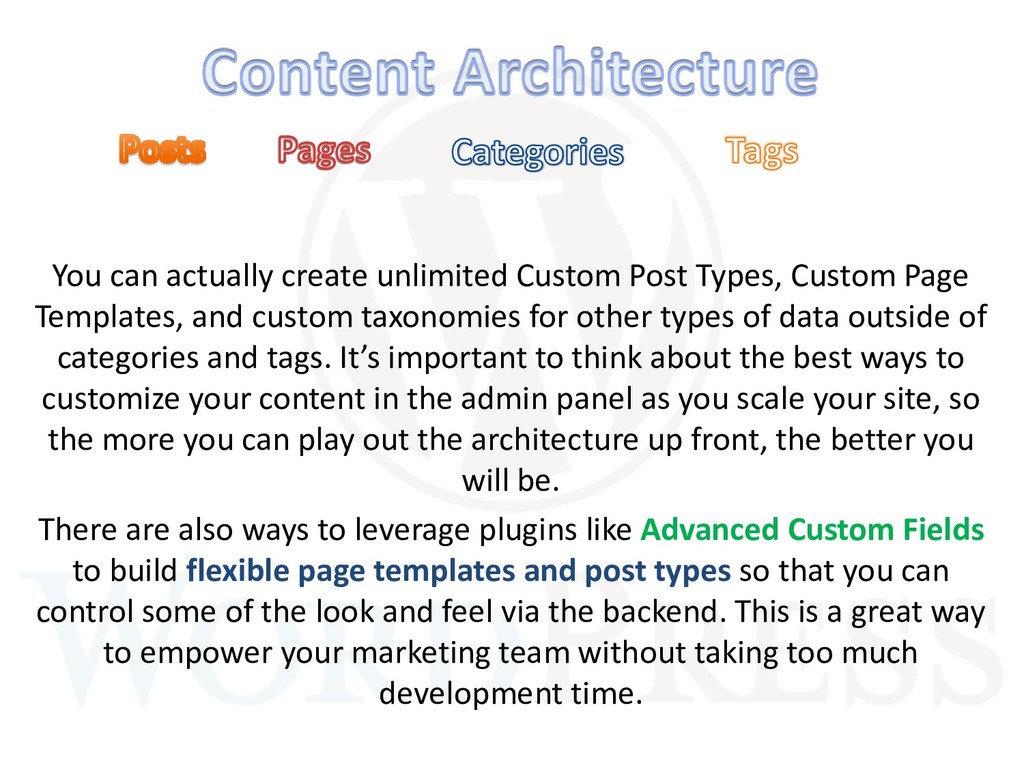
Templates, and custom taxonomies for other types of data outside of categories and tags. It’s important to think about the best ways to customize your content in the admin panel as you scale your site, so the more you can play out the architecture up front, the better you will be. There are also ways to leverage plugins like Advanced Custom Fields to build flexible page templates and post types so that you can control some of the look and feel via the backend. This is a great way to empower your marketing team without taking too much development time.
scale and larger organizations typically need this. WordPress has very strong API’s that are constantly improving so that you can integrate with other platforms such as single sign on functionality for other systems, and much more. Some of the APIs include: • Dashboard Widgets API • Database API I suggest reading more on the APIs on https://codex.wordpress.org/WordPress_APIs
large traffic volumes, concurrent users, form submissions, etc. There are many ways to scale WordPress and major hosting companies like WPEngine, Pantheon, Liquid Web, and of course, Amazon Web Services can scale WordPress to millions of users. Pantheon built a website https://www.scalewp.io/ to help the community around WordPress learn how to scale to handle massive volume.
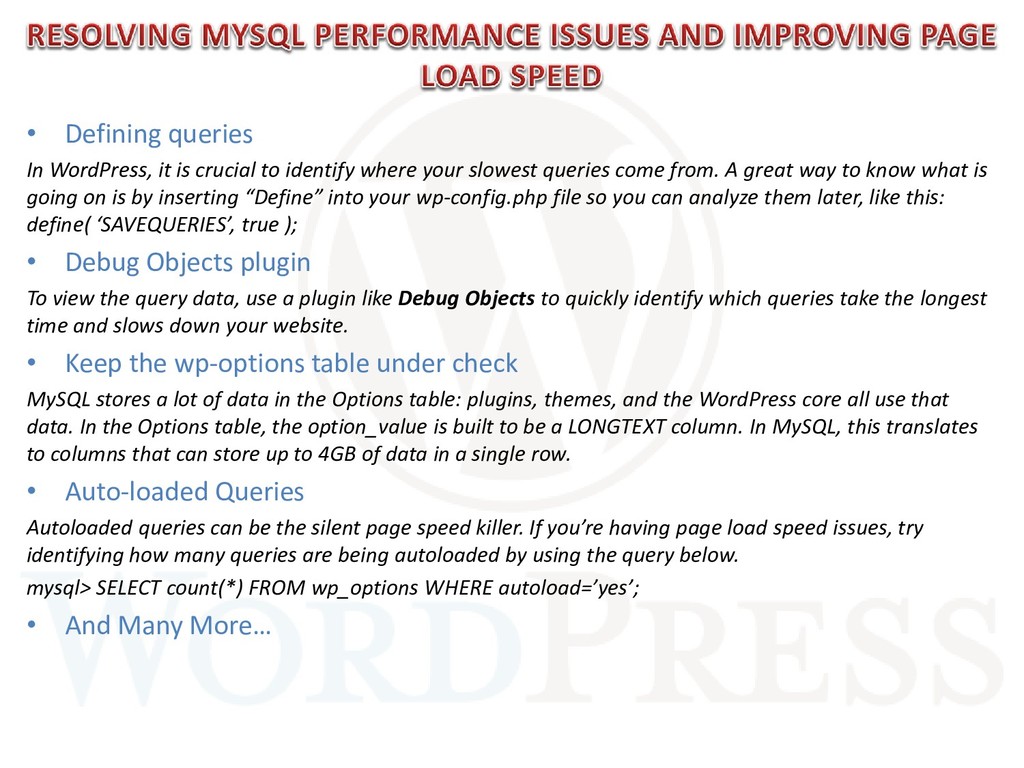
where your slowest queries come from. A great way to know what is going on is by inserting “Define” into your wp-config.php file so you can analyze them later, like this: define( ‘SAVEQUERIES’, true ); • Debug Objects plugin To view the query data, use a plugin like Debug Objects to quickly identify which queries take the longest time and slows down your website. • Keep the wp-options table under check MySQL stores a lot of data in the Options table: plugins, themes, and the WordPress core all use that data. In the Options table, the option_value is built to be a LONGTEXT column. In MySQL, this translates to columns that can store up to 4GB of data in a single row. • Auto-loaded Queries Autoloaded queries can be the silent page speed killer. If you’re having page load speed issues, try identifying how many queries are being autoloaded by using the query below. mysql> SELECT count(*) FROM wp_options WHERE autoload=’yes’; • And Many More…
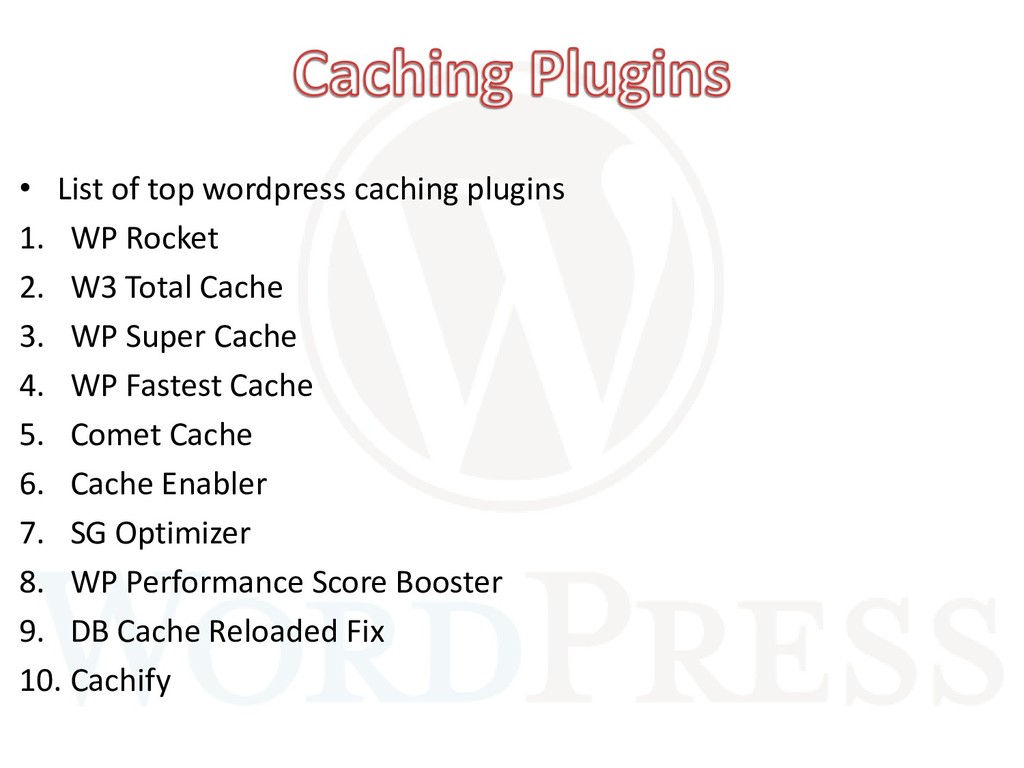
WordPress posts and pages as static files. These static files are then served to users, reducing the processing load on the server. This can improve performance several hundred times over for fairly static pages. When combined with a system level page cache such as Varnish, this can be quite powerful. If your posts/pages have a lot of dynamic content configuring caching can be more complex.
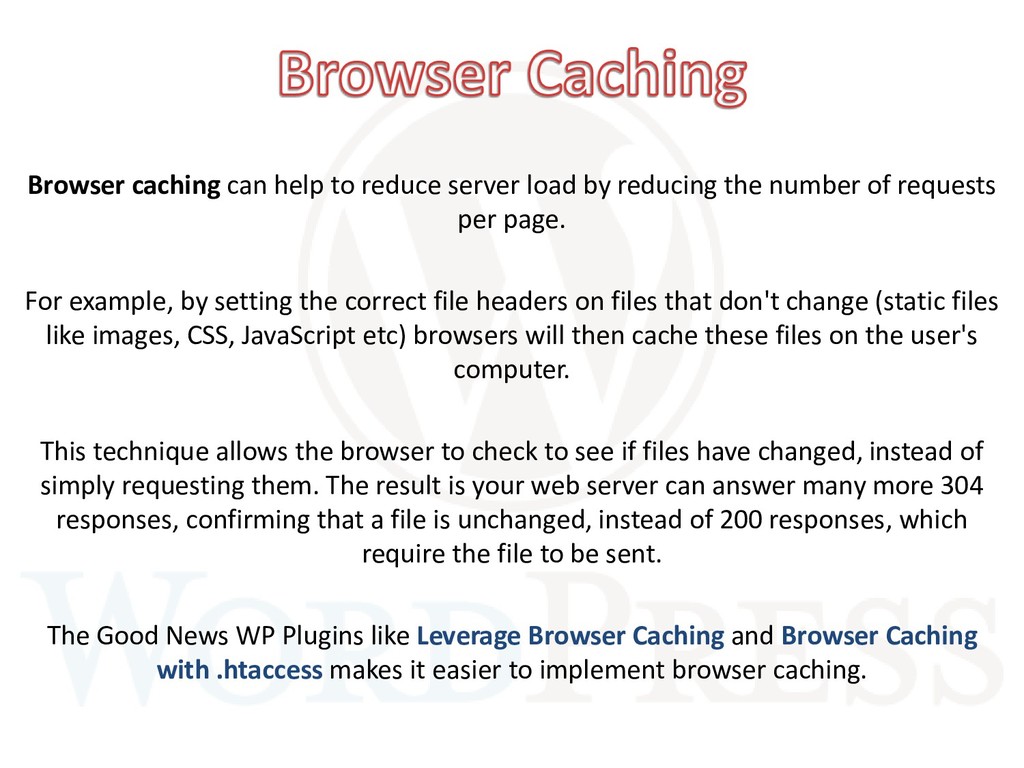
the number of requests per page. For example, by setting the correct file headers on files that don't change (static files like images, CSS, JavaScript etc) browsers will then cache these files on the user's computer. This technique allows the browser to check to see if files have changed, instead of simply requesting them. The result is your web server can answer many more 304 responses, confirming that a file is unchanged, instead of 200 responses, which require the file to be sent. The Good News WP Plugins like Leverage Browser Caching and Browser Caching with .htaccess makes it easier to implement browser caching.
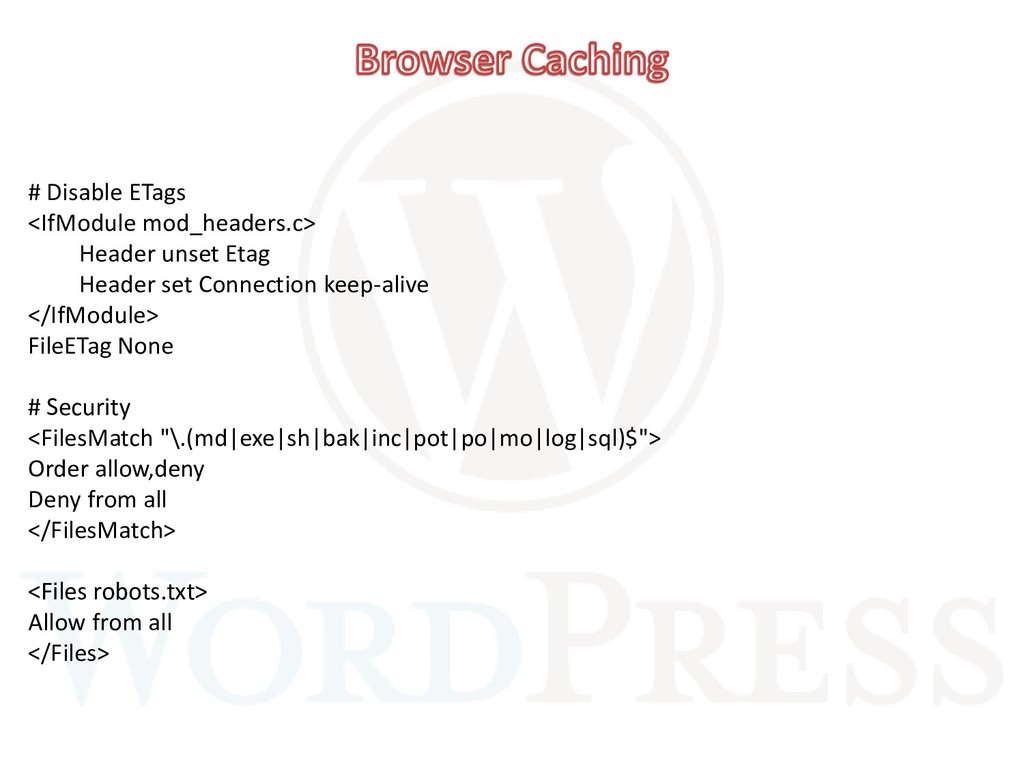
Connection keep-alive </IfModule> FileETag None # Security <FilesMatch "\.(md|exe|sh|bak|inc|pot|po|mo|log|sql)$"> Order allow,deny Deny from all </FilesMatch> <Files robots.txt> Allow from all </Files>
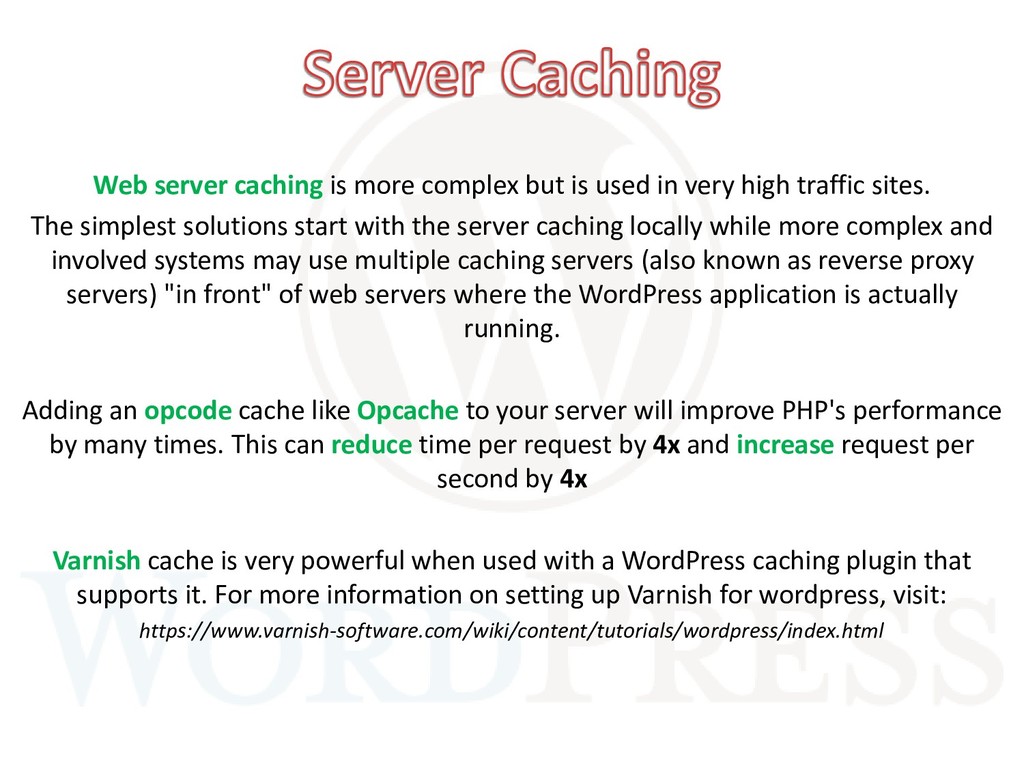
very high traffic sites. The simplest solutions start with the server caching locally while more complex and involved systems may use multiple caching servers (also known as reverse proxy servers) "in front" of web servers where the WordPress application is actually running. Adding an opcode cache like Opcache to your server will improve PHP's performance by many times. This can reduce time per request by 4x and increase request per second by 4x Varnish cache is very powerful when used with a WordPress caching plugin that supports it. For more information on setting up Varnish for wordpress, visit: https://www.varnish-software.com/wiki/content/tutorials/wordpress/index.html


 godwinojebiyi
 uyuki234
 utakaha
 akase244
 falcon8823
 y0hgi
y0hgi
 rkaga
rkaga
 ___akari11
 prota
prota
 timakin
 dske104
 findyinc
 panda728
 uxyall
 soysaucechin
 caitiem20
 ipullrank
 kimpetersen
 chrislema
 aleyda
 speakerdeck
 signer
 jdejongh
 techseoconnect
 lindahogenes