This is for anyone interested in eCommerce, Shopify, the people who are developing on-shop e-commerce stores, and those who want to build their first eCommerce businesses.
powers over 600,000 online stores worldwide. These stores account for an eye-popping $82 billion in global sales. If 2019 is your year to start selling online, you should take a good look at what Shopify offers. Shopify is like Disneyland: you can spend a whole day exploring it and just scratch the surface.
Online Store? Shopify is a solid tool for beginners and people who don't want to spend too much time with development. It's also nice for straying away from hiring a developer. You can sell however many products you want, and most companies don't have any problems scaling up.
Minutes Step 1: Sign Up for Shopify Step 2: Add a Product to Your Shopify Store Step 3: Customize the Look of Your Site Step 4: Setup Your Domain Step 5: Activate Your Payment Processor
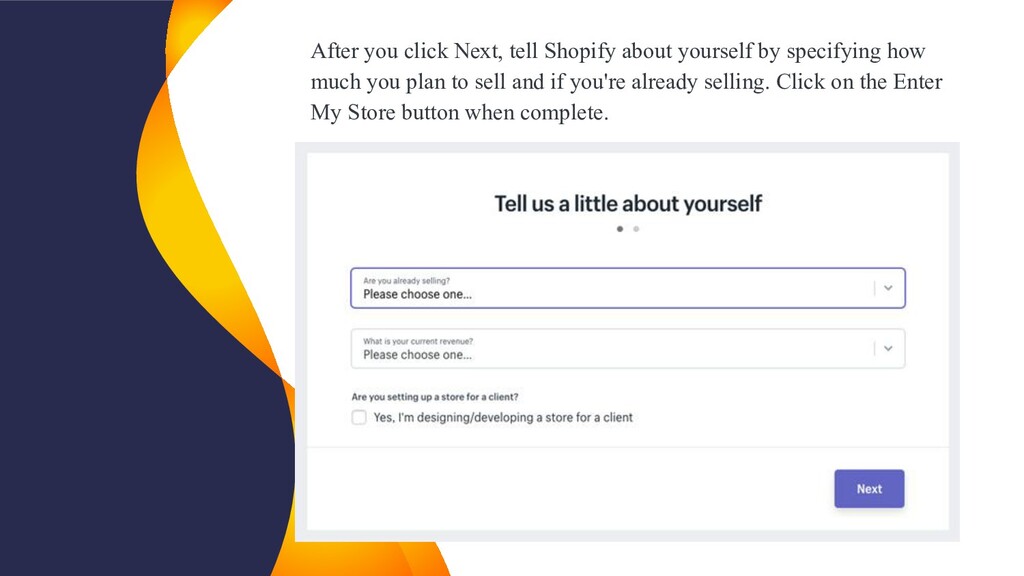
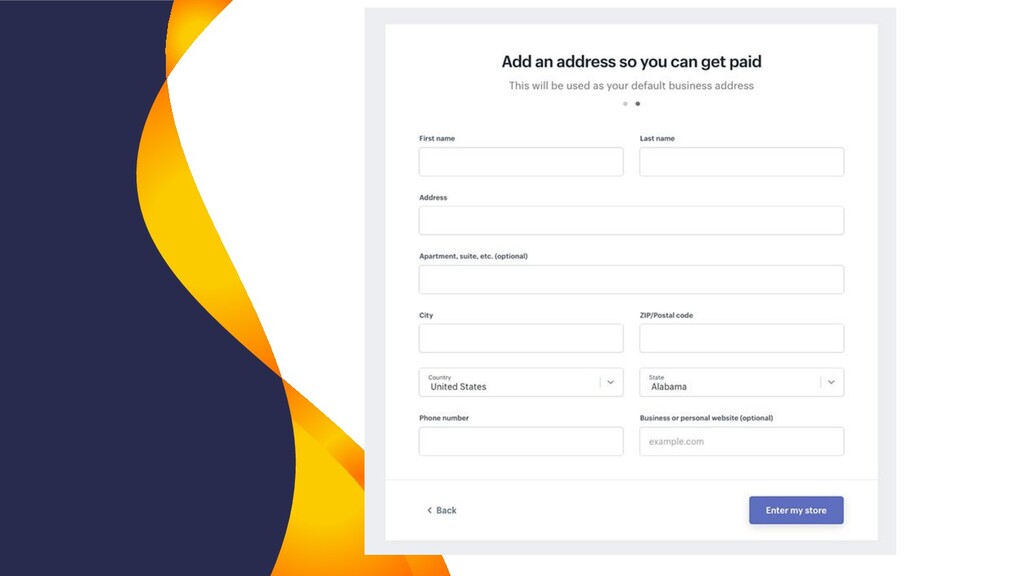
a brick and mortar store or an online shop. For this tutorial we're only going to make an online shop, so select that option and click Next. The following page asks you to fill in personal information such as your name, address and phone number, all of which is used to configure currencies and tax rates.
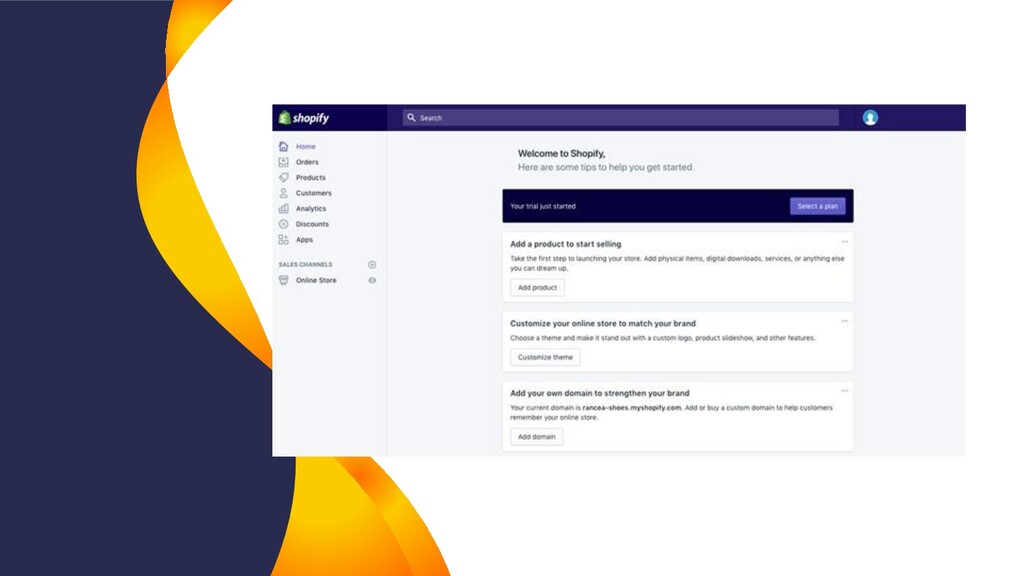
going to your Shopify backend it outlines a nice step-by-step process on how to completely set up your shop. The first button asks you to add a product, so you should click on that first. The Add product page is similar to something you would see on WordPress. You can fill in details like a title, description, price, and vendor. Feel free to complete however much of the product page you'd like. Just make sure you save the product at the end.
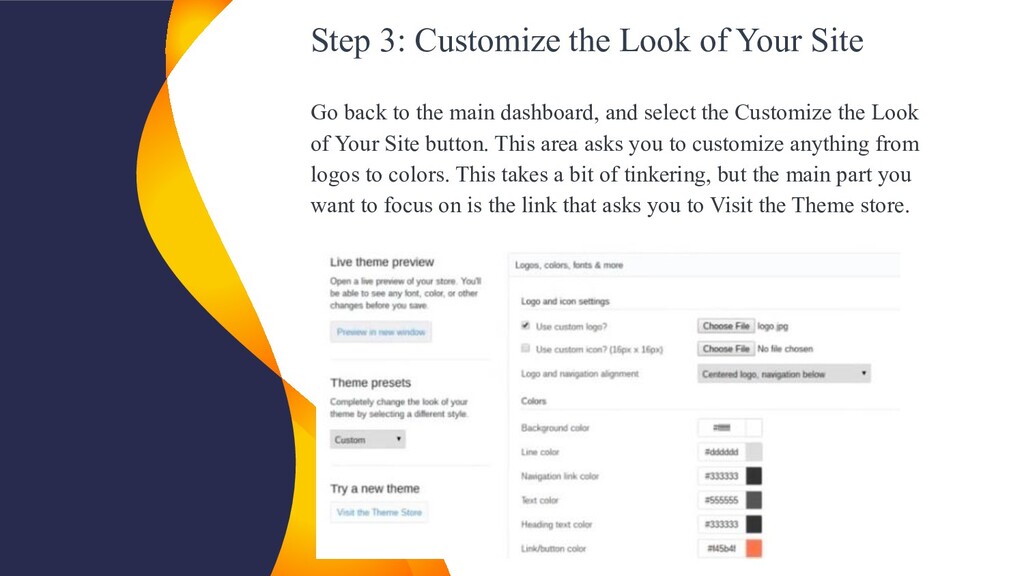
to the main dashboard, and select the Customize the Look of Your Site button. This area asks you to customize anything from logos to colors. This takes a bit of tinkering, but the main part you want to focus on is the link that asks you to Visit the Theme store.
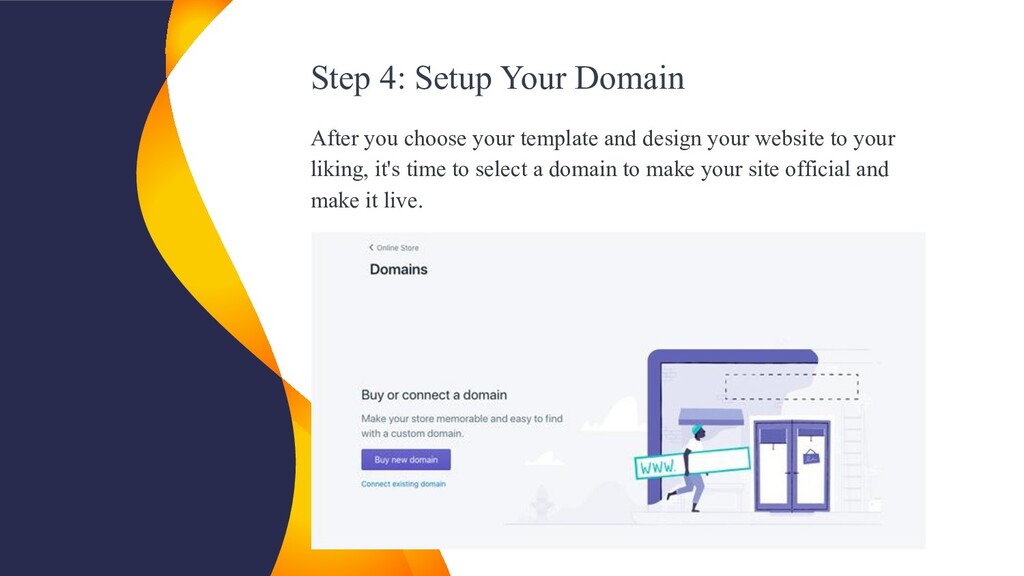
that asks to Add a Domain. This asks you whether you want to transfer a domain or register a new one. Choose the domain you like and walk through the steps to make the purchase. You'll also need to specify which Shopify payment play you'd like to go with. Upon activation, you can then go to that particular domain and see your website.
to the left of the dashboard called Payments. This area allows you to select from dozens of payment processors such as Stripe and Authorize.net. Shopify also has its own payment processor which is super easy to implement. Simply walk through the steps to activate your payment processor. This allows you to accept payments and put those payments in an account. After all is said and done you can click on the Launch Website button to make the store live. Congratulations! You now have a fully functional Shopify online store.


 kentarofujii
 camiha
 daidaidai
 puhitaku
 gionn
gionn
 rfdnxbro
 genda
genda
 sudoakiy
 satoshi7
 hiracky16
 yamanoku
 prog893
 codingconduct
 afnizarnur
 rkendrick25
 davidcarrasco
 erikaheidi
 katarinadahlin
 charlesmeaden
 honzajavorek
 lynnandtonic
 kimpetersen
 shpigford
 marcoroth