Upgrade to Pro — share decks privately, control downloads, hide ads and more …

Spec-driven development (Decide what to build, ...

Avatar for Riku INADA Riku INADA PRO
November 08, 2026

Spec-driven development (Decide what to build, then hand it over) | Kiro: Zero to Hero 05

Decide what to build before Kiro builds it. Write requirements in EARS, review the design and tasks, run tasks in waves, check requirements with property-based tests (IDE only), and choose the right start for each kind of work: Feature Spec, Bugfix Spec, Quick Spec, or Plan mode. Includes a running example (a meeting-room booking app). As of November 2026 (Kiro IDE 1.4, Kiro CLI 3.1; CLI screens from Kiro CLI 3.0.0).

Avatar for Riku INADA

Riku INADA PRO

November 08, 2026

More Decks by Riku INADA

Other Decks in Technology

Transcript

  1. Kiro: Zero to Hero Go deeper Spec-driven development Decide what

    to build, then hand it over 05 As of November 2026 (Kiro IDE 1.4, CLI 3.1, CLI screens 3.0.0) November 2026 Riku Inada Amazon Web Services Japan © 2026, Amazon Web Services, Inc. or its affiliates. All rights reserved. 1
  2. Introduction About me Riku Inada Amazon Web Services Japan G.K.

    Solutions Architect Works mainly with manufacturing customers Recent work Promoting the AI-Driven Development Life Cycle (AI-DLC) Writing and speaking about Kiro and AWS Amplify © 2026, Amazon Web Services, Inc. or its affiliates. All rights reserved. X @inada_riku Speaker Deck speakerdeck.com/inariku Zenn zenn.dev/inariku GitHub github.com/inariku 2
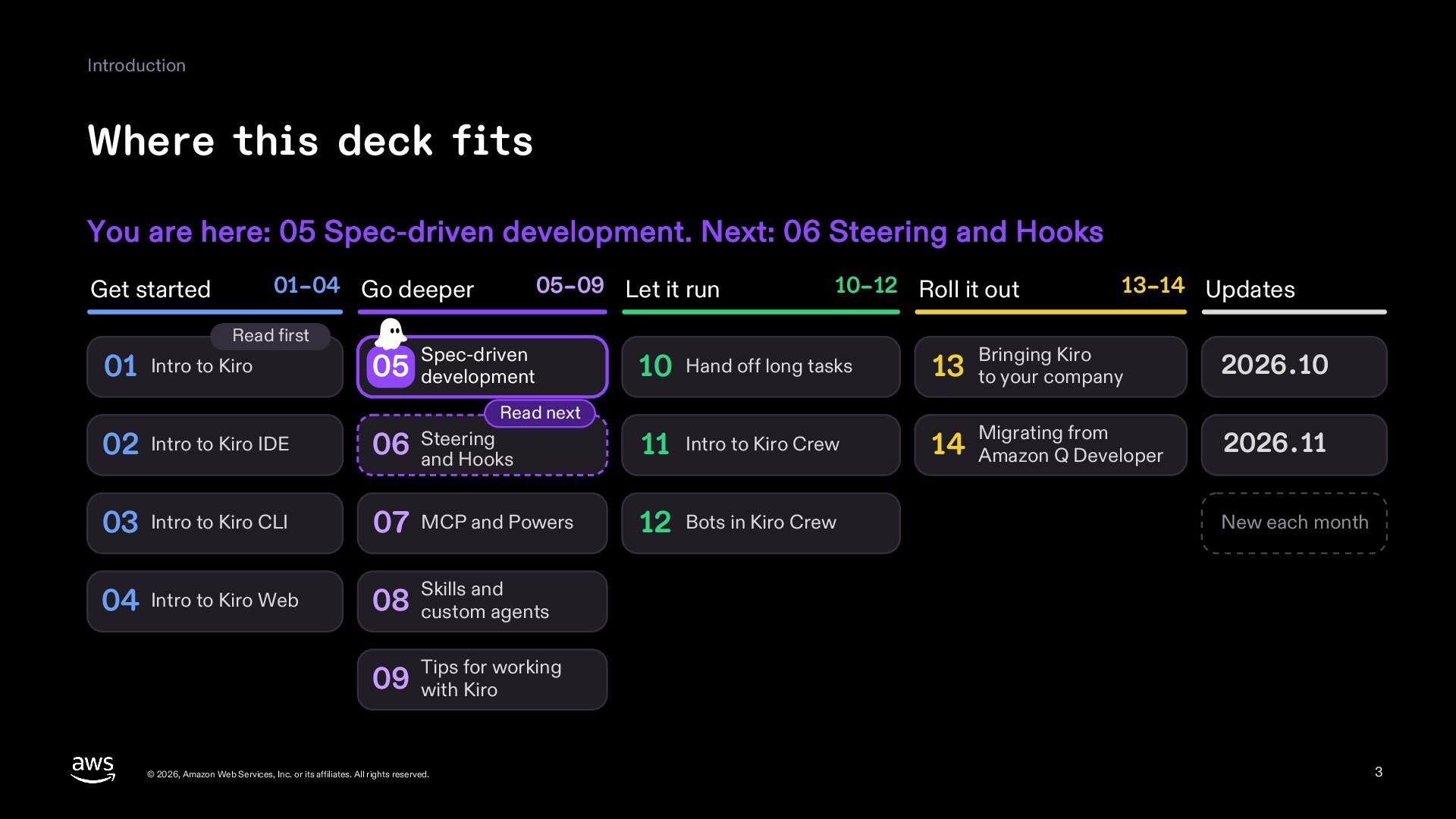
  3. Introduction Where this deck fits You are here: 05 Spec-driven

    development. Next: 06 Steering and Hooks 01–04 Go deeper Get started Read first 01 Intro to Kiro 05–09 Let it run Spec-driven 05 development 10–12 Roll it out 13–14 Updates Bringing Kiro 2026.10 Migrating from 2026.11 10 Hand off long tasks 13 to your company 14 Amazon Q Developer Read next 02 Intro to Kiro IDE 06 Steering and Hooks 11 Intro to Kiro Crew 03 Intro to Kiro CLI 07 MCP and Powers 12 Bots in Kiro Crew 04 Intro to Kiro Web and 08 Skills custom agents New each month for working 09 Tips with Kiro © 2026, Amazon Web Services, Inc. or its affiliates. All rights reserved. 3
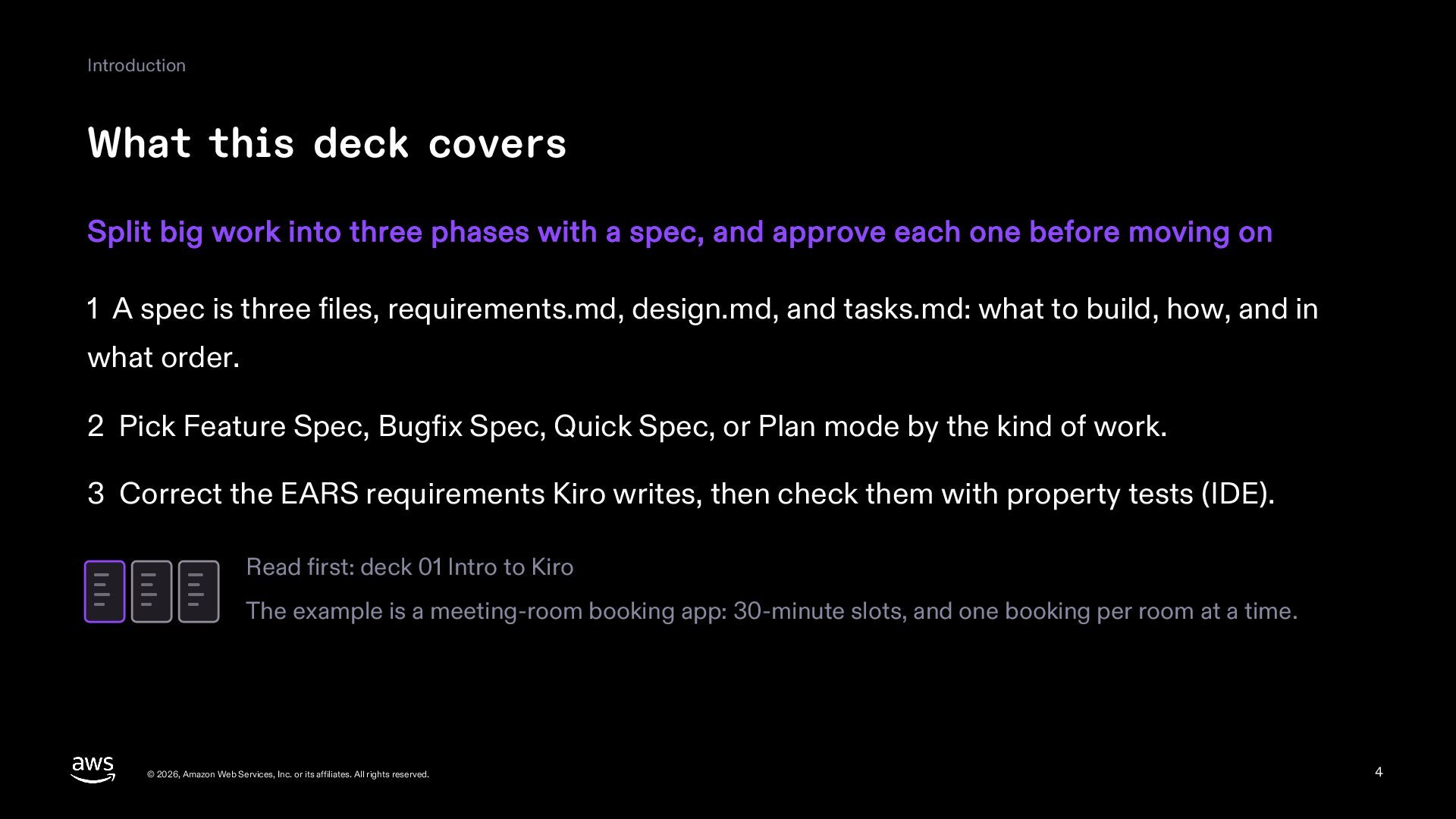
  4. Introduction What this deck covers Split big work into three

    phases with a spec, and approve each one before moving on 1 A spec is three files, requirements.md, design.md, and tasks.md: what to build, how, and in what order. 2 Pick Feature Spec, Bugfix Spec, Quick Spec, or Plan mode by the kind of work. 3 Correct the EARS requirements Kiro writes, then check them with property tests (IDE). Read first: deck 01 Intro to Kiro The example is a meeting-room booking app: 30-minute slots, and one booking per room at a time. © 2026, Amazon Web Services, Inc. or its affiliates. All rights reserved. 4
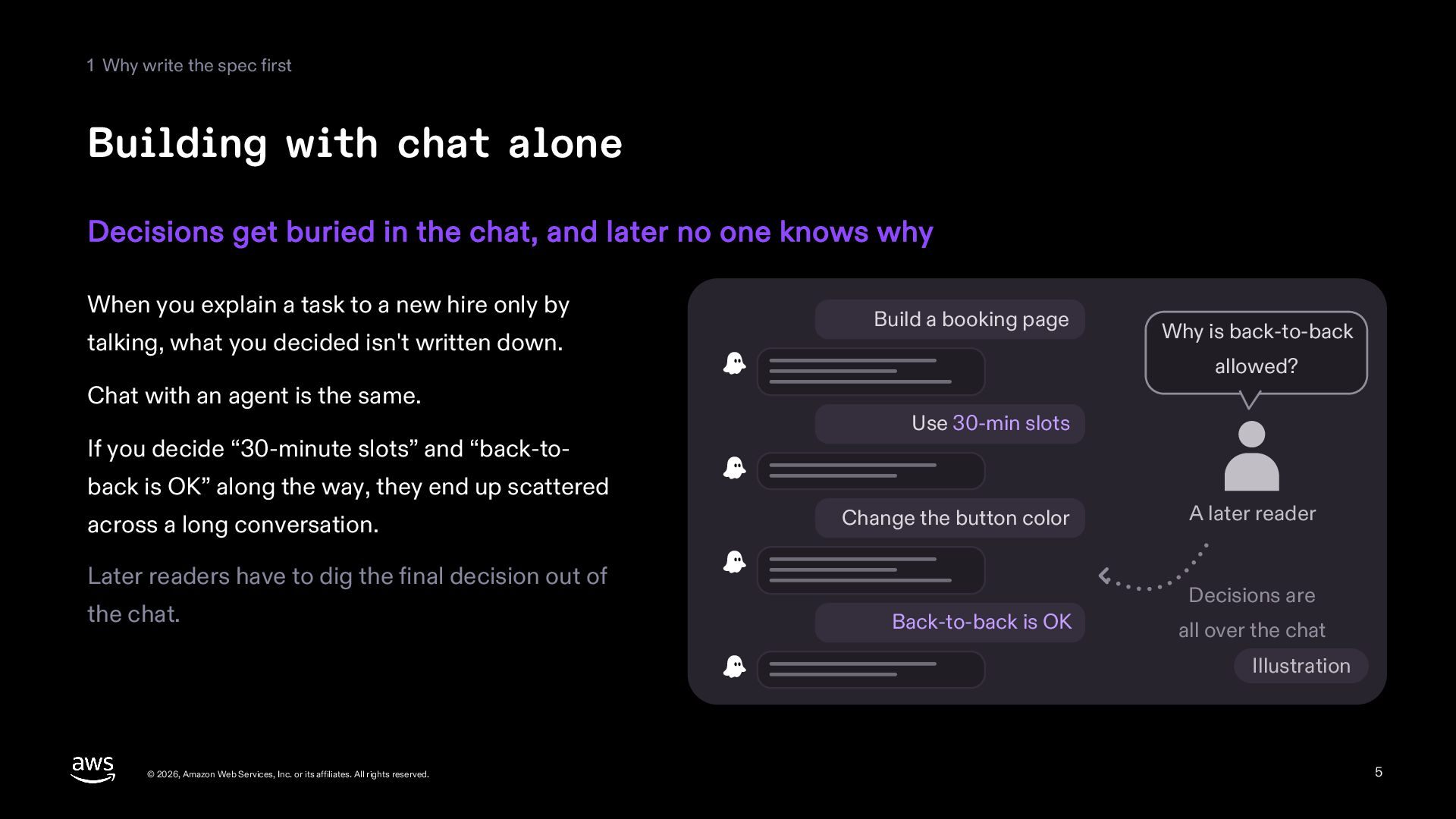
  5. 1 Why write the spec first Building with chat alone

    Decisions get buried in the chat, and later no one knows why When you explain a task to a new hire only by talking, what you decided isn't written down. Chat with an agent is the same. If you decide “30-minute slots” and “back-to- Build a booking page allowed? Use 30-min slots back is OK” along the way, they end up scattered across a long conversation. Change the button color Later readers have to dig the final decision out of the chat. Why is back-to-back A later reader Decisions are Back-to-back is OK all over the chat Illustration © 2026, Amazon Web Services, Inc. or its affiliates. All rights reserved. 5
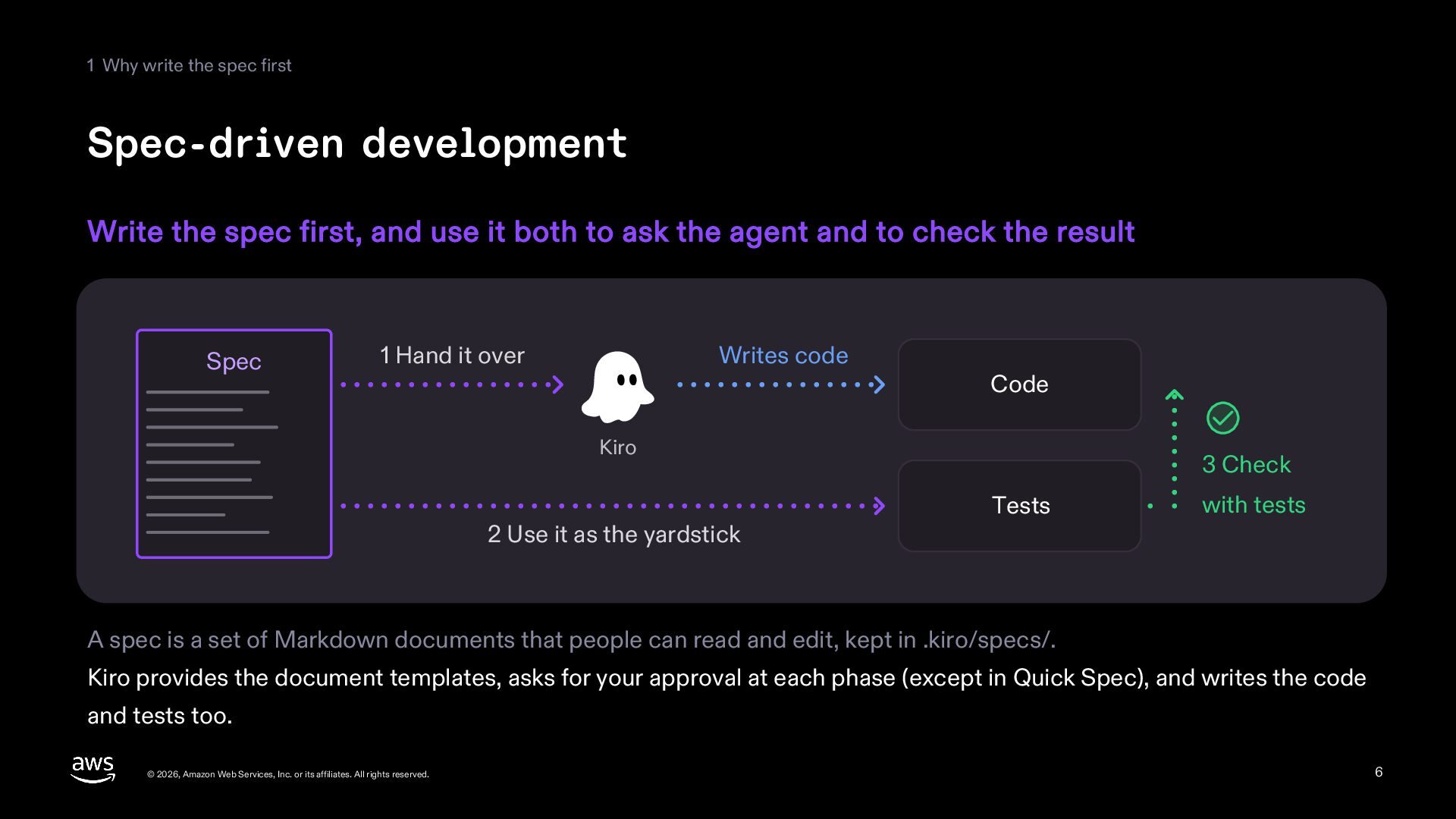
  6. 1 Why write the spec first Spec-driven development Write the

    spec first, and use it both to ask the agent and to check the result Spec 1 Hand it over Writes code Code Kiro 2 Use it as the yardstick 3 Check Tests with tests A spec is a set of Markdown documents that people can read and edit, kept in .kiro/specs/. Kiro provides the document templates, asks for your approval at each phase (except in Quick Spec), and writes the code and tests too. © 2026, Amazon Web Services, Inc. or its affiliates. All rights reserved. 6
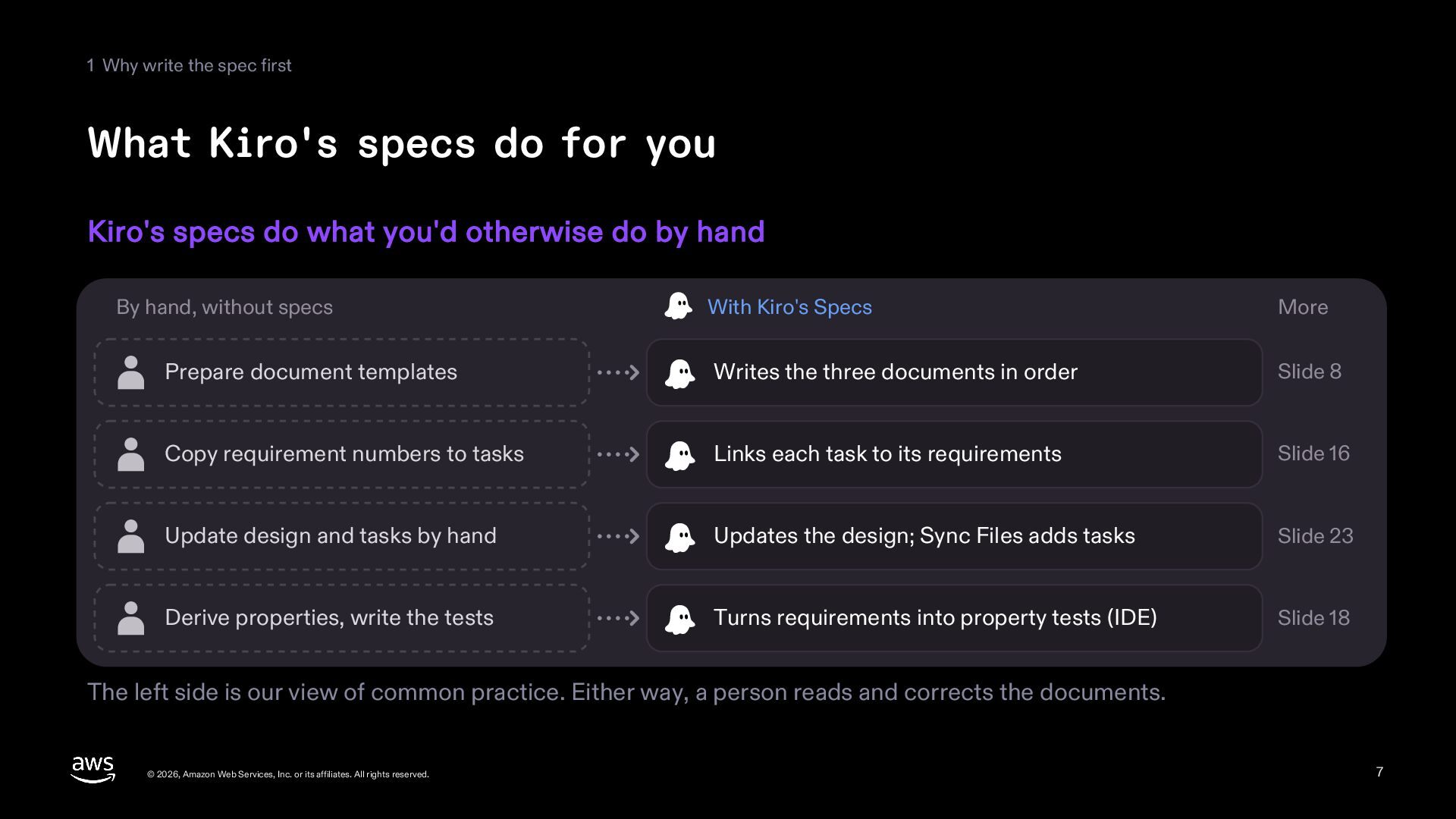
  7. 1 Why write the spec first What Kiro's specs do

    for you Kiro's specs do what you'd otherwise do by hand By hand, without specs With Kiro's Specs More Prepare document templates Writes the three documents in order Slide 8 Copy requirement numbers to tasks Links each task to its requirements Slide 16 Update design and tasks by hand Updates the design; Sync Files adds tasks Slide 23 Derive properties, write the tests Turns requirements into property tests (IDE) Slide 18 The left side is our view of common practice. Either way, a person reads and corrects the documents. © 2026, Amazon Web Services, Inc. or its affiliates. All rights reserved. 7
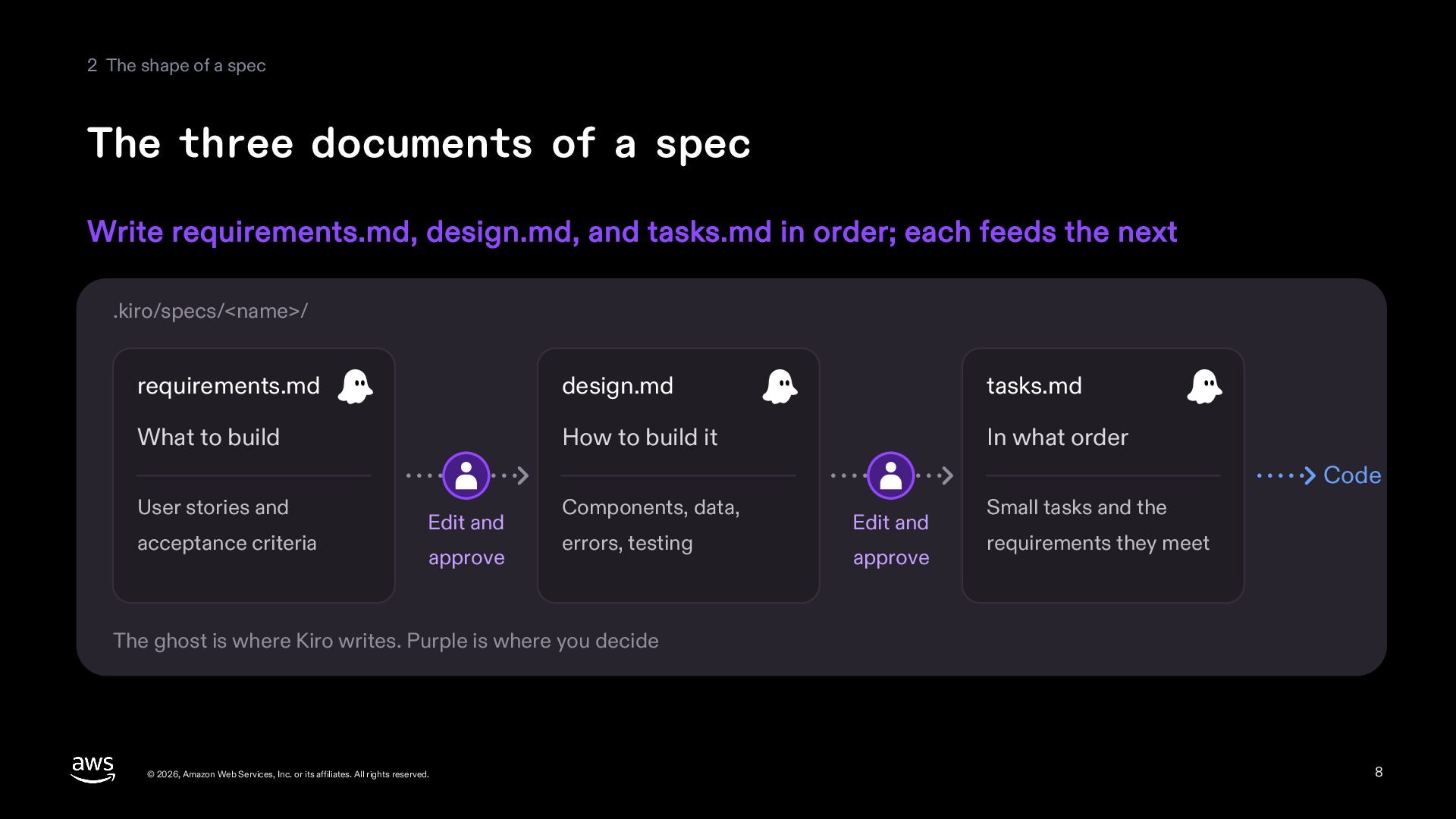
  8. 2 The shape of a spec The three documents of

    a spec Write requirements.md, design.md, and tasks.md in order; each feeds the next .kiro/specs/<name>/ requirements.md design.md tasks.md What to build How to build it In what order Code User stories and acceptance criteria Edit and approve Components, data, errors, testing Edit and approve Small tasks and the requirements they meet The ghost is where Kiro writes. Purple is where you decide © 2026, Amazon Web Services, Inc. or its affiliates. All rights reserved. 8
  9. 2 The shape of a spec Choosing how to start

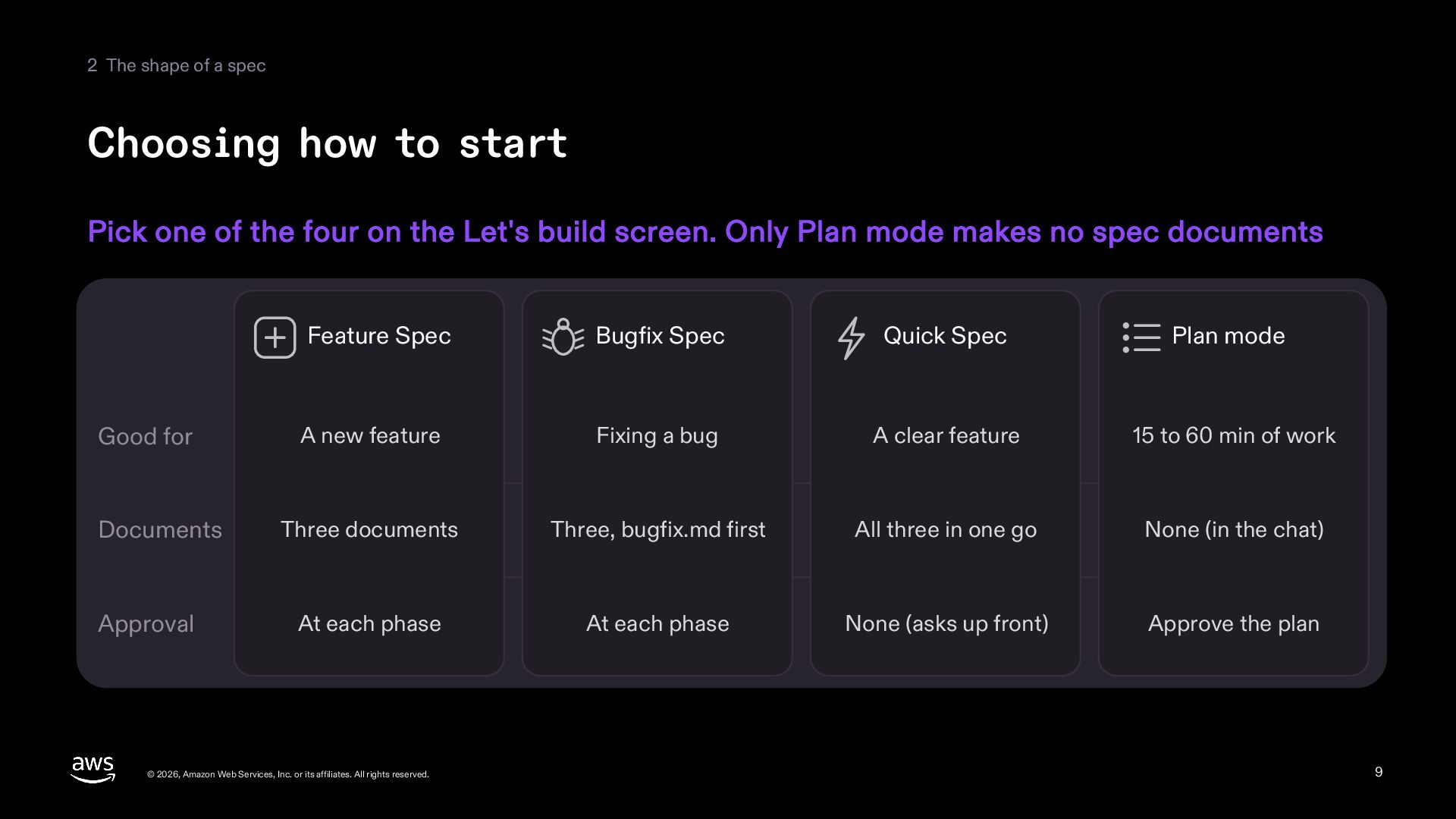
    Pick one of the four on the Let's build screen. Only Plan mode makes no spec documents Feature Spec Bugfix Spec Quick Spec Plan mode Good for A new feature Fixing a bug A clear feature 15 to 60 min of work Documents Three documents Three, bugfix.md first All three in one go None (in the chat) Approval At each phase At each phase None (asks up front) Approve the plan © 2026, Amazon Web Services, Inc. or its affiliates. All rights reserved. 9
  10. 2 The shape of a spec Requirements first, or design

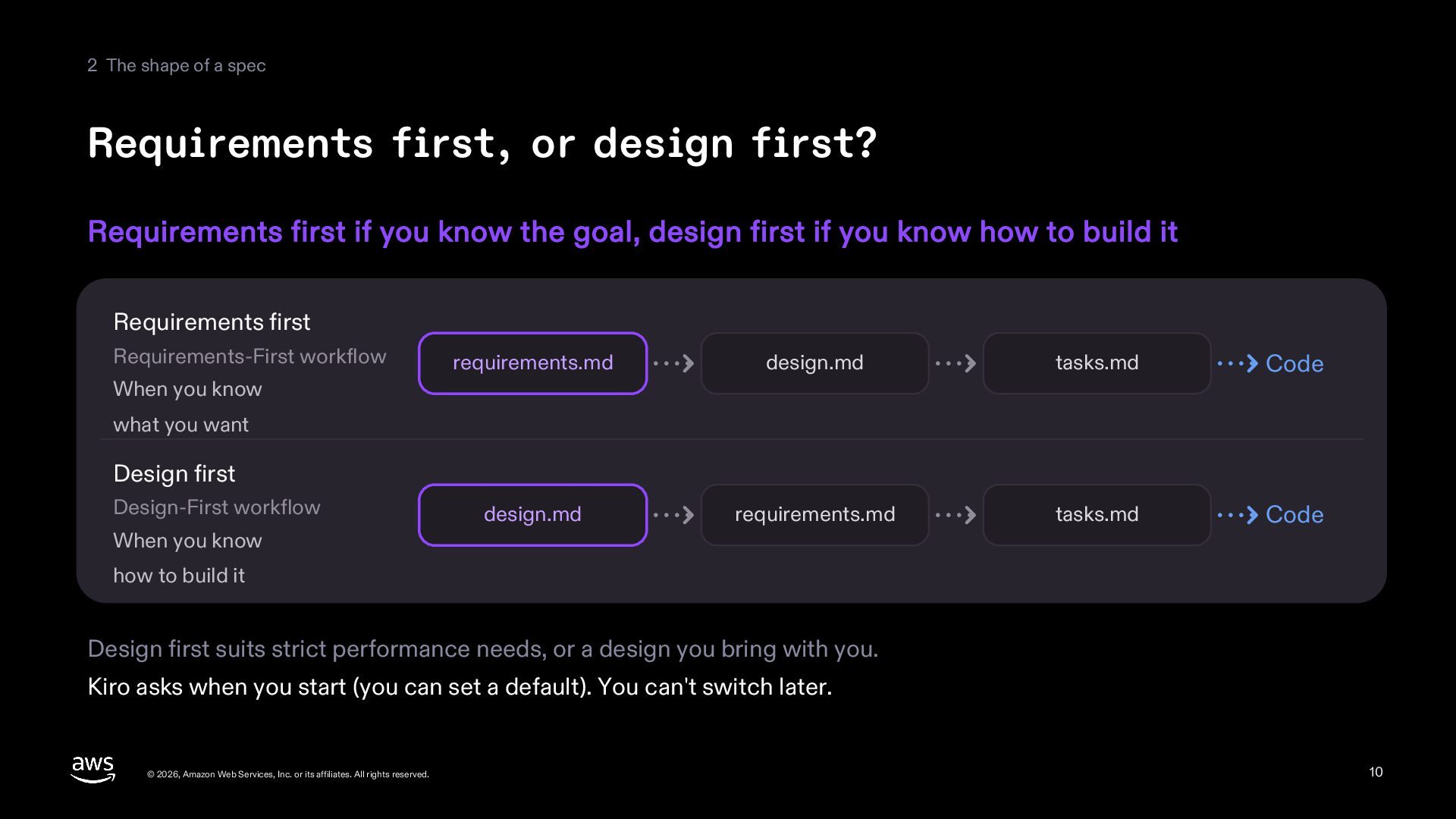
    first? Requirements first if you know the goal, design first if you know how to build it Requirements first Requirements-First workflow requirements.md design.md tasks.md Code design.md requirements.md tasks.md Code When you know what you want Design first Design-First workflow When you know how to build it Design first suits strict performance needs, or a design you bring with you. Kiro asks when you start (you can set a default). You can't switch later. © 2026, Amazon Web Services, Inc. or its affiliates. All rights reserved. 10
  11. 3 A Feature Spec, step by step The example's request

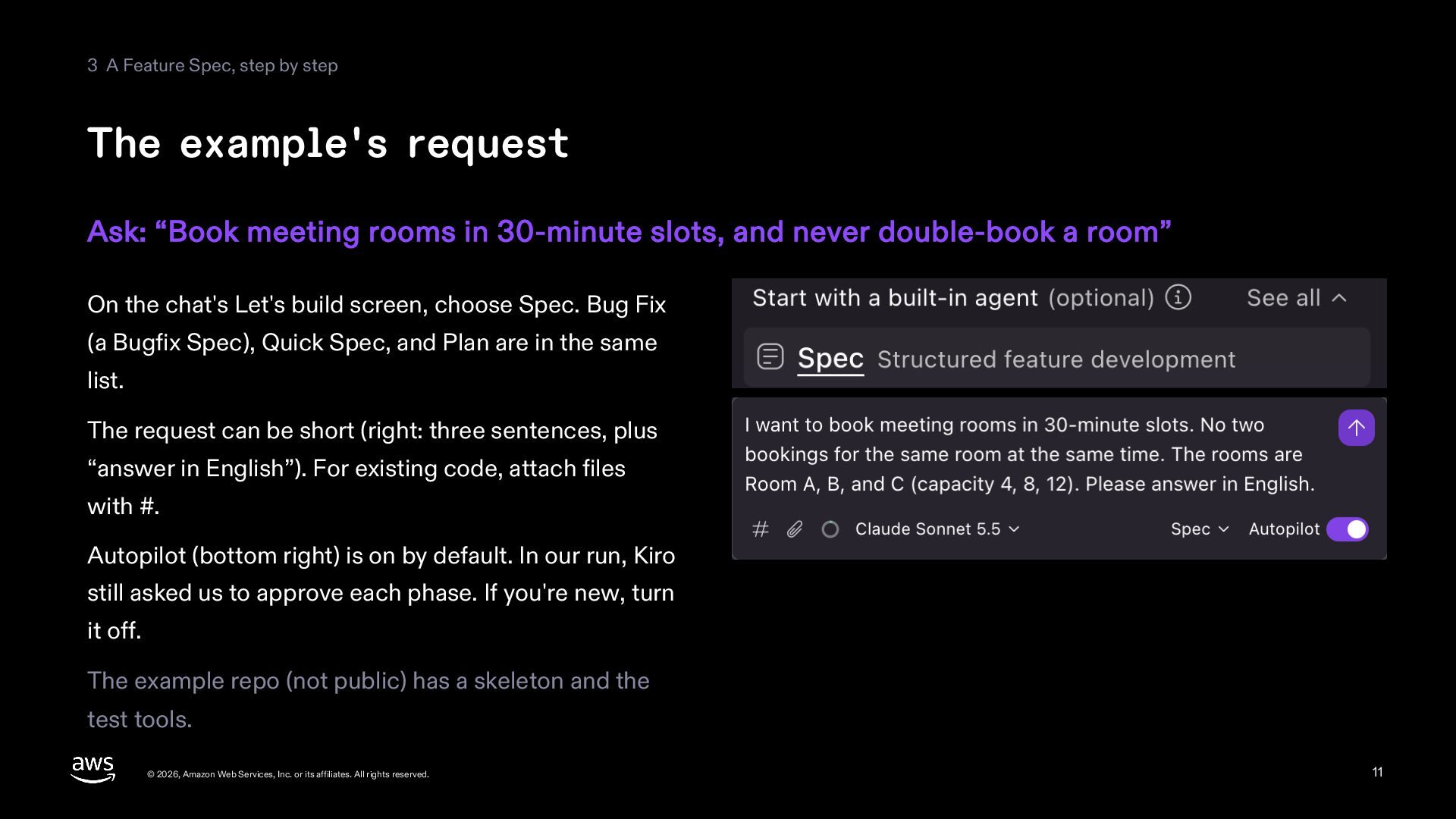
    Ask: “Book meeting rooms in 30-minute slots, and never double-book a room” On the chat's Let's build screen, choose Spec. Bug Fix (a Bugfix Spec), Quick Spec, and Plan are in the same list. The request can be short (right: three sentences, plus “answer in English”). For existing code, attach files with #. Autopilot (bottom right) is on by default. In our run, Kiro still asked us to approve each phase. If you're new, turn it off. The example repo (not public) has a skeleton and the test tools. © 2026, Amazon Web Services, Inc. or its affiliates. All rights reserved. 11
  12. 3 A Feature Spec, step by step Writing requirements (EARS)

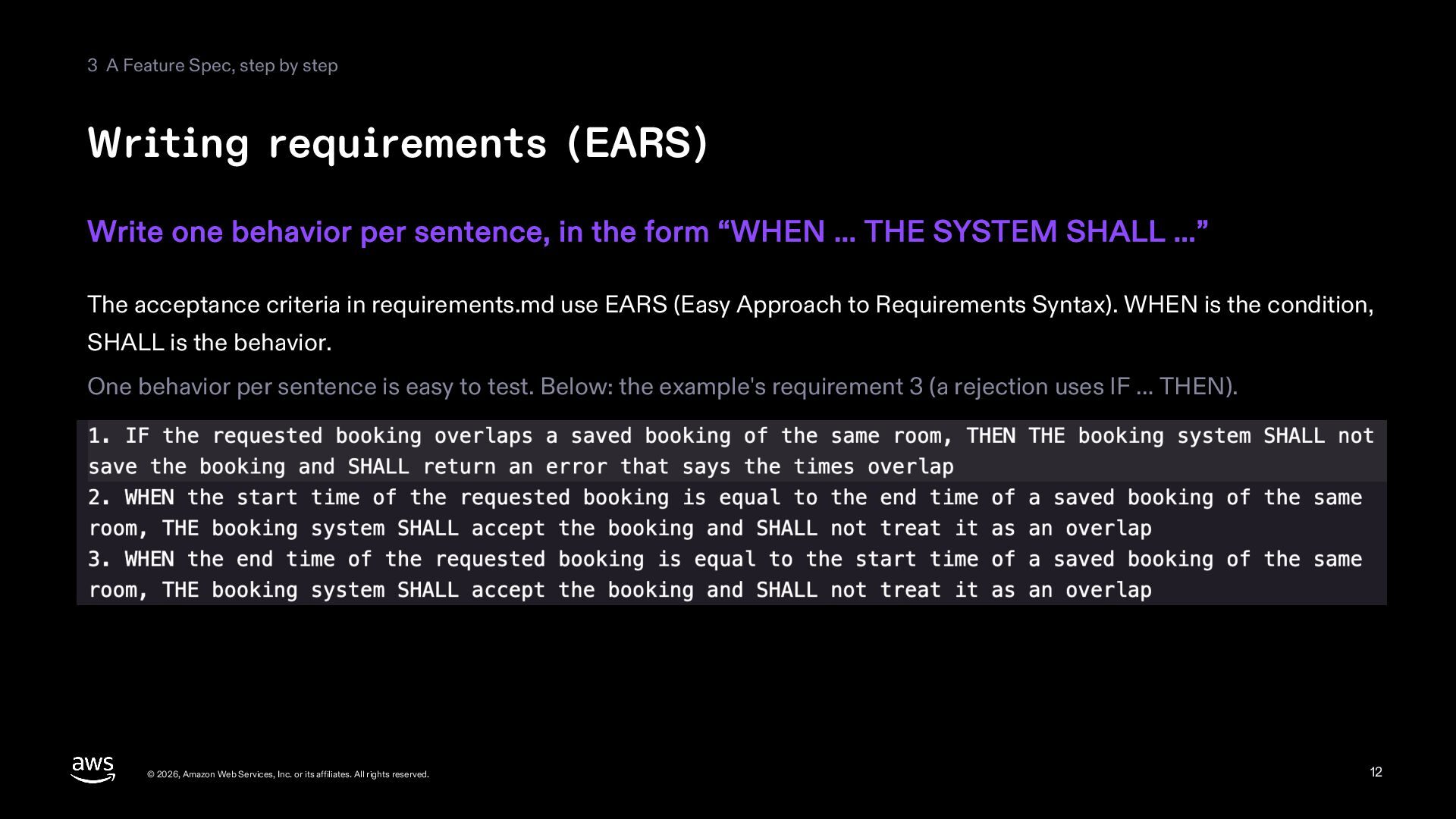
    Write one behavior per sentence, in the form “WHEN … THE SYSTEM SHALL …” The acceptance criteria in requirements.md use EARS (Easy Approach to Requirements Syntax). WHEN is the condition, SHALL is the behavior. One behavior per sentence is easy to test. Below: the example's requirement 3 (a rejection uses IF … THEN). © 2026, Amazon Web Services, Inc. or its affiliates. All rights reserved. 12
  13. 3 A Feature Spec, step by step Correct the requirements

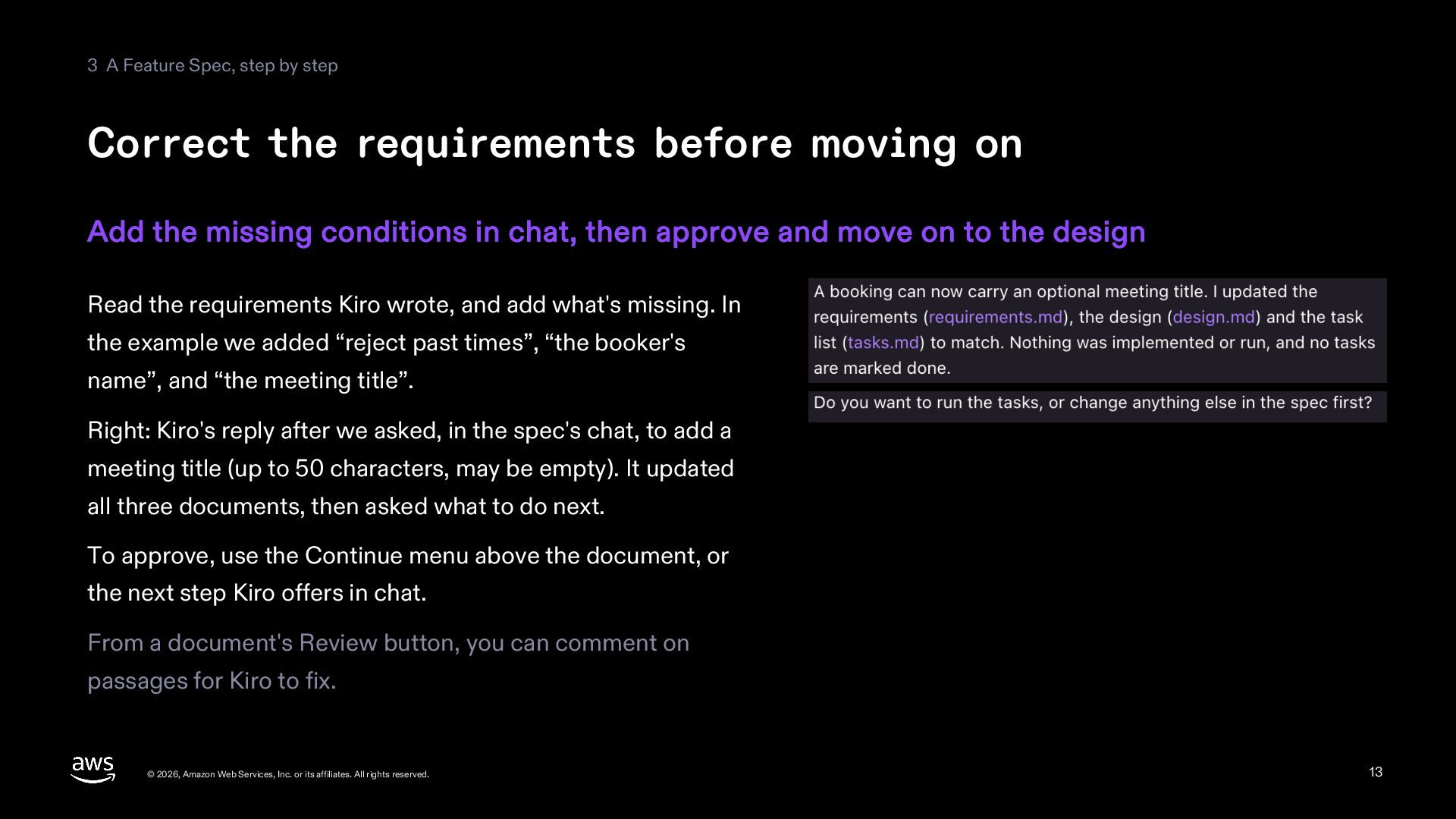
    before moving on Add the missing conditions in chat, then approve and move on to the design Read the requirements Kiro wrote, and add what's missing. In the example we added “reject past times”, “the booker's name”, and “the meeting title”. Right: Kiro's reply after we asked, in the spec's chat, to add a meeting title (up to 50 characters, may be empty). It updated all three documents, then asked what to do next. To approve, use the Continue menu above the document, or the next step Kiro offers in chat. From a document's Review button, you can comment on passages for Kiro to fix. © 2026, Amazon Web Services, Inc. or its affiliates. All rights reserved. 13
  14. 3 A Feature Spec, step by step Analyze the requirements

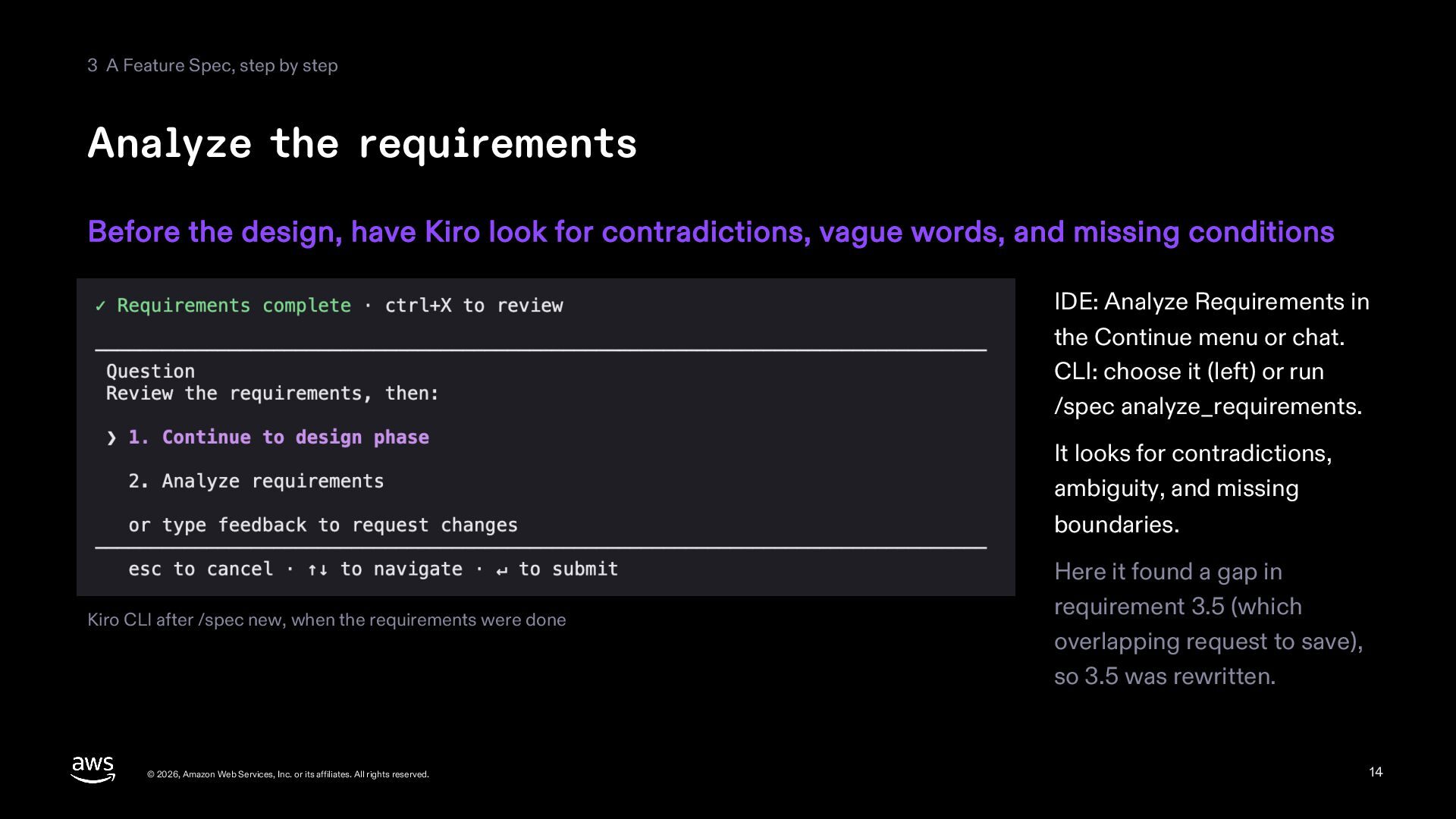
    Before the design, have Kiro look for contradictions, vague words, and missing conditions IDE: Analyze Requirements in the Continue menu or chat. CLI: choose it (left) or run /spec analyze_requirements. It looks for contradictions, ambiguity, and missing boundaries. Kiro CLI after /spec new, when the requirements were done © 2026, Amazon Web Services, Inc. or its affiliates. All rights reserved. Here it found a gap in requirement 3.5 (which overlapping request to save), so 3.5 was rewritten. 14
  15. 3 A Feature Spec, step by step The design document

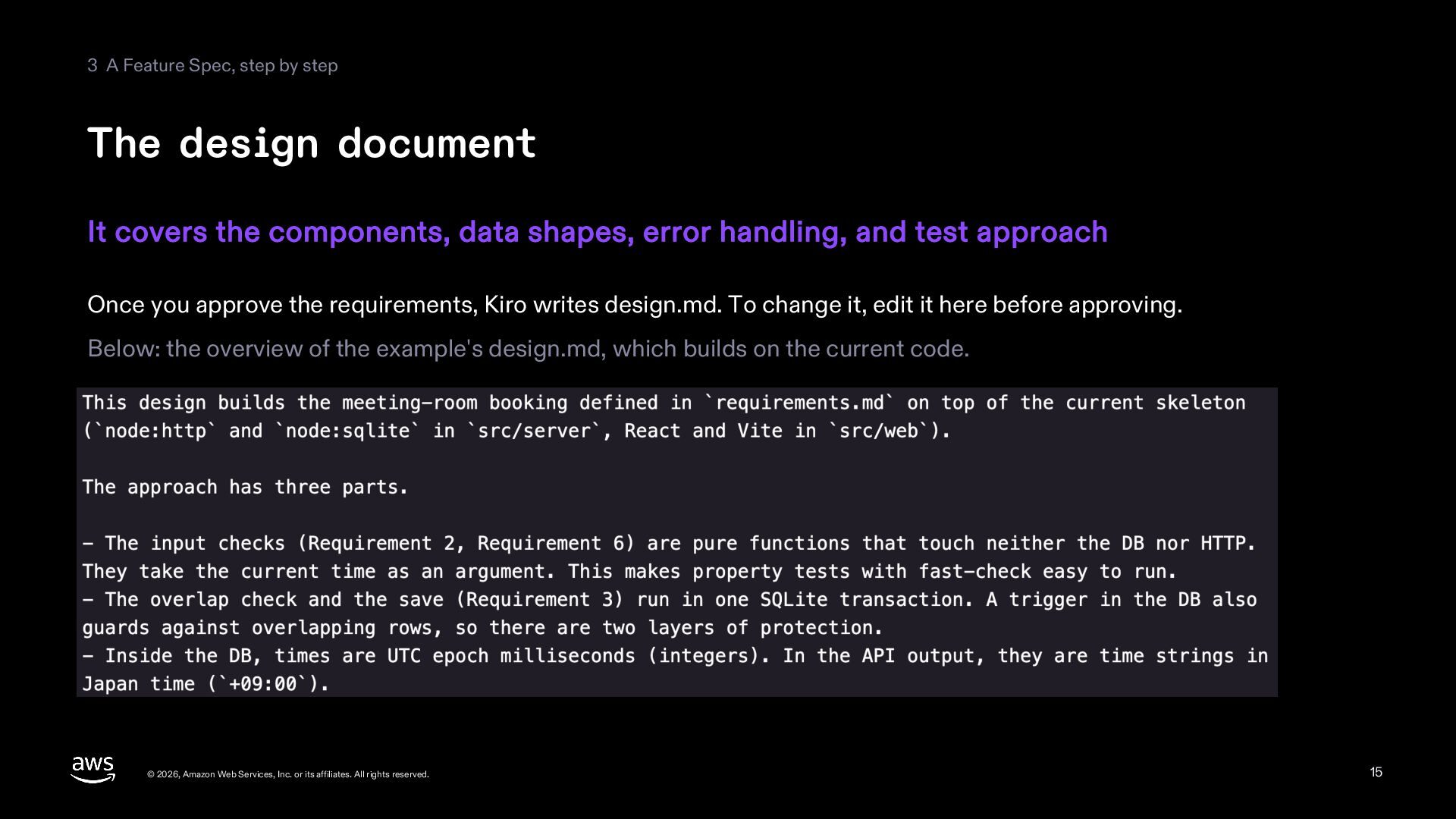
    It covers the components, data shapes, error handling, and test approach Once you approve the requirements, Kiro writes design.md. To change it, edit it here before approving. Below: the overview of the example's design.md, which builds on the current code. © 2026, Amazon Web Services, Inc. or its affiliates. All rights reserved. 15
  16. 3 A Feature Spec, step by step The task document

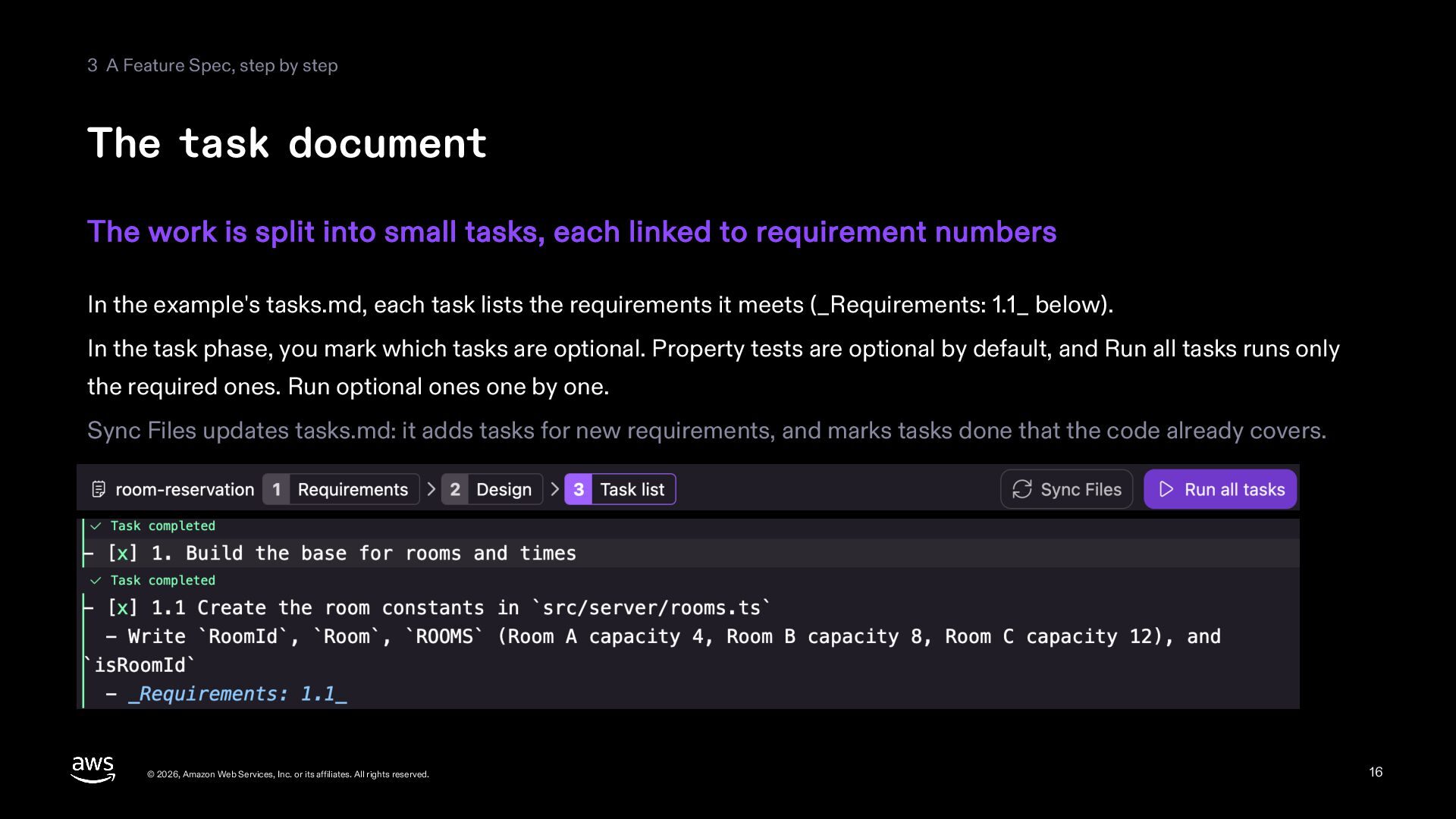
    The work is split into small tasks, each linked to requirement numbers In the example's tasks.md, each task lists the requirements it meets (_Requirements: 1.1_ below). In the task phase, you mark which tasks are optional. Property tests are optional by default, and Run all tasks runs only the required ones. Run optional ones one by one. Sync Files updates tasks.md: it adds tasks for new requirements, and marks tasks done that the code already covers. © 2026, Amazon Web Services, Inc. or its affiliates. All rights reserved. 16
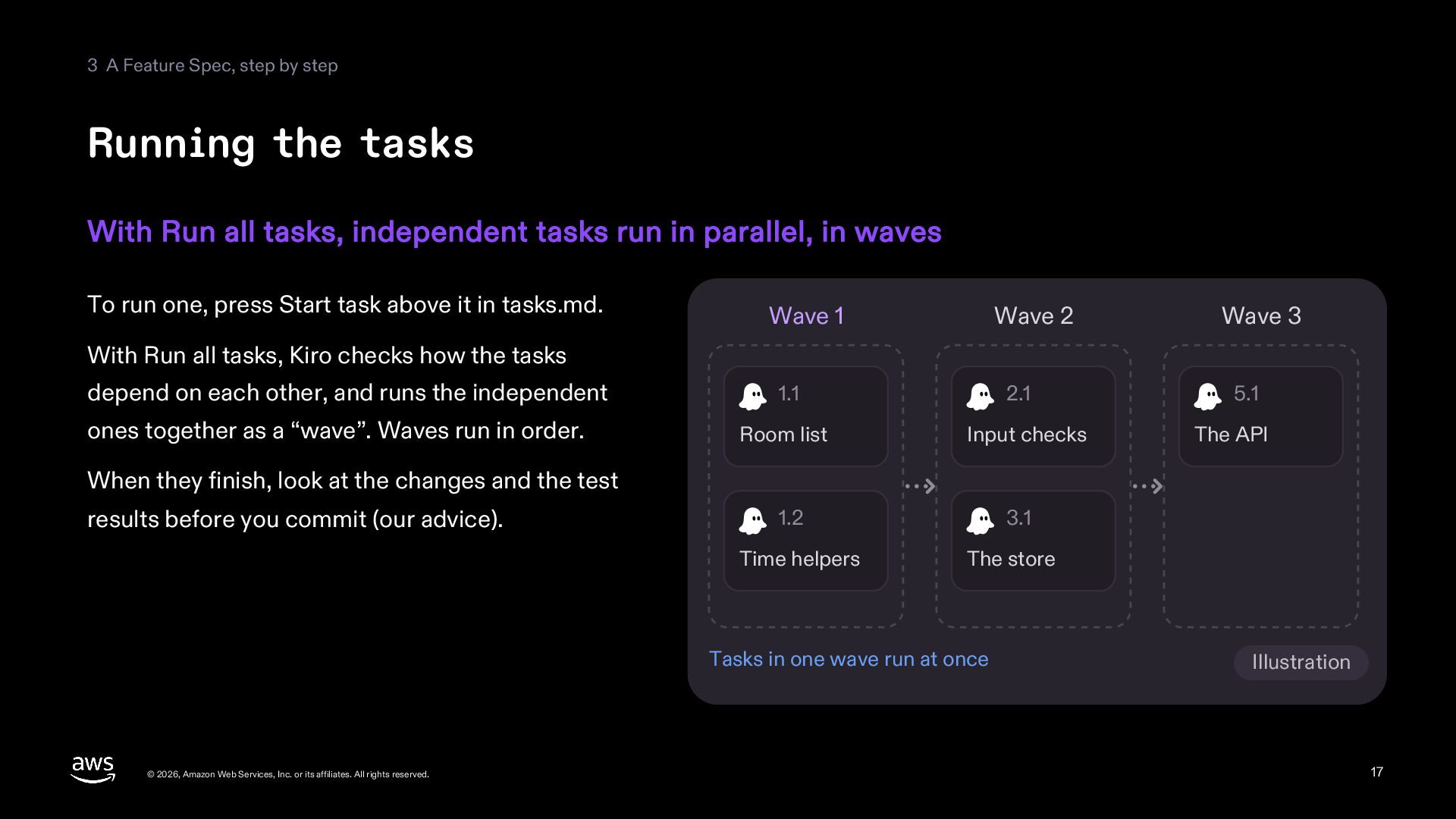
  17. 3 A Feature Spec, step by step Running the tasks

    With Run all tasks, independent tasks run in parallel, in waves To run one, press Start task above it in tasks.md. Wave 1 Wave 2 Wave 3 depend on each other, and runs the independent 1.1 2.1 5.1 ones together as a “wave”. Waves run in order. Room list Input checks The API 1.2 3.1 Time helpers The store With Run all tasks, Kiro checks how the tasks When they finish, look at the changes and the test results before you commit (our advice). Tasks in one wave run at once © 2026, Amazon Web Services, Inc. or its affiliates. All rights reserved. Illustration 17
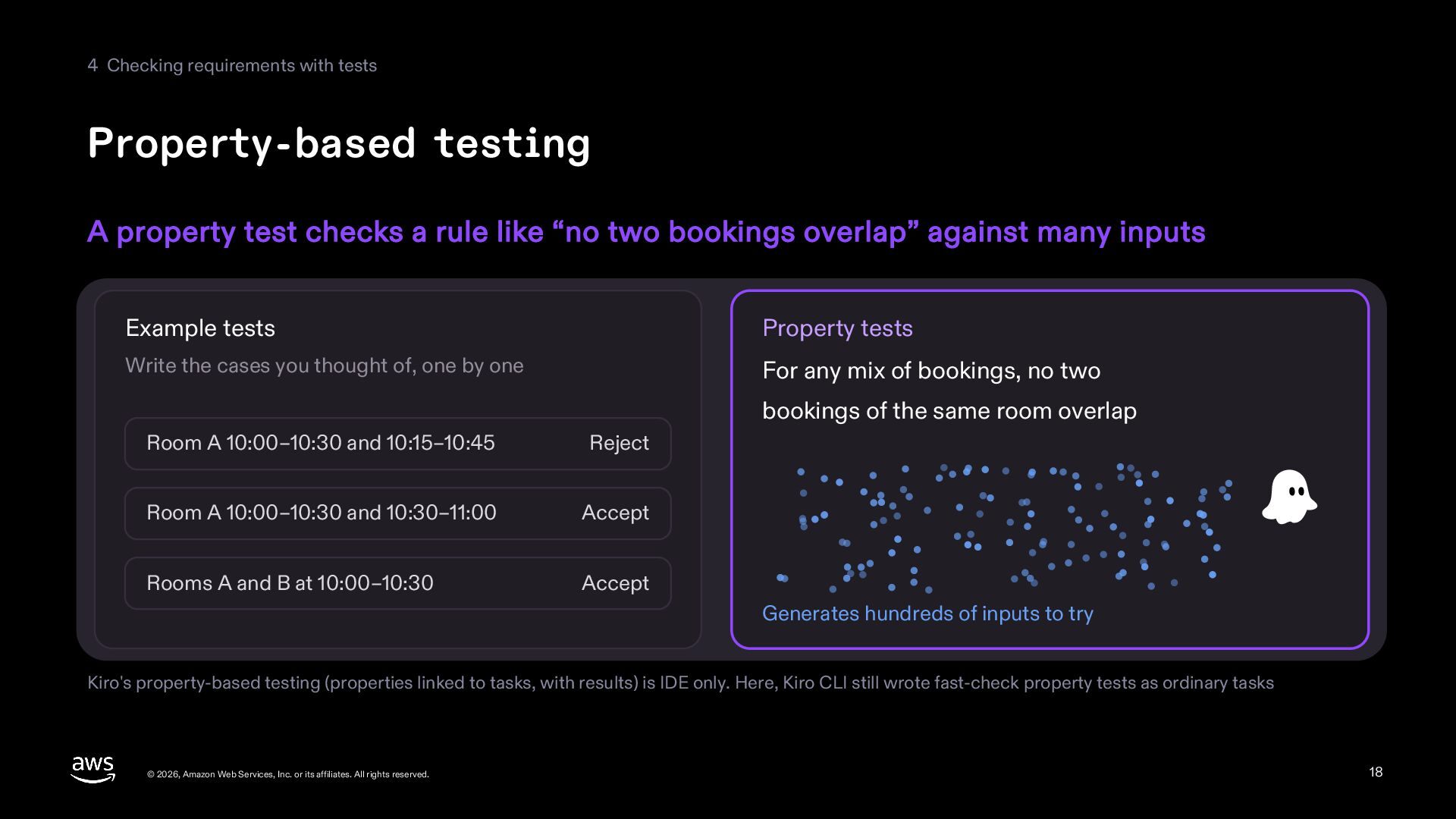
  18. 4 Checking requirements with tests Property-based testing A property test

    checks a rule like “no two bookings overlap” against many inputs Example tests Property tests Write the cases you thought of, one by one For any mix of bookings, no two bookings of the same room overlap Room A 10:00–10:30 and 10:15–10:45 Reject Room A 10:00–10:30 and 10:30–11:00 Accept Rooms A and B at 10:00–10:30 Accept Generates hundreds of inputs to try Kiro's property-based testing (properties linked to tasks, with results) is IDE only. Here, Kiro CLI still wrote fast-check property tests as ordinary tasks © 2026, Amazon Web Services, Inc. or its affiliates. All rights reserved. 18
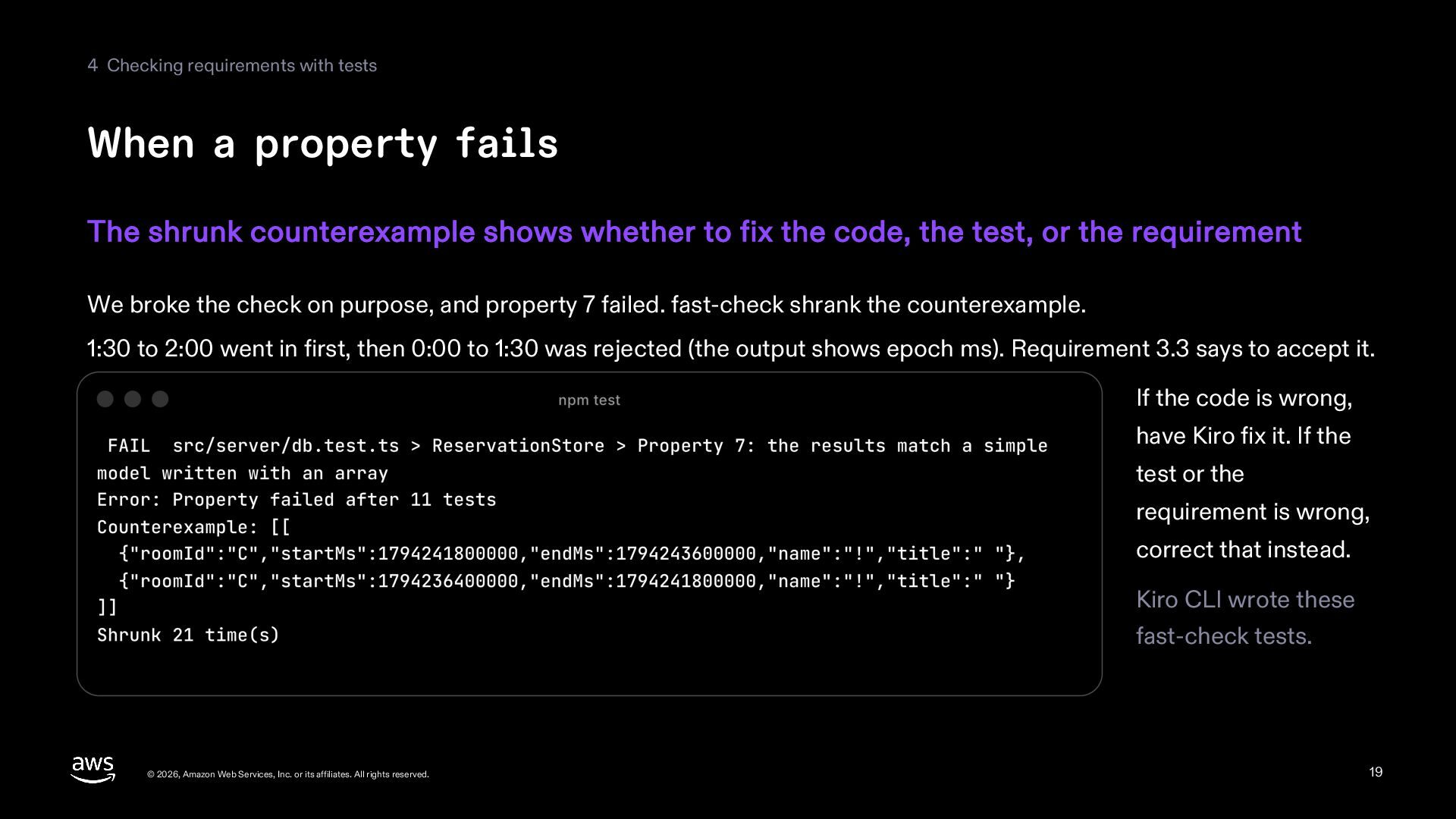
  19. 4 Checking requirements with tests When a property fails The

    shrunk counterexample shows whether to fix the code, the test, or the requirement We broke the check on purpose, and property 7 failed. fast-check shrank the counterexample. 1:30 to 2:00 went in first, then 0:00 to 1:30 was rejected (the output shows epoch ms). Requirement 3.3 says to accept it. If the code is wrong, have Kiro fix it. If the test or the requirement is wrong, correct that instead. Kiro CLI wrote these fast-check tests. © 2026, Amazon Web Services, Inc. or its affiliates. All rights reserved. 19
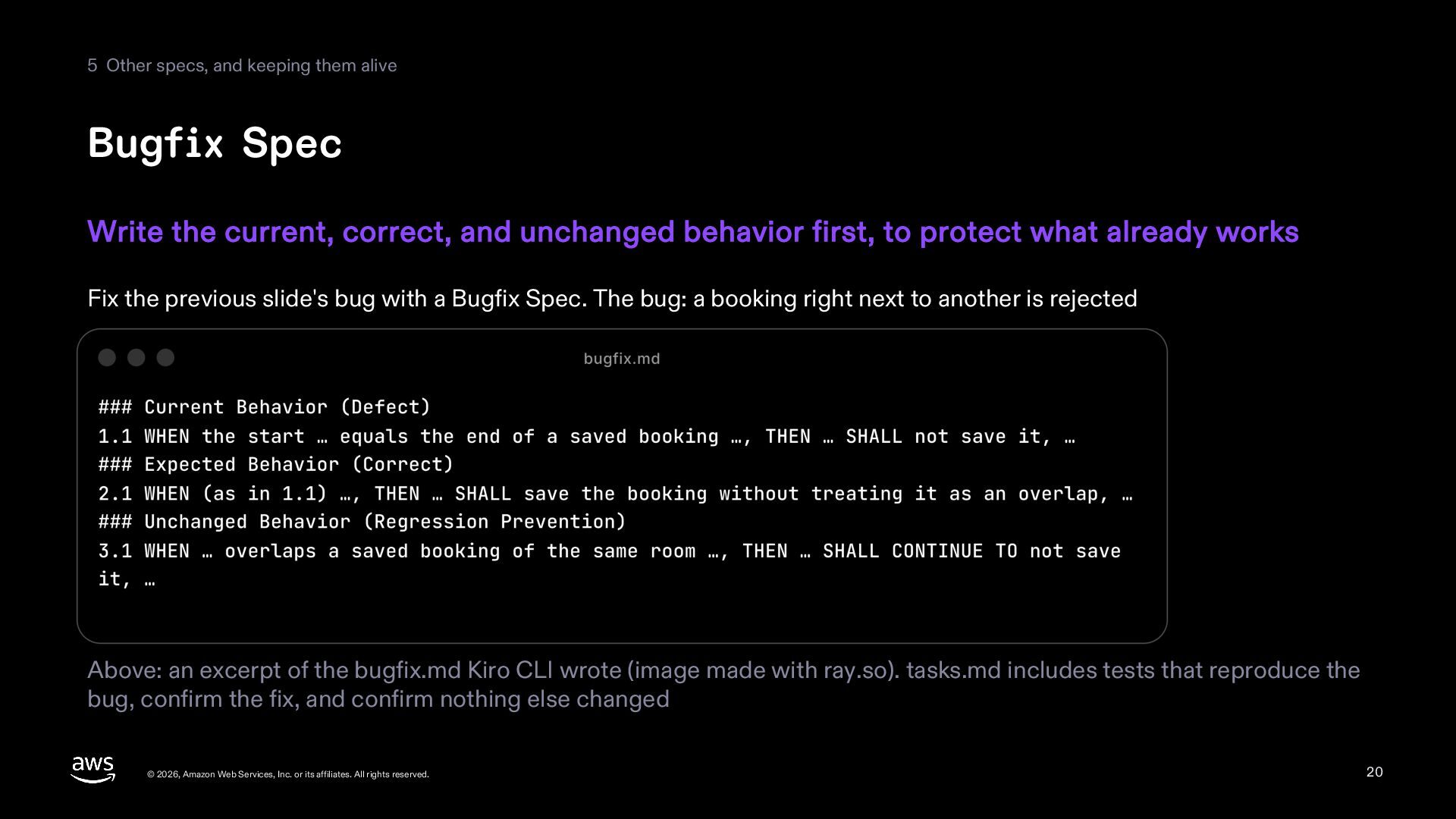
  20. 5 Other specs, and keeping them alive Bugfix Spec Write

    the current, correct, and unchanged behavior first, to protect what already works Fix the previous slide's bug with a Bugfix Spec. The bug: a booking right next to another is rejected Above: an excerpt of the bugfix.md Kiro CLI wrote (image made with ray.so). tasks.md includes tests that reproduce the bug, confirm the fix, and confirm nothing else changed © 2026, Amazon Web Services, Inc. or its affiliates. All rights reserved. 20
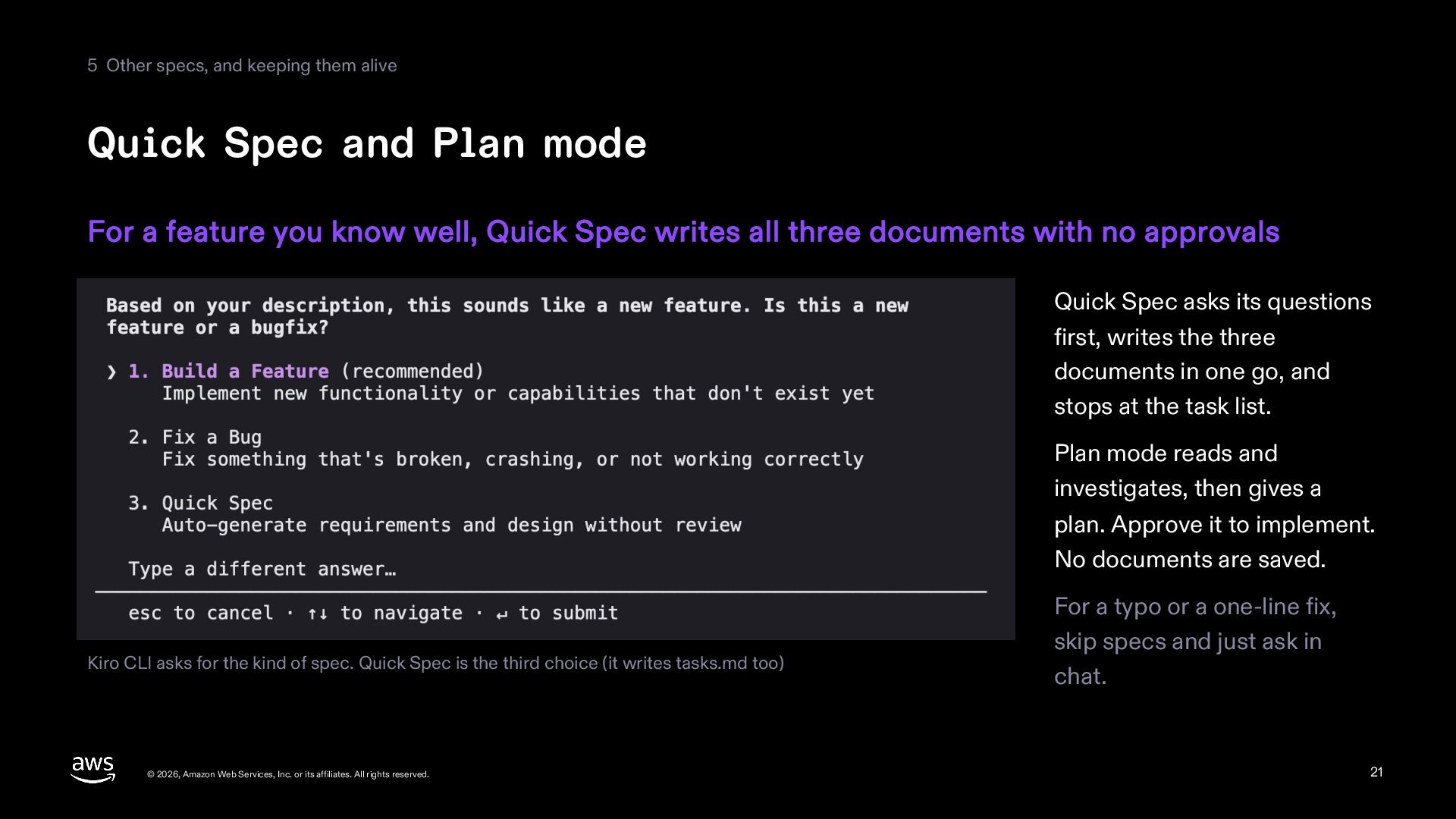
  21. 5 Other specs, and keeping them alive Quick Spec and

    Plan mode For a feature you know well, Quick Spec writes all three documents with no approvals Quick Spec asks its questions first, writes the three documents in one go, and stops at the task list. Plan mode reads and investigates, then gives a plan. Approve it to implement. No documents are saved. Kiro CLI asks for the kind of spec. Quick Spec is the third choice (it writes tasks.md too) © 2026, Amazon Web Services, Inc. or its affiliates. All rights reserved. For a typo or a one-line fix, skip specs and just ask in chat. 21
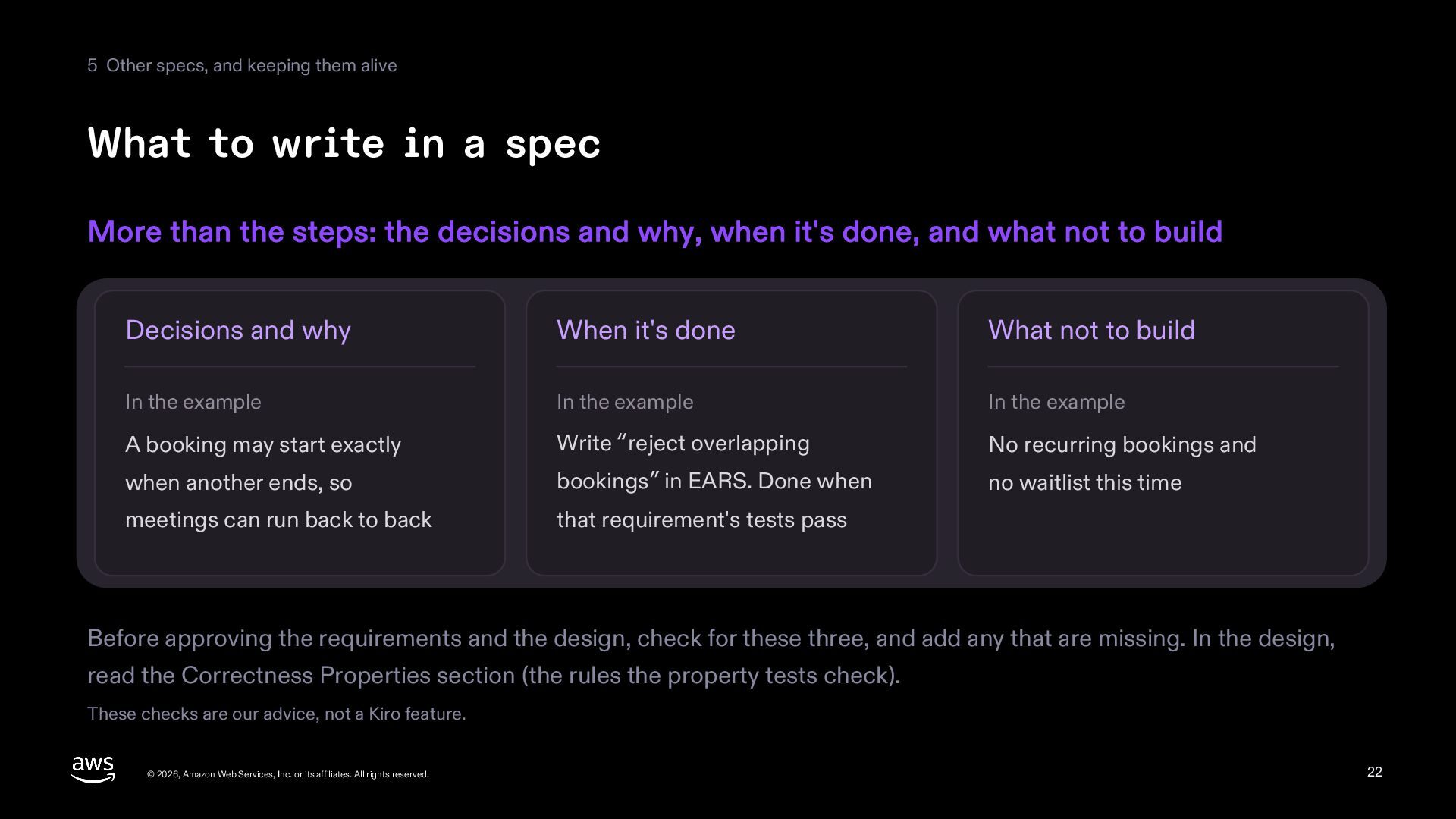
  22. 5 Other specs, and keeping them alive What to write

    in a spec More than the steps: the decisions and why, when it's done, and what not to build Decisions and why When it's done What not to build In the example In the example In the example A booking may start exactly Write “reject overlapping No recurring bookings and when another ends, so bookings” in EARS. Done when no waitlist this time meetings can run back to back that requirement's tests pass Before approving the requirements and the design, check for these three, and add any that are missing. In the design, read the Correctness Properties section (the rules the property tests check). These checks are our advice, not a Kiro feature. © 2026, Amazon Web Services, Inc. or its affiliates. All rights reserved. 22
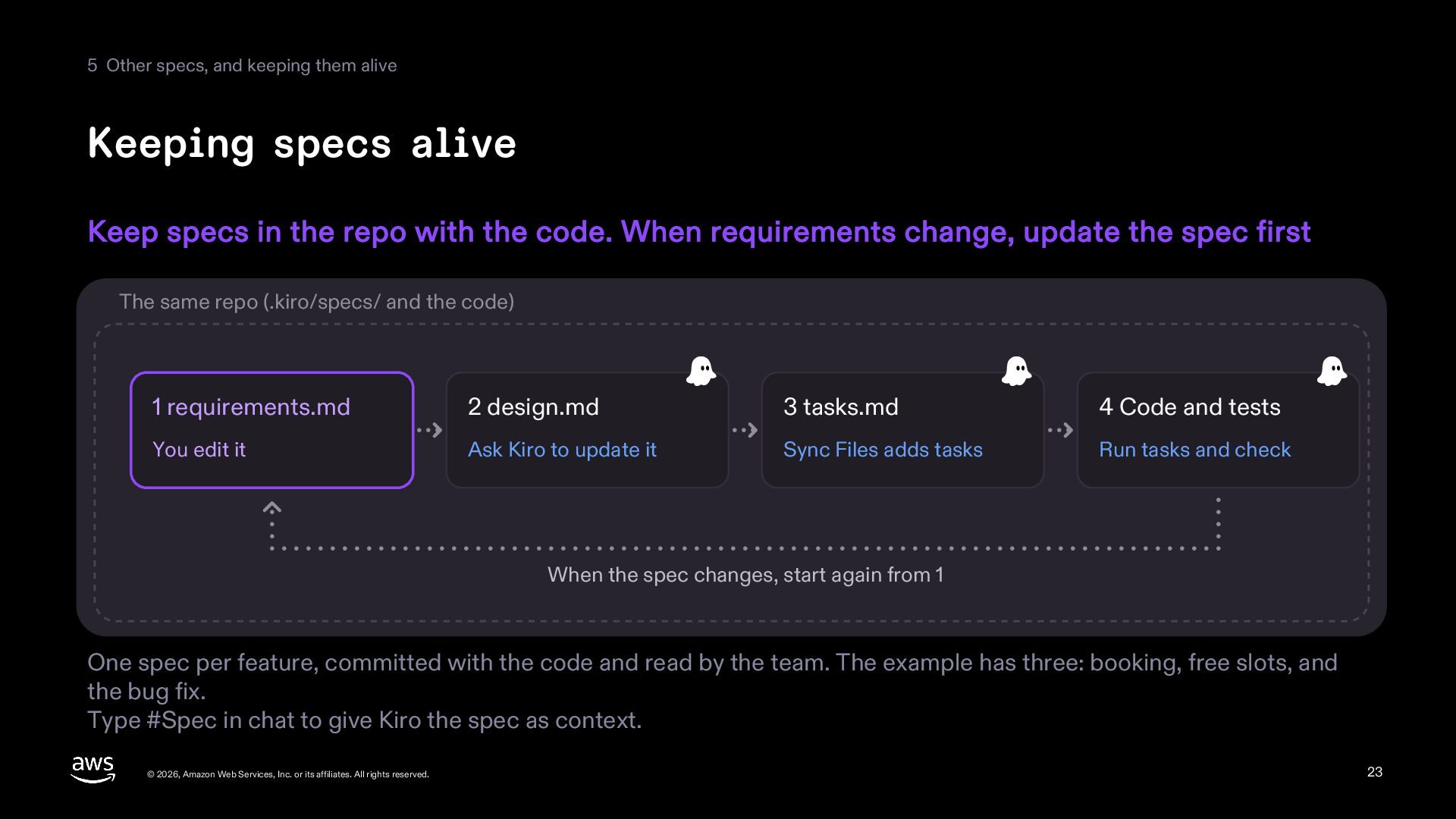
  23. 5 Other specs, and keeping them alive Keeping specs alive

    Keep specs in the repo with the code. When requirements change, update the spec first The same repo (.kiro/specs/ and the code) 1 requirements.md 2 design.md 3 tasks.md 4 Code and tests You edit it Ask Kiro to update it Sync Files adds tasks Run tasks and check When the spec changes, start again from 1 One spec per feature, committed with the code and read by the team. The example has three: booking, free slots, and the bug fix. Type #Spec in chat to give Kiro the spec as context. © 2026, Amazon Web Services, Inc. or its affiliates. All rights reserved. 23
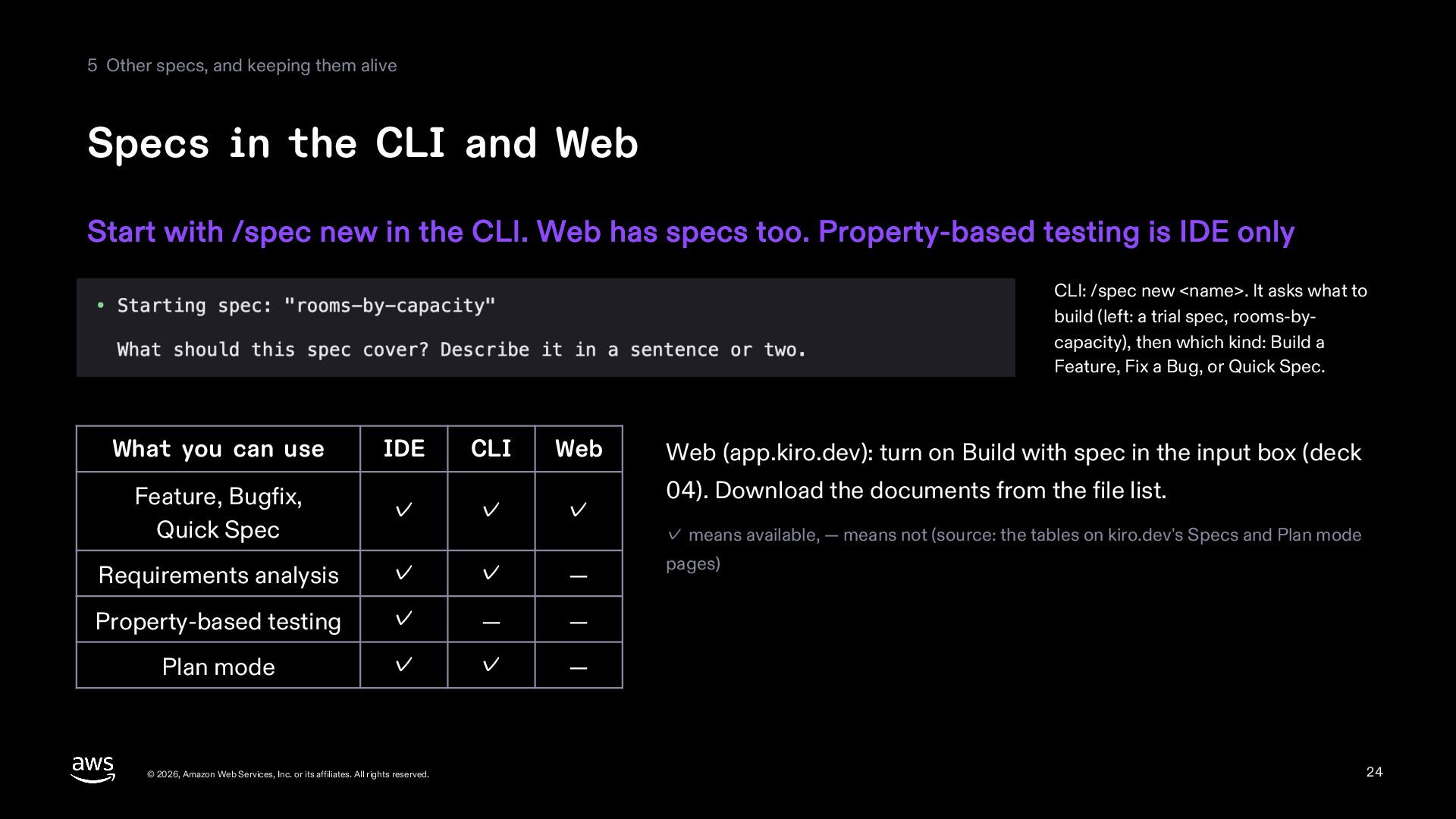
  24. 5 Other specs, and keeping them alive Specs in the

    CLI and Web Start with /spec new in the CLI. Web has specs too. Property-based testing is IDE only CLI: /spec new <name>. It asks what to build (left: a trial spec, rooms-bycapacity), then which kind: Build a Feature, Fix a Bug, or Quick Spec. What you can use IDE CLI Web Feature, Bugfix, Quick Spec ✓ ✓ ✓ Requirements analysis ✓ ✓ — Property-based testing ✓ — — Plan mode ✓ ✓ — © 2026, Amazon Web Services, Inc. or its affiliates. All rights reserved. Web (app.kiro.dev): turn on Build with spec in the input box (deck 04). Download the documents from the file list. ✓ means available, — means not (source: the tables on kiro.dev's Specs and Plan mode pages) 24
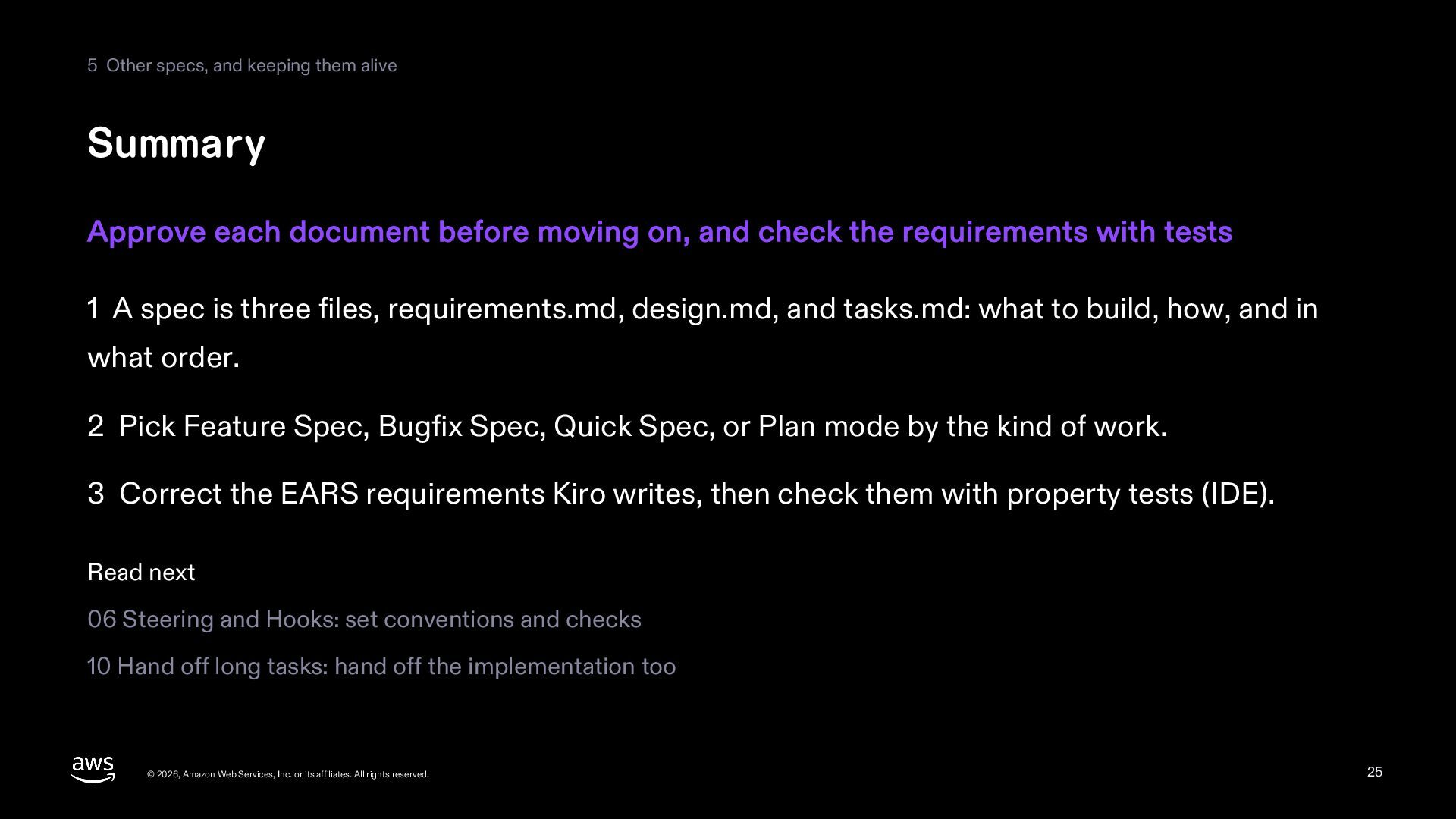
  25. 5 Other specs, and keeping them alive Summary Approve each

    document before moving on, and check the requirements with tests 1 A spec is three files, requirements.md, design.md, and tasks.md: what to build, how, and in what order. 2 Pick Feature Spec, Bugfix Spec, Quick Spec, or Plan mode by the kind of work. 3 Correct the EARS requirements Kiro writes, then check them with property tests (IDE). Read next 06 Steering and Hooks: set conventions and checks 10 Hand off long tasks: hand off the implementation too © 2026, Amazon Web Services, Inc. or its affiliates. All rights reserved. 25
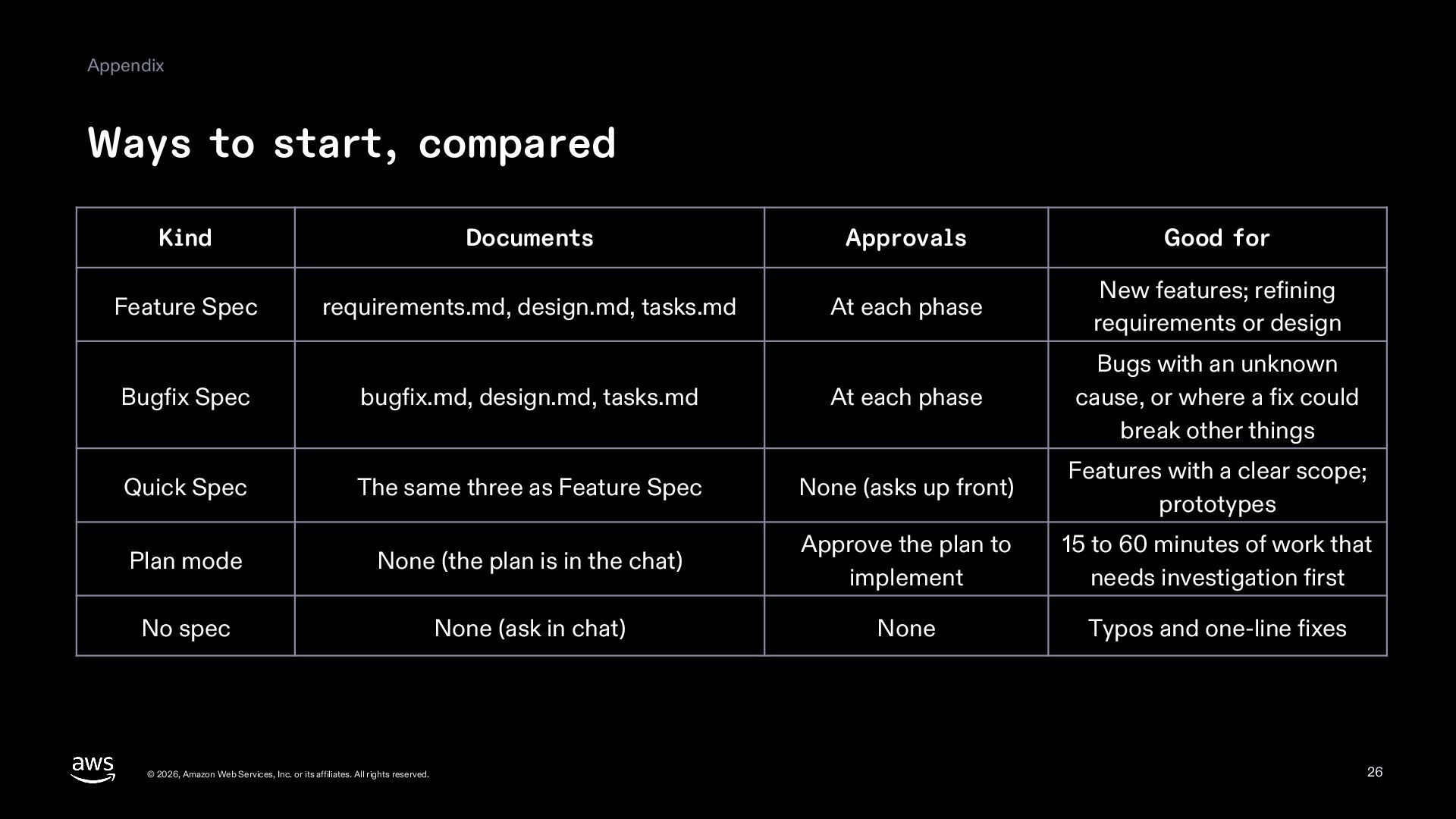
  26. Appendix Ways to start, compared Kind Documents Approvals Good for

    Feature Spec requirements.md, design.md, tasks.md At each phase New features; refining requirements or design Bugfix Spec bugfix.md, design.md, tasks.md At each phase Bugs with an unknown cause, or where a fix could break other things Quick Spec The same three as Feature Spec None (asks up front) Features with a clear scope; prototypes Plan mode None (the plan is in the chat) Approve the plan to implement 15 to 60 minutes of work that needs investigation first No spec None (ask in chat) None Typos and one-line fixes © 2026, Amazon Web Services, Inc. or its affiliates. All rights reserved. 26
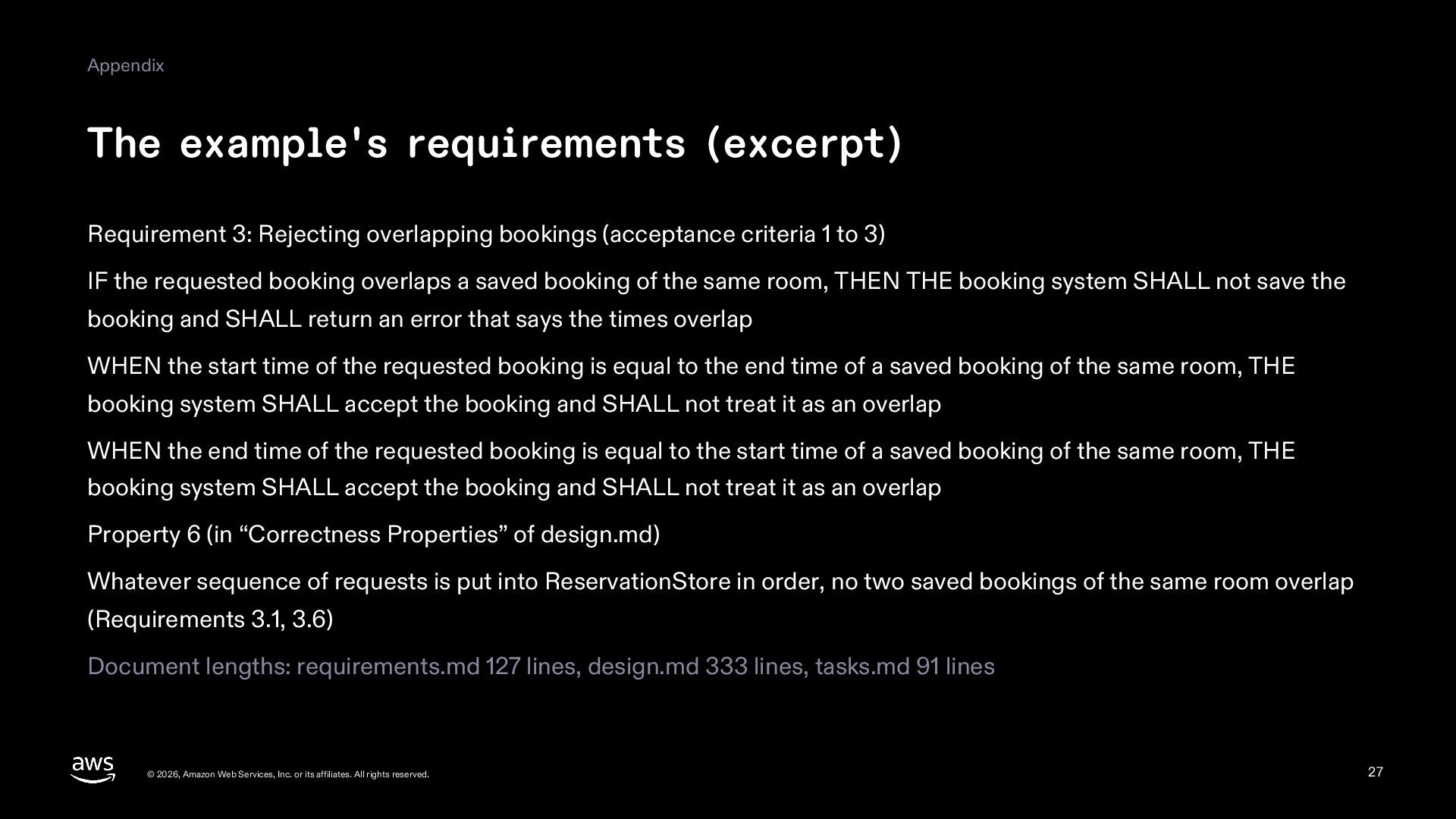
  27. Appendix The example's requirements (excerpt) Requirement 3: Rejecting overlapping bookings

    (acceptance criteria 1 to 3) IF the requested booking overlaps a saved booking of the same room, THEN THE booking system SHALL not save the booking and SHALL return an error that says the times overlap WHEN the start time of the requested booking is equal to the end time of a saved booking of the same room, THE booking system SHALL accept the booking and SHALL not treat it as an overlap WHEN the end time of the requested booking is equal to the start time of a saved booking of the same room, THE booking system SHALL accept the booking and SHALL not treat it as an overlap Property 6 (in “Correctness Properties” of design.md) Whatever sequence of requests is put into ReservationStore in order, no two saved bookings of the same room overlap (Requirements 3.1, 3.6) Document lengths: requirements.md 127 lines, design.md 333 lines, tasks.md 91 lines © 2026, Amazon Web Services, Inc. or its affiliates. All rights reserved. 27
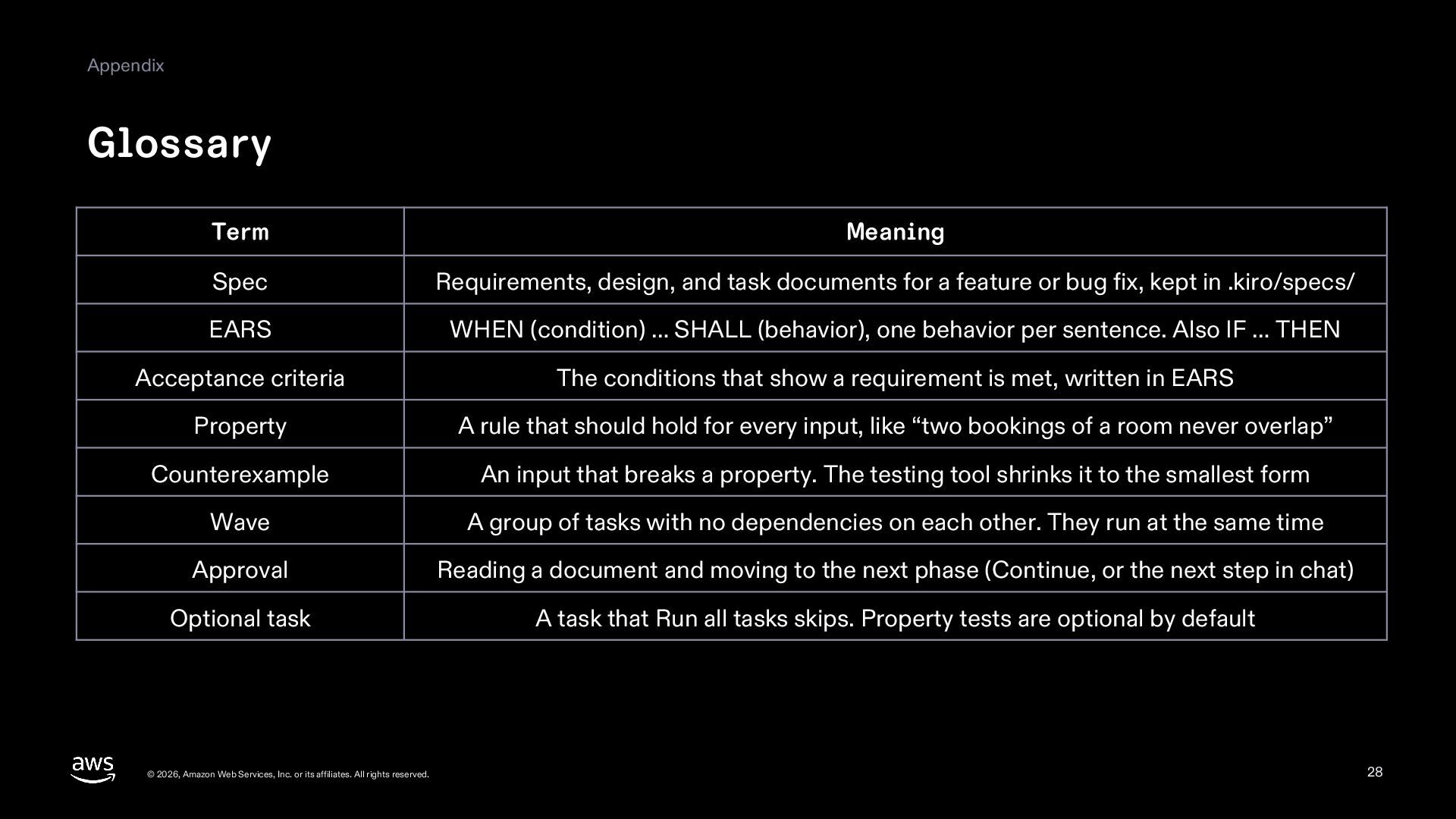
  28. Appendix Glossary Term Meaning Spec Requirements, design, and task documents

    for a feature or bug fix, kept in .kiro/specs/ EARS WHEN (condition) … SHALL (behavior), one behavior per sentence. Also IF … THEN Acceptance criteria The conditions that show a requirement is met, written in EARS Property A rule that should hold for every input, like “two bookings of a room never overlap” Counterexample An input that breaks a property. The testing tool shrinks it to the smallest form Wave A group of tasks with no dependencies on each other. They run at the same time Approval Reading a document and moving to the next phase (Continue, or the next step in chat) Optional task A task that Run all tasks skips. Property tests are optional by default © 2026, Amazon Web Services, Inc. or its affiliates. All rights reserved. 28
  29. Appendix Sources and references kiro.dev docs: Specs and the pages

    under it (Feature Specs, Bugfix Specs, Quick Spec, Analyze Requirements, Correctness, Best practices) https://kiro.dev/docs/specs/ kiro.dev docs: Plan mode, Built-in agents, Autopilot https://kiro.dev/docs/specs/plan/ https://kiro.dev/docs/custom-agents/built-in/ https://kiro.dev/docs/ide/chat/autopilot/ kiro.dev docs: Upgrade from CLI 2.x (What's new in V3) https://kiro.dev/docs/cli/v3/ kiro.dev changelog: Parallel Task Execution, Quick Plan, and Requirements Analysis (IDE 0.12, 2026-05-06; Quick Spec was called Quick Plan then) https://kiro.dev/changelog/ide/0-12/ AWS blog (Japanese): From chat to specs, a deep dive into AI-assisted development with Kiro (2025-09-11) https://aws.amazon.com/jp/blogs/news/from-chat-to-specs-deep-dive/ AWS blog (Japanese): Kiro, does your code match the spec? (2025-11-20) https://aws.amazon.com/jp/blogs/news/property-based-testing/ AWS blog (Japanese): New spec types for fixing bugs and building on existing apps (2026-02-19) https://aws.amazon.com/jp/blogs/news/specs-bugfix-and-design-first/ AWS blog (Japanese): Kiro's specs got faster and smarter (2026-06-11) https://aws.amazon.com/jp/blogs/news/faster-smarter-specs/ The kiro.dev docs were read on 2026-11-07 and 2026-11-08. Screens: Kiro IDE 1.4.121, Kiro CLI 3.0.0, and npm test output. The example is a meeting-room booking app made for this series; its spec documents were written by Kiro in Japanese and translated into English. © 2026, Amazon Web Services, Inc. or its affiliates. All rights reserved. 29