Quick Automate (Automate business processes wit...

Riku INADA PRO
November 11, 2026

Quick Automate (Automate business processes with human review) | AWS Quick: Zero to Hero 12

Level 200. A handout on Quick Automate in AWS Quick: automate long processes that cross teams and systems, with human review. It follows a fictional learning session: read each registration, check the room booking, get the approval of the approver, and send a confirmation email. It covers when to use Quick Automate instead of Quick Flows, the planning agent, the UI agent, and custom agents, three ways to build (from a sample, from words, from scratch), the four panes of the canvas, and testing with Run and Debug. It also covers tasks for people (forms and chat) and the states of a case, deploying a committed version, monitoring in Overview, Runs, Cases, and Amazon CloudWatch, the APIs that start and check runs, export and import across groups, accounts, and Regions, and the Viewer, Contributor, and Owner roles and credentials. Quick Automate is not on Free or Plus accounts created at aws.com/quick. The pricing page lists Enterprise and the FAQs also list Professional, so the deck shows both. Screens are from the web app in the Tokyo Region with the English display language, and the flow figures are drawn from the public documentation. The appendix lists the actions, a glossary, and the sources. Based on the public documentation and screens as of November 2026. Deck 12 (Let it run) of the series AWS Quick: Zero to Hero.

Riku INADA PRO

November 11, 2026

Annual Pro sale · Save $30

Have presentations of your own?

Share with private links, password protection, and more control over your work.

Transcript

27 slides
  1. AWS Quick: Zero to Hero Let it run Quick Automate

    Automate business processes with human review 12 Level 200 / As of November 2026 November 2026 Riku Inada Amazon Web Services Japan © 2026, Amazon Web © 2026, Services, Amazon Inc. or Web its Services, affiliates.Inc. All or rights its affiliates. reserved.All rights reserved. 1
  2. Introduction About me Riku Inada Amazon Web Services Japan G.K.

    Solutions Architect Works mainly with manufacturing customers Recent work Promoting the AI-Driven Development Life Cycle (AI-DLC) Writing and speaking about Kiro and AWS Amplify © 2026, Amazon Web Services, Inc. or its affiliates. All rights reserved. X @inada_riku Speaker Deck speakerdeck.com/inariku Zenn zenn.dev/inariku GitHub github.com/inariku 2
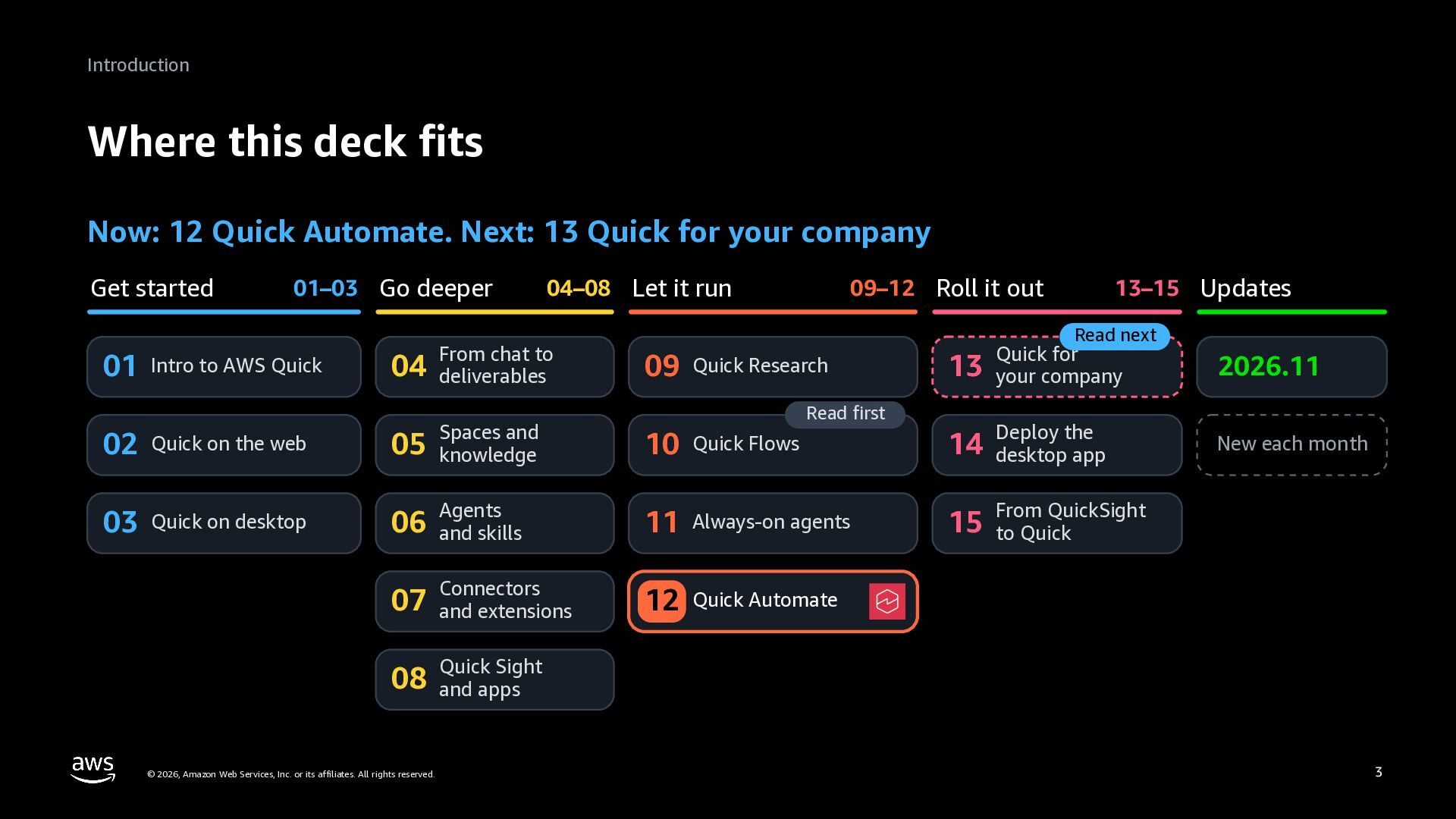
  3. Introduction Where this deck fits Now: 12 Quick Automate. Next:

    13 Quick for your company Get started 01–03 Go deeper 04–08 Let it run 09–12 Roll it out 13–15 Updates Read next 01 Intro to AWS Quick From chat to 04 deliverables 02 Quick on the web Spaces and 05 knowledge 10 Quick Flows 14 desktop app 03 Quick on desktop 06 Agents and skills 11 Always-on agents QuickSight 15 From to Quick 07 Connectors and extensions 12 Quick Automate 09 Quick Research Read first Quick for 13 your company Deploy the 2026.11 New each month Sight 08 Quick and apps © 2026, Amazon Web Services, Inc. or its affiliates. All rights reserved. 3
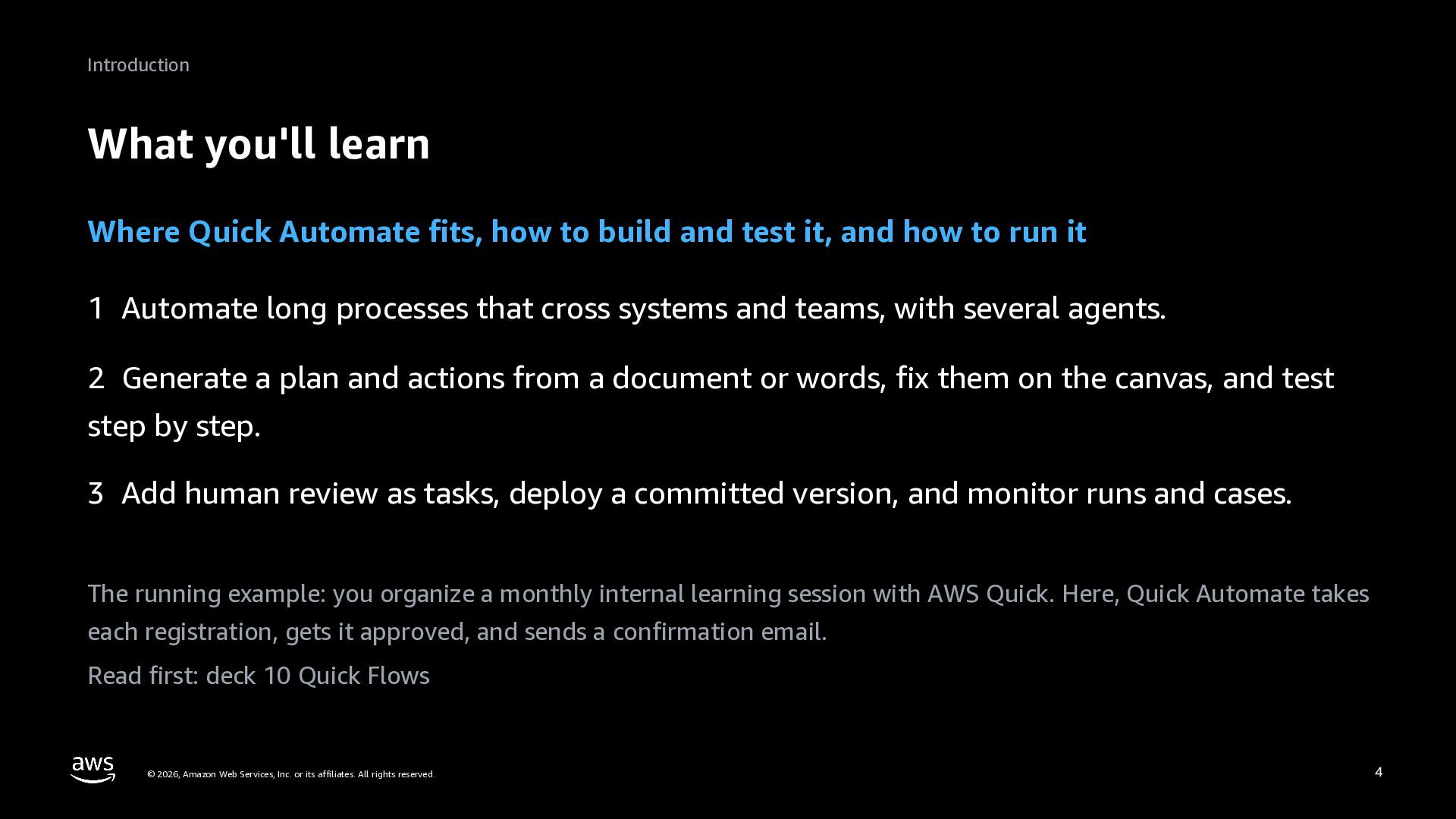
  4. Introduction What you'll learn Where Quick Automate fits, how to

    build and test it, and how to run it 1 Automate long processes that cross systems and teams, with several agents. 2 Generate a plan and actions from a document or words, fix them on the canvas, and test step by step. 3 Add human review as tasks, deploy a committed version, and monitor runs and cases. The running example: you organize a monthly internal learning session with AWS Quick. Here, Quick Automate takes each registration, gets it approved, and sends a confirmation email. Read first: deck 10 Quick Flows © 2026, Amazon Web Services, Inc. or its affiliates. All rights reserved. 4
  5. 1 What Quick Automate is © 2026, Amazon Web Services,

    Inc. or its affiliates. All rights reserved. 5
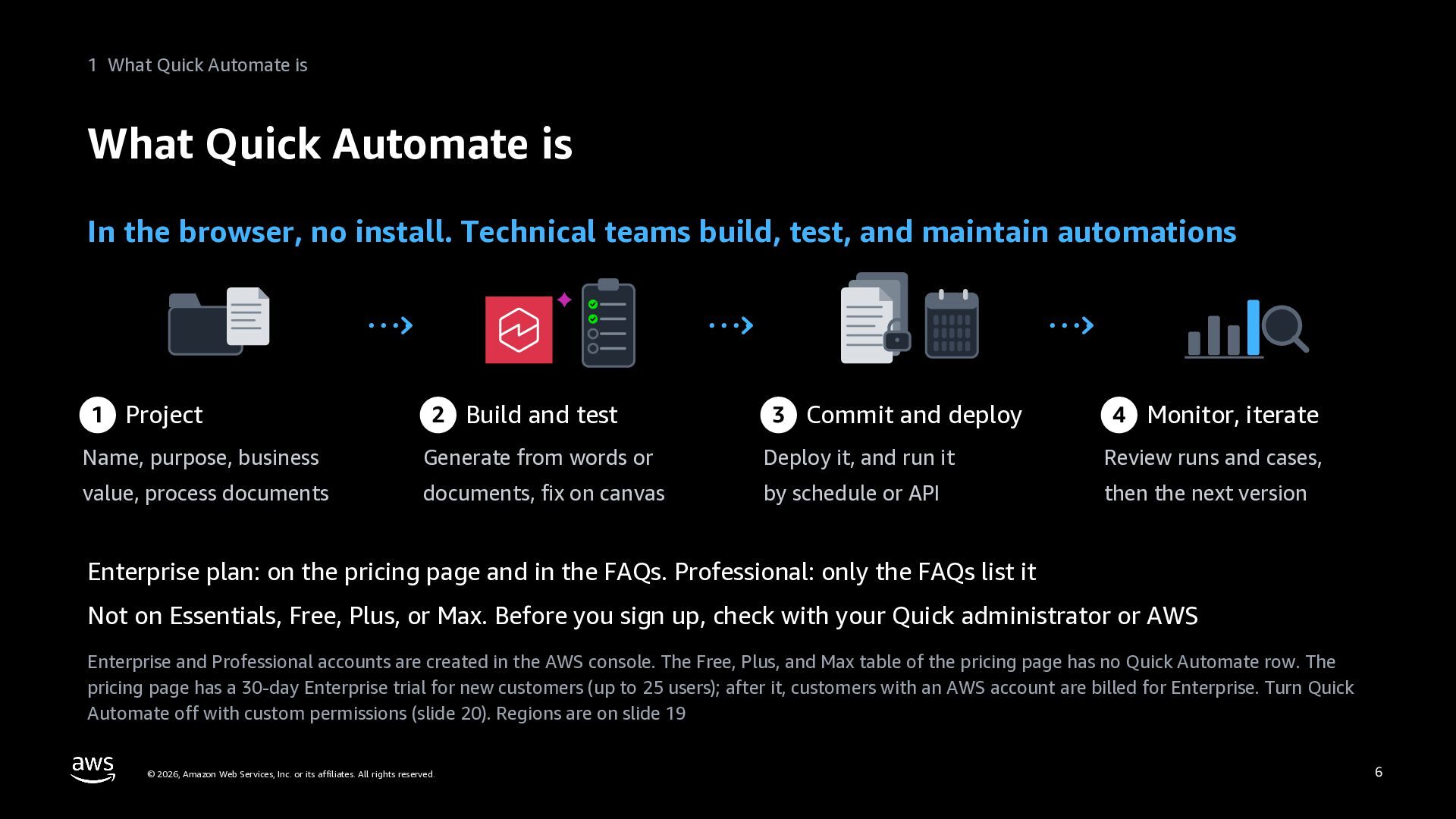
  6. 1 What Quick Automate is What Quick Automate is In

    the browser, no install. Technical teams build, test, and maintain automations 1 Project 2 Build and test 3 Commit and deploy 4 Monitor, iterate Name, purpose, business Generate from words or Deploy it, and run it Review runs and cases, value, process documents documents, fix on canvas by schedule or API then the next version Enterprise plan: on the pricing page and in the FAQs. Professional: only the FAQs list it Not on Essentials, Free, Plus, or Max. Before you sign up, check with your Quick administrator or AWS Enterprise and Professional accounts are created in the AWS console. The Free, Plus, and Max table of the pricing page has no Quick Automate row. The pricing page has a 30-day Enterprise trial for new customers (up to 25 users); after it, customers with an AWS account are billed for Enterprise. Turn Quick Automate off with custom permissions (slide 20). Regions are on slide 19 © 2026, Amazon Web Services, Inc. or its affiliates. All rights reserved. 6
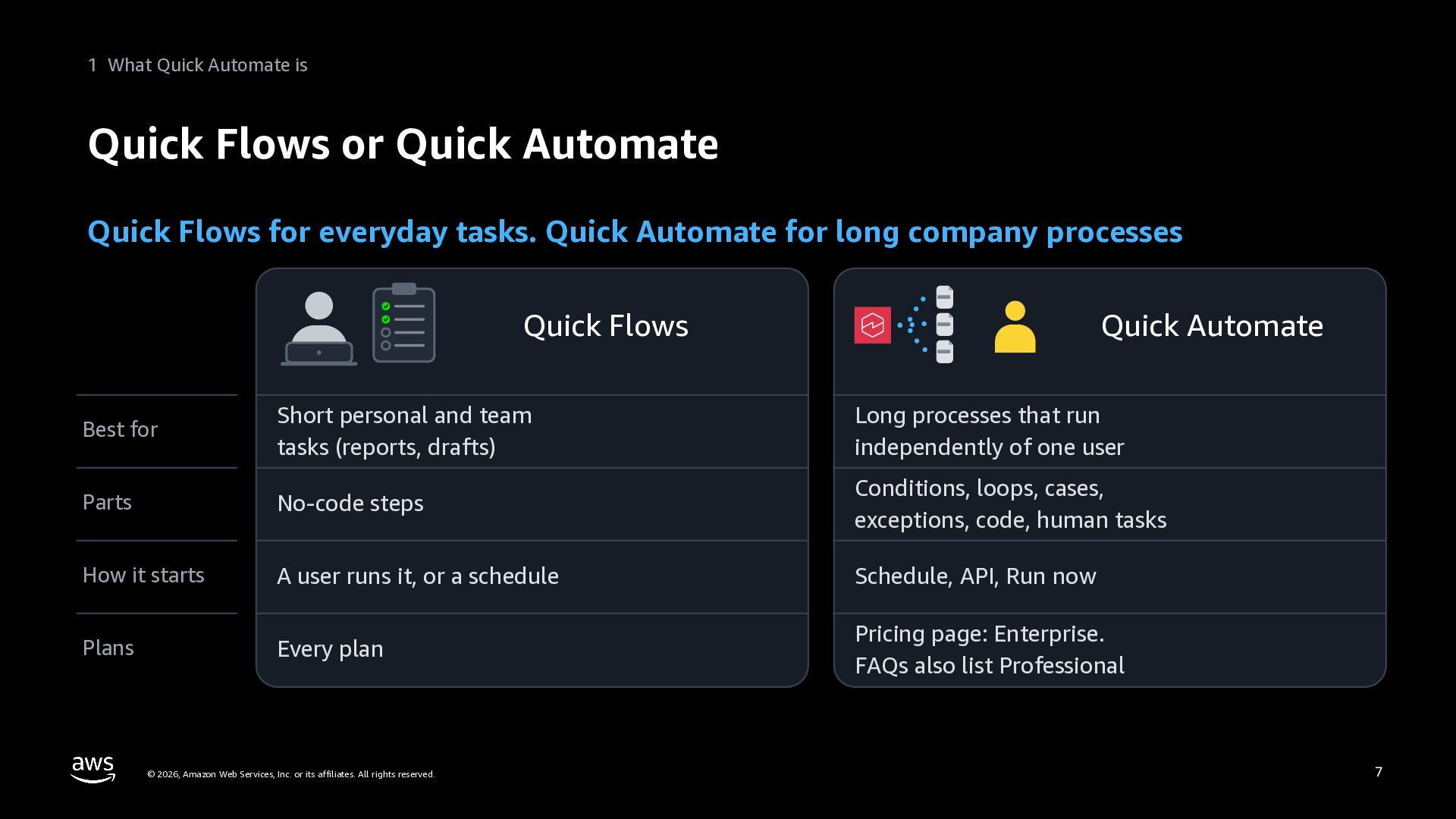
  7. 1 What Quick Automate is Quick Flows or Quick Automate

    Quick Flows for everyday tasks. Quick Automate for long company processes Quick Flows Quick Automate Best for Short personal and team tasks (reports, drafts) Long processes that run independently of one user Parts No-code steps Conditions, loops, cases, exceptions, code, human tasks How it starts A user runs it, or a schedule Schedule, API, Run now Plans Every plan Pricing page: Enterprise. FAQs also list Professional © 2026, Amazon Web Services, Inc. or its affiliates. All rights reserved. 7
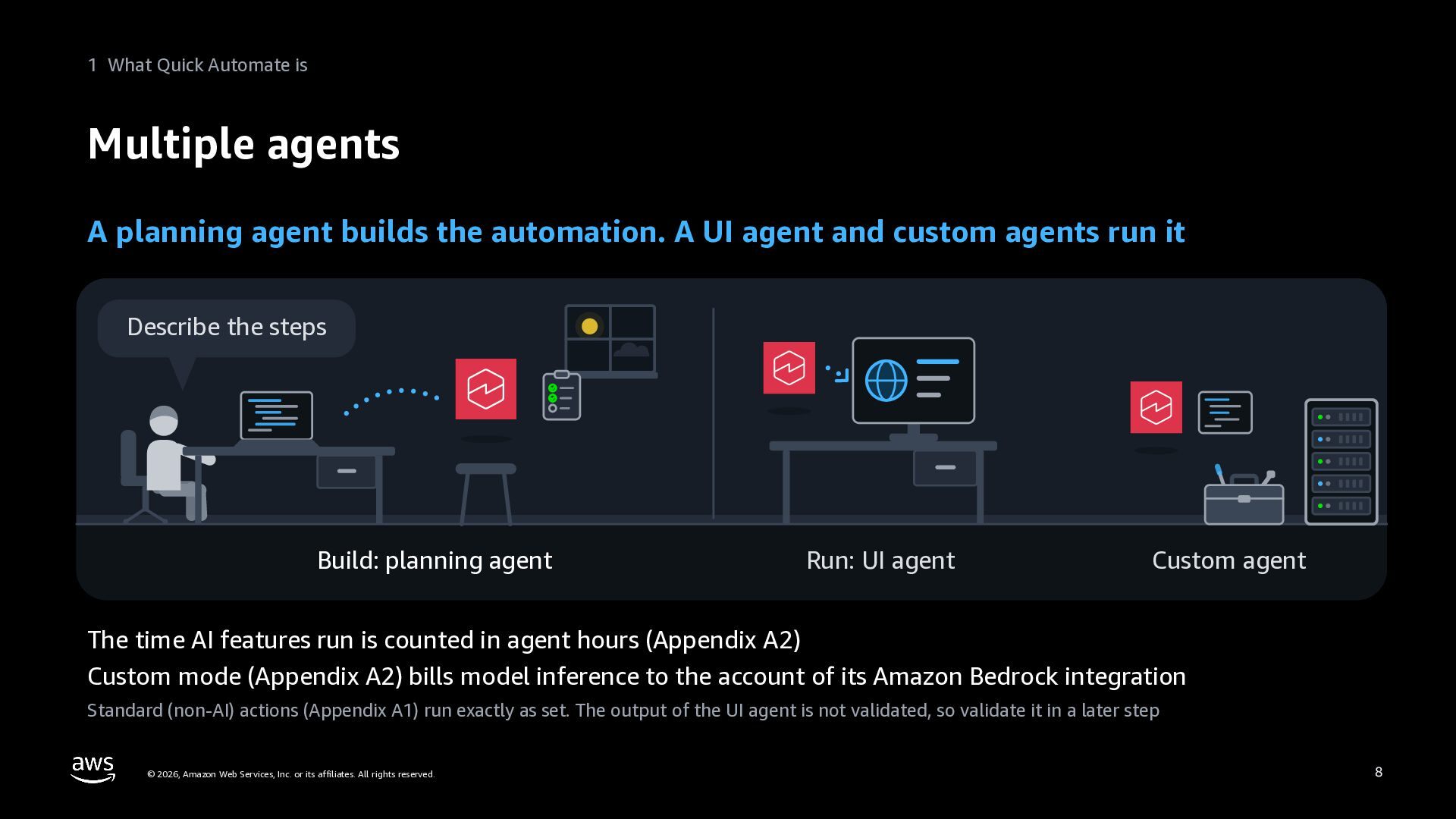
  8. 1 What Quick Automate is Multiple agents A planning agent

    builds the automation. A UI agent and custom agents run it Describe the steps Build: planning agent Run: UI agent Custom agent The time AI features run is counted in agent hours (Appendix A2) Custom mode (Appendix A2) bills model inference to the account of its Amazon Bedrock integration Standard (non-AI) actions (Appendix A1) run exactly as set. The output of the UI agent is not validated, so validate it in a later step © 2026, Amazon Web Services, Inc. or its affiliates. All rights reserved. 8
  9. 2 Build and test © 2026, Amazon Web Services, Inc.

    or its affiliates. All rights reserved. 9
  10. 2 Build and test Three ways to build From a

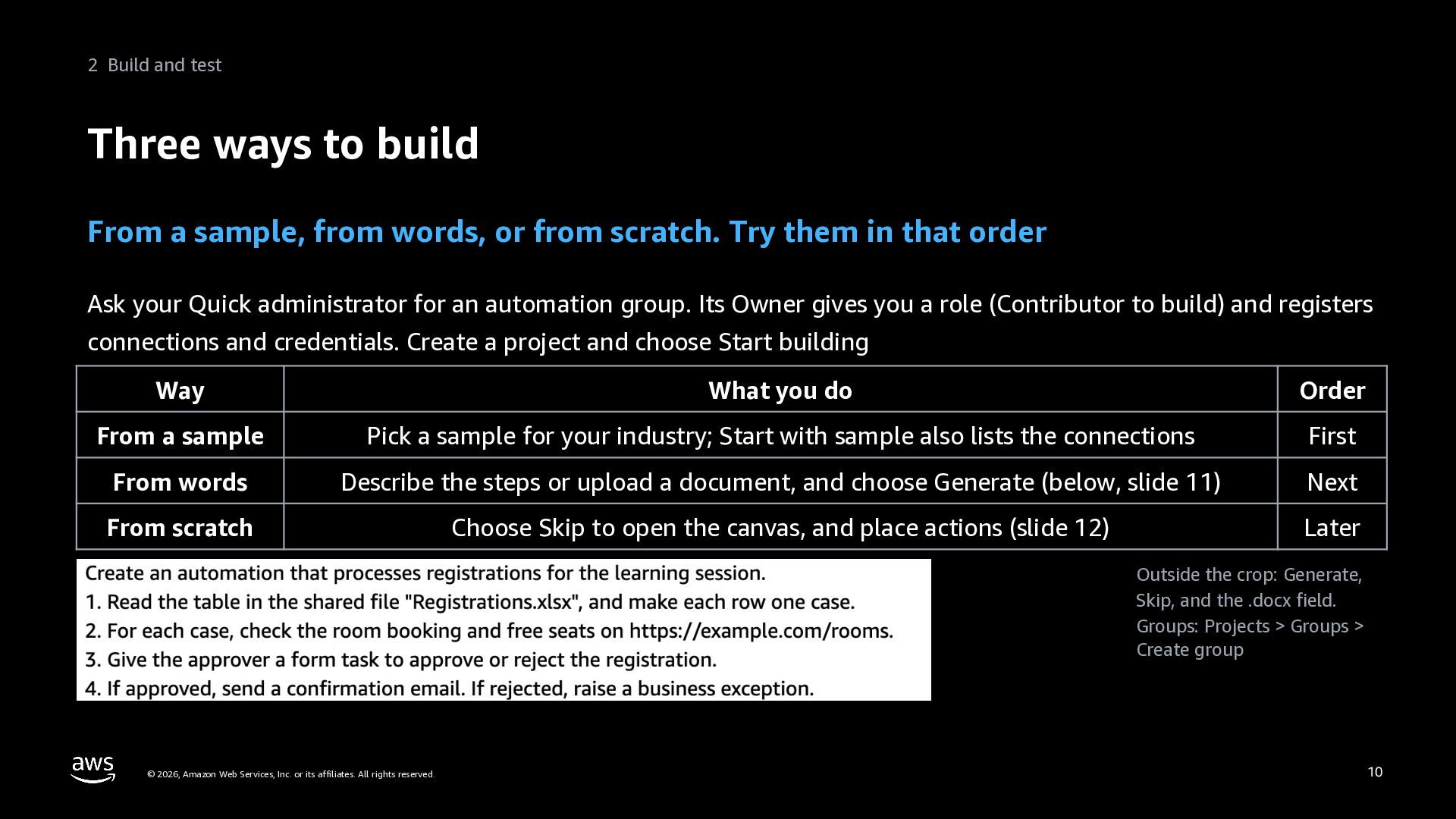
    sample, from words, or from scratch. Try them in that order Ask your Quick administrator for an automation group. Its Owner gives you a role (Contributor to build) and registers connections and credentials. Create a project and choose Start building Way What you do Order From a sample Pick a sample for your industry; Start with sample also lists the connections First From words Describe the steps or upload a document, and choose Generate (below, slide 11) Next From scratch Choose Skip to open the canvas, and place actions (slide 12) Later Outside the crop: Generate, Skip, and the .docx field. Groups: Projects > Groups > Create group © 2026, Amazon Web Services, Inc. or its affiliates. All rights reserved. 10
  11. 2 Build and test Build from words Describe the steps,

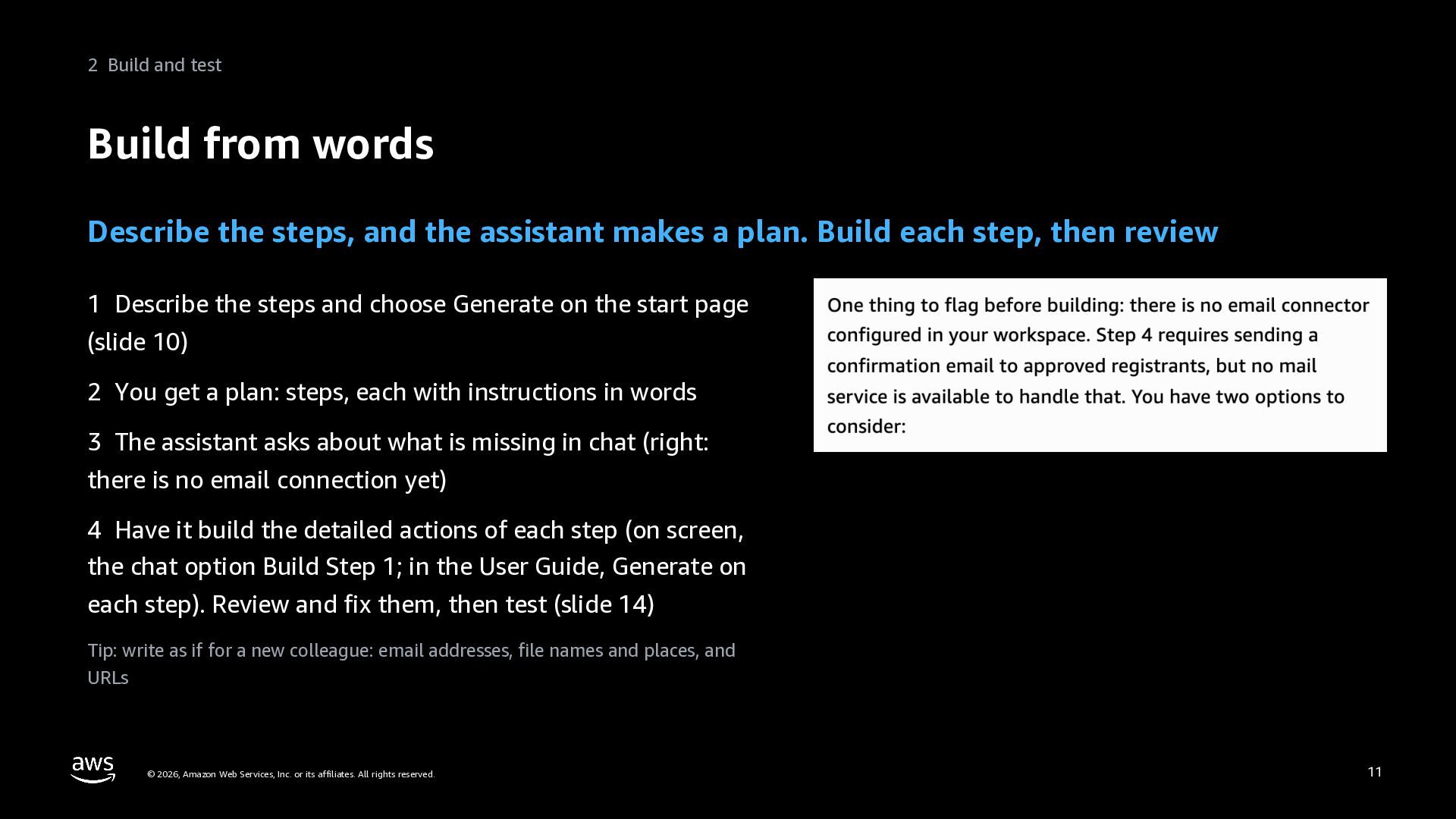
    and the assistant makes a plan. Build each step, then review 1 Describe the steps and choose Generate on the start page (slide 10) 2 You get a plan: steps, each with instructions in words 3 The assistant asks about what is missing in chat (right: there is no email connection yet) 4 Have it build the detailed actions of each step (on screen, the chat option Build Step 1; in the User Guide, Generate on each step). Review and fix them, then test (slide 14) Tip: write as if for a new colleague: email addresses, file names and places, and URLs © 2026, Amazon Web Services, Inc. or its affiliates. All rights reserved. 11
  12. 2 Build and test The canvas The canvas and four

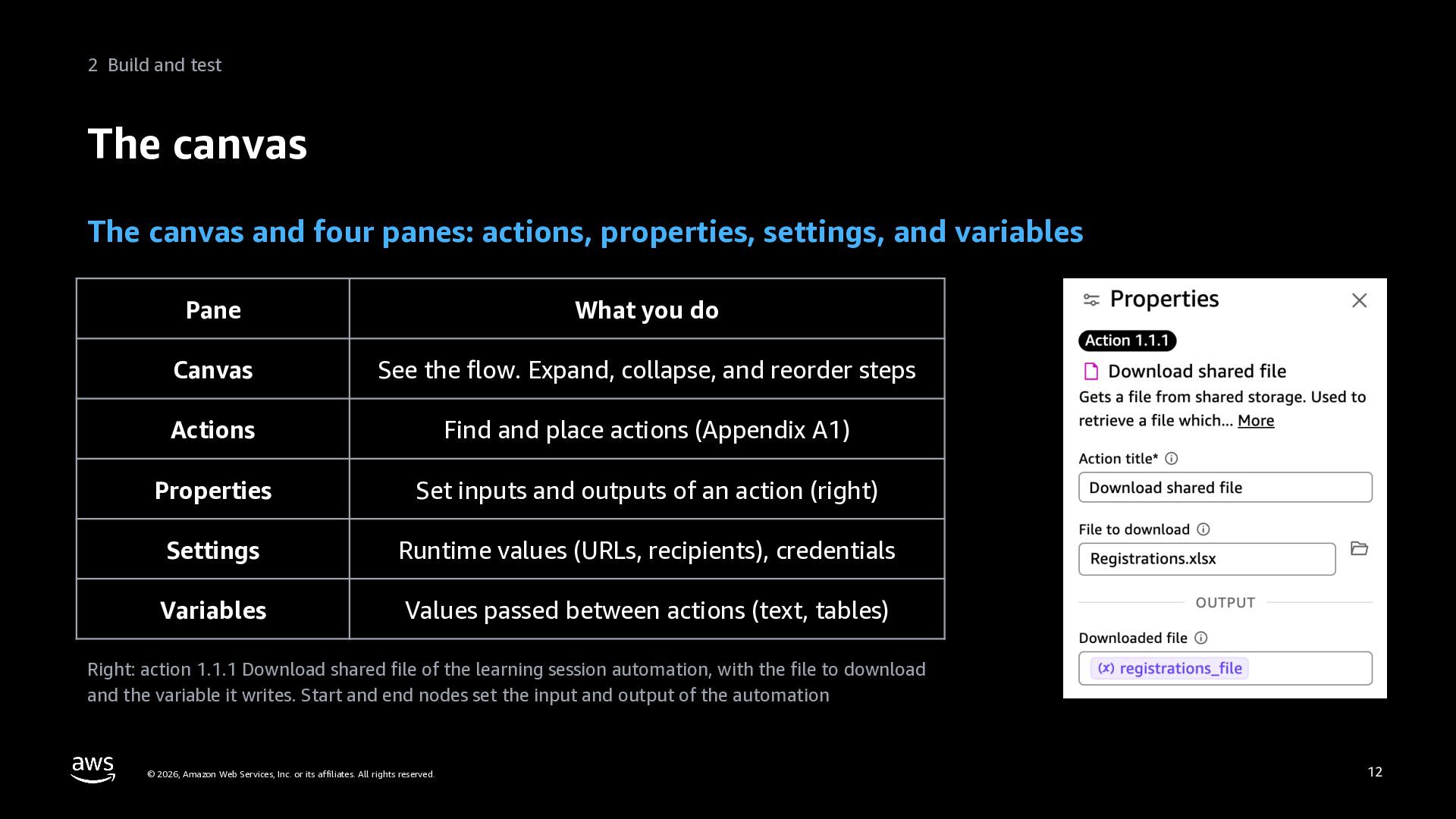
    panes: actions, properties, settings, and variables Pane What you do Canvas See the flow. Expand, collapse, and reorder steps Actions Find and place actions (Appendix A1) Properties Set inputs and outputs of an action (right) Settings Runtime values (URLs, recipients), credentials Variables Values passed between actions (text, tables) Right: action 1.1.1 Download shared file of the learning session automation, with the file to download and the variable it writes. Start and end nodes set the input and output of the automation © 2026, Amazon Web Services, Inc. or its affiliates. All rights reserved. 12
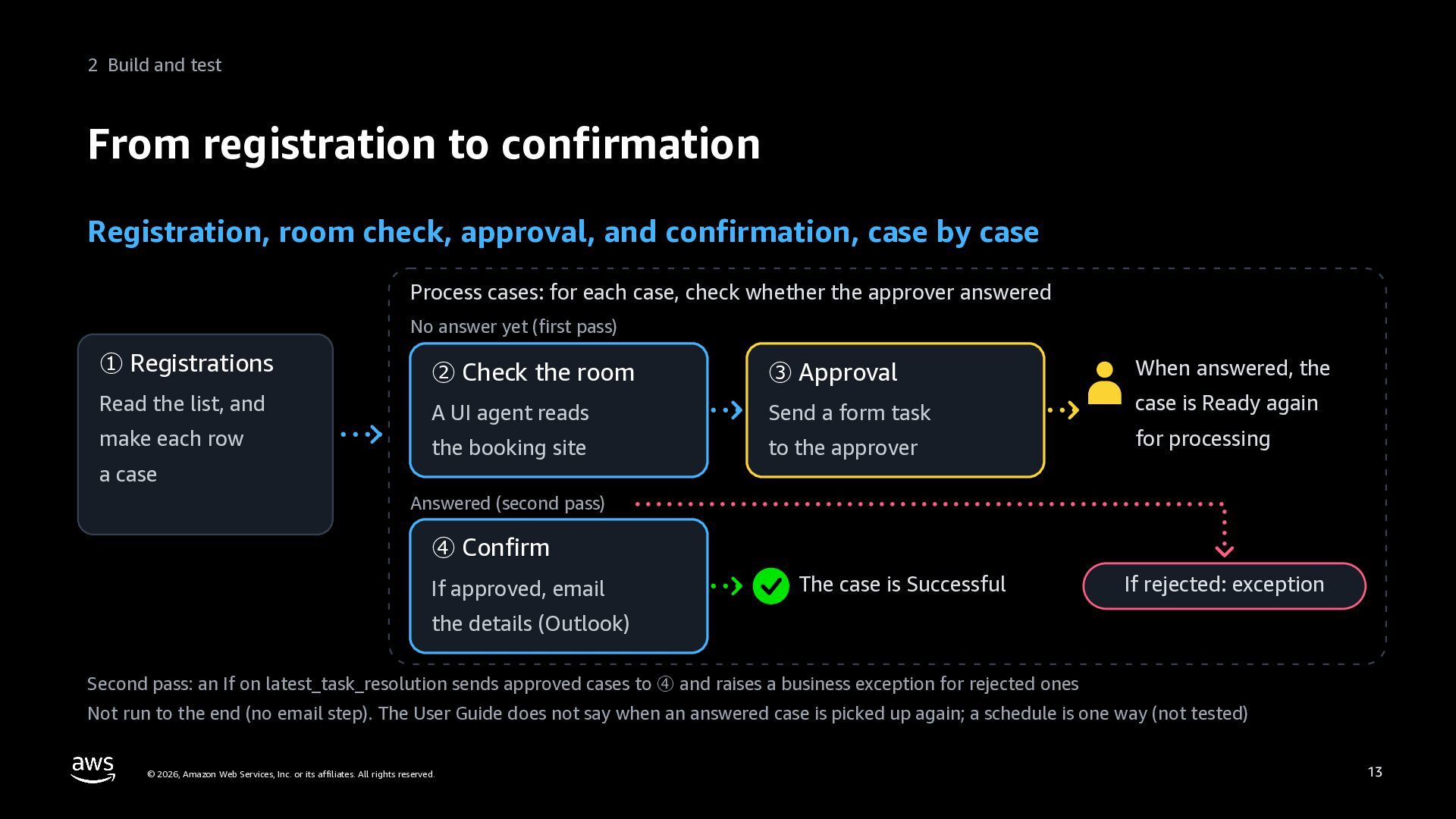
  13. 2 Build and test From registration to confirmation Registration, room

    check, approval, and confirmation, case by case Process cases: for each case, check whether the approver answered No answer yet (first pass) ① Registrations Read the list, and make each row ② Check the room ③ Approval A UI agent reads Send a form task the booking site to the approver When answered, the case is Ready again for processing a case Answered (second pass) ④ Confirm If approved, email The case is Successful If rejected: exception the details (Outlook) Second pass: an If on latest_task_resolution sends approved cases to ④ and raises a business exception for rejected ones Not run to the end (no email step). The User Guide does not say when an answered case is picked up again; a schedule is one way (not tested) © 2026, Amazon Web Services, Inc. or its affiliates. All rights reserved. 13
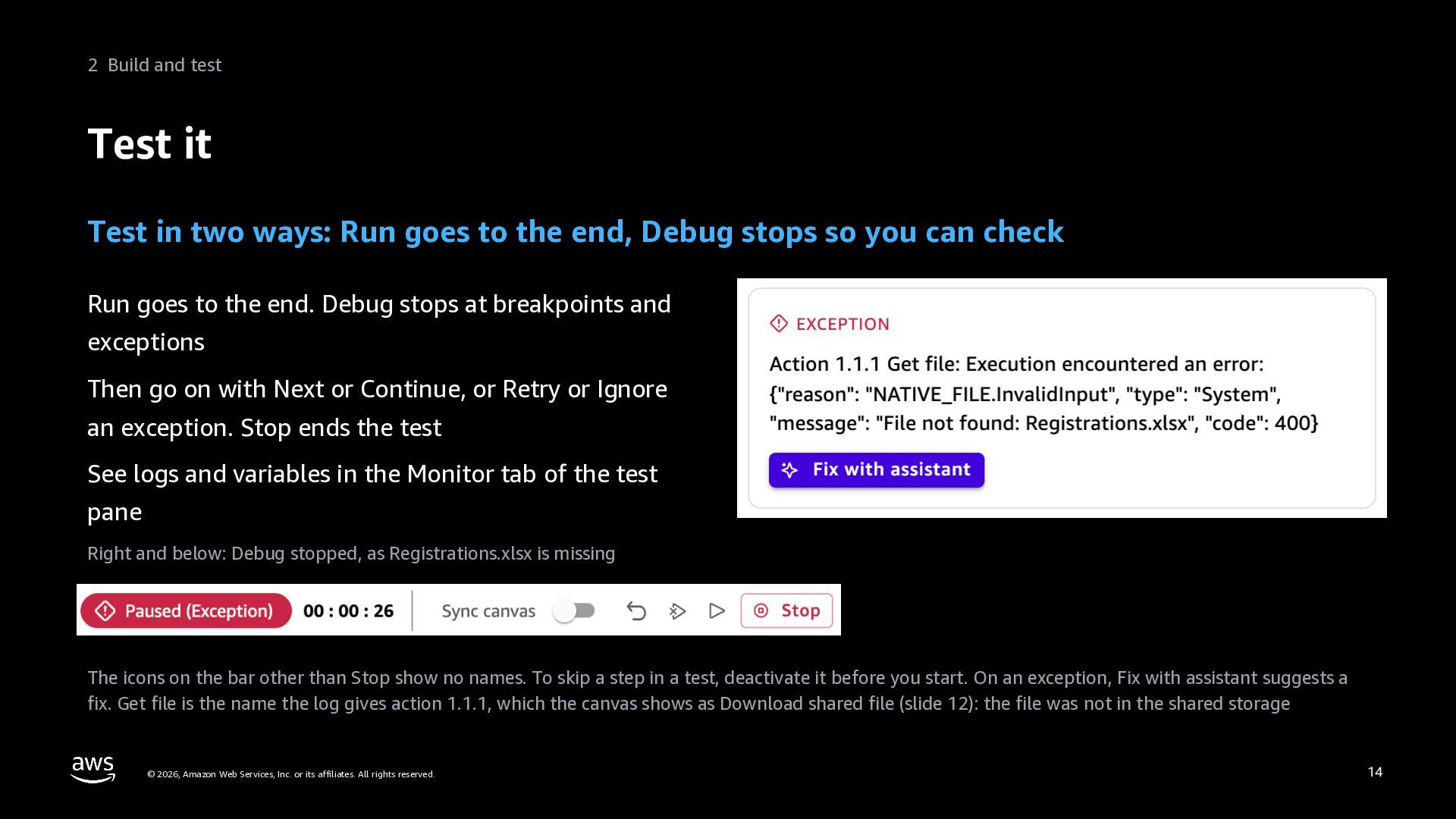
  14. 2 Build and test Test it Test in two ways:

    Run goes to the end, Debug stops so you can check Run goes to the end. Debug stops at breakpoints and exceptions Then go on with Next or Continue, or Retry or Ignore an exception. Stop ends the test See logs and variables in the Monitor tab of the test pane Right and below: Debug stopped, as Registrations.xlsx is missing The icons on the bar other than Stop show no names. To skip a step in a test, deactivate it before you start. On an exception, Fix with assistant suggests a fix. Get file is the name the log gives action 1.1.1, which the canvas shows as Download shared file (slide 12): the file was not in the shared storage © 2026, Amazon Web Services, Inc. or its affiliates. All rights reserved. 14
  15. 3 Human review and operations © 2026, Amazon Web Services,

    Inc. or its affiliates. All rights reserved. 15
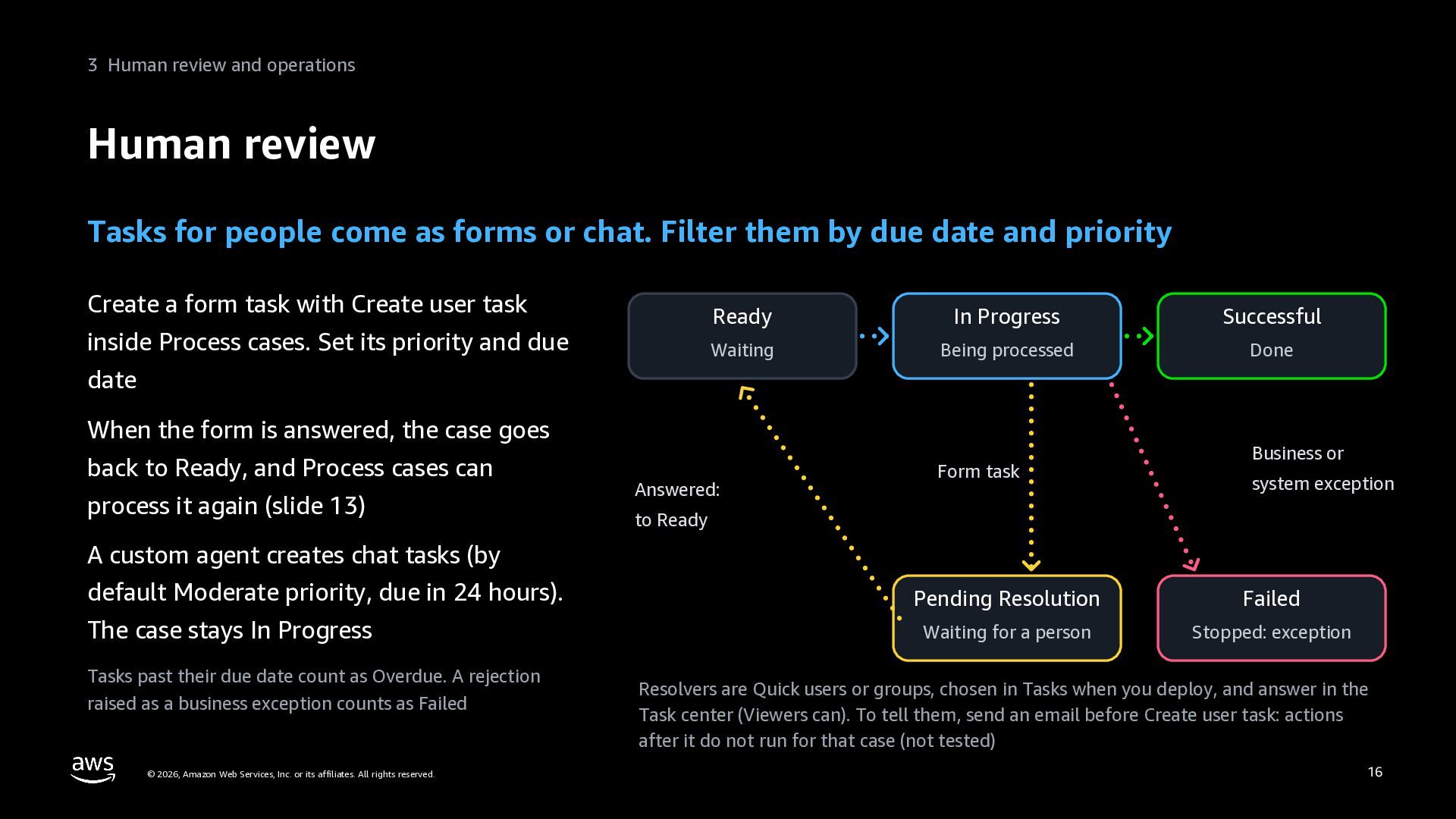
  16. 3 Human review and operations Human review Tasks for people

    come as forms or chat. Filter them by due date and priority Create a form task with Create user task inside Process cases. Set its priority and due Ready In Progress Successful Waiting Being processed Done date When the form is answered, the case goes back to Ready, and Process cases can process it again (slide 13) Answered: Form task Business or system exception to Ready A custom agent creates chat tasks (by default Moderate priority, due in 24 hours). Pending Resolution Failed The case stays In Progress Waiting for a person Stopped: exception Tasks past their due date count as Overdue. A rejection raised as a business exception counts as Failed © 2026, Amazon Web Services, Inc. or its affiliates. All rights reserved. Resolvers are Quick users or groups, chosen in Tasks when you deploy, and answer in the Task center (Viewers can). To tell them, send an email before Create user task: actions after it do not run for that case (not tested) 16
  17. 3 Human review and operations Deploy Commit a tested version,

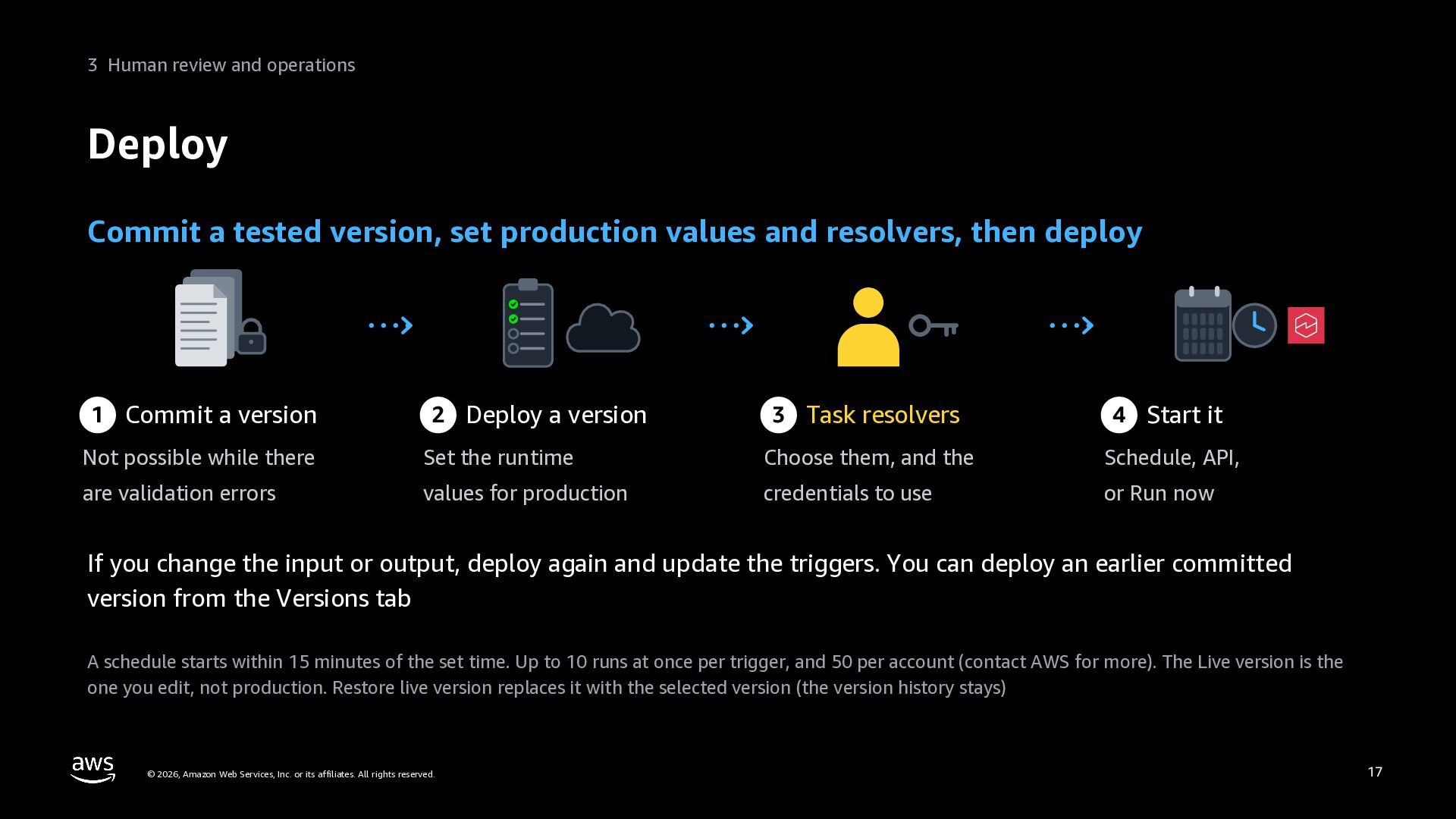
    set production values and resolvers, then deploy 1 Commit a version 2 Deploy a version 3 Task resolvers 4 Start it Not possible while there Set the runtime Choose them, and the Schedule, API, are validation errors values for production credentials to use or Run now If you change the input or output, deploy again and update the triggers. You can deploy an earlier committed version from the Versions tab A schedule starts within 15 minutes of the set time. Up to 10 runs at once per trigger, and 50 per account (contact AWS for more). The Live version is the one you edit, not production. Restore live version replaces it with the selected version (the version history stays) © 2026, Amazon Web Services, Inc. or its affiliates. All rights reserved. 17
  18. 3 Human review and operations Monitor See runs and results

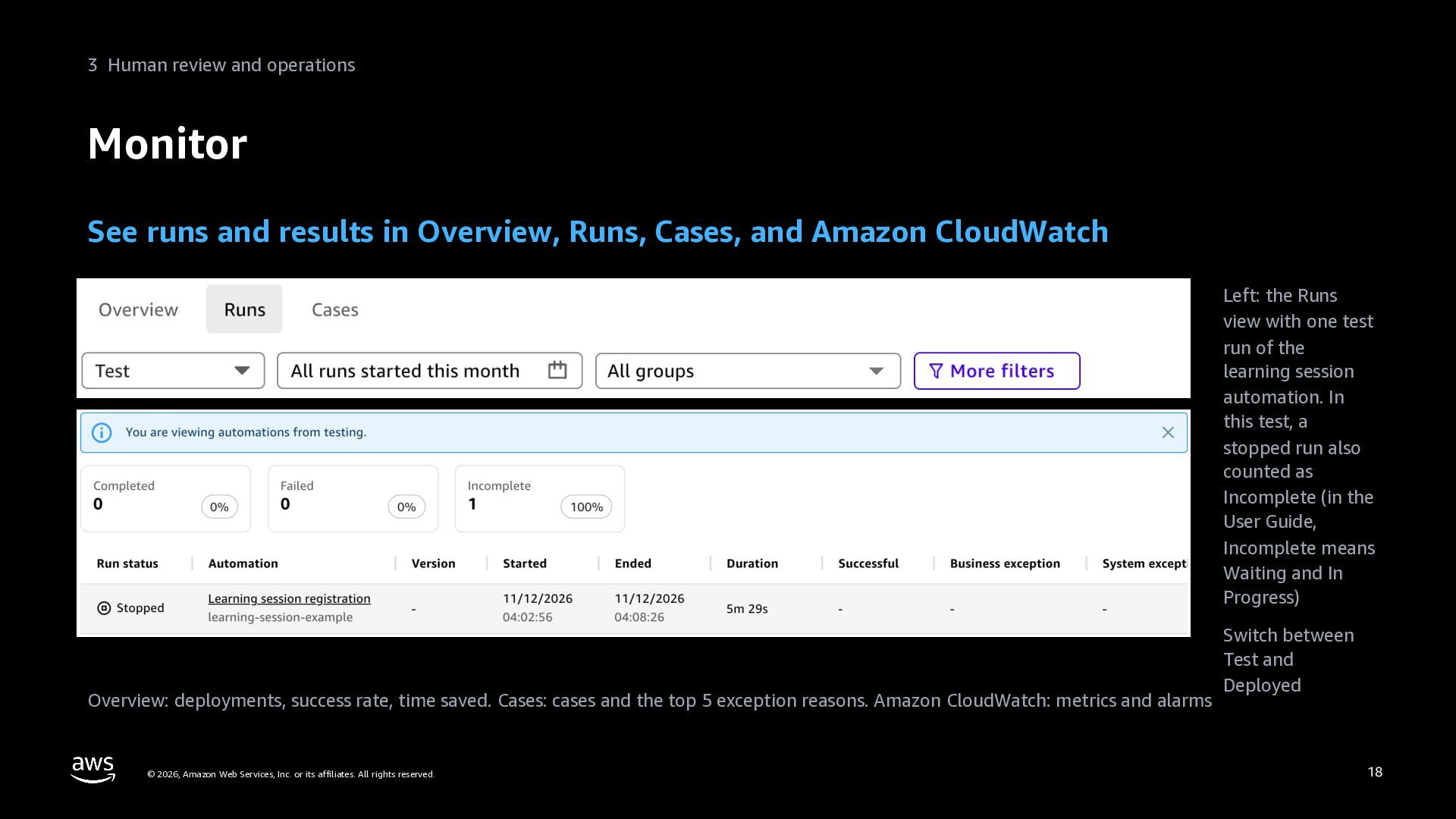
    in Overview, Runs, Cases, and Amazon CloudWatch Left: the Runs view with one test run of the learning session automation. In this test, a stopped run also counted as Incomplete (in the User Guide, Incomplete means Waiting and In Progress) Overview: deployments, success rate, time saved. Cases: cases and the top 5 exception reasons. Amazon CloudWatch: metrics and alarms © 2026, Amazon Web Services, Inc. or its affiliates. All rights reserved. Switch between Test and Deployed 18
  19. 3 Human review and operations APIs and moving versions Start

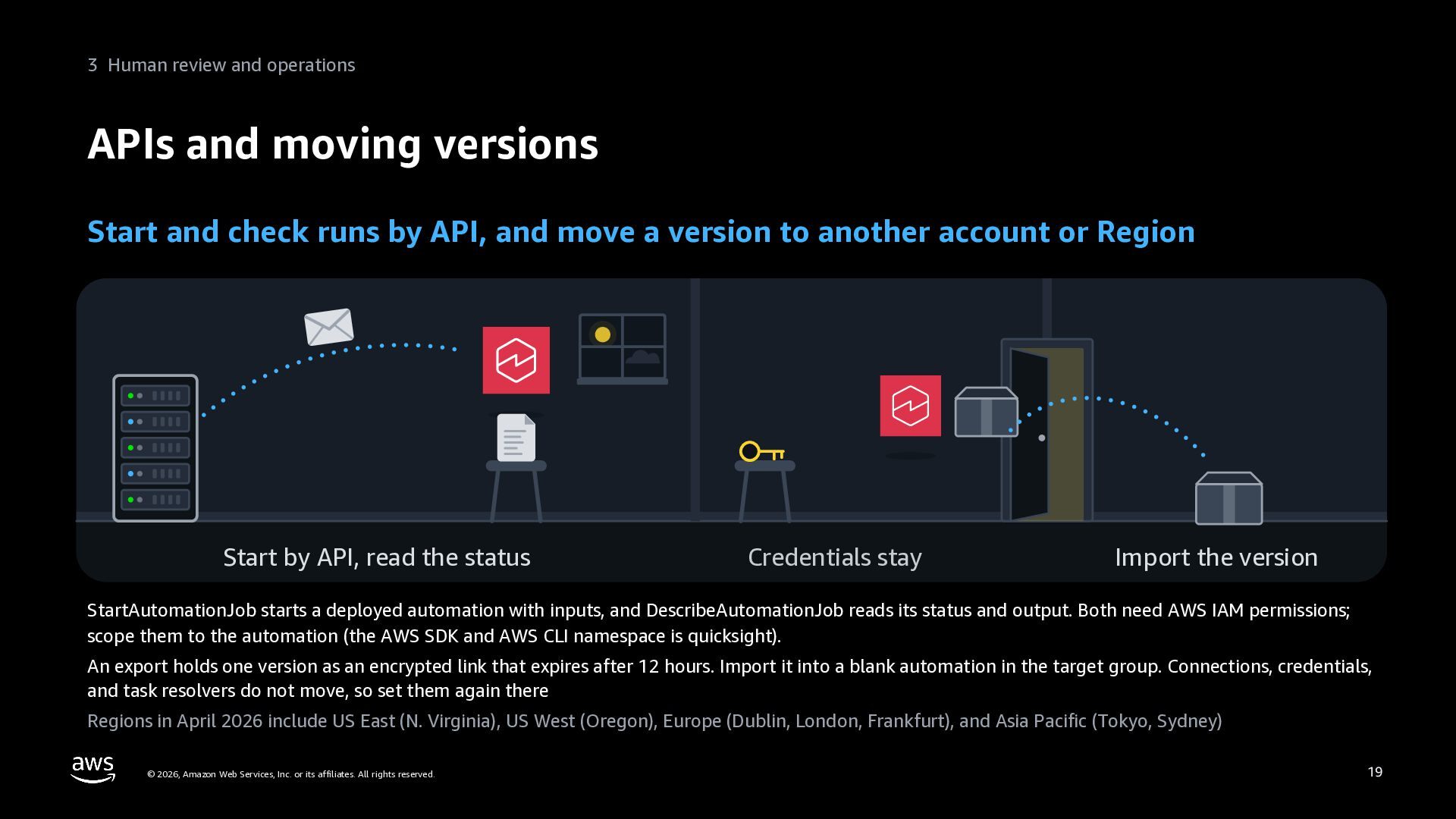
    and check runs by API, and move a version to another account or Region Start by API, read the status Credentials stay Import the version StartAutomationJob starts a deployed automation with inputs, and DescribeAutomationJob reads its status and output. Both need AWS IAM permissions; scope them to the automation (the AWS SDK and AWS CLI namespace is quicksight). An export holds one version as an encrypted link that expires after 12 hours. Import it into a blank automation in the target group. Connections, credentials, and task resolvers do not move, so set them again there Regions in April 2026 include US East (N. Virginia), US West (Oregon), Europe (Dublin, London, Frankfurt), and Asia Pacific (Tokyo, Sydney) © 2026, Amazon Web Services, Inc. or its affiliates. All rights reserved. 19
  20. 3 Human review and operations Governance Split access by group

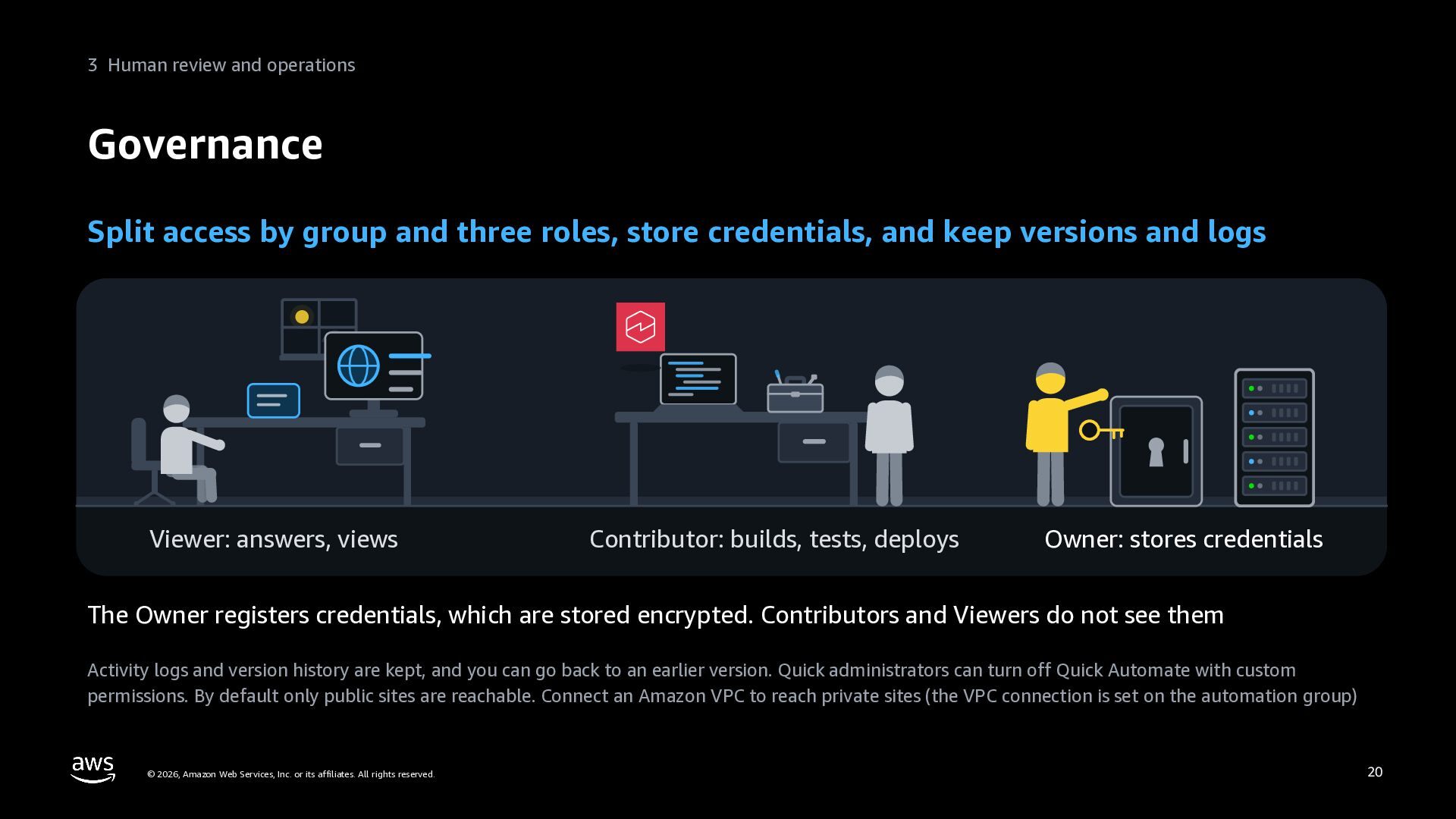
    and three roles, store credentials, and keep versions and logs Viewer: answers, views Contributor: builds, tests, deploys Owner: stores credentials The Owner registers credentials, which are stored encrypted. Contributors and Viewers do not see them Activity logs and version history are kept, and you can go back to an earlier version. Quick administrators can turn off Quick Automate with custom permissions. By default only public sites are reachable. Connect an Amazon VPC to reach private sites (the VPC connection is set on the automation group) © 2026, Amazon Web Services, Inc. or its affiliates. All rights reserved. 20
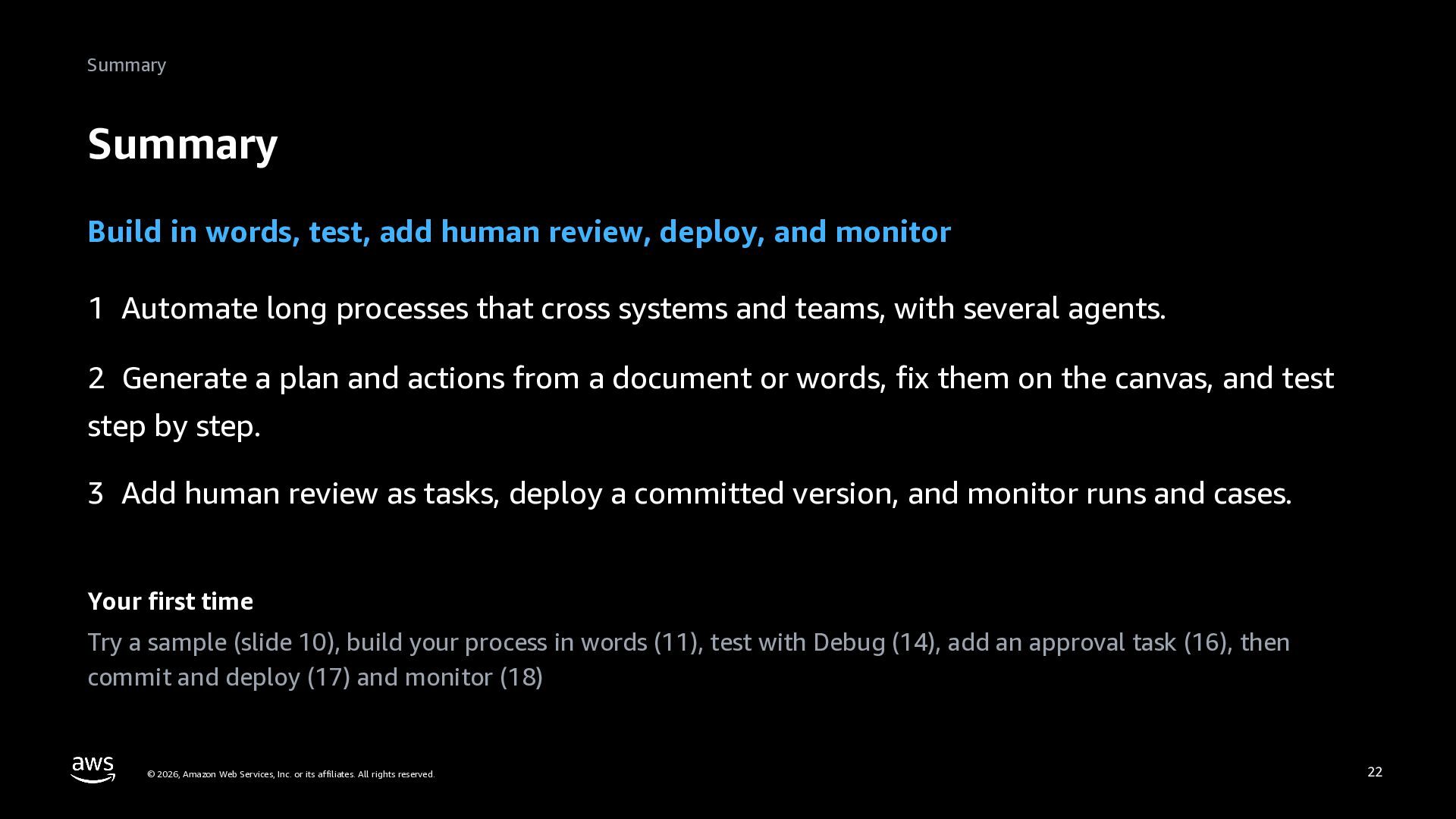
  21. Summary Summary Build in words, test, add human review, deploy,

    and monitor 1 Automate long processes that cross systems and teams, with several agents. 2 Generate a plan and actions from a document or words, fix them on the canvas, and test step by step. 3 Add human review as tasks, deploy a committed version, and monitor runs and cases. Your first time Try a sample (slide 10), build your process in words (11), test with Debug (14), add an approval task (16), then commit and deploy (17) and monitor (18) © 2026, Amazon Web Services, Inc. or its affiliates. All rights reserved. 22
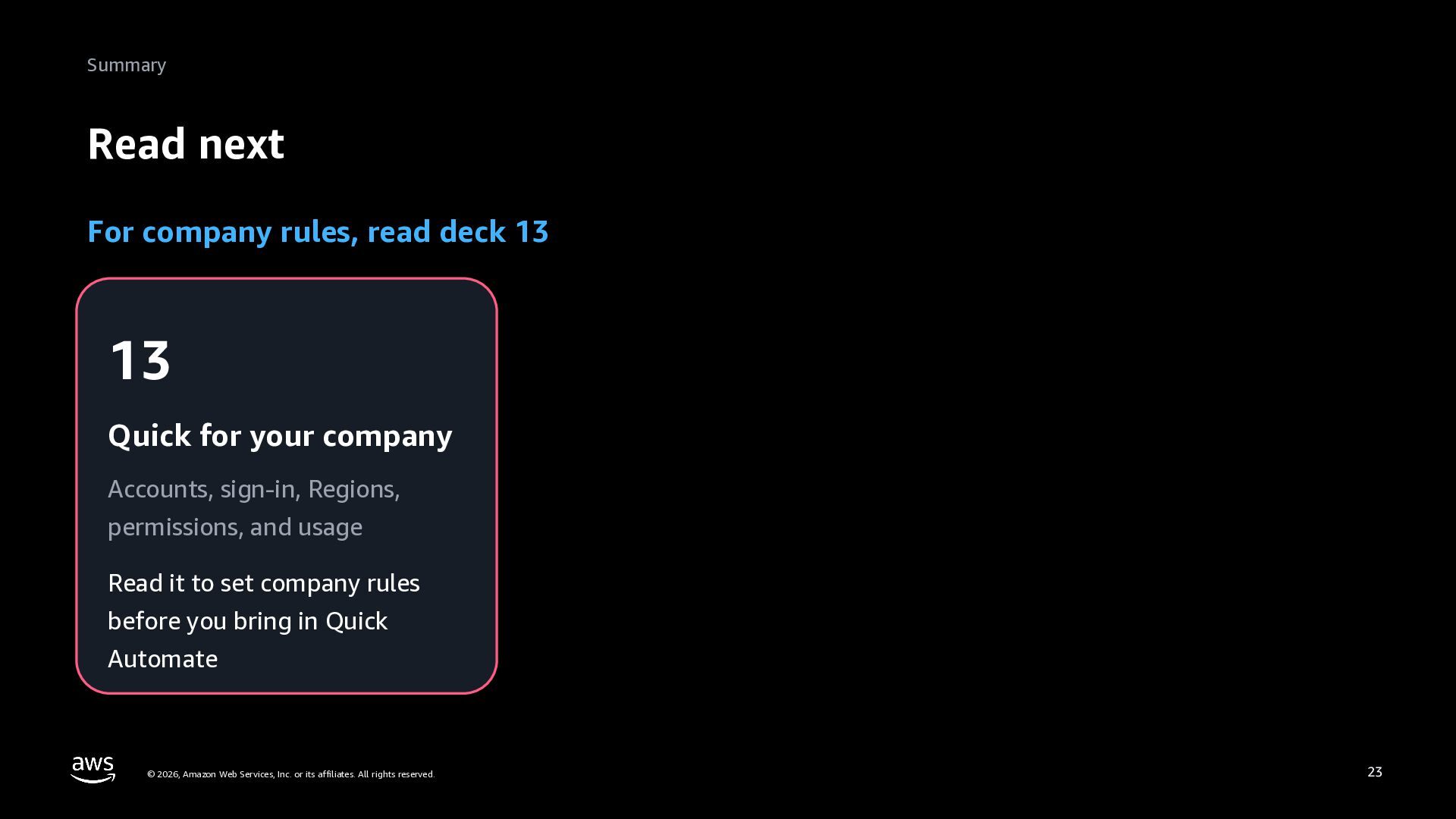
  22. Summary Read next For company rules, read deck 13 13

    Quick for your company Accounts, sign-in, Regions, permissions, and usage Read it to set company rules before you bring in Quick Automate © 2026, Amazon Web Services, Inc. or its affiliates. All rights reserved. 23
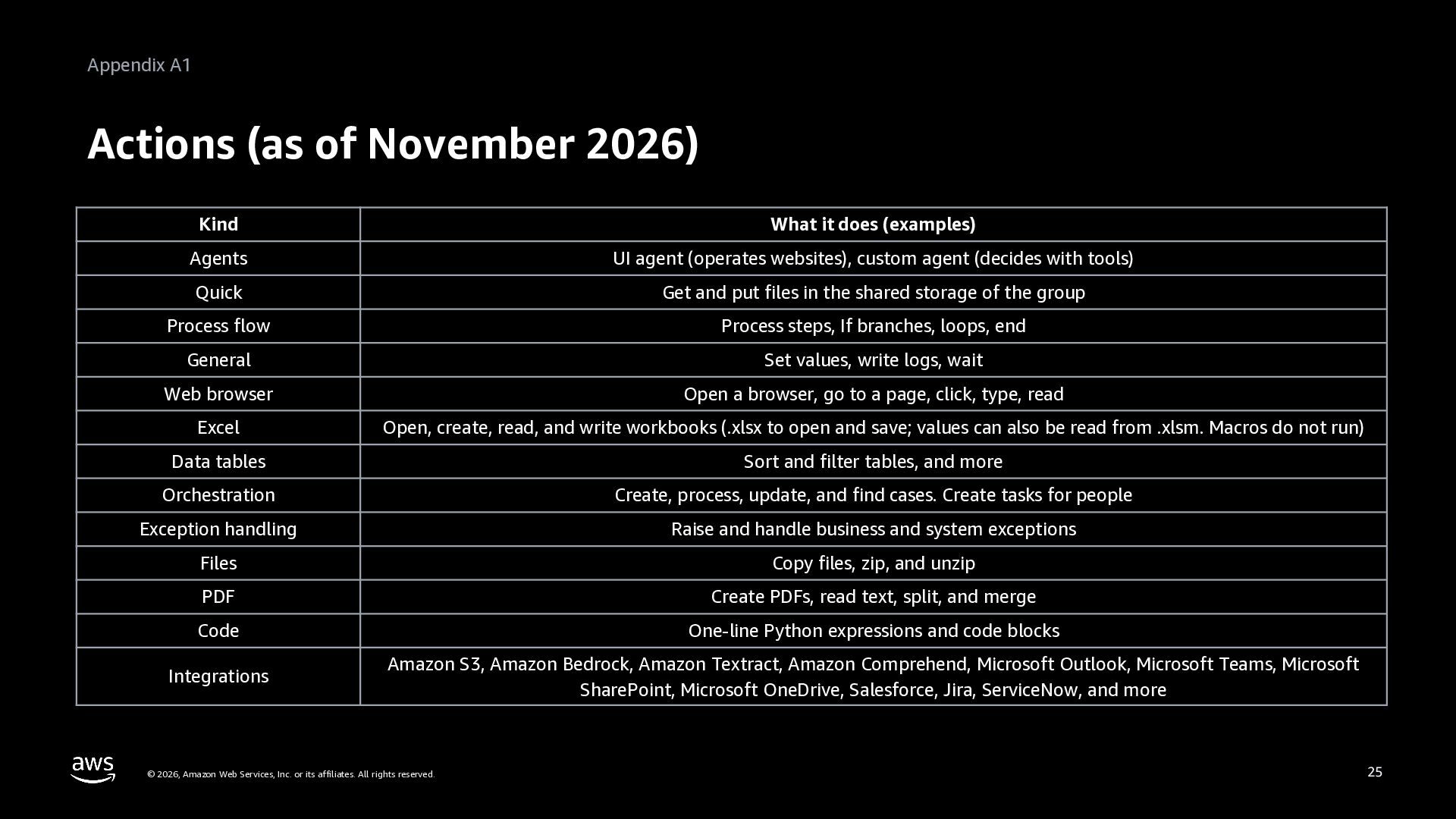
  23. Appendix A1 Actions (as of November 2026) Kind What it

    does (examples) Agents UI agent (operates websites), custom agent (decides with tools) Quick Get and put files in the shared storage of the group Process flow Process steps, If branches, loops, end General Set values, write logs, wait Web browser Open a browser, go to a page, click, type, read Excel Open, create, read, and write workbooks (.xlsx to open and save; values can also be read from .xlsm. Macros do not run) Data tables Sort and filter tables, and more Orchestration Create, process, update, and find cases. Create tasks for people Exception handling Raise and handle business and system exceptions Files Copy files, zip, and unzip PDF Create PDFs, read text, split, and merge Code One-line Python expressions and code blocks Integrations Amazon S3, Amazon Bedrock, Amazon Textract, Amazon Comprehend, Microsoft Outlook, Microsoft Teams, Microsoft SharePoint, Microsoft OneDrive, Salesforce, Jira, ServiceNow, and more © 2026, Amazon Web Services, Inc. or its affiliates. All rights reserved. 25
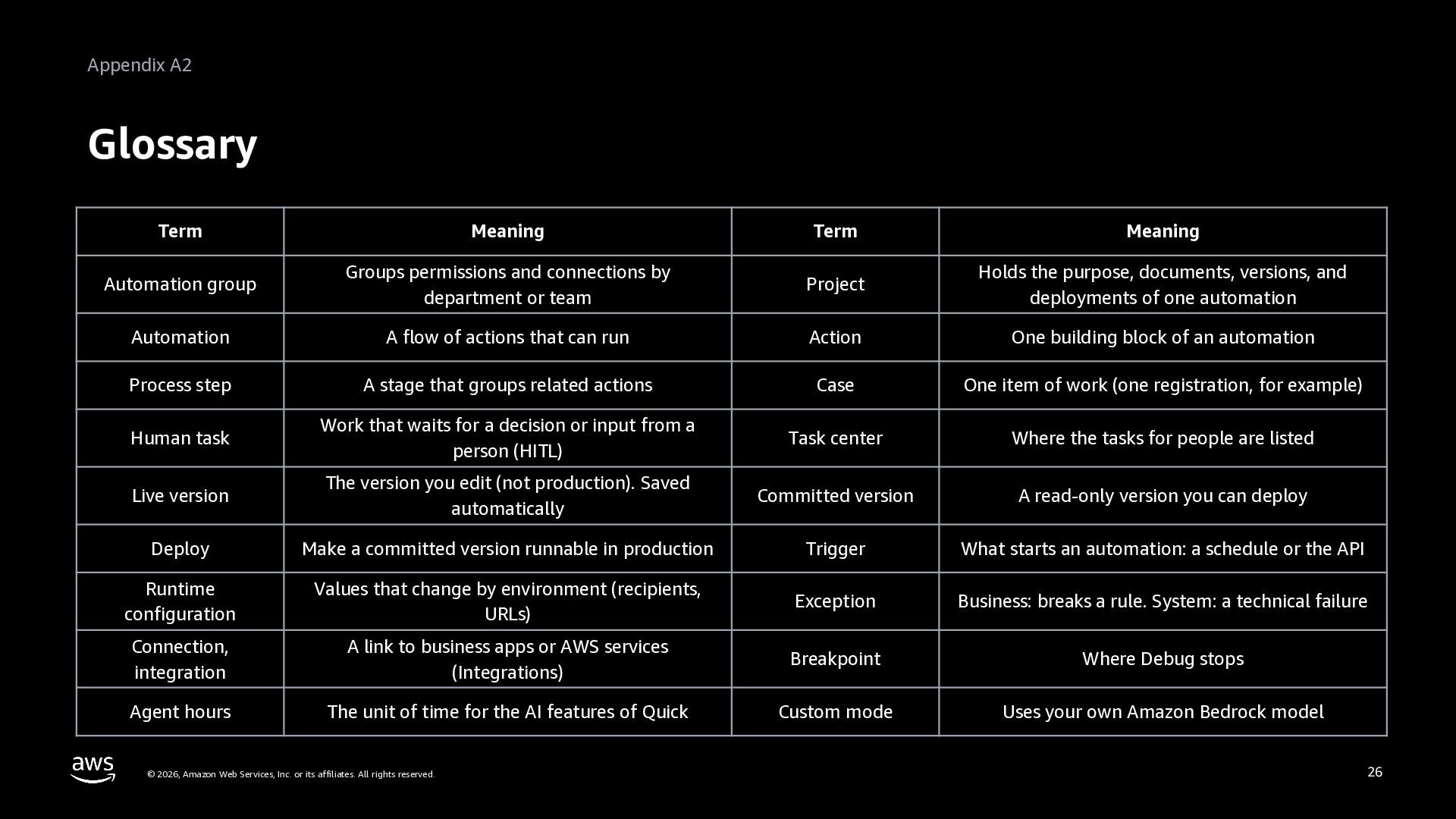
  24. Appendix A2 Glossary Term Meaning Term Meaning Automation group Groups

    permissions and connections by department or team Project Holds the purpose, documents, versions, and deployments of one automation Automation A flow of actions that can run Action One building block of an automation Process step A stage that groups related actions Case One item of work (one registration, for example) Human task Work that waits for a decision or input from a person (HITL) Task center Where the tasks for people are listed Live version The version you edit (not production). Saved automatically Committed version A read-only version you can deploy Deploy Make a committed version runnable in production Trigger What starts an automation: a schedule or the API Runtime configuration Values that change by environment (recipients, URLs) Exception Business: breaks a rule. System: a technical failure Connection, integration A link to business apps or AWS services (Integrations) Breakpoint Where Debug stops Agent hours The unit of time for the AI features of Quick Custom mode Uses your own Amazon Bedrock model © 2026, Amazon Web Services, Inc. or its affiliates. All rights reserved. 26
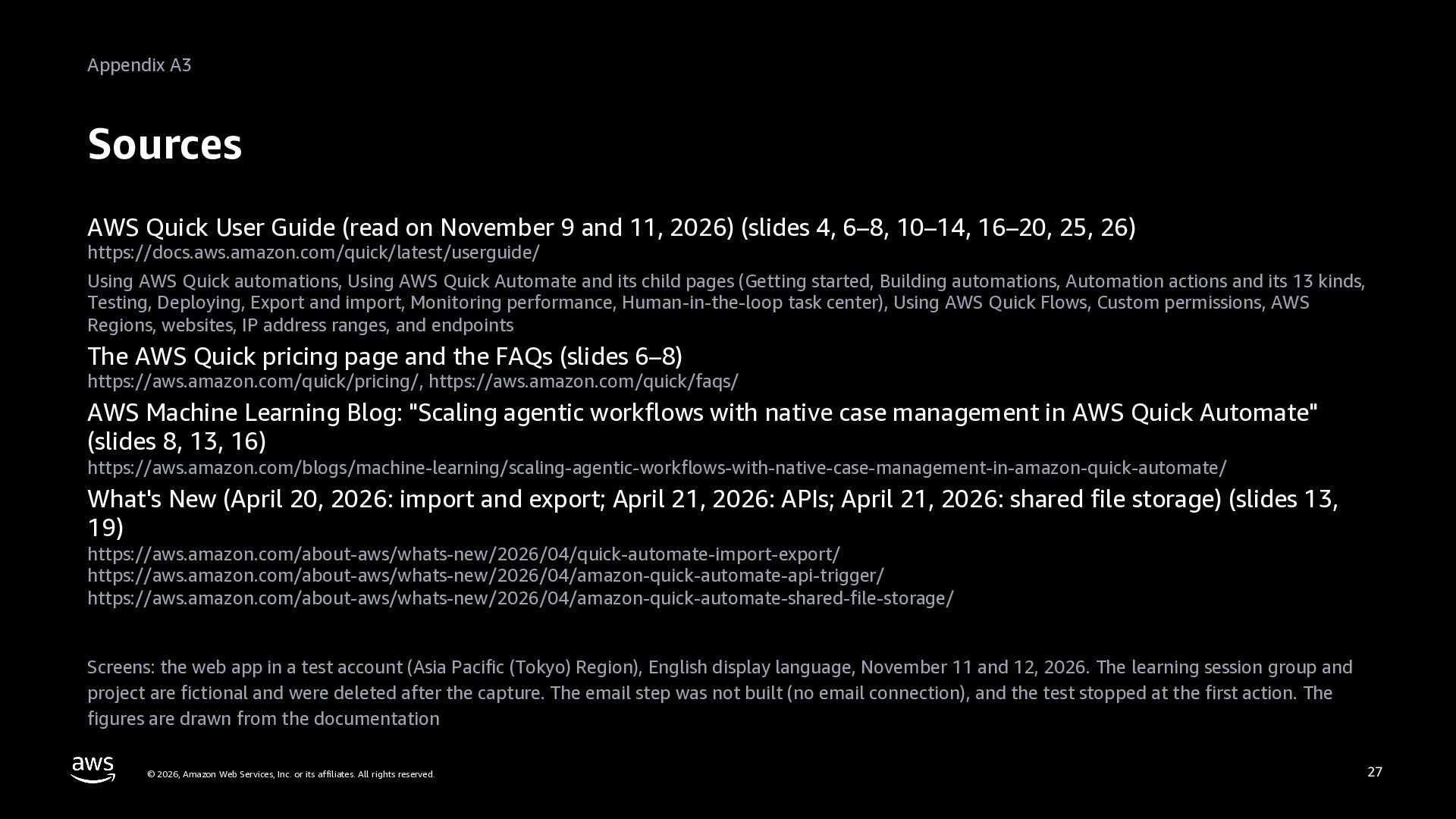
  25. Appendix A3 Sources AWS Quick User Guide (read on November

    9 and 11, 2026) (slides 4, 6–8, 10–14, 16–20, 25, 26) https://docs.aws.amazon.com/quick/latest/userguide/ Using AWS Quick automations, Using AWS Quick Automate and its child pages (Getting started, Building automations, Automation actions and its 13 kinds, Testing, Deploying, Export and import, Monitoring performance, Human-in-the-loop task center), Using AWS Quick Flows, Custom permissions, AWS Regions, websites, IP address ranges, and endpoints The AWS Quick pricing page and the FAQs (slides 6–8) https://aws.amazon.com/quick/pricing/, https://aws.amazon.com/quick/faqs/ AWS Machine Learning Blog: "Scaling agentic workflows with native case management in AWS Quick Automate" (slides 8, 13, 16) https://aws.amazon.com/blogs/machine-learning/scaling-agentic-workflows-with-native-case-management-in-amazon-quick-automate/ What's New (April 20, 2026: import and export; April 21, 2026: APIs; April 21, 2026: shared file storage) (slides 13, 19) https://aws.amazon.com/about-aws/whats-new/2026/04/quick-automate-import-export/ https://aws.amazon.com/about-aws/whats-new/2026/04/amazon-quick-automate-api-trigger/ https://aws.amazon.com/about-aws/whats-new/2026/04/amazon-quick-automate-shared-file-storage/ Screens: the web app in a test account (Asia Pacific (Tokyo) Region), English display language, November 11 and 12, 2026. The learning session group and project are fictional and were deleted after the capture. The email step was not built (no email connection), and the test stopped at the first action. The figures are drawn from the documentation © 2026, Amazon Web Services, Inc. or its affiliates. All rights reserved. 27

More Decks by Riku INADA

Other Decks in Technology