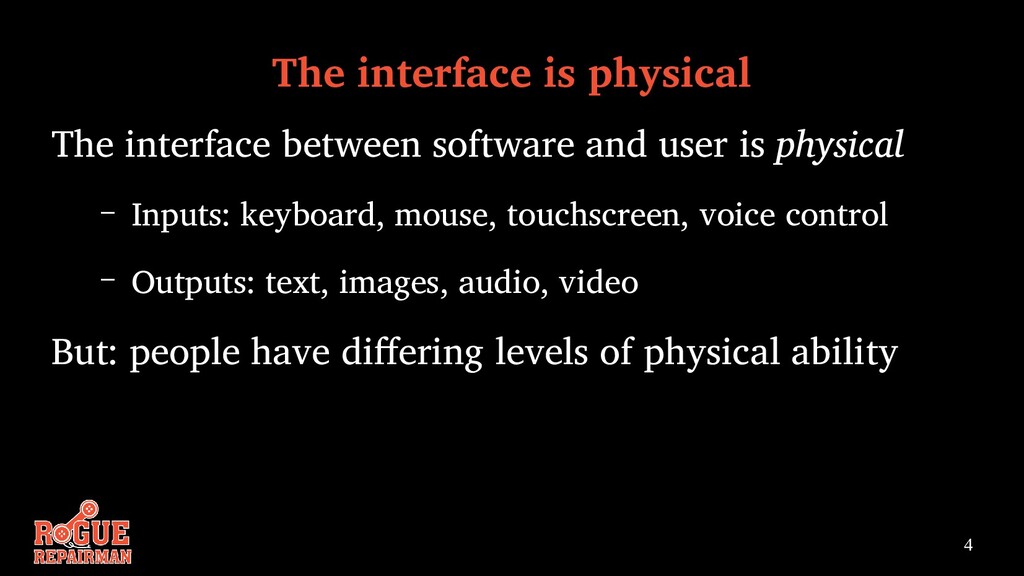
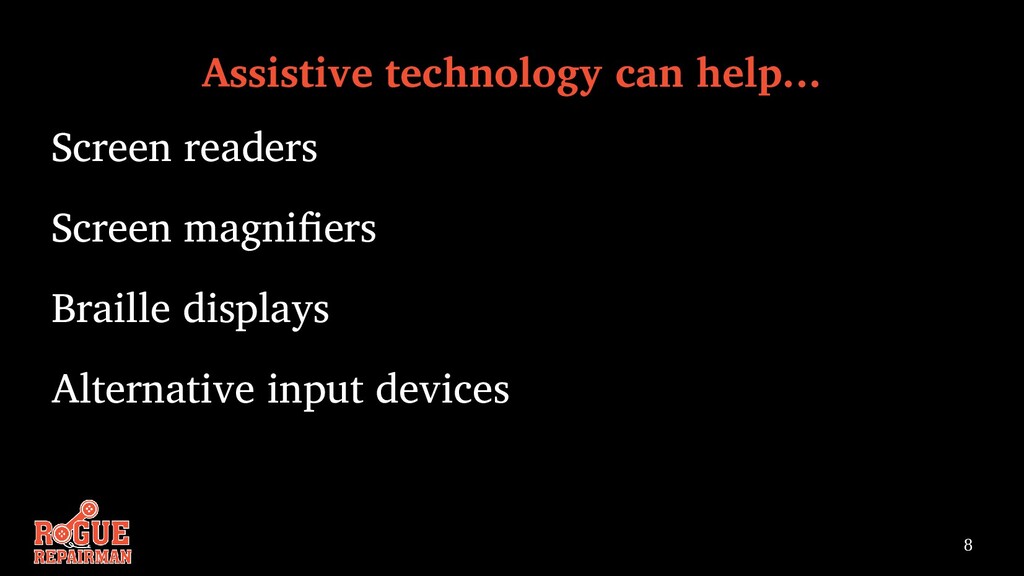
user is physical – Inputs: keyboard, mouse, touchscreen, voice control – Outputs: text, images, audio, video But: people have differing levels of physical ability
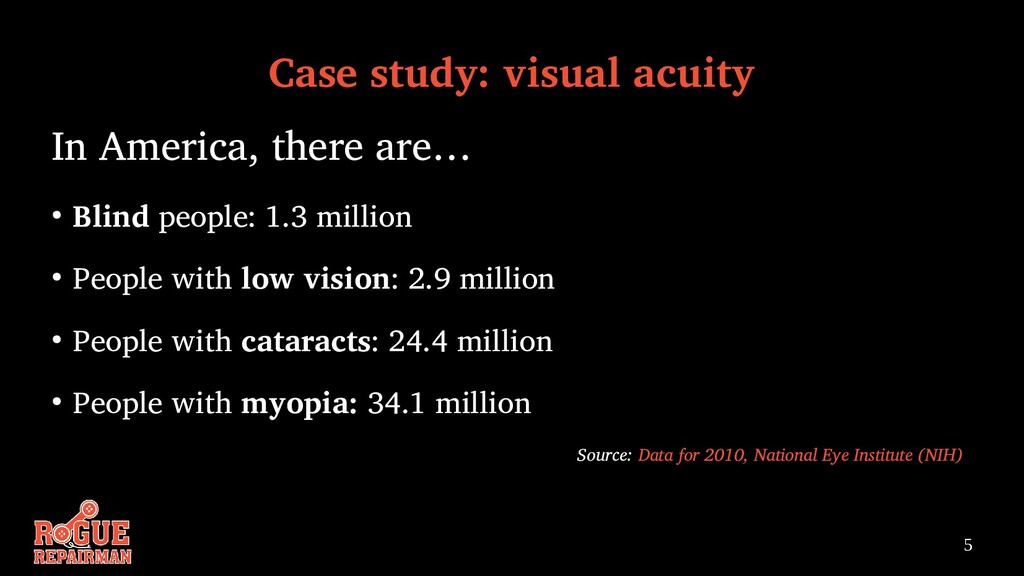
Blind people: 1.3 million • People with low vision: 2.9 million • People with cataracts: 24.4 million • People with myopia: 34.1 million Source: Data for 2010, National Eye Institute (NIH)
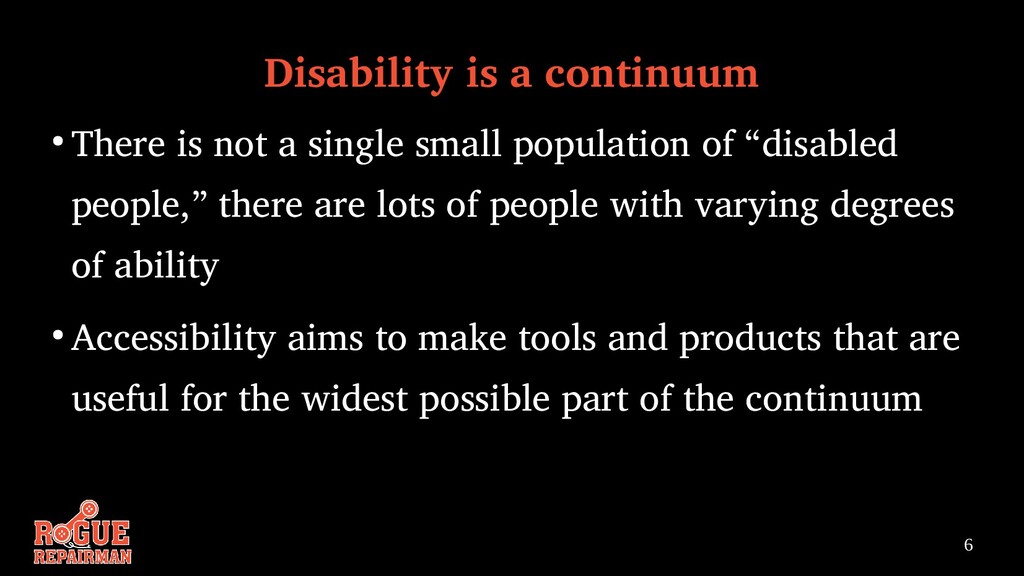
single small population of “disabled people,” there are lots of people with varying degrees of ability • Accessibility aims to make tools and products that are useful for the widest possible part of the continuum
will have problems with visual content A common tool to overcome these problems is a screen reader: a tool that reads the content of the page aloud So: how can we design software that works well with screen readers?
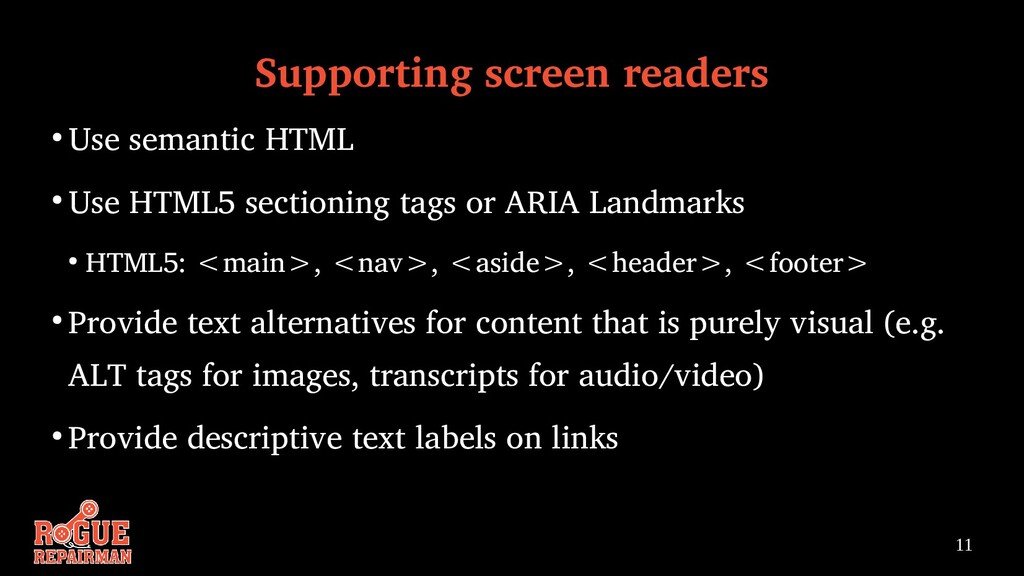
HTML5 sectioning tags or ARIA Landmarks • HTML5: <main>, <nav>, <aside>, <header>, <footer> • Provide text alternatives for content that is purely visual (e.g. ALT tags for images, transcripts for audio/video) • Provide descriptive text labels on links
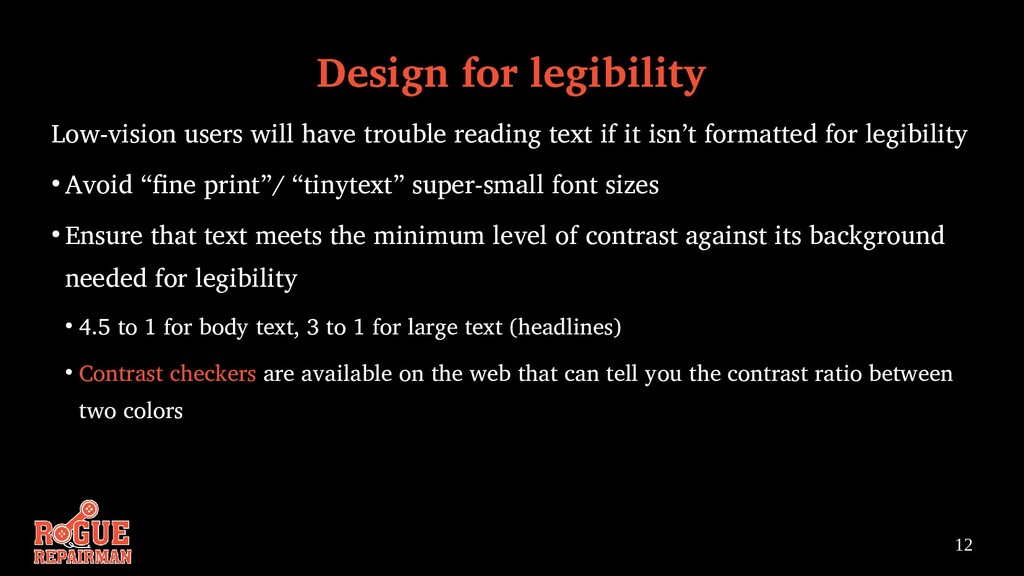
text if it isn’t formatted for legibility • Avoid “fine print”/ “tinytext” super-small font sizes • Ensure that text meets the minimum level of contrast against its background needed for legibility • 4.5 to 1 for body text, 3 to 1 for large text (headlines) • Contrast checkers are available on the web that can tell you the contrast ratio between two colors
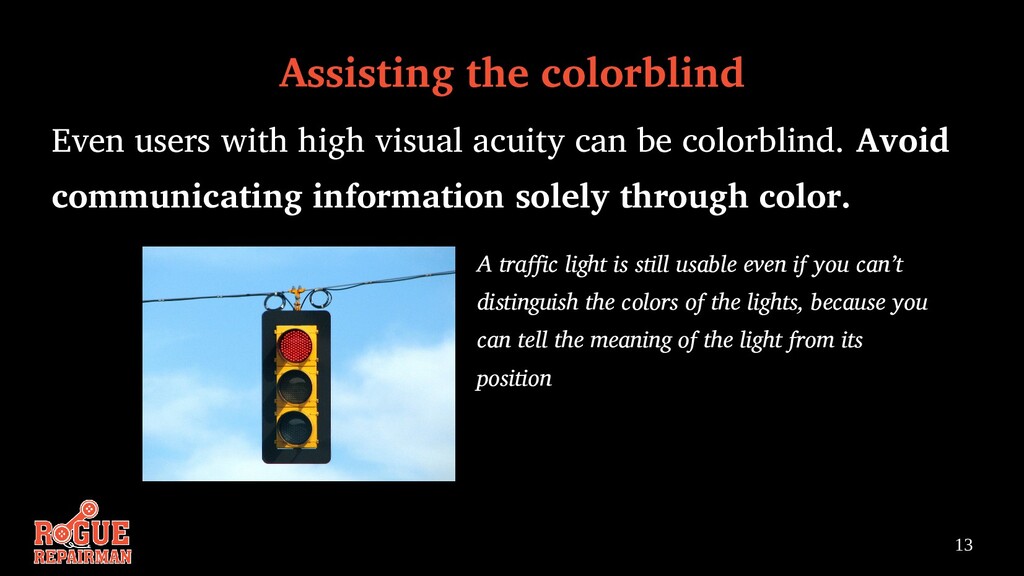
can be colorblind. Avoid communicating information solely through color. A traffic light is still usable even if you can’t distinguish the colors of the lights, because you can tell the meaning of the light from its position
online content is presented today in audiovisual media: videos, podcasts, etc. Audiovisual content can be inaccessible to both hearing- impaired and visually impaired users Providing a transcript can open up this content to them For videos, consider offering captions as well
navigation (including logical tab ordering) • Avoid interactive elements that are based on timing, or require dexterity (e.g. moving elements) • Provide generous “tap targets” for all links, buttons, etc.
user interface elements wherever possible, rather than inventing custom ones • Where you must invent custom ones, put in the extra work to make them compliant with the platform’s usability standards
than leaving it as an afterthought It is easier to build something that works for everyone than to build something that doesn’t and try to hack accessibility on later Universal designs can benefit everyone: see the “curb cut effect”
tool that can audit any page on the Web for accessibility and performance problems Lighthouse is built into the Chrome browser’s developer tools, so you can get a quick report on any page with a few clicks It’s not a substitute for a full professional accessibility audit, but it can help you identify many common issues More info at https://developers.google.com/web/tools/lighthouse/


 codmoninc
 daidaidai
 yahonda
 satoshi7
 kairim0
 greenmidori
 jozono
 gogutan
 syuchimu
 y0hgi
y0hgi
 willnet
 occhi
occhi
 hannesfritz
 trallard
 chrislema
 reverentgeek
 jcasabona
 auna
auna
 ks91
ks91
 sarafernandez
 nikkihalliwell
 bluesmoon
 aemeredith
 rabernat
![20 Thanks! Jason A. Lefkowitz President, Rogue Repairman Productions [email protected]](https://files.speakerdeck.com/presentations/6ba91f25350f430a9b2ccea0428dc332/slide_19.jpg)