to learn some special words us coders use. First we must understand that regardless of what type of website or even software you are creating you will be using two language types; 1) A Programming language which is used to tell a browser or website how to behave. Types of programming languages include for example javascript or php 2) A Markup language on the other hand is used to add structure to the website. You can think of a website as text with markup on top to give it style. One interesting fact to keep in mind is that there is no one programming language that can be used to create a website. These days there typically are three languages at minimum that is used in creating any given website on the internet.
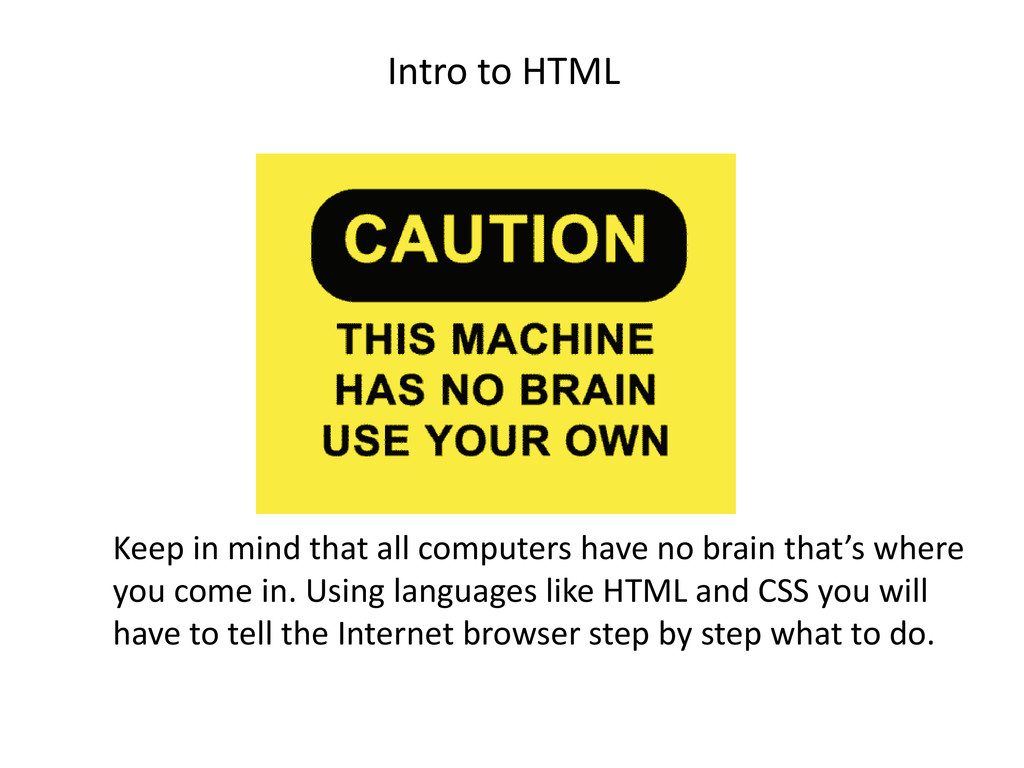
Hyper Text Markup Language. As I said before it is a markup language that is used to provide structure to your website. HTML is not able to create interactive elements which is why it is referred to as a markup language. CSS - which stands for Cascading Style Sheets is the language that provides style to the structure that you setup via HTML. To create a website you will need text editor . For this course we will be using a free text editor which is found on any windows computer called notepad. For Mac users you can use Textmate. You will also need a FTP program we suggest using a free one by the name of FileZilla, which works on both Windows and Mac. Lastly you will need a website hosting account which will enable you to get your website on the internet. Lets begin talking about what a FTP program is and why you need one as well as What a Webhosting account is and why you need one. Intro to HTML
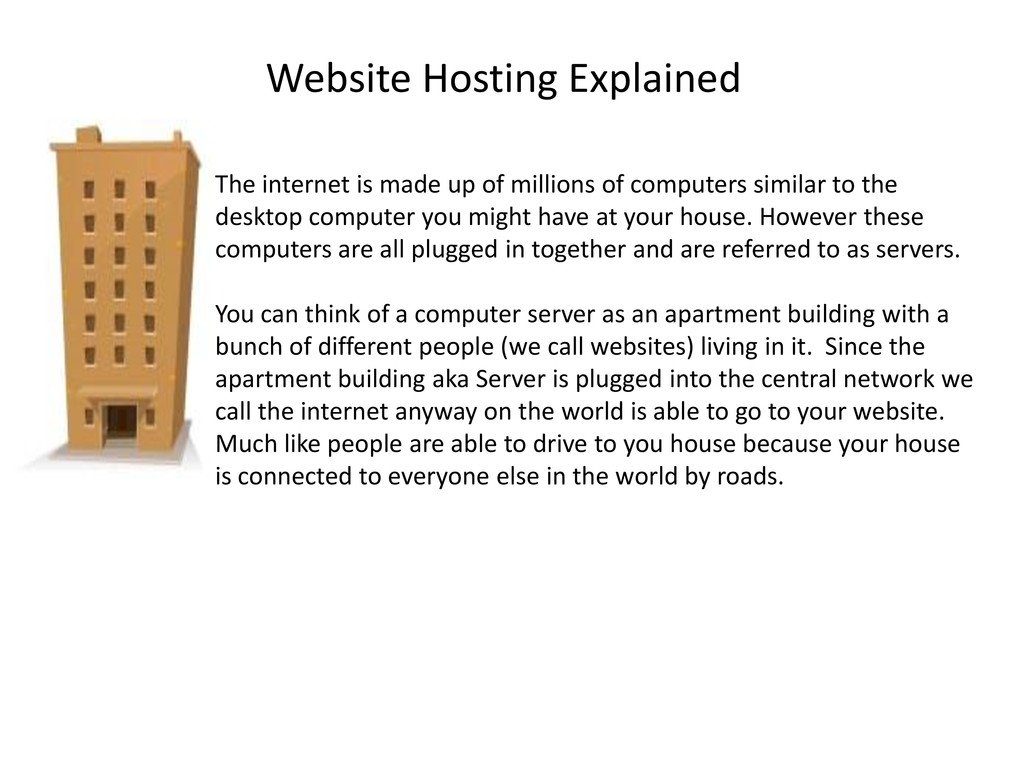
of computers similar to the desktop computer you might have at your house. However these computers are all plugged in together and are referred to as servers. You can think of a computer server as an apartment building with a bunch of different people (we call websites) living in it. Since the apartment building aka Server is plugged into the central network we call the internet anyway on the world is able to go to your website. Much like people are able to drive to you house because your house is connected to everyone else in the world by roads.
website files you create on your computer to their new home on the internet you will need a special “File Transfer Protocol“ program that is used to take your files from your local computer and move them to your website hosting account. Just think of it as if you moved to a new home you would have to get a special truck to come and take all your furniture and drive it to your new home somewhere else. This process is also referred to as uploading your files to the internet. Now that we have a text editor to create a webpage with and a ftp program to help us move what ever files we make to our new home on the web, lets get started by looking at the structure of a webpage.
if your on a mac). Type the code that will be listed on the next slide and save it as index.html then upload to your website hosting account using the FTP program. Make sure you upload the file to where your website hosting account states to upload the files too. Typically you will need to upload the files to a folder called “public_html” or “public”
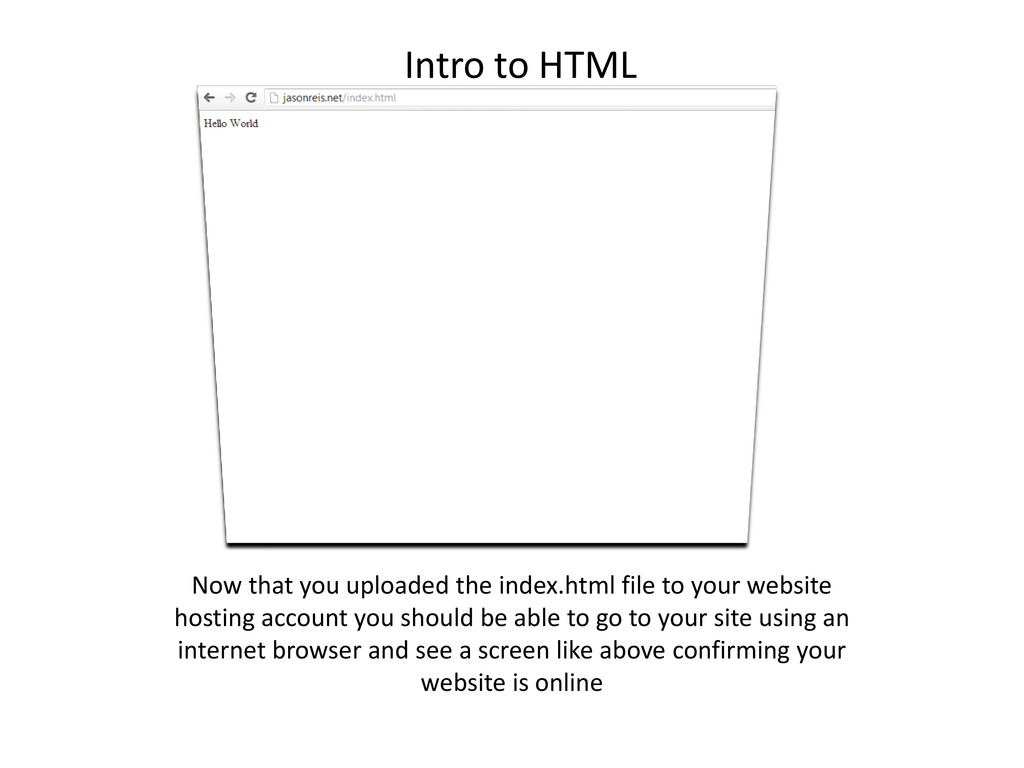
to your website hosting account you should be able to go to your site using an internet browser and see a screen like above confirming your website is online
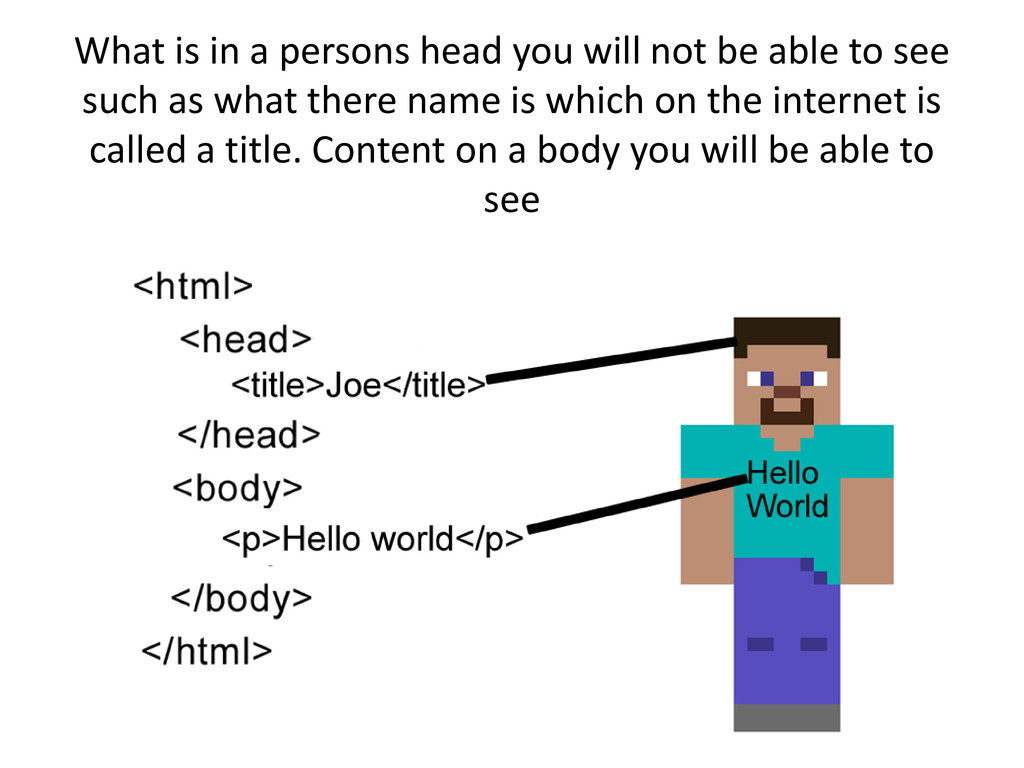
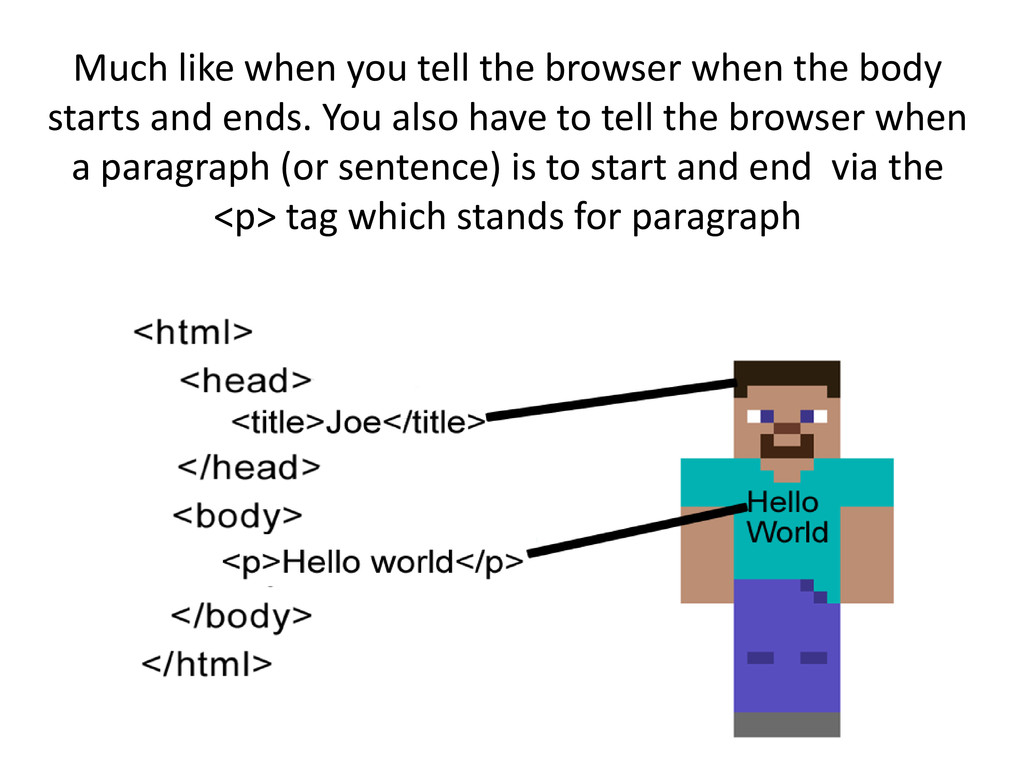
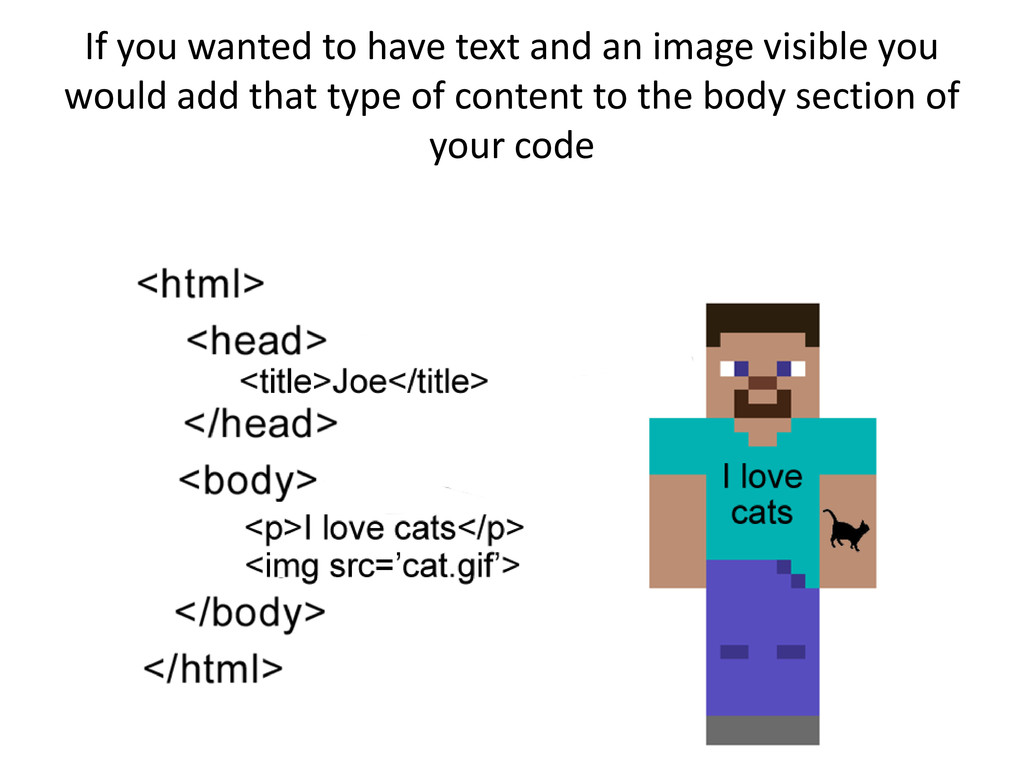
text on a webpage using the <p> tag lets get fancy an add an image to our website. Lets go back to your text editor and copy the code on the following slide. However lets replace the part where it says <img src=‘cat.gif’> with the below tag instead <img src=‘http://www.jasonreis.net/mozilla-firefox.png’> Then be sure to save the file as index.html and upload again to your website hosting account. When uploading be sure to overwrite the original index.html file you have there. After you copy and upload the code on the following slide refresh the browser that you have open and you should now see an image on the page.
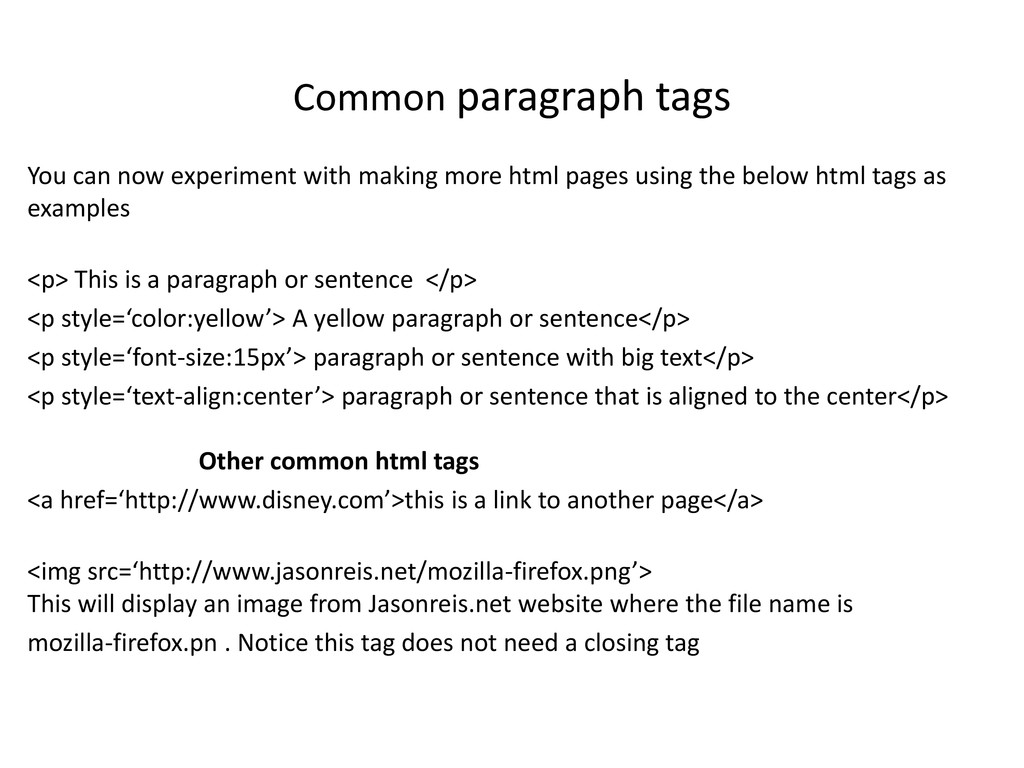
html pages using the below html tags as examples <p> This is a paragraph or sentence </p> <p style=‘color:yellow’> A yellow paragraph or sentence</p> <p style=‘font-size:15px’> paragraph or sentence with big text</p> <p style=‘text-align:center’> paragraph or sentence that is aligned to the center</p> Other common html tags <a href=‘http://www.disney.com’>this is a link to another page</a> <img src=‘http://www.jasonreis.net/mozilla-firefox.png’> This will display an image from Jasonreis.net website where the file name is mozilla-firefox.pn . Notice this tag does not need a closing tag
and is made available for use freely Website: Jasonreis.net Twitter: @jayreis LinkedIn: Linkedin.com/in/jasonareis License viewable via the below link: http://creativecommons.org/licenses/by-nc-nd/3.0/legalcode


 morizo_1984
 panda728
 syumai
 sylph01
 chobishiba
 naokihaba
 clockmaker
 satoshi256kbyte
 eed3si9n
 nokomoro3
 ivargrimstad
 gonta
gonta
 cromwellryan
 axbom
axbom
 eileencodes
 nikkihalliwell
 skoyamalab
 bryan
bryan
 gr2m
gr2m
 pauljervisheath
 akashhashmi
 jct
jct
 bermonpainter
 gurzu
gurzu