Upgrade to Pro
— share decks privately, control downloads, hide ads and more …
Speaker Deck
Sign up for free
Menu
Search
Features
All features
Private URLs
Password Protection
Custom URLS
Scheduled publishing
Remove Branding
Restrict embedding
Deck Collections
Notes
Features
All features
Private URLs
Password Protection
Custom URLS
Scheduled publishing
Remove Branding
Restrict embedding
Deck Collections
Notes
Explore
Featured decks
Featured speakers
Programming
Technology
Storyboards
Explore
Featured decks
Featured speakers
Programming
Technology
Storyboards
Pricing
Search
Sign in
Sign up for free
空間情報システム入門Ⅰ
Search
shu__
June 16, 2016
24
0
Share
Embed
Copy iframe code
Copy JS code
Copy link
Start on current slide
空間情報システム入門Ⅰ
shu__
June 16, 2016
More Decks by shu__
See All by shu__
Field Papers transifex マニュアル
shumatumoto
0
29
Field Papers transifex マニュアル
shumatumoto
0
73
Tasking Manager
shumatumoto
0
110
空間情報システム入門Ⅰ 2016/7/14
shumatumoto
0
44
空間情報システム入門Ⅰ 2016/6/16
shumatumoto
0
62
Featured
See All Featured
AI: The stuff that nobody shows you
jnunemaker
PRO
10
1.2k
Lessons Learnt from Crawling 1000+ Websites
charlesmeaden
PRO
1
1.6k
Practical Orchestrator
shlominoach
192
12k
GraphQLの誤解/rethinking-graphql
sonatard
75
12k
SERP Conf. Vienna - Web Accessibility: Optimizing for Inclusivity and SEO
sarafernandez
2
1.6k
The Mindset for Success: Future Career Progression
greggifford
PRO
0
540
WCS-LA-2024
lcolladotor
0
890
AI Search: Where Are We & What Can We Do About It?
aleyda
0
8.1k
Agile Leadership in an Agile Organization
kimpetersen
PRO
0
290
How Fast Is Fast Enough? [PerfNow 2025]
tammyeverts
3
940
Easily Structure & Communicate Ideas using Wireframe
afnizarnur
194
17k
How to Get Subject Matter Experts Bought In and Actively Contributing to SEO & PR Initiatives.
livdayseo
0
220
Transcript
TASKING MANAGERによるマッピング作業 のマニュアル
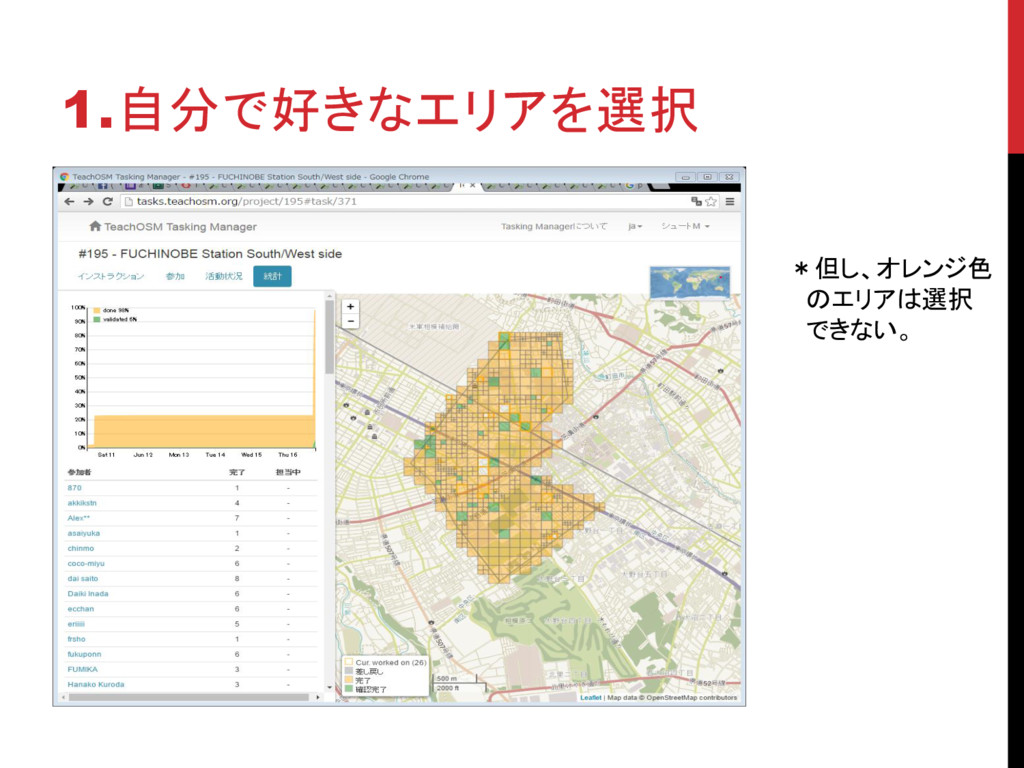
1.自分で好きなエリアを選択 *但し、オレンジ色 のエリアは選択 できない。
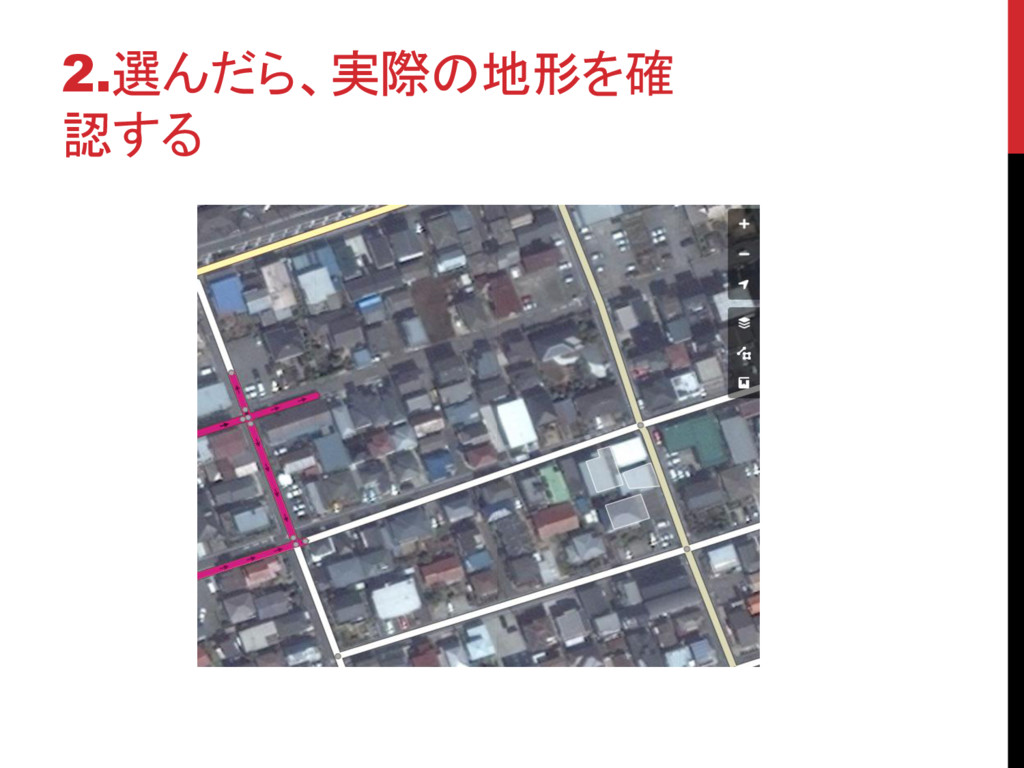
2.選んだら、実際の地形を確 認する
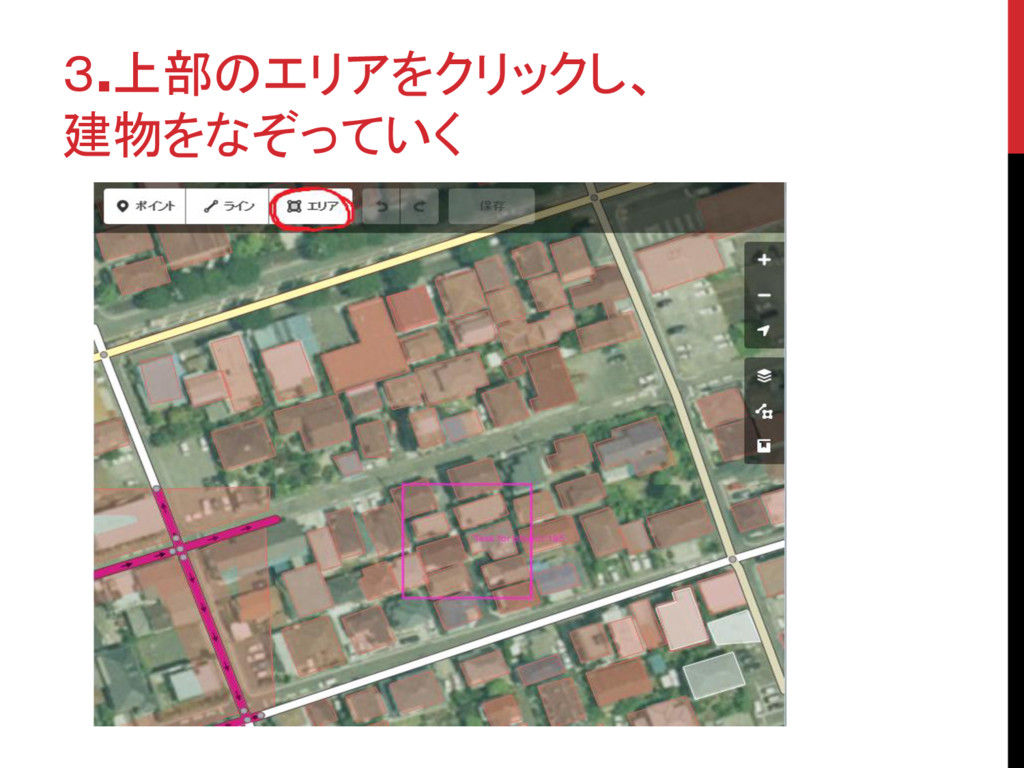
3.上部のエリアをクリックし、 建物をなぞっていく
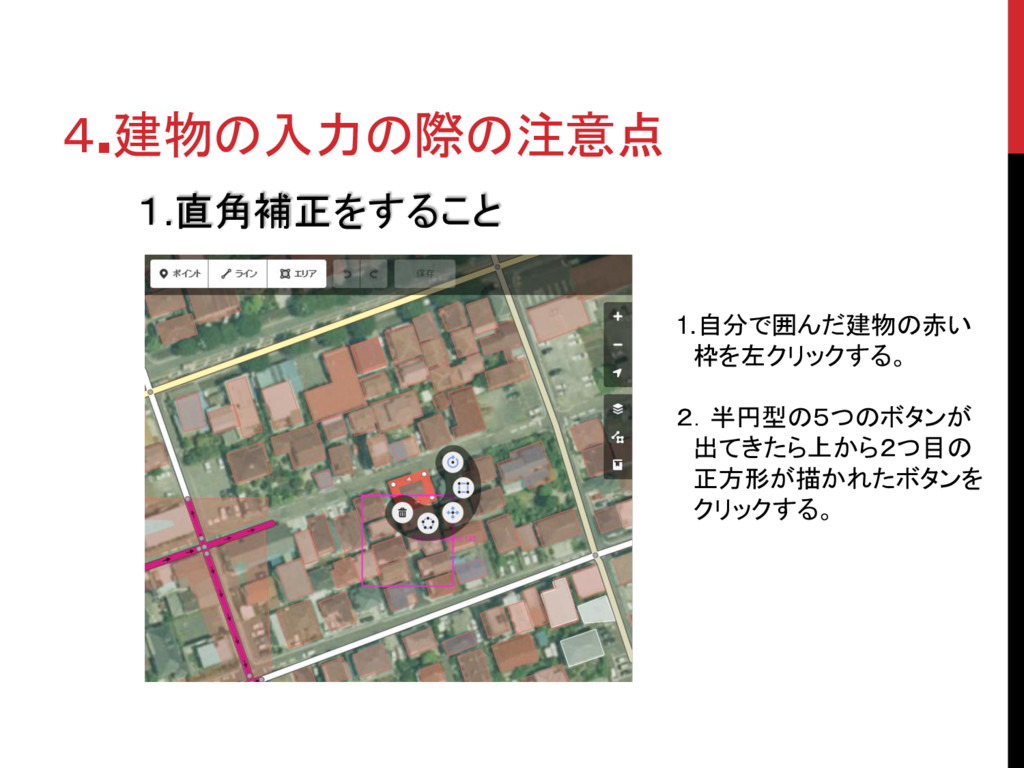
4.建物の入力の際の注意点 1.直角補正をすること 1.自分で囲んだ建物の赤い 枠を左クリックする。 2.半円型の5つのボタンが 出てきたら上から2つ目の 正方形が描かれたボタンを クリックする。
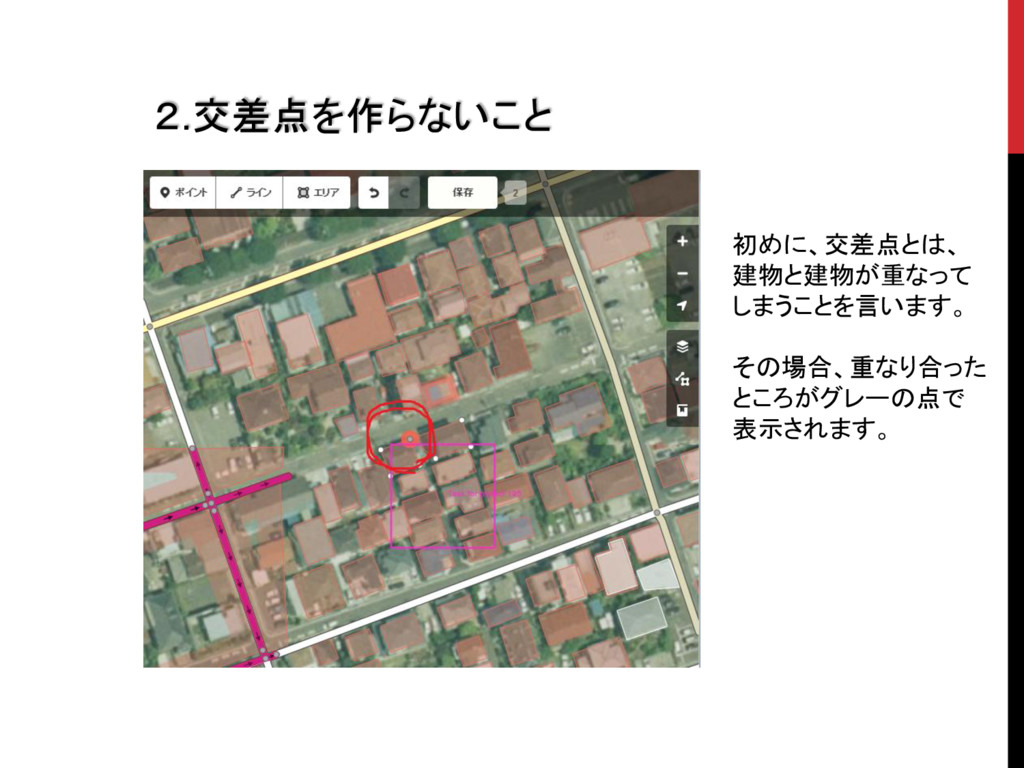
2.交差点を作らないこと 初めに、交差点とは、 建物と建物が重なって しまうことを言います。 その場合、重なり合った ところがグレーの点で 表示されます。
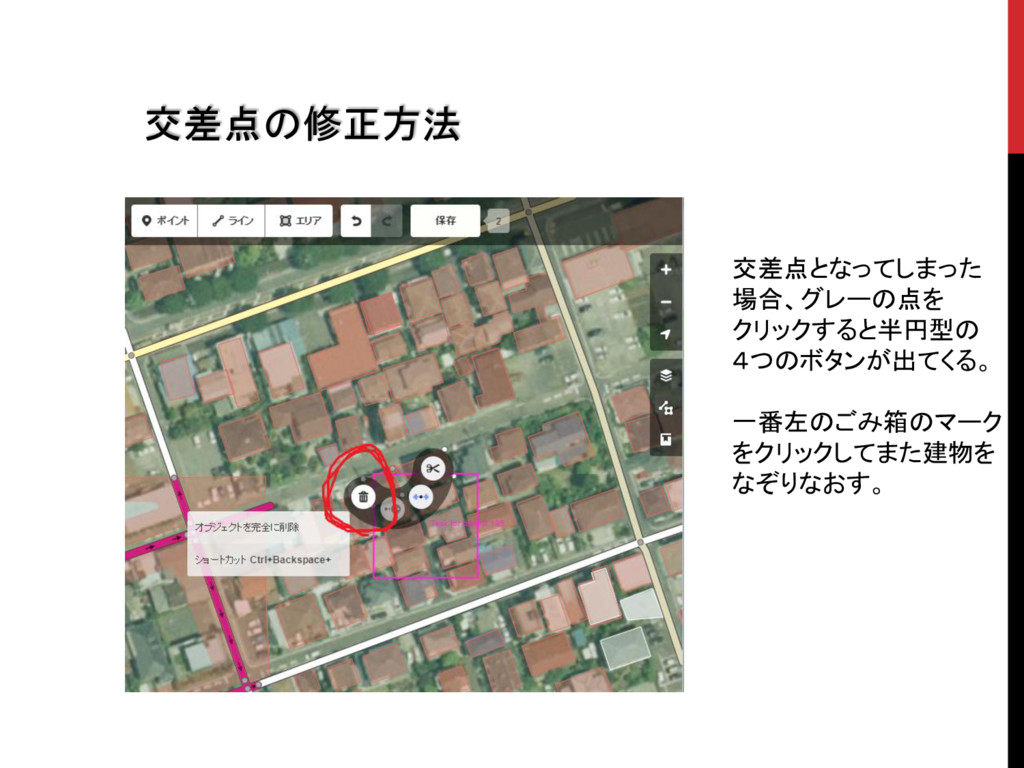
交差点の修正方法 交差点となってしまった 場合、グレーの点を クリックすると半円型の 4つのボタンが出てくる。 一番左のごみ箱のマーク をクリックしてまた建物を なぞりなおす。
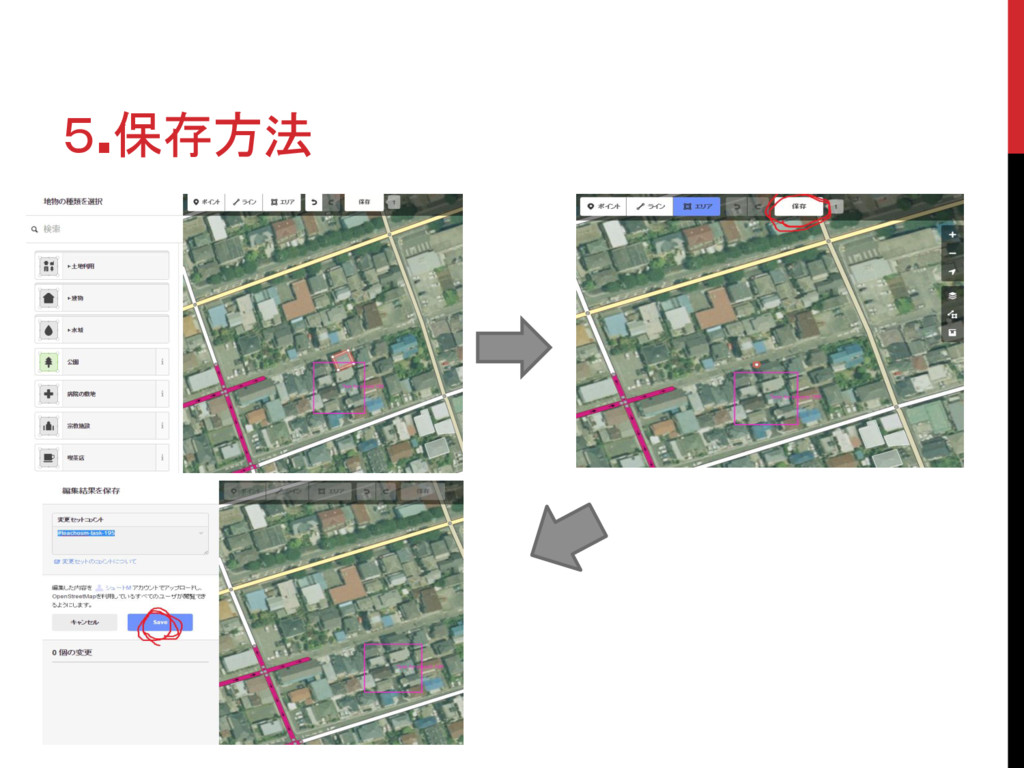
5.保存方法
1.建物を線で囲んだら、建物の種類を選ぶ。 2.選んだら、右上部の保存をおす。 3.保存を押したのち、SAVEを押して保存完了。
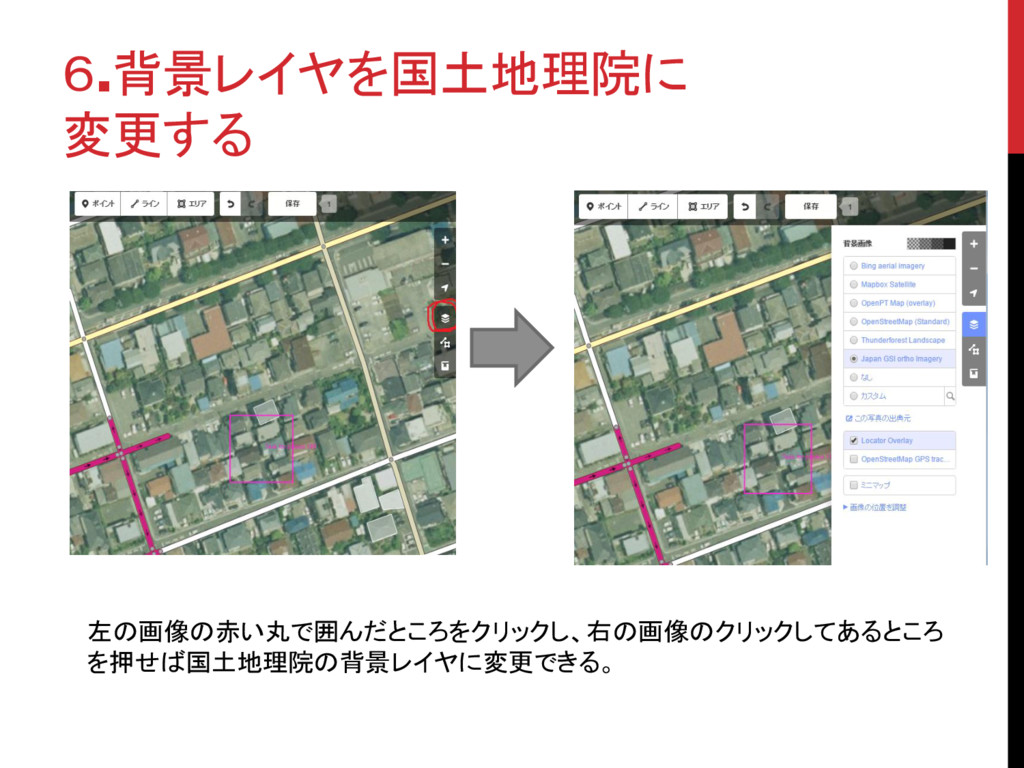
6.背景レイヤを国土地理院に 変更する 左の画像の赤い丸で囲んだところをクリックし、右の画像のクリックしてあるところ を押せば国土地理院の背景レイヤに変更できる。
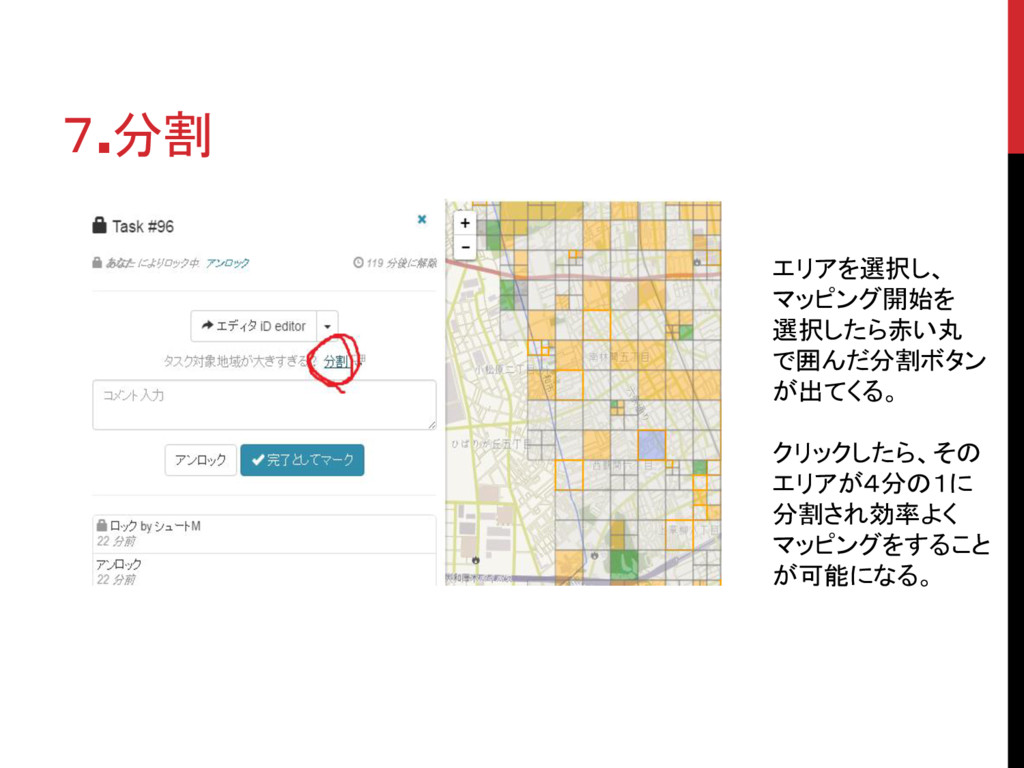
7.分割 エリアを選択し、 マッピング開始を 選択したら赤い丸 で囲んだ分割ボタン が出てくる。 クリックしたら、その エリアが4分の1に 分割され効率よく マッピングをすること
が可能になる。
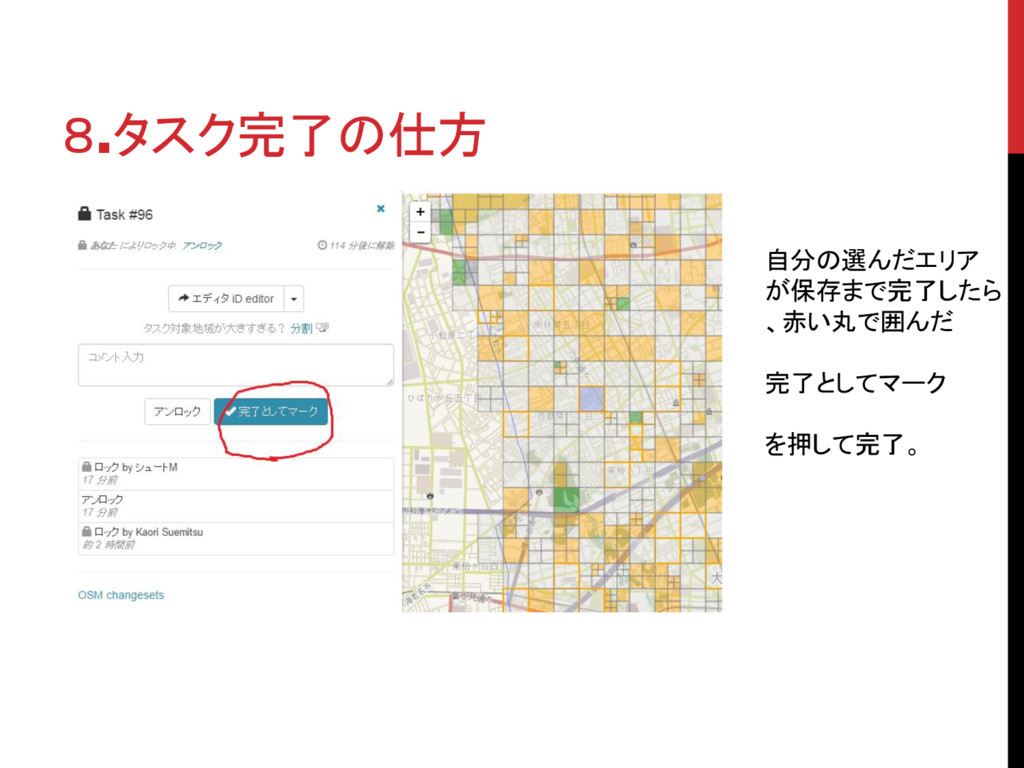
8.タスク完了の仕方 自分の選んだエリア が保存まで完了したら 、赤い丸で囲んだ 完了としてマーク を押して完了。


 shumatumoto
 jnunemaker
 charlesmeaden
 shlominoach
 sonatard
 sarafernandez
 greggifford
 lcolladotor
 aleyda
 kimpetersen
 tammyeverts
 afnizarnur
 livdayseo