Upgrade to Pro — share decks privately, control downloads, hide ads and more …

Learning Docker with Thomas

Sponsored · Your Podcast. Everywhere. Effortlessly. Share. Educate. Inspire. Entertain. You do you. We'll handle the rest.

Learning Docker with Thomas

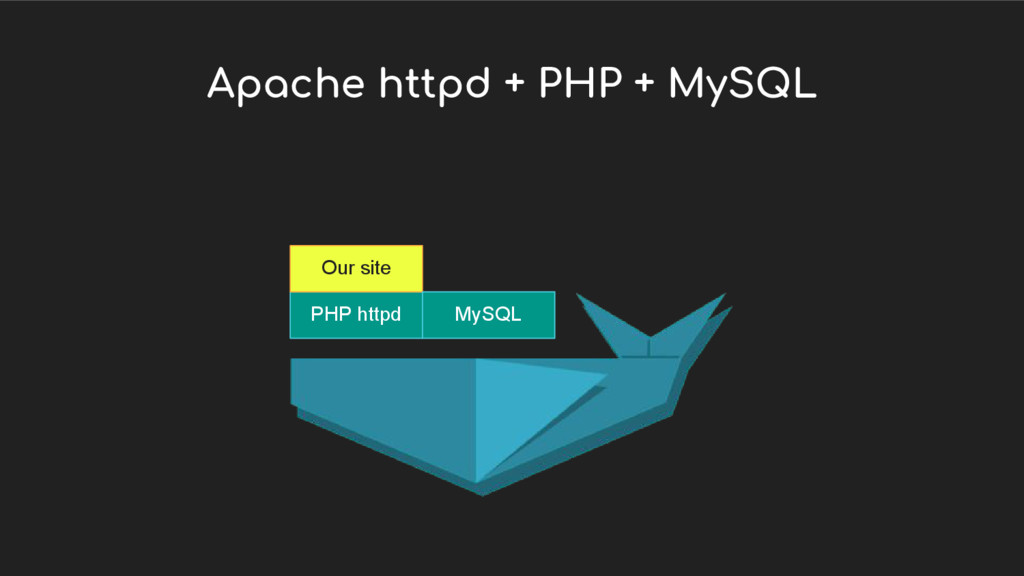
This presentation session will go through the basics of Docker and illustrate its importance in modern DevOps. It will also go through a step-by-step demo of setting up a Docker image for the LAMP stack (Linux, Apache, MySQL, PHP) together with a working sample application.

Slides & codes: http://bit.ly/thomasdocker

Avatar for Thomas Tong

Thomas Tong

February 17, 2017
Tweet

Other Decks in Programming

Transcript

  1. Benefits • Lightweight • Experiment and use whatever technology fits

    best • Having multiple versions of tools without crashing (Java, Python 2 & 3, etc) • Automated deployment • Quickly and accurately set up environments for DEV, UAT, etc. • Scale easily
  2. Today’s Demo • Install Docker • Download and run a

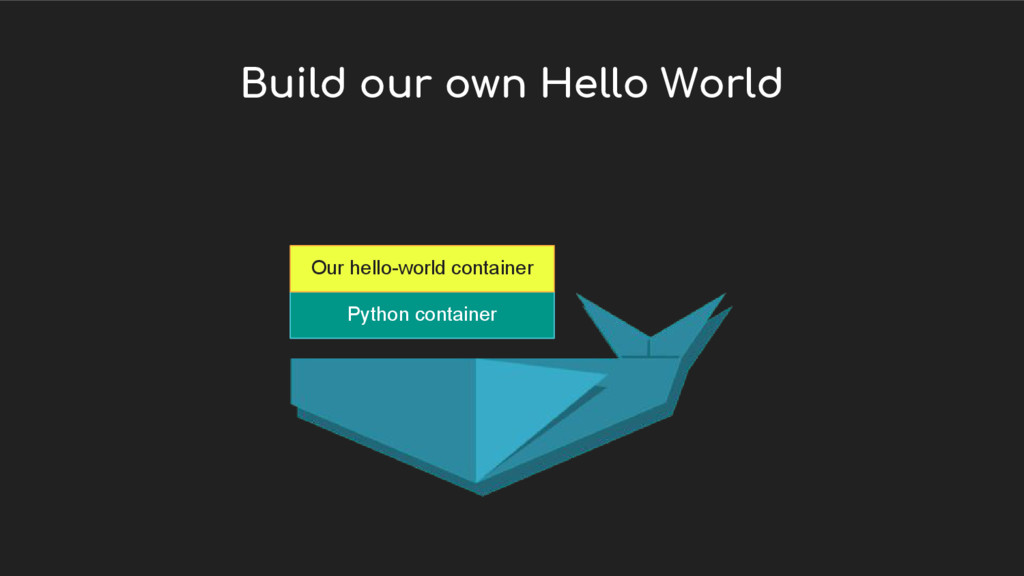
    Hello World Docker image • Compose our own Hello World Docker Image • Compose our own Docker Image that contains a PHP-MySQL application
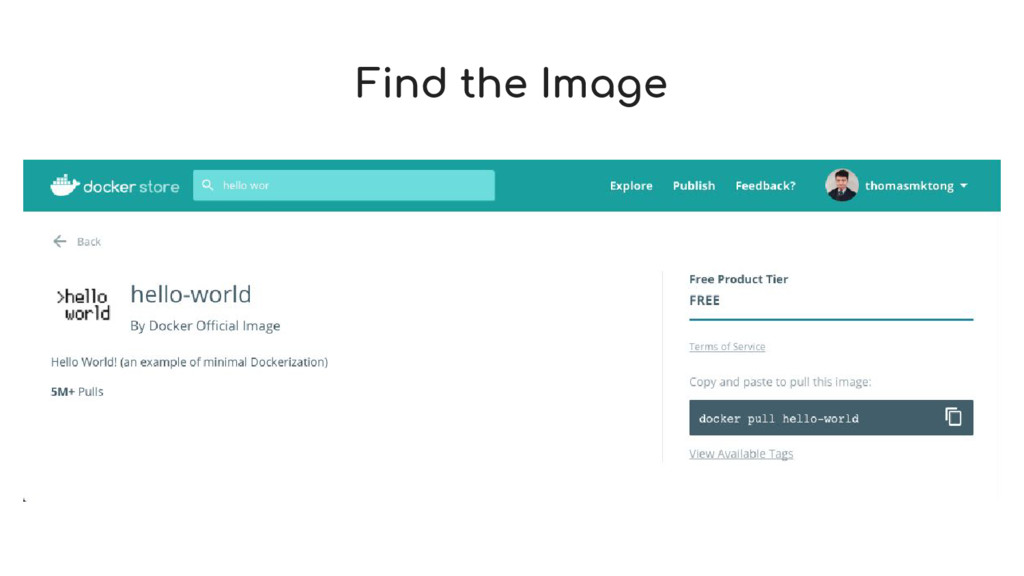
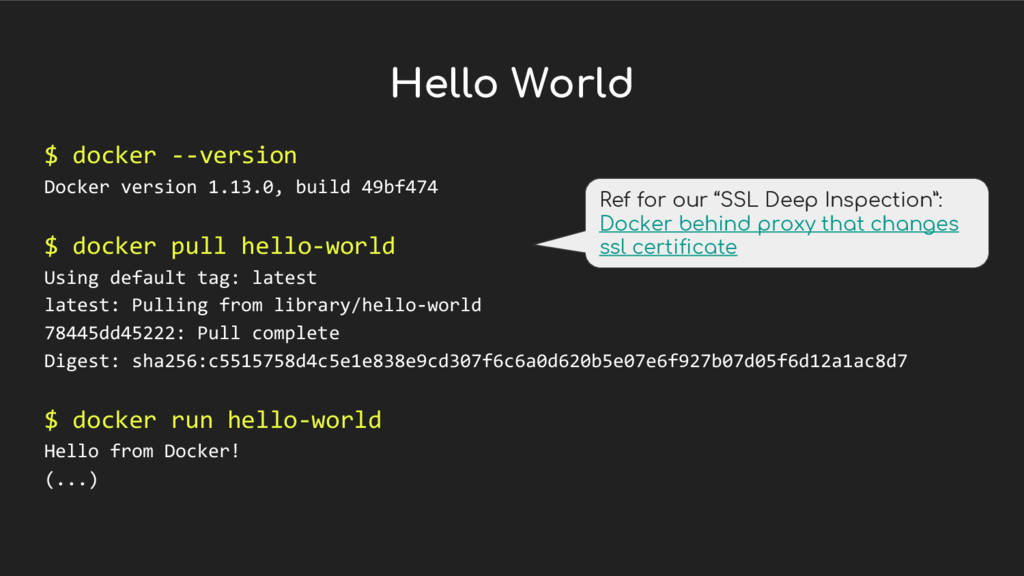
  3. Hello World $ docker --version Docker version 1.13.0, build 49bf474

    $ docker pull hello-world Using default tag: latest latest: Pulling from library/hello-world 78445dd45222: Pull complete Digest: sha256:c5515758d4c5e1e838e9cd307f6c6a0d620b5e07e6f927b07d05f6d12a1ac8d7 $ docker run hello-world Hello from Docker! (...) Ref for our “SSL Deep Inspection”: Docker behind proxy that changes ssl certificate
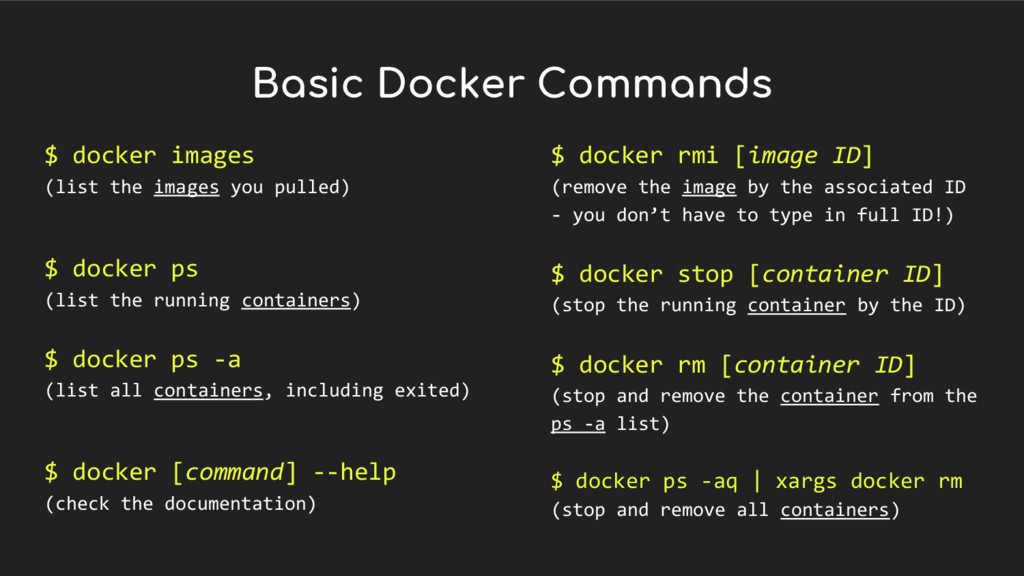
  4. Basic Docker Commands $ docker images (list the images you

    pulled) $ docker ps (list the running containers) $ docker ps -a (list all containers, including exited) $ docker [command] --help (check the documentation) $ docker rmi [image ID] (remove the image by the associated ID - you don’t have to type in full ID!) $ docker stop [container ID] (stop the running container by the ID) $ docker rm [container ID] (stop and remove the container from the ps -a list) $ docker ps -aq | xargs docker rm (stop and remove all containers)
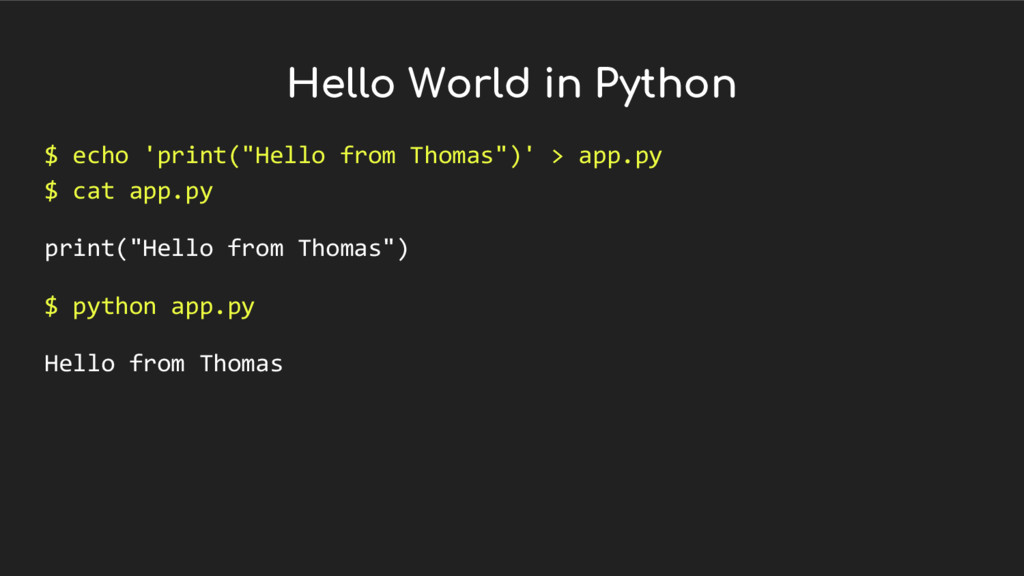
  5. Hello World in Python $ echo 'print("Hello from Thomas")' >

    app.py $ cat app.py print("Hello from Thomas") $ python app.py Hello from Thomas
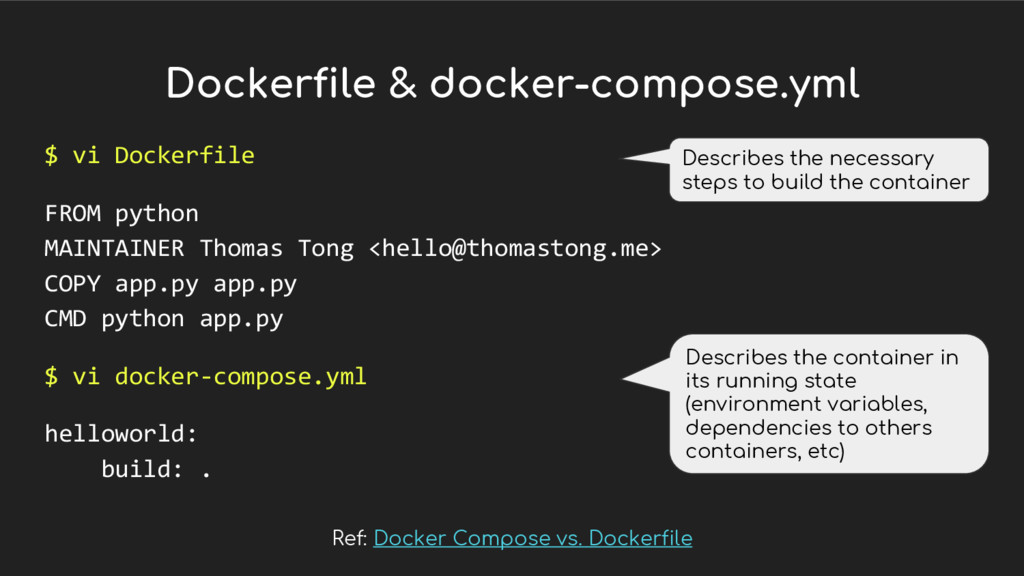
  6. Dockerfile & docker-compose.yml $ vi Dockerfile FROM python MAINTAINER Thomas

    Tong <[email protected]> COPY app.py app.py CMD python app.py $ vi docker-compose.yml helloworld: build: . Describes the necessary steps to build the container Describes the container in its running state (environment variables, dependencies to others containers, etc) Ref: Docker Compose vs. Dockerfile
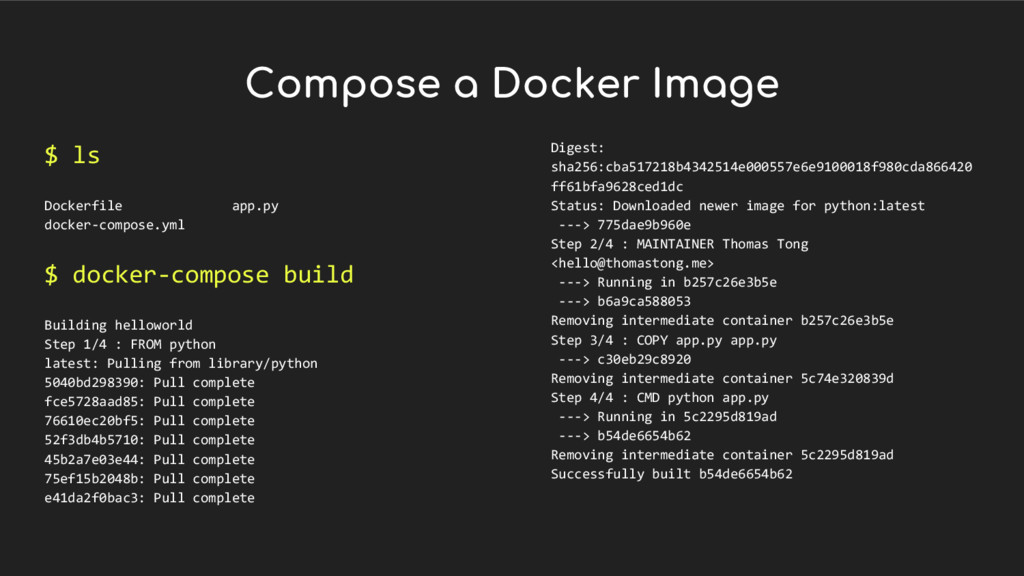
  7. Compose a Docker Image $ ls Dockerfile app.py docker-compose.yml $

    docker-compose build Building helloworld Step 1/4 : FROM python latest: Pulling from library/python 5040bd298390: Pull complete fce5728aad85: Pull complete 76610ec20bf5: Pull complete 52f3db4b5710: Pull complete 45b2a7e03e44: Pull complete 75ef15b2048b: Pull complete e41da2f0bac3: Pull complete Digest: sha256:cba517218b4342514e000557e6e9100018f980cda866420 ff61bfa9628ced1dc Status: Downloaded newer image for python:latest ---> 775dae9b960e Step 2/4 : MAINTAINER Thomas Tong <[email protected]> ---> Running in b257c26e3b5e ---> b6a9ca588053 Removing intermediate container b257c26e3b5e Step 3/4 : COPY app.py app.py ---> c30eb29c8920 Removing intermediate container 5c74e320839d Step 4/4 : CMD python app.py ---> Running in 5c2295d819ad ---> b54de6654b62 Removing intermediate container 5c2295d819ad Successfully built b54de6654b62
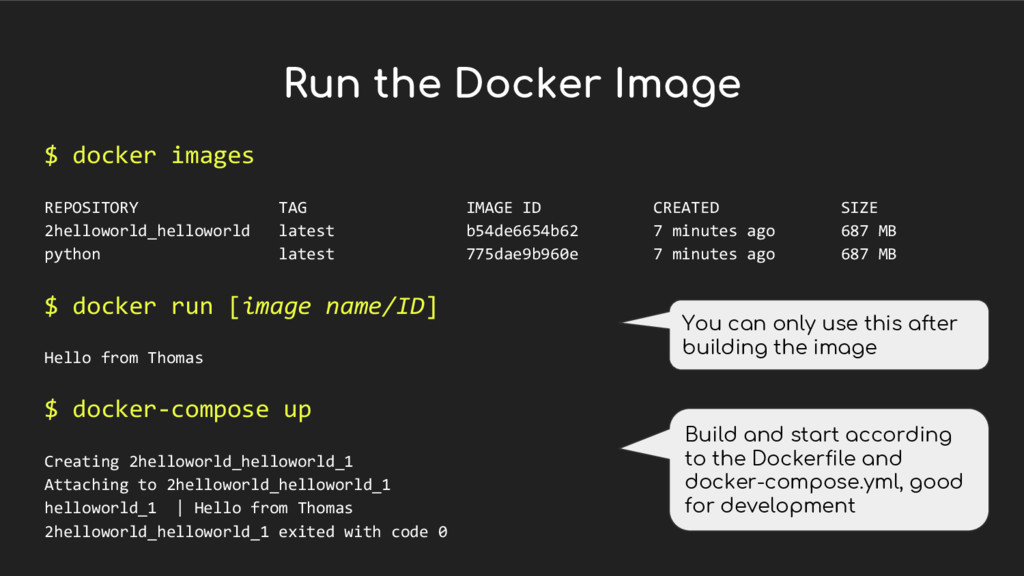
  8. Run the Docker Image $ docker images REPOSITORY TAG IMAGE

    ID CREATED SIZE 2helloworld_helloworld latest b54de6654b62 7 minutes ago 687 MB python latest 775dae9b960e 7 minutes ago 687 MB $ docker run [image name/ID] Hello from Thomas $ docker-compose up Creating 2helloworld_helloworld_1 Attaching to 2helloworld_helloworld_1 helloworld_1 | Hello from Thomas 2helloworld_helloworld_1 exited with code 0 You can only use this after building the image Build and start according to the Dockerfile and docker-compose.yml, good for development
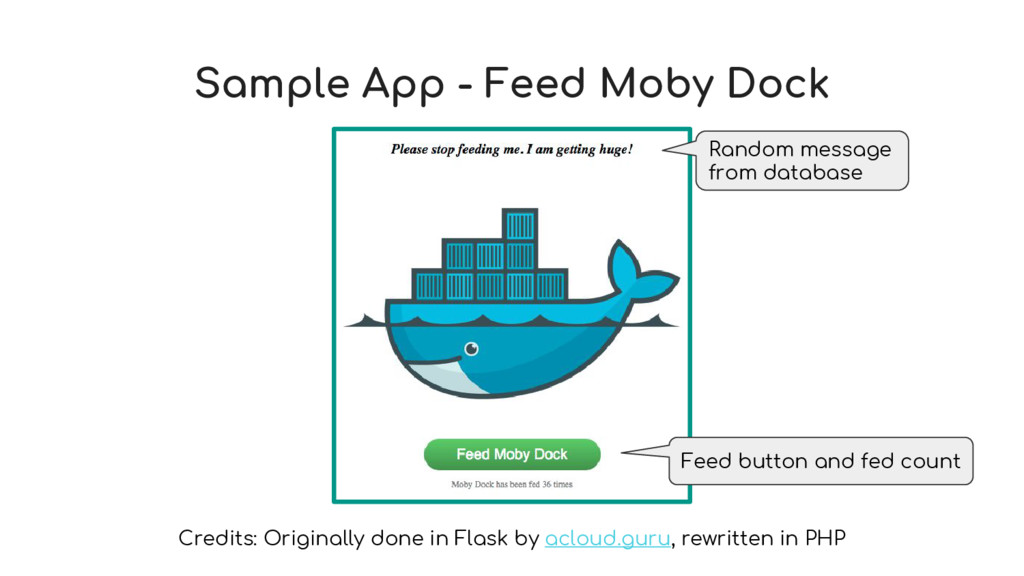
  9. Sample App - Feed Moby Dock Credits: Originally done in

    Flask by acloud.guru, rewritten in PHP Feed button and fed count Random message from database
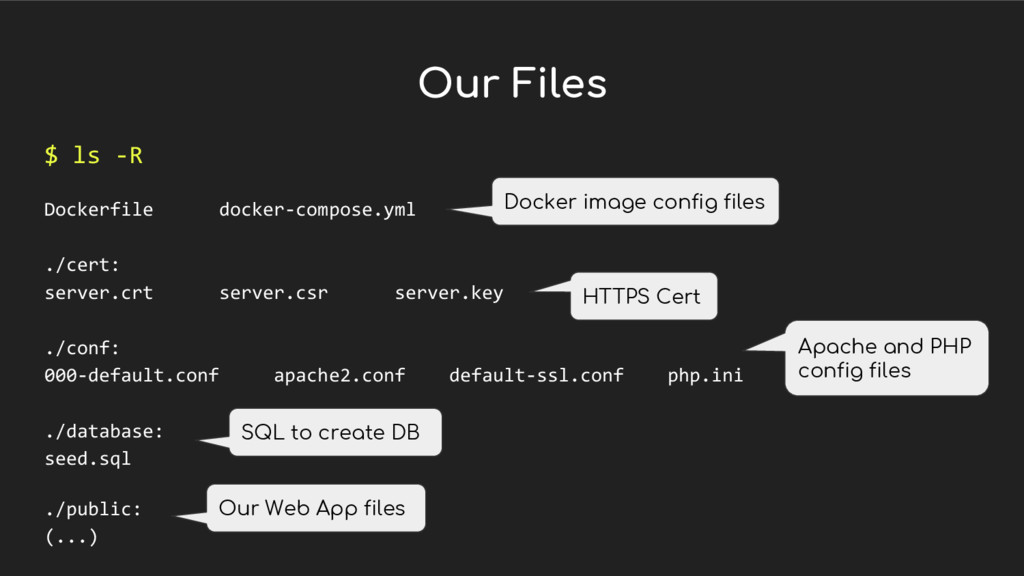
  10. Our Files $ ls -R Dockerfile docker-compose.yml ./cert: server.crt server.csr

    server.key ./conf: 000-default.conf apache2.conf default-ssl.conf php.ini ./database: seed.sql ./public: (...) Docker image config files HTTPS Cert Apache and PHP config files SQL to create DB Our Web App files
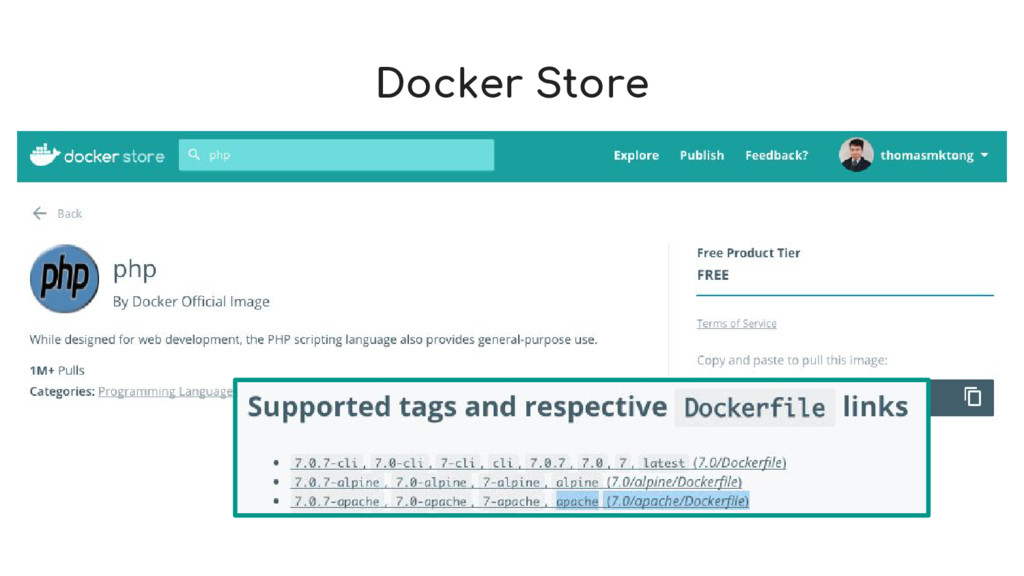
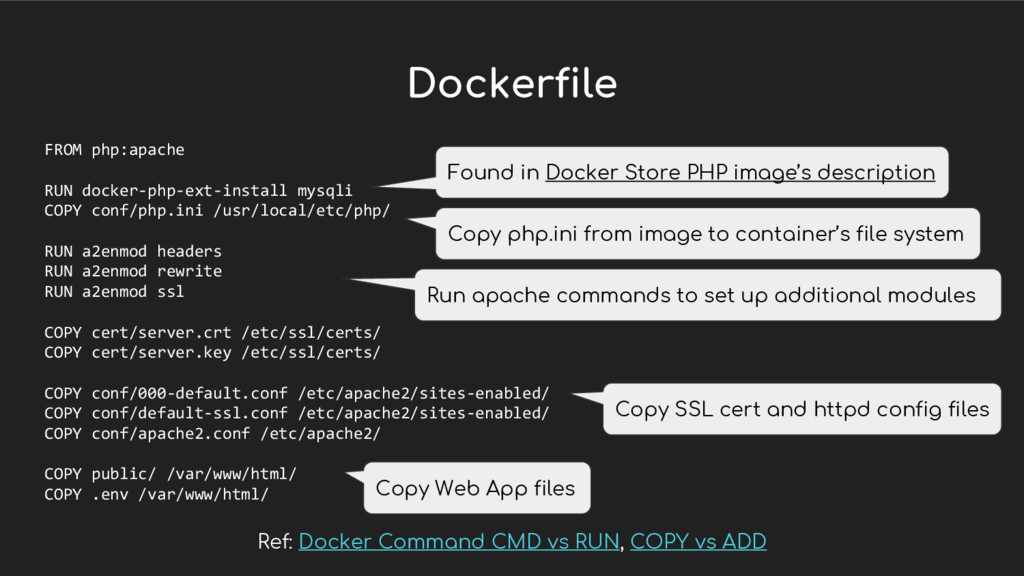
  11. Dockerfile FROM php:apache RUN docker-php-ext-install mysqli COPY conf/php.ini /usr/local/etc/php/ RUN

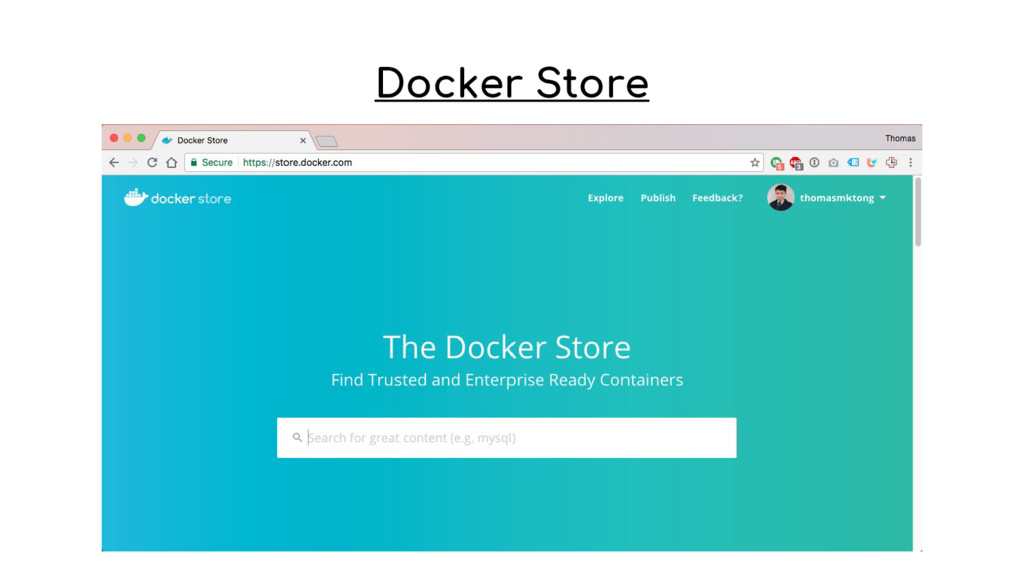
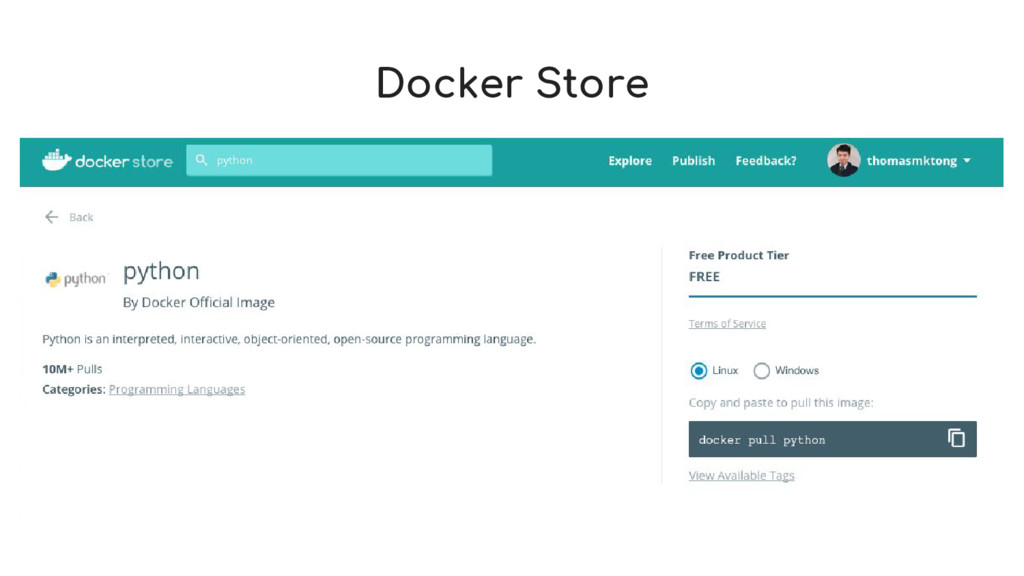
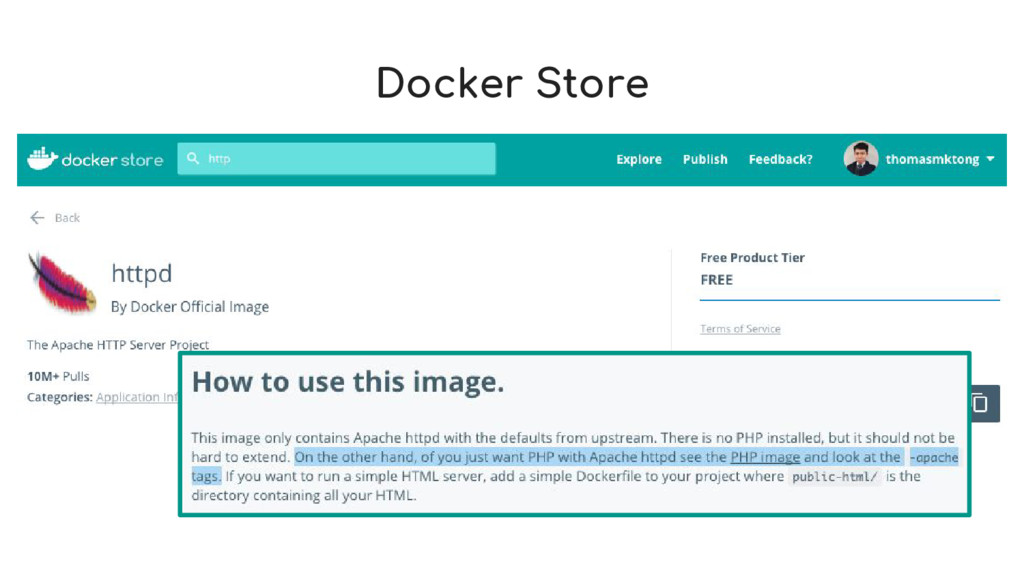
    a2enmod headers RUN a2enmod rewrite RUN a2enmod ssl COPY cert/server.crt /etc/ssl/certs/ COPY cert/server.key /etc/ssl/certs/ COPY conf/000-default.conf /etc/apache2/sites-enabled/ COPY conf/default-ssl.conf /etc/apache2/sites-enabled/ COPY conf/apache2.conf /etc/apache2/ COPY public/ /var/www/html/ COPY .env /var/www/html/ Found in Docker Store PHP image’s description Run apache commands to set up additional modules Copy php.ini from image to container’s file system Ref: Docker Command CMD vs RUN, COPY vs ADD Copy SSL cert and httpd config files Copy Web App files
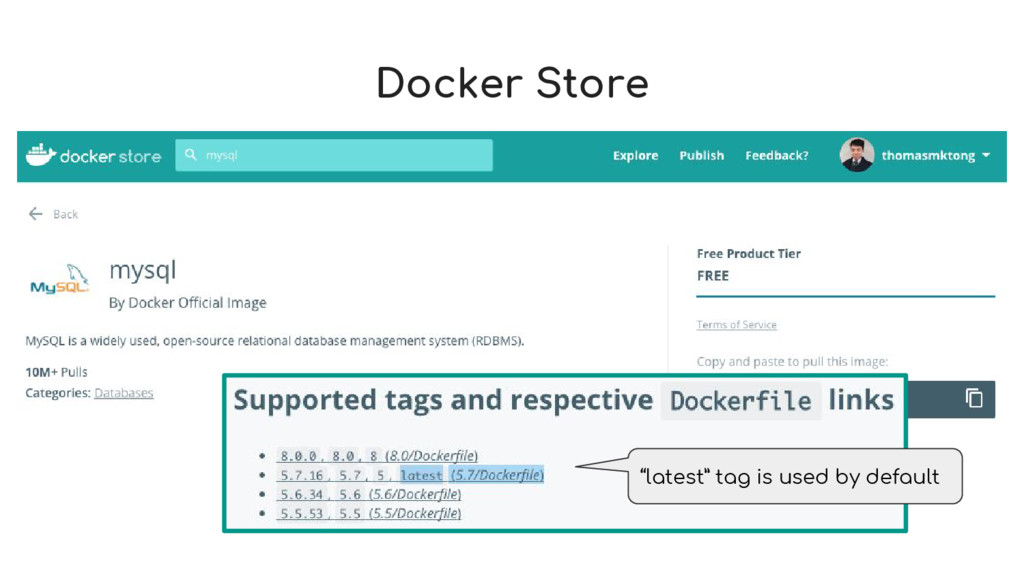
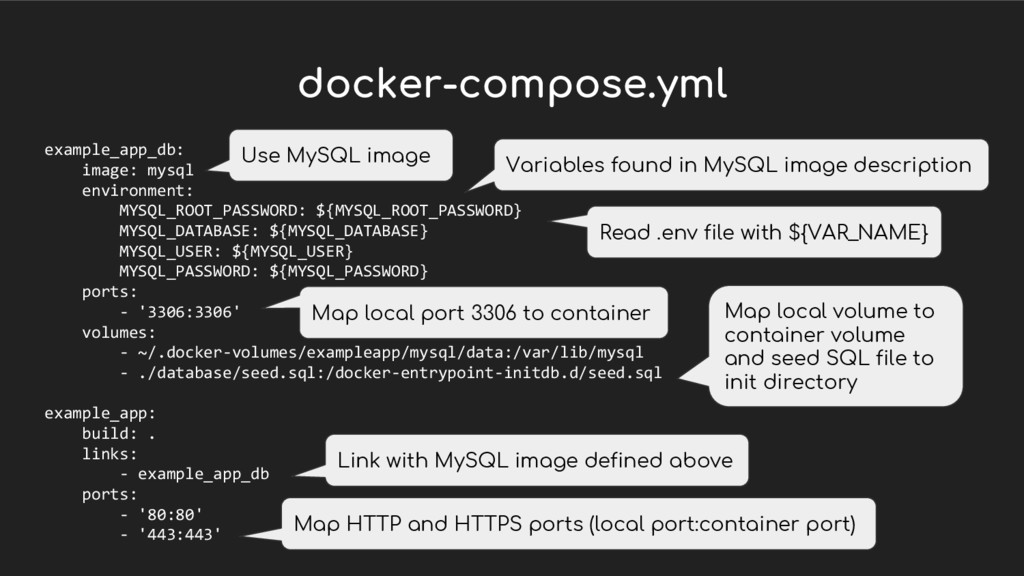
  12. docker-compose.yml example_app_db: image: mysql environment: MYSQL_ROOT_PASSWORD: ${MYSQL_ROOT_PASSWORD} MYSQL_DATABASE: ${MYSQL_DATABASE} MYSQL_USER:

    ${MYSQL_USER} MYSQL_PASSWORD: ${MYSQL_PASSWORD} ports: - '3306:3306' volumes: - ~/.docker-volumes/exampleapp/mysql/data:/var/lib/mysql - ./database/seed.sql:/docker-entrypoint-initdb.d/seed.sql example_app: build: . links: - example_app_db ports: - '80:80' - '443:443' Variables found in MySQL image description Use MySQL image Link with MySQL image defined above Map HTTP and HTTPS ports (local port:container port) Map local volume to container volume and seed SQL file to init directory Read .env file with ${VAR_NAME} Map local port 3306 to container
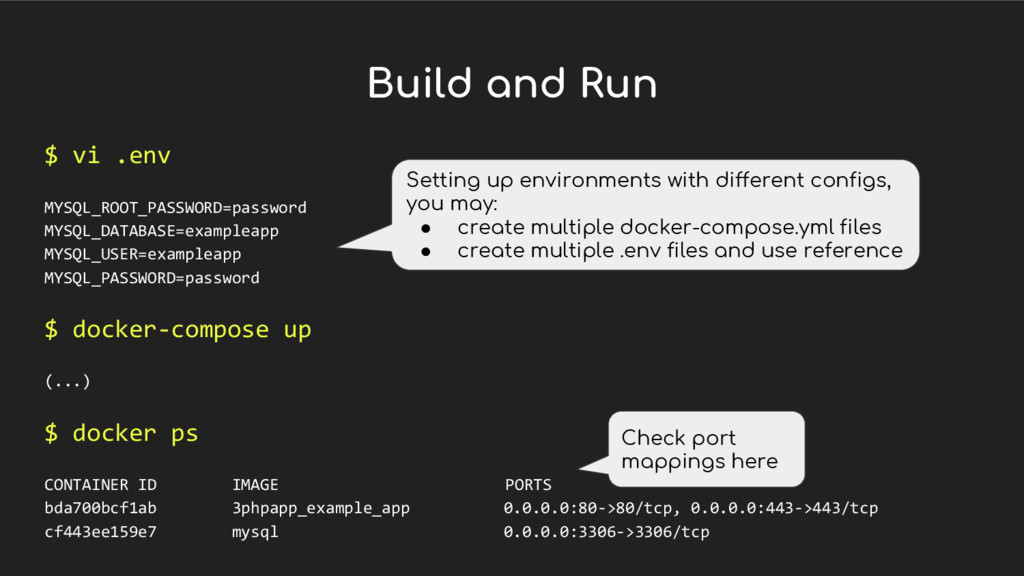
  13. Build and Run $ vi .env MYSQL_ROOT_PASSWORD=password MYSQL_DATABASE=exampleapp MYSQL_USER=exampleapp MYSQL_PASSWORD=password

    $ docker-compose up (...) $ docker ps CONTAINER ID IMAGE PORTS bda700bcf1ab 3phpapp_example_app 0.0.0.0:80->80/tcp, 0.0.0.0:443->443/tcp cf443ee159e7 mysql 0.0.0.0:3306->3306/tcp Setting up environments with different configs, you may: • create multiple docker-compose.yml files • create multiple .env files and use reference Check port mappings here
  14. Docker Inspect $ docker inspect [container ID] (...) "Env": [

    "MYSQL_ROOT_PASSWORD=password", "MYSQL_PASSWORD=password", "MYSQL_USER=exampleapp", "MYSQL_DATABASE=exampleapp", (...) $ docker exec -it [container ID] sh # Check whether environment variables are loaded correctly Run bash shell in a container to check its file system
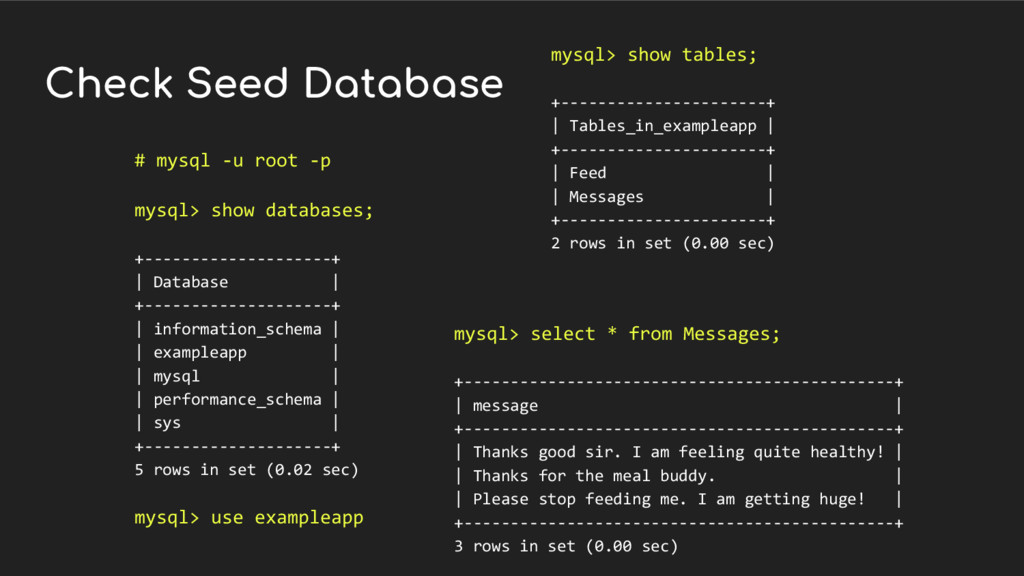
  15. Check Seed Database # mysql -u root -p mysql> show

    databases; +--------------------+ | Database | +--------------------+ | information_schema | | exampleapp | | mysql | | performance_schema | | sys | +--------------------+ 5 rows in set (0.02 sec) mysql> use exampleapp mysql> show tables; +----------------------+ | Tables_in_exampleapp | +----------------------+ | Feed | | Messages | +----------------------+ 2 rows in set (0.00 sec) mysql> select * from Messages; +----------------------------------------------+ | message | +----------------------------------------------+ | Thanks good sir. I am feeling quite healthy! | | Thanks for the meal buddy. | | Please stop feeding me. I am getting huge! | +----------------------------------------------+ 3 rows in set (0.00 sec)
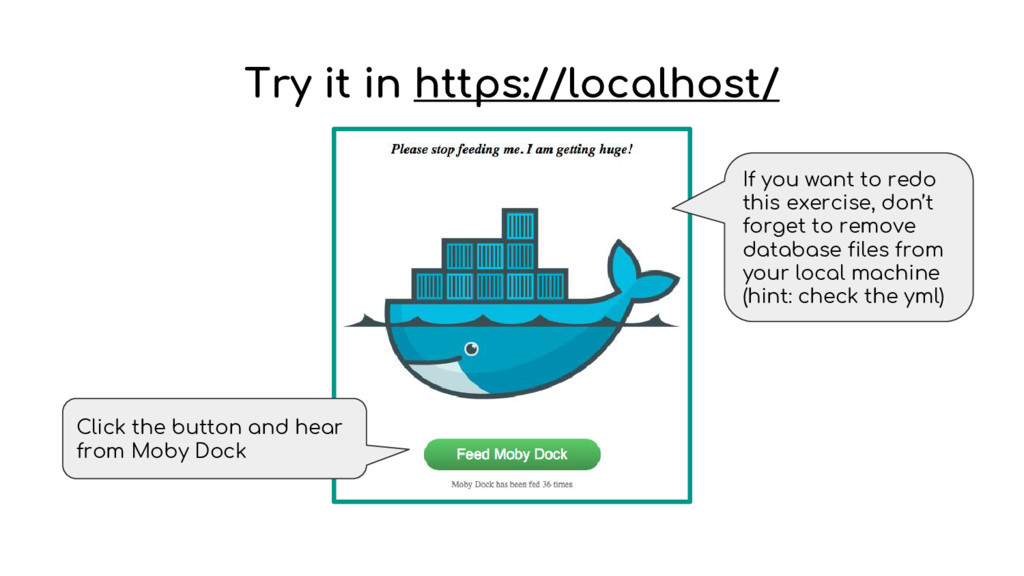
  16. Try it in https://localhost/ Click the button and hear from

    Moby Dock If you want to redo this exercise, don’t forget to remove database files from your local machine (hint: check the yml)
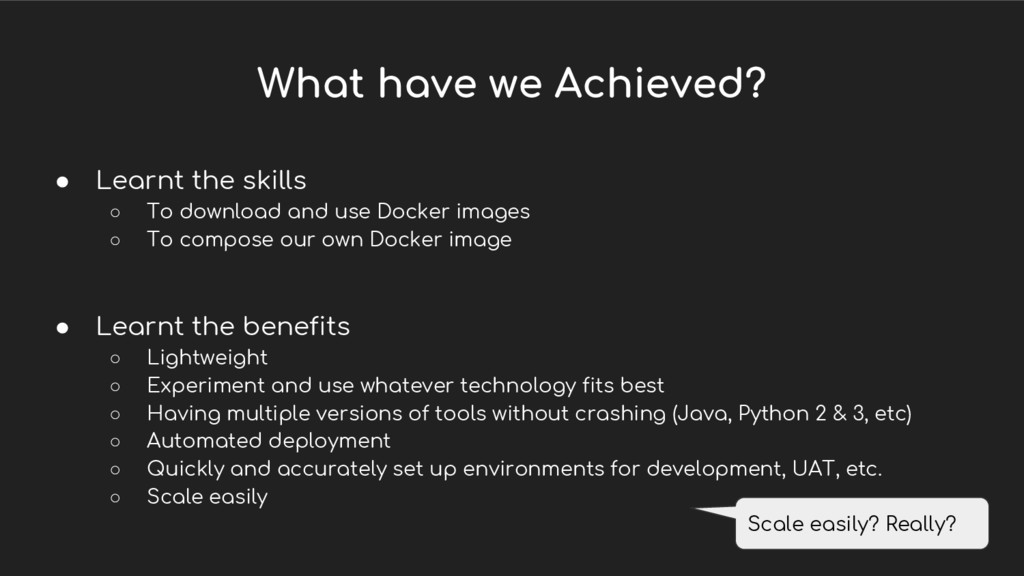
  17. What have we Achieved? • Learnt the skills ◦ To

    download and use Docker images ◦ To compose our own Docker image • Learnt the benefits ◦ Lightweight ◦ Experiment and use whatever technology fits best ◦ Having multiple versions of tools without crashing (Java, Python 2 & 3, etc) ◦ Automated deployment ◦ Quickly and accurately set up environments for development, UAT, etc. ◦ Scale easily Scale easily? Really?
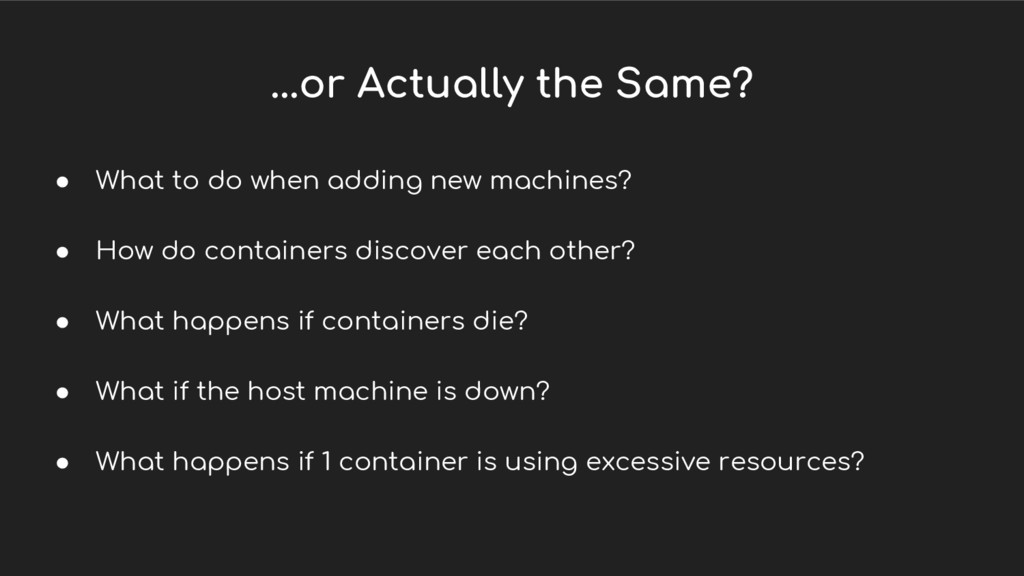
  18. ...or Actually the Same? • What to do when adding

    new machines? • How do containers discover each other? • What happens if containers die? • What if the host machine is down? • What happens if 1 container is using excessive resources?
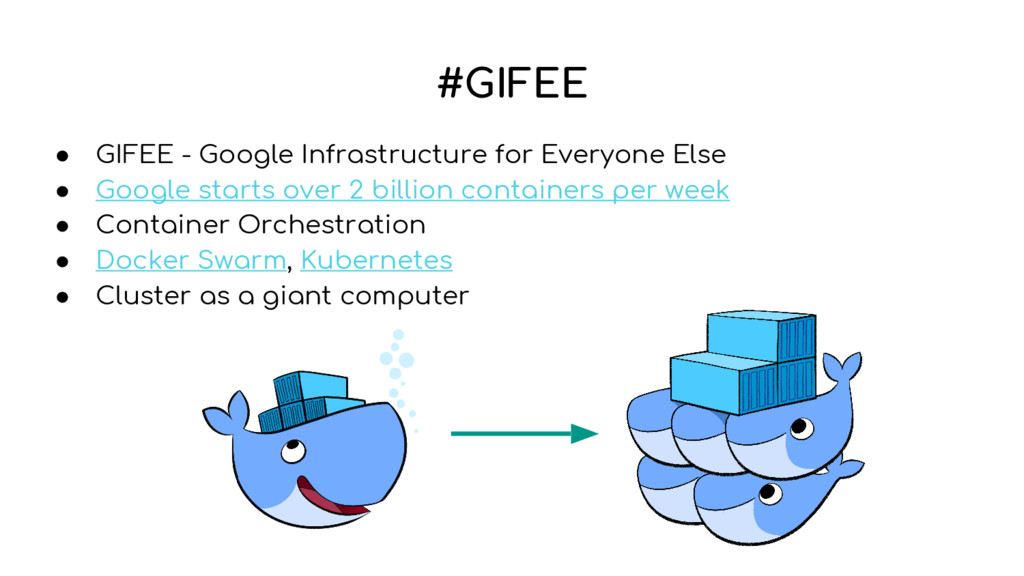
  19. #GIFEE • GIFEE - Google Infrastructure for Everyone Else •

    Google starts over 2 billion containers per week • Container Orchestration • Docker Swarm, Kubernetes • Cluster as a giant computer
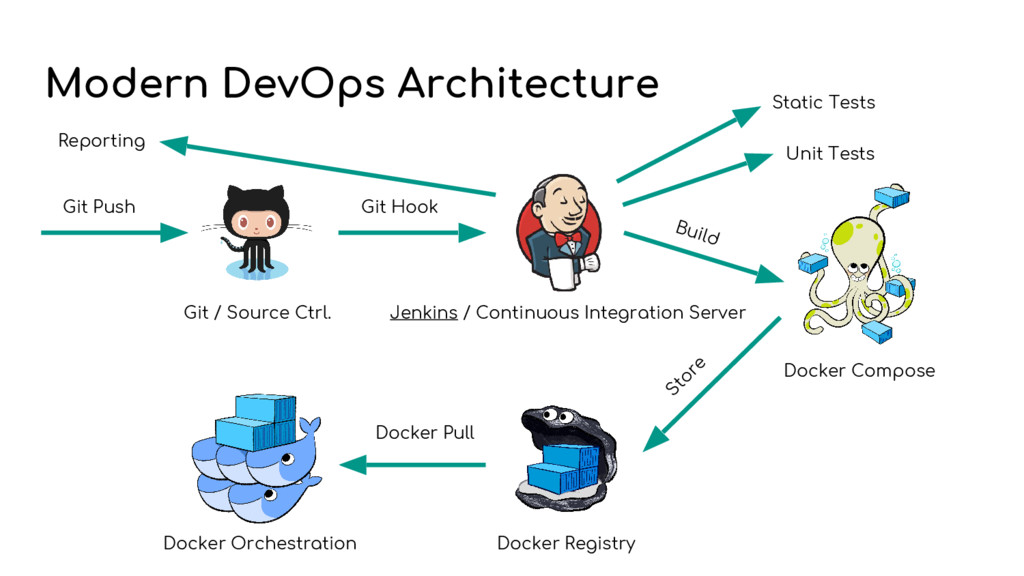
  20. Modern DevOps Architecture Git Push Git Hook Git / Source

    Ctrl. Jenkins / Continuous Integration Server Static Tests Unit Tests Reporting Docker Compose Build Docker Orchestration Docker Registry Store Docker Pull
  21. Further Watchings & Readings • Docker for DevOps - From

    Development to Production MOOC by acloud.guru • Scalable Microservices with Kubernetes MOOC by Google and Udacity • Shipping code with Docker + Kubernetes (Cantonese) Recordings of 20 Jun 2016 Meetup @ OneSky • ...and remember not to overkill: It’s the Future, It really is the future Blog by CircleCI