Upgrade to Pro — share decks privately, control downloads, hide ads and more …

Test

Avatar for Ferenc Ferenc
February 21, 2022

 Test

Test

Avatar for Ferenc

Ferenc

February 21, 2022
Tweet

Other Decks in Education

Transcript

  1. Ferenc Ender, PhD BME – Department of Electron Devices 10/1/21

    Virtual Instrumentation for Biomedical Engineers Navigating LabVIEW, data types, loops
  2. LabVIEW as a programming Language LabVIEW = Laboratory Virtual Instrumentation

    Engineering Workbench A LabVIEW is a datagraph type programming language. The direction of the data between two operations can be represented by a directed graph.
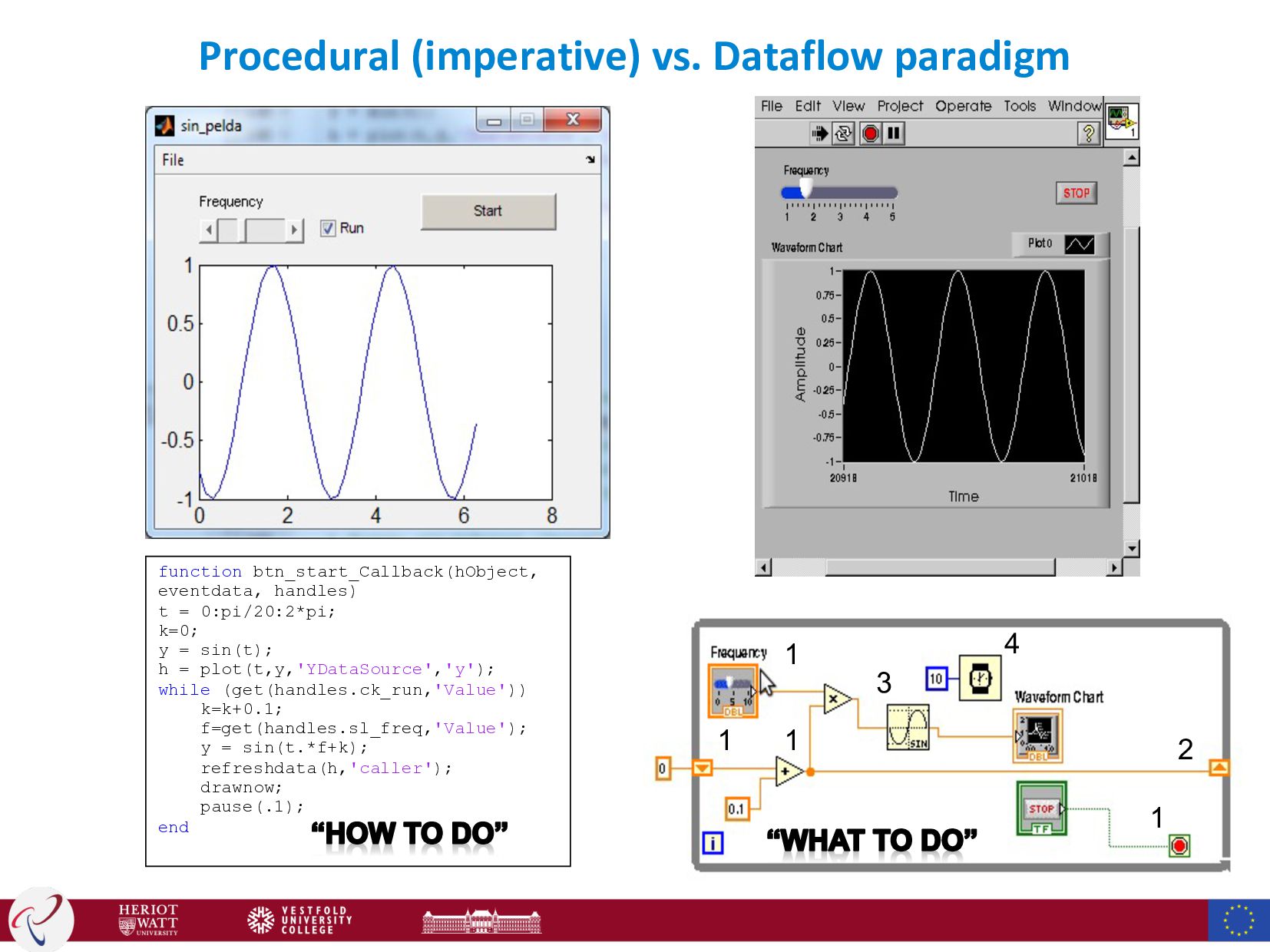
  3. Procedural vs. dataflow languages • Procedural • A procedural program

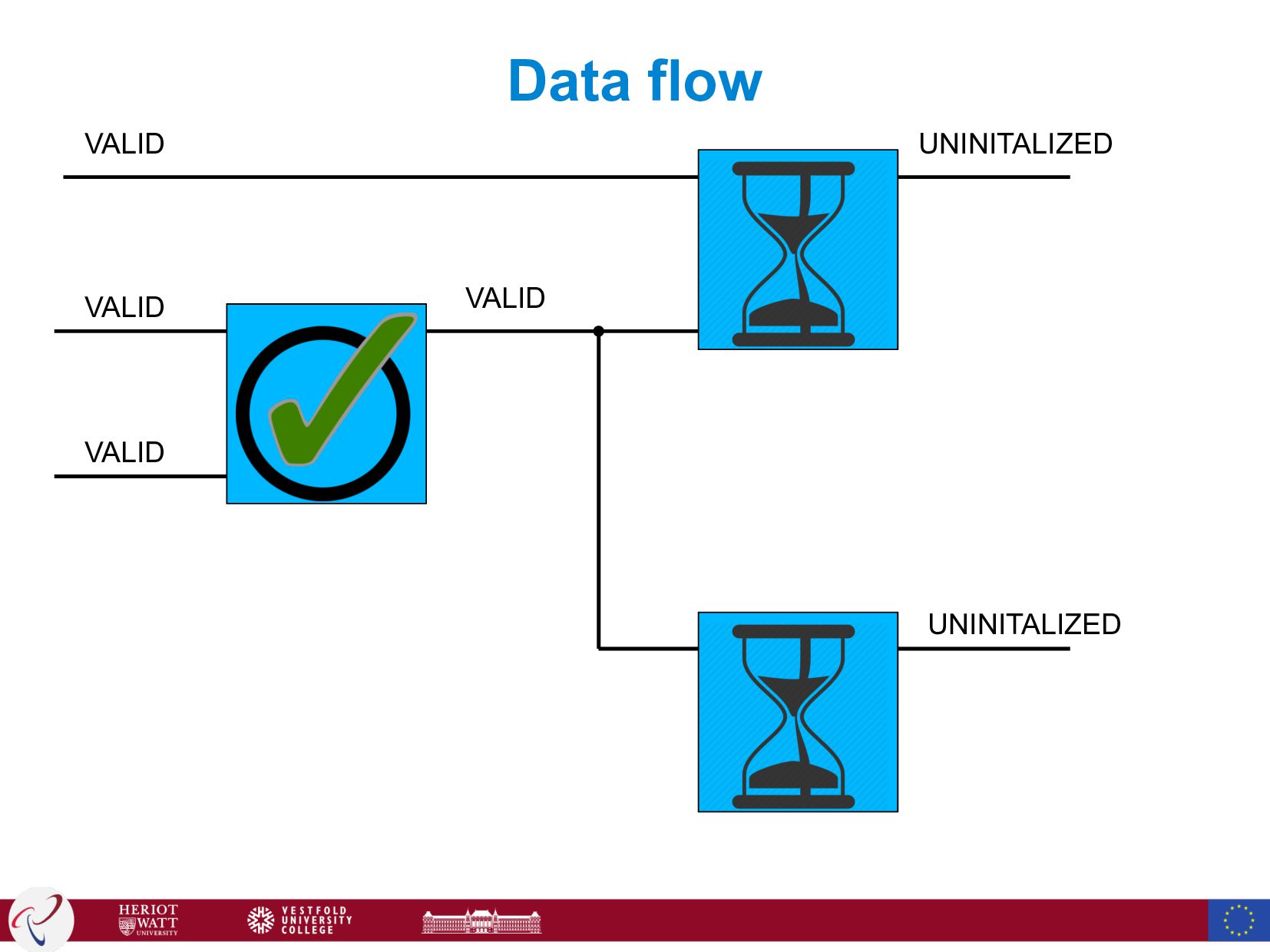
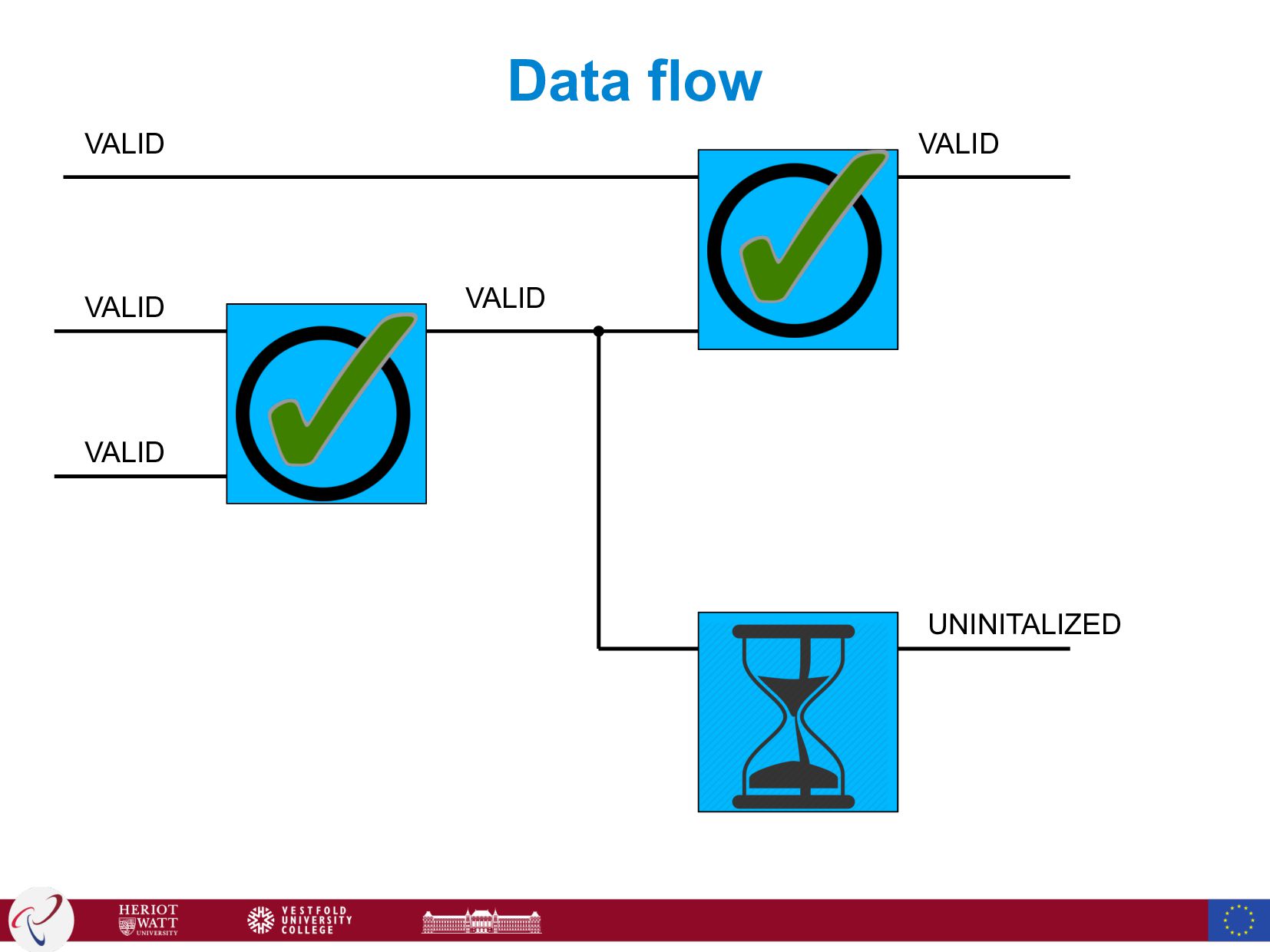
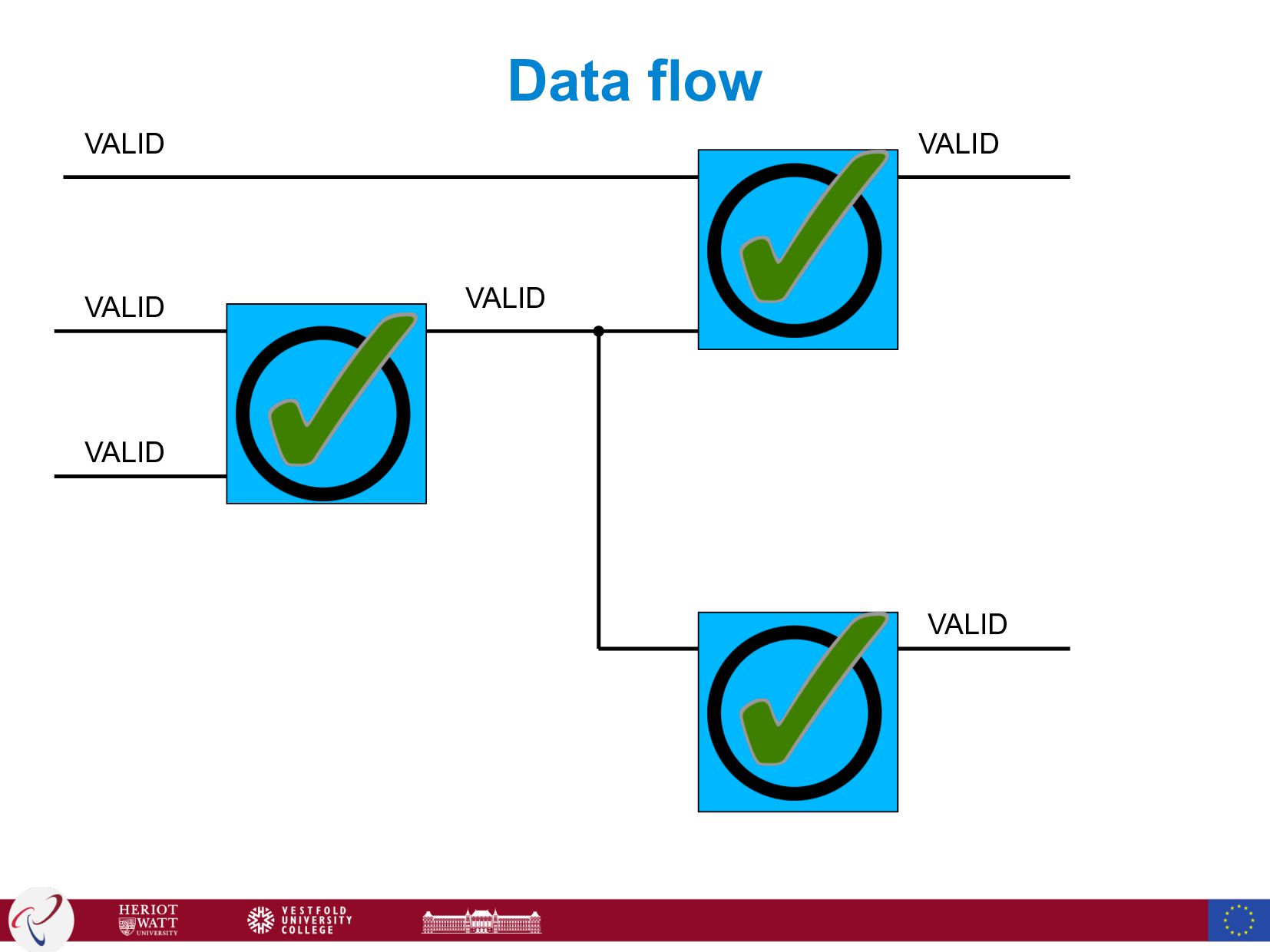
    is modeled as a series of operations happening in a specific order. • The program focuses on commands: “how” to operate • Dataflow • Dataflow programming emphasizes the movement of data and models programs as a series of connections (“what to do”) • Explicitly defined inputs and outputs connect operations, which function like black boxes. • An operation runs as soon as all of its inputs become valid. Thus, dataflow languages are inherently parallel
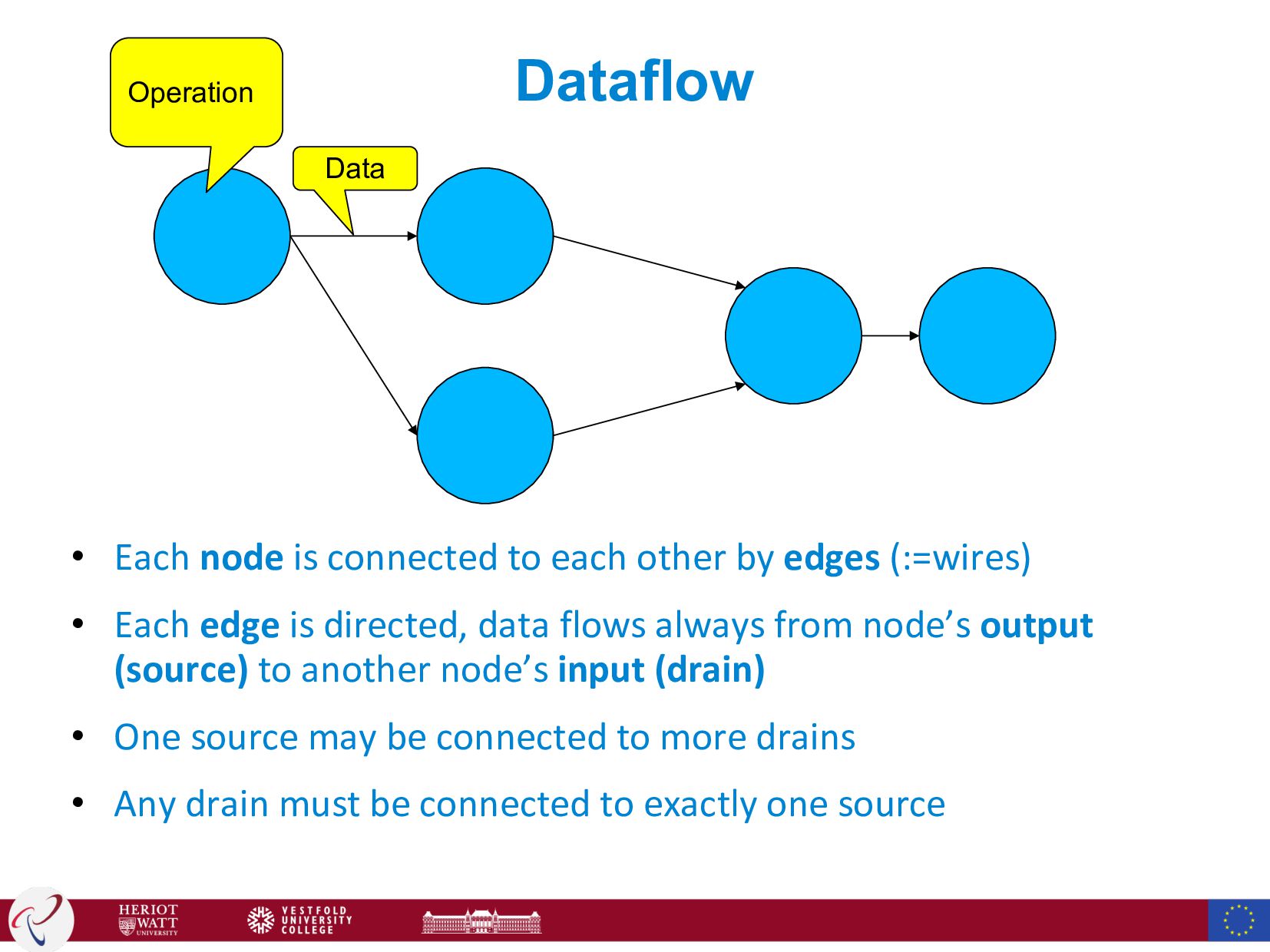
  4. Dataflow • Each node is connected to each other by

    edges (:=wires) • Each edge is directed, data flows always from node’s output (source) to another node’s input (drain) • One source may be connected to more drains • Any drain must be connected to exactly one source Operation Data
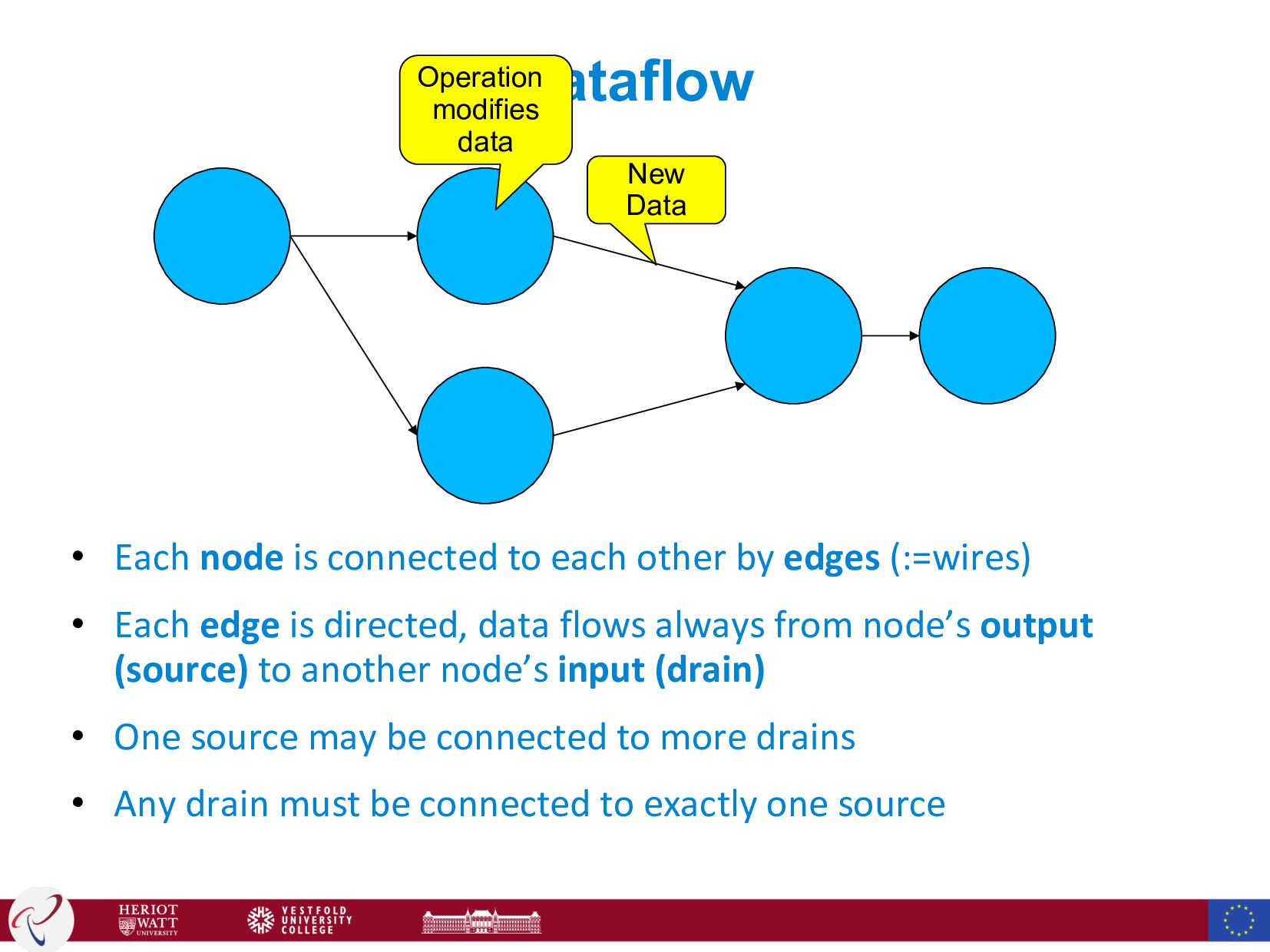
  5. Dataflow • Each node is connected to each other by

    edges (:=wires) • Each edge is directed, data flows always from node’s output (source) to another node’s input (drain) • One source may be connected to more drains • Any drain must be connected to exactly one source Operation modifies data New Data
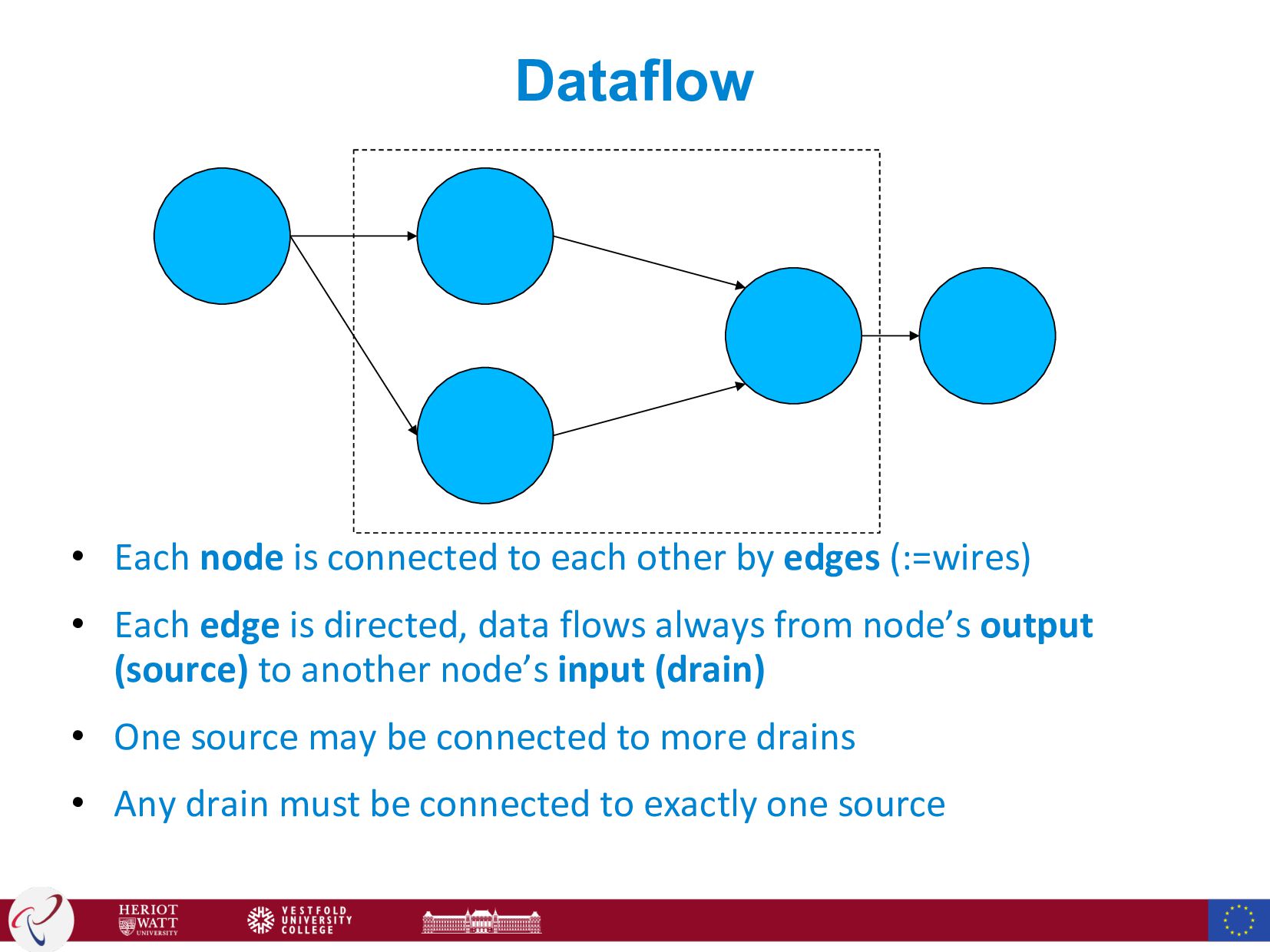
  6. Dataflow • Each node is connected to each other by

    edges (:=wires) • Each edge is directed, data flows always from node’s output (source) to another node’s input (drain) • One source may be connected to more drains • Any drain must be connected to exactly one source
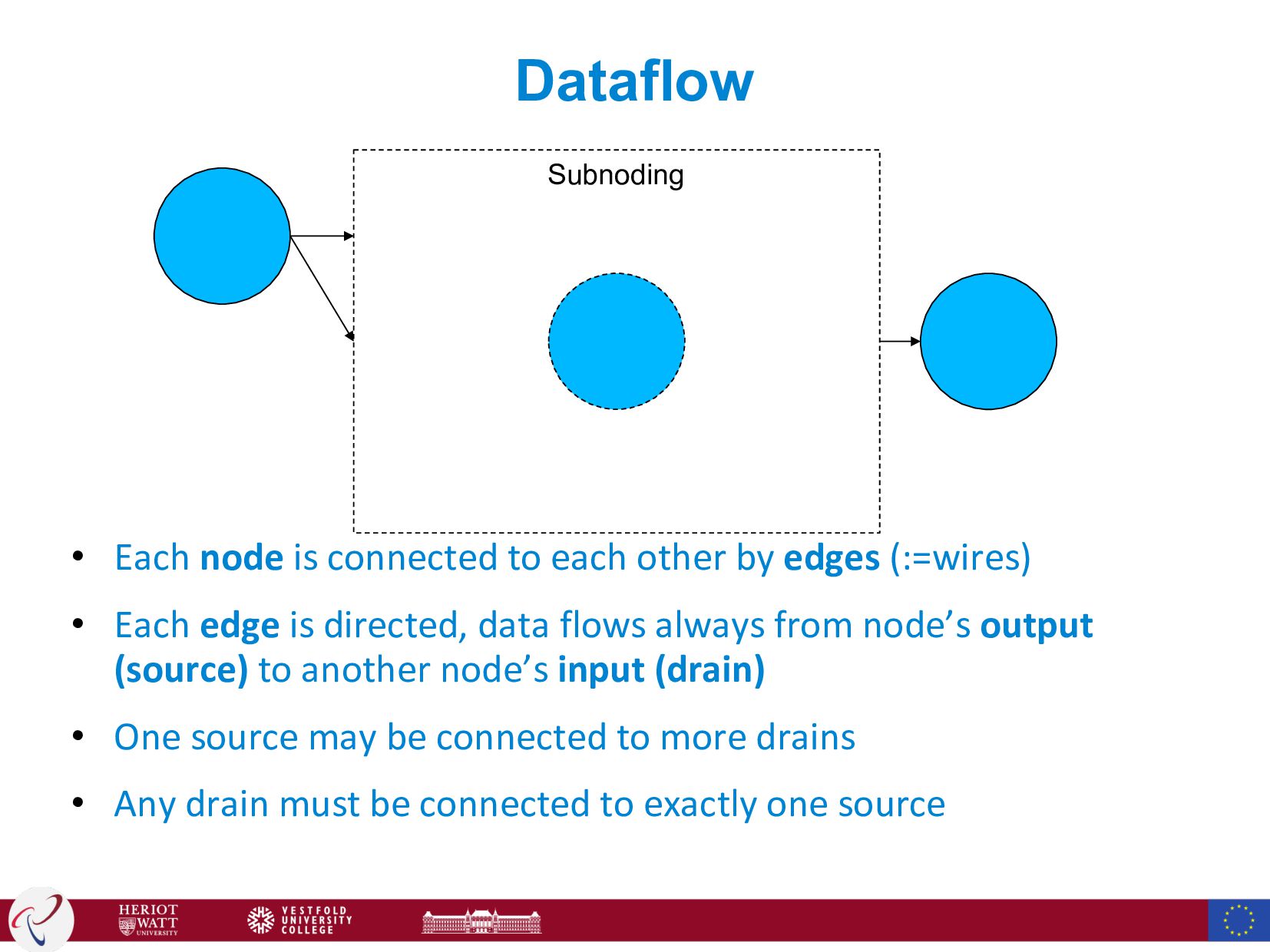
  7. Dataflow • Each node is connected to each other by

    edges (:=wires) • Each edge is directed, data flows always from node’s output (source) to another node’s input (drain) • One source may be connected to more drains • Any drain must be connected to exactly one source Subnoding
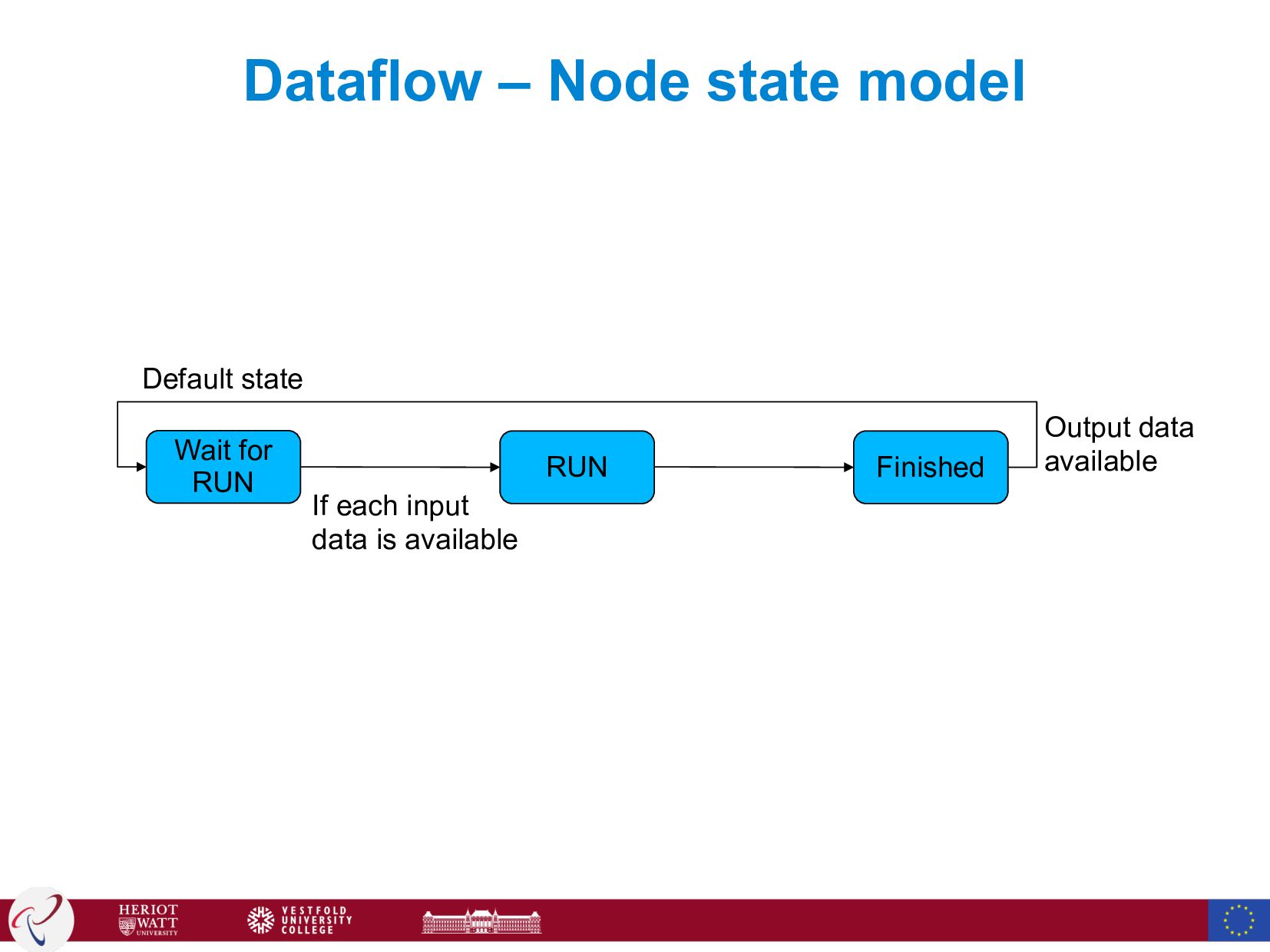
  8. Dataflow – Node state model Wait for RUN RUN Finished

    Default state If each input data is available Output data available
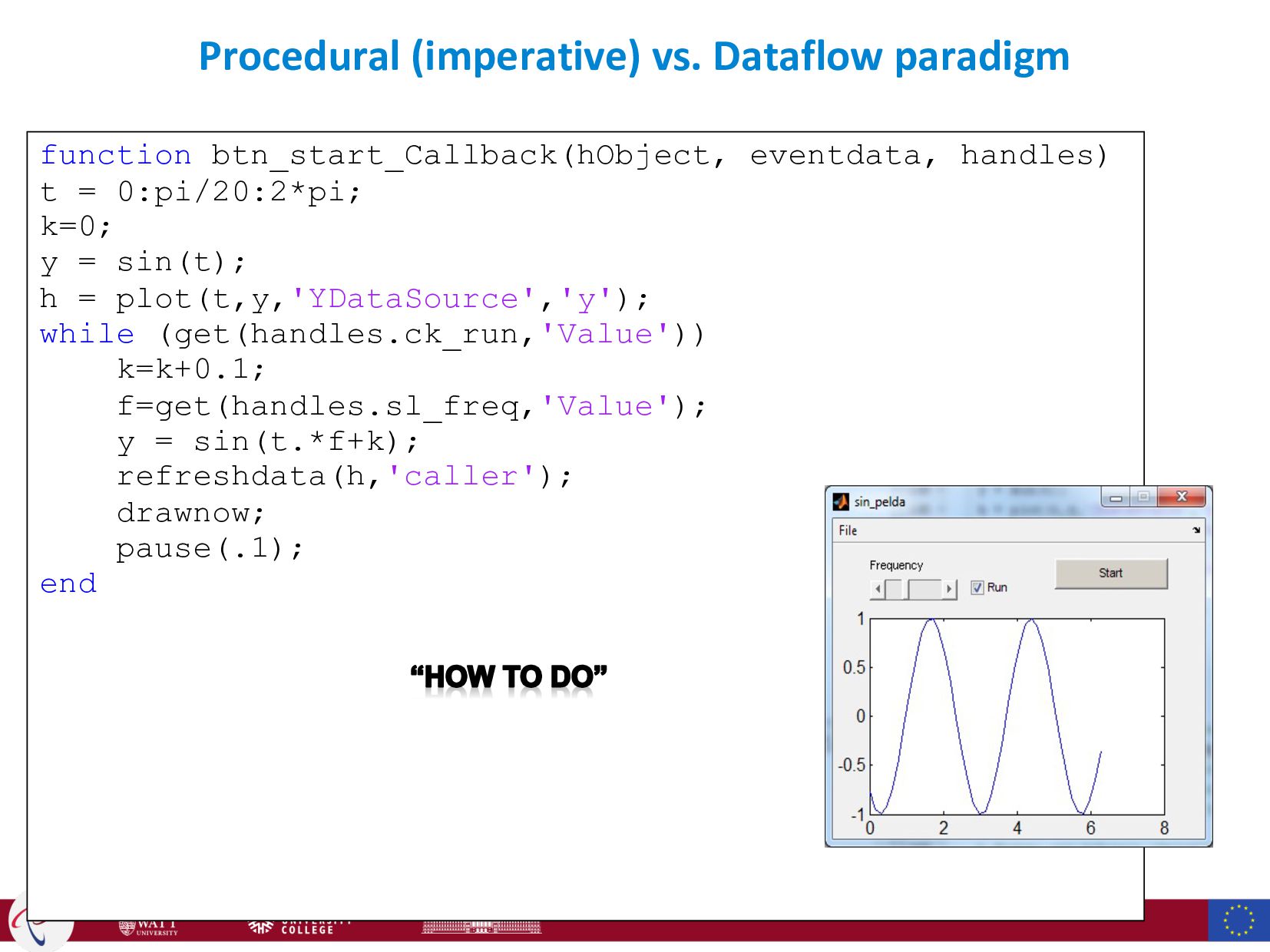
  9. Procedural (imperative) vs. Dataflow paradigm function btn_start_Callback(hObject, eventdata, handles) t

    = 0:pi/20:2*pi; k=0; y = sin(t); h = plot(t,y,'YDataSource','y'); while (get(handles.ck_run,'Value')) k=k+0.1; f=get(handles.sl_freq,'Value'); y = sin(t.*f+k); refreshdata(h,'caller'); drawnow; pause(.1); end
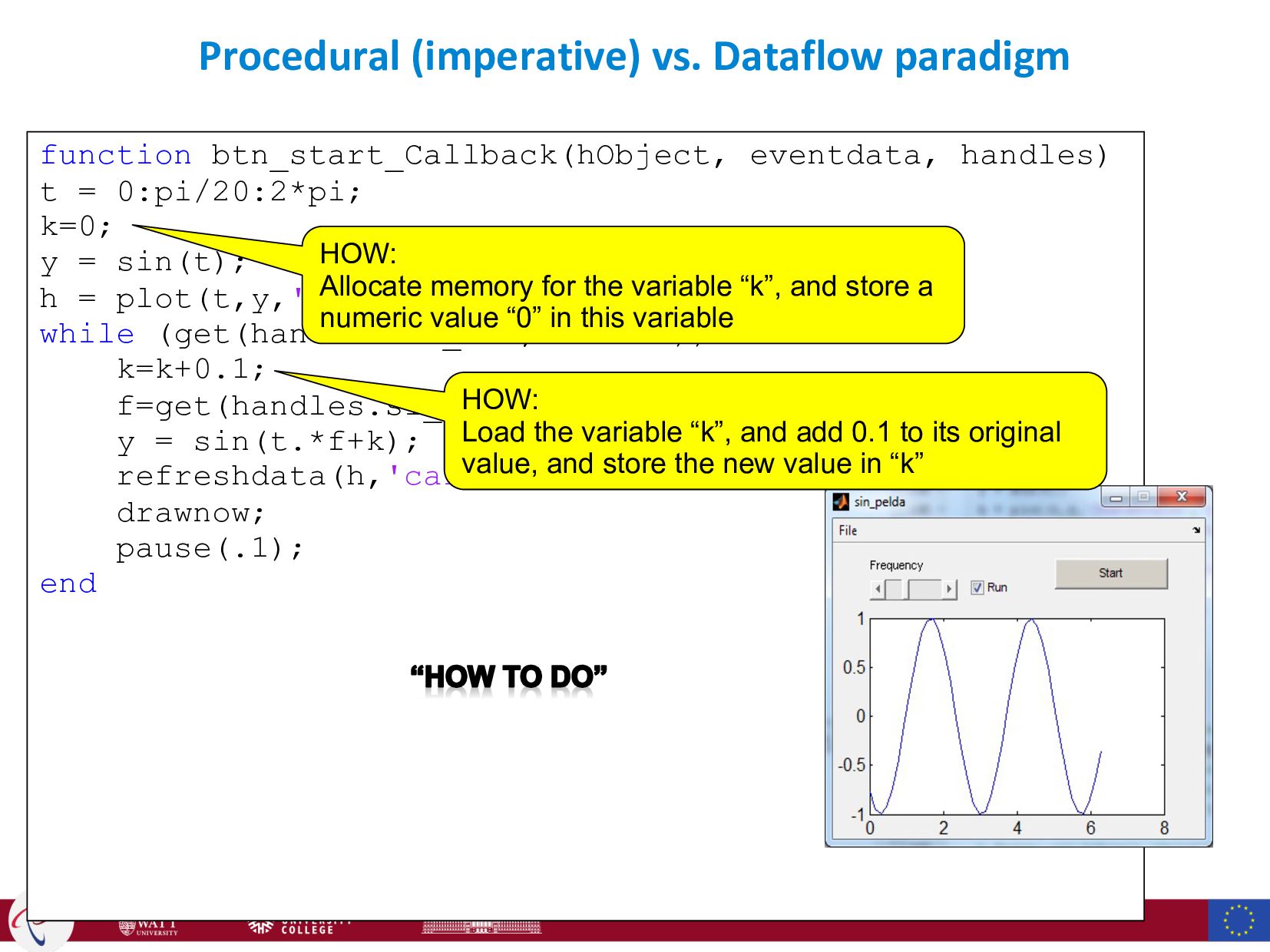
  10. Procedural (imperative) vs. Dataflow paradigm function btn_start_Callback(hObject, eventdata, handles) t

    = 0:pi/20:2*pi; k=0; y = sin(t); h = plot(t,y,'YDataSource','y'); while (get(handles.ck_run,'Value')) k=k+0.1; f=get(handles.sl_freq,'Value'); y = sin(t.*f+k); refreshdata(h,'caller'); drawnow; pause(.1); end HOW: Allocate memory for the variable “k”, and store a numeric value “0” in this variable HOW: Load the variable “k”, and add 0.1 to its original value, and store the new value in “k”
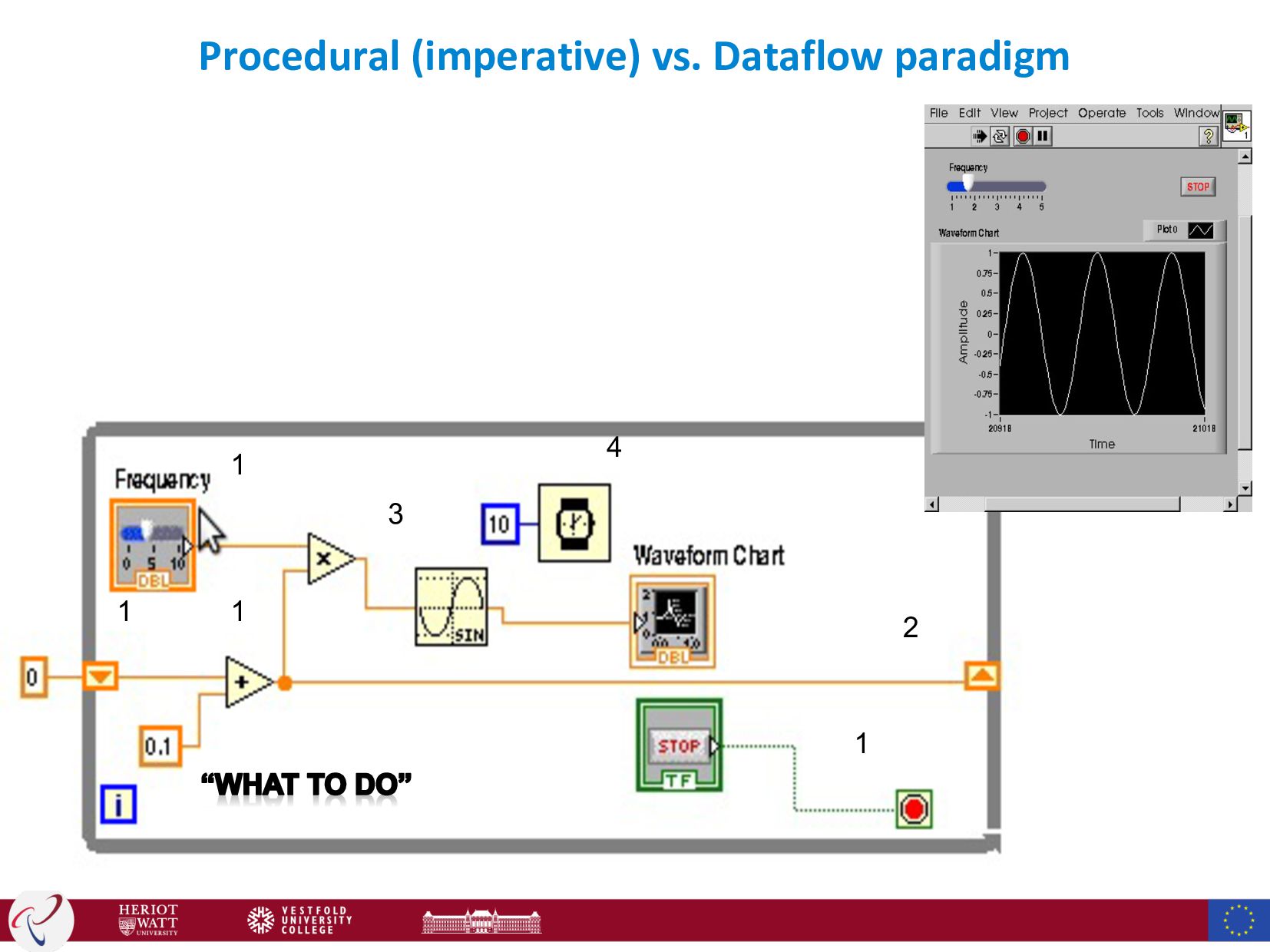
  11. Procedural (imperative) vs. Dataflow paradigm 1 1 2 3 1

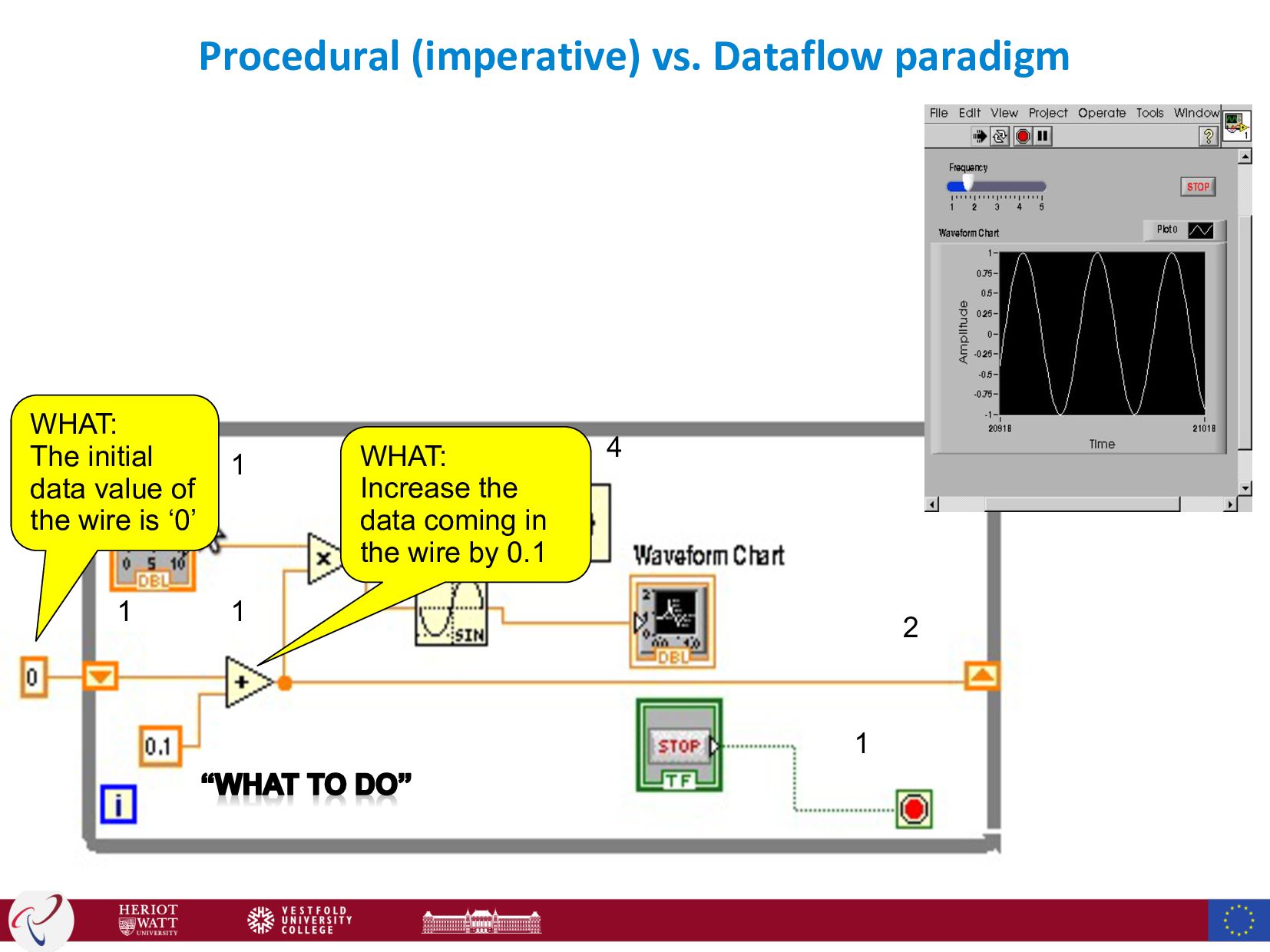
    1 4 WHAT: The initial data value of the wire is ‘0’ WHAT: Increase the data coming in the wire by 0.1
  12. Procedural (imperative) vs. Dataflow paradigm function btn_start_Callback(hObject, eventdata, handles) t

    = 0:pi/20:2*pi; k=0; y = sin(t); h = plot(t,y,'YDataSource','y'); while (get(handles.ck_run,'Value')) k=k+0.1; f=get(handles.sl_freq,'Value'); y = sin(t.*f+k); refreshdata(h,'caller'); drawnow; pause(.1); end 1 1 2 3 1 1 4
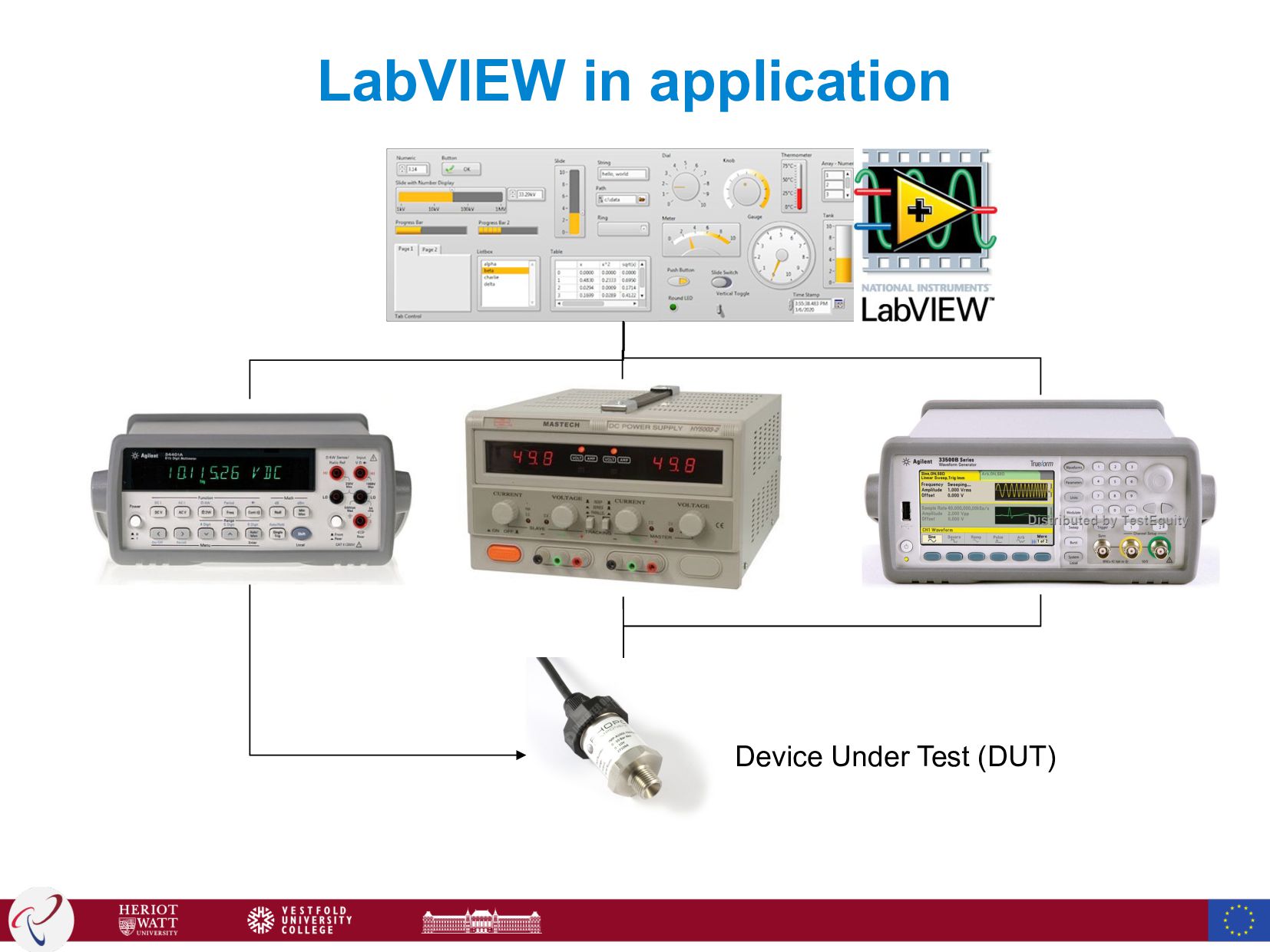
  13. LabVIEW application areas • Acquiring data and processing signals •

    Different sensors and bus protocols • Signal analysis, log/generate reports • Instrument control • Automate data collection, control multiple instruments • Automating test and validation systems • Control multiple instruments, analyze and display test data • Embedded monitoring and control systems • Integrate off-the-shelf hardware, prototype with FPGA technology • Wireless system prototyping • LTE, 802.11 development frameworks
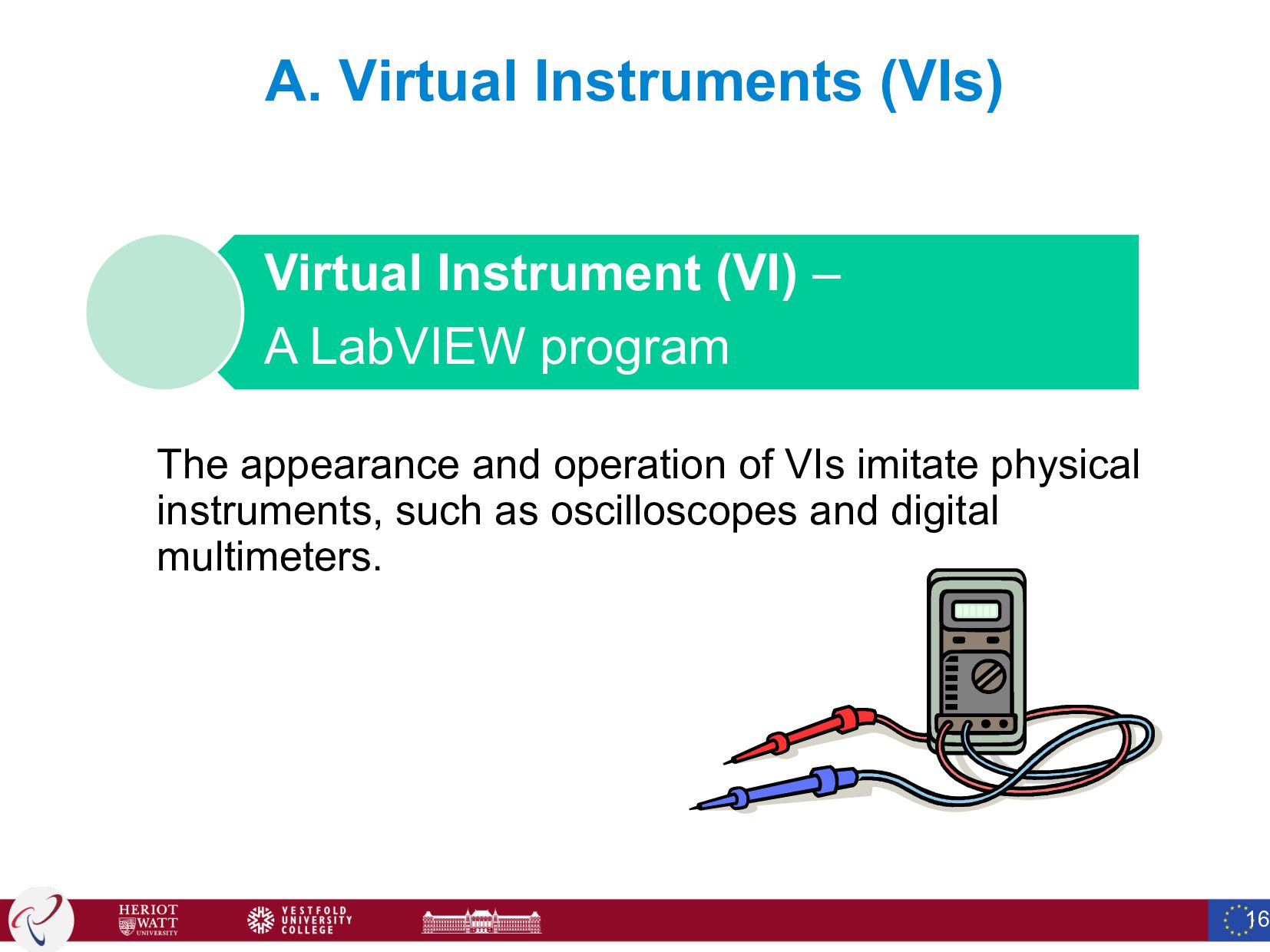
  14. A. Virtual Instruments (VIs) The appearance and operation of VIs

    imitate physical instruments, such as oscilloscopes and digital multimeters. 16 Virtual Instrument (VI) – A LabVIEW program
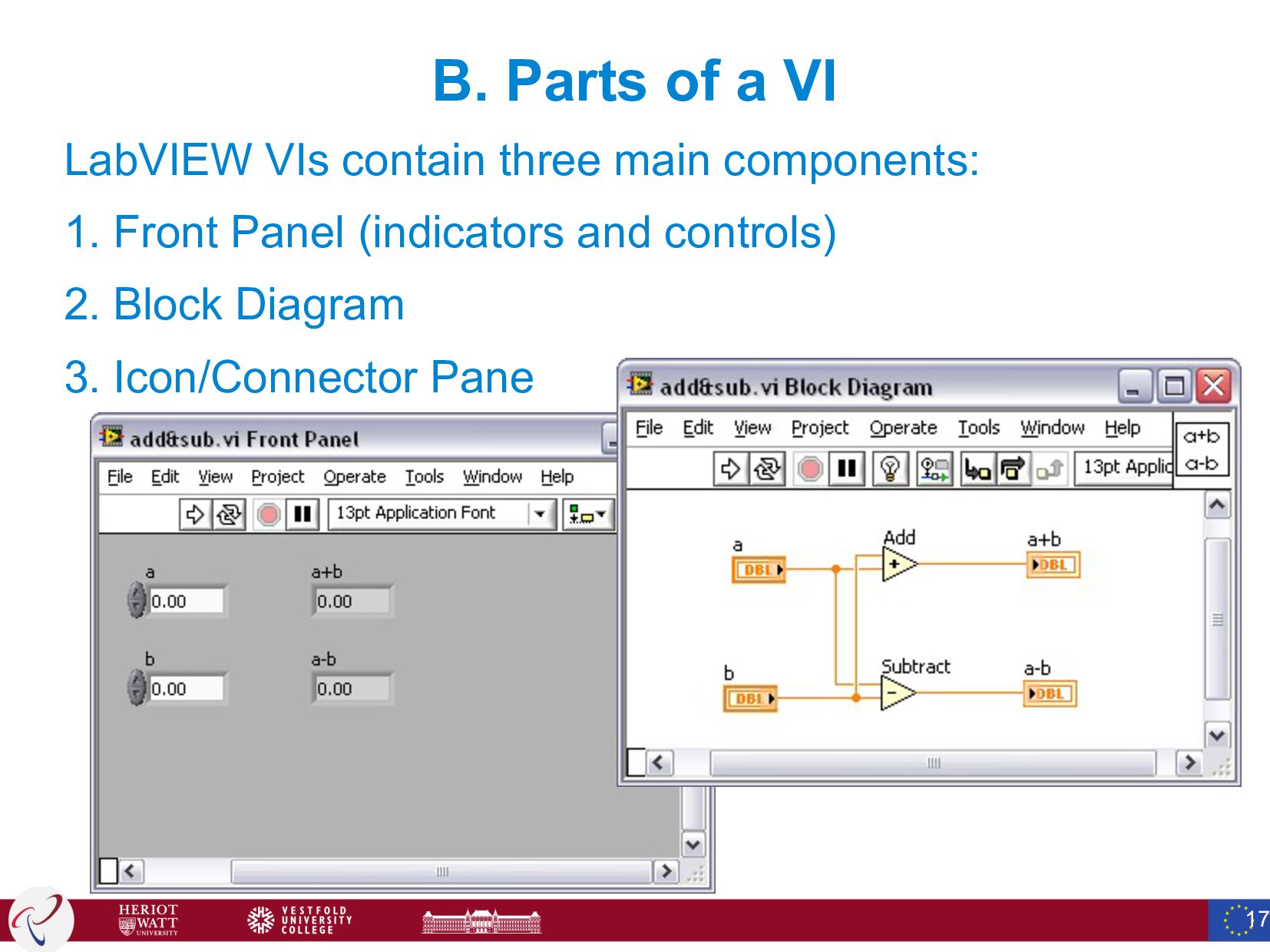
  15. B. Parts of a VI LabVIEW VIs contain three main

    components: 1. Front Panel (indicators and controls) 2. Block Diagram 3. Icon/Connector Pane 17
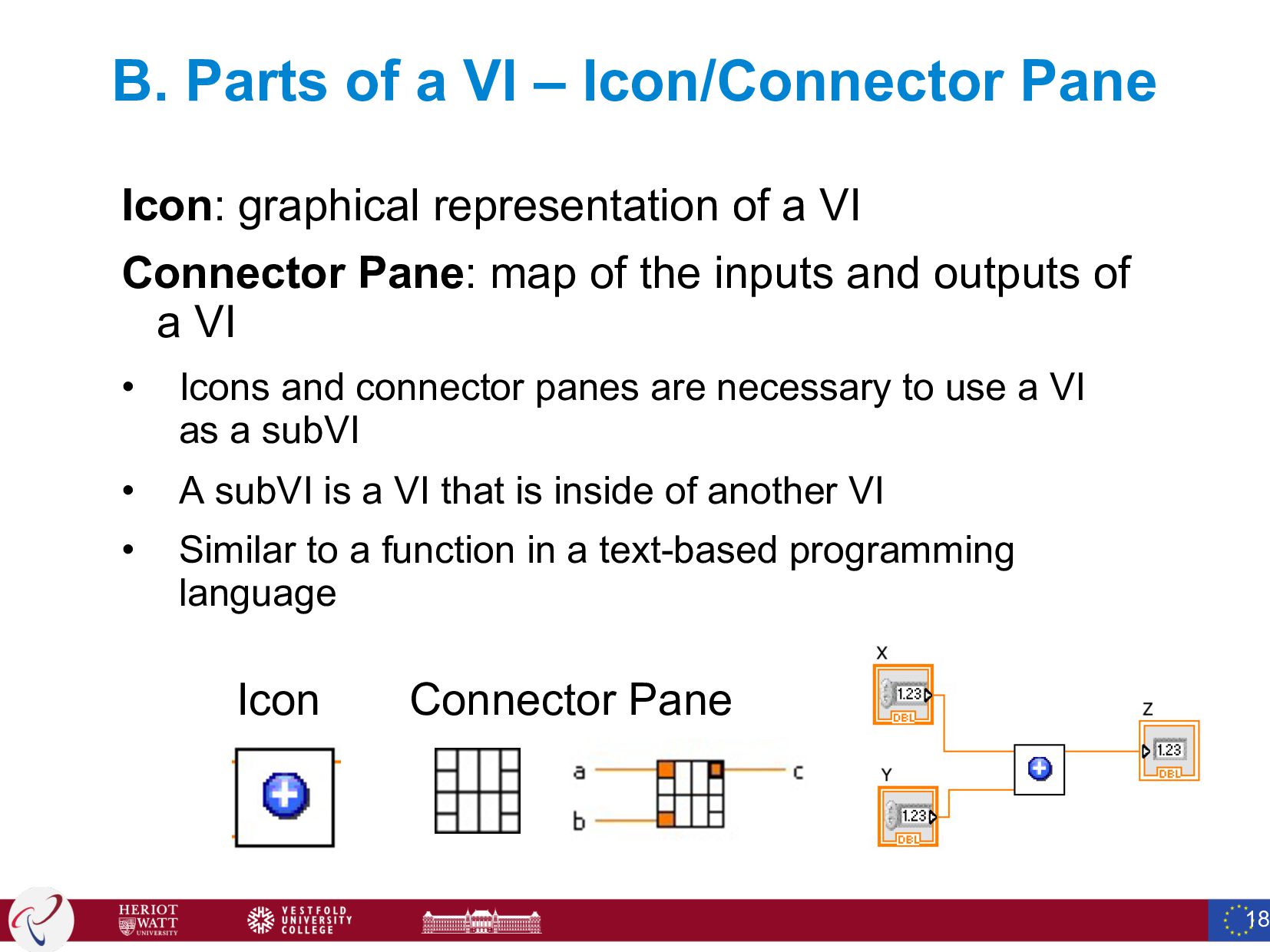
  16. B. Parts of a VI – Icon/Connector Pane Icon: graphical

    representation of a VI Connector Pane: map of the inputs and outputs of a VI • Icons and connector panes are necessary to use a VI as a subVI • A subVI is a VI that is inside of another VI • Similar to a function in a text-based programming language Icon Connector Pane 18
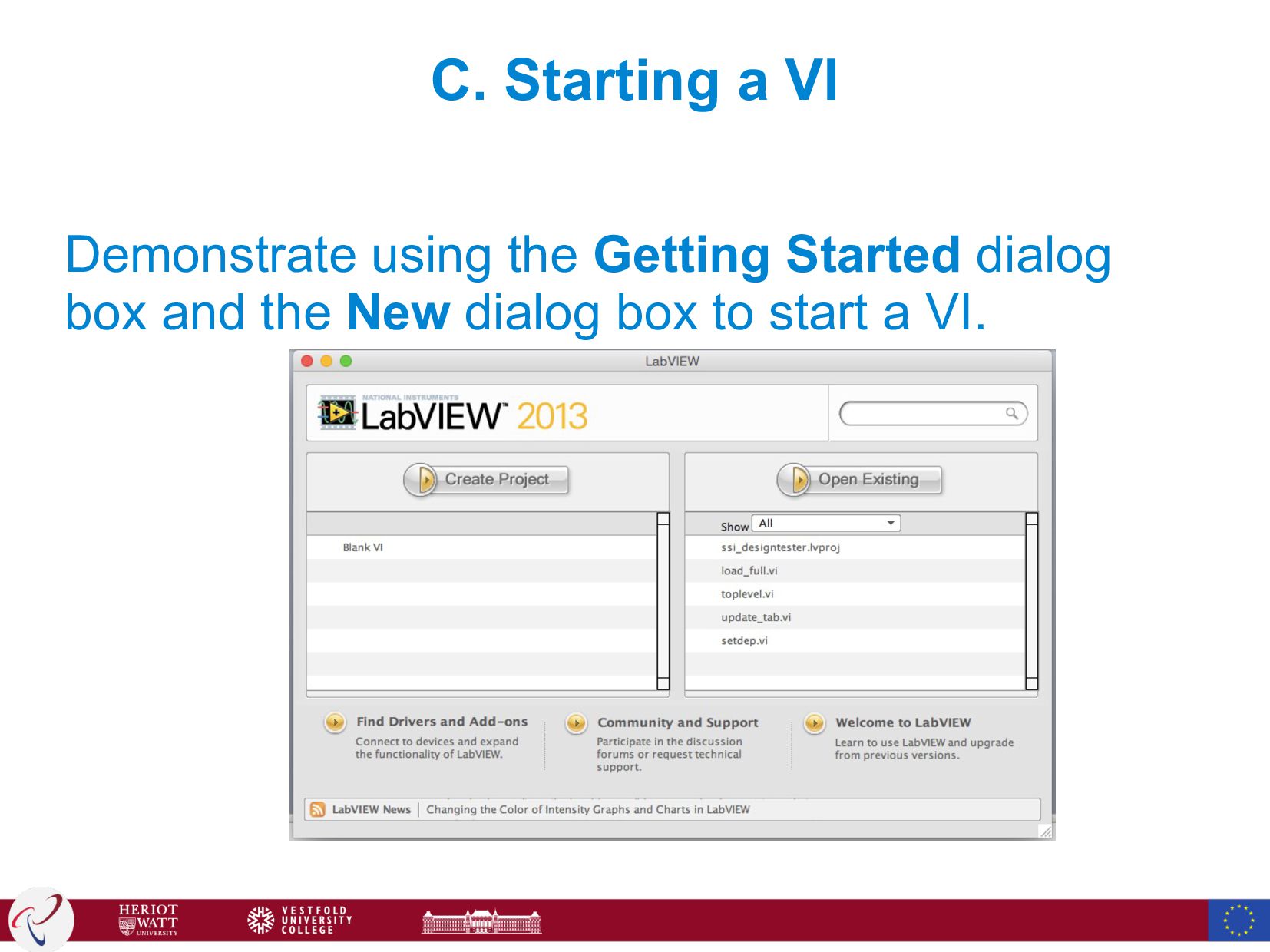
  17. C. Starting a VI Demonstrate using the Getting Started dialog

    box and the New dialog box to start a VI.
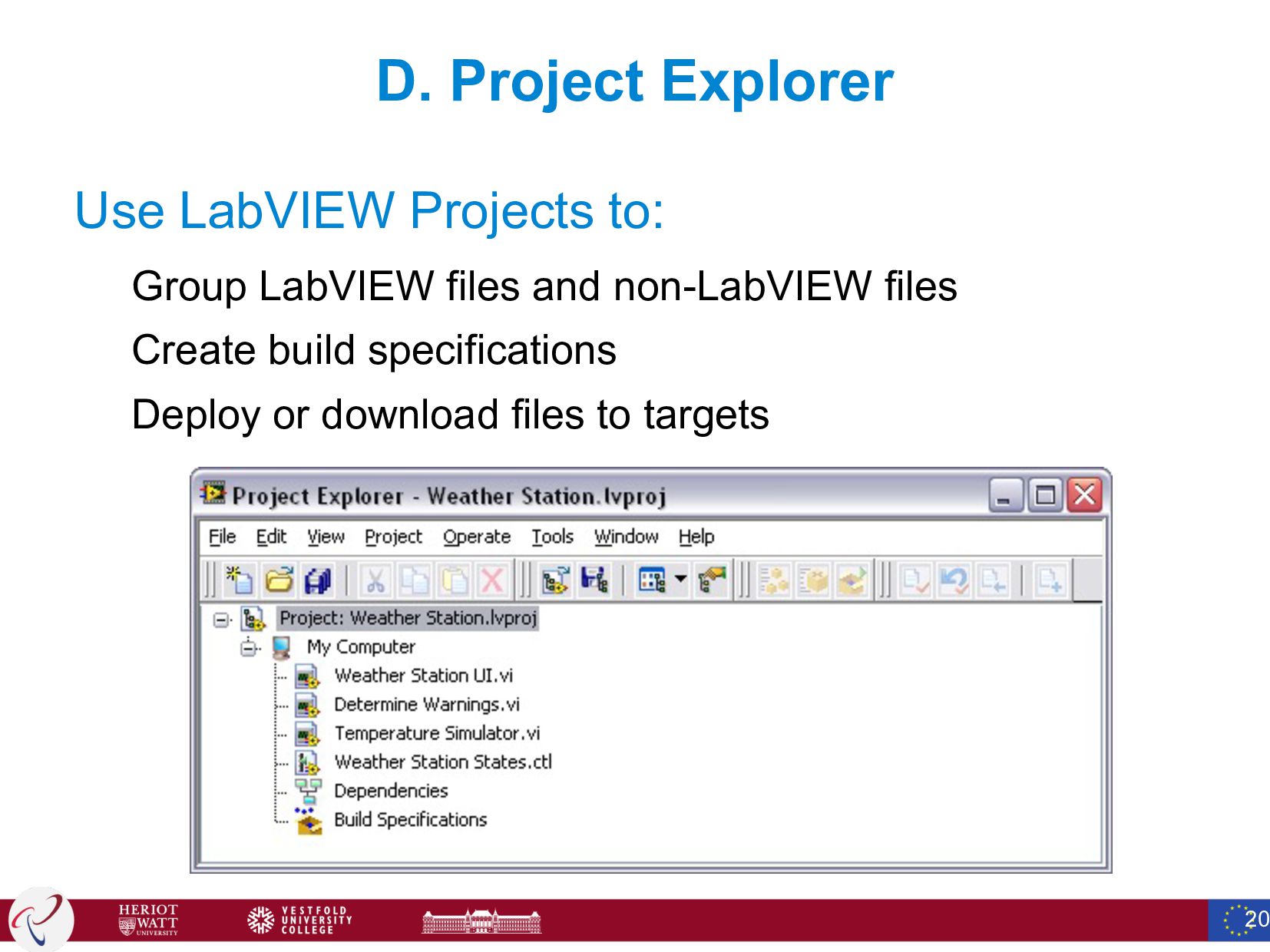
  18. D. Project Explorer Use LabVIEW Projects to: Group LabVIEW files

    and non-LabVIEW files Create build specifications Deploy or download files to targets 20
  19. D. Project Explorer Parts of a LabVIEW project • VIs:

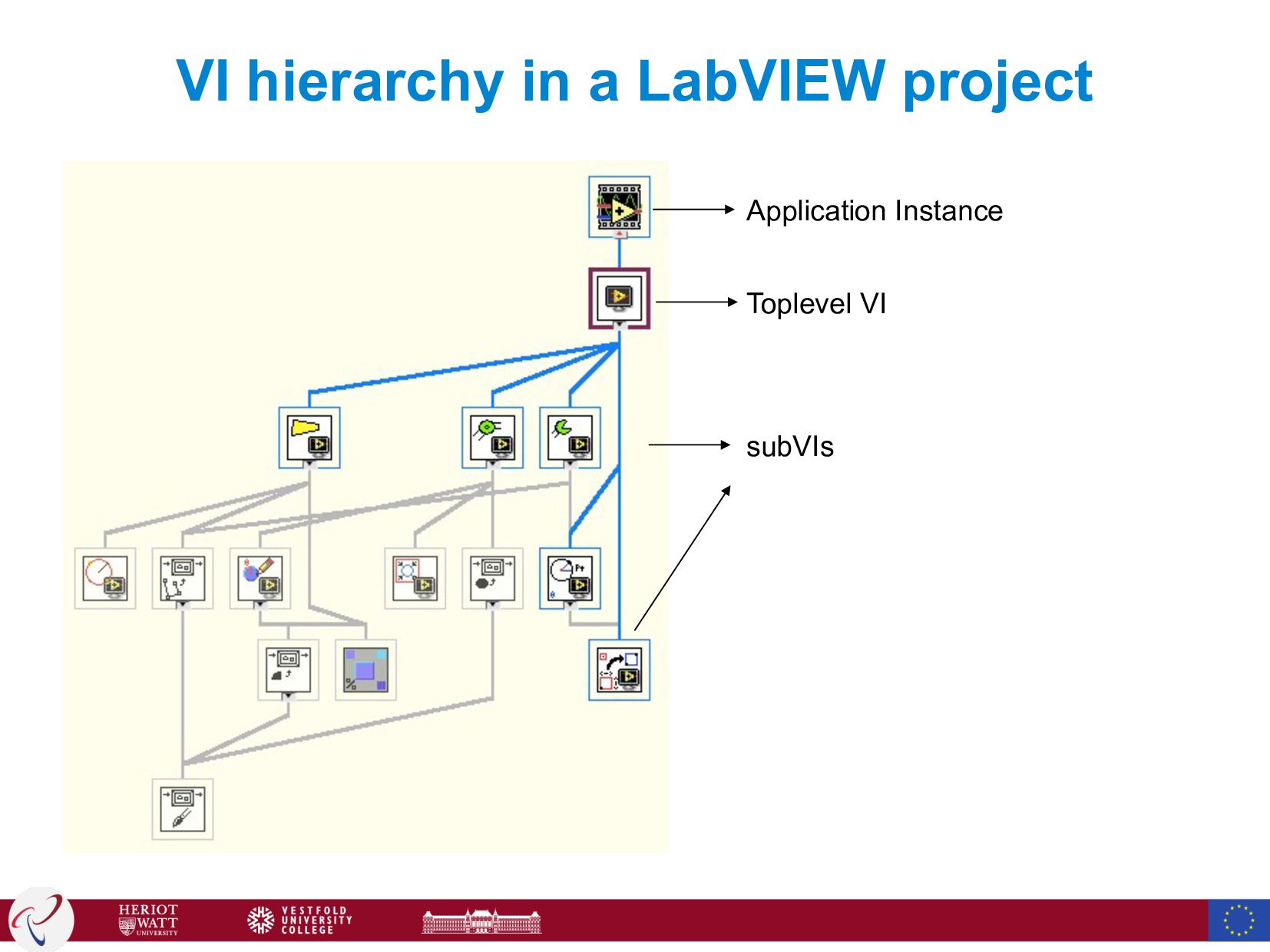
    Virtual Instruments are LabVIEW programmes. VIs are linked to each other in a given hierarchy • Custom controls (Type definitions): User defined LabVIEW data types • Global and shared variables: sockets what are able to transfer data between LabVIEW programs • Libraries: Collection of LabVIEW programs • Build specifications: Directions for LabVIEW to dstribute LabVIEW programs 21
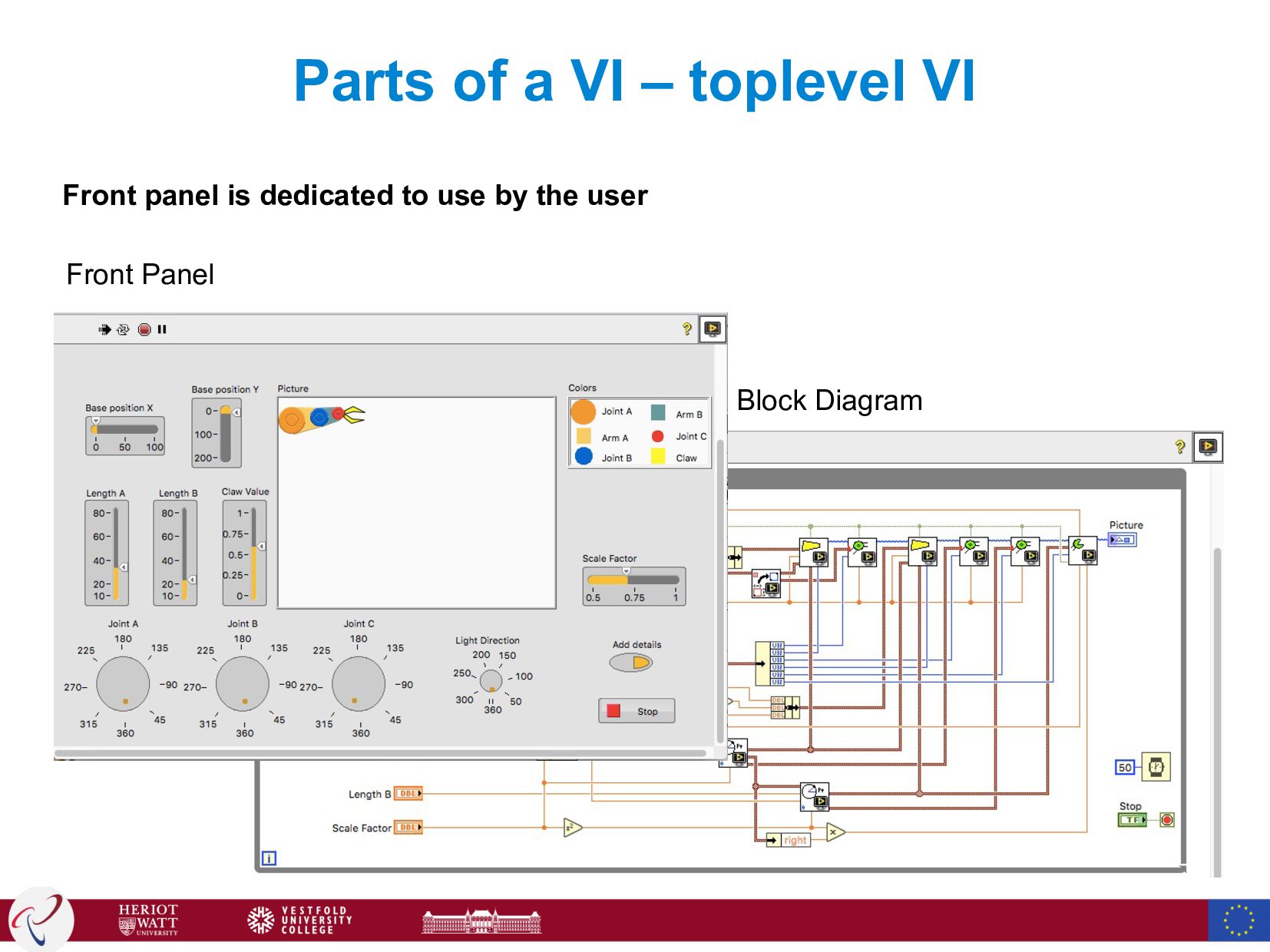
  20. Parts of a VI – toplevel VI Front Panel Block

    Diagram Front panel is dedicated to use by the user
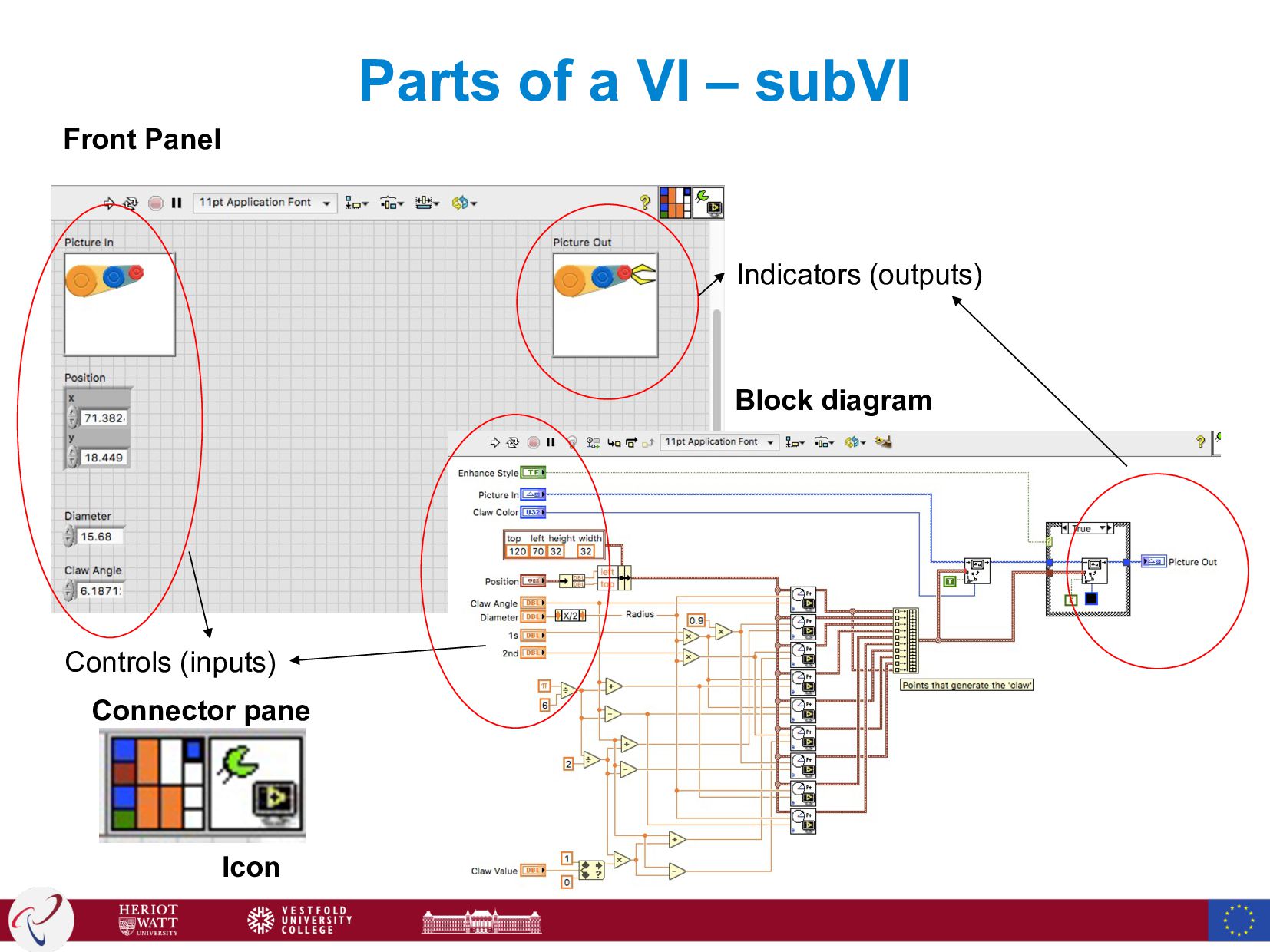
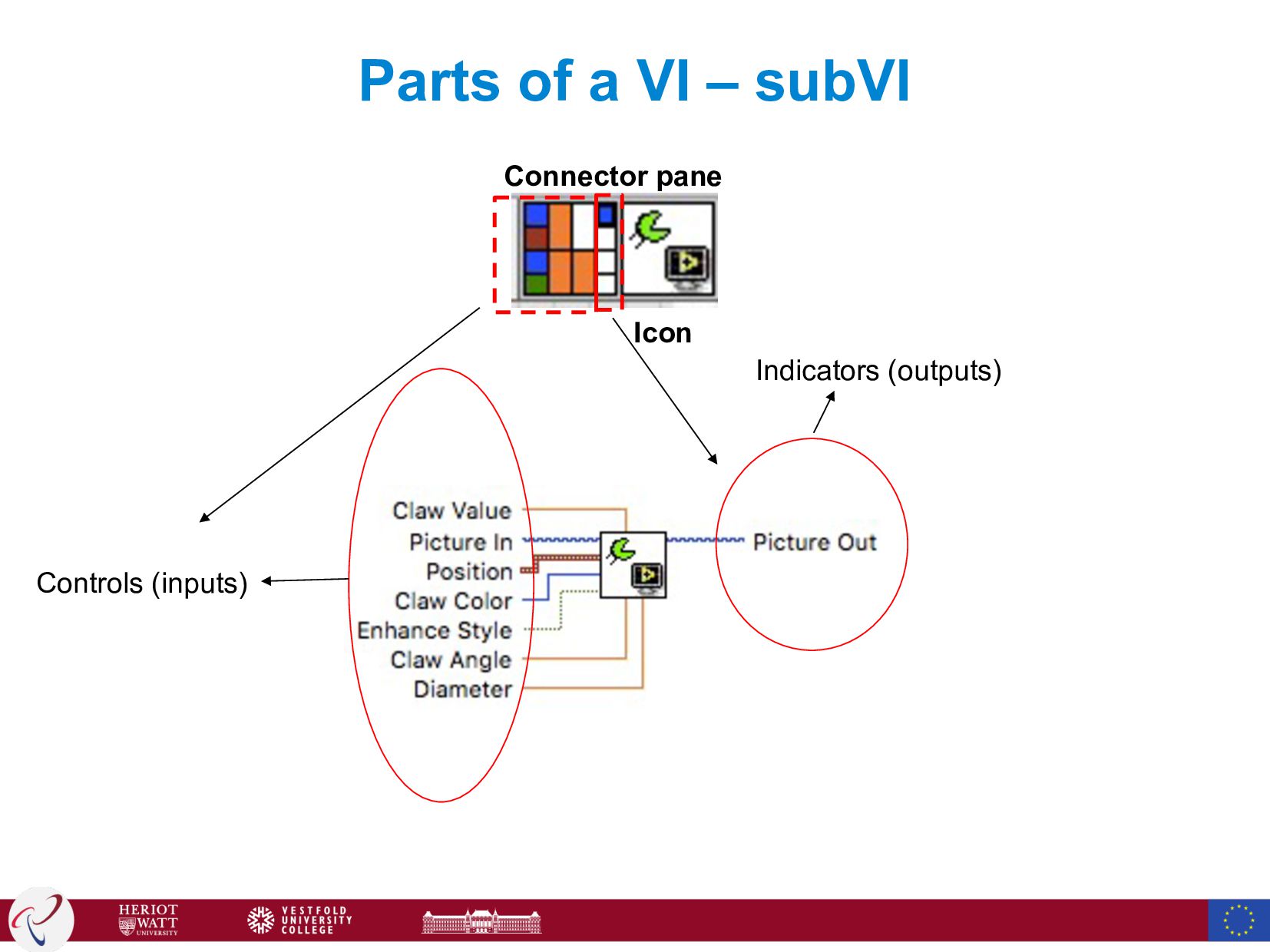
  21. Parts of a VI – subVI Front Panel Controls (inputs)

    Indicators (outputs) Block diagram Connector pane Icon
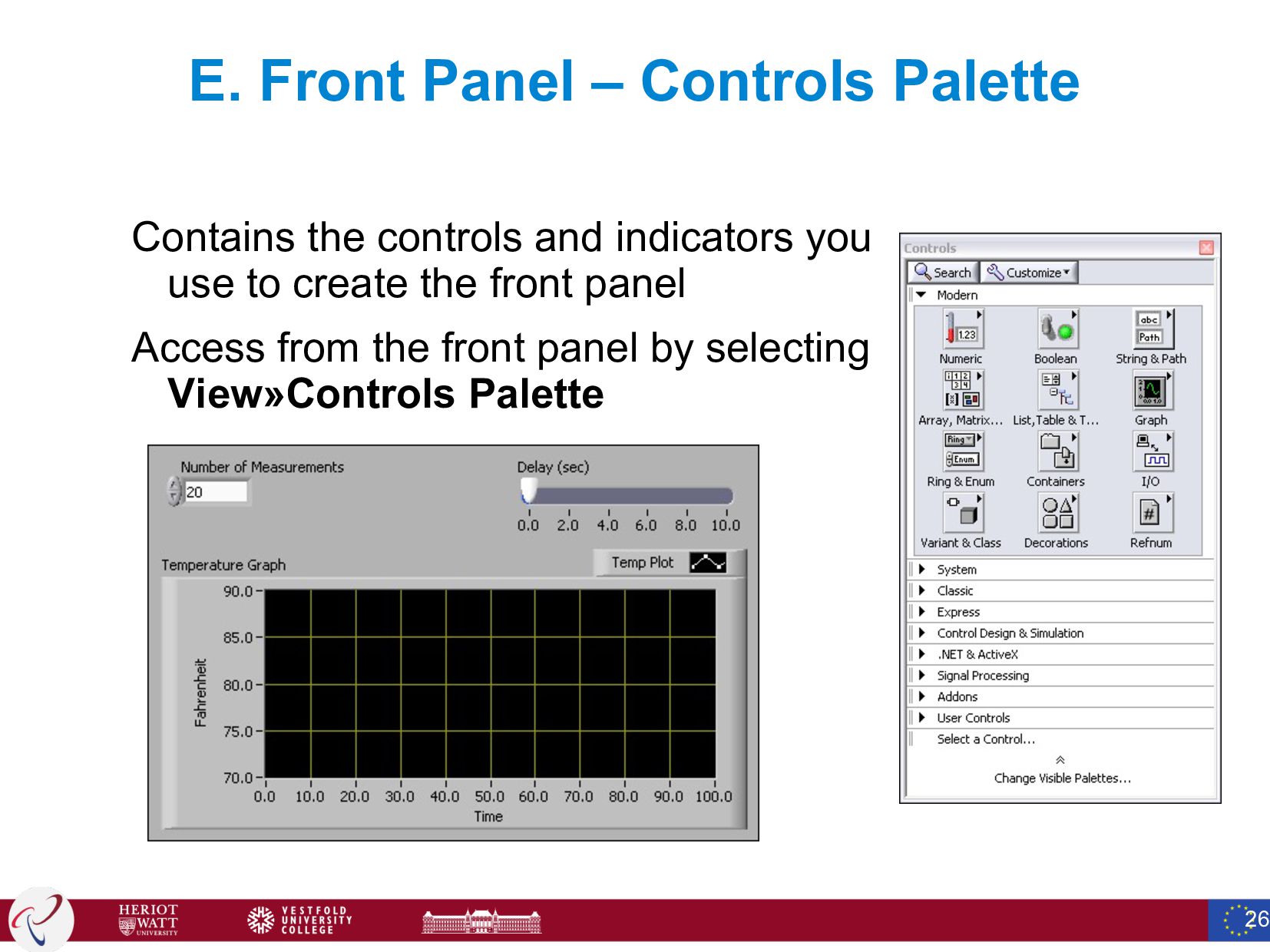
  22. E. Front Panel – Controls Palette Contains the controls and

    indicators you use to create the front panel Access from the front panel by selecting View»Controls Palette 26
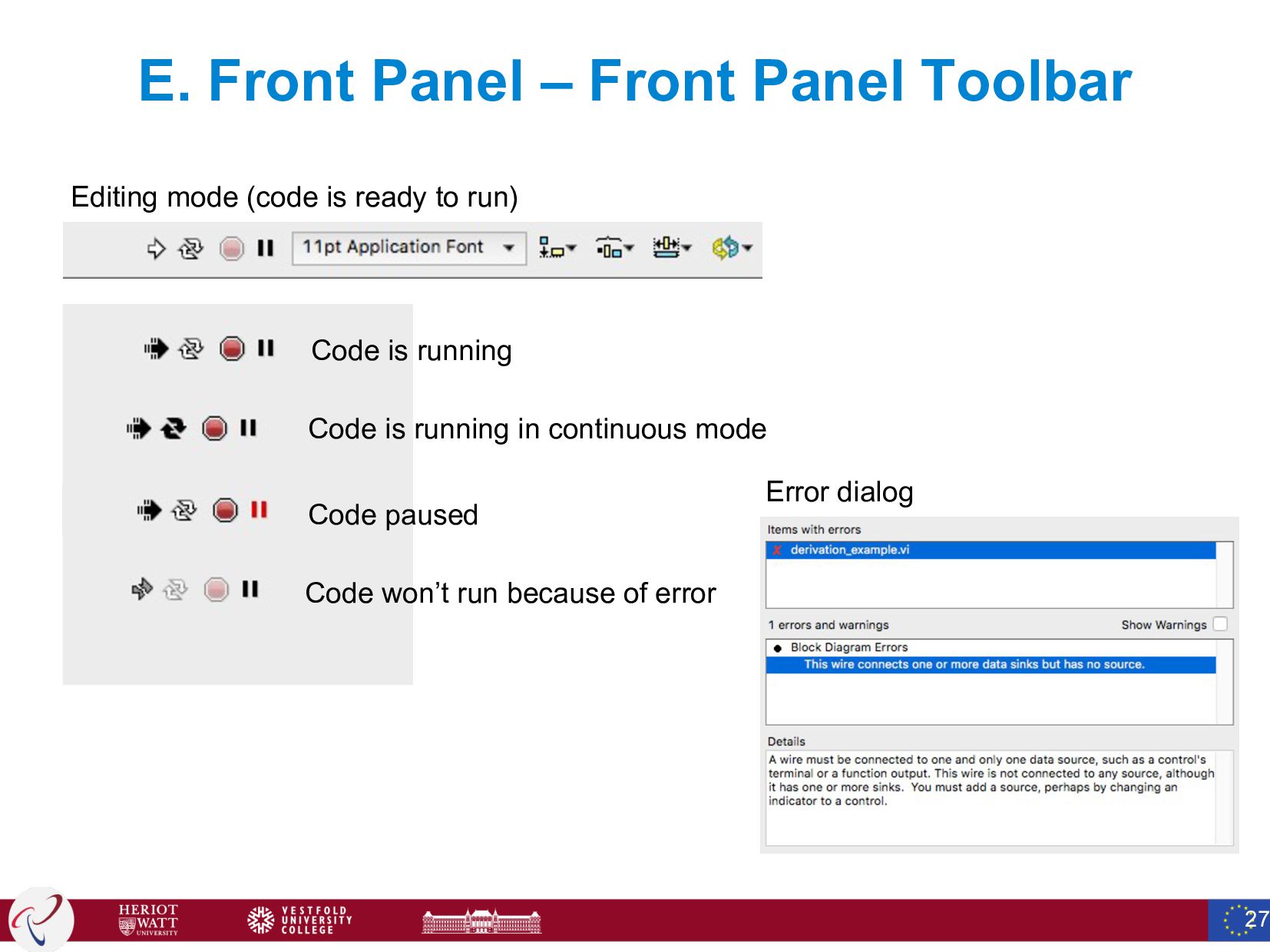
  23. E. Front Panel – Front Panel Toolbar 27 Editing mode

    (code is ready to run) Code is running Code is running in continuous mode Code paused Code won’t run because of error Error dialog
  24. E. Front Panel – Controls & Indicators Controls Knobs, push

    buttons, dials, and other input devices Simulate instrument input devices and supply data to the block diagram of the VI Indicators Graphs, LEDs, and other displays Simulate instrument output devices and display data the block diagram acquires or generates 28
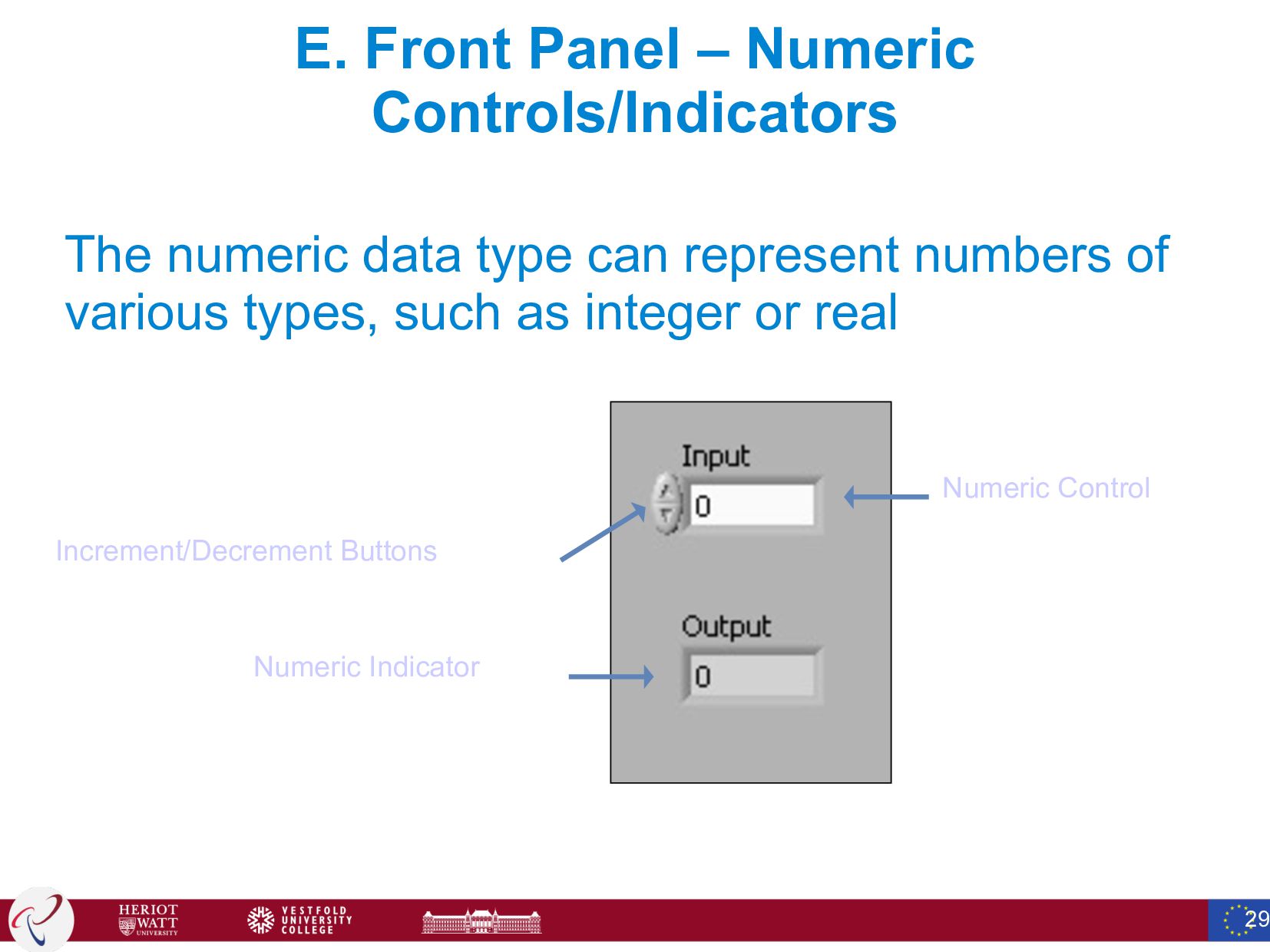
  25. E. Front Panel – Numeric Controls/Indicators The numeric data type

    can represent numbers of various types, such as integer or real 29 Numeric Indicator Numeric Control Increment/Decrement Buttons
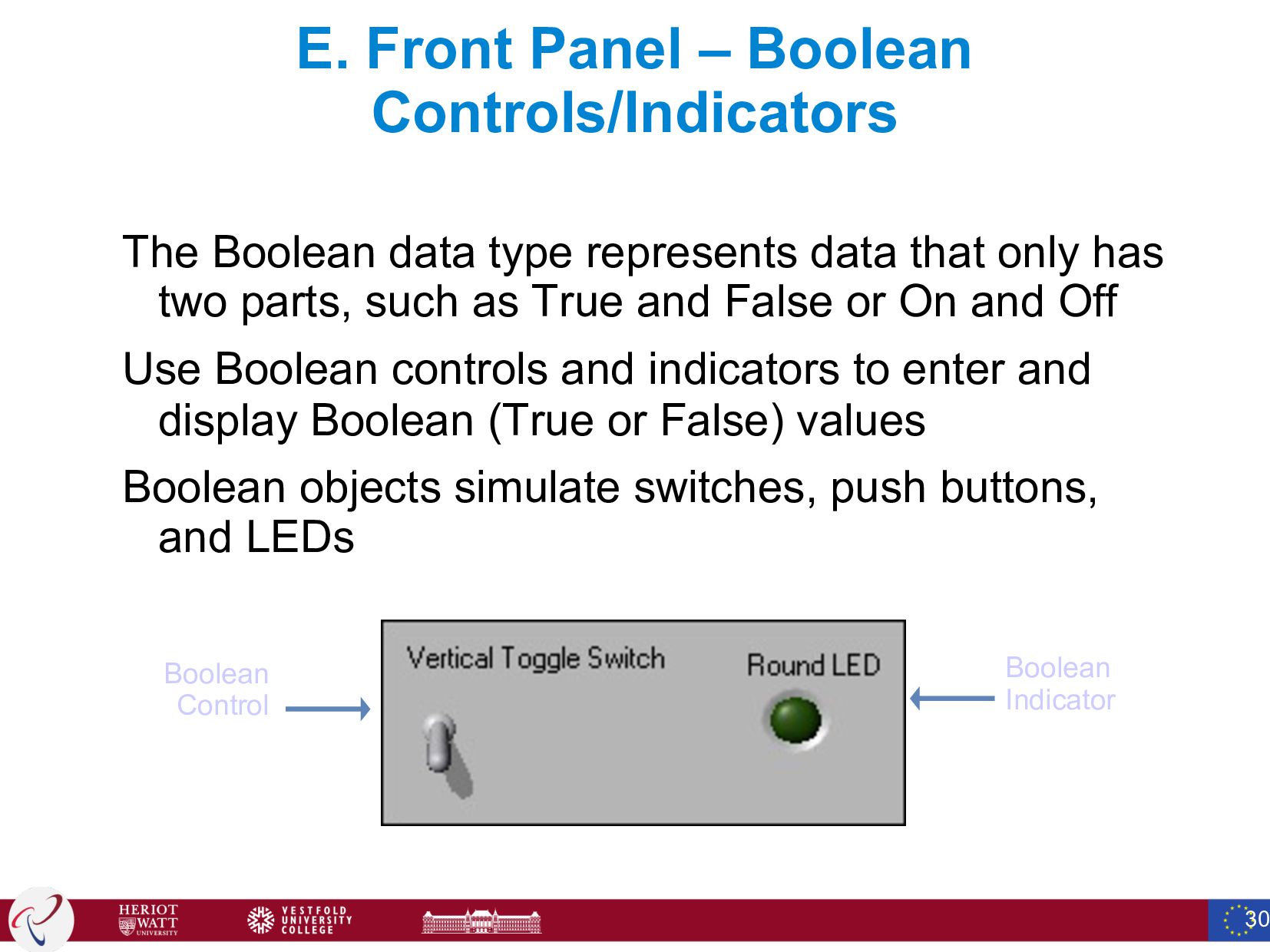
  26. E. Front Panel – Boolean Controls/Indicators The Boolean data type

    represents data that only has two parts, such as True and False or On and Off Use Boolean controls and indicators to enter and display Boolean (True or False) values Boolean objects simulate switches, push buttons, and LEDs 30 Boolean Control Boolean Indicator
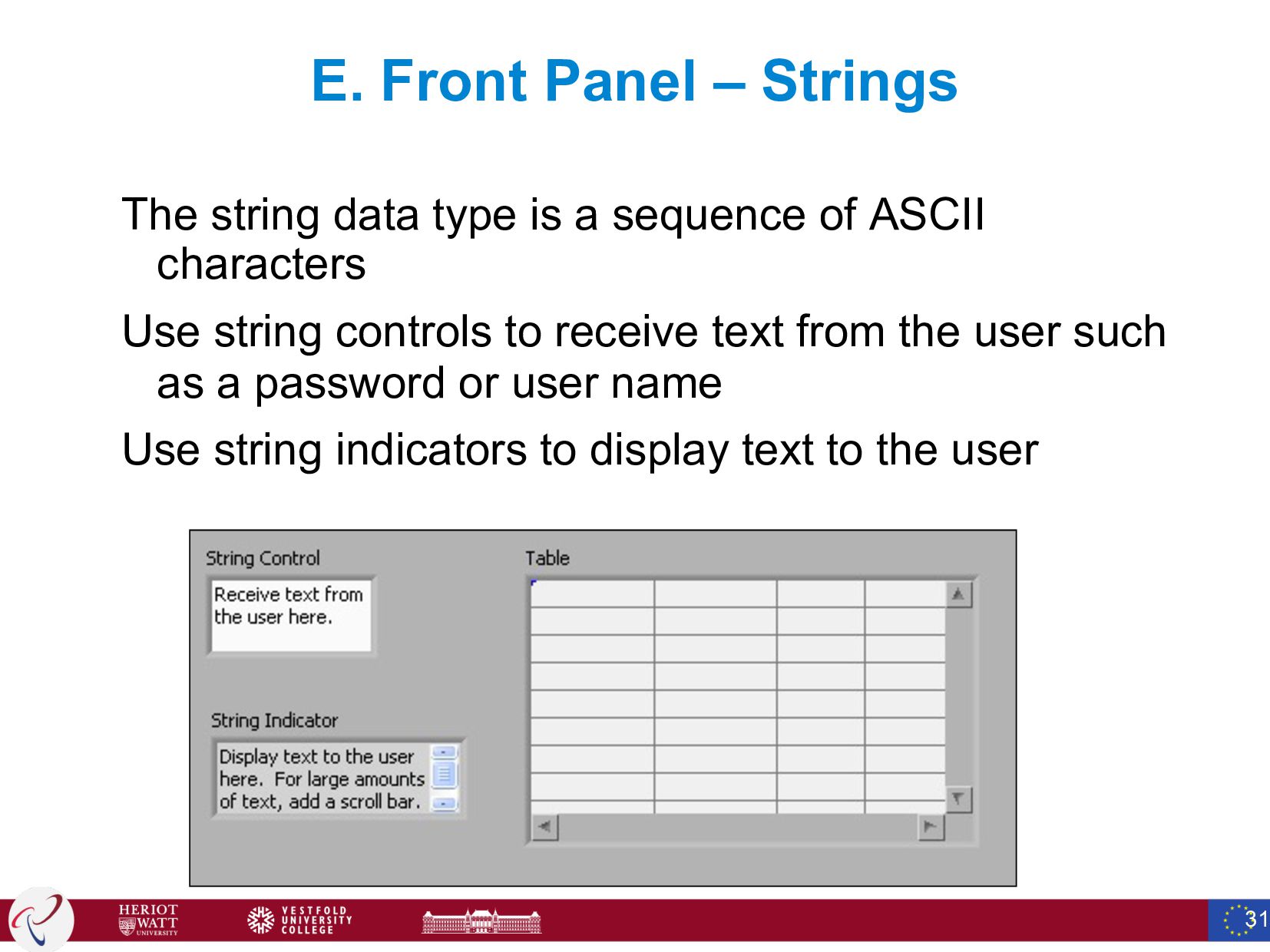
  27. E. Front Panel – Strings The string data type is

    a sequence of ASCII characters Use string controls to receive text from the user such as a password or user name Use string indicators to display text to the user 31
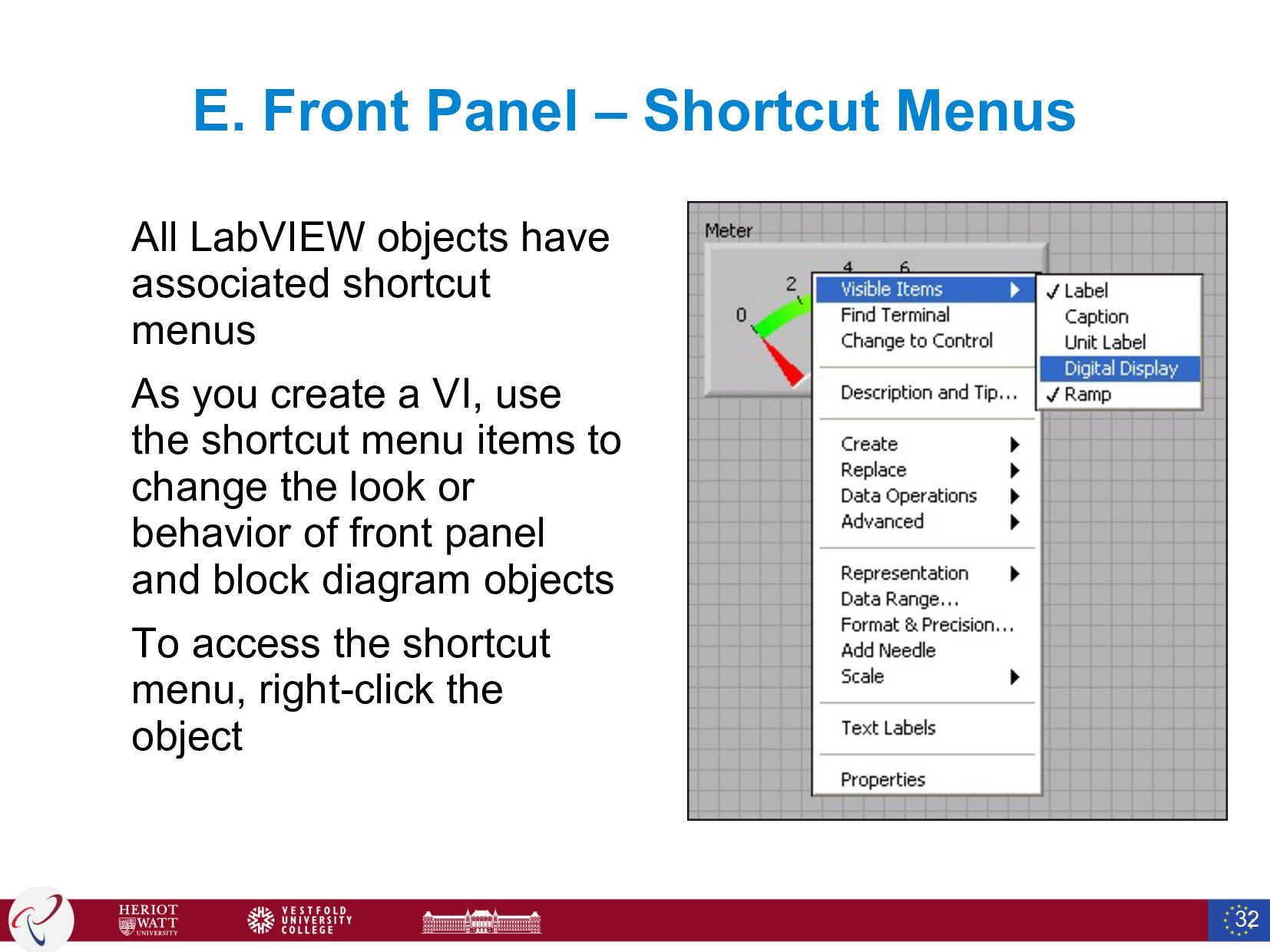
  28. E. Front Panel – Shortcut Menus All LabVIEW objects have

    associated shortcut menus As you create a VI, use the shortcut menu items to change the look or behavior of front panel and block diagram objects To access the shortcut menu, right-click the object 32
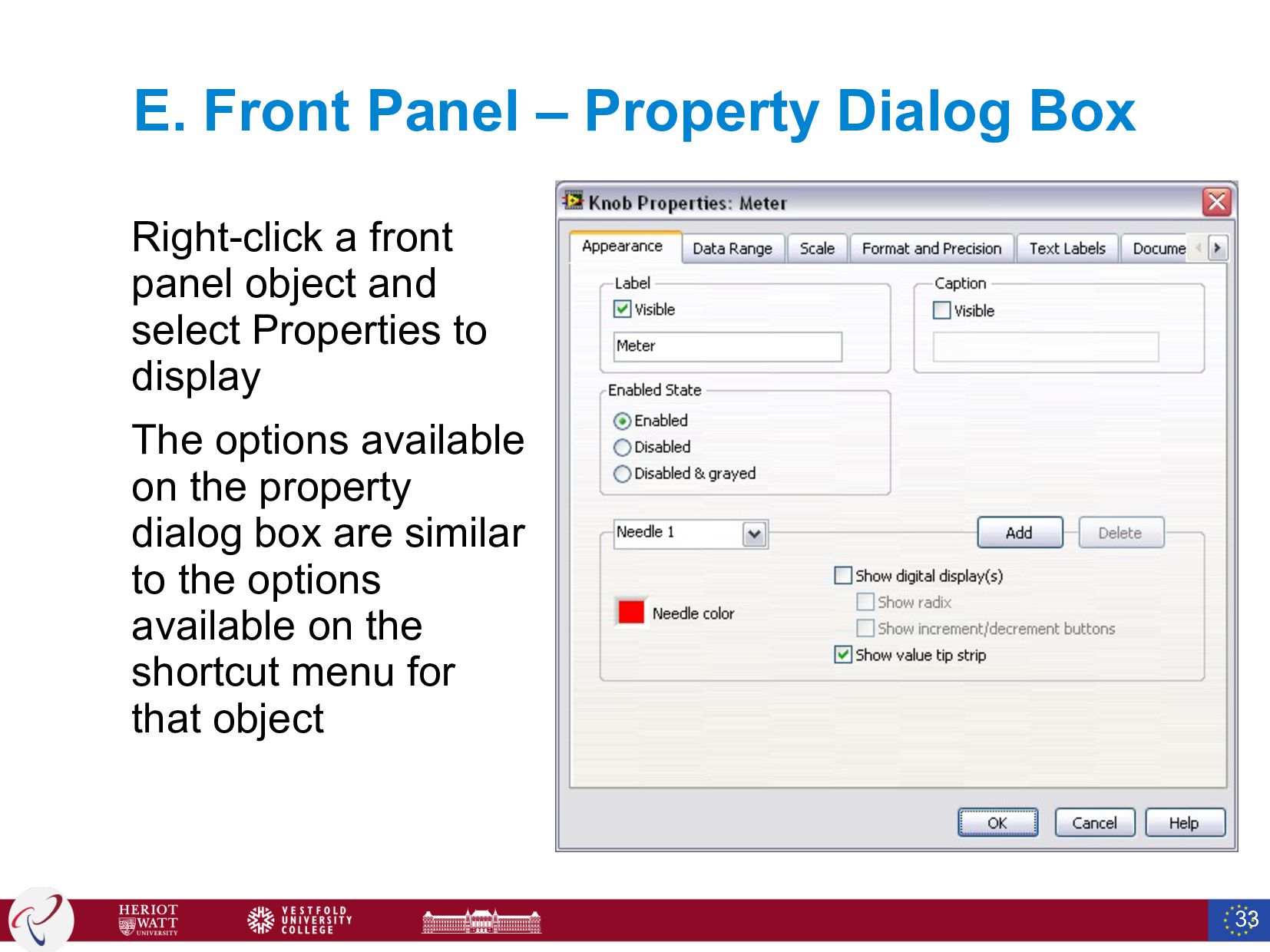
  29. E. Front Panel – Property Dialog Box Right-click a front

    panel object and select Properties to display The options available on the property dialog box are similar to the options available on the shortcut menu for that object 33
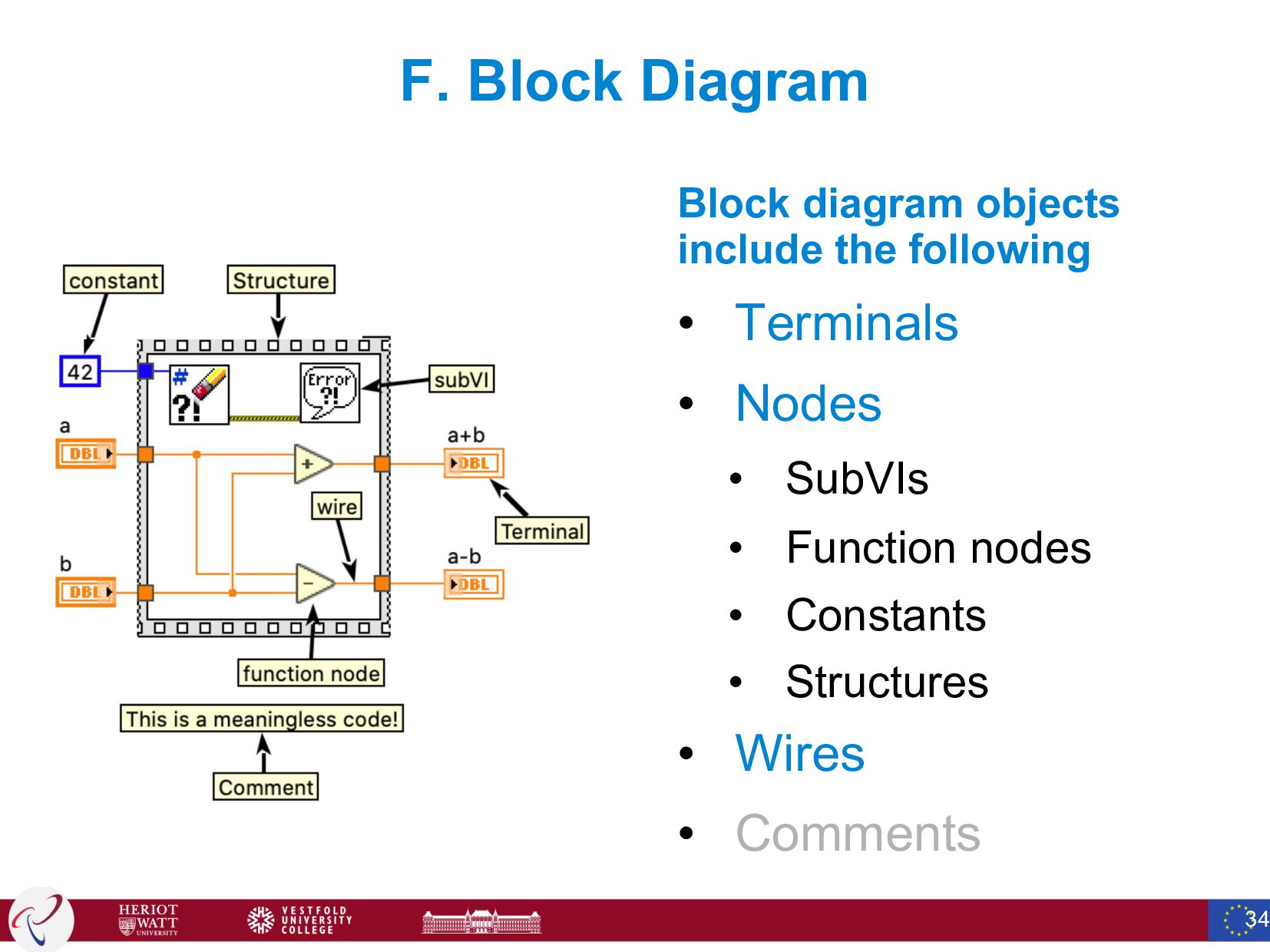
  30. F. Block Diagram Block diagram objects include the following •

    Terminals • Nodes • SubVIs • Function nodes • Constants • Structures • Wires • Comments 34
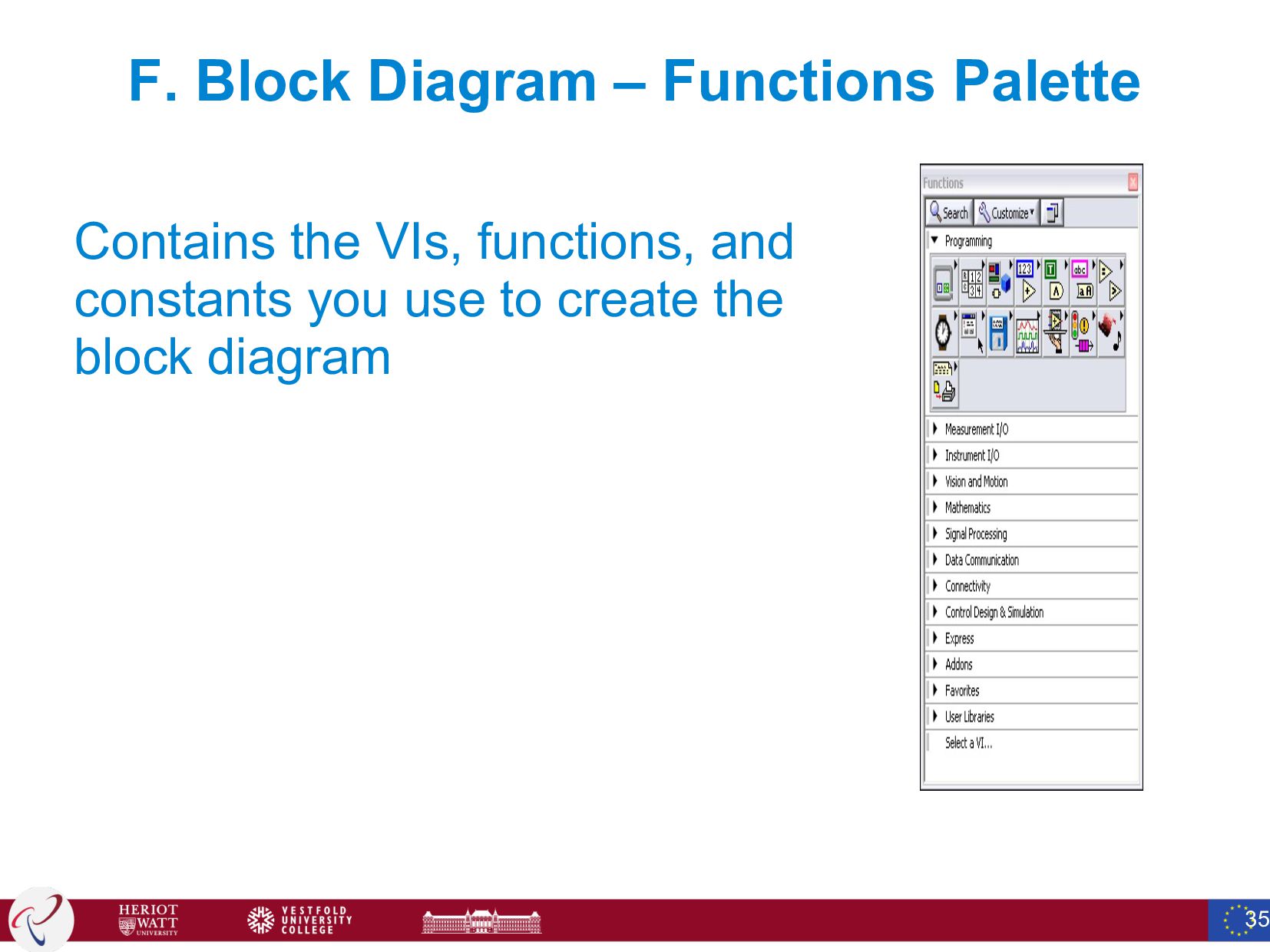
  31. F. Block Diagram – Functions Palette Contains the VIs, functions,

    and constants you use to create the block diagram 35
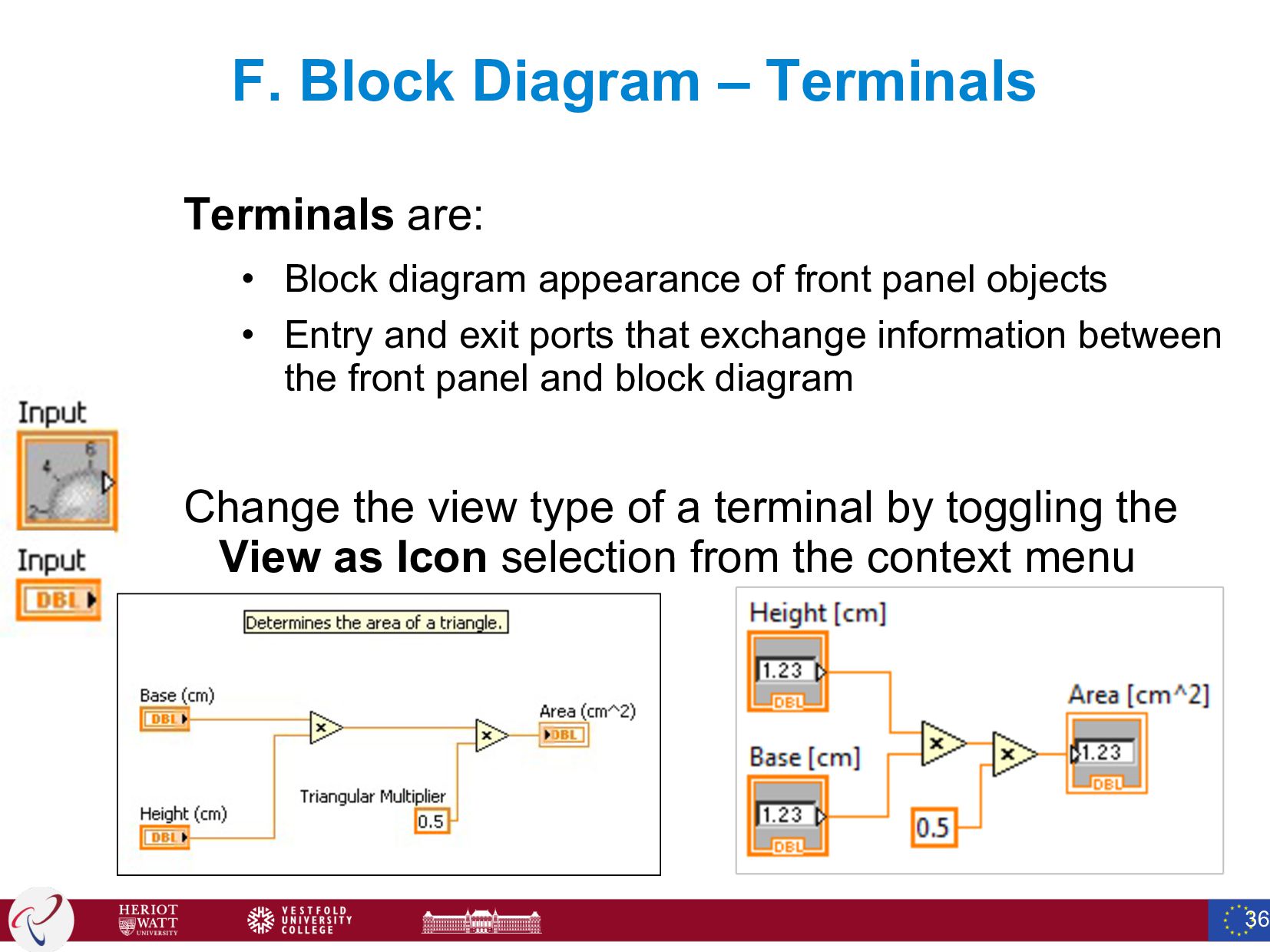
  32. F. Block Diagram – Terminals Terminals are: • Block diagram

    appearance of front panel objects • Entry and exit ports that exchange information between the front panel and block diagram Change the view type of a terminal by toggling the View as Icon selection from the context menu 36
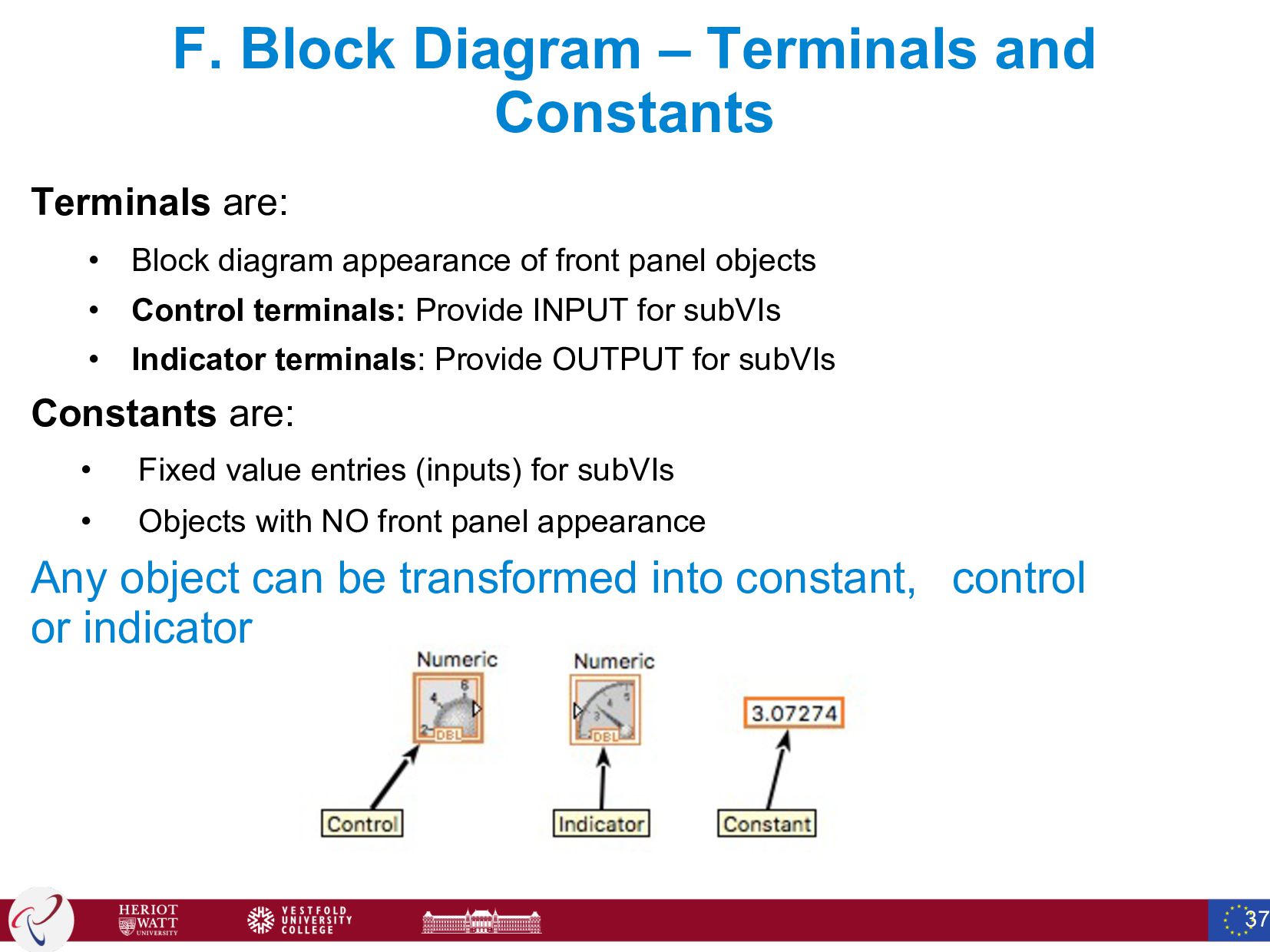
  33. F. Block Diagram – Terminals and Constants Terminals are: •

    Block diagram appearance of front panel objects • Control terminals: Provide INPUT for subVIs • Indicator terminals: Provide OUTPUT for subVIs Constants are: • Fixed value entries (inputs) for subVIs • Objects with NO front panel appearance Any object can be transformed into constant, control or indicator 37
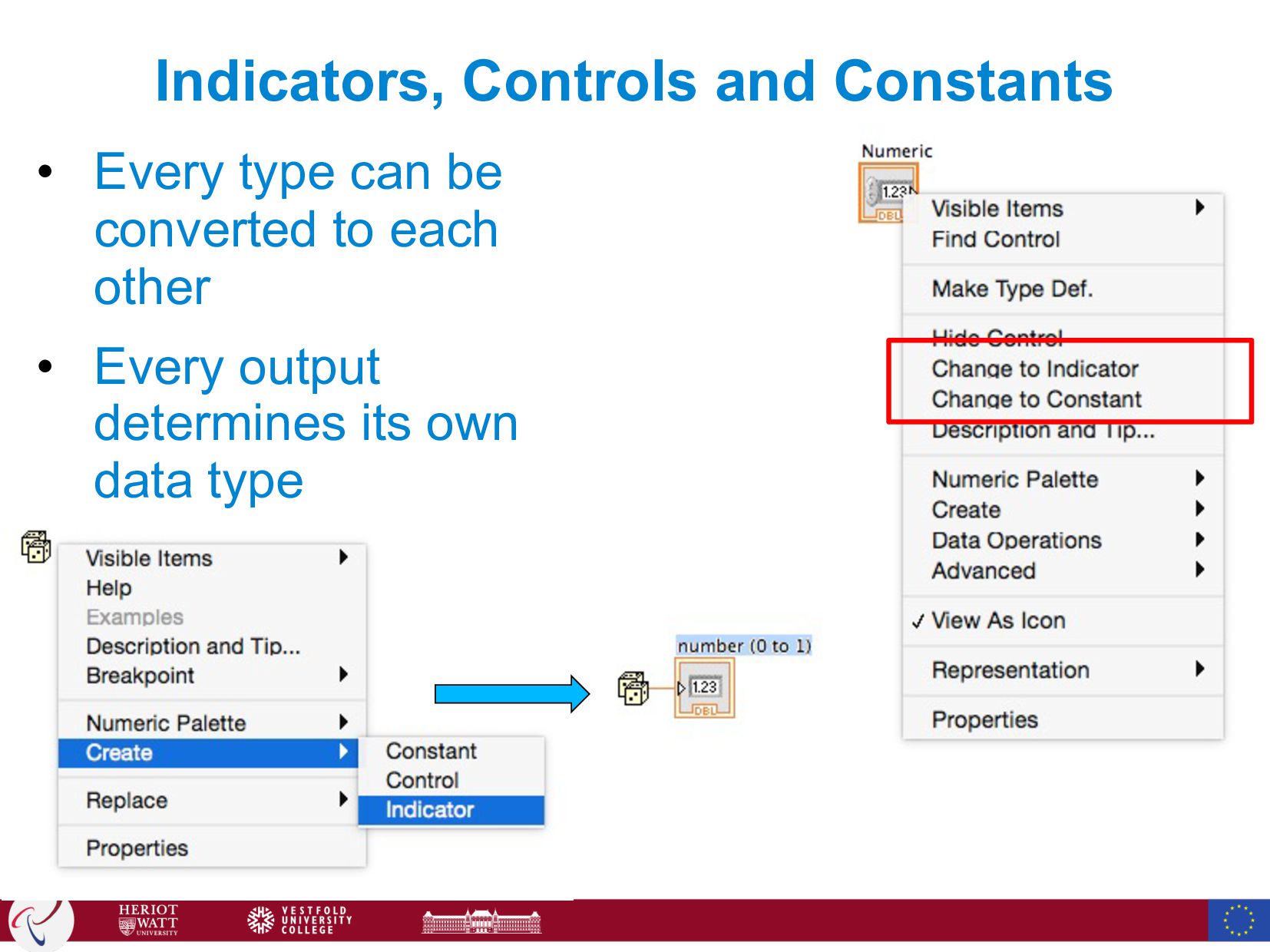
  34. Indicators, Controls and Constants • Every type can be converted

    to each other • Every output determines its own data type
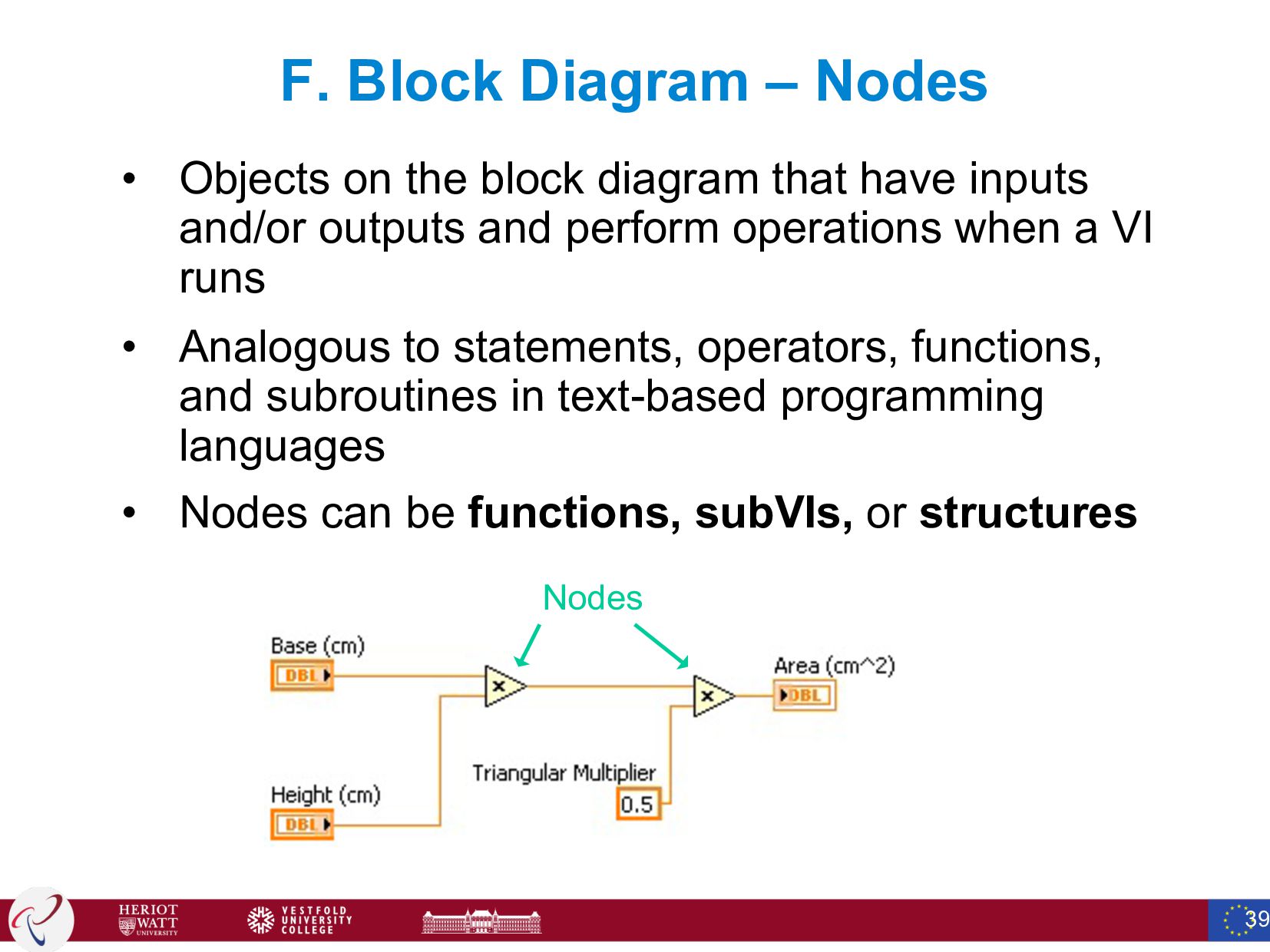
  35. F. Block Diagram – Nodes • Objects on the block

    diagram that have inputs and/or outputs and perform operations when a VI runs • Analogous to statements, operators, functions, and subroutines in text-based programming languages • Nodes can be functions, subVIs, or structures 39 Nodes
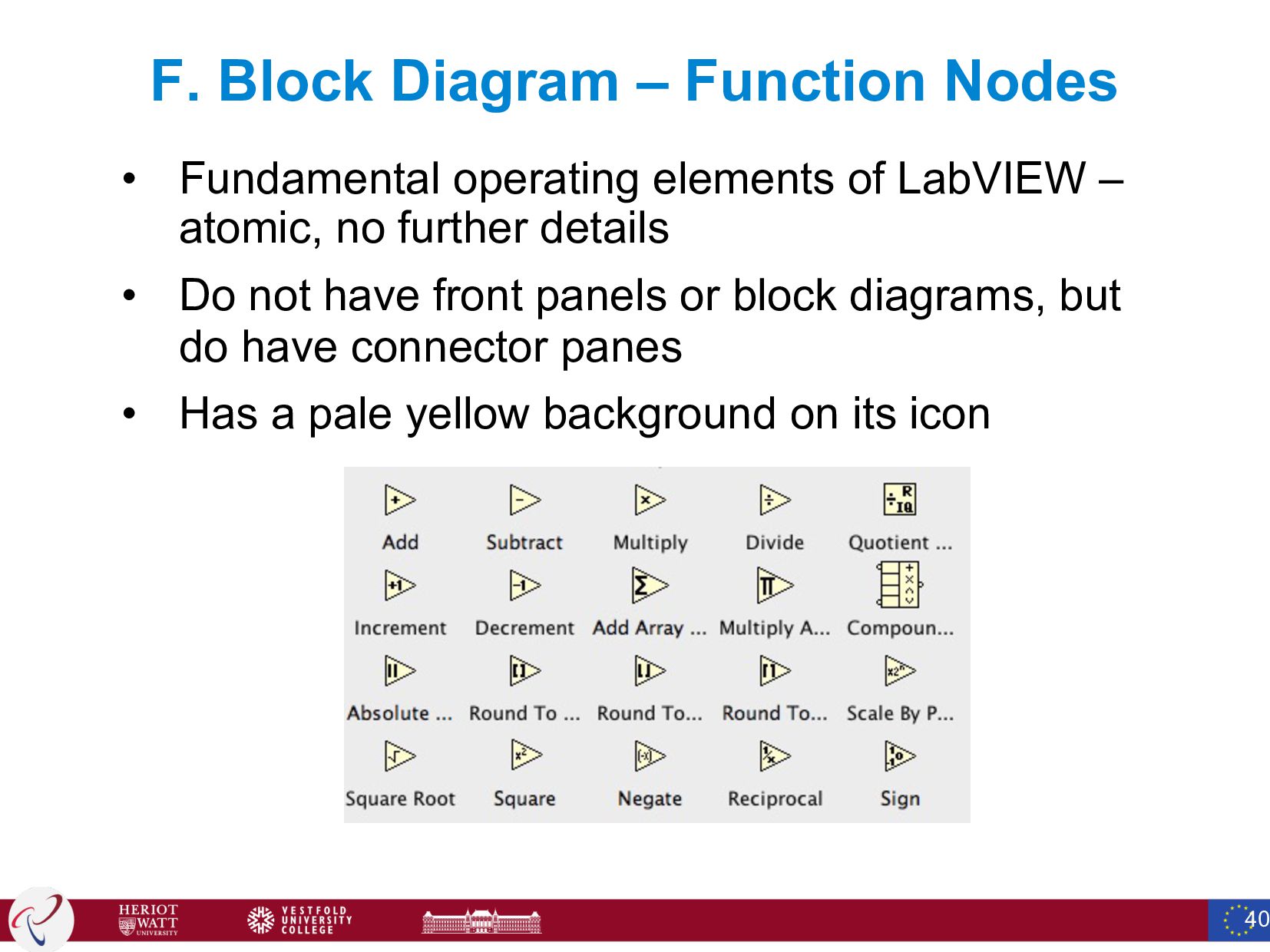
  36. F. Block Diagram – Function Nodes • Fundamental operating elements

    of LabVIEW – atomic, no further details • Do not have front panels or block diagrams, but do have connector panes • Has a pale yellow background on its icon 40
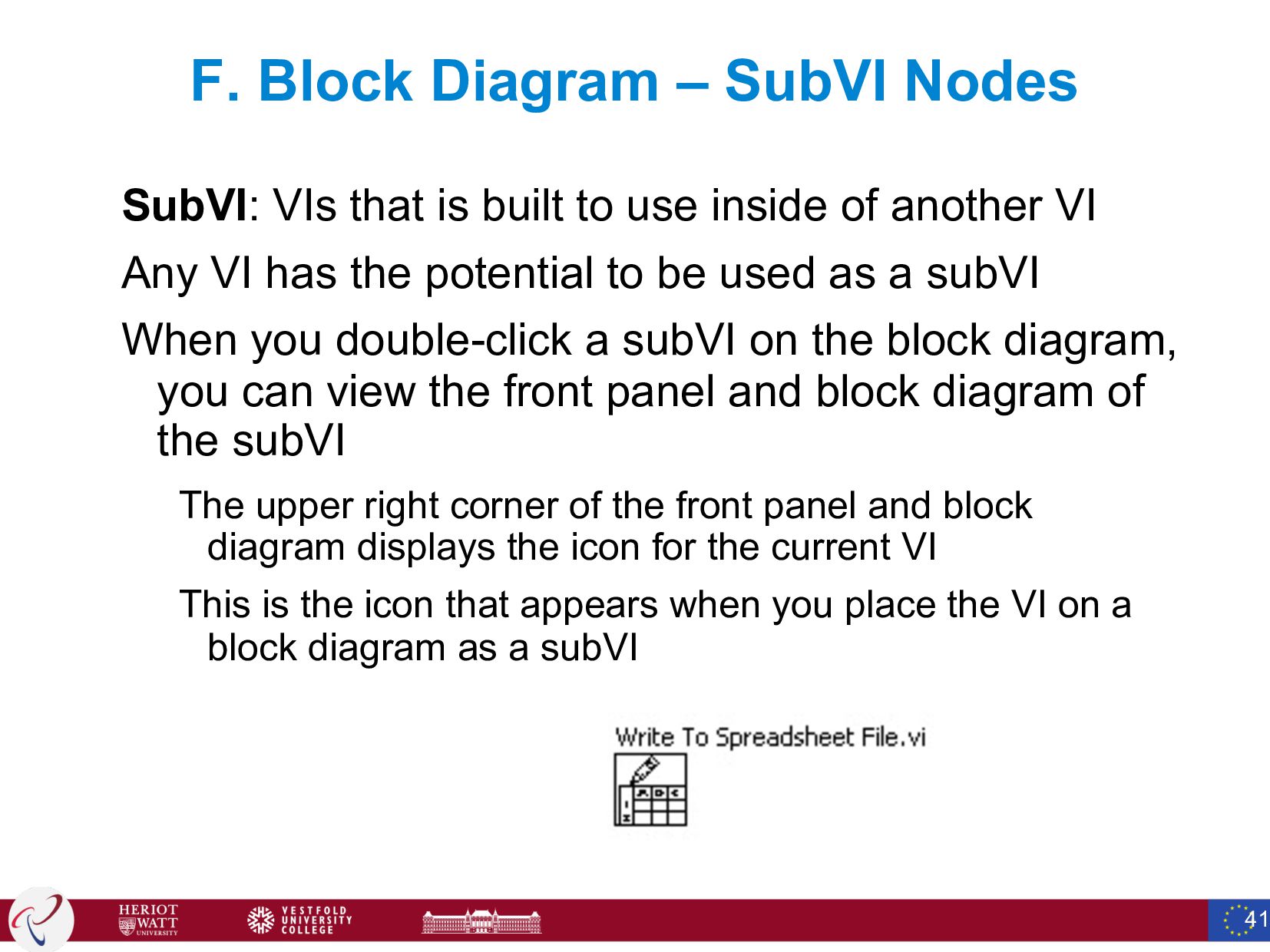
  37. F. Block Diagram – SubVI Nodes SubVI: VIs that is

    built to use inside of another VI Any VI has the potential to be used as a subVI When you double-click a subVI on the block diagram, you can view the front panel and block diagram of the subVI The upper right corner of the front panel and block diagram displays the icon for the current VI This is the icon that appears when you place the VI on a block diagram as a subVI 41
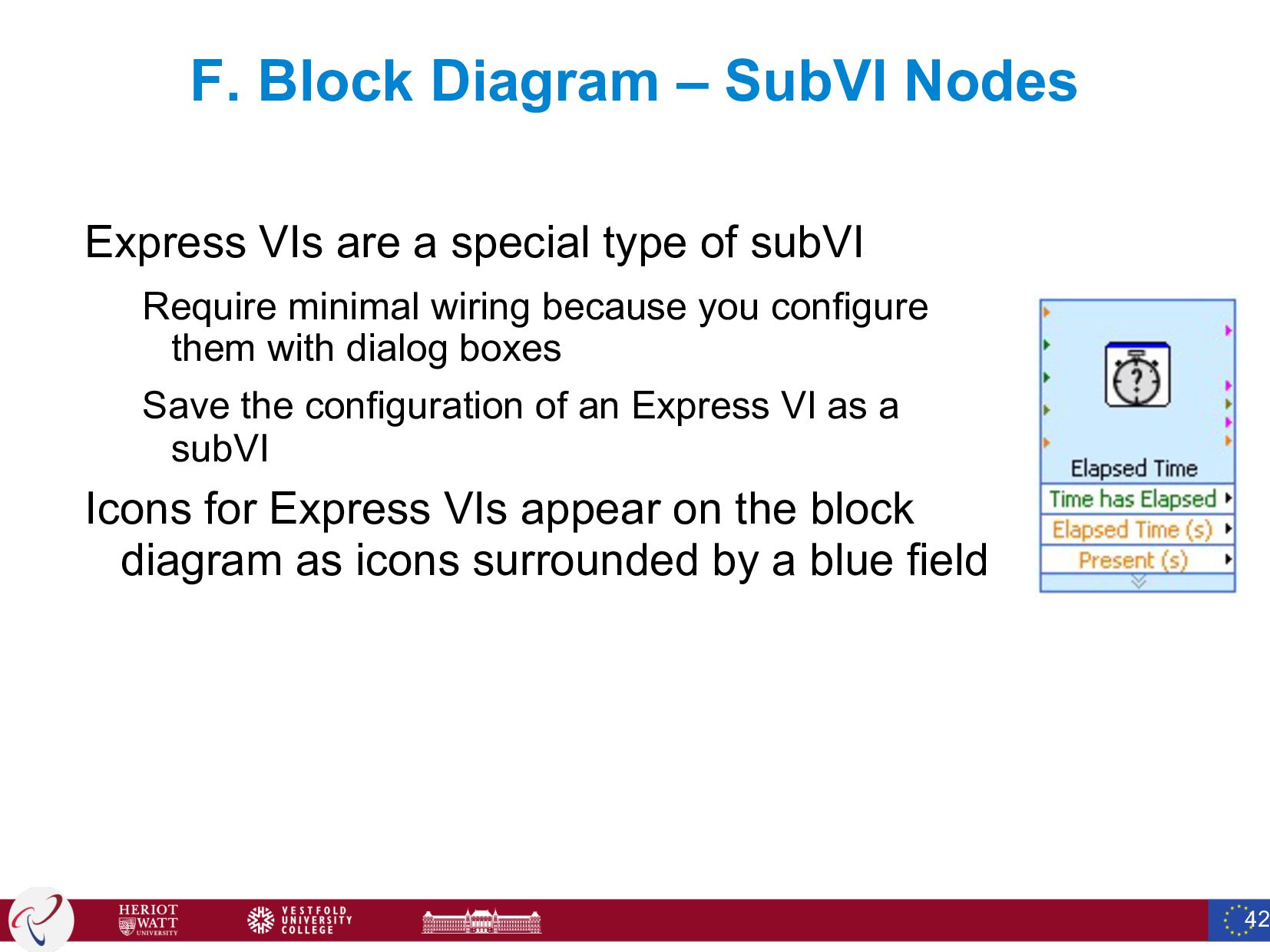
  38. F. Block Diagram – SubVI Nodes Express VIs are a

    special type of subVI Require minimal wiring because you configure them with dialog boxes Save the configuration of an Express VI as a subVI Icons for Express VIs appear on the block diagram as icons surrounded by a blue field 42
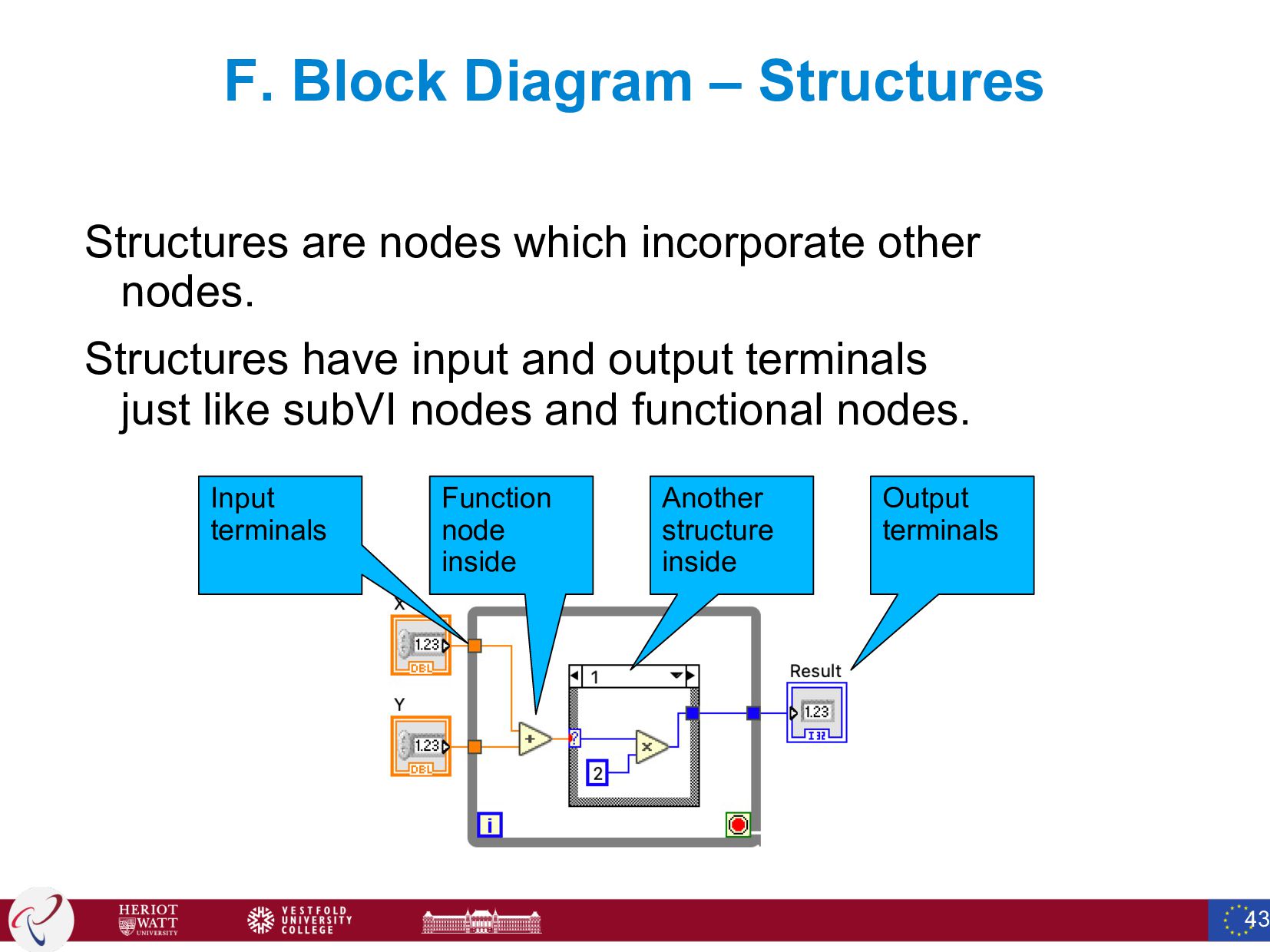
  39. F. Block Diagram – Structures Structures are nodes which incorporate

    other nodes. Structures have input and output terminals just like subVI nodes and functional nodes. 43 Input terminals Function node inside Another structure inside Output terminals
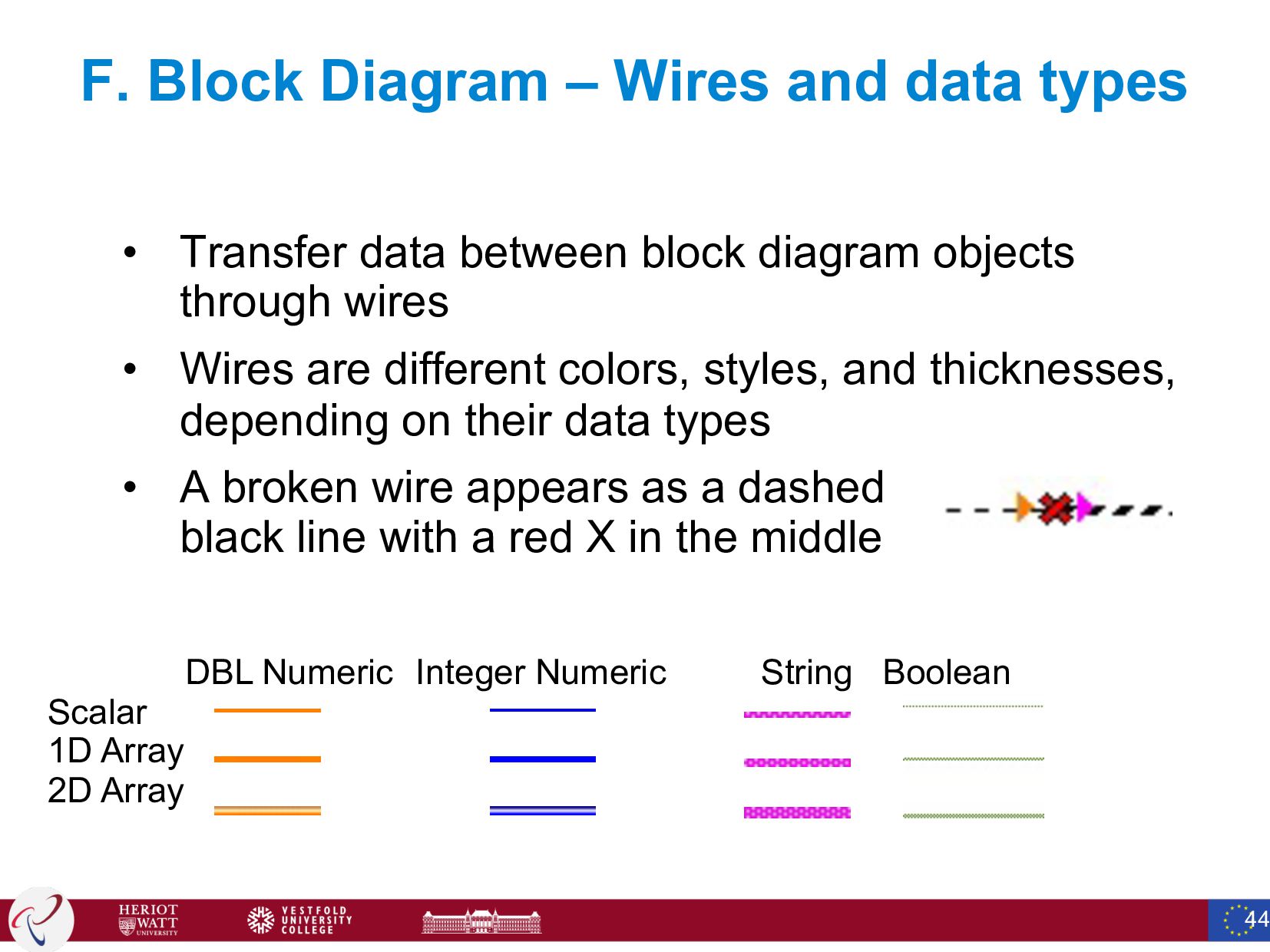
  40. F. Block Diagram – Wires and data types • Transfer

    data between block diagram objects through wires • Wires are different colors, styles, and thicknesses, depending on their data types • A broken wire appears as a dashed black line with a red X in the middle 44 Scalar 1D Array 2D Array DBL Numeric Integer Numeric String Boolean
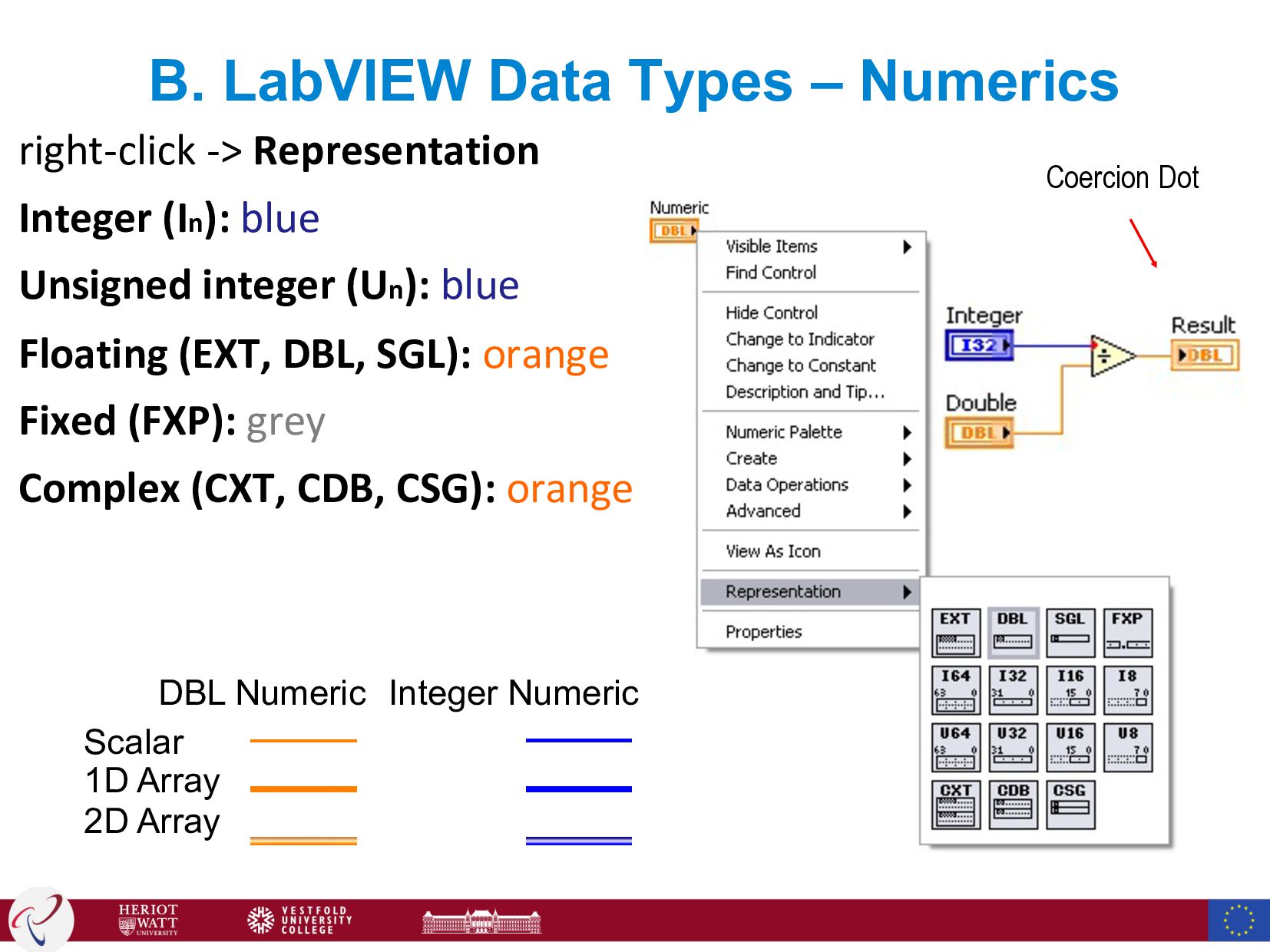
  41. B. LabVIEW Data Types – Numerics Scalar 1D Array 2D

    Array DBL Numeric Integer Numeric right-click -> Representation Integer (In): blue Unsigned integer (Un): blue Floating (EXT, DBL, SGL): orange Fixed (FXP): grey Complex (CXT, CDB, CSG): orange Coercion Dot
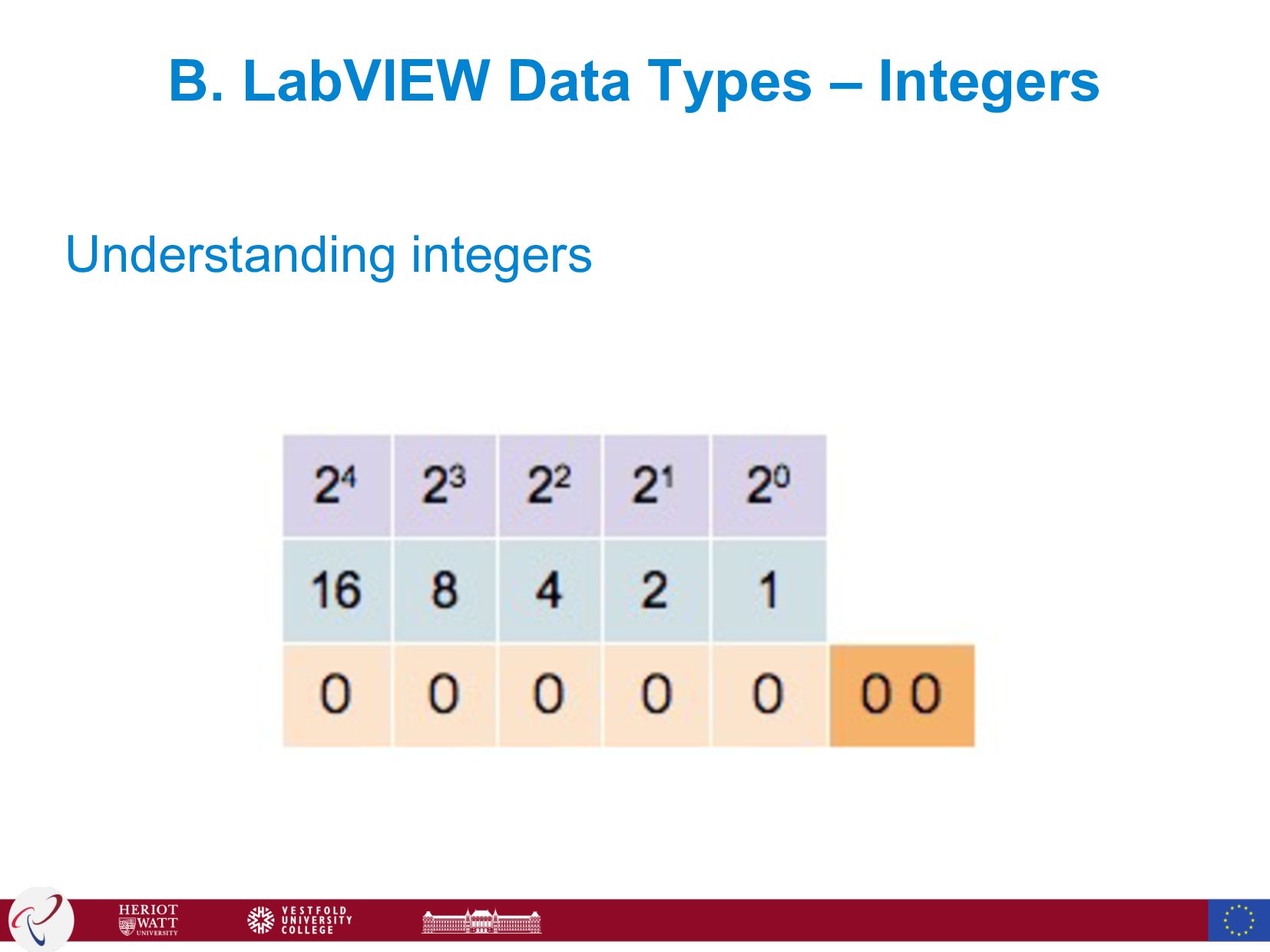
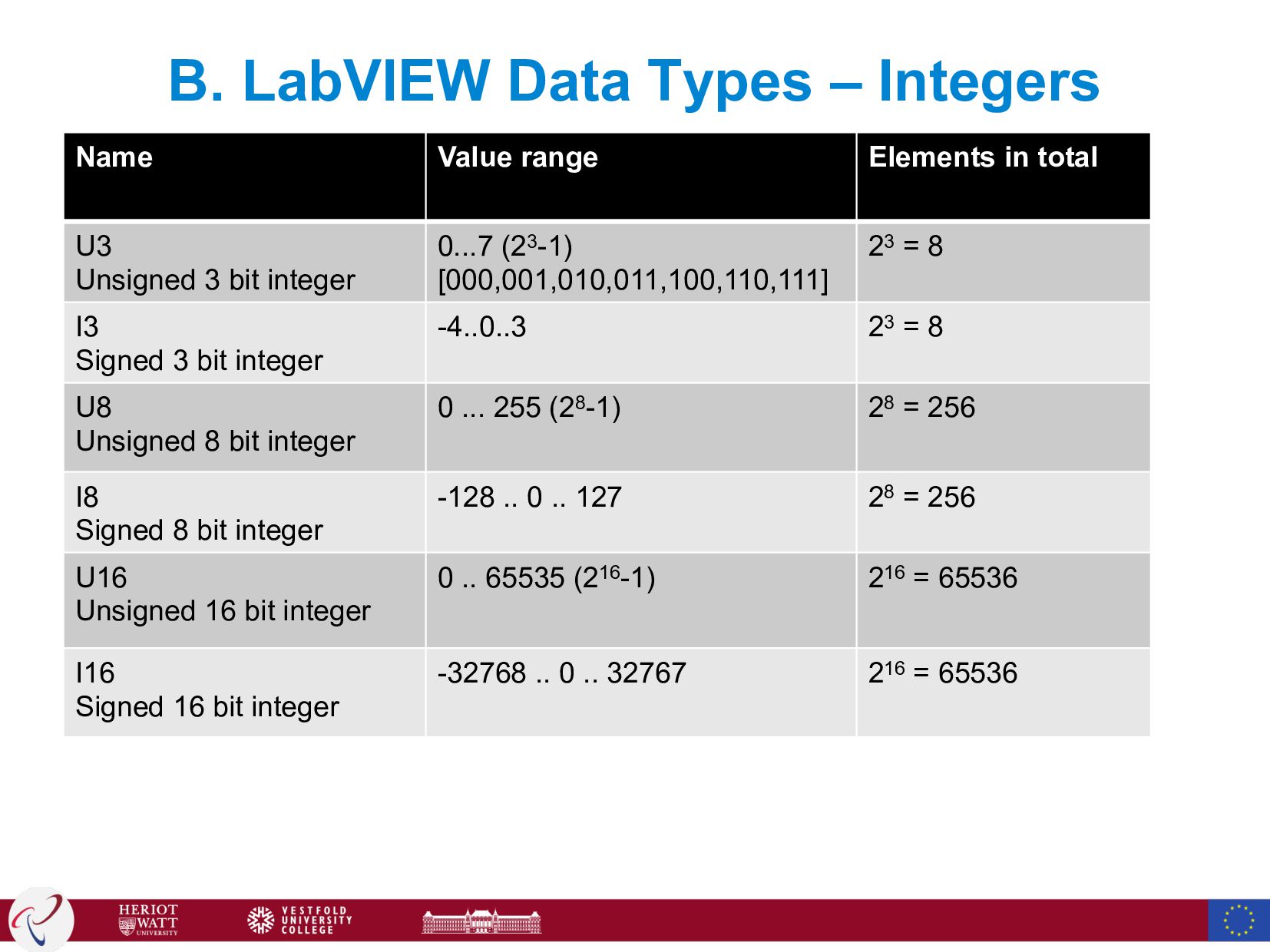
  42. B. LabVIEW Data Types – Integers Name Value range Elements

    in total U3 Unsigned 3 bit integer 0...7 (23-1) [000,001,010,011,100,110,111] 23 = 8 I3 Signed 3 bit integer -4..0..3 23 = 8 U8 Unsigned 8 bit integer 0 ... 255 (28-1) 28 = 256 I8 Signed 8 bit integer -128 .. 0 .. 127 28 = 256 U16 Unsigned 16 bit integer 0 .. 65535 (216-1) 216 = 65536 I16 Signed 16 bit integer -32768 .. 0 .. 32767 216 = 65536
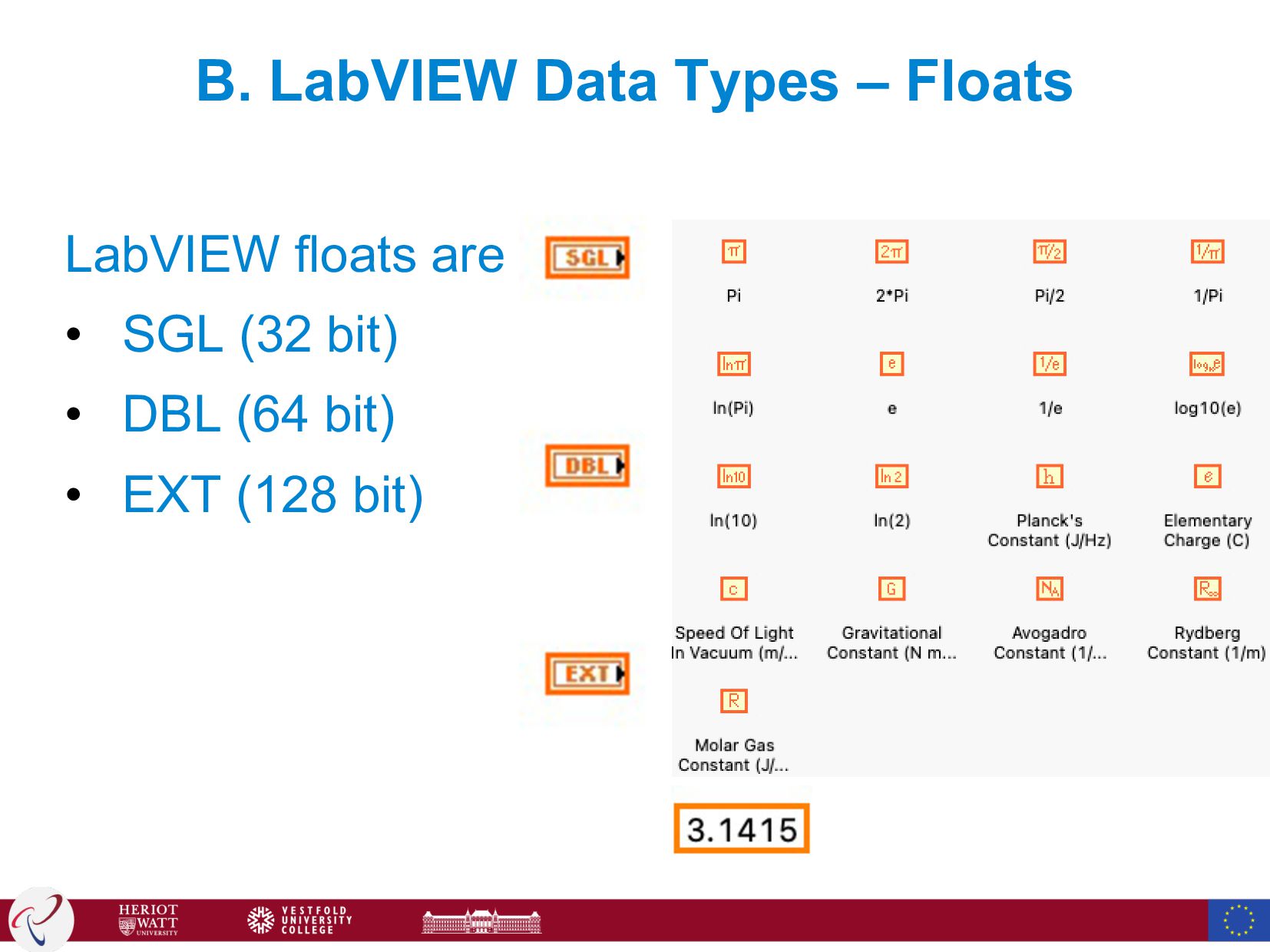
  43. B. LabVIEW Data Types – Floats LabVIEW floats are •

    SGL (32 bit) • DBL (64 bit) • EXT (128 bit)
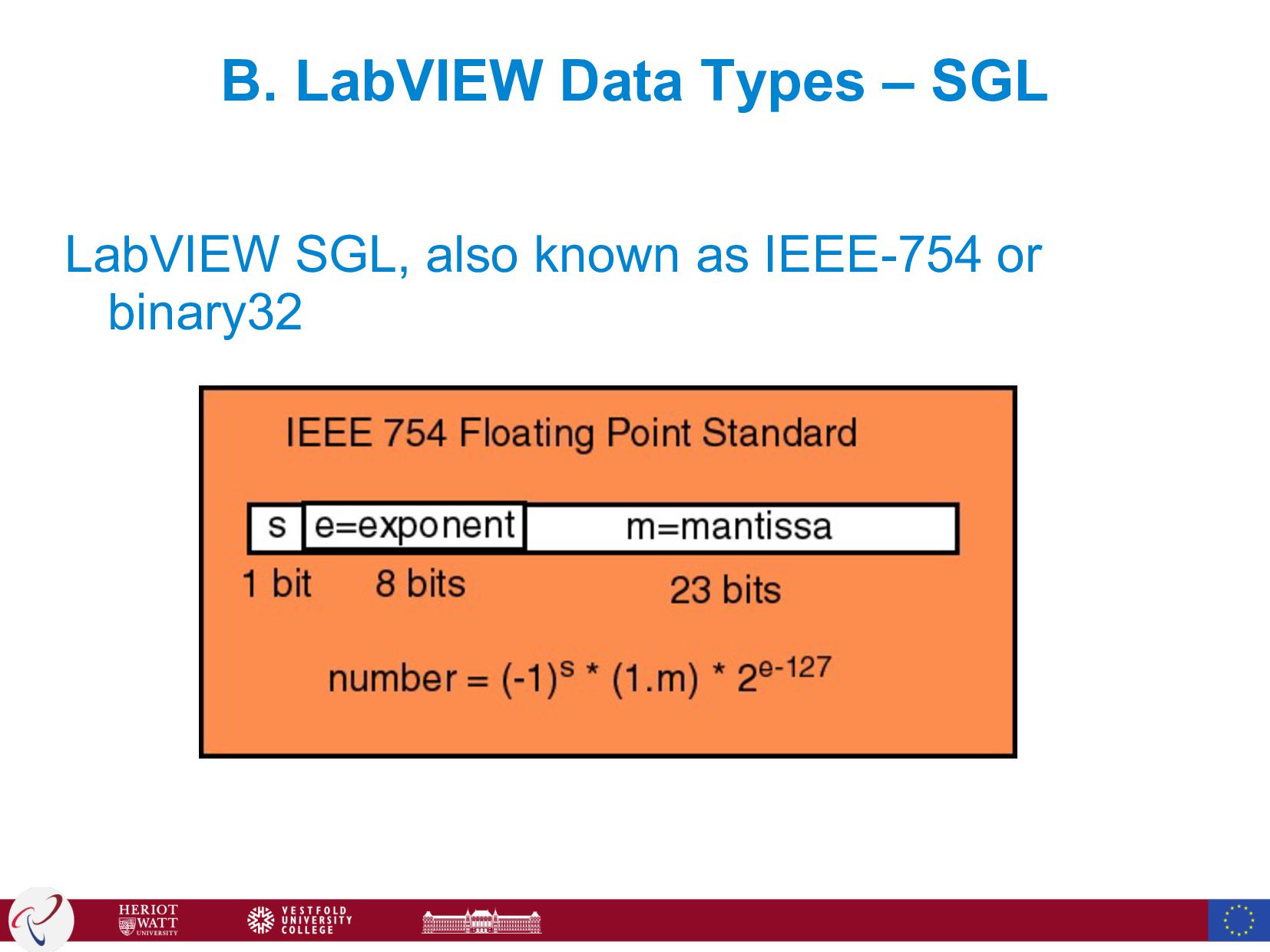
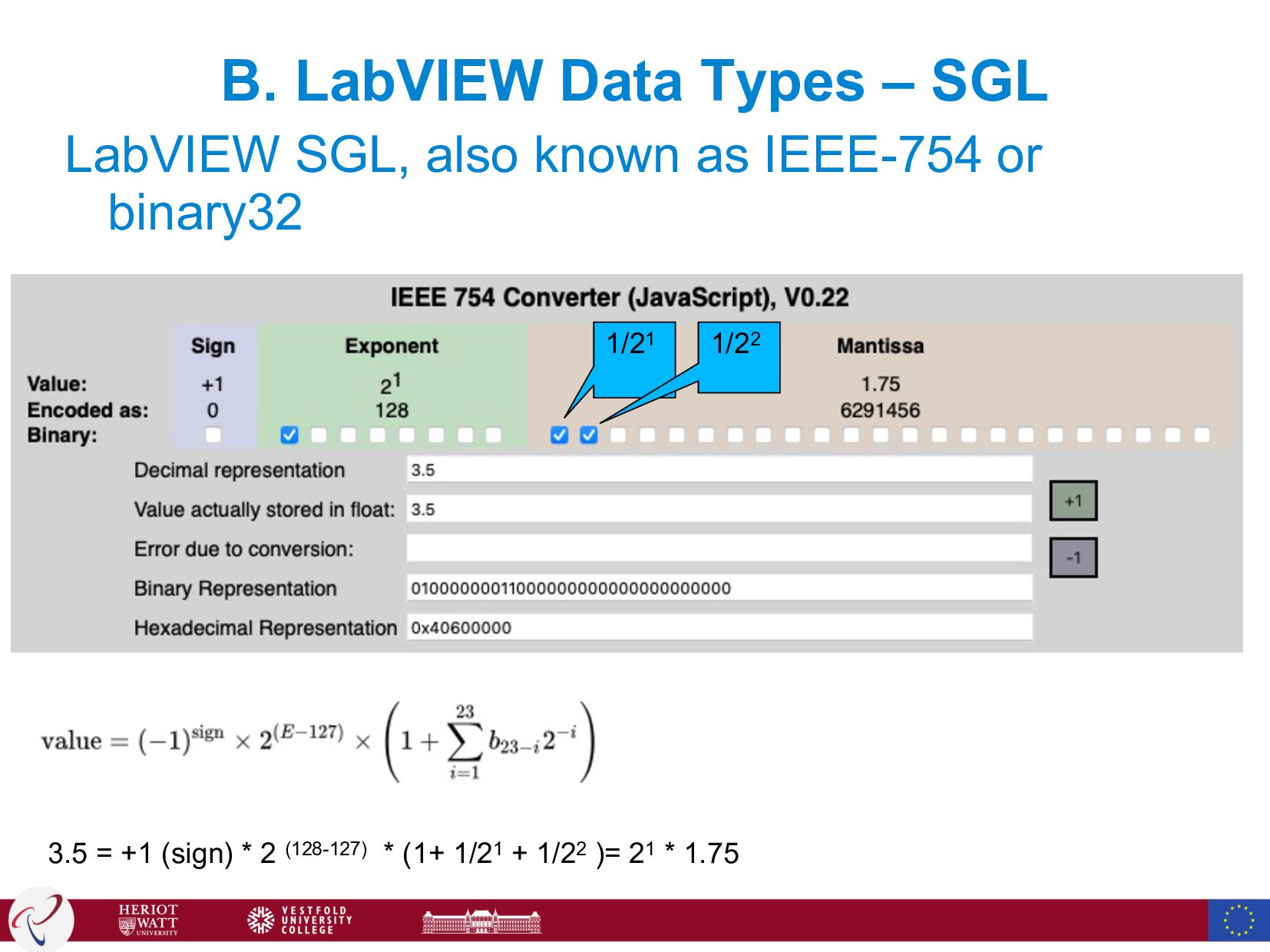
  44. B. LabVIEW Data Types – SGL LabVIEW SGL, also known

    as IEEE-754 or binary32 3.5 = +1 (sign) * 2 (128-127) * (1+ 1/21 + 1/22 )= 21 * 1.75 1/21 1/22
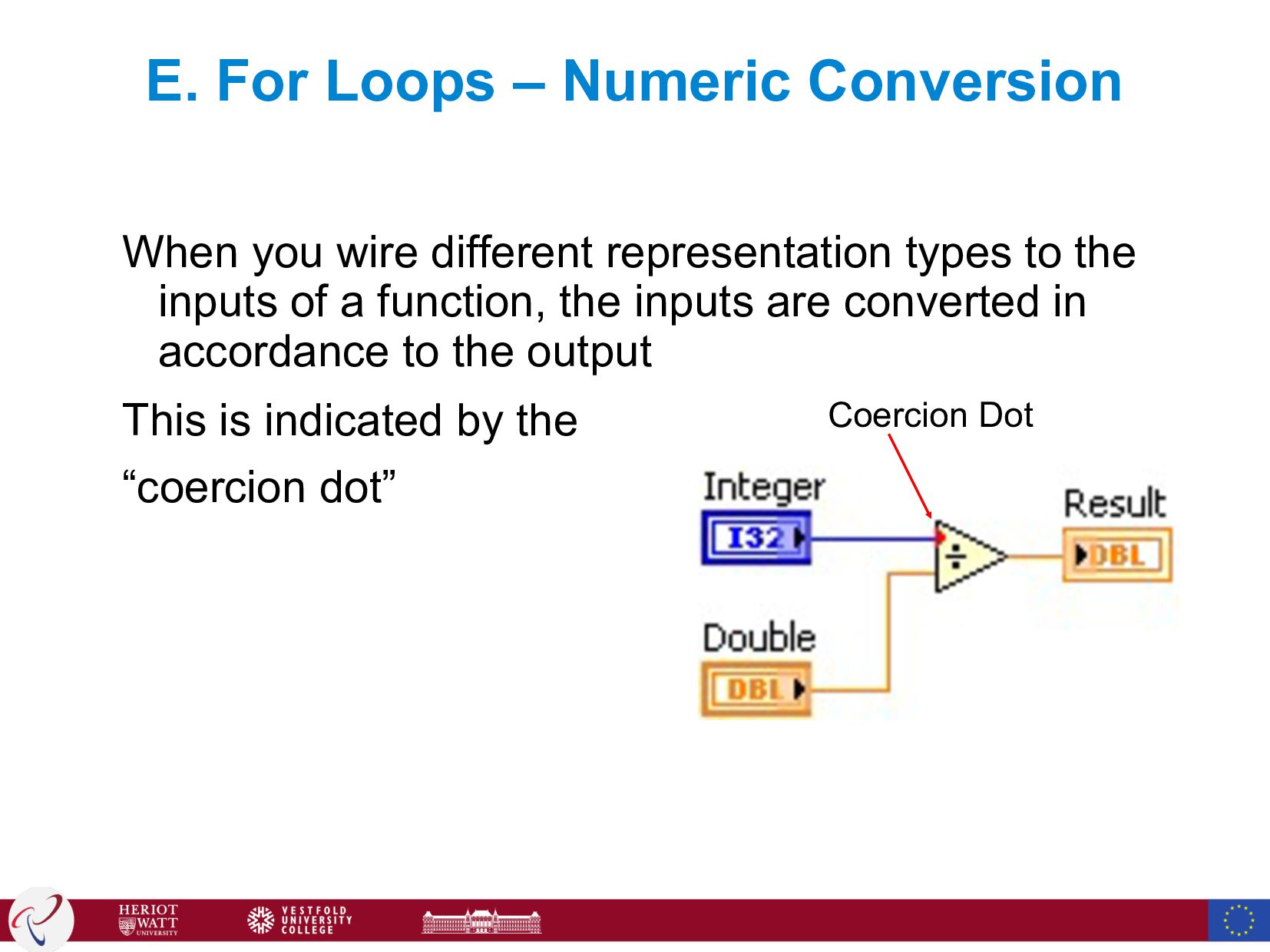
  45. When you wire different representation types to the inputs of

    a function, the inputs are converted in accordance to the output This is indicated by the “coercion dot” E. For Loops – Numeric Conversion Coercion Dot
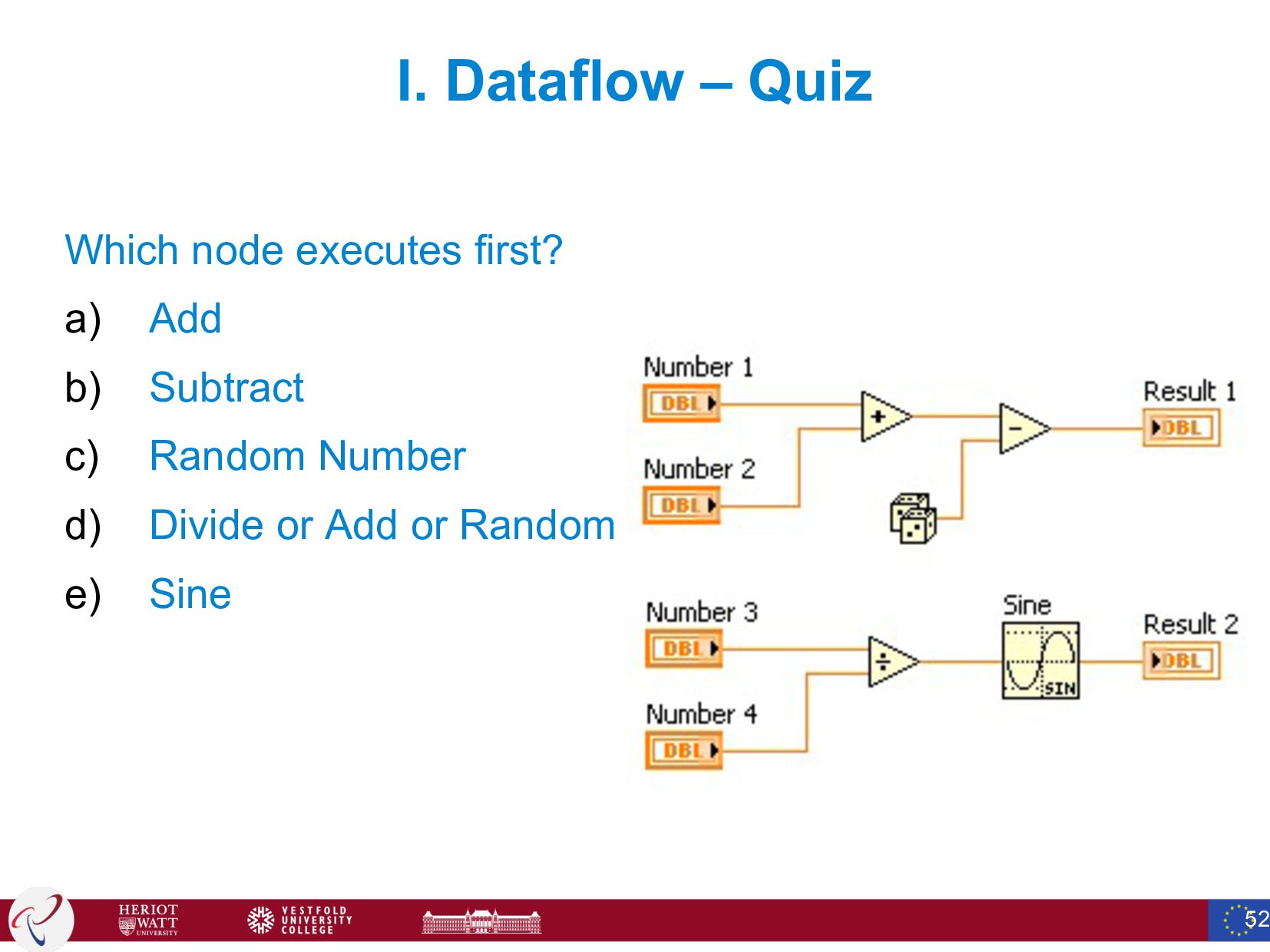
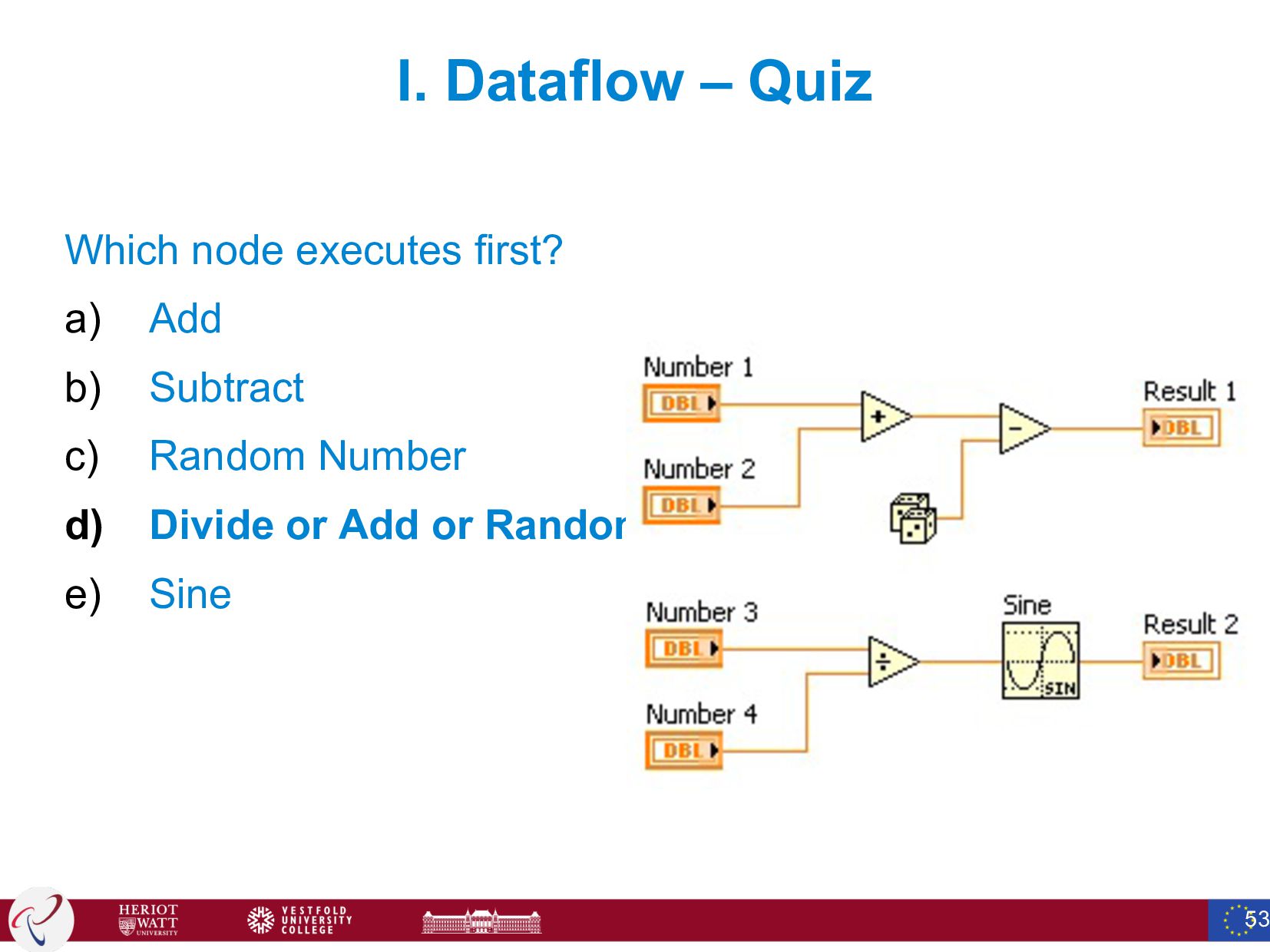
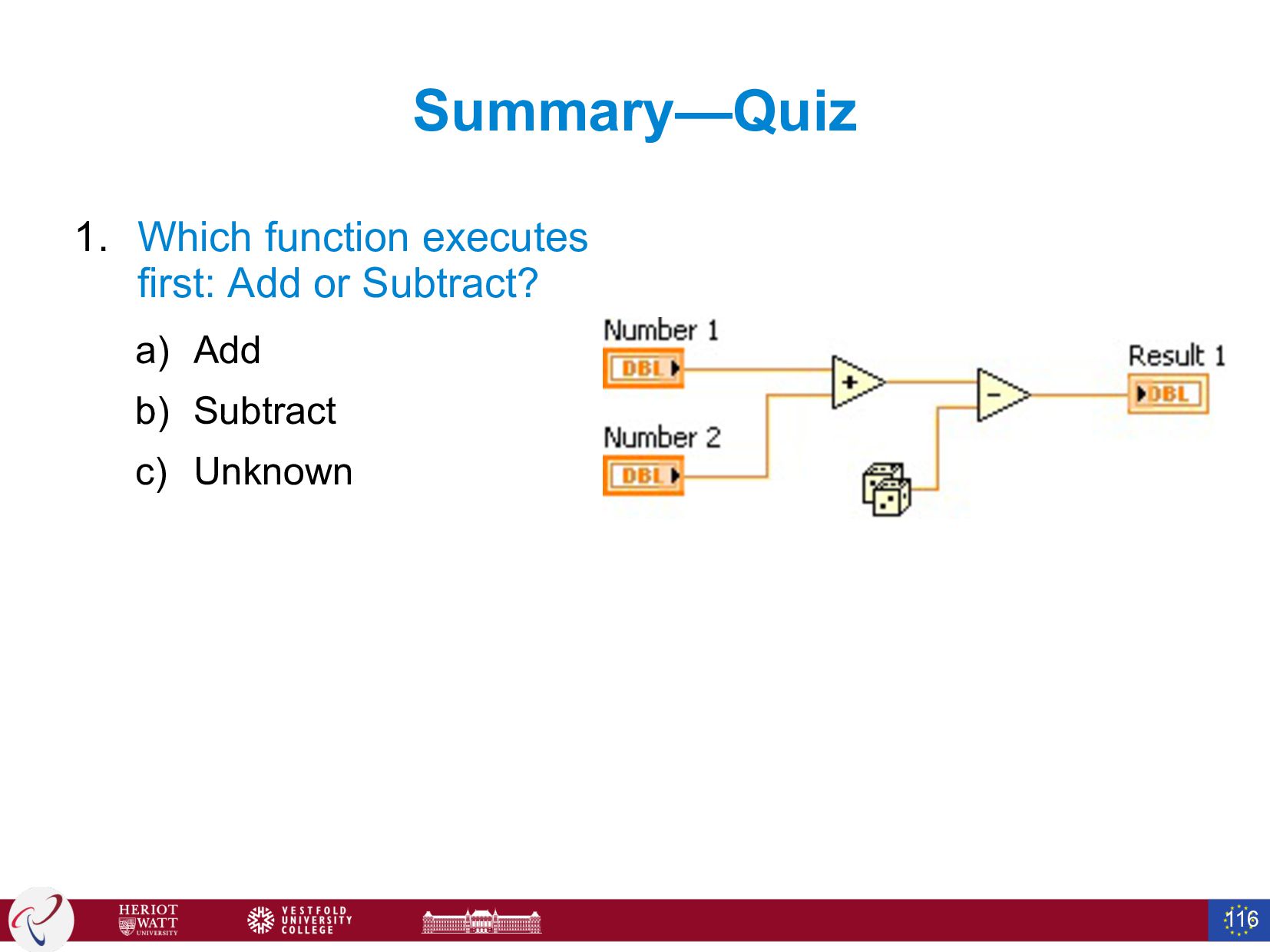
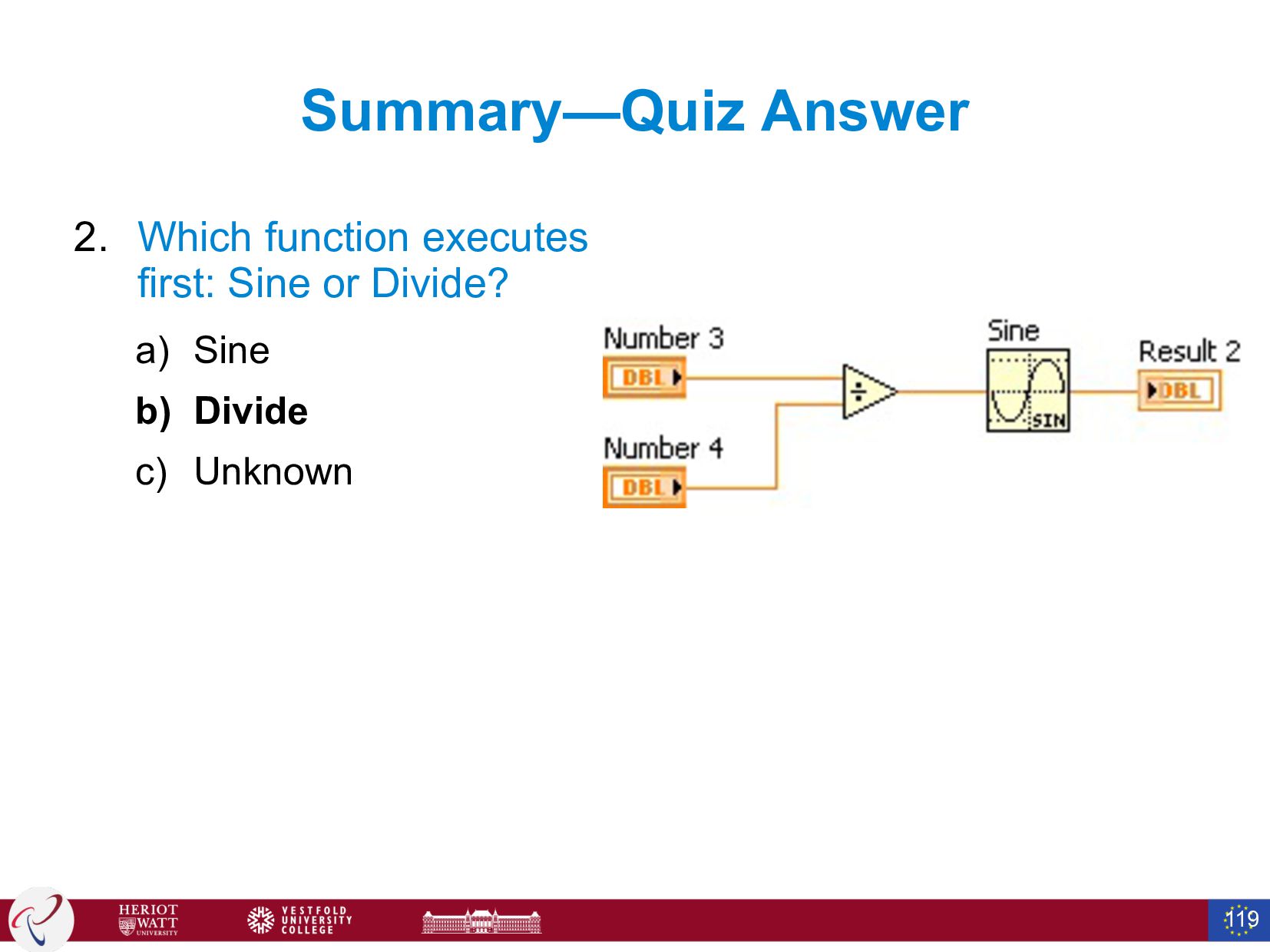
  46. I. Dataflow – Quiz Which node executes first? a) Add

    b) Subtract c) Random Number d) Divide or Add or Random e) Sine 52
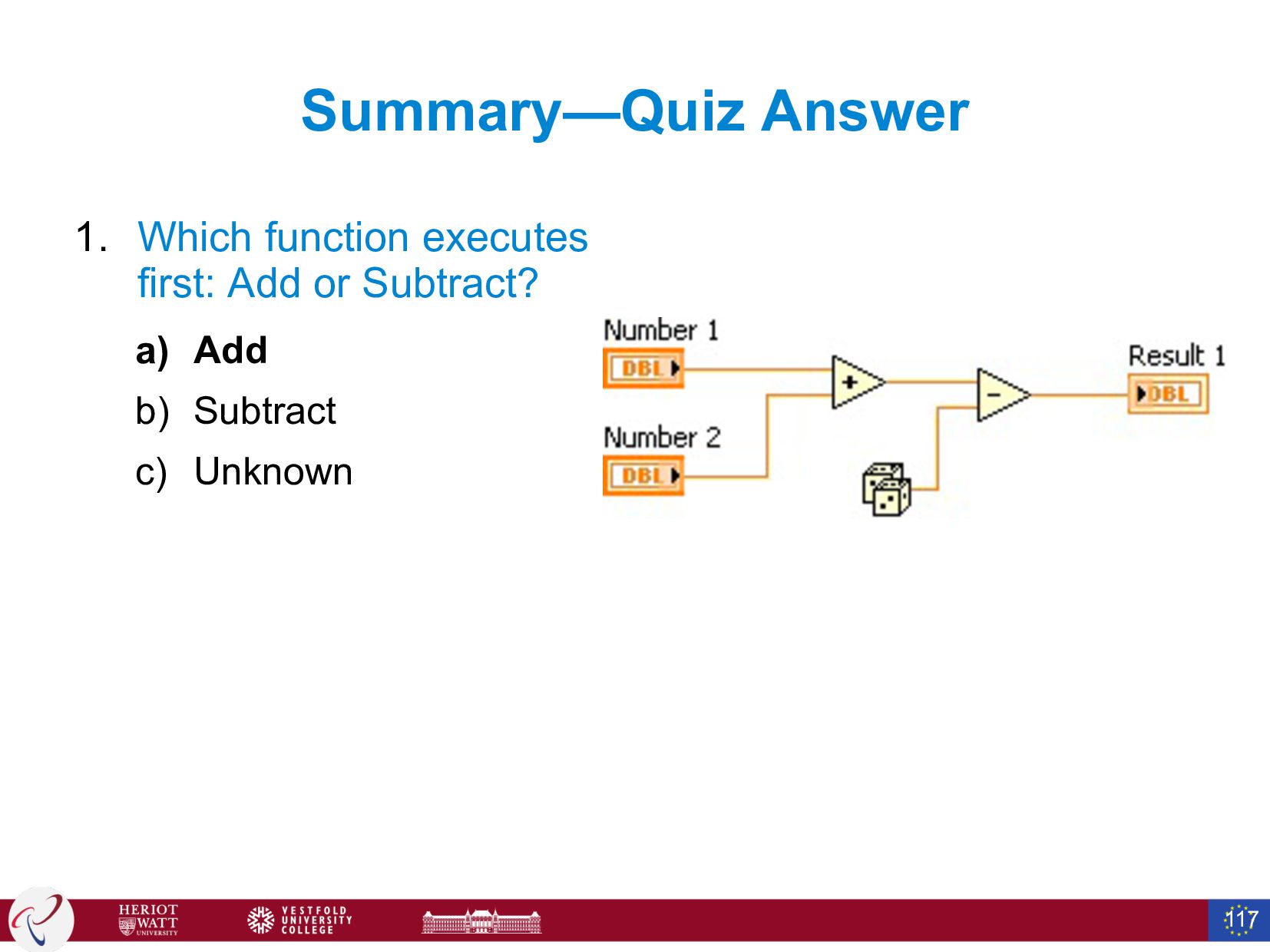
  47. I. Dataflow – Quiz Which node executes first? a) Add

    b) Subtract c) Random Number d) Divide or Add or Random e) Sine 53
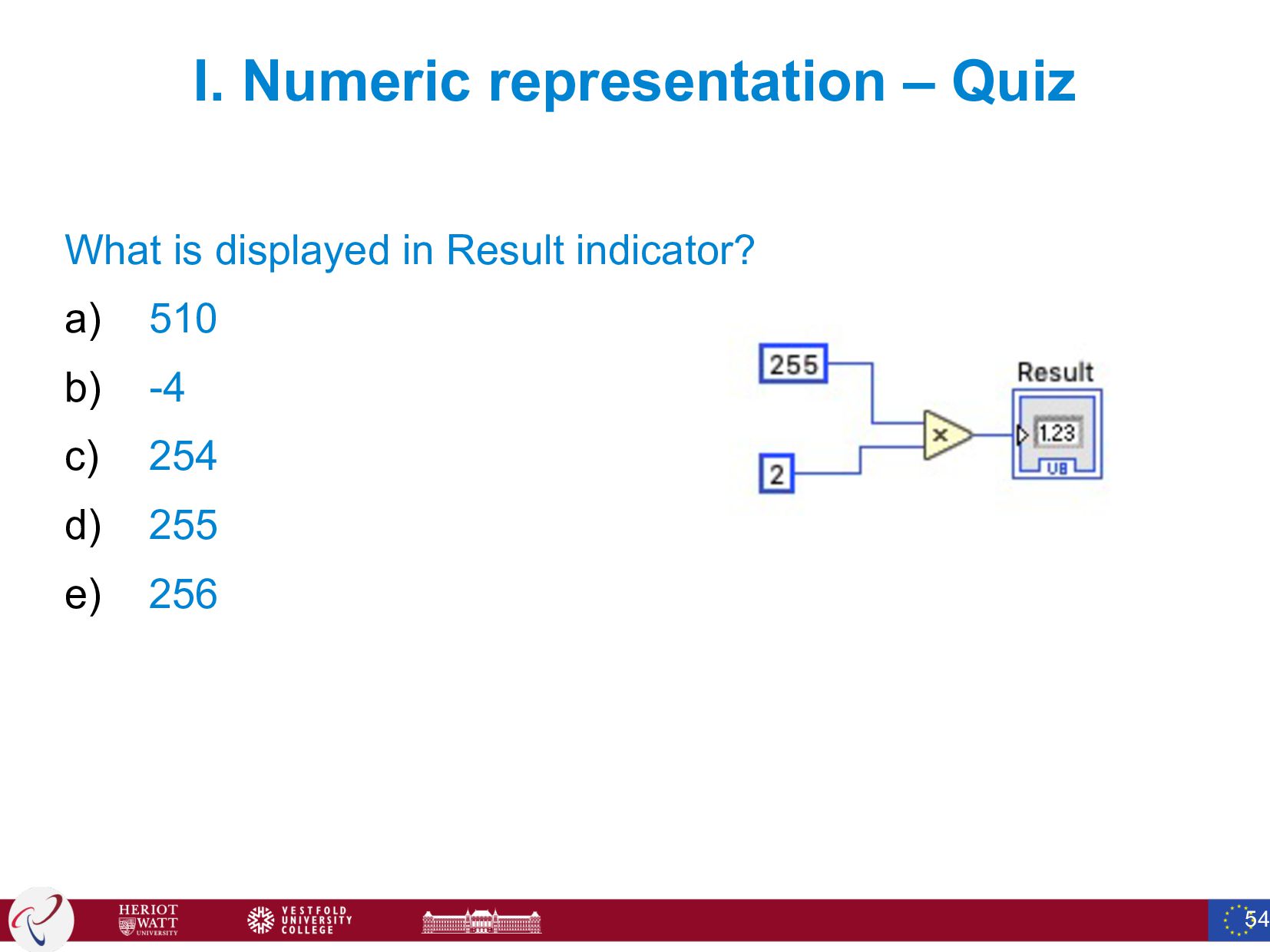
  48. I. Numeric representation – Quiz What is displayed in Result

    indicator? a) 510 b) -4 c) 254 d) 255 e) 256 54
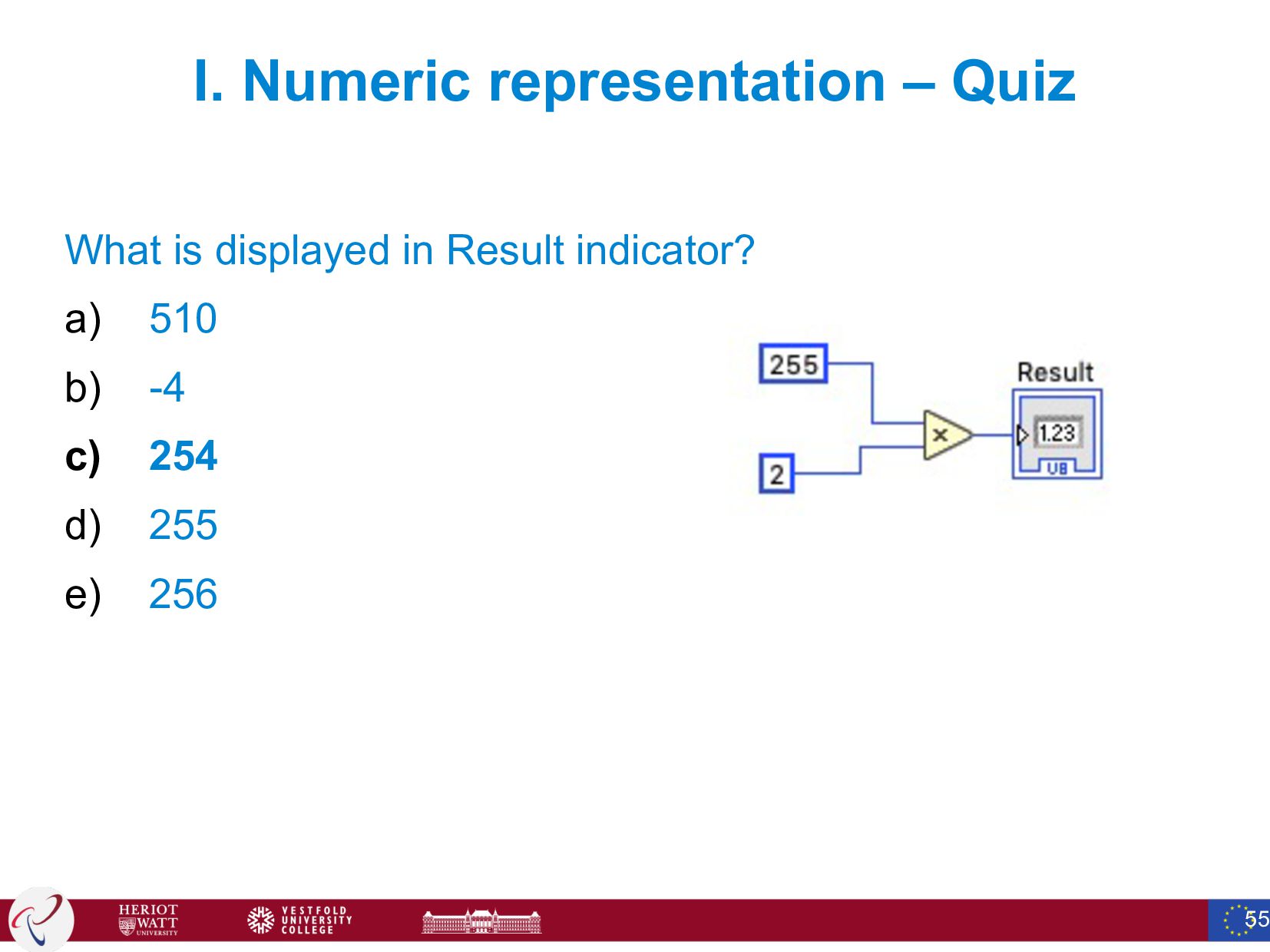
  49. I. Numeric representation – Quiz What is displayed in Result

    indicator? a) 510 b) -4 c) 254 d) 255 e) 256 55
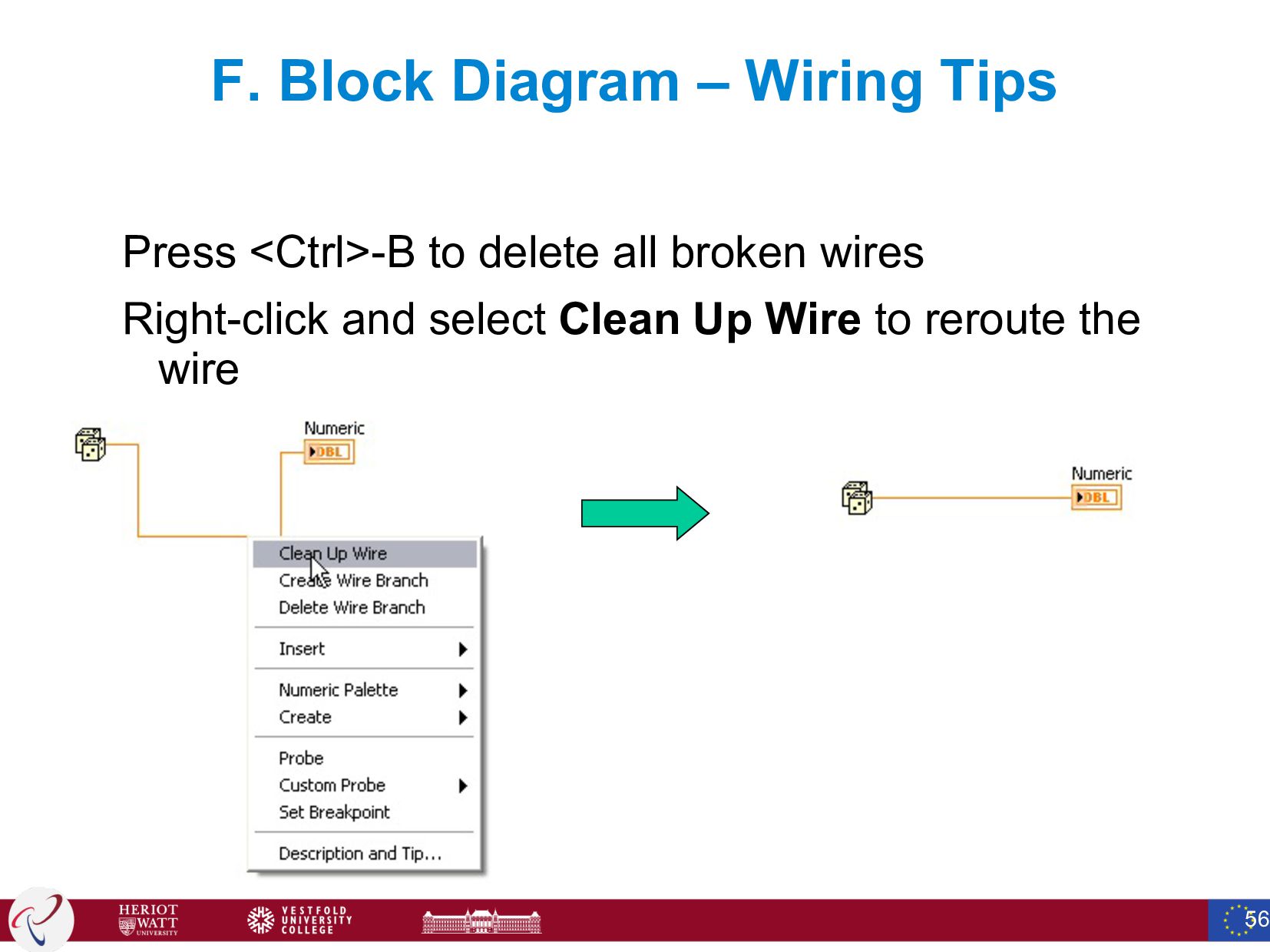
  50. F. Block Diagram – Wiring Tips Press <Ctrl>-B to delete

    all broken wires Right-click and select Clean Up Wire to reroute the wire 56
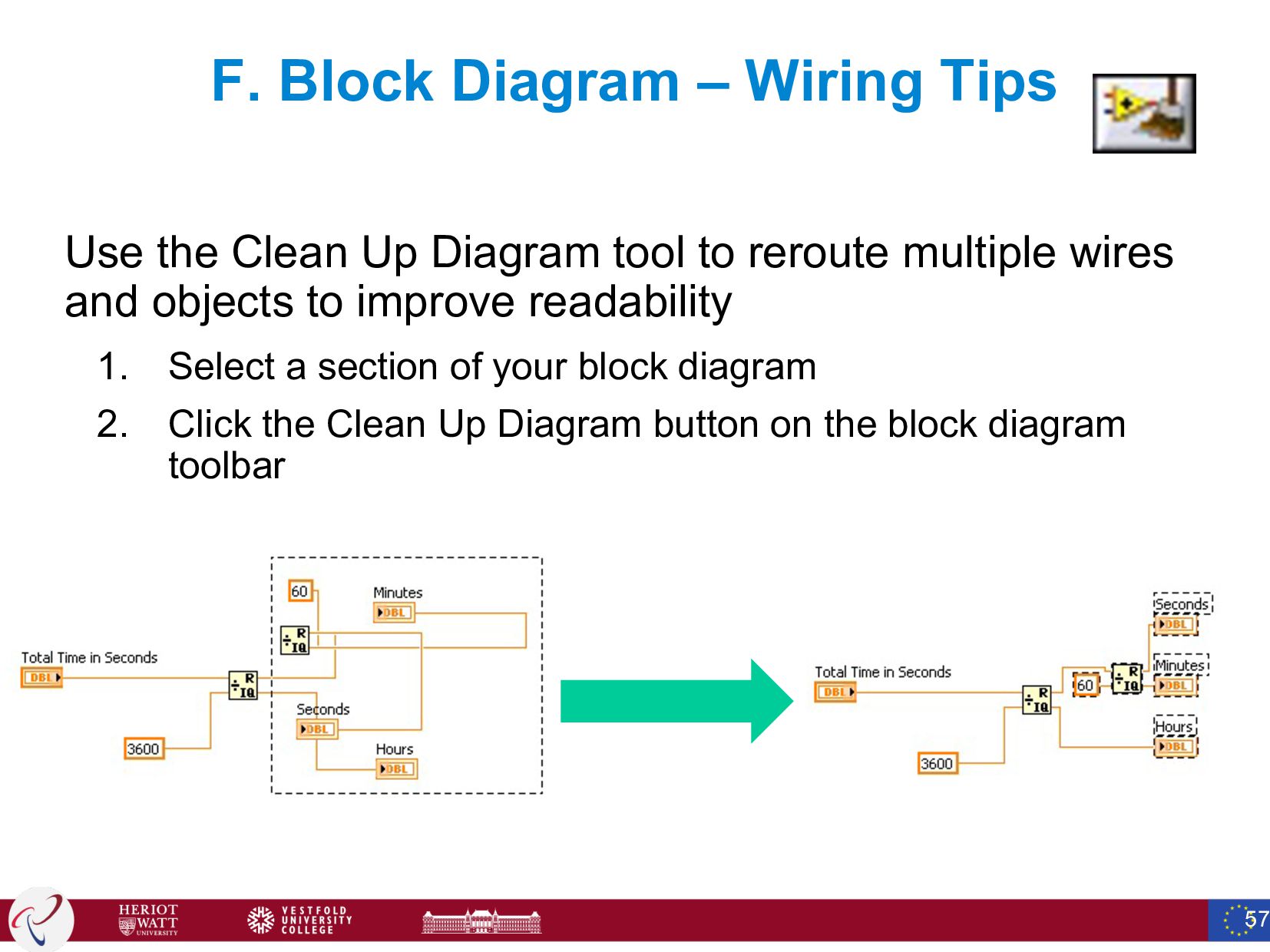
  51. F. Block Diagram – Wiring Tips Use the Clean Up

    Diagram tool to reroute multiple wires and objects to improve readability 1. Select a section of your block diagram 2. Click the Clean Up Diagram button on the block diagram toolbar 57
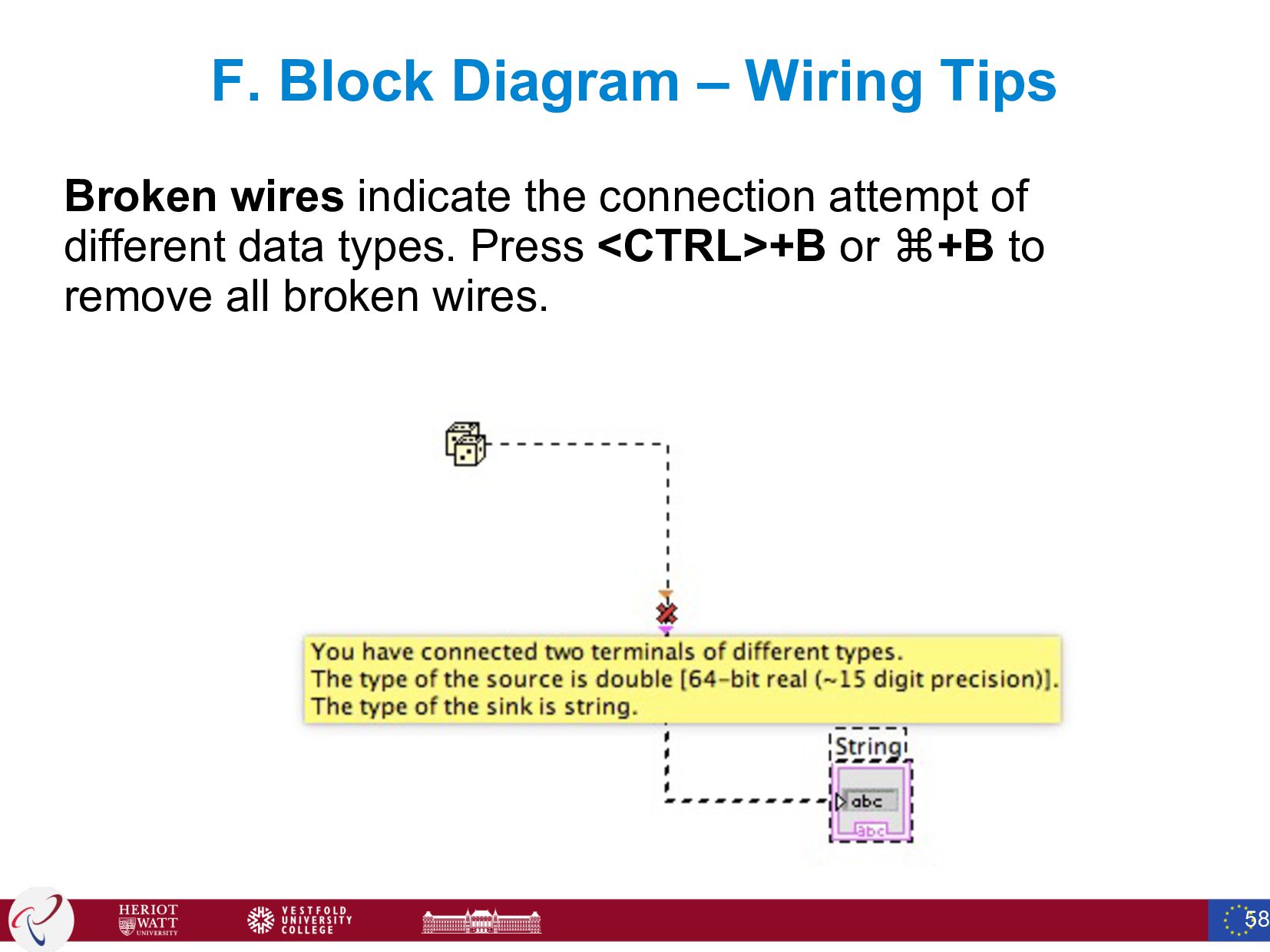
  52. F. Block Diagram – Wiring Tips Broken wires indicate the

    connection attempt of different data types. Press <CTRL>+B or ⌘+B to remove all broken wires. 58
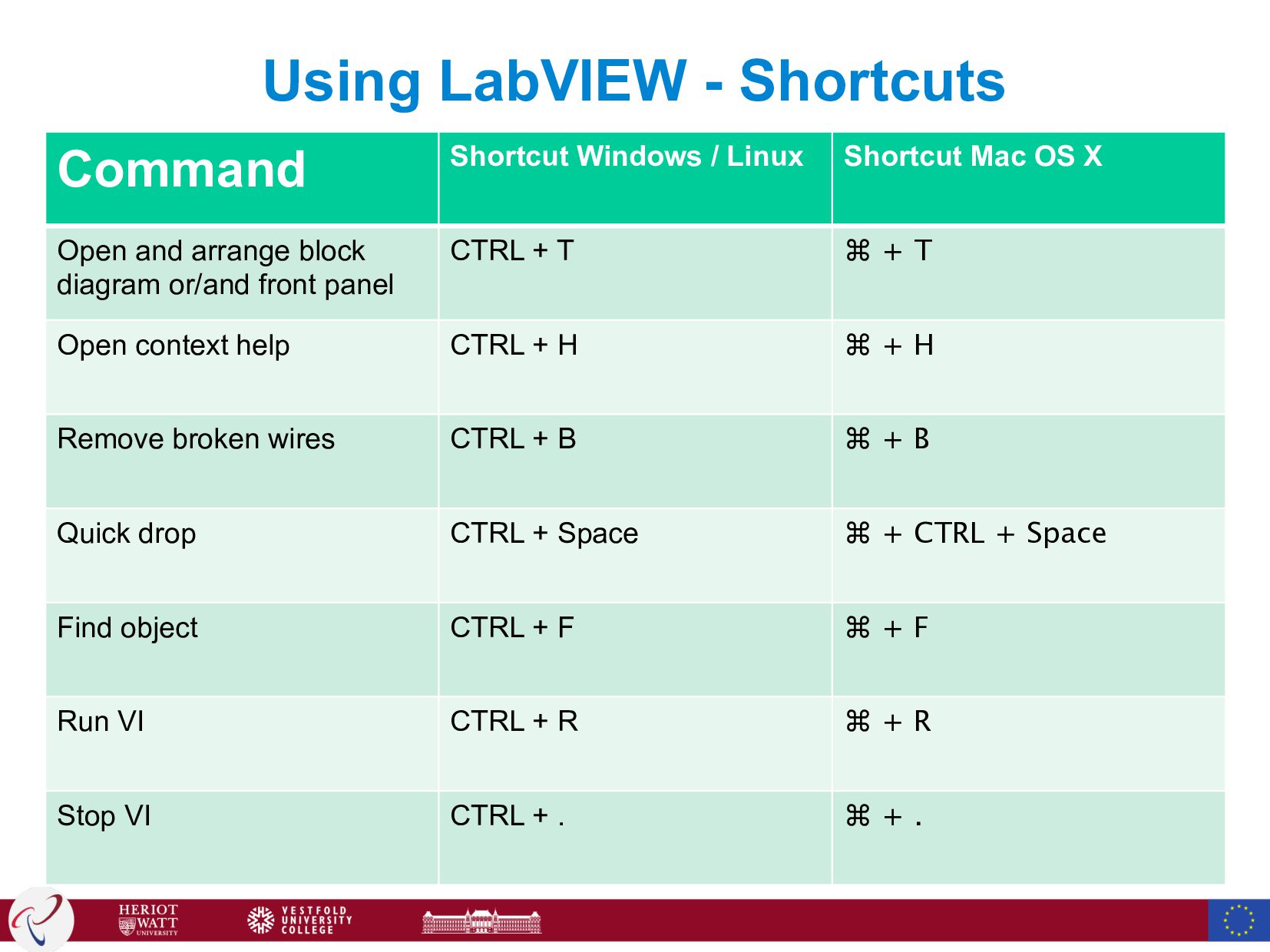
  53. Using LabVIEW - Shortcuts Command Shortcut Windows / Linux Shortcut

    Mac OS X Open and arrange block diagram or/and front panel CTRL + T ⌘ + T Open context help CTRL + H ⌘ + H Remove broken wires CTRL + B ⌘ + B Quick drop CTRL + Space ⌘ + CTRL + Space Find object CTRL + F ⌘ + F Run VI CTRL + R ⌘ + R Stop VI CTRL + . ⌘ + .
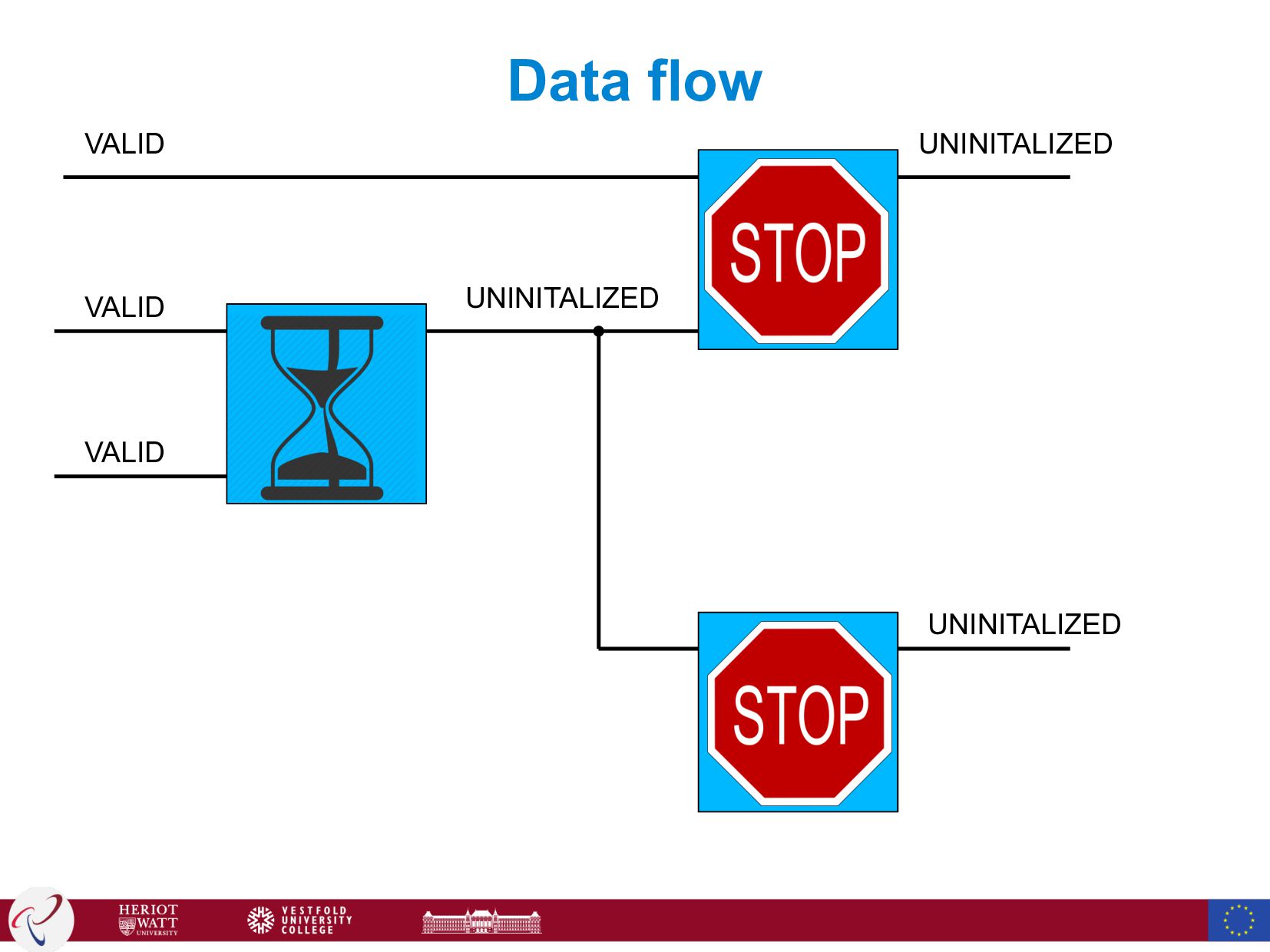
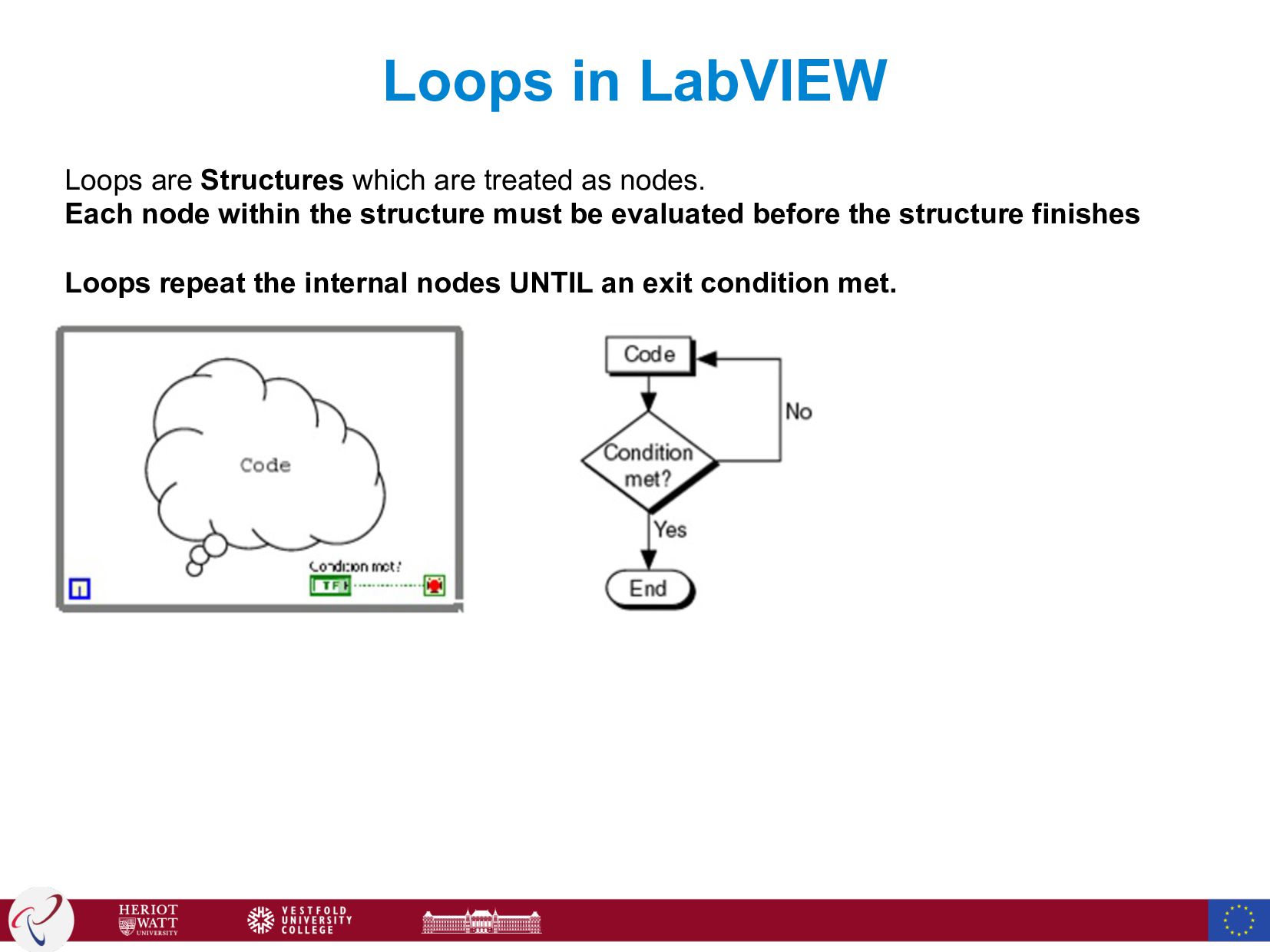
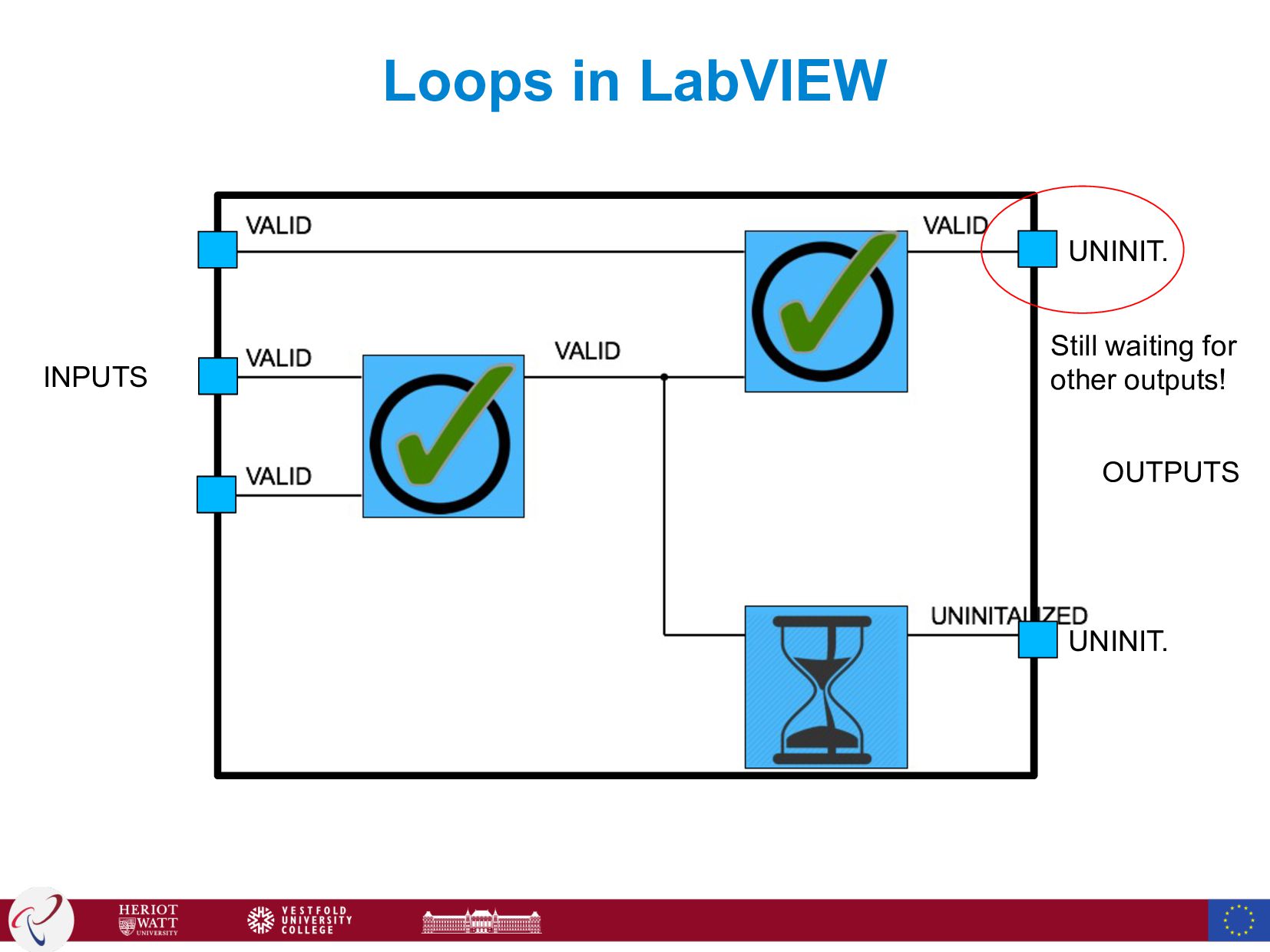
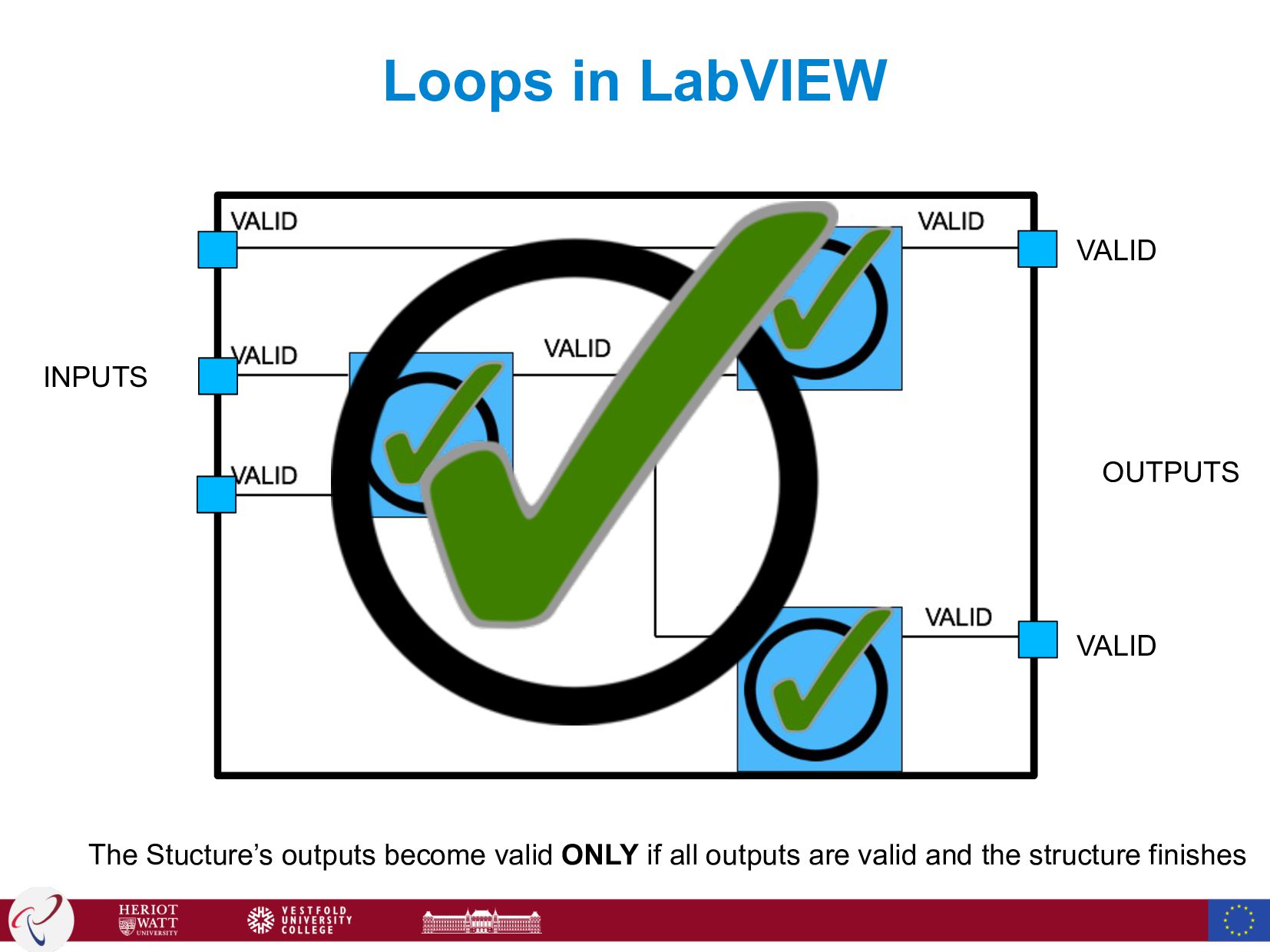
  54. Loops in LabVIEW Loops are Structures which are treated as

    nodes. Each node within the structure must be evaluated before the structure finishes Loops repeat the internal nodes UNTIL an exit condition met.
  55. Loops in LabVIEW INPUTS OUTPUTS VALID VALID The Stucture’s outputs

    become valid ONLY if all outputs are valid and the structure finishes
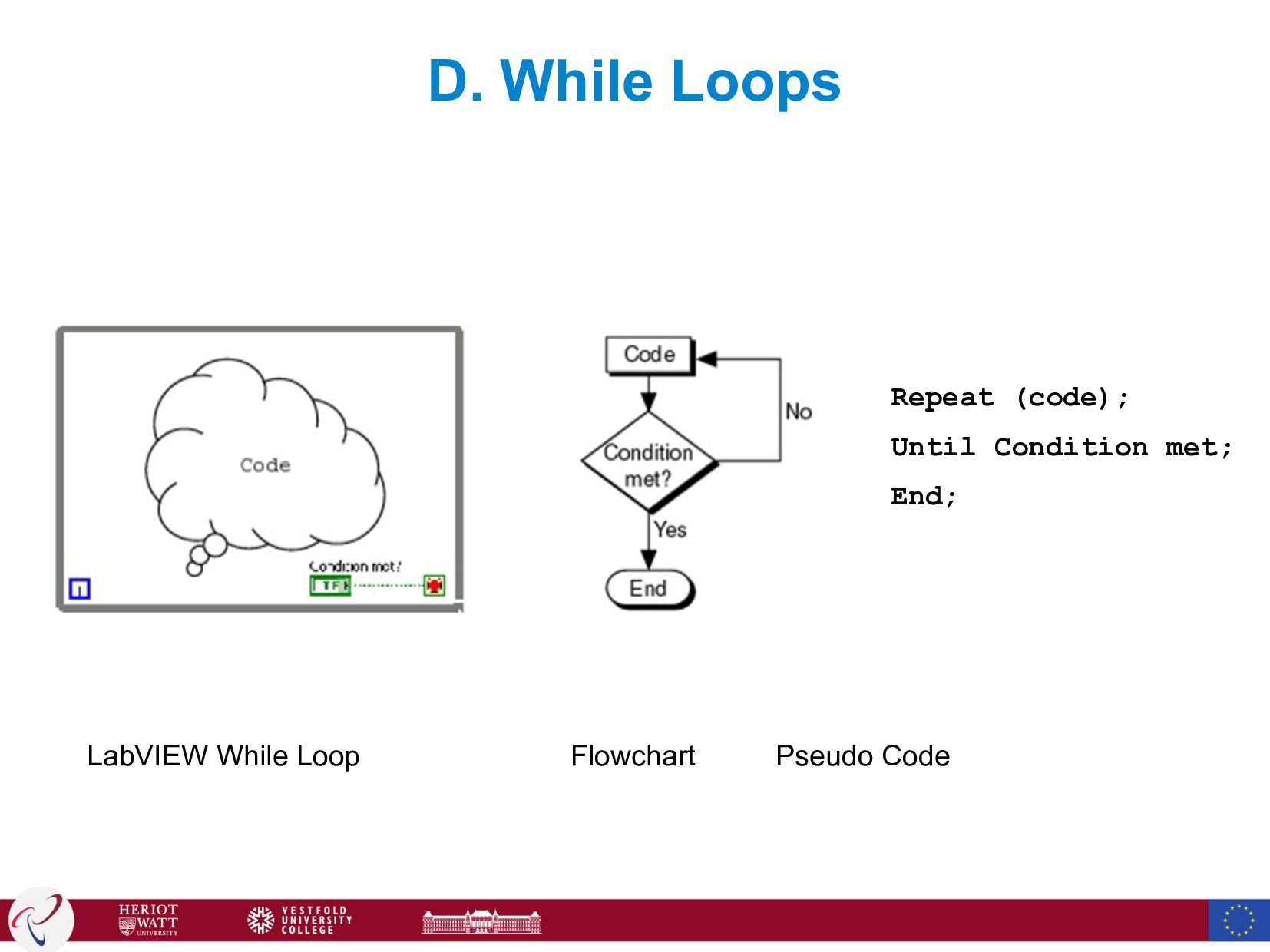
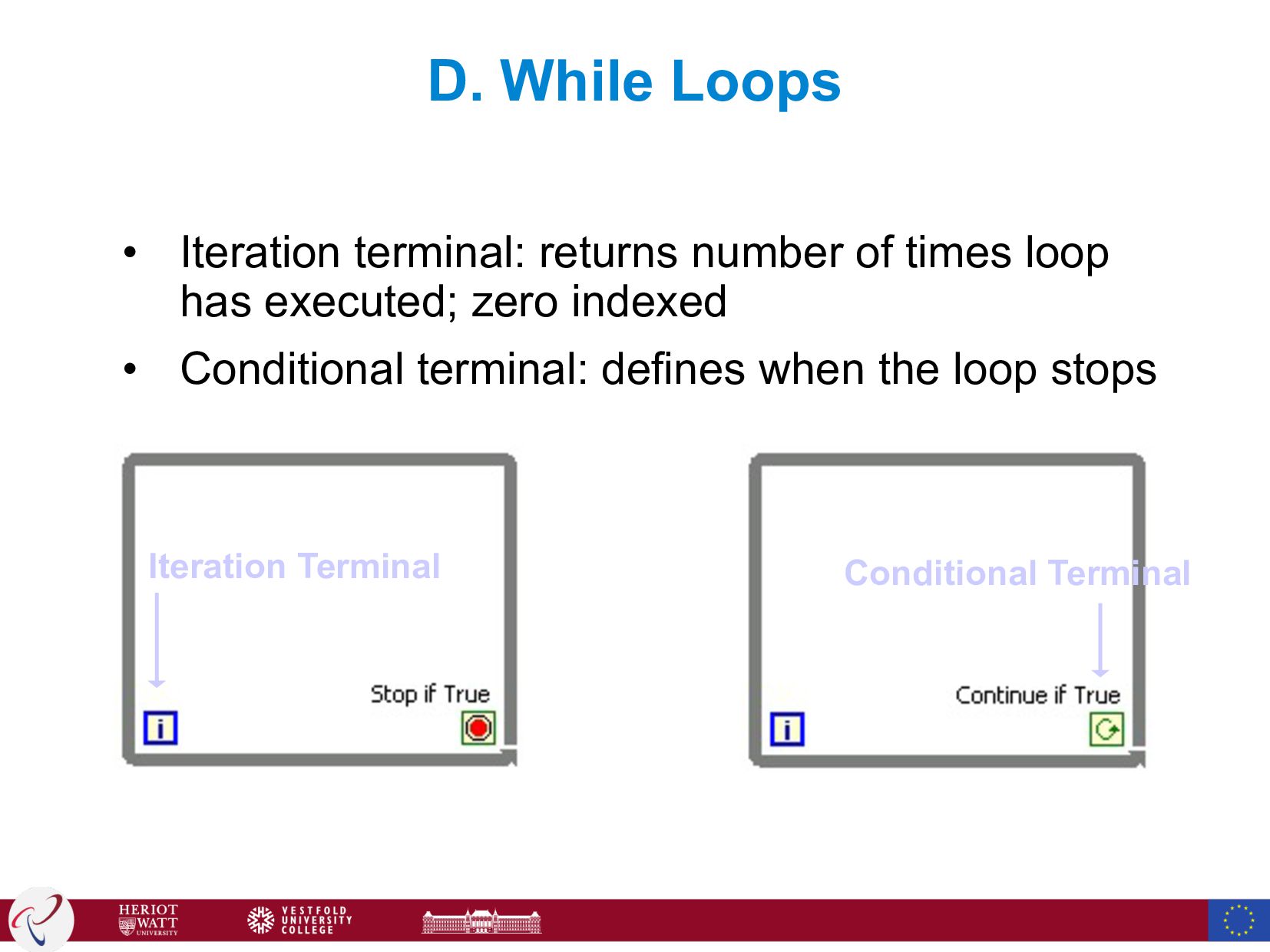
  56. D. While Loops • Iteration terminal: returns number of times

    loop has executed; zero indexed • Conditional terminal: defines when the loop stops Iteration Terminal Conditional Terminal
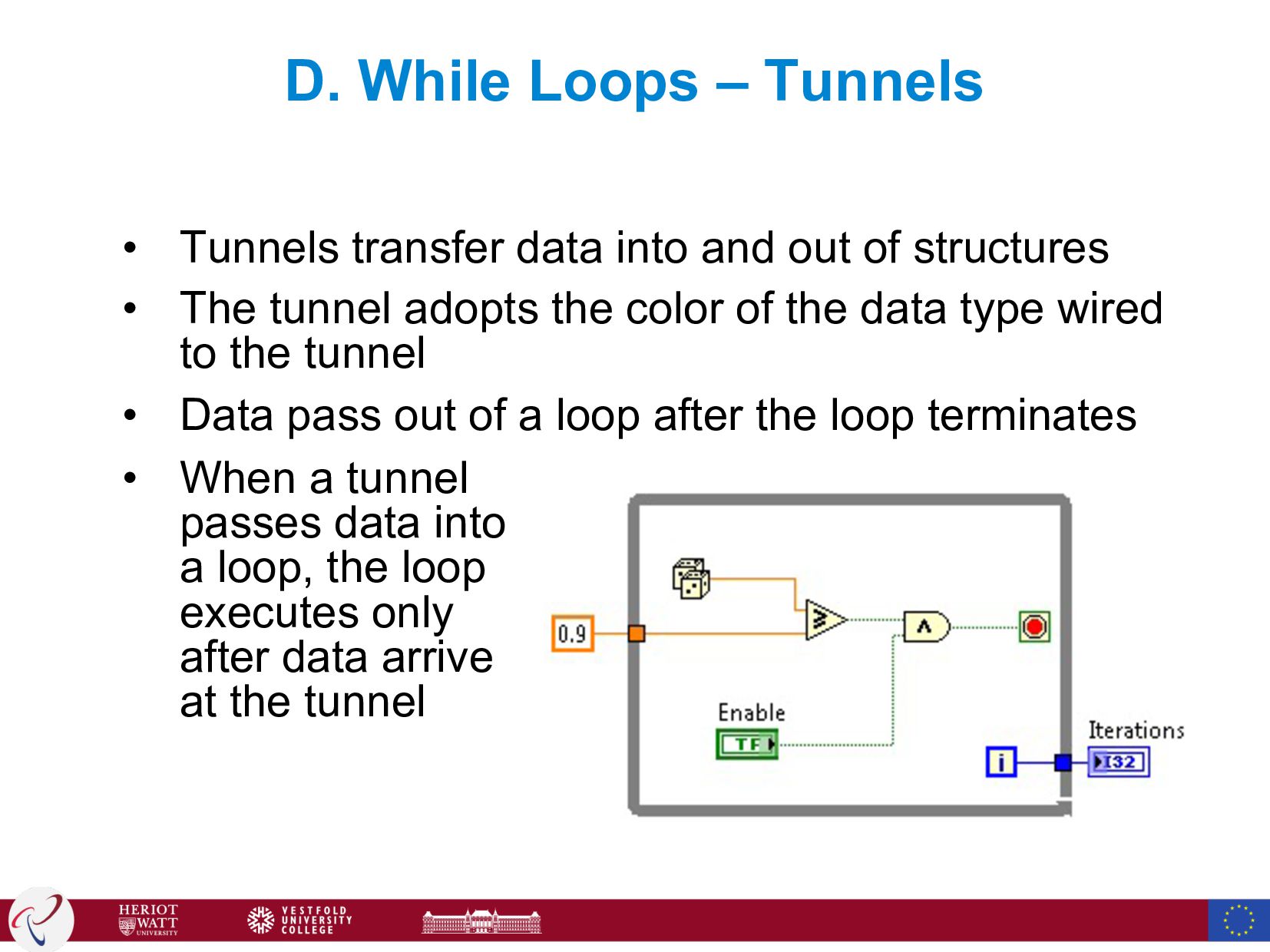
  57. D. While Loops – Tunnels • Tunnels transfer data into

    and out of structures • The tunnel adopts the color of the data type wired to the tunnel • Data pass out of a loop after the loop terminates • When a tunnel passes data into a loop, the loop executes only after data arrive at the tunnel
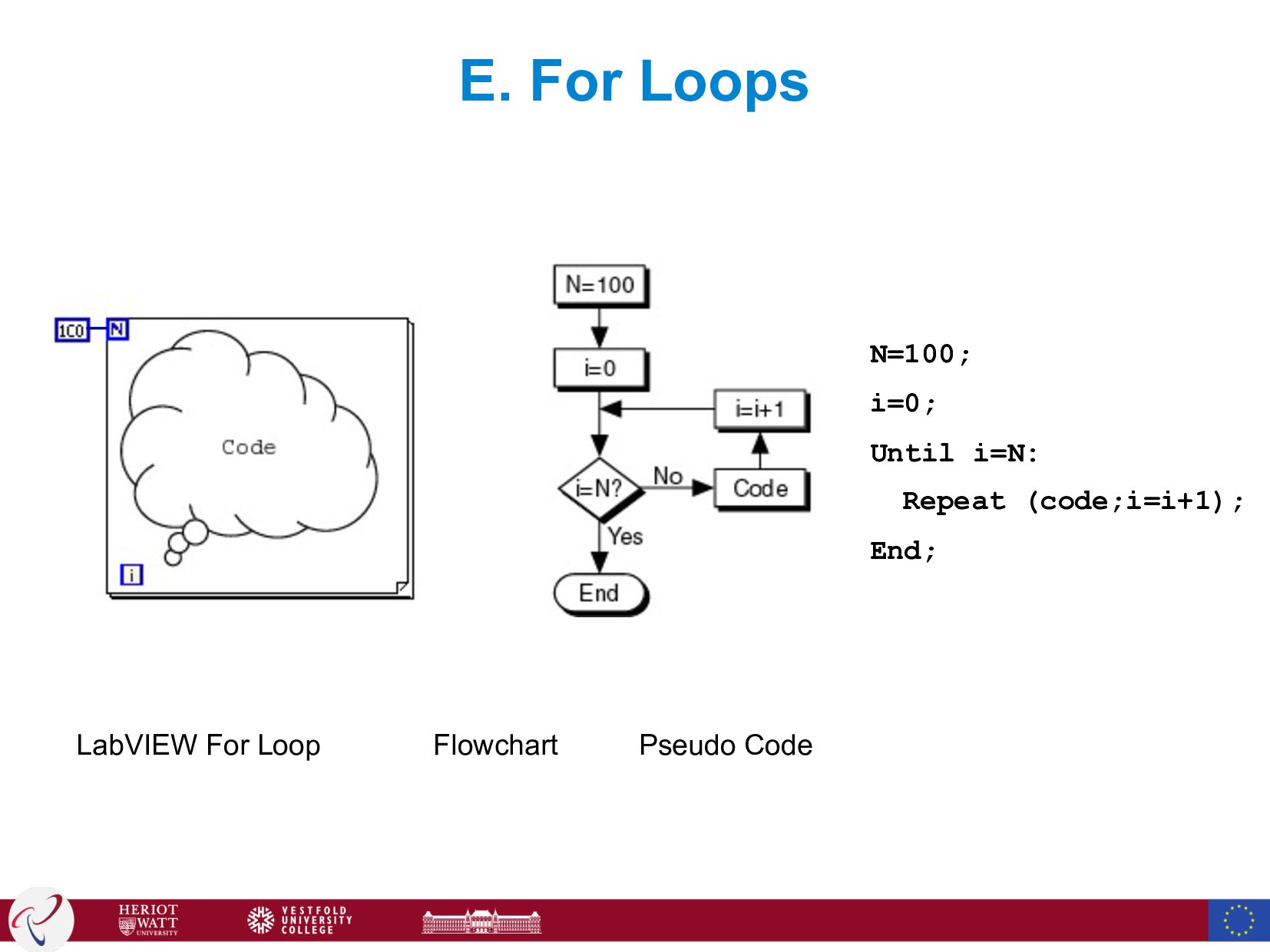
  58. E. For Loops LabVIEW For Loop Flowchart Pseudo Code N=100;

    i=0; Until i=N: Repeat (code;i=i+1); End;
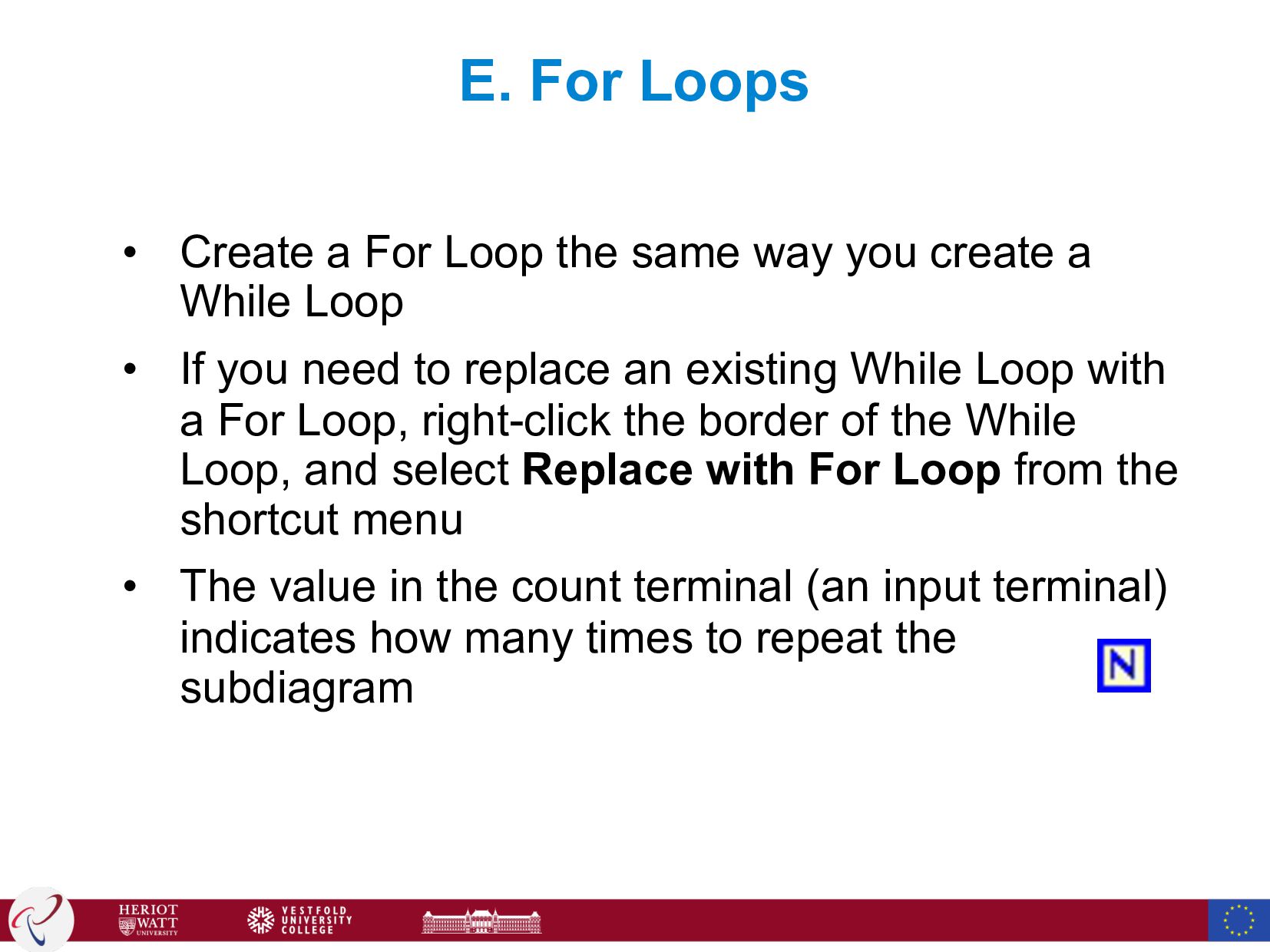
  59. E. For Loops • Create a For Loop the same

    way you create a While Loop • If you need to replace an existing While Loop with a For Loop, right-click the border of the While Loop, and select Replace with For Loop from the shortcut menu • The value in the count terminal (an input terminal) indicates how many times to repeat the subdiagram
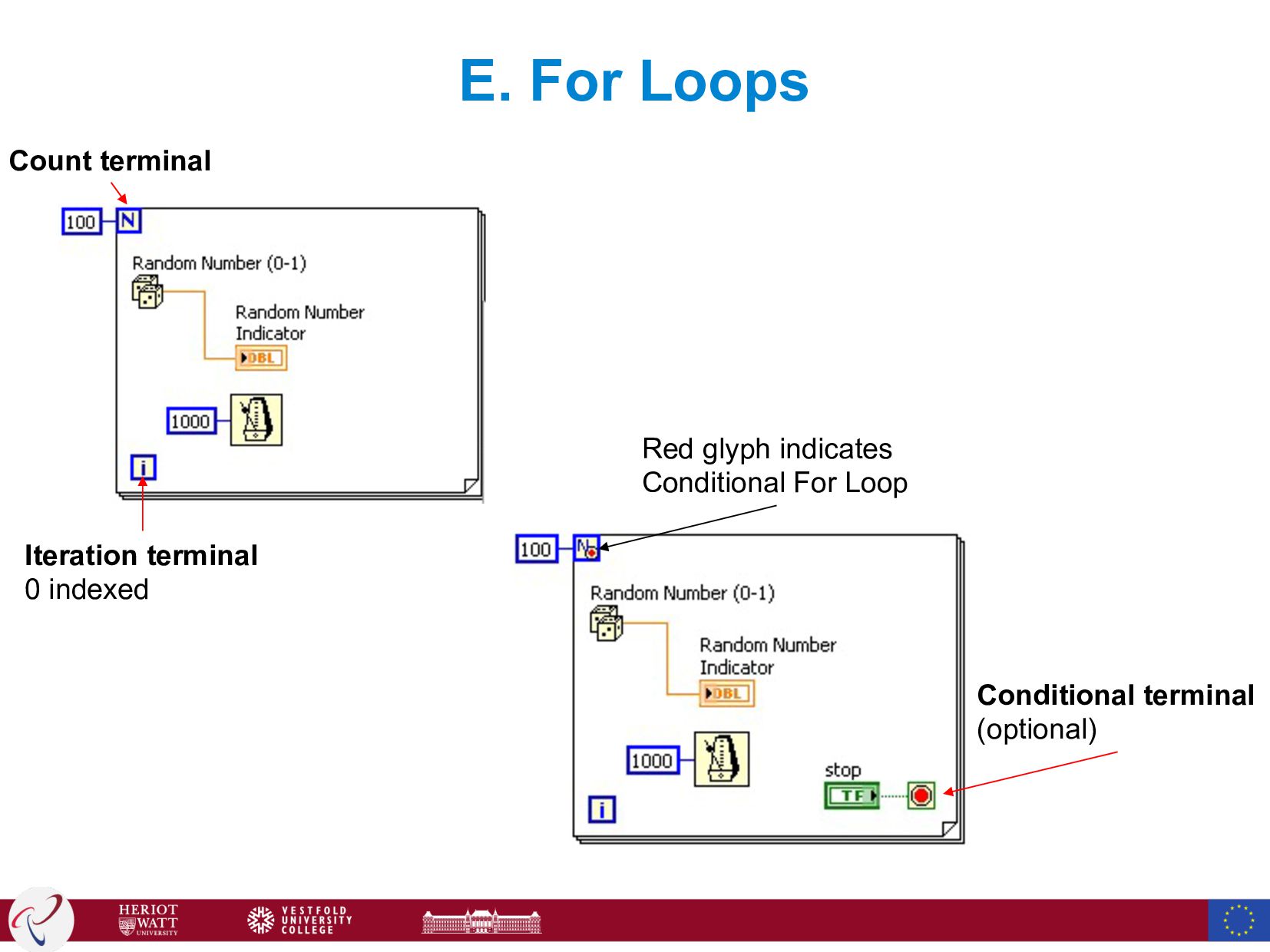
  60. E. For Loops Red glyph indicates Conditional For Loop Conditional

    terminal (optional) Count terminal Iteration terminal 0 indexed
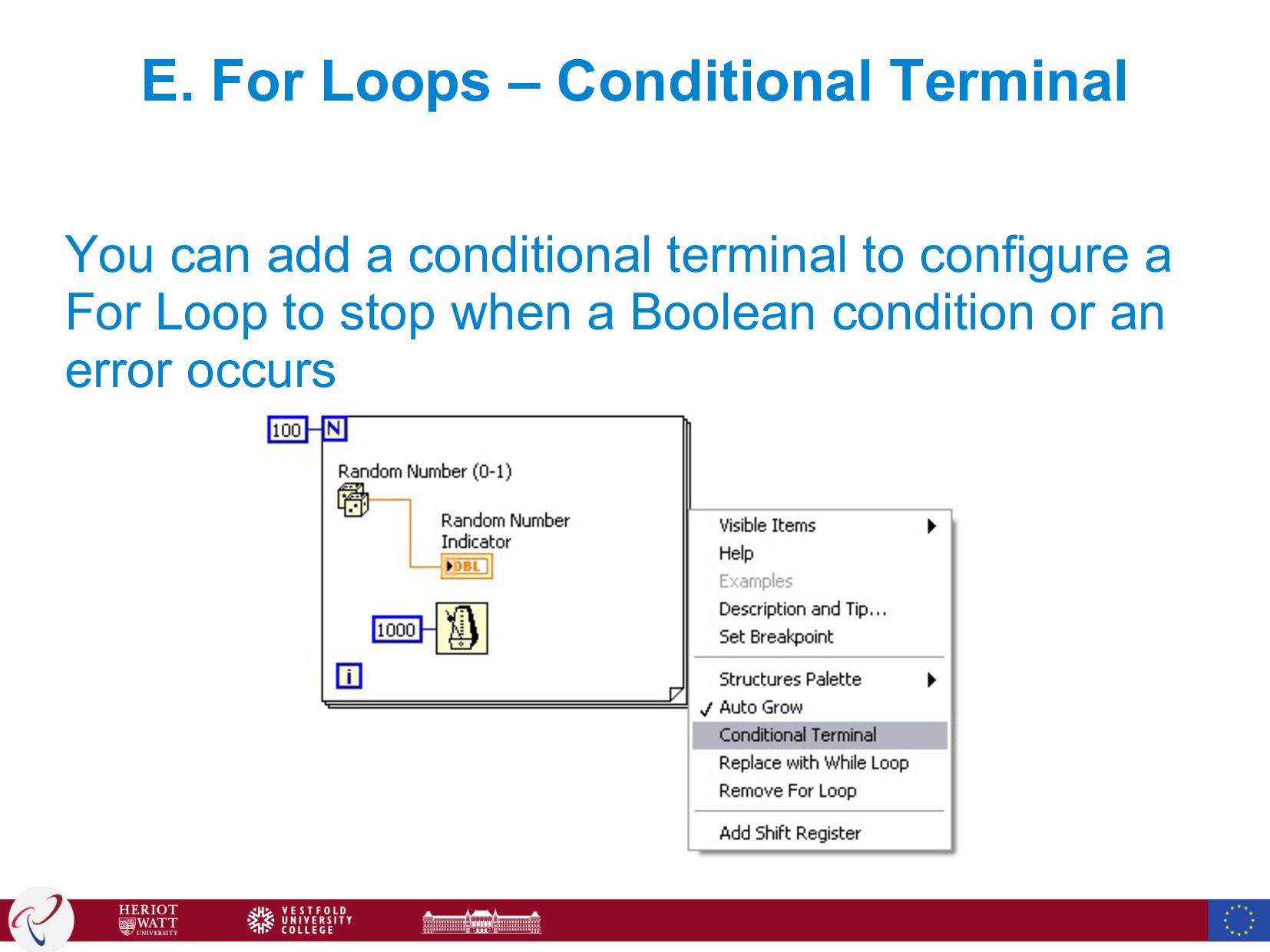
  61. E. For Loops – Conditional Terminal You can add a

    conditional terminal to configure a For Loop to stop when a Boolean condition or an error occurs
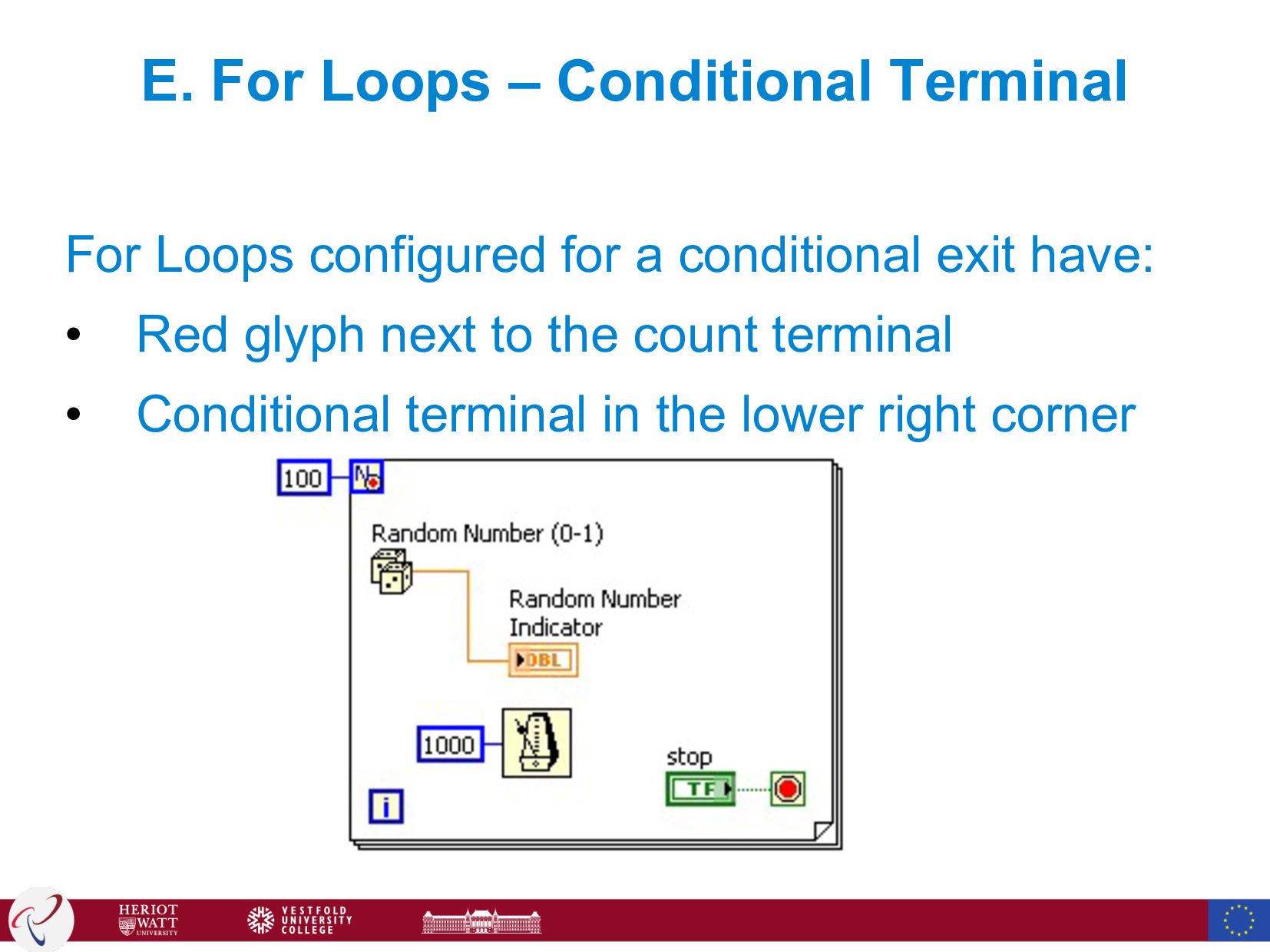
  62. E. For Loops – Conditional Terminal For Loops configured for

    a conditional exit have: • Red glyph next to the count terminal • Conditional terminal in the lower right corner
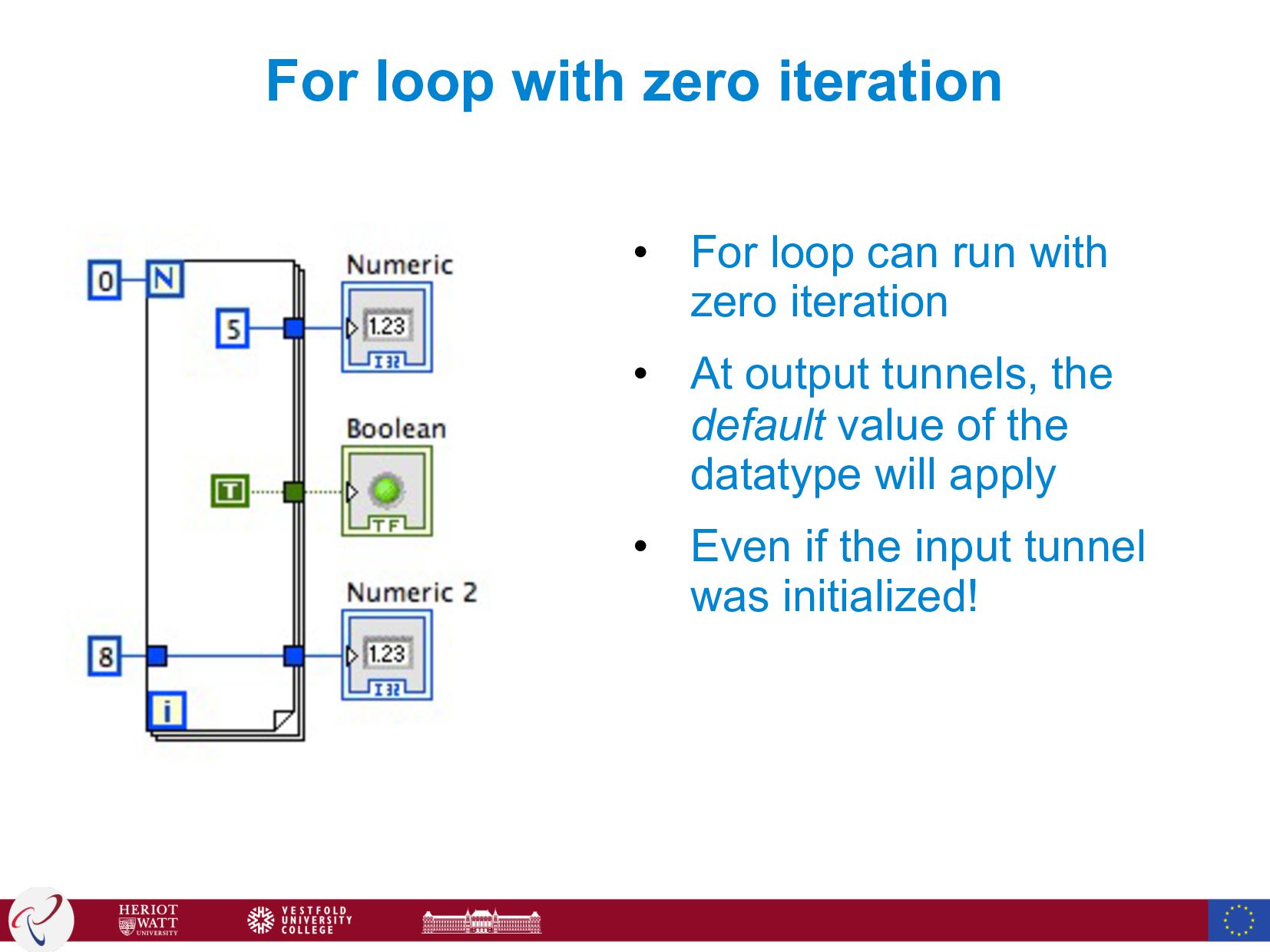
  63. For loop with zero iteration • For loop can run

    with zero iteration • At output tunnels, the default value of the datatype will apply • Even if the input tunnel was initialized!
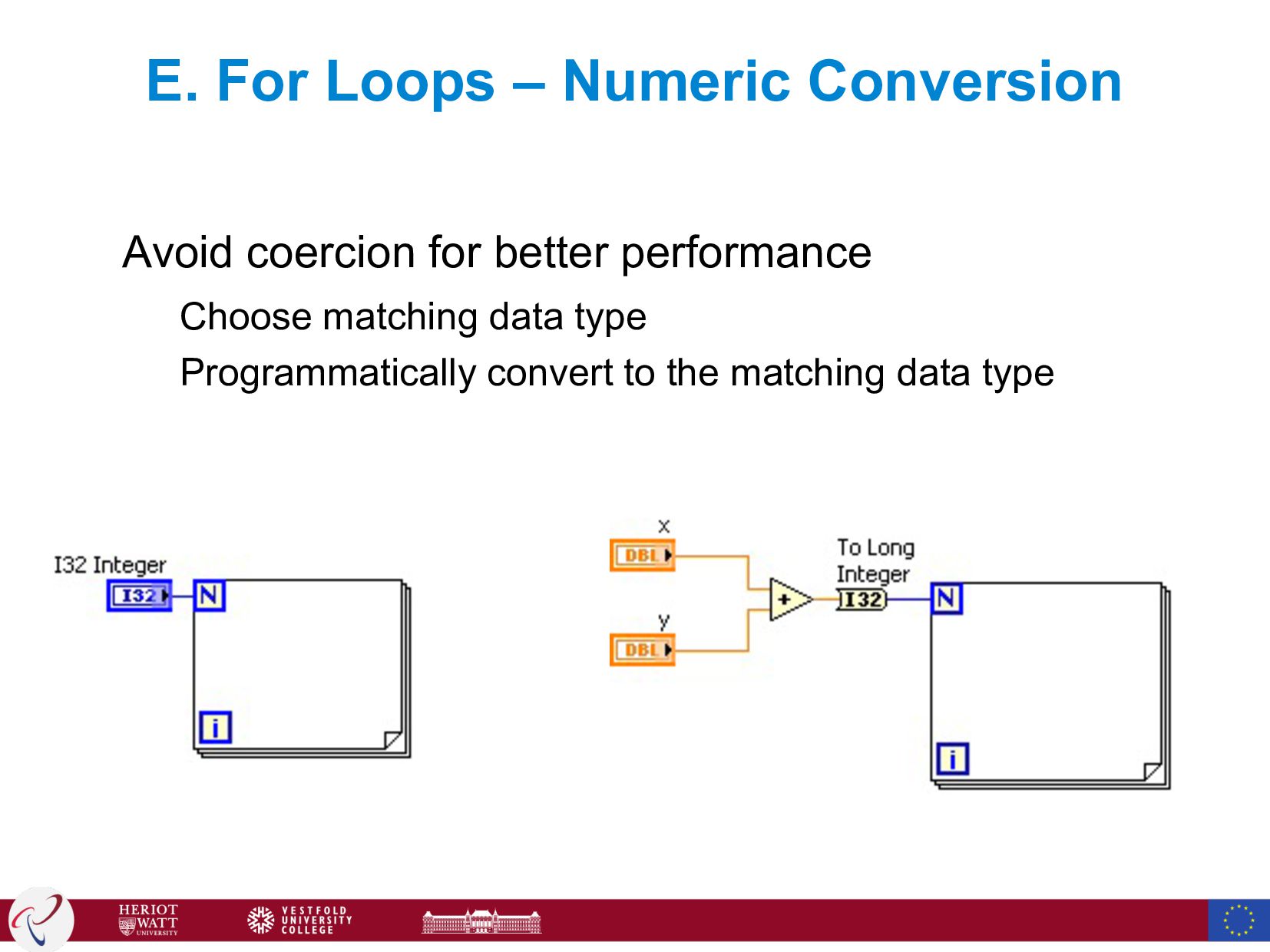
  64. E. For Loops – Numeric Conversion Avoid coercion for better

    performance Choose matching data type Programmatically convert to the matching data type
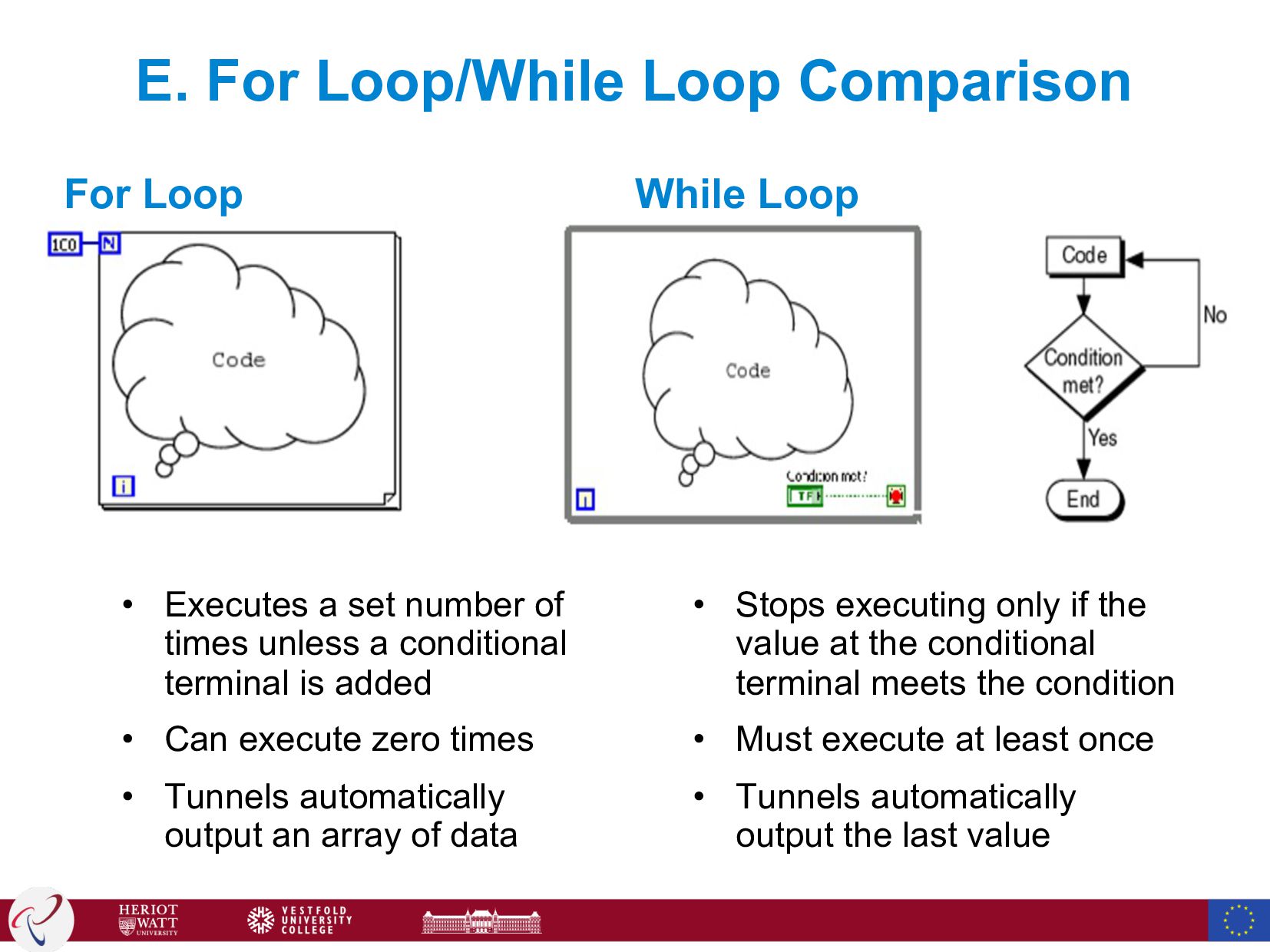
  65. E. For Loop/While Loop Comparison For Loop • Executes a

    set number of times unless a conditional terminal is added • Can execute zero times • Tunnels automatically output an array of data While Loop • Stops executing only if the value at the conditional terminal meets the condition • Must execute at least once • Tunnels automatically output the last value
  66. Excercise Create a VI which contains a while loop. The

    while loop terminates, if a random generated number is greater or equal to a constant provided through an input tunnel. Display the iteration number once the loop has been terminated.
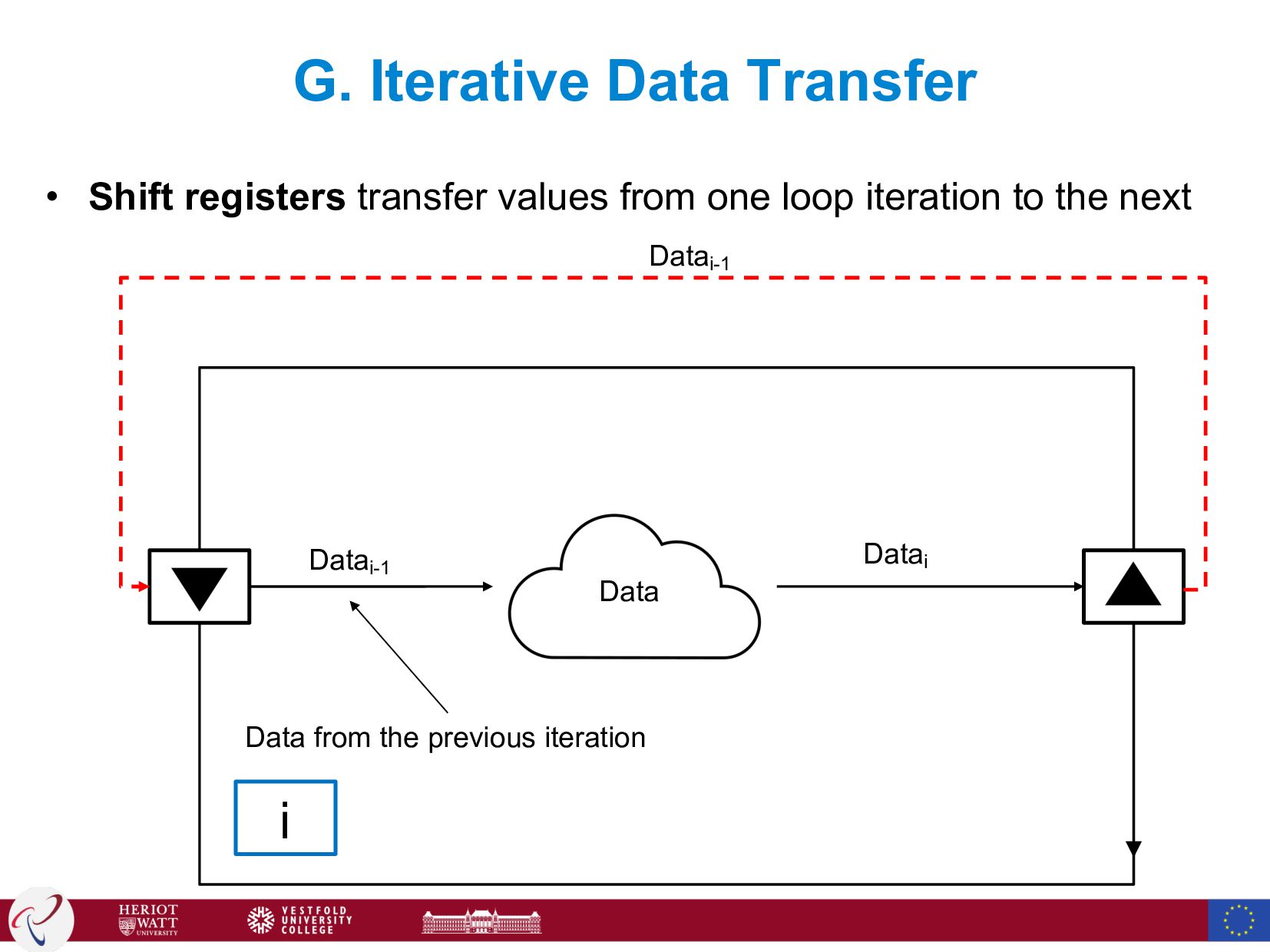
  67. G. Iterative Data Transfer Data Datai Datai-1 Datai-1 i Data

    from the previous iteration • Shift registers transfer values from one loop iteration to the next
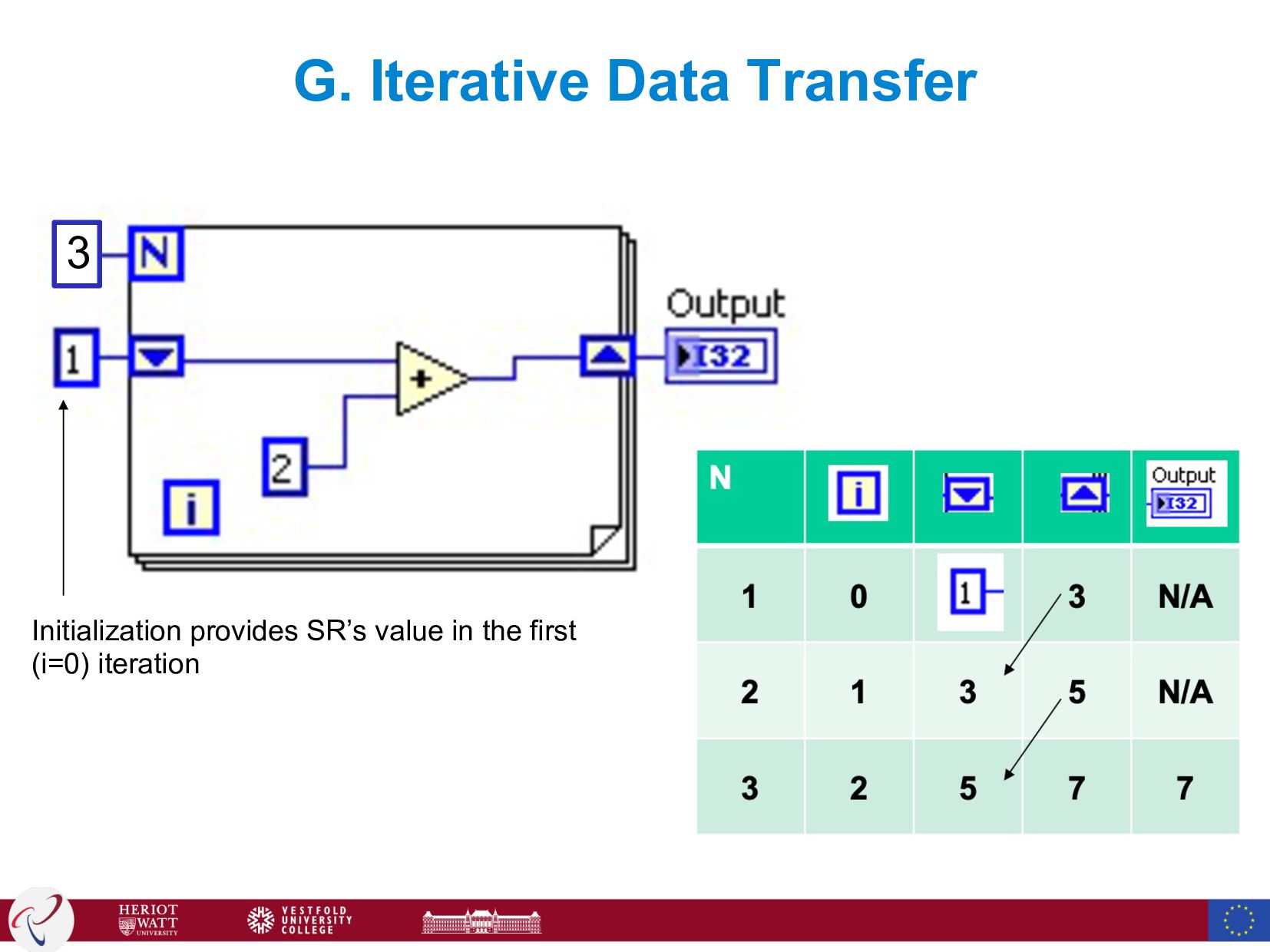
  68. G. Iterative Data Transfer – Shift Registers • Right-click the

    border and select Add Shift Register from the shortcut menu • Right shift register stores data on completion of an iteration • Left shift register provides stored data at beginning of the next iteration Initial values
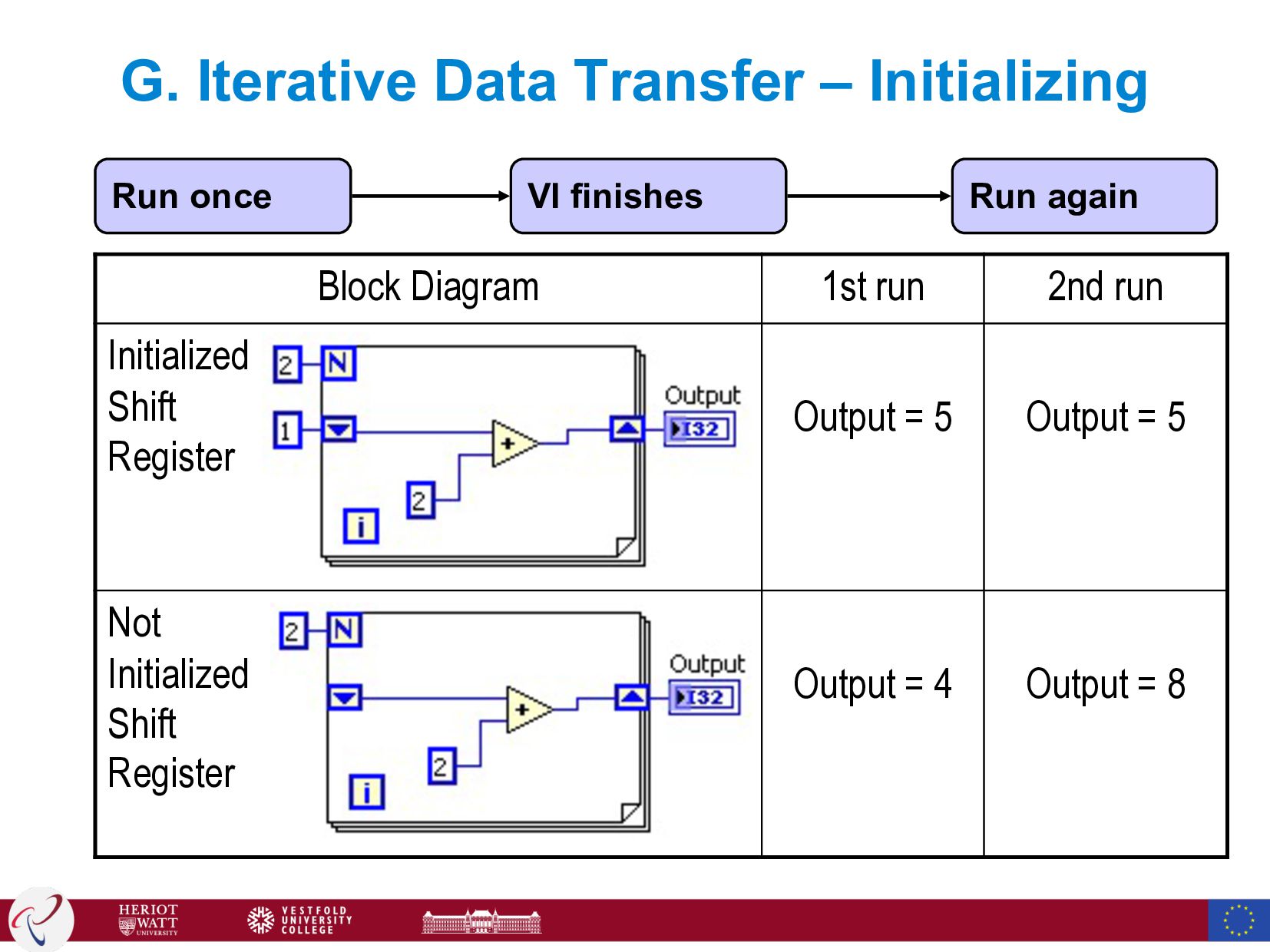
  69. Block Diagram 1st run 2nd run Initialized Shift Register Output

    = 5 Output = 5 Not Initialized Shift Register Output = 4 Output = 8 G. Iterative Data Transfer – Initializing VI finishes Run again Run once
  70. Shift register in zero iteration loop • Initialized shift register

    outputs will apply the input register value even if in zero iteration for loops...
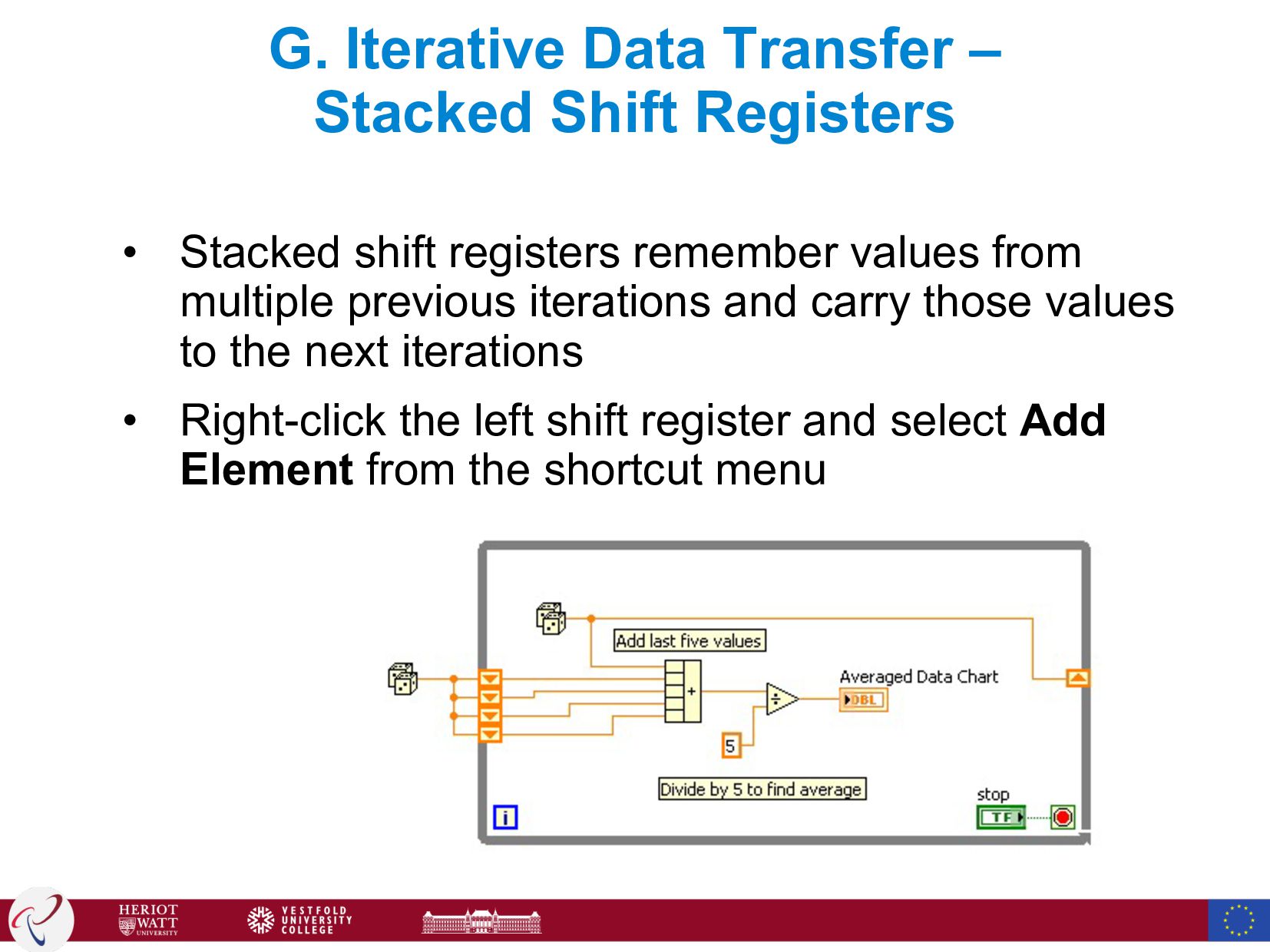
  71. G. Iterative Data Transfer – Stacked Shift Registers • Stacked

    shift registers remember values from multiple previous iterations and carry those values to the next iterations • Right-click the left shift register and select Add Element from the shortcut menu
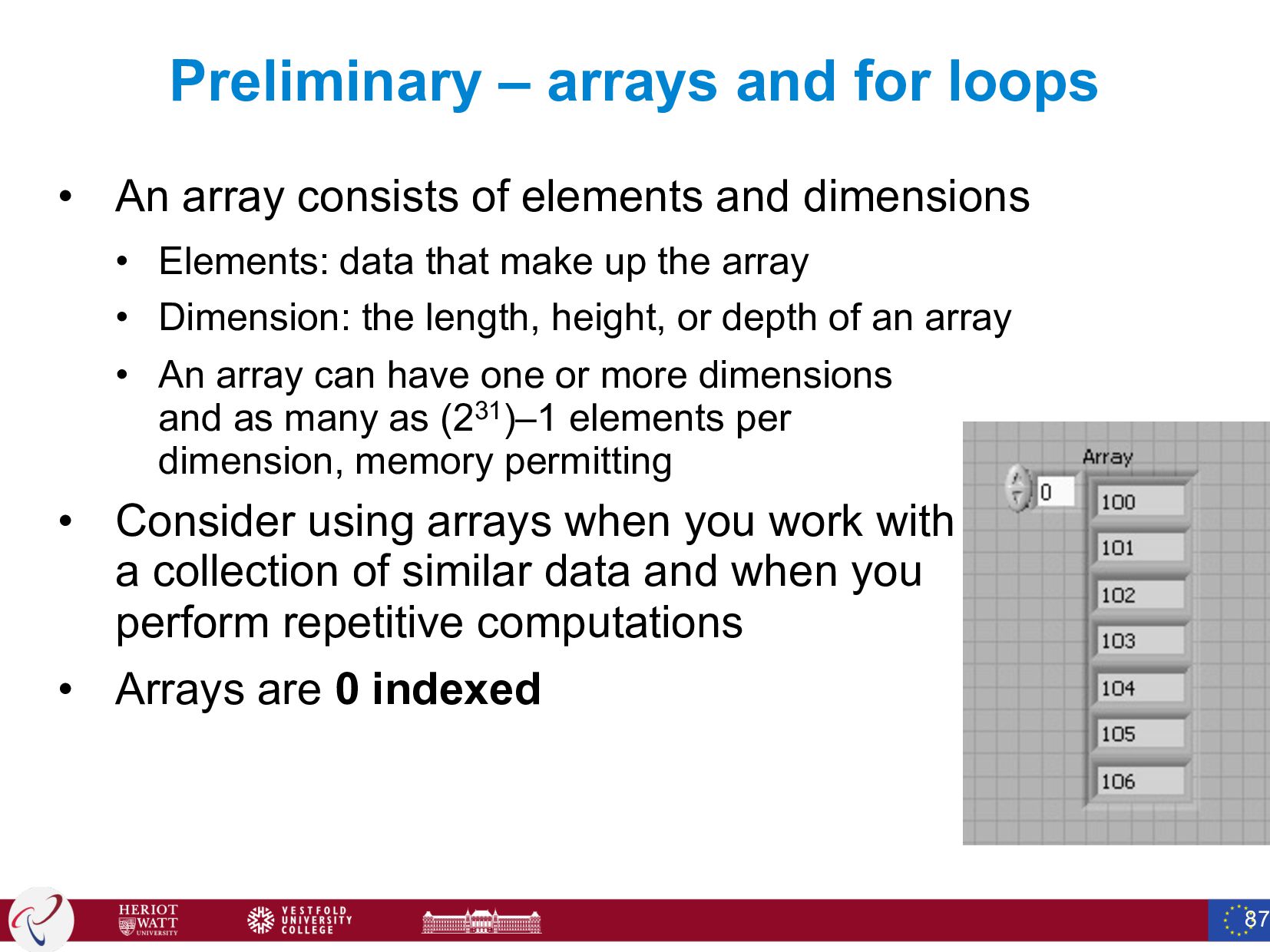
  72. Preliminary – arrays and for loops • An array consists

    of elements and dimensions • Elements: data that make up the array • Dimension: the length, height, or depth of an array • An array can have one or more dimensions and as many as (231)–1 elements per dimension, memory permitting • Consider using arrays when you work with a collection of similar data and when you perform repetitive computations • Arrays are 0 indexed 87
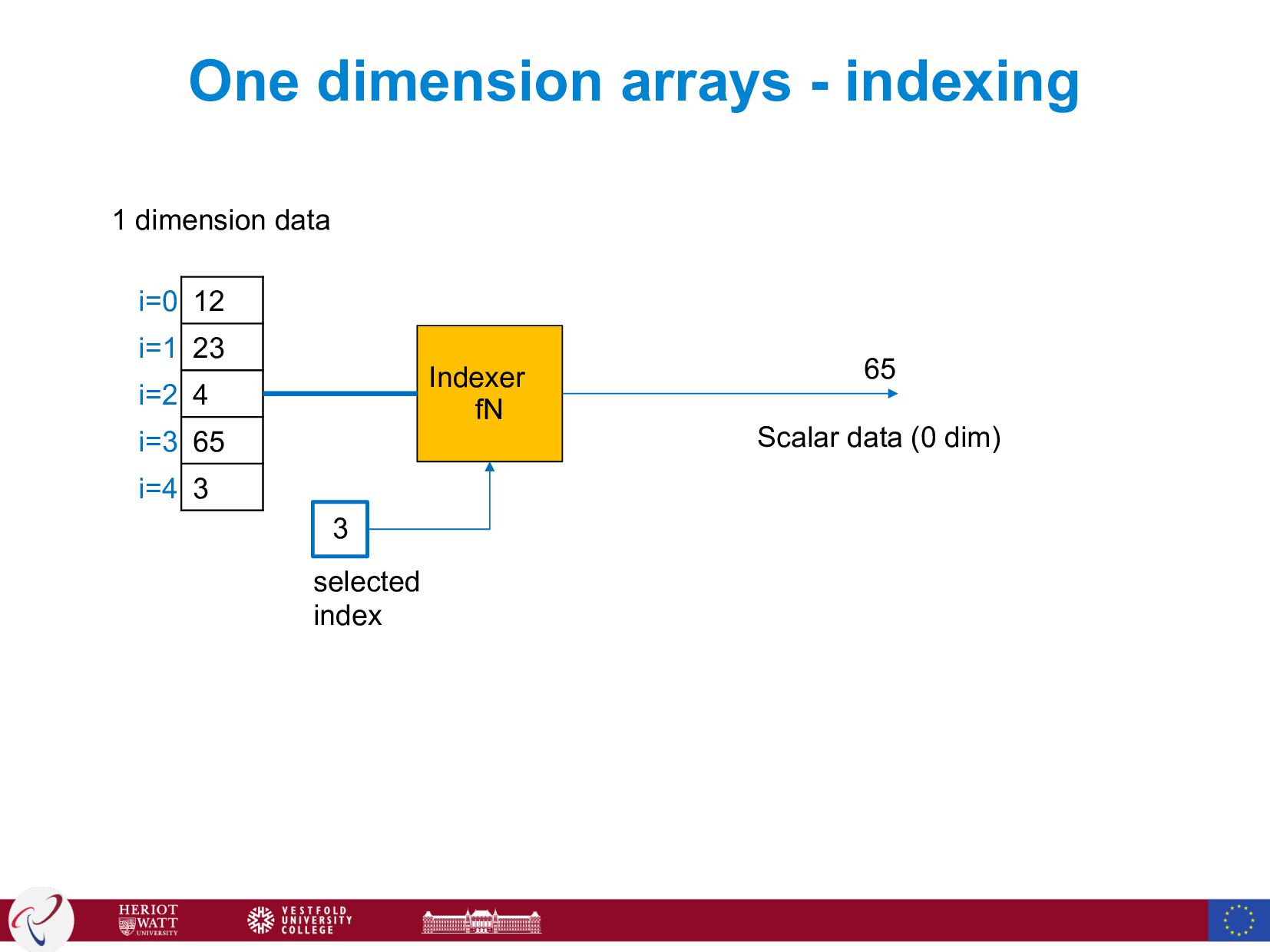
  73. One dimension arrays - indexing 12 23 4 65 3

    i=0 i=1 i=2 i=3 i=4 1 dimension data Indexer fN 3 selected index 65 Scalar data (0 dim)
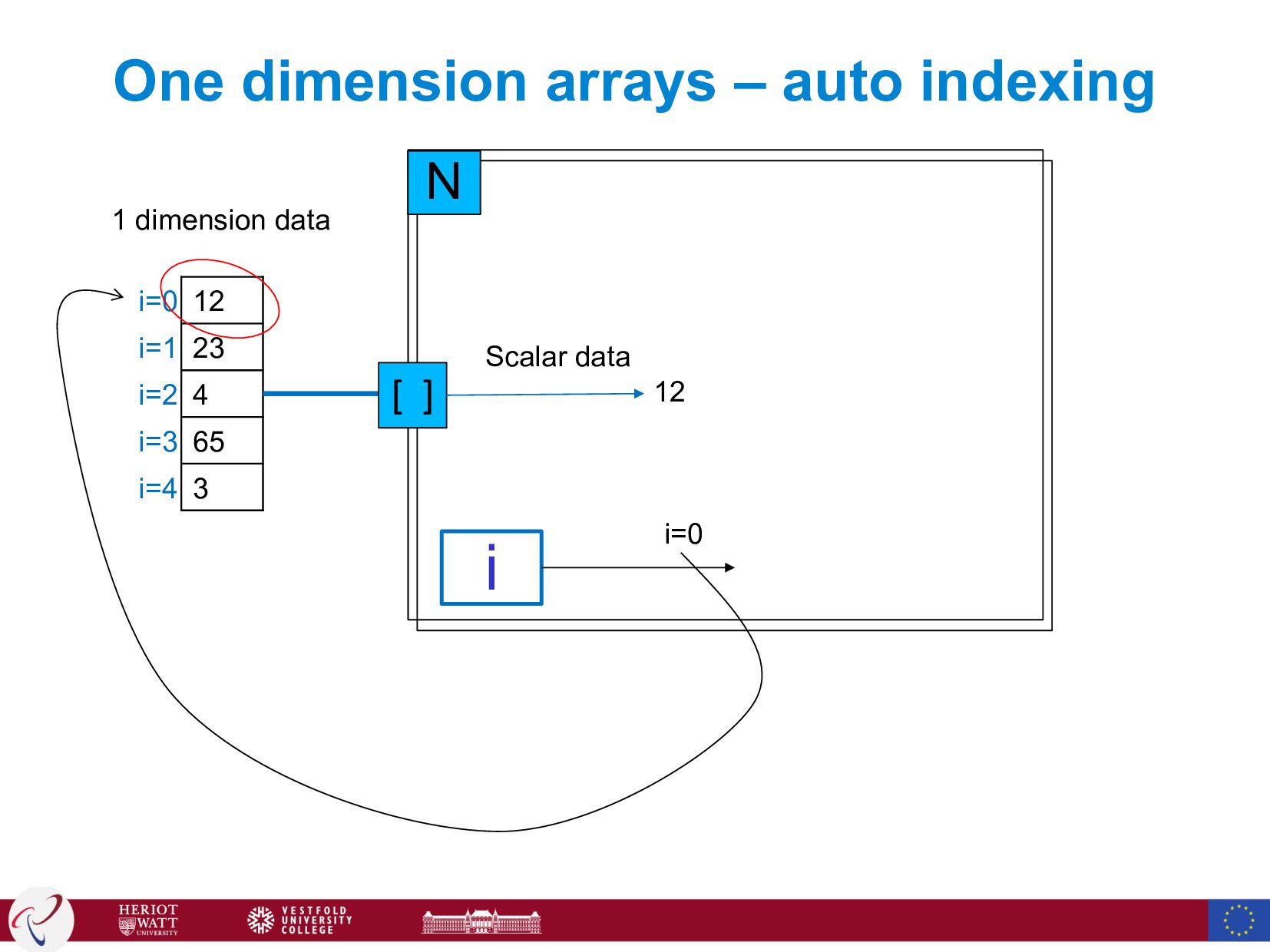
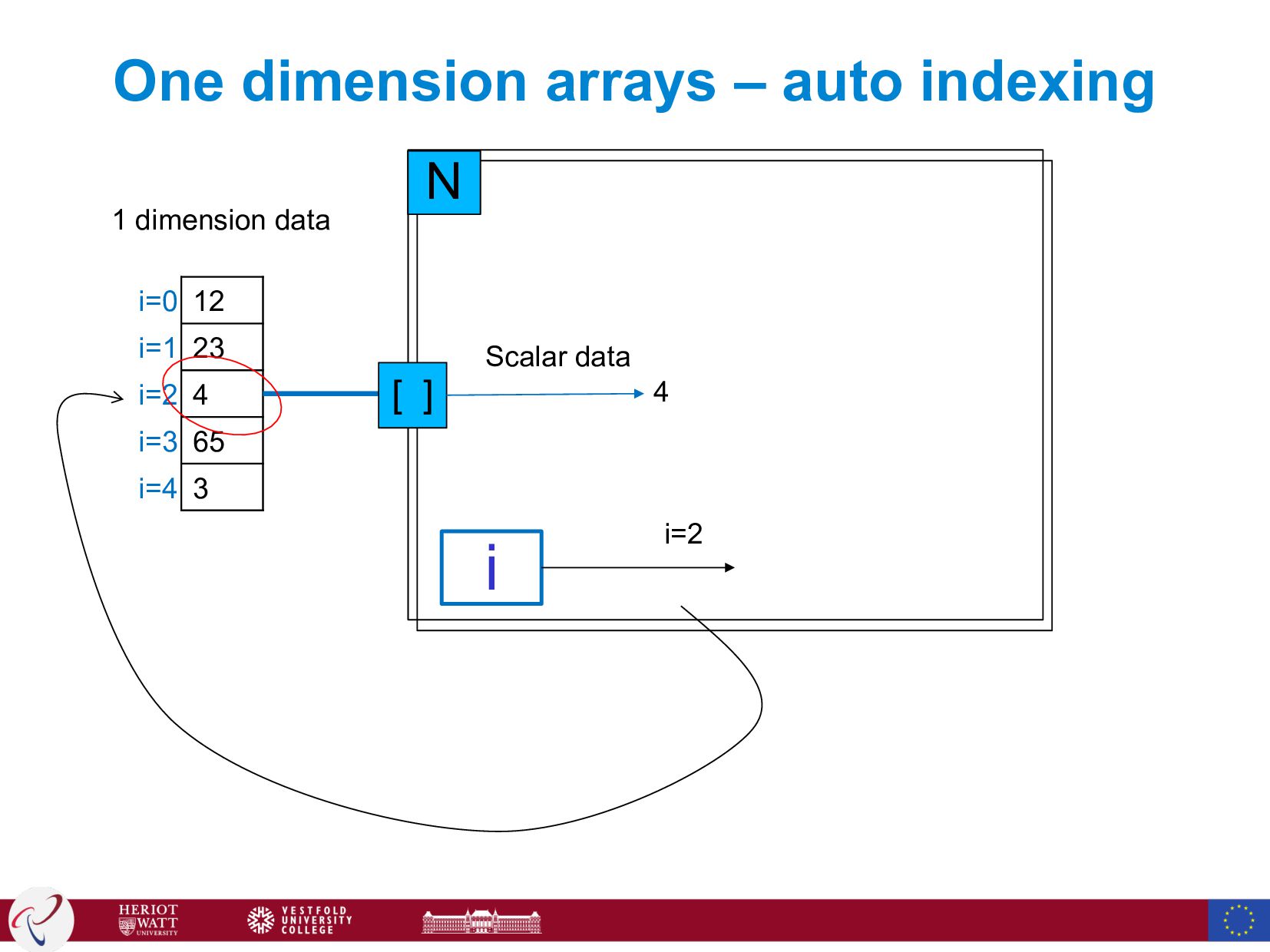
  74. One dimension arrays – auto indexing 12 23 4 65

    3 i=0 i=1 i=2 i=3 i=4 1 dimension data [ ] Scalar data i i=0 12 N
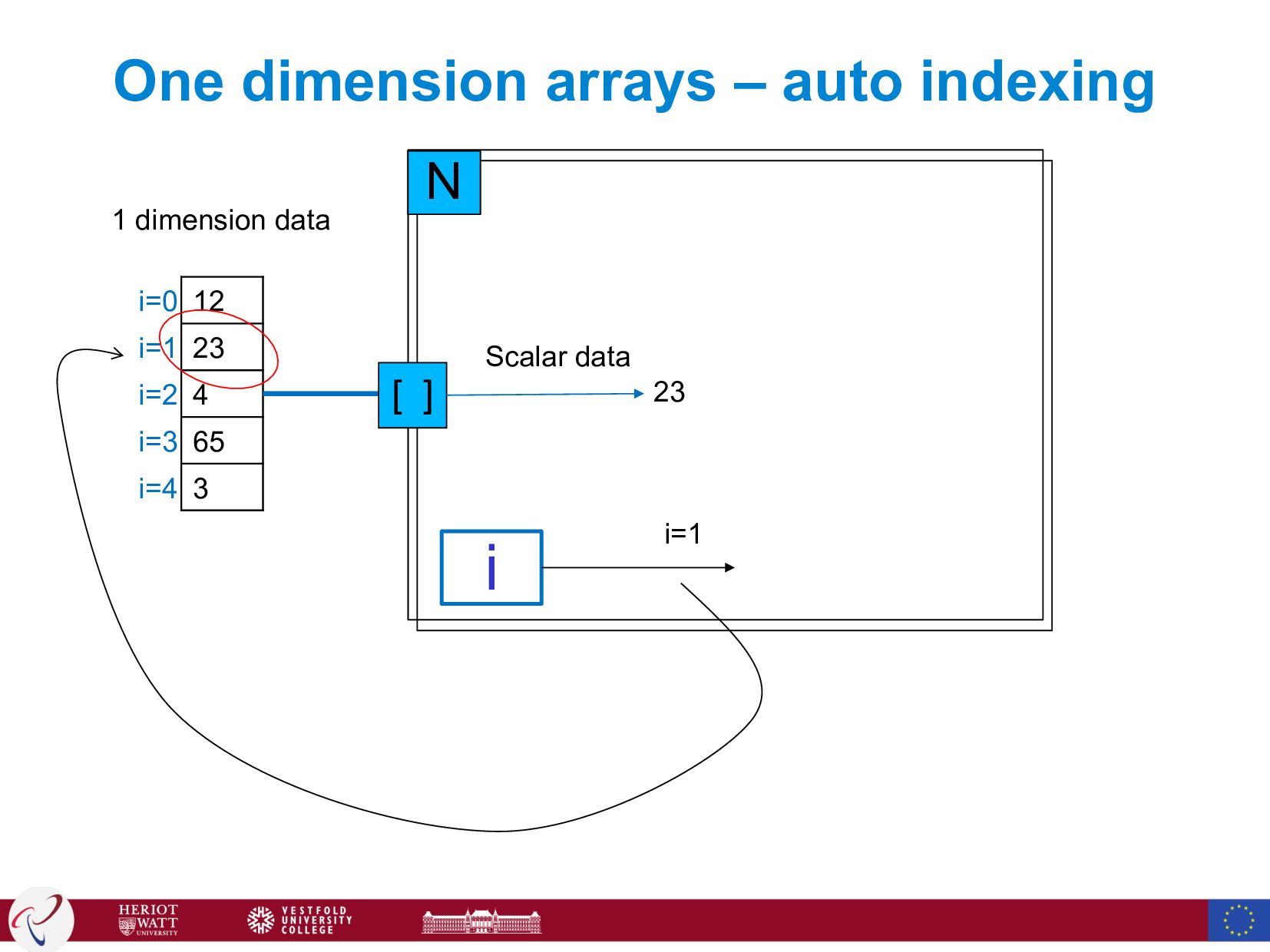
  75. One dimension arrays – auto indexing 12 23 4 65

    3 i=0 i=1 i=2 i=3 i=4 1 dimension data [ ] Scalar data i i=1 23 N
  76. One dimension arrays – auto indexing 12 23 4 65

    3 i=0 i=1 i=2 i=3 i=4 1 dimension data [ ] Scalar data i i=2 4 N
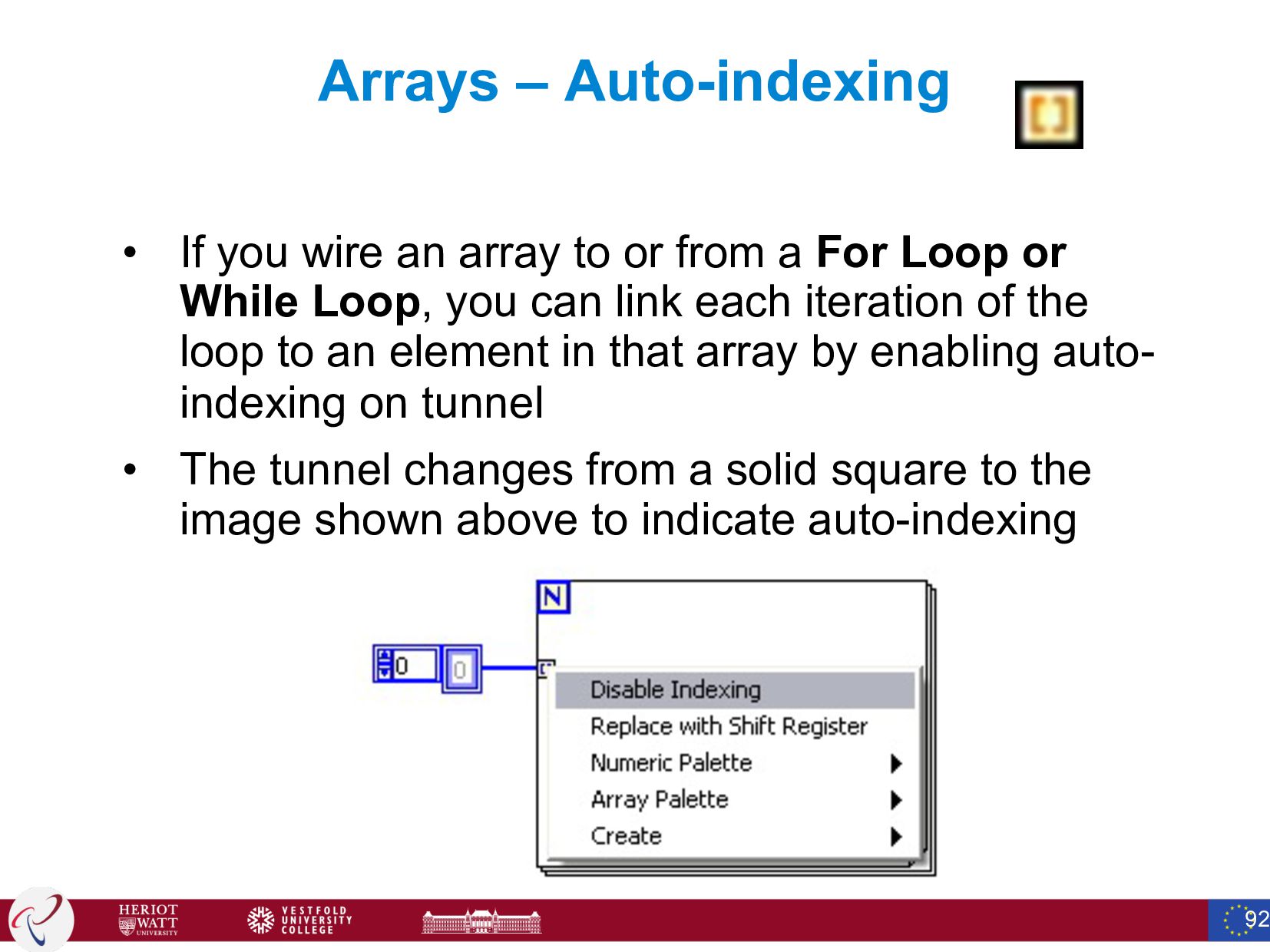
  77. Arrays – Auto-indexing • If you wire an array to

    or from a For Loop or While Loop, you can link each iteration of the loop to an element in that array by enabling auto- indexing on tunnel • The tunnel changes from a solid square to the image shown above to indicate auto-indexing 92
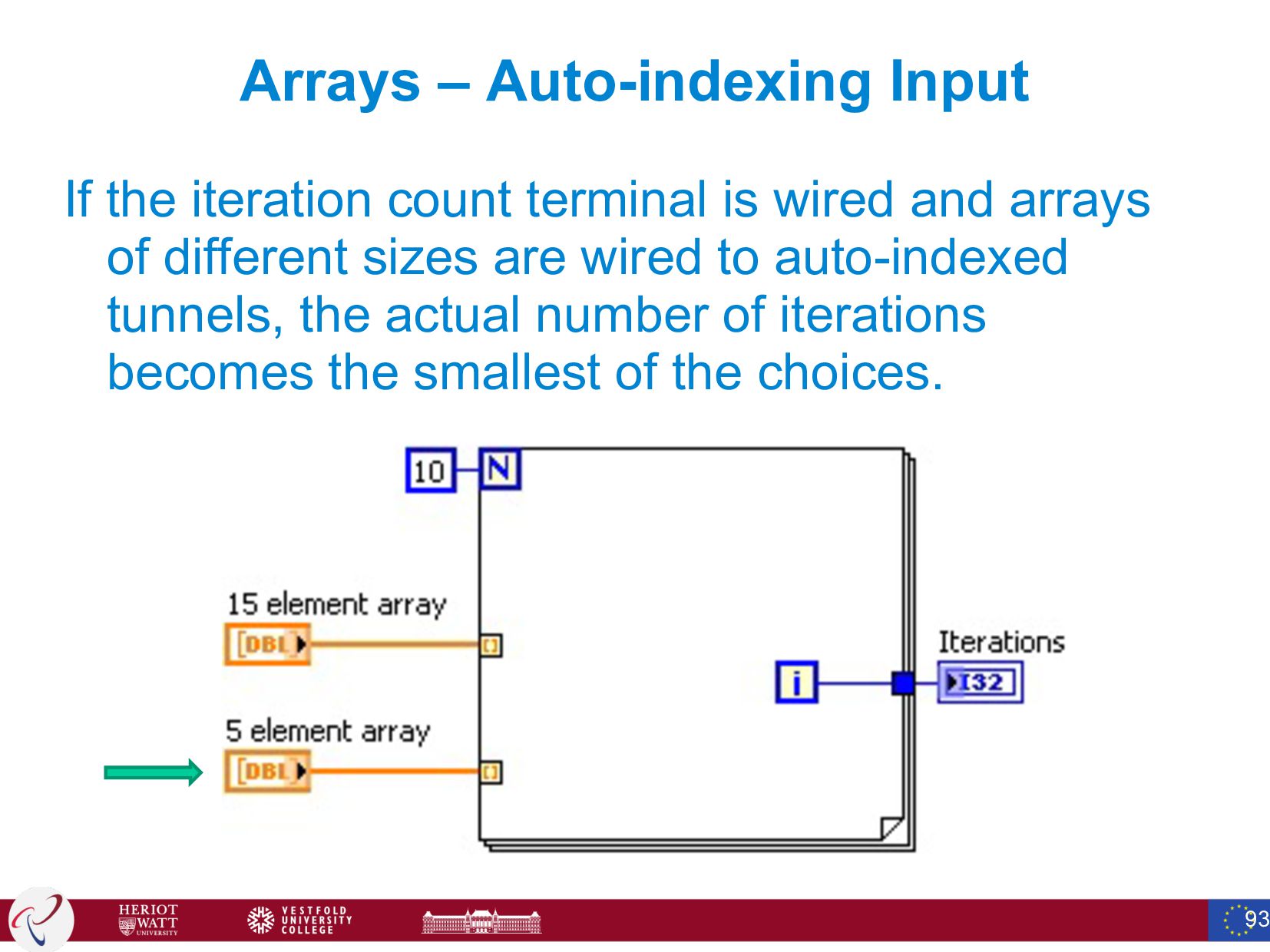
  78. Arrays – Auto-indexing Input If the iteration count terminal is

    wired and arrays of different sizes are wired to auto-indexed tunnels, the actual number of iterations becomes the smallest of the choices. 93
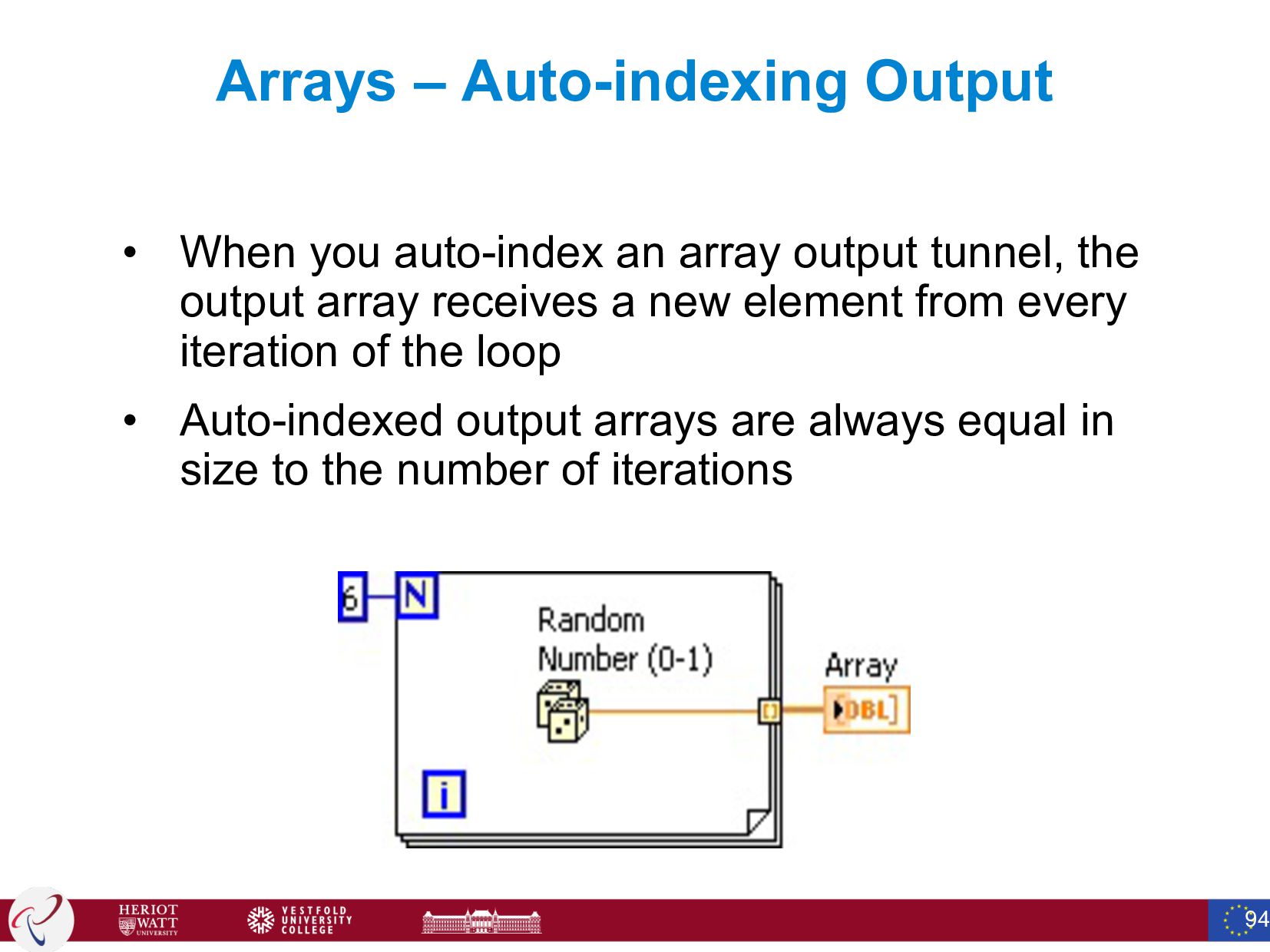
  79. Arrays – Auto-indexing Output • When you auto-index an array

    output tunnel, the output array receives a new element from every iteration of the loop • Auto-indexed output arrays are always equal in size to the number of iterations 94
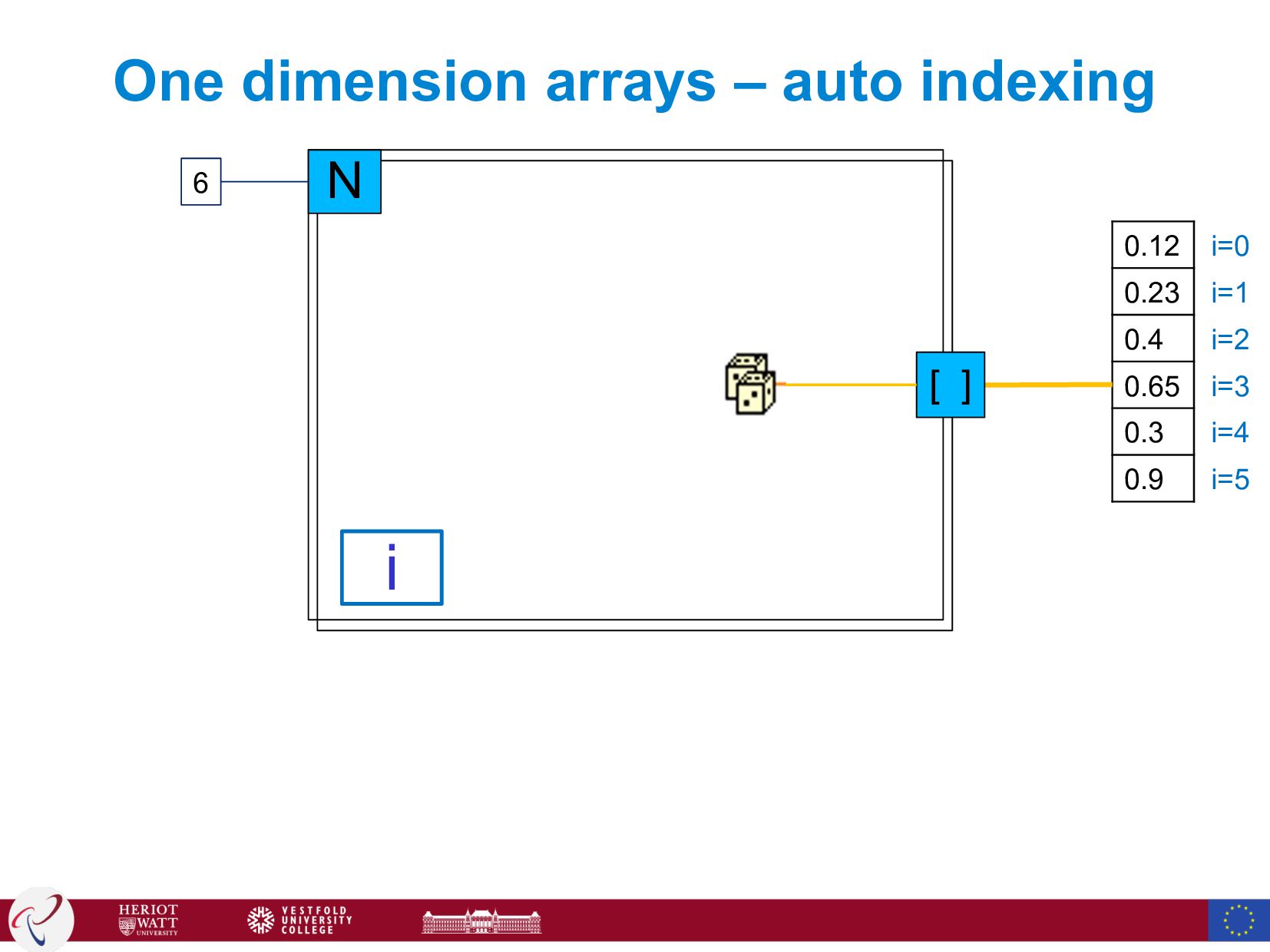
  80. One dimension arrays – auto indexing 0.12 0.23 0.4 0.65

    0.3 0.9 i=0 i=1 i=2 i=3 i=4 i=5 [ ] i N 6
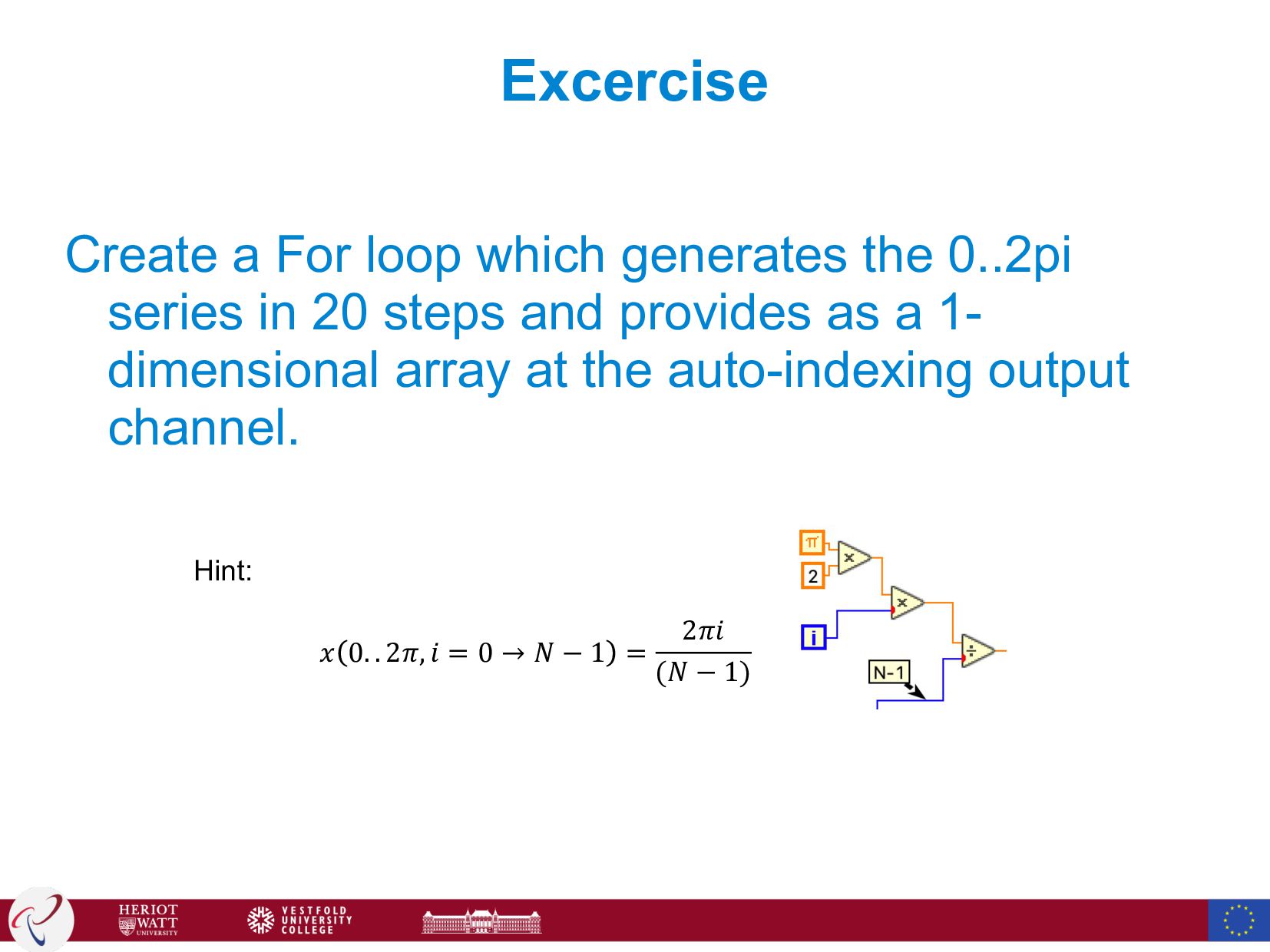
  81. Excercise Create a For loop which generates the 0..2pi series

    in 20 steps and provides as a 1- dimensional array at the auto-indexing output channel. 𝑥 0. . 2𝜋, 𝑖 = 0 → 𝑁 − 1 = 2𝜋𝑖 (𝑁 − 1) Hint:
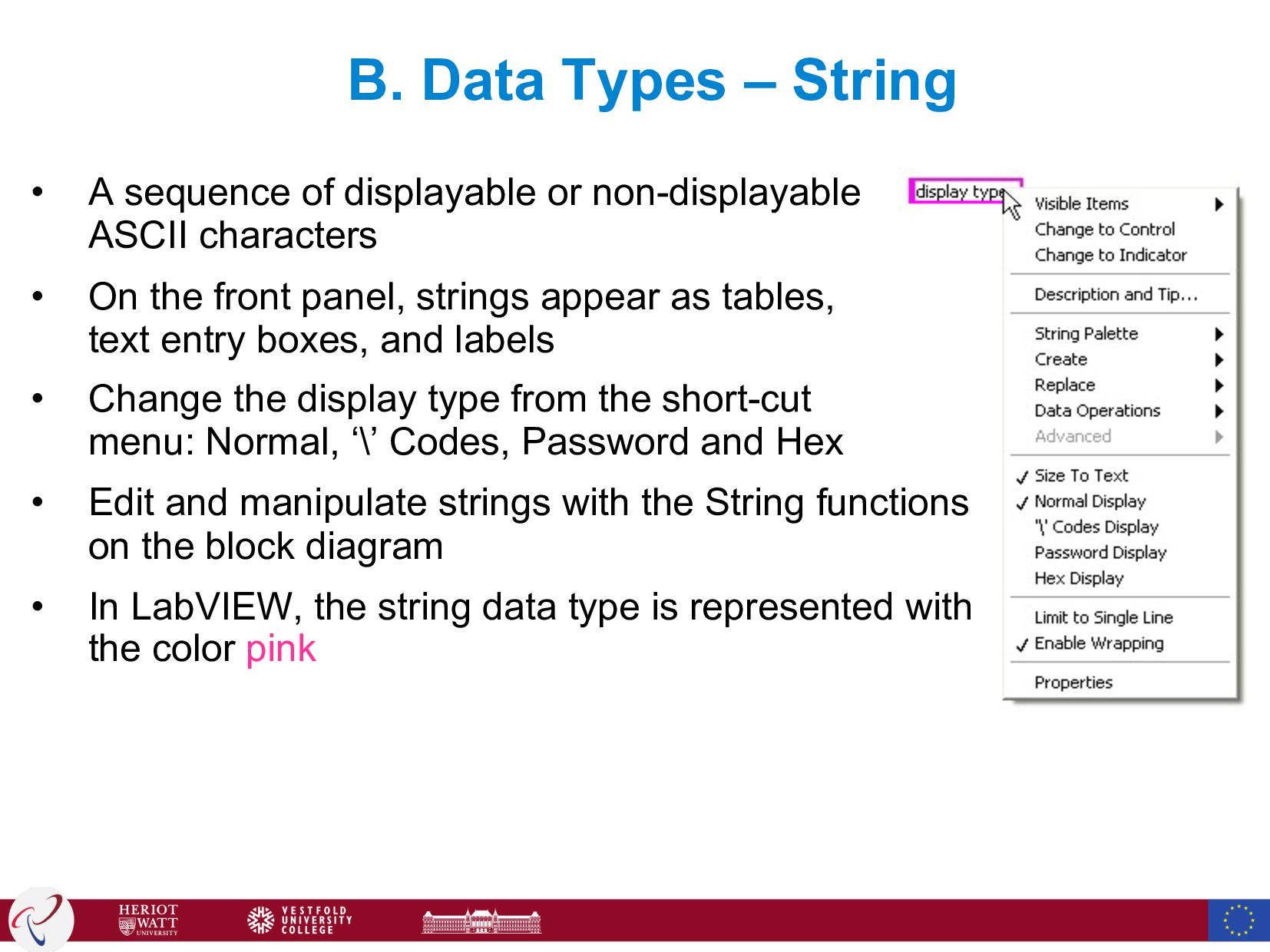
  82. B. Data Types – String • A sequence of displayable

    or non-displayable ASCII characters • On the front panel, strings appear as tables, text entry boxes, and labels • Change the display type from the short-cut menu: Normal, ‘\’ Codes, Password and Hex • Edit and manipulate strings with the String functions on the block diagram • In LabVIEW, the string data type is represented with the color pink
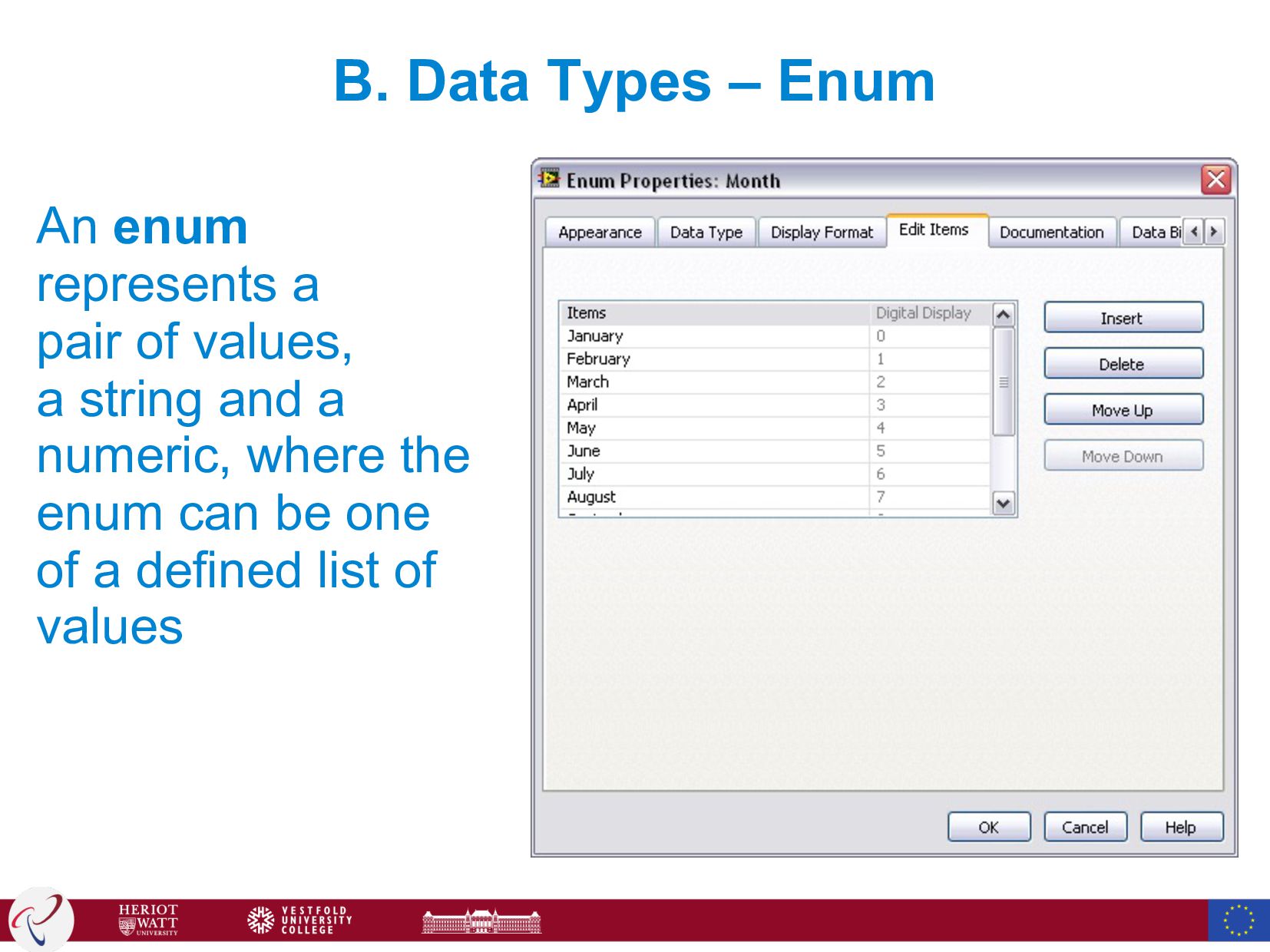
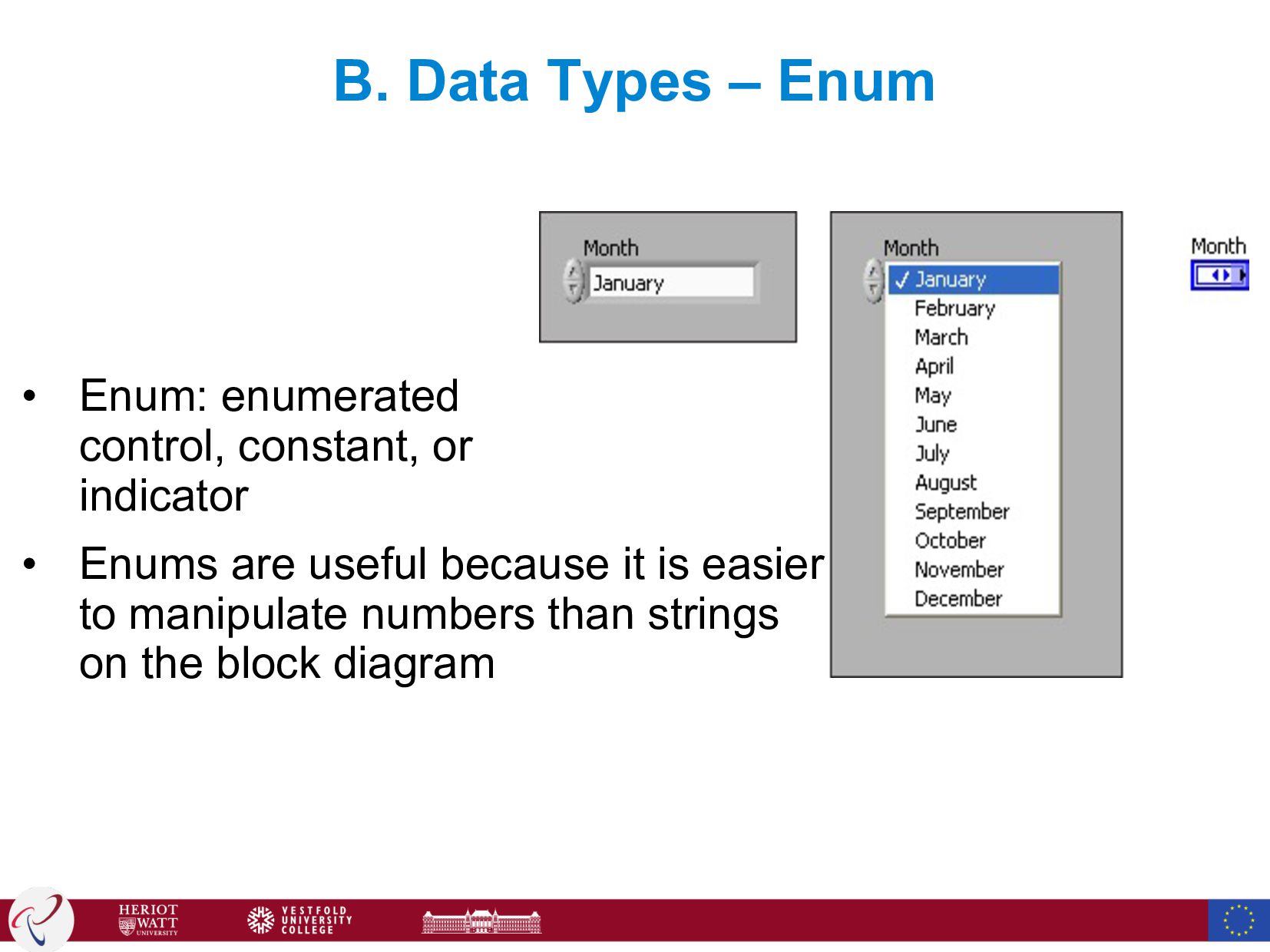
  83. B. Data Types – Enum An enum represents a pair

    of values, a string and a numeric, where the enum can be one of a defined list of values
  84. B. Data Types – Enum • Enum: enumerated control, constant,

    or indicator • Enums are useful because it is easier to manipulate numbers than strings on the block diagram
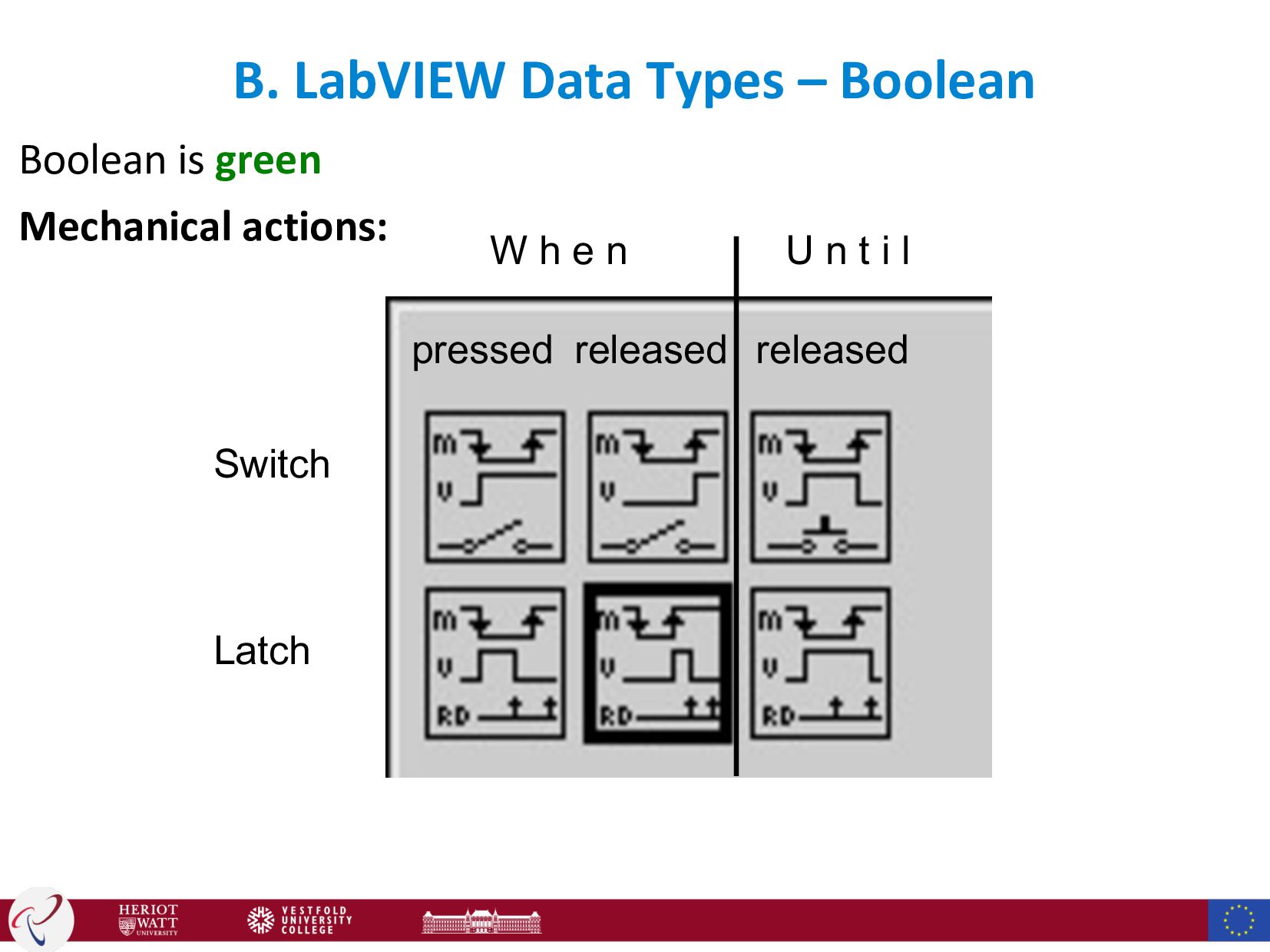
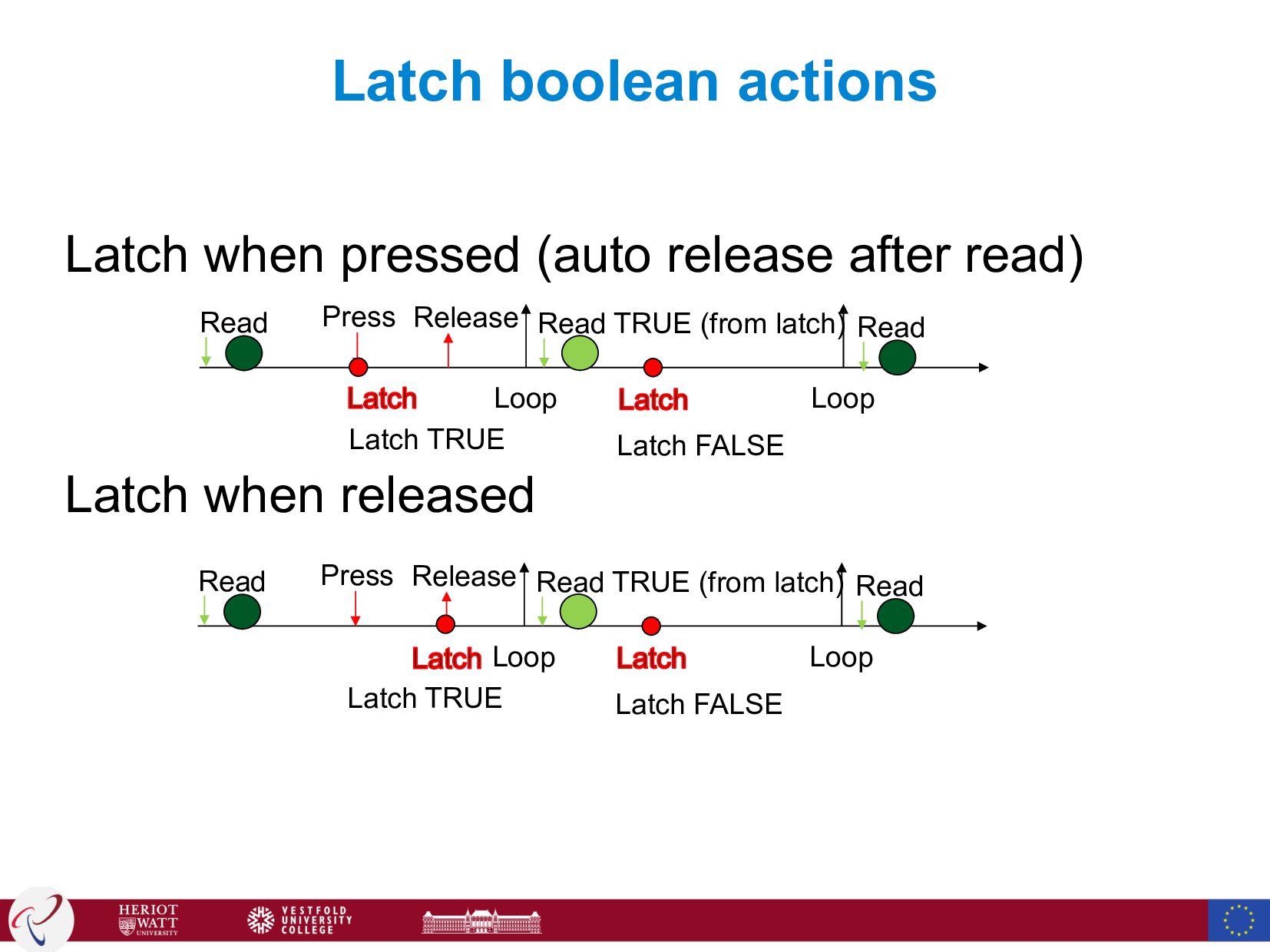
  85. B. LabVIEW Data Types – Boolean Boolean is green Mechanical

    actions: Switch Latch W h e n U n t i l pressed released released
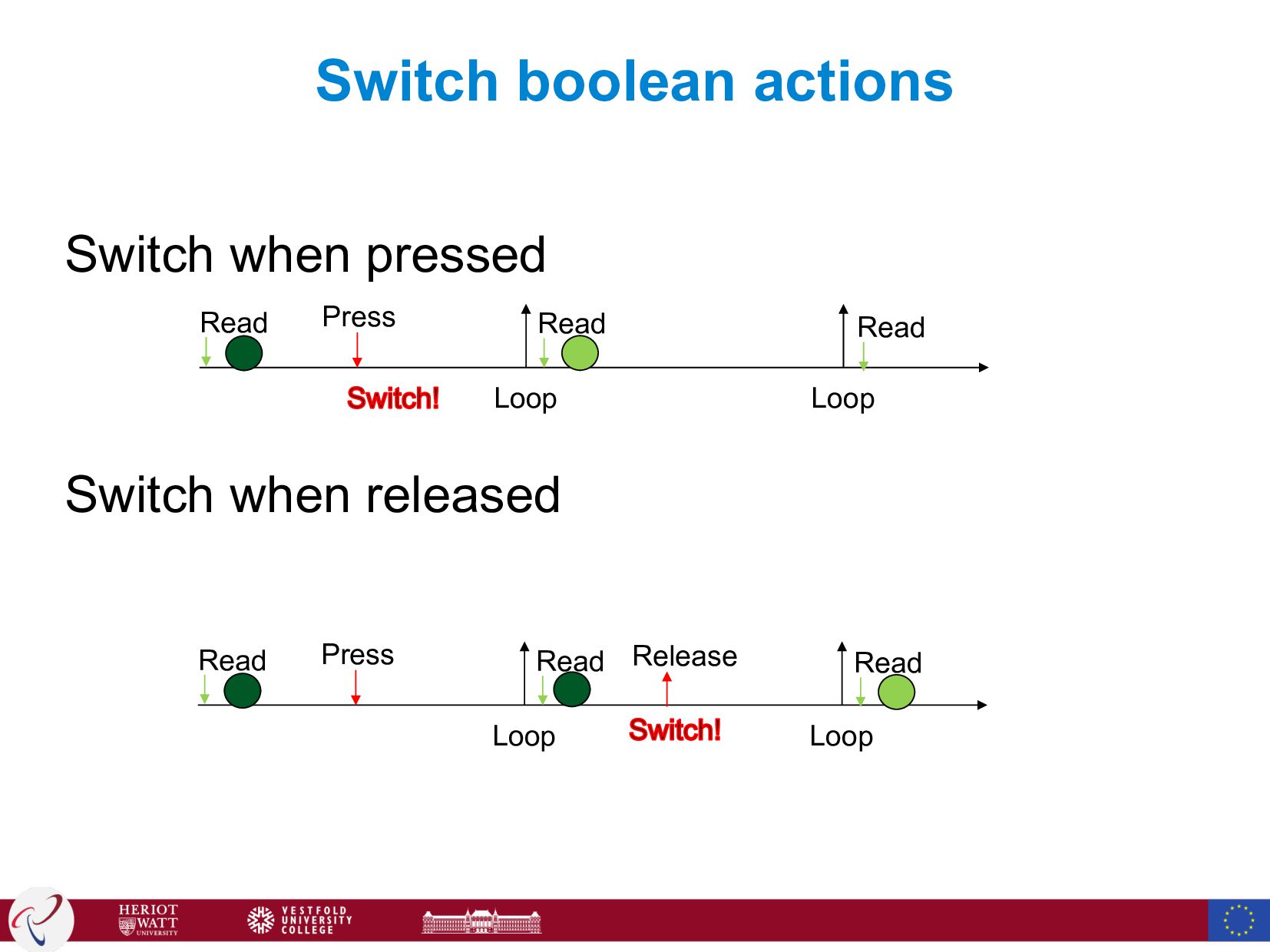
  86. Switch boolean actions Switch when pressed Switch when released Loop

    Loop Press Read Read Loop Loop Press Read Read Read Read Release
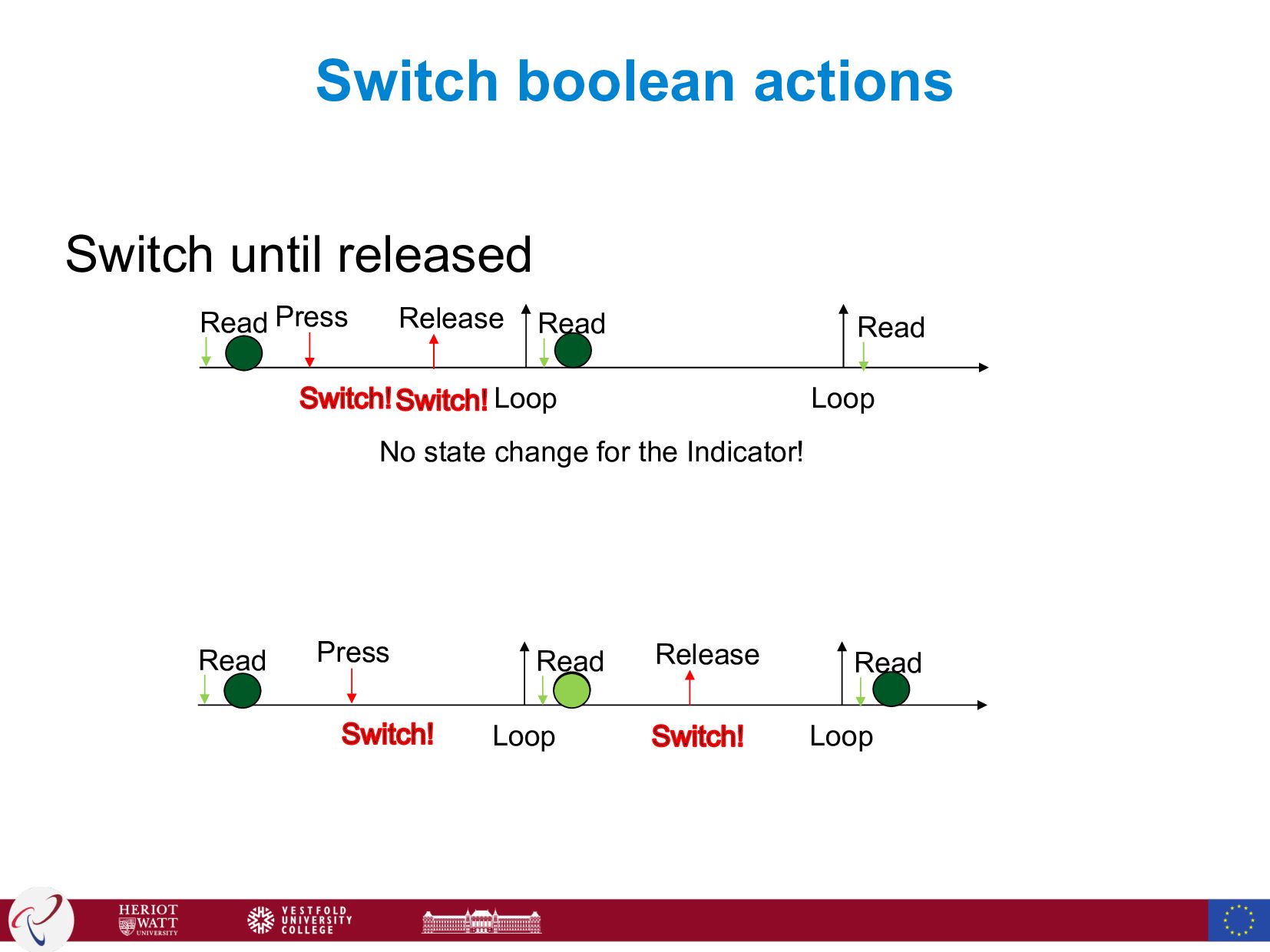
  87. Switch boolean actions Switch until released Loop Loop Press Read

    Read Loop Loop Read Read Read Read Release Press Release No state change for the Indicator!
  88. Latch boolean actions Latch when pressed (auto release after read)

    Latch when released Loop Loop Press Read TRUE (from latch) Read Read Release Latch TRUE Latch FALSE Loop Loop Press Read TRUE (from latch) Read Read Release Latch TRUE Latch FALSE
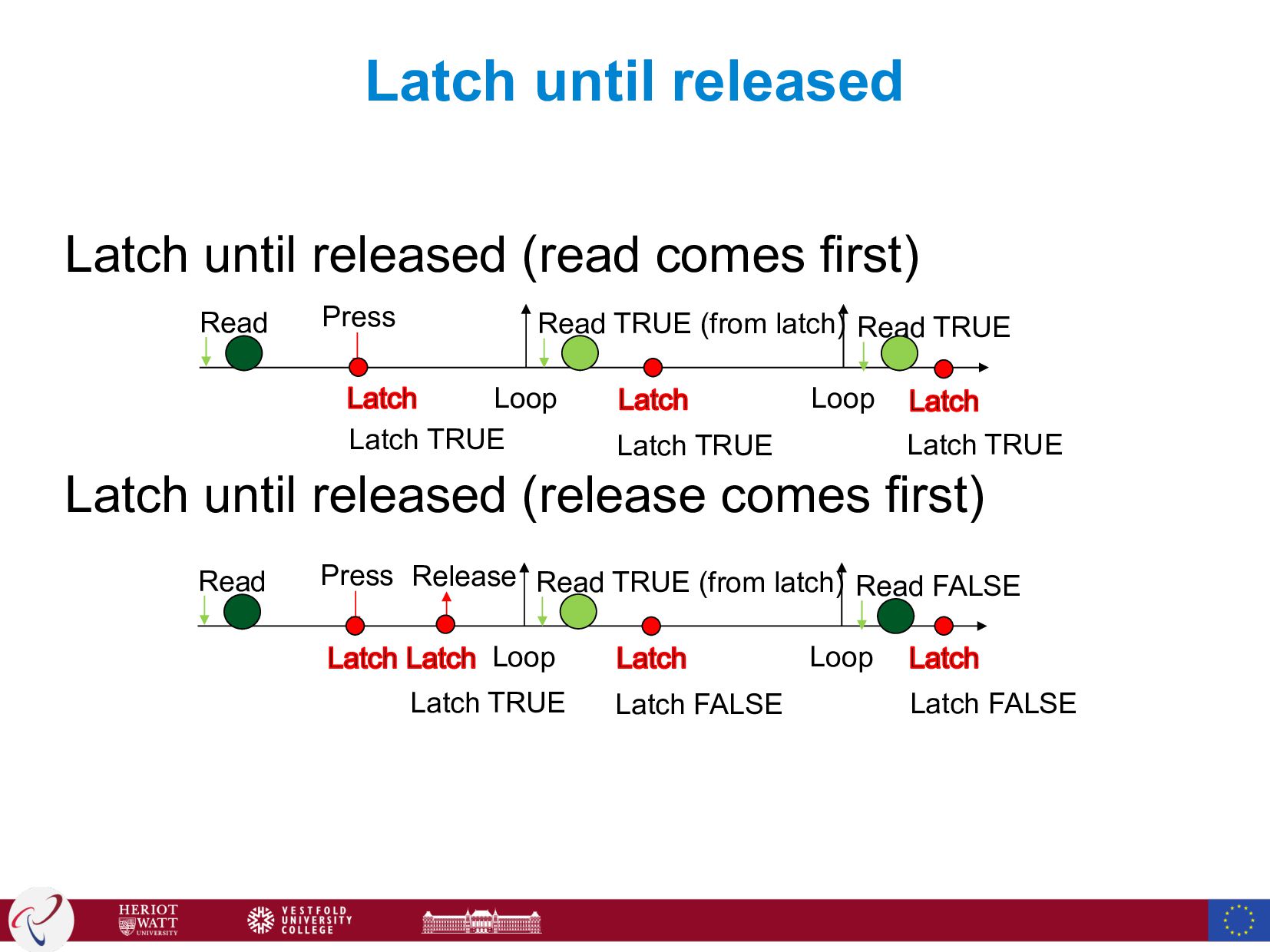
  89. Latch until released Latch until released (read comes first) Latch

    until released (release comes first) Loop Loop Press Read TRUE (from latch) Read Read TRUE Latch TRUE Latch TRUE Loop Loop Press Read TRUE (from latch) Read Read FALSE Release Latch TRUE Latch FALSE Latch FALSE Latch TRUE
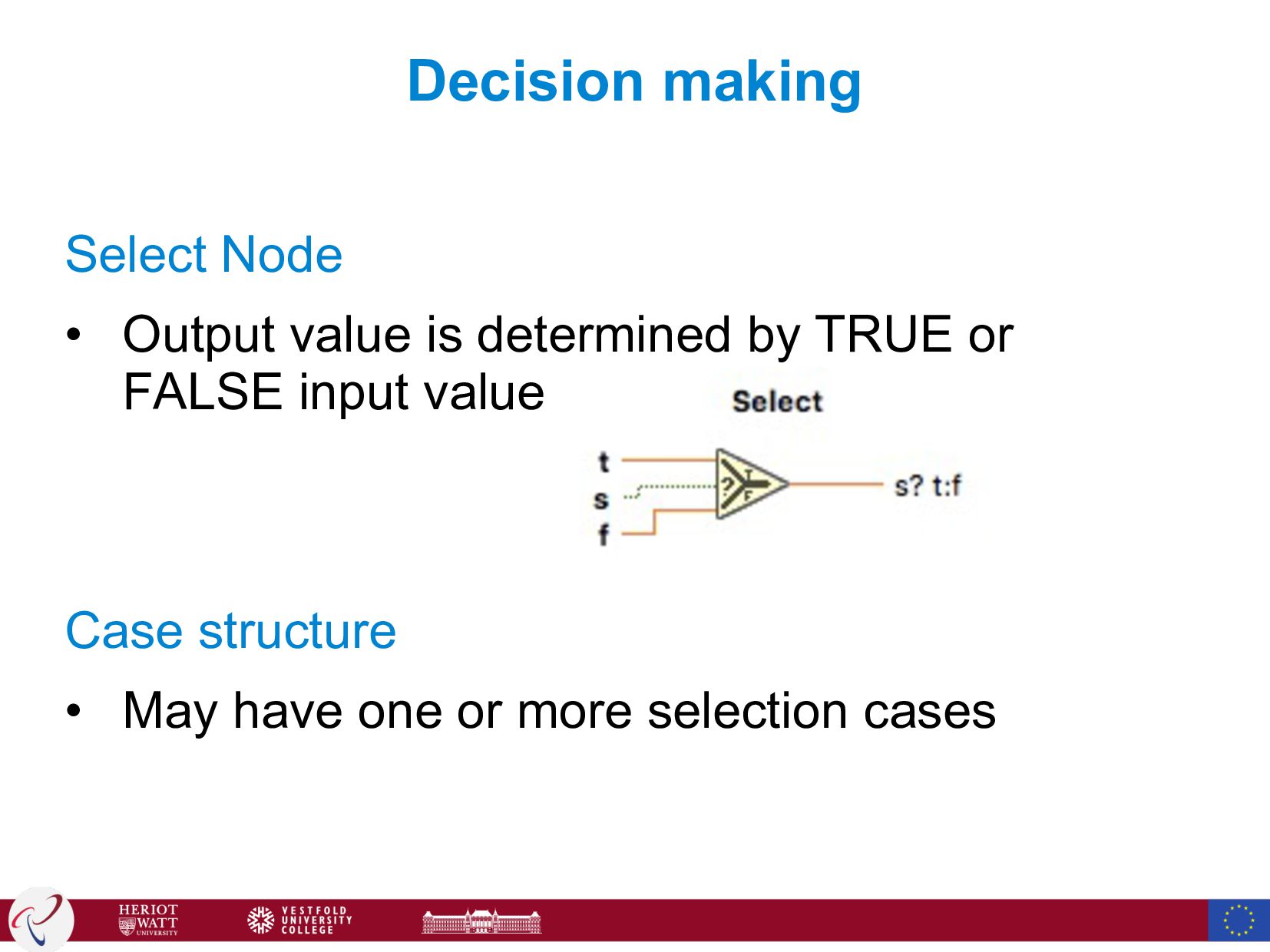
  90. Decision making Select Node • Output value is determined by

    TRUE or FALSE input value Case structure • May have one or more selection cases
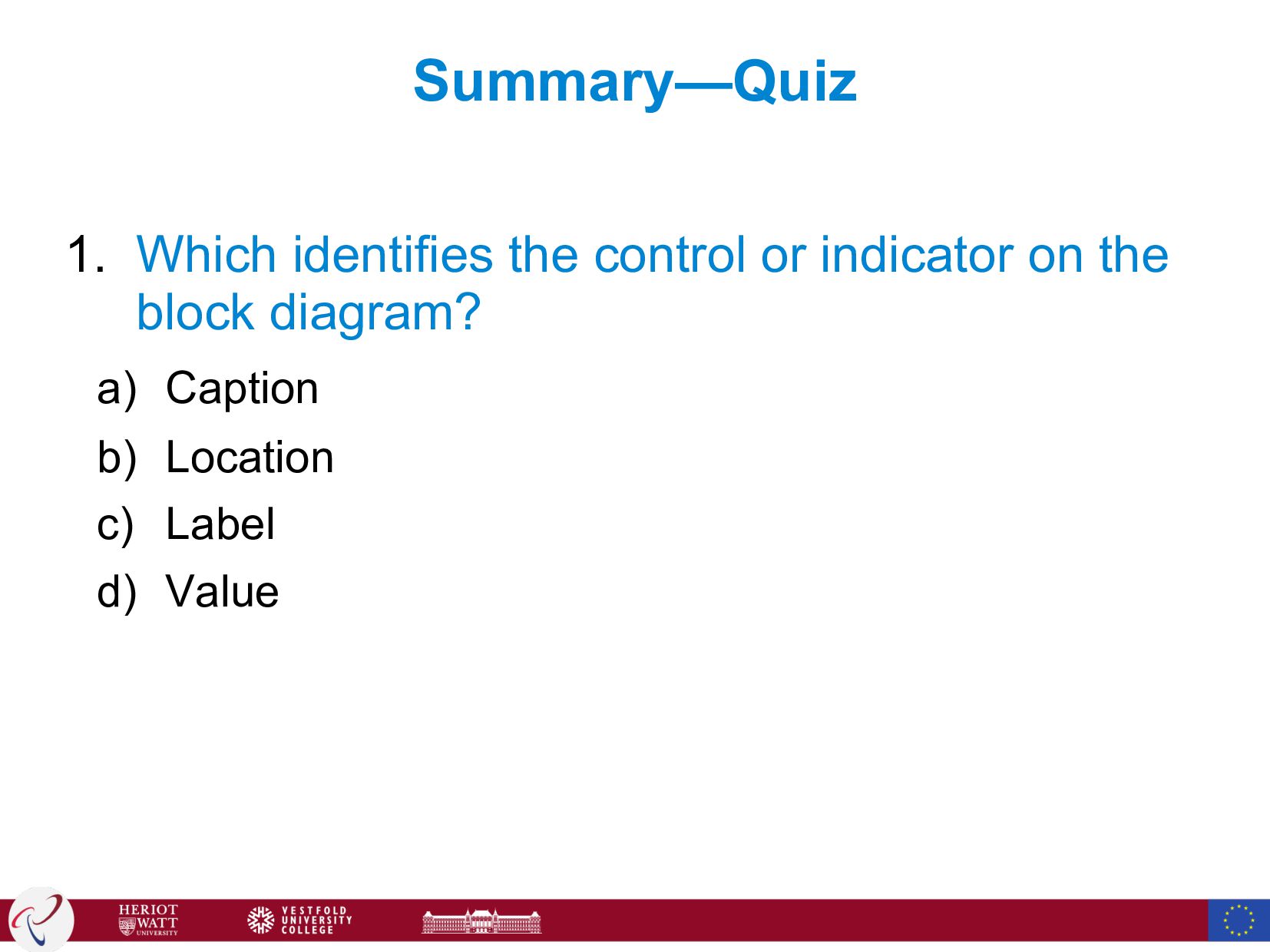
  91. Summary—Quiz 1. Which identifies the control or indicator on the

    block diagram? a) Caption b) Location c) Label d) Value
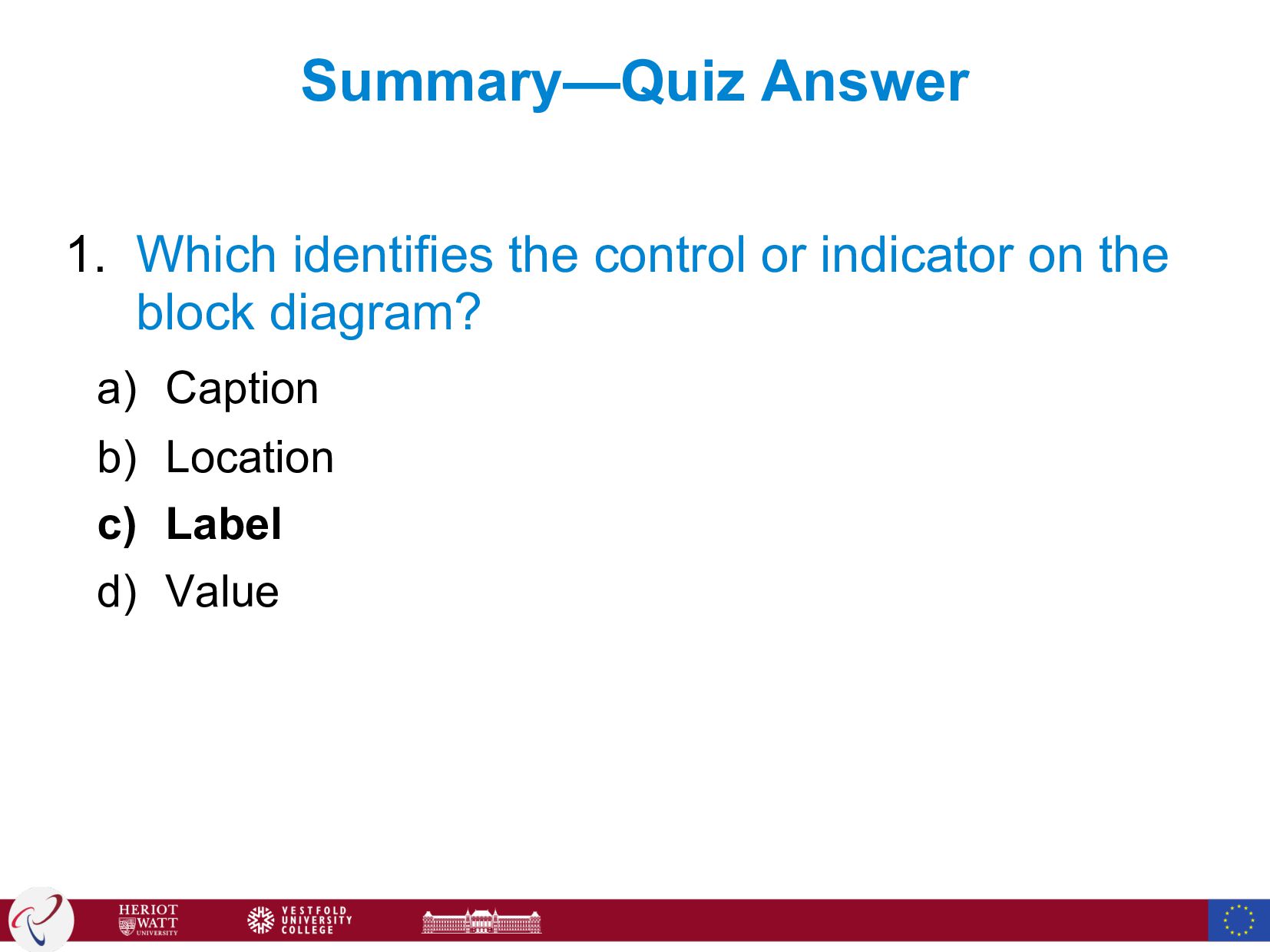
  92. Summary—Quiz Answer 1. Which identifies the control or indicator on

    the block diagram? a) Caption b) Location c) Label d) Value
  93. Summary—Quiz 3.Which is only available on the block diagram? a)

    Control b) Constant c) Indicator d) Connector Pane
  94. Summary—Quiz Answer 3.Which is only available on the block diagram?

    a) Control b) Constant c) Indicator d) Connector Pane
  95. Summary—Quiz 4. Which mechanical action causes a Boolean in the

    False state to change to True when you click it and stay True until you release it and LabVIEW has read the value? a) Switch Until Released b) Switch When Released c) Latch Until Released d) Latch When Released
  96. Summary—Quiz Answer 4. Which mechanical action causes a Boolean in

    the False state to change to True when you click it and stay True until you release it and LabVIEW has read the value? a) Switch Until Released b) Switch When Released c) Latch Until Released d) Latch When Released
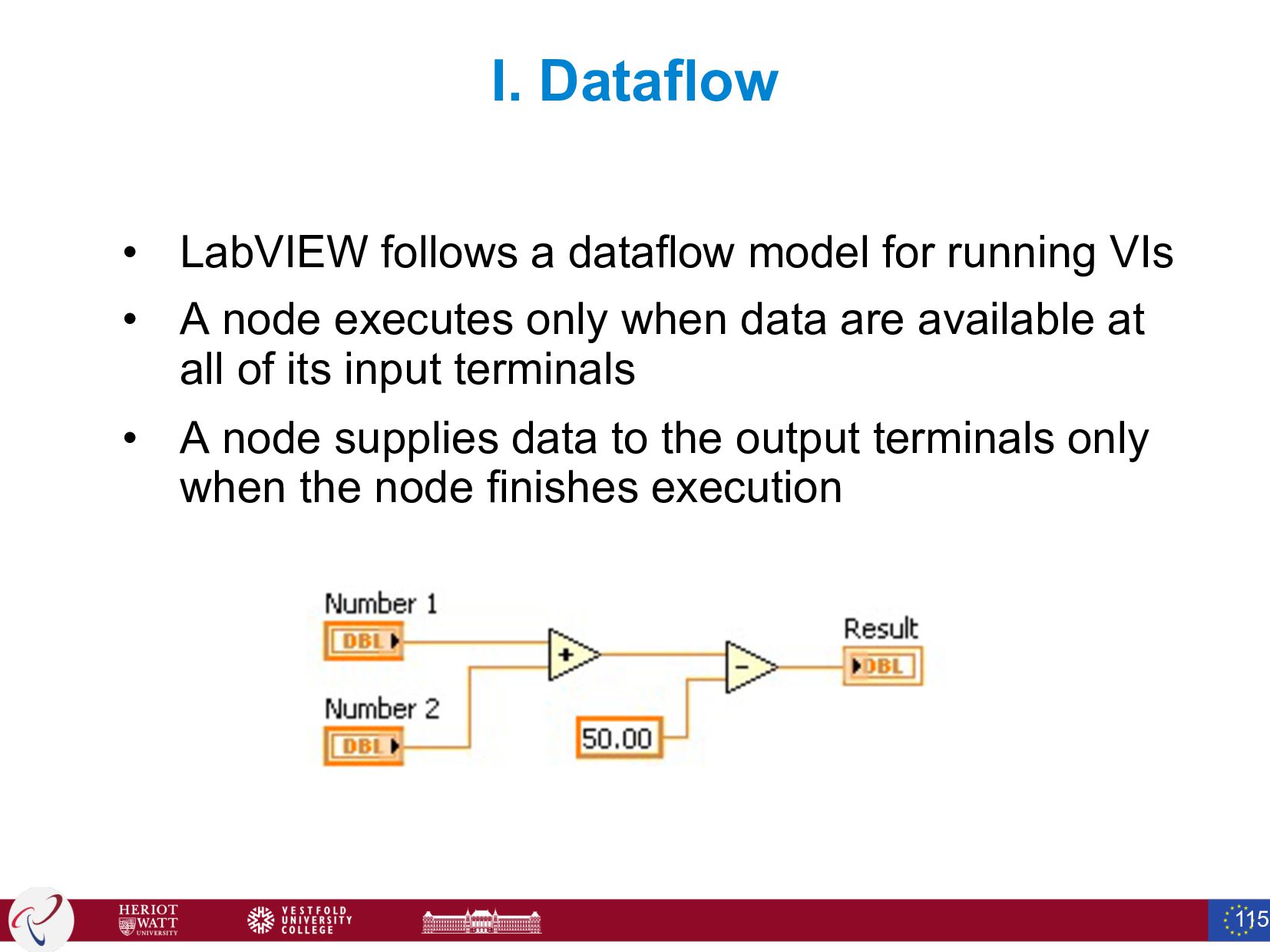
  97. I. Dataflow • LabVIEW follows a dataflow model for running

    VIs • A node executes only when data are available at all of its input terminals • A node supplies data to the output terminals only when the node finishes execution 115
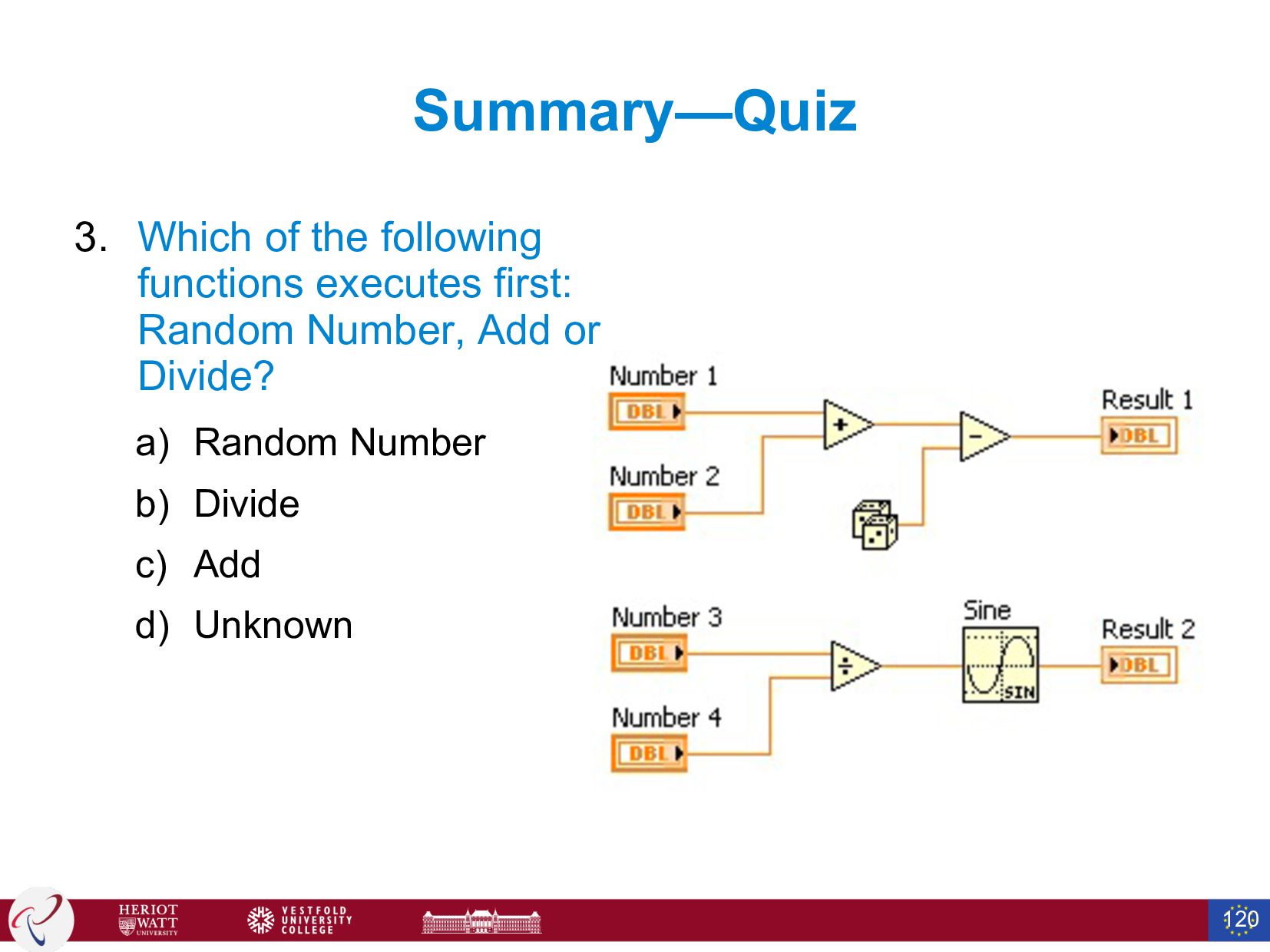
  98. Summary—Quiz 3. Which of the following functions executes first: Random

    Number, Add or Divide? a) Random Number b) Divide c) Add d) Unknown 120
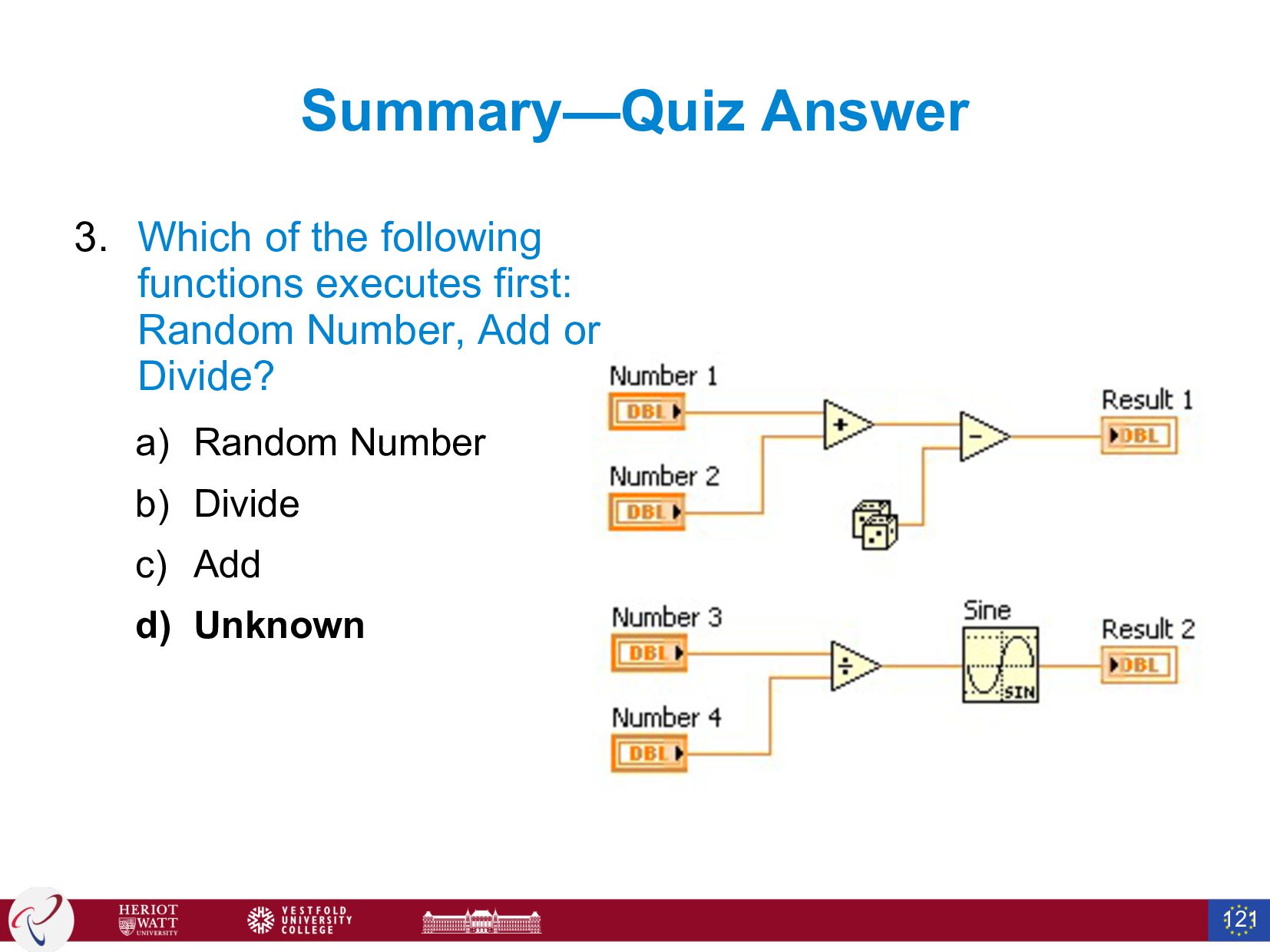
  99. Summary—Quiz Answer 3. Which of the following functions executes first:

    Random Number, Add or Divide? a) Random Number b) Divide c) Add d) Unknown 121
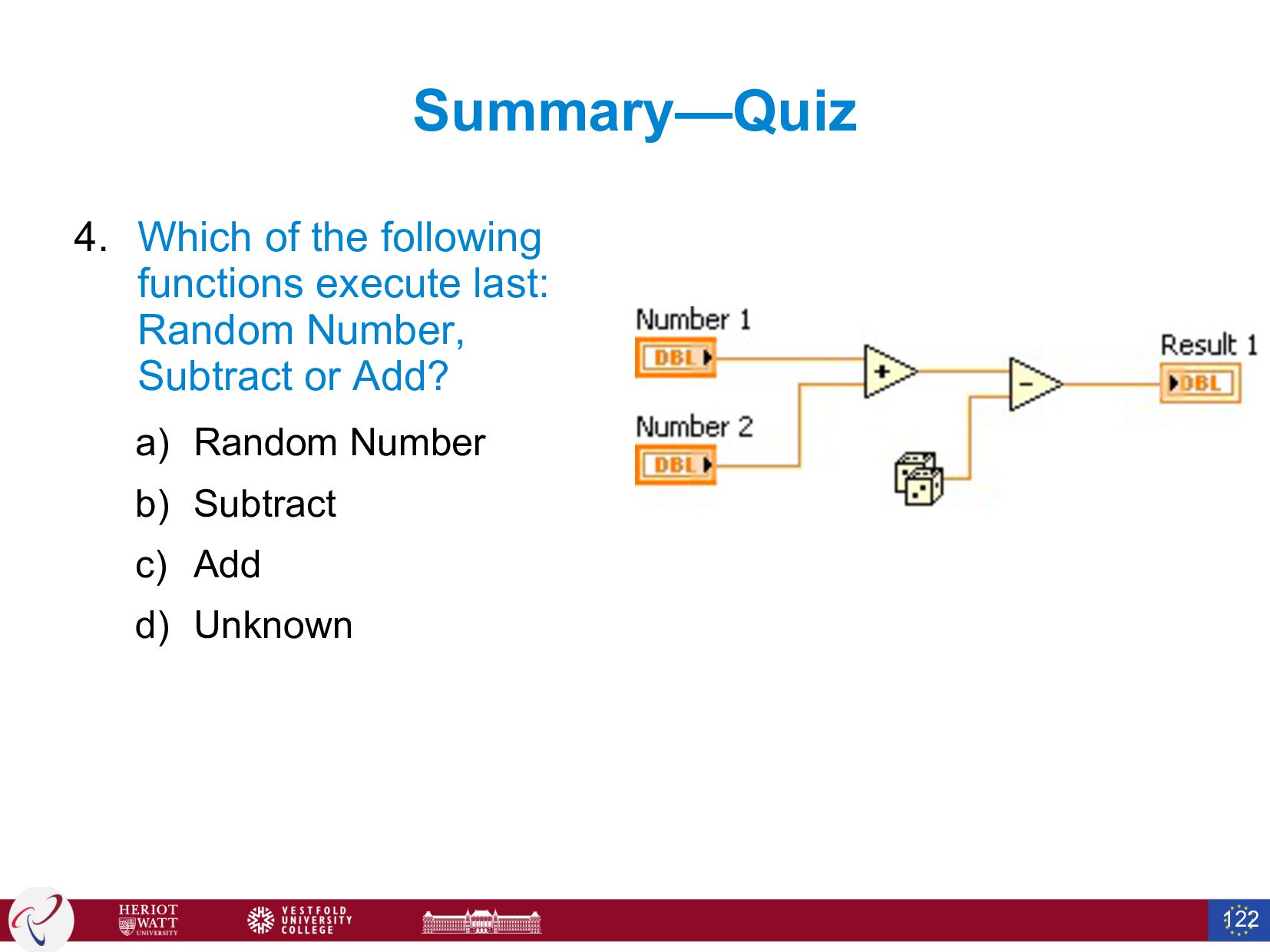
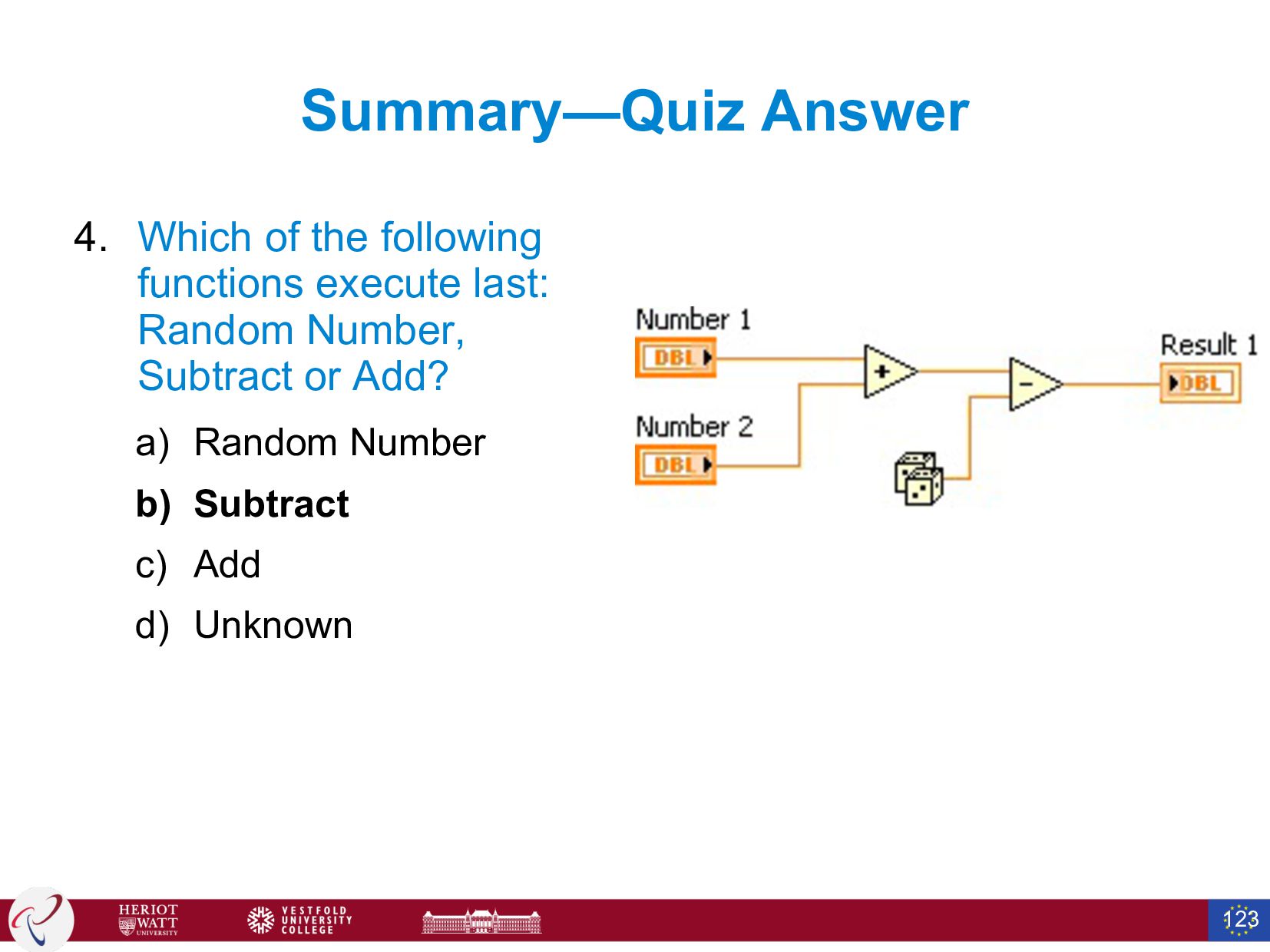
  100. Summary—Quiz 4. Which of the following functions execute last: Random

    Number, Subtract or Add? a) Random Number b) Subtract c) Add d) Unknown 122
  101. Summary—Quiz Answer 4. Which of the following functions execute last:

    Random Number, Subtract or Add? a) Random Number b) Subtract c) Add d) Unknown 123
  102. Summary—Quiz 5.What are the three parts of a VI? a)

    Front Panel b) Block Diagram c) Project d) Icon/Connector Pane 124
  103. Summary—Quiz Answer 5.What are the three parts of a VI?

    a) Front Panel b)Block Diagram c) Project d)Icon/Connector Pane 125