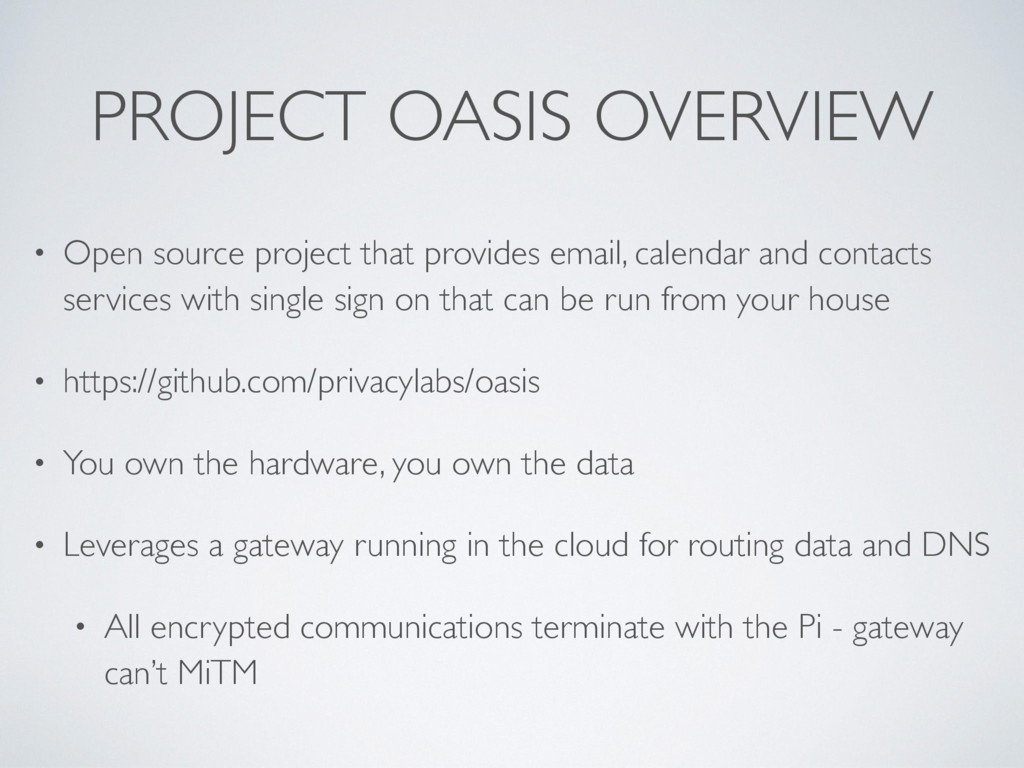
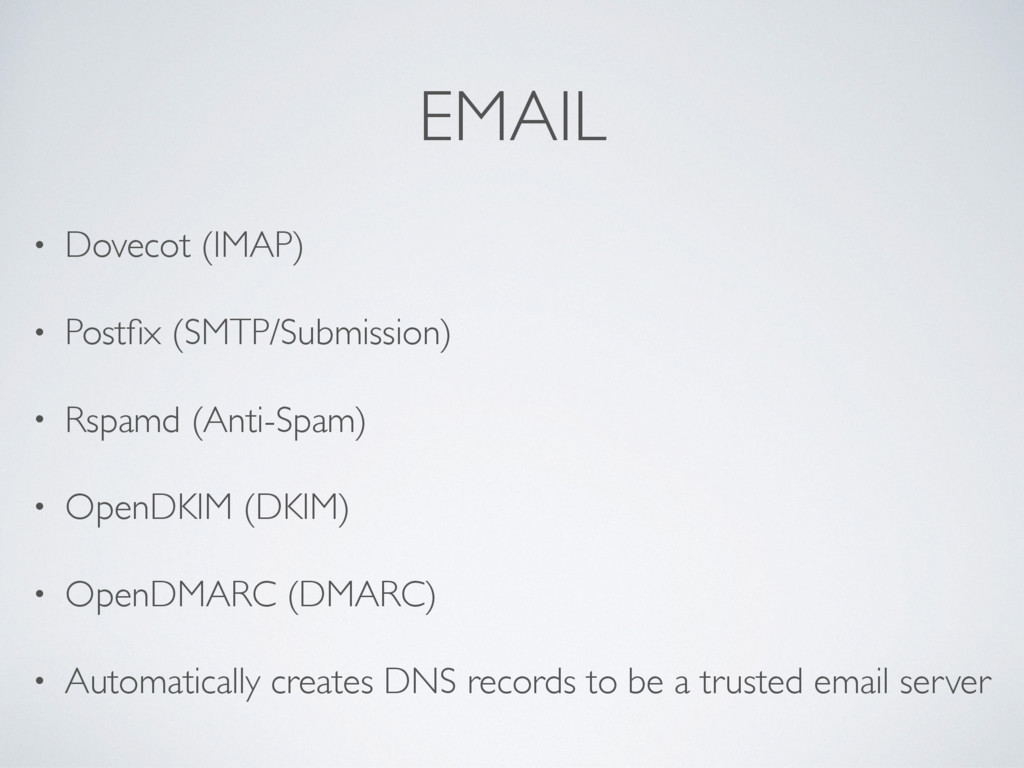
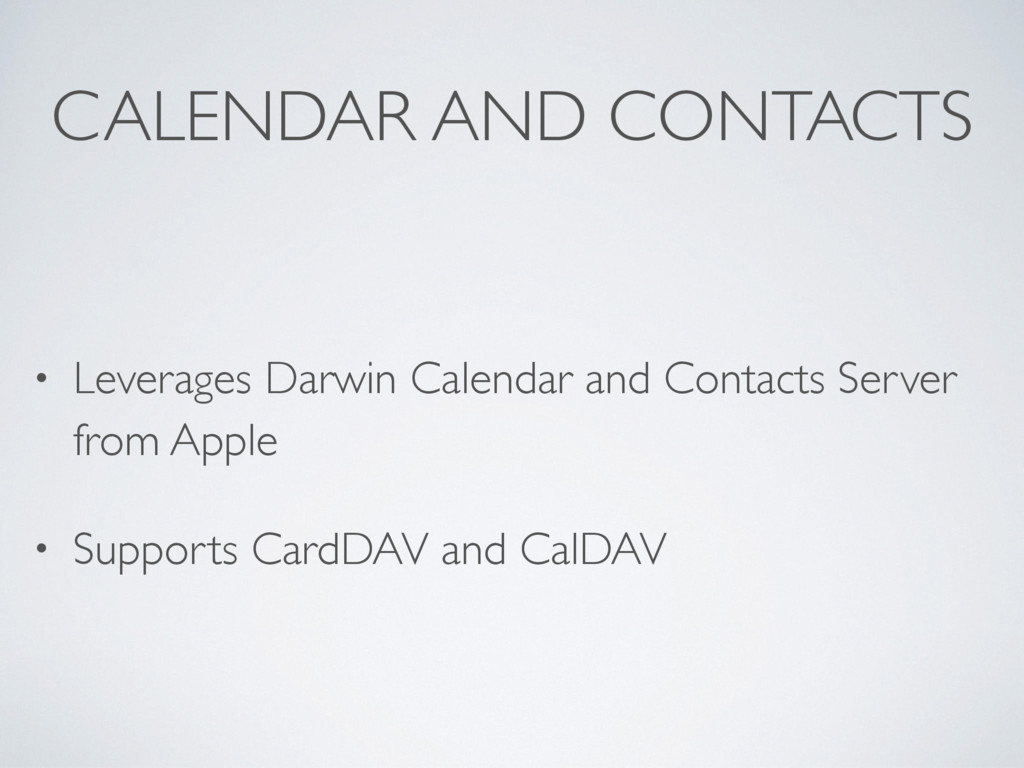
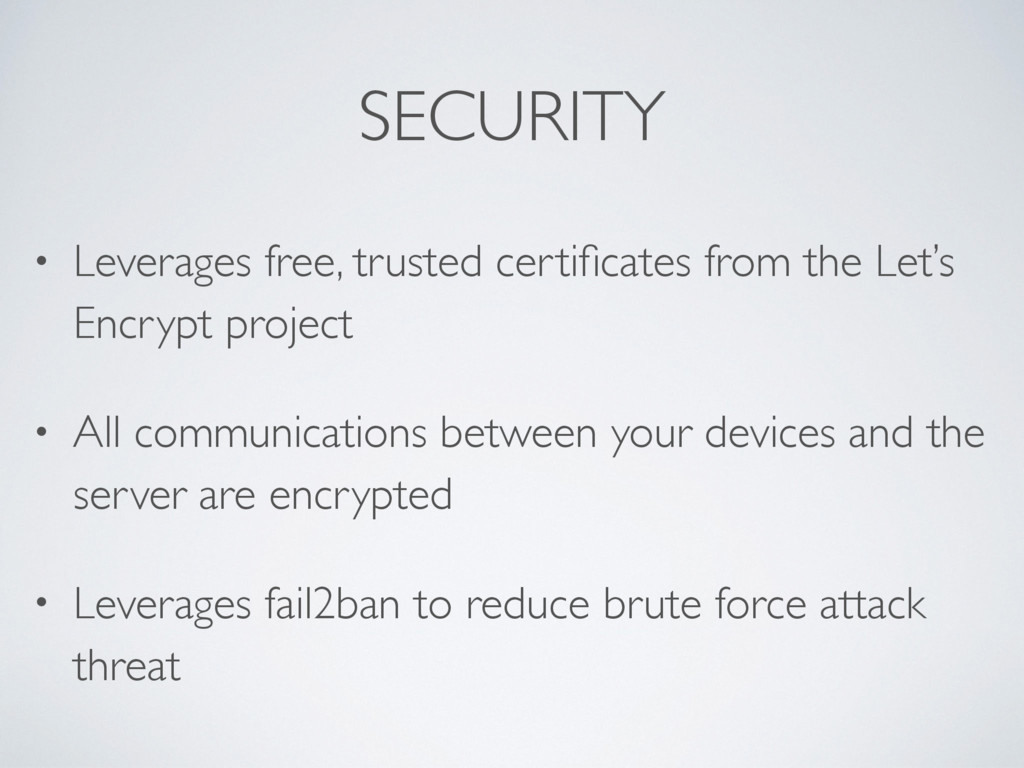
calendar and contacts services with single sign on that can be run from your house • https://github.com/privacylabs/oasis • You own the hardware, you own the data • Leverages a gateway running in the cloud for routing data and DNS • All encrypted communications terminate with the Pi - gateway can’t MiTM
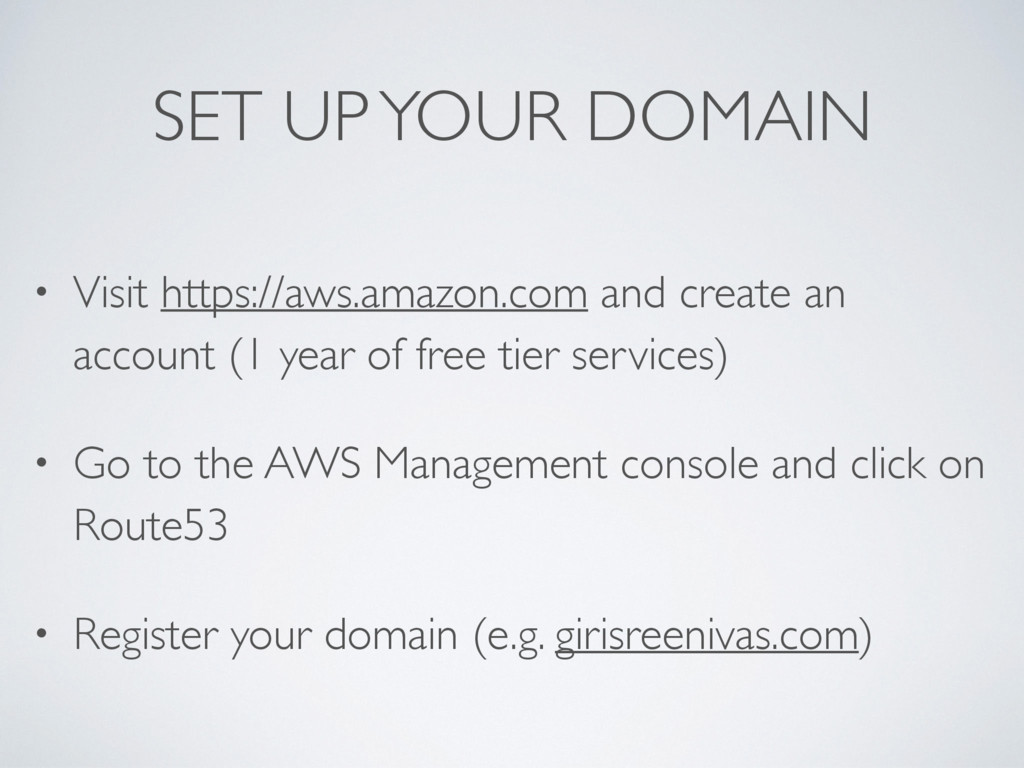
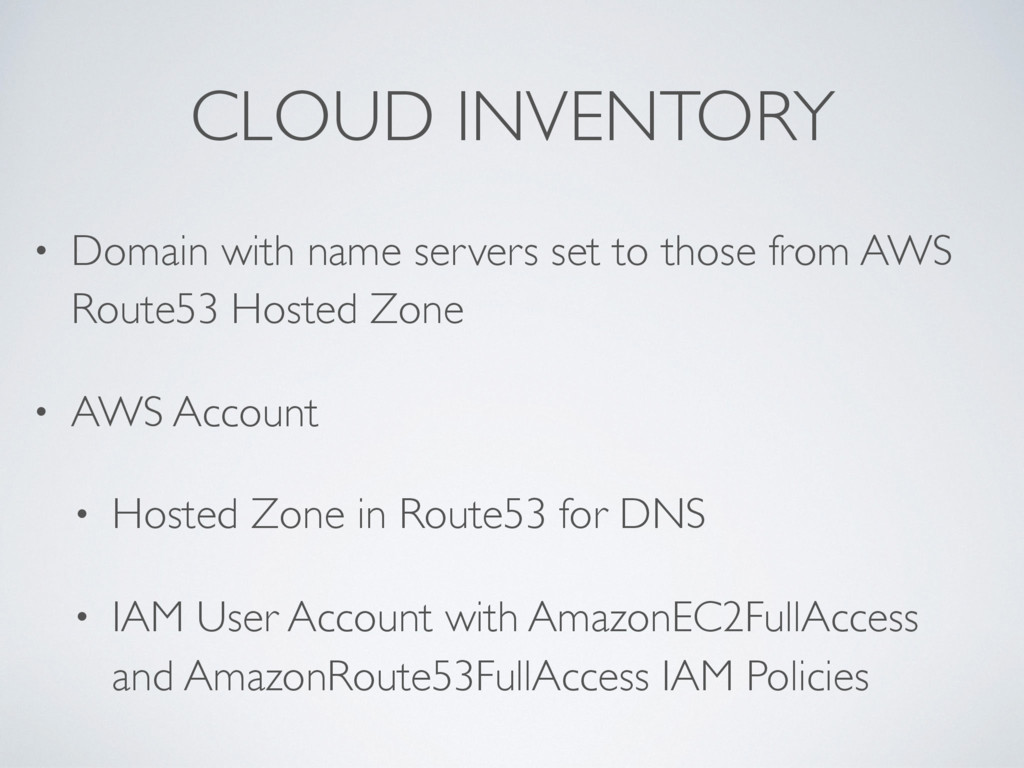
from AWS Route53 Hosted Zone • AWS Account • Hosted Zone in Route53 for DNS • IAM User Account with AmazonEC2FullAccess and AmazonRoute53FullAccess IAM Policies
Scroll down to the QuickStart section and get started • After you log in, change your password • We have already completed the “Preparing the Pi” section for you with the image on the microSD card
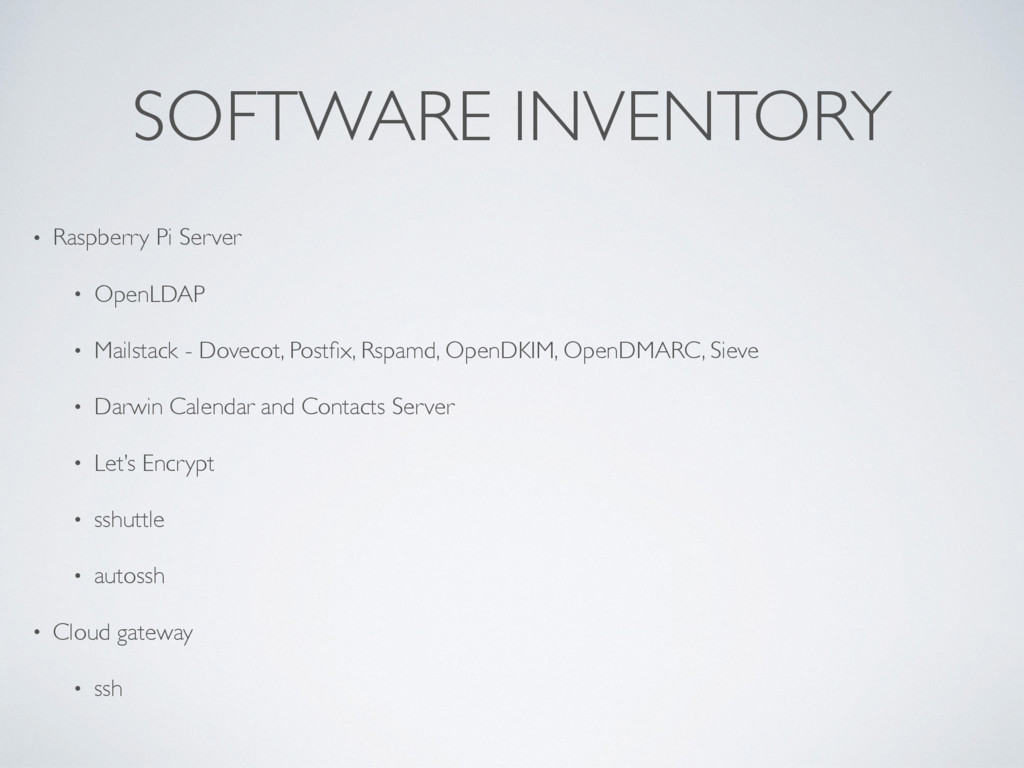
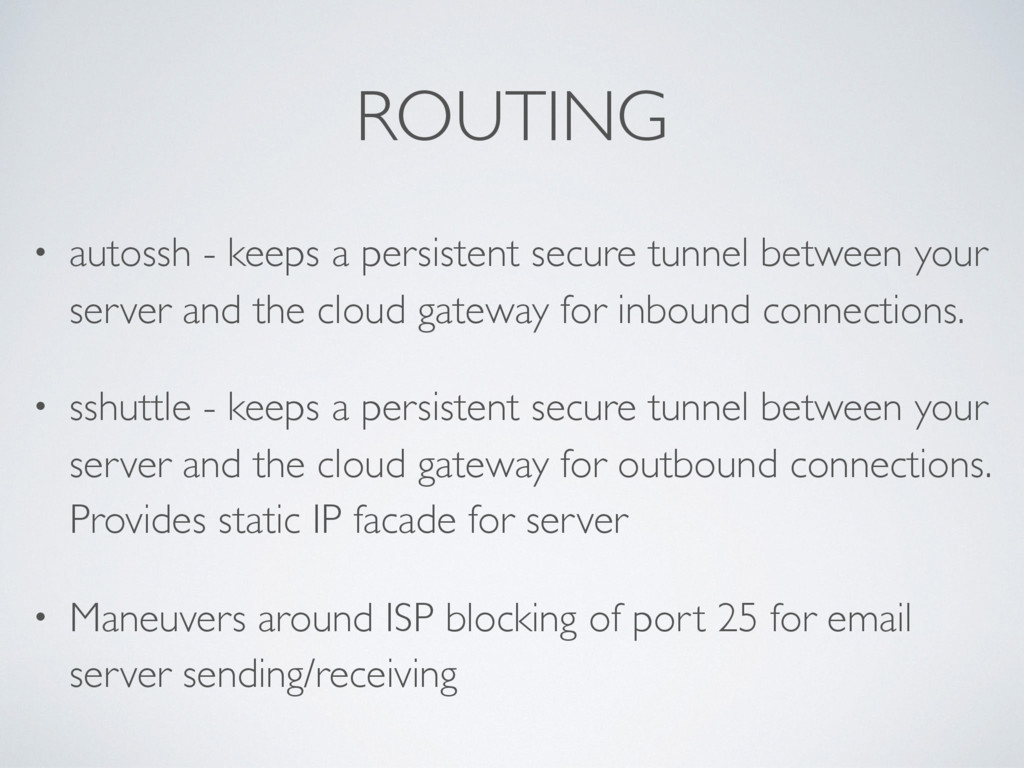
your server and the cloud gateway for inbound connections. • sshuttle - keeps a persistent secure tunnel between your server and the cloud gateway for outbound connections. Provides static IP facade for server • Maneuvers around ISP blocking of port 25 for email server sending/receiving
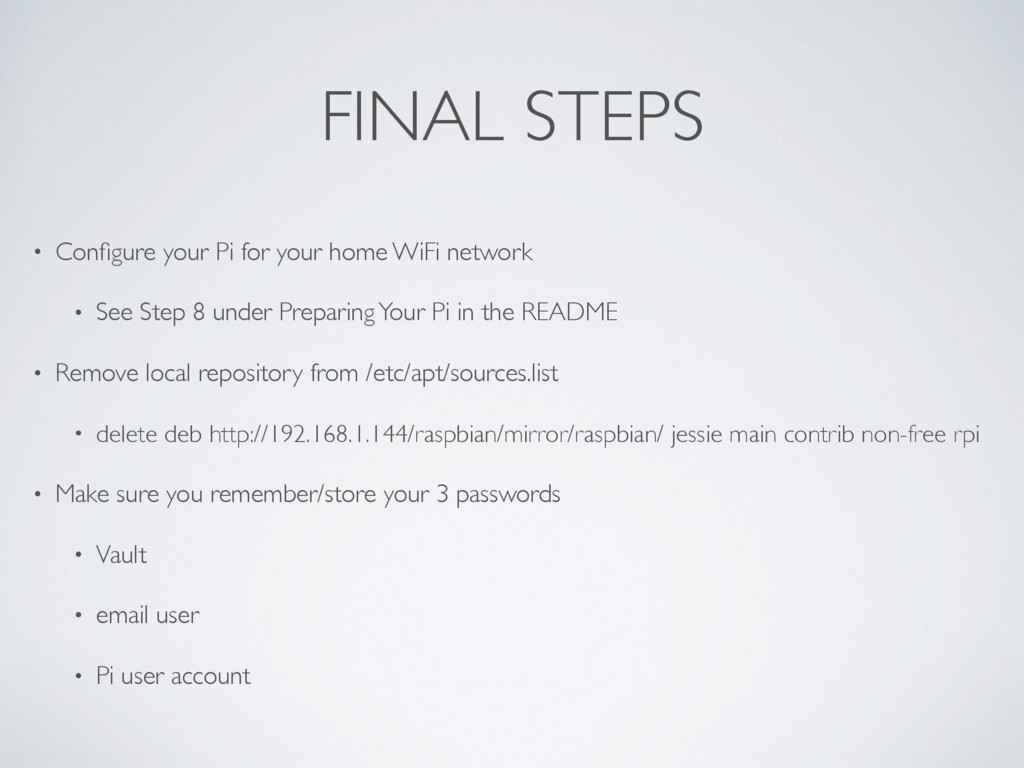
network • See Step 8 under Preparing Your Pi in the README • Remove local repository from /etc/apt/sources.list • delete deb http://192.168.1.144/raspbian/mirror/raspbian/ jessie main contrib non-free rpi • Make sure you remember/store your 3 passwords • Vault • email user • Pi user account
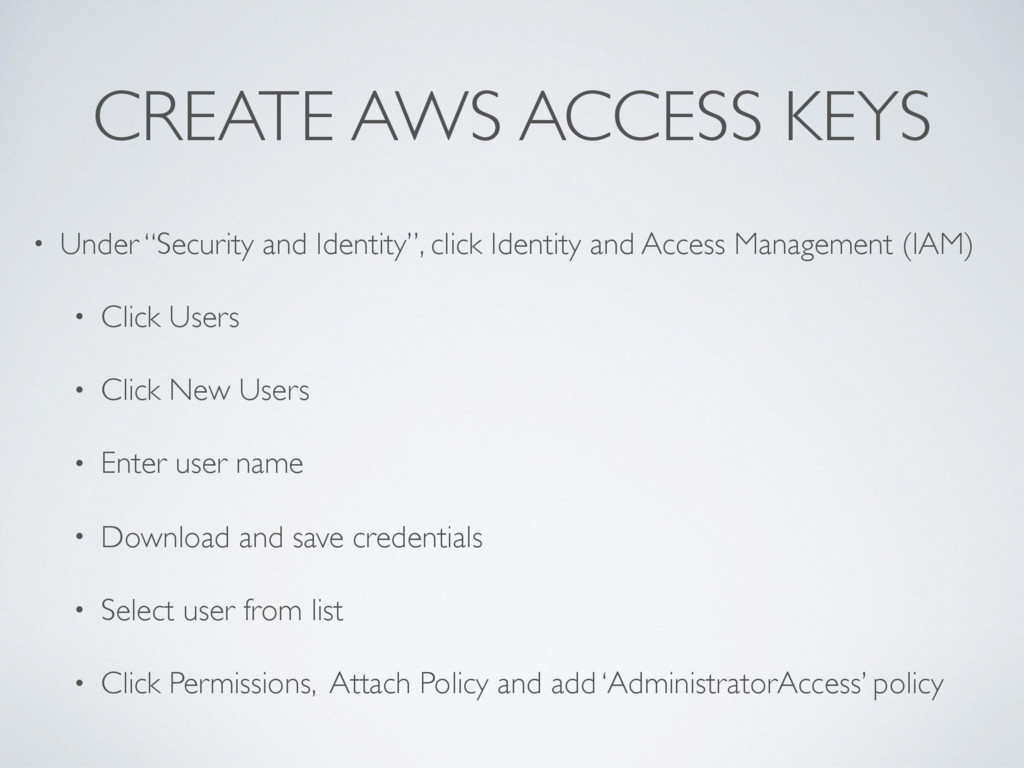
Identity and Access Management (IAM) • Click Users • Click New Users • Enter user name • Download and save credentials • Select user from list • Click Permissions, Attach Policy and add ‘AdministratorAccess’ policy


 girisreenivas
 nealle
 tomokusaba
 puhitaku
 codmoninc
 raspython3
 tetsuya28
 jyouryuusui
 glaforge
 kash1064
 bgpat
bgpat
 pfn
pfn
.png) codatum
codatum
 marketingsoph
 aleyda
 rkendrick25
 morganepeng
 auna
auna
 frankvandijk
 lemiorhan
 stuffmc
 destraynor
 kimpetersen
 irinanazarova
 holman



![CONFIGURE CLIENTS • username is user in [email protected] • password](https://files.speakerdeck.com/presentations/ca3854c55e234e6981aa3711fc2d5d81/slide_17.jpg)