Spaces and knowledge (Get answers from your com...

Riku INADA PRO
November 11, 2026

Spaces and knowledge (Get answers from your company's own documents) | AWS Quick: Zero to Hero 05

Level 200. A handout on how to use spaces and knowledge bases so that AWS Quick answers from your team and company documents. A space brings files, knowledge bases, and more together in one place for a team or project. With a monthly internal learning session as the example, it shows on English screens of Quick on the web how to create a space, wait for Ready, ask and check the sources, and share it with roles (owner or viewer). Everyone a space is shared with can see the files uploaded to it, while dashboards and knowledge bases in Quick follow the permissions of the viewer. A knowledge base takes in content from sources such as SharePoint, Amazon S3, and Google Drive as an index and syncs it on a schedule. Diagrams and tables, not screens, explain how this works, document-level access control, the two ways to connect SharePoint (a knowledge base or a connector), and how index capacity is counted. Sharing a space needs a plan other than Free, and on company plans Enterprise users create knowledge bases. It also covers indexing local folders in the desktop app and bringing in an Amazon Q Business index or an Amazon Bedrock managed knowledge base. The appendix has the sources to connect and their limits, a glossary, and sources. Based on public documentation and screens as of November 2026. Deck 05 (Go deeper) of the series AWS Quick: Zero to Hero.

Riku INADA PRO

November 11, 2026

Annual Pro sale · Save $30

Have presentations of your own?

Share with private links, password protection, and more control over your work.

Transcript

29 slides
  1. AWS Quick: Zero to Hero Go deeper Spaces and knowledge

    Get answers from your company's own documents 05 Level 200 / As of November 2026 November 2026 Riku Inada Amazon Web Services Japan © 2026, Amazon Web © 2026, Services, Amazon Inc. or Web its Services, affiliates.Inc. All or rights its affiliates. reserved.All rights reserved. 1
  2. Introduction About me Riku Inada Amazon Web Services Japan G.K.

    Solutions Architect Works mainly with manufacturing customers Recent work Promoting the AI-Driven Development Life Cycle (AI-DLC) Writing and speaking about Kiro and AWS Amplify © 2026, Amazon Web Services, Inc. or its affiliates. All rights reserved. X @inada_riku Speaker Deck speakerdeck.com/inariku Zenn zenn.dev/inariku GitHub github.com/inariku 2
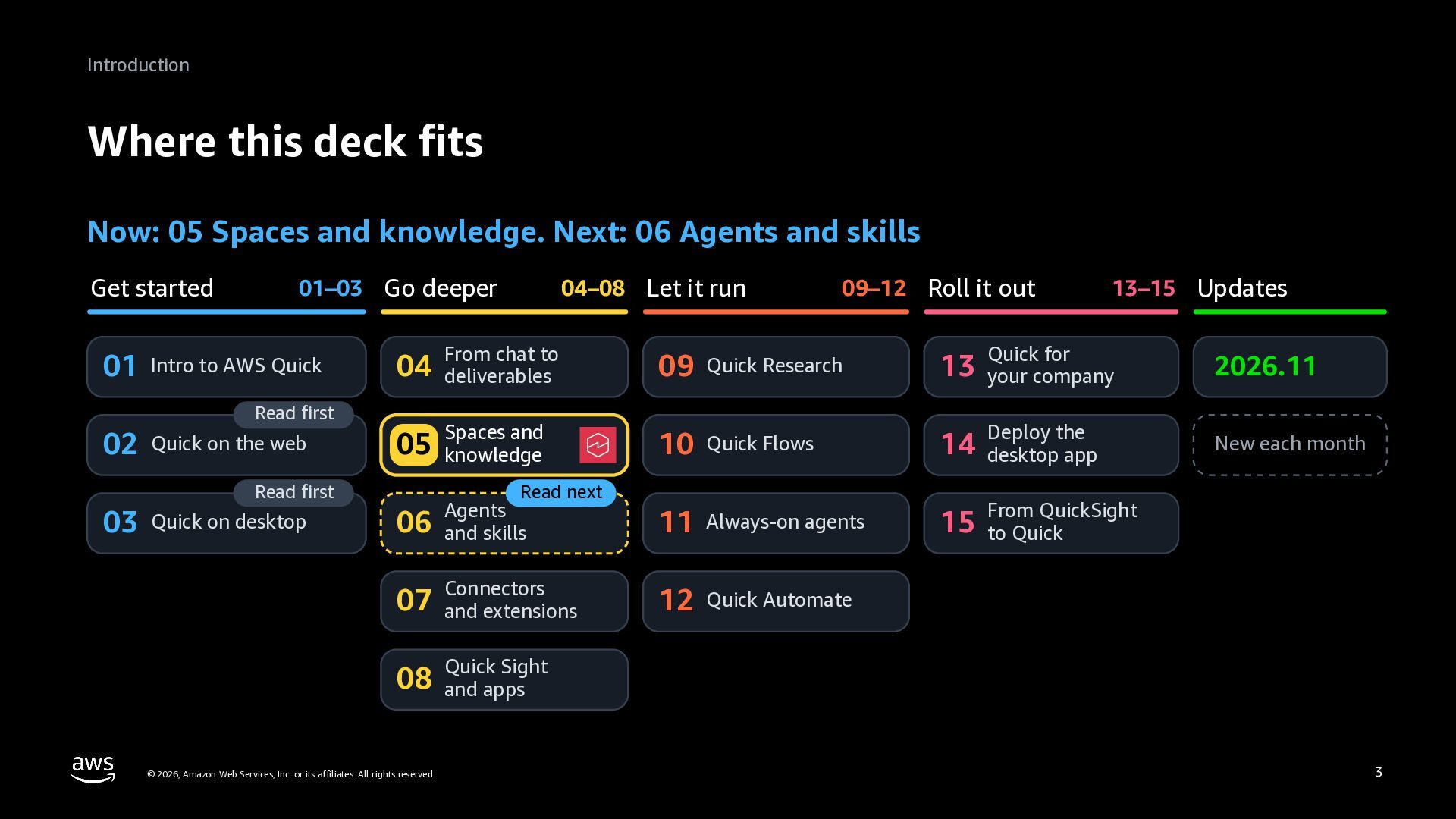
  3. Introduction Where this deck fits Now: 05 Spaces and knowledge.

    Next: 06 Agents and skills Get started 01–03 Go deeper 01 Intro to AWS Quick Read first 03 Quick on desktop 09–12 Roll it out 13–15 Updates From chat to 09 Quick Research 13 your company Spaces and 10 Quick Flows 14 desktop app 06 Agents and skills 11 Always-on agents QuickSight 15 From to Quick 07 Connectors and extensions 12 Quick Automate 04 deliverables Read first 02 Quick on the web 04–08 Let it run 05 knowledge Read next Quick for Deploy the 2026.11 New each month Sight 08 Quick and apps © 2026, Amazon Web Services, Inc. or its affiliates. All rights reserved. 3
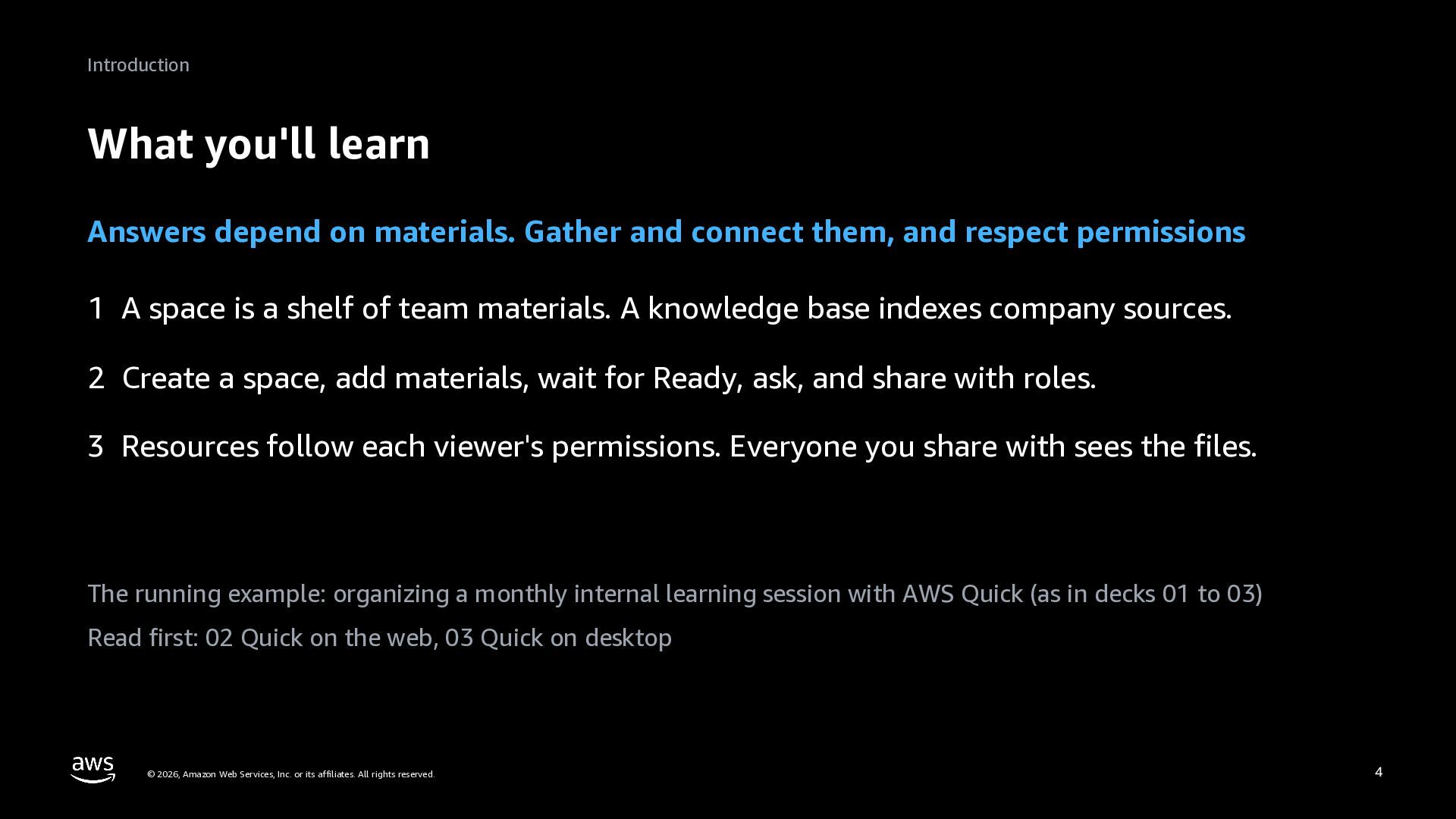
  4. Introduction What you'll learn Answers depend on materials. Gather and

    connect them, and respect permissions 1 A space is a shelf of team materials. A knowledge base indexes company sources. 2 Create a space, add materials, wait for Ready, ask, and share with roles. 3 Resources follow each viewer's permissions. Everyone you share with sees the files. The running example: organizing a monthly internal learning session with AWS Quick (as in decks 01 to 03) Read first: 02 Quick on the web, 03 Quick on desktop © 2026, Amazon Web Services, Inc. or its affiliates. All rights reserved. 4
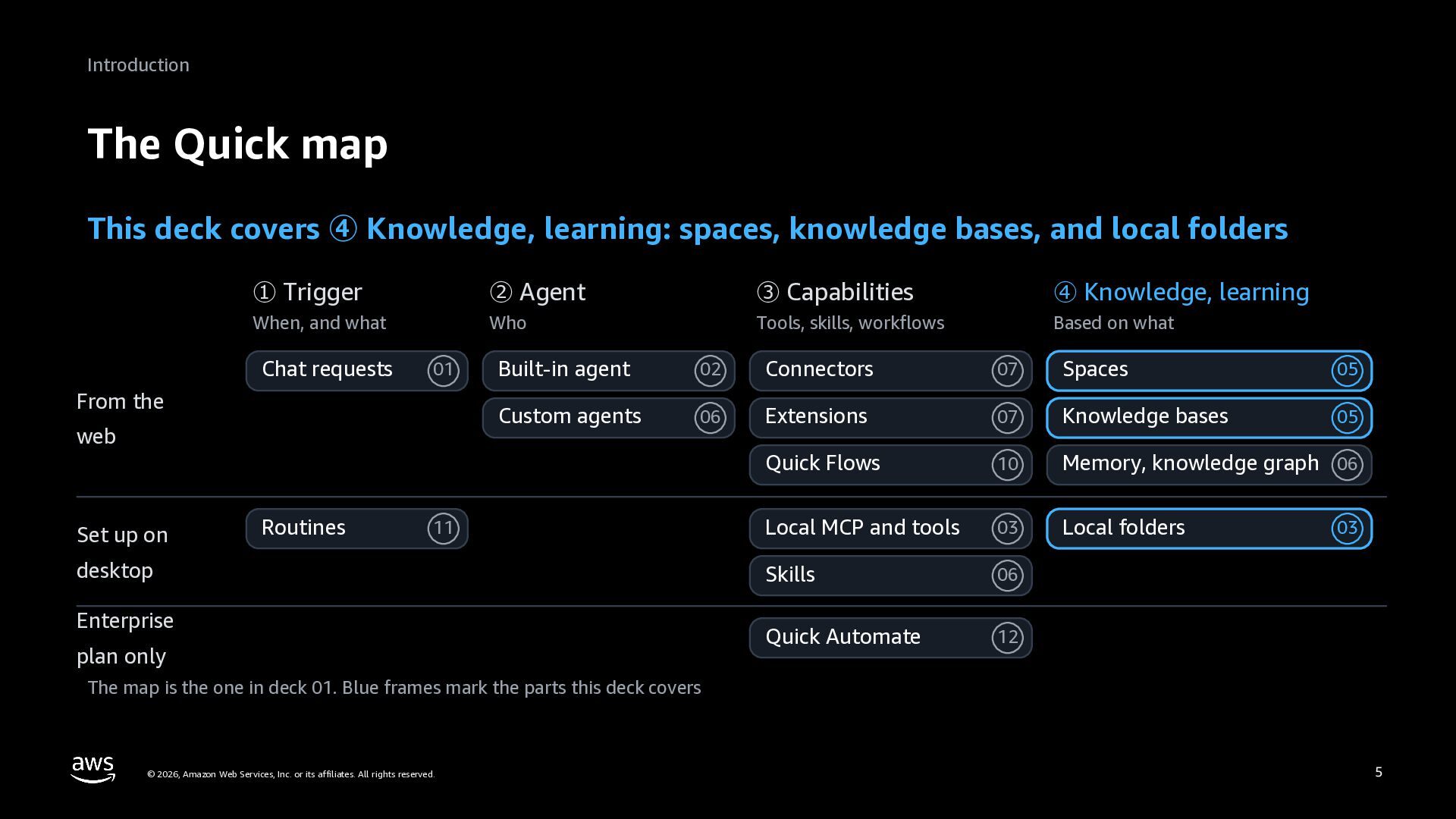
  5. Introduction The Quick map This deck covers ④ Knowledge, learning:

    spaces, knowledge bases, and local folders ① Trigger ② Agent ③ Capabilities ④ Knowledge, learning When, and what Who Tools, skills, workflows Based on what Chat requests 01 From the web Set up on Routines Built-in agent 02 Connectors 07 Spaces 05 Custom agents 06 Extensions 07 Knowledge bases 05 Quick Flows 10 Memory, knowledge graph 06 Local MCP and tools 03 Local folders Skills 06 Quick Automate 12 11 desktop Enterprise plan only 03 The map is the one in deck 01. Blue frames mark the parts this deck covers © 2026, Amazon Web Services, Inc. or its affiliates. All rights reserved. 5
  6. 1 Spaces © 2026, Amazon Web Services, Inc. or its

    affiliates. All rights reserved. 6
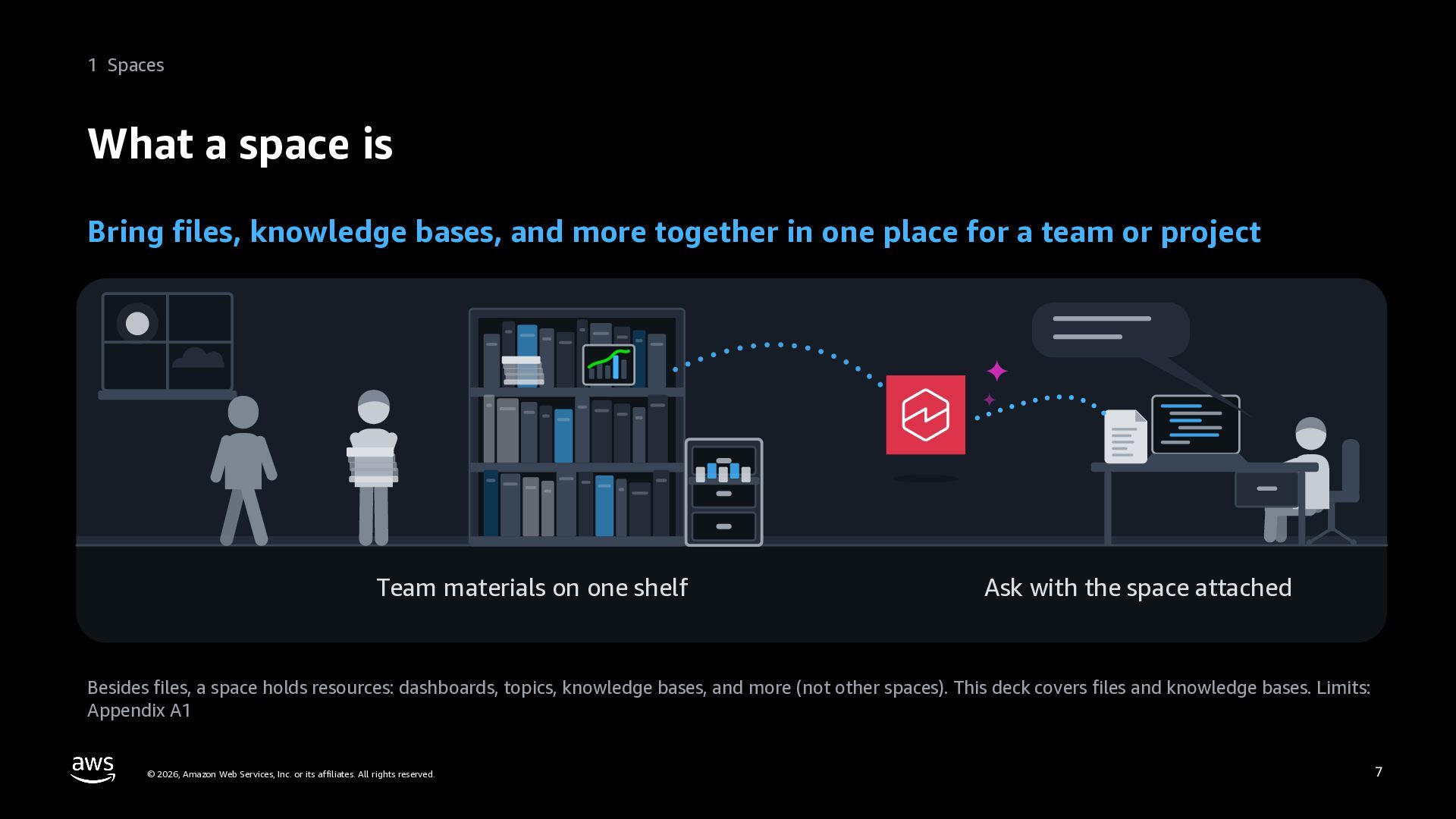
  7. 1 Spaces What a space is Bring files, knowledge bases,

    and more together in one place for a team or project Team materials on one shelf Ask with the space attached Besides files, a space holds resources: dashboards, topics, knowledge bases, and more (not other spaces). This deck covers files and knowledge bases. Limits: Appendix A1 © 2026, Amazon Web Services, Inc. or its affiliates. All rights reserved. 7
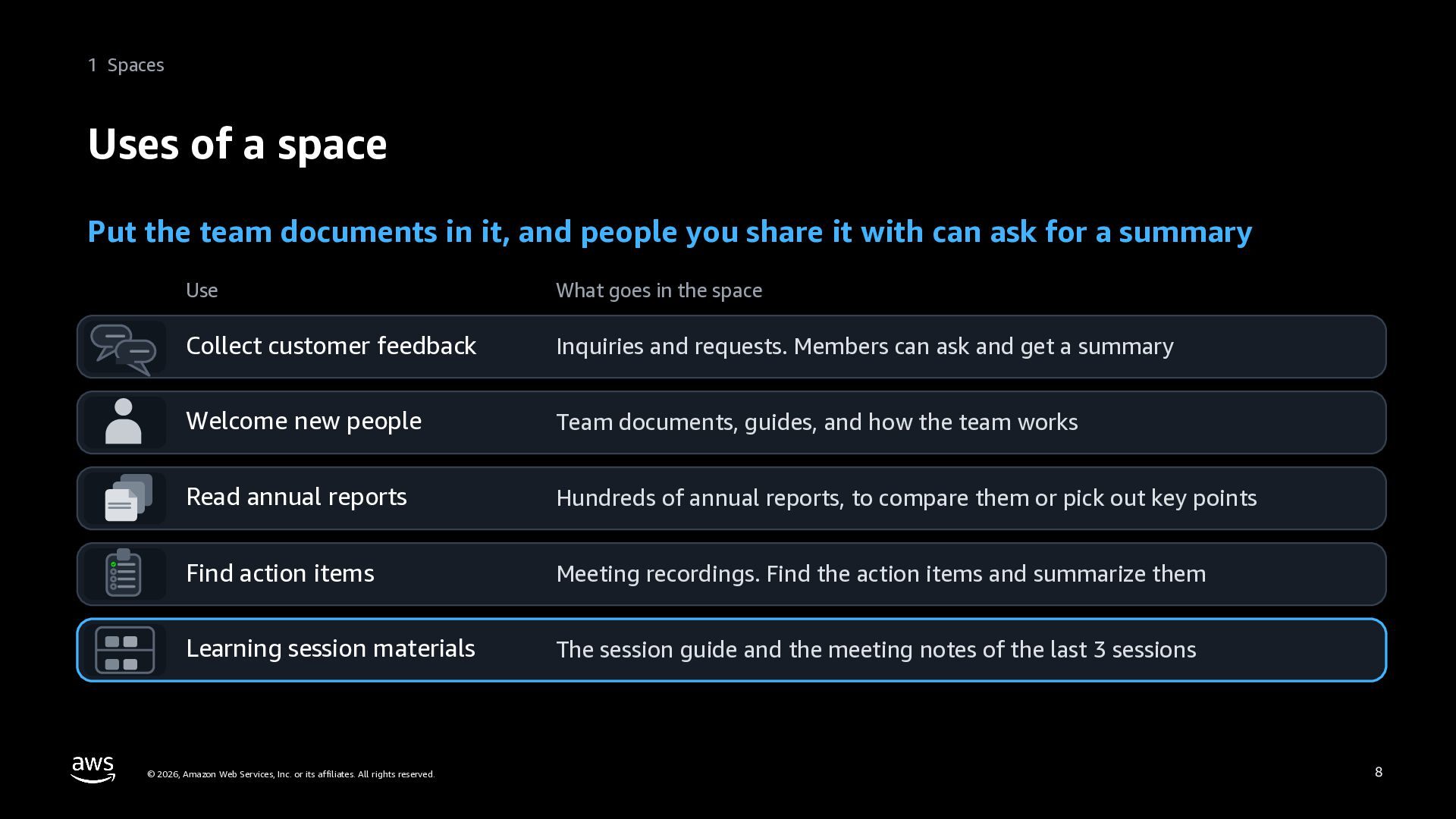
  8. 1 Spaces Uses of a space Put the team documents

    in it, and people you share it with can ask for a summary Use What goes in the space Collect customer feedback Inquiries and requests. Members can ask and get a summary Welcome new people Team documents, guides, and how the team works Read annual reports Hundreds of annual reports, to compare them or pick out key points Find action items Meeting recordings. Find the action items and summarize them Learning session materials The session guide and the meeting notes of the last 3 sessions © 2026, Amazon Web Services, Inc. or its affiliates. All rights reserved. 8
  9. 1 Spaces Create a space Create it from Spaces in

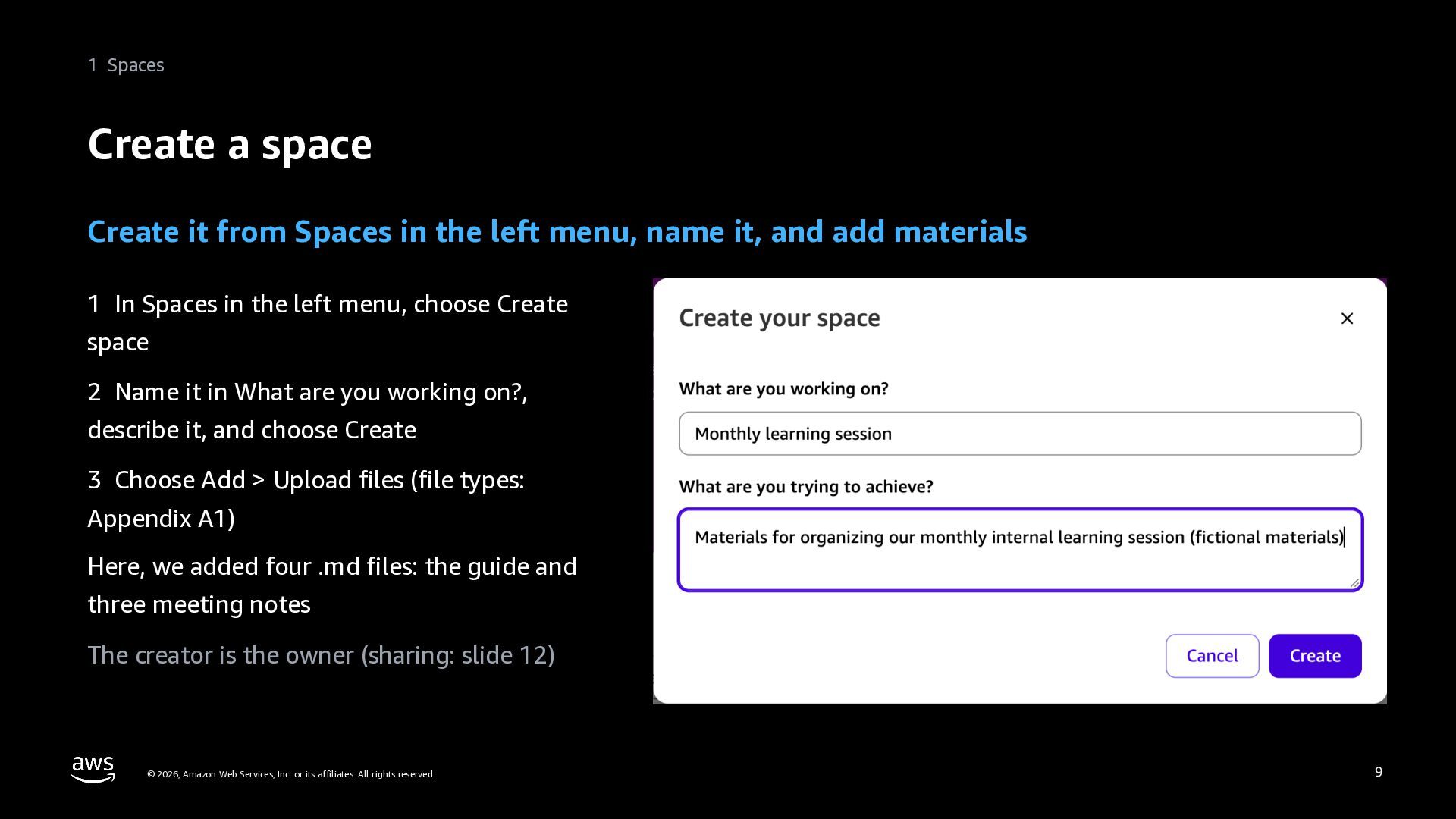
    the left menu, name it, and add materials 1 In Spaces in the left menu, choose Create space 2 Name it in What are you working on?, describe it, and choose Create 3 Choose Add > Upload files (file types: Appendix A1) Here, we added four .md files: the guide and three meeting notes The creator is the owner (sharing: slide 12) © 2026, Amazon Web Services, Inc. or its affiliates. All rights reserved. 9
  10. 1 Spaces Upload status Check the status before you ask.

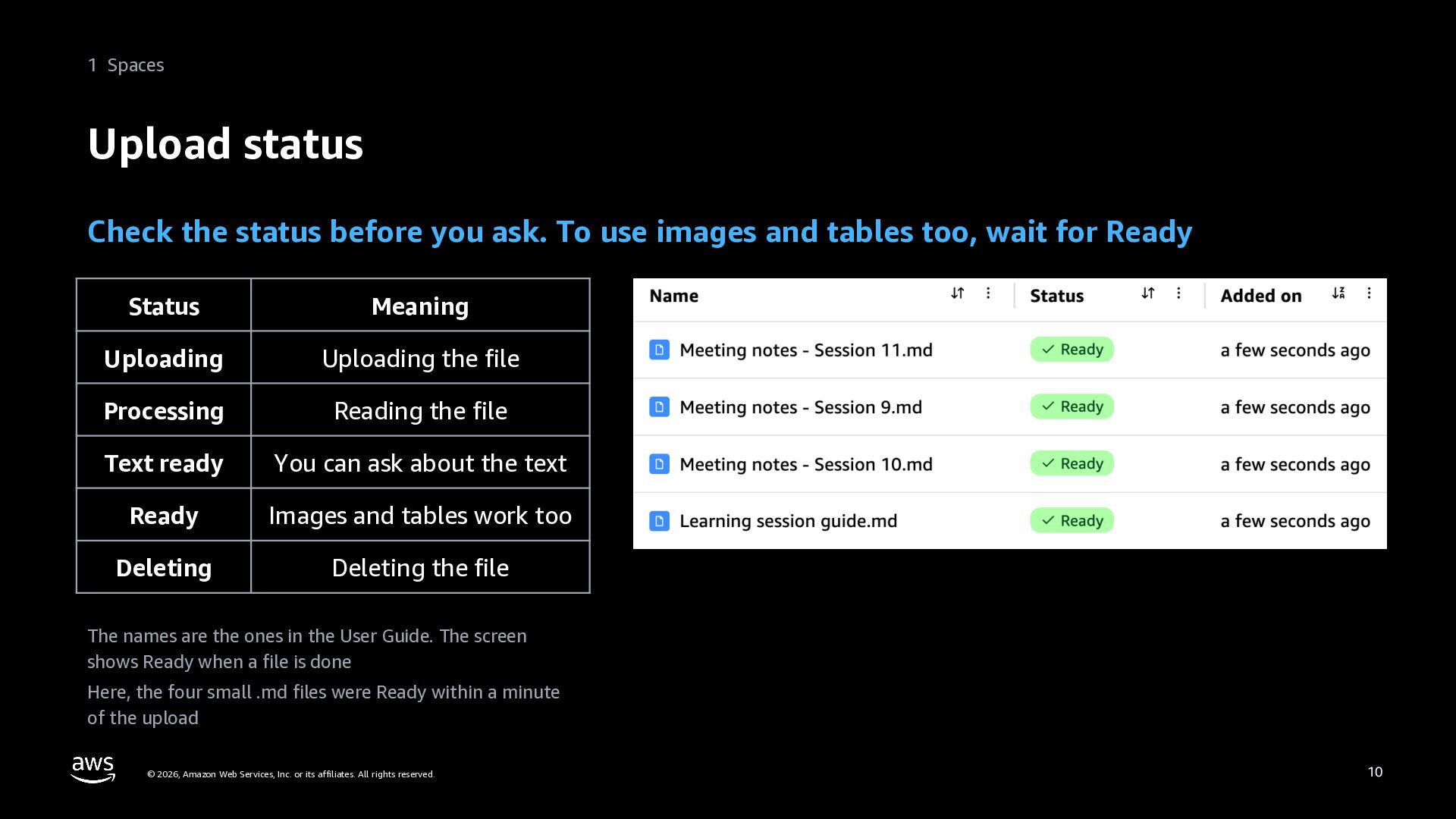
    To use images and tables too, wait for Ready Status Meaning Uploading Uploading the file Processing Reading the file Text ready You can ask about the text Ready Images and tables work too Deleting Deleting the file The names are the ones in the User Guide. The screen shows Ready when a file is done Here, the four small .md files were Ready within a minute of the upload © 2026, Amazon Web Services, Inc. or its affiliates. All rights reserved. 10
  11. 1 Spaces Ask in a space Open the space and

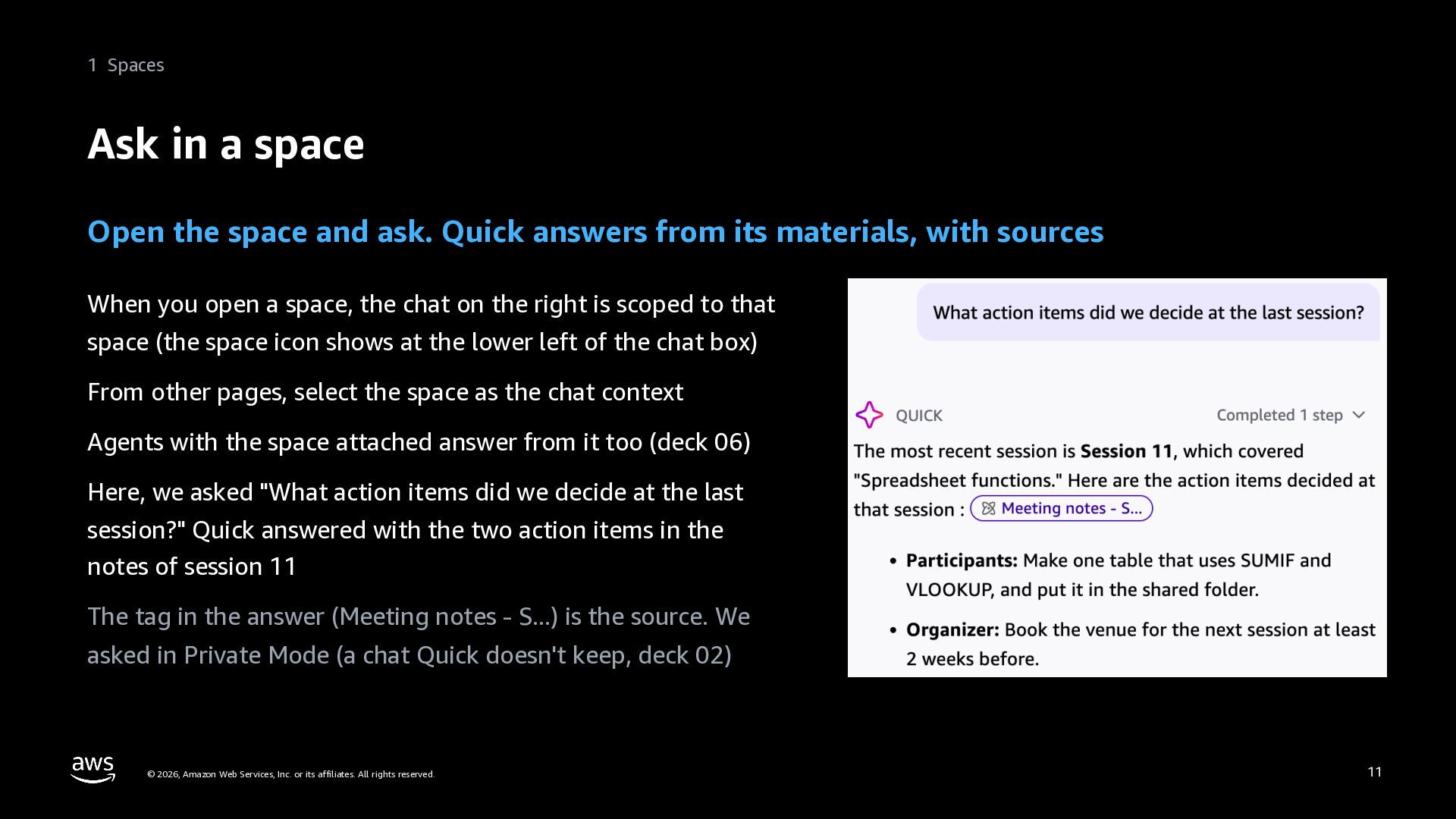
    ask. Quick answers from its materials, with sources When you open a space, the chat on the right is scoped to that space (the space icon shows at the lower left of the chat box) From other pages, select the space as the chat context Agents with the space attached answer from it too (deck 06) Here, we asked "What action items did we decide at the last session?" Quick answered with the two action items in the notes of session 11 The tag in the answer (Meeting notes - S...) is the source. We asked in Private Mode (a chat Quick doesn't keep, deck 02) © 2026, Amazon Web Services, Inc. or its affiliates. All rights reserved. 11
  12. 1 Spaces Sharing and roles When you share, make each

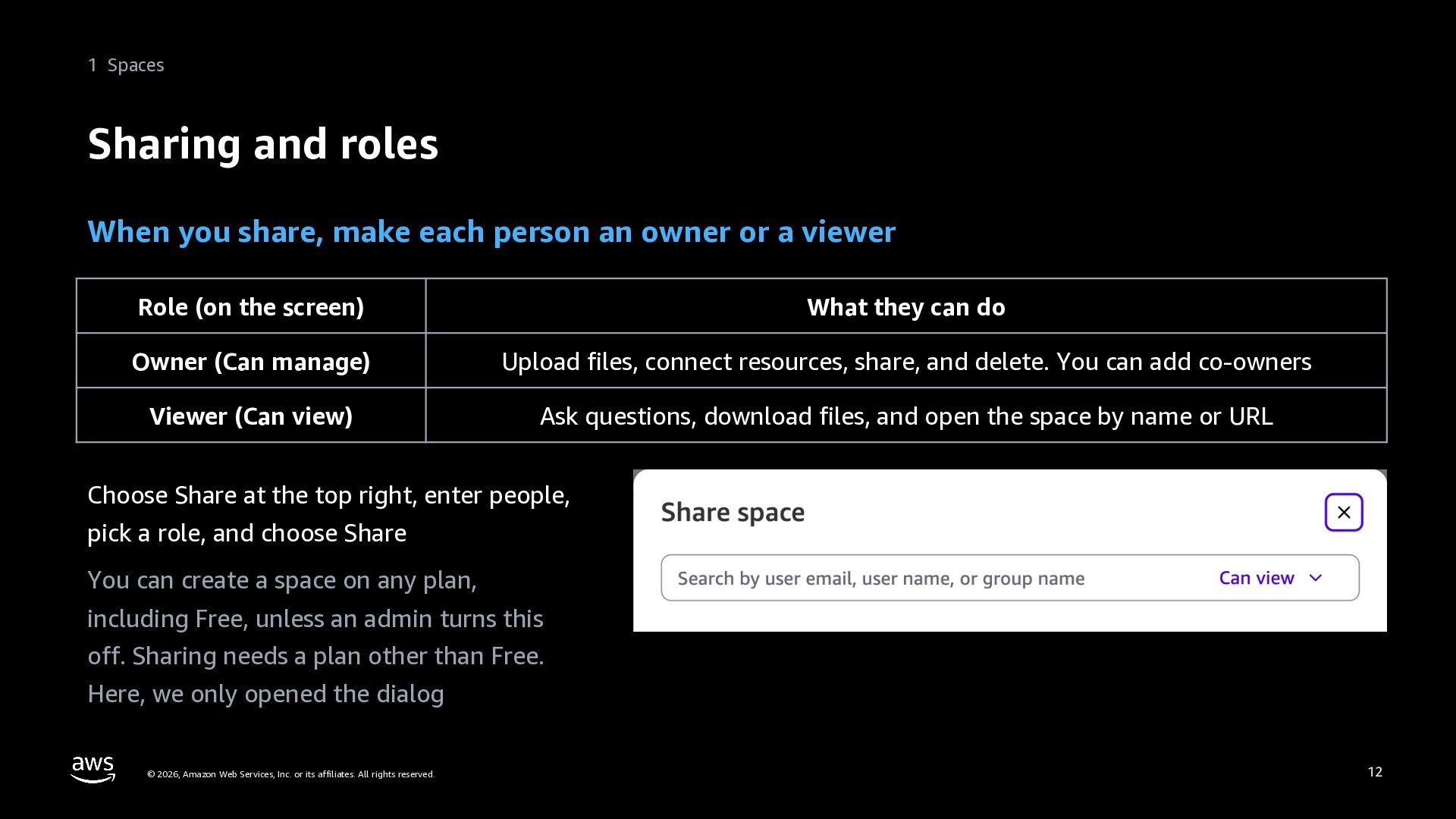
    person an owner or a viewer Role (on the screen) What they can do Owner (Can manage) Upload files, connect resources, share, and delete. You can add co-owners Viewer (Can view) Ask questions, download files, and open the space by name or URL Choose Share at the top right, enter people, pick a role, and choose Share You can create a space on any plan, including Free, unless an admin turns this off. Sharing needs a plan other than Free. Here, we only opened the dialog © 2026, Amazon Web Services, Inc. or its affiliates. All rights reserved. 12
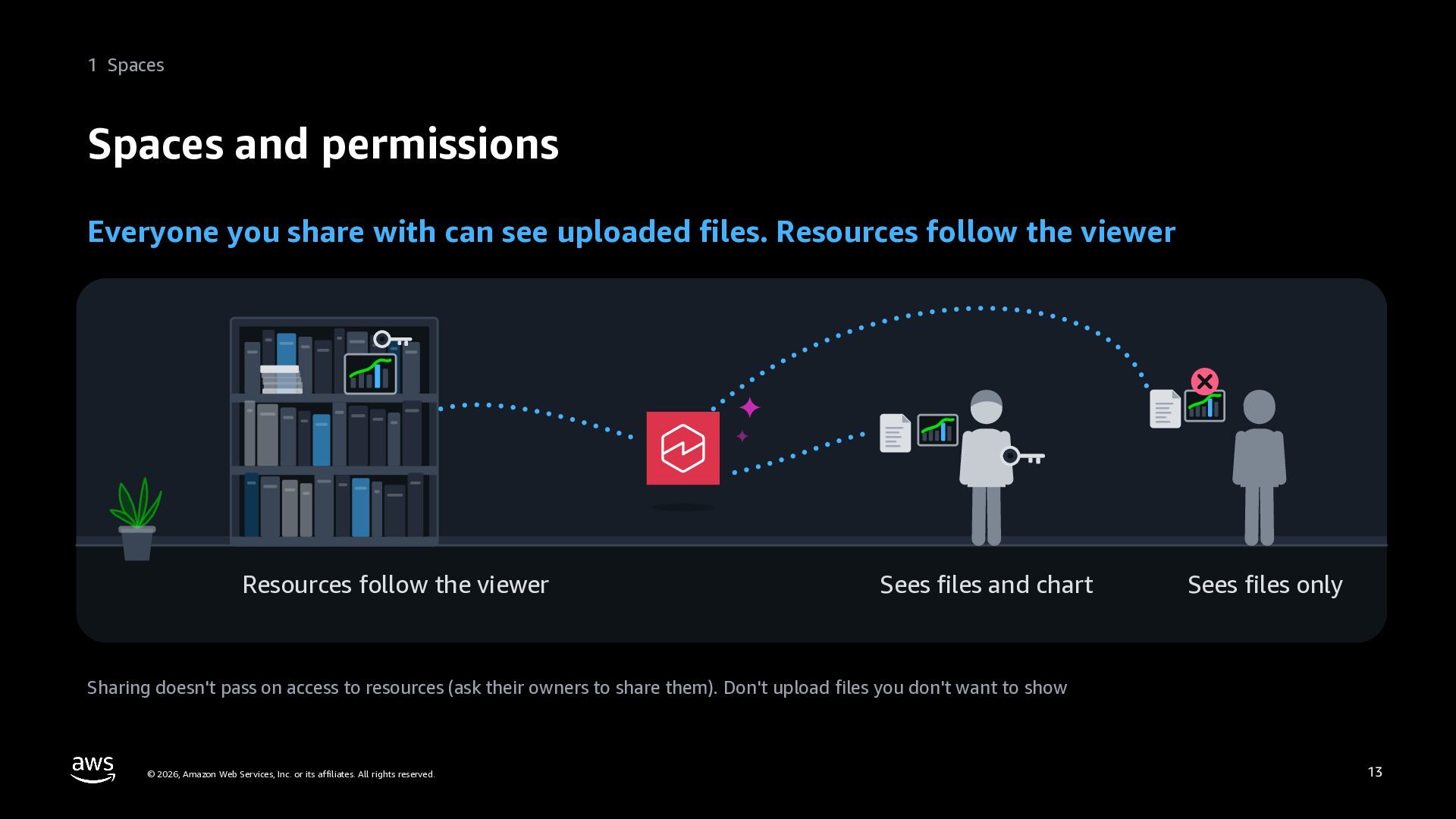
  13. 1 Spaces Spaces and permissions Everyone you share with can

    see uploaded files. Resources follow the viewer Resources follow the viewer Sees files and chart Sees files only Sharing doesn't pass on access to resources (ask their owners to share them). Don't upload files you don't want to show © 2026, Amazon Web Services, Inc. or its affiliates. All rights reserved. 13
  14. 2 Knowledge bases © 2026, Amazon Web Services, Inc. or

    its affiliates. All rights reserved. 14
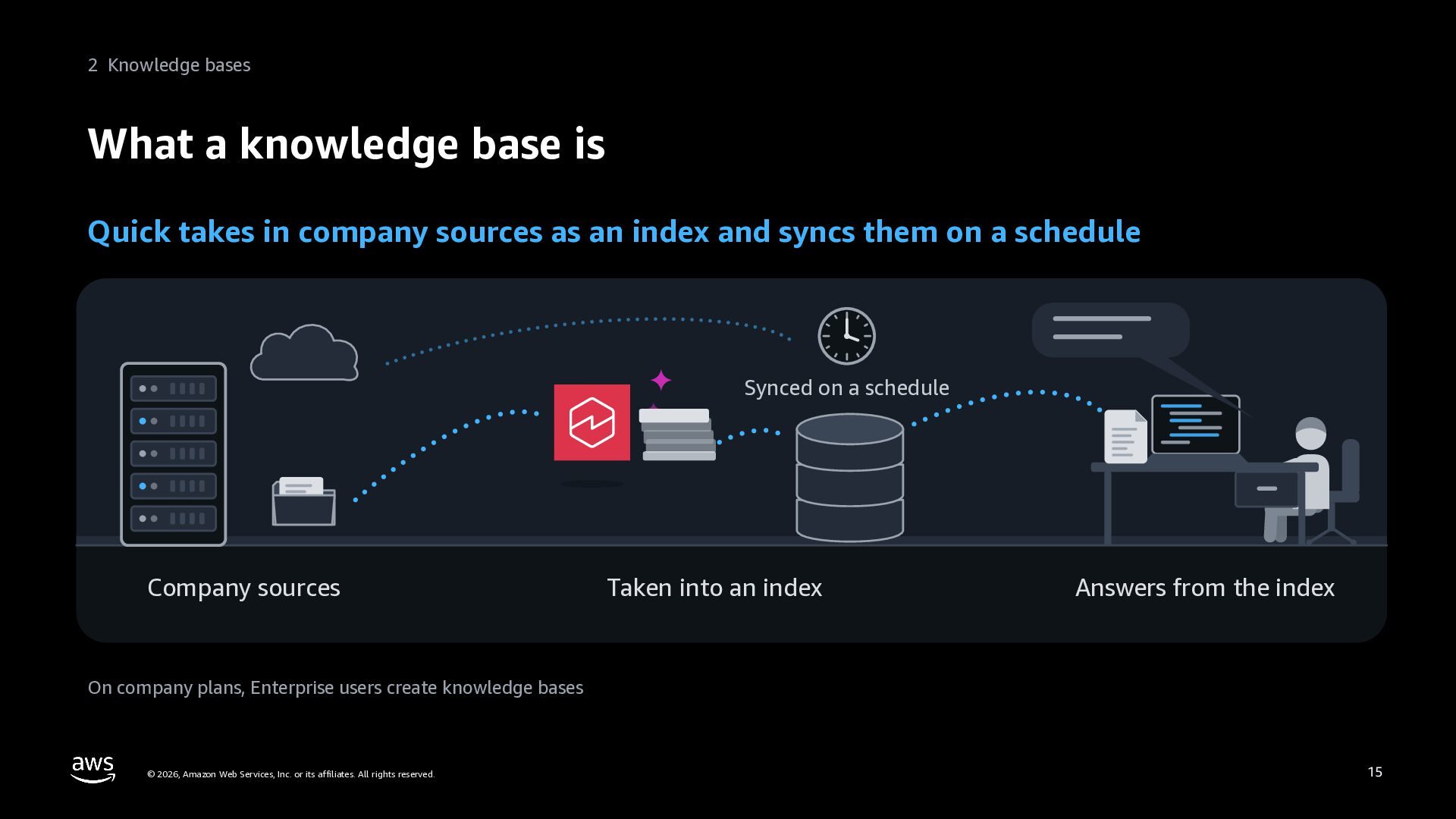
  15. 2 Knowledge bases What a knowledge base is Quick takes

    in company sources as an index and syncs them on a schedule Synced on a schedule Company sources Taken into an index Answers from the index On company plans, Enterprise users create knowledge bases © 2026, Amazon Web Services, Inc. or its affiliates. All rights reserved. 15
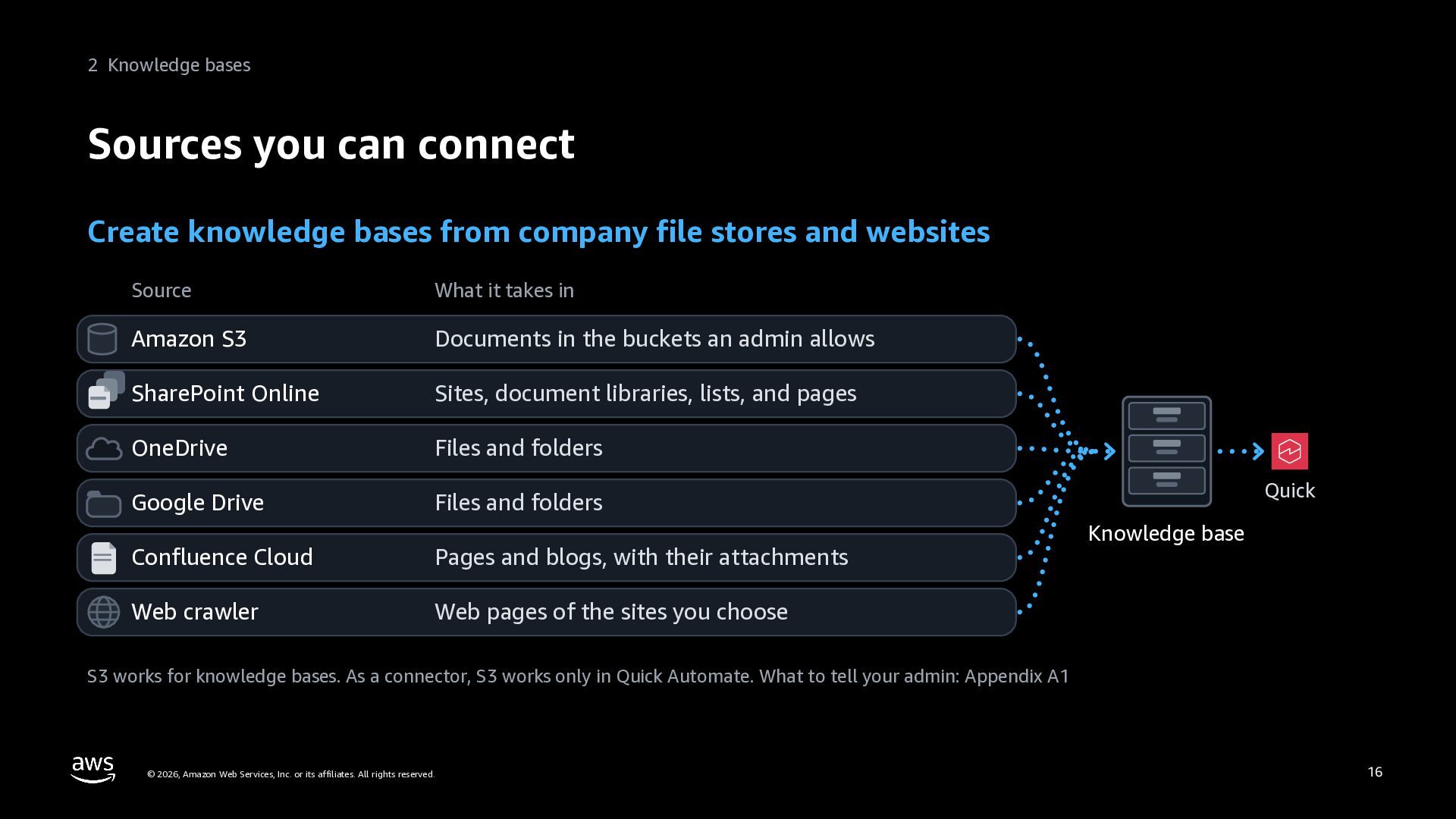
  16. 2 Knowledge bases Sources you can connect Create knowledge bases

    from company file stores and websites Source What it takes in Amazon S3 Documents in the buckets an admin allows SharePoint Online Sites, document libraries, lists, and pages OneDrive Files and folders Google Drive Files and folders Confluence Cloud Pages and blogs, with their attachments Web crawler Web pages of the sites you choose Quick Knowledge base S3 works for knowledge bases. As a connector, S3 works only in Quick Automate. What to tell your admin: Appendix A1 © 2026, Amazon Web Services, Inc. or its affiliates. All rights reserved. 16
  17. 2 Knowledge bases Document-level access control With document-level permissions, answers

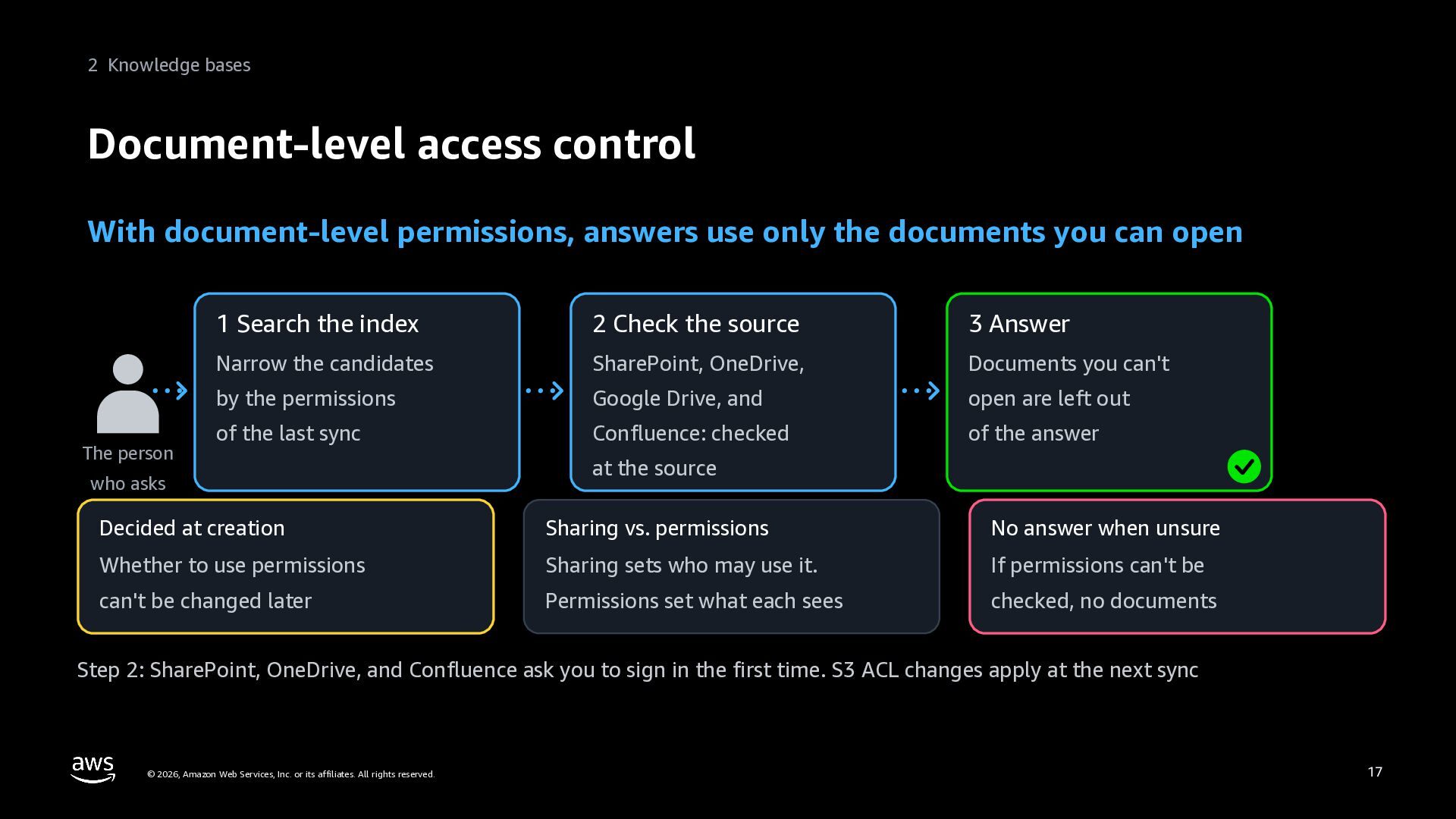
    use only the documents you can open The person 1 Search the index 2 Check the source 3 Answer Narrow the candidates SharePoint, OneDrive, Documents you can't by the permissions Google Drive, and open are left out of the last sync Confluence: checked of the answer who asks at the source Decided at creation Sharing vs. permissions No answer when unsure Whether to use permissions Sharing sets who may use it. If permissions can't be can't be changed later Permissions set what each sees checked, no documents Step 2: SharePoint, OneDrive, and Confluence ask you to sign in the first time. S3 ACL changes apply at the next sync © 2026, Amazon Web Services, Inc. or its affiliates. All rights reserved. 17
  18. 2 Knowledge bases Two ways to connect SharePoint Use a

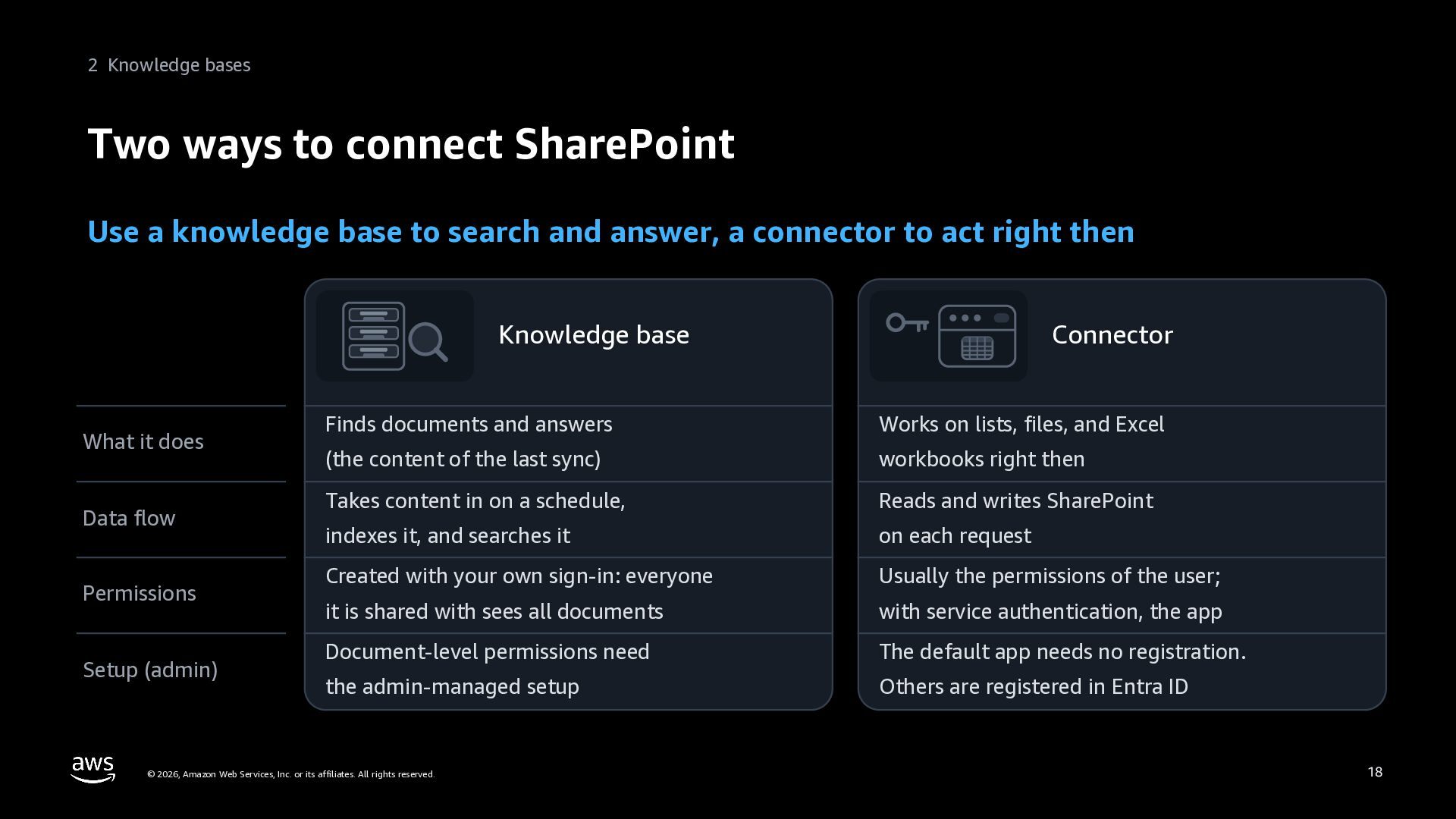
    knowledge base to search and answer, a connector to act right then Knowledge base What it does Data flow Permissions Setup (admin) Connector Finds documents and answers Works on lists, files, and Excel (the content of the last sync) workbooks right then Takes content in on a schedule, Reads and writes SharePoint indexes it, and searches it on each request Created with your own sign-in: everyone Usually the permissions of the user; it is shared with sees all documents with service authentication, the app Document-level permissions need The default app needs no registration. the admin-managed setup Others are registered in Entra ID © 2026, Amazon Web Services, Inc. or its affiliates. All rights reserved. 18
  19. 2 Knowledge bases Index capacity Index capacity counts the size

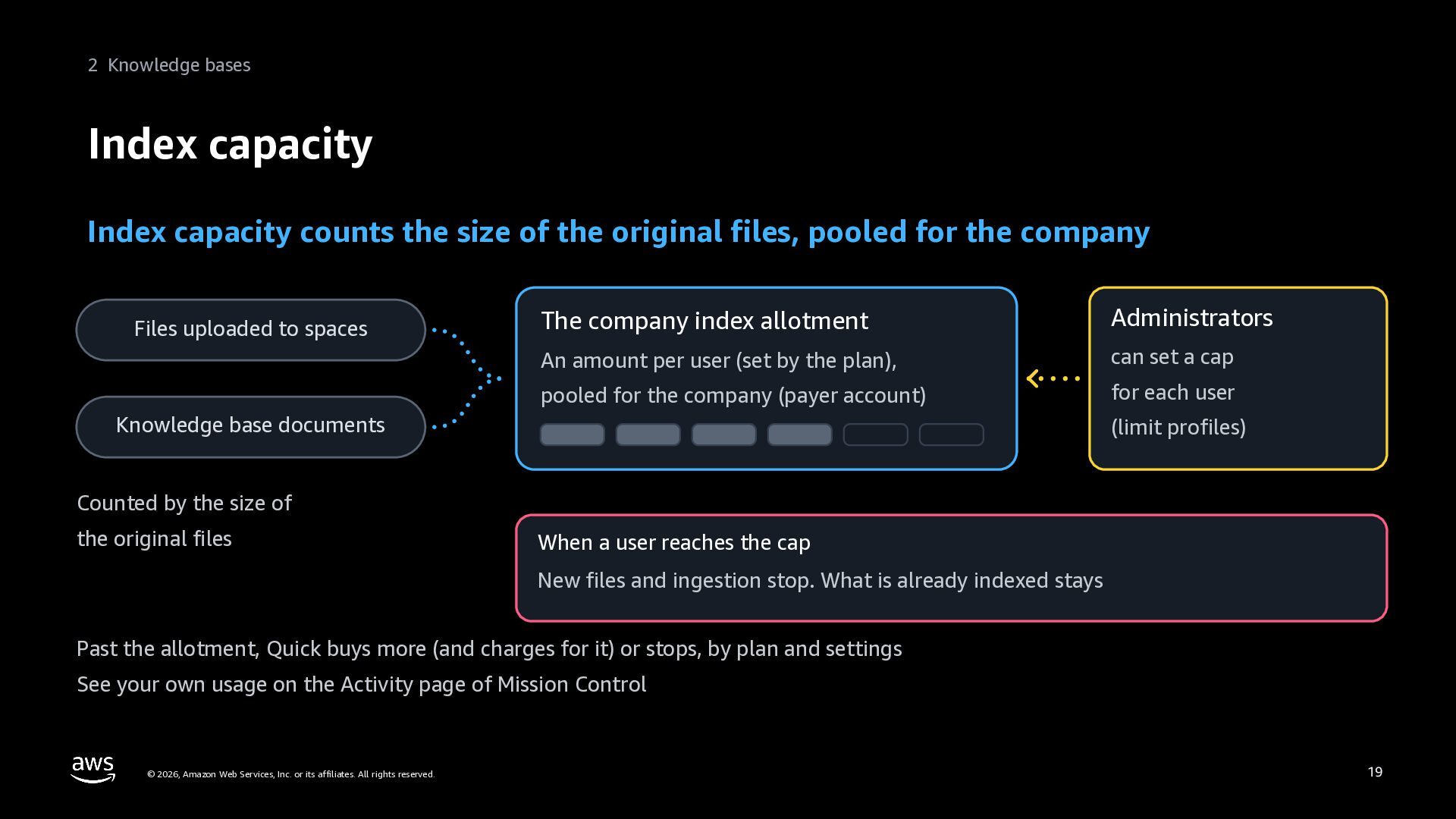
    of the original files, pooled for the company Files uploaded to spaces The company index allotment Administrators An amount per user (set by the plan), can set a cap pooled for the company (payer account) for each user Knowledge base documents (limit profiles) Counted by the size of the original files When a user reaches the cap New files and ingestion stop. What is already indexed stays Past the allotment, Quick buys more (and charges for it) or stops, by plan and settings See your own usage on the Activity page of Mission Control © 2026, Amazon Web Services, Inc. or its affiliates. All rights reserved. 19
  20. 3 Other materials © 2026, Amazon Web Services, Inc. or

    its affiliates. All rights reserved. 20
  21. 3 Other materials Local folders on desktop Index a local

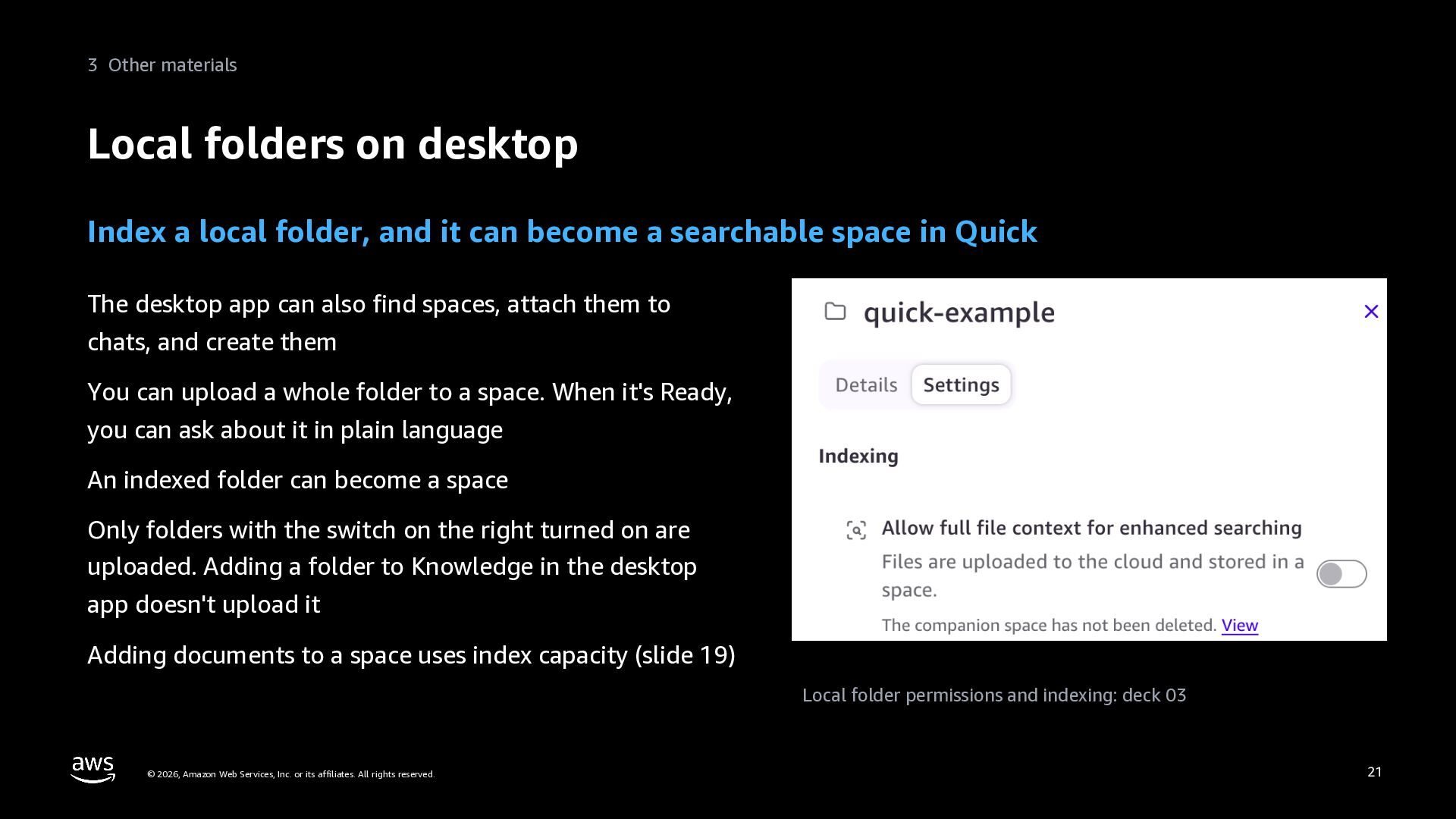
    folder, and it can become a searchable space in Quick The desktop app can also find spaces, attach them to chats, and create them You can upload a whole folder to a space. When it's Ready, you can ask about it in plain language An indexed folder can become a space Only folders with the switch on the right turned on are uploaded. Adding a folder to Knowledge in the desktop app doesn't upload it Adding documents to a space uses index capacity (slide 19) Local folder permissions and indexing: deck 03 © 2026, Amazon Web Services, Inc. or its affiliates. All rights reserved. 21
  22. 3 Other materials Bring an existing index Use Q Business

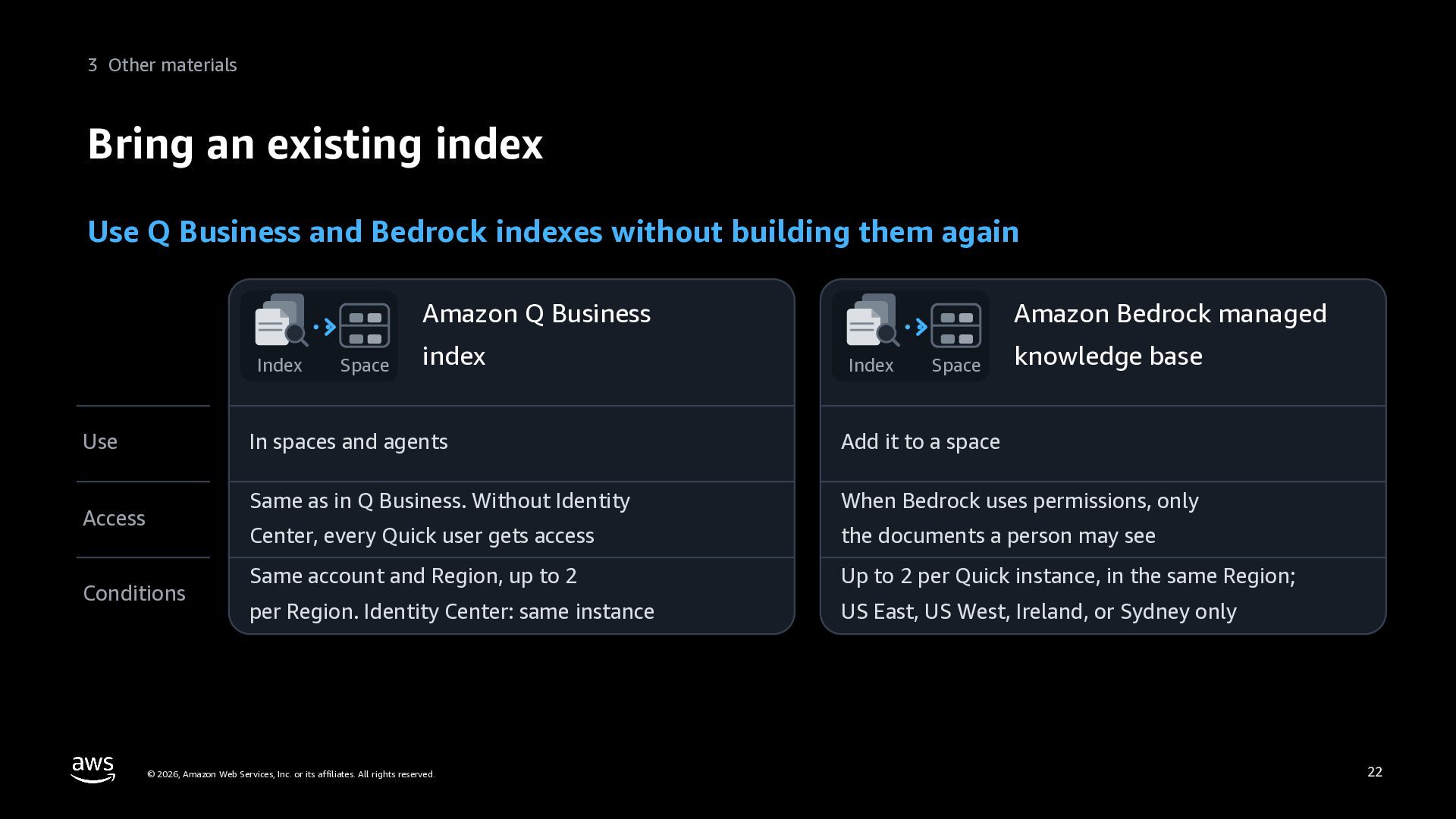
    and Bedrock indexes without building them again Amazon Q Business Index Use Access Conditions Space index Amazon Bedrock managed Index Space knowledge base In spaces and agents Add it to a space Same as in Q Business. Without Identity When Bedrock uses permissions, only Center, every Quick user gets access the documents a person may see Same account and Region, up to 2 Up to 2 per Quick instance, in the same Region; per Region. Identity Center: same instance US East, US West, Ireland, or Sydney only © 2026, Amazon Web Services, Inc. or its affiliates. All rights reserved. 22
  23. Summary Summary Gather the materials, connect them, and respect permissions

    1 A space is a shelf of team materials. A knowledge base indexes company sources. 2 Create a space, add materials, wait for Ready, ask, and share with roles. 3 Resources follow each viewer's permissions. Everyone you share with sees the files. Your first time Create a space (slide 9) > Wait for Ready (slide 10) > Ask and check the sources (slide 11) > Choose roles and share (slide 12) © 2026, Amazon Web Services, Inc. or its affiliates. All rights reserved. 24
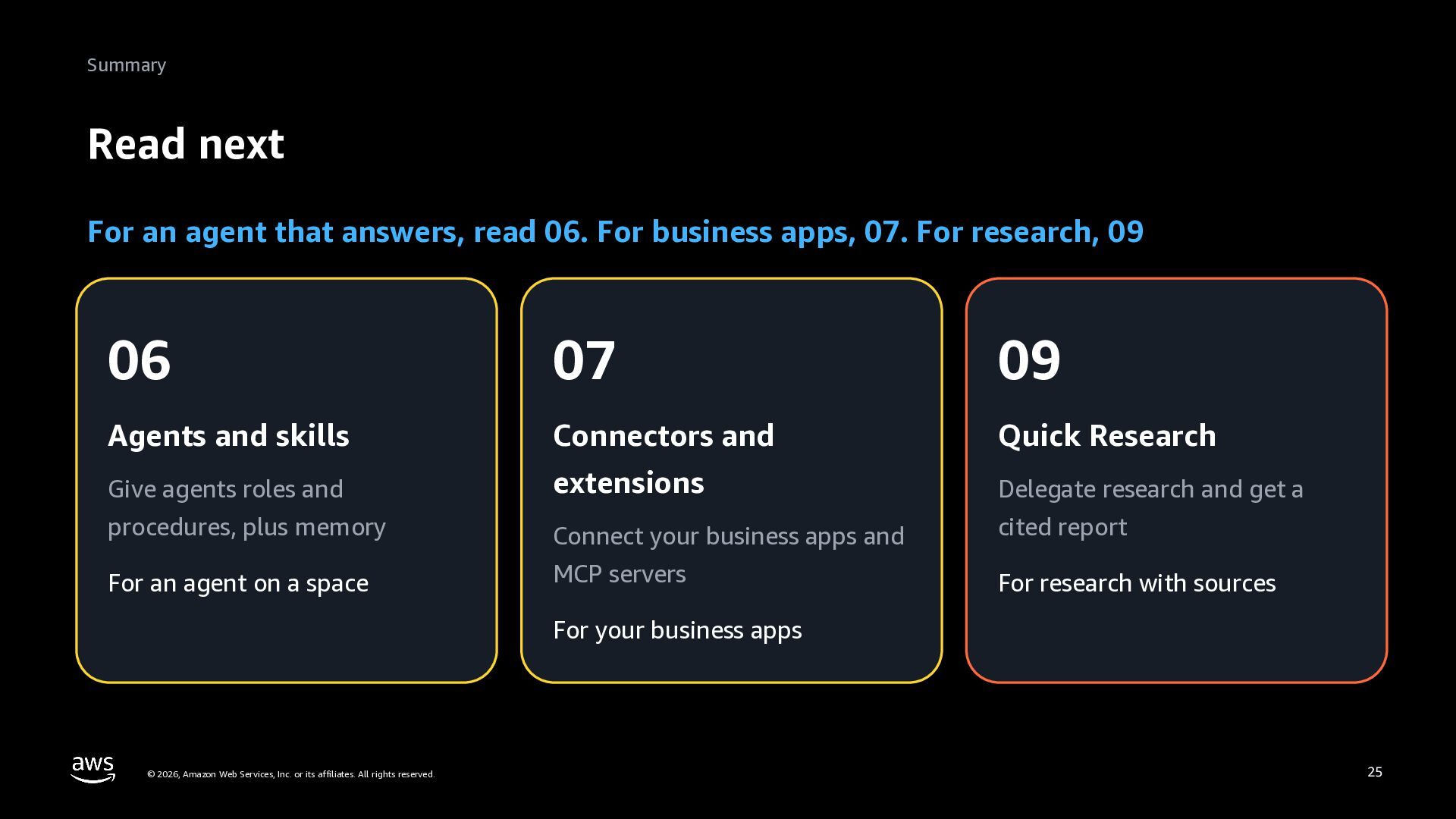
  24. Summary Read next For an agent that answers, read 06.

    For business apps, 07. For research, 09 06 07 09 Agents and skills Connectors and Quick Research Give agents roles and extensions Delegate research and get a procedures, plus memory Connect your business apps and cited report For an agent on a space MCP servers For research with sources For your business apps © 2026, Amazon Web Services, Inc. or its affiliates. All rights reserved. 25
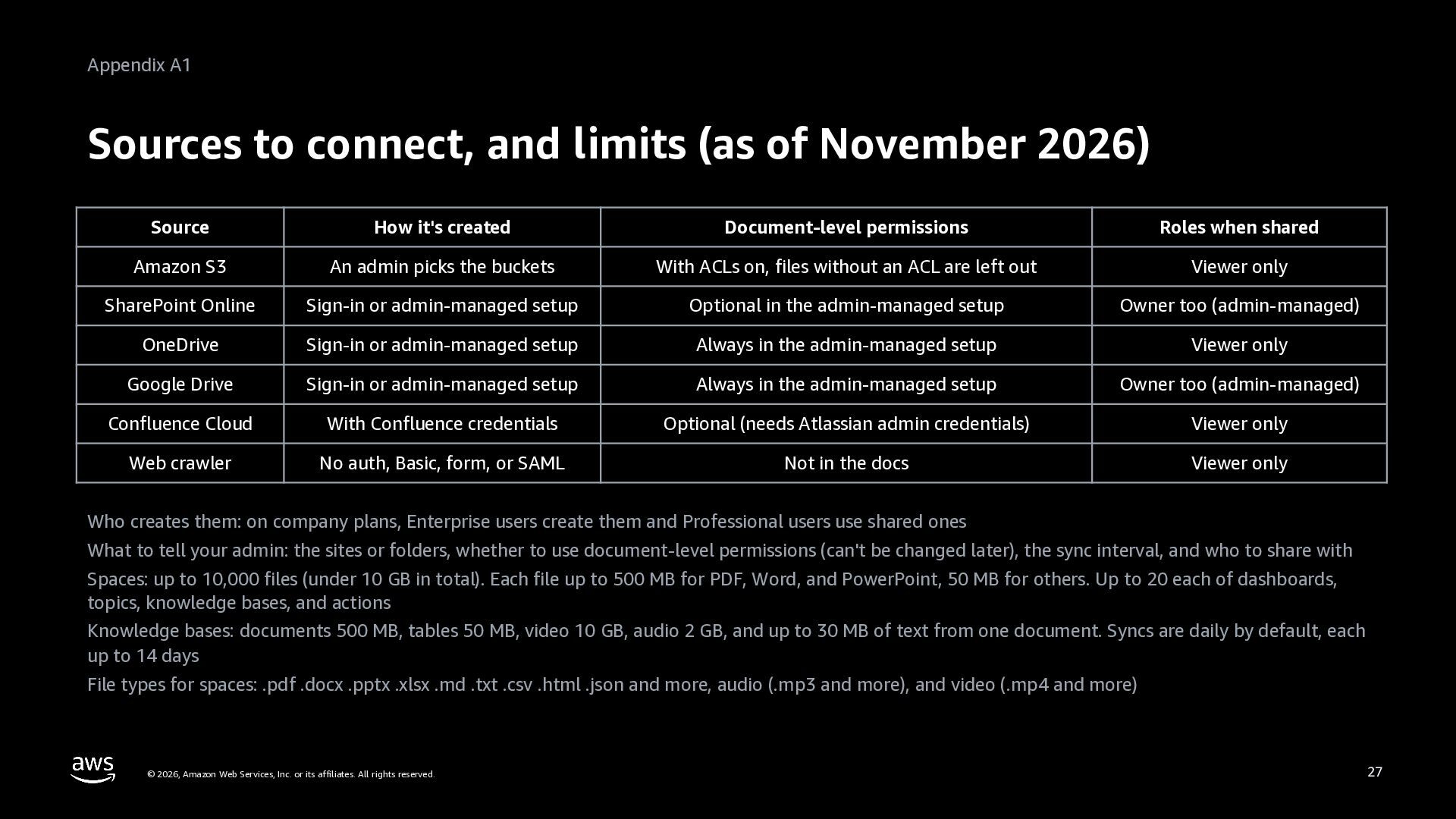
  25. Appendix A1 Sources to connect, and limits (as of November

    2026) Source How it's created Document-level permissions Roles when shared Amazon S3 An admin picks the buckets With ACLs on, files without an ACL are left out Viewer only SharePoint Online Sign-in or admin-managed setup Optional in the admin-managed setup Owner too (admin-managed) OneDrive Sign-in or admin-managed setup Always in the admin-managed setup Viewer only Google Drive Sign-in or admin-managed setup Always in the admin-managed setup Owner too (admin-managed) Confluence Cloud With Confluence credentials Optional (needs Atlassian admin credentials) Viewer only Web crawler No auth, Basic, form, or SAML Not in the docs Viewer only Who creates them: on company plans, Enterprise users create them and Professional users use shared ones What to tell your admin: the sites or folders, whether to use document-level permissions (can't be changed later), the sync interval, and who to share with Spaces: up to 10,000 files (under 10 GB in total). Each file up to 500 MB for PDF, Word, and PowerPoint, 50 MB for others. Up to 20 each of dashboards, topics, knowledge bases, and actions Knowledge bases: documents 500 MB, tables 50 MB, video 10 GB, audio 2 GB, and up to 30 MB of text from one document. Syncs are daily by default, each up to 14 days File types for spaces: .pdf .docx .pptx .xlsx .md .txt .csv .html .json and more, audio (.mp3 and more), and video (.mp4 and more) © 2026, Amazon Web Services, Inc. or its affiliates. All rights reserved. 27
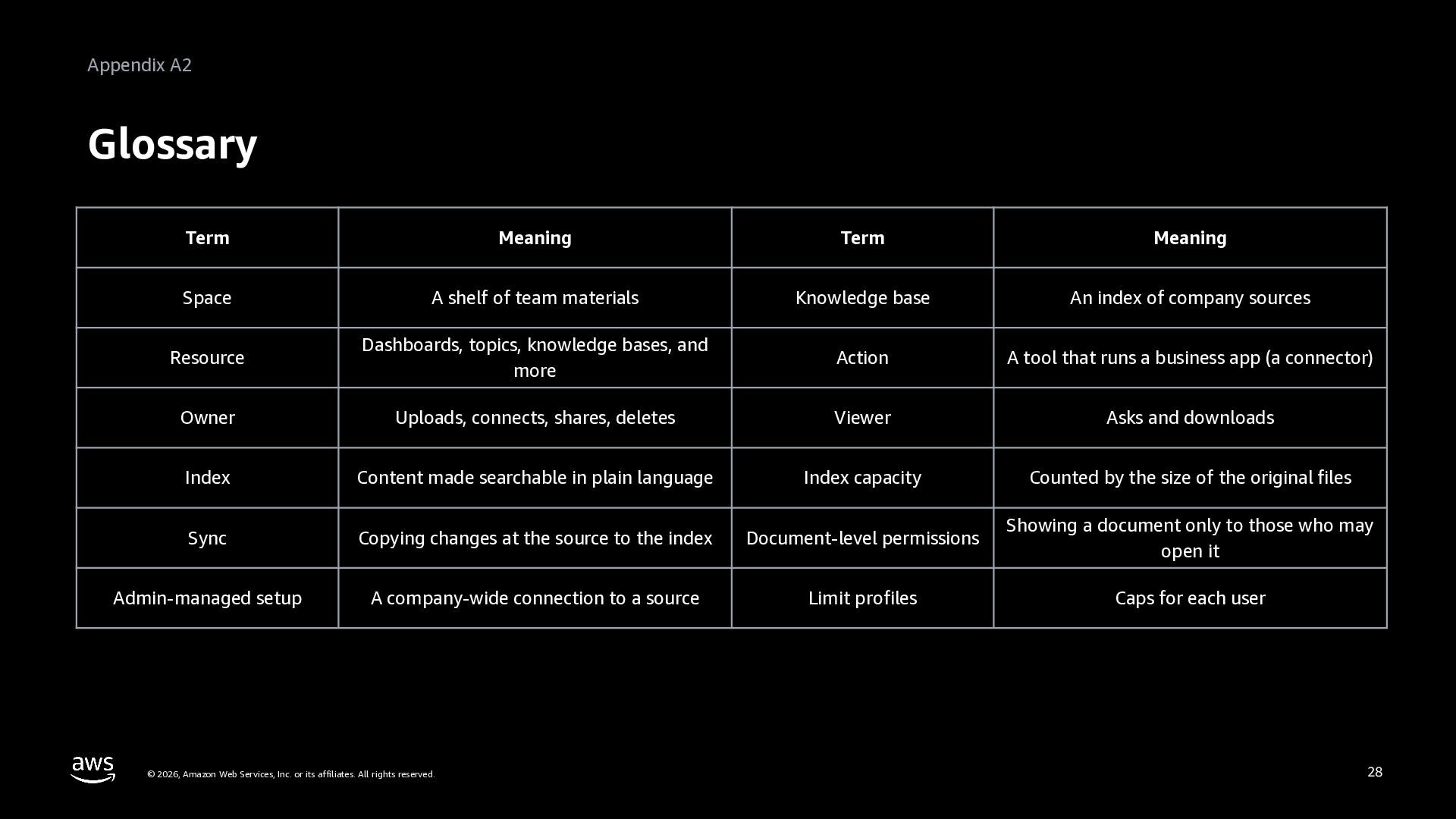
  26. Appendix A2 Glossary Term Meaning Term Meaning Space A shelf

    of team materials Knowledge base An index of company sources Resource Dashboards, topics, knowledge bases, and more Action A tool that runs a business app (a connector) Owner Uploads, connects, shares, deletes Viewer Asks and downloads Index Content made searchable in plain language Index capacity Counted by the size of the original files Sync Copying changes at the source to the index Document-level permissions Showing a document only to those who may open it Admin-managed setup A company-wide connection to a source Limit profiles Caps for each user © 2026, Amazon Web Services, Inc. or its affiliates. All rights reserved. 28
  27. Appendix A3 Sources AWS Quick User Guide, read on November

    9, 2026 (slides 4, 5, 7–13, 15–19, 21, 22, 27, 28) https://docs.aws.amazon.com/quick/latest/userguide/ AWS Quick pricing page and its FAQ (slides 12, 19) https://aws.amazon.com/quick/pricing/ What's New, April 23 and September 9, 2026 (slides 17, 21) https://aws.amazon.com/about-aws/whats-new/ AWS Japan Blog, May 1, 2026 (in Japanese): connecting AWS Quick to Microsoft SharePoint Online (slide 18) https://aws.amazon.com/jp/blogs/news/amazon-quick-lets-connect-company-knowledge-microsoft-sharepoint-online-ver/ AWS Artificial Intelligence Blog: "Taxonomy of agentic primitives in AWS Quick" (slide 5) https://aws.amazon.com/blogs/machine-learning/taxonomy-of-agentic-primitives-in-amazon-quick/ Screenshots: Quick on the web (slides 9, 10, 11, 12; the question on slide 11 in Private Mode) and the desktop app (slide 21), in a test account on November 11, 2026, with the English display language. The learning session space, materials, and folder are fictional, and were deleted after capture © 2026, Amazon Web Services, Inc. or its affiliates. All rights reserved. 29

More Decks by Riku INADA

Other Decks in Technology