Upgrade to Pro — share decks privately, control downloads, hide ads and more …

OPC UA : Ignition - nodeOPCUA interoperability

OPC UA : Ignition - nodeOPCUA interoperability

OPC UA interoperability test

Avatar for marco-pag

marco-pag

May 12, 2016

Other Decks in Technology

Transcript

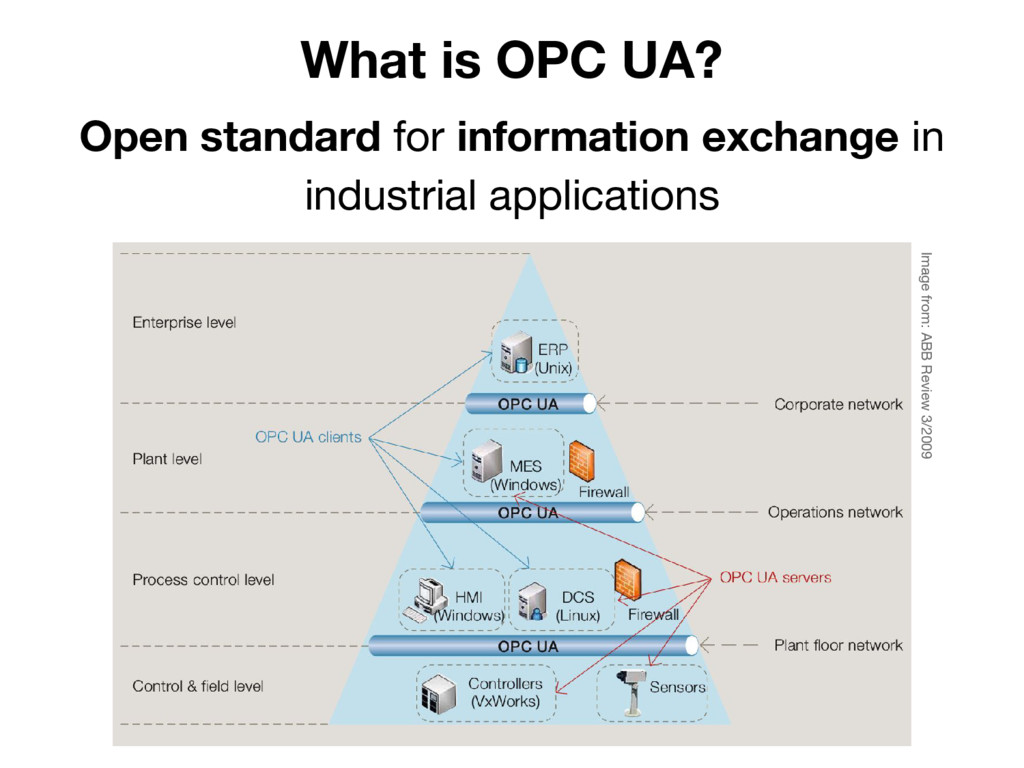
  1. What is OPC UA? Image from: ABB Review 3/2009 Open

    standard for information exchange in industrial applications
  2. What is OPC UA? • Interoperability standard for secure and

    reliable exchange of data in the industrial automation space and in other industries [1] • Platform independency ensures the seamless flow of information among devices from multiple vendors [1] [1] https://opcfoundation.org
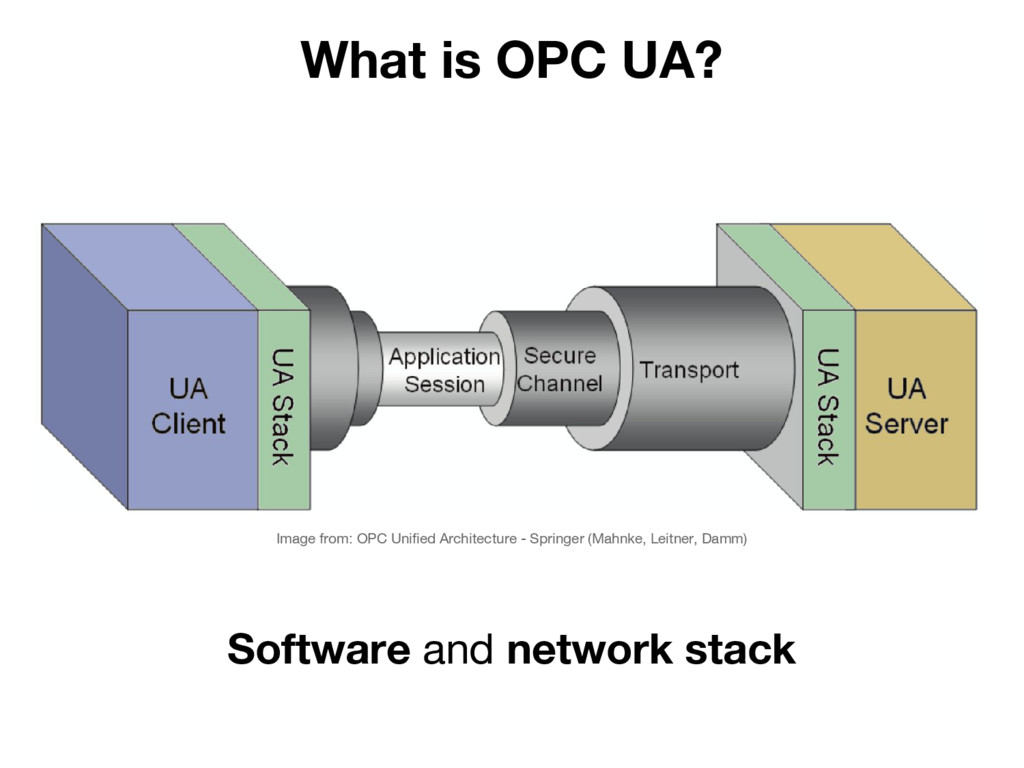
  3. What is OPC UA? Image from: OPC Unified Architecture -

    Springer (Mahnke, Leitner, Damm) Software and network stack
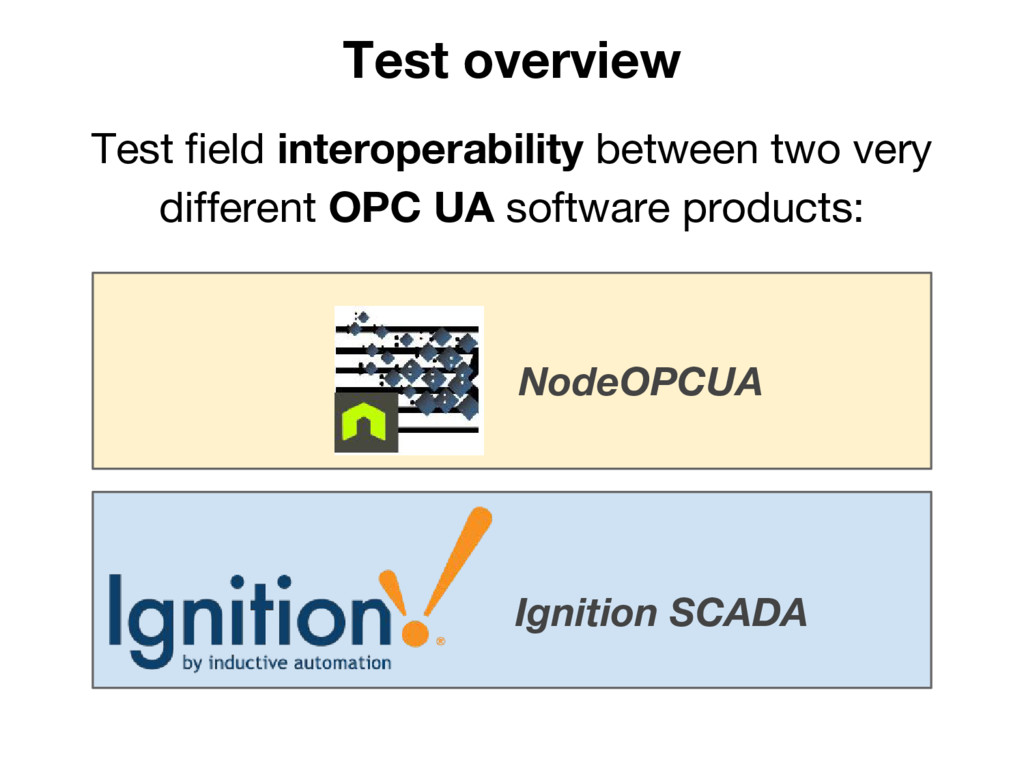
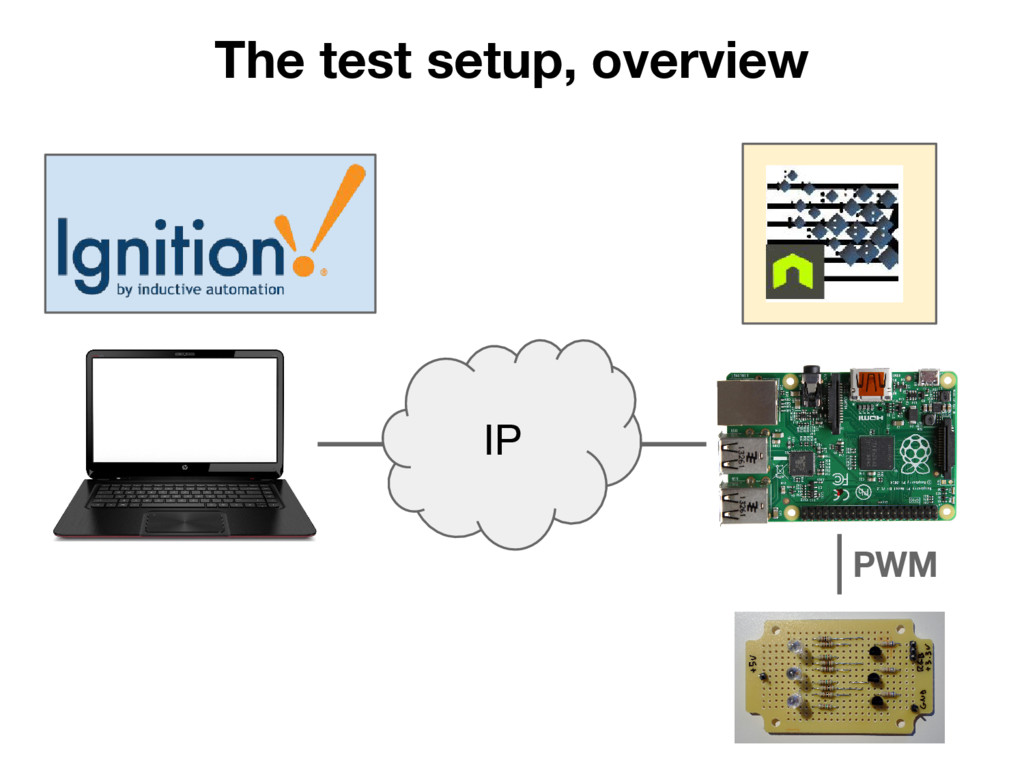
  4. Test overview Test field interoperability between two very different OPC

    UA software products: NodeOPCUA Ignition SCADA
  5. OPC UA software • Open source OPC UA stack fully

    written in javascript with Node.js • Node.js is a platform built on Chrome's JavaScript runtime for building fast and scalable network applications ◦ Uses an event-driven, non-blocking I/O model NodeOPCUA http://node-opcua.github.io/
  6. OPC UA software • Is an Industrial Application Server •

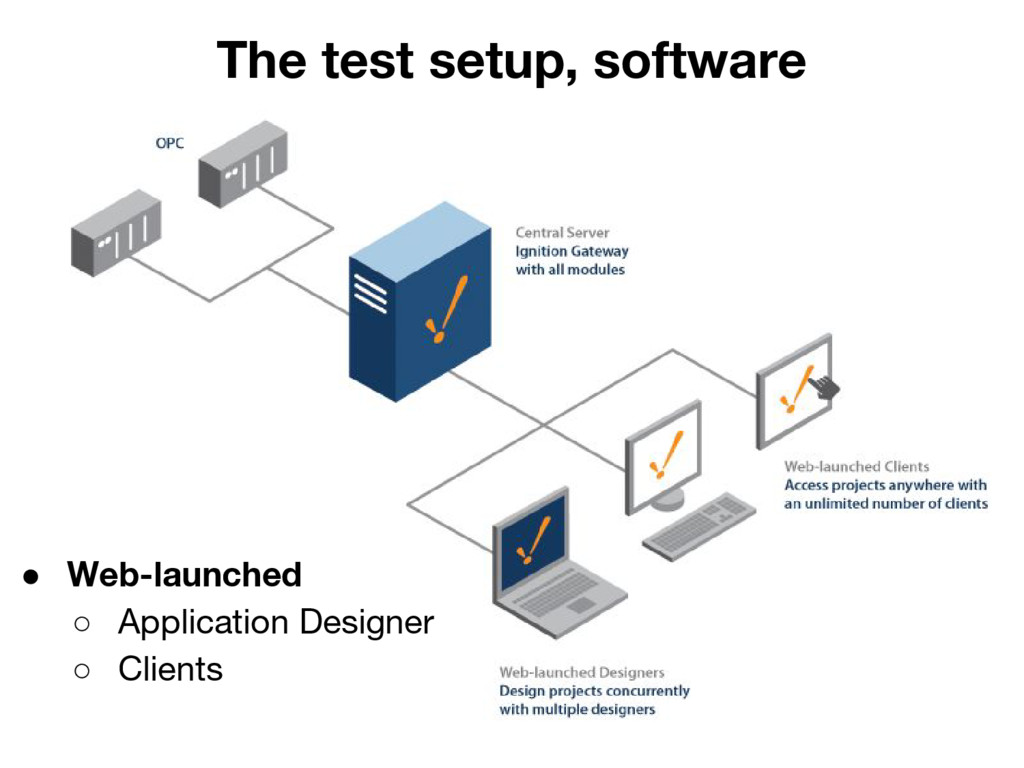
    Create a wide variety of industrial HMI, SCADA, and MES applications • Modular architecture: OPC UA module provide server and client functionality • Commercial software Ignition SCADA inductiveautomation.com
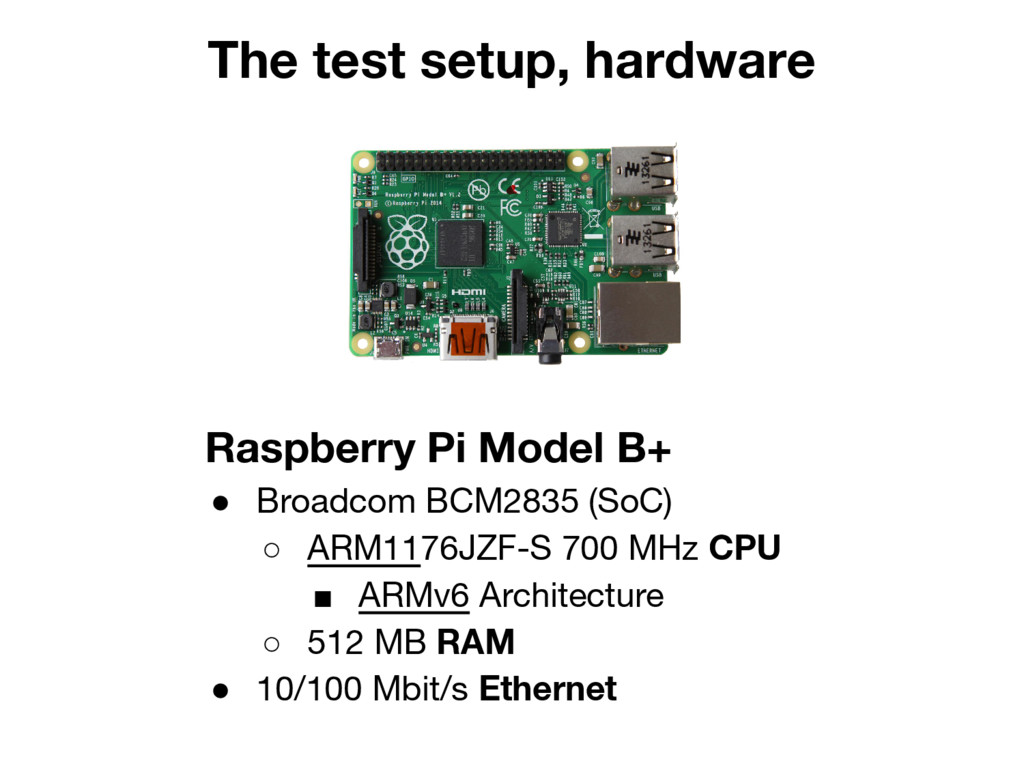
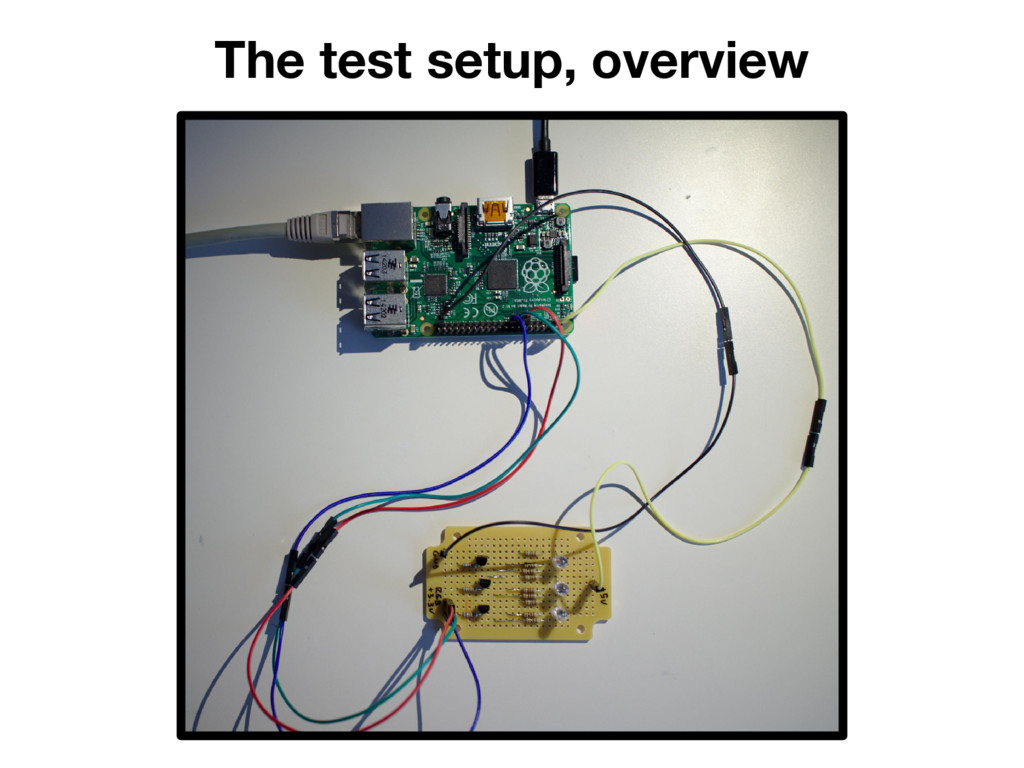
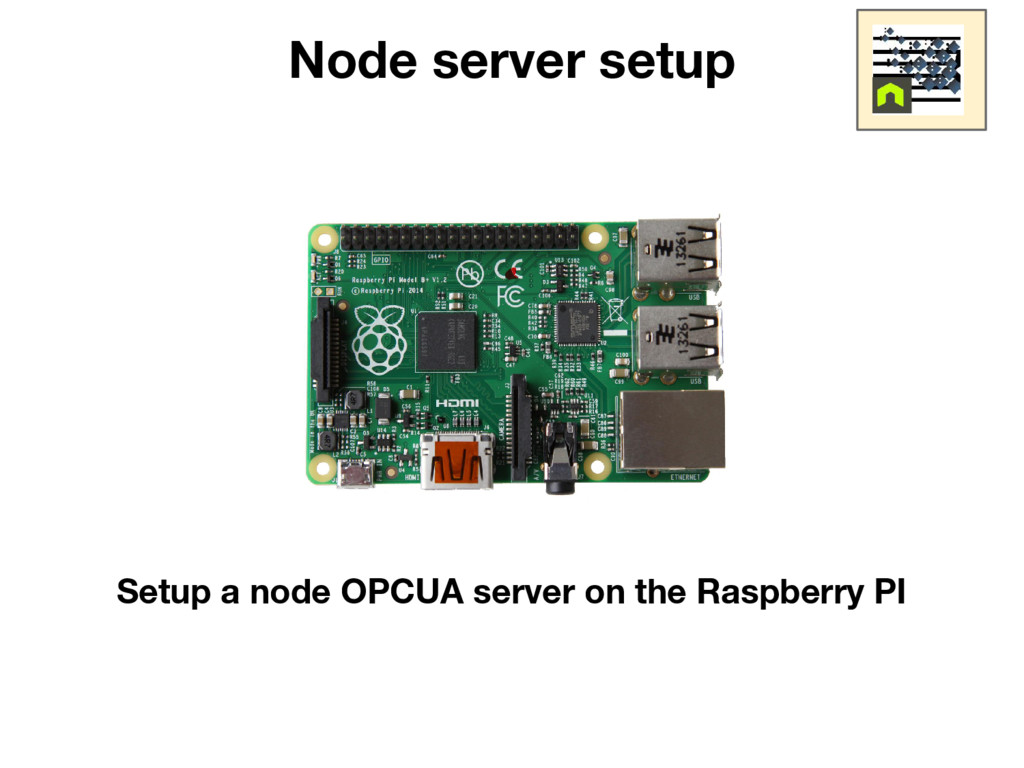
  7. The test setup, hardware Raspberry Pi Model B+ • Broadcom

    BCM2835 (SoC) ◦ ARM1176JZF-S 700 MHz CPU ▪ ARMv6 Architecture ◦ 512 MB RAM • 10/100 Mbit/s Ethernet
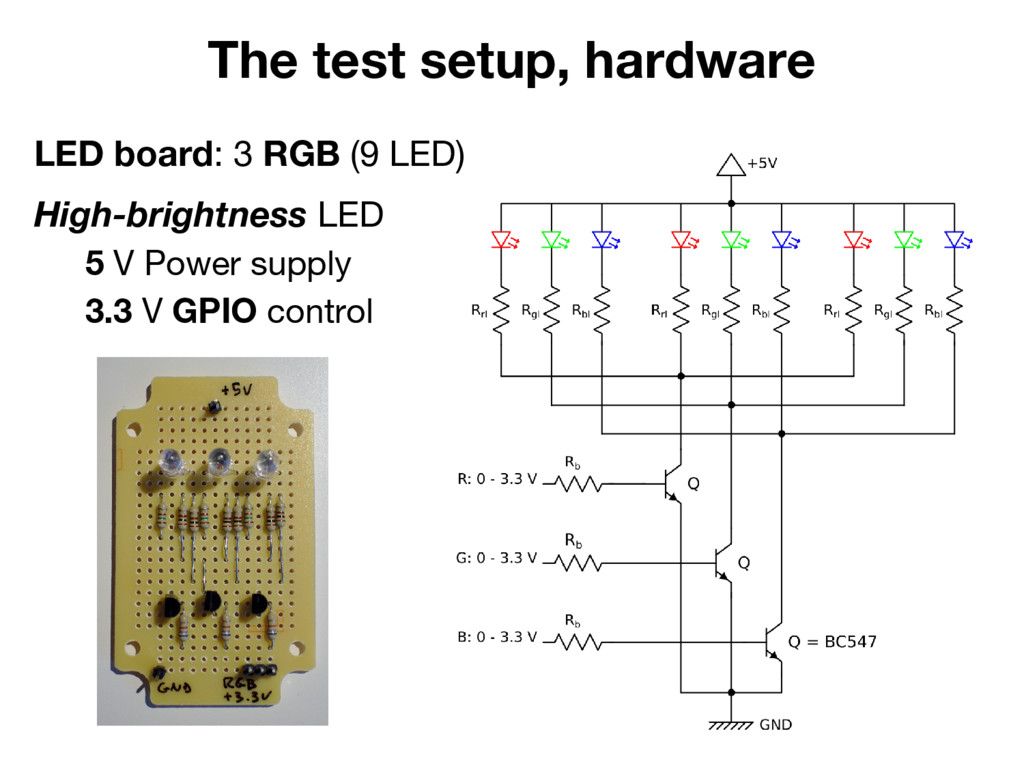
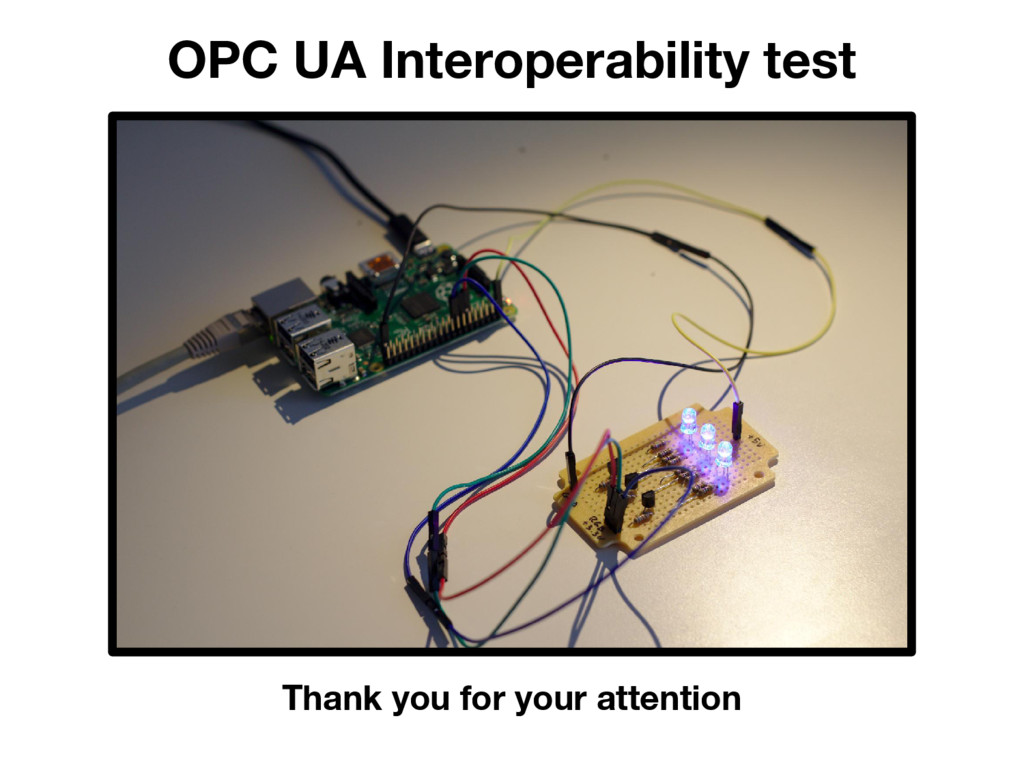
  8. The test setup, hardware LED board: 3 RGB (9 LED)

    High-brightness LED 5 V Power supply 3.3 V GPIO control
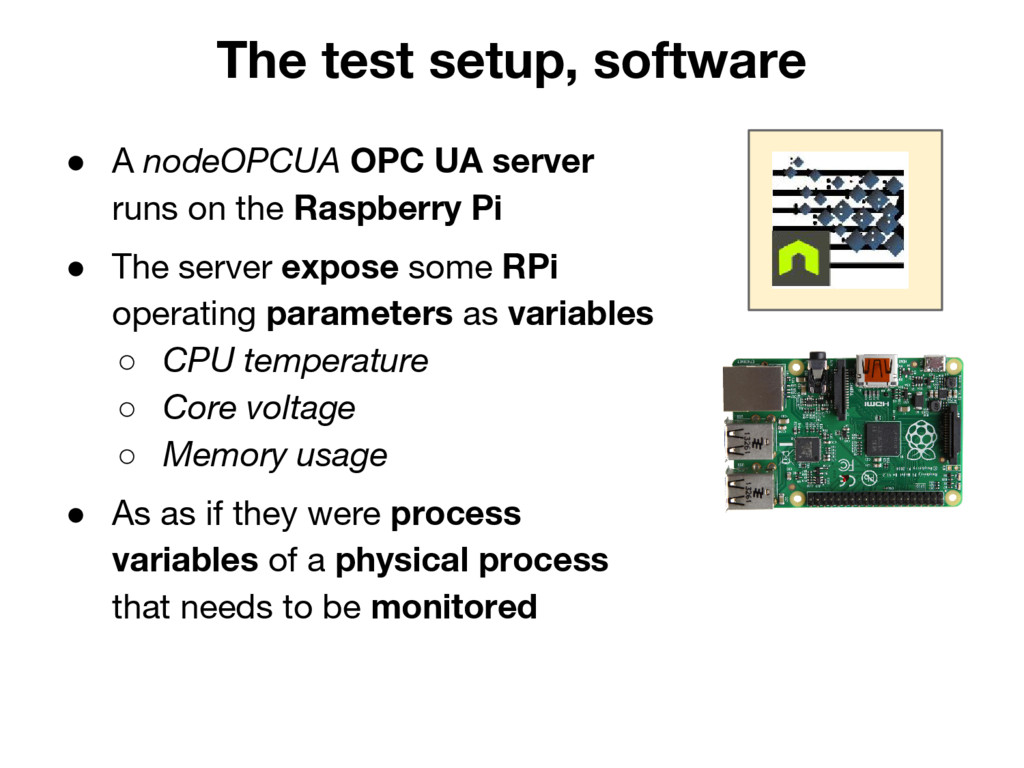
  9. The test setup, software • A nodeOPCUA OPC UA server

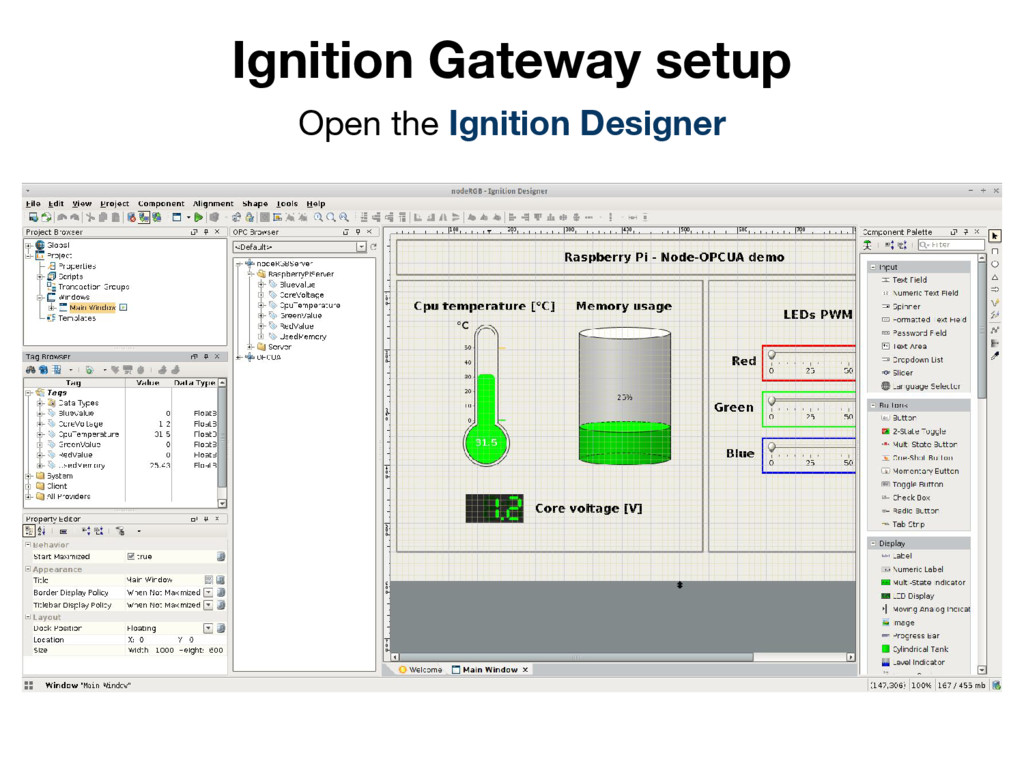
    runs on the Raspberry Pi • The server expose some RPi operating parameters as variables ◦ CPU temperature ◦ Core voltage ◦ Memory usage • As as if they were process variables of a physical process that needs to be monitored
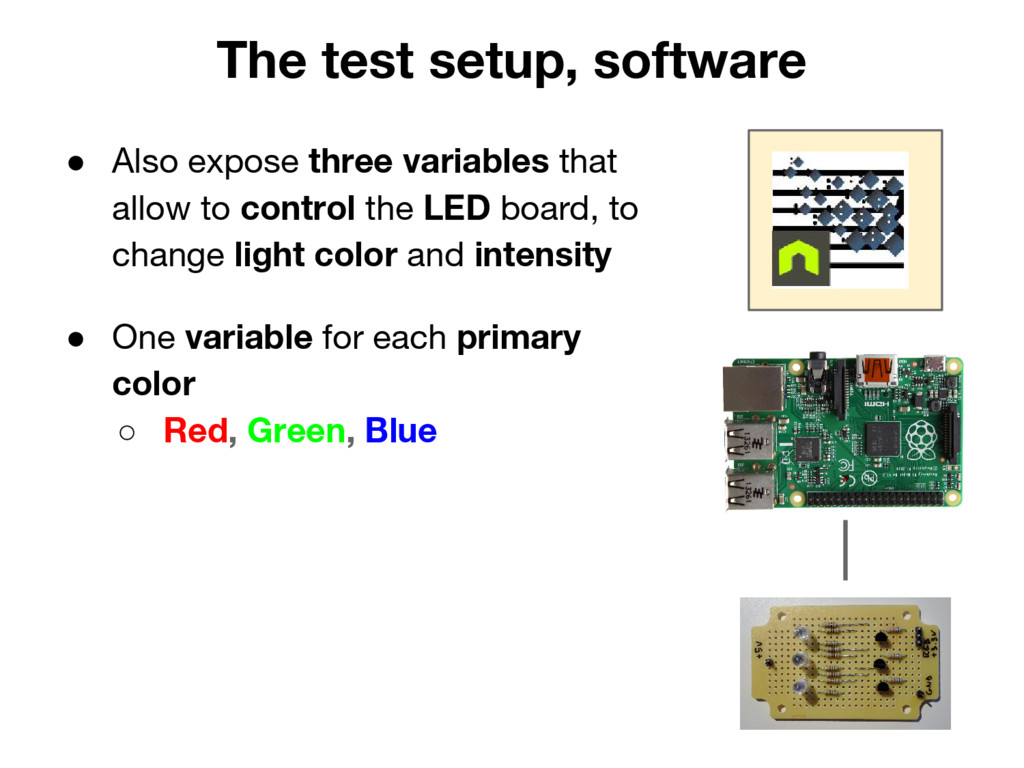
  10. The test setup, software • Also expose three variables that

    allow to control the LED board, to change light color and intensity • One variable for each primary color ◦ Red, Green, Blue
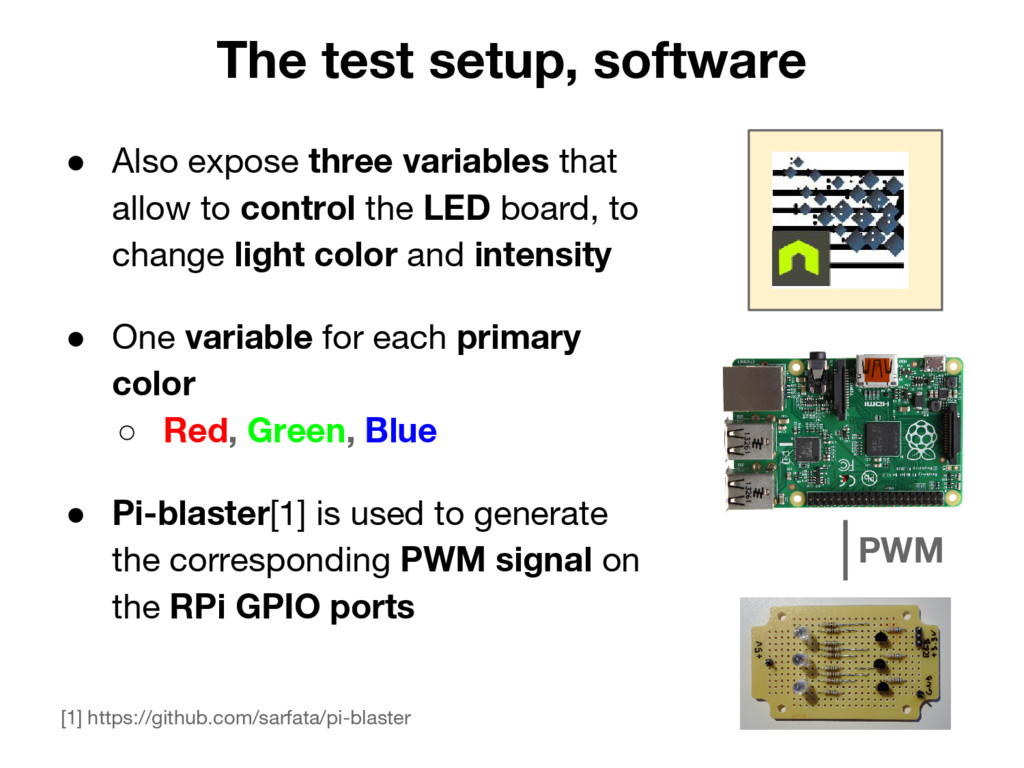
  11. The test setup, software • Also expose three variables that

    allow to control the LED board, to change light color and intensity • One variable for each primary color ◦ Red, Green, Blue • Pi-blaster[1] is used to generate the corresponding PWM signal on the RPi GPIO ports PWM [1] https://github.com/sarfata/pi-blaster
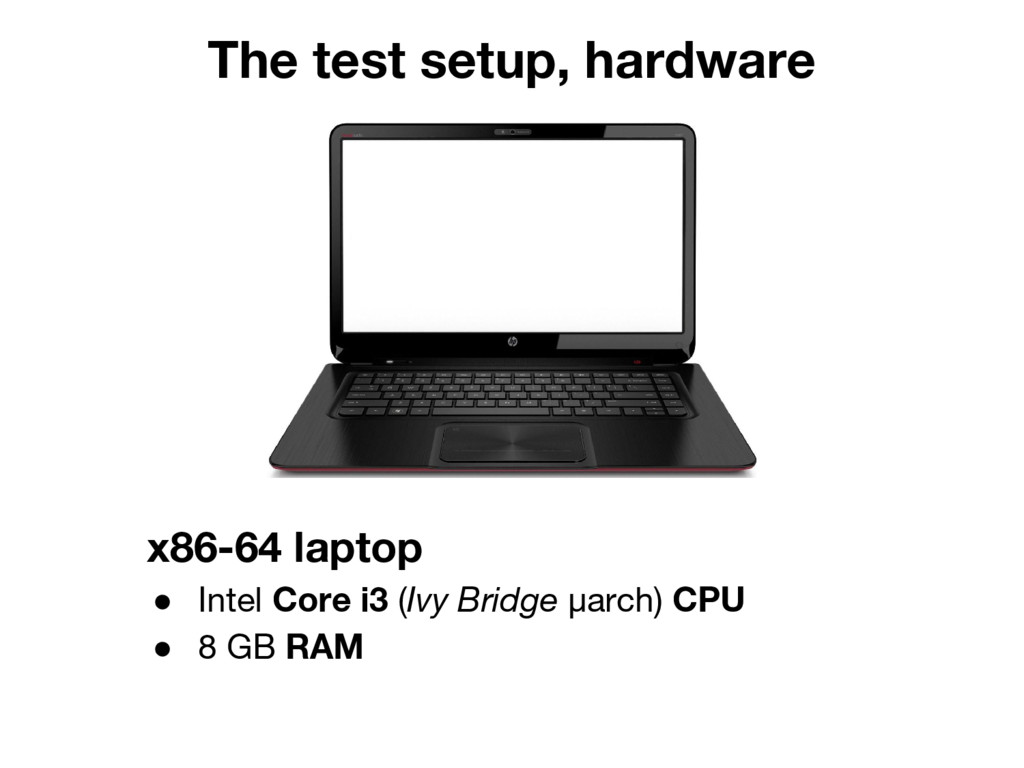
  12. The test setup, hardware x86-64 laptop • Intel Core i3

    (Ivy Bridge µarch) CPU • 8 GB RAM
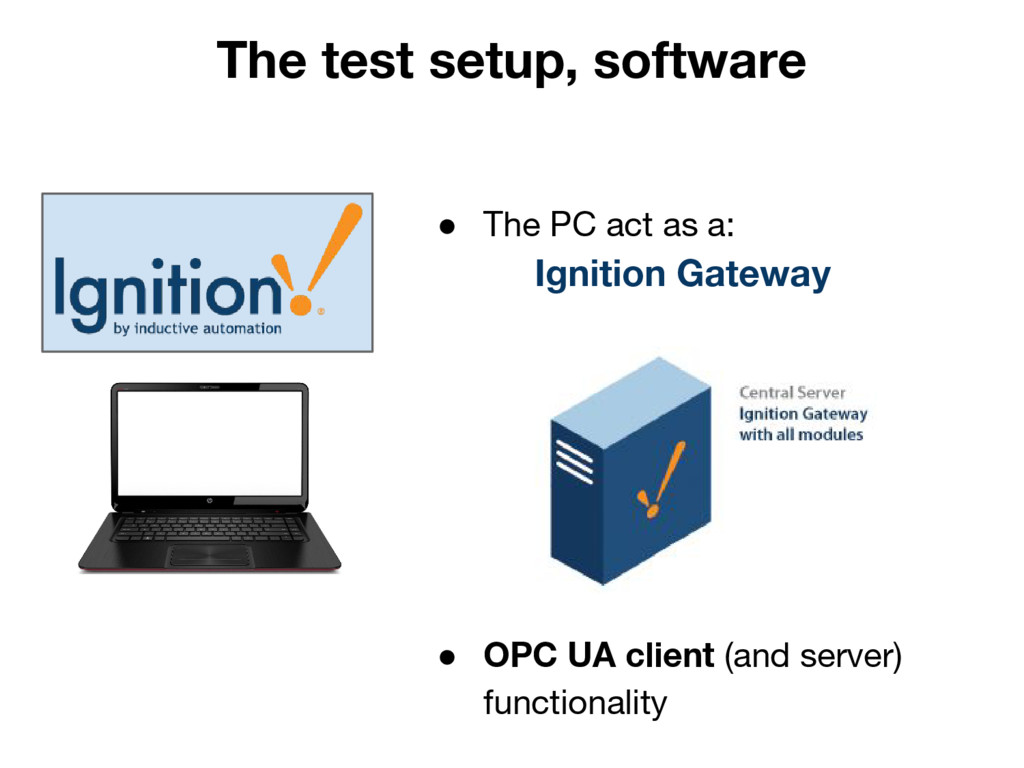
  13. The test setup, software • The PC act as a:

    Ignition Gateway • OPC UA client (and server) functionality
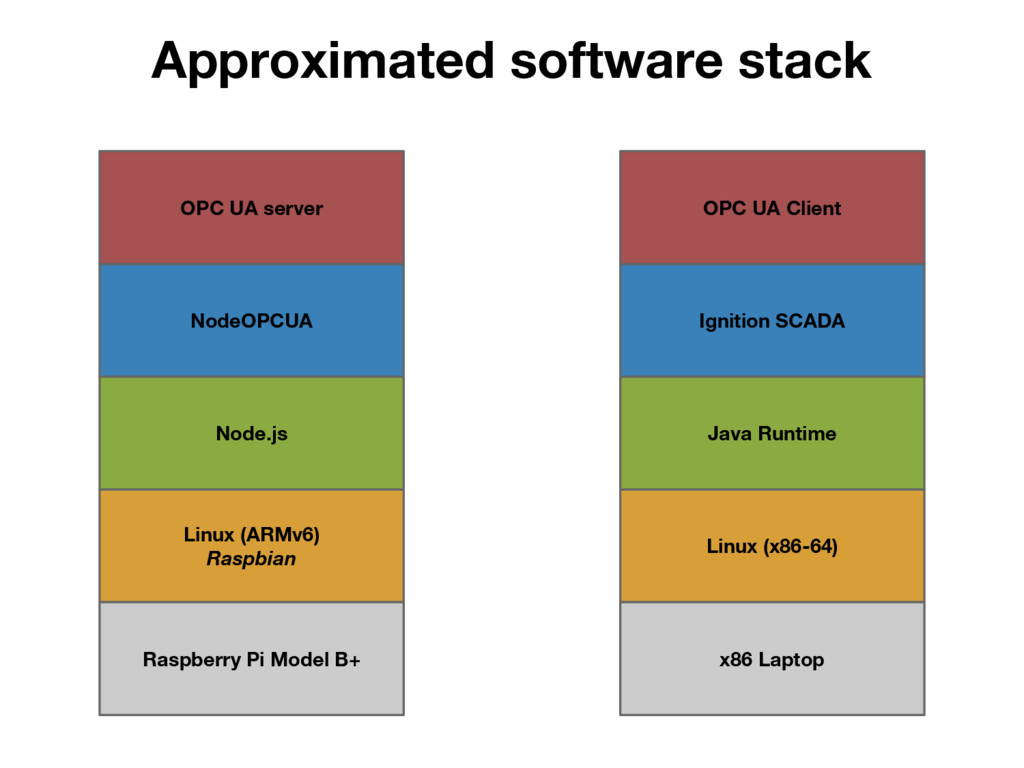
  14. Approximated software stack Linux (ARMv6) Raspbian Node.js NodeOPCUA OPC UA

    server Raspberry Pi Model B+ Linux (x86-64) Java Runtime Ignition SCADA OPC UA Client x86 Laptop
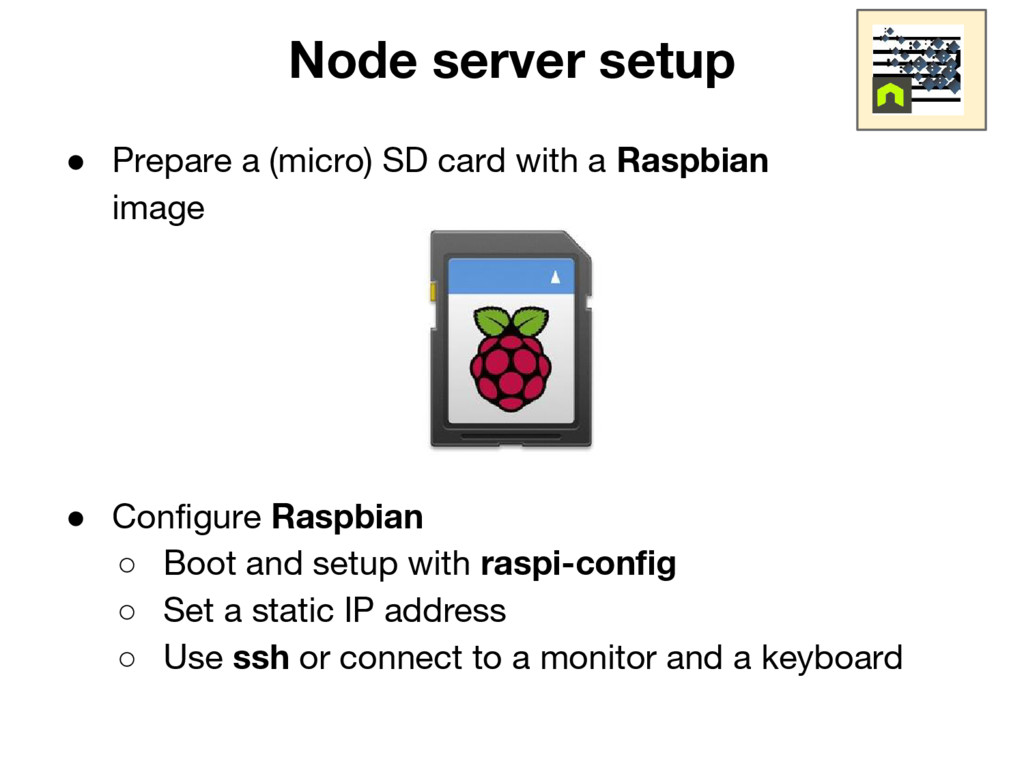
  15. Node server setup • Prepare a (micro) SD card with

    a Raspbian image • Configure Raspbian ◦ Boot and setup with raspi-config ◦ Set a static IP address ◦ Use ssh or connect to a monitor and a keyboard
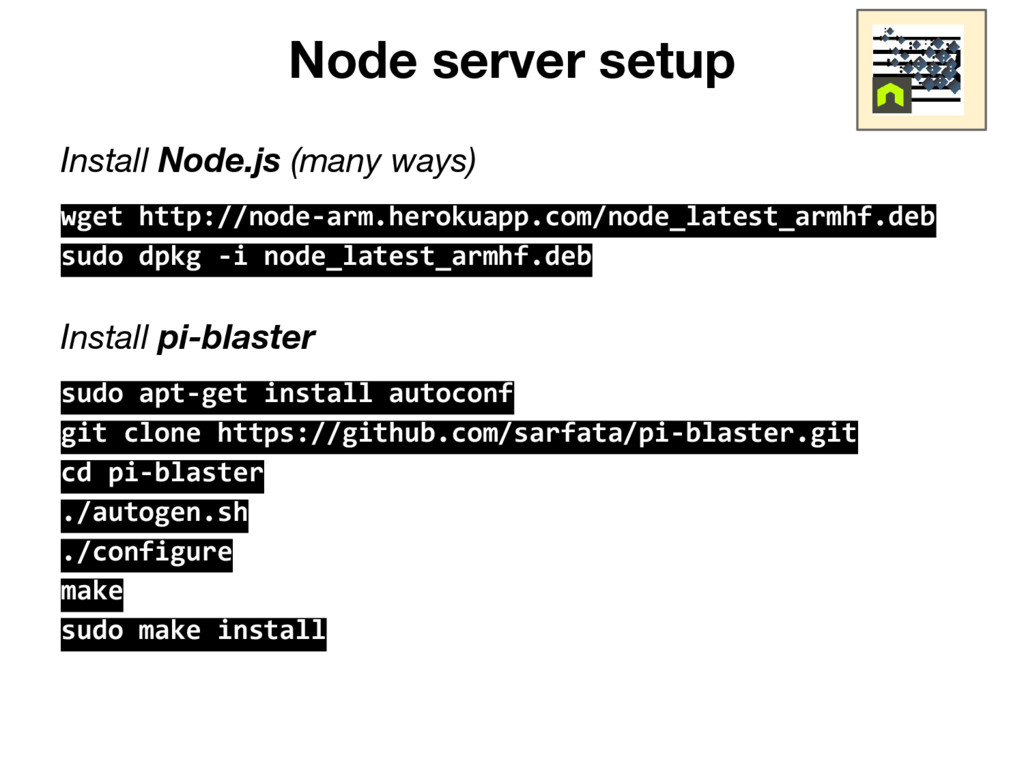
  16. Node server setup Install Node.js (many ways) wget http://node-arm.herokuapp.com/node_latest_armhf.deb sudo

    dpkg -i node_latest_armhf.deb Install pi-blaster sudo apt-get install autoconf git clone https://github.com/sarfata/pi-blaster.git cd pi-blaster ./autogen.sh ./configure make sudo make install
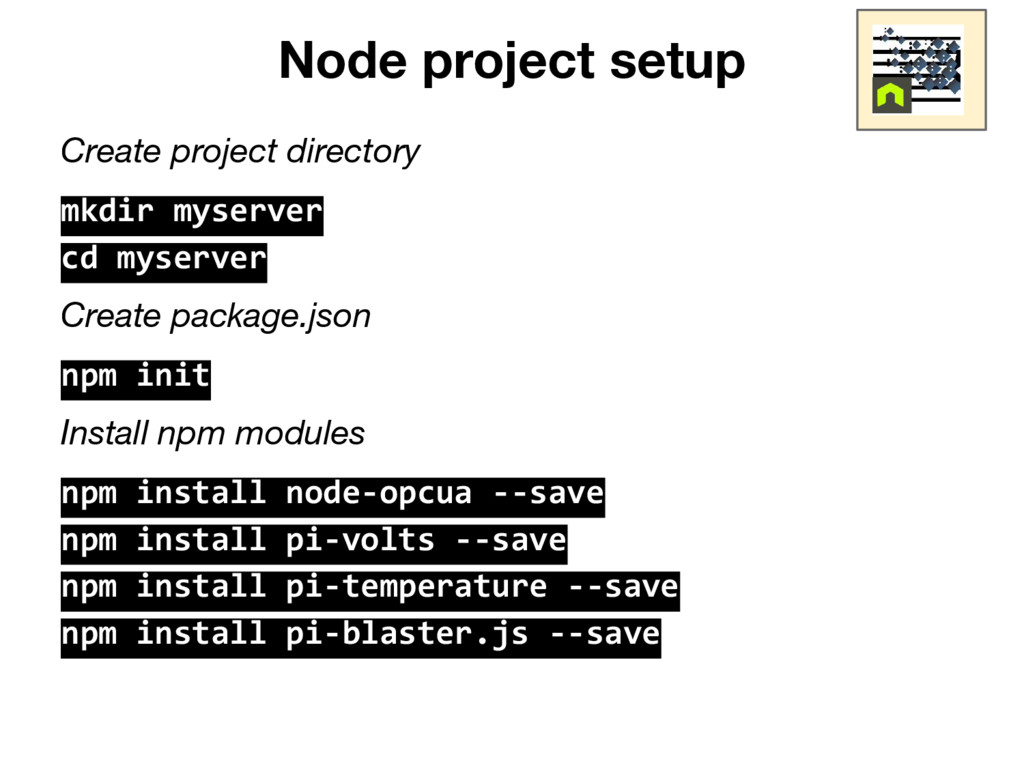
  17. Node project setup Create project directory mkdir myserver cd myserver

    Create package.json npm init Install npm modules npm install node-opcua --save npm install pi-volts --save npm install pi-temperature --save npm install pi-blaster.js --save
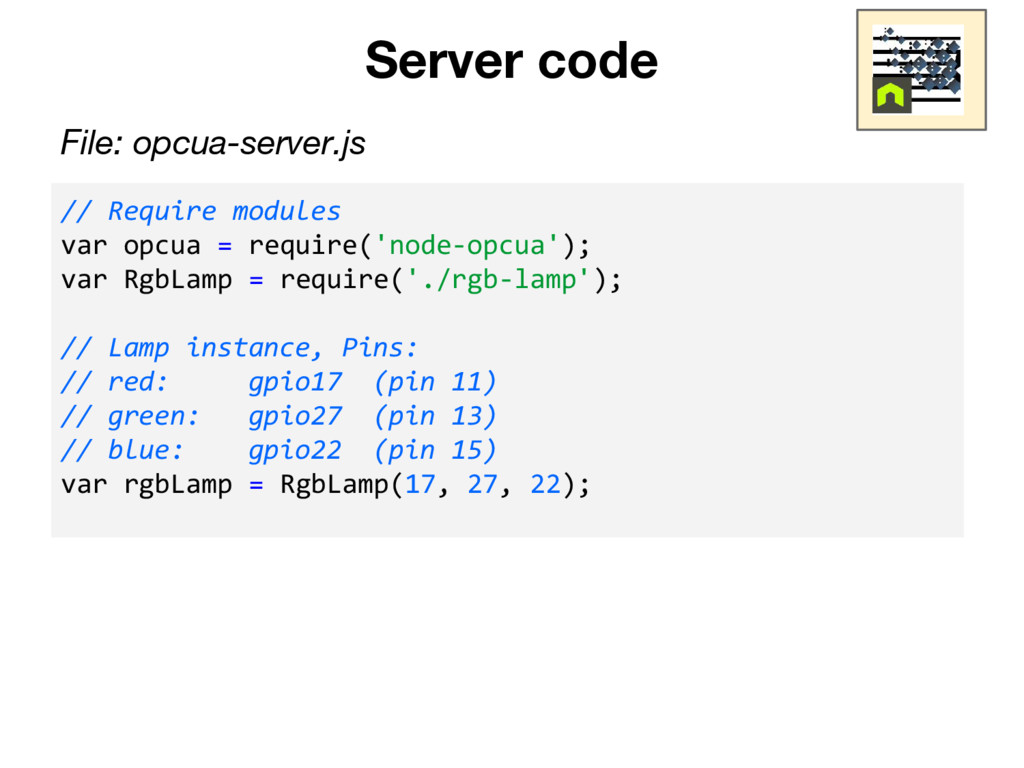
  18. Server code // Require modules var opcua = require('node-opcua'); var

    RgbLamp = require('./rgb-lamp'); // Lamp instance, Pins: // red: gpio17 (pin 11) // green: gpio27 (pin 13) // blue: gpio22 (pin 15) var rgbLamp = RgbLamp(17, 27, 22); File: opcua-server.js
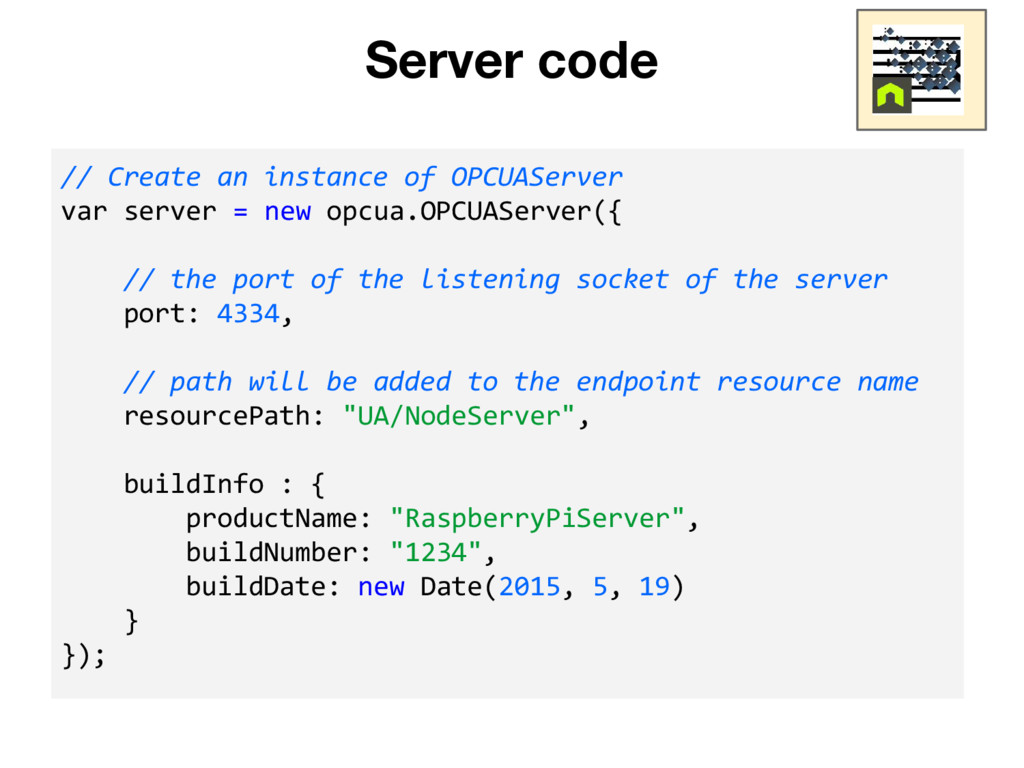
  19. Server code // Create an instance of OPCUAServer var server

    = new opcua.OPCUAServer({ // the port of the listening socket of the server port: 4334, // path will be added to the endpoint resource name resourcePath: "UA/NodeServer", buildInfo : { productName: "RaspberryPiServer", buildNumber: "1234", buildDate: new Date(2015, 5, 19) } });
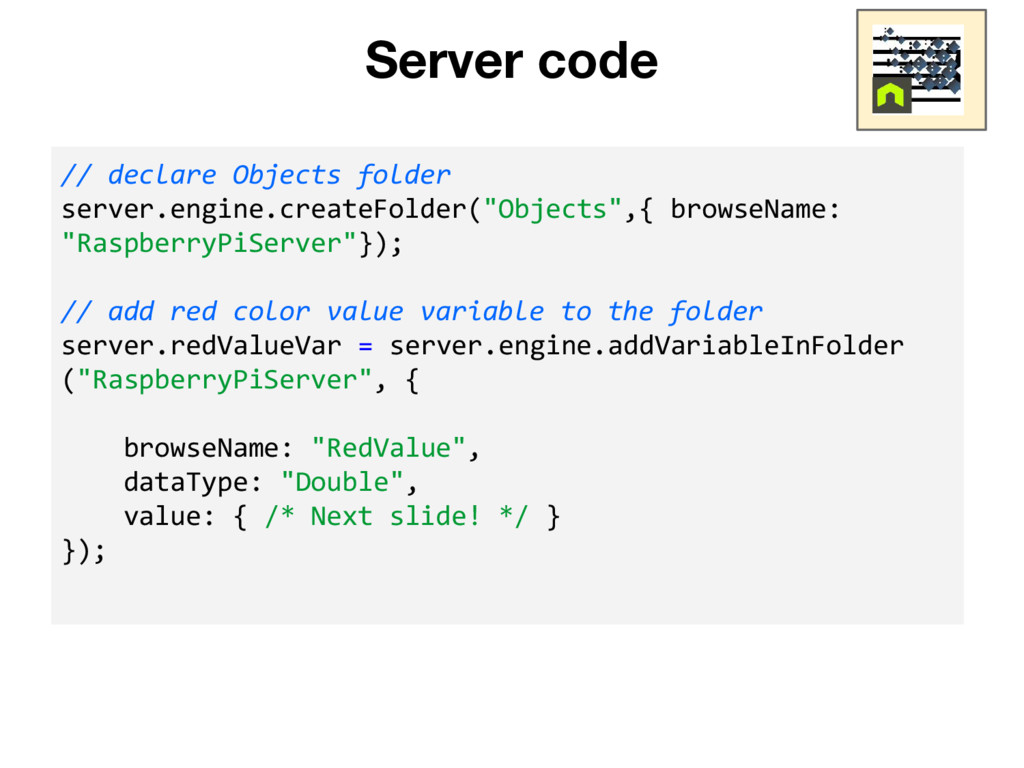
  20. Server code // declare Objects folder server.engine.createFolder("Objects",{ browseName: "RaspberryPiServer"}); //

    add red color value variable to the folder server.redValueVar = server.engine.addVariableInFolder ("RaspberryPiServer", { browseName: "RedValue", dataType: "Double", value: { /* Next slide! */ } });
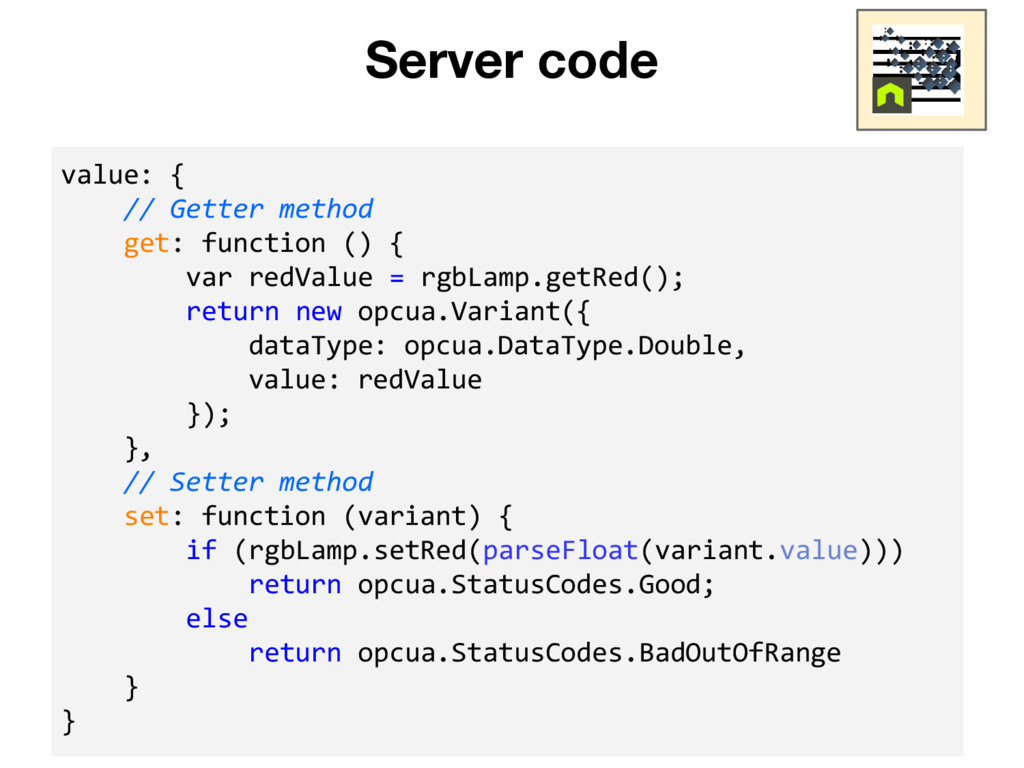
  21. Server code value: { // Getter method get: function ()

    { var redValue = rgbLamp.getRed(); return new opcua.Variant({ dataType: opcua.DataType.Double, value: redValue }); }, // Setter method set: function (variant) { if (rgbLamp.setRed(parseFloat(variant.value))) return opcua.StatusCodes.Good; else return opcua.StatusCodes.BadOutOfRange } }
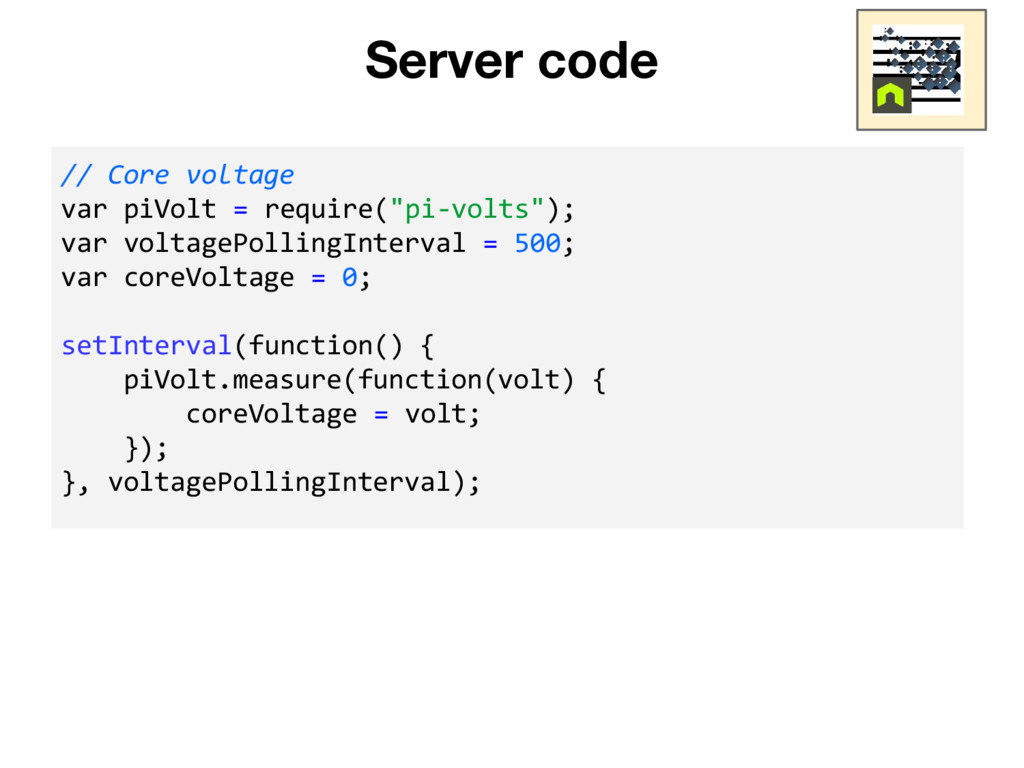
  22. Server code // Core voltage var piVolt = require("pi-volts"); var

    voltagePollingInterval = 500; var coreVoltage = 0; setInterval(function() { piVolt.measure(function(volt) { coreVoltage = volt; }); }, voltagePollingInterval);
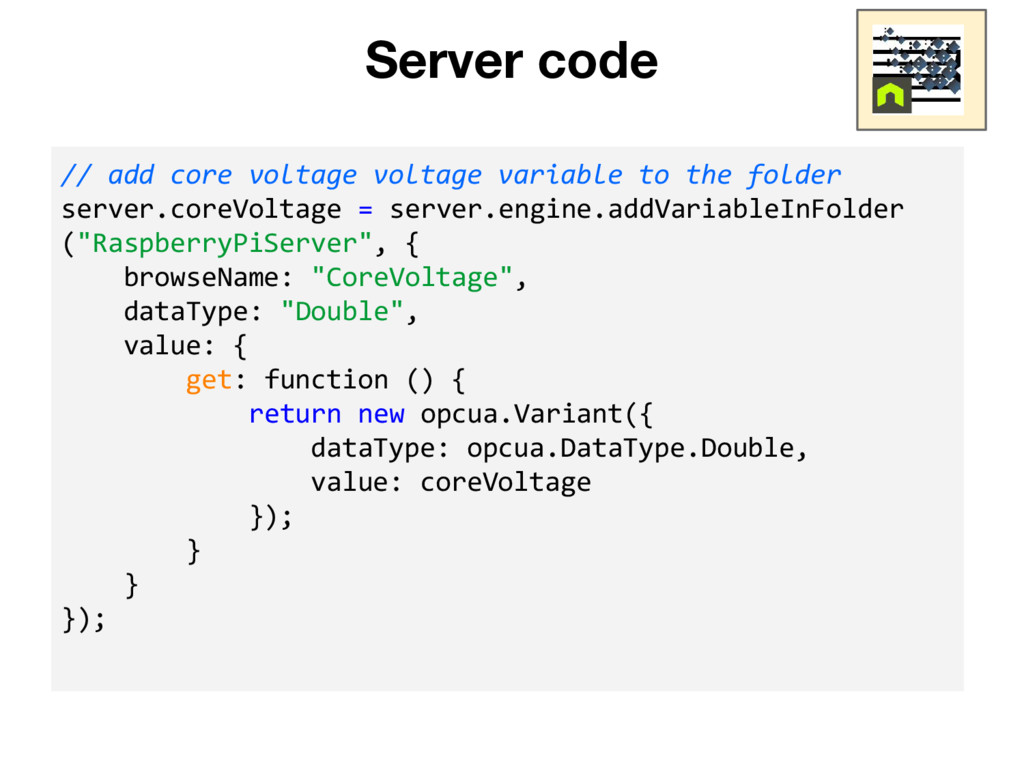
  23. Server code // add core voltage voltage variable to the

    folder server.coreVoltage = server.engine.addVariableInFolder ("RaspberryPiServer", { browseName: "CoreVoltage", dataType: "Double", value: { get: function () { return new opcua.Variant({ dataType: opcua.DataType.Double, value: coreVoltage }); } } });
  24. Server setup • The Raspberry Pi doesn't have an RTC

    on board! ◦ Relies on NTP servers to get the current date • If not connect to the Internet the user must set the current date and time with the date command • OPC UA uses timestamps ◦ The date on the Raspberry must be in synch with the date on the Ignition gateway PC
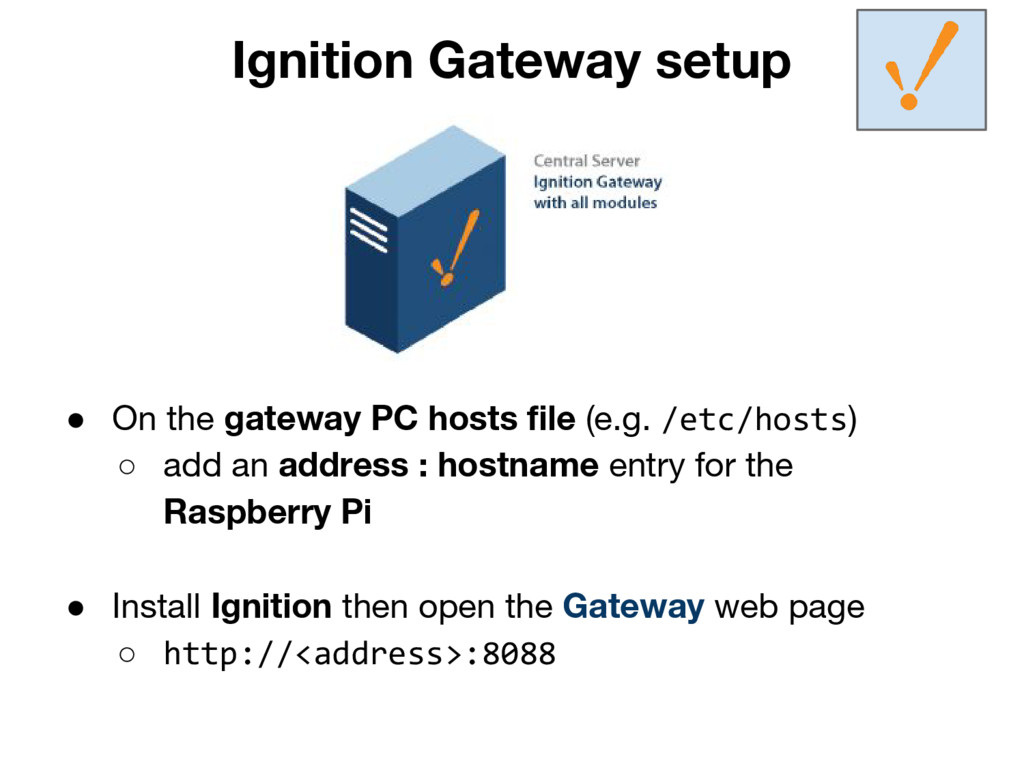
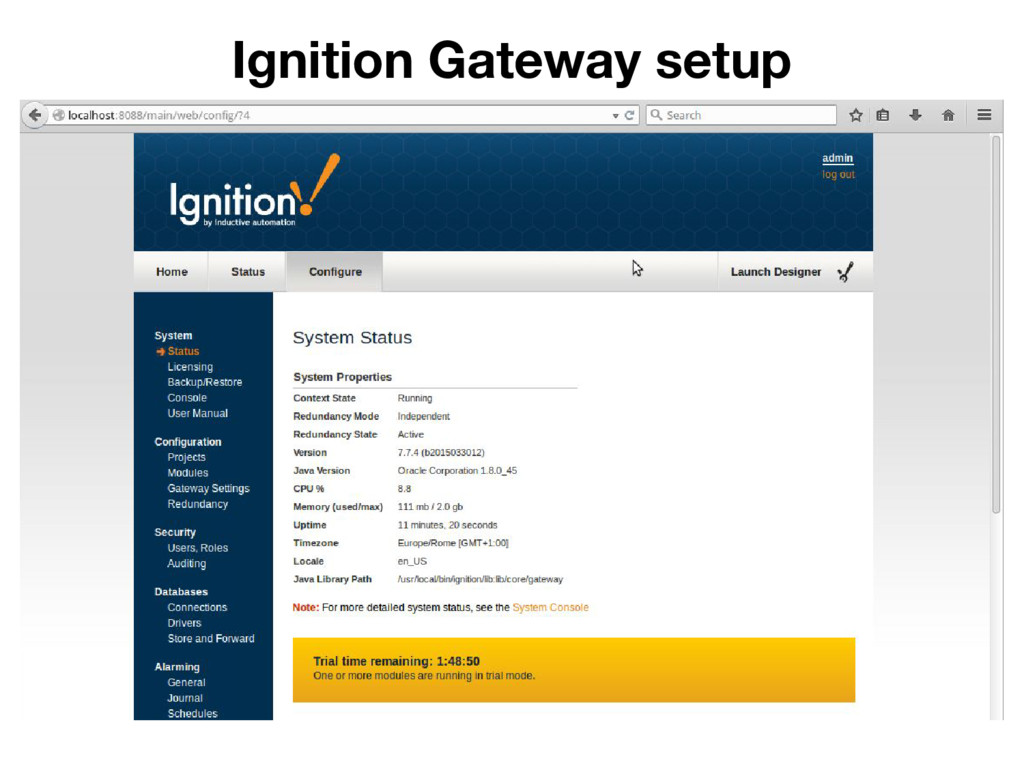
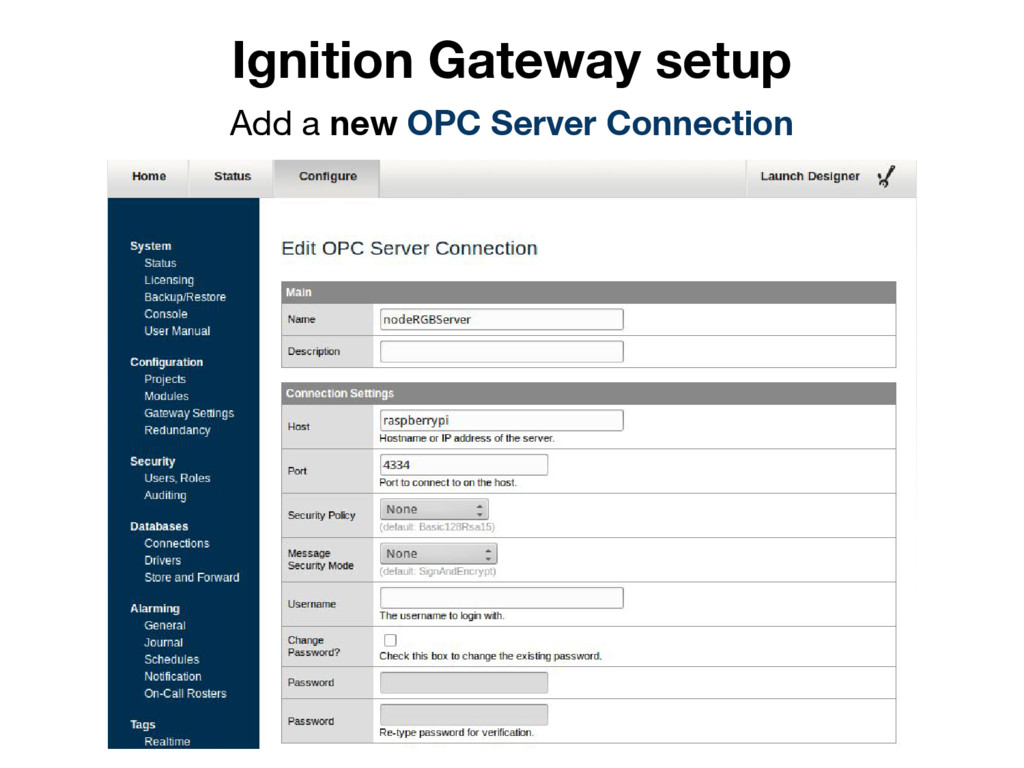
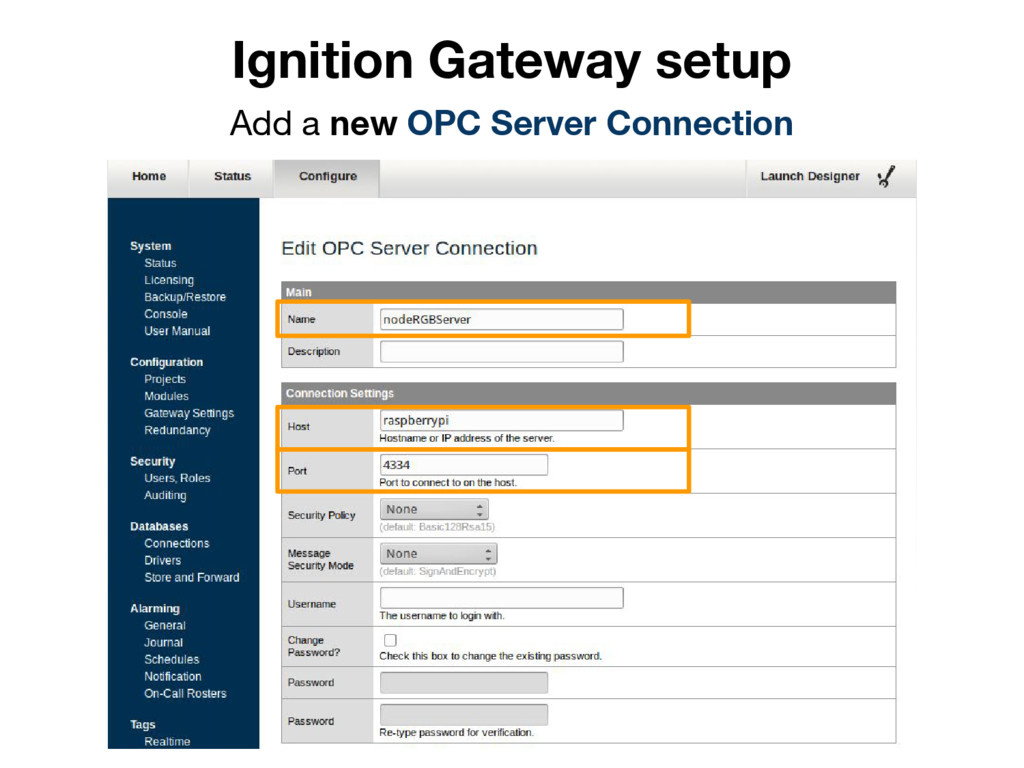
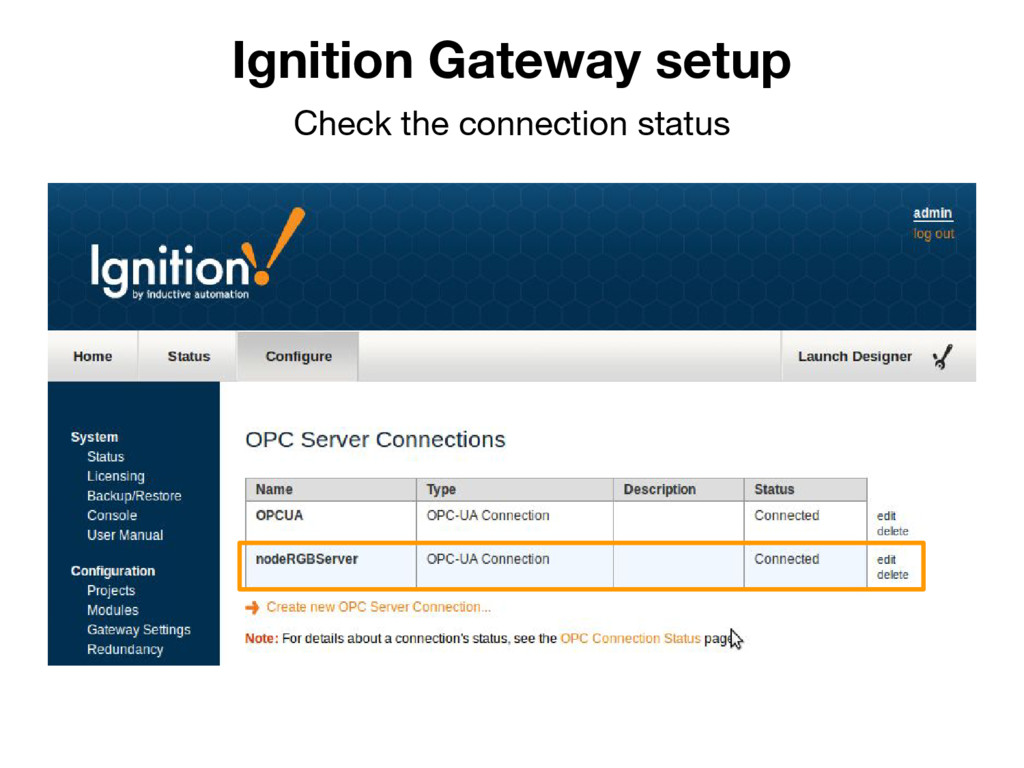
  25. Ignition Gateway setup • On the gateway PC hosts file

    (e.g. /etc/hosts) ◦ add an address : hostname entry for the Raspberry Pi • Install Ignition then open the Gateway web page ◦ http://<address>:8088
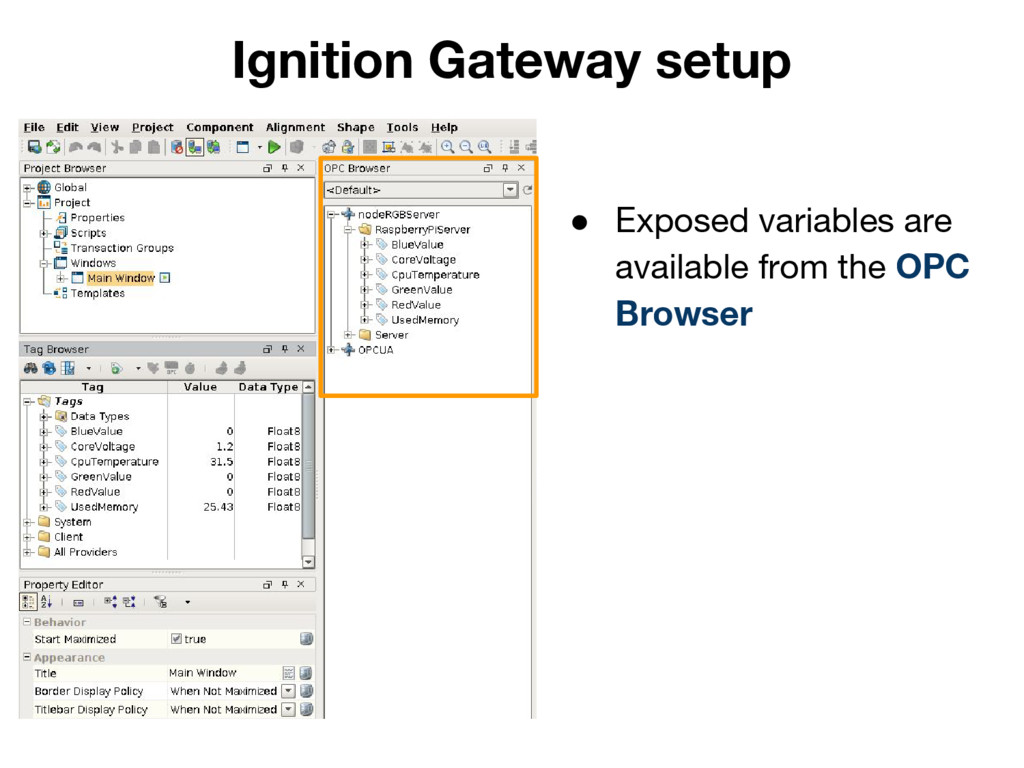
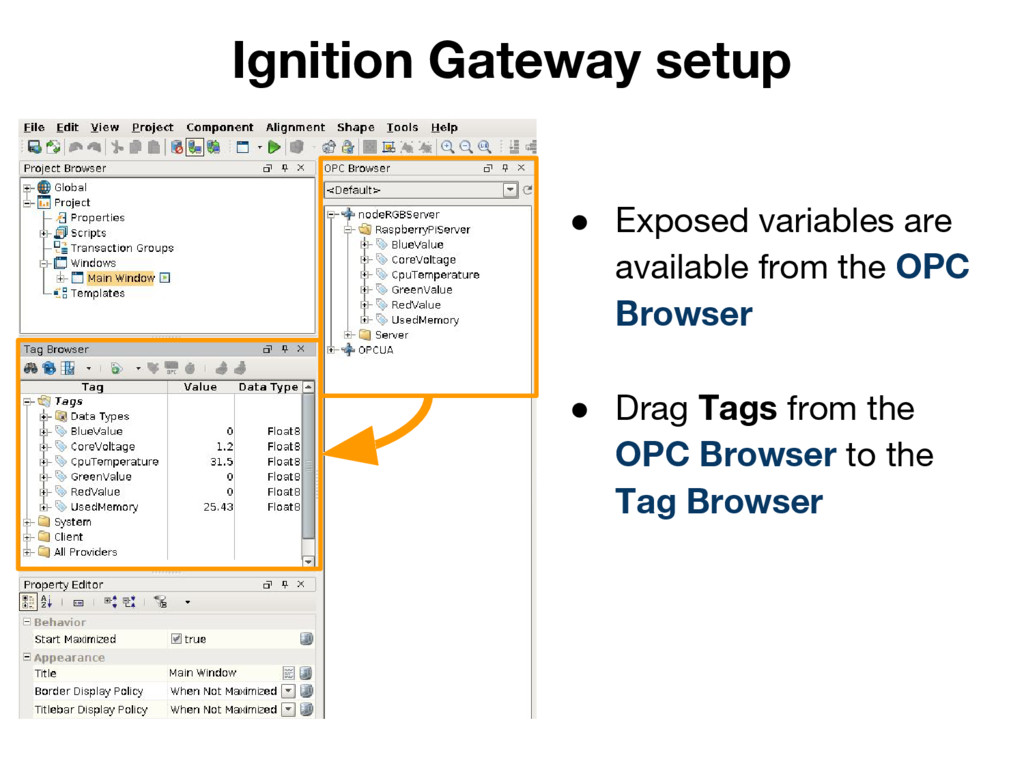
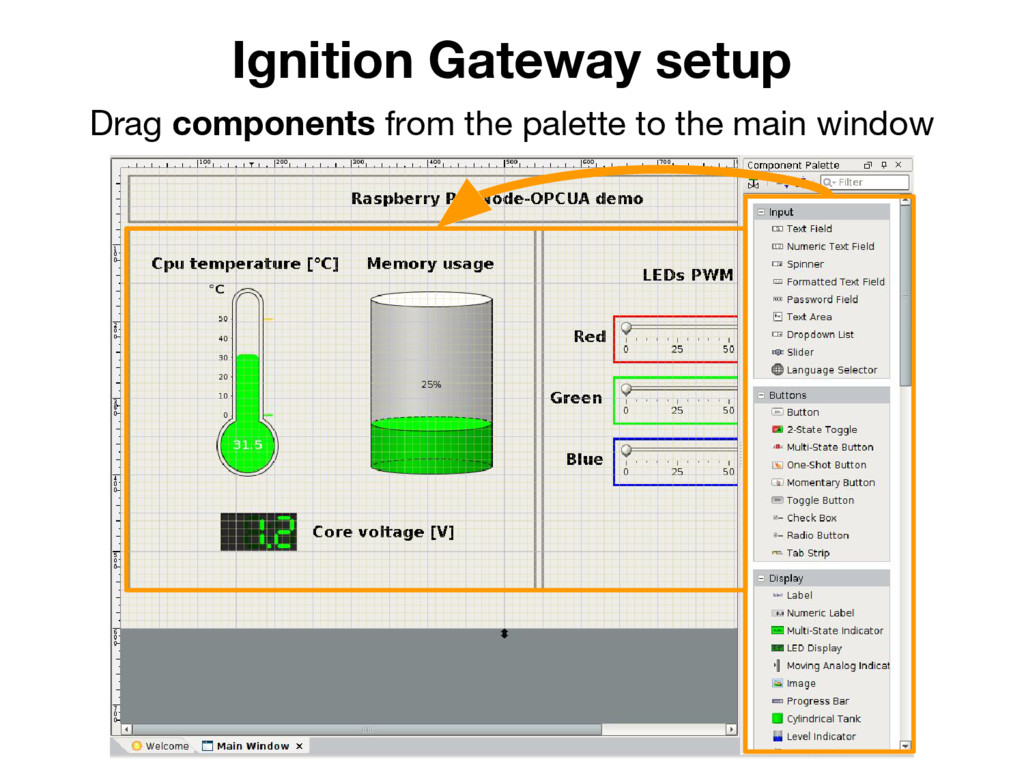
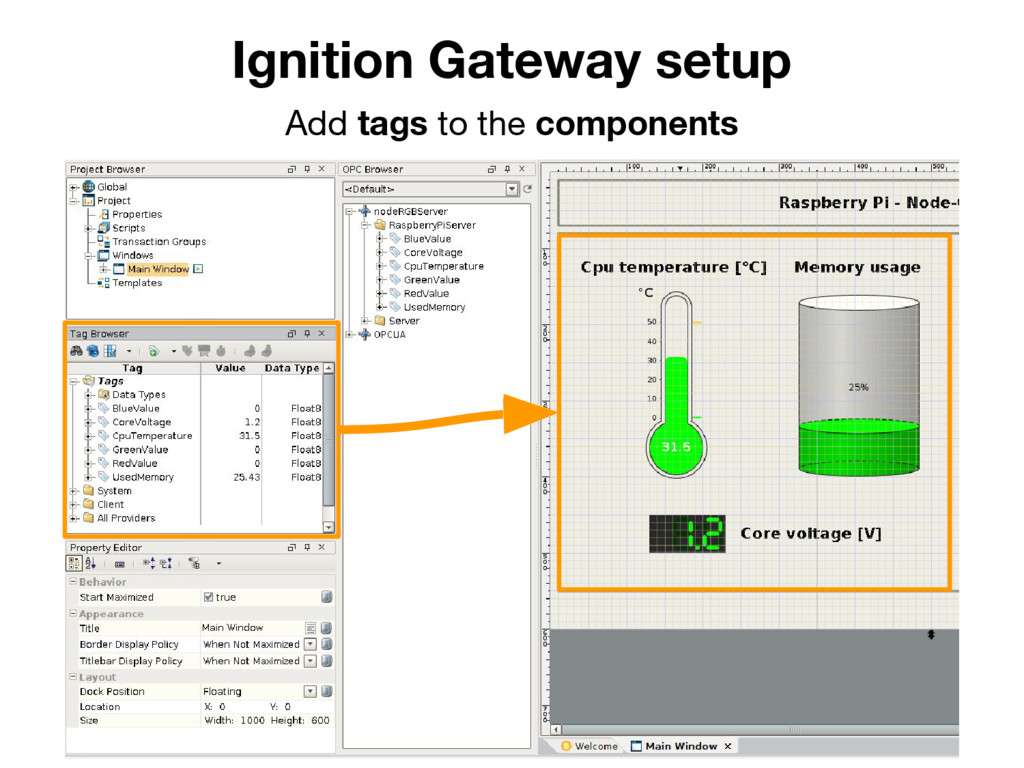
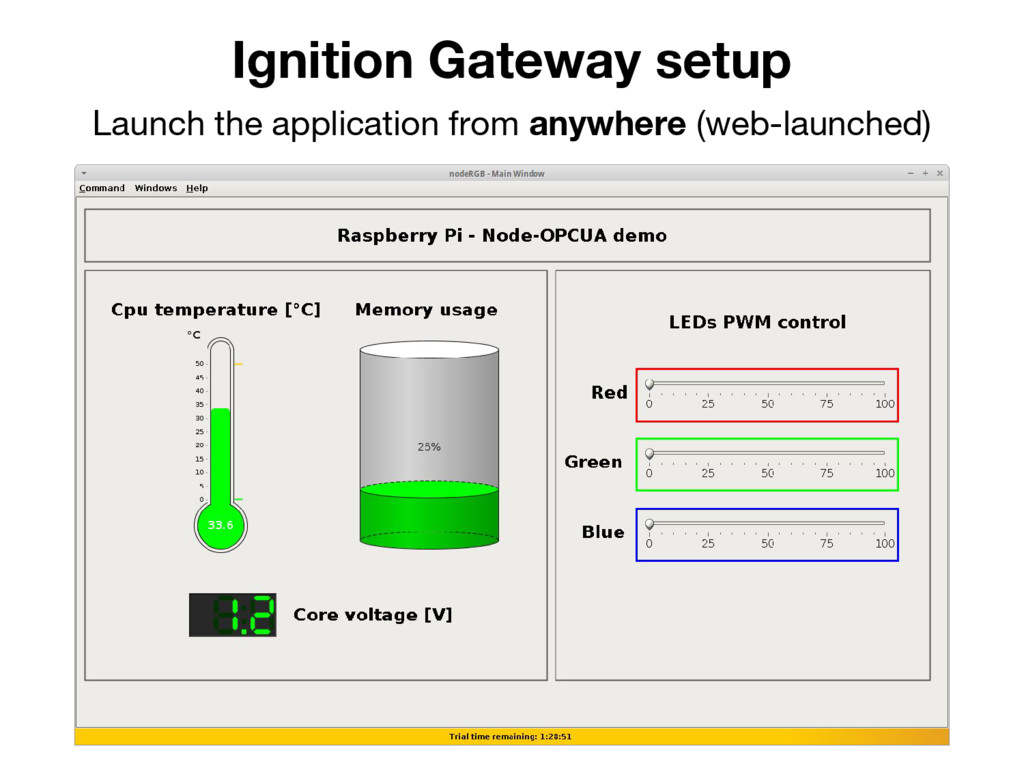
  26. Ignition Gateway setup • Exposed variables are available from the

    OPC Browser • Drag Tags from the OPC Browser to the Tag Browser