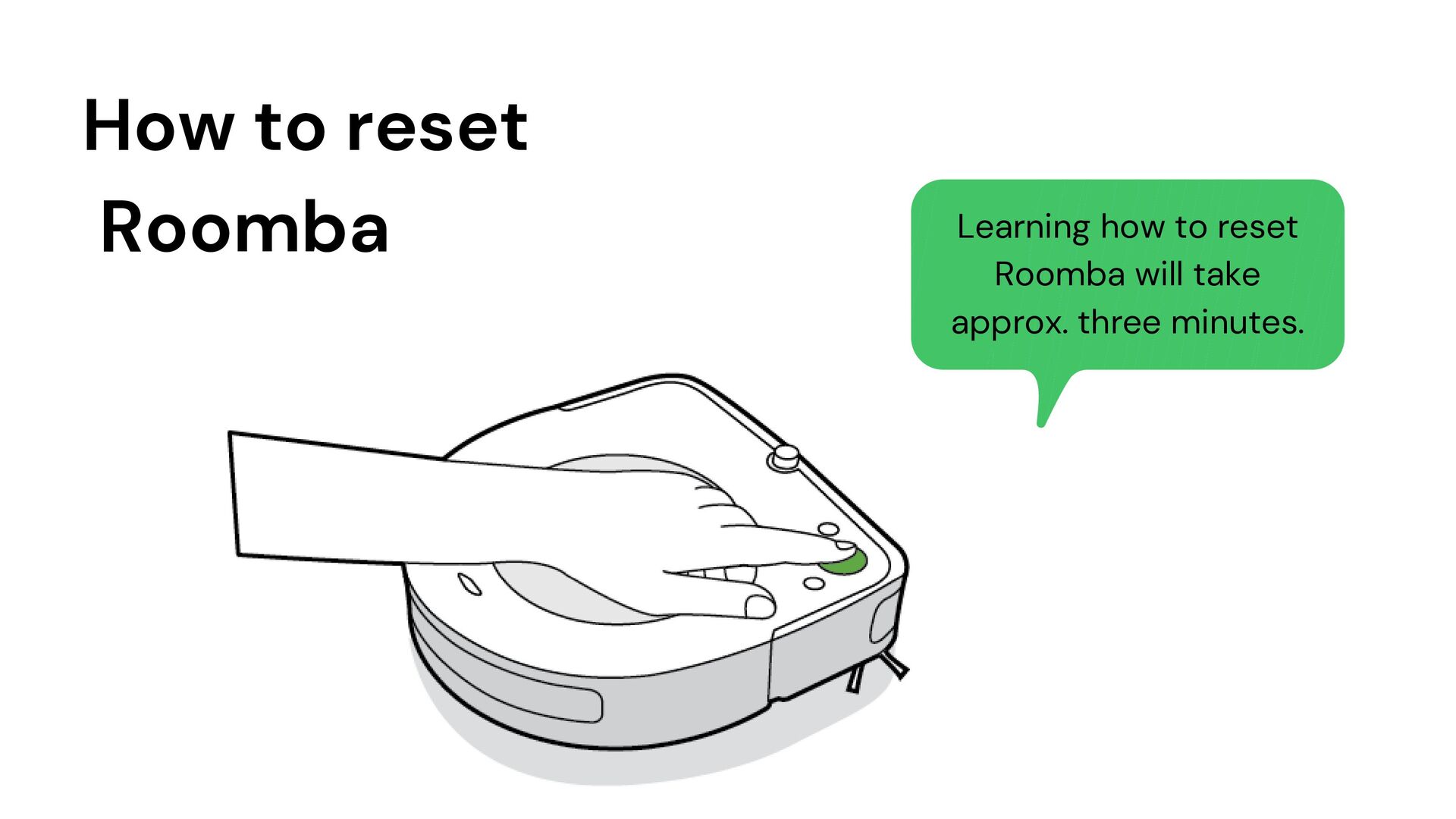
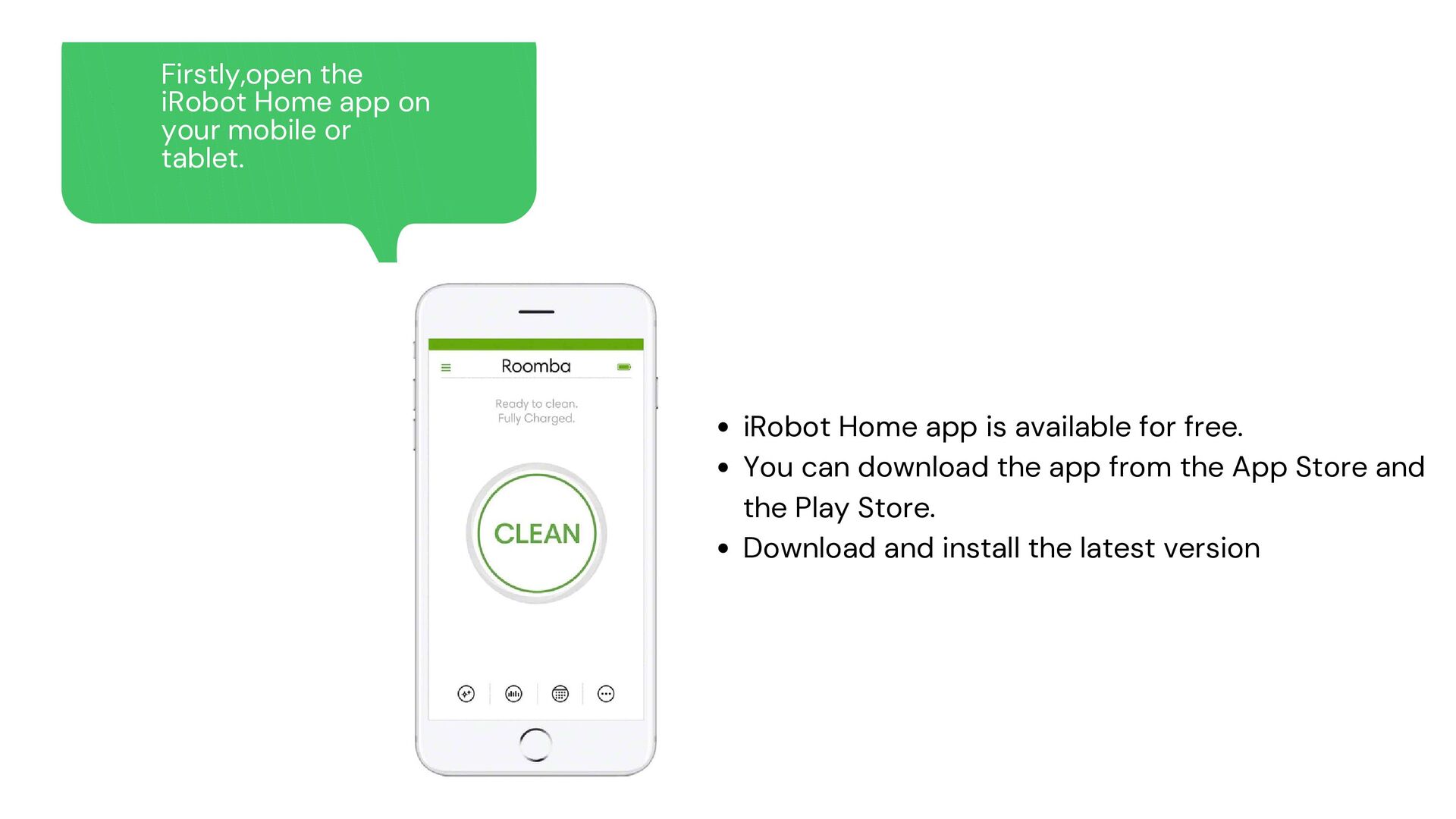
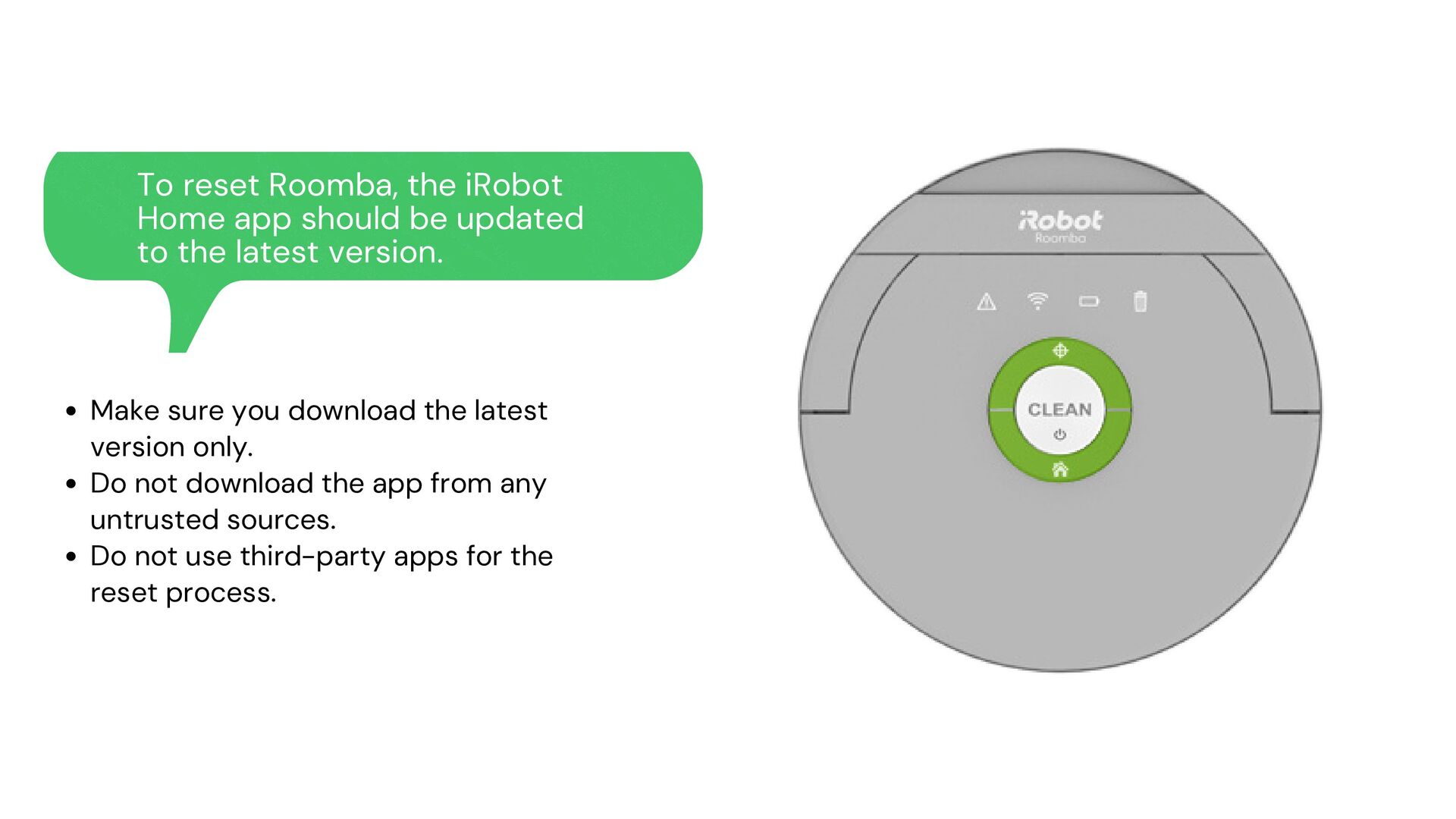
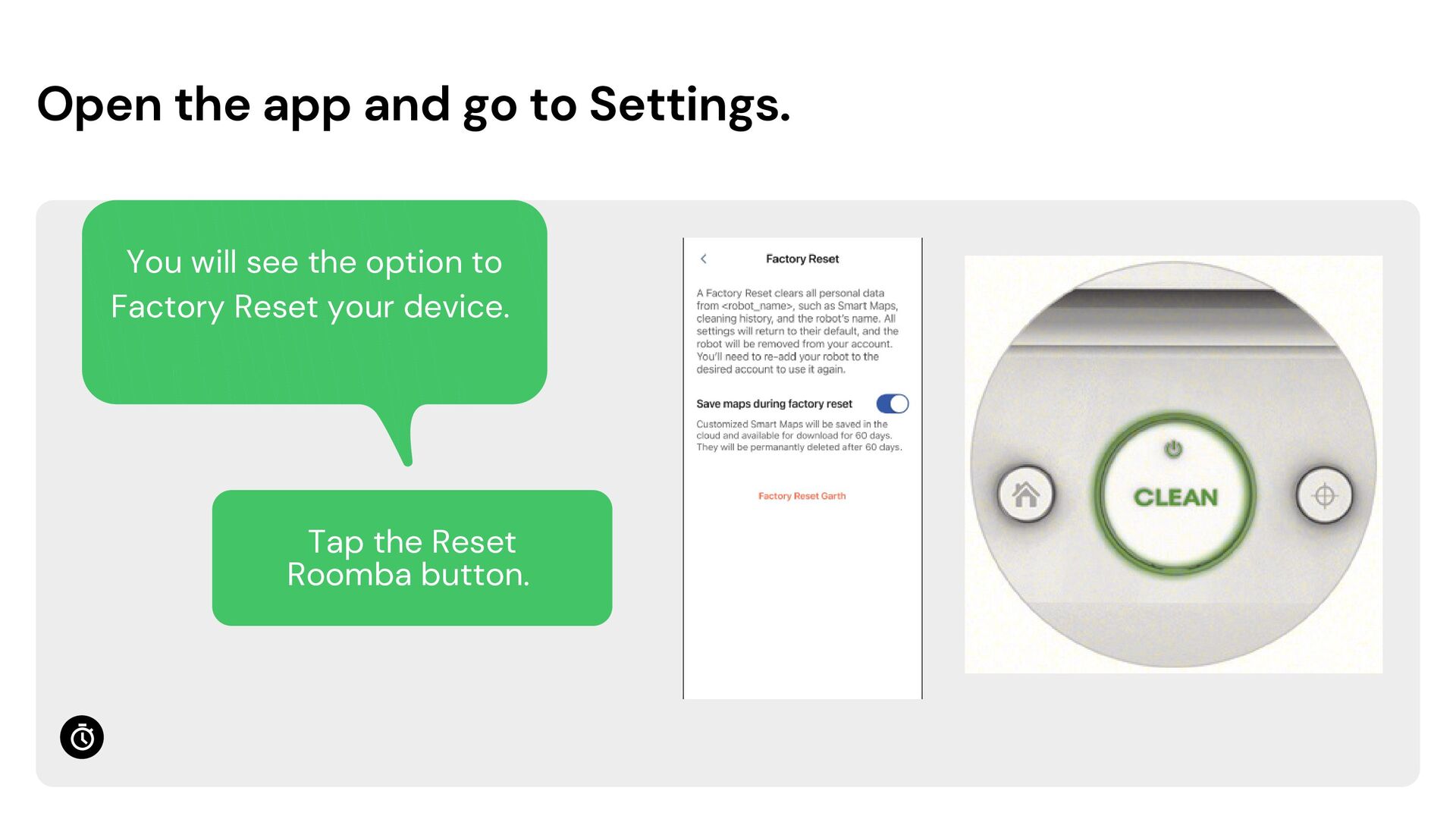
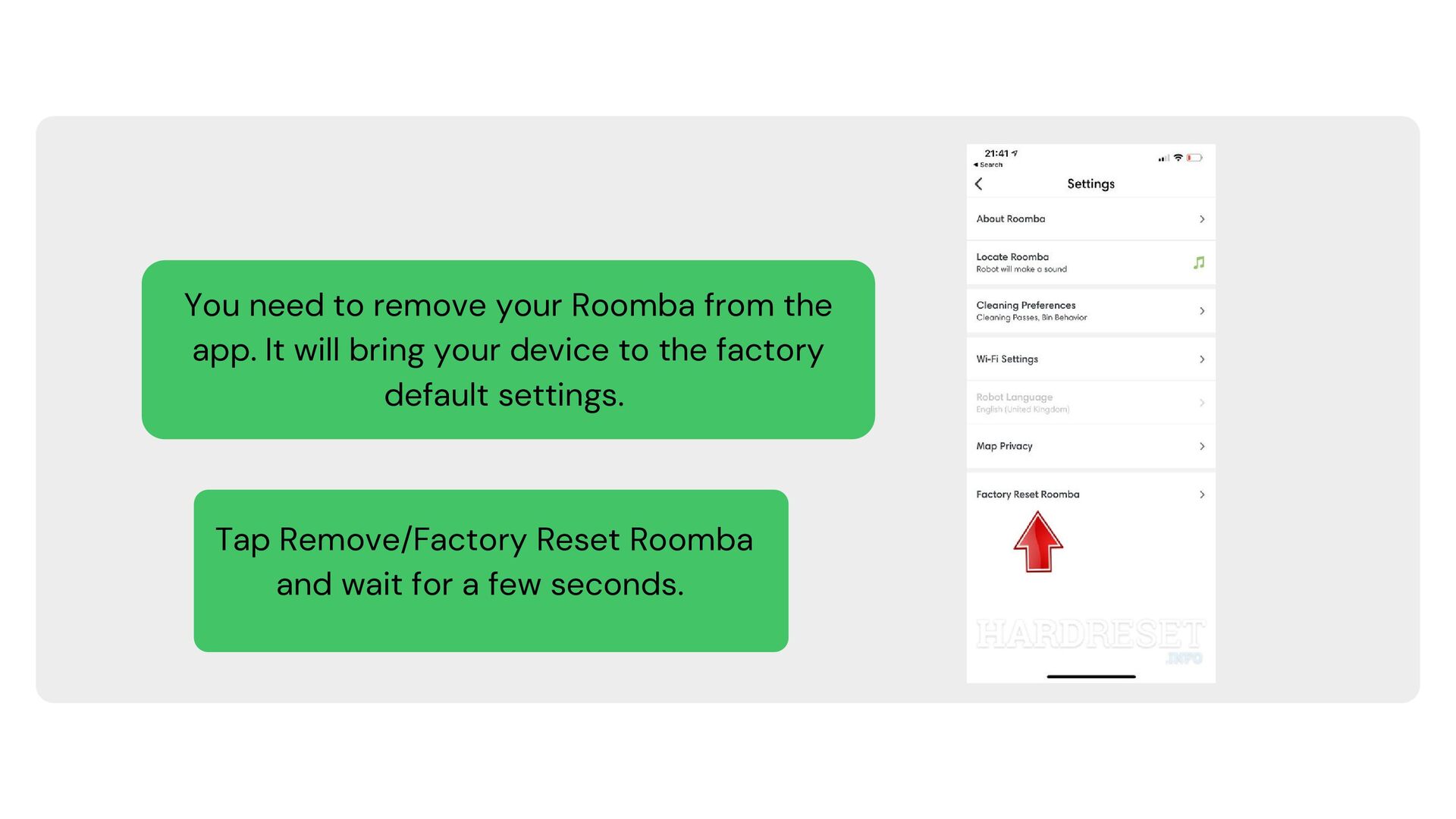
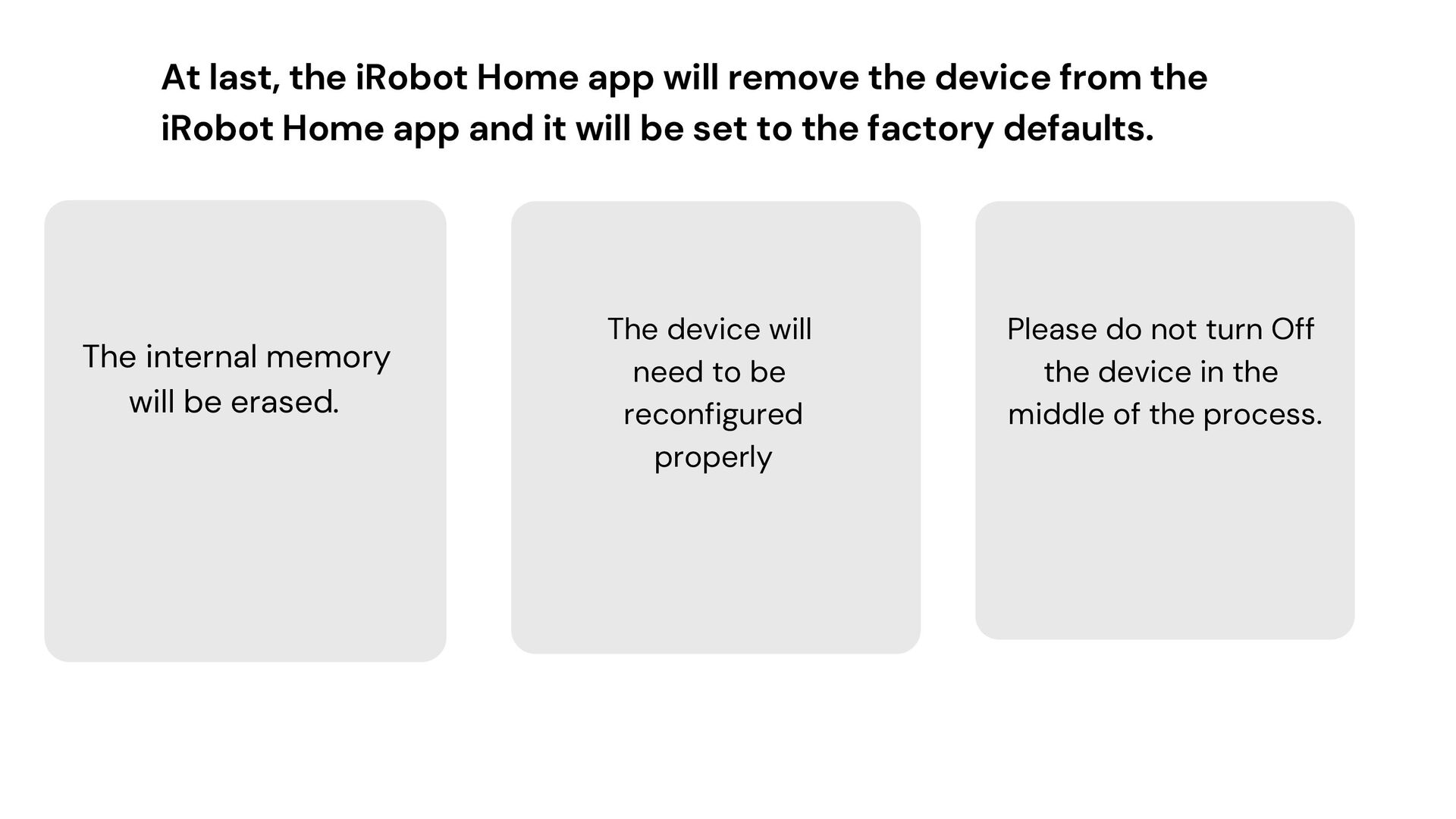
If your Roomba robot gets stuck during a cleaning cycle, what's the first thing you would do? Obviously, checking the battery level is the first thing. However, if even after the power is restored and the robot refuses to perform the way it has been in the past, you would need to take advanced troubleshooting steps. Read through the presentation to learn how to reset roomba and make it functional back again.


 alizasmith657
 kakehashi
 nttcom
 recruitengineers
 makocchi
 tokuty
 tomokusaba
 riyaamemiya
 akhino
 willnet
 pfn
pfn
 masakiokuda
 takanorip
 bethany
 akademiya2063
 hatefulcrawdad
 stephenakadiri
 inesmontani
 mkilby
 katiecoart
 samanthasiow
 uxyall
 morganepeng
 cassininazir
 tmiket