Upgrade to Pro — share decks privately, control downloads, hide ads and more …

Optimizing WebGL Applications

Sponsored · SiteGround - Reliable hosting with speed, security, and support you can count on.

Optimizing WebGL Applications

Avatar for Don Olmstead

Don Olmstead

January 23, 2014

More Decks by Don Olmstead

Other Decks in Programming

Transcript

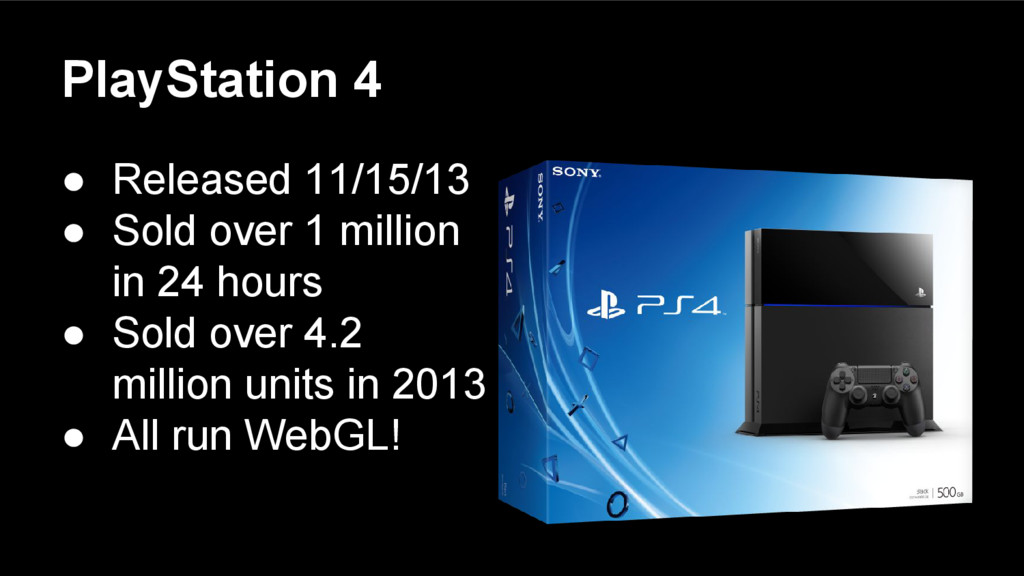
  1. PlayStation 4 • Released 11/15/13 • Sold over 1 million

    in 24 hours • Sold over 4.2 million units in 2013 • All run WebGL!
  2. Supported platforms • Same codebase runs on multiple platforms •

    PlayStation Hardware ◦ PS3 ◦ PS4 • Browser (development only) ◦ Chrome
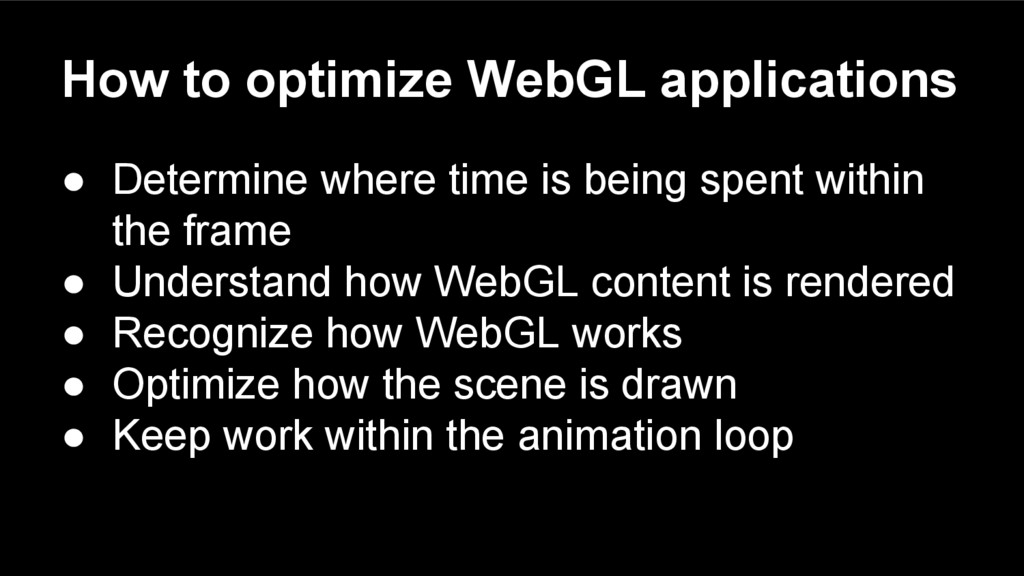
  3. How to optimize WebGL applications • Determine where time is

    being spent within the frame • Understand how WebGL content is rendered • Recognize how WebGL works • Optimize how the scene is drawn • Keep work within the animation loop
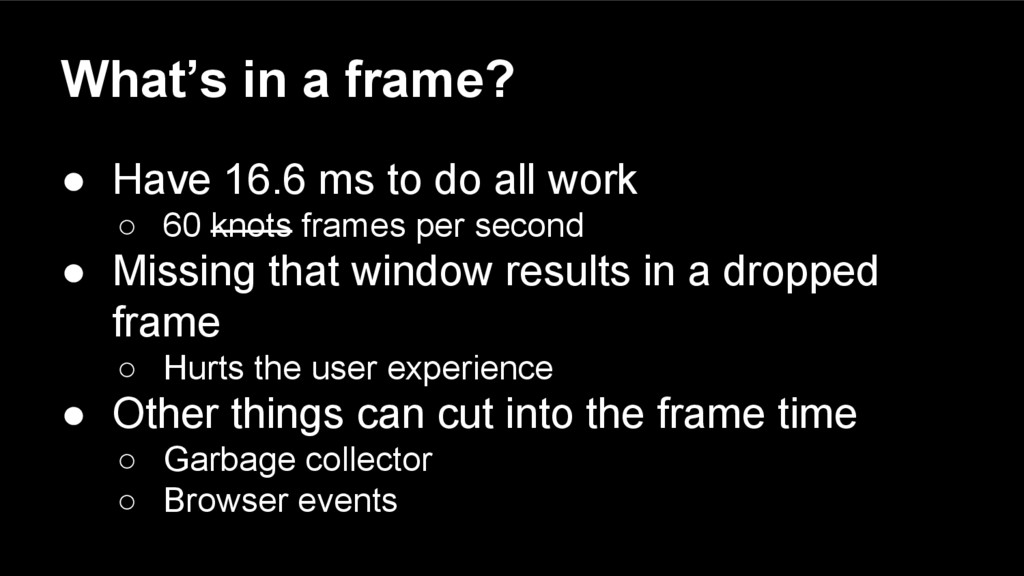
  4. What’s in a frame? • Have 16.6 ms to do

    all work ◦ 60 knots frames per second • Missing that window results in a dropped frame ◦ Hurts the user experience • Other things can cut into the frame time ◦ Garbage collector ◦ Browser events
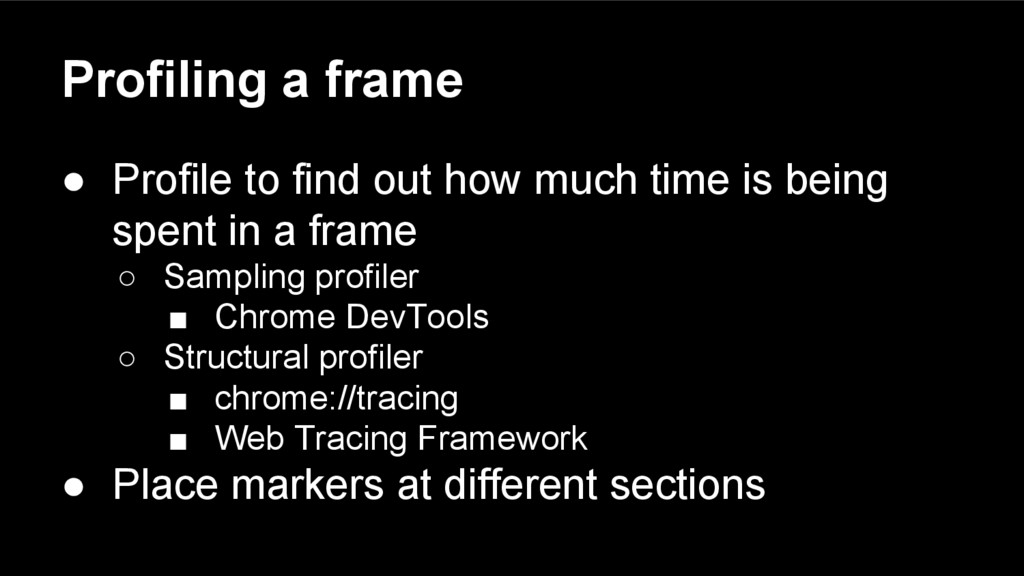
  5. Profiling a frame • Profile to find out how much

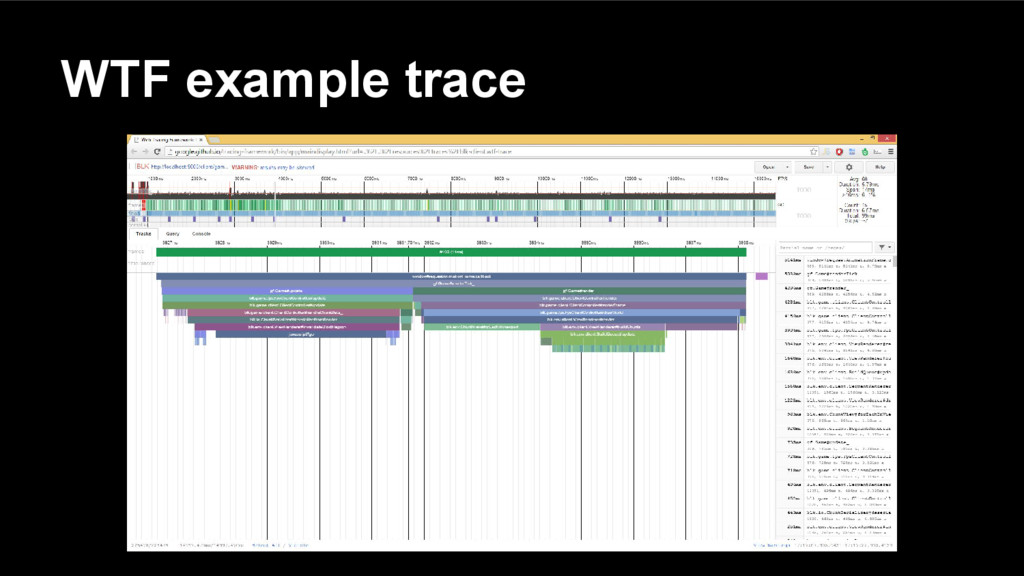
    time is being spent in a frame ◦ Sampling profiler ▪ Chrome DevTools ◦ Structural profiler ▪ chrome://tracing ▪ Web Tracing Framework • Place markers at different sections
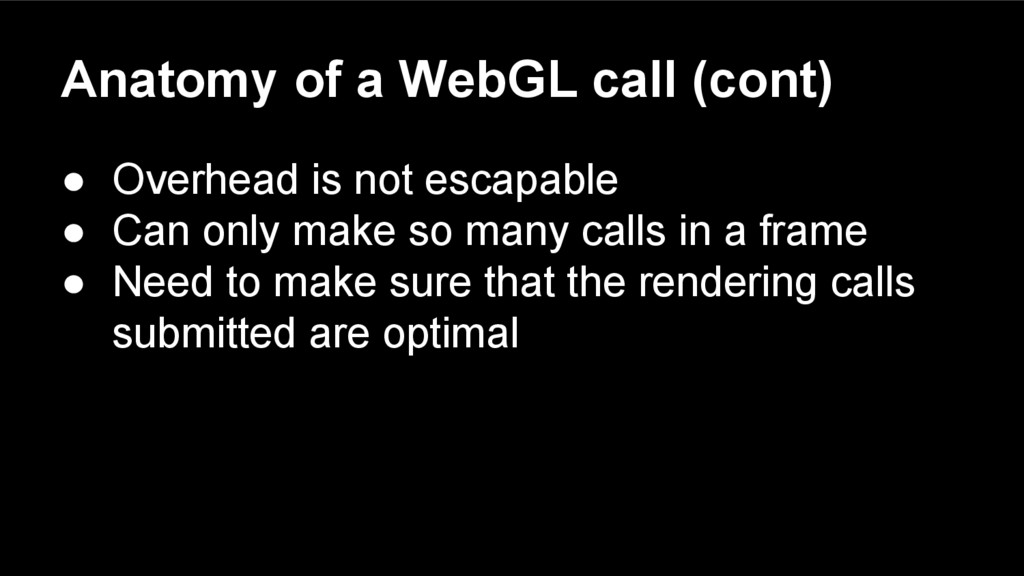
  6. Anatomy of a WebGL call (cont) • Overhead is not

    escapable • Can only make so many calls in a frame • Need to make sure that the rendering calls submitted are optimal
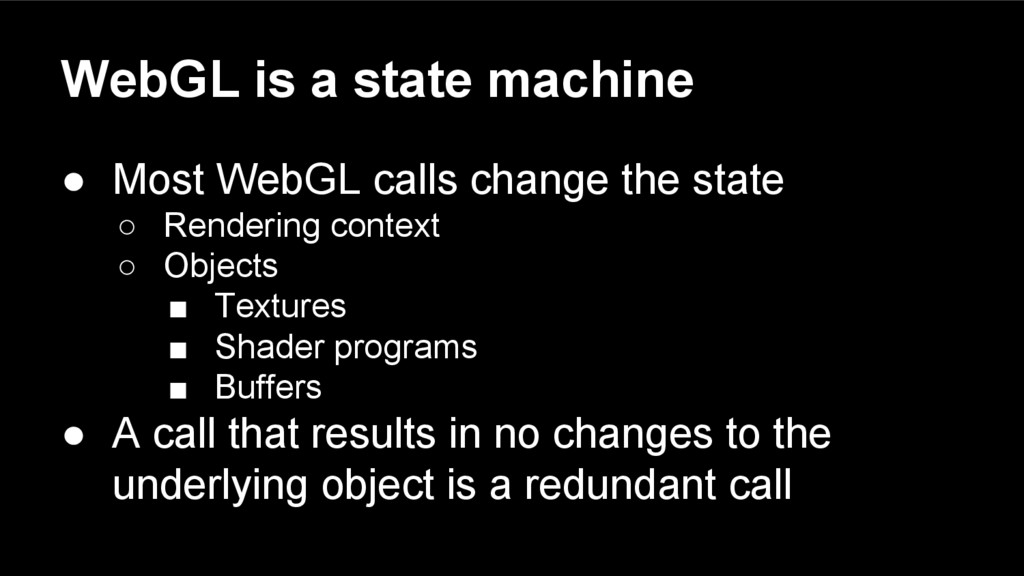
  7. WebGL is a state machine • Most WebGL calls change

    the state ◦ Rendering context ◦ Objects ▪ Textures ▪ Shader programs ▪ Buffers • A call that results in no changes to the underlying object is a redundant call
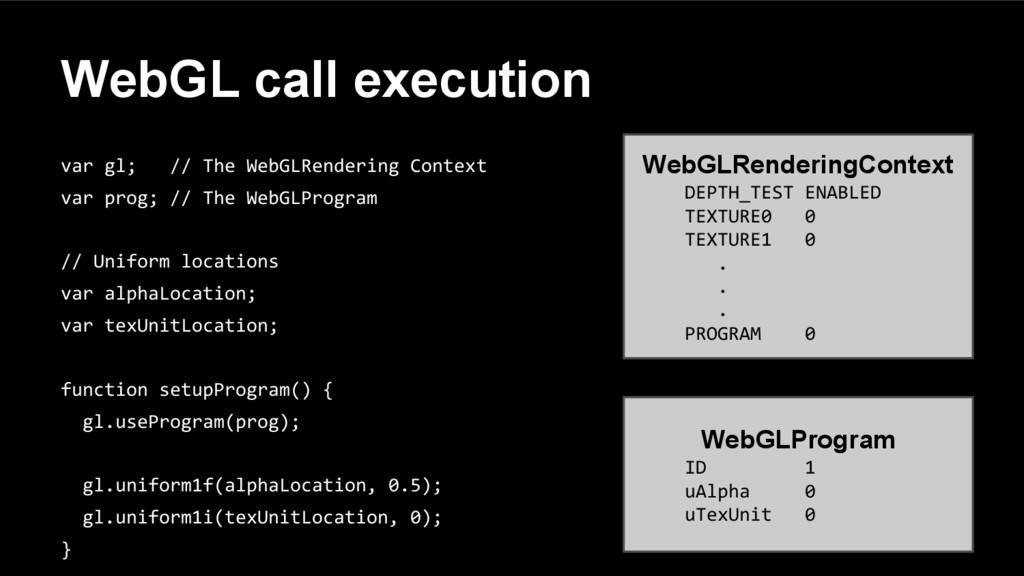
  8. WebGL call execution var gl; // The WebGLRendering Context var

    prog; // The WebGLProgram // Uniform locations var alphaLocation; var texUnitLocation; function setupProgram() { gl.useProgram(prog); gl.uniform1f(alphaLocation, 0.5); gl.uniform1i(texUnitLocation, 0); } WebGLRenderingContext DEPTH_TEST ENABLED TEXTURE0 0 TEXTURE1 0 . . . PROGRAM 0 WebGLProgram ID 1 uAlpha 0 uTexUnit 0
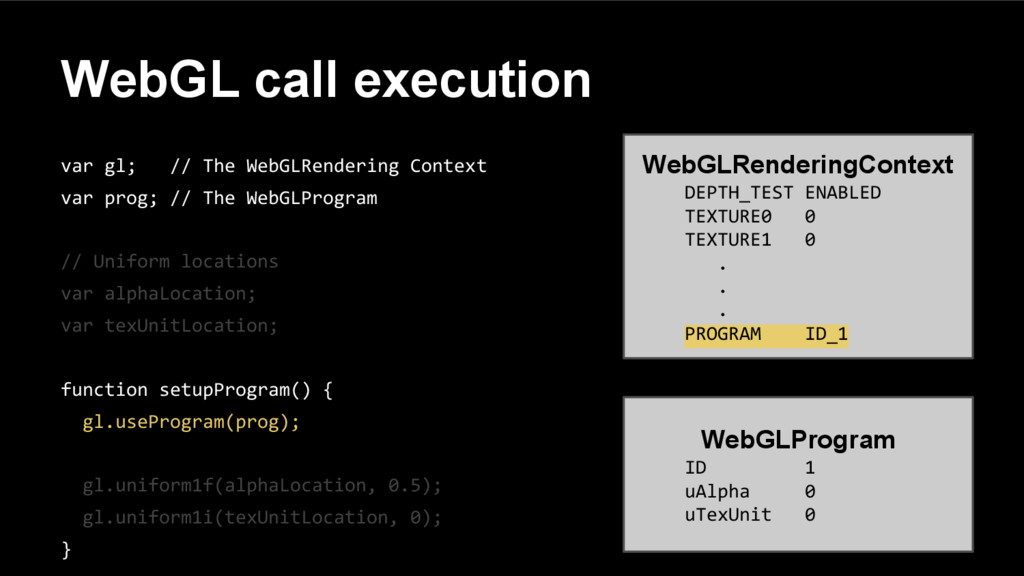
  9. WebGL call execution var gl; // The WebGLRendering Context var

    prog; // The WebGLProgram // Uniform locations var alphaLocation; var texUnitLocation; function setupProgram() { gl.useProgram(prog); gl.uniform1f(alphaLocation, 0.5); gl.uniform1i(texUnitLocation, 0); } WebGLRenderingContext DEPTH_TEST ENABLED TEXTURE0 0 TEXTURE1 0 . . . PROGRAM ID_1 WebGLProgram ID 1 uAlpha 0 uTexUnit 0
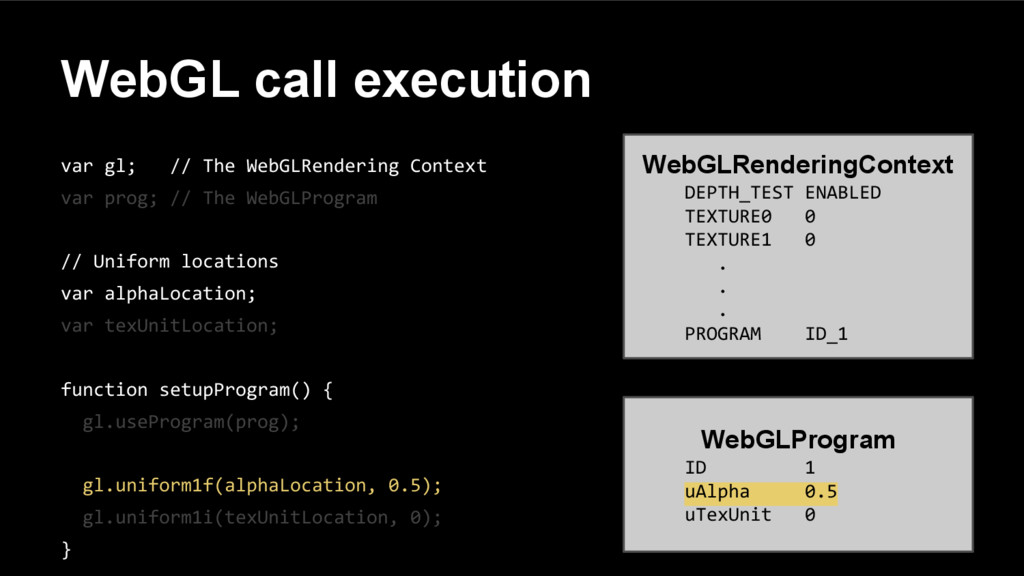
  10. WebGL call execution var gl; // The WebGLRendering Context var

    prog; // The WebGLProgram // Uniform locations var alphaLocation; var texUnitLocation; function setupProgram() { gl.useProgram(prog); gl.uniform1f(alphaLocation, 0.5); gl.uniform1i(texUnitLocation, 0); } WebGLRenderingContext DEPTH_TEST ENABLED TEXTURE0 0 TEXTURE1 0 . . . PROGRAM ID_1 WebGLProgram ID 1 uAlpha 0.5 uTexUnit 0
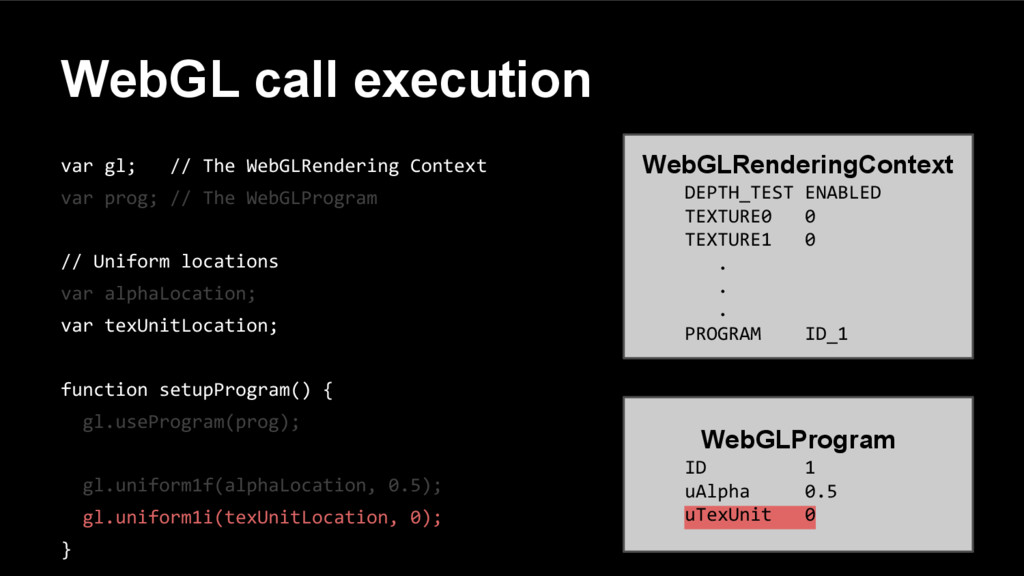
  11. WebGL call execution var gl; // The WebGLRendering Context var

    prog; // The WebGLProgram // Uniform locations var alphaLocation; var texUnitLocation; function setupProgram() { gl.useProgram(prog); gl.uniform1f(alphaLocation, 0.5); gl.uniform1i(texUnitLocation, 0); } WebGLRenderingContext DEPTH_TEST ENABLED TEXTURE0 0 TEXTURE1 0 . . . PROGRAM ID_1 WebGLProgram ID 1 uAlpha 0.5 uTexUnit 0
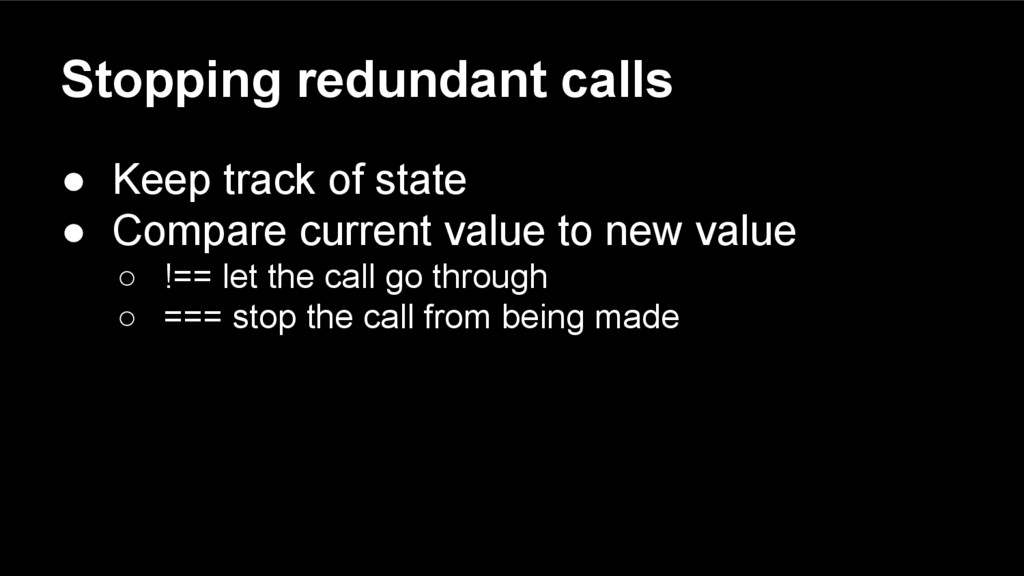
  12. Stopping redundant calls • Keep track of state • Compare

    current value to new value ◦ !== let the call go through ◦ === stop the call from being made
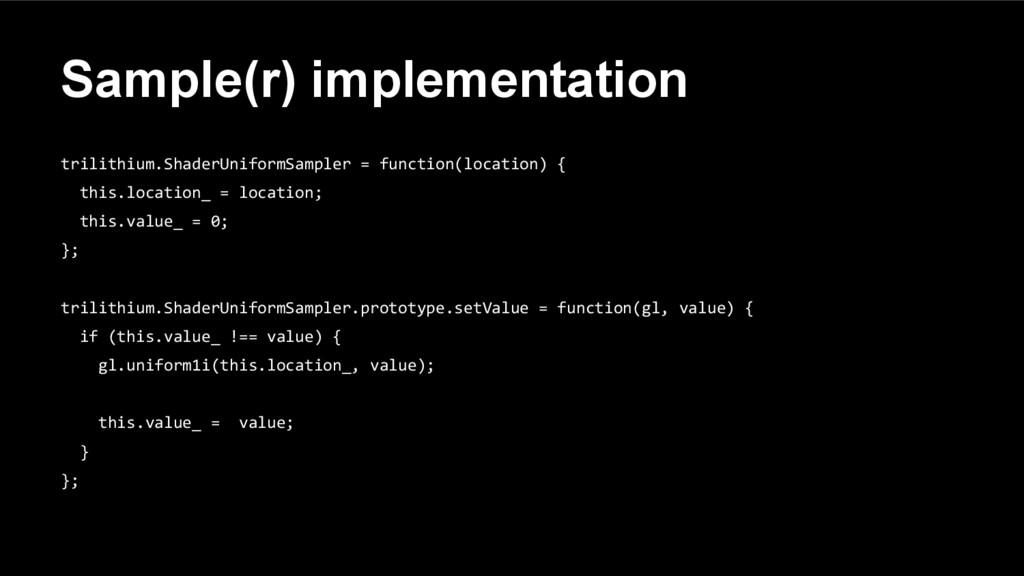
  13. Sample(r) implementation trilithium.ShaderUniformSampler = function(location) { this.location_ = location; this.value_

    = 0; }; trilithium.ShaderUniformSampler.prototype.setValue = function(gl, value) { if (this.value_ !== value) { gl.uniform1i(this.location_, value); this.value_ = value; } };
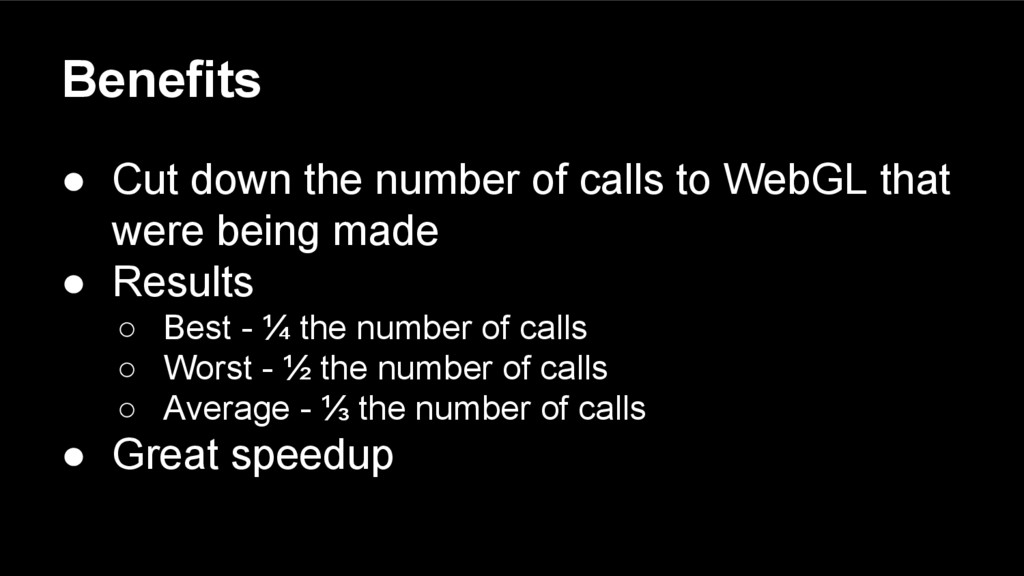
  14. Benefits • Cut down the number of calls to WebGL

    that were being made • Results ◦ Best - ¼ the number of calls ◦ Worst - ½ the number of calls ◦ Average - ⅓ the number of calls • Great speedup
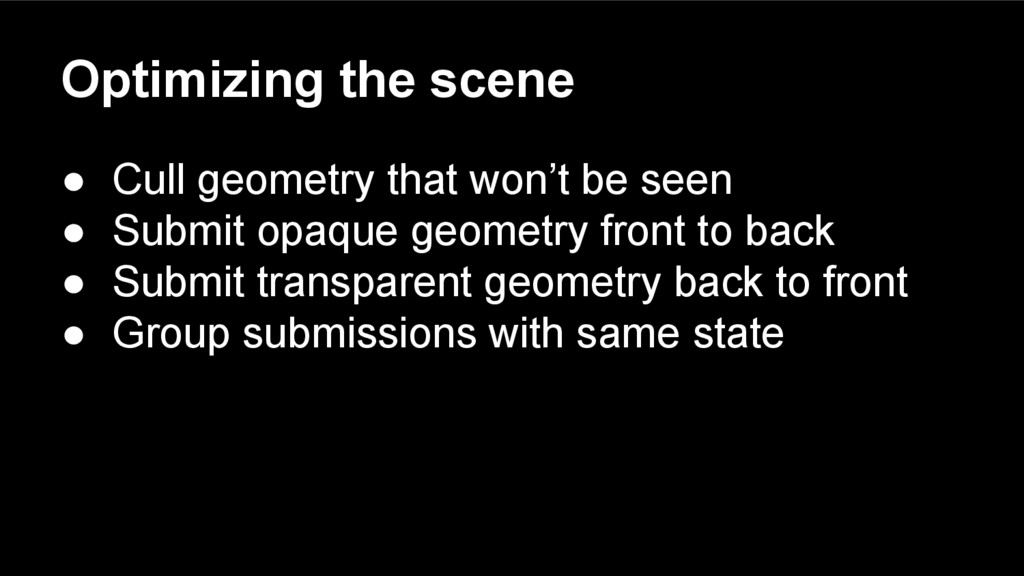
  15. Optimizing the scene • Cull geometry that won’t be seen

    • Submit opaque geometry front to back • Submit transparent geometry back to front • Group submissions with same state
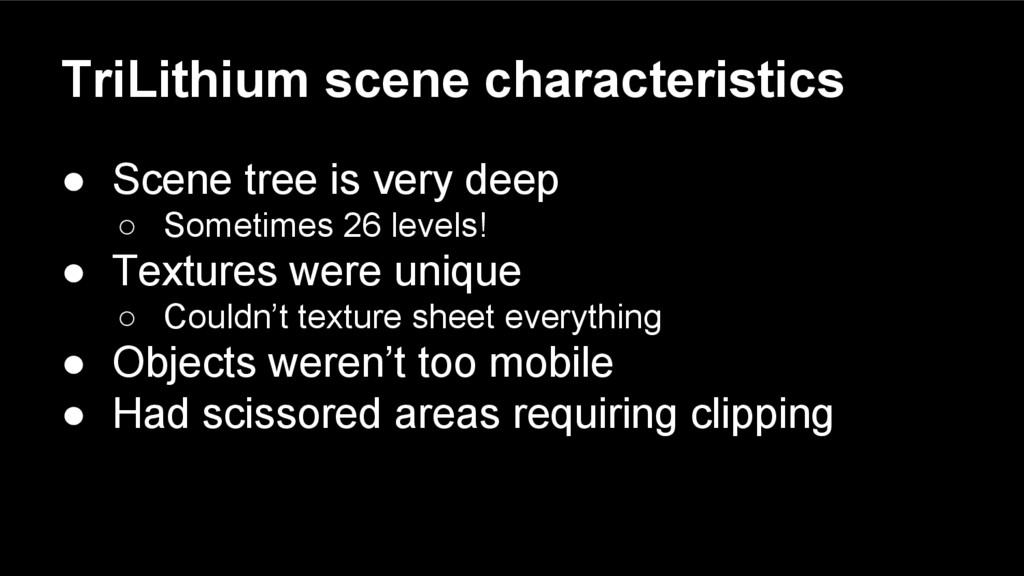
  16. TriLithium scene characteristics • Scene tree is very deep ◦

    Sometimes 26 levels! • Textures were unique ◦ Couldn’t texture sheet everything • Objects weren’t too mobile • Had scissored areas requiring clipping
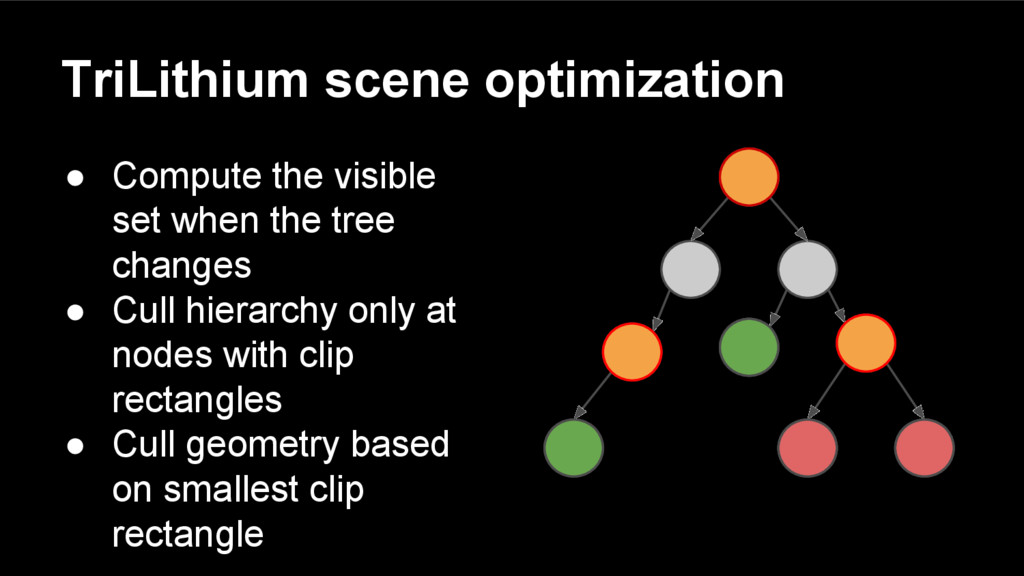
  17. TriLithium scene optimization • Compute the visible set when the

    tree changes • Cull hierarchy only at nodes with clip rectangles • Cull geometry based on smallest clip rectangle
  18. Keep work within the frame • Events occur outside the

    animation loop ◦ Timeouts ◦ Request responses • If an event triggers a long running script execution a frame can be dropped
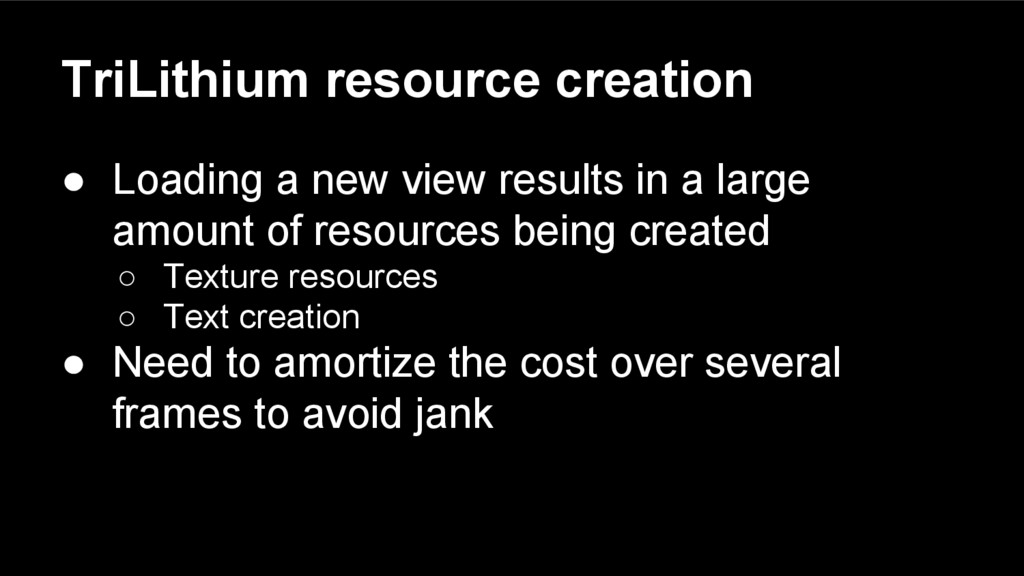
  19. TriLithium resource creation • Loading a new view results in

    a large amount of resources being created ◦ Texture resources ◦ Text creation • Need to amortize the cost over several frames to avoid jank
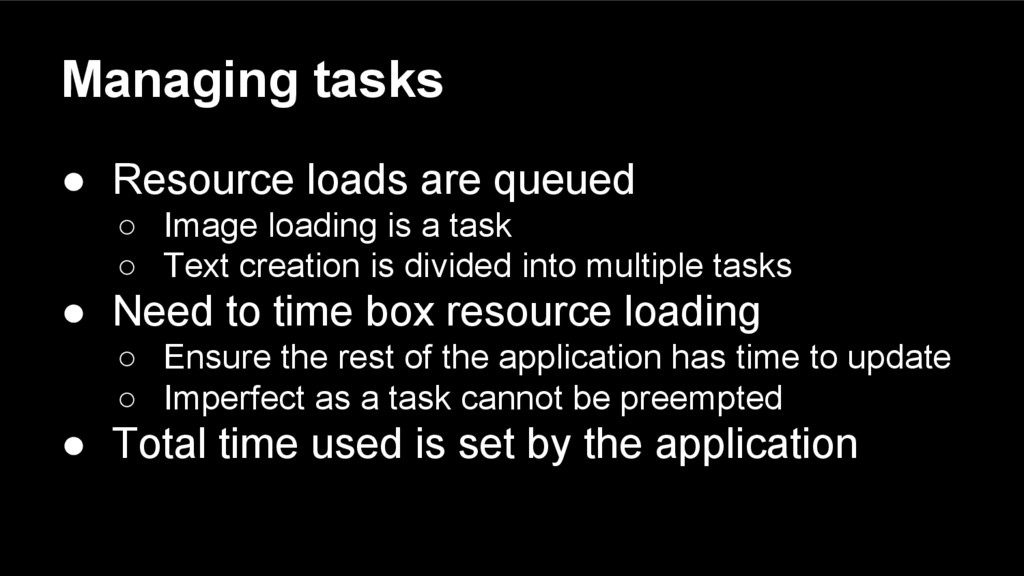
  20. Managing tasks • Resource loads are queued ◦ Image loading

    is a task ◦ Text creation is divided into multiple tasks • Need to time box resource loading ◦ Ensure the rest of the application has time to update ◦ Imperfect as a task cannot be preempted • Total time used is set by the application
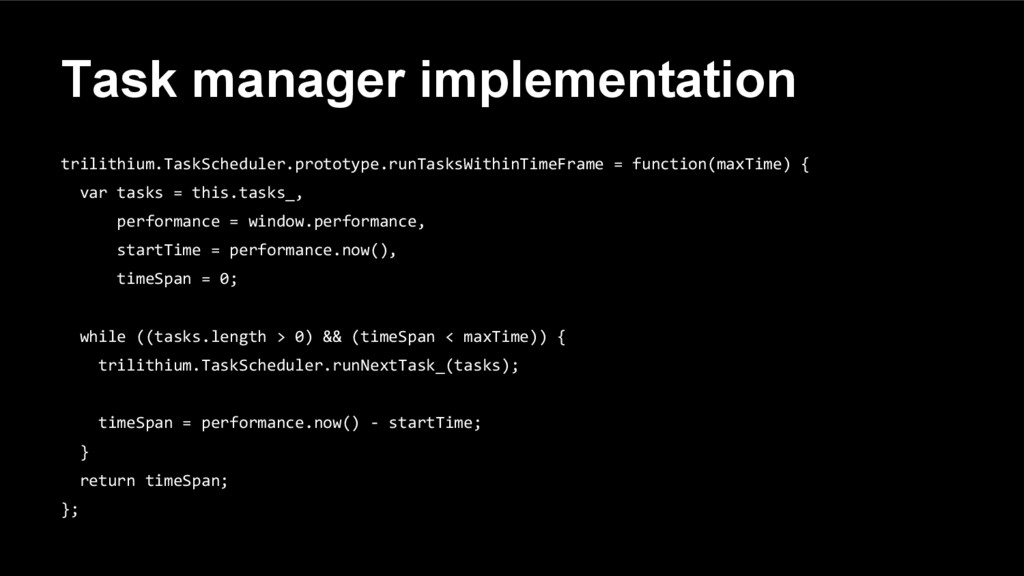
  21. Task manager implementation trilithium.TaskScheduler.prototype.runTasksWithinTimeFrame = function(maxTime) { var tasks =

    this.tasks_, performance = window.performance, startTime = performance.now(), timeSpan = 0; while ((tasks.length > 0) && (timeSpan < maxTime)) { trilithium.TaskScheduler.runNextTask_(tasks); timeSpan = performance.now() - startTime; } return timeSpan; };
  22. Conclusion • Can reduce the number of WebGL calls by

    understanding how WebGL works • Optimize the geometry submission based on your application • Keep work on the animation frame to avoid jank