Upgrade to Pro
— share decks privately, control downloads, hide ads and more …
Speaker Deck
Sign up for free
Menu
Search
Features
All features
Private URLs
Password Protection
Custom URLS
Scheduled publishing
Remove Branding
Restrict embedding
Deck Collections
Notes
Features
All features
Private URLs
Password Protection
Custom URLS
Scheduled publishing
Remove Branding
Restrict embedding
Deck Collections
Notes
Explore
Featured decks
Featured speakers
Programming
Technology
Storyboards
Explore
Featured decks
Featured speakers
Programming
Technology
Storyboards
Pricing
Search
Sign in
Sign up for free
認証にシークレットも証明書も不要?! オンプレミスのサーバーでマネージドIDを利用!
Search
Masahiko Ebisuda
March 08, 2024
Technology
290
0
Share
Embed
Copy iframe code
Copy JS code
Copy link
Start on current slide
認証にシークレットも証明書も不要?! オンプレミスのサーバーでマネージドIDを利用!
Masahiko Ebisuda
March 08, 2024
More Decks by Masahiko Ebisuda
See All by Masahiko Ebisuda
ソブリンクラウドの現在地 - そもそも何か。どこまで使えるか。
ebibibi
0
130
AI時代の「本当の」ハイブリッドクラウド — エージェントが実現した、あの頃の夢
ebibibi
0
250
ローカルLLMでクラウドアプリもAI使い放題_NVIDIA DGX Spark × Azure ハイブリッド構成
ebibibi
0
230
ADに依存しないクラスタの世界へ_On-PremからAzureLocalまで_前半_.pdf
ebibibi
0
160
ファイルサーバー運用の新時代!Azure FilesとArc拡張の最前線
ebibibi
1
290
ハイブリッドクラウド研究会第63回勉強会 / ClaudeCode×Azure, GeminiCLI×Azure
ebibibi
1
160
AIもハイブリッドにできる?!ローカルLLMとクラウドの組み合わせの可能性!
ebibibi
0
340
AIエージェンとはAzureインフラも構築できるのか?
ebibibi
0
300
もうVPNは古い? VPNを使わずに オンプレサーバーを 管理する手法あれこれ
ebibibi
0
330
Other Decks in Technology
See All in Technology
SDDの運用にめげずに向き合った話
sansantech
PRO
1
130
OSC2026on_the-world-is-waiting-for-your-voice.pdf
naruoga
0
350
生成AIと進める探索的データ分析(2026.10.03 第122回Tokyo.R勉強会)
tatamiya
2
1.4k
[2026 Oracle Technical Deep Dive] VMwareワークロードのOCI移行実践ガイド - OCVSでの継続利用からOCIコンピュートへの移行まで (2026年9月17日開催)
oracle4engineer
PRO
0
130
OpenSharing について熱く語る 〜AI アセットの共有について〜
kameitomohiro
0
230
[AWS 秋のクラウドオペレーション祭り 2026]AWS DevOps Agentで変わる リリースと運用対応 ~リリース管理機能と Directed actions のご紹介~
furuton
3
1k
AI時代のAPI開発を加速する品質ガードレール / API Quality Guardrails in the AI Era
yokawasa
0
150
購入ドメインでの課題と取り組み
ykagano
0
140
全社共通データ基盤をつくる。ソニーのDatabricks活用とデータガバナンス設計の裏側
sony
0
430
2026-10-01_MagicPod_QAハーネスエンジニアリングとQA組織の未来像
ynisqa1988
1
540
検証フェーズはAIの回答を判断するための学習機会
toru_kubota
2
500
AIは爆速なのに、私が詰まっていた話 ― 音声入力と鳴くマスコットでボトルネックを削る
yama3133
0
520
Featured
See All Featured
SEO in 2025: How to Prepare for the Future of Search
ipullrank
3
3.9k
How to Grow Your eCommerce with AI & Automation
katarinadahlin
PRO
2
320
HTML-Aware ERB: The Path to Reactive Rendering @ RubyCon 2026, Rimini, Italy
marcoroth
5
770
Designing for Performance
lara
611
70k
Jess Joyce - The Pitfalls of Following Frameworks
techseoconnect
PRO
1
440
Fight the Zombie Pattern Library - RWD Summit 2016
marcelosomers
234
18k
How to Think Like a Performance Engineer
csswizardry
28
2.9k
Git: the NoSQL Database
bkeepers
PRO
433
67k
ReactJS: Keep Simple. Everything can be a component!
pedronauck
666
130k
The Pragmatic Product Professional
lauravandoore
37
7.5k
We Are The Robots
honzajavorek
0
390
Side Projects
sachag
456
43k
Transcript
認証にシークレットも証明書も不要?! オンプレミスのサーバーでマネージドIDを利用! @ebi Masahiko Ebisuda
日本ビジネスシステムズ株式会社 胡田 昌彦(えびすだ まさひこ) Youtube https://youtube.com/@ebibibi 自己紹介 日本ビジネスシステムズ株式会社 こんな方にオススメ!
企業の情報システム部で働く方 一般ユーザーだけど、コンピューターに興味 があって、もっと詳しくなりたい方 Windows, Azure, M365等のMicrosoft 関連技術に興味がある方 チャンネル登録よろしくお願いします!
None
None
None
None
None
None
None
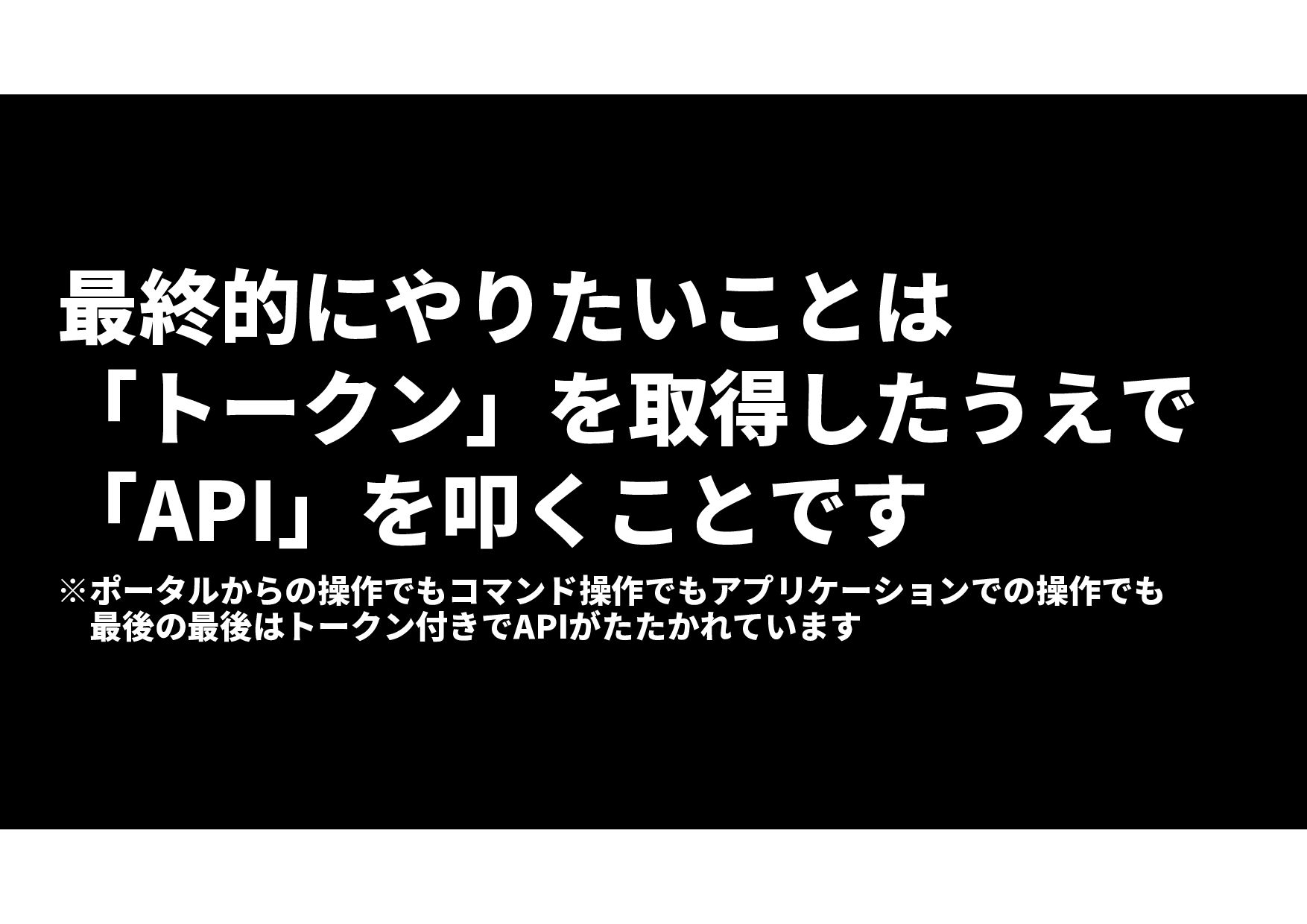
最終的にやりたいことは 「トークン」を取得したうえで 「API」を叩くことです ※ポータルからの操作でもコマンド操作でもアプリケーションでの操作でも 最後の最後はトークン付きでAPIがたたかれています
何を言っているのかわからない? まずは実際にやってみましょう! Resource Groups - Create Or Update - REST
API (Azure Resource Management) | Microsoft Docs https://docs.microsoft.com/ja- jp/rest/api/resources/resource-groups/create-or-update
None
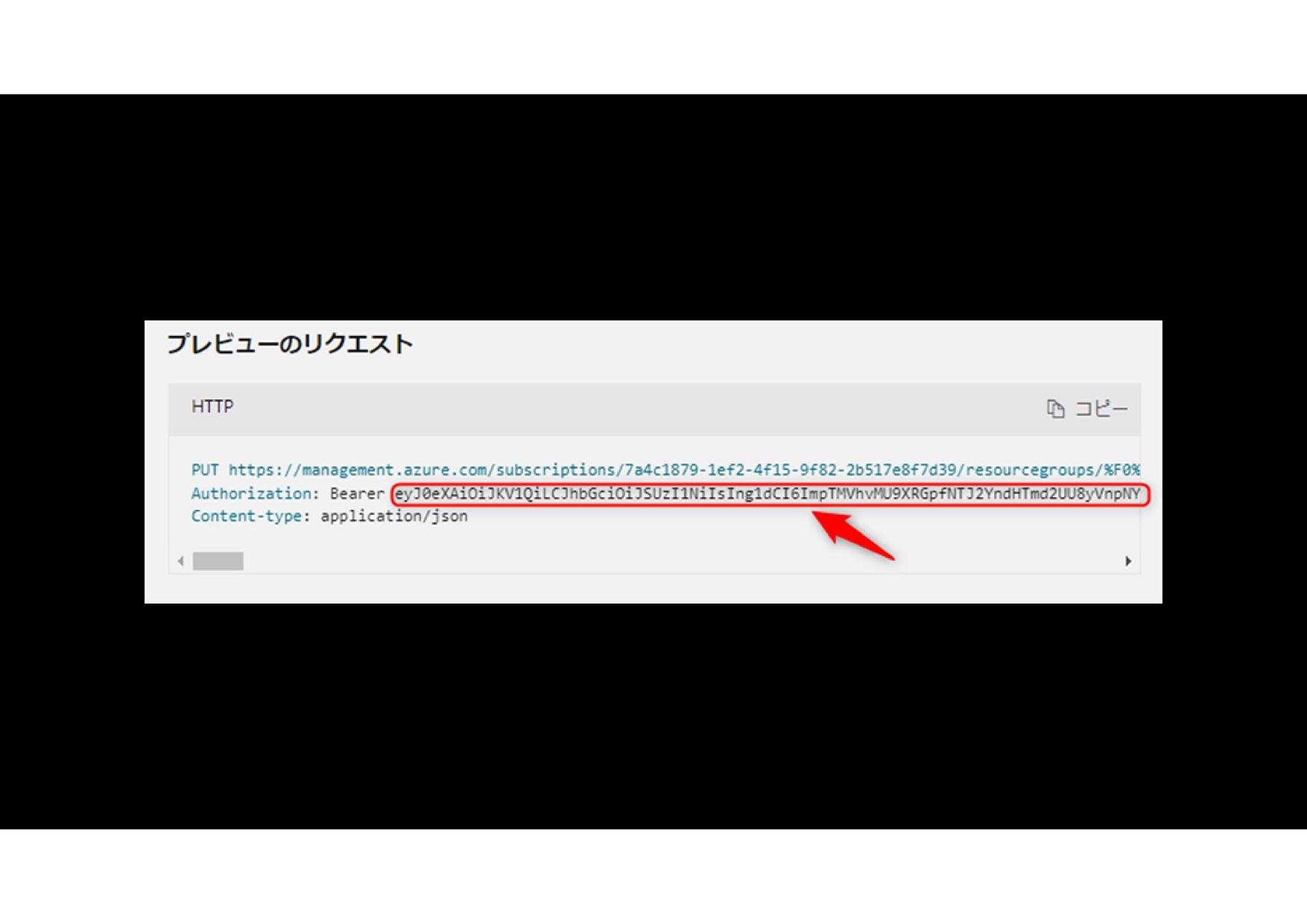
トークンを https://jwt.io/ でデコードしてみましょう
トークンさえ入手できればよい それをAPIに投げればよい
誰がどうやって トークンを取得するのか?
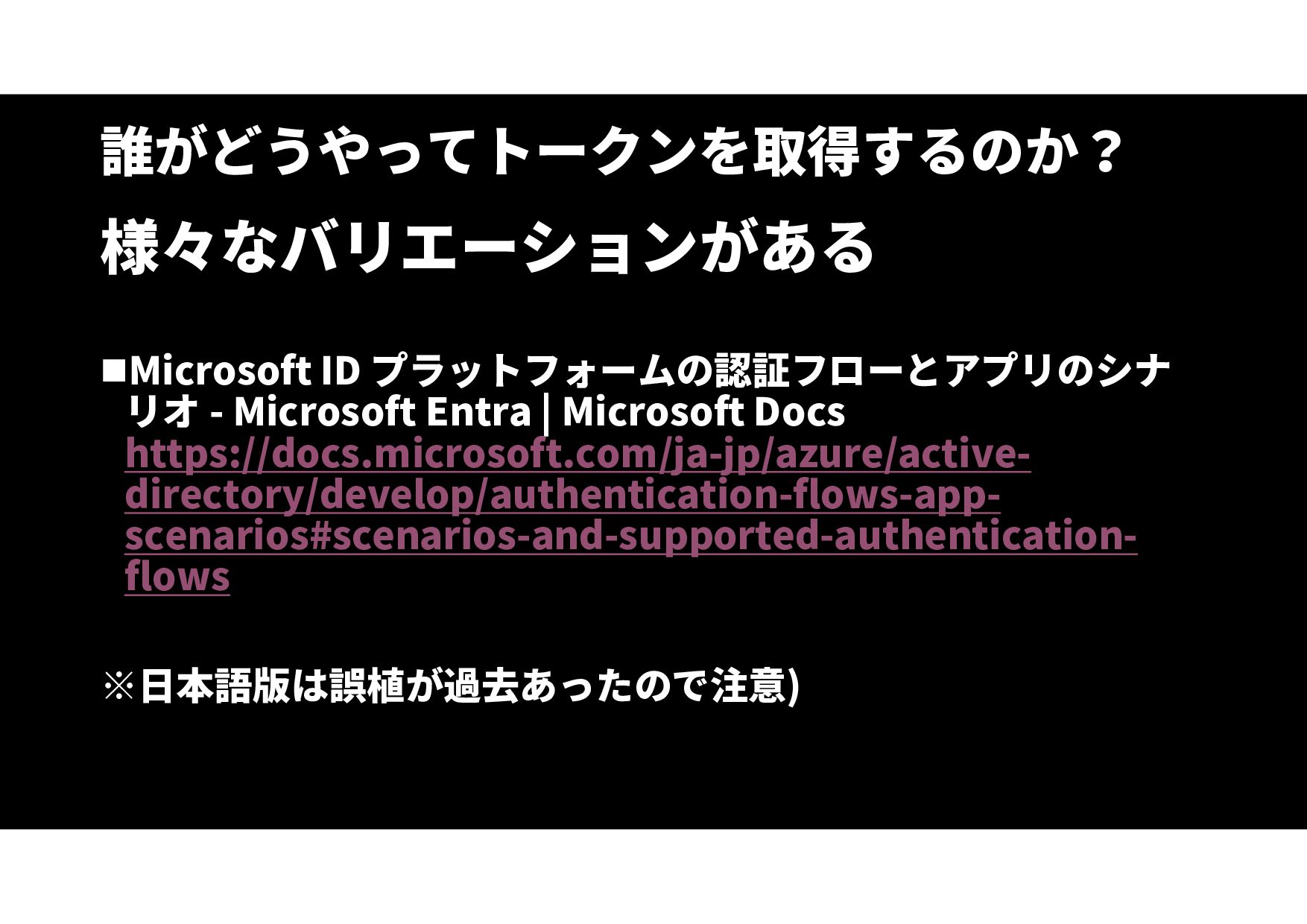
誰がどうやってトークンを取得するのか? 様々なバリエーションがある Microsoft ID プラットフォームの認証フローとアプリのシナ リオ - Microsoft Entra |
Microsoft Docs https://docs.microsoft.com/ja-jp/azure/active- directory/develop/authentication-flows-app- scenarios#scenarios-and-supported-authentication- flows ※日本語版は誤植が過去あったので注意)
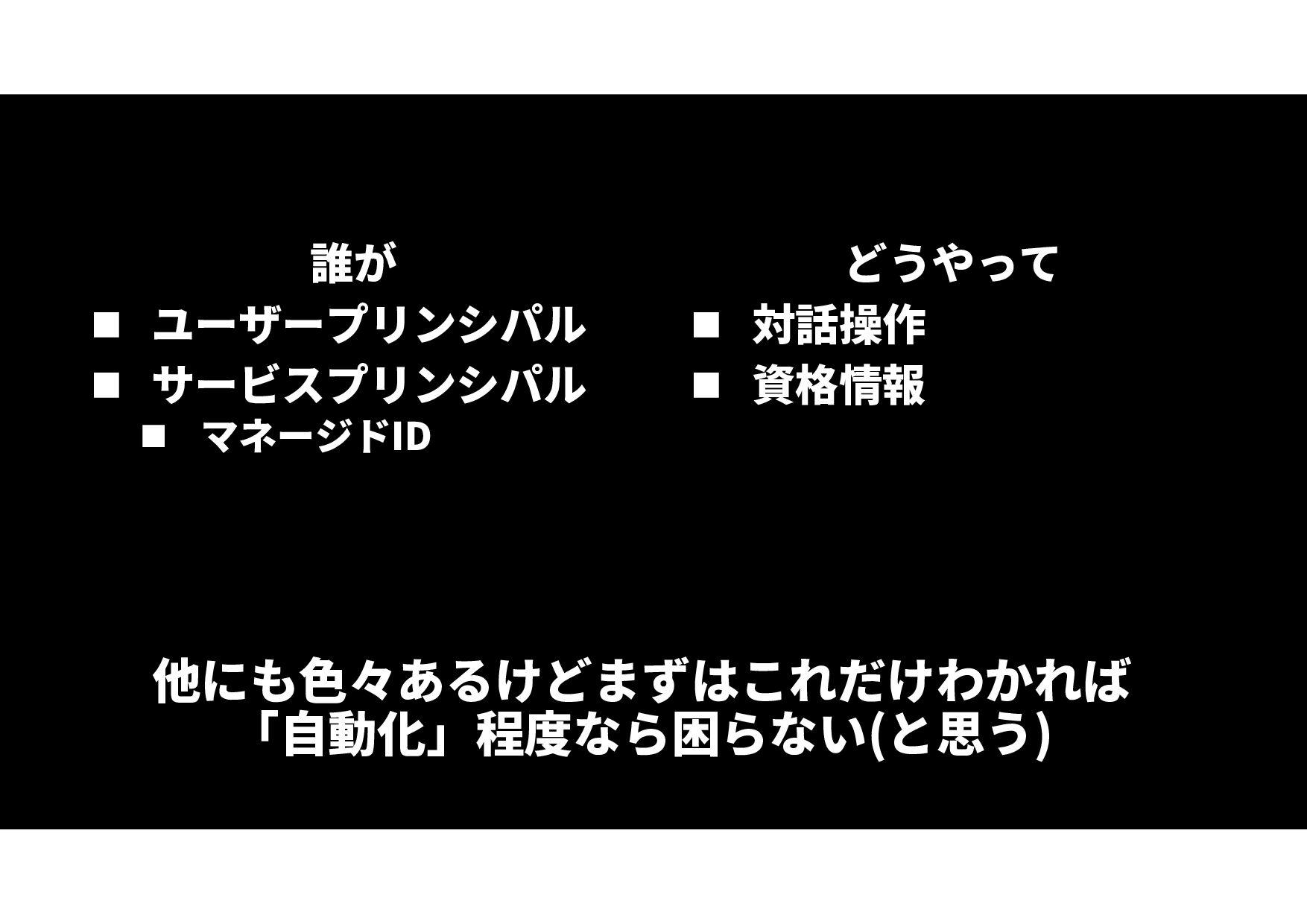
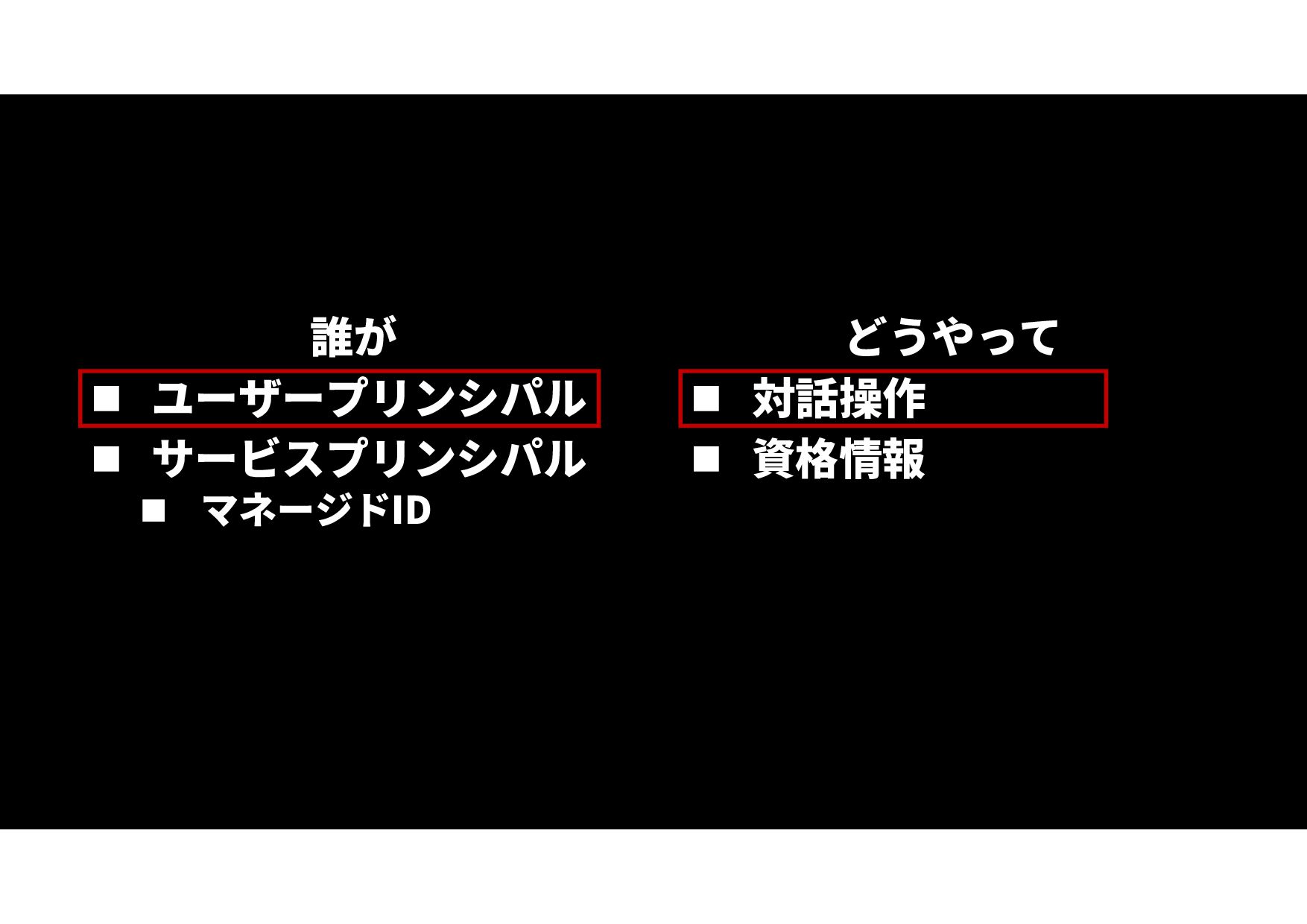
誰が ユーザープリンシパル サービスプリンシパル マネージドID どうやって 対話操作
資格情報 他にも色々あるけどまずはこれだけわかれば 「自動化」程度なら困らない(と思う)
基本の基本 ユーザーが対話的に認証する
誰が ユーザープリンシパル サービスプリンシパル マネージドID どうやって 対話操作
資格情報
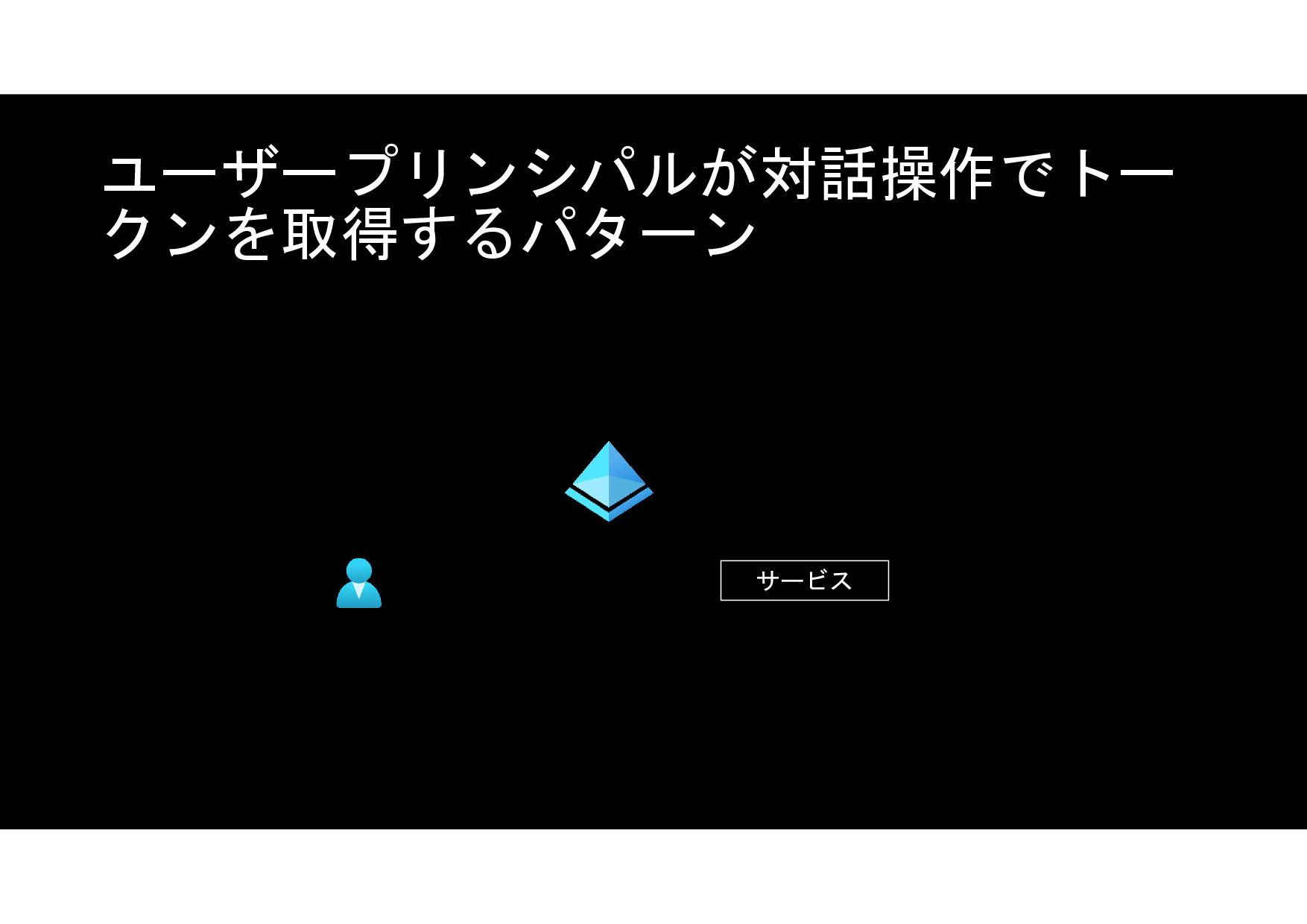
サービス ユーザープリンシパルが対話操作でトー クンを取得するパターン
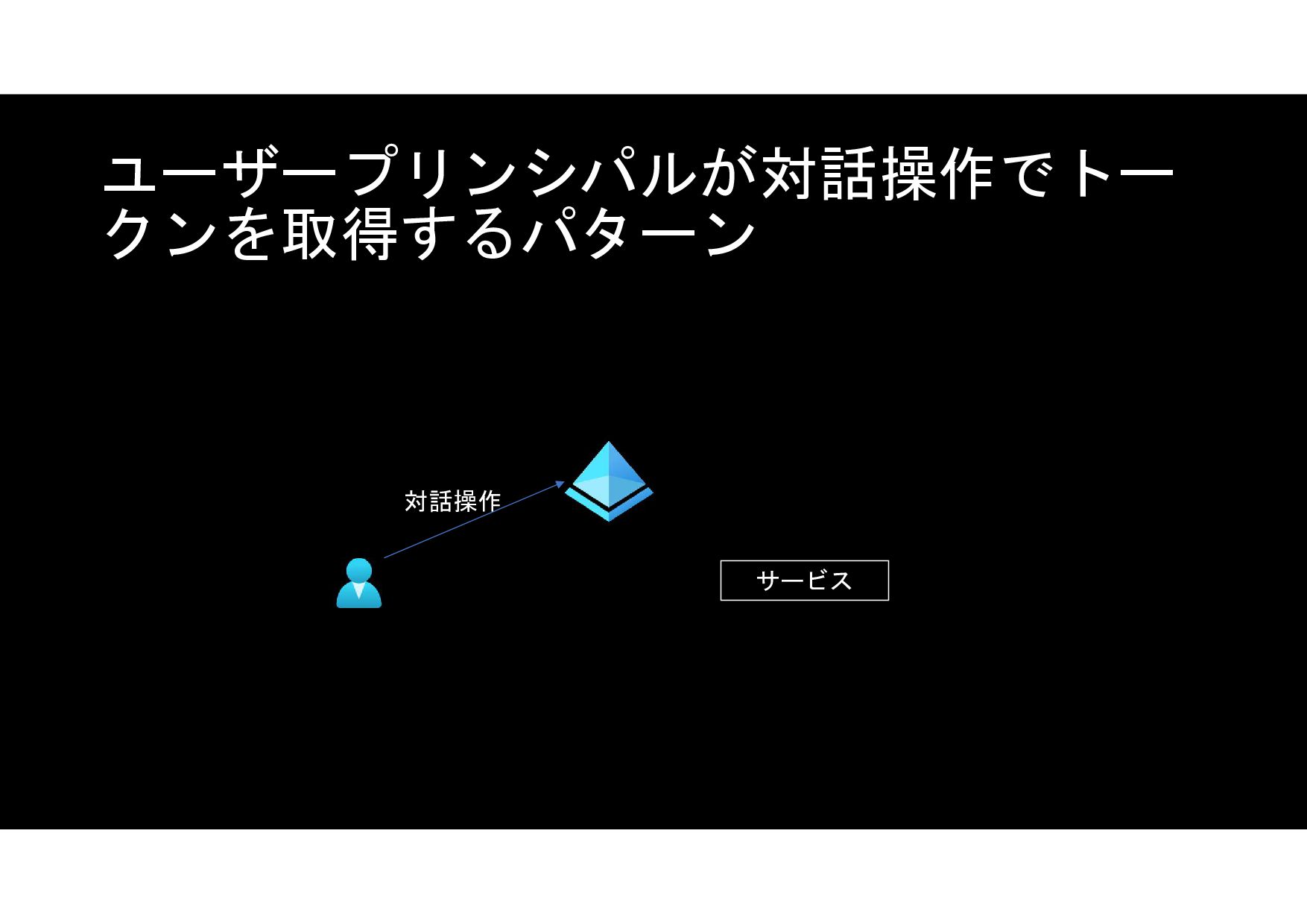
対話操作 サービス ユーザープリンシパルが対話操作でトー クンを取得するパターン
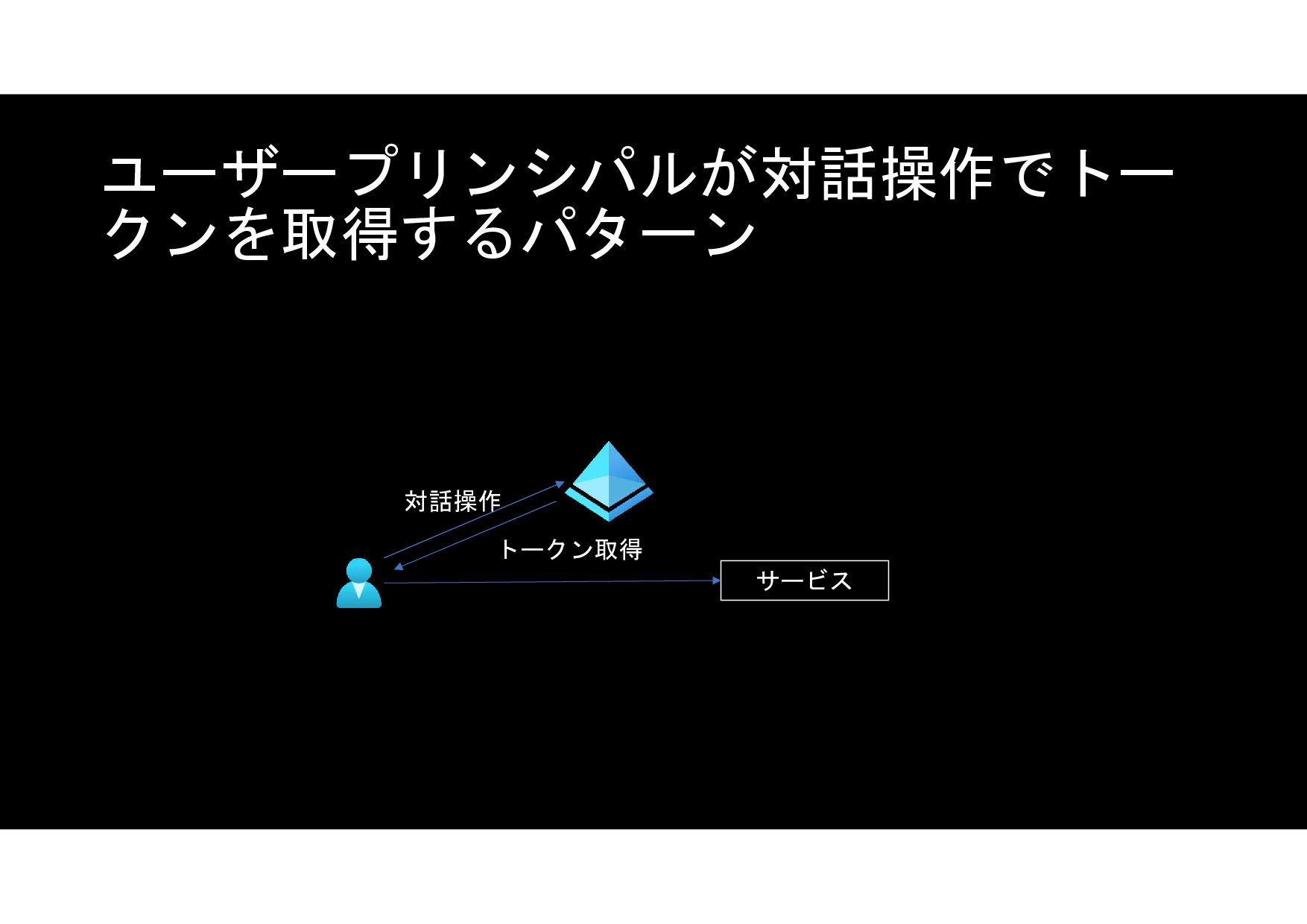
対話操作 トークン取得 サービス ユーザープリンシパルが対話操作でトー クンを取得するパターン
対話操作 トークン取得 サービス ユーザープリンシパルが対話操作でトー クンを取得するパターン
PowerShell # 認証する Connect-AzAccount # 現在のコンテキストを確認する(認証したID,AADテナント,対象のサブスクリプション等) Get-AzContext # 対象サブスクリプションが適切でない場合には切り替える #Get-AzSubscription
#Select-AzSubscription -Subscription <SubscriptionIDを入力> # トークンが取得できることを確認する Get-AzAccessToken $token = (Get-AzAccessToken).token # リソースグループを作成する $subscriptionId = (Get-AzContext).Subscription.Id $resourceGroupName = "testrg1" $url = "https://management.azure.com/subscriptions/${subscriptionId}/resourcegroups/${resourceGroupName}?api- version=2021-04-01" $headers = @{ "Authorization" = "Bearer $token" "Content-type" = "application/json" } $body = '{location:"JapanEast"}' Invoke-RestMethod -Method PUT -Uri $url -Headers $headers -Body $body
None
専用のコマンドレットが存在 ※認証済みなら裏でトークンを取得して APIに投げてくれる
PowerShell # 認証する Connect-AzAccount # トークンを取得する $token = (Get-AzAccessToken).token #
リソースグループを作成する $subscriptionId = (Get-AzContext).Subscription.Id $resourceGroupName = "testrg1" $url = "https://management.azure.com/subscriptions/${subscriptionId}/resourcegroups/$ {resourceGroupName}?api-version=2021-04-01" $headers = @{ "Authorization" = "Bearer $token" "Content-type" = "application/json" } $body = '{location:"JapanEast"}' Invoke-RestMethod -Method PUT -Uri $url -Headers $headers -Body $body
PowerShell # 認証する Connect-AzAccount # リソースグループを作成する New-AzResourceGroup -Name testrg2 -Location
JapanEast
PowerShell # 認証する Connect-AzAccount # リソースグループを作成する New-AzResourceGroup -Name testrg2 -Location
JapanEast 対話的な認証では自動化できない!
サービスプリンシパルを使う
誰が ユーザープリンシパル サービスプリンシパル マネージドID どうやって 対話操作
資格情報
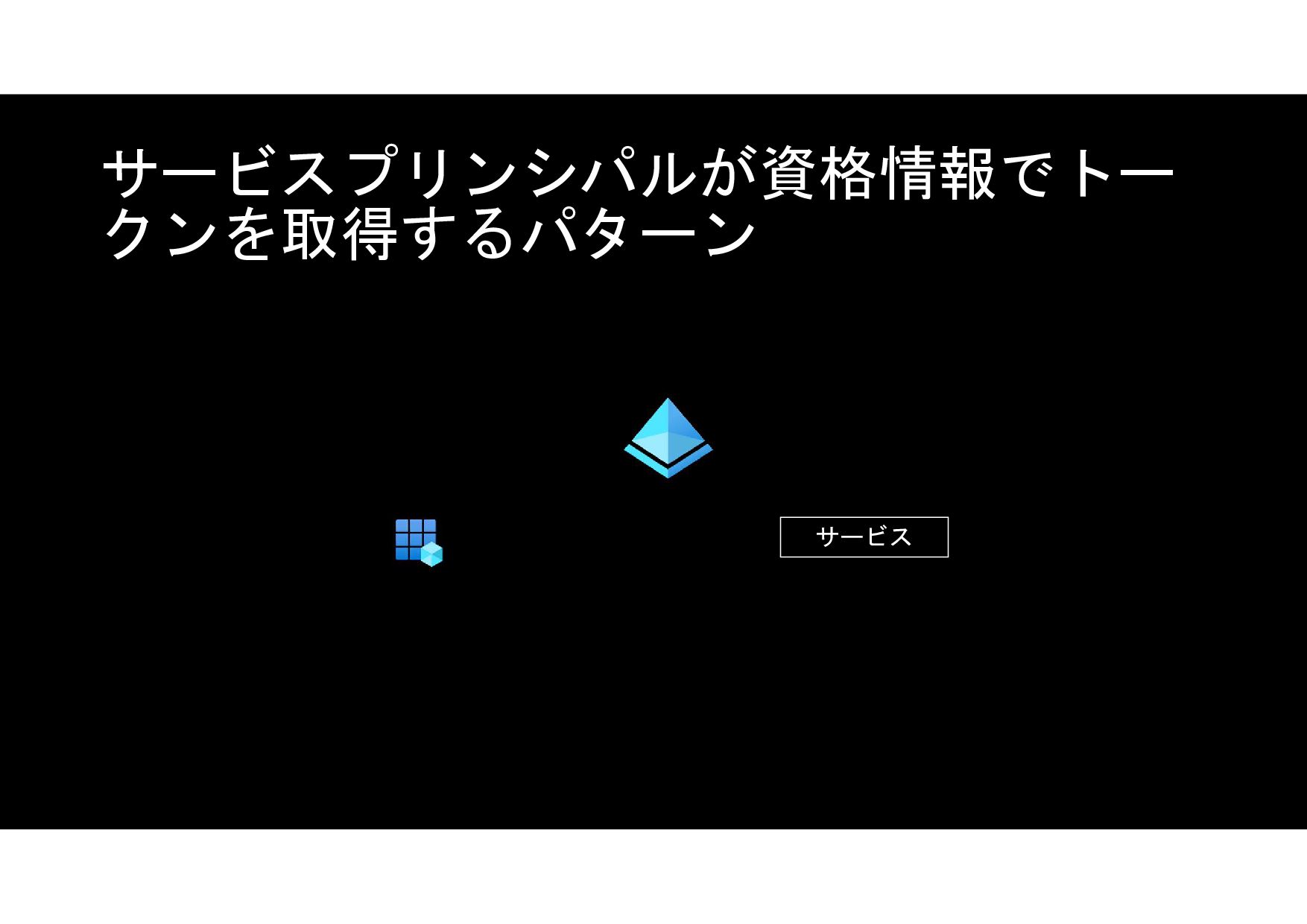
サービスプリンシパルが資格情報でトー クンを取得するパターン サービス
サービスプリンシパルが資格情報でトー クンを取得するパターン 資格情報 サービス
サービスプリンシパルが資格情報でトー クンを取得するパターン 資格情報 トークン取得 サービス
サービスプリンシパルが資格情報でトー クンを取得するパターン 資格情報 トークン取得 サービス
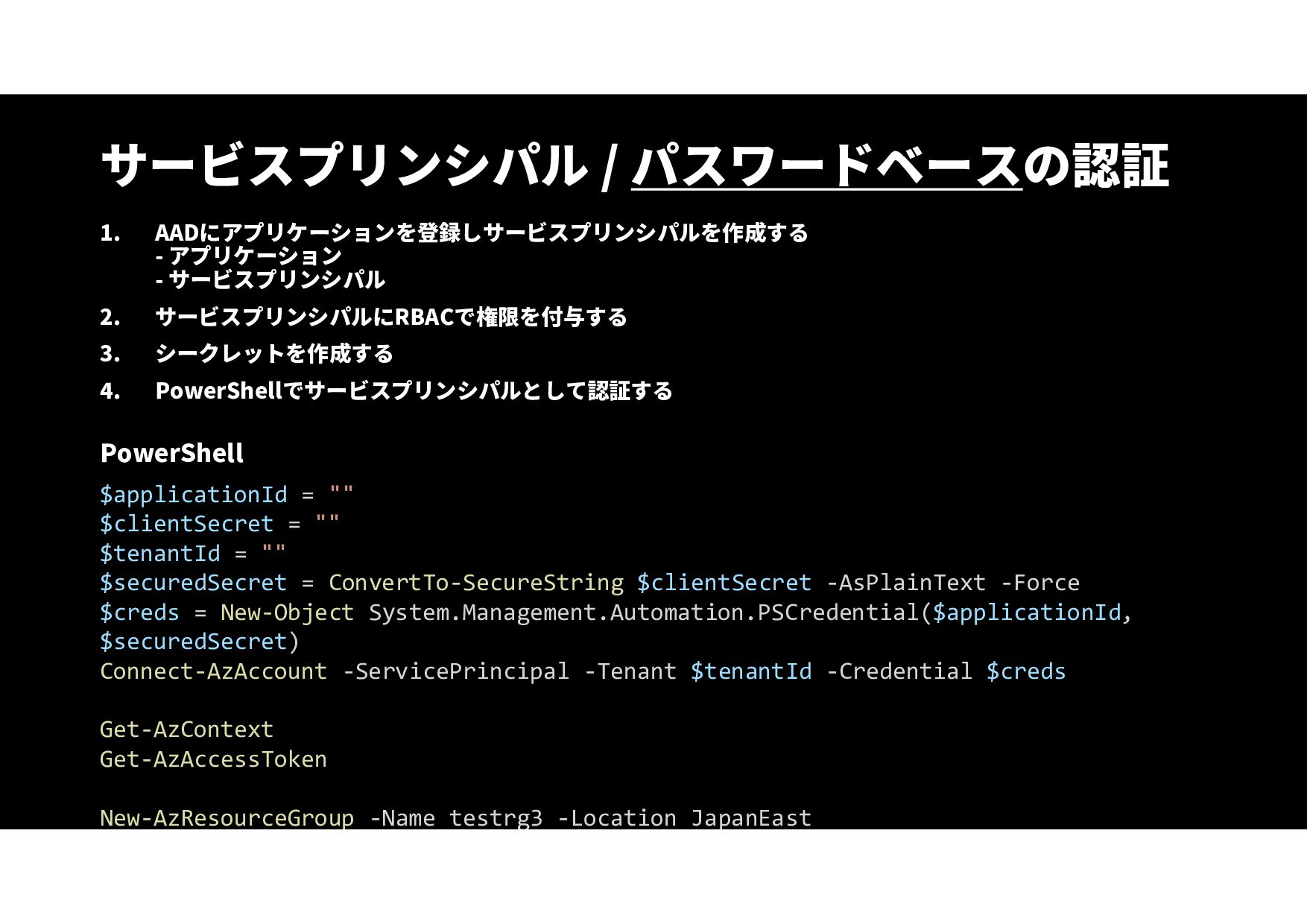
サービスプリンシパル / パスワードベースの認証 1. AADにアプリケーションを登録しサービスプリンシパルを作成する - アプリケーション - サービスプリンシパル 2.
サービスプリンシパルにRBACで権限を付与する 3. シークレットを作成する 4. PowerShellでサービスプリンシパルとして認証する PowerShell $applicationId = "" $clientSecret = "" $tenantId = "" $securedSecret = ConvertTo-SecureString $clientSecret -AsPlainText -Force $creds = New-Object System.Management.Automation.PSCredential($applicationId, $securedSecret) Connect-AzAccount -ServicePrincipal -Tenant $tenantId -Credential $creds Get-AzContext Get-AzAccessToken New-AzResourceGroup -Name testrg3 -Location JapanEast
サービスプリンシパル / パスワードベースの認証 1. AADにアプリケーションを登録しサービスプリンシパルを作成する - アプリケーション - サービスプリンシパル 2.
サービスプリンシパルにRBACで権限を付与する 3. シークレットを作成する 4. PowerShellでサービスプリンシパルとして認証する PowerShell $applicationId = "" $clientSecret = "" $tenantId = "" $securedSecret = ConvertTo-SecureString $clientSecret -AsPlainText -Force $creds = New-Object System.Management.Automation.PSCredential($applicationId, $securedSecret) Connect-AzAccount -ServicePrincipal -Tenant $tenantId -Credential $creds Get-AzContext Get-AzAccessToken New-AzResourceGroup -Name testrg3 -Location JapanEast シークレットを生で書くのはダメ!
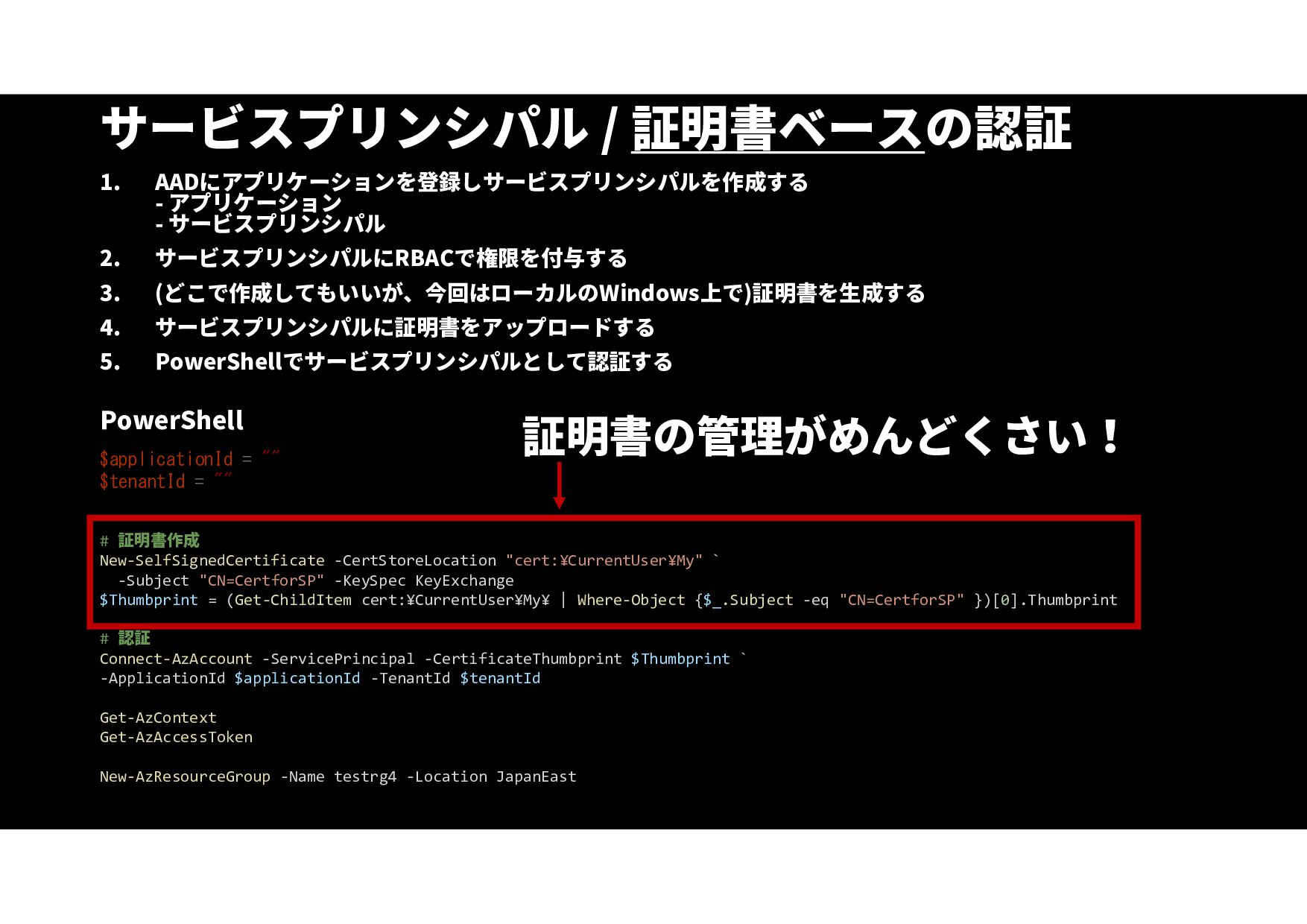
サービスプリンシパル / 証明書ベースの認証 1. AADにアプリケーションを登録しサービスプリンシパルを作成する - アプリケーション - サービスプリンシパル 2.
サービスプリンシパルにRBACで権限を付与する 3. (どこで作成してもいいが、今回はローカルのWindows上で)証明書を生成する 4. サービスプリンシパルに証明書をアップロードする 5. PowerShellでサービスプリンシパルとして認証する PowerShell $applicationId = "" $tenantId = "" # 証明書作成 New-SelfSignedCertificate -CertStoreLocation "cert:¥CurrentUser¥My" ` -Subject "CN=CertforSP" -KeySpec KeyExchange $Thumbprint = (Get-ChildItem cert:¥CurrentUser¥My¥ | Where-Object {$_.Subject -eq "CN=CertforSP" })[0].Thumbprint # 認証 Connect-AzAccount -ServicePrincipal -CertificateThumbprint $Thumbprint ` -ApplicationId $applicationId -TenantId $tenantId Get-AzContext Get-AzAccessToken New-AzResourceGroup -Name testrg4 -Location JapanEast
サービスプリンシパル / 証明書ベースの認証 1. AADにアプリケーションを登録しサービスプリンシパルを作成する - アプリケーション - サービスプリンシパル 2.
サービスプリンシパルにRBACで権限を付与する 3. (どこで作成してもいいが、今回はローカルのWindows上で)証明書を生成する 4. サービスプリンシパルに証明書をアップロードする 5. PowerShellでサービスプリンシパルとして認証する PowerShell $applicationId = "" $tenantId = "" # 証明書作成 New-SelfSignedCertificate -CertStoreLocation "cert:¥CurrentUser¥My" ` -Subject "CN=CertforSP" -KeySpec KeyExchange $Thumbprint = (Get-ChildItem cert:¥CurrentUser¥My¥ | Where-Object {$_.Subject -eq "CN=CertforSP" })[0].Thumbprint # 認証 Connect-AzAccount -ServicePrincipal -CertificateThumbprint $Thumbprint ` -ApplicationId $applicationId -TenantId $tenantId Get-AzContext Get-AzAccessToken New-AzResourceGroup -Name testrg4 -Location JapanEast 証明書の管理がめんどくさい!
None
None
誰が ユーザープリンシパル サービスプリンシパル マネージドID どうやって 対話操作
資格情報
Azure上のリソースに を用意してくれる
Azure VM上でマネージドIDのアクセストー クンを取得する Invoke-WebRequest -Uri 'http://169.254.169.254/metadata/identity/oaut h2/token?api-version=2018-02- 01&resource=https%3A%2F%2Fmanagement.azure.com %2F’ `
-Headers @{Metadata=“true”} 169.254.169.254 というIPアドレスからトークンが取得できる! マネージドIDがONであれば何もしなくてもいきなりトークンが取れる!
None
None
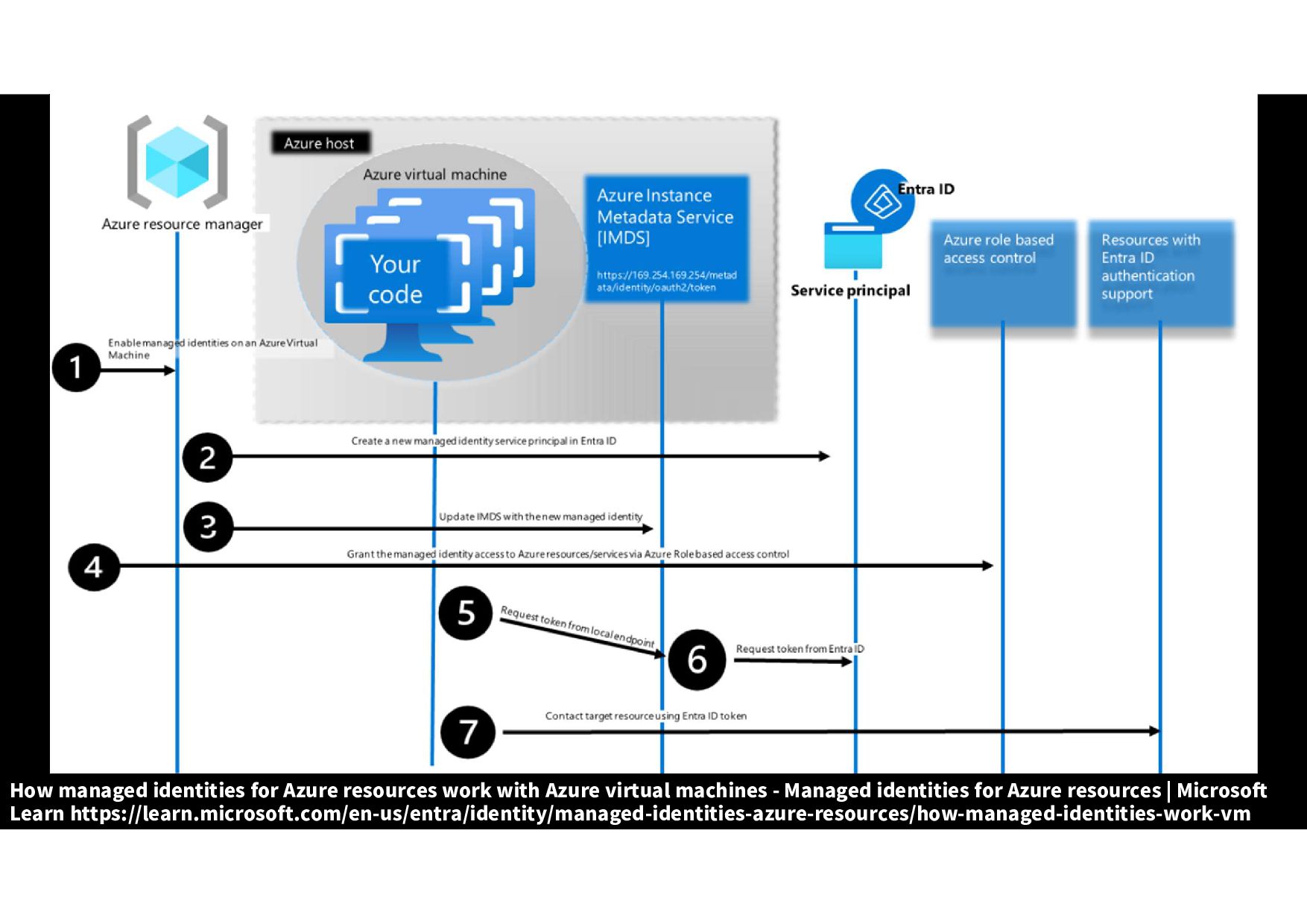
How managed identities for Azure resources work with Azure virtual
machines - Managed identities for Azure resources | Microsoft Learn https://learn.microsoft.com/en-us/entra/identity/managed-identities-azure-resources/how-managed-identities-work-vm
Microsoft Entra IDにサー ビスプリンシパルを作成 証明書作成、登録、更新 トークン取得のProxy
PowerShell # 認証する Connect-AzAccount # リソースグループを作成する New-AzResourceGroup -Name testrg2 -Location
JapanEast 対話的な認証では自動化できない!
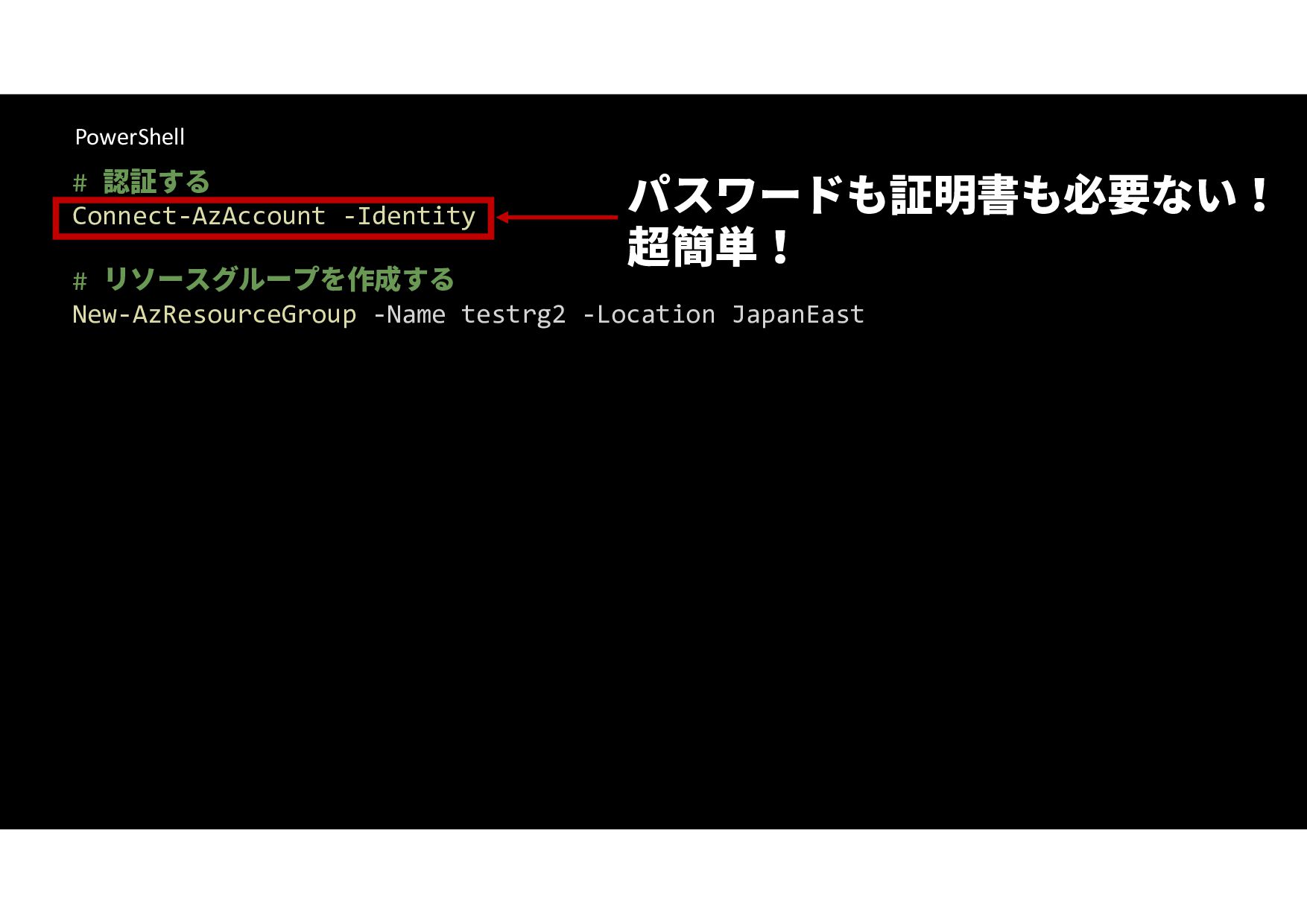
PowerShell # 認証する Connect-AzAccount -Identity # リソースグループを作成する New-AzResourceGroup -Name testrg2
-Location JapanEast パスワードも証明書も必要ない! 超簡単!
None
None
None
None
None
None
None
None
None
None
None
None
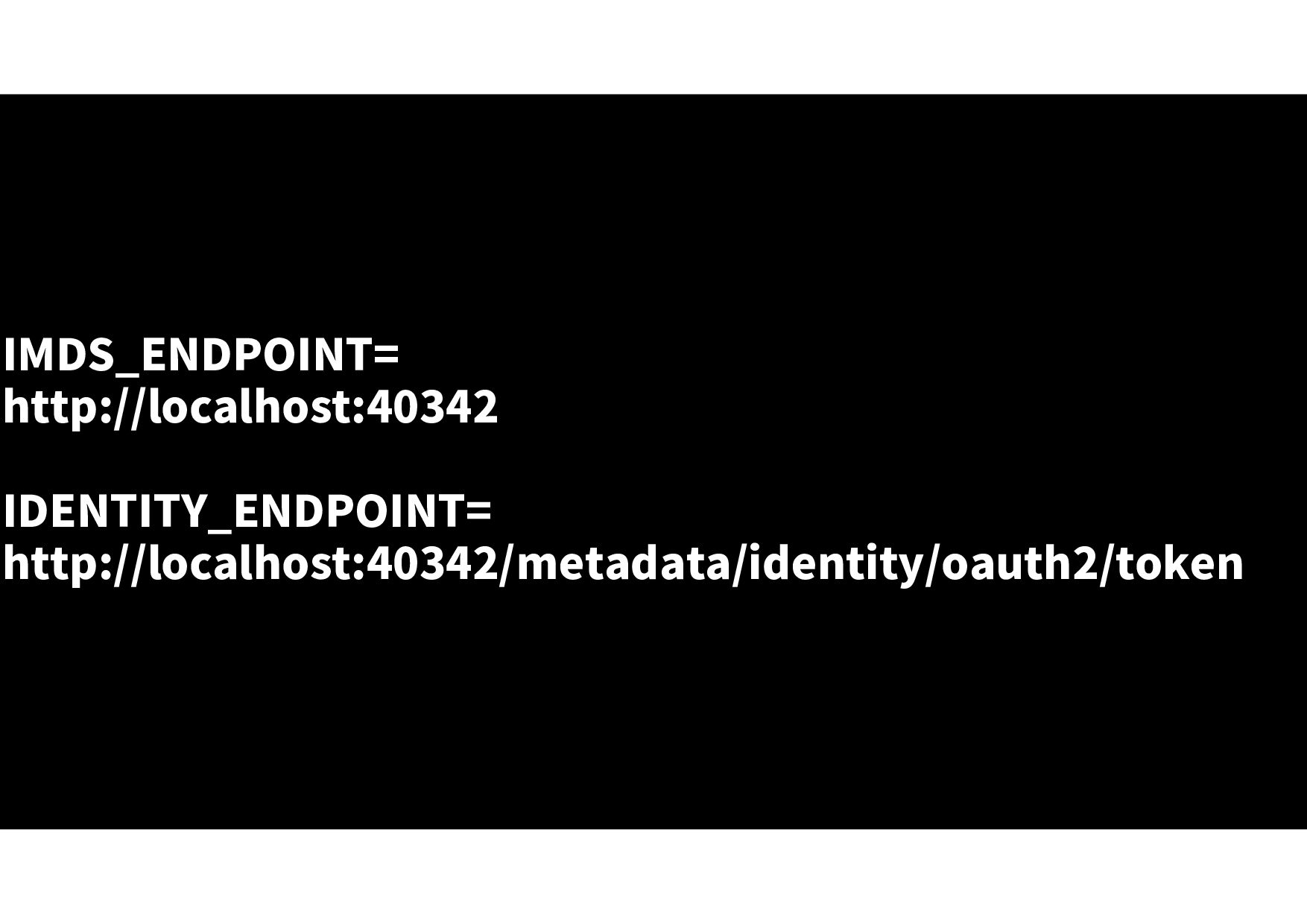
IMDS_ENDPOINT= http://localhost:40342 IDENTITY_ENDPOINT= http://localhost:40342/metadata/identity/oauth2/token
None
PowerShell # 認証する Connect-AzAccount -Identity # リソースグループを作成する New-AzResourceGroup -Name testrg2
-Location JapanEast パスワードも証明書も必要ない! 超簡単!
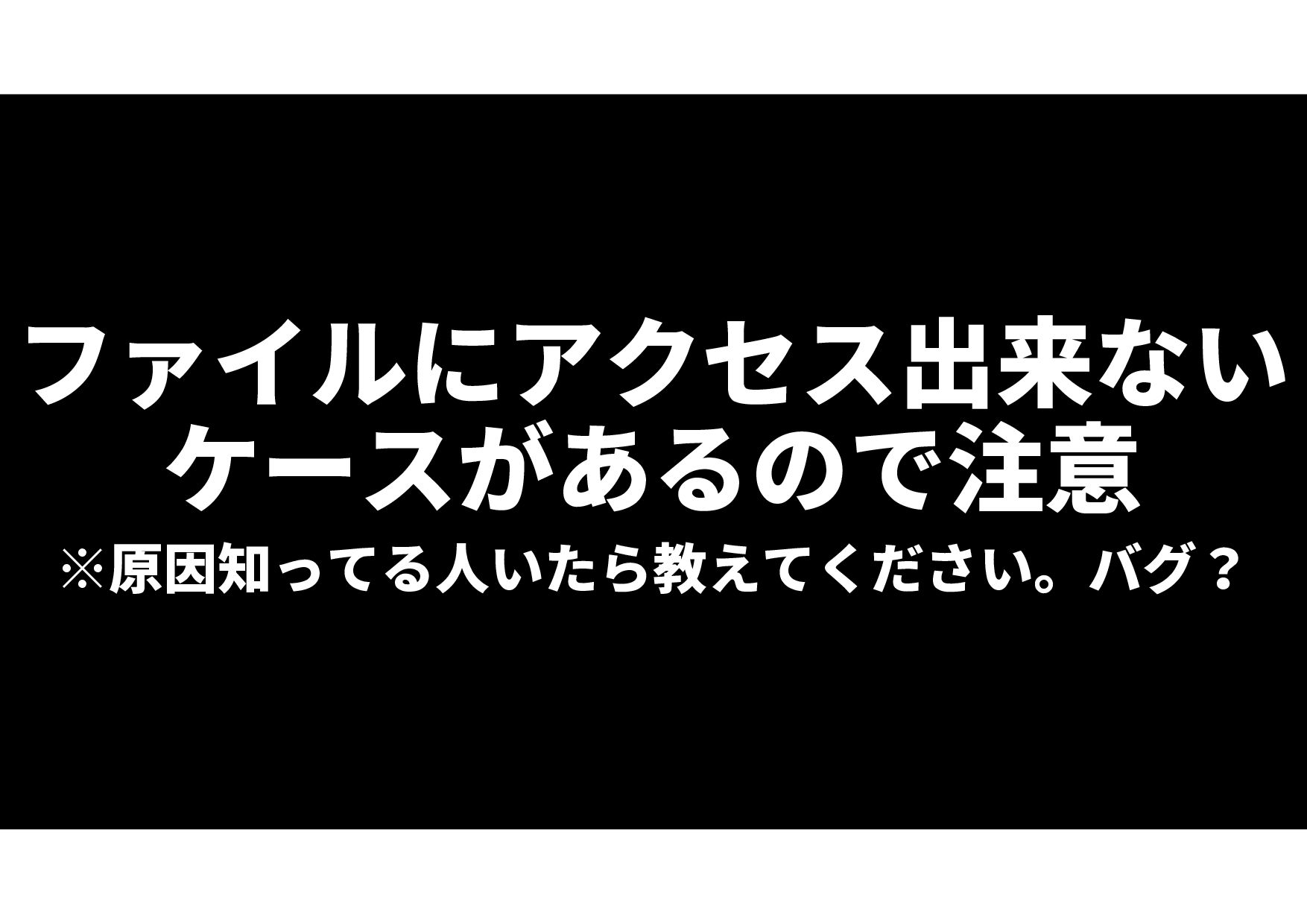
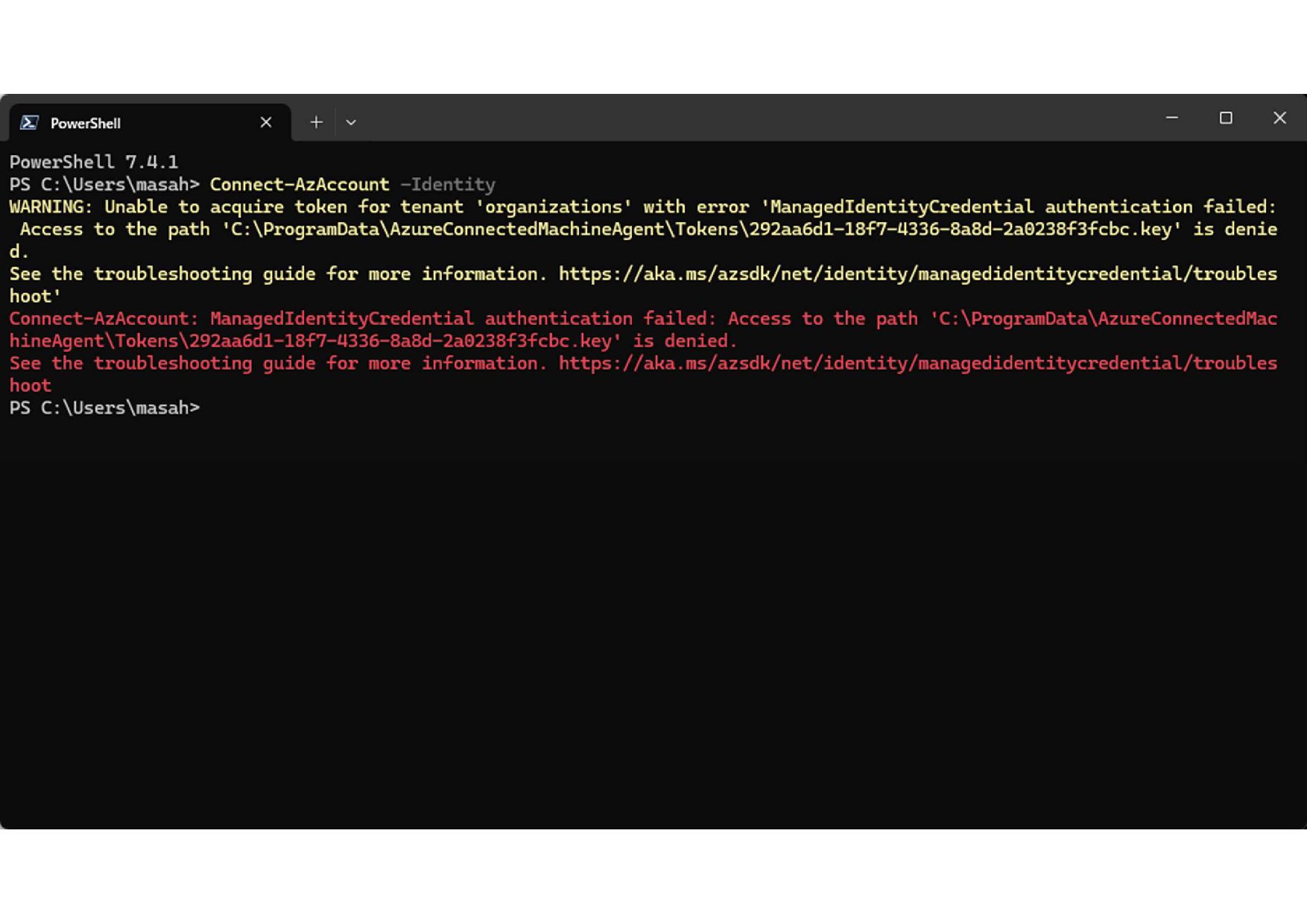
ファイルにアクセス出来ない ケースがあるので注意 ※原因知ってる人いたら教えてください。バグ?
None
None
None
None
None
None
None


 ebibibi
 sansantech
 naruoga
 tatamiya
 oracle4engineer
 kameitomohiro
 furuton
 yokawasa
 ykagano
 sony
sony
 ynisqa1988
 toru_kubota
 yama3133
 ipullrank
 katarinadahlin
 marcoroth
 lara
lara
 techseoconnect
 marcelosomers
 csswizardry
 bkeepers
 pedronauck
 lauravandoore
 honzajavorek
 sachag