Upgrade to Pro — share decks privately, control downloads, hide ads and more …

Polycon Meetup - Docker for PHP developers

Sponsored · SiteGround - Reliable hosting with speed, security, and support you can count on. →
Avatar for hacfi hacfi
November 09, 2017

Polycon Meetup - Docker for PHP developers

Avatar for hacfi

hacfi

November 09, 2017

Other Decks in Programming

Transcript

  1. About me Name: Philipp Wahala
 Freelance Software Engineer Twitter: @hacfi

    Files: https://github.com/hacfi/polycon-meetup Presentation: https://speakerdeck.com/hacfi
  2. What is Docker? ▸ leading software containerization platform ▸ open-sourced

    in March 2013 as a simplified solution to use LXC (namespace and control group capabilities of the Linux kernel) ▸ start an isolated environment for applications within seconds ▸ written in Go
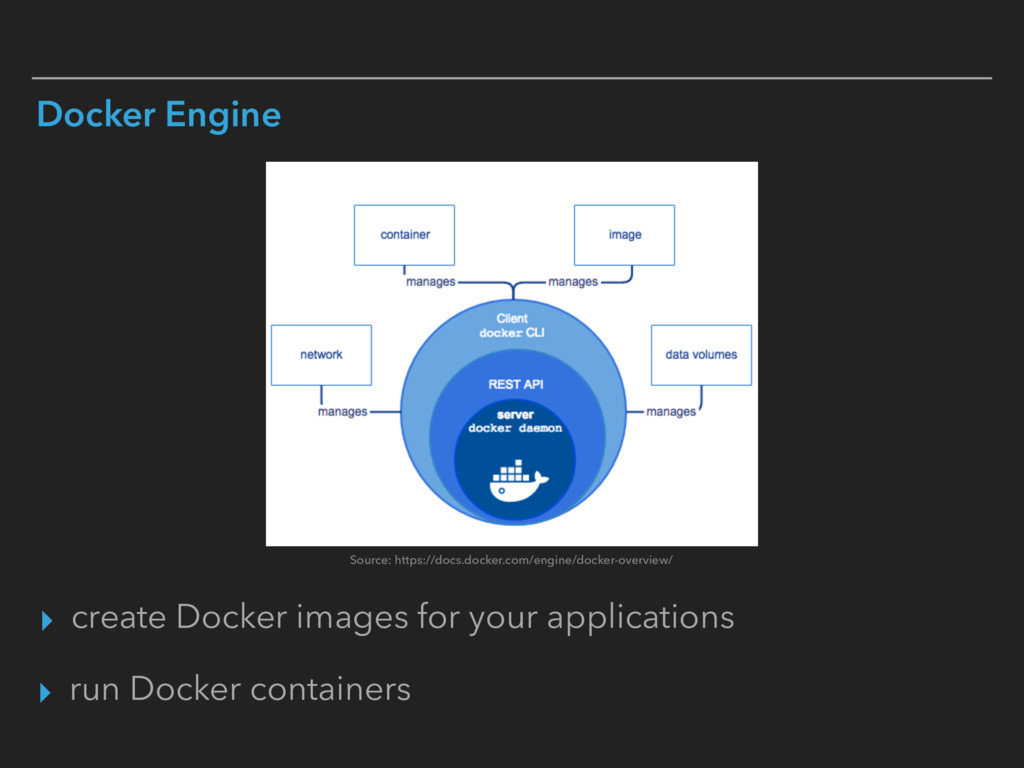
  3. Docker Engine ▸ create Docker images for your applications Source:

    https://docs.docker.com/engine/docker-overview/ ▸ run Docker containers
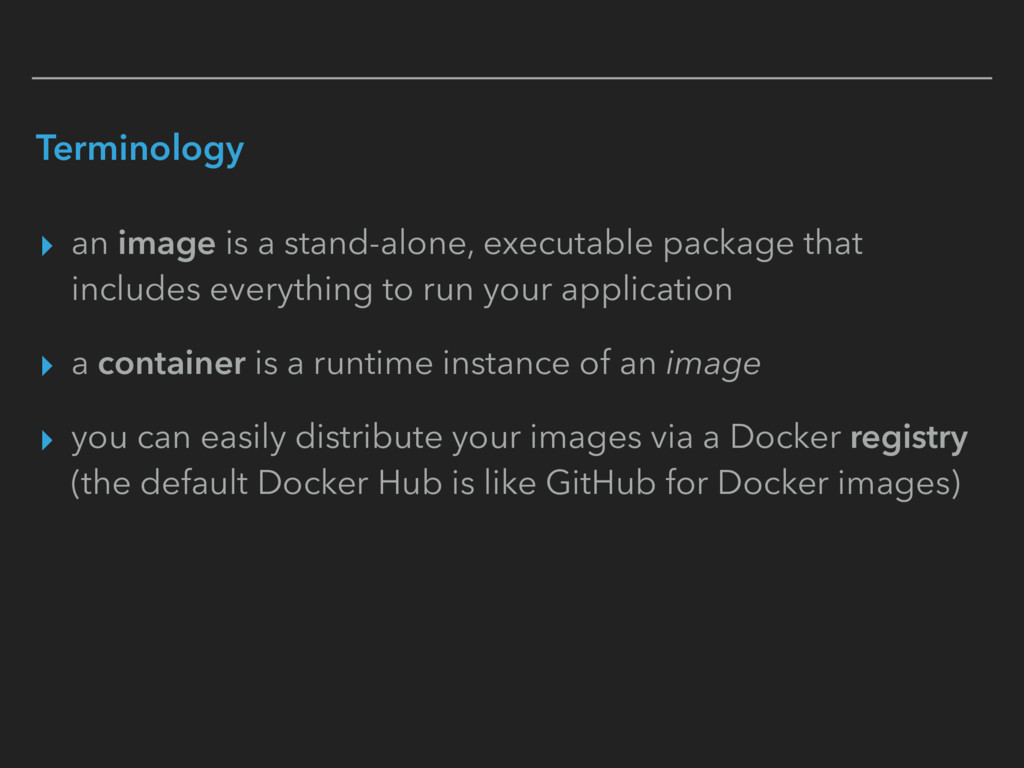
  4. Terminology ▸ an image is a stand-alone, executable package that

    includes everything to run your application ▸ a container is a runtime instance of an image ▸ you can easily distribute your images via a Docker registry (the default Docker Hub is like GitHub for Docker images)
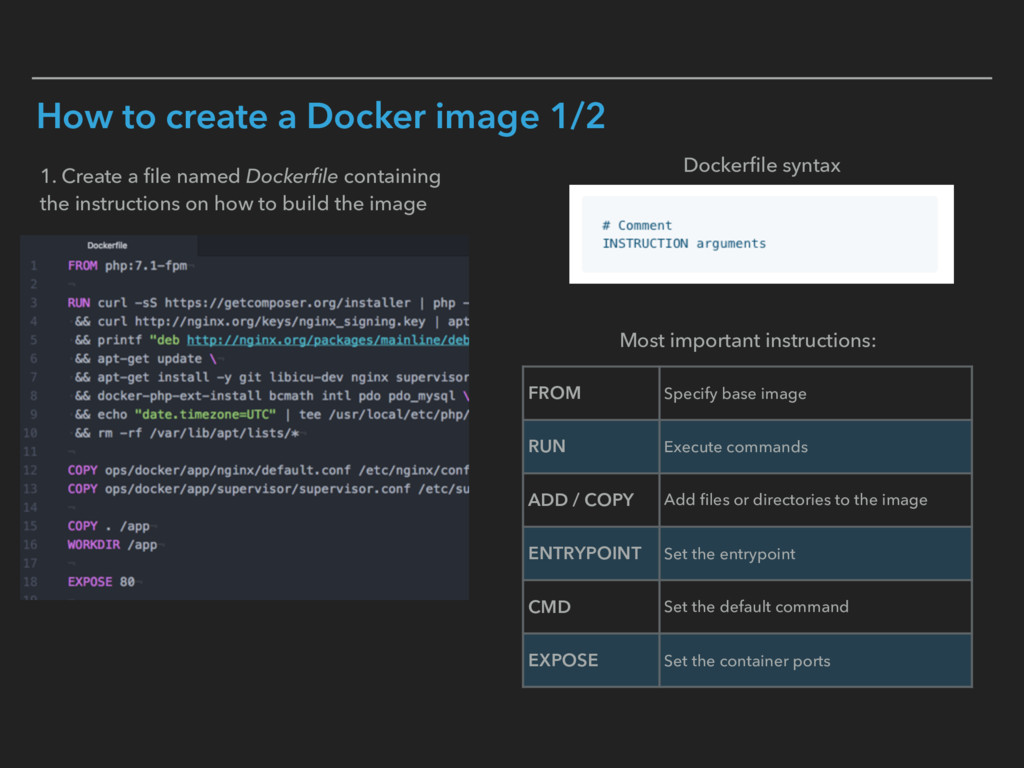
  5. How to create a Docker image 1/2 1. Create a

    file named Dockerfile containing the instructions on how to build the image FROM Specify base image RUN Execute commands ADD / COPY Add files or directories to the image ENTRYPOINT Set the entrypoint CMD Set the default command EXPOSE Set the container ports Most important instructions: Dockerfile syntax
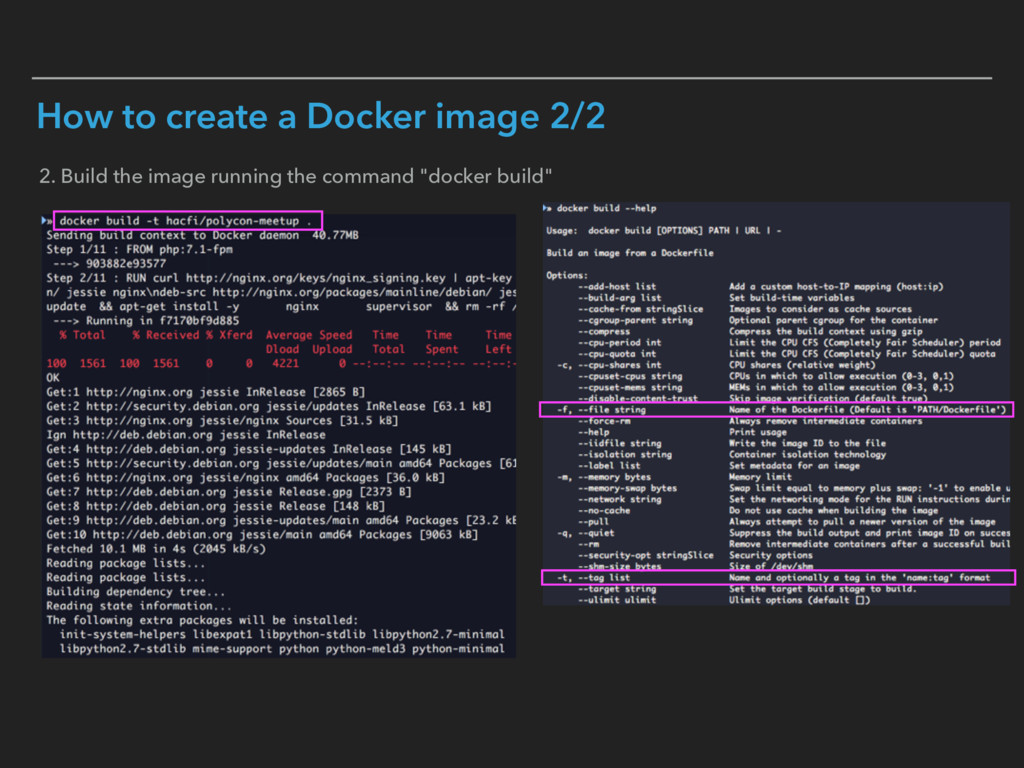
  6. How to create a Docker image 2/2 2. Build the

    image running the command "docker build"
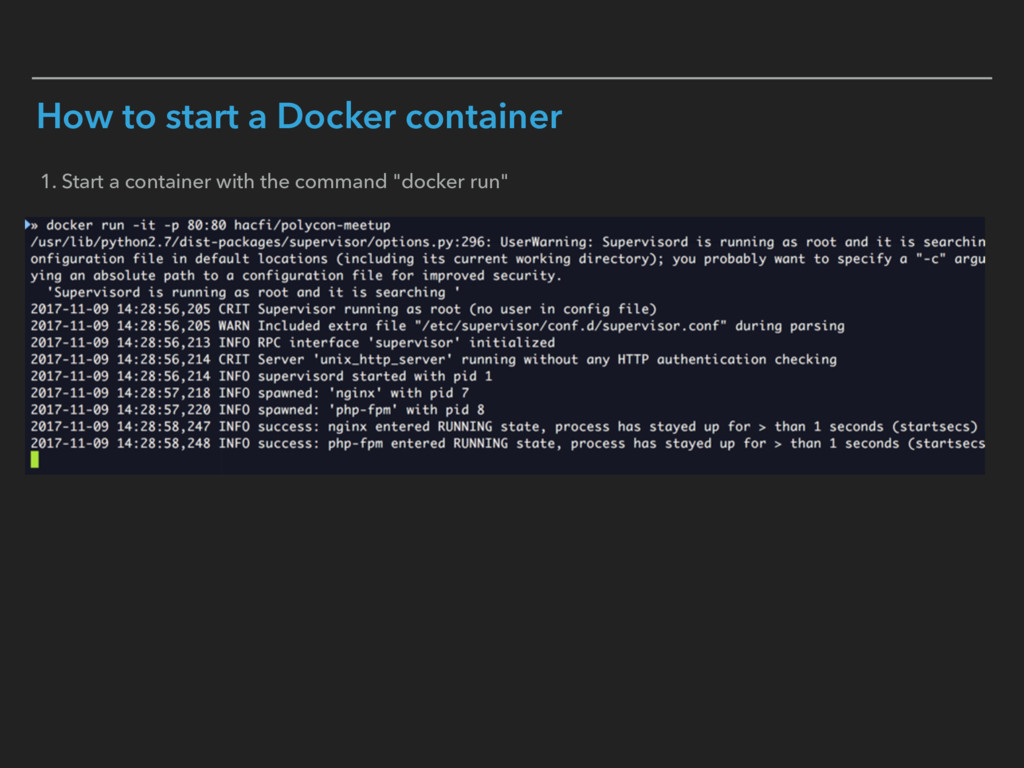
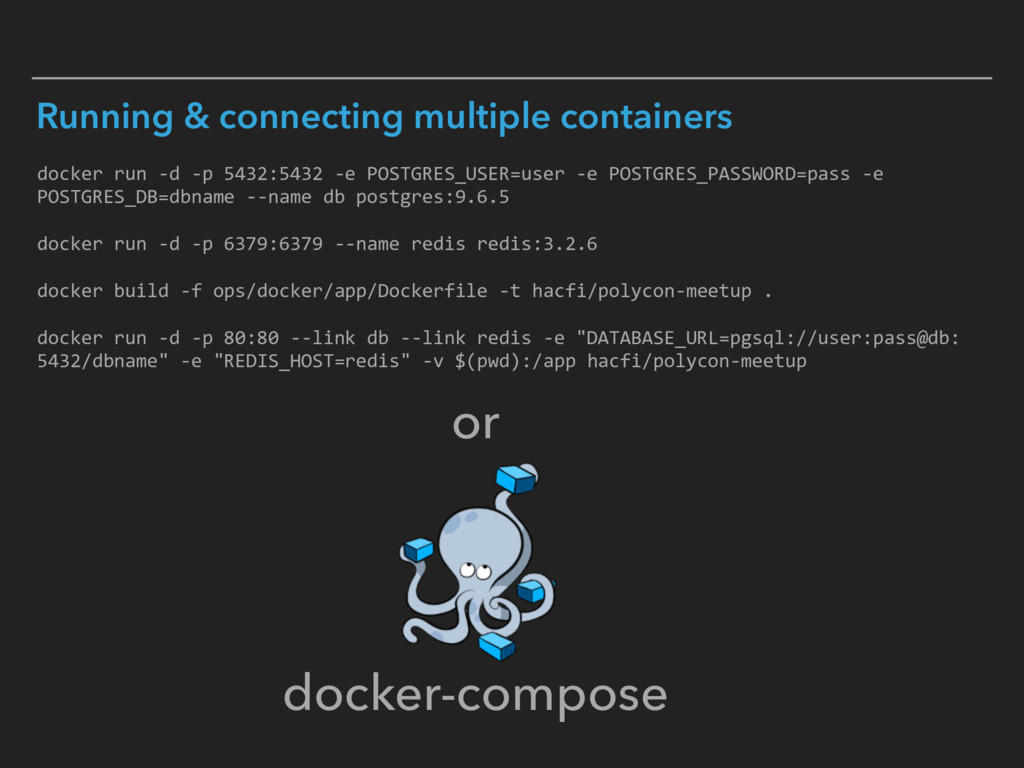
  7. Running & connecting multiple containers docker run -d -p 5432:5432

    -e POSTGRES_USER=user -e POSTGRES_PASSWORD=pass -e POSTGRES_DB=dbname --name db postgres:9.6.5 docker run -d -p 6379:6379 --name redis redis:3.2.6 docker build -f ops/docker/app/Dockerfile -t hacfi/polycon-meetup . docker run -d -p 80:80 --link db --link redis -e "DATABASE_URL=pgsql://user:pass@db: 5432/dbname" -e "REDIS_HOST=redis" -v $(pwd):/app hacfi/polycon-meetup or docker-compose
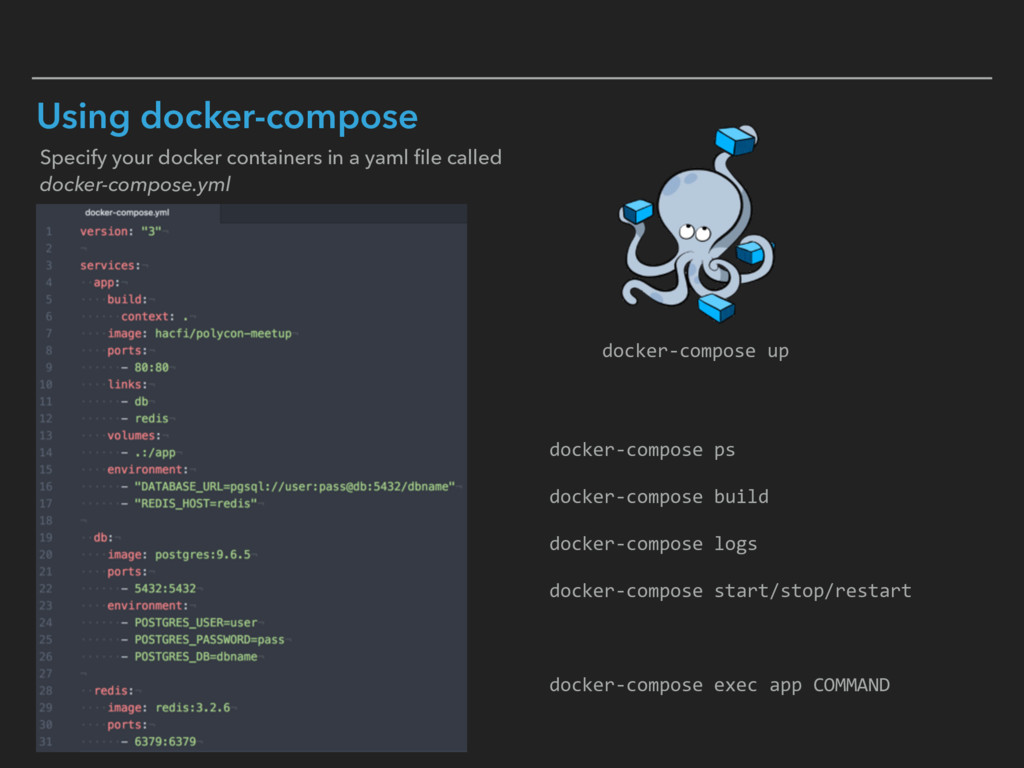
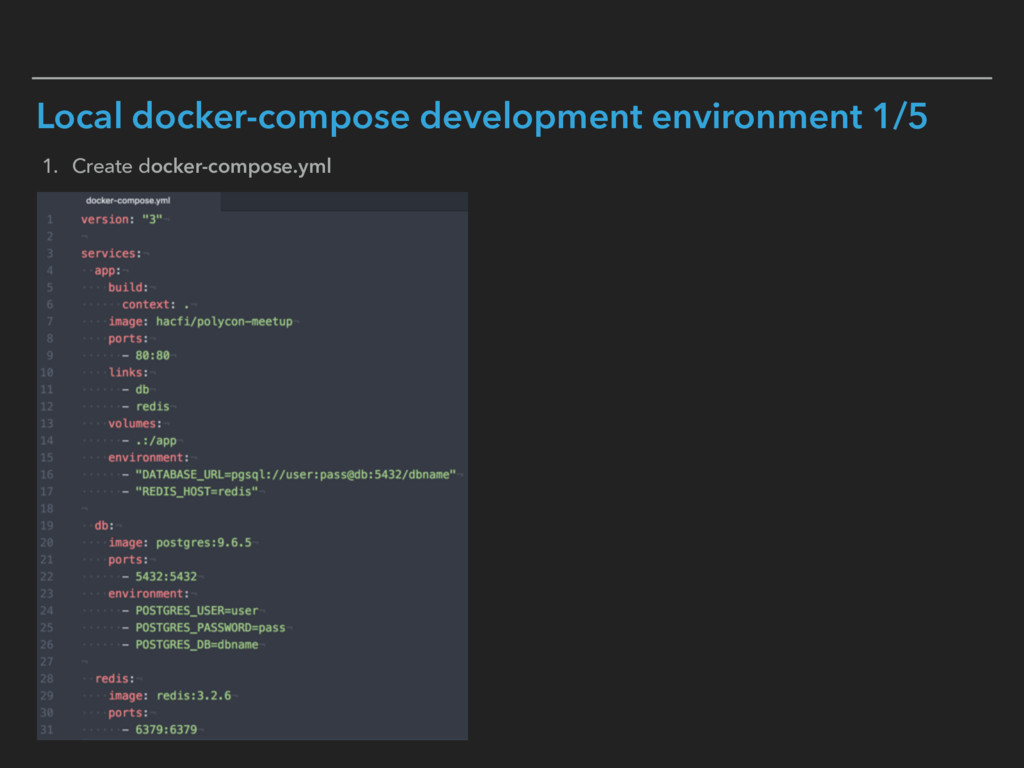
  8. Using docker-compose Specify your docker containers in a yaml file

    called docker-compose.yml docker-compose up docker-compose ps docker-compose build docker-compose logs docker-compose start/stop/restart docker-compose exec app COMMAND
  9. Running your PHP application on Docker ▸ application should be

    stateless - store user content on AWS S3 for example ▸ configuration should be done entirely via environment variables - no more environment-specific configs like testing.yml, staging.yml, prod.yml etc. 
 See https://12factor.net/config
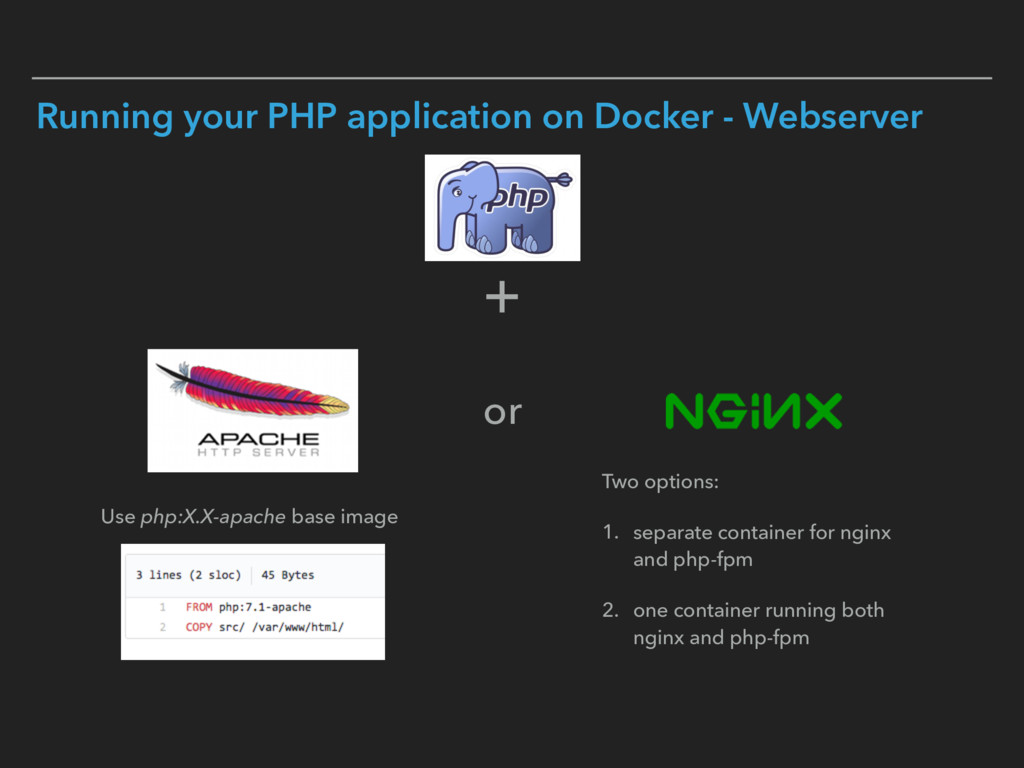
  10. Running your PHP application on Docker - Webserver Use php:X.X-apache

    base image Two options: 1. separate container for nginx and php-fpm 2. one container running both nginx and php-fpm + or
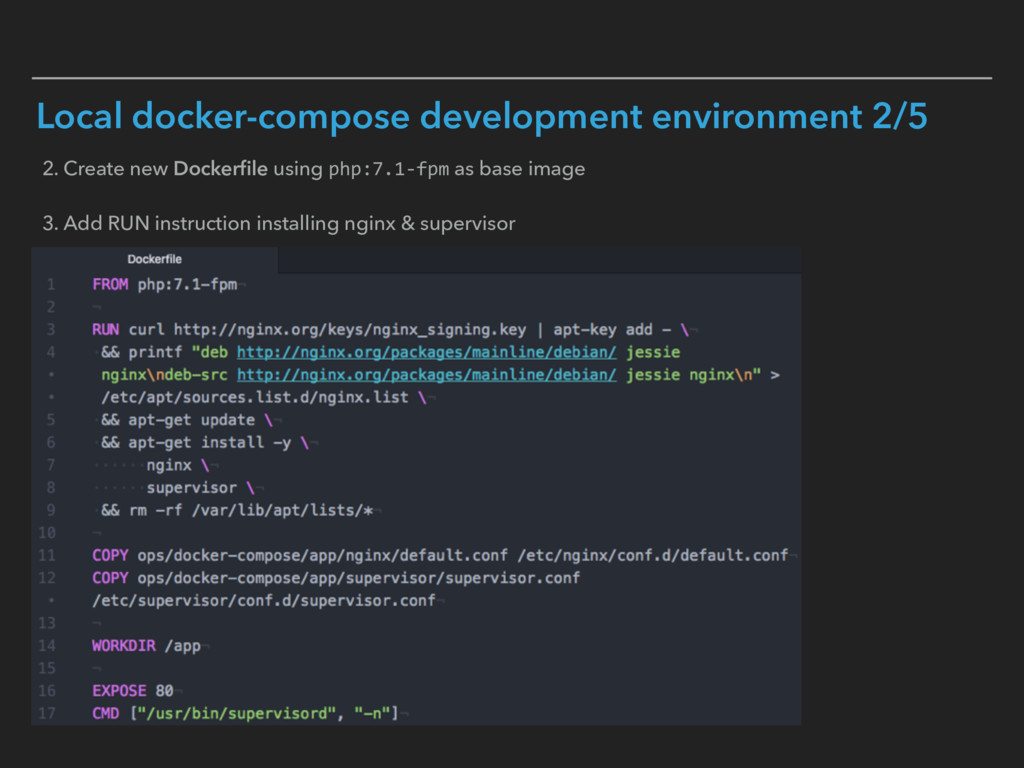
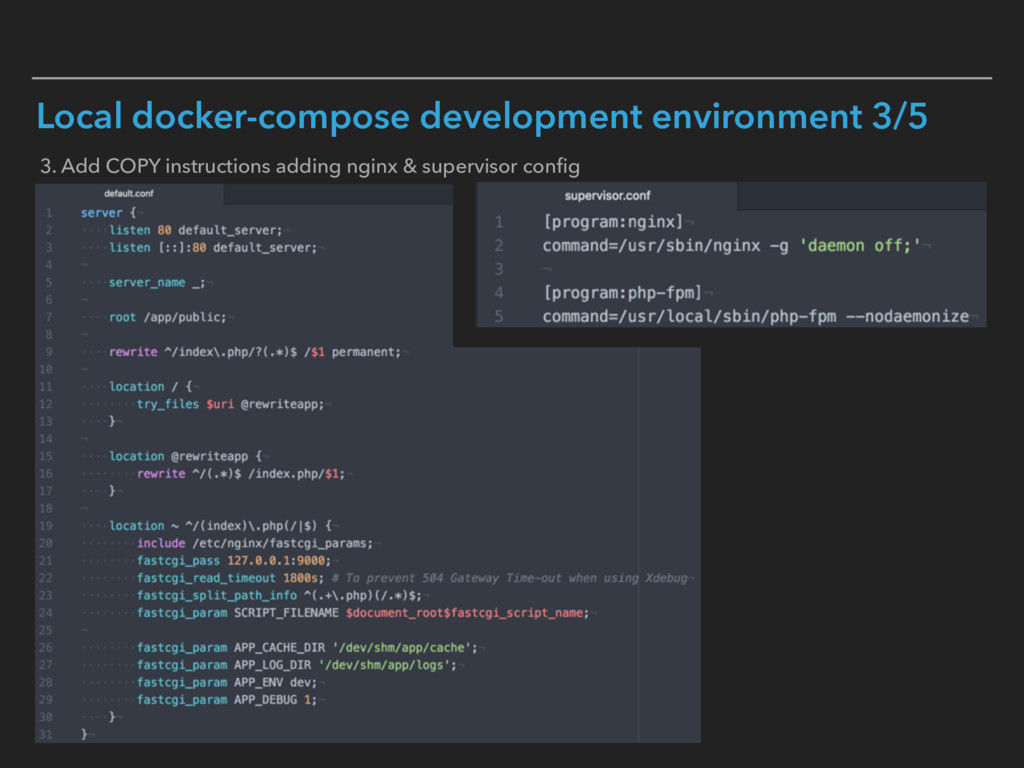
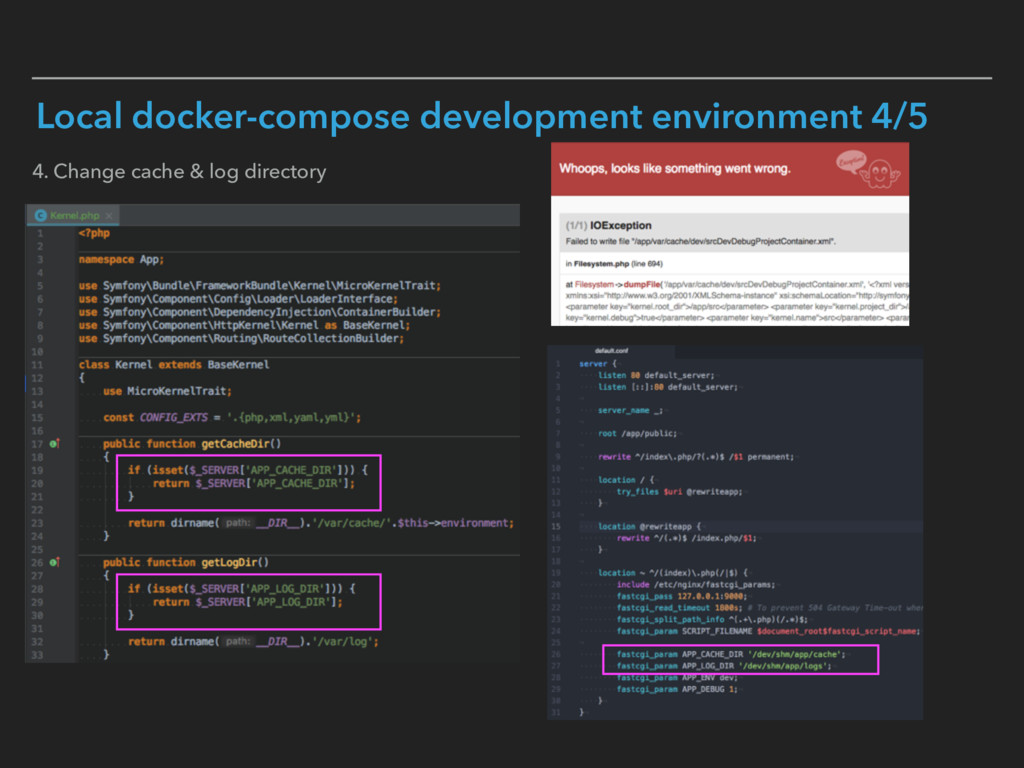
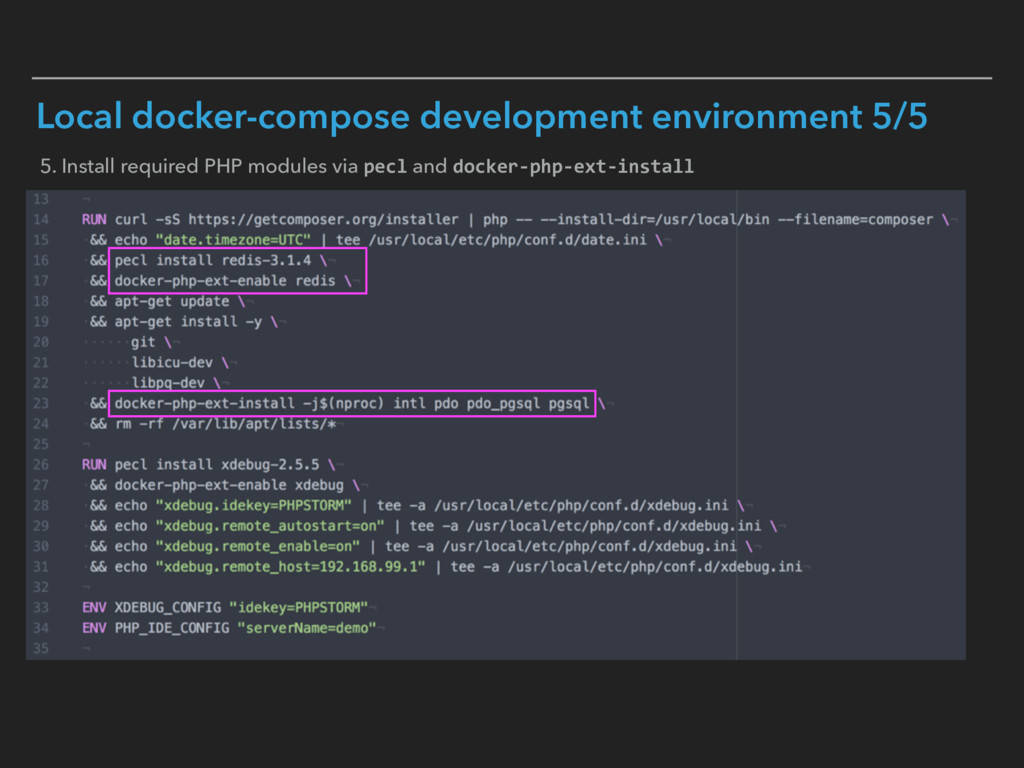
  11. Local docker-compose development environment 2/5 2. Create new Dockerfile using

    php:7.1-fpm as base image 3. Add RUN instruction installing nginx & supervisor
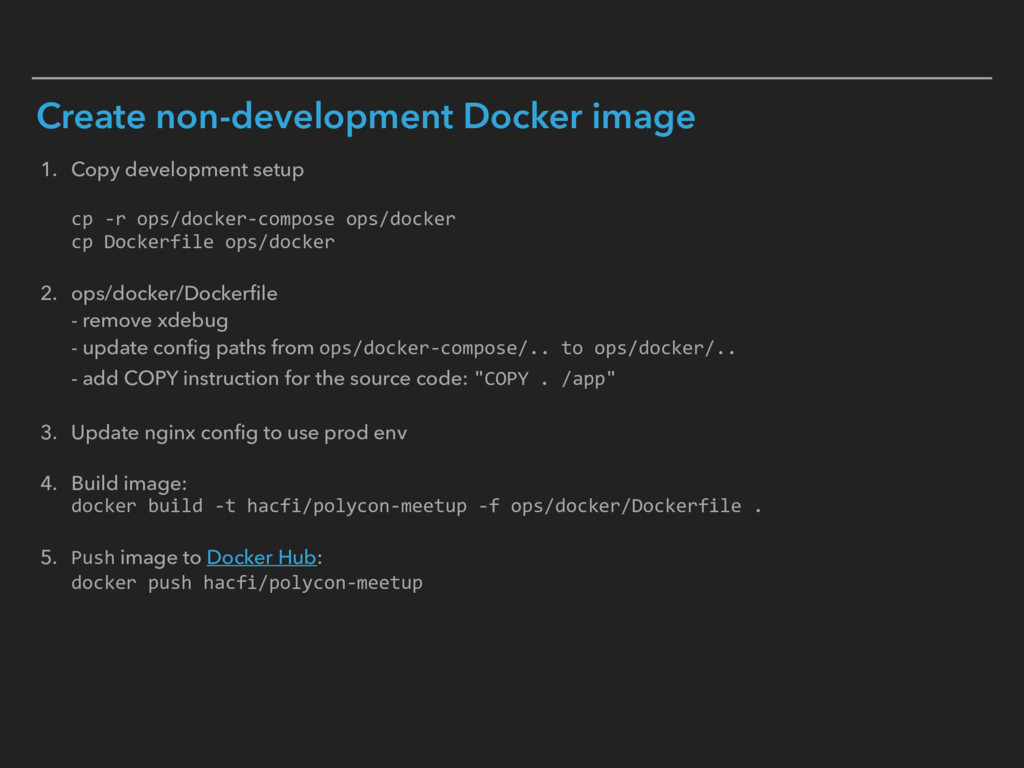
  12. 1. Copy development setup
 
 cp -r ops/docker-compose ops/docker
 cp

    Dockerfile ops/docker 2. ops/docker/Dockerfile
 - remove xdebug
 - update config paths from ops/docker-compose/.. to ops/docker/..
 - add COPY instruction for the source code: "COPY . /app" 3. Update nginx config to use prod env 4. Build image:
 docker build -t hacfi/polycon-meetup -f ops/docker/Dockerfile . 5. Push image to Docker Hub:
 docker push hacfi/polycon-meetup Create non-development Docker image
  13. Run Docker in the cloud and many many more options!

    Simple solution: + https://github.com/ibuildthecloud/systemd-docker
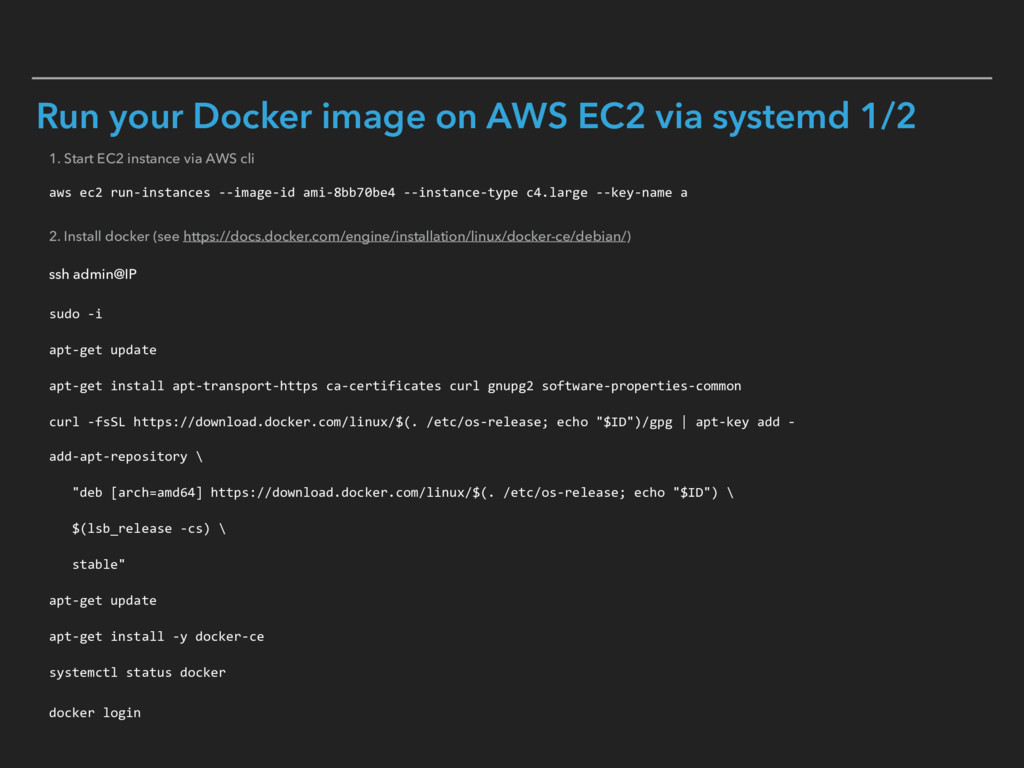
  14. 1. Start EC2 instance via AWS cli
 
 aws ec2

    run-instances --image-id ami-8bb70be4 --instance-type c4.large --key-name a 2. Install docker (see https://docs.docker.com/engine/installation/linux/docker-ce/debian/)
 
 ssh admin@IP sudo -i apt-get update apt-get install apt-transport-https ca-certificates curl gnupg2 software-properties-common curl -fsSL https://download.docker.com/linux/$(. /etc/os-release; echo "$ID")/gpg | apt-key add - add-apt-repository \ "deb [arch=amd64] https://download.docker.com/linux/$(. /etc/os-release; echo "$ID") \ $(lsb_release -cs) \ stable" apt-get update apt-get install -y docker-ce systemctl status docker docker login Run your Docker image on AWS EC2 via systemd 1/2
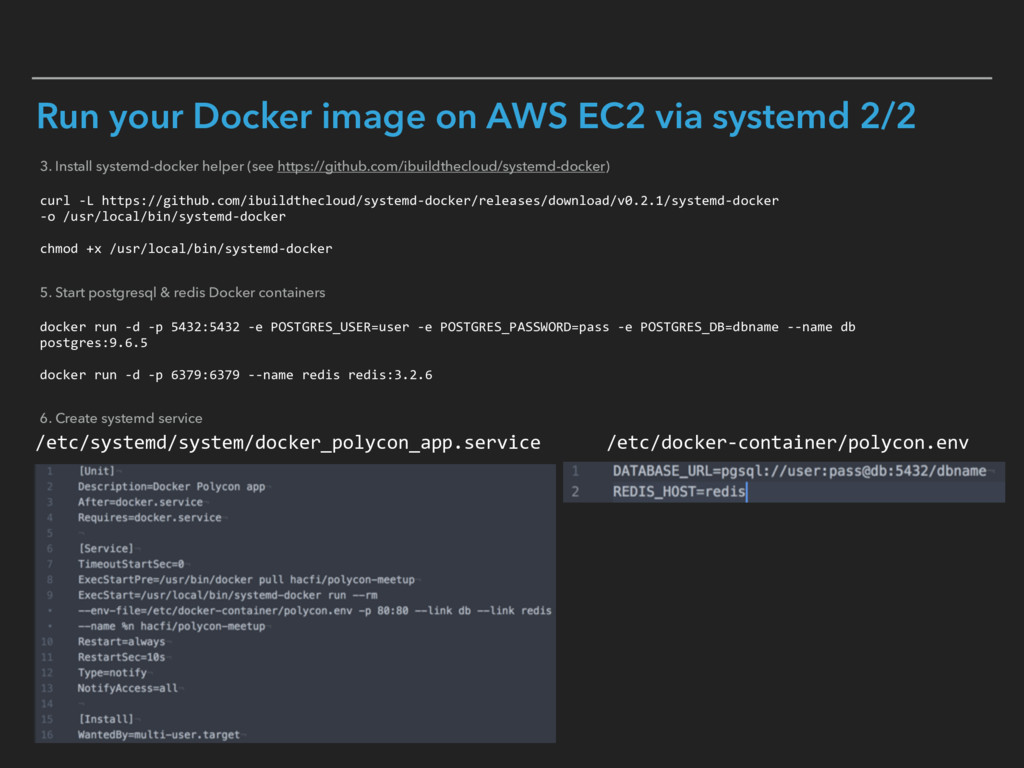
  15. 3. Install systemd-docker helper (see https://github.com/ibuildthecloud/systemd-docker)
 
 curl -L https://github.com/ibuildthecloud/systemd-docker/releases/download/v0.2.1/systemd-docker

    
 -o /usr/local/bin/systemd-docker
 
 chmod +x /usr/local/bin/systemd-docker 5. Start postgresql & redis Docker containers
 
 docker run -d -p 5432:5432 -e POSTGRES_USER=user -e POSTGRES_PASSWORD=pass -e POSTGRES_DB=dbname --name db postgres:9.6.5
 
 docker run -d -p 6379:6379 --name redis redis:3.2.6 6. Create systemd service Run your Docker image on AWS EC2 via systemd 2/2 /etc/systemd/system/docker_polycon_app.service /etc/docker-container/polycon.env