Upgrade to Pro — share decks privately, control downloads, hide ads and more …

Bots in Kiro Crew (One point of contact for ong...

Avatar for Riku INADA Riku INADA PRO
November 08, 2026

Bots in Kiro Crew (One point of contact for ongoing work) | Kiro: Zero to Hero 12

How bots work in Kiro Crew 0.12. A bot is a single point of contact that has a name, a goal, its own memory, and worker sessions, so you only make the decisions. The deck follows a News bot that checks AWS and Kiro news every morning: the goal card, a 9:00 schedule, worker sessions, corrections, and a dashboard page. It also covers tools, permissions, memory, and models per bot, with an appendix on Ultra Mode, export, and the CLI. The screens are from Kiro Crew 0.12.0rc10, a pre-release build, on EC2. As of Kiro Crew 0.12.0. This is deck 12, in the Let it run part of the Kiro: Zero to Hero series.

Avatar for Riku INADA

Riku INADA PRO

November 08, 2026

More Decks by Riku INADA

Other Decks in Technology

Transcript

  1. Kiro: Zero to Hero Let it run Bots in Kiro

    Crew One point of contact for ongoing work 12 As of Kiro Crew 0.12.0 November 2026 Riku Inada Amazon Web Services Japan © 2026, Amazon Web Services, Inc. or its affiliates. All rights reserved. 1
  2. Introduction About me Riku Inada Amazon Web Services Japan G.K.

    Solutions Architect Works mainly with manufacturing customers Recent work Promoting the AI-Driven Development Life Cycle (AI-DLC) Writing and speaking about Kiro and AWS Amplify © 2026, Amazon Web Services, Inc. or its affiliates. All rights reserved. X @inada_riku Speaker Deck speakerdeck.com/inariku Zenn zenn.dev/inariku GitHub github.com/inariku 2
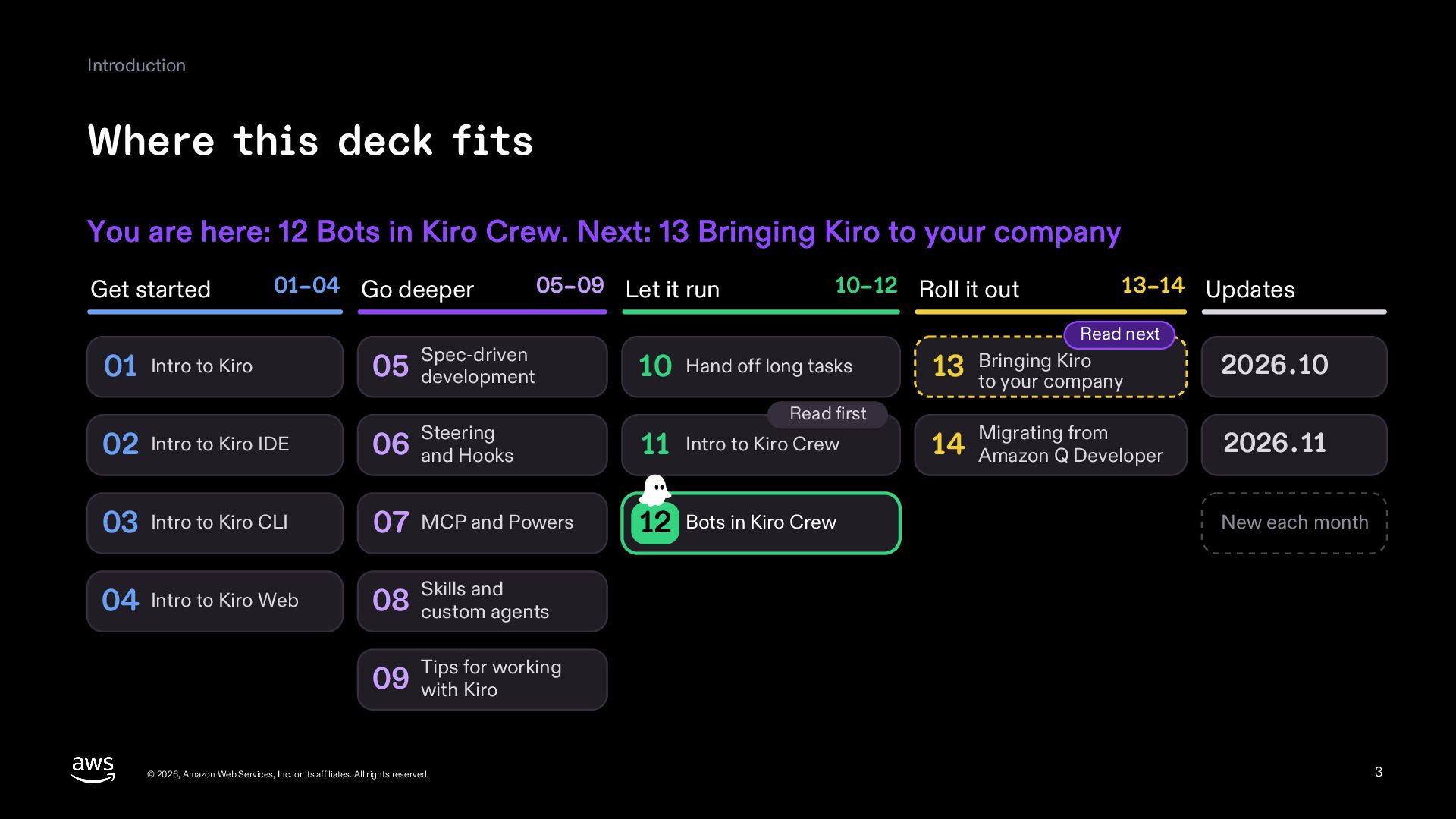
  3. Introduction Where this deck fits You are here: 12 Bots

    in Kiro Crew. Next: 13 Bringing Kiro to your company Get started 01–04 Go deeper 05–09 Let it run 10–12 Roll it out 13–14 Updates Read next 01 Intro to Kiro Spec-driven 05 development 02 Intro to Kiro IDE Steering 06 and Hooks 11 Intro to Kiro Crew 03 Intro to Kiro CLI 07 MCP and Powers 12 Bots in Kiro Crew 04 Intro to Kiro Web and 08 Skills custom agents 10 Hand off long tasks Read first Kiro 13 Bringing to your company Migrating from 14 Amazon Q Developer 2026.10 2026.11 New each month for working 09 Tips with Kiro © 2026, Amazon Web Services, Inc. or its affiliates. All rights reserved. 3
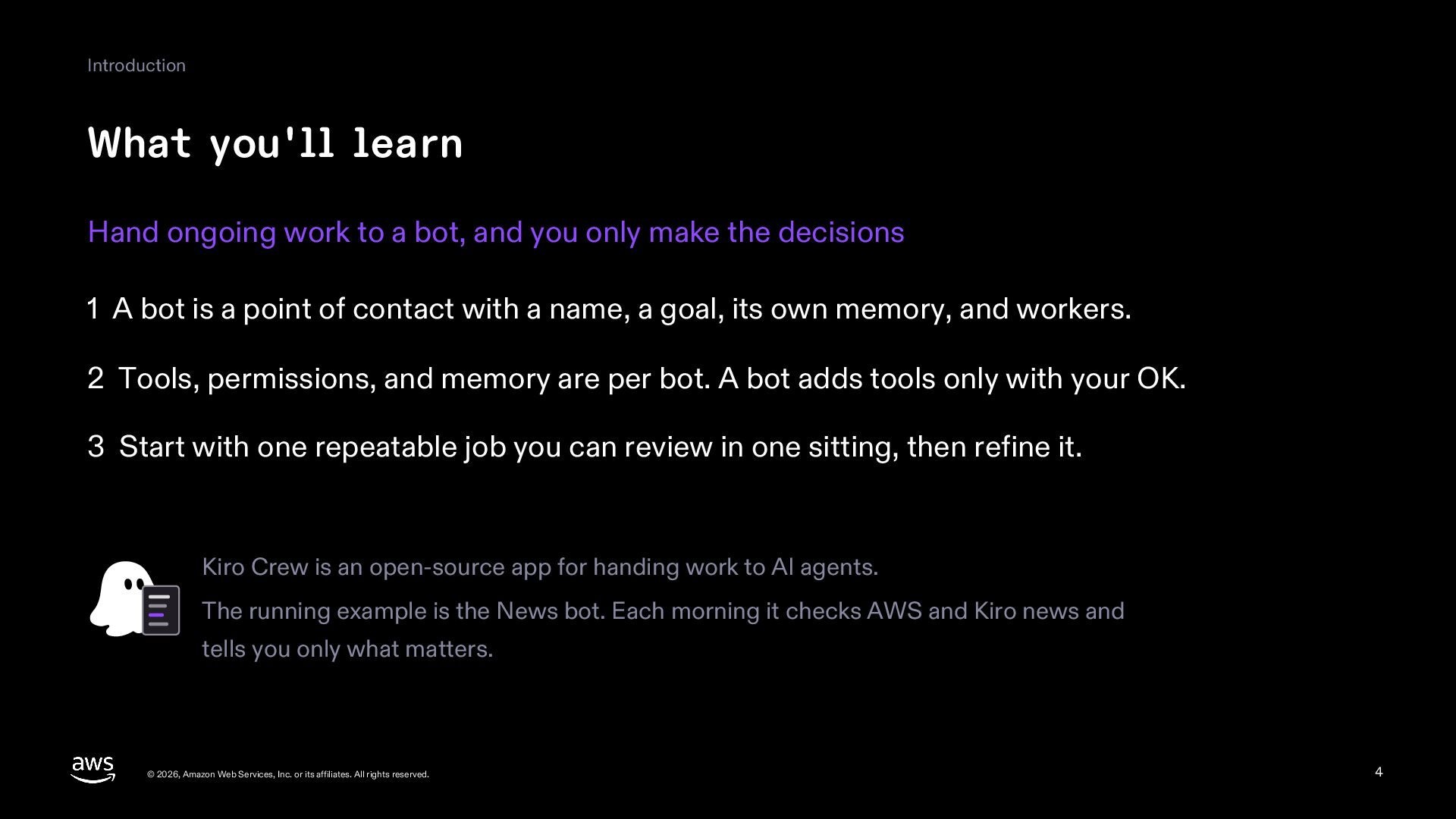
  4. Introduction What you'll learn Hand ongoing work to a bot,

    and you only make the decisions 1 A bot is a point of contact with a name, a goal, its own memory, and workers. 2 Tools, permissions, and memory are per bot. A bot adds tools only with your OK. 3 Start with one repeatable job you can review in one sitting, then refine it. Kiro Crew is an open-source app for handing work to AI agents. The running example is the News bot. Each morning it checks AWS and Kiro news and tells you only what matters. © 2026, Amazon Web Services, Inc. or its affiliates. All rights reserved. 4
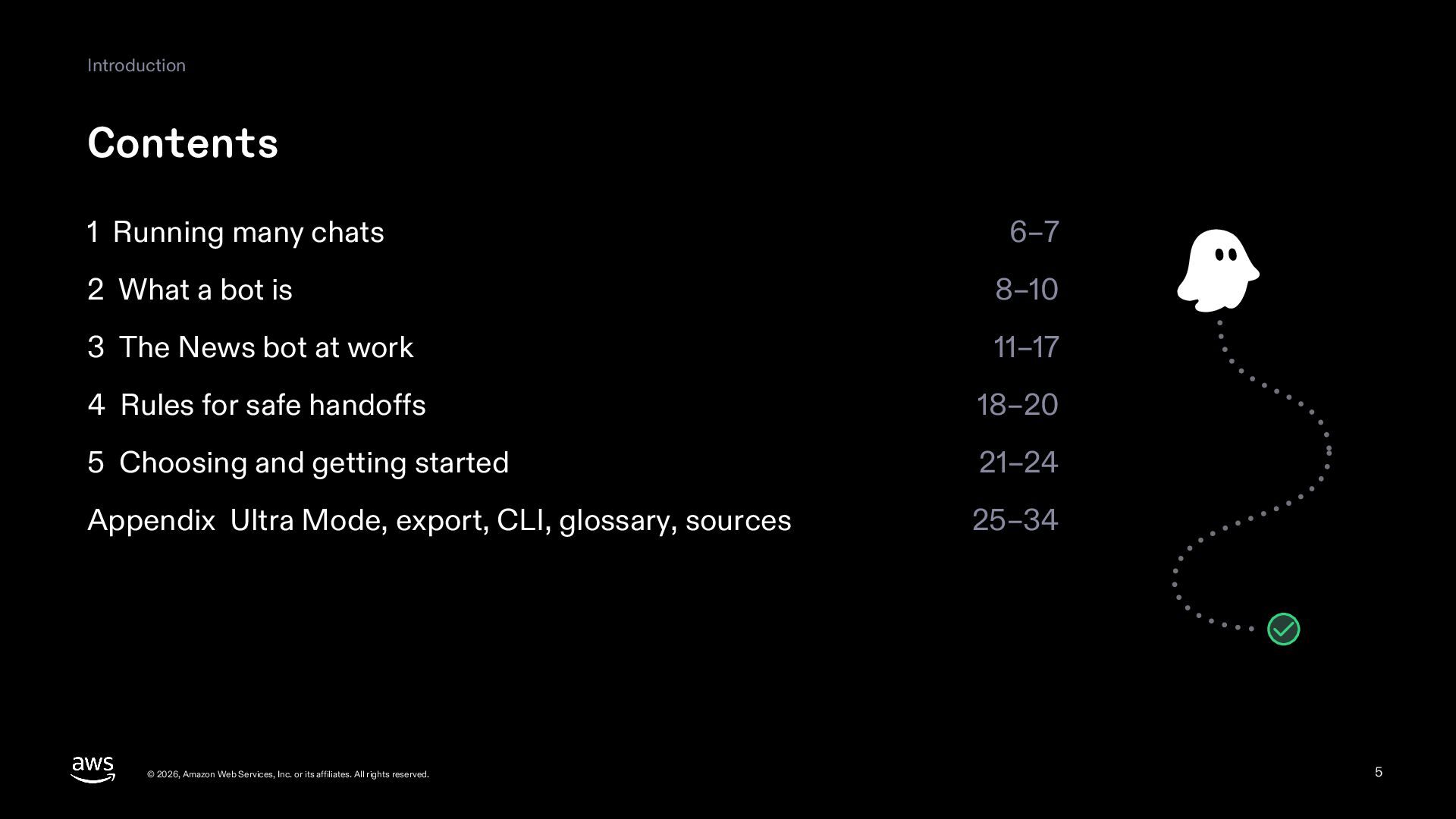
  5. Introduction Contents 1 Running many chats 6–7 2 What a

    bot is 8–10 3 The News bot at work 11–17 4 Rules for safe handoffs 18–20 5 Choosing and getting started 21–24 Appendix Ultra Mode, export, CLI, glossary, sources 25–34 © 2026, Amazon Web Services, Inc. or its affiliates. All rights reserved. 5
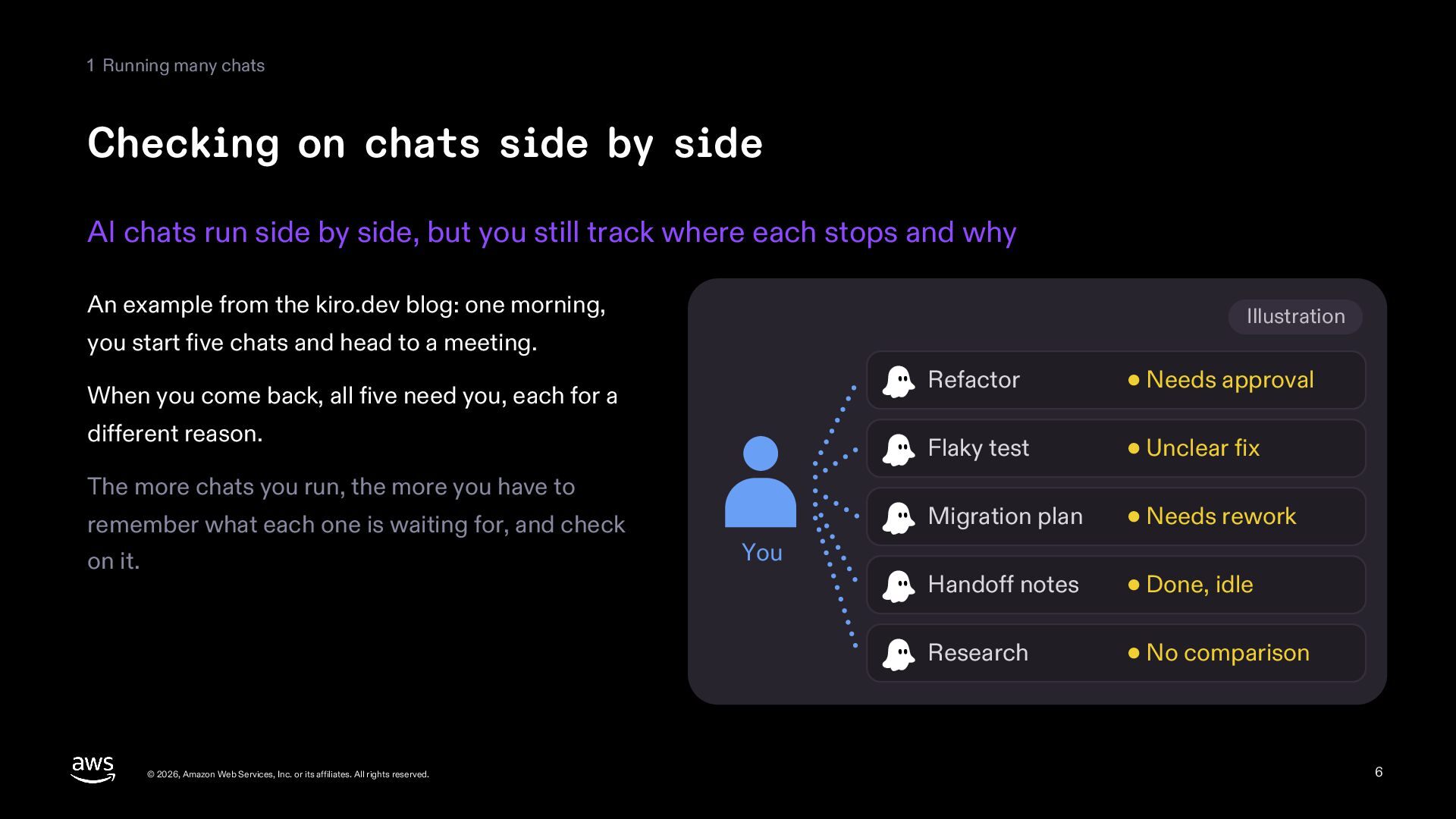
  6. 1 Running many chats Checking on chats side by side

    AI chats run side by side, but you still track where each stops and why An example from the kiro.dev blog: one morning, Illustration you start five chats and head to a meeting. When you come back, all five need you, each for a different reason. The more chats you run, the more you have to remember what each one is waiting for, and check on it. © 2026, Amazon Web Services, Inc. or its affiliates. All rights reserved. Refactor Needs approval Flaky test Unclear fix Migration plan Needs rework Handoff notes Done, idle Research No comparison You 6
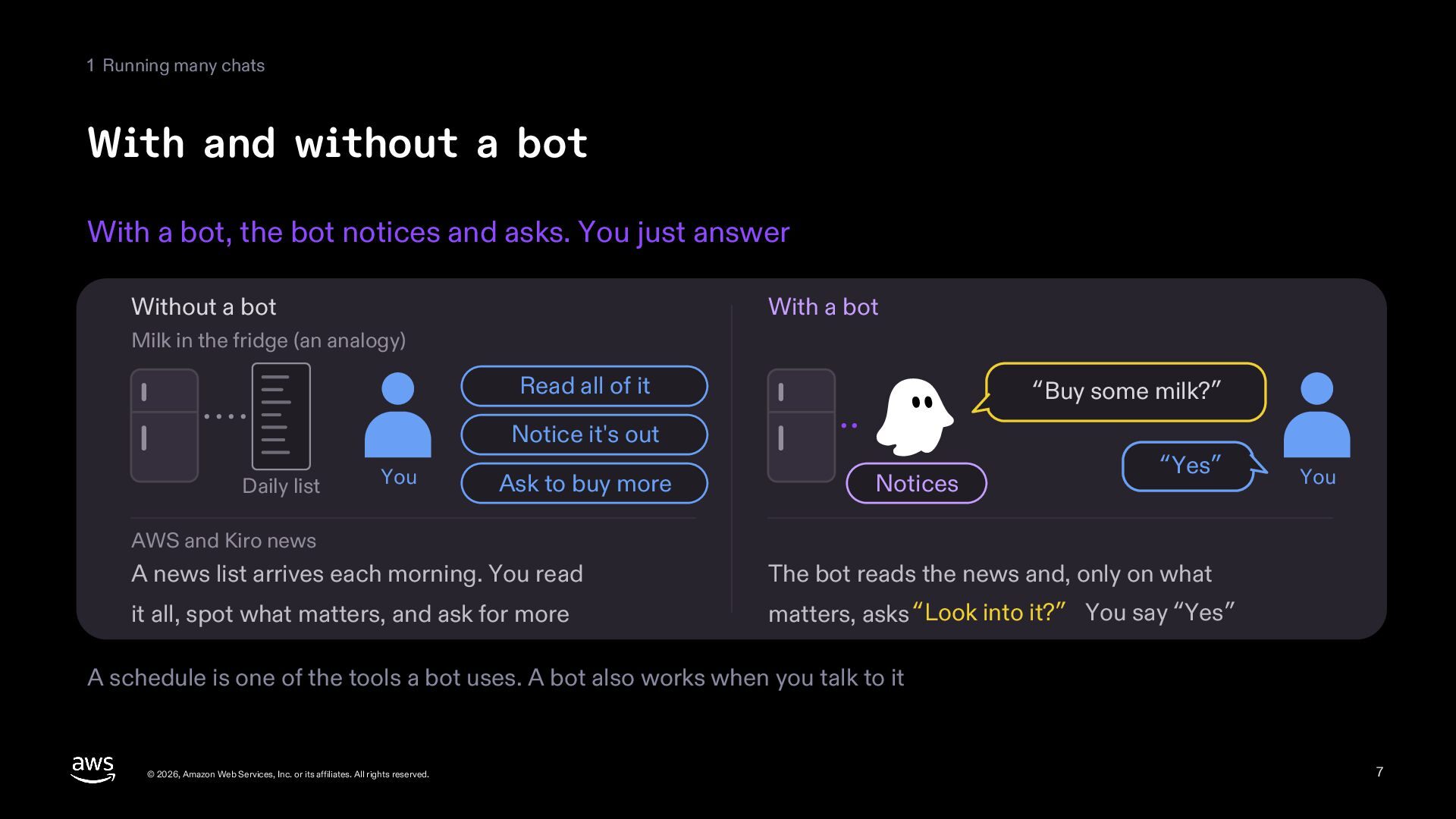
  7. 1 Running many chats With and without a bot With

    a bot, the bot notices and asks. You just answer Without a bot With a bot Milk in the fridge (an analogy) Read all of it “Buy some milk?” Notice it's out Daily list You Ask to buy more Notices “Yes” You AWS and Kiro news A news list arrives each morning. You read The bot reads the news and, only on what it all, spot what matters, and ask for more matters, asks “Look into it?” You say “Yes” A schedule is one of the tools a bot uses. A bot also works when you talk to it © 2026, Amazon Web Services, Inc. or its affiliates. All rights reserved. 7
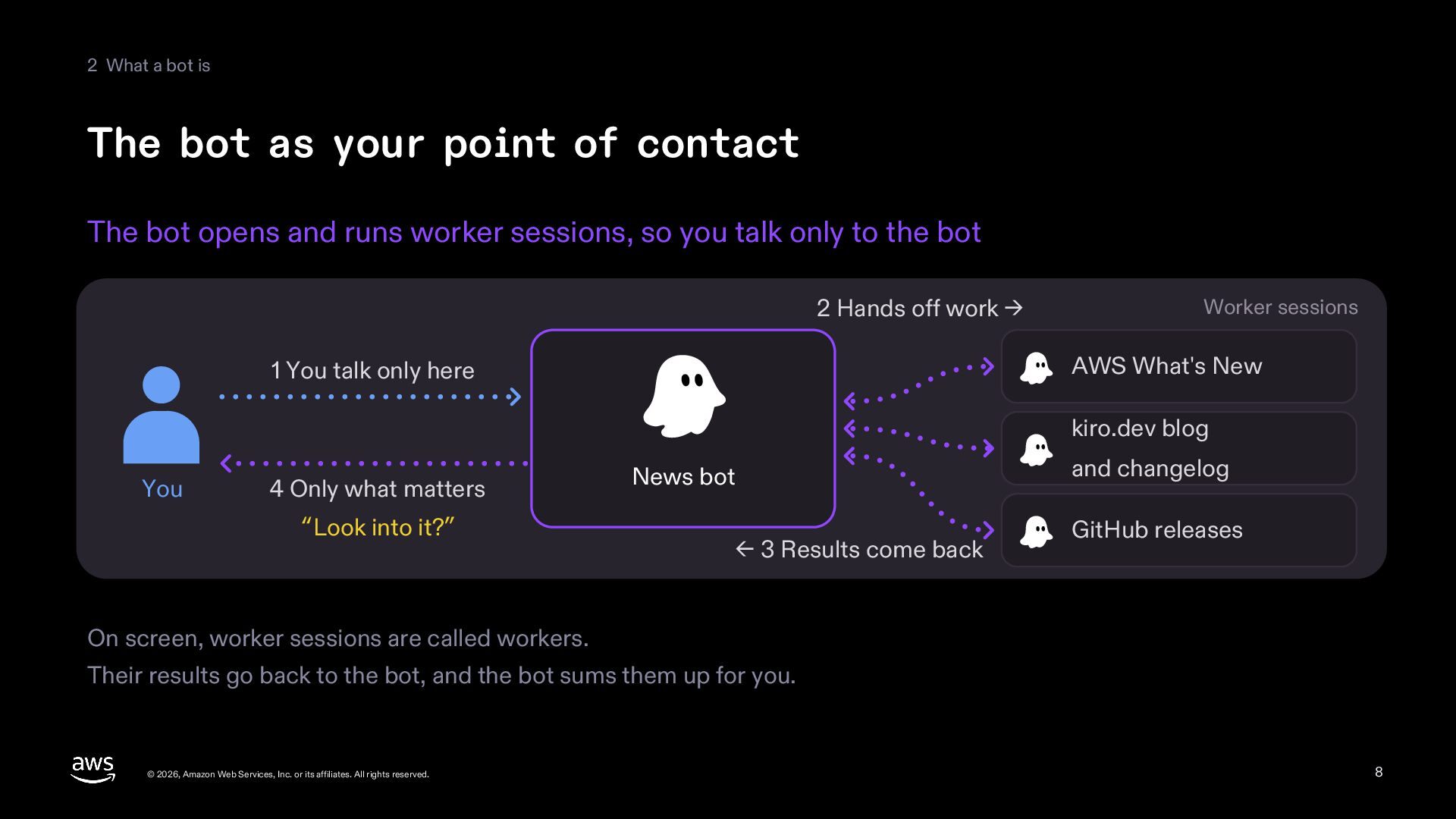
  8. 2 What a bot is The bot as your point

    of contact The bot opens and runs worker sessions, so you talk only to the bot 2 Hands off work → Worker sessions AWS What's New 1 You talk only here kiro.dev blog You 4 Only what matters “Look into it?” News bot ← 3 Results come back and changelog GitHub releases On screen, worker sessions are called workers. Their results go back to the bot, and the bot sums them up for you. © 2026, Amazon Web Services, Inc. or its affiliates. All rights reserved. 8
  9. 2 What a bot is What a bot is made

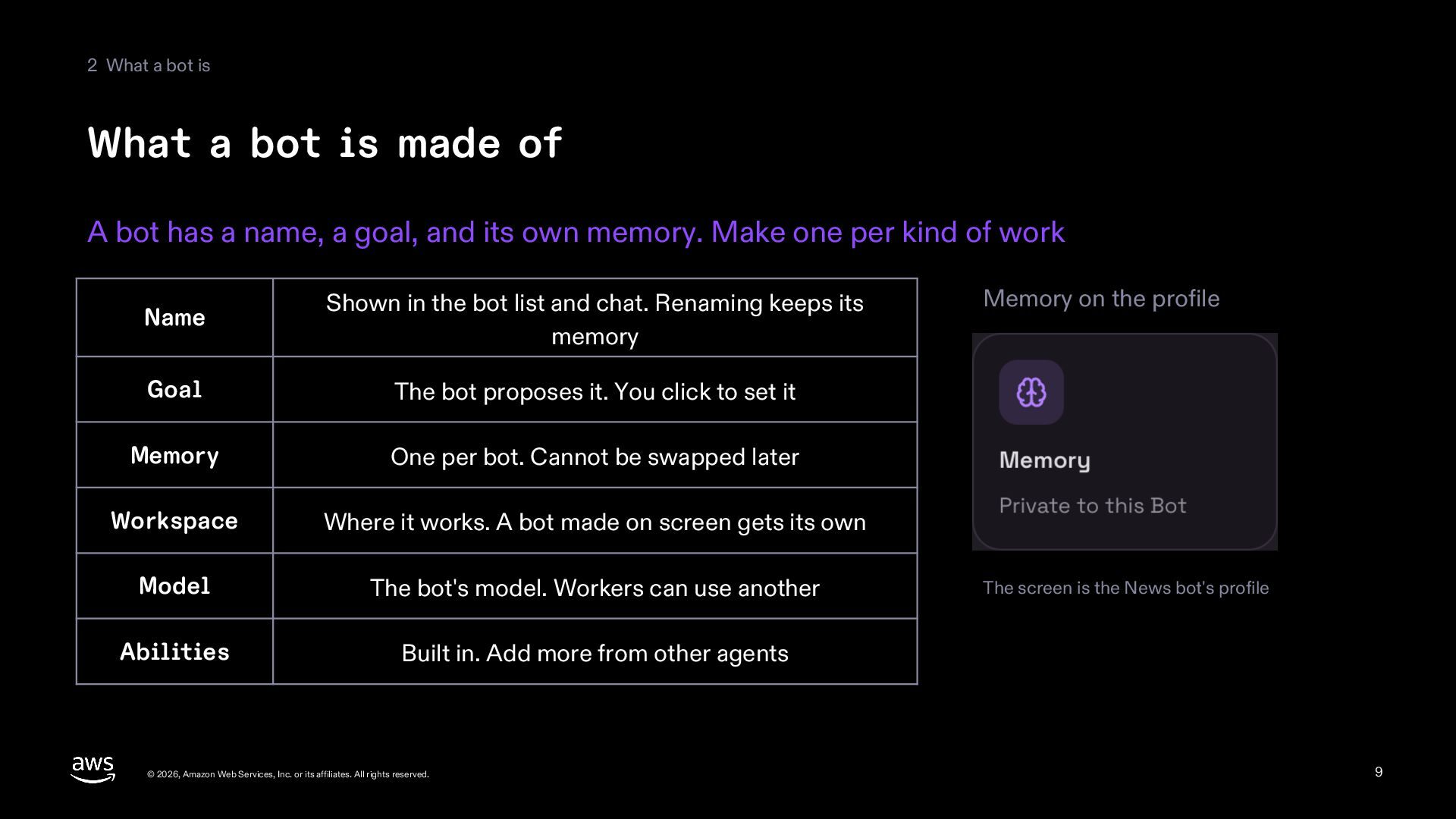
    of A bot has a name, a goal, and its own memory. Make one per kind of work Name Shown in the bot list and chat. Renaming keeps its memory Goal The bot proposes it. You click to set it Memory One per bot. Cannot be swapped later Workspace Where it works. A bot made on screen gets its own Model The bot's model. Workers can use another Abilities Built in. Add more from other agents © 2026, Amazon Web Services, Inc. or its affiliates. All rights reserved. Memory on the profile The screen is the News bot's profile 9
  10. 2 What a bot is One chat with your bot

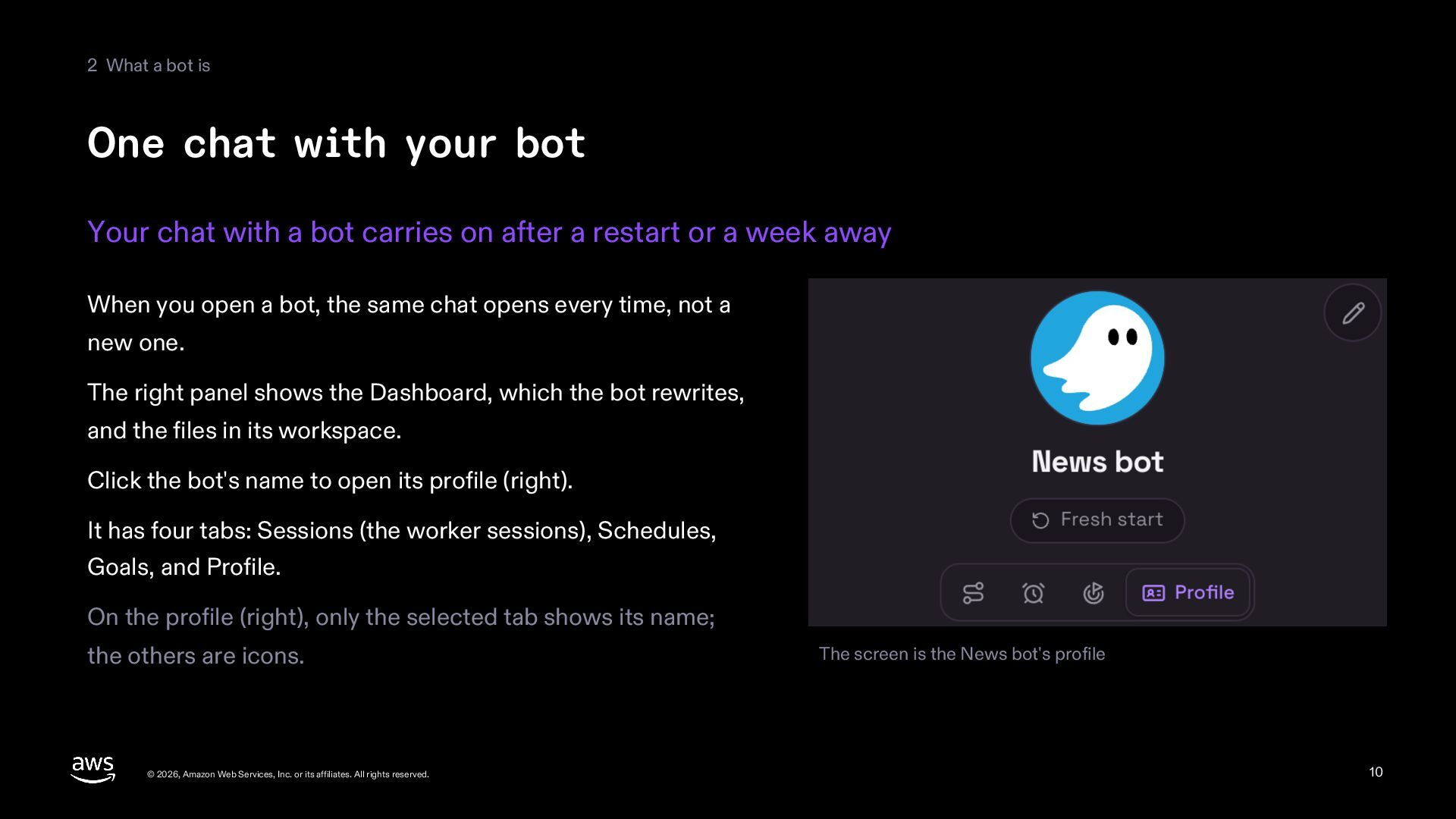
    Your chat with a bot carries on after a restart or a week away When you open a bot, the same chat opens every time, not a new one. The right panel shows the Dashboard, which the bot rewrites, and the files in its workspace. Click the bot's name to open its profile (right). It has four tabs: Sessions (the worker sessions), Schedules, Goals, and Profile. On the profile (right), only the selected tab shows its name; the others are icons. © 2026, Amazon Web Services, Inc. or its affiliates. All rights reserved. The screen is the News bot's profile 10
  11. 3 The News bot at work How the News bot

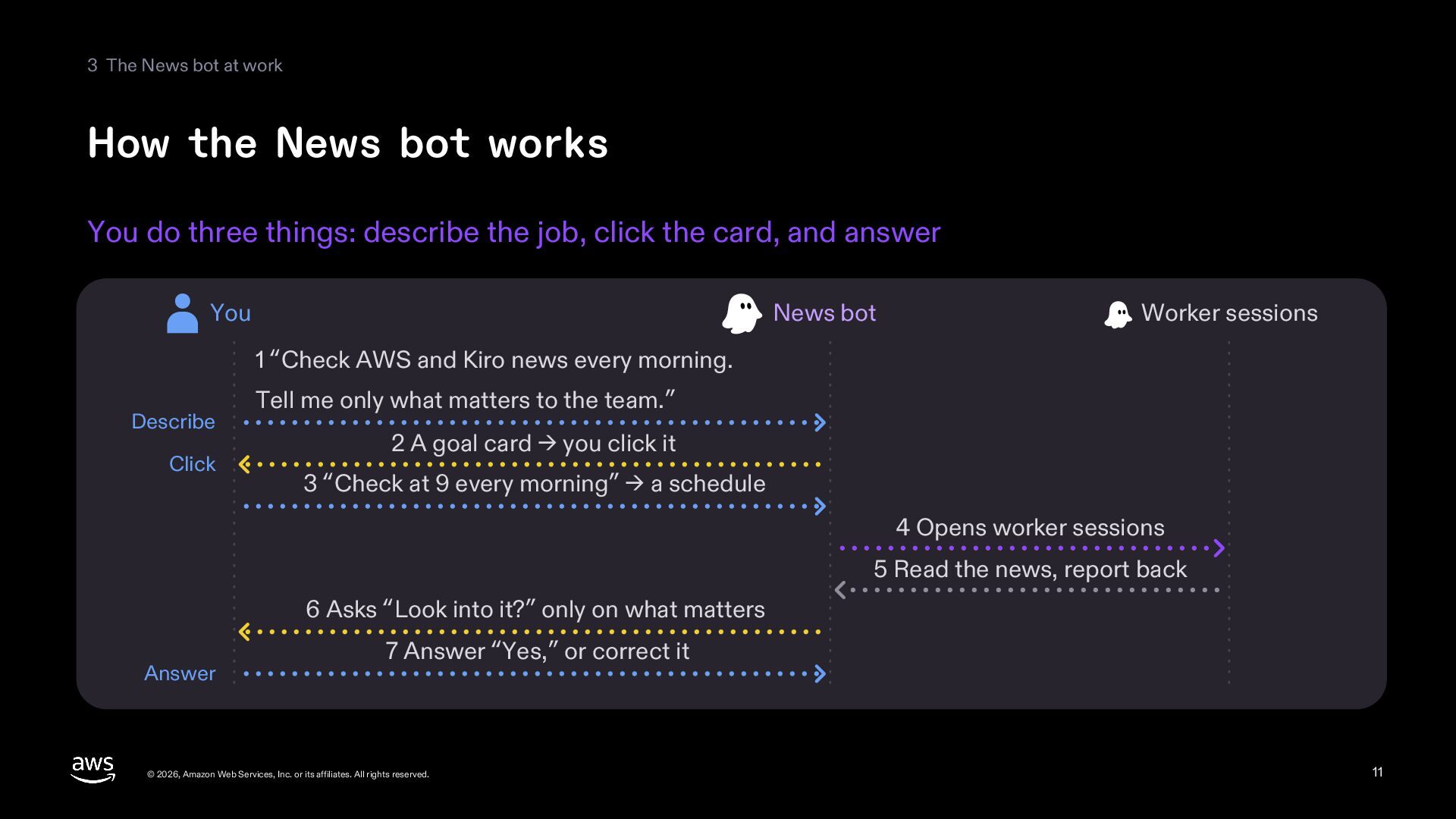
    works You do three things: describe the job, click the card, and answer You News bot Worker sessions 1 “Check AWS and Kiro news every morning. Describe Click Tell me only what matters to the team.” 2 A goal card → you click it 3 “Check at 9 every morning” → a schedule 4 Opens worker sessions 5 Read the news, report back 6 Asks “Look into it?” only on what matters Answer 7 Answer “Yes,” or correct it © 2026, Amazon Web Services, Inc. or its affiliates. All rights reserved. 11
  12. 3 The News bot at work The goal card and

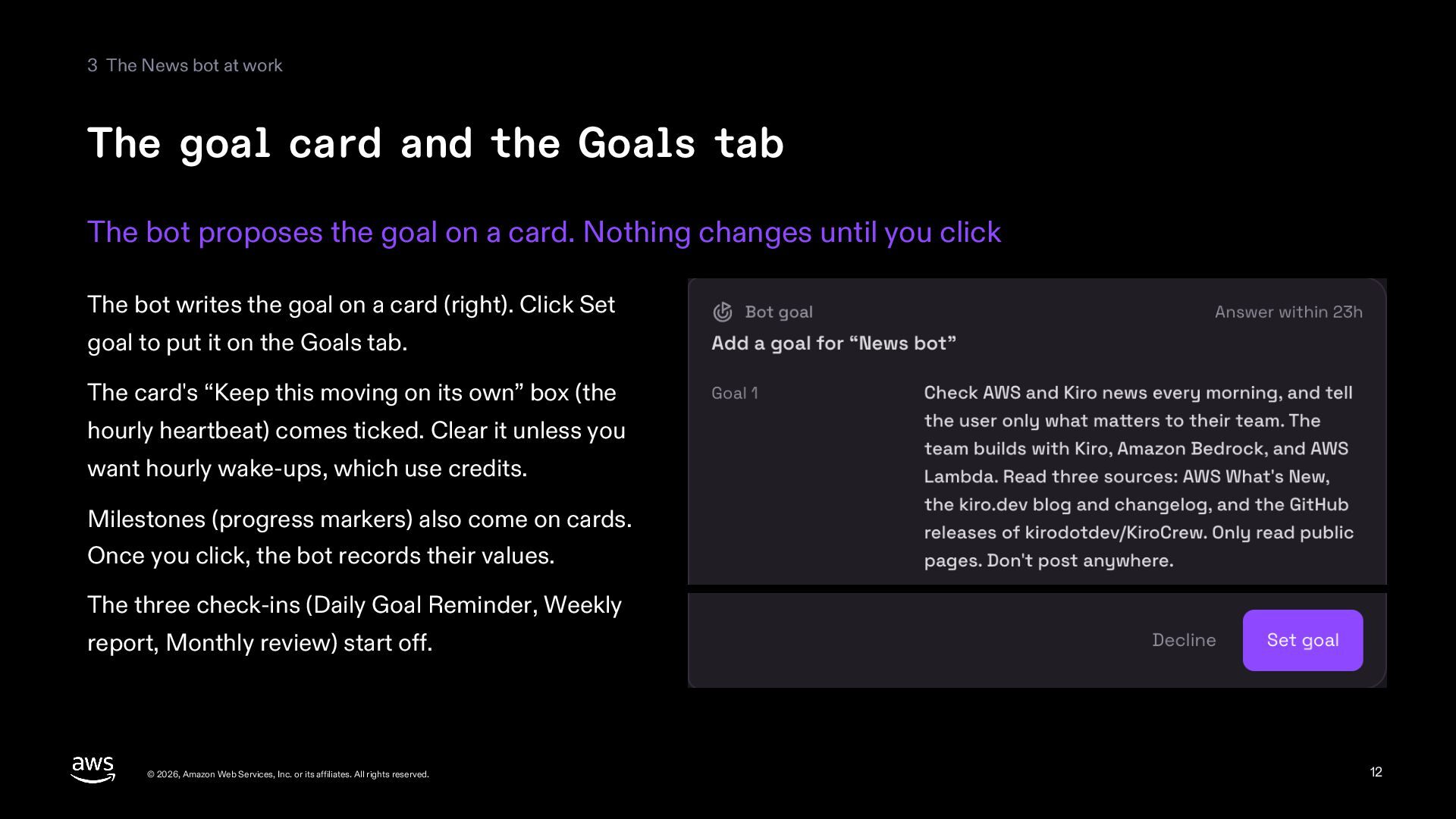
    the Goals tab The bot proposes the goal on a card. Nothing changes until you click The bot writes the goal on a card (right). Click Set goal to put it on the Goals tab. The card's “Keep this moving on its own” box (the hourly heartbeat) comes ticked. Clear it unless you want hourly wake-ups, which use credits. Milestones (progress markers) also come on cards. Once you click, the bot records their values. The three check-ins (Daily Goal Reminder, Weekly report, Monthly review) start off. © 2026, Amazon Web Services, Inc. or its affiliates. All rights reserved. 12
  13. 3 The News bot at work A schedule for 9

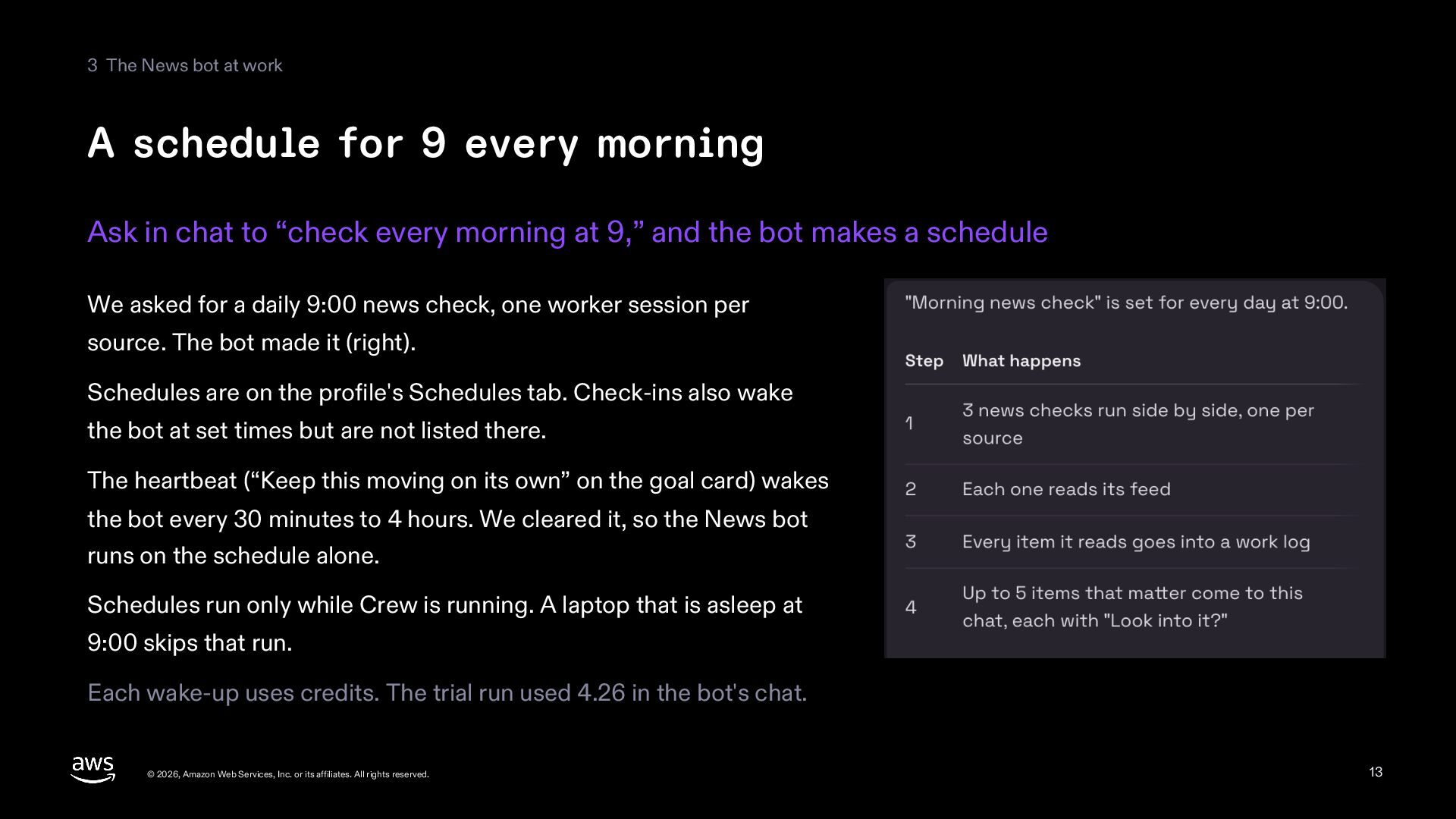
    every morning Ask in chat to “check every morning at 9,” and the bot makes a schedule We asked for a daily 9:00 news check, one worker session per source. The bot made it (right). Schedules are on the profile's Schedules tab. Check-ins also wake the bot at set times but are not listed there. The heartbeat (“Keep this moving on its own” on the goal card) wakes the bot every 30 minutes to 4 hours. We cleared it, so the News bot runs on the schedule alone. Schedules run only while Crew is running. A laptop that is asleep at 9:00 skips that run. Each wake-up uses credits. The trial run used 4.26 in the bot's chat. © 2026, Amazon Web Services, Inc. or its affiliates. All rights reserved. 13
  14. 3 The News bot at work One worker session per

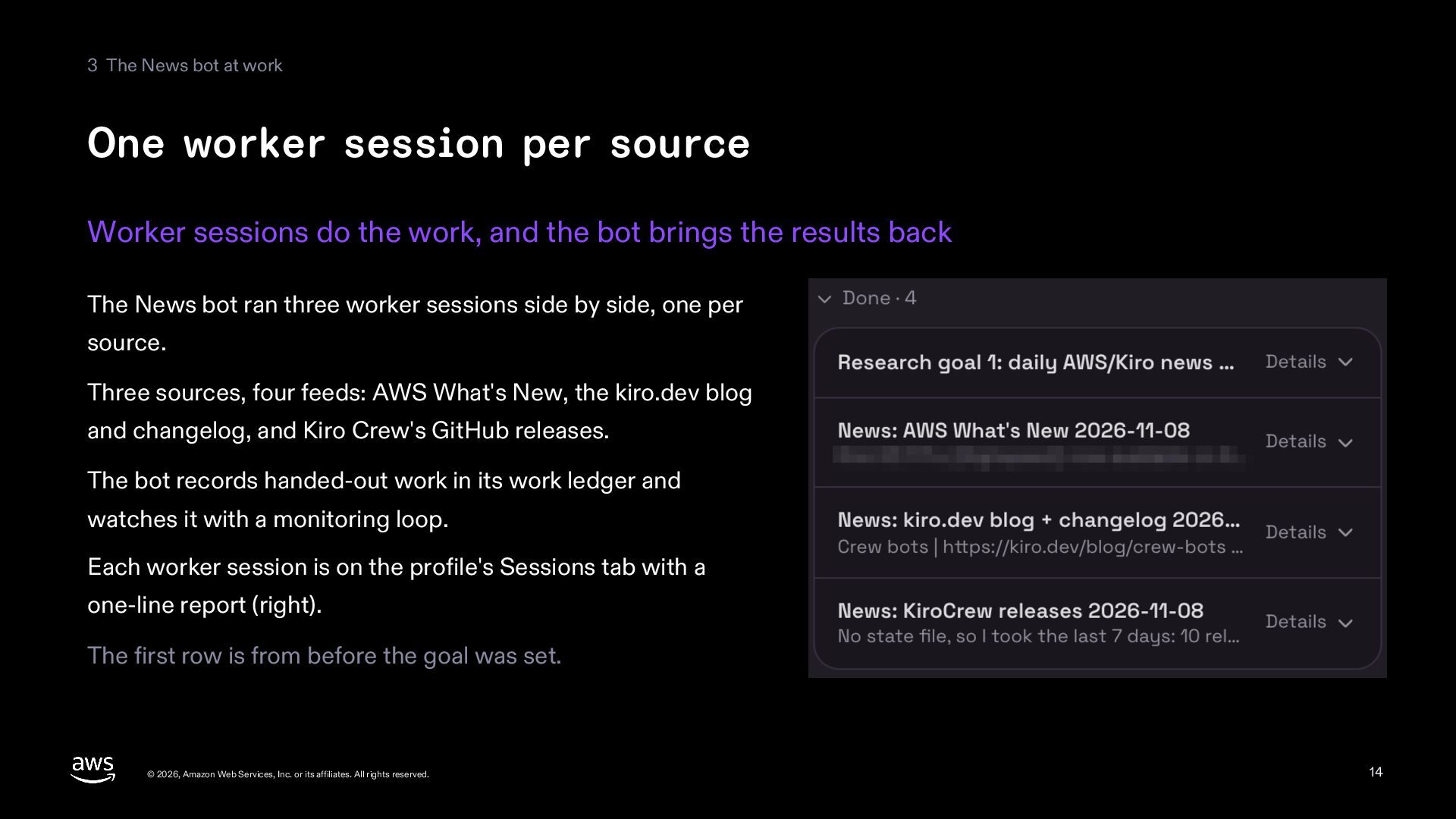
    source Worker sessions do the work, and the bot brings the results back The News bot ran three worker sessions side by side, one per source. Three sources, four feeds: AWS What's New, the kiro.dev blog and changelog, and Kiro Crew's GitHub releases. The bot records handed-out work in its work ledger and watches it with a monitoring loop. Each worker session is on the profile's Sessions tab with a one-line report (right). The first row is from before the goal was set. © 2026, Amazon Web Services, Inc. or its affiliates. All rights reserved. 14
  15. 3 The News bot at work Results in the bot's

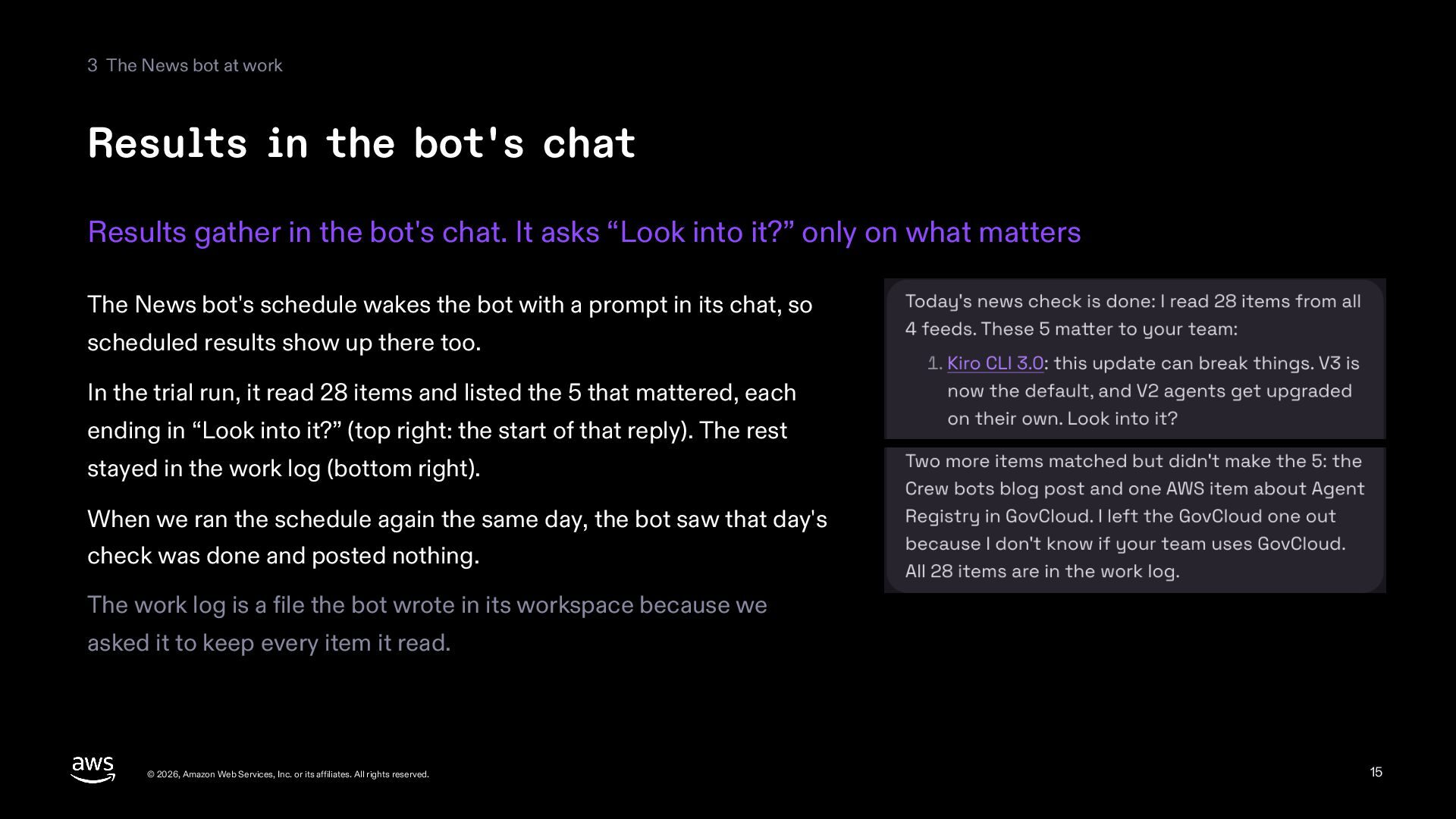
    chat Results gather in the bot's chat. It asks “Look into it?” only on what matters The News bot's schedule wakes the bot with a prompt in its chat, so scheduled results show up there too. In the trial run, it read 28 items and listed the 5 that mattered, each ending in “Look into it?” (top right: the start of that reply). The rest stayed in the work log (bottom right). When we ran the schedule again the same day, the bot saw that day's check was done and posted nothing. The work log is a file the bot wrote in its workspace because we asked it to keep every item it read. © 2026, Amazon Web Services, Inc. or its affiliates. All rights reserved. 15
  16. 3 The News bot at work Corrections and the next

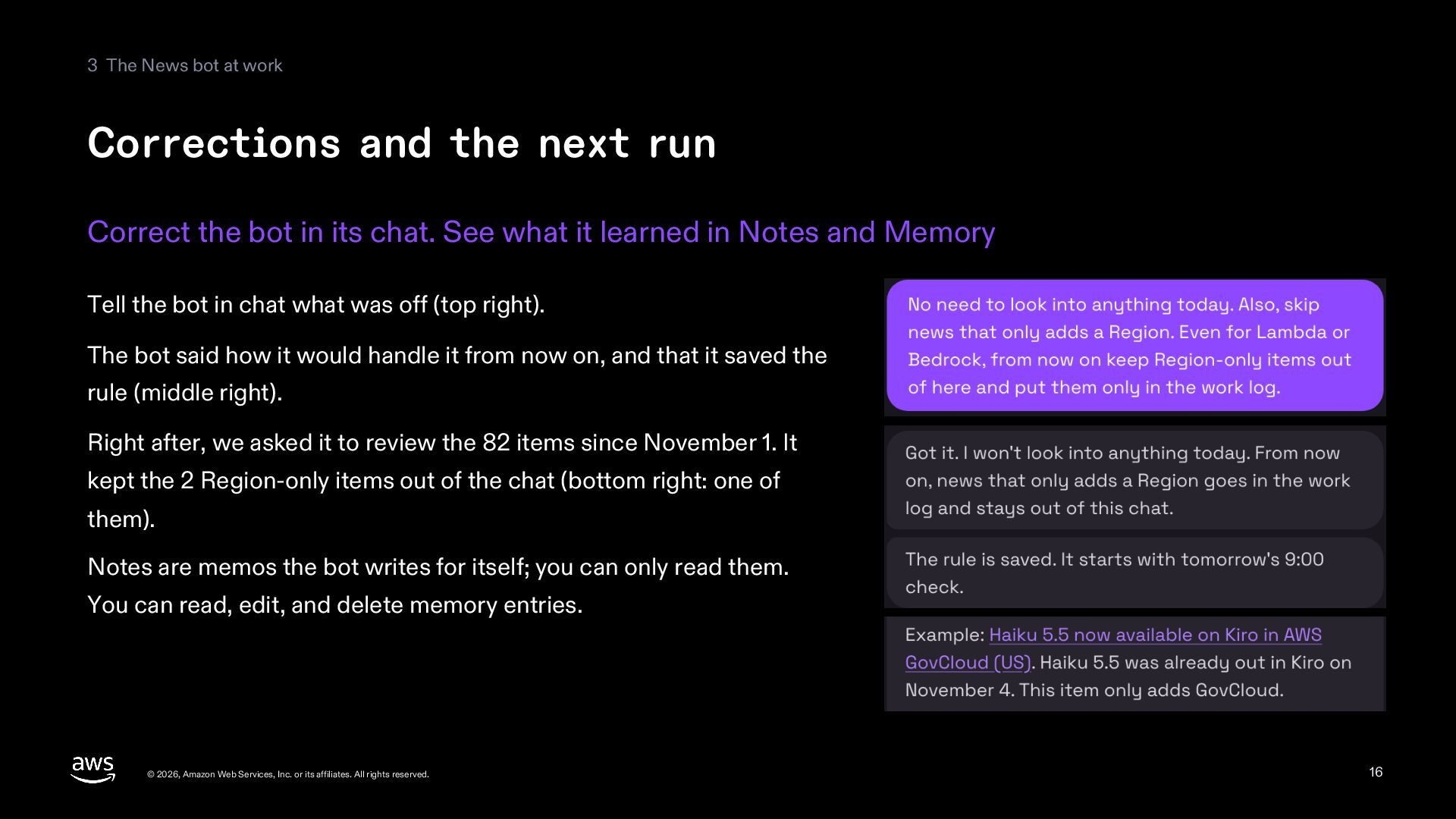
    run Correct the bot in its chat. See what it learned in Notes and Memory Tell the bot in chat what was off (top right). The bot said how it would handle it from now on, and that it saved the rule (middle right). Right after, we asked it to review the 82 items since November 1. It kept the 2 Region-only items out of the chat (bottom right: one of them). Notes are memos the bot writes for itself; you can only read them. You can read, edit, and delete memory entries. © 2026, Amazon Web Services, Inc. or its affiliates. All rights reserved. 16
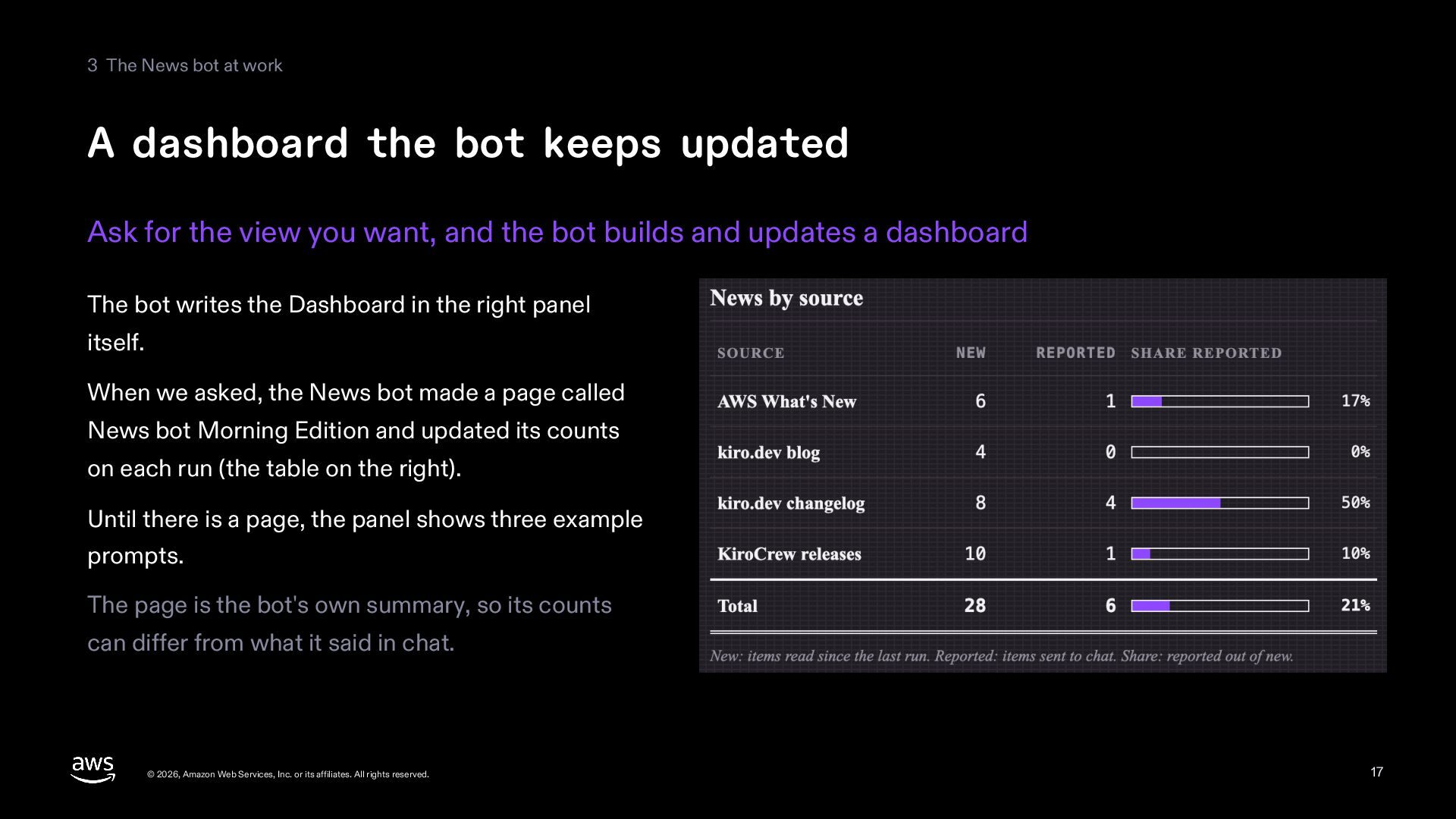
  17. 3 The News bot at work A dashboard the bot

    keeps updated Ask for the view you want, and the bot builds and updates a dashboard The bot writes the Dashboard in the right panel itself. When we asked, the News bot made a page called News bot Morning Edition and updated its counts on each run (the table on the right). Until there is a page, the panel shows three example prompts. The page is the bot's own summary, so its counts can differ from what it said in chat. © 2026, Amazon Web Services, Inc. or its affiliates. All rights reserved. 17
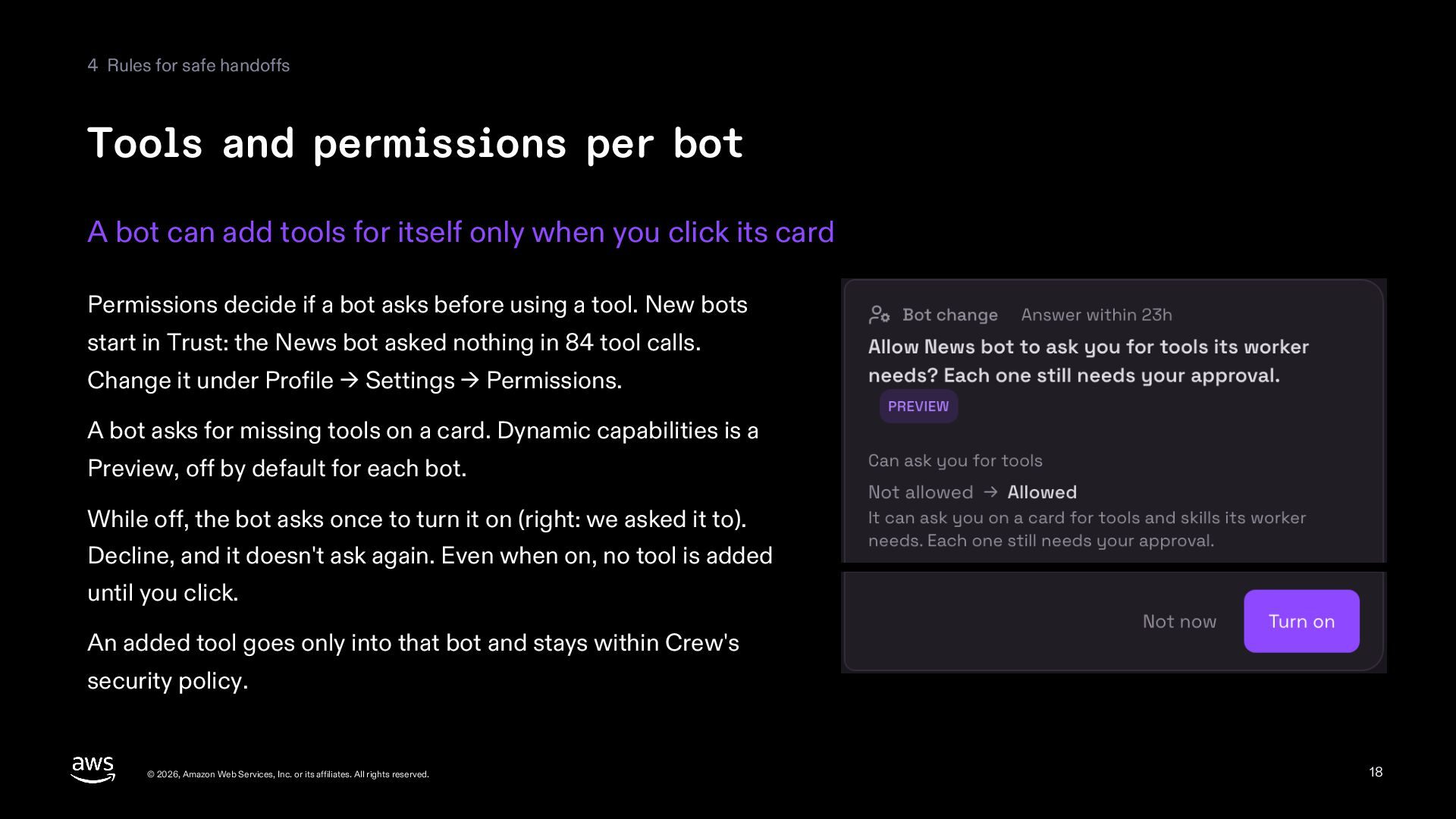
  18. 4 Rules for safe handoffs Tools and permissions per bot

    A bot can add tools for itself only when you click its card Permissions decide if a bot asks before using a tool. New bots start in Trust: the News bot asked nothing in 84 tool calls. Change it under Profile → Settings → Permissions. A bot asks for missing tools on a card. Dynamic capabilities is a Preview, off by default for each bot. While off, the bot asks once to turn it on (right: we asked it to). Decline, and it doesn't ask again. Even when on, no tool is added until you click. An added tool goes only into that bot and stays within Crew's security policy. © 2026, Amazon Web Services, Inc. or its affiliates. All rights reserved. 18
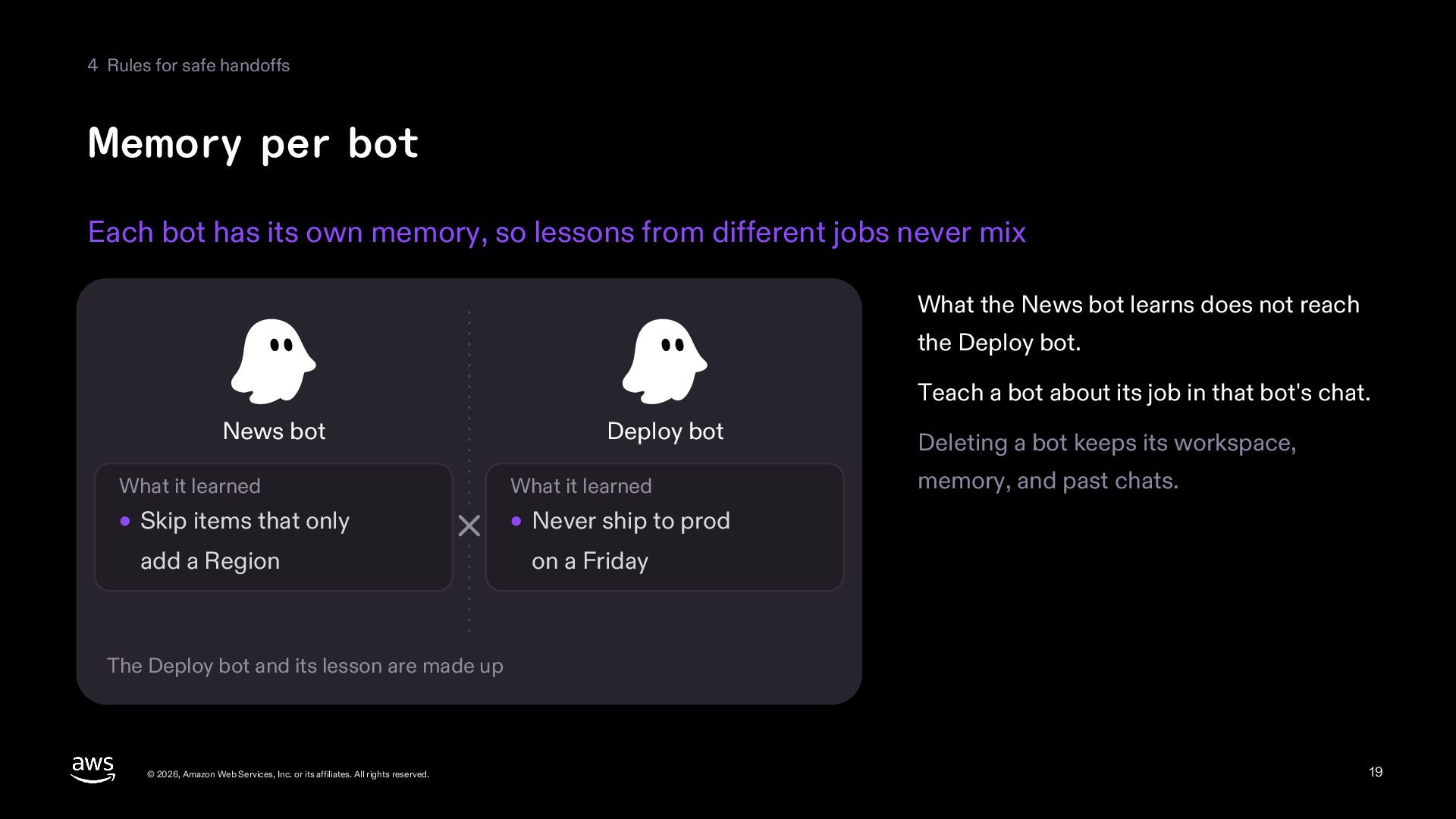
  19. 4 Rules for safe handoffs Memory per bot Each bot

    has its own memory, so lessons from different jobs never mix What the News bot learns does not reach the Deploy bot. Teach a bot about its job in that bot's chat. News bot What it learned Deploy bot What it learned Skip items that only Never ship to prod add a Region on a Friday Deleting a bot keeps its workspace, memory, and past chats. The Deploy bot and its lesson are made up © 2026, Amazon Web Services, Inc. or its affiliates. All rights reserved. 19
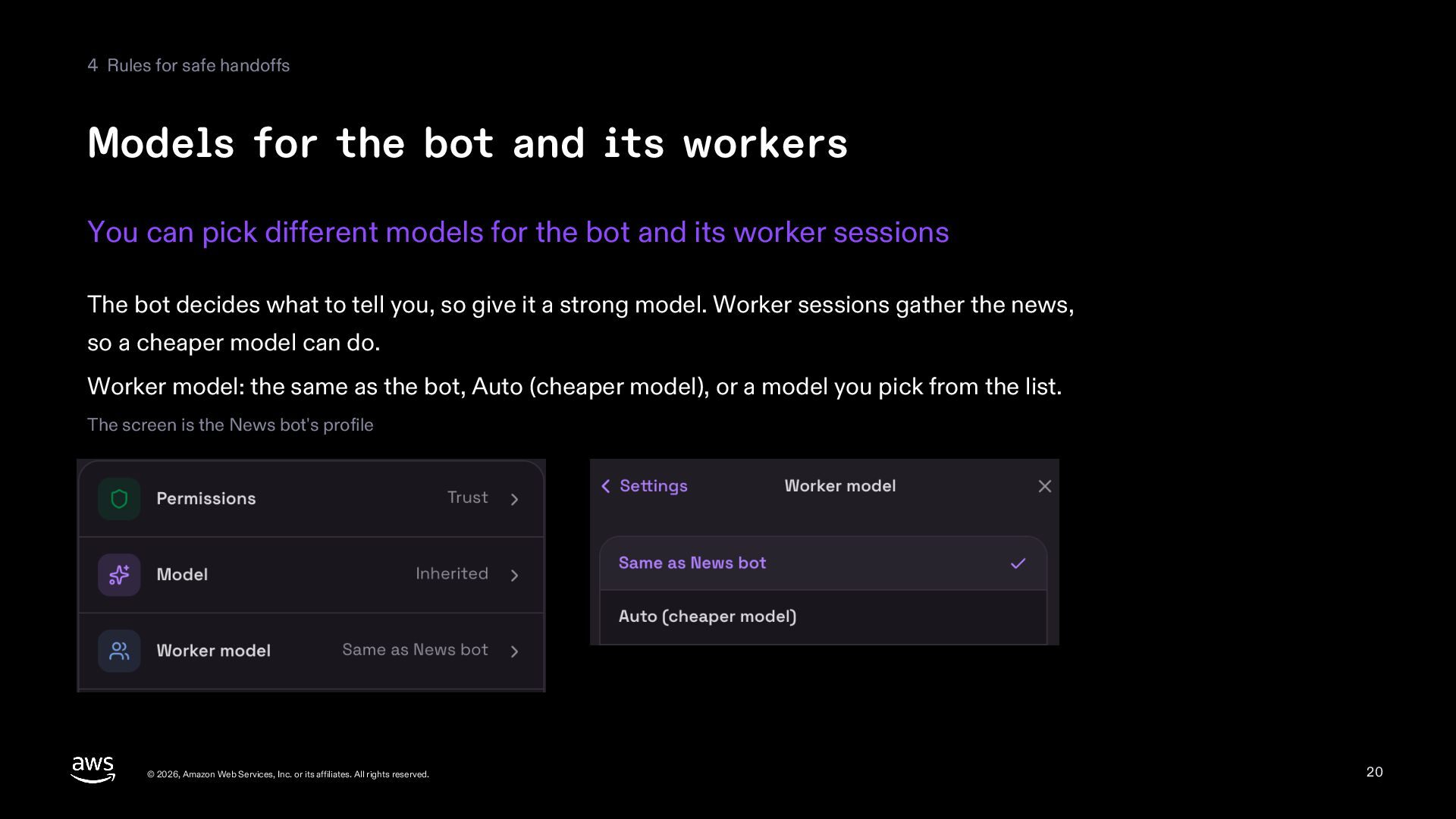
  20. 4 Rules for safe handoffs Models for the bot and

    its workers You can pick different models for the bot and its worker sessions The bot decides what to tell you, so give it a strong model. Worker sessions gather the news, so a cheaper model can do. Worker model: the same as the bot, Auto (cheaper model), or a model you pick from the list. The screen is the News bot's profile © 2026, Amazon Web Services, Inc. or its affiliates. All rights reserved. 20
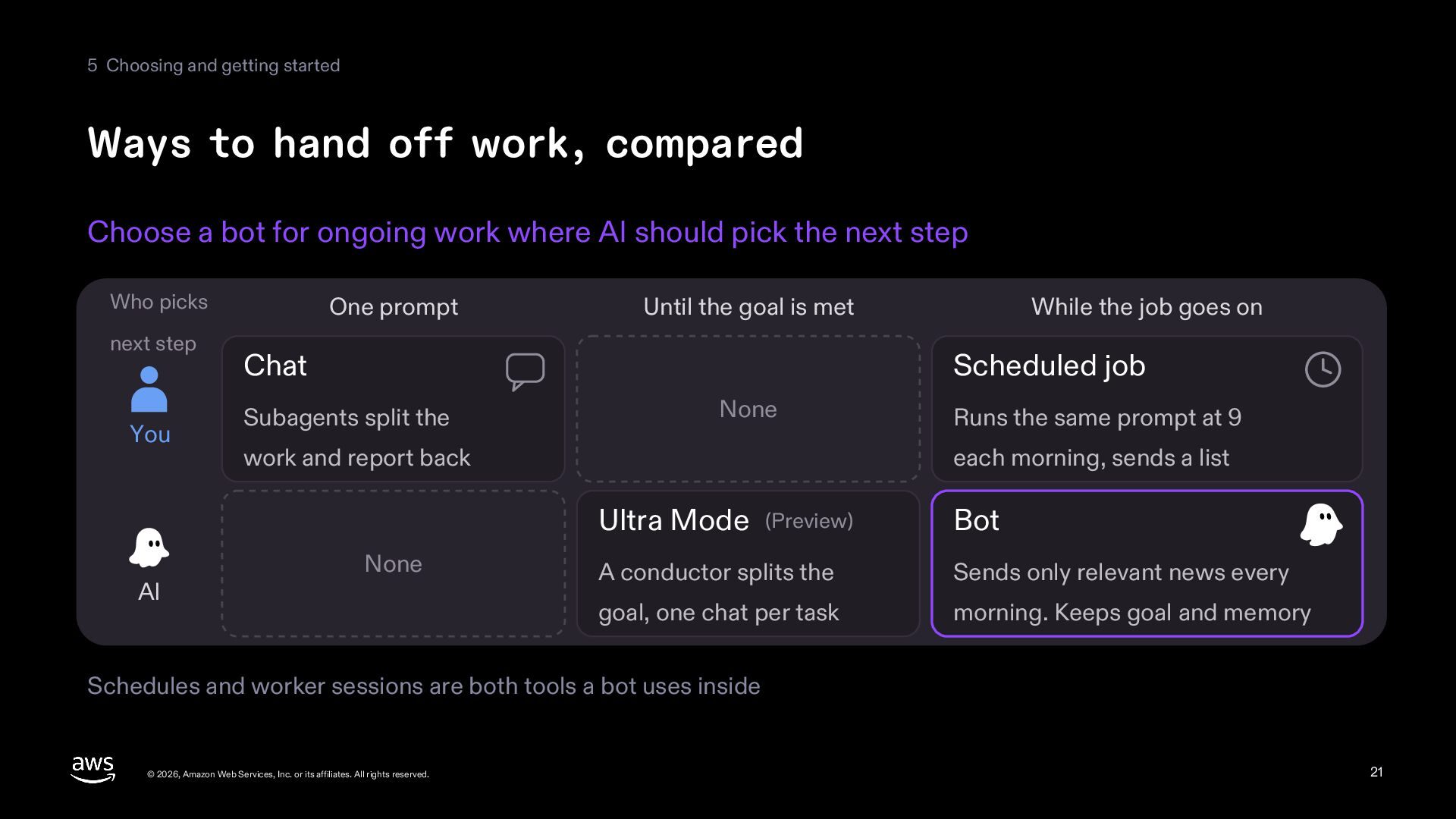
  21. 5 Choosing and getting started Ways to hand off work,

    compared Choose a bot for ongoing work where AI should pick the next step Who picks next step You AI One prompt Until the goal is met Chat While the job goes on Scheduled job Subagents split the None work and report back None Runs the same prompt at 9 each morning, sends a list Ultra Mode (Preview) Bot A conductor splits the Sends only relevant news every goal, one chat per task morning. Keeps goal and memory Schedules and worker sessions are both tools a bot uses inside © 2026, Amazon Web Services, Inc. or its affiliates. All rights reserved. 21
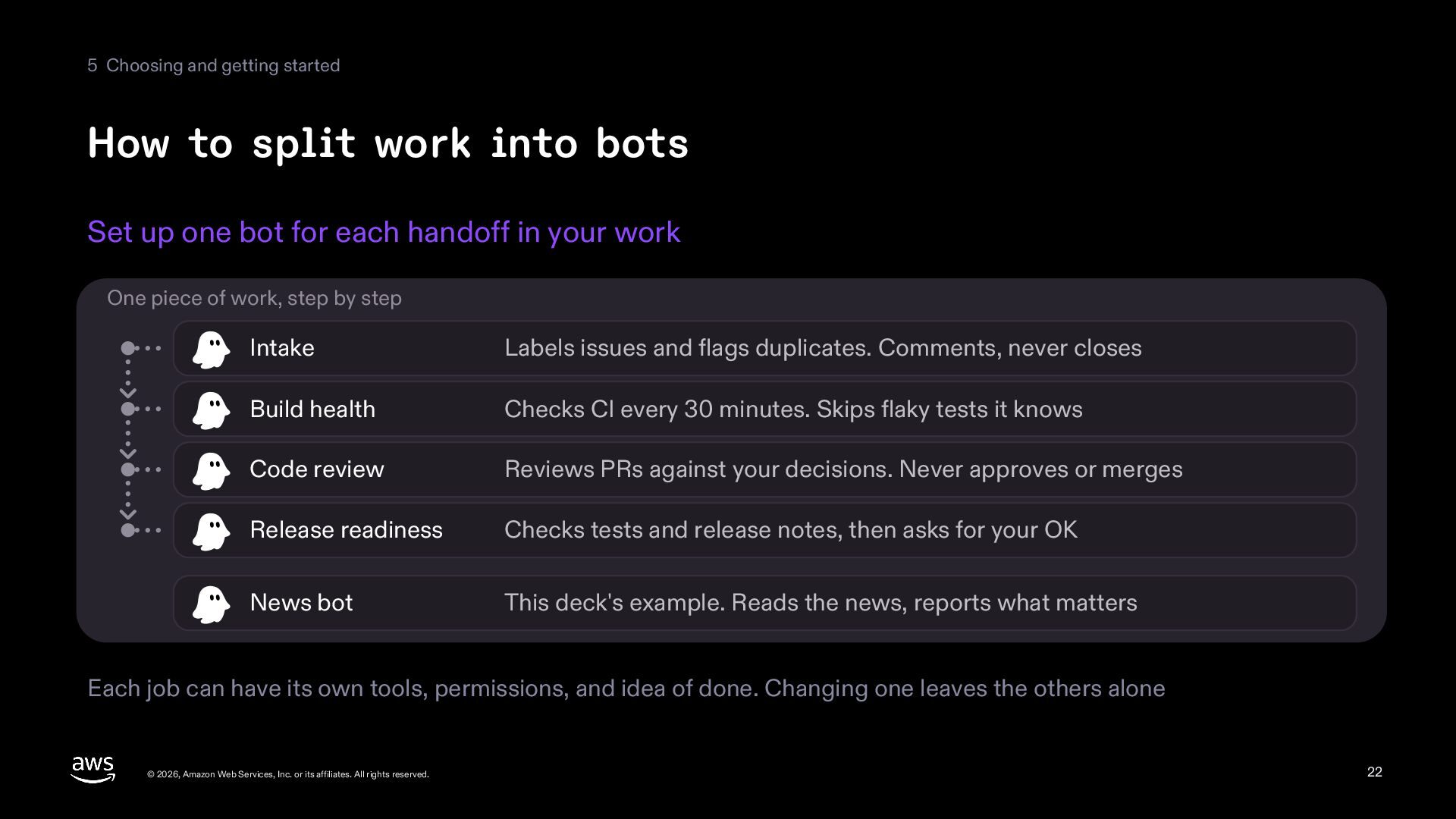
  22. 5 Choosing and getting started How to split work into

    bots Set up one bot for each handoff in your work One piece of work, step by step Intake Labels issues and flags duplicates. Comments, never closes Build health Checks CI every 30 minutes. Skips flaky tests it knows Code review Reviews PRs against your decisions. Never approves or merges Release readiness Checks tests and release notes, then asks for your OK News bot This deck's example. Reads the news, reports what matters Each job can have its own tools, permissions, and idea of done. Changing one leaves the others alone © 2026, Amazon Web Services, Inc. or its affiliates. All rights reserved. 22
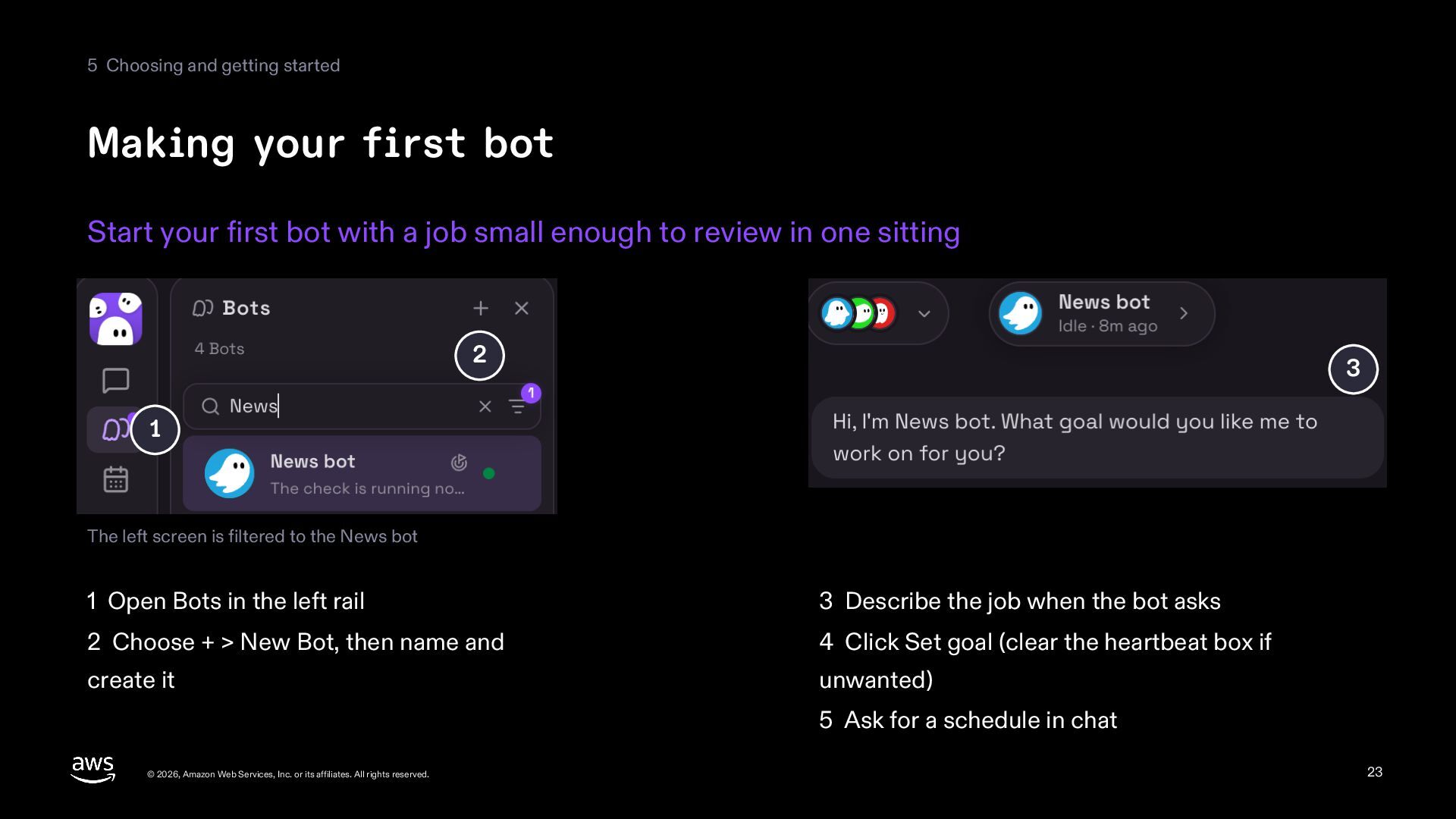
  23. 5 Choosing and getting started Making your first bot Start

    your first bot with a job small enough to review in one sitting 2 3 1 The left screen is filtered to the News bot 1 Open Bots in the left rail 3 Describe the job when the bot asks 2 Choose + > New Bot, then name and 4 Click Set goal (clear the heartbeat box if create it unwanted) 5 Ask for a schedule in chat © 2026, Amazon Web Services, Inc. or its affiliates. All rights reserved. 23
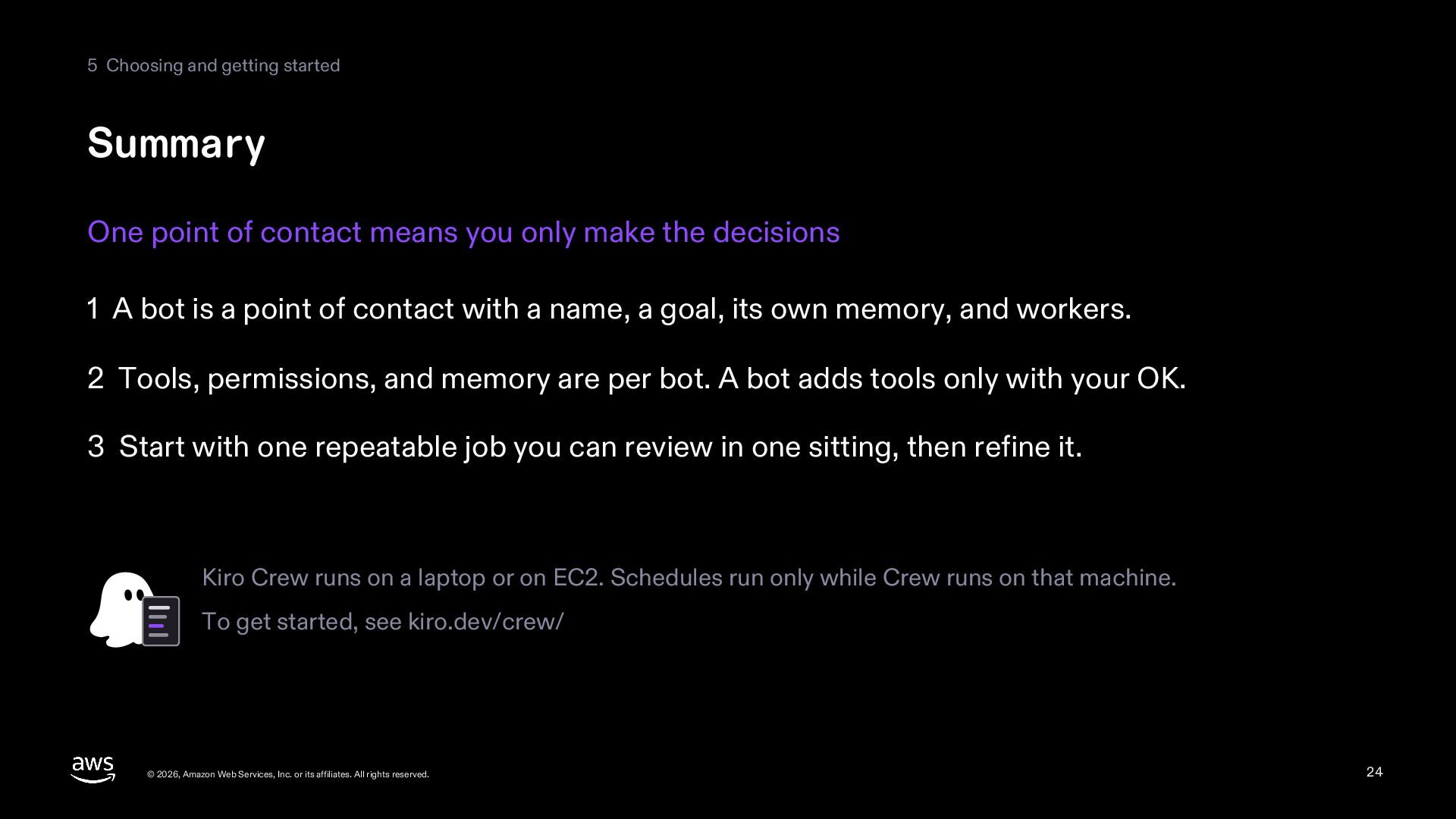
  24. 5 Choosing and getting started Summary One point of contact

    means you only make the decisions 1 A bot is a point of contact with a name, a goal, its own memory, and workers. 2 Tools, permissions, and memory are per bot. A bot adds tools only with your OK. 3 Start with one repeatable job you can review in one sitting, then refine it. Kiro Crew runs on a laptop or on EC2. Schedules run only while Crew runs on that machine. To get started, see kiro.dev/crew/ © 2026, Amazon Web Services, Inc. or its affiliates. All rights reserved. 24
  25. Appendix The Ultra Mode conductor The default conductor is kirocrew-conductor.

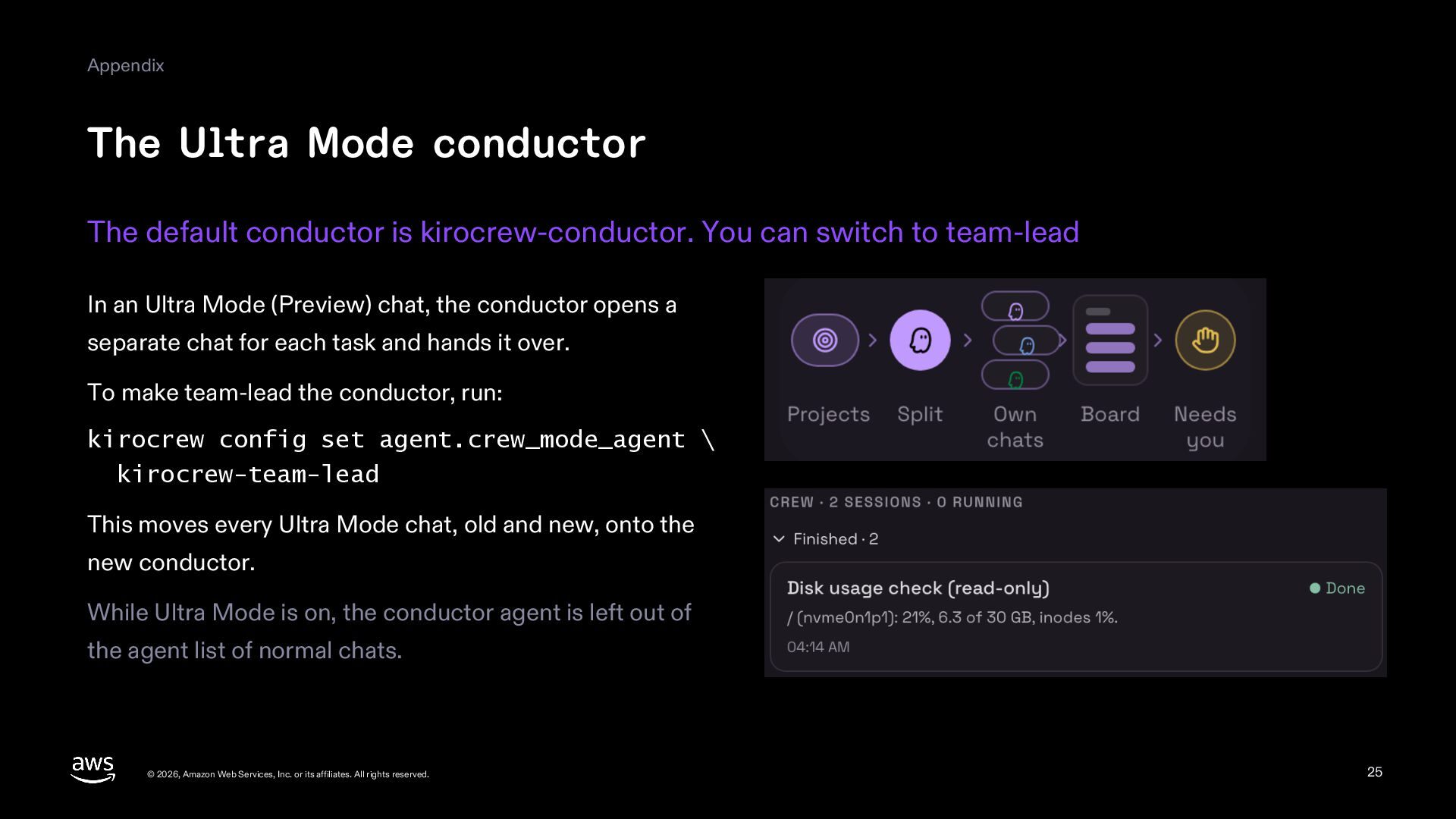
    You can switch to team-lead In an Ultra Mode (Preview) chat, the conductor opens a separate chat for each task and hands it over. To make team-lead the conductor, run: kirocrew config set agent.crew_mode_agent \ kirocrew-team-lead This moves every Ultra Mode chat, old and new, onto the new conductor. While Ultra Mode is on, the conductor agent is left out of the agent list of normal chats. © 2026, Amazon Web Services, Inc. or its affiliates. All rights reserved. 25
  26. Appendix From Mate to Bot The Mates of 0.11 became

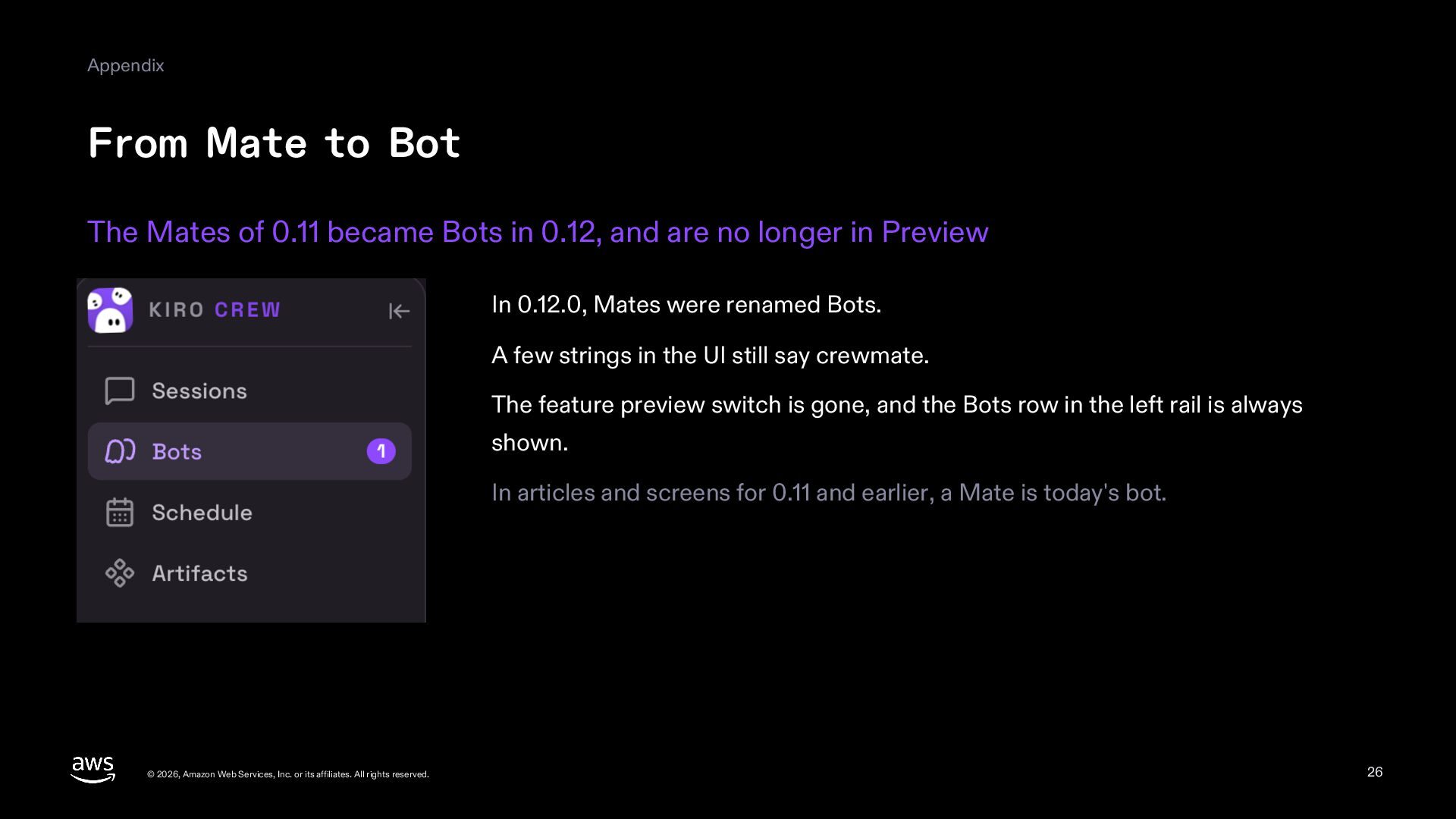
    Bots in 0.12, and are no longer in Preview In 0.12.0, Mates were renamed Bots. A few strings in the UI still say crewmate. The feature preview switch is gone, and the Bots row in the left rail is always shown. In articles and screens for 0.11 and earlier, a Mate is today's bot. © 2026, Amazon Web Services, Inc. or its affiliates. All rights reserved. 26
  27. Appendix Exporting a bot Export a bot to a file

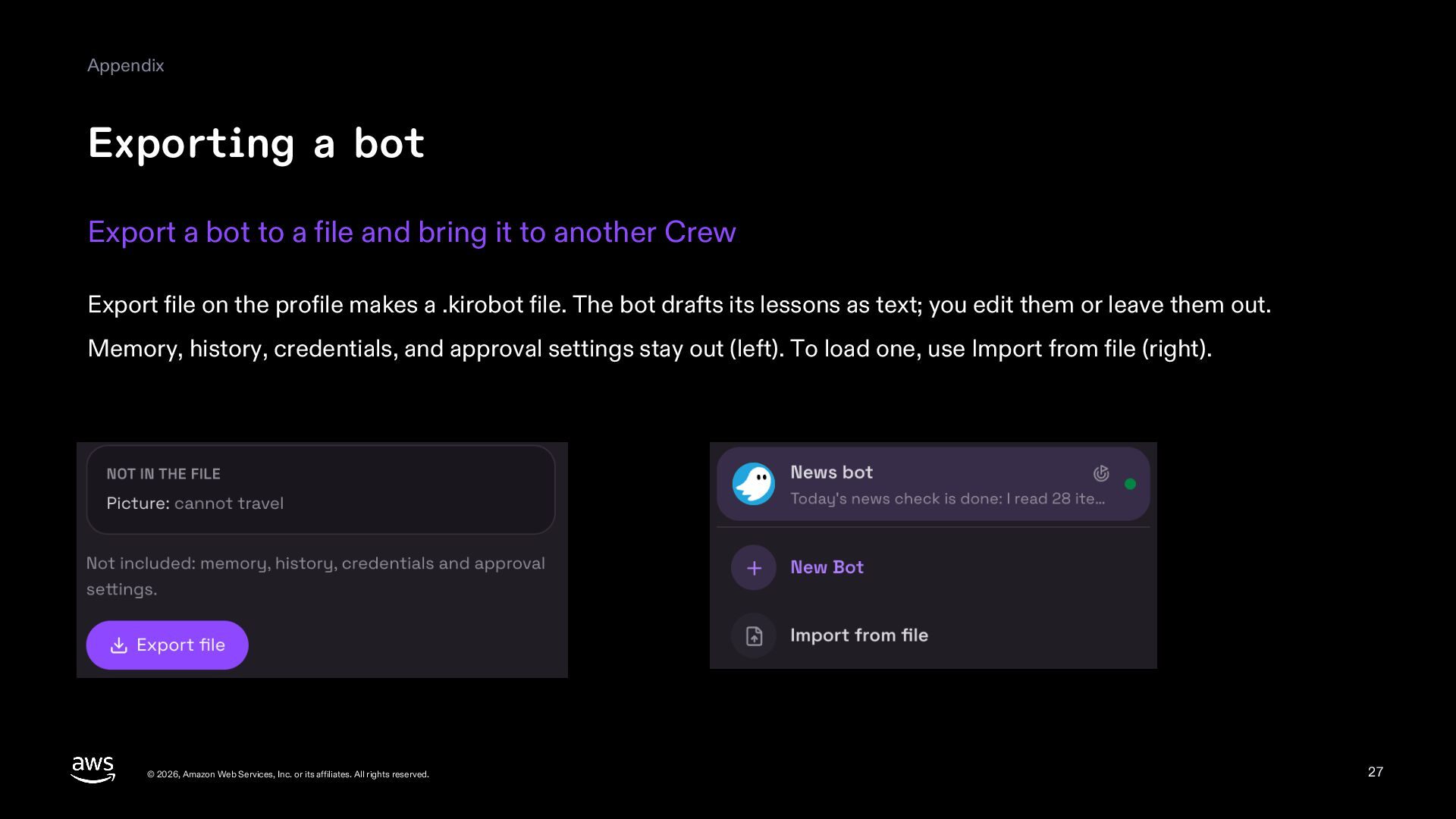
    and bring it to another Crew Export file on the profile makes a .kirobot file. The bot drafts its lessons as text; you edit them or leave them out. Memory, history, credentials, and approval settings stay out (left). To load one, use Import from file (right). © 2026, Amazon Web Services, Inc. or its affiliates. All rights reserved. 27
  28. Appendix An AI coding tool per bot Each bot can

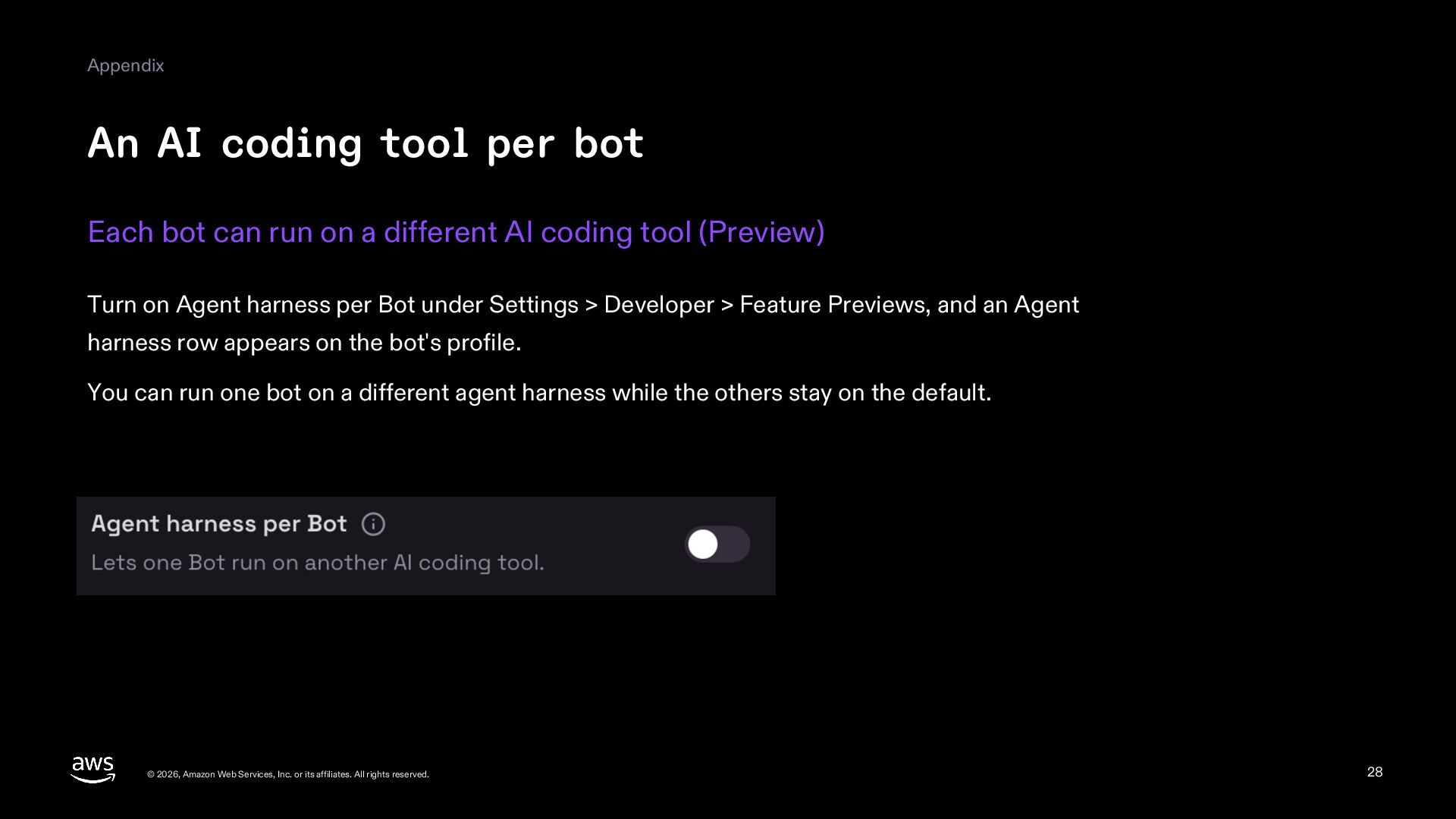
    run on a different AI coding tool (Preview) Turn on Agent harness per Bot under Settings > Developer > Feature Previews, and an Agent harness row appears on the bot's profile. You can run one bot on a different agent harness while the others stay on the default. © 2026, Amazon Web Services, Inc. or its affiliates. All rights reserved. 28
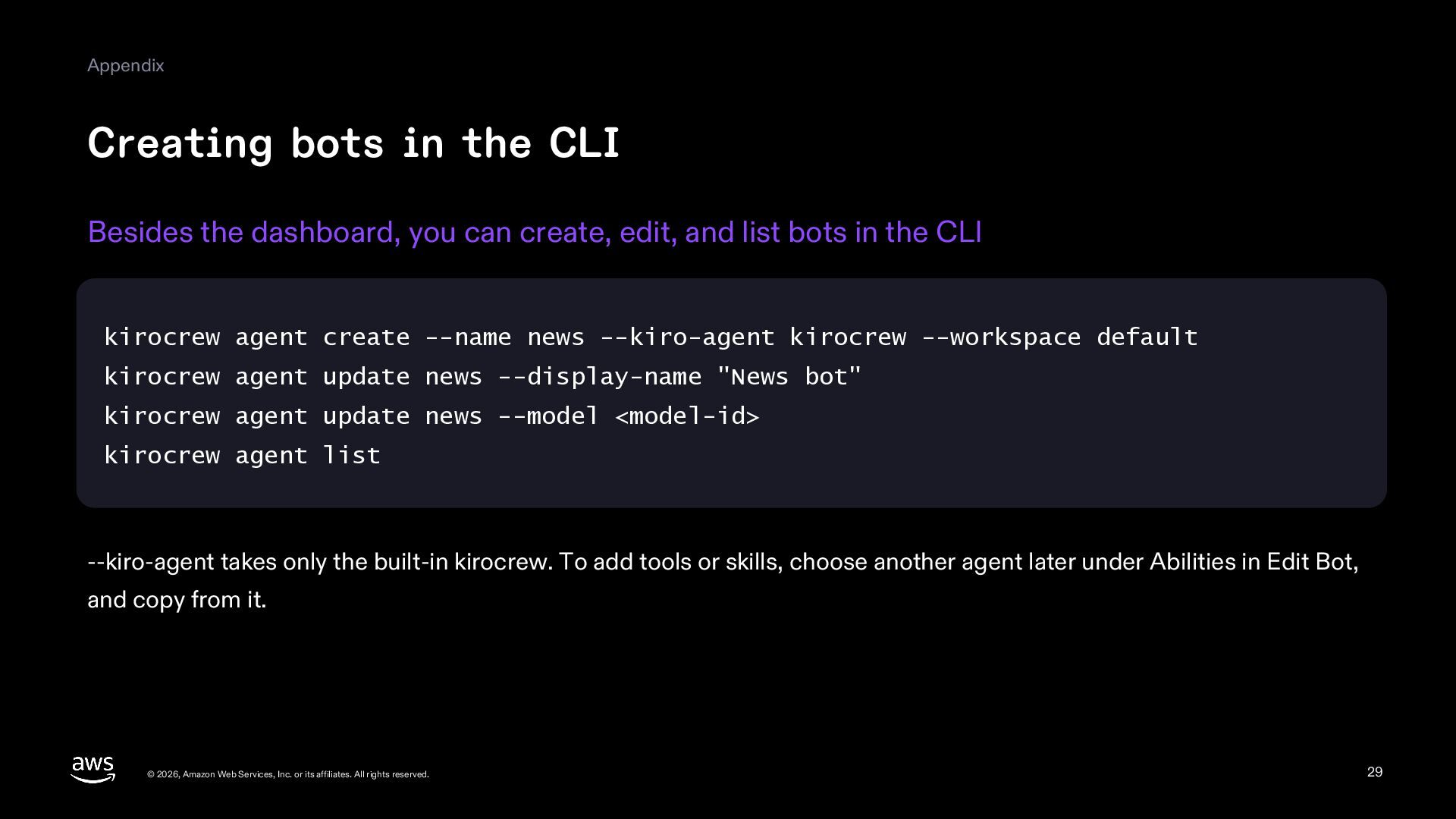
  29. Appendix Creating bots in the CLI Besides the dashboard, you

    can create, edit, and list bots in the CLI kirocrew agent create --name news --kiro-agent kirocrew --workspace default kirocrew agent update news --display-name "News bot" kirocrew agent update news --model <model-id> kirocrew agent list --kiro-agent takes only the built-in kirocrew. To add tools or skills, choose another agent later under Abilities in Edit Bot, and copy from it. © 2026, Amazon Web Services, Inc. or its affiliates. All rights reserved. 29
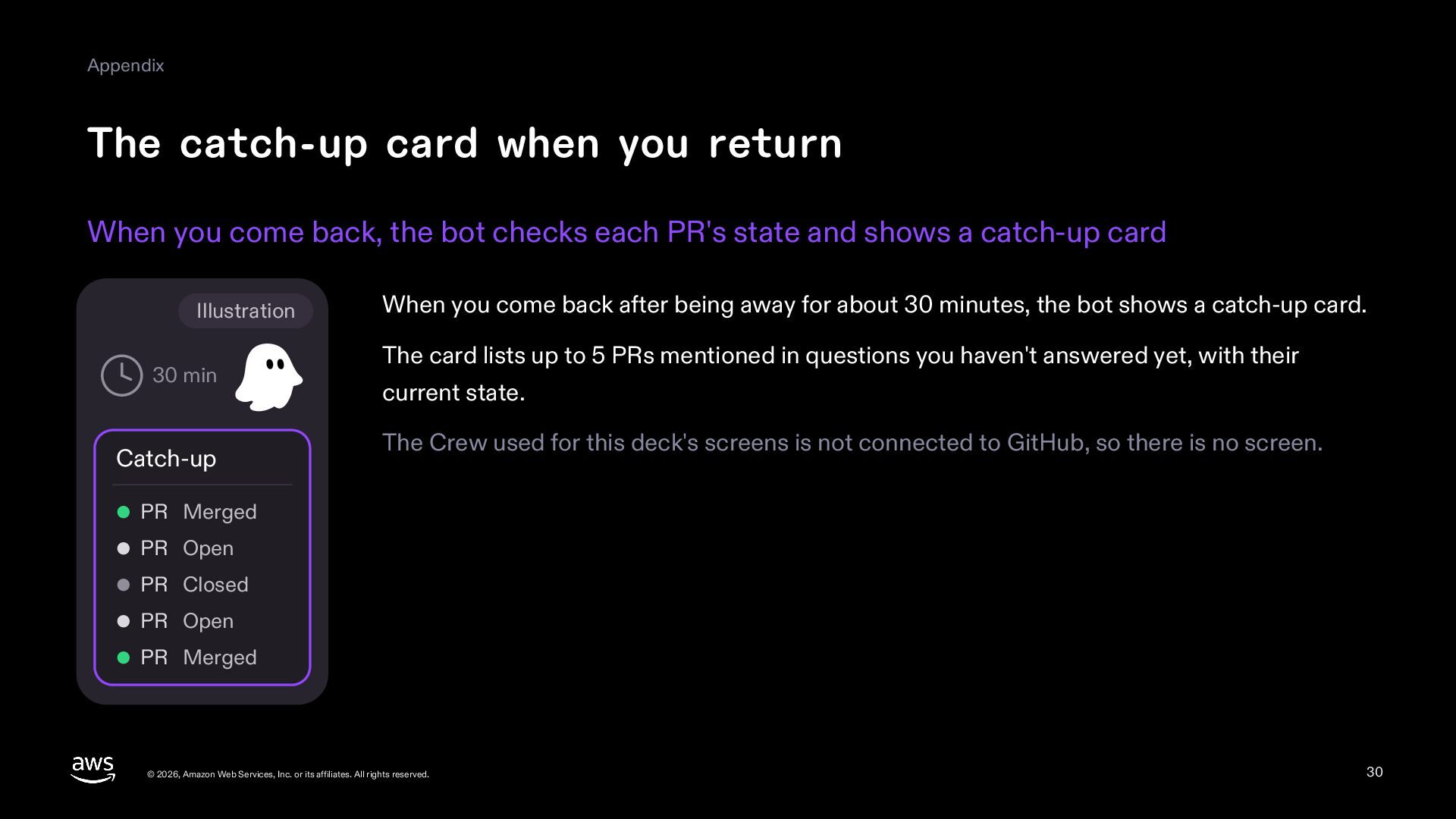
  30. Appendix The catch-up card when you return When you come

    back, the bot checks each PR's state and shows a catch-up card Illustration 30 min Catch-up When you come back after being away for about 30 minutes, the bot shows a catch-up card. The card lists up to 5 PRs mentioned in questions you haven't answered yet, with their current state. The Crew used for this deck's screens is not connected to GitHub, so there is no screen. PR Merged PR Open PR Closed PR Open PR Merged © 2026, Amazon Web Services, Inc. or its affiliates. All rights reserved. 30
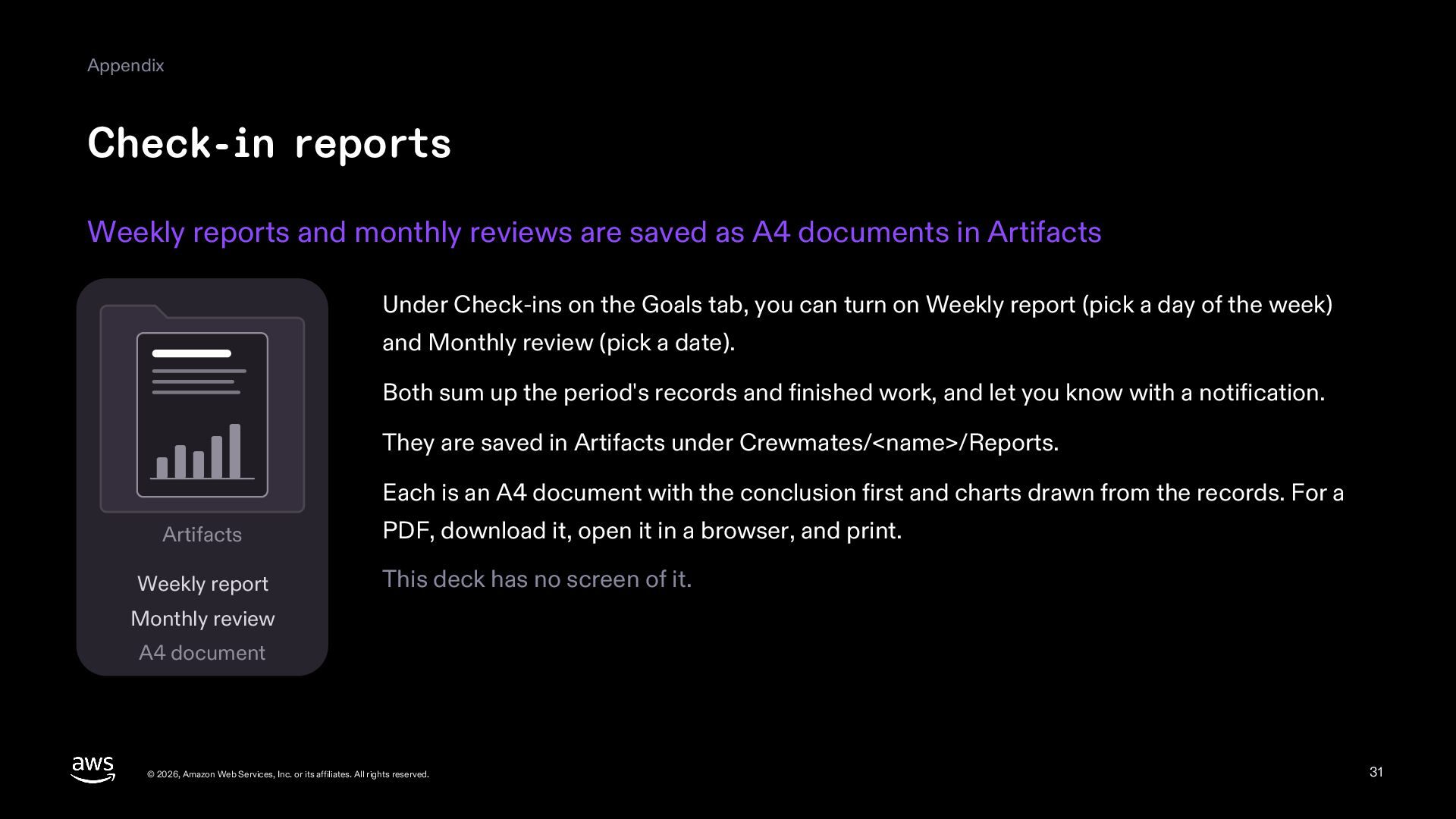
  31. Appendix Check-in reports Weekly reports and monthly reviews are saved

    as A4 documents in Artifacts Under Check-ins on the Goals tab, you can turn on Weekly report (pick a day of the week) and Monthly review (pick a date). Both sum up the period's records and finished work, and let you know with a notification. They are saved in Artifacts under Crewmates/<name>/Reports. Each is an A4 document with the conclusion first and charts drawn from the records. For a Artifacts Weekly report PDF, download it, open it in a browser, and print. This deck has no screen of it. Monthly review A4 document © 2026, Amazon Web Services, Inc. or its affiliates. All rights reserved. 31
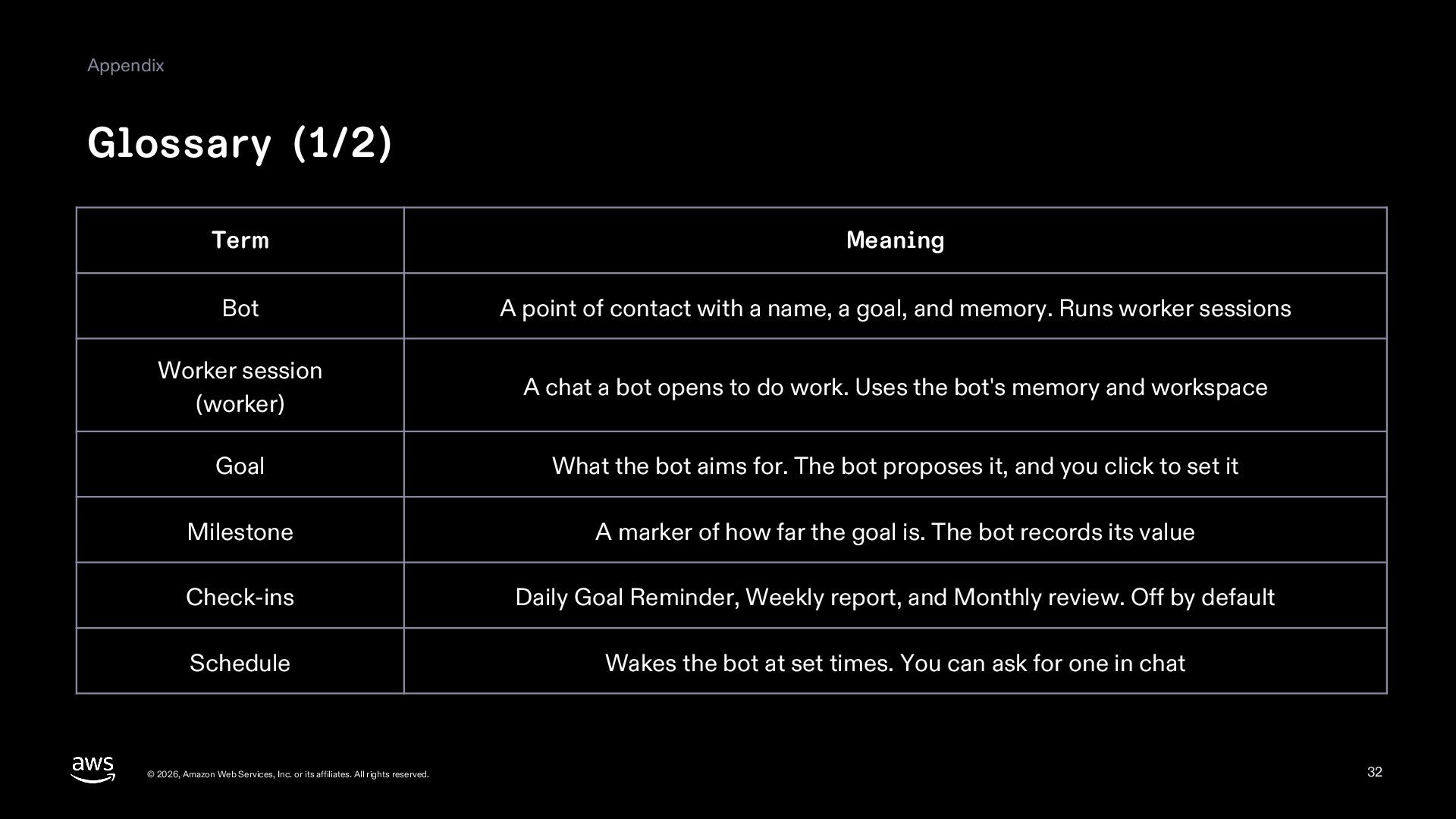
  32. Appendix Glossary (1/2) Term Meaning Bot A point of contact

    with a name, a goal, and memory. Runs worker sessions Worker session (worker) A chat a bot opens to do work. Uses the bot's memory and workspace Goal What the bot aims for. The bot proposes it, and you click to set it Milestone A marker of how far the goal is. The bot records its value Check-ins Daily Goal Reminder, Weekly report, and Monthly review. Off by default Schedule Wakes the bot at set times. You can ask for one in chat © 2026, Amazon Web Services, Inc. or its affiliates. All rights reserved. 32
  33. Appendix Glossary (2/2) Term Meaning Heartbeat Wakes the bot at

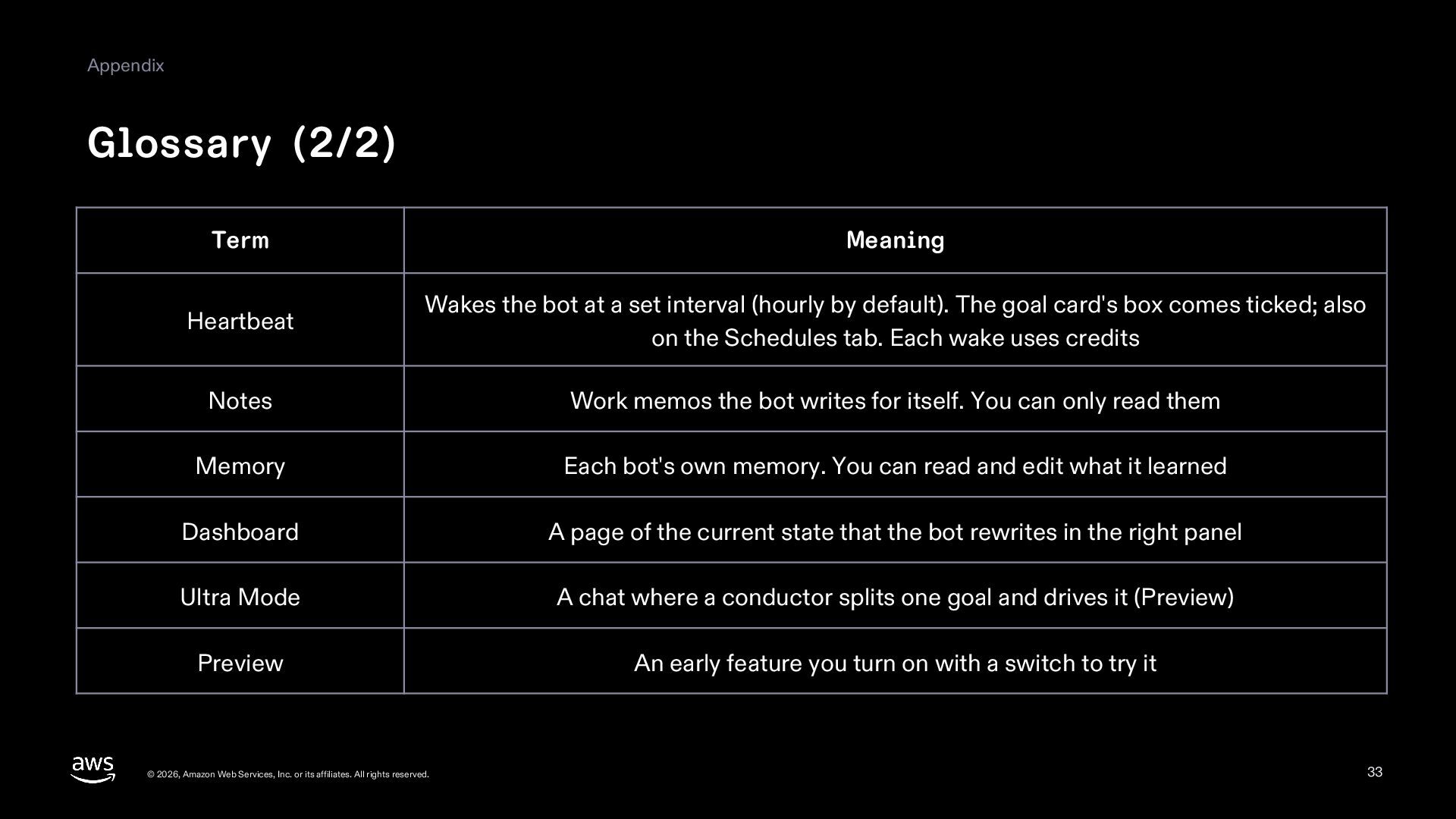
    a set interval (hourly by default). The goal card's box comes ticked; also on the Schedules tab. Each wake uses credits Notes Work memos the bot writes for itself. You can only read them Memory Each bot's own memory. You can read and edit what it learned Dashboard A page of the current state that the bot rewrites in the right panel Ultra Mode A chat where a conductor splits one goal and drives it (Preview) Preview An early feature you turn on with a switch to try it © 2026, Amazon Web Services, Inc. or its affiliates. All rights reserved. 33
  34. Appendix Sources kiro.dev blog: Introducing bots in Kiro Crew https://kiro.dev/blog/crew-bots/

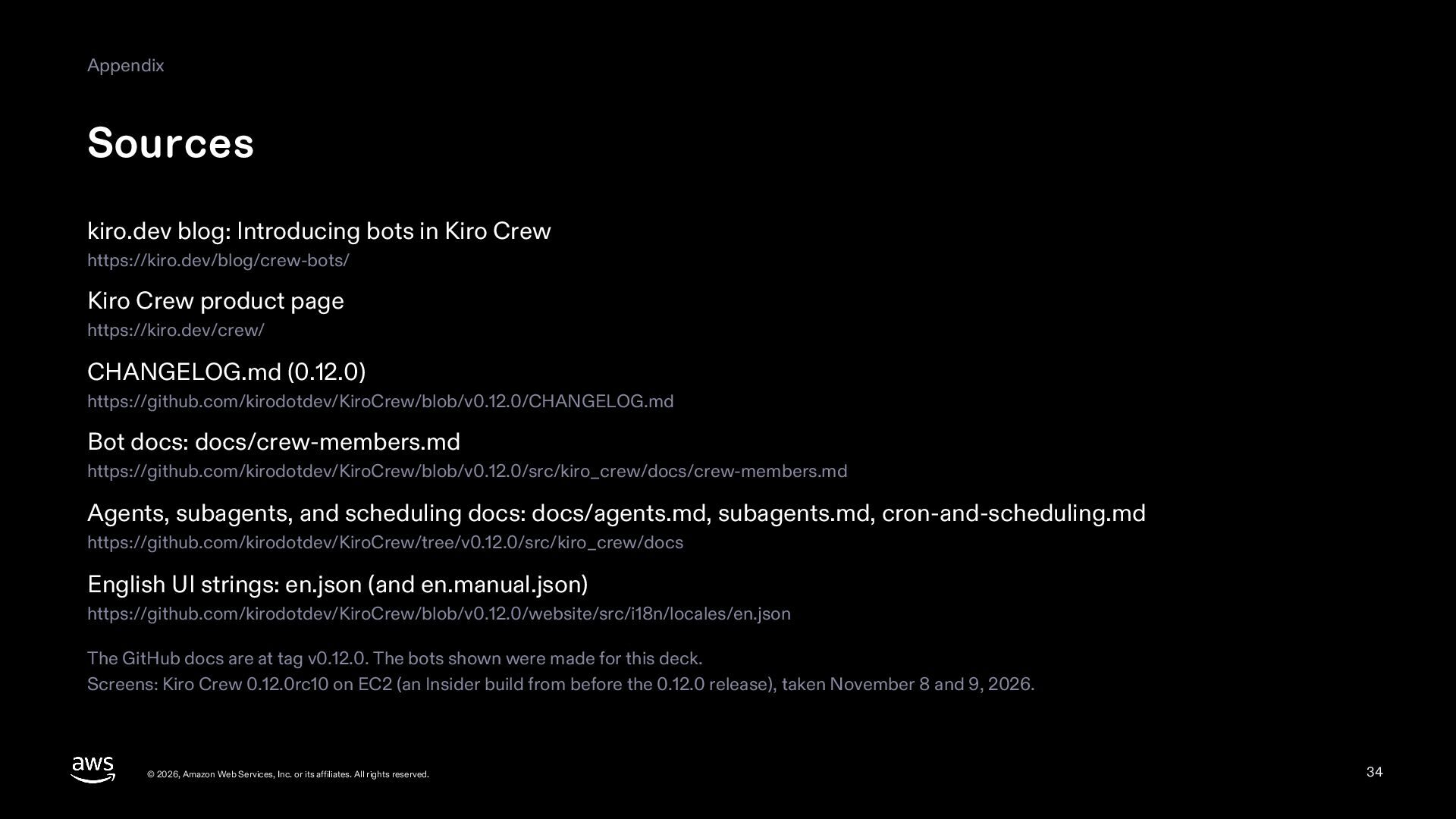
    Kiro Crew product page https://kiro.dev/crew/ CHANGELOG.md (0.12.0) https://github.com/kirodotdev/KiroCrew/blob/v0.12.0/CHANGELOG.md Bot docs: docs/crew-members.md https://github.com/kirodotdev/KiroCrew/blob/v0.12.0/src/kiro_crew/docs/crew-members.md Agents, subagents, and scheduling docs: docs/agents.md, subagents.md, cron-and-scheduling.md https://github.com/kirodotdev/KiroCrew/tree/v0.12.0/src/kiro_crew/docs English UI strings: en.json (and en.manual.json) https://github.com/kirodotdev/KiroCrew/blob/v0.12.0/website/src/i18n/locales/en.json The GitHub docs are at tag v0.12.0. The bots shown were made for this deck. Screens: Kiro Crew 0.12.0rc10 on EC2 (an Insider build from before the 0.12.0 release), taken November 8 and 9, 2026. © 2026, Amazon Web Services, Inc. or its affiliates. All rights reserved. 34