Upgrade to Pro — share decks privately, control downloads, hide ads and more …

Intro to Kiro Crew (Work that keeps going when ...

Avatar for Riku INADA Riku INADA PRO
November 08, 2026

Intro to Kiro Crew (Work that keeps going when you step away) | Kiro: Zero to Hero 11

An introduction to Kiro Crew 0.12, the open-source app that keeps work going when you step away. It covers when to pick Crew over the Kiro IDE or CLI, the screen, scheduled jobs, PR watches, bots, and memory. It also covers the eight checks on tool calls that go through Crew, steering and hooks, MCP and Knowledge, the browser, other desktop apps (Computer Use), Slack, and running Crew on EC2 through an SSH or SSM tunnel. Most screens are from Kiro Crew 0.12.0rc10, a pre-release build, on EC2. As of Kiro Crew 0.12.0. This is deck 11, in the Let it run part of the Kiro: Zero to Hero series.

Avatar for Riku INADA

Riku INADA PRO

November 08, 2026

More Decks by Riku INADA

Other Decks in Technology

Transcript

  1. Kiro: Zero to Hero Let it run Intro to Kiro

    Crew Work that keeps going when you step away 11 As of Kiro Crew 0.12.0 November 2026 Riku Inada Amazon Web Services Japan © 2026, Amazon Web Services, Inc. or its affiliates. All rights reserved. 1
  2. Introduction About me Riku Inada Amazon Web Services Japan G.K.

    Solutions Architect Works mainly with manufacturing customers Recent work Promoting the AI-Driven Development Life Cycle (AI-DLC) Writing and speaking about Kiro and AWS Amplify © 2026, Amazon Web Services, Inc. or its affiliates. All rights reserved. X @inada_riku Speaker Deck speakerdeck.com/inariku Zenn zenn.dev/inariku GitHub github.com/inariku 2
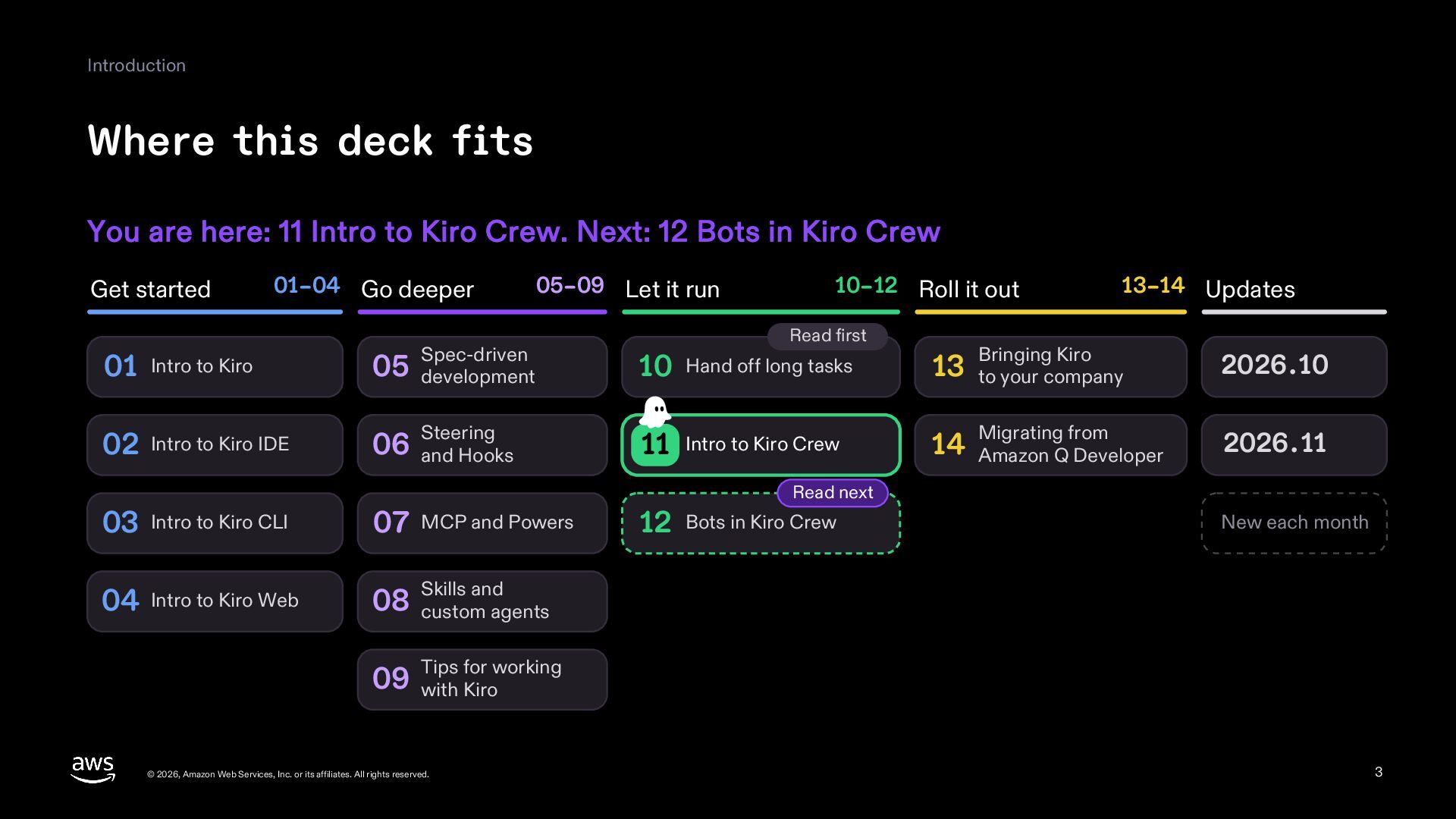
  3. Introduction Where this deck fits You are here: 11 Intro

    to Kiro Crew. Next: 12 Bots in Kiro Crew Get started 01–04 Go deeper 05–09 Let it run 10–12 Roll it out Read first 13–14 Updates 01 Intro to Kiro Spec-driven 05 development 10 Hand off long tasks 13 to your company 02 Intro to Kiro IDE 06 and Hooks Steering 11 Intro to Kiro Crew 14 Amazon Q Developer 03 Intro to Kiro CLI 07 MCP and Powers 04 Intro to Kiro Web and 08 Skills custom agents Bringing Kiro 2026.10 Migrating from 2026.11 Read next 12 Bots in Kiro Crew New each month for working 09 Tips with Kiro © 2026, Amazon Web Services, Inc. or its affiliates. All rights reserved. 3
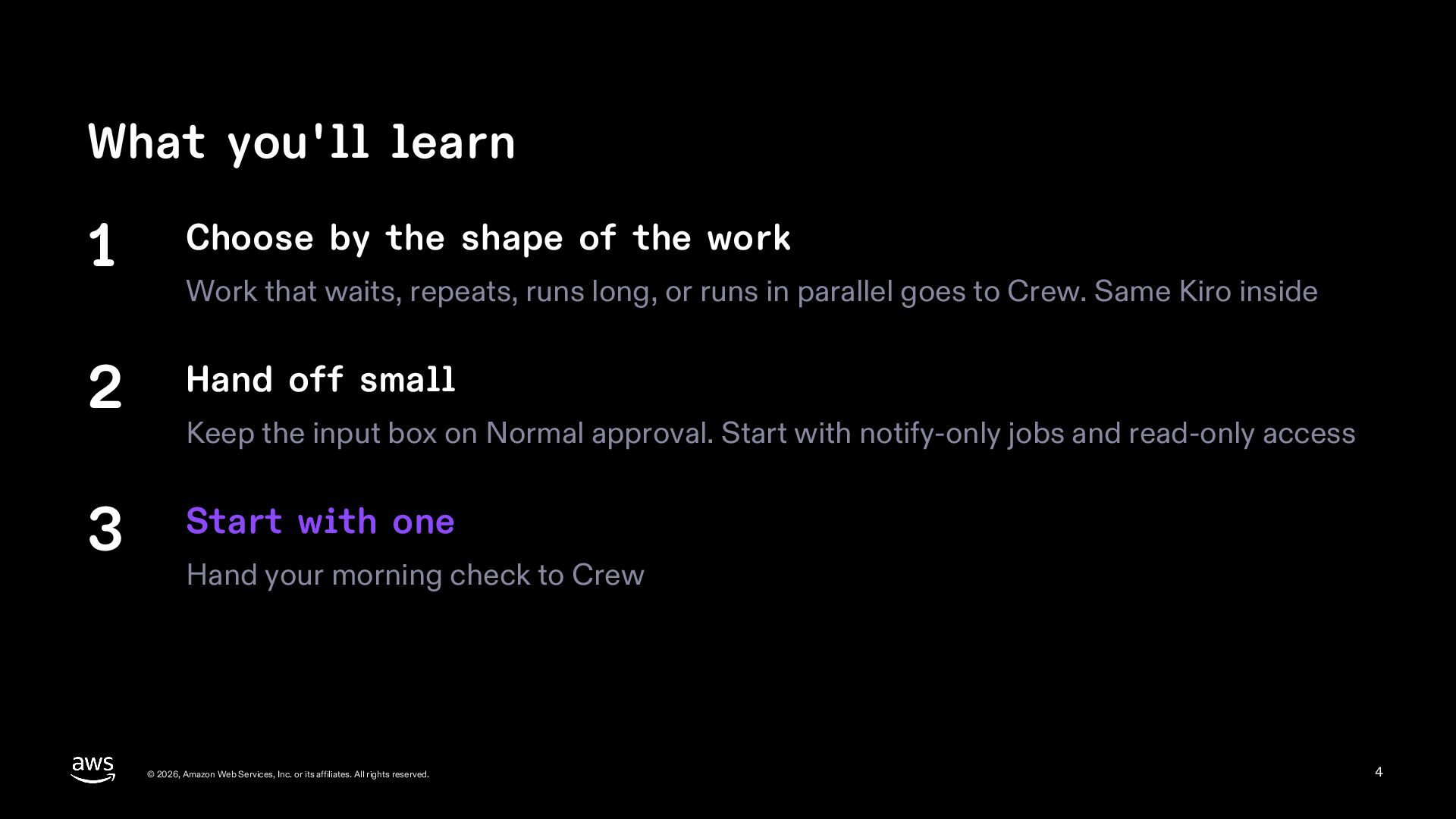
  4. What you'll learn 1 Choose by the shape of the

    work 2 Hand off small 3 Start with one Work that waits, repeats, runs long, or runs in parallel goes to Crew. Same Kiro inside Keep the input box on Normal approval. Start with notify-only jobs and read-only access Hand your morning check to Crew © 2026, Amazon Web Services, Inc. or its affiliates. All rights reserved. 4
  5. Two quick questions first 1 I have used Kiro 2

    My AI keeps working while I'm away © 2026, Amazon Web Services, Inc. or its affiliates. All rights reserved. 5
  6. Today's agenda 1 What is Kiro Crew? 2 The basics

    3 How it runs without you 4 Check before you hand off 5 Make it yours 6 Beyond the chat 7 Hand off development work 8 Everyday work beyond code 9 Where to run it 10 Summary © 2026, Amazon Web Services, Inc. or its affiliates. All rights reserved. 6
  7. What is Kiro Crew? How is it different from the

    IDE and CLI? © 2026, Amazon Web Services, Inc. or its affiliates. All rights reserved. 7
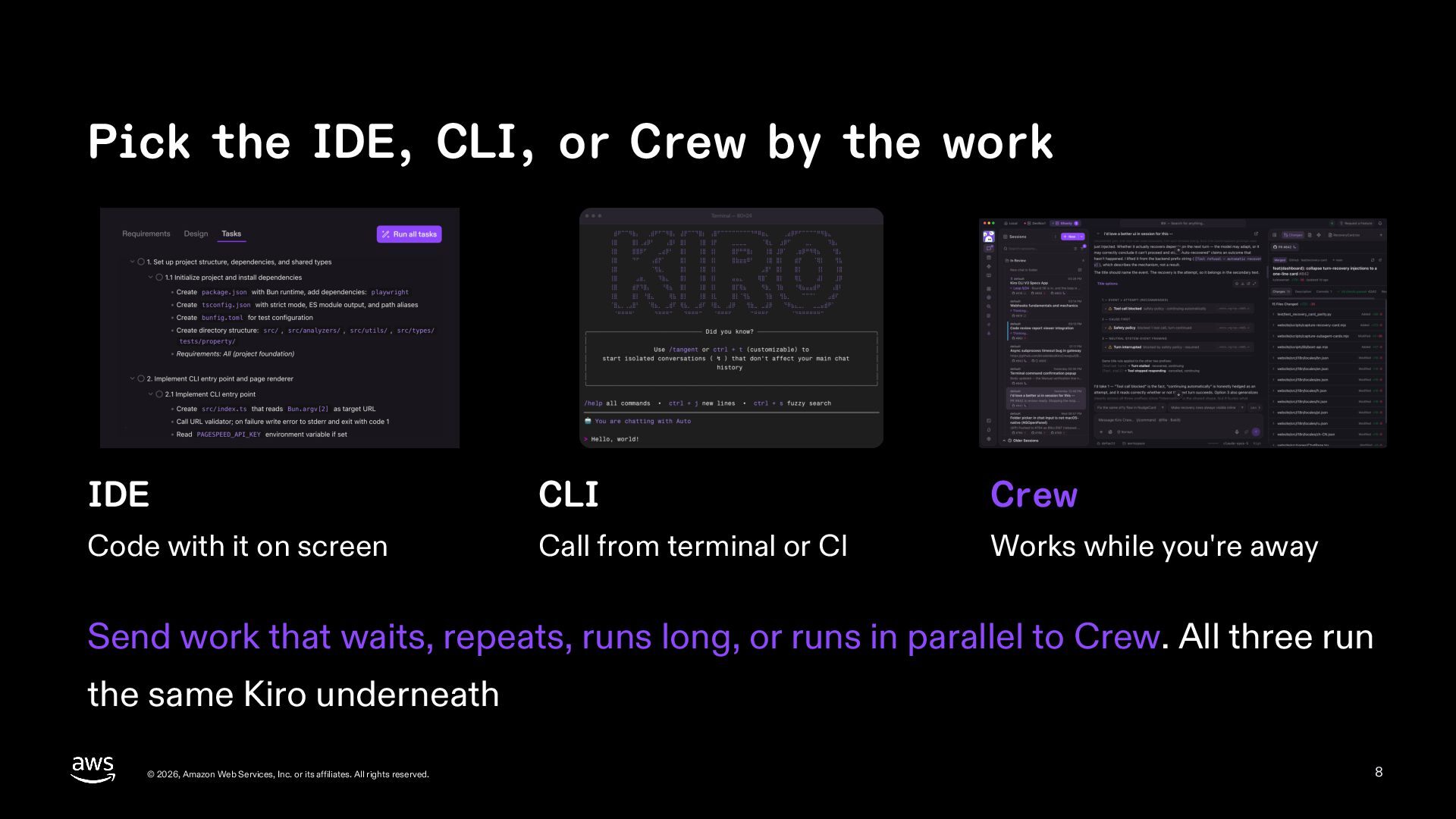
  8. Pick the IDE, CLI, or Crew by the work IDE

    CLI Crew Code with it on screen Call from terminal or CI Works while you're away Send work that waits, repeats, runs long, or runs in parallel to Crew. All three run the same Kiro underneath © 2026, Amazon Web Services, Inc. or its affiliates. All rights reserved. 8
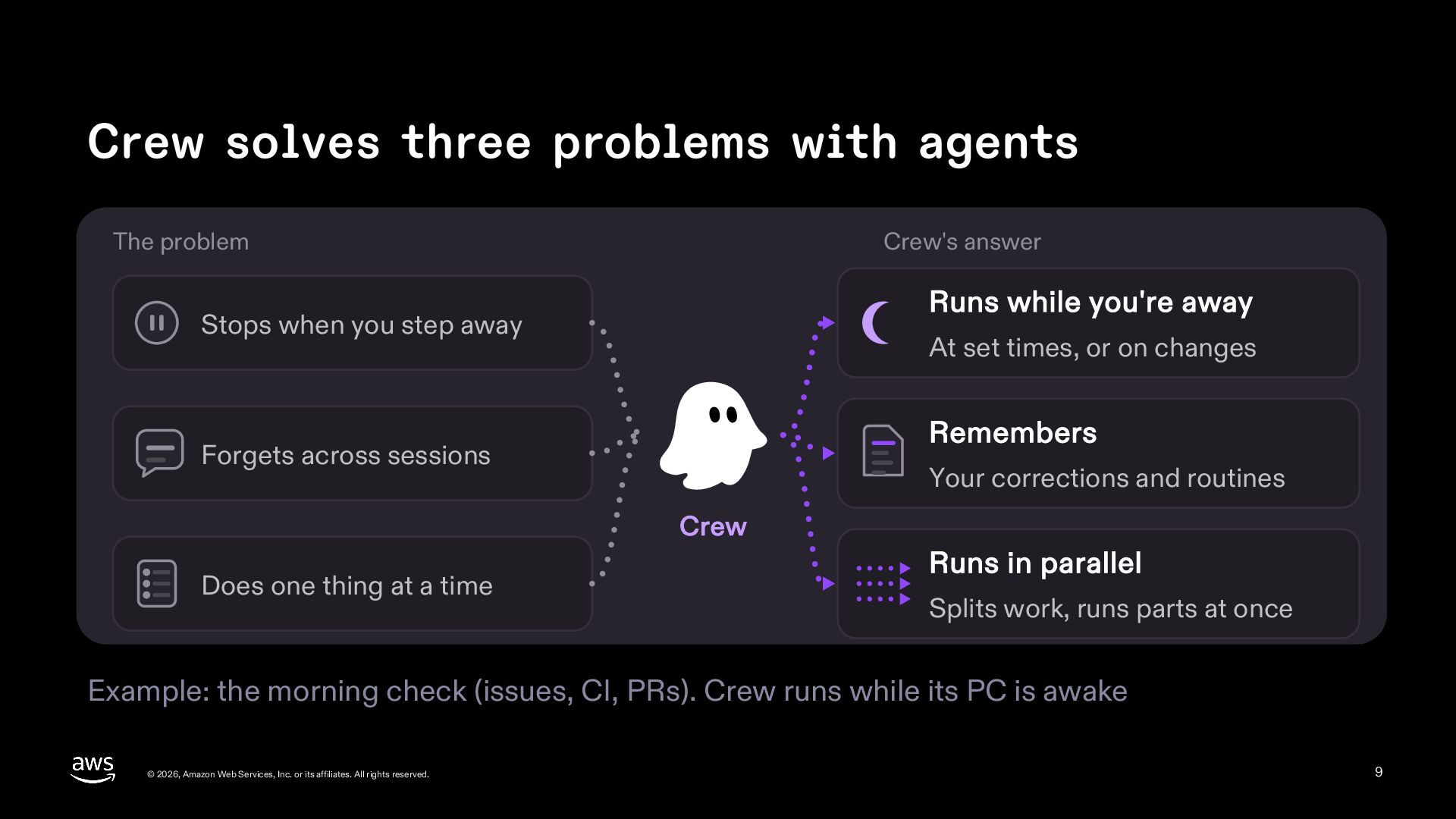
  9. Crew solves three problems with agents The problem Crew's answer

    Runs while you're away Stops when you step away At set times, or on changes Remembers Forgets across sessions Your corrections and routines Crew Does one thing at a time Runs in parallel Splits work, runs parts at once Example: the morning check (issues, CI, PRs). Crew runs while its PC is awake © 2026, Amazon Web Services, Inc. or its affiliates. All rights reserved. 9
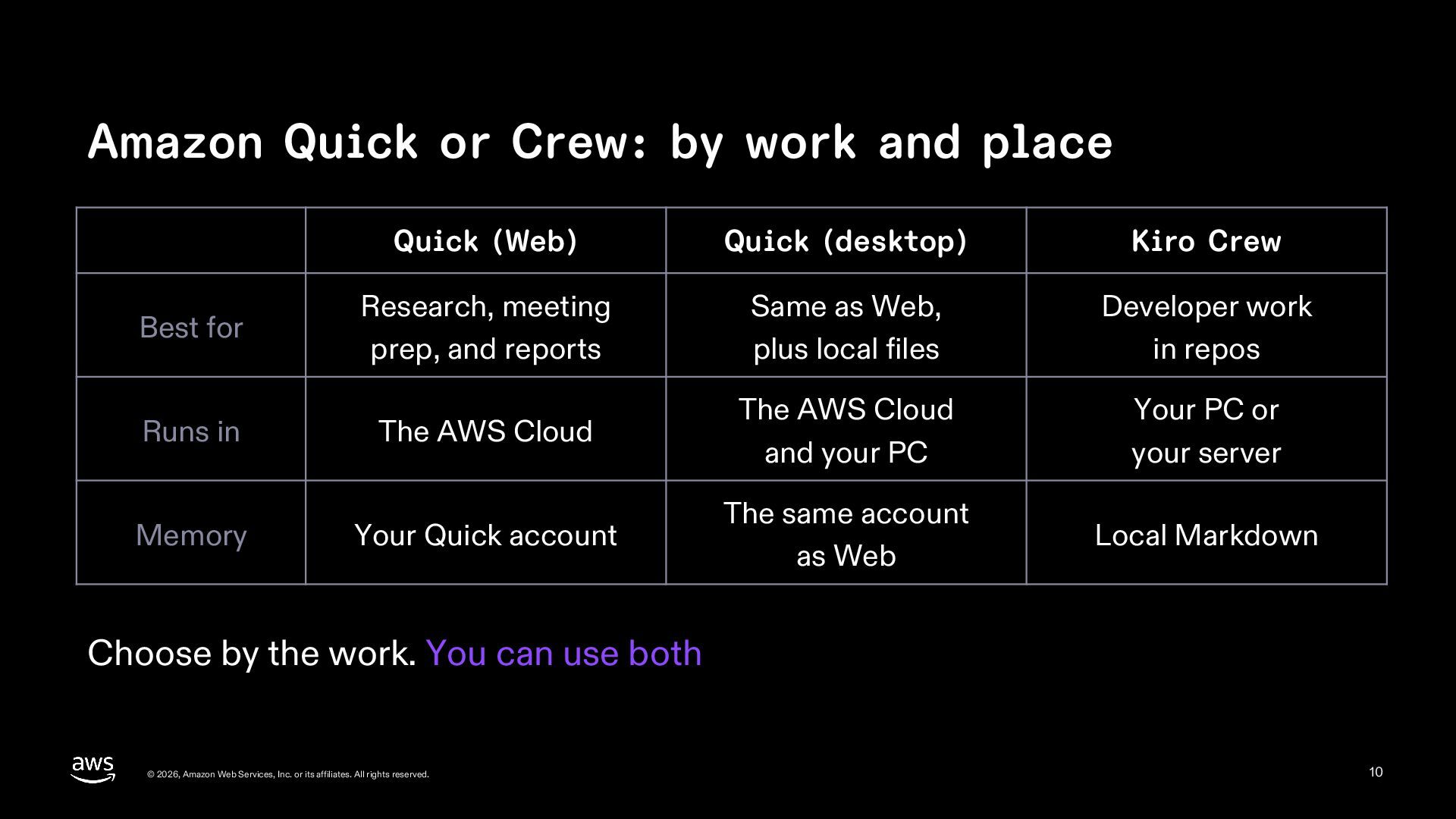
  10. Amazon Quick or Crew: by work and place Quick (Web)

    Quick (desktop) Kiro Crew Best for Research, meeting prep, and reports Same as Web, plus local files Developer work in repos Runs in The AWS Cloud The AWS Cloud and your PC Your PC or your server Memory Your Quick account The same account as Web Local Markdown Choose by the work. You can use both © 2026, Amazon Web Services, Inc. or its affiliates. All rights reserved. 10
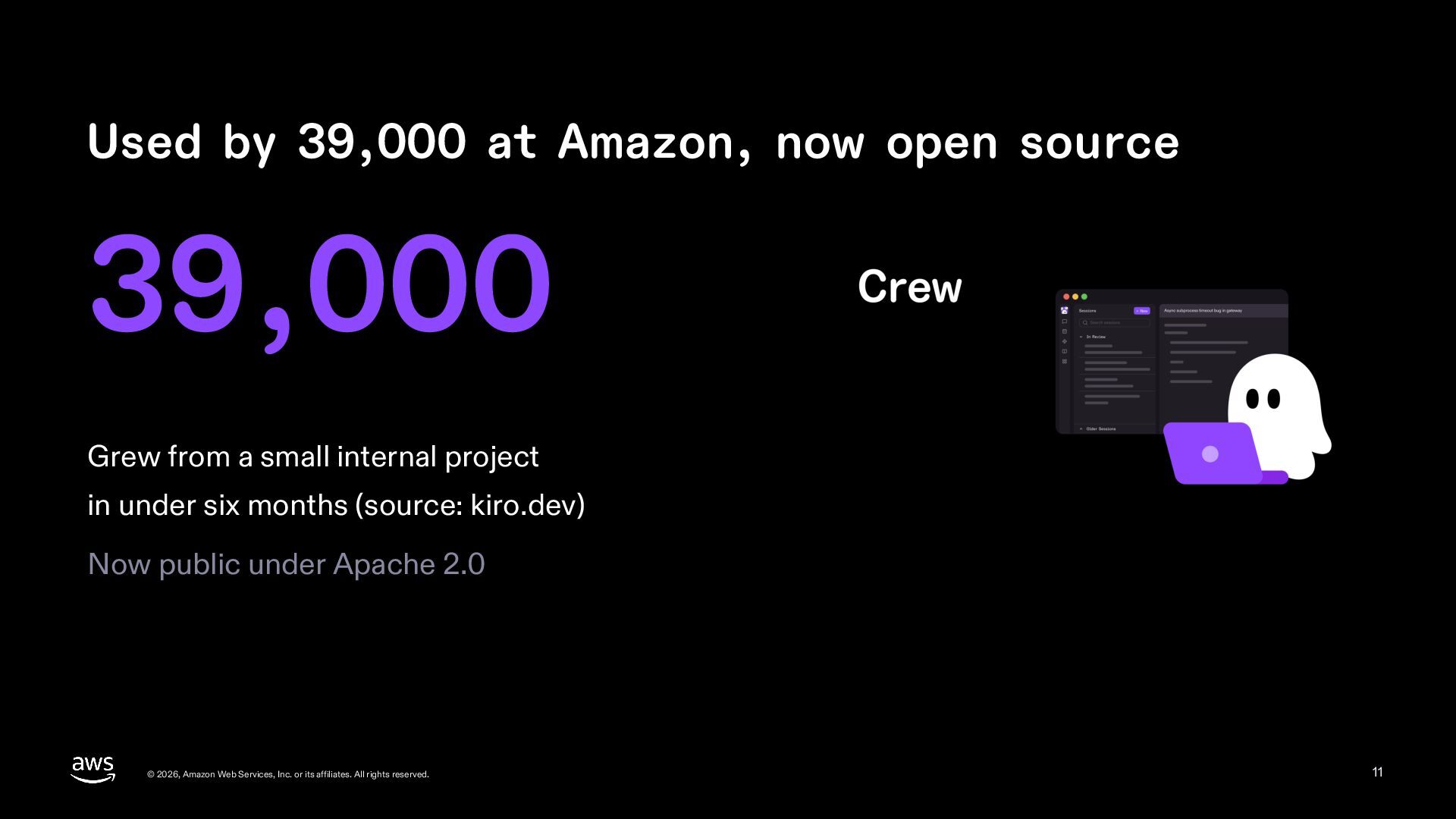
  11. Used by 39,000 at Amazon, now open source 39,000 Grew

    from a small internal project in under six months (source: kiro.dev) Now public under Apache 2.0 © 2026, Amazon Web Services, Inc. or its affiliates. All rights reserved. 11
  12. The basics What to do, and where on the screen

    © 2026, Amazon Web Services, Inc. or its affiliates. All rights reserved. 12
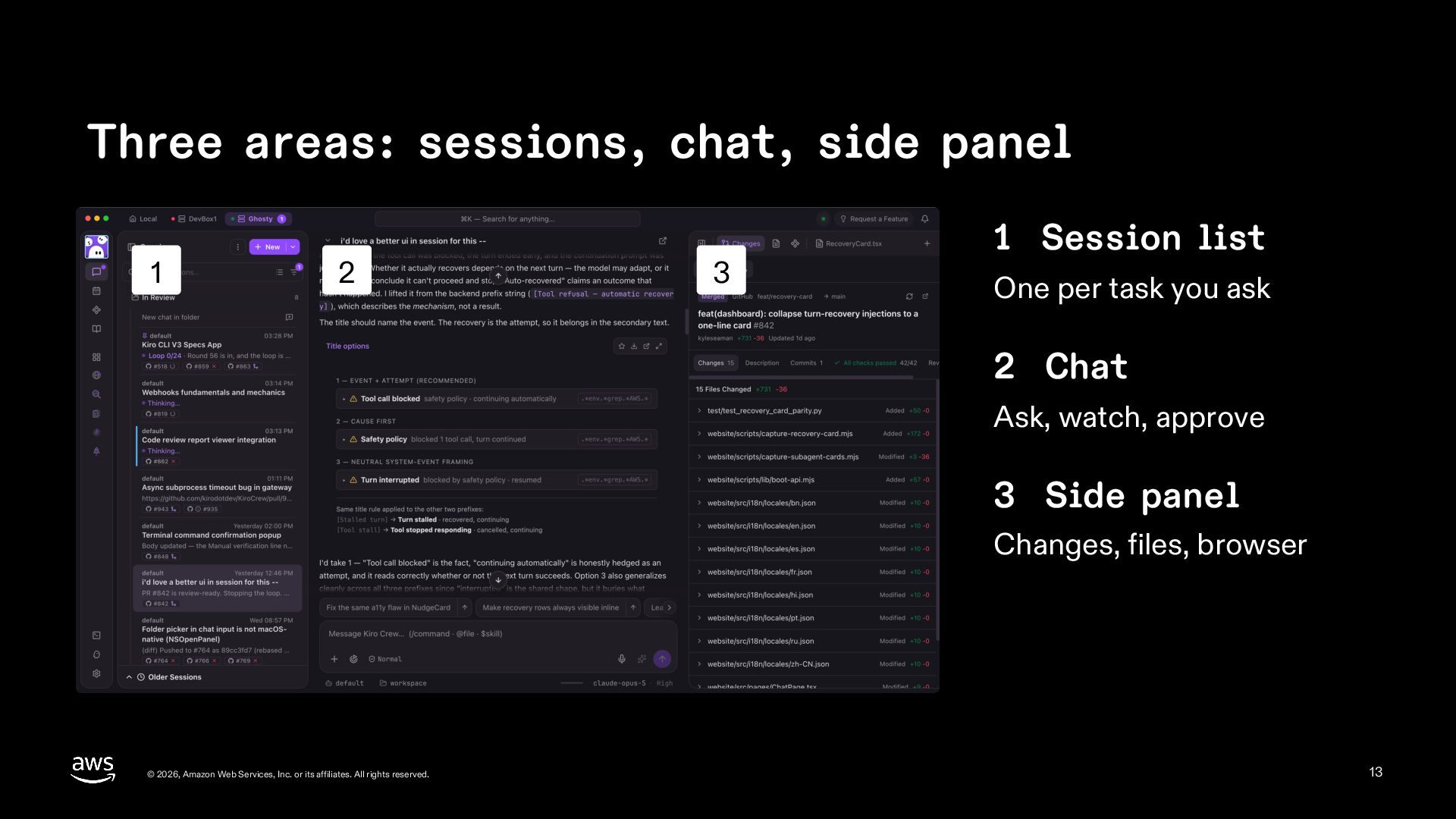
  13. Three areas: sessions, chat, side panel 1 2 3 1

    Session list One per task you ask 2 Chat Ask, watch, approve 3 Side panel Changes, files, browser © 2026, Amazon Web Services, Inc. or its affiliates. All rights reserved. 13
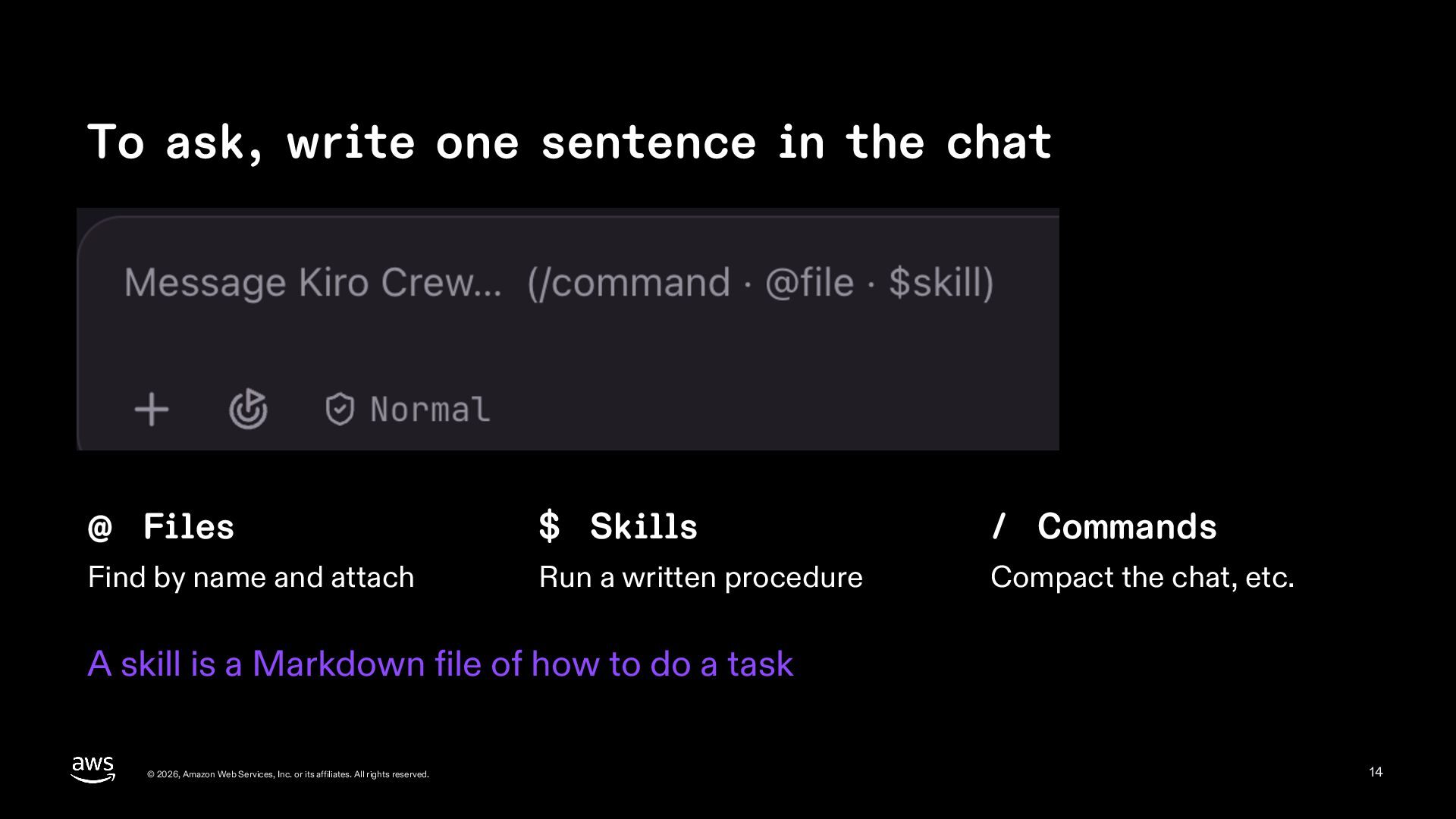
  14. To ask, write one sentence in the chat @ Files

    $ Skills / Commands Find by name and attach Run a written procedure Compact the chat, etc. A skill is a Markdown file of how to do a task © 2026, Amazon Web Services, Inc. or its affiliates. All rights reserved. 14
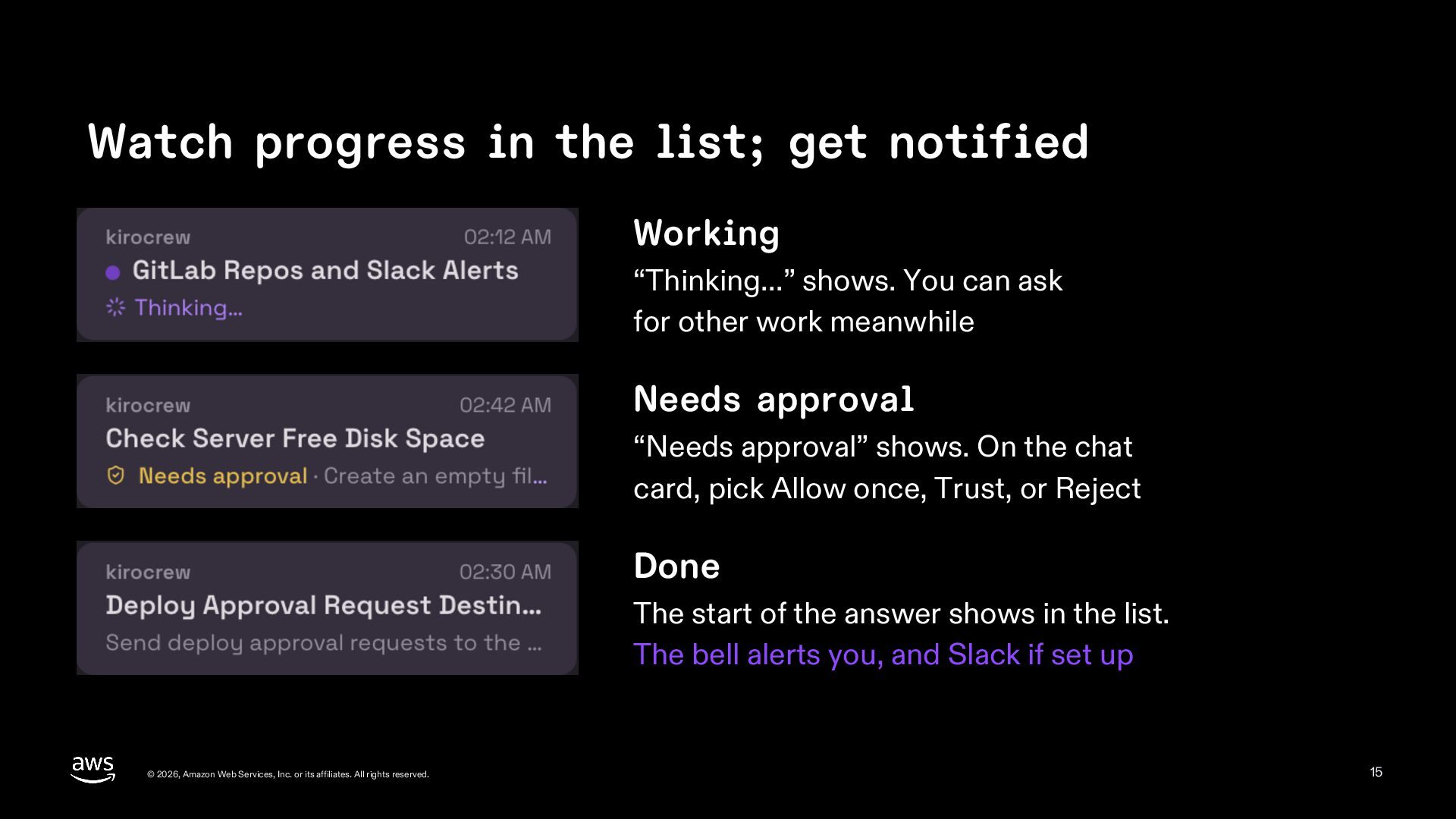
  15. Watch progress in the list; get notified Working “Thinking...” shows.

    You can ask for other work meanwhile Needs approval “Needs approval” shows. On the chat card, pick Allow once, Trust, or Reject Done The start of the answer shows in the list. The bell alerts you, and Slack if set up © 2026, Amazon Web Services, Inc. or its affiliates. All rights reserved. 15
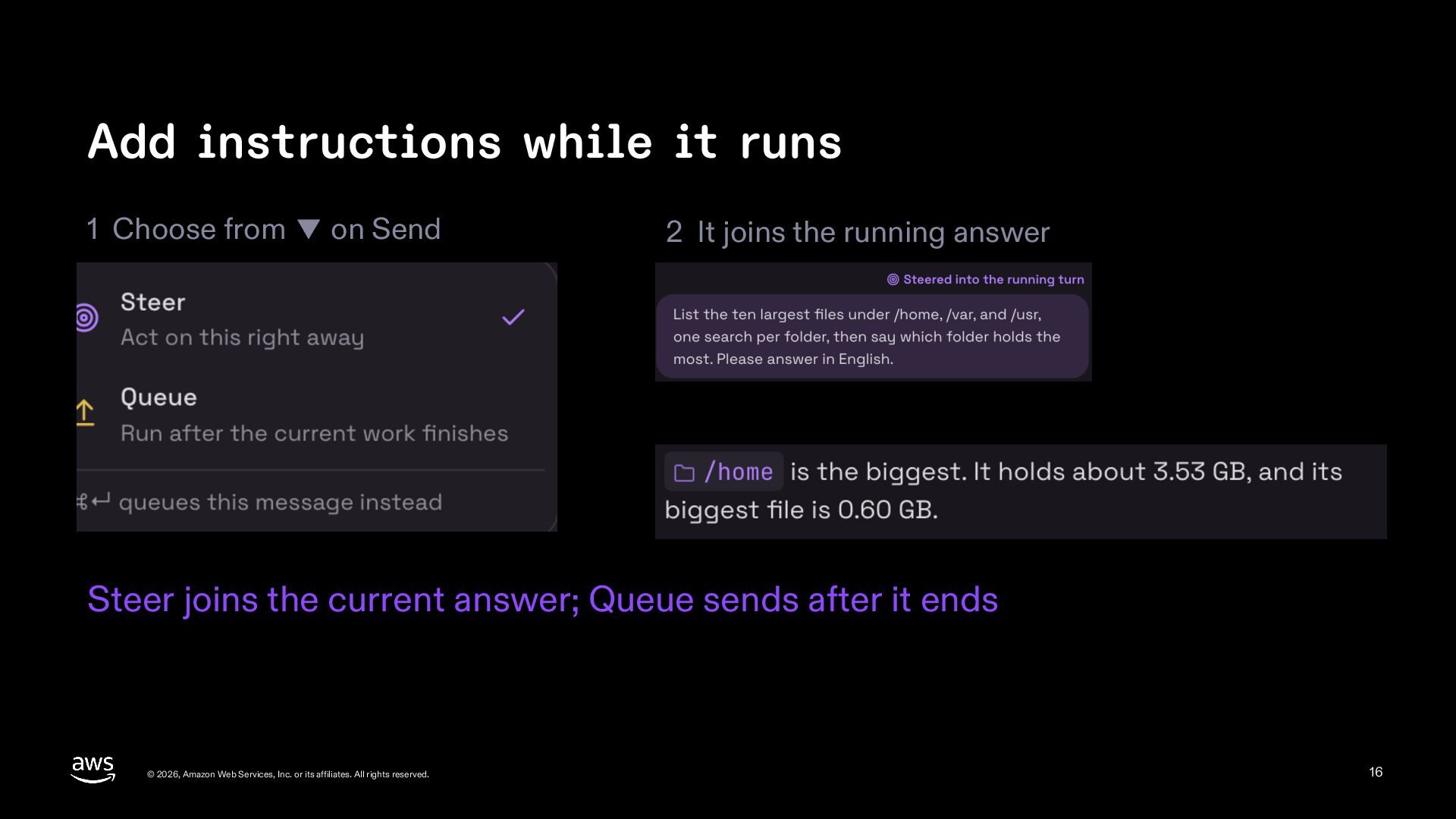
  16. Add instructions while it runs 1 Choose from ▼ on

    Send 2 It joins the running answer Steer joins the current answer; Queue sends after it ends © 2026, Amazon Web Services, Inc. or its affiliates. All rights reserved. 16
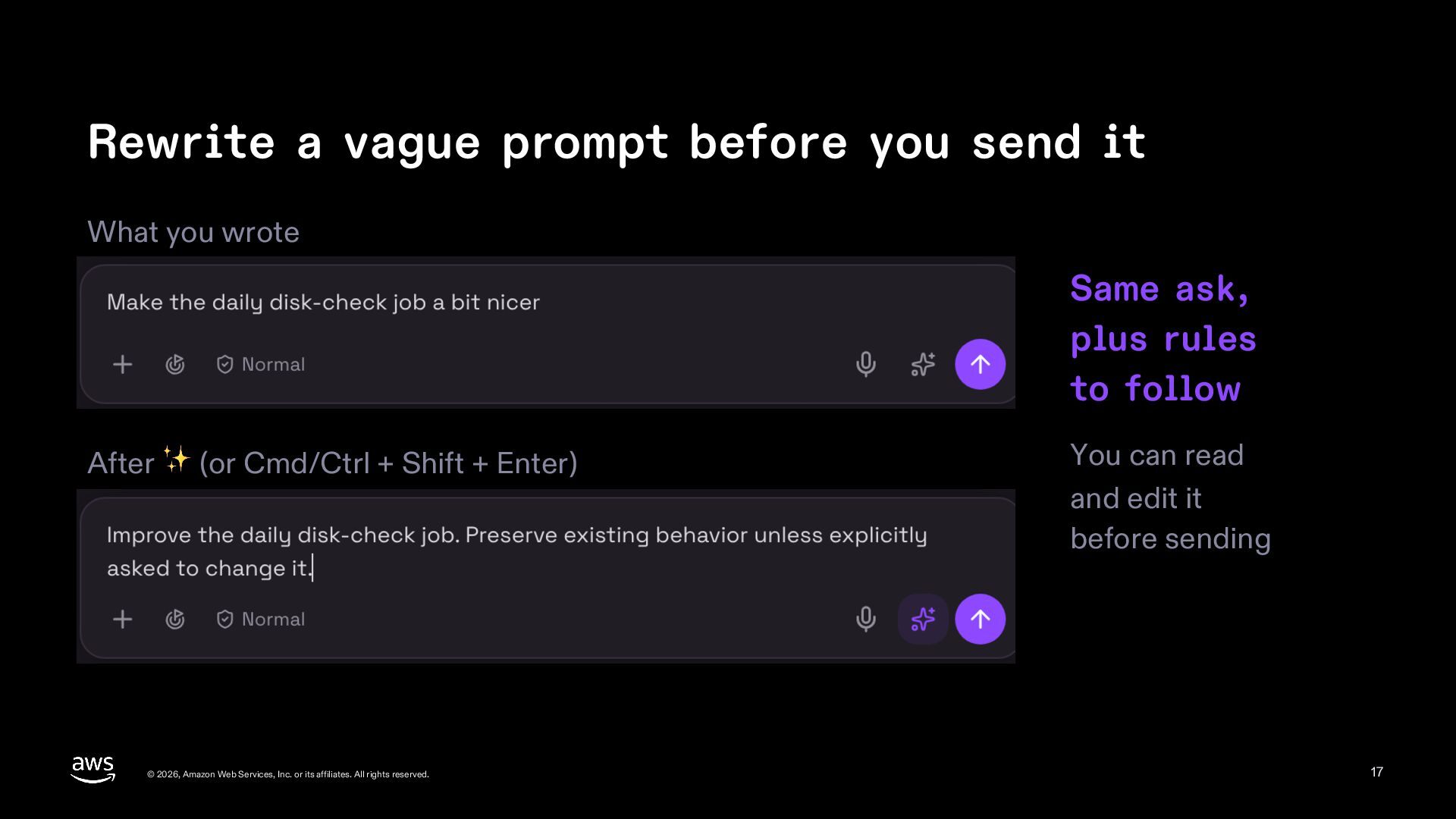
  17. Rewrite a vague prompt before you send it What you

    wrote Same ask, plus rules to follow After ✨ (or Cmd/Ctrl + Shift + Enter) © 2026, Amazon Web Services, Inc. or its affiliates. All rights reserved. You can read and edit it before sending 17
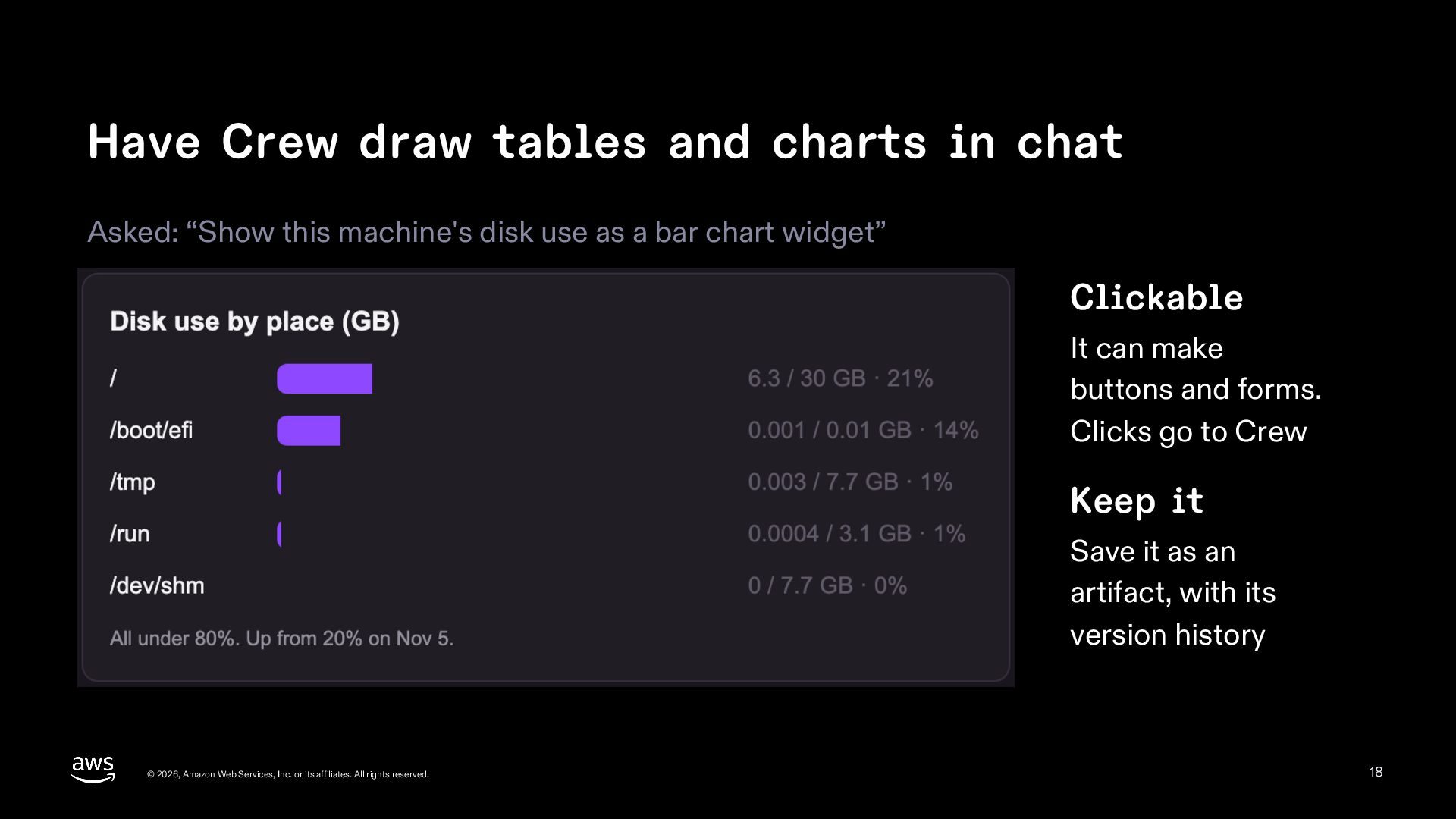
  18. Have Crew draw tables and charts in chat Asked: “Show

    this machine's disk use as a bar chart widget” Clickable It can make buttons and forms. Clicks go to Crew Keep it Save it as an artifact, with its version history © 2026, Amazon Web Services, Inc. or its affiliates. All rights reserved. 18
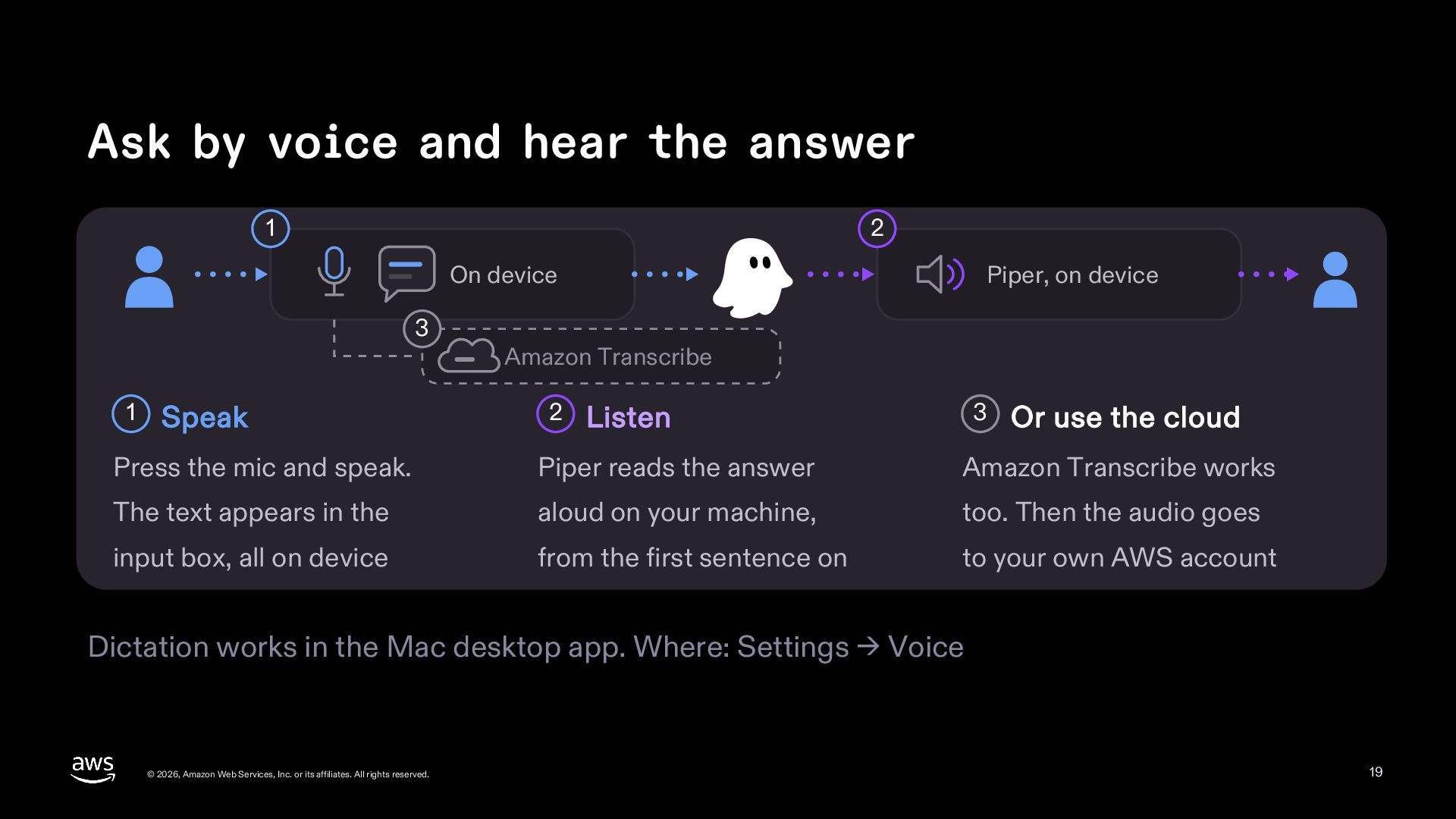
  19. Ask by voice and hear the answer 1 2 On

    device 3 1 Speak Piper, on device Amazon Transcribe 2 3 Listen Or use the cloud Press the mic and speak. Piper reads the answer Amazon Transcribe works The text appears in the aloud on your machine, too. Then the audio goes input box, all on device from the first sentence on to your own AWS account Dictation works in the Mac desktop app. Where: Settings → Voice © 2026, Amazon Web Services, Inc. or its affiliates. All rights reserved. 19
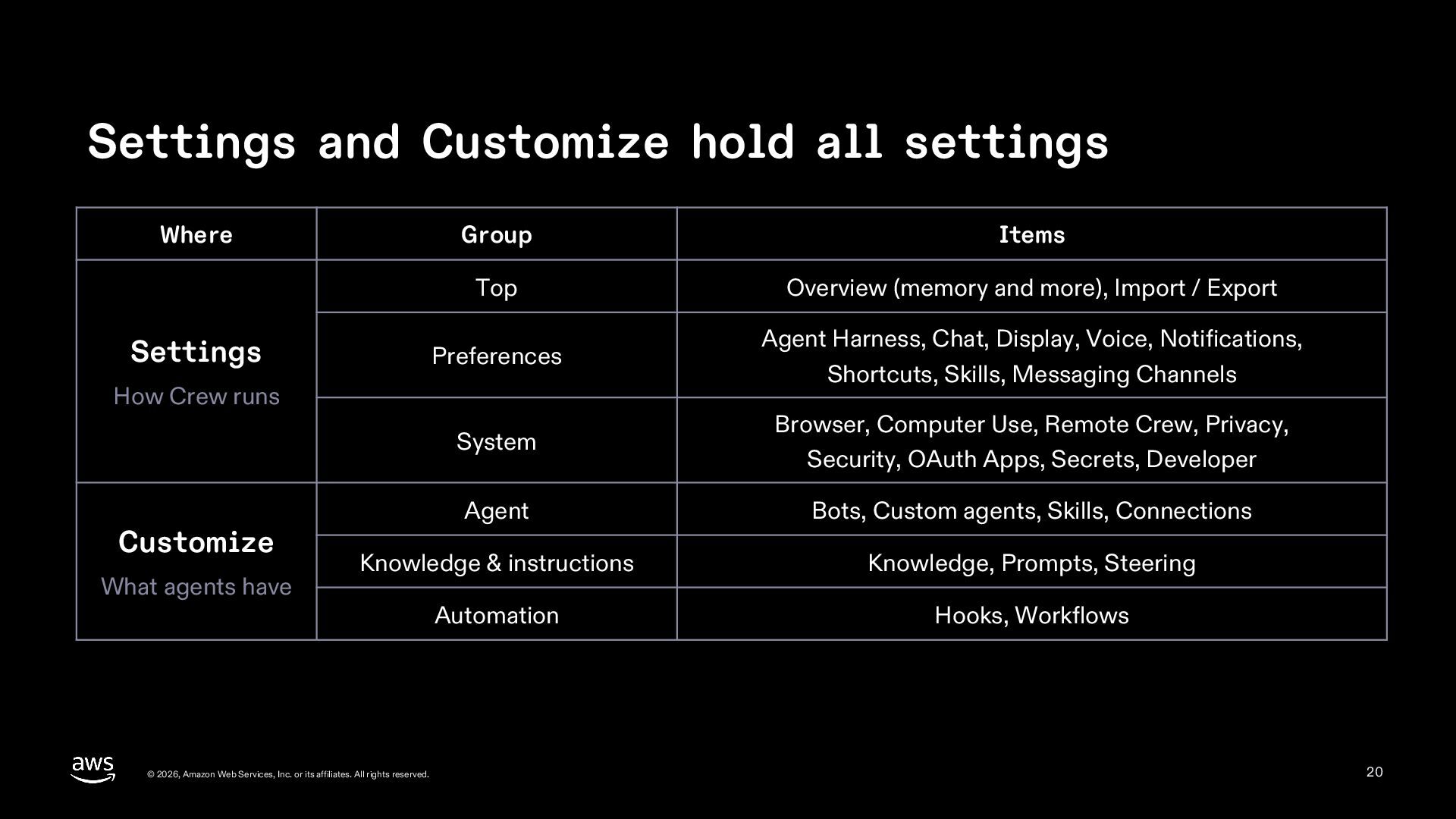
  20. Settings and Customize hold all settings Where Group Items Top

    Overview (memory and more), Import / Export Preferences Agent Harness, Chat, Display, Voice, Notifications, Shortcuts, Skills, Messaging Channels System Browser, Computer Use, Remote Crew, Privacy, Security, OAuth Apps, Secrets, Developer Agent Bots, Custom agents, Skills, Connections Knowledge & instructions Knowledge, Prompts, Steering Automation Hooks, Workflows Settings How Crew runs Customize What agents have © 2026, Amazon Web Services, Inc. or its affiliates. All rights reserved. 20
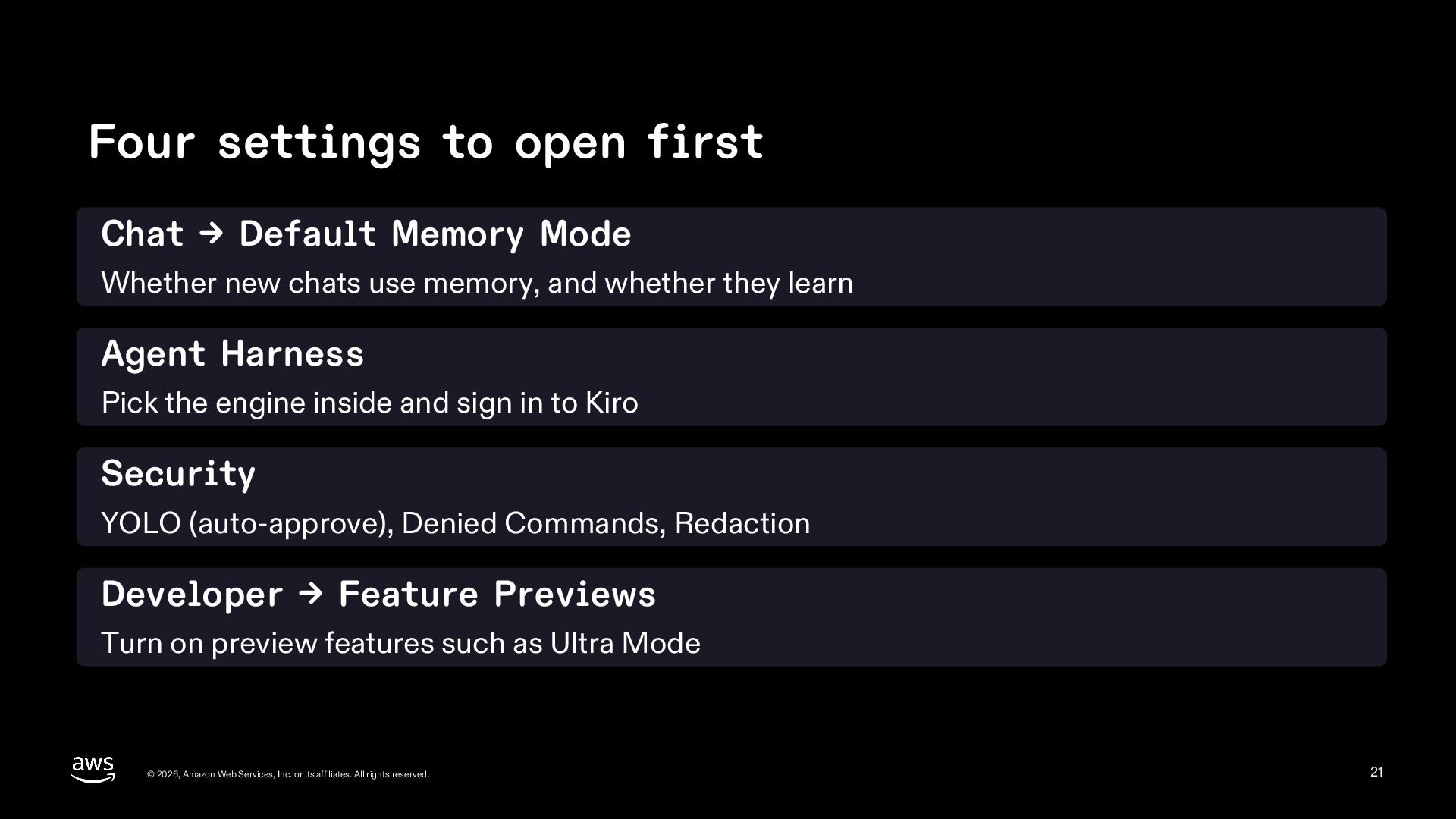
  21. Four settings to open first Chat → Default Memory Mode

    Whether new chats use memory, and whether they learn Agent Harness Pick the engine inside and sign in to Kiro Security YOLO (auto-approve), Denied Commands, Redaction Developer → Feature Previews Turn on preview features such as Ultra Mode © 2026, Amazon Web Services, Inc. or its affiliates. All rights reserved. 21
  22. How it runs without you Why work moves on when

    you step away © 2026, Amazon Web Services, Inc. or its affiliates. All rights reserved. 22
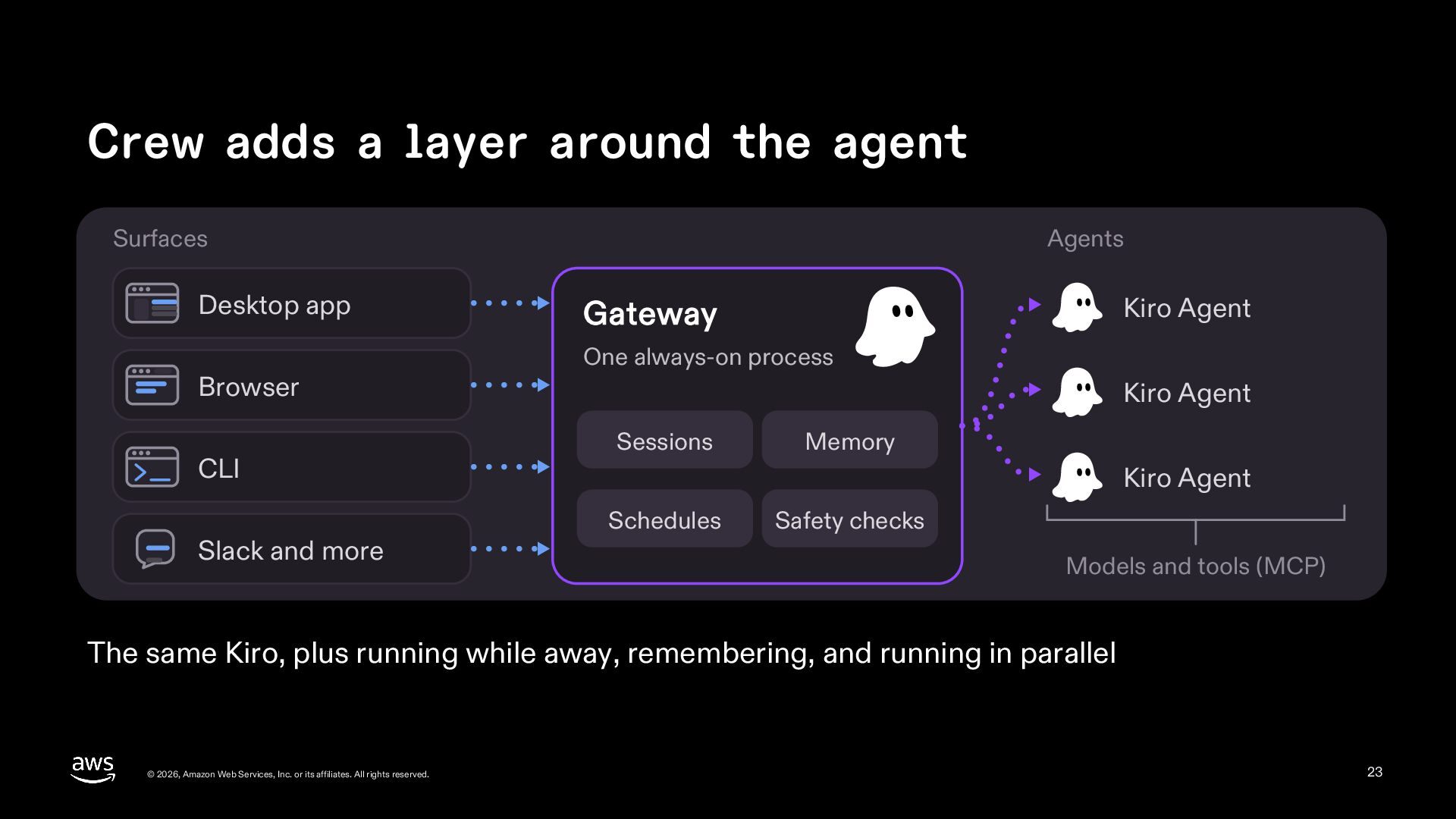
  23. Crew adds a layer around the agent Surfaces Desktop app

    Browser CLI Slack and more Agents Kiro Agent Gateway One always-on process Kiro Agent Sessions Memory Kiro Agent Schedules Safety checks Models and tools (MCP) The same Kiro, plus running while away, remembering, and running in parallel © 2026, Amazon Web Services, Inc. or its affiliates. All rights reserved. 23
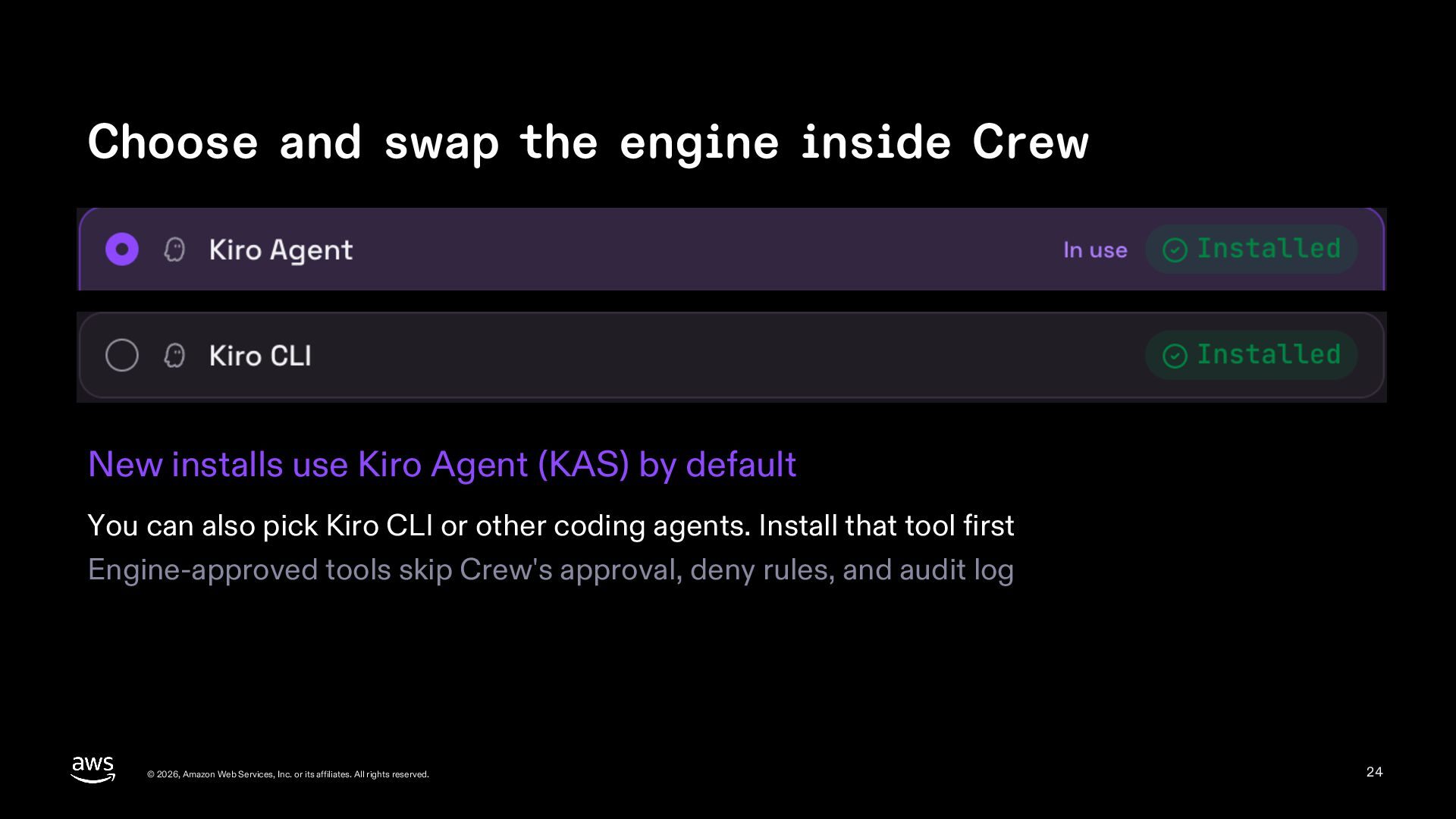
  24. Choose and swap the engine inside Crew New installs use

    Kiro Agent (KAS) by default You can also pick Kiro CLI or other coding agents. Install that tool first Engine-approved tools skip Crew's approval, deny rules, and audit log © 2026, Amazon Web Services, Inc. or its affiliates. All rights reserved. 24
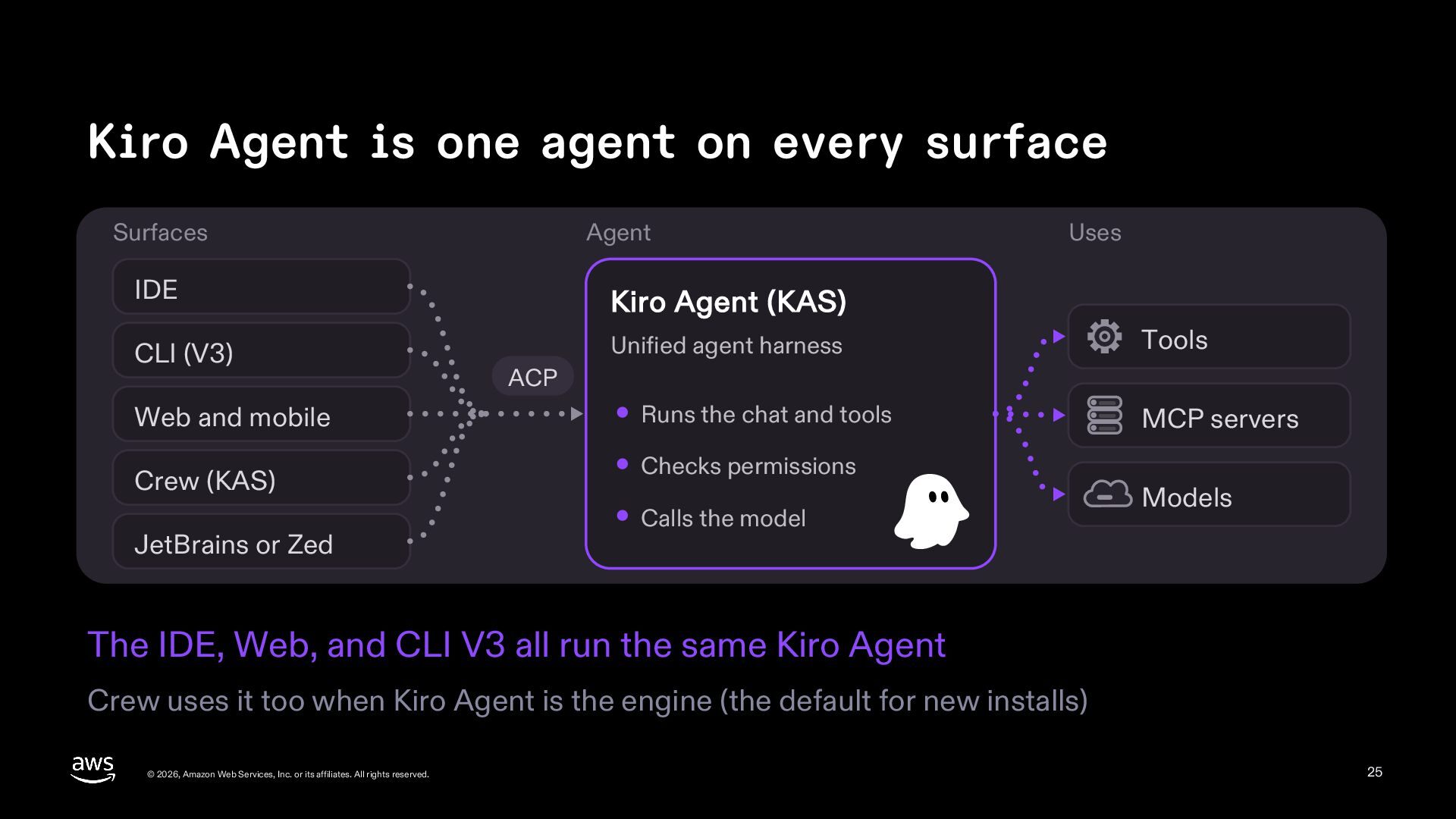
  25. Kiro Agent is one agent on every surface Surfaces Agent

    IDE Kiro Agent (KAS) CLI (V3) Unified agent harness Web and mobile Crew (KAS) JetBrains or Zed Uses Tools ACP Runs the chat and tools Checks permissions Calls the model MCP servers Models The IDE, Web, and CLI V3 all run the same Kiro Agent Crew uses it too when Kiro Agent is the engine (the default for new installs) © 2026, Amazon Web Services, Inc. or its affiliates. All rights reserved. 25
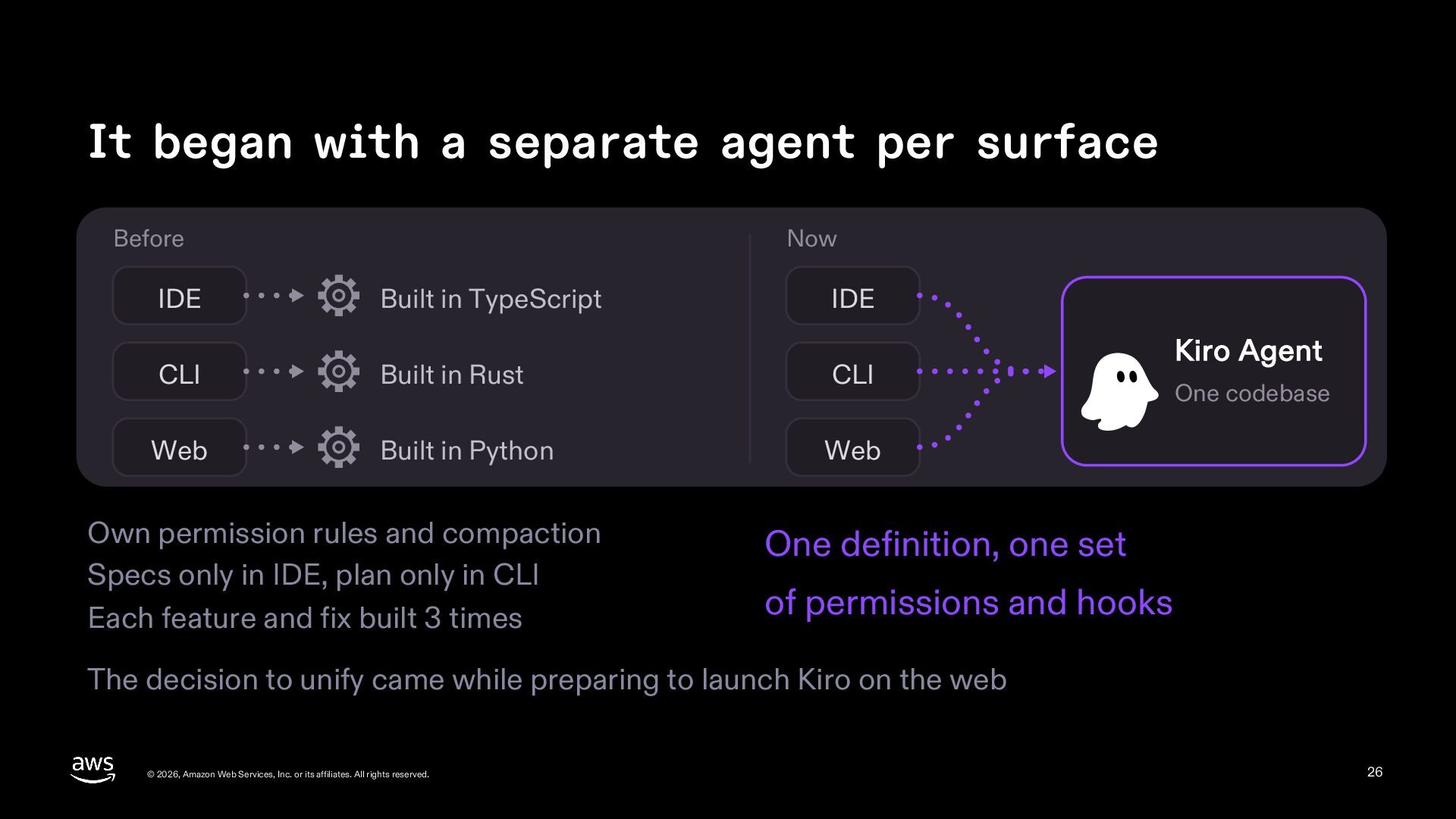
  26. It began with a separate agent per surface Before IDE

    Now Built in TypeScript IDE CLI Built in Rust CLI Web Built in Python Web Own permission rules and compaction Specs only in IDE, plan only in CLI Each feature and fix built 3 times Kiro Agent One codebase One definition, one set of permissions and hooks The decision to unify came while preparing to launch Kiro on the web © 2026, Amazon Web Services, Inc. or its affiliates. All rights reserved. 26
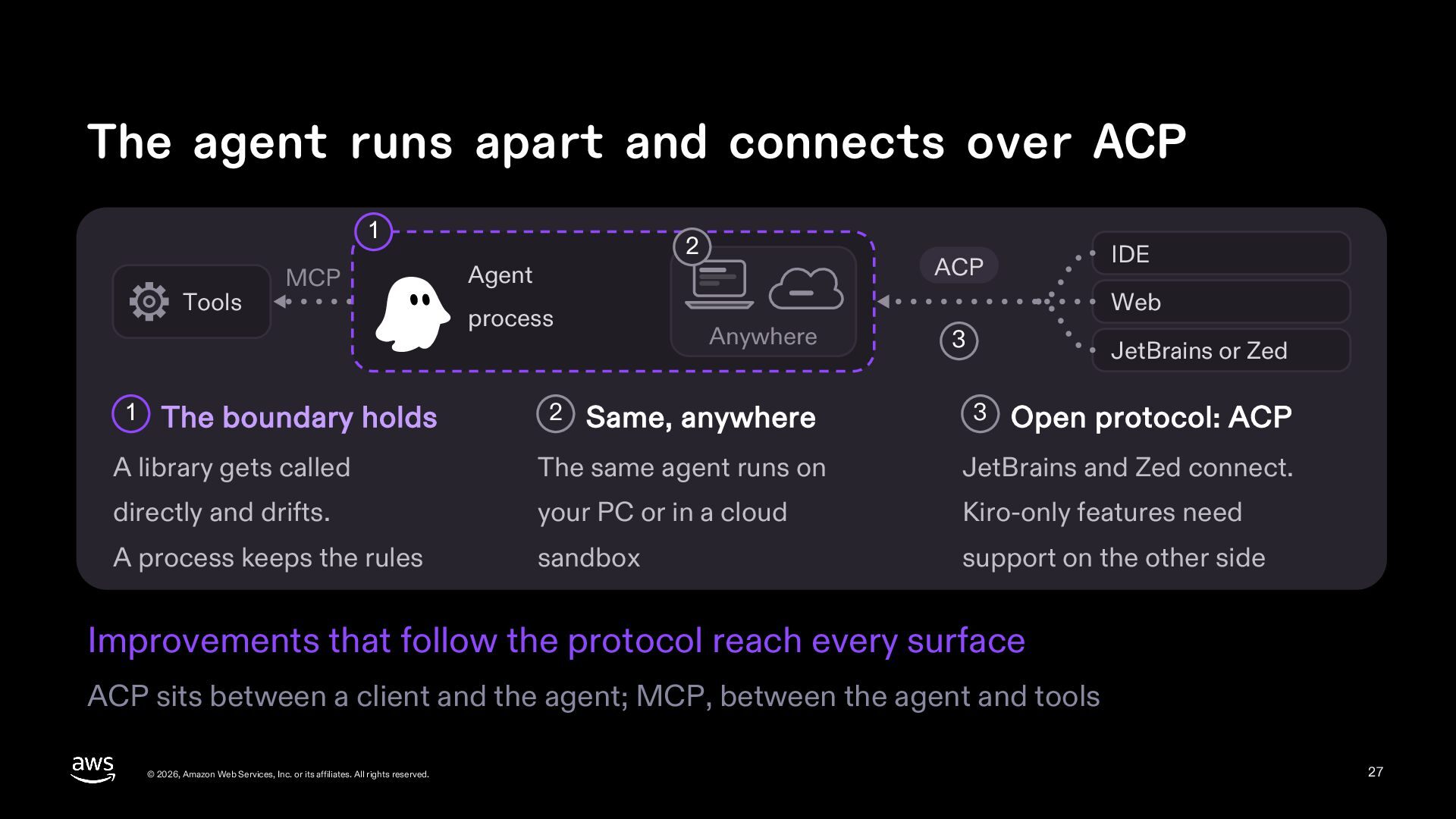
  27. The agent runs apart and connects over ACP 1 Tools

    1 MCP The boundary holds 2 Agent Web process 2 IDE ACP Anywhere Same, anywhere 3 JetBrains or Zed 3 Open protocol: ACP A library gets called The same agent runs on JetBrains and Zed connect. directly and drifts. your PC or in a cloud Kiro-only features need A process keeps the rules sandbox support on the other side Improvements that follow the protocol reach every surface ACP sits between a client and the agent; MCP, between the agent and tools © 2026, Amazon Web Services, Inc. or its affiliates. All rights reserved. 27
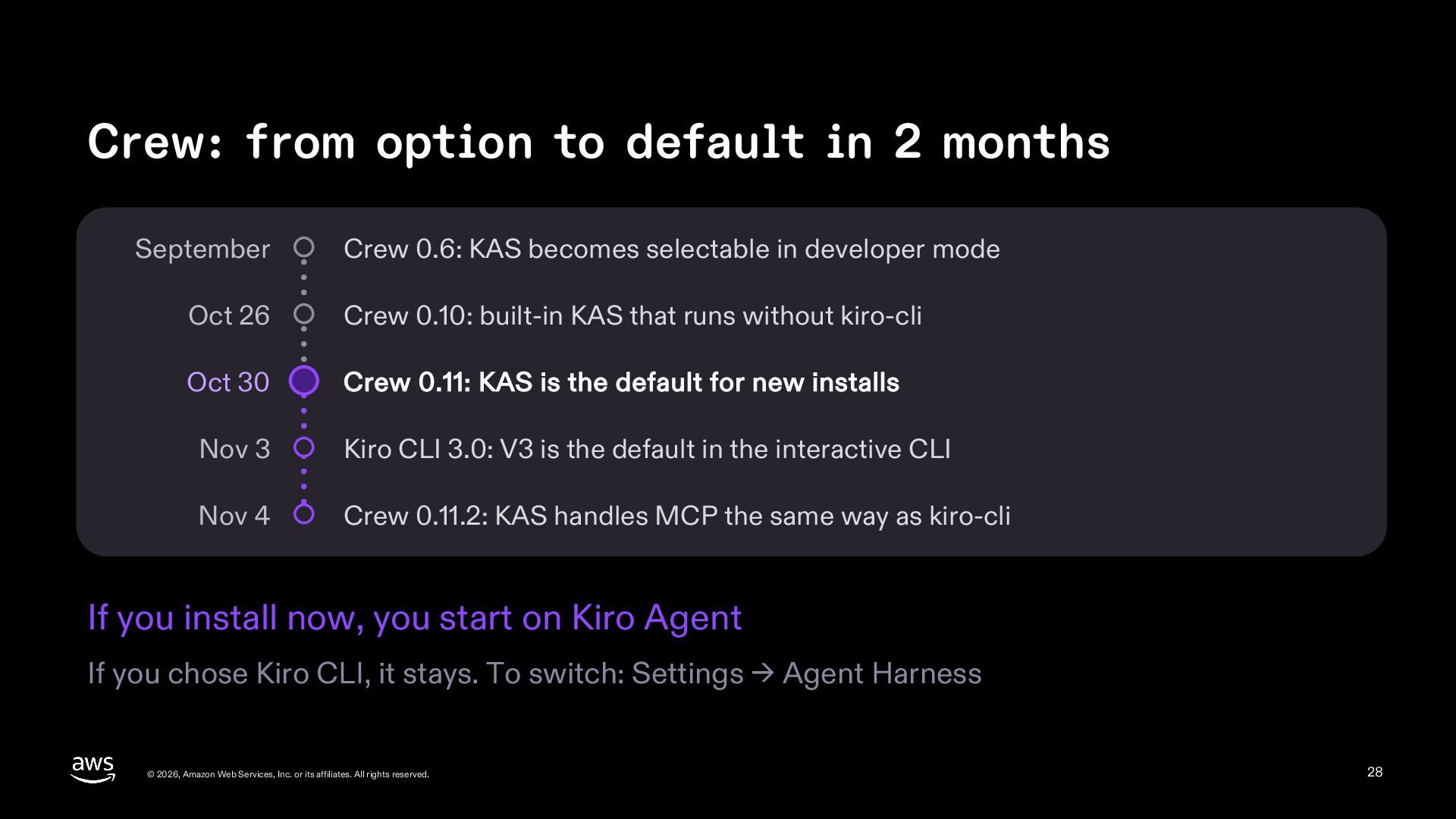
  28. Crew: from option to default in 2 months September Crew

    0.6: KAS becomes selectable in developer mode Oct 26 Crew 0.10: built-in KAS that runs without kiro-cli Oct 30 Crew 0.11: KAS is the default for new installs Nov 3 Kiro CLI 3.0: V3 is the default in the interactive CLI Nov 4 Crew 0.11.2: KAS handles MCP the same way as kiro-cli If you install now, you start on Kiro Agent If you chose Kiro CLI, it stays. To switch: Settings → Agent Harness © 2026, Amazon Web Services, Inc. or its affiliates. All rights reserved. 28
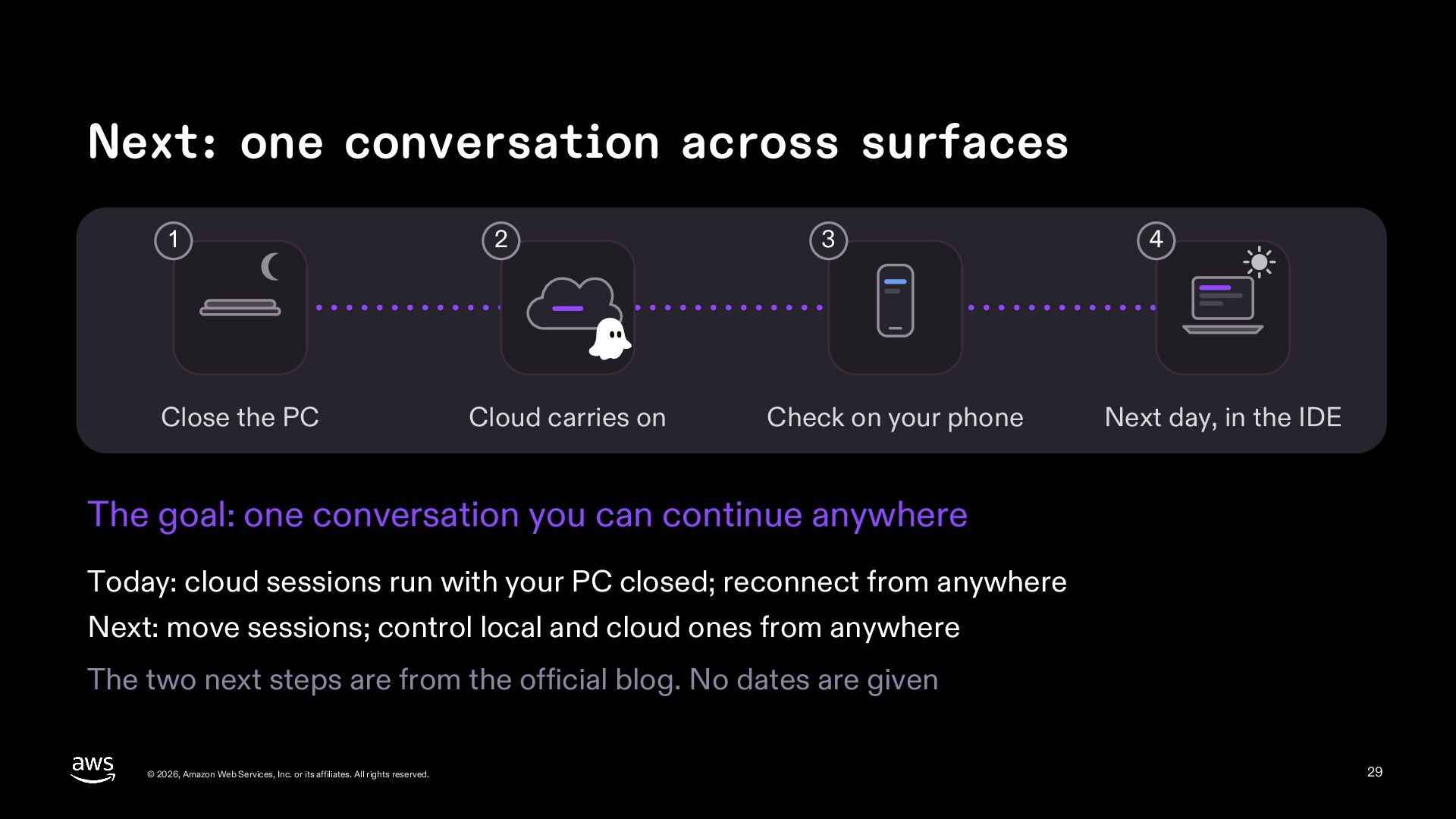
  29. Next: one conversation across surfaces 1 Close the PC 2

    Cloud carries on 3 Check on your phone 4 Next day, in the IDE The goal: one conversation you can continue anywhere Today: cloud sessions run with your PC closed; reconnect from anywhere Next: move sessions; control local and cloud ones from anywhere The two next steps are from the official blog. No dates are given © 2026, Amazon Web Services, Inc. or its affiliates. All rights reserved. 29
  30. Pillar 1 Runs while you're away Run set jobs at

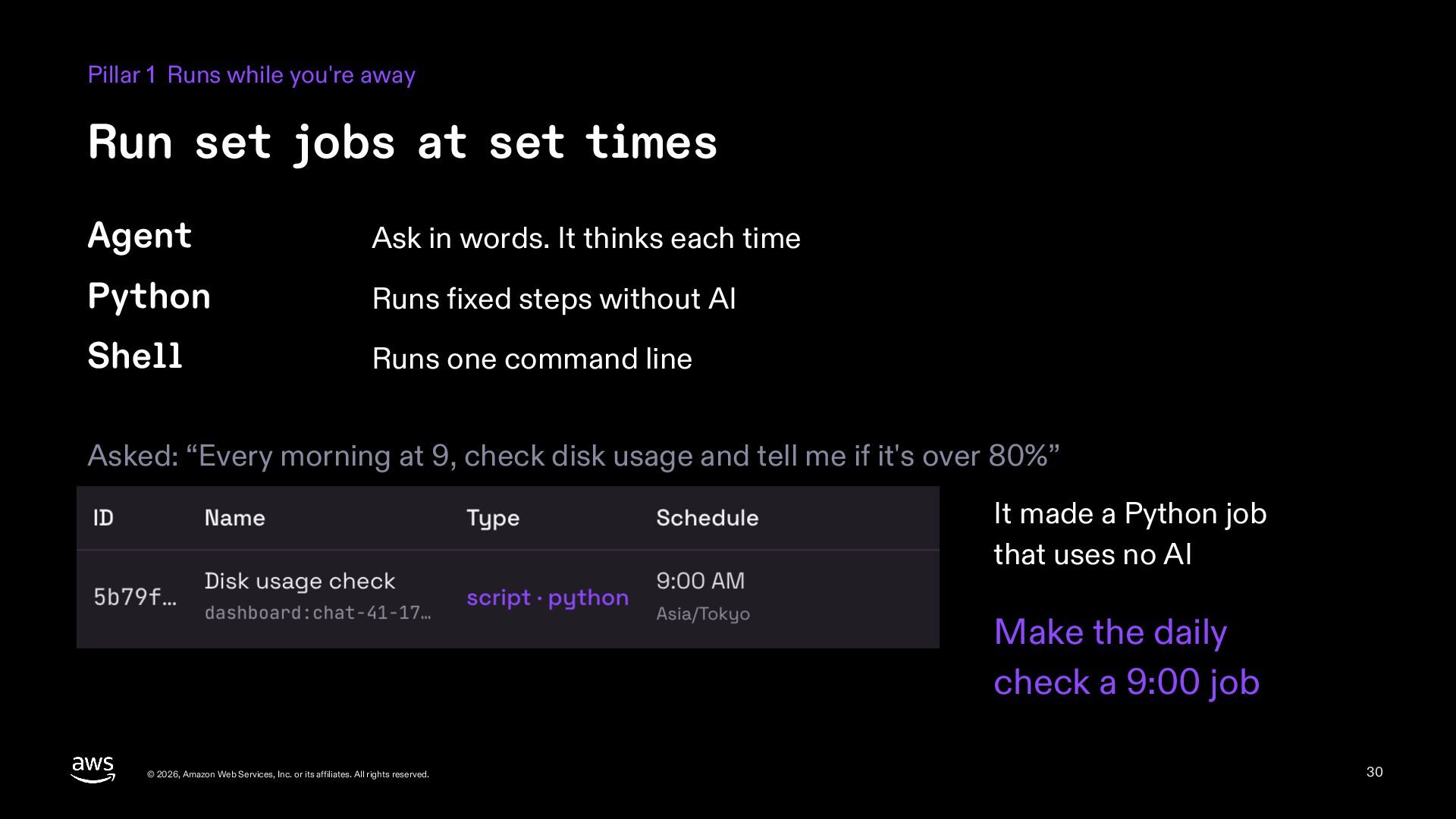
    set times Agent Ask in words. It thinks each time Python Runs fixed steps without AI Shell Runs one command line Asked: “Every morning at 9, check disk usage and tell me if it's over 80%” It made a Python job that uses no AI Make the daily check a 9:00 job © 2026, Amazon Web Services, Inc. or its affiliates. All rights reserved. 30
  31. Test and pause jobs on the Schedule page Test “Run

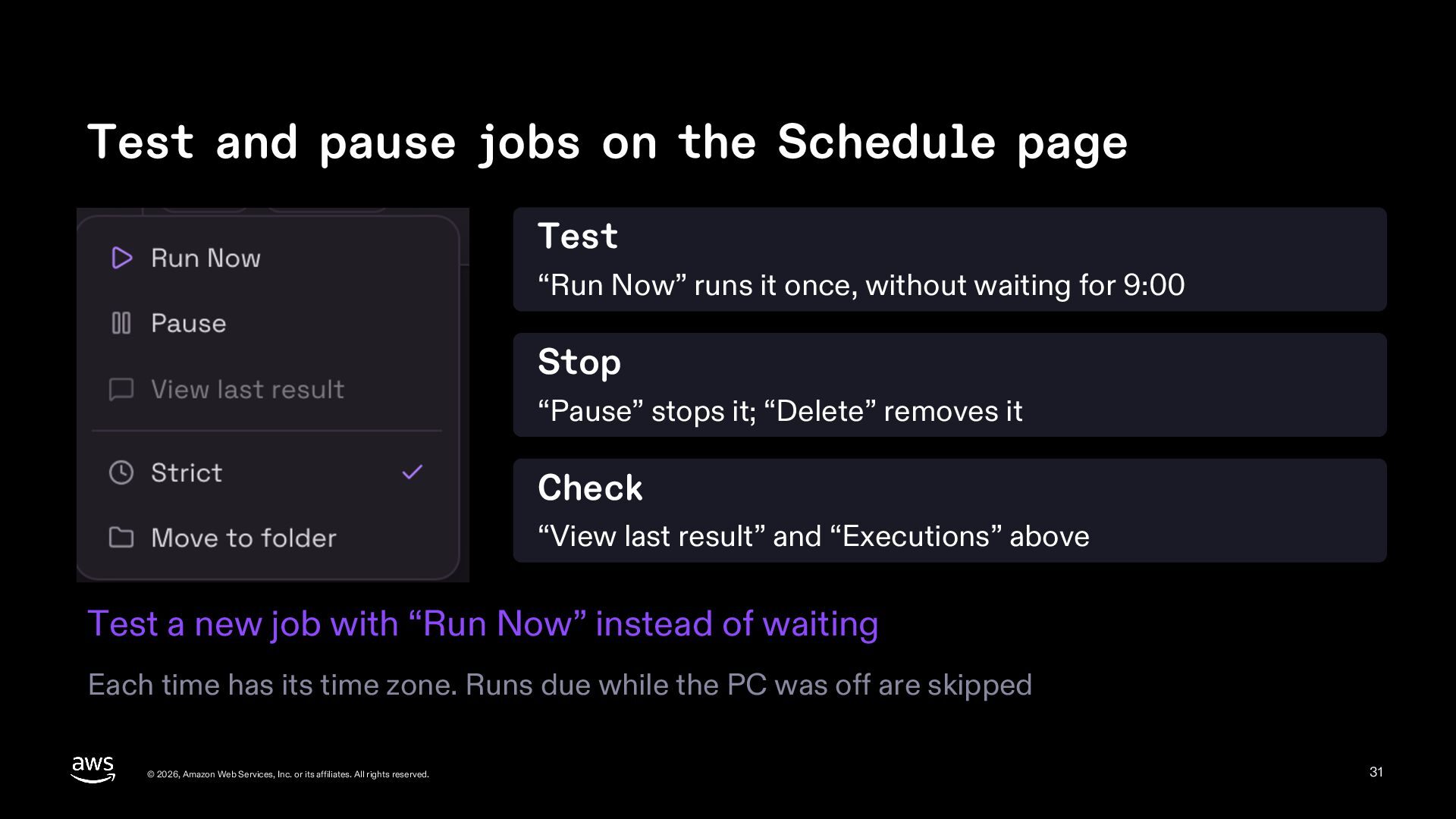
    Now” runs it once, without waiting for 9:00 Stop “Pause” stops it; “Delete” removes it Check “View last result” and “Executions” above Test a new job with “Run Now” instead of waiting Each time has its time zone. Runs due while the PC was off are skipped © 2026, Amazon Web Services, Inc. or its affiliates. All rights reserved. 31
  32. Wake up only when something changes PR watch Wakes only

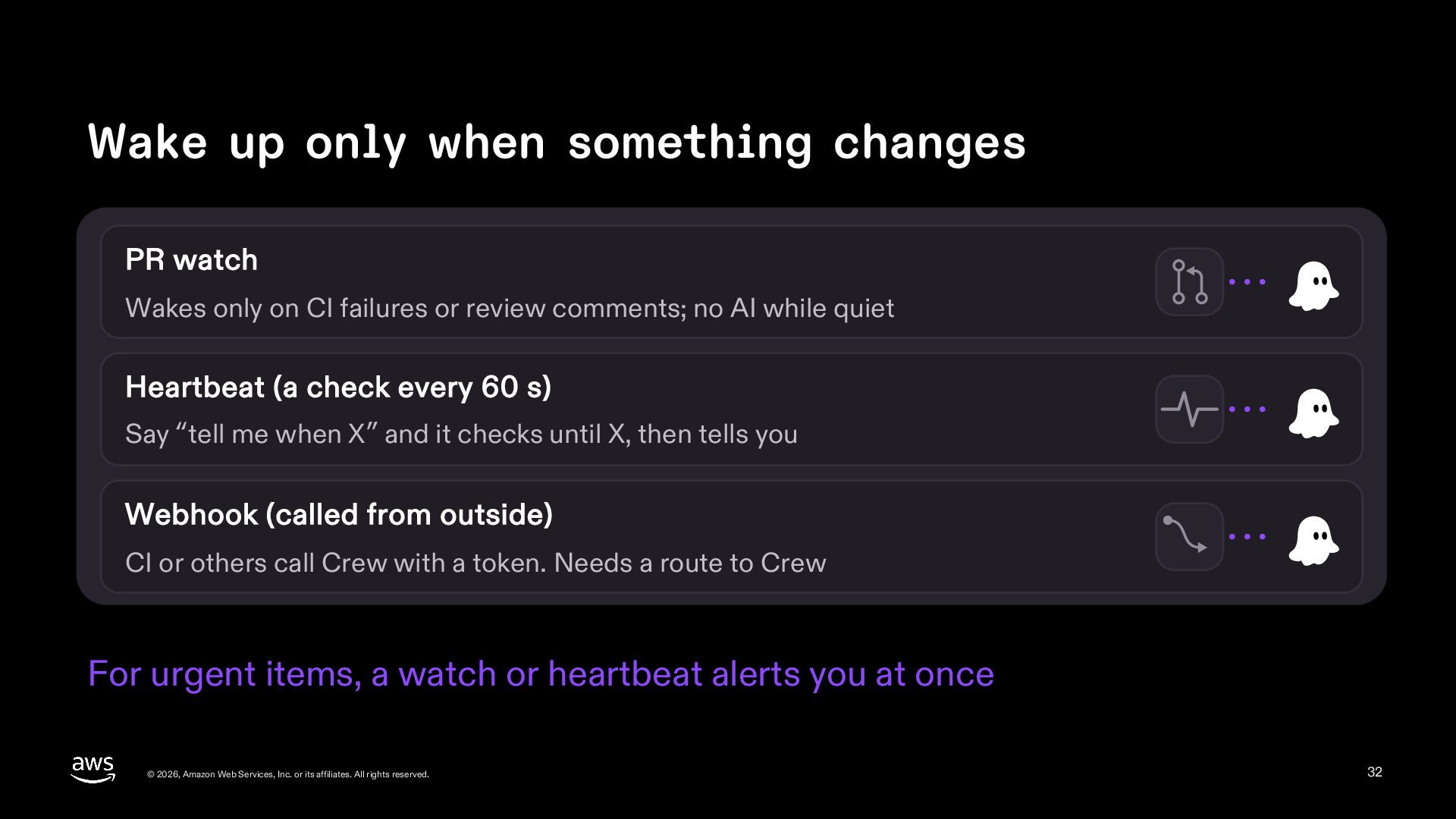
    on CI failures or review comments; no AI while quiet Heartbeat (a check every 60 s) Say “tell me when X” and it checks until X, then tells you Webhook (called from outside) CI or others call Crew with a token. Needs a route to Crew For urgent items, a watch or heartbeat alerts you at once © 2026, Amazon Web Services, Inc. or its affiliates. All rights reserved. 32
  33. Pillar 2 Remembers Taught once, used in later sessions A

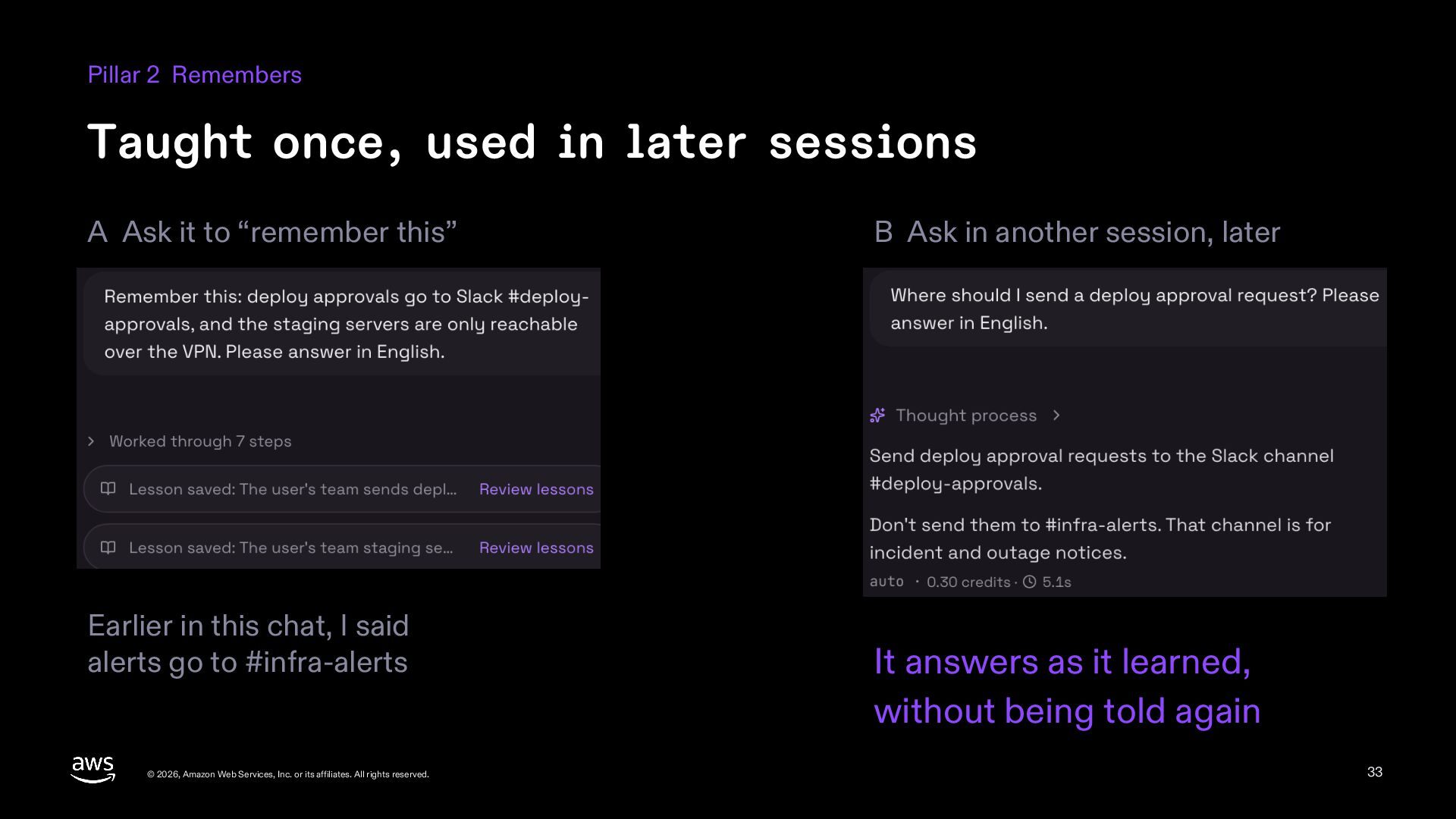
    Ask it to “remember this” Earlier in this chat, I said alerts go to #infra-alerts © 2026, Amazon Web Services, Inc. or its affiliates. All rights reserved. B Ask in another session, later It answers as it learned, without being told again 33
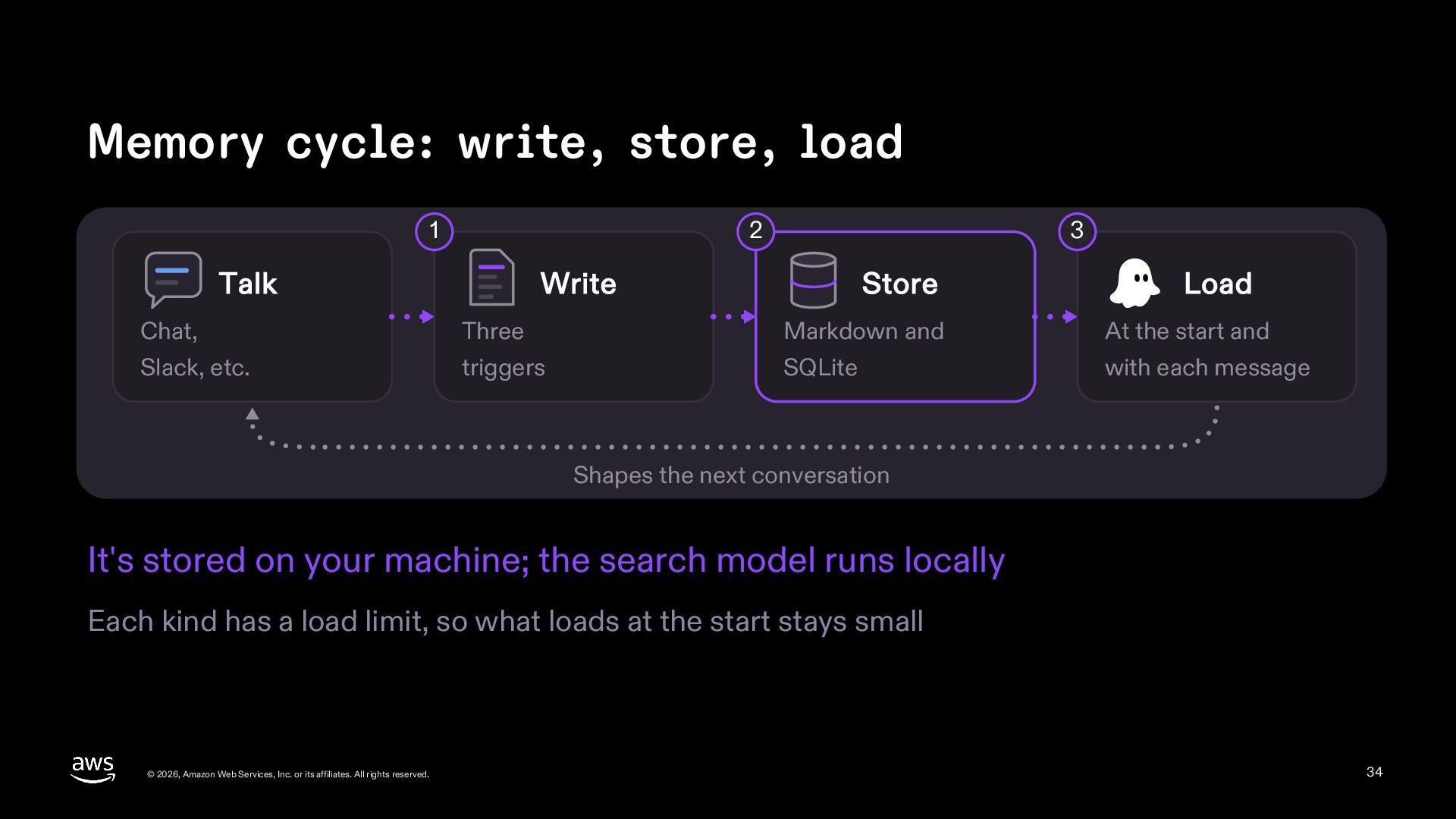
  34. Memory cycle: write, store, load 1 2 Talk 3 Write

    Store Load Chat, Three Markdown and At the start and Slack, etc. triggers SQLite with each message Shapes the next conversation It's stored on your machine; the search model runs locally Each kind has a load limit, so what loads at the start stays small © 2026, Amazon Web Services, Inc. or its affiliates. All rights reserved. 34
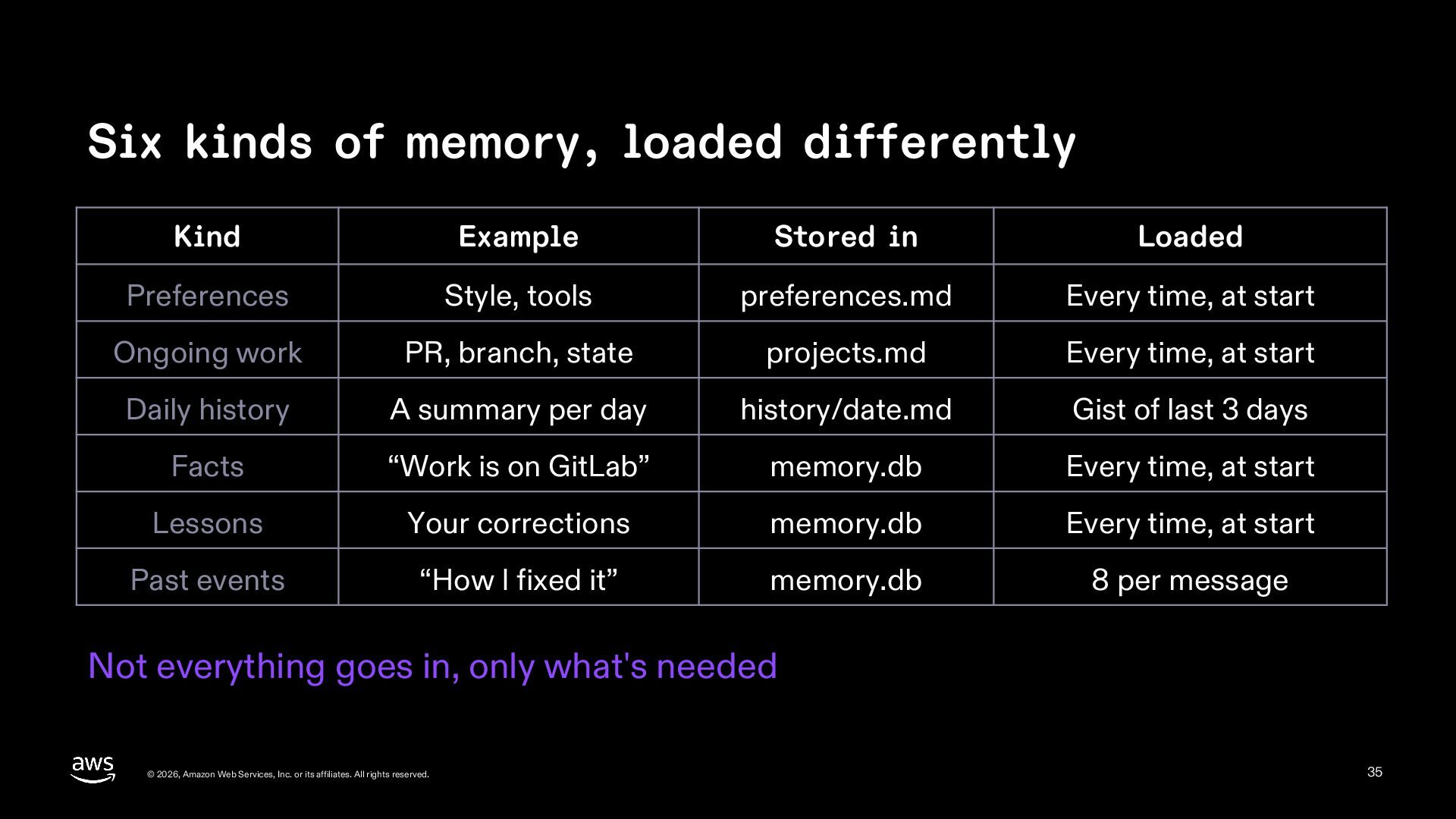
  35. Six kinds of memory, loaded differently Kind Example Stored in

    Loaded Preferences Style, tools preferences.md Every time, at start Ongoing work PR, branch, state projects.md Every time, at start Daily history A summary per day history/date.md Gist of last 3 days Facts “Work is on GitLab” memory.db Every time, at start Lessons Your corrections memory.db Every time, at start Past events “How I fixed it” memory.db 8 per message Not everything goes in, only what's needed © 2026, Amazon Web Services, Inc. or its affiliates. All rights reserved. 35
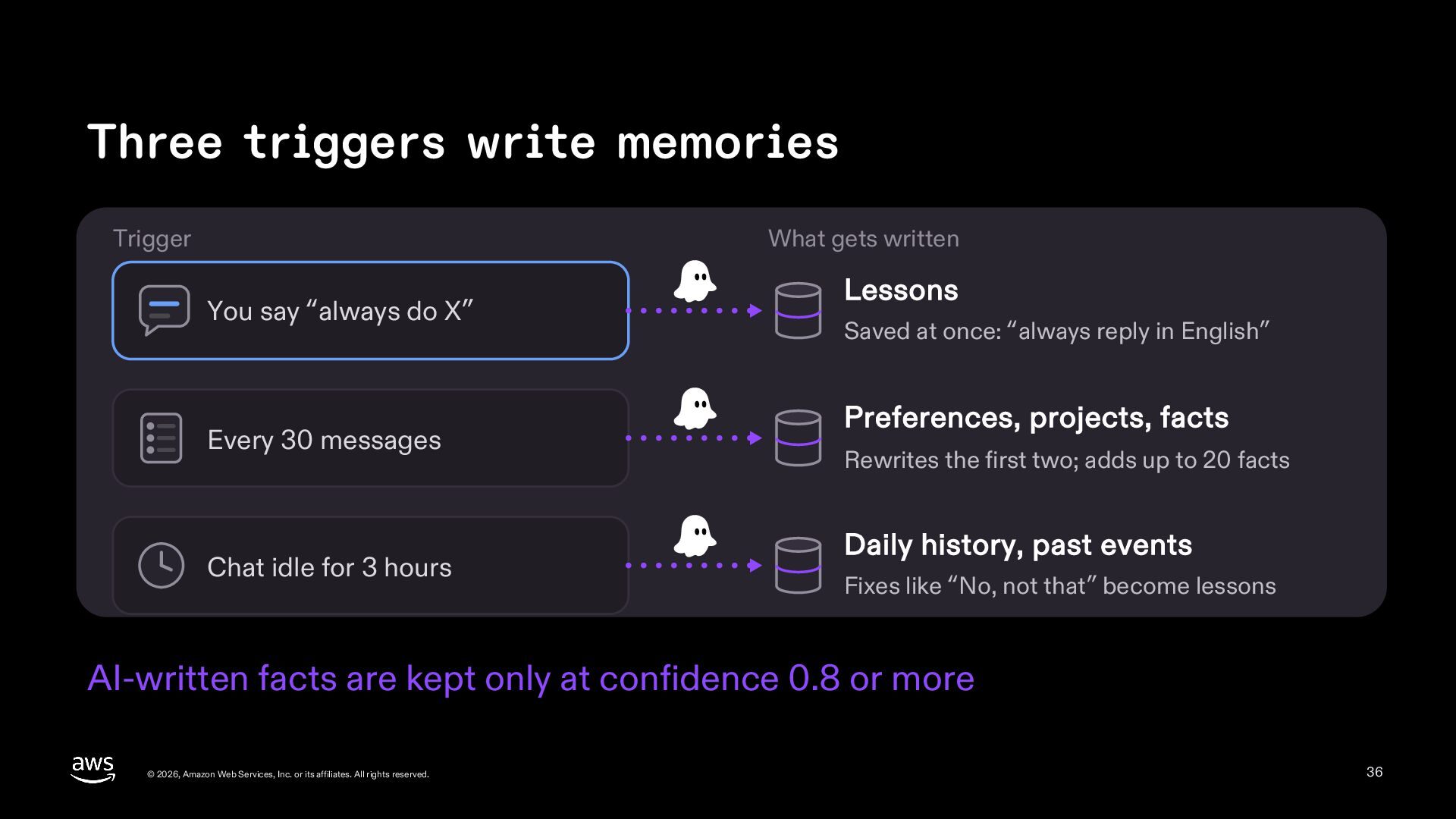
  36. Three triggers write memories Trigger What gets written You say

    “always do X” Every 30 messages Chat idle for 3 hours Lessons Saved at once: “always reply in English” Preferences, projects, facts Rewrites the first two; adds up to 20 facts Daily history, past events Fixes like “No, not that” become lessons AI-written facts are kept only at confidence 0.8 or more © 2026, Amazon Web Services, Inc. or its affiliates. All rights reserved. 36
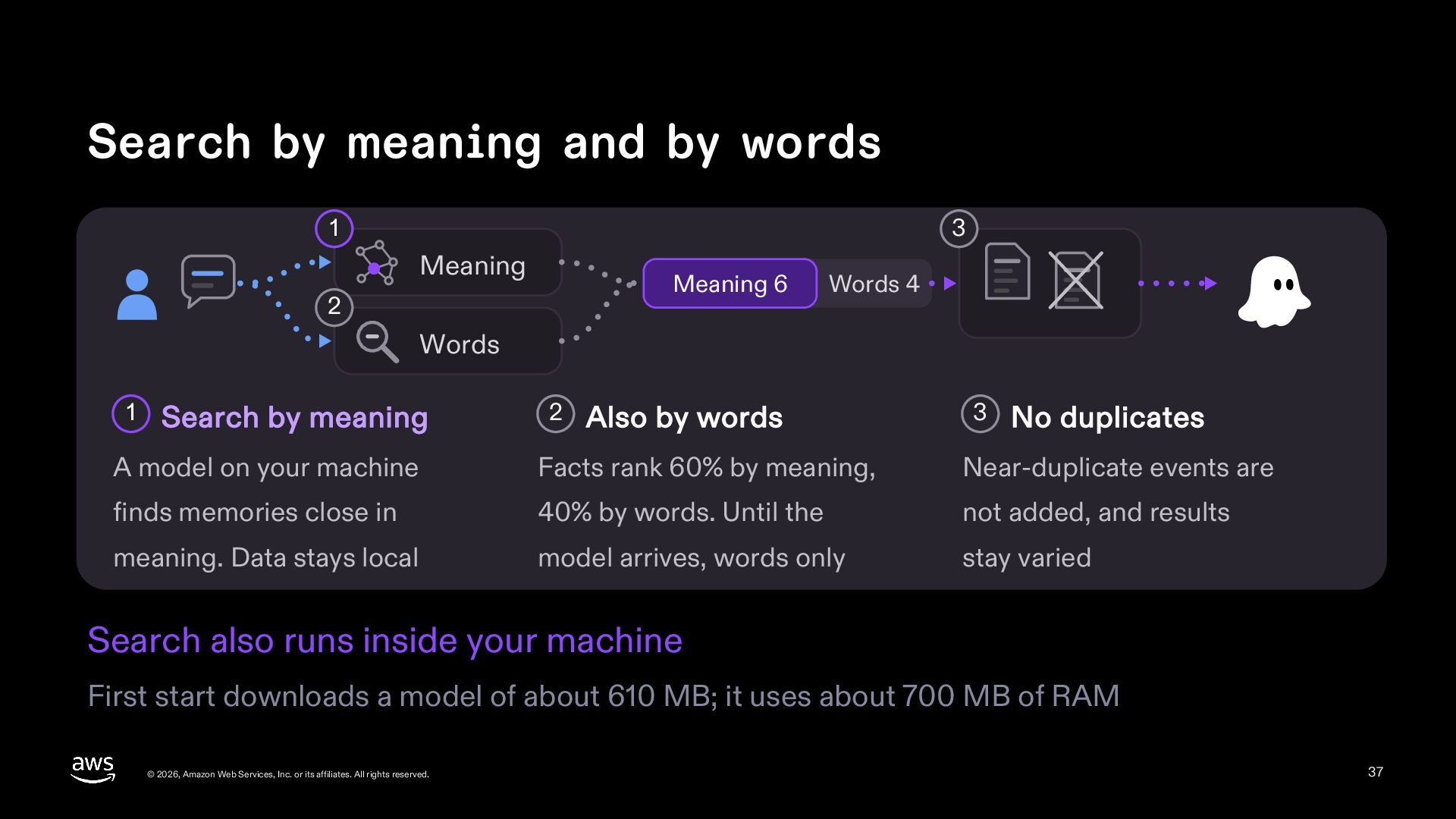
  37. Search by meaning and by words 1 3 Meaning Meaning

    6 2 Words 4 Words 1 Search by meaning 2 Also by words 3 No duplicates A model on your machine Facts rank 60% by meaning, Near-duplicate events are finds memories close in 40% by words. Until the not added, and results meaning. Data stays local model arrives, words only stay varied Search also runs inside your machine First start downloads a model of about 610 MB; it uses about 700 MB of RAM © 2026, Amazon Web Services, Inc. or its affiliates. All rights reserved. 37
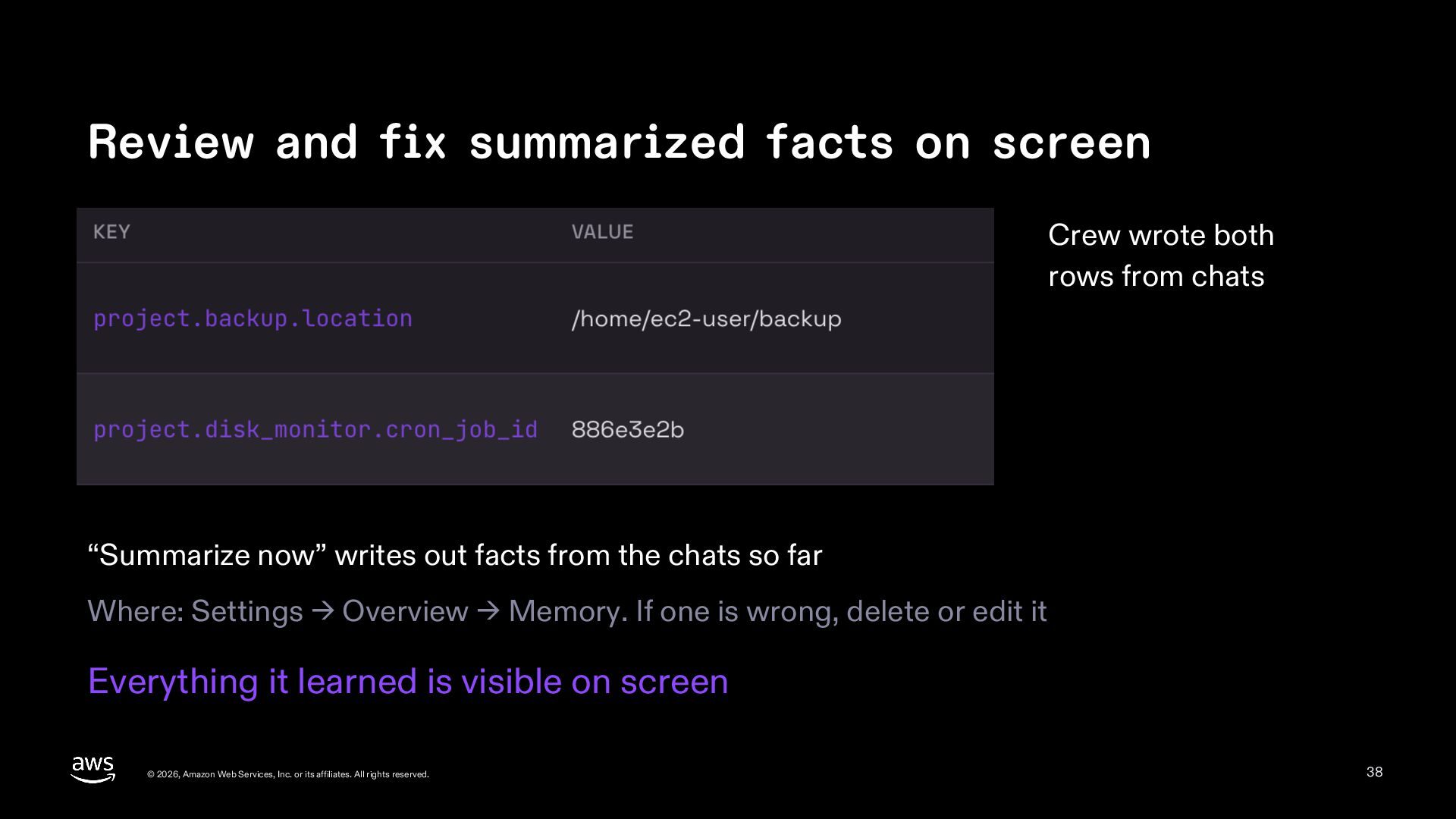
  38. Review and fix summarized facts on screen Crew wrote both

    rows from chats “Summarize now” writes out facts from the chats so far Where: Settings → Overview → Memory. If one is wrong, delete or edit it Everything it learned is visible on screen © 2026, Amazon Web Services, Inc. or its affiliates. All rights reserved. 38
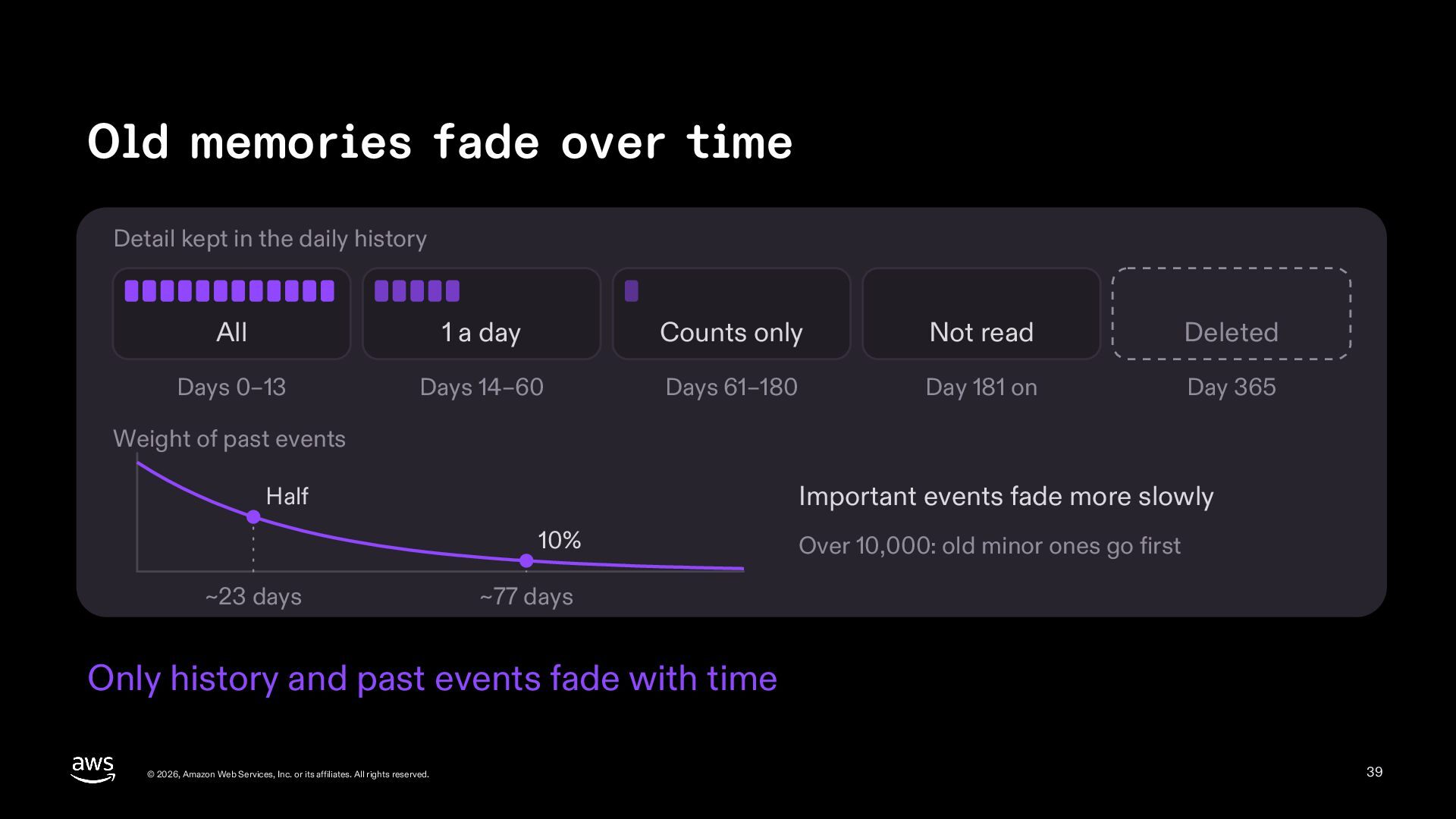
  39. Old memories fade over time Detail kept in the daily

    history All 1 a day Counts only Not read Deleted Days 0–13 Days 14–60 Days 61–180 Day 181 on Day 365 Weight of past events Important events fade more slowly Half 10% ~23 days Over 10,000: old minor ones go first ~77 days Only history and past events fade with time © 2026, Amazon Web Services, Inc. or its affiliates. All rights reserved. 39
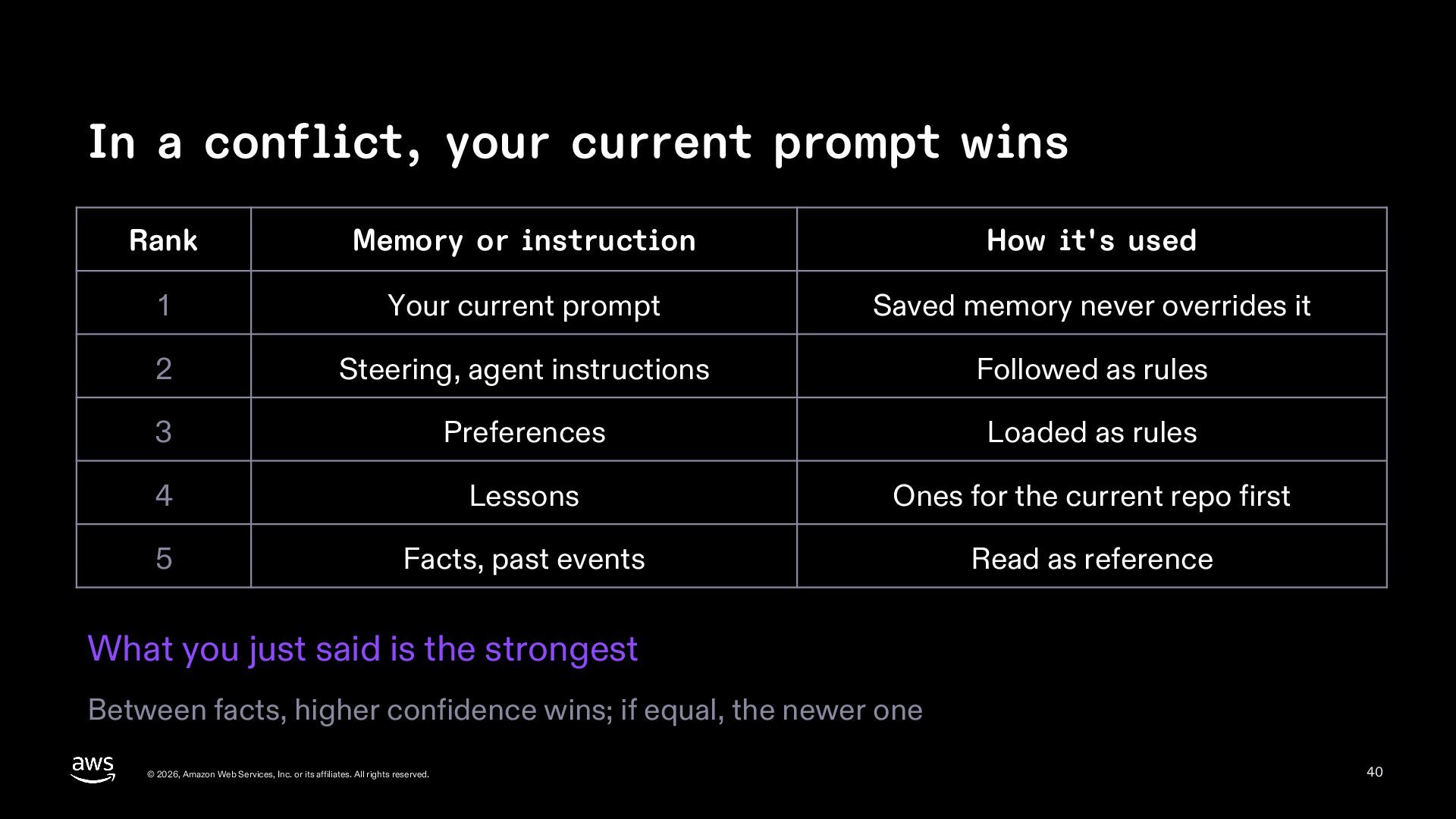
  40. In a conflict, your current prompt wins Rank Memory or

    instruction How it's used 1 Your current prompt Saved memory never overrides it 2 Steering, agent instructions Followed as rules 3 Preferences Loaded as rules 4 Lessons Ones for the current repo first 5 Facts, past events Read as reference What you just said is the strongest Between facts, higher confidence wins; if equal, the newer one © 2026, Amazon Web Services, Inc. or its affiliates. All rights reserved. 40
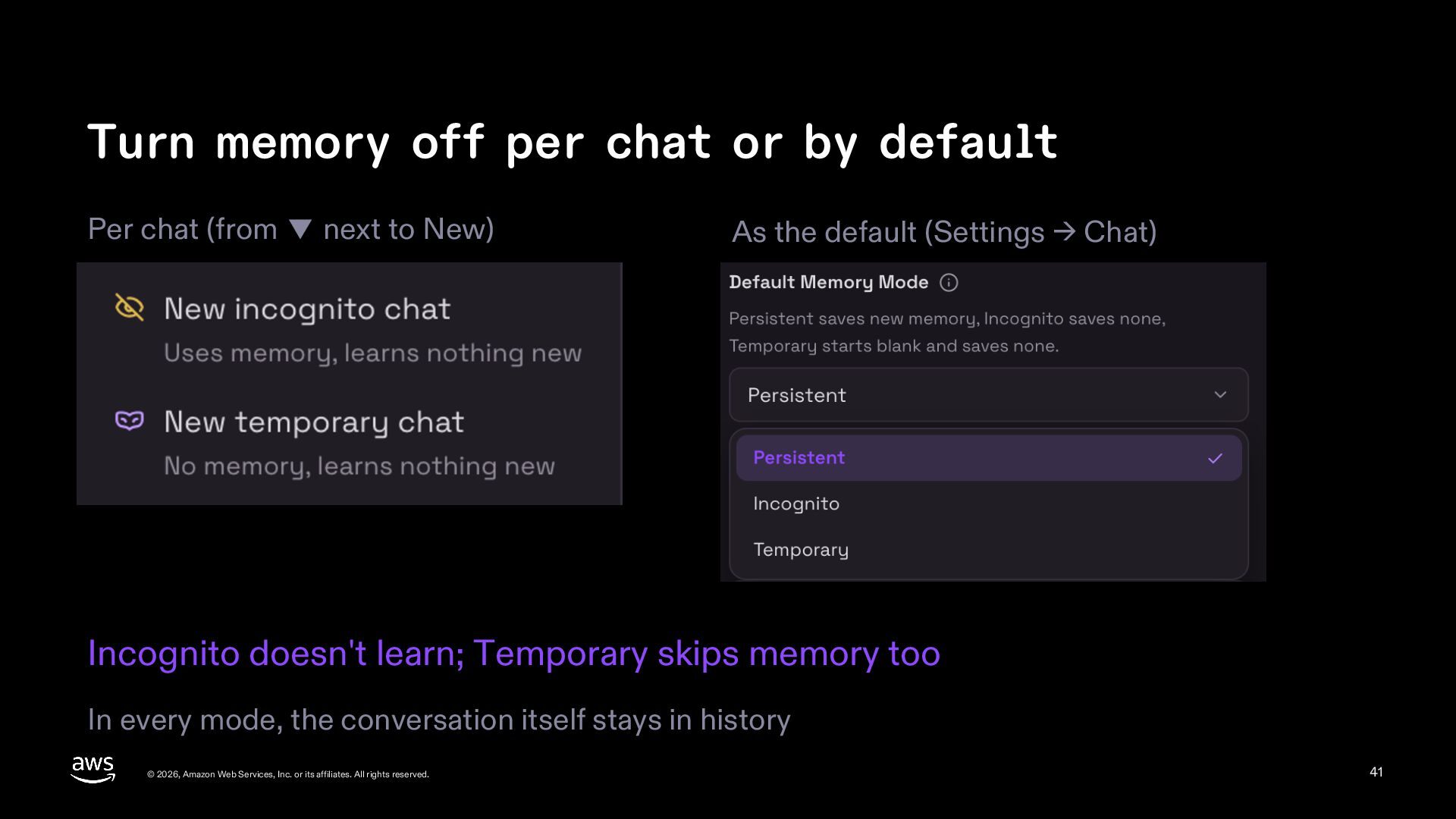
  41. Turn memory off per chat or by default Per chat

    (from ▼ next to New) As the default (Settings → Chat) Incognito doesn't learn; Temporary skips memory too In every mode, the conversation itself stays in history © 2026, Amazon Web Services, Inc. or its affiliates. All rights reserved. 41
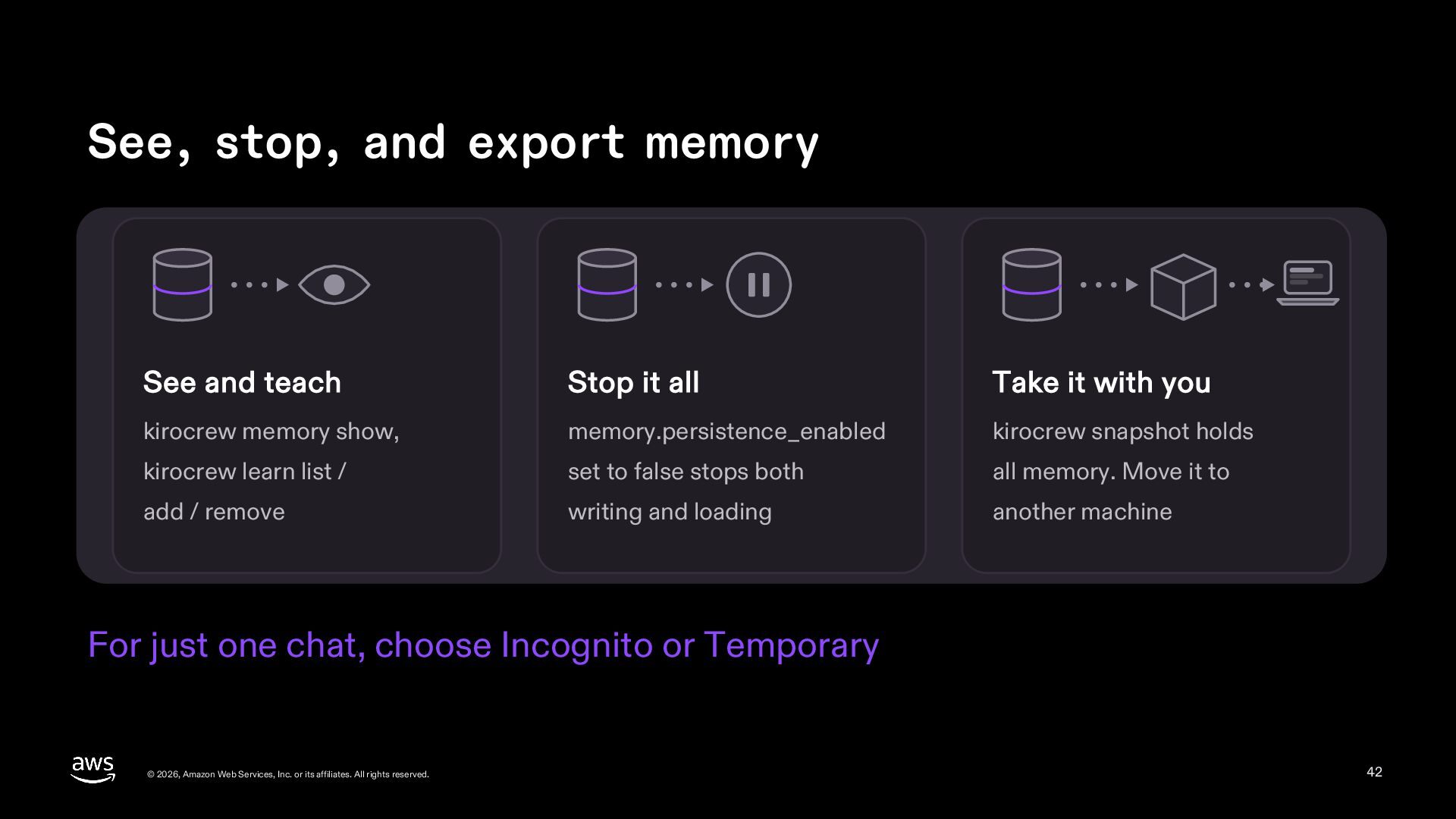
  42. See, stop, and export memory See and teach Stop it

    all Take it with you kirocrew memory show, memory.persistence_enabled kirocrew snapshot holds kirocrew learn list / set to false stops both all memory. Move it to add / remove writing and loading another machine For just one chat, choose Incognito or Temporary © 2026, Amazon Web Services, Inc. or its affiliates. All rights reserved. 42
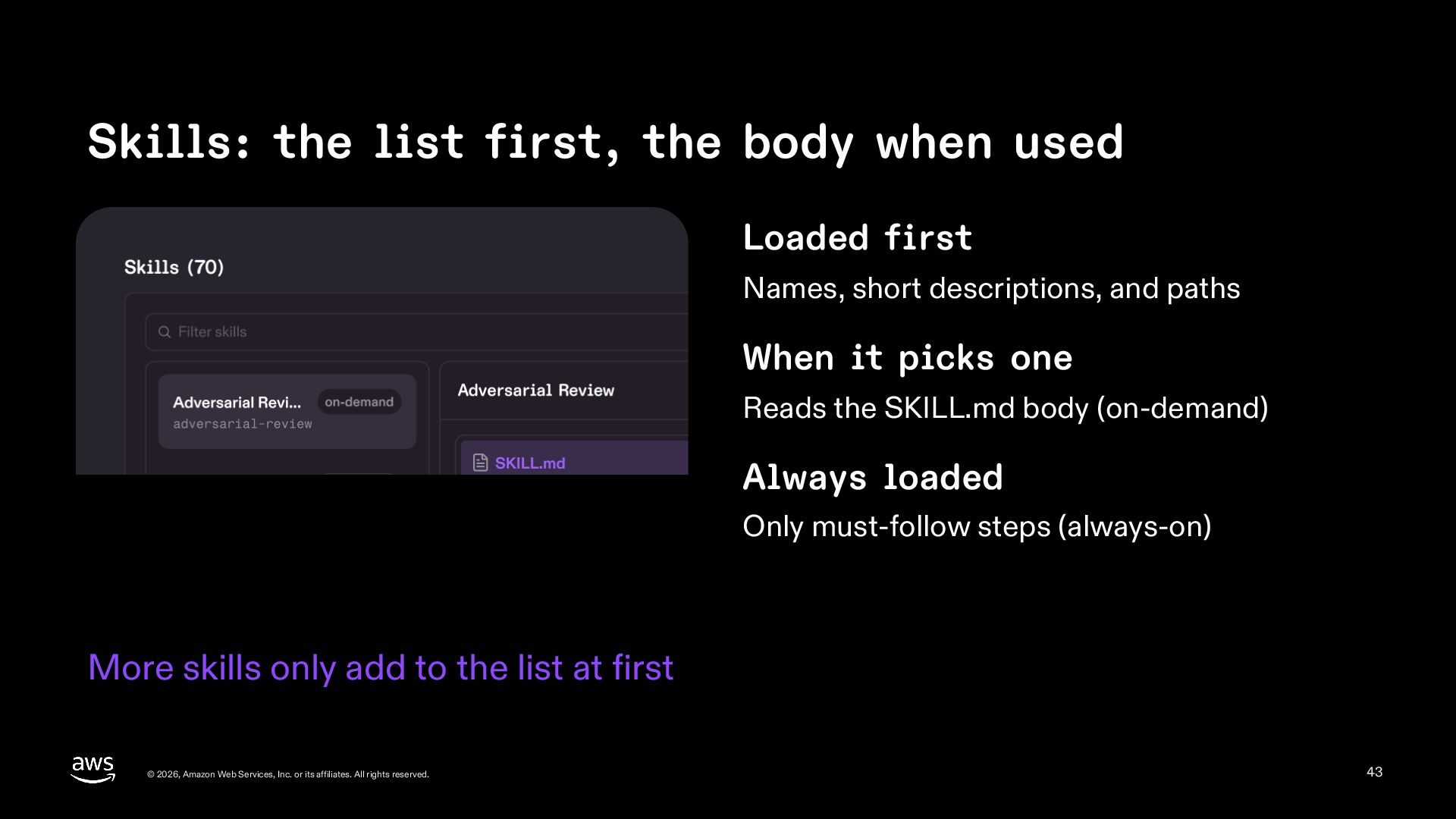
  43. Skills: the list first, the body when used Loaded first

    Names, short descriptions, and paths When it picks one Reads the SKILL.md body (on-demand) Always loaded Only must-follow steps (always-on) More skills only add to the list at first © 2026, Amazon Web Services, Inc. or its affiliates. All rights reserved. 43
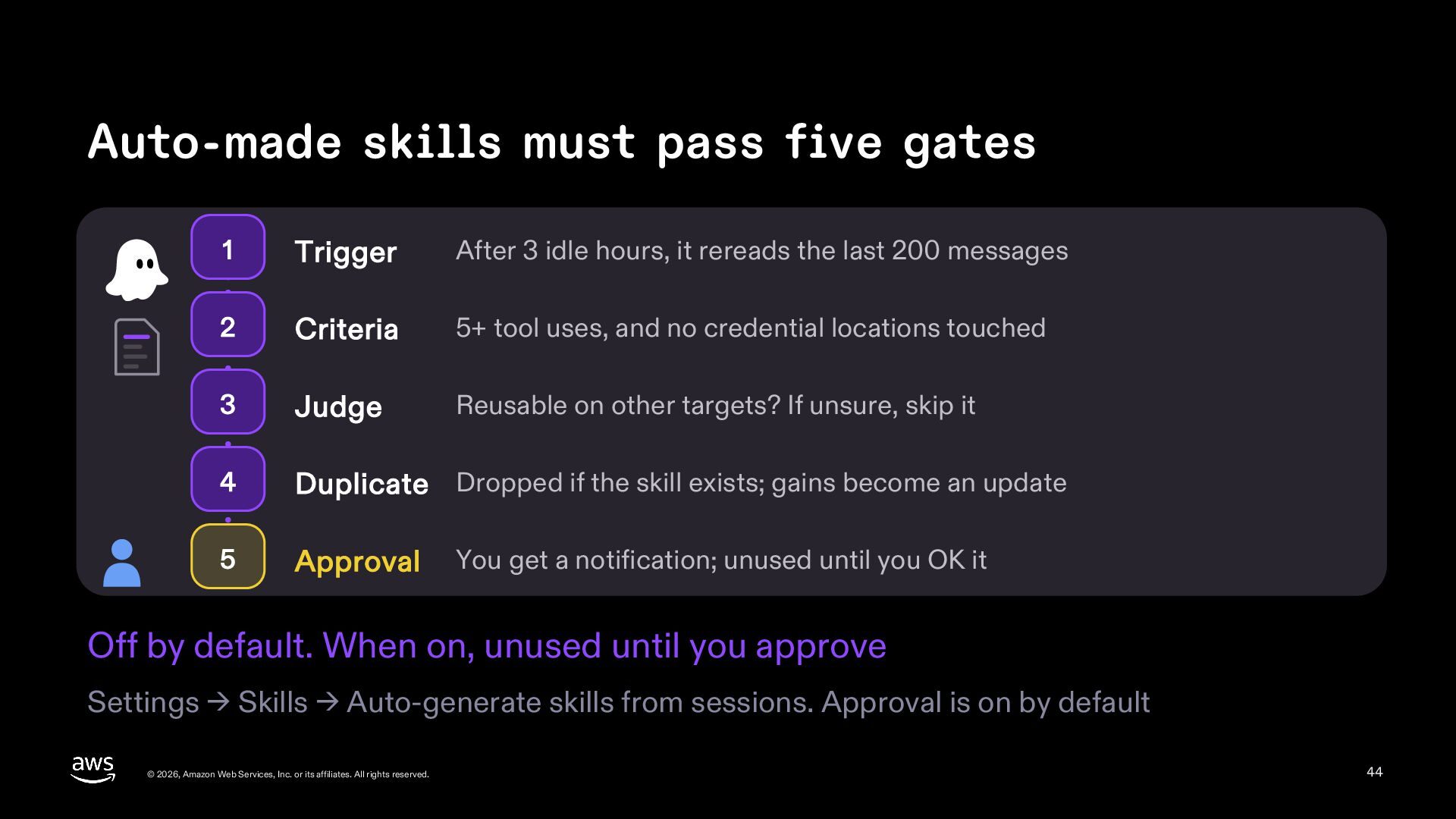
  44. Auto-made skills must pass five gates 1 Trigger After 3

    idle hours, it rereads the last 200 messages 2 Criteria 5+ tool uses, and no credential locations touched 3 Judge Reusable on other targets? If unsure, skip it 4 Duplicate Dropped if the skill exists; gains become an update 5 Approval You get a notification; unused until you OK it Off by default. When on, unused until you approve Settings → Skills → Auto-generate skills from sessions. Approval is on by default © 2026, Amazon Web Services, Inc. or its affiliates. All rights reserved. 44
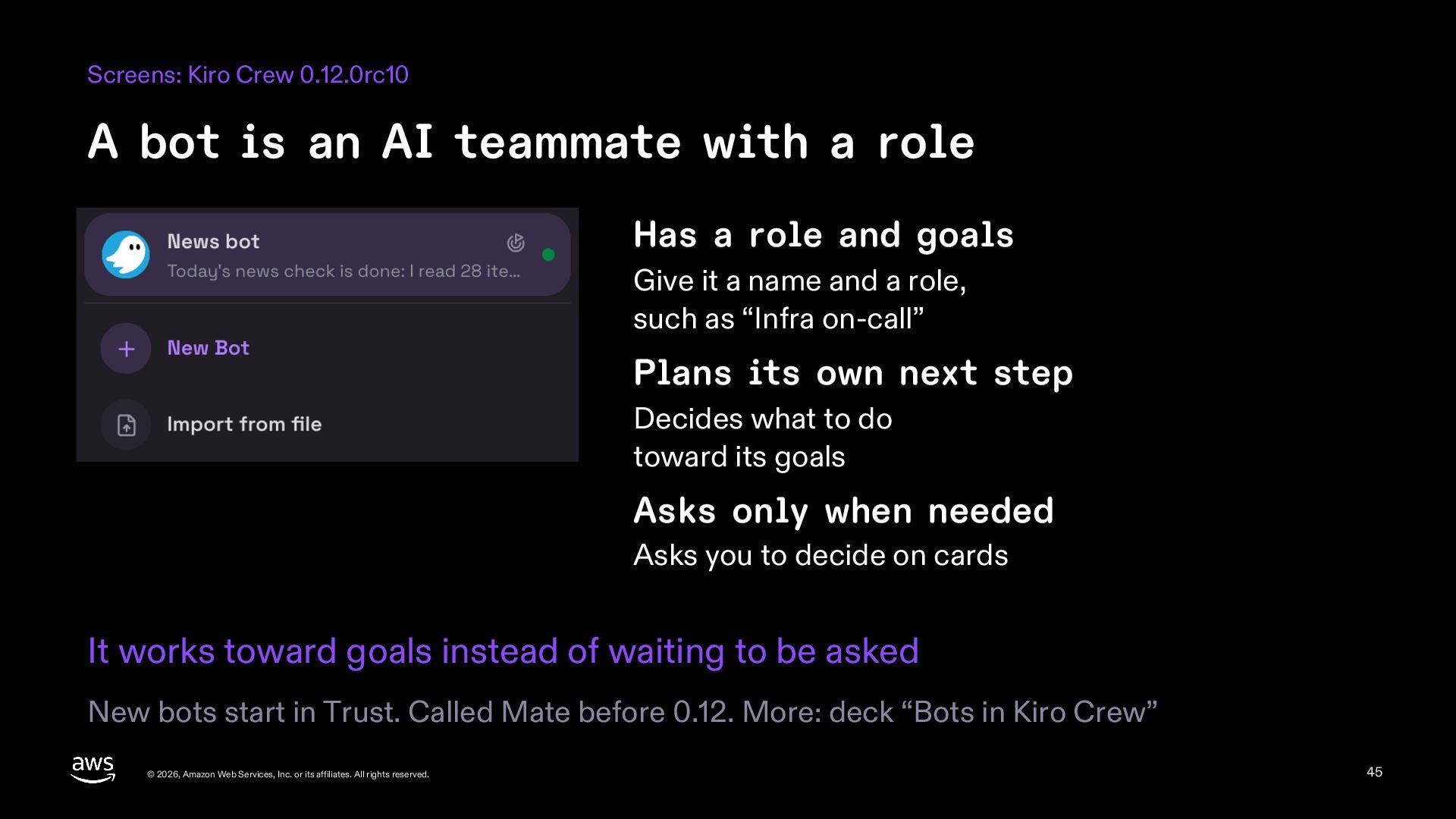
  45. Screens: Kiro Crew 0.12.0rc10 A bot is an AI teammate

    with a role Has a role and goals Give it a name and a role, such as “Infra on-call” Plans its own next step Decides what to do toward its goals Asks only when needed Asks you to decide on cards It works toward goals instead of waiting to be asked New bots start in Trust. Called Mate before 0.12. More: deck “Bots in Kiro Crew” © 2026, Amazon Web Services, Inc. or its affiliates. All rights reserved. 45
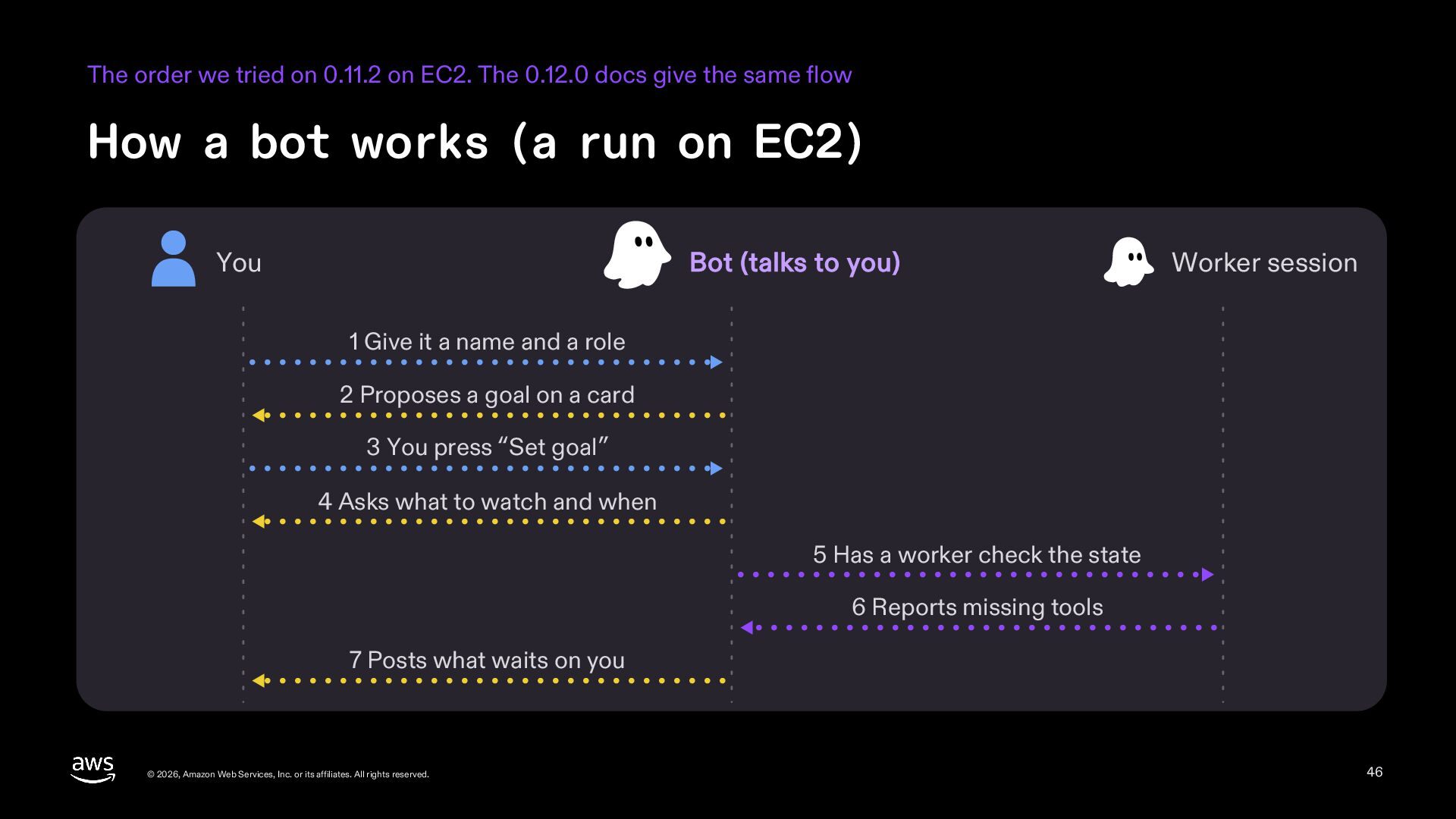
  46. The order we tried on 0.11.2 on EC2. The 0.12.0

    docs give the same flow How a bot works (a run on EC2) You Bot (talks to you) Worker session 1 Give it a name and a role 2 Proposes a goal on a card 3 You press “Set goal” 4 Asks what to watch and when 5 Has a worker check the state 6 Reports missing tools 7 Posts what waits on you © 2026, Amazon Web Services, Inc. or its affiliates. All rights reserved. 46
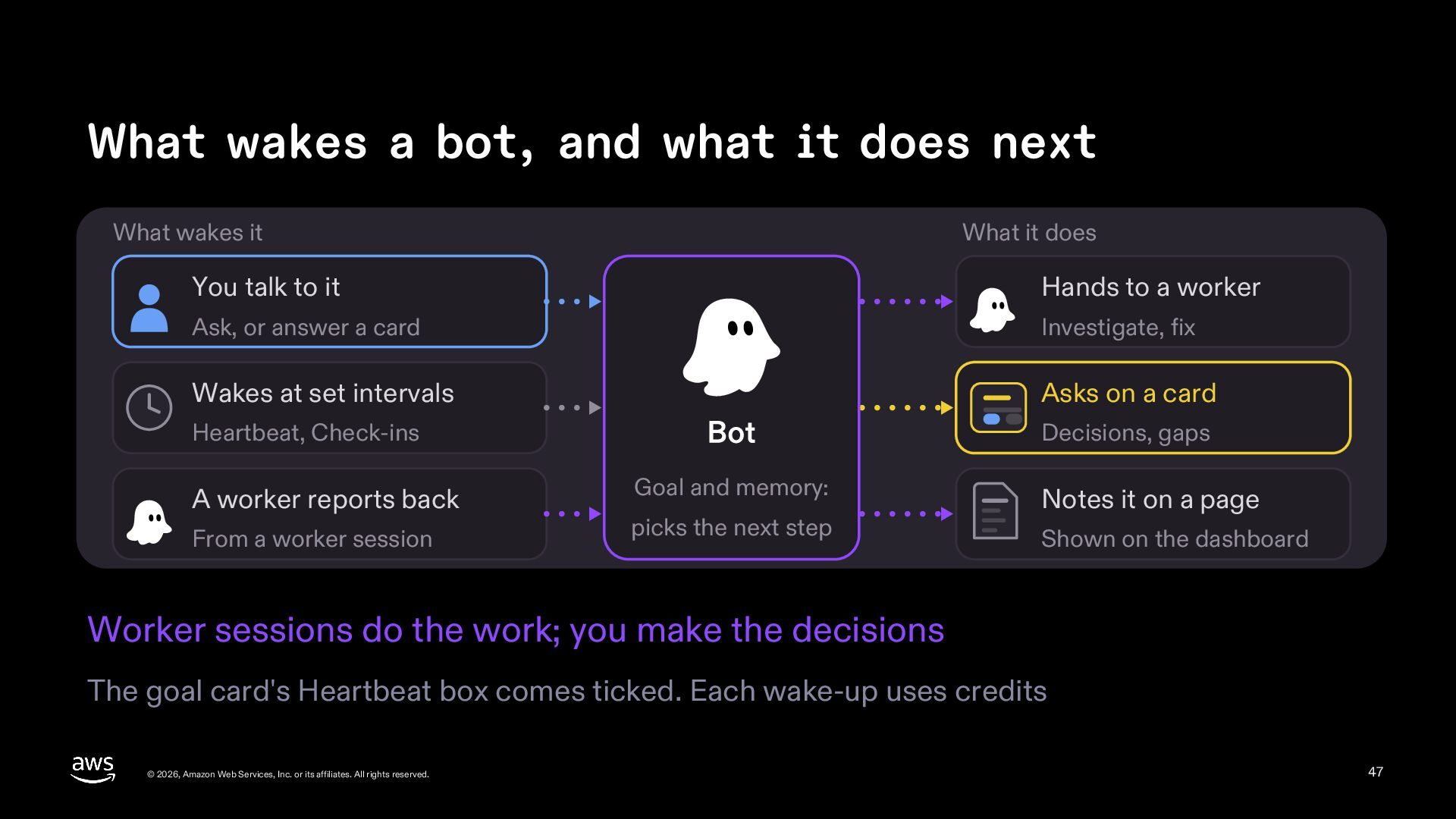
  47. What wakes a bot, and what it does next What

    wakes it What it does You talk to it Hands to a worker Ask, or answer a card Investigate, fix Wakes at set intervals Asks on a card Heartbeat, Check-ins A worker reports back From a worker session Bot Goal and memory: picks the next step Decisions, gaps Notes it on a page Shown on the dashboard Worker sessions do the work; you make the decisions The goal card's Heartbeat box comes ticked. Each wake-up uses credits © 2026, Amazon Web Services, Inc. or its affiliates. All rights reserved. 47
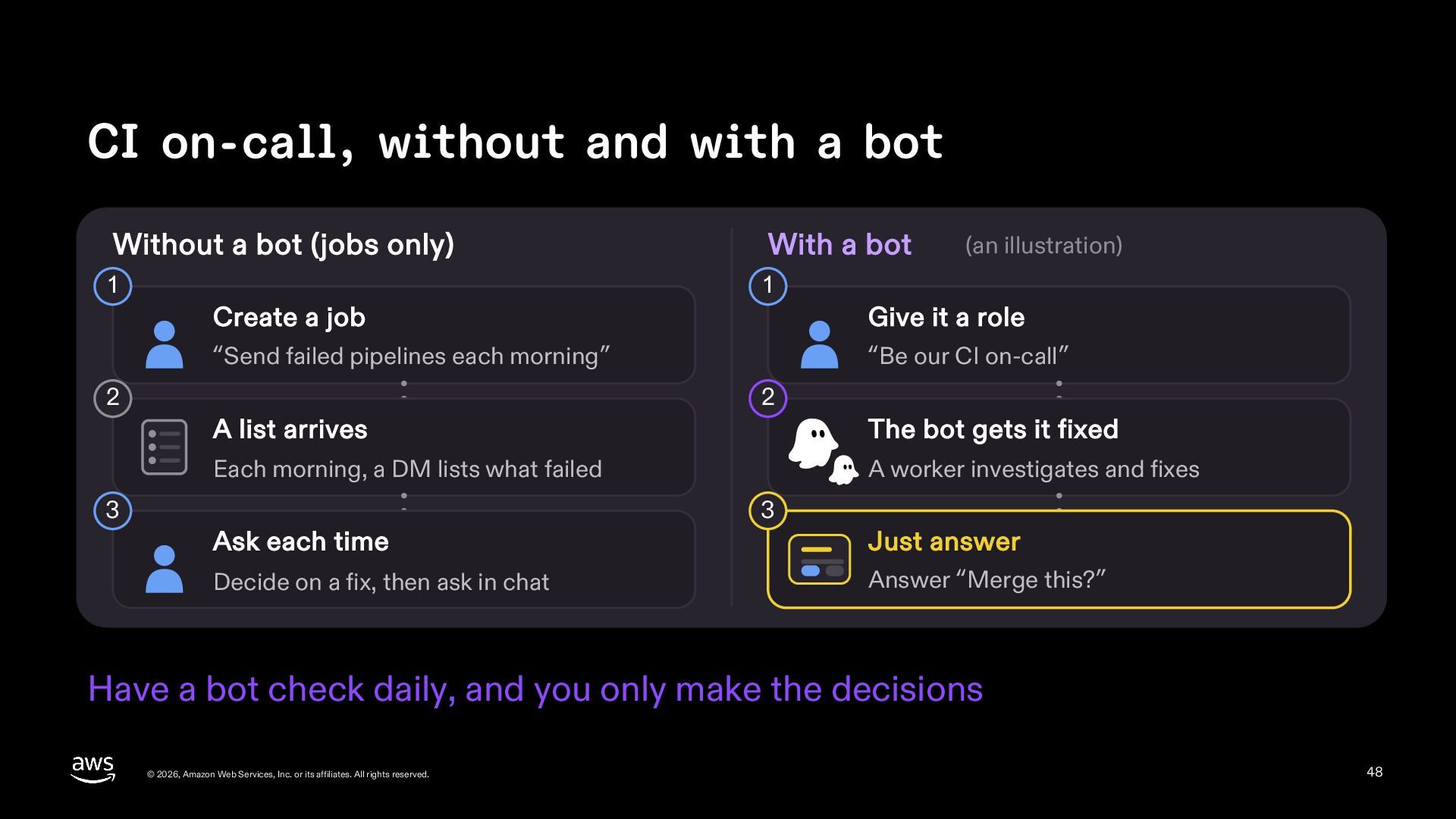
  48. CI on-call, without and with a bot Without a bot

    (jobs only) With a bot 1 1 Create a job Give it a role “Send failed pipelines each morning” “Be our CI on-call” 2 3 (an illustration) 2 A list arrives The bot gets it fixed Each morning, a DM lists what failed A worker investigates and fixes Ask each time Decide on a fix, then ask in chat 3 Just answer Answer “Merge this?” Have a bot check daily, and you only make the decisions © 2026, Amazon Web Services, Inc. or its affiliates. All rights reserved. 48
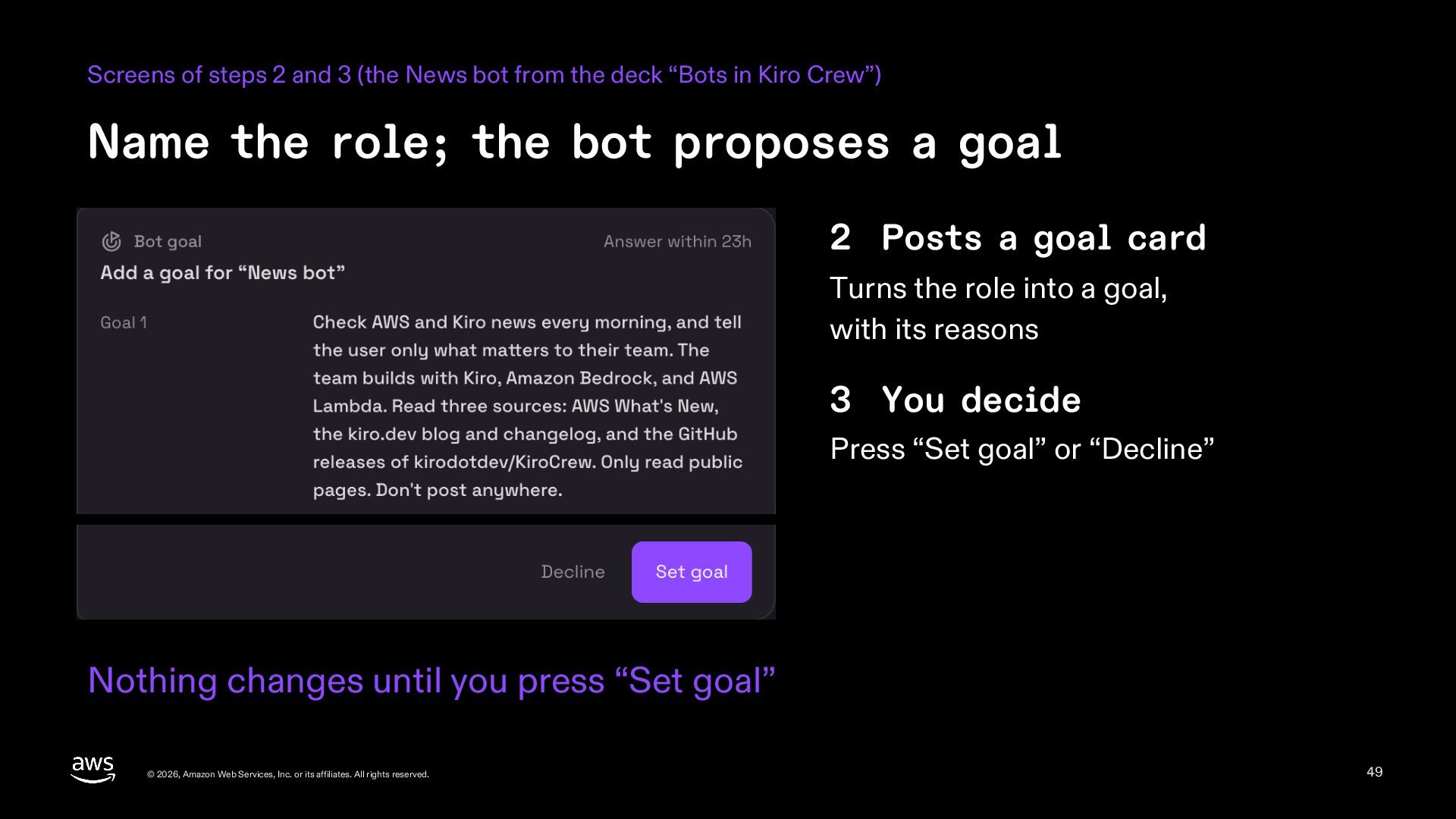
  49. Screens of steps 2 and 3 (the News bot from

    the deck “Bots in Kiro Crew”) Name the role; the bot proposes a goal 2 Posts a goal card Turns the role into a goal, with its reasons 3 You decide Press “Set goal” or “Decline” Nothing changes until you press “Set goal” © 2026, Amazon Web Services, Inc. or its affiliates. All rights reserved. 49
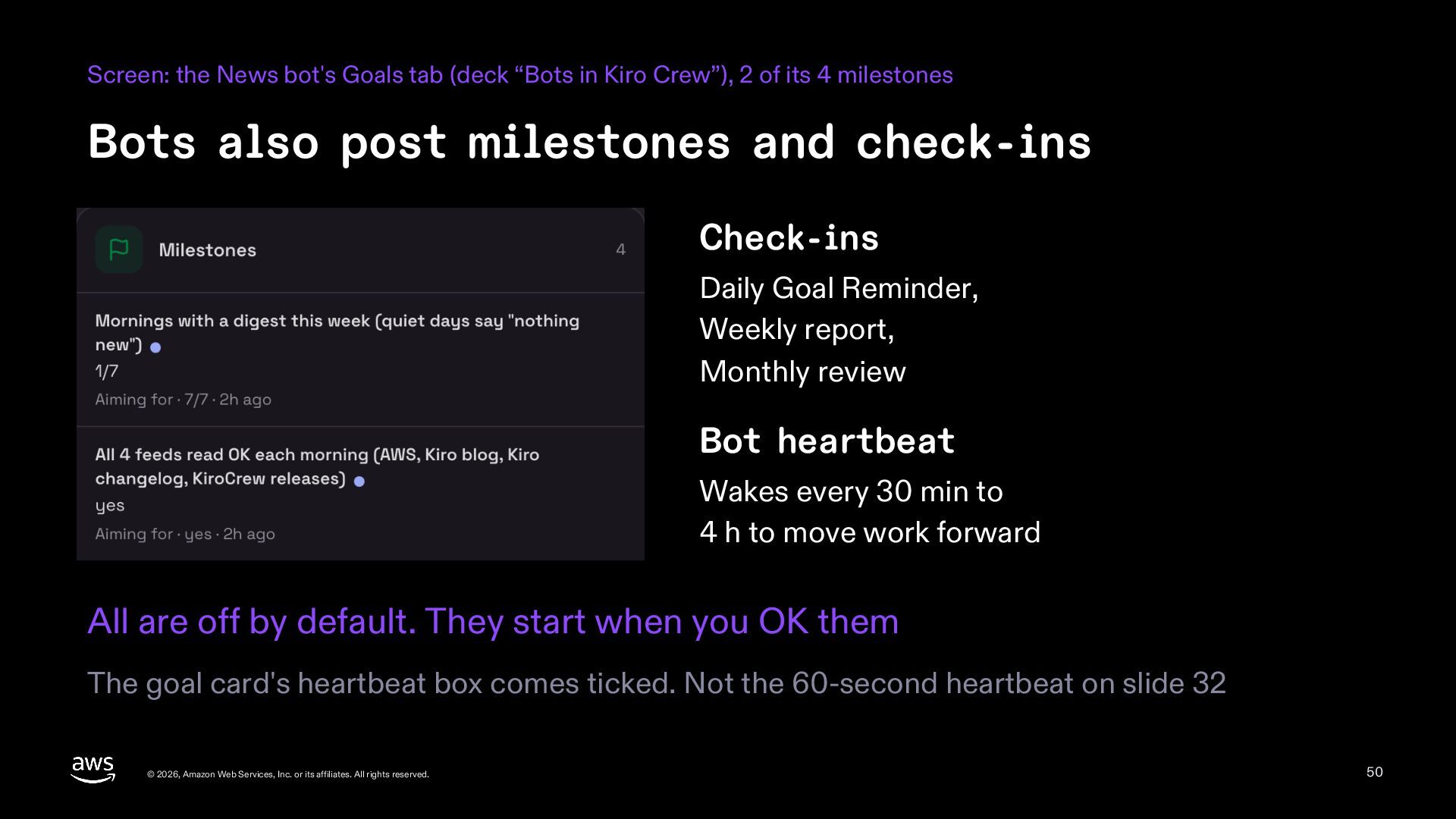
  50. Screen: the News bot's Goals tab (deck “Bots in Kiro

    Crew”), 2 of its 4 milestones Bots also post milestones and check-ins Check-ins Daily Goal Reminder, Weekly report, Monthly review Bot heartbeat Wakes every 30 min to 4 h to move work forward All are off by default. They start when you OK them The goal card's heartbeat box comes ticked. Not the 60-second heartbeat on slide 32 © 2026, Amazon Web Services, Inc. or its affiliates. All rights reserved. 50
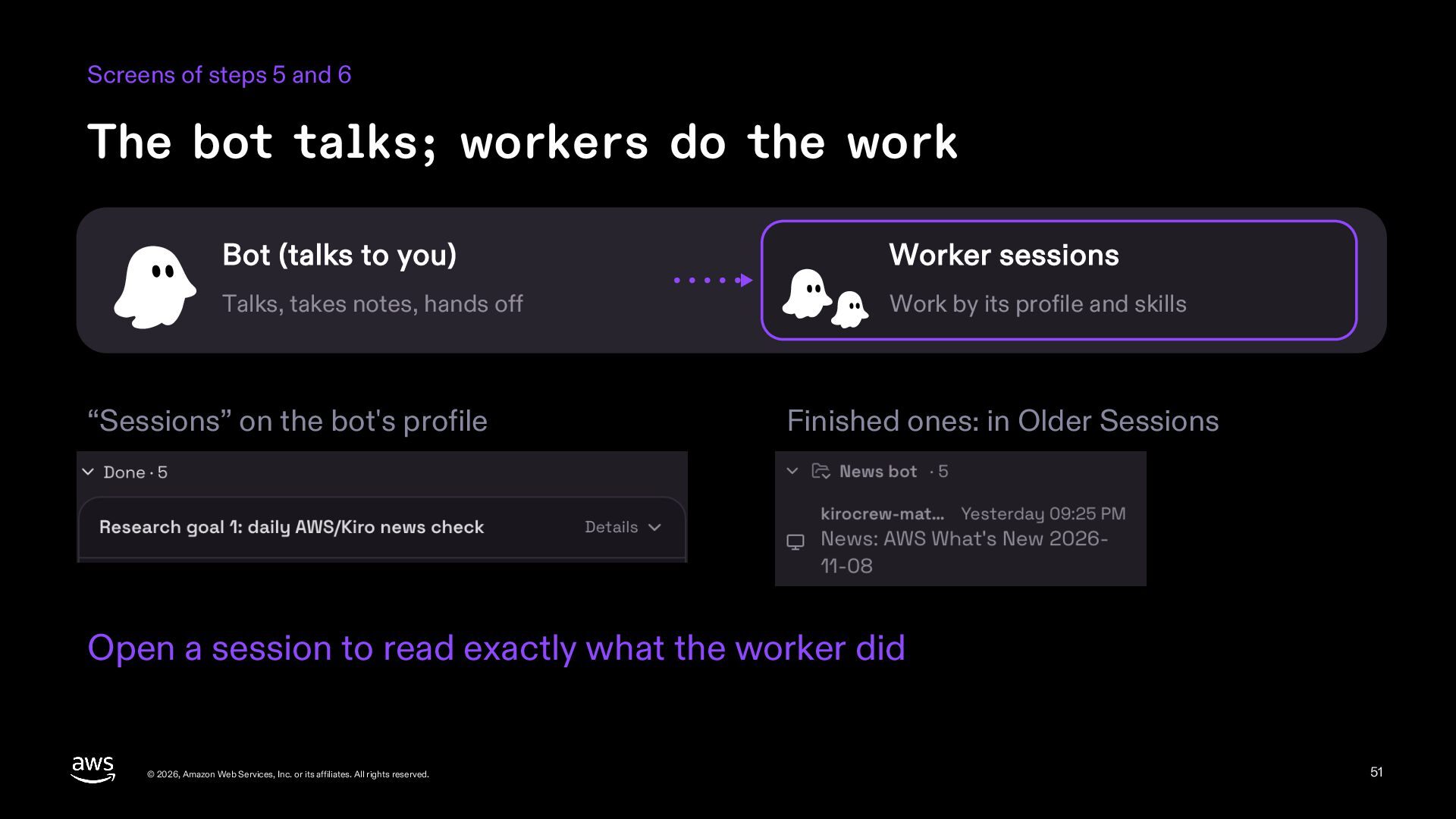
  51. Screens of steps 5 and 6 The bot talks; workers

    do the work Bot (talks to you) Worker sessions Talks, takes notes, hands off Work by its profile and skills “Sessions” on the bot's profile Finished ones: in Older Sessions Open a session to read exactly what the worker did © 2026, Amazon Web Services, Inc. or its affiliates. All rights reserved. 51
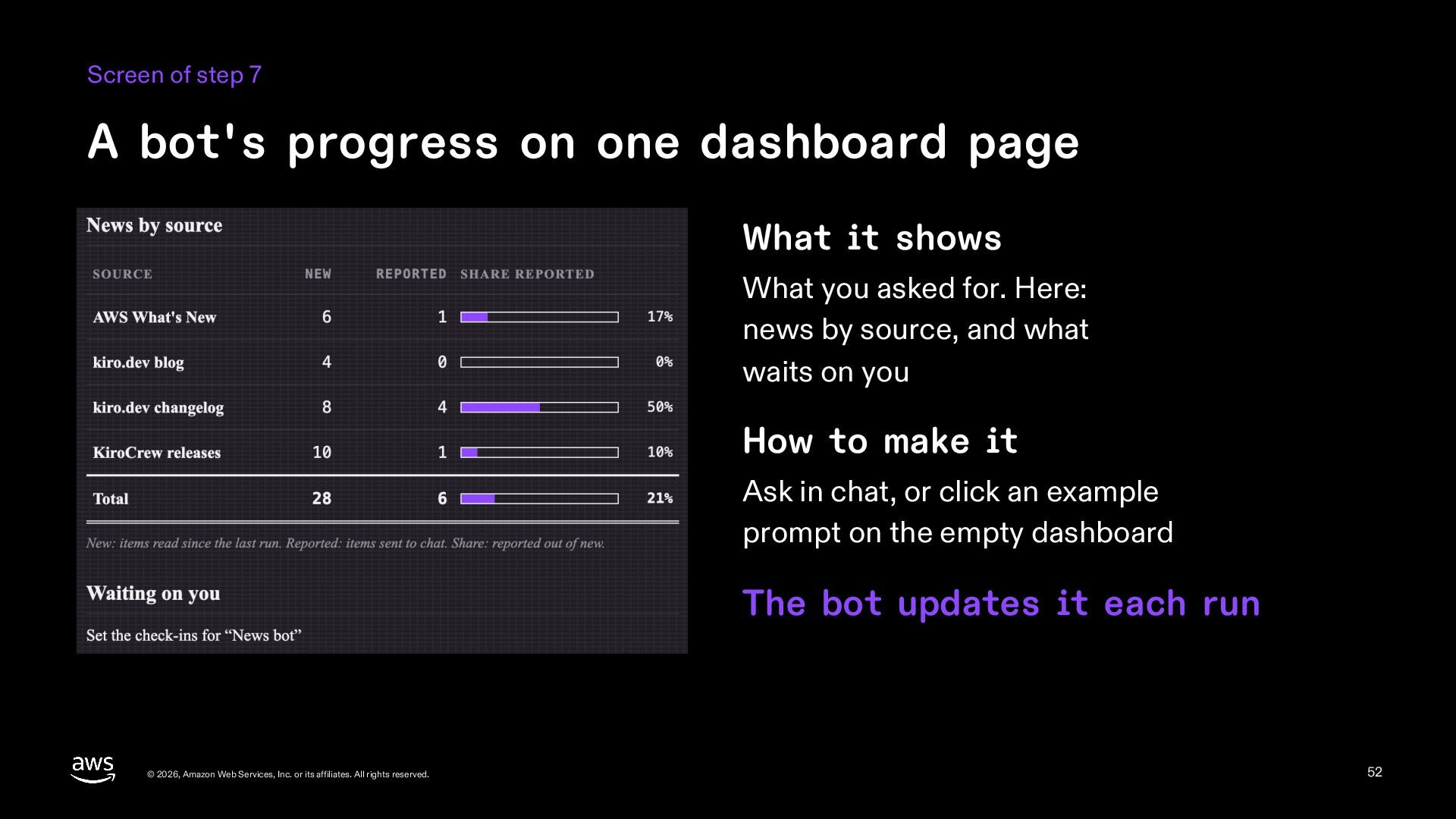
  52. Screen of step 7 A bot's progress on one dashboard

    page What it shows What you asked for. Here: news by source, and what waits on you How to make it Ask in chat, or click an example prompt on the empty dashboard The bot updates it each run © 2026, Amazon Web Services, Inc. or its affiliates. All rights reserved. 52
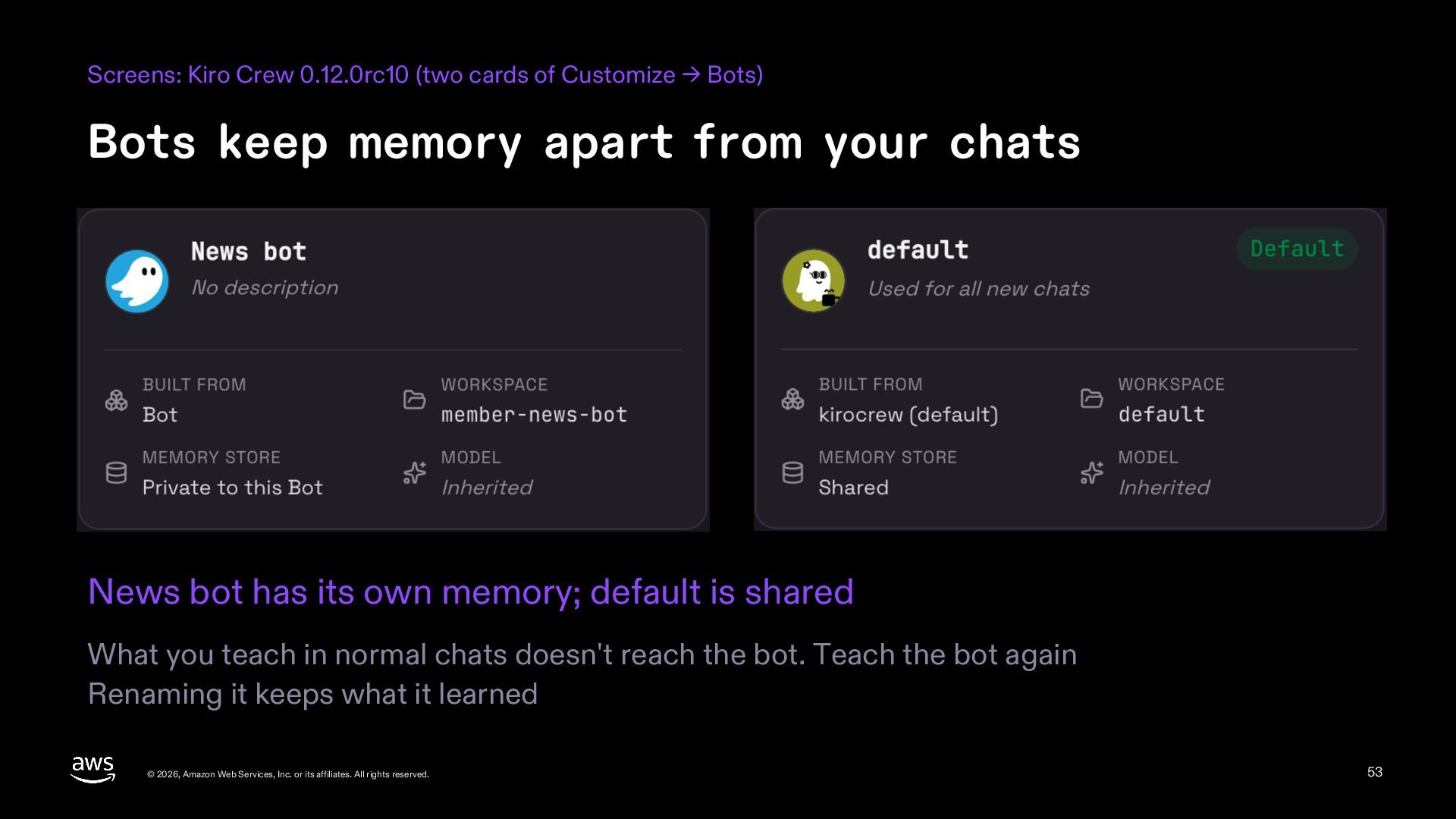
  53. Screens: Kiro Crew 0.12.0rc10 (two cards of Customize → Bots)

    Bots keep memory apart from your chats News bot has its own memory; default is shared What you teach in normal chats doesn't reach the bot. Teach the bot again Renaming it keeps what it learned © 2026, Amazon Web Services, Inc. or its affiliates. All rights reserved. 53
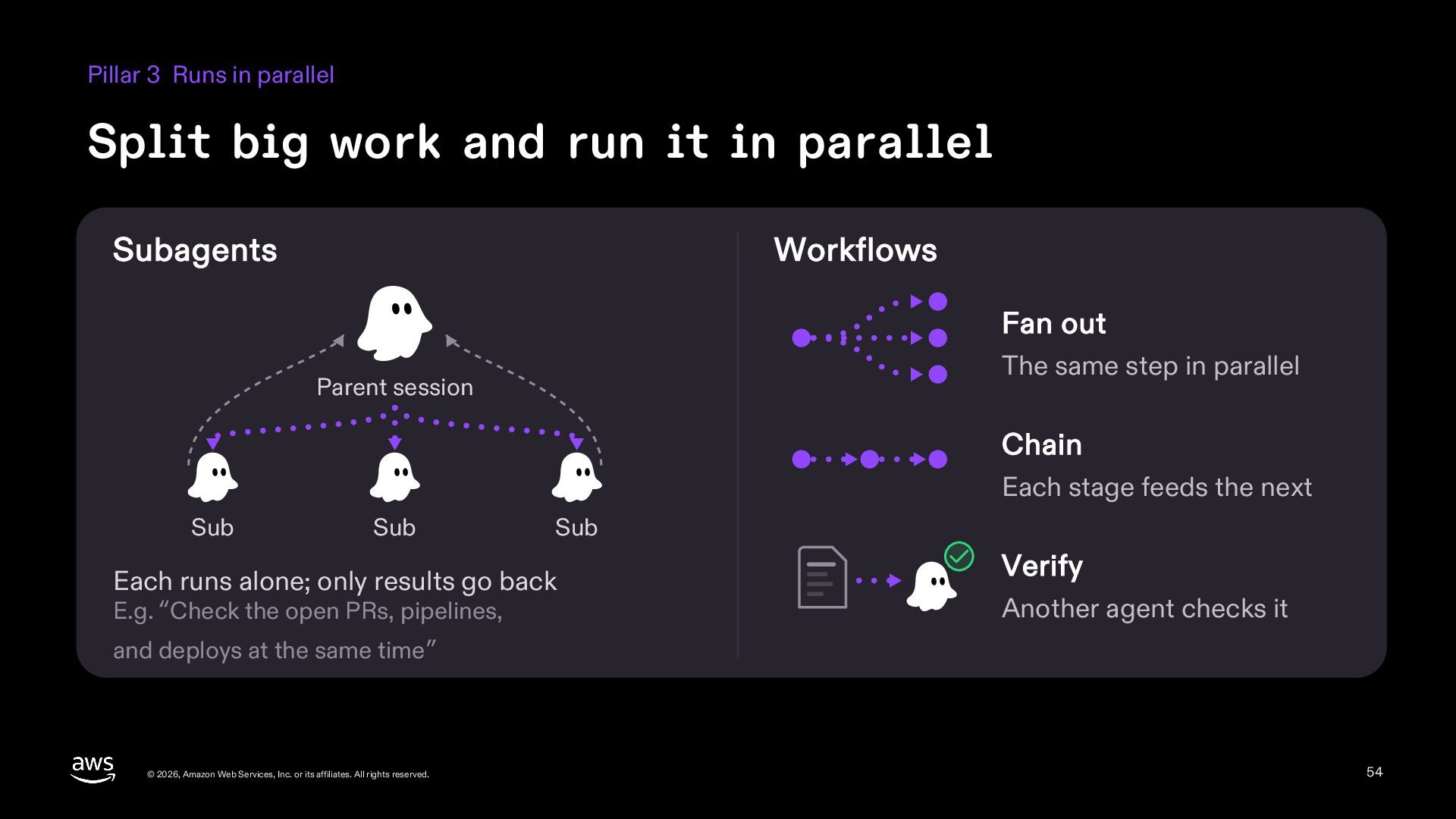
  54. Pillar 3 Runs in parallel Split big work and run

    it in parallel Subagents Workflows Fan out The same step in parallel Parent session Chain Each stage feeds the next Sub Sub Sub Each runs alone; only results go back E.g. “Check the open PRs, pipelines, Verify Another agent checks it and deploys at the same time” © 2026, Amazon Web Services, Inc. or its affiliates. All rights reserved. 54
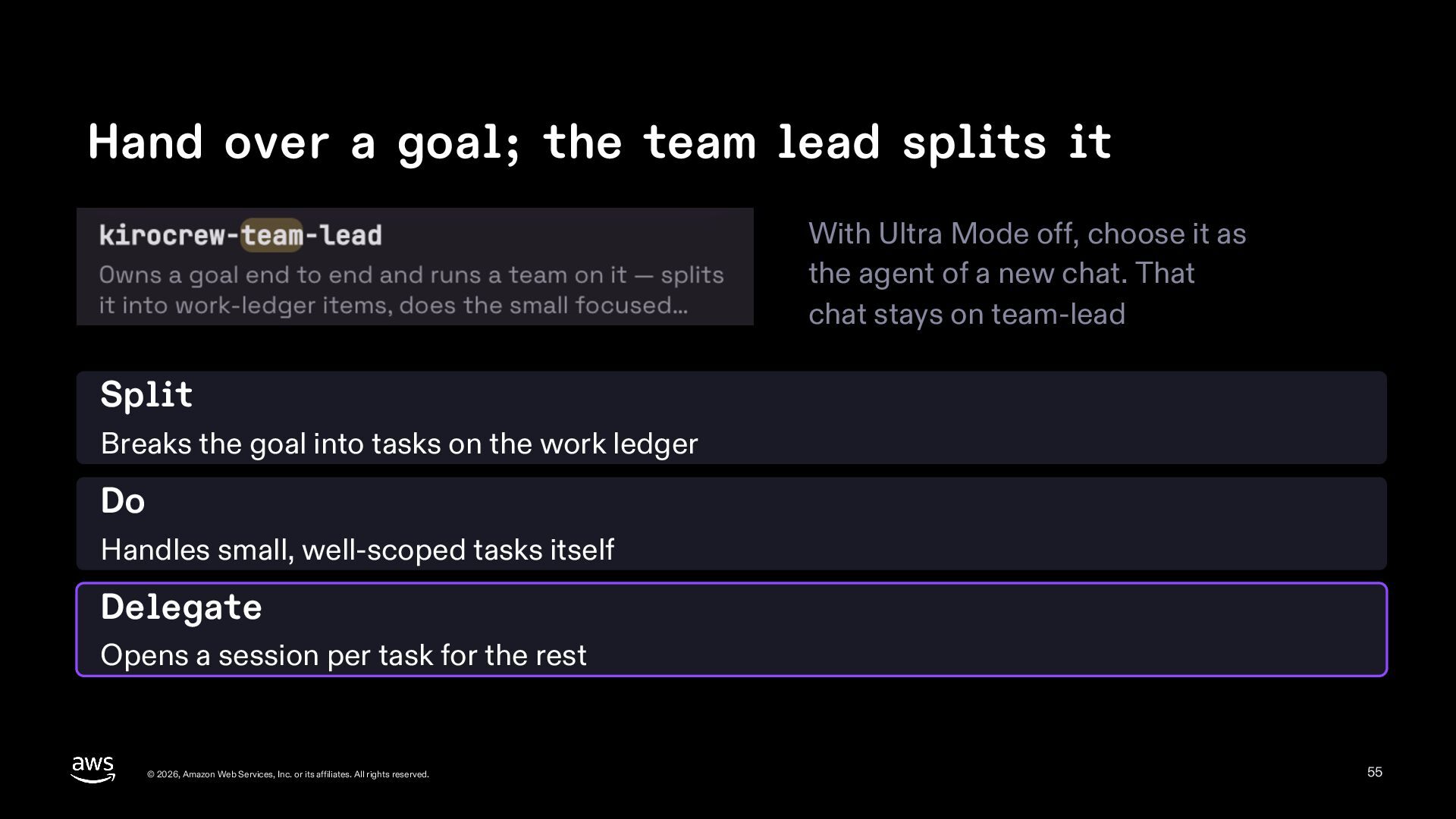
  55. Hand over a goal; the team lead splits it With

    Ultra Mode off, choose it as the agent of a new chat. That chat stays on team-lead Split Breaks the goal into tasks on the work ledger Do Handles small, well-scoped tasks itself Delegate Opens a session per task for the rest © 2026, Amazon Web Services, Inc. or its affiliates. All rights reserved. 55
  56. Screens: Kiro Crew 0.12.0rc10 0.12 Ultra Mode: a chat that

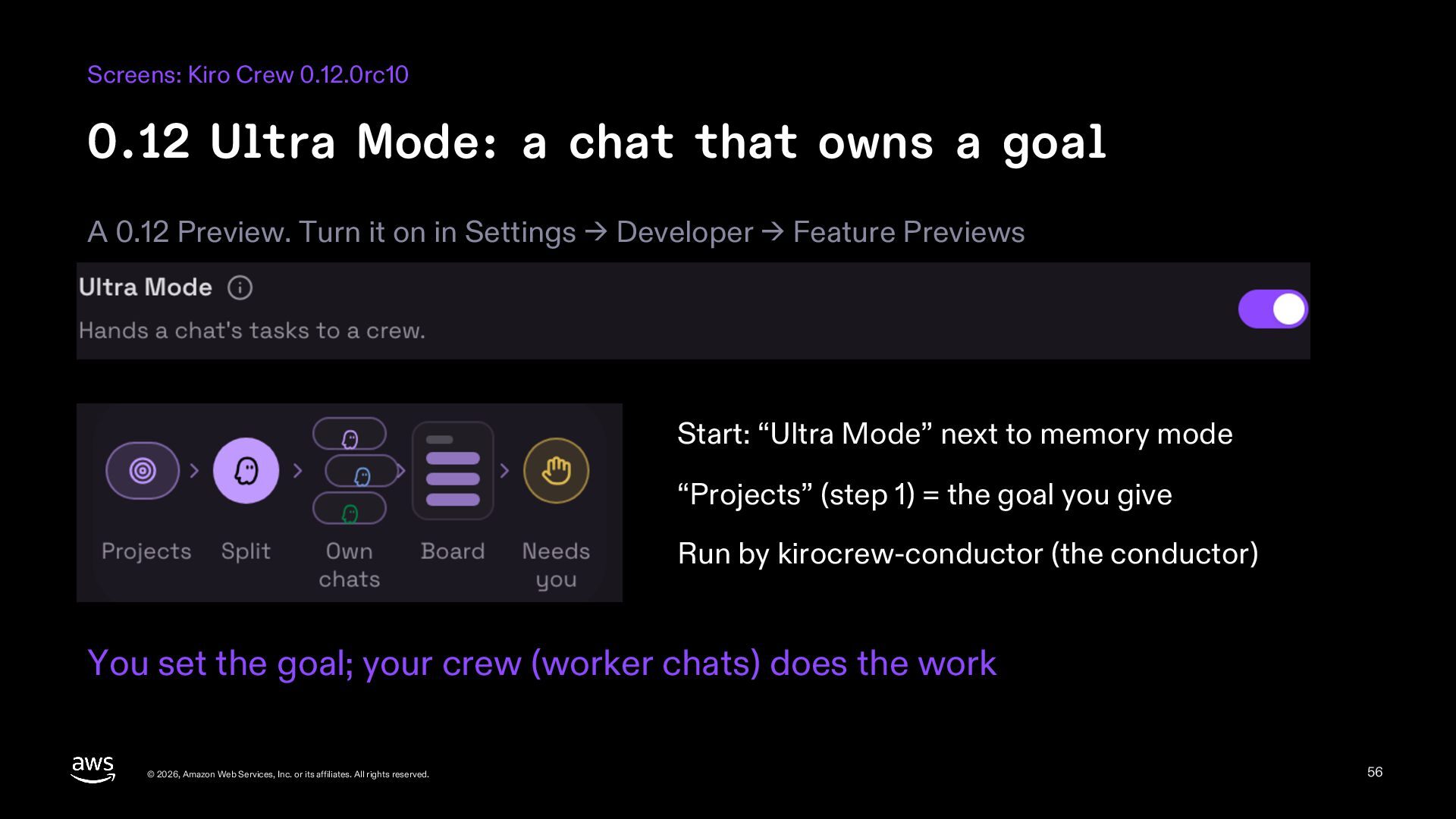
    owns a goal A 0.12 Preview. Turn it on in Settings → Developer → Feature Previews Start: “Ultra Mode” next to memory mode “Projects” (step 1) = the goal you give Run by kirocrew-conductor (the conductor) You set the goal; your crew (worker chats) does the work © 2026, Amazon Web Services, Inc. or its affiliates. All rights reserved. 56
  57. How Ultra Mode runs (a run on EC2) 1 Send

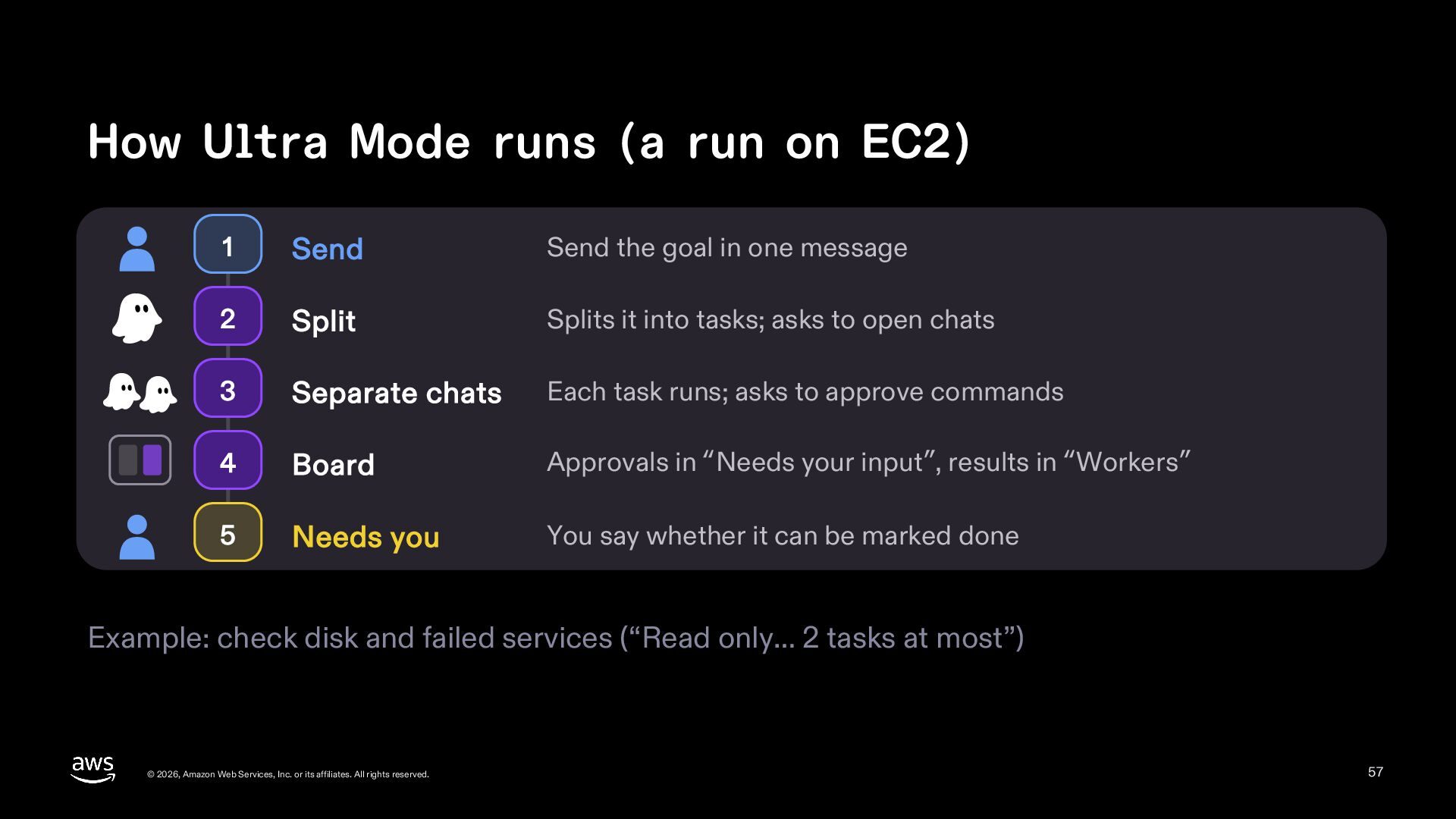
    Send the goal in one message 2 Split Splits it into tasks; asks to open chats 3 Separate chats Each task runs; asks to approve commands 4 Board Approvals in “Needs your input”, results in “Workers” 5 Needs you You say whether it can be marked done Example: check disk and failed services (“Read only… 2 tasks at most”) © 2026, Amazon Web Services, Inc. or its affiliates. All rights reserved. 57
  58. New in 0.12 (Preview) Screens of step 4 in the

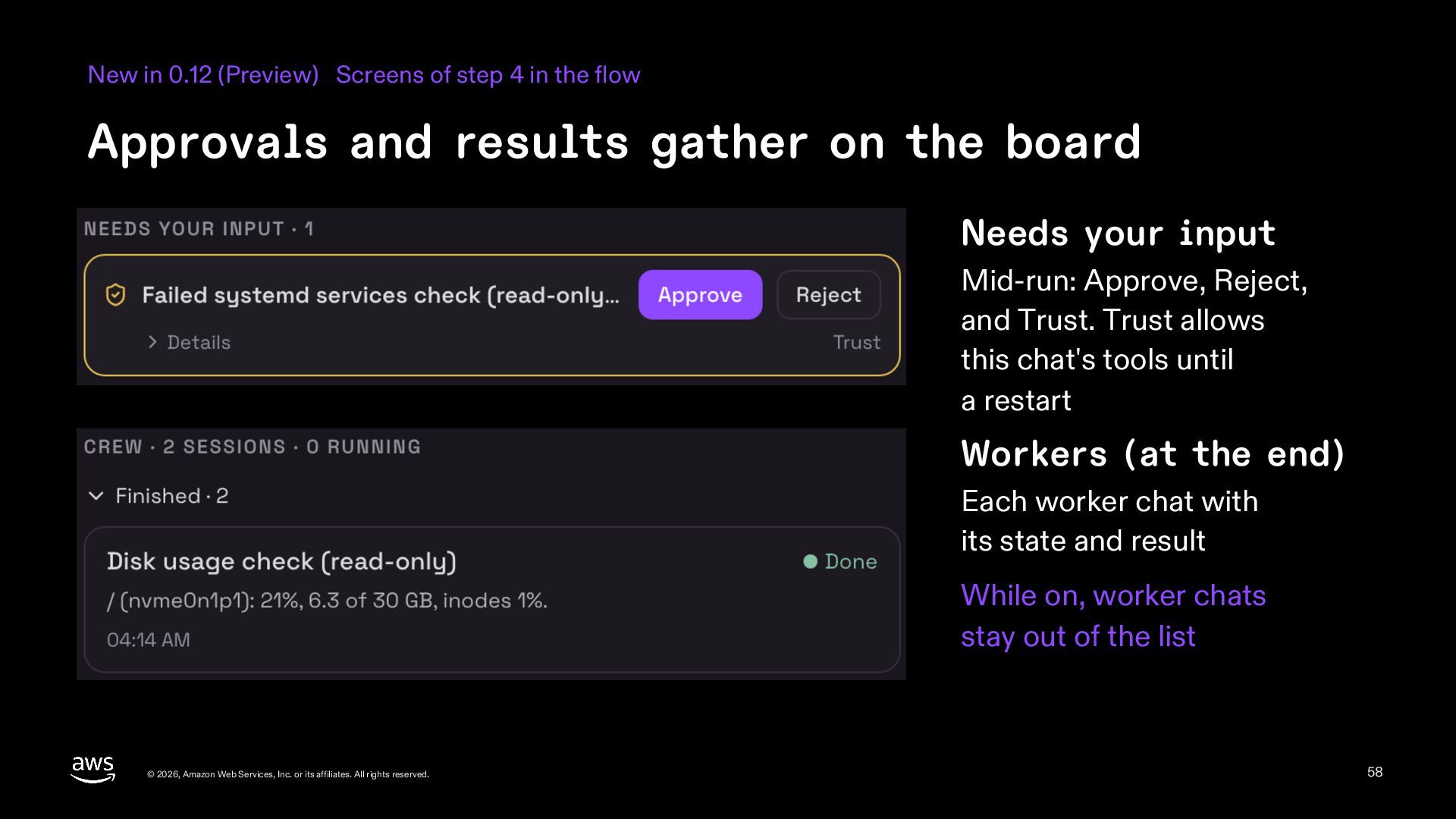
    flow Approvals and results gather on the board Needs your input Mid-run: Approve, Reject, and Trust. Trust allows this chat's tools until a restart Workers (at the end) Each worker chat with its state and result While on, worker chats stay out of the list © 2026, Amazon Web Services, Inc. or its affiliates. All rights reserved. 58
  59. New in 0.12 (Preview) Screens: Kiro Crew 0.12.0rc10 Ultra Mode

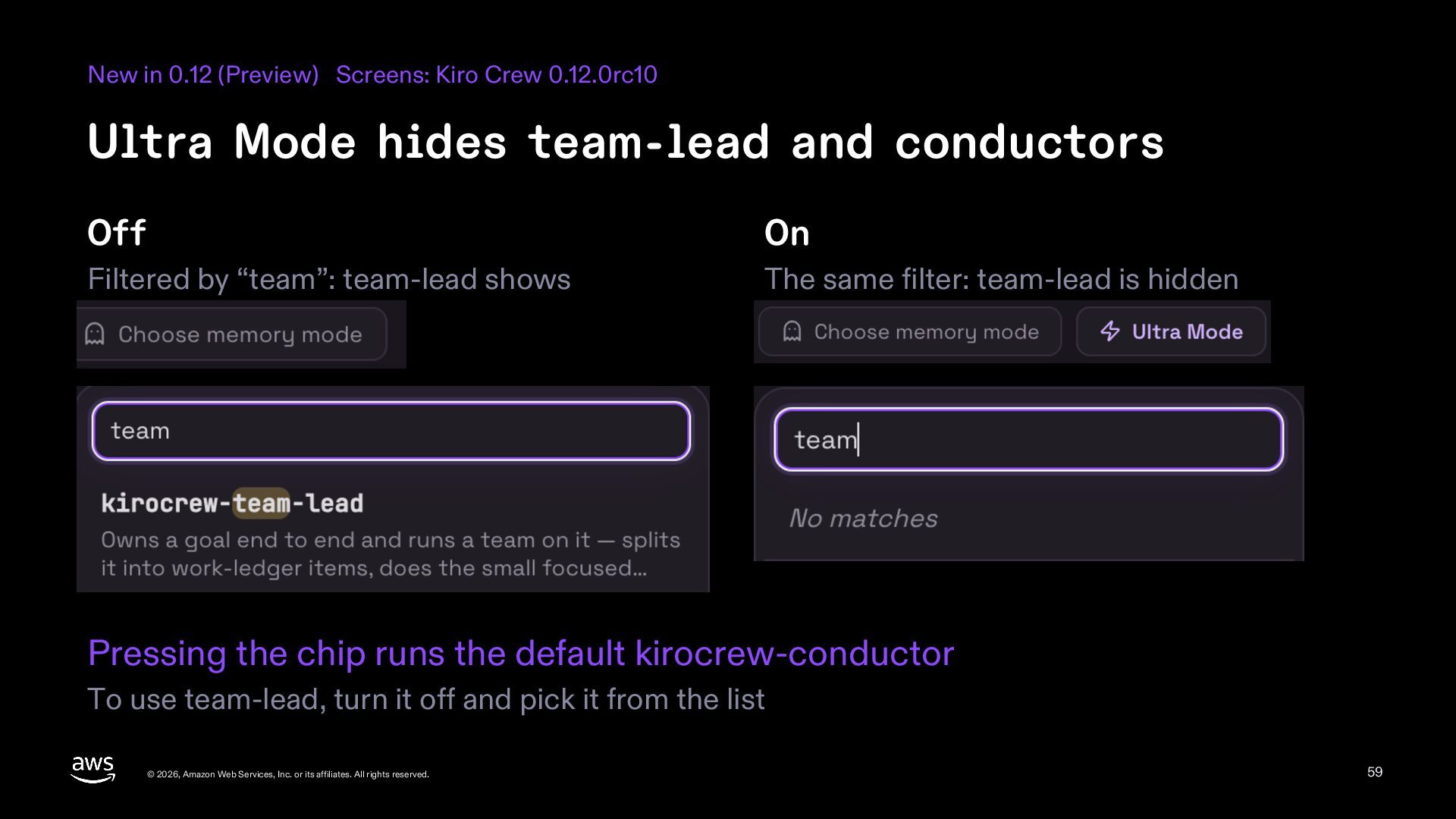
    hides team-lead and conductors Off On Filtered by “team”: team-lead shows The same filter: team-lead is hidden Pressing the chip runs the default kirocrew-conductor To use team-lead, turn it off and pick it from the list © 2026, Amazon Web Services, Inc. or its affiliates. All rights reserved. 59
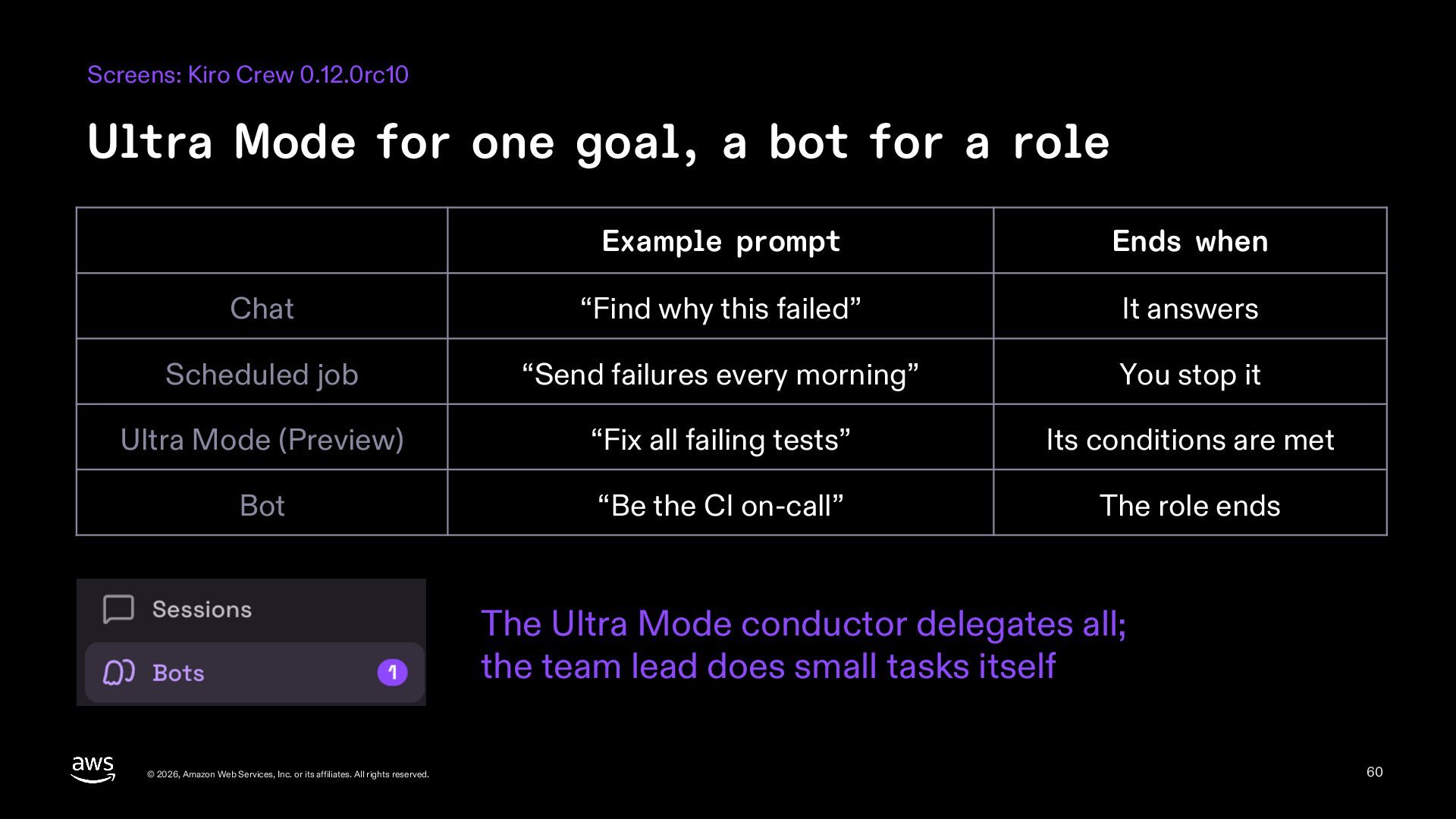
  60. Screens: Kiro Crew 0.12.0rc10 Ultra Mode for one goal, a

    bot for a role Example prompt Ends when Chat “Find why this failed” It answers Scheduled job “Send failures every morning” You stop it Ultra Mode (Preview) “Fix all failing tests” Its conditions are met Bot “Be the CI on-call” The role ends The Ultra Mode conductor delegates all; the team lead does small tasks itself © 2026, Amazon Web Services, Inc. or its affiliates. All rights reserved. 60
  61. Check before you hand off If it stops? What it

    costs? Is it safe? © 2026, Amazon Web Services, Inc. or its affiliates. All rights reserved. 61
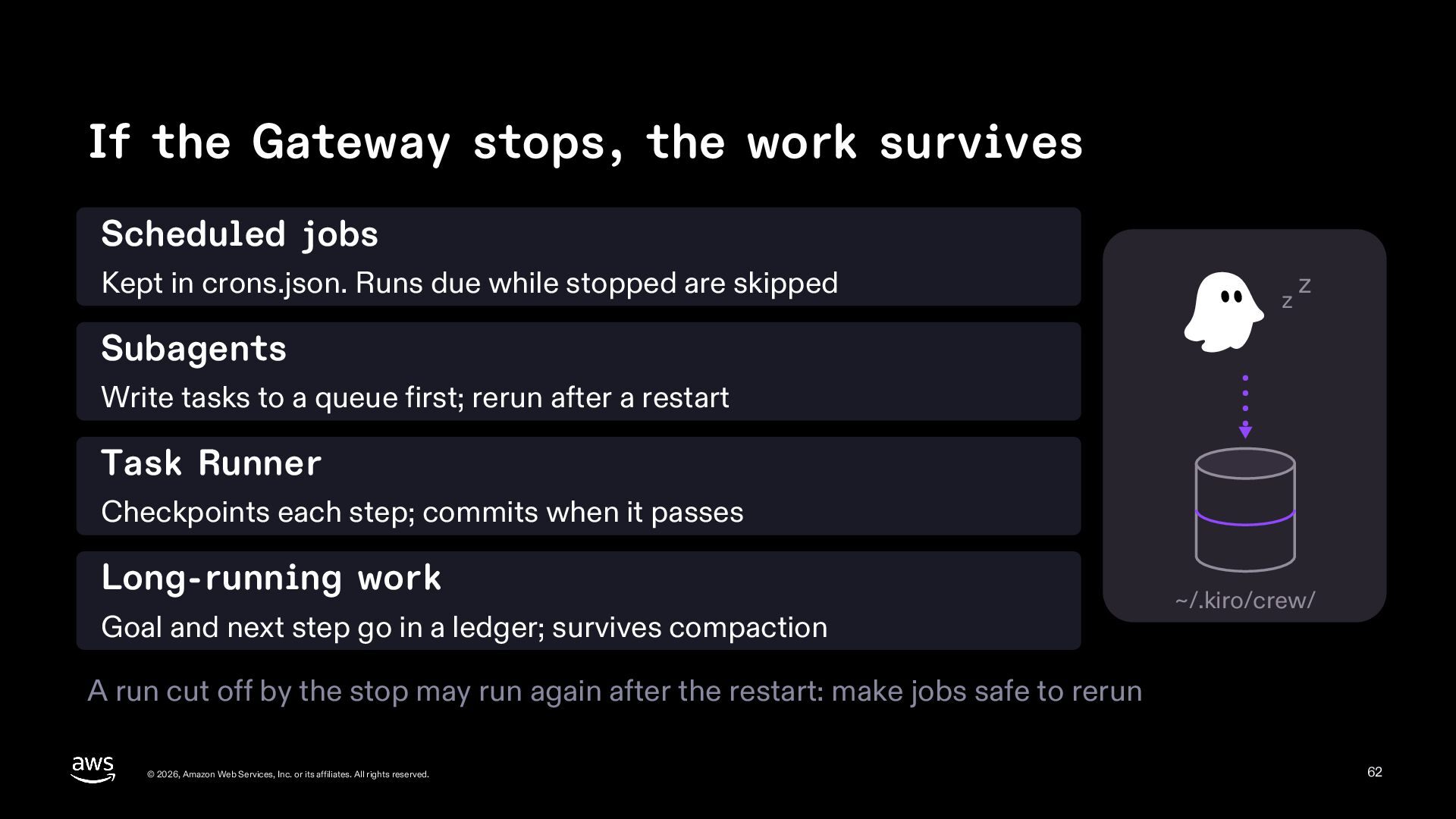
  62. If the Gateway stops, the work survives Scheduled jobs Kept

    in crons.json. Runs due while stopped are skipped z z Subagents Write tasks to a queue first; rerun after a restart Task Runner Checkpoints each step; commits when it passes Long-running work Goal and next step go in a ledger; survives compaction ~/.kiro/crew/ A run cut off by the stop may run again after the restart: make jobs safe to rerun © 2026, Amazon Web Services, Inc. or its affiliates. All rights reserved. 62
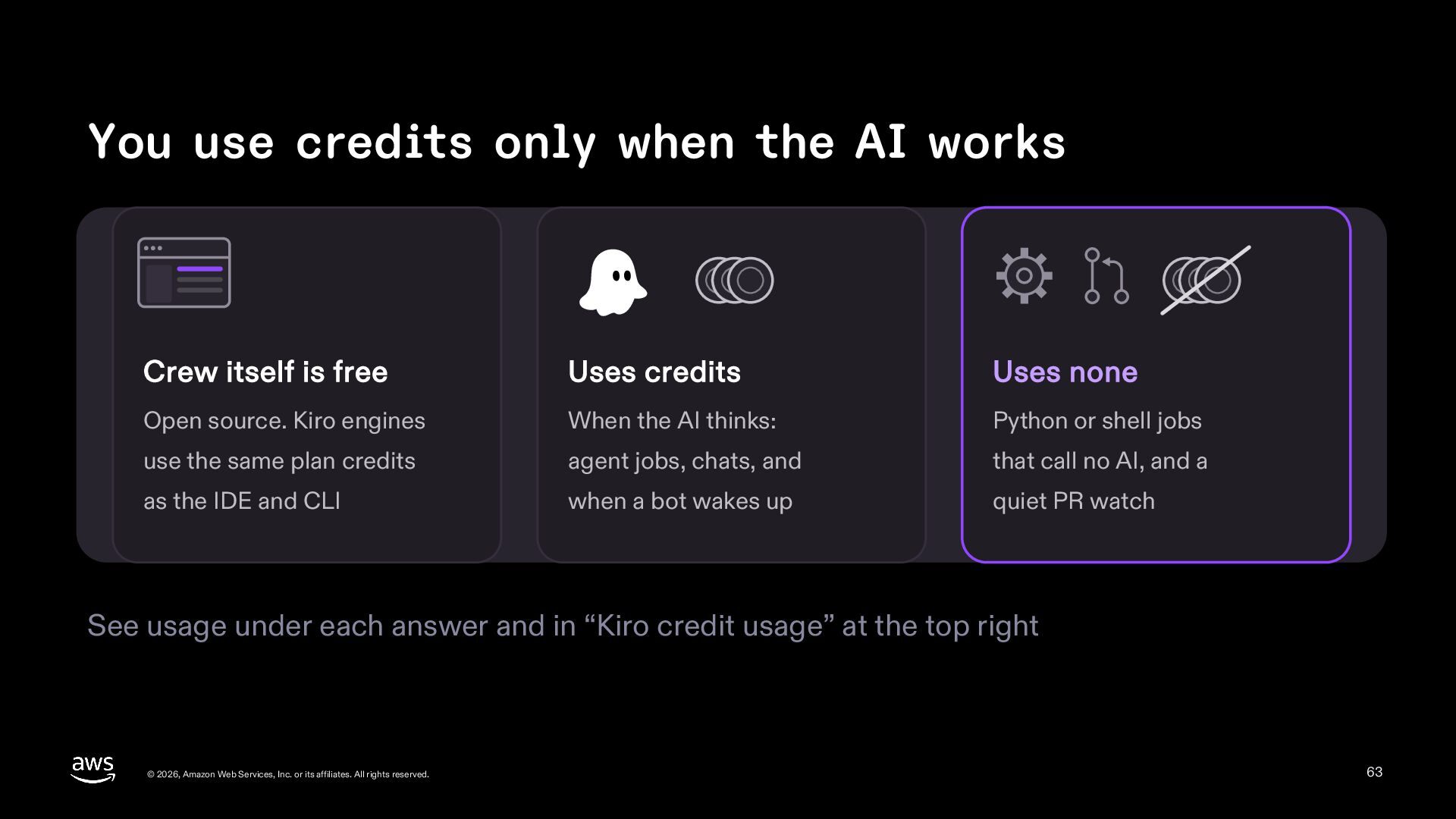
  63. You use credits only when the AI works Crew itself

    is free Uses credits Uses none Open source. Kiro engines When the AI thinks: Python or shell jobs use the same plan credits agent jobs, chats, and that call no AI, and a as the IDE and CLI when a bot wakes up quiet PR watch See usage under each answer and in “Kiro credit usage” at the top right © 2026, Amazon Web Services, Inc. or its affiliates. All rights reserved. 63
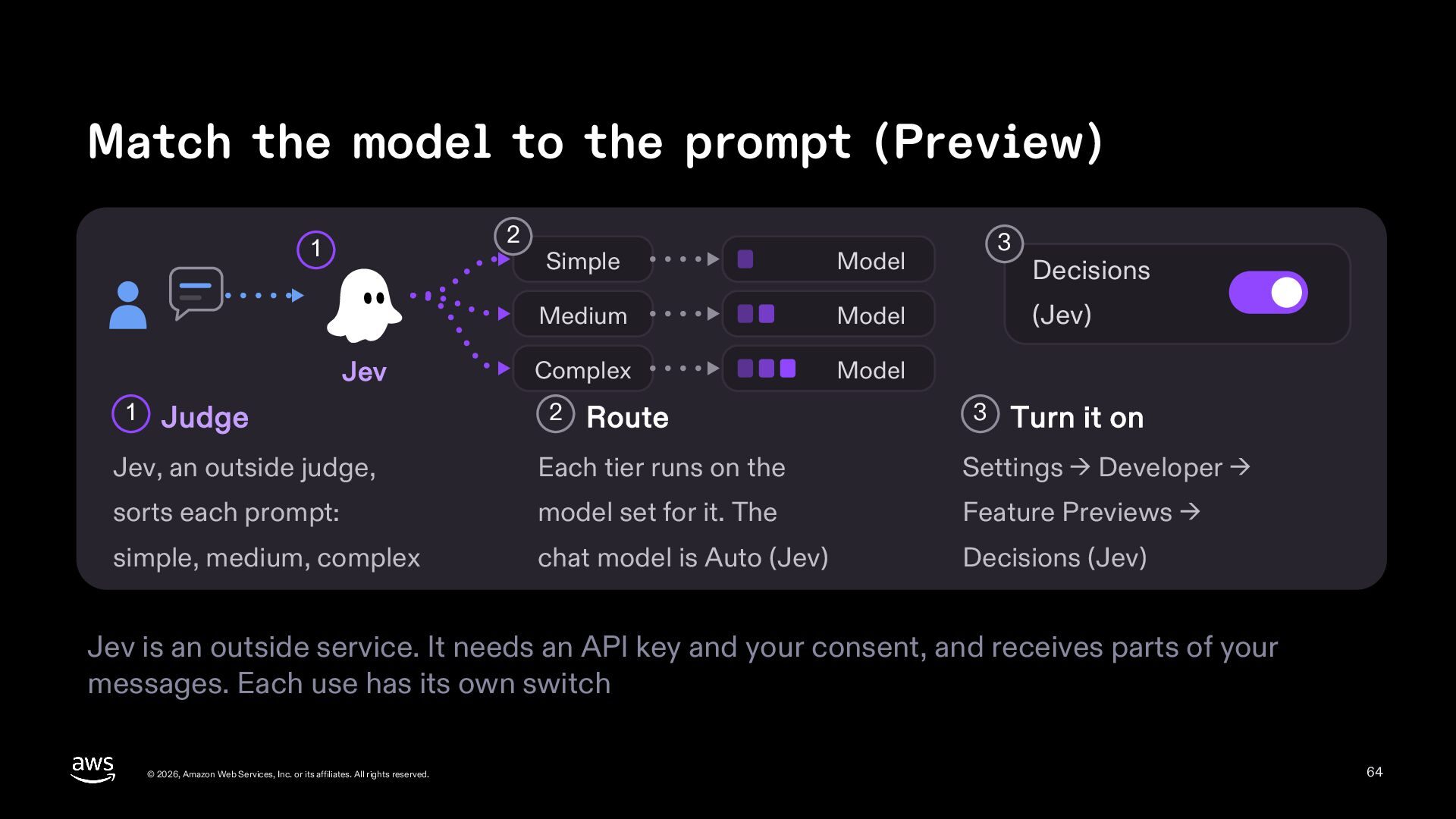
  64. Match the model to the prompt (Preview) 2 1 Jev

    1 Judge Simple Model Medium Model Complex Model 2 Route 3 Decisions (Jev) 3 Turn it on Jev, an outside judge, Each tier runs on the Settings → Developer → sorts each prompt: model set for it. The Feature Previews → simple, medium, complex chat model is Auto (Jev) Decisions (Jev) Jev is an outside service. It needs an API key and your consent, and receives parts of your messages. Each use has its own switch © 2026, Amazon Web Services, Inc. or its affiliates. All rights reserved. 64
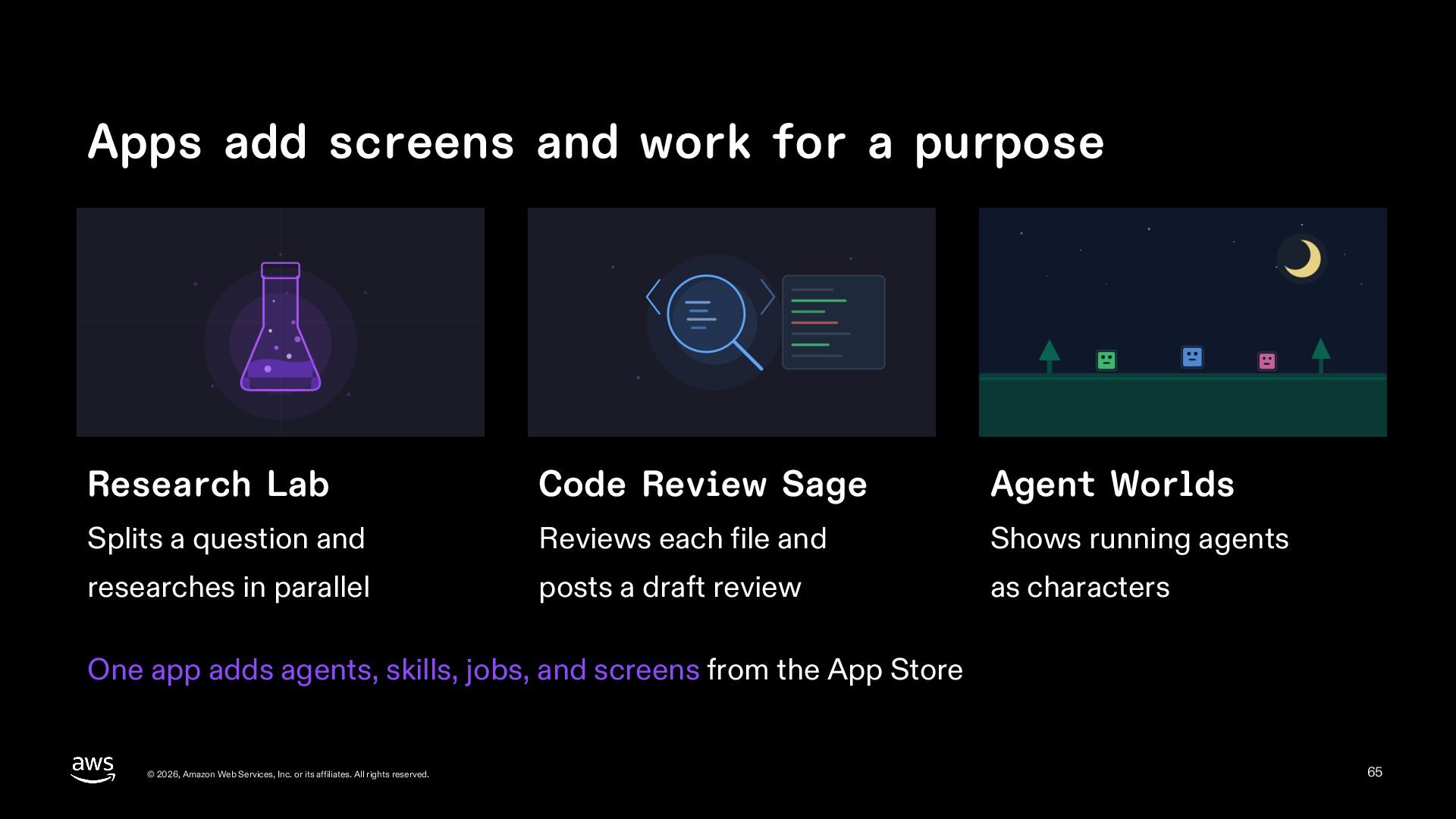
  65. Apps add screens and work for a purpose Research Lab

    Code Review Sage Agent Worlds Splits a question and Reviews each file and Shows running agents researches in parallel posts a draft review as characters One app adds agents, skills, jobs, and screens from the App Store © 2026, Amazon Web Services, Inc. or its affiliates. All rights reserved. 65
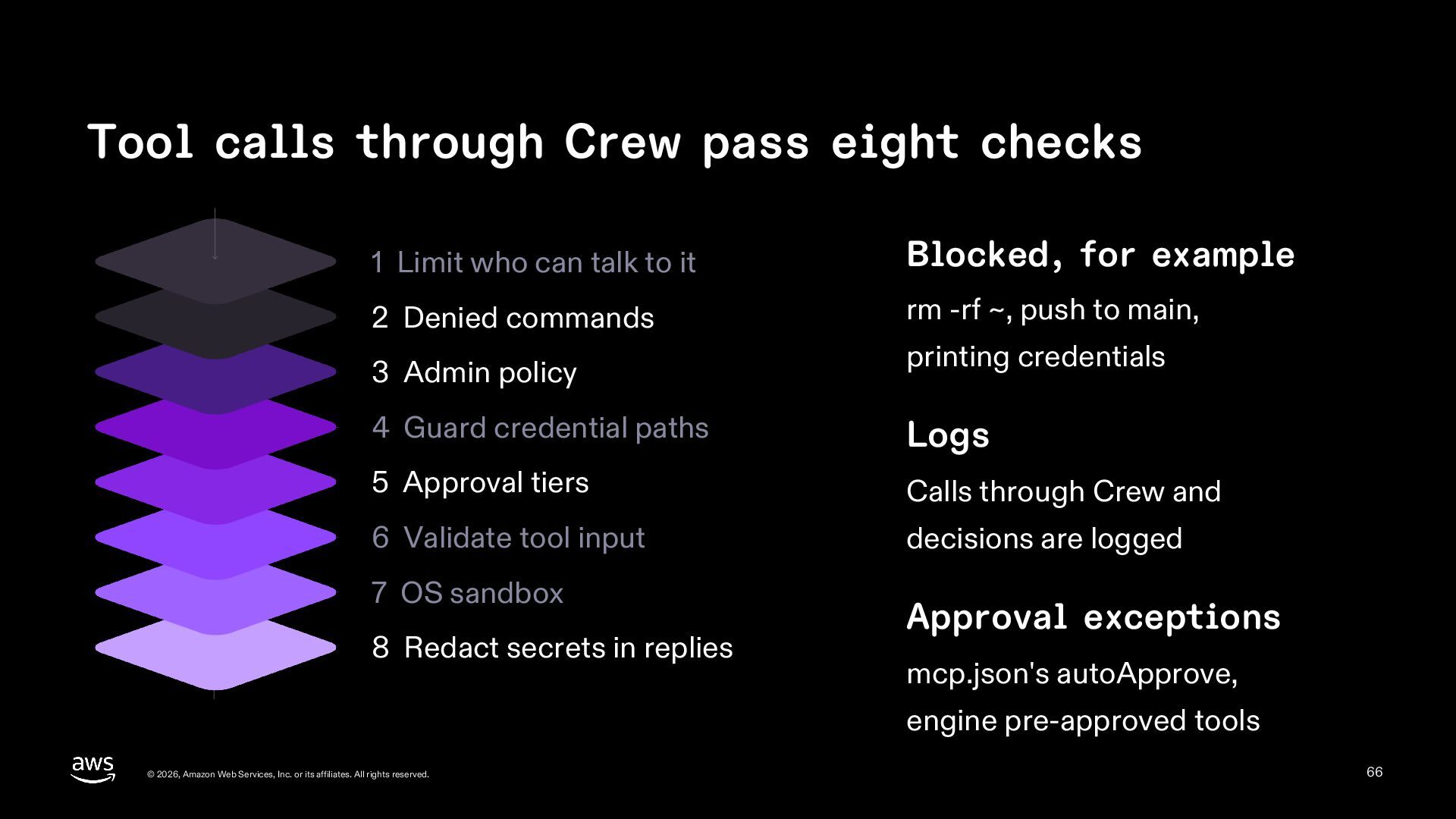
  66. Tool calls through Crew pass eight checks 1 Limit who

    can talk to it Blocked, for example 2 Denied commands rm -rf ~, push to main, 3 Admin policy printing credentials 4 Guard credential paths Logs 5 Approval tiers Calls through Crew and 6 Validate tool input decisions are logged 7 OS sandbox 8 Redact secrets in replies Approval exceptions mcp.json's autoApprove, engine pre-approved tools © 2026, Amazon Web Services, Inc. or its affiliates. All rights reserved. 66
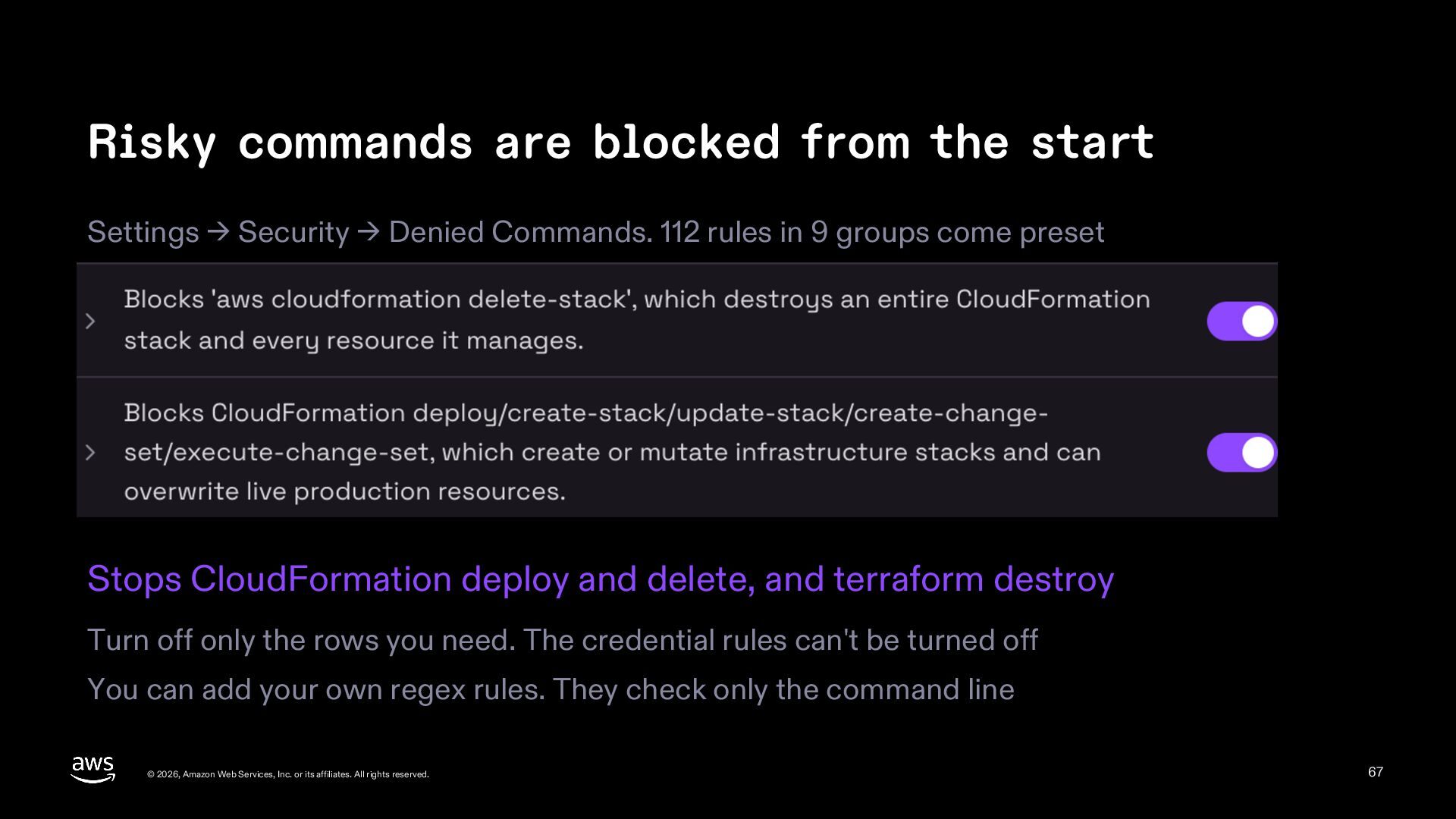
  67. Risky commands are blocked from the start Settings → Security

    → Denied Commands. 112 rules in 9 groups come preset Stops CloudFormation deploy and delete, and terraform destroy Turn off only the rows you need. The credential rules can't be turned off You can add your own regex rules. They check only the command line © 2026, Amazon Web Services, Inc. or its affiliates. All rights reserved. 67
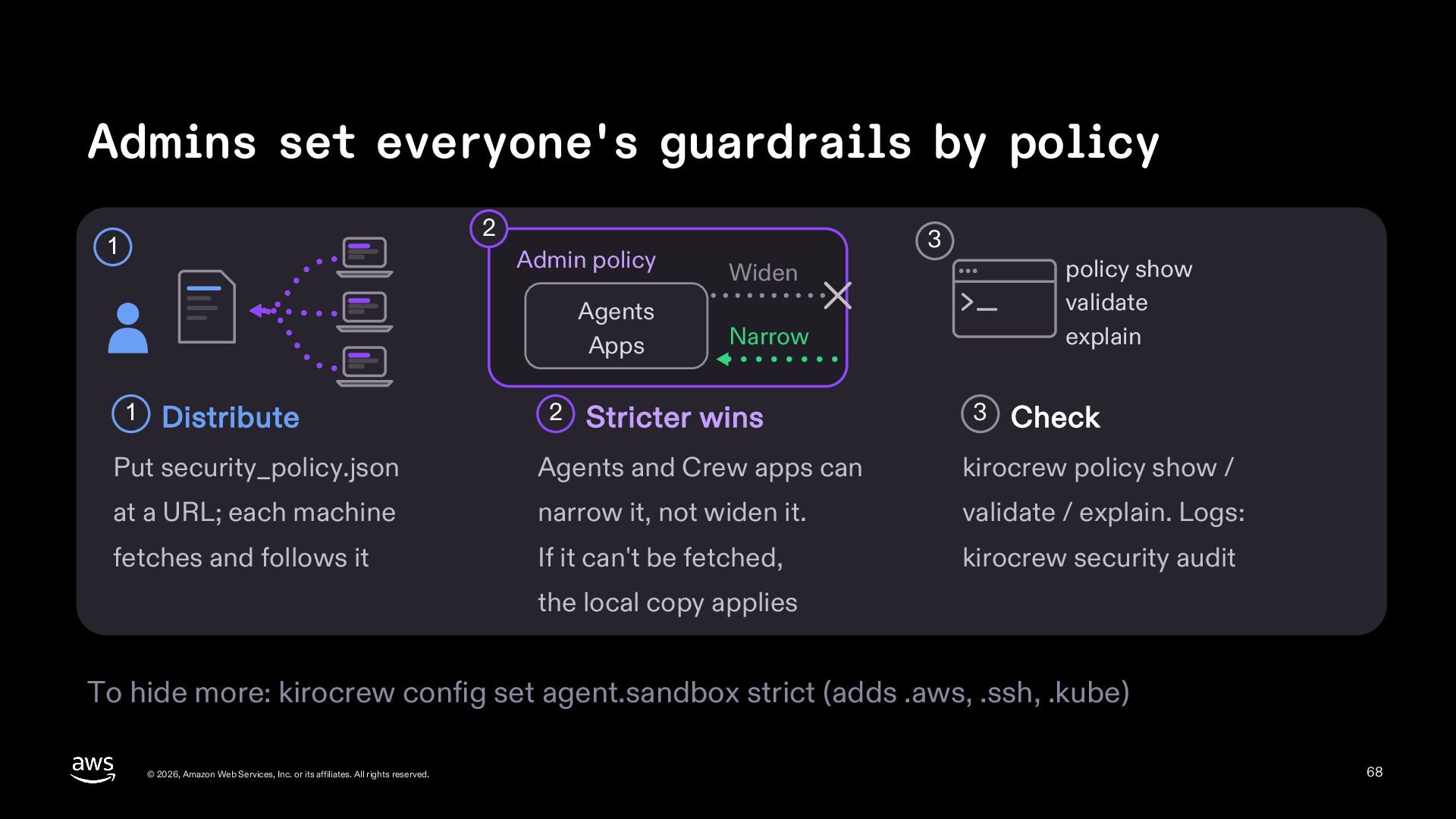
  68. Admins set everyone's guardrails by policy 2 1 Admin policy

    Agents Apps 1 Distribute 2 3 policy show validate explain Widen Narrow Stricter wins 3 Check Put security_policy.json Agents and Crew apps can kirocrew policy show / at a URL; each machine narrow it, not widen it. validate / explain. Logs: fetches and follows it If it can't be fetched, kirocrew security audit the local copy applies To hide more: kirocrew config set agent.sandbox strict (adds .aws, .ssh, .kube) © 2026, Amazon Web Services, Inc. or its affiliates. All rights reserved. 68
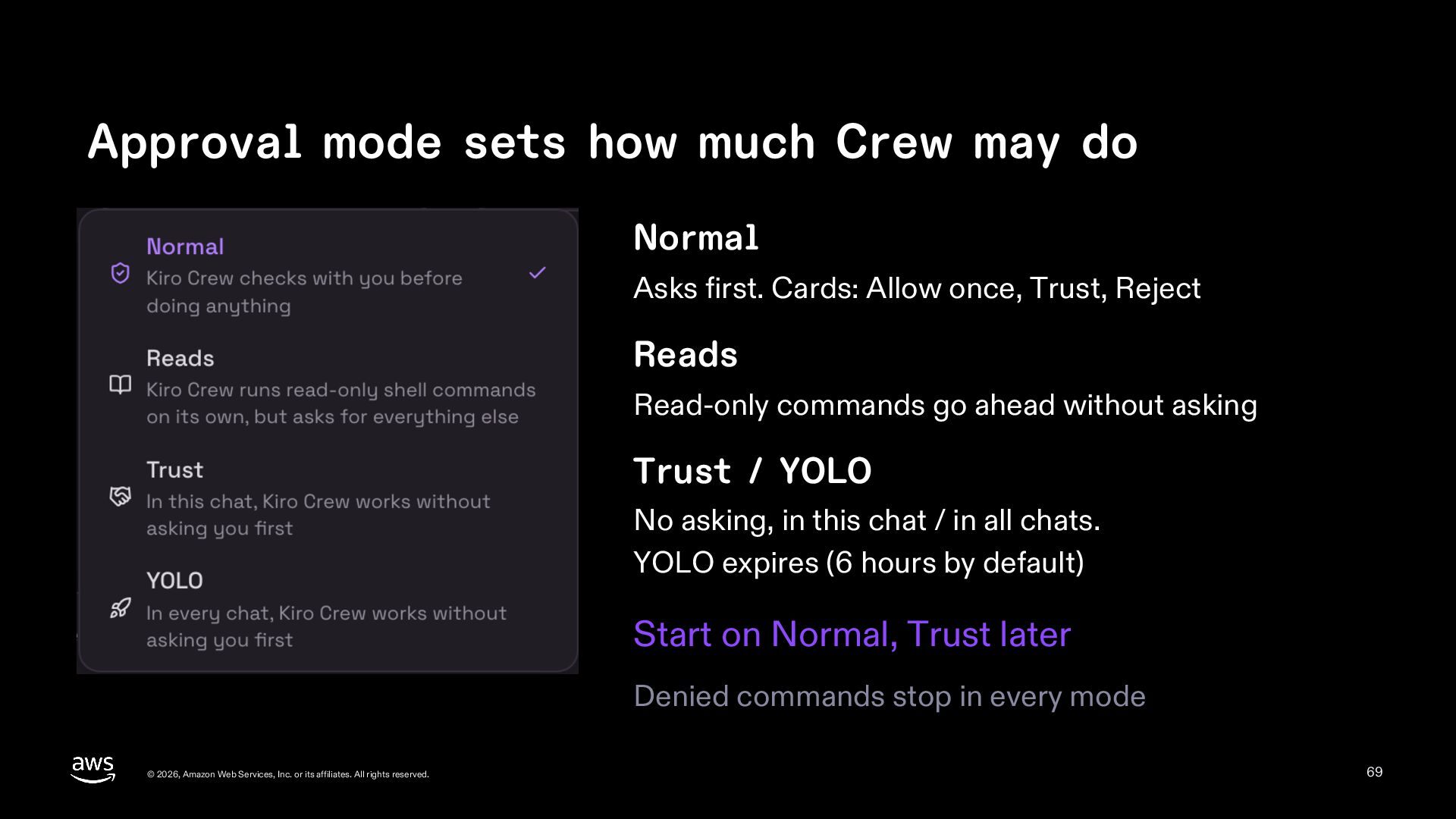
  69. Approval mode sets how much Crew may do Normal Asks

    first. Cards: Allow once, Trust, Reject Reads Read-only commands go ahead without asking Trust / YOLO No asking, in this chat / in all chats. YOLO expires (6 hours by default) Start on Normal, Trust later Denied commands stop in every mode © 2026, Amazon Web Services, Inc. or its affiliates. All rights reserved. 69
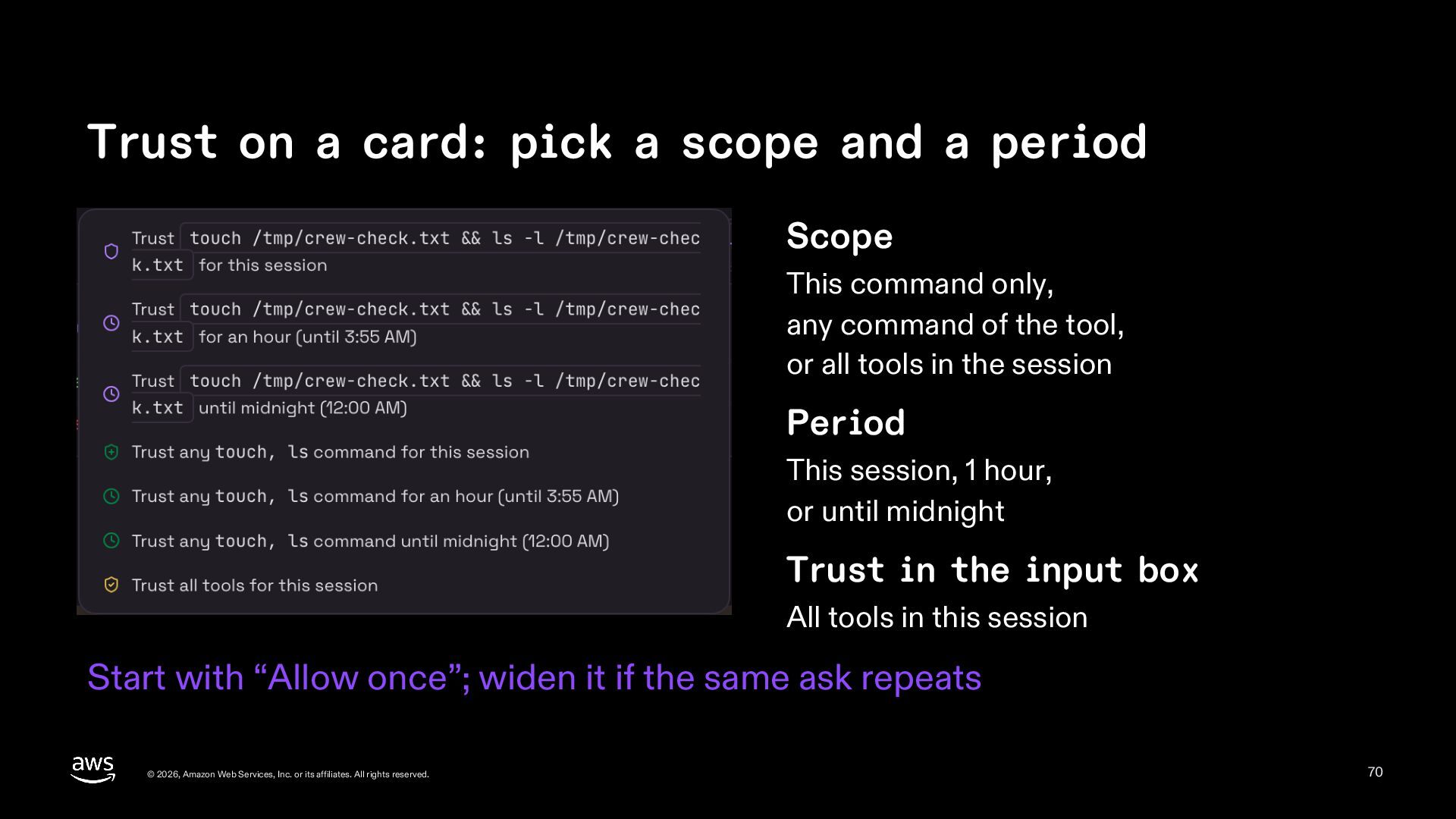
  70. Trust on a card: pick a scope and a period

    Scope This command only, any command of the tool, or all tools in the session Period This session, 1 hour, or until midnight Trust in the input box All tools in this session Start with “Allow once”; widen it if the same ask repeats © 2026, Amazon Web Services, Inc. or its affiliates. All rights reserved. 70
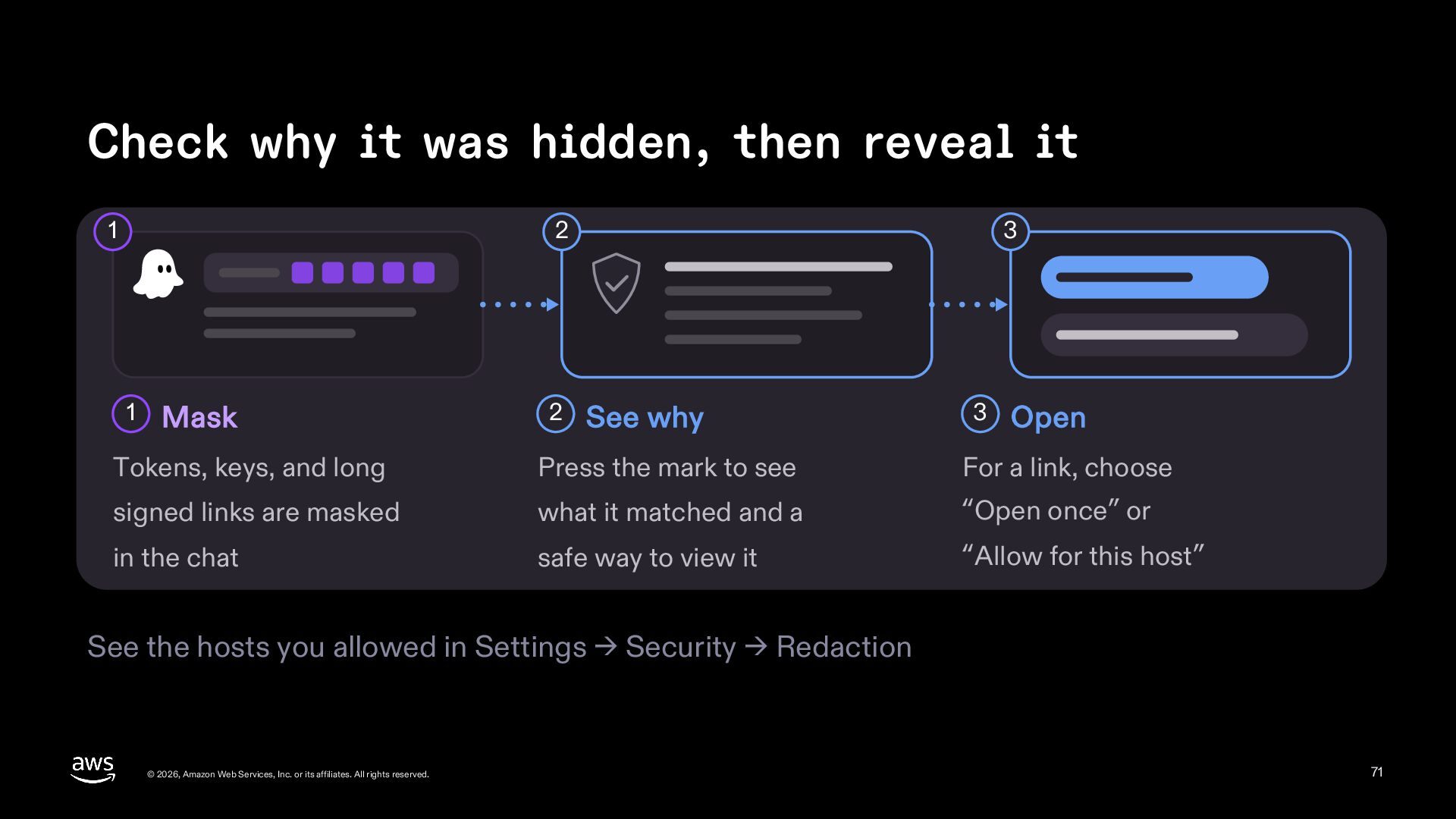
  71. Check why it was hidden, then reveal it 1 2

    1 Mask 2 3 See why 3 Open Tokens, keys, and long Press the mark to see For a link, choose signed links are masked what it matched and a “Open once” or in the chat safe way to view it “Allow for this host” See the hosts you allowed in Settings → Security → Redaction © 2026, Amazon Web Services, Inc. or its affiliates. All rights reserved. 71
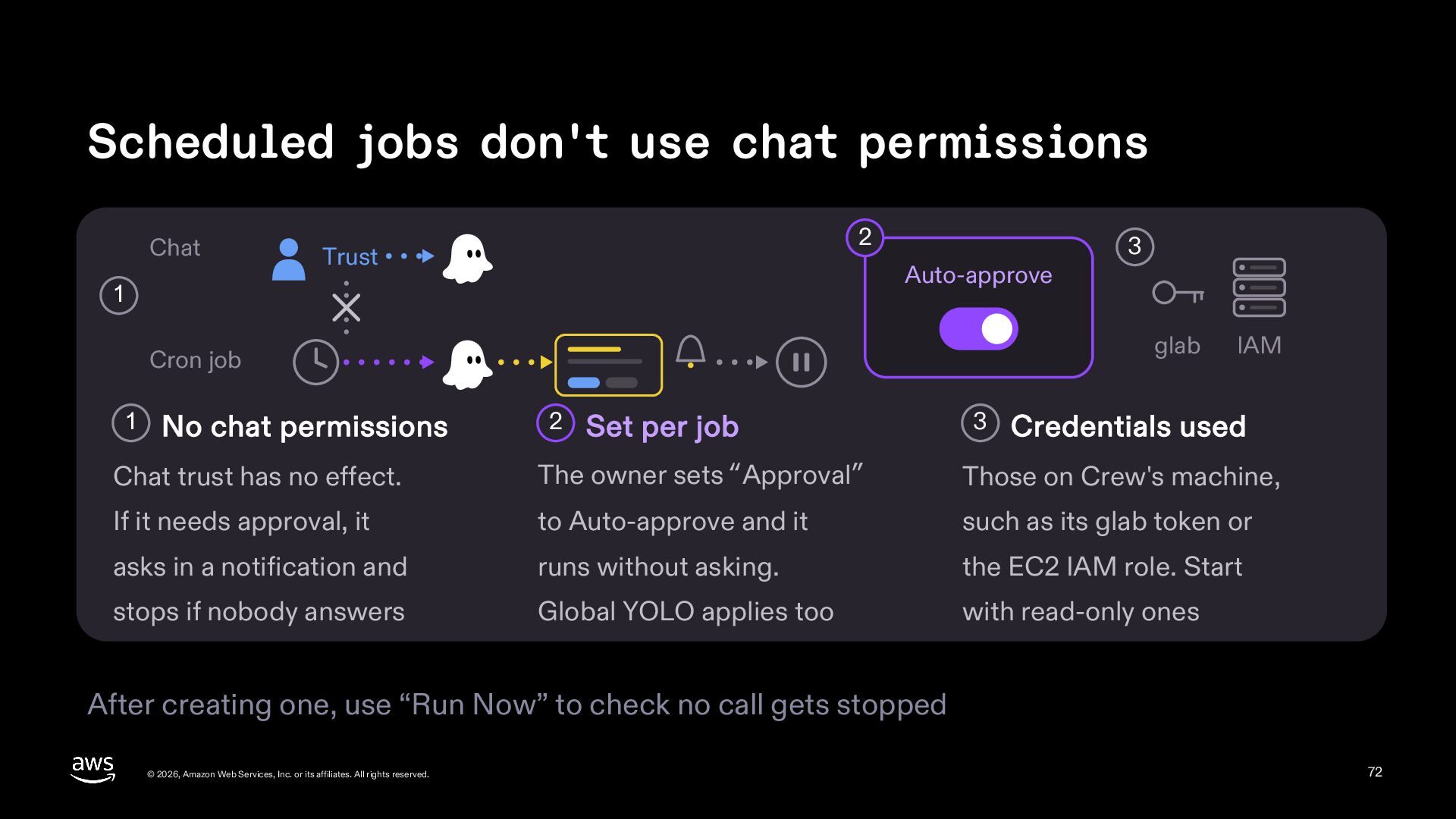
  72. Scheduled jobs don't use chat permissions Chat 2 Trust Auto-approve

    1 glab Cron job 1 No chat permissions 3 2 Set per job 3 IAM Credentials used Chat trust has no effect. The owner sets “Approval” Those on Crew's machine, If it needs approval, it to Auto-approve and it such as its glab token or asks in a notification and runs without asking. the EC2 IAM role. Start stops if nobody answers Global YOLO applies too with read-only ones After creating one, use “Run Now” to check no call gets stopped © 2026, Amazon Web Services, Inc. or its affiliates. All rights reserved. 72
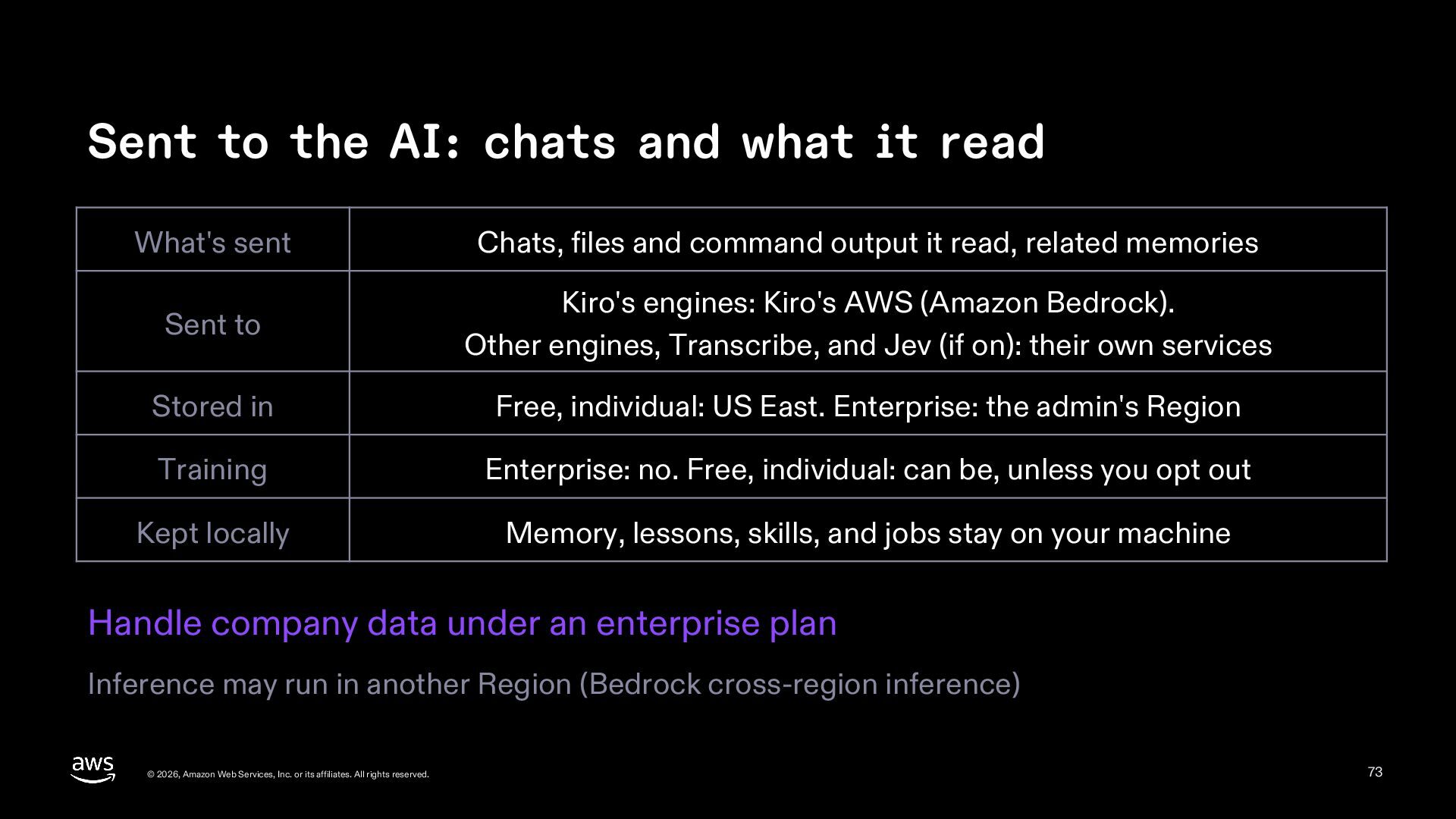
  73. Sent to the AI: chats and what it read What's

    sent Chats, files and command output it read, related memories Sent to Kiro's engines: Kiro's AWS (Amazon Bedrock). Other engines, Transcribe, and Jev (if on): their own services Stored in Free, individual: US East. Enterprise: the admin's Region Training Enterprise: no. Free, individual: can be, unless you opt out Kept locally Memory, lessons, skills, and jobs stay on your machine Handle company data under an enterprise plan Inference may run in another Region (Bedrock cross-region inference) © 2026, Amazon Web Services, Inc. or its affiliates. All rights reserved. 73
  74. Make it yours How to teach it your team's rules

    and tools © 2026, Amazon Web Services, Inc. or its affiliates. All rights reserved. 74
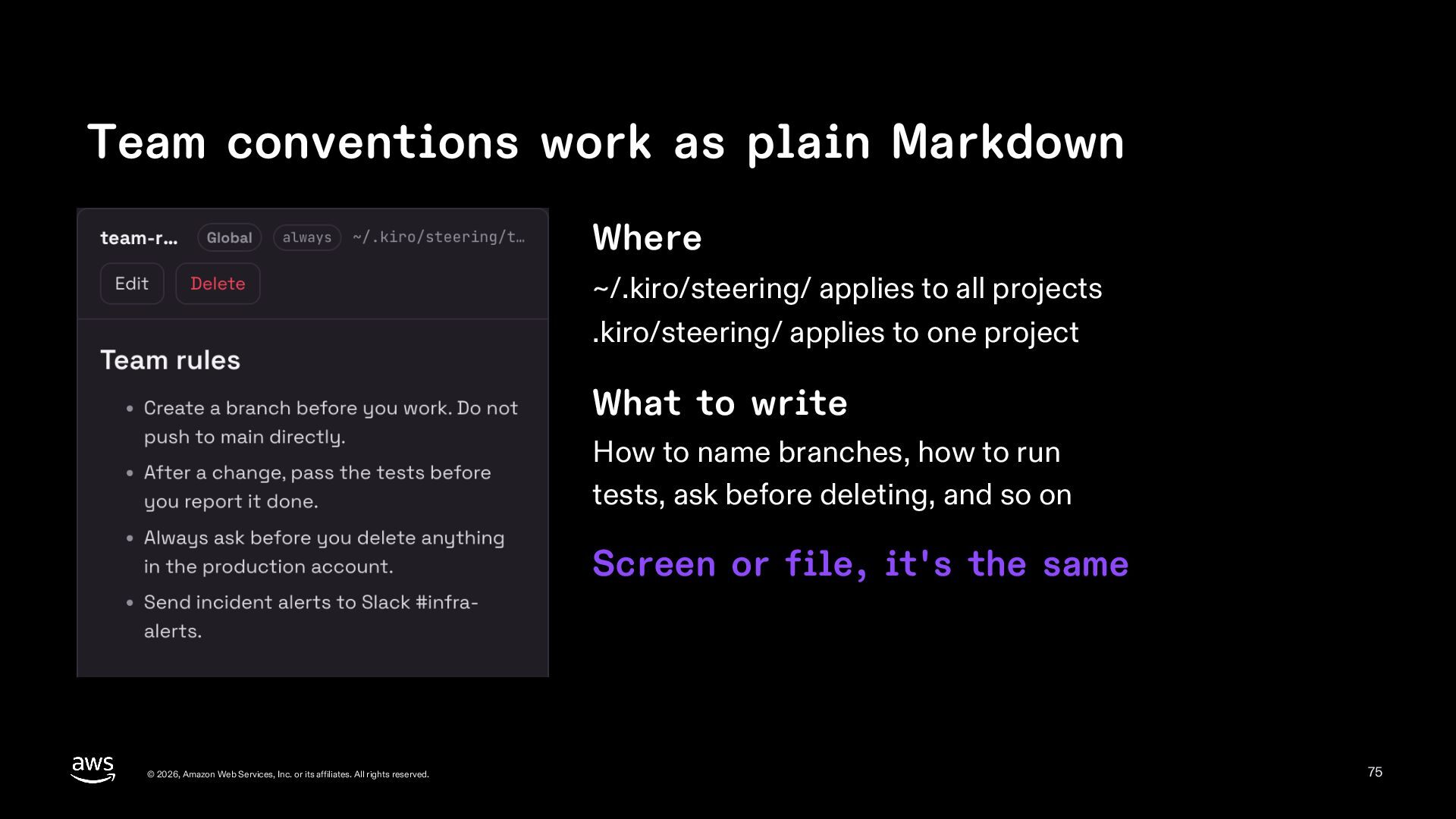
  75. Team conventions work as plain Markdown Where ~/.kiro/steering/ applies to

    all projects .kiro/steering/ applies to one project What to write How to name branches, how to run tests, ask before deleting, and so on Screen or file, it's the same © 2026, Amazon Web Services, Inc. or its affiliates. All rights reserved. 75
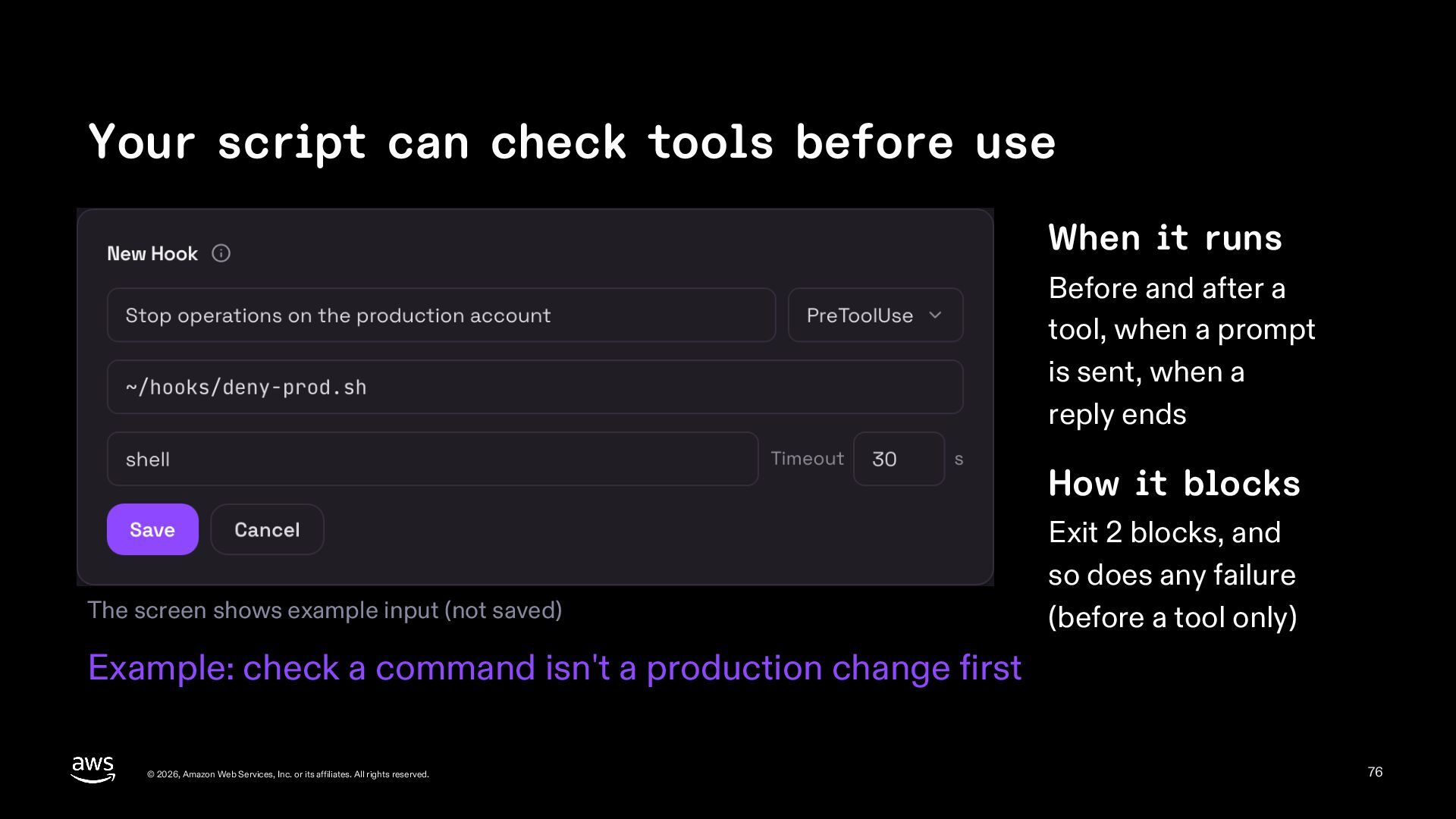
  76. Your script can check tools before use When it runs

    Before and after a tool, when a prompt is sent, when a reply ends How it blocks The screen shows example input (not saved) Exit 2 blocks, and so does any failure (before a tool only) Example: check a command isn't a production change first © 2026, Amazon Web Services, Inc. or its affiliates. All rights reserved. 76
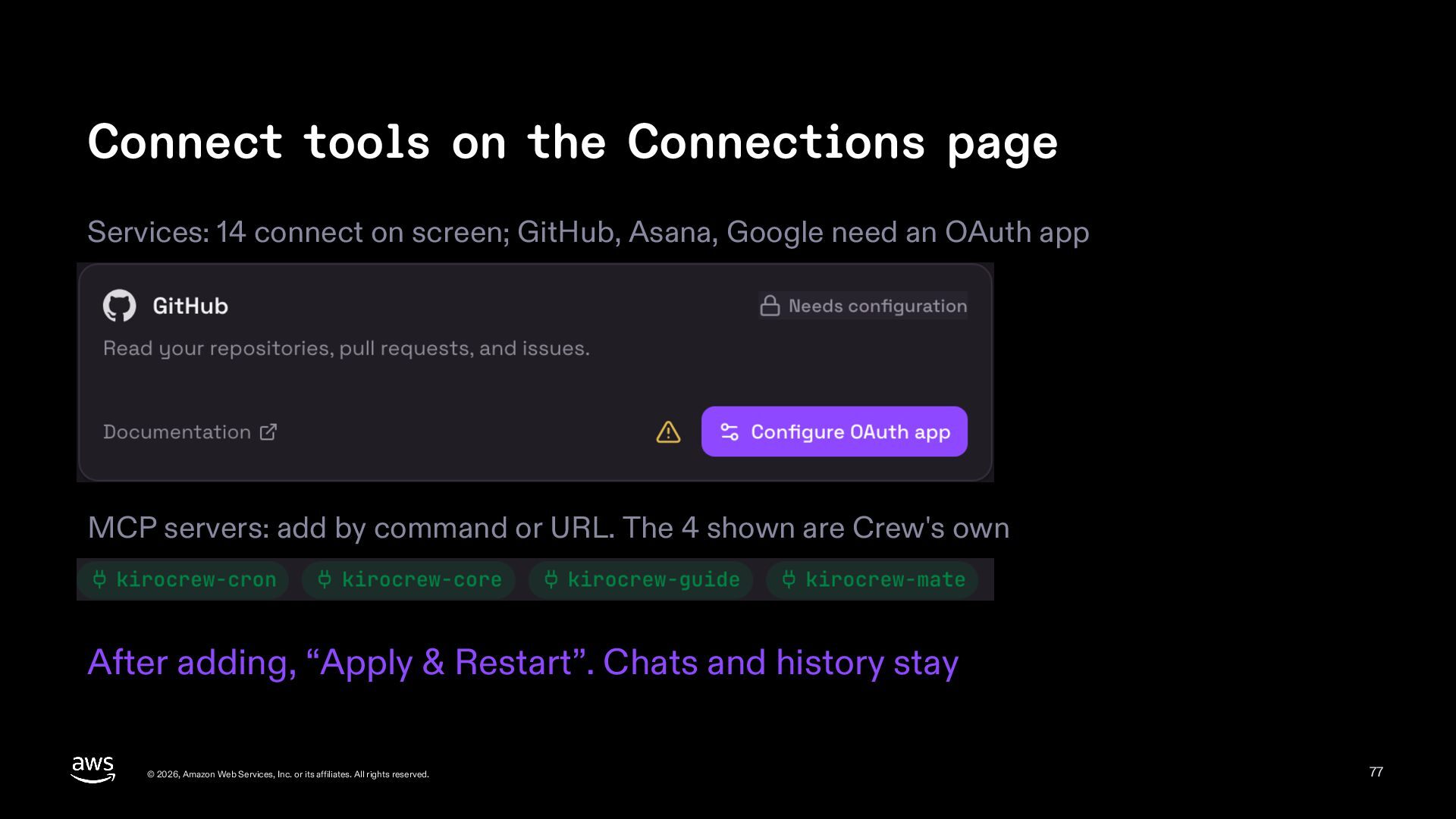
  77. Connect tools on the Connections page Services: 14 connect on

    screen; GitHub, Asana, Google need an OAuth app MCP servers: add by command or URL. The 4 shown are Crew's own After adding, “Apply & Restart”. Chats and history stay © 2026, Amazon Web Services, Inc. or its affiliates. All rights reserved. 77
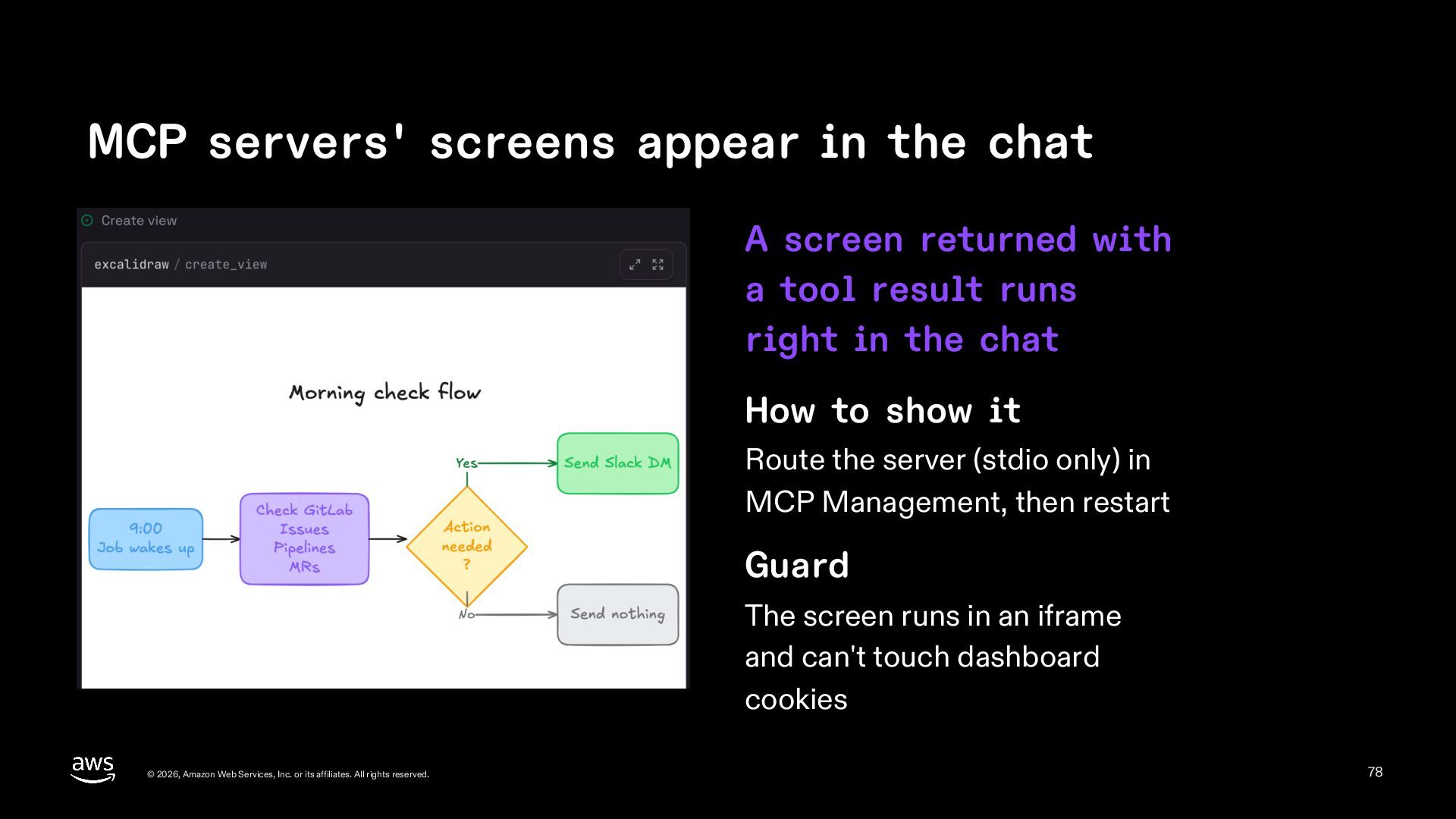
  78. MCP servers' screens appear in the chat A screen returned

    with a tool result runs right in the chat How to show it Route the server (stdio only) in MCP Management, then restart Guard The screen runs in an iframe and can't touch dashboard cookies © 2026, Amazon Web Services, Inc. or its affiliates. All rights reserved. 78
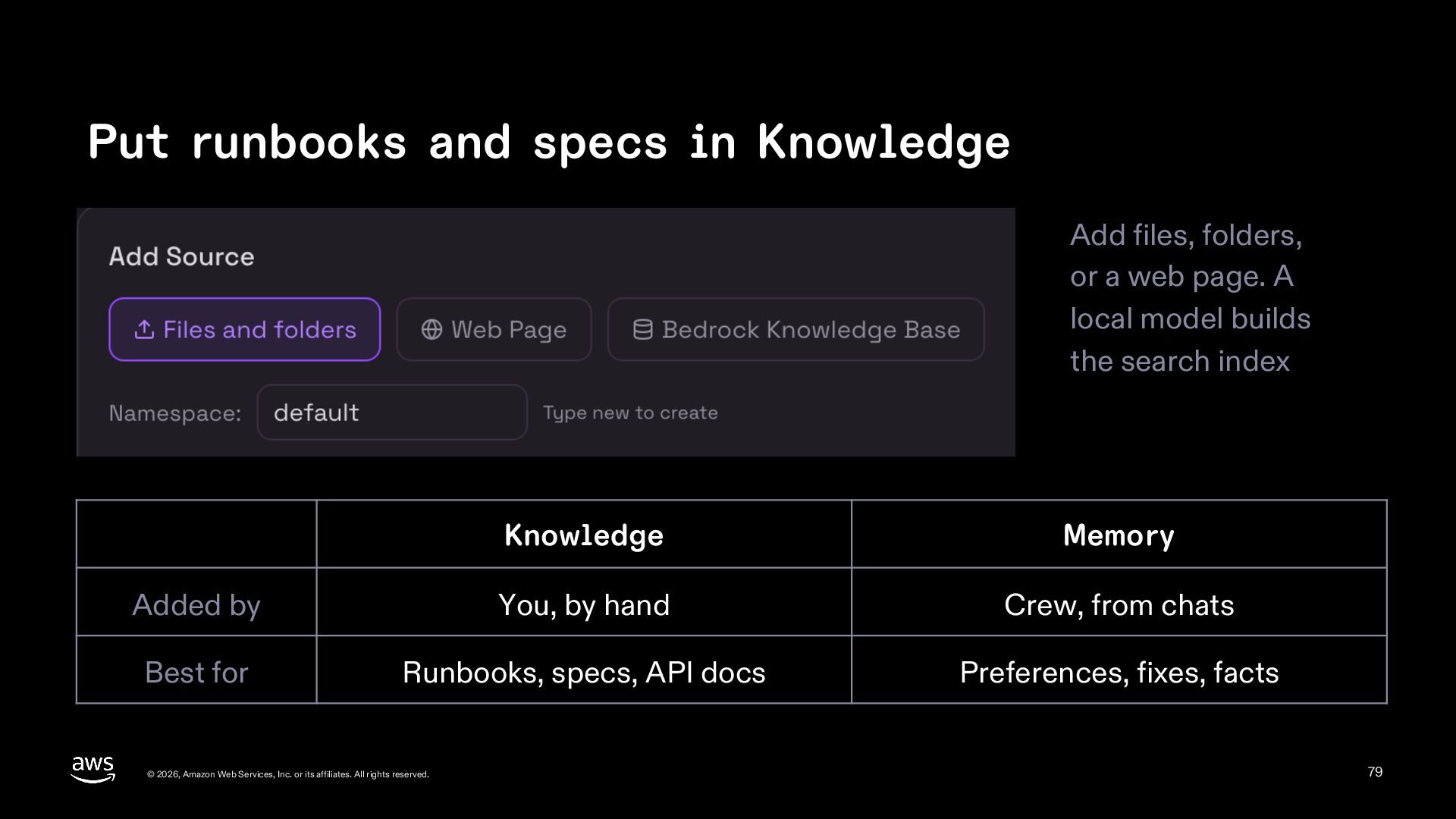
  79. Put runbooks and specs in Knowledge Add files, folders, or

    a web page. A local model builds the search index Knowledge Memory Added by You, by hand Crew, from chats Best for Runbooks, specs, API docs Preferences, fixes, facts © 2026, Amazon Web Services, Inc. or its affiliates. All rights reserved. 79
  80. Beyond the chat The browser, desktop apps, and Slack ©

    2026, Amazon Web Services, Inc. or its affiliates. All rights reserved. 80
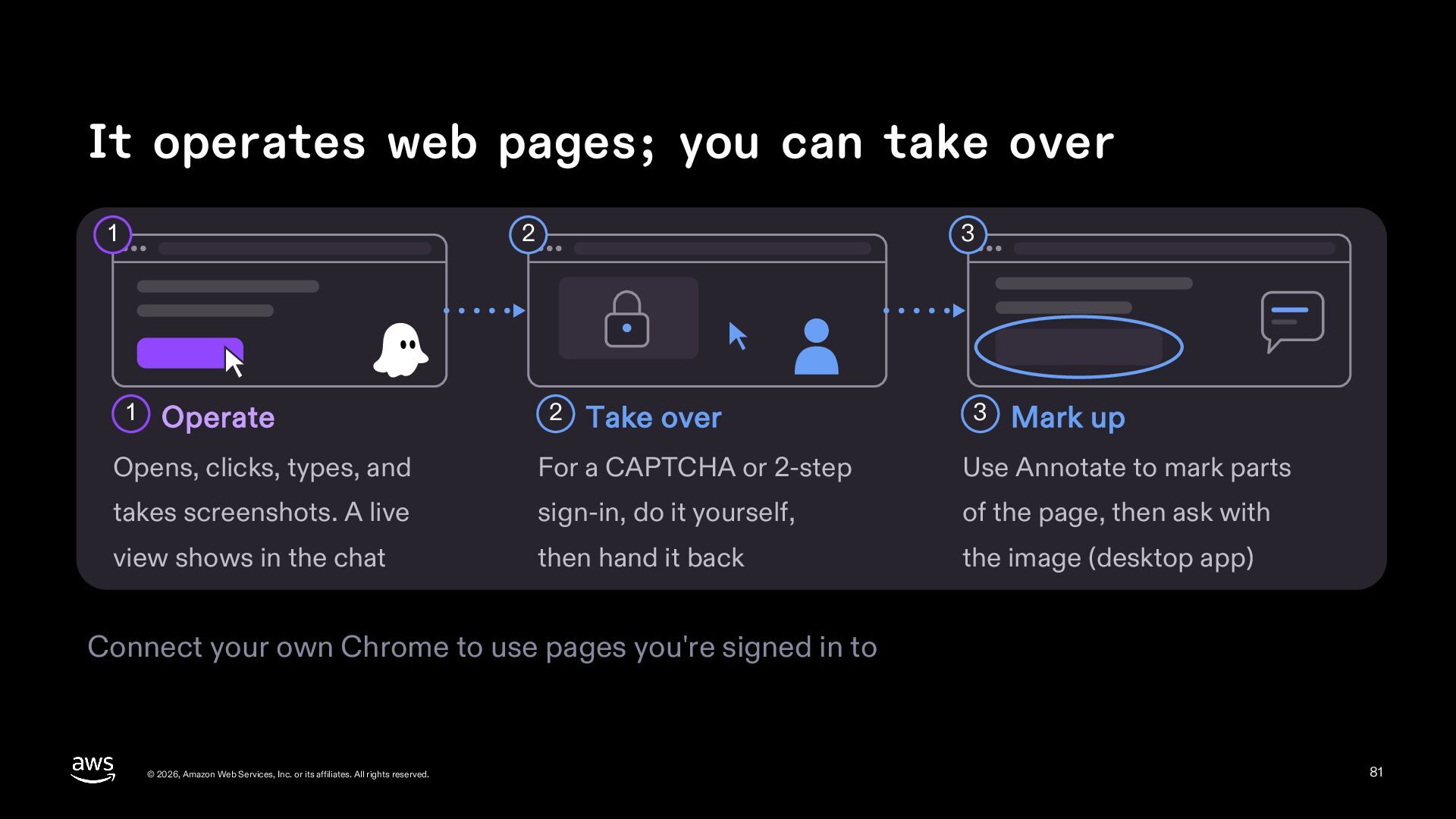
  81. It operates web pages; you can take over 1 2

    1 Operate 3 2 Take over 3 Mark up Opens, clicks, types, and For a CAPTCHA or 2-step Use Annotate to mark parts takes screenshots. A live sign-in, do it yourself, of the page, then ask with view shows in the chat then hand it back the image (desktop app) Connect your own Chrome to use pages you're signed in to © 2026, Amazon Web Services, Inc. or its affiliates. All rights reserved. 81
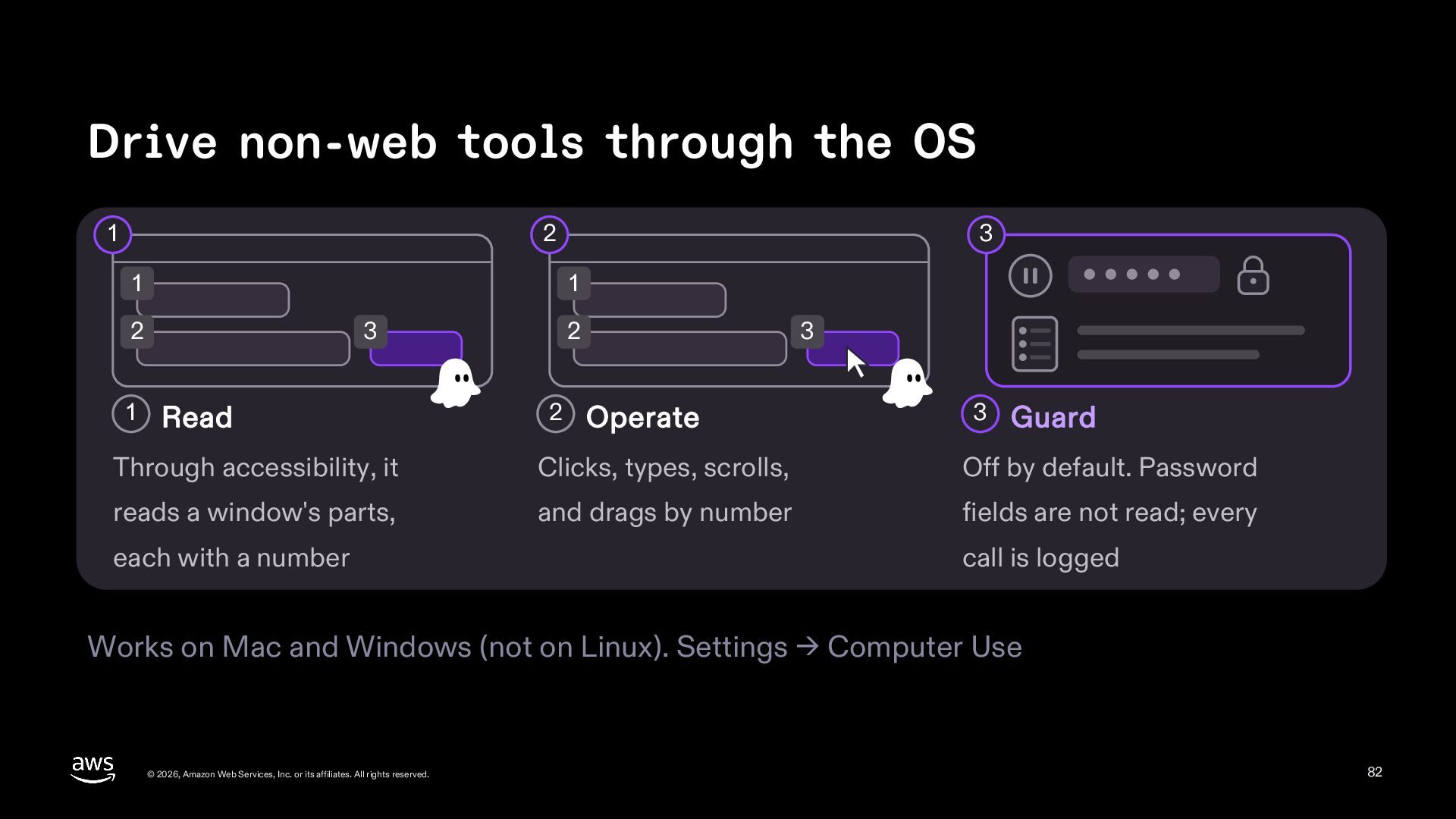
  82. Drive non-web tools through the OS 1 2 1 1

    2 1 3 3 Read 2 2 3 Operate 3 Guard Through accessibility, it Clicks, types, scrolls, Off by default. Password reads a window's parts, and drags by number fields are not read; every each with a number call is logged Works on Mac and Windows (not on Linux). Settings → Computer Use © 2026, Amazon Web Services, Inc. or its affiliates. All rights reserved. 82
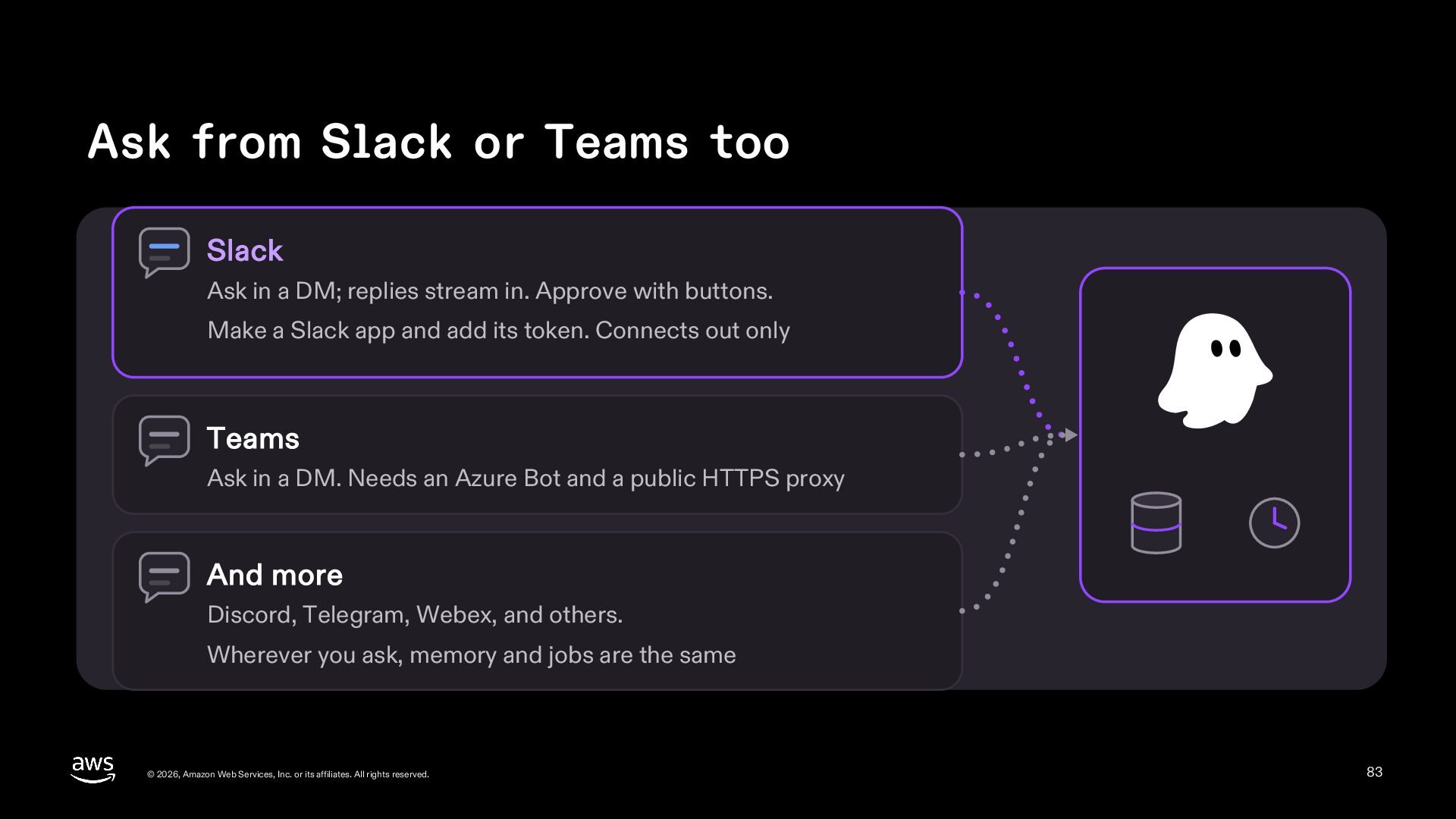
  83. Ask from Slack or Teams too Slack Ask in a

    DM; replies stream in. Approve with buttons. Make a Slack app and add its token. Connects out only Teams Ask in a DM. Needs an Azure Bot and a public HTTPS proxy And more Discord, Telegram, Webex, and others. Wherever you ask, memory and jobs are the same © 2026, Amazon Web Services, Inc. or its affiliates. All rights reserved. 83
  84. Hand off development work Which work to hand off first

    © 2026, Amazon Web Services, Inc. or its affiliates. All rights reserved. 84
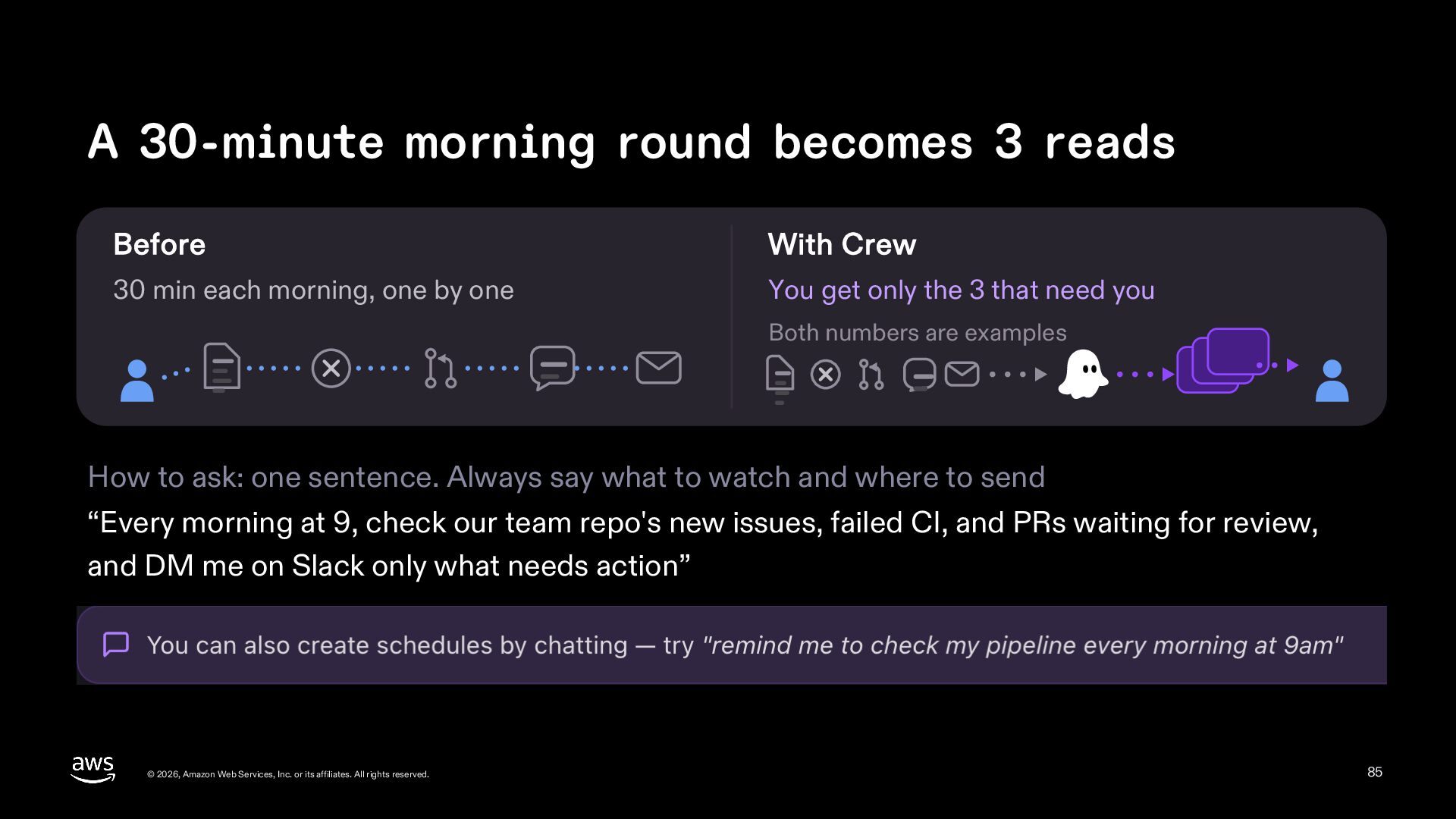
  85. A 30-minute morning round becomes 3 reads Before With Crew

    30 min each morning, one by one You get only the 3 that need you Both numbers are examples How to ask: one sentence. Always say what to watch and where to send “Every morning at 9, check our team repo's new issues, failed CI, and PRs waiting for review, and DM me on Slack only what needs action” © 2026, Amazon Web Services, Inc. or its affiliates. All rights reserved. 85
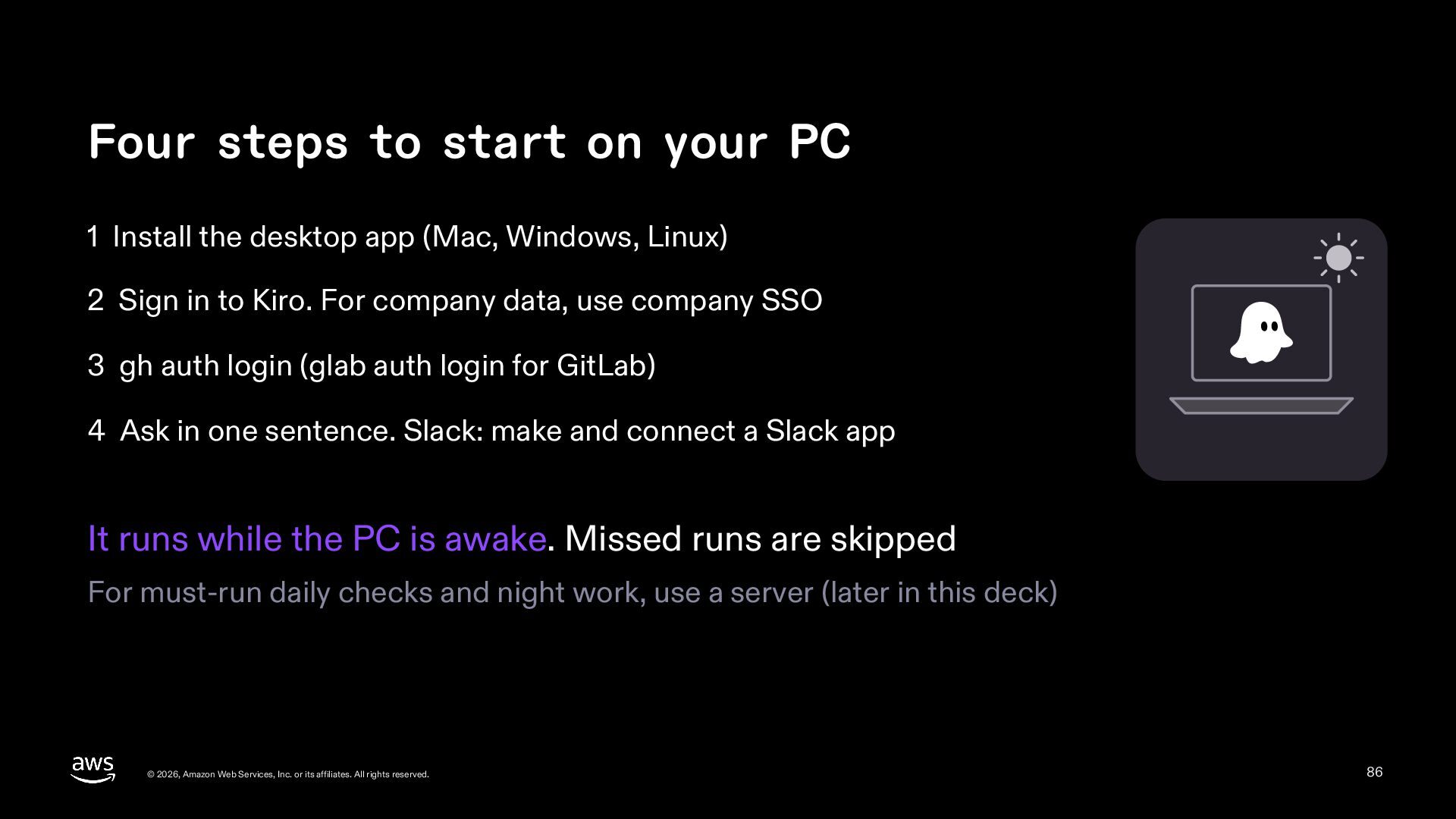
  86. Four steps to start on your PC 1 Install the

    desktop app (Mac, Windows, Linux) 2 Sign in to Kiro. For company data, use company SSO 3 gh auth login (glab auth login for GitLab) 4 Ask in one sentence. Slack: make and connect a Slack app It runs while the PC is awake. Missed runs are skipped For must-run daily checks and night work, use a server (later in this deck) © 2026, Amazon Web Services, Inc. or its affiliates. All rights reserved. 86
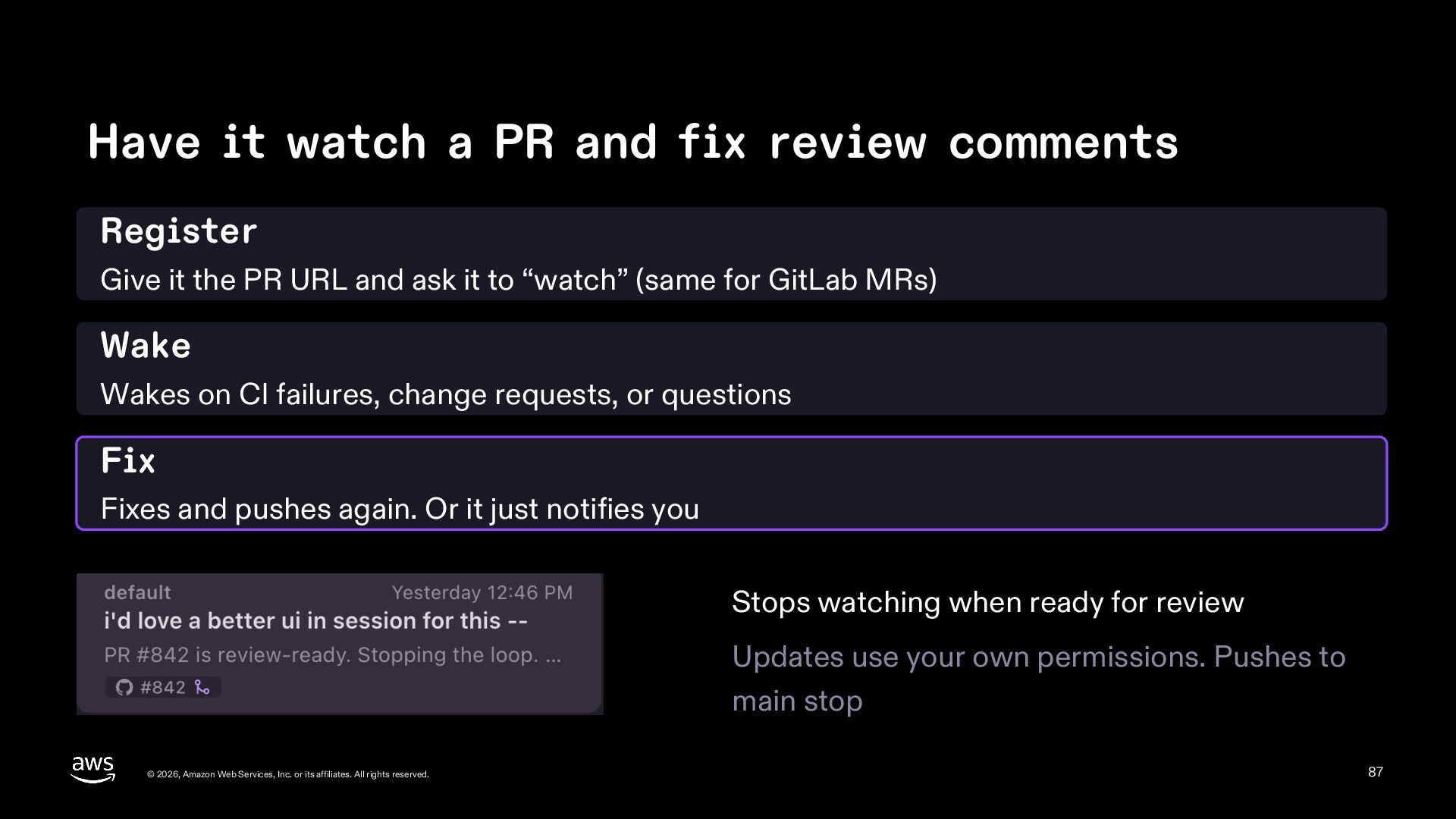
  87. Have it watch a PR and fix review comments Register

    Give it the PR URL and ask it to “watch” (same for GitLab MRs) Wake Wakes on CI failures, change requests, or questions Fix Fixes and pushes again. Or it just notifies you Stops watching when ready for review Updates use your own permissions. Pushes to main stop © 2026, Amazon Web Services, Inc. or its affiliates. All rights reserved. 87
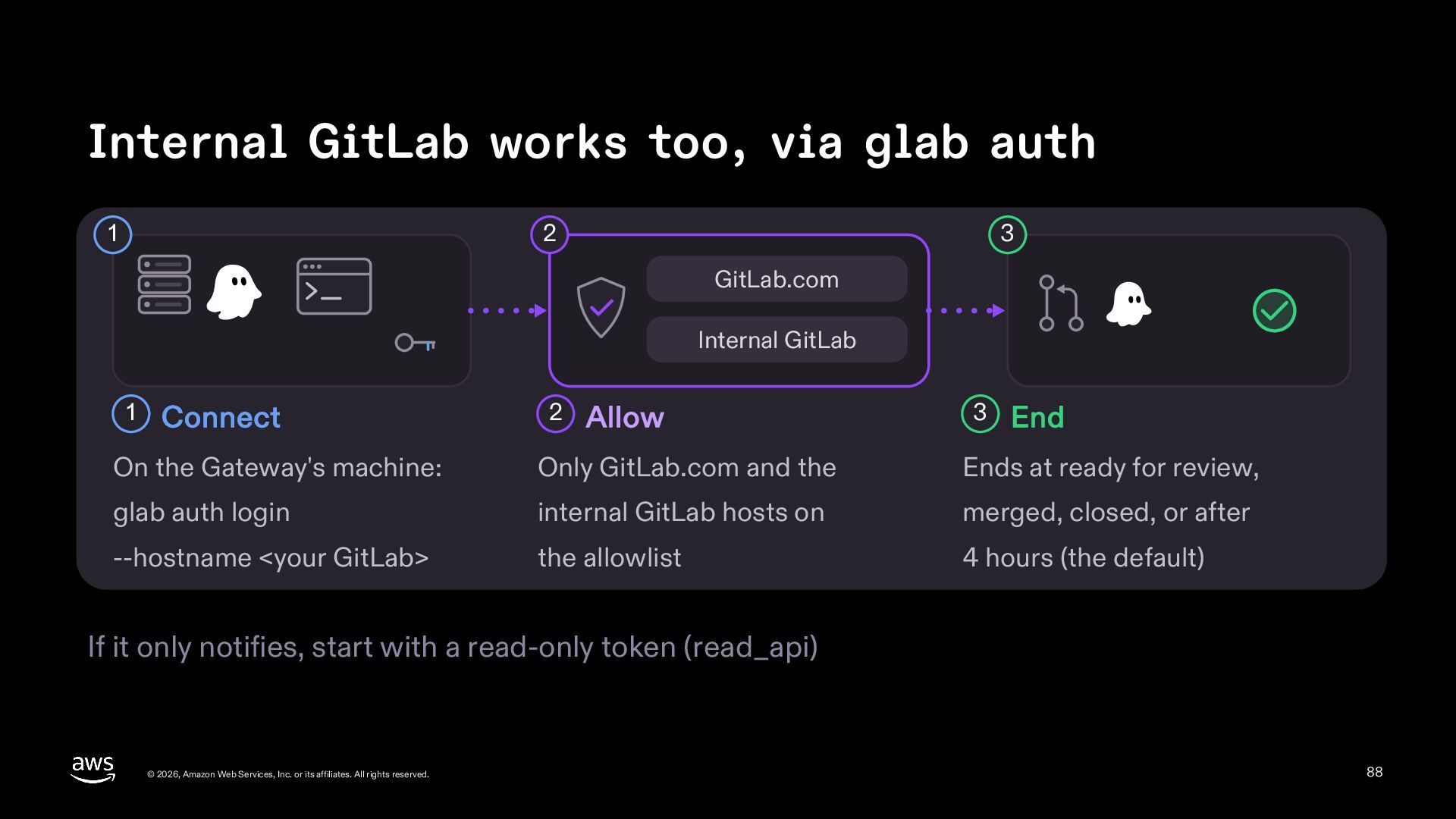
  88. Internal GitLab works too, via glab auth 1 2 3

    GitLab.com Internal GitLab 1 Connect 2 Allow 3 End On the Gateway's machine: Only GitLab.com and the Ends at ready for review, glab auth login internal GitLab hosts on merged, closed, or after --hostname <your GitLab> the allowlist 4 hours (the default) If it only notifies, start with a read-only token (read_api) © 2026, Amazon Web Services, Inc. or its affiliates. All rights reserved. 88
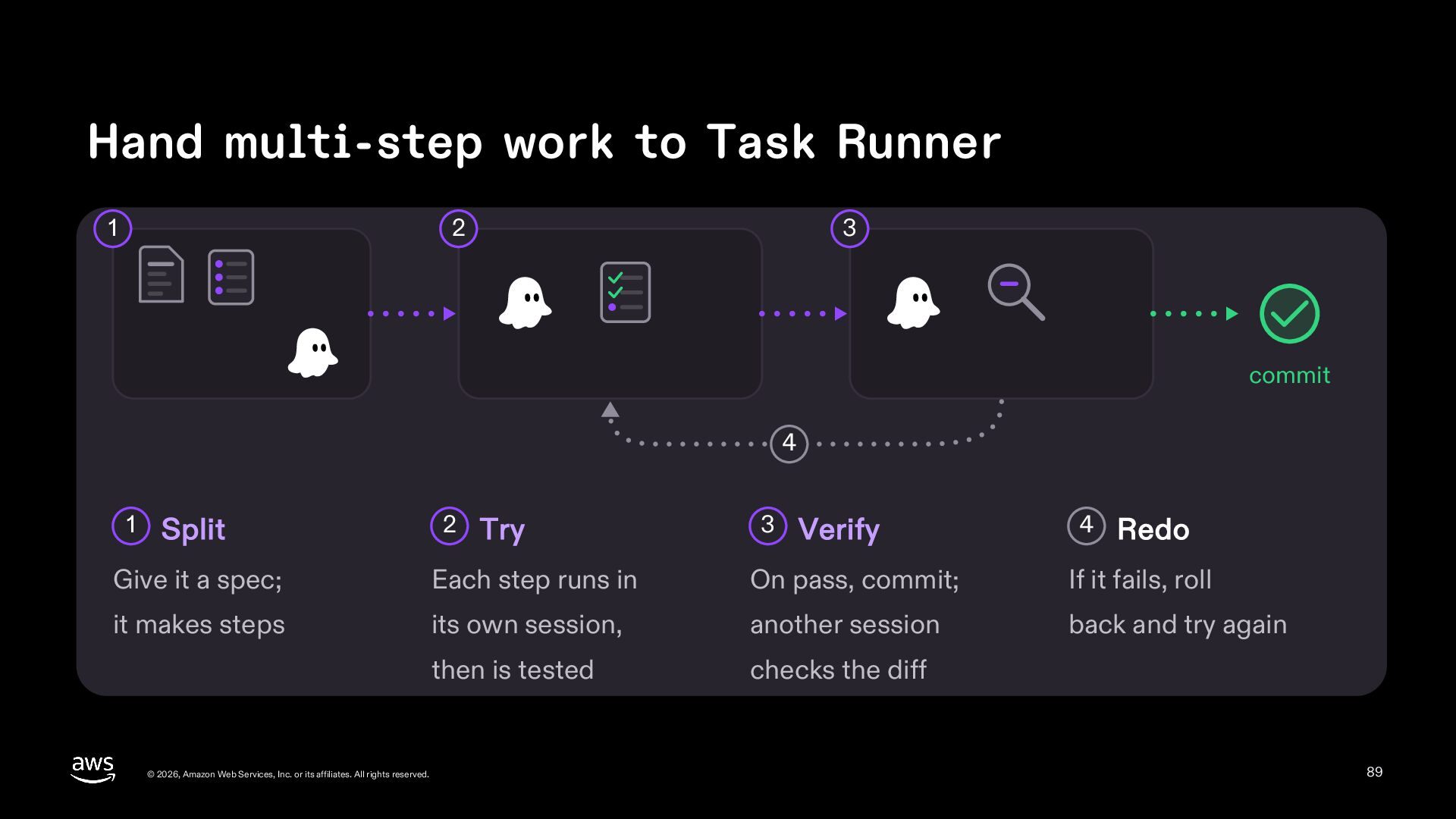
  89. Hand multi-step work to Task Runner 1 2 3 commit

    4 1 Split 2 Try 3 Verify 4 Redo Give it a spec; Each step runs in On pass, commit; If it fails, roll it makes steps its own session, another session back and try again then is tested checks the diff © 2026, Amazon Web Services, Inc. or its affiliates. All rights reserved. 89
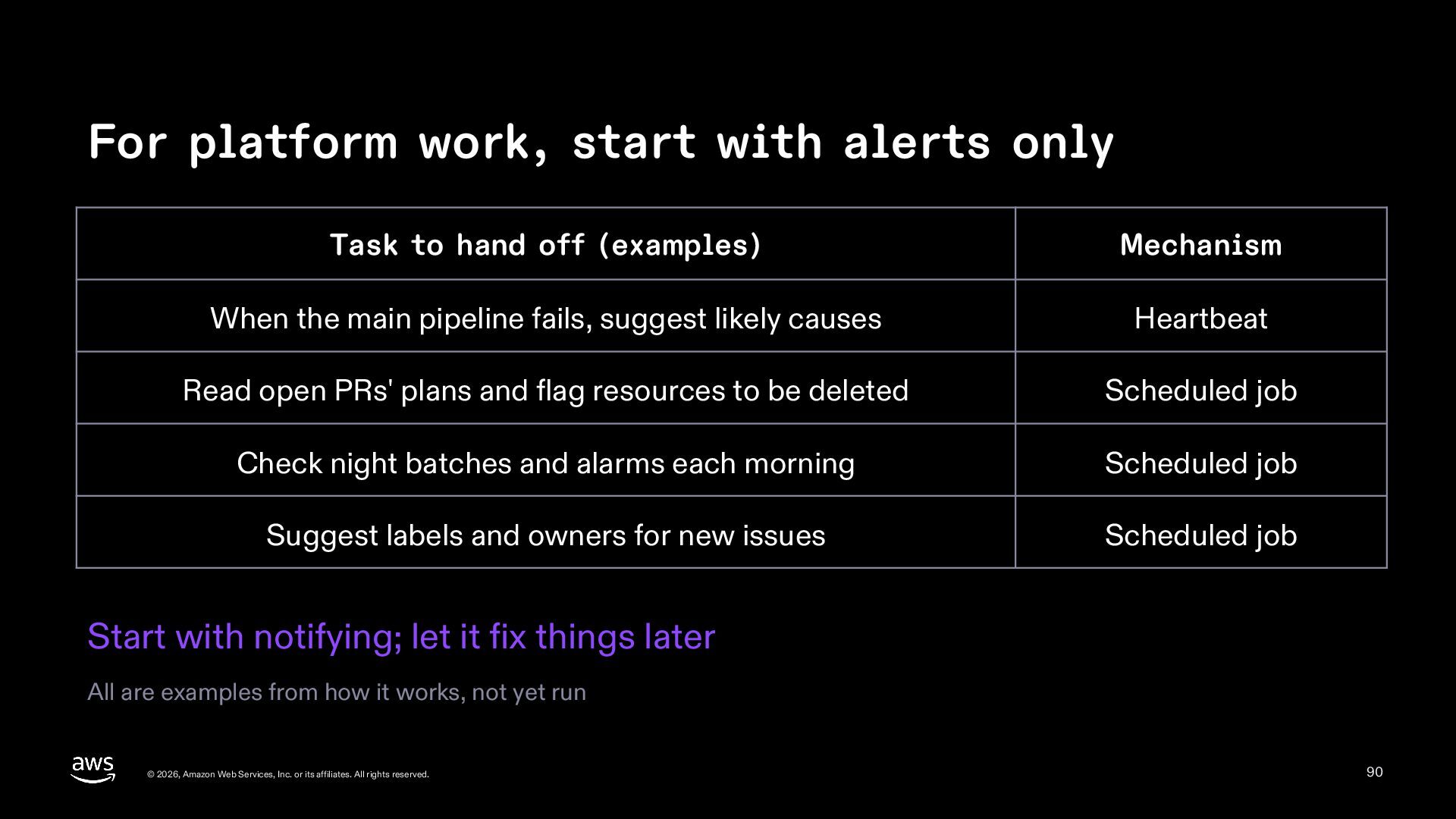
  90. For platform work, start with alerts only Task to hand

    off (examples) Mechanism When the main pipeline fails, suggest likely causes Heartbeat Read open PRs' plans and flag resources to be deleted Scheduled job Check night batches and alarms each morning Scheduled job Suggest labels and owners for new issues Scheduled job Start with notifying; let it fix things later All are examples from how it works, not yet run © 2026, Amazon Web Services, Inc. or its affiliates. All rights reserved. 90
  91. Everyday work beyond code Can non-code work be handed off

    the same way? Based on a Qiita article (in Japanese) by minorun365, KDDI Agile Development Center Ideas that move the article's tasks to Crew; not run yet © 2026, Amazon Web Services, Inc. or its affiliates. All rights reserved. 91
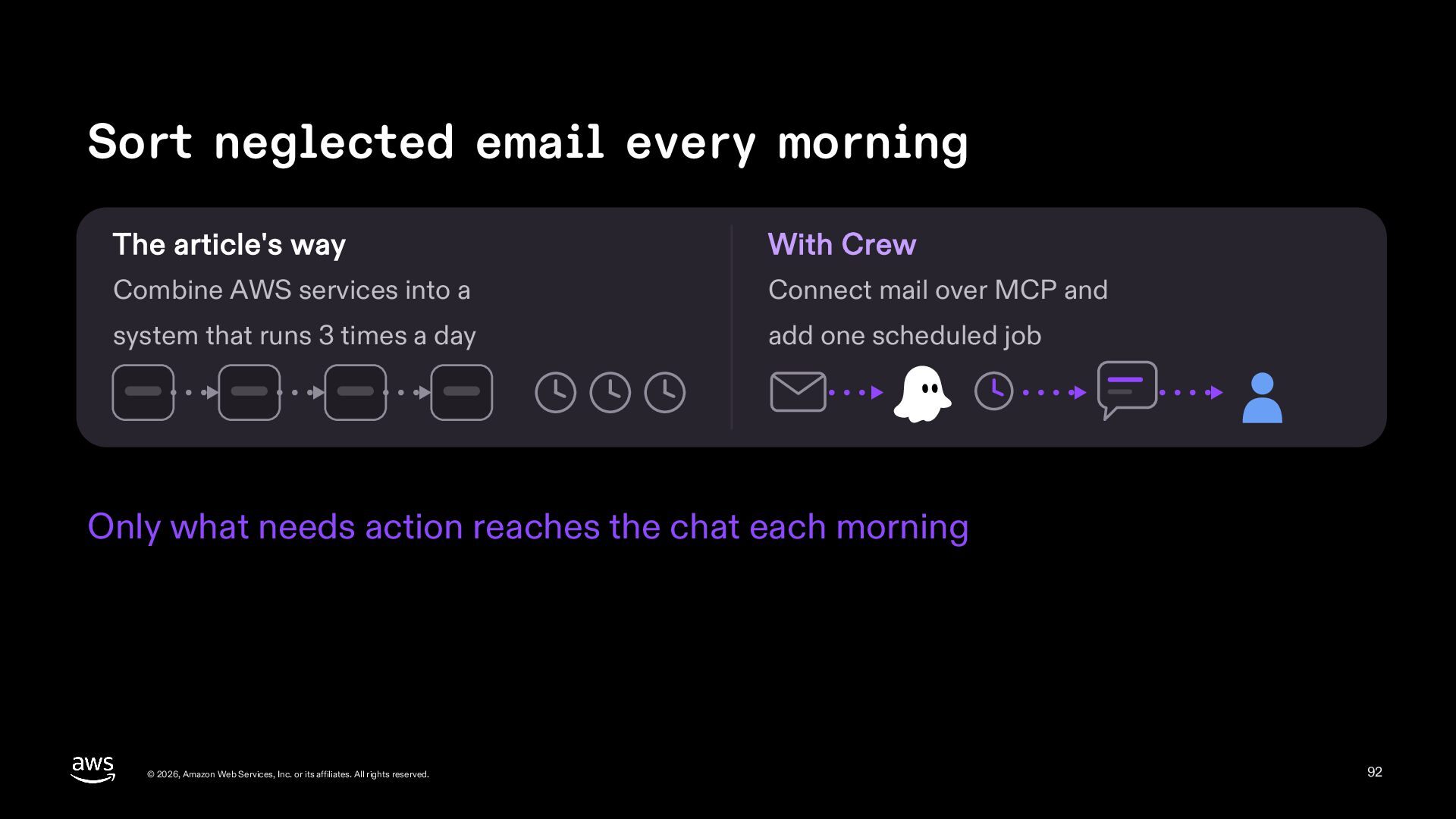
  92. Sort neglected email every morning The article's way With Crew

    Combine AWS services into a Connect mail over MCP and system that runs 3 times a day add one scheduled job Only what needs action reaches the chat each morning © 2026, Amazon Web Services, Inc. or its affiliates. All rights reserved. 92
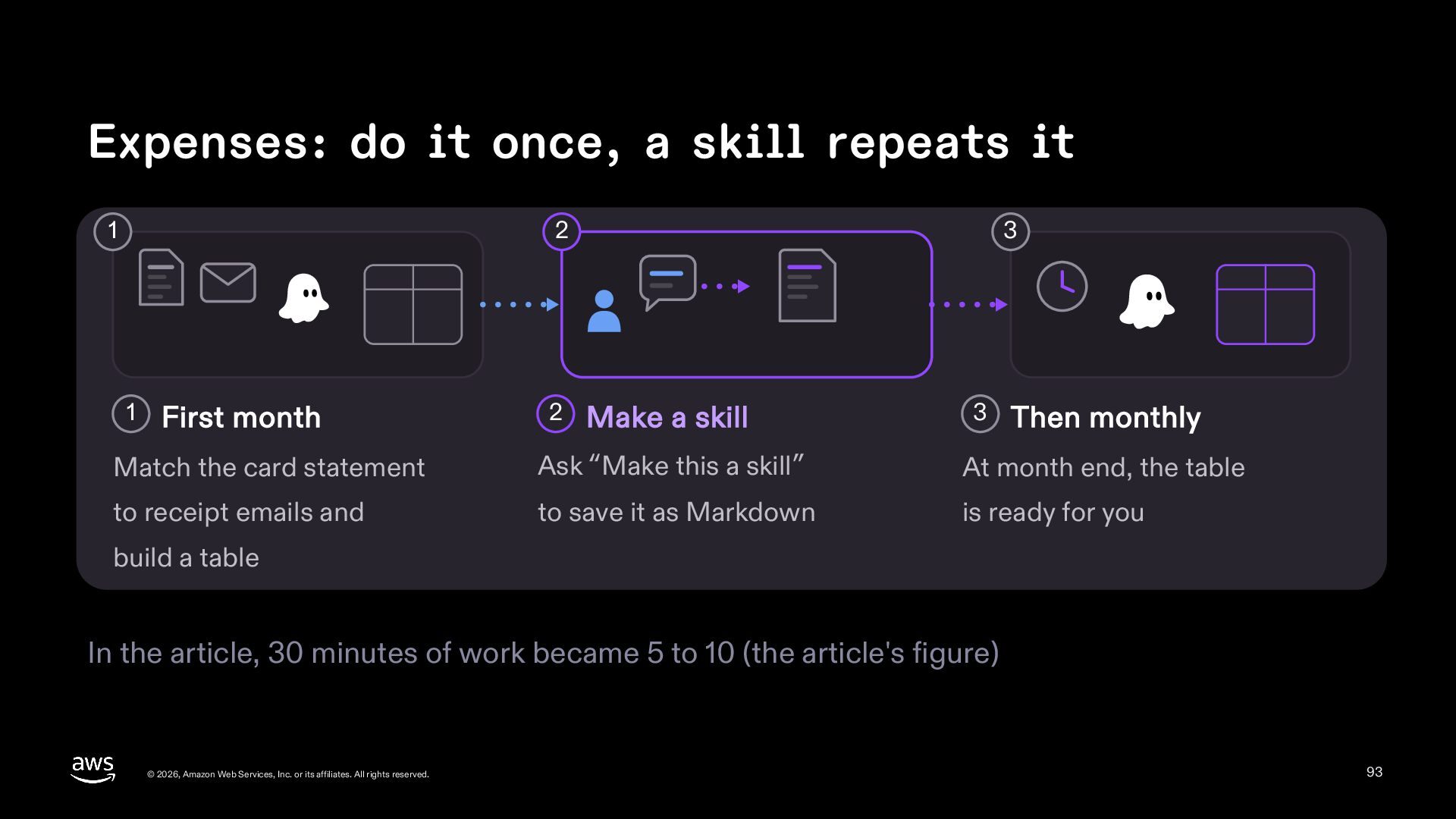
  93. Expenses: do it once, a skill repeats it 1 2

    1 First month 2 3 Make a skill 3 Then monthly Match the card statement Ask “Make this a skill” At month end, the table to receipt emails and to save it as Markdown is ready for you build a table In the article, 30 minutes of work became 5 to 10 (the article's figure) © 2026, Amazon Web Services, Inc. or its affiliates. All rights reserved. 93
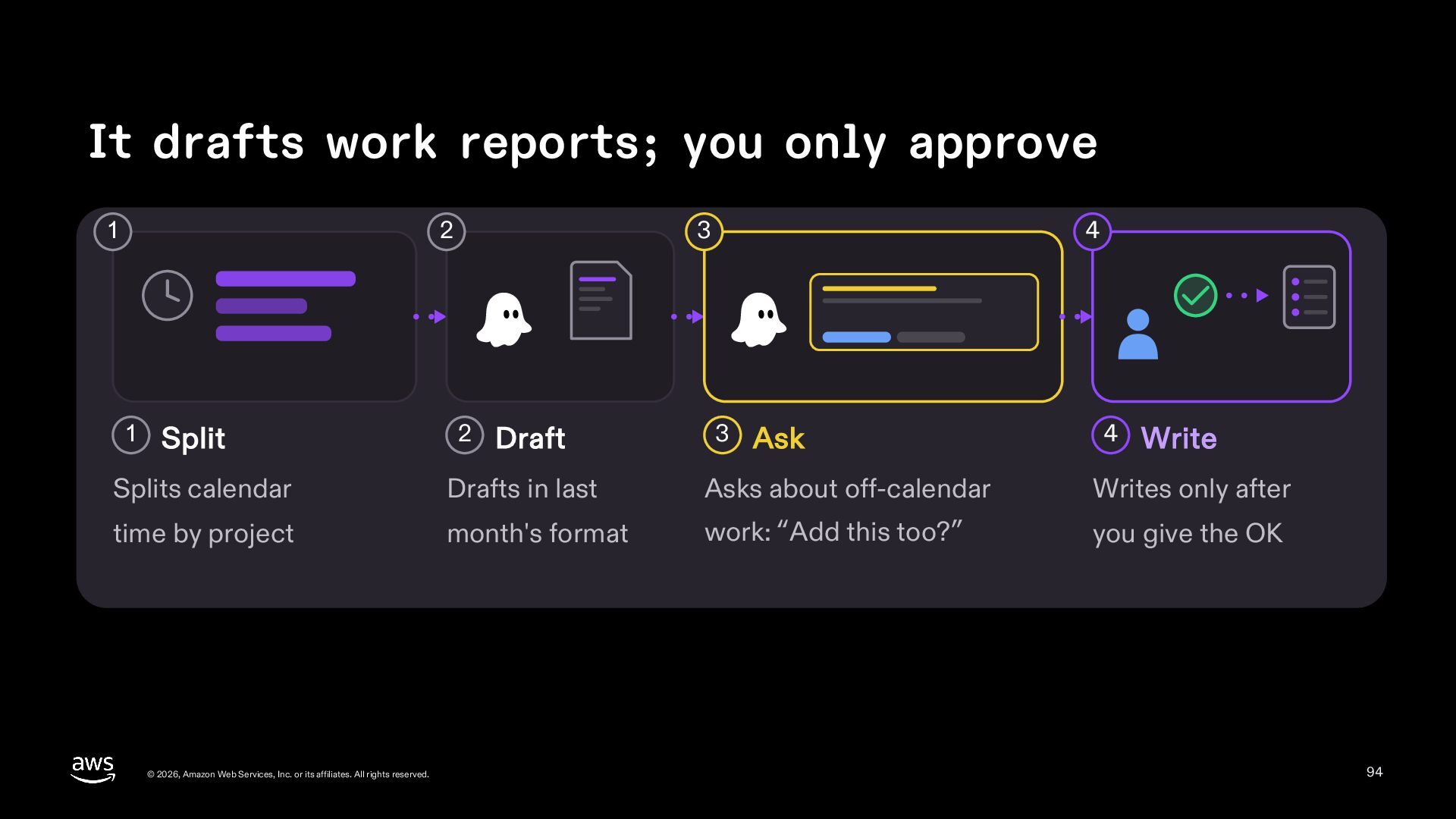
  94. It drafts work reports; you only approve 1 2 1

    Split 3 2 Draft 4 3 Ask 4 Write Splits calendar Drafts in last Asks about off-calendar Writes only after time by project month's format work: “Add this too?” you give the OK © 2026, Amazon Web Services, Inc. or its affiliates. All rights reserved. 94
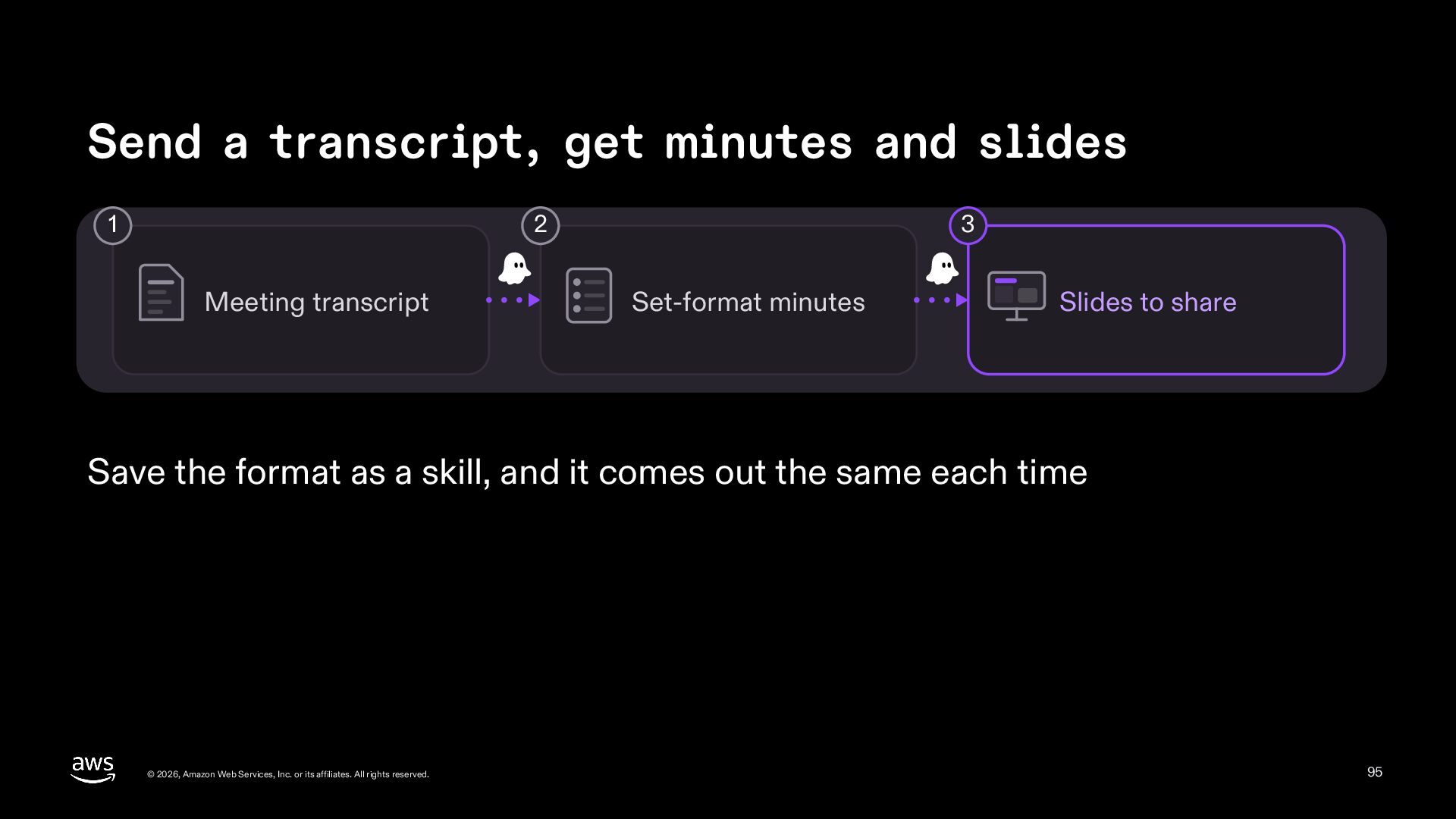
  95. Send a transcript, get minutes and slides 1 2 Meeting

    transcript 3 Set-format minutes Slides to share Save the format as a skill, and it comes out the same each time © 2026, Amazon Web Services, Inc. or its affiliates. All rights reserved. 95
  96. Where to run it Does it stop when you close

    your PC? © 2026, Amazon Web Services, Inc. or its affiliates. All rights reserved. 96
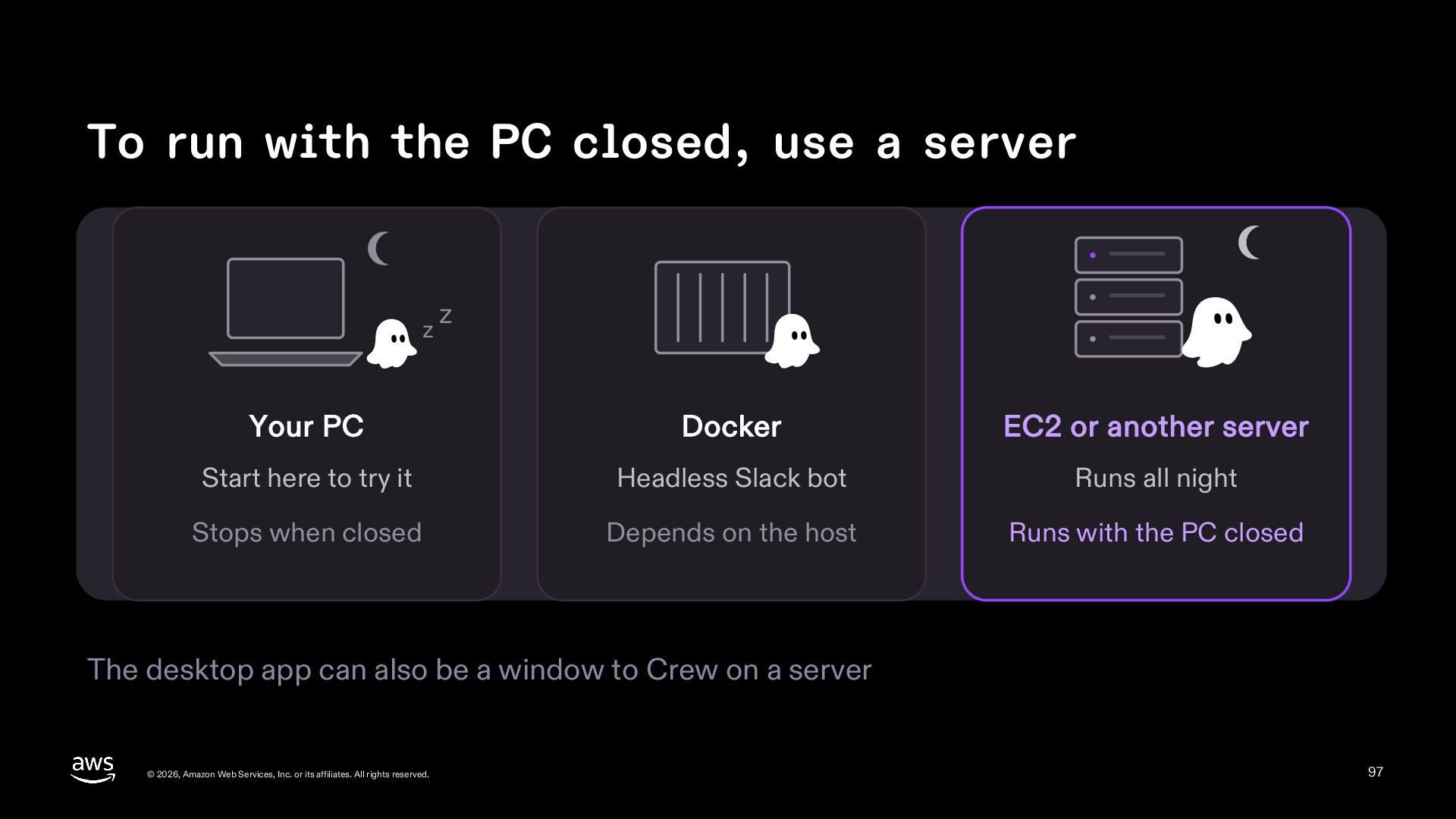
  97. To run with the PC closed, use a server z

    z Your PC Docker EC2 or another server Start here to try it Headless Slack bot Runs all night Stops when closed Depends on the host Runs with the PC closed The desktop app can also be a window to Crew on a server © 2026, Amazon Web Services, Inc. or its affiliates. All rights reserved. 97
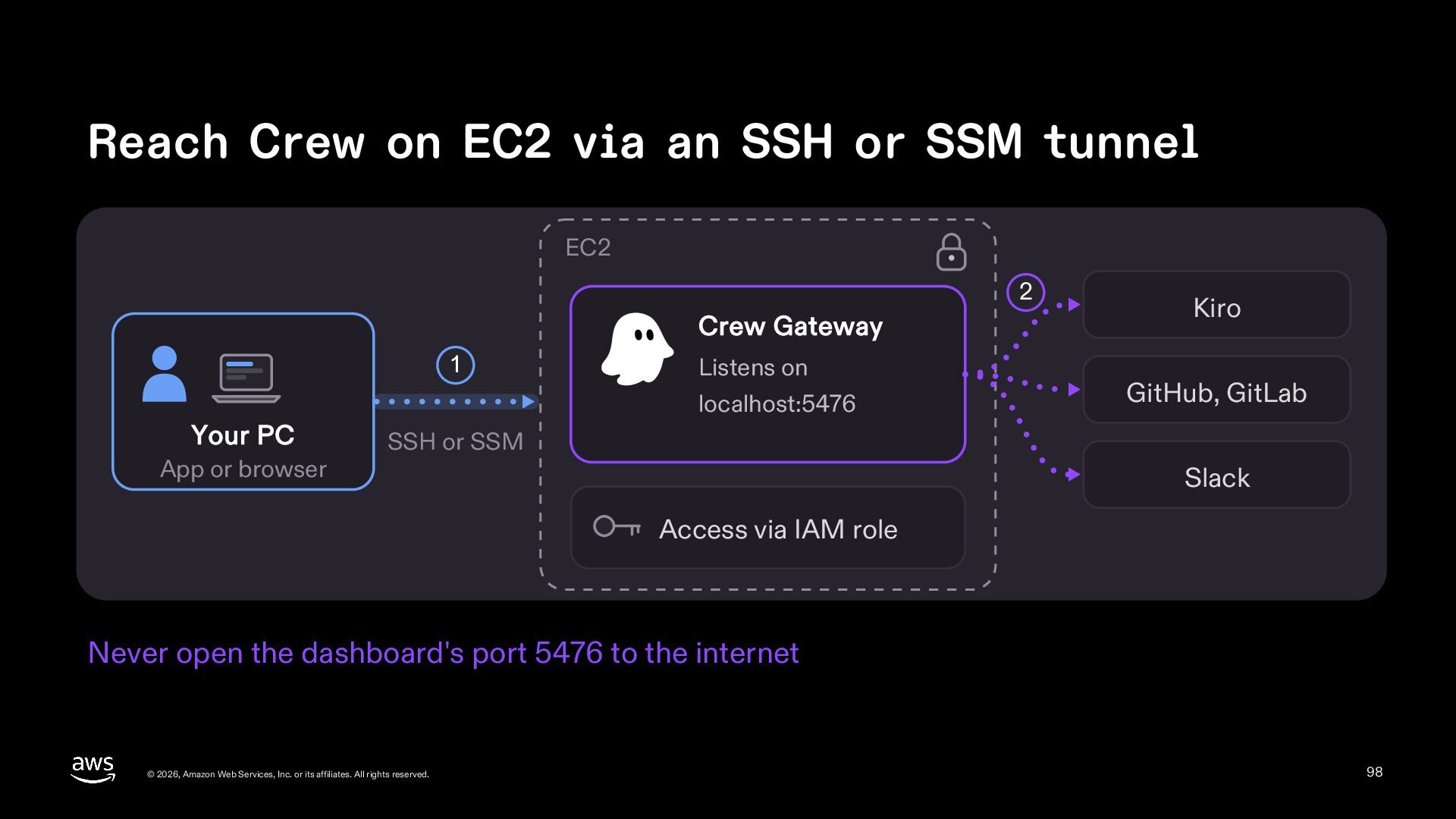
  98. Reach Crew on EC2 via an SSH or SSM tunnel

    EC2 2 Crew Gateway 1 Your PC App or browser Listens on localhost:5476 Kiro GitHub, GitLab SSH or SSM Slack Access via IAM role Never open the dashboard's port 5476 to the internet © 2026, Amazon Web Services, Inc. or its affiliates. All rights reserved. 98
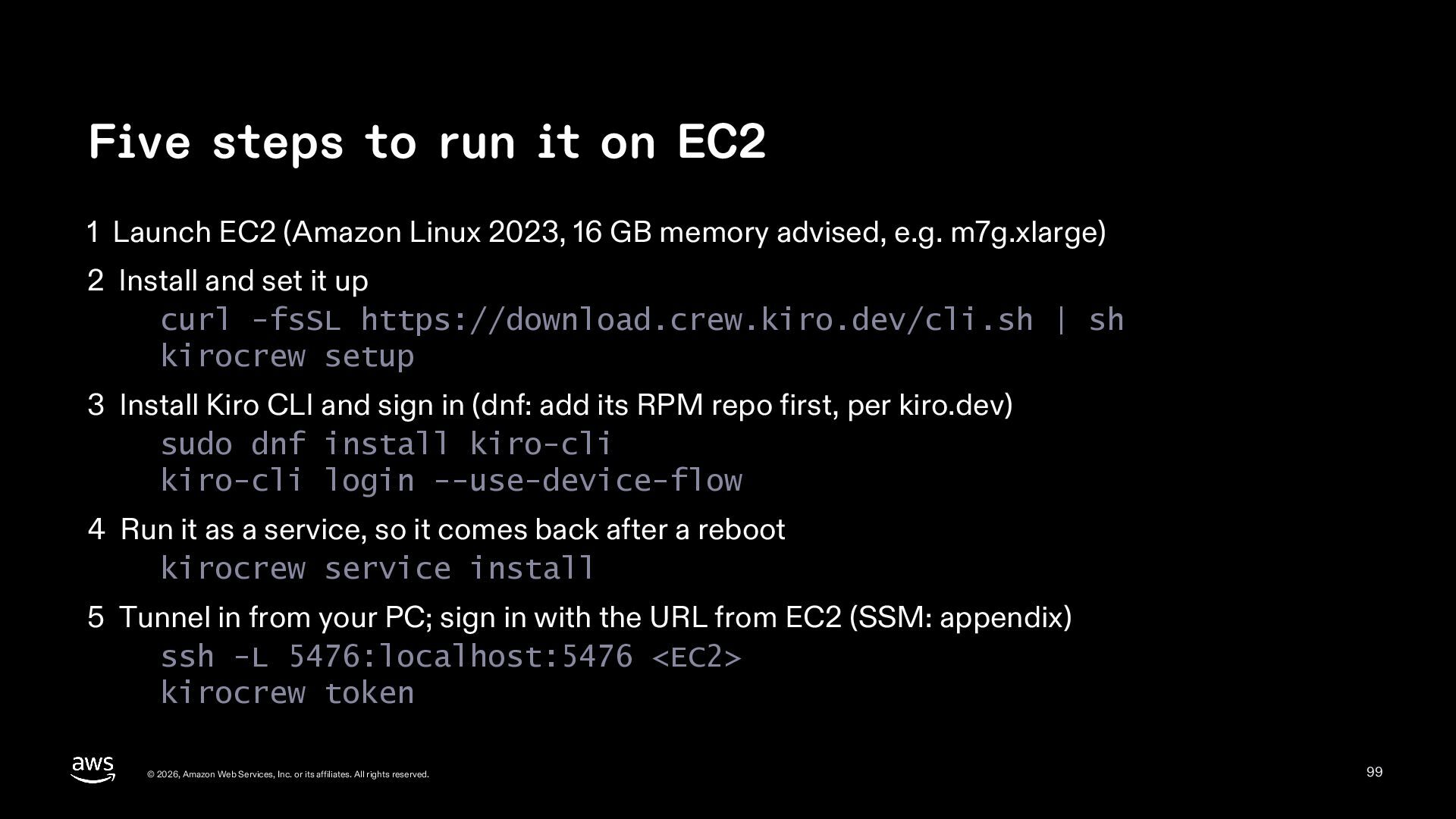
  99. Five steps to run it on EC2 1 Launch EC2

    (Amazon Linux 2023, 16 GB memory advised, e.g. m7g.xlarge) 2 Install and set it up curl -fsSL https://download.crew.kiro.dev/cli.sh | sh kirocrew setup 3 Install Kiro CLI and sign in (dnf: add its RPM repo first, per kiro.dev) sudo dnf install kiro-cli kiro-cli login --use-device-flow 4 Run it as a service, so it comes back after a reboot kirocrew service install 5 Tunnel in from your PC; sign in with the URL from EC2 (SSM: appendix) ssh -L 5476:localhost:5476 <EC2> kirocrew token © 2026, Amazon Web Services, Inc. or its affiliates. All rights reserved. 99
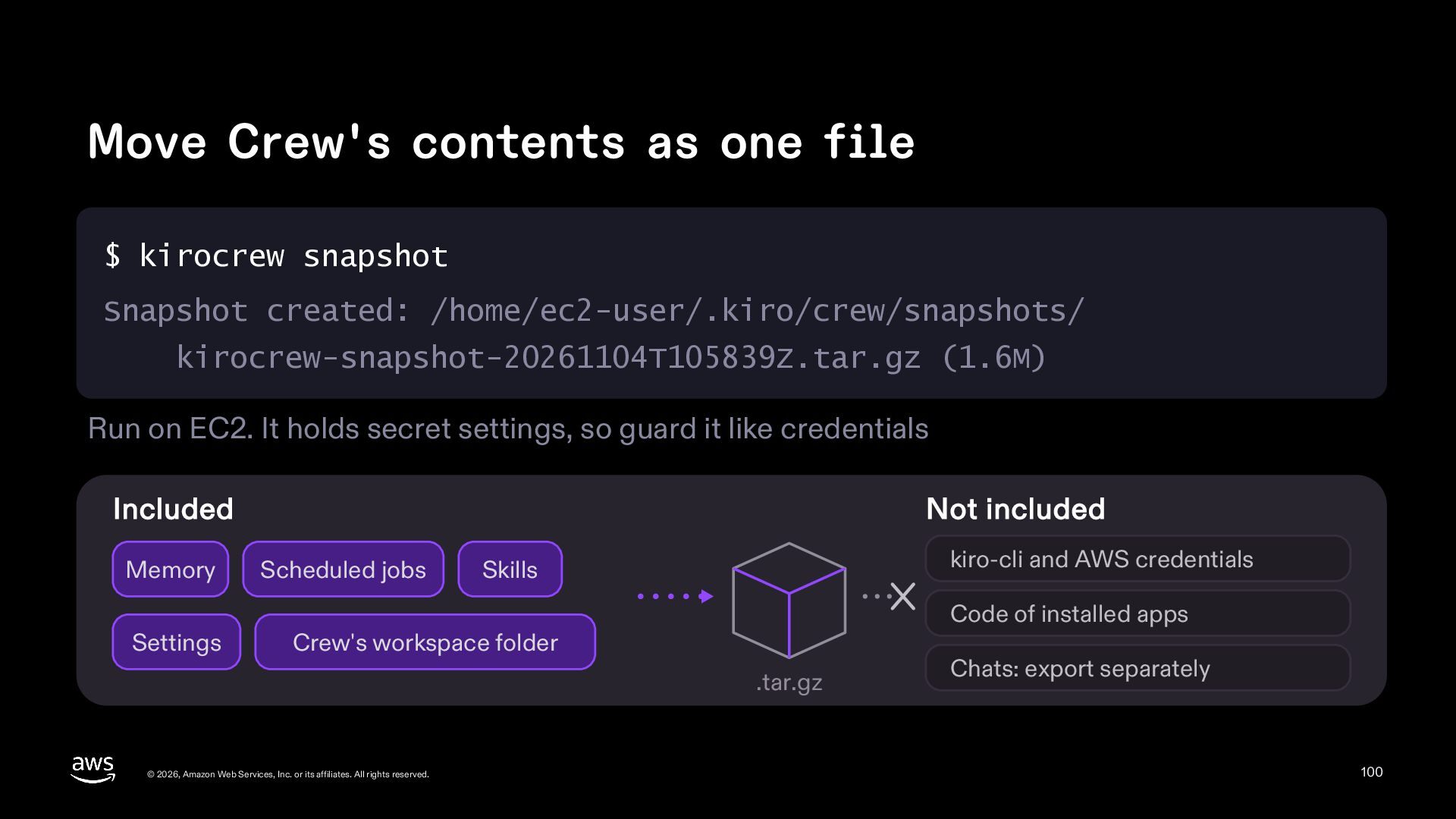
  100. Move Crew's contents as one file $ kirocrew snapshot Snapshot

    created: /home/ec2-user/.kiro/crew/snapshots/ kirocrew-snapshot-20261104T105839Z.tar.gz (1.6M) Run on EC2. It holds secret settings, so guard it like credentials Included Memory Settings Not included Scheduled jobs kiro-cli and AWS credentials Skills Code of installed apps Crew's workspace folder .tar.gz © 2026, Amazon Web Services, Inc. or its affiliates. All rights reserved. Chats: export separately 100
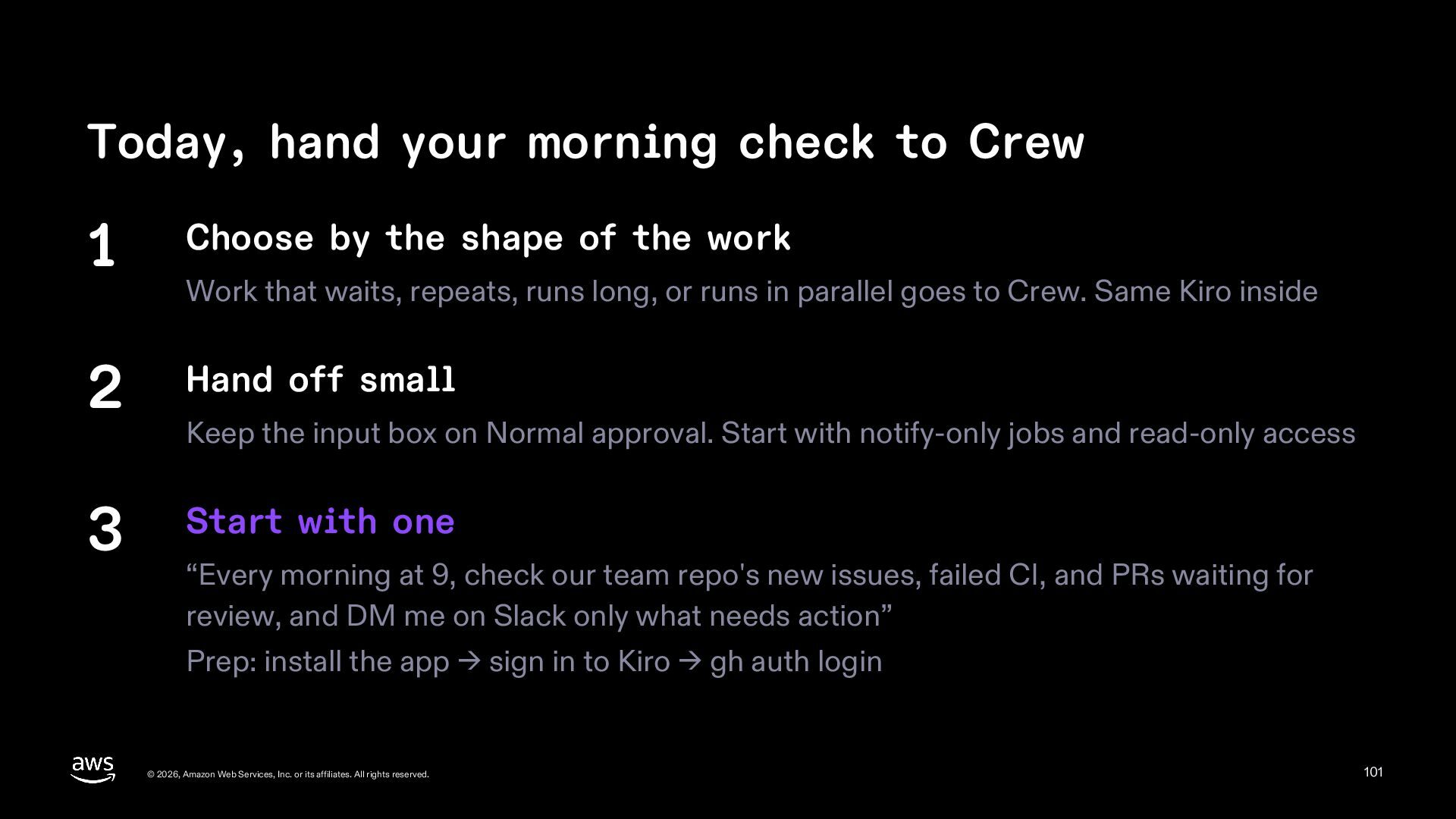
  101. Today, hand your morning check to Crew 1 Choose by

    the shape of the work 2 Hand off small 3 Start with one Work that waits, repeats, runs long, or runs in parallel goes to Crew. Same Kiro inside Keep the input box on Normal approval. Start with notify-only jobs and read-only access “Every morning at 9, check our team repo's new issues, failed CI, and PRs waiting for review, and DM me on Slack only what needs action” Prep: install the app → sign in to Kiro → gh auth login © 2026, Amazon Web Services, Inc. or its affiliates. All rights reserved. 101
  102. Thank you! Get started at kiro.dev/crew/ Docs at kiro.dev/docs/crew/ For

    company data, use an enterprise plan, even solo Riku Inada X: @inada_riku © 2026, Amazon Web Services, Inc. or its affiliates. All rights reserved. © 2026, Amazon Web Services, Inc. or its affiliates. All rights reserved. 102
  103. Appendix Details for questions © 2026, Amazon Web Services, Inc.

    or its affiliates. All rights reserved. 103
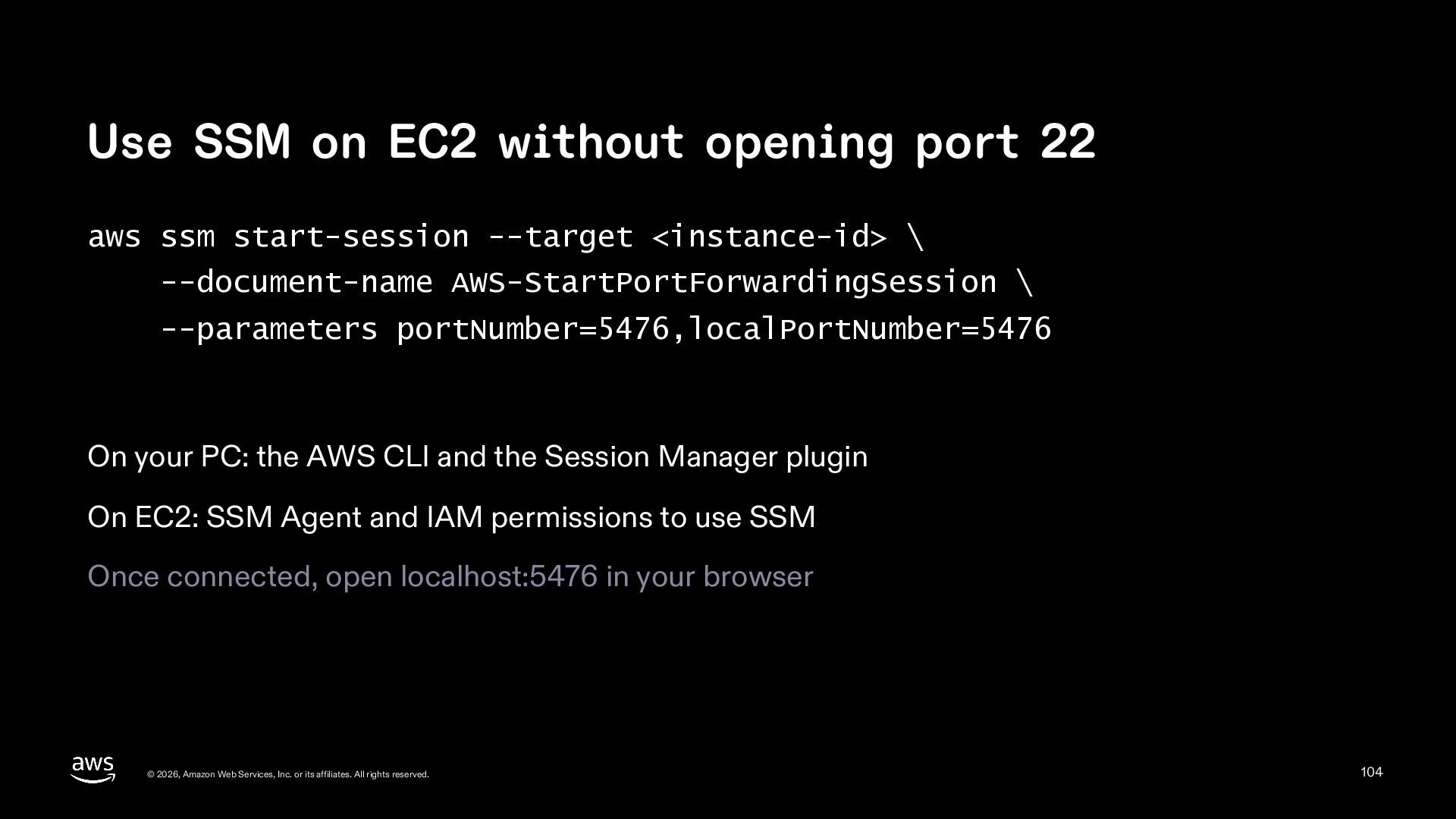
  104. Use SSM on EC2 without opening port 22 aws ssm

    start-session --target <instance-id> \ --document-name AWS-StartPortForwardingSession \ --parameters portNumber=5476,localPortNumber=5476 On your PC: the AWS CLI and the Session Manager plugin On EC2: SSM Agent and IAM permissions to use SSM Once connected, open localhost:5476 in your browser © 2026, Amazon Web Services, Inc. or its affiliates. All rights reserved. 104
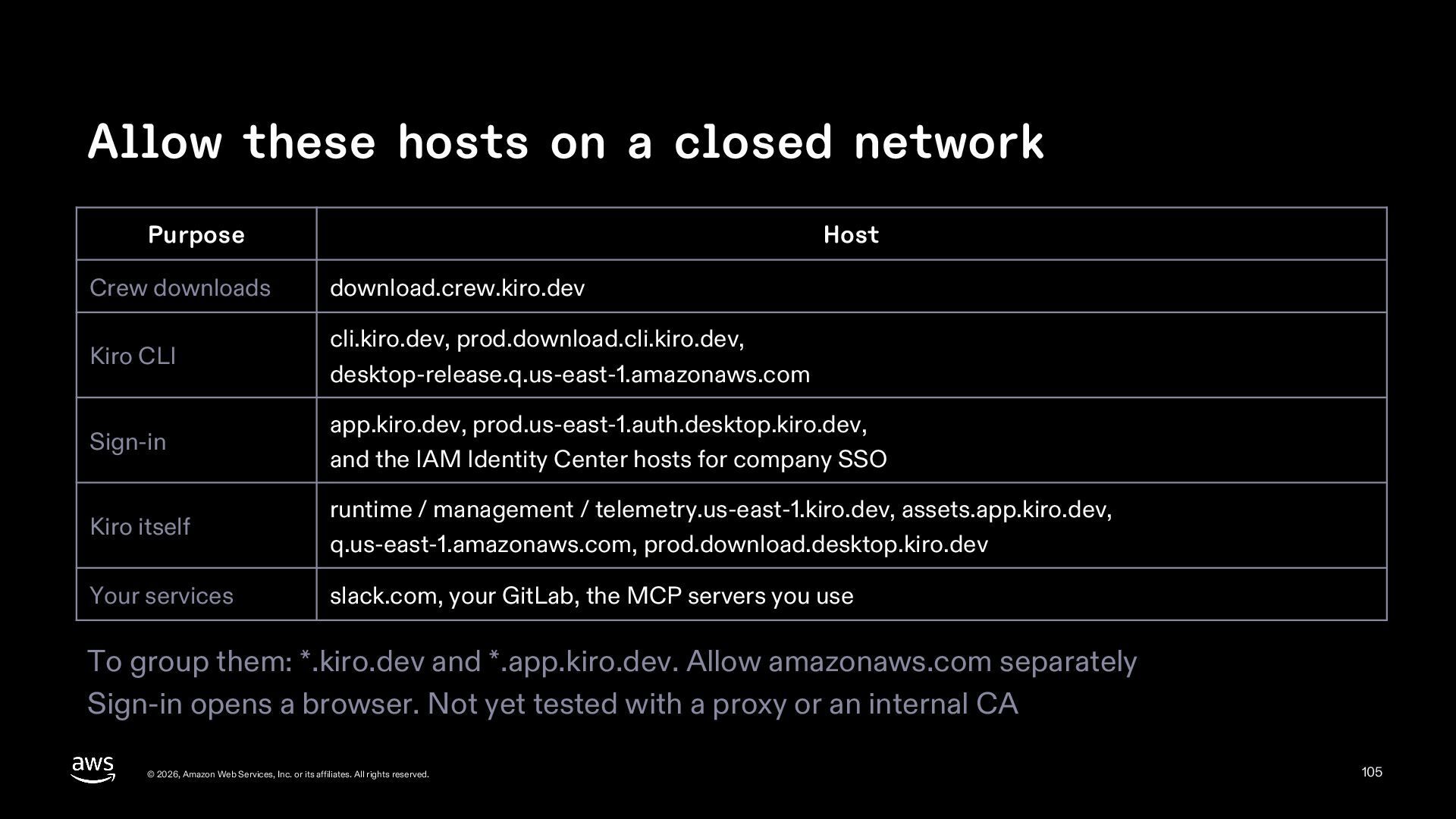
  105. Allow these hosts on a closed network Purpose Host Crew

    downloads download.crew.kiro.dev Kiro CLI cli.kiro.dev, prod.download.cli.kiro.dev, desktop-release.q.us-east-1.amazonaws.com Sign-in app.kiro.dev, prod.us-east-1.auth.desktop.kiro.dev, and the IAM Identity Center hosts for company SSO Kiro itself runtime / management / telemetry.us-east-1.kiro.dev, assets.app.kiro.dev, q.us-east-1.amazonaws.com, prod.download.desktop.kiro.dev Your services slack.com, your GitLab, the MCP servers you use To group them: *.kiro.dev and *.app.kiro.dev. Allow amazonaws.com separately Sign-in opens a browser. Not yet tested with a proxy or an internal CA © 2026, Amazon Web Services, Inc. or its affiliates. All rights reserved. 105
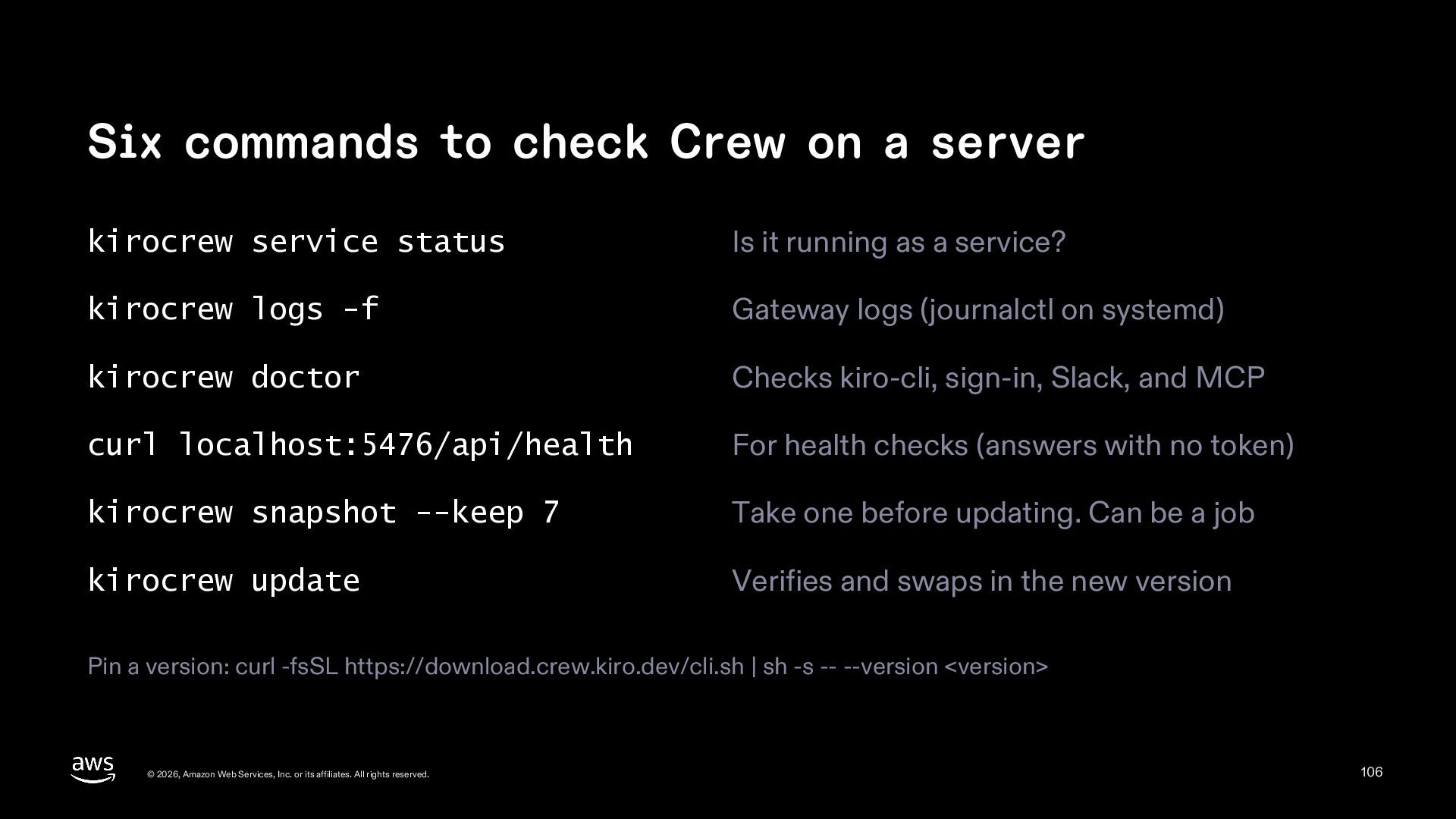
  106. Six commands to check Crew on a server kirocrew service

    status Is it running as a service? kirocrew logs -f Gateway logs (journalctl on systemd) kirocrew doctor Checks kiro-cli, sign-in, Slack, and MCP curl localhost:5476/api/health For health checks (answers with no token) kirocrew snapshot --keep 7 Take one before updating. Can be a job kirocrew update Verifies and swaps in the new version Pin a version: curl -fsSL https://download.crew.kiro.dev/cli.sh | sh -s -- --version <version> © 2026, Amazon Web Services, Inc. or its affiliates. All rights reserved. 106