Upgrade to Pro — share decks privately, control downloads, hide ads and more …

PPT to Explainer Video: Export, Recording, or a...

Avatar for Xinwei Xinwei
August 01, 2026

PPT to Explainer Video: Export, Recording, or a New Explanation?

Not every presentation needs to become the same kind of video. This practical decision guide separates three jobs that are often confused: preserving the original deck, recording a presenter-led delivery, and building a new explainer around a viewer’s question.

The deck provides a simple decision matrix, a source-preservation checklist, a storyboard sequence that makes exceptions visible, and a release-review checklist. It is useful for product teams, trainers, sales enablement, instructional designers, and anyone deciding how a presentation should travel beyond a meeting.

The final slides show how a source-led workflow can move from a current PPT to a reviewed explainer. The framework is intentionally tool-agnostic; KPainter is offered as one optional way to create the final explainer workflow.

Created by Xinwei, Founder of KPainter. Learn more: https://kpainter.ai/ppt-to-video?utm_source=speakerdeck&utm_medium=organic&utm_campaign=2026q3_source_story&utm_content=ppt_decision_guide

Avatar for Xinwei

Xinwei

August 01, 2026

More Decks by Xinwei

Other Decks in Education

Transcript

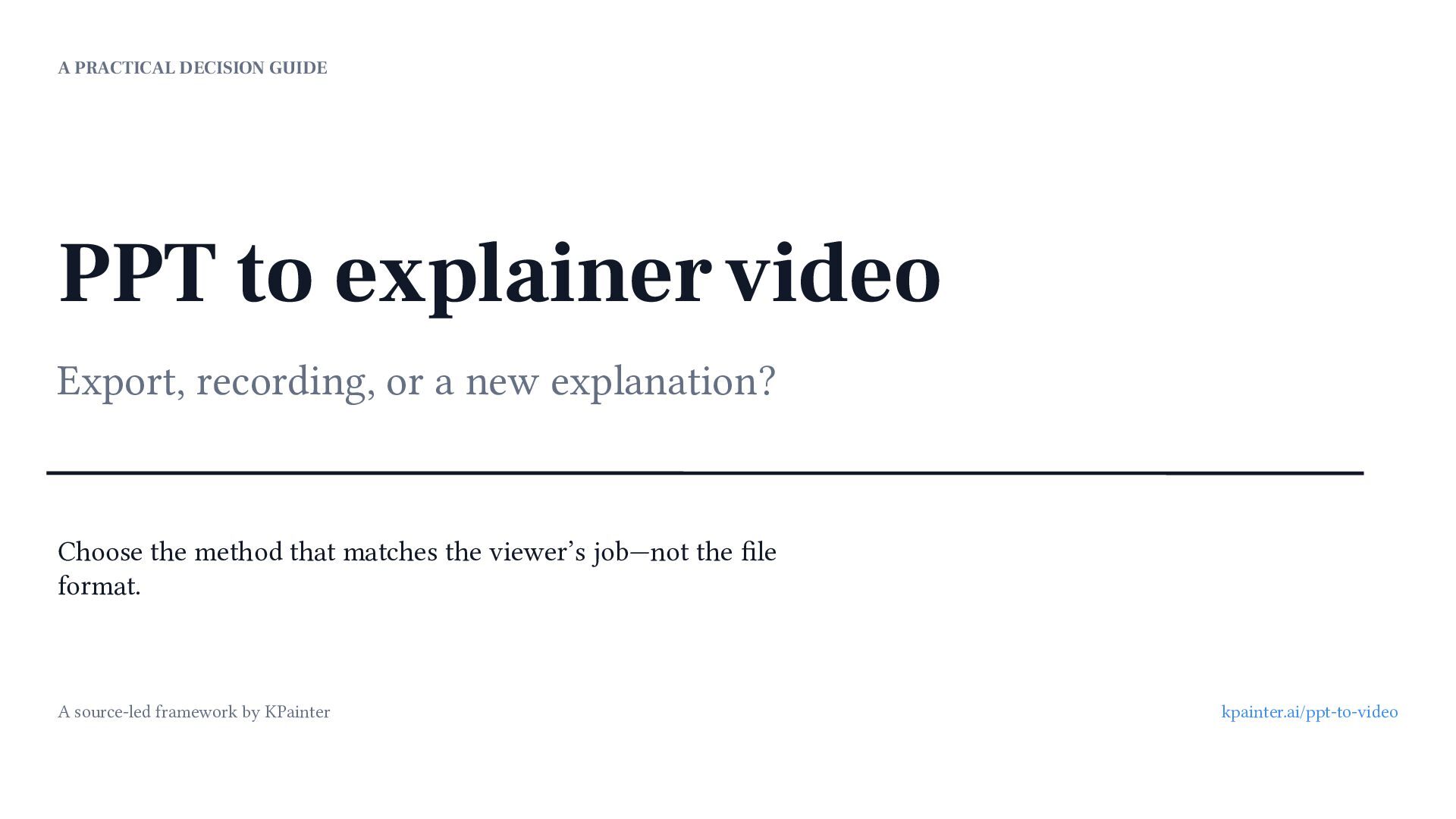
  1. A PRACTICAL DECISION GUIDE PPT to explainer video Export, recording,

    or a new explanation? Choose the method that matches the viewer’s job—not the file format. A source-led framework by KPainter kpainter.ai/ppt-to-video
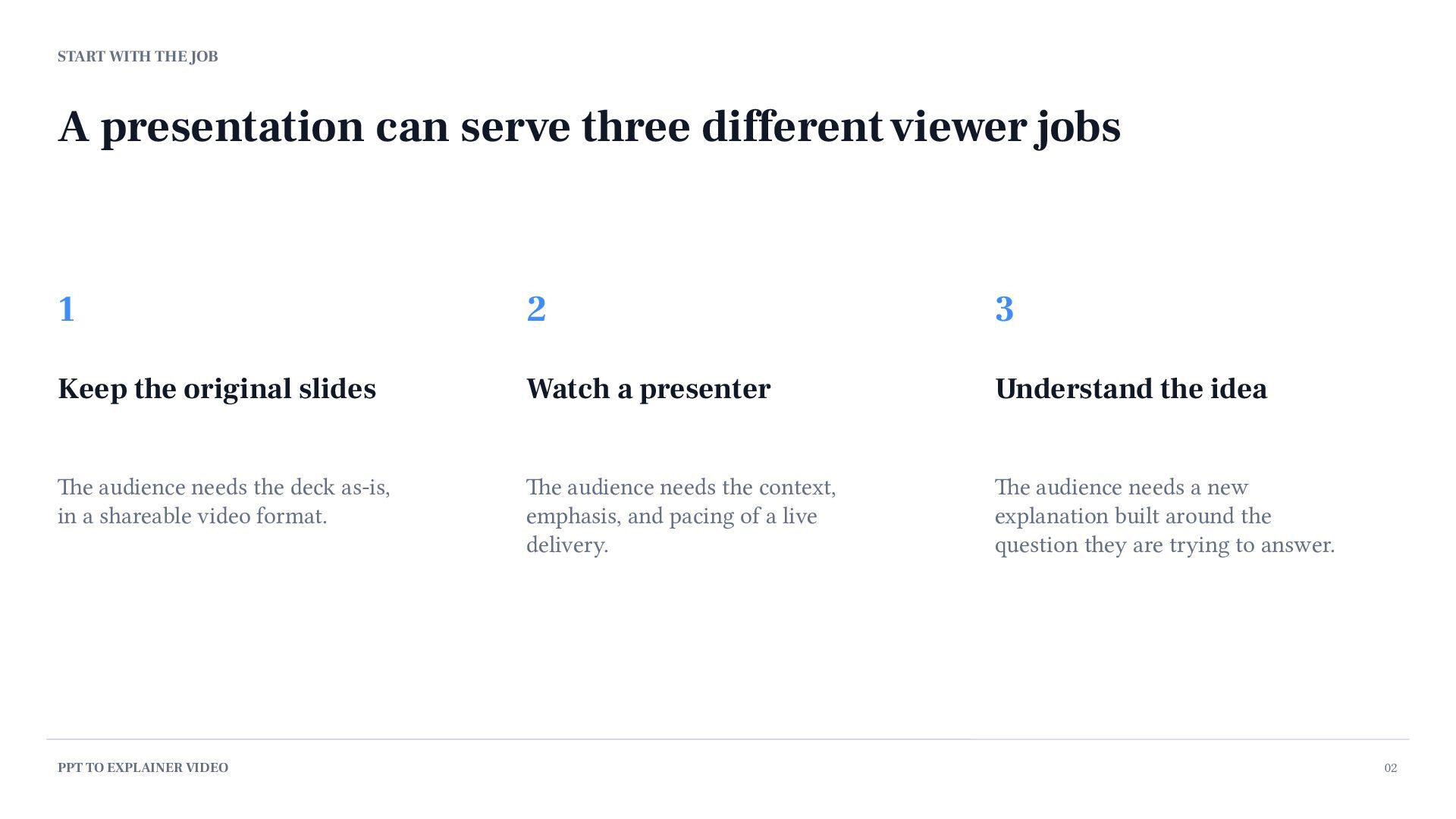
  2. START WITH THE JOB A presentation can serve three different

    viewer jobs 1 2 3 Keep the original slides Watch a presenter Understand the idea The audience needs the deck as-is, in a shareable video format. The audience needs the context, emphasis, and pacing of a live delivery. The audience needs a new explanation built around the question they are trying to answer. PPT TO EXPLAINER VIDEO 02
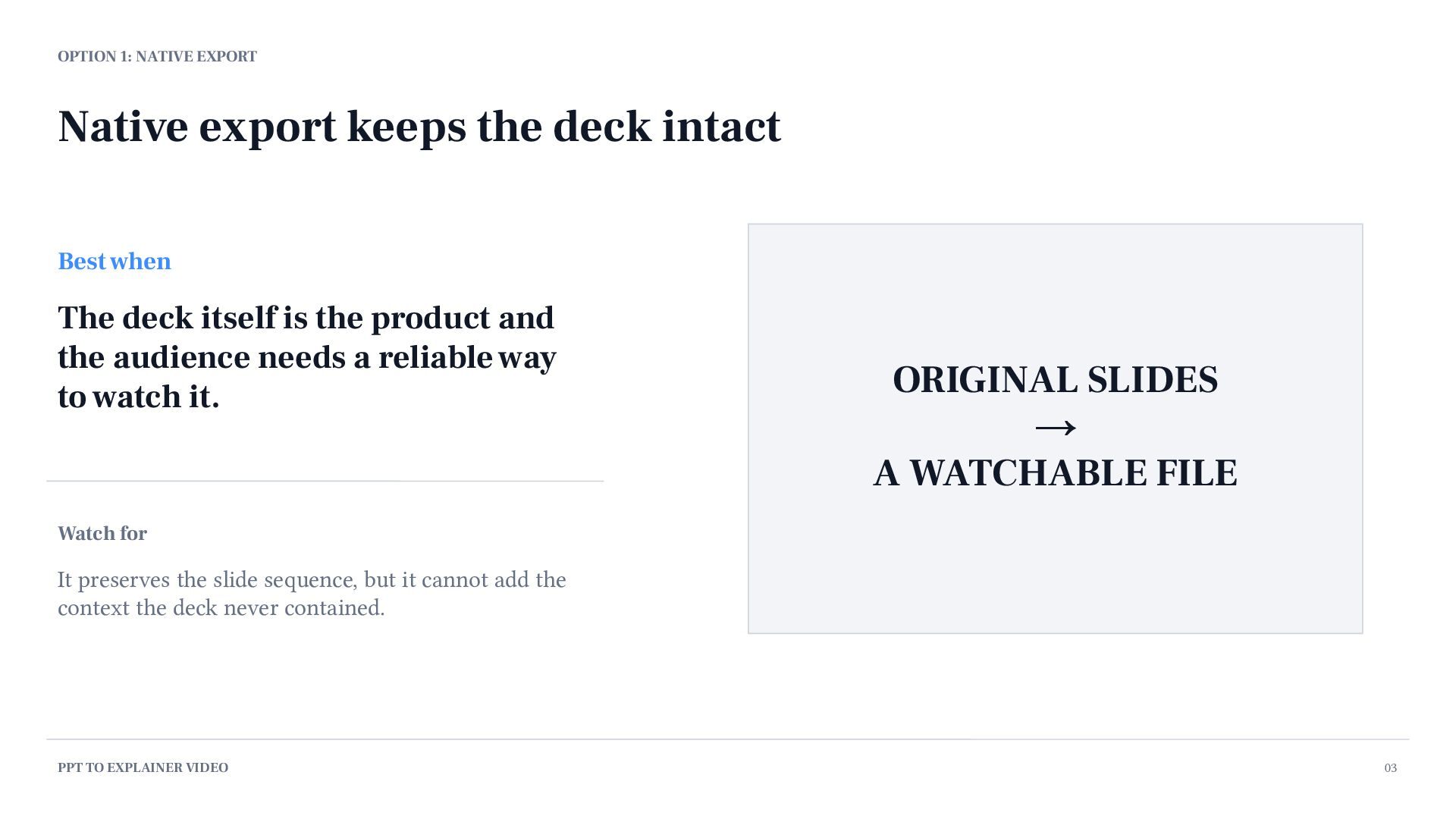
  3. OPTION 1: NATIVE EXPORT Native export keeps the deck intact

    Best when The deck itself is the product and the audience needs a reliable way to watch it. ORIGINAL SLIDES → A WATCHABLE FILE Watch for It preserves the slide sequence, but it cannot add the context the deck never contained. PPT TO EXPLAINER VIDEO 03
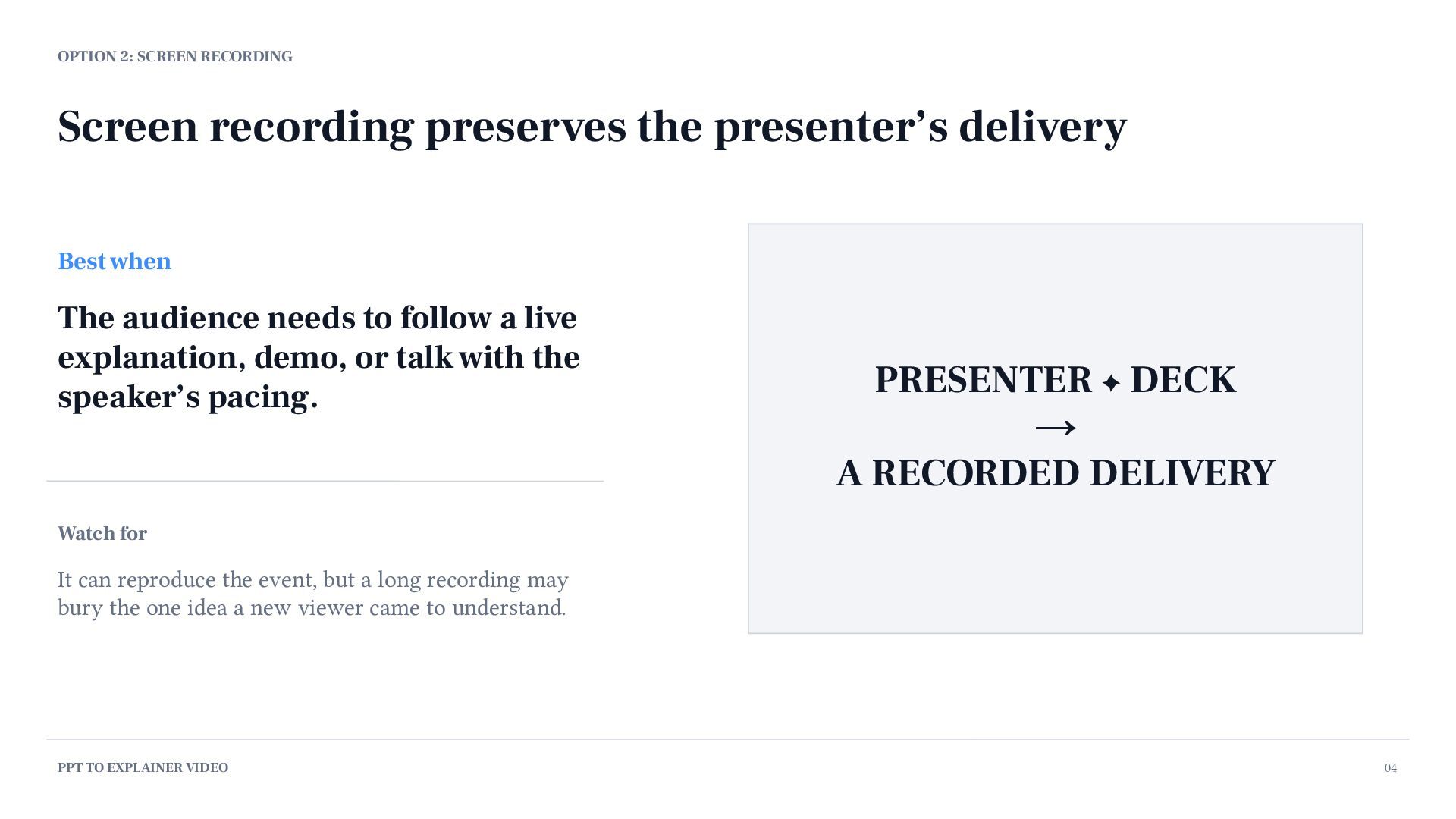
  4. OPTION 2: SCREEN RECORDING Screen recording preserves the presenter’s delivery

    Best when The audience needs to follow a live explanation, demo, or talk with the speaker’s pacing. PRESENTER + DECK → A RECORDED DELIVERY Watch for It can reproduce the event, but a long recording may bury the one idea a new viewer came to understand. PPT TO EXPLAINER VIDEO 04
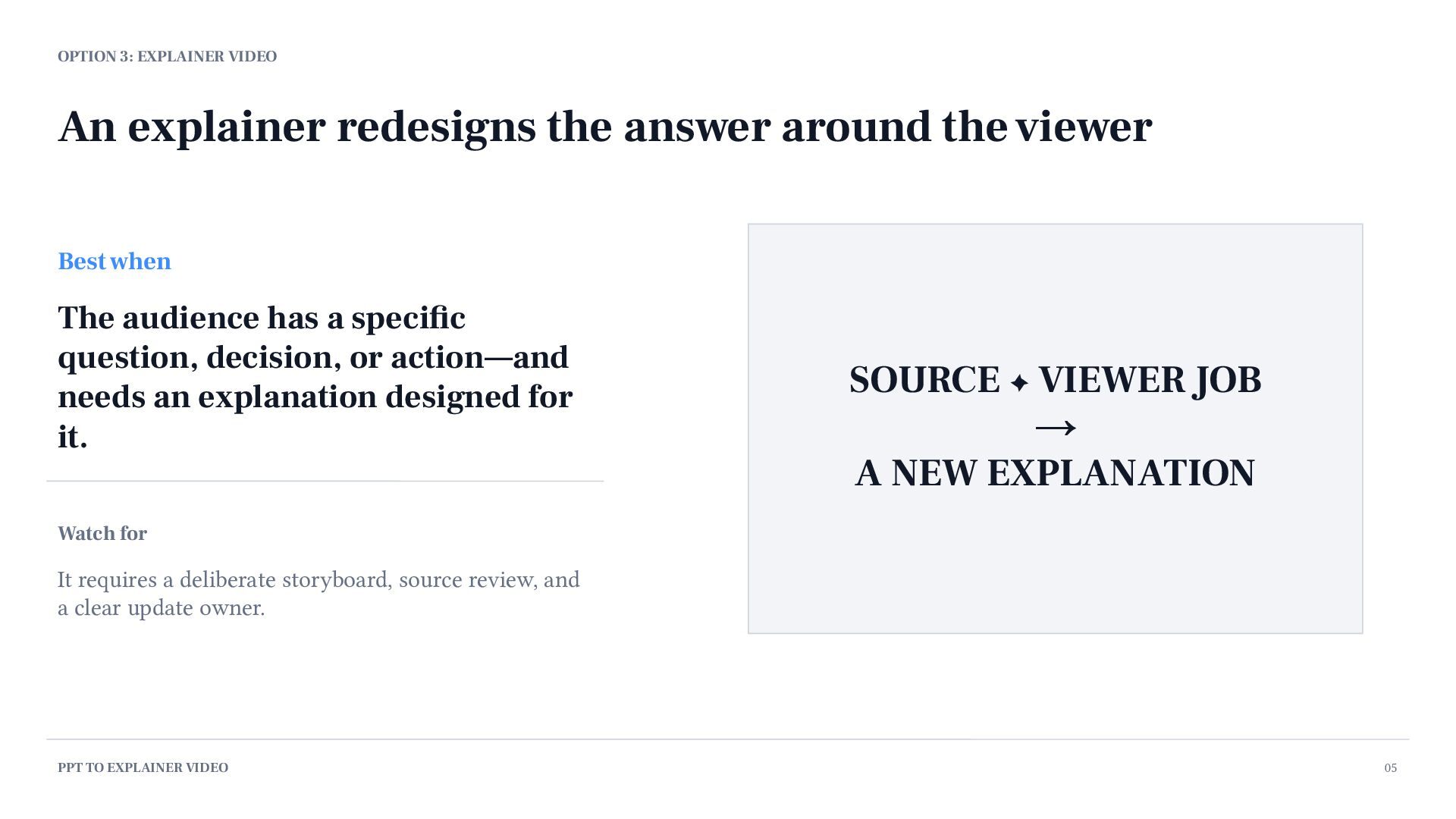
  5. OPTION 3: EXPLAINER VIDEO An explainer redesigns the answer around

    the viewer Best when The audience has a specific question, decision, or action—and needs an explanation designed for it. SOURCE + VIEWER JOB → A NEW EXPLANATION Watch for It requires a deliberate storyboard, source review, and a clear update owner. PPT TO EXPLAINER VIDEO 05
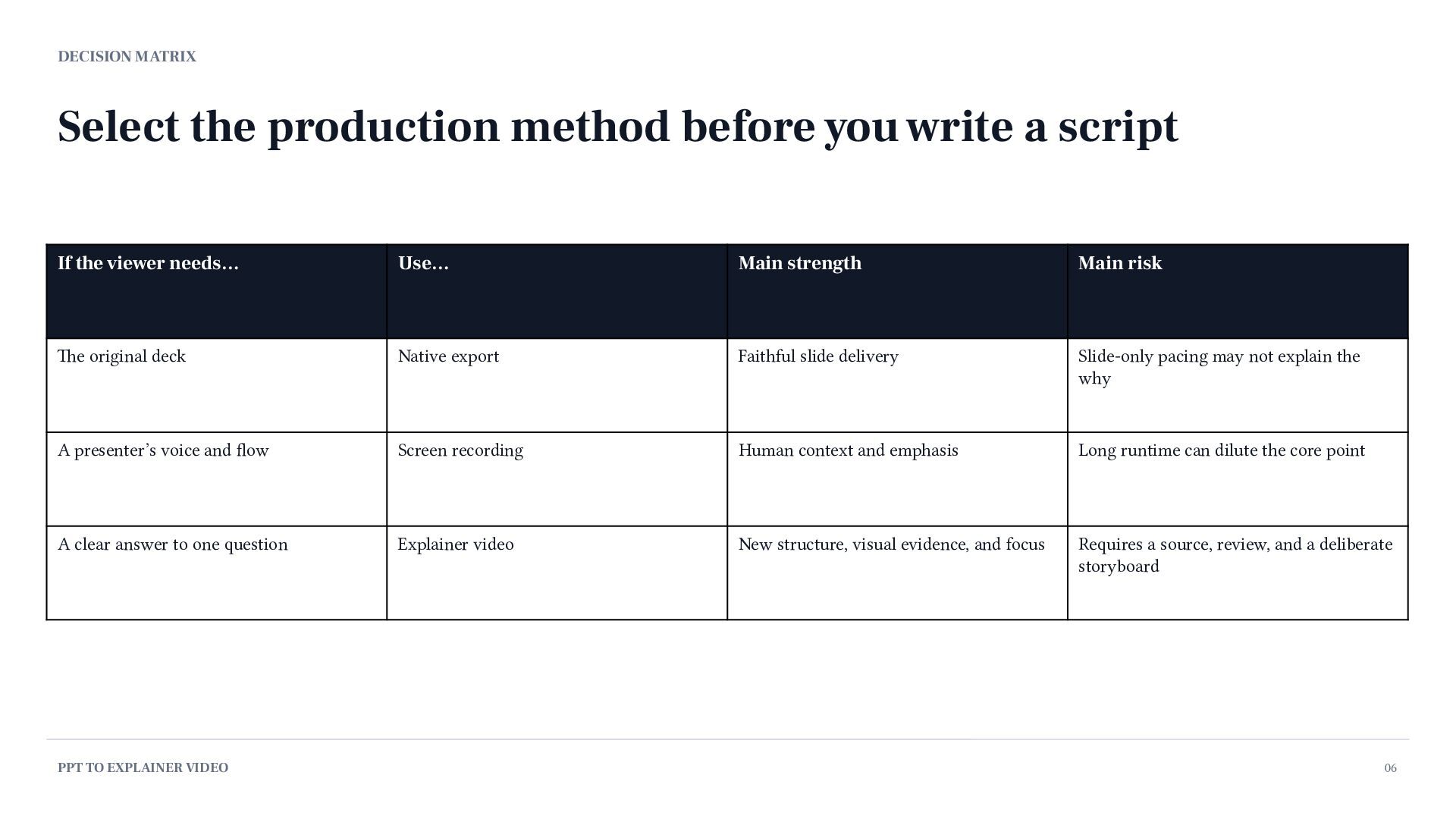
  6. DECISION MATRIX Select the production method before you write a

    script If the viewer needs… Use… Main strength Main risk The original deck Native export Faithful slide delivery Slide-only pacing may not explain the why A presenter’s voice and flow Screen recording Human context and emphasis Long runtime can dilute the core point A clear answer to one question Explainer video New structure, visual evidence, and focus Requires a source, review, and a deliberate storyboard PPT TO EXPLAINER VIDEO 06
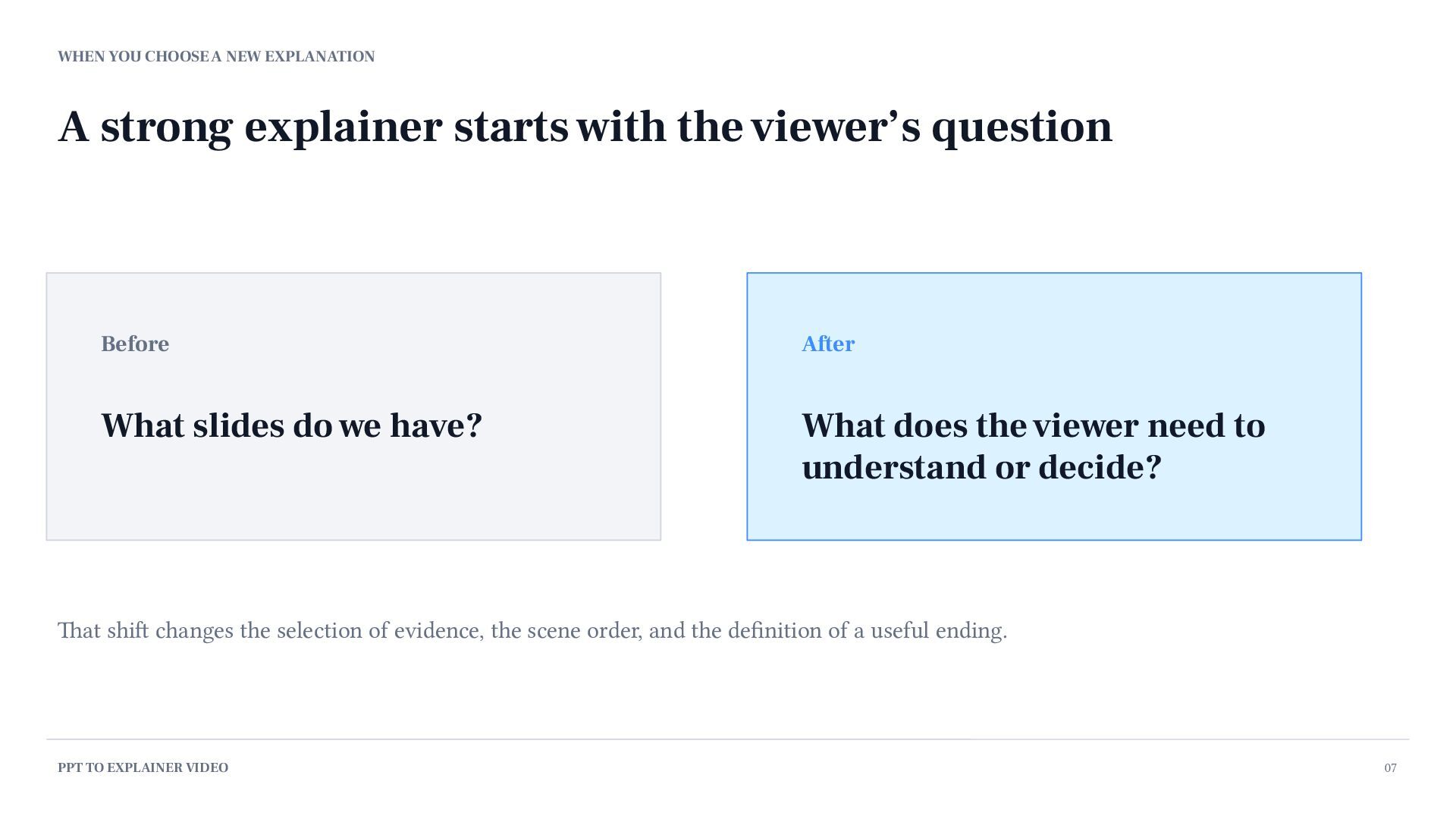
  7. WHEN YOU CHOOSE A NEW EXPLANATION A strong explainer starts

    with the viewer’s question Before After What slides do we have? What does the viewer need to understand or decide? That shift changes the selection of evidence, the scene order, and the definition of a useful ending. PPT TO EXPLAINER VIDEO 07
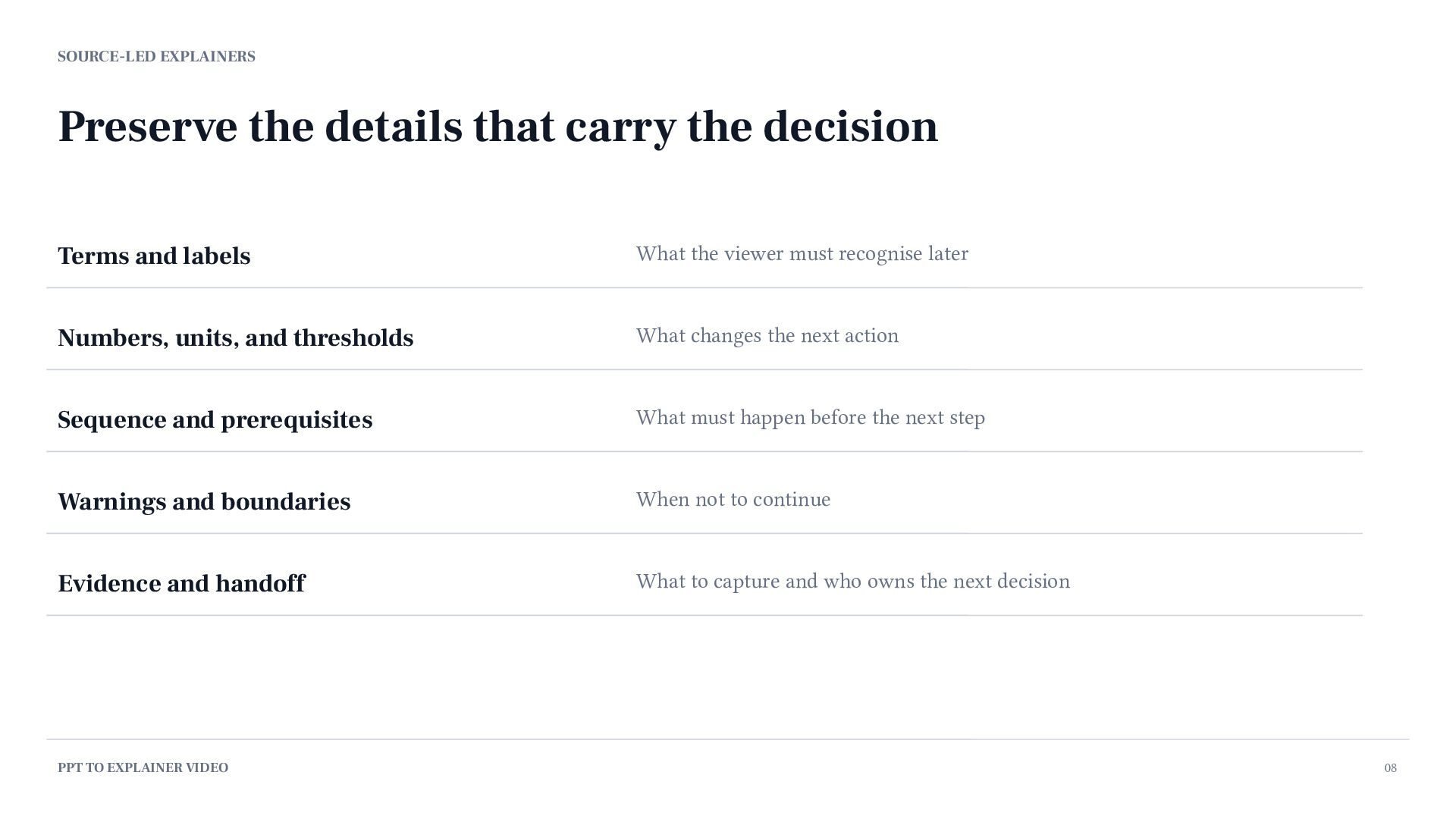
  8. SOURCE-LED EXPLAINERS Preserve the details that carry the decision Terms

    and labels What the viewer must recognise later Numbers, units, and thresholds What changes the next action Sequence and prerequisites What must happen before the next step Warnings and boundaries When not to continue Evidence and handoff What to capture and who owns the next decision PPT TO EXPLAINER VIDEO 08
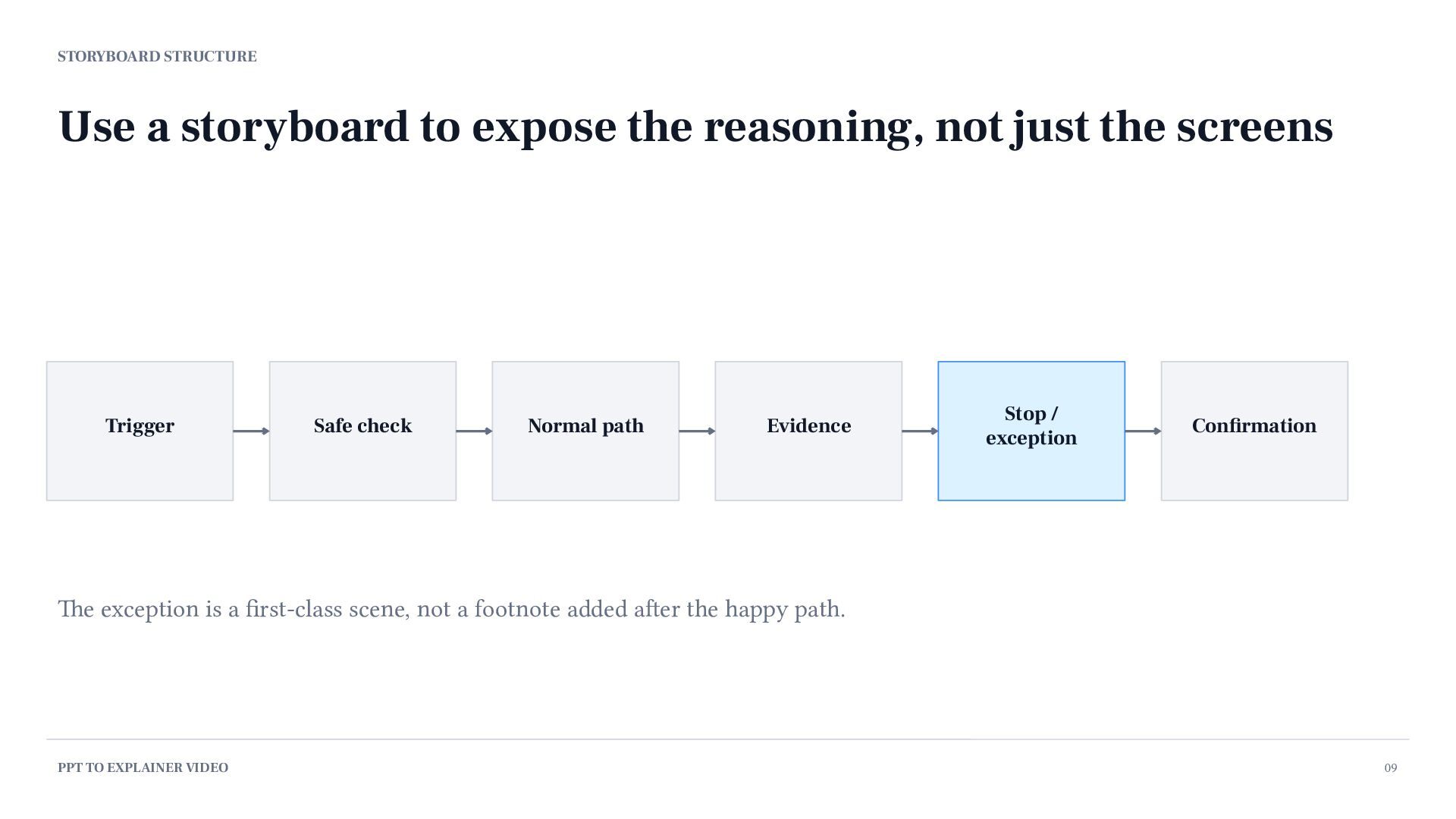
  9. STORYBOARD STRUCTURE Use a storyboard to expose the reasoning, not

    just the screens Trigger Safe check Normal path Evidence Stop / exception Confirmation The exception is a first-class scene, not a footnote added after the happy path. PPT TO EXPLAINER VIDEO 09
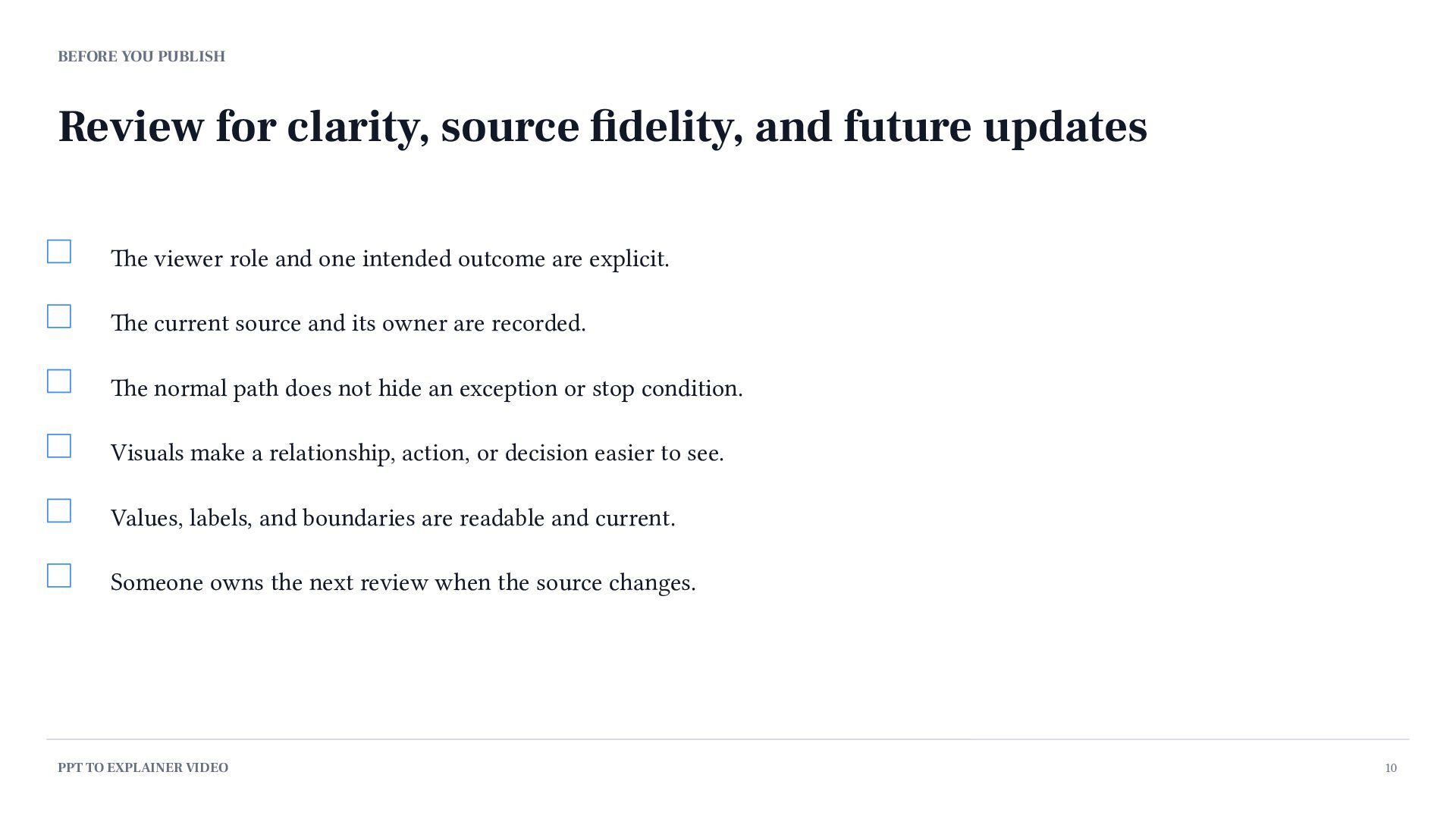
  10. BEFORE YOU PUBLISH Review for clarity, source fidelity, and future

    updates The viewer role and one intended outcome are explicit. The current source and its owner are recorded. The normal path does not hide an exception or stop condition. Visuals make a relationship, action, or decision easier to see. Values, labels, and boundaries are readable and current. Someone owns the next review when the source changes. PPT TO EXPLAINER VIDEO 10
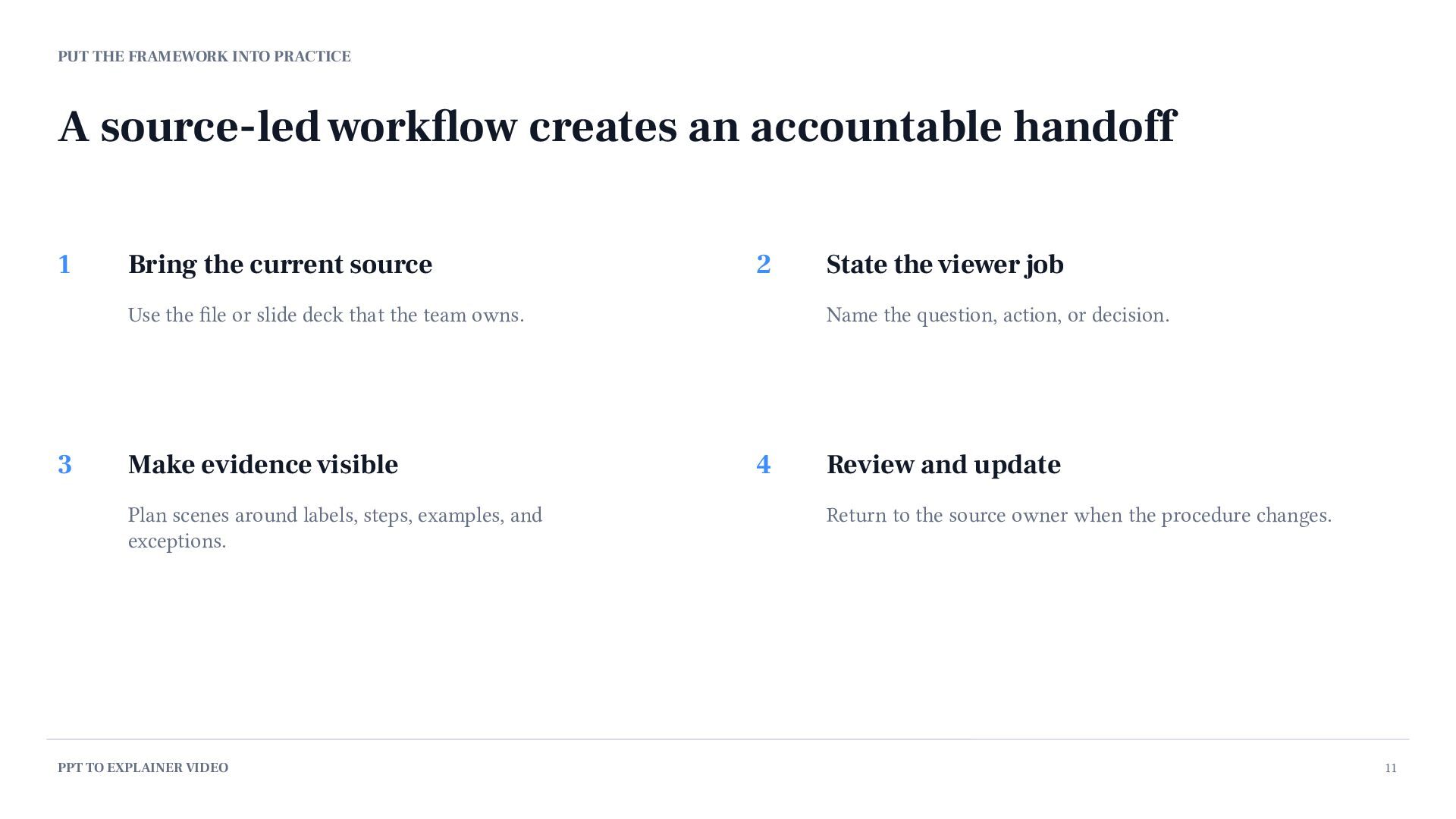
  11. PUT THE FRAMEWORK INTO PRACTICE A source-led workflow creates an

    accountable handoff 1 Bring the current source 2 Use the file or slide deck that the team owns. 3 Make evidence visible Plan scenes around labels, steps, examples, and exceptions. PPT TO EXPLAINER VIDEO State the viewer job Name the question, action, or decision. 4 Review and update Return to the source owner when the procedure changes. 11
  12. NEXT STEP Make the first decision before you make the

    video. Use the source, viewer job, evidence, storyboard, and review checklist as one practical handoff. Explore the PPT-to-video workflow kpainter.ai/ppt-to-video