Upgrade to Pro — share decks privately, control downloads, hide ads and more …

PPT to Explainer Video: Three Choices Before Yo...

Sponsored · Your Podcast. Everywhere. Effortlessly. Share. Educate. Inspire. Entertain. You do you. We'll handle the rest. →
Avatar for Xinwei Xinwei
August 01, 2026

PPT to Explainer Video: Three Choices Before You Generate

Not every presentation needs a redesigned explainer. This 13-slide decision guide helps product, enablement, and course teams choose between native export, a recorded presentation, or a visual explainer—then prepare the source, storyboard, review checkpoints, and viewer decisions. KPainter is a source-to-explainer video workspace; its optional PPT-to-video workflow starts here: https://kpainter.ai/ppt-to-video?utm_source=speakerdeck&utm_medium=organic&utm_campaign=2026q3_source_story&utm_content=ppt_three_choices

Avatar for Xinwei

Xinwei

August 01, 2026

More Decks by Xinwei

Other Decks in Education

Transcript

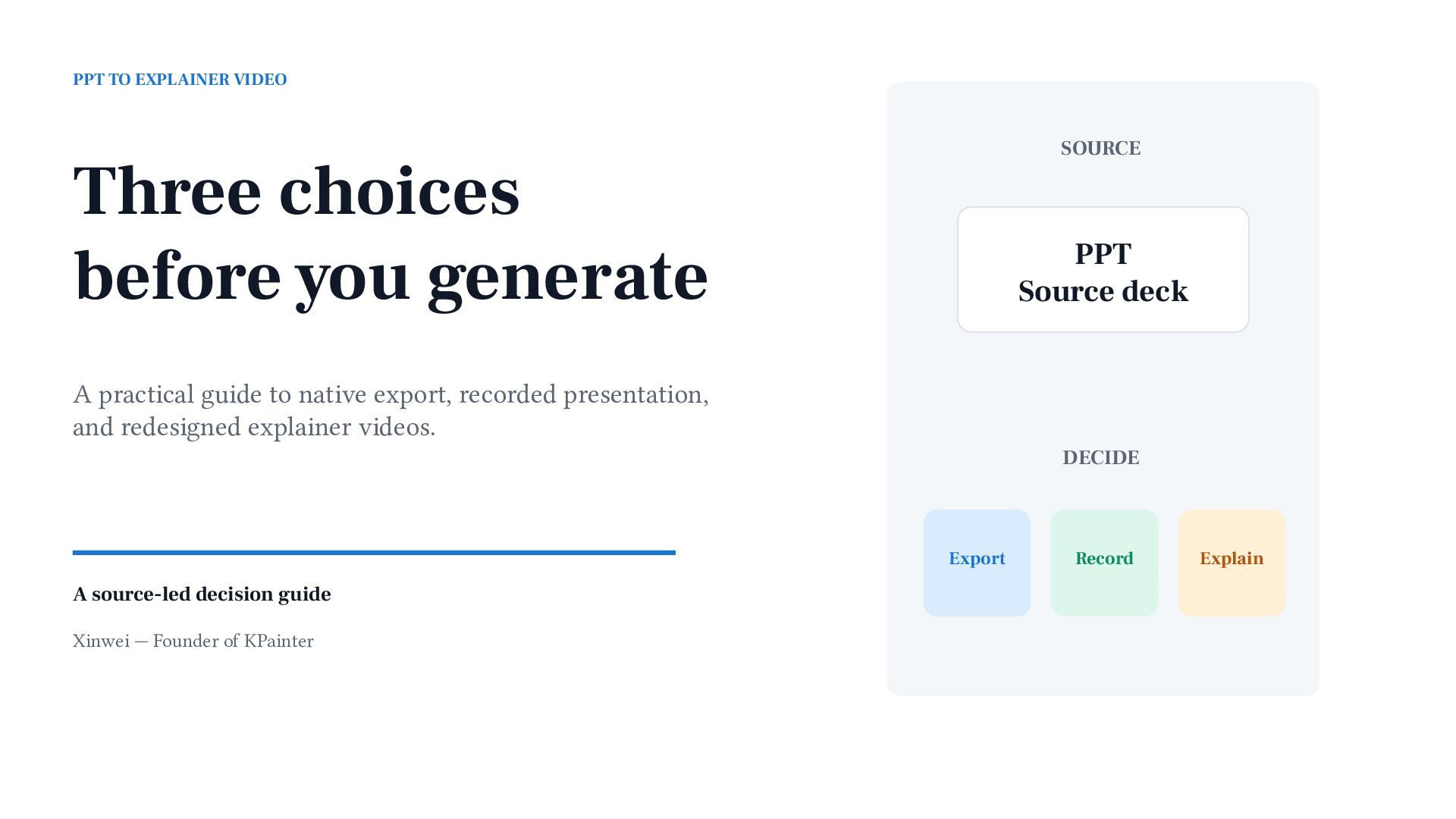
  1. PPT TO EXPLAINER VIDEO SOURCE Three choices before you generate

    PPT Source deck A practical guide to native export, recorded presentation, and redesigned explainer videos. DECIDE Export A source-led decision guide Xinwei — Founder of KPainter Record Explain
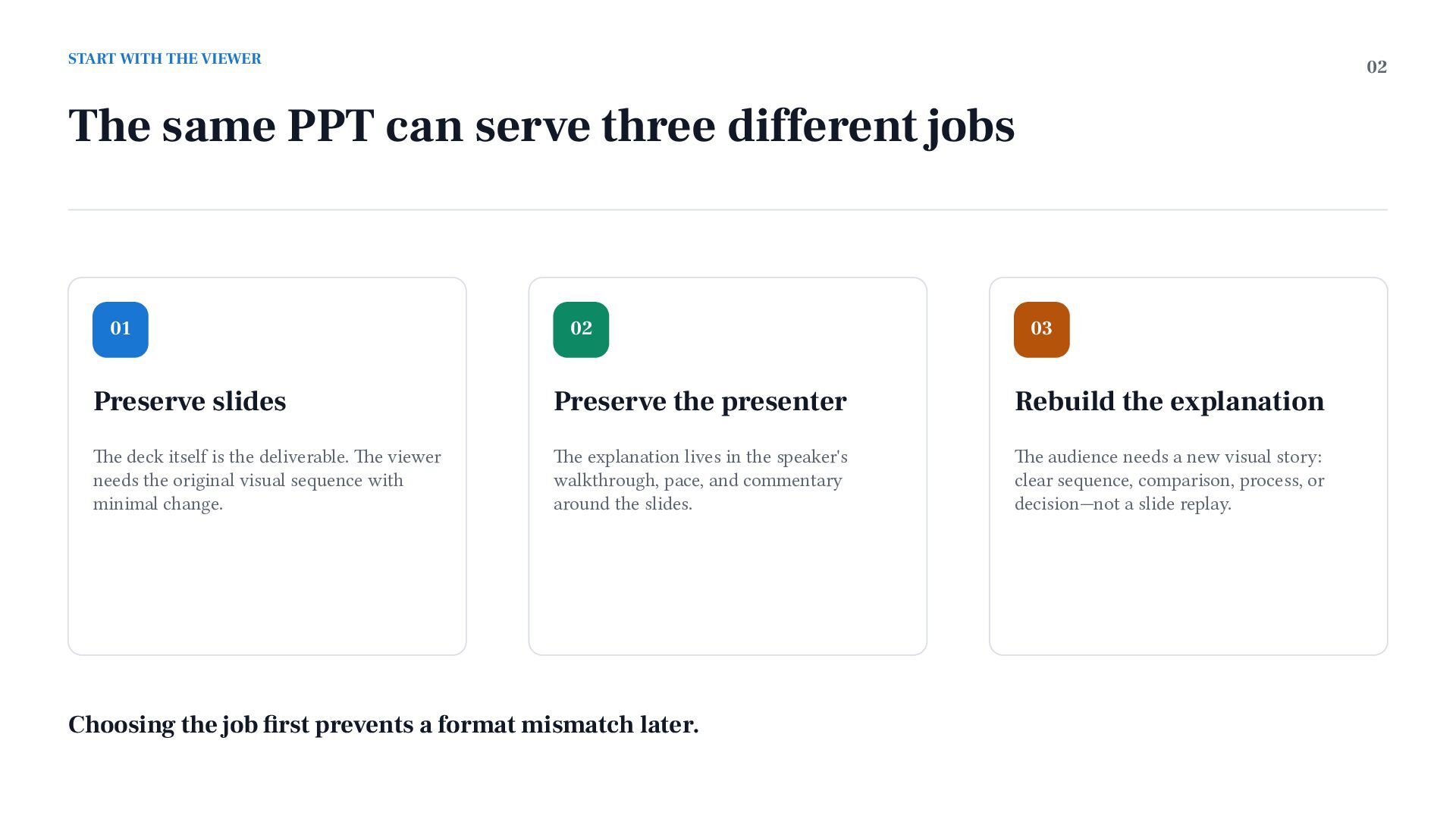
  2. START WITH THE VIEWER 02 The same PPT can serve

    three different jobs 01 02 03 Preserve slides Preserve the presenter Rebuild the explanation The deck itself is the deliverable. The viewer needs the original visual sequence with minimal change. The explanation lives in the speaker's walkthrough, pace, and commentary around the slides. The audience needs a new visual story: clear sequence, comparison, process, or decision—not a slide replay. Choosing the job first prevents a format mismatch later.
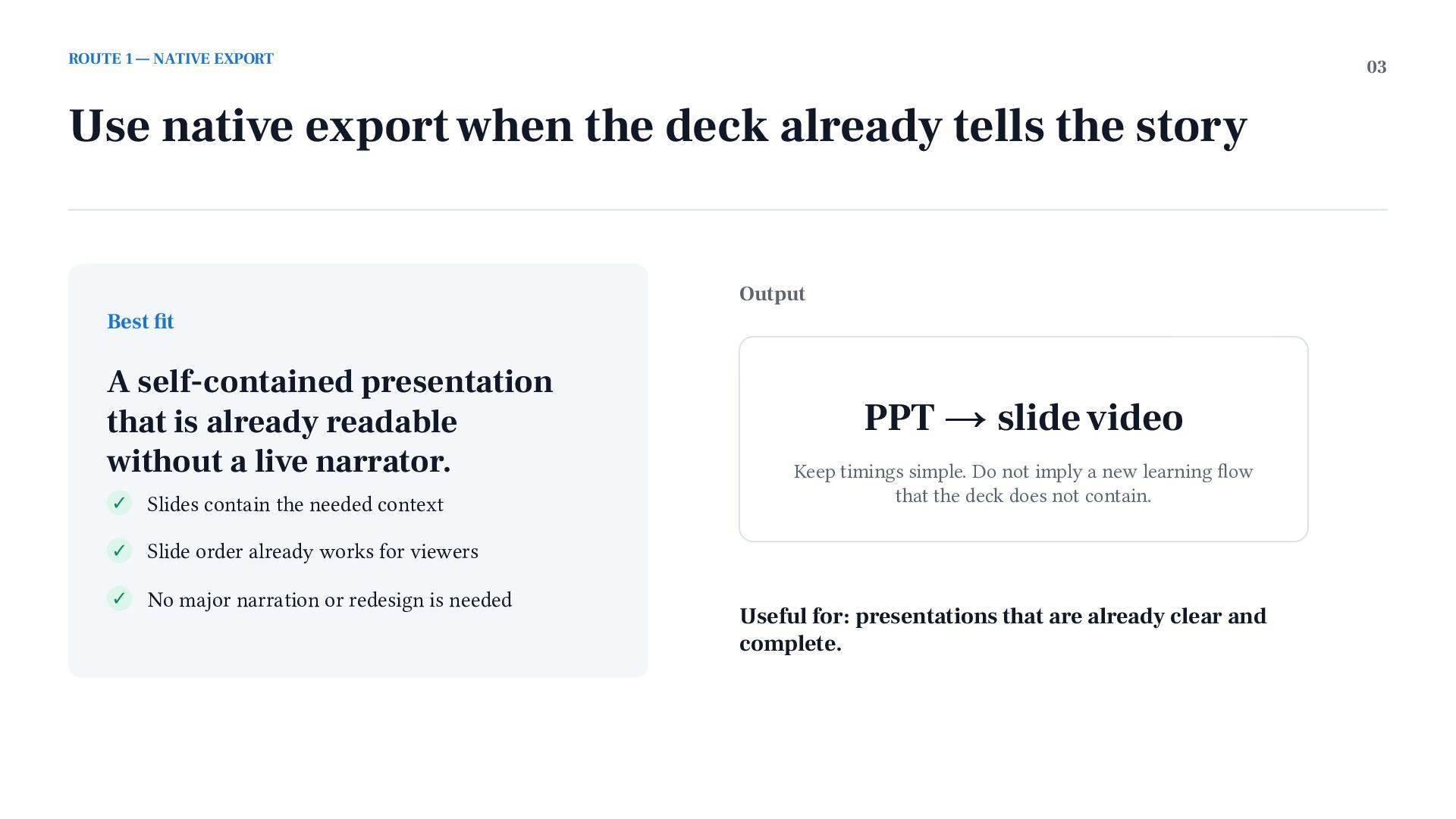
  3. ROUTE 1 — NATIVE EXPORT 03 Use native export when

    the deck already tells the story Output Best fit A self-contained presentation that is already readable without a live narrator. ✓ Slides contain the needed context ✓ Slide order already works for viewers ✓ No major narration or redesign is needed PPT → slide video Keep timings simple. Do not imply a new learning flow that the deck does not contain. Useful for: presentations that are already clear and complete.
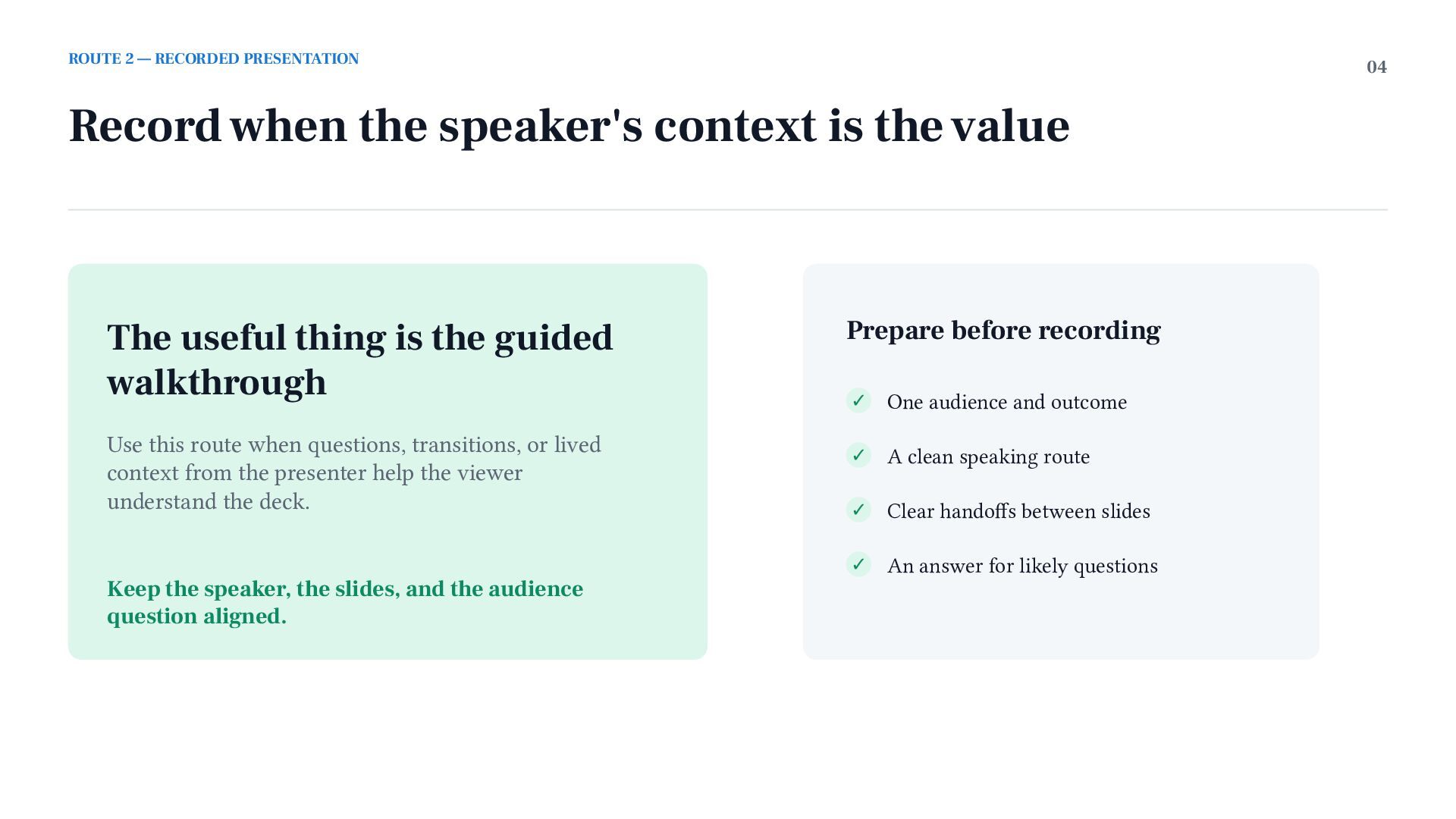
  4. ROUTE 2 — RECORDED PRESENTATION 04 Record when the speaker's

    context is the value The useful thing is the guided walkthrough Use this route when questions, transitions, or lived context from the presenter help the viewer understand the deck. Keep the speaker, the slides, and the audience question aligned. Prepare before recording ✓ One audience and outcome ✓ A clean speaking route ✓ Clear handoffs between slides ✓ An answer for likely questions
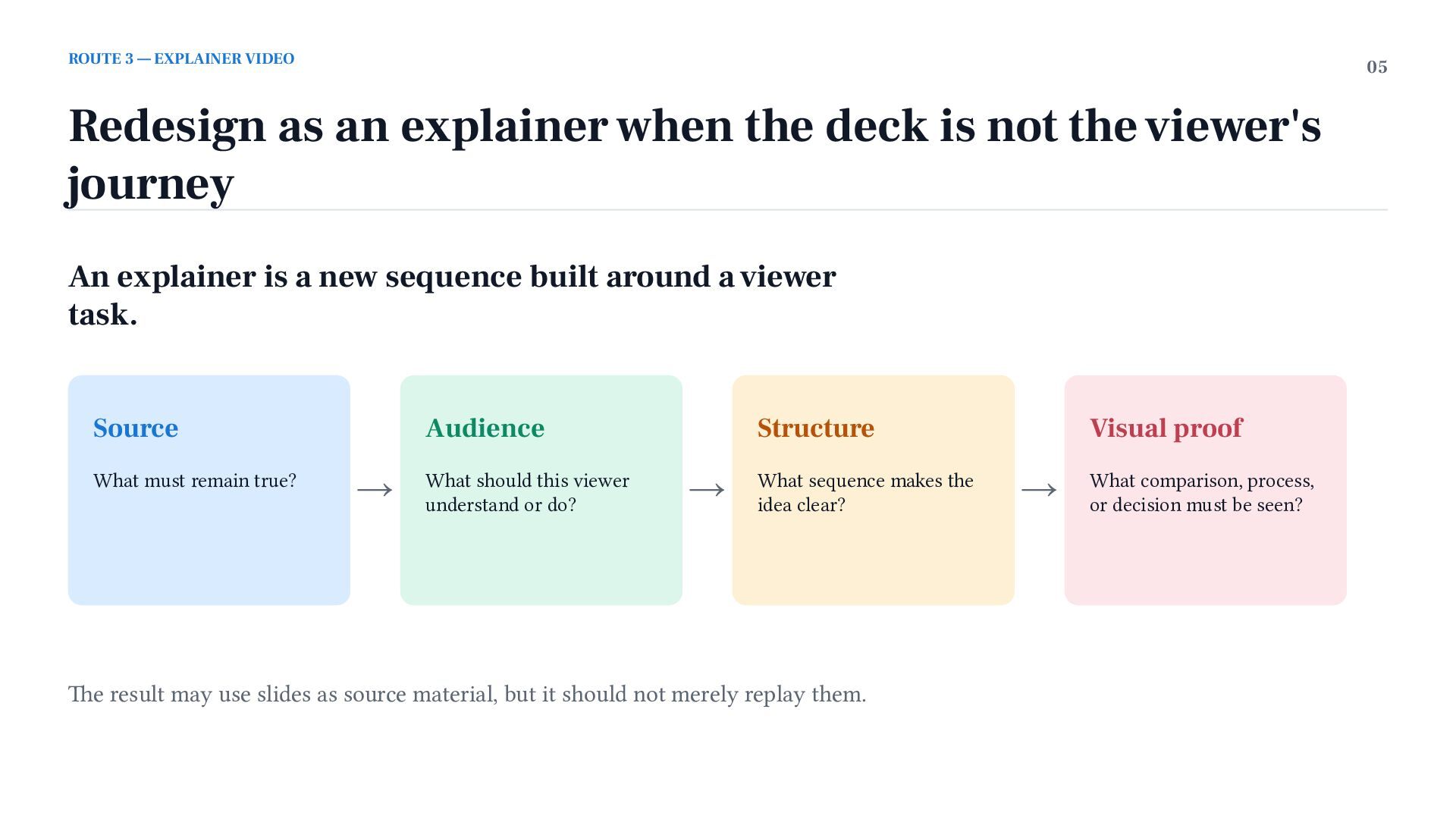
  5. ROUTE 3 — EXPLAINER VIDEO 05 Redesign as an explainer

    when the deck is not the viewer's journey An explainer is a new sequence built around a viewer task. Source What must remain true? Audience → What should this viewer understand or do? Structure → What sequence makes the idea clear? The result may use slides as source material, but it should not merely replay them. Visual proof → What comparison, process, or decision must be seen?
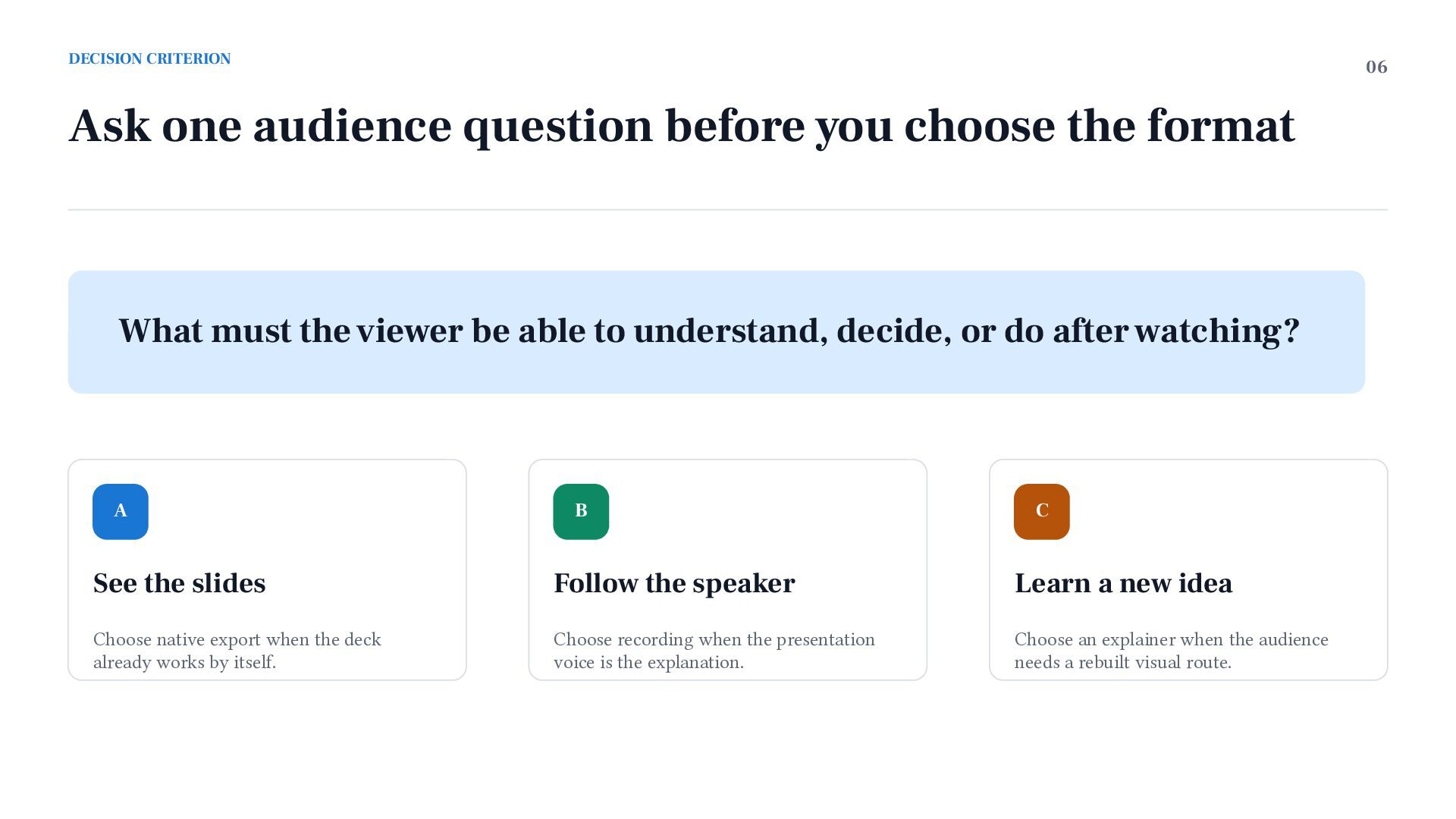
  6. DECISION CRITERION 06 Ask one audience question before you choose

    the format What must the viewer be able to understand, decide, or do after watching? A B C See the slides Follow the speaker Learn a new idea Choose native export when the deck already works by itself. Choose recording when the presentation voice is the explanation. Choose an explainer when the audience needs a rebuilt visual route.
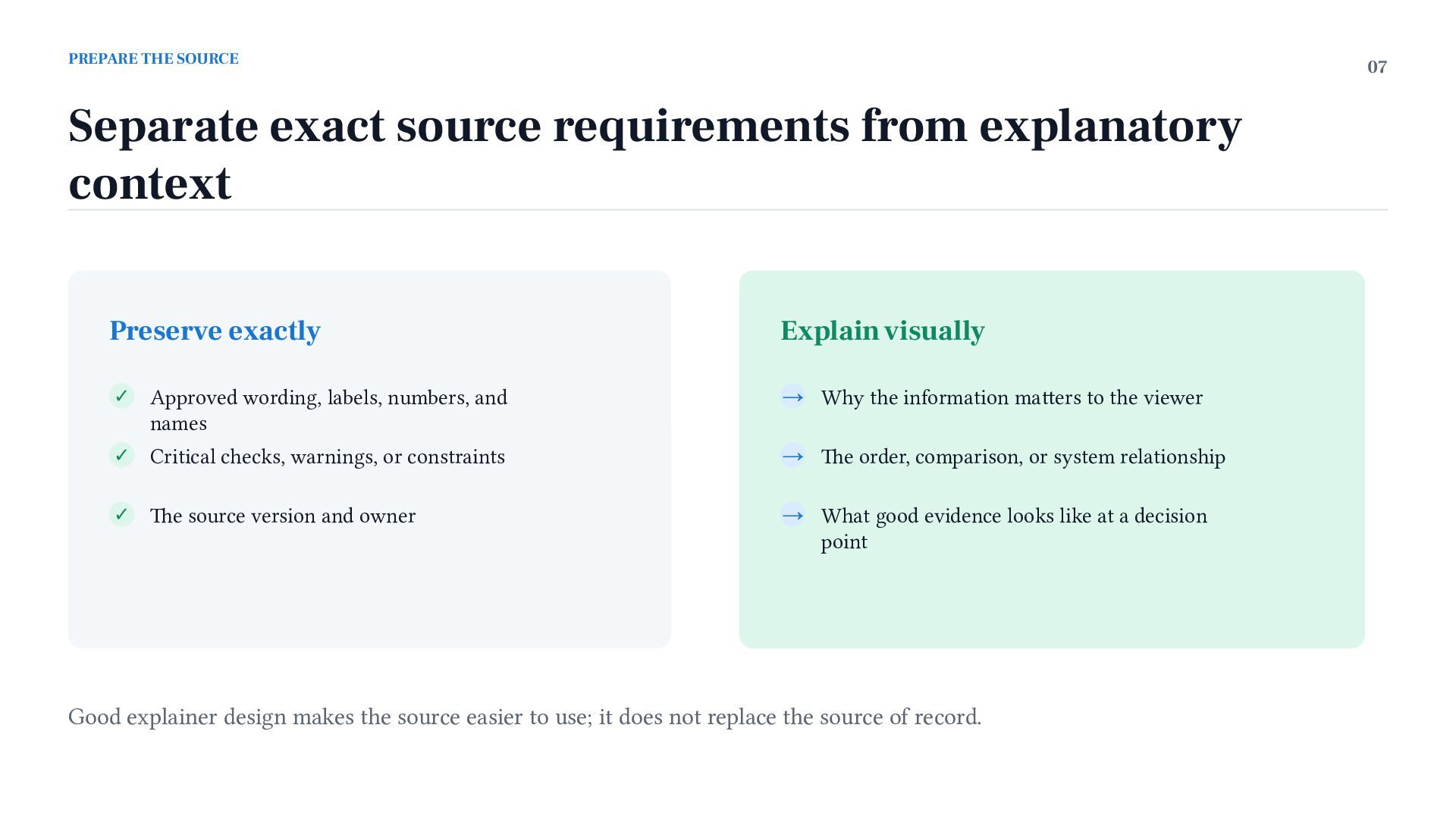
  7. PREPARE THE SOURCE 07 Separate exact source requirements from explanatory

    context Preserve exactly Explain visually ✓ Approved wording, labels, numbers, and names → Why the information matters to the viewer ✓ Critical checks, warnings, or constraints → The order, comparison, or system relationship ✓ The source version and owner → What good evidence looks like at a decision point Good explainer design makes the source easier to use; it does not replace the source of record.
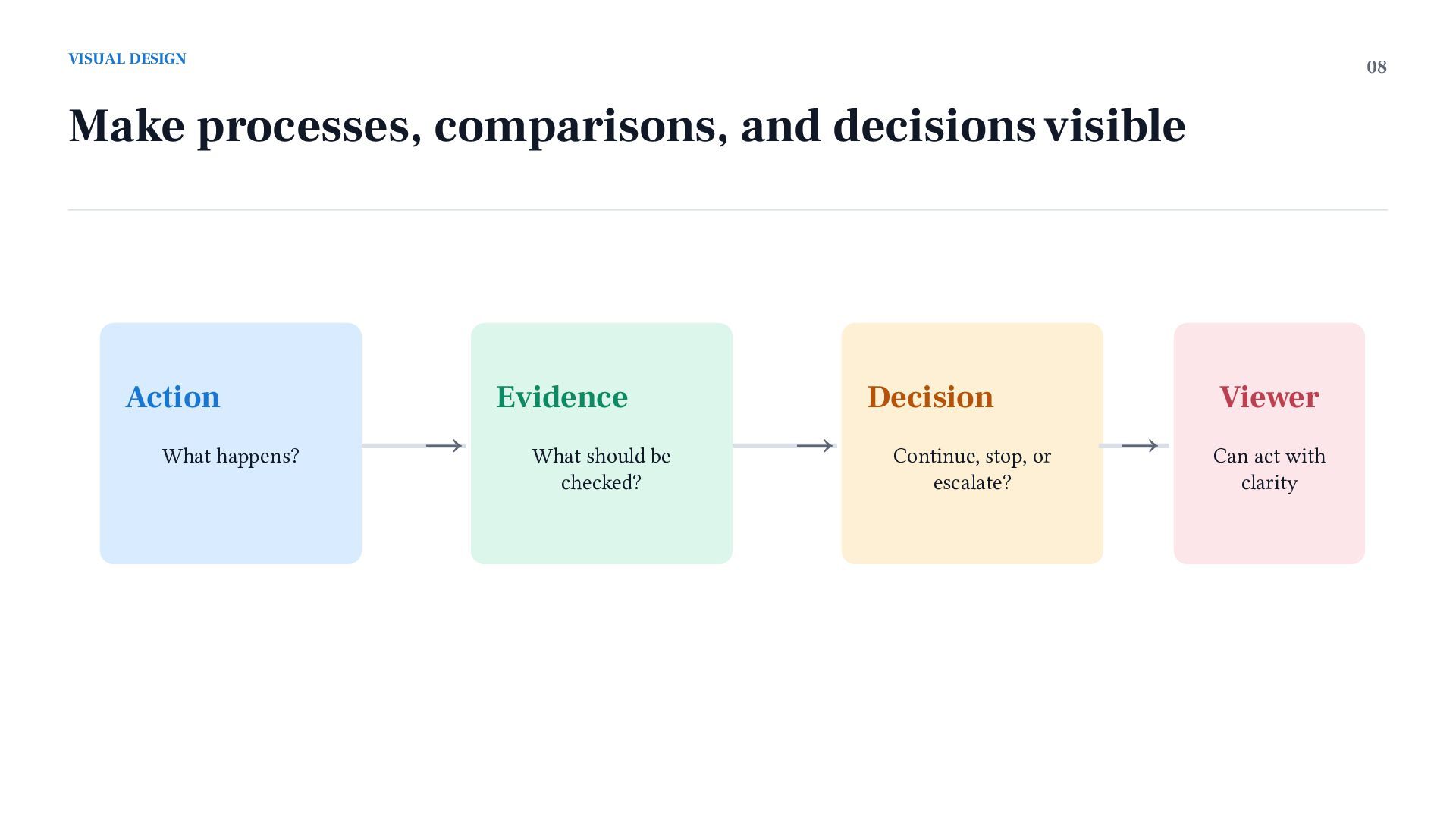
  8. VISUAL DESIGN 08 Make processes, comparisons, and decisions visible Action

    What happens? Evidence → What should be checked? Decision → Continue, stop, or escalate? Viewer → Can act with clarity
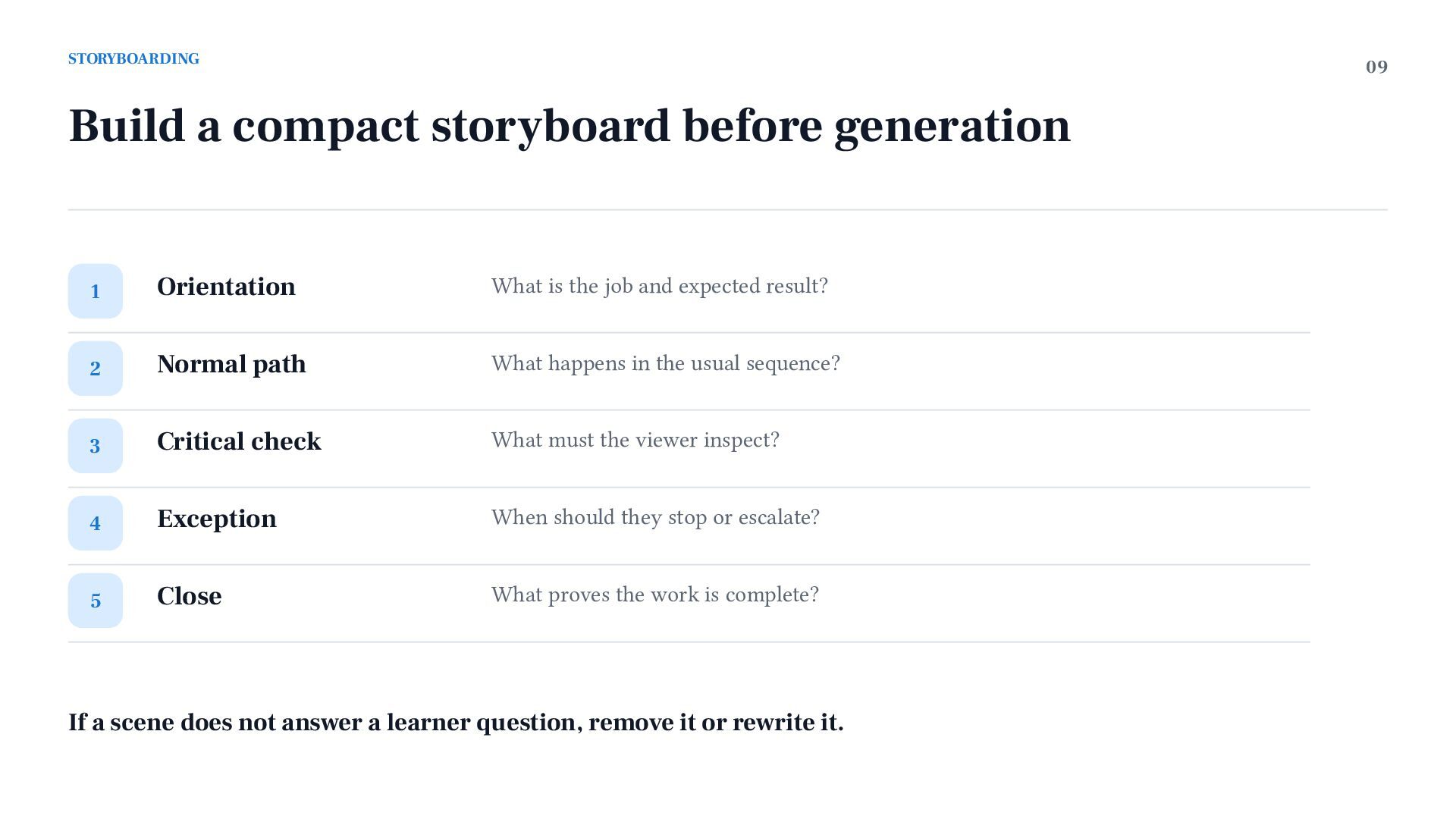
  9. STORYBOARDING 09 Build a compact storyboard before generation 1 Orientation

    What is the job and expected result? 2 Normal path What happens in the usual sequence? 3 Critical check What must the viewer inspect? 4 Exception When should they stop or escalate? 5 Close What proves the work is complete? If a scene does not answer a learner question, remove it or rewrite it.
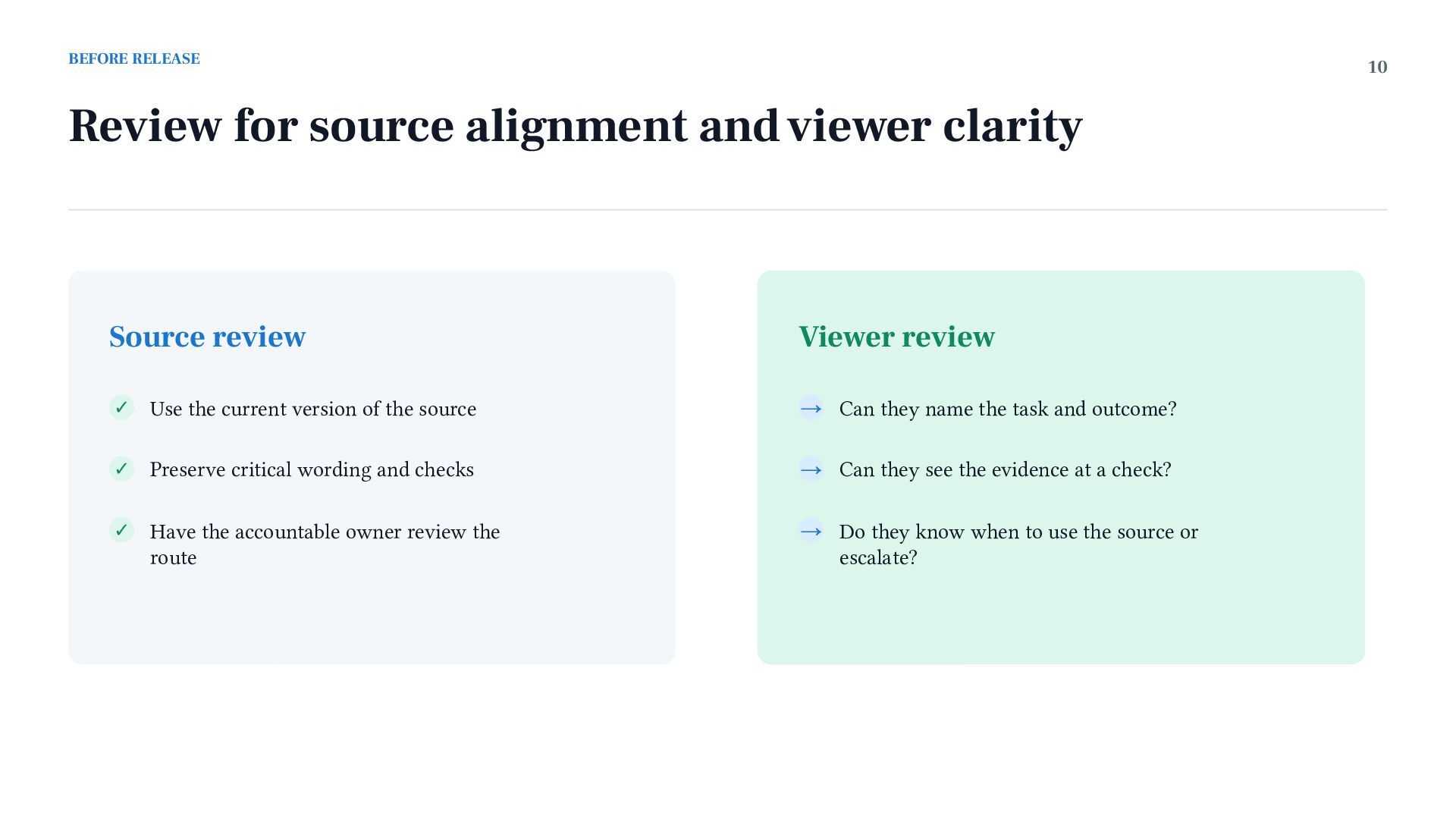
  10. BEFORE RELEASE 10 Review for source alignment and viewer clarity

    Source review Viewer review ✓ Use the current version of the source → Can they name the task and outcome? ✓ Preserve critical wording and checks → Can they see the evidence at a check? ✓ Have the accountable owner review the route → Do they know when to use the source or escalate?
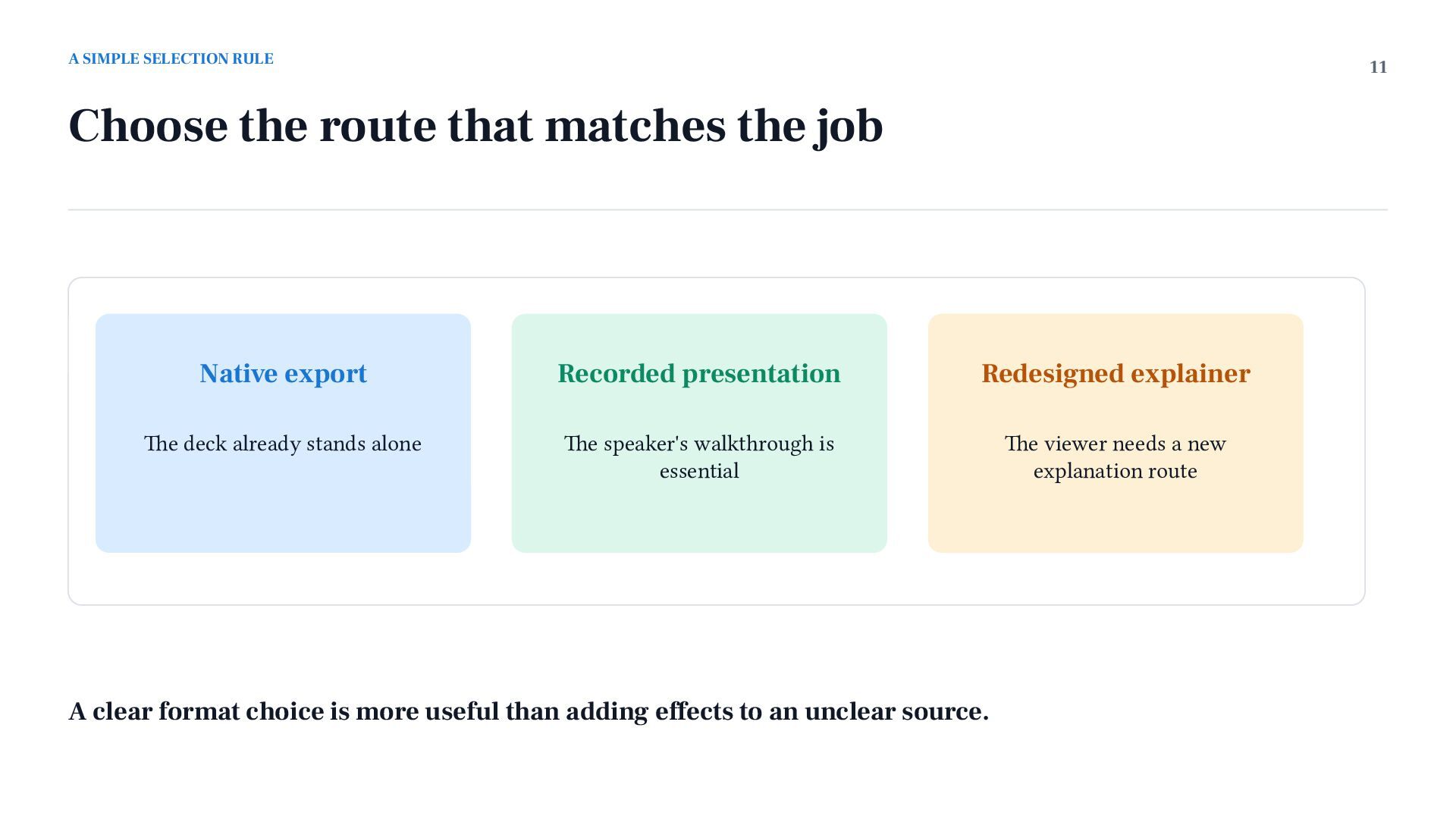
  11. A SIMPLE SELECTION RULE 11 Choose the route that matches

    the job Native export Recorded presentation Redesigned explainer The deck already stands alone The speaker's walkthrough is essential The viewer needs a new explanation route A clear format choice is more useful than adding effects to an unclear source.
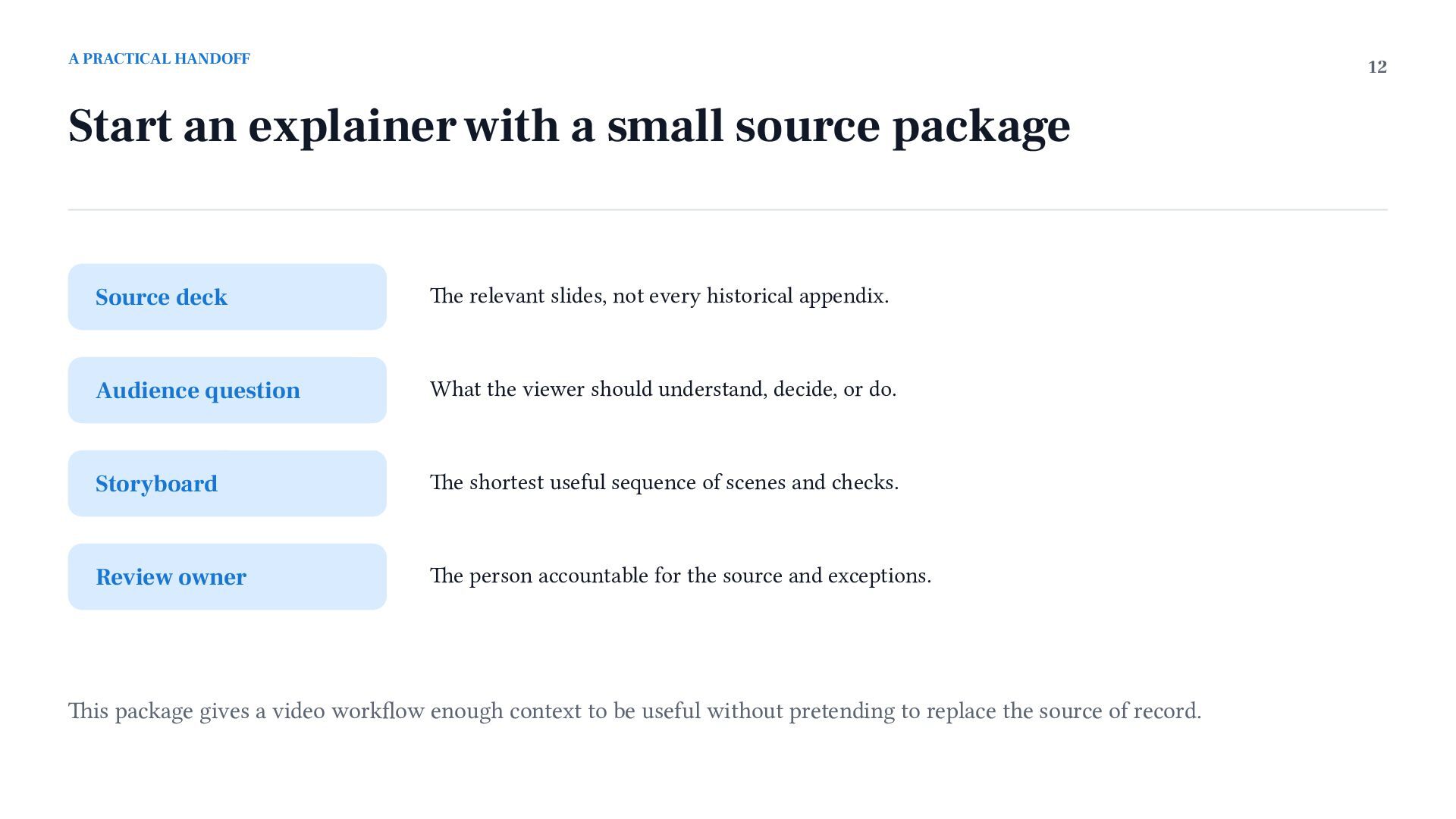
  12. A PRACTICAL HANDOFF 12 Start an explainer with a small

    source package Source deck The relevant slides, not every historical appendix. Audience question What the viewer should understand, decide, or do. Storyboard The shortest useful sequence of scenes and checks. Review owner The person accountable for the source and exceptions. This package gives a video workflow enough context to be useful without pretending to replace the source of record.
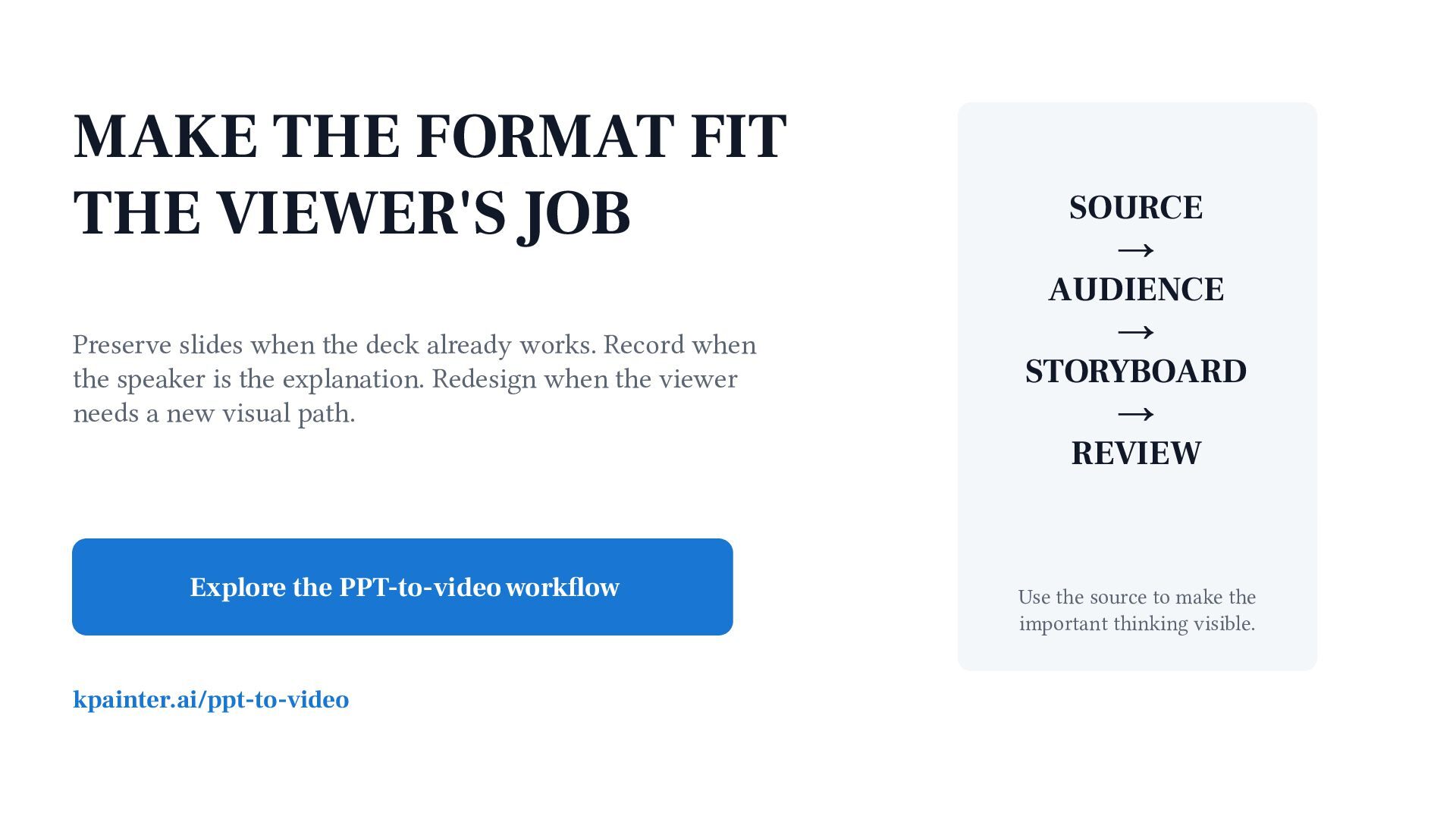
  13. MAKE THE FORMAT FIT THE VIEWER'S JOB Preserve slides when

    the deck already works. Record when the speaker is the explanation. Redesign when the viewer needs a new visual path. Explore the PPT-to-video workflow kpainter.ai/ppt-to-video SOURCE → AUDIENCE → STORYBOARD → REVIEW Use the source to make the important thinking visible.