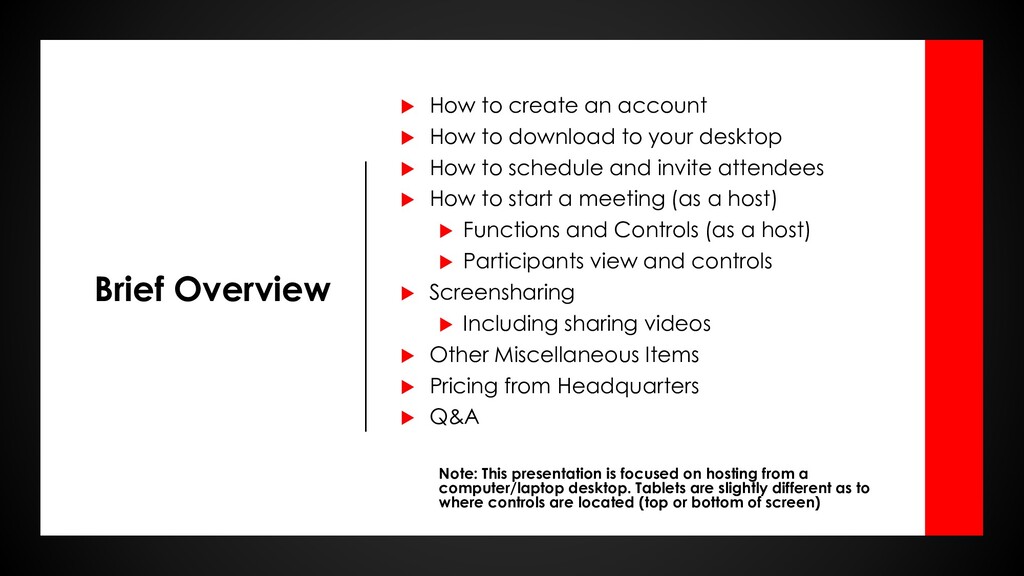
to download to your desktop How to schedule and invite attendees How to start a meeting (as a host) Functions and Controls (as a host) Participants view and controls Screensharing Including sharing videos Other Miscellaneous Items Pricing from Headquarters Q&A Note: This presentation is focused on hosting from a computer/laptop desktop. Tablets are slightly different as to where controls are located (top or bottom of screen)
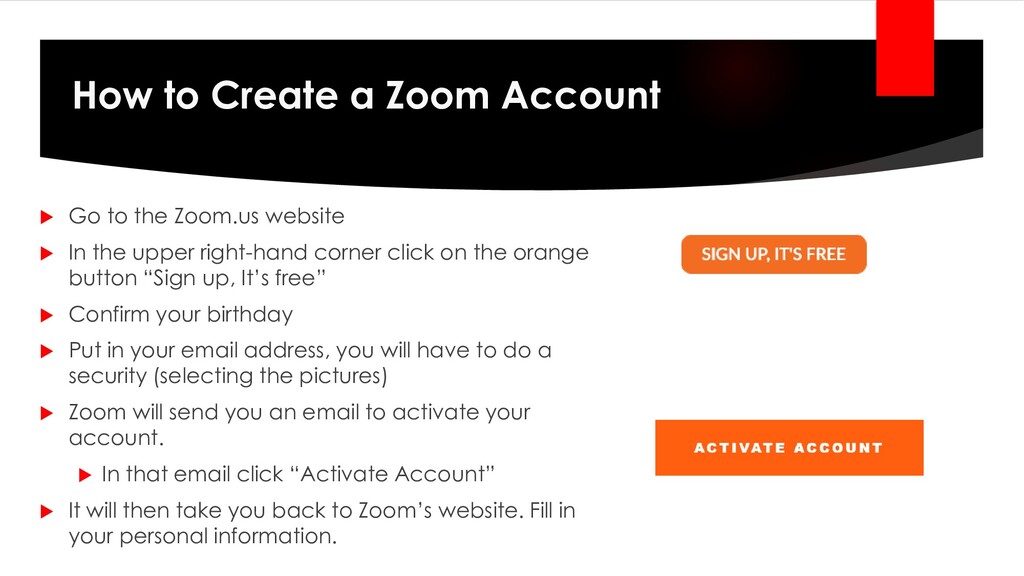
right-hand corner click on the orange button “Sign up, It’s free” Confirm your birthday Put in your email address, you will have to do a security (selecting the pictures) Zoom will send you an email to activate your account. In that email click “Activate Account” It will then take you back to Zoom’s website. Fill in your personal information. How to Create a Zoom Account
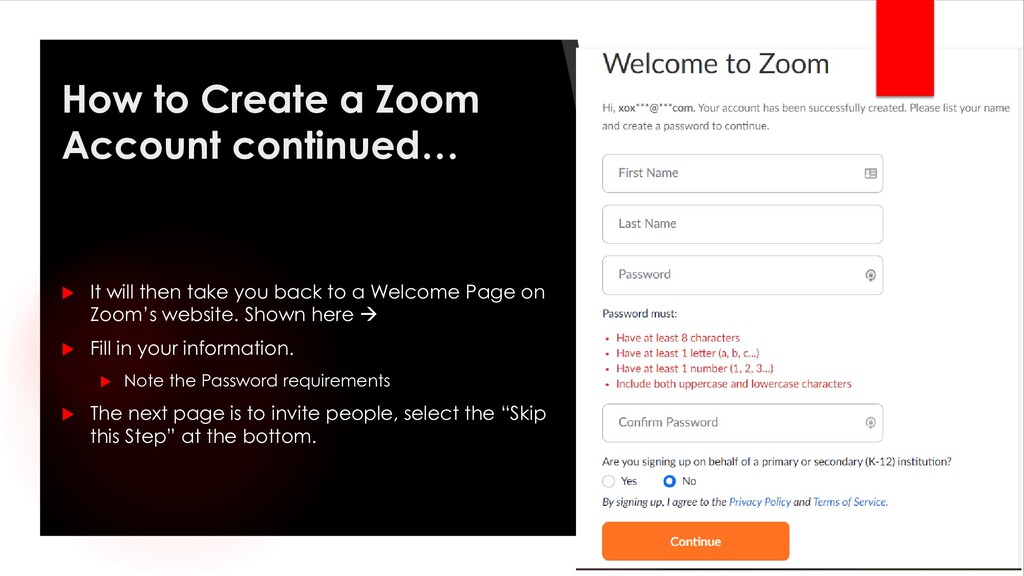
then take you back to a Welcome Page on Zoom’s website. Shown here → Fill in your information. Note the Password requirements The next page is to invite people, select the “Skip this Step” at the bottom.
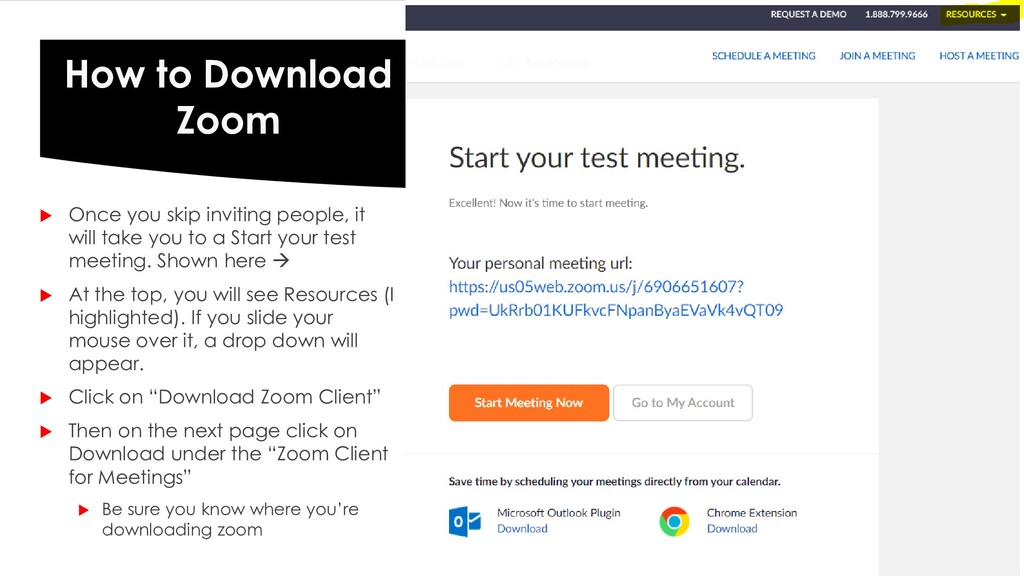
to a Start your test meeting. Shown here → At the top, you will see Resources (I highlighted). If you slide your mouse over it, a drop down will appear. Click on “Download Zoom Client” Then on the next page click on Download under the “Zoom Client for Meetings” Be sure you know where you’re downloading zoom How to Download Zoom
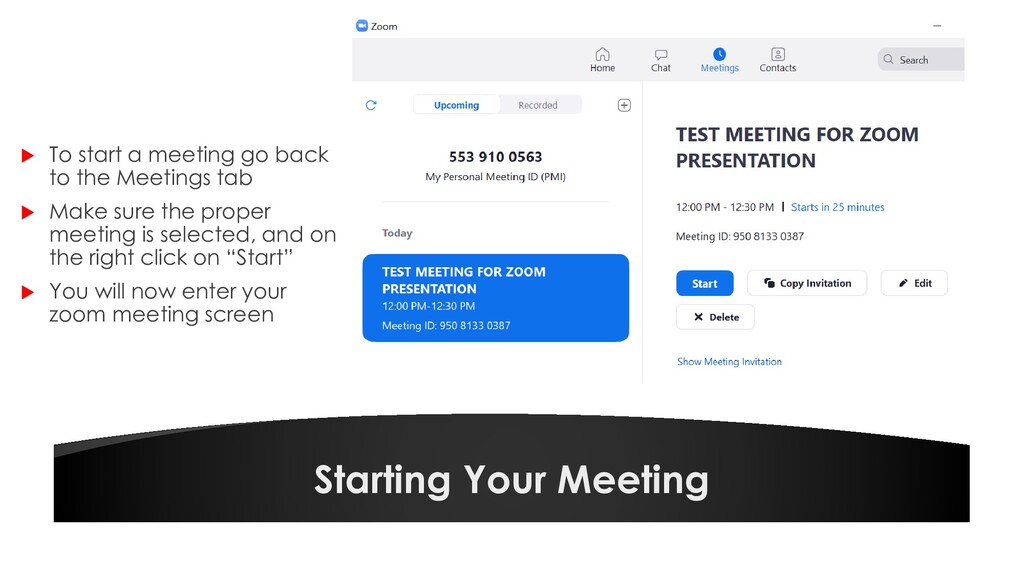
to the Zoom application on your desktop, it’ll look like this. You can start a meeting now by selecting “New Meeting” You can schedule a meeting by selecting “Schedule” Clicking on Share screen will ask you to join a meeting
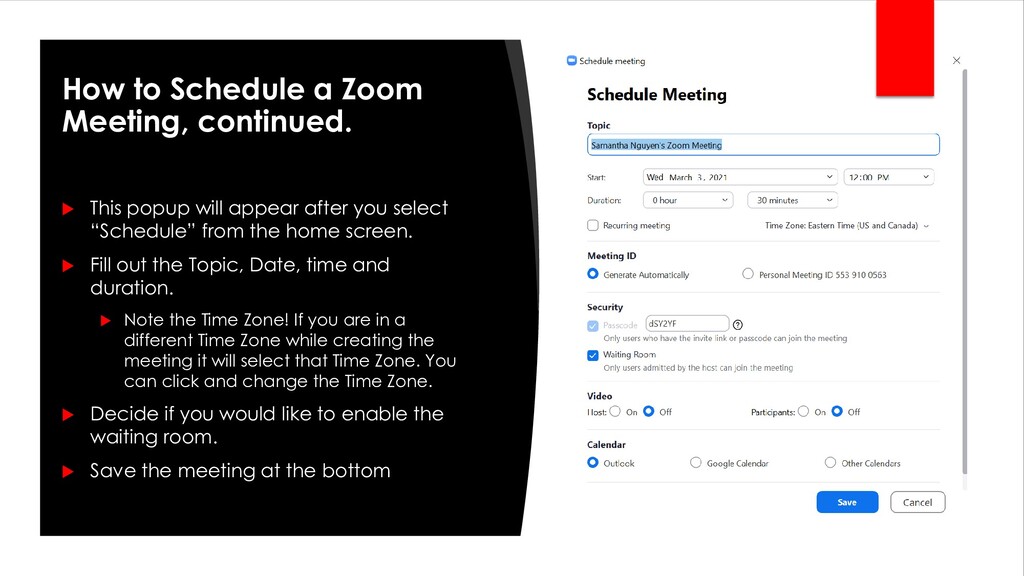
the home screen. Fill out the Topic, Date, time and duration. Note the Time Zone! If you are in a different Time Zone while creating the meeting it will select that Time Zone. You can click and change the Time Zone. Decide if you would like to enable the waiting room. Save the meeting at the bottom How to Schedule a Zoom Meeting, continued.
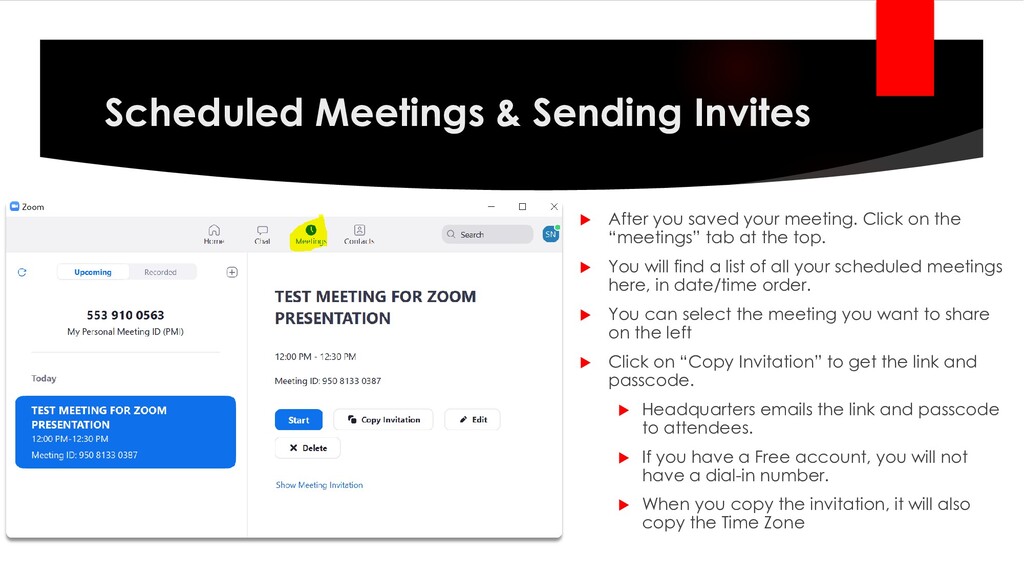
meeting. Click on the “meetings” tab at the top. You will find a list of all your scheduled meetings here, in date/time order. You can select the meeting you want to share on the left Click on “Copy Invitation” to get the link and passcode. Headquarters emails the link and passcode to attendees. If you have a Free account, you will not have a dial-in number. When you copy the invitation, it will also copy the Time Zone
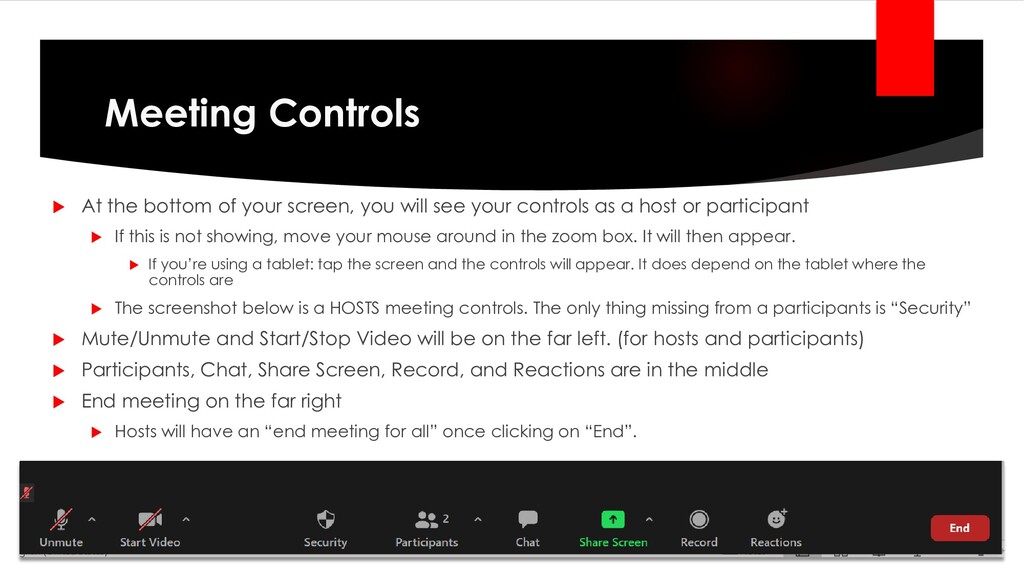
will see your controls as a host or participant If this is not showing, move your mouse around in the zoom box. It will then appear. If you’re using a tablet: tap the screen and the controls will appear. It does depend on the tablet where the controls are The screenshot below is a HOSTS meeting controls. The only thing missing from a participants is “Security” Mute/Unmute and Start/Stop Video will be on the far left. (for hosts and participants) Participants, Chat, Share Screen, Record, and Reactions are in the middle End meeting on the far right Hosts will have an “end meeting for all” once clicking on “End”.
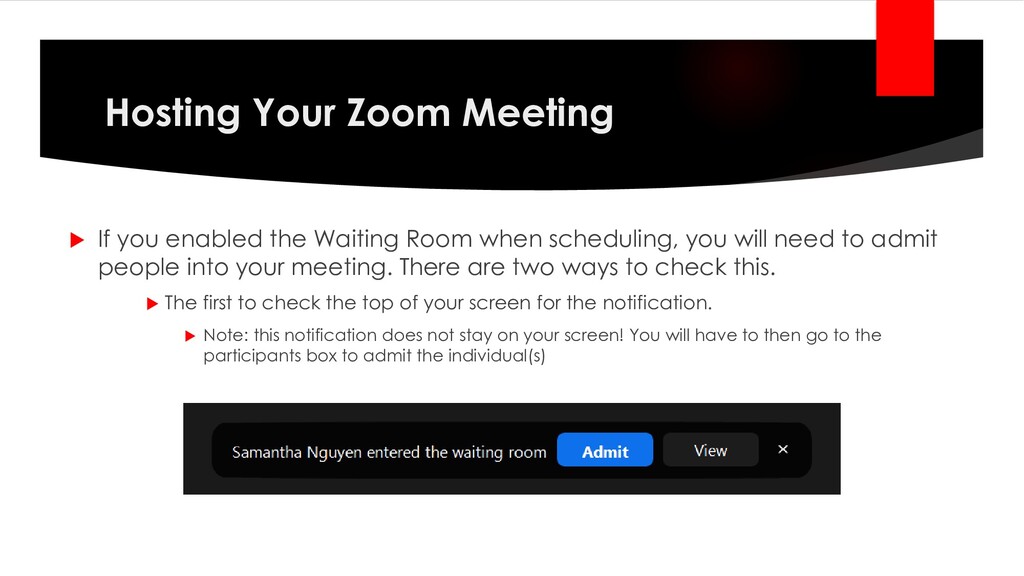
Room when scheduling, you will need to admit people into your meeting. There are two ways to check this. The first to check the top of your screen for the notification. Note: this notification does not stay on your screen! You will have to then go to the participants box to admit the individual(s)
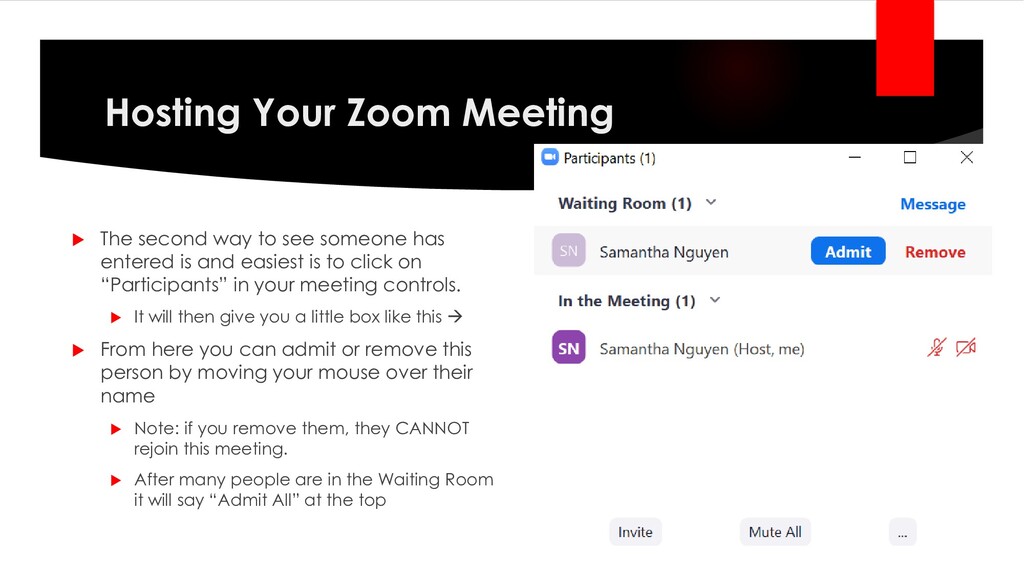
someone has entered is and easiest is to click on “Participants” in your meeting controls. It will then give you a little box like this → From here you can admit or remove this person by moving your mouse over their name Note: if you remove them, they CANNOT rejoin this meeting. After many people are in the Waiting Room it will say “Admit All” at the top
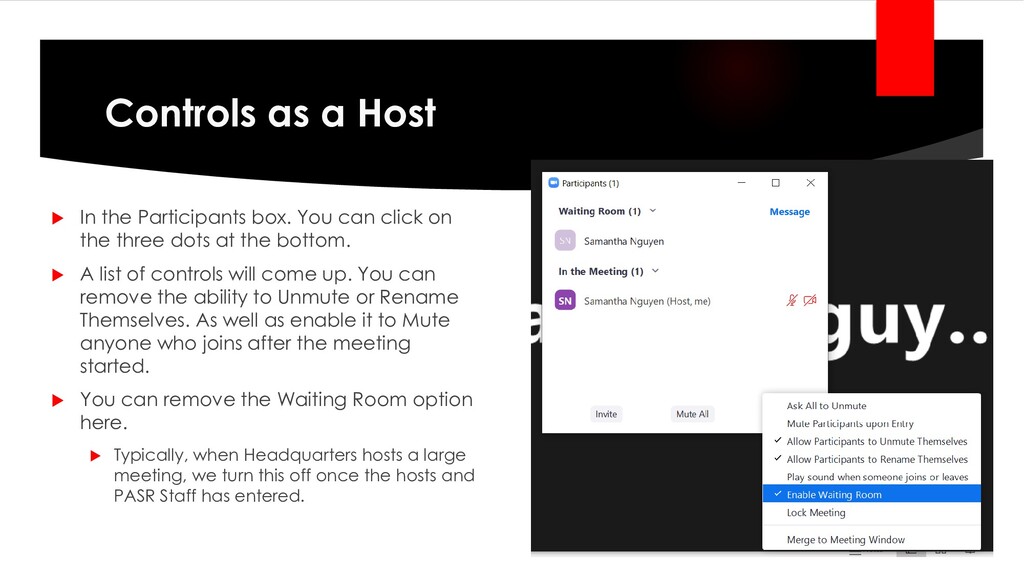
can click on the three dots at the bottom. A list of controls will come up. You can remove the ability to Unmute or Rename Themselves. As well as enable it to Mute anyone who joins after the meeting started. You can remove the Waiting Room option here. Typically, when Headquarters hosts a large meeting, we turn this off once the hosts and PASR Staff has entered.
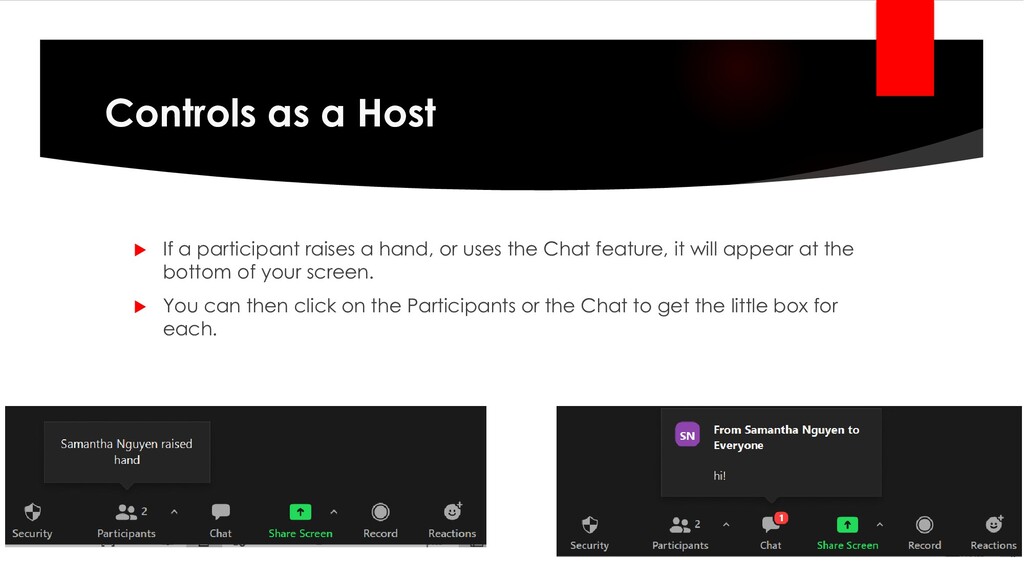
hand, or uses the Chat feature, it will appear at the bottom of your screen. You can then click on the Participants or the Chat to get the little box for each.
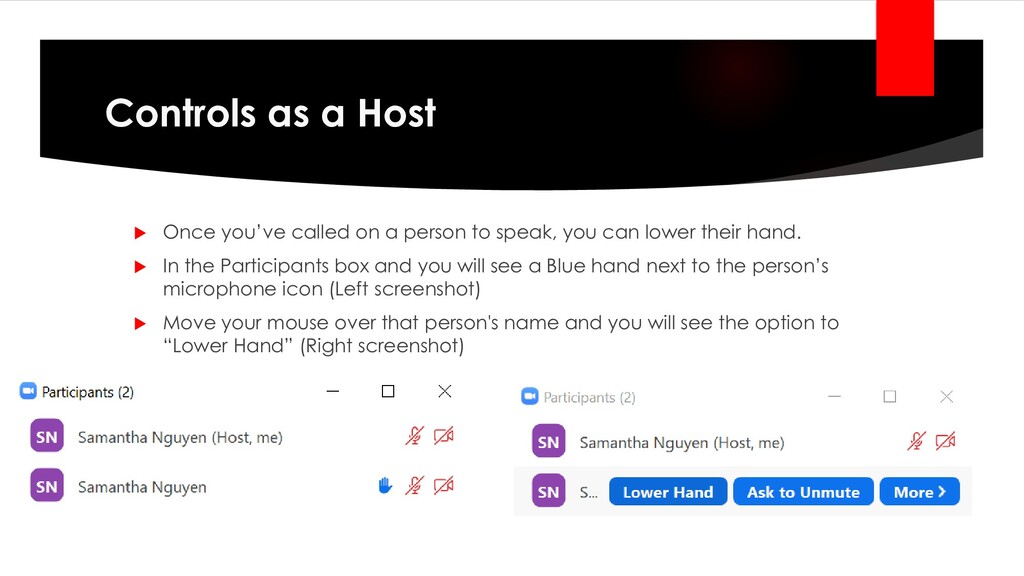
person to speak, you can lower their hand. In the Participants box and you will see a Blue hand next to the person’s microphone icon (Left screenshot) Move your mouse over that person's name and you will see the option to “Lower Hand” (Right screenshot)
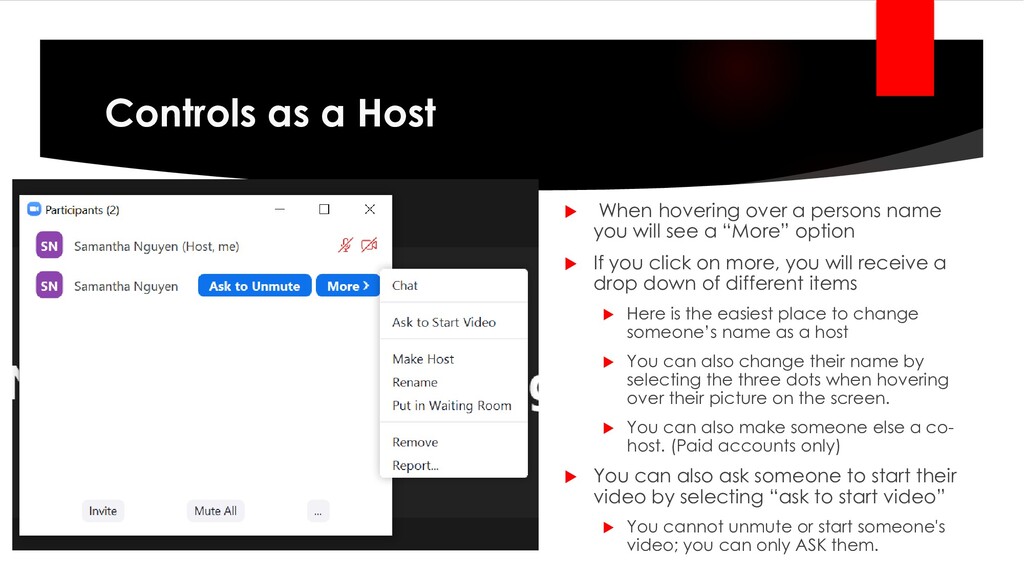
name you will see a “More” option If you click on more, you will receive a drop down of different items Here is the easiest place to change someone’s name as a host You can also change their name by selecting the three dots when hovering over their picture on the screen. You can also make someone else a co- host. (Paid accounts only) You can also ask someone to start their video by selecting “ask to start video” You cannot unmute or start someone's video; you can only ASK them.
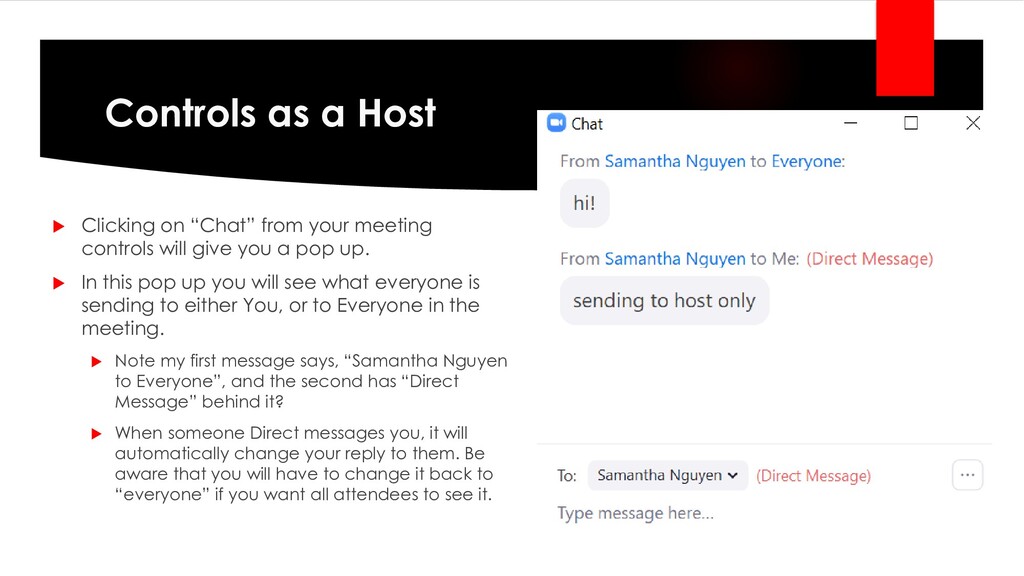
meeting controls will give you a pop up. In this pop up you will see what everyone is sending to either You, or to Everyone in the meeting. Note my first message says, “Samantha Nguyen to Everyone”, and the second has “Direct Message” behind it? When someone Direct messages you, it will automatically change your reply to them. Be aware that you will have to change it back to “everyone” if you want all attendees to see it.
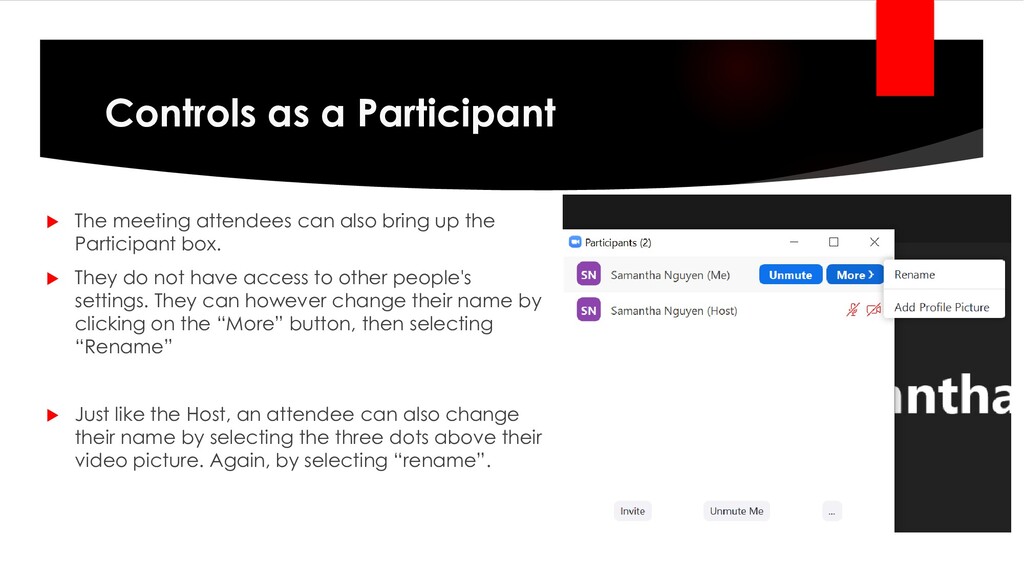
bring up the Participant box. They do not have access to other people's settings. They can however change their name by clicking on the “More” button, then selecting “Rename” Just like the Host, an attendee can also change their name by selecting the three dots above their video picture. Again, by selecting “rename”.
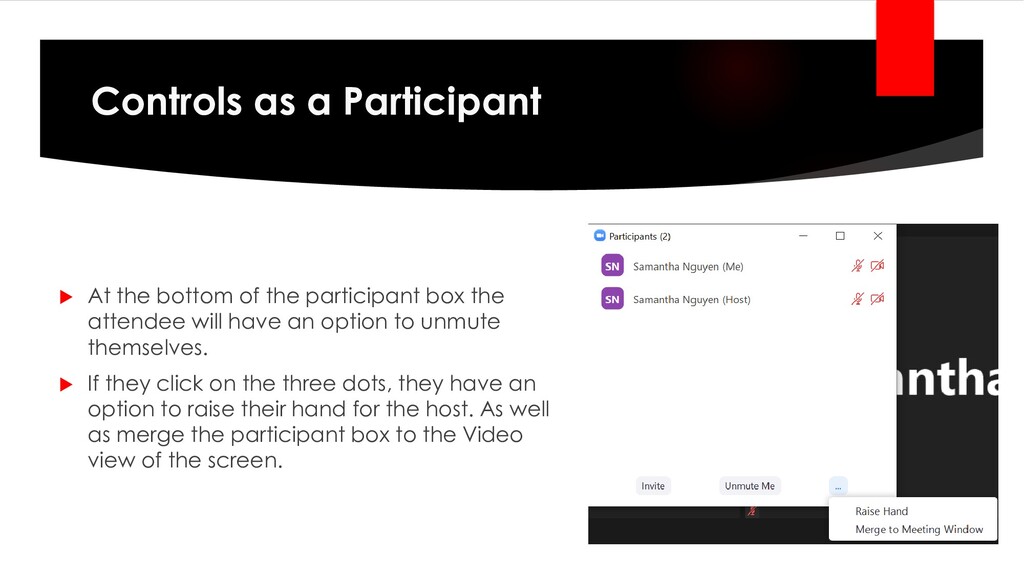
will have an option to unmute themselves. If they click on the three dots, they have an option to raise their hand for the host. As well as merge the participant box to the Video view of the screen. Controls as a Participant
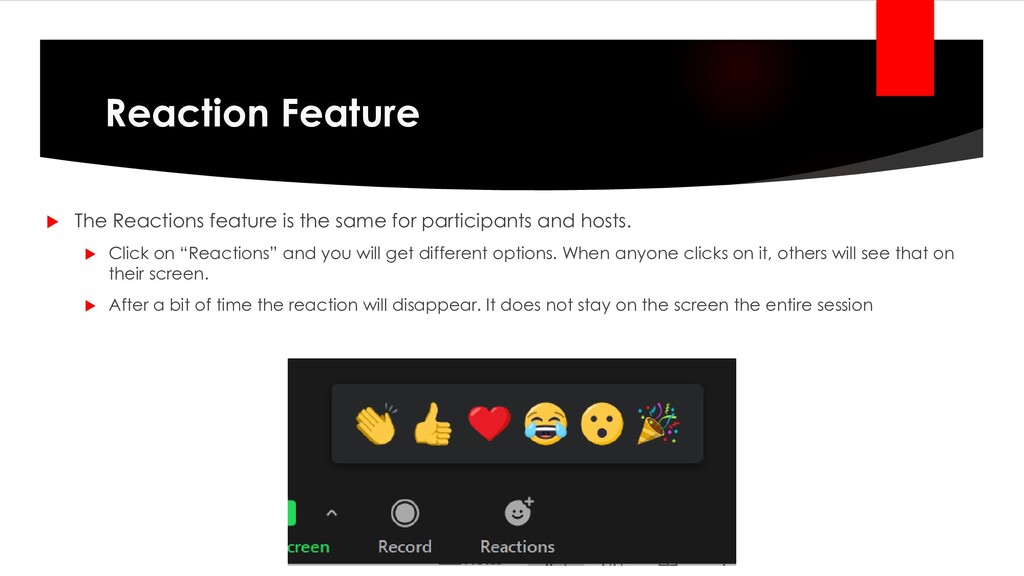
participants and hosts. Click on “Reactions” and you will get different options. When anyone clicks on it, others will see that on their screen. After a bit of time the reaction will disappear. It does not stay on the screen the entire session
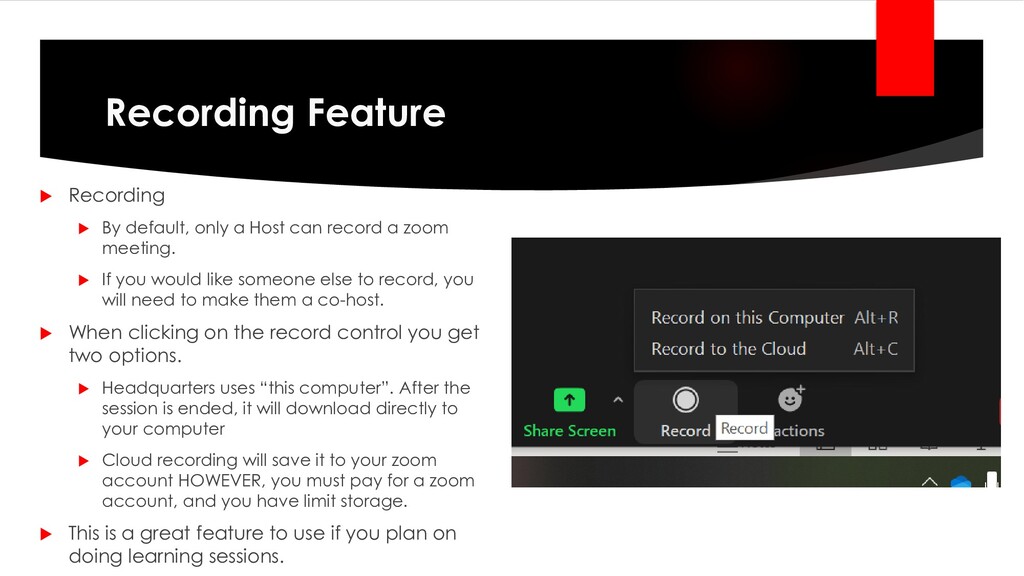
can record a zoom meeting. If you would like someone else to record, you will need to make them a co-host. When clicking on the record control you get two options. Headquarters uses “this computer”. After the session is ended, it will download directly to your computer Cloud recording will save it to your zoom account HOWEVER, you must pay for a zoom account, and you have limit storage. This is a great feature to use if you plan on doing learning sessions.
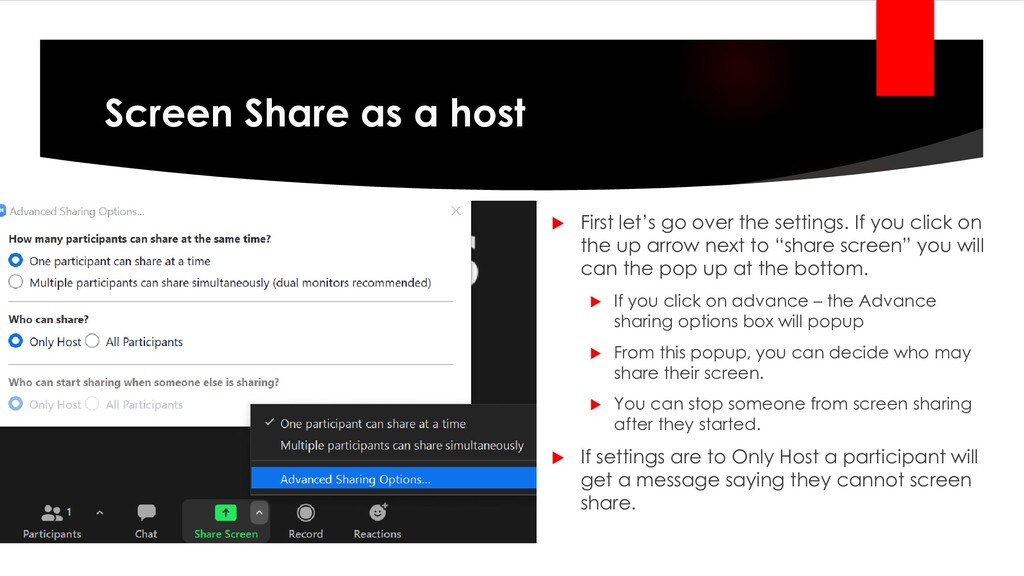
the settings. If you click on the up arrow next to “share screen” you will can the pop up at the bottom. If you click on advance – the Advance sharing options box will popup From this popup, you can decide who may share their screen. You can stop someone from screen sharing after they started. If settings are to Only Host a participant will get a message saying they cannot screen share.
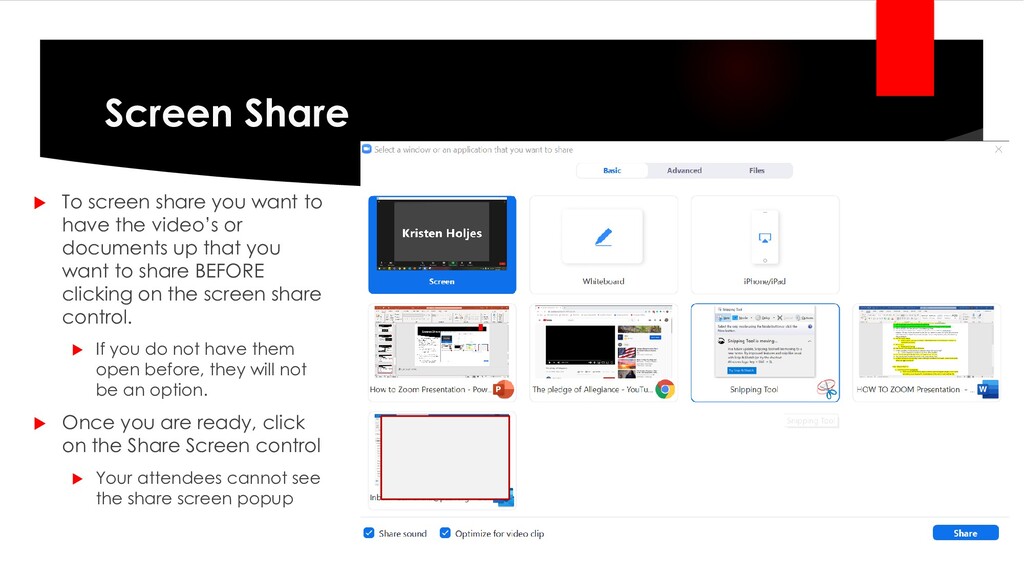
the video’s or documents up that you want to share BEFORE clicking on the screen share control. If you do not have them open before, they will not be an option. Once you are ready, click on the Share Screen control Your attendees cannot see the share screen popup
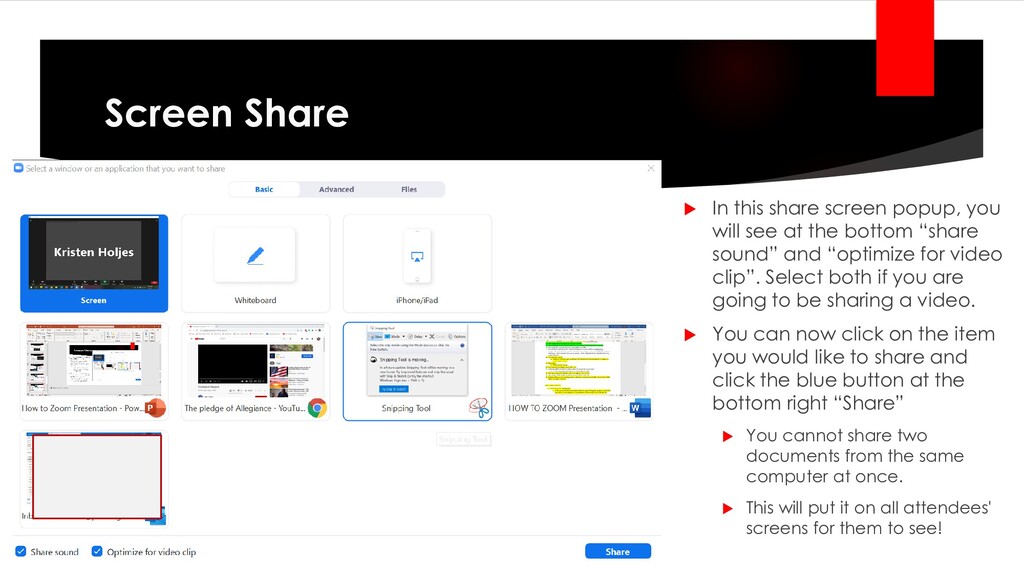
see at the bottom “share sound” and “optimize for video clip”. Select both if you are going to be sharing a video. You can now click on the item you would like to share and click the blue button at the bottom right “Share” You cannot share two documents from the same computer at once. This will put it on all attendees' screens for them to see!
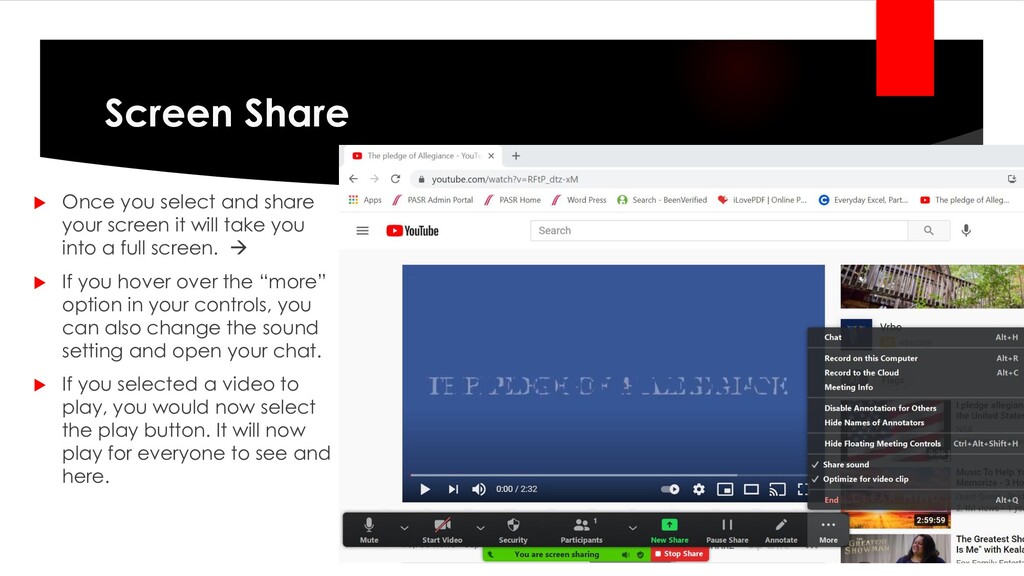
it will take you into a full screen. → If you hover over the “more” option in your controls, you can also change the sound setting and open your chat. If you selected a video to play, you would now select the play button. It will now play for everyone to see and here.
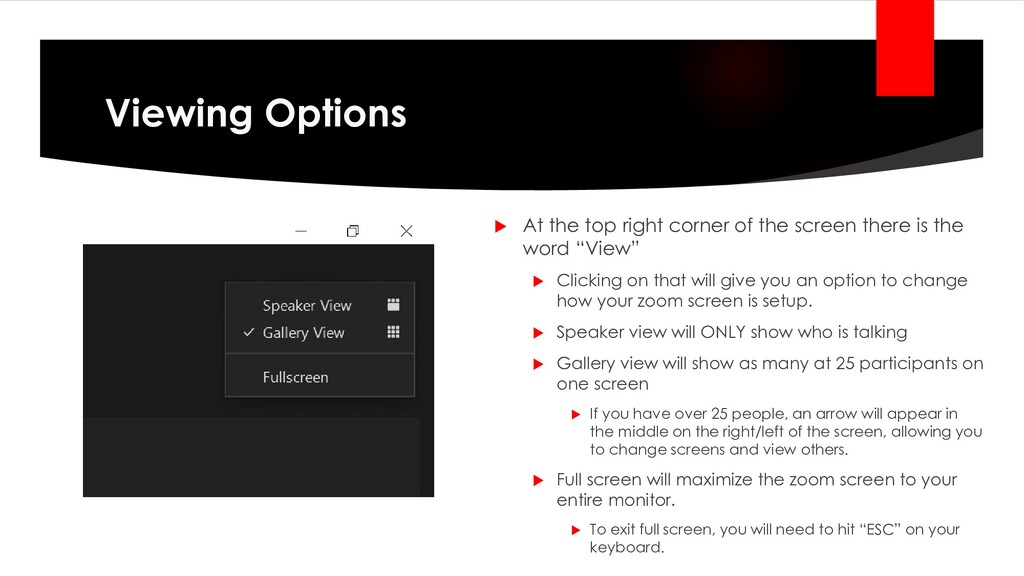
screen there is the word “View” Clicking on that will give you an option to change how your zoom screen is setup. Speaker view will ONLY show who is talking Gallery view will show as many at 25 participants on one screen If you have over 25 people, an arrow will appear in the middle on the right/left of the screen, allowing you to change screens and view others. Full screen will maximize the zoom screen to your entire monitor. To exit full screen, you will need to hit “ESC” on your keyboard.
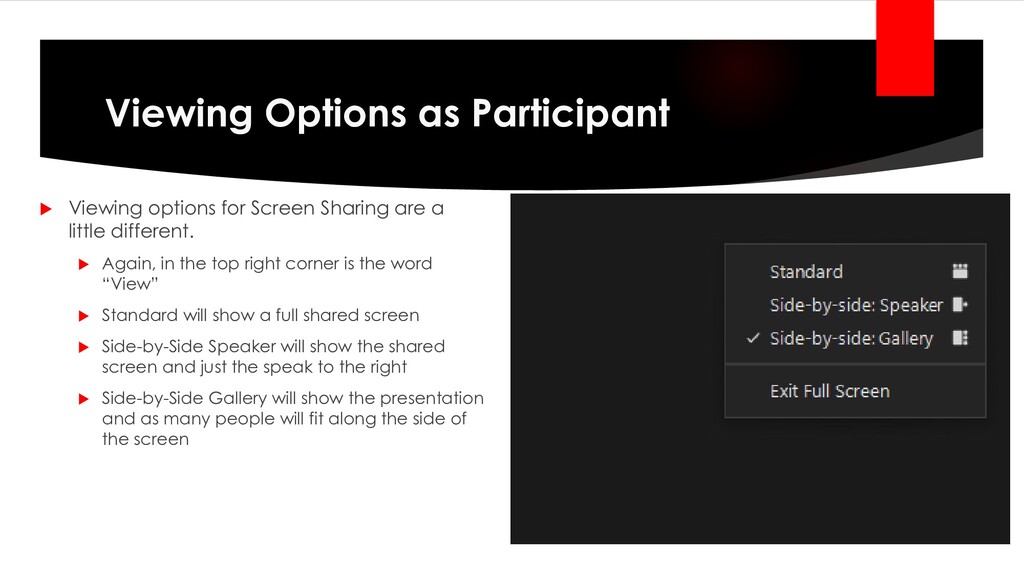
are a little different. Again, in the top right corner is the word “View” Standard will show a full shared screen Side-by-Side Speaker will show the shared screen and just the speak to the right Side-by-Side Gallery will show the presentation and as many people will fit along the side of the screen
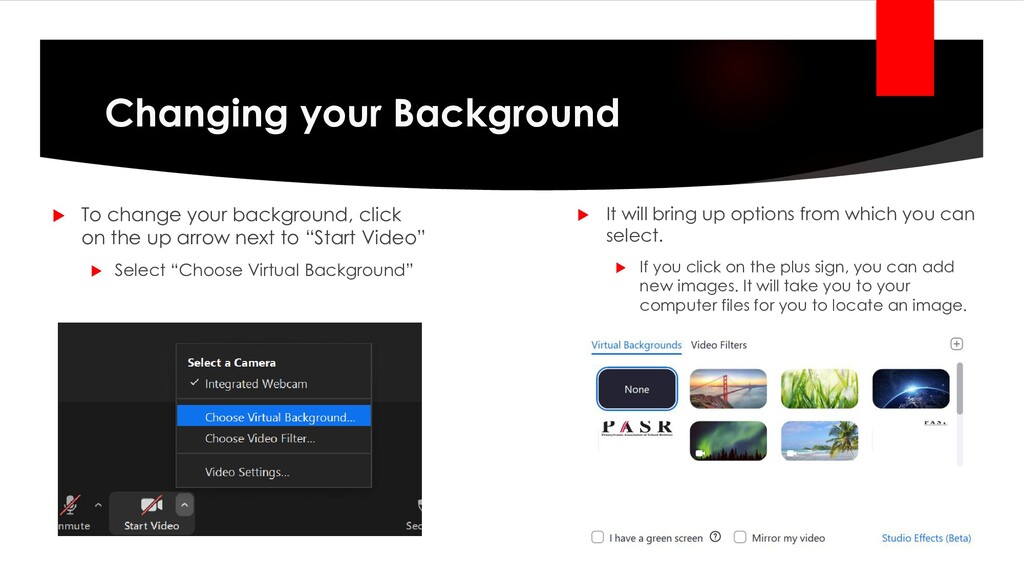
the up arrow next to “Start Video” Select “Choose Virtual Background” It will bring up options from which you can select. If you click on the plus sign, you can add new images. It will take you to your computer files for you to locate an image.
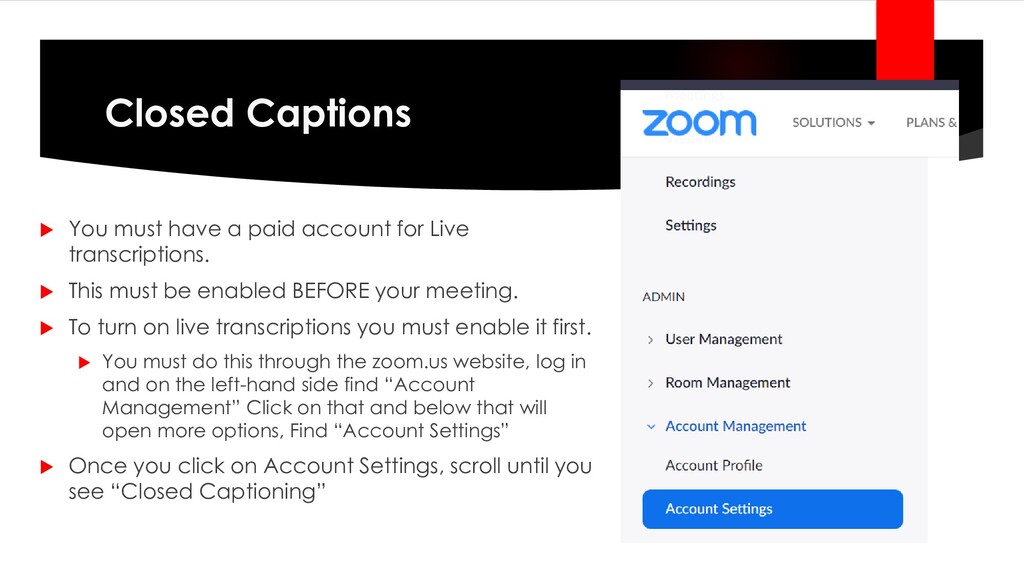
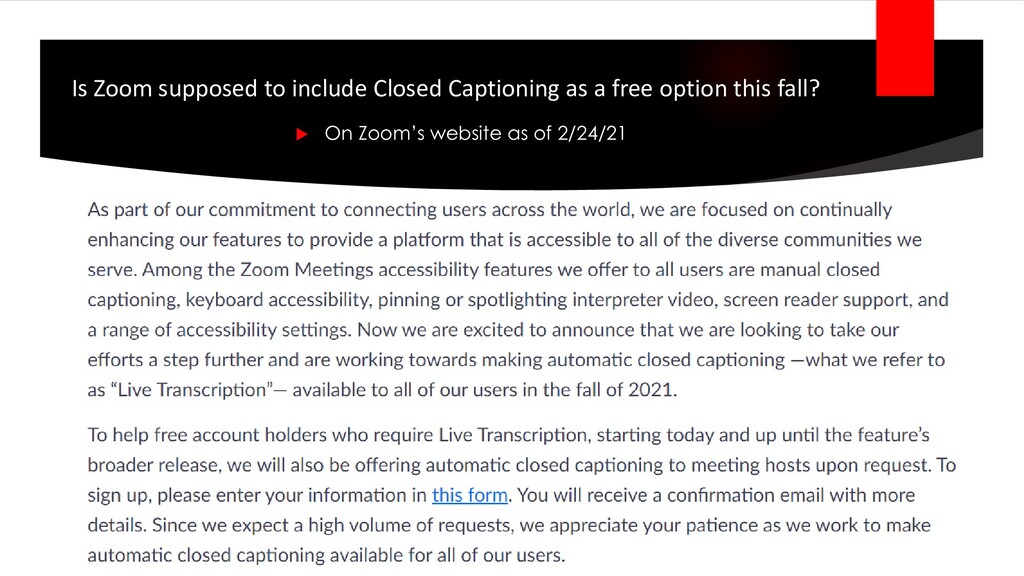
Live transcriptions. This must be enabled BEFORE your meeting. To turn on live transcriptions you must enable it first. You must do this through the zoom.us website, log in and on the left-hand side find “Account Management” Click on that and below that will open more options, Find “Account Settings” Once you click on Account Settings, scroll until you see “Closed Captioning”
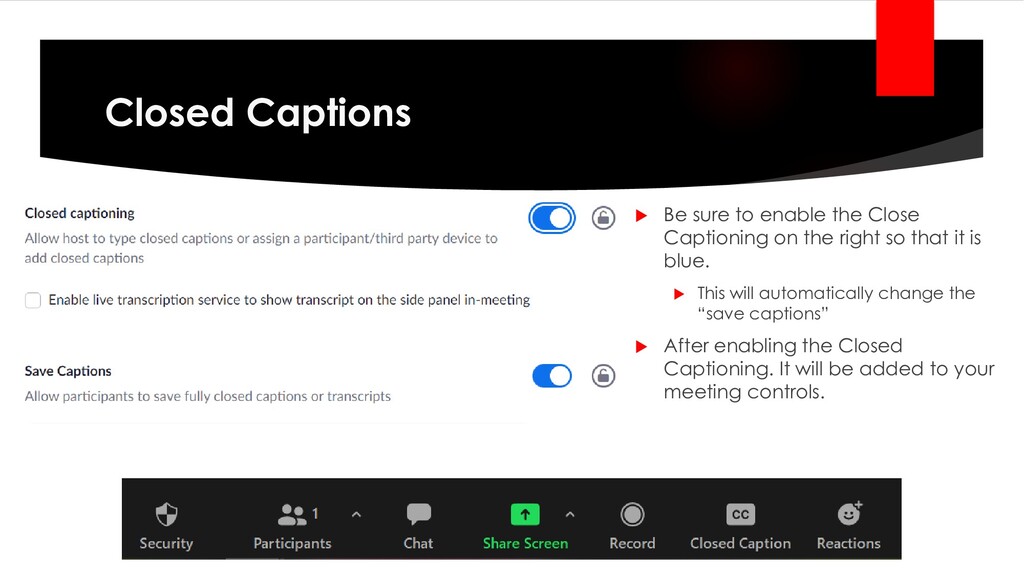
on the right so that it is blue. This will automatically change the “save captions” After enabling the Closed Captioning. It will be added to your meeting controls.
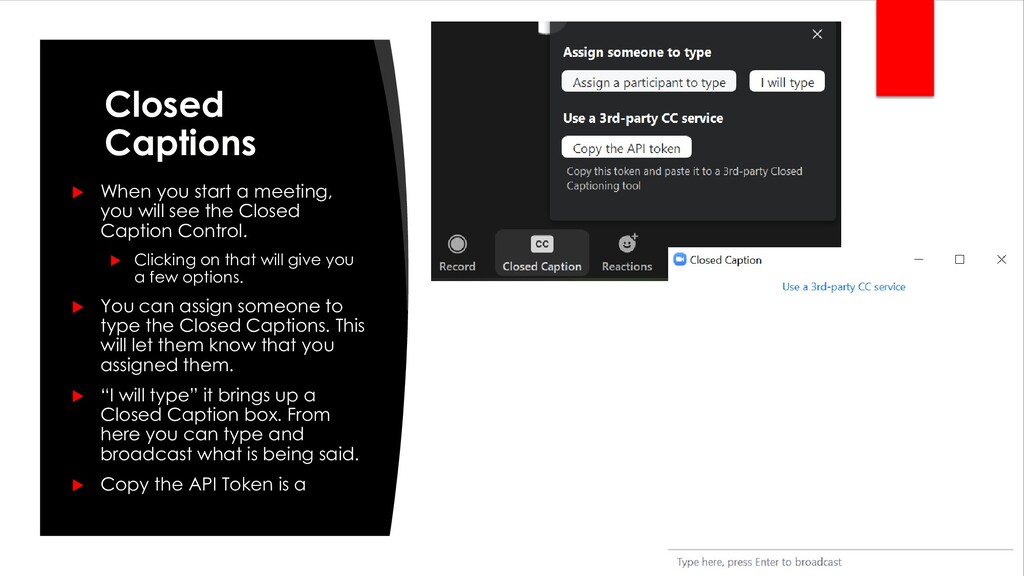
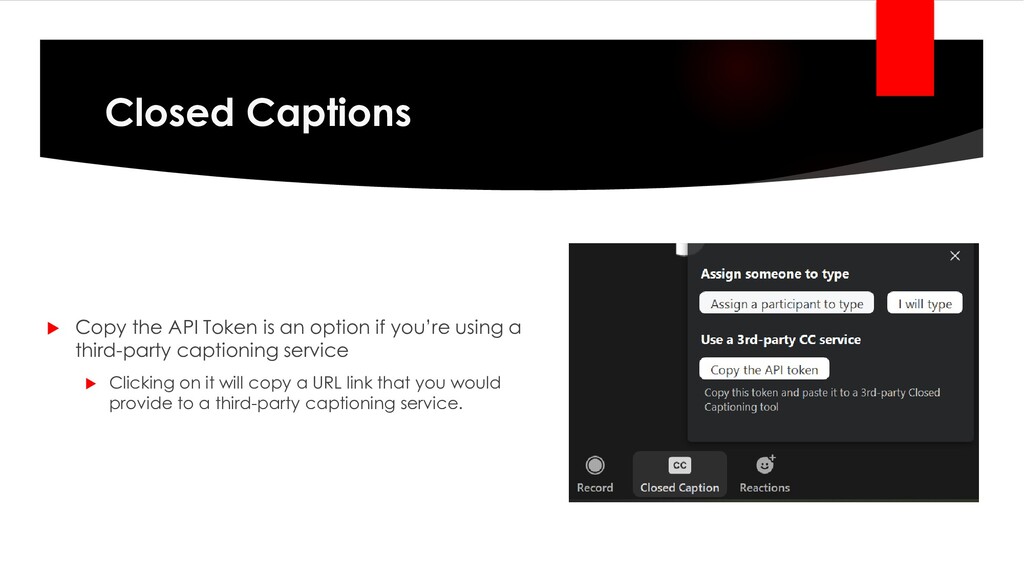
see the Closed Caption Control. Clicking on that will give you a few options. You can assign someone to type the Closed Captions. This will let them know that you assigned them. “I will type” it brings up a Closed Caption box. From here you can type and broadcast what is being said. Copy the API Token is a
the January Board meeting Region Directors were told Regions can get a zoom license and submit it as an expense for reimbursement if they use it to hold meetings. The region could then let chapters use that account if they so choose to administer the account in such a manner. Please reach out to Kristen Holjes at [email protected] or Mark Krempa at [email protected] for more assistance


 pasr
pasr
 yatabe
 pawan_pharm
 terazawa
 jdbedics
 rashwhitman
 uchi8977
 juanmartin2026
 ainischool
 bvr7352
 signer
 camel_404
 drpoonamkc
 techseoconnect
 chriscoyier
 skipperchong
 katarinadahlin
 thoeni
 philnash
 inesmontani
 palkan
 afnizarnur
 frankvandijk
 mkilby
 addyosmani