What is Cloud Firestore • 3: How to setup Firestore database using android studio • 4: Understanding Firestore Documents and Collections • 5: How to save and retrieve data to Firestore • 6: Firestore Queries • 7: Hands on coding
general-purpose programming language with type inference. Kotlin is designed to interoperate fully with Java, and the JVM version of its standard library depends on the Java Class Library. • A QUICK CODE SECTION ON KOTLIN USING IntelliJ
scalable database for mobile, web, and server development from Firebase and Google Cloud Platform. • Like Firebase Realtime Database, it keeps your data in sync across client apps through Realtime listeners and offers offline support for mobile and web so you can build responsive apps that work regardless of network latency or Internet connectivity. • Cloud Firestore is a cloud-hosted, NoSQL database that your iOS, Android, and web apps can access directly via native SDKs • Firestore is a document/collection database, Documents hold whatever JSON data you'd like, but they must live within a collection. A document can have any number of sub-collections with their own documents.
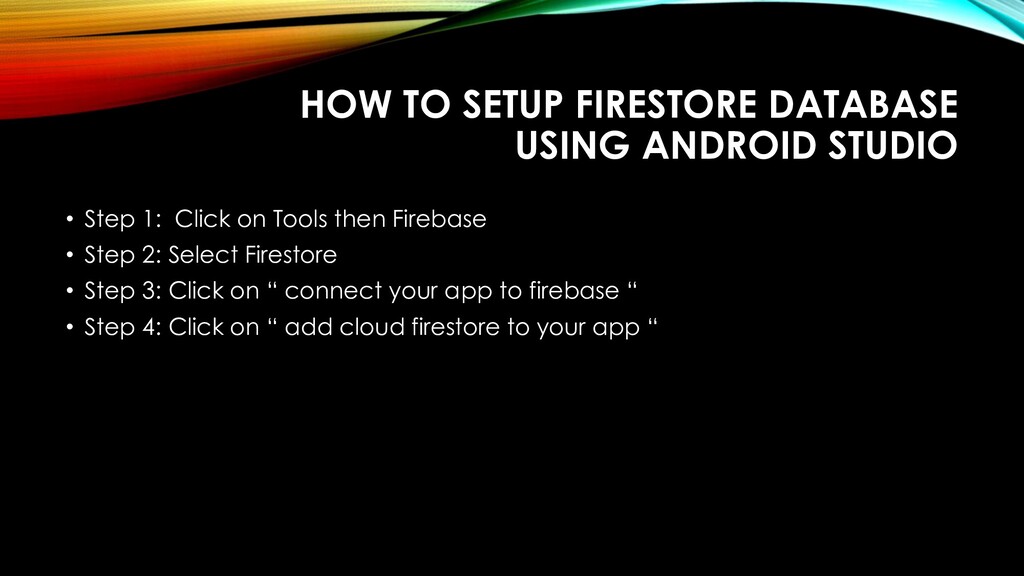
1: Click on Tools then Firebase • Step 2: Select Firestore • Step 3: Click on “ connect your app to firebase “ • Step 4: Click on “ add cloud firestore to your app “
data model, you store data in documents that contain fields mapping to values. These documents are stored in collections, which are containers for your documents that you can use to organize your data and build queries. Documents support many different data types • DATA TYPES SUPPORTED BY FIRESTORE • Text string, Boolean,Numbers,Null, Reference, Integer, Geographical point, Date and time,Map,array,
data to Cloud Firestore • There are several ways to write data to Cloud Firestore: Set the data of a document within a collection, explicitly specifying a document identifier. Add a new document to a collection. In this case, Cloud Firestore automatically generates the document identifier. • Get data with Cloud Firestore • There are two ways to retrieve data stored in Cloud Firestore. Either of these methods can be used with documents, collections of documents, or the results of queries: Call a method to get the data. Set a listener to receive data-change events.
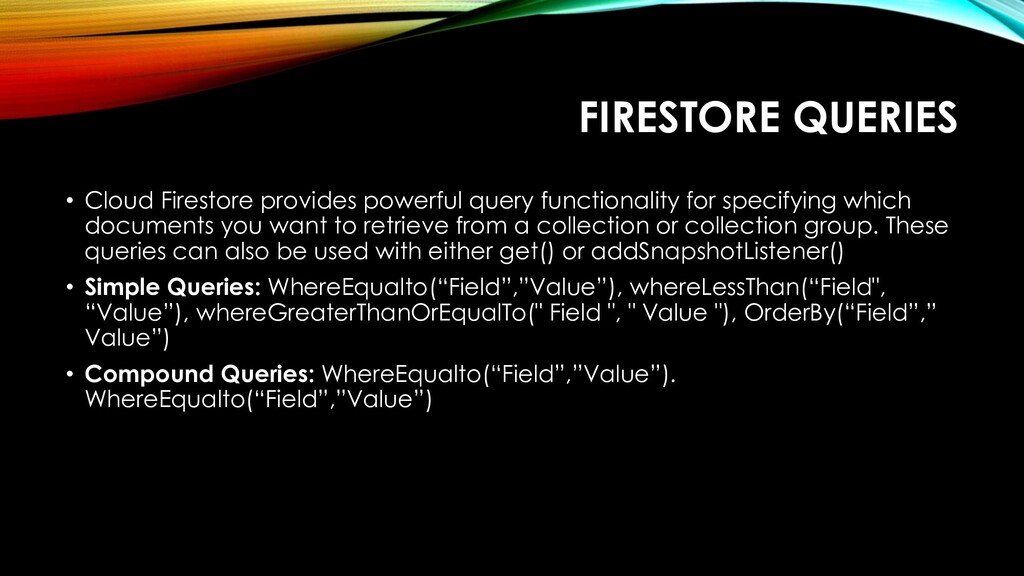
specifying which documents you want to retrieve from a collection or collection group. These queries can also be used with either get() or addSnapshotListener() • Simple Queries: WhereEqualto(“Field”,”Value”), whereLessThan(“Field", “Value”), whereGreaterThanOrEqualTo(" Field ", " Value "), OrderBy(“Field”,” Value”) • Compound Queries: WhereEqualto(“Field”,”Value”). WhereEqualto(“Field”,”Value”)


 wise4rmgod
 gam0022
 findyinc
 falcon8823
 marcoroth
 ichirokano2
 skydoves
 guaca
guaca
 o0h
o0h
 jame2408
 yutobara
 shihochan
 satoshi256kbyte
 jonyablonski
 garrettdimon
 nwiizo
 codingconduct
 notwaldorf
 eileencodes
 minecr
 ipullrank
 davidcarrasco
 chriscoyier
 csswizardry
 livdayseo