seen a red banner saying your pages are not tagged — and had absolutely no idea what to do next — this video is for you. Or maybe you thought your tracking was perfectly set up, but your analytics numbers suddenly dropped for no obvious reason. A silent tag coverage problem might be the culprit. In the next ten minutes, I'm going to walk you through everything you need to know about Google Tag Coverage — what it is, why it matters, how to find it in two different places inside GTM, and crucially, how to fix issues without wasting hours of your developer's time chasing false alarms. I'm also going to share a checklist at the end that you can use every single time you do a tag audit. So stay with me. Keep Exploring!!!! Confidential
bio of this team member. Mention their background, area of expertise, and what their responsibilities will be on this project. Full Name Title Write a brief bio of this team member. Mention their background, area of expertise, and what their responsibilities will be on this project. Full Name Title Write a brief bio of this team member. Mention their background, area of expertise, and what their responsibilities will be on this project. Full Name Title Write a brief bio of this team member. Mention their background, area of expertise, and what their responsibilities will be on this project. Confidential
is a feature inside Google Tag Manager that shows you, at a glance, which pages on your website have the Google tag or GTM snippet correctly installed — and which ones don't. Now here's something a lot of people get confused about. Tag Coverage doesn't check individual tags inside your GTM container — like your GA4 event tag or your Google Ads conversion tag. It only checks whether the GTM container snippet itself is present and firing on each page. Think of it like checking whether the lights are on in a building before asking what's inside each room. If the building has no power, none of the rooms matter yet. What is Tag Coverage? Confidential
why tag coverage issues happen in the first place — because this will help you identify the cause faster when you see a problem. The GTM snippet needs to be on every single page of your website. That sounds straightforward. But in practice, three things go wrong all the time. One — a developer implements the snippet incorrectly. Maybe they put it at the bottom of the page instead of inside the head tag, or they pasted the wrong container ID. Two — the snippet gets added to some pages but not all. Maybe it was only added to the homepage and main templates, but checkout pages or blog pages were missed. And three — probably the most common one — a site update goes live without anyone thinking about GTM. New page templates, new subdomains, redesigned sections — and suddenly a chunk of your site is dark. The consequences? You might see random drops in GA4 sessions, conversion tracking that goes quiet overnight, or just... bad data that you're making decisions on without realising it's incomplete. Why This Problem Happens Confidential
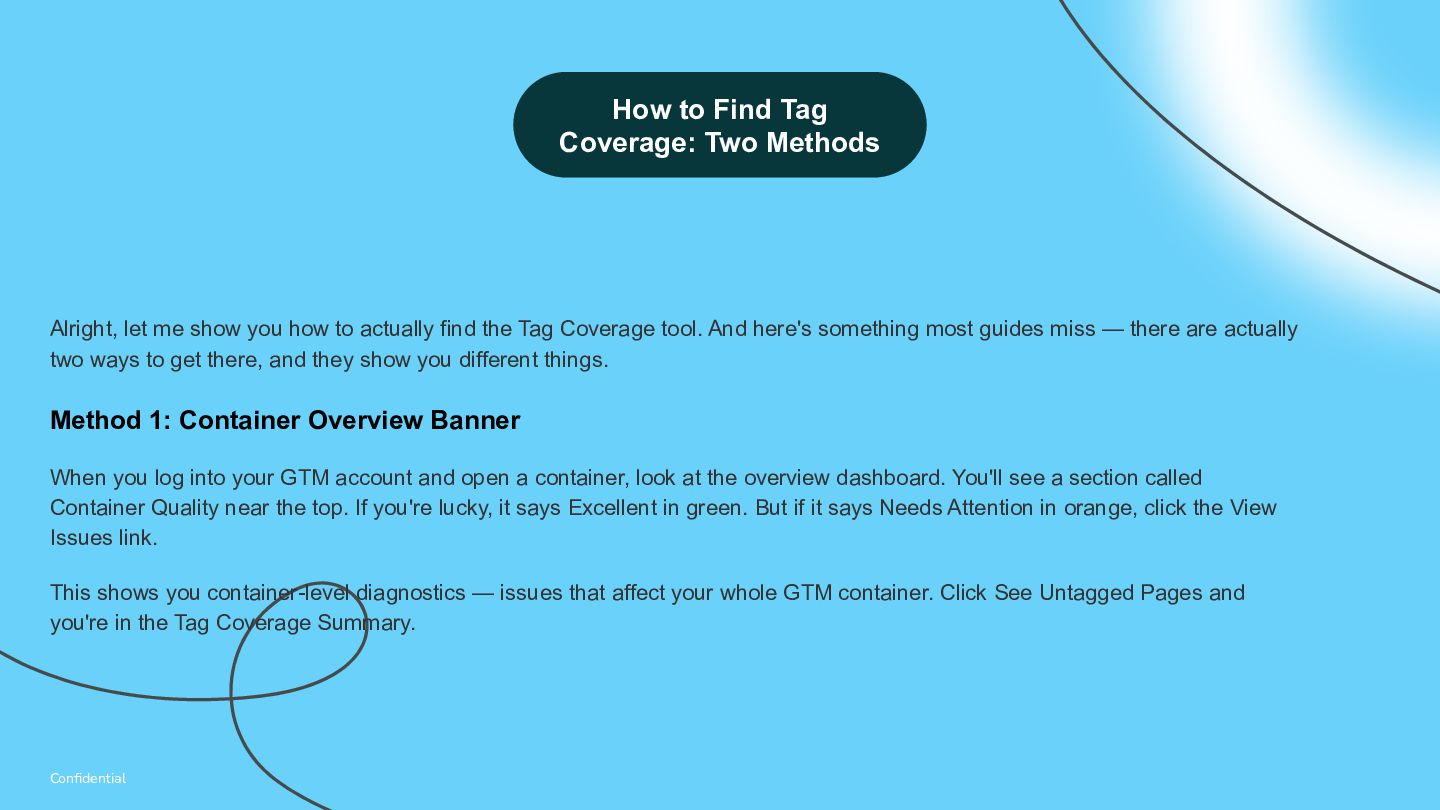
Tag Coverage tool. And here's something most guides miss — there are actually two ways to get there, and they show you different things. Method 1: Container Overview Banner When you log into your GTM account and open a container, look at the overview dashboard. You'll see a section called Container Quality near the top. If you're lucky, it says Excellent in green. But if it says Needs Attention in orange, click the View Issues link. This shows you container-level diagnostics — issues that affect your whole GTM container. Click See Untagged Pages and you're in the Tag Coverage Summary. How to Find Tag Coverage: Two Methods Confidential
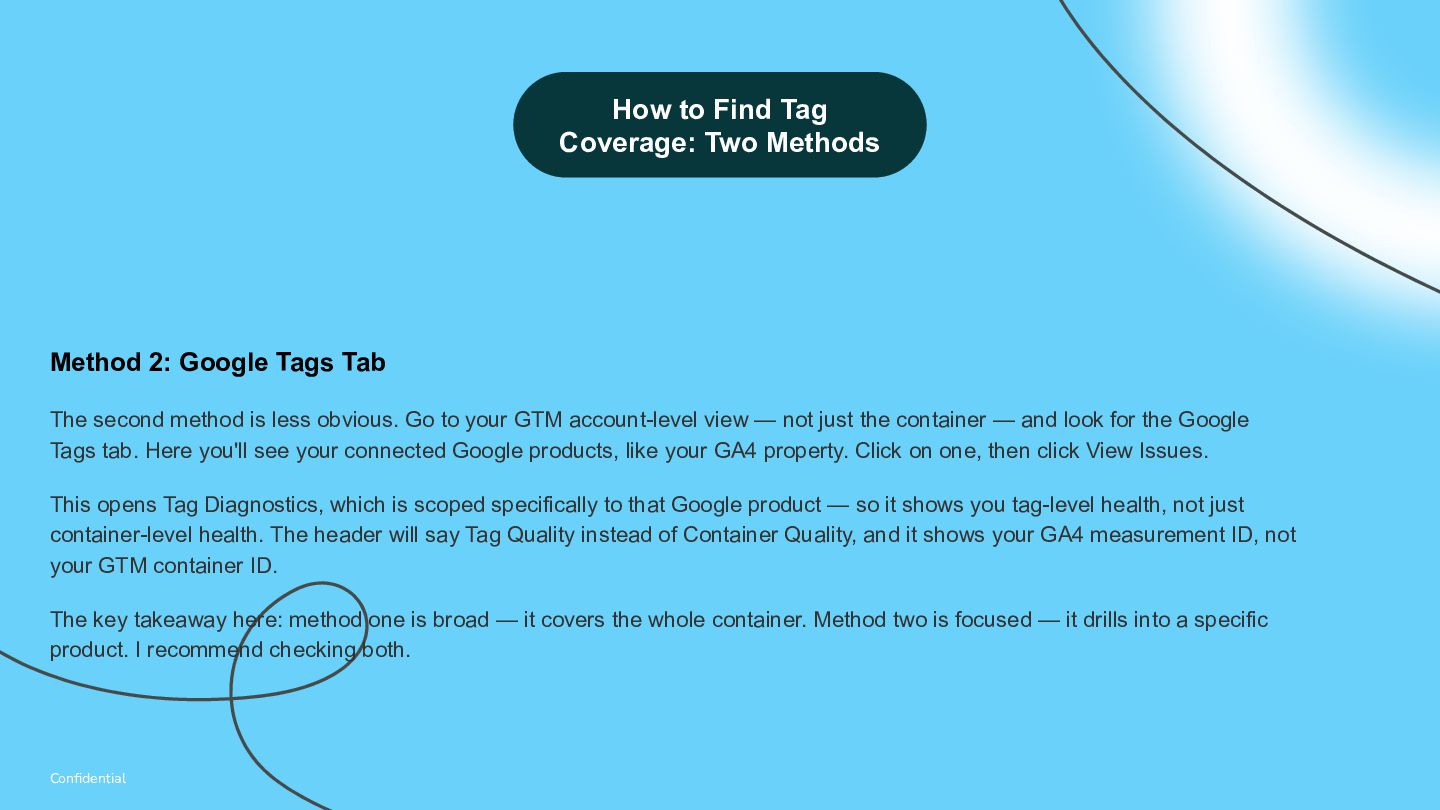
obvious. Go to your GTM account-level view — not just the container — and look for the Google Tags tab. Here you'll see your connected Google products, like your GA4 property. Click on one, then click View Issues. This opens Tag Diagnostics, which is scoped specifically to that Google product — so it shows you tag-level health, not just container-level health. The header will say Tag Quality instead of Container Quality, and it shows your GA4 measurement ID, not your GTM container ID. The key takeaway here: method one is broad — it covers the whole container. Method two is focused — it drills into a specific product. I recommend checking both. How to Find Tag Coverage: Two Methods Confidential
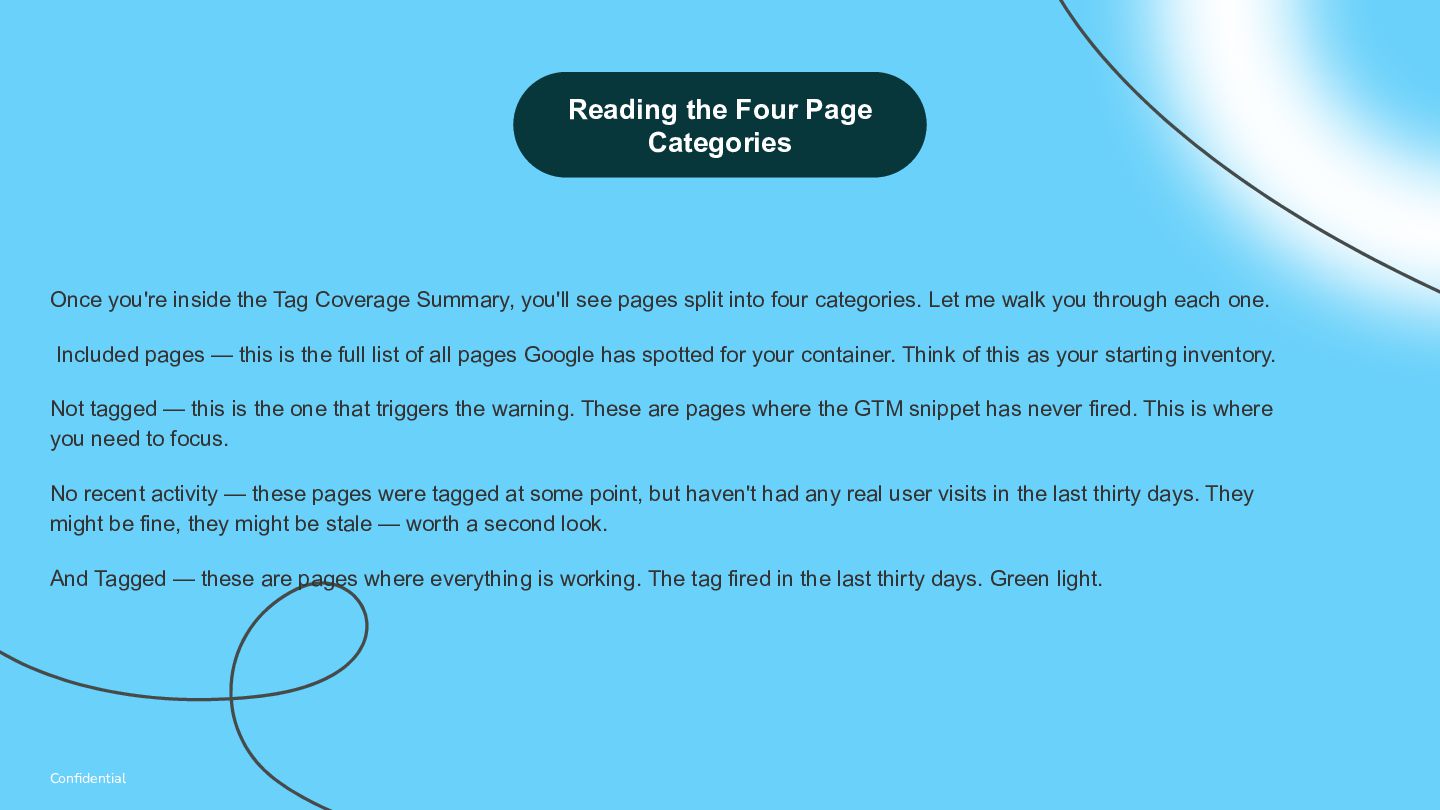
split into four categories. Let me walk you through each one. Included pages — this is the full list of all pages Google has spotted for your container. Think of this as your starting inventory. Not tagged — this is the one that triggers the warning. These are pages where the GTM snippet has never fired. This is where you need to focus. No recent activity — these pages were tagged at some point, but haven't had any real user visits in the last thirty days. They might be fine, they might be stale — worth a second look. And Tagged — these are pages where everything is working. The tag fired in the last thirty days. Green light. Reading the Four Page Categories Confidential
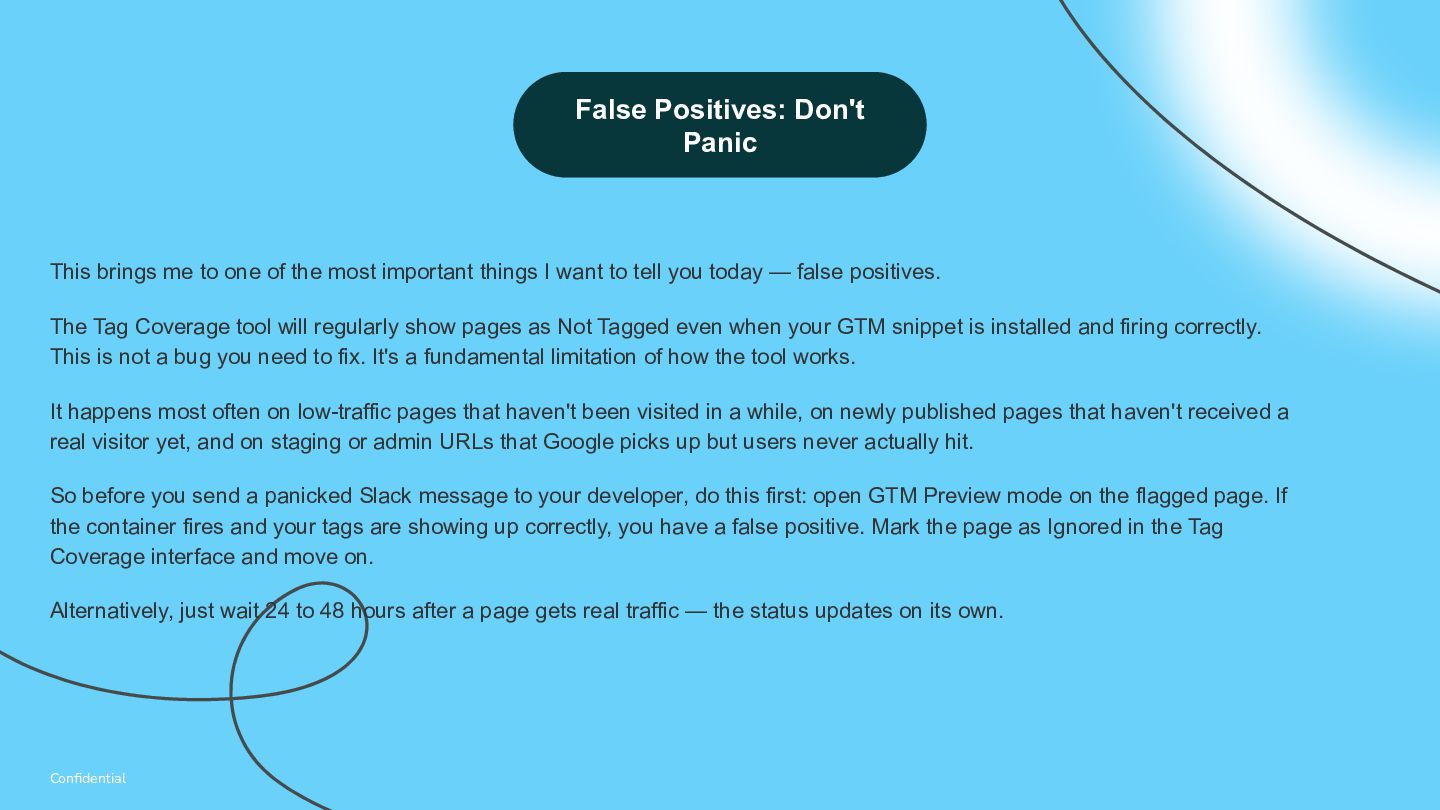
I want to tell you today — false positives. The Tag Coverage tool will regularly show pages as Not Tagged even when your GTM snippet is installed and firing correctly. This is not a bug you need to fix. It's a fundamental limitation of how the tool works. It happens most often on low-traffic pages that haven't been visited in a while, on newly published pages that haven't received a real visitor yet, and on staging or admin URLs that Google picks up but users never actually hit. So before you send a panicked Slack message to your developer, do this first: open GTM Preview mode on the flagged page. If the container fires and your tags are showing up correctly, you have a false positive. Mark the page as Ignored in the Tag Coverage interface and move on. Alternatively, just wait 24 to 48 hours after a page gets real traffic — the status updates on its own. False Positives: Don't Panic Confidential
tool that most people don't know about. First — CSV export. If you've found genuinely untagged pages and need to get your developers to fix them, you don't have to give them access to your GTM container. Just go to the Not Tagged tab, hit Download Coverage Report, and share the spreadsheet. Clean, simple, no permissions headache. You can also import a CSV to tell GTM which pages to monitor or ignore. This is really useful when you're launching a new section of your website — you can add those URLs proactively before any traffic arrives. Just make sure your URLs are percent-encoded. In Google Sheets you can do this with the ENCODEURL function. Second — Tag Assistant shortcut. On every row in the Tag Coverage URL list, there's a Tag Assistant icon. Click it and it instantly launches GTM's Preview mode on that specific page — no need to open a new tab and navigate there manually. This saves a lot of time when you're auditing multiple pages at once. Bulk CSV & Tag Assistant Features Confidential
issue — is just one of thirteen different diagnostic messages that GTM's Container Diagnostics feature can surface. Once you've resolved the untagged pages warning, don't close the tab. Check what else is flagged. You might see 'Additional domains detected for configuration' — which means GTM has spotted other domains that should be set up for cross-domain tracking. You might see 'Using legacy Universal Analytics tags' — which means some pages are still loading GA4 through the old UA tag, which blocks access to features like Enhanced Measurement. Or 'Conversion linker issues' — which can break cross-domain attribution in Google Ads if left unresolved. Fixing tag coverage doesn't mean your container is fully healthy. Think of it as one chapter in a longer audit, not the whole book. — Beyond Tag Coverage: All 13 Diagnostics Confidential
time you review tag coverage. One — check the Container Quality status in your GTM Overview. Two — review all four page categories. Three — verify Not Tagged pages manually before escalating. Four — export untagged URLs as a CSV for your dev team. Five — import new URLs when launching new pages or domains. Six — use the Tag Assistant link directly from the coverage report for faster debugging. Seven — check all thirteen diagnostic messages, not just tag coverage. Eight — review GA4 via the Google Tags tab as well as the Container Quality banner. Nine — mark intentionally excluded pages as Ignored to keep the report clean. And ten — re-check coverage 24 to 48 hours after any fixes are deployed. I've put this checklist as an image in the full blog post — link is in the description. Save it, bookmark it, share it with your team. The 10-Point Checklist Confidential
.png)


.png)
 makaibito
 noritaka88tax
 cyberlinks
 gpol
gpol
 thomaspeham
 mediphone
 takeshisumida_
 freee
freee
 takeuchigroup
 layerx
 caddireat
 loglass2019
 kimpetersen
 katarinadahlin
 hatefulcrawdad
 livdayseo
 rmw
rmw
 portentint
 jacobtomlinson
 emna__ayadi
 smashingmag
 charlesmeaden
 shpigford
 tanoku
![16 Thank you! Contact our team [email protected]](https://files.speakerdeck.com/presentations/3341bc6fdea74b7390895a8028145b18/slide_15.jpg)