Share
Connectors and extensions (Connect your business apps and MCP servers) | AWS Quick: Zero to Hero 07
Level 200. A handout on connecting AWS Quick to the business apps you already use, for people who connect apps and the admins who allow it. It covers four ways to connect (knowledge bases, connectors, extensions, and data sources); connectors (adding one from the Available tab, creating one for your team, signing in with the Default OAuth app, a custom OAuth app, service-to-service OAuth, or an API key, and using connector tools in chat); tool permissions (Let Users Choose, Always Ask, and Disable for the owner, Always Allow, Always Ask, and Disable for each user, and the defaults for read and write tools); your own tools (remote MCP servers over the public network or through a VPC connection, OpenAPI specs, and REST APIs, plus local MCP servers and coding agents in the desktop app); and extensions (the browser extension, the Microsoft 365 add-ins for Outlook, Word, Excel, and PowerPoint, and Slack and Microsoft Teams). The running example collects attendance replies for a learning session with the Outlook connector. The screens were taken on the web in English. The appendix lists the services you can connect, a glossary, and sources. Based on public documentation as of November 2026. Deck 07 (Go deeper) of the series AWS Quick: Zero to Hero.
Riku INADA PRO
Annual Pro sale · Save $30
Have presentations of your own?
Share with private links, password protection, and more control over your work.
Transcript
32 slides
-
AWS Quick: Zero to Hero Go deeper Connectors and extensions
Connect your business apps and MCP servers 07 Level 200 / As of November 2026 November 2026 Riku Inada Amazon Web Services Japan © 2026, Amazon Web © 2026, Services, Amazon Inc. or Web its Services, affiliates.Inc. All or rights its affiliates. reserved.All rights reserved. 1 -
Introduction About me Riku Inada Amazon Web Services Japan G.K.
Solutions Architect Works mainly with manufacturing customers Recent work Promoting the AI-Driven Development Life Cycle (AI-DLC) Writing and speaking about Kiro and AWS Amplify © 2026, Amazon Web Services, Inc. or its affiliates. All rights reserved. X @inada_riku Speaker Deck speakerdeck.com/inariku Zenn zenn.dev/inariku GitHub github.com/inariku 2 -
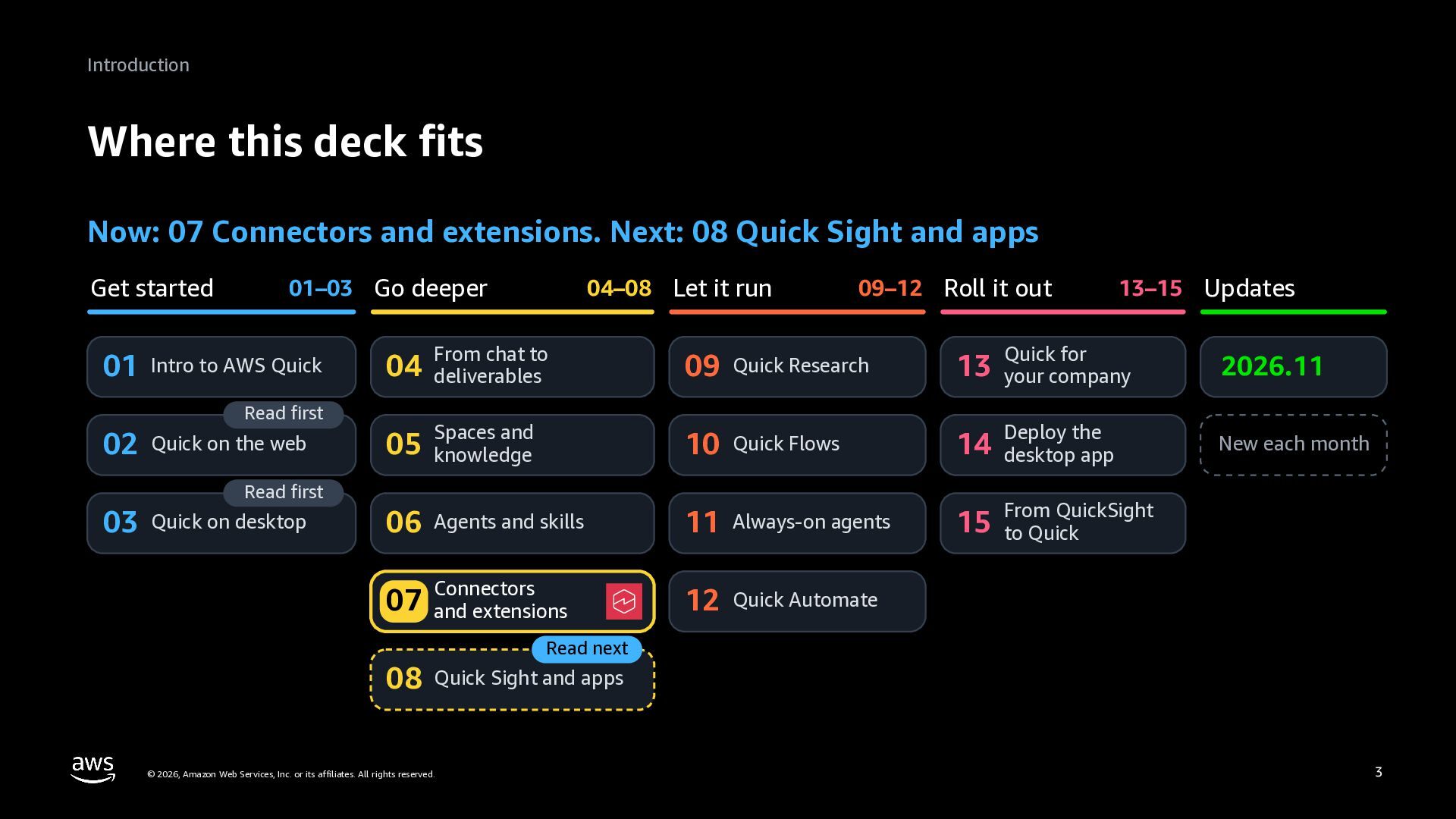
Introduction Where this deck fits Now: 07 Connectors and extensions.
Next: 08 Quick Sight and apps Get started 01–03 Go deeper 01 Intro to AWS Quick Read first 02 Quick on the web 04–08 Let it run 09–12 Roll it out From chat to 09 Quick Research 13 your company 05 knowledge Spaces and 10 Quick Flows 14 desktop app 06 Agents and skills 11 Always-on agents QuickSight 15 From to Quick 07 Connectors and extensions 12 Quick Automate 04 deliverables Read first 03 Quick on desktop 13–15 Updates Quick for Deploy the 2026.11 New each month Read next 08 Quick Sight and apps © 2026, Amazon Web Services, Inc. or its affiliates. All rights reserved. 3 -
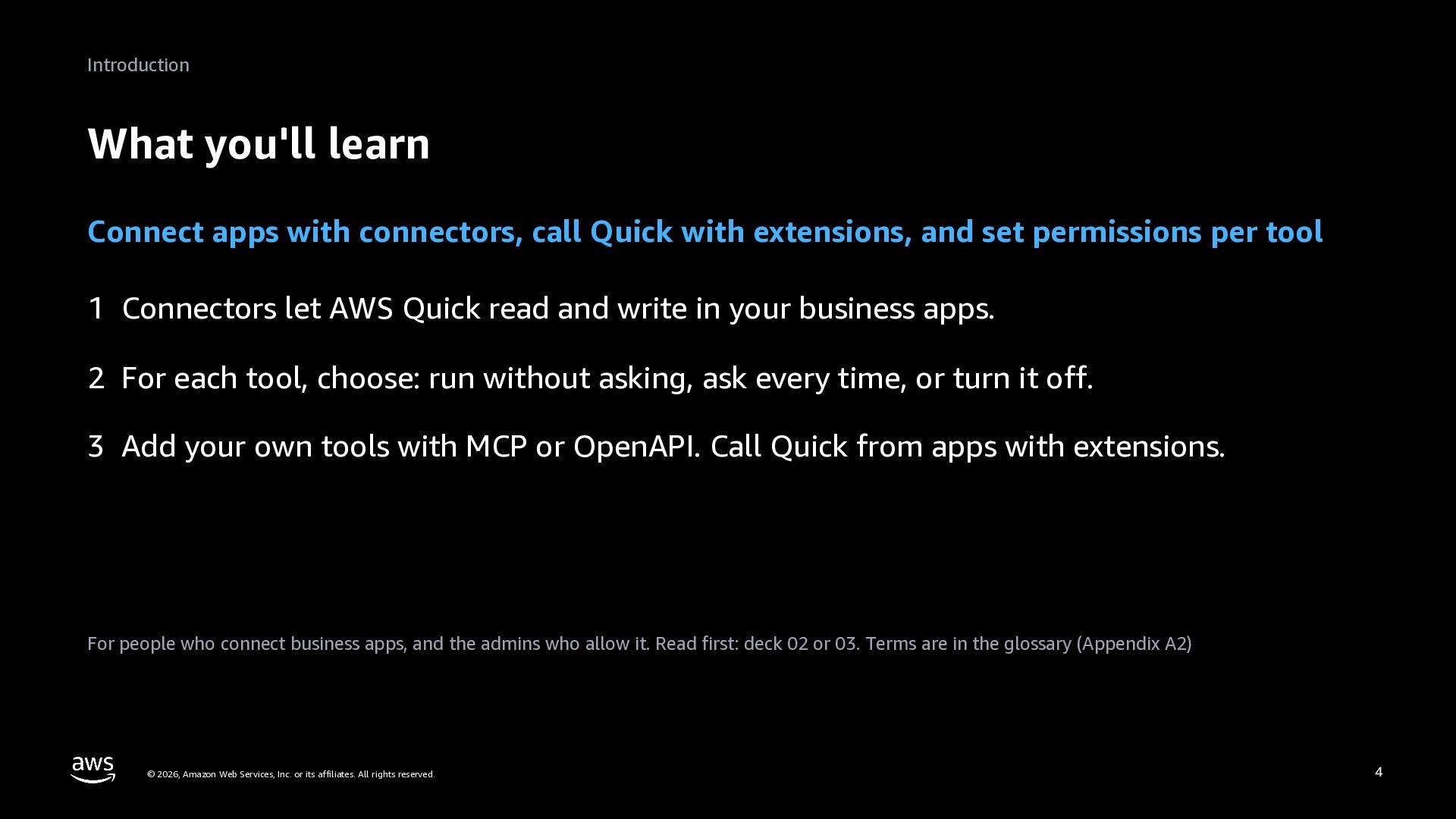
Introduction What you'll learn Connect apps with connectors, call Quick
with extensions, and set permissions per tool 1 Connectors let AWS Quick read and write in your business apps. 2 For each tool, choose: run without asking, ask every time, or turn it off. 3 Add your own tools with MCP or OpenAPI. Call Quick from apps with extensions. For people who connect business apps, and the admins who allow it. Read first: deck 02 or 03. Terms are in the glossary (Appendix A2) © 2026, Amazon Web Services, Inc. or its affiliates. All rights reserved. 4 -
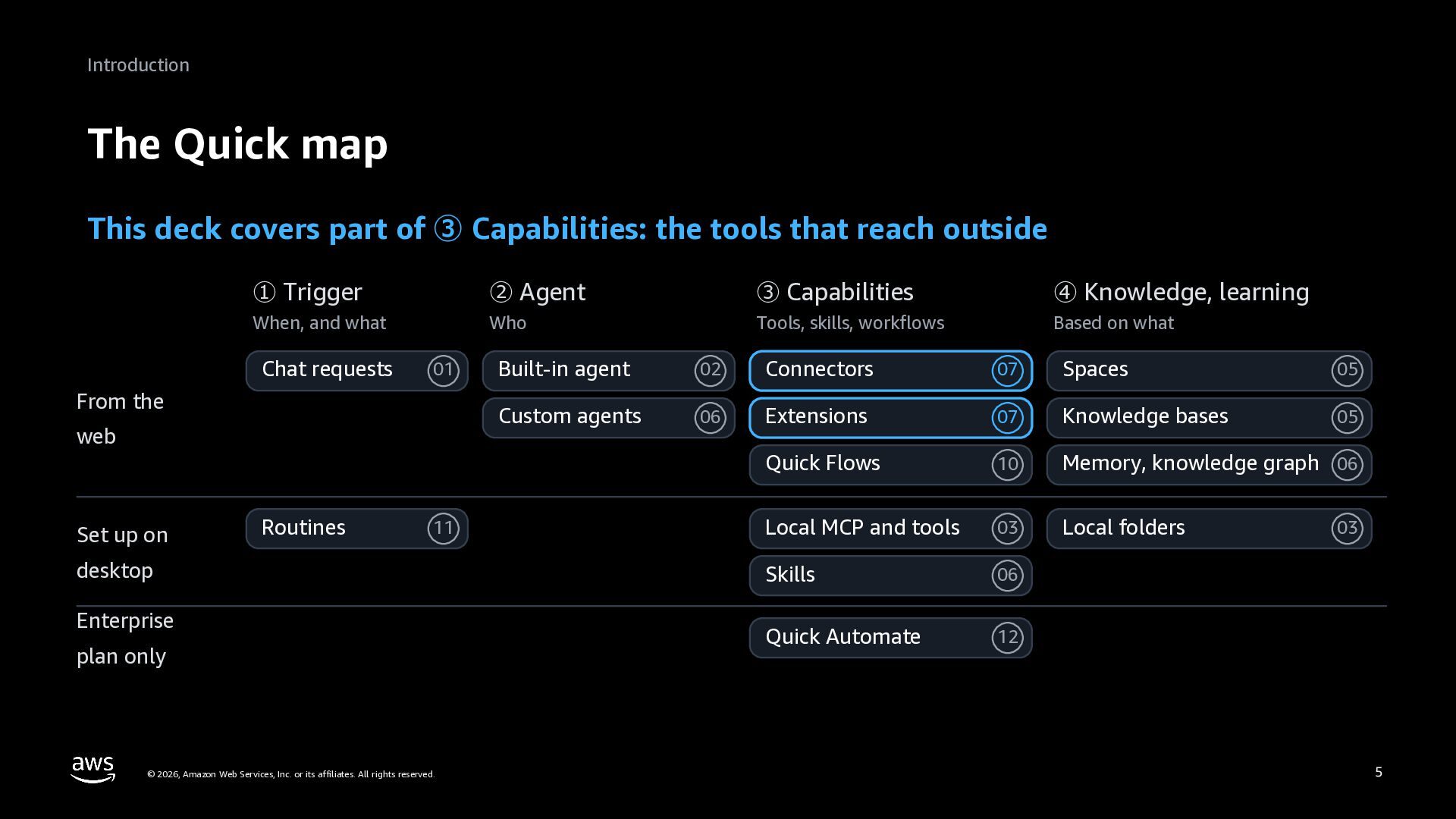
Introduction The Quick map This deck covers part of ③
Capabilities: the tools that reach outside ① Trigger ② Agent ③ Capabilities ④ Knowledge, learning When, and what Who Tools, skills, workflows Based on what Chat requests 01 From the web Set up on Routines 11 desktop Enterprise plan only © 2026, Amazon Web Services, Inc. or its affiliates. All rights reserved. Built-in agent 02 Connectors 07 Spaces 05 Custom agents 06 Extensions 07 Knowledge bases 05 Quick Flows 10 Memory, knowledge graph 06 Local MCP and tools 03 Local folders Skills 06 Quick Automate 12 03 5 -
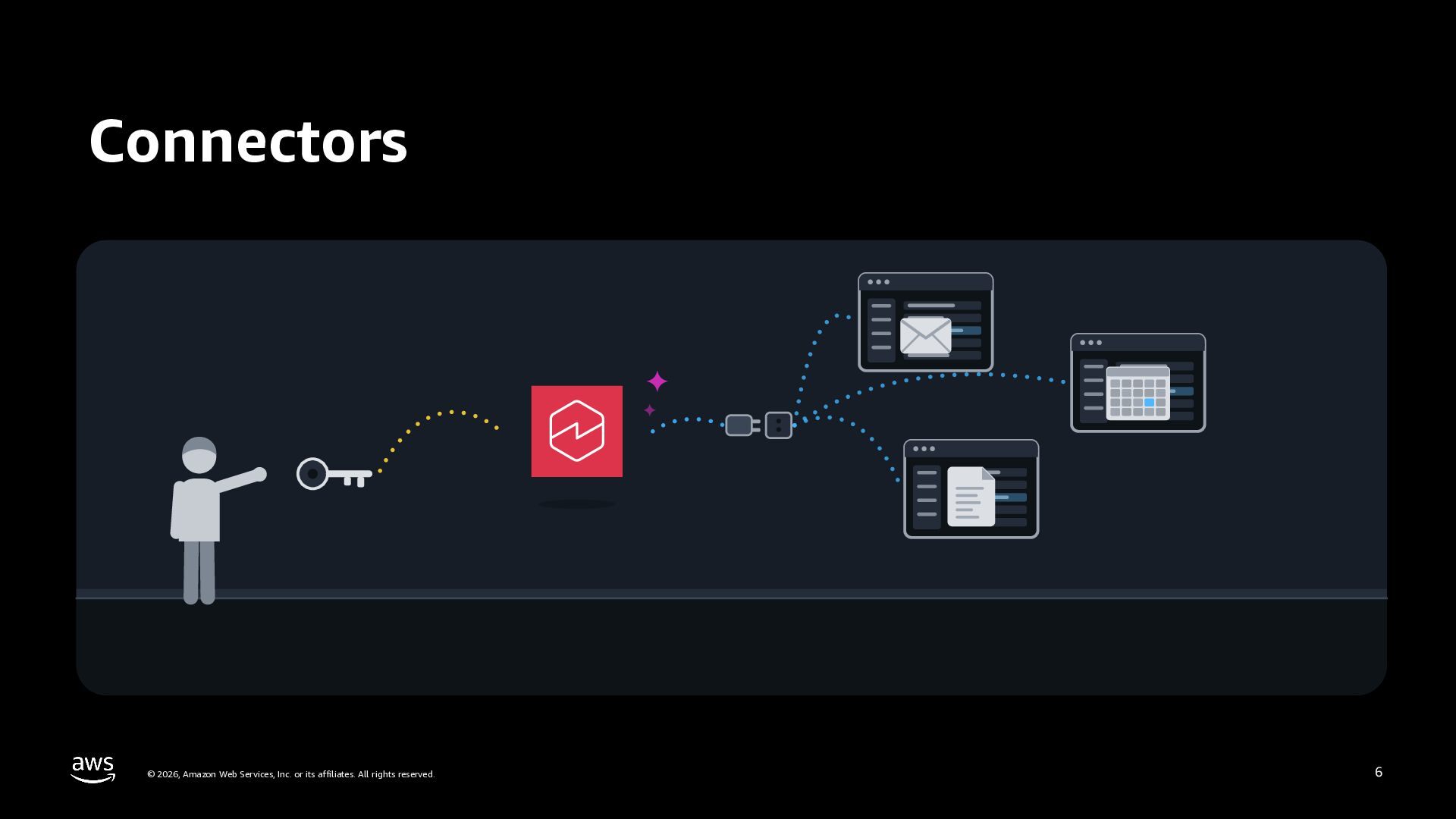
Connectors © 2026, Amazon Web Services, Inc. or its affiliates.
All rights reserved. 6 -
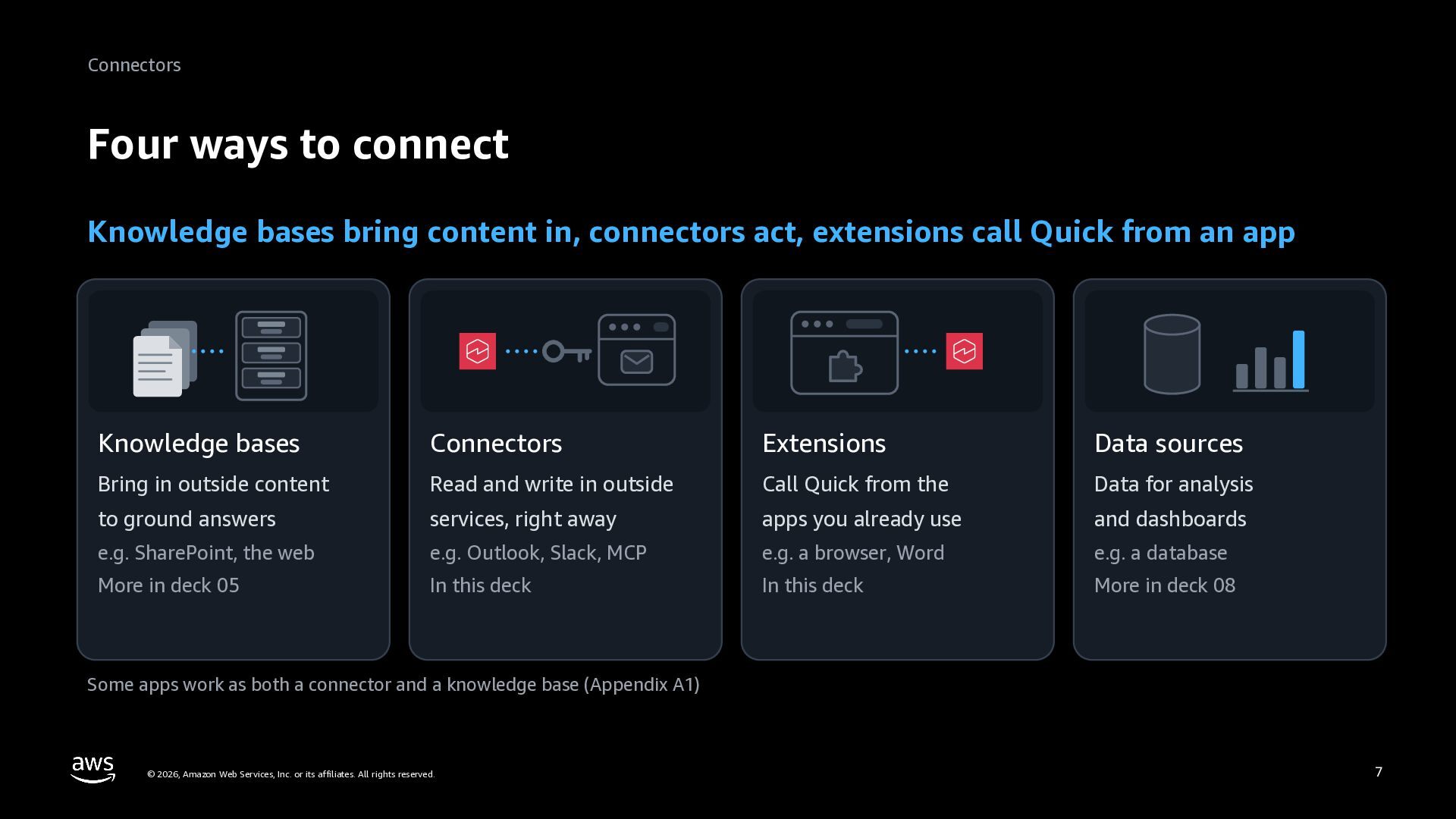
Connectors Four ways to connect Knowledge bases bring content in,
connectors act, extensions call Quick from an app Knowledge bases Connectors Extensions Data sources Bring in outside content Read and write in outside Call Quick from the Data for analysis to ground answers services, right away apps you already use and dashboards e.g. SharePoint, the web e.g. Outlook, Slack, MCP e.g. a browser, Word e.g. a database More in deck 05 In this deck In this deck More in deck 08 Some apps work as both a connector and a knowledge base (Appendix A1) © 2026, Amazon Web Services, Inc. or its affiliates. All rights reserved. 7 -
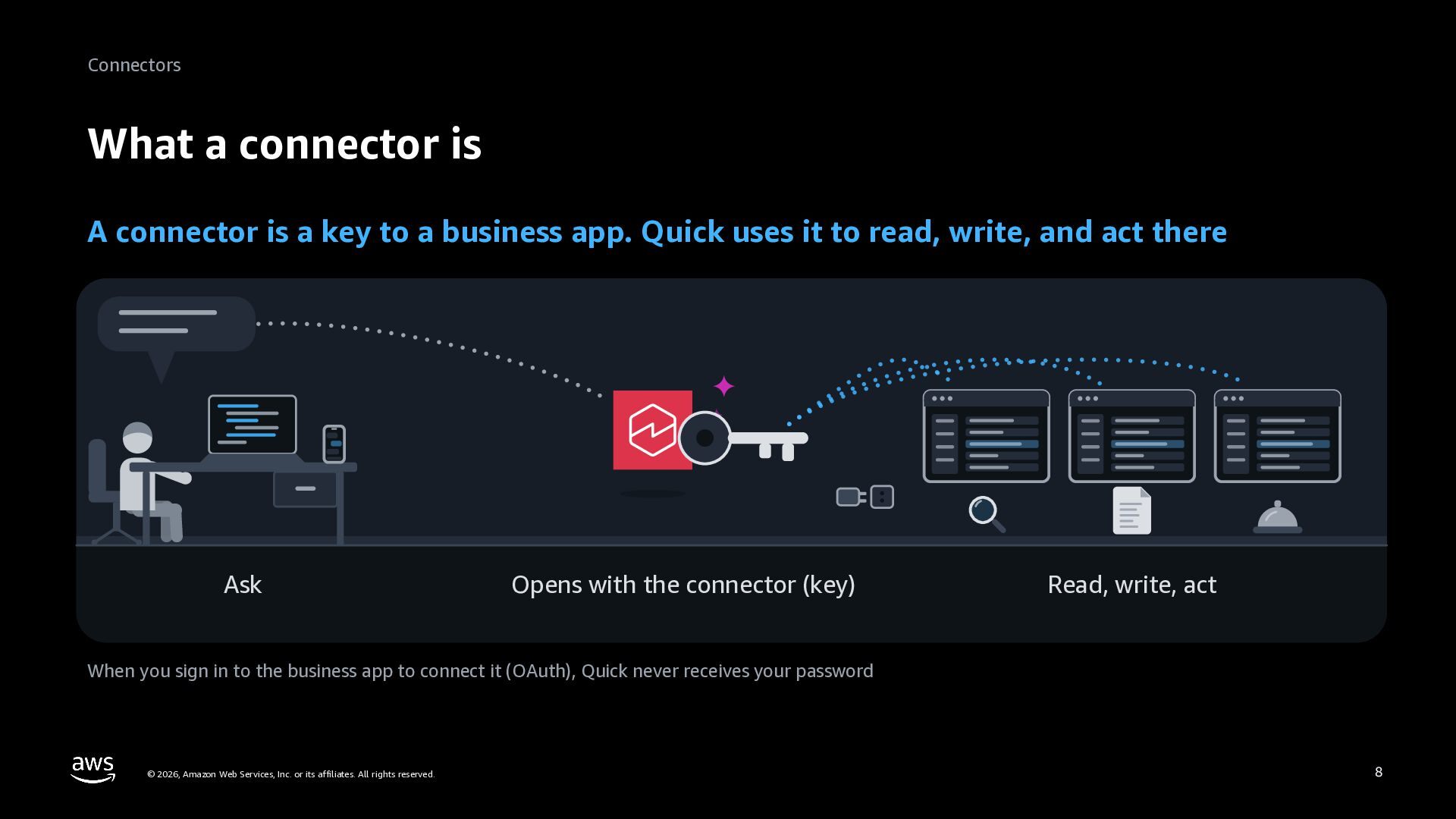
Connectors What a connector is A connector is a key
to a business app. Quick uses it to read, write, and act there Ask Opens with the connector (key) Read, write, act When you sign in to the business app to connect it (OAuth), Quick never receives your password © 2026, Amazon Web Services, Inc. or its affiliates. All rights reserved. 8 -
Connectors Adding one from the list On the Available tab,
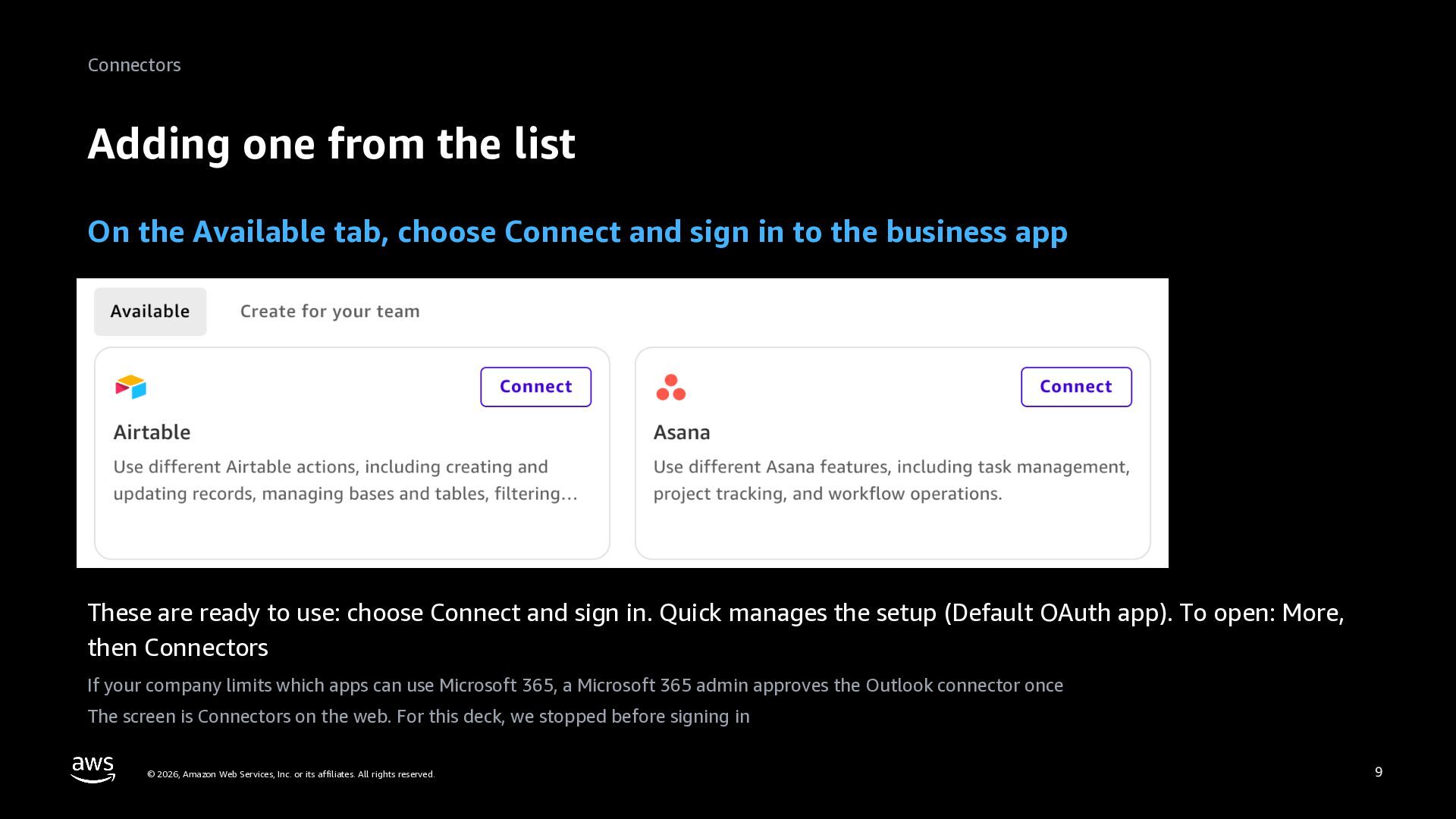
choose Connect and sign in to the business app These are ready to use: choose Connect and sign in. Quick manages the setup (Default OAuth app). To open: More, then Connectors If your company limits which apps can use Microsoft 365, a Microsoft 365 admin approves the Outlook connector once The screen is Connectors on the web. For this deck, we stopped before signing in © 2026, Amazon Web Services, Inc. or its affiliates. All rights reserved. 9 -
Connectors Creating one for your team On Create for your
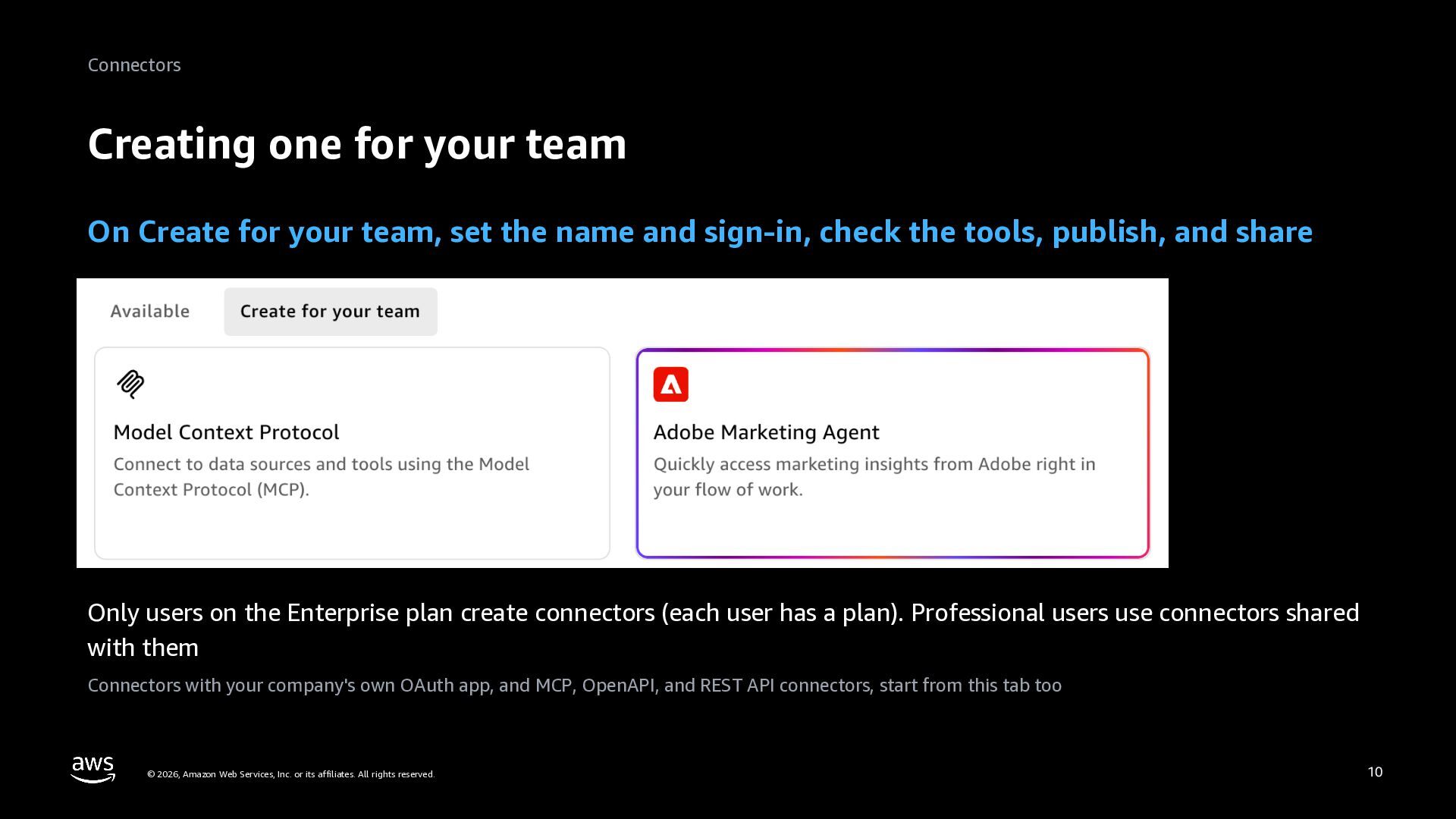
team, set the name and sign-in, check the tools, publish, and share Only users on the Enterprise plan create connectors (each user has a plan). Professional users use connectors shared with them Connectors with your company's own OAuth app, and MCP, OpenAPI, and REST API connectors, start from this tab too © 2026, Amazon Web Services, Inc. or its affiliates. All rights reserved. 10 -
Connectors How to connect (authentication) Use the Default OAuth app
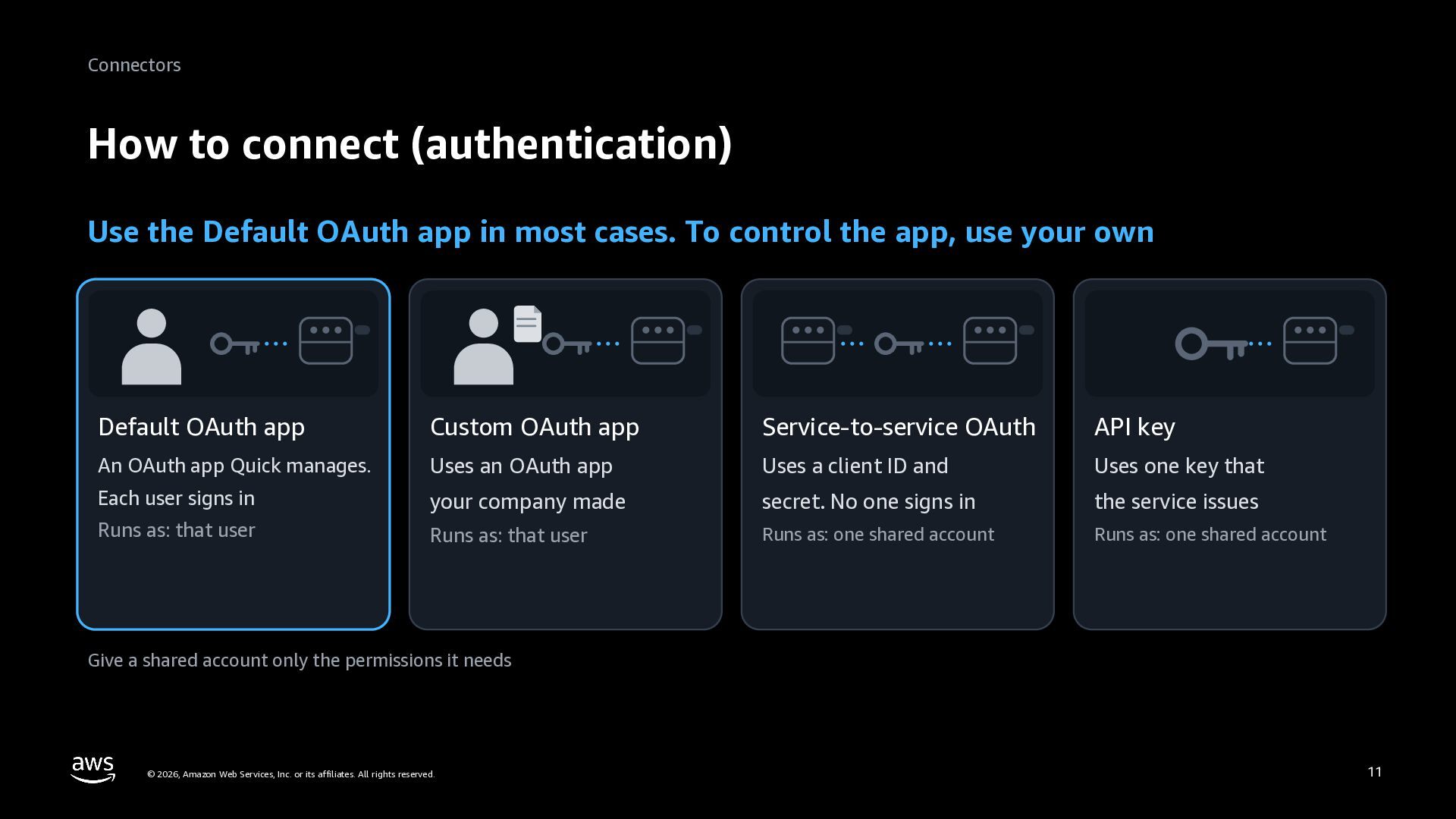
in most cases. To control the app, use your own Default OAuth app Custom OAuth app Service-to-service OAuth API key An OAuth app Quick manages. Uses an OAuth app Uses a client ID and Uses one key that Each user signs in your company made secret. No one signs in the service issues Runs as: that user Runs as: that user Runs as: one shared account Runs as: one shared account Give a shared account only the permissions it needs © 2026, Amazon Web Services, Inc. or its affiliates. All rights reserved. 11 -
Connectors Using it in chat Ask, and Quick picks and
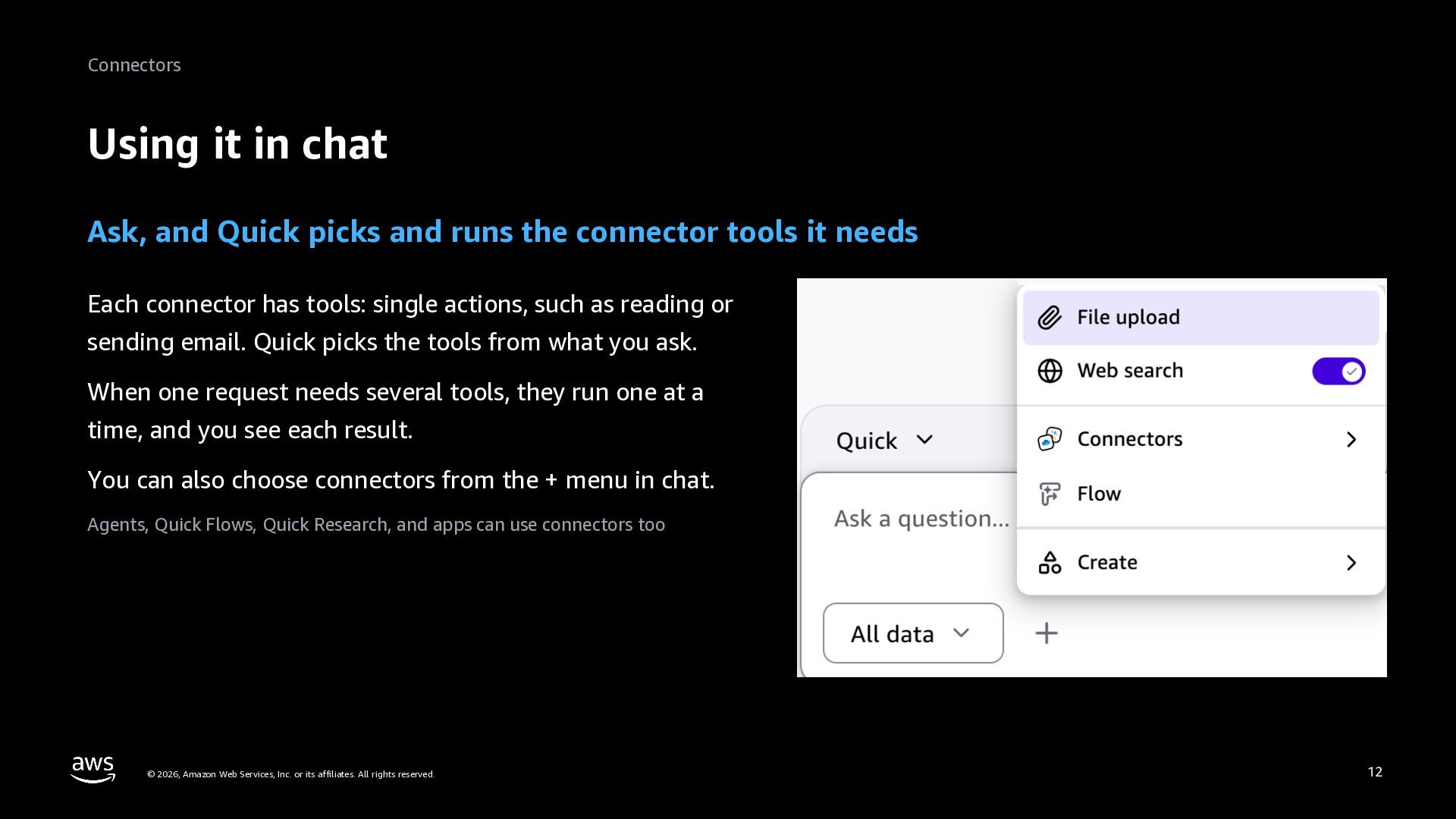
runs the connector tools it needs Each connector has tools: single actions, such as reading or sending email. Quick picks the tools from what you ask. When one request needs several tools, they run one at a time, and you see each result. You can also choose connectors from the + menu in chat. Agents, Quick Flows, Quick Research, and apps can use connectors too © 2026, Amazon Web Services, Inc. or its affiliates. All rights reserved. 12 -
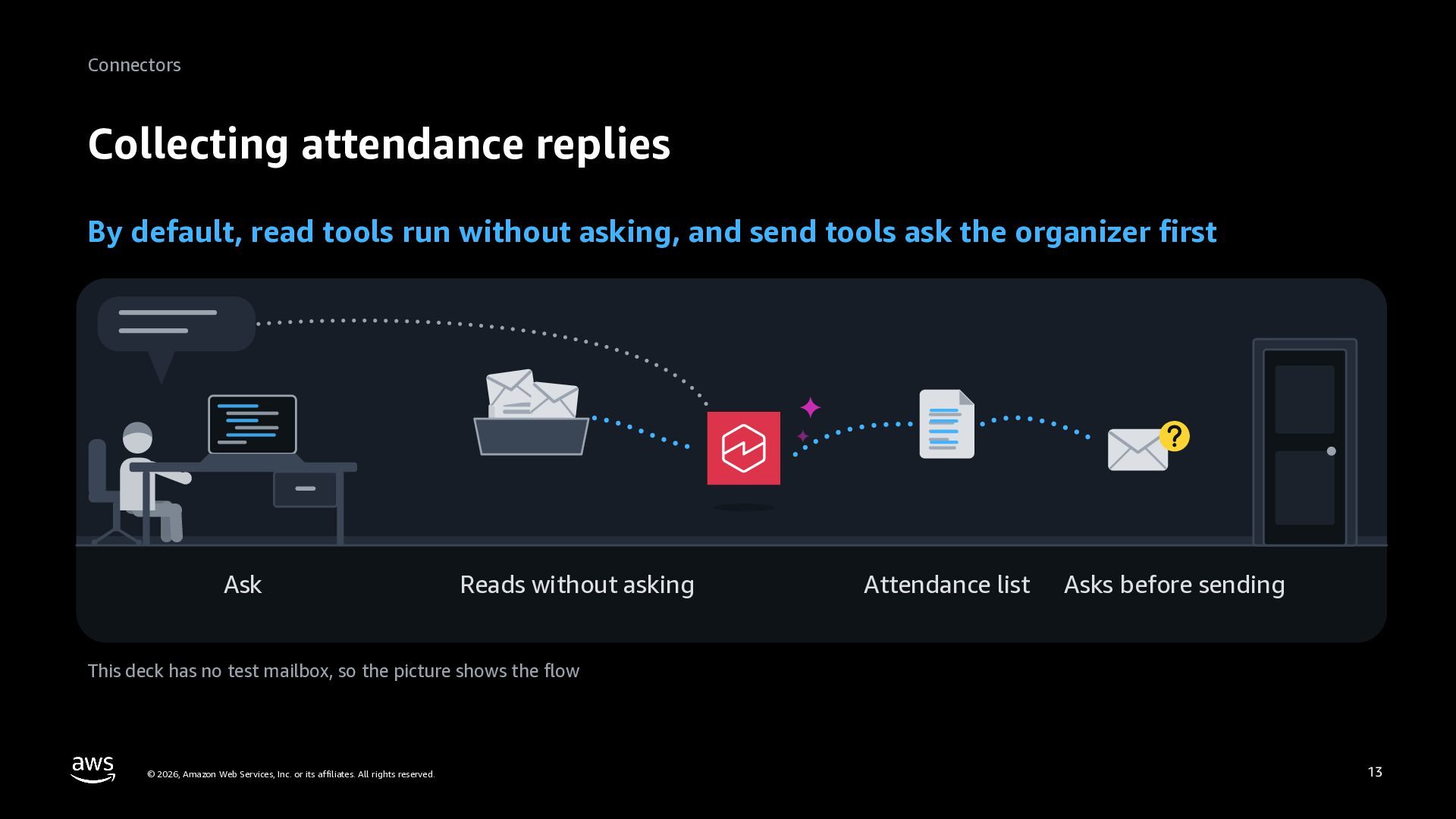
Connectors Collecting attendance replies By default, read tools run without
asking, and send tools ask the organizer first Ask Reads without asking Attendance list Asks before sending This deck has no test mailbox, so the picture shows the flow © 2026, Amazon Web Services, Inc. or its affiliates. All rights reserved. 13 -
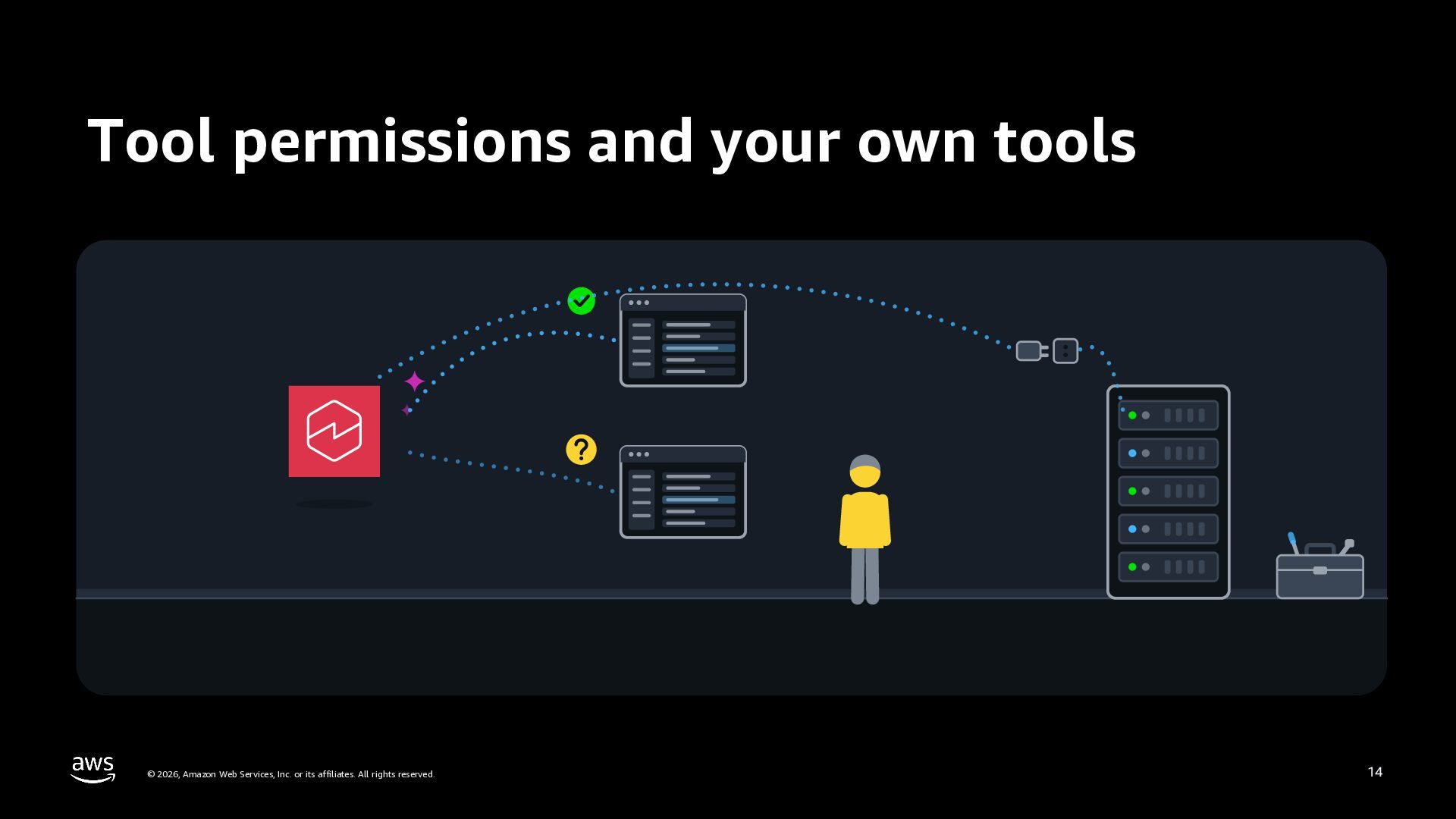
Tool permissions and your own tools © 2026, Amazon Web
Services, Inc. or its affiliates. All rights reserved. 14 -
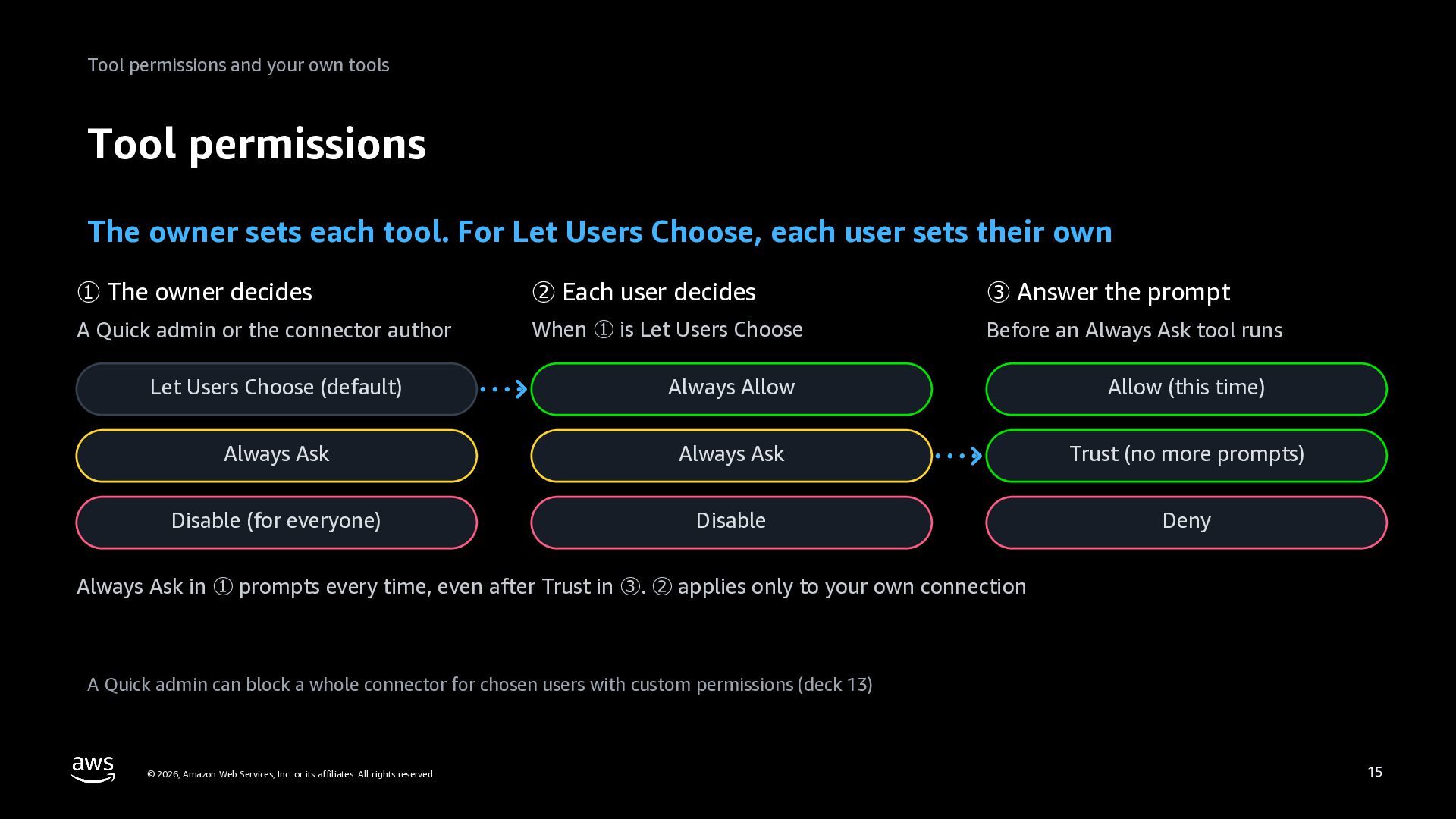
Tool permissions and your own tools Tool permissions The owner
sets each tool. For Let Users Choose, each user sets their own ① The owner decides ② Each user decides ③ Answer the prompt A Quick admin or the connector author When ① is Let Users Choose Before an Always Ask tool runs Let Users Choose (default) Always Allow Allow (this time) Always Ask Always Ask Trust (no more prompts) Disable (for everyone) Disable Deny Always Ask in ① prompts every time, even after Trust in ③. ② applies only to your own connection A Quick admin can block a whole connector for chosen users with custom permissions (deck 13) © 2026, Amazon Web Services, Inc. or its affiliates. All rights reserved. 15 -
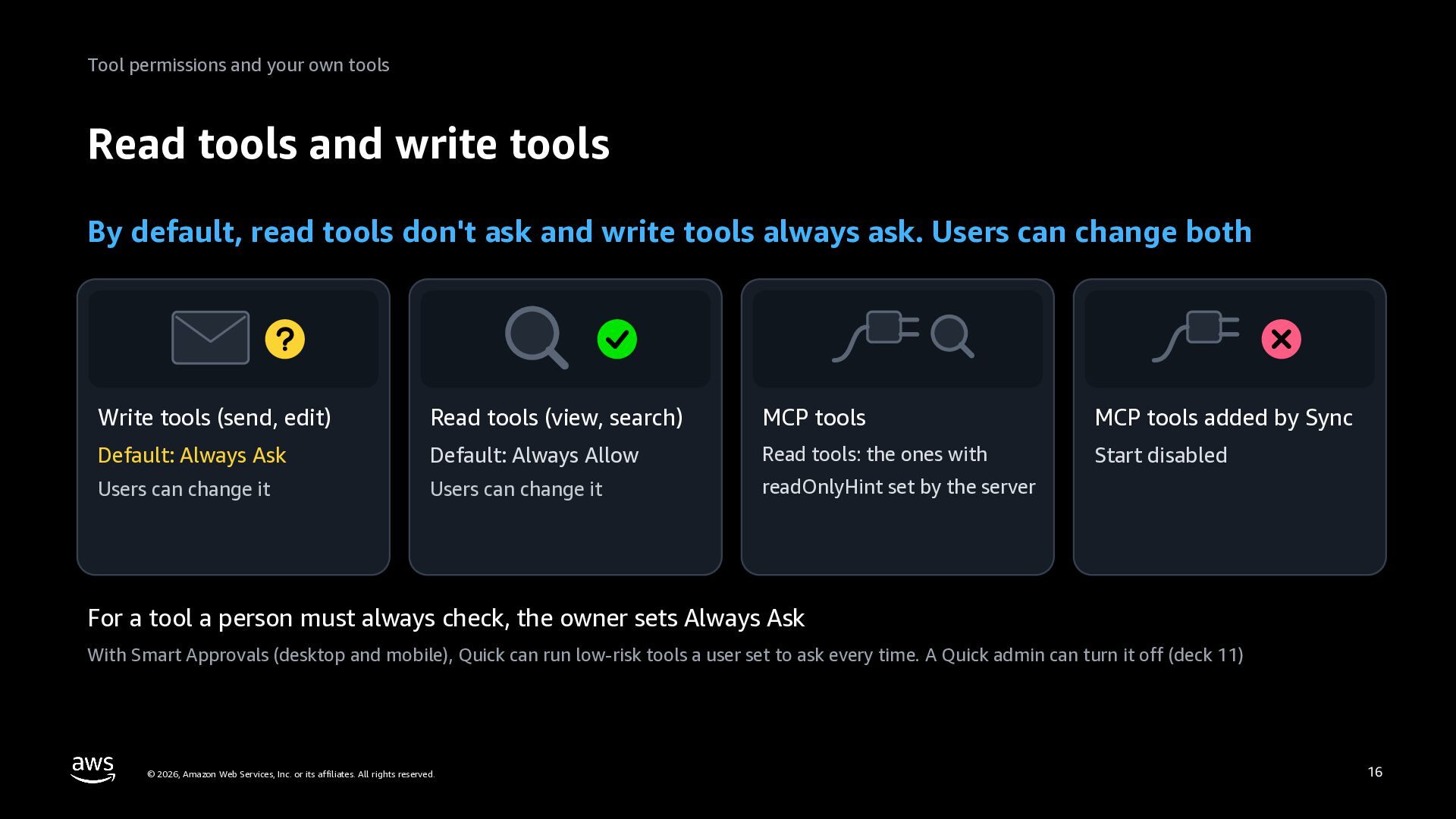
Tool permissions and your own tools Read tools and write
tools By default, read tools don't ask and write tools always ask. Users can change both Write tools (send, edit) Read tools (view, search) MCP tools MCP tools added by Sync Default: Always Ask Default: Always Allow Read tools: the ones with Start disabled Users can change it Users can change it readOnlyHint set by the server For a tool a person must always check, the owner sets Always Ask With Smart Approvals (desktop and mobile), Quick can run low-risk tools a user set to ask every time. A Quick admin can turn it off (deck 11) © 2026, Amazon Web Services, Inc. or its affiliates. All rights reserved. 16 -
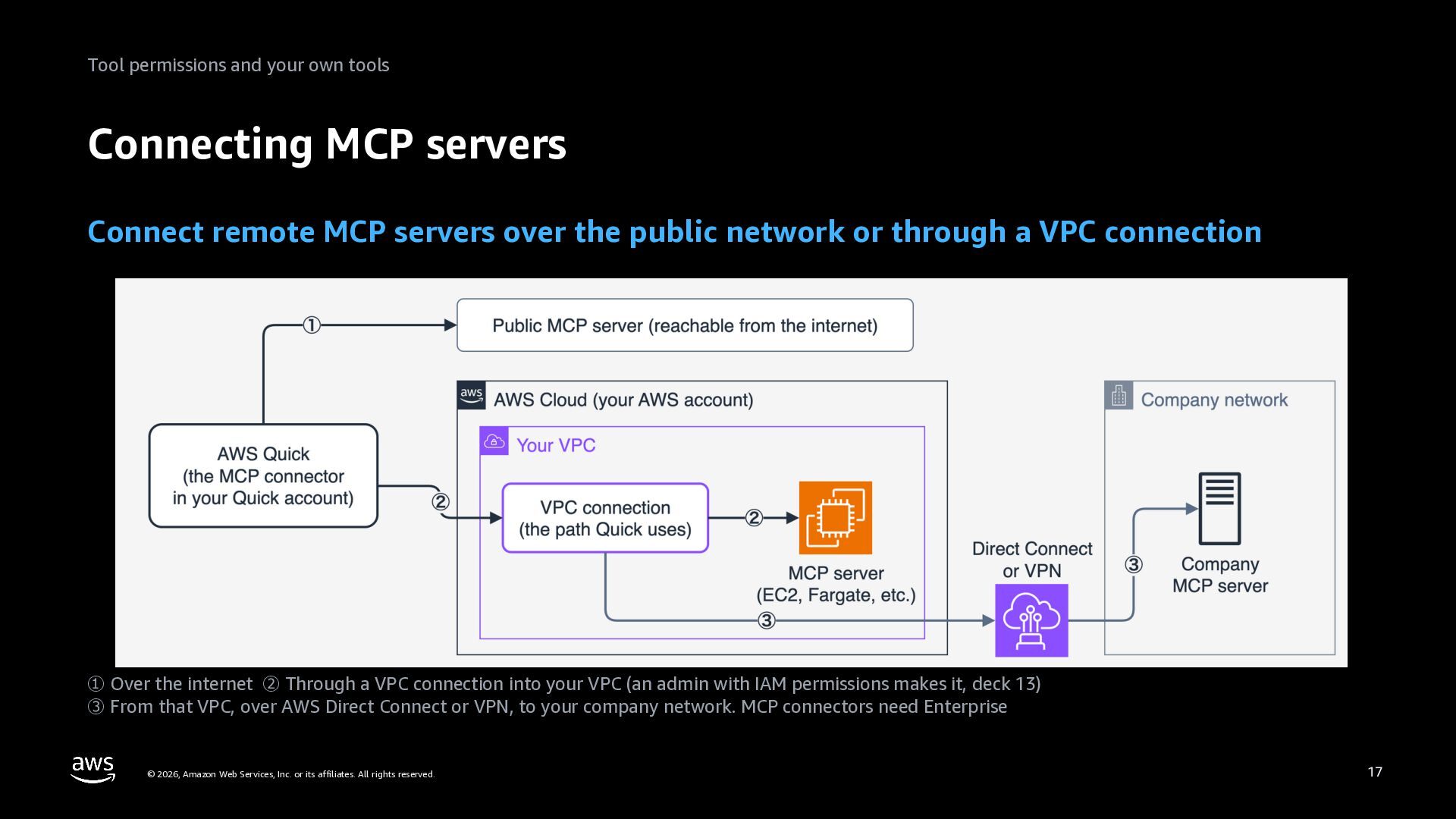
Tool permissions and your own tools Connecting MCP servers Connect
remote MCP servers over the public network or through a VPC connection ① Over the internet ② Through a VPC connection into your VPC (an admin with IAM permissions makes it, deck 13) ③ From that VPC, over AWS Direct Connect or VPN, to your company network. MCP connectors need Enterprise © 2026, Amazon Web Services, Inc. or its affiliates. All rights reserved. 17 -
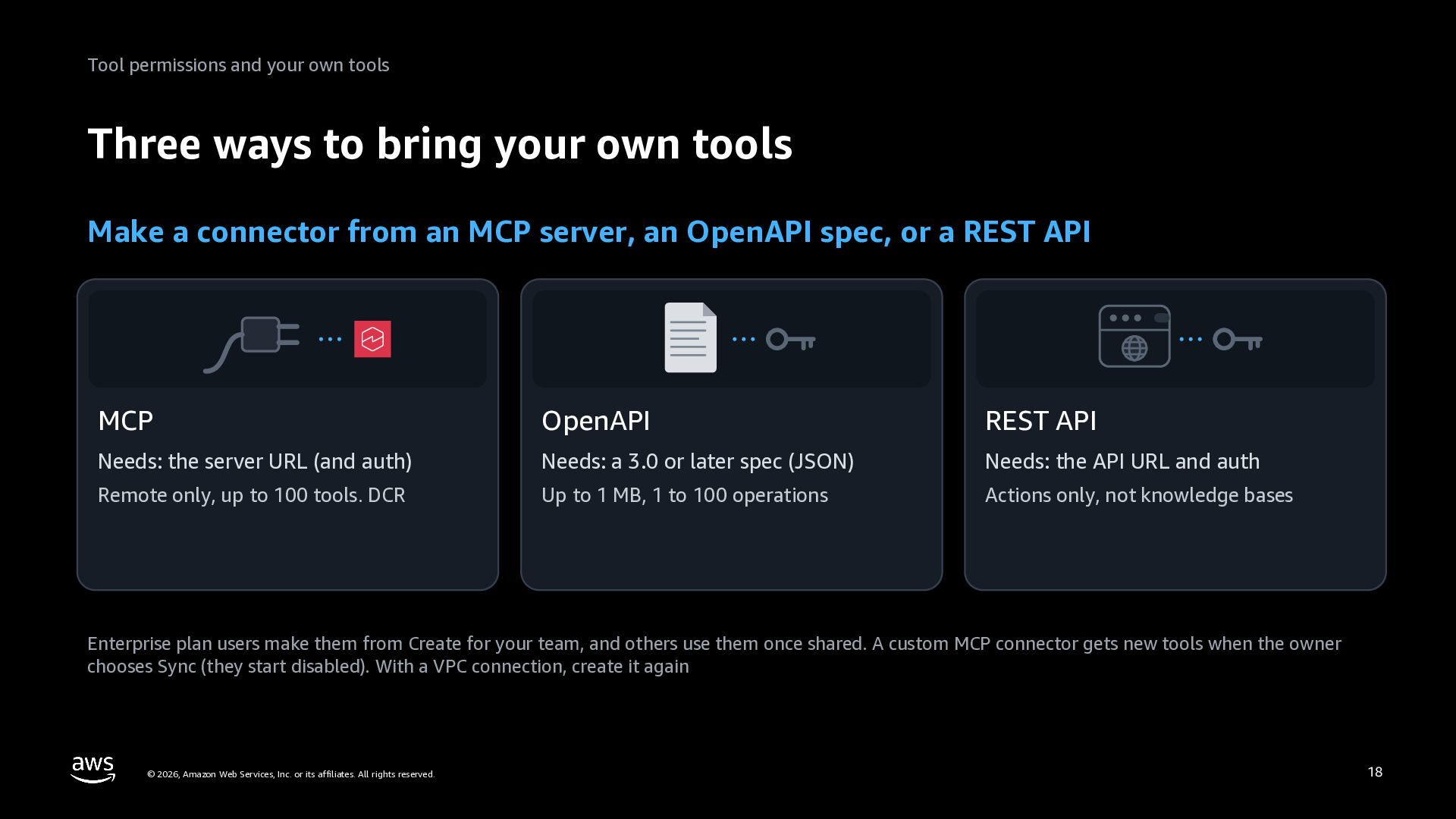
Tool permissions and your own tools Three ways to bring
your own tools Make a connector from an MCP server, an OpenAPI spec, or a REST API MCP OpenAPI REST API Needs: the server URL (and auth) Needs: a 3.0 or later spec (JSON) Needs: the API URL and auth Remote only, up to 100 tools. DCR Up to 1 MB, 1 to 100 operations Actions only, not knowledge bases Enterprise plan users make them from Create for your team, and others use them once shared. A custom MCP connector gets new tools when the owner chooses Sync (they start disabled). With a VPC connection, create it again © 2026, Amazon Web Services, Inc. or its affiliates. All rights reserved. 18 -
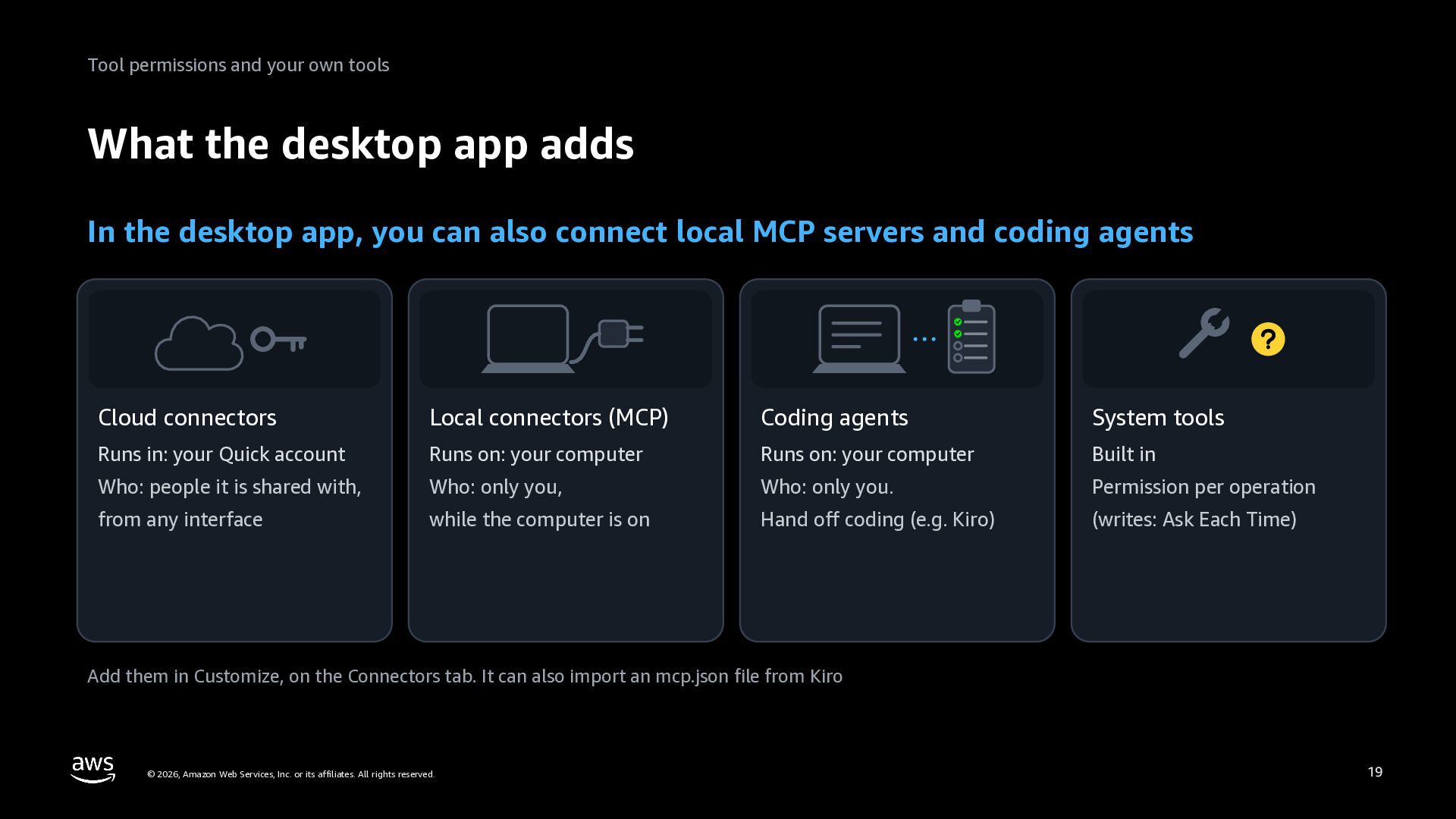
Tool permissions and your own tools What the desktop app
adds In the desktop app, you can also connect local MCP servers and coding agents Cloud connectors Local connectors (MCP) Coding agents System tools Runs in: your Quick account Runs on: your computer Runs on: your computer Built in Who: people it is shared with, Who: only you, Who: only you. Permission per operation from any interface while the computer is on Hand off coding (e.g. Kiro) (writes: Ask Each Time) Add them in Customize, on the Connectors tab. It can also import an mcp.json file from Kiro © 2026, Amazon Web Services, Inc. or its affiliates. All rights reserved. 19 -
Extensions © 2026, Amazon Web Services, Inc. or its affiliates.
All rights reserved. 20 -
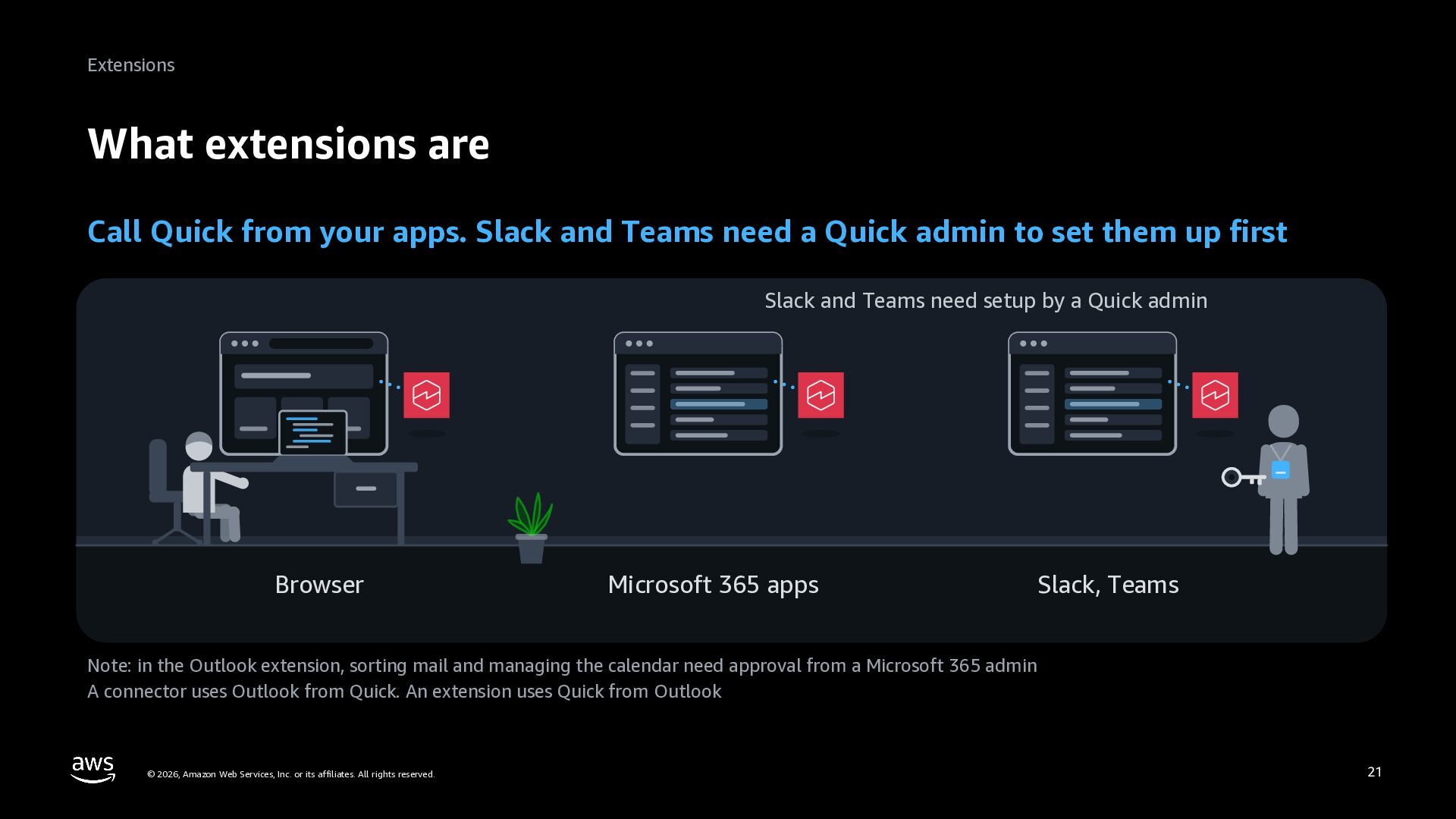
Extensions What extensions are Call Quick from your apps. Slack
and Teams need a Quick admin to set them up first Slack and Teams need setup by a Quick admin Browser Microsoft 365 apps Slack, Teams Note: in the Outlook extension, sorting mail and managing the calendar need approval from a Microsoft 365 admin A connector uses Outlook from Quick. An extension uses Quick from Outlook © 2026, Amazon Web Services, Inc. or its affiliates. All rights reserved. 21 -
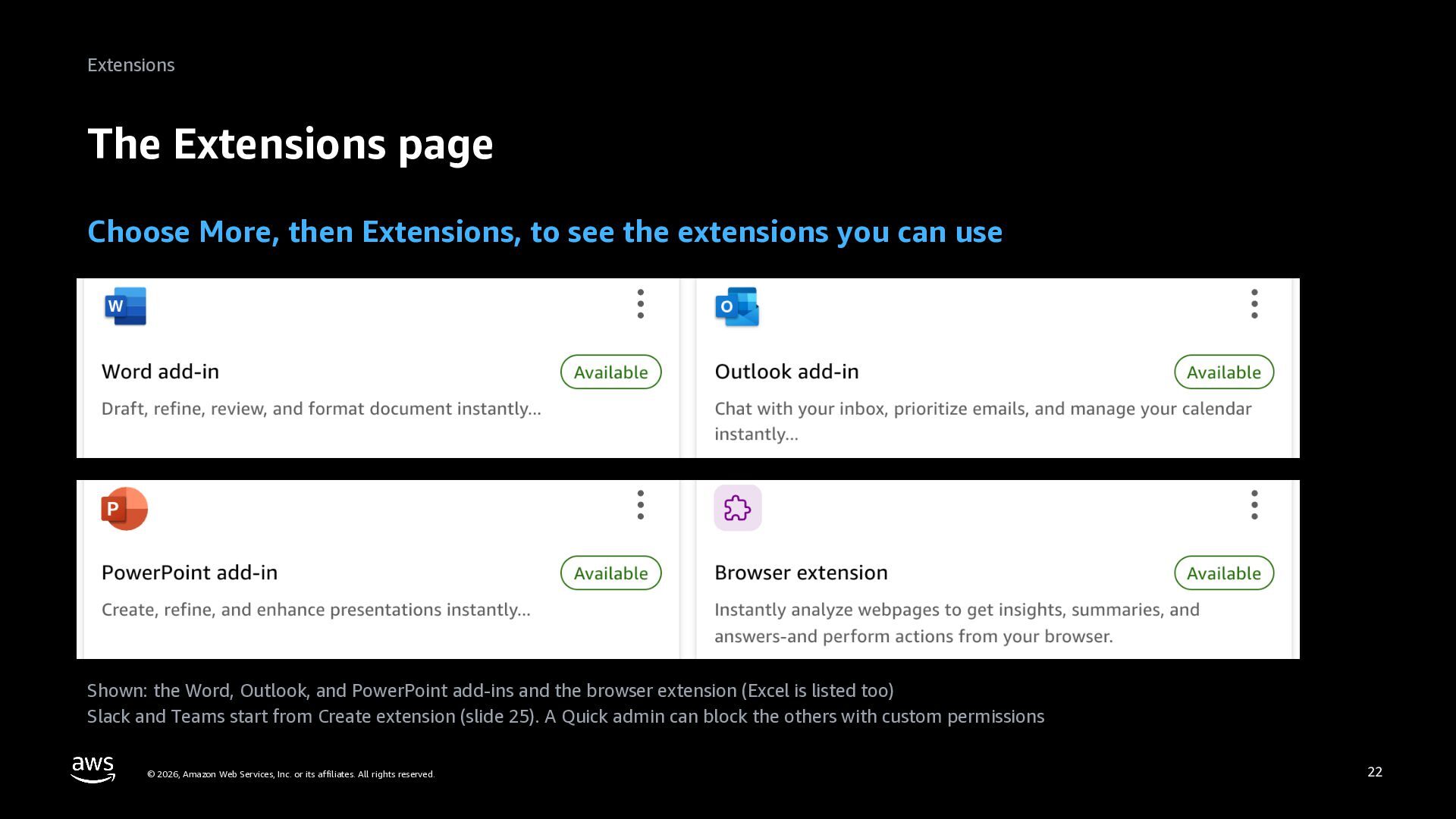
Extensions The Extensions page Choose More, then Extensions, to see
the extensions you can use Shown: the Word, Outlook, and PowerPoint add-ins and the browser extension (Excel is listed too) Slack and Teams start from Create extension (slide 25). A Quick admin can block the others with custom permissions © 2026, Amazon Web Services, Inc. or its affiliates. All rights reserved. 22 -
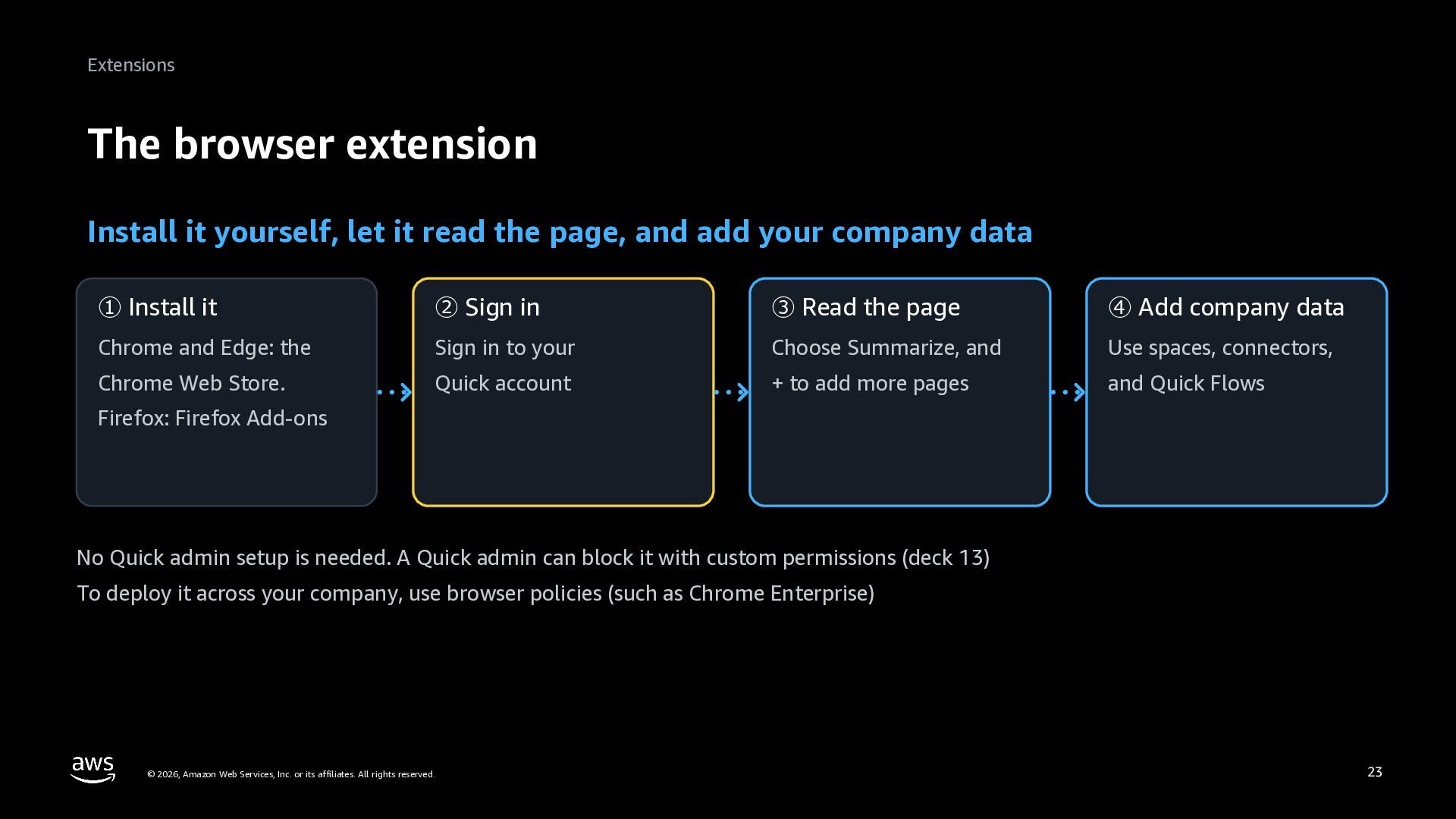
Extensions The browser extension Install it yourself, let it read
the page, and add your company data ① Install it ② Sign in ③ Read the page ④ Add company data Chrome and Edge: the Sign in to your Choose Summarize, and Use spaces, connectors, Chrome Web Store. Quick account + to add more pages and Quick Flows Firefox: Firefox Add-ons No Quick admin setup is needed. A Quick admin can block it with custom permissions (deck 13) To deploy it across your company, use browser policies (such as Chrome Enterprise) © 2026, Amazon Web Services, Inc. or its affiliates. All rights reserved. 23 -
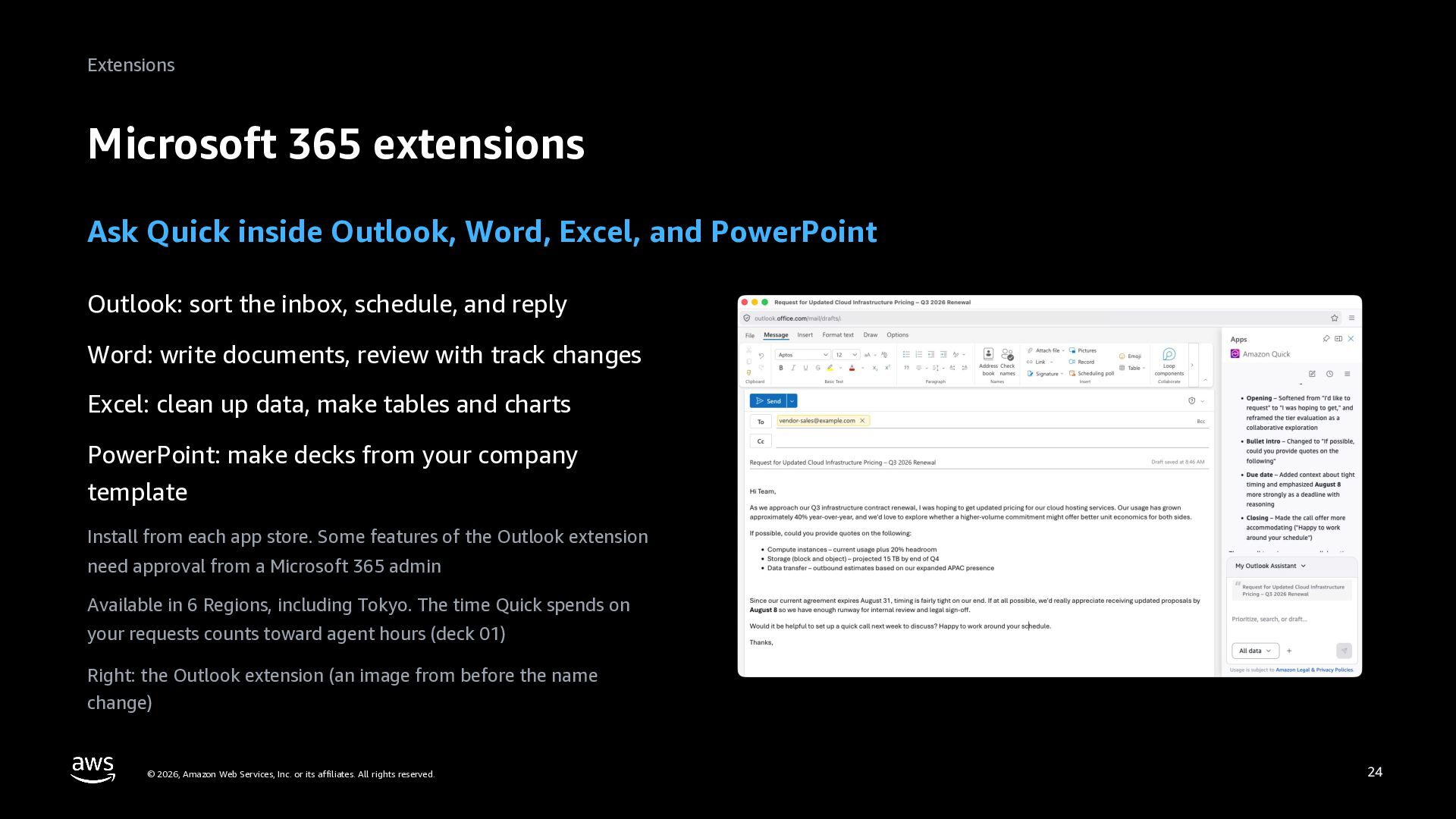
Extensions Microsoft 365 extensions Ask Quick inside Outlook, Word, Excel,
and PowerPoint Outlook: sort the inbox, schedule, and reply Word: write documents, review with track changes Excel: clean up data, make tables and charts PowerPoint: make decks from your company template Install from each app store. Some features of the Outlook extension need approval from a Microsoft 365 admin Available in 6 Regions, including Tokyo. The time Quick spends on your requests counts toward agent hours (deck 01) Right: the Outlook extension (an image from before the name change) © 2026, Amazon Web Services, Inc. or its affiliates. All rights reserved. 24 -
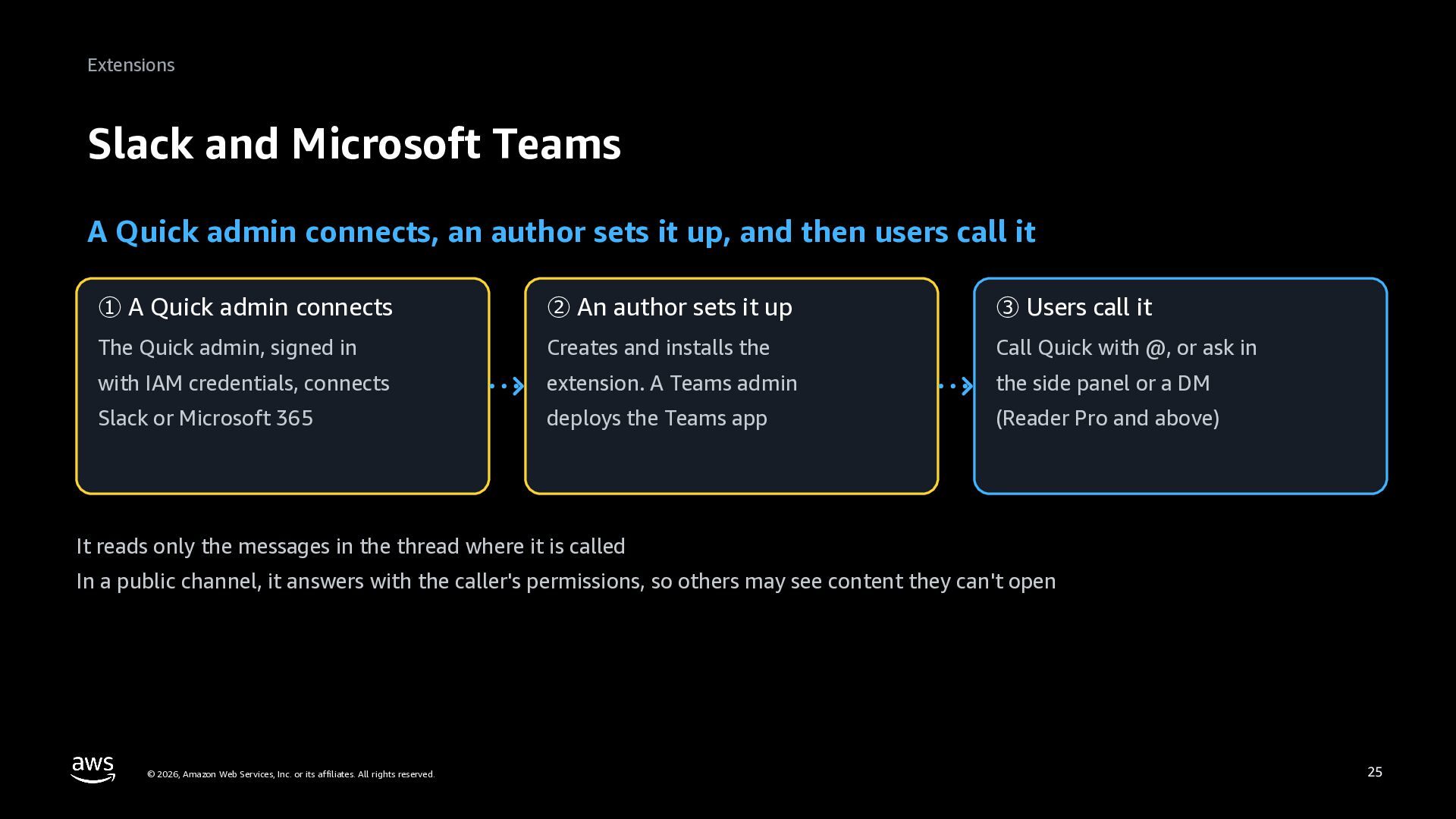
Extensions Slack and Microsoft Teams A Quick admin connects, an
author sets it up, and then users call it ① A Quick admin connects ② An author sets it up ③ Users call it The Quick admin, signed in Creates and installs the Call Quick with @, or ask in with IAM credentials, connects extension. A Teams admin the side panel or a DM Slack or Microsoft 365 deploys the Teams app (Reader Pro and above) It reads only the messages in the thread where it is called In a public channel, it answers with the caller's permissions, so others may see content they can't open © 2026, Amazon Web Services, Inc. or its affiliates. All rights reserved. 25 -
Summary © 2026, Amazon Web Services, Inc. or its affiliates.
All rights reserved. 26 -
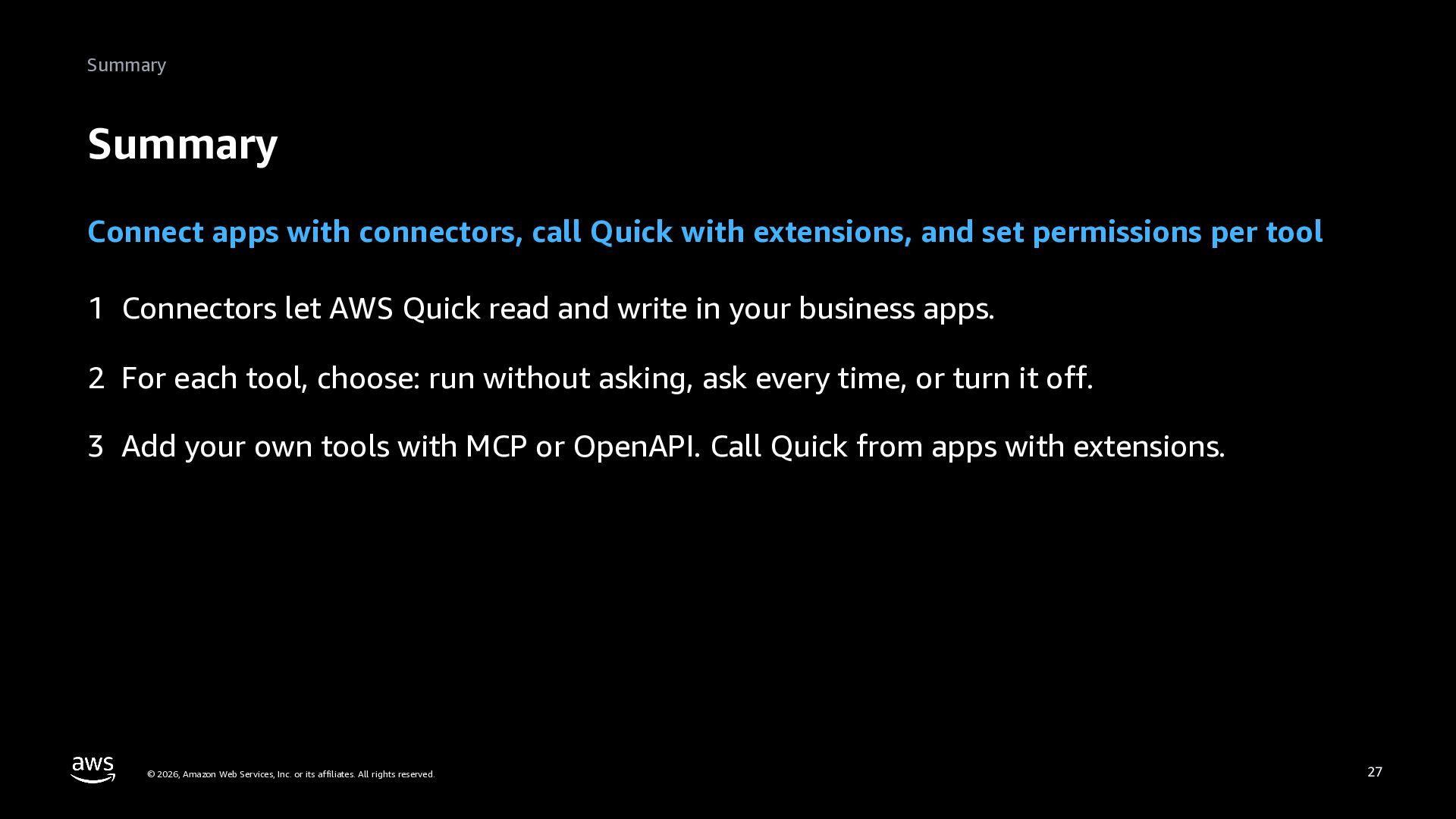
Summary Summary Connect apps with connectors, call Quick with extensions,
and set permissions per tool 1 Connectors let AWS Quick read and write in your business apps. 2 For each tool, choose: run without asking, ask every time, or turn it off. 3 Add your own tools with MCP or OpenAPI. Call Quick from apps with extensions. © 2026, Amazon Web Services, Inc. or its affiliates. All rights reserved. 27 -
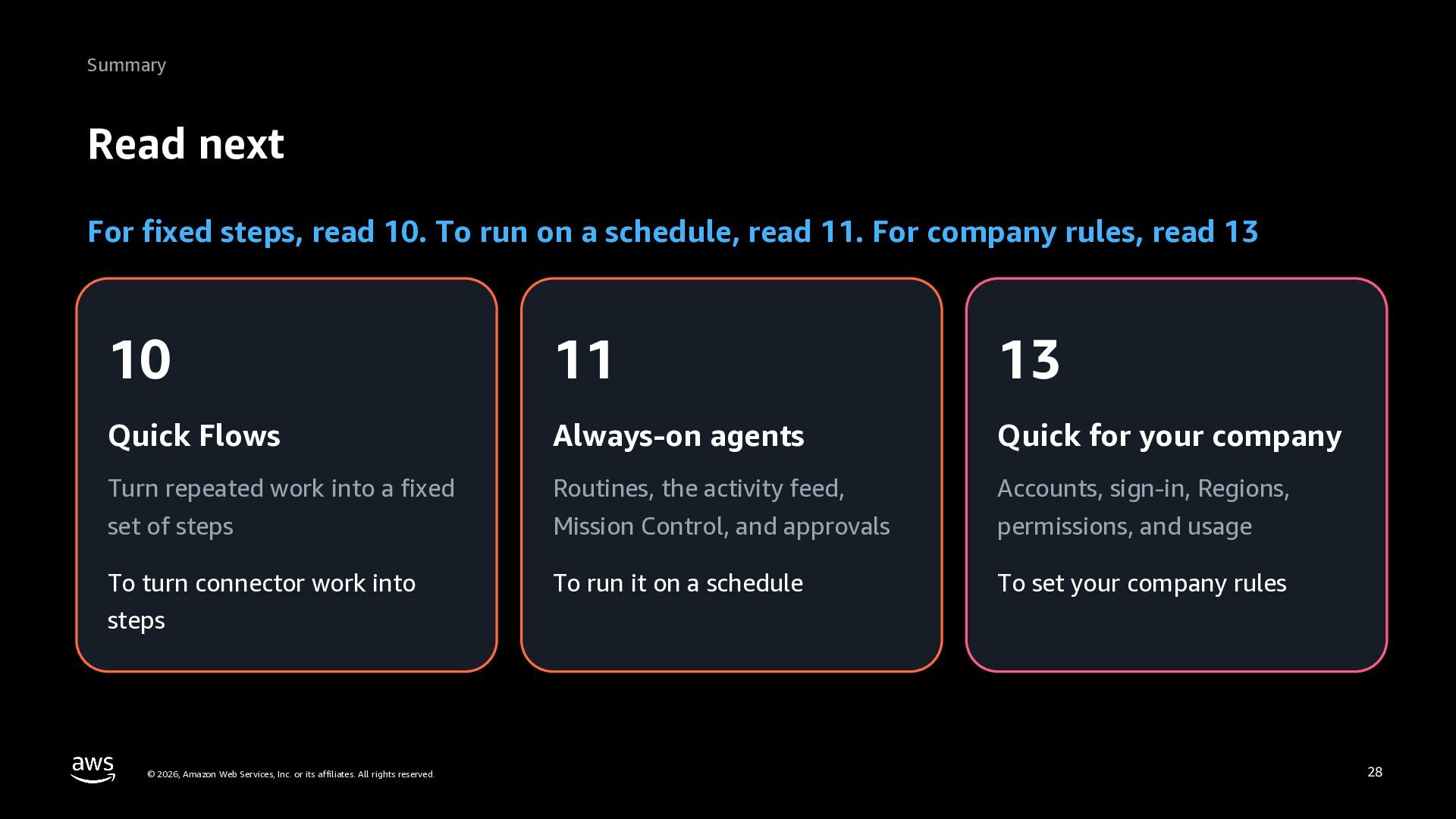
Summary Read next For fixed steps, read 10. To run
on a schedule, read 11. For company rules, read 13 10 11 13 Quick Flows Always-on agents Quick for your company Turn repeated work into a fixed Routines, the activity feed, Accounts, sign-in, Regions, set of steps Mission Control, and approvals permissions, and usage To turn connector work into To run it on a schedule To set your company rules steps © 2026, Amazon Web Services, Inc. or its affiliates. All rights reserved. 28 -
Appendix © 2026, Amazon Web Services, Inc. or its affiliates.
All rights reserved. 29 -
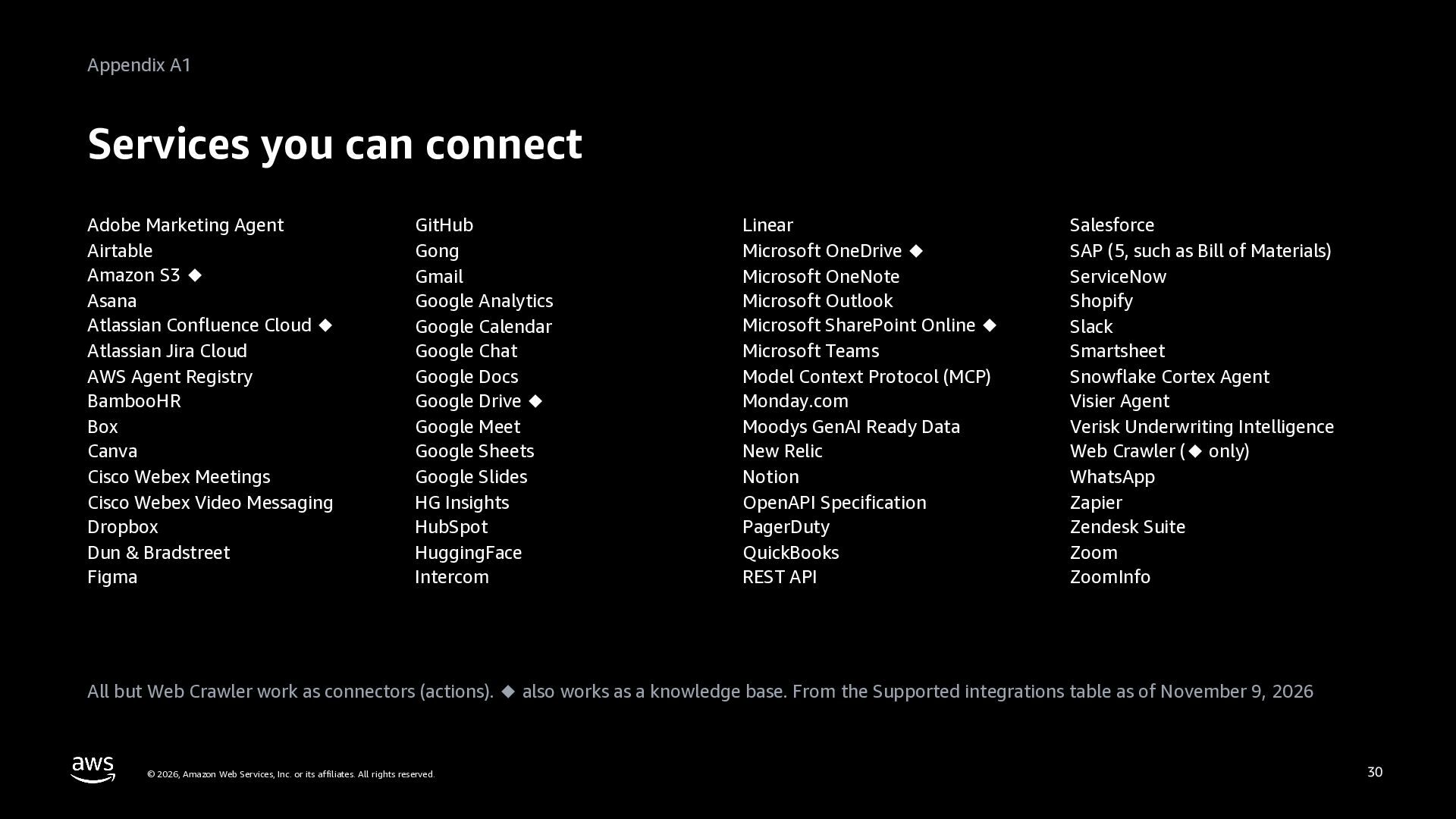
Appendix A1 Services you can connect Adobe Marketing Agent Airtable
Amazon S3 ◆ Asana Atlassian Confluence Cloud ◆ Atlassian Jira Cloud AWS Agent Registry BambooHR Box Canva Cisco Webex Meetings Cisco Webex Video Messaging Dropbox Dun & Bradstreet Figma GitHub Gong Gmail Google Analytics Google Calendar Google Chat Google Docs Google Drive ◆ Google Meet Google Sheets Google Slides HG Insights HubSpot HuggingFace Intercom Linear Microsoft OneDrive ◆ Microsoft OneNote Microsoft Outlook Microsoft SharePoint Online ◆ Microsoft Teams Model Context Protocol (MCP) Monday.com Moodys GenAI Ready Data New Relic Notion OpenAPI Specification PagerDuty QuickBooks REST API Salesforce SAP (5, such as Bill of Materials) ServiceNow Shopify Slack Smartsheet Snowflake Cortex Agent Visier Agent Verisk Underwriting Intelligence Web Crawler (◆ only) WhatsApp Zapier Zendesk Suite Zoom ZoomInfo All but Web Crawler work as connectors (actions). ◆ also works as a knowledge base. From the Supported integrations table as of November 9, 2026 © 2026, Amazon Web Services, Inc. or its affiliates. All rights reserved. 30 -
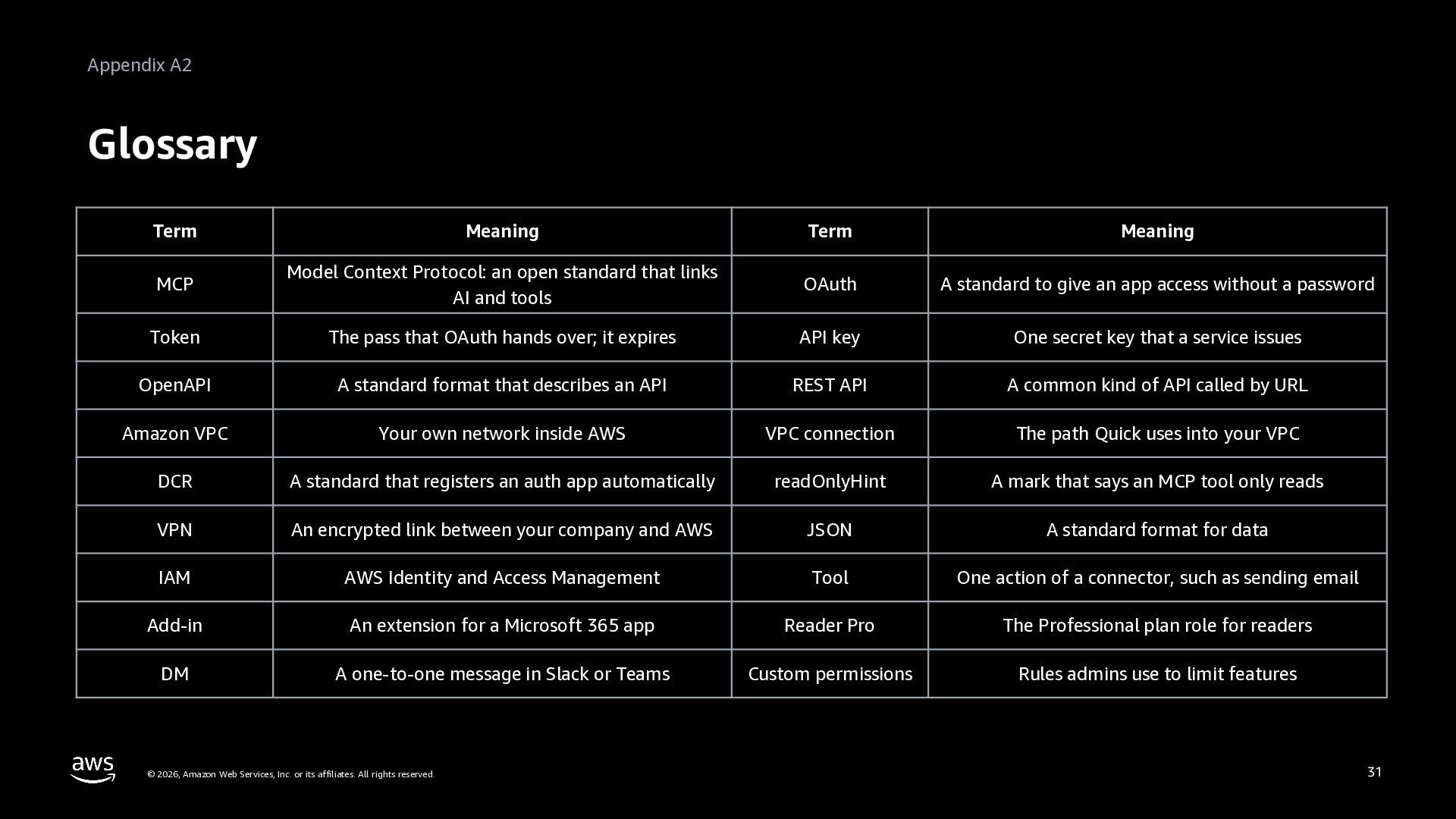
Appendix A2 Glossary Term Meaning Term Meaning MCP Model Context
Protocol: an open standard that links AI and tools OAuth A standard to give an app access without a password Token The pass that OAuth hands over; it expires API key One secret key that a service issues OpenAPI A standard format that describes an API REST API A common kind of API called by URL Amazon VPC Your own network inside AWS VPC connection The path Quick uses into your VPC DCR A standard that registers an auth app automatically readOnlyHint A mark that says an MCP tool only reads VPN An encrypted link between your company and AWS JSON A standard format for data IAM AWS Identity and Access Management Tool One action of a connector, such as sending email Add-in An extension for a Microsoft 365 app Reader Pro The Professional plan role for readers DM A one-to-one message in Slack or Teams Custom permissions Rules admins use to limit features © 2026, Amazon Web Services, Inc. or its affiliates. All rights reserved. 31 -
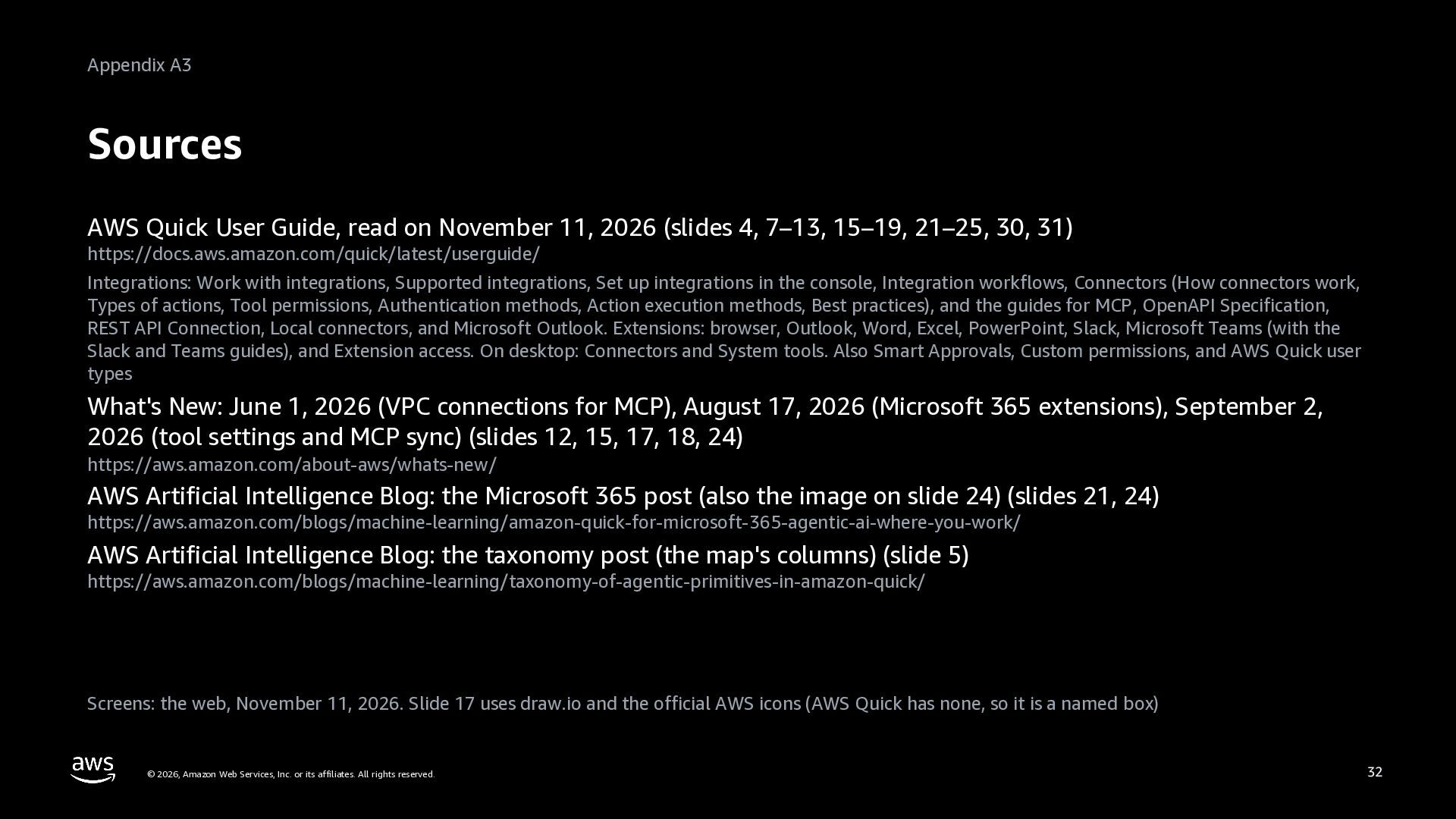
Appendix A3 Sources AWS Quick User Guide, read on November
11, 2026 (slides 4, 7–13, 15–19, 21–25, 30, 31) https://docs.aws.amazon.com/quick/latest/userguide/ Integrations: Work with integrations, Supported integrations, Set up integrations in the console, Integration workflows, Connectors (How connectors work, Types of actions, Tool permissions, Authentication methods, Action execution methods, Best practices), and the guides for MCP, OpenAPI Specification, REST API Connection, Local connectors, and Microsoft Outlook. Extensions: browser, Outlook, Word, Excel, PowerPoint, Slack, Microsoft Teams (with the Slack and Teams guides), and Extension access. On desktop: Connectors and System tools. Also Smart Approvals, Custom permissions, and AWS Quick user types What's New: June 1, 2026 (VPC connections for MCP), August 17, 2026 (Microsoft 365 extensions), September 2, 2026 (tool settings and MCP sync) (slides 12, 15, 17, 18, 24) https://aws.amazon.com/about-aws/whats-new/ AWS Artificial Intelligence Blog: the Microsoft 365 post (also the image on slide 24) (slides 21, 24) https://aws.amazon.com/blogs/machine-learning/amazon-quick-for-microsoft-365-agentic-ai-where-you-work/ AWS Artificial Intelligence Blog: the taxonomy post (the map's columns) (slide 5) https://aws.amazon.com/blogs/machine-learning/taxonomy-of-agentic-primitives-in-amazon-quick/ Screens: the web, November 11, 2026. Slide 17 uses draw.io and the official AWS icons (AWS Quick has none, so it is a named box) © 2026, Amazon Web Services, Inc. or its affiliates. All rights reserved. 32