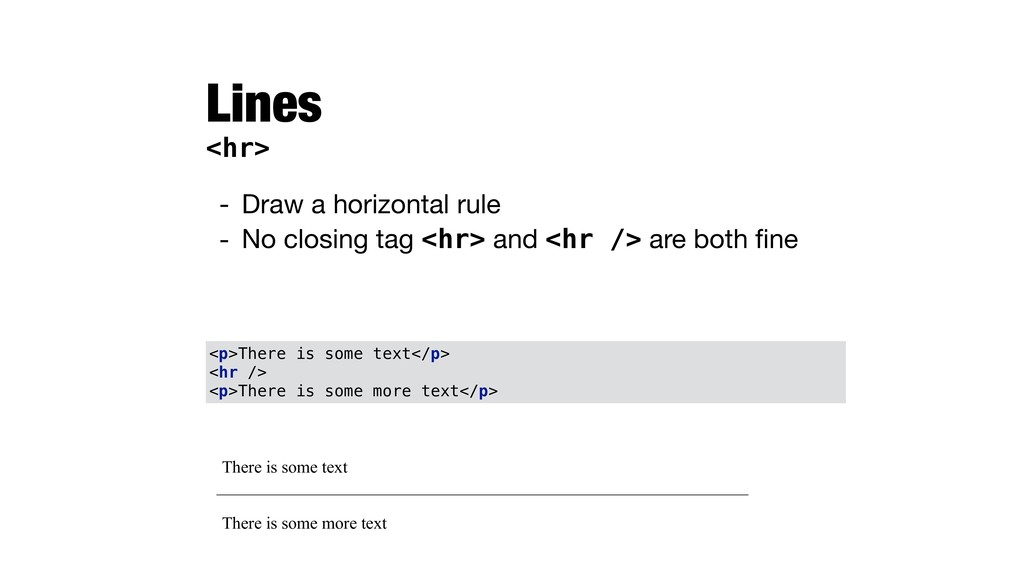
creating web pages - Text surrounded by markings that specify the meaning of the content - Make the document displayable on different systems (different browsers) - Division of responsibilities for a web document - HTML describes the content and structure - Style sheets (CSS) describe the appearance - Scripts (e.g., JavaScript) describe the behavior
of content - Presentation is specific to the type of the tag - Most tags appear in pairs <tag>…</tag> - A few tags are self-closing <tag /> - Case insensitive but lowercase is recommended - “Error handling” is left to the browser
<tag /> (preferred) - Comments are ignored by the browser <!-- comment text --> - White spaces are collapsed - Indentation makes the source more readable <tag1> <tag2> <tag3>...</tag3> </tag2> </tag1>
the page - Use UTF-8 by default - Best is to always include this line in the HTML head section <head> <meta charset="UTF-8"> <title>Title</title> </head>
automatically add an empty line before and after a paragraph - Use <br /> for a line break without starting a new paragraph This is a paragraph Second paragraph. We force a linebreak here then continue. <p>This is a paragraph</p> <p>Second paragraph. We force a linebreak here<br />then continue.</p>
most important, <h6> is least important - Important for search engines Heading 1 Heading 2 Heading 3 <h1>Heading 1</h1> <h2>Heading 2</h2> <h3>Heading 3</h3>
displayed in bold by default - <em> defines emphasized text and is displayed in italic by default This is a paragraph. And we can make the text here bold or emphasized. It is also possible to combine these by nesting the tags. <p>This is a paragraph. And we can make the text here <strong>bold</strong> or <em>emphasized</em>.<br /> It is also possible to <strong><em>combine these</em> </strong> by nesting tags.</p>
1, Col 3 Row 2, Col 1 Row 2, Col 2 Row 2, Col 3 Row 3, Col 1 Row 3, Col 2 Row 3, Col 3 <table border="1"> <tr> <td>Row 1, Col 1</td> <td>Row 1, Col 2</td> <td>Row 1, Col 3</td> </tr> <tr> <td>Row 2, Col 1</td> <td>Row 2, Col 2</td> <td>Row 2, Col 3</td> </tr> <tr> <td>Row 3, Col 1</td> <td>Row 3, Col 2</td> <td>Row 3, Col 3</td> </tr> </table>
Row 2, Col 1 Row 2, Col 2 Row 2, Col 3 Row 3, Col 1-3 <table border="1"> <tr> <td colspan="2">Row 1, Col 1-2</td> <td>Row 1, Col 2</td> <td>Row 1, Col 3</td> </tr> <tr> <td>Row 2, Col 1</td> <td>Row 2, Col 2</td> <td>Row 2, Col 3</td> </tr> <tr> <td colspan="3">Row 3, Col 1-3</td> <td>Row 3, Col 2</td> <td>Row 3, Col 3</td> </tr> </table>
Row 1-3, Col 3 Row 2, Col 2 Row 3, Col 1 Row 3, Col 2 <table border="1"> <tr> <td rowspan="2">Row 1-2, Col 1</td> <td>Row 1, Col 2</td> <td rowspan="3">Row 1-3, Col 3</td> </tr> <tr> <td>Row 2, Col 1</td> <td>Row 2, Col 2</td> <td>Row 2, Col 3</td> </tr> <tr> <td>Row 3, Col 1</td> <td>Row 3, Col 2</td> <td>Row 3, Col 3</td> </tr> </table>
URL href="http://www.uis.no" - Relative to current page href="page2.html" Links <a> There is some text with a clickable link in it <p>There is some text with a <a href="http://www.uis.no"> clickable link</a> in it</p>
attribute that can be defined for any HTML element - It needs to be unique, i.e., no two HTML elements can have the same id value - Any element with an id can be linked within the page, e.g., - Element to be linked - Link to the element <h2 id="sec2">Section 2</h2> <a href="#sec2">Section 2</a>
can point to local or remote file (http://...) - alt is alternative text if the image cannot be displayed - width and height are optional - value in default is given in pixels - percentages can also be used (e.g., 50%) <img src="images/pulpit_rock.jpg" alt="Pulpit rock" width="300" height="200" />
separate folder (e.g., images) - You can use further subfolders based on type or size - Always use an alt tag - Screen readers read the alt tags for visually impaired - Always specify width and height - To avoid the page flickering while the image loads
<img src="img/pulpit_rock.jpg" alt="Pulpit rock" width="300" height="200" /> resized jpg file (300x200px), 55KB <img src="img/pulpit_rock_300x200.jpg" alt="Pulpit rock" width="300" height="200"/> - Resize image files to the required size (e.g., for thumbnails and previews) - This makes your site load faster and reduces bandwidth
on a new line and takes up the full width available - Examples: <h1>,..<h6>, <p>, <div>, <form> - An inline element does not start on a new line and only takes up as much width as necessary - Examples: <a>, <em>, <img>, <span> block level inline
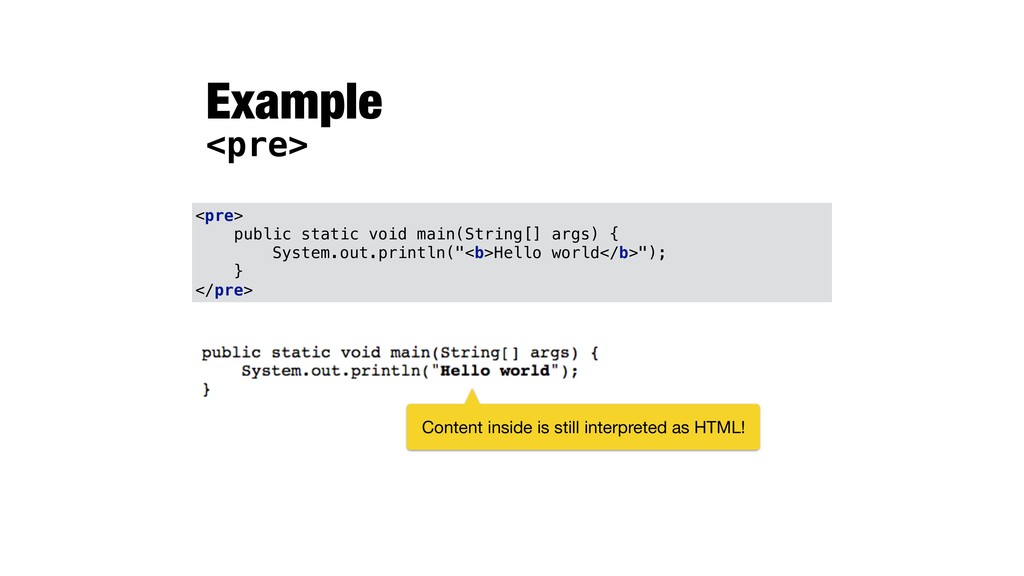
inline element that designates a short piece of text as being source code - <pre> is a block-level element that preserves all the whitespaces in its content exactly as written - By default rendered in a fixed-width font, but the content is still interpreted as HTML The <code>System.out.println</code> method produces console output in a Java program.
a page - Often used as a container for other HTML elements, to style blocks of content with CSS - <span> groups inline elements in a document - Often used as a container for some text
printing and typesetting industry. <p style="font-family:Verdana;font-size:14px"> Lorem Ipsum is <span style="font-family:Impact;font-size: 18px">simply dummy text</span> of the printing and typesetting industry. </p>
a webpage - src attribute (mandatory) specifies the address of the document to embed - height and width attributes specify the size - Recommended method for embedding YouTube videos <iframe src="http://address.com"></iframe>
ways to embed audio and video in web pages - Use .mp3 format for audios (supported by all browsers) <audio controls> <source src="horse.mp3" type="audio/mpeg"> Your browser does not support the audio element. </audio>


 ljehl
 ak679839
 echaille
 baltimoreniso
 adeputra13
 dragon2
 ainischool
 signer
 segadevtech
 ssmedikasda
 neuroiwm
 cbtlibrary
 marktimemedia
 reverentgeek
 palkan
 holman
 swwweet
 chriscoyier
 honnibal
 mkilby
 badams
 sferik
 tammyeverts