Share
Embed
PDFVerge.com _ User Guide
PDFVerge offers 25+ free online PDF tools in one clean website. Merge PDF files, compress large PDFs, split pages, convert Word, Excel, PowerPoint and images to PDF, or turn PDFs into JPG, PNG, Word and text. It also handles less common formats like EML, MSG, IPYNB, WebP and TIFF. Works on any device, no signup and no watermarks.

PDFVerge
October 31, 2026
Transcript
50 slides
-
PDFVerge User Guide How to organise, edit, compress and convert
files with PDFVerge Version 1.0 October 2026 pdfverge.com [email protected] -
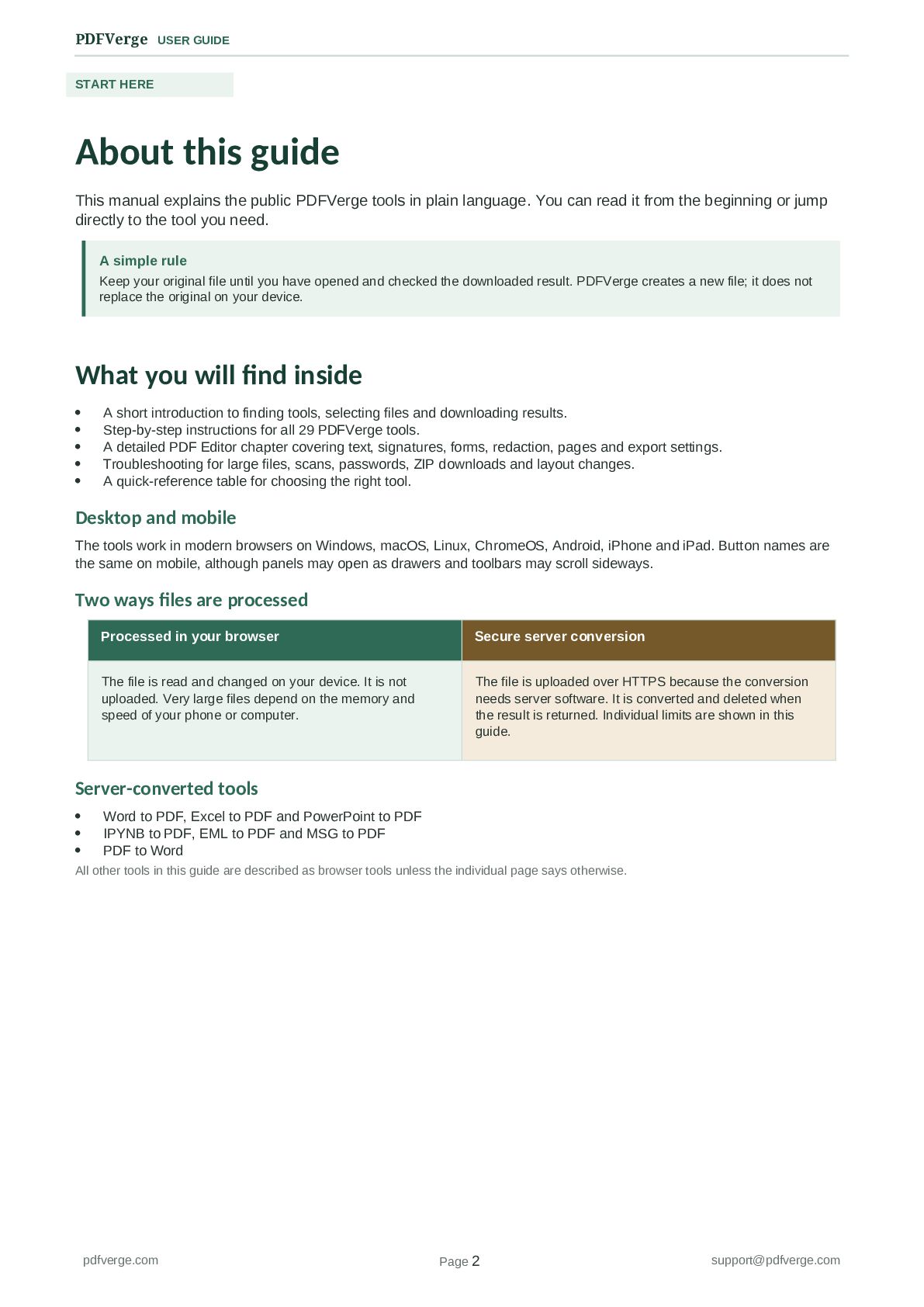
PDFVerge USER GUIDE START HERE About this guide This manual
explains the public PDFVerge tools in plain language. You can read it from the beginning or jump directly to the tool you need. A simple rule Keep your original file until you have opened and checked the downloaded result. PDFVerge creates a new file; it does not replace the original on your device. What you will find inside A short introduction to finding tools, selecting files and downloading results. Step-by-step instructions for all 29 PDFVerge tools. A detailed PDF Editor chapter covering text, signatures, forms, redaction, pages and export settings. Troubleshooting for large files, scans, passwords, ZIP downloads and layout changes. A quick-reference table for choosing the right tool. Desktop and mobile The tools work in modern browsers on Windows, macOS, Linux, ChromeOS, Android, iPhone and iPad. Button names are the same on mobile, although panels may open as drawers and toolbars may scroll sideways. Two ways files are processed Processed in your browser Secure server conversion The file is read and changed on your device. It is not uploaded. Very large files depend on the memory and speed of your phone or computer. The file is uploaded over HTTPS because the conversion needs server software. It is converted and deleted when the result is returned. Individual limits are shown in this guide. Server-converted tools Word to PDF, Excel to PDF and PowerPoint to PDF IPYNB to PDF, EML to PDF and MSG to PDF PDF to Word All other tools in this guide are described as browser tools unless the individual page says otherwise. pdfverge.com Page 2 [email protected] -
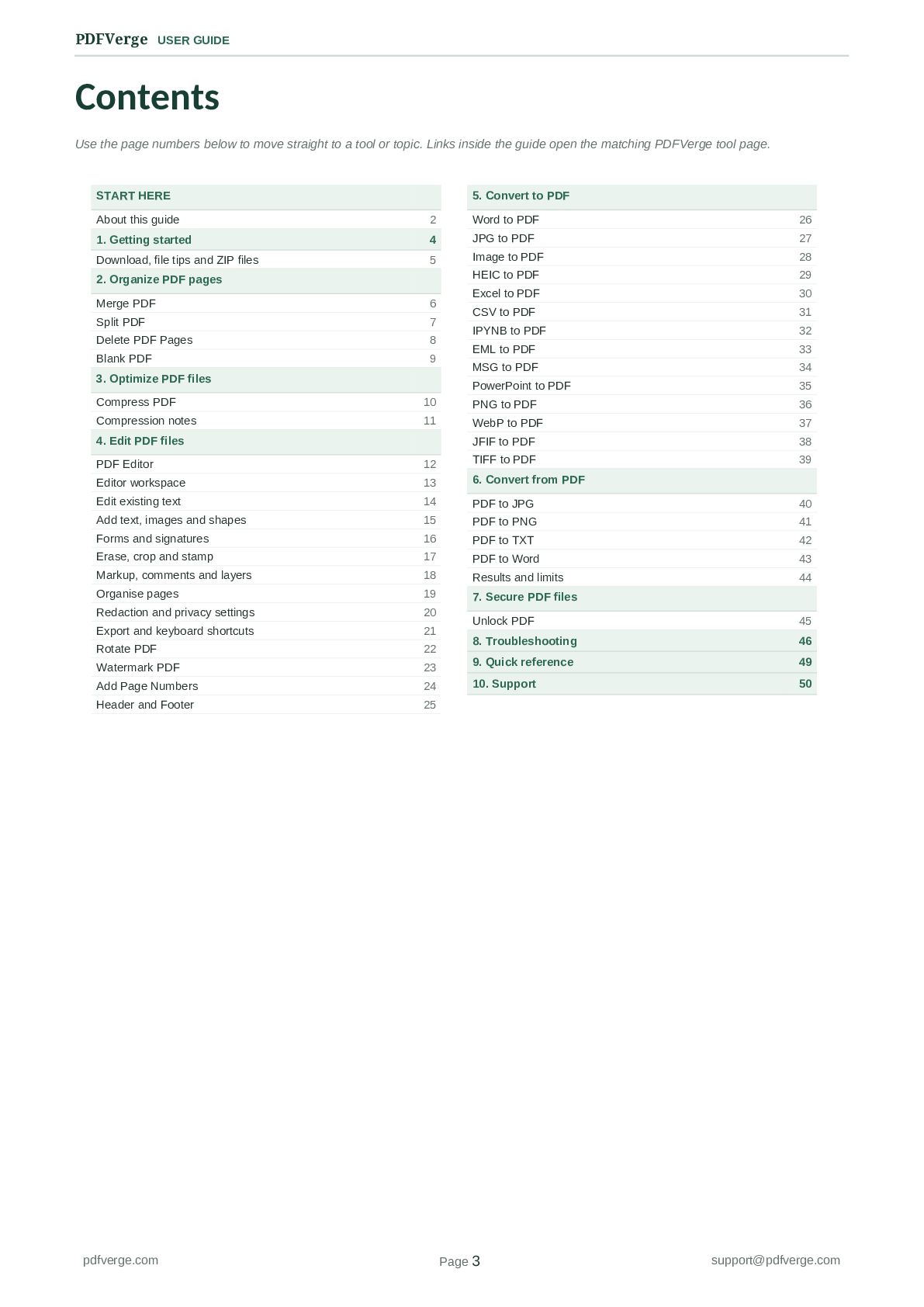
PDFVerge USER GUIDE Contents Use the page numbers below to
move straight to a tool or topic. Links inside the guide open the matching PDFVerge tool page. START HERE About this guide 1. Getting started Download, file tips and ZIP files 5. Convert to PDF 2 Word to PDF 26 4 JPG to PDF 27 5 Image to PDF 28 HEIC to PDF 29 Excel to PDF 30 CSV to PDF 31 IPYNB to PDF 32 EML to PDF 33 MSG to PDF 34 PowerPoint to PDF 35 2. Organize PDF pages Merge PDF 6 Split PDF 7 Delete PDF Pages 8 Blank PDF 9 3. Optimize PDF files Compress PDF 10 PNG to PDF 36 Compression notes 11 WebP to PDF 37 4. Edit PDF files JFIF to PDF 38 PDF Editor 12 TIFF to PDF 39 Editor workspace 13 6. Convert from PDF Edit existing text 14 PDF to JPG 40 Add text, images and shapes 15 PDF to PNG 41 Forms and signatures 16 PDF to TXT 42 Erase, crop and stamp 17 PDF to Word 43 Markup, comments and layers 18 Results and limits 44 Organise pages 19 7. Secure PDF files Redaction and privacy settings 20 Export and keyboard shortcuts 21 Rotate PDF 22 Watermark PDF Unlock PDF 45 8. Troubleshooting 46 23 9. Quick reference 49 Add Page Numbers 24 10. Support 50 Header and Footer 25 pdfverge.com Page 3 [email protected] -
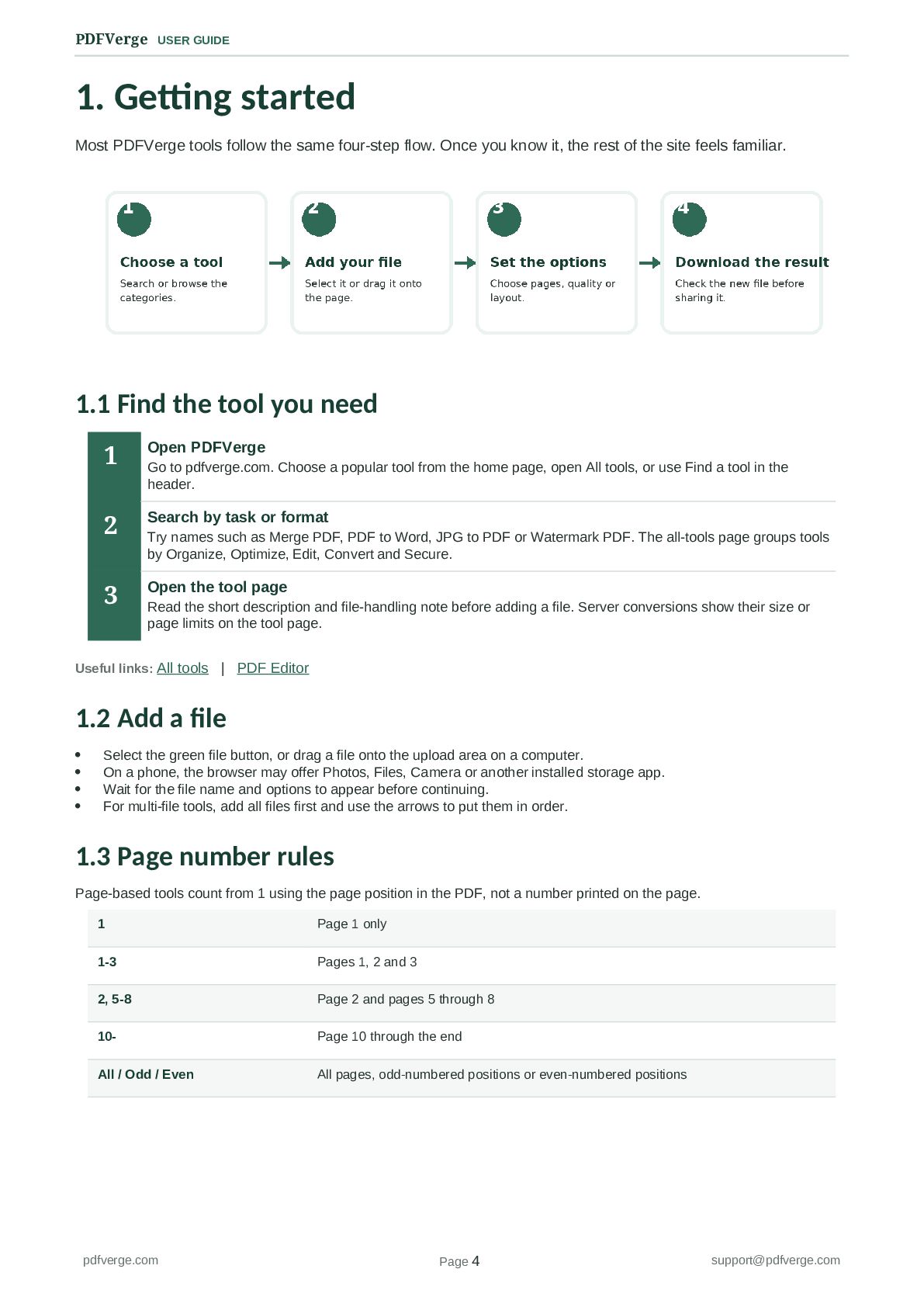
PDFVerge USER GUIDE 1. Getting started Most PDFVerge tools follow
the same four-step flow. Once you know it, the rest of the site feels familiar. 1.1 Find the tool you need 1 Open PDFVerge 2 Search by task or format 3 Open the tool page Go to pdfverge.com. Choose a popular tool from the home page, open All tools, or use Find a tool in the header. Try names such as Merge PDF, PDF to Word, JPG to PDF or Watermark PDF. The all-tools page groups tools by Organize, Optimize, Edit, Convert and Secure. Read the short description and file-handling note before adding a file. Server conversions show their size or page limits on the tool page. Useful links: All tools | PDF Editor 1.2 Add a file Select the green file button, or drag a file onto the upload area on a computer. On a phone, the browser may offer Photos, Files, Camera or another installed storage app. Wait for the file name and options to appear before continuing. For multi-file tools, add all files first and use the arrows to put them in order. 1.3 Page number rules Page-based tools count from 1 using the page position in the PDF, not a number printed on the page. 1 Page 1 only 1-3 Pages 1, 2 and 3 2, 5-8 Page 2 and pages 5 through 8 10- Page 10 through the end All / Odd / Even All pages, odd-numbered positions or even-numbered positions pdfverge.com Page 4 [email protected] -
PDFVerge USER GUIDE 1.4 Download and check the result 1
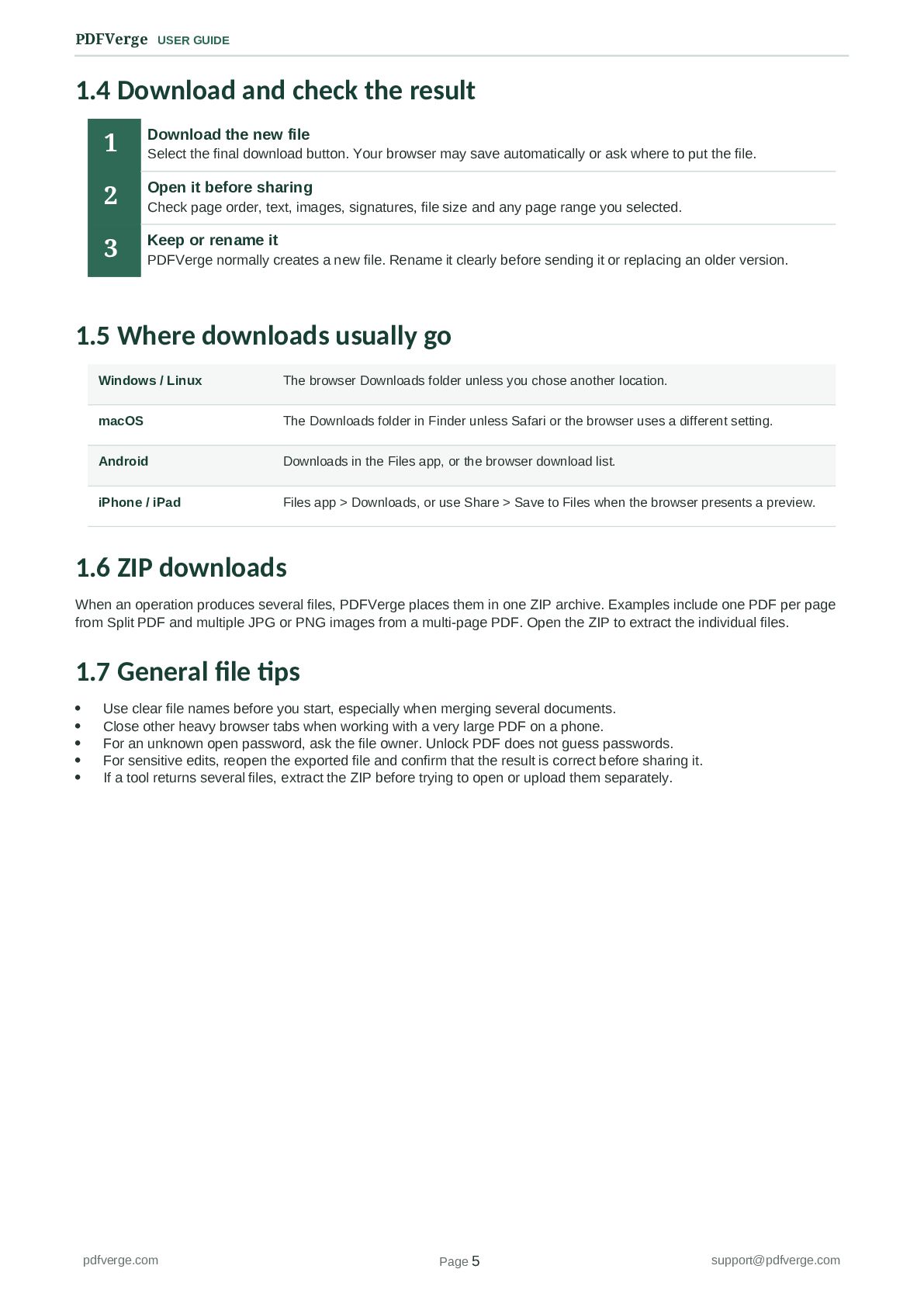
Download the new file 2 Open it before sharing 3 Keep or rename it Select the final download button. Your browser may save automatically or ask where to put the file. Check page order, text, images, signatures, file size and any page range you selected. PDFVerge normally creates a new file. Rename it clearly before sending it or replacing an older version. 1.5 Where downloads usually go Windows / Linux The browser Downloads folder unless you chose another location. macOS The Downloads folder in Finder unless Safari or the browser uses a different setting. Android Downloads in the Files app, or the browser download list. iPhone / iPad Files app > Downloads, or use Share > Save to Files when the browser presents a preview. 1.6 ZIP downloads When an operation produces several files, PDFVerge places them in one ZIP archive. Examples include one PDF per page from Split PDF and multiple JPG or PNG images from a multi-page PDF. Open the ZIP to extract the individual files. 1.7 General file tips Use clear file names before you start, especially when merging several documents. Close other heavy browser tabs when working with a very large PDF on a phone. For an unknown open password, ask the file owner. Unlock PDF does not guess passwords. For sensitive edits, reopen the exported file and confirm that the result is correct before sharing it. If a tool returns several files, extract the ZIP before trying to open or upload them separately. pdfverge.com Page 5 [email protected] -
PDFVerge USER GUIDE ORGANIZE PDF PAGES 2.1 Merge PDF Combine
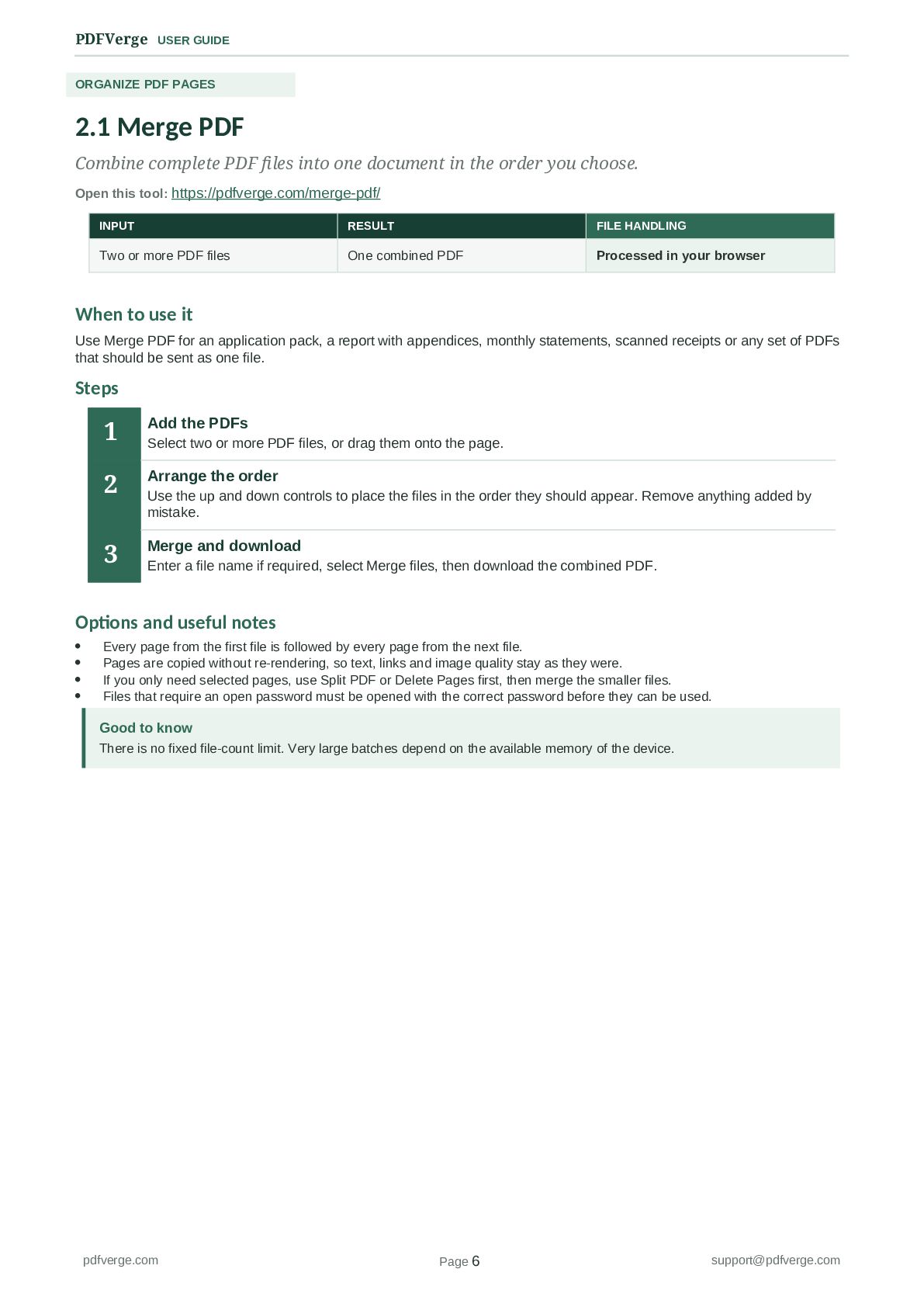
complete PDF files into one document in the order you choose. Open this tool: https://pdfverge.com/merge-pdf/ INPUT RESULT FILE HANDLING Two or more PDF files One combined PDF Processed in your browser When to use it Use Merge PDF for an application pack, a report with appendices, monthly statements, scanned receipts or any set of PDFs that should be sent as one file. Steps 1 Add the PDFs 2 Arrange the order 3 Merge and download Select two or more PDF files, or drag them onto the page. Use the up and down controls to place the files in the order they should appear. Remove anything added by mistake. Enter a file name if required, select Merge files, then download the combined PDF. Options and useful notes Every page from the first file is followed by every page from the next file. Pages are copied without re-rendering, so text, links and image quality stay as they were. If you only need selected pages, use Split PDF or Delete Pages first, then merge the smaller files. Files that require an open password must be opened with the correct password before they can be used. Good to know There is no fixed file-count limit. Very large batches depend on the available memory of the device. pdfverge.com Page 6 [email protected] -
PDFVerge USER GUIDE ORGANIZE PDF PAGES 2.2 Split PDF Extract
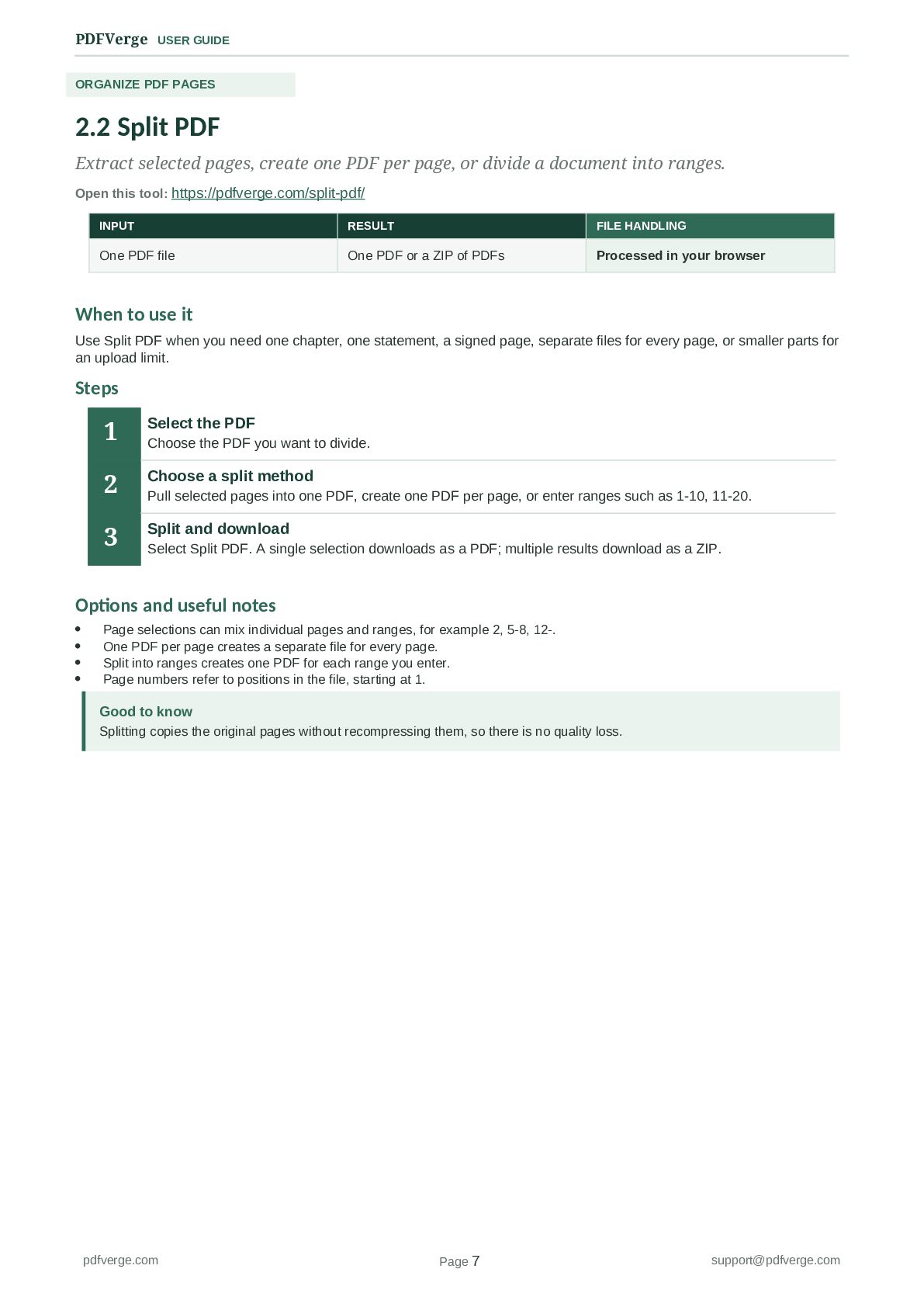
selected pages, create one PDF per page, or divide a document into ranges. Open this tool: https://pdfverge.com/split-pdf/ INPUT RESULT FILE HANDLING One PDF file One PDF or a ZIP of PDFs Processed in your browser When to use it Use Split PDF when you need one chapter, one statement, a signed page, separate files for every page, or smaller parts for an upload limit. Steps 1 Select the PDF 2 Choose a split method 3 Split and download Choose the PDF you want to divide. Pull selected pages into one PDF, create one PDF per page, or enter ranges such as 1-10, 11-20. Select Split PDF. A single selection downloads as a PDF; multiple results download as a ZIP. Options and useful notes Page selections can mix individual pages and ranges, for example 2, 5-8, 12-. One PDF per page creates a separate file for every page. Split into ranges creates one PDF for each range you enter. Page numbers refer to positions in the file, starting at 1. Good to know Splitting copies the original pages without recompressing them, so there is no quality loss. pdfverge.com Page 7 [email protected] -
PDFVerge USER GUIDE ORGANIZE PDF PAGES 2.3 Delete PDF Pages
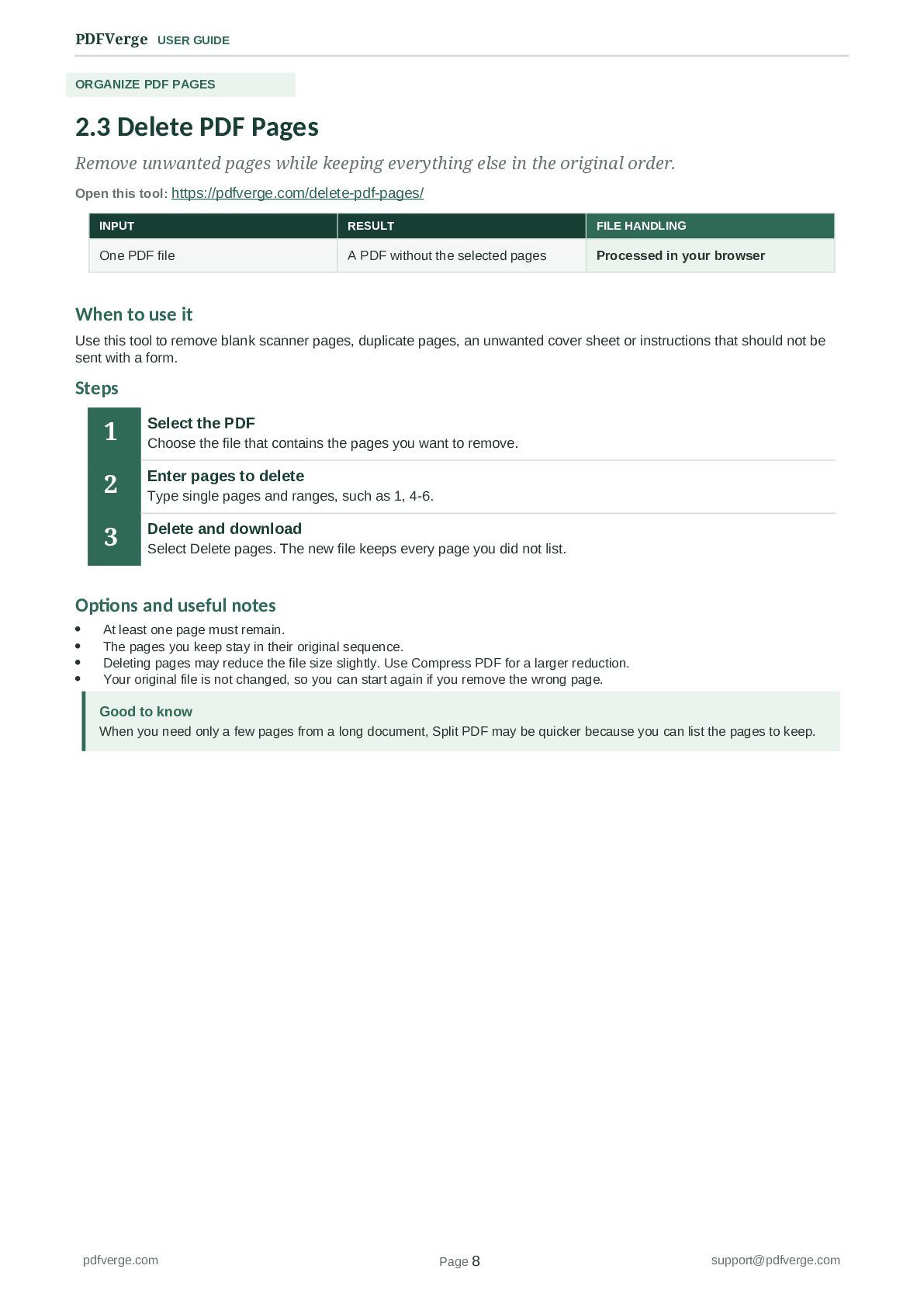
Remove unwanted pages while keeping everything else in the original order. Open this tool: https://pdfverge.com/delete-pdf-pages/ INPUT RESULT FILE HANDLING One PDF file A PDF without the selected pages Processed in your browser When to use it Use this tool to remove blank scanner pages, duplicate pages, an unwanted cover sheet or instructions that should not be sent with a form. Steps 1 Select the PDF 2 Enter pages to delete 3 Delete and download Choose the file that contains the pages you want to remove. Type single pages and ranges, such as 1, 4-6. Select Delete pages. The new file keeps every page you did not list. Options and useful notes At least one page must remain. The pages you keep stay in their original sequence. Deleting pages may reduce the file size slightly. Use Compress PDF for a larger reduction. Your original file is not changed, so you can start again if you remove the wrong page. Good to know When you need only a few pages from a long document, Split PDF may be quicker because you can list the pages to keep. pdfverge.com Page 8 [email protected] -
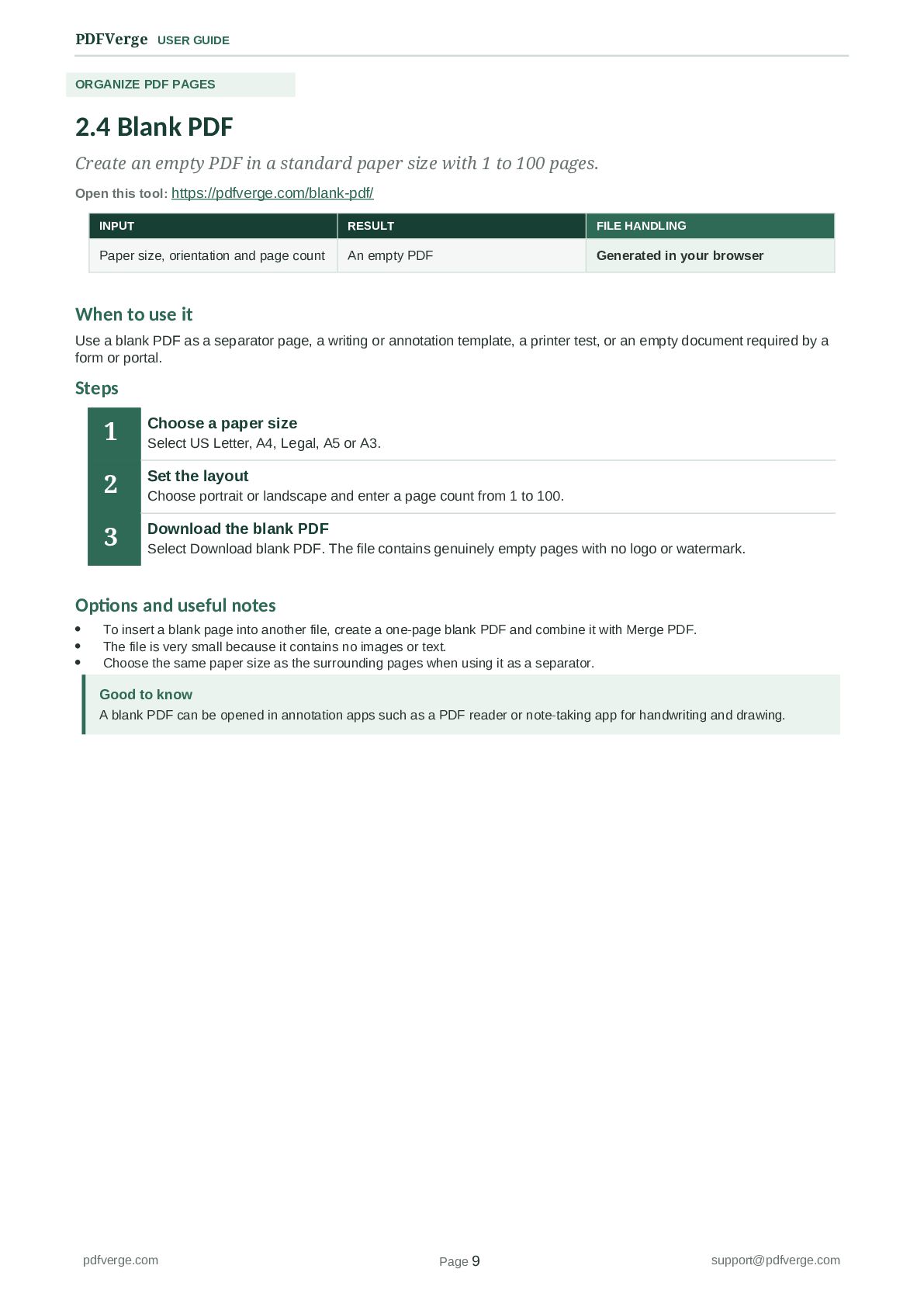
PDFVerge USER GUIDE ORGANIZE PDF PAGES 2.4 Blank PDF Create
an empty PDF in a standard paper size with 1 to 100 pages. Open this tool: https://pdfverge.com/blank-pdf/ INPUT RESULT FILE HANDLING Paper size, orientation and page count An empty PDF Generated in your browser When to use it Use a blank PDF as a separator page, a writing or annotation template, a printer test, or an empty document required by a form or portal. Steps 1 Choose a paper size 2 Set the layout 3 Download the blank PDF Select US Letter, A4, Legal, A5 or A3. Choose portrait or landscape and enter a page count from 1 to 100. Select Download blank PDF. The file contains genuinely empty pages with no logo or watermark. Options and useful notes To insert a blank page into another file, create a one-page blank PDF and combine it with Merge PDF. The file is very small because it contains no images or text. Choose the same paper size as the surrounding pages when using it as a separator. Good to know A blank PDF can be opened in annotation apps such as a PDF reader or note-taking app for handwriting and drawing. pdfverge.com Page 9 [email protected] -
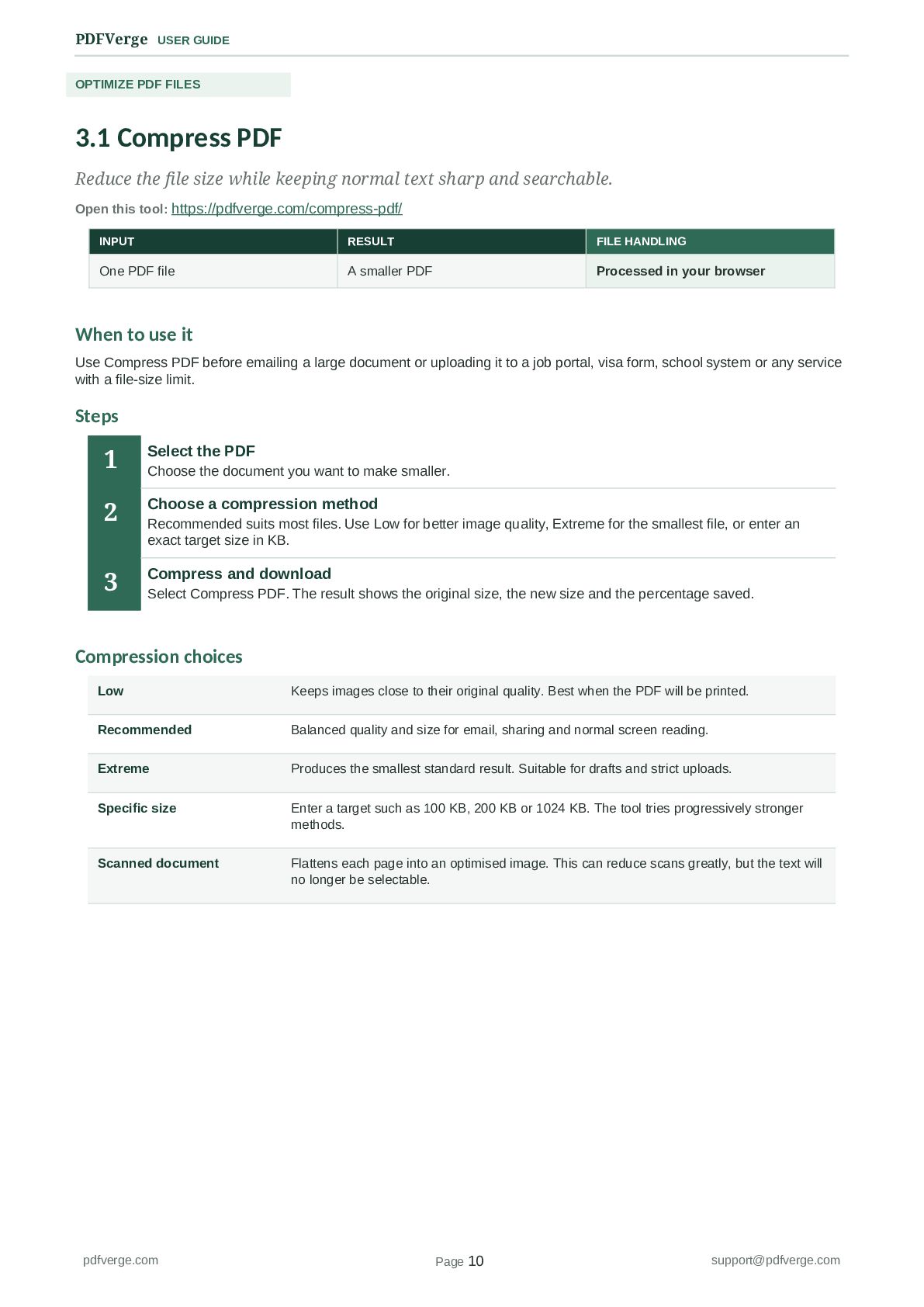
PDFVerge USER GUIDE OPTIMIZE PDF FILES 3.1 Compress PDF Reduce
the file size while keeping normal text sharp and searchable. Open this tool: https://pdfverge.com/compress-pdf/ INPUT RESULT FILE HANDLING One PDF file A smaller PDF Processed in your browser When to use it Use Compress PDF before emailing a large document or uploading it to a job portal, visa form, school system or any service with a file-size limit. Steps 1 Select the PDF 2 Choose a compression method 3 Compress and download Choose the document you want to make smaller. Recommended suits most files. Use Low for better image quality, Extreme for the smallest file, or enter an exact target size in KB. Select Compress PDF. The result shows the original size, the new size and the percentage saved. Compression choices Low Keeps images close to their original quality. Best when the PDF will be printed. Recommended Balanced quality and size for email, sharing and normal screen reading. Extreme Produces the smallest standard result. Suitable for drafts and strict uploads. Specific size Enter a target such as 100 KB, 200 KB or 1024 KB. The tool tries progressively stronger methods. Scanned document Flattens each page into an optimised image. This can reduce scans greatly, but the text will no longer be selectable. pdfverge.com Page 10 [email protected] -
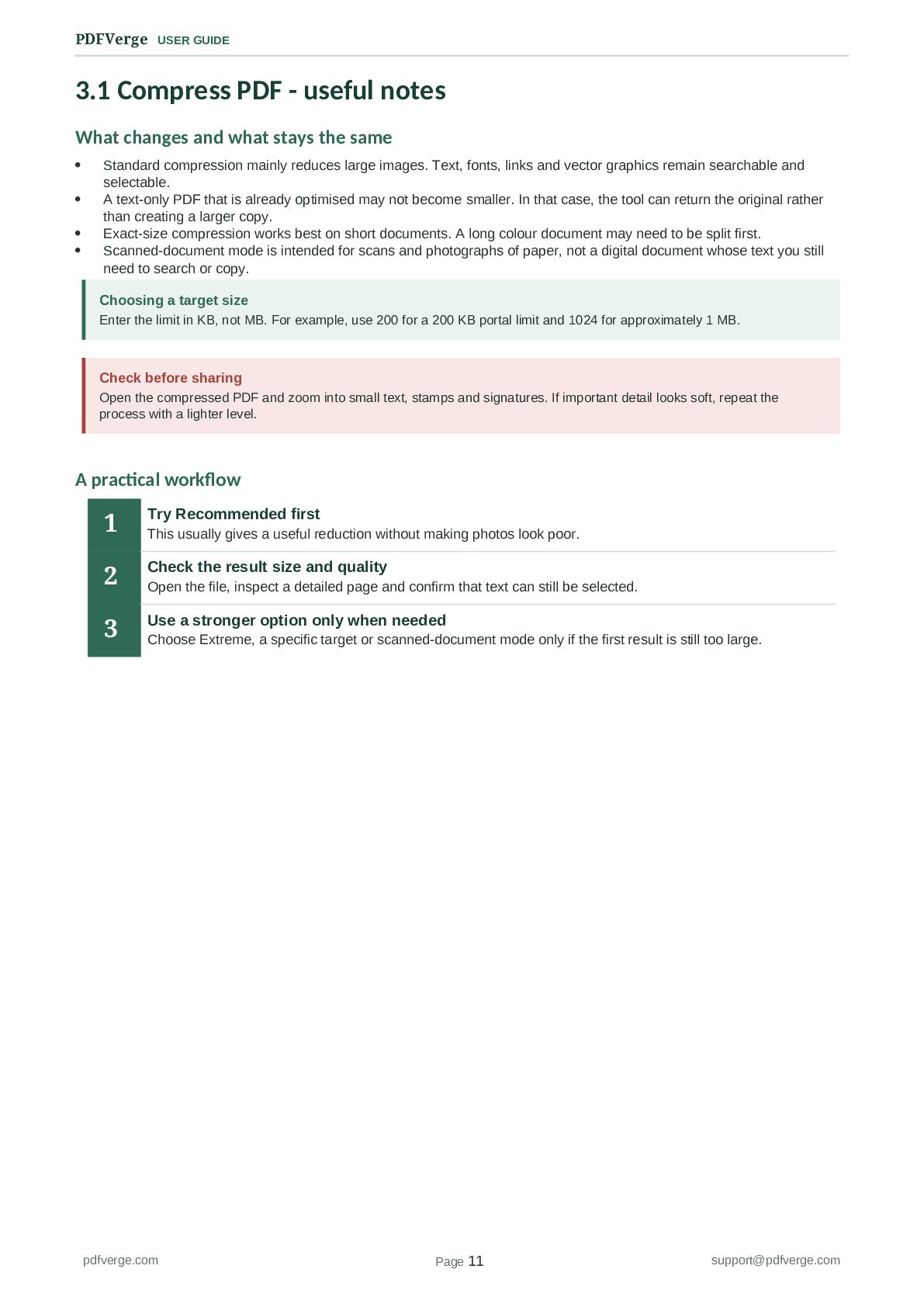
PDFVerge USER GUIDE 3.1 Compress PDF - useful notes What
changes and what stays the same Standard compression mainly reduces large images. Text, fonts, links and vector graphics remain searchable and selectable. A text-only PDF that is already optimised may not become smaller. In that case, the tool can return the original rather than creating a larger copy. Exact-size compression works best on short documents. A long colour document may need to be split first. Scanned-document mode is intended for scans and photographs of paper, not a digital document whose text you still need to search or copy. Choosing a target size Enter the limit in KB, not MB. For example, use 200 for a 200 KB portal limit and 1024 for approximately 1 MB. Check before sharing Open the compressed PDF and zoom into small text, stamps and signatures. If important detail looks soft, repeat the process with a lighter level. A practical workflow 1 Try Recommended first 2 Check the result size and quality 3 Use a stronger option only when needed This usually gives a useful reduction without making photos look poor. Open the file, inspect a detailed page and confirm that text can still be selected. Choose Extreme, a specific target or scanned-document mode only if the first result is still too large. pdfverge.com Page 11 [email protected] -
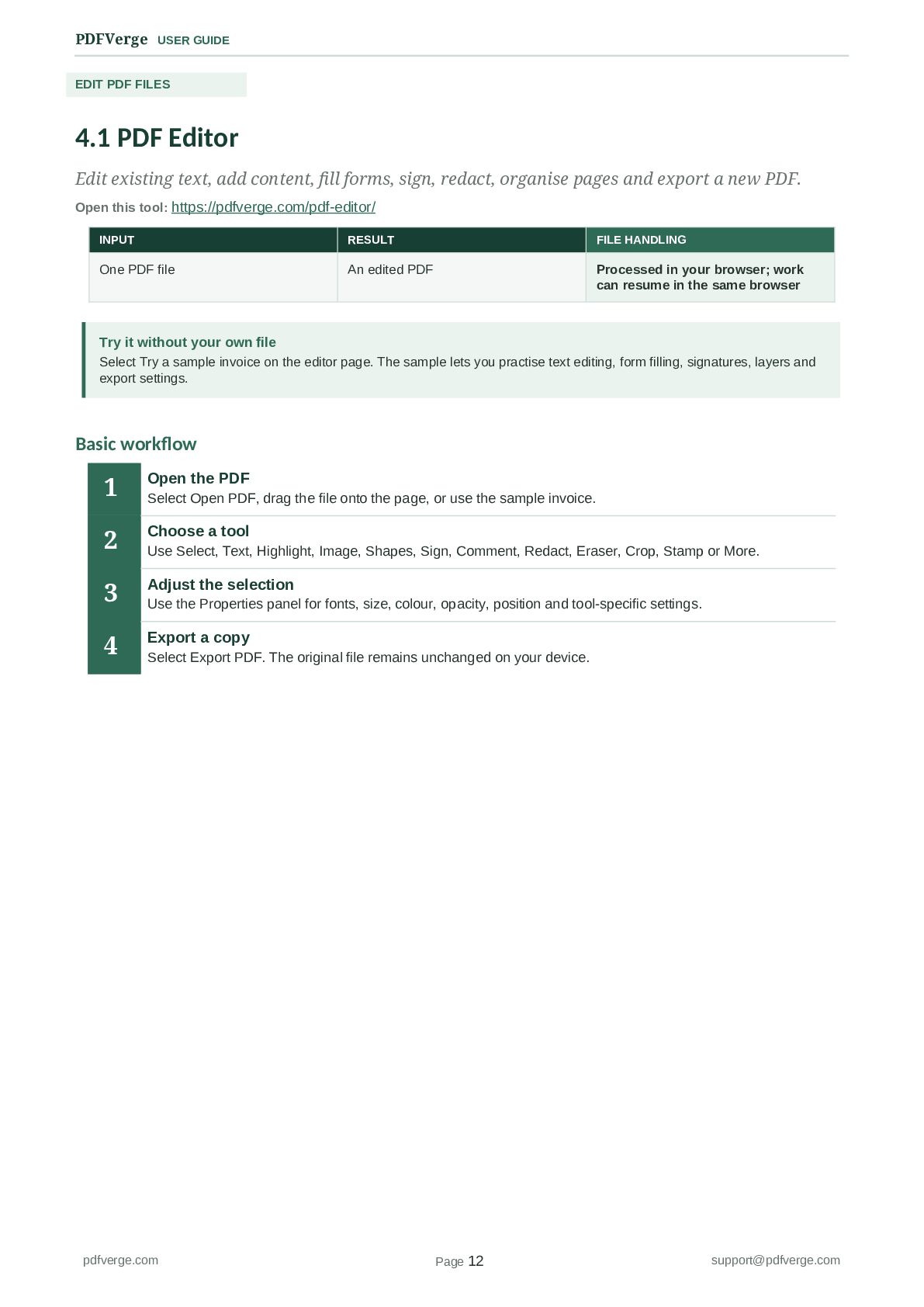
PDFVerge USER GUIDE EDIT PDF FILES 4.1 PDF Editor Edit
existing text, add content, fill forms, sign, redact, organise pages and export a new PDF. Open this tool: https://pdfverge.com/pdf-editor/ INPUT RESULT FILE HANDLING One PDF file An edited PDF Processed in your browser; work can resume in the same browser Try it without your own file Select Try a sample invoice on the editor page. The sample lets you practise text editing, form filling, signatures, layers and export settings. Basic workflow 1 Open the PDF 2 Choose a tool 3 Adjust the selection 4 Export a copy Select Open PDF, drag the file onto the page, or use the sample invoice. Use Select, Text, Highlight, Image, Shapes, Sign, Comment, Redact, Eraser, Crop, Stamp or More. Use the Properties panel for fonts, size, colour, opacity, position and tool-specific settings. Select Export PDF. The original file remains unchanged on your device. pdfverge.com Page 12 [email protected] -
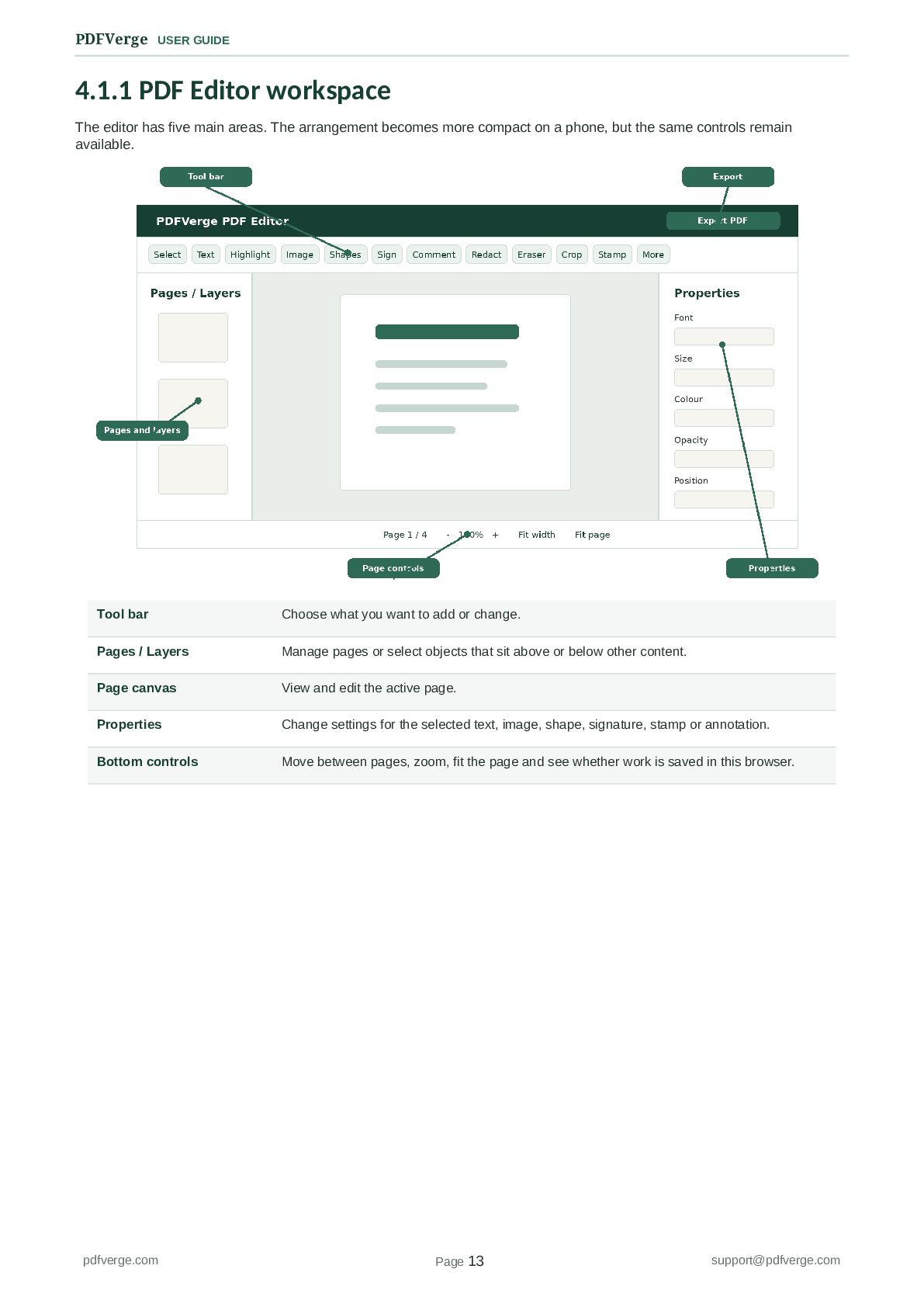
PDFVerge USER GUIDE 4.1.1 PDF Editor workspace The editor has
five main areas. The arrangement becomes more compact on a phone, but the same controls remain available. Tool bar Choose what you want to add or change. Pages / Layers Manage pages or select objects that sit above or below other content. Page canvas View and edit the active page. Properties Change settings for the selected text, image, shape, signature, stamp or annotation. Bottom controls Move between pages, zoom, fit the page and see whether work is saved in this browser. pdfverge.com Page 13 [email protected] -
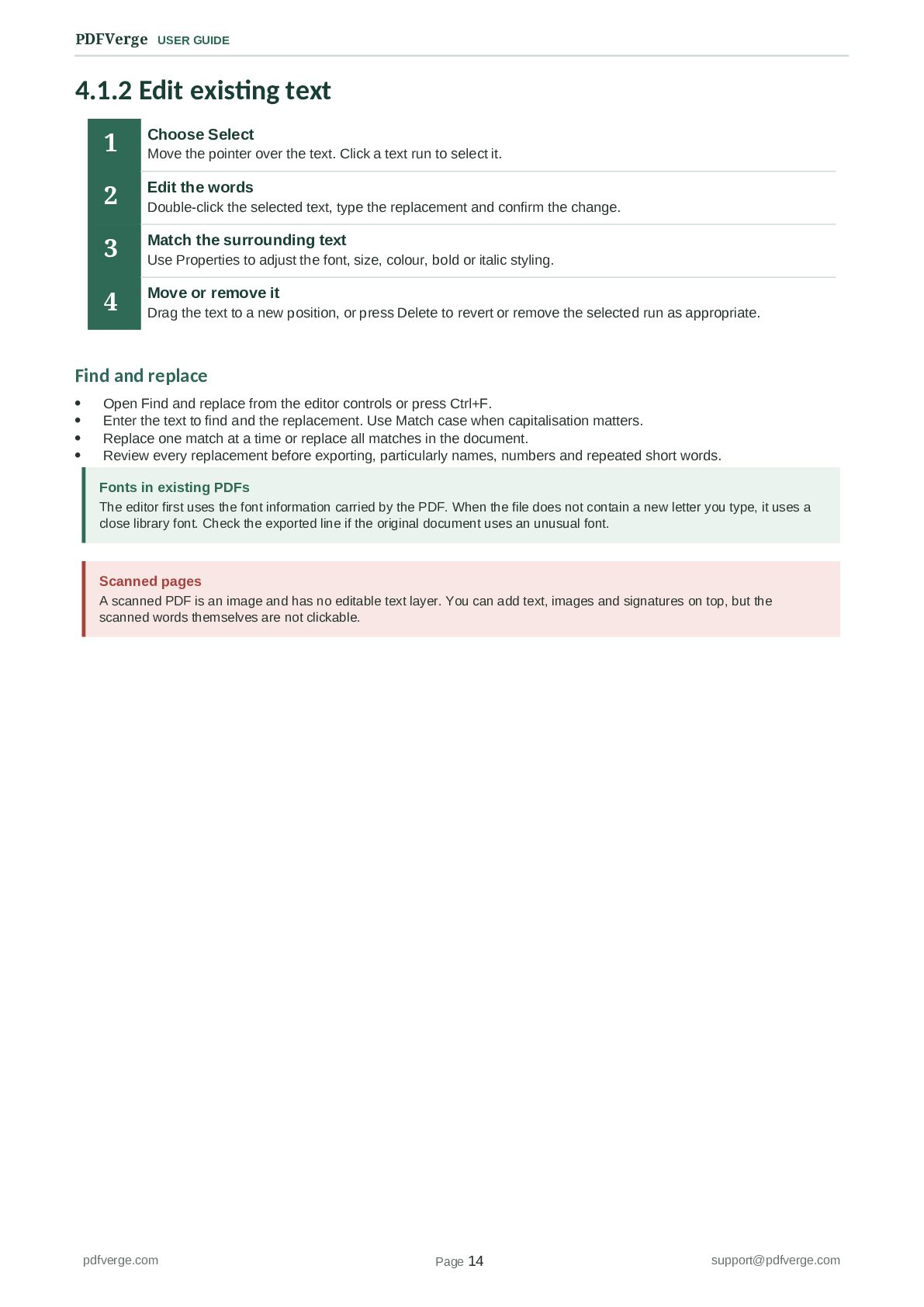
PDFVerge USER GUIDE 4.1.2 Edit existing text 1 Choose Select
2 Edit the words 3 Match the surrounding text 4 Move or remove it Move the pointer over the text. Click a text run to select it. Double-click the selected text, type the replacement and confirm the change. Use Properties to adjust the font, size, colour, bold or italic styling. Drag the text to a new position, or press Delete to revert or remove the selected run as appropriate. Find and replace Open Find and replace from the editor controls or press Ctrl+F. Enter the text to find and the replacement. Use Match case when capitalisation matters. Replace one match at a time or replace all matches in the document. Review every replacement before exporting, particularly names, numbers and repeated short words. Fonts in existing PDFs The editor first uses the font information carried by the PDF. When the file does not contain a new letter you type, it uses a close library font. Check the exported line if the original document uses an unusual font. Scanned pages A scanned PDF is an image and has no editable text layer. You can add text, images and signatures on top, but the scanned words themselves are not clickable. pdfverge.com Page 14 [email protected] -
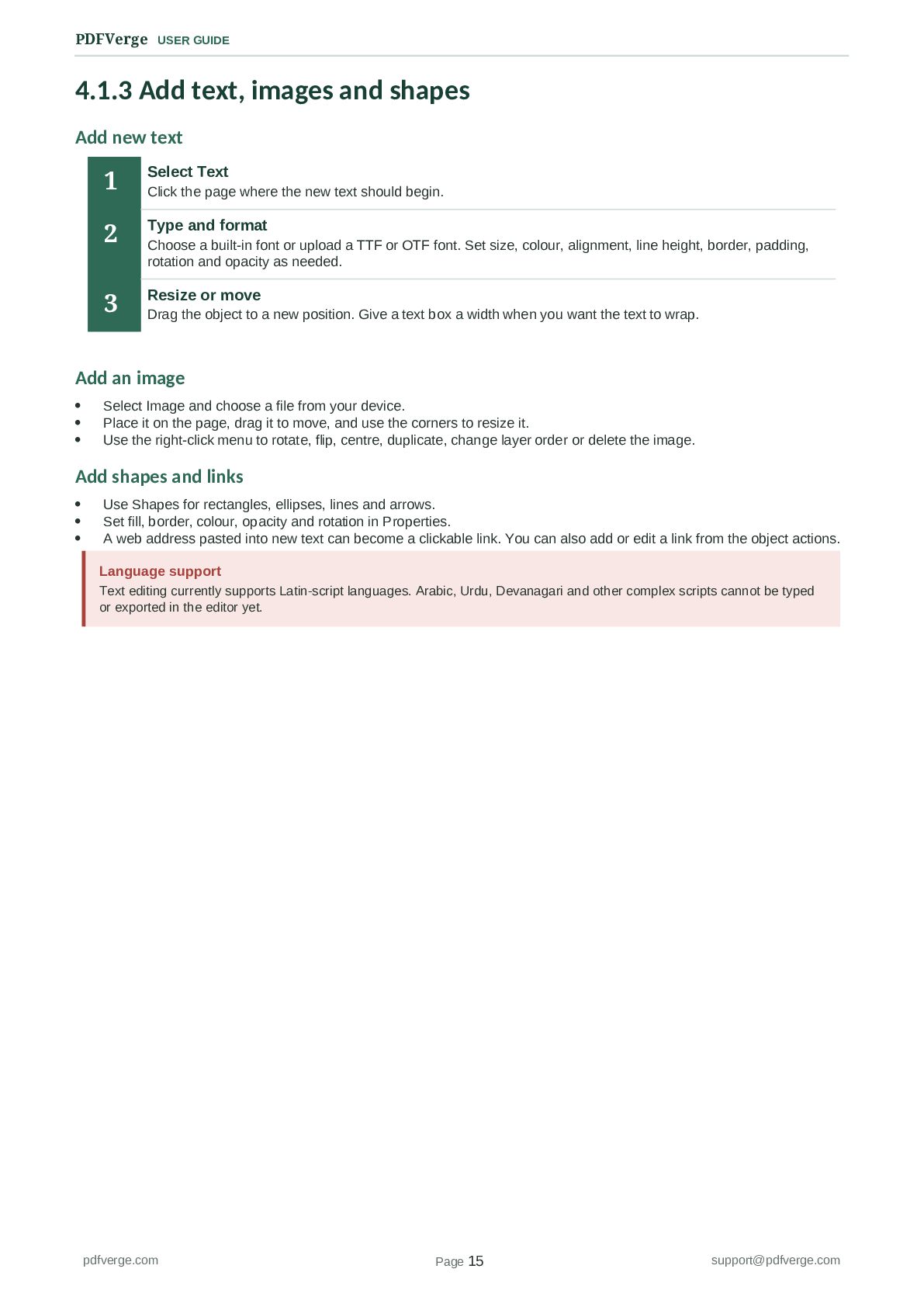
PDFVerge USER GUIDE 4.1.3 Add text, images and shapes Add
new text 1 Select Text 2 Type and format 3 Resize or move Click the page where the new text should begin. Choose a built-in font or upload a TTF or OTF font. Set size, colour, alignment, line height, border, padding, rotation and opacity as needed. Drag the object to a new position. Give a text box a width when you want the text to wrap. Add an image Select Image and choose a file from your device. Place it on the page, drag it to move, and use the corners to resize it. Use the right-click menu to rotate, flip, centre, duplicate, change layer order or delete the image. Add shapes and links Use Shapes for rectangles, ellipses, lines and arrows. Set fill, border, colour, opacity and rotation in Properties. A web address pasted into new text can become a clickable link. You can also add or edit a link from the object actions. Language support Text editing currently supports Latin-script languages. Arabic, Urdu, Devanagari and other complex scripts cannot be typed or exported in the editor yet. pdfverge.com Page 15 [email protected] -
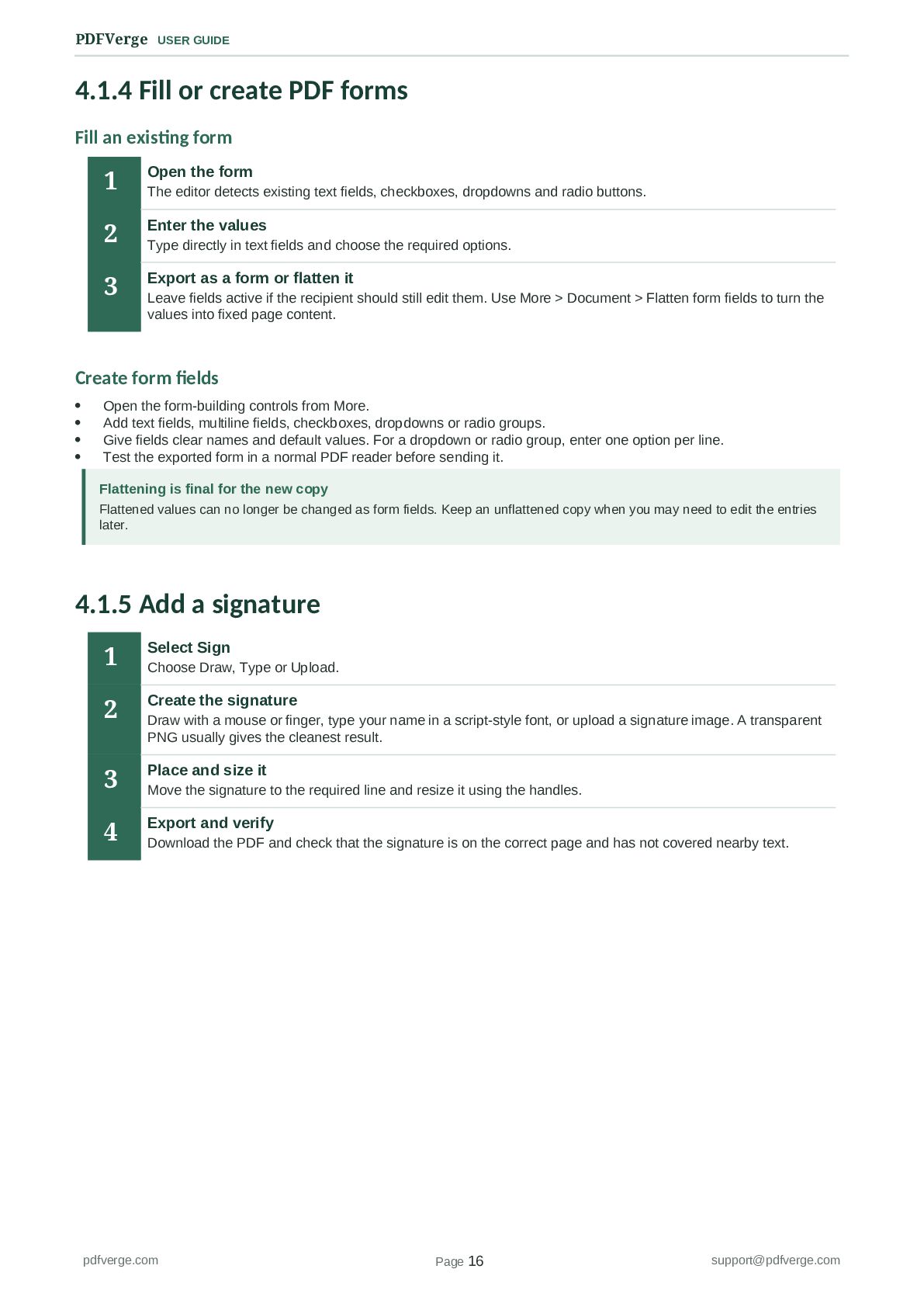
PDFVerge USER GUIDE 4.1.4 Fill or create PDF forms Fill
an existing form 1 Open the form 2 Enter the values 3 Export as a form or flatten it The editor detects existing text fields, checkboxes, dropdowns and radio buttons. Type directly in text fields and choose the required options. Leave fields active if the recipient should still edit them. Use More > Document > Flatten form fields to turn the values into fixed page content. Create form fields Open the form-building controls from More. Add text fields, multiline fields, checkboxes, dropdowns or radio groups. Give fields clear names and default values. For a dropdown or radio group, enter one option per line. Test the exported form in a normal PDF reader before sending it. Flattening is final for the new copy Flattened values can no longer be changed as form fields. Keep an unflattened copy when you may need to edit the entries later. 4.1.5 Add a signature 1 Select Sign 2 Create the signature 3 Place and size it 4 Export and verify Choose Draw, Type or Upload. Draw with a mouse or finger, type your name in a script-style font, or upload a signature image. A transparent PNG usually gives the cleanest result. Move the signature to the required line and resize it using the handles. Download the PDF and check that the signature is on the correct page and has not covered nearby text. pdfverge.com Page 16 [email protected] -
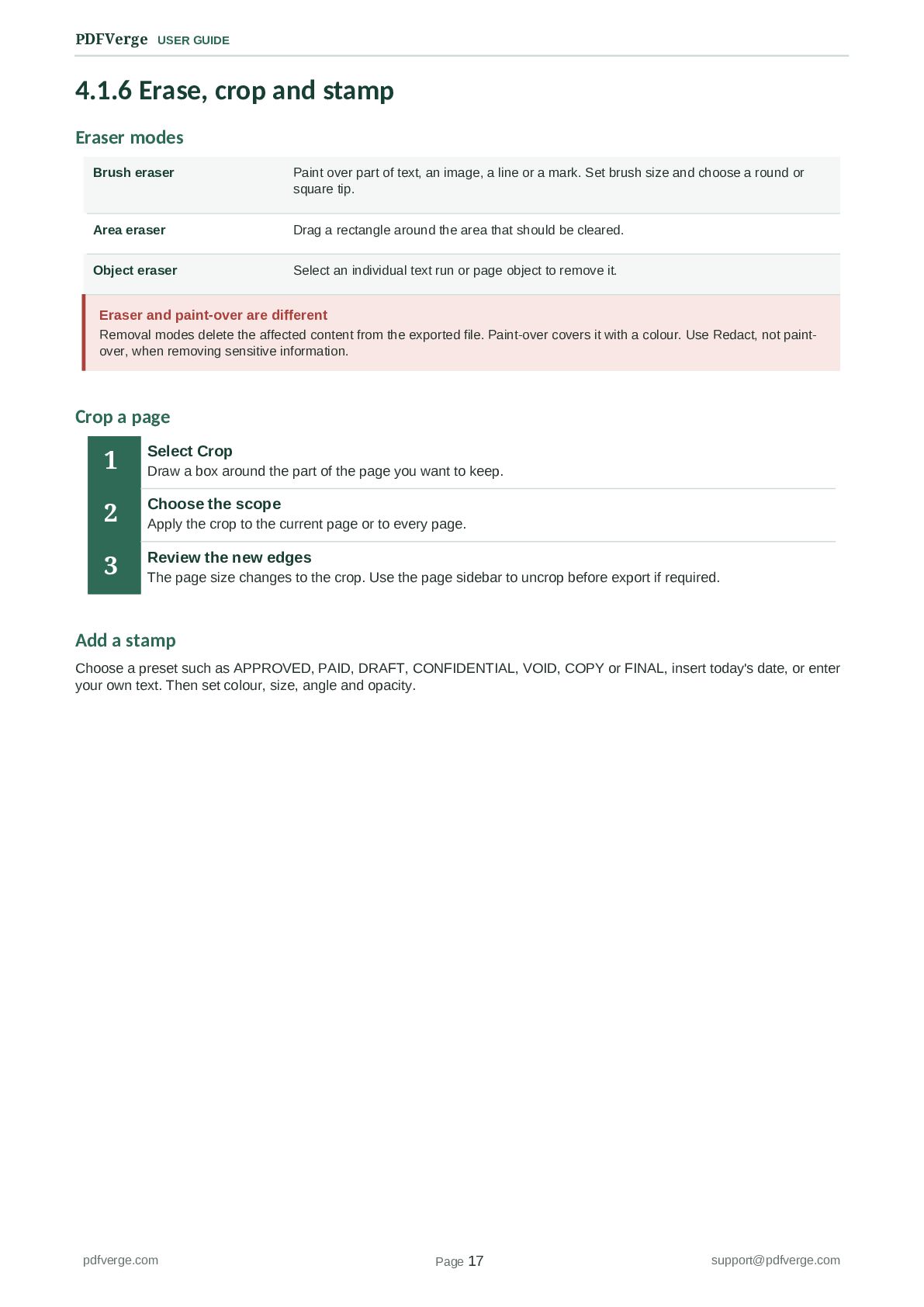
PDFVerge USER GUIDE 4.1.6 Erase, crop and stamp Eraser modes
Brush eraser Paint over part of text, an image, a line or a mark. Set brush size and choose a round or square tip. Area eraser Drag a rectangle around the area that should be cleared. Object eraser Select an individual text run or page object to remove it. Eraser and paint-over are different Removal modes delete the affected content from the exported file. Paint-over covers it with a colour. Use Redact, not paintover, when removing sensitive information. Crop a page 1 Select Crop 2 Choose the scope 3 Review the new edges Draw a box around the part of the page you want to keep. Apply the crop to the current page or to every page. The page size changes to the crop. Use the page sidebar to uncrop before export if required. Add a stamp Choose a preset such as APPROVED, PAID, DRAFT, CONFIDENTIAL, VOID, COPY or FINAL, insert today's date, or enter your own text. Then set colour, size, angle and opacity. pdfverge.com Page 17 [email protected] -
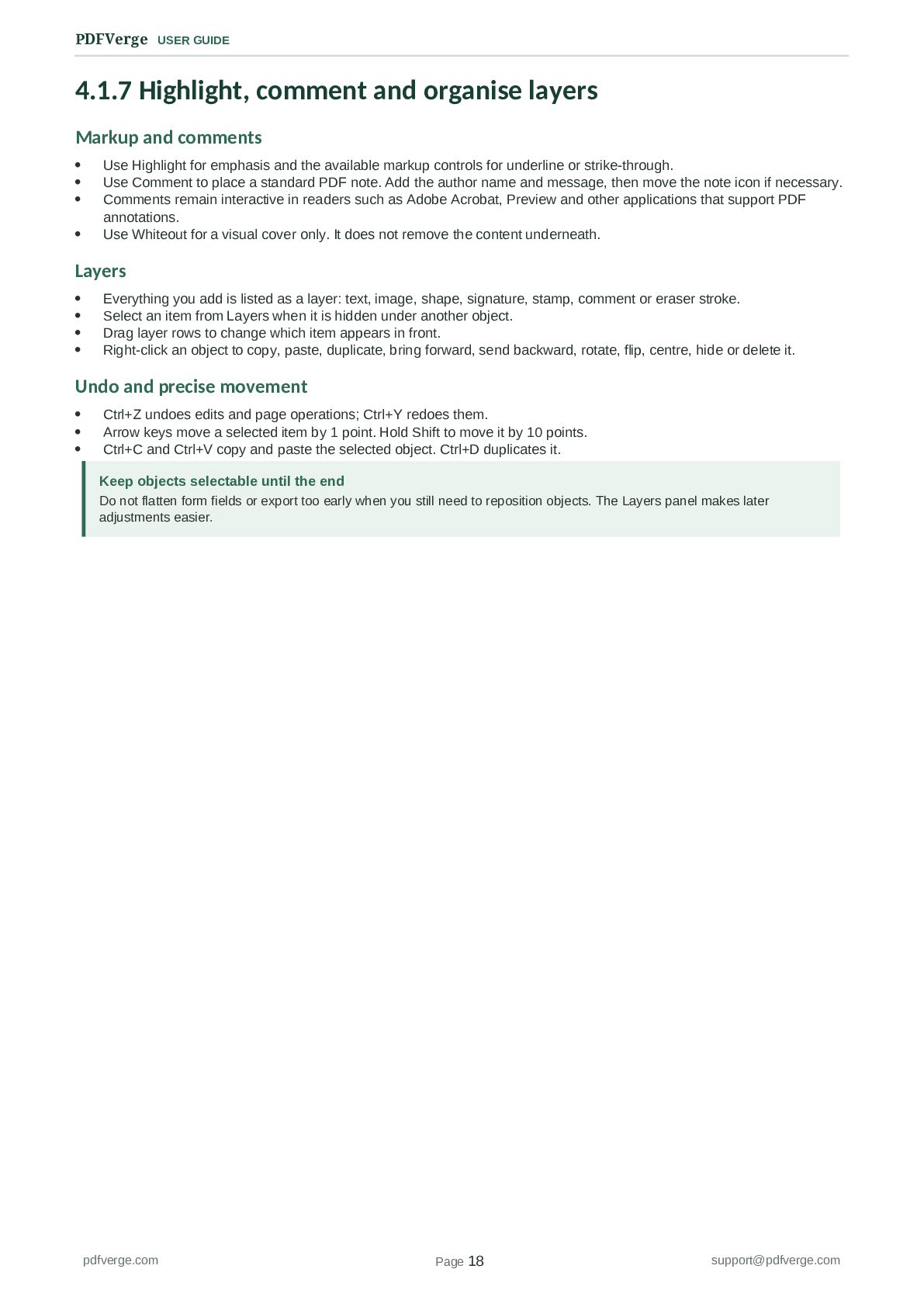
PDFVerge USER GUIDE 4.1.7 Highlight, comment and organise layers Markup
and comments Use Highlight for emphasis and the available markup controls for underline or strike-through. Use Comment to place a standard PDF note. Add the author name and message, then move the note icon if necessary. Comments remain interactive in readers such as Adobe Acrobat, Preview and other applications that support PDF annotations. Use Whiteout for a visual cover only. It does not remove the content underneath. Layers Everything you add is listed as a layer: text, image, shape, signature, stamp, comment or eraser stroke. Select an item from Layers when it is hidden under another object. Drag layer rows to change which item appears in front. Right-click an object to copy, paste, duplicate, bring forward, send backward, rotate, flip, centre, hide or delete it. Undo and precise movement Ctrl+Z undoes edits and page operations; Ctrl+Y redoes them. Arrow keys move a selected item by 1 point. Hold Shift to move it by 10 points. Ctrl+C and Ctrl+V copy and paste the selected object. Ctrl+D duplicates it. Keep objects selectable until the end Do not flatten form fields or export too early when you still need to reposition objects. The Layers panel makes later adjustments easier. pdfverge.com Page 18 [email protected] -
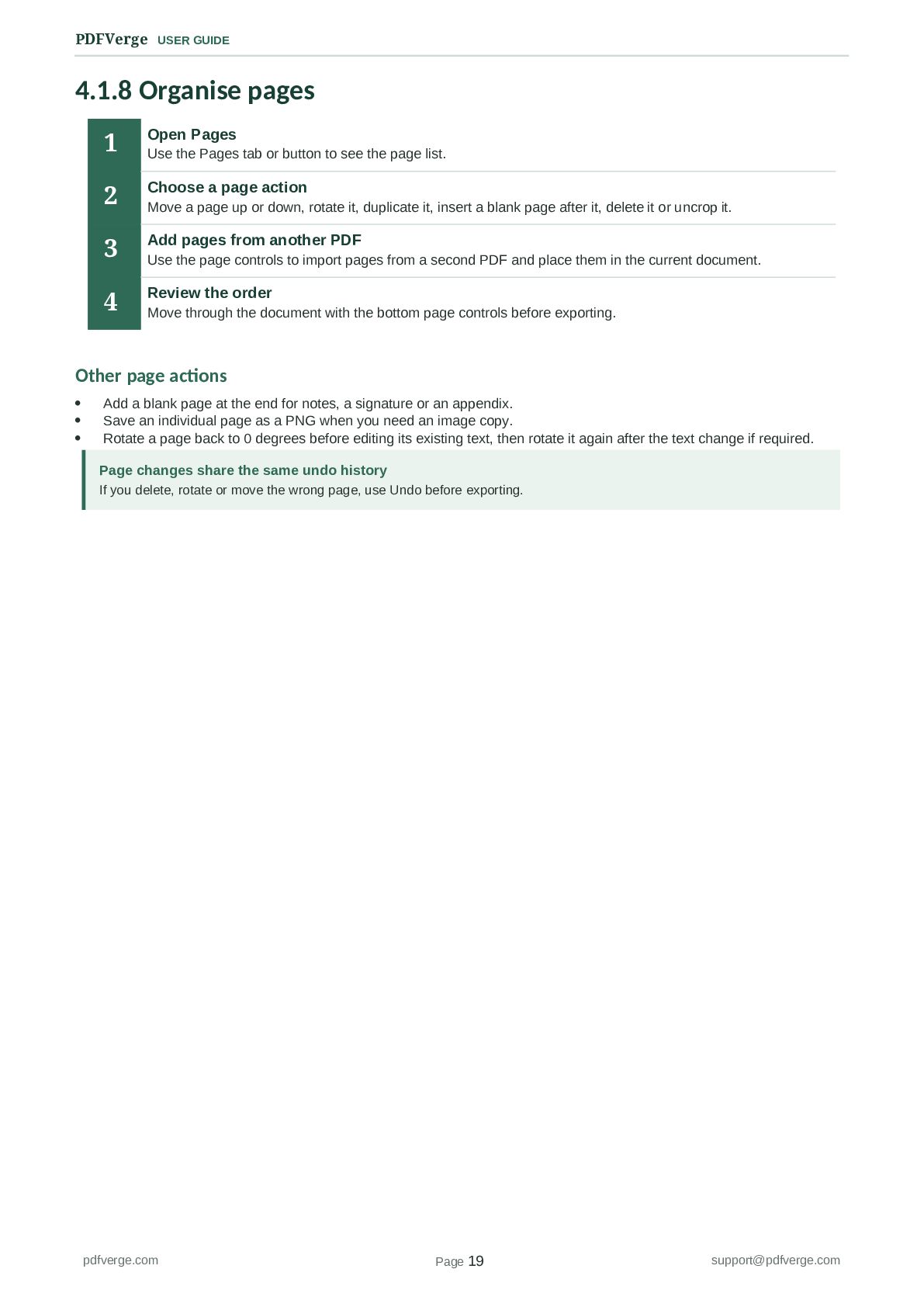
PDFVerge USER GUIDE 4.1.8 Organise pages 1 Open Pages 2
Choose a page action 3 Add pages from another PDF 4 Review the order Use the Pages tab or button to see the page list. Move a page up or down, rotate it, duplicate it, insert a blank page after it, delete it or uncrop it. Use the page controls to import pages from a second PDF and place them in the current document. Move through the document with the bottom page controls before exporting. Other page actions Add a blank page at the end for notes, a signature or an appendix. Save an individual page as a PNG when you need an image copy. Rotate a page back to 0 degrees before editing its existing text, then rotate it again after the text change if required. Page changes share the same undo history If you delete, rotate or move the wrong page, use Undo before exporting. pdfverge.com Page 19 [email protected] -
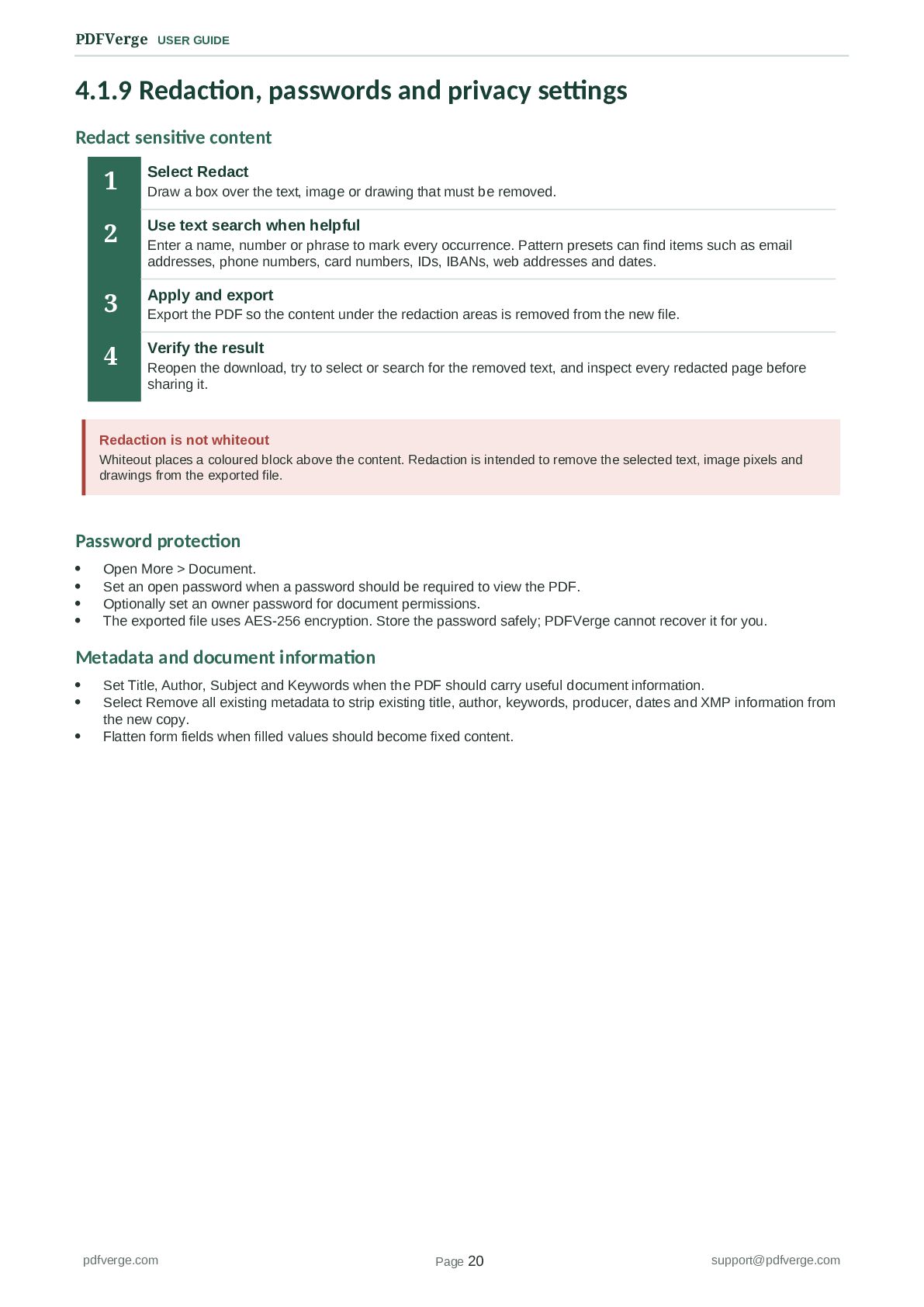
PDFVerge USER GUIDE 4.1.9 Redaction, passwords and privacy settings Redact
sensitive content 1 Select Redact 2 Use text search when helpful 3 Apply and export 4 Verify the result Draw a box over the text, image or drawing that must be removed. Enter a name, number or phrase to mark every occurrence. Pattern presets can find items such as email addresses, phone numbers, card numbers, IDs, IBANs, web addresses and dates. Export the PDF so the content under the redaction areas is removed from the new file. Reopen the download, try to select or search for the removed text, and inspect every redacted page before sharing it. Redaction is not whiteout Whiteout places a coloured block above the content. Redaction is intended to remove the selected text, image pixels and drawings from the exported file. Password protection Open More > Document. Set an open password when a password should be required to view the PDF. Optionally set an owner password for document permissions. The exported file uses AES-256 encryption. Store the password safely; PDFVerge cannot recover it for you. Metadata and document information Set Title, Author, Subject and Keywords when the PDF should carry useful document information. Select Remove all existing metadata to strip existing title, author, keywords, producer, dates and XMP information from the new copy. Flatten form fields when filled values should become fixed content. pdfverge.com Page 20 [email protected] -
PDFVerge USER GUIDE 4.1.10 Export, resume and keyboard shortcuts Export
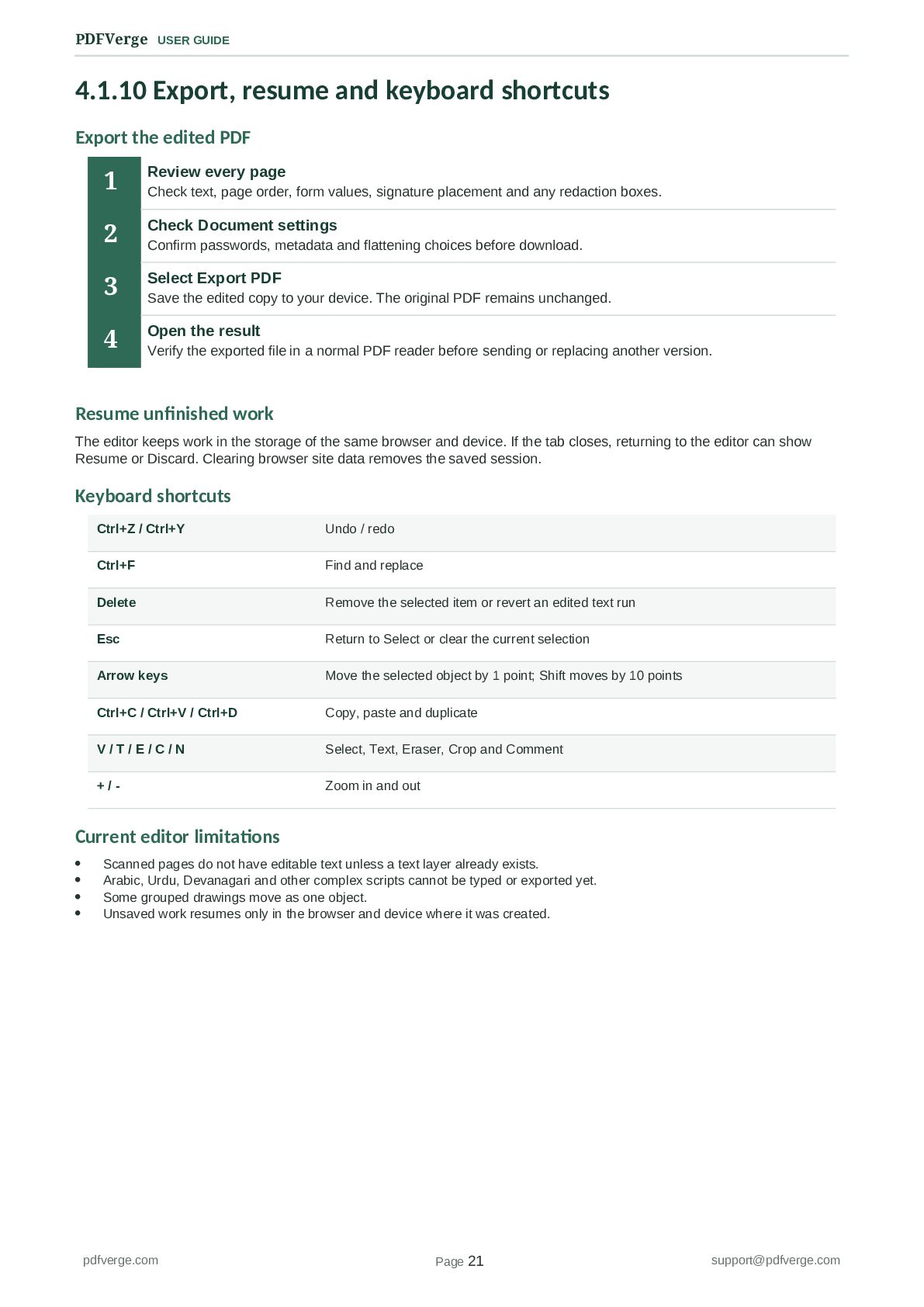
the edited PDF 1 Review every page 2 Check Document settings 3 Select Export PDF 4 Open the result Check text, page order, form values, signature placement and any redaction boxes. Confirm passwords, metadata and flattening choices before download. Save the edited copy to your device. The original PDF remains unchanged. Verify the exported file in a normal PDF reader before sending or replacing another version. Resume unfinished work The editor keeps work in the storage of the same browser and device. If the tab closes, returning to the editor can show Resume or Discard. Clearing browser site data removes the saved session. Keyboard shortcuts Ctrl+Z / Ctrl+Y Undo / redo Ctrl+F Find and replace Delete Remove the selected item or revert an edited text run Esc Return to Select or clear the current selection Arrow keys Move the selected object by 1 point; Shift moves by 10 points Ctrl+C / Ctrl+V / Ctrl+D Copy, paste and duplicate V/T/E/C/N Select, Text, Eraser, Crop and Comment +/- Zoom in and out Current editor limitations Scanned pages do not have editable text unless a text layer already exists. Arabic, Urdu, Devanagari and other complex scripts cannot be typed or exported yet. Some grouped drawings move as one object. Unsaved work resumes only in the browser and device where it was created. pdfverge.com Page 21 [email protected] -
PDFVerge USER GUIDE EDIT PDF FILES 4.2 Rotate PDF Turn
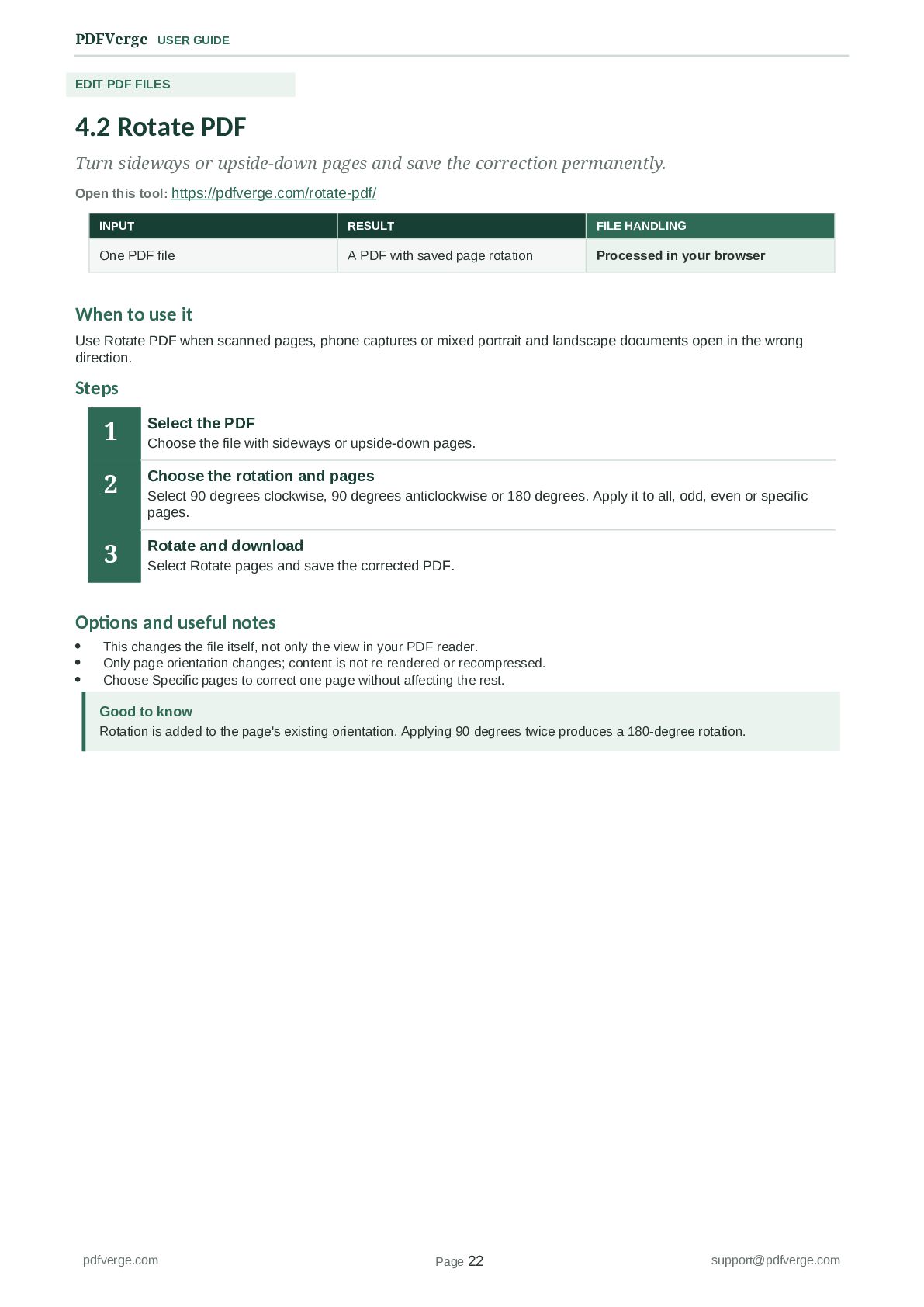
sideways or upside-down pages and save the correction permanently. Open this tool: https://pdfverge.com/rotate-pdf/ INPUT RESULT FILE HANDLING One PDF file A PDF with saved page rotation Processed in your browser When to use it Use Rotate PDF when scanned pages, phone captures or mixed portrait and landscape documents open in the wrong direction. Steps 1 Select the PDF 2 Choose the rotation and pages 3 Rotate and download Choose the file with sideways or upside-down pages. Select 90 degrees clockwise, 90 degrees anticlockwise or 180 degrees. Apply it to all, odd, even or specific pages. Select Rotate pages and save the corrected PDF. Options and useful notes This changes the file itself, not only the view in your PDF reader. Only page orientation changes; content is not re-rendered or recompressed. Choose Specific pages to correct one page without affecting the rest. Good to know Rotation is added to the page's existing orientation. Applying 90 degrees twice produces a 180-degree rotation. pdfverge.com Page 22 [email protected] -
PDFVerge USER GUIDE EDIT PDF FILES 4.3 Watermark PDF Place
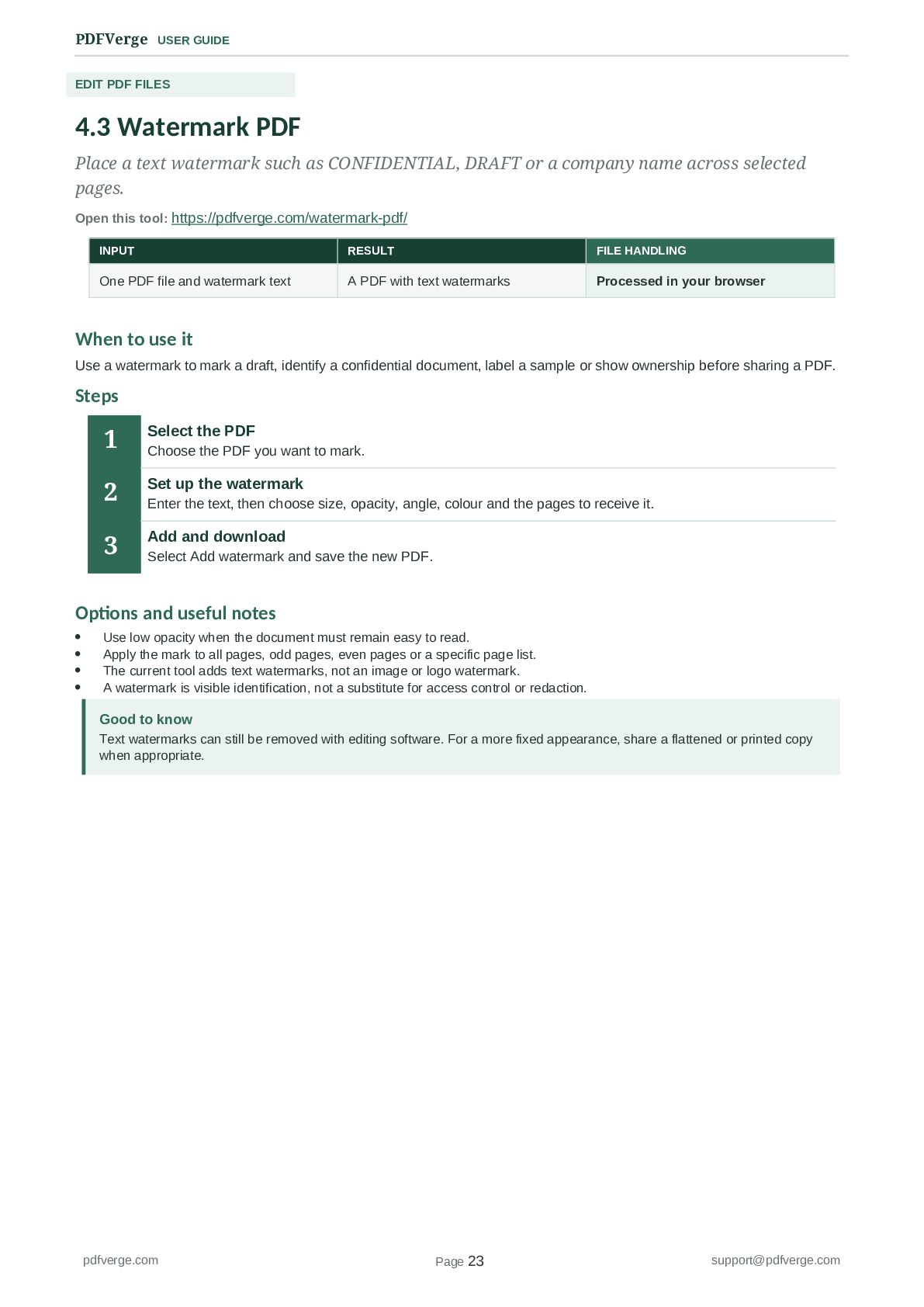
a text watermark such as CONFIDENTIAL, DRAFT or a company name across selected pages. Open this tool: https://pdfverge.com/watermark-pdf/ INPUT RESULT FILE HANDLING One PDF file and watermark text A PDF with text watermarks Processed in your browser When to use it Use a watermark to mark a draft, identify a confidential document, label a sample or show ownership before sharing a PDF. Steps 1 Select the PDF 2 Set up the watermark 3 Add and download Choose the PDF you want to mark. Enter the text, then choose size, opacity, angle, colour and the pages to receive it. Select Add watermark and save the new PDF. Options and useful notes Use low opacity when the document must remain easy to read. Apply the mark to all pages, odd pages, even pages or a specific page list. The current tool adds text watermarks, not an image or logo watermark. A watermark is visible identification, not a substitute for access control or redaction. Good to know Text watermarks can still be removed with editing software. For a more fixed appearance, share a flattened or printed copy when appropriate. pdfverge.com Page 23 [email protected] -
PDFVerge USER GUIDE EDIT PDF FILES 4.4 Add Page Numbers
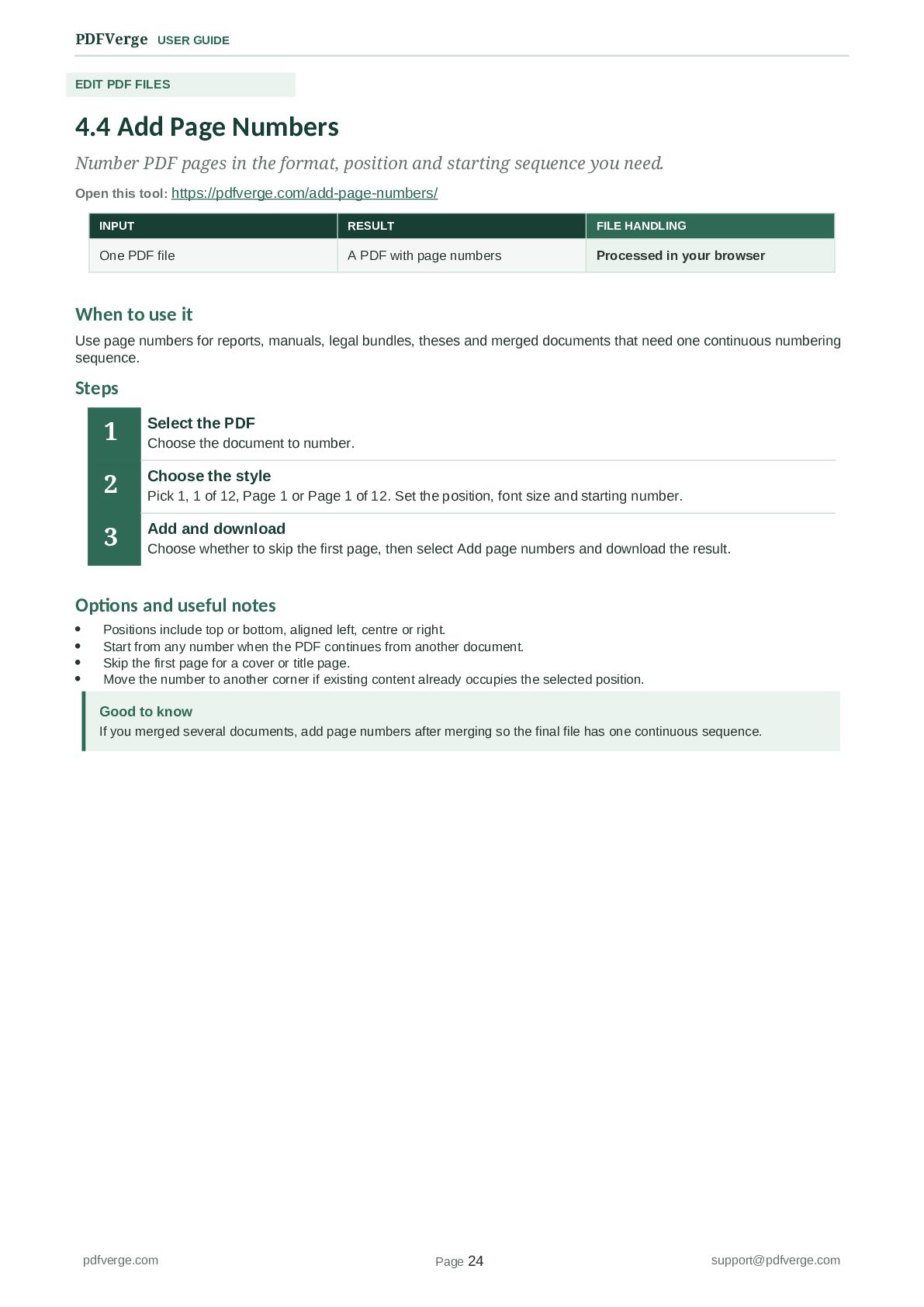
Number PDF pages in the format, position and starting sequence you need. Open this tool: https://pdfverge.com/add-page-numbers/ INPUT RESULT FILE HANDLING One PDF file A PDF with page numbers Processed in your browser When to use it Use page numbers for reports, manuals, legal bundles, theses and merged documents that need one continuous numbering sequence. Steps 1 Select the PDF 2 Choose the style 3 Add and download Choose the document to number. Pick 1, 1 of 12, Page 1 or Page 1 of 12. Set the position, font size and starting number. Choose whether to skip the first page, then select Add page numbers and download the result. Options and useful notes Positions include top or bottom, aligned left, centre or right. Start from any number when the PDF continues from another document. Skip the first page for a cover or title page. Move the number to another corner if existing content already occupies the selected position. Good to know If you merged several documents, add page numbers after merging so the final file has one continuous sequence. pdfverge.com Page 24 [email protected] -
PDFVerge USER GUIDE EDIT PDF FILES 4.5 Header and Footer
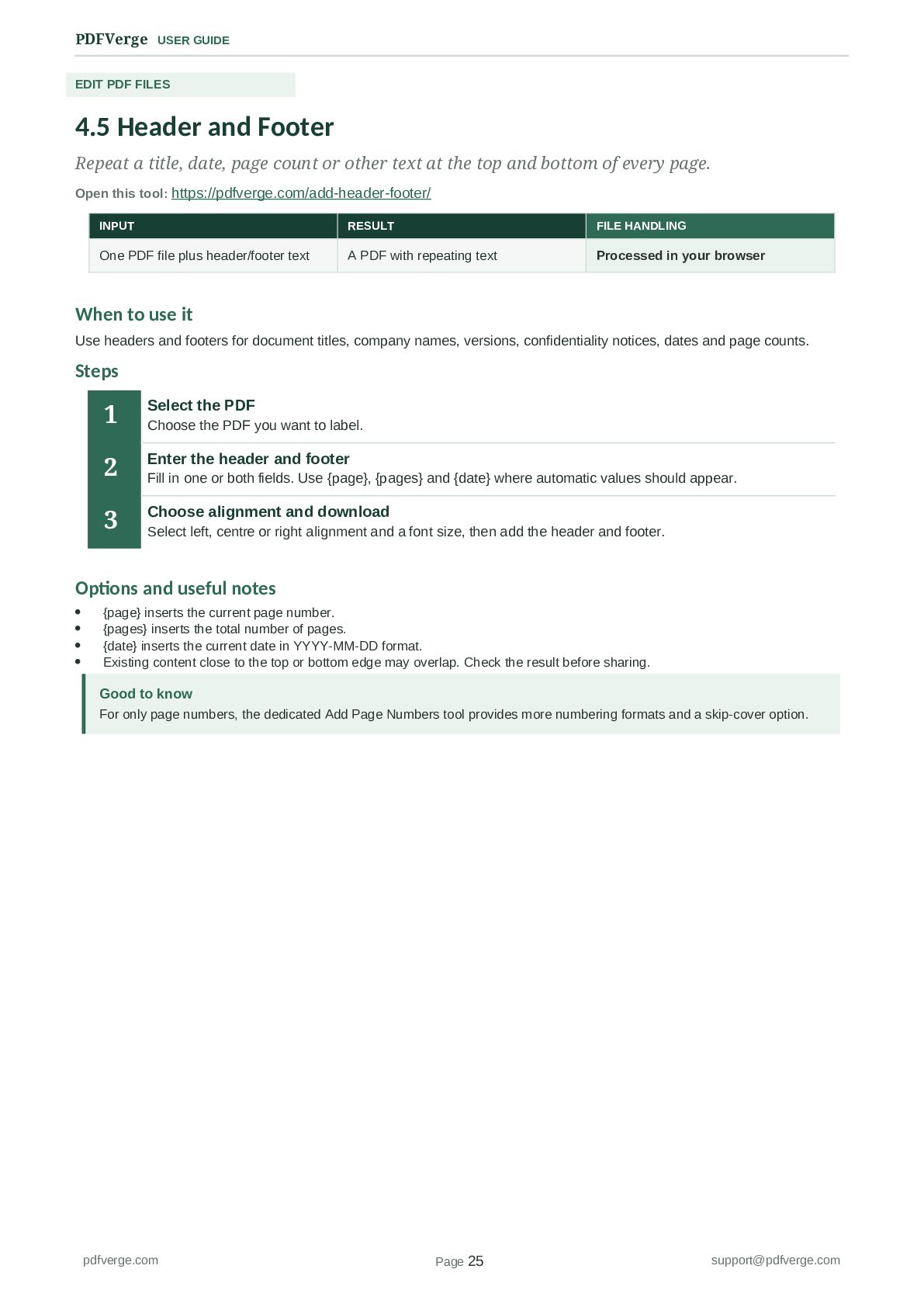
Repeat a title, date, page count or other text at the top and bottom of every page. Open this tool: https://pdfverge.com/add-header-footer/ INPUT RESULT FILE HANDLING One PDF file plus header/footer text A PDF with repeating text Processed in your browser When to use it Use headers and footers for document titles, company names, versions, confidentiality notices, dates and page counts. Steps 1 Select the PDF 2 Enter the header and footer 3 Choose alignment and download Choose the PDF you want to label. Fill in one or both fields. Use {page}, {pages} and {date} where automatic values should appear. Select left, centre or right alignment and a font size, then add the header and footer. Options and useful notes {page} inserts the current page number. {pages} inserts the total number of pages. {date} inserts the current date in YYYY-MM-DD format. Existing content close to the top or bottom edge may overlap. Check the result before sharing. Good to know For only page numbers, the dedicated Add Page Numbers tool provides more numbering formats and a skip-cover option. pdfverge.com Page 25 [email protected] -
PDFVerge USER GUIDE CONVERT TO PDF 5.1 Word to PDF
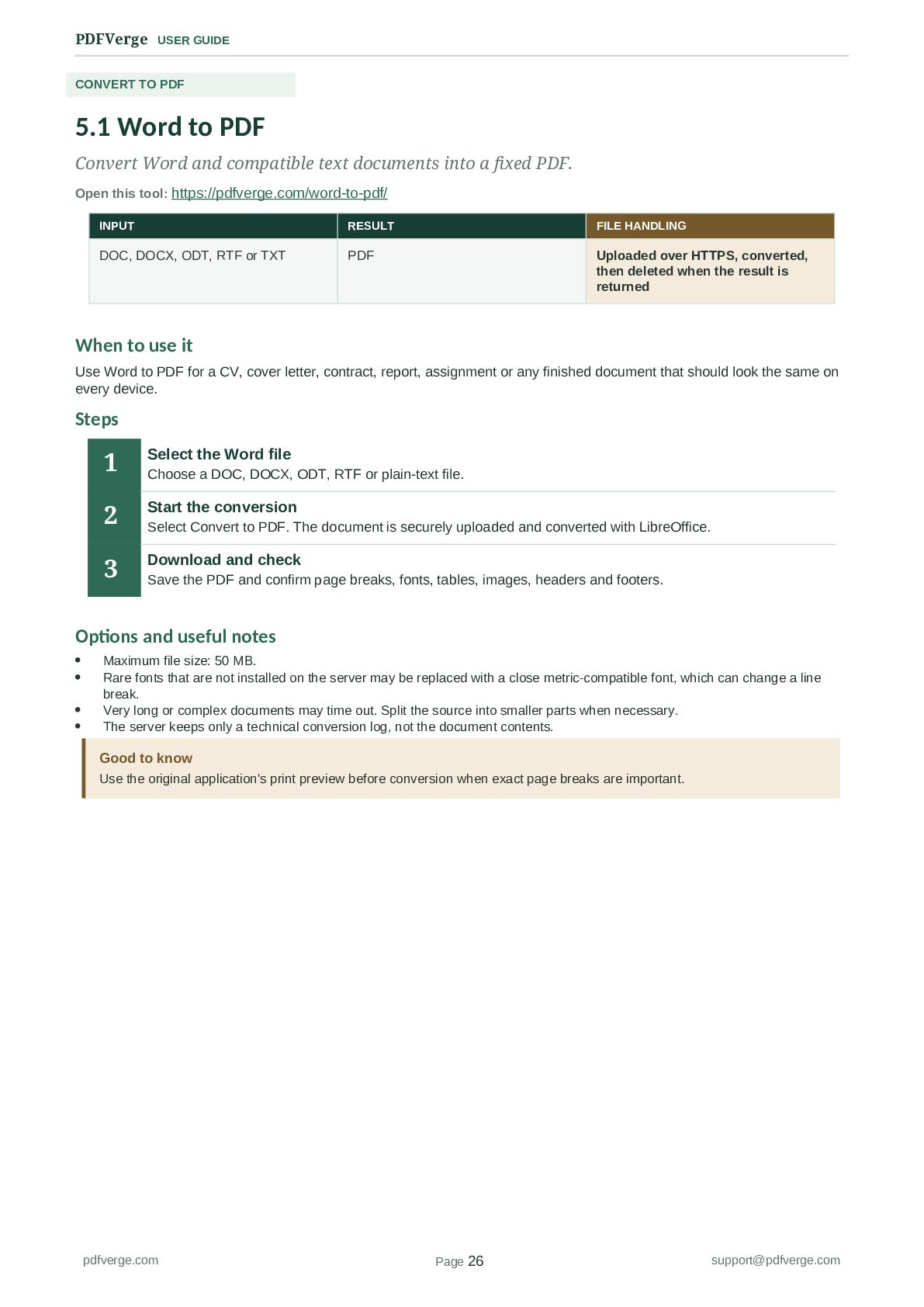
Convert Word and compatible text documents into a fixed PDF. Open this tool: https://pdfverge.com/word-to-pdf/ INPUT RESULT FILE HANDLING DOC, DOCX, ODT, RTF or TXT PDF Uploaded over HTTPS, converted, then deleted when the result is returned When to use it Use Word to PDF for a CV, cover letter, contract, report, assignment or any finished document that should look the same on every device. Steps 1 Select the Word file 2 Start the conversion 3 Download and check Choose a DOC, DOCX, ODT, RTF or plain-text file. Select Convert to PDF. The document is securely uploaded and converted with LibreOffice. Save the PDF and confirm page breaks, fonts, tables, images, headers and footers. Options and useful notes Maximum file size: 50 MB. Rare fonts that are not installed on the server may be replaced with a close metric-compatible font, which can change a line break. Very long or complex documents may time out. Split the source into smaller parts when necessary. The server keeps only a technical conversion log, not the document contents. Good to know Use the original application's print preview before conversion when exact page breaks are important. pdfverge.com Page 26 [email protected] -
PDFVerge USER GUIDE CONVERT TO PDF 5.2 JPG to PDF
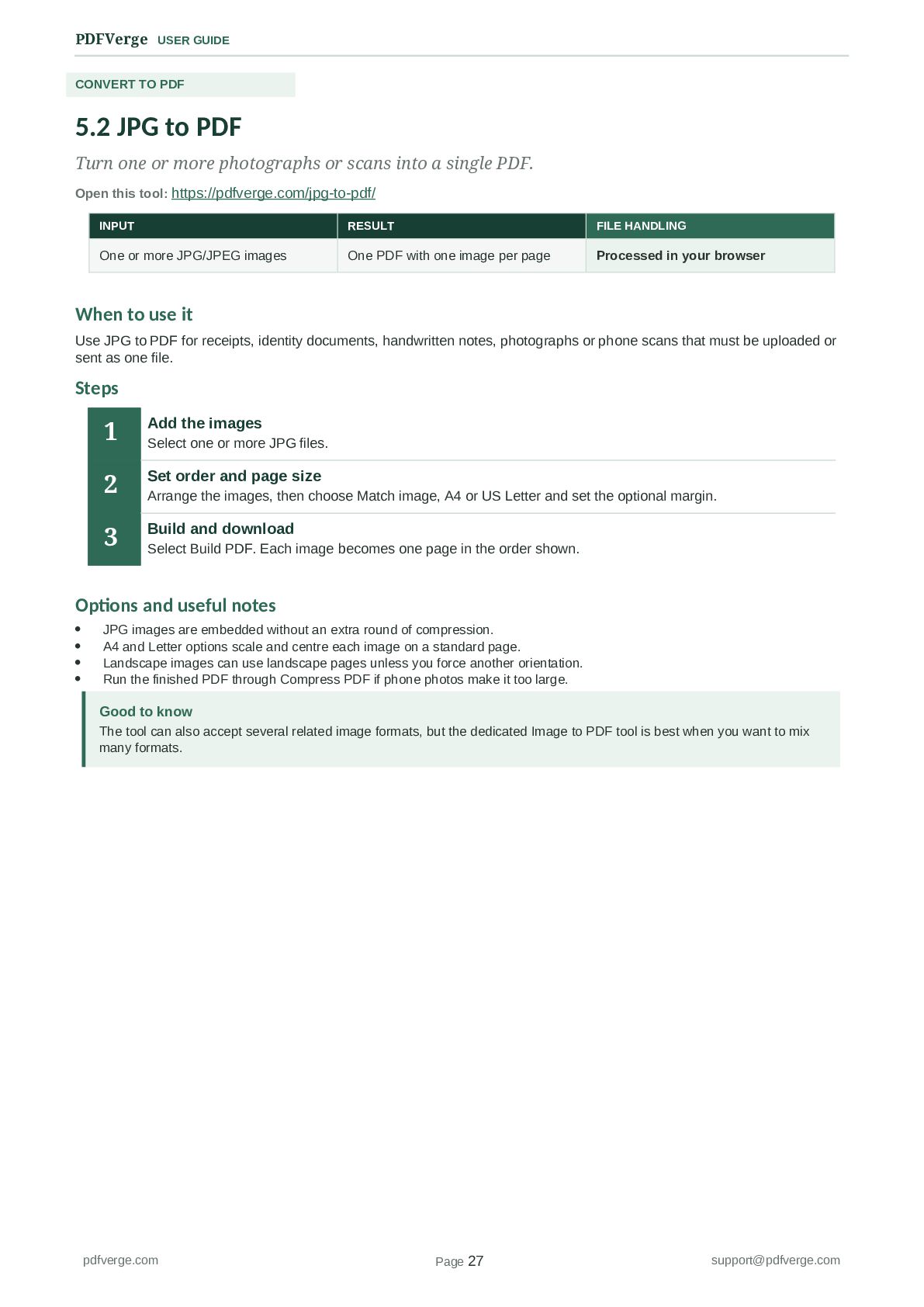
Turn one or more photographs or scans into a single PDF. Open this tool: https://pdfverge.com/jpg-to-pdf/ INPUT RESULT FILE HANDLING One or more JPG/JPEG images One PDF with one image per page Processed in your browser When to use it Use JPG to PDF for receipts, identity documents, handwritten notes, photographs or phone scans that must be uploaded or sent as one file. Steps 1 Add the images 2 Set order and page size 3 Build and download Select one or more JPG files. Arrange the images, then choose Match image, A4 or US Letter and set the optional margin. Select Build PDF. Each image becomes one page in the order shown. Options and useful notes JPG images are embedded without an extra round of compression. A4 and Letter options scale and centre each image on a standard page. Landscape images can use landscape pages unless you force another orientation. Run the finished PDF through Compress PDF if phone photos make it too large. Good to know The tool can also accept several related image formats, but the dedicated Image to PDF tool is best when you want to mix many formats. pdfverge.com Page 27 [email protected] -
PDFVerge USER GUIDE CONVERT TO PDF 5.3 Image to PDF
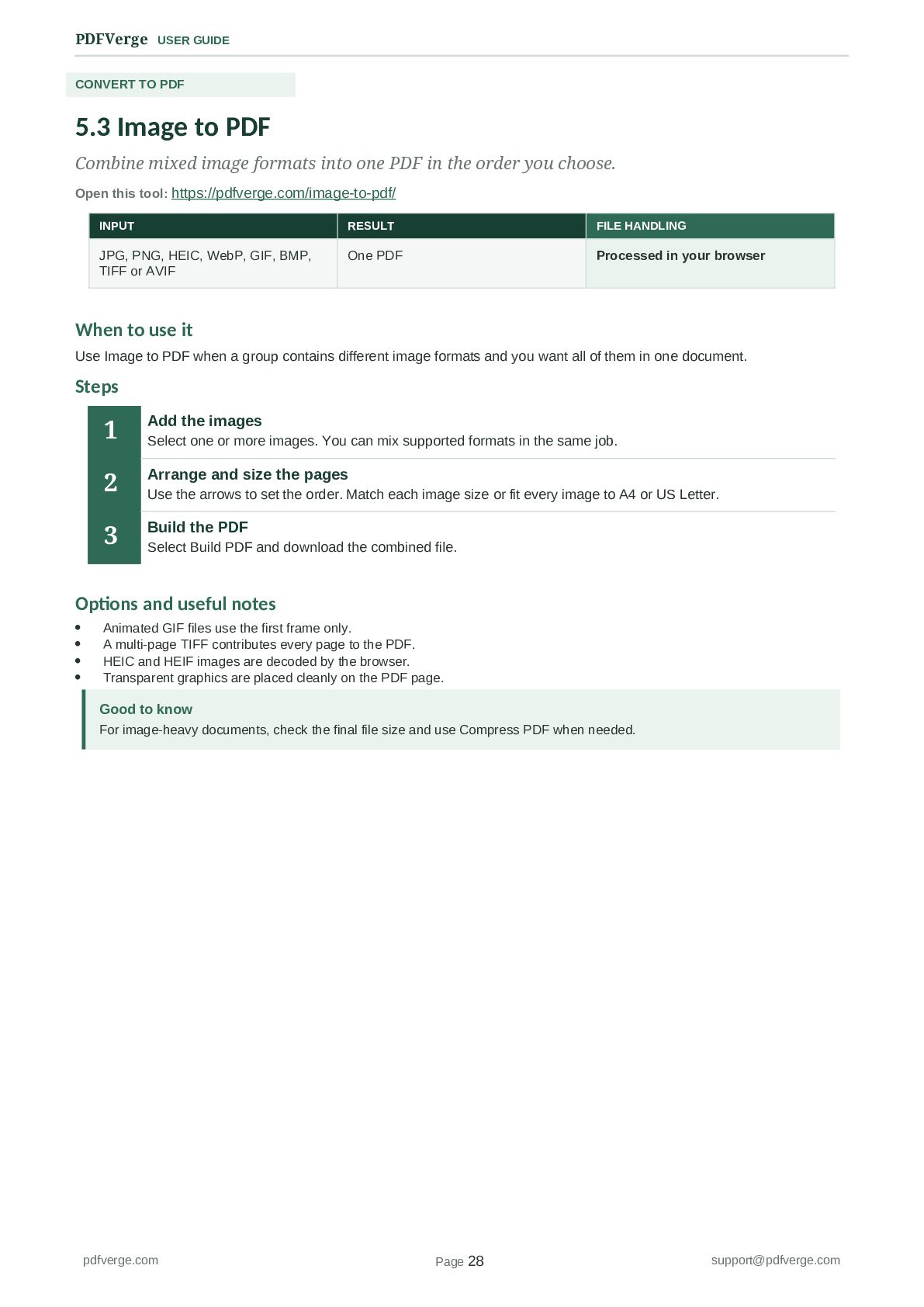
Combine mixed image formats into one PDF in the order you choose. Open this tool: https://pdfverge.com/image-to-pdf/ INPUT RESULT FILE HANDLING JPG, PNG, HEIC, WebP, GIF, BMP, TIFF or AVIF One PDF Processed in your browser When to use it Use Image to PDF when a group contains different image formats and you want all of them in one document. Steps 1 Add the images 2 Arrange and size the pages 3 Build the PDF Select one or more images. You can mix supported formats in the same job. Use the arrows to set the order. Match each image size or fit every image to A4 or US Letter. Select Build PDF and download the combined file. Options and useful notes Animated GIF files use the first frame only. A multi-page TIFF contributes every page to the PDF. HEIC and HEIF images are decoded by the browser. Transparent graphics are placed cleanly on the PDF page. Good to know For image-heavy documents, check the final file size and use Compress PDF when needed. pdfverge.com Page 28 [email protected] -
PDFVerge USER GUIDE CONVERT TO PDF 5.4 HEIC to PDF
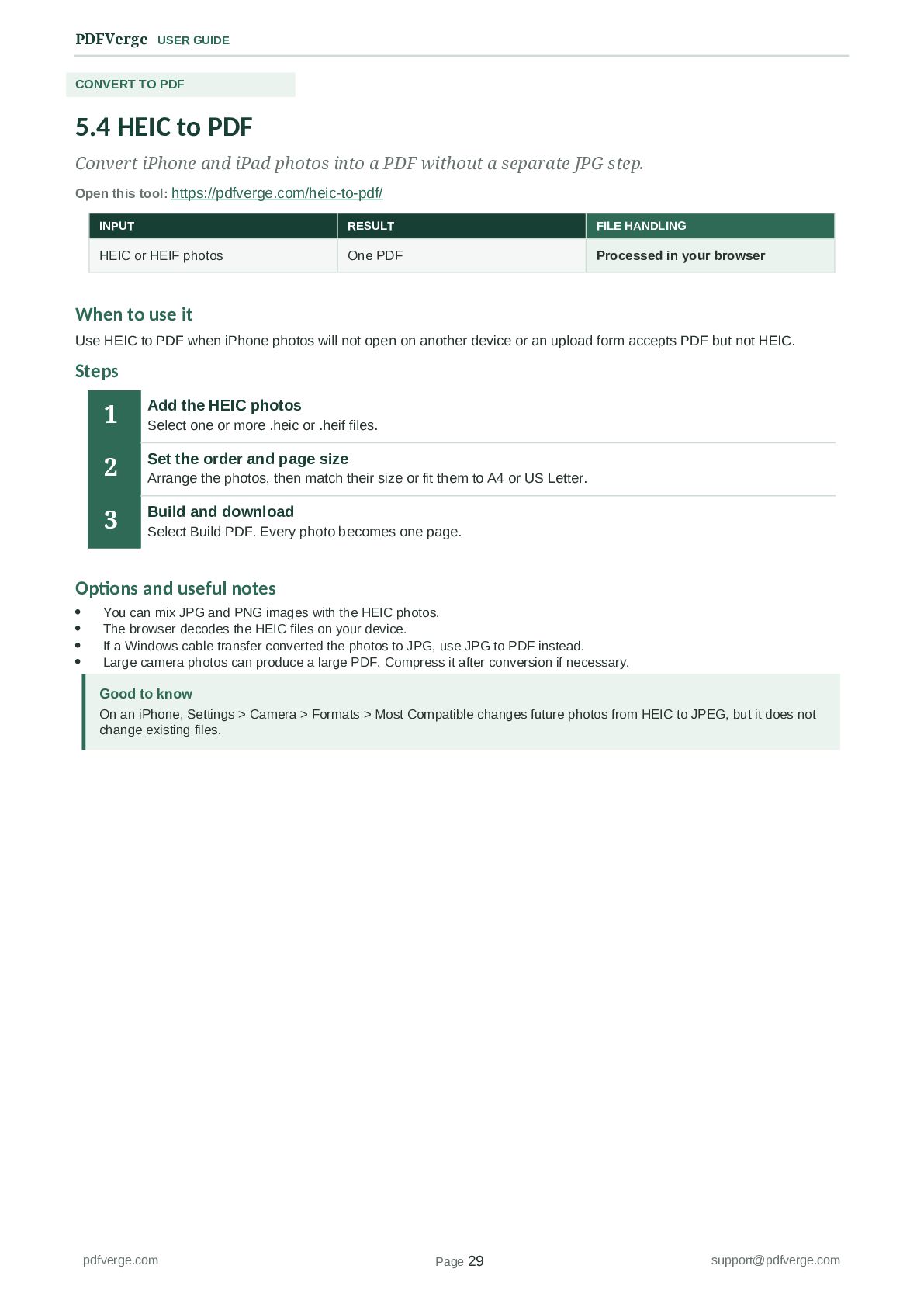
Convert iPhone and iPad photos into a PDF without a separate JPG step. Open this tool: https://pdfverge.com/heic-to-pdf/ INPUT RESULT FILE HANDLING HEIC or HEIF photos One PDF Processed in your browser When to use it Use HEIC to PDF when iPhone photos will not open on another device or an upload form accepts PDF but not HEIC. Steps 1 Add the HEIC photos 2 Set the order and page size 3 Build and download Select one or more .heic or .heif files. Arrange the photos, then match their size or fit them to A4 or US Letter. Select Build PDF. Every photo becomes one page. Options and useful notes You can mix JPG and PNG images with the HEIC photos. The browser decodes the HEIC files on your device. If a Windows cable transfer converted the photos to JPG, use JPG to PDF instead. Large camera photos can produce a large PDF. Compress it after conversion if necessary. Good to know On an iPhone, Settings > Camera > Formats > Most Compatible changes future photos from HEIC to JPEG, but it does not change existing files. pdfverge.com Page 29 [email protected] -
PDFVerge USER GUIDE CONVERT TO PDF 5.5 Excel to PDF
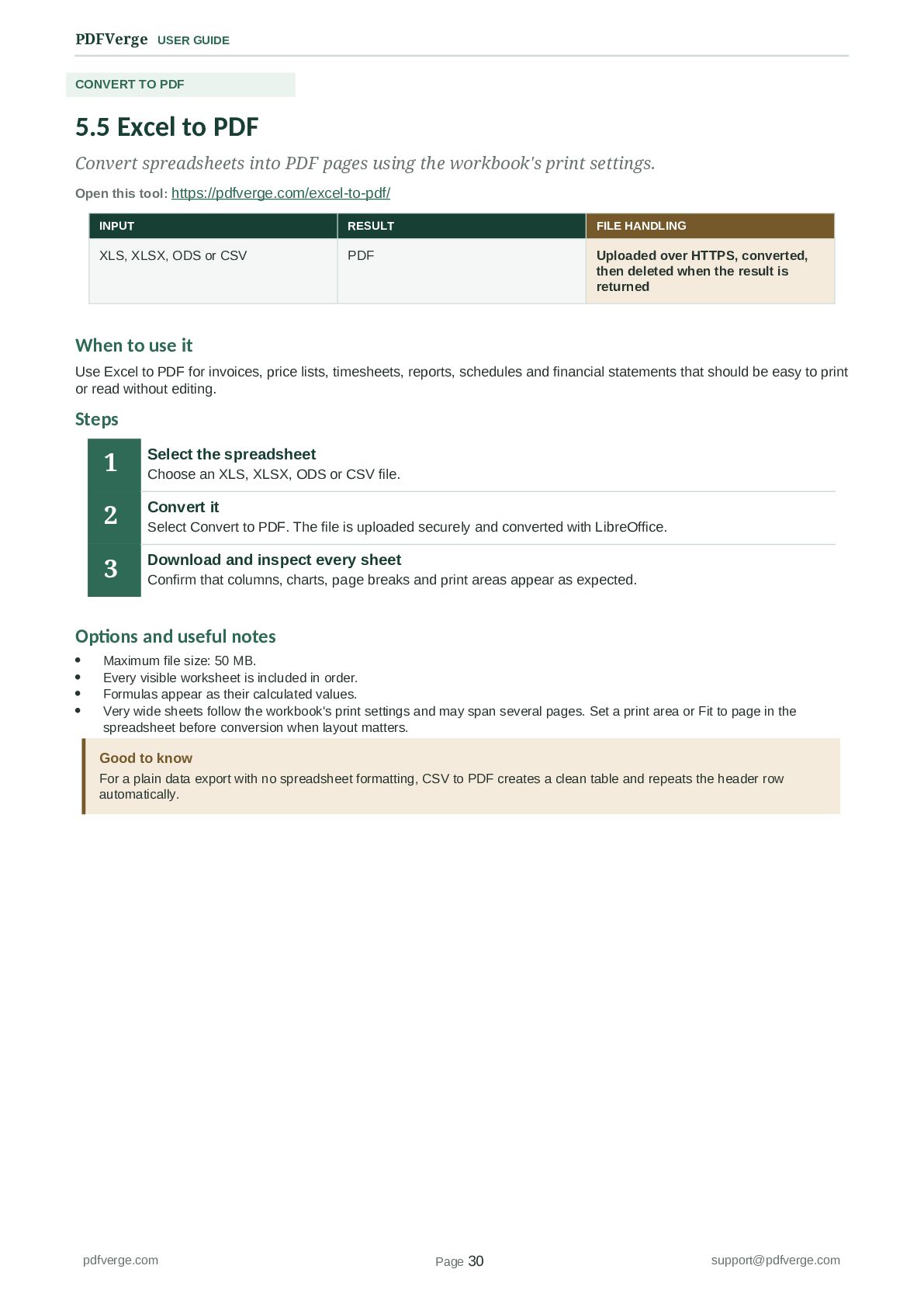
Convert spreadsheets into PDF pages using the workbook's print settings. Open this tool: https://pdfverge.com/excel-to-pdf/ INPUT RESULT FILE HANDLING XLS, XLSX, ODS or CSV PDF Uploaded over HTTPS, converted, then deleted when the result is returned When to use it Use Excel to PDF for invoices, price lists, timesheets, reports, schedules and financial statements that should be easy to print or read without editing. Steps 1 Select the spreadsheet 2 Convert it 3 Download and inspect every sheet Choose an XLS, XLSX, ODS or CSV file. Select Convert to PDF. The file is uploaded securely and converted with LibreOffice. Confirm that columns, charts, page breaks and print areas appear as expected. Options and useful notes Maximum file size: 50 MB. Every visible worksheet is included in order. Formulas appear as their calculated values. Very wide sheets follow the workbook's print settings and may span several pages. Set a print area or Fit to page in the spreadsheet before conversion when layout matters. Good to know For a plain data export with no spreadsheet formatting, CSV to PDF creates a clean table and repeats the header row automatically. pdfverge.com Page 30 [email protected] -
PDFVerge USER GUIDE CONVERT TO PDF 5.6 CSV to PDF
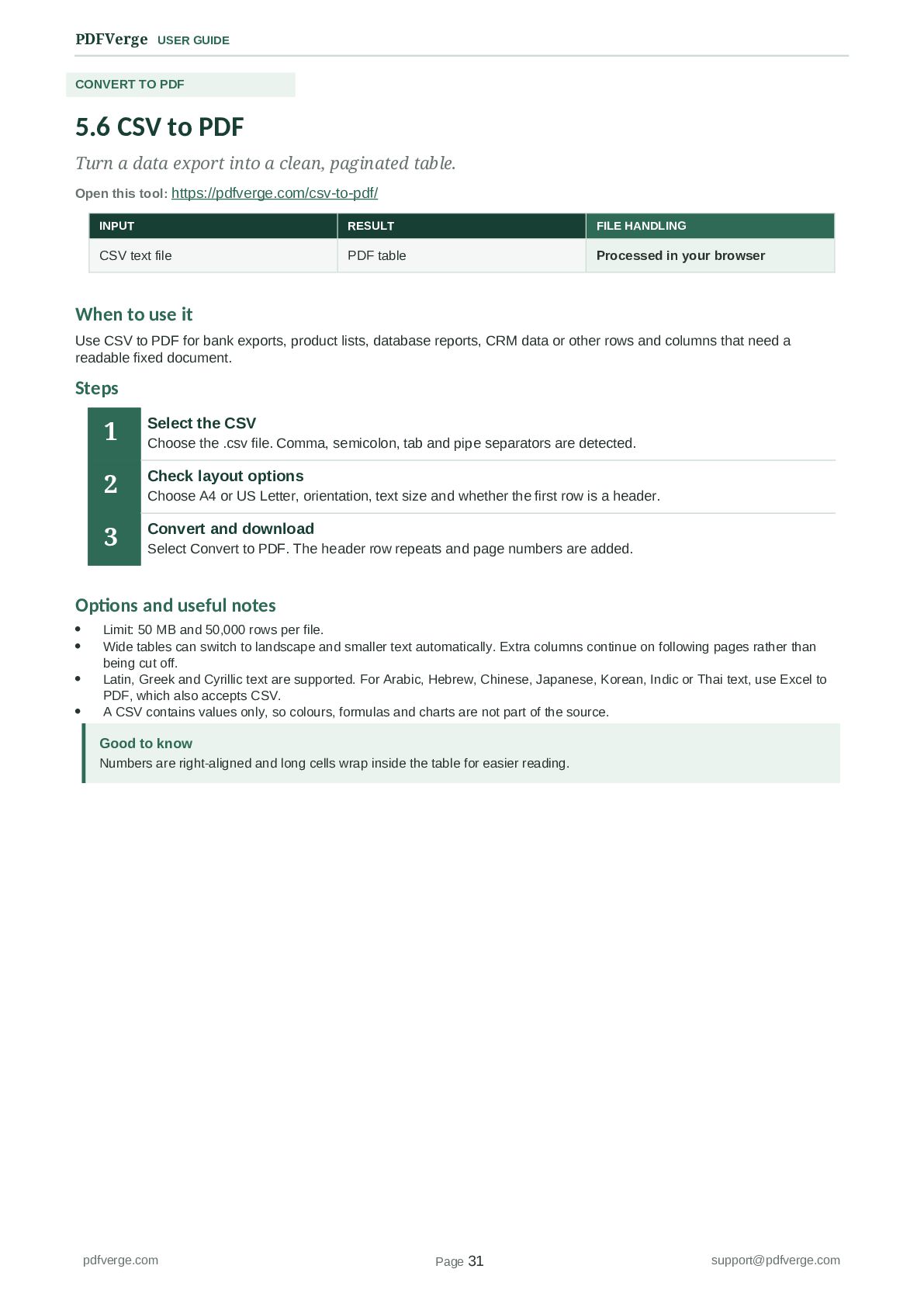
Turn a data export into a clean, paginated table. Open this tool: https://pdfverge.com/csv-to-pdf/ INPUT RESULT FILE HANDLING CSV text file PDF table Processed in your browser When to use it Use CSV to PDF for bank exports, product lists, database reports, CRM data or other rows and columns that need a readable fixed document. Steps 1 Select the CSV 2 Check layout options 3 Convert and download Choose the .csv file. Comma, semicolon, tab and pipe separators are detected. Choose A4 or US Letter, orientation, text size and whether the first row is a header. Select Convert to PDF. The header row repeats and page numbers are added. Options and useful notes Limit: 50 MB and 50,000 rows per file. Wide tables can switch to landscape and smaller text automatically. Extra columns continue on following pages rather than being cut off. Latin, Greek and Cyrillic text are supported. For Arabic, Hebrew, Chinese, Japanese, Korean, Indic or Thai text, use Excel to PDF, which also accepts CSV. A CSV contains values only, so colours, formulas and charts are not part of the source. Good to know Numbers are right-aligned and long cells wrap inside the table for easier reading. pdfverge.com Page 31 [email protected] -
PDFVerge USER GUIDE CONVERT TO PDF 5.7 IPYNB to PDF
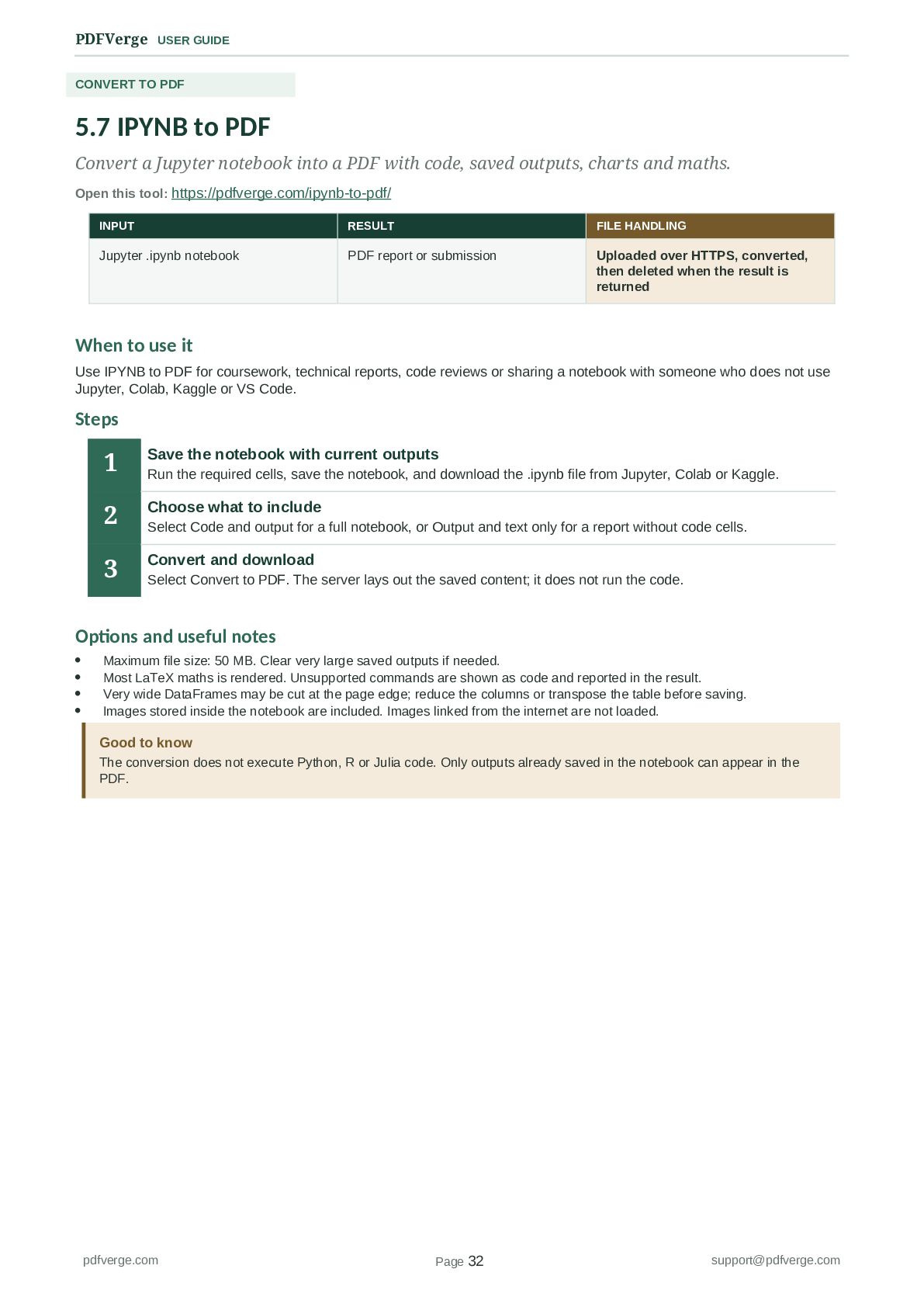
Convert a Jupyter notebook into a PDF with code, saved outputs, charts and maths. Open this tool: https://pdfverge.com/ipynb-to-pdf/ INPUT RESULT FILE HANDLING Jupyter .ipynb notebook PDF report or submission Uploaded over HTTPS, converted, then deleted when the result is returned When to use it Use IPYNB to PDF for coursework, technical reports, code reviews or sharing a notebook with someone who does not use Jupyter, Colab, Kaggle or VS Code. Steps 1 Save the notebook with current outputs 2 Choose what to include 3 Convert and download Run the required cells, save the notebook, and download the .ipynb file from Jupyter, Colab or Kaggle. Select Code and output for a full notebook, or Output and text only for a report without code cells. Select Convert to PDF. The server lays out the saved content; it does not run the code. Options and useful notes Maximum file size: 50 MB. Clear very large saved outputs if needed. Most LaTeX maths is rendered. Unsupported commands are shown as code and reported in the result. Very wide DataFrames may be cut at the page edge; reduce the columns or transpose the table before saving. Images stored inside the notebook are included. Images linked from the internet are not loaded. Good to know The conversion does not execute Python, R or Julia code. Only outputs already saved in the notebook can appear in the PDF. pdfverge.com Page 32 [email protected] -
PDFVerge USER GUIDE CONVERT TO PDF 5.8 EML to PDF
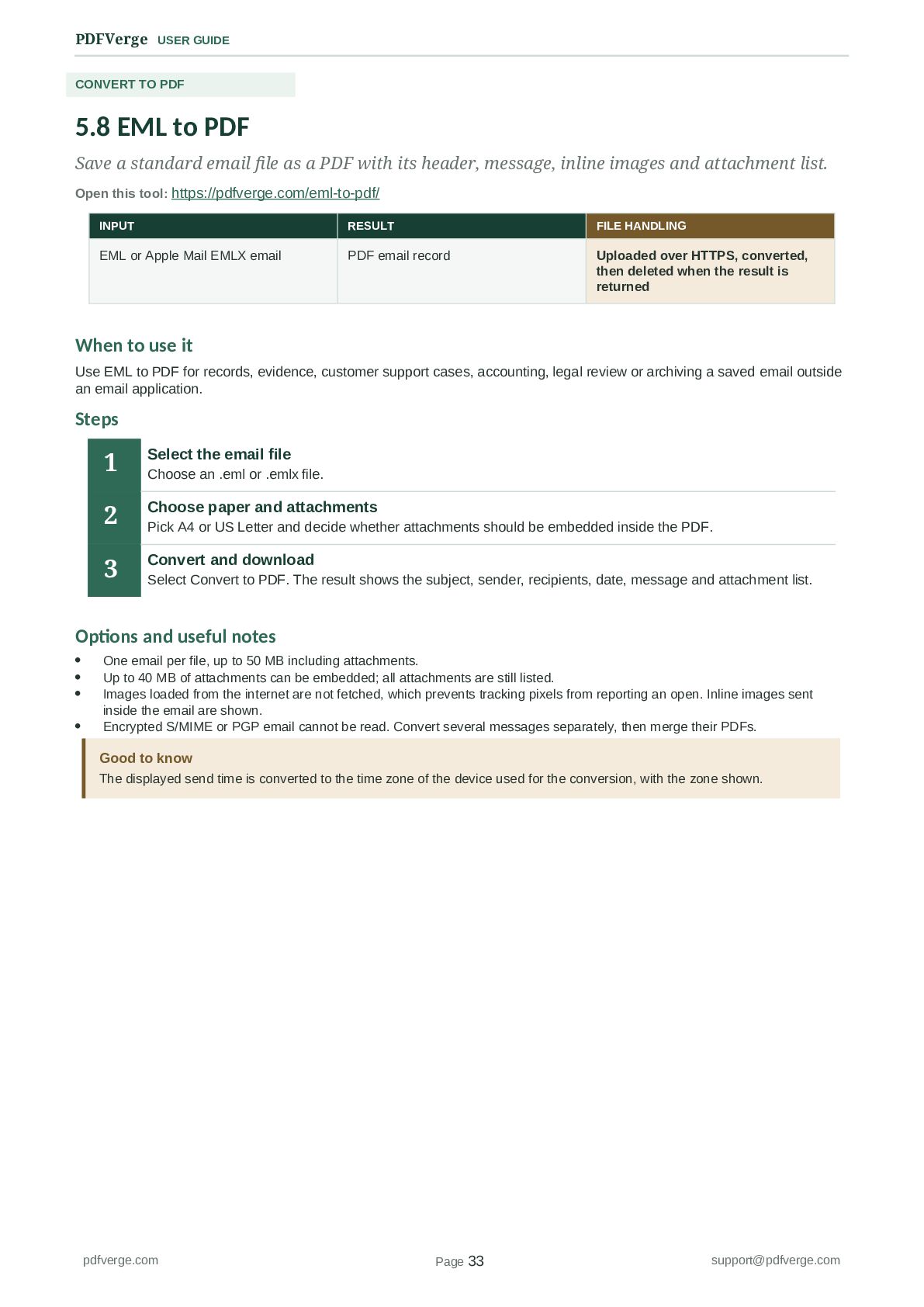
Save a standard email file as a PDF with its header, message, inline images and attachment list. Open this tool: https://pdfverge.com/eml-to-pdf/ INPUT RESULT FILE HANDLING EML or Apple Mail EMLX email PDF email record Uploaded over HTTPS, converted, then deleted when the result is returned When to use it Use EML to PDF for records, evidence, customer support cases, accounting, legal review or archiving a saved email outside an email application. Steps 1 Select the email file 2 Choose paper and attachments 3 Convert and download Choose an .eml or .emlx file. Pick A4 or US Letter and decide whether attachments should be embedded inside the PDF. Select Convert to PDF. The result shows the subject, sender, recipients, date, message and attachment list. Options and useful notes One email per file, up to 50 MB including attachments. Up to 40 MB of attachments can be embedded; all attachments are still listed. Images loaded from the internet are not fetched, which prevents tracking pixels from reporting an open. Inline images sent inside the email are shown. Encrypted S/MIME or PGP email cannot be read. Convert several messages separately, then merge their PDFs. Good to know The displayed send time is converted to the time zone of the device used for the conversion, with the zone shown. pdfverge.com Page 33 [email protected] -
PDFVerge USER GUIDE CONVERT TO PDF 5.9 MSG to PDF
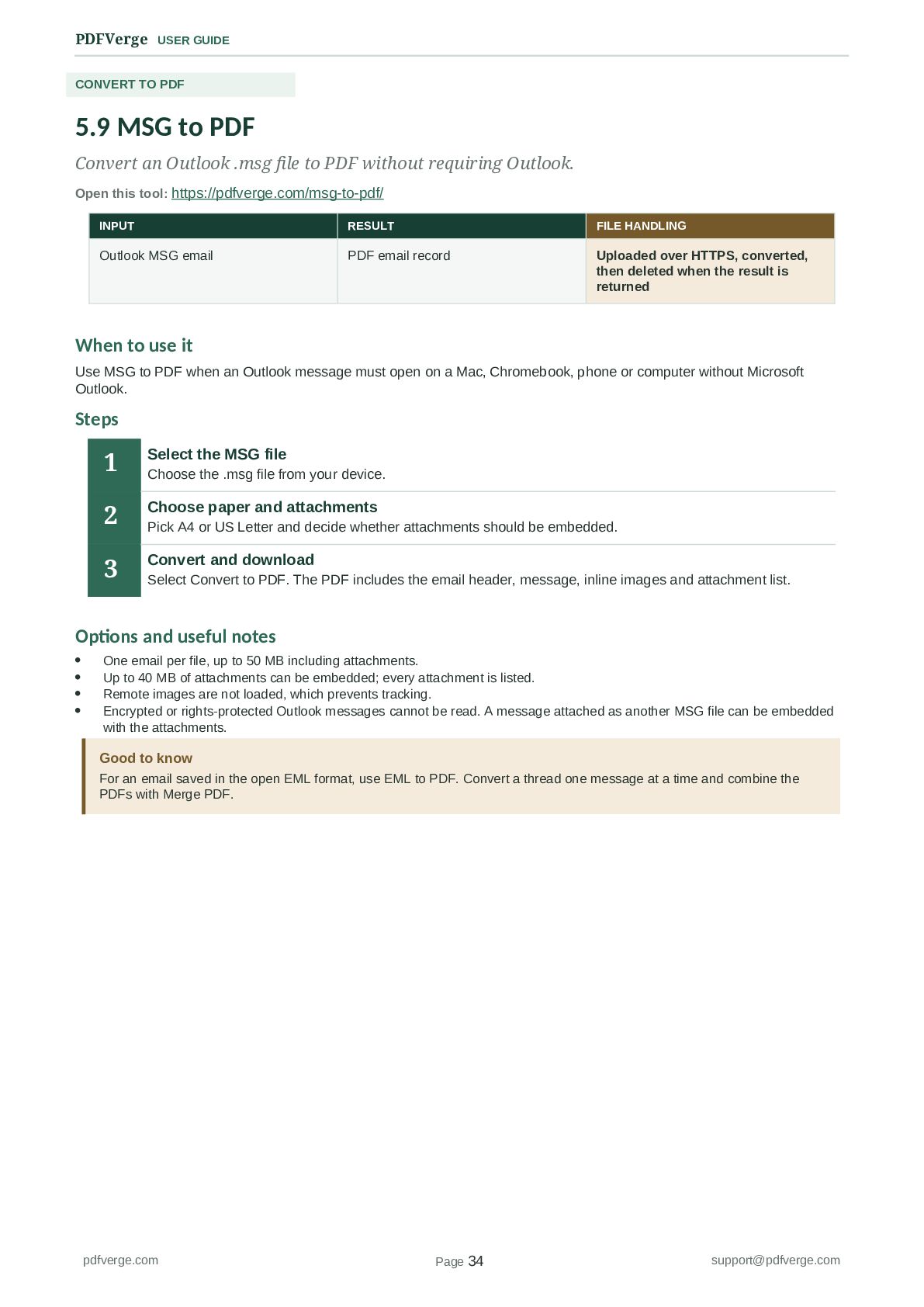
Convert an Outlook .msg file to PDF without requiring Outlook. Open this tool: https://pdfverge.com/msg-to-pdf/ INPUT RESULT FILE HANDLING Outlook MSG email PDF email record Uploaded over HTTPS, converted, then deleted when the result is returned When to use it Use MSG to PDF when an Outlook message must open on a Mac, Chromebook, phone or computer without Microsoft Outlook. Steps 1 Select the MSG file 2 Choose paper and attachments 3 Convert and download Choose the .msg file from your device. Pick A4 or US Letter and decide whether attachments should be embedded. Select Convert to PDF. The PDF includes the email header, message, inline images and attachment list. Options and useful notes One email per file, up to 50 MB including attachments. Up to 40 MB of attachments can be embedded; every attachment is listed. Remote images are not loaded, which prevents tracking. Encrypted or rights-protected Outlook messages cannot be read. A message attached as another MSG file can be embedded with the attachments. Good to know For an email saved in the open EML format, use EML to PDF. Convert a thread one message at a time and combine the PDFs with Merge PDF. pdfverge.com Page 34 [email protected] -
PDFVerge USER GUIDE CONVERT TO PDF 5.10 PowerPoint to PDF
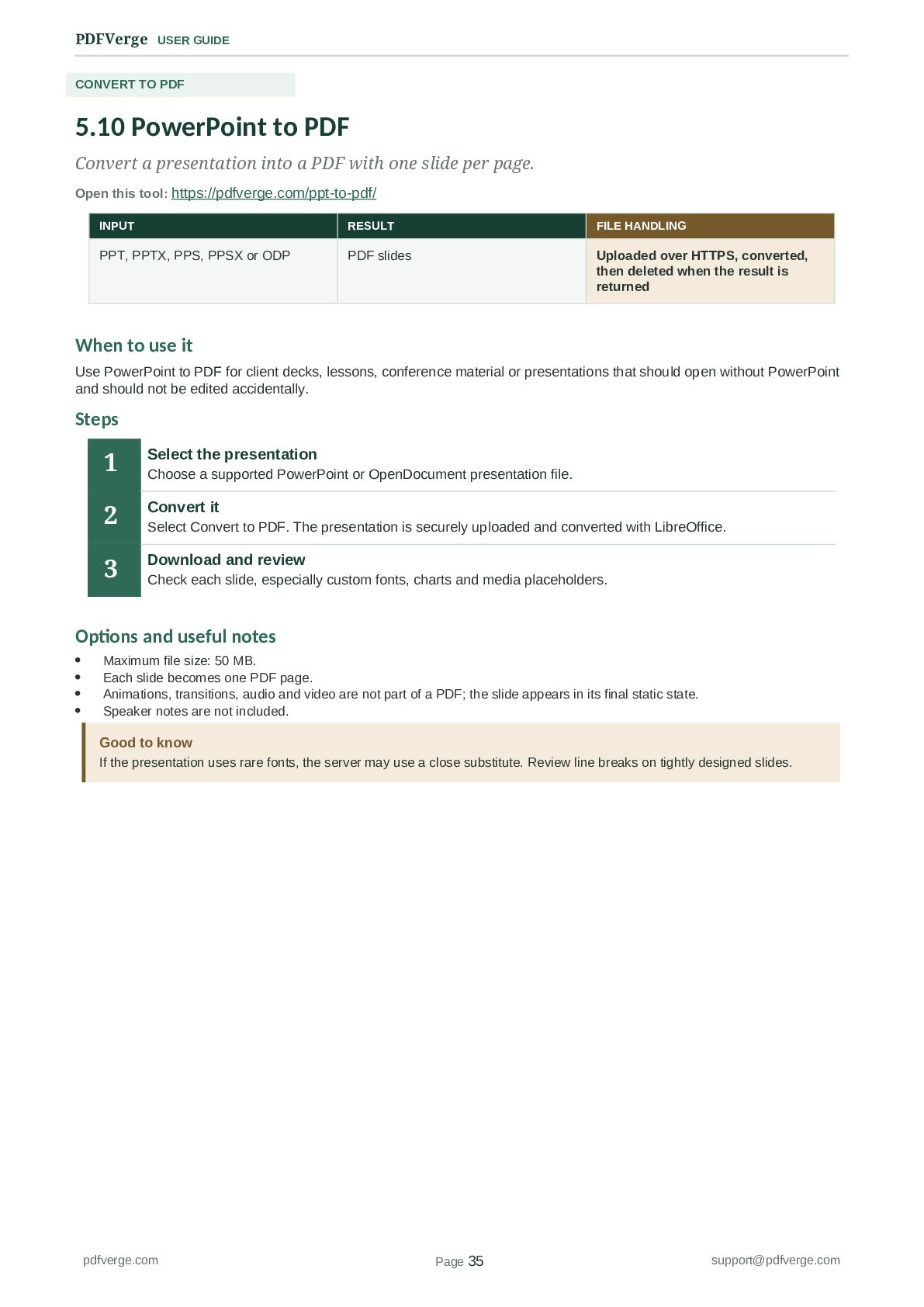
Convert a presentation into a PDF with one slide per page. Open this tool: https://pdfverge.com/ppt-to-pdf/ INPUT RESULT FILE HANDLING PPT, PPTX, PPS, PPSX or ODP PDF slides Uploaded over HTTPS, converted, then deleted when the result is returned When to use it Use PowerPoint to PDF for client decks, lessons, conference material or presentations that should open without PowerPoint and should not be edited accidentally. Steps 1 Select the presentation 2 Convert it 3 Download and review Choose a supported PowerPoint or OpenDocument presentation file. Select Convert to PDF. The presentation is securely uploaded and converted with LibreOffice. Check each slide, especially custom fonts, charts and media placeholders. Options and useful notes Maximum file size: 50 MB. Each slide becomes one PDF page. Animations, transitions, audio and video are not part of a PDF; the slide appears in its final static state. Speaker notes are not included. Good to know If the presentation uses rare fonts, the server may use a close substitute. Review line breaks on tightly designed slides. pdfverge.com Page 35 [email protected] -
PDFVerge USER GUIDE CONVERT TO PDF 5.11 PNG to PDF
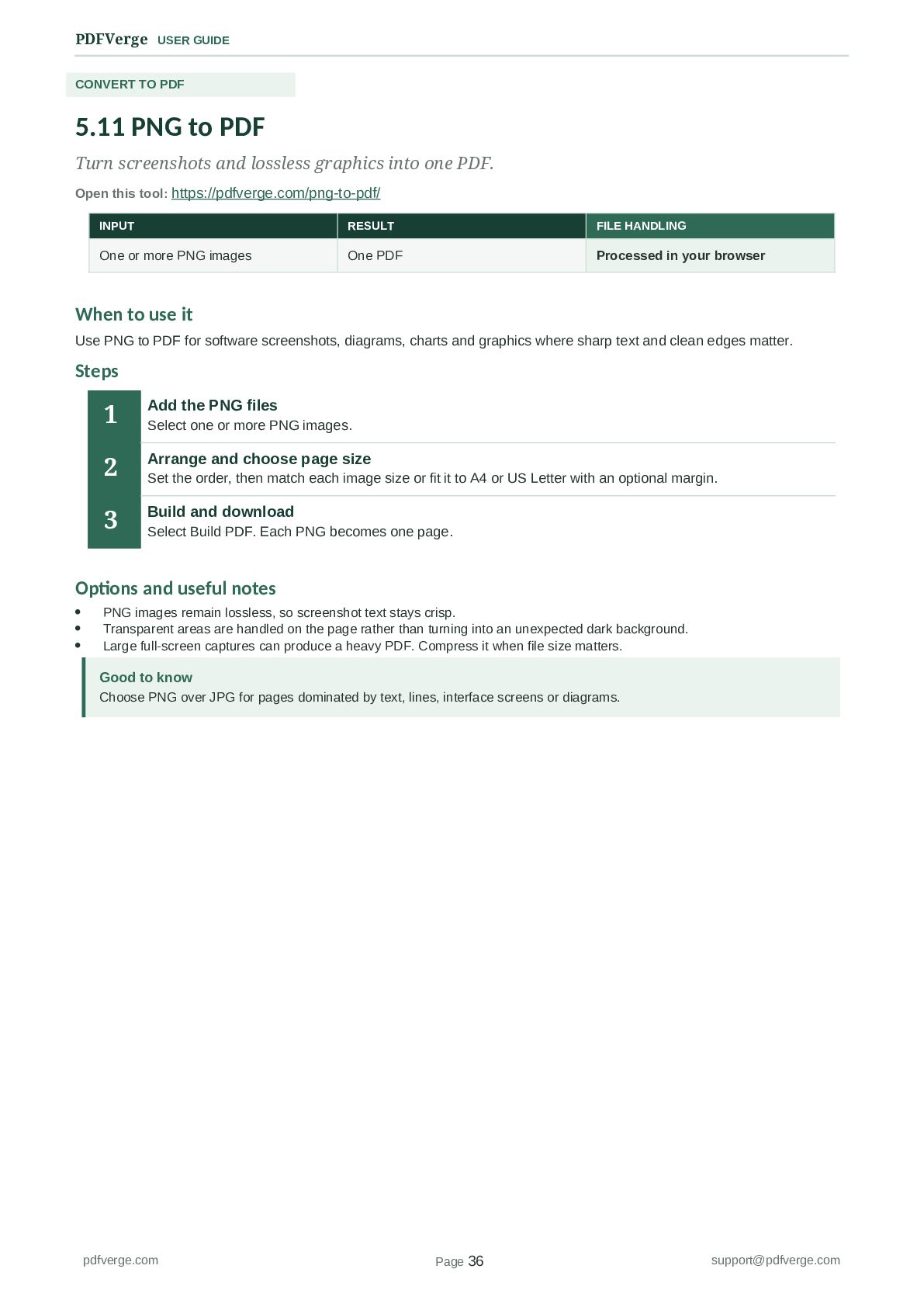
Turn screenshots and lossless graphics into one PDF. Open this tool: https://pdfverge.com/png-to-pdf/ INPUT RESULT FILE HANDLING One or more PNG images One PDF Processed in your browser When to use it Use PNG to PDF for software screenshots, diagrams, charts and graphics where sharp text and clean edges matter. Steps 1 Add the PNG files 2 Arrange and choose page size 3 Build and download Select one or more PNG images. Set the order, then match each image size or fit it to A4 or US Letter with an optional margin. Select Build PDF. Each PNG becomes one page. Options and useful notes PNG images remain lossless, so screenshot text stays crisp. Transparent areas are handled on the page rather than turning into an unexpected dark background. Large full-screen captures can produce a heavy PDF. Compress it when file size matters. Good to know Choose PNG over JPG for pages dominated by text, lines, interface screens or diagrams. pdfverge.com Page 36 [email protected] -
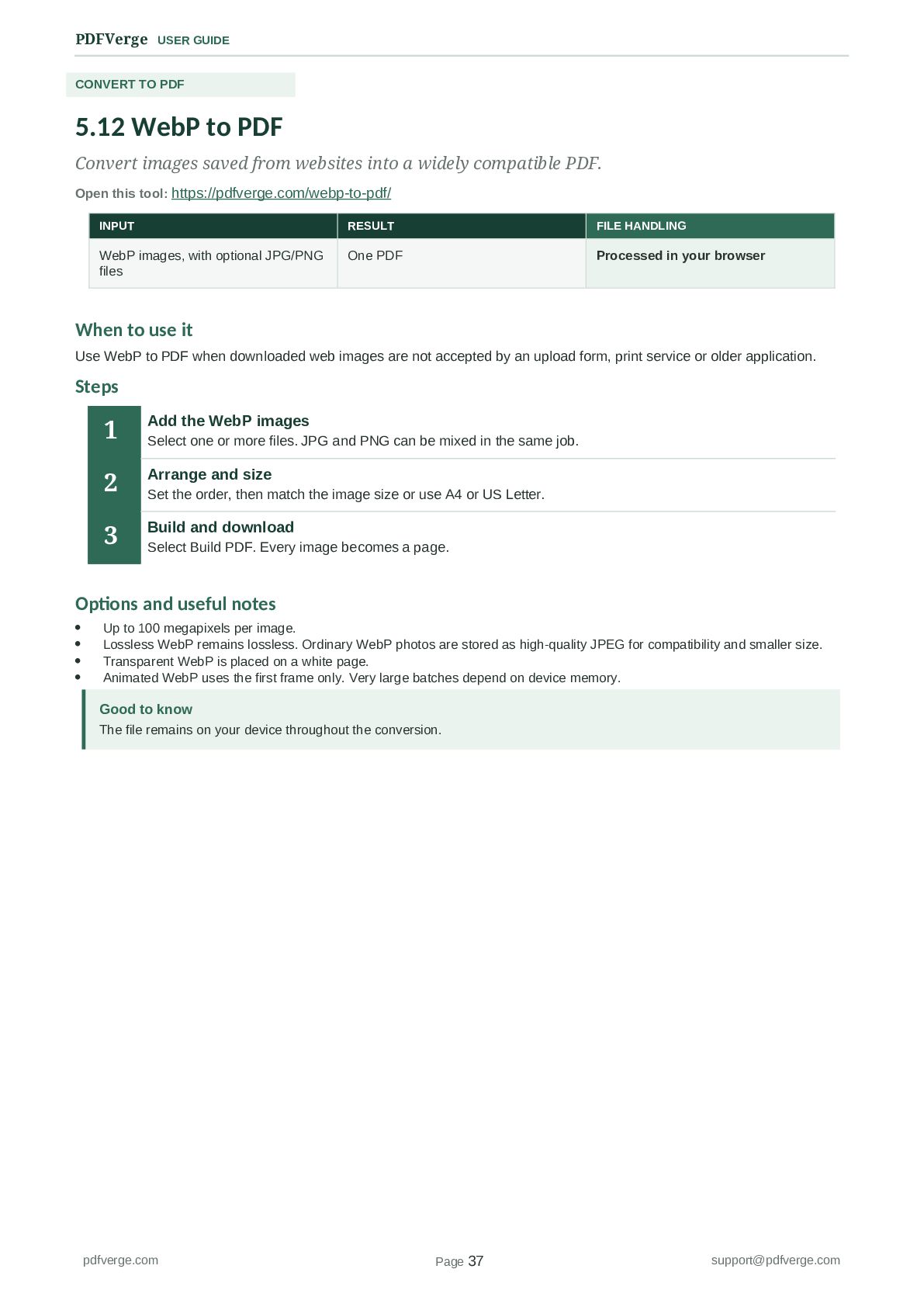
PDFVerge USER GUIDE CONVERT TO PDF 5.12 WebP to PDF
Convert images saved from websites into a widely compatible PDF. Open this tool: https://pdfverge.com/webp-to-pdf/ INPUT RESULT FILE HANDLING WebP images, with optional JPG/PNG files One PDF Processed in your browser When to use it Use WebP to PDF when downloaded web images are not accepted by an upload form, print service or older application. Steps 1 Add the WebP images 2 Arrange and size 3 Build and download Select one or more files. JPG and PNG can be mixed in the same job. Set the order, then match the image size or use A4 or US Letter. Select Build PDF. Every image becomes a page. Options and useful notes Up to 100 megapixels per image. Lossless WebP remains lossless. Ordinary WebP photos are stored as high-quality JPEG for compatibility and smaller size. Transparent WebP is placed on a white page. Animated WebP uses the first frame only. Very large batches depend on device memory. Good to know The file remains on your device throughout the conversion. pdfverge.com Page 37 [email protected] -
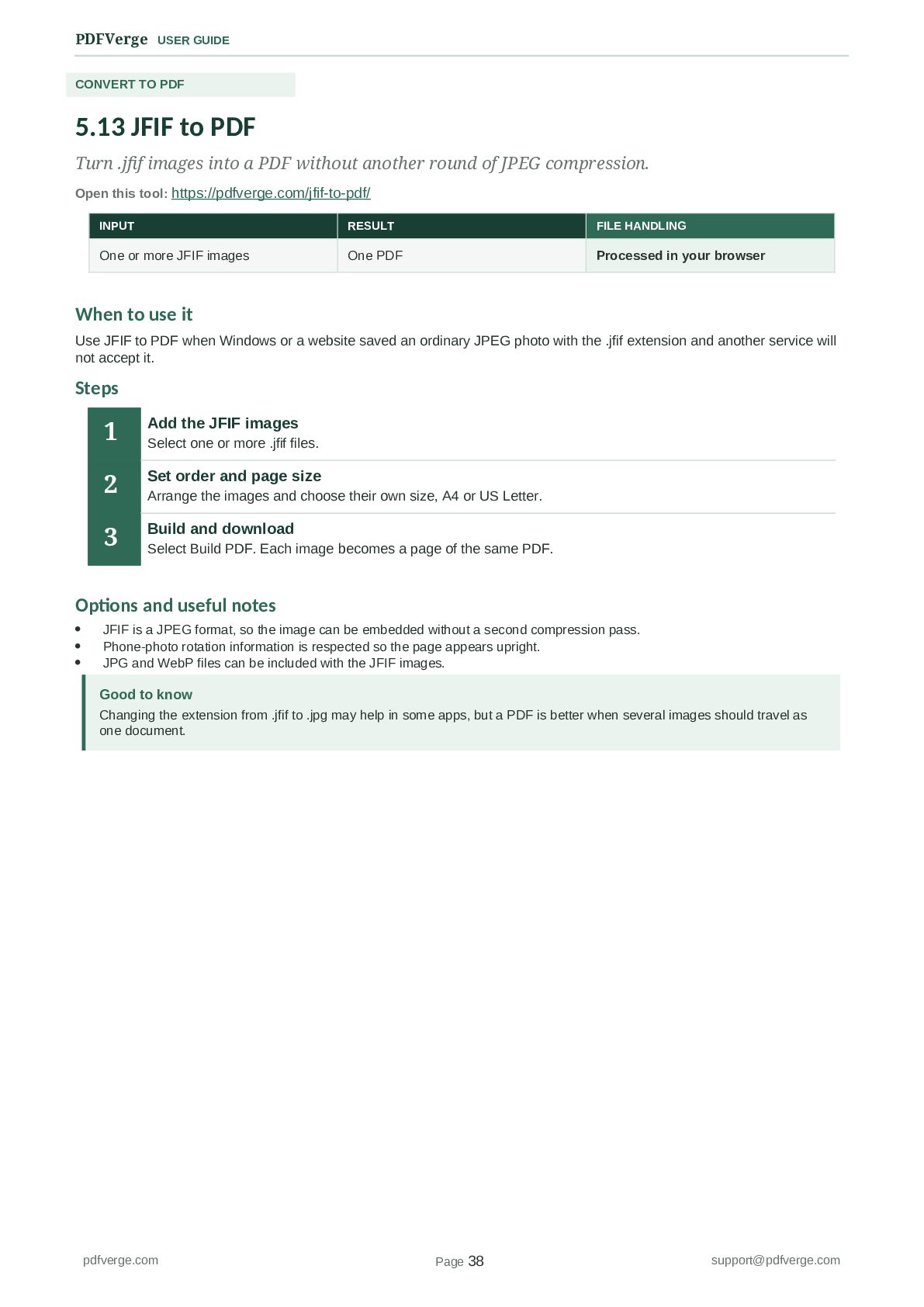
PDFVerge USER GUIDE CONVERT TO PDF 5.13 JFIF to PDF
Turn .jfif images into a PDF without another round of JPEG compression. Open this tool: https://pdfverge.com/jfif-to-pdf/ INPUT RESULT FILE HANDLING One or more JFIF images One PDF Processed in your browser When to use it Use JFIF to PDF when Windows or a website saved an ordinary JPEG photo with the .jfif extension and another service will not accept it. Steps 1 Add the JFIF images 2 Set order and page size 3 Build and download Select one or more .jfif files. Arrange the images and choose their own size, A4 or US Letter. Select Build PDF. Each image becomes a page of the same PDF. Options and useful notes JFIF is a JPEG format, so the image can be embedded without a second compression pass. Phone-photo rotation information is respected so the page appears upright. JPG and WebP files can be included with the JFIF images. Good to know Changing the extension from .jfif to .jpg may help in some apps, but a PDF is better when several images should travel as one document. pdfverge.com Page 38 [email protected] -
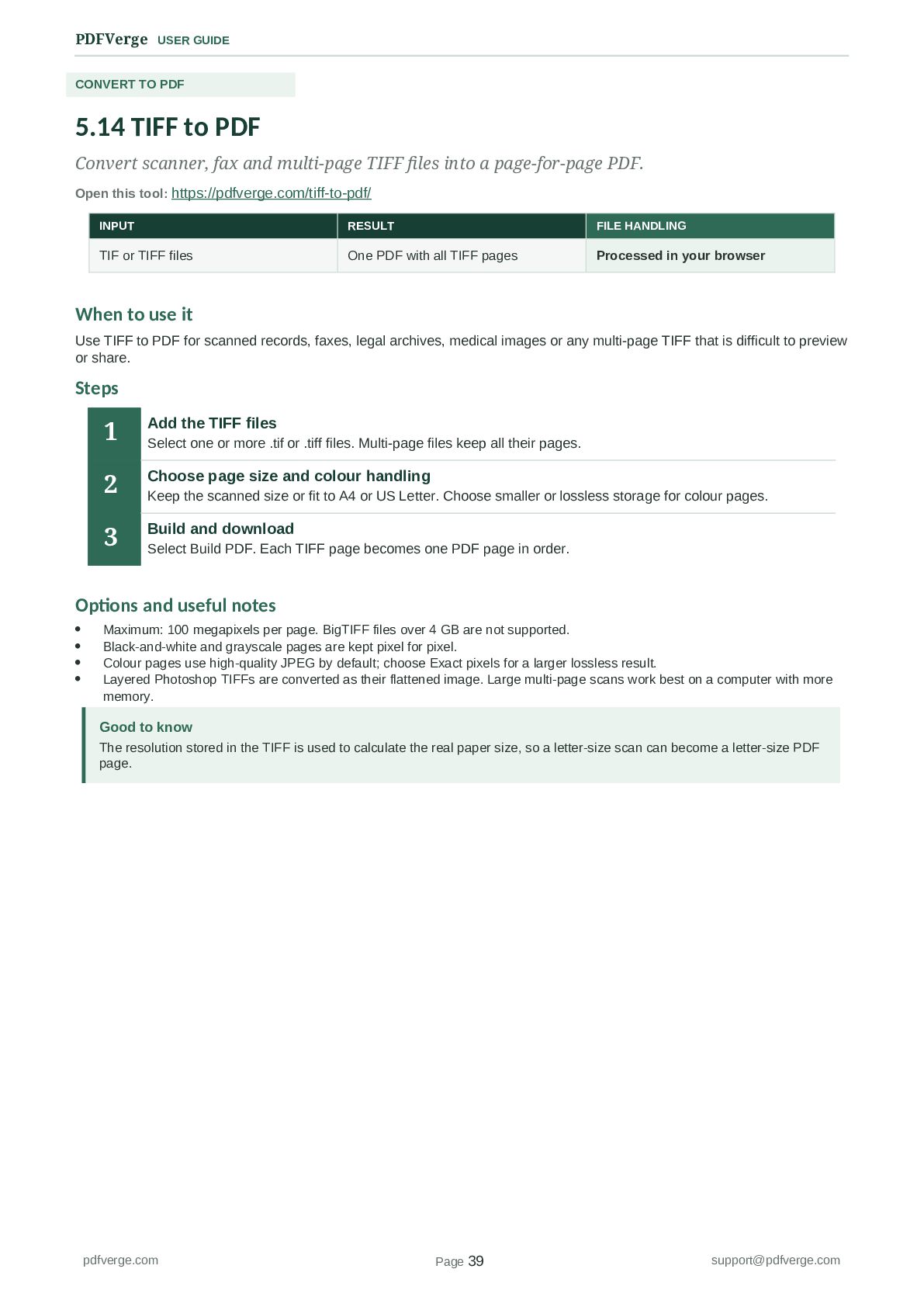
PDFVerge USER GUIDE CONVERT TO PDF 5.14 TIFF to PDF
Convert scanner, fax and multi-page TIFF files into a page-for-page PDF. Open this tool: https://pdfverge.com/tiff-to-pdf/ INPUT RESULT FILE HANDLING TIF or TIFF files One PDF with all TIFF pages Processed in your browser When to use it Use TIFF to PDF for scanned records, faxes, legal archives, medical images or any multi-page TIFF that is difficult to preview or share. Steps 1 Add the TIFF files 2 Choose page size and colour handling 3 Build and download Select one or more .tif or .tiff files. Multi-page files keep all their pages. Keep the scanned size or fit to A4 or US Letter. Choose smaller or lossless storage for colour pages. Select Build PDF. Each TIFF page becomes one PDF page in order. Options and useful notes Maximum: 100 megapixels per page. BigTIFF files over 4 GB are not supported. Black-and-white and grayscale pages are kept pixel for pixel. Colour pages use high-quality JPEG by default; choose Exact pixels for a larger lossless result. Layered Photoshop TIFFs are converted as their flattened image. Large multi-page scans work best on a computer with more memory. Good to know The resolution stored in the TIFF is used to calculate the real paper size, so a letter-size scan can become a letter-size PDF page. pdfverge.com Page 39 [email protected] -
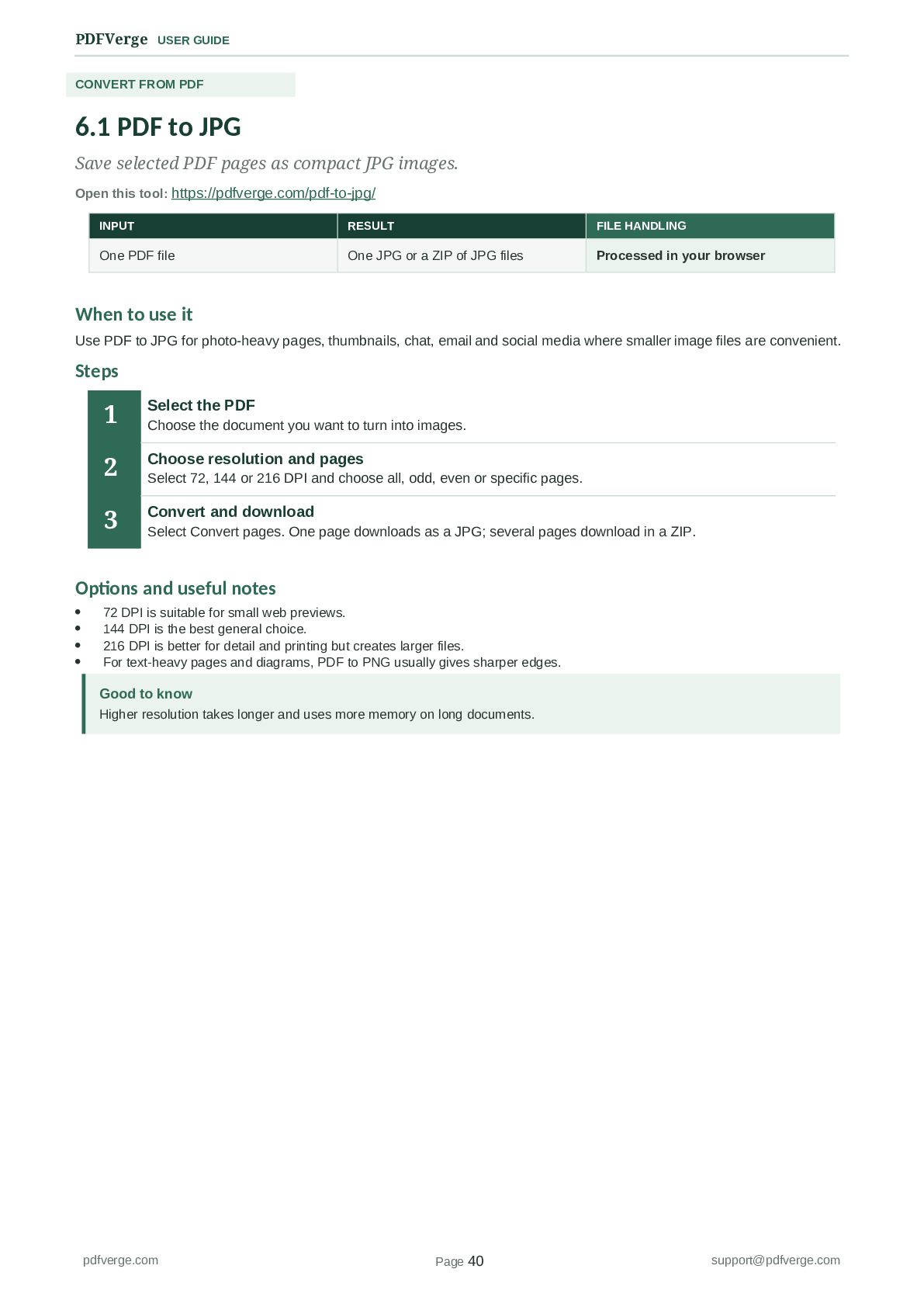
PDFVerge USER GUIDE CONVERT FROM PDF 6.1 PDF to JPG
Save selected PDF pages as compact JPG images. Open this tool: https://pdfverge.com/pdf-to-jpg/ INPUT RESULT FILE HANDLING One PDF file One JPG or a ZIP of JPG files Processed in your browser When to use it Use PDF to JPG for photo-heavy pages, thumbnails, chat, email and social media where smaller image files are convenient. Steps 1 Select the PDF 2 Choose resolution and pages 3 Convert and download Choose the document you want to turn into images. Select 72, 144 or 216 DPI and choose all, odd, even or specific pages. Select Convert pages. One page downloads as a JPG; several pages download in a ZIP. Options and useful notes 72 DPI is suitable for small web previews. 144 DPI is the best general choice. 216 DPI is better for detail and printing but creates larger files. For text-heavy pages and diagrams, PDF to PNG usually gives sharper edges. Good to know Higher resolution takes longer and uses more memory on long documents. pdfverge.com Page 40 [email protected] -
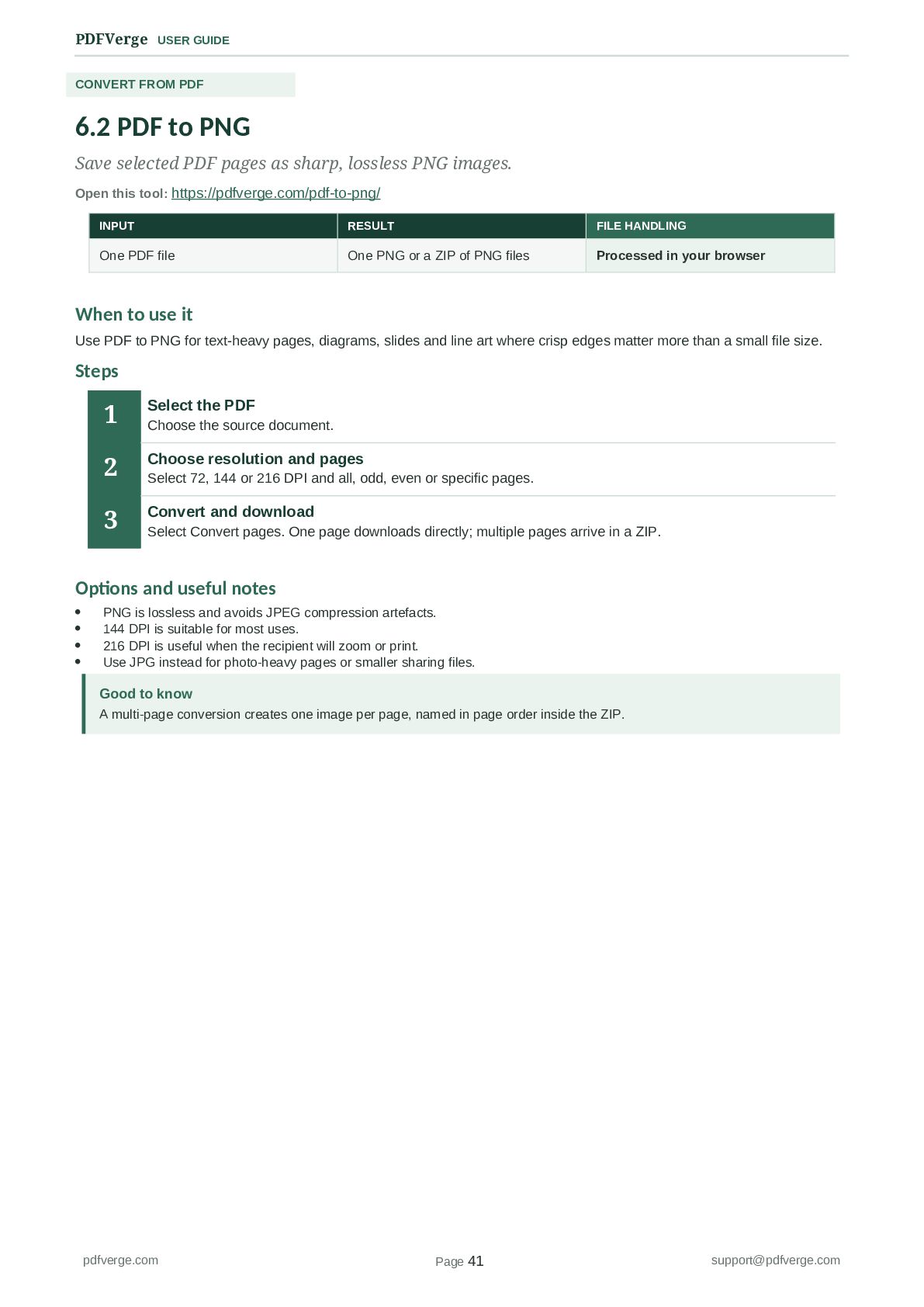
PDFVerge USER GUIDE CONVERT FROM PDF 6.2 PDF to PNG
Save selected PDF pages as sharp, lossless PNG images. Open this tool: https://pdfverge.com/pdf-to-png/ INPUT RESULT FILE HANDLING One PDF file One PNG or a ZIP of PNG files Processed in your browser When to use it Use PDF to PNG for text-heavy pages, diagrams, slides and line art where crisp edges matter more than a small file size. Steps 1 Select the PDF 2 Choose resolution and pages 3 Convert and download Choose the source document. Select 72, 144 or 216 DPI and all, odd, even or specific pages. Select Convert pages. One page downloads directly; multiple pages arrive in a ZIP. Options and useful notes PNG is lossless and avoids JPEG compression artefacts. 144 DPI is suitable for most uses. 216 DPI is useful when the recipient will zoom or print. Use JPG instead for photo-heavy pages or smaller sharing files. Good to know A multi-page conversion creates one image per page, named in page order inside the ZIP. pdfverge.com Page 41 [email protected] -
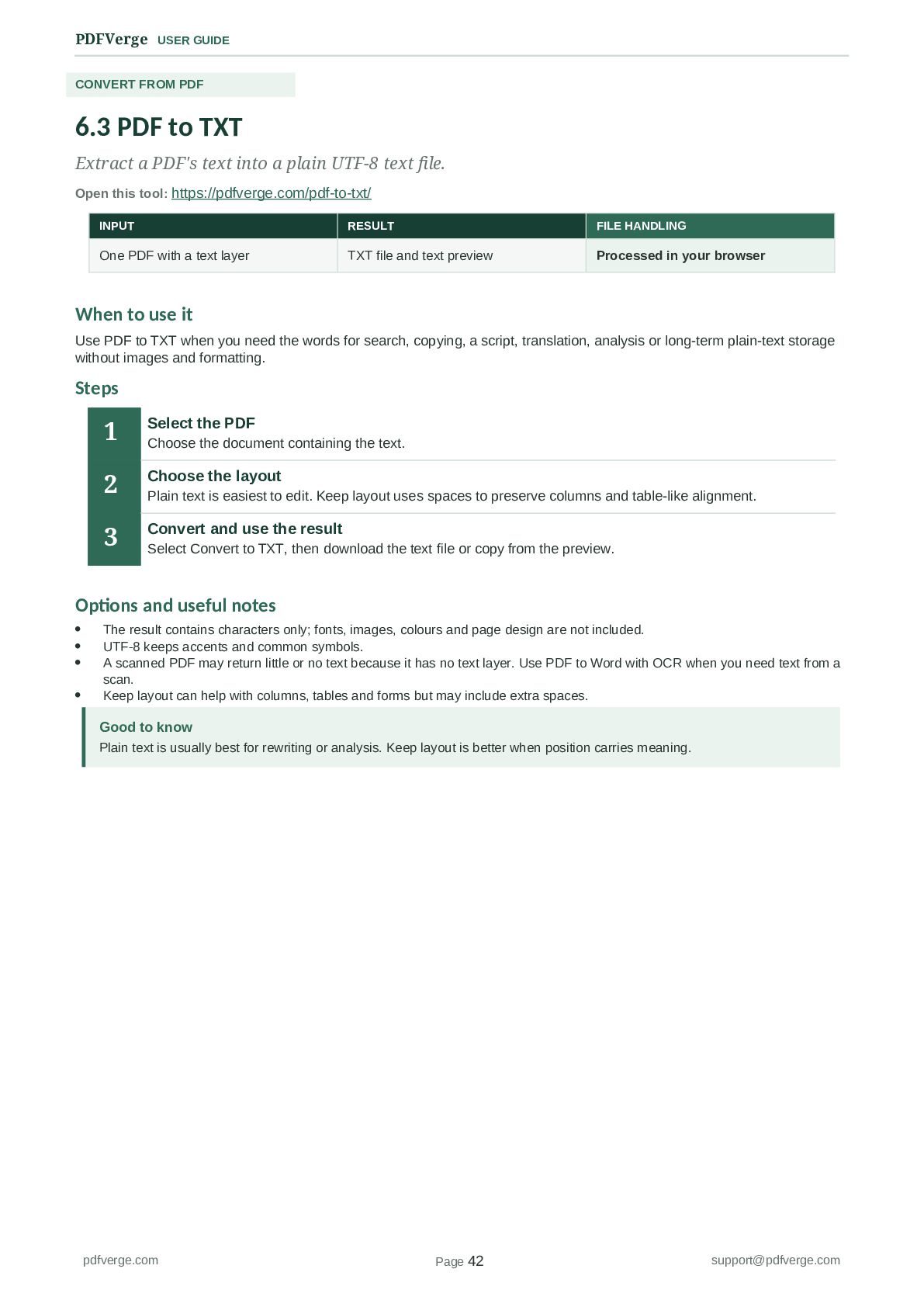
PDFVerge USER GUIDE CONVERT FROM PDF 6.3 PDF to TXT
Extract a PDF's text into a plain UTF-8 text file. Open this tool: https://pdfverge.com/pdf-to-txt/ INPUT RESULT FILE HANDLING One PDF with a text layer TXT file and text preview Processed in your browser When to use it Use PDF to TXT when you need the words for search, copying, a script, translation, analysis or long-term plain-text storage without images and formatting. Steps 1 Select the PDF 2 Choose the layout 3 Convert and use the result Choose the document containing the text. Plain text is easiest to edit. Keep layout uses spaces to preserve columns and table-like alignment. Select Convert to TXT, then download the text file or copy from the preview. Options and useful notes The result contains characters only; fonts, images, colours and page design are not included. UTF-8 keeps accents and common symbols. A scanned PDF may return little or no text because it has no text layer. Use PDF to Word with OCR when you need text from a scan. Keep layout can help with columns, tables and forms but may include extra spaces. Good to know Plain text is usually best for rewriting or analysis. Keep layout is better when position carries meaning. pdfverge.com Page 42 [email protected] -
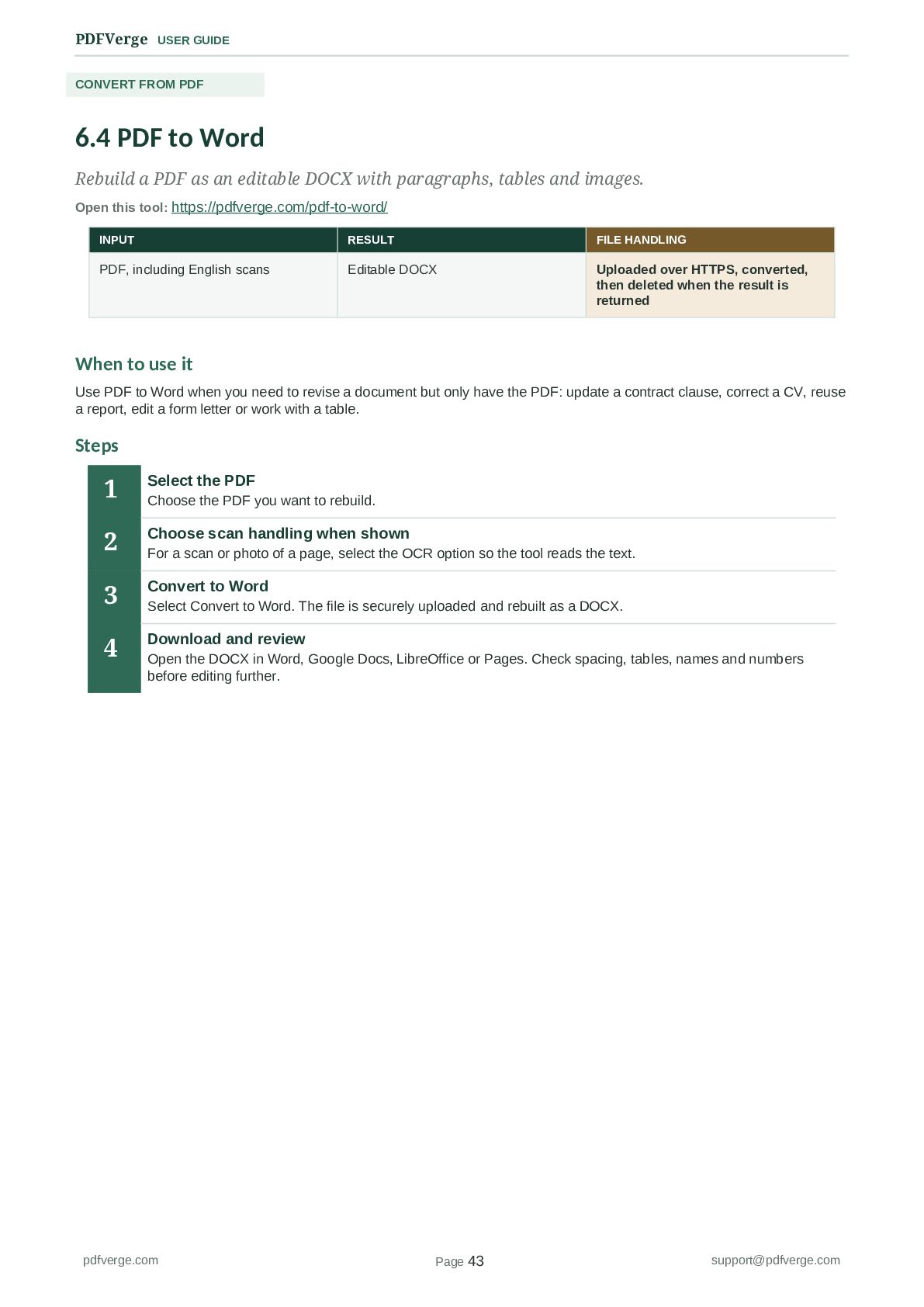
PDFVerge USER GUIDE CONVERT FROM PDF 6.4 PDF to Word
Rebuild a PDF as an editable DOCX with paragraphs, tables and images. Open this tool: https://pdfverge.com/pdf-to-word/ INPUT RESULT FILE HANDLING PDF, including English scans Editable DOCX Uploaded over HTTPS, converted, then deleted when the result is returned When to use it Use PDF to Word when you need to revise a document but only have the PDF: update a contract clause, correct a CV, reuse a report, edit a form letter or work with a table. Steps 1 Select the PDF 2 Choose scan handling when shown 3 Convert to Word 4 Download and review Choose the PDF you want to rebuild. For a scan or photo of a page, select the OCR option so the tool reads the text. Select Convert to Word. The file is securely uploaded and rebuilt as a DOCX. Open the DOCX in Word, Google Docs, LibreOffice or Pages. Check spacing, tables, names and numbers before editing further. pdfverge.com Page 43 [email protected] -
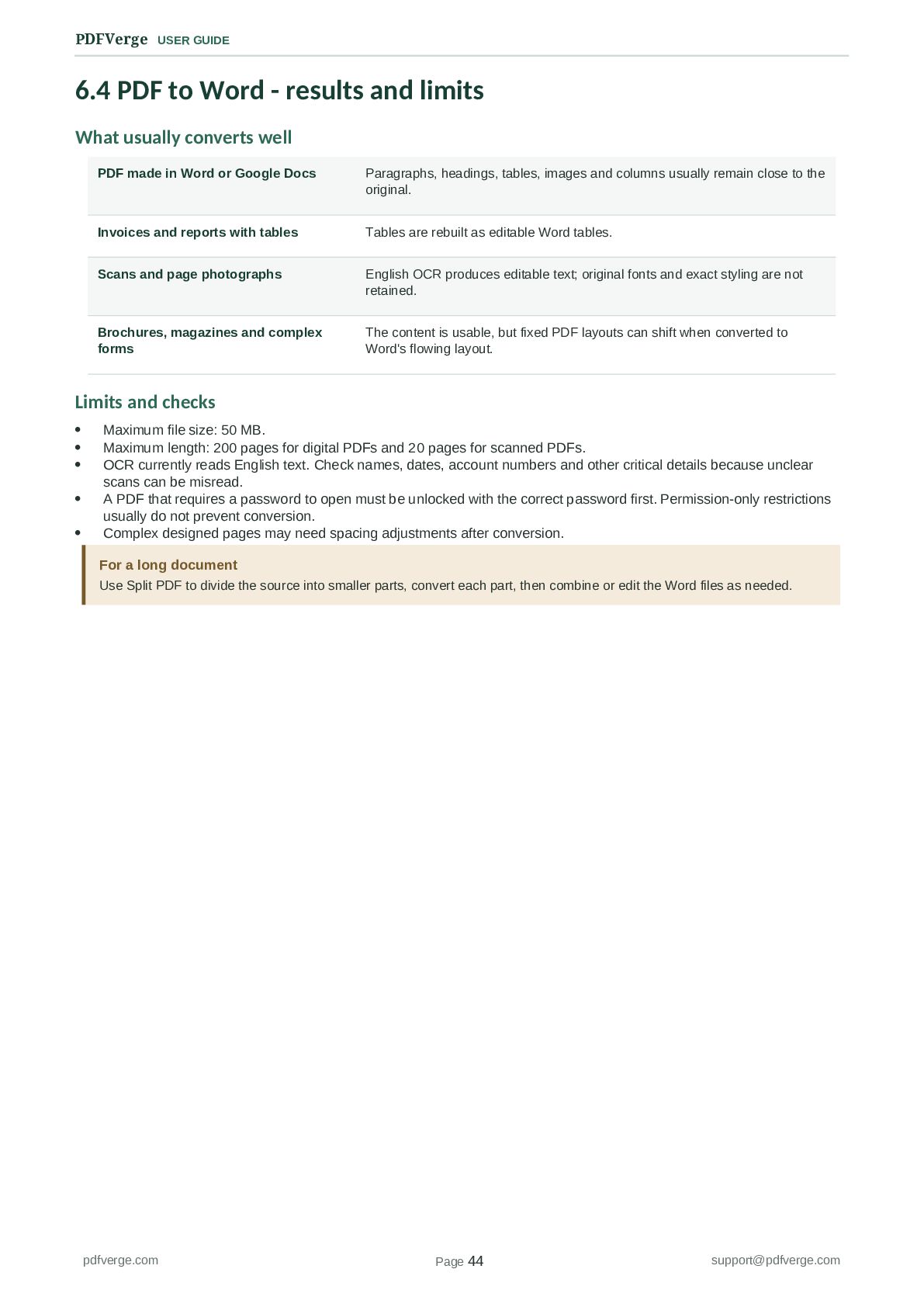
PDFVerge USER GUIDE 6.4 PDF to Word - results and
limits What usually converts well PDF made in Word or Google Docs Paragraphs, headings, tables, images and columns usually remain close to the original. Invoices and reports with tables Tables are rebuilt as editable Word tables. Scans and page photographs English OCR produces editable text; original fonts and exact styling are not retained. Brochures, magazines and complex forms The content is usable, but fixed PDF layouts can shift when converted to Word's flowing layout. Limits and checks Maximum file size: 50 MB. Maximum length: 200 pages for digital PDFs and 20 pages for scanned PDFs. OCR currently reads English text. Check names, dates, account numbers and other critical details because unclear scans can be misread. A PDF that requires a password to open must be unlocked with the correct password first. Permission-only restrictions usually do not prevent conversion. Complex designed pages may need spacing adjustments after conversion. For a long document Use Split PDF to divide the source into smaller parts, convert each part, then combine or edit the Word files as needed. pdfverge.com Page 44 [email protected] -
PDFVerge USER GUIDE SECURE PDF FILES 7.1 Unlock PDF Remove
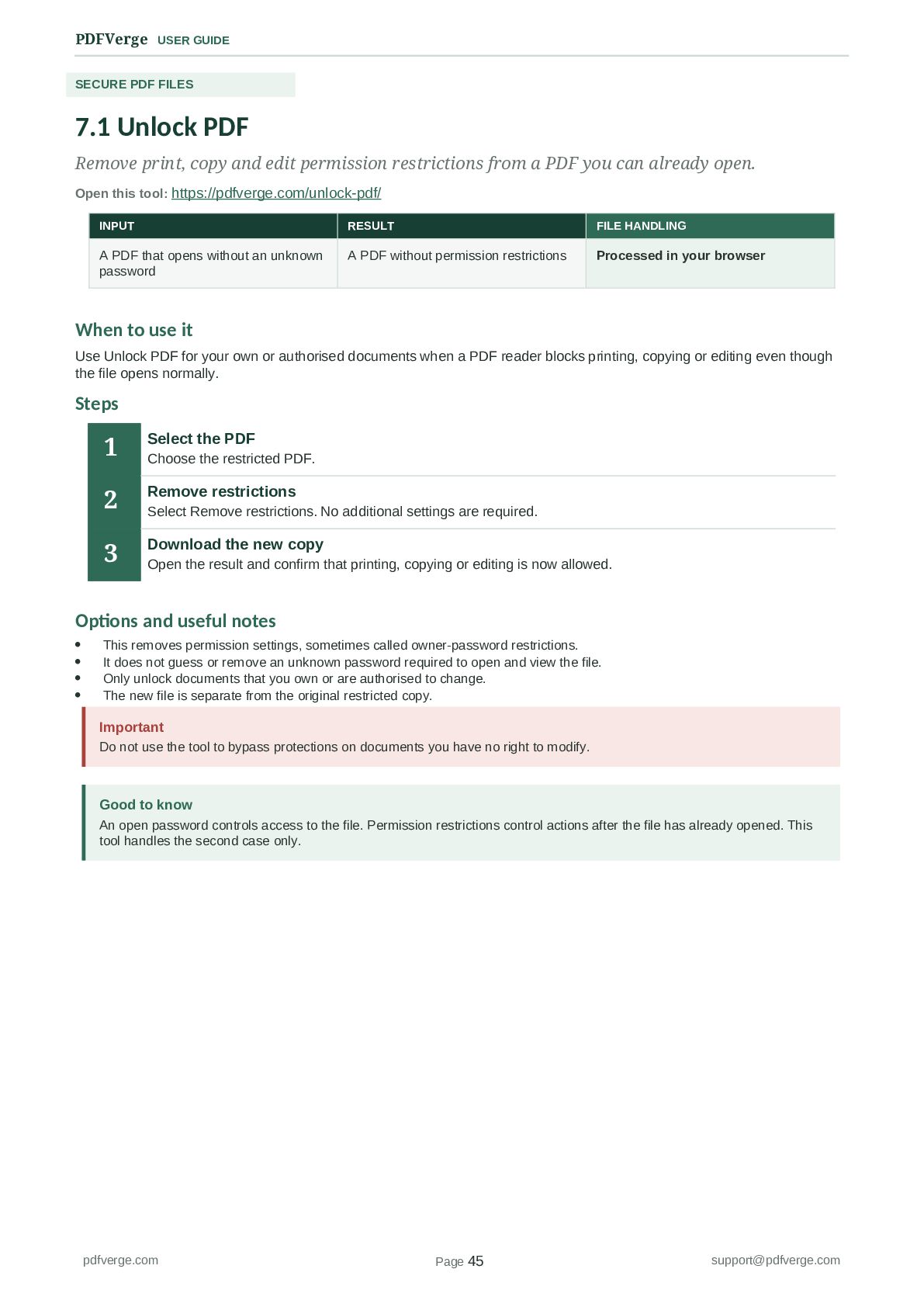
print, copy and edit permission restrictions from a PDF you can already open. Open this tool: https://pdfverge.com/unlock-pdf/ INPUT RESULT FILE HANDLING A PDF that opens without an unknown password A PDF without permission restrictions Processed in your browser When to use it Use Unlock PDF for your own or authorised documents when a PDF reader blocks printing, copying or editing even though the file opens normally. Steps 1 Select the PDF 2 Remove restrictions 3 Download the new copy Choose the restricted PDF. Select Remove restrictions. No additional settings are required. Open the result and confirm that printing, copying or editing is now allowed. Options and useful notes This removes permission settings, sometimes called owner-password restrictions. It does not guess or remove an unknown password required to open and view the file. Only unlock documents that you own or are authorised to change. The new file is separate from the original restricted copy. Important Do not use the tool to bypass protections on documents you have no right to modify. Good to know An open password controls access to the file. Permission restrictions control actions after the file has already opened. This tool handles the second case only. pdfverge.com Page 45 [email protected] -
PDFVerge USER GUIDE 8. Troubleshooting Start with the message shown
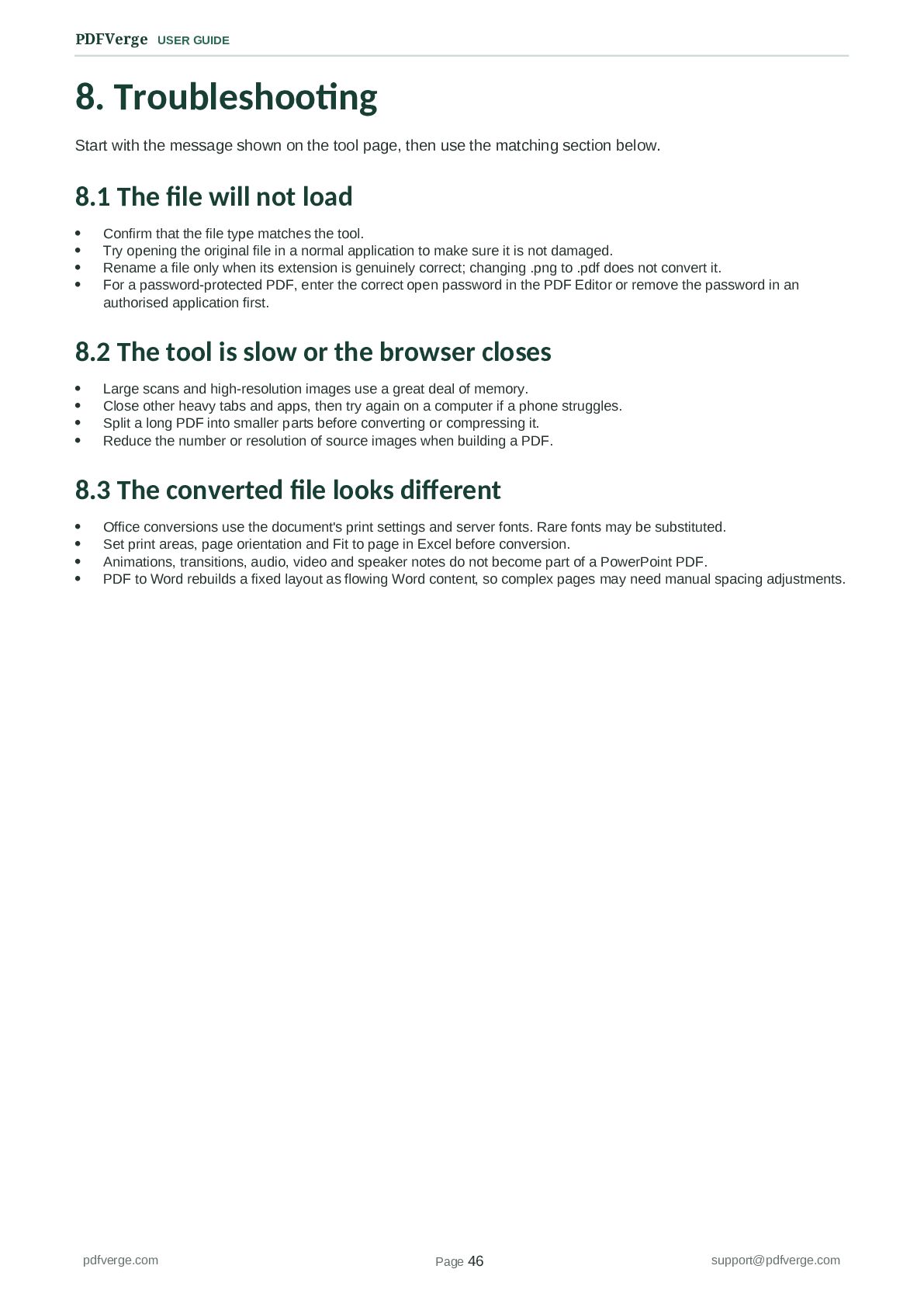
on the tool page, then use the matching section below. 8.1 The file will not load Confirm that the file type matches the tool. Try opening the original file in a normal application to make sure it is not damaged. Rename a file only when its extension is genuinely correct; changing .png to .pdf does not convert it. For a password-protected PDF, enter the correct open password in the PDF Editor or remove the password in an authorised application first. 8.2 The tool is slow or the browser closes Large scans and high-resolution images use a great deal of memory. Close other heavy tabs and apps, then try again on a computer if a phone struggles. Split a long PDF into smaller parts before converting or compressing it. Reduce the number or resolution of source images when building a PDF. 8.3 The converted file looks different Office conversions use the document's print settings and server fonts. Rare fonts may be substituted. Set print areas, page orientation and Fit to page in Excel before conversion. Animations, transitions, audio, video and speaker notes do not become part of a PowerPoint PDF. PDF to Word rebuilds a fixed layout as flowing Word content, so complex pages may need manual spacing adjustments. pdfverge.com Page 46 [email protected] -
PDFVerge USER GUIDE 8.4 A scanned PDF has no editable
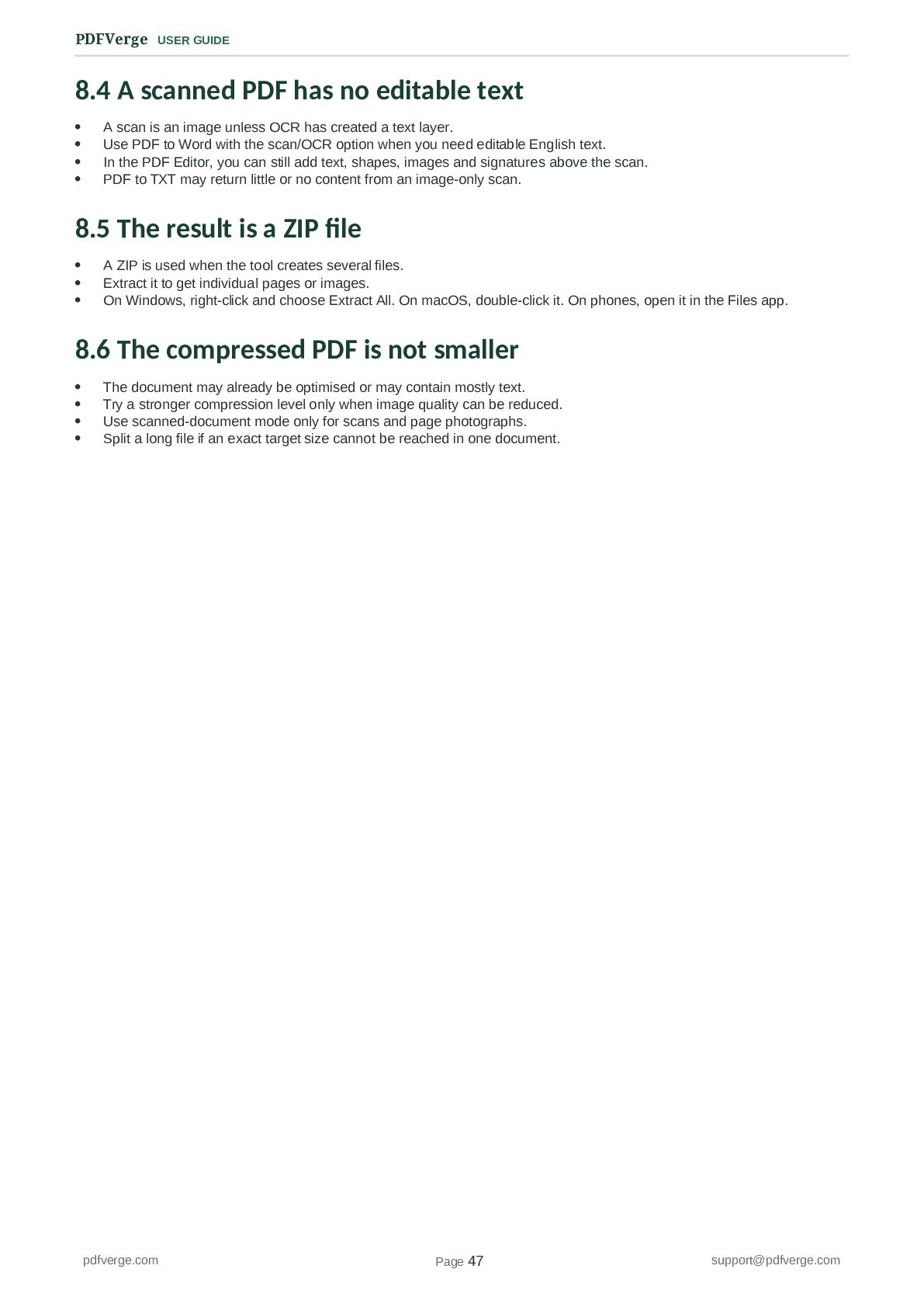
text A scan is an image unless OCR has created a text layer. Use PDF to Word with the scan/OCR option when you need editable English text. In the PDF Editor, you can still add text, shapes, images and signatures above the scan. PDF to TXT may return little or no content from an image-only scan. 8.5 The result is a ZIP file A ZIP is used when the tool creates several files. Extract it to get individual pages or images. On Windows, right-click and choose Extract All. On macOS, double-click it. On phones, open it in the Files app. 8.6 The compressed PDF is not smaller The document may already be optimised or may contain mostly text. Try a stronger compression level only when image quality can be reduced. Use scanned-document mode only for scans and page photographs. Split a long file if an exact target size cannot be reached in one document. pdfverge.com Page 47 [email protected] -
PDFVerge USER GUIDE 8.7 Email images are missing
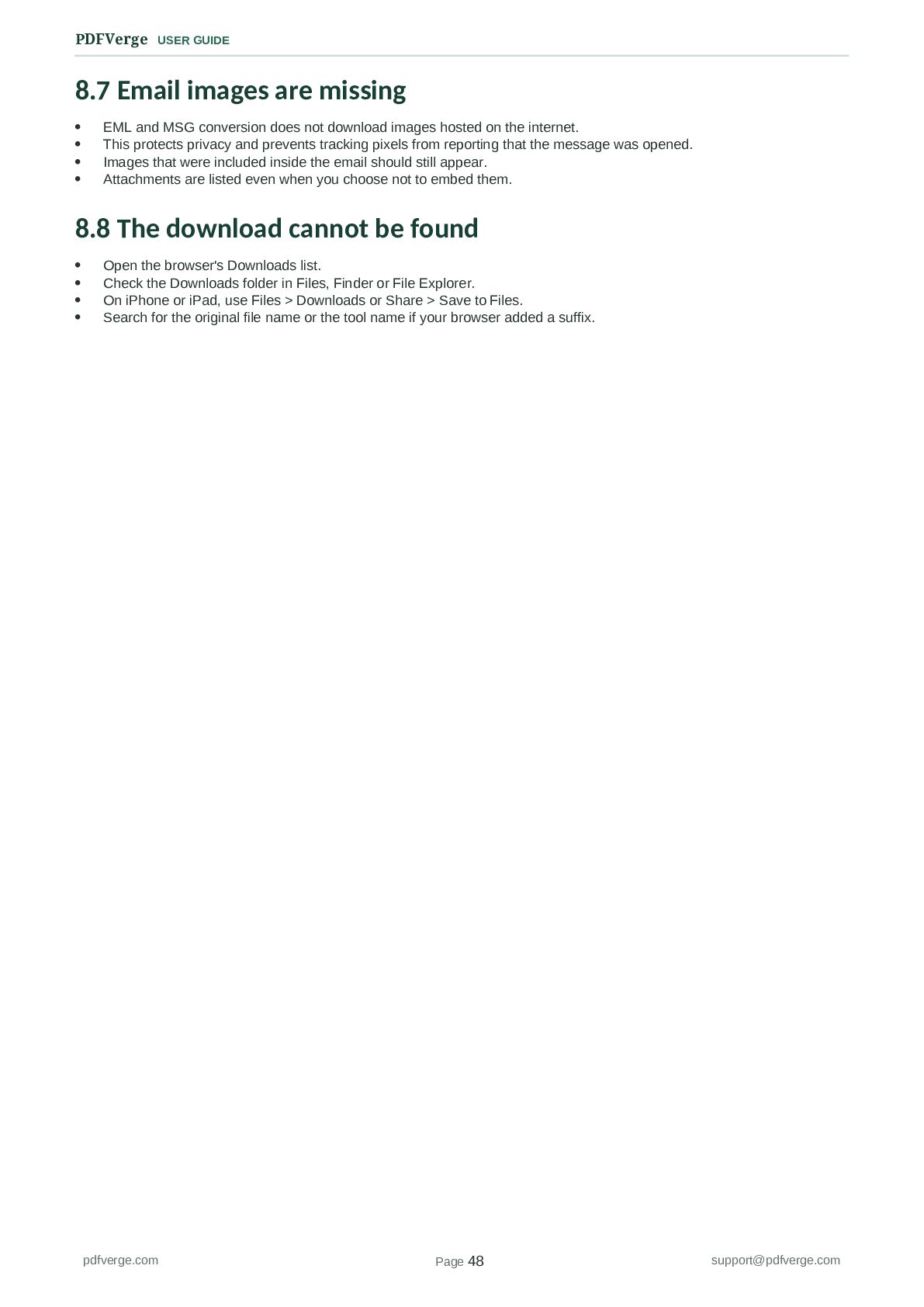
EML and MSG conversion does not download images hosted on the internet. This protects privacy and prevents tracking pixels from reporting that the message was opened. Images that were included inside the email should still appear. Attachments are listed even when you choose not to embed them. 8.8 The download cannot be found Open the browser's Downloads list. Check the Downloads folder in Files, Finder or File Explorer. On iPhone or iPad, use Files > Downloads or Share > Save to Files. Search for the original file name or the tool name if your browser added a suffix. pdfverge.com Page 48 [email protected] -
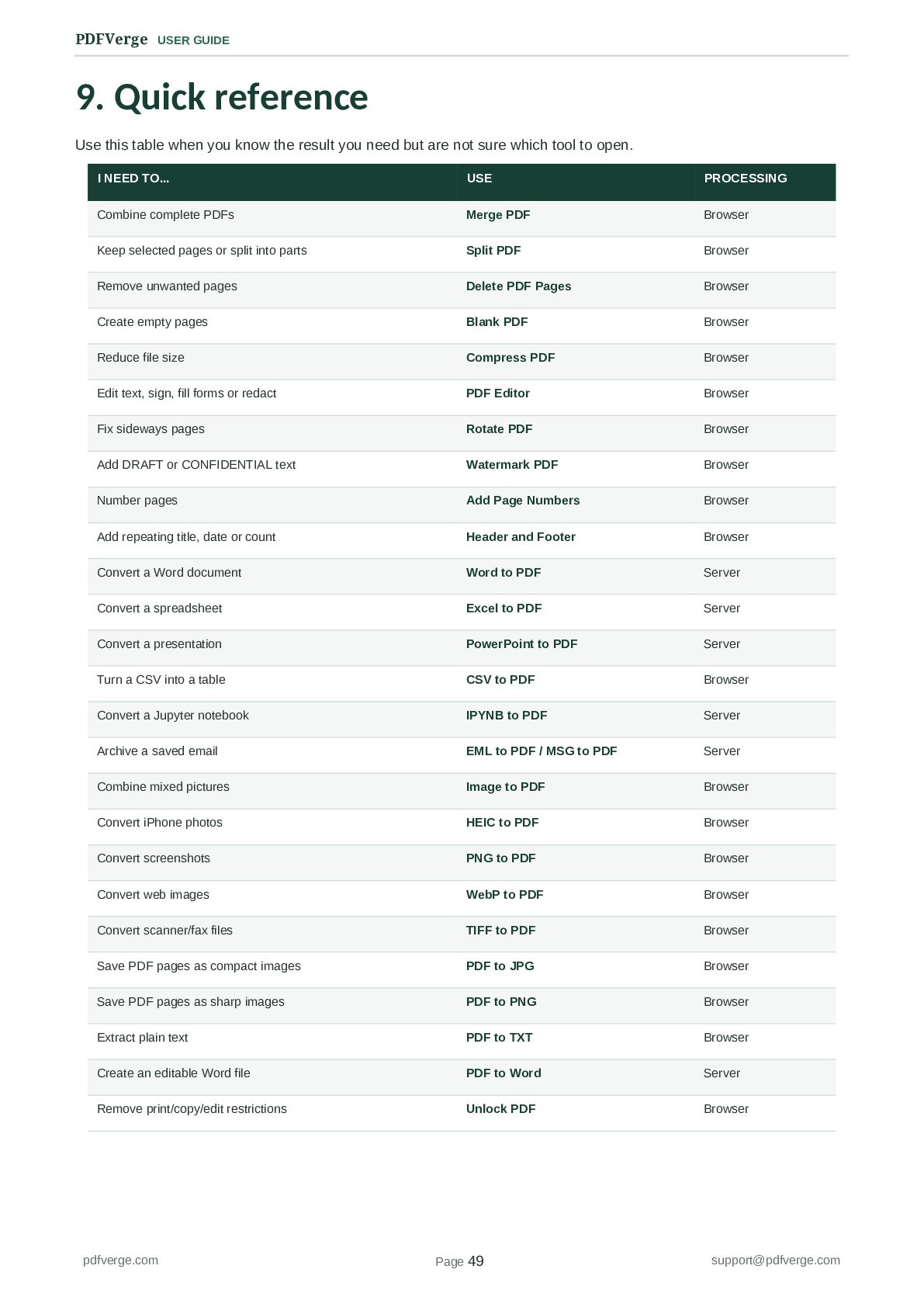
PDFVerge USER GUIDE 9. Quick reference Use this table when
you know the result you need but are not sure which tool to open. I NEED TO... USE PROCESSING Combine complete PDFs Merge PDF Browser Keep selected pages or split into parts Split PDF Browser Remove unwanted pages Delete PDF Pages Browser Create empty pages Blank PDF Browser Reduce file size Compress PDF Browser Edit text, sign, fill forms or redact PDF Editor Browser Fix sideways pages Rotate PDF Browser Add DRAFT or CONFIDENTIAL text Watermark PDF Browser Number pages Add Page Numbers Browser Add repeating title, date or count Header and Footer Browser Convert a Word document Word to PDF Server Convert a spreadsheet Excel to PDF Server Convert a presentation PowerPoint to PDF Server Turn a CSV into a table CSV to PDF Browser Convert a Jupyter notebook IPYNB to PDF Server Archive a saved email EML to PDF / MSG to PDF Server Combine mixed pictures Image to PDF Browser Convert iPhone photos HEIC to PDF Browser Convert screenshots PNG to PDF Browser Convert web images WebP to PDF Browser Convert scanner/fax files TIFF to PDF Browser Save PDF pages as compact images PDF to JPG Browser Save PDF pages as sharp images PDF to PNG Browser Extract plain text PDF to TXT Browser Create an editable Word file PDF to Word Server Remove print/copy/edit restrictions Unlock PDF Browser pdfverge.com Page 49 [email protected] -
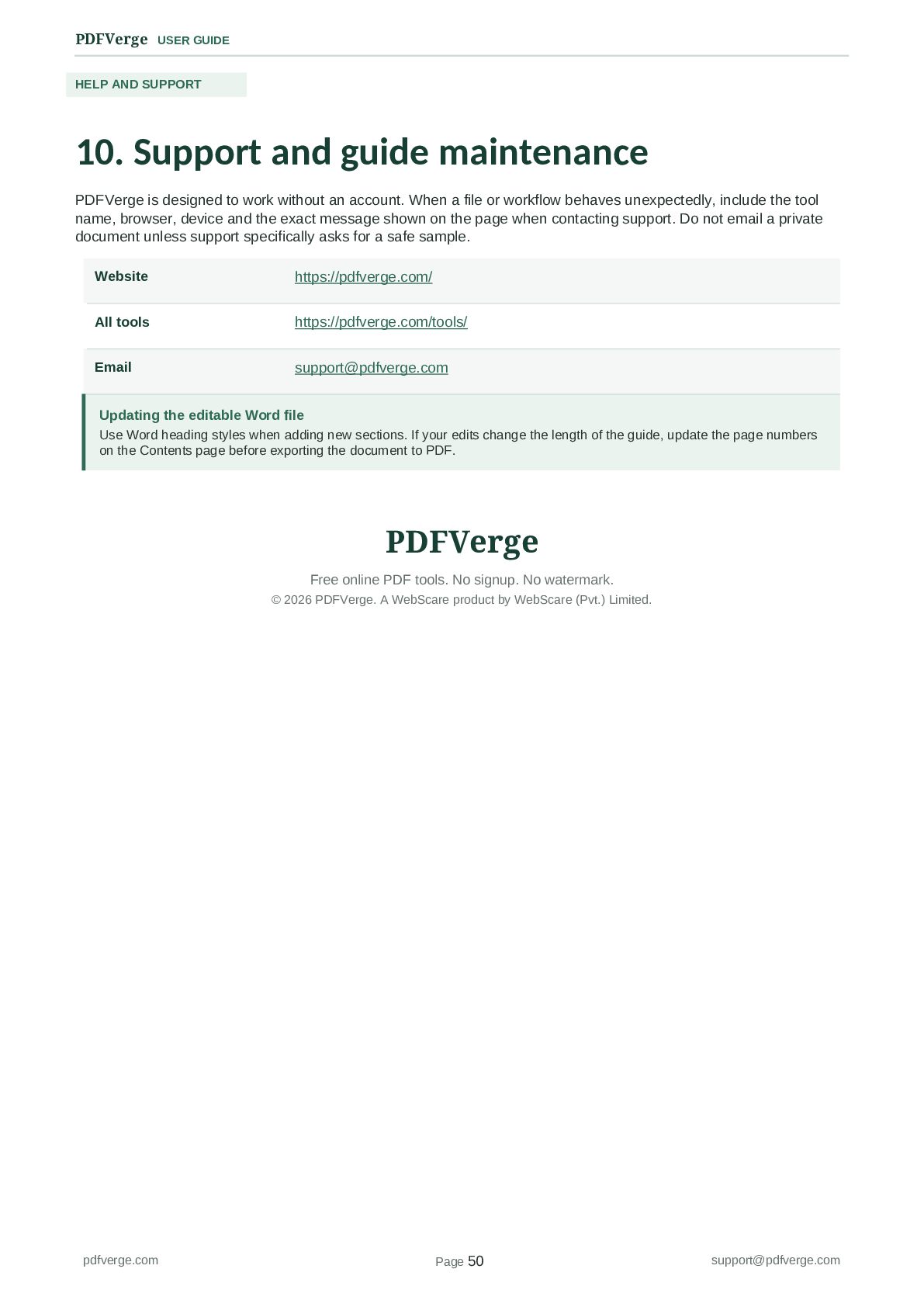
PDFVerge USER GUIDE HELP AND SUPPORT 10. Support and guide
maintenance PDFVerge is designed to work without an account. When a file or workflow behaves unexpectedly, include the tool name, browser, device and the exact message shown on the page when contacting support. Do not email a private document unless support specifically asks for a safe sample. Website https://pdfverge.com/ All tools https://pdfverge.com/tools/ Email [email protected] Updating the editable Word file Use Word heading styles when adding new sections. If your edits change the length of the guide, update the page numbers on the Contents page before exporting the document to PDF. PDFVerge Free online PDF tools. No signup. No watermark. © 2026 PDFVerge. A WebScare product by WebScare (Pvt.) Limited. pdfverge.com Page 50 [email protected]
 juanmartin2026
 2720japanoke
 baltimoreniso
 pawan_pharm
 auctria
 yatabe
 signer
 sonakv
 cbtlibrary
 tsumita
 hiola
 soudai
 dugsong
 techseoconnect
 gurzu
 badams
 ryanjones
 sstephenson
 axbom
 maltzj
 inesmontani
 notwaldorf
 lara