Upgrade to Pro
— share decks privately, control downloads, hide ads and more …
Speaker Deck
Sign up for free
Menu
Search
Features
All features
Private URLs
Password Protection
Custom URLS
Scheduled publishing
Remove Branding
Restrict embedding
Deck Collections
Notes
Features
All features
Private URLs
Password Protection
Custom URLS
Scheduled publishing
Remove Branding
Restrict embedding
Deck Collections
Notes
Explore
Featured decks
Featured speakers
Programming
Technology
Storyboards
Explore
Featured decks
Featured speakers
Programming
Technology
Storyboards
Pricing
Search
Sign in
Sign up for free
使用JavaScript製作互動式網頁導覽列
Search
Sponsored
·
Your Podcast. Everywhere. Effortlessly.
Share. Educate. Inspire. Entertain. You do you. We'll handle the rest.
→
滋滋桑
August 23, 2025
Design
28
0
Share
Embed
Copy iframe code
Copy JS code
Copy link
Start on current slide
使用JavaScript製作互動式網頁導覽列
JavaScript網頁導覽列設計與實現
滋滋桑
August 23, 2025
More Decks by 滋滋桑
See All by 滋滋桑
以圖搜圖系統開發技術分享
tzutzu
0
22
碳足跡_python.pdf
tzutzu
0
32
Laravel 8 的使用方式
tzutzu
0
32
SPRING BOOT+VUE+資料庫到底是甚麼
tzutzu
0
93
asp.net用北風資料庫來說明實用技術
tzutzu
0
150
資料庫是什麼
tzutzu
0
61
如何準備證照考試
tzutzu
0
140
準備面試
tzutzu
0
390
Other Decks in Design
See All in Design
StartDesignEngineering
uchiyama886
1
150
明日から真似できる、AIでデザインシステムを活用する方法
vivion
0
900
Kouseki | CREATIVE CLASS成果物
yuri9911
0
250
作品が生まれ続けるコミュニティデザイン ― 研究室でも会社でもないサードプレイス ― / designship26-iwaken
iwaken71
0
180
工房としてのAI ── デザイナー、作家、ビルダー
hiranotomoki
0
540
decksh object reference
ajstarks
2
1.8k
プレゼンスライド作成で意識していること
kimichan
0
150
LP制作のための熱量ハーネス -人の熱量を、AIとの制作につなぐ-
niccy
0
1.9k
[Unity] VAT×VFX Graphがいま個人的にアツイという話
sakiyama
0
130
2026/6/26 第6回韓日リビングラボネットワークフォーラムin世宗 ー未来を作るリビングラボー アジアの社会システム転換に向けたリビングラボの可能性
a2k
2
120
富山デザイン勉強会_生成AIを使ったデザイン制作2026最新版.pdf
keita_yoshikawa
0
170
【CEDEC2026】『Shadowverse: Worlds Beyond』続編開発におけるUIデザイン・アニメーション演出の「超進化」 ~継承と挑戦を両立するデザイン手法~
cygames
PRO
4
5.4k
Featured
See All Featured
Building a A Zero-Code AI SEO Workflow
portentint
PRO
0
790
"I'm Feeling Lucky" - Building Great Search Experiences for Today's Users (#IAC19)
danielanewman
230
23k
sira's awesome portfolio website redesign presentation
elsirapls
0
460
Distributed Sagas: A Protocol for Coordinating Microservices
caitiem20
333
23k
The State of eCommerce SEO: How to Win in Today's Products SERPs - #SEOweek
aleyda
2
12k
Code Review Best Practice
trishagee
74
20k
We Are The Robots
honzajavorek
0
400
The Art of Delivering Value - GDevCon NA Keynote
reverentgeek
16
2.2k
What Being in a Rock Band Can Teach Us About Real World SEO
427marketing
0
1.1k
Principles of Awesome APIs and How to Build Them.
keavy
128
18k
The Success of Rails: Ensuring Growth for the Next 100 Years
eileencodes
47
8.4k
Java REST API Framework Comparison - PWX 2021
mraible
34
9.8k
Transcript
JavaScript網頁導覽列設 計與實現 • TZU 留言給我 29歲女生學程式FB
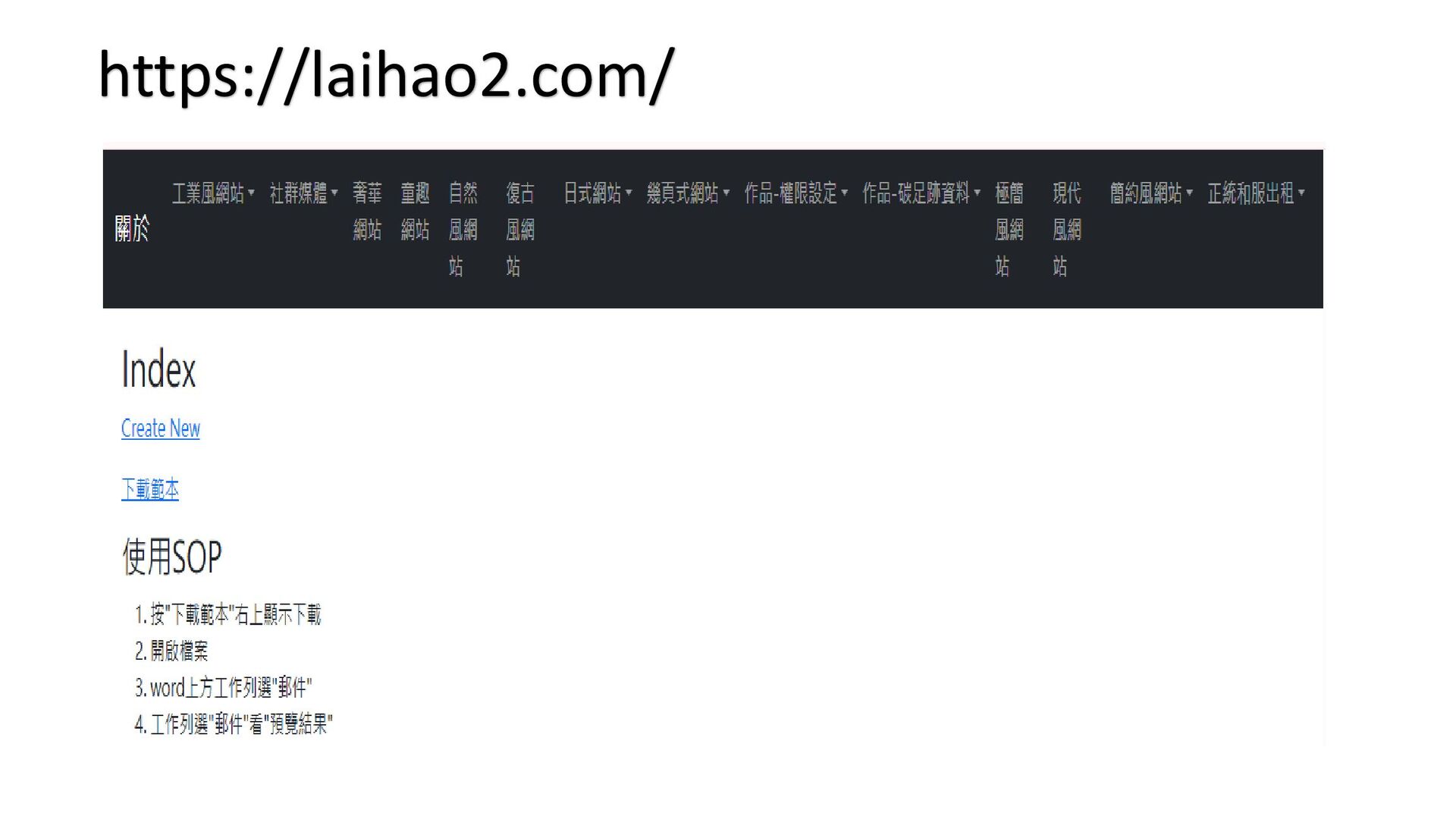
https://laihao2.com/
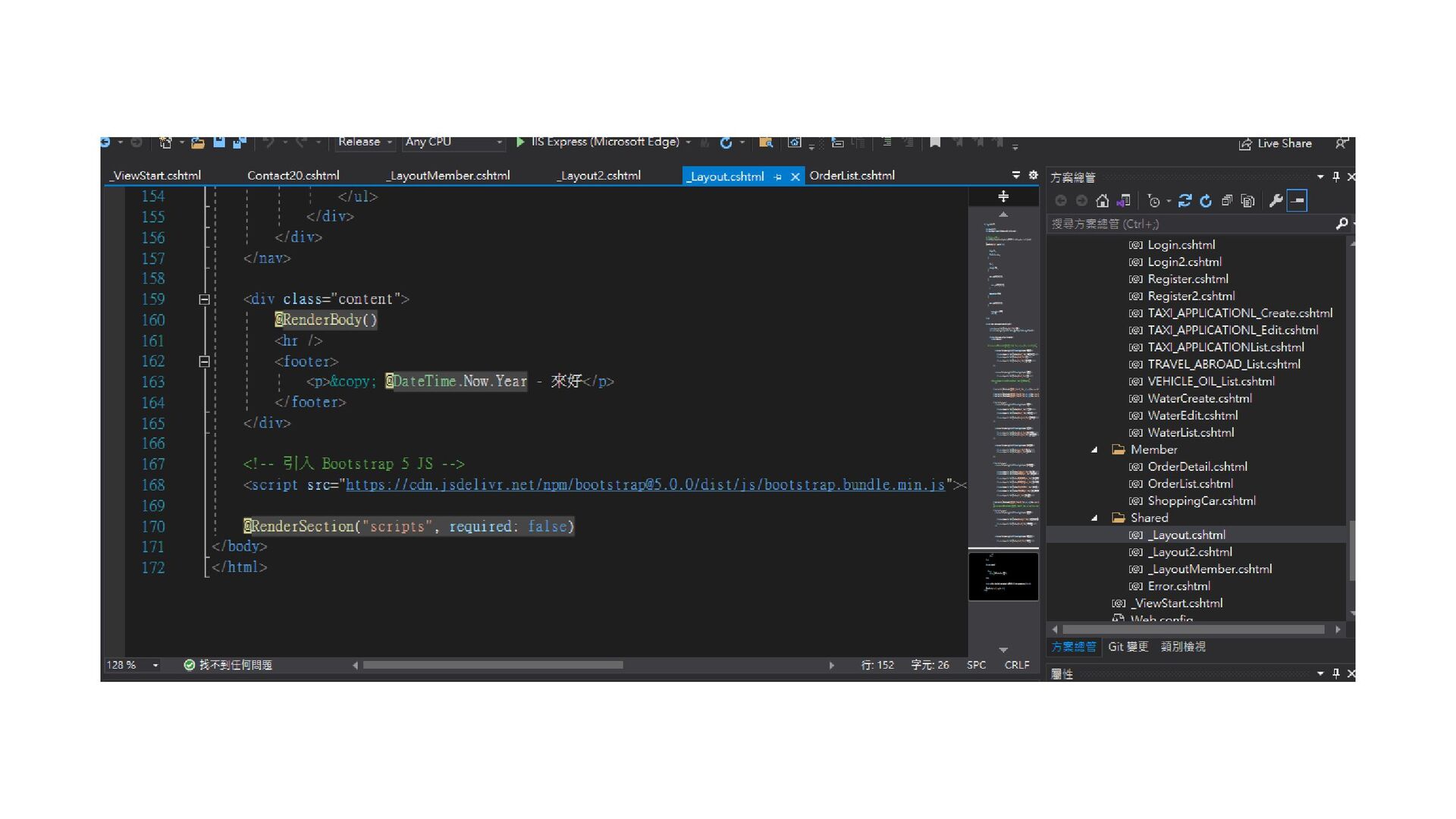
None
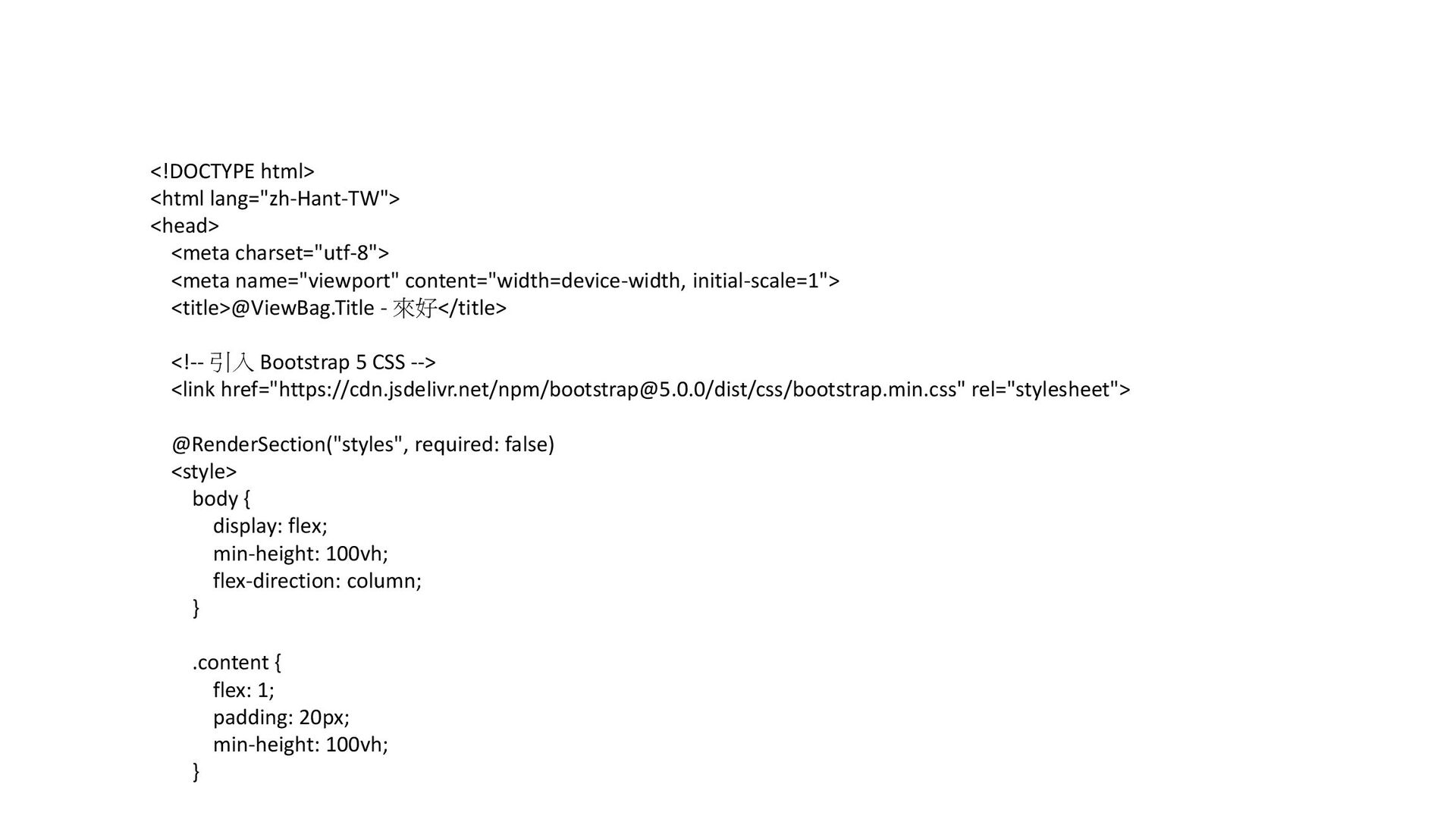
<!DOCTYPE html> <html lang="zh-Hant-TW"> <head> <meta charset="utf-8"> <meta name="viewport" content="width=device-width,
initial-scale=1"> <title>@ViewBag.Title - 來好</title> <!-- 引入 Bootstrap 5 CSS --> <link href="https://cdn.jsdelivr.net/npm/
[email protected]
/dist/css/bootstrap.min.css" rel="stylesheet"> @RenderSection("styles", required: false) <style> body { display: flex; min-height: 100vh; flex-direction: column; } .content { flex: 1; padding: 20px; min-height: 100vh; }
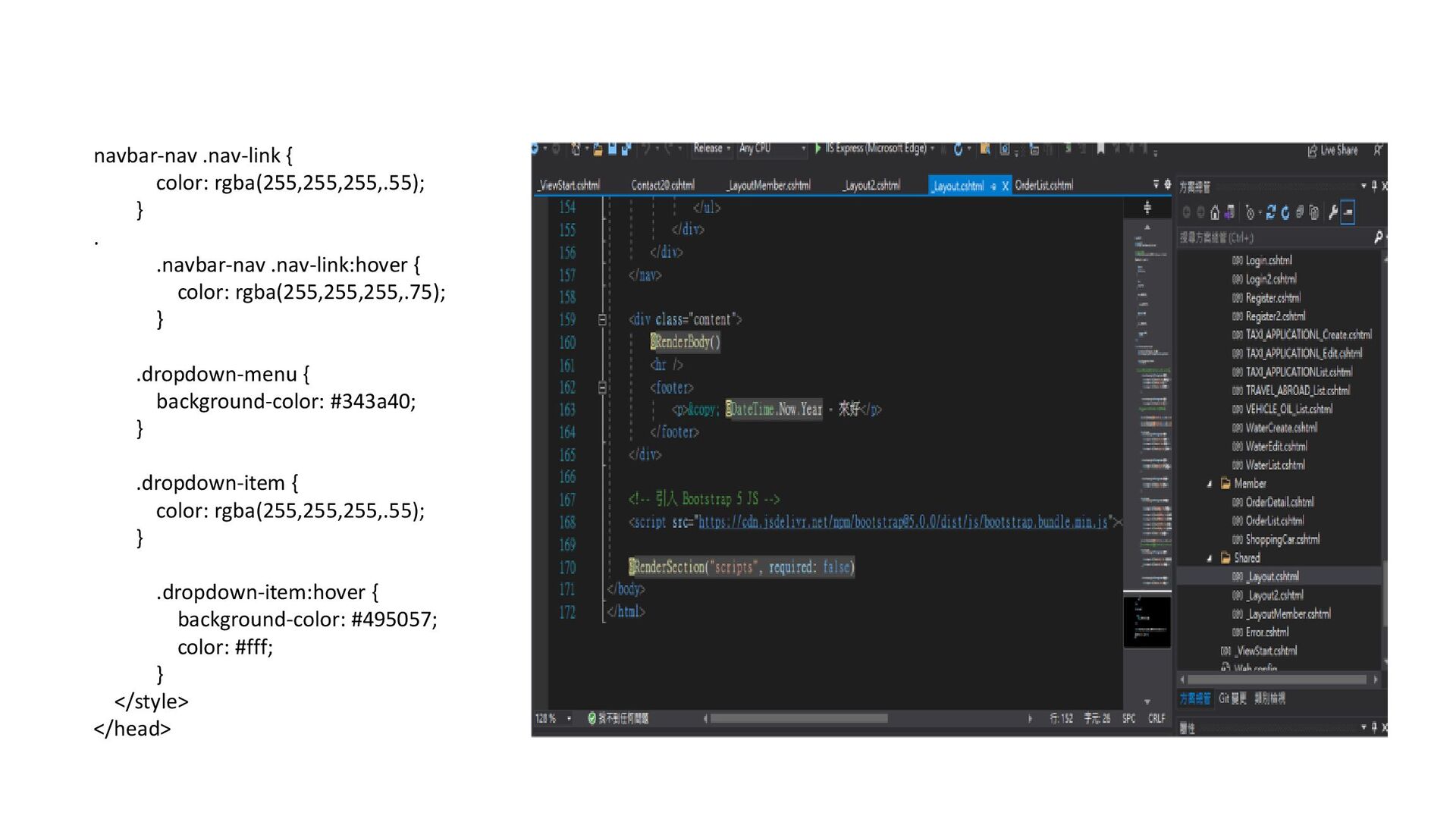
navbar-nav .nav-link { color: rgba(255,255,255,.55); } . .navbar-nav .nav-link:hover {
color: rgba(255,255,255,.75); } .dropdown-menu { background-color: #343a40; } .dropdown-item { color: rgba(255,255,255,.55); } .dropdown-item:hover { background-color: #495057; color: #fff; } </style> </head>
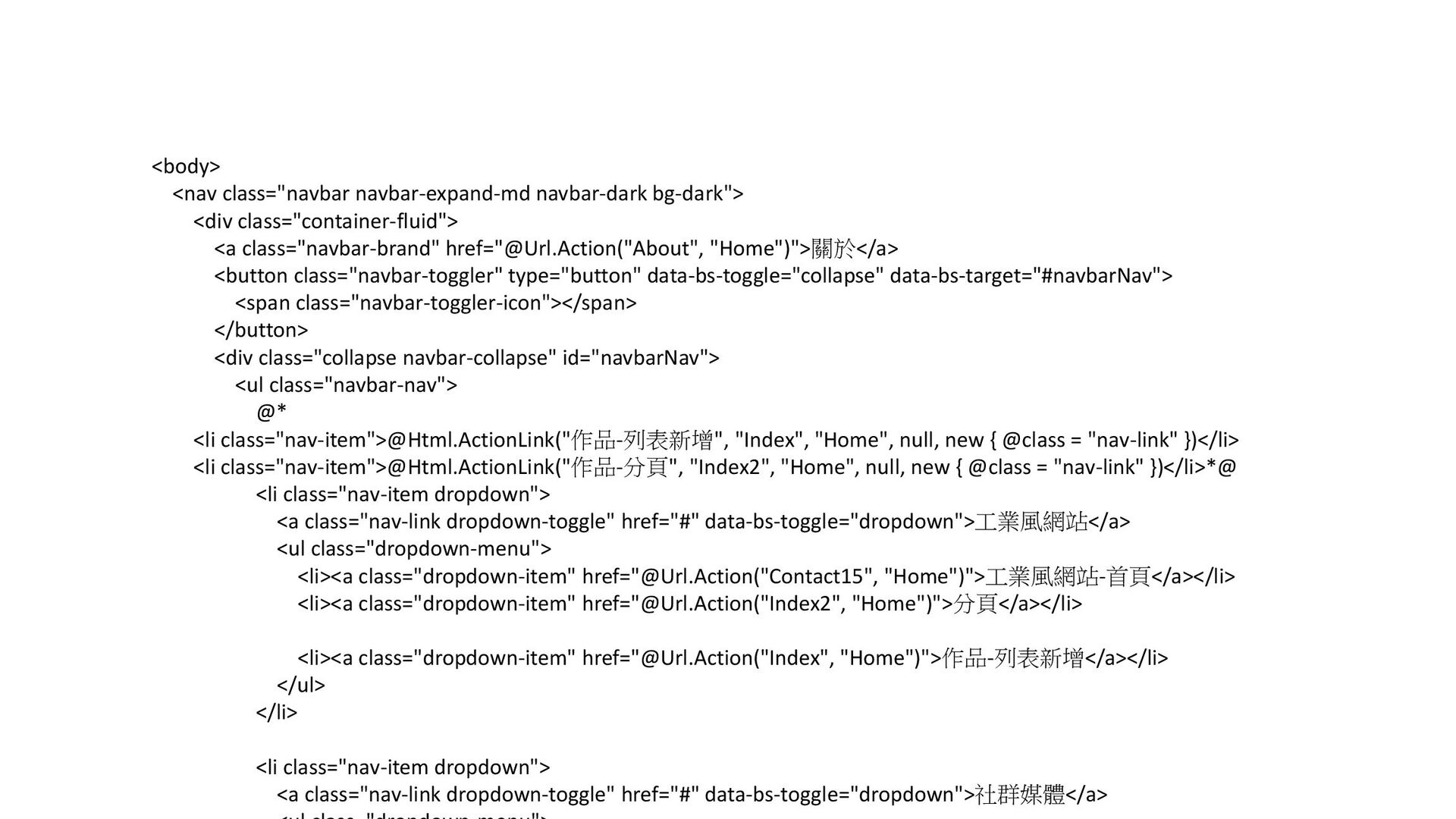
<body> <nav class="navbar navbar-expand-md navbar-dark bg-dark"> <div class="container-fluid"> <a class="navbar-brand"
href="@Url.Action("About", "Home")">關於</a> <button class="navbar-toggler" type="button" data-bs-toggle="collapse" data-bs-target="#navbarNav"> <span class="navbar-toggler-icon"></span> </button> <div class="collapse navbar-collapse" id="navbarNav"> <ul class="navbar-nav"> @* <li class="nav-item">@Html.ActionLink("作品-列表新增", "Index", "Home", null, new { @class = "nav-link" })</li> <li class="nav-item">@Html.ActionLink("作品-分頁", "Index2", "Home", null, new { @class = "nav-link" })</li>*@ <li class="nav-item dropdown"> <a class="nav-link dropdown-toggle" href="#" data-bs-toggle="dropdown">工業風網站</a> <ul class="dropdown-menu"> <li><a class="dropdown-item" href="@Url.Action("Contact15", "Home")">工業風網站-首頁</a></li> <li><a class="dropdown-item" href="@Url.Action("Index2", "Home")">分頁</a></li> <li><a class="dropdown-item" href="@Url.Action("Index", "Home")">作品-列表新增</a></li> </ul> </li> <li class="nav-item dropdown"> <a class="nav-link dropdown-toggle" href="#" data-bs-toggle="dropdown">社群媒體</a>
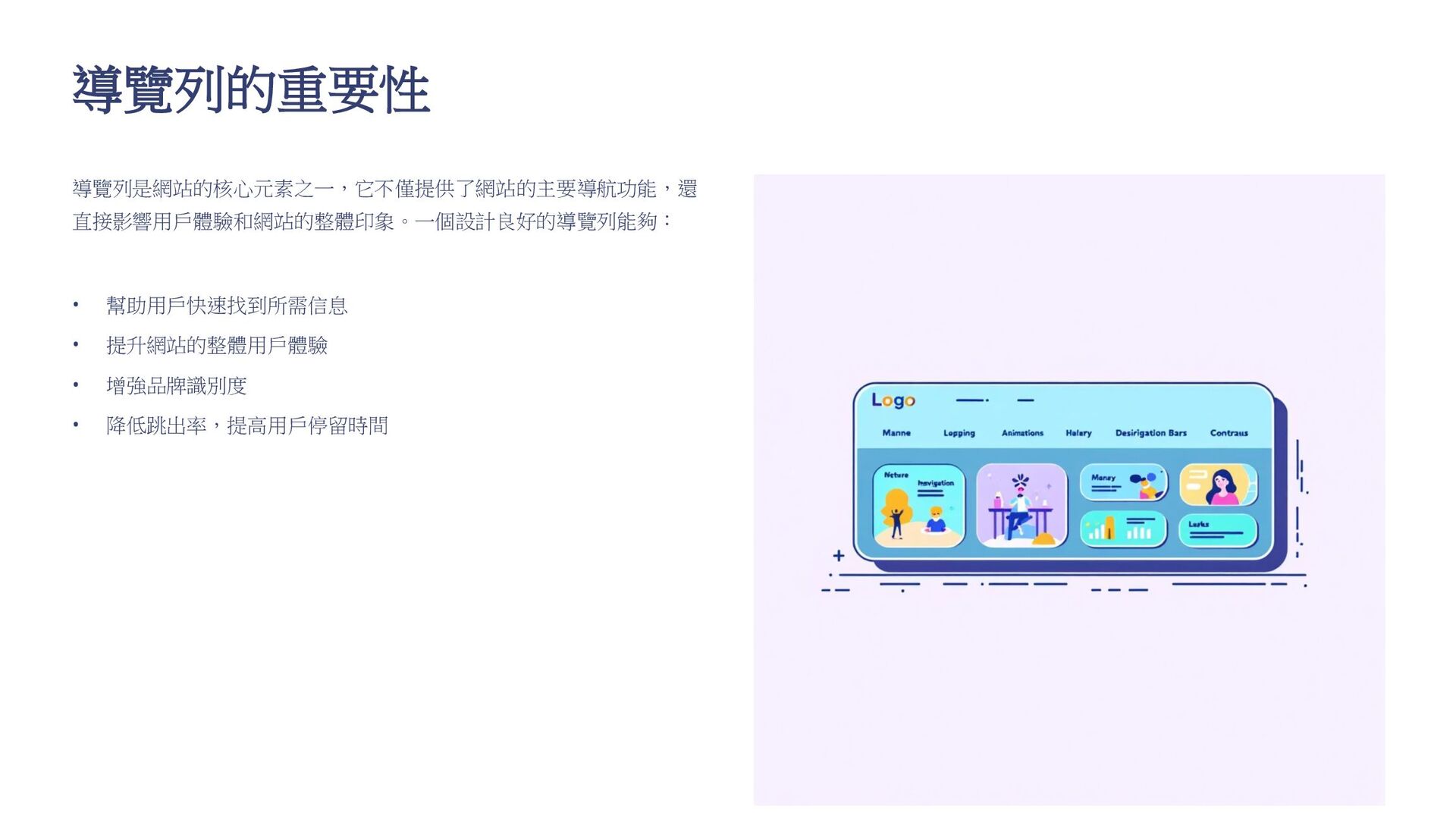
導覽列的重要性 導覽列是網站的核心元素之一,它不僅提供了網站的主要導航功能,還 直接影響用戶體驗和網站的整體印象。一個設計良好的導覽列能夠: • 幫助用戶快速找到所需信息 • 提升網站的整體用戶體驗 • 增強品牌識別度 •
降低跳出率,提高用戶停留時間
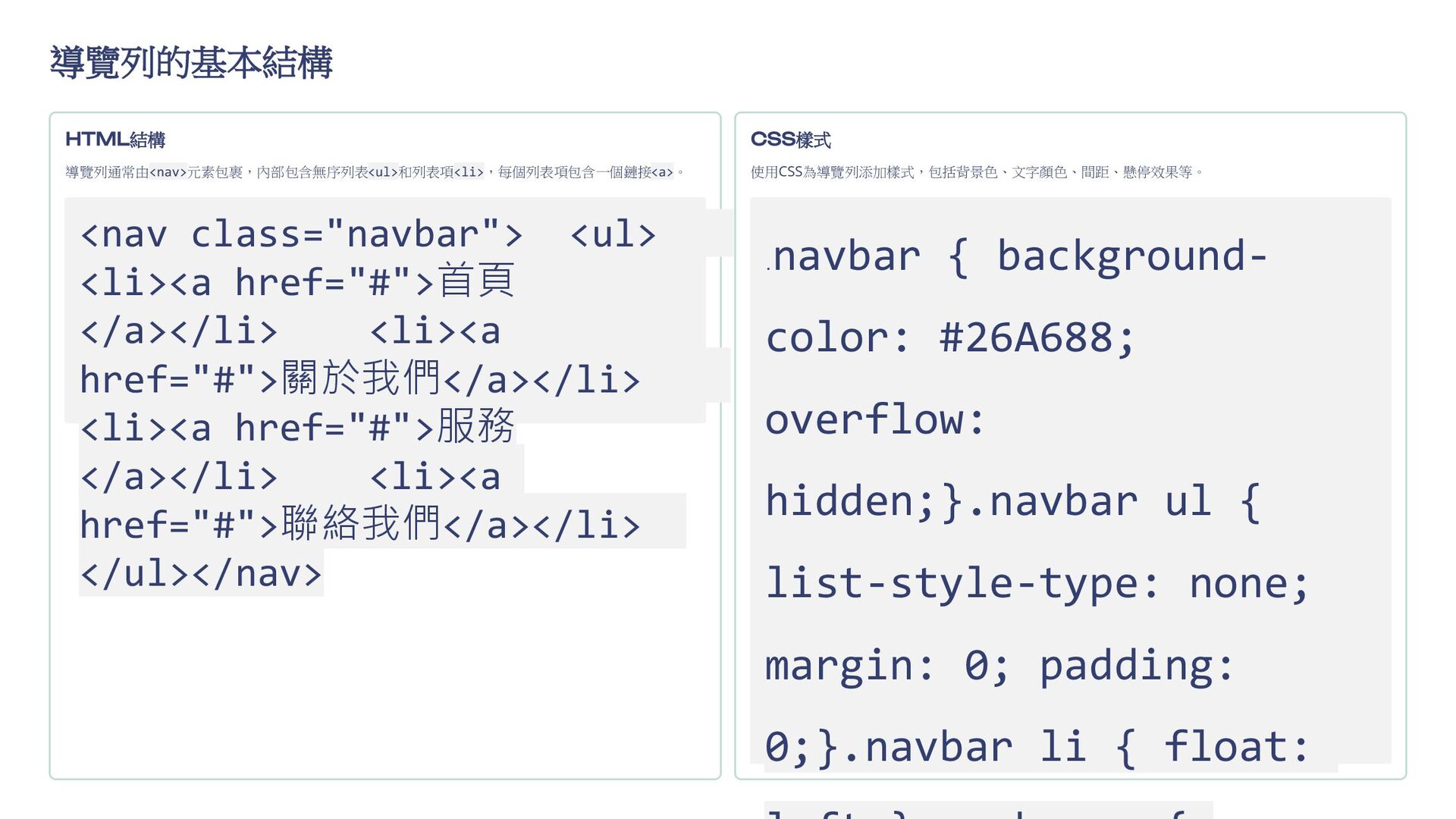
導覽列的基本結構 HTML結構 導覽列通常由<nav>元素包裹,內部包含無序列表<ul>和列表項<li>,每個列表項包含一個鏈接<a>。 <nav class="navbar"> <ul> <li><a href="#">首頁 </a></li> <li><a
href="#">關於我們</a></li> <li><a href="#">服務 </a></li> <li><a href="#">聯絡我們</a></li> </ul></nav> CSS樣式 使用CSS為導覽列添加樣式,包括背景色、文字顏色、間距、懸停效果等。 . navbar { background- color: #26A688; overflow: hidden;}.navbar ul { list-style-type: none; margin: 0; padding: 0;}.navbar li { float:
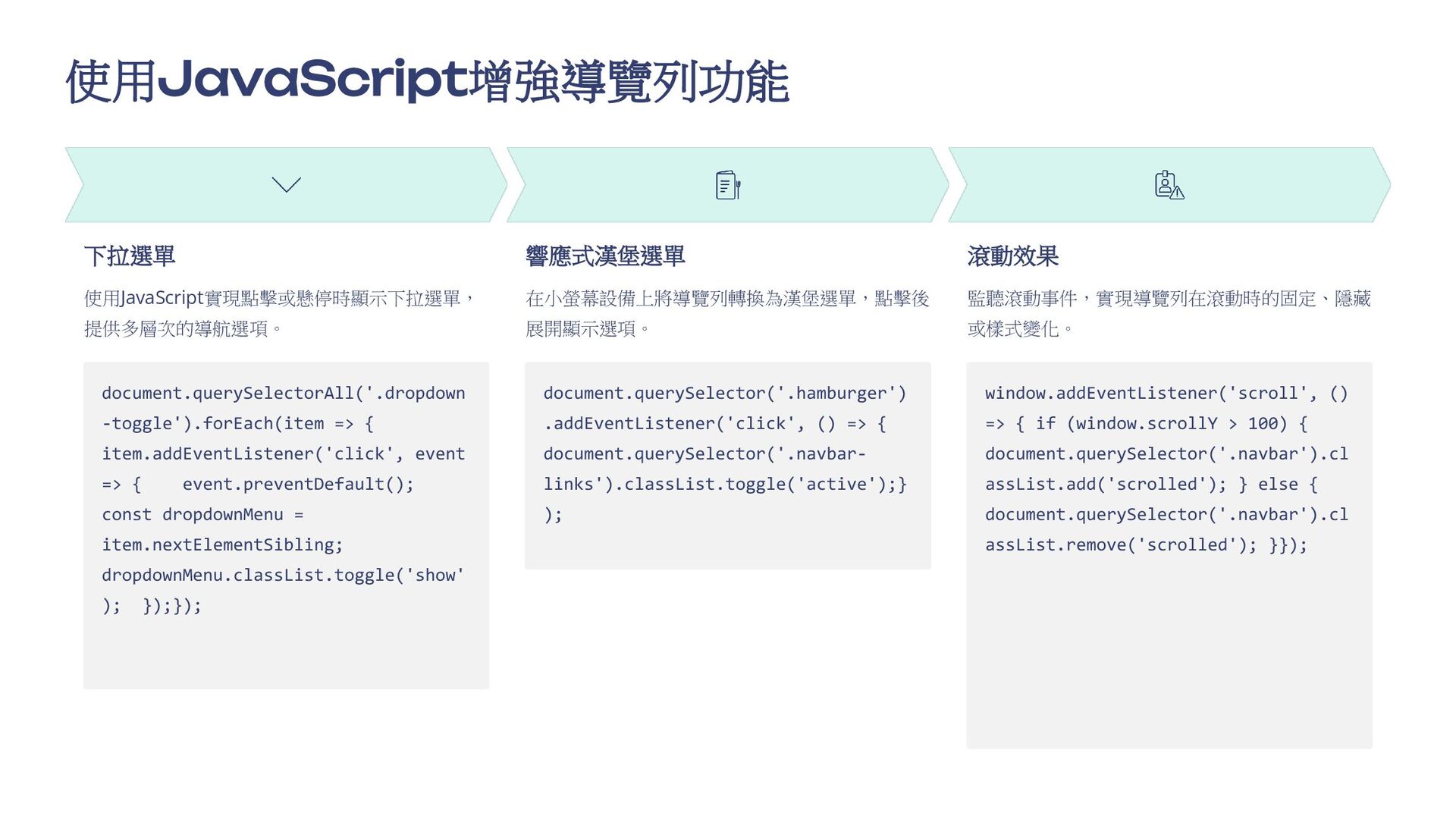
使用JavaScript增強導覽列功能 下拉選單 使用JavaScript實現點擊或懸停時顯示下拉選單, 提供多層次的導航選項。 document.querySelectorAll('.dropdown -toggle').forEach(item => { item.addEventListener('click', event
=> { event.preventDefault(); const dropdownMenu = item.nextElementSibling; dropdownMenu.classList.toggle('show' ); });}); 響應式漢堡選單 在小螢幕設備上將導覽列轉換為漢堡選單,點擊後 展開顯示選項。 document.querySelector('.hamburger') .addEventListener('click', () => { document.querySelector('.navbar- links').classList.toggle('active');} ); 滾動效果 監聽滾動事件,實現導覽列在滾動時的固定、隱藏 或樣式變化。 window.addEventListener('scroll', () => { if (window.scrollY > 100) { document.querySelector('.navbar').cl assList.add('scrolled'); } else { document.querySelector('.navbar').cl assList.remove('scrolled'); }});
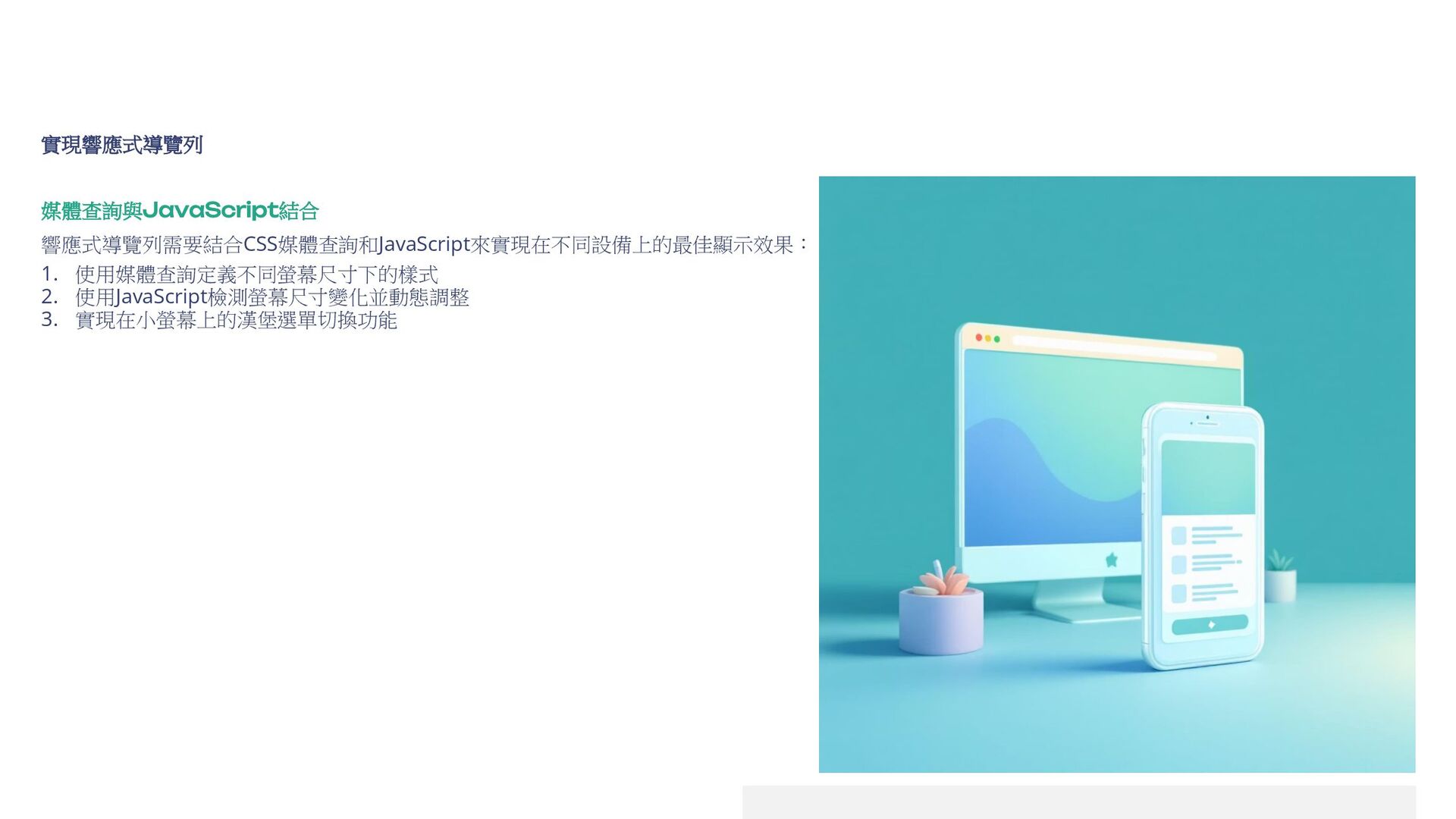
實現響應式導覽列 媒體查詢與JavaScript結合 響應式導覽列需要結合CSS媒體查詢和JavaScript來實現在不同設備上的最佳顯示效果: 1. 使用媒體查詢定義不同螢幕尺寸下的樣式 2. 使用JavaScript檢測螢幕尺寸變化並動態調整 3. 實現在小螢幕上的漢堡選單切換功能
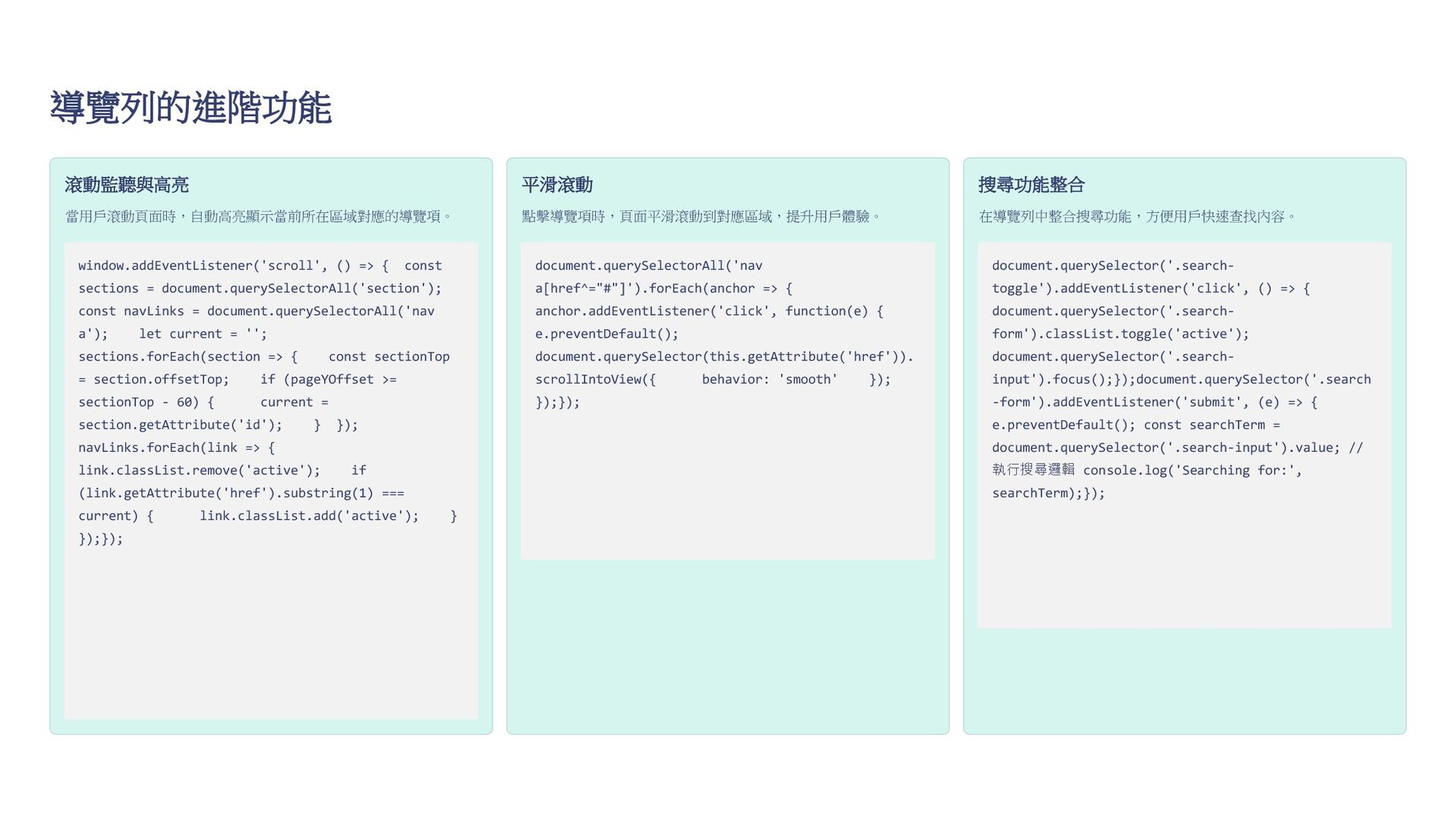
導覽列的進階功能 滾動監聽與高亮 當用戶滾動頁面時,自動高亮顯示當前所在區域對應的導覽項。 window.addEventListener('scroll', () => { const sections =
document.querySelectorAll('section'); const navLinks = document.querySelectorAll('nav a'); let current = ''; sections.forEach(section => { const sectionTop = section.offsetTop; if (pageYOffset >= sectionTop - 60) { current = section.getAttribute('id'); } }); navLinks.forEach(link => { link.classList.remove('active'); if (link.getAttribute('href').substring(1) === current) { link.classList.add('active'); } });}); 平滑滾動 點擊導覽項時,頁面平滑滾動到對應區域,提升用戶體驗。 document.querySelectorAll('nav a[href^="#"]').forEach(anchor => { anchor.addEventListener('click', function(e) { e.preventDefault(); document.querySelector(this.getAttribute('href')). scrollIntoView({ behavior: 'smooth' }); });}); 搜尋功能整合 在導覽列中整合搜尋功能,方便用戶快速查找內容。 document.querySelector('.search- toggle').addEventListener('click', () => { document.querySelector('.search- form').classList.toggle('active'); document.querySelector('.search- input').focus();});document.querySelector('.search -form').addEventListener('submit', (e) => { e.preventDefault(); const searchTerm = document.querySelector('.search-input').value; // 執行搜尋邏輯 console.log('Searching for:', searchTerm);});
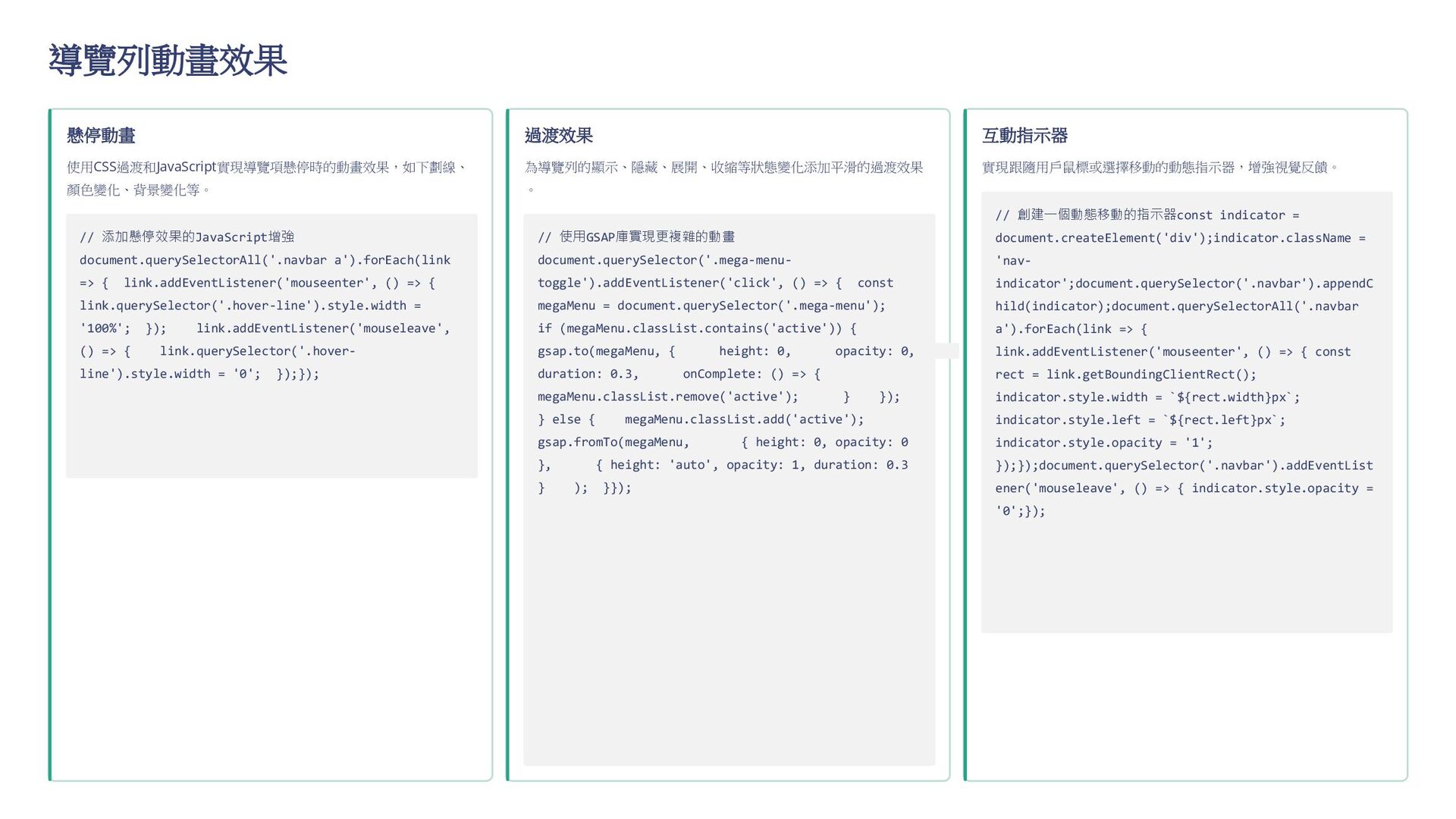
導覽列動畫效果 懸停動畫 使用CSS過渡和JavaScript實現導覽項懸停時的動畫效果,如下劃線、 顏色變化、背景變化等。 // 添加懸停效果的JavaScript增強 document.querySelectorAll('.navbar a').forEach(link => {
link.addEventListener('mouseenter', () => { link.querySelector('.hover-line').style.width = '100%'; }); link.addEventListener('mouseleave', () => { link.querySelector('.hover- line').style.width = '0'; });}); 過渡效果 為導覽列的顯示、隱藏、展開、收縮等狀態變化添加平滑的過渡效果 。 // 使用GSAP庫實現更複雜的動畫 document.querySelector('.mega-menu- toggle').addEventListener('click', () => { const megaMenu = document.querySelector('.mega-menu'); if (megaMenu.classList.contains('active')) { gsap.to(megaMenu, { height: 0, opacity: 0, duration: 0.3, onComplete: () => { megaMenu.classList.remove('active'); } }); } else { megaMenu.classList.add('active'); gsap.fromTo(megaMenu, { height: 0, opacity: 0 }, { height: 'auto', opacity: 1, duration: 0.3 } ); }}); 互動指示器 實現跟隨用戶鼠標或選擇移動的動態指示器,增強視覺反饋。 // 創建一個動態移動的指示器const indicator = document.createElement('div');indicator.className = 'nav- indicator';document.querySelector('.navbar').appendC hild(indicator);document.querySelectorAll('.navbar a').forEach(link => { link.addEventListener('mouseenter', () => { const rect = link.getBoundingClientRect(); indicator.style.width = `${rect.width}px`; indicator.style.left = `${rect.left}px`; indicator.style.opacity = '1'; });});document.querySelector('.navbar').addEventList ener('mouseleave', () => { indicator.style.opacity = '0';});
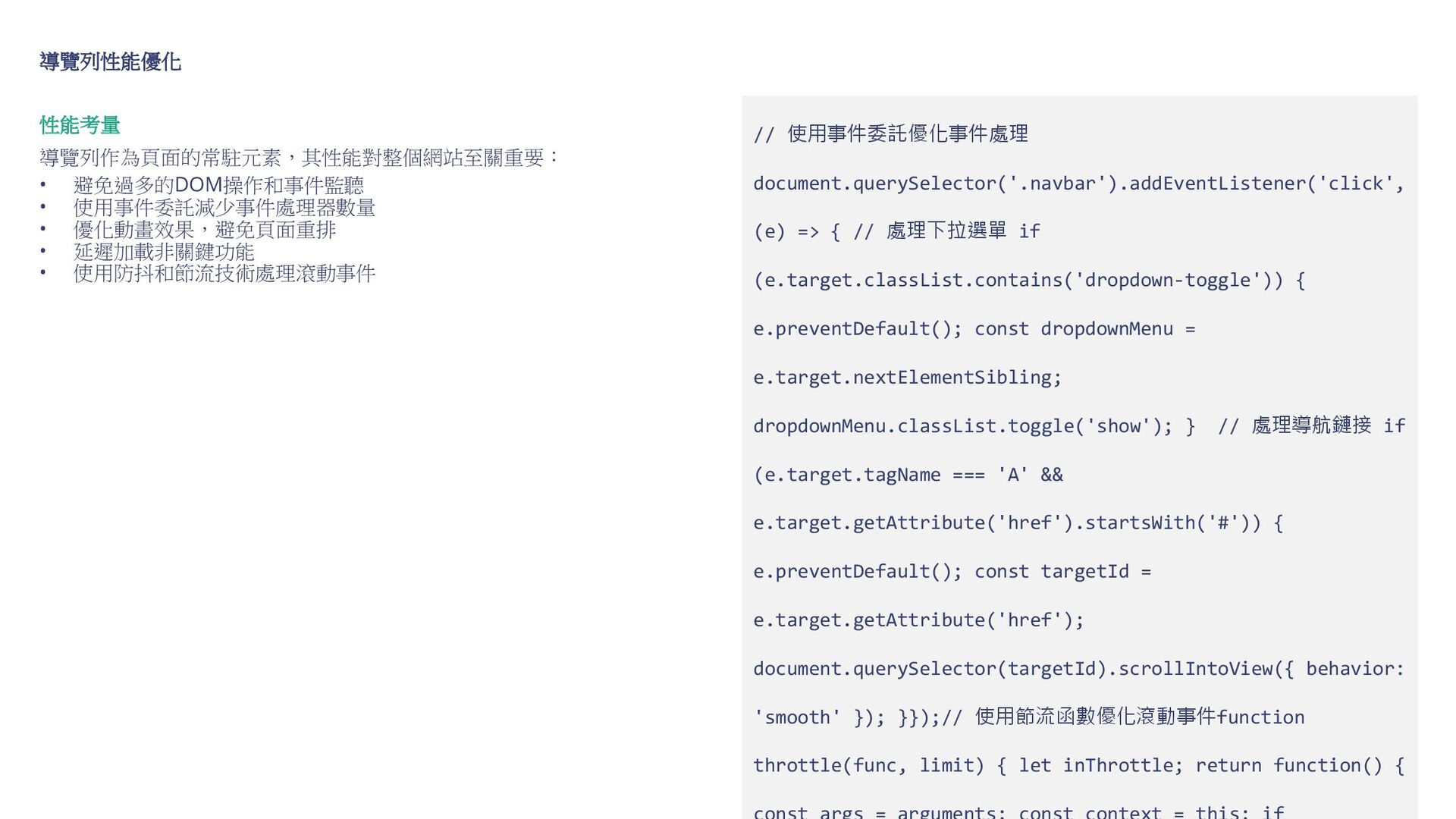
導覽列性能優化 性能考量 導覽列作為頁面的常駐元素,其性能對整個網站至關重要: • 避免過多的DOM操作和事件監聽 • 使用事件委託減少事件處理器數量 • 優化動畫效果,避免頁面重排 •
延遲加載非關鍵功能 • 使用防抖和節流技術處理滾動事件 // 使用事件委託優化事件處理 document.querySelector('.navbar').addEventListener('click', (e) => { // 處理下拉選單 if (e.target.classList.contains('dropdown-toggle')) { e.preventDefault(); const dropdownMenu = e.target.nextElementSibling; dropdownMenu.classList.toggle('show'); } // 處理導航鏈接 if (e.target.tagName === 'A' && e.target.getAttribute('href').startsWith('#')) { e.preventDefault(); const targetId = e.target.getAttribute('href'); document.querySelector(targetId).scrollIntoView({ behavior: 'smooth' }); }});// 使用節流函數優化滾動事件function throttle(func, limit) { let inThrottle; return function() {
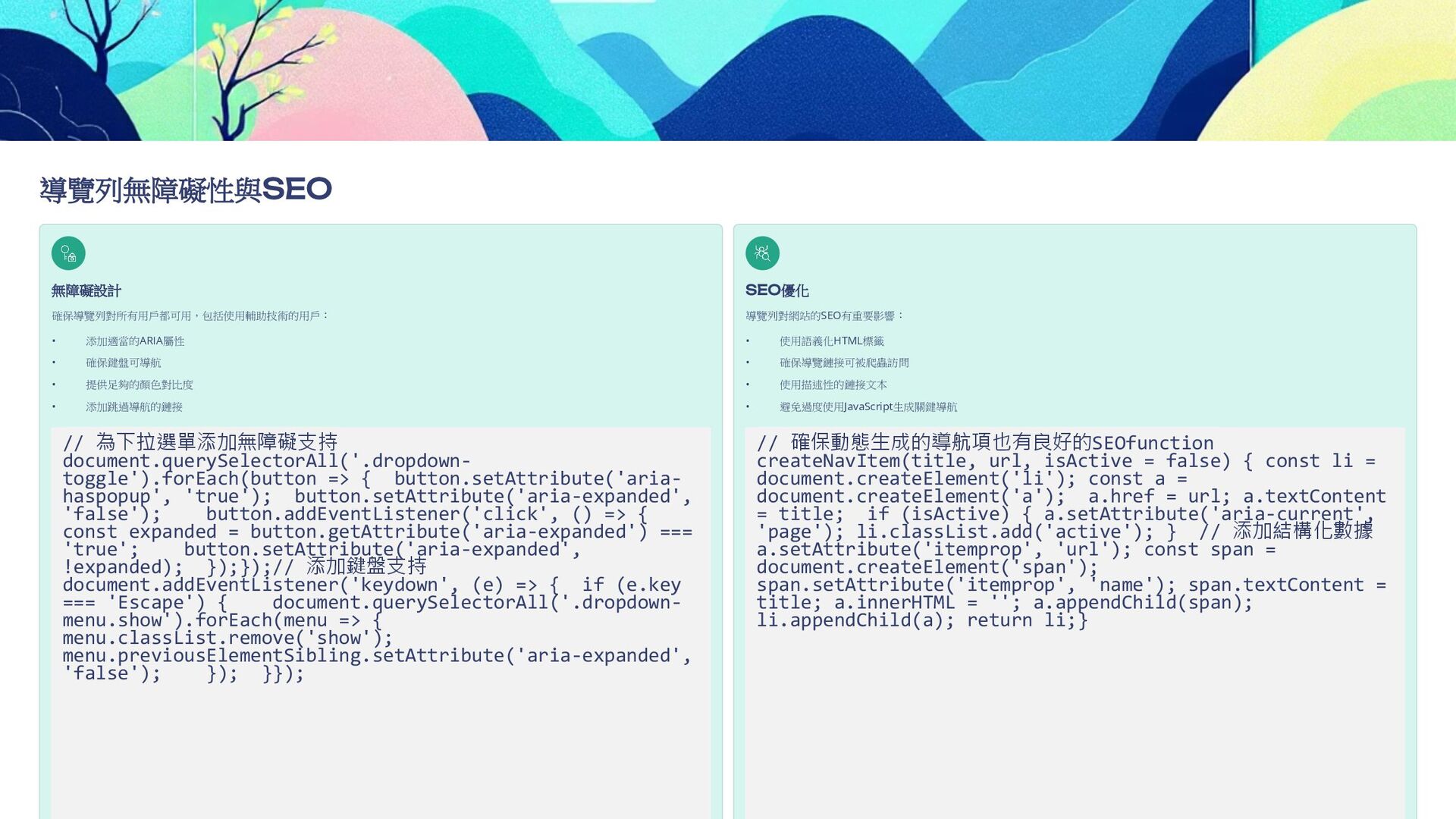
導覽列無障礙性與SEO 無障礙設計 確保導覽列對所有用戶都可用,包括使用輔助技術的用戶: • 添加適當的ARIA屬性 • 確保鍵盤可導航 • 提供足夠的顏色對比度 •
添加跳過導航的鏈接 // 為下拉選單添加無障礙支持 document.querySelectorAll('.dropdown- toggle').forEach(button => { button.setAttribute('aria- haspopup', 'true'); button.setAttribute('aria-expanded', 'false'); button.addEventListener('click', () => { const expanded = button.getAttribute('aria-expanded') === 'true'; button.setAttribute('aria-expanded', !expanded); });});// 添加鍵盤支持 document.addEventListener('keydown', (e) => { if (e.key === 'Escape') { document.querySelectorAll('.dropdown- menu.show').forEach(menu => { menu.classList.remove('show'); menu.previousElementSibling.setAttribute('aria-expanded', 'false'); }); }}); SEO優化 導覽列對網站的SEO有重要影響: • 使用語義化HTML標籤 • 確保導覽鏈接可被爬蟲訪問 • 使用描述性的鏈接文本 • 避免過度使用JavaScript生成關鍵導航 // 確保動態生成的導航項也有良好的SEOfunction createNavItem(title, url, isActive = false) { const li = document.createElement('li'); const a = document.createElement('a'); a.href = url; a.textContent = title; if (isActive) { a.setAttribute('aria-current', 'page'); li.classList.add('active'); } // 添加結構化數據 a.setAttribute('itemprop', 'url'); const span = document.createElement('span'); span.setAttribute('itemprop', 'name'); span.textContent = title; a.innerHTML = ''; a.appendChild(span); li.appendChild(a); return li;}
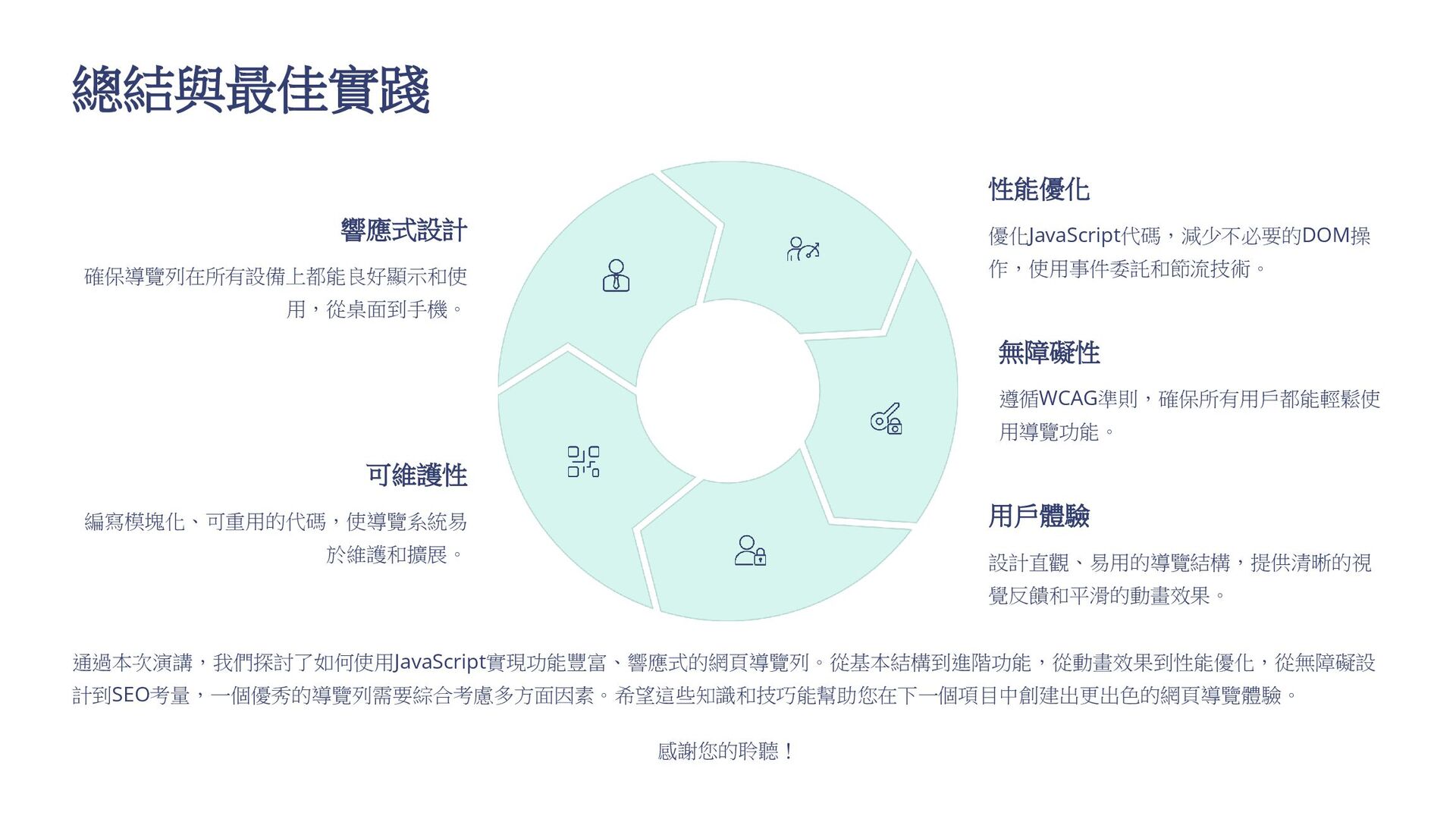
總結與最佳實踐 響應式設計 確保導覽列在所有設備上都能良好顯示和使 用,從桌面到手機。 性能優化 優化JavaScript代碼,減少不必要的DOM操 作,使用事件委託和節流技術。 無障礙性 遵循WCAG準則,確保所有用戶都能輕鬆使 用導覽功能。
用戶體驗 設計直觀、易用的導覽結構,提供清晰的視 覺反饋和平滑的動畫效果。 可維護性 編寫模塊化、可重用的代碼,使導覽系統易 於維護和擴展。 通過本次演講,我們探討了如何使用JavaScript實現功能豐富、響應式的網頁導覽列。從基本結構到進階功能,從動畫效果到性能優化,從無障礙設 計到SEO考量,一個優秀的導覽列需要綜合考慮多方面因素。希望這些知識和技巧能幫助您在下一個項目中創建出更出色的網頁導覽體驗。 感謝您的聆聽!
留言板 http://jzs2home.byethost15.com/index.php?i=3&fbclid=IwAR30I3qlbkBAbp0MEE_ JtIldTH1KdZQdXjT-msg35saXVHUY_7-jxXOsZdo 29歲女生學程式FB


 tzutzu
 uchiyama886
 vivion
 yuri9911
 iwaken71
 hiranotomoki
 ajstarks
 kimichan
 niccy
niccy
 sakiyama
 a2k
a2k
 keita_yoshikawa
 cygames
 portentint
 danielanewman
 elsirapls
 caitiem20
 aleyda
 trishagee
 honzajavorek
 reverentgeek
 427marketing
 keavy
keavy
 eileencodes
 mraible