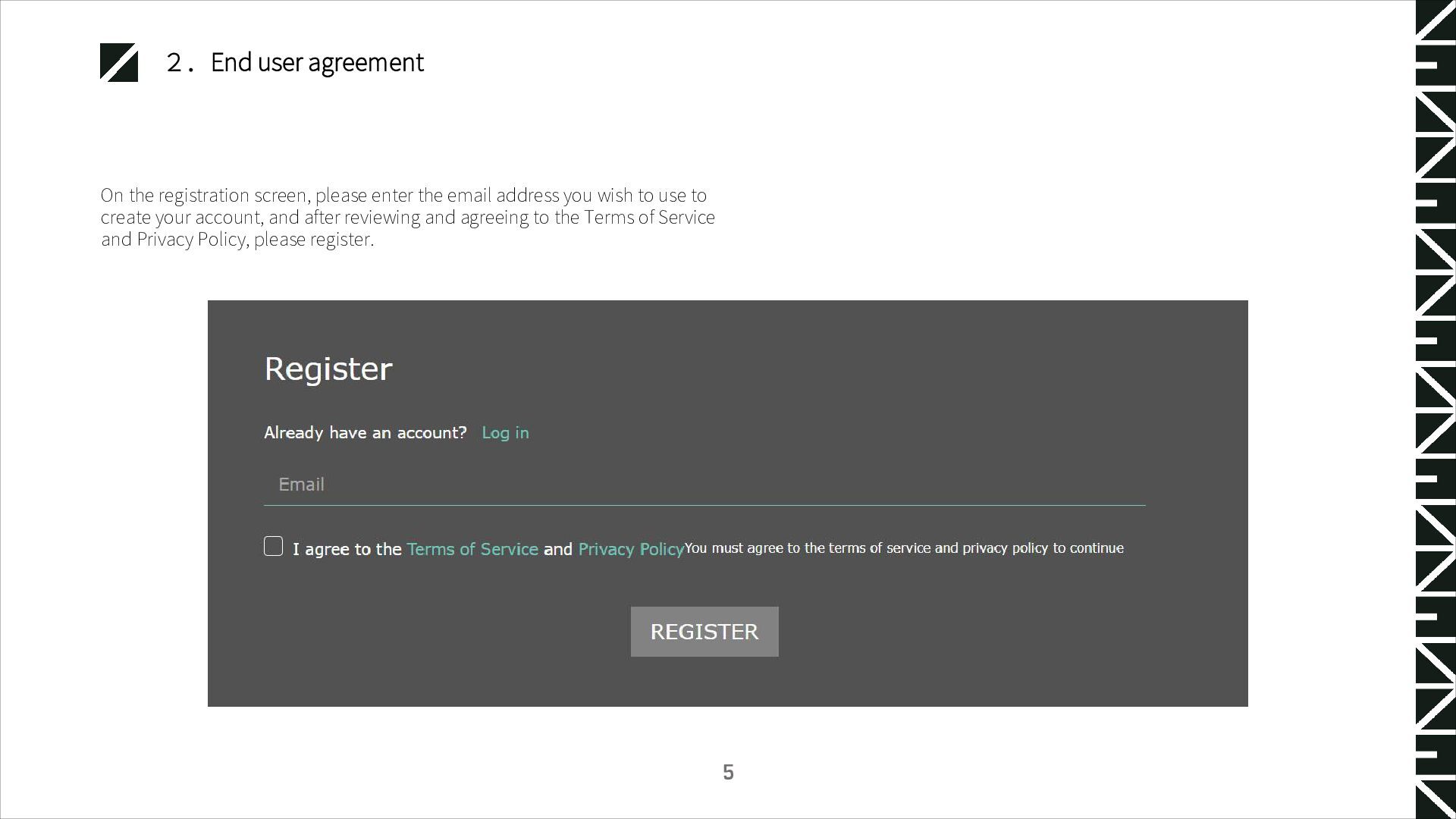
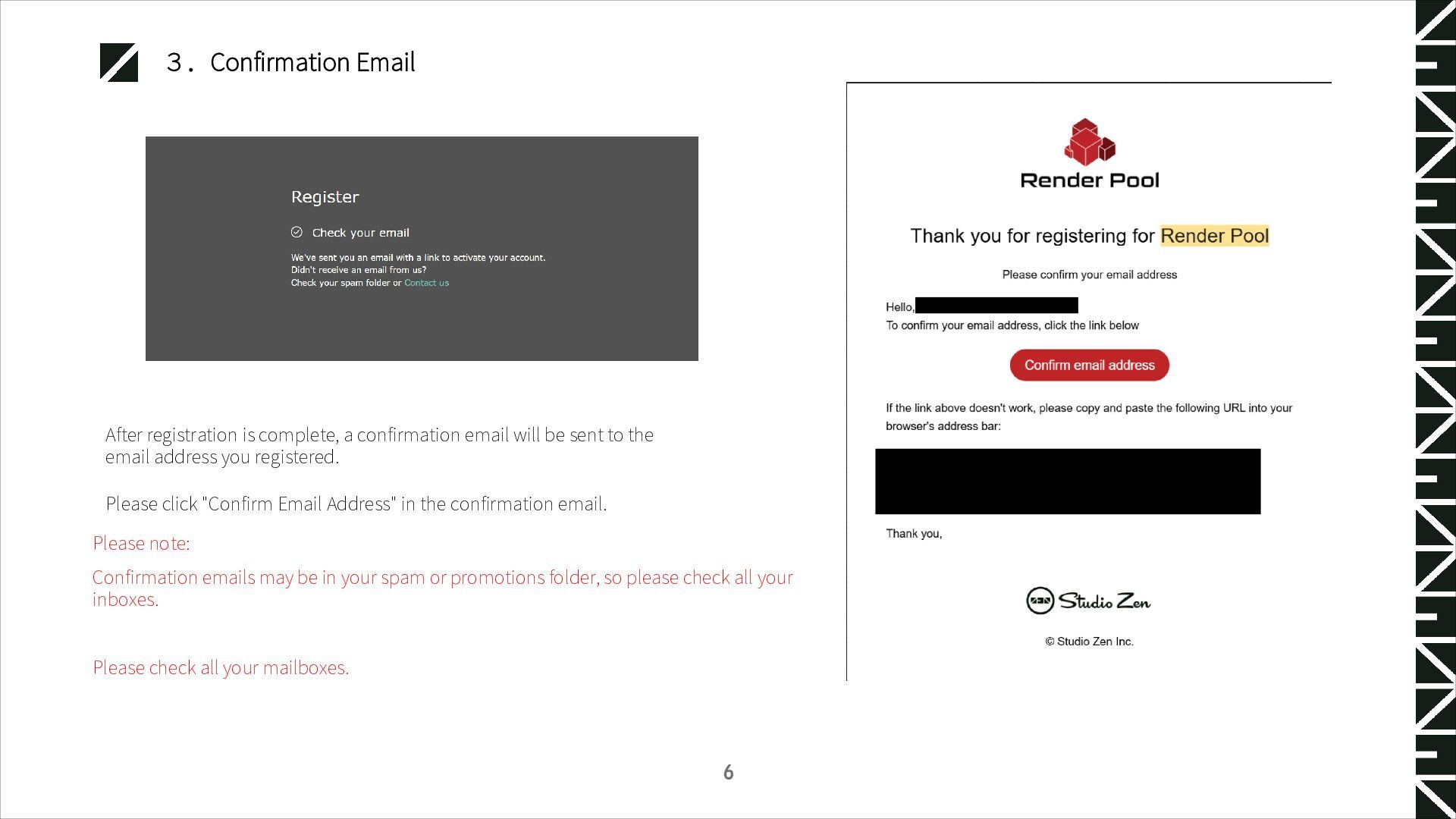
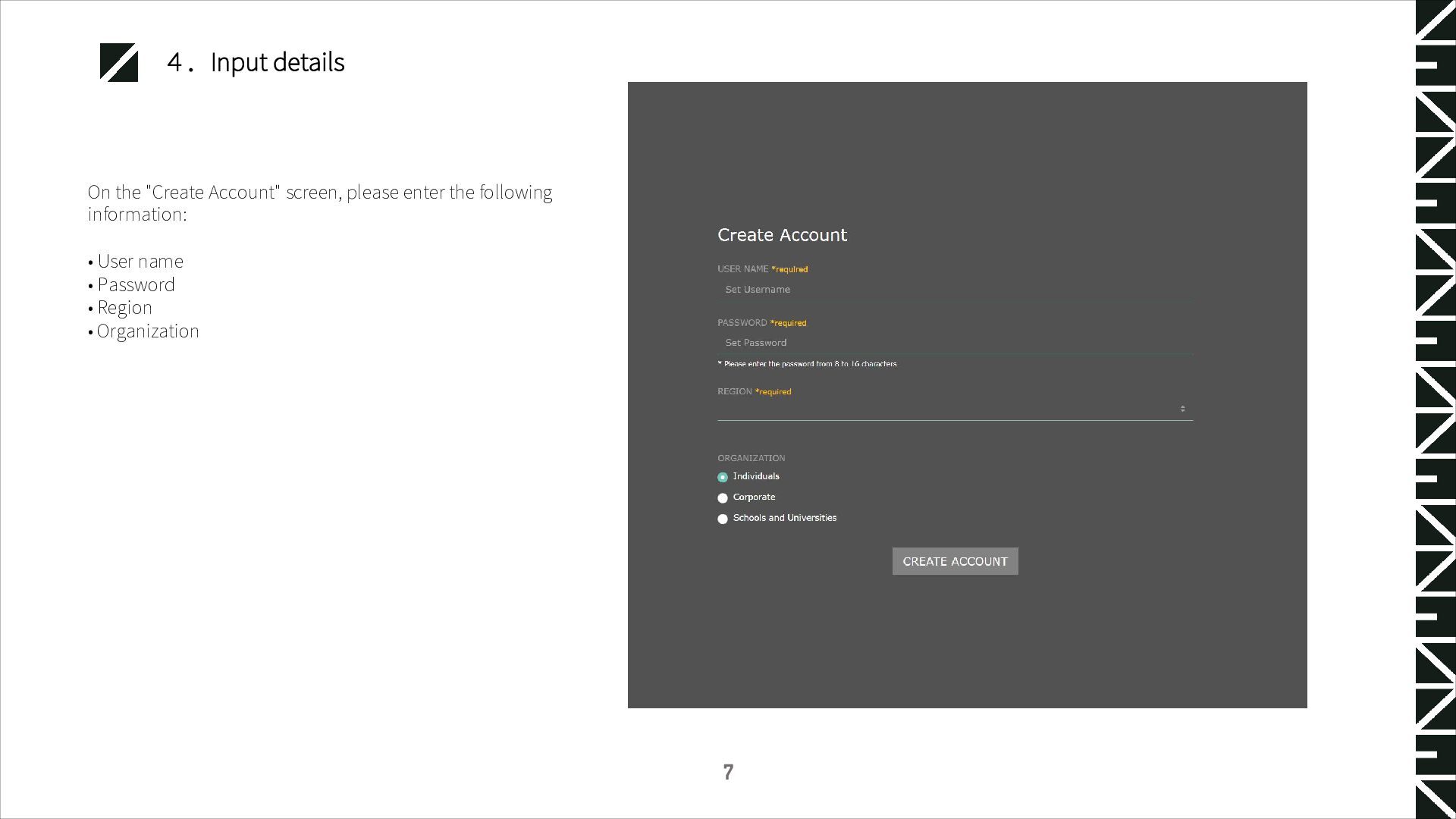
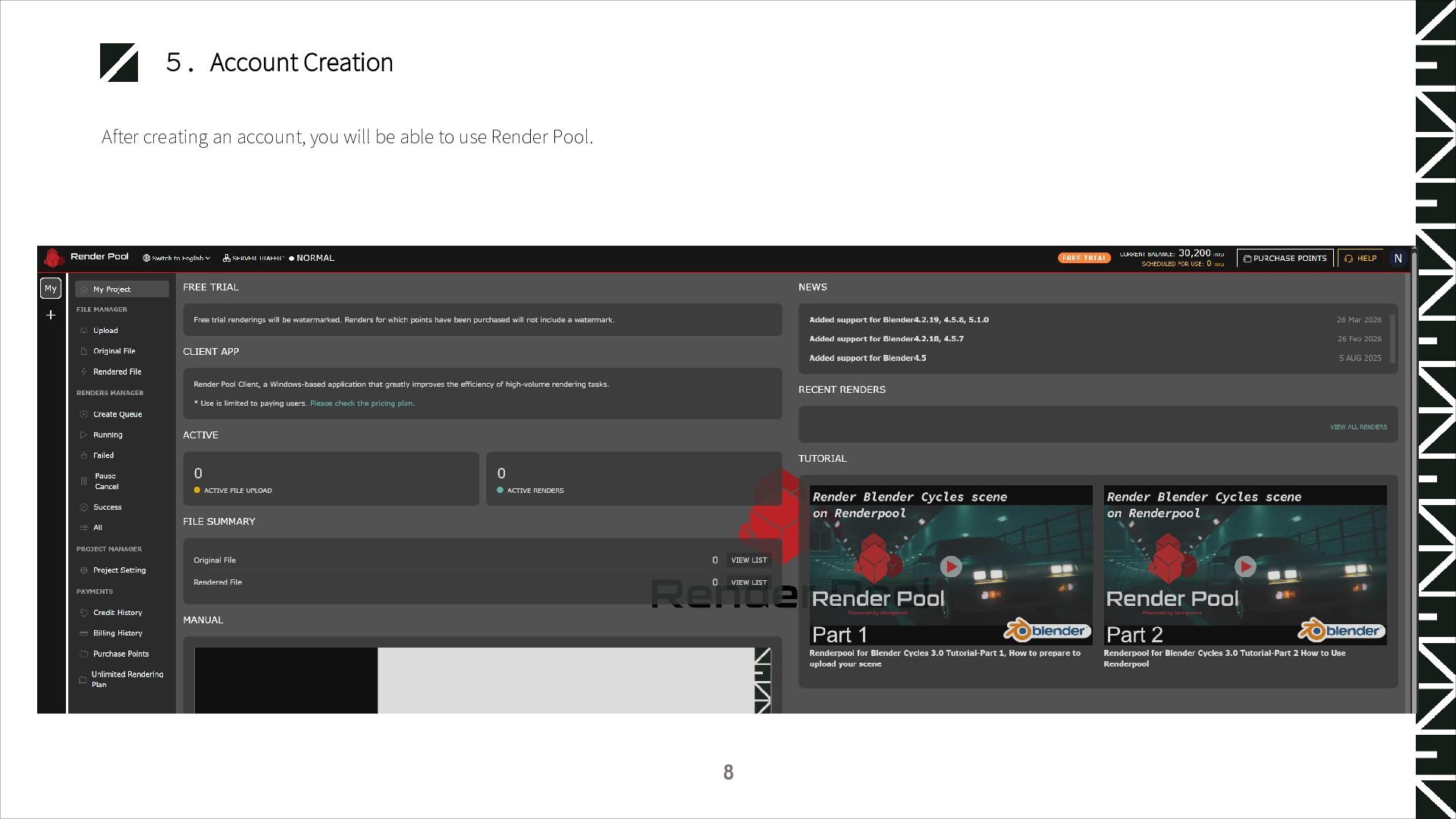
be sent to the email address you registered. Please click "Confirm Email Address" in the confirmation email. Please note: Confirmation emails may be in your spam or promotions folder, so please check all your inboxes. Please check all your mailboxes. 6
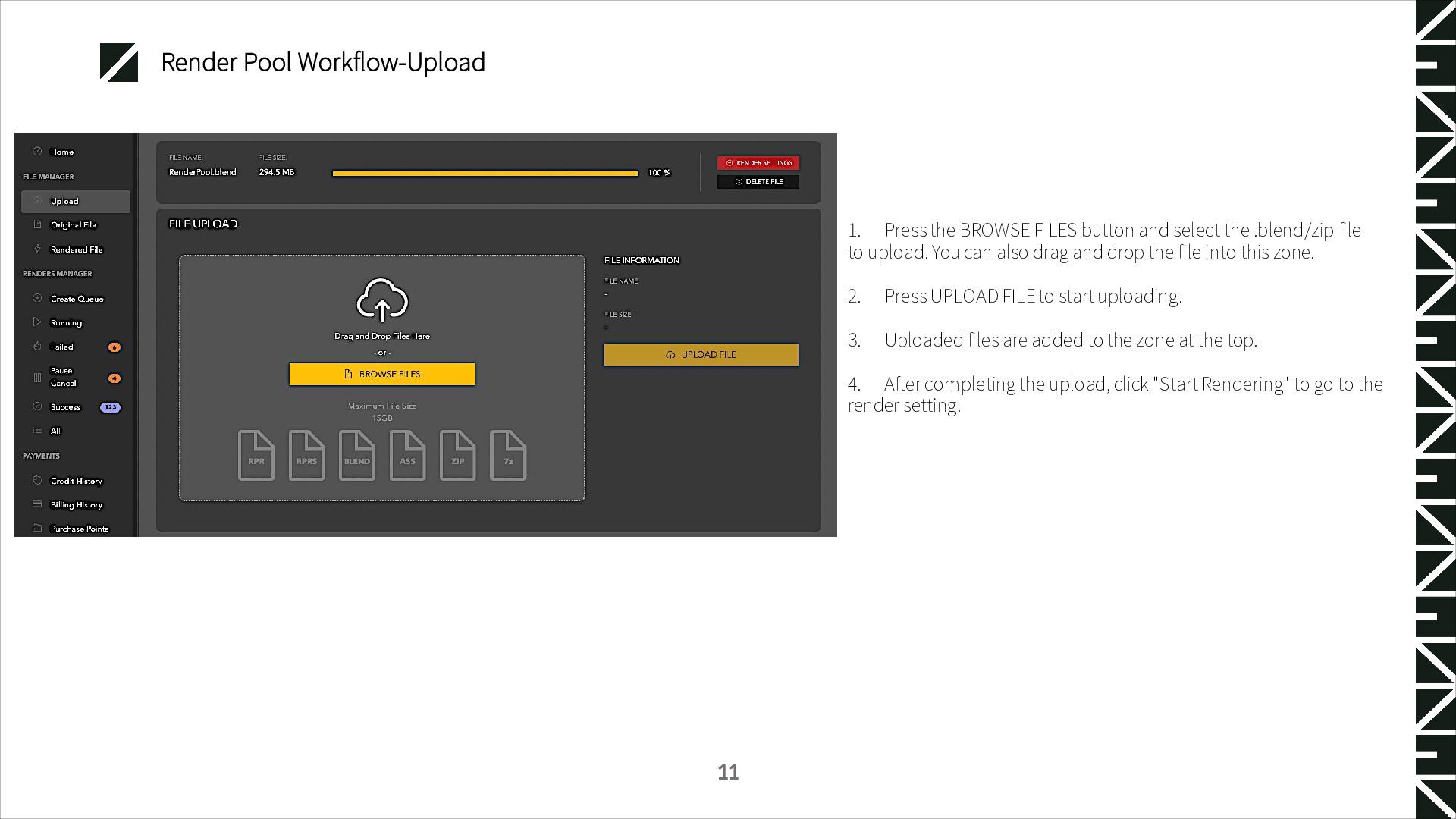
select the .blend/zip file to upload. You can also drag and drop the file into this zone. 2. Press UPLOAD FILE to start uploading. 3. Uploaded files are added to the zone at the top. 4. After completing the upload, click "Start Rendering" to go to the render setting. 11
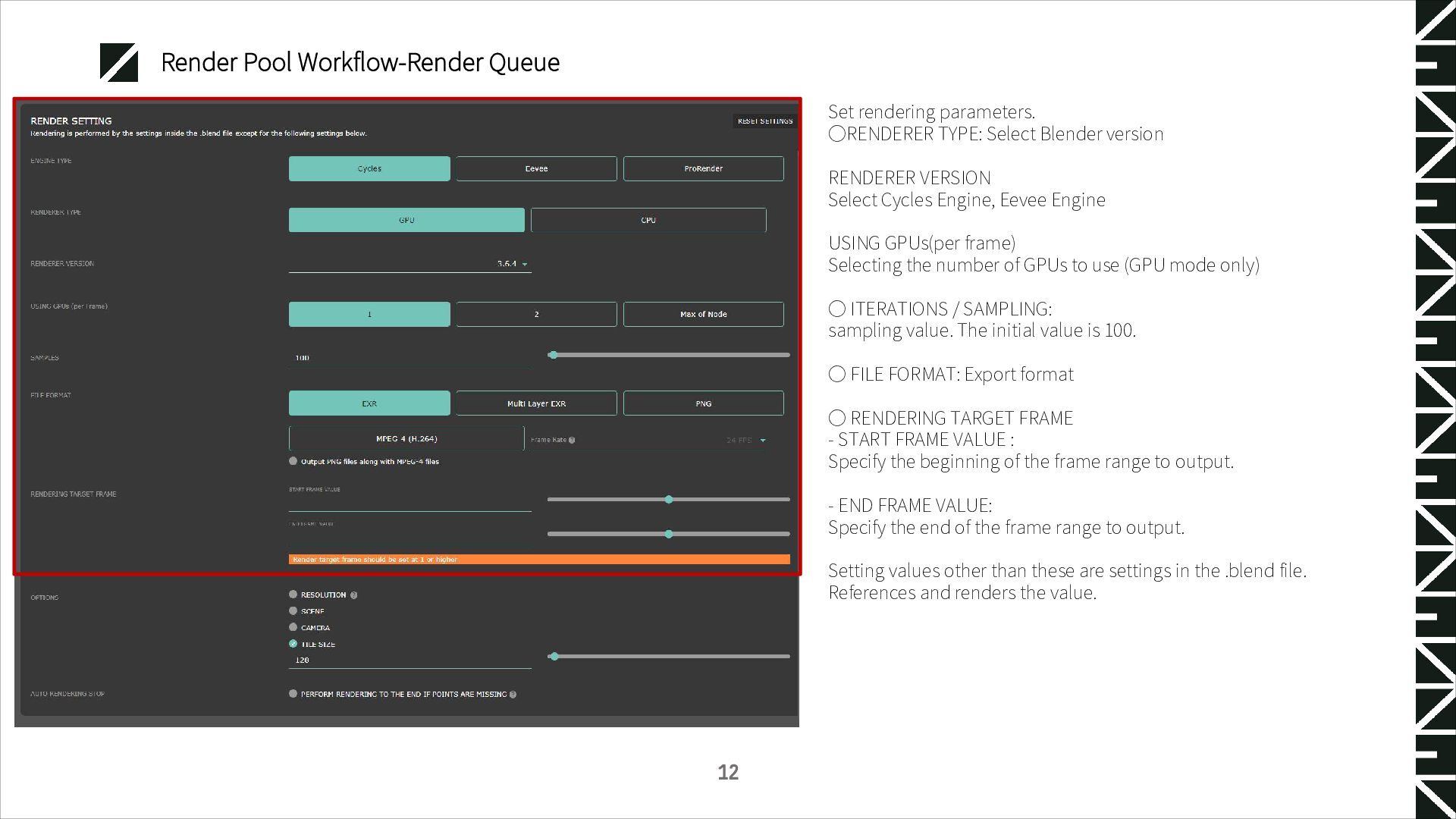
Blender version RENDERER VERSION Select Cycles Engine, Eevee Engine USING GPUs(per frame) Selecting the number of GPUs to use (GPU mode only) ◦ ITERATIONS / SAMPLING: sampling value. The initial value is 100. ◦ FILE FORMAT: Export format ◦ RENDERING TARGET FRAME - START FRAME VALUE : Specify the beginning of the frame range to output. - END FRAME VALUE: Specify the end of the frame range to output. Setting values other than these are settings in the .blend file. References and renders the value. 12
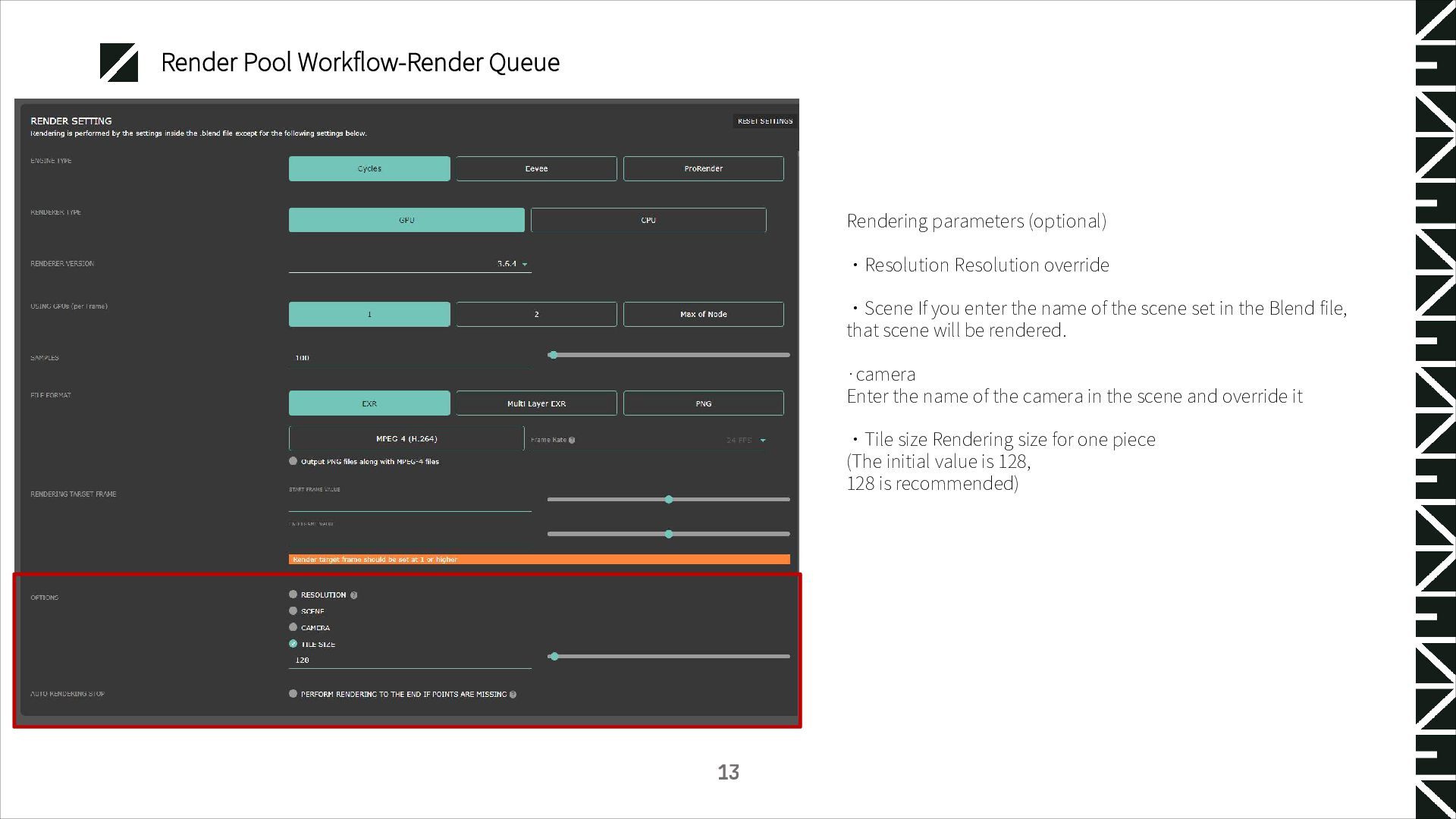
・Scene If you enter the name of the scene set in the Blend file, that scene will be rendered. ·camera Enter the name of the camera in the scene and override it ・Tile size Rendering size for one piece (The initial value is 128, 128 is recommended) 13
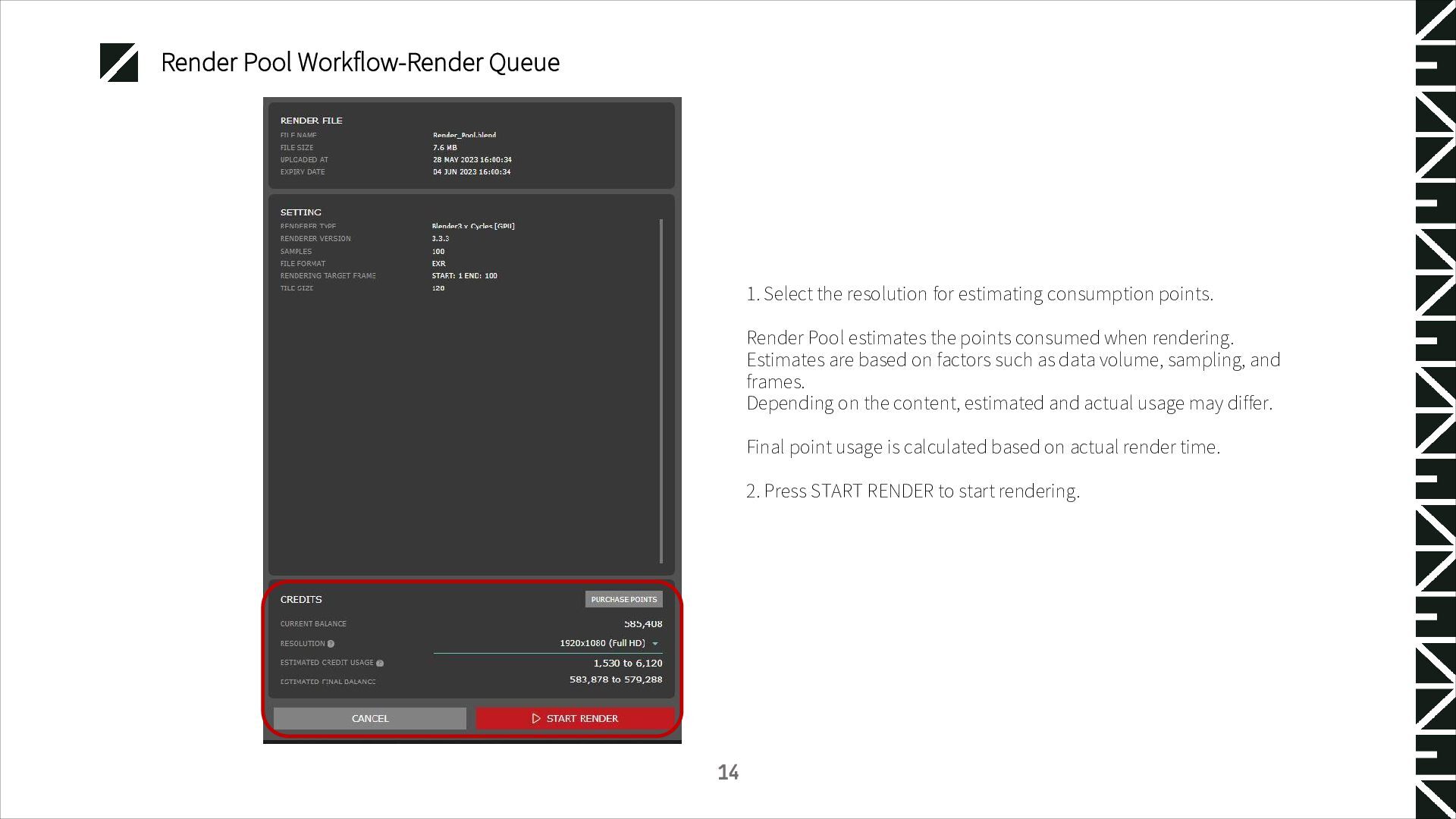
consumption points. Render Pool estimates the points consumed when rendering. Estimates are based on factors such as data volume, sampling, and frames. Depending on the content, estimated and actual usage may differ. Final point usage is calculated based on actual render time. 2. Press START RENDER to start rendering. 14
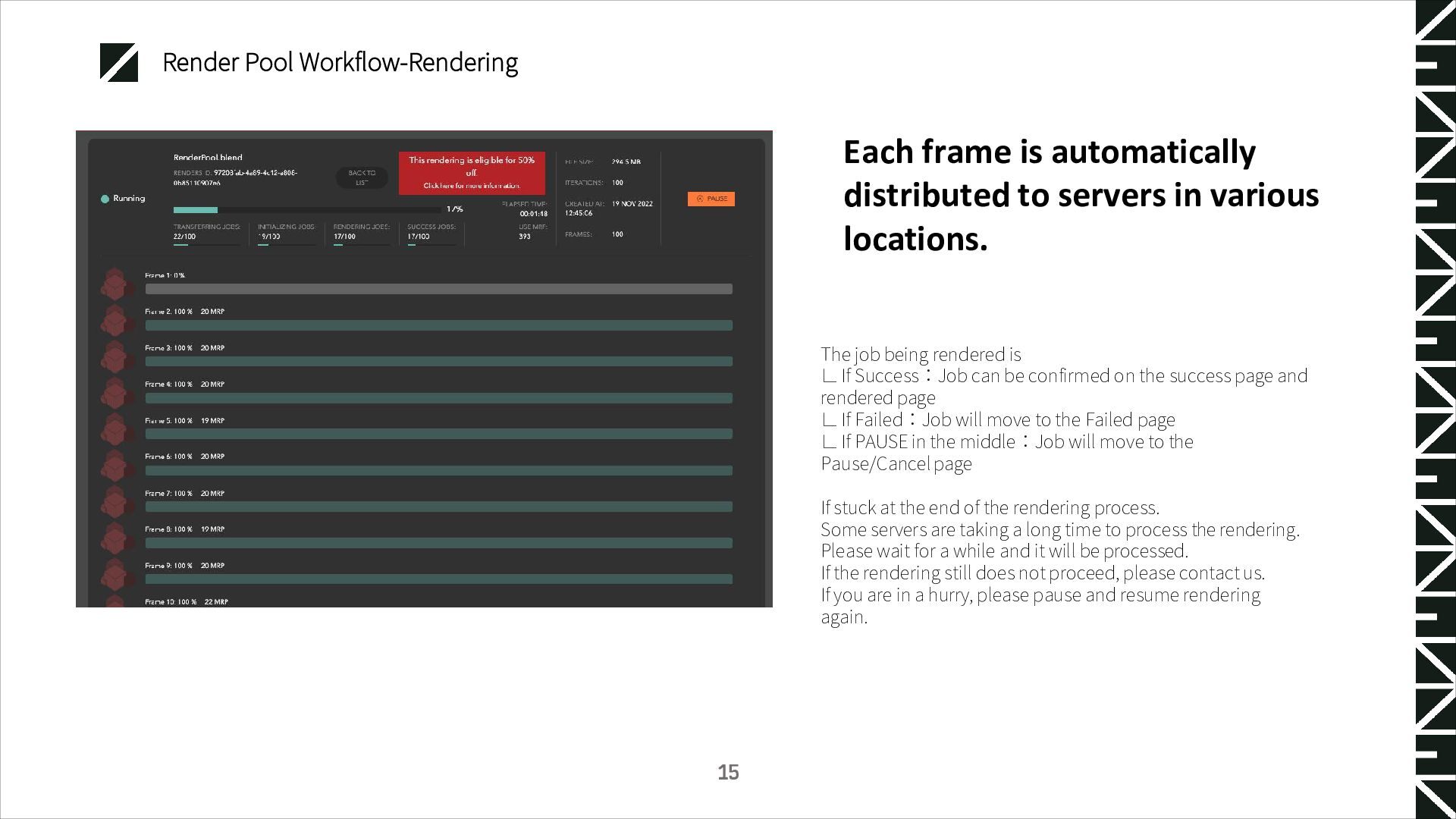
Success:Job can be confirmed on the success page and rendered page ∟ If Failed:Job will move to the Failed page ∟ If PAUSE in the middle:Job will move to the Pause/Cancel page If stuck at the end of the rendering process. Some servers are taking a long time to process the rendering. Please wait for a while and it will be processed. If the rendering still does not proceed, please contact us. If you are in a hurry, please pause and resume rendering again. 15 Each frame is automatically distributed to servers in various locations.
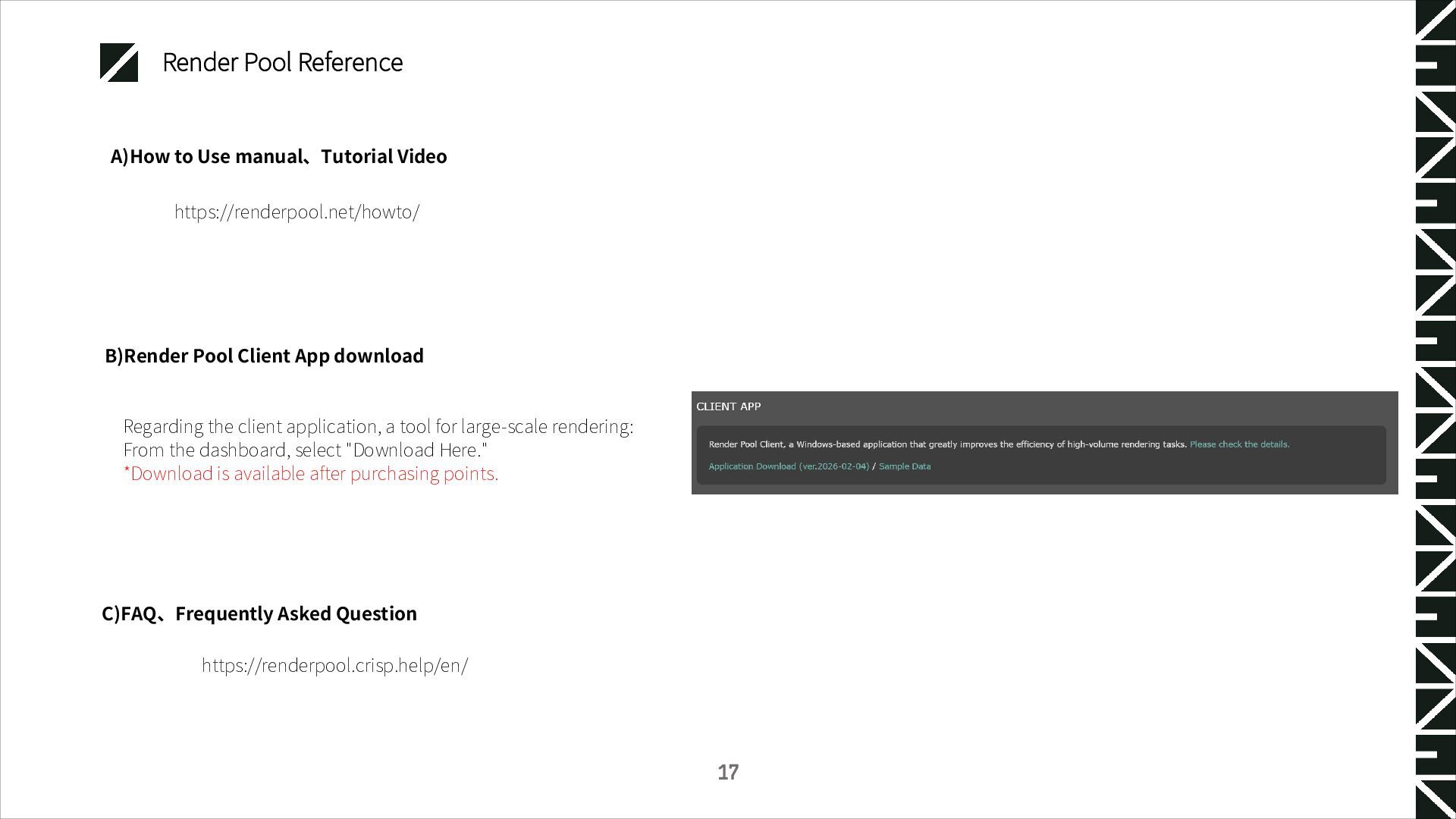
the client application, a tool for large-scale rendering: From the dashboard, select "Download Here." *Download is available after purchasing points. B)Render Pool Client App download https://renderpool.crisp.help/en/ C)FAQ、Frequently Asked Question 17
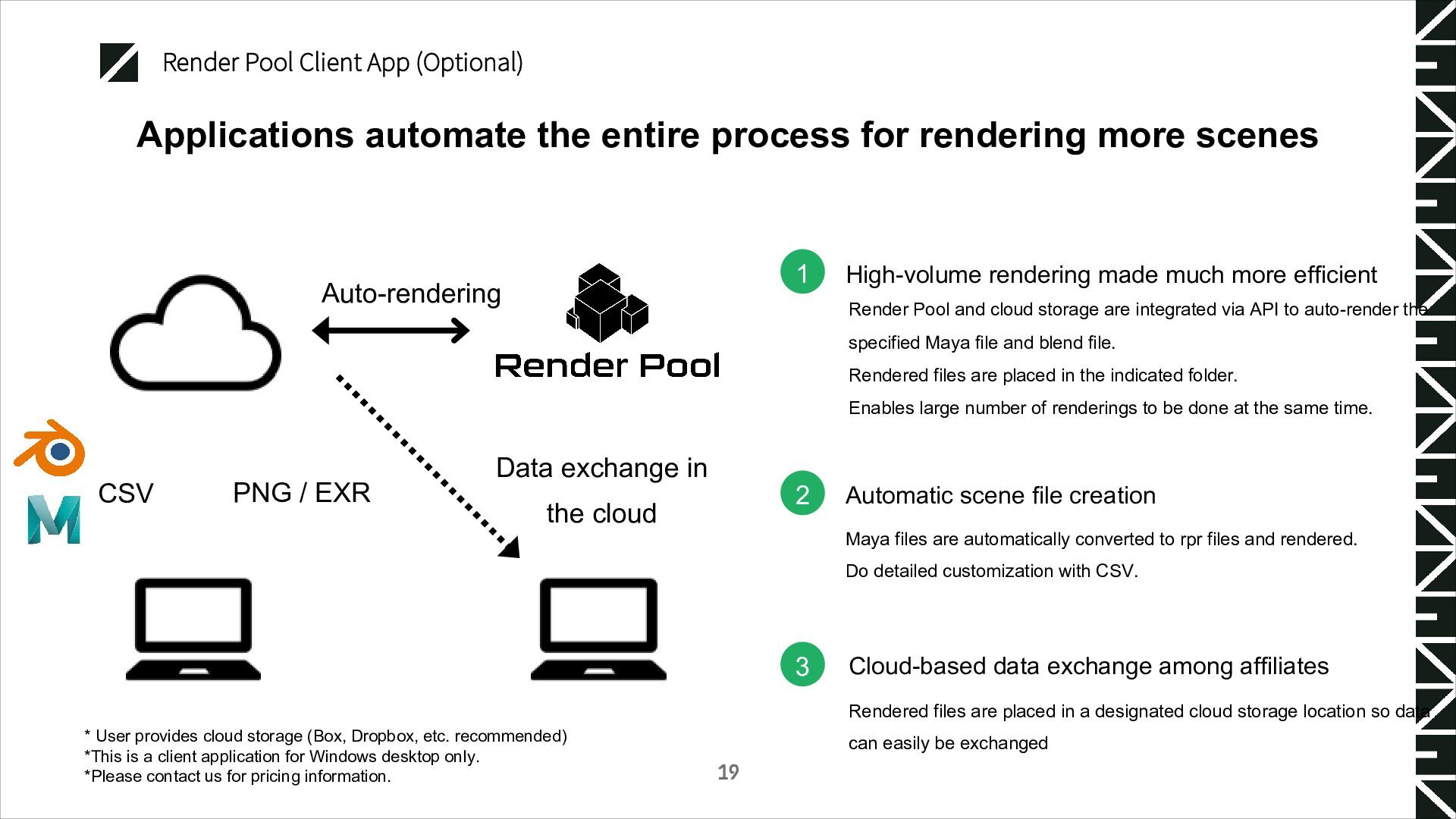
in the cloud Auto-rendering CSV 19 1 2 3 High-volume rendering made much more efficient Render Pool and cloud storage are integrated via API to auto-render the specified Maya file and blend file. Rendered files are placed in the indicated folder. Enables large number of renderings to be done at the same time. Automatic scene file creation Maya files are automatically converted to rpr files and rendered. Do detailed customization with CSV. Rendered files are placed in a designated cloud storage location so data can easily be exchanged Cloud-based data exchange among affiliates * User provides cloud storage (Box, Dropbox, etc. recommended) *This is a client application for Windows desktop only. *Please contact us for pricing information. Applications automate the entire process for rendering more scenes
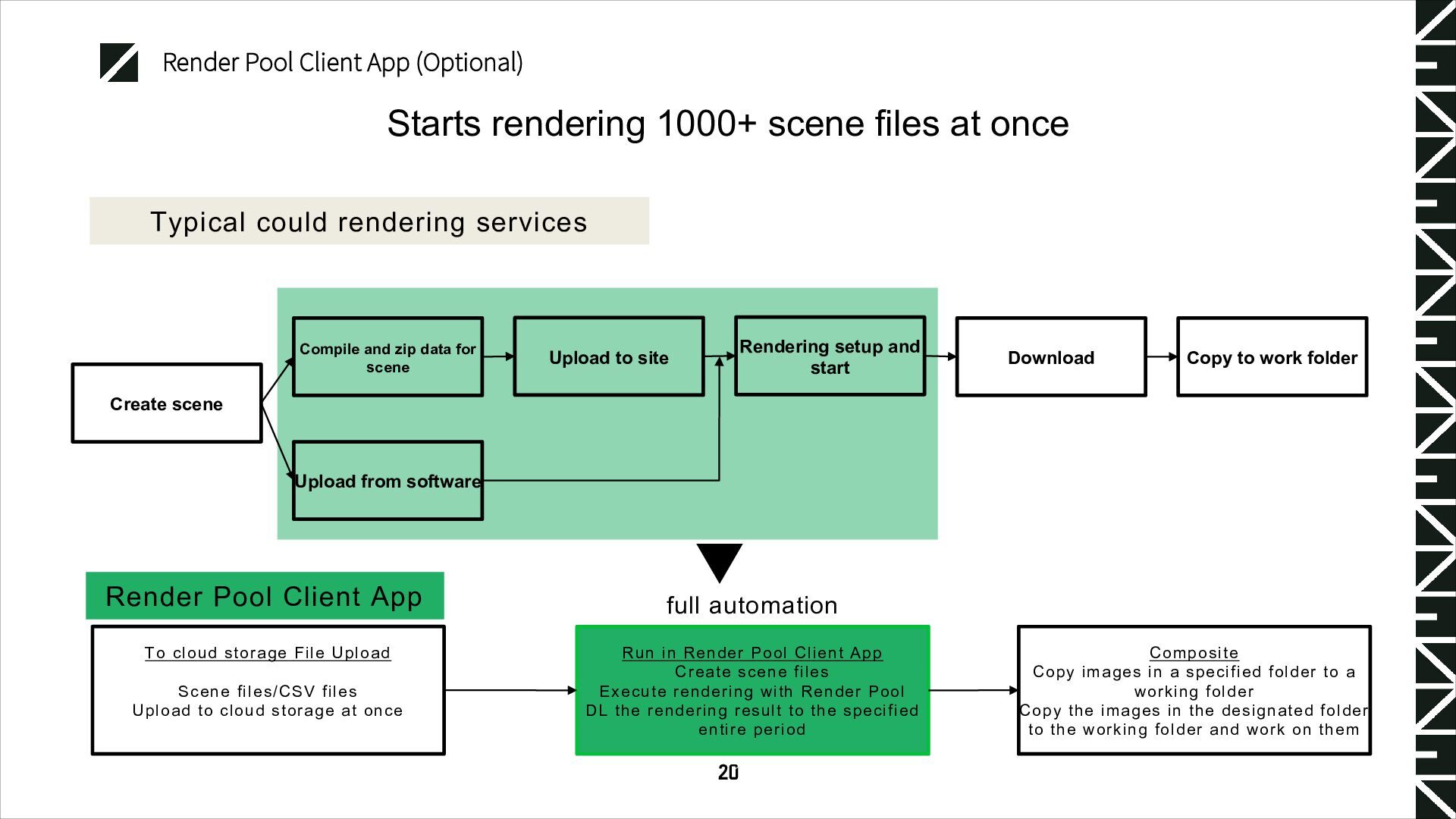
at once Render Pool Client App To cloud storage File Upload Scene files/CSV files Upload to cloud storage at once full automation Run in Render Pool Client App Create scene files Execute rendering with Render Pool DL the rendering result to the specified entire period Composite Copy images in a specified folder to a working folder Copy the images in the designated folder to the working folder and work on them Typical could rendering services Create scene Compile and zip data for scene Upload to site Download Rendering setup and start Copy to work folder Upload from software 20
the dashboard for users who have purchased paid points. For more information, please contact our staff or email us at the address below: [email protected] 21 Render Pool Client App
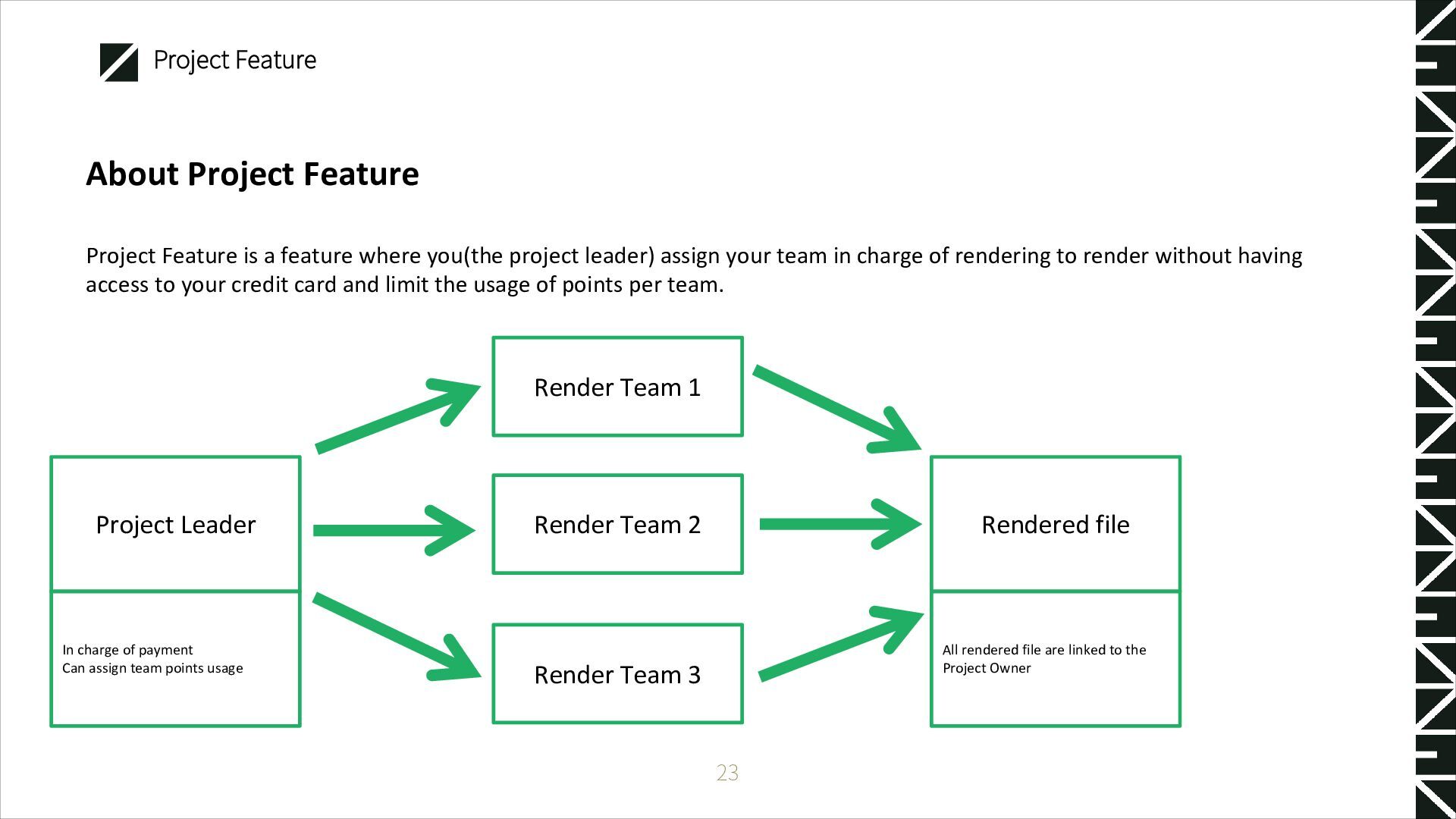
project leader) assign your team in charge of rendering to render without having access to your credit card and limit the usage of points per team. 23 Project Feature Project Leader Render Team 1 Render Team 2 Render Team 3 Rendered file In charge of payment Can assign team points usage All rendered file are linked to the Project Owner
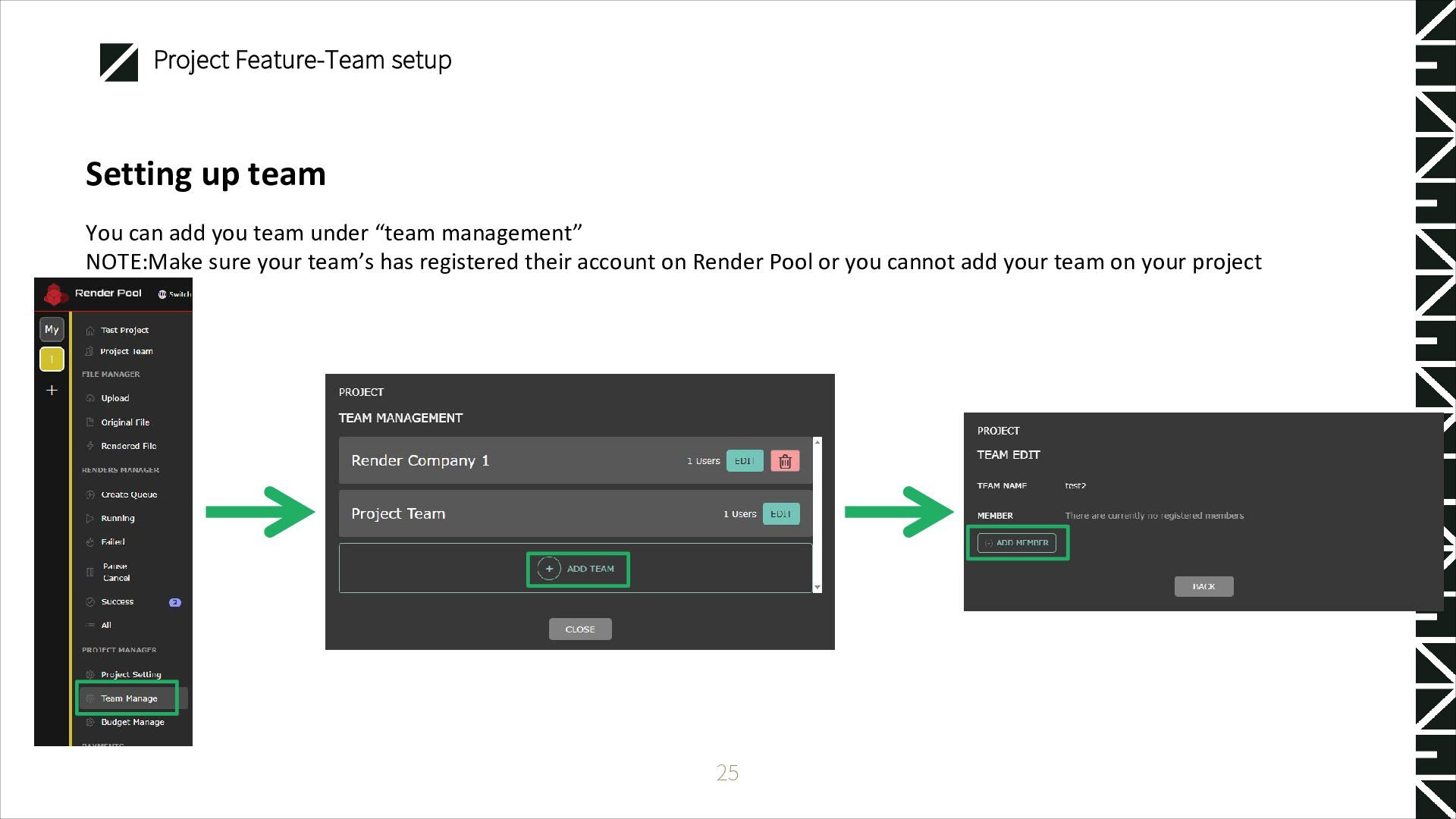
management” NOTE:Make sure your team’s has registered their account on Render Pool or you cannot add your team on your project 25 Project Feature-Team setup
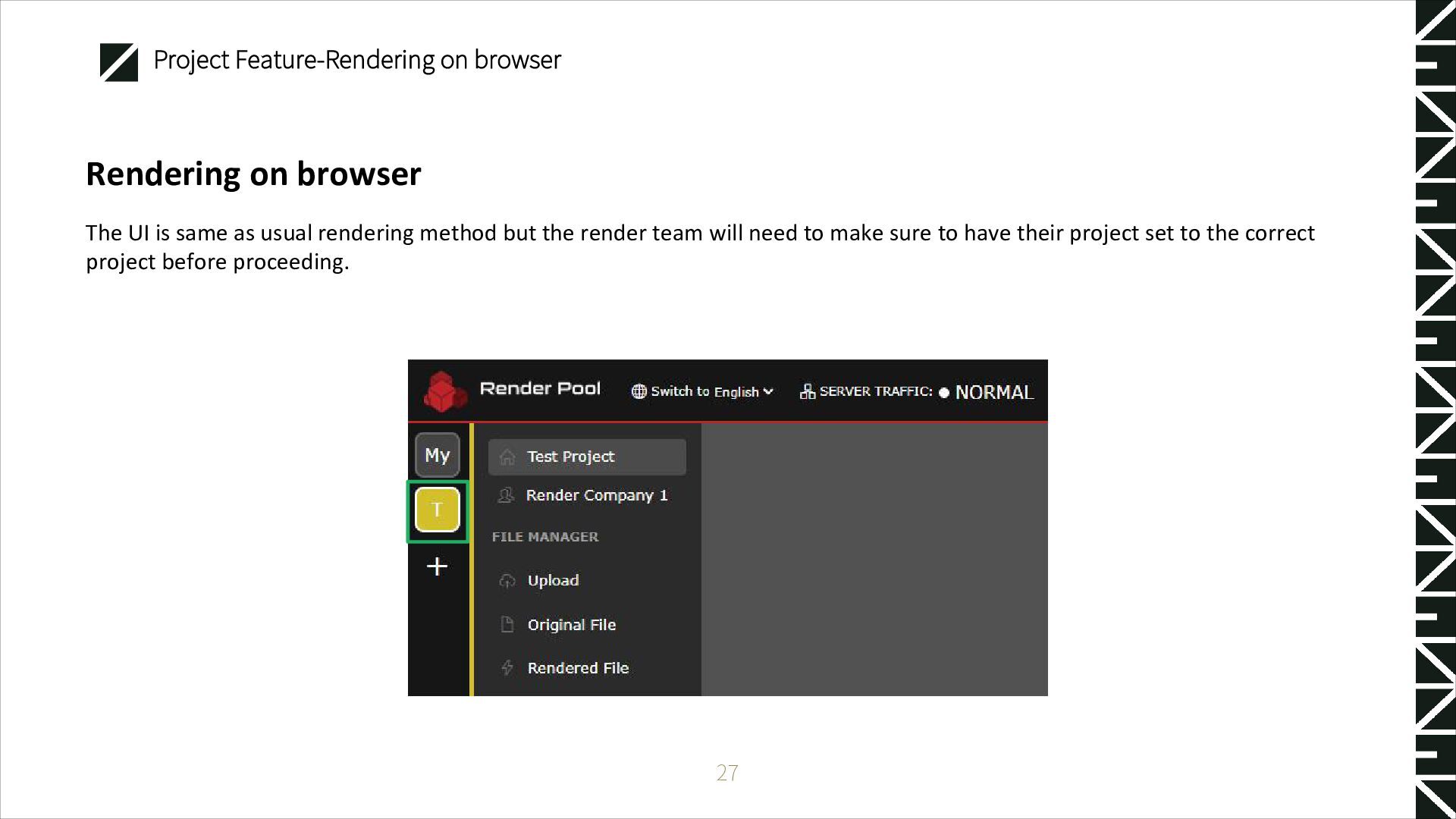
method but the render team will need to make sure to have their project set to the correct project before proceeding. 27 Project Feature-Rendering on browser
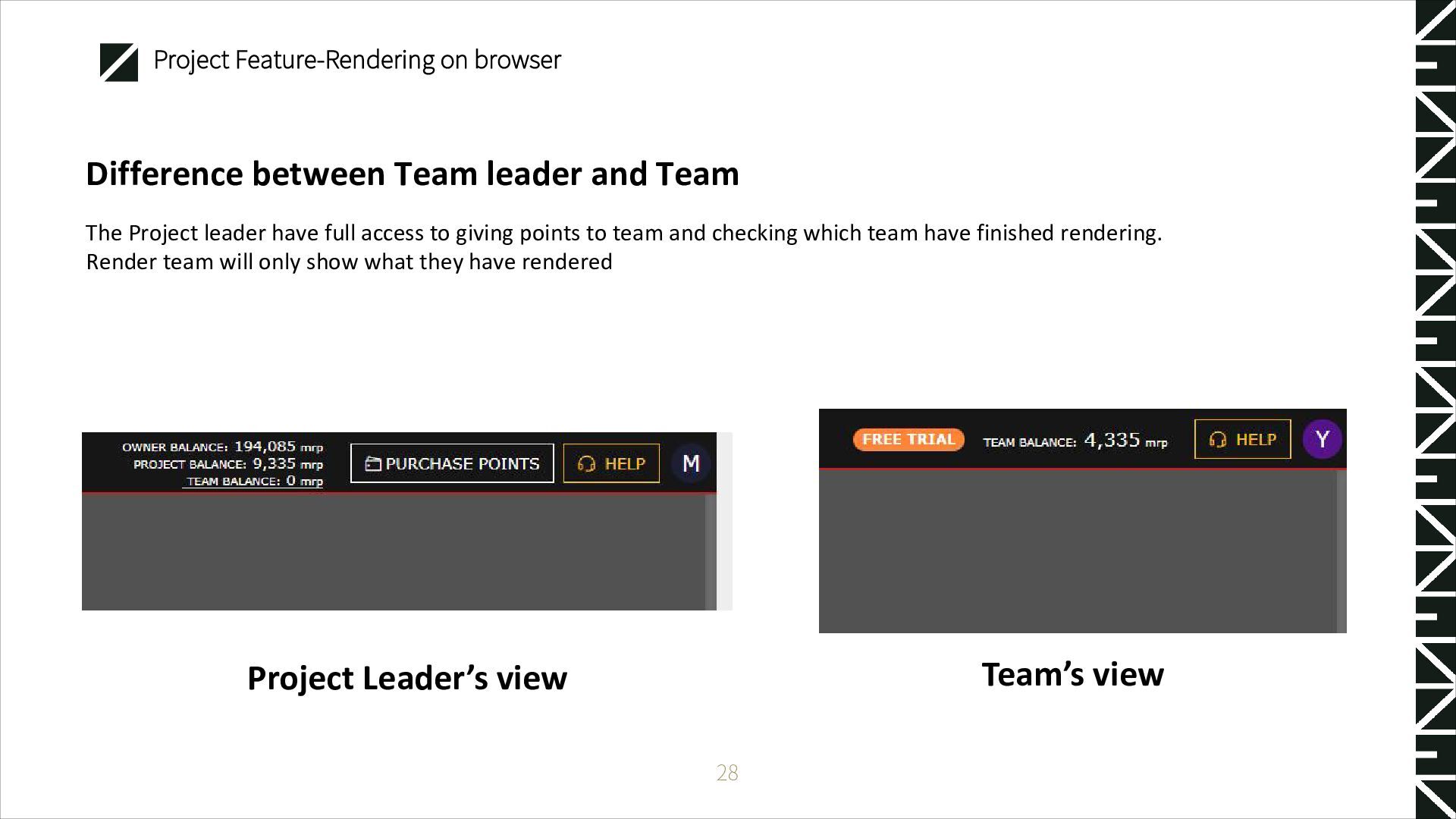
full access to giving points to team and checking which team have finished rendering. Render team will only show what they have rendered 28 Project Feature-Rendering on browser Project Leader’s view Team’s view
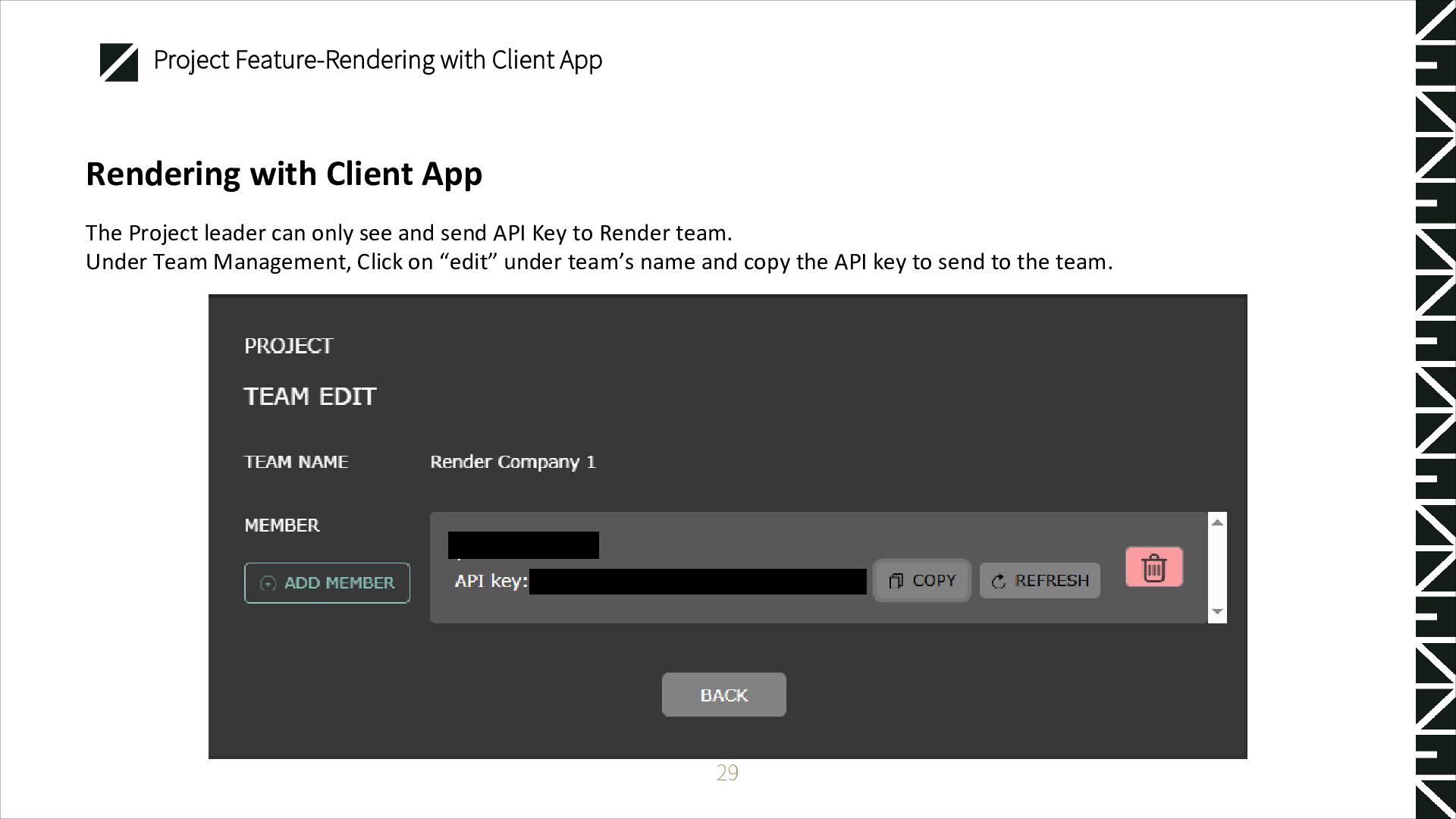
and send API Key to Render team. Under Team Management, Click on “edit” under team’s name and copy the API key to send to the team. 29 Project Feature-Rendering with Client App
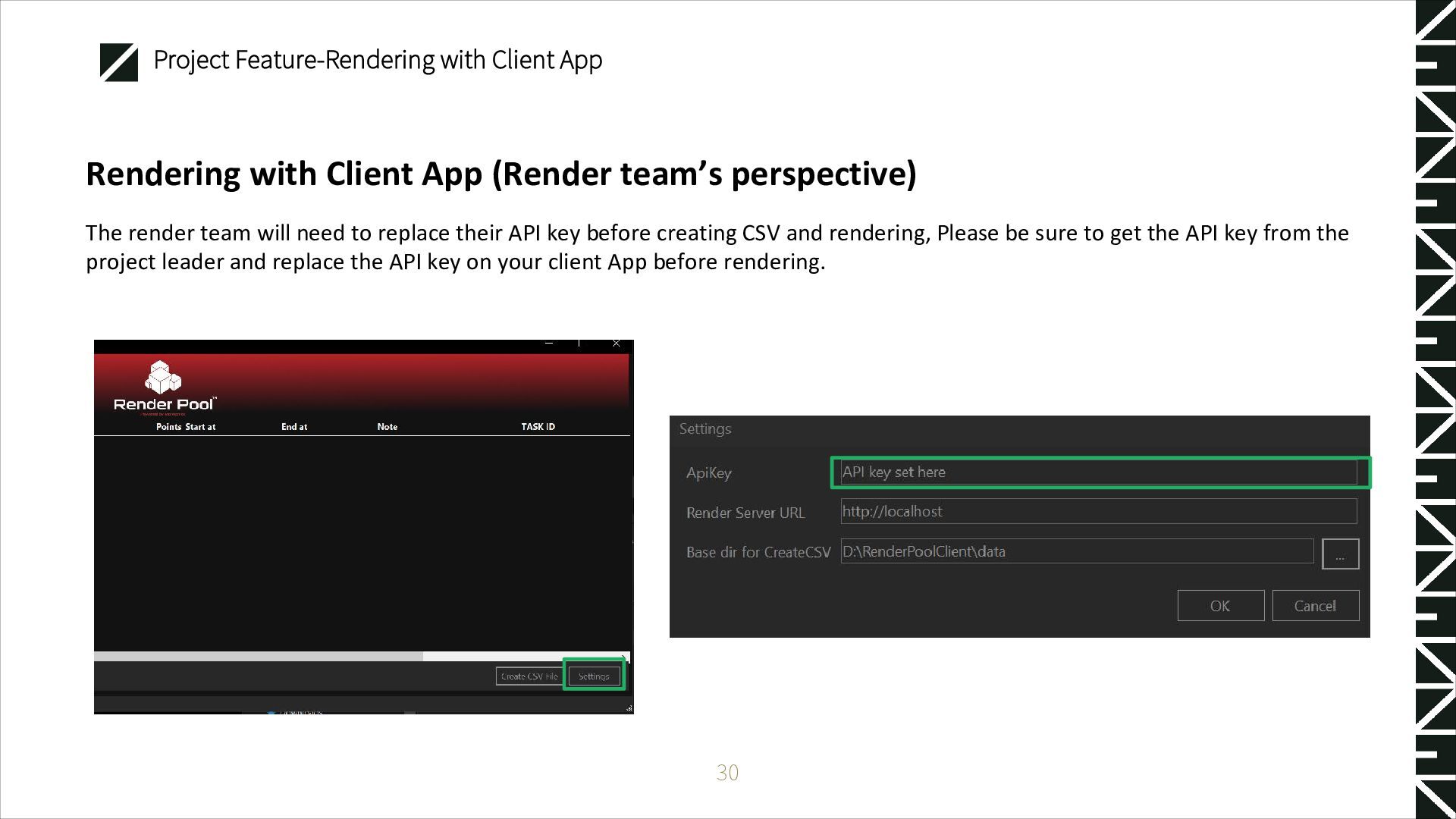
will need to replace their API key before creating CSV and rendering, Please be sure to get the API key from the project leader and replace the API key on your client App before rendering. 30 Project Feature-Rendering with Client App


 renderpool
 takuyay0ne
 azukiazusa1
 riyaamemiya
 waiwai2111
 coosuke
 yama3133
 kawaguti
 hal_spidernight
 gpuunite_official
 minorun365
 ufried
 nihonbuson
 charlesmeaden
 chrislema
 techseoconnect
 sabderemane
 maggiecrowley
 inesmontani
 kimpetersen
 nwiizo
 gurzu
gurzu
 samtorres
 tamaranovitovic
 axbom
axbom